
Ask AI
— answers from the official manualAnswers from the official manual.
Common questions
Common Questions
8 totalWhat should I do if my Cervino Voice Remote isn’t working properly?
Follow the onboarding instructions shown on screen during setup, or perform manual pairing by pressing and holding Home + Back until the LED flashes twice.
How can I use the Cervino Voice Remote to control different TV brands?
Use the Simple Set feature; press and hold OK + STB Power until the feedback LED blinks twice, then press the TV POWER key. Hold down the number corresponding to your TV brand (listed in the table) as soon as you aim at your TV.
What do I need to check if my TV doesn’t respond when using the voice remote?
Ensure your TV is powered on and that you’ve followed the proper Simple Set or manual pairing instructions as detailed in the guide.
How do I set up the voice assistant feature with my Cervino Voice Remote?
Press the MIC/Google key to access the Google Assistant. Follow on-screen instructions during initial setup or consult manual for more detailed steps.
What are the digit keys used for and how do I use them?
The digit keys (0-9) can be used to input numerical values according to your TV brand’s requirements during Simple Set pairing. For specific functions, refer to the key legend chart in the setup instructions.
How do I install batteries for the Cervino Voice Remote?
To install batteries, remove the battery cover, insert two AAA batteries by matching the + and – marks on the cover with those inside, and then replace the battery cover.
Full Manual
2 pages
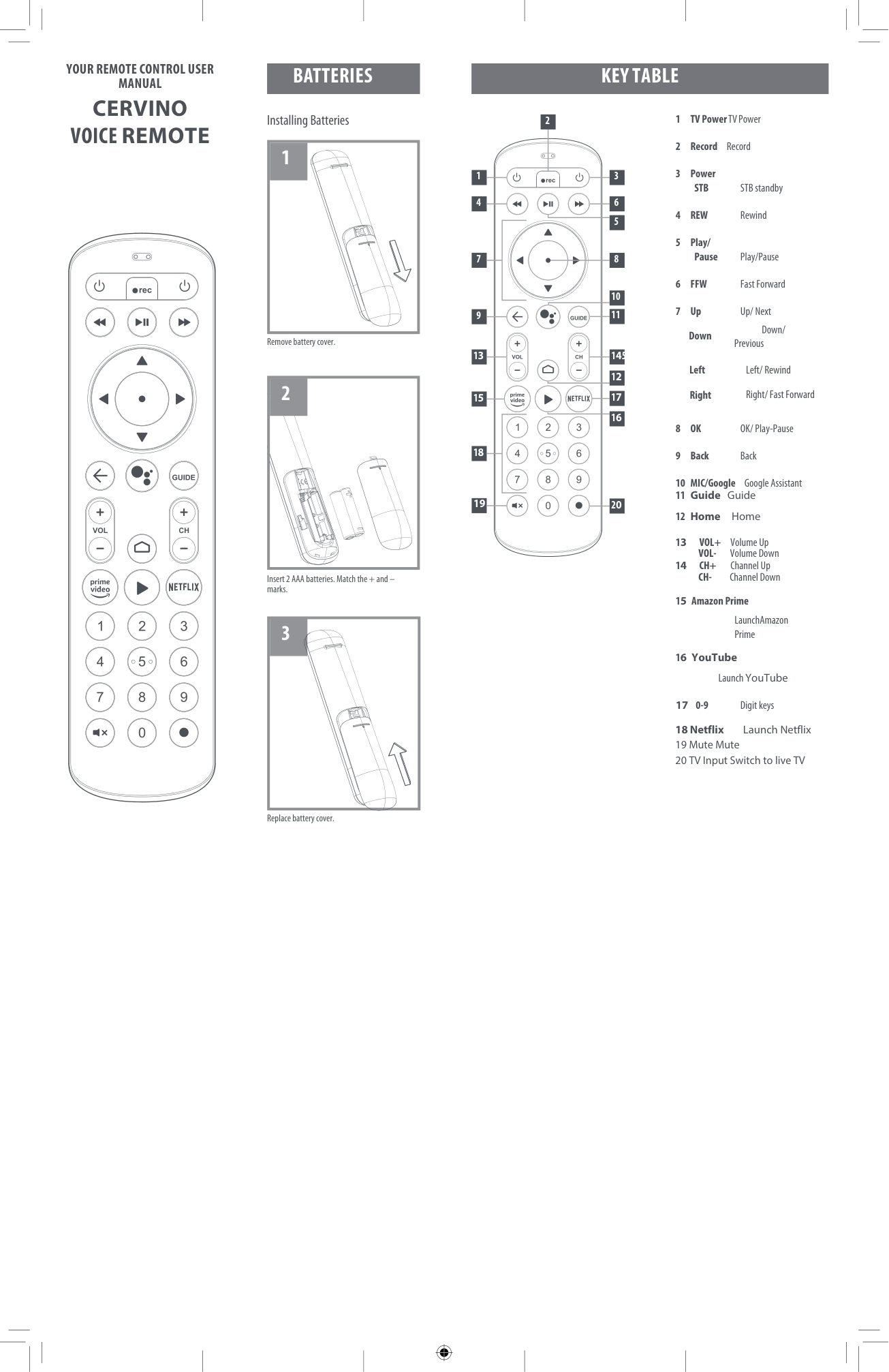
YOUR REMOTE CONTROL USER MANUAL
CERVINO VOICE REMOTE
BATTERIES
Installing Batteries
|1
| |---|
Remove battery cover.
|2| |---|
Insert 2 AAA batteries. Match the + and – marks.
|3
| |---|
Replace battery cover.
KEY TABLE
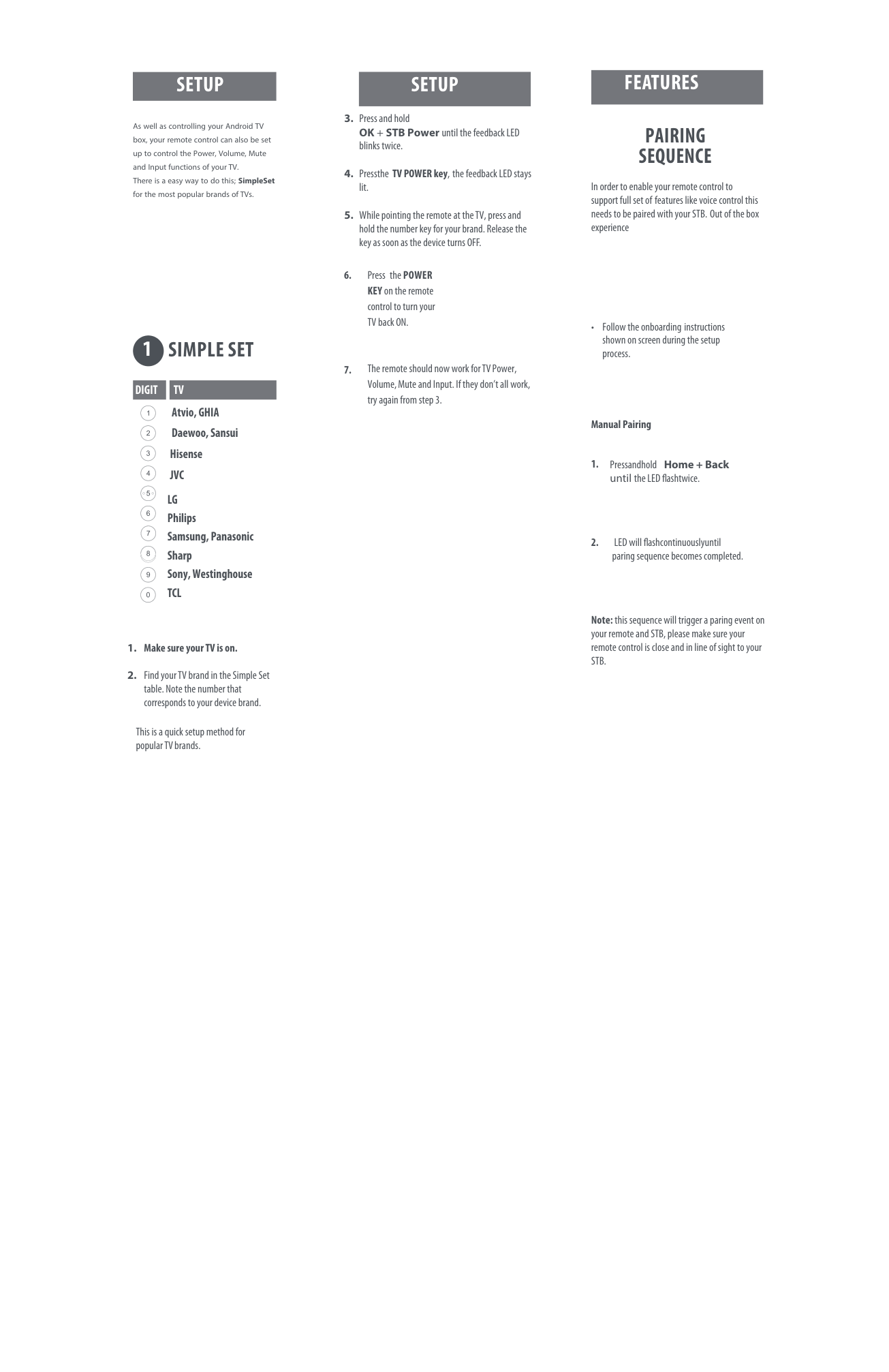
Down
Down/
Previous Left Left/ Rewind Right Right/ Fast Forward
Launch Amazon Prime
2
1
3 6
4
5
7
8
10
145
9
13
15
20
18Netflix Launch Netflix
SETUP
As well as controlling your Android TV box, your remote control can also be set up to control the Power, Volume, Mute and Input functions of your TV. There is a easy way to do this; SimpleSet for the most popular brands of TVs.
1
SIMPLE SET
DIGIT TV Atvio, GHIA Daewoo, Sansui Hisense JVC LG Philips Samsung, Panasonic Sharp Sony, Westinghouse TCL
This is a quick setup method for popular TV brands.
FEATURESSETUP
PAIRING SEQUENCE
In order to enable your remote control to support full set of features like voice control this needs to be paired with your STB. Out of the box experience
Press thePOWER KEYon the remote control to turn your TV back ON.
• F ollow the onboarding instructions shown on screen during the setup process.
The remote should now work for TV Power, Volume, Mute and Input. If they don’t all work, try again from step 3.
#### Manual Pairing
Note:this sequence will trigger a paring event on your remote and STB, please make sure your remote control is close and in line of sight to your STB.