
Ask AI
— answers from the official manualAnswers from the official manual.
Common questions
Common Questions
4 totalHow do I perform a factory hard reset on the DB3 module?
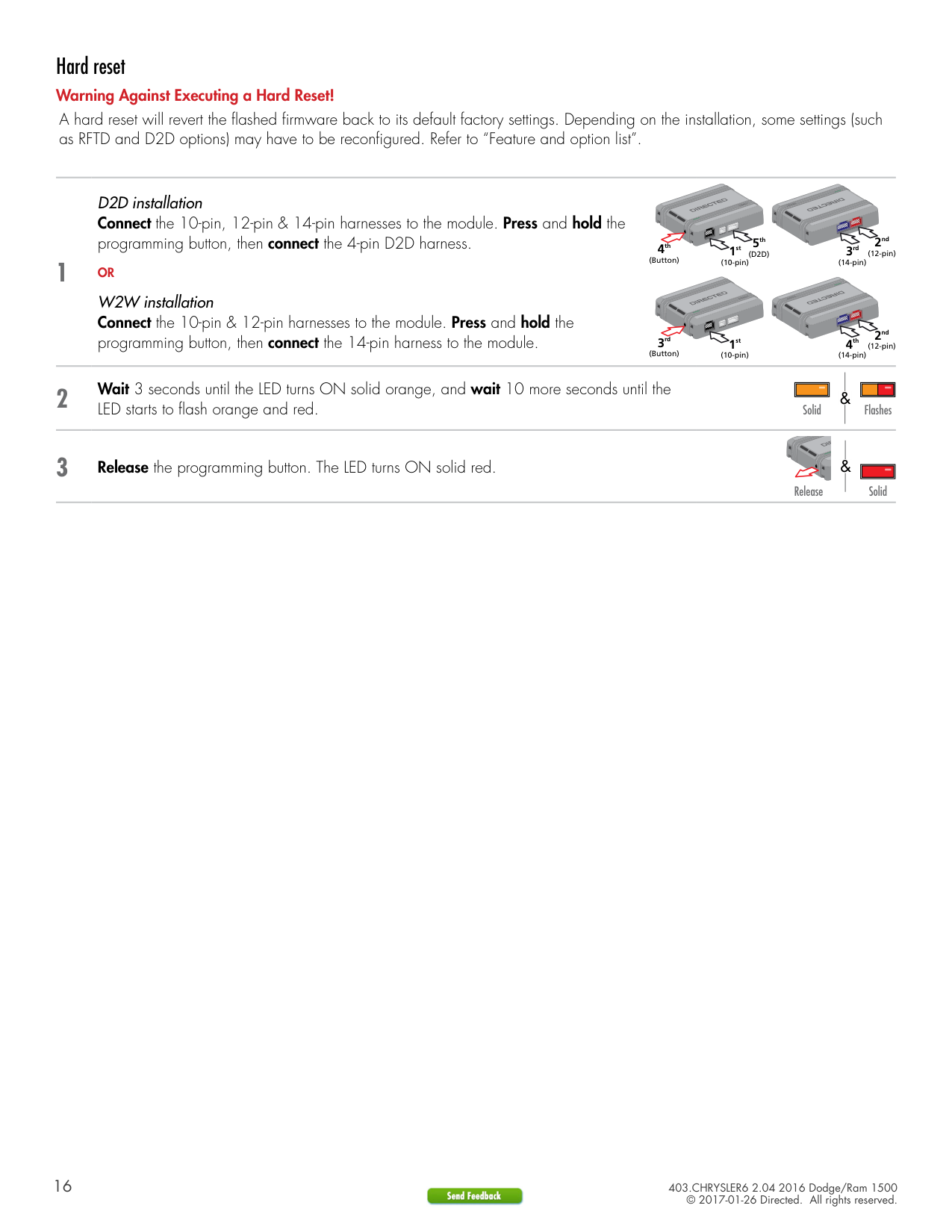
A hard reset will revert the flashed firmware back to its default factory settings, but this action resets certain installation configurations and may require reprogramming. To execute: Connect all harnesses except D2D (remove if installed), hold programming button while connecting the 14-pin harness and wait 3 seconds until LED turns solid orange. After 10 more seconds, when flashing orange-red, release the button—it will then flash red for resetting.
What safety precautions should I take when using the remote start module?
When operating system, never remotely start vehicle with keys inserted or gear engaged. Use toggle switch to disable when parked in enclosed spaces ensuring proper carbon monoxide detectors near storage areas. Keep all key remotes out of reach from children always observing adequate ventilation guidelines.
How do I configure and use Heated Seats/Defroster features with temperature settings?
To set up heated seats and rear defrosters via DB3, you must first enable these in feature programming mode. Utilize defined threshold temperatures or select 'Always ON'. Options vary for activation conditions.
What additional parts are needed for a full installation?
Additional parts include a diode, relay, resistor and fuse where listed in the pre-installation section. Specific configuration may require HS CAN connections (tan/brown wires). Ensure compatibility with optional harnesses like THCHD3.
Full Manual
21 pages
INSTALLATION GUIDE DB3
######## 2016 Dodge/Ram 1500 - 403.CHRYSLER6 2.04


Designed by Installers for Installers
© 2017 Directed, Vista CA
This product is intended for installation by a professional installer only! Attempts to install this product by a person other than a trained professional may result in severe damage to a vehicle’s electrical system and components.
Contents
Introduction 4 Pre-installation and application warnings 5 Installation 6
Wiring diagram 7 Vehicle connections 8 Key2GO 10 Connecting the module 11
Module programming 12 LED diagnostics and troubleshooting 13 Soft reset 15 Hard reset 16
Feature programming 17 Feature and option list 18 Limited one year consumer warranty 19 Quick reference guide 20
Warning! Safety first
The following safety warnings must be observed at all times:
The following precautions are the sole responsibility of the user; however, authorized Directed dealers should:
Use of this product in a manner contrary to its intended mode of operation may result in property damage, personal injury, or death. Except when performing the Safety Check outlined in this installation guide, (1) Never remotely start the vehicle with the vehicle in gear, and (2) Never remotely start the vehicle with the keys in the ignition. The user is responsible for having the neutral safety feature of the vehicle periodically checked, wherein the vehicle must not remotely start while the car is in gear. This testing should be performed by an authorized Directed dealer in accordance with the Safety Check outlined in this product installation guide. If the vehicle starts in gear, cease remote start operation immediately and consult with the user to fix the problem immediately.
OPERATION OF THE REMOTE START MODULE IF THE VEHICLE STARTS IN GEAR IS CONTRARY TO ITS INTENDED MODE OF OPERATION. OPERATING THE REMOTE START SYSTEM UNDER THESE CONDITIONS MAY RESULT IN PROPERTY DAMAGE OR PERSONAL INJURY. IMMEDIATELY CEASE THE USE OF THE UNIT AND REPAIR OR DISCONNECT THE INSTALLED REMOTE START MODULE. DIRECTED WILL NOT BE HELD RESPONSIBLE OR PAY FOR INSTALLATION OR REINSTALLATION COSTS.
Remote starters for manual transmission pose significant risks if not properly installed and operated. When testing to ensure the installation is working properly, only remote start the vehicle in neutral gear, on a flat surface and with a functional, fully engaged parking brake. Do not allow anyone to stand in front of or behind the vehicle.
This product should not be installed in any convertible vehicles, soft or hard top with a manual transmission. Installation in such vehicles may pose certain risk.
Introduction
DB3 is an all-in-one door lock and override module.

########## Warning!
This module can only be flashed and configured using DirectLink at www.directechs.com or using the Directechs Mobile application for smartphones. Refer to “Connecting the module” for more information.
This solution is compatible with the 2016 Dodge/Ram 1500 and offers the following features:
######## Pre-installation and application warnings
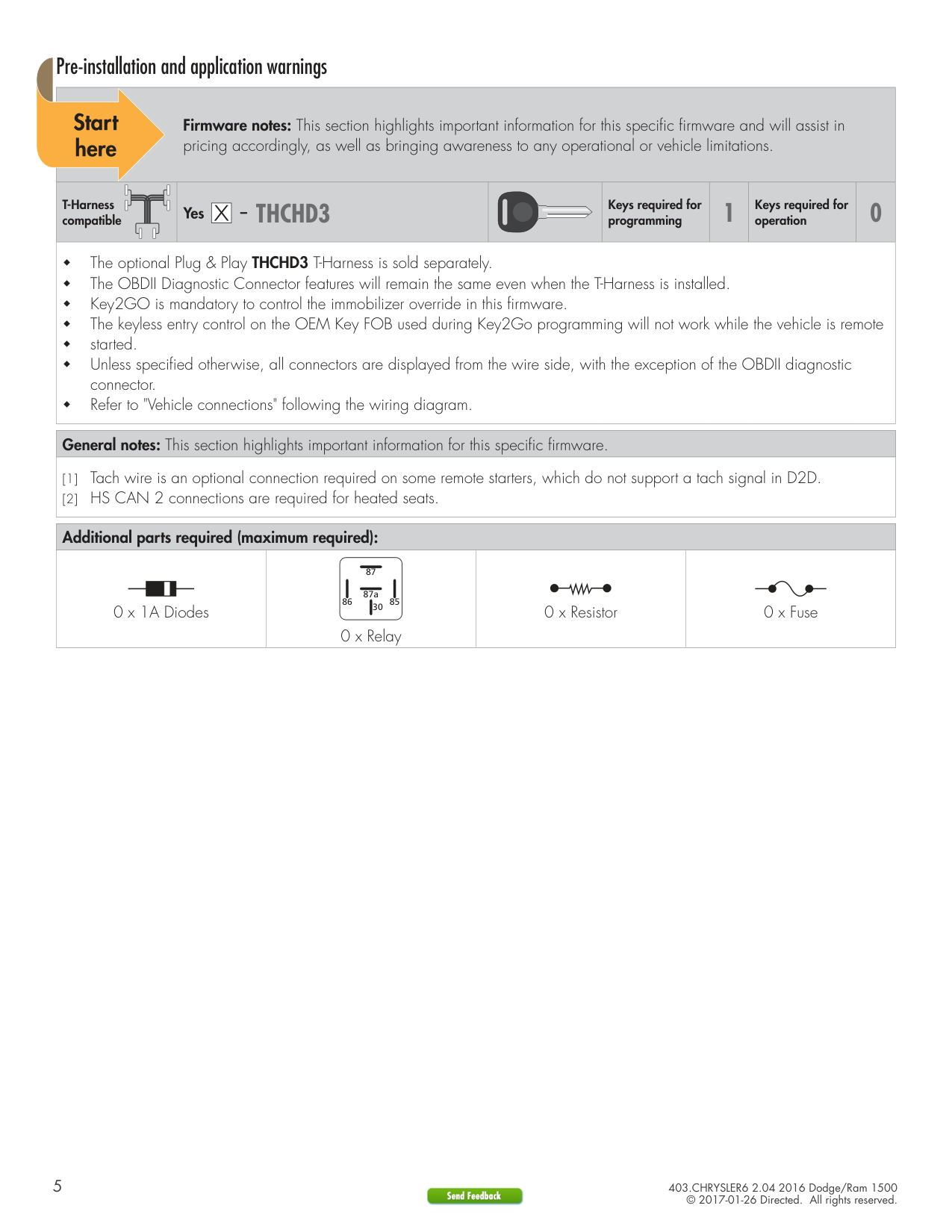
Firmware notes: This section highlights important information for this specific firmware and will assist in pricing accordingly, as well as bringing awareness to any operational or vehicle limitations.
T-Harness
compatible THCHD3 Keys required forprogramming 1 Keys required foroperation 0
The optional Plug & Play THCHD3 T-Harness is sold separately. The OBDII Diagnostic Connector features will remain the same even when the T-Harness is installed. Key2GO is mandatory to control the immobilizer override in this firmware. The keyless entry control on the OEM Key FOB used during Key2Go programming will not work while the vehicle is remote started. Unless specified otherwise, all connectors are displayed from the wire side, with the exception of the OBDII diagnostic
connector. Refer to "Vehicle connections" following the wiring diagram.
|General notes: This section highlights important information for this specific firmware.| |---| |[1] Tach wire is an optional connection required on some remote starters, which do not support a tach signal in D2D.
[2] HS CAN 2 connections are required for heated seats.
|
|Additional parts required (maximum required):|Additional parts required (maximum required):|Additional parts required (maximum required):|Additional parts required (maximum required):| |---|---|---|---| |Diode 6A0 x 1A Diodes|86 85 30
87a
87
0 x Relay|Resistor 100Ω0 x Resistor|Fuse 7.5A0 x Fuse|
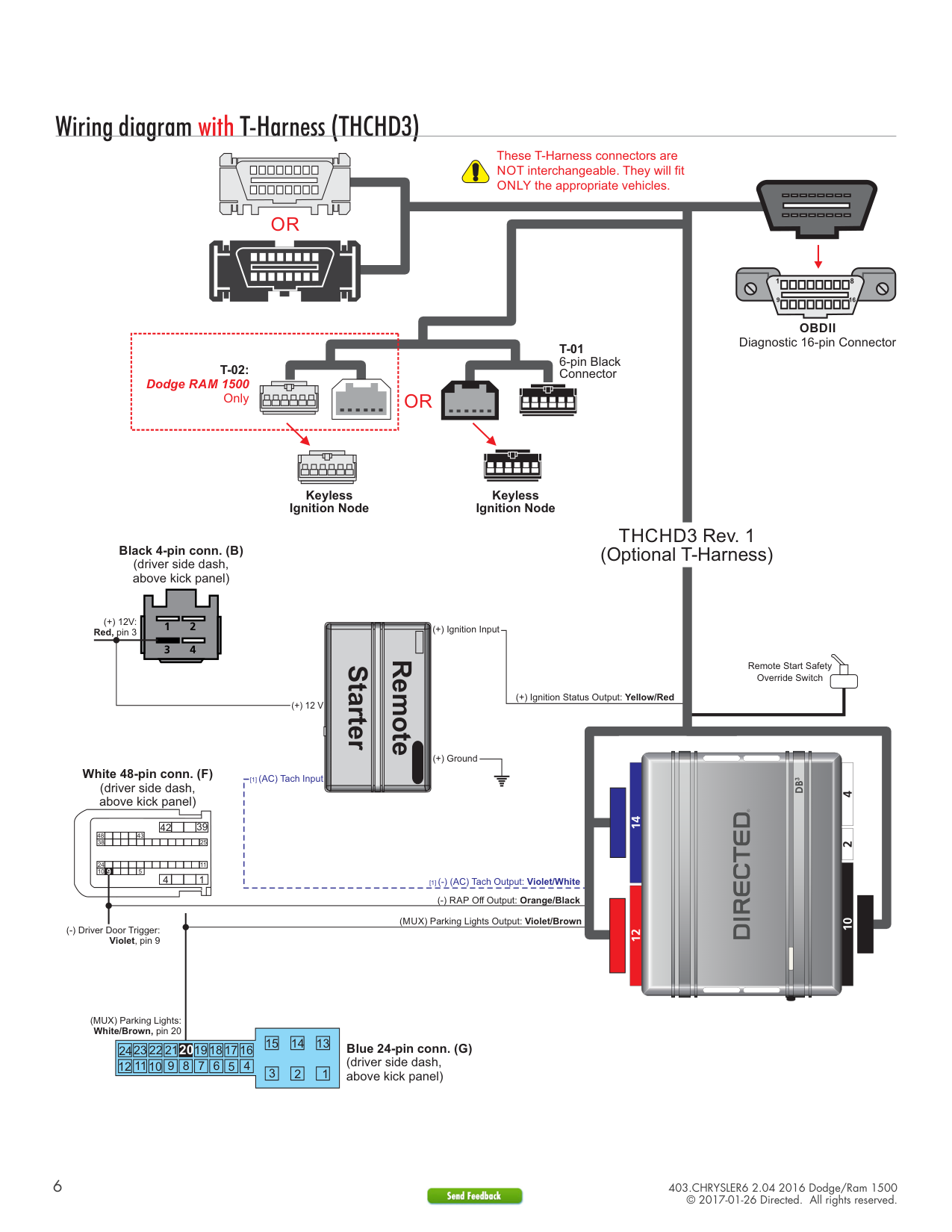
Wiring diagram with T-Harness (THCHD3)
| | | | | | |---|---|---|---|---| | | | | | |
| | | | | | | | | | | | |---|---|---|---|---|---|---|---|---|---|---| | | | | | | | | | | | |
OR
These T-Harness connectors are NOT interchangeable. They will fit ONLY the appropriate vehicles.
OBDII
OBDII Diagnostic 16-pin Connector
|T-02: Dodge RAM 1500
Only| |---|
T-01 6-pin Black Connector
| | | | |---|---|---| | | | |
OR
| | | | |---|---|---| | | | |
| | | | |---|---|---| | | | |
Keyless Ignition Node
Keyless Ignition Node
THCHD3 Rev. 1 (Optional T-Harness)
Black 4-pin conn. (B) (driver side dash, above kick panel)
(+) 12V: Red, pin 3
1 2 3 4
(+) Ignition Input
Remote Start Safety Override Switch
Remote Starter
(+) Ignition Status Output: Yellow/Red
(+) 12 V
(+) Ground


White 48-pin conn. (F) (driver side dash, above kick panel)
[1] (AC) Tach Input
|42| | |39| |---|---|---|---|
|48| | | | |43| | | | | | | | | |---|---|---|---|---|---|---|---|---|---|---|---|---|---| |38| | | | | | | | | | | | |25|
24 11 5109
|4| | |1| |---|---|---|---|
[1] (-) (AC) Tach Output: Violet/White
(-) RAP Off Output: Orange/Black
(MUX) Parking Lights Output: Violet/Brown
(-) Driver Door Trigger: Violet, pin 9


(MUX) Parking Lights: White/Brown, pin 20
|15| |---|
|14| |---|
|13| |---|
Blue 24-pin conn. (G)
############ 20
|24| |---|
|23| |---|
|22| |---|
|21| |---|
|19| |---|
|18| |---|
|17| |---|
|16| |---|
(driver side dash, above kick panel)
|12| |---|
|11| |---|
|10| |---|
|9| |---|
|8| |---|
|7| |---|
|6| |---|
|5| |---|
|4| |---|
|3| |---|
|2| |---|
|1|
|---|
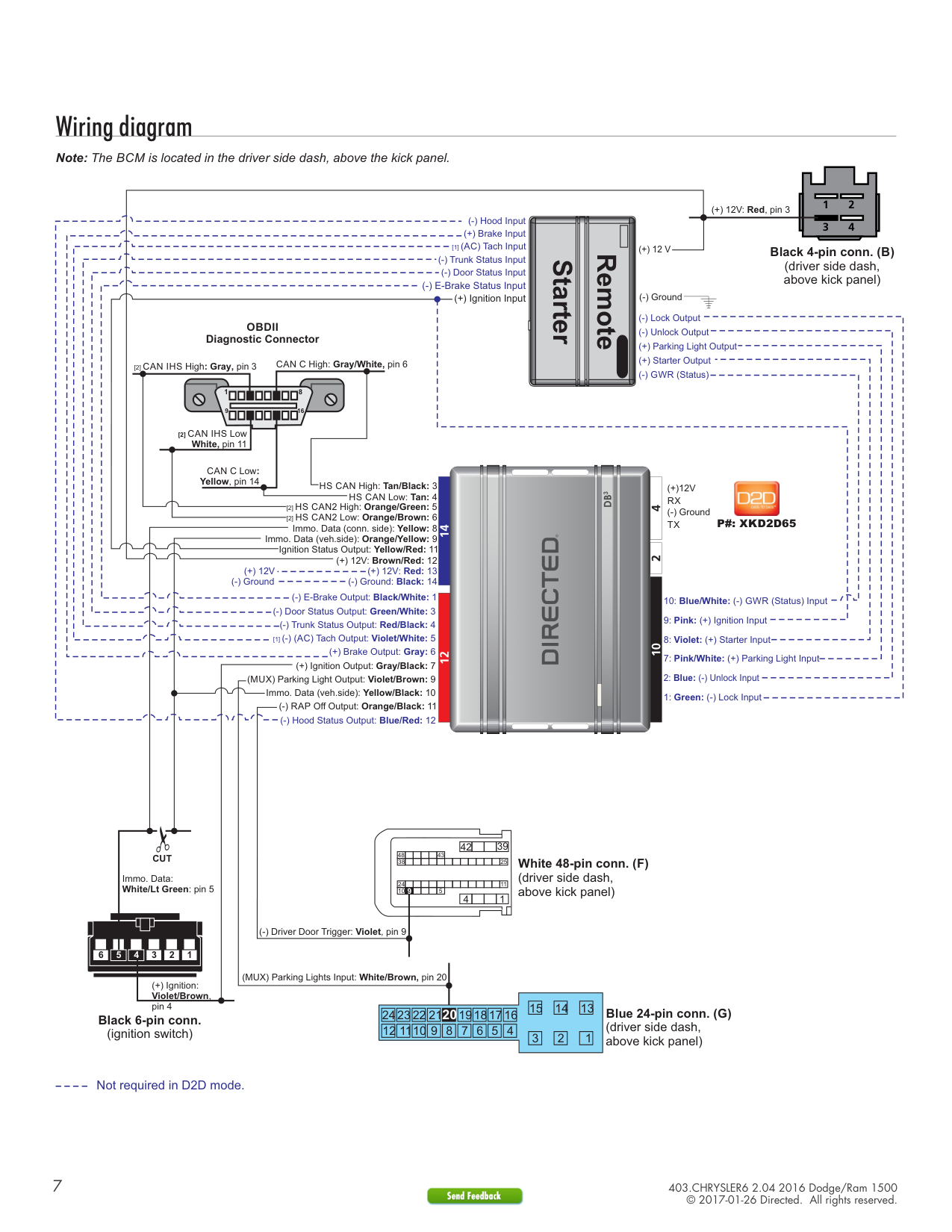
Wiring diagram
Note: The BCM is located in the driver side dash, above the kick panel.
############## 1 2 3 4
(+) 12V: Red, pin 3
(-) Hood Input
(+) Brake Input
[1] (AC) Tach Input (-) Trunk Status Input
(+) 12 V
Black 4-pin conn. (B) (driver side dash, above kick panel)
#### Remote Starter
(-) Door Status Input
(-) E-Brake Status Input (+) Ignition Input
(-) Ground
(-) Lock Output
############### OBDII Diagnostic Connector
(-) Unlock Output
(+) Parking Light Output
(+) Starter Output
CAN C High: Gray/White, pin 6
[2] CAN IHS High: Gray, pin 3
(-) GWR (Status)
################## 1 8
169
[2] CAN IHS Low White, pin 11
CAN C Low: Yellow, pin 14


HS CAN High: Tan/Black: 3 HS CAN Low: Tan: 4

(+)12V
RX
[2] HS CAN2 High: Orange/Green: 5
(-) Ground P#: XKD2D65TX
[2] HS CAN2 Low: Orange/Brown: 6
Immo. Data (conn. side): Yellow: 8 Ignition Status Output: Yellow/Red: 11
Immo. Data (veh.side): Orange/Yellow: 9 (+) 12V: Brown/Red: 12
(+) 12V: Red: 13(+) 12V
(-) Ground: Black: 14(-) Ground
(-) E-Brake Output: Black/White: 1
(-) Door Status Output: Green/White: 3
10: Blue/White: (-) GWR (Status) Input
(-) Trunk Status Output: Red/Black: 4 [1] (-) (AC) Tach Output: Violet/White: 5
(+) Brake Output: Gray: 6
(+) Ignition Output: Gray/Black: 7
(MUX) Parking Light Output: Violet/Brown: 9
Immo. Data (veh.side): Yellow/Black: 10
(-) RAP Off Output: Orange/Black: 11
(-) Hood Status Output: Blue/Red: 12


|42| | |39| |---|---|---|---|
|48| | | | |43| | | | | | | | | |---|---|---|---|---|---|---|---|---|---|---|---|---|---| |38| | | | | | | | | | | | |25|
################# CUT
############# White 48-pin conn. (F)
(driver side dash, above kick panel)
Immo. Data: White/Lt Green: pin 5
24 11 5109
|4| | |1| |---|---|---|---|
(-) Driver Door Trigger: Violet, pin 9
| | | | |---|---|---| |6|6|6|
| | | | |---|---|---| |1|1|1|
2345
(MUX) Parking Lights Input: White/Brown, pin 20
(+) Ignition: Violet/Brown, pin 4
|15| |---|
|14| |---|
|13| |---|
############# Blue 24-pin conn. (G)
############ 20
|24| |---|
|23| |---|
|22| |---|
|21| |---|
|19| |---|
|18| |---|
|17| |---|
|16| |---|
Black 6-pin conn. (ignition switch)
(driver side dash, above kick panel)
|12| |---|
|11| |---|
|10| |---|
|9| |---|
|8| |---|
|7| |---|
|6| |---|
|5| |---|
|4| |---|
|3| |---|
|2| |---|
|1| |---|
Not required in D2D mode.
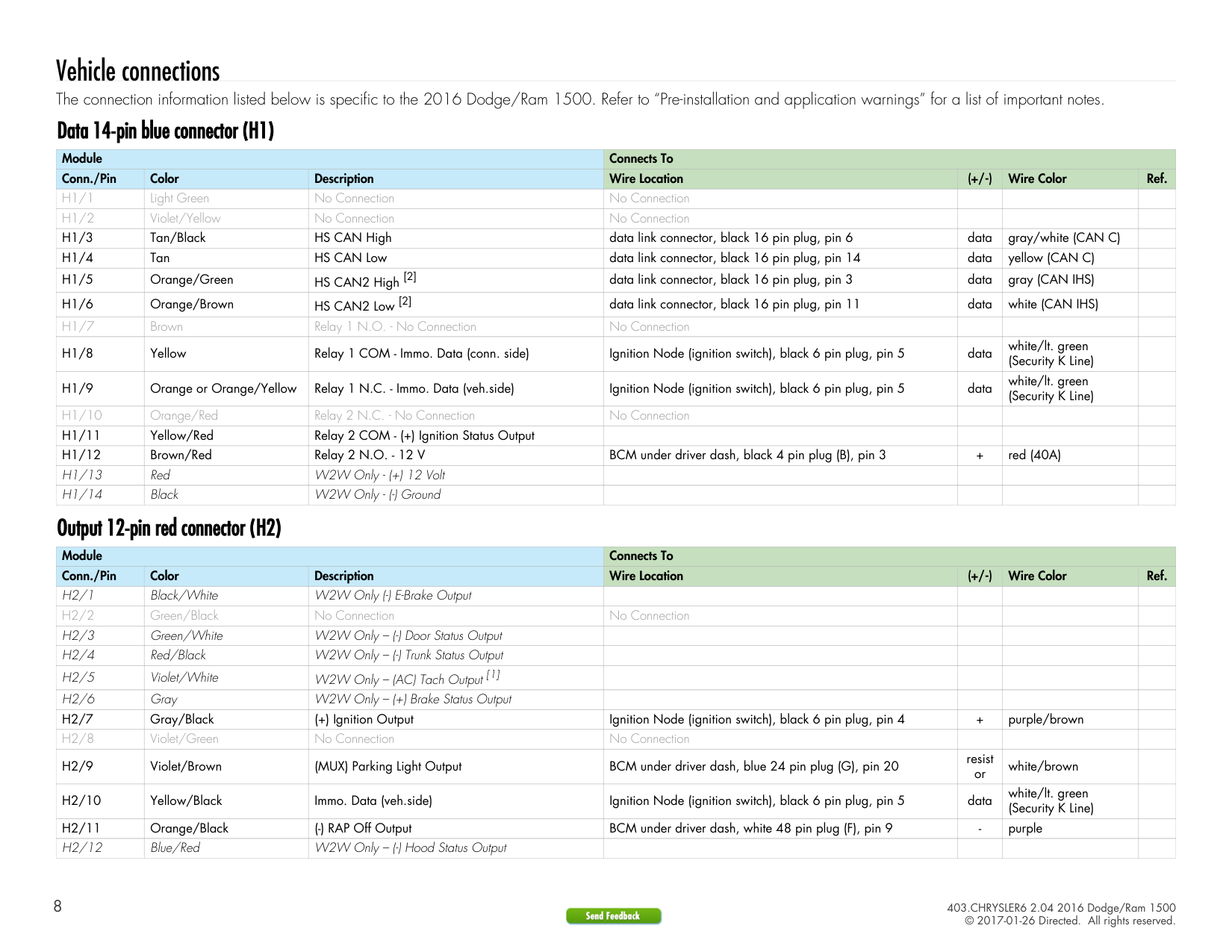
Vehicle connections
The connection information listed below is specific to the 2016 Dodge/Ram 1500. Refer to “Pre-installation and application warnings” for a list of important notes.
Data 14-pin blue connector (H1)
|Module|Module|Module|Connects To|Connects To|Connects To|Connects To| |---|---|---|---|---|---|---| |Conn./Pin|Color|Description|Wire Location| | | | |H1/1|Light Green|No Connection|No Connection| | | | |H1/2|Violet/Yellow|No Connection|No Connection| | | | |H1/3|Tan/Black|HS CAN High|data link connector, black 16 pin plug, pin 6| | | | |H1/4|Tan|HS CAN Low|data link connector, black 16 pin plug, pin 14| | | | |H1/5|Orange/Green|HS CAN2 High [2]|data link connector, black 16 pin plug, pin 3| | | | |H1/6|Orange/Brown|HS CAN2 Low [2]|data link connector, black 16 pin plug, pin 11| | | | |H1/7|Brown|Relay 1 N.O. - No Connection|No Connection| | | | |H1/8|Yellow|Relay 1 COM - Immo. Data (conn. side)|Ignition Node (ignition switch), black 6 pin plug, pin 5| | | | |H1/9|Orange or Orange/Yellow|Relay 1 N.C. - Immo. Data (veh.side)|Ignition Node (ignition switch), black 6 pin plug, pin 5| | | | |H1/10|Orange/Red|Relay 2 N.C. - No Connection|No Connection| | | | |H1/11|Yellow/Red|Relay 2 COM - (+) Ignition Status Output| | | | | |H1/12|Brown/Red|Relay 2 N.O. - 12 V|BCM under driver dash, black 4 pin plug (B), pin 3| | | | |H1/13|Red|W2W Only - (+) 12 Volt| | | | | |H1/14|Black|W2W Only - (-) Ground| | | | |
Output 12-pin red connector (H2)
|Module|Module|Module|Connects To|Connects To|Connects To|Connects To| |---|---|---|---|---|---|---| |Conn./Pin|Color|Description|Wire Location| | | | |H2/1|Black/White|W2W Only (-) E-Brake Output| | | | | |H2/2|Green/Black|No Connection|No Connection| | | | |H2/3|Green/White|W2W Only – (-) Door Status Output| | | | | |H2/4|Red/Black|W2W Only – (-) Trunk Status Output| | | | | |H2/5|Violet/White|W2W Only – (AC) Tach Output [1]| | | | | |H2/6|Gray|W2W Only – (+) Brake Status Output| | | | | |H2/7|Gray/Black|(+) Ignition Output|Ignition Node (ignition switch), black 6 pin plug, pin 4| | | | |H2/8|Violet/Green|No Connection|No Connection| | | | |H2/9|Violet/Brown|(MUX) Parking Light Output|BCM under driver dash, blue 24 pin plug (G), pin 20| | | | |H2/10|Yellow/Black|Immo. Data (veh.side)|Ignition Node (ignition switch), black 6 pin plug, pin 5| | | | |H2/11|Orange/Black|(-) RAP Off Output|BCM under driver dash, white 48 pin plug (F), pin 9| | | | |H2/12|Blue/Red|W2W Only – (-) Hood Status Output| | | | |
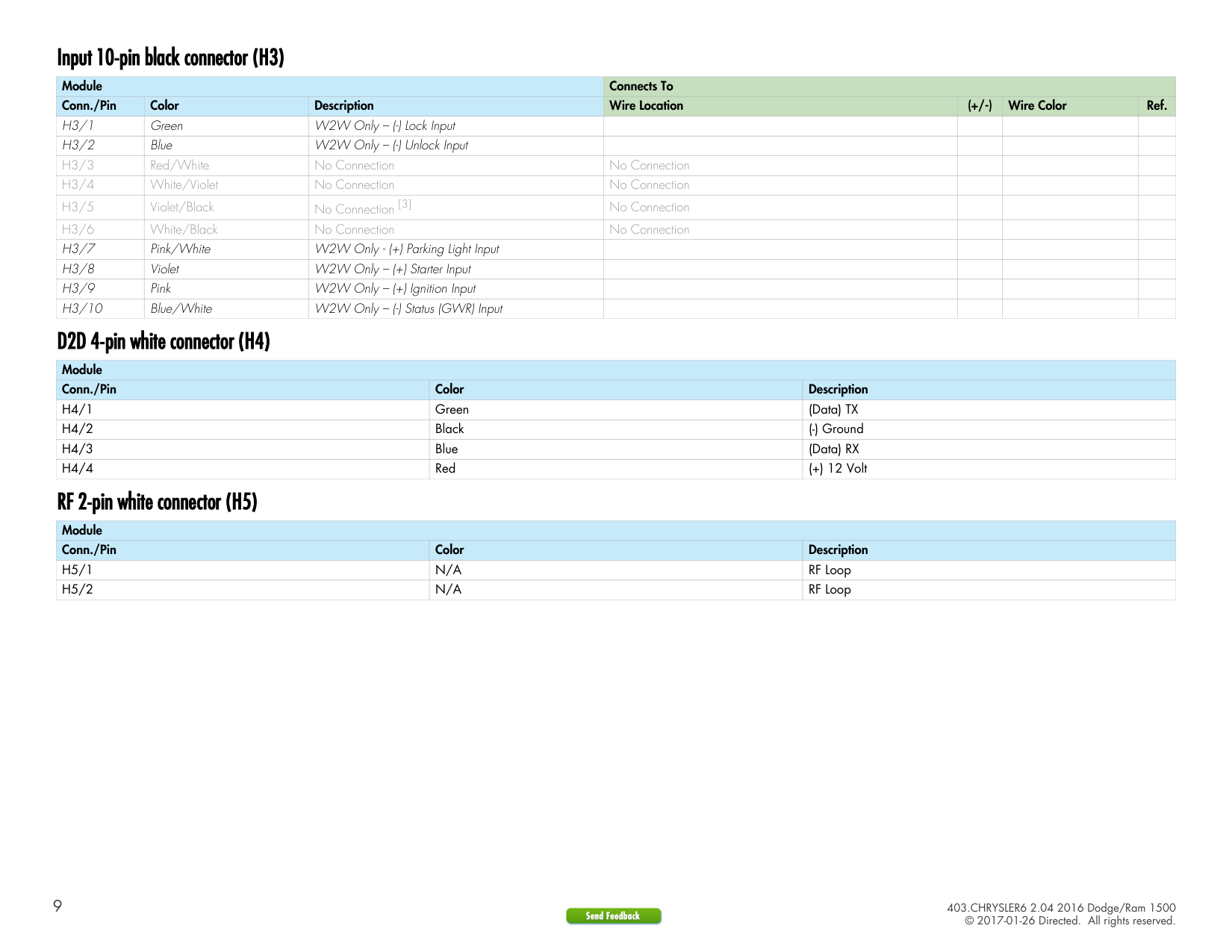
####### Input 10-pin black connector (H3)
|Module|Module|Module|Connects To|Connects To|Connects To|Connects To| |---|---|---|---|---|---|---| |Conn./Pin|Color|Description|Wire Location| | | | |H3/1|Green|W2W Only – (-) Lock Input| | | | | |H3/2|Blue|W2W Only – (-) Unlock Input| | | | |
|H3/3|Red/White|No Connection|No Connection| | | | |H3/4|White/Violet|No Connection|No Connection| | | | |H3/5|Violet/Black|No Connection [3]|No Connection| | | | |H3/6|White/Black|No Connection|No Connection| | | | |H3/7|Pink/White|W2W Only - (+) Parking Light Input| | | | | |H3/8|Violet|W2W Only – (+) Starter Input| | | | | |H3/9|Pink|W2W Only – (+) Ignition Input| | | | | |H3/10|Blue/White|W2W Only – (-) Status (GWR) Input| | | | |
####### D2D 4-pin white connector (H4)
|Module|Module|Module| |---|---|---| |Conn./Pin|Color|Description| |H4/1|Green|(Data) TX| |H4/2|Black|(-) Ground| |H4/3|Blue|(Data) RX| |H4/4|Red|(+) 12 Volt|
####### RF 2-pin white connector (H5)
|Module|Module|Module| |---|---|---| |Conn./Pin|Color|Description| |H5/1|N/A|RF Loop| |H5/2|N/A|RF Loop|
Key2GO
This feature is mandatory to control the immobilizer override in this firmware.
Key2GO has been designed and developed to bypass the advanced encryption layers found in modern vehicles. It uses an array of servers to generate a duplicate of the original key, allowing the installation of a remote starter without having to give up a key.
The advantage is that this feature allows you to use one original key and the server to configure the bypass in the vehicle.
All Key2GO-compatible firmware are clearly indicated in the function list of each vehicle search result page and will also appear on the flash page. Any first-time user must re-register to gain access to Key2GO, and some additional information will be required to complete the registration process, such as your Directed account number and store name.
Key2GO is compatible with XKLoader2 and the online web tool, as well as XKLoader3 and the Directechs Mobile application.
Refer to “Module programming” of this guide for instructions on how to program features using Key2GO.
Connecting the module
Important!
Make all the required connections to the vehicle, as described in this guide, and double check to ensure everything is correct prior to moving onto programming.
Warning! To take advantage of advanced features, you must use DirectLink 4.5 (and higher) or the Directechs Mobile application.
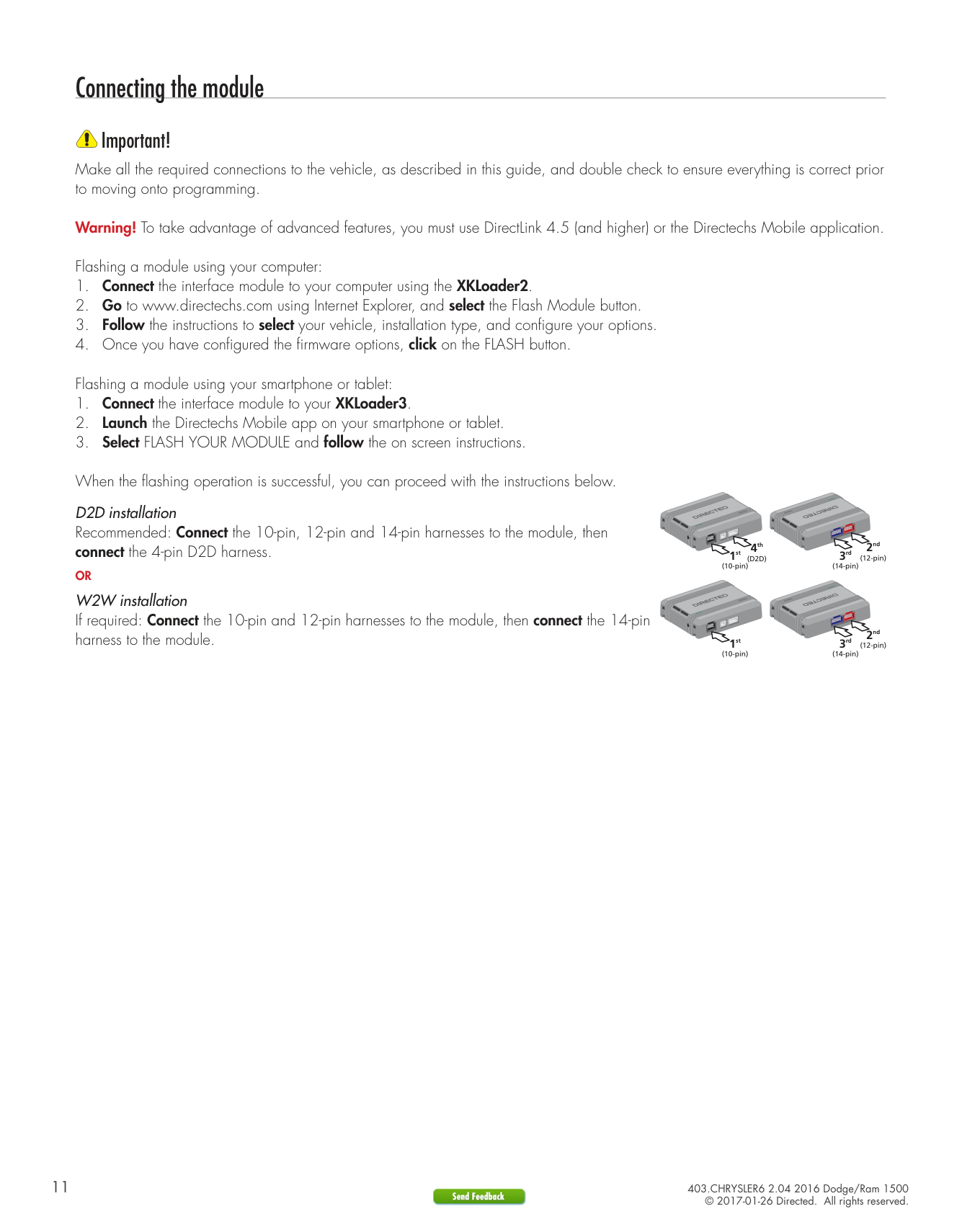
Flashing a module using your computer:
Flashing a module using your smartphone or tablet:
When the flashing operation is successful, you can proceed with the instructions below. D2D installation Recommended: Connect the 10-pin, 12-pin and 14-pin harnesses to the module, then connect the 4-pin D2D harness. 3rd
2nd (12-pin)
4th (D2D)
1st (10-pin)
(14-pin)
OR W2W installation If required: Connect the 10-pin and 12-pin harnesses to the module, then connect the 14-pin harness to the module. 3rd
2nd (12-pin)
1st (10-pin)
(14-pin)
11 403.CHRYSLER6 2.04 2016 Dodge/Ram 1500

######## Module programming

Refer to “LED diagnostics and troubleshooting” for more information and for troubleshooting purposes.
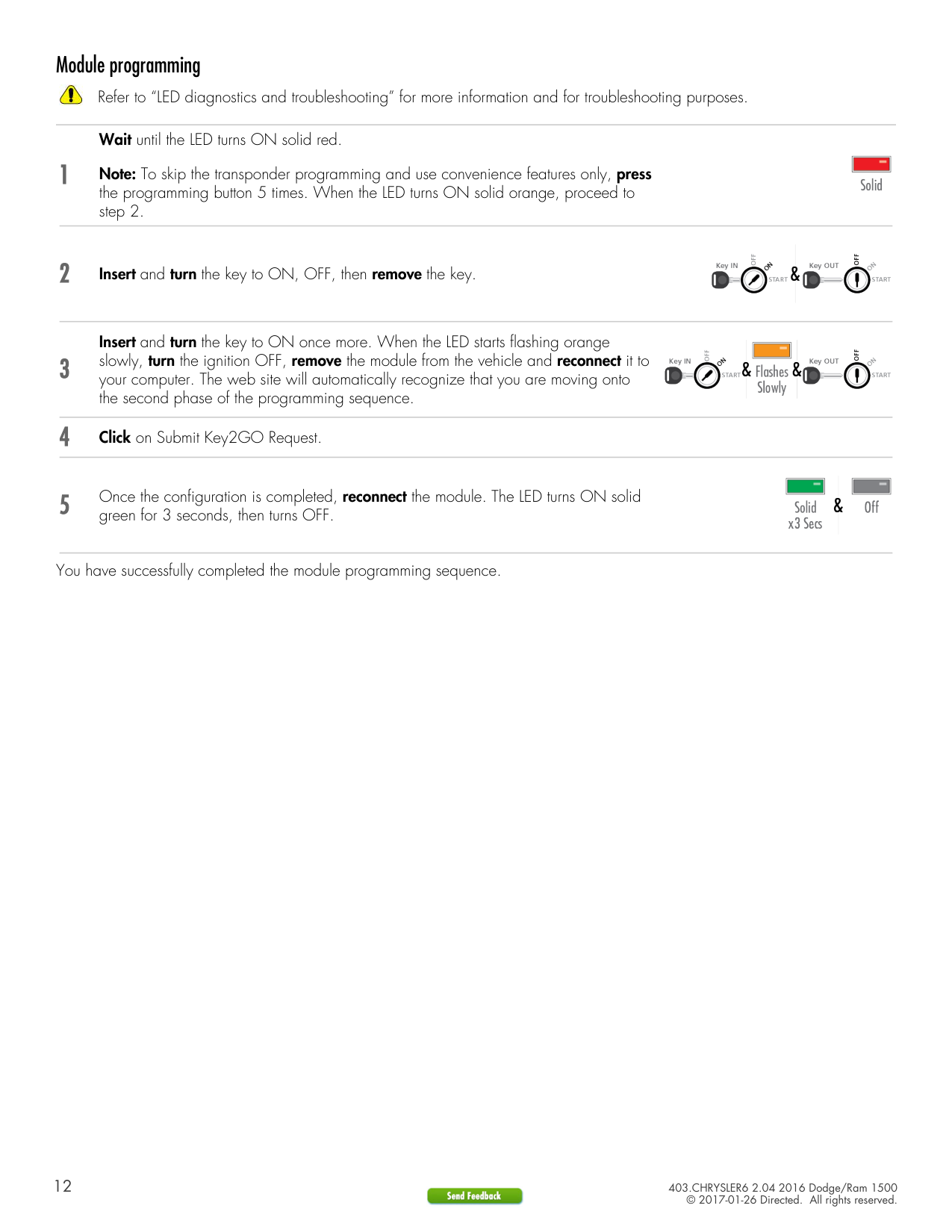
Wait until the LED turns ON solid red. Note: To skip the transponder programming and use convenience features only, press the programming button 5 times. When the LED turns ON solid orange, proceed to step 2.


Insert and turn the key to ON once more. When the LED starts flashing orange slowly, turn the ignition OFF, remove the module from the vehicle and reconnect it to your computer. The web site will automatically recognize that you are moving onto the second phase of the programming sequence.


You have successfully completed the module programming sequence.
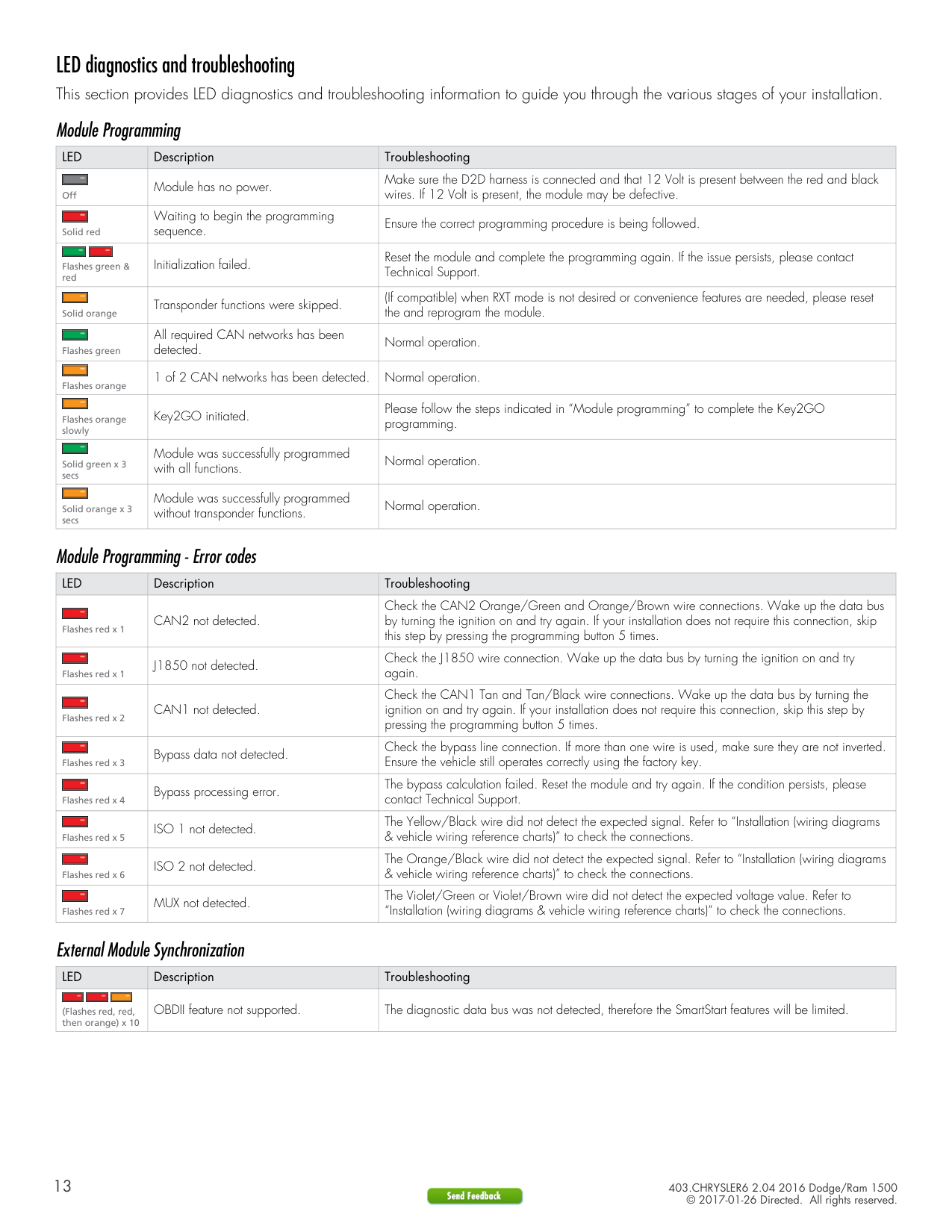
LED diagnostics and troubleshooting This section provides LED diagnostics and troubleshooting information to guide you through the various stages of your installation. Module Programming
|LED|Description|Troubleshooting| |---|---|---| |
Off|Module has no power.|Make sure the D2D harness is connected and that 12 Volt is present between the red and black wires. If 12 Volt is present, the module may be defective.| |
Solid red|Waiting to begin the programming sequence.|Ensure the correct programming procedure is being followed.| |


Flashes green & red|Initialization failed.|Reset the module and complete the programming again. If the issue persists, please contact Technical Support.| |
Solid orange|Transponder functions were skipped.|(If compatible) when RXT mode is not desired or convenience features are needed, please reset the and reprogram the module.| |
Flashes green|All required CAN networks has been detected.|Normal operation.| |
Flashes orange|1 of 2 CAN networks has been detected.|Normal operation.| |
Flashes orange slowly|Key2GO initiated.|Please follow the steps indicated in “Module programming” to complete the Key2GO programming.| |
Solid green x 3 secs|Module was successfully programmed with all functions.|Normal operation.| |
Solid orange x 3 secs|Module was successfully programmed without transponder functions.|Normal operation.|
Module Programming - Error codes
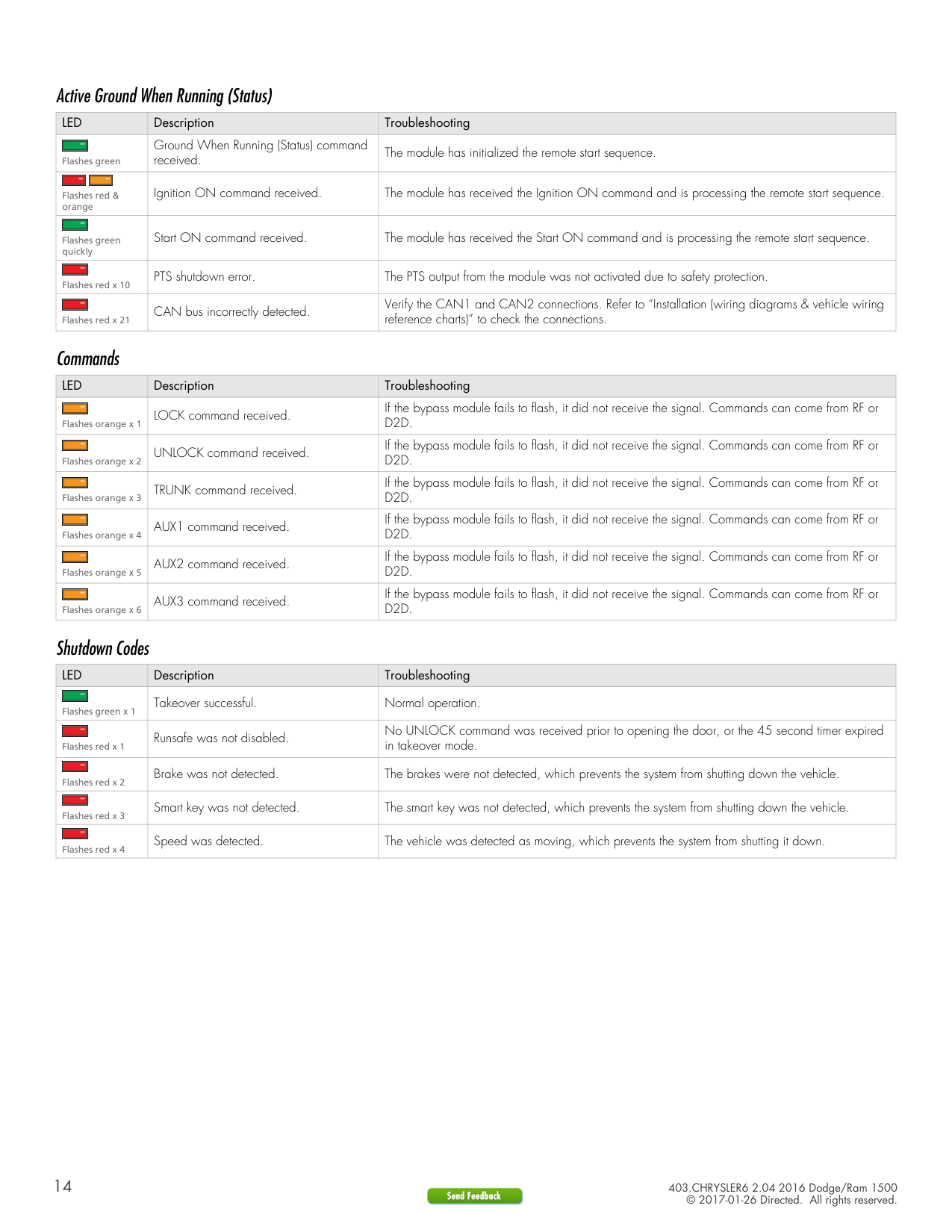
|LED|Description|Troubleshooting| |---|---|---| |
Flashes red x 1|CAN2 not detected.|Check the CAN2 Orange/Green and Orange/Brown wire connections. Wake up the data bus by turning the ignition on and try again. If your installation does not require this connection, skip this step by pressing the programming button 5 times.| |
Flashes red x 1|J1850 not detected.|Check the J1850 wire connection. Wake up the data bus by turning the ignition on and try again.| |
Flashes red x 2|CAN1 not detected.|Check the CAN1 Tan and Tan/Black wire connections. Wake up the data bus by turning the ignition on and try again. If your installation does not require this connection, skip this step by pressing the programming button 5 times.| |
Flashes red x 3|Bypass data not detected.|Check the bypass line connection. If more than one wire is used, make sure they are not inverted. Ensure the vehicle still operates correctly using the factory key.| |
Flashes red x 4|Bypass processing error.|The bypass calculation failed. Reset the module and try again. If the condition persists, please contact Technical Support.| |
Flashes red x 5|ISO 1 not detected.|The Yellow/Black wire did not detect the expected signal. Refer to “Installation (wiring diagrams & vehicle wiring reference charts)” to check the connections.| |
Flashes red x 6|ISO 2 not detected.|The Orange/Black wire did not detect the expected signal. Refer to “Installation (wiring diagrams & vehicle wiring reference charts)” to check the connections.| |
Flashes red x 7|MUX not detected.|The Violet/Green or Violet/Brown wire did not detect the expected voltage value. Refer to “Installation (wiring diagrams & vehicle wiring reference charts)” to check the connections.|
External Module Synchronization
|LED|Description|Troubleshooting| |---|---|---|
|


(Flashes red, red, then orange) x 10|OBDII feature not supported.|The diagnostic data bus was not detected, therefore the SmartStart features will be limited.|
Active Ground When Running (Status)
|LED|Description|Troubleshooting| |---|---|---| |
Flashes green|Ground When Running (Status) command received.|The module has initialized the remote start sequence.| |


Flashes red & orange|Ignition ON command received.|The module has received the Ignition ON command and is processing the remote start sequence.| |
Flashes green quickly|Start ON command received.|The module has received the Start ON command and is processing the remote start sequence.| |
Flashes red x 10|PTS shutdown error.|The PTS output from the module was not activated due to safety protection.| |
Flashes red x 21|CAN bus incorrectly detected.|Verify the CAN1 and CAN2 connections. Refer to “Installation (wiring diagrams & vehicle wiring reference charts)” to check the connections.|
Commands
|LED|Description|Troubleshooting| |---|---|---| |
Flashes orange x 1|LOCK command received.|If the bypass module fails to flash, it did not receive the signal. Commands can come from RF or D2D.| |
Flashes orange x 2|UNLOCK command received.|If the bypass module fails to flash, it did not receive the signal. Commands can come from RF or D2D.| |
Flashes orange x 3|TRUNK command received.|If the bypass module fails to flash, it did not receive the signal. Commands can come from RF or D2D.| |
Flashes orange x 4|AUX1 command received.|If the bypass module fails to flash, it did not receive the signal. Commands can come from RF or D2D.| |
Flashes orange x 5|AUX2 command received.|If the bypass module fails to flash, it did not receive the signal. Commands can come from RF or D2D.| |
Flashes orange x 6|AUX3 command received.|If the bypass module fails to flash, it did not receive the signal. Commands can come from RF or D2D.|
Shutdown Codes
|LED|Description|Troubleshooting| |---|---|---| |
Flashes green x 1|Takeover successful.|Normal operation.| |
Flashes red x 1|Runsafe was not disabled.|No UNLOCK command was received prior to opening the door, or the 45 second timer expired in takeover mode.| |
Flashes red x 2|Brake was not detected.|The brakes were not detected, which prevents the system from shutting down the vehicle.| |
Flashes red x 3|Smart key was not detected.|The smart key was not detected, which prevents the system from shutting down the vehicle.| |
Flashes red x 4|Speed was detected.|The vehicle was detected as moving, which prevents the system from shutting it down.|
Soft reset
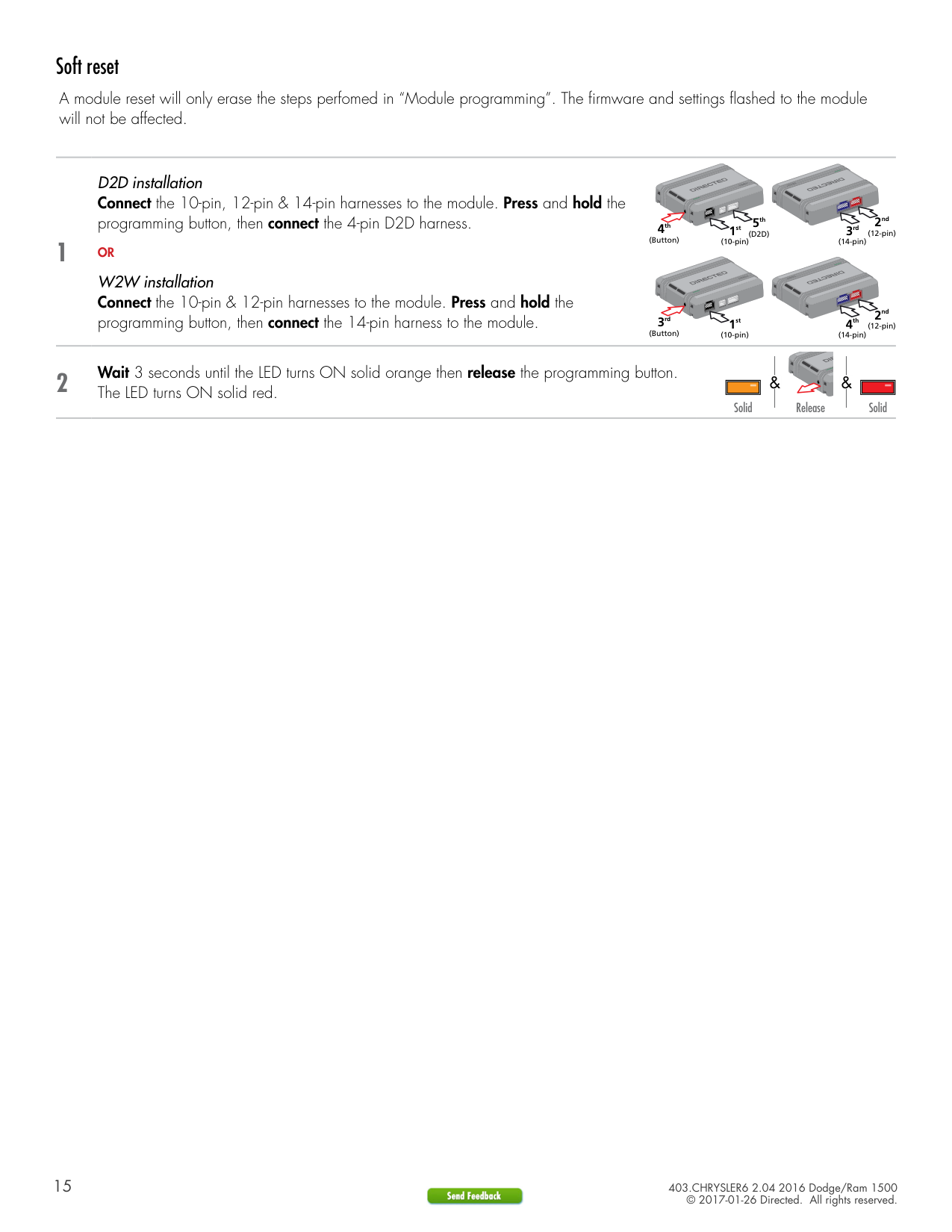
A module reset will only erase the steps perfomed in “Module programming”. The firmware and settings flashed to the module will not be affected.
D2D installation Connect the 10-pin, 12-pin & 14-pin harnesses to the module. Press and hold the
programming button, then connect the 4-pin D2D harness. 3rd
2nd
5th (D2D)
(12-pin)4th (Button)
1st (10-pin)
##### 1
(14-pin)
OR W2W installation Connect the 10-pin & 12-pin harnesses to the module. Press and hold the programming button, then connect the 14-pin harness to the module. 4th
2nd (12-pin)
3rd (Button)
1st (10-pin)
(14-pin)
###### 2 Wait 3 seconds until the LED turns ON solid orange then release the programming button.The LED turns ON solid red. &&
|| | |---| | |---|
|| | |---| | |---|
Solid SolidRelease
Hard reset
Warning Against Executing a Hard Reset!
A hard reset will revert the flashed firmware back to its default factory settings. Depending on the installation, some settings (such as RFTD and D2D options) may have to be reconfigured. Refer to “Feature and option list”.
##### 1
D2D installation Connect the 10-pin, 12-pin & 14-pin harnesses to the module. Press and hold the
programming button, then connect the 4-pin D2D harness. 3rd
2nd
5th (D2D)
(12-pin)4th (Button)
1st (10-pin)
(14-pin)
OR W2W installation Connect the 10-pin & 12-pin harnesses to the module. Press and hold the programming button, then connect the 14-pin harness to the module. 4th
2nd (12-pin)
3rd (Button)
1st (10-pin)
(14-pin)
###### 2 Wait 3 seconds until the LED turns ON solid orange, and wait 10 more seconds until theLED starts to flash orange and red.
|| | |---| | |---|
| | | |---|---|
&
Solid Flashes
###### 3 Release the programming button. The LED turns ON solid red. &
|| | |---| | |---|
Release
Solid
Feature programming
########## To enter feature programming routine:
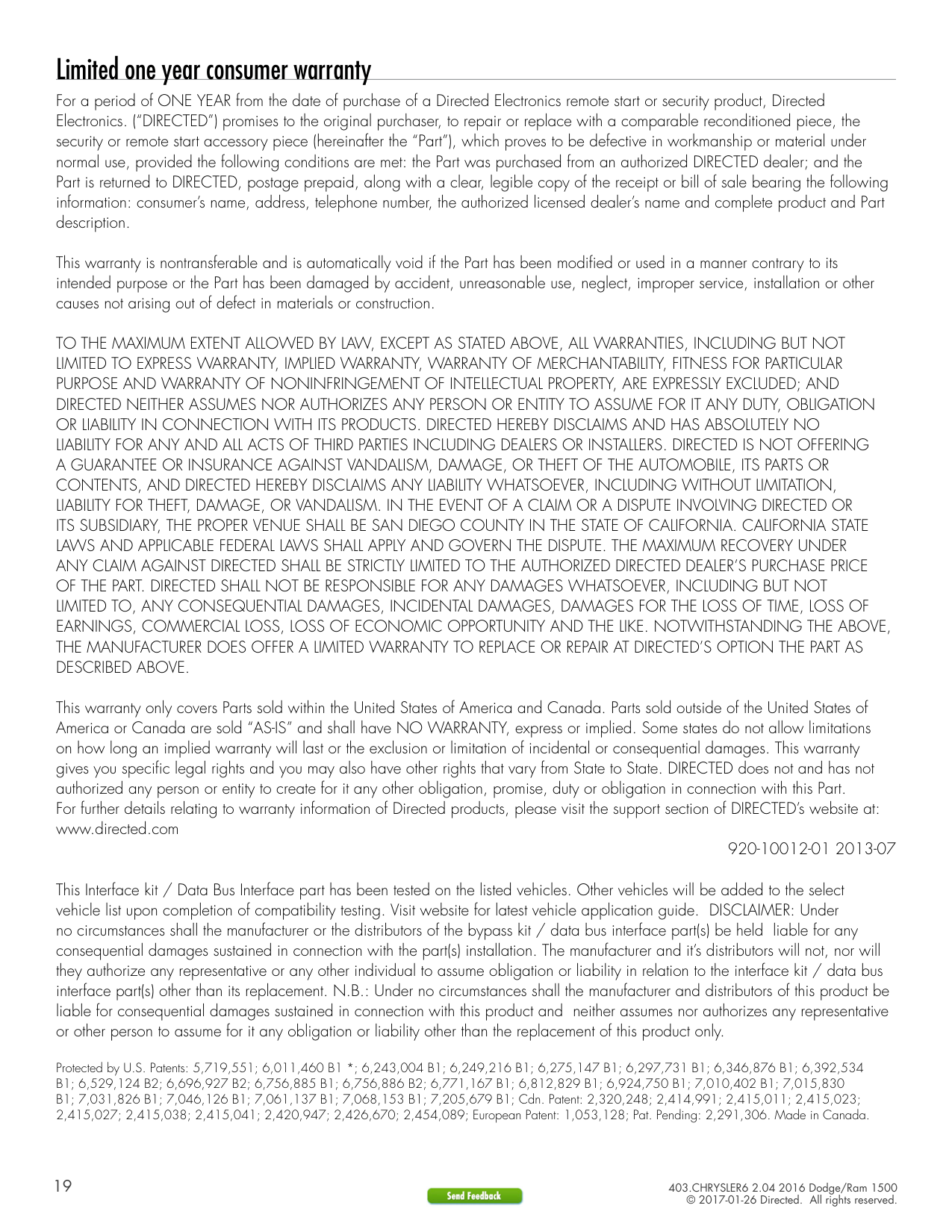
########## Changing feature options:
########## Accessing another feature:
When the maximum number of features or options is reached, the LED will start flashing again from the first feature or option.
Exiting feature programming: To exit feature programming, press and hold the programming button for 3 seconds or ensure there is no activity on the interface for 30 seconds. The LED will turn ON orange for 2 seconds to confirm the end of the programming sequence.
Feature and option list
It is recommended to configure all the features and options listed below using the configuration tool found on the module flashing page at www.directechs.com. The web offers more options; however, manual configuration of the features is possible using the information on this page.
########### * Default option
|Feat.|Operation|Flashes / Option|Description| |---|---|---|---| |1|RFTD Output Type|1. No RF Output*|Module is connected to a remote starter using a standard installation.| |1|RFTD Output Type|2. RFTD Output|Module is connected to an XL202 using an RSR or RXT installation (when available).| |1|RFTD Output Type|3. SmartStart|Module is connected to SmartStart using an RSR or RXT installation (when available).| |2|Unlock Driver Priority|1. Driver priority*|Unlocks only the driver door when the button is first pressed, and unlocks all doors when it is pressed a second time within 5 seconds.| |2|Unlock Driver Priority|2. All|Unlocks all doors when the button is first pressed.| |3|Heated Seats|1. Disabled*|No operation.| |3|Heated Seats|2. Enabled|When the feature is enabled, it will activate the Heated Seats and heated steering wheel.| |4|Defroster|1. Disabled*|No operation.| |4|Defroster|2. Enabled|When the feature is enabled, it will activate the rear defroster and heated mirrors.| |5|Heated Seats/Defroster Temperature Control|1. 32 °F (0 °C)*|When Heated Seats or Defroster feature is enabled, it will activate the feature upon remote start when temperature is below 32 °F (0 °C).| |5|Heated Seats/Defroster Temperature Control|2. 23 °F (-5 °C)|When Heated Seats or Defroster feature is enabled, it will activate the feature upon remote start when temperature is below 23 °F (-5 °C).| |5|Heated Seats/Defroster Temperature Control|3. 41 °F (5 °C)|When Heated Seats or Defroster feature is enabled, it will activate the feature upon remote start when temperature is below 41 °F (5 °C).| |5|Heated Seats/Defroster Temperature Control|4. Always ON|When Heated Seats or Defroster feature is enabled, it will activate the feature at any temperature.| |6|Heated Seats Temperature Level|1. High*|When Heated Seats are activated, they will be set to HIGH.| |6|Heated Seats Temperature Level|2. Low|When Heated Seats are activated, they will be set to LOW.| |7|Smart OEM Alarm Control|1. Disabled|The OEM alarm will not be controlled by the interface upon remote start. No disarm or arm command will be executed at the beginning or end of the sequence; it must be controlled by the Remote Starter.| |7|Smart OEM Alarm Control|2. Safelock|Smart OEM Alarm Control will behave like a standard Safelock feature on a remote starter. It will unlock at the beginning of the sequence, and relock after start and shutdown.| |7|Smart OEM Alarm Control|3. Enabled*|Smart OEM Alarm Control will synchronize with the OEM alarm so that it will disarm and rearm the vehicle in the remote start sequence, only when required. Smart OEM Alarm Control will monitor the alarm and door lock status to detect if the disarm or rearm is required. If the vehicle is unlocked or is not equipped with factory alarm, the disarm/rearm will not be executed.|
Limited one year consumer warranty
For a period of ONE YEAR from the date of purchase of a Directed Electronics remote start or security product, Directed Electronics. (“DIRECTED”) promises to the original purchaser, to repair or replace with a comparable reconditioned piece, the security or remote start accessory piece (hereinafter the “Part”), which proves to be defective in workmanship or material under normal use, provided the following conditions are met: the Part was purchased from an authorized DIRECTED dealer; and the Part is returned to DIRECTED, postage prepaid, along with a clear, legible copy of the receipt or bill of sale bearing the following information: consumer’s name, address, telephone number, the authorized licensed dealer’s name and complete product and Part description.
This warranty is nontransferable and is automatically void if the Part has been modified or used in a manner contrary to its intended purpose or the Part has been damaged by accident, unreasonable use, neglect, improper service, installation or other causes not arising out of defect in materials or construction.
TO THE MAXIMUM EXTENT ALLOWED BY LAW, EXCEPT AS STATED ABOVE, ALL WARRANTIES, INCLUDING BUT NOT LIMITED TO EXPRESS WARRANTY, IMPLIED WARRANTY, WARRANTY OF MERCHANTABILITY, FITNESS FOR PARTICULAR PURPOSE AND WARRANTY OF NONINFRINGEMENT OF INTELLECTUAL PROPERTY, ARE EXPRESSLY EXCLUDED; AND DIRECTED NEITHER ASSUMES NOR AUTHORIZES ANY PERSON OR ENTITY TO ASSUME FOR IT ANY DUTY, OBLIGATION OR LIABILITY IN CONNECTION WITH ITS PRODUCTS. DIRECTED HEREBY DISCLAIMS AND HAS ABSOLUTELY NO LIABILITY FOR ANY AND ALL ACTS OF THIRD PARTIES INCLUDING DEALERS OR INSTALLERS. DIRECTED IS NOT OFFERING A GUARANTEE OR INSURANCE AGAINST VANDALISM, DAMAGE, OR THEFT OF THE AUTOMOBILE, ITS PARTS OR CONTENTS, AND DIRECTED HEREBY DISCLAIMS ANY LIABILITY WHATSOEVER, INCLUDING WITHOUT LIMITATION, LIABILITY FOR THEFT, DAMAGE, OR VANDALISM. IN THE EVENT OF A CLAIM OR A DISPUTE INVOLVING DIRECTED OR ITS SUBSIDIARY, THE PROPER VENUE SHALL BE SAN DIEGO COUNTY IN THE STATE OF CALIFORNIA. CALIFORNIA STATE LAWS AND APPLICABLE FEDERAL LAWS SHALL APPLY AND GOVERN THE DISPUTE. THE MAXIMUM RECOVERY UNDER ANY CLAIM AGAINST DIRECTED SHALL BE STRICTLY LIMITED TO THE AUTHORIZED DIRECTED DEALER’S PURCHASE PRICE OF THE PART. DIRECTED SHALL NOT BE RESPONSIBLE FOR ANY DAMAGES WHATSOEVER, INCLUDING BUT NOT LIMITED TO, ANY CONSEQUENTIAL DAMAGES, INCIDENTAL DAMAGES, DAMAGES FOR THE LOSS OF TIME, LOSS OF EARNINGS, COMMERCIAL LOSS, LOSS OF ECONOMIC OPPORTUNITY AND THE LIKE. NOTWITHSTANDING THE ABOVE, THE MANUFACTURER DOES OFFER A LIMITED WARRANTY TO REPLACE OR REPAIR AT DIRECTED’S OPTION THE PART AS DESCRIBED ABOVE.
This warranty only covers Parts sold within the United States of America and Canada. Parts sold outside of the United States of America or Canada are sold “AS-IS” and shall have NO WARRANTY, express or implied. Some states do not allow limitations on how long an implied warranty will last or the exclusion or limitation of incidental or consequential damages. This warranty gives you specific legal rights and you may also have other rights that vary from State to State. DIRECTED does not and has not authorized any person or entity to create for it any other obligation, promise, duty or obligation in connection with this Part. For further details relating to warranty information of Directed products, please visit the support section of DIRECTED’s website at: www.directed.com
920-10012-01 2013-07
This Interface kit / Data Bus Interface part has been tested on the listed vehicles. Other vehicles will be added to the select vehicle list upon completion of compatibility testing. Visit website for latest vehicle application guide. DISCLAIMER: Under no circumstances shall the manufacturer or the distributors of the bypass kit / data bus interface part(s) be held liable for any consequential damages sustained in connection with the part(s) installation. The manufacturer and it’s distributors will not, nor will they authorize any representative or any other individual to assume obligation or liability in relation to the interface kit / data bus interface part(s) other than its replacement. N.B.: Under no circumstances shall the manufacturer and distributors of this product be liable for consequential damages sustained in connection with this product and neither assumes nor authorizes any representative or other person to assume for it any obligation or liability other than the replacement of this product only.
Protected by U.S. Patents: 5,719,551; 6,011,460 B1 *; 6,243,004 B1; 6,249,216 B1; 6,275,147 B1; 6,297,731 B1; 6,346,876 B1; 6,392,534
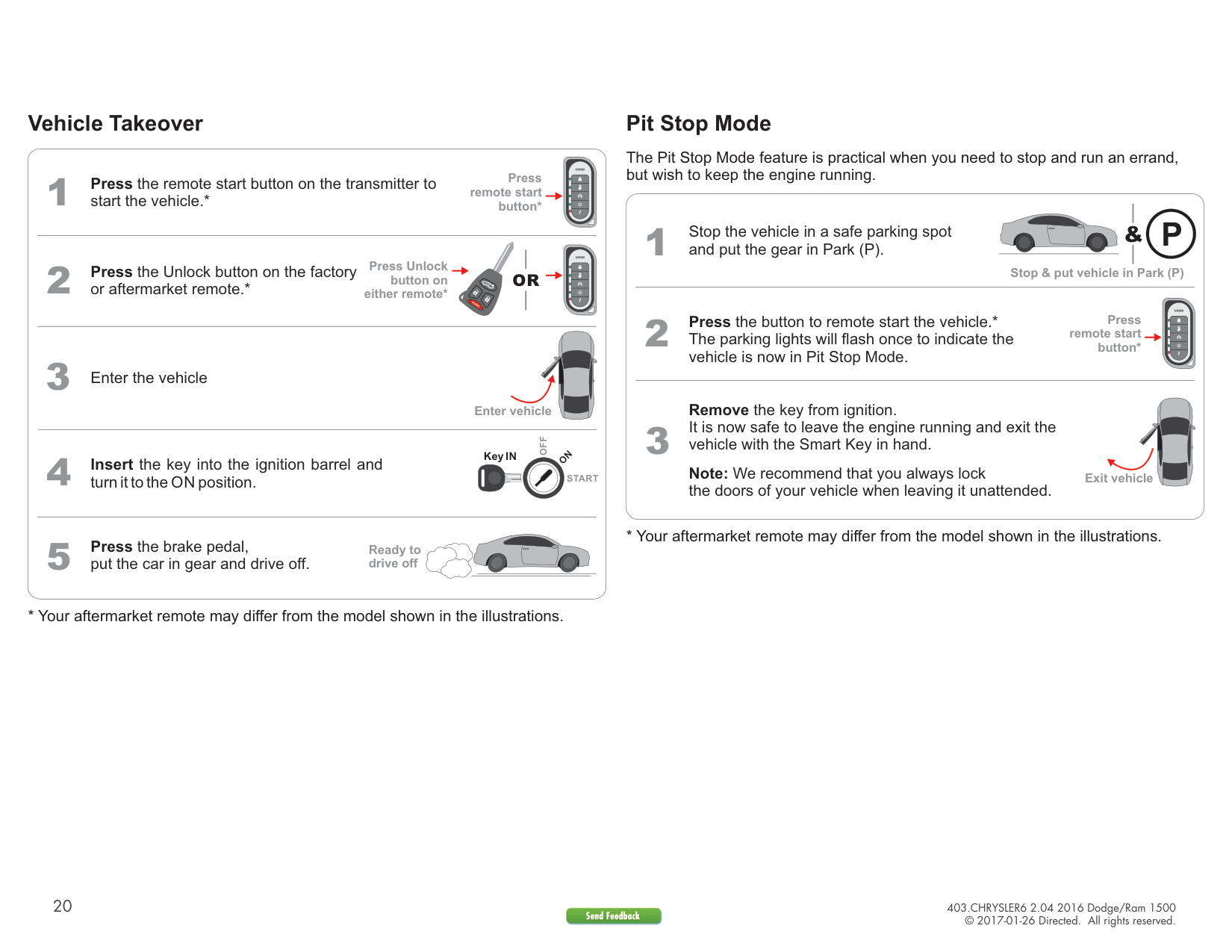
Vehicle Takeover
1
2
Press the remote start button on the transmitter to start the vehicle.*
Press remote start
button*
Press Unlock
Press the Unlock button on the factory or aftermarket remote.*
######### OR
button on either remote*
x2
PANIC
3
Enter the vehicle
4
Insert the key into the ignition barrel and turn it to the ON position.
Enter vehicle
OFF
N
Key IN
O
START
5
Press the brake pedal, put the car in gear and drive off.
Ready to drive off
####### Pit Stop Mode
The Pit Stop Mode feature is practical when you need to stop and run an errand, but wish to keep the engine running.
Stop the vehicle in a safe parking spot and put the gear in Park (P).
P&
Stop & put vehicle in Park (P)
Press the button to remote start the vehicle.* The parking lights will flash once to indicate the vehicle is now in Pit Stop Mode.
Press remote start
button*
Remove the key from ignition. It is now safe to leave the engine running and exit the vehicle with the Smart Key in hand.
Note: We recommend that you always lock the doors of your vehicle when leaving it unattended.
Exit vehicle
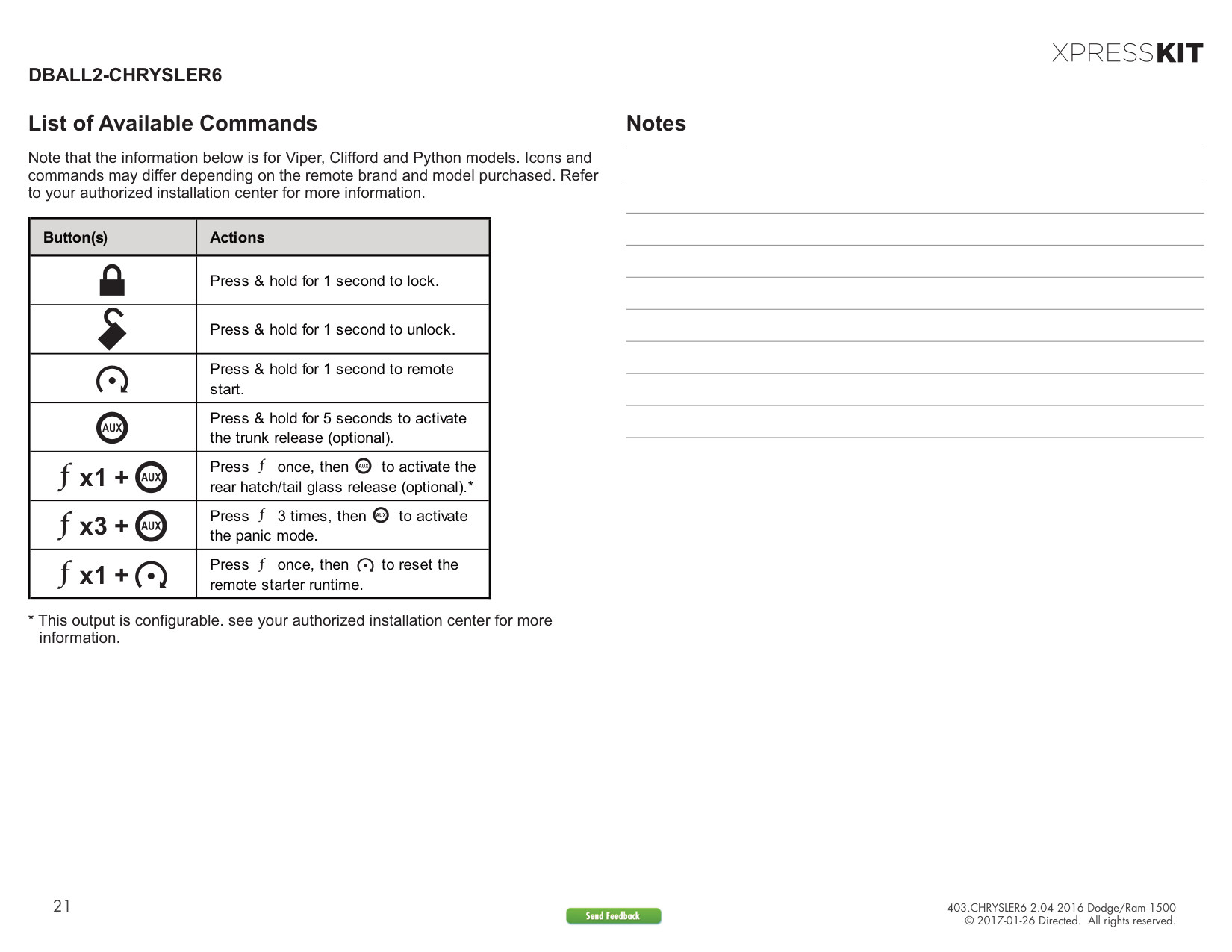
DBALL2-CHRYSLER6
####### List of Available Commands
Note that the information below is for Viper, Clifford and Python models. Icons and commands may differ depending on the remote brand and model purchased. Refer to your authorized installation center for more information.
|Button(s)|Actions| |---|---| | |Press & hold for 1 second to lock.| | |Press & hold for 1 second to unlock.| | |Press & hold for 1 second to remote start.| | |Press & hold for 5 seconds to activate the trunk release (optional).| |x1 +|Press once, then to activate the rear hatch/tail glass release (optional).*| |x3 +|Press 3 times, then to activate the panic mode.| |x1 +|Press once, then to reset the remote starter runtime.|
####### Notes