Junsun V1 Car Multimedia Player manual
Unknown · 9 Q&As

Junsun V1 Car Multimedia Player

Ask AI

— answers from the official manual

Answers from the official manual.

Common questions

Common Questions

9 total
Show 3 more questions

Full Manual

20 pages
Page 1

![image 1](96552_images/imageFile1.png)

![image 2](96552_images/imageFile2.png)

Manual de usuario

![image 3](96552_images/imageFile3.png)

![image 4](96552_images/imageFile4.png)

![image 5](96552_images/imageFile5.png)

![image 6](96552_images/imageFile6.png)

Unidad Multimedia

COD:6665

TABLA DE CONTENIDO MANUAL USUARIO ESPAÑOL
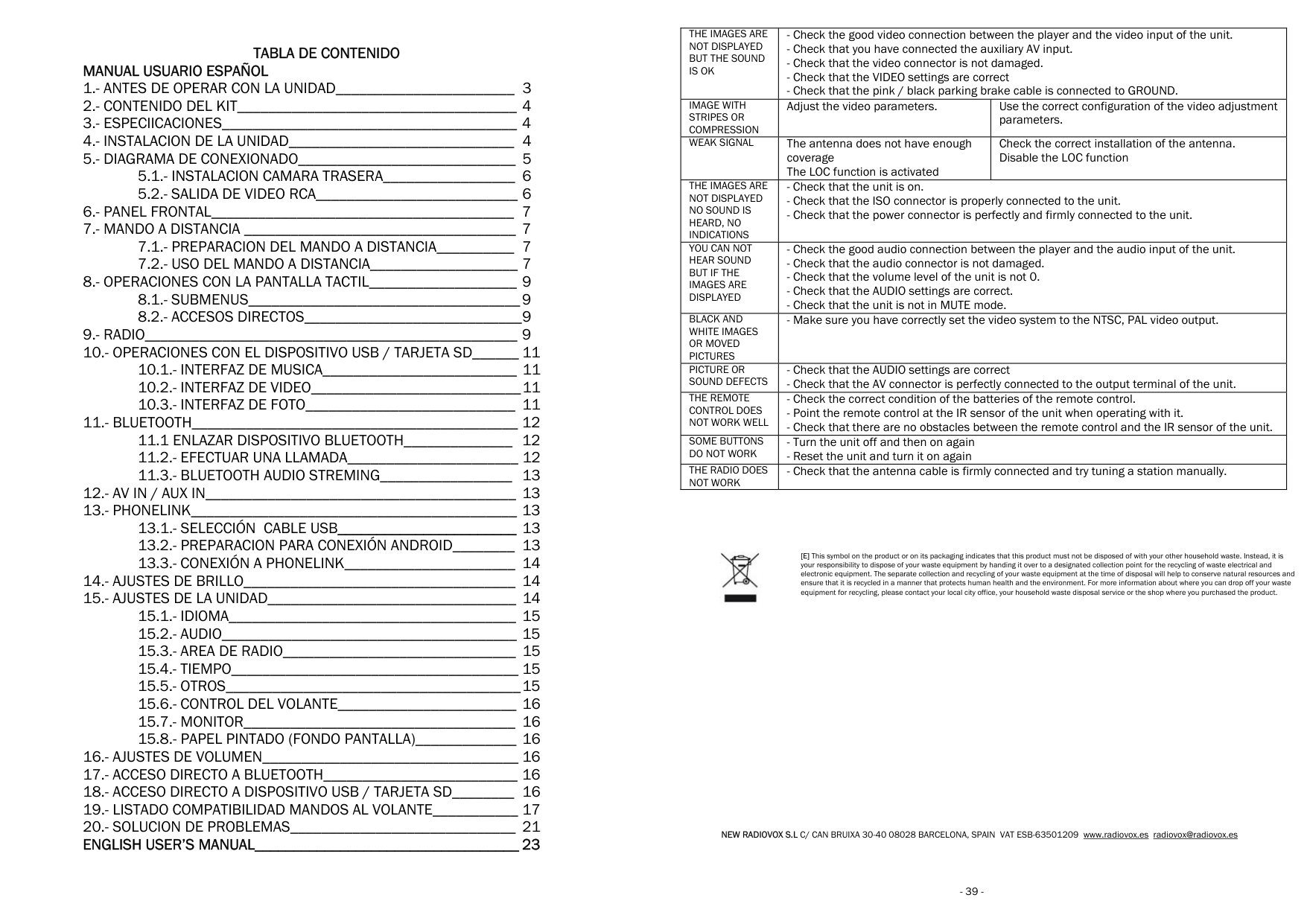
  • 1.- ANTES DE OPERAR CON LA UNIDAD_______________________ 3
  • 2.- CONTENIDO DEL KIT____________________________________ 4
  • 3.- ESPECIICACIONES______________________________________ 4
  • 4.- INSTALACION DE LA UNIDAD_____________________________ 4
  • 5.- DIAGRAMA DE CONEXIONADO____________________________ 5
  • 5.1.- INSTALACION CAMARA TRASERA_________________ 6
  • 5.2.- SALIDA DE VIDEO RCA__________________________ 6
  • 6.- PANEL FRONTAL_______________________________________ 7
  • 7.- MANDO A DISTANCIA ___________________________________ 7
  • 7.1.- PREPARACION DEL MANDO A DISTANCIA__________ 7
  • 7.2.- USO DEL MANDO A DISTANCIA___________________ 7
  • 8.- OPERACIONES CON LA PANTALLA TACTIL___________________ 9
  • 8.1.- SUBMENUS___________________________________ 9
  • 8.2.- ACCESOS DIRECTOS____________________________ 9
  • 9.- RADIO________________________________________________ 9
  • 10.- OPERACIONES CON EL DISPOSITIVO USB / TARJETA SD______ 11
  • 10.1.- INTERFAZ DE MUSICA_________________________ 11
  • 10.2.- INTERFAZ DE VIDEO___________________________ 11
  • 10.3.- INTERFAZ DE FOTO___________________________ 11
  • 11.- BLUETOOTH__________________________________________ 12 11.1 ENLAZAR DISPOSITIVO BLUETOOTH______________ 12
  • 11.2.- EFECTUAR UNA LLAMADA______________________ 12
  • 11.3.- BLUETOOTH AUDIO STREMING_________________ 13
  • 12.- AV IN / AUX IN________________________________________ 13
  • 13.- PHONELINK__________________________________________ 13
  • 13.1.- SELECCIÓN CABLE USB_______________________ 13
  • 13.2.- PREPARACION PARA CONEXIÓN ANDROID________ 13
  • 13.3.- CONEXIÓN A PHONELINK______________________ 14
  • 14.- AJUSTES DE BRILLO___________________________________ 14
  • 15.- AJUSTES DE LA UNIDAD________________________________ 14
  • 15.1.- IDIOMA_____________________________________ 15
  • 15.2.- AUDIO______________________________________ 15
  • 15.3.- AREA DE RADIO______________________________ 15
  • Page 2

  • 15.4.- TIEMPO_____________________________________ 15
  • 15.5.- OTROS______________________________________ 15
  • 15.6.- CONTROL DEL VOLANTE_______________________ 16
  • 15.7.- MONITOR___________________________________ 16
  • 15.8.- PAPEL PINTADO (FONDO PANTALLA)_____________ 16
  • 16.- AJUSTES DE VOLUMEN_________________________________ 16
  • 17.- ACCESO DIRECTO A BLUETOOTH_________________________ 16
  • 18.- ACCESO DIRECTO A DISPOSITIVO USB / TARJETA SD________ 16
  • 19.- LISTADO COMPATIBILIDAD MANDOS AL VOLANTE___________ 17
  • 20.- SOLUCION DE PROBLEMAS_____________________________ 21
  • ENGLISH USER’S MANUAL__________________________________ 23

    |THE IMAGES ARE NOT DISPLAYED BUT THE SOUND IS OK|- Check the good video connection between the player and the video input of the unit.
    - Check that you have connected the auxiliary AV input.
    - Check that the video connector is not damaged.
    - Check that the VIDEO settings are correct
    - Check that the pink / black parking
    |- Check the good video connection between the player and the video input of the unit.
    - Check that you have connected the auxiliary AV input.
    - Check that the video connector is not damaged.
    - Check that the VIDEO settings are correct
    - Check that the pink / black parking
    | |---|---|---| |IMAGE WITH STRIPES OR COMPRESSION|Adjust the video parameters.|Use the correct configuration of the video adjustment| |WEAK SIGNAL|The antenna does not have enough coverage The LOC function is activated| | |THE IMAGES ARE NOT DISPLAYED NO SOUND IS HEARD, NO INDICATIONS|- Check that the unit is on.
    - Check that the ISO connector is properly connected to the unit.
    - Check that the power connector is perfectly and firmly connected to the unit.
    |- Check that the unit is on.
    - Check that the ISO connector is properly connected to the unit.
    - Check that the power connector is perfectly and firmly connected to the unit.
    | |YOU CAN NOT HEAR SOUND BUT IF THE IMAGES ARE DISPLAYED|- Check the good audio connection between the player and the audio input of the unit.
    - Check that the audio connector is not damaged.
    - Check that the volume level of the unit is not 0.
    - Check that the AUDIO settings are correct.
    - Check that the unit is not in MUTE mode.
    |- Check the good audio connection between the player and the audio input of the unit.
    - Check that the audio connector is not damaged.
    - Check that the volume level of the unit is not 0.
    - Check that the AUDIO settings are correct.
    - Check that the unit is not in MUTE mode.
    | |BLACK AND WHITE IMAGES OR MOVED PICTURES|- Make sure you have correctly set the video system to the NTSC, PAL video output.|- Make sure you have correctly set the video system to the NTSC, PAL video output.| |PICTURE OR SOUND DEFECTS|- Check that the AUDIO settings are correct
    - Check that the AV connector is perfectly connected to the output terminal of the unit.
    |- Check that the AUDIO settings are correct
    - Check that the AV connector is perfectly connected to the output terminal of the unit.
    | |THE REMOTE CONTROL DOES NOT WORK WELL|- Check the correct condition of the batteries of the remote control.
    - Point the remote control at the IR sensor of the unit when operating with it.
    - Check that there are no obstacles between the remote control and the IR sensor of the unit.
    |- Check the correct condition of the batteries of the remote control.
    - Point the remote control at the IR sensor of the unit when operating with it.
    - Check that there are no obstacles between the remote control and the IR sensor of the unit.
    | |SOME BUTTONS DO NOT WORK|- Turn the unit off and then on again
    - Reset the unit and turn it on again
    |- Turn the unit off and then on again
    - Reset the unit and turn it on again
    | |THE RADIO DOES NOT WORK|- Check that the antenna cable is firmly connected and try tuning a station manually.|- Check that the antenna cable is firmly connected and try tuning a station manually.|

    ![image 7](96552_images/imageFile7.png)

    [E] This symbol on the product or on its packaging indicates that this product must not be disposed of with your other household wa your responsibility to dispose of your waste equipment by handing it over to a designated collection point for the recycling of electronic equipment. The separate collecti ensure that it is recycled in a manner that protects human health and the environment. For more information about where you can equipment for recycling, please contact your local city office, your household waste disposal service or the shop where you pur

    NEW RADIOVOX S.L C/ CAN BRUIXA 30-40 08028 BARCELONA, SPAIN VAT ESB-63501209 www.radiovox.es

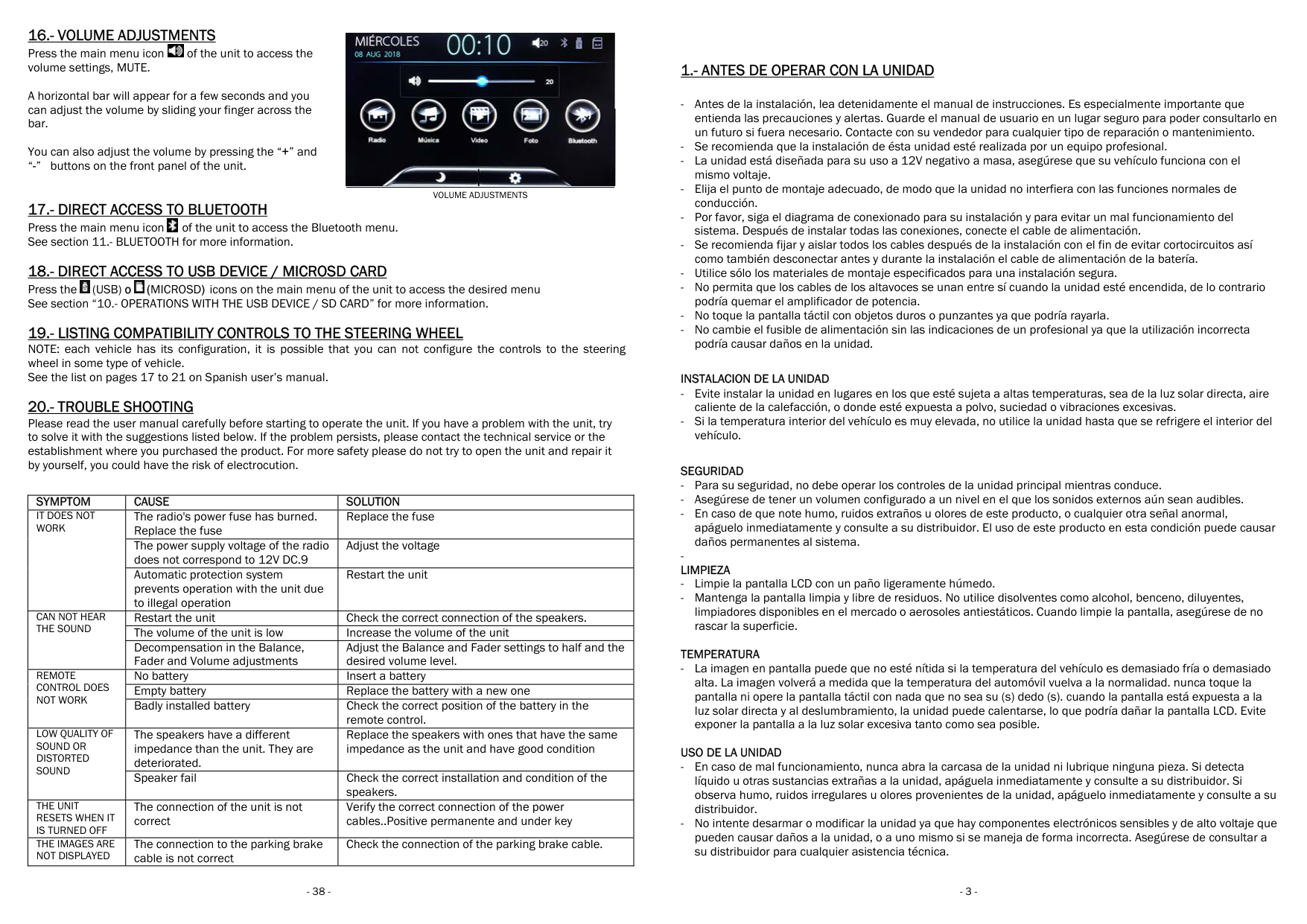
  • 16.- VOLUME ADJUSTMENTS Press the main menu icon of the unit to access the volume settings, MUTE.
  • ![image 8](96552_images/imageFile8.png)

    A horizontal bar will appear for a few seconds and you can adjust the volume by sliding your finger across the bar.

    You can also adjust the volume by pressing the “+” and “-” buttons on the front panel of the unit.

  • 17.- DIRECT ACCESS TO BLUETOOTH Press the main menu icon of the unit to access the Bluetooth menu. See section 11.- BLUETOOTH for more information.
  • ![image 9](96552_images/imageFile9.png)

  • 18.- DIRECT ACCESS TO USB DEVICE / MICROSD CARD Press the (USB) o (MICROSD) icons on the main menu of the unit to access the desired menu See section “10.- OPERATIONS WITH THE USB DEVICE / SD CARD” for more information.
  • ![image 10](96552_images/imageFile10.png)

    ![image 11](96552_images/imageFile11.png)

  • 19.- LISTING COMPATIBILITY CONTROLS TO THE STEERING WHEEL NOTE: each vehicle has its configuration, it is possible that you can not configure the controls to the steering wheel in some type of vehicle. See the list on pages 17 to 21 on Spanish user’s manual.
  • 20.- TROUBLE SHOOTING Please read the user manual carefully before starting to operate the unit. If you have a problem with the unit, try to solve it with the suggestions listed below. If the problem persists, please contact the technical service or the establishment where you purchased the product. For more safety please do not try to open the unit and repair it by yourself, you could have the risk of electrocution.
  • ![image 12](96552_images/imageFile12.png)

    ![image 13](96552_images/imageFile13.png)

    VOLUME ADJUSTMENTS

    |SYMPTOM|CAUSE|SOLUTION| |---|---|---| |IT DOES NOT WORK|The radio's power fuse has burned. Replace the fuse|Replace the fuse| |IT DOES NOT WORK|The power supply voltage of the radio does not correspond to 12V DC.9|Adjust the voltage| |IT DOES NOT WORK|Automatic protection system prevents operation with the unit due to illegal operation|Restart the unit| |CAN NOT HEAR THE SOUND|Restart the unit|Check the correct connection of the speakers.| |CAN NOT HEAR THE SOUND|The volume of the unit is low|Increase the volume of the unit|
    Page 3

    |CAN NOT HEAR THE SOUND|Decompensation in the Balance, Fader and Volume adjustments|Adjust the Balance and Fader settings to half and the desired volume level.| |REMOTE CONTROL DOES NOT WORK

    |No battery|Insert a battery| |REMOTE CONTROL DOES NOT WORK

    |Empty battery|Replace the battery with a new one| |REMOTE CONTROL DOES NOT WORK

    |Badly installed battery|Check the correct position of the battery in the remote control.| |LOW QUALITY OF SOUND OR DISTORTED SOUND|The speakers have a different impedance than the unit. They are deteriorated.|Replace the speakers with ones that have the same impedance as the unit and have good condition| |LOW QUALITY OF SOUND OR DISTORTED SOUND|Speaker fail|Check the correct installation and condition of the speakers.| |THE UNIT RESETS WHEN IT IS TURNED OFF|The connection of the unit is not correct|Verify the correct connection of the power cables..Positive permanente and under key| |THE IMAGES ARE NOT DISPLAYED|The connection to the parking brake cable is not correct|Check the connection of the parking brake cable.|

  • 38 -
  • 1.- ANTES DE OPERAR CON LA UNIDAD

  • - Antes de la instalación, lea detenidamente el manual entienda las precauciones y alertas. Guarde el manual de un futuro si fuera necesario. Contacte con su vendedor para cualquier tipo de reparación o mantenimiento.
  • - Se recomienda que la instalación de ésta unidad esté realizada por un equipo profesional.
  • - La unidad está diseñada para su uso a 12V negativo a masa, asegúrese que su vehículo funciona con el mismo voltaje.
  • - Elija el punto de montaje adecuado, de modo que la conducción.
  • - Por favor, siga el diagrama de conexionado para su instalación y para evitar un mal funcionamiento del sistema. Después de instalar todas las cone
  • - Se recomienda fijar y aislar todos los cables después de la instalación como también desconectar antes y durante la instalación el cable de alimentación de la batería.
  • - Utilice sólo los materiales de montaje especificados para una No permita que los cables de los altavoces se unan entre sí cuando la unidad esté encendida, de lo contrario podría quemar el amplificador de potencia.
  • - No toque la pantalla táctil con objetos duros o punzantes ya
  • - No cambie el fusible de alimentación sin las indicacion podría causar daños en la unidad.
  • INSTALACION DE LA UNIDAD

  • Evite instalar la unidad en lugares en los que esté sujeta caliente de la calefacción, o donde esté expues Si la temperatura interior del vehículo es muy elevada, no vehículo.
  • SEGURIDAD

  • - Para su seguridad, no debe operar los controles de la unidad principal mientras conduce.
  • - Asegúrese de tener un volumen configurado a un nivel
  • - En caso de que note humo, ruidos extraños u olores apáguelo inmediatamente y consulte a su distribuidor. El daños permanentes al sistema.
  • LIMPIEZA

  • - Limpie la pantalla LCD con un paño ligeramente húmedo.
  • - Mantenga la pantalla limpia y libre de residuos. No limpiadores disponibles en el mercado o aerosoles antiestáticos. rascar la superficie.
  • TEMPERATURA

  • La imagen en pantalla puede que no esté nítida si la alta. La imagen volverá a medida que la temperatura del automóvil vuelva a la normalidad. nunca toque la pantalla ni opere la pantalla táctil con nada que no sea luz solar directa y al deslumbramiento, la unidad puede calentarse, lo que exponer la pantalla a la luz solar excesiva tanto como sea posible.
  • USO DE LA UNIDAD

  • - En caso de mal funcionamiento, nunca abra la carcasa de la unidad ni lubrique ninguna pieza. Si detecta líquido u otras sustancias extrañas a la unidad, apáguela inmediatamente y consulte a su distribuidor. Si observa humo, ruidos irregulares u olores provenientes de la unidad, apáguelo inmediatamente y consulte a su distribuidor.
  • - No intente desarmar o modificar la unidad ya que hay componentes electrónicos sensibles y de alto voltaje que pueden causar daños a la unidad, o a uno mismo si se su distribuidor para cualquier asistencia técnica.
  • 2.- CONTENIDO DEL KIT
  • - 1 Unidad Mutimedia 2DIN
  • - 1 Manual de usuario
  • - 1 Mando a distancia
  • - 1 Cableado alimentación, altavoces y mandos al volante
  • - 1 Micrófono externo
  • - 2 Marcos adaptadores de plástico
  • 3.- ESPECIFICACIONES

    ESPECIFICACIONES GENERALES FORMATO 2DIN PANEL FRONTAL FIJO ALIMENTACION UNIDAD 11~14V DC NEGATIVO A MASA SISTEMA OPERATIVO C200S TDA IC TDA7388 POTENCIA SALIDA RMS 4x22W POTENCIA MAXIMA SALIDA 4x52W CONSUMO MAX.10A DIMENSIONES UNIDAD 178 x 100 x 130mm profundidad DIMENSIONES PANEL FRONTAL 170 x 96 TEMPERATURA DE TRABAJO -20 ~ +80º C INTERFACE MANDOS AL VOLANTE PARA VEHICULOS RESISTIVOS

    PANEL TRASERO 1 ENTRADA DE ANTENA AM/FM 1 ENTRADA PARA MICROFONO EXTERNO
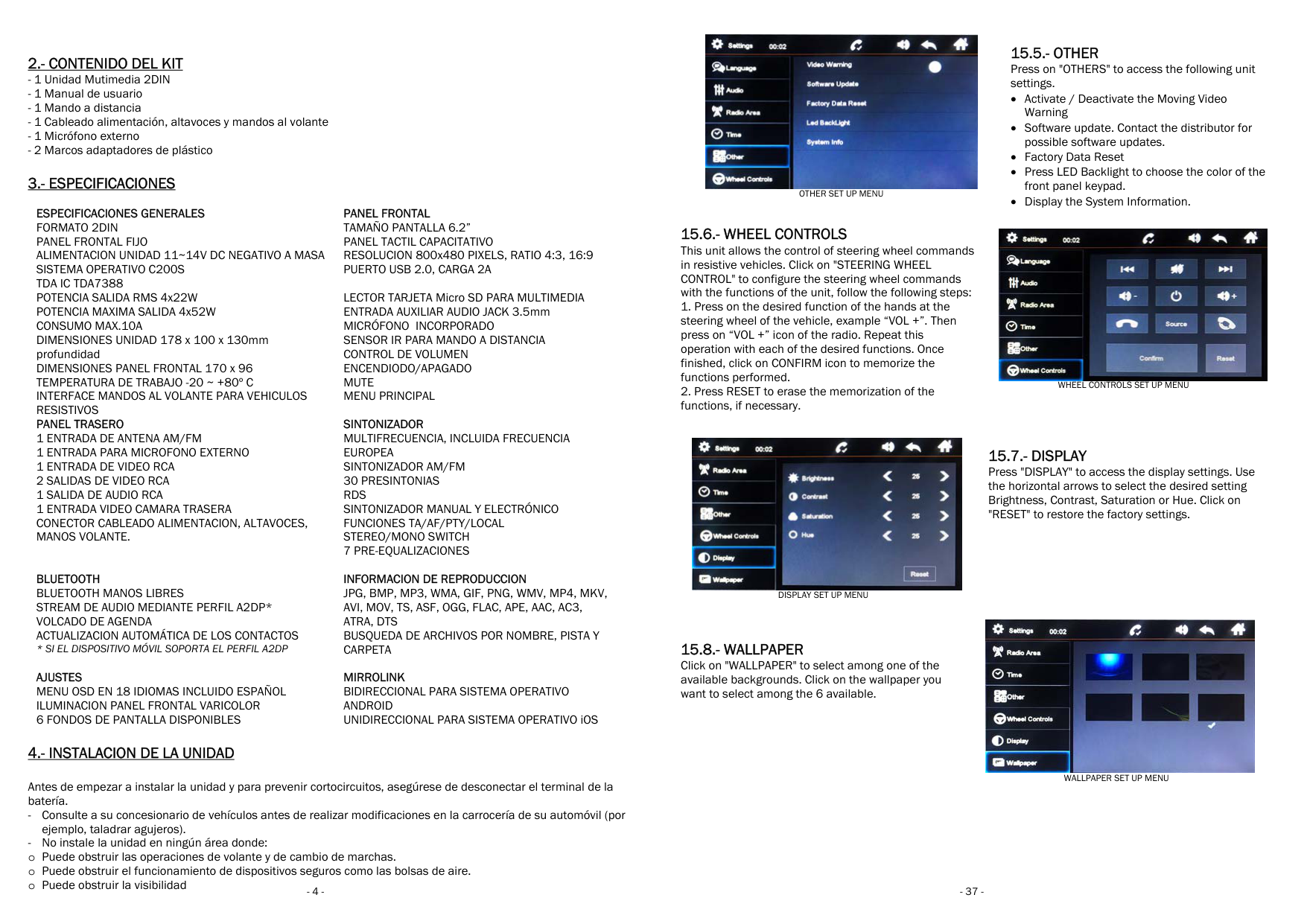
  • 1 ENTRADA DE VIDEO RCA
  • 2 SALIDAS DE VIDEO RCA 1 SALIDA DE AUDIO RCA 1 ENTRADA VIDEO CAMARA TRASERA CONECTOR CABLEADO ALIMENTACION, ALTAVOCES, MANOS VOLANTE.
  • Page 4

    BLUETOOTH BLUETOOTH MANOS LIBRES STREAM DE AUDIO MEDIANTE PERFIL A2DP* VOLCADO DE AGENDA ACTUALIZACION AUTOMÁTICA DE LOS CONTACTOS

  • SI EL DISPOSITIVO MÓVIL SOPORTA EL PERFIL A2DP
  • AJUSTES MENU OSD EN 18 IDIOMAS INCLUIDO ESPAÑOL ILUMINACION PANEL FRONTAL VARICOLOR 6 FONDOS DE PANTALLA DISPONIBLES

    PANEL FRONTAL TAMAÑO PANTALLA 6.2” PANEL TACTIL CAPACITATIVO RESOLUCION 800x480 PIXELS, RATIO 4:3, 16:9 PUERTO USB 2.0, CARGA 2A

    LECTOR TARJETA Micro SD PARA MULTIMEDIA ENTRADA AUXILIAR AUDIO JACK 3.5mm MICRÓFONO INCORPORADO SENSOR IR PARA MANDO A DISTANCIA CONTROL DE VOLUMEN ENCENDIODO/APAGADO MUTE MENU PRINCIPAL

    SINTONIZADOR MULTIFRECUENCIA, INCLUIDA FRECUENCIA EUROPEA SINTONIZADOR AM/FM 30 PRESINTONIAS RDS SINTONIZADOR MANUAL Y ELECTRÓNICO FUNCIONES TA/AF/PTY/LOCAL STEREO/MONO SWITCH 7 PRE-EQUALIZACIONES

    INFORMACION DE REPRODUCCION JPG, BMP, MP3, WMA, GIF, PNG, WMV, MP4, MKV, AVI, MOV, TS, ASF, OGG, FLAC, APE, AAC, AC3, ATRA, DTS BUSQUEDA DE ARCHIVOS POR NOMBRE, PISTA Y CARPETA

    MIRROLINK BIDIRECCIONAL PARA SISTEMA OPERATIVO ANDROID UNIDIRECCIONAL PARA SISTEMA OPERATIVO iOS

    4.- INSTALACION DE LA UNIDAD

    Antes de empezar a instalar la unidad y para prevenir cortocircuitos, asegúrese de desconectar el terminal de la batería.

  • - Consulte a su concesionario de vehículos antes de realizar modificaciones en la carrocería de su automóvil (por ejemplo, taladrar agujeros).
  • - No instale la unidad en ningún área donde:
  • o Puede obstruir las operaciones de volante y de cambio de marchas.
  • o Puede obstruir el funcionamiento de dispositivos seguros como las bolsas de aire.
  • o Puede obstruir la visibilidad
  • ![image 14](96552_images/imageFile14.png)

    OTHER SET UP MENU

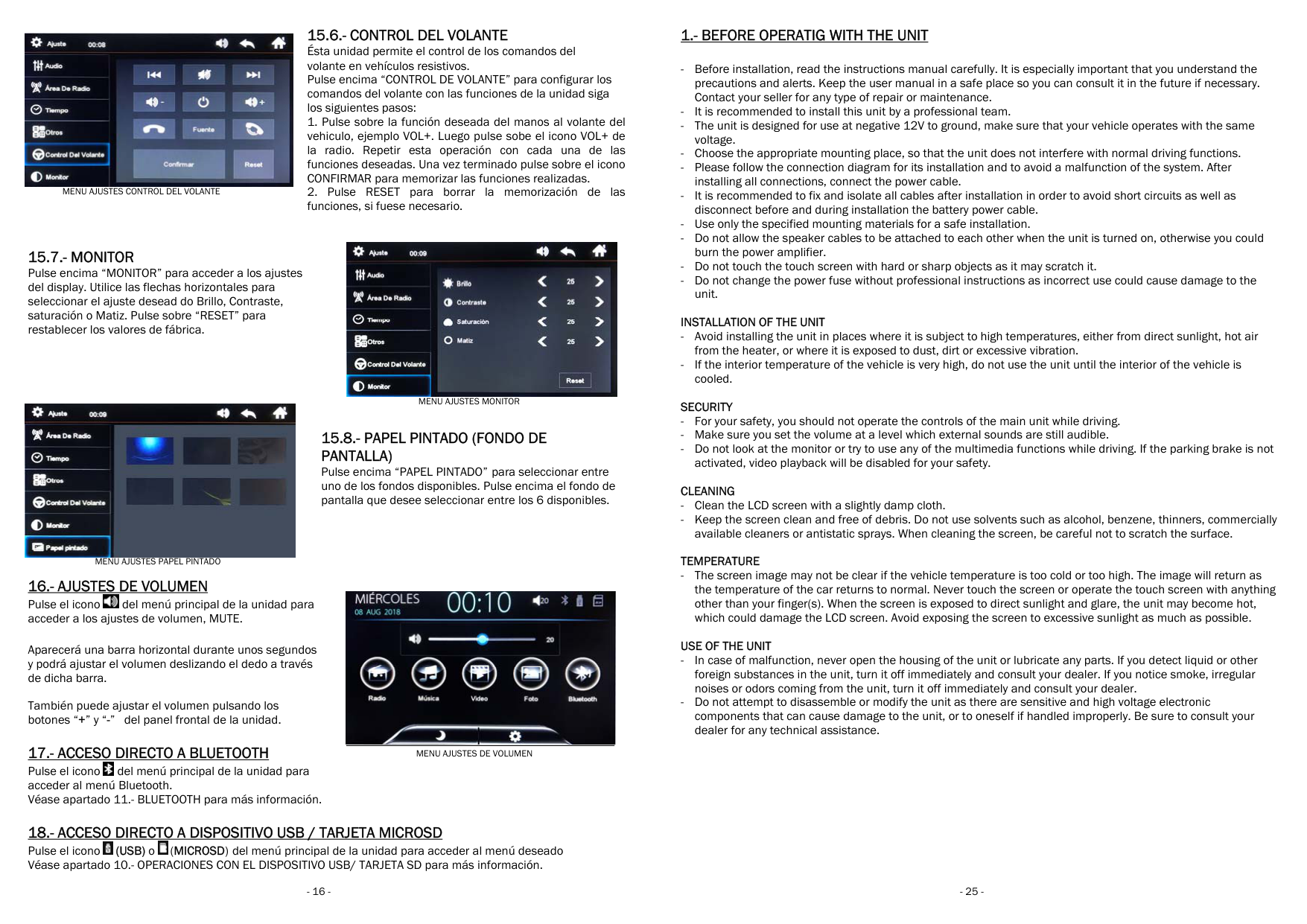
    15.6.- WHEEL CONTROLS This unit allows the control of steering wheel commands in resistive vehicles. Click on "STEERING WHEEL CONTROL" to configure the steering wheel commands with the functions of the unit, follow the following steps:

  • 1. Press on the desired function of the hands at the steering wheel of the vehicle, example “VOL +”. Then press on “VOL +” icon of the radio. Repeat this operation with each of the desired functions. Once finished, click on CONFIRM icon to memorize the functions performed.
  • 2. Press RESET to erase the memorization of the functions, if necessary.
  • ![image 15](96552_images/imageFile15.png)

    DISPLAY SET UP MENU

    15.8.- WALLPAPER

    Click on "WALLPAPER" to select among one of the available backgrounds. Click on the wallpaper you want to select among the 6 available.

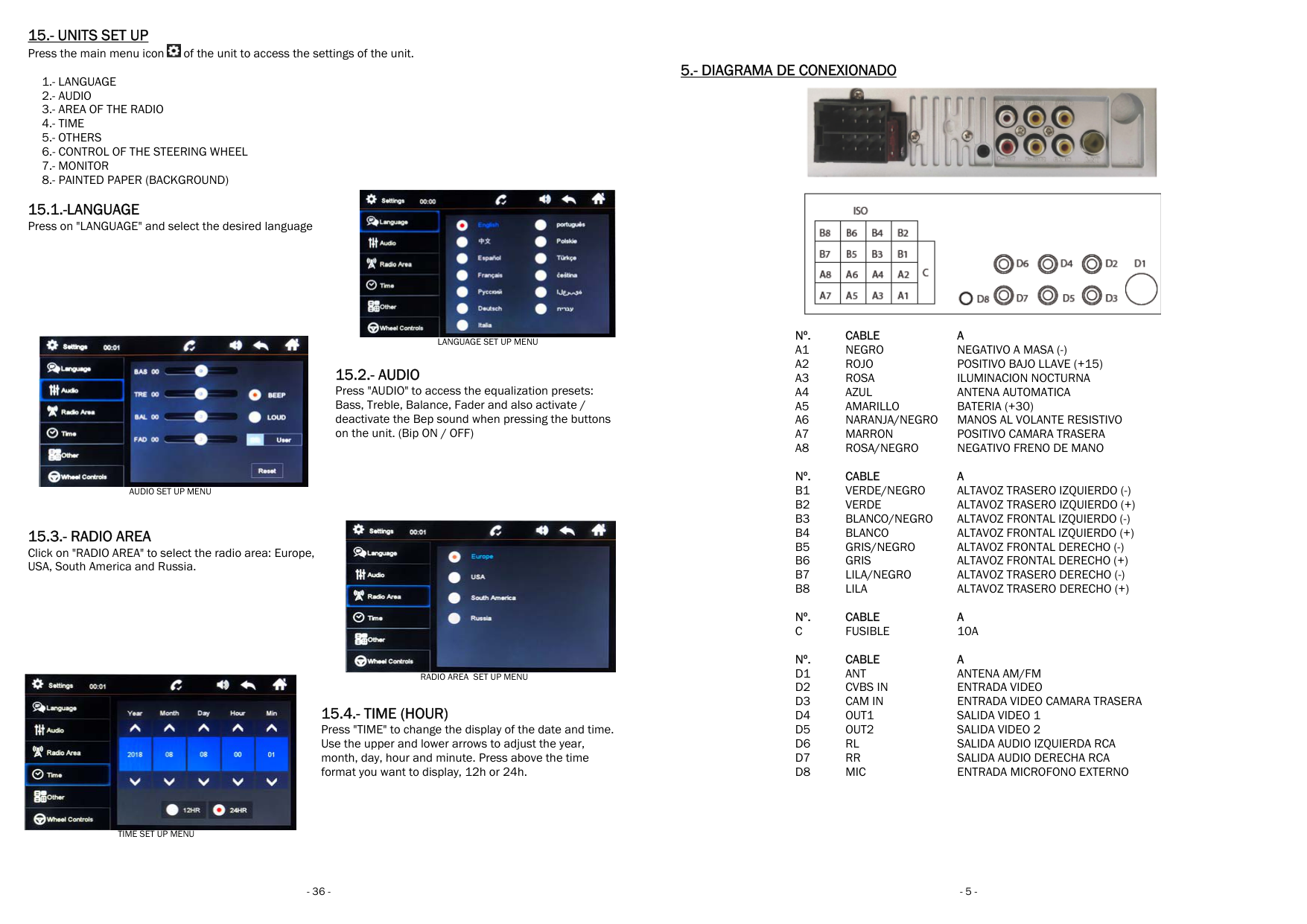
    15.- UNITS SET UP Press the main menu icon of the unit to access the settings of the unit.

    ![image 16](96552_images/imageFile16.png)

  • 1.- LANGUAGE
  • 2.- AUDIO
  • 3.- AREA OF THE RADIO
  • 4.- TIME
  • 5.- OTHERS
  • 6.- CONTROL OF THE STEERING WHEEL
  • 7.- MONITOR
  • 8.- PAINTED PAPER (BACKGROUND)
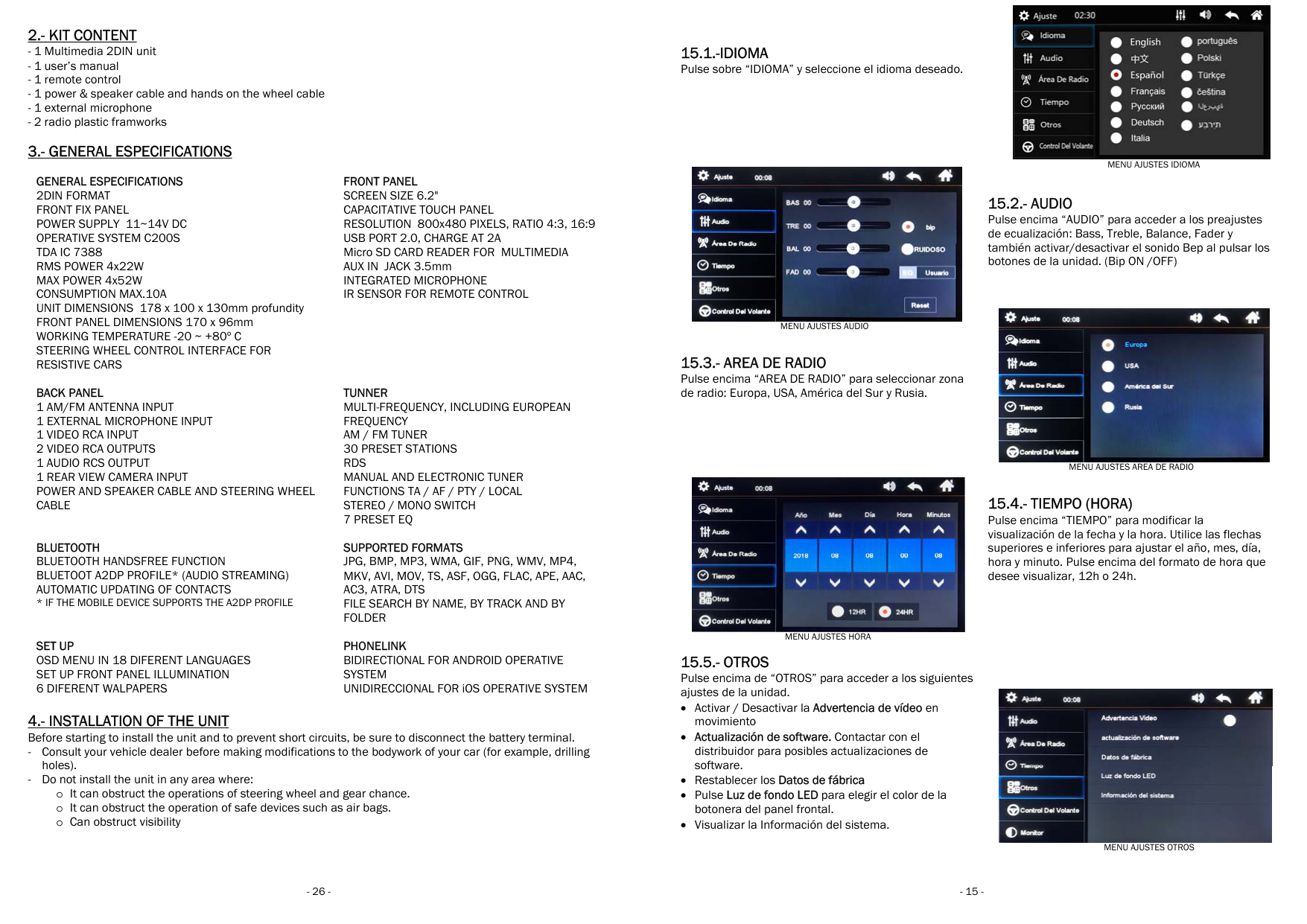
  • 15.1.-LANGUAGE Press on "LANGUAGE" and select the desired language

    ![image 17](96552_images/imageFile17.png)

    AUDIO SET UP MENU

    ![image 18](96552_images/imageFile18.png)

    LANGUAGE SET UP MENU

    Page 5

    15.2.- AUDIO Press "AUDIO" to access the equalization presets: Bass, Treble, Balance, Fader and also activate / deactivate the Bep sound when pressing the buttons on the unit. (Bip ON / OFF)

    ![image 19](96552_images/imageFile19.png)

    15.3.- RADIO AREA Click on "RADIO AREA" to select the radio area: Europe, USA, South America and Russia.

    RADIO AREA SET UP MENU

    ![image 20](96552_images/imageFile20.png)

    15.4.- TIME (HOUR) Press "TIME" to change the display of the date and time. Use the upper and lower arrows to adjust the year, month, day, hour and minute. Press above the time format you want to display, 12h or 24h.

    TIME SET UP MENU

  • 36 -
  • 5.- DIAGRAMA DE CONEXIONADO

    ![image 21](96552_images/imageFile21.png)

    Nº. CABLE A

  • A1 NEGRO NEGATIVO A MASA (-)
  • A2 ROJO POSITIVO BAJO LLAVE (+15)
  • A3 ROSA ILUMINACION NOCTURNA
  • A4 AZUL ANTENA AUTOMATICA
  • A5 AMARILLO BATERIA (+30)
  • A6 NARANJA/NEGRO MANOS AL VOLANTE RESISTIVO
  • A7 MARRON POSITIVO CAMARA TRASERA
  • A8 ROSA/NEGRO NEGATIVO FRENO DE MANO Nº. CABLE A
  • B1 VERDE/NEGRO ALTAVOZ TRASERO IZQUIERDO (-)
  • B2 VERDE ALTAVOZ TRASERO IZQUIERDO (+)
  • B3 BLANCO/NEGRO ALTAVOZ FRONTAL IZQUIERDO (-)
  • B4 BLANCO ALTAVOZ FRONTAL IZQUIERDO (+)
  • B5 GRIS/NEGRO ALTAVOZ FRONTAL DERECHO (-)
  • B6 GRIS ALTAVOZ FRONTAL DERECHO (+)
  • B7 LILA/NEGRO ALTAVOZ TRASERO DERECHO (-)
  • B8 LILA ALTAVOZ TRASERO DERECHO (+)
  • Nº. CABLE A C FUSIBLE 10A

    Nº. CABLE A D1 ANT ANTENA AM/FM D2 CVBS IN ENTRADA VIDEO D3 CAM IN ENTRADA VIDEO CAMARA TRASERA D4 OUT1 SALIDA VIDEO 1 D5 OUT2 SALIDA VIDEO 2 D6 RL SALIDA AUDIO IZQUIERDA RCA D7 RR SALIDA AUDIO DERECHA RCA D8 MIC ENTRADA MICROFONO EXTERNO

  • 5.1.- INSTALACION DE LA CÁMARA TRASERA
  • ![image 22](96552_images/imageFile22.png)

    ![image 23](96552_images/imageFile23.png)

    NOTA: Al instalar la cámara de visión trasera y poner la marcha atrás, la unidad debe mostrar la imagen de dicha cámara automáticamente.

    5.2.- SALIDA DE VIDEO RCA

    b. Steps to enable USB debugging on Android 4.4 and higher Menu> Settings> About phone> Build number (Click on th have already become a developer)> Go back to Setting And activate the option USB debugging.

    ![image 24](96552_images/imageFile24.png)

    ![image 25](96552_images/imageFile25.png)

    c. Steps to enable USB debugging on Android 4.2 - 4.3 Menu> Settings> More> About phone> Build number (cli

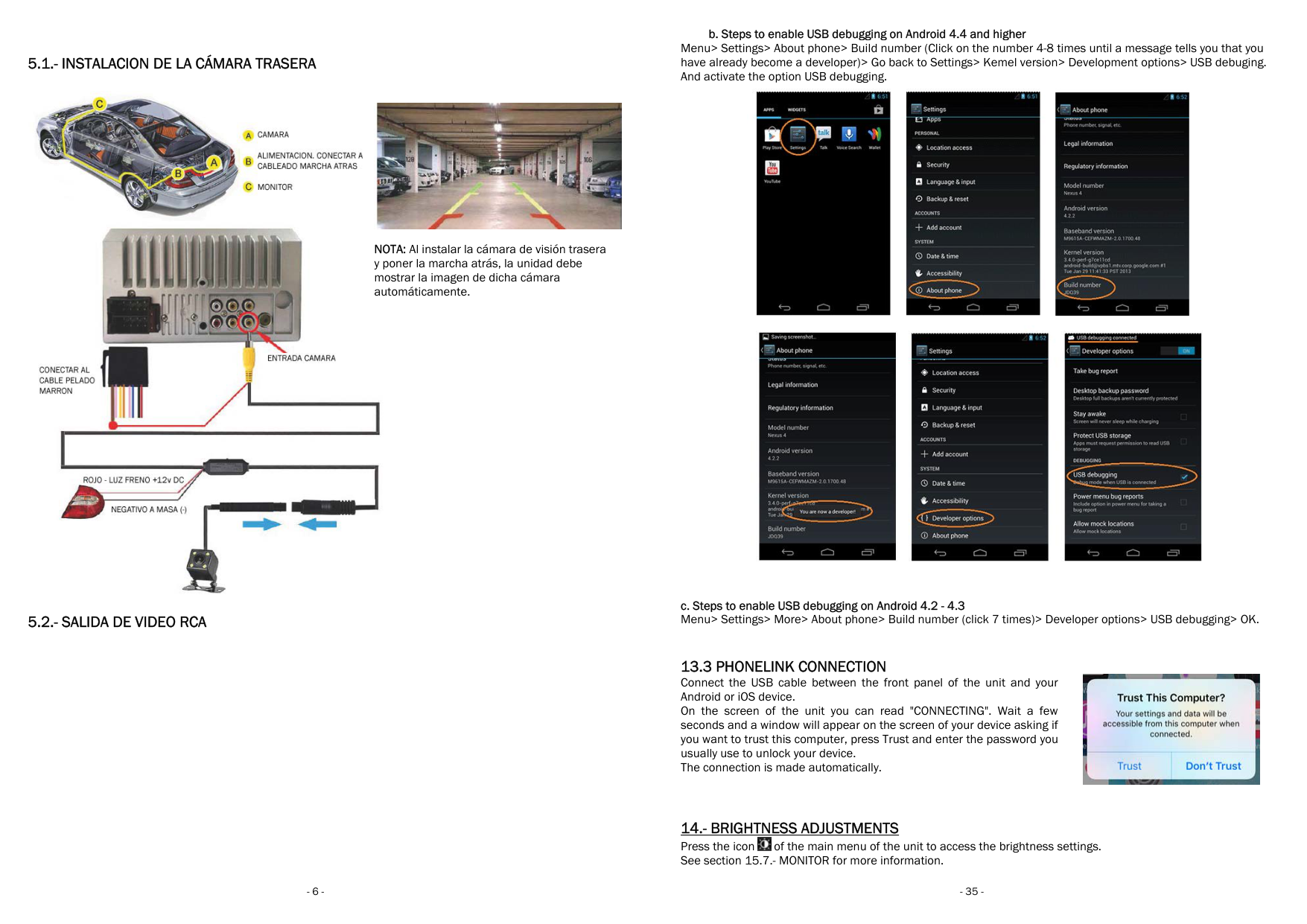
  • 13.3 PHONELINK CONNECTION Connect the USB cable between the front panel of the unit and your Android or iOS device. On the screen of the unit you can read "CONNECTING". Wait a few seconds and a window will appear on the screen of your device asking if you want to trust this computer, press Trust and enter the password you usually use to unlock your device. The connection is made automatically.
  • 14.- BRIGHTNESS ADJUSTMENTS Press the icon of the main menu of the unit to access the brightness settings. See section 15.7.- MONITOR for more information.
  • ![image 26](96552_images/imageFile26.png)

    Page 6

    ![image 27](96552_images/imageFile27.png)

    A2DP BLUETOOTH MENU

    11.3.- BLUETOOTH AUDIO STREMING

    ![image 28](96552_images/imageFile28.png)

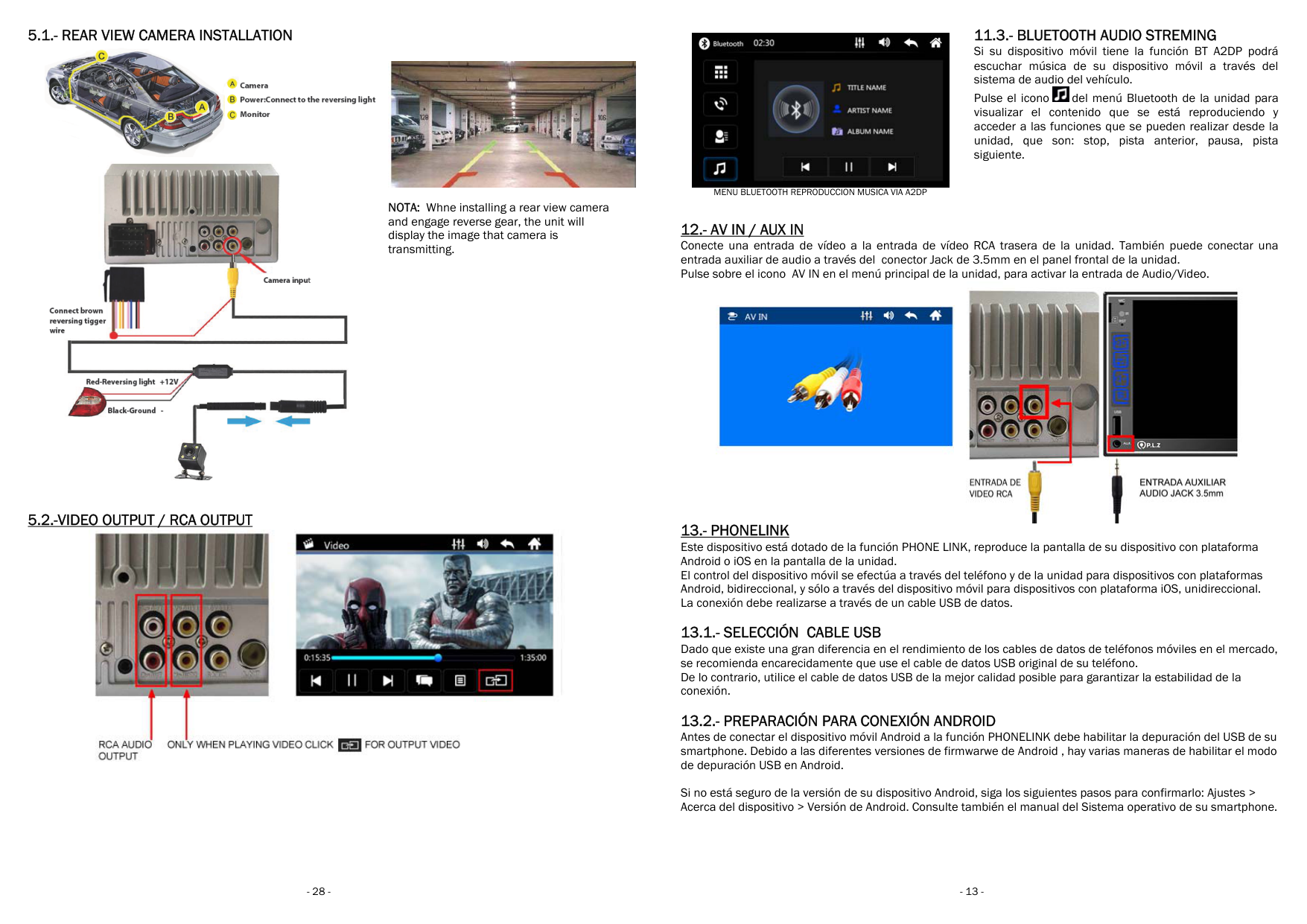
    Press the Bluetooth menu icon of the unit to display the content that is being played and access the functions that can be performed from the unit, which are: stop, previous track, pause, next track.

  • 12.- AV IN / AUX IN Connect a video input to the rear RCA video input of the unit. You can also connect an auxiliary audio input through the 3.5mm Jack connector on the front panel of the unit. Press AV IN icon in the main menu of the unit, to activate the Audio / Video input.
  • ![image 29](96552_images/imageFile29.png)

    ![image 30](96552_images/imageFile30.png)

    ![image 31](96552_images/imageFile31.png)

  • 13.- PHONELINK This device is equipped with the PHONELINK function, which allow to play the screen of your Android or iOS device on the unit’s screen. The control of the mobile device is made through the phone and through the unit for devices with Android platforms (bidireccional), and only through the phone for devices with iOS platform (unidireccional) The connection must be made through a USB data cable.
  • 13.1.- USB CABLE SELECTION Since there is a huge difference in the performance of mobile phone data cables in the market, it is strongly recommended that you use the original USB data cable of your phone. Otherwise, use the USB data cable of the best possible quality to ensure the stability of the connection.
  • 13.2.- PREPARATION FOR ANDROID CONNECTION Before connecting the Android mobile device to the PHONELINK function, you must enable debugging of your smartphone's USB. Due to the different firmware versions of Android, there are several ways to enable USB debug mode on Android. If you are not sure of the version of your Android device, follow the steps below to confirm it: Settings> About the device> Android version. Also check the operating system manual of your smartphone.
  • a. Enable the option "DEVELOPER OPTIONS"

    Menu> Settings> More> About the device> Build number (click 7 times)> Developer options> (Activate)

  • 34 -
  • ![image 32](96552_images/imageFile32.png)

  • 6.- PANEL FRONTAL Descripción de los comandos del panel frontal:
  • 1- MICRÓFONO
  • 2- ENCENDER/ APAGAR UNIDAD
  • 3- MUTE
  • 4- MENU PRINCIPAL
  • 5- VOL+
  • 6- VOL-
  • 7- SENSOR IR
  • 8- ENTRADA AUX AUDIO
  • 9- PUERTO USB
  • 10- RESET
  • 11- RANURA TARJETA MICRO SD
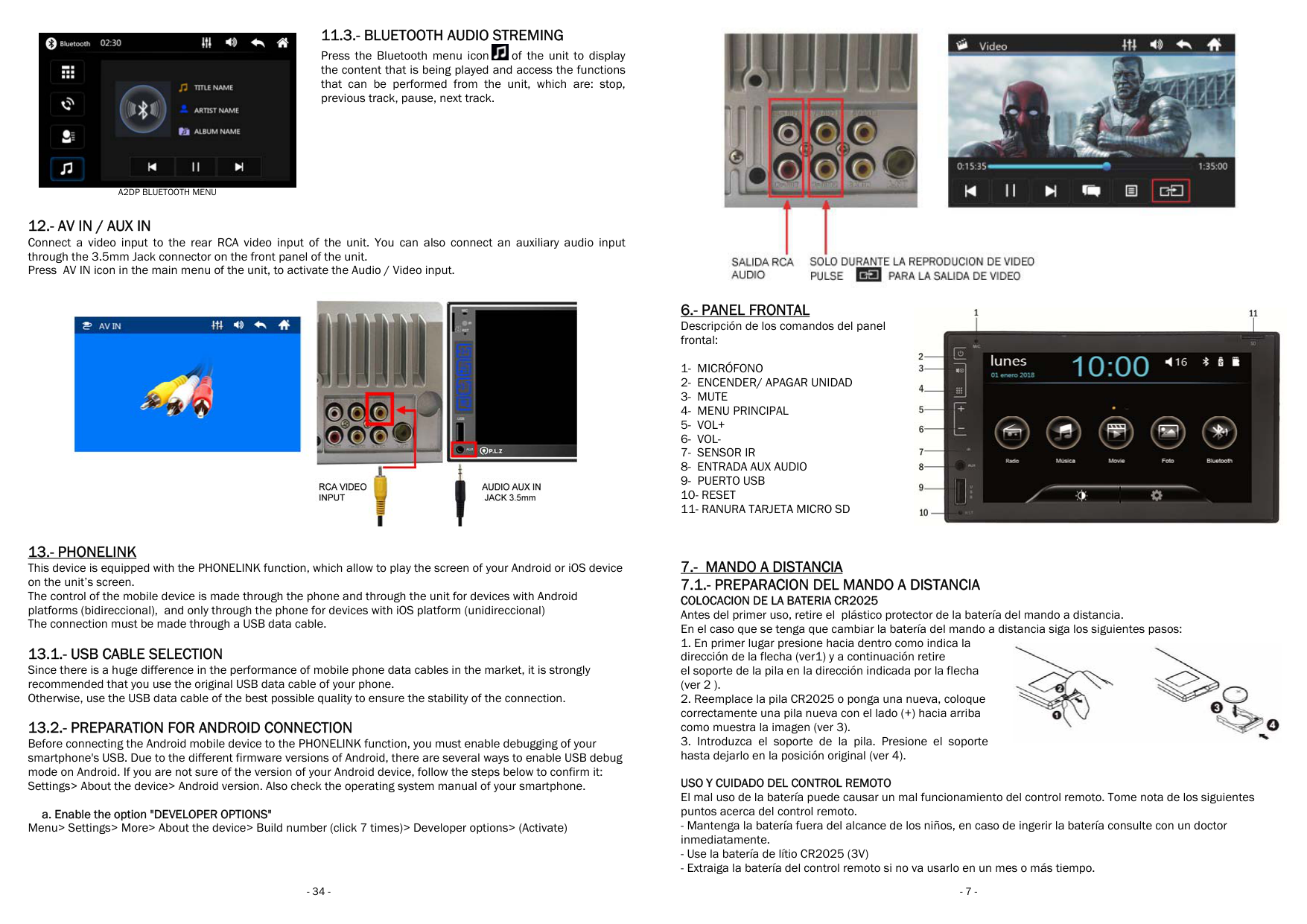
  • 7.- MANDO A DISTANCIA 7.1.- PREPARACION DEL MANDO A DISTANCIA COLOCACION DE LA BATERIA CR2025 Antes del primer uso, retire el plástico protector de la batería del mando a distancia. En el caso que se tenga que cambiar la batería del mando a distancia siga los siguientes pasos:
  • ![image 33](96552_images/imageFile33.png)

    ![image 34](96552_images/imageFile34.png)

    ![image 35](96552_images/imageFile35.png)

    ![image 36](96552_images/imageFile36.png)

  • 1. En primer lugar presione hacia dentro como indica la dirección de la flecha (ver1) y a continuación retire el soporte de la pila en la dirección indicada por la flecha (ver 2 ).
  • 2. Reemplace la pila CR2025 o ponga una nueva, coloque correctamente una pila nueva con el lado (+) hacia arriba como muestra la imagen (ver 3).
  • 3. Introduzca el soporte de la pila. Presione el soporte hasta dejarlo en la posición original (ver 4).
  • USO Y CUIDADO DEL CONTROL REMOTO El mal uso de la batería puede causar un mal funcionamiento del control remoto. Tome nota de los siguientes puntos acerca del control remoto.
  • - Mantenga la batería fuera del alcance de los niños, en caso de ingerir la batería consulte con un doctor inmediatamente.
  • - Use la batería de lítio CR2025 (3V)
  • - Extraiga la batería del control remoto si no va usarlo en un mes o más tiempo.
  • Page 7

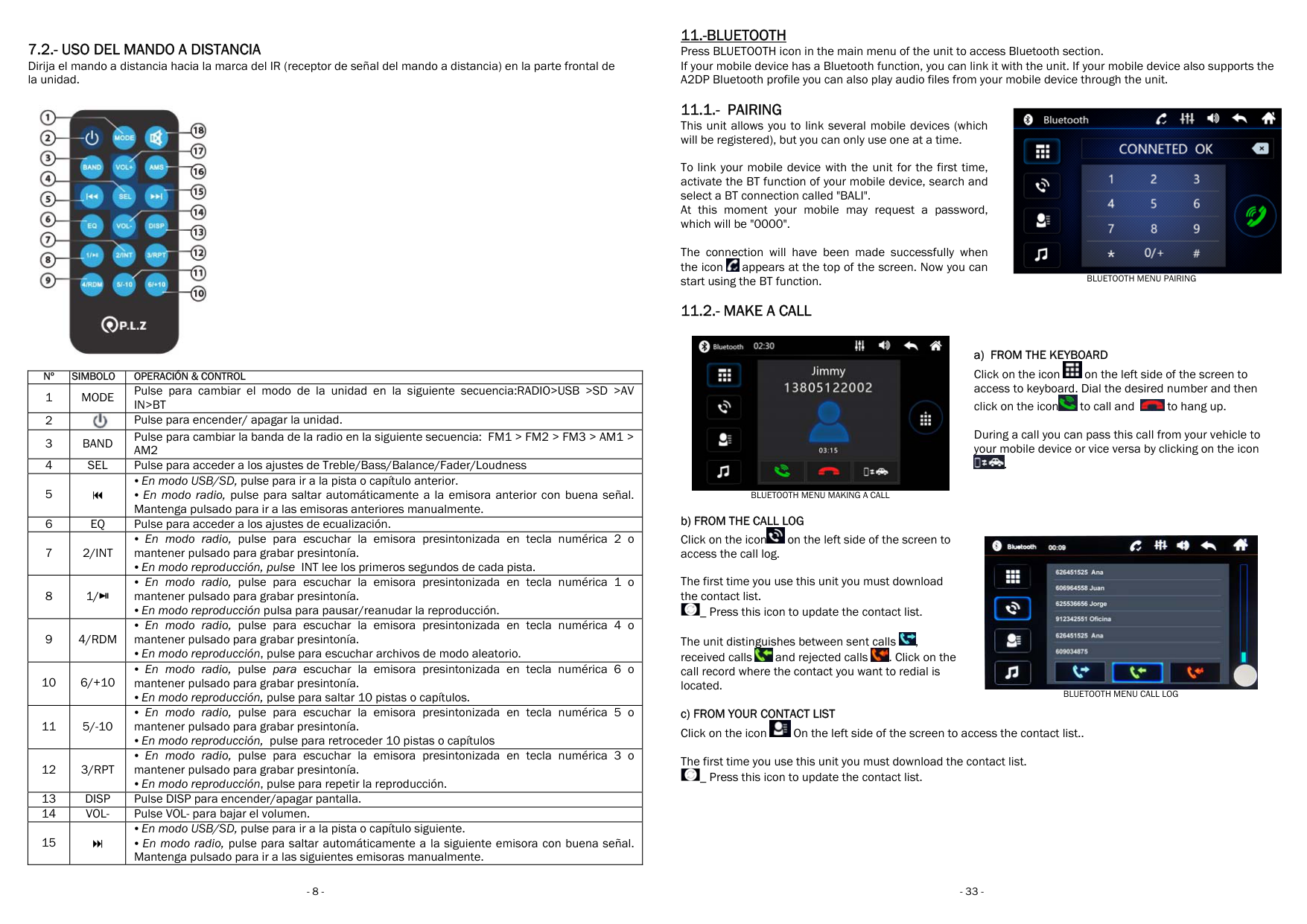
  • 7.2.- USO DEL MANDO A DISTANCIA Dirija el mando a distancia hacia la marca del IR (receptor de señal del mando a distancia) en la parte frontal de la unidad.
  • ![image 37](96552_images/imageFile37.png)

    |Nº|SIMBOLO|OPERACIÓN & CONTROL| |---|---|---| |1|MODE|Pulse para cambiar el modo de la unidad en la siguiente secuencia:RADIO>USB >SD >AV IN>BT| |2|![image 38](96552_images/imageFile38.png)|Pulse para encender/ apagar la unidad.| |3|BAND|Pulse para cambiar la banda de la radio en la siguiente secuencia: FM1 > FM2 > FM3 > AM1 > AM2| |4|SEL|Pulse para acceder a los ajustes de Treble/Bass/Balance/Fader/Loudness| |5| |• En modo USB/SD, pulse para ir a la pista o capítulo anterior.
    • En modo radio, pulse para saltar automáticamente a la emisora anterior con buena señal. Mantenga pulsado para ir a las emisoras anteriores manualmente.
    | |6|EQ|Pulse para acceder a los ajustes de ecualización.| |7|2/INT|• En modo radio, pulse para escuchar la emisora presintonizada en tecla numérica 2 o mantener pulsado para grabar presintonía.
    • En modo reproducción, pulse INT lee los primeros segundos de cada pista.
    | |8|1/

    ![image 39](96552_images/imageFile39.png)|• En modo radio, pulse para escuchar la emisora presintonizada en tecla numérica 1 o mantener pulsado para grabar presintonía.
    • En modo reproducción pulsa para pausar/reanudar la reproducción.
    | |9|4/RDM|• En modo radio, pulse para escuchar la emisora presintonizada en tecla numérica 4 o mantener pulsado para grabar presintonía.
    • En modo reproducción, pulse para escuchar archivos de modo aleatorio.
    | |10|6/+10|• En modo radio, pulse para escuchar la emisora presintonizada en tecla numérica 6 o mantener pulsado para grabar presintonía.
    • En modo reproducción, pulse para saltar 10 pistas o capítulos.
    | |11|5/-10|• En modo radio, pulse para escuchar la emisora presintonizada en tecla numérica 5 o mantener pulsado para grabar presintonía.
    • En modo reproducción, pulse para retroceder 10 pistas o capítulos
    | |12|3/RPT|• En modo radio, pulse para escuchar la emisora presintonizada en tecla numérica 3 o mantener pulsado para grabar presintonía.
    • En modo reproducción, pulse para repetir la reproducción.
    | |13|DISP|Pulse DISP para encender/apagar pantalla.| |14|VOL-|Pulse VOL- para bajar el volumen.| |15| |• En modo USB/SD, pulse para ir a la pista o capítulo siguiente.
    • En modo radio, pulse para saltar automáticamente a la siguiente emisora con buena señal. Mantenga pulsado para ir a las siguientes emisoras manualmente.
    |

    11.-BLUETOOTH Press BLUETOOTH icon in the main menu of the unit to access Bluetooth section. If your mobile device has a Bluetooth function, you can link A2DP Bluetooth profile you can also play audio fi

  • 11.1.- PAIRING This unit allows you to link several mobile devices (which will be registered), but you can only use one at a time.
  • To link your mobile device with the unit for the first time, activate the BT function of your mobile device, search and select a BT connection called "BALI". At this moment your mobile may request a password, which will be "0000".

    The connection will have been made successfully when the icon appears at the top of the screen. Now you can start using the BT function.

    ![image 40](96552_images/imageFile40.png)

  • 11.2.- MAKE A CALL
  • ![image 41](96552_images/imageFile41.png)

    BLUETOOTH MENU MAKING A CALL

  • b) FROM THE CALL LOG Click on the icon on the left side of the screen to access the call log.
  • ![image 42](96552_images/imageFile42.png)

    The first time you use this unit you must download the contact list.

    ![image 43](96552_images/imageFile43.png)

    _ Press this icon to update the contact list.

    The unit distinguishes between sent calls , received calls and rejected calls . Click on the call record where the contact you want to redial is located.

    ![image 44](96552_images/imageFile44.png)

    ![image 45](96552_images/imageFile45.png)

    ![image 46](96552_images/imageFile46.png)

  • c) FROM YOUR CONTACT LIST Click on the icon On the left side of the screen to access the contact list..
  • ![image 47](96552_images/imageFile47.png)

    The first time you use this unit you must download the contact list. _ Press this icon to update the contact list.

    ![image 48](96552_images/imageFile48.png)

    The TA function is only operative in the FM band.
  • PTY_ Press on this key to activate the PTY function. When activating this function we will display a menu with 31 options. Click on one of the options shown to select the type of program to search. Example if we click on the sports option the device will search the stations that contain Sports in its programming.
  • Page 8

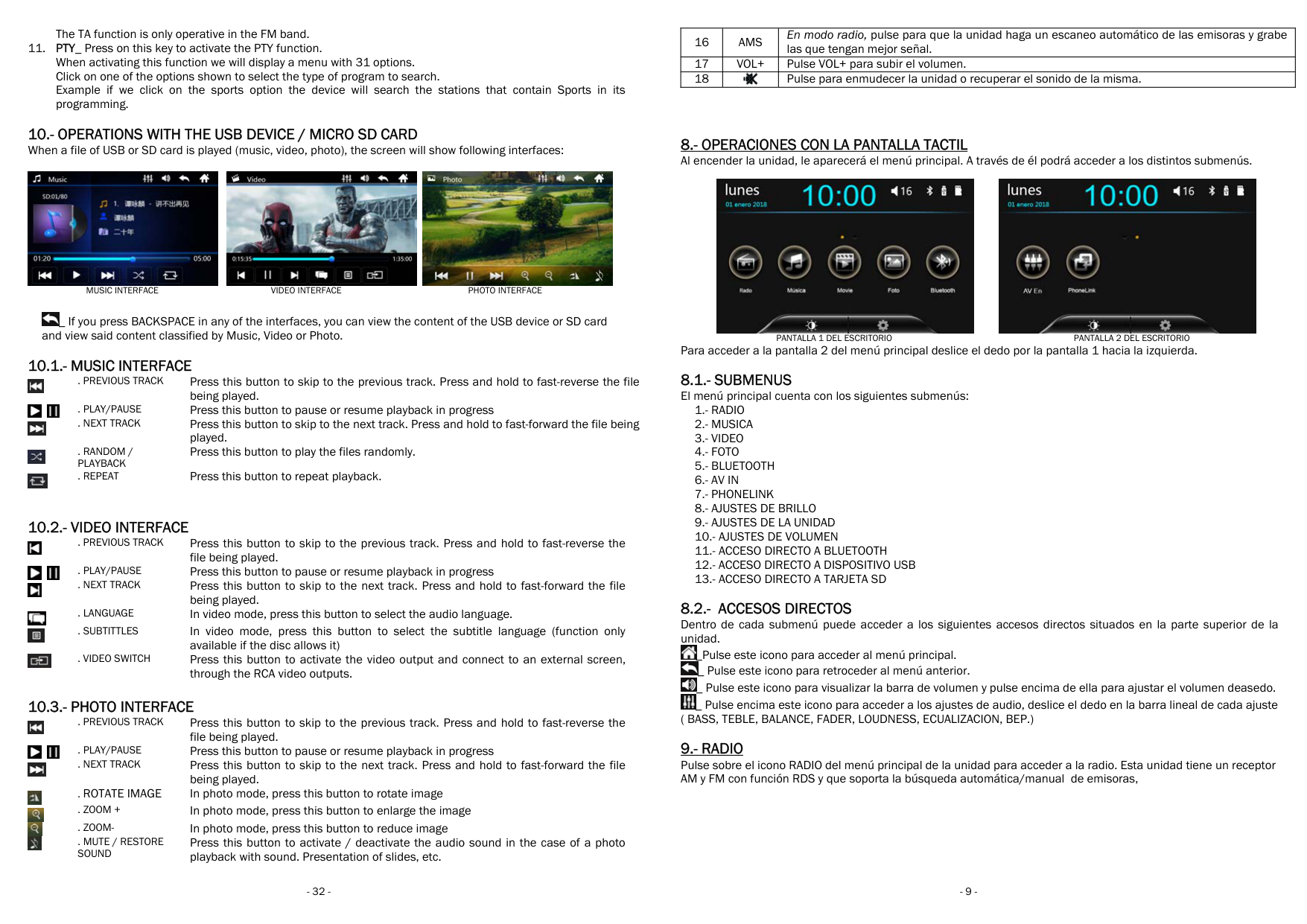
  • 10.- OPERATIONS WITH THE USB DEVICE / MICRO SD CARD When a file of USB or SD card is played (music, video, photo), the screen will show following interfaces:
  • ![image 49](96552_images/imageFile49.png)

    ![image 50](96552_images/imageFile50.png)

    ![image 51](96552_images/imageFile51.png)

    MUSIC INTERFACE VIDEO INTERFACE PHOTO INTERFACE

    ![image 52](96552_images/imageFile52.png)

    _ If you press BACKSPACE in any of the interfaces, you can view the content of the USB device or SD card and view said content classified by Music, Video or Photo.

    10.1.- MUSIC INTERFACE

    . PREVIOUS TRACK Press this button to skip to the previous track. Press and hold to fast-reverse the file being played.

    ![image 53](96552_images/imageFile53.png)

    . PLAY/PAUSE Press this button to pause or resume playback in progress

    ![image 54](96552_images/imageFile54.png)

    ![image 55](96552_images/imageFile55.png)

    . NEXT TRACK Press this button to skip to the next track. Press and hold to fast-forward the file being played.

    ![image 56](96552_images/imageFile56.png)

    Press this button to play the files randomly.

    . RANDOM / PLAYBACK

    ![image 57](96552_images/imageFile57.png)

    . REPEAT Press this button to repeat playback.

    ![image 58](96552_images/imageFile58.png)

    10.2.- VIDEO INTERFACE

    . PREVIOUS TRACK Press this button to skip to the previous track. Press and hold to fast-reverse the file being played.

    ![image 59](96552_images/imageFile59.png)

    . PLAY/PAUSE Press this button to pause or resume playback in progress

    ![image 60](96552_images/imageFile60.png)

    ![image 61](96552_images/imageFile61.png)

    . NEXT TRACK Press this button to skip to the next track. Press and hold to fast-forward the file being played.

    ![image 62](96552_images/imageFile62.png)

    . LANGUAGE In video mode, press this button to select the audio language.

    ![image 63](96552_images/imageFile63.png)

    . SUBTITTLES In video mode, press this button to select the subtitle language (function only available if the disc allows it)

    ![image 64](96552_images/imageFile64.png)

    . VIDEO SWITCH Press this button to activate the video output and connect to an external screen, through the RCA video outputs.

    ![image 65](96552_images/imageFile65.png)

    10.3.- PHOTO INTERFACE

    Page 9

    . PREVIOUS TRACK Press this button to skip to the previous track. Press and hold to fast-reverse the file being played.

    ![image 66](96552_images/imageFile66.png)

    . PLAY/PAUSE Press this button to pause or resume playback in progress

    ![image 67](96552_images/imageFile67.png)

    ![image 68](96552_images/imageFile68.png)

    . NEXT TRACK Press this button to skip to the next track. Press and hold to fast-forward the file being played.

    ![image 69](96552_images/imageFile69.png)

    . ROTATE IMAGE In photo mode, press this button to rotate image

    ![image 70](96552_images/imageFile70.png)

    . ZOOM + In photo mode, press this button to enlarge the image

    ![image 71](96552_images/imageFile71.png)

    . ZOOM- In photo mode, press this button to reduce image

    ![image 72](96552_images/imageFile72.png)

    Press this button to activate / deactivate the audio sound in the case of a photo playback with sound. Presentation of slides, etc.

    . MUTE / RESTORE SOUND

    ![image 73](96552_images/imageFile73.png)

  • 32 -
  • |16|AMS|En modo radio, pulse para que la unidad haga un escaneo automático de las emisoras y grabe las que tengan mejor señal.| |---|---|---| |17|VOL+|Pulse VOL+ para subir el volumen.| |18|![image 74](96552_images/imageFile74.png)|Pulse para enmudecer la unidad o recuperar el sonido de la misma.|

  • 8.- OPERACIONES CON LA PANTALLA TACTIL Al encender la unidad, le aparecerá el menú principal. A través de él podrá acceder a los distintos submenús.
  • ![image 75](96552_images/imageFile75.png)

    PANTALLA 1 DEL ESCRITORIO

    Para acceder a la pantalla 2 del menú principal desl

  • 8.1.- SUBMENUS El menú principal cuenta con los siguientes submenús:
  • 1.- RADIO
  • 2.- MUSICA
  • 3.- VIDEO
  • 4.- FOTO
  • 5.- BLUETOOTH
  • 6.- AV IN
  • 7.- PHONELINK
  • 8.- AJUSTES DE BRILLO
  • 9.- AJUSTES DE LA UNIDAD
  • 10.- AJUSTES DE VOLUMEN
  • 11.- ACCESO DIRECTO A BLUETOOTH
  • 12.- ACCESO DIRECTO A DISPOSITIVO USB
  • 13.- ACCESO DIRECTO A TARJETA SD
  • 8.2.- ACCESOS DIRECTOS Dentro de cada submenú puede acceder a los siguientes ac unidad.
  • ![image 76](96552_images/imageFile76.png)

    Page 10

    _Pulse este icono para acceder al menú principal. _ Pulse este icono para retroceder al menú anterior. _ Pulse este icono para visualizar la barra de volumen y _ Pulse encima este icono para acceder a los ajustes de audi ( BASS, TEBLE, BALANCE, FADER, LOUDNESS, ECUALIZACION, BEP.)

    ![image 77](96552_images/imageFile77.png)

    ![image 78](96552_images/imageFile78.png)

    ![image 79](96552_images/imageFile79.png)

  • 9.- RADIO Pulse sobre el icono RADIO del menú principal de la unidad para acceder a la radio. Esta unidad tiene un receptor AM y FM con función RDS y que soporta la búsqueda automática/manual de emisoras,
  • ![image 80](96552_images/imageFile80.png)

    ![image 81](96552_images/imageFile81.png)

    ![image 82](96552_images/imageFile82.png)

    ![image 83](96552_images/imageFile83.png)

    MENU RADIO

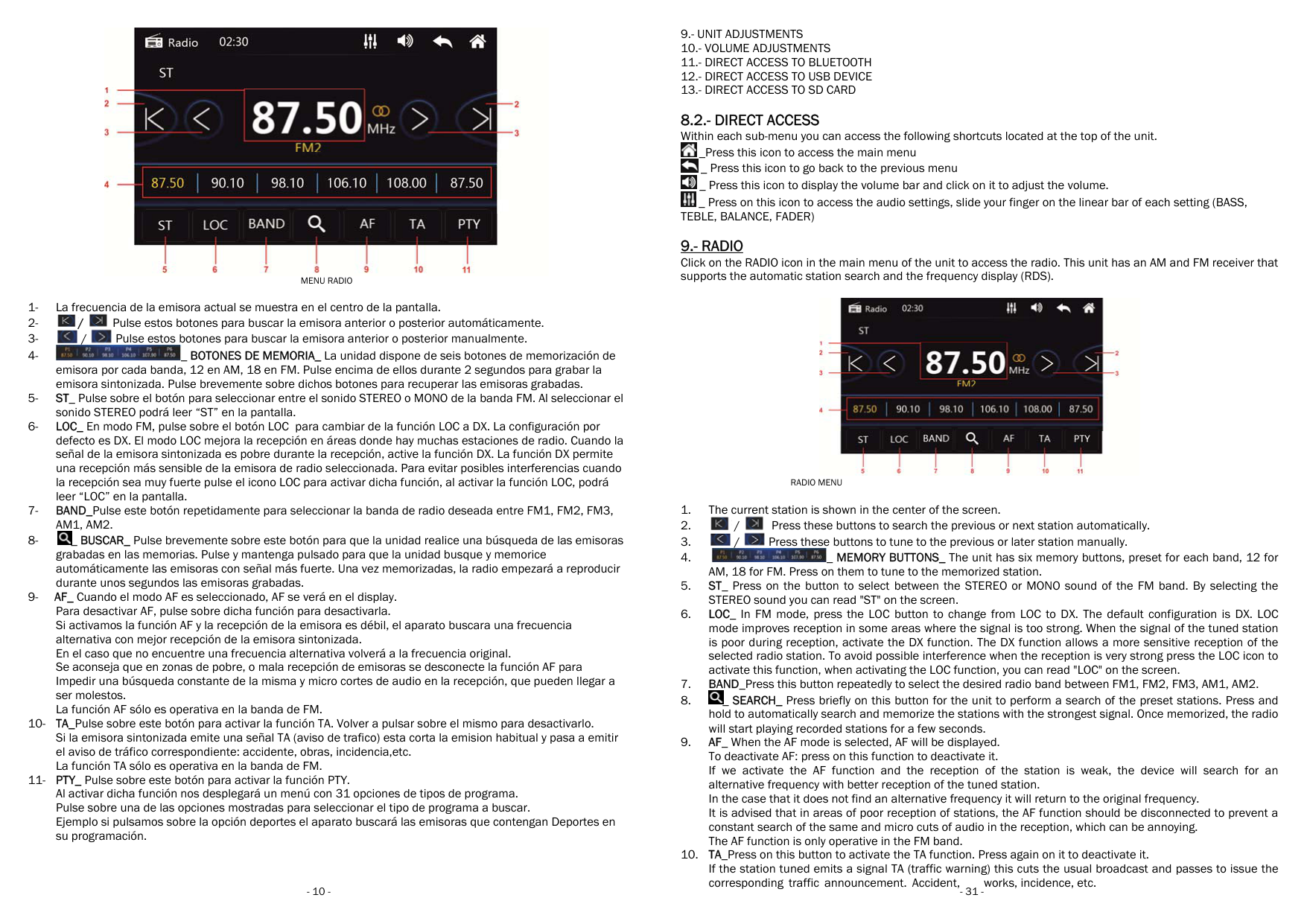
  • 1- La frecuencia de la emisora actual se muestra en el centro de la pantalla.
  • 2- / Pulse estos botones para buscar la emisora anterior o posterior automáticamente.
  • ![image 84](96552_images/imageFile84.png)

    ![image 85](96552_images/imageFile85.png)

  • 3- / Pulse estos botones para buscar la emisora anterior o posterior manualmente.
  • ![image 86](96552_images/imageFile86.png)

    ![image 87](96552_images/imageFile87.png)

  • 4- _ BOTONES DE MEMORIA_ La unidad dispone de seis botones de memorización de emisora por cada banda, 12 en AM, 18 en FM. Pulse encima de ellos durante 2 segundos para grabar la emisora sintonizada. Pulse brevemente sobre dichos botones para recuperar las emisoras grabadas.
  • ![image 88](96552_images/imageFile88.png)

  • 5- ST_ Pulse sobre el botón para seleccionar entre el sonido STEREO o MONO de la banda FM. Al seleccionar el sonido STEREO podrá leer “ST” en la pantalla.
  • 6- LOC_ En modo FM, pulse sobre el botón LOC para cambiar de la función LOC a DX. La configuración por defecto es DX. El modo LOC mejora la recepción en áreas donde hay muchas estaciones de radio. Cuando la señal de la emisora sintonizada es pobre durante la recepción, active la función DX. La función DX permite una recepción más sensible de la emisora de radio seleccionada. Para evitar posibles interferencias cuando la recepción sea muy fuerte pulse el icono LOC para activar dicha función, al activar la función LOC, podrá leer “LOC” en la pantalla.
  • 7- BAND_Pulse este botón repetidamente para seleccionar la banda de radio deseada entre FM1, FM2, FM3, AM1, AM2.
  • 8- _ BUSCAR_ Pulse brevemente sobre este botón para que la unidad realice una búsqueda de las emisoras grabadas en las memorias. Pulse y mantenga pulsado para que la unidad busque y memorice automáticamente las emisoras con señal más fuerte. Una vez memorizadas, la radio empezará a reproducir durante unos segundos las emisoras grabadas.
  • ![image 89](96552_images/imageFile89.png)

  • 9- AF_ Cuando el modo AF es seleccionado, AF se verá en el display. Para desactivar AF, pulse sobre dicha función para desactivarla. Si activamos la función AF y la recepción de la emisora es débil, el aparato buscara una frecuencia alternativa con mejor recepción de la emisora sintonizada. En el caso que no encuentre una frecuencia alternativa volverá a la frecuencia original. Se aconseja que en zonas de pobre, o mala recepción de emisoras se desconecte la función AF para Impedir una búsqueda constante de la misma y micro cortes de audio en la recepción, que pueden llegar a ser molestos. La función AF sólo es operativa en la banda de FM.
  • 10- TA_Pulse sobre este botón para activar la función TA. Volver a pulsar sobre el mismo para desactivarlo. Si la emisora sintonizada emite una señal TA (aviso de trafico) esta corta la emision habitual y pasa a emitir el aviso de tráfico correspondiente: accidente, obras, incidencia,etc. La función TA sólo es operativa en la banda de FM.
  • 11- PTY_ Pulse sobre este botón para activar la función PTY. Al activar dicha función nos desplegará un menú con 31 opciones de tipos de programa. Pulse sobre una de las opciones mostradas para seleccionar el tipo de programa a buscar. Ejemplo si pulsamos sobre la opción deportes el aparato buscará las emisoras que contengan Deportes en su programación.
  • 9.- UNIT ADJUSTMENTS
  • 10.- VOLUME ADJUSTMENTS
  • 11.- DIRECT ACCESS TO BLUETOOTH
  • 12.- DIRECT ACCESS TO USB DEVICE
  • 13.- DIRECT ACCESS TO SD CARD
  • 8.2.- DIRECT ACCESS Within each sub-menu you can access the followi
  • ![image 90](96552_images/imageFile90.png)

    _Press this icon to access the main menu _ Press this icon to go back to the previous menu _ Press this icon to display the volume bar and click on it to adjust the volume. _ Press on this icon to access the audio settings, slide

    ![image 91](96552_images/imageFile91.png)

    ![image 92](96552_images/imageFile92.png)

    ![image 93](96552_images/imageFile93.png)

    TEBLE, BALANCE, FADER)

    Page 11

  • 9.- RADIO Click on the RADIO icon in the main menu of the unit to access the radio. This unit has an AM and FM receiver that supports the automatic station search and the frequency display (RDS).
  • ![image 94](96552_images/imageFile94.png)

    ![image 95](96552_images/imageFile95.png)

    ![image 96](96552_images/imageFile96.png)

    ![image 97](96552_images/imageFile97.png)

    RADIO MENU

  • 1. The current station is shown in the center of the screen.
  • 2. / Press these buttons to search the previous or next station automatically.
  • ![image 98](96552_images/imageFile98.png)

    ![image 99](96552_images/imageFile99.png)

  • 3. / Press these buttons to tune to the previous or later station manually.
  • ![image 100](96552_images/imageFile100.png)

    ![image 101](96552_images/imageFile101.png)

  • 4. _ MEMORY BUTTONS_ AM, 18 for FM. Press on them to tune to the memorized station.
  • ![image 102](96552_images/imageFile102.png)

  • 5. ST_ Press on the button to select between the STEREO STEREO sound you can read "ST" on the screen.
  • 6. LOC_ In FM mode, press the LOC button to change from LOC to DX. The default configuration is DX. LOC mode improves reception in some areas where the signal is poor during reception, activate the DX function. Th selected radio station. To avoid possible interference wh activate this function, when activating the LOC function, you can read "LOC" on the screen.
  • 7. BAND_Press this button repeatedly to select the desire
  • 8. _ SEARCH_ Press briefly on this button for the unit to perform a search of the preset stations. Press and hold to automatically search and memorize the stations will start playing recorded stations for a few seconds.
  • ![image 103](96552_images/imageFile103.png)

  • 9. AF_ When the AF mode is selected, AF will be displayed. To deactivate AF: press on this function to deactivate it. If we activate the AF function and the reception of alternative frequency with better reception of the tuned station. In the case that it does not find an alternative frequency it will return to the original frequency. It is advised that in areas of poor reception of statio constant search of the same and micro cuts of audio in the reception, which can be annoying. The AF function is only operative in the FM band.
  • 10. TA_Press on this button to activate the TA func If the station tuned emits a signal TA (traffic warning) this cuts the usual broadcast and passes to issue the corresponding traffic announcement. Accident, works, incidence, etc.
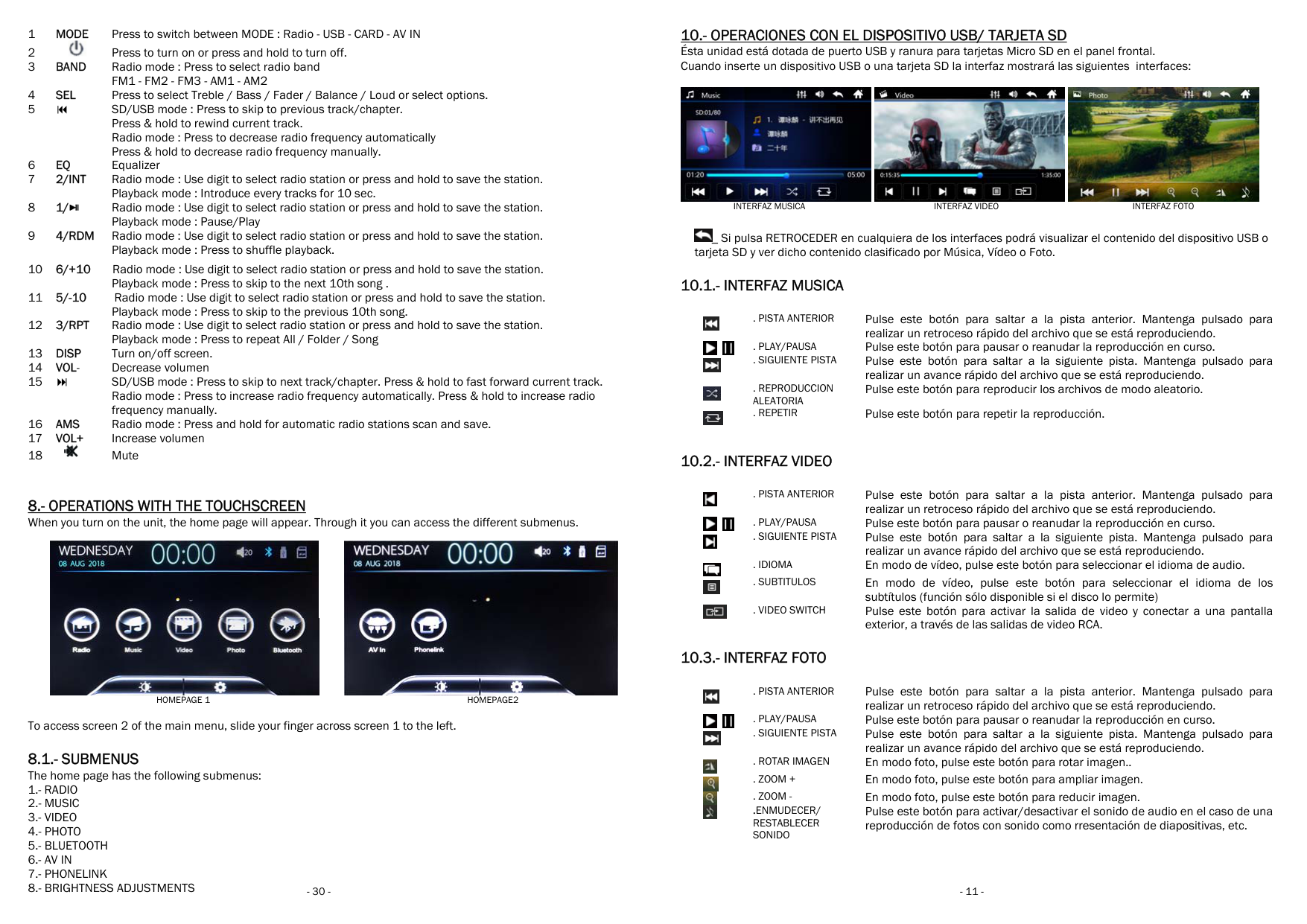
  • 1 MODE Press to switch between MODE : Radio - USB - CARD - AV IN
  • 2 Press to turn on or press and hold to turn off.
  • ![image 104](96552_images/imageFile104.png)

  • 3 BAND Radio mode : Press to select radio band FM1 - FM2 - FM3 - AM1 - AM2
  • 4 SEL Press to select Treble / Bass / Fader / Balance / Loud or select options.
  • 5 SD/USB mode : Press to skip to previous track/chapter. Press & hold to rewind current track. Radio mode : Press to decrease radio frequency automatically Press & hold to decrease radio frequency manually.
  • 6 EQ Equalizer
  • 7 2/INT Radio mode : Use digit to select radio station or press and hold to save the station. Playback mode : Introduce every tracks for 10 sec.
  • 8 1/ Radio mode : Use digit to select radio station or press and hold to save the station. Playback mode : Pause/Play
  • ![image 105](96552_images/imageFile105.png)

  • 9 4/RDM Radio mode : Use digit to select radio station or press and hold to save the station. Playback mode : Press to shuffle playback.
  • 10 6/+10 Radio mode : Use digit to select radio station or press and hold to save the station. Playback mode : Press to skip to the next 10th song .
  • 11 5/-10 Radio mode : Use digit to select radio station or press and hold to save the station. Playback mode : Press to skip to the previous 10th song.
  • 12 3/RPT Radio mode : Use digit to select radio station or press and hold to save the station. Playback mode : Press to repeat All / Folder / Song
  • 13 DISP Turn on/off screen.
  • 14 VOL- Decrease volumen
  • 15 SD/USB mode : Press to skip to next track/chapter. Press & hold to fast forward current track. Radio mode : Press to increase radio frequency automatically. Press & hold to increase radio frequency manually.
  • 16 AMS Radio mode : Press and hold for automatic radio stations scan and save.
  • 17 VOL+ Increase volumen
  • 18 Mute
  • ![image 106](96552_images/imageFile106.png)

  • 8.- OPERATIONS WITH THE TOUCHSCREEN When you turn on the unit, the home page will appear. Through it you can access the different submenus.
  • Page 12

    ![image 107](96552_images/imageFile107.png)

    ![image 108](96552_images/imageFile108.png)

    ![image 109](96552_images/imageFile109.png)

    ![image 110](96552_images/imageFile110.png)

    HOMEPAGE 1 HOMEPAGE2 To access screen 2 of the main menu, slide your finger across screen 1 to the left. 8.1.- SUBMENUS The home page has the following submenus:

  • 1.- RADIO
  • 2.- MUSIC
  • 3.- VIDEO
  • 4.- PHOTO
  • 5.- BLUETOOTH
  • 6.- AV IN
  • 7.- PHONELINK
  • 8.- BRIGHTNESS ADJUSTMENTS
  • 30 -
  • 10.- OPERACIONES CON EL DISPOSITIVO USB/ TARJETA SD Ésta unidad está dotada de puerto USB y ranura para tarjetas Micro SD en el panel frontal. Cuando inserte un dispositivo USB o una tarjeta SD la interfaz mostrará las siguientes interfaces:

    ![image 111](96552_images/imageFile111.png)

    ![image 112](96552_images/imageFile112.png)

    INTERFAZ MUSICA INTERFAZ VIDEO INTERFAZ FOTO

    ![image 113](96552_images/imageFile113.png)

    _ Si pulsa RETROCEDER en cualquiera de los interfaces tarjeta SD y ver dicho contenido clasificado por Música, Vídeo o Foto.

    10.1.- INTERFAZ MUSICA

    ![image 114](96552_images/imageFile114.png)

    ![image 115](96552_images/imageFile115.png)

    ![image 116](96552_images/imageFile116.png)

    ![image 117](96552_images/imageFile117.png)

    ![image 118](96552_images/imageFile118.png)

    ![image 119](96552_images/imageFile119.png)

    . PISTA ANTERIOR Pulse este botón para saltar a la pista anterior. Mantenga pulsado para realizar un retroceso rápido del archivo que se está reproduciendo.

    . PLAY/PAUSA Pulse este botón para pausar o re

    . SIGUIENTE PISTA Pulse este botón para saltar a la siguiente pista. Mantenga pulsado para realizar un avance rápido del archivo que se está reproduciendo.

    Pulse este botón para reproducir los archivos de modo aleatorio.

    . REPRODUCCION ALEATORIA

    . REPETIR Pulse este botón para repetir la reproducción.

    10.2.- INTERFAZ VIDEO

    ![image 120](96552_images/imageFile120.png)

    ![image 121](96552_images/imageFile121.png)

    ![image 122](96552_images/imageFile122.png)

    ![image 123](96552_images/imageFile123.png)

    Page 13

    ![image 124](96552_images/imageFile124.png)

    ![image 125](96552_images/imageFile125.png)

    ![image 126](96552_images/imageFile126.png)

    . PISTA ANTERIOR Pulse este botón para saltar a la pista anterior. Mantenga pulsado para realizar un retroceso rápido del archivo que se está reproduciendo.

    . PLAY/PAUSA Pulse este botón para pausar o re

    . SIGUIENTE PISTA Pulse este botón para saltar a la siguiente pista. Mantenga pulsado para realizar un avance rápido del archivo que se está reproduciendo.

    . IDIOMA En modo de vídeo, pulse este botón para seleccionar el idioma de audio.

    . SUBTITULOS En modo de vídeo, pulse este botón para seleccionar el idioma de los subtítulos (función sólo dispon

    . VIDEO SWITCH Pulse este botón para activar la salida de video y conectar a una pantalla exterior, a través de las salidas de video RCA.

    10.3.- INTERFAZ FOTO

    ![image 127](96552_images/imageFile127.png)

    ![image 128](96552_images/imageFile128.png)

    ![image 129](96552_images/imageFile129.png)

    ![image 130](96552_images/imageFile130.png)

    ![image 131](96552_images/imageFile131.png)

    ![image 132](96552_images/imageFile132.png)

    ![image 133](96552_images/imageFile133.png)

    ![image 134](96552_images/imageFile134.png)

    . PISTA ANTERIOR Pulse este botón para saltar a la pista anterior. Mantenga pulsado para realizar un retroceso rápido del archivo que se está reproduciendo.

    . PLAY/PAUSA Pulse este botón para pausar o re

    . SIGUIENTE PISTA Pulse este botón para saltar a la siguiente pista. Mantenga pulsado para realizar un avance rápido del archivo que se está reproduciendo.

    . ROTAR IMAGEN En modo foto, pulse este botón para rotar imagen..

    . ZOOM + En modo foto, pulse este botón para ampliar imagen.

    . ZOOM - En modo foto, pulse este botón para reducir imagen.

    Pulse este botón para activar/desactivar el sonido de audio en el caso de una reproducción de fotos con sonido como rresentación de diapositivas, etc.

    .ENMUDECER/ RESTABLECER SONIDO

  • 11.-BLUETOOTH Pulse sobre el icono BLUETOOTH del menú principal de la unidad para acceder al Bluetooth. Si su dispositivo móvil tiene función Bluetooth podrá enlazarlo con la unidad. Si su dispositivo móvil también soporta la función A2DP podrá reproducir archivos de audio de su dispositivo móvil a través de la unidad.
  • 11.1.- ENLAZAR DISPOSITIVO BLUETOOTH Esta unidad permite enlazar varios dispositivos móviles (los cuales quedarán registrados), pero sólo podrá utilizar uno cada vez.
  • Para enlazar su dispositivo móvil con la unidad por primera vez, active la función BT de su dispositivo móvil y busque y seleccione una conexión BT llamada “BALI”. En este momento puede que su móvil le solicite un password, que será “0000”. La conexión se habrá realizado con éxito cuando en la parte superior de la pantalla aparezca el icono . Es ahora cuando puede empezar a utilizar la función BT.

    ![image 135](96552_images/imageFile135.png)

  • 11.2.-EFECTUAR LLAMADA
  • ![image 136](96552_images/imageFile136.png)

    MENU BLUETOOTH TECLADO NUMERICO

    ![image 137](96552_images/imageFile137.png)

    a) DESDE TECLADO NUMERICO

    Page 14

    ![image 138](96552_images/imageFile138.png)

    Pulse sobre el icono en la parte izquierda de la pantalla para acceder al teclado numérico. Marque el número deseado y a continuación pulse sobre el icono

    ![image 139](96552_images/imageFile139.png)

    para llamar y para colgar.

    ![image 140](96552_images/imageFile140.png)

    Durante una llamada puede pasar dicha llamada de su vehículo a su dispositivo móvil o al revés pulsando el icono

    ![image 141](96552_images/imageFile141.png)

    MENU BLUETOOTH LLAMADA EN CURSO

  • b) DESDE EL REGISTRO DE LLAMADAS Pulse sobre el icono en la parte izquierda de la pantalla para acceder al registro de llamadas.
  • ![image 142](96552_images/imageFile142.png)

    La primera vez que use ésta unidad deberá descargar la agenda de contactos, la operación puede tardar unos minutos.

    ![image 143](96552_images/imageFile143.png)

    _ Pulse este icono para actualizar la agenda de contactos. La unidad distingue entre llamadas enviadas ,

    ![image 144](96552_images/imageFile144.png)

    llamadas recibidas y rechazadas . Pulse encima el registro de llamadas donde se ubica el contacto que desee rellamar.

    ![image 145](96552_images/imageFile145.png)

    ![image 146](96552_images/imageFile146.png)

  • c) DESDE LA AGENDA DE CONTACTOS
  • ![image 147](96552_images/imageFile147.png)

    ![image 148](96552_images/imageFile148.png)

    MENU BLUETOOTH REGISTRO LLAMADAS

    ![image 149](96552_images/imageFile149.png)

    Pulse sobre el icono en la parte izquierda de la pantalla para acceder a la agenda de contactos. La primera vez que use ésta unidad deberá descargar la agenda de contactos.

    ![image 150](96552_images/imageFile150.png)

    _ Pulse este icono para actualizar la agenda de contactos, la operación puede tardar unos minutos.
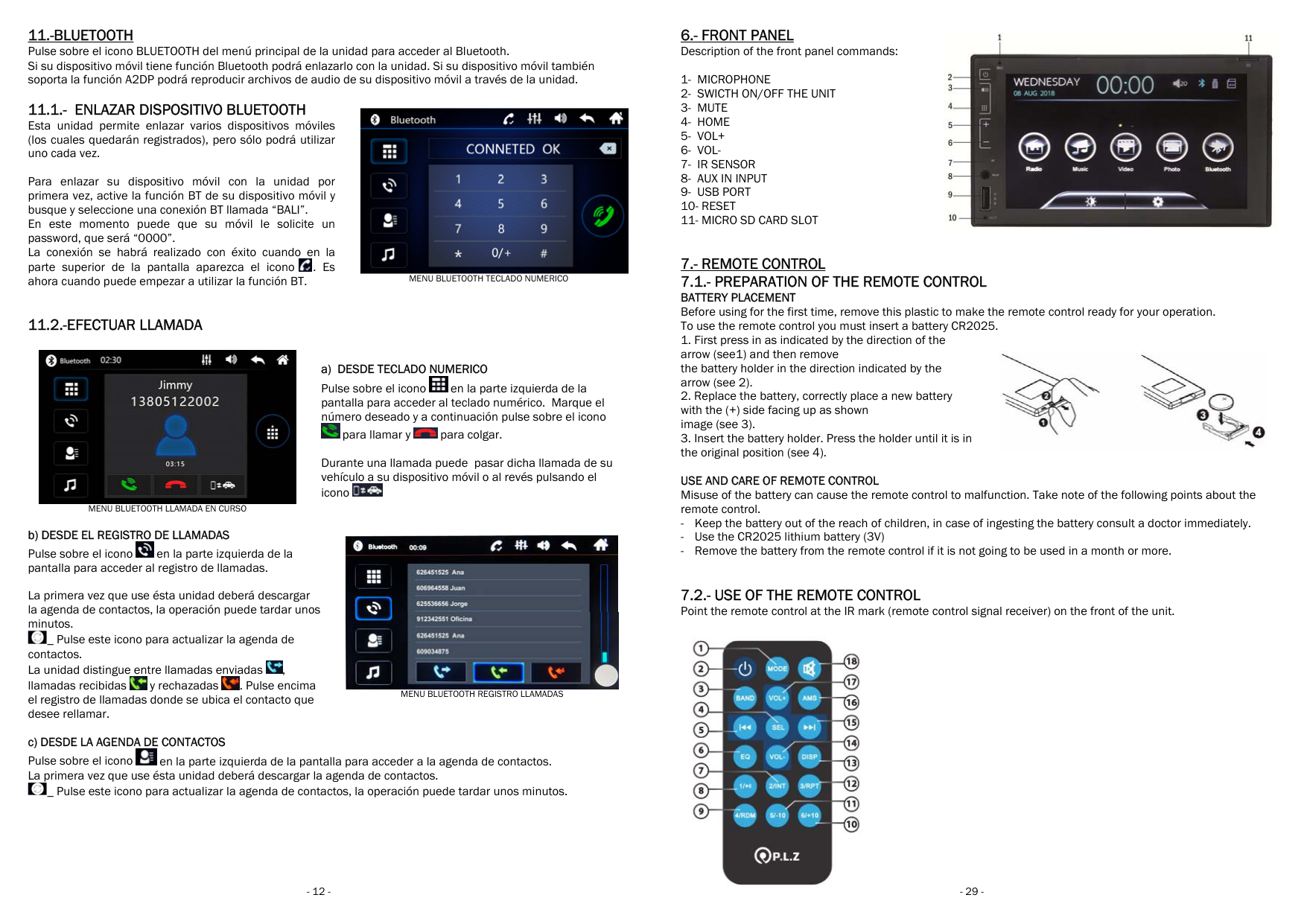
  • 6.- FRONT PANEL Description of the front panel commands:
  • 1- MICROPHONE
  • 2- SWICTH ON/OFF THE UNIT
  • 3- MUTE
  • 4- HOME
  • 5- VOL+
  • 6- VOL-
  • 7- IR SENSOR
  • 8- AUX IN INPUT
  • 9- USB PORT
  • 10- RESET
  • 11- MICRO SD CARD SLOT
  • 7.- REMOTE CONTROL
  • 7.1.- PREPARATION OF THE REMOTE CONTROL BATTERY PLACEMENT Before using for the first time, remove this plastic To use the remote control you must insert a battery CR2025.
  • Page 15

  • 1. First press in as indicated by the direction of the arrow (see1) and then remove the battery holder in the direction indicated by the arrow (see 2).
  • 2. Replace the battery, correctly place a new battery with the (+) side facing up as shown image (see 3).
  • 3. Insert the battery holder. Press the holder until it is in the original position (see 4).
  • USE AND CARE OF REMOTE CONTROL Misuse of the battery can cause the remote control to malfunction. Take note of the following points about the remote control.

  • - Keep the battery out of the reach of children, in case
  • - Use the CR2025 lithium battery (3V)
  • - Remove the battery from the remote control if it is not going to be used in a month or more.
  • 7.2.- USE OF THE REMOTE CONTROL Point the remote control at the IR mark (remote control signal receiver) on the front of the unit.
  • ![image 151](96552_images/imageFile151.png)

    5.1.- REAR VIEW CAMERA INSTALLATION

    ![image 152](96552_images/imageFile152.png)

    ![image 153](96552_images/imageFile153.png)

    NOTA: Whne installing a rear view camera and engage reverse gear, the unit will display the image that camera is transmitting.

    5.2.-VIDEO OUTPUT / RCA OUTPUT

    ![image 154](96552_images/imageFile154.png)

    ![image 155](96552_images/imageFile155.png)

    MENU BLUETOOTH REPRODUCCION MUSICA VIA A2DP

  • 12.- AV IN / AUX IN Conecte una entrada de vídeo a la entrada de vídeo RCA trasera de la unidad. También puede conectar una entrada auxiliar de audio a través del conector Jack de 3.5mm en el panel frontal de la unidad. Pulse sobre el icono AV IN en el menú principal de la unidad, para activar la entrada de Audio/Video.
  • ![image 156](96552_images/imageFile156.png)

    ![image 157](96552_images/imageFile157.png)

    ![image 158](96552_images/imageFile158.png)

  • 13.- PHONELINK Este dispositivo está dotado de la función PHONE LINK, reproduce la pantalla de su dispositivo con plataforma Android o iOS en la pantalla de la unidad. El control del dispositivo móvil se efectúa a través del te Android, bidireccional, y sólo a través del dispositivo móvi La conexión debe realizarse a través de un cable USB de datos.
  • 13.1.- SELECCIÓN CABLE USB Dado que existe una gran diferencia en el rendimiento de se recomienda encarecidamente que use el cable de datos USB original de su teléfono. De lo contrario, utilice el cable de datos USB de la me conexión.
  • 13.2.- PREPARACIÓN PARA CONEXIÓN ANDROID Antes de conectar el dispositivo móvil Android a la funció smartphone. Debido a las diferentes versiones de firmwarwe de Android , hay de depuración USB en Android.
  • Si no está seguro de la versión de su dispositivo Andr Acerca del dispositivo > Versión de Android. Consulte también el manual de

  • 28 -
  • a. Habilite la opción de “OPCIONES DE DESARROLLADOR” Menú> Configuración> Más> Acerca del dispositivo> Número de compilación (clic 7 veces)> Opciones del desarrollador> (Activar)
  • b.Pasos para habilitar la depuración USB en Android 4.4 y superior Menú> Ajustes> Acerca del dispositivo> Número de compilación (Haga clic en el número de 4- 8 veces hasta que un mensaje le da cuenta de que ya ha convertido en un desarrollador)> Vuelva a Ajustes> Opciones de desarro y activar la opción Depuración de USB.
  • ![image 159](96552_images/imageFile159.png)

    DEPURACIÓN USB ANDROID 4.4 Y SUPERIOR

  • c. Pasos para habilitar la depuración USB en Android 4.2 – 4.3 Menú> Configuración> Más> Acerca del dispositivo> Número de compilación (clic 7 veces)> Opciones del desarrollador> Depuración USB> OK.
  • ![image 160](96552_images/imageFile160.png)

  • 13.3 CONEXIÓN A PHONELINK Conecte el cable USB entre el panel frontal de la unidad y su dispositivo Android o iOS. En la pantalla de la unidad podrá leer “CONECTANDO”. Espere unos segundos y aparecerá en la pantalla de su dispositivo una ventana preguntando si desea confiar en este ordenador, pulse confiar e introduzca la contraseña que utiliza para desbloquear su dispositivo. La conexión se realiza automáticamente.
  • 14.- AJUSTES DE BRILLO Pulse el icono del menú principal de la unidad para acceder a los ajustes de brillo. Véase apartado 15.7.- MONITOR para más información.
  • ![image 161](96552_images/imageFile161.png)

  • 15.- AJUSTES DE LA UNIDAD Pulse el icono del menú principal de la unidad para acceder a los ajustes de la unidad.
  • Page 16

    ![image 162](96552_images/imageFile162.png)

    ![image 163](96552_images/imageFile163.png)

  • 1.- IDIOMA
  • 2.- AUDIO
  • 3.- AREA DE LA RADIO
  • 4.- TIEMPO
  • 5.- OTROS
  • 6.- CONTROL DEL VOLANTE
  • 7.- MONITOR
  • 8.- PAPEL PINTADO (FONDO DE PANTALLA)
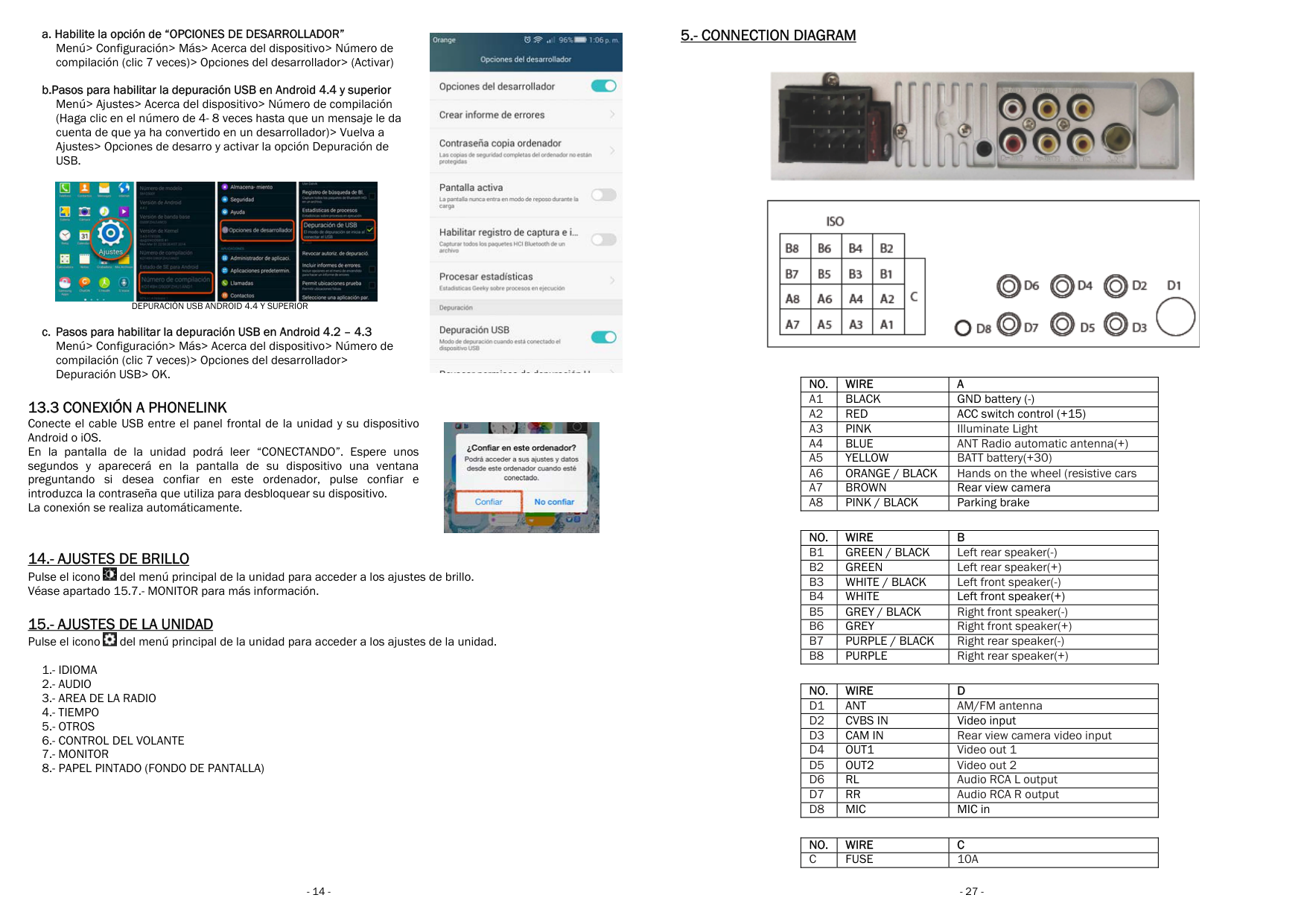
  • 5.- CONNECTION DIAGRAM

    ![image 164](96552_images/imageFile164.png)

    |NO.|WIRE| | |---|---|---| |A1|BLACK|GND battery (-)| |A2|RED|ACC switch control (+15)| |A3|PINK| | |A4|BLUE| | |A5|YELLOW| | |A6|ORANGE / BLACK| | |A7|BROWN|Rear view camera| |A8|PINK / BLACK|Parking brake|

    |NO.|WIRE| | |---|---|---| |B1|GREEN / BLACK| | |B2|GREEN| | |B3|WHITE / BLACK| | |B4|WHITE|Left front speaker(+)| |B5|GREY / BLACK| | |B6|GREY| | |B7|PURPLE / BLACK| | |B8|PURPLE| |

    |NO.|WIRE| | |---|---|---| |D1|ANT| | |D2|CVBS IN|Video input| |D3|CAM IN| | |D4|OUT1| | |D5|OUT2| | |D6|RL| | |D7|RR| | |D8|MIC|MIC in|

    |NO.|WIRE| | |---|---|---| |C|FUSE| |

    2.- KIT CONTENT
  • - 1 Multimedia 2DIN unit
  • - 1 user’s manual
  • - 1 remote control
  • - 1 power & speaker cable and hands on the wheel cable
  • - 1 external microphone
  • - 2 radio plastic framworks
  • Page 17

    3.- GENERAL ESPECIFICATIONS

    GENERAL ESPECIFICATIONS 2DIN FORMAT FRONT FIX PANEL POWER SUPPLY 11~14V DC OPERATIVE SYSTEM C200S TDA IC 7388 RMS POWER 4x22W MAX POWER 4x52W CONSUMPTION MAX.10A UNIT DIMENSIONS 178 x 100 x 130mm profundity FRONT PANEL DIMENSIONS 170 x 96mm WORKING TEMPERATURE -20 ~ +80º C STEERING WHEEL CONTROL INTERFACE FOR RESISTIVE CARS

    BACK PANEL 1 AM/FM ANTENNA INPUT 1 EXTERNAL MICROPHONE INPUT

  • 1 VIDEO RCA INPUT
  • 2 VIDEO RCA OUTPUTS 1 AUDIO RCS OUTPUT 1 REAR VIEW CAMERA INPUT POWER AND SPEAKER CABLE AND STEERING WHEEL CABLE
  • BLUETOOTH BLUETOOTH HANDSFREE FUNCTION BLUETOOT A2DP PROFILE* (AUDIO STREAMING) AUTOMATIC UPDATING OF CONTACTS

  • IF THE MOBILE DEVICE SUPPORTS THE A2DP PROFILE
  • SET UP OSD MENU IN 18 DIFERENT LANGUAGES SET UP FRONT PANEL ILLUMINATION 6 DIFERENT WALPAPERS

    FRONT PANEL SCREEN SIZE 6.2" CAPACITATIVE TOUCH PANEL RESOLUTION 800x480 PIXELS, RATIO 4:3, 16:9 USB PORT 2.0, CHARGE AT 2A Micro SD CARD READER FOR MULTIMEDIA AUX IN JACK 3.5mm INTEGRATED MICROPHONE IR SENSOR FOR REMOTE CONTROL

    TUNNER MULTI-FREQUENCY, INCLUDING EUROPEAN FREQUENCY AM / FM TUNER 30 PRESET STATIONS RDS MANUAL AND ELECTRONIC TUNER FUNCTIONS TA / AF / PTY / LOCAL STEREO / MONO SWITCH 7 PRESET EQ

    SUPPORTED FORMATS JPG, BMP, MP3, WMA, GIF, PNG, WMV, MP4, MKV, AVI, MOV, TS, ASF, OGG, FLAC, APE, AAC, AC3, ATRA, DTS FILE SEARCH BY NAME, BY TRACK AND BY FOLDER

    PHONELINK BIDIRECTIONAL FOR ANDROID OPERATIVE SYSTEM UNIDIRECCIONAL FOR iOS OPERATIVE SYSTEM

    4.- INSTALLATION OF THE UNITBefore starting to install the unit and to prevent short circuits, be sure to disconnect the battery terminal.

  • - Consult your vehicle dealer before making modifications to the bodywork of your car (for example, drilling holes).
  • - Do not install the unit in any area where:
  • o It can obstruct the operations of steering wheel and gear chance.
  • o It can obstruct the operation of safe devices such as air bags.
  • o Can obstruct visibility
  • 26 -
  • 15.1.-IDIOMA Pulse sobre “IDIOMA” y seleccione el idioma deseado.

    ![image 165](96552_images/imageFile165.png)

    ![image 166](96552_images/imageFile166.png)

    MENU AJUSTES AUDIO

    15.3.- AREA DE RADIO Pulse encima “AREA DE RADIO” para seleccionar zona de radio: Europa, USA, América del Sur y Rusia.

    ![image 167](96552_images/imageFile167.png)

    ![image 168](96552_images/imageFile168.png)

    MENU AJUSTES HORA

    15.5.- OTROS Pulse encima de “OTROS” para acceder a los siguientes ajustes de la unidad.

  • • Activar / Desactivar la Advertencia de vídeo movimiento
  • • Actualización de software. Contactar con el distribuidor para posibles actualizaciones de software.
  • • Restablecer los Datos de fábrica
  • • Pulse Luz de fondo LED para elegir el color de la botonera del panel frontal.
  • • Visualizar la Información del sistema.
  • ![image 169](96552_images/imageFile169.png)

    ![image 170](96552_images/imageFile170.png)

    MENU AJUSTES CONTROL DEL VOLANTE

    15.6.- CONTROL DEL VOLANTE Ésta unidad permite el control de los comandos del volante en vehículos resistivos. Pulse encima “CONTROL DE VOLANTE” para configurar los comandos del volante con las funciones de la unidad siga los siguientes pasos:
  • 1. Pulse sobre la función deseada del manos al volante del vehiculo, ejemplo VOL+. Luego pulse sobe el icono VOL+ de la radio. Repetir esta operación con cada una de las funciones deseadas. Una vez terminado pulse sobre el icono CONFIRMAR para memorizar las funciones realizadas.
  • Page 18

  • 2. Pulse RESET para borrar la memorización de las funciones, si fuese necesario.
  • ![image 171](96552_images/imageFile171.png)

  • 15.7.- MONITOR Pulse encima “MONITOR” para acceder a los ajustes del display. Utilice las flechas horizontales para seleccionar el ajuste desead do Brillo, Contraste, saturación o Matiz. Pulse sobre “RESET” para restablecer los valores de fábrica.
  • 15.8.- PAPEL PINTADO (FONDO DE PANTALLA)

    Pulse encima “PAPEL PINTADO” para seleccionar entre uno de los fondos disponibles. Pulse encima el fondo de pantalla que desee seleccionar entre los 6 disponibles.

  • 16.- AJUSTES DE VOLUMEN Pulse el icono del menú principal de la unidad para acceder a los ajustes de volumen, MUTE.
  • ![image 172](96552_images/imageFile172.png)

    Aparecerá una barra horizontal durante unos segundos y podrá ajustar el volumen deslizando el dedo a través de dicha barra.

    También puede ajustar el volumen pulsando los botones “+” y “-” del panel frontal de la unidad.

  • 17.- ACCESO DIRECTO A BLUETOOTH Pulse el icono del menú principal de la unidad para acceder al menú Bluetooth. Véase apartado 11.- BLUETOOTH para más información.
  • ![image 173](96552_images/imageFile173.png)

  • 18.- ACCESO DIRECTO A DISPOSITIVO USB / TARJETA MICROSD Pulse el icono (USB) o (MICROSD) del menú principal de la unidad para acceder al menú deseado Véase apartado 10.- OPERACIONES CON EL DISPOSITIVO USB/ TARJETA SD para más información.
  • ![image 174](96552_images/imageFile174.png)

    MENU AJUSTES MONITOR

    ![image 175](96552_images/imageFile175.png)

    ![image 176](96552_images/imageFile176.png)

    MENU AJUSTES PAPEL PINTADO

    ![image 177](96552_images/imageFile177.png)

    ![image 178](96552_images/imageFile178.png)

    MENU AJUSTES DE VOLUMEN

    ![image 179](96552_images/imageFile179.png)

    ![image 180](96552_images/imageFile180.png)

    1.- BEFORE OPERATIG WITH THE UNIT

  • - Before installation, read the instructions manual carefu precautions and alerts. Keep the user manual in a safe Contact your seller for any type of repair or maintenance.
  • - It is recommended to install this unit by a professional team.
  • - The unit is designed for use at negative 12V to ground voltage.
  • - Choose the appropriate mounting place, so that the unit
  • - Please follow the connection diagram for its installati installing all connections, connect the power cable.
  • - It is recommended to fix and isolate all cables after in disconnect before and during installation the battery power cable.
  • - Use only the specified mounting materials for a safe installation.
  • - Do not allow the speaker cables to be attached to each burn the power amplifier.
  • - Do not touch the touch screen with hard or sharp objects as it may scratch it.
  • - Do not change the power fuse without professional inst unit.
  • INSTALLATION OF THE UNIT

  • - Avoid installing the unit in places where it is subject to from the heater, or where it is exposed to dust, dirt or excessive vibration.
  • - If the interior temperature of the vehicle is very high, cooled.
  • SECURITY

  • - For your safety, you should not operate the controls of the main unit while driving.
  • - Make sure you set the volume at a level which external sounds are still audible.
  • - Do not look at the monitor or try to use any of the multim activated, video playback will be disabled for your safety.
  • Page 19

    CLEANING

  • - Clean the LCD screen with a slightly damp cloth.
  • - Keep the screen clean and free of debris. Do not use solv available cleaners or antistatic sprays. When cleaning
  • TEMPERATURE

  • The screen image may not be clear if the vehicle temperature is too cold or too high. The image will return as the temperature of the car returns to normal. Never touch the screen or operate the touch screen with anything other than your finger(s). When the screen is exposed to which could damage the LCD screen. Avoid exposing the screen to excessive
  • USE OF THE UNIT

  • - In case of malfunction, never open the housing of the unit or lubricate any parts. If you detect liquid or other foreign substances in the unit, turn it off immediately and consult your dealer. If you notice smoke, irregular noises or odors coming from the unit, turn it off immediately and consult your dealer.
  • - Do not attempt to disassemble or modify the unit as there are sensitive and high voltage electronic components that can cause damage to the unit, or to on dealer for any technical assistance.
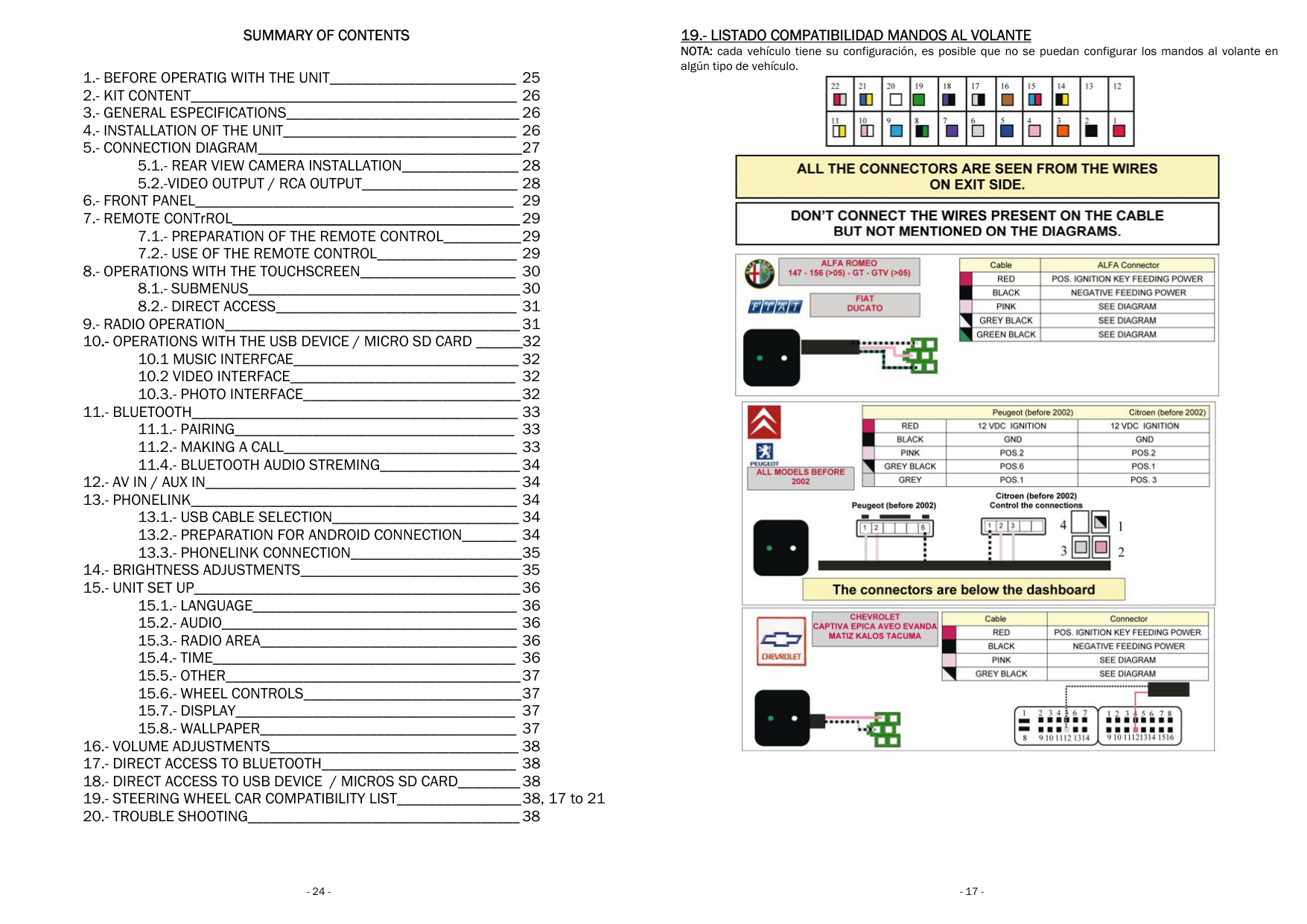
  • SUMMARY OF CONTENTS

    1.- BEFORE OPERATIG WITH THE UNIT________________________ 25 2.- KIT CONTENT__________________________________________ 26 3.- GENERAL ESPECIFICATIONS______________________________ 26 4.- INSTALLATION OF THE UNIT______________________________ 26 5.- CONNECTION DIAGRAM__________________________________ 27

    5.1.- REAR VIEW CAMERA INSTALLATION_______________ 28 5.2.-VIDEO OUTPUT / RCA OUTPUT____________________ 28

    6.- FRONT PANEL_________________________________________ 29 7.- REMOTE CONTrROL_____________________________________29

    7.1.- PREPARATION OF THE REMOTE CONTROL__________ 29 7.2.- USE OF THE REMOTE CONTROL__________________ 29

  • 8.- OPERATIONS WITH THE TOUCHSCREEN____________________ 30 8.1.- SUBMENUS___________________________________ 30 8.2.- DIRECT ACCESS_______________________________ 31
  • 9.- RADIO OPERATION______________________________________ 31 10.- OPERATIONS WITH THE USB DEVICE / MICRO SD CARD ______32
  • 10.1 MUSIC INTERFCAE_____________________________ 32
  • 10.2 VIDEO INTERFACE_____________________________ 32
  • 10.3.- PHOTO INTERFACE____________________________ 32
  • 11.- BLUETOOTH__________________________________________ 33

  • 11.1.- PAIRING____________________________________ 33 11.2.- MAKING A CALL______________________________ 33 11.4.- BLUETOOTH AUDIO STREMING__________________ 34
  • 12.- AV IN / AUX IN________________________________________ 34 13.- PHONELINK__________________________________________ 34

    13.1.- USB CABLE SELECTION________________________ 34 13.2.- PREPARATION FOR ANDROID CONNECTION_______ 34 13.3.- PHONELINK CONNECTION______________________ 35

    14.- BRIGHTNESS ADJUSTMENTS____________________________ 35 15.- UNIT SET UP__________________________________________ 36

    15.1.- LANGUAGE__________________________________ 36 15.2.- AUDIO______________________________________ 36 15.3.- RADIO AREA_________________________________ 36 15.4.- TIME_______________________________________ 36 15.5.- OTHER______________________________________ 37 15.6.- WHEEL CONTROLS____________________________ 37 15.7.- DISPLAY____________________________________ 37 15.8.- WALLPAPER_________________________________ 37

    16.- VOLUME ADJUSTMENTS________________________________ 38 17.- DIRECT ACCESS TO BLUETOOTH_________________________ 38 18.- DIRECT ACCESS TO USB DEVICE / MICROS SD CARD________ 38 19.- STEERING WHEEL CAR COMPATIBILITY LIST________________ 38, 17 to 21 20.- TROUBLE SHOOTING___________________________________ 38

  • 24 -
  • 19.- LISTADO COMPATIBILIDAD MANDOS AL VOLANTE NOTA: cada vehículo tiene su configuración, es posible qu algún tipo de vehículo.

    ![image 181](96552_images/imageFile181.png)

    ![image 182](96552_images/imageFile182.png)

    ![image 183](96552_images/imageFile183.png)

    ![image 184](96552_images/imageFile184.png)

    ![image 185](96552_images/imageFile185.png)

    ![image 186](96552_images/imageFile186.png)

    ![image 187](96552_images/imageFile187.png)

    Page 20

    ![image 188](96552_images/imageFile188.png)

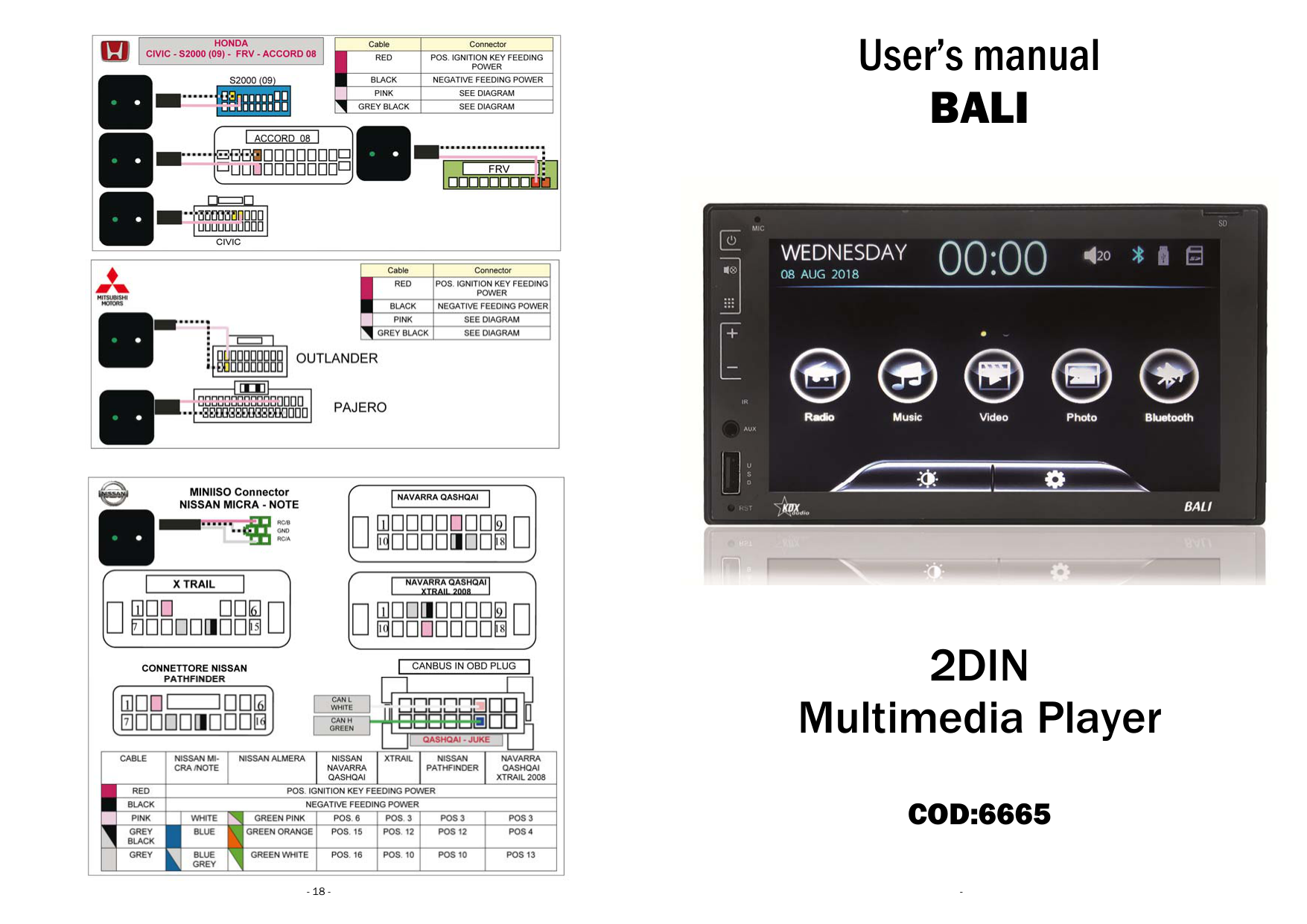
    User’s manual

    ![image 189](96552_images/imageFile189.png)

    ![image 190](96552_images/imageFile190.png)

    ![image 191](96552_images/imageFile191.png)

    ![image 192](96552_images/imageFile192.png)

    Multimedia Player

    COD:6665

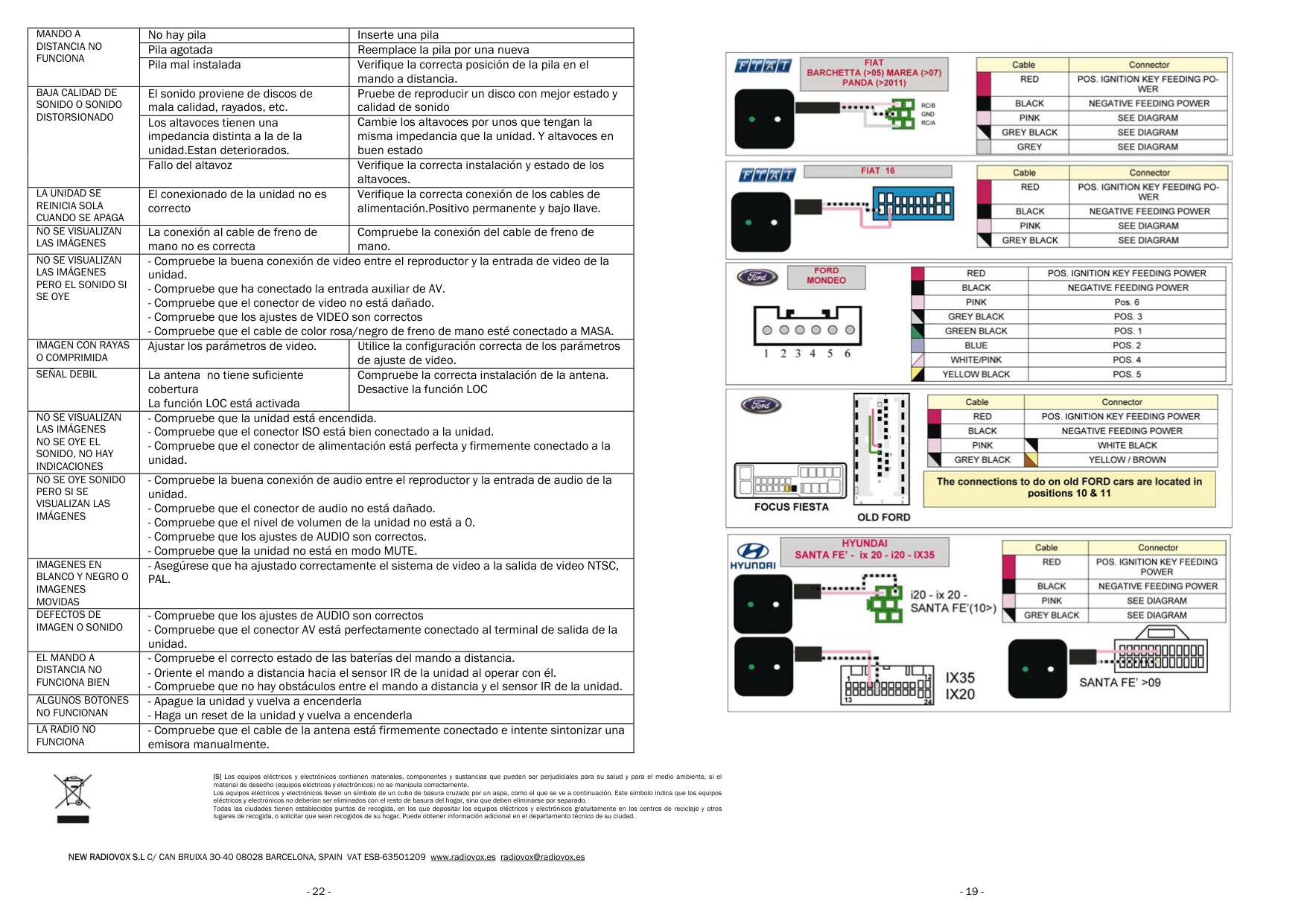
    |MANDO A DISTANCIA NO FUNCIONA|No hay pila|Inserte una pila| |---|---|---| |MANDO A DISTANCIA NO FUNCIONA|Pila agotada|Reemplace la pila por una nueva| |MANDO A DISTANCIA NO FUNCIONA|Pila mal instalada|Verifique la correcta posición de la pila en el mando a distancia.| |BAJA CALIDAD DE SONIDO O SONIDO DISTORSIONADO|El sonido proviene de discos de mala calidad, rayados, etc.|Pruebe de reproducir un disco con mejor estado y calidad de sonido| |BAJA CALIDAD DE SONIDO O SONIDO DISTORSIONADO|Los altavoces tienen una impedancia distinta a la de la unidad.Estan deteriorados.|Cambie los altavoces por unos que tengan la misma impedancia que la unidad. Y altavoces en buen estado| |BAJA CALIDAD DE SONIDO O SONIDO DISTORSIONADO|Fallo del altavoz|Verifique la correcta instalación y estado de los altavoces.| |LA UNIDAD SE REINICIA SOLA CUANDO SE APAGA|El conexionado de la unidad no es correcto|Verifique la correcta conexión de los cables de alimentación.Positivo permanente y bajo llave.| |NO SE VISUALIZAN LAS IMÁGENES|La conexión al cable de freno de mano no es correcta|Compruebe la conexión del cable de freno de mano.| |NO SE VISUALIZAN LAS IMÁGENES PERO EL SONIDO SI SE OYE|- Compruebe la buena conexión de video entre el reproductor y la entrada de video de la unidad.
    - Compruebe que ha conectado la entrada auxiliar de AV.
    - Compruebe que el conector de video no está dañado.
    - Compruebe que los ajustes de VIDEO son correctos
    - Compruebe que el cable de color rosa/negro de freno de mano esté conectado a MASA.
    |- Compruebe la buena conexión de video entre el reproductor y la entrada de video de la unidad.
    - Compruebe que ha conectado la entrada auxiliar de AV.
    - Compruebe que el conector de video no está dañado.
    - Compruebe que los ajustes de VIDEO son correctos
    - Compruebe que el cable de color rosa/negro de freno de mano esté conectado a MASA.
    | |IMAGEN CON RAYAS O COMPRIMIDA|Ajustar los parámetros de video.|Utilice la configuración correcta de los parámetros de ajuste de video.| |SEÑAL DEBIL|La antena no tiene suficiente cobertura La función LOC está activada|Compruebe la correcta instalación de la antena. Desactive la función LOC| |NO SE VISUALIZAN LAS IMÁGENES NO SE OYE EL SONIDO, NO HAY INDICACIONES|- Compruebe que la unidad está encendida.
    - Compruebe que el conector ISO está bien conectado a la unidad.
    - Compruebe que el conector de alimentación está perfecta y firmemente conectado a la unidad.
    |- Compruebe que la unidad está encendida.
    - Compruebe que el conector ISO está bien conectado a la unidad.
    - Compruebe que el conector de alimentación está perfecta y firmemente conectado a la unidad.
    | |NO SE OYE SONIDO PERO SI SE VISUALIZAN LAS IMÁGENES|- Compruebe la buena conexión de audio entre el reproductor y la entrada de audio de la unidad.
    - Compruebe que el conector de audio no está dañado.
    - Compruebe que el nivel de volumen de la unidad no está a 0.
    - Compruebe que los ajustes de AUDIO son correctos.
    - Compruebe que la unidad no está en modo MUTE.
    |- Compruebe la buena conexión de audio entre el reproductor y la entrada de audio de la unidad.
    - Compruebe que el conector de audio no está dañado.
    - Compruebe que el nivel de volumen de la unidad no está a 0.
    - Compruebe que los ajustes de AUDIO son correctos.
    - Compruebe que la unidad no está en modo MUTE.
    | |IMAGENES EN BLANCO Y NEGRO O IMAGENES MOVIDAS|- Asegúrese que ha ajustado correctamente el sistema de video a la salida de video NTSC, PAL.|- Asegúrese que ha ajustado correctamente el sistema de video a la salida de video NTSC, PAL.| |DEFECTOS DE IMAGEN O SONIDO|- Compruebe que los ajustes de AUDIO son correctos
    - Compruebe que el conector AV está perfectamente conectado al terminal de salida de la unidad.
    |- Compruebe que los ajustes de AUDIO son correctos
    - Compruebe que el conector AV está perfectamente conectado al terminal de salida de la unidad.
    | |EL MANDO A DISTANCIA NO FUNCIONA BIEN|- Compruebe el correcto estado de las baterías del mando a distancia.
    - Oriente el mando a distancia hacia el sensor IR de la unidad al operar con él.
    - Compruebe que no hay obstáculos entre el mando a distancia y el sensor IR de la unidad.
    |- Compruebe el correcto estado de las baterías del mando a distancia.
    - Oriente el mando a distancia hacia el sensor IR de la unidad al operar con él.
    - Compruebe que no hay obstáculos entre el mando a distancia y el sensor IR de la unidad.
    | |ALGUNOS BOTONES NO FUNCIONAN|- Apague la unidad y vuelva a encenderla
    - Haga un reset de la unidad y vuelva a encenderla
    |- Apague la unidad y vuelva a encenderla
    - Haga un reset de la unidad y vuelva a encenderla
    | |LA RADIO NO FUNCIONA|- Compruebe que el cable de la antena está firmemente conectado e intente sintonizar una emisora manualmente.|- Compruebe que el cable de la antena está firmemente conectado e intente sintonizar una emisora manualmente.|

    ![image 193](96552_images/imageFile193.png)

    ![image 194](96552_images/imageFile194.png)

    ![image 195](96552_images/imageFile195.png)

    ![image 196](96552_images/imageFile196.png)

    [S] Los equipos eléctricos y electrónicos contienen materiales, componentes y sustancias que pueden ser perjudiciales para su salud y para el medio ambiente, si el material de desecho (equipos eléctricos y electrónicos) no se manipula correctamente. Los equipos eléctricos y electrónicos llevan un símbolo de un cubo de basura cruzado por un aspa, como el que se ve a continuación. Este símbolo indica que los equipos eléctricos y electrónicos no deberían ser eliminados con el resto de basura del hogar, sino que deben eliminarse por separado. Todas las ciudades tienen establecidos puntos de recogida, en los que depositar los equipos eléctricos y electrónicos gratuitamente en los centros de reciclaje y otros lugares de recogida, o solicitar que sean recogidos de su hogar. Puede obtener información adicional en el departamento técnico de su ciudad.

    NEW RADIOVOX S.L C/ CAN BRUIXA 30-40 08028 BARCELONA, SPAIN VAT ESB-63501209 www.radiovox.es radiovox@radiovox.es

  • 22 -
  • ![image 197](96552_images/imageFile197.png)

    ![image 198](96552_images/imageFile198.png)

    ![image 199](96552_images/imageFile199.png)

    ![image 200](96552_images/imageFile200.png)

    ![image 201](96552_images/imageFile201.png)

    ![image 202](96552_images/imageFile202.png)

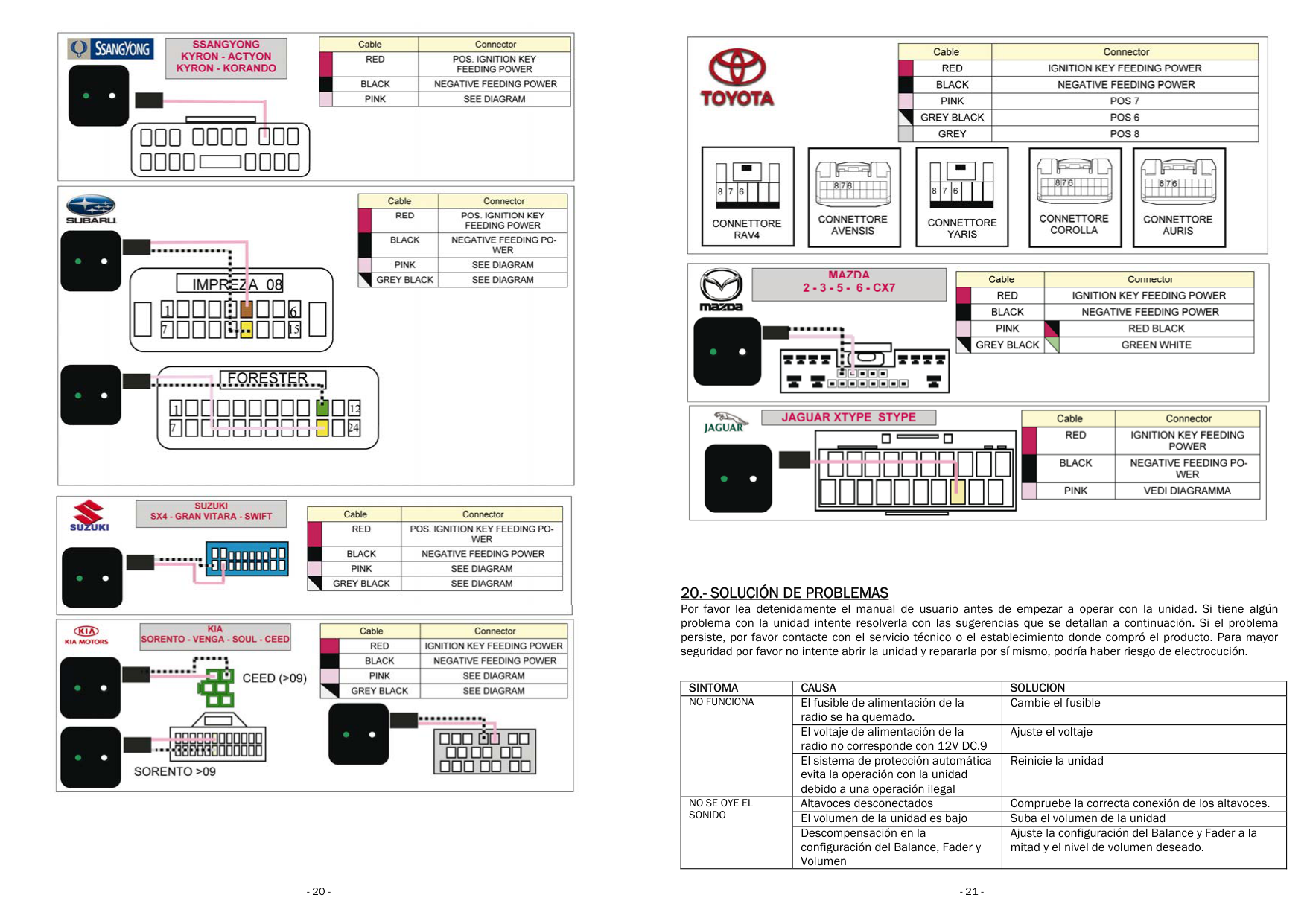
    20.- SOLUCIÓN DE PROBLEMAS Por favor lea detenidamente el manual de usuario antes de empezar a operar con la unidad. Si tiene algún problema con la unidad intente resolverla con las suge persiste, por favor contacte con el servicio técnico o el seguridad por favor no intente abrir la unidad y repararla po

    |SINTOMA|CAUSA|SOLUCION| |---|---|---| |NO FUNCIONA

    |El fusible de alimentación de la radio se ha quemado.| | |NO FUNCIONA

    |El voltaje de alimentación de la radio no corresponde con 12V DC.9| | |NO FUNCIONA

    |El sistema de protección automática evita la operación con la unidad debido a una operación ilegal| | |NO SE OYE EL SONIDO|Altavoces desconectados|Compruebe la correcta conexión de los altavoces.| |NO SE OYE EL SONIDO|El volumen de la unidad es bajo|Suba el volumen de la unidad| |NO SE OYE EL SONIDO|Descompensación en la configuración del Balance, Fader y Volumen| |

    Similar Unknown