
Ask AI
— answers from the official manualAnswers from the official manual.
Common questions
Common Questions
21 totalDoes the KD-SR86BT support remote control operation?
Remote control functions are not available for the KD-SR86BT. This is specifically noted in the manual as a limitation for this model, unlike the KD-T711BT which includes a supplied remote control (RM-RK52). (Page 5)
How do I pair a Bluetooth device with the KD-SR86BT for the first time?
Press B SRC to turn on the unit, then search for and select 'KD-SR86BT' on your Bluetooth device — 'BT PAIRING' will flash on the display. Depending on your device, you will either confirm a 6-digit passkey shown on both the unit and device, or enter PIN code '0000' when prompted. 'PAIRING COMPLETED' appears when pairing is done and 'O' lights up when the Bluetooth connection is established. (Page 20)
How do I perform a factory reset on the KD-SR86BT?
Press and hold the menu button, navigate to [FACTORY RESET] using the volume knob, and select [YES] to reset settings to default. Note that stored stations are not erased by the factory reset. After a factory reset, the demonstration cancellation sequence will appear when you next power on the unit. (Page 6)
How do I cancel the demonstration mode when setting up the KD-SR86BT for the first time?
When you turn on the power for the first time, the display shows 'CANCEL DEMO' followed by 'PRESS' and 'Volume Knob.' Press the volume knob once — [YES] is selected — then press it again and 'DEMO OFF' appears. (Page 5)
How do I set the clock on the KD-SR86BT?
Press and hold the menu button, then turn the volume knob to select [CLOCK] and press the knob. Select [CLOCK ADJUST], then set the time in the order of Hour then Minute using the volume knob, pressing the knob after each. You can also choose between 12H and 24H format under [CLOCK FORMAT]. (Page 5)
How many Bluetooth devices can be paired and connected to the KD-SR86BT at once?
Up to five devices can be registered (paired) in total on the unit. However, a maximum of two Bluetooth phones and one Bluetooth audio device can be connected at any one time. While in BT AUDIO source, you can connect up to five Bluetooth audio devices and switch between them. (Page 21)
Show 15 more questions
How do I initialize (clear) all Bluetooth settings including stored pairing and phonebook on the KD-SR86BT?
What safety warnings should I be aware of regarding the remote control battery?
How do I factory reset the JVC KD SR86BT?
Where can I find instructions on pairing the Bluetooth audio?
How do I change the volume setting while driving?
How do I set up SiriusXM with my JVC KD SR86BT?
How do I store presets for my favorite radio stations?
How can I listen to Spotify on my JVC KD SR86BT?
What are the audio settings options available?
How do I improve voice call quality on the KD-SR86BT during a Bluetooth phone call?
How do I troubleshoot a Bluetooth connectivity issue?
How do I adjust the EQ settings for different music genres?
How do I control Pandora on the JVC KD SR86BT?
How do I manage my Bluetooth phone calls?
How do I set up SiriusXM Radio on my JVC KD SR86BT?
Full Manual
71 pages
ENGLISH FRANÇAIS
ESPAÑOL
#### KD-T915BTS / KD-T910BTS / KD-TD91BTS / KD-T91MBS/ KD-T711BT / KD-T710BT / KD-TD71BT / KD-SR86BT CD RECEIVER INSTRUCTION MANUAL RÉCEPTEUR CD MANUEL D’INSTRUCTIONS RECEPTOR CON CD MANUAL DE INSTRUCCIONES
|For customer Use: Enter below the Model No. and Serial No. which are located on the top or bottom of the cabinet. Retain this information for future reference. Model No. Serial No.
| |---|
B5A-3092-00 [K]
|CAUTION Use of controls or adjustments or performance of procedures other than those specified herein may result in hazardous radiation exposure. In compliance with Federal Regulations, following are reproductions of labels on, or inside the product relating to laser product safety.
|JVCKENWOOD Corporation 2967-3, ISHIKAWA-MACHI, HACHIOJI-SHI, TOKYO, JAPAN
THIS PRODUCT COMPLIES WITH DHHS RULES 21CFR SUBCHAPTER J IN EFFECT AT DATE OF MANUFACTURE.| |---|
Location : Top Plate| |---|
|Información acerca de la eliminación de equipos eléctricos y electrónicos al final de la vida útil (aplicable a los países que hayan adoptado sistemas independientes de recogida de residuos)
Los productos con el símbolo de un contenedor con ruedas tachado no podrán ser desechados como residuos domésticos. Los equipos eléctricos y electrónicos al final de la vida útil, deberán ser reciclados en instalaciones que puedan dar el tratamiento adecuado a estos productos y a sus subproductos residuales correspondientes. Póngase en contacto con su administración local para obtener información sobre el punto de recogida más cercano. Un tratamiento correcto del reciclaje y la eliminación de residuos ayuda a conservar los recursos y evita al mismo tiempo efectos perjudiciales en la salud y el medio ambiente.| |---|
|Informação sobre a eliminação de pilhas Este produto não deve ser eliminado como lixo doméstico geral. Devolva a pilha usada ao revendedor ou entidade autorizada para que a mesma seja devolvida ao fabricante ou importador. A reciclagem e a eliminação de lixo de maneira apropriada ajudarão a conservar os recursos naturais ao mesmo tempo que prevenirão os efeitos prejudicais à nossa saúde e ao meio ambiente.| |---|
|CALIFORNIA, USA ONLY This product contains a CR Coin Cell Lithium Battery which contains Perchlorate Material—special handling may apply. See www.dtsc.ca.gov/hazardouswaste/perchlorate| |---|
|FCC CAUTION Changes or modifications not expressly approved by the party responsible for compliance could void the user’s authority to operate the equipment.
NOTE: This equipment has been tested and found to comply with the limits for a Class B digital device, pursuant to part 15 of the FCC Rules. These limits are designed to provide reasonable protection against harmful interference in a residential installation. This equipment generates, uses and can radiate radio frequency energy and, if not installed and used in accordance with the instructions, may cause harmful interference to radio communications. However, there is no guarantee that interference will not occur in a particular installation. If this equipment does cause harmful interference to radio or television reception, which can be determined by turning the equipment off and on, the user is encouraged to try to correct the interference by one or more of the following measures:
– Reorient or relocate the receiving antenna.
– Increase the separation between the equipment and receiver.
– Connect the equipment into an outlet on a circuit different from that to which the receiver is connected.
– Consult the dealer or an experienced radio/TV technician for help.
| |---|
|Supplier's Declaration of Conformity
Trade Name: JVC Products: CD RECEIVER Model Name: KD-T915BTS/KD-T910BTS/KD-TD91BTS/KD-T91MBS/KD-T711BT/ KD-T710BT/KD-TD71BT/KD-SR86BT
Responsible Party: JVCKENWOOD USA CORPORATION 2201 East Dominguez Street, Long Beach, CA 90810, U.S.A. PHONE: 310 639-9000
THIS DEVICE COMPLIES WITH PART 15 OF THE FCC RULES. OPERATION IS SUBJECT TO THE FOLLOWING TWO CONDITIONS:
(1) THIS DEVICE MAY NOT CAUSE HARMFUL INTERFERENCE, AND
(2) THIS DEVICE MUST ACCEPT ANY INTERFERENCE RECEIVED, INCLUDING INTERFERENCE THAT MAY CAUSE UNDESIRED OPERATION.
| |---|
i
|IC (Industry Canada) Caution This device contains licence-exempt transmitter(s)/receiver(s) that comply with Innovation, Science and Economic Development Canada’s licence-exempt RSS(s). Operation is subject to the following two conditions:
1. This device may not cause interference.
2. This device must accept any interference, including interference that may cause undesired operation of the device.
Attention de ‘IC (Industrie Canada) L’émetteur/récepteur exempt de licence contenu dans le présent appareil est conforme aux CNR d’Innovation, Sciences et Développement économique Canada applicables aux appareils radio exempts de licence. L’exploitation est autorisée aux deux conditions suivantes :
1. L’appareil ne doit pas produire de brouillage.
2. L’appareil doit accepter tout brouillage radioélectrique subi, même si le brouillage est susceptible d’en compromettre le fonctionnement.
| |---|
|Contains Bluetooth Module FCC ID: ZWY88112 IC ID: 12033A-88112| |---|
|This transmitter must not be co-located or operated in conjunction with any other antenna or transmitter.| |---|
|CAUTION This equipment complies with FCC/IC radiation exposure limits set forth for an uncontrolled environment and meets the FCC radio frequency (RF) Exposure Guidelines and RSS-102 of the IC radio frequency (RF) Exposure rules. This equipment should be installed and operated keeping the radiator at least 20 cm or more away from person’s body.
ATTENTION Cet équipement est conforme aux limites d’exposition aux rayonnements énoncées pour un environnement non contrôlé et respecte les règles les radioélectriques (RF) de la FCC lignes directrices d’exposition et d’exposition aux fréquences radioélectriques (RF) CNR-102 de l’IC. Cet équipement doit être installé et utilisé en gardant une distance de 20 cm ou plus entre le radiateur et le corps humain.| |---|
|Para cumplimiento de la IFT: “La operación de este equipo está sujeta a las siguientes dos condiciones:
(1) es posible que este equipo o dispositivo no cause interferencia perjudicial y
(2) este equipo o dispositivo debe aceptar cualquier interferencia, incluyendo la que pueda causar su operación no deseada”
| |---|
########### SOFTWARE LICENSE AGREEMENT
The software embedded in the Product (hereinafter the "Licensed Software") provided by Licensor is copyrighted to or sublicensable by the Licensor, and this Agreement provides for the terms and conditions which Users shall follow in order to use the Licensed Software.
The User shall use the Licensed Software by agreeing with the terms of this Software License Agreement. This Agreement shall be deemed completed at the time the User (hereinafter the "User") initially used the Product in which the "Licensed Software" is embedded.
The Licensed Software may include the software which has been licensed to the Licensor directly or indirectly from any third party. In such case, some third parties require the Users to follow their conditions for use separately from this Software License Agreement. Such software shall not be subject to this Agreement, and the Users are urged to read the "Important Notice concerning the Software" to be provided separately below.
######################## Article 1 General Provision
The Licensor shall grant to the User a non-exclusive and non-transferable (other than the exceptional case referred to in Article 3, Paragraph 1) licensed to use the Licensed Software within the country of the User. (the country where the User bought the Product (hereinafter the "Country")
######################## Article 2 License
######################## Article 3 Conditions for Grant of License
ii
Any and all copyrights and other rights pertaining to the Licensed Software and related documents shall belong to the Licensor or the original holder of the right who granted to the Licensor the license or sublicense for the Licensed Software (hereinafter the "Original Rightholder"), and the User shall not be entitled to any right other than the license granted hereunder, in respect of the Licensed Software and any related documents.
######################## Article 6 Liability to Third Party
If any dispute has arisen with any third party due to an infringement upon a copyright, patent or any other intellectual property right that was caused by the User's use of the Licensed Software, the User shall settle such dispute at its own cost and hold the Licensor and the Original Rightholder harmless from any inconvenience it may cause.
######################## Article 7 Confidentiality
The User shall keep the confidentiality of such portion of the Licensed Software, related documents thereof or any other information to be granted under this Agreement, as well as the conditions of this Agreement as has not yet entered the public domain, and shall not disclose or divulge the same to any third party without approval of the Licensor.
######################## Article 8 Termination
In case the User falls under any of the events described in the following items, the Licensor may immediately terminate this Agreement or claim that the User compensates for the damage incurred by the Licensor due to such event:
######################## Article 9 Destruction of the Licensed Software
If this Agreement is terminated pursuant to the provision of Article 8, the User shall destroy the Licensed Software, any related documents and copies thereof within two (2) weeks from such date of termination.
######################## Article 10 Protection of Copyright
######################## Article 11 Export Restriction
######################## Article 12 Miscellaneous
iii
########### Important Notice concerning the Software
Permission is hereby granted, free of charge, to any person obtaining a copy of this software and associated documentation files (the "Software"), to deal in the Software without restriction, including without limitation the rights to use, copy, modify, merge, publish, distribute, sublicense, and/or sell copies of the Software, and to permit persons to whom the Software is furnished to do so, subject to the following conditions:
The above copyright notice and this permission notice shall be included in all copies or substantial portions of the Software.
THE SOFTWARE IS PROVIDED "AS IS", WITHOUT WARRANTY OF ANY KIND, EXPRESS OR IMPLIED, INCLUDING BUT NOT LIMITED TO THE WARRANTIES OF MERCHANTABILITY, FITNESS FOR A PARTICULAR PURPOSE AND NONINFRINGEMENT. IN NO EVENT SHALL THE AUTHORS OR COPYRIGHT HOLDERS BE LIABLE FOR ANY CLAIM, DAMAGES OR OTHER LIABILITY, WHETHER IN AN ACTION OF CONTRACT, TORT OR OTHERWISE, ARISING FROM, OUT OF OR IN CONNECTION WITH THE SOFTWARE OR THE USE OR OTHER DEALINGS IN THE SOFTWARE.
Permission is hereby granted, free of charge, to any person obtaining a copy of this software and associated documentation files (the "Software"), to deal in the Software without restriction, including without limitation the rights to use, copy, modify, merge, publish, distribute, sublicense, and/or sell copies of the Software, and to permit persons to whom the Software is furnished to do so, subject to the following conditions:
The above copyright notice and this permission notice shall be included in all copies or substantial portions of the Software.
THE SOFTWARE IS PROVIDED "AS IS", WITHOUT WARRANTY OF ANY KIND, EXPRESS OR IMPLIED, INCLUDING BUT NOT LIMITED TO THE WARRANTIES OF MERCHANTABILITY, FITNESS FOR A PARTICULAR PURPOSE AND NONINFRINGEMENT. IN NO EVENT SHALL THE AUTHORS OR COPYRIGHT HOLDERS BE LIABLE FOR ANY CLAIM, DAMAGES OR OTHER LIABILITY, WHETHER IN AN ACTION OF CONTRACT, TORT OR OTHERWISE, ARISING FROM, OUT OF OR IN CONNECTION WITH THE SOFTWARE OR THE USE OR OTHER DEALINGS IN THE SOFTWARE.
-CMP The MIT License (MIT) Copyright (c) 2014 Charles Gunyon Permission is hereby granted, free of charge, to any person obtaining a copy of this software and associated documentation files (the "Software"), to deal in the Software without restriction, including without limitation the rights to use, copy, modify, merge, publish, distribute, sublicense, and/or sell copies of the Software, and to permit persons to whom the Software is furnished to do so, subject to the following conditions: The above copyright notice and this permission notice shall be included in all copies or substantial portions of the Software. THE SOFTWARE IS PROVIDED "AS IS", WITHOUT WARRANTY OF ANY KIND, EXPRESS OR IMPLIED, INCLUDING BUT NOT LIMITED TO THE WARRANTIES OF MERCHANTABILITY, FITNESS FOR A PARTICULAR PURPOSE AND NONINFRINGEMENT. IN NO EVENT SHALL THE AUTHORS OR COPYRIGHT HOLDERS BE LIABLE FOR ANY CLAIM, DAMAGES OR OTHER LIABILITY, WHETHER IN AN ACTION OF CONTRACT, TORT OR OTHERWISE, ARISING FROM, OUT OF OR IN CONNECTION WITH THE SOFTWARE OR THE USE OR OTHER DEALINGS IN THE SOFTWARE.
Copyright (c) 2011 Petteri Aimonen
iv
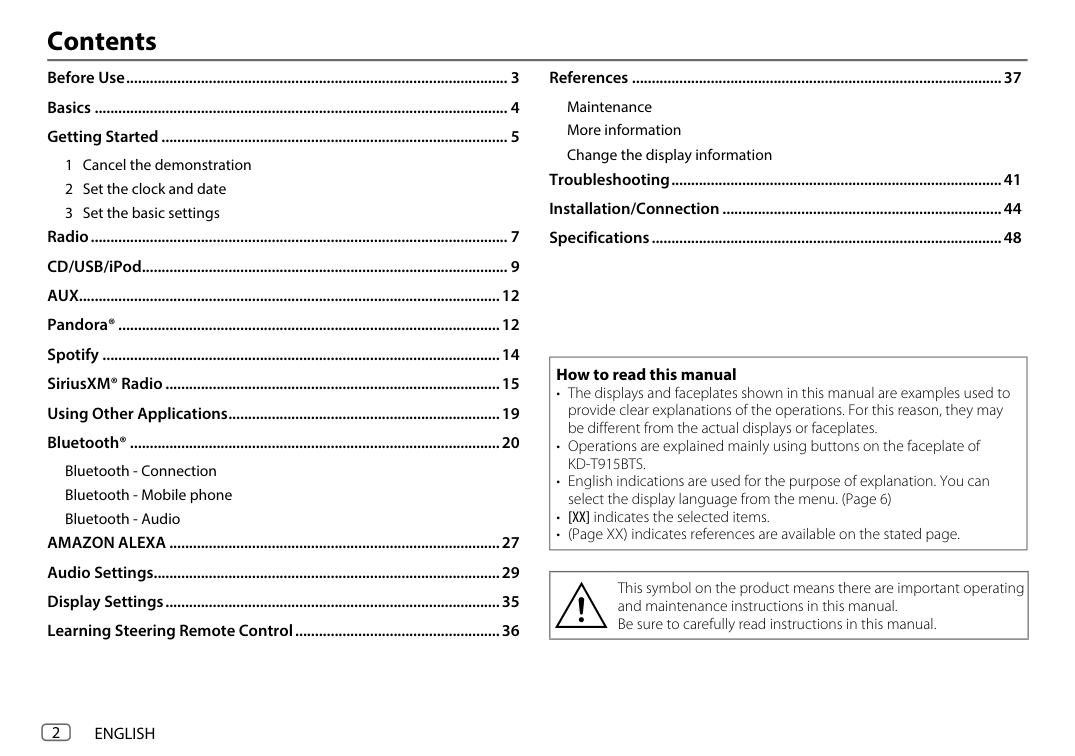
######### Contents
References ..............................................................................................37 Maintenance More information Change the display information
Before Use ................................................................................................. 3 Basics ......................................................................................................... 4 Getting Started ........................................................................................ 5
Troubleshooting ....................................................................................41 Installation/Connection .......................................................................44 Specifications .........................................................................................48
Radio .......................................................................................................... 7 CD/USB/iPod............................................................................................. 9 AUX...........................................................................................................12 Pandora® .................................................................................................12 Spotify .....................................................................................................14 SiriusXM® Radio .....................................................................................15 Using Other Applications .....................................................................19 Bluetooth® ..............................................................................................20
|How to read this manual
• The displays and faceplates shown in this manual are examples used to provide clear explanations of the operations. For this reason, they may be different from the actual displays or faceplates.
• Operations are explained mainly using buttons on the faceplate of KD-T915BTS.
• English indications are used for the purpose of explanation. You can select the display language from the menu. (Page 6)
• [XX] indicates the selected items.
• (Page XX) indicates references are available on the stated page.
| |---|
Bluetooth - Connection Bluetooth - Mobile phone Bluetooth - Audio
AMAZON ALEXA ....................................................................................27 Audio Settings ........................................................................................29 Display Settings .....................................................................................35 Learning Steering Remote Control ....................................................36
|This symbol on the product means there are important operating and maintenance instructions in this manual. Be sure to carefully read instructions in this manual.| |---|
Before Use
IMPORTANT
WARNING
Remote control (RM-RK52):
################## CAUTION
Volume setting:
General:
######### Basics
Faceplate KD-T915BTS/KD-T910BTS/KD-TD91BTS/KD-T91MBS:
|Attach
| |---| |Detach
|
Volume knob Loading slot Display window*
KD-T915BTS: USB cable from the rear of the unit
Detach button
|How to reset
Reset the unit within 5 seconds after detaching the faceplate.
| |---|
KD-T711BT/KD-T710BT/KD-TD71BT/KD-SR86BT:
################ KD-T711BT:
To On the faceplate Turn on the power Press BSRC.
• Press and hold to turn off the power. Adjust the volume Turn the volume knob.
Press the volume knob to mute the sound or pause playback.
######### Basics Getting Started
################## Remote control (RM-RK52) (supplied for KD-T711BT)
Remote sensor (Do not expose to bright sunlight.)
################## Cancel the demonstration
When you turn on the power for the first time (or [FACTORY RESET] is set to [YES], see page 6), the display shows: “CANCEL DEMO” “PRESS” “VOLUME KNOB”
Pull out the insulation sheet when using for the first time.
|How to replace the battery| |---|
################## Set the clock and date
To On the remote control Adjust the volume Press VOL + or VOL – .
• Press and hold VOL + to continuously increase the volume to 15.
Press d to mute the sound or pause playback.
• Press again to cancel. The volume level returns to
the previous level before muting or pause. Select a source Press SOURCE repeatedly.
############# Getting Started
[USER S.REMO] (For KD-T711BT)
See page 36 for details. [F/W UPDATE]
3
################## Set the basic settings
[UPDATE SYSTEM]
[F/W UP xxxx] [YES]: Starts upgrading the firmware. ; [NO]: Cancels (upgrading is not activated). For details on how to update the firmware, visit
[FACTORY RESET] [YES]: Resets the settings to default (except the stored station). ; [NO]: Cancels.
[CLOCK] [TIME SYNC] [ON]: The clock time is automatically set using the Clock Time (CT) data
Default: [XX]
[SYSTEM] [KEY BEEP] (Not applicable when 3-way crossover is selected.) (Page 30)
in FM Radio Broadcast Data System signal/FM Radio Data System signal. ; [OFF]: Cancels.
[ON]: Activates the keypress tone. ; [OFF]: Deactivates.
[CLOCK DISPLAY] [ON]: The clock time is shown on the display even when the unit is turned
off. ; [OFF]: Cancels. [ENGLISH]
[SOURCE SELECT] [AM SRC]* [ON]: Enables AM in source selection. ; [OFF]: Disables. (Page 7) [PANDORA SRC]* (Except for KD-T711BT)
Select the display language for menu and music information if applicable. By default, [ENGLISH] is selected.
[ESPANOL] [FRANCAIS] [DEMO MODE] [ON]: Activates the display demonstration automatically if no operation is
[ON]: Enables PANDORA FRONT/PANDORA REAR/PANDORA/ PANDORA BT in source selection. ; [OFF]: Disables. (Page 12)
[SPOTIFY SRC]* [ON]: Enables SPOTIFY FRONT/SPOTIFY REAR/SPOTIFY/SPOTIFY BT in
done for about 15 seconds. ; [OFF]: Deactivates.
source selection. ; [OFF]: Disables. (Page 14)
[BT AUDIO SRC]* [ON]: Enables BT AUDIO in source selection. ; [OFF]: Disables.
(Page 26)
[BUILT-IN AUX]* [ON]: Enables AUX in source selection. ; [OFF]: Disables. (Page 12)
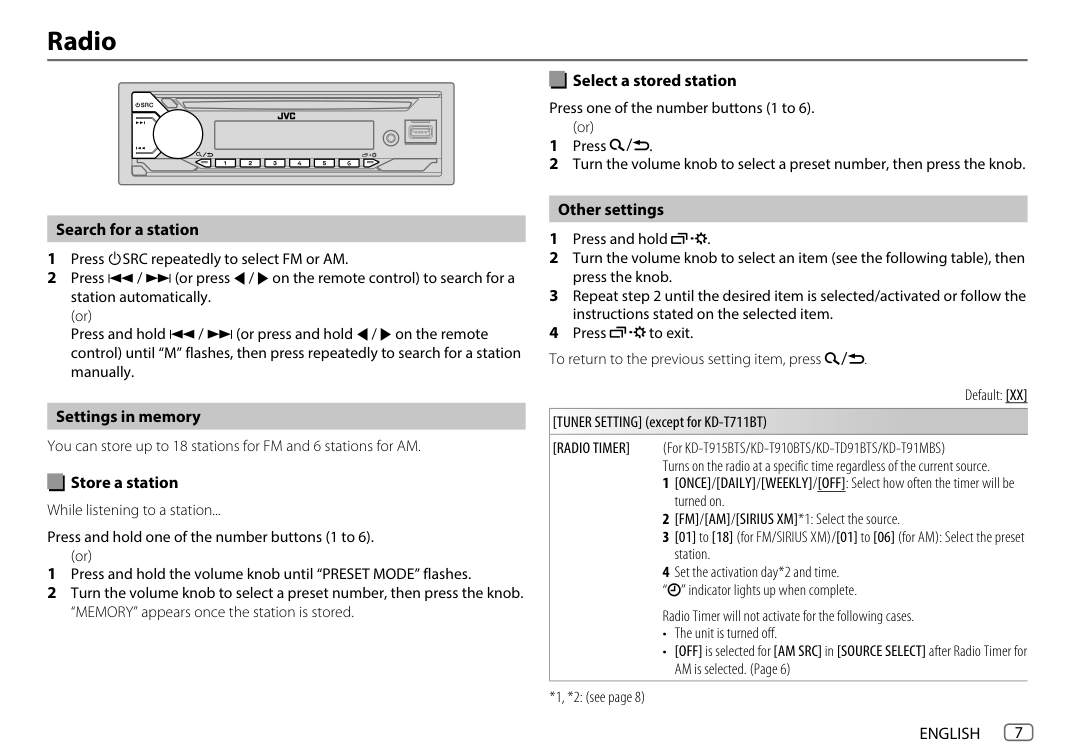
######### Radio
################## Select a stored station
Press one of the number buttons (1 to 6).
(or)
################## Other settings
################## Search for a station
Default: [XX]
################## Settings in memory
[TUNER SETTING] (except for KD-T711BT) [RADIO TIMER] (For KD-T915BTS/KD-T910BTS/KD-TD91BTS/KD-T91MBS)
You can store up to 18 stations for FM and 6 stations for AM.
Turns on the radio at a specific time regardless of the current source.
Store a station While listening to a station... Press and hold one of the number buttons (1 to 6).
(or)
*1, *2: (see page 8)
############# Radio
Default: [XX]
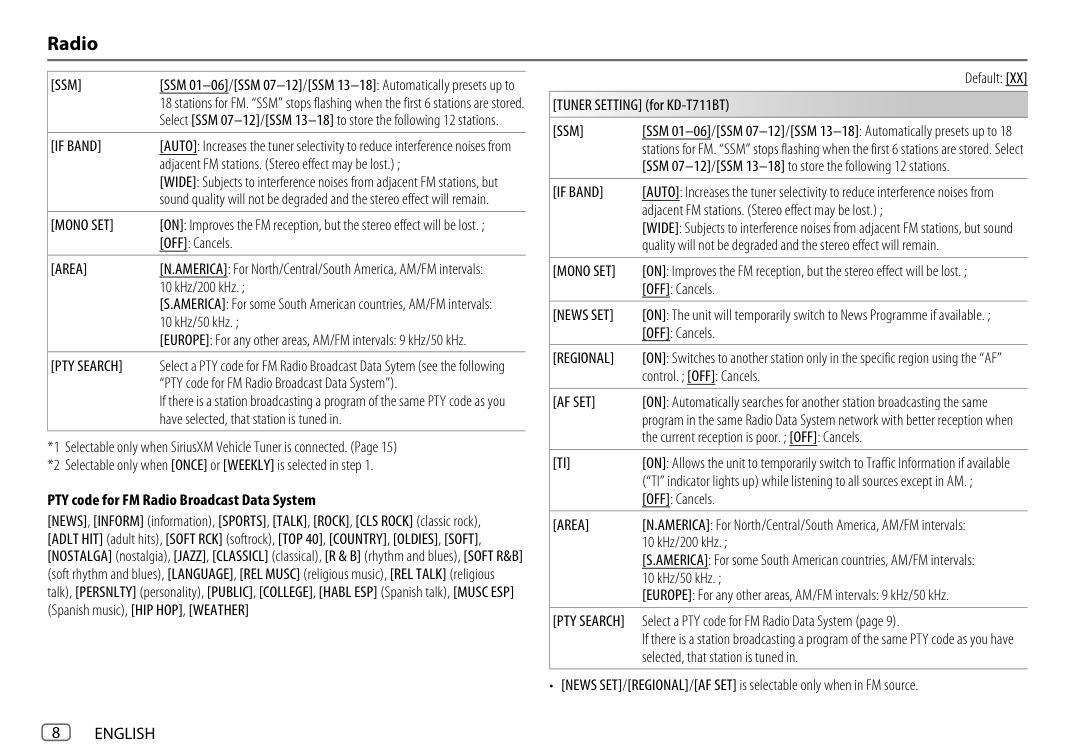
[SSM] [SSM 01–06]/[SSM 07–12]/[SSM 13–18]: Automatically presets up to 18 stations for FM. “SSM” stops flashing when the first 6 stations are stored. Select [SSM 07–12]/[SSM 13–18] to store the following 12 stations.
[TUNER SETTING] (for KD-T711BT) [SSM] [SSM 01–06]/[SSM 07–12]/[SSM 13–18]: Automatically presets up to 18
[IF BAND] [AUTO]: Increases the tuner selectivity to reduce interference noises from adjacent FM stations. (Stereo effect may be lost.) ; [WIDE]: Subjects to interference noises from adjacent FM stations, but sound quality will not be degraded and the stereo effect will remain.
stations for FM. “SSM” stops flashing when the first 6 stations are stored. Select [SSM 07–12]/[SSM 13–18] to store the following 12 stations.
[IF BAND] [AUTO]: Increases the tuner selectivity to reduce interference noises from adjacent FM stations. (Stereo effect may be lost.) ; [WIDE]: Subjects to interference noises from adjacent FM stations, but sound quality will not be degraded and the stereo effect will remain.
[MONO SET] [ON]: Improves the FM reception, but the stereo effect will be lost. ; [OFF]: Cancels.
[AREA] [N.AMERICA]: For North/Central/South America, AM/FM intervals: 10 kHz/200 kHz. ; [S.AMERICA]: For some South American countries, AM/FM intervals: 10 kHz/50 kHz. ; [EUROPE]: For any other areas, AM/FM intervals: 9 kHz/50 kHz.
[MONO SET] [ON]: Improves the FM reception, but the stereo effect will be lost. ; [OFF]: Cancels.
[NEWS SET] [ON]: The unit will temporarily switch to News Programme if available. ; [OFF]: Cancels.
[REGIONAL] [ON]: Switches to another station only in the specific region using the “AF”
[PTY SEARCH] Select a PTY code for FM Radio Broadcast Data Sytem (see the following “PTY code for FM Radio Broadcast Data System”). If there is a station broadcasting a program of the same PTY code as you have selected, that station is tuned in.
control. ; [OFF]: Cancels.
[AF SET] [ON]: Automatically searches for another station broadcasting the same program in the same Radio Data System network with better reception when the current reception is poor. ; [OFF]: Cancels.
[TI] [ON]: Allows the unit to temporarily switch to Traffic Information if available (“TI” indicator lights up) while listening to all sources except in AM. ; [OFF]: Cancels.
#################### PTY code for FM Radio Broadcast Data System
[NEWS], [INFORM] (information), [SPORTS], [TALK], [ROCK], [CLS ROCK] (classic rock), [ADLT HIT] (adult hits), [SOFT RCK] (softrock), [TOP 40], [COUNTRY], [OLDIES], [SOFT], [NOSTALGA] (nostalgia), [JAZZ], [CLASSICL] (classical), [R & B] (rhythm and blues), [SOFT R&B]
[AREA] [N.AMERICA]: For North/Central/South America, AM/FM intervals: 10 kHz/200 kHz. ; [S.AMERICA]: For some South American countries, AM/FM intervals: 10 kHz/50 kHz. ; [EUROPE]: For any other areas, AM/FM intervals: 9 kHz/50 kHz.
(soft rhythm and blues), [LANGUAGE], [REL MUSC] (religious music), [REL TALK] (religious talk), [PERSNLTY] (personality), [PUBLIC], [COLLEGE], [HABL ESP] (Spanish talk), [MUSC ESP] (Spanish music), [HIP HOP], [WEATHER]
[PTY SEARCH] Select a PTY code for FM Radio Data System (page 9). If there is a station broadcasting a program of the same PTY code as you have selected, that station is tuned in.
• [NEWS SET]/[REGIONAL]/[AF SET] is selectable only when in FM source.
Radio PTY code for FM Radio Data System
[NEWS], [AFFAIRS], [INFO], [SPORT], [EDUCATE], [DRAMA], [CULTURE], [SCIENCE], [VARIED] [POP M] (music), [ROCK M] (music), [EASY M] (music), [LIGHT M] (music), [CLASSICS], [OTHER M] (music), [WEATHER], [FINANCE], [CHILDREN], [SOCIAL], [RELIGION], [PHONE IN], [TRAVEL], [LEISURE], [JAZZ], [COUNTRY], [NATION M] (music), [OLDIES], [FOLK M] (music), [DOCUMENT]
######### CD/USB/iPod
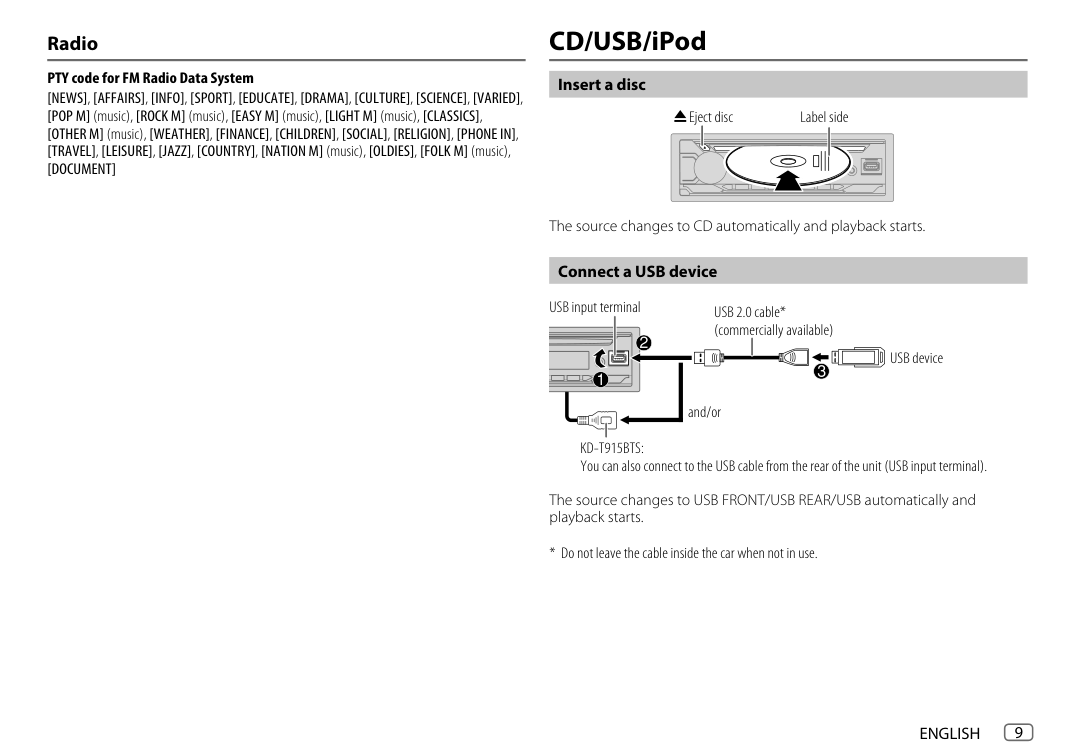
################## Insert a disc
Eject disc Label side
The source changes to CD automatically and playback starts.
################## Connect a USB device
USB input terminal
USB 2.0 cable* (commercially available)
| | | |---|---| | | | | | |
USB device
and/or
KD-T915BTS: You can also connect to the USB cable from the rear of the unit (USB input terminal).
The source changes to USB FRONT/USB REAR/USB automatically and playback starts.
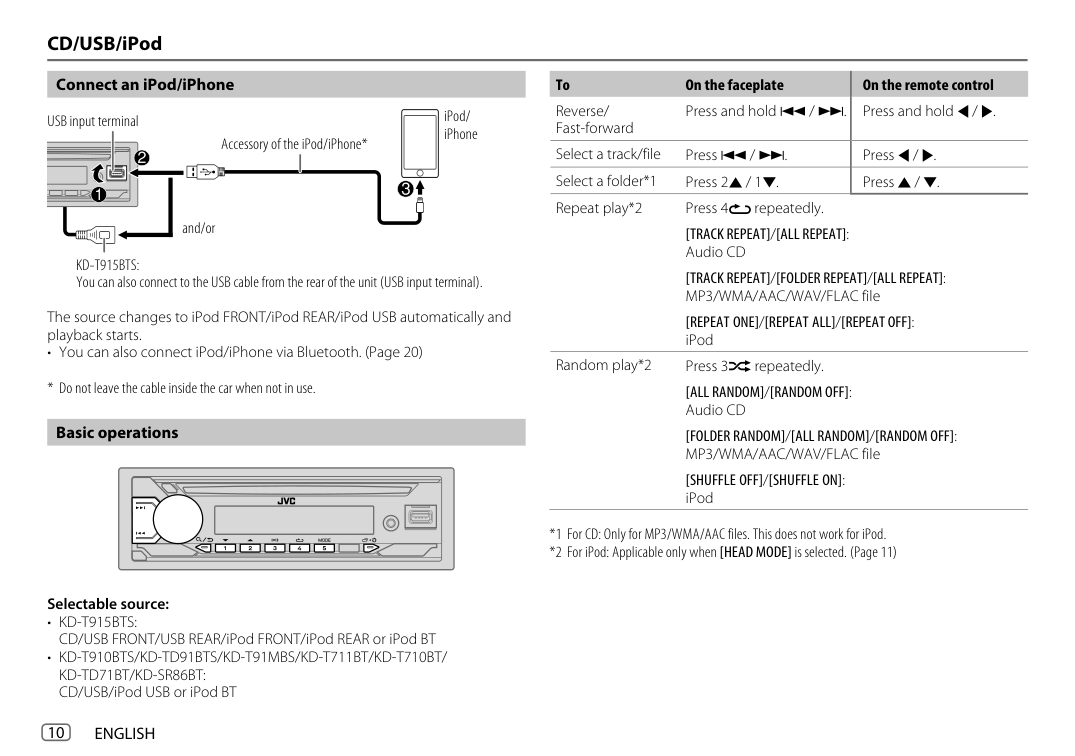
|To On the faceplate
Reverse/ Fast-forward
Press and hold S / T.|On the remote control Press and hold H / I.| |---|---| |Select a track/file Press S / T.|Press H / I.| |Select a folder*1 Press 2J / 1K.|Press J / K.| |Repeat play*2 Press 4B repeatedly.
[TRACK REPEAT]/[ALL REPEAT]: Audio CD
[TRACK REPEAT]/[FOLDER REPEAT]/[ALL REPEAT]: MP3/WMA/AAC/WAV/FLAC file
[REPEAT ONE]/[REPEAT ALL]/[REPEAT OFF]: iPod|Repeat play*2 Press 4B repeatedly.
[TRACK REPEAT]/[ALL REPEAT]: Audio CD
[TRACK REPEAT]/[FOLDER REPEAT]/[ALL REPEAT]: MP3/WMA/AAC/WAV/FLAC file
[REPEAT ONE]/[REPEAT ALL]/[REPEAT OFF]: iPod| |Random play*2 Press 3A repeatedly.
[ALL RANDOM]/[RANDOM OFF]: Audio CD
[FOLDER RANDOM]/[ALL RANDOM]/[RANDOM OFF]: MP3/WMA/AAC/WAV/FLAC file
[SHUFFLE OFF]/[SHUFFLE ON]: iPod|Random play*2 Press 3A repeatedly.
[ALL RANDOM]/[RANDOM OFF]: Audio CD
[FOLDER RANDOM]/[ALL RANDOM]/[RANDOM OFF]: MP3/WMA/AAC/WAV/FLAC file
[SHUFFLE OFF]/[SHUFFLE ON]: iPod|
################## Connect an iPod/iPhone USB input terminal
iPod/ iPhone
Accessory of the iPod/iPhone*
and/or
KD-T915BTS: You can also connect to the USB cable from the rear of the unit (USB input terminal).
The source changes to iPod FRONT/iPod REAR/iPod USB automatically and playback starts.
• You can also connect iPod/iPhone via Bluetooth. (Page 20)
################## Basic operations
Selectable source:
Quick search (applicable only for CD source and USB FRONT/USB REAR/USB source)
Select music drive While in USB FRONT/USB REAR/USB source, press 5 MODE repeatedly. Stored songs in the following drive will be played back.
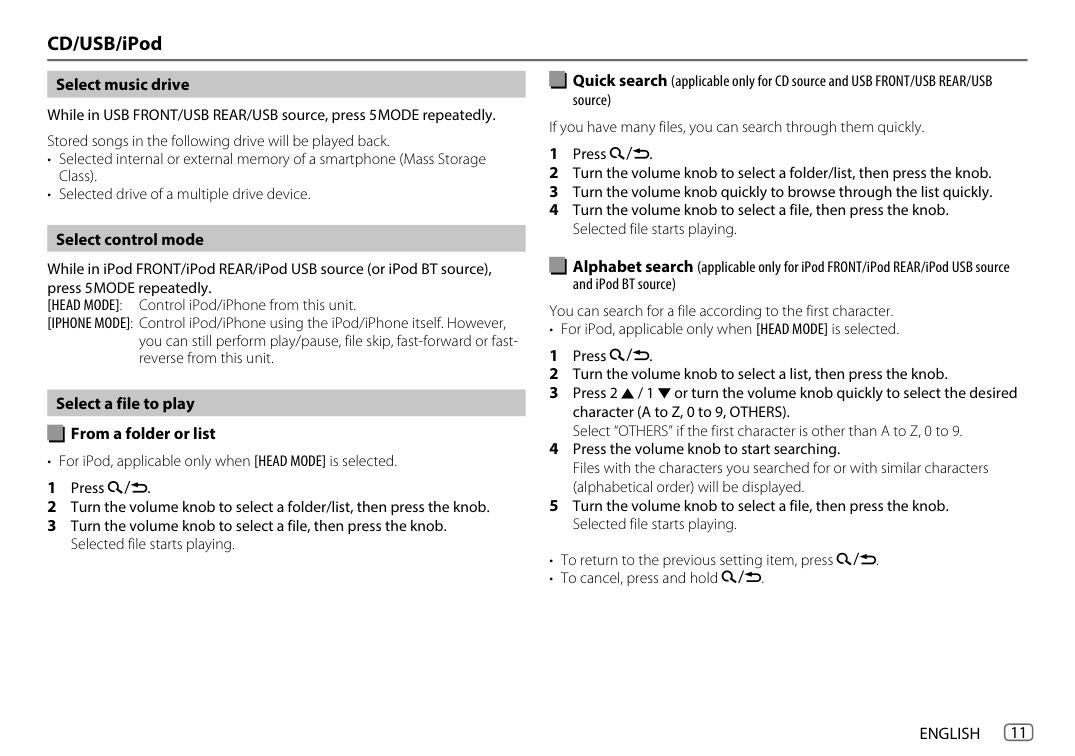
If you have many files, you can search through them quickly.
################## Select control mode
Alphabet search (applicable only for iPod FRONT/iPod REAR/iPod USB source and iPod BT source)
While in iPod FRONT/iPod REAR/iPod USB source (or iPod BT source), press 5 MODE repeatedly. [HEAD MODE]: Control iPod/iPhone from this unit. [IPHONE MODE]: Control iPod/iPhone using the iPod/iPhone itself. However,
You can search for a file according to the first character.
• For iPod, applicable only when [HEAD MODE] is selected.
you can still perform play/pause, file skip, fast-forward or fastreverse from this unit.
Select a file to play
From a folder or list
• For iPod, applicable only when [HEAD MODE] is selected.
######### AUX
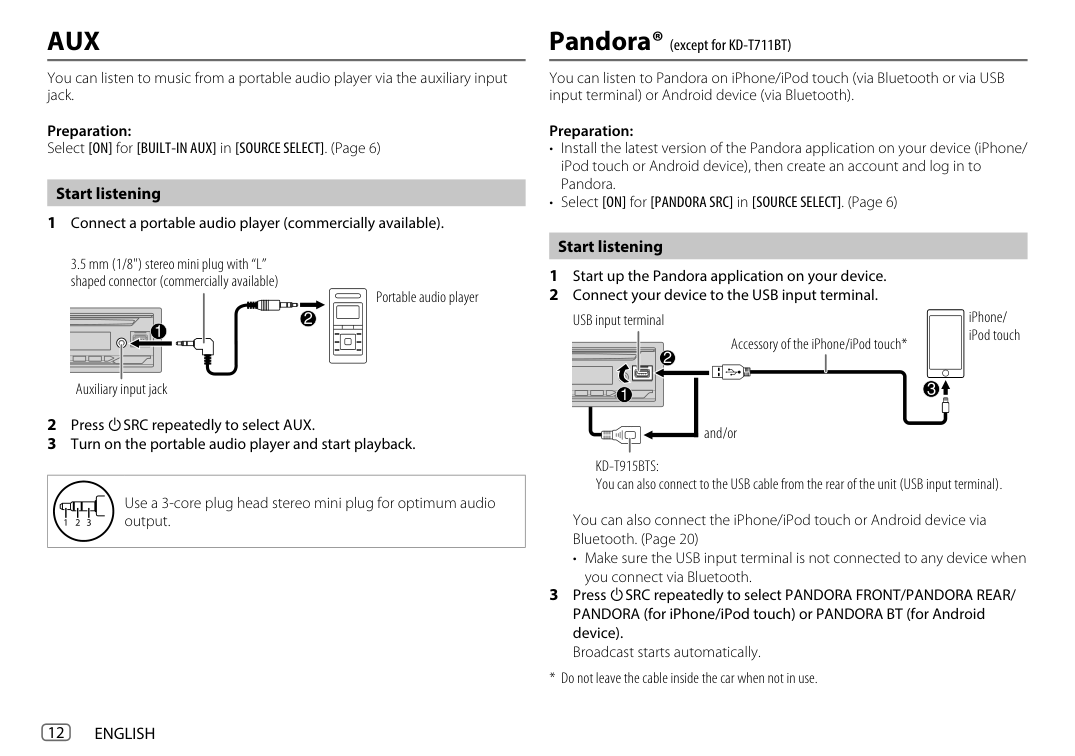
You can listen to music from a portable audio player via the auxiliary input jack.
Preparation: Select [ON] for [BUILT-IN AUX] in [SOURCE SELECT]. (Page 6)
################## Start listening
3.5 mm (1/8") stereo mini plug with “L” shaped connector (commercially available)
Portable audio player
Auxiliary input jack
| | | | |---|---|---| | | | | | | | |
|Use a 3-core plug head stereo mini plug for optimum audio output.| |---|
Pandora® (except for KD-T711BT)
You can listen to Pandora on iPhone/iPod touch (via Bluetooth or via USB input terminal) or Android device (via Bluetooth).
Preparation:
################## Start listening
and/or
Accessory of the iPhone/iPod touch*
KD-T915BTS: You can also connect to the USB cable from the rear of the unit (USB input terminal).
iPhone/ iPod touch
You can also connect the iPhone/iPod touch or Android device via Bluetooth. (Page 20)
• Make sure the USB input terminal is not connected to any device when you connect via Bluetooth.
Pandora® (except for KD-T711BT)
################## Bookmark current song information
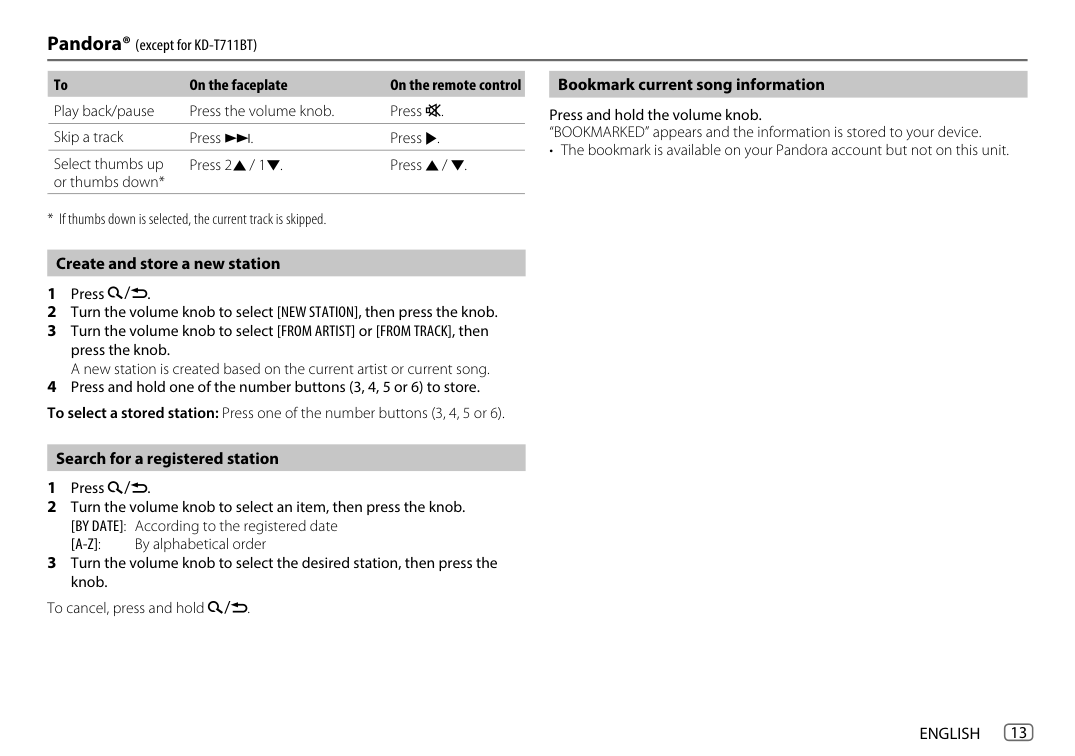
To On the faceplate On the remote control Play back/pause Press the volume knob. Press d. Skip a track Press T. Press I.
Press and hold the volume knob. “BOOKMARKED” appears and the information is stored to your device.
• The bookmark is available on your Pandora account but not on this unit.
Select thumbs up or thumbs down*
Press 2J / 1K. Press J / K.
################## Create and store a new station
################## Search for a registered station
To cancel, press and hold .
######### Spotify
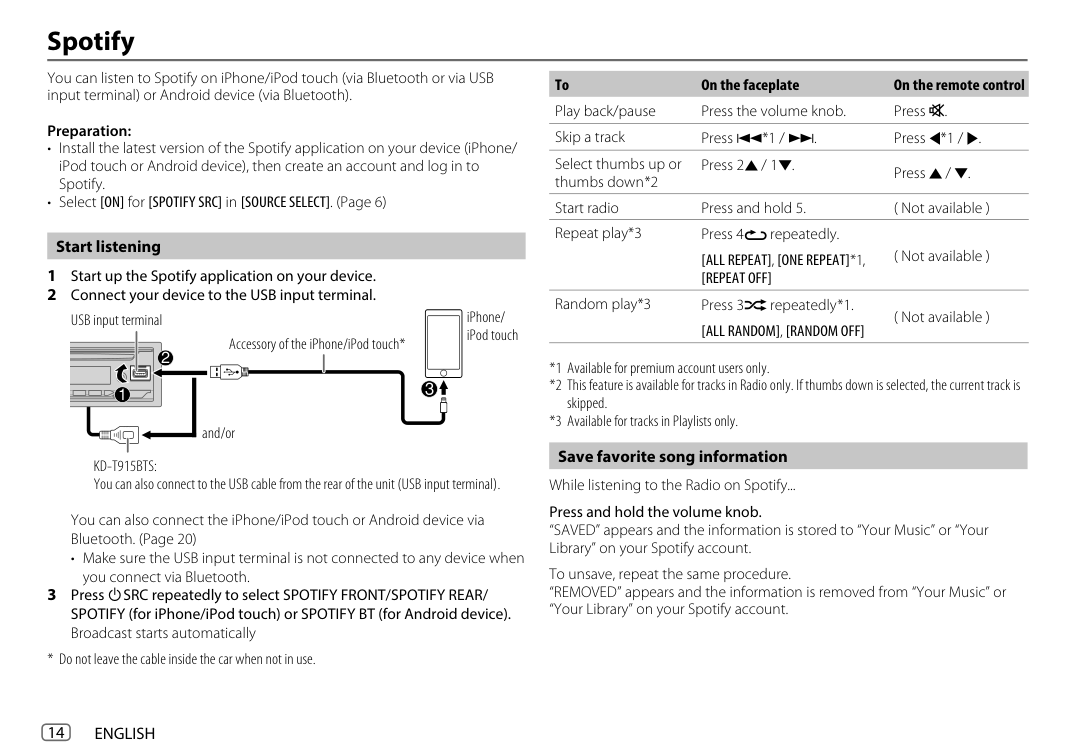
You can listen to Spotify on iPhone/iPod touch (via Bluetooth or via USB input terminal) or Android device (via Bluetooth).
To On the faceplate On the remote control Play back/pause Press the volume knob. Press d. Skip a track Press S*1 / T. Press H*1 / I. Select thumbs up or thumbs down *2
Preparation:
Press 2J / 1K.
Press J / K Start radio Press and hold 5. ( Not available ) Repeat play*3 Press 4B repeatedly.
################## Start listening
( Not available )
[ALL REPEAT], [ONE REPEAT]*1, [REPEAT OFF]
| | | | | |---|---|---|---| | | | | |
and/or
Accessory of the iPhone/iPod touch*
KD-T915BTS: You can also connect to the USB cable from the rear of the unit (USB input terminal).
iPhone/ iPod touch
You can also connect the iPhone/iPod touch or Android device via Bluetooth. (Page 20)
• Make sure the USB input terminal is not connected to any device when you connect via Bluetooth.
Random play*3 Press 3A repeatedly *1.
( Not available )
[ALL RANDOM], [RANDOM OFF]
Save favorite song information While listening to the Radio on Spotify... Press and hold the volume knob. “SAVED” appears and the information is stored to “Your Music” or “Your Library” on your Spotify account.
To unsave, repeat the same procedure. “REMOVED” appears and the information is removed from “Your Music” or “Your Library” on your Spotify account.
############# Spotify
################## Search for a song or station
To cancel, press and hold .
######### SiriusXM® Radio
(for KD-T915BTS/KD-T910BTS/KD-TD91BTS/KD-T91MBS)
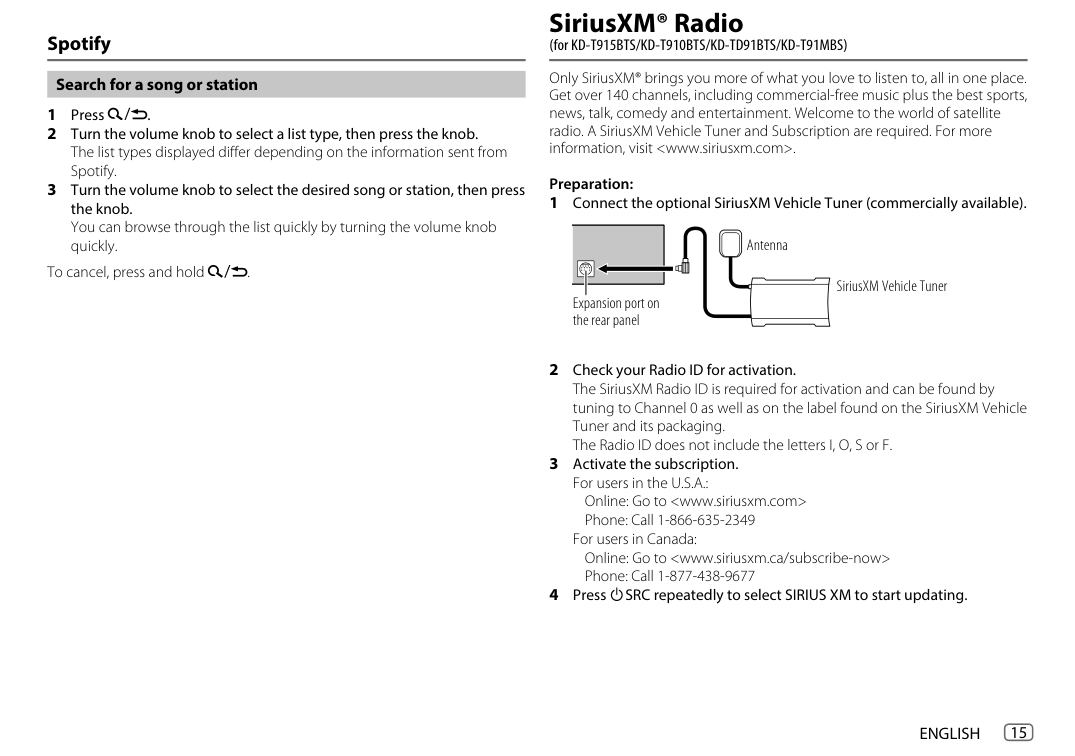
Only SiriusXM® brings you more of what you love to listen to, all in one place. Get over 140 channels, including commercial-free music plus the best sports, news, talk, comedy and entertainment. Welcome to the world of satellite radio. A SiriusXM Vehicle Tuner and Subscription are required. For more information, visit
Preparation:
Antenna
Expansion port on the rear panel
SiriusXM Vehicle Tuner
Online: Go to
For users in Canada: Online: Go to
################## Select a stored channel
################## Start listening
Press one of the number buttons (1 to 6) (or press J / K on the remote control).
(or)
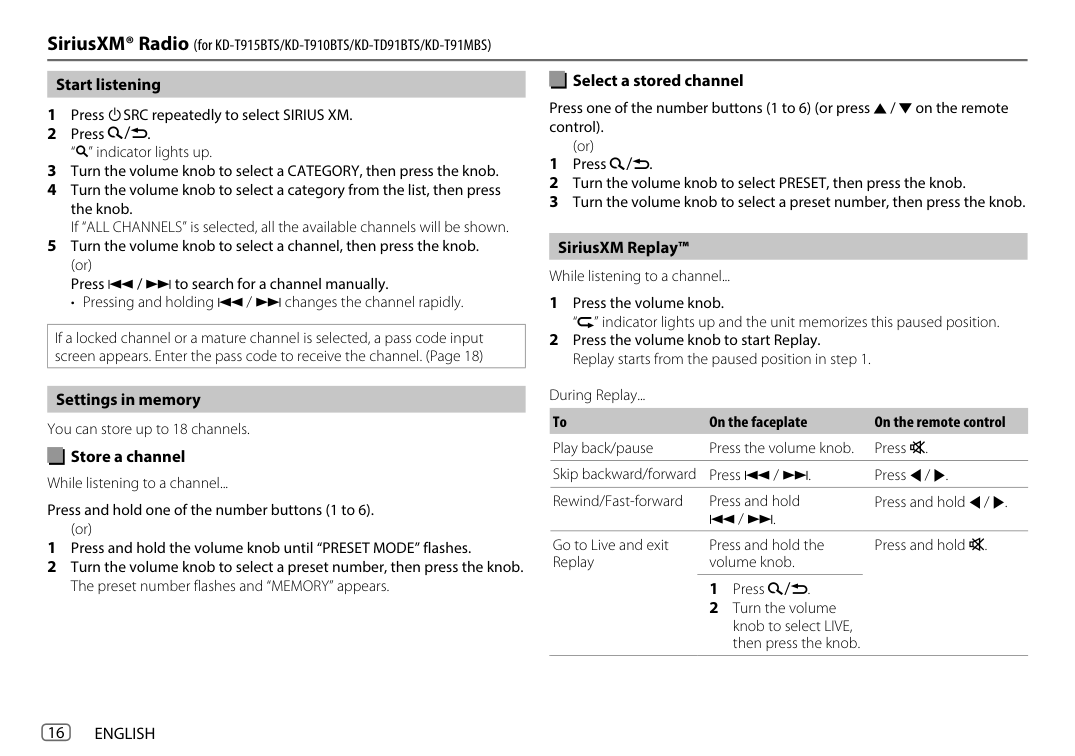
################## SiriusXM Replay™
While listening to a channel...
• Pressing and holding S / T changes the channel rapidly.
|If a locked channel or a mature channel is selected, a pass code input screen appears. Enter the pass code to receive the channel. (Page 18)| |---|
################## Settings in memory
You can store up to 18 channels.
Store a channel While listening to a channel... Press and hold one of the number buttons (1 to 6).
(or) 1 Press and hold the volume knob until “PRESET MODE” flashes. 2 Turn the volume knob to select a preset number, then press the knob.
The preset number flashes and “MEMORY” appears.
During Replay... To On the faceplate On the remote control Play back/pause Press the volume knob. Press d. Skip backward/forward Press S / T. Press H / I. Rewind/Fast-forward Press and hold
Press and hold H / I.
S / T.
Go to Live and exit Replay
Press and hold the volume knob.
Press and hold d.
################## SmartFavorites and TuneStart™
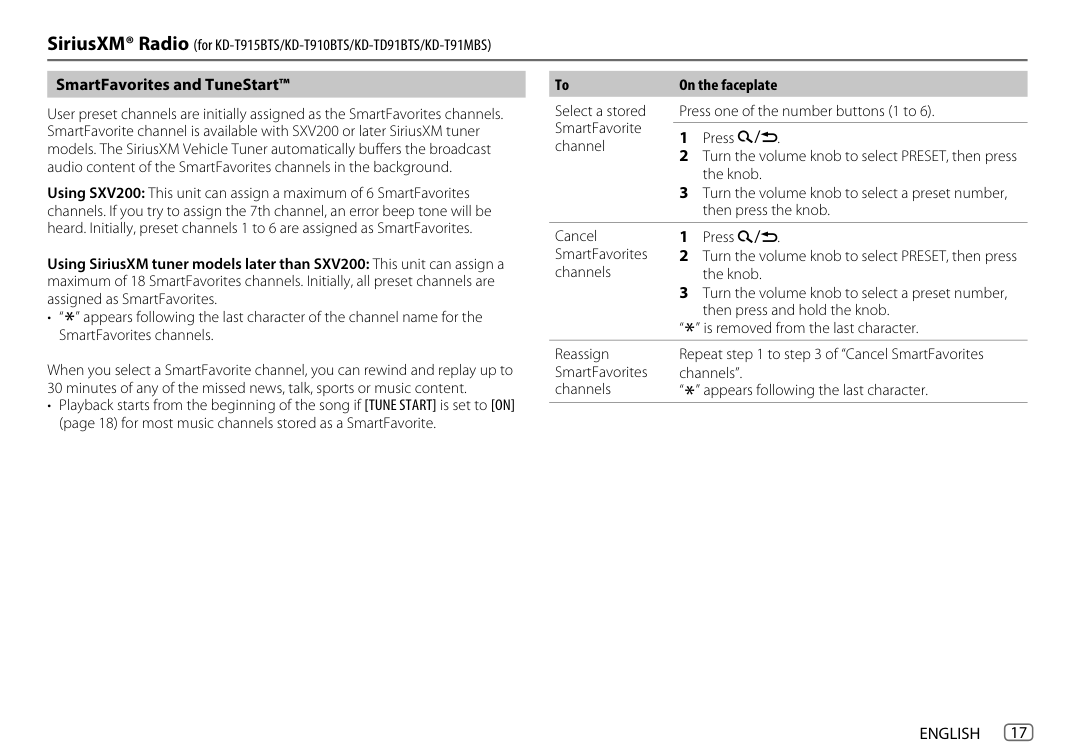
#################### To On the faceplate
Press one of the number buttons (1 to 6).
Select a stored SmartFavorite channel
User preset channels are initially assigned as the SmartFavorites channels. SmartFavorite channel is available with SXV200 or later SiriusXM tuner models. The SiriusXM Vehicle Tuner automatically buffers the broadcast audio content of the SmartFavorites channels in the background.
Using SXV200: This unit can assign a maximum of 6 SmartFavorites channels. If you try to assign the 7th channel, an error beep tone will be heard. Initially, preset channels 1 to 6 are assigned as SmartFavorites.
Cancel SmartFavorites channels
Using SiriusXM tuner models later than SXV200: This unit can assign a maximum of 18 SmartFavorites channels. Initially, all preset channels are assigned as SmartFavorites.
• “*” appears following the last character of the channel name for theSmartFavorites channels.
“*” is removed from the last character.
Repeat step 1 to step 3 of “Cancel SmartFavorites channels”.
Reassign SmartFavorites channels
When you select a SmartFavorite channel, you can rewind and replay up to 30 minutes of any of the missed news, talk, sports or music content.
“*” appears following the last character.
• Playback starts from the beginning of the song if [TUNE START] is set to [ON] (page 18) for most music channels stored as a SmartFavorite.
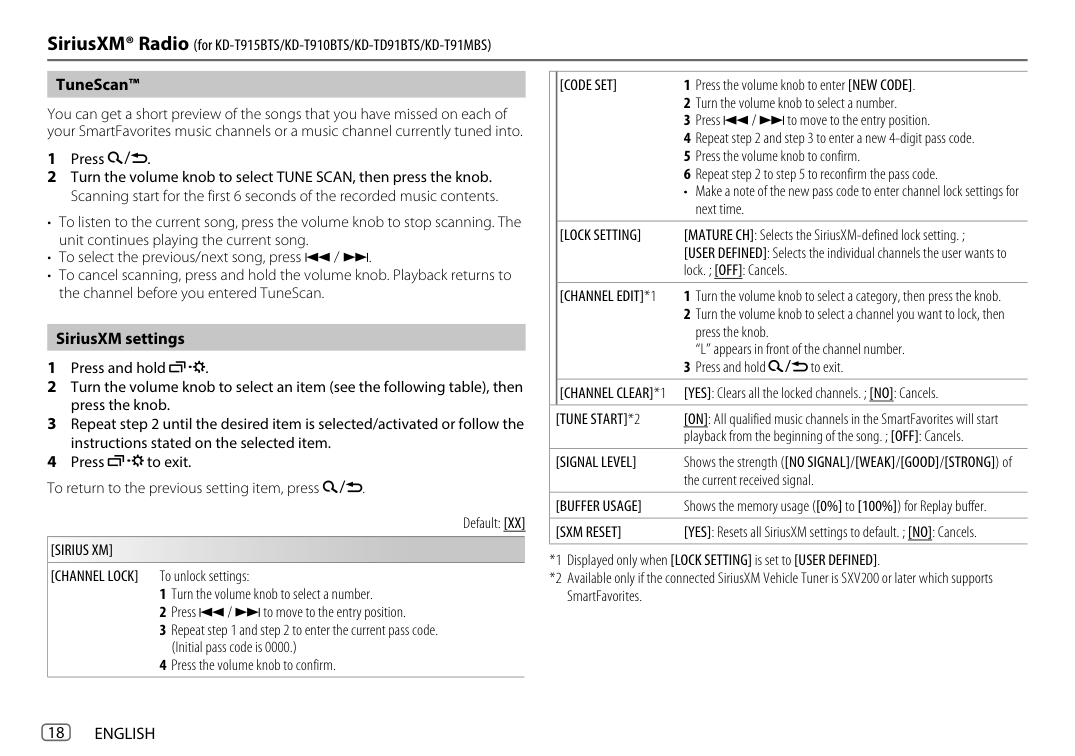
| |[CODE SET] 1 Press the volume knob to enter [NEW CODE]
2 Turn the volume knob to select a number.
3 Press S / T to move to the entry position.
4 Repeat step 2 and step 3 to enter a new 4-digit pass code.
5 Press the volume knob to confirm.
6 Repeat step 2 to step 5 to reconfirm the pass code.
• Make a note of the new pass code to enter channel lock settings for next time.|
|---|---| | |[LOCK SETTING] [MATURE CH]: Selects the SiriusXM-defined lock setting. ; [USER DEFINED]: Selects the individual channels the user wants to lock. ; [OFF]: Cancels.
| | |[CHANNEL EDIT]*1 1 Turn the volume knob to select a category, then press the knob.
2 Turn the volume knob to select a channel you want to lock, then press the knob. “L” appears in front of the channel number.
3 Press and hold to exit.
| | |[CHANNEL CLEAR]*1 [YES]: Clears all the locked channels. ; [NO]: Cancels.
| |[TUNE START]*2 [ON]: All qualified music channels in the SmartFavorites will start
playback from the beginning of the song. ; [OFF]: Cancels.|[TUNE START]*2 [ON]: All qualified music channels in the SmartFavorites will start
playback from the beginning of the song. ; [OFF]: Cancels.| |[SIGNAL LEVEL] Shows the strength ([NO SIGNAL]/[WEAK]/[GOOD]/[STRONG]) of
the current received signal.|[SIGNAL LEVEL] Shows the strength ([NO SIGNAL]/[WEAK]/[GOOD]/[STRONG]) of
the current received signal.| |[BUFFER USAGE] Shows the memory usage ([0%] to [100%]) for Replay buffer.|[BUFFER USAGE] Shows the memory usage ([0%] to [100%]) for Replay buffer.| |[SXM RESET] [YES]: Resets all SiriusXM settings to default. ; [NO]: Cancels.
|[SXM RESET] [YES]: Resets all SiriusXM settings to default. ; [NO]: Cancels.
|
################## TuneScan™
You can get a short preview of the songs that you have missed on each of your SmartFavorites music channels or a music channel currently tuned into.
################## SiriusXM settings
Default: [XX]
[SIRIUS XM] [CHANNEL LOCK] To unlock settings:
######### Using Other Applications
################## JVC Remote application
Default: [XX]
[REMOTE APP] [SELECT] Selects the device ([IOS] or [ANDROID]) to use the application.
You can control the JVC car receiver from iPhone/iPod touch (via Bluetooth or via USB input terminal) or Android device (via Bluetooth) using JVC Remote application.
[IOS] [YES]: Selects iPhone/iPod touch to use the application via Bluetooth or connected via USB input terminal. ; [NO]: Cancels. If [IOS] is selected, select iPod BT source (or iPod USB source if your iPhone/ iPod touch is connected via USB input terminal) to activate the application. • The connectivity of the application will be interrupted or disconnected if:
• For more information, visit
################## Start using JVC Remote application
[ANDROID] [YES]: Selects Android device to use the application via Bluetooth. ; [NO]: Cancels.
[ANDROID LIST]
Selects the Android device to use from the list.
• Displayed only when [ANDROID] of [SELECT] is set to [YES].
[STATUS] Shows the status of the selected device. [IOS CONNECTED]: You are able to use the application using the iPhone/ iPod touch connected via Bluetooth or USB input terminal. [IOS NOT CONNECTED]: No iOS device is connected to use the application. [ANDROID CONNECTED]: You are able to use the application using the Android device connected via Bluetooth. [ANDROID NOT CONNECTED]: No Android device is connected to use the application.
################## Settings to use JVC Remote application
######### Bluetooth®
|• Depending on the Bluetooth version, operating system and the firmware version of your mobile phone, Bluetooth features may not work with this unit.
• Be sure to turn on the Bluetooth function of the device to make the following operations.
• Signal conditions vary depending on the surroundings.
| |---|
################## Pair and connect a Bluetooth device for the first time
• For some Bluetooth devices, you may need to enter the Personal Identification Number (PIN) code immediately after searching.
Bluetooth — Connection Supported Bluetooth profiles
Ensure that the passkeys appear on the unit and Bluetooth device are the same.
Press the volume knob to confirm the passkey.
Operate the Bluetooth device to confirm the passkey.
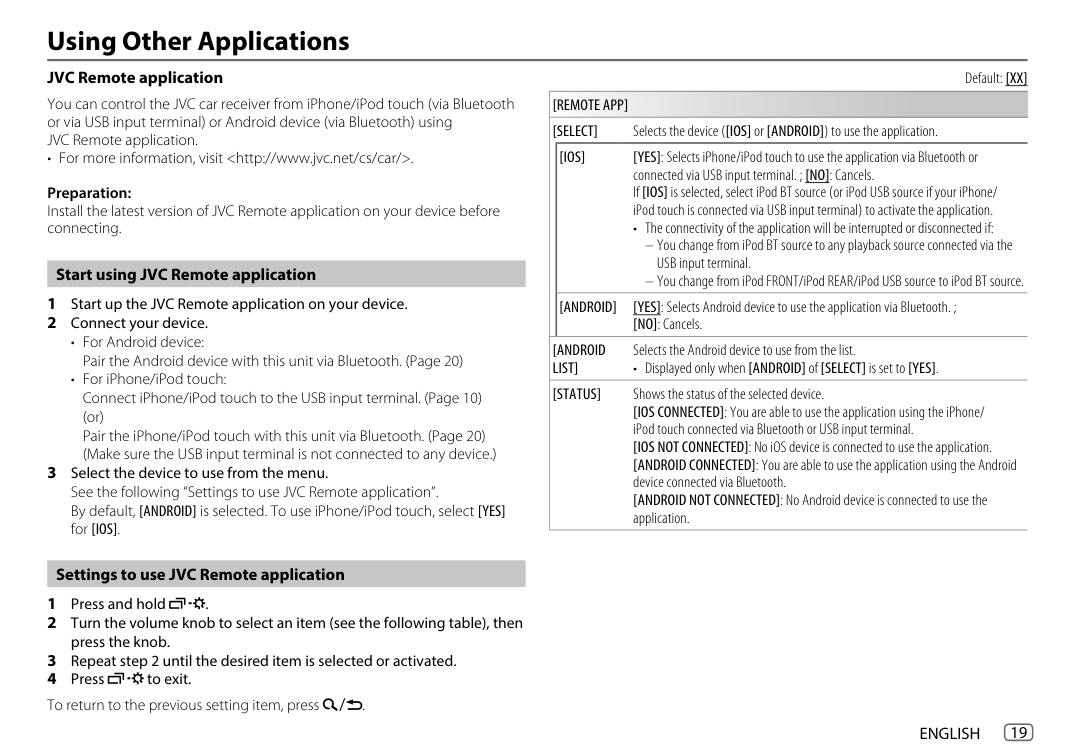
################## Connect the microphone
Press the volume knob to start pairing.
Rear panel
Microphone (supplied)
Microphone input jack
“PAIRING COMPLETED” appears when pairing is completed and “O” will light up when the Bluetooth connection is established.
Secure using cord clamps (not supplied) if necessary.
• KD-T915BTS/KD-T910BTS/KD-TD91BTS/KD-T91MBS, “ ” indicator lights up to show the strength of the battery of the connected device. See also [FORMAT] on page 35 for the battery and signal strength shown on the display.
Adjust the microphone angle
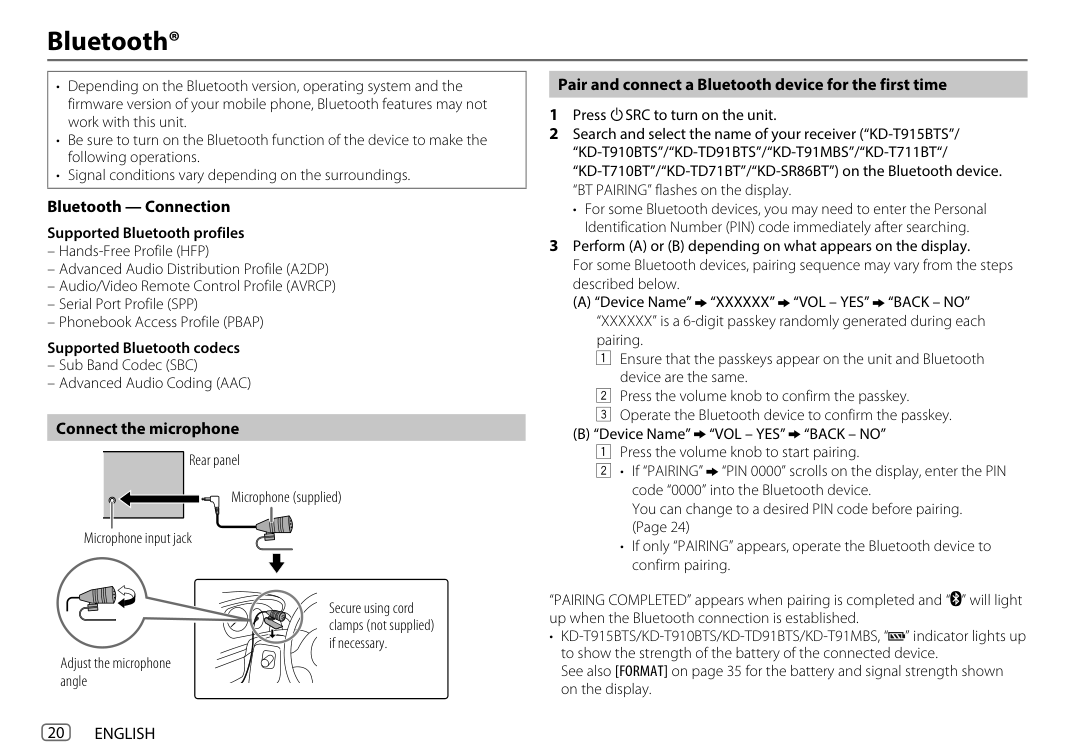
Bluetooth — Mobile phone
Receive a call
When there is an incoming call:
################## Auto Pairing
During a call:
When you connect iPhone/iPod touch to the USB input terminal, pairing request (via Bluetooth) is automatically activated if [AUTO PAIRING] is set to [ON]. (Page 24)
Press the volume knob to pair once you have confirmed the device name.
The following operations may differ or be unavailable depending on the connected phone.
To On the faceplate On the remote control First incoming call...
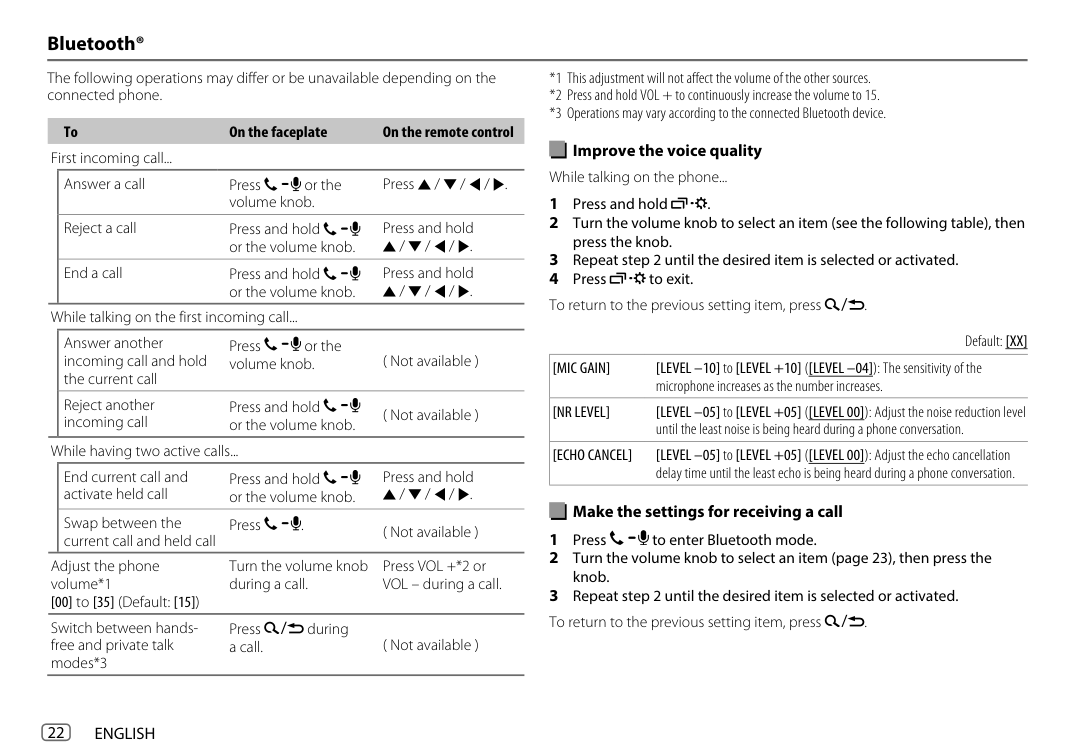
################## Improve the voice quality While talking on the phone...
Answer a call Press or the volume knob.
Press J / K / H / I.
Press and hold J / K / H / I.
Reject a call Press and hold or the volume knob.
End a call Press and hold or the volume knob.
Press and hold J / K / H / I.
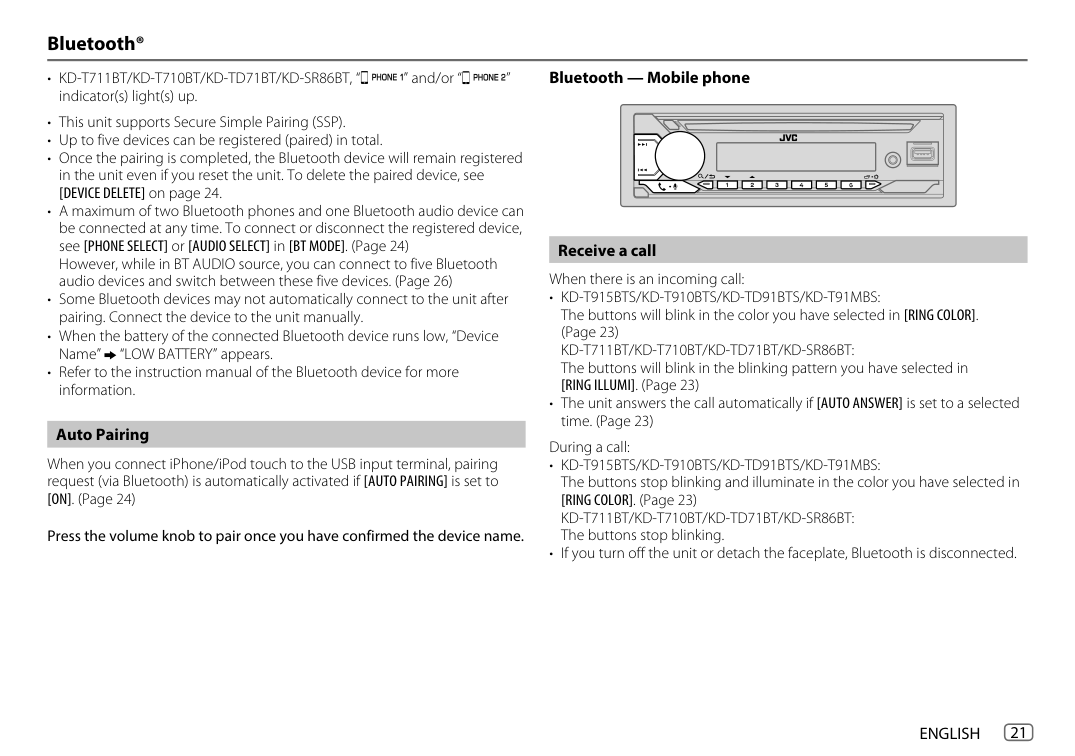
While talking on the first incoming call...
Default: [XX] [MIC GAIN] [LEVEL –10] to [LEVEL +10] ([LEVEL –04]): The sensitivity of the microphone increases as the number increases.
Answer another incoming call and hold the current call
Press or the volume knob. ( Not available )
Reject another incoming call
Press and hold or the volume knob.
[NR LEVEL] [LEVEL –05] to [LEVEL +05] ([LEVEL 00]): Adjust the noise reduction level
( Not available ) While having two active calls...
until the least noise is being heard during a phone conversation.
[ECHO CANCEL] [LEVEL –05] to [LEVEL +05] ([LEVEL 00]): Adjust the echo cancellation
delay time until the least echo is being heard during a phone conversation.
End current call and activate held call
Press and hold J / K / H / I
Press and hold or the volume knob.
################## Make the settings for receiving a call
Swap between the current call and held call
Press . ( Not available )
Turn the volume knob during a call.
Press VOL +*2 or VOL – during a call.
Adjust the phone volume*1 [00] to [35] (Default: [15]
Switch between handsfree and private talk modes*3
Press during a call. ( Not available )
Default: [XX]
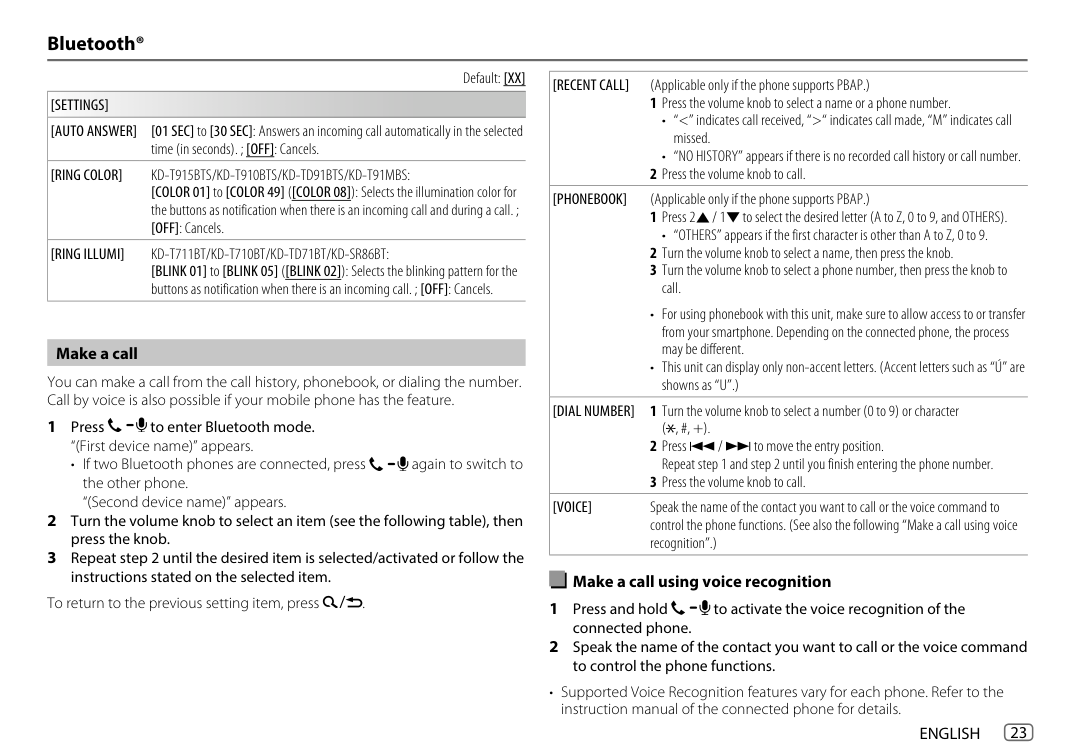
[RECENT CALL] (Applicable only if the phone supports PBAP.)
[SETTINGS] [AUTO ANSWER] [01 SEC] to [30 SEC]: Answers an incoming call automatically in the selected
time (in seconds). ; [OFF]: Cancels.
[RING COLOR] KD-T915BTS/KD-T910BTS/KD-TD91BTS/KD-T91MBS:
[COLOR 01] to [COLOR 49] ([COLOR 08]): Selects the illumination color for the buttons as notification when there is an incoming call and during a call. ; [OFF]: Cancels.
[PHONEBOOK] (Applicable only if the phone supports PBAP.)
• “OTHERS” appears if the first character is other than A to Z, 0 to 9.
[RING ILLUMI] KD-T711BT/KD-T710BT/KD-TD71BT/KD-SR86BT: [BLINK 01] to [BLINK 05] ([BLINK 02]): Selects the blinking pattern for the buttons as notification when there is an incoming call. ; [OFF]: Cancels.
################## Make a call
You can make a call from the call history, phonebook, or dialing the number. Call by voice is also possible if your mobile phone has the feature.
[DIAL NUMBER] 1 Turn the volume knob to select a number (0 to 9) or character
• If two Bluetooth phones are connected, press again to switch to the other phone. “(Second device name)” appears.
( , #, +).
[VOICE] Speak the name of the contact you want to call or the voice command to control the phone functions. (See also the following “Make a call using voice recognition”.)
################## Make a call using voice recognition
To return to the previous setting item, press .
• Supported Voice Recognition features vary for each phone. Refer to the instruction manual of the connected phone for details.
Default: [XX]
################## Store a contact in memory
[BT MODE] [PHONE SELECT] Selects the phone or audio device to connect or disconnect.
You can store up to 6 contacts into the number buttons (1 to 6).
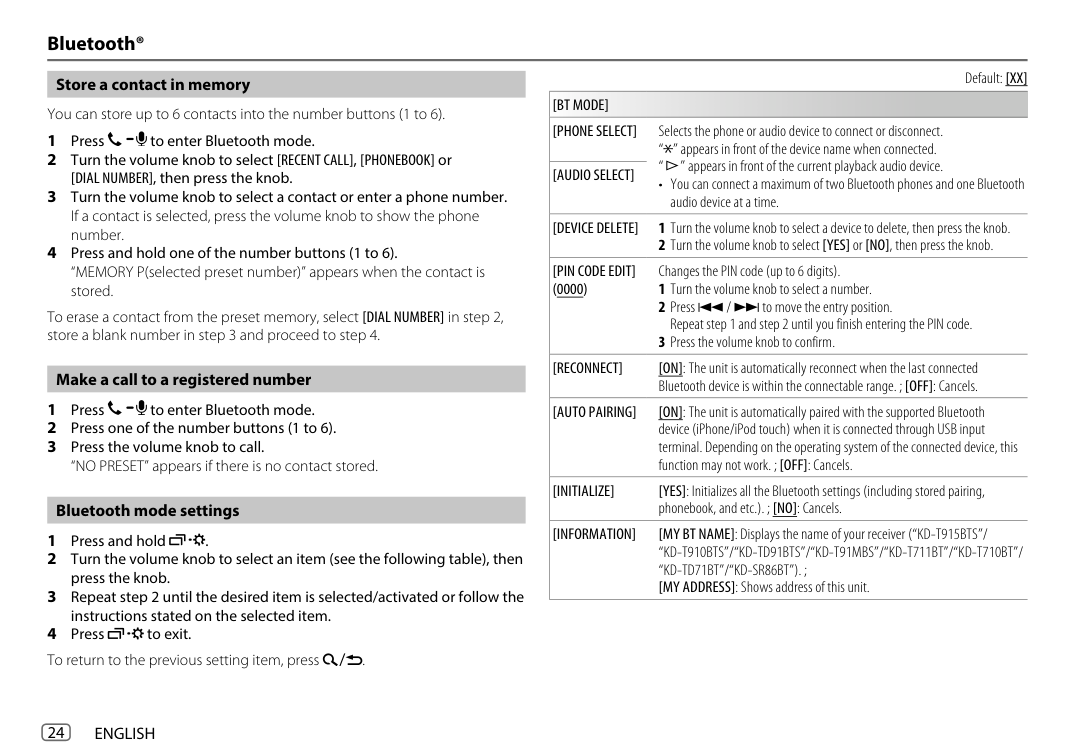
“ ” appears in front of the device name when connected. “ ” appears in front of the current playback audio device.
[AUDIO SELECT]
• You can connect a maximum of two Bluetooth phones and one Bluetooth audio device at a time.
[DEVICE DELETE] 1 Turn the volume knob to select a device to delete, then press the knob.
2 Turn the volume knob to select [YES] or [NO], then press the knob. [PIN CODE EDIT]
Changes the PIN code (up to 6 digits).
(0000)
To erase a contact from the preset memory, select [DIAL NUMBER] in step 2, store a blank number in step 3 and proceed to step 4.
[RECONNECT] [ON]: The unit is automatically reconnect when the last connected Bluetooth device is within the connectable range. ; [OFF]: Cancels.
################## Make a call to a registered number
[AUTO PAIRING] [ON]: The unit is automatically paired with the supported Bluetooth device (iPhone/iPod touch) when it is connected through USB input terminal. Depending on the operating system of the connected device, this function may not work. ; [OFF]: Cancels.
[INITIALIZE] [YES]: Initializes all the Bluetooth settings (including stored pairing,
phonebook, and etc.). ; [NO]: Cancels.
################## Bluetooth mode settings
[INFORMATION] [MY BT NAME]: Displays the name of your receiver (“KD-T915BTS”/ “KD-T910BTS”/“KD-TD91BTS”/“KD-T91MBS”/“KD-T711BT”/“KD-T710BT”/ “KD-TD71BT”/“KD-SR86BT”). ; [MY ADDRESS]: Shows address of this unit.
1 Press and hold . 2 Turn the volume knob to select an item (see the following table), then
press the knob.
3 Repeat step 2 until the desired item is selected/activated or follow the
instructions stated on the selected item. 4 Press to exit. To return to the previous setting item, press .
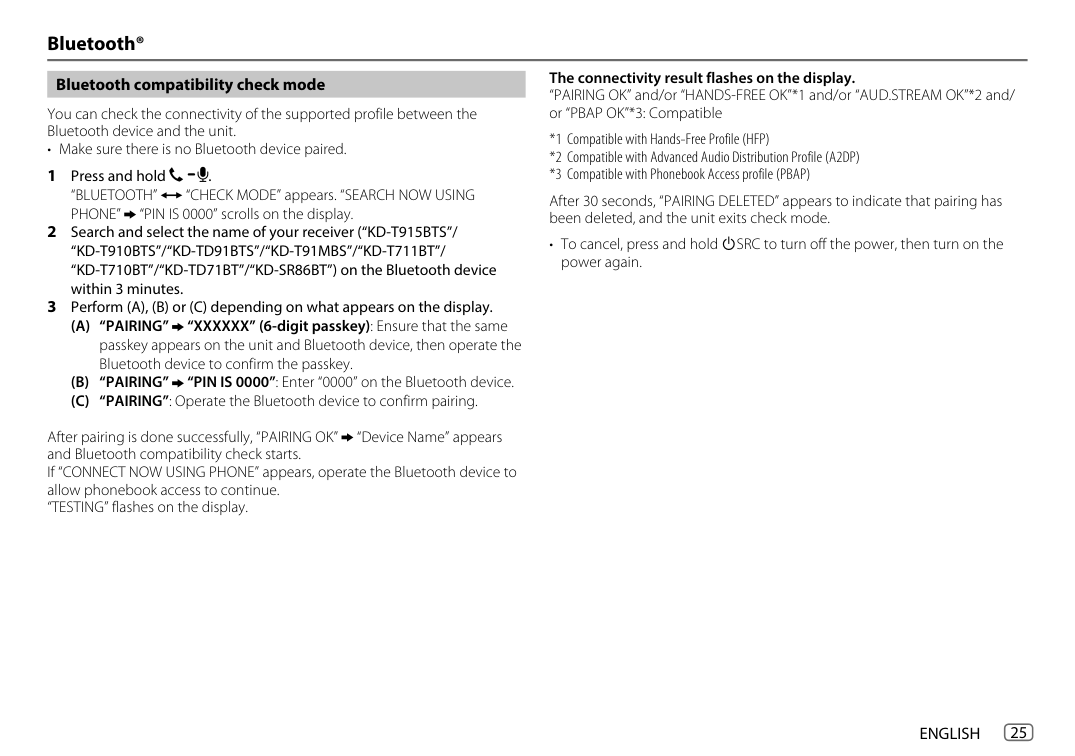
The connectivity result flashes on the display. “PAIRING OK” and/or “HANDS-FREE OK”*1 and/or “AUD.STREAM OK”*2 and/ or “PBAP OK”*3: Compatible
################## Bluetooth compatibility check mode
You can check the connectivity of the supported profile between the Bluetooth device and the unit.
• Make sure there is no Bluetooth device paired.
After 30 seconds, “PAIRING DELETED” appears to indicate that pairing has been deleted, and the unit exits check mode.
• To cancel, press and hold B SRC to turn off the power, then turn on the power again.
After pairing is done successfully, “PAIRING OK” “Device Name” appears and Bluetooth compatibility check starts. If “CONNECT NOW USING PHONE” appears, operate the Bluetooth device to allow phonebook access to continue. “TESTING” flashes on the display.
################## Bluetooth — Audio
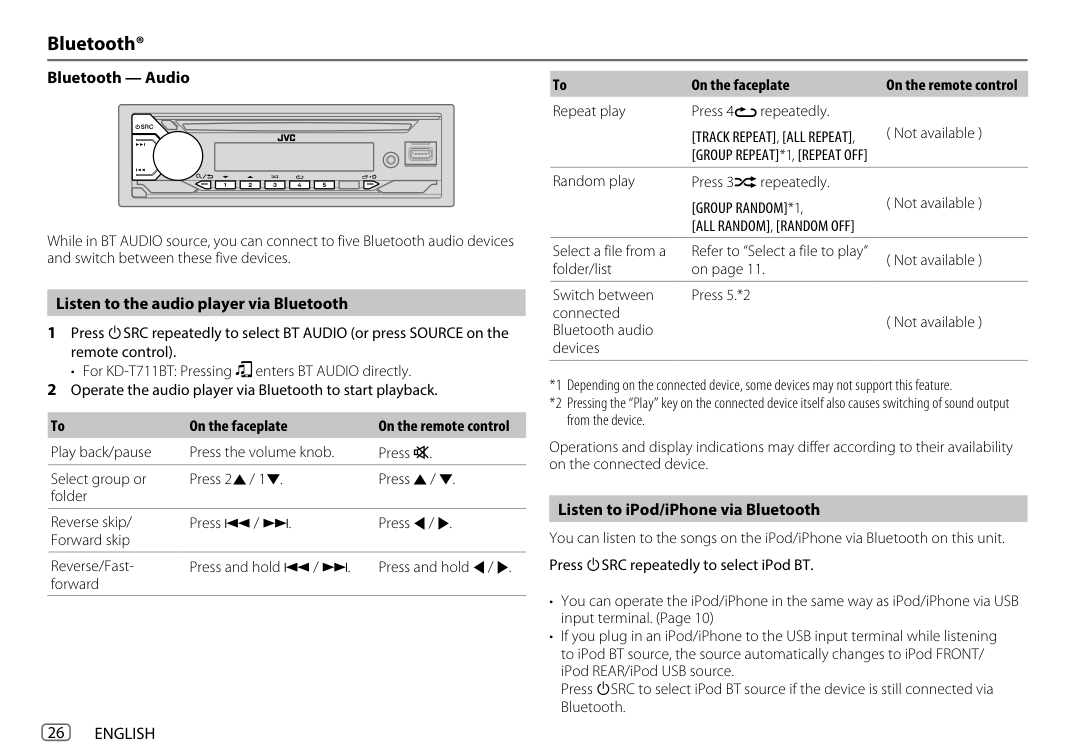
To On the faceplate On the remote control Repeat play Press 4B repeatedly.
( Not available )
[TRACK REPEAT], [ALL REPEAT], [GROUP REPEAT]*1, [REPEAT OFF]
Random play Press 3A repeatedly.
( Not available )
[GROUP RANDOM]*1, [ALL RANDOM], [RANDOM OFF]
While in BT AUDIO source, you can connect to five Bluetooth audio devices and switch between these five devices.
Select a file from a folder/list
Refer to “Select a file to play” on page 11.
( Not available )
Press 5.*2
Switch between connected Bluetooth audio devices
################## Listen to the audio player via Bluetooth
( Not available )
• For KD-T711BT: Pressing enters BT AUDIO directly.
To On the faceplate On the remote control Play back/pause Press the volume knob. Press d. Select group or folder
Operations and display indications may differ according to their availability on the connected device.
Press 2J / 1K. Press J / K.
Listen to iPod/iPhone via Bluetooth You can listen to the songs on the iPod/iPhone via Bluetooth on this unit. Press B SRC repeatedly to select iPod BT.
Reverse skip/ Forward skip
Press S / T. Press H / I.
Reverse/Fastforward
Press and hold S / T. Press and hold H / I.
######### AMAZON ALEXA (except for KD-T711BT)
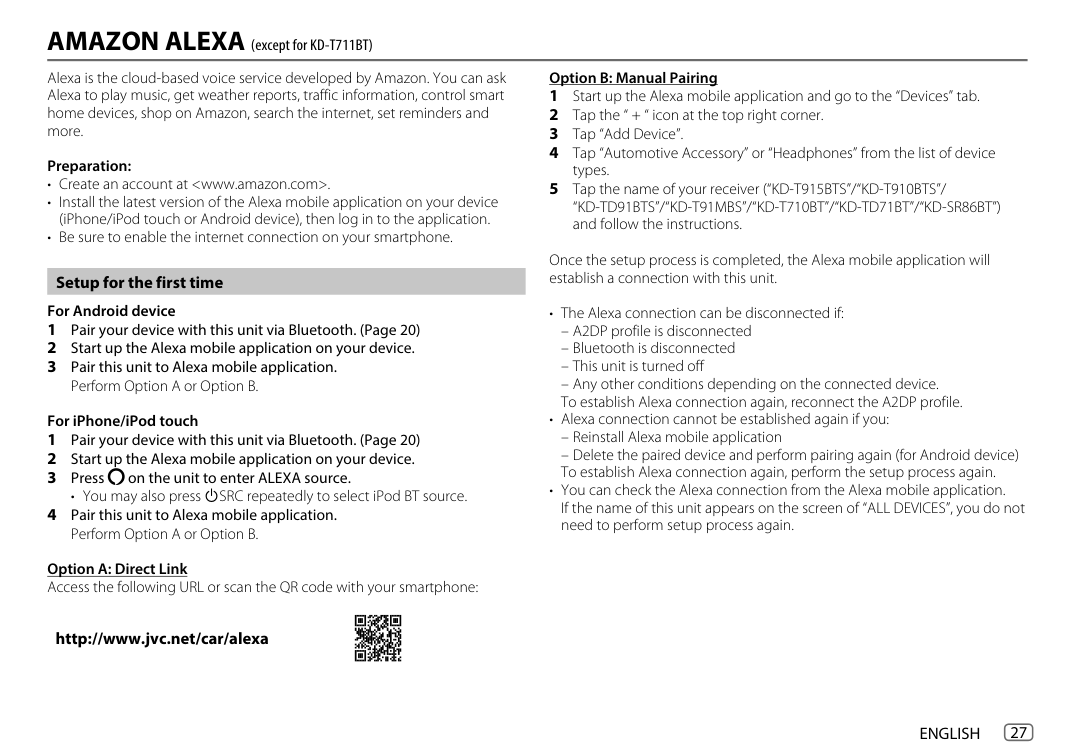
Alexa is the cloud-based voice service developed by Amazon. You can ask Alexa to play music, get weather reports, traffic information, control smart home devices, shop on Amazon, search the internet, set reminders and more.
Preparation:
################## Setup for the first time For Android device
For iPhone/iPod touch
• You may also press B SRC repeatedly to select iPod BT source.
Once the setup process is completed, the Alexa mobile application will establish a connection with this unit.
############# AMAZON ALEXA (except for KD-T711BT)
################## Start listening
While in Alexa idle state...
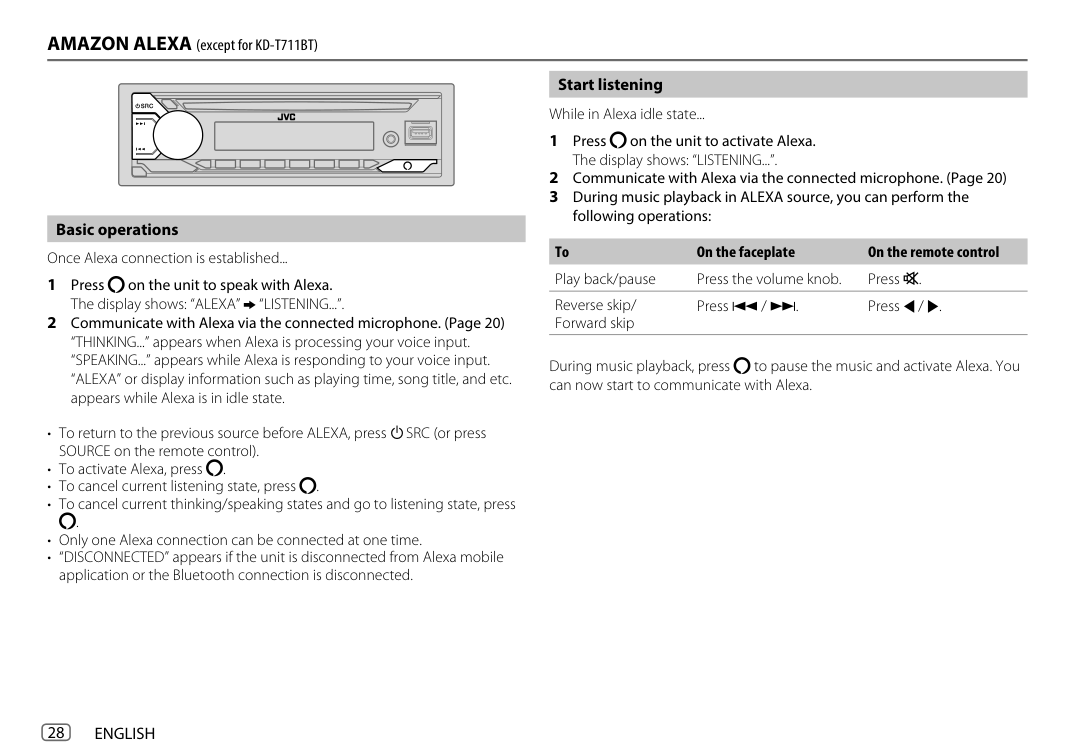
################## Basic operations
To On the faceplate On the remote control Play back/pause Press the volume knob. Press d.
Once Alexa connection is established...
Reverse skip/ Forward skip
Press S / T. Press H / I.
During music playback, press to pause the music and activate Alexa. You can now start to communicate with Alexa.
.
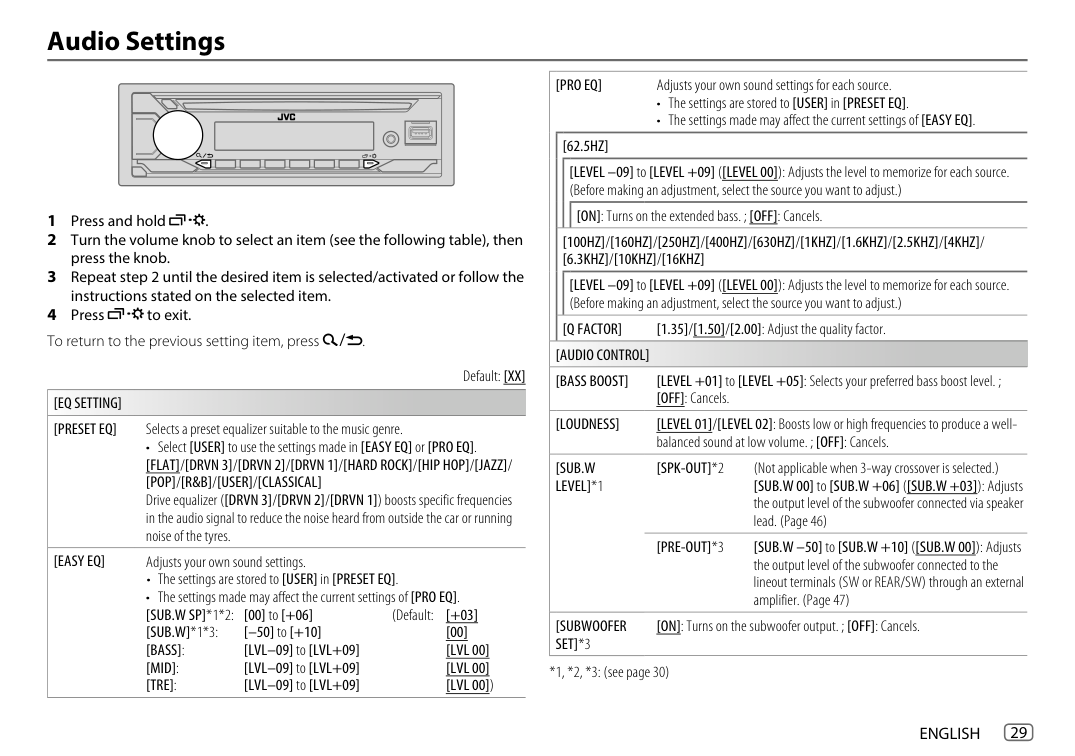
######### Audio Settings
Default: [XX]
[EQ SETTING] [PRESET EQ] Selects a preset equalizer suitable to the music genre.
• Select [USER] to use the settings made in [EASY EQ] or [PRO EQ] [FLAT]/[DRVN 3]/[DRVN 2]/[DRVN 1]/[HARD ROCK]/[HIP HOP]/[JAZZ]/ [POP]/[R&B]/[USER]/[CLASSICAL]
Drive equalizer ([DRVN 3]/[DRVN 2]/[DRVN 1]) boosts specific frequencies in the audio signal to reduce the noise heard from outside the car or running noise of the tyres.
[EASY EQ] Adjusts your own sound settings.
[PRO EQ] Adjusts your own sound settings for each source.
[62.5HZ]
[LEVEL –09] to [LEVEL +09] ([LEVEL 00]): Adjusts the level to memorize for each source. (Before making an adjustment, select the source you want to adjust.)
[ON]: Turns on the extended bass. ; [OFF]: Cancels.
[100HZ]/[160HZ]/[250HZ]/[400HZ]/[630HZ]/[1KHZ]/[1.6KHZ]/[2.5KHZ]/[4KHZ]/ [6.3KHZ]/[10KHZ]/[16KHZ]
[LEVEL –09] to [LEVEL +09] ([LEVEL 00]): Adjusts the level to memorize for each source. (Before making an adjustment, select the source you want to adjust.)
[Q FACTOR] [1.35]/[1.50]/[2.00]: Adjust the quality factor. [AUDIO CONTROL] [BASS BOOST] [LEVEL +01] to [LEVEL +05]: Selects your preferred bass boost level. ;
[OFF]: Cancels. [LOUDNESS] [LEVEL 01]/[LEVEL 02]: Boosts low or high frequencies to produce a well-
balanced sound at low volume. ; [OFF]: Cancels.
[SUB.W LEVEL]*1
[SPK-OUT]*2 (Not applicable when 3-way crossover is selected.)
[SUB.W 00] to [SUB.W +06] ([SUB.W +03]): Adjusts the output level of the subwoofer connected via speaker lead. (Page 46)
[PRE-OUT]*3 [SUB.W –50] to [SUB.W +10] ([SUB.W 00]): Adjusts the output level of the subwoofer connected to the lineout terminals (SW or REAR/SW) through an external amplifier. (Page 47)
[SUBWOOFER SET]*3
[ON]: Turns on the subwoofer output. ; [OFF]: Cancels.
*1, *2, *3: (see page 30)
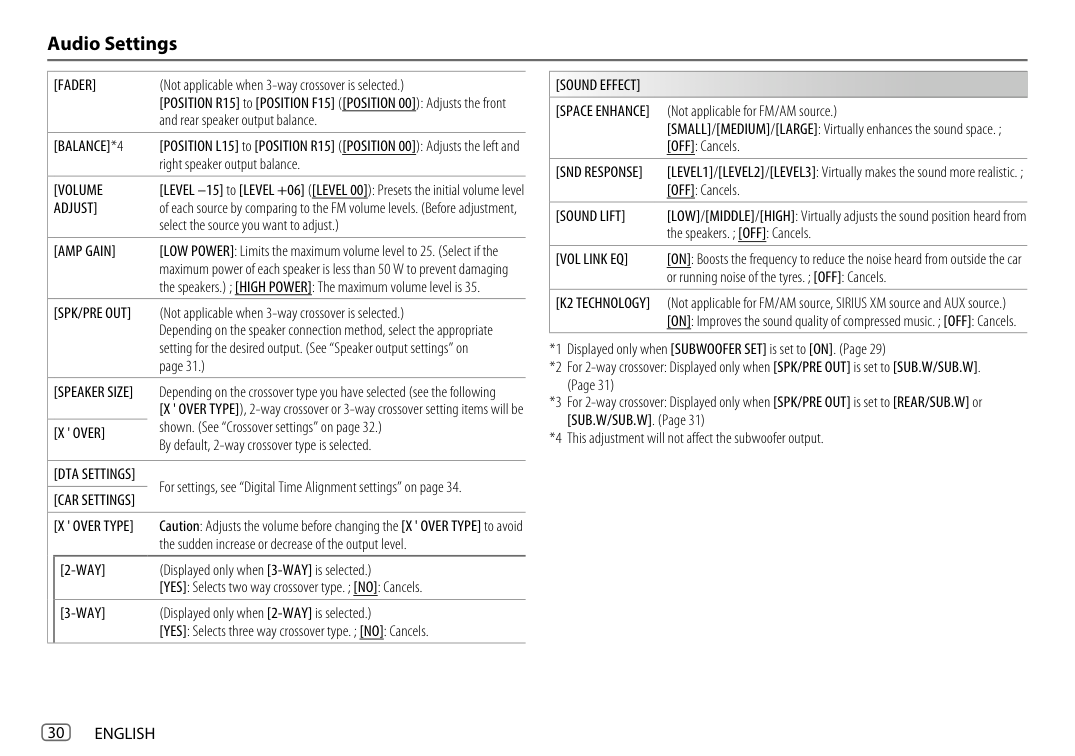
[FADER] (Not applicable when 3-way crossover is selected.) [POSITION R15] to [POSITION F15] ([POSITION 00]): Adjusts the front and rear speaker output balance.
[SOUND EFFECT] [SPACE ENHANCE] (Not applicable for FM/AM source.)
[SMALL]/[MEDIUM]/[LARGE]: Virtually enhances the sound space. ; [OFF]: Cancels.
[BALANCE]*4 [POSITION L15] to [POSITION R15] ([POSITION 00]): Adjusts the left and
right speaker output balance.
[SND RESPONSE] [LEVEL1]/[LEVEL2]/[LEVEL3]: Virtually makes the sound more realistic. ; [OFF]: Cancels.
[VOLUME ADJUST]
[LEVEL –15] to [LEVEL +06] ([LEVEL 00]): Presets the initial volume level of each source by comparing to the FM volume levels. (Before adjustment, select the source you want to adjust.)
[SOUND LIFT] [LOW]/[MIDDLE]/[HIGH]: Virtually adjusts the sound position heard from
the speakers. ; [OFF]: Cancels.
[AMP GAIN] [LOW POWER]: Limits the maximum volume level to 25. (Select if the maximum power of each speaker is less than 50 W to prevent damaging the speakers.) ; [HIGH POWER]: The maximum volume level is 35.
[VOL LINK EQ] [ON]: Boosts the frequency to reduce the noise heard from outside the car
or running noise of the tyres. ; [OFF]: Cancels.
[K2 TECHNOLOGY] (Not applicable for FM/AM source, SIRIUS XM source and AUX source.) [ON]: Improves the sound quality of compressed music. ; [OFF]: Cancels.
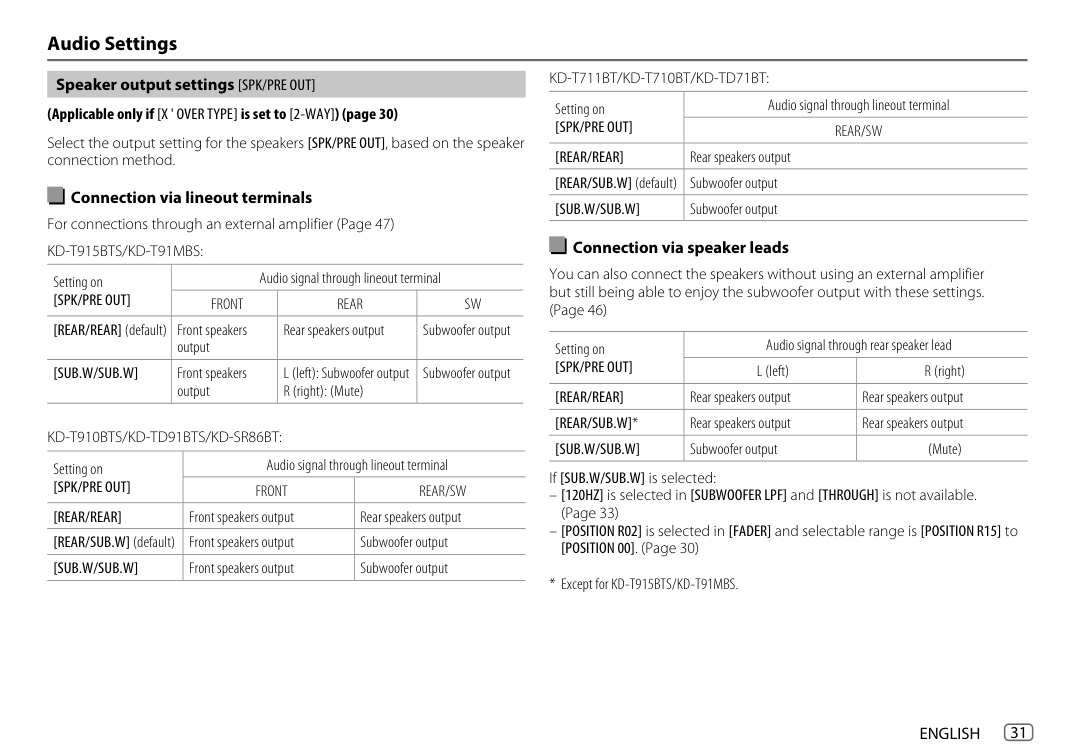
[SPK/PRE OUT] (Not applicable when 3-way crossover is selected.) Depending on the speaker connection method, select the appropriate setting for the desired output. (See “Speaker output settings” on page 31.)
[SPEAKER SIZE] Depending on the crossover type you have selected (see the following [X ' OVER TYPE]), 2-way crossover or 3-way crossover setting items will be shown. (See “Crossover settings” on page 32.) By default, 2-way crossover type is selected.
[X ' OVER]
[DTA SETTINGS]
For settings, see “Digital Time Alignment settings” on page 34.
[CAR SETTINGS] [X ' OVER TYPE] Caution: Adjusts the volume before changing the [X ' OVER TYPE] to avoid
the sudden increase or decrease of the output level.
KD-T711BT/KD-T710BT/KD-TD71BT:
Speaker output settings [SPK/PRE OUT]
|Setting on [SPK/PRE OUT]|Audio signal through lineout terminal| |---|---| |Setting on [SPK/PRE OUT]|REAR/SW| |[REAR/REAR]|Rear speakers output| |[REAR/SUB.W] (default)|Subwoofer output| |[SUB.W/SUB.W]|Subwoofer output|
(Applicable only if [X ' OVER TYPE ] is set to [2-WAY]) (page 30)
Select the output setting for the speakers [SPK/PRE OUT], based on the speaker connection method.
Connection via lineout terminals For connections through an external amplifier (Page 47) KD-T915BTS/KD-T91MBS:
################## Connection via speaker leads
|Setting on [SPK/PRE OUT]|Audio signal through lineout terminal|Audio signal through lineout terminal|Audio signal through lineout terminal| |---|---|---|---| |Setting on [SPK/PRE OUT]|FRONT|REAR|SW| |[REAR/REAR] (default)|Front speakers output|Rear speakers output|Subwoofer output| |[SUB.W/SUB.W]|Front speakers output|L (left): Subwoofer output R (right): (Mute)|Subwoofer output|
You can also connect the speakers without using an external amplifier but still being able to enjoy the subwoofer output with these settings. (Page 46)
|Setting on [SPK/PRE OUT]|Audio signal through rear speaker lead|Audio signal through rear speaker lead| |---|---|---| |Setting on [SPK/PRE OUT]|L (left)|R (right)| |[REAR/REAR]|Rear speakers output|Rear speakers output| |[REAR/SUB.W]*|Rear speakers output|Rear speakers output| |[SUB.W/SUB.W]|Subwoofer output|(Mute)|
KD-T910BTS/KD-TD91BTS/KD-SR86BT:
|Setting on [SPK/PRE OUT]|Audio signal through lineout terminal|Audio signal through lineout terminal| |---|---|---| |Setting on [SPK/PRE OUT]|FRONT|REAR/SW| |[REAR/REAR]|Front speakers output|Rear speakers output| |[REAR/SUB.W] (default)|Front speakers output|Subwoofer output| |[SUB.W/SUB.W]|Front speakers output|Subwoofer output|
If [SUB.W/SUB.W] is selected: [120HZ] is selected in [SUBWOOFER LPF] and [THROUGH] is not available. (Page 33) [POSITION R02] is selected in [FADER] and selectable range is [POSITION R15] to [POSITION 00]. (Page 30)
################## 2-way crossover setting items [SPEAKER SIZE]
################## Crossover settings
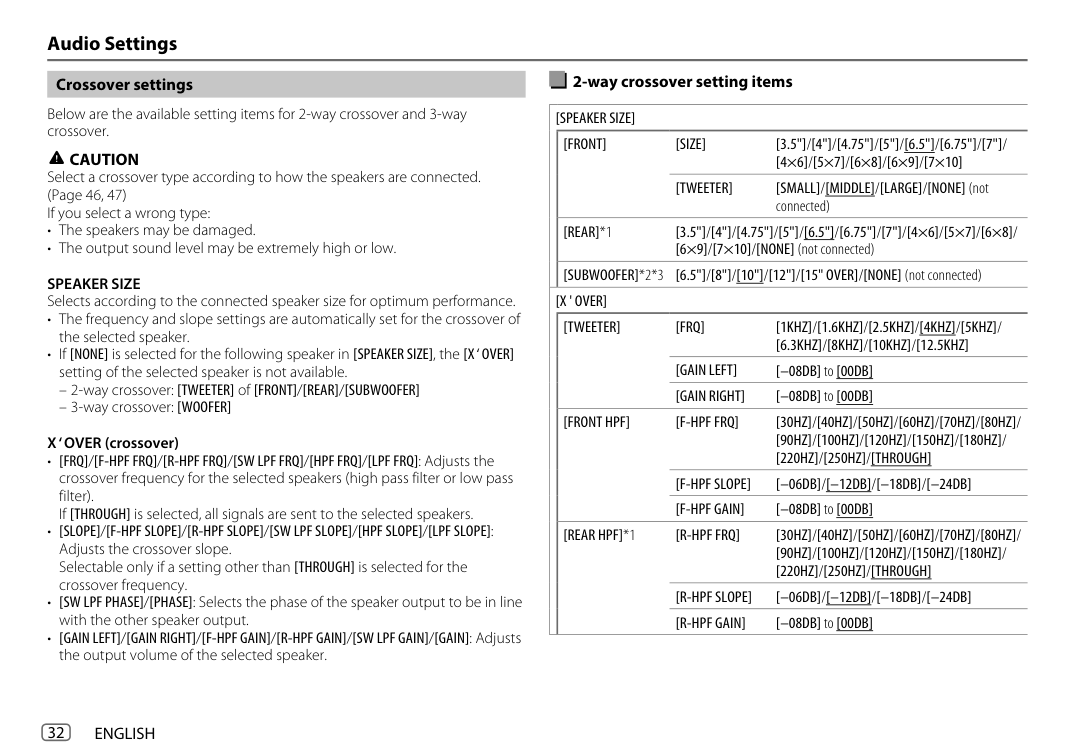
Below are the available setting items for 2-way crossover and 3-way crossover.
[FRONT] [SIZE] [3.5"]/[4"]/[4.75"]/[5"]/[6.5"]/[6.75"]/[7"]/ [4×6]/[5×7]/[6×8]/[6×9]/[7×10]
CAUTION Select a crossover type according to how the speakers are connected. (Page 46, 47) If you select a wrong type:
[TWEETER] [SMALL]/[MIDDLE]/[LARGE]/[NONE] (not
connected)
SPEAKER SIZE Selects according to the connected speaker size for optimum performance.
[REAR]*1 [3.5"]/[4"]/[4.75"]/[5"]/[6.5"]/[6.75"]/[7"]/[4×6]/[5×7]/[6×8]/
[6×9]/[7×10]/[NONE] (not connected) [SUBWOOFER]*2*3 [6.5"]/[8"]/[10"]/[12"]/[15" OVER]/[NONE] (not connected) [X ' OVER]
[TWEETER] [FRQ] [1KHZ]/[1.6KHZ]/[2.5KHZ]/[4KHZ]/[5KHZ]/ [6.3KHZ]/[8KHZ]/[10KHZ]/[12.5KHZ]
[GAIN LEFT] [–08DB] to [00DB] [GAIN RIGHT] [–08DB] to [00DB]
[FRONT HPF] [F-HPF FRQ] [30HZ]/[40HZ]/[50HZ]/[60HZ]/[70HZ]/[80HZ]/ [90HZ]/[100HZ]/[120HZ]/[150HZ]/[180HZ]/ [220HZ]/[250HZ]/[THROUGH]
X ‘ OVER (crossover)
[F-HPF SLOPE] [–06DB]/[–12DB]/[–18DB]/[–24DB] [F-HPF GAIN] [–08DB] to [00DB]
[REAR HPF]*1 [R-HPF FRQ] [30HZ]/[40HZ]/[50HZ]/[60HZ]/[70HZ]/[80HZ]/ [90HZ]/[100HZ]/[120HZ]/[150HZ]/[180HZ]/ [220HZ]/[250HZ]/[THROUGH]
[R-HPF SLOPE] [–06DB]/[–12DB]/[–18DB]/[–24DB] [R-HPF GAIN] [–08DB] to [00DB]
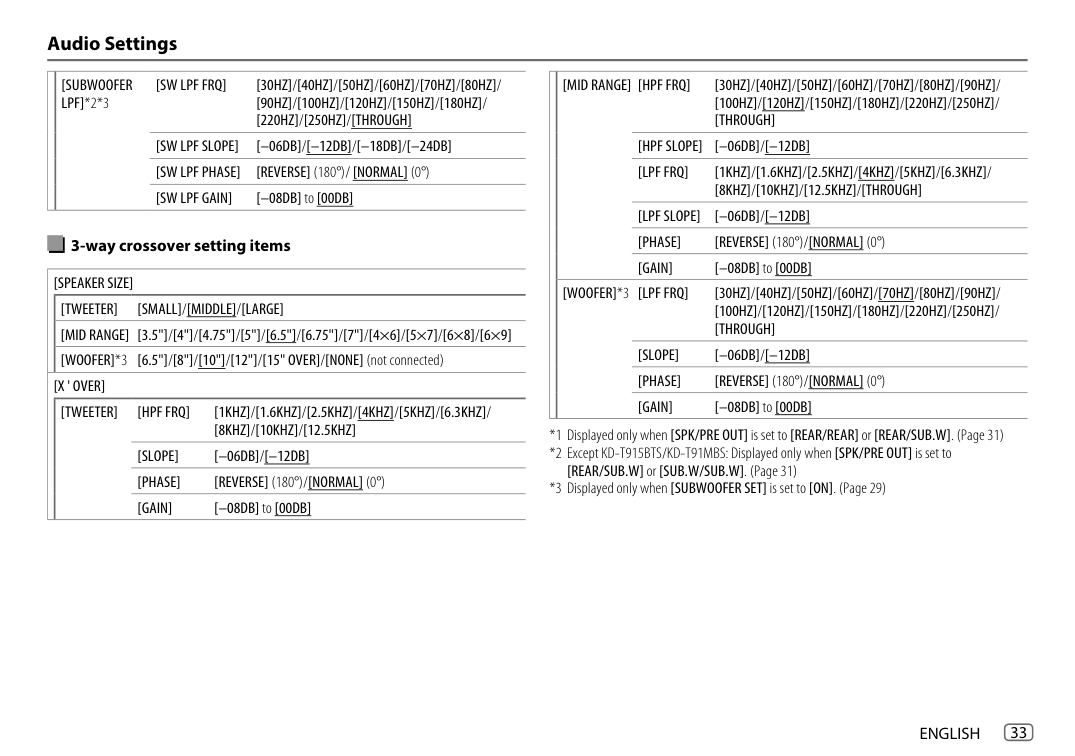
| |[MID RANGE] [HPF FRQ] [30HZ]/[40HZ]/[50HZ]/[60HZ]/[70HZ]/[80HZ]/[90HZ]/ [100HZ]/[120HZ]/[150HZ]/[180HZ]/[220HZ]/[250HZ]/ [THROUGH]
[HPF SLOPE] [–06DB]/[–12DB] [LPF FRQ] [1KHZ]/[1.6KHZ]/[2.5KHZ]/[4KHZ]/[5KHZ]/[6.3KHZ]/
[8KHZ]/[10KHZ]/[12.5KHZ]/[THROUGH] [LPF SLOPE] [–06DB]/[–12DB] [PHASE] [REVERSE] (180°)/[NORMAL] (0°) [GAIN] [–08DB] to [00DB]
| |---|---| | |[WOOFER]*3 [LPF FRQ] [30HZ]/[40HZ]/[50HZ]/[60HZ]/[70HZ]/[80HZ]/[90HZ]/ [100HZ]/[120HZ]/[150HZ]/[180HZ]/[220HZ]/[250HZ]/ [THROUGH]
[SLOPE] [–06DB]/[–12DB] [PHASE] [REVERSE] (180°)/[NORMAL] (0°) [GAIN] [–08DB] to [00DB]
|
[SUBWOOFER LPF]*2*3
[SW LPF FRQ] [30HZ]/[40HZ]/[50HZ]/[60HZ]/[70HZ]/[80HZ]/ [90HZ]/[100HZ]/[120HZ]/[150HZ]/[180HZ]/ [220HZ]/[250HZ]/[THROUGH]
[SW LPF SLOPE] [–06DB]/[–12DB]/[–18DB]/[–24DB] [SW LPF PHASE] [REVERSE] (180°)/ [NORMAL] (0°) [SW LPF GAIN] [–08DB] to [00DB]
################## 3-way crossover setting items
[SPEAKER SIZE] [TWEETER] [SMALL]/[MIDDLE]/[LARGE] [MID RANGE] [3.5"]/[4"]/[4.75"]/[5"]/[6.5"]/[6.75"]/[7"]/[4×6]/[5×7]/[6×8]/[6×9] [WOOFER]*3 [6.5"]/[8"]/[10"]/[12"]/[15" OVER]/[NONE] (not connected)
[X ' OVER] [TWEETER] [HPF FRQ] [1KHZ]/[1.6KHZ]/[2.5KHZ]/[4KHZ]/[5KHZ]/[6.3KHZ]/
[8KHZ]/[10KHZ]/[12.5KHZ] [SLOPE] [–06DB]/[–12DB] [PHASE] [REVERSE] (180°)/[NORMAL] (0°) [GAIN] [–08DB] to [00DB]
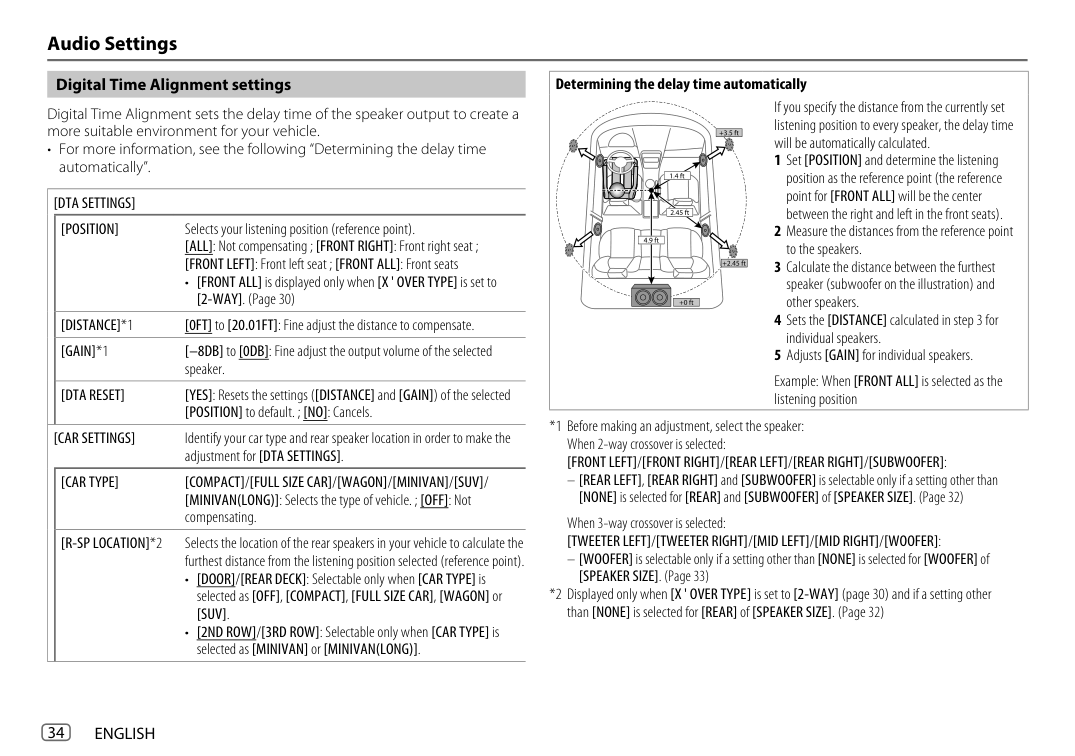
|Determining the delay time automatically
If you specify the distance from the currently set listening position to every speaker, the delay time will be automatically calculated.
1 Set[POSITION] and determine the listening position as the reference point (the reference point for [FRONT ALL] will be the center between the right and left in the front seats).
2 Measure the distances from the reference point to the speakers.
3 Calculate the distance between the furthest speaker (subwoofer on the illustration) and other speakers.
4 Sets the [DISTANCE] calculated in step 3 for individual speakers.
5 Adjusts [GAIN] for individual speakers.
Example: When [FRONT ALL] is selected as the listening position| |---|
################## Digital Time Alignment settings
Digital Time Alignment sets the delay time of the speaker output to create a more suitable environment for your vehicle.
• For more information, see the following “Determining the delay time
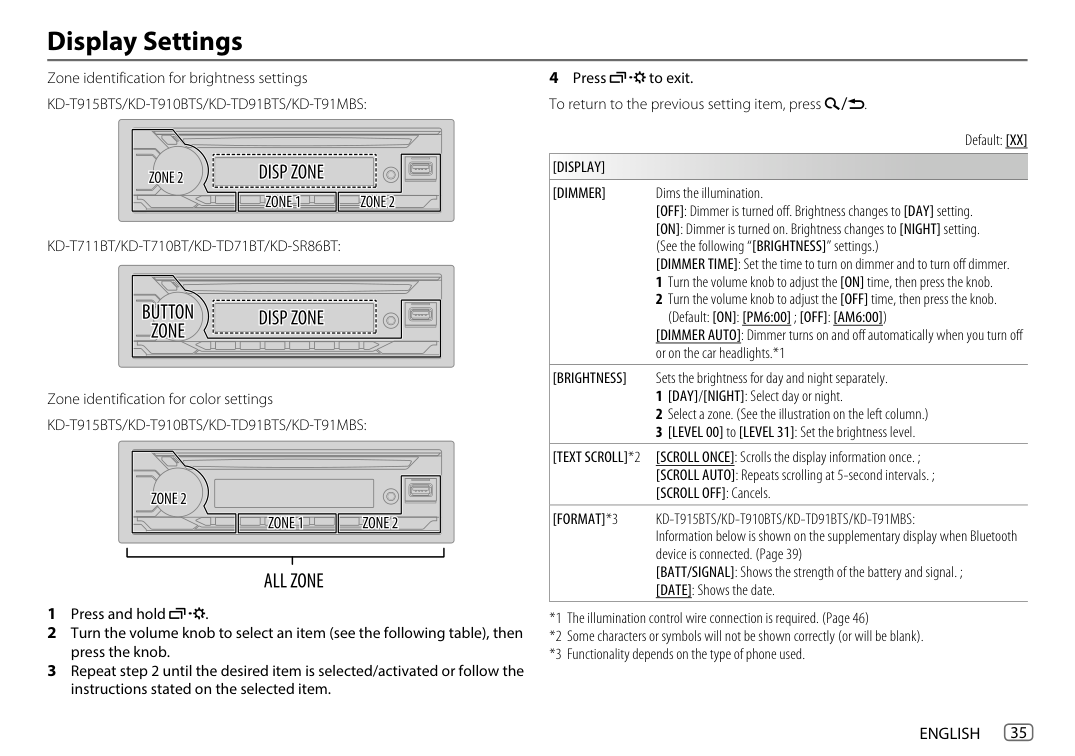
automatically”. [DTA SETTINGS]
[POSITION] Selects your listening position (reference point). [ALL]: Not compensating ; [FRONT RIGHT]: Front right seat ; [FRONT LEFT]: Front left seat ; [FRONT ALL]: Front seats
• [FRONT ALL] is displayed only when [X ' OVER TYPE] is set to
[2-WAY]. (Page 30) [DISTANCE]*1 [0FT] to [20.01FT]: Fine adjust the distance to compensate. [GAIN]*1 [–8DB] to [0DB]: Fine adjust the output volume of the selected
speaker.
[DTA RESET] [YES]: Resets the settings ([DISTANCE] and [GAIN]) of the selected [POSITION] to default. ; [NO]: Cancels.
– [REAR LEFT],[REAR RIGHT]and[SUBWOOFER]is selectable only if a setting other than
[NONE]is selected for[REAR]and[SUBWOOFER]of[SPEAKER SIZE]. (Page 32)
– [WOOFER]is selectable only if a setting other than[NONE]is selected for[WOOFER]of
[SPEAKER SIZE]. (Page 33)
[CAR SETTINGS] Identify your car type and rear speaker location in order to make the
adjustment for [DTA SETTINGS].
[CAR TYPE] [COMPACT]/[FULL SIZE CAR]/[WAGON]/[MINIVAN]/[SUV]/ [MINIVAN(LONG)]: Selects the type of vehicle. ; [OFF]: Not compensating.
[R-SP LOCATION]*2 Selects the location of the rear speakers in your vehicle to calculate the furthest distance from the listening position selected (reference point).
Display Settings Zone identification for brightness settings KD-T915BTS/KD-T910BTS/KD-TD91BTS/KD-T91MBS:
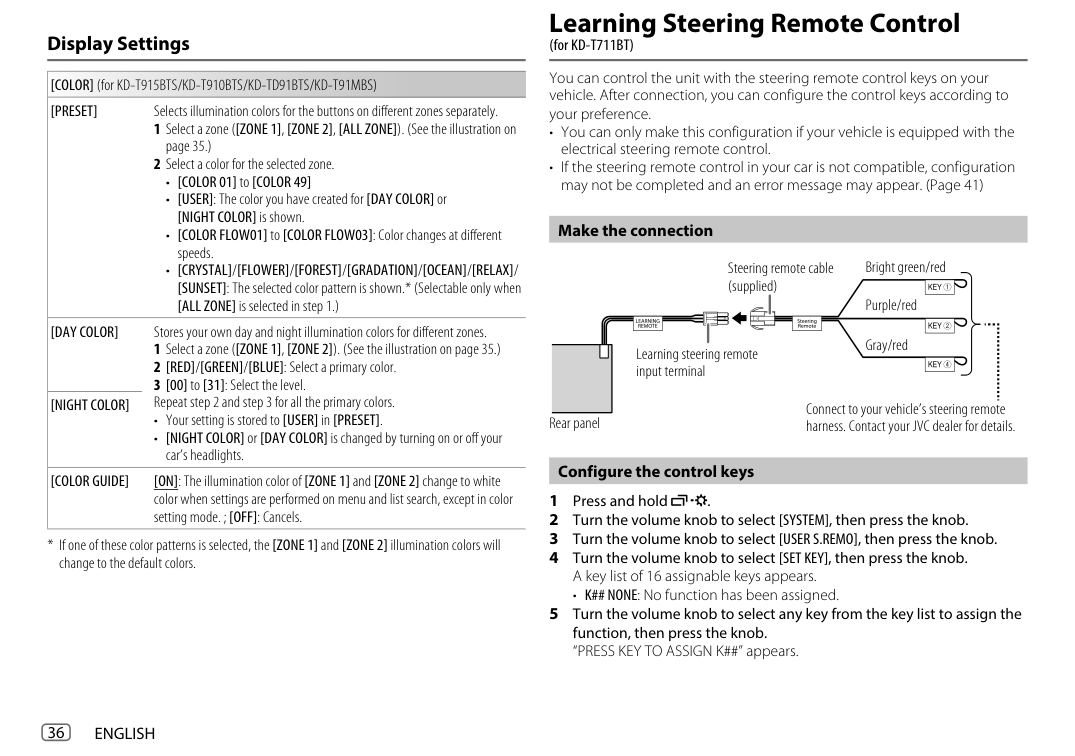
4 Press to exit. To return to the previous setting item, press .
Default: [XX]
[DISPLAY] [DIMMER] Dims the illumination.
[OFF]: Dimmer is turned off. Brightness changes to [DAY] setting. [ON]: Dimmer is turned on. Brightness changes to [NIGHT] setting. (See the following “[BRIGHTNESS]” settings.) [DIMMER TIME]: Set the time to turn on dimmer and to turn off dimmer.
KD-T711BT/KD-T710BT/KD-TD71BT/KD-SR86BT:
[DIMMER AUTO]: Dimmer turns on and off automatically when you turn off or on the car headlights.*1
[BRIGHTNESS] Sets the brightness for day and night separately. 1 [DAY]/[NIGHT]: Select day or night. 2 Select a zone. (See the illustration on the left column.) 3 [LEVEL 00] to [LEVEL 31]: Set the brightness level.
Zone identification for color settings KD-T915BTS/KD-T910BTS/KD-TD91BTS/KD-T91MBS:
[TEXT SCROLL]*2 [SCROLL ONCE]: Scrolls the display information once. ; [SCROLL AUTO]: Repeats scrolling at 5-second intervals. ; [SCROLL OFF]: Cancels.
[FORMAT]*3 KD-T915BTS/KD-T910BTS/KD-TD91BTS/KD-T91MBS: Information below is shown on the supplementary display when Bluetooth device is connected. (Page 39) [BATT/SIGNAL]: Shows the strength of the battery and signal. ; [DATE]: Shows the date.
| | | |---|---| | | |
############# Display Settings
[COLOR] (for KD-T915BTS/KD-T910BTS/KD-TD91BTS/KD-T91MBS) [PRESET] Selects illumination colors for the buttons on different zones separately.
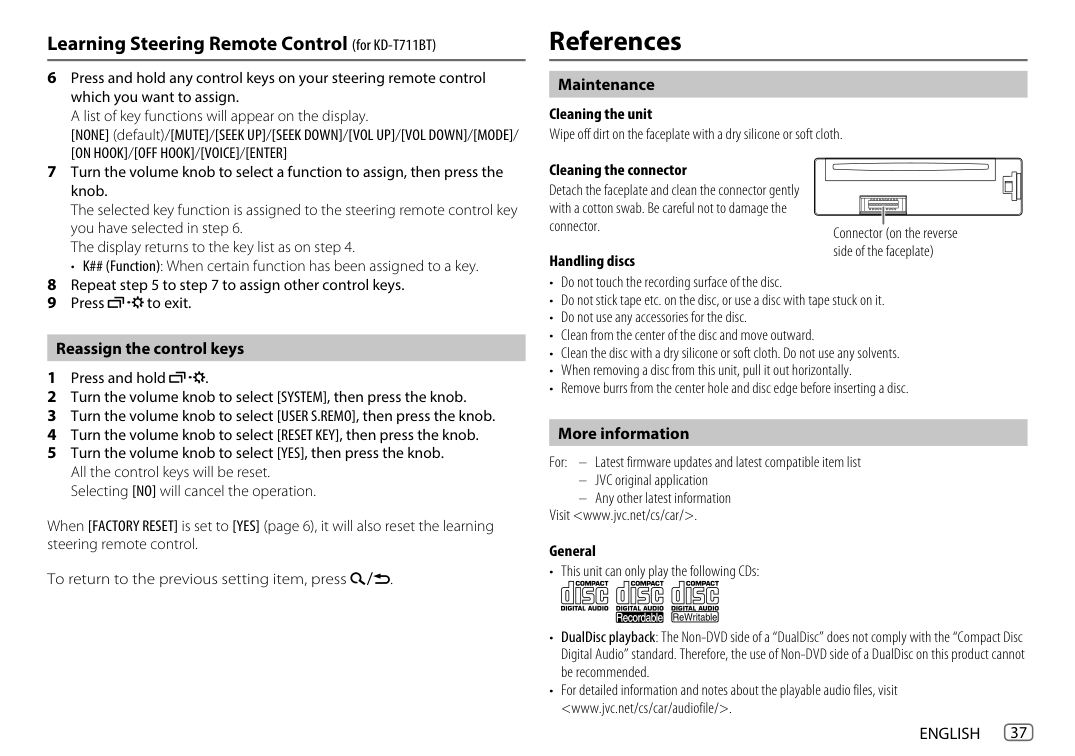
1 Select a zone ([ZONE 1], [ZONE 2], [ALL ZONE]). (See the illustration on
page 35.)
2 Select a color for the selected zone.
[DAY COLOR] Stores your own day and night illumination colors for different zones.
Repeat step 2 and step 3 for all the primary colors.
[NIGHT COLOR]
[COLOR GUIDE] [ON]: The illumination color of [ZONE 1] and [ZONE 2] change to white color when settings are performed on menu and list search, except in color setting mode. ; [OFF]: Cancels.
######### Learning Steering Remote Control
(for KD-T711BT)
You can control the unit with the steering remote control keys on your vehicle. After connection, you can configure the control keys according to your preference.
Make the connection
Bright green/red Purple/red
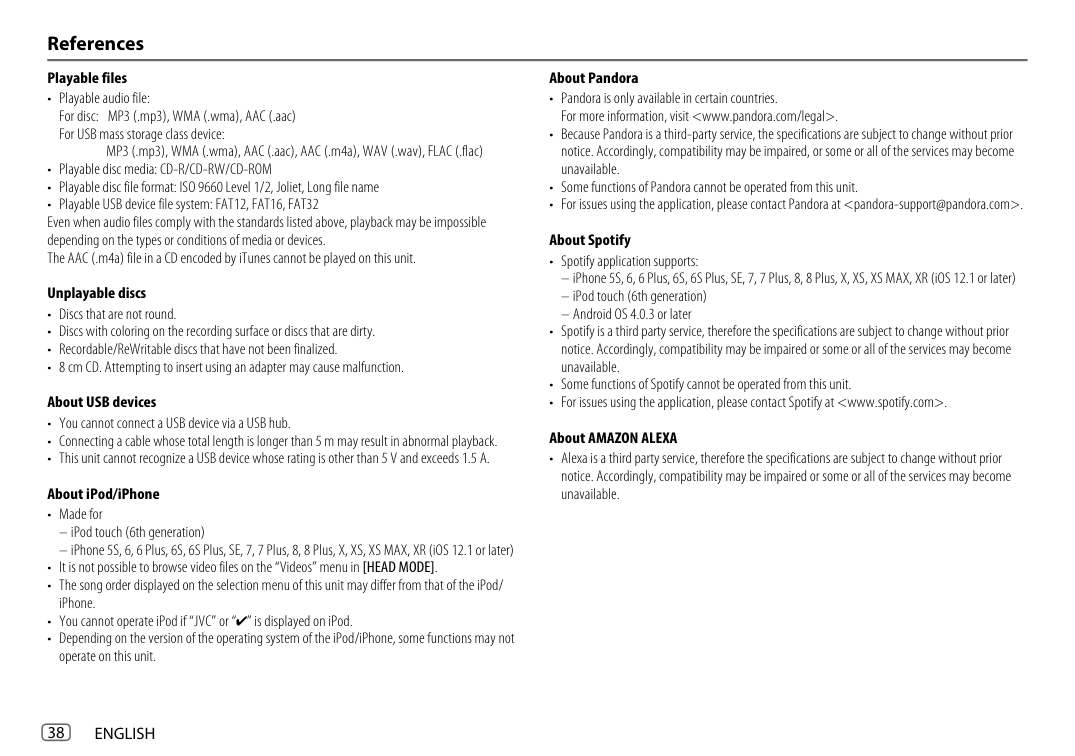
Steering remote cable (supplied)
Gray/red
Learning steering remote input terminal
Connect to your vehicle’s steering remote harness. Contact your JVC dealer for details.
Rear panel
Configure the control keys
• K## NONE: No function has been assigned.
############# Learning Steering Remote Control (for KD-T711BT)
• K## (Function): When certain function has been assigned to a key.
################## Reassign the control keys
When [FACTORY RESET] is set to [YES] (page 6), it will also reset the learning steering remote control.
To return to the previous setting item, press .
######### References
################## Maintenance
Cleaning the unit Wipe off dirt on the faceplate with a dry silicone or soft cloth.
Cleaning the connector Detach the faceplate and clean the connector gently with a cotton swab. Be careful not to damage the connector.
| | | | | | | |---|---|---|---|---|---| | | | | | | |
Connector (on the reverse side of the faceplate)
#################### Handling discs
################## More information
For: – Latest firmware updates and latest compatible item list
Visit
#################### About Pandora
#################### Playable files
MP3 (.mp3), WMA (.wma), AAC (.aac), AAC (.m4a), WAV (.wav), FLAC (.flac)
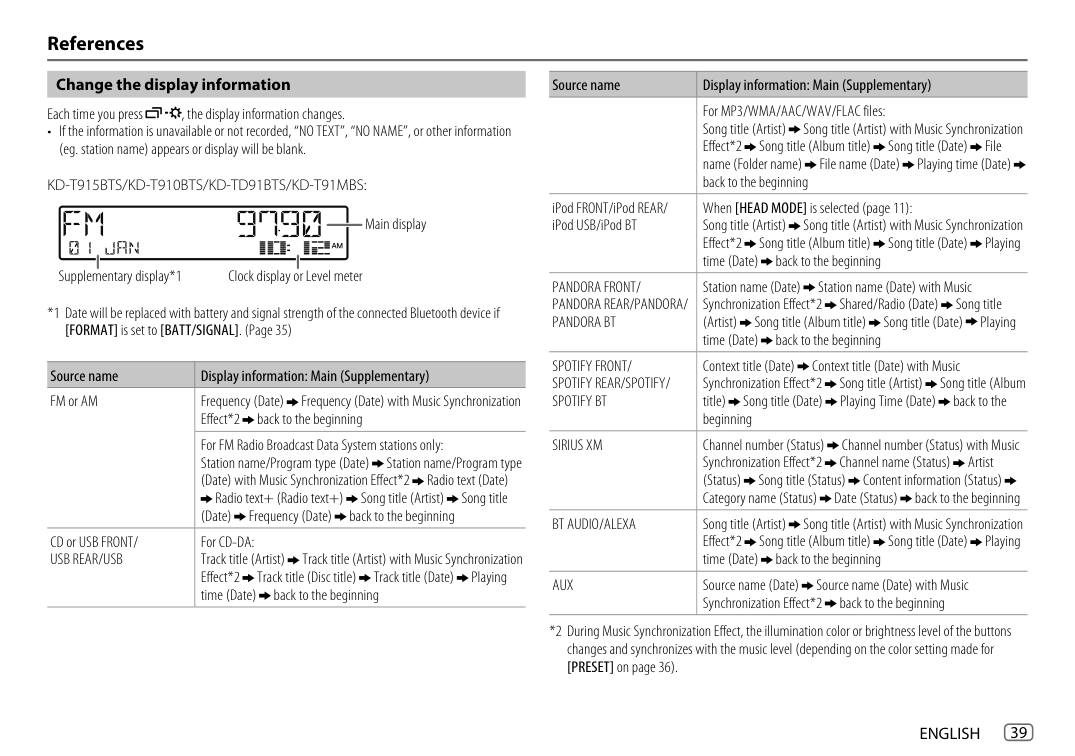
|Source name|Display information: Main (Supplementary)| |---|---| | |For MP3/WMA/AAC/WAV/FLAC files: Song title (Artist) Song title (Artist) with Music Synchronization Effect*2 Song title (Album title) Song title (Date) File name (Folder name) File name (Date) Playing time (Date) back to the beginning
| |iPod FRONT/iPod REAR/ iPod USB/iPod BT|When [HEAD MODE] is selected (page 11): Song title (Artist) Song title (Artist) with Music Synchronization Effect*2 Song title (Album title) Song title (Date) Playing time (Date) back to the beginning
| |PANDORA FRONT/ PANDORA REAR/PANDORA/ PANDORA BT|Station name (Date) Station name (Date) with Music Synchronization Effect*2 Shared/Radio (Date) Song title (Artist) Song title (Album title) Song title (Date) Playing time (Date) back to the beginning
| |SPOTIFY FRONT/ SPOTIFY REAR/SPOTIFY/ SPOTIFY BT|Context title (Date) Context title (Date) with Music Synchronization Effect*2 Song title (Artist) Song title (Album title) Song title (Date) Playing Time (Date) back to the beginning
| |SIRIUS XM|Channel number (Status) Channel number (Status) with Music Synchronization Effect*2 Channel name (Status) Artist (Status) Song title (Status) Content information (Status) Category name (Status) Date (Status) back to the beginning
| |BT AUDIO/ALEXA|Song title (Artist) Song title (Artist) with Music Synchronization Effect*2 Song title (Album title) Song title (Date) Playing time (Date) back to the beginning
| |AUX|Source name (Date) Source name (Date) with Music Synchronization Effect*2 back to the beginning
|
################## Change the display information
Each time you press , the display information changes.
• If the information is unavailable or not recorded, “NO TEXT”, “NO NAME”, or other information (eg. station name) appears or display will be blank.
KD-T915BTS/KD-T910BTS/KD-TD91BTS/KD-T91MBS:
Main display
Clock display or Level meterSupplementary display*1
*1 Date will be replaced with battery and signal strength of the connected Bluetooth device if
[FORMAT] is set to [BATT/SIGNAL]. (Page 35)
|Source name|Display information: Main (Supplementary)| |---|---| |FM or AM|Frequency (Date) Frequency (Date) with Music Synchronization Effect*2 back to the beginning
| |FM or AM|For FM Radio Broadcast Data System stations only: Station name/Program type (Date) Station name/Program type (Date) with Music Synchronization Effect*2 Radio text (Date)
Radio text+ (Radio text+) Song title (Artist) Song title (Date) Frequency (Date) back to the beginning
| |CD or USB FRONT/ USB REAR/USB|For CD-DA: Track title (Artist) Track title (Artist) with Music Synchronization Effect*2 Track title (Disc title) Track title (Date) Playing time (Date) back to the beginning
|
*2 During Music Synchronization Effect, the illumination color or brightness level of the buttons changes and synchronizes with the music level (depending on the color setting made for [PRESET] on page 36).
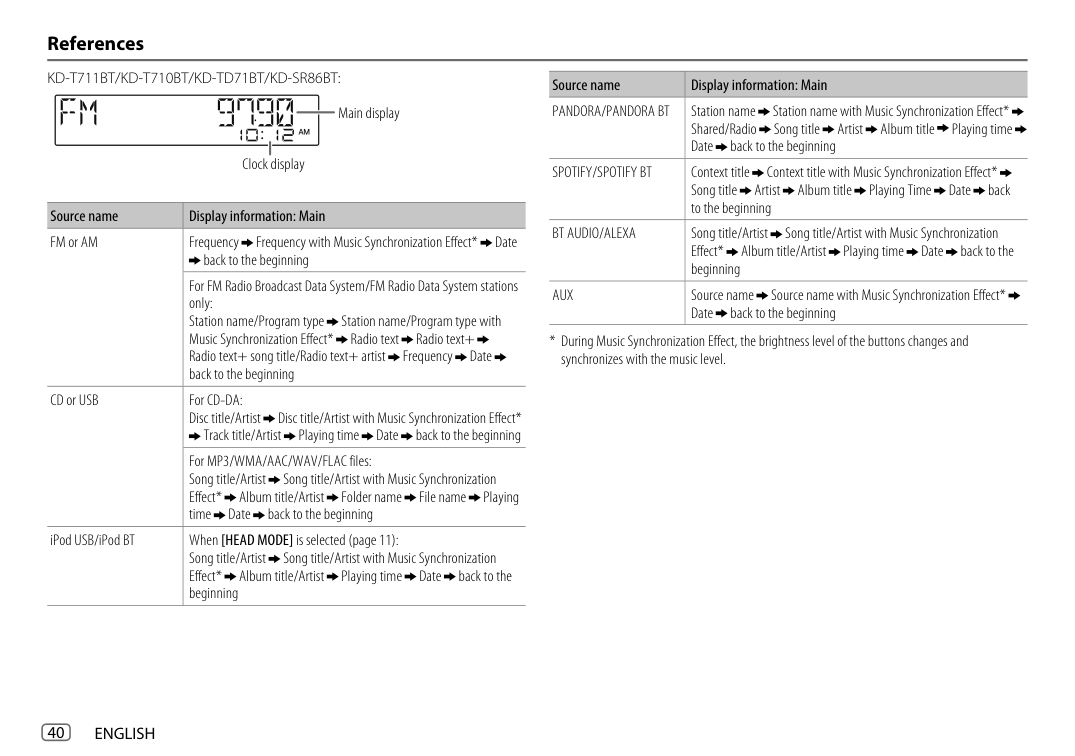
KD-T711BT/KD-T710BT/KD-TD71BT/KD-SR86BT:
|Source name|Display information: Main| |---|---| |PANDORA/PANDORA BT|Station name Station name with Music Synchronization Effect* Shared/Radio Song title Artist Album title Playing time Date back to the beginning
| |SPOTIFY/SPOTIFY BT|Context title Context title with Music Synchronization Effect* Song title Artist Album title Playing Time Date back to the beginning
| |BT AUDIO/ALEXA|Song title/Artist Song title/Artist with Music Synchronization Effect* Album title/Artist Playing time Date back to the beginning
| |AUX|Source name Source name with Music Synchronization Effect* Date back to the beginning
|
Main display
Clock display
|Source name|Display information: Main| |---|---| |FM or AM|Frequency Frequency with Music Synchronization Effect* Date
back to the beginning| |FM or AM|For FM Radio Broadcast Data System/FM Radio Data System stations only: Station name/Program type Station name/Program type with Music Synchronization Effect* Radio text Radio text+ Radio text+ song title/Radio text+ artist Frequency Date back to the beginning
| |CD or USB|For CD-DA: Disc title/Artist Disc title/Artist with Music Synchronization Effect*
Track title/Artist Playing time Date back to the beginning
| |CD or USB|For MP3/WMA/AAC/WAV/FLAC files: Song title/Artist Song title/Artist with Music Synchronization Effect* Album title/Artist Folder name File name Playing time Date back to the beginning
| |iPod USB/iPod BT|When [HEAD MODE] is selected (page 11): Song title/Artist Song title/Artist with Music Synchronization Effect* Album title/Artist Playing time Date back to the beginning
|
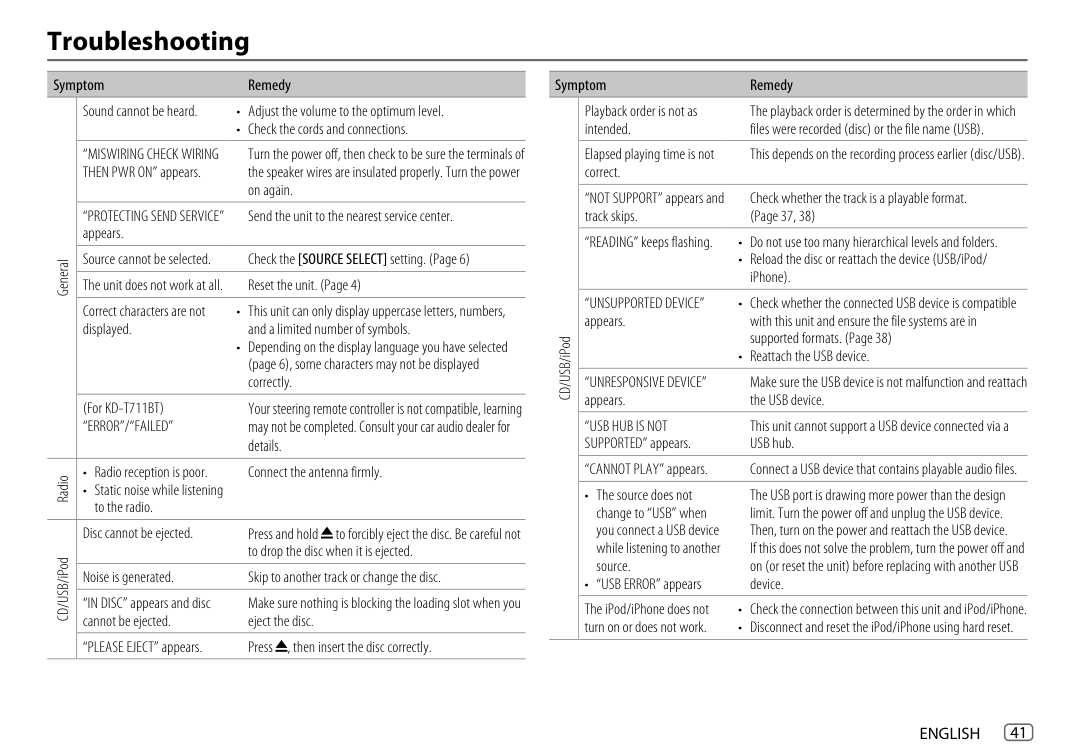
######### Troubleshooting
Symptom Remedy
|General|Sound cannot be heard. • Adjust the volume to the optimum level.
• Check the cords and connections.| |---|---| |General|“MISWIRING CHECK WIRING THEN PWR ON” appears.
Turn the power off, then check to be sure the terminals of the speaker wires are insulated properly. Turn the power on again.| |General|“PROTECTING SEND SERVICE” appears.
Send the unit to the nearest service center.| |General|Source cannot be selected. Check the [SOURCE SELECT] setting. (Page 6)| |General|The unit does not work at all. Reset the unit. (Page 4)| |General|Correct characters are not displayed.
• This unit can only display uppercase letters, numbers, and a limited number of symbols.
• Depending on the display language you have selected (page 6), some characters may not be displayed correctly.
| |General|(For KD-T711BT) “ERROR”/“FAILED”
Your steering remote controller is not compatible, learning may not be completed. Consult your car audio dealer for details.| |Radio|• Radio reception is poor.
• Static noise while listening to the radio.
Connect the antenna firmly.| |CD/USB/iPod|Disc cannot be ejected. Press and hold to forcibly eject the disc. Be careful not to drop the disc when it is ejected.
| |CD/USB/iPod|Noise is generated. Skip to another track or change the disc.| |CD/USB/iPod|“IN DISC” appears and disc cannot be ejected.
Make sure nothing is blocking the loading slot when you eject the disc.| |CD/USB/iPod|“PLEASE EJECT” appears. Press , then insert the disc correctly.
|
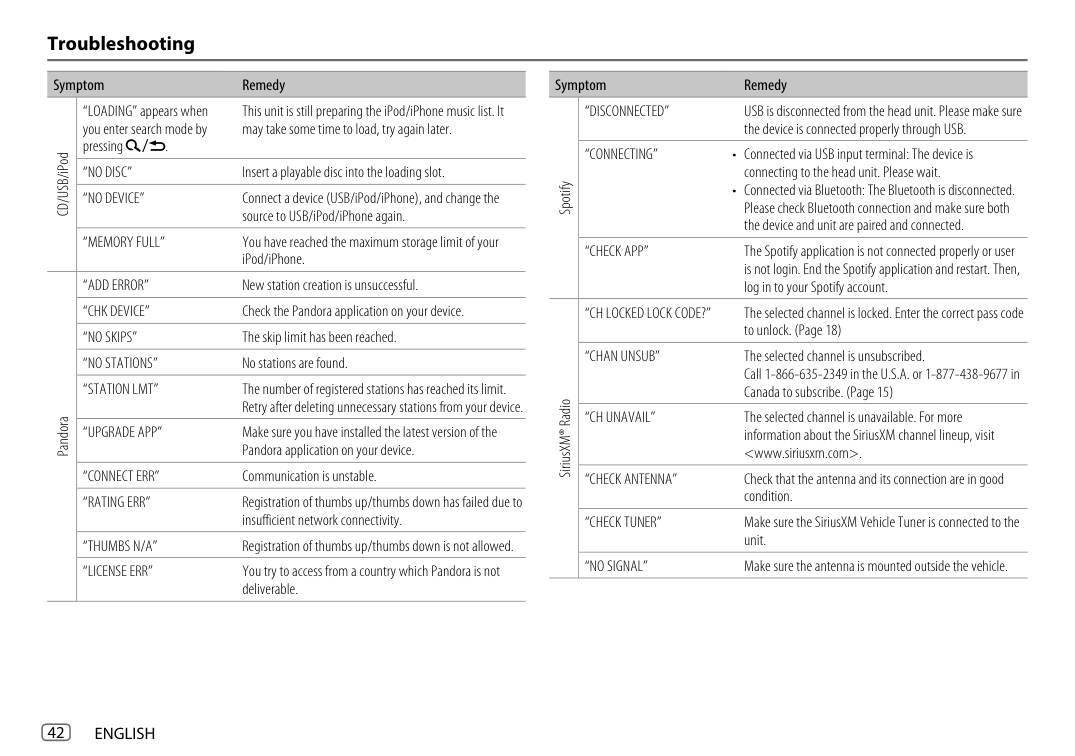
Symptom Remedy
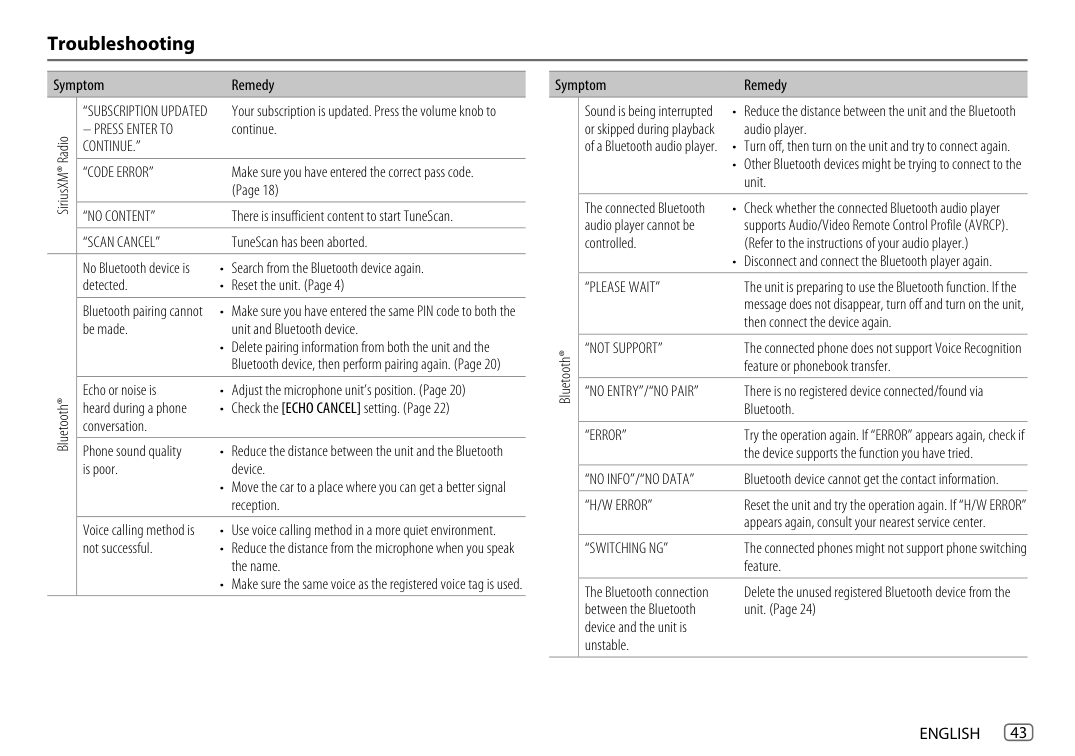
|CD/USB/iPod|Playback order is not as intended.
The playback order is determined by the order in which files were recorded (disc) or the file name (USB).| |---|---| |CD/USB/iPod|Elapsed playing time is not correct.
This depends on the recording process earlier (disc/USB).| |CD/USB/iPod|“NOT SUPPORT” appears and track skips.
Check whether the track is a playable format. (Page 37, 38)| |CD/USB/iPod|“READING” keeps flashing. • Do not use too many hierarchical levels and folders.
• Reload the disc or reattach the device (USB/iPod/ iPhone).| |CD/USB/iPod|“UNSUPPORTED DEVICE” appears.
• Check whether the connected USB device is compatible with this unit and ensure the file systems are in supported formats. (Page 38)
• Reattach the USB device.
| |CD/USB/iPod|“UNRESPONSIVE DEVICE” appears.
Make sure the USB device is not malfunction and reattach the USB device.| |CD/USB/iPod|“USB HUB IS NOT SUPPORTED” appears.
This unit cannot support a USB device connected via a USB hub.| |CD/USB/iPod|“CANNOT PLAY” appears. Connect a USB device that contains playable audio files.| |CD/USB/iPod|• The source does not change to “USB” when you connect a USB device while listening to another source.
• “USB ERROR” appears
The USB port is drawing more power than the design limit. Turn the power off and unplug the USB device. Then, turn on the power and reattach the USB device. If this does not solve the problem, turn the power off and on (or reset the unit) before replacing with another USB device.| |CD/USB/iPod|The iPod/iPhone does not turn on or does not work.
• Check the connection between this unit and iPod/iPhone.
• Disconnect and reset the iPod/iPhone using hard reset.
|
|Spotify|“DISCONNECTED” USB is disconnected from the head unit. Please make sure the device is connected properly through USB.| |---|---| |Spotify|“CONNECTING” • Connected via USB input terminal: The device is connecting to the head unit. Please wait.
• Connected via Bluetooth: The Bluetooth is disconnected. Please check Bluetooth connection and make sure both the device and unit are paired and connected.| |Spotify|“CHECK APP” The Spotify application is not connected properly or user is not login. End the Spotify application and restart. Then, log in to your Spotify account.| |SiriusXM® Radio|“CH LOCKED LOCK CODE?” The selected channel is locked. Enter the correct pass code to unlock. (Page 18)| |SiriusXM® Radio|“CHAN UNSUB” The selected channel is unsubscribed. Call 1-866-635-2349 in the U.S.A. or 1-877-438-9677 in Canada to subscribe. (Page 15)| |SiriusXM® Radio|“CH UNAVAIL” The selected channel is unavailable. For more information about the SiriusXM channel lineup, visit
|CD/USB/iPod|“LOADING” appears when you enter search mode by pressing .
This unit is still preparing the iPod/iPhone music list. It may take some time to load, try again later.| |---|---| |CD/USB/iPod|“NO DISC” Insert a playable disc into the loading slot.| |CD/USB/iPod|“NO DEVICE” Connect a device (USB/iPod/iPhone), and change the source to USB/iPod/iPhone again.| |CD/USB/iPod|“MEMORY FULL” You have reached the maximum storage limit of your iPod/iPhone.| |Pandora|“ADD ERROR” New station creation is unsuccessful.| |Pandora|“CHK DEVICE” Check the Pandora application on your device.| |Pandora|“NO SKIPS” The skip limit has been reached.| |Pandora|“NO STATIONS” No stations are found.| |Pandora|“STATION LMT” The number of registered stations has reached its limit. Retry after deleting unnecessary stations from your device.| |Pandora|“UPGRADE APP” Make sure you have installed the latest version of the Pandora application on your device.| |Pandora|“CONNECT ERR” Communication is unstable.| |Pandora|“RATING ERR” Registration of thumbs up/thumbs down has failed due to insufficient network connectivity.| |Pandora|“THUMBS N/A” Registration of thumbs up/thumbs down is not allowed.| |Pandora|“LICENSE ERR” You try to access from a country which Pandora is not deliverable.|
|SiriusXM® Radio|“SUBSCRIPTION UPDATED
– PRESS ENTER TO CONTINUE.”
Your subscription is updated. Press the volume knob to continue.|
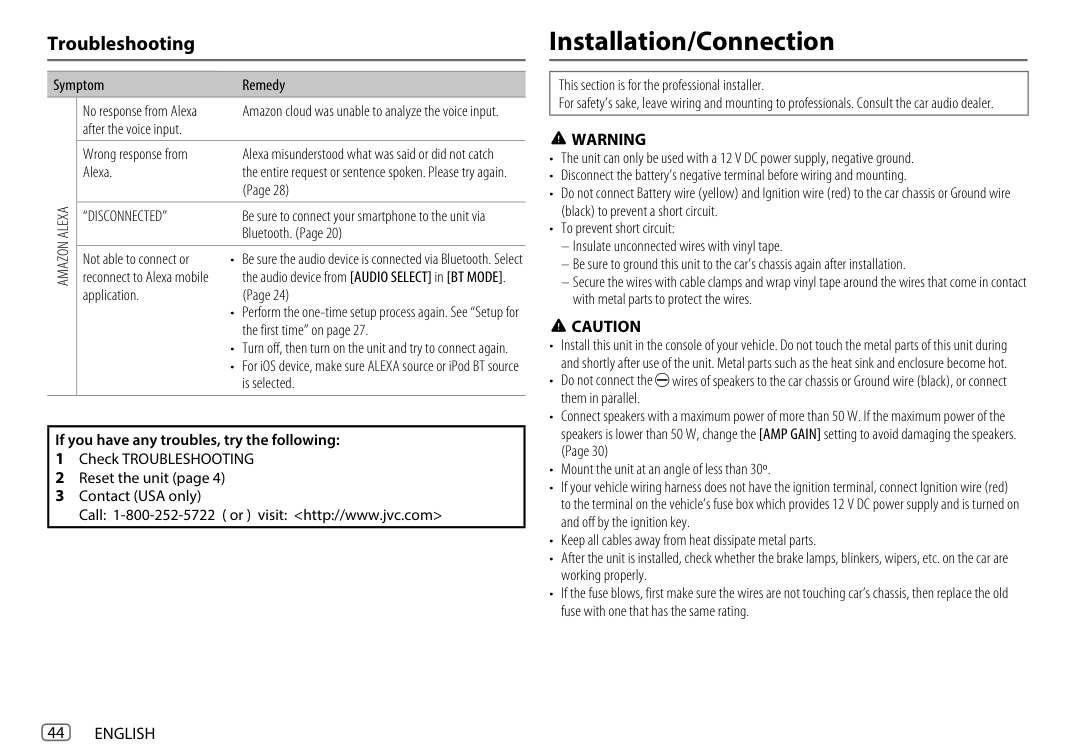
|---|---| |SiriusXM® Radio|“CODE ERROR” Make sure you have entered the correct pass code. (Page 18)| |SiriusXM® Radio|“NO CONTENT” There is insufficient content to start TuneScan.| |SiriusXM® Radio|“SCAN CANCEL” TuneScan has been aborted.| |Bluetooth®|No Bluetooth device is detected.
• Search from the Bluetooth device again.
• Reset the unit. (Page 4)
| |Bluetooth®|Bluetooth pairing cannot be made.
• Make sure you have entered the same PIN code to both the unit and Bluetooth device.
• Delete pairing information from both the unit and the Bluetooth device, then perform pairing again. (Page 20)
| |Bluetooth®|Echo or noise is heard during a phone conversation.
• Adjust the microphone unit’s position. (Page 20)
• Check the [ECHO CANCEL] setting. (Page 22)
| |Bluetooth®|Phone sound quality is poor.
• Reduce the distance between the unit and the Bluetooth device.
• Move the car to a place where you can get a better signal reception.
| |Bluetooth®|Voice calling method is not successful.
• Use voice calling method in a more quiet environment.
• Reduce the distance from the microphone when you speak the name.
• Make sure the same voice as the registered voice tag is used.
|
|Bluetooth®|Sound is being interrupted or skipped during playback of a Bluetooth audio player.
• Reduce the distance between the unit and the Bluetooth audio player.
• Turn off, then turn on the unit and try to connect again.
• Other Bluetooth devices might be trying to connect to the unit.
| |---|---| |Bluetooth®|The connected Bluetooth audio player cannot be controlled.
• Check whether the connected Bluetooth audio player supports Audio/Video Remote Control Profile (AVRCP). (Refer to the instructions of your audio player.)
• Disconnect and connect the Bluetooth player again.
| |Bluetooth®|“PLEASE WAIT” The unit is preparing to use the Bluetooth function. If the message does not disappear, turn off and turn on the unit, then connect the device again.| |Bluetooth®|“NOT SUPPORT” The connected phone does not support Voice Recognition feature or phonebook transfer.| |Bluetooth®|“NO ENTRY”/“NO PAIR” There is no registered device connected/found via Bluetooth.| |Bluetooth®|“ERROR” Try the operation again. If “ERROR” appears again, check if the device supports the function you have tried.| |Bluetooth®|“NO INFO”/“NO DATA” Bluetooth device cannot get the contact information.| |Bluetooth®|“H/W ERROR” Reset the unit and try the operation again. If “H/W ERROR” appears again, consult your nearest service center.| |Bluetooth®|“SWITCHING NG” The connected phones might not support phone switching feature.| |Bluetooth®|The Bluetooth connection between the Bluetooth device and the unit is unstable.
Delete the unused registered Bluetooth device from the unit. (Page 24)|
############# Troubleshooting
Symptom Remedy
|AMAZON ALEXA|No response from Alexa after the voice input.
Amazon cloud was unable to analyze the voice input.| |---|---| |AMAZON ALEXA|Wrong response from Alexa.
Alexa misunderstood what was said or did not catch the entire request or sentence spoken. Please try again. (Page 28)| |AMAZON ALEXA|“DISCONNECTED” Be sure to connect your smartphone to the unit via Bluetooth. (Page 20)| |AMAZON ALEXA|Not able to connect or reconnect to Alexa mobile application.
• Be sure the audio device is connected via Bluetooth. Select the audio device from [AUDIO SELECT] in [BT MODE]. (Page 24)
• Perform the one-time setup process again. See “Setup for the first time” on page 27.
• Turn off, then turn on the unit and try to connect again.
• For iOS device, make sure ALEXA source or iPod BT source is selected.
|
|If you have any troubles, try the following:
1 Check TROUBLESHOOTING
2 Reset the unit (page 4)
3 Contact (USA only) Call: 1-800-252-5722 ( or ) visit:
| |---|
######### Installation/Connection
|This section is for the professional installer. For safety’s sake, leave wiring and mounting to professionals. Consult the car audio dealer.| |---|
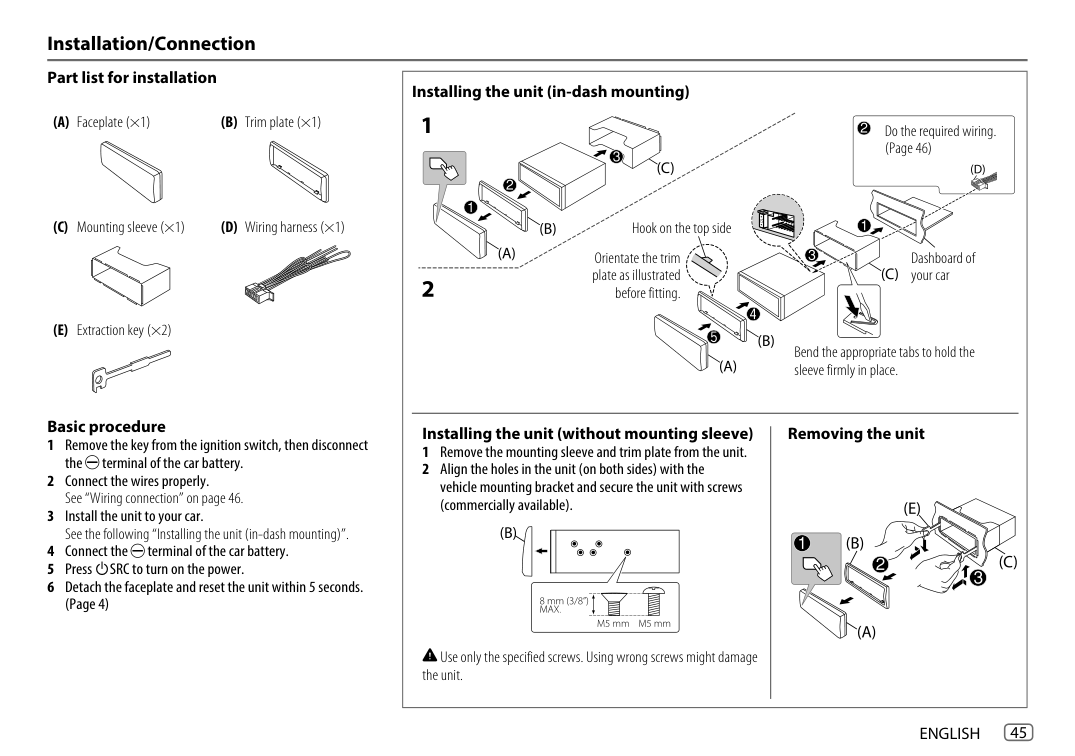
################## WARNING
CAUTION
################## Part list for installation
|Installing the unit (in-dash mounting)
Removing the unitInstalling the unit (without mounting sleeve)
1 Remove the mounting sleeve and trim plate from the unit.
2 Align the holes in the unit (on both sides) with the vehicle mounting bracket and secure the unit with screws (commercially available).
Use only the specified screws. Using wrong screws might damage the unit.
Do the required wiring. (Page 46)
Bend the appropriate tabs to hold the sleeve firmly in place.
Hook on the top side
Orientate the trim plate as illustrated
before fitting.
Dashboard of your car| |---|
(A) Faceplate (×1) (B) Trim plate (×1)
(C) Mounting sleeve (×1) (D) Wiring harness (×1)
(E) Extraction key (×2)
################## Basic procedure
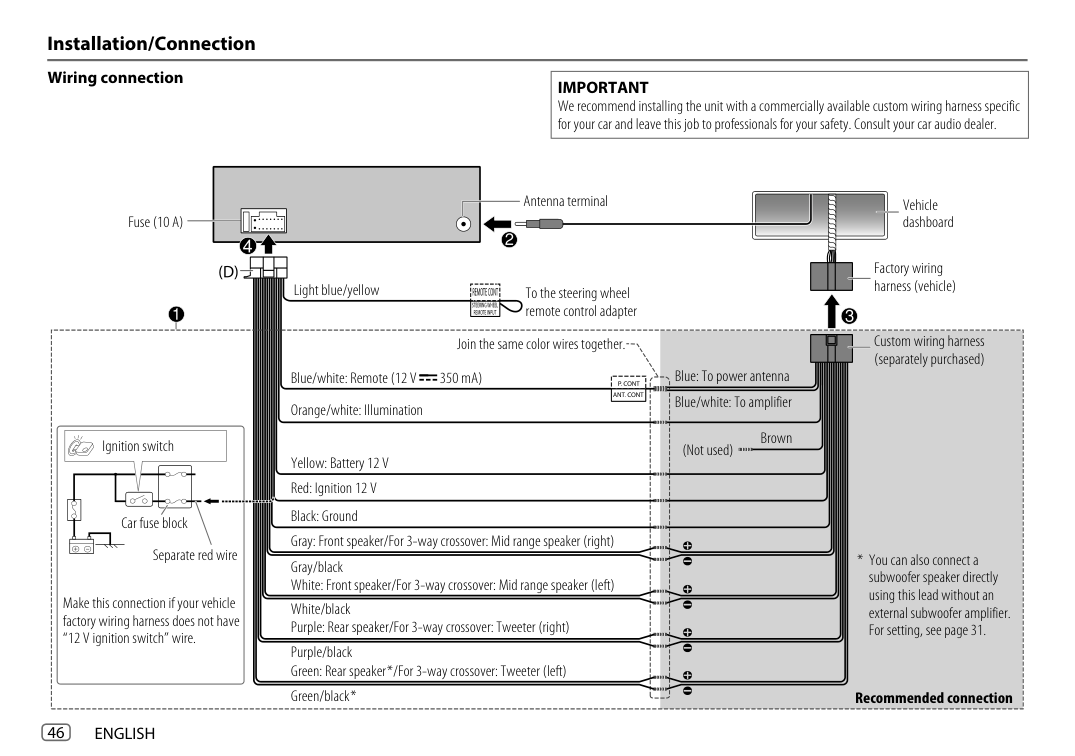
################## Wiring connection
|IMPORTANT We recommend installing the unit with a commercially available custom wiring harness specific for your car and leave this job to professionals for your safety. Consult your car audio dealer.| |---|
Fuse (10 A)
Ignition switch
Car fuse block
Separate red wire
Make this connection if your vehicle factory wiring harness does not have “12 V ignition switch” wire.
|Antenna terminal| | |---|---| | | |
Vehicle dashboard
Light blue/yellow To the steering wheel remote control adapter
Join the same color wires together.
Blue/white: Remote (12 V 350 mA)
Orange/white: Illumination
Yellow: Battery 12 V
Red: Ignition 12 V
Black: Ground
Gray: Front speaker/For 3-way crossover: Mid range speaker (right) Gray/black
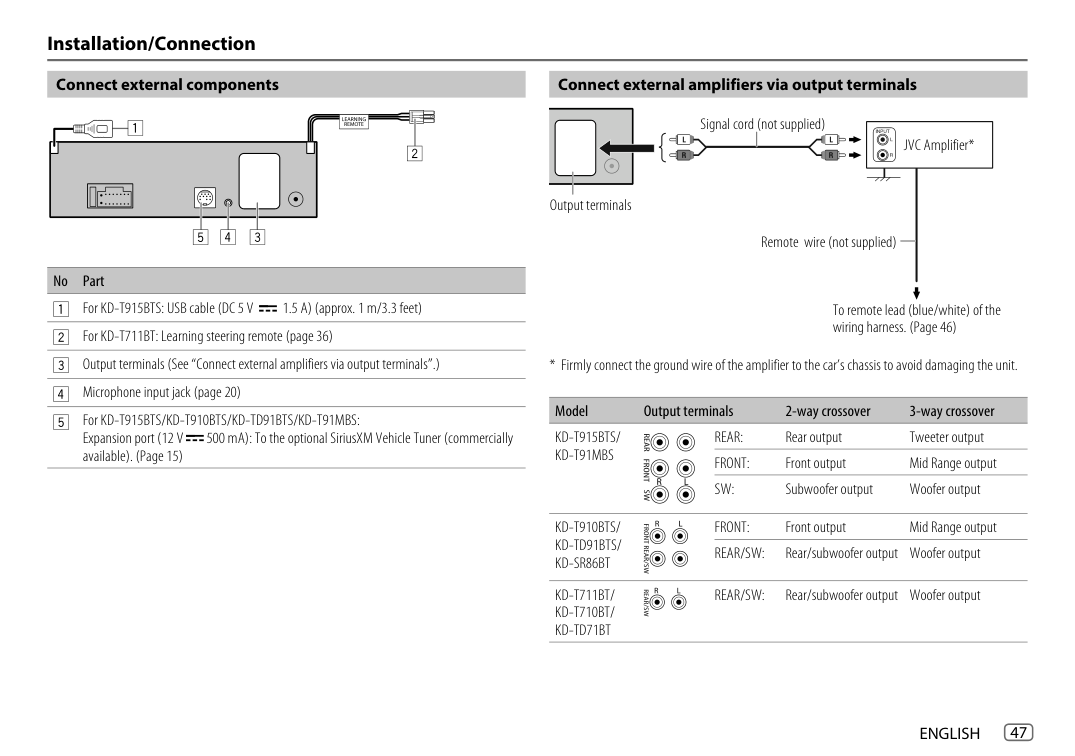
White: Front speaker/For 3-way crossover: Mid range speaker (left) White/black
Purple: Rear speaker/For 3-way crossover: Tweeter (right) Purple/black
Green: Rear speaker */For 3-way crossover: Tweeter (left) Green/black *
Factory wiring harness (vehicle)
| | | | | |---|---|---|---| | | | | |
Blue: To power antenna
| | | |---|---| | |Blue/white: To amplifier| | |(Not used)
Brown| | | | | | | | | |
Custom wiring harness (separately purchased)
Recommended connection
################## Connect external components
################## Connect external amplifiers via output terminals
No Part
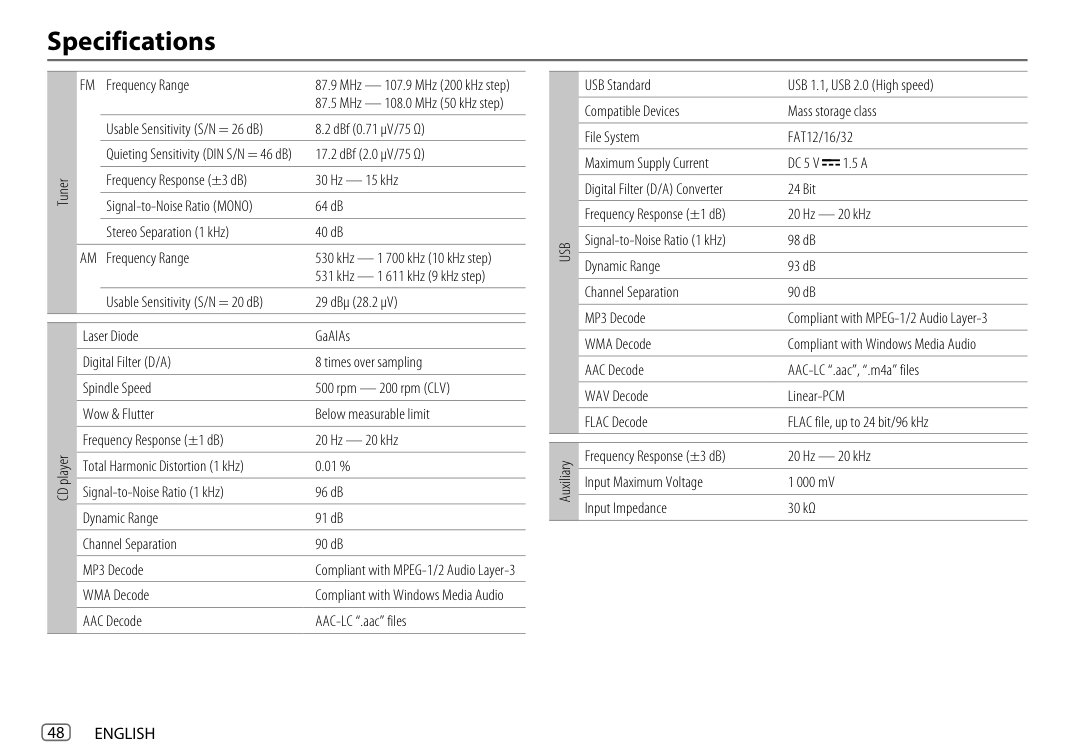
Output terminals
Signal cord (not supplied)
JVC Amplifier*
Remote wire (not supplied)
To remote lead (blue/white) of the wiring harness. (Page 46)
Model Output terminals 2-way crossover 3-way crossover
KD-T915BTS/ KD-T91MBS
REAR: Rear output Tweeter output FRONT: Front output Mid Range output SW: Subwoofer output Woofer output
KD-T910BTS/ KD-TD91BTS/ KD-SR86BT
FRONT: Front output Mid Range output REAR/SW: Rear/subwoofer output Woofer output
REAR/SW: Rear/subwoofer output Woofer output
KD-T711BT/ KD-T710BT/ KD-TD71BT
######### Specifications
FM Frequency Range 87.9 MHz — 107.9 MHz (200 kHz step)
USB Standard USB 1.1, USB 2.0 (High speed) Compatible Devices Mass storage class File System FAT12/16/32 Maximum Supply Current DC 5 V 1.5 A Digital Filter (D/A) Converter 24 Bit Frequency Response (±1 dB) 20 Hz — 20 kHz Signal-to-Noise Ratio (1 kHz) 98 dB Dynamic Range 93 dB Channel Separation 90 dB MP3 Decode Compliant with MPEG-1/2 Audio Layer-3 WMA Decode Compliant with Windows Media Audio AAC Decode AAC-LC “.aac”, “.m4a” files WAV Decode Linear-PCM FLAC Decode FLAC file, up to 24 bit/96 kHz
87.5 MHz — 108.0 MHz (50 kHz step) Usable Sensitivity (S/N = 26 dB) 8.2 dBf (0.71 μV/75 Ω) Quieting Sensitivity (DIN S/N = 46 dB) 17.2 dBf (2.0 μV/75 Ω) Frequency Response (±3 dB) 30 Hz — 15 kHz Signal-to-Noise Ratio (MONO) 64 dB Stereo Separation (1 kHz) 40 dB
Tuner
USB
AM Frequency Range 530 kHz — 1 700 kHz (10 kHz step)
531 kHz — 1 611 kHz (9 kHz step) Usable Sensitivity (S/N = 20 dB) 29 dBμ (28.2 μV)
Laser Diode GaAIAs Digital Filter (D/A) 8 times over sampling Spindle Speed 500 rpm — 200 rpm (CLV) Wow & Flutter Below measurable limit Frequency Response (±1 dB) 20 Hz — 20 kHz Total Harmonic Distortion (1 kHz) 0.01 % Signal-to-Noise Ratio (1 kHz) 96 dB Dynamic Range 91 dB Channel Separation 90 dB MP3 Decode Compliant with MPEG-1/2 Audio Layer-3 WMA Decode Compliant with Windows Media Audio AAC Decode AAC-LC “.aac” files
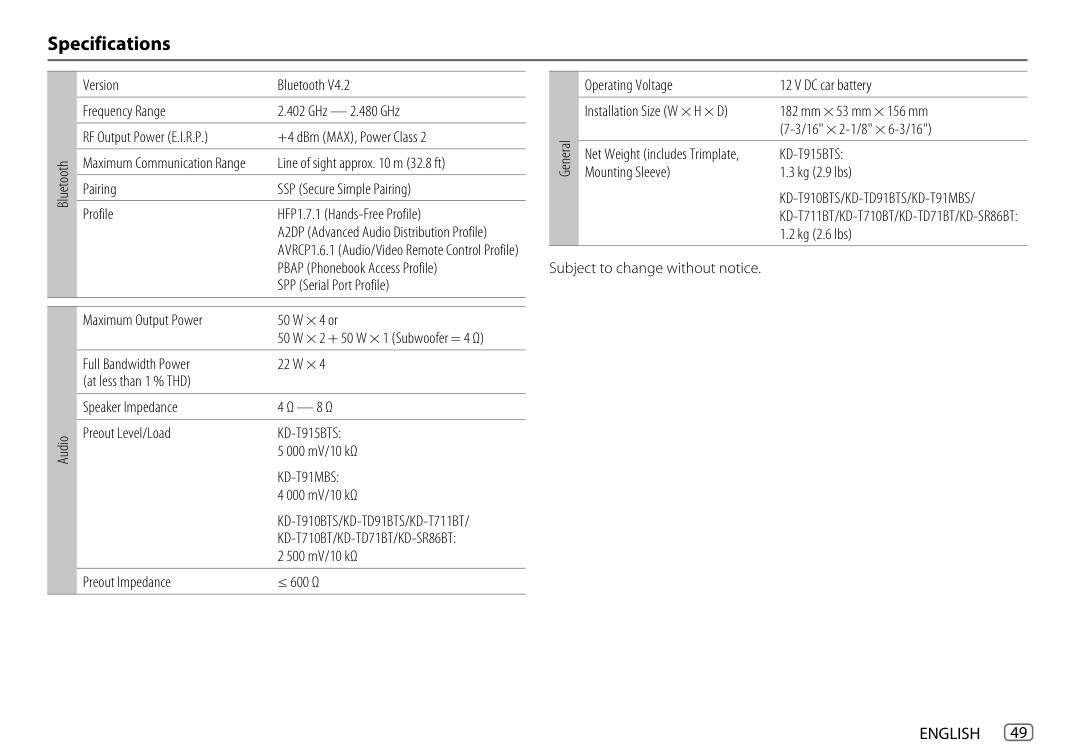
Frequency Response (±3 dB) 20 Hz — 20 kHz Input Maximum Voltage 1 000 mV Input Impedance 30 kΩ
CD player
Auxiliary
############# Specifications
Version Bluetooth V4.2 Frequency Range 2.402 GHz — 2.480 GHz RF Output Power (E.I.R.P.) +4 dBm (MAX), Power Class 2 Maximum Communication Range Line of sight approx. 10 m (32.8 ft) Pairing SSP (Secure Simple Pairing) Profile HFP1.7.1 (Hands-Free Profile)
Operating Voltage 12 V DC car battery Installation Size (W × H × D) 182 mm × 53 mm × 156 mm
(7-3/16" × 2-1/8" × 6-3/16")
General
Net Weight (includes Trimplate, Mounting Sleeve)
KD-T915BTS: 1.3 kg (2.9 lbs)
Bluetooth
KD-T910BTS/KD-TD91BTS/KD-T91MBS/ KD-T711BT/KD-T710BT/KD-TD71BT/KD-SR86BT: 1.2 kg (2.6 lbs)
A2DP (Advanced Audio Distribution Profile) AVRCP1.6.1 (Audio/Video Remote Control Profile) PBAP (Phonebook Access Profile) SPP (Serial Port Profile)
Subject to change without notice.
Maximum Output Power 50 W × 4 or 50 W × 2 + 50 W × 1 (Subwoofer = 4 Ω)
Full Bandwidth Power (at less than 1 % THD)
22 W × 4
Speaker Impedance 4 Ω — 8 Ω Preout Level/Load KD-T915BTS:
Audio
5 000 mV/10 kΩ KD-T91MBS: 4 000 mV/10 kΩ KD-T910BTS/KD-TD91BTS/KD-T711BT/ KD-T710BT/KD-TD71BT/KD-SR86BT: 2 500 mV/10 kΩ
Preout Impedance ≤ 600 Ω
|libFLAC Copyright (C) 2000-2009 Josh Coalson Copyright (C) 2011-2013 Xiph.Org Foundation
Redistribution and use in source and binary forms, with or without modification, are permitted provided that the following conditions are met:
- Redistributions of source code must retain the above copyright notice, this list of conditions and the following disclaimer.
- Redistributions in binary form must reproduce the above copyright notice, this list of conditions and the following disclaimer in the documentation and/or other materials provided with the distribution.
- Neither the name of the Xiph.org Foundation nor the names of its contributors may be used to endorse or promote products derived from this software without specific prior written permission.
THIS SOFTWARE IS PROVIDED BY THE COPYRIGHT HOLDERS AND CONTRIBUTORS “AS IS” AND ANY EXPRESS OR IMPLIED WARRANTIES, INCLUDING, BUT NOT LIMITED TO, THE IMPLIED WARRANTIES OF MERCHANTABILITY AND FITNESS FOR A PARTICULAR PURPOSE ARE DISCLAIMED. IN NO EVENT SHALL THE FOUNDATION OR CONTRIBUTORS BE LIABLE FOR ANY DIRECT, INDIRECT, INCIDENTAL, SPECIAL, EXEMPLARY, OR CONSEQUENTIAL DAMAGES (INCLUDING, BUT NOT LIMITED TO, PROCUREMENT OF SUBSTITUTE GOODS OR SERVICES; LOSS OF USE, DATA, OR PROFITS; OR BUSINESS INTERRUPTION) HOWEVER CAUSED AND ON ANY THEORY OF LIABILITY, WHETHER IN CONTRACT, STRICT LIABILITY, OR TORT (INCLUDING NEGLIGENCE OR OTHERWISE) ARISING IN ANY WAY OUT OF THE USE OF THIS SOFTWARE, EVEN IF ADVISED OF THE POSSIBILITY OF SUCH DAMAGE.|
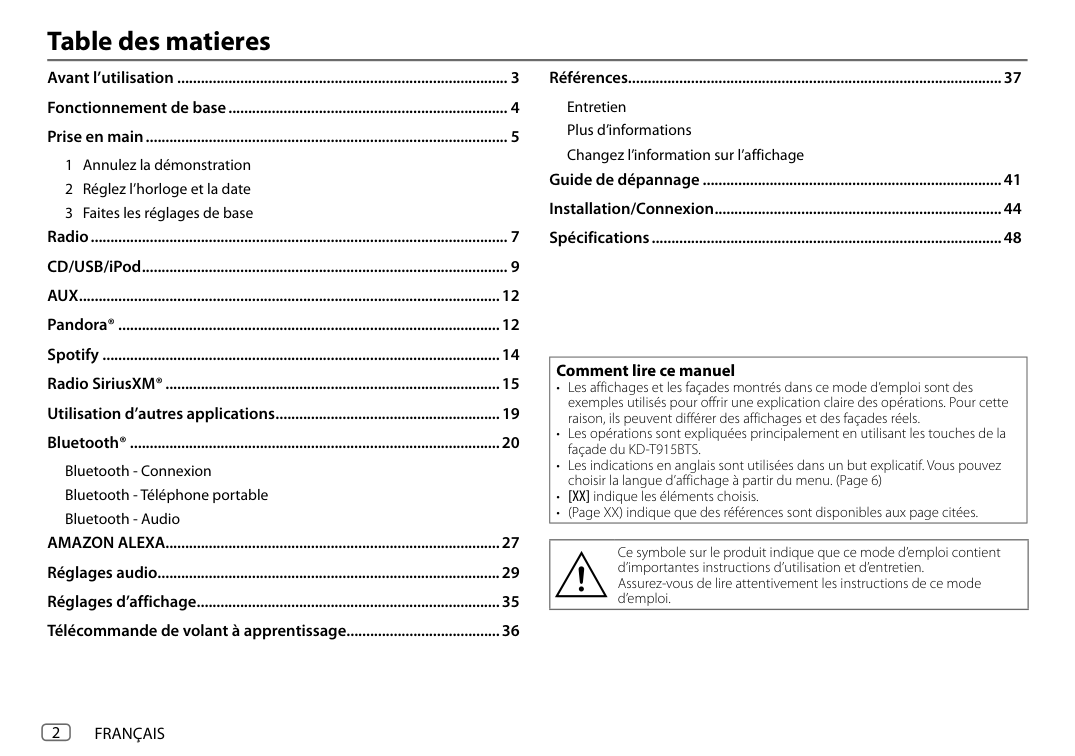
|---|
|• Microsoft and Windows Media are either registered trademarks or trademarks of Microsoft Corporation in the United States and/or other countries.
• Use of the Made for Apple badge means that an accessory has been designed to connect specifically to the Apple product(s) identified in the badge and has been certified by the developer to meet Apple performance standards. Apple is not responsible for the operation of this device or its compliance with safety and regulatory standards. Please note that the use of this accessory with an Apple product may affect wireless performance.
• Apple, iPhone, iPod, iPod touch, iTunes, and Lightning are trademarks of Apple Inc., registered in the U.S. and other countries.
• ©2019 Pandora Media, LLC. All rights reserved. PANDORA, the PANDORA logo, and the Pandora trade dress are trademarks or registered trademarks of Pandora Media, LLC. Used with permission.
• SPOTIFY and the Spotify logo are among the registered trademarks of Spotify AB.
• Sirius, XM and all related marks and logos are trademarks of Sirius XM Radio Inc. All rights reserved.
• Android is a trademark of Google LLC.
• The Bluetooth® word mark and logos are registered trademarks owned by Bluetooth SIG, Inc. and any use of such marks by JVCKENWOOD Corporation is under license. Other trademarks and trade names are those of their respective owners.
• Amazon, Alexa and all related logos are trademarks of Amazon.com, Inc. or its affiliates.
| |---|
###################### © 2019 JVCKENWOOD Corporation 0719DTSMDTJEIN
ENGLISH FRANÇAIS
ESPAÑOL
####### KD-T915BTS / KD-T910BTS / KD-TD91BTS / KD-T91MBS / KD-T711BT / KD-T710BT / KD-TD71BT / KD-SR86BT
CD RECEIVER Quick Start Guide RÉCEPTEUR CD Guide de démarrage rapide RECEPTOR CON CD Guía de inicio rápido
|For detailed operations and information, refer to the INSTRUCTION MANUAL on the following website: Pour les opérations et les informations détaillées, reportez-vous au MANUEL D’INSTRUCTIONS sur le site web suivant: Para obtener más información y detalles sobre las operaciones, consulte el MANUAL DE INSTRUCCIONES en el siguiente sitio web:
| |---|
|For customer Use: Enter below the Model No. and Serial No. which are located on the top or bottom of the cabinet. Retain this information for future reference. Model No. Serial No.
| |---|
B5K-0659-00 [K]
|CAUTION Use of controls or adjustments or performance of procedures other than those specified herein may result in hazardous radiation exposure. In compliance with Federal Regulations, following are reproductions of labels on, or inside the product relating to laser product safety.
|JVCKENWOOD Corporation 2967-3, ISHIKAWA-MACHI, HACHIOJI-SHI, TOKYO, JAPAN
THIS PRODUCT COMPLIES WITH DHHS RULES 21CFR SUBCHAPTER J IN EFFECT AT DATE OF MANUFACTURE.| |---|
Location : Top Plate| |---|
|Información acerca de la eliminación de equipos eléctricos y electrónicos al final de la vida útil (aplicable a los países que hayan adoptado sistemas independientes de recogida de residuos)
Los productos con el símbolo de un contenedor con ruedas tachado no podrán ser desechados como residuos domésticos. Los equipos eléctricos y electrónicos al final de la vida útil, deberán ser reciclados en instalaciones que puedan dar el tratamiento adecuado a estos productos y a sus subproductos residuales correspondientes. Póngase en contacto con su administración local para obtener información sobre el punto de recogida más cercano. Un tratamiento correcto del reciclaje y la eliminación de residuos ayuda a conservar los recursos y evita al mismo tiempo efectos perjudiciales en la salud y el medio ambiente.| |---|
|Informação sobre a eliminação de pilhas Este produto não deve ser eliminado como lixo doméstico geral. Devolva a pilha usada ao revendedor ou entidade autorizada para que a mesma seja devolvida ao fabricante ou importador. A reciclagem e a eliminação de lixo de maneira apropriada ajudarão a conservar os recursos naturais ao mesmo tempo que prevenirão os efeitos prejudicais à nossa saúde e ao meio ambiente.| |---|
|FCC CAUTION Changes or modifications not expressly approved by the party responsible for compliance could void the user’s authority to operate the equipment.
NOTE: This equipment has been tested and found to comply with the limits for a Class B digital device, pursuant to part 15 of the FCC Rules. These limits are designed to provide reasonable protection against harmful interference in a residential installation. This equipment generates, uses and can radiate radio frequency energy and, if not installed and used in accordance with the instructions, may cause harmful interference to radio communications. However, there is no guarantee that interference will not occur in a particular installation. If this equipment does cause harmful interference to radio or television reception, which can be determined by turning the equipment off and on, the user is encouraged to try to correct the interference by one or more of the following measures:
– Reorient or relocate the receiving antenna.
– Increase the separation between the equipment and receiver.
– Connect the equipment into an outlet on a circuit different from that to which the receiver is connected.
– Consult the dealer or an experienced radio/TV technician for help.
| |---|
|Supplier's Declaration of Conformity
Trade Name: JVC Products: CD RECEIVER Model Name: KD-T915BTS/KD-T910BTS/KD-TD91BTS/KD-T91MBS/KD-T711BT/
KD-T710BT/KD-TD71BT/KD-SR86BT Responsible Party: JVCKENWOOD USA CORPORATION
2201 East Dominguez Street, Long Beach, CA 90810, U.S.A. PHONE: 310 639-9000
THIS DEVICE COMPLIES WITH PART 15 OF THE FCC RULES. OPERATION IS SUBJECT TO THE FOLLOWING TWO CONDITIONS:
(1) THIS DEVICE MAY NOT CAUSE HARMFUL INTERFERENCE, AND
(2) THIS DEVICE MUST ACCEPT ANY INTERFERENCE RECEIVED, INCLUDING INTERFERENCE THAT MAY CAUSE UNDESIRED OPERATION.
| |---|
i
|IC (Industry Canada) Caution This device contains licence-exempt transmitter(s)/receiver(s) that comply with Innovation, Science and Economic Development Canada’s licence-exempt RSS(s). Operation is subject to the following two conditions:
1. This device may not cause interference.
2. This device must accept any interference, including interference that may cause undesired operation of the device.
Attention de ‘IC (Industrie Canada) L’émetteur/récepteur exempt de licence contenu dans le présent appareil est conforme aux CNR d’Innovation, Sciences et Développement économique Canada applicables aux appareils radio exempts de licence. L’exploitation est autorisée aux deux conditions suivantes :
1. L’appareil ne doit pas produire de brouillage.
2. L’appareil doit accepter tout brouillage radioélectrique subi, même si le brouillage est susceptible d’en compromettre le fonctionnement.
| |---|
|Contains Bluetooth Module FCC ID: ZWY88112 IC ID: 12033A-88112| |---|
|This transmitter must not be co-located or operated in conjunction with any other antenna or transmitter.| |---|
|CAUTION This equipment complies with FCC/IC radiation exposure limits set forth for an uncontrolled environment and meets the FCC radio frequency (RF) Exposure Guidelines and RSS-102 of the IC radio frequency (RF) Exposure rules. This equipment should be installed and operated keeping the radiator at least 20 cm or more away from person’s body.
ATTENTION Cet équipement est conforme aux limites d’exposition aux rayonnements énoncées pour un environnement non contrôlé et respecte les règles les radioélectriques (RF) de la FCC lignes directrices d’exposition et d’exposition aux fréquences radioélectriques (RF) CNR-102 de l’IC. Cet équipement doit être installé et utilisé en gardant une distance de 20 cm ou plus entre le radiateur et le corps humain.| |---|
|Para cumplimiento de la IFT: “La operación de este equipo está sujeta a las siguientes dos condiciones:
(1) es posible que este equipo o dispositivo no cause interferencia perjudicial y
(2) este equipo o dispositivo debe aceptar cualquier interferencia, incluyendo la que pueda causar su operación no deseada”
| |---|
########### SOFTWARE LICENSE AGREEMENT
The software embedded in the Product (hereinafter the "Licensed Software") provided by Licensor is copyrighted to or sublicensable by the Licensor, and this Agreement provides for the terms and conditions which Users shall follow in order to use the Licensed Software.
The User shall use the Licensed Software by agreeing with the terms of this Software License Agreement. This Agreement shall be deemed completed at the time the User (hereinafter the "User") initially used the Product in which the "Licensed Software" is embedded.
The Licensed Software may include the software which has been licensed to the Licensor directly or indirectly from any third party. In such case, some third parties require the Users to follow their conditions for use separately from this Software License Agreement. Such software shall not be subject to this Agreement, and the Users are urged to read the "Important Notice concerning the Software" to be provided separately below.
######################## Article 1 General Provision
The Licensor shall grant to the User a non-exclusive and non-transferable (other than the exceptional case referred to in Article 3, Paragraph 1) licensed to use the Licensed Software within the country of the User. (the country where the User bought the Product (hereinafter the "Country")
######################## Article 2 License
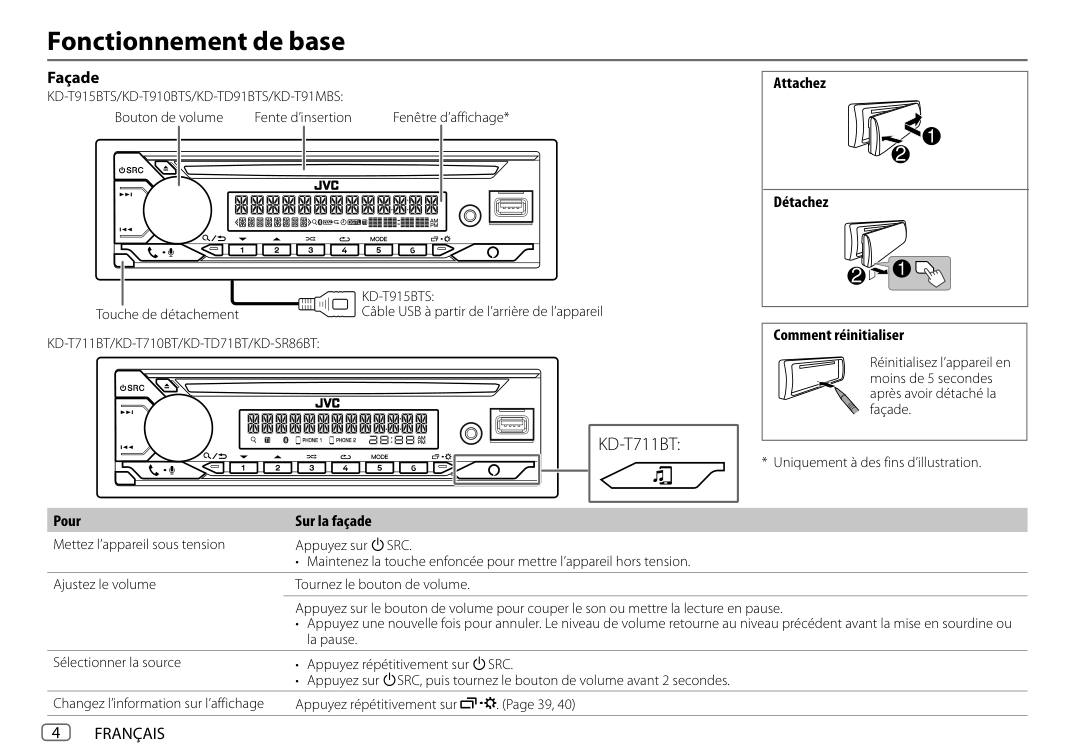
######################## Article 3 Conditions for Grant of License
embedded in the Product (including any related materials, updates and upgrades) on condition that no original, copies or related materials continue in the possession of the User, and that the User shall cause the transferee to comply with this Software License Agreement.
ii
Article 4 Right pertaining to the Licensed Software
Any and all copyrights and other rights pertaining to the Licensed Software and related documents shall belong to the Licensor or the original holder of the right who granted to the Licensor the license or sublicense for the Licensed Software (hereinafter the "Original Rightholder"), and the User shall not be entitled to any right other than the license granted hereunder, in respect of the Licensed Software and any related documents.
######################## Article 5 Indemnification of Licensor
######################## Article 6 Liability to Third Party
If any dispute has arisen with any third party due to an infringement upon a copyright, patent or any other intellectual property right that was caused by the User's use of the Licensed Software, the User shall settle such dispute at its own cost and hold the Licensor and the Original Rightholder harmless from any inconvenience it may cause.
######################## Article 7 Confidentiality
The User shall keep the confidentiality of such portion of the Licensed Software, related documents thereof or any other information to be granted under this Agreement, as well as the conditions of this Agreement as has not yet entered the public domain, and shall not disclose or divulge the same to any third party without approval of the Licensor.
######################## Article 8 Termination
In case the User falls under any of the events described in the following items, the Licensor may immediately terminate this Agreement or claim that the User compensates for the damage incurred by the Licensor due to such event:
######################## Article 9 Destruction of the Licensed Software
If this Agreement is terminated pursuant to the provision of Article 8, the User shall destroy the Licensed Software, any related documents and copies thereof within two (2) weeks from such date of termination.
######################## Article 10 Protection of Copyright
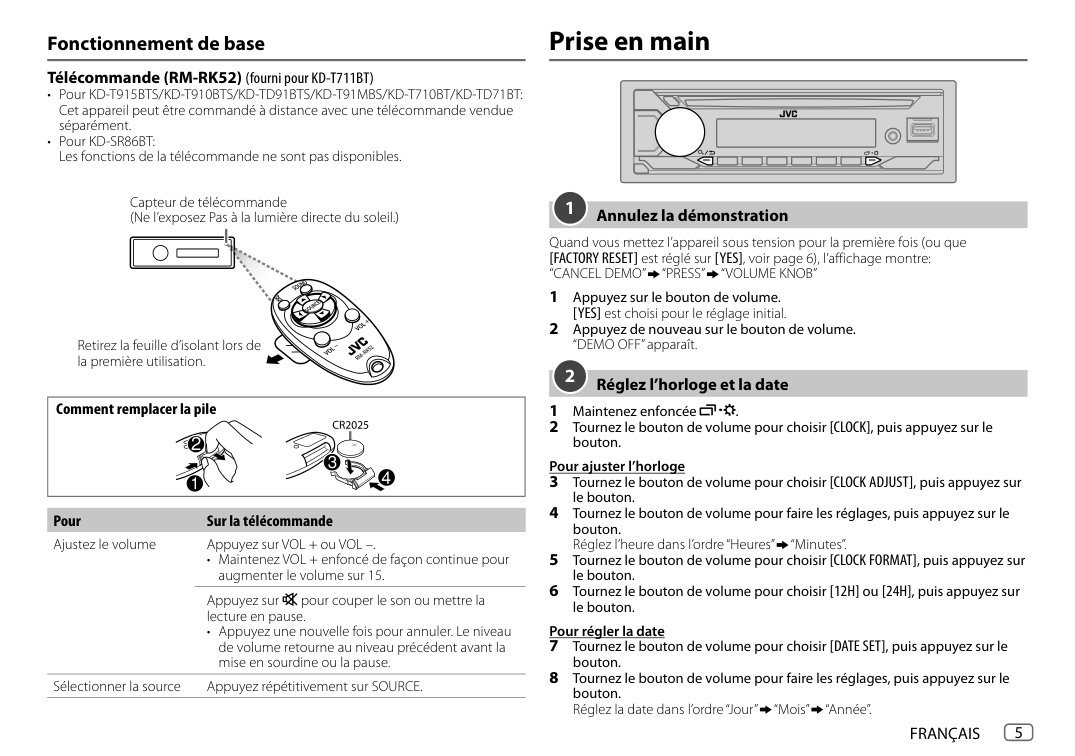
copyright and other intellectual property rights. Article 11 Export Restriction
######################## Article 12 Miscellaneous
iii
########### Important Notice concerning the Software
-CMP The MIT License (MIT) Copyright (c) 2014 Charles Gunyon Permission is hereby granted, free of charge, to any person obtaining a copy of this software and associated documentation files (the "Software"), to deal in the Software without restriction, including without limitation the rights to use, copy, modify, merge, publish, distribute, sublicense, and/or sell copies of the Software, and to permit persons to whom the Software is furnished to do so, subject to the following conditions: The above copyright notice and this permission notice shall be included in all copies or substantial portions of the Software. THE SOFTWARE IS PROVIDED "AS IS", WITHOUT WARRANTY OF ANY KIND, EXPRESS OR IMPLIED, INCLUDING BUT NOT LIMITED TO THE WARRANTIES OF MERCHANTABILITY, FITNESS FOR A PARTICULAR PURPOSE AND NONINFRINGEMENT. IN NO EVENT SHALL THE AUTHORS OR COPYRIGHT HOLDERS BE LIABLE FOR ANY CLAIM, DAMAGES OR OTHER LIABILITY, WHETHER IN AN ACTION OF CONTRACT, TORT OR OTHERWISE, ARISING FROM, OUT OF OR IN CONNECTION WITH THE SOFTWARE OR THE USE OR OTHER DEALINGS IN THE SOFTWARE.
Copyright (c) 2011 Petteri Aimonen
iv
######## Installation/Connection
|This section is for the professional installer. For safety’s sake, leave wiring and mounting to professionals. Consult the car audio dealer.| |---|
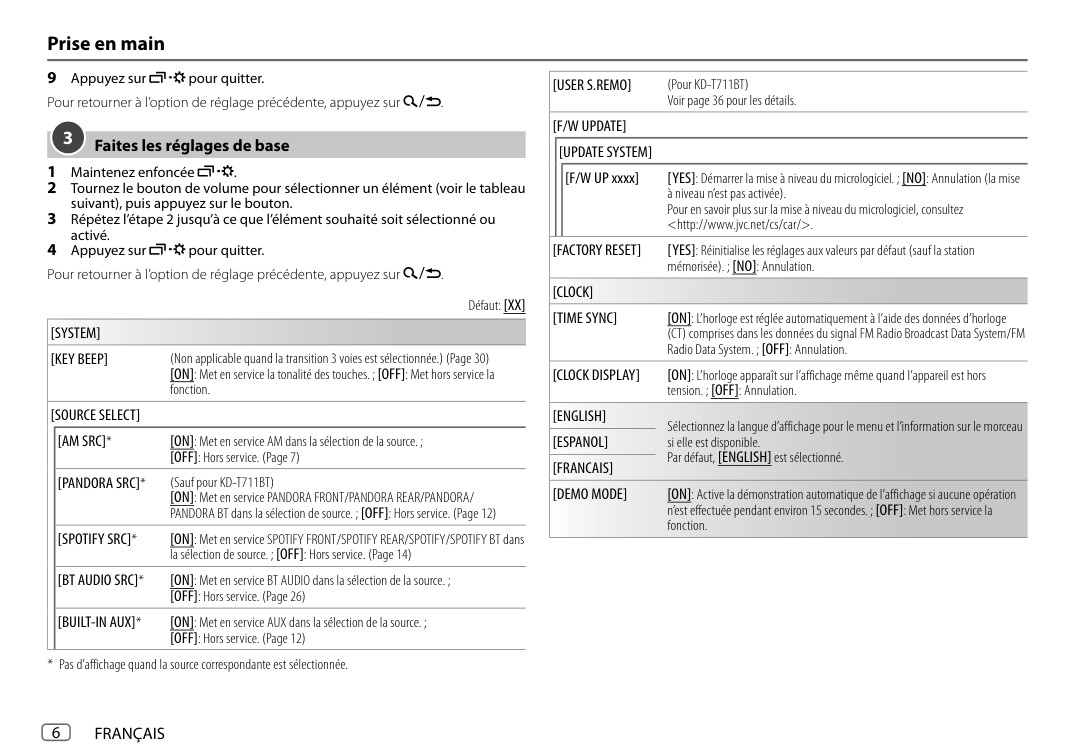
############### WARNING
CAUTION
############### Basic procedure
|Installing the unit (in-dash mounting)
Hook on the top side
Bend the appropriate tabs to hold the sleeve firmly in place.
Dashboard of your car| |---|
|Installing the unit (without mounting sleeve)
1 Remove the mounting sleeve and trim plate from the unit.
2 Align the holes in the unit (on both sides) with the vehicle mounting bracket and secure the unit with screws (commercially available).
Use only the specified screws. Using wrong screws might damage the unit.| |---|
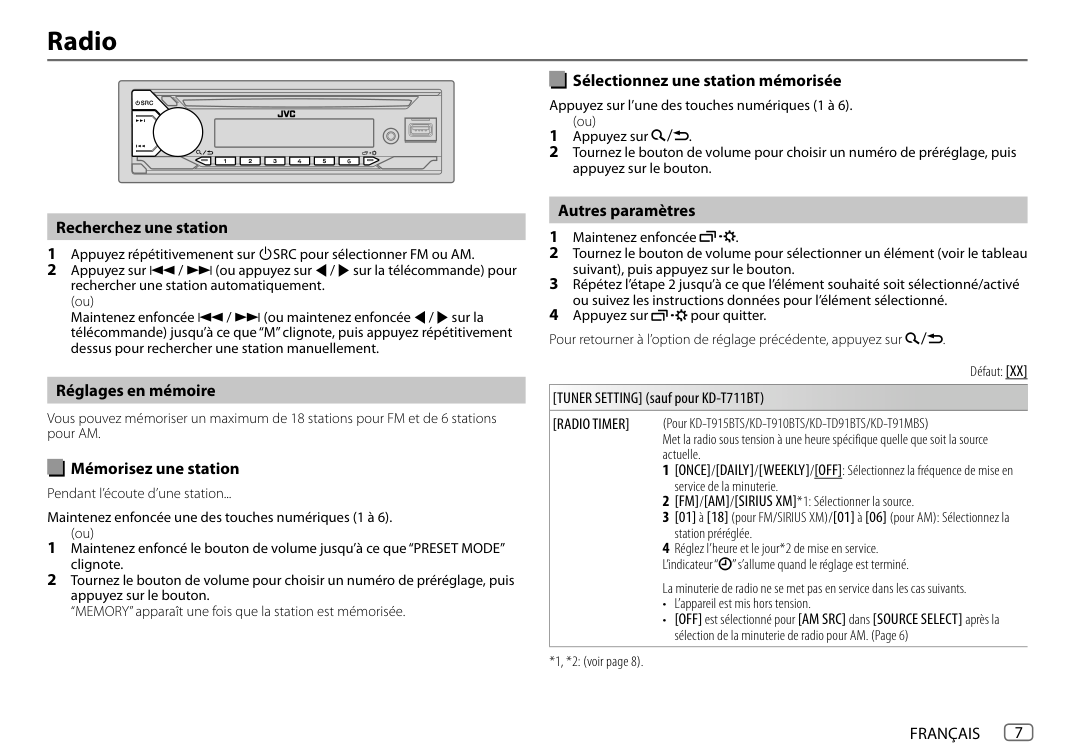
|Removing the unit
| |---|
############### Part list (supplied)
|Wiring connection
a Light blue/yellow: To the steering wheel remote control adapter
b Brown (not used)
c Blue: To power antenna
d Blue/white: To amplifier
e Blue/white: Remote (12 V 350 mA)
f Orange/white: Illumination
g Yellow: Battery 12 V
h Red: Ignition 12 V
i Black: Ground
j Gray ª, Gray/black ·: Front speaker (right)
k White ª, White/black ·: Front speaker (left)
l Purple ª, Purple/black ·: Rear speaker (right)
m Green ª, Green/black ·: Rear speaker (left)
Join the same color wires together.
Custom wiring harness (separately purchased)
Vehicle dashboard
Recommended connection
Factory wiring harness (vehicle)
Antenna terminal
Fuse (10 A)| |---|
######## Before Use
############### IMPORTANT
############### WARNING
Do not operate any function that takes your attention away from safe driving.
CAUTION Volume setting:
General:
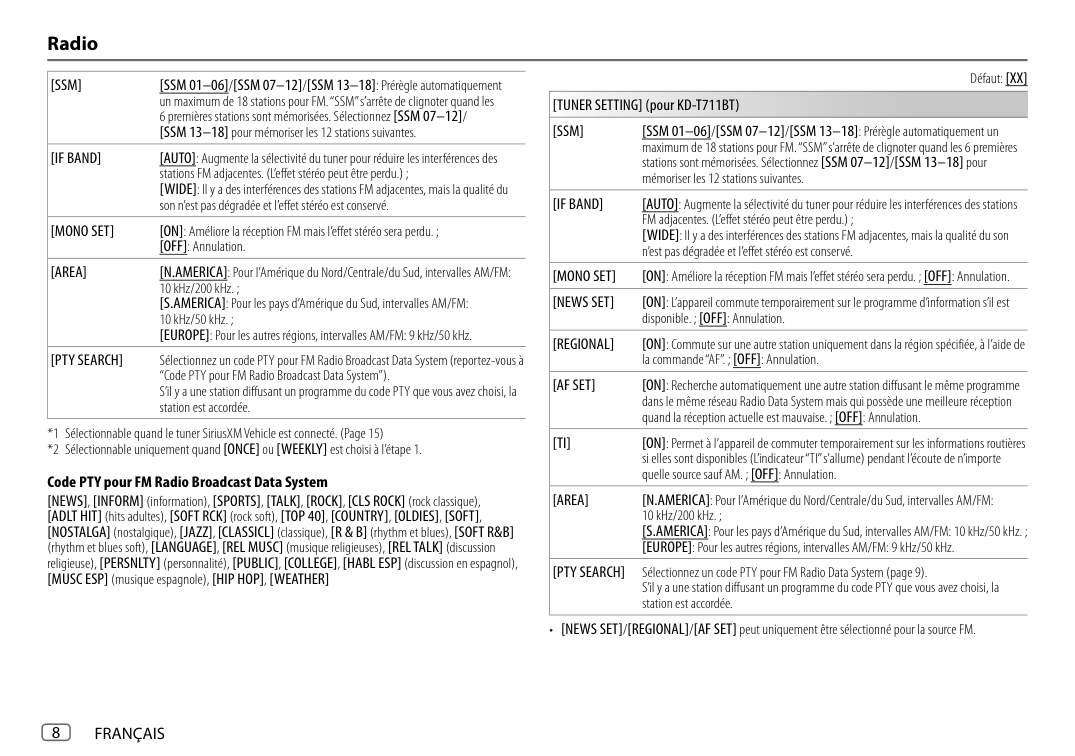
######## Basics (on faceplate)
|KD-T711BT/ KD-T710BT/ KD-TD71BT/ KD-SR86BT/
Display window*1| |---|
*1 Only for illustration purpose.
Volume knob Loading slot
Auxiliary input jack
USB input terminal
KD-T711BT:
KD-T915BTS: USB cable from the rear of the unit
Detach button
|Attach|Detach
| |---|---|
|How to reset
Reset the unit within 5 seconds after detaching the faceplate.| |---|
To On the faceplate Turn on the power Press BSRC.
• Press and hold to turn off the power. Adjust the volume Turn the volume knob. Select a source Press BSRC repeatedly. Change the display information*2 Press repeatedly.
*2 One of the display information supports Music Synchronization Effect. The illumination color or brightness level of the buttons changes and synchronizes with the music level.
######## Getting Started
############### 1 Cancel the demonstration
When you turn on the power for the first time (or [FACTORY RESET] is set to [YES]), the display shows: “CANCEL DEMO” “PRESS” “VOLUME KNOB”
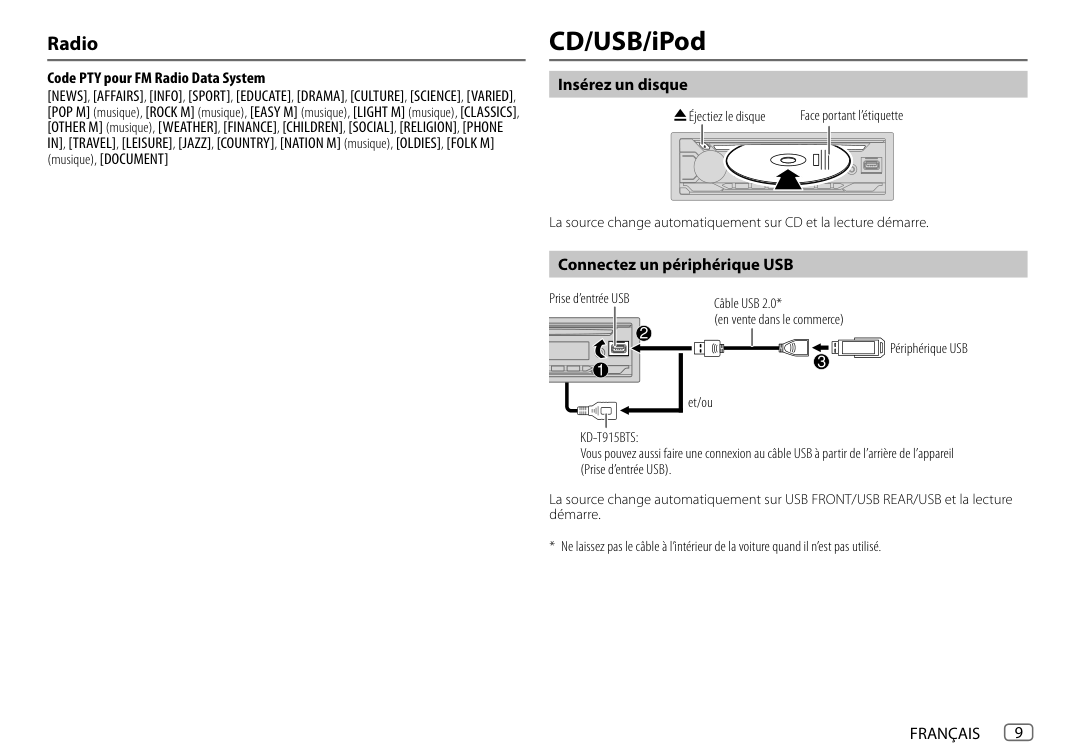
############### 2 Set the clock and date
############### 3 Set the basic settings
Default: [XX] [SYSTEM]
[KEY BEEP] (Not applicable when 3-way crossover is selected.) [ON]: Activates the keypress tone. ; [OFF]: Deactivates.
[FACTORY RESET] [YES]: Resets the settings to default (except the stored station). ;
[NO]: Cancels. [CLOCK]
[CLOCK DISPLAY] [ON]: The clock time is shown on the display even when the unit is
turned off. ; [OFF]: Cancels.
[ENGLISH] Select the display language for menu and music information if applicable. By default, [ENGLISH] is selected.
[ESPANOL] [FRANCAIS]
######## Radio
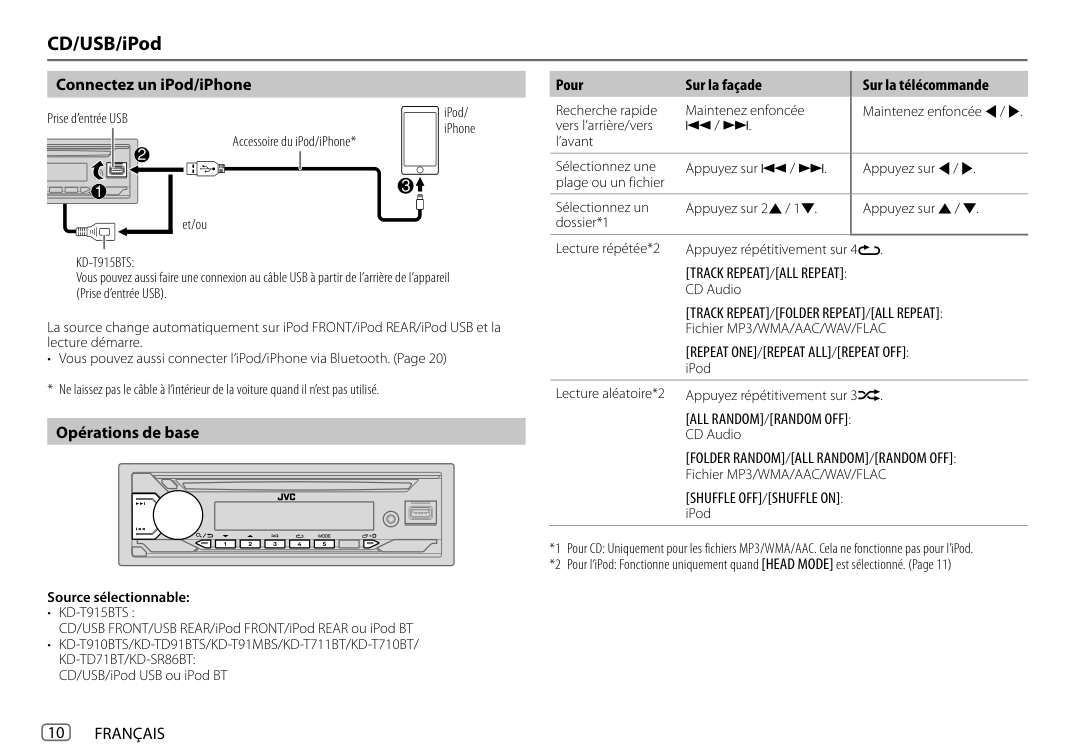
############### Search for a station
1 Press B SRC repeatedly to select FM or AM. 2 Press S / T to search for a station automatically.
(or) Press and hold S / T until “M” flashes, then press repeatedly to search for a station manually.
Settings in memory You can store up to 18 stations for FM and 6 stations for AM. Store a station While listening to a station.... Press and hold one of the number buttons (1 to 6).
(or)
Select a stored station Press one of the number buttons (1 to 6).
(or)
######## CD/USB/iPod
Selectable source:
############### Start playback
The source changes automatically and playback starts when you load a disc or attach a device (USB device/ iPod/iPhone) to the USB input terminal.
• KD-T915BTS: You can also connect to the USB cable from the rear of the unit.
To On the faceplate Reverse/Fast-forward Press and hold S / T. Select a track/file Press S / T. Select a folder Press 2J / 1K. Repeat play Press 4B repeatedly. Random play Press 3A repeatedly.
######## Menu Settings
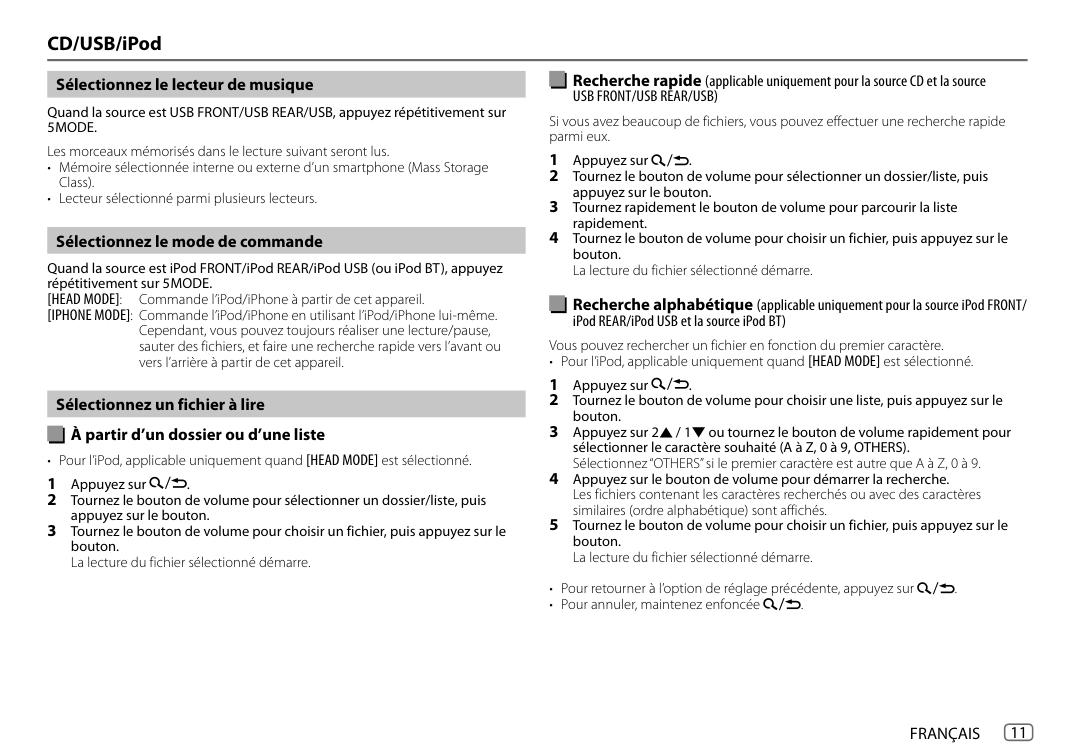
Menu items [EQ SETTING] : Selects a preset equalizer or adjusts your own sound
settings. [AUDIO CONTROL] : Sets your preferred audio settings. [SOUND EFFECT] : Sets your preferred sound effect. [DISPLAY] : Sets your preferred control for the display window. [COLOR] : Sets your preferred illumination color for buttons. [TUNER SETTING] : Settings for radio source. [SIRIUS XM] : Settings for Sirius XM tuner. [BT MODE] : Settings for using a Bluetooth device. [REMOTE APP] : Settings for using smartphone to control this unit. [MIC GAIN]* : Sets the sensitivity of the microphone. [NR LEVEL]* : Adjusts the noise reduction level. [ECHO CANCEL]* : Adjusts the echo cancellation delay time. [SYSTEM] : Settings for this unit. [CLOCK] : Adjusts the clock. [ENGLISH] : Selects language for the menu and music information. [ESPANOL] : Selects language for the menu and music information. [FRANCAIS] : Selects language for the menu and music information. [DEMO MODE] : Activates or deactivates the display demonstration.
############### Examples of some well-used settings
##################### Subwoofer Level Setting
Continued on the next page...
8 Press to exit the setting menu.
Note: For KD-T910BTS/KD-TD91BTS/KD-T711BT/KD-T710BT/KD-TD71BT/ KD-SR86BT, you need to set [SPK/PRE OUT] to [REAR/SUB.W] or [SUB.W/SUB.W] before you can make the subwoofer level settings.
##################### Illumination Color Setting
For KD-T915BTS/KD-T910BTS/KD-TD91BTS/KD-T91MBS, you can set your preferred illumination color for each zone.
| | |
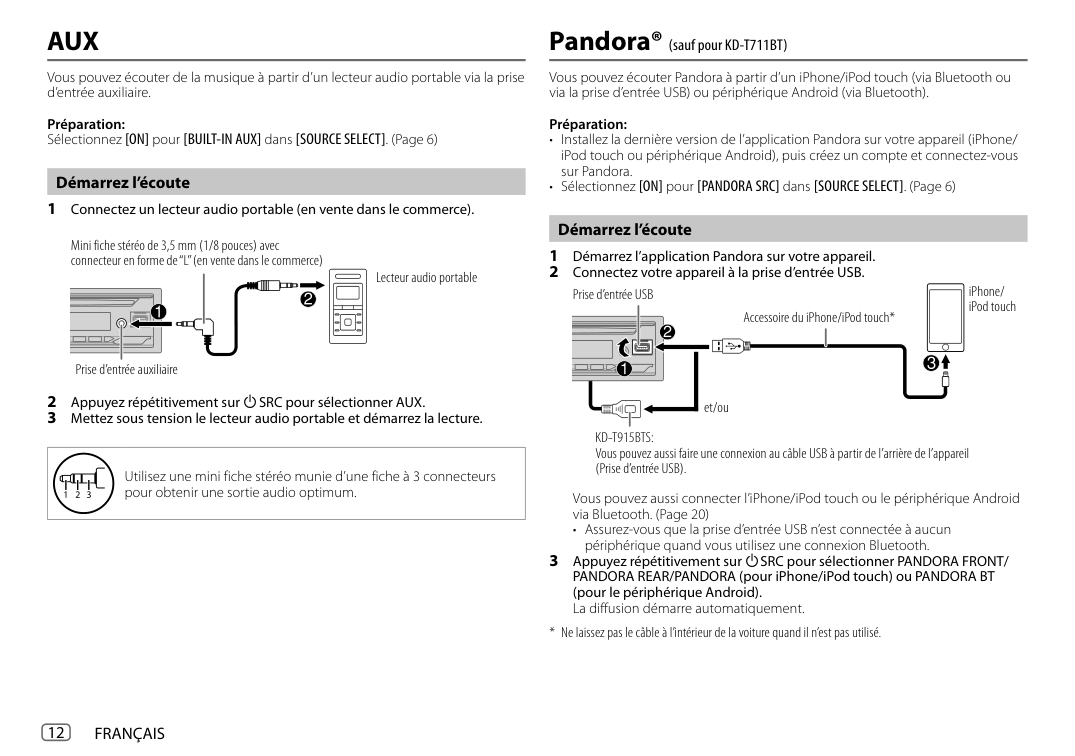
|---|---| | | |
######## Other Information
For playback operations of AUX, Spotify, Pandora®, SiriusXM® Radio, AMAZON ALEXA sources, refer to the INSTRUCTION MANUAL on the following website:
• The availability of each source vary depending on the model.
Note for specifications Bluetooth Frequency Range:
2.402 GHz — 2.480 GHz Bluetooth RF Output Power (E.I.R.P.):
+4 dBm (MAX), Power Class 2 Speaker Impedance: 4 Ω — 8 Ω
Operating Voltage: 12 V DC car battery
######## Bluetooth®
(B) “[Device Name]” “VOL – YES” “BACK – NO”
Press the volume knob to start pairing.
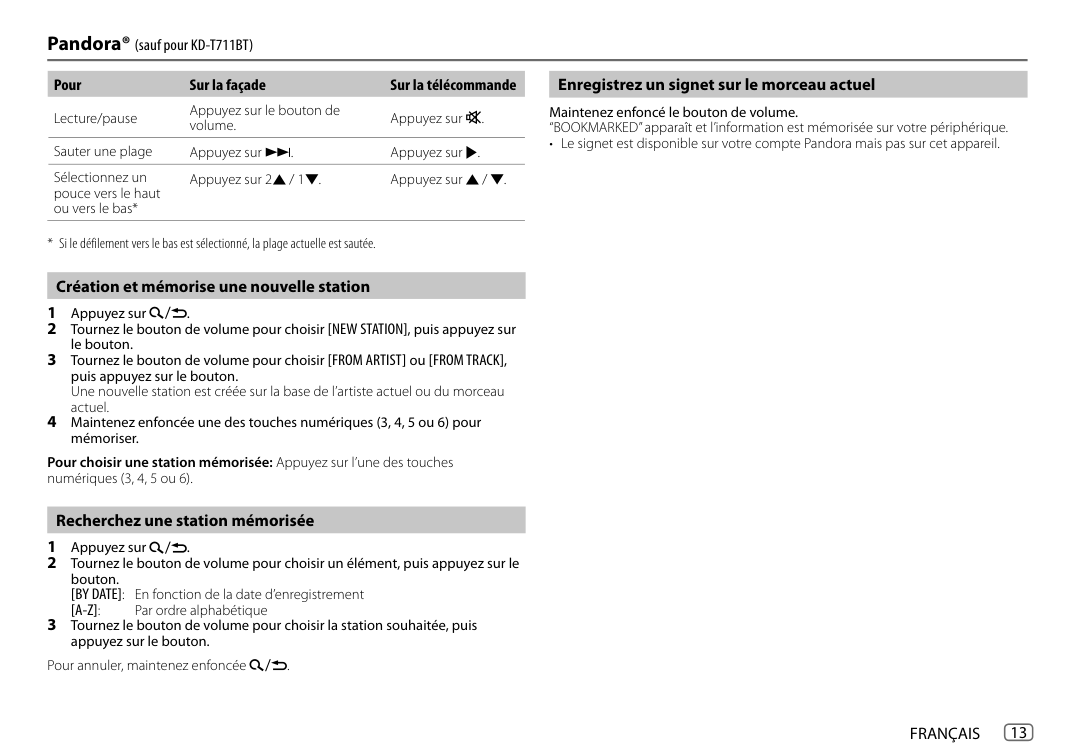
|• Depending on the Bluetooth version, operating system and the firmware version of your mobile phone, Bluetooth features may not work with this unit.
• Be sure to turn on the Bluetooth function of the device to make the following operations.
• Signal conditions vary depending on the surroundings.
| |---|
“PAIRING COMPLETED” appears when pairing is completed and “ ” will light up when the Bluetooth connection is established.
############### Answer a call
############### Connect the microphone
Press or the volume knob.
Connect the supplied microphone to the microphone input jack on the rear panel.
############### Audio player via Bluetooth
Secure using cord clamps (not supplied) if necessary.
Adjust the microphone angle
• For KD-T711BT: Pressing enters BT AUDIO directly.
############### Pair and connect a Bluetooth device for the first time
To On the faceplate Play back/pause Press the volume knob. Select group or folder Press 2J / 1K. Reverse skip/Forward skip Press S / T. Reverse/Fast-forward Press and hold S / T. Repeat play Press 4B repeatedly. Random play Press 3A repeatedly.
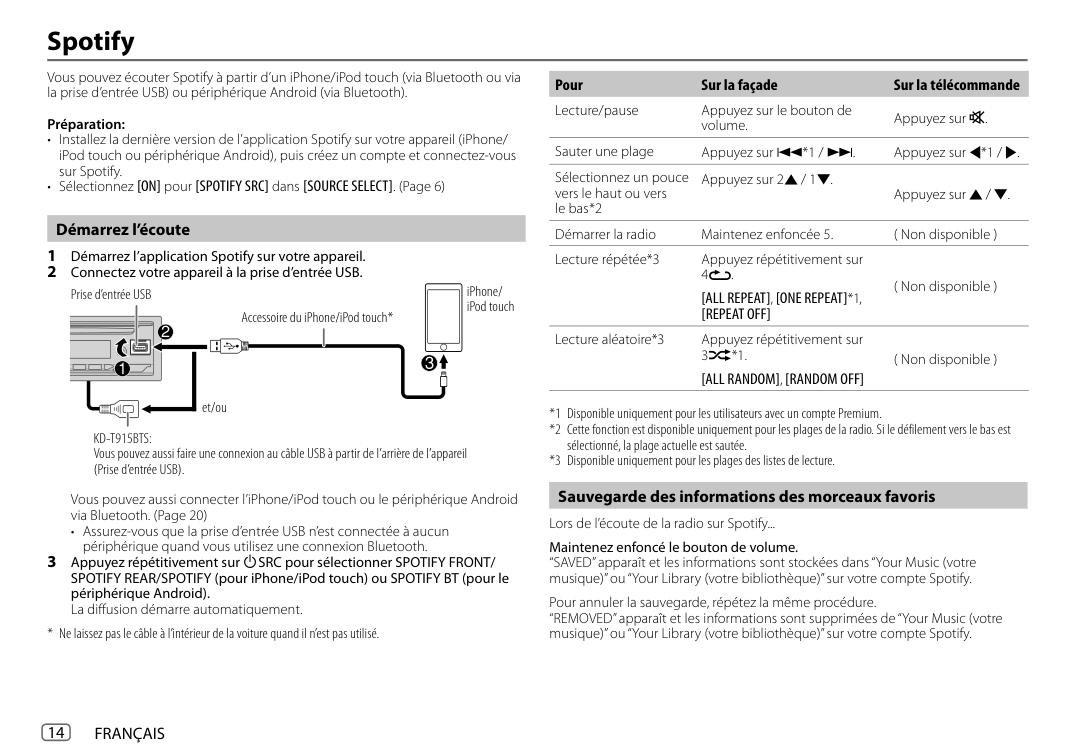
(A) “[Device Name]” “XXXXXX” “VOL – YES” “BACK – NO” “XXXXXX” is a 6-digit passkey randomly generated during each pairing.
Ensure that the passkeys appear on the unit and Bluetooth device are the same.
Press the volume knob to confirm the passkey.
Operate the Bluetooth device to confirm the passkey.
|• Microsoft and Windows Media are either registered trademarks or trademarks of Microsoft Corporation in the United States and/or other countries.
• Use of the Made for Apple badge means that an accessory has been designed to connect specifically to the Apple product(s) identified in the badge and has been certified by the developer to meet Apple performance standards. Apple is not responsible for the operation of this device or its compliance with safety and regulatory standards. Please note that the use of this accessory with an Apple product may affect wireless performance.
• Apple, iPhone, iPod, iPod touch, and Lightning are trademarks of Apple Inc., registered in the U.S. and other countries.
• ©2019 Pandora Media, LLC. All rights reserved. PANDORA, the PANDORA logo, and the Pandora trade dress are trademarks or registered trademarks of Pandora Media, LLC. Used with permission.
• SPOTIFY and the Spotify logo are among the registered trademarks of Spotify AB.
• Sirius, XM and all related marks and logos are trademarks of Sirius XM Radio Inc. All rights reserved.
• Android is a trademark of Google LLC.
• The Bluetooth® word mark and logos are registered trademarks owned by Bluetooth SIG, Inc. and any use of such marks by JVCKENWOOD Corporation is under license. Other trademarks and trade names are those of their respective owners.
• Amazon, Alexa and all related logos are trademarks of Amazon.com, Inc. or its affiliates.
| |---|
###################### © 2019 JVCKENWOOD Corporation 0719DTSMDTJEIN


~
I
U.S.A. JVCKENWOOD USA Cor oration
JVC LIMITED WARRANTY
##### TO OUR VALUED CUSTOMER
ONLY FOR PRODUCT PURCHASED IN U.S.A.
JVCKENWOOD USA Corporation warrants this product and all parts thereof, except as set forth below ONLY TO THE ORIGINAL RETAIL PURCHASER to be FREE FROM DEFECTIVE MATERIALS AND WORKMANSHIP from the date of original purchase for the period shown below. ("TheWarranty Period")
THANK YOU FOR PURCHASING THIS JVC PRODUCT. WE WANT TO HELP YOU ACHIEVE A PERFECT EXPERIENCE.
PARTS 2 YRS/ LABOR 2YRS : Car audio ARSENAL series PARTS 1 YR/ LABOR1YR : All other car audio roducts
THIS LIMITED WARRANTY IS VALID ONLY IN THE FIFTY (50) UNITED STATES, THE DISTRICT OF COLUMBIA AND IN THE COMMONWEALTH OF PUERTO RICO. WHAT WE WILL DO: II this product is found to be defective within the warranty period, JVC will repair or replace defective parts with new orrebuilt equivalents at no charge to the original owner. Such repairand replacement services shall be rendered byJVC during normalbusiness hours at JVC authorized service centers. Parts used for replacement are warranted only for the remainder of the Warranty Period.All products may be broughtto aJVC authorized service center on acarry-in basis. WHAT YOU MUST DO FOR WARRANTY SERVICE: Please do not return your product to the retailer. Instead, return your product to the JVC authorized service center nearest you.II shipping the product to the service center,please be sure to package it carefully,preferably in the original packaging, and include abrief descriptionof the problem(s) and acopy of the proof of purchase to verify purchase date.Please call 1-800-252-5722 to locate the nearest JVC authorized service center. Service locations can also be obtained from our website http://www.us.jvckenwood.com. II you have any questions concerning your JVC Product,please contact our Customer Care Center at 800-252-5722 WHAT IS NOT COVERED: This limited warranty provided by JVC does not cover:
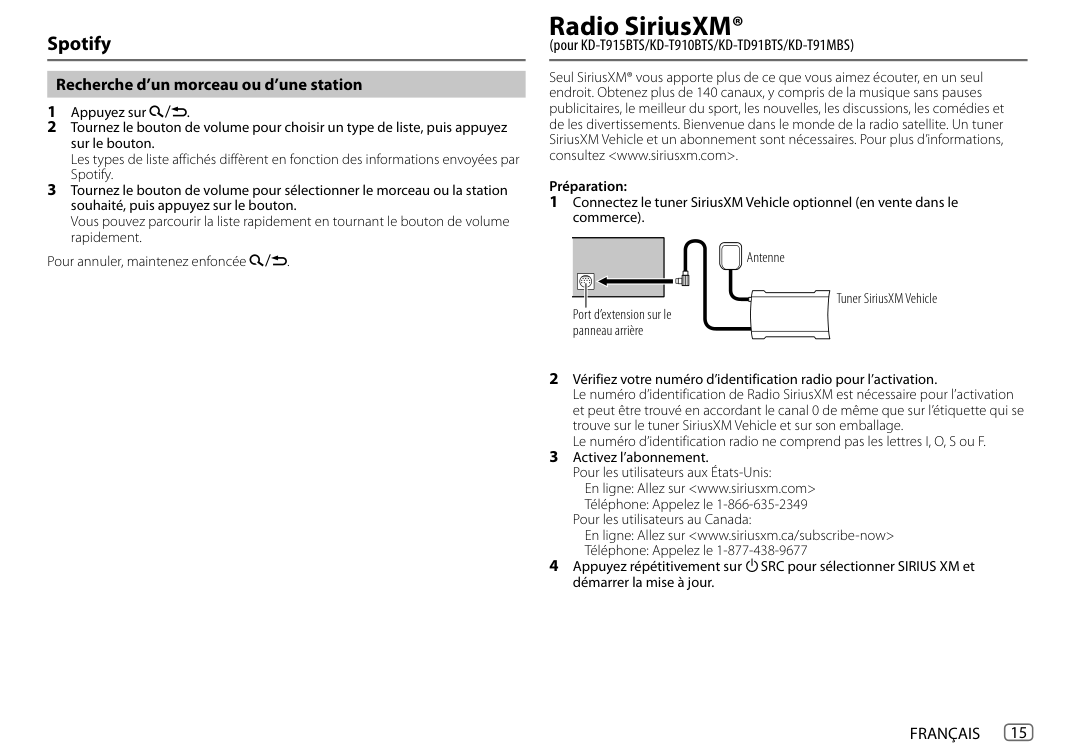
NEED HELP ON HOW TO HOOK UP? NEED ASSISTANCE ON HOW TO OPERATE? NEED TO LOCATE A JVC SERVICE CENTER? LIKE TO PURCHASE ACCESSORIES?
JVCIS HERE TO HELP!
###### TOLL FREE: 1 (800)252-5722 http://www.us.jvckenwood.com
Remember to retain your Bill of Sale for Warranty Service. Do not attempt to service the product yourself
THE DURATION OF ANY IMPLIED WARRANTIES, INCLUDING THE IMPLIED WARRANTY OF MERCHANTABILITY,ISLIMITED TO THE DURATION OF THE EXPRESS WARRANTY HEREIN. JVC SHALL NOT BE LIABLE FOR ANY LOSS OF USE OF THE PRODUCT, INCONVENIENCE,OR ANY OTHER DAMAGES, WHETHER DIRECT,INCIDENTAL OR CONSEQUENTIAL (INCLUDING, WITHOUT LIMITATION,DAMAGE TO TAPES,RECORDS OR DISCS) RESULTING FROM THE USE OF THIS PRODUCT,OR ARISING OUT OF ANY BREACH OF THIS WARRANTY.ALL EXPRESS AND IMPLIED WARRANTIES,INCLUDING THE WARRANTIES OF MERCHANTABILITY AND FITNESS FOR PARTICULAR PURPOSE, ARE LIMITED TO THE WARRANTY PERIOD SET FORTH ABOVE.
Caution To prevent electrical shock, do not open the cabinet. There are no user serviceable parts inside. Please refer to qualified service personnel for repairs.
Some states do not allow the exclusion of incidental or consequential damages or limitations on how long an implied warranty lasts,so these limitations or exclusions may not apply to you. This warranty gives you specific legal rights and you may also have other rights which vary from state to state.
JVCKENWOOD USA Corporation PO Box 22745, 2201 East Dominguez Street,Long Beach,CA90801-5745 http://www.us.jvckenwood.com
REFURBISHED PRODUCTS CARRY ASEPARATE WARRANTY,THIS WARRANTY DOES NOT APPLY. FOR DETAIL OF REFURBISHED PRODUCT WARRANTY,PLEASE REFER TO THE REFURBISHED PRODUCT WARRANTY INFORMATION PACKAGED WITH EACH REFURBISHED PRODUCT.
############ PRODUCT REGISTRATION
For customer use: Enter below the Model No. and Serial No.which is located either on the rear, bottom or side of the cabinet. Retain this information for future reference.
We suggest that you register your product since it will enable us to contact you directly if it is ever necessary to correct a safety related condition in your product. You can register at http://www.us.jvckenwood.com Please note that failure to register does not diminish any of your rights during the warranty period.
Model No.: Serial No.: Purchase date: Name of dealer:
BT-50004-1 (15/11)

CANADA JVCKENWOOD CANADA INC.
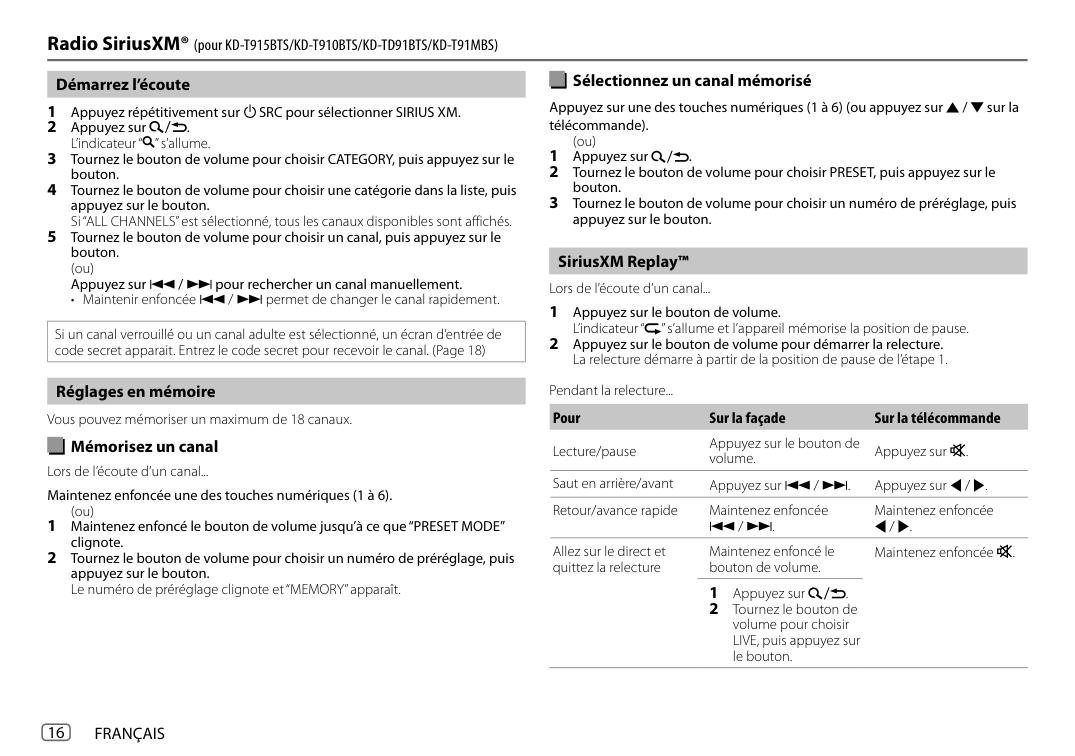
########## GARANTIE
WARRANTY
Lagarantls'applique seulement aux PRODUITS distrlbues au Canada par JVCKENWOOD CANADA INC.
Warrantyapplies only to PRODUCTdistributedinCanadaby JVCKENWOOD CANADA INC.
JVCKENWOODCANADA INC. ( ci-apres appele "JVC") en once la garantie expresse suivantepour tout nouveau produit JVC distribueauCanadapar JVC et vendu par un detaillant JVCautorise. JVC vous garantit quece produit est degage, sous utilisation et entretien normal, de tout defaut materiel et defabrication sous reserve des modalites et conditions suivantes:
JVCKENWOOD CANADA INC. (hereafter called "JVC") gives thefollowing express warranty foreachnew JVC product distributed in Canada byJVC andsold byan authorizedJVCdealer. JVC warrantsthat thisJVCproduct is free, under normal use and maintenance,from any defects inmaterial and workmanship subject tothe following termsandconditions:
(m) POUR LES PRO DU ITS D'AUTOMOBILE La garantie ne couvre pas !'elimination d'interferences statiques ou electriques de la voiture,le nettoyage de tete, les ajustements et les coats de main d'ceuvre associes a l'enlevement ou ala reinstallation de l'unite pourreparation.
with proof of purchase. applicable terms, necessary repairs shall be made at no cost to (b) The JVC product must be brought in for service to an the purchaser for parts or labour when JVC acknowledges that
authorized JVC Service Centre. such defects are due to faulty material or workmanship.
•d'ceuvre lorsque JVC reconna11 que de tells defectuosites sont causees parune defectuosite de materiel ou de fabrication.
detaillant ou d'un service d'entretien n'est autorise aprolonger
cette garantie au nom de JVC.
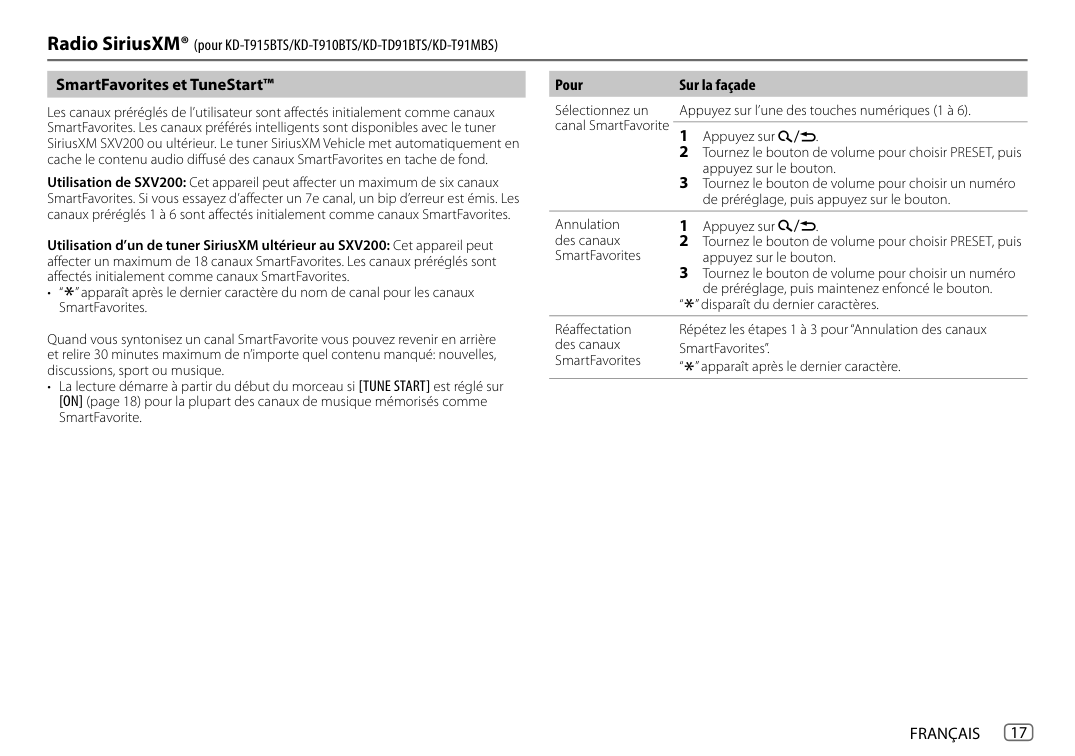
####################### WARRANTY TERM (VALID FROM THE DATE OF PURCHASE)
Parts Labour (Years) (Years)
Product
Projection TV In-Home Service Colour TV In-Home (25" and above) 1 1 D-ILA Rear Projection In-Home Service LCD TV In-Home Service (25" and above)
################# CONDITIONS DE GARANTIE (VALABLE aPARTIR DE LADATE D'ACHAT)
Pieces Main-O'oeuver /Annees\ /Annees\
Produit
• In-Home service to be provided where available. Where it is not available, the purchaser must assume the responsibility and expense for the proper packing,shipment and all costs associated with the delivery of the equipment to and from the closest JVC Authorized Service Centre.
~crans de projection Service aDomicile Ecrans de TV Couleur Service aDomicile(25' et plus) 1 11vprojection arriere D-ILA ServiceaDomicile Ecrans de LCD Service aDomicile (25" et plus)
• Service adomicile fourni par un detaillant disponible. S'il n'y apas de service JVC disponibleaproximite,l'acheteurdoit assumer
Receivers and Home Speakers purchased separately. Front Projection and Car 2 2 Audio "ARSENAL" Series AC Adapters, Remote controls, Headphones, Microphones and Projector 90 days 90 days lamps Wood Cone Speakers 5 5 All Other Categories 1 1
la responsabilile et les coOts pour un emballage adequal, !'expedition, ainsi que taus les coots associes ala livraison de l'equipementchezel depuis le detaillant JVC autorise le olus ores oour un service d'entretien.
(I) Any defects caused by fire, flood, lightning,power surge, or other events beyond the control of JVC.
Recepteurs et Hauts-Parleurs achetes separemenl, Projecteur Avant et Audio d'Auto 2 2 de Serie "ARSENAL" Adaptateurs AC, Telecommande,Gasque
(m) FOR AUTO PRODUCTS Warranty does not cover elimination of car static or electrical interferences, cleaning of head, adjustments, or labour cost for the removal or reinstallation of the unit for repair.
(I) Tout dommage cause par le feu, une inondation, un eclair, une surtension ou tout autre evenement hors du controle de JVC.
90 Jours 90 Jours D'ecoute, Microohones et Lamoe de Proiecteur
Enceinte aConeen Bois 5 5
Toutes les autres cateaories 1 1 JVCKENWOOD CANADA INC. 6070 Kestrel Road,Mississauga,Ontario, L5T 1S8 Canada TEL: (905) 670-3381 FAX: (905)670-7244 Service toll free#:1-800-964-2650 http://www.jvc.ca E-mail: service@jvc.ca
JVCKENWOOD CANADA INC. 6070 Kestrel Road,Mississauga, Ontario, L5T 1S8 Canada TEL: (905) 670-3381 FAX: (905)670-7244 Service toll free#: 1-800-964-2650 http://www.jvc.ca E-mail: service@jvc.ca
Product Registration We suggest that you register your product since it will enable us to contact you directly if it is ever necessary to correct asafety related condition in your product. You can register at http://www.jvc.ca/www/Support/Warranty.aspx
Enregistrement du produit Nous vous conseillons d'enregistrer votre produit, car ii nous permettra de vous contacter directement si jamais elle est necessaire pour corriger un probleme lie ala securite de votre produit. Vous pouvez vous inscrireahttp://www.jvc.ca/www/Supporl/Warranty.aspx Pour l'utilisation des clients: Entrez ci-dessous le numero de modele et le numero de serie qui se trouve soil al'arriere, en bas ou sur le cate de l'armoire.Conservez ces informations pour reference future.
For customer use: Enter below the Model No. and Serial No. which is located either on the rear, bottom or side of the cabinet. Retain this information for future reference.
Model No.: Serial No.: Purchase date: Name of dealer:
No. de modele: No. de serie: Date d'achat: Norn du revendeur: