Kyocera Duraxv Extreme Flip Phone manual
Smartphones · 9 Q&As

Kyocera Duraxv Extreme Flip Phone

Ask AI

— answers from the official manual

Answers from the official manual.

Common questions

Common Questions

9 total
1

How do I insert a battery into my phone?

Using a coin, rotate the battery cover screw counter-clockwise until it's loose. Lift the battery cover carefully with your fingernail. Insert the battery, making sure to align the gold contacts. Press gently to secure the battery (Page 7).

2

What do I do if my phone shows a low battery warning?

When your battery level reaches approximately 15%, the system will issue multiple warnings including flashing LED, alert tone, vibration, and display messages to notify you of low battery status. Charge or replace the battery promptly when these alerts start(Page 9).

3

How do I turn off my phone?

Open the phone and press and hold the END/POWER key until the powering-down animation appears on the main screen (Page 10).

4

How can I set up voice mail for this model?

To set up voicemail, press and hold the SEND key on your idle screen or directly dial *98#. Follow the prompts to enter a new password and record a personal greeting. Ensure you activate your device with Verizon service before setting up (Page 12).

5

How do I add a microSD card?

First remove the battery by lifting and turning the screw counter-clockwise. Lift the SIM/microSD guard, slide in the card with the gold contacts facing down until it secures into place (Page 10).

6

What do I do if my phone has an error code upon setup?

While specific error codes are not detailed, consult your user guide for troubleshooting basic issues. For complex errors or unlisted codes, contact Verizon support at the listed telephone number (Page 1-800-349-4478).

Show 3 more questions

Full Manual

122 pages
Page 1

User Guide

![image 1](kyocera-duraxv-extreme-04102020-userguide-eng_images/imageFile1.png)

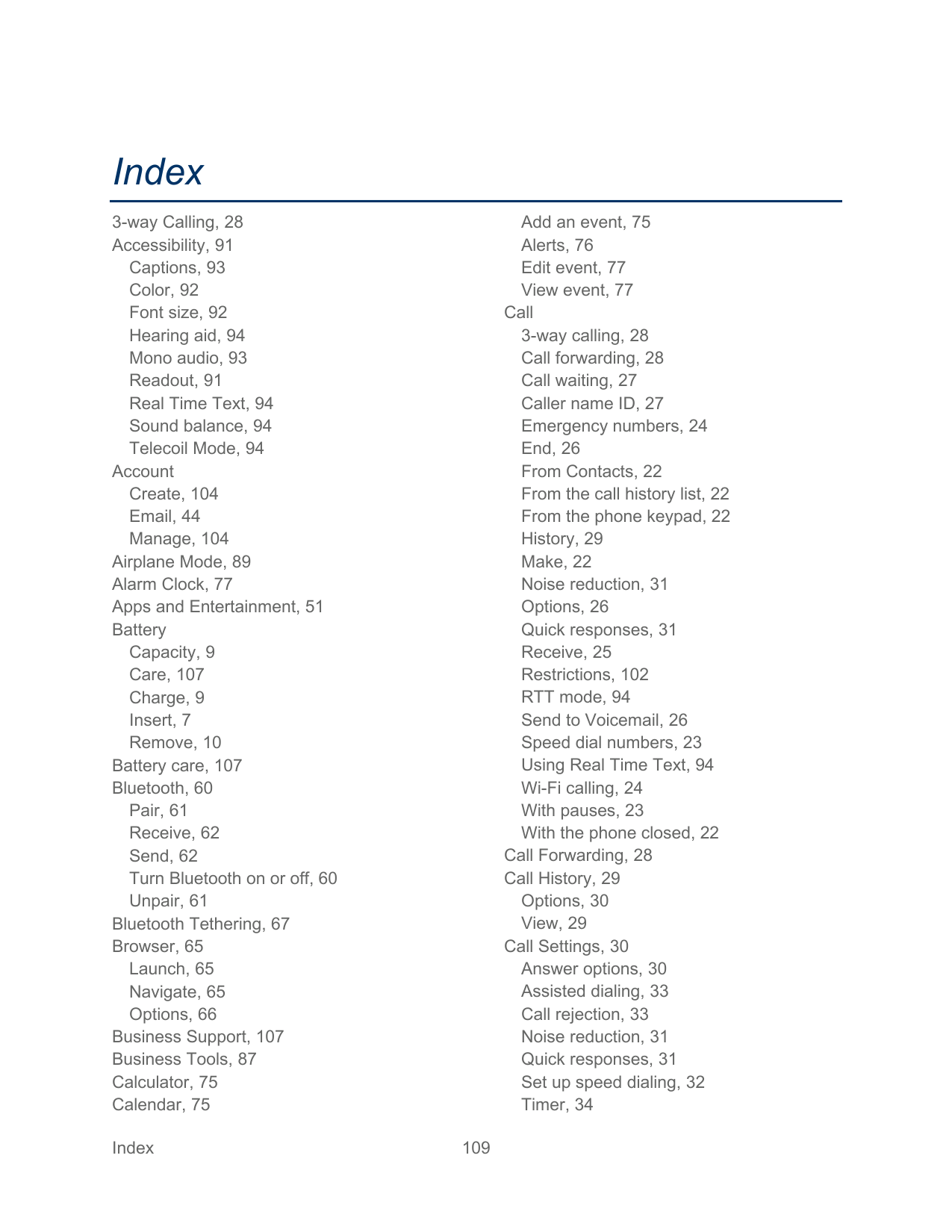
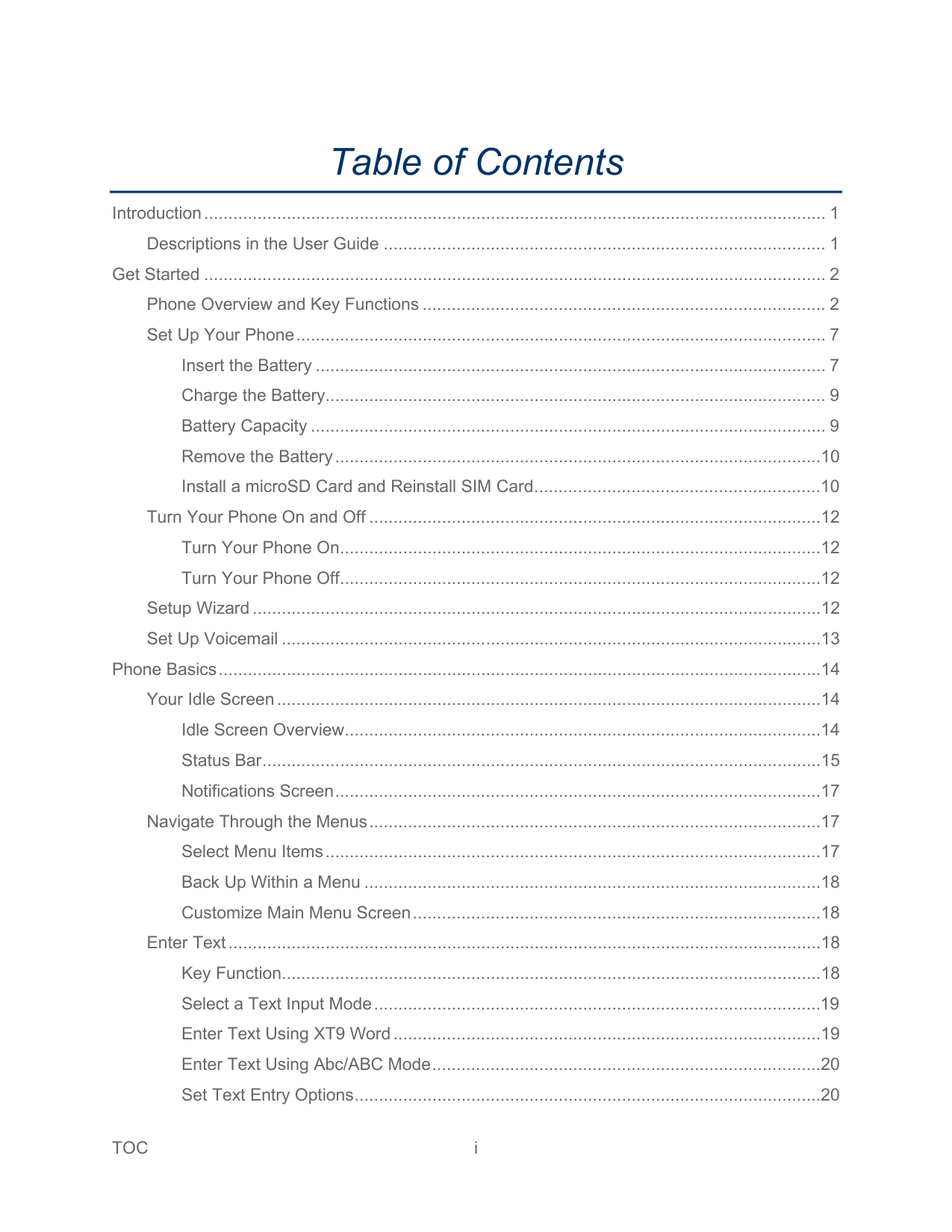
Table of Contents

Introduction................................................................................................................................ 1 Descriptions in the User Guide ........................................................................................... 1

Get Started ................................................................................................................................ 2 Phone Overview and Key Functions ................................................................................... 2 Set Up Your Phone............................................................................................................. 7

Insert the Battery ......................................................................................................... 7 Charge the Battery....................................................................................................... 9 Battery Capacity .......................................................................................................... 9 Remove the Battery....................................................................................................10 Install a microSD Card and Reinstall SIM Card...........................................................10

Turn Your Phone On and Off .............................................................................................12 Turn Your Phone On...................................................................................................12 Turn Your Phone Off...................................................................................................12

Setup Wizard .....................................................................................................................12 Set Up Voicemail ...............................................................................................................13

Phone Basics............................................................................................................................14

Your Idle Screen................................................................................................................14 Idle Screen Overview..................................................................................................14 Status Bar...................................................................................................................15 Notifications Screen....................................................................................................17

Navigate Through the Menus.............................................................................................17 Select Menu Items......................................................................................................17 Back Up Within a Menu ..............................................................................................18 Customize Main Menu Screen....................................................................................18

Enter Text..........................................................................................................................18 Key Function...............................................................................................................18 Select a Text Input Mode............................................................................................19 Enter Text Using XT9 Word........................................................................................19 Enter Text Using Abc/ABC Mode................................................................................20 Set Text Entry Options................................................................................................20

  • TOC i
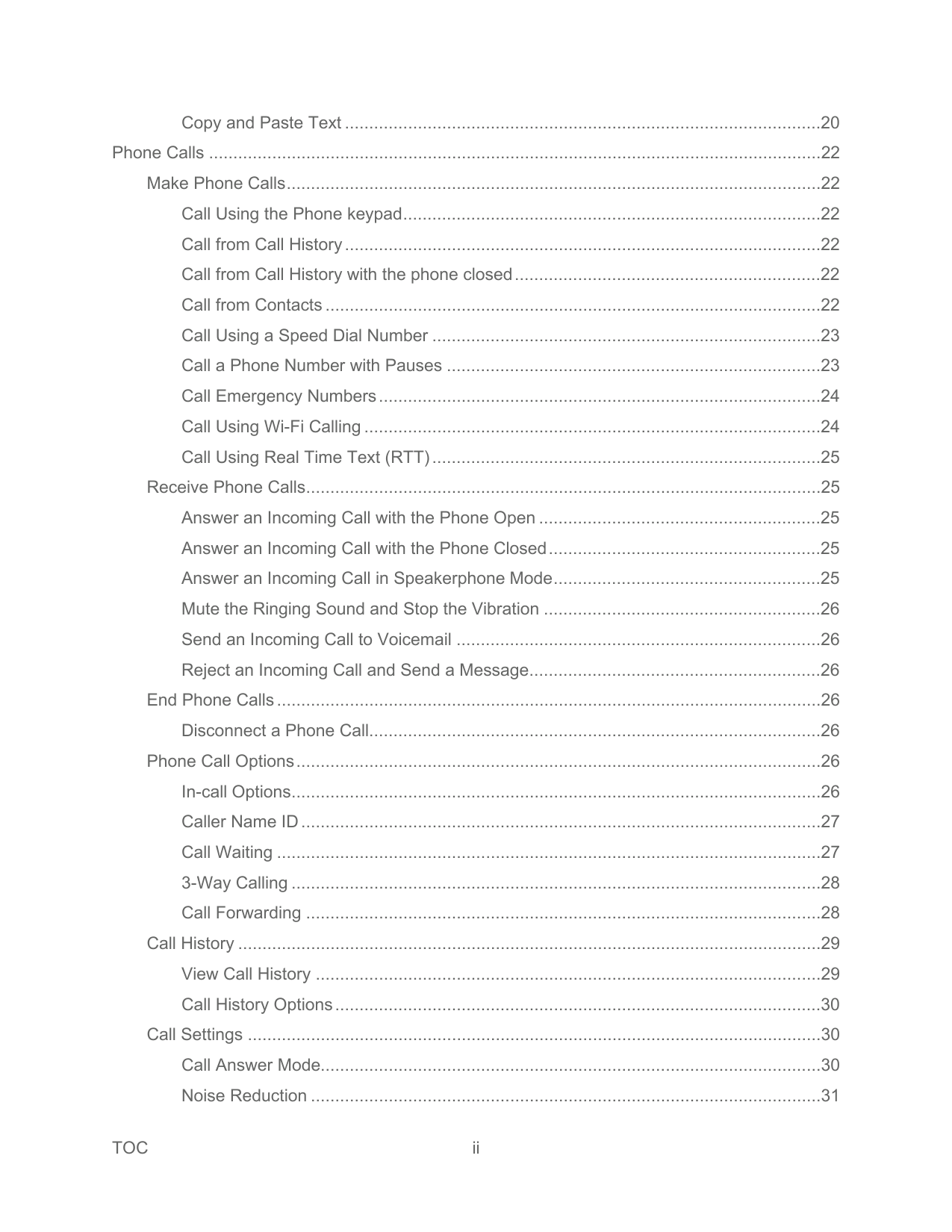
  • Copy and Paste Text ..................................................................................................20 Phone Calls ..............................................................................................................................22

    Make Phone Calls..............................................................................................................22 Call Using the Phone keypad......................................................................................22 Call from Call History..................................................................................................22 Call from Call History with the phone closed...............................................................22 Call from Contacts ......................................................................................................22 Call Using a Speed Dial Number ................................................................................23 Call a Phone Number with Pauses .............................................................................23 Call Emergency Numbers...........................................................................................24 Call Using Wi-Fi Calling ..............................................................................................24 Call Using Real Time Text (RTT)................................................................................25

    Receive Phone Calls..........................................................................................................25 Answer an Incoming Call with the Phone Open ..........................................................25 Answer an Incoming Call with the Phone Closed........................................................25 Answer an Incoming Call in Speakerphone Mode.......................................................25 Mute the Ringing Sound and Stop the Vibration .........................................................26 Send an Incoming Call to Voicemail ...........................................................................26 Reject an Incoming Call and Send a Message............................................................26

    End Phone Calls................................................................................................................26 Disconnect a Phone Call.............................................................................................26

    Phone Call Options............................................................................................................26 In-call Options.............................................................................................................26 Caller Name ID...........................................................................................................27 Call Waiting ................................................................................................................27 3-Way Calling .............................................................................................................28 Call Forwarding ..........................................................................................................28

    Call History ........................................................................................................................29 View Call History ........................................................................................................29 Call History Options....................................................................................................30

    Call Settings ......................................................................................................................30 Call Answer Mode.......................................................................................................30 Noise Reduction .........................................................................................................31

  • TOC ii
  • Quick Responses........................................................................................................31 Set Up Speed Dialing .................................................................................................32 Voicemail Settings ......................................................................................................32 Assisted Dialing..........................................................................................................33 Call Rejection .............................................................................................................33 Call Timer...................................................................................................................34

    Verizon Push To Talk Plus (PTT+).....................................................................................35 Set Up PTT+...............................................................................................................35
    Page 2

    Contacts....................................................................................................................................36 Access Contacts List..........................................................................................................36 Add a Contact....................................................................................................................36

    Contacts List...............................................................................................................36 Contacts List Options..................................................................................................37 Assign a Picture to a Contact......................................................................................37 Add a Contact to Favorites .........................................................................................38

    Save a Phone Number.......................................................................................................38 Edit a Contact ....................................................................................................................38

    Edit Information for a Contact .....................................................................................39 Assign a Ringtone or Vibration Pattern to a Contact ...................................................39

    Delete Contacts .................................................................................................................39 Delete a contact..........................................................................................................39 Delete Multiple Contacts.............................................................................................40

    Add a New Group ..............................................................................................................40 Edit a Group Contact .........................................................................................................40

    Add or Remove a Contact Entry to or from a Group....................................................41 Rename a Group........................................................................................................41 Delete a Group ...........................................................................................................41

    ICE (In Case of Emergency) Contacts ...............................................................................42 Register an ICE Contact .............................................................................................42 Remove an ICE Contact .............................................................................................42 Add Personal Information ...........................................................................................42

    Accounts and Messaging..........................................................................................................44 Email .................................................................................................................................44

  • TOC iii
  • Add an Email Account ................................................................................................44 Send an Email Message.............................................................................................44 View and Reply to Email.............................................................................................45 Manage Your Email Messages...................................................................................46 Email Settings.............................................................................................................47

    Message............................................................................................................................47 Send a Message.........................................................................................................47 New Message Notification ..........................................................................................48 Read a Message ........................................................................................................48 Reply to a Message....................................................................................................48 Delete a Message.......................................................................................................49 Messaging Settings ....................................................................................................49

    Voicemail...........................................................................................................................49 Voicemail Notification .................................................................................................49 New Voicemail Message Alerts...................................................................................50 Retrieve Your Voicemail Messages ............................................................................50

    Apps and Entertainment............................................................................................................51 My Verizon.........................................................................................................................51 Verizon Cloud ....................................................................................................................51 Music Player......................................................................................................................51

    Play Music..................................................................................................................51 Music Player Options..................................................................................................53 Use Playlists...............................................................................................................53

    File Manager......................................................................................................................54 Open Files in File Manager.........................................................................................54 File Manager Options .................................................................................................54 Supported Formats.....................................................................................................55

    Sound Recorder.................................................................................................................55 Sound Recorder Settings............................................................................................55 Record Sound.............................................................................................................56 Play Audio Data..........................................................................................................56 Sound List Options .....................................................................................................56

    Connections..............................................................................................................................58

  • TOC iv
  • Wi-Fi..................................................................................................................................58 Turn Wi-Fi On and Connect to a Wireless Network.....................................................58 Check the Wireless Network Status............................................................................59 Connect to a Different Wi-Fi Network..........................................................................59 Connect to a Hidden Wi-Fi Network............................................................................59 Wi-Fi Menu.................................................................................................................59

    Bluetooth ...........................................................................................................................60 Turn Bluetooth On or Off.............................................................................................60 Change the Device Name...........................................................................................60 Pairing (Connect to Other Devices) ............................................................................61 Unpair from a Bluetooth Device ..................................................................................61 Send and Receive Information Using Bluetooth..........................................................62

    Virtual Private Networks (VPN)..........................................................................................63 Prepare Your Phone for VPN Connection...................................................................63 Add a VPN Connection...............................................................................................64 Connect to or Disconnect from a VPN ........................................................................64
    Page 3

    Browser .............................................................................................................................65 Launch the Browser....................................................................................................65 Learn to Navigate the Web .........................................................................................65 Browser Menu ............................................................................................................66

    Tethering ...........................................................................................................................67 USB Tethering............................................................................................................67 Bluetooth Tethering ....................................................................................................67

    Mobile Hotspot...................................................................................................................68 Turn Mobile Hotspot On..............................................................................................68 Camera and Video....................................................................................................................69

    Take Pictures or Record Videos.........................................................................................69 Take a Picture ............................................................................................................69 Record a Video...........................................................................................................69

    Camera Settings................................................................................................................70 View Pictures and Videos Using Gallery ............................................................................71

    Open or Close Gallery ................................................................................................71 View Pictures and Videos ...........................................................................................71

  • TOC v
  • Gallery Options Menu.................................................................................................72 Share Pictures and Videos.................................................................................................73 Send Pictures and Videos...........................................................................................73

    Useful Tools..............................................................................................................................75 Calculator ..........................................................................................................................75 Calendar............................................................................................................................75

    Add an Event to the Calendar.....................................................................................75 Calendar Event Alerts.................................................................................................76 View Calendar Events ................................................................................................77 Edit Calendar Events..................................................................................................77

    Alarm Clock .......................................................................................................................77 Set an Alarm...............................................................................................................78 Alarms Options...........................................................................................................78 Phone at Alarm Time..................................................................................................78

    Timer .................................................................................................................................78 Set a Timer.................................................................................................................79 Timer Options.............................................................................................................79

    Stopwatch..........................................................................................................................79 World Clock .......................................................................................................................80 Notepad.............................................................................................................................80

    Write a Note................................................................................................................80 View or Edit a Note.....................................................................................................80 Notepad Options.........................................................................................................81

    Flashlight ...........................................................................................................................81 FM Radio...........................................................................................................................81 Eco Mode ..........................................................................................................................82 Voice Commands ..............................................................................................................82

    Activate the Voice Commands....................................................................................83 Make a Voice Call Using Voice Commands................................................................83 Send a Message Using Voice Commands..................................................................83 Display a Contacts Entry’s Information Using Voice Commands.................................84 Check Phone Status Using Voice Commands ............................................................84 Open Menus Using Voice Commands ........................................................................84

  • TOC vi
  • Voice Commands Settings..........................................................................................84

    microSD Card ....................................................................................................................85 View the microSD Card Memory.................................................................................85 Unmount SD Card ......................................................................................................86 Format microSD Card.................................................................................................86 Use the Phone’s microSD Card as a Media Device ....................................................86

    Business Tools..........................................................................................................................87 Push To Talk+ ...................................................................................................................87 FieldForce Manager...........................................................................................................87 Device Control ...................................................................................................................87

    Enable Device Control Mode ......................................................................................87 Set Up Device Control ................................................................................................88

    Carkit Power On or Off.......................................................................................................88 Settings.....................................................................................................................................89

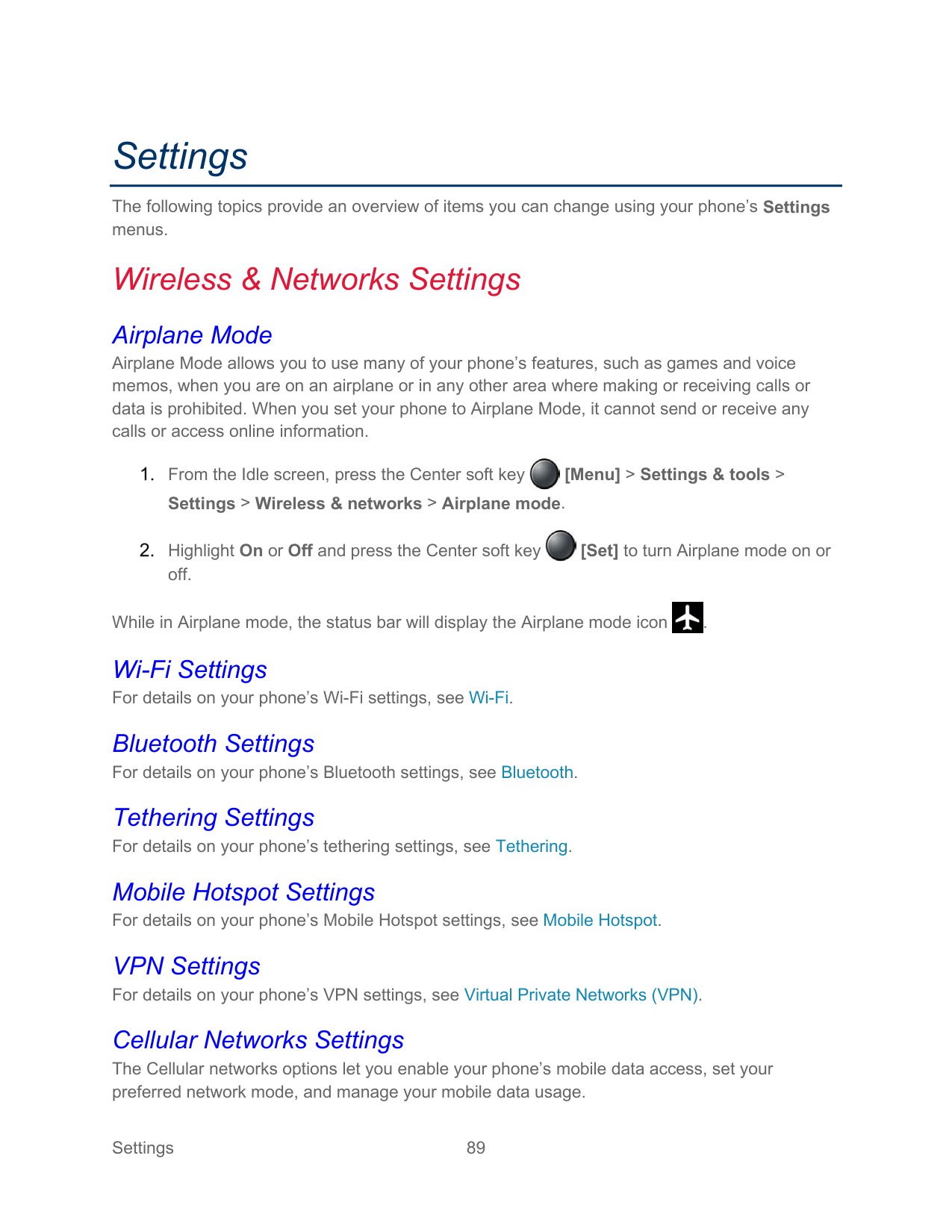
    Wireless & Networks Settings............................................................................................89 Airplane Mode ............................................................................................................89 Wi-Fi Settings .............................................................................................................89 Bluetooth Settings.......................................................................................................89 Tethering Settings.......................................................................................................89 Mobile Hotspot Settings..............................................................................................89 VPN Settings ..............................................................................................................89 Cellular Networks Settings..........................................................................................89
    Page 4

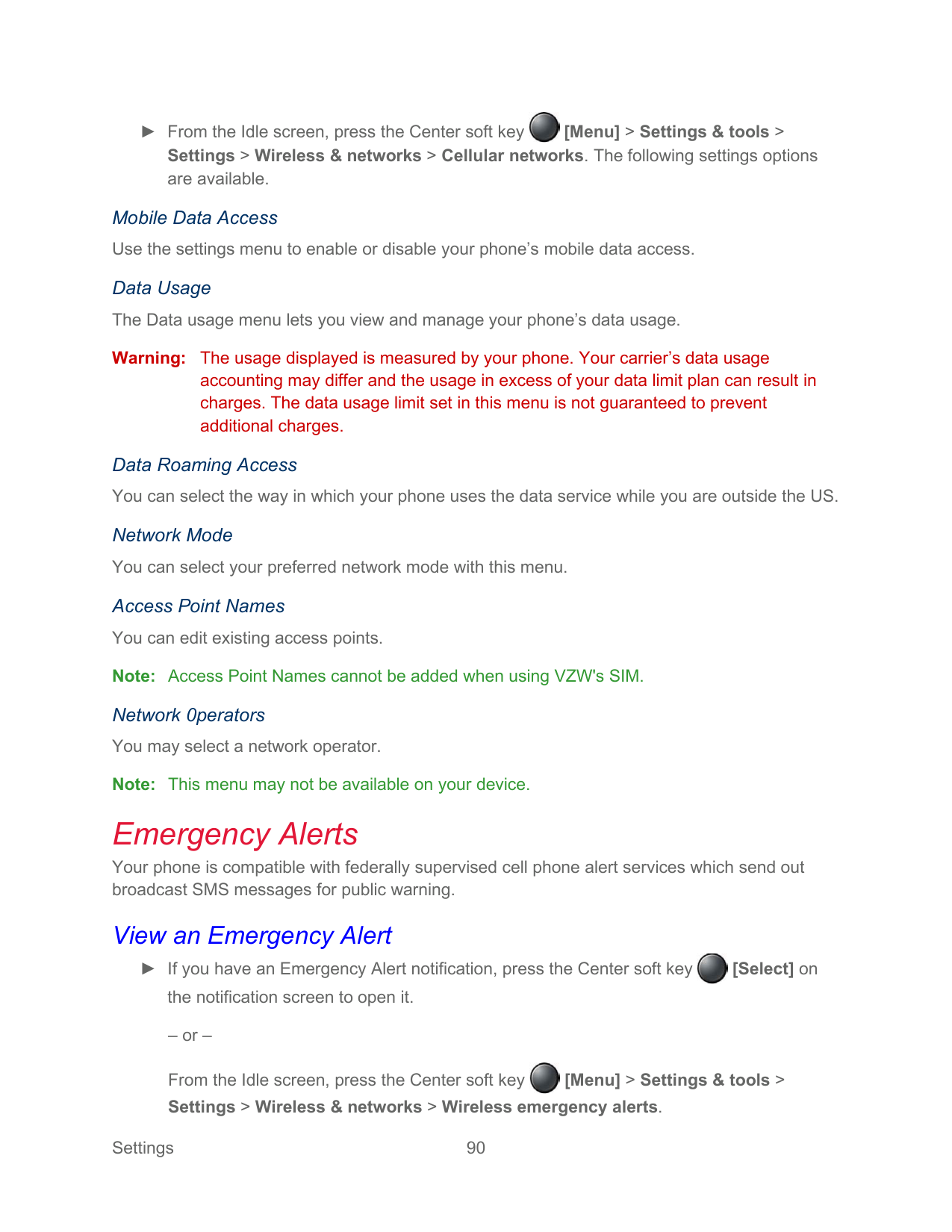
    Emergency Alerts ..............................................................................................................90 View an Emergency Alert............................................................................................90 Emergency Alert Settings ...........................................................................................91

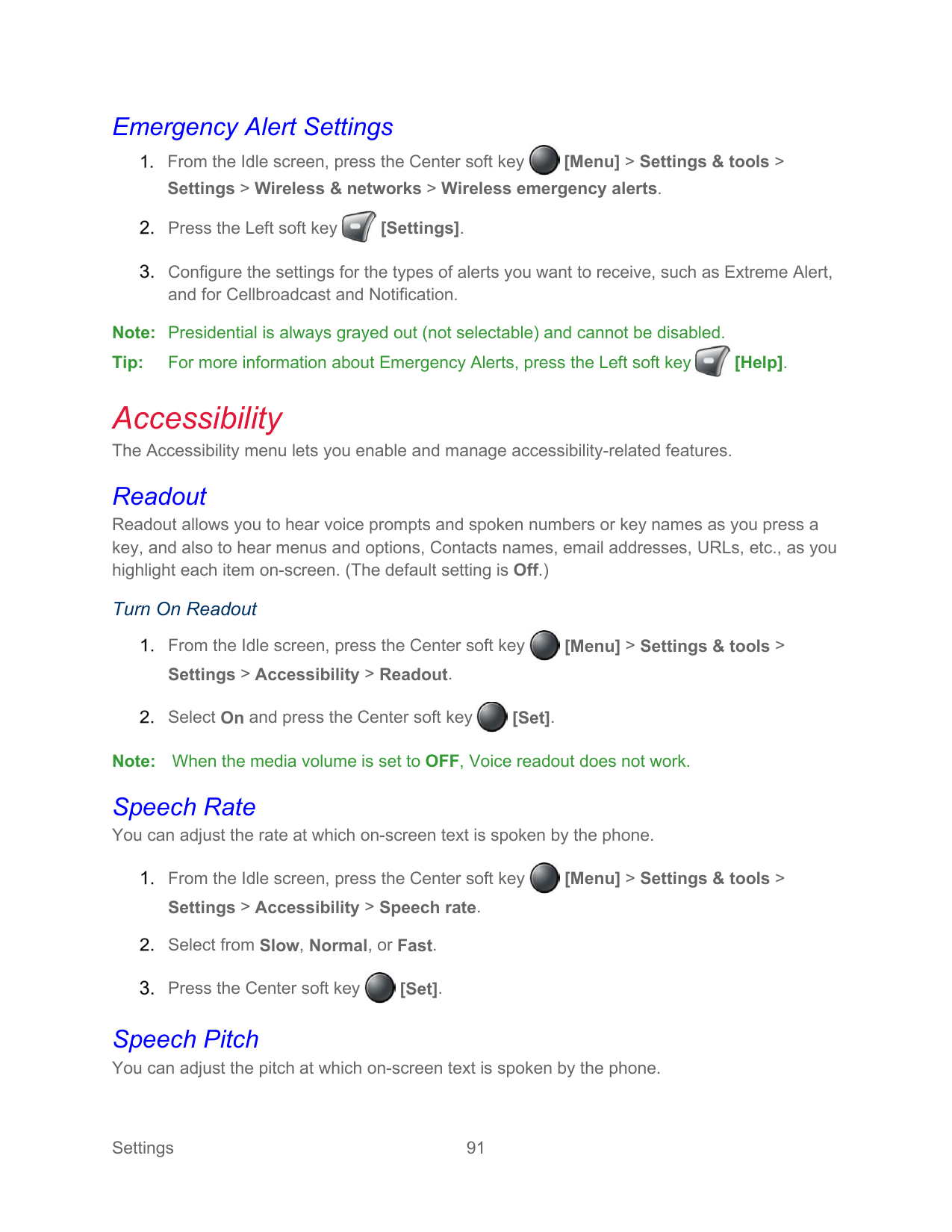
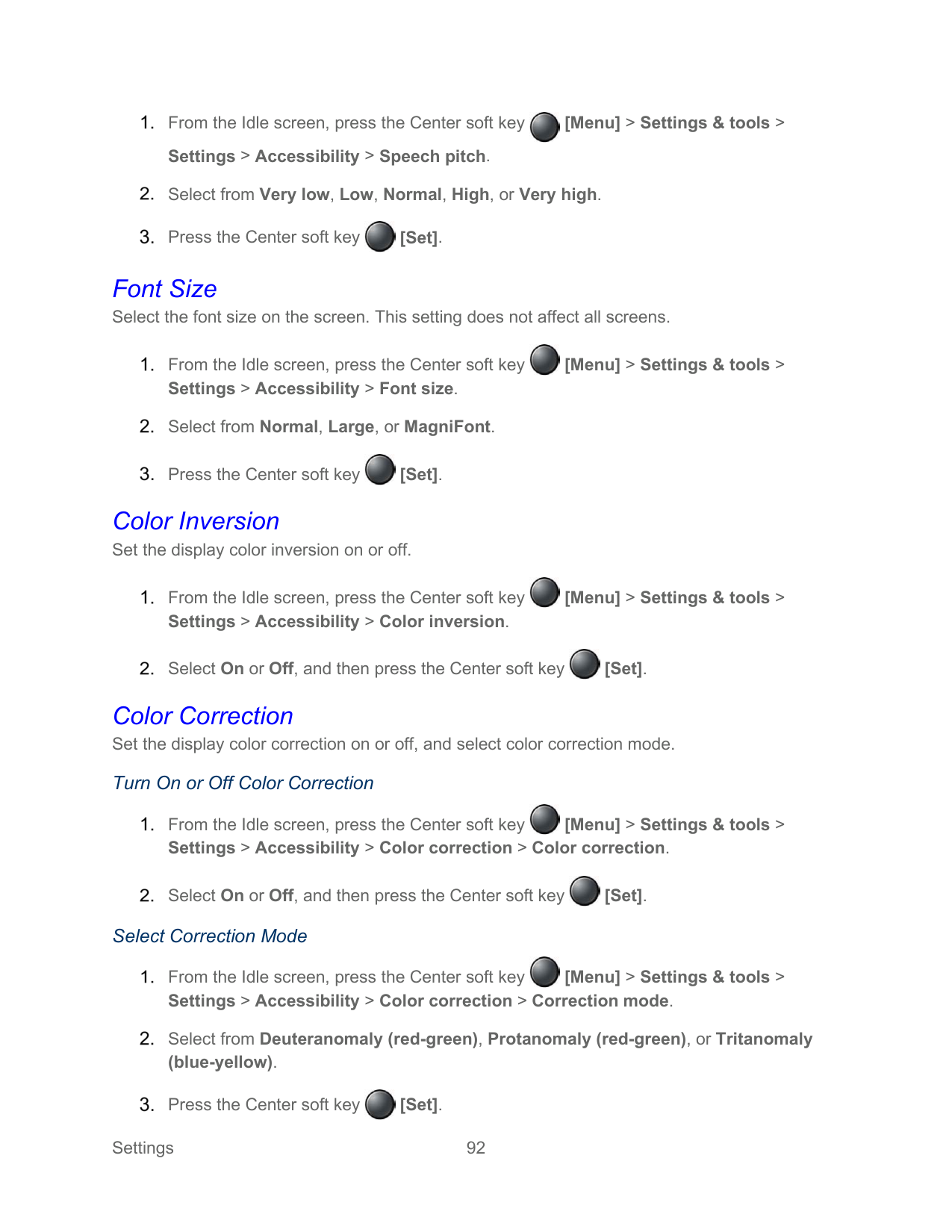
    Accessibility.......................................................................................................................91 Readout......................................................................................................................91 Speech Rate...............................................................................................................91 Speech Pitch ..............................................................................................................91 Font Size ....................................................................................................................92 Color Inversion ...........................................................................................................92 Color Correction .........................................................................................................92 Persistent Alerts .........................................................................................................93

  • TOC vii
  • Captions .....................................................................................................................93 Mono Audio ................................................................................................................93 Sound Balance ...........................................................................................................94 Real Time Text ...........................................................................................................94 Hearing Aid – Telecoil Mode.......................................................................................94

    Sound Settings ..................................................................................................................95 Volume .......................................................................................................................95 Also Vibrate for Calls ..................................................................................................95 Phone Ringtone..........................................................................................................95 Vibration Pattern.........................................................................................................95 Vibrate Intensity..........................................................................................................95 Notification Sound.......................................................................................................96 Persistent Alerts .........................................................................................................96 Alarm Sound...............................................................................................................96 Other Sound and Vibrations........................................................................................96

    Display Settings.................................................................................................................97 Brightness Level.........................................................................................................97 Wallpaper ...................................................................................................................97 Display Backlight ........................................................................................................97 Key Backlight..............................................................................................................97 Font Size ....................................................................................................................97 Notifications................................................................................................................97 Main Clock..................................................................................................................98 Outer Clock.................................................................................................................98 Menu Layout...............................................................................................................98

    Programmable Keys ..........................................................................................................98 Set Programmable Keys.............................................................................................98 Set Navigation Key Shortcuts .....................................................................................98

    Phone Settings ..................................................................................................................98 Language & Input Settings..........................................................................................99 Pointer........................................................................................................................99 Keyguard....................................................................................................................99 Storage.......................................................................................................................99

  • TOC viii
  • USB Mode..................................................................................................................99 Location Settings......................................................................................................100 Security ....................................................................................................................101 Accounts Settings.....................................................................................................104 Date & Time Settings................................................................................................104 Reset Your Phone and Phone Content.....................................................................105

    Call Settings ....................................................................................................................105 About Phone....................................................................................................................106 Software Update..............................................................................................................106

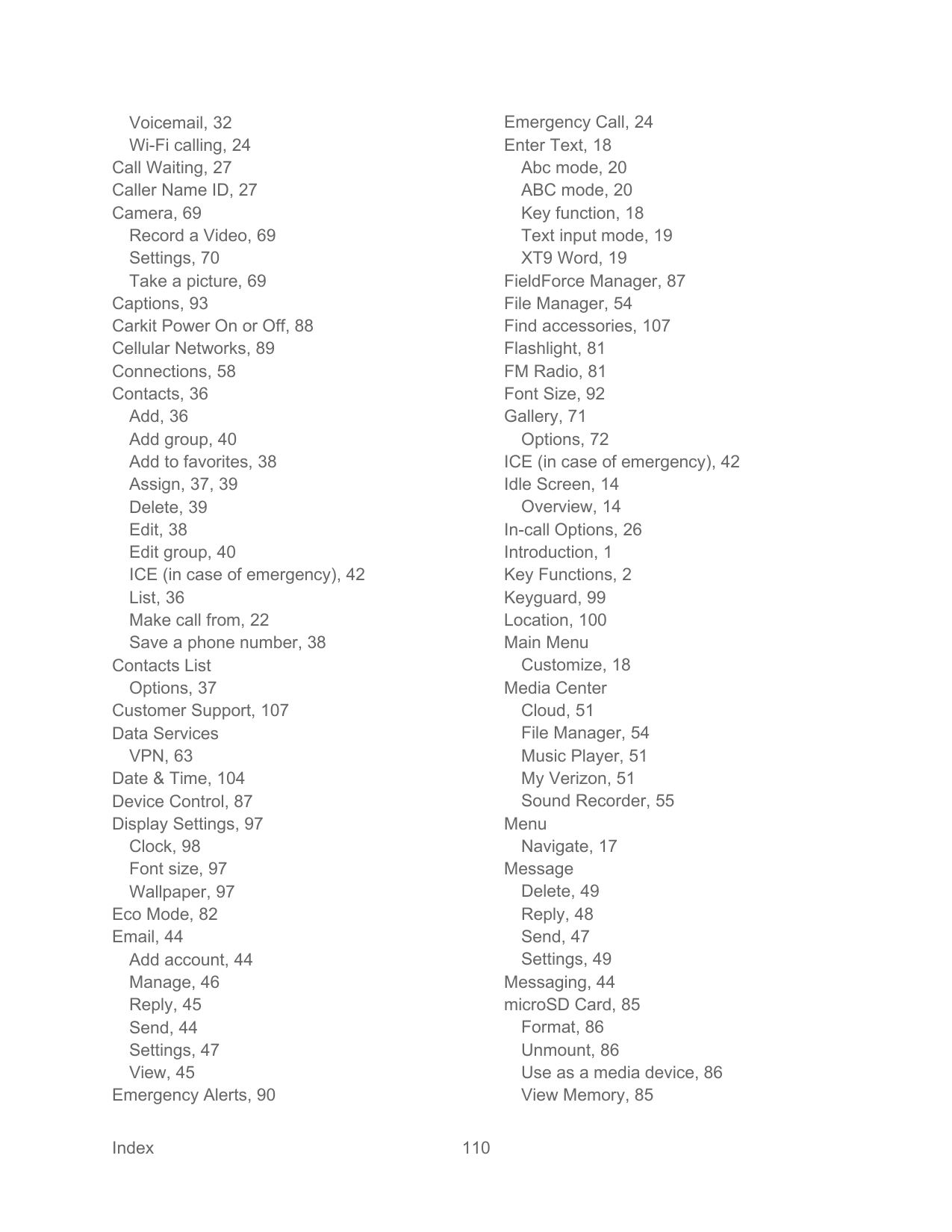
    Support & Services .................................................................................................................107 Copyright & Trademarks .........................................................................................................108 Index.......................................................................................................................................109

  • TOC ix
  • Introduction

    Thank you for purchasing this Kyocera product. Please read this user guide carefully to ensure safe and proper use.

    Descriptions in the User Guide Most descriptions in this user guide are based on your phone’s setup at the time of purchase. Instructions to perform tasks in this guide may change depending on the version of software or application on your phone. Certain menus as to option settings are not displayed or visible depending on each setting status.

    All screens in this guide are simulated. Actual displays may vary. Certain features, services, and applications are network dependent and may not be available in all areas; additional terms, conditions and/or charges may apply. Contact your service provider about feature availability and functionality.

    All features, functionality, and other specifications, as well as the information contained in this guide are based upon the latest available information and are believed to be accurate at the time of issuing. Kyocera International, Inc. reserves the right to change or modify any information or specifications without notice or obligation.

    For warranty service information, please refer to the Safety and Warranty Information linked from your phone or call the following telephone number from anywhere in the continental United States and Canada: 1-800-349-4478.

    This phone can determine its/your geographical location (location information) and can associate location information with other data. For some services and applications, location information must be turned on and you have to agree to its collection. Additionally, certain services, applications, and programs are capable of accessing, collecting, storing, and using location information and disclosing it to others. You should decide carefully when determining whether location information should be made available to others.

    ©2020 Kyocera Corporation. KYOCERA is a registered trademark of Kyocera Corporation. All other trademarks are the property of their respective owners.

    Introduction 1
    Page 5

    Get Started

    The following topics give you all the information you need to set up your phone and Verizon service the first time.

    Phone Overview and Key Functions

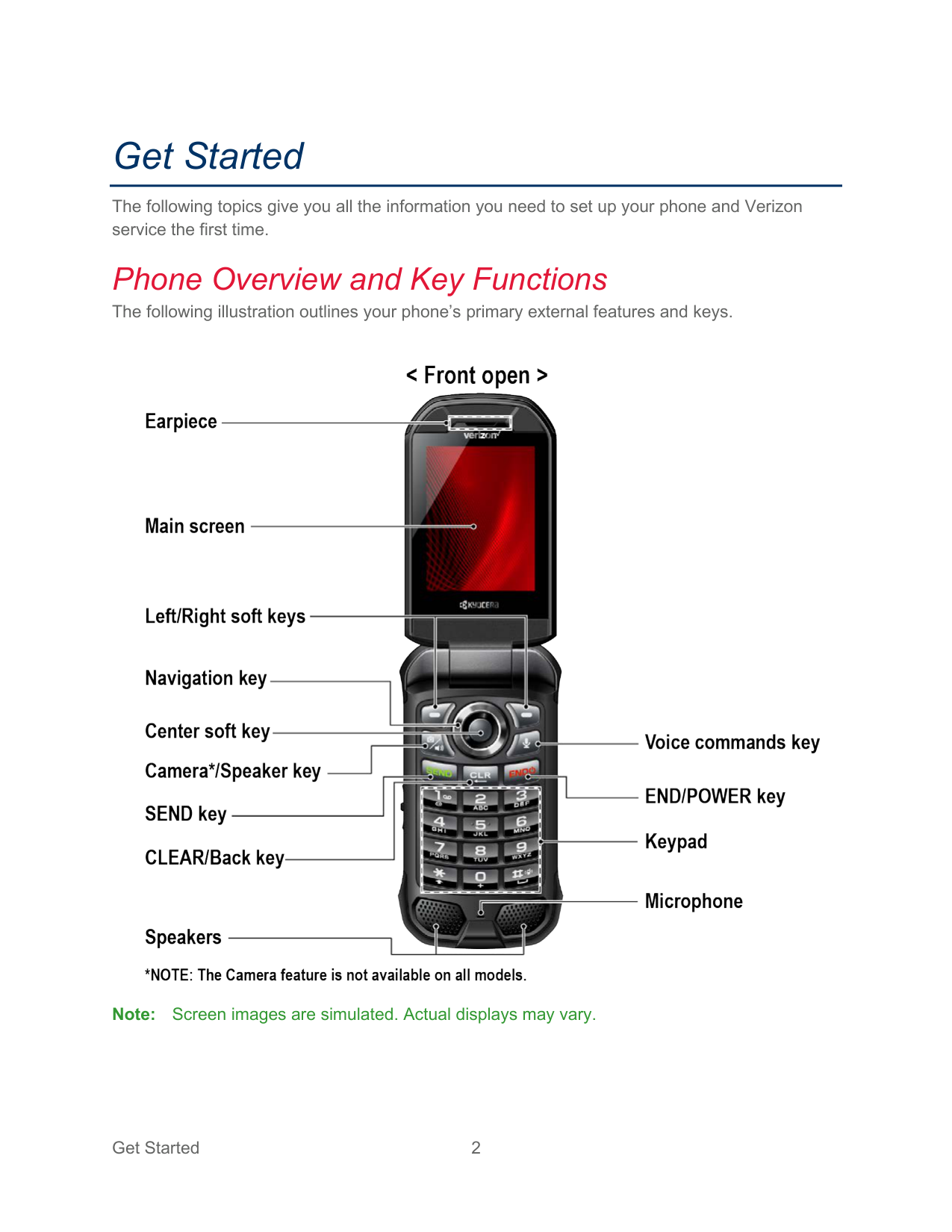
    The following illustration outlines your phone’s primary external features and keys.

    ![image 2](kyocera-duraxv-extreme-04102020-userguide-eng_images/imageFile2.png)

    Note: Screen images are simulated. Actual displays may vary.

  • ● Earpiece: Lets you hear the caller and automated prompts.
  • ● Main screen: Displays all the information needed to operate your phone, such as the call status, the Contacts list, the date and time, the signal strength, and the battery level.
  • ● Left/Right soft keys ( / ): Let you select key actions or menu items corresponding to the bottom left and right lines on the main screen.
  • ● Navigation key: Lets you scroll through the phone’s menu options.
  • ● Center soft key ( ): Lets you select key actions or menu items corresponding to the bottom center lines on the main screen.
  • ● Camera/Speaker key ( ): Lets you activate camera mode and take pictures and
  • videos with the phone open. When you receive an incoming call, press to answer the call in speakerphone mode. During a call, press to switch the speakerphone on or off. (Camera model only.)

    Note: The Camera feature is not available on all models.

  • ● Flashlight /Speaker key ( ): Lets you activate the flashlight and light up your
  • surroundings in an instant. When you receive an incoming call, press to answer the call in speakerphone mode. During a call, press to switch the speakerphone on or off. (Noncamera model only.)

  • ● SEND key ( ): Allows you to place or receive calls, answer Call Waiting, use 3-way Calling, or display recent call history.
  • ● CLEAR/Back key ( ): Deletes characters from the display in text input mode.
  • When in a menu, pressing it returns you to the previous menu. This key also allows you to return to the previous screen in a data session.

  • ● Voice commands key ( ): Allows you to activate Voice Commands. See Voice Commands.
  • ● END/POWER key ( ): Lets you turn the phone on or off, end a call, or cancel your input and return to the Idle screen.
  • ● Keypad: Lets you enter numbers, letters, and characters, and perform functions.
  • ● Microphone: Transmits your voice and ambient sound during voice calls and voice recordings.
  • ![image 3](kyocera-duraxv-extreme-04102020-userguide-eng_images/imageFile3.png)

    ![image 4](kyocera-duraxv-extreme-04102020-userguide-eng_images/imageFile4.png)

    ![image 5](kyocera-duraxv-extreme-04102020-userguide-eng_images/imageFile5.png)

    ![image 6](kyocera-duraxv-extreme-04102020-userguide-eng_images/imageFile6.png)

    Page 6

    ![image 7](kyocera-duraxv-extreme-04102020-userguide-eng_images/imageFile7.png)

    ![image 8](kyocera-duraxv-extreme-04102020-userguide-eng_images/imageFile8.png)

    ![image 9](kyocera-duraxv-extreme-04102020-userguide-eng_images/imageFile9.png)

    ![image 10](kyocera-duraxv-extreme-04102020-userguide-eng_images/imageFile10.png)

    ![image 11](kyocera-duraxv-extreme-04102020-userguide-eng_images/imageFile11.png)

    Note: Do not cover the microphone during a call. Do not apply any sheet or sticker to

    the display area as it may compromise the audio quality.

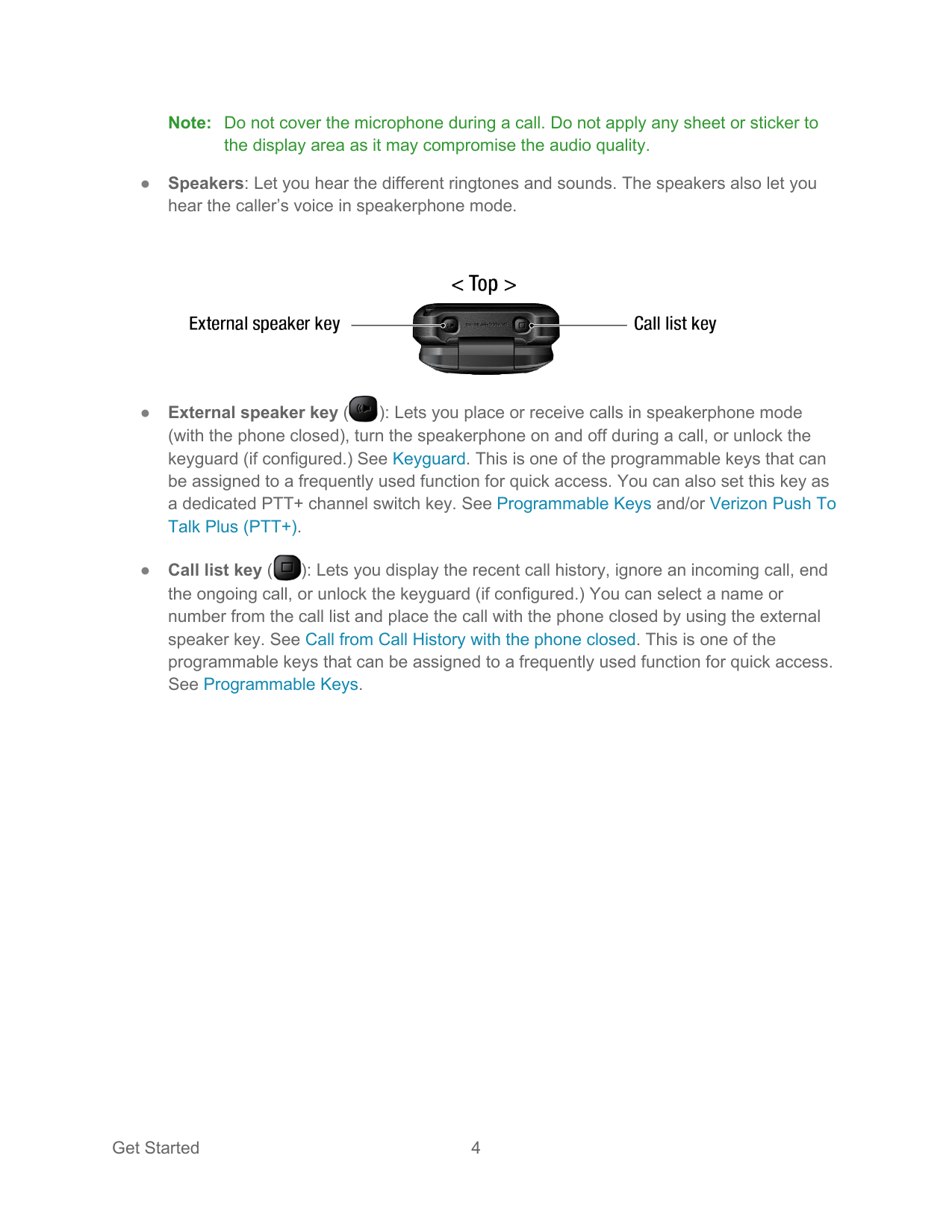
  • ● Speakers: Let you hear the different ringtones and sounds. The speakers also let you hear the caller’s voice in speakerphone mode.
  • ● External speaker key ( ): Lets you place or receive calls in speakerphone mode (with the phone closed), turn the speakerphone on and off during a call, or unlock the keyguard (if configured.) See Keyguard. This is one of the programmable keys that can be assigned to a frequently used function for quick access. You can also set this key as a dedicated PTT+ channel switch key. See Programmable Keys and/or Verizon Push To Talk Plus (PTT+).
  • ● Call list key ( ): Lets you display the recent call history, ignore an incoming call, end the ongoing call, or unlock the keyguard (if configured.) You can select a name or number from the call list and place the call with the phone closed by using the external speaker key. See Call from Call History with the phone closed. This is one of the programmable keys that can be assigned to a frequently used function for quick access. See Programmable Keys.
  • ![image 12](kyocera-duraxv-extreme-04102020-userguide-eng_images/imageFile12.png)

    ![image 13](kyocera-duraxv-extreme-04102020-userguide-eng_images/imageFile13.png)

    ![image 14](kyocera-duraxv-extreme-04102020-userguide-eng_images/imageFile14.png)

    ![image 15](kyocera-duraxv-extreme-04102020-userguide-eng_images/imageFile15.png)

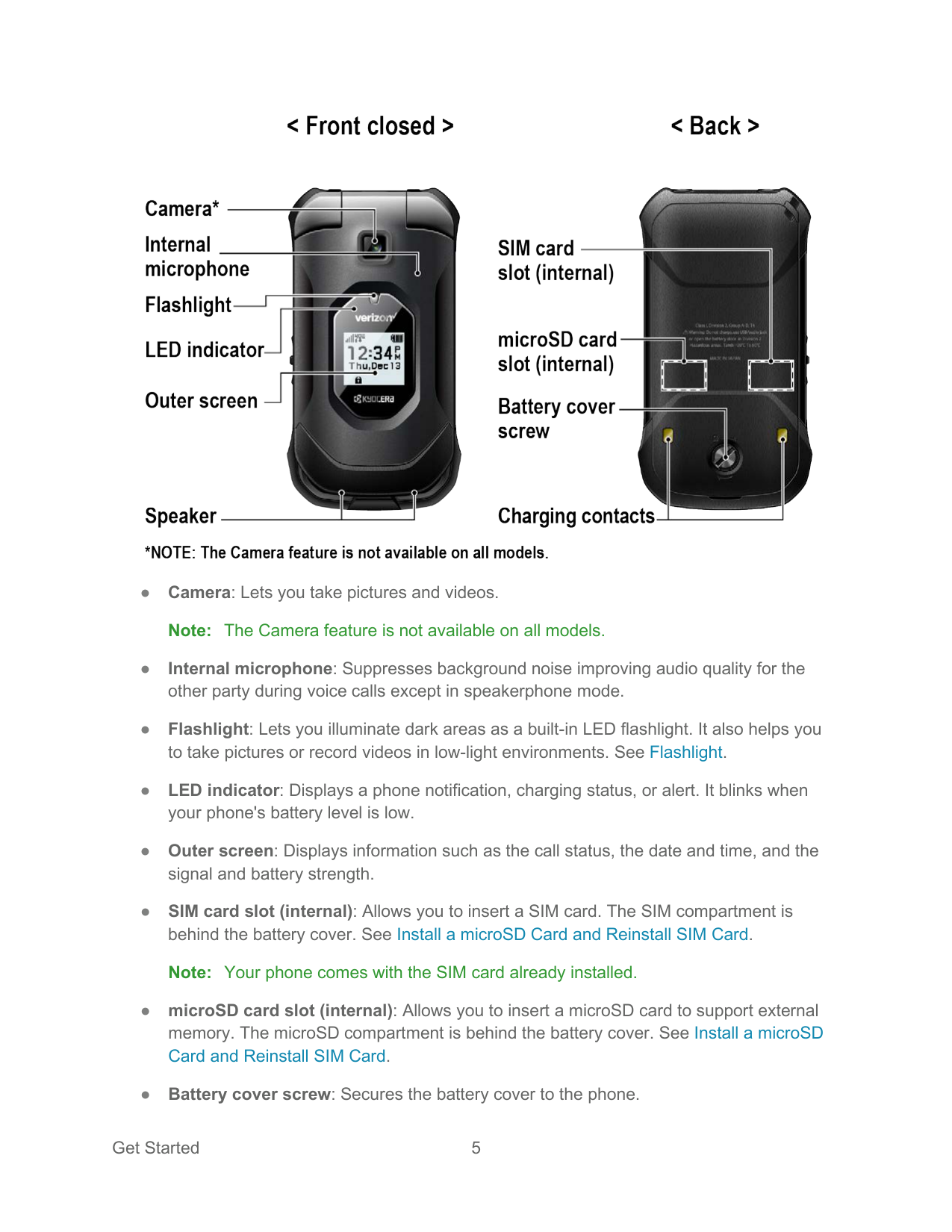
  • ● Camera: Lets you take pictures and videos. Note: The Camera feature is not available on all models.
  • ● Internal microphone: Suppresses background noise improving audio quality for the other party during voice calls except in speakerphone mode.
  • ● Flashlight: Lets you illuminate dark areas as a built-in LED flashlight. It also helps you to take pictures or record videos in low-light environments. See Flashlight.
  • ● LED indicator: Displays a phone notification, charging status, or alert. It blinks when your phone's battery level is low.
  • ● Outer screen: Displays information such as the call status, the date and time, and the signal and battery strength.
  • ● SIM card slot (internal): Allows you to insert a SIM card. The SIM compartment is behind the battery cover. See Install a microSD Card and Reinstall SIM Card. Note: Your phone comes with the SIM card already installed.
  • ● microSD card slot (internal): Allows you to insert a microSD card to support external memory. The microSD compartment is behind the battery cover. See Install a microSD Card and Reinstall SIM Card.
  • ● Battery cover screw: Secures the battery cover to the phone.
  • ● Charging contacts: Allow you to connect to a multi-bay battery charger that can charge multiple phones simultaneously.
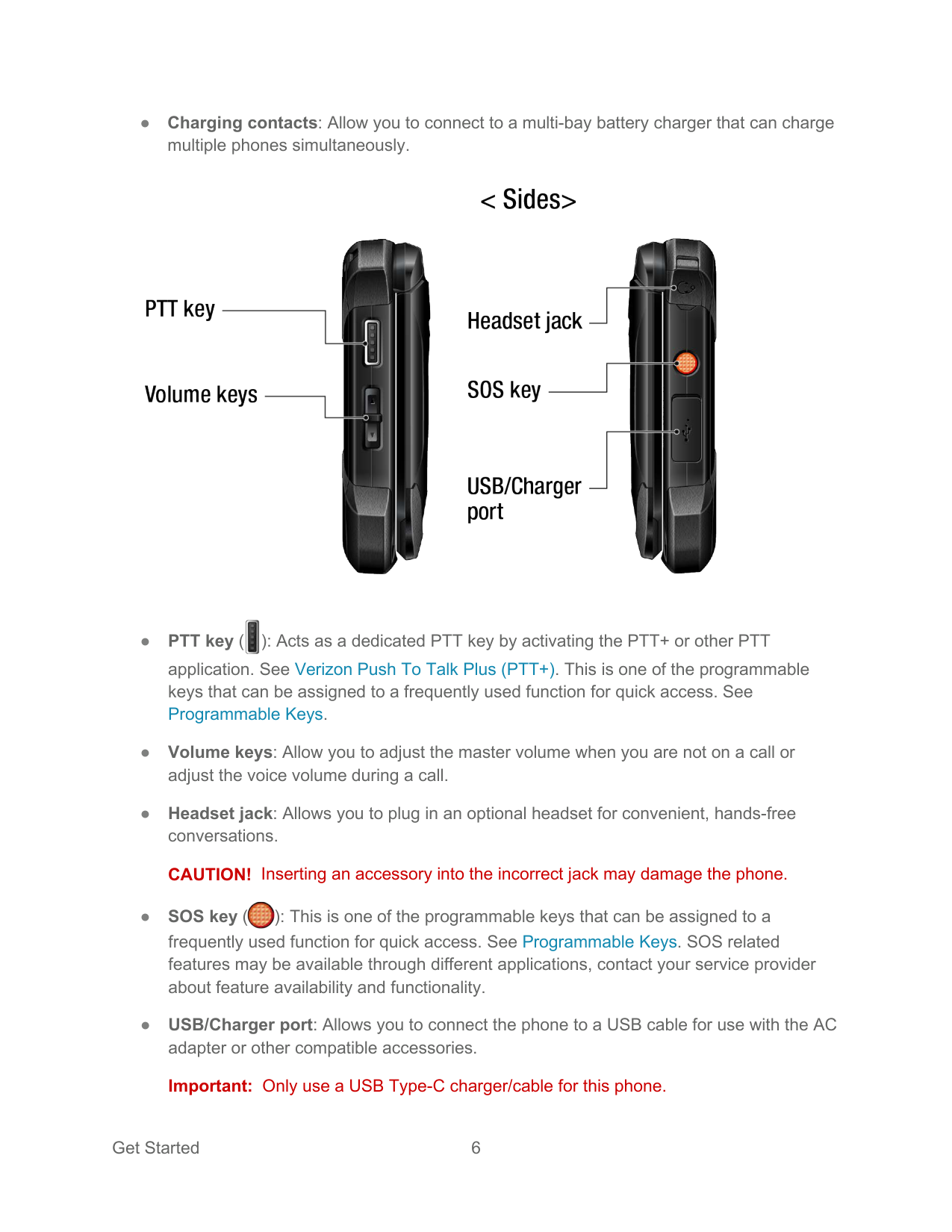
  • ● PTT key ( ): Acts as a dedicated PTT key by activating the PTT+ or other PTT
  • application. See Verizon Push To Talk Plus (PTT+). This is one of the programmable keys that can be assigned to a frequently used function for quick access. See Programmable Keys.

  • ● Volume keys: Allow you to adjust the master volume when you are not on a call or adjust the voice volume during a call.
  • ● Headset jack: Allows you to plug in an optional headset for convenient, hands-free conversations. CAUTION! Inserting an accessory into the incorrect jack may damage the phone.
  • ● SOS key ( ): This is one of the programmable keys that can be assigned to a frequently used function for quick access. See Programmable Keys. SOS related features may be available through different applications, contact your service provider about feature availability and functionality.
  • ● USB/Charger port: Allows you to connect the phone to a USB cable for use with the AC adapter or other compatible accessories. Important: Only use a USB Type-C charger/cable for this phone.
  • Page 7

    ![image 16](kyocera-duraxv-extreme-04102020-userguide-eng_images/imageFile16.png)

    ![image 17](kyocera-duraxv-extreme-04102020-userguide-eng_images/imageFile17.png)

    ![image 18](kyocera-duraxv-extreme-04102020-userguide-eng_images/imageFile18.png)

    Set Up Your Phone

    You must first install and charge the battery to begin setting up your phone.

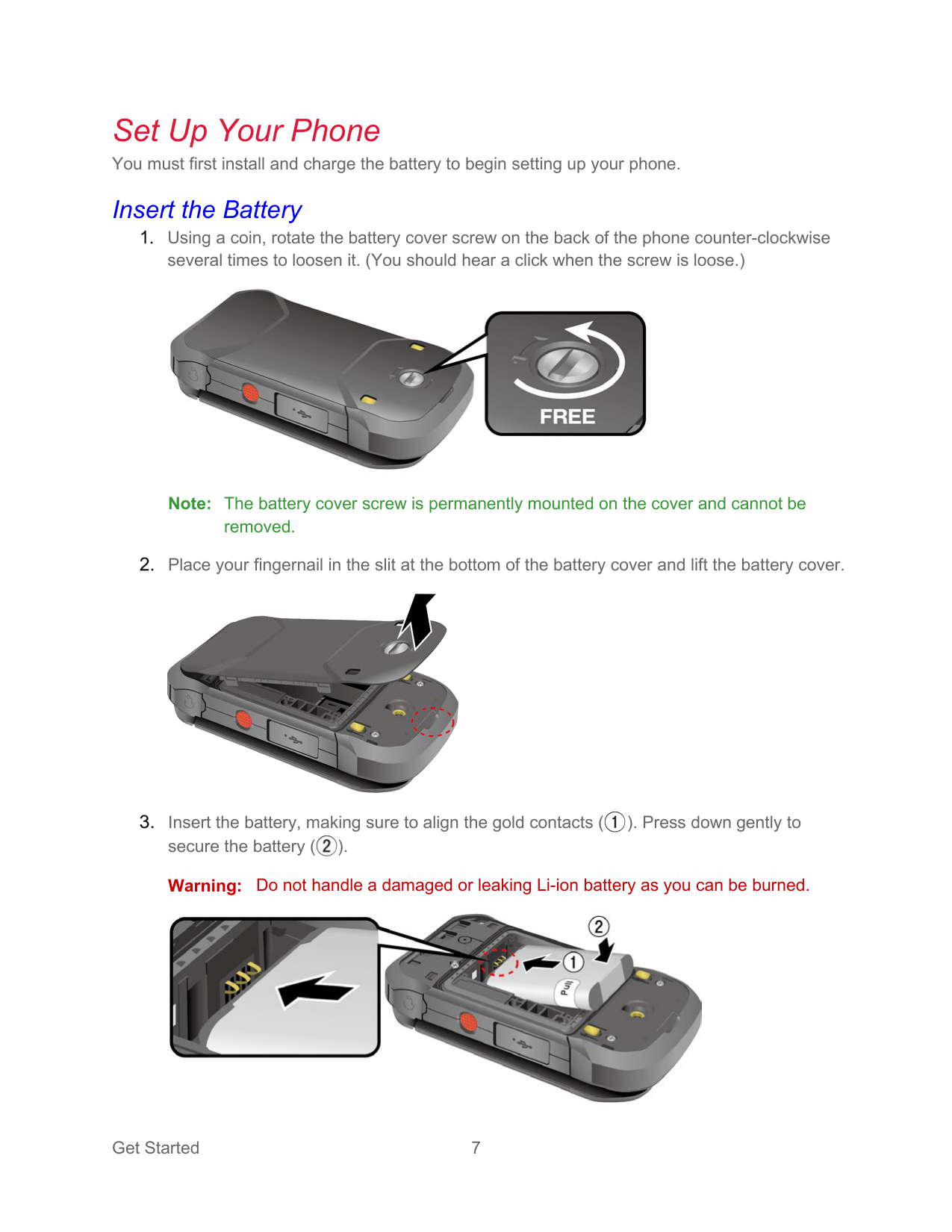
    Insert the Battery Using a coin, rotate the battery cover screw on the back of the phone counter-clockwise several times to loosen it. (You should hear a click when the screw is loose.)

    ![image 19](kyocera-duraxv-extreme-04102020-userguide-eng_images/imageFile19.png)

    ![image 20](kyocera-duraxv-extreme-04102020-userguide-eng_images/imageFile20.png)

    ![image 21](kyocera-duraxv-extreme-04102020-userguide-eng_images/imageFile21.png)

    Note: The battery cover screw is permanently mounted on the cover and cannot be

    removed. Place your fingernail in the slit at the bottom of the battery cover and lift the battery cover.

    ![image 22](kyocera-duraxv-extreme-04102020-userguide-eng_images/imageFile22.png)

    ![image 23](kyocera-duraxv-extreme-04102020-userguide-eng_images/imageFile23.png)

    ![image 24](kyocera-duraxv-extreme-04102020-userguide-eng_images/imageFile24.png)

    Insert the battery, making sure to align the gold contacts ( ). Press down gently to secure the battery ( ).

    ![image 25](kyocera-duraxv-extreme-04102020-userguide-eng_images/imageFile25.png)

    Warning: Do not handle a damaged or leaking Li-ion battery as you can be burned.

    ![image 26](kyocera-duraxv-extreme-04102020-userguide-eng_images/imageFile26.png)

    ![image 27](kyocera-duraxv-extreme-04102020-userguide-eng_images/imageFile27.png)

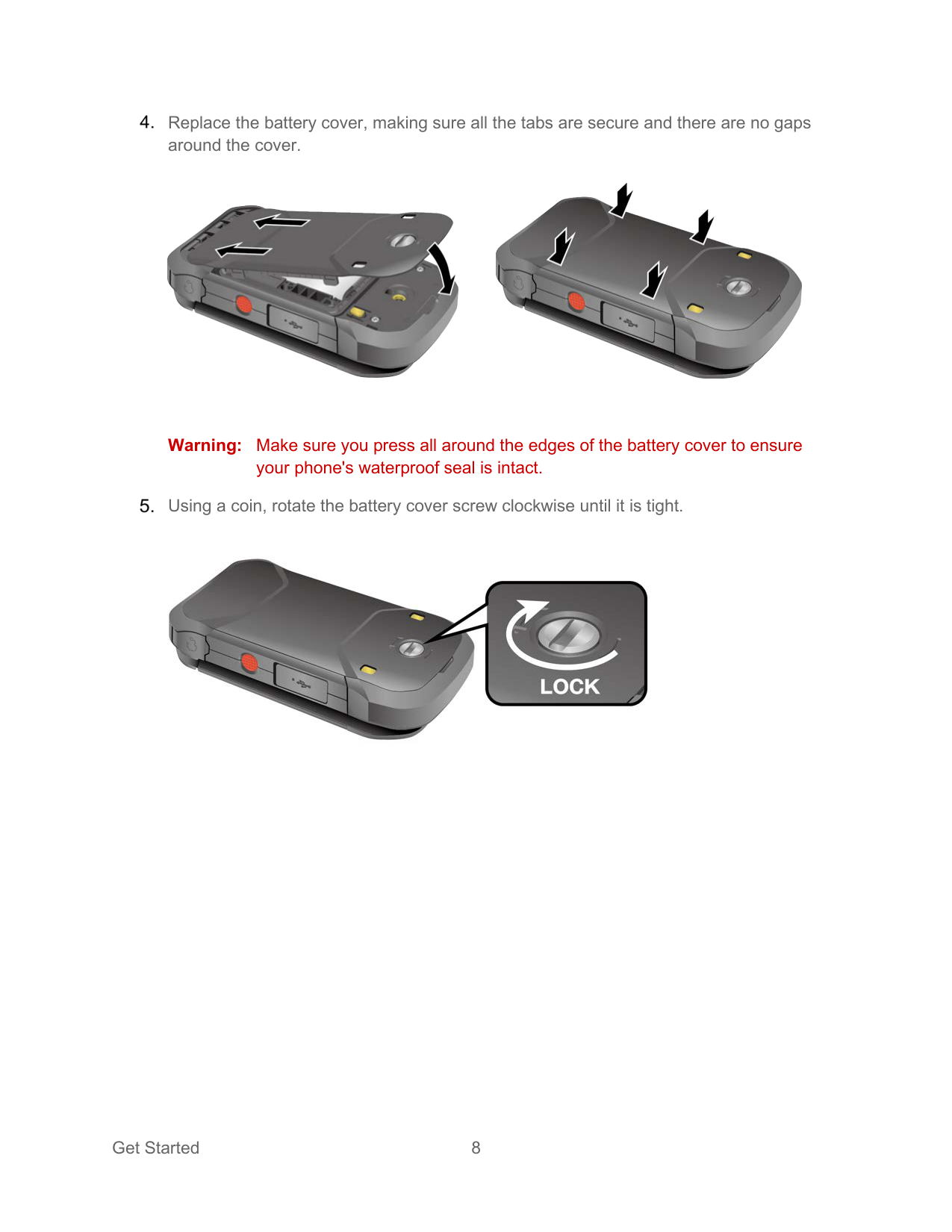
    Replace the battery cover, making sure all the tabs are secure and there are no gaps around the cover.

    ![image 28](kyocera-duraxv-extreme-04102020-userguide-eng_images/imageFile28.png)

    ![image 29](kyocera-duraxv-extreme-04102020-userguide-eng_images/imageFile29.png)

    ![image 30](kyocera-duraxv-extreme-04102020-userguide-eng_images/imageFile30.png)

    Page 8

    Warning: Make sure you press all around the edges of the battery cover to ensure

    your phone's waterproof seal is intact. Using a coin, rotate the battery cover screw clockwise until it is tight.

    ![image 31](kyocera-duraxv-extreme-04102020-userguide-eng_images/imageFile31.png)

    Charge the Battery Fully charge the battery before powering on the phone. Important: Unplug the charger from the electrical outlet when not in use to reduce the

    environmental impact of charging.

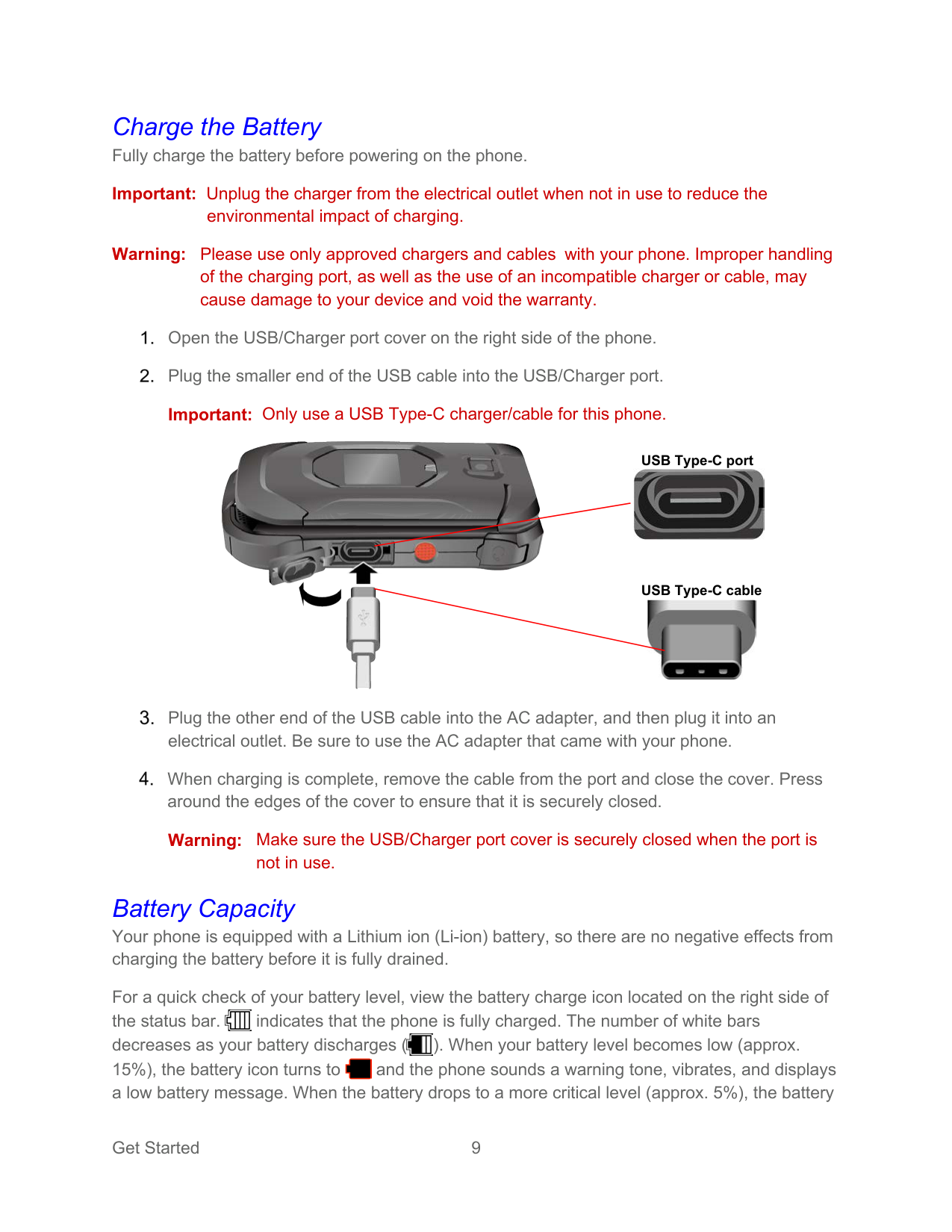
    Warning: Please use only approved chargers and cables with your phone. Improper handling of the charging port, as well as the use of an incompatible charger or cable, may cause damage to your device and void the warranty.

    ![image 32](kyocera-duraxv-extreme-04102020-userguide-eng_images/imageFile32.png)

    ![image 33](kyocera-duraxv-extreme-04102020-userguide-eng_images/imageFile33.png)

    Open the USB/Charger port cover on the right side of the phone. Plug the smaller end of the USB cable into the USB/Charger port. Important: Only use a USB Type-C charger/cable for this phone.

    ![image 34](kyocera-duraxv-extreme-04102020-userguide-eng_images/imageFile34.png)

    ![image 35](kyocera-duraxv-extreme-04102020-userguide-eng_images/imageFile35.png)

    USB Type-C port

    ![image 36](kyocera-duraxv-extreme-04102020-userguide-eng_images/imageFile36.png)

    ![image 37](kyocera-duraxv-extreme-04102020-userguide-eng_images/imageFile37.png)

    USB Type-C cable

    ![image 38](kyocera-duraxv-extreme-04102020-userguide-eng_images/imageFile38.png)

    ![image 39](kyocera-duraxv-extreme-04102020-userguide-eng_images/imageFile39.png)

    Plug the other end of the USB cable into the AC adapter, and then plug it into an electrical outlet. Be sure to use the AC adapter that came with your phone.

    ![image 40](kyocera-duraxv-extreme-04102020-userguide-eng_images/imageFile40.png)

    When charging is complete, remove the cable from the port and close the cover. Press around the edges of the cover to ensure that it is securely closed.

    Warning: Make sure the USB/Charger port cover is securely closed when the port is

    not in use.

    Battery Capacity Your phone is equipped with a Lithium ion (Li-ion) battery, so there are no negative effects from charging the battery before it is fully drained.

    For a quick check of your battery level, view the battery charge icon located on the right side of the status bar. indicates that the phone is fully charged. The number of white bars decreases as your battery discharges ( ). When your battery level becomes low (approx. 15%), the battery icon turns to and the phone sounds a warning tone, vibrates, and displays a low battery message. When the battery drops to a more critical level (approx. 5%), the battery
    Page 9

    ![image 41](kyocera-duraxv-extreme-04102020-userguide-eng_images/imageFile41.png)

    ![image 42](kyocera-duraxv-extreme-04102020-userguide-eng_images/imageFile42.png)

    ![image 43](kyocera-duraxv-extreme-04102020-userguide-eng_images/imageFile43.png)

    ![image 44](kyocera-duraxv-extreme-04102020-userguide-eng_images/imageFile44.png)

    icon turns to and starts blinking. The alert tone, vibration, and message will repeat when the remaining battery reaches each lower level.

    Note: Watch your phone’s battery level and charge the battery before it runs out of power.

    #### Remove the Battery

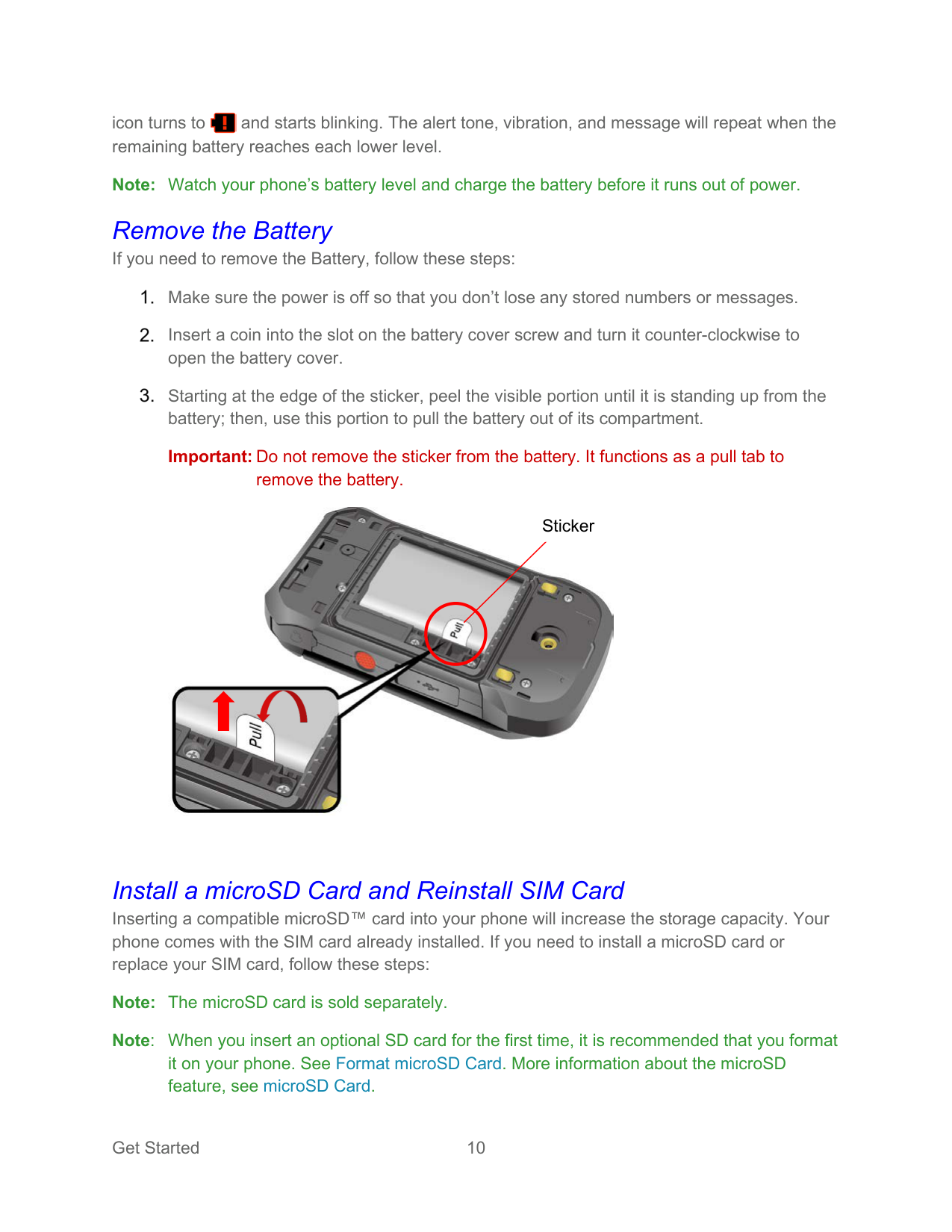
    If you need to remove the Battery, follow these steps: Make sure the power is off so that you don’t lose any stored numbers or messages. Insert a coin into the slot on the battery cover screw and turn it counter-clockwise to open the battery cover. Starting at the edge of the sticker, peel the visible portion until it is standing up from the battery; then, use this portion to pull the battery out of its compartment. Important: Do not remove the sticker from the battery. It functions as a pull tab to

    ![image 45](kyocera-duraxv-extreme-04102020-userguide-eng_images/imageFile45.png)

    ![image 46](kyocera-duraxv-extreme-04102020-userguide-eng_images/imageFile46.png)

    ![image 47](kyocera-duraxv-extreme-04102020-userguide-eng_images/imageFile47.png)

    remove the battery.

    ![image 48](kyocera-duraxv-extreme-04102020-userguide-eng_images/imageFile48.png)

    ![image 49](kyocera-duraxv-extreme-04102020-userguide-eng_images/imageFile49.png)

    Sticker

    ![image 50](kyocera-duraxv-extreme-04102020-userguide-eng_images/imageFile50.png)

    Install a microSD Card and Reinstall SIM Card Inserting a compatible microSD™ card into your phone will increase the storage capacity. Your phone comes with the SIM card already installed. If you need to install a microSD card or replace your SIM card, follow these steps:

    Note: The microSD card is sold separately. Note: When you insert an optional SD card for the first time, it is recommended that you format it on your phone. See Format microSD Card. More information about the microSD feature, see microSD Card.

    ![image 51](kyocera-duraxv-extreme-04102020-userguide-eng_images/imageFile51.png)

    ![image 52](kyocera-duraxv-extreme-04102020-userguide-eng_images/imageFile52.png)

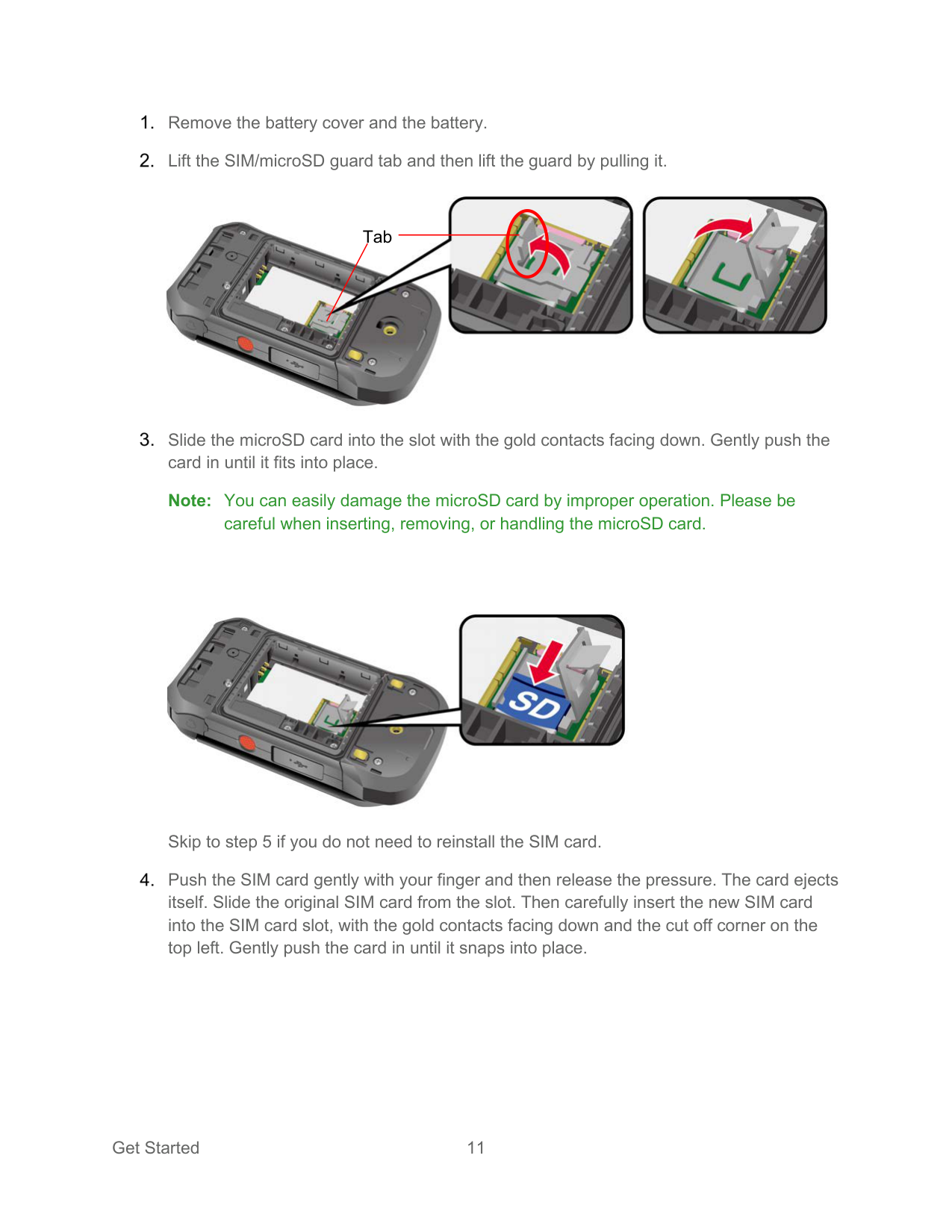
    Remove the battery cover and the battery. Lift the SIM/microSD guard tab and then lift the guard by pulling it.

    ![image 53](kyocera-duraxv-extreme-04102020-userguide-eng_images/imageFile53.png)

    ![image 54](kyocera-duraxv-extreme-04102020-userguide-eng_images/imageFile54.png)

    Page 10

    Tab

    ![image 55](kyocera-duraxv-extreme-04102020-userguide-eng_images/imageFile55.png)

    Slide the microSD card into the slot with the gold contacts facing down. Gently push the card in until it fits into place.

    Note: You can easily damage the microSD card by improper operation. Please be

    careful when inserting, removing, or handling the microSD card.

    ![image 56](kyocera-duraxv-extreme-04102020-userguide-eng_images/imageFile56.png)

    ![image 57](kyocera-duraxv-extreme-04102020-userguide-eng_images/imageFile57.png)

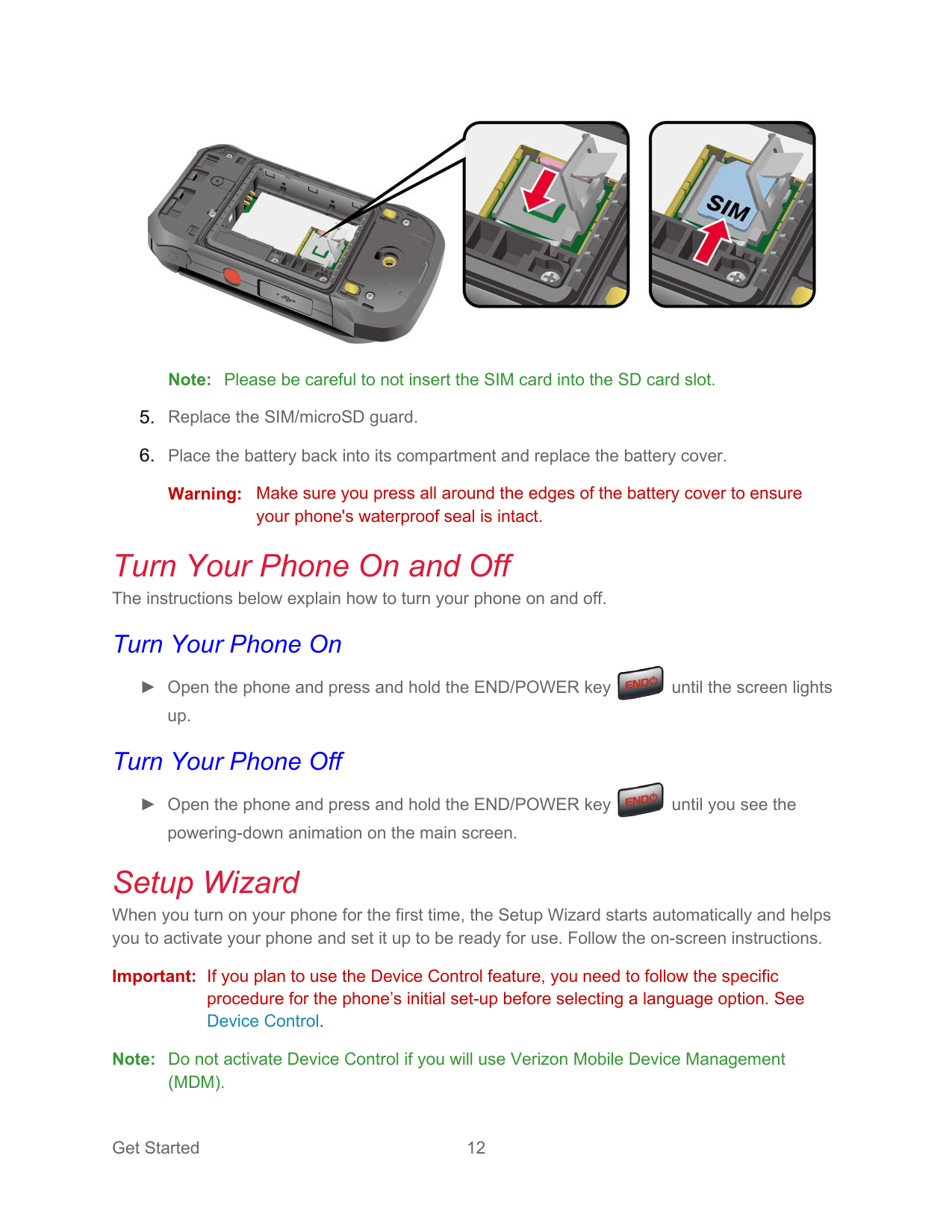
    Skip to step 5 if you do not need to reinstall the SIM card. Push the SIM card gently with your finger and then release the pressure. The card ejects itself. Slide the original SIM card from the slot. Then carefully insert the new SIM card into the SIM card slot, with the gold contacts facing down and the cut off corner on the top left. Gently push the card in until it snaps into place.

    ![image 58](kyocera-duraxv-extreme-04102020-userguide-eng_images/imageFile58.png)

    ![image 59](kyocera-duraxv-extreme-04102020-userguide-eng_images/imageFile59.png)

    ![image 60](kyocera-duraxv-extreme-04102020-userguide-eng_images/imageFile60.png)

    Note: Please be careful to not insert the SIM card into the SD card slot. Replace the SIM/microSD guard. Place the battery back into its compartment and replace the battery cover. Warning: Make sure you press all around the edges of the battery cover to ensure

    your phone's waterproof seal is intact.

    Turn Your Phone On and Off

    The instructions below explain how to turn your phone on and off.

    #### Turn Your Phone On

    ![image 61](kyocera-duraxv-extreme-04102020-userguide-eng_images/imageFile61.png)

    ► Open the phone and press and hold the END/POWER key until the screen lights up.

    #### Turn Your Phone Off

    ![image 62](kyocera-duraxv-extreme-04102020-userguide-eng_images/imageFile62.png)

    ► Open the phone and press and hold the END/POWER key until you see the powering-down animation on the main screen.

    Setup Wizard When you turn on your phone for the first time, the Setup Wizard starts automatically and helps you to activate your phone and set it up to be ready for use. Follow the on-screen instructions.

    Important: If you plan to use the Device Control feature, you need to follow the specific procedure for the phone’s initial set-up before selecting a language option. See Device Control.

    Note: Do not activate Device Control if you will use Verizon Mobile Device Management

    Page 11

    (MDM).

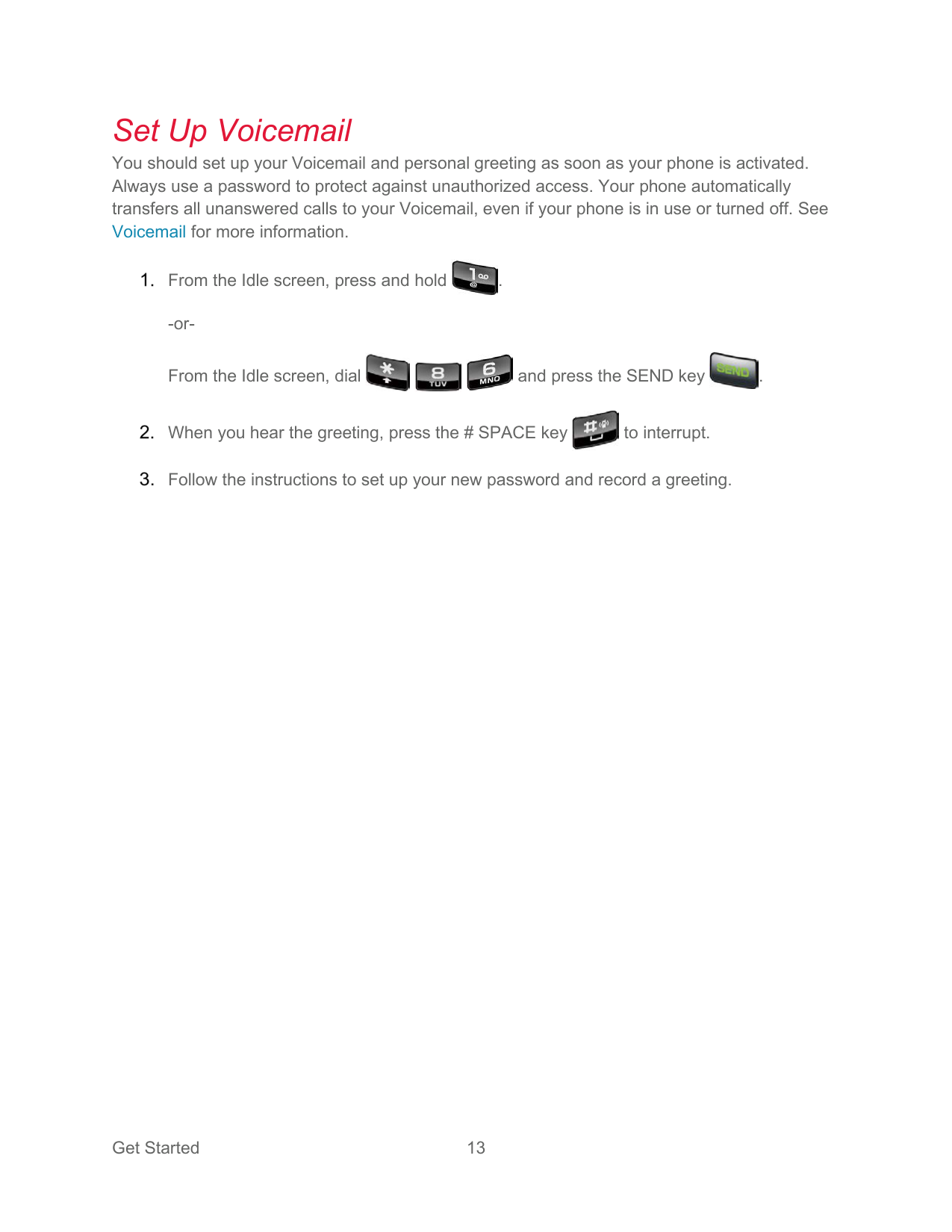
    Set Up Voicemail You should set up your Voicemail and personal greeting as soon as your phone is activated. Always use a password to protect against unauthorized access. Your phone automatically transfers all unanswered calls to your Voicemail, even if your phone is in use or turned off. See Voicemail for more information.

    ![image 63](kyocera-duraxv-extreme-04102020-userguide-eng_images/imageFile63.png)

    ![image 64](kyocera-duraxv-extreme-04102020-userguide-eng_images/imageFile64.png)

    From the Idle screen, press and hold .

    -or-

    ![image 65](kyocera-duraxv-extreme-04102020-userguide-eng_images/imageFile65.png)

    ![image 66](kyocera-duraxv-extreme-04102020-userguide-eng_images/imageFile66.png)

    ![image 67](kyocera-duraxv-extreme-04102020-userguide-eng_images/imageFile67.png)

    ![image 68](kyocera-duraxv-extreme-04102020-userguide-eng_images/imageFile68.png)

    From the Idle screen, dial and press the SEND key .

    ![image 69](kyocera-duraxv-extreme-04102020-userguide-eng_images/imageFile69.png)

    ![image 70](kyocera-duraxv-extreme-04102020-userguide-eng_images/imageFile70.png)

    When you hear the greeting, press the # SPACE key to interrupt.

    ![image 71](kyocera-duraxv-extreme-04102020-userguide-eng_images/imageFile71.png)

    Follow the instructions to set up your new password and record a greeting.

    Phone Basics

    Your phone is packed with features that simplify your life and expand your ability to stay connected to the people and information that are important to you. The following topics will introduce the basic functions and features of your phone.

    Your Idle Screen

    The Idle screen is the starting point for accessing your phone’s functions and menus.

    Idle Screen Overview

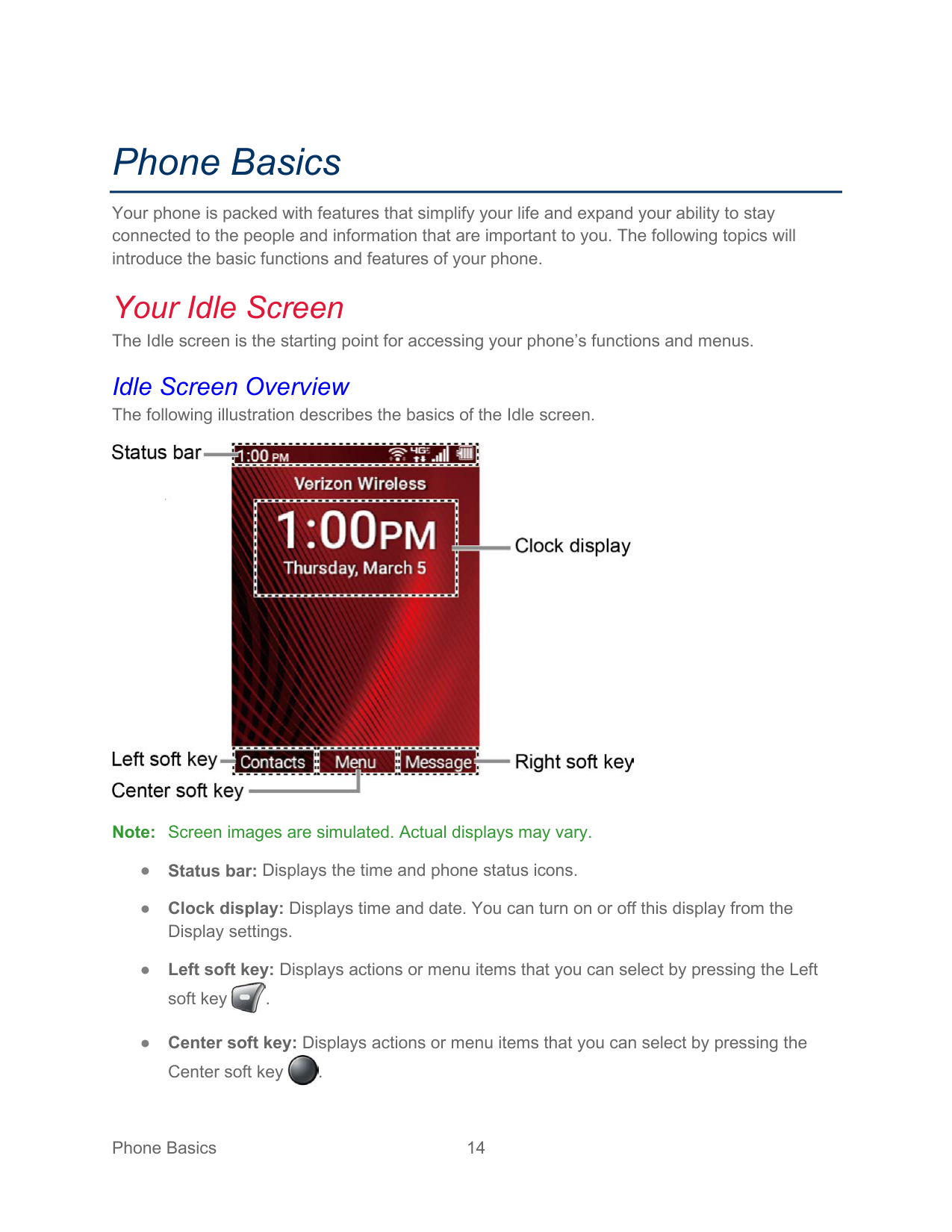
    The following illustration describes the basics of the Idle screen.

    ![image 72](kyocera-duraxv-extreme-04102020-userguide-eng_images/imageFile72.png)

    Page 12

    Note: Screen images are simulated. Actual displays may vary.

  • ● Status bar: Displays the time and phone status icons.
  • ● Clock display: Displays time and date. You can turn on or off this display from the Display settings.
  • ● Left soft key: Displays actions or menu items that you can select by pressing the Left soft key .
  • ● Center soft key: Displays actions or menu items that you can select by pressing the Center soft key .
  • ![image 73](kyocera-duraxv-extreme-04102020-userguide-eng_images/imageFile73.png)

    ![image 74](kyocera-duraxv-extreme-04102020-userguide-eng_images/imageFile74.png)

  • ● Right soft key: Displays actions or menu items that you can select by pressing the Right soft key .
  • ![image 75](kyocera-duraxv-extreme-04102020-userguide-eng_images/imageFile75.png)

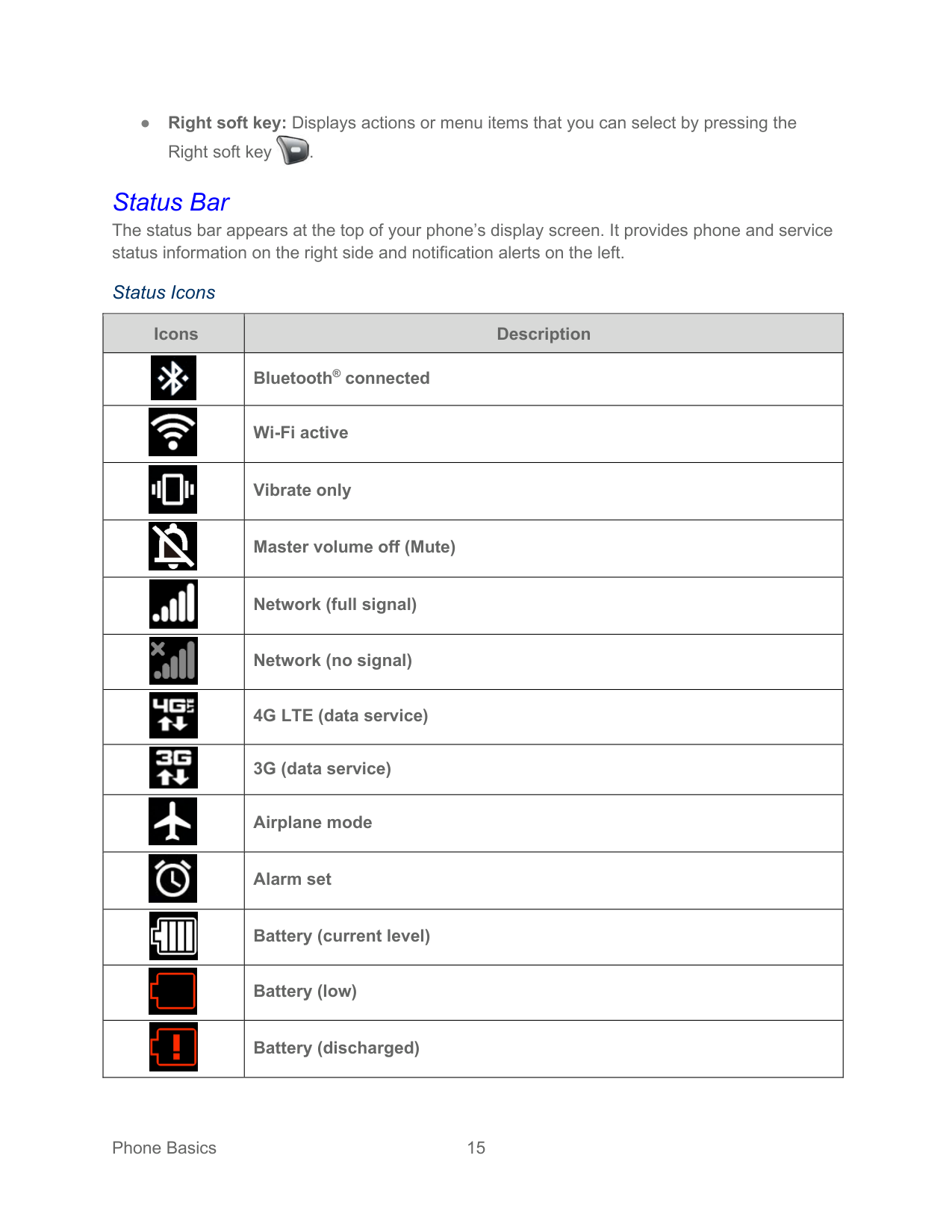
    Status Bar The status bar appears at the top of your phone’s display screen. It provides phone and service status information on the right side and notification alerts on the left.

    ###### Status Icons

    |Icons|Description| |---|---| |![image 76](kyocera-duraxv-extreme-04102020-userguide-eng_images/imageFile76.png)|Bluetooth® connected| |![image 77](kyocera-duraxv-extreme-04102020-userguide-eng_images/imageFile77.png)|Wi-Fi active| |![image 78](kyocera-duraxv-extreme-04102020-userguide-eng_images/imageFile78.png)|Vibrate only| |![image 79](kyocera-duraxv-extreme-04102020-userguide-eng_images/imageFile79.png)|Master volume off (Mute)| |![image 80](kyocera-duraxv-extreme-04102020-userguide-eng_images/imageFile80.png)|Network (full signal)| |![image 81](kyocera-duraxv-extreme-04102020-userguide-eng_images/imageFile81.png)|Network (no signal)| |![image 82](kyocera-duraxv-extreme-04102020-userguide-eng_images/imageFile82.png)|4G LTE (data service)| |![image 83](kyocera-duraxv-extreme-04102020-userguide-eng_images/imageFile83.png)|3G (data service)| |![image 84](kyocera-duraxv-extreme-04102020-userguide-eng_images/imageFile84.png)|Airplane mode| |![image 85](kyocera-duraxv-extreme-04102020-userguide-eng_images/imageFile85.png)|Alarm set| |![image 86](kyocera-duraxv-extreme-04102020-userguide-eng_images/imageFile86.png)|Battery (current level)| |![image 87](kyocera-duraxv-extreme-04102020-userguide-eng_images/imageFile87.png)|Battery (low)| |![image 88](kyocera-duraxv-extreme-04102020-userguide-eng_images/imageFile88.png)|Battery (discharged)|

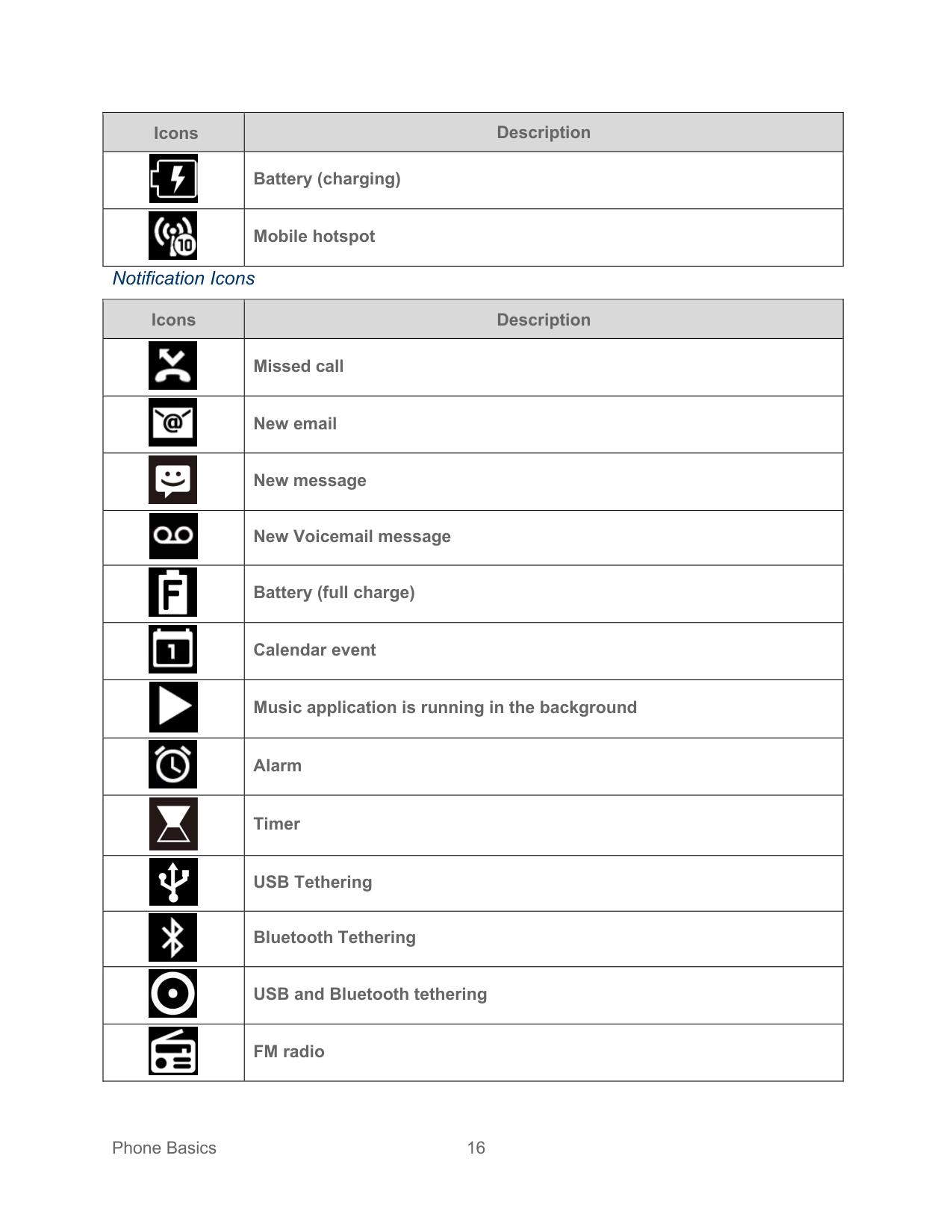
    ###### Notification Icons

    |Icons|Description| |---|---| |![image 91](kyocera-duraxv-extreme-04102020-userguide-eng_images/imageFile91.png)|Missed call| |![image 92](kyocera-duraxv-extreme-04102020-userguide-eng_images/imageFile92.png)|New email| |![image 93](kyocera-duraxv-extreme-04102020-userguide-eng_images/imageFile93.png)|New message| |![image 94](kyocera-duraxv-extreme-04102020-userguide-eng_images/imageFile94.png)|New Voicemail message| |![image 95](kyocera-duraxv-extreme-04102020-userguide-eng_images/imageFile95.png)|Battery (full charge)|

    Page 13

    |![image 96](kyocera-duraxv-extreme-04102020-userguide-eng_images/imageFile96.png)|Calendar event| |![image 97](kyocera-duraxv-extreme-04102020-userguide-eng_images/imageFile97.png)|Music application is running in the background| |![image 98](kyocera-duraxv-extreme-04102020-userguide-eng_images/imageFile98.png)|Alarm| |![image 99](kyocera-duraxv-extreme-04102020-userguide-eng_images/imageFile99.png)|Timer| |![image 100](kyocera-duraxv-extreme-04102020-userguide-eng_images/imageFile100.png)|USB Tethering| |![image 101](kyocera-duraxv-extreme-04102020-userguide-eng_images/imageFile101.png)|Bluetooth Tethering| |![image 102](kyocera-duraxv-extreme-04102020-userguide-eng_images/imageFile102.png)|USB and Bluetooth tethering| |![image 103](kyocera-duraxv-extreme-04102020-userguide-eng_images/imageFile103.png)|FM radio|

    #### Notifications Screen

    You can open the Notifications screen to view the list of notifications you received.

    ![image 106](kyocera-duraxv-extreme-04102020-userguide-eng_images/imageFile106.png)

    ![image 107](kyocera-duraxv-extreme-04102020-userguide-eng_images/imageFile107.png)

    From the Idle screen, press the Center soft key [Menu] > Notifications.

    ![image 108](kyocera-duraxv-extreme-04102020-userguide-eng_images/imageFile108.png)

    – or – From the Idle screen, press the Navigation key down. Highlight a notification and select from following options. Available options may vary:

    ![image 109](kyocera-duraxv-extreme-04102020-userguide-eng_images/imageFile109.png)

  •  Press the Left soft key [Dismiss] to dismiss the notification.
  •  Press the Center soft key [View] to display the details screen.
  •  Press the CLEAR/Back key to keep the notification pending on the Notifications screen.
  • ![image 110](kyocera-duraxv-extreme-04102020-userguide-eng_images/imageFile110.png)

    ![image 111](kyocera-duraxv-extreme-04102020-userguide-eng_images/imageFile111.png)

    Navigate Through the Menus The Navigation key on your phone lets you scroll through on-screen items. To navigate through a menu, press the Navigation key up or down.

    Many menus feature a scroll bar on the right to help you keep track of your position in the menu.

    Select Menu Items As you navigate through the menu, menu options are highlighted. Select any option by highlighting it and pressing the Center soft key [Select]. If the option is numbered, you can also select it by pressing the corresponding number on the phone’s keypad.

    ![image 112](kyocera-duraxv-extreme-04102020-userguide-eng_images/imageFile112.png)

    For example, to view the Brightness level:

    ![image 113](kyocera-duraxv-extreme-04102020-userguide-eng_images/imageFile113.png)

    Page 14

    ![image 114](kyocera-duraxv-extreme-04102020-userguide-eng_images/imageFile114.png)

    From the Idle screen, press the Center soft key [Menu] to access the main menu.

    ![image 115](kyocera-duraxv-extreme-04102020-userguide-eng_images/imageFile115.png)

    ![image 116](kyocera-duraxv-extreme-04102020-userguide-eng_images/imageFile116.png)

    Select Settings & tools by highlighting it and pressing the Center soft key [Select].

    ![image 117](kyocera-duraxv-extreme-04102020-userguide-eng_images/imageFile117.png)

    ![image 118](kyocera-duraxv-extreme-04102020-userguide-eng_images/imageFile118.png)

    Select Settings by highlighting it and pressing the Center soft key [Select].

    ![image 119](kyocera-duraxv-extreme-04102020-userguide-eng_images/imageFile119.png)

    ![image 120](kyocera-duraxv-extreme-04102020-userguide-eng_images/imageFile120.png)

    Select Display settings by highlighting it and pressing the Center soft key [Select].

    ![image 121](kyocera-duraxv-extreme-04102020-userguide-eng_images/imageFile121.png)

    Select Brightness level by highlighting it and pressing the Center soft key [Select]. For the purposes of this guide, the above steps condense into:

    ![image 122](kyocera-duraxv-extreme-04102020-userguide-eng_images/imageFile122.png)

    ![image 123](kyocera-duraxv-extreme-04102020-userguide-eng_images/imageFile123.png)

    From the Idle screen, press the Center soft key [Menu] > Settings & tools > Settings > Display settings > Brightness level.

    Back Up Within a Menu To go to the previous menu:

    ![image 124](kyocera-duraxv-extreme-04102020-userguide-eng_images/imageFile124.png)

    ► Press the CLEAR/Back key . To return to the Idle screen:

    ![image 125](kyocera-duraxv-extreme-04102020-userguide-eng_images/imageFile125.png)

    ► Press the END/POWER key .

    Customize Main Menu Screen

    You can change the lineup and layout of the main menu screen as you like.

    ![image 126](kyocera-duraxv-extreme-04102020-userguide-eng_images/imageFile126.png)

    Page 15

    ![image 127](kyocera-duraxv-extreme-04102020-userguide-eng_images/imageFile127.png)

    From the Idle screen, press the Center soft key [Menu] to access the main menu.

    ![image 128](kyocera-duraxv-extreme-04102020-userguide-eng_images/imageFile128.png)

    ![image 129](kyocera-duraxv-extreme-04102020-userguide-eng_images/imageFile129.png)

    Press the Right soft key [Options].

    ![image 130](kyocera-duraxv-extreme-04102020-userguide-eng_images/imageFile130.png)

    The following options are available:

  •  Menu layout: To select the screen layout Grid or List
  •  Replace items: To replace items on the current main menu with others.
  •  Position items: To change the position of the items on the main menu screen.
  •  Reset Main menu: To reset the main menu screen to the default state.
  • Enter Text

    You can type on your phone using various input modes.

    Key Function

    For text entry, you can use the following keys as mentioned below.

    ![image 131](kyocera-duraxv-extreme-04102020-userguide-eng_images/imageFile131.png)

  • ● Press the CLEAR/Back key to delete characters from the display.
  • ![image 132](kyocera-duraxv-extreme-04102020-userguide-eng_images/imageFile132.png)

  • ● Press to enter some frequently used symbols, such as period, comma, @, ?, !, /, etc. Note that each time you press the key, the next symbol appears. This function is not available in XT9 Word mode and 123 mode.
  • ● Press the # SPACE key to enter a space or long press for Return (if available).
  • ● Press the Asterisk SHIFT key to change the capitalization style to Abc > ABC > abc (ABC mode). If you have already selected XT9Word, use the Asterisk SHIFT key
  • ![image 133](kyocera-duraxv-extreme-04102020-userguide-eng_images/imageFile133.png)

    ![image 134](kyocera-duraxv-extreme-04102020-userguide-eng_images/imageFile134.png)

    ![image 135](kyocera-duraxv-extreme-04102020-userguide-eng_images/imageFile135.png)

    Page 16

    to change the XT9Word capitalization style to XT9Word > XT9WORD > XT9word (XT9Word mode.)

    #### Select a Text Input Mode

    You can type on your phone using various input modes.

    ![image 136](kyocera-duraxv-extreme-04102020-userguide-eng_images/imageFile136.png)

  • 1. From a screen where you can enter text, press the Left soft key to change the entry mode.
  • 2. Select the desired mode (XT9Word, Abc, ABC, 123, Symbols, Smileys or Emoticons) or following options:
  •  Web shortcuts to enter Web shortcuts (for example, www., http://, or .com).
  •  Select text to copy or cut selected text and save to the Paste list. See Copy and Paste Text.
  •  Paste list to paste copied or cut text in the paste list (if applicable). See Copy and Paste Text.
  •  Text options to display the text entry options menu. See Set Text Entry Options.
  • Enter Text Using XT9 Word XT9 is a predictive text input technology which uses a word database to analyze the letters you enter and create a suitable word.

    ![image 137](kyocera-duraxv-extreme-04102020-userguide-eng_images/imageFile137.png)

  • 1. From a screen where you can enter text, press the Left soft key to change the entry mode.
  • 2. Select the XT9 Word text input mode.
  • 3. Press the corresponding keys once per letter to enter a word. (For example, to enter the word “Bill,” press .) If you make a mistake, press the CLEAR/Back key to erase a single character.
  • ![image 138](kyocera-duraxv-extreme-04102020-userguide-eng_images/imageFile138.png)

    ![image 139](kyocera-duraxv-extreme-04102020-userguide-eng_images/imageFile139.png)

    ![image 140](kyocera-duraxv-extreme-04102020-userguide-eng_images/imageFile140.png)

    ![image 141](kyocera-duraxv-extreme-04102020-userguide-eng_images/imageFile141.png)

    ![image 142](kyocera-duraxv-extreme-04102020-userguide-eng_images/imageFile142.png)

  • 4. As you type, a word choice list opens. (The word may change as you type.). Highlight the word you want to enter by using the navigation key and press the Center soft key
  • ![image 143](kyocera-duraxv-extreme-04102020-userguide-eng_images/imageFile143.png)

    ####### [Select].

    For more information about XT9 input mode, visit the Nuance website at www.nuance.com.

    Enter Text Using Abc/ABC Mode In Abc or ABC mode, also known as multi-tap entry, you press keys one, two, three, or four times to enter the letters you see on the keypad.

    Page 17

    ![image 144](kyocera-duraxv-extreme-04102020-userguide-eng_images/imageFile144.png)

  • 1. From a screen where you can enter text, press the Left soft key to change the entry mode.
  • 2. Select the Abc or ABC text input mode. See Select a Text Input Mode.
  • 3. Press the corresponding key repeatedly until the correct letter appears. For example, to enter “Abc” or “ABC,” press once for “a,” twice for “b,” and three times for “c.”
  • ![image 145](kyocera-duraxv-extreme-04102020-userguide-eng_images/imageFile145.png)

    After a character is entered, the cursor automatically advances to the next space after two seconds or when you enter a character on a different key.

    Set Text Entry Options The text entry options menu allows you to specify additional features to use during the text entry process.

    ![image 146](kyocera-duraxv-extreme-04102020-userguide-eng_images/imageFile146.png)

    ![image 147](kyocera-duraxv-extreme-04102020-userguide-eng_images/imageFile147.png)

    From a screen where you can enter text, press the Left soft key > Text options.

    ![image 148](kyocera-duraxv-extreme-04102020-userguide-eng_images/imageFile148.png)

    Set the text entry function as you want by using the menus including Word complete, Next word complete, My words, etc.

    Note: You can see the description of the option actually highlighted by pressing the Left

    ![image 149](kyocera-duraxv-extreme-04102020-userguide-eng_images/imageFile149.png)

    soft key [Help].

    #### Copy and Paste Text

    You can copy or cut text and paste it in the text entry field: In the text entry field, move the cursor next to the text you want to copy or cut and press the Left soft key > Select text. Highlight the text you want to copy or cut by using the Navigation key. Press the Center soft key [Done] > Copy or Cut. The text is saved in the Paste List.

    ![image 150](kyocera-duraxv-extreme-04102020-userguide-eng_images/imageFile150.png)

    ![image 151](kyocera-duraxv-extreme-04102020-userguide-eng_images/imageFile151.png)

    ![image 152](kyocera-duraxv-extreme-04102020-userguide-eng_images/imageFile152.png)

    ![image 153](kyocera-duraxv-extreme-04102020-userguide-eng_images/imageFile153.png)

    ![image 154](kyocera-duraxv-extreme-04102020-userguide-eng_images/imageFile154.png)

    ![image 155](kyocera-duraxv-extreme-04102020-userguide-eng_images/imageFile155.png)

    In the text entry field, move the cursor to the place where you want to paste the text and press the Left soft key > Paste list.

    Page 18

    ![image 156](kyocera-duraxv-extreme-04102020-userguide-eng_images/imageFile156.png)

    ![image 157](kyocera-duraxv-extreme-04102020-userguide-eng_images/imageFile157.png)

    Press the Navigation key to scroll to the text you want to paste and press the Center soft key [Select].

    ![image 158](kyocera-duraxv-extreme-04102020-userguide-eng_images/imageFile158.png)

    Note: This feature is not available when you cannot select the text input mode.

    Phone Calls

    With the Verizon network and your phone’s calling features, you can enjoy clear phone calls across the country.

    Make Phone Calls

    There are several convenient ways to place calls from your phone.

    Call Using the Phone keypad

    The most traditional way to place a call is by using the phone’s keypad.

  • 1. Open the phone and enter a phone number. (If you make a mistake while dialing, press the CLEAR/Back key to erase the numbers.)
  • 2. Press the Center soft key [Call] or SEND key .
  • 3. Press the END/POWER key when you are finished.
  • ![image 159](kyocera-duraxv-extreme-04102020-userguide-eng_images/imageFile159.png)

    ![image 160](kyocera-duraxv-extreme-04102020-userguide-eng_images/imageFile160.png)

    ![image 161](kyocera-duraxv-extreme-04102020-userguide-eng_images/imageFile161.png)

    ![image 162](kyocera-duraxv-extreme-04102020-userguide-eng_images/imageFile162.png)

    Call from Call History

    Place a call to the numbers in your Call history.

    ![image 163](kyocera-duraxv-extreme-04102020-userguide-eng_images/imageFile163.png)

    ![image 164](kyocera-duraxv-extreme-04102020-userguide-eng_images/imageFile164.png)

    From the Idle screen, press the SEND key .

    ![image 165](kyocera-duraxv-extreme-04102020-userguide-eng_images/imageFile165.png)

    Page 19

    ![image 166](kyocera-duraxv-extreme-04102020-userguide-eng_images/imageFile166.png)

    Select an entry and press the SEND key .

    Call from Call History with the phone closed

    Place a call to the numbers in your Call history without opening the phone.

    ![image 167](kyocera-duraxv-extreme-04102020-userguide-eng_images/imageFile167.png)

    ![image 168](kyocera-duraxv-extreme-04102020-userguide-eng_images/imageFile168.png)

    ![image 169](kyocera-duraxv-extreme-04102020-userguide-eng_images/imageFile169.png)

    ![image 170](kyocera-duraxv-extreme-04102020-userguide-eng_images/imageFile170.png)

    Press the Call list key with the phone closed. Note: If the Call list key is disabled, see Keyguard. Highlight an entry by using the Volume key up or down. Press the External speaker key to start the call.

    ![image 171](kyocera-duraxv-extreme-04102020-userguide-eng_images/imageFile171.png)

    ![image 172](kyocera-duraxv-extreme-04102020-userguide-eng_images/imageFile172.png)

    Call from Contacts

    You can place phone calls directly from entries in your Contacts list.

    ![image 173](kyocera-duraxv-extreme-04102020-userguide-eng_images/imageFile173.png)

    ![image 174](kyocera-duraxv-extreme-04102020-userguide-eng_images/imageFile174.png)

    From the Idle screen, press the Left soft key [Contacts].

    ![image 175](kyocera-duraxv-extreme-04102020-userguide-eng_images/imageFile175.png)

    Select the entry you want to call.

    ![image 176](kyocera-duraxv-extreme-04102020-userguide-eng_images/imageFile176.png)

    ![image 177](kyocera-duraxv-extreme-04102020-userguide-eng_images/imageFile177.png)

    Press the SEND key to dial the entry’s default phone number.

    – or – To dial another number from the same entry, press the Center soft key [View] to select the entry, highlight a number, and then press the SEND key .

    ![image 178](kyocera-duraxv-extreme-04102020-userguide-eng_images/imageFile178.png)

    Page 20

    ![image 179](kyocera-duraxv-extreme-04102020-userguide-eng_images/imageFile179.png)

    Call Using a Speed Dial Number Speed dialing makes contacting friends and family easy. See Set Up Speed Dialing for information on assigning speed dial numbers.

    To use speed dial for locations 2–9:

    ► From the Idle screen, press and hold the appropriate key for approximately two seconds. To use speed dial for locations 10–999999:

    ► From the Idle screen, enter the speed dial number you want to use and long press the last digit key for approximately two seconds.

    Call a Phone Number with Pauses You can dial or save phone numbers with pauses for use with automated systems, such as voicemail or credit card billing numbers.

    There are two types of pauses available on your phone:

  • ● 2-sec. pause automatically sends the next set of numbers after two seconds.
  • ● Wait will wait for your confirmation to send the rest of the digits when reached.
  • Note: You can have multiple pauses in a phone number and can combine two-second

    and wait (hard) pauses.

    To dial or save phone numbers with pauses: Enter all or part of a number.

    ![image 180](kyocera-duraxv-extreme-04102020-userguide-eng_images/imageFile180.png)

    ![image 181](kyocera-duraxv-extreme-04102020-userguide-eng_images/imageFile181.png)

    ![image 182](kyocera-duraxv-extreme-04102020-userguide-eng_images/imageFile182.png)

    ####### Press the Right soft key [Options] > Add 2-sec. pause or Add wait.

    ![image 183](kyocera-duraxv-extreme-04102020-userguide-eng_images/imageFile183.png)

    Enter additional numbers.

    ![image 184](kyocera-duraxv-extreme-04102020-userguide-eng_images/imageFile184.png)

    ![image 185](kyocera-duraxv-extreme-04102020-userguide-eng_images/imageFile185.png)

    Press the SEND key to dial the number.

    #### Call Emergency Numbers

    You can place calls to 911 even if the phone screen is locked or your account is restricted.

    ![image 186](kyocera-duraxv-extreme-04102020-userguide-eng_images/imageFile186.png)

    Page 21

    ![image 187](kyocera-duraxv-extreme-04102020-userguide-eng_images/imageFile187.png)

    ![image 188](kyocera-duraxv-extreme-04102020-userguide-eng_images/imageFile188.png)

    ![image 189](kyocera-duraxv-extreme-04102020-userguide-eng_images/imageFile189.png)

    ► Press and press the SEND key . Enhanced 911 (E911) Information

    This phone features an embedded Global Positioning System (GPS) chip necessary for utilizing E911 emergency location services where available.

    When you place an emergency 911 call, the GPS feature of your phone seeks information to calculate your approximate location. Depending on several variables, including availability and access to satellite signals, it may take up to 30 seconds or more to determine and report your approximate location.

    Important: Always report your location to the 911 operator when placing an emergency call. Some designated emergency call takers, known as Public Safety Answering Points (PSAPs), may not be equipped to receive GPS location information from your phone.

    Call Using Wi-Fi Calling Wi-Fi Calling allows you to make and receive phone calls over a Wi-Fi connection when there is no Verizon service. You need to activate W-Fi Calling manually if you want to use it.

    Note: Activation requires a valid US address for E911 functionality and a cellular data or Wi-Fi

    network connection. Activate Wi-Fi Calling

    ![image 190](kyocera-duraxv-extreme-04102020-userguide-eng_images/imageFile190.png)

    ![image 191](kyocera-duraxv-extreme-04102020-userguide-eng_images/imageFile191.png)

    From the Idle screen, press the Center soft key [Menu] > Settings & tools > Settings > Call settings > Activate Wi-Fi Calling.

    ![image 192](kyocera-duraxv-extreme-04102020-userguide-eng_images/imageFile192.png)

    ![image 193](kyocera-duraxv-extreme-04102020-userguide-eng_images/imageFile193.png)

    Read the message carefully and scroll down the screen. Press the Left soft key [Open] to display the Terms & Conditions. Check the check box next to I accept the Terms & Conditions by using the Left soft key [Check], and then press the Center soft key [Continue].

    ![image 194](kyocera-duraxv-extreme-04102020-userguide-eng_images/imageFile194.png)

    ![image 195](kyocera-duraxv-extreme-04102020-userguide-eng_images/imageFile195.png)

    ![image 196](kyocera-duraxv-extreme-04102020-userguide-eng_images/imageFile196.png)

    ![image 197](kyocera-duraxv-extreme-04102020-userguide-eng_images/imageFile197.png)

    Enter the emergency location information (E911) and then press the Center soft key [Save].

    Upon successful validation of the address, Wi-Fi Calling turns on.

    Important: You should change the registered address when you make calls using a different Wi-Fi network in order to update your location information. You can change your location any time from the Call settings menu. Select Update current emergency address under Settings & tools > Settings > Call settings > Wi-Fi Calling settings.

    Page 22

    #### Call Using Real Time Text (RTT)

    Real Time Text (RTT) function is available with this phone. For details, see Real Time Text.

    Receive Phone Calls You can select the most convenient way to respond to a call. Your phone notifies you of incoming calls in the following ways:

  • ● The phone rings or vibrates.
  • ● The LED indicator flashes.
  • ● The backlight illuminates.
  • ● The screen displays an incoming call message.
  • If the incoming call is from a number stored in your Contacts, the entry’s name is displayed. The caller’s phone number may also be displayed, if available.

    Note: If your phone is turned off, all calls automatically go to Voicemail.

    #### Answer an Incoming Call with the Phone Open

    ![image 198](kyocera-duraxv-extreme-04102020-userguide-eng_images/imageFile198.png)

    ► Press the SEND key or select Answer to answer an incoming call. (Depending on your settings, you may also answer incoming calls by pressing other keys. See Call Answer Mode.)

    #### Answer an Incoming Call with the Phone Closed

    ![image 199](kyocera-duraxv-extreme-04102020-userguide-eng_images/imageFile199.png)

    ► When your phone rings or vibrates, press the External speaker key . (The call will be answered in speakerphone mode.)

    – or – Open the phone to use the earpiece. See Call Answer Mode.

    #### Answer an Incoming Call in Speakerphone Mode

    ![image 200](kyocera-duraxv-extreme-04102020-userguide-eng_images/imageFile200.png)

    ![image 201](kyocera-duraxv-extreme-04102020-userguide-eng_images/imageFile201.png)

    ► Press the Camera/Speaker key or the External speaker key .

    Mute the Ringing Sound and Stop the Vibration

    To mute the ringtone without rejecting the call:

    ► Press the Volume key down.

    #### Send an Incoming Call to Voicemail

    ![image 202](kyocera-duraxv-extreme-04102020-userguide-eng_images/imageFile202.png)

    Page 23

    ![image 203](kyocera-duraxv-extreme-04102020-userguide-eng_images/imageFile203.png)

    ► Press the END/POWER key or press and hold the Call list key .

    -orSelect Decline on the screen.

    Reject an Incoming Call and Send a Message

    ► Select Send message on the screen.

    End Phone Calls

    When you are finished with a call, make sure that you disconnect correctly.

    #### Disconnect a Phone Call

    ![image 204](kyocera-duraxv-extreme-04102020-userguide-eng_images/imageFile204.png)

    ► Press the END/POWER key .

    -or-

    ![image 205](kyocera-duraxv-extreme-04102020-userguide-eng_images/imageFile205.png)

    Press and hold the Call list key .

    After you have finished your call, the phone will display the caller’s name (if already in your Contacts), phone number (if available), and the duration of the call.

    Phone Call Options Your phone application provides many useful features and options to help you make the most of your calling experience.

    In-call Options Pressing the Right soft key [Options] during a call displays a list of available in-call features. To select an option, highlight the option and press the Center soft key [Select].

    ![image 206](kyocera-duraxv-extreme-04102020-userguide-eng_images/imageFile206.png)

    ![image 207](kyocera-duraxv-extreme-04102020-userguide-eng_images/imageFile207.png)

  • ● Add call to initiate a 3-way call.
  • ● Go to Bluetooth settings to open the Bluetooth settings screen (if applicable).
  • ● Use Bluetooth device to switch the call to a Bluetooth device (if applicable).
  • ● Show/Hide RTT screen to display/hide the RTT mode screen.
  • ● Go to Idle screen to get to the Idle screen.
  • ● RTT Help to display a help message of the RTT function.
  • Page 24

    Further options may also be available.

    ![image 208](kyocera-duraxv-extreme-04102020-userguide-eng_images/imageFile208.png)

  • ● Press the Center soft key [Mute/Unmute] to mute/unmute the microphone.
  • ● Press the Left soft key [Hold] to place the current call on hold.
  • ● Press the Volume key up or down to adjust the receiver volume.
  • ● Press the Camera/Speaker key or the External speaker key to turn the speaker on. Press again to turn it off.
  • ![image 209](kyocera-duraxv-extreme-04102020-userguide-eng_images/imageFile209.png)

    ![image 210](kyocera-duraxv-extreme-04102020-userguide-eng_images/imageFile210.png)

    ![image 211](kyocera-duraxv-extreme-04102020-userguide-eng_images/imageFile211.png)

    Warning: Because of higher volume levels, do not place the phone near your ear

    during speakerphone use.

    Caller Name ID Caller Name ID identifies a caller before you answer the phone by displaying the number of the incoming call. If you do not want your number displayed when you make a call, follow these steps:

    ![image 212](kyocera-duraxv-extreme-04102020-userguide-eng_images/imageFile212.png)

    ![image 213](kyocera-duraxv-extreme-04102020-userguide-eng_images/imageFile213.png)

    ![image 214](kyocera-duraxv-extreme-04102020-userguide-eng_images/imageFile214.png)

    ![image 215](kyocera-duraxv-extreme-04102020-userguide-eng_images/imageFile215.png)

    From the Idle screen, press .

    ![image 216](kyocera-duraxv-extreme-04102020-userguide-eng_images/imageFile216.png)

    Enter the number you want to call.

    ![image 217](kyocera-duraxv-extreme-04102020-userguide-eng_images/imageFile217.png)

    ![image 218](kyocera-duraxv-extreme-04102020-userguide-eng_images/imageFile218.png)

    Press the SEND key .

    Call Waiting When you’re on a call, Call Waiting alerts you to incoming calls by sounding a beep. Your phone’s screen informs you that another call is coming in and displays the caller’s phone number (if available).

    To respond to an incoming call while you’re on a call:

    ![image 219](kyocera-duraxv-extreme-04102020-userguide-eng_images/imageFile219.png)

    Page 25

    ► Select Answer or press the SEND key . This puts the first caller on hold and

    answers the second call. To switch back to the first caller:

    ![image 220](kyocera-duraxv-extreme-04102020-userguide-eng_images/imageFile220.png)

    ► Press the Left soft key [Swap].

    – or –

    ![image 221](kyocera-duraxv-extreme-04102020-userguide-eng_images/imageFile221.png)

    Press the SEND key .

    To create a 3-way call between your existing calls:

    ![image 222](kyocera-duraxv-extreme-04102020-userguide-eng_images/imageFile222.png)

    ► Press the Right soft key [Options] > Merge calls.

    Note: For those calls where you don’t want to be interrupted, you can temporarily disable Call Waiting by pressing before placing your call. Call Waiting is automatically reactivated once you end the call.

    ![image 223](kyocera-duraxv-extreme-04102020-userguide-eng_images/imageFile223.png)

    ![image 224](kyocera-duraxv-extreme-04102020-userguide-eng_images/imageFile224.png)

    ![image 225](kyocera-duraxv-extreme-04102020-userguide-eng_images/imageFile225.png)

    3-Way Calling With 3-way calling, you can talk to two people at the same time. When using this feature, the normal airtime rates will be charged for each of the calls.

    To initiate a 3-way call:

    ![image 226](kyocera-duraxv-extreme-04102020-userguide-eng_images/imageFile226.png)

    ![image 227](kyocera-duraxv-extreme-04102020-userguide-eng_images/imageFile227.png)

    Enter a number and press the SEND key .

    ![image 228](kyocera-duraxv-extreme-04102020-userguide-eng_images/imageFile228.png)

    ![image 229](kyocera-duraxv-extreme-04102020-userguide-eng_images/imageFile229.png)

    Once you have established the connection, press the Right soft key [Options] > Add call. (This puts the first caller on hold.)

    ![image 230](kyocera-duraxv-extreme-04102020-userguide-eng_images/imageFile230.png)

    Page 26

    ![image 231](kyocera-duraxv-extreme-04102020-userguide-eng_images/imageFile231.png)

    Select Contacts or Enter phone#. Select a number from your Contacts or enter a number directly, and then press the Center soft key [Select].

    ![image 232](kyocera-duraxv-extreme-04102020-userguide-eng_images/imageFile232.png)

    ![image 233](kyocera-duraxv-extreme-04102020-userguide-eng_images/imageFile233.png)

    ![image 234](kyocera-duraxv-extreme-04102020-userguide-eng_images/imageFile234.png)

    When you’re connected to the second party, press the Right soft key [Options] > Merge calls to begin your 3-way call.

    ![image 235](kyocera-duraxv-extreme-04102020-userguide-eng_images/imageFile235.png)

    ![image 236](kyocera-duraxv-extreme-04102020-userguide-eng_images/imageFile236.png)

    To end a 3-way call, press the END/POWER key .

    Note: If one of the people you called hangs up during your call, you and the remaining caller stay connected. If you initiated the call and are the first to hang up, all callers are disconnected.

    Call Forwarding Call Forwarding lets you forward all your incoming calls to another phone number—even when your phone is turned off. You can continue to make calls from your phone when you have activated Call Forwarding.

    Note: You are charged a higher rate for calls you have forwarded. To activate Call Forwarding:

    ![image 237](kyocera-duraxv-extreme-04102020-userguide-eng_images/imageFile237.png)

    ![image 238](kyocera-duraxv-extreme-04102020-userguide-eng_images/imageFile238.png)

    ![image 239](kyocera-duraxv-extreme-04102020-userguide-eng_images/imageFile239.png)

    ![image 240](kyocera-duraxv-extreme-04102020-userguide-eng_images/imageFile240.png)

    From the Idle screen, press .

    ![image 241](kyocera-duraxv-extreme-04102020-userguide-eng_images/imageFile241.png)

    Enter the area code and phone number to which you want your calls forwarded.

    ![image 242](kyocera-duraxv-extreme-04102020-userguide-eng_images/imageFile242.png)

    ![image 243](kyocera-duraxv-extreme-04102020-userguide-eng_images/imageFile243.png)

    Press the SEND key and then wait for a confirmation message or beeps.

    To deactivate Call Forwarding:

    ![image 244](kyocera-duraxv-extreme-04102020-userguide-eng_images/imageFile244.png)

    Page 27

    ![image 245](kyocera-duraxv-extreme-04102020-userguide-eng_images/imageFile245.png)

    ![image 246](kyocera-duraxv-extreme-04102020-userguide-eng_images/imageFile246.png)

    ![image 247](kyocera-duraxv-extreme-04102020-userguide-eng_images/imageFile247.png)

    From the Idle screen, press .

    ![image 248](kyocera-duraxv-extreme-04102020-userguide-eng_images/imageFile248.png)

    ![image 249](kyocera-duraxv-extreme-04102020-userguide-eng_images/imageFile249.png)

    Press the SEND key and then wait for the confirmation message or beeps.

    Call History

    The Call history keeps track of the calls placed, received, and missed on your phone.

    View Call History

    ![image 250](kyocera-duraxv-extreme-04102020-userguide-eng_images/imageFile250.png)

    ► From the Idle screen, press the Center soft key [Menu] > Call history > Missed

    ####### calls, Received calls, Dialed calls, or All calls.

  • – or –
  • From the Idle screen, press the SEND key .

  • – or – Press the Call list key with the phone closed.
  • ![image 251](kyocera-duraxv-extreme-04102020-userguide-eng_images/imageFile251.png)

    ![image 252](kyocera-duraxv-extreme-04102020-userguide-eng_images/imageFile252.png)

     You can determine if an entry was a missed, received, or dialed call from the icons shown below.

    ![image 253](kyocera-duraxv-extreme-04102020-userguide-eng_images/imageFile253.png)

    = Missed call

    ![image 254](kyocera-duraxv-extreme-04102020-userguide-eng_images/imageFile254.png)

    = Received call

    Page 28

    ![image 255](kyocera-duraxv-extreme-04102020-userguide-eng_images/imageFile255.png)

    = Dialed call

    Call History Options From the Idle screen, press the Center soft key [Menu] > Call history > Missed calls, Received calls, Dialed calls, or All calls.

    ![image 256](kyocera-duraxv-extreme-04102020-userguide-eng_images/imageFile256.png)

    ![image 257](kyocera-duraxv-extreme-04102020-userguide-eng_images/imageFile257.png)

    – or –

    ![image 258](kyocera-duraxv-extreme-04102020-userguide-eng_images/imageFile258.png)

    From the Idle screen, press the SEND key .

    ![image 259](kyocera-duraxv-extreme-04102020-userguide-eng_images/imageFile259.png)

    Highlight an entry. The following options are available:

    ![image 260](kyocera-duraxv-extreme-04102020-userguide-eng_images/imageFile260.png)

  •  Press the SEND key to place a call to the contact. See Call from Call History.
  •  Press the Left soft key [Message] to send a message.
  •  Press the Center soft key [View] to display call details.
  •  Press the Right soft key [Options] to access additional options.
  • ![image 261](kyocera-duraxv-extreme-04102020-userguide-eng_images/imageFile261.png)

    ![image 262](kyocera-duraxv-extreme-04102020-userguide-eng_images/imageFile262.png)

    ![image 263](kyocera-duraxv-extreme-04102020-userguide-eng_images/imageFile263.png)

    Call Settings Your phone’s Call settings menu lets you configure your Voicemail options and a number of other settings for the phone application.

    Call Answer Mode Any Key Answer Set to answer incoming calls by pressing any key on your phone.

    ![image 264](kyocera-duraxv-extreme-04102020-userguide-eng_images/imageFile264.png)

    ![image 265](kyocera-duraxv-extreme-04102020-userguide-eng_images/imageFile265.png)

    ####### From the Idle screen, press the Center soft key [Menu] > Settings & tools > Settings > Call settings > Any key answer.

    ![image 266](kyocera-duraxv-extreme-04102020-userguide-eng_images/imageFile266.png)

    Page 29

    ![image 267](kyocera-duraxv-extreme-04102020-userguide-eng_images/imageFile267.png)

    Select On and press the Center soft key [Set].

    Open/Close flip To answer incoming calls by opening the phone:

    ![image 268](kyocera-duraxv-extreme-04102020-userguide-eng_images/imageFile268.png)

    ![image 269](kyocera-duraxv-extreme-04102020-userguide-eng_images/imageFile269.png)

    ####### From the Idle screen, press the Center soft key [Menu] > Settings & tools > Settings > Call settings > Flip open/close > Open to answer.

    ![image 270](kyocera-duraxv-extreme-04102020-userguide-eng_images/imageFile270.png)

    ![image 271](kyocera-duraxv-extreme-04102020-userguide-eng_images/imageFile271.png)

    Select On and press the Center soft key [Set].

    To end calls by closing the phone:

    ![image 272](kyocera-duraxv-extreme-04102020-userguide-eng_images/imageFile272.png)

    ![image 273](kyocera-duraxv-extreme-04102020-userguide-eng_images/imageFile273.png)

    ####### From the Idle screen, press the Center soft key [Menu] > Settings & tools > Settings > Call settings > Flip open/close > Close to end.

    ![image 274](kyocera-duraxv-extreme-04102020-userguide-eng_images/imageFile274.png)

    Select On and press the Center soft key [Set]. Auto Answer

    ![image 275](kyocera-duraxv-extreme-04102020-userguide-eng_images/imageFile275.png)

    Set your phone to automatically pick up incoming calls. Remember, your phone will answer calls in auto-answer mode even if you are not present.

    ![image 276](kyocera-duraxv-extreme-04102020-userguide-eng_images/imageFile276.png)

    ![image 277](kyocera-duraxv-extreme-04102020-userguide-eng_images/imageFile277.png)

    ####### From the Idle screen, press the Center soft key [Menu] > Settings & tools > Settings > Call settings > Auto answer.

    ![image 278](kyocera-duraxv-extreme-04102020-userguide-eng_images/imageFile278.png)

    ![image 279](kyocera-duraxv-extreme-04102020-userguide-eng_images/imageFile279.png)

    Highlight an option and press the Center soft key [Select].

  •  Hands free to answer calls automatically when the phone is connected to an optional headset or hands-free device.
  • Page 30

  •  Speakerphone to answer calls automatically in speakerphone mode.
  • ![image 280](kyocera-duraxv-extreme-04102020-userguide-eng_images/imageFile280.png)

    Highlight the amount of time you'd like your phone to wait before answering and press the Center soft key [Set].

    ![image 281](kyocera-duraxv-extreme-04102020-userguide-eng_images/imageFile281.png)

    Noise Reduction Your phone can suppress the background noise to improve audio quality for the other party during voice calls.

    ![image 282](kyocera-duraxv-extreme-04102020-userguide-eng_images/imageFile282.png)

    ![image 283](kyocera-duraxv-extreme-04102020-userguide-eng_images/imageFile283.png)

    ####### From the Idle screen, press the Center soft key [Menu] > Settings & tools > Settings > Call settings > Noise reduction.

    ![image 284](kyocera-duraxv-extreme-04102020-userguide-eng_images/imageFile284.png)

    ![image 285](kyocera-duraxv-extreme-04102020-userguide-eng_images/imageFile285.png)

    Select On and press the Center soft key [Set].

    Quick Responses You can modify the preset text messages which are available to send when you reject an incoming call and send a text message.

    ![image 286](kyocera-duraxv-extreme-04102020-userguide-eng_images/imageFile286.png)

    ![image 287](kyocera-duraxv-extreme-04102020-userguide-eng_images/imageFile287.png)

    ####### From the Idle screen, press the Center soft key [Menu] > Settings & tools > Settings > Call settings > Quick responses.

    ![image 288](kyocera-duraxv-extreme-04102020-userguide-eng_images/imageFile288.png)

    ![image 289](kyocera-duraxv-extreme-04102020-userguide-eng_images/imageFile289.png)

    Highlight a message and press the Center soft key [Edit].

    ![image 290](kyocera-duraxv-extreme-04102020-userguide-eng_images/imageFile290.png)

    ![image 291](kyocera-duraxv-extreme-04102020-userguide-eng_images/imageFile291.png)

    Edit it and press the Center soft key [Save].

    ![image 292](kyocera-duraxv-extreme-04102020-userguide-eng_images/imageFile292.png)

    Tip: To restore the default messages, press the Left soft key [All reset].

    Page 31

    Set Up Speed Dialing The phone allows you to save speed dial numbers up to "999,997". To make a call using speed dial, see Call Using a Speed Dial Number.

    Note: Speed dial location "0" is not valid and "1" is preset for Voicemail. Emergency numbers

    such as 911 and 112 cannot be saved as a speed dial number. To assign a speed dial location:

    ![image 293](kyocera-duraxv-extreme-04102020-userguide-eng_images/imageFile293.png)

    ![image 294](kyocera-duraxv-extreme-04102020-userguide-eng_images/imageFile294.png)

    ####### From the Idle screen, press the Center soft key [Menu] > Settings & tools > Settings > Call settings > Speed dial setup.

    ![image 295](kyocera-duraxv-extreme-04102020-userguide-eng_images/imageFile295.png)

    ![image 296](kyocera-duraxv-extreme-04102020-userguide-eng_images/imageFile296.png)

    Press the Left soft key [Add] and enter a number from 2 to 999999 in the Speed dial number field.

    Note: If a number is entered that is already assigned to an existing contact (or is an

    emergency number), you will be prompted to change the number.

    ![image 297](kyocera-duraxv-extreme-04102020-userguide-eng_images/imageFile297.png)

    ![image 298](kyocera-duraxv-extreme-04102020-userguide-eng_images/imageFile298.png)

    Highlight Assigned contact field and press the Left soft key [Set].

    ![image 299](kyocera-duraxv-extreme-04102020-userguide-eng_images/imageFile299.png)

    ![image 300](kyocera-duraxv-extreme-04102020-userguide-eng_images/imageFile300.png)

    Highlight a contact and press the Center soft key [Select].

    ![image 301](kyocera-duraxv-extreme-04102020-userguide-eng_images/imageFile301.png)

    ![image 302](kyocera-duraxv-extreme-04102020-userguide-eng_images/imageFile302.png)

    Press the Center soft key [Save] to register the assignment.

    To remove a number from a speed dial location:

    ![image 303](kyocera-duraxv-extreme-04102020-userguide-eng_images/imageFile303.png)

    ![image 304](kyocera-duraxv-extreme-04102020-userguide-eng_images/imageFile304.png)

    ####### From the Idle screen, press the Center soft key [Menu] > Settings & tools > Settings > Call settings > Speed dial setup.

    Page 32

    ![image 305](kyocera-duraxv-extreme-04102020-userguide-eng_images/imageFile305.png)

    ![image 306](kyocera-duraxv-extreme-04102020-userguide-eng_images/imageFile306.png)

    Highlight the assigned contact you want to remove and press the Right soft key [Remove].

    ![image 307](kyocera-duraxv-extreme-04102020-userguide-eng_images/imageFile307.png)

    ![image 308](kyocera-duraxv-extreme-04102020-userguide-eng_images/imageFile308.png)

    Press the Left soft key [Yes].

    Voicemail Settings You should set up your voicemail and personal greeting as soon as your phone is activated. See Set Up Voicemail for setting it up.

    ![image 309](kyocera-duraxv-extreme-04102020-userguide-eng_images/imageFile309.png)

    ![image 310](kyocera-duraxv-extreme-04102020-userguide-eng_images/imageFile310.png)

    ####### From the Idle screen, press the Center soft key [Menu] > Settings & tools > Settings > Call settings > Voicemail.

    ![image 311](kyocera-duraxv-extreme-04102020-userguide-eng_images/imageFile311.png)

    Configure the following settings:

  •  Voicemail number to configure the voicemail number if necessary.
  •  Sound to select the sound to ring for a new voicemail message.
  •  Vibrate to select whether the phone vibrates when receiving a new voicemail message.
  • Assisted Dialing Assisted dialing allows easy dialing of international calls while roaming in other countries. Your default reference country is set to the United States.

    ![image 312](kyocera-duraxv-extreme-04102020-userguide-eng_images/imageFile312.png)

    ![image 313](kyocera-duraxv-extreme-04102020-userguide-eng_images/imageFile313.png)

    ![image 314](kyocera-duraxv-extreme-04102020-userguide-eng_images/imageFile314.png)

    From the Idle screen, press the Center soft key [Menu] > Settings & tools > Settings > Call settings > Assisted dialing. Highlight Assisted Dialing and press the Center soft key [Select] > On or Off. Highlight Reference country and press the Center soft key [Select].

    ![image 315](kyocera-duraxv-extreme-04102020-userguide-eng_images/imageFile315.png)

    ![image 316](kyocera-duraxv-extreme-04102020-userguide-eng_images/imageFile316.png)

    ![image 317](kyocera-duraxv-extreme-04102020-userguide-eng_images/imageFile317.png)

  •  Highlight the country whose settings you want to set to default values.
  • Page 33

  •  To modify the settings, press the Left soft key [Details] to edit the Country Code,
  • International Dialing Digits (IDD) Prefix, the National Dialing Digits (NDD) Prefix, Area/City Code and the National Number Length. When you have finished editing the information, press the Center soft key [Save].

  •  Press the Center soft key [Set] to save your settings.
  • ![image 318](kyocera-duraxv-extreme-04102020-userguide-eng_images/imageFile318.png)

    ![image 319](kyocera-duraxv-extreme-04102020-userguide-eng_images/imageFile319.png)

    ![image 320](kyocera-duraxv-extreme-04102020-userguide-eng_images/imageFile320.png)

    Call Rejection You can set your phone to reject incoming calls from specific phone numbers. To add a number to the call rejection list:

    ![image 321](kyocera-duraxv-extreme-04102020-userguide-eng_images/imageFile321.png)

    ![image 322](kyocera-duraxv-extreme-04102020-userguide-eng_images/imageFile322.png)

    ####### From the Idle screen, press the Center soft key [Menu] > Settings & tools > Settings > Call settings > Call rejection.

    ![image 323](kyocera-duraxv-extreme-04102020-userguide-eng_images/imageFile323.png)

    ![image 324](kyocera-duraxv-extreme-04102020-userguide-eng_images/imageFile324.png)

    Press the Center soft key [Add] and enter numbers you want to reject.

    ![image 325](kyocera-duraxv-extreme-04102020-userguide-eng_images/imageFile325.png)

    ![image 326](kyocera-duraxv-extreme-04102020-userguide-eng_images/imageFile326.png)

    Press the Center soft key [Save].

    ##### To delete a number from the call rejection list:

    ![image 327](kyocera-duraxv-extreme-04102020-userguide-eng_images/imageFile327.png)

    ![image 328](kyocera-duraxv-extreme-04102020-userguide-eng_images/imageFile328.png)

    ####### From the Idle screen, press the Center soft key [Menu] > Settings & tools > Settings > Call settings > Call rejection.

    ![image 329](kyocera-duraxv-extreme-04102020-userguide-eng_images/imageFile329.png)

    ![image 330](kyocera-duraxv-extreme-04102020-userguide-eng_images/imageFile330.png)

    Highlight an entry and press the Left soft key [Remove].

    Page 34

    ![image 331](kyocera-duraxv-extreme-04102020-userguide-eng_images/imageFile331.png)

    ![image 332](kyocera-duraxv-extreme-04102020-userguide-eng_images/imageFile332.png)

    Press the Left soft key [Yes].

    ##### To add an item to the rejection list from call history:

    ![image 333](kyocera-duraxv-extreme-04102020-userguide-eng_images/imageFile333.png)

    ![image 334](kyocera-duraxv-extreme-04102020-userguide-eng_images/imageFile334.png)

    From the Idle screen, press the Center soft key [Menu] > Call history > Missed calls, Received calls, Dialed calls, or All calls.

    – or –

    ![image 335](kyocera-duraxv-extreme-04102020-userguide-eng_images/imageFile335.png)

    From the Idle screen, press the SEND key .

    ![image 336](kyocera-duraxv-extreme-04102020-userguide-eng_images/imageFile336.png)

    ![image 337](kyocera-duraxv-extreme-04102020-userguide-eng_images/imageFile337.png)

    Highlight an entry and press the Right soft key [Options] > Add to call rejection.

    ![image 338](kyocera-duraxv-extreme-04102020-userguide-eng_images/imageFile338.png)

    ![image 339](kyocera-duraxv-extreme-04102020-userguide-eng_images/imageFile339.png)

    Press the Center soft key [Save].

    Call Timer Your phone displays the duration of your last call, dialed calls, received calls, etc. To view Call timer:

    ![image 340](kyocera-duraxv-extreme-04102020-userguide-eng_images/imageFile340.png)

    ► From the Idle screen, press the Center soft key [Menu] > Settings & tools >

    Settings > Call settings > Call timer. To reset Call timer:

    ![image 341](kyocera-duraxv-extreme-04102020-userguide-eng_images/imageFile341.png)

    ![image 342](kyocera-duraxv-extreme-04102020-userguide-eng_images/imageFile342.png)

    From the Idle screen, press the Center soft key [Menu] > Settings & tools > Settings > Call settings > Call timer.

    ![image 343](kyocera-duraxv-extreme-04102020-userguide-eng_images/imageFile343.png)

    Page 35

    ![image 344](kyocera-duraxv-extreme-04102020-userguide-eng_images/imageFile344.png)

    Press the Center soft key [All reset].

    ![image 345](kyocera-duraxv-extreme-04102020-userguide-eng_images/imageFile345.png)

    ![image 346](kyocera-duraxv-extreme-04102020-userguide-eng_images/imageFile346.png)

    Press the Left soft key [Yes].

    Verizon Push To Talk Plus (PTT+) With Verizon PTT+, you can quickly and reliably connect to an individual or group instantly with a push of a button. You must activate the PTT+ application to be able to receive and send PTT+ calls or alerts. For more information on PTT+, visit verizonwireless.com/push-to-talk-plus.

    Note: This service requires a subscription. Tip: If you will use the PTT+ feature in radio mode, you can set up the External speaker key

    ![image 347](kyocera-duraxv-extreme-04102020-userguide-eng_images/imageFile347.png)

    as the channel switch key in the programmable key settings. See Set Programmable Keys. Once assigned to the PTT+ channel switch function, you can easily change the channels by pressing the External speaker key located on the top of your phone.

    ![image 348](kyocera-duraxv-extreme-04102020-userguide-eng_images/imageFile348.png)

    Set Up PTT+ Long press the PTT key on the left side of the phone, read the on-screen information, and press the Left soft key [OK]. Then highlight Push To Talk+ and press the Center soft key [Set]. From the Idle screen, press the PTT key .

    ![image 349](kyocera-duraxv-extreme-04102020-userguide-eng_images/imageFile349.png)

    ![image 350](kyocera-duraxv-extreme-04102020-userguide-eng_images/imageFile350.png)

    ![image 351](kyocera-duraxv-extreme-04102020-userguide-eng_images/imageFile351.png)

    ![image 352](kyocera-duraxv-extreme-04102020-userguide-eng_images/imageFile352.png)

    ![image 353](kyocera-duraxv-extreme-04102020-userguide-eng_images/imageFile353.png)

    – or –

    ![image 354](kyocera-duraxv-extreme-04102020-userguide-eng_images/imageFile354.png)

    ####### From the Idle screen, press the Center soft key [Menu] > Settings & tools > Business tools > Push To Talk+.

    ![image 355](kyocera-duraxv-extreme-04102020-userguide-eng_images/imageFile355.png)

    ![image 356](kyocera-duraxv-extreme-04102020-userguide-eng_images/imageFile356.png)

    Read the Terms & Conditions and press the Left soft key [Accept].

    ![image 357](kyocera-duraxv-extreme-04102020-userguide-eng_images/imageFile357.png)

    Page 36

    Follow the on-screen instructions to activate the PTT+ function.

    Contacts

    The Contacts feature lets you store names, phone numbers and other information in your phone’s memory.

    Access Contacts List

    There are a few ways to access the Contacts List.

    ![image 358](kyocera-duraxv-extreme-04102020-userguide-eng_images/imageFile358.png)

    ► From the Idle screen, press the Left soft key [Contacts].

    – or – From the Idle screen, press the Center soft key [Menu] > Contacts.

    ![image 359](kyocera-duraxv-extreme-04102020-userguide-eng_images/imageFile359.png)

    ![image 360](kyocera-duraxv-extreme-04102020-userguide-eng_images/imageFile360.png)

    Tip: Highlight an entry and press the Center soft key [View] to show the details.

    Add a Contact You can add contacts from the Contacts screen. Enter details such as name, phone numbers, email addresses, mailing addresses, and more.

    ![image 361](kyocera-duraxv-extreme-04102020-userguide-eng_images/imageFile361.png)

    ![image 362](kyocera-duraxv-extreme-04102020-userguide-eng_images/imageFile362.png)

    From the Idle screen, press the Left soft key [Contacts].

    ![image 363](kyocera-duraxv-extreme-04102020-userguide-eng_images/imageFile363.png)

    ![image 364](kyocera-duraxv-extreme-04102020-userguide-eng_images/imageFile364.png)

    ####### Press the Right soft key [Options] > Add new contact.

    ![image 365](kyocera-duraxv-extreme-04102020-userguide-eng_images/imageFile365.png)

    Enter the name, phone number, email address, ringtone, etc. as necessary, moving through the entry fields by using the Navigation key.

    ![image 366](kyocera-duraxv-extreme-04102020-userguide-eng_images/imageFile366.png)

     Highlight to assign a picture to the contact. See Assign a Picture to a Contact.

    ![image 367](kyocera-duraxv-extreme-04102020-userguide-eng_images/imageFile367.png)

    ![image 368](kyocera-duraxv-extreme-04102020-userguide-eng_images/imageFile368.png)

    Page 37

    When you have finished entering information for the entry, press the Center soft key [Save].

    Note: We suggest that when you add phone numbers to your contact list, you add the area

    code + the 7 digit number.

    Contacts List

    Learn how to view and navigate through your phone’s Contacts list.

    ![image 369](kyocera-duraxv-extreme-04102020-userguide-eng_images/imageFile369.png)

    ![image 370](kyocera-duraxv-extreme-04102020-userguide-eng_images/imageFile370.png)

    From the Idle screen, press the Left soft key [Contacts].

    ![image 371](kyocera-duraxv-extreme-04102020-userguide-eng_images/imageFile371.png)

    Scroll through all the entries.

    – or – Highlight the Find contacts field and enter the first few letters of any part of an entry’s name. Contacts with matching letters are listed. (The more letters you enter, the more your search narrows.)

    #### Contacts List Options

    Various options are available in the Contacts list.

    ![image 372](kyocera-duraxv-extreme-04102020-userguide-eng_images/imageFile372.png)

  • ● Highlight Favorites and press the Center soft key [View] to display your favorite contacts.
  • ● Highlight Groups and press the Center soft key [View] to display the contact groups you have created.
  • ● Press the Right soft key [Options] to access the following menus:
  • ![image 373](kyocera-duraxv-extreme-04102020-userguide-eng_images/imageFile373.png)

    ![image 374](kyocera-duraxv-extreme-04102020-userguide-eng_images/imageFile374.png)

  •  Add new contact to add a new contact.
  •  Delete to delete the selected contact.
  •  Delete multiple to select contact(s) you want to delete.
  •  Import/export to import or export your contacts from/to the Phone, microSD card, and SIM card.
  •  Share to share your contacts by using Message, Email, Bluetooth, etc.
  •  Speed dial setup to open the speed dial setup screen. See Set Up Speed Dialing.
  •  Settings to set the display method Sort by or View contact names.
  • Page 38

    #### Assign a Picture to a Contact

    Assign a picture to display each time a certain contact calls you.

    ![image 375](kyocera-duraxv-extreme-04102020-userguide-eng_images/imageFile375.png)

    ![image 376](kyocera-duraxv-extreme-04102020-userguide-eng_images/imageFile376.png)

    From the Idle screen, press the Left soft key [Contacts].

    ![image 377](kyocera-duraxv-extreme-04102020-userguide-eng_images/imageFile377.png)

    ![image 378](kyocera-duraxv-extreme-04102020-userguide-eng_images/imageFile378.png)

    Highlight the appropriate contact and press the Center soft key [View].

    ![image 379](kyocera-duraxv-extreme-04102020-userguide-eng_images/imageFile379.png)

    ![image 380](kyocera-duraxv-extreme-04102020-userguide-eng_images/imageFile380.png)

    Press the Center soft key [Edit].

    ![image 381](kyocera-duraxv-extreme-04102020-userguide-eng_images/imageFile381.png)

    ![image 382](kyocera-duraxv-extreme-04102020-userguide-eng_images/imageFile382.png)

    ![image 383](kyocera-duraxv-extreme-04102020-userguide-eng_images/imageFile383.png)

    Highlight the contacts icon and press the Left soft key [Set].

    ![image 384](kyocera-duraxv-extreme-04102020-userguide-eng_images/imageFile384.png)

    To assign a new picture, select Take photo and take a picture (camera model only.)

    ![image 385](kyocera-duraxv-extreme-04102020-userguide-eng_images/imageFile385.png)

    ![image 386](kyocera-duraxv-extreme-04102020-userguide-eng_images/imageFile386.png)

    – or – To assign a stored picture, select Choose photo and select a picture. Using the soft key to edit the picture, if necessary. Press the Center soft key [Save].

    ![image 387](kyocera-duraxv-extreme-04102020-userguide-eng_images/imageFile387.png)

    Add a Contact to Favorites

    You can add your most used or preferred contact entries to the Favorites list.

    ![image 388](kyocera-duraxv-extreme-04102020-userguide-eng_images/imageFile388.png)

    Page 39

    ![image 389](kyocera-duraxv-extreme-04102020-userguide-eng_images/imageFile389.png)

    From the Idle screen, press the Left soft key [Contacts].

    ![image 390](kyocera-duraxv-extreme-04102020-userguide-eng_images/imageFile390.png)

    ![image 391](kyocera-duraxv-extreme-04102020-userguide-eng_images/imageFile391.png)

    Highlight the appropriate contact and press the Center soft key [View].

    ![image 392](kyocera-duraxv-extreme-04102020-userguide-eng_images/imageFile392.png)

    ![image 393](kyocera-duraxv-extreme-04102020-userguide-eng_images/imageFile393.png)

    ####### Press the Right soft key [Options] > Add to favorites.

    ![image 394](kyocera-duraxv-extreme-04102020-userguide-eng_images/imageFile394.png)

     (Favorite icon) will be displayed on the Contact details title bar.

    Save a Phone Number

    You can save a phone number to Contacts directly from the phone keypad. From the Idle screen, enter a phone number. Press the Right soft key [Options] > Add to contacts. To add the number as a new contact, select Create new contact and then enter the name and any additional information.

    ![image 395](kyocera-duraxv-extreme-04102020-userguide-eng_images/imageFile395.png)

    ![image 396](kyocera-duraxv-extreme-04102020-userguide-eng_images/imageFile396.png)

    ![image 397](kyocera-duraxv-extreme-04102020-userguide-eng_images/imageFile397.png)

    ![image 398](kyocera-duraxv-extreme-04102020-userguide-eng_images/imageFile398.png)

    ![image 399](kyocera-duraxv-extreme-04102020-userguide-eng_images/imageFile399.png)

    – or – To add the number to an existing entry, select Add to existing and then select the contact and change the number type for the new number if necessary. When you have finished entering information for the entry, press the Center soft key [Save].

    ![image 400](kyocera-duraxv-extreme-04102020-userguide-eng_images/imageFile400.png)

    Edit a Contact Once you’ve added a contact, you can edit any of the information in the entry, assign a caller ID picture, customize with a unique ringtone, and more.

    Edit Information for a Contact

    Follow the instructions to edit information for an existing contact:

    ![image 401](kyocera-duraxv-extreme-04102020-userguide-eng_images/imageFile401.png)

    Page 40

    ![image 402](kyocera-duraxv-extreme-04102020-userguide-eng_images/imageFile402.png)

    From the Idle screen, press the Left soft key [Contacts].

    ![image 403](kyocera-duraxv-extreme-04102020-userguide-eng_images/imageFile403.png)

    ![image 404](kyocera-duraxv-extreme-04102020-userguide-eng_images/imageFile404.png)

    Highlight the entry you want to edit and press the Center soft key [View].

    ![image 405](kyocera-duraxv-extreme-04102020-userguide-eng_images/imageFile405.png)

    ![image 406](kyocera-duraxv-extreme-04102020-userguide-eng_images/imageFile406.png)

    Press the Center soft key [Edit].

    ![image 407](kyocera-duraxv-extreme-04102020-userguide-eng_images/imageFile407.png)

    Highlight the information you wish to edit.

    ![image 408](kyocera-duraxv-extreme-04102020-userguide-eng_images/imageFile408.png)

    ![image 409](kyocera-duraxv-extreme-04102020-userguide-eng_images/imageFile409.png)

    Edit the information, and then press the Center soft key [Save].

    Assign a Ringtone or Vibration Pattern to a Contact Know who’s calling or the sender of the new message without looking at your phone by assigning a specific ringtone or vibrate to a contact.

    ![image 410](kyocera-duraxv-extreme-04102020-userguide-eng_images/imageFile410.png)

    ![image 411](kyocera-duraxv-extreme-04102020-userguide-eng_images/imageFile411.png)

    From the Idle screen, press the Left soft key [Contacts].

    ![image 412](kyocera-duraxv-extreme-04102020-userguide-eng_images/imageFile412.png)

    ![image 413](kyocera-duraxv-extreme-04102020-userguide-eng_images/imageFile413.png)

    Highlight the appropriate contact and press the Center soft key [View].

    ![image 414](kyocera-duraxv-extreme-04102020-userguide-eng_images/imageFile414.png)

    ![image 415](kyocera-duraxv-extreme-04102020-userguide-eng_images/imageFile415.png)

    Press the Center soft key [Edit].

    ![image 416](kyocera-duraxv-extreme-04102020-userguide-eng_images/imageFile416.png)

    Page 41

    Use the Navigation key to scroll to the Phone ringtone or Vibration pattern fields and press the Left soft key [Set].

    ![image 417](kyocera-duraxv-extreme-04102020-userguide-eng_images/imageFile417.png)

    ![image 418](kyocera-duraxv-extreme-04102020-userguide-eng_images/imageFile418.png)

    ![image 419](kyocera-duraxv-extreme-04102020-userguide-eng_images/imageFile419.png)

    Highlight a ringtone or vibration pattern and press the Center soft key [Set] or [OK] to assign it.

    ![image 420](kyocera-duraxv-extreme-04102020-userguide-eng_images/imageFile420.png)

    ![image 421](kyocera-duraxv-extreme-04102020-userguide-eng_images/imageFile421.png)

    Press the Center soft key [Save].

    Delete Contacts

    You can delete existing entries from your Contacts.

    Delete a contact

    ![image 422](kyocera-duraxv-extreme-04102020-userguide-eng_images/imageFile422.png)

    From the Idle screen, press the Left soft key [Contacts].

    ![image 423](kyocera-duraxv-extreme-04102020-userguide-eng_images/imageFile423.png)

    ![image 424](kyocera-duraxv-extreme-04102020-userguide-eng_images/imageFile424.png)

    ![image 425](kyocera-duraxv-extreme-04102020-userguide-eng_images/imageFile425.png)

    Highlight the appropriate contact and press the Right soft key [Options] > Delete.

    ![image 426](kyocera-duraxv-extreme-04102020-userguide-eng_images/imageFile426.png)

    ![image 427](kyocera-duraxv-extreme-04102020-userguide-eng_images/imageFile427.png)

    Press the Left soft key [Yes].

    Delete Multiple Contacts

    ![image 428](kyocera-duraxv-extreme-04102020-userguide-eng_images/imageFile428.png)

    From the Idle screen, press the Left soft key [Contacts].

    Page 42

    ![image 429](kyocera-duraxv-extreme-04102020-userguide-eng_images/imageFile429.png)

    ![image 430](kyocera-duraxv-extreme-04102020-userguide-eng_images/imageFile430.png)

    ![image 431](kyocera-duraxv-extreme-04102020-userguide-eng_images/imageFile431.png)

    ####### Press the Right soft key [Options] > Delete multiple.

    ![image 432](kyocera-duraxv-extreme-04102020-userguide-eng_images/imageFile432.png)

    ![image 433](kyocera-duraxv-extreme-04102020-userguide-eng_images/imageFile433.png)

    Highlight the entry you want to delete and press the Center soft key [Select]. A check mark will appear in the box next to the selected entry. Repeat this step if you want to delete other entries.

    ![image 434](kyocera-duraxv-extreme-04102020-userguide-eng_images/imageFile434.png)

    ![image 435](kyocera-duraxv-extreme-04102020-userguide-eng_images/imageFile435.png)

    Press the Left soft key [Delete].

    ![image 436](kyocera-duraxv-extreme-04102020-userguide-eng_images/imageFile436.png)

    ![image 437](kyocera-duraxv-extreme-04102020-userguide-eng_images/imageFile437.png)

    Press the Left soft key [Yes].

    Add a New Group

    You can create a group by assigning Contacts entries as members.

    ![image 438](kyocera-duraxv-extreme-04102020-userguide-eng_images/imageFile438.png)

    ![image 439](kyocera-duraxv-extreme-04102020-userguide-eng_images/imageFile439.png)

    From the Idle screen, press the Left soft key [Contacts] > Groups.

    ![image 440](kyocera-duraxv-extreme-04102020-userguide-eng_images/imageFile440.png)

    ![image 441](kyocera-duraxv-extreme-04102020-userguide-eng_images/imageFile441.png)

    Press the Left soft key [New group].

    – or –

    ![image 442](kyocera-duraxv-extreme-04102020-userguide-eng_images/imageFile442.png)

    Press the Right soft key [Options] > New group.

    Page 43

    ![image 443](kyocera-duraxv-extreme-04102020-userguide-eng_images/imageFile443.png)

    Enter the Group name.

    ![image 444](kyocera-duraxv-extreme-04102020-userguide-eng_images/imageFile444.png)

    ![image 445](kyocera-duraxv-extreme-04102020-userguide-eng_images/imageFile445.png)

    Press the Right soft key [Options] > Add contact.

    ![image 446](kyocera-duraxv-extreme-04102020-userguide-eng_images/imageFile446.png)

    ![image 447](kyocera-duraxv-extreme-04102020-userguide-eng_images/imageFile447.png)

    Highlight the entry you want to add to the group and press the Center soft key [Select]. A check mark will appear in the box next to the selected entry.

    ![image 448](kyocera-duraxv-extreme-04102020-userguide-eng_images/imageFile448.png)

    Repeat step 5 to add other members.

    ![image 449](kyocera-duraxv-extreme-04102020-userguide-eng_images/imageFile449.png)

    ![image 450](kyocera-duraxv-extreme-04102020-userguide-eng_images/imageFile450.png)

    When you have selected all the entries you want to add, press the Left soft key [Done], and then press the Center soft key [Save].

    ![image 451](kyocera-duraxv-extreme-04102020-userguide-eng_images/imageFile451.png)

    Edit a Group Contact

    Manage the group contacts that you have created.

    #### Add or Remove a Contact Entry to or from a Group

    ![image 452](kyocera-duraxv-extreme-04102020-userguide-eng_images/imageFile452.png)

    From the Idle screen, press the Left soft key [Contacts] > Groups.

    ![image 453](kyocera-duraxv-extreme-04102020-userguide-eng_images/imageFile453.png)

    ![image 454](kyocera-duraxv-extreme-04102020-userguide-eng_images/imageFile454.png)

    ![image 455](kyocera-duraxv-extreme-04102020-userguide-eng_images/imageFile455.png)

    Highlight the group you want to edit and press the Center soft key [View].

    Page 44

    ![image 456](kyocera-duraxv-extreme-04102020-userguide-eng_images/imageFile456.png)

    ![image 457](kyocera-duraxv-extreme-04102020-userguide-eng_images/imageFile457.png)

    Press the Right soft key [Options] > Edit.

    ![image 458](kyocera-duraxv-extreme-04102020-userguide-eng_images/imageFile458.png)

    ![image 459](kyocera-duraxv-extreme-04102020-userguide-eng_images/imageFile459.png)

    Press the Right soft key [Options] > Add contact. Then, select the entry you want to add to the group and press the Left soft key [Done].

    ![image 460](kyocera-duraxv-extreme-04102020-userguide-eng_images/imageFile460.png)

    – or –

    ![image 461](kyocera-duraxv-extreme-04102020-userguide-eng_images/imageFile461.png)

    Highlight the entry you want to remove from the group and press the Right soft key [Options] > Remove contact.

    ![image 462](kyocera-duraxv-extreme-04102020-userguide-eng_images/imageFile462.png)

    ![image 463](kyocera-duraxv-extreme-04102020-userguide-eng_images/imageFile463.png)

    Press the Center soft key [Save].

    #### Rename a Group

    ![image 464](kyocera-duraxv-extreme-04102020-userguide-eng_images/imageFile464.png)

    From the Idle screen, press the Left soft key [Contacts] > Groups.

    ![image 465](kyocera-duraxv-extreme-04102020-userguide-eng_images/imageFile465.png)

    ![image 466](kyocera-duraxv-extreme-04102020-userguide-eng_images/imageFile466.png)

    ![image 467](kyocera-duraxv-extreme-04102020-userguide-eng_images/imageFile467.png)

    ![image 468](kyocera-duraxv-extreme-04102020-userguide-eng_images/imageFile468.png)

    ![image 469](kyocera-duraxv-extreme-04102020-userguide-eng_images/imageFile469.png)

    ![image 470](kyocera-duraxv-extreme-04102020-userguide-eng_images/imageFile470.png)

    Highlight the group you want to rename and press the Center soft key [View]. Press the Right soft key [Options] > Edit. Change the name. Press the Center soft key [Save].

    ![image 471](kyocera-duraxv-extreme-04102020-userguide-eng_images/imageFile471.png)

    Page 45

    ![image 472](kyocera-duraxv-extreme-04102020-userguide-eng_images/imageFile472.png)

    #### Delete a Group

    ![image 473](kyocera-duraxv-extreme-04102020-userguide-eng_images/imageFile473.png)

    From the Idle screen, press the Left soft key [Contacts] > Groups.

    ![image 474](kyocera-duraxv-extreme-04102020-userguide-eng_images/imageFile474.png)

    ![image 475](kyocera-duraxv-extreme-04102020-userguide-eng_images/imageFile475.png)

    ![image 476](kyocera-duraxv-extreme-04102020-userguide-eng_images/imageFile476.png)

    Highlight the group you want to delete and press the Center soft key [View].

    ![image 477](kyocera-duraxv-extreme-04102020-userguide-eng_images/imageFile477.png)

    ![image 478](kyocera-duraxv-extreme-04102020-userguide-eng_images/imageFile478.png)

    Press the Right soft key [Options] > Delete.

    ![image 479](kyocera-duraxv-extreme-04102020-userguide-eng_images/imageFile479.png)

    ![image 480](kyocera-duraxv-extreme-04102020-userguide-eng_images/imageFile480.png)

    Press the Left soft key [Yes].

    ICE (In Case of Emergency) Contacts Registering ICE information might help rescue workers, such as paramedics, police, and hospital personnel, identify your primary contact or special medical needs you might have in case of emergency.

    #### Register an ICE Contact

    You can register up to three contacts. From the Idle screen, press the Left soft key [Contacts] > ICE - In Case of Emergency. Highlight a contact location (Contacts Name 1, Contacts Name 2, or Contacts Name

    ![image 481](kyocera-duraxv-extreme-04102020-userguide-eng_images/imageFile481.png)

    ![image 482](kyocera-duraxv-extreme-04102020-userguide-eng_images/imageFile482.png)

    ![image 483](kyocera-duraxv-extreme-04102020-userguide-eng_images/imageFile483.png)

    ![image 484](kyocera-duraxv-extreme-04102020-userguide-eng_images/imageFile484.png)

    3) and press the Center soft key [Set].

    ![image 485](kyocera-duraxv-extreme-04102020-userguide-eng_images/imageFile485.png)

    Page 46

    ![image 486](kyocera-duraxv-extreme-04102020-userguide-eng_images/imageFile486.png)

    Highlight an entry you want register as an ICE contact and press the Center soft key [Set].

    Remove an ICE Contact From the Idle screen, press the Left soft key [Contacts] > ICE - In Case of Emergency. Highlight the ICE Contact you want to remove and press the Right soft key [Remove]. Press the Left soft key [Yes].

    ![image 487](kyocera-duraxv-extreme-04102020-userguide-eng_images/imageFile487.png)

    ![image 488](kyocera-duraxv-extreme-04102020-userguide-eng_images/imageFile488.png)

    ![image 489](kyocera-duraxv-extreme-04102020-userguide-eng_images/imageFile489.png)

    ![image 490](kyocera-duraxv-extreme-04102020-userguide-eng_images/imageFile490.png)

    ![image 491](kyocera-duraxv-extreme-04102020-userguide-eng_images/imageFile491.png)

    ![image 492](kyocera-duraxv-extreme-04102020-userguide-eng_images/imageFile492.png)

    Add Personal Information You can register your own information, medical information, etc. To enter or edit your personal information:

    ![image 493](kyocera-duraxv-extreme-04102020-userguide-eng_images/imageFile493.png)

    ![image 494](kyocera-duraxv-extreme-04102020-userguide-eng_images/imageFile494.png)

    From the Idle screen, press the Left soft key [Contacts] > ICE - In Case of Emergency.

    ![image 495](kyocera-duraxv-extreme-04102020-userguide-eng_images/imageFile495.png)

    ![image 496](kyocera-duraxv-extreme-04102020-userguide-eng_images/imageFile496.png)

    Highlight Personal info, press the Center soft key [View], and then press the Center soft key [Edit].

    ![image 497](kyocera-duraxv-extreme-04102020-userguide-eng_images/imageFile497.png)

    ![image 498](kyocera-duraxv-extreme-04102020-userguide-eng_images/imageFile498.png)

    ![image 499](kyocera-duraxv-extreme-04102020-userguide-eng_images/imageFile499.png)

    Enter or edit the necessary information and press the Center soft key [Save].

    ##### To access your personal information when the phone is locked:

    ![image 500](kyocera-duraxv-extreme-04102020-userguide-eng_images/imageFile500.png)

    ![image 501](kyocera-duraxv-extreme-04102020-userguide-eng_images/imageFile501.png)

    From the Idle screen, press the Left soft key [Emergency].

    Page 47

    ![image 502](kyocera-duraxv-extreme-04102020-userguide-eng_images/imageFile502.png)

    ![image 503](kyocera-duraxv-extreme-04102020-userguide-eng_images/imageFile503.png)

    Highlight Personal Info and press the Center soft key [Select].

    Accounts and Messaging Email

    Use the Mail application to send and receive email from your webmail or other accounts using POP3 or IMAP or access your Exchange ActiveSync account for your corporate email needs.

    Add an Email Account

    You can add several types of personal email accounts on your phone.

    ![image 504](kyocera-duraxv-extreme-04102020-userguide-eng_images/imageFile504.png)

    ![image 505](kyocera-duraxv-extreme-04102020-userguide-eng_images/imageFile505.png)

    From the Idle screen, press the Center soft key [Menu] > Email, if you have not set up any email accounts yet.

    – or –

    ![image 506](kyocera-duraxv-extreme-04102020-userguide-eng_images/imageFile506.png)

    From the Idle screen, press the Center soft key [Menu] > Settings & tools > Settings > Phone settings > Accounts > Add account.

    ![image 507](kyocera-duraxv-extreme-04102020-userguide-eng_images/imageFile507.png)

    Select a desired account.

    ![image 508](kyocera-duraxv-extreme-04102020-userguide-eng_images/imageFile508.png)

    ![image 509](kyocera-duraxv-extreme-04102020-userguide-eng_images/imageFile509.png)

    Enter your email address and password, and then press the Right soft key [Next].

    ![image 510](kyocera-duraxv-extreme-04102020-userguide-eng_images/imageFile510.png)

    ![image 511](kyocera-duraxv-extreme-04102020-userguide-eng_images/imageFile511.png)

    Configure the account options as necessary and press the Right soft key [Next].

    ![image 512](kyocera-duraxv-extreme-04102020-userguide-eng_images/imageFile512.png)

    ![image 513](kyocera-duraxv-extreme-04102020-userguide-eng_images/imageFile513.png)

    Page 48

    Confirm the account details, edit as necessary, and press the Right soft key [Next].

    Important: If the account type you want to set up is not in the phone database, you will be asked to enter more details. You should get all pertinent information for the email account, such as incoming and outgoing server settings, before you proceed.

    Note: If you want to set up a Microsoft® Exchange ActiveSync® account, contact your

    company's Exchange Server administrator for required sign-in information.

    Send an Email Message Compose a Message

    ![image 514](kyocera-duraxv-extreme-04102020-userguide-eng_images/imageFile514.png)

    ![image 515](kyocera-duraxv-extreme-04102020-userguide-eng_images/imageFile515.png)

    From the Idle screen, press the Center soft key [Menu] > Email.

    ![image 516](kyocera-duraxv-extreme-04102020-userguide-eng_images/imageFile516.png)

    ![image 517](kyocera-duraxv-extreme-04102020-userguide-eng_images/imageFile517.png)

    Press the Left soft key [New email].

    ![image 518](kyocera-duraxv-extreme-04102020-userguide-eng_images/imageFile518.png)

    Enter email addresses directly in the To field.

     As you enter email addresses, any matching addresses from your contacts list are displayed. Highlight a match and press the Center soft key [Select] to enter the address directly.

    ![image 519](kyocera-duraxv-extreme-04102020-userguide-eng_images/imageFile519.png)

    ![image 520](kyocera-duraxv-extreme-04102020-userguide-eng_images/imageFile520.png)

    Enter the subject, and then compose your message.

    ![image 521](kyocera-duraxv-extreme-04102020-userguide-eng_images/imageFile521.png)

    ![image 522](kyocera-duraxv-extreme-04102020-userguide-eng_images/imageFile522.png)

    After composing your message, press the Center soft key [Send] to send the message.

    Available Options While composing a message, you can access the following options by pressing the Right soft key [Options].

    ![image 523](kyocera-duraxv-extreme-04102020-userguide-eng_images/imageFile523.png)

  • ● Go to Contacts to select an email address from your contacts list
  • ● Remove to remove an email address.
  • ● Add to Contacts to add the email address to your contact list.
  • Page 49

  • ● Attach to send some data file with message such as a picture, video, audio, etc.
  • ● Add Cc/Bcc to enter other recipients to the carbon copy (CC) or blind carbon copy (BCC) field.
  • ● Save as draft to save the message as a draft.
  • ● Add preset message to add a preset message.
  • ● Discard to discard the message.
  • ● Formatting to add some effects on your mail. Fonts, Insert pictures, or Email body background color.
  • ● Priority to select a priority from Low, Normal, or High.
  • ● Sensitivity to select a sensitivity level from Normal, Personal, Private, or Confidential.
  • #### View and Reply to Email

    ![image 524](kyocera-duraxv-extreme-04102020-userguide-eng_images/imageFile524.png)

    From the Idle screen, press the Center soft key [Menu] > Email.

    ![image 525](kyocera-duraxv-extreme-04102020-userguide-eng_images/imageFile525.png)

    ![image 526](kyocera-duraxv-extreme-04102020-userguide-eng_images/imageFile526.png)

     If Inbox is not displayed, press the Right soft key [Options] > Manage folders > Inbox.

    ![image 527](kyocera-duraxv-extreme-04102020-userguide-eng_images/imageFile527.png)

    ![image 528](kyocera-duraxv-extreme-04102020-userguide-eng_images/imageFile528.png)

    Highlight the message you want to view and press the Center soft key [View].

    ![image 529](kyocera-duraxv-extreme-04102020-userguide-eng_images/imageFile529.png)

    ![image 530](kyocera-duraxv-extreme-04102020-userguide-eng_images/imageFile530.png)

    Press the Left soft key [Reply] to reply to the sender of the message.

    – or –

    ![image 531](kyocera-duraxv-extreme-04102020-userguide-eng_images/imageFile531.png)

    Press the Right soft key [Options] and select:

  •  Reply all to reply to all recipients of the message.
  •  Forward to forward the message.
  • ![image 532](kyocera-duraxv-extreme-04102020-userguide-eng_images/imageFile532.png)

    ![image 533](kyocera-duraxv-extreme-04102020-userguide-eng_images/imageFile533.png)

    Page 50

    After composing your message, press the Center soft key [Send] to send the message.

    #### Manage Your Email Messages View Your Email Messages

    ![image 534](kyocera-duraxv-extreme-04102020-userguide-eng_images/imageFile534.png)

    ![image 535](kyocera-duraxv-extreme-04102020-userguide-eng_images/imageFile535.png)

    From the Idle screen, press the Center soft key [Menu] > Email.

    ![image 536](kyocera-duraxv-extreme-04102020-userguide-eng_images/imageFile536.png)

    ![image 537](kyocera-duraxv-extreme-04102020-userguide-eng_images/imageFile537.png)

    ####### Press the Right soft key [Options] > Manage folders.

    ![image 538](kyocera-duraxv-extreme-04102020-userguide-eng_images/imageFile538.png)

    ![image 539](kyocera-duraxv-extreme-04102020-userguide-eng_images/imageFile539.png)

    Highlight the folder you want to display and press the Center soft key [View].

    ![image 540](kyocera-duraxv-extreme-04102020-userguide-eng_images/imageFile540.png)

    Highlight the message you want to view and the Center soft key [View]. Delete Email Messages

    ![image 541](kyocera-duraxv-extreme-04102020-userguide-eng_images/imageFile541.png)

    ![image 542](kyocera-duraxv-extreme-04102020-userguide-eng_images/imageFile542.png)

    ![image 543](kyocera-duraxv-extreme-04102020-userguide-eng_images/imageFile543.png)

    From the Idle screen, press the Center soft key [Menu] > Email.

    ![image 544](kyocera-duraxv-extreme-04102020-userguide-eng_images/imageFile544.png)

    ![image 545](kyocera-duraxv-extreme-04102020-userguide-eng_images/imageFile545.png)

    Highlight the message you want to delete and press the Right soft key [Options] > Delete.

    ![image 546](kyocera-duraxv-extreme-04102020-userguide-eng_images/imageFile546.png)

    ![image 547](kyocera-duraxv-extreme-04102020-userguide-eng_images/imageFile547.png)

    Press the Center soft key [Select].

    Page 51

  •  A check mark will appear in the box next to the selected entry. Repeat this step to delete other messages.
  •  To select all entries in the folder, press the Right soft key [Options] > Select all.
  • ![image 548](kyocera-duraxv-extreme-04102020-userguide-eng_images/imageFile548.png)

    ![image 549](kyocera-duraxv-extreme-04102020-userguide-eng_images/imageFile549.png)

    ![image 550](kyocera-duraxv-extreme-04102020-userguide-eng_images/imageFile550.png)

    When you have selected all the entries you want to delete, press the Left soft key [Done], and then press the Left soft key [Yes].

    ![image 551](kyocera-duraxv-extreme-04102020-userguide-eng_images/imageFile551.png)

    ###### Manage Your Messages

    ![image 552](kyocera-duraxv-extreme-04102020-userguide-eng_images/imageFile552.png)

    ![image 553](kyocera-duraxv-extreme-04102020-userguide-eng_images/imageFile553.png)

    From the Idle screen, press the Center soft key [Menu] > Email.

    ![image 554](kyocera-duraxv-extreme-04102020-userguide-eng_images/imageFile554.png)

    ![image 555](kyocera-duraxv-extreme-04102020-userguide-eng_images/imageFile555.png)

    Highlight the message you want to manage and the Center soft key [View].

    ![image 556](kyocera-duraxv-extreme-04102020-userguide-eng_images/imageFile556.png)

    ![image 557](kyocera-duraxv-extreme-04102020-userguide-eng_images/imageFile557.png)

    Press the Right soft key [Options].

    ![image 558](kyocera-duraxv-extreme-04102020-userguide-eng_images/imageFile558.png)

    The following options are available. (Available options may vary):

  •  Move to folder: To move the message(s) to other folders. After finishing your selection, press the Center soft key [Move].
  •  Mark as unread: To mark the message as unread.
  •  Add/Remove star: To mark or unmark the message(s) as starred.
  •  Add/Remove flag: To mark or unmark the message(s) as flagged.
  •  Reminder: To set or clear the reminder.
  •  View details: To open the message details screen.
  • ![image 559](kyocera-duraxv-extreme-04102020-userguide-eng_images/imageFile559.png)

    Page 52

    #### Email Settings

    ![image 560](kyocera-duraxv-extreme-04102020-userguide-eng_images/imageFile560.png)

    From the Idle screen, press the Center soft key [Menu] > Email.

    ![image 561](kyocera-duraxv-extreme-04102020-userguide-eng_images/imageFile561.png)

    ![image 562](kyocera-duraxv-extreme-04102020-userguide-eng_images/imageFile562.png)

    ![image 563](kyocera-duraxv-extreme-04102020-userguide-eng_images/imageFile563.png)

    Press the Right soft key [Options] > Settings.

    ![image 564](kyocera-duraxv-extreme-04102020-userguide-eng_images/imageFile564.png)

    Configure the detailed settings as necessary.

    Message

    You can send and receive instant text messages (SMS) and multimedia messages (MMS).

    #### Send a Message

    Quickly compose and send messages on your phone.

    ![image 565](kyocera-duraxv-extreme-04102020-userguide-eng_images/imageFile565.png)

    ![image 566](kyocera-duraxv-extreme-04102020-userguide-eng_images/imageFile566.png)

    From the Idle screen, press the Right soft key [Message].

    ![image 567](kyocera-duraxv-extreme-04102020-userguide-eng_images/imageFile567.png)

    ![image 568](kyocera-duraxv-extreme-04102020-userguide-eng_images/imageFile568.png)

    Press the Left soft key [New msg].

    ![image 569](kyocera-duraxv-extreme-04102020-userguide-eng_images/imageFile569.png)

    Enter a phone number in the To field.

  •  As you type, any matching phone numbers from your contacts list are displayed. Highlight a match and press the Center soft key [Select] to enter that number.
  • ![image 570](kyocera-duraxv-extreme-04102020-userguide-eng_images/imageFile570.png)

    Page 53

  •  You can type a name saved in your Contacts to call up the phone number, or press the Right soft key [Contacts] to access your Contacts.
  • ![image 571](kyocera-duraxv-extreme-04102020-userguide-eng_images/imageFile571.png)

    ![image 572](kyocera-duraxv-extreme-04102020-userguide-eng_images/imageFile572.png)

    When you are finished adding recipients, press the Navigation key down to move to the Type message field.

    ![image 573](kyocera-duraxv-extreme-04102020-userguide-eng_images/imageFile573.png)

    Compose a message.

    ![image 574](kyocera-duraxv-extreme-04102020-userguide-eng_images/imageFile574.png)

  •  To add an attachment, press the Right soft key [Options] > Attach and select a picture, video, etc.
  •  To remove an attachment, highlight the attachment field, press the Center soft key [OK], highlight the attachment you want to remove, and then press the Left soft
  • key [Remove]. To add new attachment, highlight the Add new... and press the Center soft key [Select].

  •  You can select more options for composing messages by pressing the Right soft key
  • ![image 575](kyocera-duraxv-extreme-04102020-userguide-eng_images/imageFile575.png)

    ![image 576](kyocera-duraxv-extreme-04102020-userguide-eng_images/imageFile576.png)

    ![image 577](kyocera-duraxv-extreme-04102020-userguide-eng_images/imageFile577.png)

    ![image 578](kyocera-duraxv-extreme-04102020-userguide-eng_images/imageFile578.png)

    ####### [Options], such as Add subject, Add preset message, Save as draft, Discard, or Settings.

    ![image 579](kyocera-duraxv-extreme-04102020-userguide-eng_images/imageFile579.png)

    ![image 580](kyocera-duraxv-extreme-04102020-userguide-eng_images/imageFile580.png)

    After composing your message, press the Center soft key [Send].

    New Message Notification Depending on your notification settings, the phone will play a ringtone, vibrate, or display the notification screen to notify you of a new text or multimedia message.

    #### Read a Message

    ► If you have a new message notification, highlight the notification and press the Center soft key [View] on the notification screen to open it.

    ![image 581](kyocera-duraxv-extreme-04102020-userguide-eng_images/imageFile581.png)

    Page 54

    – or –

    ![image 582](kyocera-duraxv-extreme-04102020-userguide-eng_images/imageFile582.png)

    ![image 583](kyocera-duraxv-extreme-04102020-userguide-eng_images/imageFile583.png)

    From the Idle screen, press the Right soft key [Message].

    ![image 584](kyocera-duraxv-extreme-04102020-userguide-eng_images/imageFile584.png)

    Highlight the message or message thread you want to read, and press the Center soft key [View] to open it.

    ![image 585](kyocera-duraxv-extreme-04102020-userguide-eng_images/imageFile585.png)

    #### Reply to a Message

    ![image 586](kyocera-duraxv-extreme-04102020-userguide-eng_images/imageFile586.png)

    From the Idle screen, press the Right soft key [Message].

    ![image 587](kyocera-duraxv-extreme-04102020-userguide-eng_images/imageFile587.png)

    ![image 588](kyocera-duraxv-extreme-04102020-userguide-eng_images/imageFile588.png)

    ![image 589](kyocera-duraxv-extreme-04102020-userguide-eng_images/imageFile589.png)

    Highlight a message or message thread and press the Center soft key [View] to open it.

    ![image 590](kyocera-duraxv-extreme-04102020-userguide-eng_images/imageFile590.png)

    ![image 591](kyocera-duraxv-extreme-04102020-userguide-eng_images/imageFile591.png)

    Press the Left soft key [Reply].

    ![image 592](kyocera-duraxv-extreme-04102020-userguide-eng_images/imageFile592.png)

    Enter your reply message and attach files if desired.

    ![image 593](kyocera-duraxv-extreme-04102020-userguide-eng_images/imageFile593.png)

    ![image 594](kyocera-duraxv-extreme-04102020-userguide-eng_images/imageFile594.png)

    Press the Center soft key [Send] to send a replay message.

    Note: If you want to reply only to the sender when replying to a group message, highlight the message and press the Right soft key [Options] > Reply to sender only.

    Page 55

    ![image 595](kyocera-duraxv-extreme-04102020-userguide-eng_images/imageFile595.png)

    Delete a Message While viewing a message thread, highlight a message you want to delete, press the Right soft key [Options] > Delete.

    ![image 596](kyocera-duraxv-extreme-04102020-userguide-eng_images/imageFile596.png)

    ![image 597](kyocera-duraxv-extreme-04102020-userguide-eng_images/imageFile597.png)

    ![image 598](kyocera-duraxv-extreme-04102020-userguide-eng_images/imageFile598.png)

    ![image 599](kyocera-duraxv-extreme-04102020-userguide-eng_images/imageFile599.png)

    When prompted to confirm, press the Left soft key [Yes].

    Messaging Settings The messages settings menu lets you control options for your text and MMS messages including message limits, size settings, and notifications.

    ![image 600](kyocera-duraxv-extreme-04102020-userguide-eng_images/imageFile600.png)

    ![image 601](kyocera-duraxv-extreme-04102020-userguide-eng_images/imageFile601.png)

    From the Idle screen, press the Right soft key [Message].

    ![image 602](kyocera-duraxv-extreme-04102020-userguide-eng_images/imageFile602.png)

    ![image 603](kyocera-duraxv-extreme-04102020-userguide-eng_images/imageFile603.png)

    Press the Right soft key [Options] > Settings.

    ![image 604](kyocera-duraxv-extreme-04102020-userguide-eng_images/imageFile604.png)

    Configure the desired settings:

    Voicemail Your phone automatically transfers all unanswered calls to your voicemail, even if your phone is in use or turned off. Set up your voicemail and retrieve your messages. See Set Up Voicemail for setting it up.

    #### Voicemail Notification

    There are several different ways your phone may alert you to a new Voicemail message.

  • ● By displaying a message on the screen.
  • ● By sounding the assigned ringtone type.
  • ● By displaying a new voicemail icon in the status bar.
  • ![image 605](kyocera-duraxv-extreme-04102020-userguide-eng_images/imageFile605.png)

    Note: Your phone accepts messages even when it is turned off. However, your phone notifies you of new messages only when it is turned on and you are in the service area.

    Page 56

    New Voicemail Message Alerts When you receive a new voicemail message, your phone alerts you and prompts you to call your voicemail.

    To receive your voicemail from the notification screen:

    ► Press the Navigation key up or down to select Listen Now or Listen Later, and then the Center soft key [Select].

    ![image 606](kyocera-duraxv-extreme-04102020-userguide-eng_images/imageFile606.png)

    Retrieve Your Voicemail Messages You can review your messages directly from your wireless phone or from any other touch-tone phone.

    ###### Use Your Phone to Access Your Messages

    ![image 607](kyocera-duraxv-extreme-04102020-userguide-eng_images/imageFile607.png)

    ![image 608](kyocera-duraxv-extreme-04102020-userguide-eng_images/imageFile608.png)

    From the Idle screen, press and hold .

    -or-

    ![image 609](kyocera-duraxv-extreme-04102020-userguide-eng_images/imageFile609.png)

    ![image 610](kyocera-duraxv-extreme-04102020-userguide-eng_images/imageFile610.png)

    ![image 611](kyocera-duraxv-extreme-04102020-userguide-eng_images/imageFile611.png)

    ![image 612](kyocera-duraxv-extreme-04102020-userguide-eng_images/imageFile612.png)

    From the Idle screen, press and then press the SEND key .

    ![image 613](kyocera-duraxv-extreme-04102020-userguide-eng_images/imageFile613.png)

    If prompted, enter your Voicemail password.

    ![image 614](kyocera-duraxv-extreme-04102020-userguide-eng_images/imageFile614.png)

    ![image 615](kyocera-duraxv-extreme-04102020-userguide-eng_images/imageFile615.png)

    When you hear the greeting, press the # SPACE key to interrupt, and follow the prompts.

    ###### Use Another Phone to Access Messages

    ![image 616](kyocera-duraxv-extreme-04102020-userguide-eng_images/imageFile616.png)

    Dial your wireless phone number.

    ![image 617](kyocera-duraxv-extreme-04102020-userguide-eng_images/imageFile617.png)

    Page 57

    ![image 618](kyocera-duraxv-extreme-04102020-userguide-eng_images/imageFile618.png)

    When you hear the greeting, press the # SPACE key to interrupt, and follow the prompts.

    Apps and Entertainment

    Features such as storing contacts, playing music, and managing files are accessible from your phone.

    Note: Available applications and services are subject to change at any time.

    My Verizon The My Verizon menu connects to the Verizon Wireless Mobile Web. You can manage your account, track your usage, edit account information, pay your bill, and more.

    ![image 619](kyocera-duraxv-extreme-04102020-userguide-eng_images/imageFile619.png)

    ![image 620](kyocera-duraxv-extreme-04102020-userguide-eng_images/imageFile620.png)

    From the Idle screen, press the Center soft key [Menu] > Media center > My Verizon.

    ![image 621](kyocera-duraxv-extreme-04102020-userguide-eng_images/imageFile621.png)

    Follow the on-screen instructions.

    Verizon Cloud You can save your phone’s address book to a secure website. If your phone is lost or damaged, or if you upgrade to a new phone, Verizon Cloud will restore your contacts. For more information on Verizon Cloud, visit verizonwireless.com/cloud.

    ![image 622](kyocera-duraxv-extreme-04102020-userguide-eng_images/imageFile622.png)

    ![image 623](kyocera-duraxv-extreme-04102020-userguide-eng_images/imageFile623.png)

    From the Idle screen, press the Center soft key [Menu] > Media center > Cloud.

    ![image 624](kyocera-duraxv-extreme-04102020-userguide-eng_images/imageFile624.png)

    Follow the on-screen instructions.

    Note: Contacts previously saved in Verizon Cloud or Backup Assistant will be synced to this

    phone.

    Music Player Your phone’s built-in music player app lets you listen to and organize music files you have loaded into your phone’s memory or microSD card.

    Tip: For information about loading music onto your phone, see Use the Phone’s microSD

    Card as a Media Device.

    Play Music From the Idle screen, press the Center soft key [Menu] > Media center > Music player. You will find the following menus:

    Page 58

    ![image 625](kyocera-duraxv-extreme-04102020-userguide-eng_images/imageFile625.png)

    ![image 626](kyocera-duraxv-extreme-04102020-userguide-eng_images/imageFile626.png)

  •  Now playing: Displays the Playback screen which shows you the music currently playing (if available).
  •  All songs: Displays all your music files in alphabetical order.
  •  Playlists: Displays your playlists. See Use Playlists.
  •  Artists, Albums, or Genres: Displays your music sorted by each category.
  •  Shuffle all: Plays the music on your phone in shuffle mode. Browse for the item you want to play.
  • ![image 627](kyocera-duraxv-extreme-04102020-userguide-eng_images/imageFile627.png)

  •  If the music is in Playlists, Artists, Albums, or Genres, highlight an item and press the Left soft key [View] to display the contents list.
  • ![image 628](kyocera-duraxv-extreme-04102020-userguide-eng_images/imageFile628.png)

    ![image 629](kyocera-duraxv-extreme-04102020-userguide-eng_images/imageFile629.png)

    ![image 630](kyocera-duraxv-extreme-04102020-userguide-eng_images/imageFile630.png)

    Highlight an item and press the Center soft key [Play].

    ![image 631](kyocera-duraxv-extreme-04102020-userguide-eng_images/imageFile631.png)

    When the music starts to play on the Playback screen, the following control options are available:

  •  Press the Volume key up or down to adjust the volume level.
  •  Press the Center soft key [Pause] to pause. Press the Center soft key [Play] to resume playing.
  •  By pressing the left Navigation key, you can do any of the following:
  • • Press once to go back to the start of the current item.
  • • Press twice to jump back to the start of the previous item.
  • • Long press to rewind the current item.
  •  By pressing the right Navigation key, you can do any of the following:
  • • Press to jump to the start of the next item.
  • • Long press to fast-forward the current item.
  •  Press the Left soft key [Minimize] to move the Playback screen to the
  • background. To restore the Playback screen, press the Center soft key [Menu] on the Idle screen, and then select Notifications > Now playing.

    Page 59

  •  Press the Right soft key [Options] for the following menus:
  • ![image 632](kyocera-duraxv-extreme-04102020-userguide-eng_images/imageFile632.png)

    ![image 633](kyocera-duraxv-extreme-04102020-userguide-eng_images/imageFile633.png)

    ![image 634](kyocera-duraxv-extreme-04102020-userguide-eng_images/imageFile634.png)

    ![image 635](kyocera-duraxv-extreme-04102020-userguide-eng_images/imageFile635.png)

    ![image 636](kyocera-duraxv-extreme-04102020-userguide-eng_images/imageFile636.png)

  • • Exit to return to the previous screen.
  • • Repeat to access the repeat options. Select from Repeat all, Repeat one, or Off.
  • • Shuffle to turn the shuffle mode on or off.
  • • Details to display information about the music file.
  • Music Player Options From the Idle screen, press the Center soft key [Menu] > Media center > Music player.

    ![image 637](kyocera-duraxv-extreme-04102020-userguide-eng_images/imageFile637.png)

    ![image 638](kyocera-duraxv-extreme-04102020-userguide-eng_images/imageFile638.png)

    ![image 639](kyocera-duraxv-extreme-04102020-userguide-eng_images/imageFile639.png)

    Highlight All songs, Artists, Albums, or Genres, and then press the Center soft key

    ![image 640](kyocera-duraxv-extreme-04102020-userguide-eng_images/imageFile640.png)

    ####### [View].

    ![image 641](kyocera-duraxv-extreme-04102020-userguide-eng_images/imageFile641.png)

    ![image 642](kyocera-duraxv-extreme-04102020-userguide-eng_images/imageFile642.png)

    Highlight an item and press the Right soft key [Options]. Available menus may vary:

  •  Add to playlist to add the item to a playlist. See Use Playlists.
  •  Delete to delete the item from the storage. Warning: You cannot retrieve the data once deleted.
  •  Details to display the information about the item.
  • Page 60

    Use Playlists Create and manage a playlist to organize your music. Create a playlist

    ![image 643](kyocera-duraxv-extreme-04102020-userguide-eng_images/imageFile643.png)

    On the Music player app, browse for the item you want to add to the playlist.

    ![image 644](kyocera-duraxv-extreme-04102020-userguide-eng_images/imageFile644.png)

    ![image 645](kyocera-duraxv-extreme-04102020-userguide-eng_images/imageFile645.png)

    Highlight the item and press the Right soft key [Options] > Add to playlist.

    ![image 646](kyocera-duraxv-extreme-04102020-userguide-eng_images/imageFile646.png)

    ####### Select New playlist.

    ![image 647](kyocera-duraxv-extreme-04102020-userguide-eng_images/imageFile647.png)

    Enter the name of your new playlist and press the Center soft key [Save]. Add to an existing playlist

    ![image 648](kyocera-duraxv-extreme-04102020-userguide-eng_images/imageFile648.png)

    ![image 649](kyocera-duraxv-extreme-04102020-userguide-eng_images/imageFile649.png)

    On the Music player app, browse for the item you want to add to the playlist.

    ![image 650](kyocera-duraxv-extreme-04102020-userguide-eng_images/imageFile650.png)

    ![image 651](kyocera-duraxv-extreme-04102020-userguide-eng_images/imageFile651.png)

    Highlight the item and press the Right soft key [Options] > Add to playlist.

    ![image 652](kyocera-duraxv-extreme-04102020-userguide-eng_images/imageFile652.png)

    ![image 653](kyocera-duraxv-extreme-04102020-userguide-eng_images/imageFile653.png)

    Highlight the playlist that you want to add the item to, and press the Center soft key [Select].

    ###### Manage playlist

    ![image 654](kyocera-duraxv-extreme-04102020-userguide-eng_images/imageFile654.png)

    ► From the Idle screen, press the Center soft key [Menu] > Media center > Music

    ####### player > Playlists.

    ![image 655](kyocera-duraxv-extreme-04102020-userguide-eng_images/imageFile655.png)

    Page 61

  •  Highlight a playlist and press the Right soft key [Options].
  • • Rename to change the playlist name.
  • • Delete to delete the playlist.
  •  Highlight a playlist and press the Left soft key [View]. Then, highlight an item in the playlist and press the Right soft key [Options].
  • ![image 656](kyocera-duraxv-extreme-04102020-userguide-eng_images/imageFile656.png)

    ![image 657](kyocera-duraxv-extreme-04102020-userguide-eng_images/imageFile657.png)

  • • Move up or Move down to change the order.
  • • Remove to remove the item from the playlist.
  • • Delete to delete the item from the storage. Warning: You cannot retrieve the data once deleted.
  • • Details to display information about the item.
  • File Manager File manager allows you to view, copy, move, and perform other housekeeping operations on files such as pictures, videos, music, and applications stored in your phone or on the microSD card.

    Open Files in File Manager From the Idle screen, press the Center soft key [Menu] > Media center > File manager.

    ![image 658](kyocera-duraxv-extreme-04102020-userguide-eng_images/imageFile658.png)

    ![image 659](kyocera-duraxv-extreme-04102020-userguide-eng_images/imageFile659.png)

    ![image 660](kyocera-duraxv-extreme-04102020-userguide-eng_images/imageFile660.png)

    ![image 661](kyocera-duraxv-extreme-04102020-userguide-eng_images/imageFile661.png)

    Highlight an option and press the Center soft key [Select].

  •  Phone to access files stored in your phone’s memory.
  •  SD card to access files stored on the microSD card.
  • ![image 662](kyocera-duraxv-extreme-04102020-userguide-eng_images/imageFile662.png)

    ![image 663](kyocera-duraxv-extreme-04102020-userguide-eng_images/imageFile663.png)

    Highlight a folder and press the Center soft key [Select].

    ![image 664](kyocera-duraxv-extreme-04102020-userguide-eng_images/imageFile664.png)

    ![image 665](kyocera-duraxv-extreme-04102020-userguide-eng_images/imageFile665.png)

    Page 62

    Highlight a file and press the Center soft key [Select].

    File Manager Options When viewing files or folders in File manager, you can access the available options by pressing the Right soft key [Options]. Available options may vary depending on the selected item:

    ![image 666](kyocera-duraxv-extreme-04102020-userguide-eng_images/imageFile666.png)

  • ● Copy to copy a file from the current folder to another folder in your phone or on the SD card.
  • ● Move to move a file from the current folder to another folder in your phone or on the SD card.
  • ● Delete to delete a file or folder. Warning: You cannot retrieve the data once deleted.
  • ● Crop to trim the selected picture.
  • ● Search to search for an item in File manager.
  • ● Sort to sort folder contents by Date, Name, Size, or Type.
  • ● Rename to change the name of the selected folder or file.
  • ● Add folder to create a new folder.
  • ● View mode to switch between List view and Thumbnail view.
  • ● Details to view information about the selected item.
  • ● Send to share the file by using Message, Email, or Bluetooth. Select Send one or Send multiple.
  • ● Set as ringtone to set a music file as your phone ringtone.
  • ● Set as to assign an image to Wallpaper or Contact photo.
  • #### Supported Formats

    Following image, video and audio formats are supported by the phone:

  • ● BMP, GIF, JPEG, PNG, WEBP
  • ● H.263, H.264, MPEG-4, VP8, VP9
  • ● AAC, AAC+, eAAC+, AMR-WB, AMR-NB, FLAC, MIDI, MP3, Vorbis, PCM (WAVE), Opus
  • Sound Recorder Use your phone’s Sound recorder to record brief memos to remind you of important events, phone numbers, or grocery list items.

    Sound Recorder Settings From the Idle screen, press the Center soft key [Menu] > Media center > Sound recorder.

    ![image 667](kyocera-duraxv-extreme-04102020-userguide-eng_images/imageFile667.png)

    ![image 668](kyocera-duraxv-extreme-04102020-userguide-eng_images/imageFile668.png)

    ![image 669](kyocera-duraxv-extreme-04102020-userguide-eng_images/imageFile669.png)

    ![image 670](kyocera-duraxv-extreme-04102020-userguide-eng_images/imageFile670.png)

    Highlight Record and press the Right soft key [Options].

    ![image 671](kyocera-duraxv-extreme-04102020-userguide-eng_images/imageFile671.png)

    Page 63

    Configure the following settings:

  •  File format: Select Normal or High quality.
  •  Auto save to: Select the destination to save recorded data from Phone and SD
  • card (only available when you have inserted a microSD card into your phone).

    Record Sound From the Idle screen, press the Center soft key [Menu] > Media center > Sound recorder > Record.

    ![image 672](kyocera-duraxv-extreme-04102020-userguide-eng_images/imageFile672.png)

    ![image 673](kyocera-duraxv-extreme-04102020-userguide-eng_images/imageFile673.png)

    ![image 674](kyocera-duraxv-extreme-04102020-userguide-eng_images/imageFile674.png)

    ![image 675](kyocera-duraxv-extreme-04102020-userguide-eng_images/imageFile675.png)

    Press the Center soft key [Record] to start recording.

    ![image 676](kyocera-duraxv-extreme-04102020-userguide-eng_images/imageFile676.png)

    ![image 677](kyocera-duraxv-extreme-04102020-userguide-eng_images/imageFile677.png)

    Press the Left soft key [Pause] or [Resume] to pause or resume recording.

    ![image 678](kyocera-duraxv-extreme-04102020-userguide-eng_images/imageFile678.png)

    ![image 679](kyocera-duraxv-extreme-04102020-userguide-eng_images/imageFile679.png)

    To stop recording, press the Center soft key [Stop].

    Play Audio Data From the Idle screen, press the Center soft key [Menu] > Media center > Sound recorder > List.

    ![image 680](kyocera-duraxv-extreme-04102020-userguide-eng_images/imageFile680.png)

    ![image 681](kyocera-duraxv-extreme-04102020-userguide-eng_images/imageFile681.png)

     The recorded data will be listed separately for Phone and the SD card. If you want to switch the list, press the Right soft key [Options] > Go to SD card or Go to Phone.

    ![image 682](kyocera-duraxv-extreme-04102020-userguide-eng_images/imageFile682.png)

    ![image 683](kyocera-duraxv-extreme-04102020-userguide-eng_images/imageFile683.png)

    ![image 684](kyocera-duraxv-extreme-04102020-userguide-eng_images/imageFile684.png)

    Highlight an item you want to play and press the Center soft key [Play].

    Page 64

    #### Sound List Options

    Your phone offers several options for managing audio data you have recorded.

    ![image 685](kyocera-duraxv-extreme-04102020-userguide-eng_images/imageFile685.png)

    ![image 686](kyocera-duraxv-extreme-04102020-userguide-eng_images/imageFile686.png)

    From the Idle screen, press the Center soft key [Menu] > Media center > Sound recorder > List.

    ![image 687](kyocera-duraxv-extreme-04102020-userguide-eng_images/imageFile687.png)

    ![image 688](kyocera-duraxv-extreme-04102020-userguide-eng_images/imageFile688.png)

    Highlight an item and press the Right soft key [Options] to display available options:

  •  Send to share the data by using Bluetooth, Email, or Message.
  •  Edit title to edit the title of the data.
  •  Sort by to sort the items by Date or Name.
  •  Go to SD card/Go to Phone to switch between the data stored on the phone and those stored on the SD card.
  •  Details to display information about the data.
  • – or –

    ![image 689](kyocera-duraxv-extreme-04102020-userguide-eng_images/imageFile689.png)

    Press the Left soft key [Delete] to delete either the selected item or all items. Select from This, Multiple, or All.

    Warning: You cannot retrieve the data once deleted.

    Connections

    Your phone’s data capabilities let you wirelessly access the Internet or your corporate network through a variety of connections including Wi-Fi, 4G LTE and Virtual Private Networks (VPN).

    Wi-Fi Wi-Fi provides wireless Internet access. To use your phone’s Wi-Fi, you need access to a wireless access point or "hotspot."

    The availability and range of the Wi-Fi signal depends on a number of factors, including infrastructure and other objects through which the signal passes.

    Turn Wi-Fi On and Connect to a Wireless Network Use the Wireless & networks setting menu to enable your phone’s Wi-Fi radio and connect to an available Wi-Fi network.

    ![image 690](kyocera-duraxv-extreme-04102020-userguide-eng_images/imageFile690.png)

    ![image 691](kyocera-duraxv-extreme-04102020-userguide-eng_images/imageFile691.png)

    Page 65

    ####### From the Idle screen, press the Center soft key [Menu] > Settings & tools > Settings > Wireless & networks > Wi-Fi.

    ![image 692](kyocera-duraxv-extreme-04102020-userguide-eng_images/imageFile692.png)

    ![image 693](kyocera-duraxv-extreme-04102020-userguide-eng_images/imageFile693.png)

    Highlight Wi-Fi and press the Center soft key [Select] > On.

  •  The names of detected Wi-Fi networks are displayed.
  • ![image 694](kyocera-duraxv-extreme-04102020-userguide-eng_images/imageFile694.png)

    Highlight a Wi-Fi network you want to connect to and press the Center soft key [Select].

  •  If you selected an open network, you will be automatically connected to the network.
  •  If you selected a network that is secured with a password, enter the password, and then press the Center soft key [Save].
  • ![image 695](kyocera-duraxv-extreme-04102020-userguide-eng_images/imageFile695.png)

    ![image 696](kyocera-duraxv-extreme-04102020-userguide-eng_images/imageFile696.png)

    Depending on the network type and its security settings, you may also need to enter more information or choose a security certificate.

    ![image 697](kyocera-duraxv-extreme-04102020-userguide-eng_images/imageFile697.png)

    When your phone is connected to a Wi-Fi network, the Wi-Fi icon ( ) appears in the status bar and tells you the approximate signal strength. (The above icon indicates maximum signal strength.)

    Note: The next time your phone connects to a previously accessed, secured wireless network, you will not be prompted to enter the password again, unless you reset your phone to its factory default settings or you instruct the phone to forget the network.

    Check the Wireless Network Status Check the status of your current wireless network, including link speed and signal strength, through the Wi-Fi settings menu.

    ![image 698](kyocera-duraxv-extreme-04102020-userguide-eng_images/imageFile698.png)

    ![image 699](kyocera-duraxv-extreme-04102020-userguide-eng_images/imageFile699.png)

    From the Idle screen, press the Center soft key [Menu] > Settings & tools > Settings > Wireless & networks > Wi-Fi.

    ![image 700](kyocera-duraxv-extreme-04102020-userguide-eng_images/imageFile700.png)

    Highlight the wireless network that the phone is currently connected to and press the Center soft key [Details]. You will see the signal strength, frequency, security, and other details.

    ![image 701](kyocera-duraxv-extreme-04102020-userguide-eng_images/imageFile701.png)

    Note: If you want to remove the wireless network settings, press the Right soft key

    Page 66

    ![image 702](kyocera-duraxv-extreme-04102020-userguide-eng_images/imageFile702.png)

    [Forget]. You need to enter the settings again if you want to connect to this wireless network.

    Connect to a Different Wi-Fi Network From the Idle screen, press the Center soft key [Menu] > Settings & tools > Settings > Wireless & networks > Wi-Fi. Detected Wi-Fi networks are displayed.

    ![image 703](kyocera-duraxv-extreme-04102020-userguide-eng_images/imageFile703.png)

    ![image 704](kyocera-duraxv-extreme-04102020-userguide-eng_images/imageFile704.png)

    ![image 705](kyocera-duraxv-extreme-04102020-userguide-eng_images/imageFile705.png)

    Highlight another Wi-Fi network you want to connect to and press the Center soft key

    ![image 706](kyocera-duraxv-extreme-04102020-userguide-eng_images/imageFile706.png)

    ####### [Select].

    Note: If the wireless network you want to connect to is not in the list of detected networks, select Add network. Enter the wireless network settings and press the Center soft key [Save].

    ![image 707](kyocera-duraxv-extreme-04102020-userguide-eng_images/imageFile707.png)

    Connect to a Hidden Wi-Fi Network From the Idle screen, press the Center soft key [Menu] > Settings & tools > Settings > Wireless & networks > Wi-Fi.

    ![image 708](kyocera-duraxv-extreme-04102020-userguide-eng_images/imageFile708.png)

    ![image 709](kyocera-duraxv-extreme-04102020-userguide-eng_images/imageFile709.png)

    ![image 710](kyocera-duraxv-extreme-04102020-userguide-eng_images/imageFile710.png)

    Select Add network and enter SSID and password of your desired network.

    ![image 711](kyocera-duraxv-extreme-04102020-userguide-eng_images/imageFile711.png)

    ![image 712](kyocera-duraxv-extreme-04102020-userguide-eng_images/imageFile712.png)

    Scroll down to Advanced options and press the Left soft key [Check].

    ![image 713](kyocera-duraxv-extreme-04102020-userguide-eng_images/imageFile713.png)

    ![image 714](kyocera-duraxv-extreme-04102020-userguide-eng_images/imageFile714.png)

    Scroll to the bottom to Hidden network and press the Left soft key [Set].

    ![image 715](kyocera-duraxv-extreme-04102020-userguide-eng_images/imageFile715.png)

    ![image 716](kyocera-duraxv-extreme-04102020-userguide-eng_images/imageFile716.png)

    Page 67

    Select Yes and press the Center soft key [Save].

    Wi-Fi Menu The Wi-Fi menu lets you set up and connect to available Wi-Fi networks and configure advanced Wi-Fi options.

    ![image 717](kyocera-duraxv-extreme-04102020-userguide-eng_images/imageFile717.png)

    ![image 718](kyocera-duraxv-extreme-04102020-userguide-eng_images/imageFile718.png)

    From the Idle screen, press the Center soft key [Menu] > Settings & tools > Settings > Wireless & networks > Wi-Fi.

    ![image 719](kyocera-duraxv-extreme-04102020-userguide-eng_images/imageFile719.png)

    Scroll down the screen and you will find the following options:

  •  Add network to add a new Wi-Fi network.
  •  Advanced to display the settings menus and information related to Wi-Fi such as Show Wi-Fi pop-up, IP address, and more.
  •  Saved networks to display the saved networks list.
  • Bluetooth Bluetooth is a short-range communications technology that allows you to connect wirelessly to a number of Bluetooth devices, such as headsets, hands-free car kits, and Bluetooth-enabled handhelds, computers, printers, and wireless phones. The Bluetooth communication range is approximately 30 feet.

    #### Turn Bluetooth On or Off

    Use the settings menu to enable or disable your phone’s Bluetooth capabilities.

    ![image 720](kyocera-duraxv-extreme-04102020-userguide-eng_images/imageFile720.png)

    ![image 721](kyocera-duraxv-extreme-04102020-userguide-eng_images/imageFile721.png)

    ####### From the Idle screen, press the Center soft key [Menu] > Settings & tools > Settings > Wireless & networks > Bluetooth > Bluetooth.

    ![image 722](kyocera-duraxv-extreme-04102020-userguide-eng_images/imageFile722.png)

    ![image 723](kyocera-duraxv-extreme-04102020-userguide-eng_images/imageFile723.png)

    Highlight On or Off and press the Center soft key [Set] to turn Bluetooth on or off.

    Note: Turn off Bluetooth when not in use to conserve battery power, or in places where using a

    wireless phone is prohibited, such as aboard an aircraft and in hospitals.

    #### Change the Device Name

    The device name identifies your phone to other devices.

    ![image 724](kyocera-duraxv-extreme-04102020-userguide-eng_images/imageFile724.png)

    Page 68

    ![image 725](kyocera-duraxv-extreme-04102020-userguide-eng_images/imageFile725.png)

    ####### From the Idle screen, press the Center soft key [Menu] > Settings & tools > Settings > Wireless & networks > Bluetooth.

    ![image 726](kyocera-duraxv-extreme-04102020-userguide-eng_images/imageFile726.png)

    ![image 727](kyocera-duraxv-extreme-04102020-userguide-eng_images/imageFile727.png)

    If Bluetooth is not turned on, highlight On and press the Center soft key [Set] to turn Bluetooth on.

    ![image 728](kyocera-duraxv-extreme-04102020-userguide-eng_images/imageFile728.png)

    ![image 729](kyocera-duraxv-extreme-04102020-userguide-eng_images/imageFile729.png)

    Highlight Device name and press the Center soft key [Select].

    ![image 730](kyocera-duraxv-extreme-04102020-userguide-eng_images/imageFile730.png)

    ![image 731](kyocera-duraxv-extreme-04102020-userguide-eng_images/imageFile731.png)

    Edit the name for your phone in the dialog box, and press the Center soft key [Rename].

    Pairing (Connect to Other Devices) Pairing with other devices makes your phone ready for connecting to them. Note: Other devices’ Bluetooth must be turned on before pairing. Important: Perform the pairing process at a secure location. Important: It is recommended to use a passcode of at least eight digits for pairing with a

    device without a predefined PIN. From the Idle screen, press the Center soft key [Menu] > Settings & tools > Settings > Wireless & networks > Bluetooth.

    ![image 732](kyocera-duraxv-extreme-04102020-userguide-eng_images/imageFile732.png)

    ![image 733](kyocera-duraxv-extreme-04102020-userguide-eng_images/imageFile733.png)

    ![image 734](kyocera-duraxv-extreme-04102020-userguide-eng_images/imageFile734.png)

    ![image 735](kyocera-duraxv-extreme-04102020-userguide-eng_images/imageFile735.png)

    ![image 736](kyocera-duraxv-extreme-04102020-userguide-eng_images/imageFile736.png)

    If Bluetooth is not switched on, select Bluetooth > On to turn Bluetooth on. Select Pair new device. Your phone will show a list of nearby Bluetooth devices. Highlight the device name you want to connect and press the Center soft key [Select]. Your phone then automatically tries to pair with it.

    ![image 737](kyocera-duraxv-extreme-04102020-userguide-eng_images/imageFile737.png)

    ![image 738](kyocera-duraxv-extreme-04102020-userguide-eng_images/imageFile738.png)

    If prompted, enter the passcode supplied with the connecting device, and then press the Left soft key [Pair].

    ![image 739](kyocera-duraxv-extreme-04102020-userguide-eng_images/imageFile739.png)

    Page 69

     To change the connection settings, select Paired devices, highlight the connected device name and press the Right soft key [Edit].

    ![image 740](kyocera-duraxv-extreme-04102020-userguide-eng_images/imageFile740.png)

  • ▪ Highlight the Name field to change the connected device name.
  • ▪ Mark or unmark the Use for check boxes to set the connection type.
  • ▪ Press the Right soft key [Forget] to remove the connection.
  • ![image 741](kyocera-duraxv-extreme-04102020-userguide-eng_images/imageFile741.png)

    The pairing and connection status is displayed below the device name in the Paired devices list. When the Bluetooth headset or car kit is connected to your phone, the Bluetooth connected icon

    ![image 742](kyocera-duraxv-extreme-04102020-userguide-eng_images/imageFile742.png)

    is displayed in the status bar.

    Note: Due to different specifications and features of other Bluetooth-compatible devices, display and operations may be different, and functions such as transfer or exchange may not be possible with all Bluetooth-compatible devices.

    #### Unpair from a Bluetooth Device

    Unpairing from other devices makes your phone forget its pairing connection with them. To connect to the other devices again, you may need to enter or confirm a passcode again.

    ###### Disconnect a Bluetooth Device

    ![image 743](kyocera-duraxv-extreme-04102020-userguide-eng_images/imageFile743.png)

    ![image 744](kyocera-duraxv-extreme-04102020-userguide-eng_images/imageFile744.png)

    ####### From the Idle screen, press the Center soft key [Menu] > Settings & tools > Settings > Wireless & networks > Bluetooth > Paired devices.

    ![image 745](kyocera-duraxv-extreme-04102020-userguide-eng_images/imageFile745.png)

    ![image 746](kyocera-duraxv-extreme-04102020-userguide-eng_images/imageFile746.png)

    Highlight the device you want to disconnect and press the Center soft key [Select] > OK.

    ###### Unpair from a Bluetooth Device

    You can make your phone forget its pairing connection with another Bluetooth device. To connect to the other device again, you may need to enter or confirm a passcode again.

    ![image 747](kyocera-duraxv-extreme-04102020-userguide-eng_images/imageFile747.png)

    ![image 748](kyocera-duraxv-extreme-04102020-userguide-eng_images/imageFile748.png)

    ####### From the Idle screen, press the Center soft key [Menu] > Settings & tools > Settings > Wireless & networks > Bluetooth > Paired devices.

    Page 70

    ![image 749](kyocera-duraxv-extreme-04102020-userguide-eng_images/imageFile749.png)

    ![image 750](kyocera-duraxv-extreme-04102020-userguide-eng_images/imageFile750.png)

    Highlight the device you want to unpair, press the Right soft key [Edit], and then press the Right soft key [Forget].

    ![image 751](kyocera-duraxv-extreme-04102020-userguide-eng_images/imageFile751.png)

    Send and Receive Information Using Bluetooth You can use Bluetooth to transfer information between your phone and another Bluetooth enabled device such as a phone or notebook computer. The first time you transfer information between your phone and another device, you need to enter or confirm a security passcode. After that, your phone and the other device are paired you will not need to exchange passcodes to transfer information in the future.

    Send Information from Your Phone to Another Device You can send the following types of information, depending on the device you are sending to:

    ![image 752](kyocera-duraxv-extreme-04102020-userguide-eng_images/imageFile752.png)

    Set the receiving device to discoverable mode. You may also need to set it to "Receive Beams" or "Receive Files". Refer to the device’s documentation for instructions on receiving information over Bluetooth.

    ![image 753](kyocera-duraxv-extreme-04102020-userguide-eng_images/imageFile753.png)

    ![image 754](kyocera-duraxv-extreme-04102020-userguide-eng_images/imageFile754.png)

    ![image 755](kyocera-duraxv-extreme-04102020-userguide-eng_images/imageFile755.png)

    ![image 756](kyocera-duraxv-extreme-04102020-userguide-eng_images/imageFile756.png)

    On the phone, open the application that contains the information or file you want to send. Follow the steps for the type of item you want to send. For example:  Pictures and videos (in Gallery): See Send Pictures and Videos. If you are prompted to turn on Bluetooth, press the Left soft key [Turn on]. Highlight the name of the receiving device and press the Center soft key [Select].

    ![image 757](kyocera-duraxv-extreme-04102020-userguide-eng_images/imageFile757.png)

    ![image 758](kyocera-duraxv-extreme-04102020-userguide-eng_images/imageFile758.png)

    ![image 759](kyocera-duraxv-extreme-04102020-userguide-eng_images/imageFile759.png)

    If prompted, accept the connection on the receiving device, and enter the same passcode on both your phone and the other device, or confirm the auto-generated passcode.

    ###### On the receiving device, accept the file. Receive Information from Another Device

    ![image 760](kyocera-duraxv-extreme-04102020-userguide-eng_images/imageFile760.png)

    Your phone is capable of receiving a wide variety of file types with Bluetooth, including pictures, videos, music, or contacts.

    ![image 761](kyocera-duraxv-extreme-04102020-userguide-eng_images/imageFile761.png)

    ![image 762](kyocera-duraxv-extreme-04102020-userguide-eng_images/imageFile762.png)

    From the Idle screen, press the Center soft key [Menu] > Settings & tools > Settings > Wireless & networks > Bluetooth.

    ![image 763](kyocera-duraxv-extreme-04102020-userguide-eng_images/imageFile763.png)

    Page 71

    ![image 764](kyocera-duraxv-extreme-04102020-userguide-eng_images/imageFile764.png)

    ![image 765](kyocera-duraxv-extreme-04102020-userguide-eng_images/imageFile765.png)

    ![image 766](kyocera-duraxv-extreme-04102020-userguide-eng_images/imageFile766.png)

    ![image 767](kyocera-duraxv-extreme-04102020-userguide-eng_images/imageFile767.png)

    ![image 768](kyocera-duraxv-extreme-04102020-userguide-eng_images/imageFile768.png)

    If Bluetooth is not switched on, select Bluetooth > On to turn Bluetooth on. Select Pair new device and keep this screen open to make your phone visible to unpaired devices. On the sending device, send one or more files to your phone. Refer to the device’s documentation for instructions on sending information over Bluetooth. If prompted, enter the same passcode on both your phone and the other device, or confirm the auto-generated passcode. When your phone receives a file transfer request notification, press the Left soft key [Accept]. When the file is transferred, a transfer complete notification is displayed on the notification screen. To access the notification screen, press the END/POWER key and press the Center soft key [Menu] > Notifications. Then, highlight the relevant notification, press the Center soft key [View], and press again the Center soft key

    ![image 769](kyocera-duraxv-extreme-04102020-userguide-eng_images/imageFile769.png)

    ![image 770](kyocera-duraxv-extreme-04102020-userguide-eng_images/imageFile770.png)

    ![image 771](kyocera-duraxv-extreme-04102020-userguide-eng_images/imageFile771.png)

    ![image 772](kyocera-duraxv-extreme-04102020-userguide-eng_images/imageFile772.png)

    ![image 773](kyocera-duraxv-extreme-04102020-userguide-eng_images/imageFile773.png)

    [OK] to open the received file.

    Virtual Private Networks (VPN) From your phone, you can add, set up, and manage virtual private networks (VPNs) that allow you to connect and access resources inside a secured local network, such as your corporate network.

    Prepare Your Phone for VPN Connection Depending on the type of VPN you are using at work, you may be required to enter your login credentials or install security certificates before you can connect to your company’s local network. You can get this information from your network administrator.

    Before you can initiate a VPN connection, your phone must first establish a Wi-Fi or data connection.

    #### Add a VPN Connection

    Use the Wireless & networks settings menu to add a VPN connection to your phone.

    ![image 774](kyocera-duraxv-extreme-04102020-userguide-eng_images/imageFile774.png)

    ![image 775](kyocera-duraxv-extreme-04102020-userguide-eng_images/imageFile775.png)

    ####### From the Idle screen, press the Center soft key [Menu] > Settings & tools > Settings > Wireless & networks > VPN.

    ![image 776](kyocera-duraxv-extreme-04102020-userguide-eng_images/imageFile776.png)

    ![image 777](kyocera-duraxv-extreme-04102020-userguide-eng_images/imageFile777.png)

    Press the Right soft key [Options] > Add profile and enter the information for the VPN you want to add.

    Page 72

    Note: If you are asked to set up a screen lock, follow the onscreen instructions to set

    up a screen lock.

  •  Information may include Name, Type, Server address, PPP encryption (MPPE), Username, Password, etc.
  •  Set up all options according to the security details you have obtained from your network administrator.
  • ![image 778](kyocera-duraxv-extreme-04102020-userguide-eng_images/imageFile778.png)

    ![image 779](kyocera-duraxv-extreme-04102020-userguide-eng_images/imageFile779.png)

    Press the Center soft key [Save].

    The VPN is then added to the VPNs section of the VPN settings screen.

    Connect to or Disconnect from a VPN Once you have set up a VPN connection, connecting to and disconnecting from the VPN is easy. Connect to a VPN

    ![image 780](kyocera-duraxv-extreme-04102020-userguide-eng_images/imageFile780.png)

    ![image 781](kyocera-duraxv-extreme-04102020-userguide-eng_images/imageFile781.png)

    From the Idle screen, press the Center soft key [Menu] > Settings & tools > Settings > Wireless & networks > VPN.

    ![image 782](kyocera-duraxv-extreme-04102020-userguide-eng_images/imageFile782.png)

    In the VPNs section, highlight the VPN you want to connect to, and press the Center soft key [Select].

    ![image 783](kyocera-duraxv-extreme-04102020-userguide-eng_images/imageFile783.png)

    ![image 784](kyocera-duraxv-extreme-04102020-userguide-eng_images/imageFile784.png)

    ![image 785](kyocera-duraxv-extreme-04102020-userguide-eng_images/imageFile785.png)

    When prompted, enter your login credentials, and then press the Center soft key [Connect]. When you are connected, a VPN connected icon appears in the status bar.

    ![image 786](kyocera-duraxv-extreme-04102020-userguide-eng_images/imageFile786.png)

    Open the Web browser to access resources such as intranet sites on your corporate network.

    ###### Disconnect from a VPN

    ![image 787](kyocera-duraxv-extreme-04102020-userguide-eng_images/imageFile787.png)

    ![image 788](kyocera-duraxv-extreme-04102020-userguide-eng_images/imageFile788.png)

    From the Idle screen, press the Center soft key [Menu] > Settings & tools > Settings > Wireless & networks > VPN.

    Page 73

    ![image 789](kyocera-duraxv-extreme-04102020-userguide-eng_images/imageFile789.png)

    In the VPNs section, highlight the VPN you want to disconnect from, and press the Center soft key [Disconnect].

    ![image 790](kyocera-duraxv-extreme-04102020-userguide-eng_images/imageFile790.png)

    When your phone has disconnected from the VPN, a VPN disconnected icon briefly appears in the status bar.

    Browser

    Your phone’s Web browser gives you access to websites on the go, using data connections.

    #### Launch the Browser

    Launching the browser is as simple as opening the browser on your phone:

    ![image 791](kyocera-duraxv-extreme-04102020-userguide-eng_images/imageFile791.png)

    ► From the Idle screen, press the Center soft key [Menu] > Browser. (The browser menu will be displayed.)

    Learn to Navigate the Web Navigating through menus and websites during a data session is easy once you have learned a few basics.

    Selecting To select on-screen items or links:

    ![image 792](kyocera-duraxv-extreme-04102020-userguide-eng_images/imageFile792.png)

    ► Use the Navigation key to highlight an item and press the Center soft key .

    Links, which are displayed as underlined text, allow you to jump to Web pages, select special functions, or even place phone calls.

    Go Back To go back one page:

    ![image 793](kyocera-duraxv-extreme-04102020-userguide-eng_images/imageFile793.png)

    ► Press the CLEAR/Back key on your phone. Repeat this process to keep going back through your Web page history of recently visited pages.

    Exit To exit the browser:

    ![image 794](kyocera-duraxv-extreme-04102020-userguide-eng_images/imageFile794.png)

    ► Press the Right soft key [Options] > Exit.

    Keypad shortcut Each key on the keypad can be used as a shortcut.

    ![image 795](kyocera-duraxv-extreme-04102020-userguide-eng_images/imageFile795.png)

    Page 74

  • ● : Zoom out
  • ● : Scroll to top
  • ● : Zoom in
  • ● : Decrease font size
  • ● : Search/Enter URL
  • ● : Increase font size
  • ● : Previous tab
  • ● : Scroll to bottom
  • ● : Next tab
  • ● : Keypad shortcut
  • ![image 796](kyocera-duraxv-extreme-04102020-userguide-eng_images/imageFile796.png)

    ![image 797](kyocera-duraxv-extreme-04102020-userguide-eng_images/imageFile797.png)

    ![image 798](kyocera-duraxv-extreme-04102020-userguide-eng_images/imageFile798.png)

    ![image 799](kyocera-duraxv-extreme-04102020-userguide-eng_images/imageFile799.png)

    ![image 800](kyocera-duraxv-extreme-04102020-userguide-eng_images/imageFile800.png)

    ![image 801](kyocera-duraxv-extreme-04102020-userguide-eng_images/imageFile801.png)

    ![image 802](kyocera-duraxv-extreme-04102020-userguide-eng_images/imageFile802.png)

    ![image 803](kyocera-duraxv-extreme-04102020-userguide-eng_images/imageFile803.png)

    ![image 804](kyocera-duraxv-extreme-04102020-userguide-eng_images/imageFile804.png)

    Browser Menu The browser menu offers additional options to expand your use of the Web on your phone. Open the Browser Options:

    ![image 805](kyocera-duraxv-extreme-04102020-userguide-eng_images/imageFile805.png)

    ► From any open Web page, press the Right soft key [Options].

    Options available within the browser menu may include:

  • ● Bookmarks/History to access and manage your bookmarks and history.
  • ● Homepage to return to the home page.
  • ● Search/Enter URL to launch a Web search or open a specific page by entering a URL.
  • ● Save to bookmarks to add the currently viewed page to bookmarks.
  • ● Send to send the URL to Email, Message, Bluetooth, Notepad.
  • ● Page operation to display some options related to currently viewing page such as Find on page, Zoom in/Zoom out, Save image, and more.
  • ● Refresh to reload the current Web page.
  • Page 75

  • ● Forward to return to a previously viewed page.
  • ● Downloads to display a list of downloaded data.
  • ● Settings to modify your Web settings.
  • ● Keypad shortcut to display the keypad shortcut list.
  • ● Exit to close the browser.
  • Tethering You can share your phone's Internet connection via a USB cable or Bluetooth. Note: Use of these services requires a subscription. Follow the on-screen instructions to

    subscribe.

    USB Tethering You can tether your phone to your computer with a USB cable and share your phone’s Internet connection with your computer.

    ![image 806](kyocera-duraxv-extreme-04102020-userguide-eng_images/imageFile806.png)

    Connect a computer to your phone using the supplied USB cable.

    ![image 807](kyocera-duraxv-extreme-04102020-userguide-eng_images/imageFile807.png)

    ![image 808](kyocera-duraxv-extreme-04102020-userguide-eng_images/imageFile808.png)

    ####### From the Idle screen, press the Center soft key [Menu] > Settings & tools > Settings > Wireless & networks > Tethering & Mobile Hotspot > USB tethering.

    ![image 809](kyocera-duraxv-extreme-04102020-userguide-eng_images/imageFile809.png)

    ![image 810](kyocera-duraxv-extreme-04102020-userguide-eng_images/imageFile810.png)

    Highlight On and press the Center soft key [Set].

    ![image 811](kyocera-duraxv-extreme-04102020-userguide-eng_images/imageFile811.png)

    Follow the on-screen instructions.

    #### Bluetooth Tethering

    You can share your phone's Internet connection with Bluetooth devices via Bluetooth.

    ![image 812](kyocera-duraxv-extreme-04102020-userguide-eng_images/imageFile812.png)

    ![image 813](kyocera-duraxv-extreme-04102020-userguide-eng_images/imageFile813.png)

    From the Idle screen, press the Center soft key [Menu] > Settings & tools > Settings > Wireless & networks > Tethering & Mobile Hotspot > Bluetooth tethering.

    ![image 814](kyocera-duraxv-extreme-04102020-userguide-eng_images/imageFile814.png)

    ![image 815](kyocera-duraxv-extreme-04102020-userguide-eng_images/imageFile815.png)

    Page 76

    Highlight On and press the Center soft key [Set].

    ![image 816](kyocera-duraxv-extreme-04102020-userguide-eng_images/imageFile816.png)

    Pair your phone with a Bluetooth device. If they are already paired, establish their connection. See Pairing (Connect to Other Devices) for details.

    Mobile Hotspot Mobile Hotspot allows you to turn your phone into a Wi-Fi hotspot. The feature works best when used in conjunction with 4G LTE data services.

    #### Turn Mobile Hotspot On

    Note: Use of this service requires a subscription. Follow the on-screen instructions to

    subscribe to this service.

    ![image 817](kyocera-duraxv-extreme-04102020-userguide-eng_images/imageFile817.png)

    ![image 818](kyocera-duraxv-extreme-04102020-userguide-eng_images/imageFile818.png)

    From the Idle screen, press the Center soft key [Menu] > Settings & tools > Settings > Wireless & networks > Tethering & Mobile Hotspot > Mobile Hotspot > Mobile Hotspot.

    ![image 819](kyocera-duraxv-extreme-04102020-userguide-eng_images/imageFile819.png)

    ![image 820](kyocera-duraxv-extreme-04102020-userguide-eng_images/imageFile820.png)

    Highlight On and press the Center soft key [Set].

  •  If your phone's mobile data access is not enabled, you will be prompted to turn it on. Follow the on-screen instructions.
  •  The first time you turn it on, you will be prompted to set up Mobile Hotspot. Follow the on-screen instructions.
  • ![image 821](kyocera-duraxv-extreme-04102020-userguide-eng_images/imageFile821.png)

  •  If necessary, change the name, password or security.
  •  Confirm the Hotspot active icon appears at the top of the screen.
  • ![image 822](kyocera-duraxv-extreme-04102020-userguide-eng_images/imageFile822.png)

    Camera and Video

    You can use the camera or video to take and share pictures and videos. Your phone comes with a 5.0 megapixel camera with an autofocus feature.

    Note: The Camera feature is not available on all models.

    Take Pictures or Record Videos

    Taking pictures with your phone’s built-in camera is as simple as choosing a subject, aiming the lens, and pressing a key. In addition, you can record, view, and send videos to your friends and family with your phone’s built-in video camera. Recording a video is as easy as taking a picture.

    Page 77

    #### Take a Picture

    ![image 823](kyocera-duraxv-extreme-04102020-userguide-eng_images/imageFile823.png)

  • 1. Open the phone and press the Camera/Speaker key to activate camera mode.
  • – or –

    From the Idle screen, press the Center soft key [Menu] > Media center > Camera.

  • 2. Use the main screen to set up your shot.
  •  Zoom in and out by pressing the Navigation key up and down.
  •  To change the camera settings, press the Right soft key [Settings]. See Camera Settings.
  • 3. Press the Center soft key [Take] to take the picture. The picture will automatically be saved in the selected storage area. See Camera Settings.
  • 4. Press the Camera/Speaker key to access the Gallery app.
  • 5. To return to the Camera, press the CLEAR/Back key .
  • ![image 824](kyocera-duraxv-extreme-04102020-userguide-eng_images/imageFile824.png)

    ![image 825](kyocera-duraxv-extreme-04102020-userguide-eng_images/imageFile825.png)

    ![image 826](kyocera-duraxv-extreme-04102020-userguide-eng_images/imageFile826.png)

    ![image 827](kyocera-duraxv-extreme-04102020-userguide-eng_images/imageFile827.png)

    ![image 828](kyocera-duraxv-extreme-04102020-userguide-eng_images/imageFile828.png)

    #### Record a Video

    ![image 829](kyocera-duraxv-extreme-04102020-userguide-eng_images/imageFile829.png)

  • 1. Open the phone and press the Camera/Speaker key to activate camera mode.
  • – or –

    ![image 830](kyocera-duraxv-extreme-04102020-userguide-eng_images/imageFile830.png)

    From the Idle screen, press the Center soft key [Menu] > Media center > Camera.

  • 2. Use the main screen to set up your shot.
  •  Zoom in and out by pressing the Navigation key up and down.
  • Page 78

  •  To change the camera settings, press the Right soft key [Settings]. See Camera Settings.
  • 3. Press the Left soft key [Record] to begin recording.
  • 4. Press the Center soft key [Stop] to stop recording. The video will automatically be saved in the selected storage area. See Camera Settings.
  • 5. Press the Camera/Speaker key to access the Gallery app.
  • 6. To return to the Camera, press the CLEAR/Back key .
  • ![image 831](kyocera-duraxv-extreme-04102020-userguide-eng_images/imageFile831.png)

    ![image 832](kyocera-duraxv-extreme-04102020-userguide-eng_images/imageFile832.png)

    ![image 833](kyocera-duraxv-extreme-04102020-userguide-eng_images/imageFile833.png)

    ![image 834](kyocera-duraxv-extreme-04102020-userguide-eng_images/imageFile834.png)

    ![image 835](kyocera-duraxv-extreme-04102020-userguide-eng_images/imageFile835.png)

    Camera Settings

    You can change the settings for your camera.

    ![image 836](kyocera-duraxv-extreme-04102020-userguide-eng_images/imageFile836.png)

  • 1. Open the phone and press the Camera/Speaker key to activate camera mode.
  • – or –

    From the Idle screen, press the Center soft key [Menu] > Media center > Camera.

  • 2. Press the Right soft key [Settings].
  • 3. The following options are available:
  • ![image 837](kyocera-duraxv-extreme-04102020-userguide-eng_images/imageFile837.png)

    ![image 838](kyocera-duraxv-extreme-04102020-userguide-eng_images/imageFile838.png)

  •  Camera size to select a picture size. Select from High (5M pixel), Normal (2M pixel), or Low (0.1M pixel).
  •  Video size to select a video size. Select from High (720p), Normal (480p), or Low (240p).
  •  Flash/Light to select a flash option. Select from On, Auto (Camera only), or Off.
  •  Self-timer to activate the camera’s timer. Select from Off, 5 seconds, or 10 seconds.
  •  Focus to select a focus mode. Select Continuous AF or Infinity.
  •  Auto review to select whether or not to display for review after you take a picture. Select On or Off.
  • Page 79

  •  Shutter sound to set a shutter sound. Select On or Off.
  •  Storage to select where to store your pictures and videos. Select Phone or SD card (only available when you have inserted a microSD card into your phone).
  • View Pictures and Videos Using Gallery Using the Gallery application, you can view pictures and watch videos that you’ve taken with your phone’s camera, downloaded, or copied onto your microSD card or your phone’s internal memory.

    Note: Some features are not available on all models.

    For pictures that are on your microSD card or your phone’s internal memory, you can do basic editing such as cropping. You can also easily assign a picture as your contact picture or wallpaper and share pictures and videos with your friends.

    #### Open or Close Gallery Open the Gallery App

    ![image 839](kyocera-duraxv-extreme-04102020-userguide-eng_images/imageFile839.png)

    ► From the Idle screen, press the Center soft key [Menu] > Gallery. Close the Gallery App

    ![image 840](kyocera-duraxv-extreme-04102020-userguide-eng_images/imageFile840.png)

    ► While in the Gallery screen, press the END/POWER key .

    #### View Pictures and Videos

    You can browse through the pictures and videos in grid view by using the Navigation key.

    ![image 841](kyocera-duraxv-extreme-04102020-userguide-eng_images/imageFile841.png)

    ![image 842](kyocera-duraxv-extreme-04102020-userguide-eng_images/imageFile842.png)

    From the Idle screen, press the Center soft key [Menu] > Gallery.

    ![image 843](kyocera-duraxv-extreme-04102020-userguide-eng_images/imageFile843.png)

    A thumbnail list will be displayed. Highlight an image by moving the red frame with the Navigation key left, right, up, or down. Press the Center soft key [View] to select.

    ![image 844](kyocera-duraxv-extreme-04102020-userguide-eng_images/imageFile844.png)

    ![image 845](kyocera-duraxv-extreme-04102020-userguide-eng_images/imageFile845.png)

     To play a video, press the Center soft key [Play] and press the Center soft key

    ![image 846](kyocera-duraxv-extreme-04102020-userguide-eng_images/imageFile846.png)

    [Pause] to pause the video. Press the navigation key left to rewind or right to forward the video.

    ![image 847](kyocera-duraxv-extreme-04102020-userguide-eng_images/imageFile847.png)

    While viewing a picture or video, the following options are available:

    Page 80

    ![image 848](kyocera-duraxv-extreme-04102020-userguide-eng_images/imageFile848.png)

  •  Press to view the picture or video in Full screen mode.
  •  Press to rotate the picture or video 90 degrees to the left.
  • ![image 849](kyocera-duraxv-extreme-04102020-userguide-eng_images/imageFile849.png)

    ![image 850](kyocera-duraxv-extreme-04102020-userguide-eng_images/imageFile850.png)

  •  Press to return the direction of playback to the initial orientation. (Only available for videos.)
  •  Press to rotate the picture or video 90 degrees to the right.
  •  Press the Asterisk SHIFT key to zoom out. (Only available for pictures.)
  •  Press the # SPACE key to zoom in. (Only available for pictures.)
  •  Press the Left soft key [Guide] to display the key function list.
  •  Press the Right soft key [Options] to access the options menu. See Gallery Options Menu.
  • ![image 851](kyocera-duraxv-extreme-04102020-userguide-eng_images/imageFile851.png)

    ![image 852](kyocera-duraxv-extreme-04102020-userguide-eng_images/imageFile852.png)

    ![image 853](kyocera-duraxv-extreme-04102020-userguide-eng_images/imageFile853.png)

    ![image 854](kyocera-duraxv-extreme-04102020-userguide-eng_images/imageFile854.png)

    ![image 855](kyocera-duraxv-extreme-04102020-userguide-eng_images/imageFile855.png)

    #### Gallery Options Menu

    Various options are available while viewing a picture or video.

    ![image 856](kyocera-duraxv-extreme-04102020-userguide-eng_images/imageFile856.png)

    ![image 857](kyocera-duraxv-extreme-04102020-userguide-eng_images/imageFile857.png)

    From the Idle screen, press the Center soft key [Menu] > Gallery.

    – or –

    ![image 858](kyocera-duraxv-extreme-04102020-userguide-eng_images/imageFile858.png)

    From the camera screen, press the Camera/Speaker key .

    ![image 859](kyocera-duraxv-extreme-04102020-userguide-eng_images/imageFile859.png)

    Page 81

    ![image 860](kyocera-duraxv-extreme-04102020-userguide-eng_images/imageFile860.png)

    Press the Right soft key [Options] to access the following options:

  •  Send to share the selected images by using Email, Bluetooth, or Message. See Share Pictures and Videos.
  •  Set as to set the currently selected picture as a contact photo or wallpaper.
  •  Delete to delete the selected images. Select Delete one or Delete multiple.
  • • Delete one to delete the currently selected image. Confirm the deletion by pressing the Left soft key [Yes].
  • • Delete multiple to select multiple images. Highlight images you want to delete by moving the red frame with the Navigation key and press the Center soft key
  • ![image 861](kyocera-duraxv-extreme-04102020-userguide-eng_images/imageFile861.png)

    ![image 862](kyocera-duraxv-extreme-04102020-userguide-eng_images/imageFile862.png)

    [Select]. A check mark will be placed on the selected images. After the selection, press the Left soft key [Delete] > Yes.

    ![image 863](kyocera-duraxv-extreme-04102020-userguide-eng_images/imageFile863.png)

  •  Crop to trim the selected picture. (Only available for pictures.) You can adjust the crop size by using the Left soft key [Zoom out] or the Right soft key [Zoom in]. Press the Center soft key [Done] when finished.
  •  Details to display information about the selected image, such as the file name, file size, date, etc.
  • ![image 864](kyocera-duraxv-extreme-04102020-userguide-eng_images/imageFile864.png)

    ![image 865](kyocera-duraxv-extreme-04102020-userguide-eng_images/imageFile865.png)

    ![image 866](kyocera-duraxv-extreme-04102020-userguide-eng_images/imageFile866.png)

    – or –

    ![image 867](kyocera-duraxv-extreme-04102020-userguide-eng_images/imageFile867.png)

    Highlight a video and press the Center soft key [View]. Press the Right soft key

    ![image 868](kyocera-duraxv-extreme-04102020-userguide-eng_images/imageFile868.png)

    [Options] > Captions to add captions to the video or manage them.

    Share Pictures and Videos The Gallery application lets you send pictures and videos using email or multimedia messages. You can also send them to another phone or your computer using Bluetooth. You can see some of the examples for sharing your pictures and videos below.

    #### Send Pictures and Videos

    You can send several pictures, videos, or both using Bluetooth, Email or Message.

    Page 82

    ![image 869](kyocera-duraxv-extreme-04102020-userguide-eng_images/imageFile869.png)

    ![image 870](kyocera-duraxv-extreme-04102020-userguide-eng_images/imageFile870.png)

    From the Idle screen, press the Center soft key [Menu] > Gallery.

    – or –

    ![image 871](kyocera-duraxv-extreme-04102020-userguide-eng_images/imageFile871.png)

    From the camera screen, press the Camera/Speaker key .

    ![image 872](kyocera-duraxv-extreme-04102020-userguide-eng_images/imageFile872.png)

    ![image 873](kyocera-duraxv-extreme-04102020-userguide-eng_images/imageFile873.png)

    Press the Right soft key [Options] > Send.

    ![image 874](kyocera-duraxv-extreme-04102020-userguide-eng_images/imageFile874.png)

    ####### Select Send one or Send multiple.

  •  Send one to only send the currently selected image.
  •  Send multiple to select multiple images. Highlight images you want to send by moving the red frame with the Navigation key and press the Center soft key [Select]. A check mark will be placed on the selected images. After the selection, press the Left soft key [Send].
  • ![image 875](kyocera-duraxv-extreme-04102020-userguide-eng_images/imageFile875.png)

    ![image 876](kyocera-duraxv-extreme-04102020-userguide-eng_images/imageFile876.png)

    ![image 877](kyocera-duraxv-extreme-04102020-userguide-eng_images/imageFile877.png)

    ![image 878](kyocera-duraxv-extreme-04102020-userguide-eng_images/imageFile878.png)

    Select Message, Bluetooth, or Email. If you have selected Bluetooth, you'll be asked to turn on Bluetooth on your phone and connect to the receiving Bluetooth device so the files can be sent.

    ######## – or – If you have selected Email or Message, fill in one or more recipients and compose your message. Then press the Center soft key [Send].

    ![image 879](kyocera-duraxv-extreme-04102020-userguide-eng_images/imageFile879.png)

    Useful Tools

    Learn how to use many of your phone’s productivity-enhancing features.

    Calculator

    Your phone has a convenient calculator that lets you perform basic mathematical equations.

    Page 83

    ![image 880](kyocera-duraxv-extreme-04102020-userguide-eng_images/imageFile880.png)

    ![image 881](kyocera-duraxv-extreme-04102020-userguide-eng_images/imageFile881.png)

    From the Idle screen, press the Center soft key [Menu] > Settings & tools > General tools > Calculator.

    ![image 882](kyocera-duraxv-extreme-04102020-userguide-eng_images/imageFile882.png)

    Press number keys to enter numbers.

  •  Press the appropriate Navigation key for an arithmetic option ( ).
  •  Press the Asterisk SHIFT key to enter a decimal point.
  •  Press the # SPACE key to change the sign for a number to a negative.
  •  Press the CLEAR/Back key to erase a single character.
  •  Press the Left soft key [AC] to clear all numbers and/or signs.
  •  Press the Right soft key [%] to enter a percent sign.
  • ![image 883](kyocera-duraxv-extreme-04102020-userguide-eng_images/imageFile883.png)

    ![image 884](kyocera-duraxv-extreme-04102020-userguide-eng_images/imageFile884.png)

    ![image 885](kyocera-duraxv-extreme-04102020-userguide-eng_images/imageFile885.png)

    ![image 886](kyocera-duraxv-extreme-04102020-userguide-eng_images/imageFile886.png)

    ![image 887](kyocera-duraxv-extreme-04102020-userguide-eng_images/imageFile887.png)

    ![image 888](kyocera-duraxv-extreme-04102020-userguide-eng_images/imageFile888.png)

    ![image 889](kyocera-duraxv-extreme-04102020-userguide-eng_images/imageFile889.png)

    ![image 890](kyocera-duraxv-extreme-04102020-userguide-eng_images/imageFile890.png)

    Press the Center soft key [=] for the total.

    Calendar Use Calendar to create and manage events, meetings, and appointments. Your Calendar helps organize your time and reminds you of important events.

    Add an Event to the Calendar Add events to your calendar directly from the Calendar application. Add an Event

    ![image 891](kyocera-duraxv-extreme-04102020-userguide-eng_images/imageFile891.png)

    ![image 892](kyocera-duraxv-extreme-04102020-userguide-eng_images/imageFile892.png)

    From the Idle screen, press the Center soft key [Menu] > Settings & tools > General tools > Calendar.

    Page 84

    ![image 893](kyocera-duraxv-extreme-04102020-userguide-eng_images/imageFile893.png)

    ![image 894](kyocera-duraxv-extreme-04102020-userguide-eng_images/imageFile894.png)

    On any Calendar view, press the Right soft key [Options] > New event.

    ![image 895](kyocera-duraxv-extreme-04102020-userguide-eng_images/imageFile895.png)

    Highlight a setting field you want to enter such as event name, start/end date & time, location, etc., press the Left soft key [Set], and then enter the details as necessary.

    ![image 896](kyocera-duraxv-extreme-04102020-userguide-eng_images/imageFile896.png)

    ![image 897](kyocera-duraxv-extreme-04102020-userguide-eng_images/imageFile897.png)

    ![image 898](kyocera-duraxv-extreme-04102020-userguide-eng_images/imageFile898.png)

    When finished, press the Center soft key [Save].

    Calendar Event Alerts When your phone is turned on and you have an event alarm scheduled, your phone alerts you. There are several ways your phone alerts you to scheduled events:

  •  By playing the assigned ringtone or vibration type.
  •  By showing the event icon on the status bar.
  •  By showing the notification screen.
  • ![image 899](kyocera-duraxv-extreme-04102020-userguide-eng_images/imageFile899.png)

    ###### Event Reminders

    If you have set at least one reminder for an event, the upcoming event icon will appear in the notifications area of the status bar to remind you of the upcoming event.

    To view, dismiss, or snooze the reminder:

    ![image 900](kyocera-duraxv-extreme-04102020-userguide-eng_images/imageFile900.png)

    ![image 901](kyocera-duraxv-extreme-04102020-userguide-eng_images/imageFile901.png)

    From the Idle screen, press the Center soft key [Menu] > Notification.

    ![image 902](kyocera-duraxv-extreme-04102020-userguide-eng_images/imageFile902.png)

    ![image 903](kyocera-duraxv-extreme-04102020-userguide-eng_images/imageFile903.png)

    Highlight the event name on the notification screen, press the Center soft key [View], and then select the following options.

    ![image 904](kyocera-duraxv-extreme-04102020-userguide-eng_images/imageFile904.png)

    Page 85

  •  Press the Left soft key [Dismiss] to dismiss the reminder.
  •  Press the Center soft key [Select] to access the event details screen.
  •  Press the Right soft key [Options] to display the Schedule notification options.
  • • Select Snooze to postpone the event reminder for the set duration, or select Set

    snooze duration to set the snooze interval.

  •  Press the CLEAR/Back key to keep the reminder pending on the Notifications screen.
  • ![image 905](kyocera-duraxv-extreme-04102020-userguide-eng_images/imageFile905.png)

    ![image 906](kyocera-duraxv-extreme-04102020-userguide-eng_images/imageFile906.png)

    ![image 907](kyocera-duraxv-extreme-04102020-userguide-eng_images/imageFile907.png)

    To set reminder settings:

    ![image 908](kyocera-duraxv-extreme-04102020-userguide-eng_images/imageFile908.png)

    ► On any Calendar view, press the Right soft key [Options] > Settings > General

    ####### settings > Notification settings > Notification or Default reminder time.

    View Calendar Events You can display the Calendar in daily, weekly, monthly, or agenda view. To open the calendar event details:

  • ● In Agenda and Day views, highlight the calendar event you want to see and press the Center soft key [View].
  • ● In Week and Month views, highlight the date where the calendar event occurs and press the Center soft key [Select] to open the Day view. Then, highlight the calendar event you want to see and press the Center soft key [View].
  • ![image 909](kyocera-duraxv-extreme-04102020-userguide-eng_images/imageFile909.png)

    ![image 910](kyocera-duraxv-extreme-04102020-userguide-eng_images/imageFile910.png)

    ![image 911](kyocera-duraxv-extreme-04102020-userguide-eng_images/imageFile911.png)

    ![image 912](kyocera-duraxv-extreme-04102020-userguide-eng_images/imageFile912.png)

     To change the calendar view, press the Left soft key [Mode]. Each time you press the key, Week, Month, Agenda views will appear alternately.

    Note: You can access some useful options such as Go to Today and Search event by

    ![image 913](kyocera-duraxv-extreme-04102020-userguide-eng_images/imageFile913.png)

    pressing the Right soft key [Options].

    Page 86

    Edit Calendar Events From the Idle screen, press the Center soft key [Menu] > Settings & tools > General tools > Calendar.

    ![image 914](kyocera-duraxv-extreme-04102020-userguide-eng_images/imageFile914.png)

    ![image 915](kyocera-duraxv-extreme-04102020-userguide-eng_images/imageFile915.png)

    ![image 916](kyocera-duraxv-extreme-04102020-userguide-eng_images/imageFile916.png)

    ![image 917](kyocera-duraxv-extreme-04102020-userguide-eng_images/imageFile917.png)

    Open the calendar event details and press the Right soft key [Options].

    ![image 918](kyocera-duraxv-extreme-04102020-userguide-eng_images/imageFile918.png)

    The following options are available:

  •  Edit to edit the event.
  • ▪ If the event is a recurring event, select Only this event, This and future

    events, or All events. Available options may vary.

  •  Delete to delete the event.
  • ▪ If the event is a recurring event, select Only this event, This and future

    events, or All events. Available options may vary.

  •  Send via Email or Send via Bluetooth to share the event.
  • Alarm Clock

    Your phone comes with a built-in alarm that has multiple alarm capabilities.

    #### Set an Alarm

    ![image 919](kyocera-duraxv-extreme-04102020-userguide-eng_images/imageFile919.png)

    From the Idle screen, press the Center soft key [Menu] > Settings & tools > General tools > Alarm.

    ![image 920](kyocera-duraxv-extreme-04102020-userguide-eng_images/imageFile920.png)

    ![image 921](kyocera-duraxv-extreme-04102020-userguide-eng_images/imageFile921.png)

    ![image 922](kyocera-duraxv-extreme-04102020-userguide-eng_images/imageFile922.png)

    Page 87

    ![image 923](kyocera-duraxv-extreme-04102020-userguide-eng_images/imageFile923.png)

    ![image 924](kyocera-duraxv-extreme-04102020-userguide-eng_images/imageFile924.png)

    ![image 925](kyocera-duraxv-extreme-04102020-userguide-eng_images/imageFile925.png)

    Highlight an alarm and press the Center soft key [Edit]. Scroll to the information field you want to enter. Highlight a setting field you want to enter such as alarm on/off, time, repeat, etc., press the Left soft key [Set], and then enter the details as necessary. When finished, press the Center soft key [Save] to save your settings.

    ![image 926](kyocera-duraxv-extreme-04102020-userguide-eng_images/imageFile926.png)

    ![image 927](kyocera-duraxv-extreme-04102020-userguide-eng_images/imageFile927.png)

    Alarms Options From the Idle screen, press the Center soft key [Menu] > Settings & tools > General tools > Alarm. Highlight an alarm and press the Right soft key [Options]. The following options are available:

    ![image 928](kyocera-duraxv-extreme-04102020-userguide-eng_images/imageFile928.png)

    ![image 929](kyocera-duraxv-extreme-04102020-userguide-eng_images/imageFile929.png)

    ![image 930](kyocera-duraxv-extreme-04102020-userguide-eng_images/imageFile930.png)

    ![image 931](kyocera-duraxv-extreme-04102020-userguide-eng_images/imageFile931.png)

    ![image 932](kyocera-duraxv-extreme-04102020-userguide-eng_images/imageFile932.png)

  •  Turn on/Turn off to turn on or off the highlighted alarm.
  •  Delete to delete the highlighted alarm.
  •  Delete all to delete all alarms.
  • ![image 933](kyocera-duraxv-extreme-04102020-userguide-eng_images/imageFile933.png)

    Note: Press the Left soft key [New alarm] to add a new alarm.

    #### Phone at Alarm Time

  • ● At the set alarm time, the phone notifies you by ringtone, vibration, or light.
  • ● Stopping an alarm:
  • ![image 934](kyocera-duraxv-extreme-04102020-userguide-eng_images/imageFile934.png)

  •  Press the Left soft key [Dismiss] to dismiss the alarm.
  •  Press the Right soft key [Snooze] to postpone the alarm for the set duration.
  • ![image 935](kyocera-duraxv-extreme-04102020-userguide-eng_images/imageFile935.png)

    Page 88

    Timer This feature allows you to use your phone as a timer to alert you when a specified period of time has elapsed.

    Set a Timer From the Idle screen, press the Center soft key [Menu] > Settings & tools > General tools > Timer. Highlight a timer and press the Right soft key [Options] > Edit timer.

    ![image 936](kyocera-duraxv-extreme-04102020-userguide-eng_images/imageFile936.png)

    ![image 937](kyocera-duraxv-extreme-04102020-userguide-eng_images/imageFile937.png)

    ![image 938](kyocera-duraxv-extreme-04102020-userguide-eng_images/imageFile938.png)

    ![image 939](kyocera-duraxv-extreme-04102020-userguide-eng_images/imageFile939.png)

    ![image 940](kyocera-duraxv-extreme-04102020-userguide-eng_images/imageFile940.png)

    ![image 941](kyocera-duraxv-extreme-04102020-userguide-eng_images/imageFile941.png)

    Edit the time and press the Center soft key [Set].

    ![image 942](kyocera-duraxv-extreme-04102020-userguide-eng_images/imageFile942.png)

    ![image 943](kyocera-duraxv-extreme-04102020-userguide-eng_images/imageFile943.png)

    Press the Center soft key [Start] to start the timer.

    ![image 944](kyocera-duraxv-extreme-04102020-userguide-eng_images/imageFile944.png)

  •  Press the Center soft key [Stop] to stop the timer.
  •  Press the Left soft key [Reset] to reset the timer.
  •  Press the Center soft key [Dismiss] to dismiss the alarm when the setting time is reached.
  • ![image 945](kyocera-duraxv-extreme-04102020-userguide-eng_images/imageFile945.png)

    ![image 946](kyocera-duraxv-extreme-04102020-userguide-eng_images/imageFile946.png)

    Timer Options From the Idle screen, press the Center soft key [Menu] > Settings & tools > General tools > Timer. Press the Right soft key [Options]. The following options are available:

    ![image 947](kyocera-duraxv-extreme-04102020-userguide-eng_images/imageFile947.png)

    ![image 948](kyocera-duraxv-extreme-04102020-userguide-eng_images/imageFile948.png)

    ![image 949](kyocera-duraxv-extreme-04102020-userguide-eng_images/imageFile949.png)

    ![image 950](kyocera-duraxv-extreme-04102020-userguide-eng_images/imageFile950.png)

    ![image 951](kyocera-duraxv-extreme-04102020-userguide-eng_images/imageFile951.png)

    Page 89

  •  Add to add a timer.
  •  Edit timer to edit the highlighted timer.
  •  Delete to delete the highlighted timer.
  • Stopwatch

    You can record split times or lap times with the built-in stopwatch. From the Idle screen, press the Center soft key [Menu] > Settings & tools > General tools > Stopwatch. Press the Left soft key [Mode] to select split timing or lap timing. Press the Center soft key [Start] to start the stopwatch. Press the Left soft key [Split/Lap] to record the time.

    ![image 952](kyocera-duraxv-extreme-04102020-userguide-eng_images/imageFile952.png)

    ![image 953](kyocera-duraxv-extreme-04102020-userguide-eng_images/imageFile953.png)

    ![image 954](kyocera-duraxv-extreme-04102020-userguide-eng_images/imageFile954.png)

    ![image 955](kyocera-duraxv-extreme-04102020-userguide-eng_images/imageFile955.png)

    ![image 956](kyocera-duraxv-extreme-04102020-userguide-eng_images/imageFile956.png)

    ![image 957](kyocera-duraxv-extreme-04102020-userguide-eng_images/imageFile957.png)

    ![image 958](kyocera-duraxv-extreme-04102020-userguide-eng_images/imageFile958.png)

    ![image 959](kyocera-duraxv-extreme-04102020-userguide-eng_images/imageFile959.png)

    ![image 960](kyocera-duraxv-extreme-04102020-userguide-eng_images/imageFile960.png)

    ![image 961](kyocera-duraxv-extreme-04102020-userguide-eng_images/imageFile961.png)

    Press the Center soft key [STOP] to stop timing.

    ![image 962](kyocera-duraxv-extreme-04102020-userguide-eng_images/imageFile962.png)

    ![image 963](kyocera-duraxv-extreme-04102020-userguide-eng_images/imageFile963.png)

    Press the Right soft key [Reset] to reset the stopwatch to zero.

    World Clock

    You can add the time from around the globe on the World Clock screen. From the Idle screen, press the Center soft key [Menu] > Settings & tools > General tools > World clock.

    ![image 964](kyocera-duraxv-extreme-04102020-userguide-eng_images/imageFile964.png)

    ![image 965](kyocera-duraxv-extreme-04102020-userguide-eng_images/imageFile965.png)

    ![image 966](kyocera-duraxv-extreme-04102020-userguide-eng_images/imageFile966.png)

    Page 90

    ![image 967](kyocera-duraxv-extreme-04102020-userguide-eng_images/imageFile967.png)

    Press the Center soft key [Add].

    ![image 968](kyocera-duraxv-extreme-04102020-userguide-eng_images/imageFile968.png)

    ![image 969](kyocera-duraxv-extreme-04102020-userguide-eng_images/imageFile969.png)

    Highlight the cities you want and press the Center soft key [Select].

    ![image 970](kyocera-duraxv-extreme-04102020-userguide-eng_images/imageFile970.png)

    ![image 971](kyocera-duraxv-extreme-04102020-userguide-eng_images/imageFile971.png)

    Press the Left soft key [Done] when you are finished.

    ![image 972](kyocera-duraxv-extreme-04102020-userguide-eng_images/imageFile972.png)

    Tip: You can set to Daylight Savings Time on or off by pressing the Left soft key [DST On] or [DST Off] (if available).

    Notepad

    Your phone offers a simple notepad to allow you to store your notes.

    Write a Note From the Idle screen, press the Center soft key [Menu] > Settings & tools > General tools > Notepad. Enter a note if there is no saved item.

    ![image 973](kyocera-duraxv-extreme-04102020-userguide-eng_images/imageFile973.png)

    ![image 974](kyocera-duraxv-extreme-04102020-userguide-eng_images/imageFile974.png)

    ![image 975](kyocera-duraxv-extreme-04102020-userguide-eng_images/imageFile975.png)

    ![image 976](kyocera-duraxv-extreme-04102020-userguide-eng_images/imageFile976.png)

    – or – Press the Right soft key [Options] > New note and enter a note. Press the Center soft key [Save].

    ![image 977](kyocera-duraxv-extreme-04102020-userguide-eng_images/imageFile977.png)

    ![image 978](kyocera-duraxv-extreme-04102020-userguide-eng_images/imageFile978.png)

    View or Edit a Note From the Idle screen, press the Center soft key [Menu] > Settings & tools > General tools > Notepad. Highlight a note and press the Center soft key [View].

    ![image 979](kyocera-duraxv-extreme-04102020-userguide-eng_images/imageFile979.png)

    ![image 980](kyocera-duraxv-extreme-04102020-userguide-eng_images/imageFile980.png)

    ![image 981](kyocera-duraxv-extreme-04102020-userguide-eng_images/imageFile981.png)

    Page 91

    ![image 982](kyocera-duraxv-extreme-04102020-userguide-eng_images/imageFile982.png)

    – or –

    ![image 983](kyocera-duraxv-extreme-04102020-userguide-eng_images/imageFile983.png)

    Highlight a note and press the Left soft key [Edit].

    #### Notepad Options

    ![image 984](kyocera-duraxv-extreme-04102020-userguide-eng_images/imageFile984.png)

    From the Idle screen, press the Center soft key [Menu] > Settings & tools > General tools > Notepad.

    ![image 985](kyocera-duraxv-extreme-04102020-userguide-eng_images/imageFile985.png)

    ![image 986](kyocera-duraxv-extreme-04102020-userguide-eng_images/imageFile986.png)

    ![image 987](kyocera-duraxv-extreme-04102020-userguide-eng_images/imageFile987.png)

    ![image 988](kyocera-duraxv-extreme-04102020-userguide-eng_images/imageFile988.png)

    Press the Right soft key [Options].

    The following options are available:

  •  New note to add a note.
  •  Delete to delete the selected note.
  •  Send via Email, Send via Bluetooth, or Send via Message to share the selected note.
  •  Search to search for a note.
  •  Account to select an account to save notes.
  • Flashlight Your phone is equipped with an LED flashlight. Warning: Do not shine the LED flashlight into anyone’s eyes, as doing so may compromise

    ##### their vision and cause an accident. To turn the LED flashlight on or off:

    ![image 989](kyocera-duraxv-extreme-04102020-userguide-eng_images/imageFile989.png)

    ![image 990](kyocera-duraxv-extreme-04102020-userguide-eng_images/imageFile990.png)

    From the Idle screen, press the Center soft key [Menu] > Settings & tools > General tools > Flashlight. The LED flashlight turns on.

    ![image 991](kyocera-duraxv-extreme-04102020-userguide-eng_images/imageFile991.png)

    ![image 992](kyocera-duraxv-extreme-04102020-userguide-eng_images/imageFile992.png)

    Page 92

    Press the Center soft key [Turn off] to turn the LED flashlight off.

    Note: You cannot use the LED flashlight in certain situations, such as when the battery is very

    low.

    FM Radio You can listen to the radio through your phone's FM radio function. Note: An optional earphone (sold separately) functions as an antenna. Plug it into the headset

    jack before turning on the radio.

    ![image 993](kyocera-duraxv-extreme-04102020-userguide-eng_images/imageFile993.png)

    ![image 994](kyocera-duraxv-extreme-04102020-userguide-eng_images/imageFile994.png)

    From the Idle screen, press the Center soft key [Menu] > Settings & tools > General tools > FM radio. The FM radio will turn on and FM radio icon will appear in the status bar.

     If a message information screen is shown, select Don't show again or Close this

    ####### screen.

    ![image 995](kyocera-duraxv-extreme-04102020-userguide-eng_images/imageFile995.png)

    While FM radio turned on, the following options are available:

  •  Press the Navigation key up or down to change the volume.
  •  Press the Navigation key left or right to tune the radio.
  •  Long press the Navigation key left or right to start auto tuning mode.
  •  Press the END/POWER key to play in the background.
  •  Press the CLEAR/Back key to end the radio application.
  •  Press the Center soft key [Speaker] or [Earphone] to alternate output method.
  •  Press the Left soft key [Favorites] to open the Favorite list.
  •  Press the Right soft key [Options] to access the options menu.
  • ![image 996](kyocera-duraxv-extreme-04102020-userguide-eng_images/imageFile996.png)

    ![image 997](kyocera-duraxv-extreme-04102020-userguide-eng_images/imageFile997.png)

    ![image 998](kyocera-duraxv-extreme-04102020-userguide-eng_images/imageFile998.png)

    ![image 999](kyocera-duraxv-extreme-04102020-userguide-eng_images/imageFile999.png)

    ![image 1000](kyocera-duraxv-extreme-04102020-userguide-eng_images/imageFile1000.png)

    Eco Mode

    Page 93

    The Eco Mode allows you to save battery life while using your phone.

    ![image 1001](kyocera-duraxv-extreme-04102020-userguide-eng_images/imageFile1001.png)

    ![image 1002](kyocera-duraxv-extreme-04102020-userguide-eng_images/imageFile1002.png)

    From the Idle screen, press the Center soft key [Menu] > Settings & tools > General tools > Eco Mode.

    ![image 1003](kyocera-duraxv-extreme-04102020-userguide-eng_images/imageFile1003.png)

    ####### Select On, Auto on (Battery level), Auto on (Timer) or Off.

    ![image 1004](kyocera-duraxv-extreme-04102020-userguide-eng_images/imageFile1004.png)

     Press the Right soft key [Options] to access the options menu.

    Note: If you select Auto on, check the current battery level setting or timer setting

    through options menu and edit it if necessary.

    Voice Commands You can use your phone’s built-in Voice Commands software to dial a phone number or to launch phone functions. All you have to do is to talk into the phone, and the system will recognize your voice and complete tasks by itself.

    #### Activate the Voice Commands

    ![image 1005](kyocera-duraxv-extreme-04102020-userguide-eng_images/imageFile1005.png)

    ► From the Idle screen, press the Voice commands key .

    The phone prompts you to say the name of the command you want to use. To complete your task, simply follow the voice prompts.

    Tip: Use Voice commands in a quiet environment so it can accurately recognize your

    commands.

    ##### Available Voice Commands include:

  • ● Call to call an entry in your Contacts list or a spoken phone number. See Make a Voice Call Using Voice Commands for details.
  • ● Send Text to send a message to an entry in your Contacts list or to a spoken phone number. See Send a Message Using Voice Commands for details.
  • ● Lookup to display the detail screen of an entry in your Contacts list. See Display a Contacts Entry's Information Using Voice Commands for details.
  • ● Check to check your phone’s status. See Check Phone Status Using Voice Commands for details.
  • ● Go to to jump directly to menu items or applications. See Open Menus Using Voice Commands for details.
  • ![image 1006](kyocera-duraxv-extreme-04102020-userguide-eng_images/imageFile1006.png)

    Tip: During Voice commands operation, press the Left soft key [Help] to get instructions

    Page 94

    for using this feature.

    Make a Voice Call Using Voice Commands From the Idle screen, press the Voice commands key . When you hear “Say a command,” say “Call.” When you hear “Say the name or number,” say a name or a phone number. When you hear “Which location?,” say a number type (for example, “Mobile”). When you hear “Did you say ‘Call...?’” followed by the name or number, say “Yes” to confirm. Say “No” to change the selection or to try again.

    ![image 1007](kyocera-duraxv-extreme-04102020-userguide-eng_images/imageFile1007.png)

    ![image 1008](kyocera-duraxv-extreme-04102020-userguide-eng_images/imageFile1008.png)

    ![image 1009](kyocera-duraxv-extreme-04102020-userguide-eng_images/imageFile1009.png)

    ![image 1010](kyocera-duraxv-extreme-04102020-userguide-eng_images/imageFile1010.png)

    ![image 1011](kyocera-duraxv-extreme-04102020-userguide-eng_images/imageFile1011.png)

    ![image 1012](kyocera-duraxv-extreme-04102020-userguide-eng_images/imageFile1012.png)

    #### Send a Message Using Voice Commands

    ![image 1013](kyocera-duraxv-extreme-04102020-userguide-eng_images/imageFile1013.png)

    From the Idle screen, press the Voice commands key .

    ![image 1014](kyocera-duraxv-extreme-04102020-userguide-eng_images/imageFile1014.png)

    ![image 1015](kyocera-duraxv-extreme-04102020-userguide-eng_images/imageFile1015.png)

    ![image 1016](kyocera-duraxv-extreme-04102020-userguide-eng_images/imageFile1016.png)

    ![image 1017](kyocera-duraxv-extreme-04102020-userguide-eng_images/imageFile1017.png)

    When you hear “Say a command,” say “Send Text” or “Send Message.” When you hear “Say the name or number,” say a name or a phone number. When you hear “Which location?,” say a number type (for example, “Mobile”). The phone displays the text entry screen. See Send a Message for how to compose a message.

    Display a Contacts Entry’s Information Using Voice Commands From the Idle screen, press the Voice commands key . When you hear “Say a command,” say “Lookup.” When you hear “Say the name,” say a Contact’s name. The phone displays the detail screen for that Contacts entry.

    ![image 1018](kyocera-duraxv-extreme-04102020-userguide-eng_images/imageFile1018.png)

    ![image 1019](kyocera-duraxv-extreme-04102020-userguide-eng_images/imageFile1019.png)

    ![image 1020](kyocera-duraxv-extreme-04102020-userguide-eng_images/imageFile1020.png)

    ![image 1021](kyocera-duraxv-extreme-04102020-userguide-eng_images/imageFile1021.png)

    Check Phone Status Using Voice Commands You can use Voice commands to obtain information about your phone's status, such as Time, Signal Strength, Battery, and Volume.

    ![image 1022](kyocera-duraxv-extreme-04102020-userguide-eng_images/imageFile1022.png)

    ![image 1023](kyocera-duraxv-extreme-04102020-userguide-eng_images/imageFile1023.png)

    Page 95

    ![image 1024](kyocera-duraxv-extreme-04102020-userguide-eng_images/imageFile1024.png)

    ![image 1025](kyocera-duraxv-extreme-04102020-userguide-eng_images/imageFile1025.png)

    From the Idle screen, press the Voice commands key . When you hear “Say a command,” say “Check.” When you hear “Which status item?,” say a command.

    Open Menus Using Voice Commands You can jump directly to many menu items or applications by saying “Go to” followed by a menu option.

    ![image 1026](kyocera-duraxv-extreme-04102020-userguide-eng_images/imageFile1026.png)

    ![image 1027](kyocera-duraxv-extreme-04102020-userguide-eng_images/imageFile1027.png)

    ![image 1028](kyocera-duraxv-extreme-04102020-userguide-eng_images/imageFile1028.png)

    ![image 1029](kyocera-duraxv-extreme-04102020-userguide-eng_images/imageFile1029.png)

    ![image 1030](kyocera-duraxv-extreme-04102020-userguide-eng_images/imageFile1030.png)

    From the Idle screen, press the Voice commands key . When you hear “Say a command,” say “Go to.” When you hear “Which shortcut?,” say an application name (for example, “Call history”). The phone opens the selected menu.

    Tip: Say “More Options” to display additional application names.

    #### Voice Commands Settings

    Configure the automatic speech recognition settings.

    ##### To change Voice commands confirmation:

    ![image 1031](kyocera-duraxv-extreme-04102020-userguide-eng_images/imageFile1031.png)

    ![image 1032](kyocera-duraxv-extreme-04102020-userguide-eng_images/imageFile1032.png)

    From the Idle screen, press the Voice commands key .

    ![image 1033](kyocera-duraxv-extreme-04102020-userguide-eng_images/imageFile1033.png)

    ![image 1034](kyocera-duraxv-extreme-04102020-userguide-eng_images/imageFile1034.png)

    ####### Press the Right soft key [Settings] > Name confirmation.

    ![image 1035](kyocera-duraxv-extreme-04102020-userguide-eng_images/imageFile1035.png)

    ![image 1036](kyocera-duraxv-extreme-04102020-userguide-eng_images/imageFile1036.png)

    Highlight an option and press the Center soft key [Set].

    Page 96

  •  Always Confirm to always ask for confirmation.
  •  Never Confirm to never ask for confirmation.
  • ##### To change the Voice commands dialing region:

    ![image 1037](kyocera-duraxv-extreme-04102020-userguide-eng_images/imageFile1037.png)

    ![image 1038](kyocera-duraxv-extreme-04102020-userguide-eng_images/imageFile1038.png)

    From the Idle screen, press the Voice commands key .

    ![image 1039](kyocera-duraxv-extreme-04102020-userguide-eng_images/imageFile1039.png)

    ![image 1040](kyocera-duraxv-extreme-04102020-userguide-eng_images/imageFile1040.png)

    ####### Press the Right soft key [Settings] > Dialing Region.

    ![image 1041](kyocera-duraxv-extreme-04102020-userguide-eng_images/imageFile1041.png)

    ![image 1042](kyocera-duraxv-extreme-04102020-userguide-eng_images/imageFile1042.png)

    Highlight an option and press the Center soft key [Set].

  •  North America to recognize only numbers valid in North America.
  •  Other to recognize any number regardless of location.
  • microSD Card A microSD card is an optional accessory that allows you to store images, videos, music, documents, and voice data on your phone. Your phone supports a microSD card that has up to 512 GB.

    Note: You can easily damage the microSD card by improper operation. Please be careful when

    inserting, removing, or handling the microSD card.

    Note: Make sure your battery is fully charged before using the microSD card. Your data may

    become damaged or unusable if the battery runs out while using the microSD card.

    #### View the microSD Card Memory

    ![image 1043](kyocera-duraxv-extreme-04102020-userguide-eng_images/imageFile1043.png)

    ► From the Idle screen, press the Center soft key [Menu] > Settings & tools > Settings > Phone settings > Storage. You can see the storage information under SD card.

    #### Unmount SD Card

    ![image 1044](kyocera-duraxv-extreme-04102020-userguide-eng_images/imageFile1044.png)

    Page 97

    ####### From the Idle screen, press the Center soft key [Menu] > Settings & tools > Settings > Phone settings > Storage.

    ![image 1045](kyocera-duraxv-extreme-04102020-userguide-eng_images/imageFile1045.png)

    ![image 1046](kyocera-duraxv-extreme-04102020-userguide-eng_images/imageFile1046.png)

    ![image 1047](kyocera-duraxv-extreme-04102020-userguide-eng_images/imageFile1047.png)

    Highlight SD card and press the Right soft key [Unmount].

    #### Format microSD Card

    ![image 1048](kyocera-duraxv-extreme-04102020-userguide-eng_images/imageFile1048.png)

    ####### From the Idle screen, press the Center soft key [Menu] > Settings & tools > Settings > Phone settings > Storage.

    ![image 1049](kyocera-duraxv-extreme-04102020-userguide-eng_images/imageFile1049.png)

    ![image 1050](kyocera-duraxv-extreme-04102020-userguide-eng_images/imageFile1050.png)

    ![image 1051](kyocera-duraxv-extreme-04102020-userguide-eng_images/imageFile1051.png)

    Highlight SD card and press the Left soft key [Erase].

    ![image 1052](kyocera-duraxv-extreme-04102020-userguide-eng_images/imageFile1052.png)

    ![image 1053](kyocera-duraxv-extreme-04102020-userguide-eng_images/imageFile1053.png)

    Read the disclaimer, and press the Left soft key [Yes].

    CAUTION! The formatting procedure erases all the data on the microSD card, after which the files CANNOT be retrieved. To prevent the loss of important data, please check the contents before you format the card.

    #### Use the Phone’s microSD Card as a Media Device

    Connect the phone to your computer using the supplied USB cable.

    ![image 1054](kyocera-duraxv-extreme-04102020-userguide-eng_images/imageFile1054.png)

    ![image 1055](kyocera-duraxv-extreme-04102020-userguide-eng_images/imageFile1055.png)

    ![image 1056](kyocera-duraxv-extreme-04102020-userguide-eng_images/imageFile1056.png)

    ![image 1057](kyocera-duraxv-extreme-04102020-userguide-eng_images/imageFile1057.png)

    ![image 1058](kyocera-duraxv-extreme-04102020-userguide-eng_images/imageFile1058.png)

    Page 98

    ![image 1059](kyocera-duraxv-extreme-04102020-userguide-eng_images/imageFile1059.png)

    ![image 1060](kyocera-duraxv-extreme-04102020-userguide-eng_images/imageFile1060.png)

    From the Idle screen, press the Center soft key [Menu] > Notifications. Highlight the USB mode notification and press the Center soft key [View]. Select Media device (MTP) and press the Center soft key [Set]. See USB Mode. On your computer, the connected phone is recognized as a portable media device. Navigate to the device and select SD card. Manage the data as you wish, unmount the phone as required by your computer's operating system to safely remove your phone, and disconnect the phone from the computer.

    ![image 1061](kyocera-duraxv-extreme-04102020-userguide-eng_images/imageFile1061.png)

    ![image 1062](kyocera-duraxv-extreme-04102020-userguide-eng_images/imageFile1062.png)

    Business Tools Your phone comes with some key business features. To access the following menus:

    ![image 1063](kyocera-duraxv-extreme-04102020-userguide-eng_images/imageFile1063.png)

    ► From the Idle screen, press the Center soft key [Menu] > Settings & tools >

    ####### Business tools.

    Push To Talk+ This menu allows you to set up the Verizon PTT+ application, or manage the PTT/Programmable key behavior if you do not use the PTT+ function. For more information about the feature, see Verizon Push To Talk Plus (PTT+) or Set Programmable Keys.

    FieldForce Manager FieldForce Manager can help to improve your company's working efficiency by making it possible to track field workers' locations remotely from the office.

    Device Control Device Control is a feature intended to support specialized business processes by allowing you to restrict specific functionality. Use this feature if you want to disable certain functions.

    Note: All settings including Device Control policy are erased when device is reset to factory setting. If you need more advanced device control or customization for your devices, please visit Kyocera Business Select. (http://www.kyoceramobile.com/business/business-select/)

    Enable Device Control Mode You need to follow the procedure below at the initial phone setup in order to use the Device Control feature after setup is complete.

    ![image 1064](kyocera-duraxv-extreme-04102020-userguide-eng_images/imageFile1064.png)

    ![image 1065](kyocera-duraxv-extreme-04102020-userguide-eng_images/imageFile1065.png)

    ![image 1066](kyocera-duraxv-extreme-04102020-userguide-eng_images/imageFile1066.png)

    ![image 1067](kyocera-duraxv-extreme-04102020-userguide-eng_images/imageFile1067.png)

    ![image 1068](kyocera-duraxv-extreme-04102020-userguide-eng_images/imageFile1068.png)

    ![image 1069](kyocera-duraxv-extreme-04102020-userguide-eng_images/imageFile1069.png)

    ![image 1070](kyocera-duraxv-extreme-04102020-userguide-eng_images/imageFile1070.png)

    When the Setup wizard starts, quickly press on the language selection screen.

     If you have already set up your phone in the normal manner, reset the phone by using Reset phone menu under Settings to repeat the setup process. See Reset Your Phone and Phone Content.

    ![image 1071](kyocera-duraxv-extreme-04102020-userguide-eng_images/imageFile1071.png)

    Page 99

    ![image 1072](kyocera-duraxv-extreme-04102020-userguide-eng_images/imageFile1072.png)

    Read the information and press the Left soft key [Yes].

    ![image 1073](kyocera-duraxv-extreme-04102020-userguide-eng_images/imageFile1073.png)

    Complete the Setup wizard by following the on-screen instructions.

    #### Set Up Device Control

    You can restrict some functions such as Wi-Fi, Bluetooth, outgoing calls, etc. From the Business tools screen, select Device Control. Enter password. Note: The default password for the Device Control feature is 000000. You can change

    ![image 1074](kyocera-duraxv-extreme-04102020-userguide-eng_images/imageFile1074.png)

    ![image 1075](kyocera-duraxv-extreme-04102020-userguide-eng_images/imageFile1075.png)

    ![image 1076](kyocera-duraxv-extreme-04102020-userguide-eng_images/imageFile1076.png)

    it by pressing the Right soft key [Options] > Change Password.

    ![image 1077](kyocera-duraxv-extreme-04102020-userguide-eng_images/imageFile1077.png)

    Select the function you want to control, highlight a menu, and press the Center soft key

    ![image 1078](kyocera-duraxv-extreme-04102020-userguide-eng_images/imageFile1078.png)

    ####### [Edit].

    ![image 1079](kyocera-duraxv-extreme-04102020-userguide-eng_images/imageFile1079.png)

    ![image 1080](kyocera-duraxv-extreme-04102020-userguide-eng_images/imageFile1080.png)

    Highlight On and press the Center soft key [Set].

    ![image 1081](kyocera-duraxv-extreme-04102020-userguide-eng_images/imageFile1081.png)

    ![image 1082](kyocera-duraxv-extreme-04102020-userguide-eng_images/imageFile1082.png)

    Press the Left soft key [Done]. The review screen will be displayed.

    ![image 1083](kyocera-duraxv-extreme-04102020-userguide-eng_images/imageFile1083.png)

    ![image 1084](kyocera-duraxv-extreme-04102020-userguide-eng_images/imageFile1084.png)

    Press the Left soft key [Yes] to activate the Device Control policy you have set up.

    Page 100

    Tip: You can easily copy your Device Control policy to another device by using the QR code and Wi-Fi functions. Press the Right soft key [Options] > Export Policy (sending device) or Import Policy (receiving device). To use this function, a Wi-Fi connection needs to be available.

    ![image 1085](kyocera-duraxv-extreme-04102020-userguide-eng_images/imageFile1085.png)

    Carkit Power On or Off This feature will be useful for those who use PTT function with a compatible hands-free carkit while driving, such as bus and truck drivers. By selecting Power on and off option, the phone will be powered on or off automatically when you turn on or off your vehicle's engine.

    Note: The hands-free carkit is sold separately.

    Settings

    The following topics provide an overview of items you can change using your phone’s Settings menus.

    Wireless & Networks Settings

    Airplane Mode Airplane Mode allows you to use many of your phone’s features, such as games and voice memos, when you are on an airplane or in any other area where making or receiving calls or data is prohibited. When you set your phone to Airplane Mode, it cannot send or receive any calls or access online information.

    ![image 1086](kyocera-duraxv-extreme-04102020-userguide-eng_images/imageFile1086.png)

    ![image 1087](kyocera-duraxv-extreme-04102020-userguide-eng_images/imageFile1087.png)

    From the Idle screen, press the Center soft key [Menu] > Settings & tools > Settings > Wireless & networks > Airplane mode.

    ![image 1088](kyocera-duraxv-extreme-04102020-userguide-eng_images/imageFile1088.png)

    ![image 1089](kyocera-duraxv-extreme-04102020-userguide-eng_images/imageFile1089.png)

    Highlight On or Off and press the Center soft key [Set] to turn Airplane mode on or off.

    ![image 1090](kyocera-duraxv-extreme-04102020-userguide-eng_images/imageFile1090.png)

    While in Airplane mode, the status bar will display the Airplane mode icon .

    Wi-Fi Settings

    For details on your phone’s Wi-Fi settings, see Wi-Fi.

    Bluetooth Settings

    For details on your phone’s Bluetooth settings, see Bluetooth.

    Tethering Settings

    For details on your phone’s tethering settings, see Tethering.

    Mobile Hotspot Settings

    For details on your phone’s Mobile Hotspot settings, see Mobile Hotspot.

    Page 101

    VPN Settings

    For details on your phone’s VPN settings, see Virtual Private Networks (VPN).

    Cellular Networks Settings The Cellular networks options let you enable your phone’s mobile data access, set your preferred network mode, and manage your mobile data usage.

    ![image 1091](kyocera-duraxv-extreme-04102020-userguide-eng_images/imageFile1091.png)

    ► From the Idle screen, press the Center soft key [Menu] > Settings & tools > Settings > Wireless & networks > Cellular networks. The following settings options are available.

    Mobile Data Access Use the settings menu to enable or disable your phone’s mobile data access. Data Usage The Data usage menu lets you view and manage your phone’s data usage. Warning: The usage displayed is measured by your phone. Your carrier’s data usage

    accounting may differ and the usage in excess of your data limit plan can result in charges. The data usage limit set in this menu is not guaranteed to prevent additional charges.

    Data Roaming Access You can select the way in which your phone uses the data service while you are outside the US. Network Mode You can select your preferred network mode with this menu. Access Point Names You can edit existing access points. Note: Access Point Names cannot be added when using VZW's SIM. Network 0perators You may select a network operator. Note: This menu may not be available on your device.

    Emergency Alerts Your phone is compatible with federally supervised cell phone alert services which send out broadcast SMS messages for public warning.

    #### View an Emergency Alert

    ![image 1092](kyocera-duraxv-extreme-04102020-userguide-eng_images/imageFile1092.png)

    ► If you have an Emergency Alert notification, press the Center soft key [Select] on the notification screen to open it.

    – or –

    ![image 1093](kyocera-duraxv-extreme-04102020-userguide-eng_images/imageFile1093.png)

    ####### From the Idle screen, press the Center soft key [Menu] > Settings & tools > Settings > Wireless & networks > Wireless emergency alerts.

    Emergency Alert Settings From the Idle screen, press the Center soft key [Menu] > Settings & tools > Settings > Wireless & networks > Wireless emergency alerts.

    ![image 1094](kyocera-duraxv-extreme-04102020-userguide-eng_images/imageFile1094.png)

    ![image 1095](kyocera-duraxv-extreme-04102020-userguide-eng_images/imageFile1095.png)

    ![image 1096](kyocera-duraxv-extreme-04102020-userguide-eng_images/imageFile1096.png)

    ![image 1097](kyocera-duraxv-extreme-04102020-userguide-eng_images/imageFile1097.png)

    Press the Left soft key [Settings].

    ![image 1098](kyocera-duraxv-extreme-04102020-userguide-eng_images/imageFile1098.png)

    Configure the settings for the types of alerts you want to receive, such as Extreme Alert, and for Cellbroadcast and Notification.

    Page 102

    Note: Presidential is always grayed out (not selectable) and cannot be disabled. Tip: For more information about Emergency Alerts, press the Left soft key [Help].

    ![image 1099](kyocera-duraxv-extreme-04102020-userguide-eng_images/imageFile1099.png)

    Accessibility

    The Accessibility menu lets you enable and manage accessibility-related features.

    Readout Readout allows you to hear voice prompts and spoken numbers or key names as you press a key, and also to hear menus and options, Contacts names, email addresses, URLs, etc., as you highlight each item on-screen. (The default setting is Off.)

    Turn On Readout From the Idle screen, press the Center soft key [Menu] > Settings & tools > Settings > Accessibility > Readout.

    ![image 1100](kyocera-duraxv-extreme-04102020-userguide-eng_images/imageFile1100.png)

    ![image 1101](kyocera-duraxv-extreme-04102020-userguide-eng_images/imageFile1101.png)

    ![image 1102](kyocera-duraxv-extreme-04102020-userguide-eng_images/imageFile1102.png)

    ![image 1103](kyocera-duraxv-extreme-04102020-userguide-eng_images/imageFile1103.png)

    Select On and press the Center soft key [Set].

    Note: When the media volume is set to OFF, Voice readout does not work.

    Speech Rate

    You can adjust the rate at which on-screen text is spoken by the phone.

    ![image 1104](kyocera-duraxv-extreme-04102020-userguide-eng_images/imageFile1104.png)

    ![image 1105](kyocera-duraxv-extreme-04102020-userguide-eng_images/imageFile1105.png)

    From the Idle screen, press the Center soft key [Menu] > Settings & tools > Settings > Accessibility > Speech rate.

    ![image 1106](kyocera-duraxv-extreme-04102020-userguide-eng_images/imageFile1106.png)

    Select from Slow, Normal, or Fast.

    ![image 1107](kyocera-duraxv-extreme-04102020-userguide-eng_images/imageFile1107.png)

    ![image 1108](kyocera-duraxv-extreme-04102020-userguide-eng_images/imageFile1108.png)

    Press the Center soft key [Set].

    Speech Pitch

    You can adjust the pitch at which on-screen text is spoken by the phone.

    Page 103

    ![image 1109](kyocera-duraxv-extreme-04102020-userguide-eng_images/imageFile1109.png)

    ![image 1110](kyocera-duraxv-extreme-04102020-userguide-eng_images/imageFile1110.png)

    ![image 1111](kyocera-duraxv-extreme-04102020-userguide-eng_images/imageFile1111.png)

    ![image 1112](kyocera-duraxv-extreme-04102020-userguide-eng_images/imageFile1112.png)

    From the Idle screen, press the Center soft key [Menu] > Settings & tools > Settings > Accessibility > Speech pitch. Select from Very low, Low, Normal, High, or Very high. Press the Center soft key [Set].

    ![image 1113](kyocera-duraxv-extreme-04102020-userguide-eng_images/imageFile1113.png)

    #### Font Size

    Select the font size on the screen. This setting does not affect all screens.

    ![image 1114](kyocera-duraxv-extreme-04102020-userguide-eng_images/imageFile1114.png)

    ![image 1115](kyocera-duraxv-extreme-04102020-userguide-eng_images/imageFile1115.png)

    From the Idle screen, press the Center soft key [Menu] > Settings & tools > Settings > Accessibility > Font size.

    ![image 1116](kyocera-duraxv-extreme-04102020-userguide-eng_images/imageFile1116.png)

    Select from Normal, Large, or MagniFont.

    ![image 1117](kyocera-duraxv-extreme-04102020-userguide-eng_images/imageFile1117.png)

    ![image 1118](kyocera-duraxv-extreme-04102020-userguide-eng_images/imageFile1118.png)

    Press the Center soft key [Set].

    #### Color Inversion

    Set the display color inversion on or off.

    ![image 1119](kyocera-duraxv-extreme-04102020-userguide-eng_images/imageFile1119.png)

    ![image 1120](kyocera-duraxv-extreme-04102020-userguide-eng_images/imageFile1120.png)

    ####### From the Idle screen, press the Center soft key [Menu] > Settings & tools > Settings > Accessibility > Color inversion.

    ![image 1121](kyocera-duraxv-extreme-04102020-userguide-eng_images/imageFile1121.png)

    ![image 1122](kyocera-duraxv-extreme-04102020-userguide-eng_images/imageFile1122.png)

    Page 104

    Select On or Off, and then press the Center soft key [Set].

    Color Correction Set the display color correction on or off, and select color correction mode. Turn On or Off Color Correction

    ![image 1123](kyocera-duraxv-extreme-04102020-userguide-eng_images/imageFile1123.png)

    ![image 1124](kyocera-duraxv-extreme-04102020-userguide-eng_images/imageFile1124.png)

    From the Idle screen, press the Center soft key [Menu] > Settings & tools > Settings > Accessibility > Color correction > Color correction.

    ![image 1125](kyocera-duraxv-extreme-04102020-userguide-eng_images/imageFile1125.png)

    Select On or Off, and then press the Center soft key [Set]. Select Correction Mode

    ![image 1126](kyocera-duraxv-extreme-04102020-userguide-eng_images/imageFile1126.png)

    ![image 1127](kyocera-duraxv-extreme-04102020-userguide-eng_images/imageFile1127.png)

    ![image 1128](kyocera-duraxv-extreme-04102020-userguide-eng_images/imageFile1128.png)

    From the Idle screen, press the Center soft key [Menu] > Settings & tools > Settings > Accessibility > Color correction > Correction mode.

    ![image 1129](kyocera-duraxv-extreme-04102020-userguide-eng_images/imageFile1129.png)

    Select from Deuteranomaly (red-green), Protanomaly (red-green), or Tritanomaly (blue-yellow).

    ![image 1130](kyocera-duraxv-extreme-04102020-userguide-eng_images/imageFile1130.png)

    ![image 1131](kyocera-duraxv-extreme-04102020-userguide-eng_images/imageFile1131.png)

    Press the Center soft key [Set].

    #### Persistent Alerts

    Select options for the Persistent alerts.

    ![image 1132](kyocera-duraxv-extreme-04102020-userguide-eng_images/imageFile1132.png)

    ![image 1133](kyocera-duraxv-extreme-04102020-userguide-eng_images/imageFile1133.png)

    ####### From the Idle screen, press the Center soft key [Menu] > Settings & tools > Settings > Accessibility > Persistent alerts.

    ![image 1134](kyocera-duraxv-extreme-04102020-userguide-eng_images/imageFile1134.png)

    ![image 1135](kyocera-duraxv-extreme-04102020-userguide-eng_images/imageFile1135.png)

    Press the Left soft key [Turn on] or [Turn off] to turn Persistent alerts on or off.

    Page 105

    ![image 1136](kyocera-duraxv-extreme-04102020-userguide-eng_images/imageFile1136.png)

    The following options are available:

  •  Audible tone: Set to On to beep when a notification is on the notification bar.
  •  Vibrate: Set to On to vibrate when a notification is on the notification bar.
  •  Blink LED: Set to On to blink the LED indicator when a notification is on the notification bar.
  •  Repeat interval: Sets the reminder interval.
  • #### Captions

    You can customize the language and the style of the displayed captions.

    ![image 1137](kyocera-duraxv-extreme-04102020-userguide-eng_images/imageFile1137.png)

    ![image 1138](kyocera-duraxv-extreme-04102020-userguide-eng_images/imageFile1138.png)

    ####### From the Idle screen, press the Center soft key [Menu] > Settings & tools > Settings > Accessibility > Captions.

    ![image 1139](kyocera-duraxv-extreme-04102020-userguide-eng_images/imageFile1139.png)

    ![image 1140](kyocera-duraxv-extreme-04102020-userguide-eng_images/imageFile1140.png)

    Press the Left soft key [Turn on] or [Turn off] to turn Captions on or off.

    ![image 1141](kyocera-duraxv-extreme-04102020-userguide-eng_images/imageFile1141.png)

    Configure the following settings:

  •  Language: Select the language in which you want captions to appear.
  •  Text size: Select the size for your caption text.
  •  Caption style: Select the style and color for your caption. If you select Custom, you can then select more options for texts, background color, or display.
  • ![image 1142](kyocera-duraxv-extreme-04102020-userguide-eng_images/imageFile1142.png)

    Note: To preview the captions, press the Right soft key [Preview].

    #### Mono Audio

    Set the Mono audio on or off.

    ![image 1143](kyocera-duraxv-extreme-04102020-userguide-eng_images/imageFile1143.png)

    ![image 1144](kyocera-duraxv-extreme-04102020-userguide-eng_images/imageFile1144.png)

    Page 106

    ####### From the Idle screen, press the Center soft key [Menu] > Settings & tools > Settings > Accessibility > Mono audio.

    ![image 1145](kyocera-duraxv-extreme-04102020-userguide-eng_images/imageFile1145.png)

    ![image 1146](kyocera-duraxv-extreme-04102020-userguide-eng_images/imageFile1146.png)

    Select On or Off, and then press the Center soft key [Set].

    #### Sound Balance

    Adjust the sound balance for use with external devices such as earphones.

    ![image 1147](kyocera-duraxv-extreme-04102020-userguide-eng_images/imageFile1147.png)

    ![image 1148](kyocera-duraxv-extreme-04102020-userguide-eng_images/imageFile1148.png)

    From the Idle screen, press the Center soft key [Menu] > Settings & tools > Settings > Accessibility > Sound balance.

    ![image 1149](kyocera-duraxv-extreme-04102020-userguide-eng_images/imageFile1149.png)

    Move the slider to adjust the balance by pressing the Navigation key left or right. A sound clip will play when you move the slider.

    ![image 1150](kyocera-duraxv-extreme-04102020-userguide-eng_images/imageFile1150.png)

    ![image 1151](kyocera-duraxv-extreme-04102020-userguide-eng_images/imageFile1151.png)

    Press the Center soft key [Set].

    Real Time Text Real time text (RTT) lets you use text to communicate during a phone call. RTT works without any external TTY keyboards. As you text during a RTT call, the person you are talking with can see you type your message in real time.

    Real Time Text Settings From the Idle screen, press the Center soft key [Menu] > Settings & tools > Settings > Accessibility > Real Time Text. Select Always visible to show the RTT option automatically for every call, or Visible during calls. Call Using Real Time Text

    ![image 1152](kyocera-duraxv-extreme-04102020-userguide-eng_images/imageFile1152.png)

    ![image 1153](kyocera-duraxv-extreme-04102020-userguide-eng_images/imageFile1153.png)

    ![image 1154](kyocera-duraxv-extreme-04102020-userguide-eng_images/imageFile1154.png)

  • 1. Confirm if the RTT settings is set to Always visible.
  • 2. Enter a phone number.
  • 3. Press the Right soft key [Options] > Call with RTT.
  • 4. When connected, type a message in the text field. Answer an Incoming Call Using Real Time Text
  • ![image 1155](kyocera-duraxv-extreme-04102020-userguide-eng_images/imageFile1155.png)

    Page 107

    ► Select Answer with RTT to answer an incoming call in RTT mode.

    Hearing Aid – Telecoil Mode Hearing aid mode was designed for hearing aids that have a telecoil. To use the telecoil function in your phone, you will need to set the Hearing aid mode to On.

    ![image 1156](kyocera-duraxv-extreme-04102020-userguide-eng_images/imageFile1156.png)

    ![image 1157](kyocera-duraxv-extreme-04102020-userguide-eng_images/imageFile1157.png)

    ####### From the Idle screen, press the Center soft key [Menu] > Settings & tools > Settings > Accessibility > Hearing aid.

    ![image 1158](kyocera-duraxv-extreme-04102020-userguide-eng_images/imageFile1158.png)

    ![image 1159](kyocera-duraxv-extreme-04102020-userguide-eng_images/imageFile1159.png)

    Select On or Off, and then press the Center soft key [Set].

    Note: You may need to enable the telecoil in your hearing aid. See your hearing aid

    manufacturer’s instructions.

    Sound Settings

    The Sound settings menu lets you customize your phone’s sounds.

    Volume

    Adjust your phone’s volume settings to suit your needs and your environment. From the Idle screen, press the Center soft key [Menu] > Settings & tools > Settings > Sound settings > Volume.

    ![image 1160](kyocera-duraxv-extreme-04102020-userguide-eng_images/imageFile1160.png)

    ![image 1161](kyocera-duraxv-extreme-04102020-userguide-eng_images/imageFile1161.png)

    ![image 1162](kyocera-duraxv-extreme-04102020-userguide-eng_images/imageFile1162.png)

    ![image 1163](kyocera-duraxv-extreme-04102020-userguide-eng_images/imageFile1163.png)

    ![image 1164](kyocera-duraxv-extreme-04102020-userguide-eng_images/imageFile1164.png)

    Select Master volume, In-call volume, Alarm volume, or Media volume. Select a volume level by pressing the Navigation key up or down. Press the Center soft key [Set] to save the setting.

    ![image 1165](kyocera-duraxv-extreme-04102020-userguide-eng_images/imageFile1165.png)

    Tip: You can adjust the Master volume when you are not on a call or adjust the In-call

    volume during a call by using the Volume keys.

    Also Vibrate for Calls

    Page 108

    Set your phone to ring and vibrate simultaneously.

    Phone Ringtone

    Assign a ringtone to your incoming calls.

    ![image 1166](kyocera-duraxv-extreme-04102020-userguide-eng_images/imageFile1166.png)

    ![image 1167](kyocera-duraxv-extreme-04102020-userguide-eng_images/imageFile1167.png)

    From the Idle screen, press the Center soft key [Menu] > Settings & tools > Settings > Sound settings > Phone ringtone.

    ![image 1168](kyocera-duraxv-extreme-04102020-userguide-eng_images/imageFile1168.png)

    Make your desired selection.

    Vibration Pattern

    Select a vibration pattern.

    ![image 1169](kyocera-duraxv-extreme-04102020-userguide-eng_images/imageFile1169.png)

    ![image 1170](kyocera-duraxv-extreme-04102020-userguide-eng_images/imageFile1170.png)

    From the Idle screen, press the Center soft key [Menu] > Settings & tools > Settings > Sound settings > Vibration pattern.

    ![image 1171](kyocera-duraxv-extreme-04102020-userguide-eng_images/imageFile1171.png)

    Make your desired selection.

    Vibrate Intensity

    Select your phone's vibration intensity.

    ![image 1172](kyocera-duraxv-extreme-04102020-userguide-eng_images/imageFile1172.png)

    ![image 1173](kyocera-duraxv-extreme-04102020-userguide-eng_images/imageFile1173.png)

    From the Idle screen, press the Center soft key [Menu] > Settings & tools > Settings > Sound settings > Vibrate intensity.

    ![image 1174](kyocera-duraxv-extreme-04102020-userguide-eng_images/imageFile1174.png)

    ![image 1175](kyocera-duraxv-extreme-04102020-userguide-eng_images/imageFile1175.png)

    Select from Weak, Medium, or Strong and press the Center soft key [Set].

    Page 109

    #### Notification Sound

    Select a sound for notifications.

    ![image 1176](kyocera-duraxv-extreme-04102020-userguide-eng_images/imageFile1176.png)

    ![image 1177](kyocera-duraxv-extreme-04102020-userguide-eng_images/imageFile1177.png)

    From the Idle screen, press the Center soft key [Menu] > Settings & tools > Settings > Sound settings > Notification sound.

    ![image 1178](kyocera-duraxv-extreme-04102020-userguide-eng_images/imageFile1178.png)

    Make your desired selection.

    #### Persistent Alerts

    Set alerts such as beep, vibration, or LED blinking for notifications. See Persistent Alerts.

    #### Alarm Sound

    Assign a sound for alarms.

    ![image 1179](kyocera-duraxv-extreme-04102020-userguide-eng_images/imageFile1179.png)

    ![image 1180](kyocera-duraxv-extreme-04102020-userguide-eng_images/imageFile1180.png)

    From the Idle screen, press the Center soft key [Menu] > Settings & tools > Settings > Sound settings > Alarm sound.

    ![image 1181](kyocera-duraxv-extreme-04102020-userguide-eng_images/imageFile1181.png)

    Make your desired selection.

    #### Other Sound and Vibrations

    ![image 1182](kyocera-duraxv-extreme-04102020-userguide-eng_images/imageFile1182.png)

    ► From the Idle screen, press the Center soft key [Menu] > Settings & tools >

    Settings > Sound settings > Other sound and vibrations. Keypad Tone Select a tone for the keypad. Vibrate on Keypress You can enable vibrate on keypress. Battery Charging Tone You can set a notification tone that will sound when battery charging starts. Battery Charged Tone You can set a notification tone that will sound when the battery is fully charged.

    ###### Emergency Keypad Tone

    You can set the tone for the emergency dialing keypad which appears on the lock screen when the lock screen is enabled.

    ![image 1183](kyocera-duraxv-extreme-04102020-userguide-eng_images/imageFile1183.png)

    ![image 1184](kyocera-duraxv-extreme-04102020-userguide-eng_images/imageFile1184.png)

    Page 110

    ####### From the Idle screen, press the Center soft key [Menu] > Settings & tools > Settings > Sound settings > Other sound and vibrations > Emergency keypad tone.

    ![image 1185](kyocera-duraxv-extreme-04102020-userguide-eng_images/imageFile1185.png)

    ![image 1186](kyocera-duraxv-extreme-04102020-userguide-eng_images/imageFile1186.png)

    Select from Silent, Tone, or Vibrate and press the Center soft key [Set].

    Display Settings Adjusting your phone’s display settings not only helps you see what you want, but can also help increase battery life.

    ![image 1187](kyocera-duraxv-extreme-04102020-userguide-eng_images/imageFile1187.png)

    ► From the Idle screen, press the Center soft key [Menu] > Settings & tools >

    ####### Settings > Display settings.

    #### Brightness Level

    Adjust your screen’s brightness to suit your surroundings.

    #### Wallpaper

    Select and assign your phone’s background wallpaper. Select Preloaded or Gallery. Select an image. Press the Left soft key [Preview] to display the preview. Press the Center soft key [Set] or [Select] to assign it.

    ![image 1188](kyocera-duraxv-extreme-04102020-userguide-eng_images/imageFile1188.png)

    ![image 1189](kyocera-duraxv-extreme-04102020-userguide-eng_images/imageFile1189.png)

    ![image 1190](kyocera-duraxv-extreme-04102020-userguide-eng_images/imageFile1190.png)

    ![image 1191](kyocera-duraxv-extreme-04102020-userguide-eng_images/imageFile1191.png)

    ![image 1192](kyocera-duraxv-extreme-04102020-userguide-eng_images/imageFile1192.png)

    #### Display Backlight

    Select the delay time before the display backlight automatically turns off.

    #### Key Backlight

    Select the delay time before the key backlight automatically turns off.

    #### Font Size

    Adjust the font size for the screen. This setting does not affect all screens.

    Page 111

    Notifications You can enable or disable notifications on the Idle screen and the lock screen. When you choose On, new email, new message, missed call, and voicemail notifications will be shown there.

    Main Clock

    Select to turn on or off the clock display on the Idle screen.

    Outer Clock

    Select a clock display on the outer screen with the phone closed.

    Menu Layout

    Choose the layout of your phone’s main menu.

    Programmable Keys You can assign specific functions to certain of your phone's physical keys. To call up the assigned function, simply press the key.

    Set Programmable Keys From the Idle screen, press the Center soft key [Menu] > Settings & tools > Settings > Programmable keys.

    ![image 1193](kyocera-duraxv-extreme-04102020-userguide-eng_images/imageFile1193.png)

    ![image 1194](kyocera-duraxv-extreme-04102020-userguide-eng_images/imageFile1194.png)

    ![image 1195](kyocera-duraxv-extreme-04102020-userguide-eng_images/imageFile1195.png)

    ####### Select PTT key, SOS key, External speaker key, or Call list key.

    ![image 1196](kyocera-duraxv-extreme-04102020-userguide-eng_images/imageFile1196.png)

    ![image 1197](kyocera-duraxv-extreme-04102020-userguide-eng_images/imageFile1197.png)

    Highlight an application/menu/function and press the Center soft key [Set].

    Set Navigation Key Shortcuts You can use the Navigation keys as shortcuts to access specific menu items directly from the Idle screen. You can reassign the default shortcuts to the menu items you choose.

    ![image 1198](kyocera-duraxv-extreme-04102020-userguide-eng_images/imageFile1198.png)

    ![image 1199](kyocera-duraxv-extreme-04102020-userguide-eng_images/imageFile1199.png)

    From the Idle screen, press the Center soft key [Menu] > Settings & tools > Settings > Programmable keys > Navigation keys.

    ![image 1200](kyocera-duraxv-extreme-04102020-userguide-eng_images/imageFile1200.png)

    ![image 1201](kyocera-duraxv-extreme-04102020-userguide-eng_images/imageFile1201.png)

    Highlight the Navigation key you wish to reassign and press the Center soft key [Select].

    ![image 1202](kyocera-duraxv-extreme-04102020-userguide-eng_images/imageFile1202.png)

    Page 112

    ![image 1203](kyocera-duraxv-extreme-04102020-userguide-eng_images/imageFile1203.png)

    Highlight an application/menu/function and press the Center soft key [Set].

    Phone Settings

    The Phone Settings menu allows you to configure your phone’s system settings.

    ![image 1204](kyocera-duraxv-extreme-04102020-userguide-eng_images/imageFile1204.png)

    ► From the Idle screen, press the Center soft key [Menu] > Settings & tools >

    ####### Settings > Phone settings.

    Language & Input Settings Language You can choose to display your phone’s on-screen menus in English or in Spanish. Text Options

    The text entry options menu allows you to specify additional features to use during the text entry process.

    Pointer The pointer function is available in some apps such as Browser in which the pointer icon will appear in the status bar. You can configure pointer functions with menus including Startup confirm, Pointer size, and Pointer speed.

    ![image 1205](kyocera-duraxv-extreme-04102020-userguide-eng_images/imageFile1205.png)

    Note: You can hide the pointer by long pressing the # SPACE key .

    Keyguard Use this feature to lock the external keys while the phone is closed to prevent accidental key presses.

    ► Select one of the following options:

  •  On - Long press to temporarily disable the keyguard by pressing and holding the External speaker key while the phone is closed.
  •  On - Press 2 keys to temporarily disable the keyguard by pressing the Call list key and the Volume down key sequentially while the phone is closed.
  •  Off to disable the keyguard.
  • ![image 1206](kyocera-duraxv-extreme-04102020-userguide-eng_images/imageFile1206.png)

    ![image 1207](kyocera-duraxv-extreme-04102020-userguide-eng_images/imageFile1207.png)

    Storage The Storage settings menu lets you manage the storage in your phone and provides options for your microSD card.

  •  Internal storage: View the total space and used space in your phone's internal storage.
  •  SD card: View total space and used space on an optional installed memory card. For more information about the SD card options, see microSD Card.
  • USB Mode The USB mode menu lets you select the connection mode you want to use. This setting is available only when connected to the USB port of a computer.

    ► Select one of the following options:

    Page 113

  •  Charge only: Charges the battery.
  •  Media device (MTP): Connects the phone as a media device and transfers media files.
  •  Photo transfer (PTP): Connects the phone as a digital camera device and transfers only image files.
  •  USB tethering: Lets the PC use your phone to connect to the Internet.
  •  System Update: Connects the phone to update the software.
  • Location Settings The Location menu lets you decide whether you allow your phone to collect and use location information.

    Important: Your wireless phone can determine its (and your) physical, geographical location (“Location Information”) and can associate Location Information with other data. Additionally, certain applications, services, and programs are capable of accessing, collecting, storing, and using Location Information and disclosing Location Information to others. You should use caution when determining whether or not Location Information should be made available to others, and you should review any applicable third-party privacy policies before providing access. To limit potential unauthorized access to your Location Information, Verizon Wireless phones are preset to E911 only, which will only allow emergency response personnel to locate you if you dial 9-1-1 from your phone. Other wireless devices (such as Broadband Data Cards or devices without a keypad or user interface) may or may not have such limitations and location settings available. By enabling location settings you are permitting third party access to Location Information through software, widgets, or peripheral components you choose to download, add, or attach to your wireless device or through Web access, messaging capabilities, or other means, and you are authorizing Verizon Wireless to collect, use, and disclose your Location Information as appropriate to provide you with any location services that you enabled.

    ► Select one of the following settings:

  •  High accuracy: Use GPS, Wi-Fi, and cellular networks to determine location.
  •  Device only: Use GPS to determine your location.
  •  E911 only: Only allow emergency personnel to locate you if you dial 9-1-1.
  • Security The security settings menus let you set screen lock type and screen lock time, change your security code, and use many options such as call restrictions, reset phone, encryption, etc.

    Screen Lock Type The lock screen settings allow you to lock your phone's screen and enhance the security.

    ![image 1208](kyocera-duraxv-extreme-04102020-userguide-eng_images/imageFile1208.png)

    ![image 1209](kyocera-duraxv-extreme-04102020-userguide-eng_images/imageFile1209.png)

    From the Idle screen, press the Center soft key [Menu] > Settings & tools > Settings > Phone settings > Security > Screen lock type.

    ![image 1210](kyocera-duraxv-extreme-04102020-userguide-eng_images/imageFile1210.png)

    Choose the lock type:

  •  None: Turn off the screen lock.
  •  PIN: Enter four to sixteen digits PIN code to unlock.
  •  Password: Enter four to sixteen letters, digits, or symbols to unlock. Automatically Lock
  • Set the time delay to activate the screen lock feature after the device enters sleep mode. This setting is available only when you have set a PIN or password as screen lock type.

    ![image 1211](kyocera-duraxv-extreme-04102020-userguide-eng_images/imageFile1211.png)

    ![image 1212](kyocera-duraxv-extreme-04102020-userguide-eng_images/imageFile1212.png)

    From the Idle screen, press the Center soft key [Menu] > Settings & tools > Settings > Phone settings > Security > Automatically lock.

    Make your desired selection. Edit Code You can change the passcode to be used to restrict your calls or reset your phone. See Call Restrictions or Reset Your Phone and Phone Content.

    Page 114

    ![image 1213](kyocera-duraxv-extreme-04102020-userguide-eng_images/imageFile1213.png)

    ![image 1214](kyocera-duraxv-extreme-04102020-userguide-eng_images/imageFile1214.png)

    ![image 1215](kyocera-duraxv-extreme-04102020-userguide-eng_images/imageFile1215.png)

    From the Idle screen, press the Center soft key [Menu] > Settings & tools > Settings > Phone settings > Security > Edit code.

    ![image 1216](kyocera-duraxv-extreme-04102020-userguide-eng_images/imageFile1216.png)

    ![image 1217](kyocera-duraxv-extreme-04102020-userguide-eng_images/imageFile1217.png)

    Enter your passcode and press the Center soft key [OK].

    ![image 1218](kyocera-duraxv-extreme-04102020-userguide-eng_images/imageFile1218.png)

    ![image 1219](kyocera-duraxv-extreme-04102020-userguide-eng_images/imageFile1219.png)

    Enter a new passcode and press the Center soft key [OK].

    ![image 1220](kyocera-duraxv-extreme-04102020-userguide-eng_images/imageFile1220.png)

    ![image 1221](kyocera-duraxv-extreme-04102020-userguide-eng_images/imageFile1221.png)

    Enter the new passcode again to confirm and press the Center soft key [OK].

    Call Restrictions This allows you to restrict certain calls from or to your mobile phone.

    ![image 1222](kyocera-duraxv-extreme-04102020-userguide-eng_images/imageFile1222.png)

    ![image 1223](kyocera-duraxv-extreme-04102020-userguide-eng_images/imageFile1223.png)

    From the Idle screen, press the Center soft key [Menu] > Settings & tools > Settings > Phone settings > Security > Call restrictions.

    ![image 1224](kyocera-duraxv-extreme-04102020-userguide-eng_images/imageFile1224.png)

    ![image 1225](kyocera-duraxv-extreme-04102020-userguide-eng_images/imageFile1225.png)

    ![image 1226](kyocera-duraxv-extreme-04102020-userguide-eng_images/imageFile1226.png)

    ![image 1227](kyocera-duraxv-extreme-04102020-userguide-eng_images/imageFile1227.png)

    Enter your passcode and press the Center soft key [OK]. Select Incoming calls or Outgoing calls. Select from Allow all, Contacts only, or Block all.

    Note: You can change the security passcode under Edit code menu. See Edit Code. Show passwords Allows you to see passwords as you type.

    Page 115

    ![image 1228](kyocera-duraxv-extreme-04102020-userguide-eng_images/imageFile1228.png)

    ![image 1229](kyocera-duraxv-extreme-04102020-userguide-eng_images/imageFile1229.png)

    ####### From the Idle screen, press the Center soft key [Menu] > Settings & tools > Settings > Phone settings > Security > Show passwords.

    ![image 1230](kyocera-duraxv-extreme-04102020-userguide-eng_images/imageFile1230.png)

    ![image 1231](kyocera-duraxv-extreme-04102020-userguide-eng_images/imageFile1231.png)

    Select On or Off, and then press the Center soft key [Set].

    Device admin apps View, activate, or deactivate device administrators.

    ![image 1232](kyocera-duraxv-extreme-04102020-userguide-eng_images/imageFile1232.png)

    ![image 1233](kyocera-duraxv-extreme-04102020-userguide-eng_images/imageFile1233.png)

    From the Idle screen, press the Center soft key [Menu] > Settings & tools > Settings > Phone settings > Security > Device admin apps.

    ![image 1234](kyocera-duraxv-extreme-04102020-userguide-eng_images/imageFile1234.png)

    ![image 1235](kyocera-duraxv-extreme-04102020-userguide-eng_images/imageFile1235.png)

    Select an application you want to manage. Read the on-screen information, highlight Activate/Deactivate this device admin app, and then press the Center soft key .

    ![image 1236](kyocera-duraxv-extreme-04102020-userguide-eng_images/imageFile1236.png)

    ###### Encrypt & credentials

    You can encrypt the data in your phone or on the SD card installed in your phone. You need to enter the PIN or password for the screen lock for the operation. To set up a PIN or password, see Screen Lock Type.

    Warning: Do not use the phone or remove the SD card during the encryption and decryption

    processes as some or all of your data will be lost. To encrypt the data in your phone or SD card:

    ![image 1237](kyocera-duraxv-extreme-04102020-userguide-eng_images/imageFile1237.png)

    Charge the battery first. If the phone does not have sufficient battery charge, the encryption process cannot be initiated.

    ![image 1238](kyocera-duraxv-extreme-04102020-userguide-eng_images/imageFile1238.png)

    With your phone connected to a power source, from the Idle screen, press the Center soft key [Menu] > Settings & tools > Settings > Phone settings > Security > Encryption & credentials > Encrypt phone or Encrypt SD card.

    ![image 1239](kyocera-duraxv-extreme-04102020-userguide-eng_images/imageFile1239.png)

    ![image 1240](kyocera-duraxv-extreme-04102020-userguide-eng_images/imageFile1240.png)

    Page 116

    ![image 1241](kyocera-duraxv-extreme-04102020-userguide-eng_images/imageFile1241.png)

    Read the message and press the Right soft key [Next].

    ![image 1242](kyocera-duraxv-extreme-04102020-userguide-eng_images/imageFile1242.png)

    ![image 1243](kyocera-duraxv-extreme-04102020-userguide-eng_images/imageFile1243.png)

    Enter the PIN or password and press the Center soft key [OK].

    ![image 1244](kyocera-duraxv-extreme-04102020-userguide-eng_images/imageFile1244.png)

    ![image 1245](kyocera-duraxv-extreme-04102020-userguide-eng_images/imageFile1245.png)

    Read the message and press the Center soft key [Encrypt]. The encryption process starts.

    To decrypt the data in your phone or SD card:

    ![image 1246](kyocera-duraxv-extreme-04102020-userguide-eng_images/imageFile1246.png)

    Charge the battery first. If the phone does not have sufficient battery charge, the decryption process cannot be initiated.

    ![image 1247](kyocera-duraxv-extreme-04102020-userguide-eng_images/imageFile1247.png)

    With your phone connected to a power source, from the Idle screen, press the Center soft key [Menu] > Settings & tools > Settings > Phone settings > Security > Encryption & credentials > Encrypt phone or Encrypt SD card.

    ![image 1248](kyocera-duraxv-extreme-04102020-userguide-eng_images/imageFile1248.png)

    ![image 1249](kyocera-duraxv-extreme-04102020-userguide-eng_images/imageFile1249.png)

    ![image 1250](kyocera-duraxv-extreme-04102020-userguide-eng_images/imageFile1250.png)

    Read the message and press the Right soft key [Next].

    ![image 1251](kyocera-duraxv-extreme-04102020-userguide-eng_images/imageFile1251.png)

    ![image 1252](kyocera-duraxv-extreme-04102020-userguide-eng_images/imageFile1252.png)

    Enter the PIN or password and press the Center soft key [OK].

    ![image 1253](kyocera-duraxv-extreme-04102020-userguide-eng_images/imageFile1253.png)

    ![image 1254](kyocera-duraxv-extreme-04102020-userguide-eng_images/imageFile1254.png)

    Read the message and press the Center soft key [Decrypt]. The decryption process starts.

    Page 117

    Manage credentials From the Idle screen, press the Center soft key [Menu] > Settings & tools > Settings > Phone settings > Security > Encryption & credentials.

    ![image 1255](kyocera-duraxv-extreme-04102020-userguide-eng_images/imageFile1255.png)

    ![image 1256](kyocera-duraxv-extreme-04102020-userguide-eng_images/imageFile1256.png)

    ![image 1257](kyocera-duraxv-extreme-04102020-userguide-eng_images/imageFile1257.png)

    The following settings are available:

  •  Trusted credentials: Allows you to see the trusted credentials in your phone’s system.
  •  Install from SD card: Allows you to install encrypted certificates from SD card.
  •  Clear credentials: Clears all the credentials on your phone.
  • SIM card lock Set up a PIN to lock your phone's SIM card (may not be available on your device).

    ![image 1258](kyocera-duraxv-extreme-04102020-userguide-eng_images/imageFile1258.png)

    ![image 1259](kyocera-duraxv-extreme-04102020-userguide-eng_images/imageFile1259.png)

    From the Idle screen, press the Center soft key [Menu] > Settings & tools > Settings > Phone settings > Security > SIM card lock.

  •  Lock SIM card to require a PIN in order to use your phone.
  •  Change SIM PIN to change your PIN code.
  • Accounts Settings Add and manage accounts on your phone. Set Up a New Account

    ![image 1260](kyocera-duraxv-extreme-04102020-userguide-eng_images/imageFile1260.png)

    ![image 1261](kyocera-duraxv-extreme-04102020-userguide-eng_images/imageFile1261.png)

    From the Idle screen, press the Center soft key [Menu] > Settings & tools > Settings > Phone settings > Accounts.

    ![image 1262](kyocera-duraxv-extreme-04102020-userguide-eng_images/imageFile1262.png)

    ![image 1263](kyocera-duraxv-extreme-04102020-userguide-eng_images/imageFile1263.png)

    ![image 1264](kyocera-duraxv-extreme-04102020-userguide-eng_images/imageFile1264.png)

    ![image 1265](kyocera-duraxv-extreme-04102020-userguide-eng_images/imageFile1265.png)

    Highlight Add account and press the Center soft key [Select]. Select an account type. Follow the instructions on the screen to set up an account.

     Depending on the account type, you may need to enter an email address or user address, password, domain name, or other information.

    Page 118

    Manage Existing Accounts From the Idle screen, press the Center soft key [Menu] > Settings & tools > Settings > Phone settings > Accounts.

    ![image 1266](kyocera-duraxv-extreme-04102020-userguide-eng_images/imageFile1266.png)

    ![image 1267](kyocera-duraxv-extreme-04102020-userguide-eng_images/imageFile1267.png)

    ![image 1268](kyocera-duraxv-extreme-04102020-userguide-eng_images/imageFile1268.png)

    ![image 1269](kyocera-duraxv-extreme-04102020-userguide-eng_images/imageFile1269.png)

    Highlight an account and press the Center soft key [Select]

  •  Account settings to configure detailed settings.
  •  Account sync to sync your accounts.
  •  Remove account to remove the selected account from your phone.
  • Date & Time Settings Use the Date & Time settings menu either to automatically use the network-provided date and time or manually set these values, as well as select time and date format options.

    ![image 1270](kyocera-duraxv-extreme-04102020-userguide-eng_images/imageFile1270.png)

    ![image 1271](kyocera-duraxv-extreme-04102020-userguide-eng_images/imageFile1271.png)

    From the Idle screen, press the Center soft key [Menu] > Settings & tools > Settings > Phone settings > Date & time.

    ![image 1272](kyocera-duraxv-extreme-04102020-userguide-eng_images/imageFile1272.png)

    Select Automatic date & time and select Off to set it off.

     If set to On, you cannot set the date or time values manually.

    ![image 1273](kyocera-duraxv-extreme-04102020-userguide-eng_images/imageFile1273.png)

    Select Set date. Adjust the month, date, and year by pressing the Navigation key up, down, left, or right, or by using the keypad. Press the Center soft key [Set] when finished.

    ![image 1274](kyocera-duraxv-extreme-04102020-userguide-eng_images/imageFile1274.png)

    ![image 1275](kyocera-duraxv-extreme-04102020-userguide-eng_images/imageFile1275.png)

    Select Set time. Adjust the hour and minute and select AM or PM by pressing the Navigation key up, down, left, or right, or by using the keypad. Press the Center soft key

    ![image 1276](kyocera-duraxv-extreme-04102020-userguide-eng_images/imageFile1276.png)

    [Set] when finished.

    ![image 1277](kyocera-duraxv-extreme-04102020-userguide-eng_images/imageFile1277.png)

    Page 119

    Select Automatic time zone and select Off to set it off.

     If set to On, you cannot set the time zone values manually.

    ![image 1278](kyocera-duraxv-extreme-04102020-userguide-eng_images/imageFile1278.png)

    Choose Select time zone and then select a time zone from the on-screen list. Scroll down the list to view additional time zones. Press the Center soft key [Set] when finished.

    ![image 1279](kyocera-duraxv-extreme-04102020-userguide-eng_images/imageFile1279.png)

    ![image 1280](kyocera-duraxv-extreme-04102020-userguide-eng_images/imageFile1280.png)

    Select Use 24-hour format and select On to set to 24-hour format.

    Reset Your Phone and Phone Content This option lets you clear different types of personal information stored on your phone and reset your phone to factory settings.

    ![image 1281](kyocera-duraxv-extreme-04102020-userguide-eng_images/imageFile1281.png)

    ![image 1282](kyocera-duraxv-extreme-04102020-userguide-eng_images/imageFile1282.png)

    ####### From the Idle screen, press the Center soft key [Menu] > Settings & tools > Settings > Phone settings > Reset phone.

    ![image 1283](kyocera-duraxv-extreme-04102020-userguide-eng_images/imageFile1283.png)

    ![image 1284](kyocera-duraxv-extreme-04102020-userguide-eng_images/imageFile1284.png)

    Enter your passcode and press the Center soft key [OK]. See Edit Code.

    ![image 1285](kyocera-duraxv-extreme-04102020-userguide-eng_images/imageFile1285.png)

    Read the message. If you also want to erase all data on the inserted SD card, scroll down to highlight the Erase SD card check box, press the Center soft key [Check], and then press the Right soft key [Next].

    ![image 1286](kyocera-duraxv-extreme-04102020-userguide-eng_images/imageFile1286.png)

    ![image 1287](kyocera-duraxv-extreme-04102020-userguide-eng_images/imageFile1287.png)

    ![image 1288](kyocera-duraxv-extreme-04102020-userguide-eng_images/imageFile1288.png)

    Enter your PIN or password, if required. See Screen Lock Type.

    ![image 1289](kyocera-duraxv-extreme-04102020-userguide-eng_images/imageFile1289.png)

    ![image 1290](kyocera-duraxv-extreme-04102020-userguide-eng_images/imageFile1290.png)

    Press the Center soft key [Reset]. Your phone will power down and reset itself, which may take up to 10 minutes.

    Warning: Deleted data CANNOT be retrieved.

    Page 120

    Call Settings Your phone's Call settings menu lets you configure your Voicemail options and a number of other settings for the phone application. See Call Settings.

    About Phone The About phone menu lets you access and view important phone information including your phone number, SIM status, legal information, and more.

    ![image 1291](kyocera-duraxv-extreme-04102020-userguide-eng_images/imageFile1291.png)

    ► From the Idle screen, press the Center soft key [Menu] > Settings & tools >

    Settings > About phone. Note: You can access the Product safety & warranty information and User guide via

    Internet by selecting Safety & Warranty.

    Software Update From time to time, updates may become available for your phone. You can download and apply updates through the Software update menu.

    ![image 1292](kyocera-duraxv-extreme-04102020-userguide-eng_images/imageFile1292.png)

    ► From the Idle screen, press the Center soft key [Menu] > Settings & tools >

    ####### Settings > Software update.

  •  Status: Displays the update status of your phone.
  •  Check for new: Checks if there is any update available for your phone.
  • Support & Services

    You can quickly access the useful information for your mobile life with menus below.

    ![image 1293](kyocera-duraxv-extreme-04102020-userguide-eng_images/imageFile1293.png)

    ![image 1294](kyocera-duraxv-extreme-04102020-userguide-eng_images/imageFile1294.png)

    From the Idle screen, press the Center soft key [Menu] > Settings & tools > Support & services.

    ![image 1295](kyocera-duraxv-extreme-04102020-userguide-eng_images/imageFile1295.png)

    The following options are available:

  •  Call customer support to place a call to Kyocera customer support.
  •  Call business support to place a call to Kyocera Business Select team.
  •  Find accessories to search for the best accessories for your phone via Internet.
  •  Battery care to extend the overall life span of your phone's battery.
  • Note: With Battery care mode turned On, the battery will not charge above 85% of
    Page 121

    capacity. This will maximize the number of charge cycles for the battery.

    Support & Services 107

    Copyright & Trademarks

    © 2020 Kyocera Corporation. All rights reserved. KYOCERA is a registered trademark of Kyocera Corporation. All other trademarks are the property of their respective owners.

    The Bluetooth® word mark and logos are registered trademarks owned by Bluetooth SIG, Inc. and any use of such marks by Kyocera Corporation is under license. Other trademarks and trade names are those of their respective owners. Bluetooth DID (Declaration ID): D047829.

    Wi‑Fi® is a registered trademark of the Wi-Fi Alliance. Nuance®, the Nuance logo and XT9® are trademarks or registered trademarks of Nuance Communications, Inc. or its subsidiaries in the United States of America and/or other countries.

    ![image 1296](kyocera-duraxv-extreme-04102020-userguide-eng_images/imageFile1296.png)

    ![image 1297](kyocera-duraxv-extreme-04102020-userguide-eng_images/imageFile1297.png)

    ![image 1298](kyocera-duraxv-extreme-04102020-userguide-eng_images/imageFile1298.png)

    microSD, microSDHC, and microSDXC Logos are trademarks of SD3C, LLC.

    Copyright & Trademarks 108

    Index

    3-way Calling, 28 Accessibility, 91

    Captions, 93 Color, 92 Font size, 92 Hearing aid, 94 Mono audio, 93 Readout, 91 Real Time Text, 94 Sound balance, 94 Telecoil Mode, 94

    Account Create, 104 Email, 44 Manage, 104 Airplane Mode, 89 Alarm Clock, 77 Apps and Entertainment, 51 Battery

    Capacity, 9 Care, 107 Charge, 9 Insert, 7 Remove, 10 Battery care, 107 Bluetooth, 60

    Pair, 61 Receive, 62 Send, 62 Turn Bluetooth on or off, 60 Unpair, 61

    Bluetooth Tethering, 67 Browser, 65

    Launch, 65 Navigate, 65 Options, 66

    Business Support, 107 Business Tools, 87 Calculator, 75 Calendar, 75

    Add an event, 75 Alerts, 76 Edit event, 77 View event, 77

    Call 3-way calling, 28 Call forwarding, 28 Call waiting, 27 Caller name ID, 27 Emergency numbers, 24 End, 26 From Contacts, 22 From the call history list, 22 From the phone keypad, 22 History, 29 Make, 22 Noise reduction, 31 Options, 26 Quick responses, 31 Receive, 25 Restrictions, 102 RTT mode, 94 Send to Voicemail, 26 Speed dial numbers, 23 Using Real Time Text, 94 Wi-Fi calling, 24 With pauses, 23 With the phone closed, 22

    Call Forwarding, 28 Call History, 29 Options, 30 View, 29

    Call Settings, 30 Answer options, 30 Assisted dialing, 33 Call rejection, 33 Noise reduction, 31 Quick responses, 31 Set up speed dialing, 32 Timer, 34

    Page 122

    Voicemail, 32 Wi-Fi calling, 24

    Call Waiting, 27 Caller Name ID, 27 Camera, 69

    Record a Video, 69 Settings, 70 Take a picture, 69

    Captions, 93 Carkit Power On or Off, 88 Cellular Networks, 89 Connections, 58 Contacts, 36 Add, 36 Add group, 40 Add to favorites, 38 Assign, 37, 39 Delete, 39 Edit, 38 Edit group, 40 ICE (in case of emergency), 42 List, 36 Make call from, 22 Save a phone number, 38

    Contacts List

    Options, 37 Customer Support, 107 Data Services

    VPN, 63 Date & Time, 104 Device Control, 87 Display Settings, 97

    Clock, 98 Font size, 97 Wallpaper, 97

    Eco Mode, 82 Email, 44

    Add account, 44 Manage, 46 Reply, 45 Send, 44 Settings, 47 View, 45

    Emergency Alerts, 90

    Emergency Call, 24 Enter Text, 18

    Abc mode, 20 ABC mode, 20 Key function, 18 Text input mode, 19 XT9 Word, 19

    FieldForce Manager, 87 File Manager, 54 Find accessories, 107 Flashlight, 81 FM Radio, 81 Font Size, 92 Gallery, 71

    Options, 72 ICE (in case of emergency), 42 Idle Screen, 14

    Overview, 14 In-call Options, 26 Introduction, 1 Key Functions, 2 Keyguard, 99 Location, 100 Main Menu

    Customize, 18

    Media Center Cloud, 51 File Manager, 54 Music Player, 51 My Verizon, 51 Sound Recorder, 55

    Menu Navigate, 17

    Message Delete, 49 Reply, 48 Send, 47 Settings, 49

    Messaging, 44 microSD Card, 85

    Format, 86 Unmount, 86 Use as a media device, 86 View Memory, 85

    Mobile Hotspot, 68 Music Player, 51

    Play, 51 Playlist, 53 My Verizon, 51 Navigation Key Shortcuts, 98 Notepad, 80 Notifications, 17 Persistent Alerts, 93 Phone

    Illustration, 2 Information, 106 Lock, 101 My phone number, 106 Reset, 105 Security passcode, 101 Turn off, 12 Turn on, 12 Phone Number Save to Contacts, 38 With pauses, 23

    Phone Settings, 98 Pictures

    Send, 73 Take, 69 View, 71

    Pointer, 99 Programmable Keys, 98 Push To Talk Plus (PTT+), 35 Readout, 91 Real Time Text, 94 Reset Phone, 105 Ringtone

    Mute, 26 RTT Mode, 94 SD Card

    Install, 10

    Security, 101 Call restrictions, 102 Decrypt, 102 Encrypt, 102 Passcode, 101 Screen lock, 101

    Services, 107

    Settings, 89 About phone, 106 Accessibility, 91 Data Usage, 90 Display, 97 Language, 99 Phone, 98 Programmable Keys, 98 Sound, 95 Volume, 95 Wireless & networks, 89

    Setup Wizard, 12 SIM Card

    Replace, 10 Software Update, 106 Sound Recorder, 55 Sound Settings, 95

    Emergency keypad tone, 97 Ringtone, 95 Vibration, 95 Speed Dialing, 23 Status Bar, 15 Stopwatch, 79 Storage, 99 Support, 107 Telecoil Mode, 94 Tethering, 67

    Bluetooth, 67 USB, 67

    Text and Multimedia Messaging, 47 Text Entry

    Copy and paste, 20 Options, 20

    Timer, 78 Tools

    Business, 87 General, 75

    USB Mode, 99 USB Tethering, 67 Useful Tools, 75 Verizon Cloud, 51 Videos

    Record, 69 Send, 73

    View, 71 Virtual Private Networks (VPN), 63 Voice Commands, 82 Voicemail, 13, 49 Retrieve, 50 Set up, 13 Settings, 32

    Volume, 95 Wi-Fi, 58

    Connect, 58 Options, 59 Wi-Fi Calling, 24 World Clock, 80

    More from Kyocera

    Similar Smartphones