
Ask AI
— answers from the official manualAnswers from the official manual.
Common questions
Common Questions
9 totalHow do I insert or remove a SIM card?
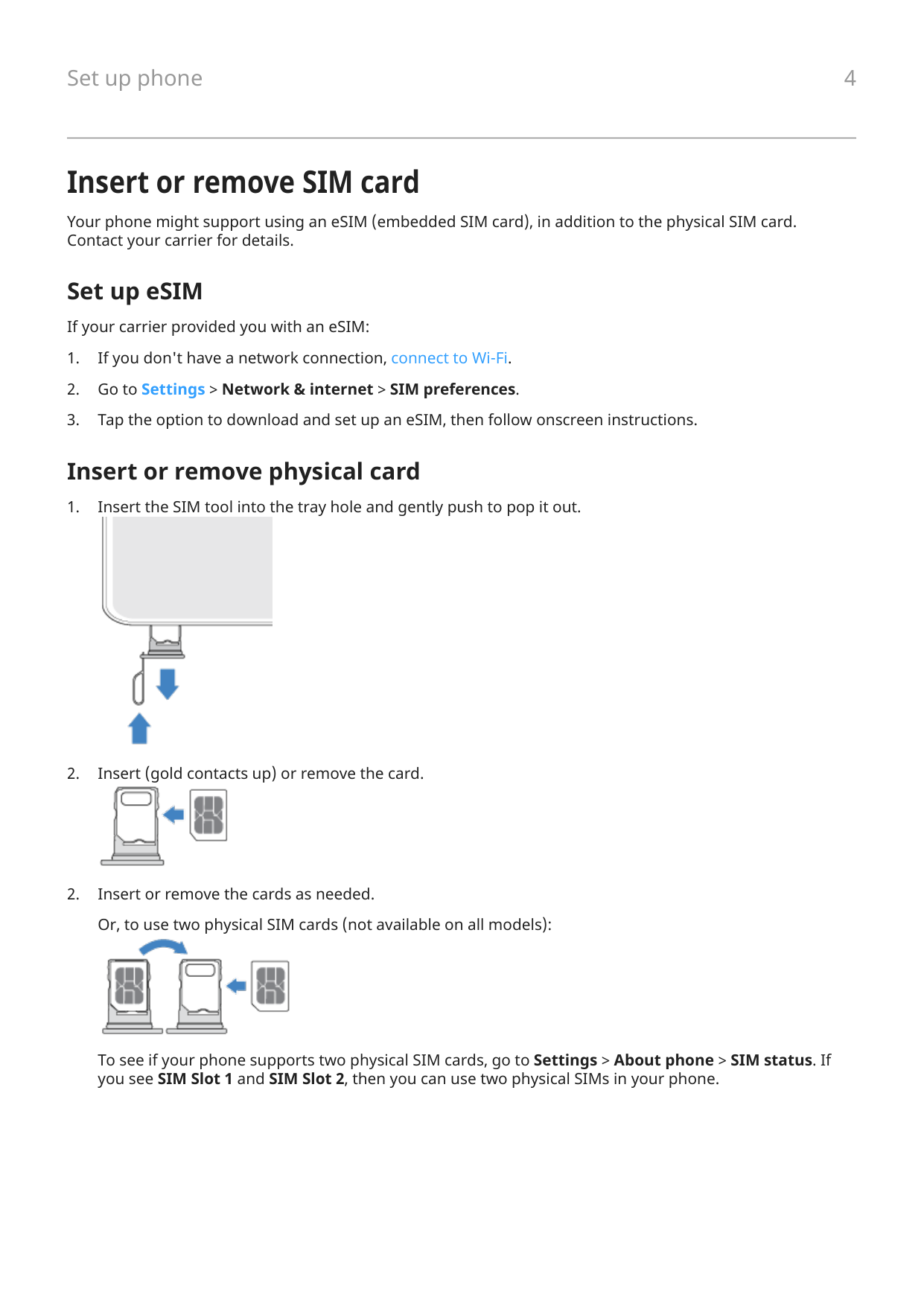
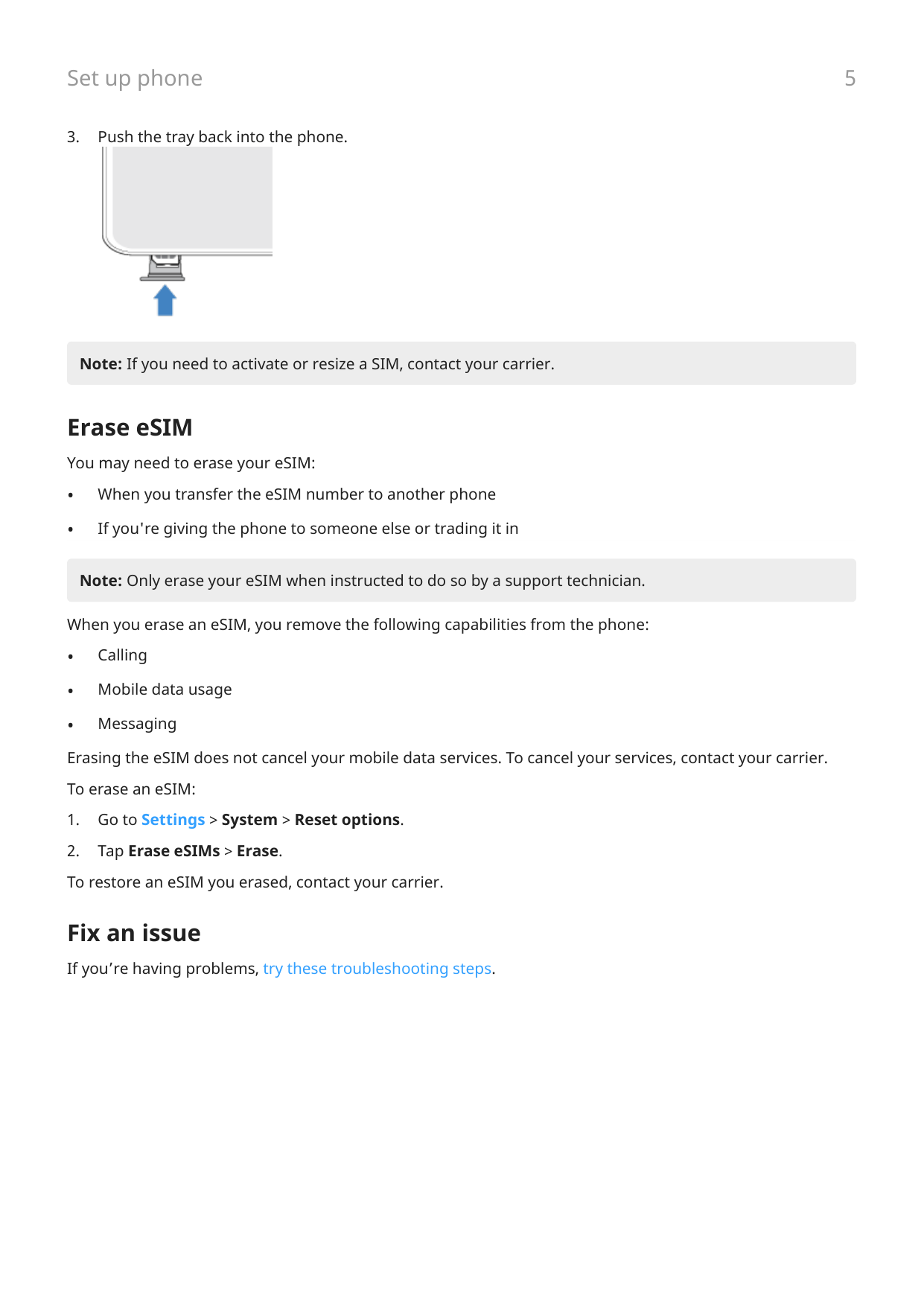
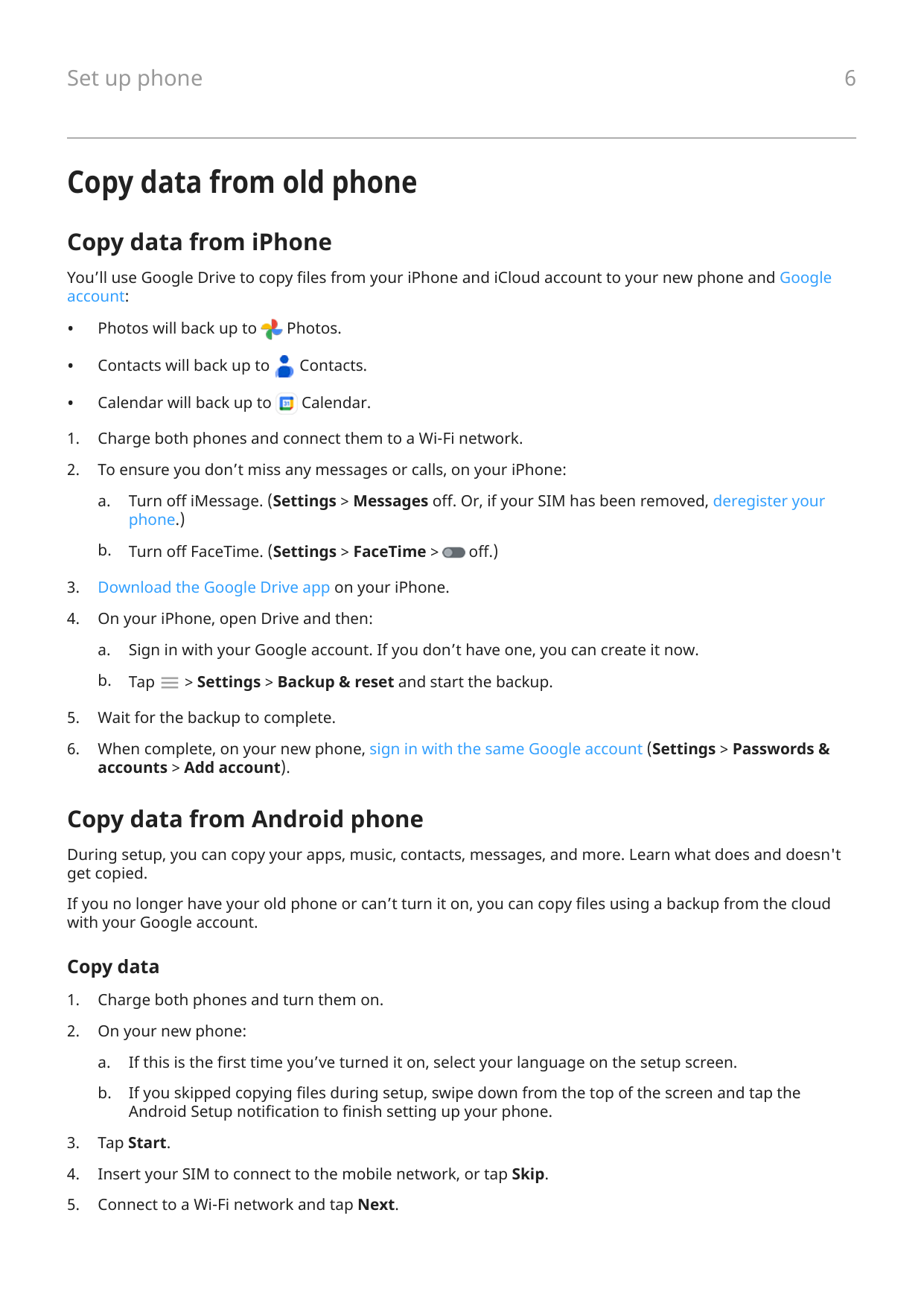
To insert or remove the SIM card, use the SIM tool to gently push out the tray from its hole, then put in (gold contacts up) or remove the card. If your phone supports eSIM, download and set it up via Settings > Network & internet > SIM preferences. (Page 6)
How do I turn off my phone?
To turn off your Motorola Edge 40, use quick settings by swiping down from the top of the screen twice, tap on Power off and confirm. Alternatively, you can press and hold the Power button until the 'Power off' option appears and select it.
How do I take a screenshot?
To take a screenshot, either touch the screen with three fingers and lift your finger (if enabled); drag from the bottom of the screen to access recent apps and tap Screenshot; or hold down both Power and Volume Down buttons until the screen capture is complete. (Page 40)
How do I record my phone's screen?
Open quick settings, tap on Screen record, position your frame over the video and begin recording by tapping Start button. The timer appears both in the status bar and within the recorder; swipe down from the top of the screen to stop the recording.
How do I personalize my home screen with widgets and shortcuts?
To add a widget or shortcut, touch and hold an empty space on your home screen, then select Widgets from the menu that appears. Pick from various pre-installed options to customize your phone’s appearance and functionality.
How do I set up Bluetooth connectivity with my Motorola Edge 40?
To connect a new Bluetooth device, go into Settings > Connections > Bluetooth, turn it on by toggling the switch to ‘On’ and then tap 'Scan'. Select the device you wish to pair from the list that appears.
Full Manual
370 pages
User Guide
© 2025 Motorola Mobility LLC. All rights reserved. MOTOROLA, the stylized M logo, MOTO, and the MOTO family of marks are trademarks or registered trademarks of Motorola Trademark Holdings, LLC. LENOVO is a trademark of Lenovo. Google, Android, Google Play and other marks are trademarks of Google LLC. Manufactured under license from Dolby Laboratories. Dolby, Dolby Atmos, and the double-D symbol are registered trademarks of Dolby Laboratories Licensing Corporation. This product supports digital video coding under certain versions of HEVC (High Efficiency Video Coding) standard and is covered by patents at patentlist.accessadvance.com.

Certain features, services and applications are network dependent and may not be available in all areas; additional terms, conditions and/or charges may apply. Contact your service provider for details.
All features, functionality, and other product specifications, as well as the information contained in this help content, are based upon the latest available information and believed to be accurate at the time of release. Motorola reserves the right to change or modify any information or specifications without notice or obligation.
Some images in help content are examples only.
To use the latest version of this content, go to Settings > Help on your phone.
#### motorola edge 40 iii
Contents
Set up phone 1 About your hardware 1 Insert or remove SIM card 4 Copy data from old phone 6 Manage dual SIMs 9 Set up voicemail 10 Set up email 11 Make it yours 13
Learn the basics 14 About your home screen 14 About your lock screen 16 New to Android? 17
If this is your first smartphone 17 If you had an iPhone 19 About your Google account 20 Status bar icons 21 Phone terms you should know 25
Get around on your phone 27 Learn gestures 27 Move between apps and screens 29 Use quick settings 31 Turn screen off and on 36 Turn off phone 37
Capture your screen 38 Take screenshots 38 Record your screen 40 Create GIFs from video 42
Discover useful tools 43 Turn flashlight on and off 43 Scan QR codes 44 Record audio notes 45 Control phone with your voice 48 Get directions to a location 49 Use clock and weather widget 50 Set up family safe space 52 Manage how you spend time on your phone 54
Work with text 57 Use onscreen keyboard 57 Cut, copy, paste text 59 Use voice typing 60
#### motorola edge 40 iv
Fill in forms automatically 61 Personalize your phone 62
Home screen 62 Personalize with your style 62 Change wallpaper 64 Customize your Favorites tray 65 Use widgets, shortcuts, or folders 66 Arrange apps and control icon's look 70 Home screen rotation lock 72 Remove Google feed 73 Remake your home screen with launchers 74
Lock screen 75 Use a screen saver 75
Use apps 76 Open, close, switch apps 76 See two apps at the same time 78 View notifications 80 About preloaded apps 82 About the Moto app 86 Focus on gaming 88 Get, delete, manage apps 91
Install or update apps 91 Manage app permissions 94 Delete or disable apps 96 Find problem apps with safe mode 97 Protect against harmful apps 98
Search and browse 99 Search the web 99 Search your phone 101 Browse websites 102
Text messaging 104 About text and multimedia messages 104 Read, send messages 105 Manage, delete messages 108 Change default messaging app 110 Change text message reply to incoming calls 111 Get text messages on your computer 112
Email 113 Read, send, manage emails 113 View email attachments 115 Preview inboxes from home screen 116
#### motorola edge 40 v
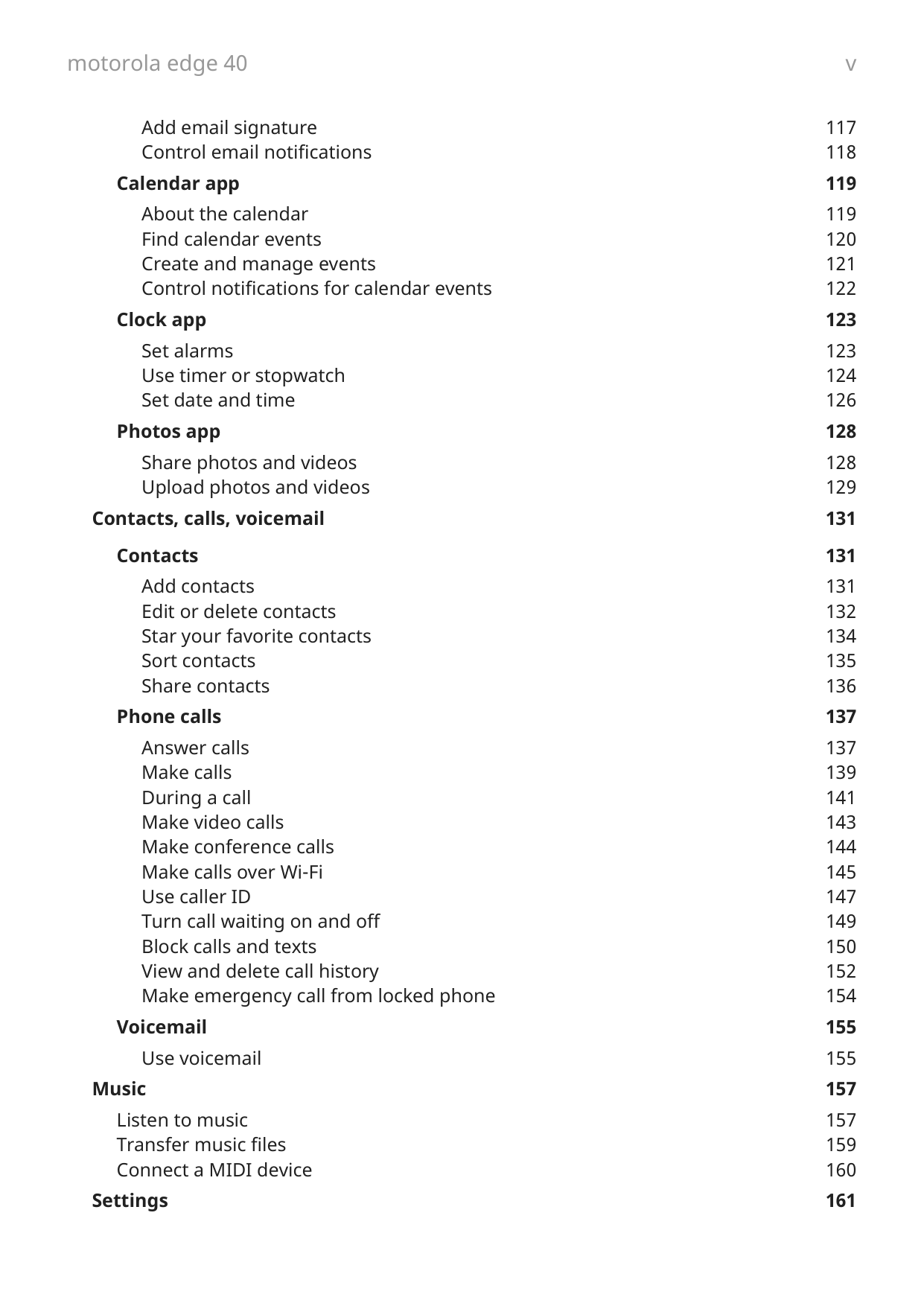
Add email signature 117 Control email notifications 118
Calendar app 119 About the calendar 119 Find calendar events 120 Create and manage events 121 Control notifications for calendar events 122
Clock app 123 Set alarms 123 Use timer or stopwatch 124 Set date and time 126
Photos app 128 Share photos and videos 128 Upload photos and videos 129
##### Contacts, calls, voicemail 131
Contacts 131 Add contacts 131 Edit or delete contacts 132 Star your favorite contacts 134 Sort contacts 135 Share contacts 136
Phone calls 137 Answer calls 137 Make calls 139 During a call 141 Make video calls 143 Make conference calls 144 Make calls over Wi-Fi 145 Use caller ID 147 Turn call waiting on and off 149 Block calls and texts 150 View and delete call history 152 Make emergency call from locked phone 154
Voicemail 155 Use voicemail 155
Music 157 Listen to music 157 Transfer music files 159 Connect a MIDI device 160
Settings 161
#### motorola edge 40 vi
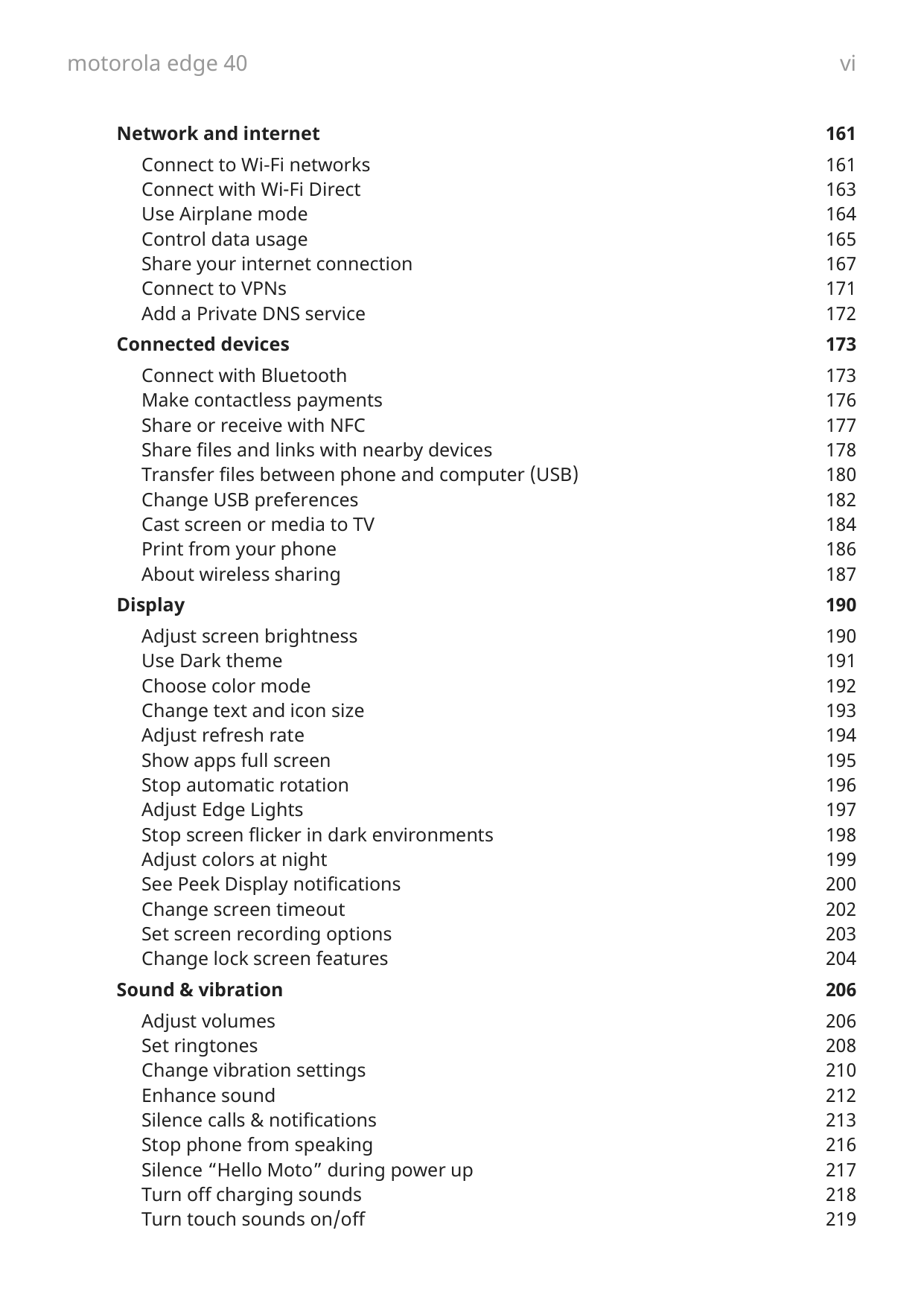
Network and internet 161 Connect to Wi‑Fi networks 161 Connect with Wi-Fi Direct 163 Use Airplane mode 164 Control data usage 165 Share your internet connection 167 Connect to VPNs 171 Add a Private DNS service 172
Connected devices 173 Connect with Bluetooth 173 Make contactless payments 176 Share or receive with NFC 177 Share files and links with nearby devices 178 Transfer files between phone and computer (USB) 180 Change USB preferences 182 Cast screen or media to TV 184 Print from your phone 186 About wireless sharing 187
Display 190 Adjust screen brightness 190 Use Dark theme 191 Choose color mode 192 Change text and icon size 193 Adjust refresh rate 194 Show apps full screen 195 Stop automatic rotation 196 Adjust Edge Lights 197 Stop screen flicker in dark environments 198 Adjust colors at night 199 See Peek Display notifications 200 Change screen timeout 202 Set screen recording options 203 Change lock screen features 204
Sound & vibration 206 Adjust volumes 206 Set ringtones 208 Change vibration settings 210 Enhance sound 212 Silence calls & notifications 213 Stop phone from speaking 216 Silence “Hello Moto” during power up 217 Turn off charging sounds 218 Turn touch sounds on/off 219
#### motorola edge 40 vii
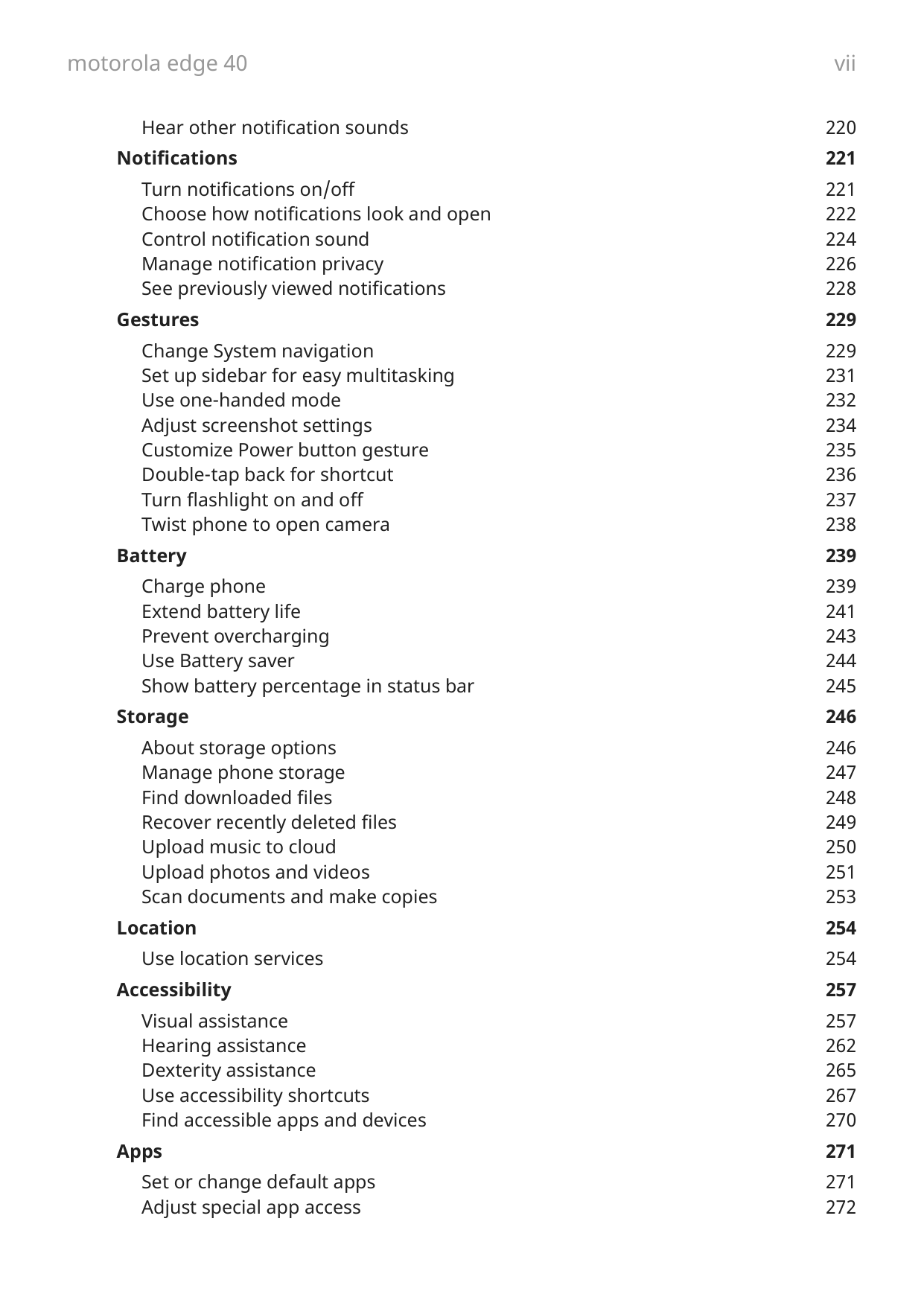
Hear other notification sounds 220
Notifications 221 Turn notifications on/off 221 Choose how notifications look and open 222 Control notification sound 224 Manage notification privacy 226 See previously viewed notifications 228
Gestures 229 Change System navigation 229 Set up sidebar for easy multitasking 231 Use one-handed mode 232 Adjust screenshot settings 234 Customize Power button gesture 235 Double-tap back for shortcut 236 Turn flashlight on and off 237 Twist phone to open camera 238
Battery 239 Charge phone 239 Extend battery life 241 Prevent overcharging 243 Use Battery saver 244 Show battery percentage in status bar 245
Storage 246 About storage options 246 Manage phone storage 247 Find downloaded files 248 Recover recently deleted files 249 Upload music to cloud 250 Upload photos and videos 251 Scan documents and make copies 253
Location 254 Use location services 254
Accessibility 257 Visual assistance 257 Hearing assistance 262 Dexterity assistance 265 Use accessibility shortcuts 267 Find accessible apps and devices 270
Apps 271 Set or change default apps 271 Adjust special app access 272
#### motorola edge 40 viii
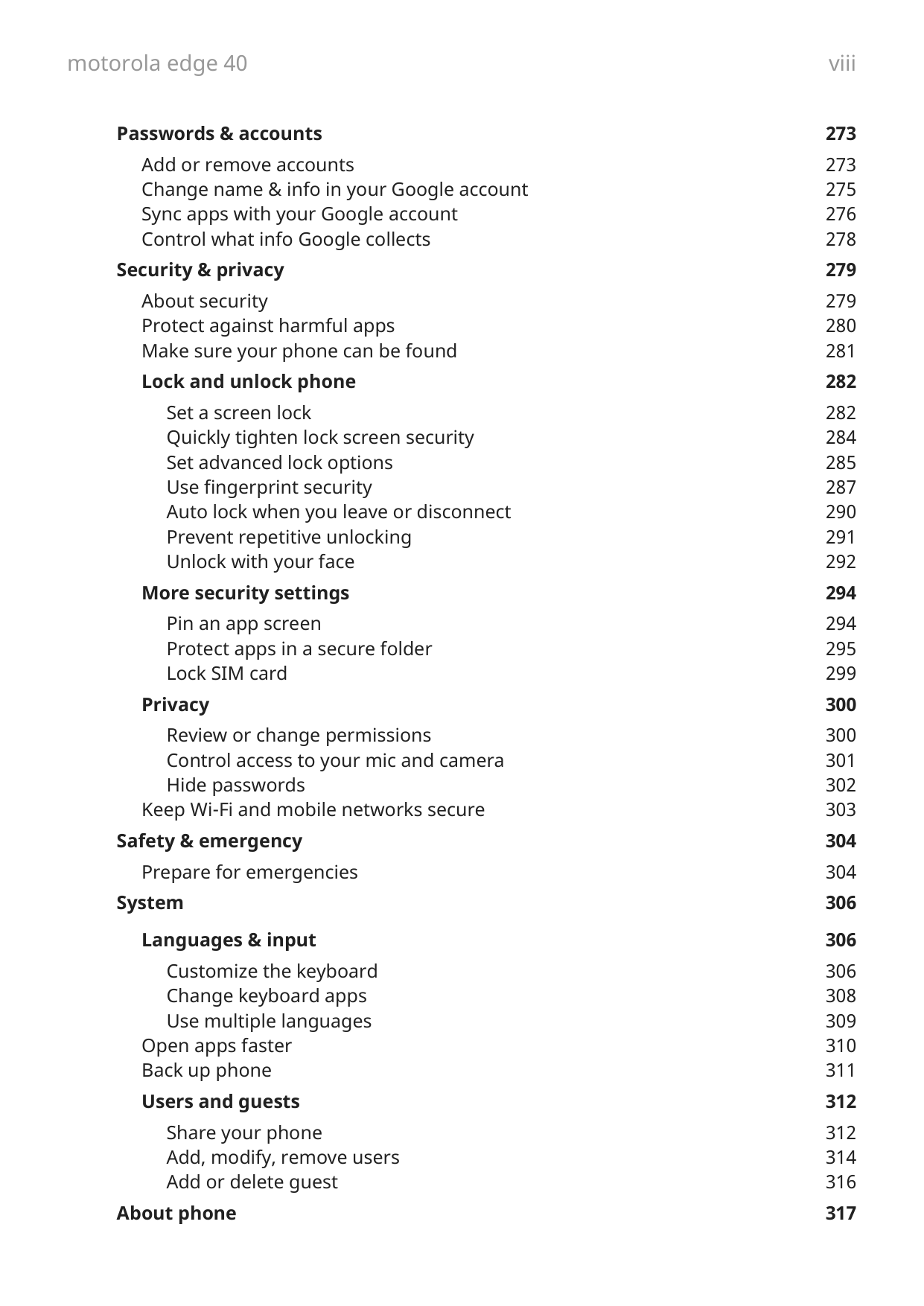
Passwords & accounts 273 Add or remove accounts 273 Change name & info in your Google account 275 Sync apps with your Google account 276 Control what info Google collects 278
Security & privacy 279 About security 279 Protect against harmful apps 280 Make sure your phone can be found 281 Lock and unlock phone 282
Set a screen lock 282 Quickly tighten lock screen security 284 Set advanced lock options 285 Use fingerprint security 287 Auto lock when you leave or disconnect 290 Prevent repetitive unlocking 291 Unlock with your face 292
More security settings 294 Pin an app screen 294 Protect apps in a secure folder 295 Lock SIM card 299
Privacy 300 Review or change permissions 300 Control access to your mic and camera 301 Hide passwords 302
Keep Wi-Fi and mobile networks secure 303 Safety & emergency 304
Prepare for emergencies 304 System 306
Languages & input 306 Customize the keyboard 306 Change keyboard apps 308 Use multiple languages 309
Open apps faster 310 Back up phone 311 Users and guests 312
Share your phone 312 Add, modify, remove users 314 Add or delete guest 316
About phone 317
#### motorola edge 40 ix
Record your IMEI number 317 Find legal and product information 318
##### Fix issues 319
Hardware issues 319 Phone is slow or unstable 319 Phone feels warm or hot 320 Phone won't turn on 321 Phone restarts or crashes 322 Screen is frozen or won't respond 323 Screen displays wrong colors 324 Screen brightness automatically too dim or bright 325
Call and SIM issues 326 Troubleshoot issues with calls 326 Can't make calls 327 Can't answer or phone doesn't ring 329 Issues during calls 331
Battery issues 334 Charging issues 334 Battery drains too fast 336
Bluetooth, Wi-Fi, USB issues 337 Bluetooth issues 337 Wi-Fi issues 340 Can't transfer files or connect USB to computer 342
Account and sign-in issues 343 Forgot unlock code 343 Can't sign in to Google 344 Account sync issues 345
App issues 347 App or widget issues 347 Camera issues 349 Messaging issues 351 Gmail issues 353 Play Store issues 354
Maintenance procedures 355 Update Android software 355 Reset connections, settings, or apps 356 Reset phone 358 Get more help 360
Send feedback to Motorola 361
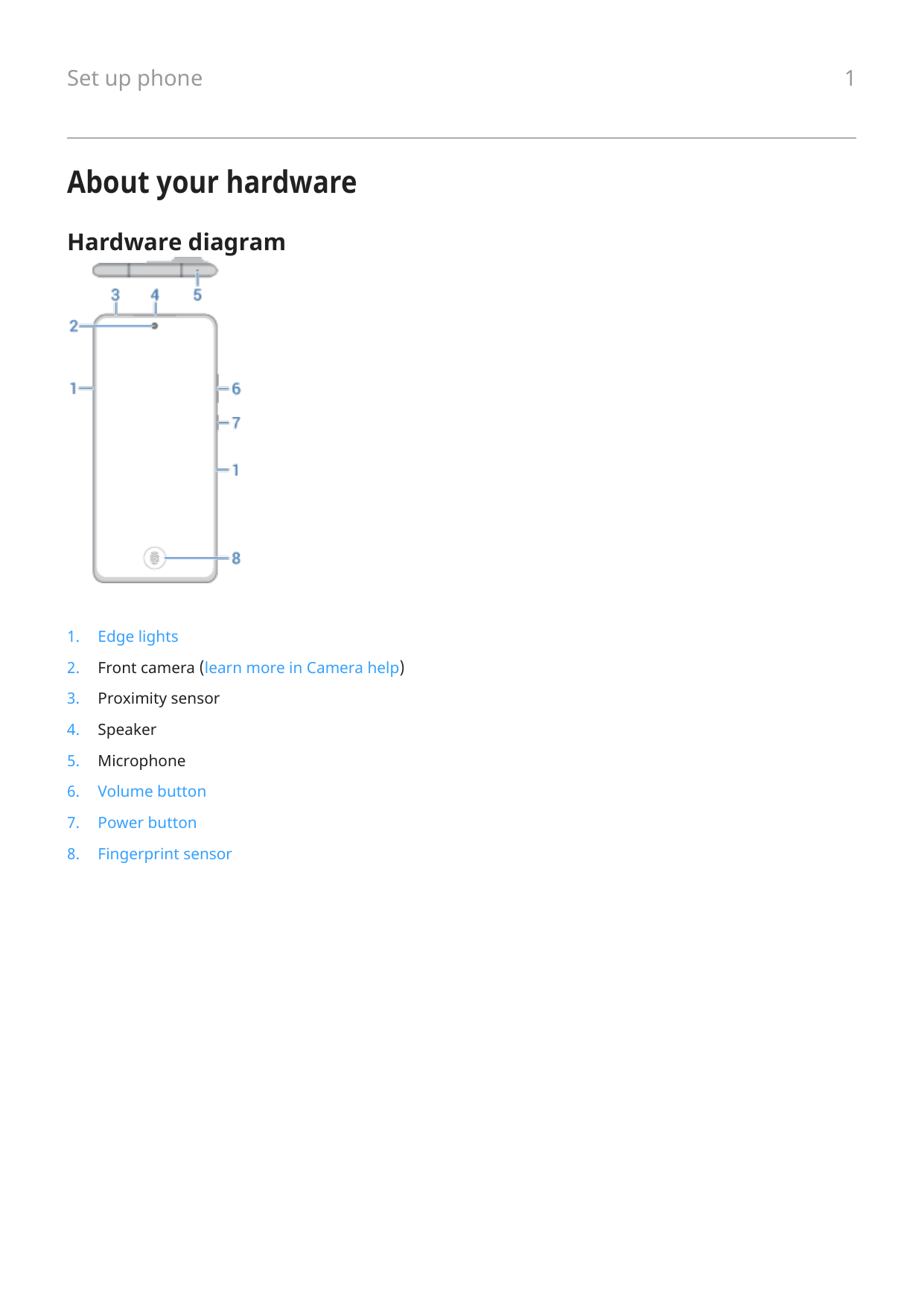
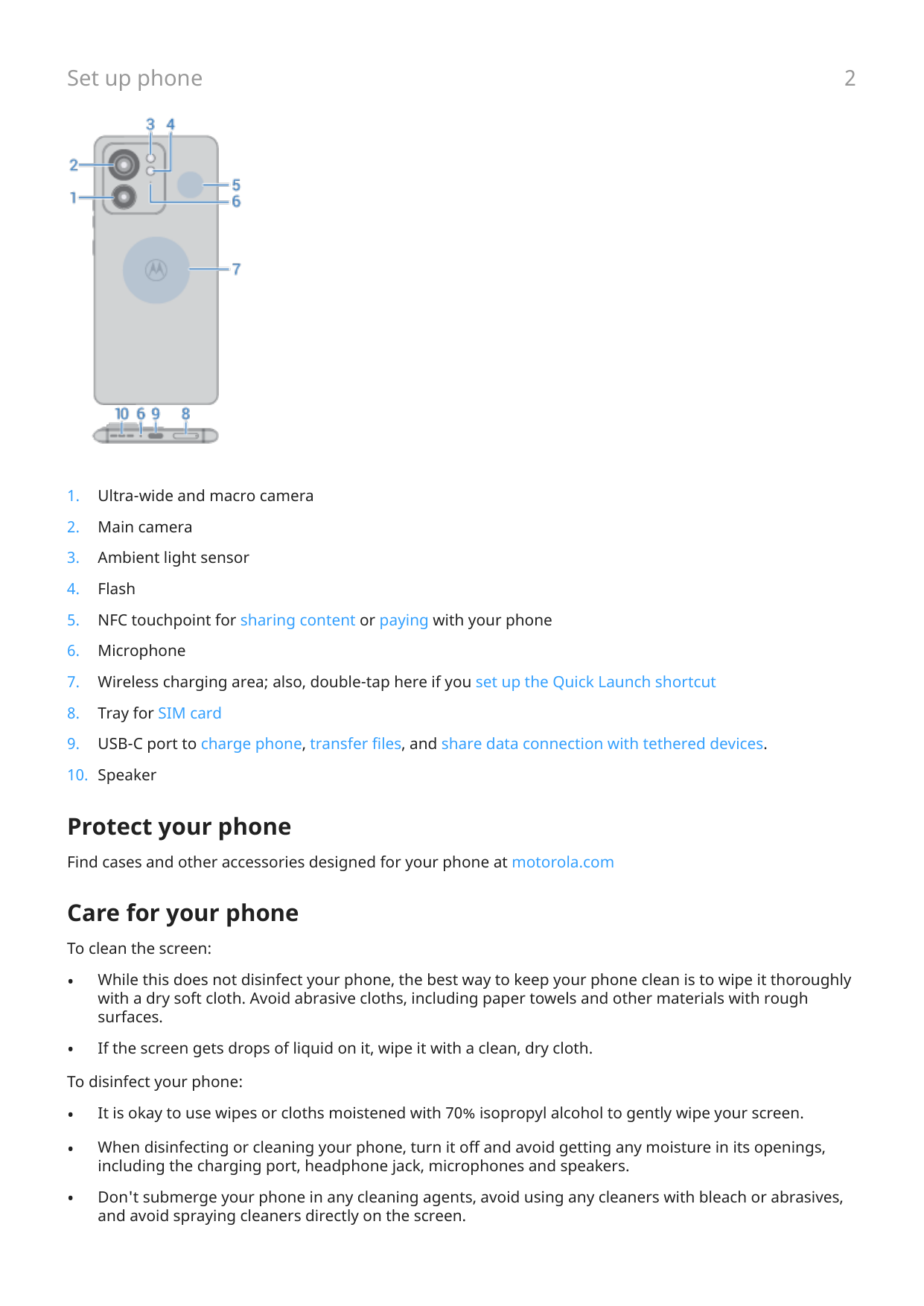
About your hardware
Hardware diagram


Protect your phone
Find cases and other accessories designed for your phone at motorola.com
Care for your phone
To clean the screen:
About water, splash, and dust resistance
Tested under controlled laboratory conditions, the phone is water, splash, and dust resistant to a rating of IP68 (IEC 60529). The phone can be submerged up to 1.5 meters in still, fresh water for up to 30 minutes. Exposure to conditions beyond this rating is not covered by warranty. Resistance will decrease as a result of normal wear. Not designed to work while submerged underwater. Do not expose to pressurized water, or liquids other than fresh water. Do not attempt to charge a wet phone. Designed to provide protection against the ingress of solid foreign objects of any size. Not waterproof.
To prevent water damage to your phone:
About Qualcomm aptX audio technology
Your phone features Qualcomm aptX HD audio for 24-bit music quality over Bluetooth.

Qualcomm aptX is a product of Qualcomm Technologies, Inc. and/or its subsidiaries. Qualcomm is a trademark of Qualcomm Incorporated, registered in the United States and other countries. aptX is a trademark of Qualcomm Technologies International, Ltd., registered in the United States and other countries.
Insert or remove SIM card
Your phone might support using an eSIM (embedded SIM card), in addition to the physical SIM card. Contact your carrier for details.
Set up eSIM
If your carrier provided you with an eSIM:
Insert or remove physical card



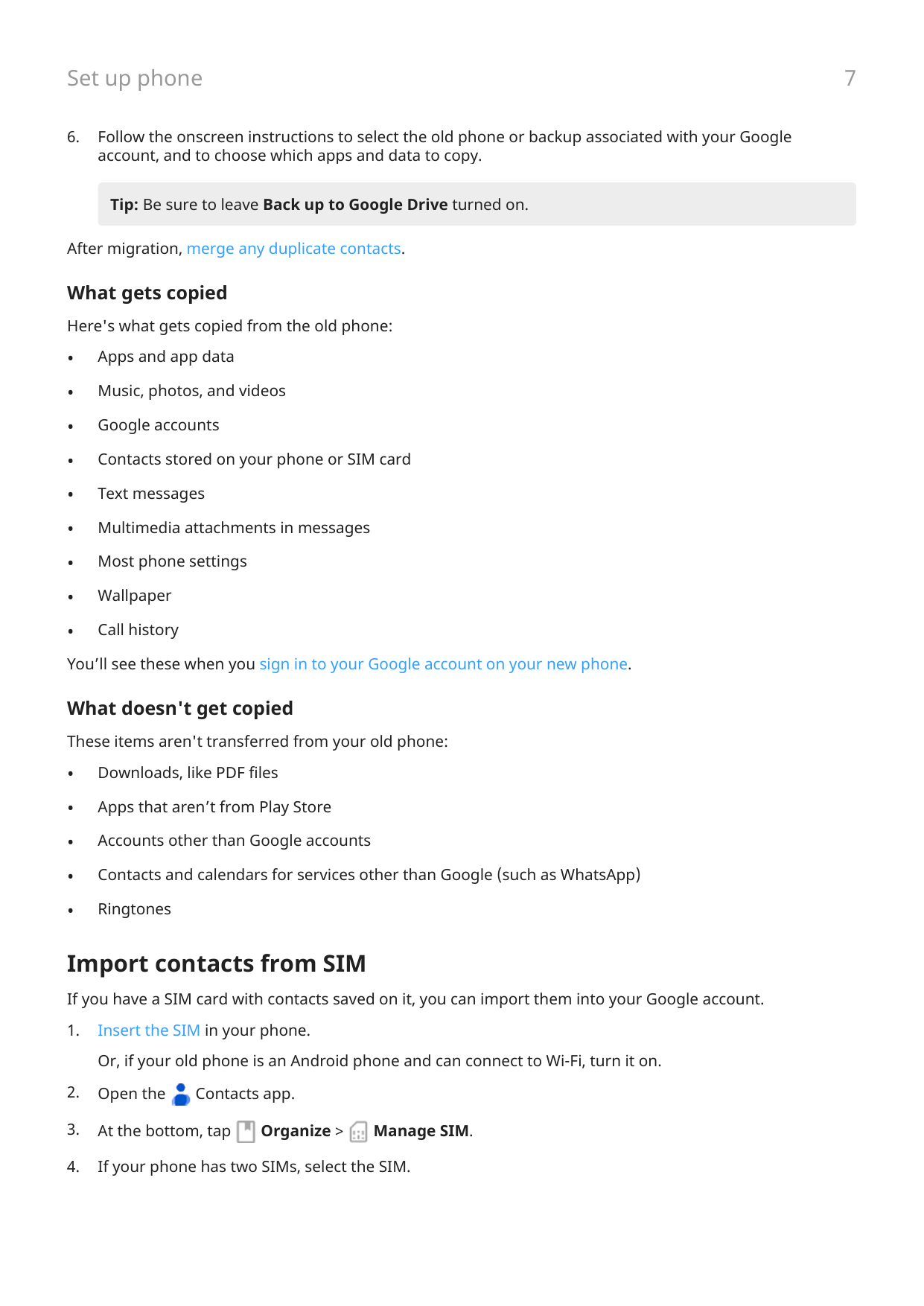
To see if your phone supports two physical SIM cards, go to Settings > About phone > SIM status. If you see SIM Slot 1 and SIM Slot 2, then you can use two physical SIMs in your phone.

Note: If you need to activate or resize a SIM, contact your carrier.
Erase eSIM
You may need to erase your eSIM:
Note: Only erase your eSIM when instructed to do so by a support technician.
When you erase an eSIM, you remove the following capabilities from the phone:
Fix an issue
If you’re having problems, try these troubleshooting steps.
Copy data from old phone
Copy data from iPhone
You’ll use Google Drive to copy files from your iPhone and iCloud account to your new phone and Google account:



Copy data from Android phone
During setup, you can copy your apps, music, contacts, messages, and more. Learn what does and doesn't get copied.
If you no longer have your old phone or can’t turn it on, you can copy files using a backup from the cloud with your Google account.
##### Copy data
Tip: Be sure to leave Back up to Google Drive turned on. After migration, merge any duplicate contacts. What gets copied Here's what gets copied from the old phone:
What doesn't get copied These items aren't transferred from your old phone:
Import contacts from SIM
If you have a SIM card with contacts saved on it, you can import them into your Google account.


######## 5. Select where to save the contacts:

######## 6. Select the contacts to import and tap Import.
Manage dual SIMs
About dual SIMs
If you're using a physical SIM and an eSIM:


Set up SIM profile Set options based on how you expect to use the SIMs:
##### Change SIM profile
This information applies only if your carrier supports eSIMs and you've set one up as well as inserting a physical SIM card.
Set up voicemail
Set voicemail password
Contact your carrier for help setting or recovering your password/PIN for voicemail.
Set mailbox greeting Your carrier provides and manages your voicemail. To set your greeting:


Change voicemail options


Set up email
Set up personal email
You can add multiple accounts of the following types:

If you didn’t add a Google account to your phone and want to set up email for an IMAP/POP provider (an address that's not Gmail):
Set up corporate email
If you use Microsoft Office Outlook on your work computer, your phone can synchronize emails, calendar events, and contacts with the Microsoft Exchange server. Before you start, you'll need the following information from your company's IT department:

Switch account views In the Gmail app, touch your profile icon , then select an account. To open each inbox with one touch from your home screen, add task shortcuts:


Make it yours
This topic lists things that most people want to do with their new phone, with links to instructions on how to do them.
Change its look and sound


About your home screen
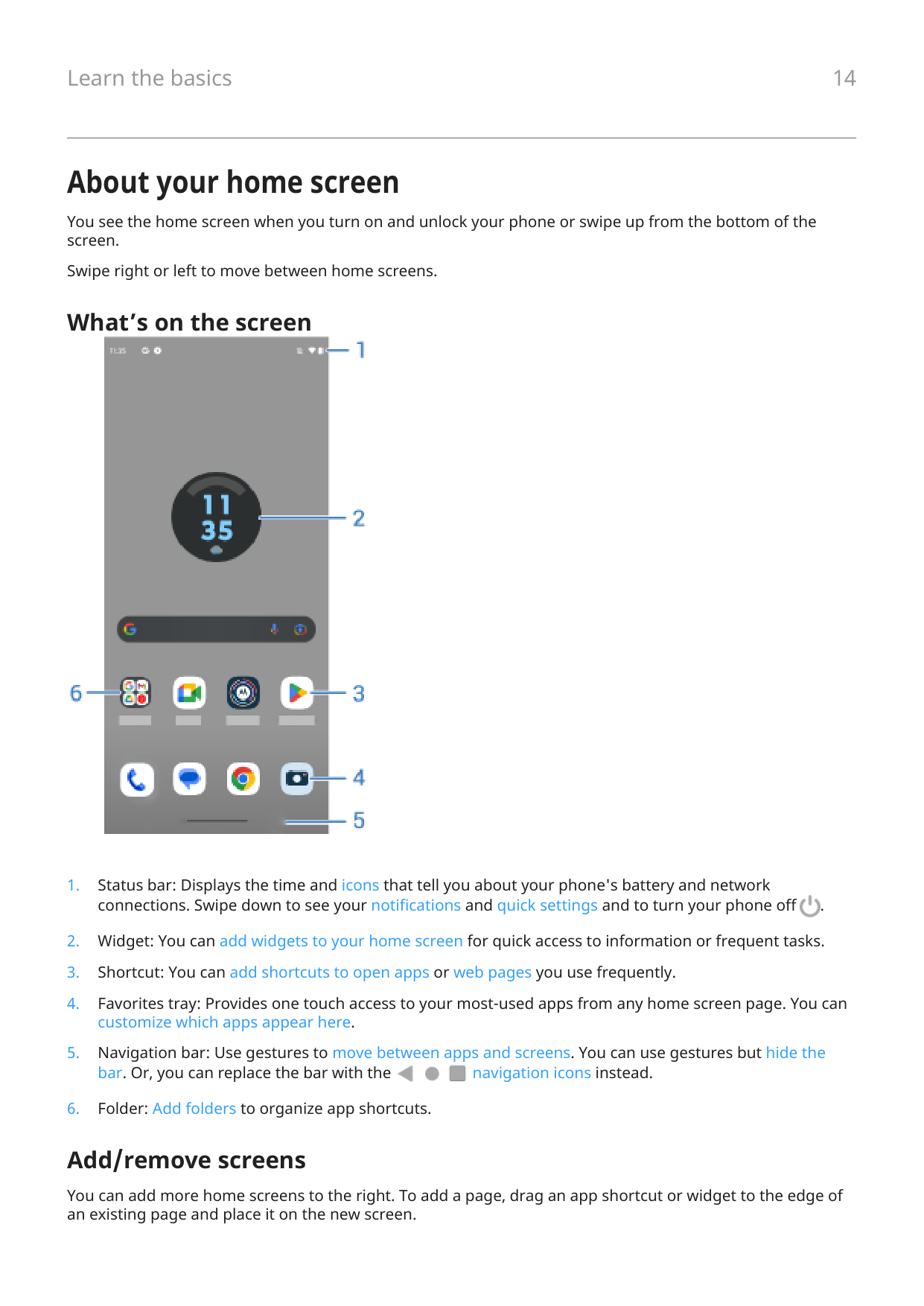
You see the home screen when you turn on and unlock your phone or swipe up from the bottom of the screen.
Swipe right or left to move between home screens.
What’s on the screen




Add/remove screens
You can add more home screens to the right. To add a page, drag an app shortcut or widget to the edge of an existing page and place it on the new screen.
To remove a home screen, drag all apps, shortcuts, widgets, and folders off the screen. After you remove the last item, the home screen will be removed.
Customize your home screen
####### Organize it:


About your lock screen
The lock screen appears when you're using a screen lock and you power on your phone or turn on the screen.

Tip: If you're using Peek Display, you'll see that screen before you get to your lock screen.
##### What you can do from the lock screen
If this is your first smartphone
Learn the basics
To get around your phone, here are the key concepts.


Get apps
Your phone comes with many fun and useful apps, but you can really unlock its power by installing apps that suit your lifestyle. Go to Play Store to explore free and paid apps that help you be more productive, organized, informed, in touch, and entertained.

Protect your phone
You carry your phone around with you, and accidents happen; phones get lost sometimes. So set up some security and prevent heartache if you and your phone become separated.
Set up a screen lock. This is your first line of defense in keeping your sensitive information safe. Prefer numbers, shapes, words? Set up a PIN, pattern, or password required to unlock your phone. Learn how. A screen lock doesn't prevent you from immediately answering a call or accessing your camera. Display your owner info. On your lock screen, you can discreetly display a “please return” message with some of your contact info so that, if your phone is lost, someone can return it to you. Learn how. Enable lost phone features. For peace of mind, check out Find My Device, in case you ever need to remotely locate and lock or erase your phone.
Personalize your phone
While changing your wallpaper is probably your first customization, don't stop there. Go to Settings > Personalize to customize colors, fonts, ringtones. And check out your other Settings where you can set your keyboard preferences, pair with devices, and much more. It's a great way to learn many of your phone's capabilities while customizing it to suit your needs.
In most apps you can tap , , or your profile icon for app-specific settings. Be sure to see what options are available to you there, too.


Manage cellular data
Understand your data usage. Keep an eye on your data usage and learn how to make the most of it. See which apps use large amounts of data and adjust their settings. If your phone is using too much data, you can also stop accounts from auto-syncing.
Use Wi-Fi to conserve cellular data. When you connect to a Wi-Fi network, your data will use that network connection instead of your carrier's network, saving your cellular data for when you need it. Learn how to connect to Wi-Fi networks.
Useful to know
Find phone info. To find your phone number, device name, and other information, go to Settings > About phone.
Tell your phone what to do. Use your phone hands-free with voice commands. Tell it to navigate you, and listen to it speak the directions to you as you drive--it'll even reroute you if you've gone off course. Tell it to set alarms, find information on the web, make calls.
Never miss a photo opportunity. Automatically open the camera right from your lock screen. Just twist your phone twice. You can automatically back up your photos and videos with your Google account or with other photo sharing apps available from Play Store.
Wi-Fi hotspot. You can use your phone as a Wi-Fi hotspot to share your internet connection with your other devices that need internet access (for example, a laptop or tablet).
Reboot phone. In the unlikely event that your phone becomes unresponsive, frozen, shows a blank or black screen, or doesn't respond to the Power button, you can reboot it. Press & hold the Power button for 7 - 10 seconds. The phone will restart normally.
Certain features, services, and applications are network or carrier dependent and may not be available in all areas.
If you had an iPhone Welcome to Android! Here are some differences between your old iPhone and your new phone. Your assistant: You've retired Siri. Now, find info and get things done with Google Assistant. Just set up “Hey, Google”. Then ask for info or help with everyday tasks. Apps:
Your home screen: Your old phone defaulted to show all apps on your home screen. With your new phone, you can put shortcuts to your most important apps on your customizable home screen for easy access. This frees up room on your home screen for widgets, making your new home much more lively.
Privacy indicator: On Android, a green indicator means either your camera or mic are being used by an app. On iPhone, an orange indicator means the mic is being used and a green indicator means the camera is being used.
In the cloud: Your Google account is your key to cloud storage with Google. If you migrated your contacts to your phone, then you can see them from any device or computer by logging into Gmail. Your Google account includes apps like Calendar and Drive that let you work well with others. And it has apps that let you play too - access your photos, videos, music from any device when you log in with your Google account. Use YT Music to upload your iTunes library. For help signing in to your account, read Google's support information.
File sharing: If you used AirDrop on your iPhone, now you'll use Quick Share to easily share files or links with friends.
About your Google account
Benefits of your account
When you set up your phone, you added a Google account. If you haven't had a Google account before, this is more than just a password you set up for your phone.
A Google account lets you organize and access your personal information and files from any computer or mobile device:
Maintaining your account
Other than remembering your password, you don’t need to do much maintenance on your Google account just enjoy the benefits of your secure, synchronized information. However, you can:
Learn about Google apps
Many Google apps, like Gmail, Chrome, Photos, and Maps are preloaded on your phone. To learn about and download additional Google apps, read Google’s help.
Can't sign in to Google account
If you’re having problems signing in to your account, read Google's support information.
Status bar icons
About status icons
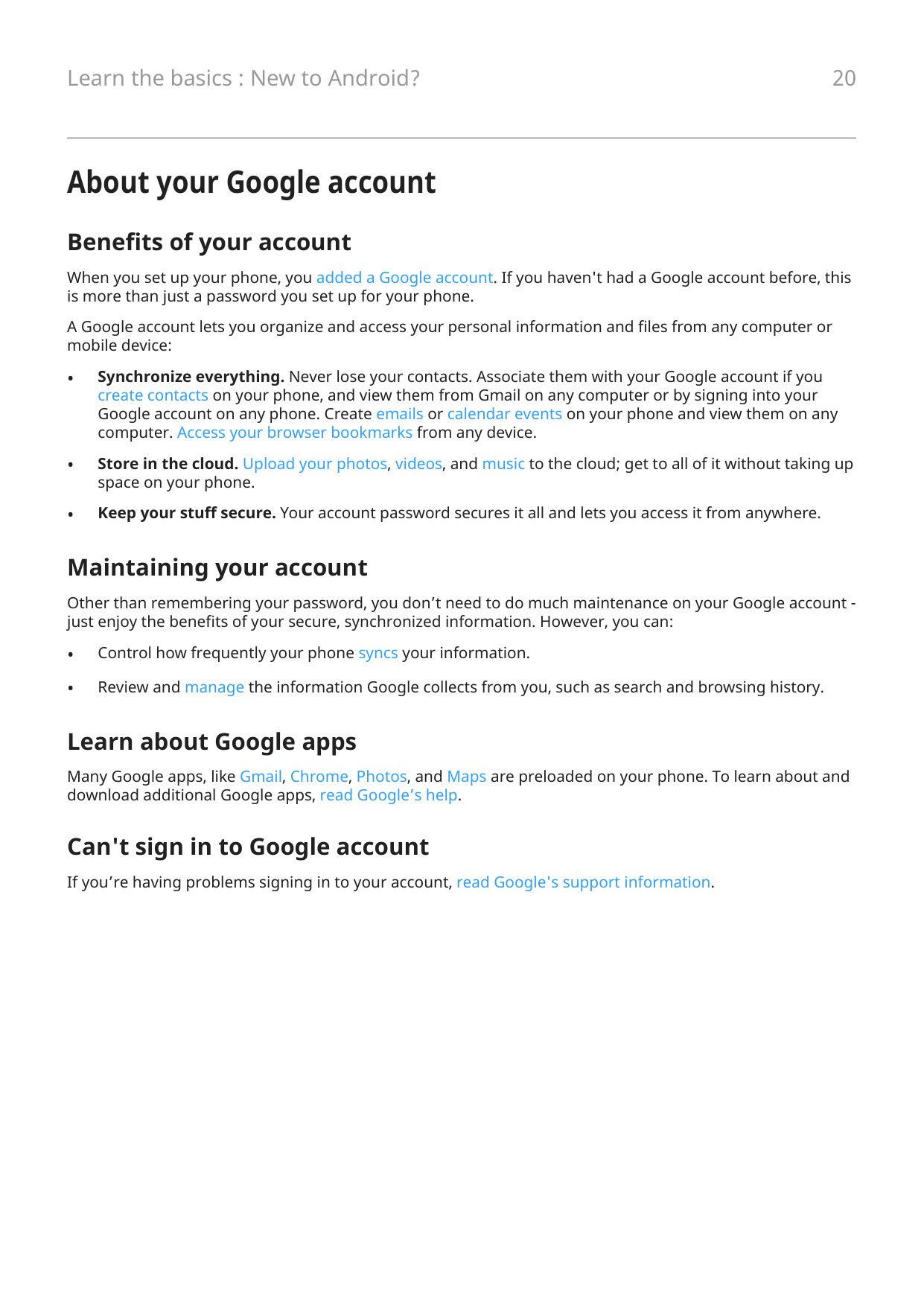
The status bar at the top of the home screen contains icons that help you monitor your phone.
What status icons mean
These are the icons from apps that came on your phone and the phone status icons.
Icon Meaning
CALLS

Active call.

Missed call.

Speakerphone on.

Microphone muted.
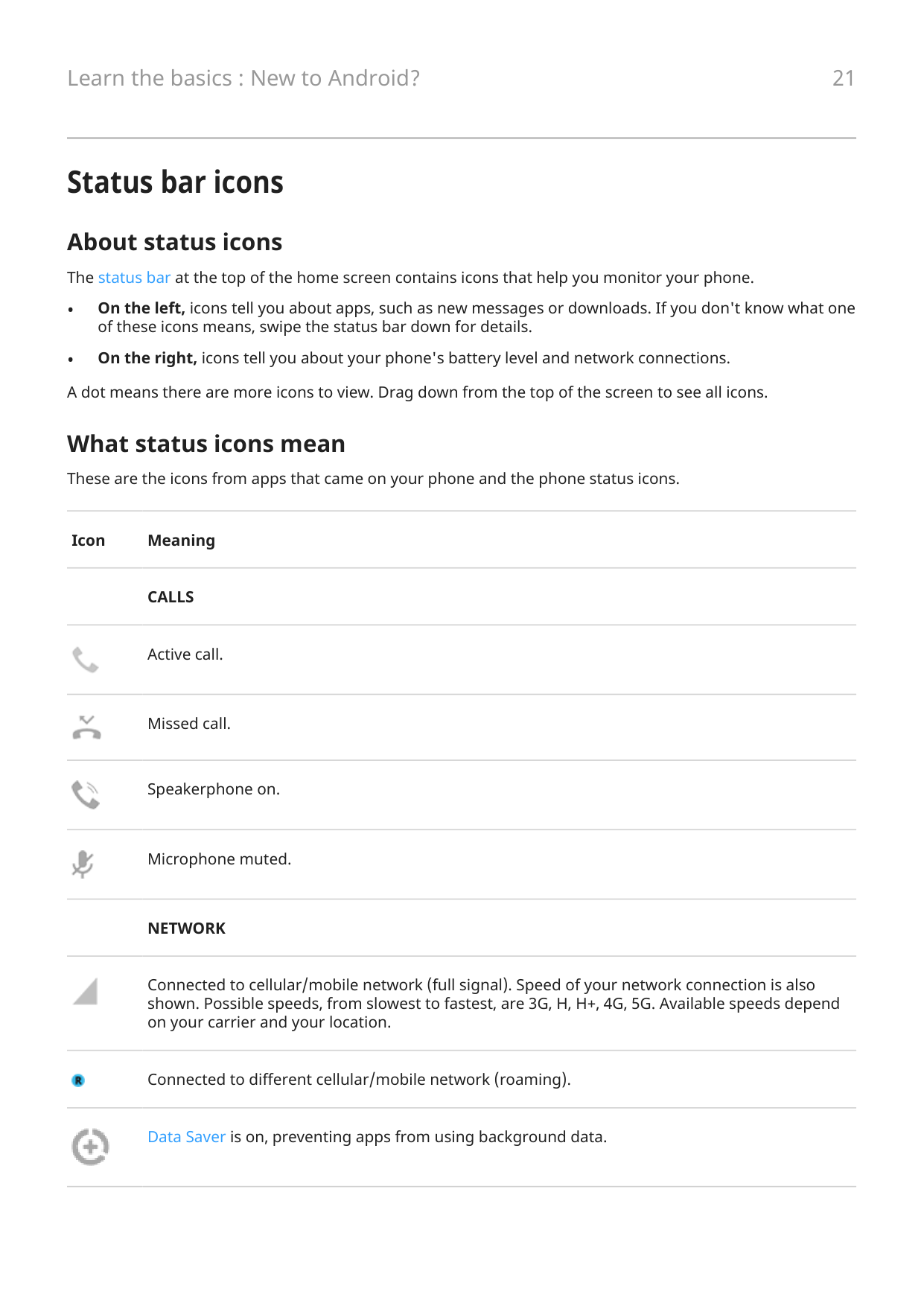
####### NETWORK

Connected to cellular/mobile network (full signal). Speed of your network connection is also shown. Possible speeds, from slowest to fastest, are 3G, H, H+, 4G, 5G. Available speeds depend on your carrier and your location.

Connected to different cellular/mobile network (roaming).

Data Saver is on, preventing apps from using background data.

Wi‑Fi network within range.
Connected to Wi‑Fi network.


No SIM card.

Location services are in use.

Airplane mode on.
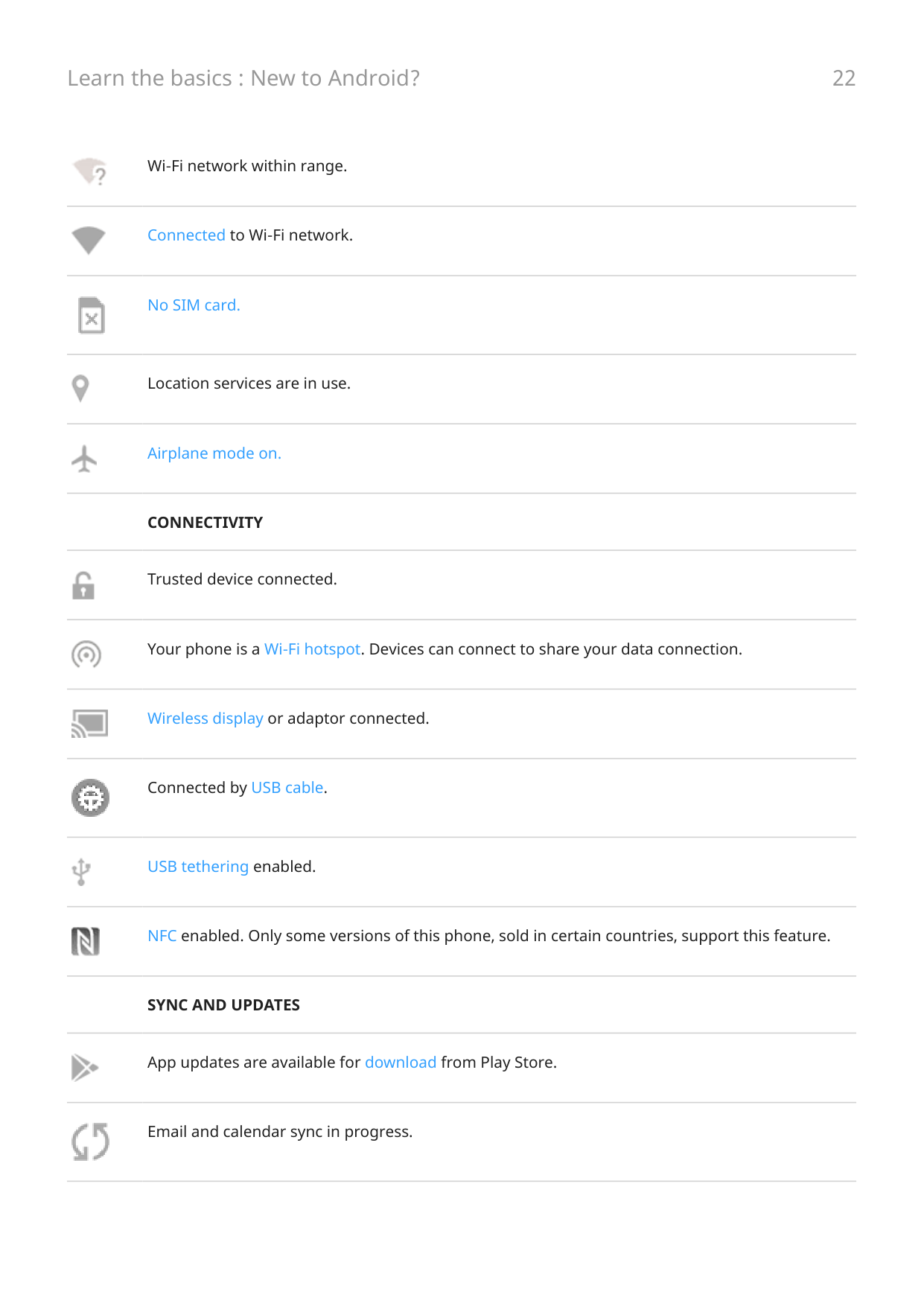
####### CONNECTIVITY

Trusted device connected.
Your phone is a Wi‑Fi hotspot. Devices can connect to share your data connection.


Wireless display or adaptor connected.

Connected by USB cable.

USB tethering enabled.

NFC enabled. Only some versions of this phone, sold in certain countries, support this feature.
####### SYNC AND UPDATES

App updates are available for download from Play Store.

Email and calendar sync in progress.

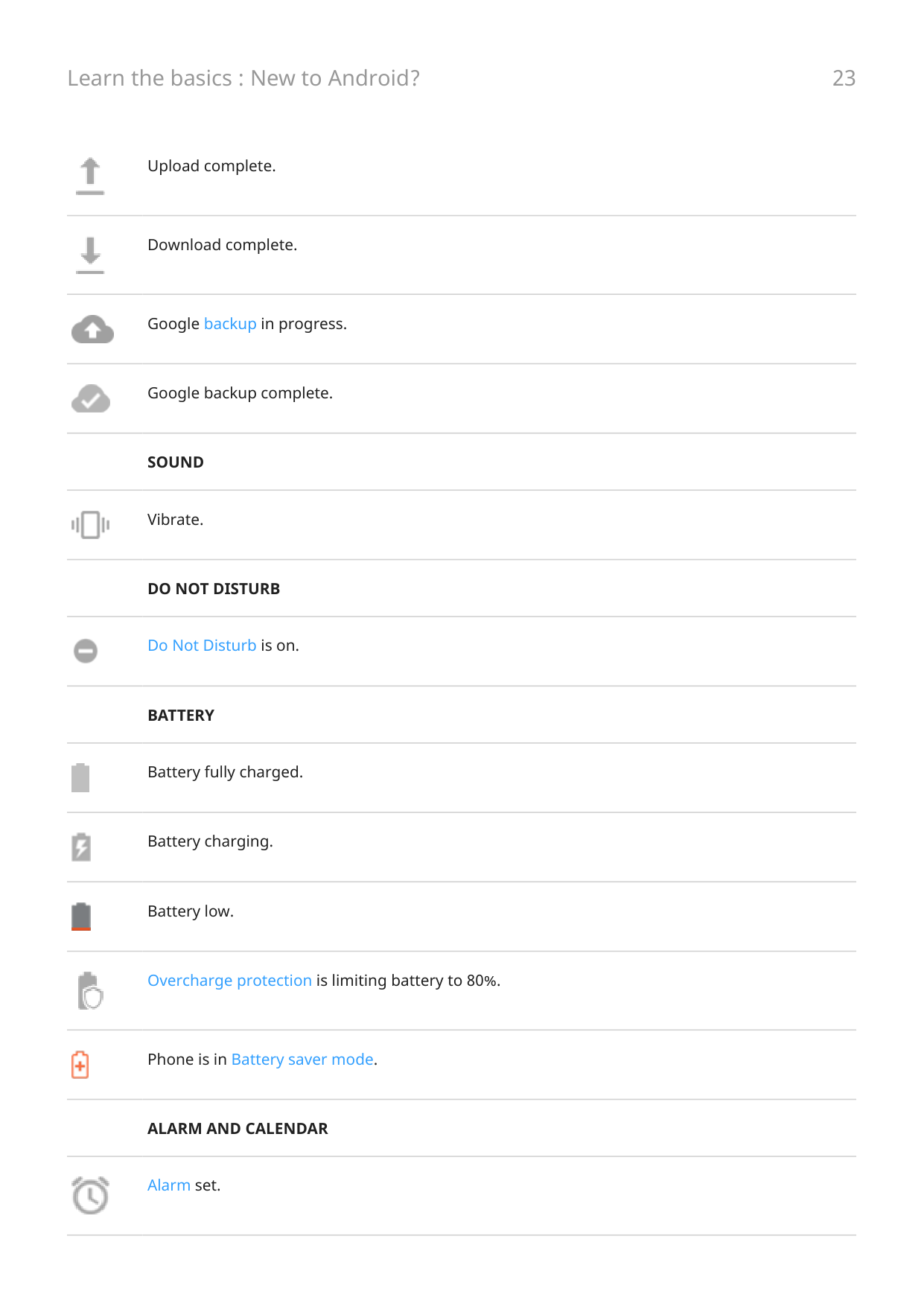
Upload complete.

Download complete.

Google backup in progress.

Google backup complete.
####### SOUND

Vibrate.
####### DO NOT DISTURB

Do Not Disturb is on.
####### BATTERY

Battery fully charged.

Battery charging.

Battery low.

Overcharge protection is limiting battery to 80%.

Phone is in Battery saver mode.
####### ALARM AND CALENDAR

Alarm set.

Upcoming calendar event.
####### EMAIL AND MESSAGING

New Gmail message.

New text message.

New voicemail.

Important alert.
####### OTHER ICONS

Privacy indicator. An app is using your microphone or camera.

Animated GIF is available.

Screen recording in process.

Focus mode is on.
Apps that you download might show other icons to alert you about their status.
Certain features, services, and applications are network or carrier dependent and may not be available in all areas.
Phone terms you should know
Airplane mode This mode allows you to use your phone's non-wireless functions (music, games, etc.), while disabling its wireless radio functions that are banned on airplanes during flight.
app Software that you can download for added functionality, such as games, email apps, bar code scanners and more. Some apps are already on your phone, and more can be downloaded from your phone's app store.
Bluetooth™ A short-range wireless technology you can use to connect a device to other nearby Bluetooth-capable devices and accessories, such as headsets, speakers, printers, etc. Use Bluetooth to make handsfree calls on a headset or in your car, listen to music on wireless speakers, use a wireless mouse or keyboard, or print a document in another room. Set up Bluetooth.
cellular network or mobile network A network of radio-transmitting towers. You make calls on your phone using radio waves sent between the phone and the network towers. You also send data and access the Internet on this network. Carriers use different technologies to handle these radio transmissions (GSM, CDMA, Edge, 3G, 4G, LTE, HSPA, iDEN).
data Information sent or received from your phone other than calls and text messages. You may use data when you access the internet, check your email, play games, use apps and more. Background tasks, such as syncing or location services, may also use data.
data usage The amount of data your phone uploads or downloads over a network in a given period. Your phone uses your carrier's cellular network or over a Wi-Fi network. Depending on your plan with your carrier, you may be charged additional fees when your data usage exceeds your plan's monthly limits.
GPS Global Positioning System. A global satellite-based system for determining precise locations on Earth.With GPS, your phone becomes your navigator when you're driving and your concierge when you're looking for a nearby meal, movie, or cup of coffee.
mobile hotspot A device or app that lets you share your mobile data connection with multiple devices via Wi‑Fi. You can connect different devices to your hotspot, including notebooks, netbooks, MP3 players, cameras, Smartphones, and portable gaming systems. The number of devices that can connect at one time depends on your carrier and connection speed.
NFC Near-field communication. A wireless technology that transfers information between two compatible devices. Tap the devices together to share web addresses, contact info, apps, GPS locations and more.
####### notification
An alert from your phone or an app on your phone. Your phone displays icons in the status bar to notify you of new messages, calendar events and alarms. Icons can also indicate ongoing status, such as connection to a Wi‑Fi network.
Play Store Google's store where you can download apps, books, movies, and music. Choose from an assortment of free books or apps; purchase from an even larger selection.
shortcut An icon you can add to your home screen that lets you quickly open an app. Create shortcuts for apps you use frequently.
SIM card Subscriber Identity Module (SIM) card. A card that securely stores information your carrier uses to authenticate your phone on the cellular network.
software update An update to your phone's operating system that typically includes new features and fixes reported problems. The update is wirelessly downloaded to your phone at no additional cost to you.
status bar Thin bar at the top of your home screen that displays the time and icons that tell you about your phone's battery and network connections. Apps display icons in the status bar to alert you of events, such as new messages.
sync The process of sharing the same information across multiple devices and websites. Contacts, calendars and email are often synced through cloud services, so you can enter information on one device and access it through another.
widget An element you can add to your home screen that gives you quick access to information or frequent tasks. For example, widgets can provide weather updates, upcoming calendar events. Many are preinstalled on your phone. Apps you download may also include widgets.
Wi‑Fi A short-range wireless technology that provides a high-speed internet connection to wireless data devices. Many locations offer Wi-Fi connections, including airports, hotels, restaurants and more. Using a Wi-Fi connection instead of your cellular network can help reduce your cellular data usage. Some public Wi-Fi connections may not be secure. You should only connect to those you trust and use some form of internet security on your devices. Set up Wi-Fi.
Certain features, services, and applications are network or carrier dependent and may not be available in all areas.
Learn gestures You can use gestures on your screen to move between apps and choose or manipulate items. There are also gestures, which you can turn on/off, to perform everyday tasks like screenshots or turning on the flashlight.
Tap, drag, swipe, zoom
####### Gesture Description
Tap
Press briefly with one finger and lift. Result: Open something (app or email) or choose something (checkbox, icon).
Touch & hold
Press and wait before lifting one finger. Result: Select something (app icon, text on a page) and see possible actions. Try it: Touch & hold text on this page to see the copy feature.
Drag
Touch & hold an item and then, without lifting, slide your finger until you reach the target position.
Result: Move elements on the screen; for example, change a toggle from on to off

. Try it: Drag an app shortcut from one spot on your home screen to another.

Swipe
Quickly move one finger across the screen, without pausing when you first touch (so you don’t drag instead).
Result: Switch between home screens or between tabs in an app. Or, move quickly through a list. You can swipe different directions (up, down, left/right) for different results. Learn more.
Try it: Open the Phone app and swipe left/right to switch between tabs. Or, swipe up from the bottom of this screen to go home.
Pinch out to zoom Put two fingers on the screen and then drag them apart.
Result: Zoom in to see larger version of photos and maps. Or, open expandable notifications.
Try it: Open a photo and pinch out to zoom in on an area.
Tip: If you have visual impairments, you can enable additional magnification gestures.
Pinch in to zoom
Put two fingers on the screen, far apart, and then drag them together. Result: Zoom out to see smaller version of photos or maps. Or, close expandable notifications.
Use gestures with Power button
Press Lock and unlock the phone. You'll enter your PIN, pattern or password to unlock. To turn off the phone, press the Power + Volume up buttons simultaneously.
Press twice Open the camera. If this doesn’t work, check that the setting is turned on.
Press & hold Start a voice command.
Move between apps and screens
Choose how to get around
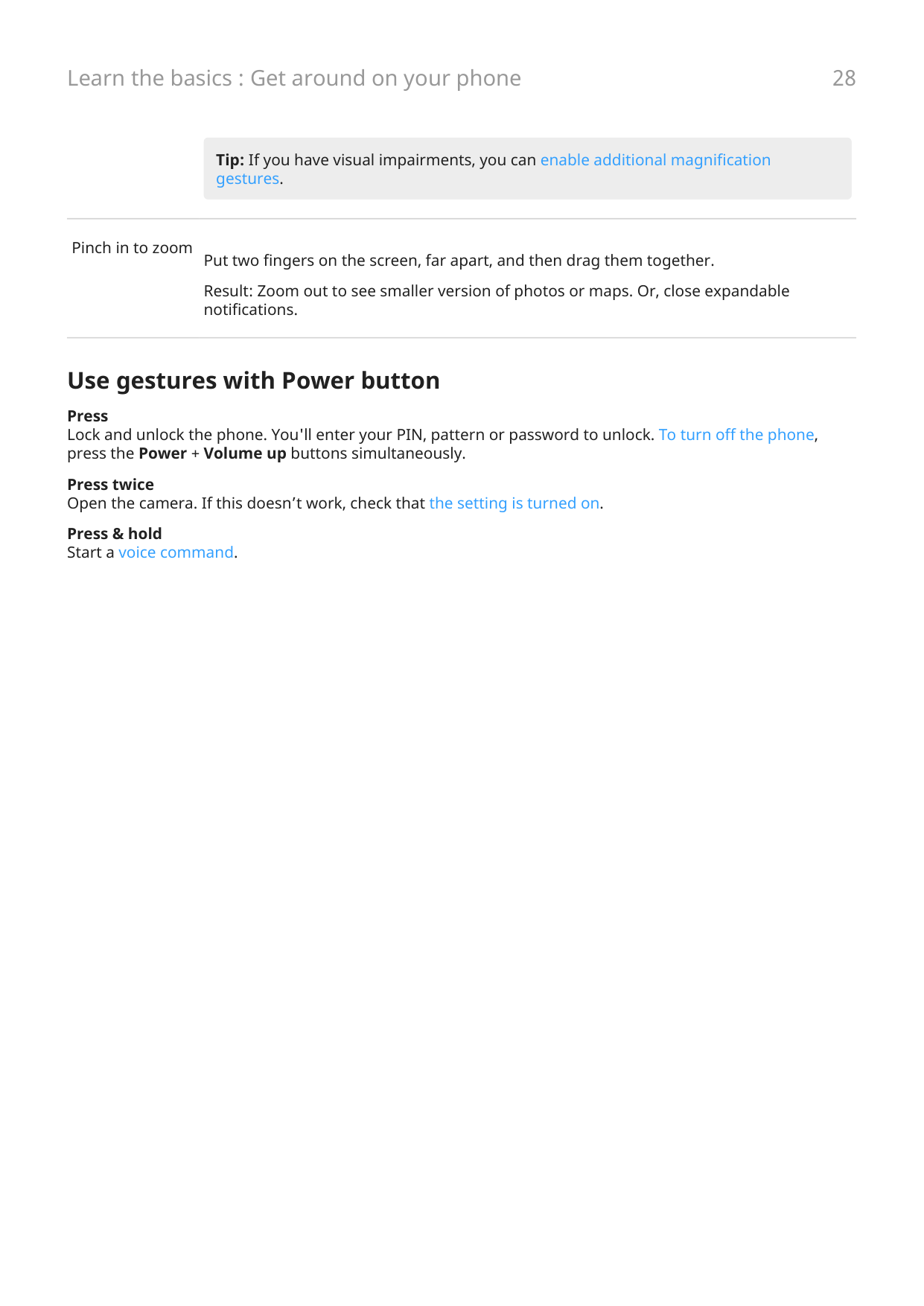
If you see the navigation bar at the bottom of the screen, or you see no icons at all, you are using Gesture navigation.


If you see at the bottom of the screen, you are using 3-button navigation. You can change how you move between apps and screens: Settings > Gestures > System navigation.



Use gesture navigation
Use these gestures to move between screens and apps if you chose Gesture navigation and you don't see the icons at the bottom of your screen.


####### Action Gesture to use
Switch between apps At the very bottom of the screen, swipe left or right.
See all recent apps Drag up from the bottom, hold, then let go.
See all apps Swipe up from the bottom of the home screen.
Go back Swipe towards the middle from the left or right edge of any screen.
Go home Swipe up from the bottom of any screen.
Open Google Assistant Swipe diagonally from either lower corner of the screen.
Tip: For even more gestures, turn on One-handed mode.
Use 3-button navigation
Use these icons to move between screens and apps if you chose 3-button navigation. takes you back one screen.

returns you to the home screen from any app. lets you switch between recent apps.


Tip: For visual assistance, you can add to open the Accessibility Menu.

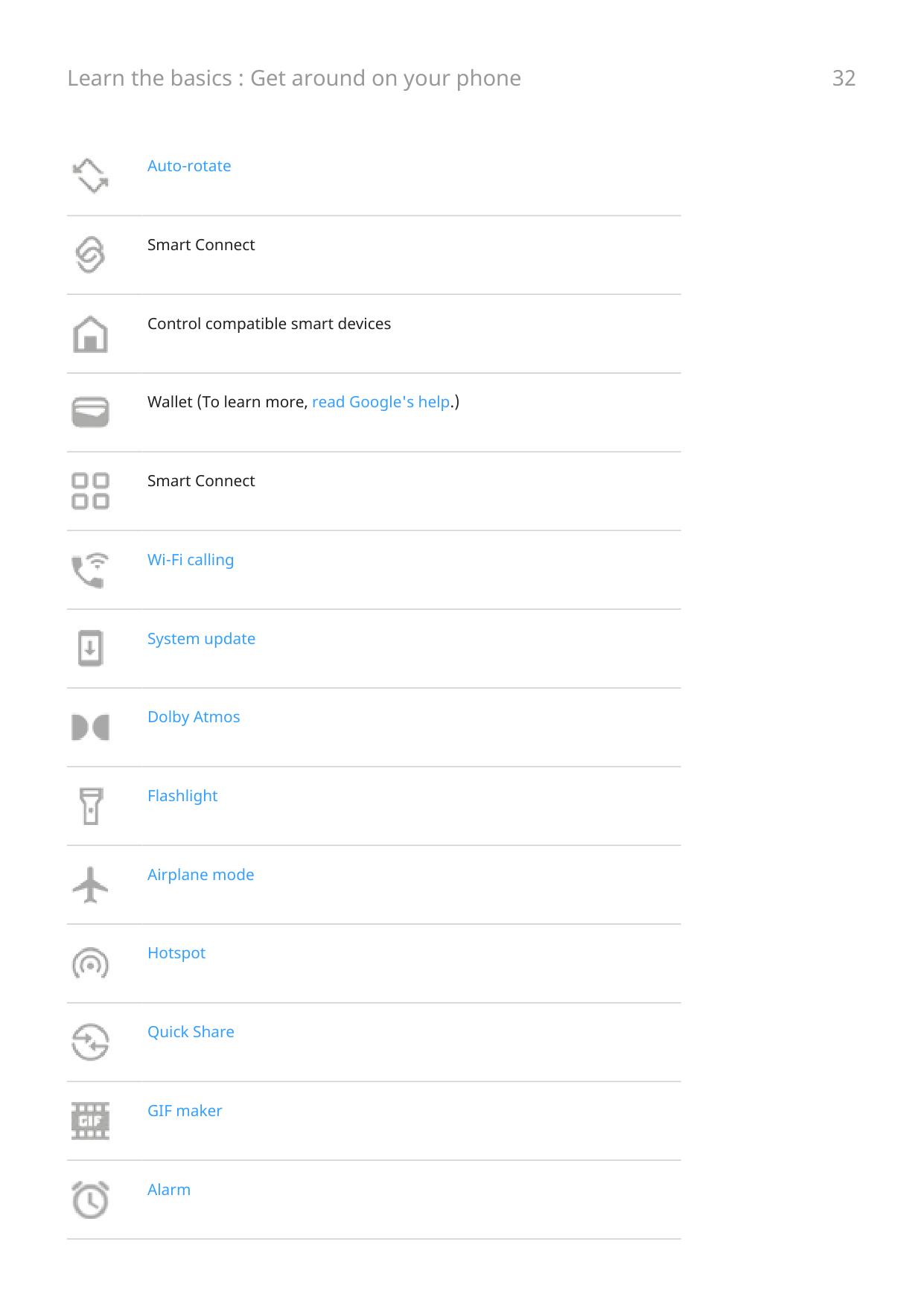
Use quick settings
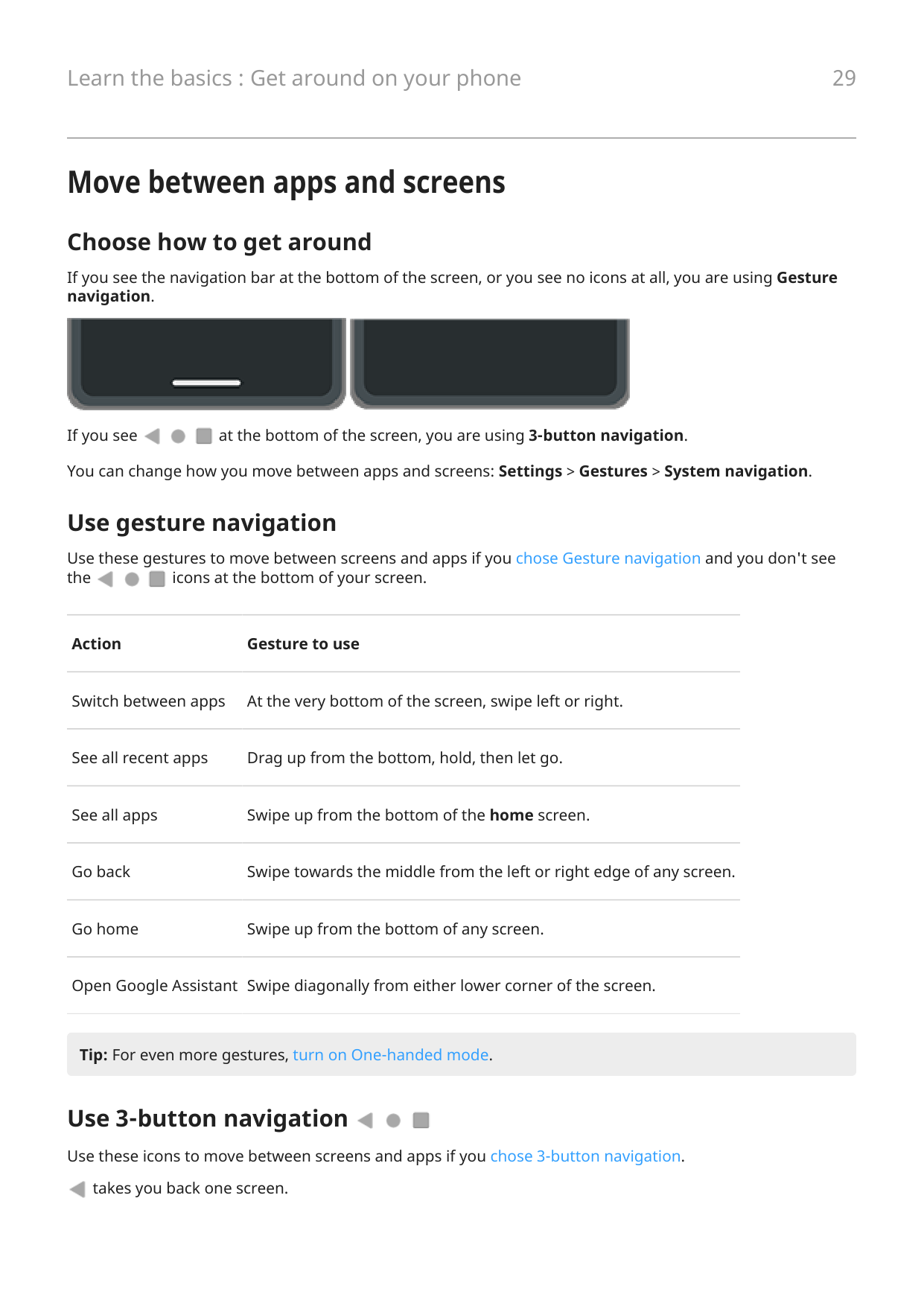
Open quick settings Settings you adjust frequently, like Bluetooth, are “quick settings”, easy to get to from any screen. To see your first few quick settings, swipe down once from the top of your screen.

Swipe down again to:


Adjust quick settings To adjust screen brightness, slide . To adjust other settings:

####### Icon Setting

Wi-Fi

Mobile data

Bluetooth

Do Not Disturb

Auto-rotate

Smart Connect

Control compatible smart devices

Wallet (To learn more, read Google's help.)

Smart Connect

Wi-Fi calling

System update

Dolby Atmos

Flashlight

Airplane mode

Hotspot

Quick Share

GIF maker
Alarm

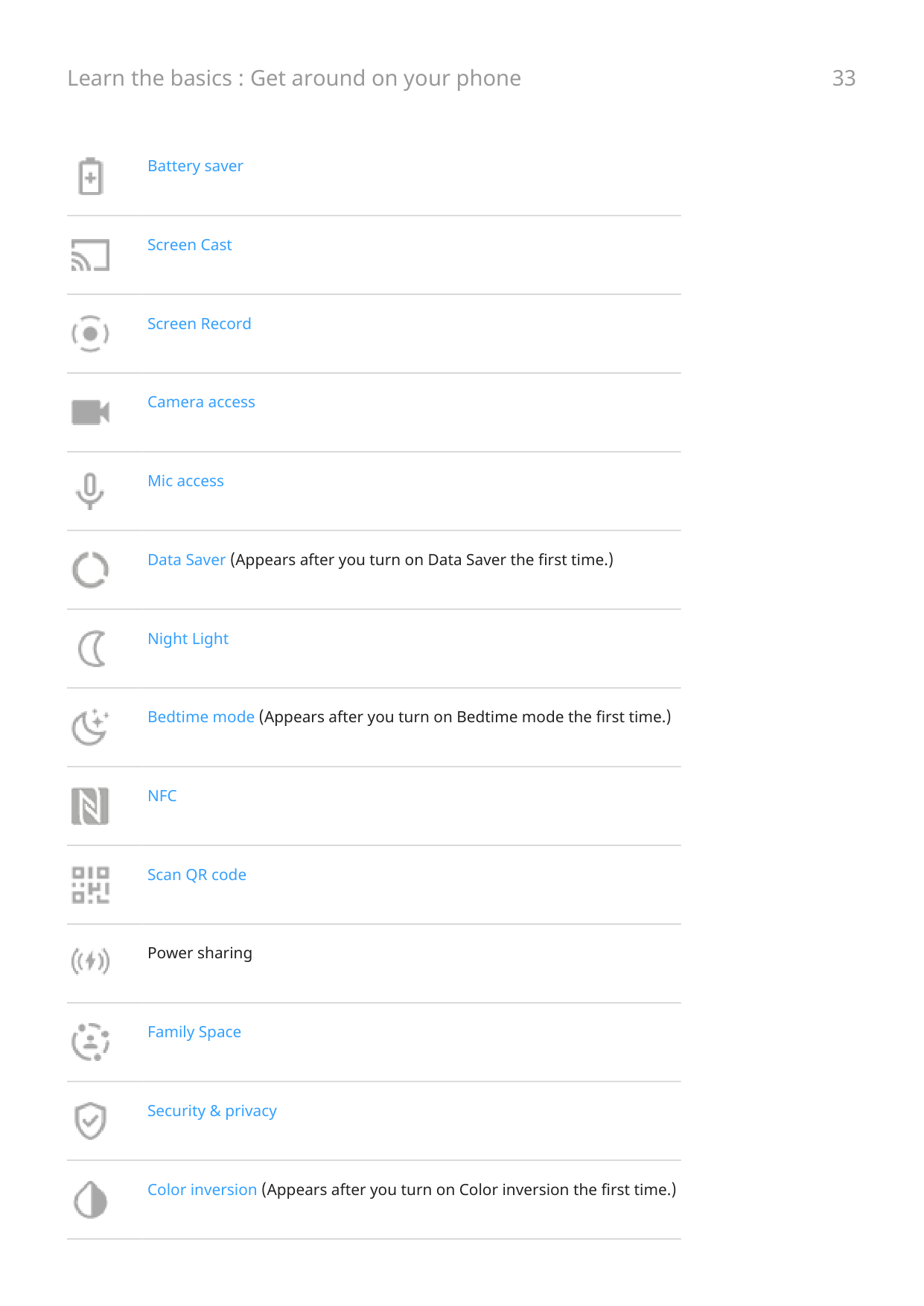
Battery saver

Screen Cast

Screen Record

Camera access

Mic access

Data Saver (Appears after you turn on Data Saver the first time.)

Night Light

Bedtime mode (Appears after you turn on Bedtime mode the first time.)

NFC

Scan QR code

Power sharing

Family Space

Security & privacy
Color inversion (Appears after you turn on Color inversion the first time.)

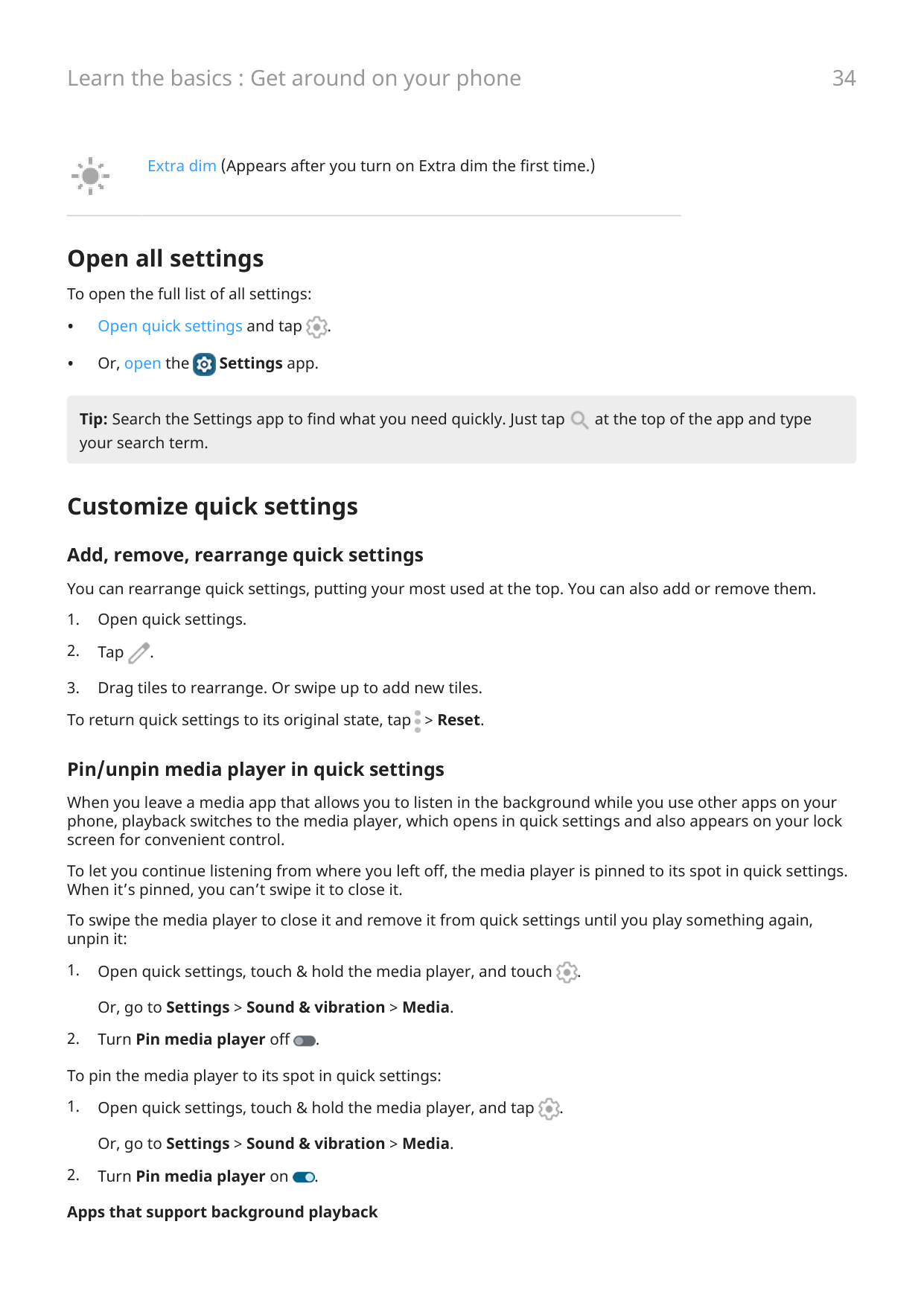
Extra dim (Appears after you turn on Extra dim the first time.)
Open all settings
To open the full list of all settings:


Tip: Search the Settings app to find what you need quickly. Just tap at the top of the app and type your search term.

Customize quick settings
Add, remove, rearrange quick settings You can rearrange quick settings, putting your most used at the top. You can also add or remove them.


##### Pin/unpin media player in quick settings
When you leave a media app that allows you to listen in the background while you use other apps on your phone, playback switches to the media player, which opens in quick settings and also appears on your lock screen for convenient control.
To let you continue listening from where you left off, the media player is pinned to its spot in quick settings. When it’s pinned, you can’t swipe it to close it.
To swipe the media player to close it and remove it from quick settings until you play something again, unpin it:


While some apps like YouTube and require a premium paid subscription to play in the background and won’t open in the media player using the free version, many media apps such as Spotify, Pandora, and Amazon Music do support background playback in their free versions.
To find more apps, open Play Store and search for “free background playback”.

Turn screen off and on
Why your screen turns off automatically
Turn screen off and on manually
To turn the screen off:
• Press the Power button. When you set down your phone, it's good habit to do this. You prevent
accidental touches, save a bit of battery, and keep it secure with the screen lock.
Disturb settings.
When your screen is off, battery-friendly Peek Display notifications fade in and out, showing only notifications delivered since the screen was last on.
To turn the screen on:
Turn off phone Swipe down from the top of the screen twice, then tap and Power off. Or, use the buttons on the side of your phone. Press the Power + Volume up buttons simultaneously, then tap Power off.

Tip: To press & hold only the Power button (instead of Power and Volume up) change the Power button gesture.
Take screenshots
Take a screenshot
You can take a screenshot a few ways. Use the one most convenient for you.




Edit screenshots
If you tapped after taking the screenshot, you have these options:

####### Icon Meaning

Crop. To choose standard , full screen , circular , or freeform modes for cropping, tap again.



Draw. To change color or thickness, tap again.


Highlight. To change color or thickness, tap again.


Insert a text box. Tap the icons to change the background and text color.

Blur with mosaic effect. Swipe over the area to blur.

Undo change.

Redo change.

Close without saving.

Save.

Delete.

Share.
Find screenshots later
Open the Photos app and tap Collections > Screenshots.

Record your screen
You can record a video of your screen while you’re using it. You can choose to include your audio or a selfie video when recording.
Record screen



Tip: To adjust options before recording, tap the countdown timer to stop and make changes. Tap to restart.



Adjust recording options
Sound You can mute or record your phone's sound, and you can include your own narration. To adjust sound, tap the current setting and change it.
####### Icon Meaning

Mute

Record your narration using the microphone

Record only your phone's sound

Record both your narration and your phone's sound
Drawing To write on the screen, tap . To change pen colors, tap .


Video To include a selfie video in the corner, tap . To turn the selfie video off, tap .


Other options You can adjust more options, like frames per second or screen touches, in phone Settings. Learn more.
Find your recordings
To view a recording immediately after you capture it, swipe down from the top of the screen and tap the notification.

To view any time, open Photos, Files, or another media viewing app, and look for the Screen record folder.
Create GIFs from video
You can make an animated GIF from a video on your screen.
Record a GIF




View your GIF To view immediately, touch the notification. To view any time, open the Photos, Files, or other media viewing app, and look for the Screenshots folder.

Turn flashlight on and off
To turn your flashlight on or off:


Scan QR codes

Record audio notes
Record a note




Listen to recordings
You can listen to and share audio recordings in Recorder or other apps. To limit access to your recordings, you can restrict listening and sharing to only the Recorder app.


####### Icon Action

Tap to increase/decrease playback speed.

Drag to skip to a specific point in the recording.

Tap to skip forward a few seconds.

Tap to skip backward a few seconds.

Tap to adjust looping.
Trim a recording


Manage recordings
Add or remove favorites Find recordings easily by adding them to your favorites:


##### Rename, delete, share, or view details


##### 3. Select options to rename, delete, or share the recording, or view file details.Control whether other apps can play and share your recordings


To adjust settings for future recordings you make:


##### Adjust sound quality/file size Tap Quality and select an option:
##### Change file format
##### Allow/prevent screen from turning off while recording Turn Keep screen on while recording on or off .


Control phone with your voice
Speak a command Not all languages support voice commands. You can tell Google Assistant to call people, get directions, send messages, set alarms. Or, ask questions.

Tip: To see a list of commands, say “Help”.

To learn about changing settings for Google Assistant, read Google's help.
Teach Google Assistant to recognize your voice


Fix an issue
If your phone isn't recognizing “Hey, Google” commands:

Get directions to a location
Navigation and battery life
Navigation is one of the most power-intensive apps, so when possible keep your phone plugged into a highquality charger, especially if you're streaming music and/or using Bluetooth (also power-intensive features).
Get turn-by-turn directions with voice readout
Follow directions on a map in real-time, with or without voice readout. Get traffic updates and rerouted around issues on the way to your destination.
Add Directions shortcut to home screen
Use the Directions widget to create a home screen shortcut to your destination before you leave. When you're ready to travel, tap the shortcut, and your phone will navigate to the destination.


Tip: Organize your Directions shortcuts into a folder on your home screen.
Get directions to home or work
Get directions from anywhere to your home or work addresses with one touch by setting up a task shortcut for the Maps app:


When you're ready to roll, just touch the shortcut, and your phone will talk you through the directions.
Use clock and weather widget
Add Moto Widget to home screen
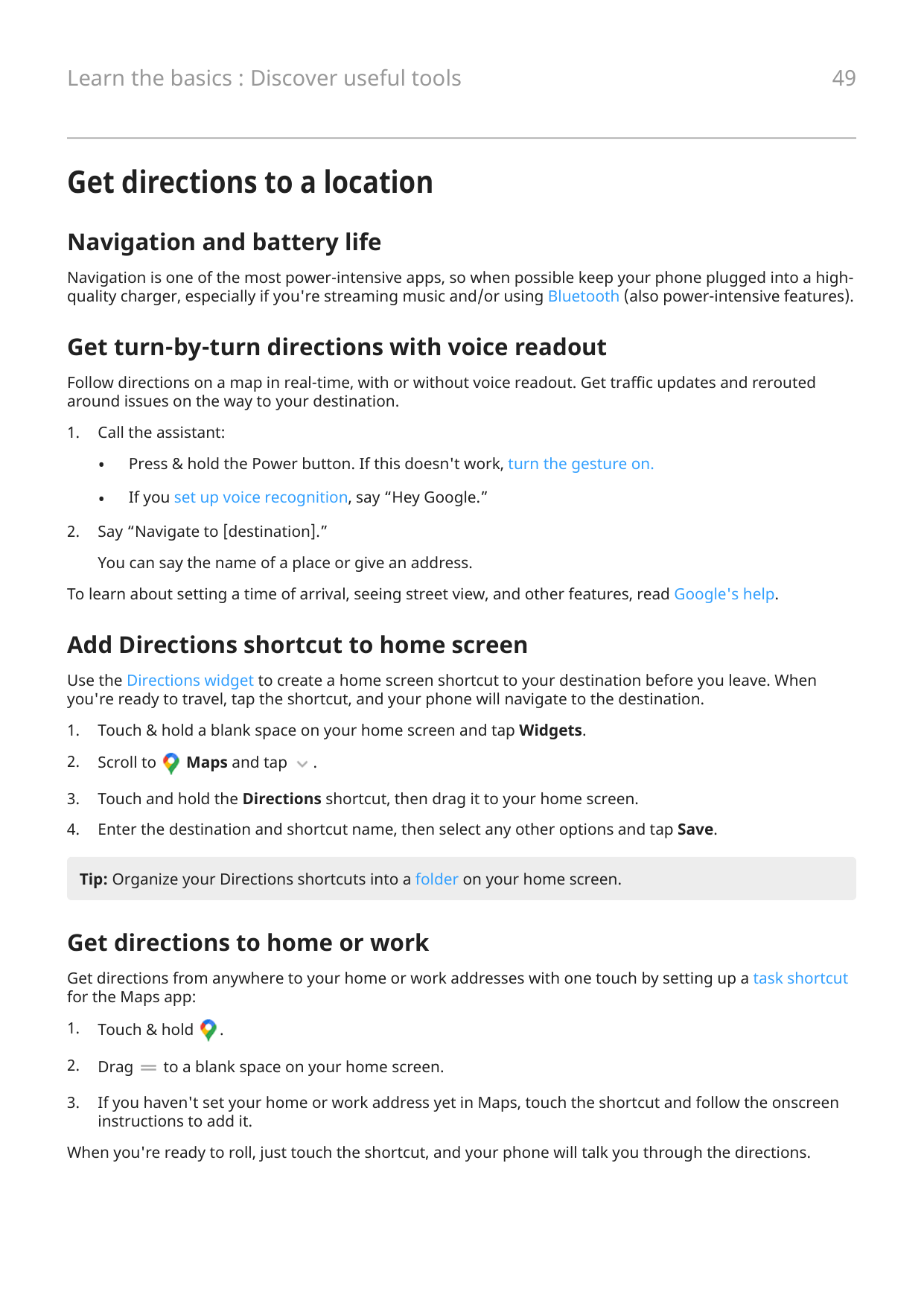
Put a clock on your home screen and get quick access to alarms, your calendar, and the weather.


Customize and use the widget
##### Resize it
Touch and hold the widget to show its frame, then drag a side. Some widgets show more information when you expand their size.
Move it Touch & hold the widget, then drag it around your screen or to a new panel. Release to place it.
##### Change clock style

Quickly access alarms, calendar, and weather For alarms, tap the time to open the Alarm tab in the Clock app. Tap other tabs to use the timer or stopwatch. Learn more about alarms. To open the Calendar, tap the current date. You can view or add events. For weather information, tap Add cities or your current weather conditions in order to:


Add other clock and weather widgets
Other apps offer their own widgets you can add to your home screen, in addition to the Moto Widget.

Set up family safe space
Create a space on your phone where family can play safely, without disrupting your settings and privacy.
Set up a space


Enter or exit a space
To enter:

To exit:


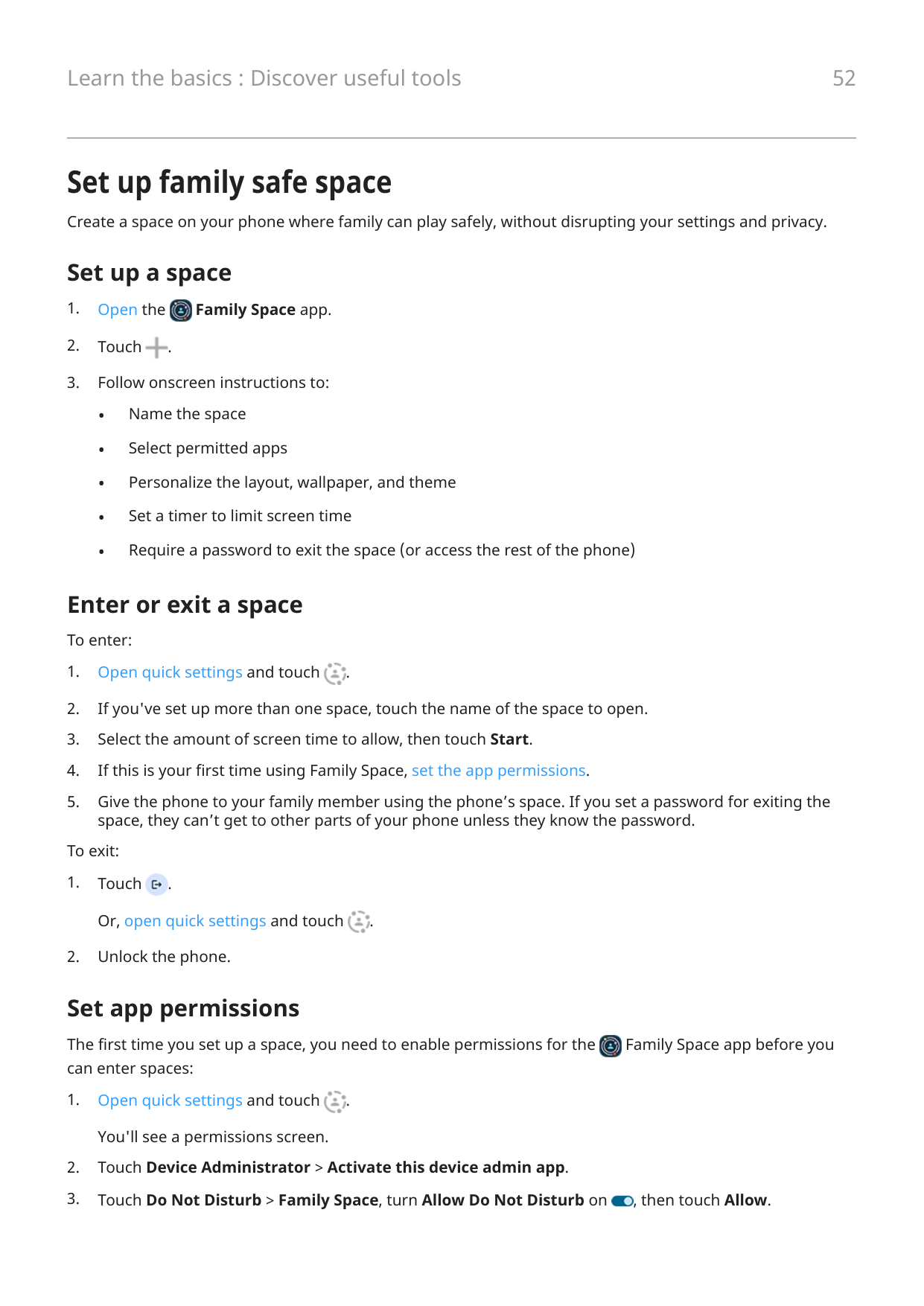
Set app permissions
The first time you set up a space, you need to enable permissions for the Family Space app before you can enter spaces:


######## 4. Touch twice to return to the permissions screen.

####### 5. Touch Notifications > Allow.
Manage how you spend time on your phone
Set up Digital Wellbeing
You can get info about how you spend time on your phone, like how often you unlock it and how long you use each app. Then use that info to improve your digital habits.
The first time you use this feature:

Understand your habits
Limit daily screen time
For individual apps, you can set a timer that limits the amount you use the app daily.
Tip: To manage your child's screen time, use parental controls.
To set an app timer:

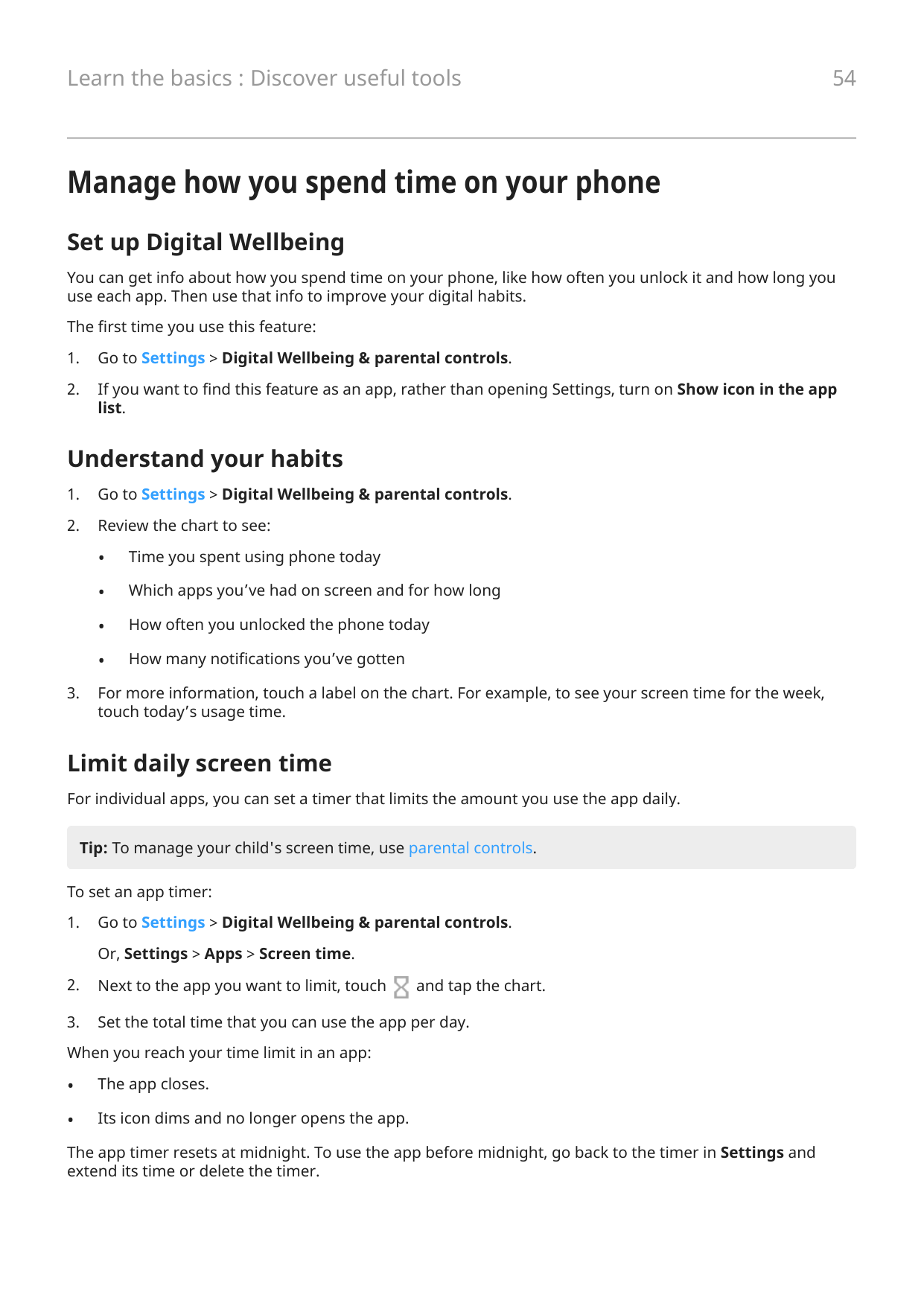
The app timer resets at midnight. To use the app before midnight, go back to the timer in Settings and extend its time or delete the timer.
Pause distracting apps to focus
Use Focus mode to pause selected apps for fewer distractions.


Tip: To add Focus mode to quick settings, open quick settings, touch , then drag the tile where you want it.


To turn Focus mode off:

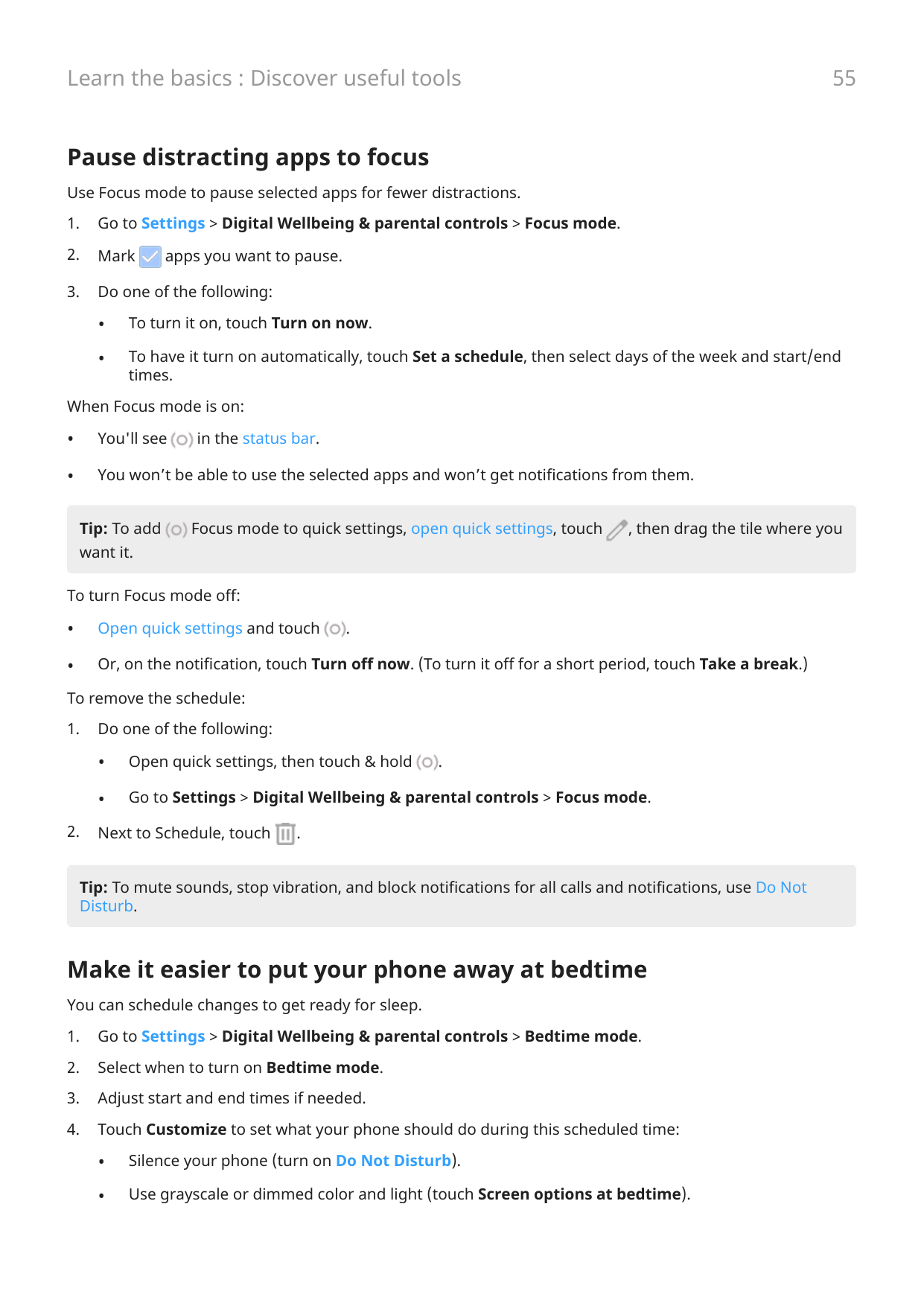


Tip: To mute sounds, stop vibration, and block notifications for all calls and notifications, use Do Not Disturb.
Make it easier to put your phone away at bedtime
You can schedule changes to get ready for sleep.
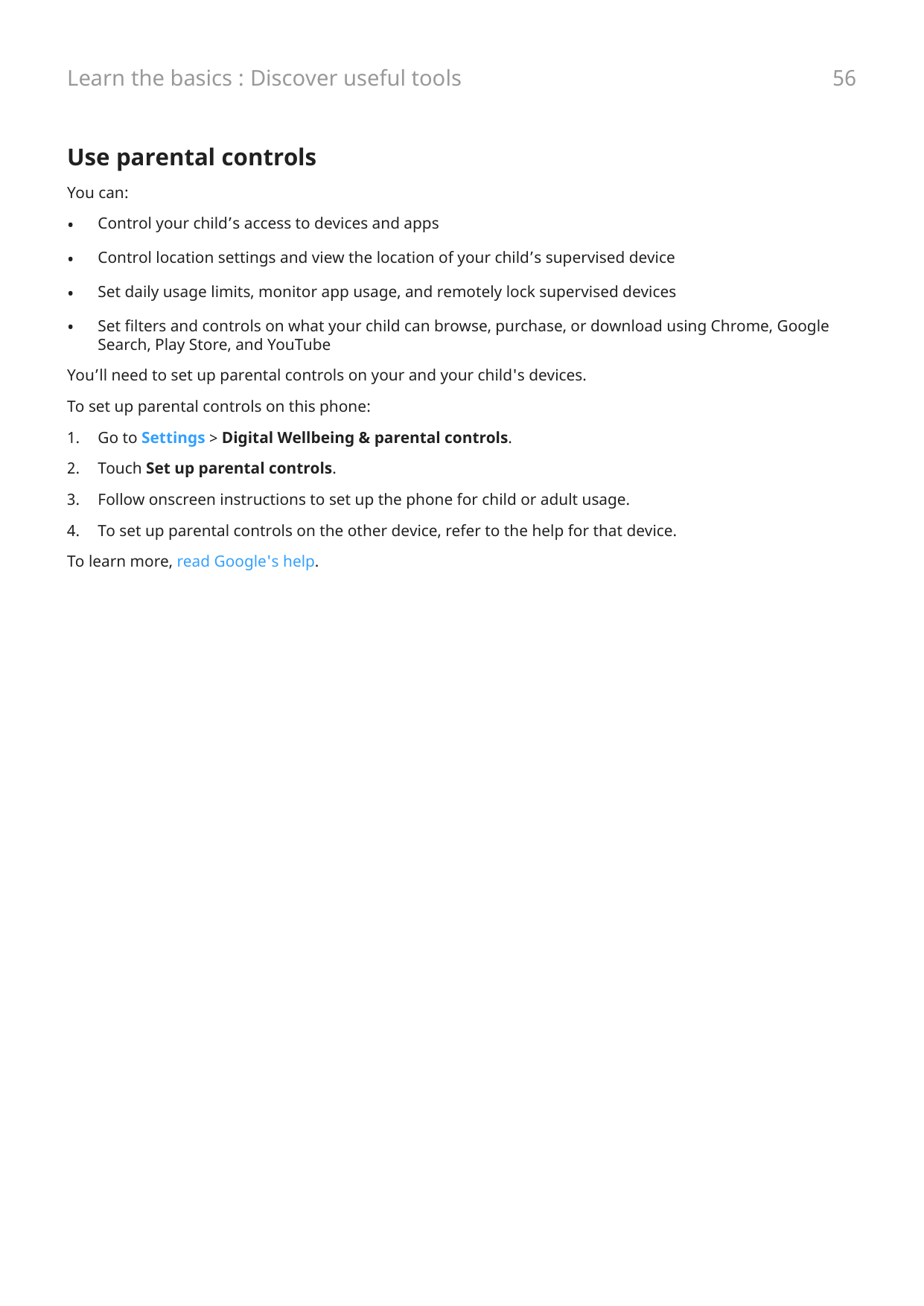
Use parental controls
You can:
You’ll need to set up parental controls on your and your child's devices. To set up parental controls on this phone:
Use onscreen keyboard
Open, close, rotate keyboard To open the keyboard, just touch an area where you can enter text or numbers. To close the keyboard so you can see other parts of the screen, tap . For a larger keyboard, turn your phone horizontally. (If your screen doesn’t rotate, check your auto-rotate setting.) You can also resize the keyboard to give yourself extra space for more accurate typing.

Tip: If you installed multiple keyboards, you'll see next to the navigation buttons when you're typing. To switch to a different keyboard, touch .


Type special characters
Touch & hold a key to see related special characters. For example:
Tip: To insert a period followed by a space, tap the spacebar twice quickly.
Capitalize letters To type in ALL CAPS, touch twice, quickly, so you see . Touch it once more to turn ALL CAPS off. To change capitalization of a word you've already typed:


Use glide typing
You have two options for entering text: type one letter at a time (multi-touch typing) or slide your finger through all the letters in a word using one continuous motion (glide typing). Start typing either way and switch whenever you like.
When you're using glide typing, you can:
Get suggestions Use suggestions to type faster. When you're typing, you'll see a list of suggested next words above the keys:

Spell check and auto correct Misspelled words are automatically corrected as you type. To prevent that word from being auto-corrected again, add it to your dictionary by touching the word in the list of suggestions above the keys. If auto-correction is turned off, you can still check spelling:
Type in multiple languages
If you have added multiple languages as a system language in your phone settings, keyboards and text suggestion are available for those languages:


Cut, copy, paste text
You can select and copy text from web pages and messages.

####### Tips:
Use voice typing



You can also use your phone hands free by speaking voice commands.
Fill in forms automatically
Don’t retype your personal information again and again. Save it securely, then with just one touch, fill in passwords, addresses, credit cards, and other information saved to your Google account.
To set it up:
Personalize with your style
Find Personalize settings
Quickly get to personalization settings - wallpapers, themes, fonts, and more:


Change how your phone looks
A theme is a unique combination of colors, icon shape, font, and wallpaper. Apply themes to easily change the entire appearance of your phone. You can choose from existing themes or create your own.
You can change individual settings for your phone's appearance, which layer on top of your selected theme. Use a theme

##### Make individual changes
If you like the way your wallpaper, font, color, and icon shape look together, create a new theme for the combination instead of changing the individual settings. That way, you can easily go back to the combination later.
You can change these Personalize settings:

Change how your phone sounds
Quickly change the default sounds for calls, notifications, and alarms.
Change when your phone lights
Set lights to flash (or not flash) when you receive incoming calls and notifications, and when alarms sound. Learn more.
Change wallpaper
You can change the background image on your home screen or lock screen.
Set the wallpaper




If your photo is too large Open the photo and take a screenshot of it. Then edit the screenshot as needed and set it as the wallpaper.
If you selected a dynamic or interactive wallpaper If your battery is low, temporarily change wallpaper to a static image to save power.
Create a stylized wallpaper
Stylize your photos with AI visual effects and use them as wallpaper.

Customize your Favorites tray
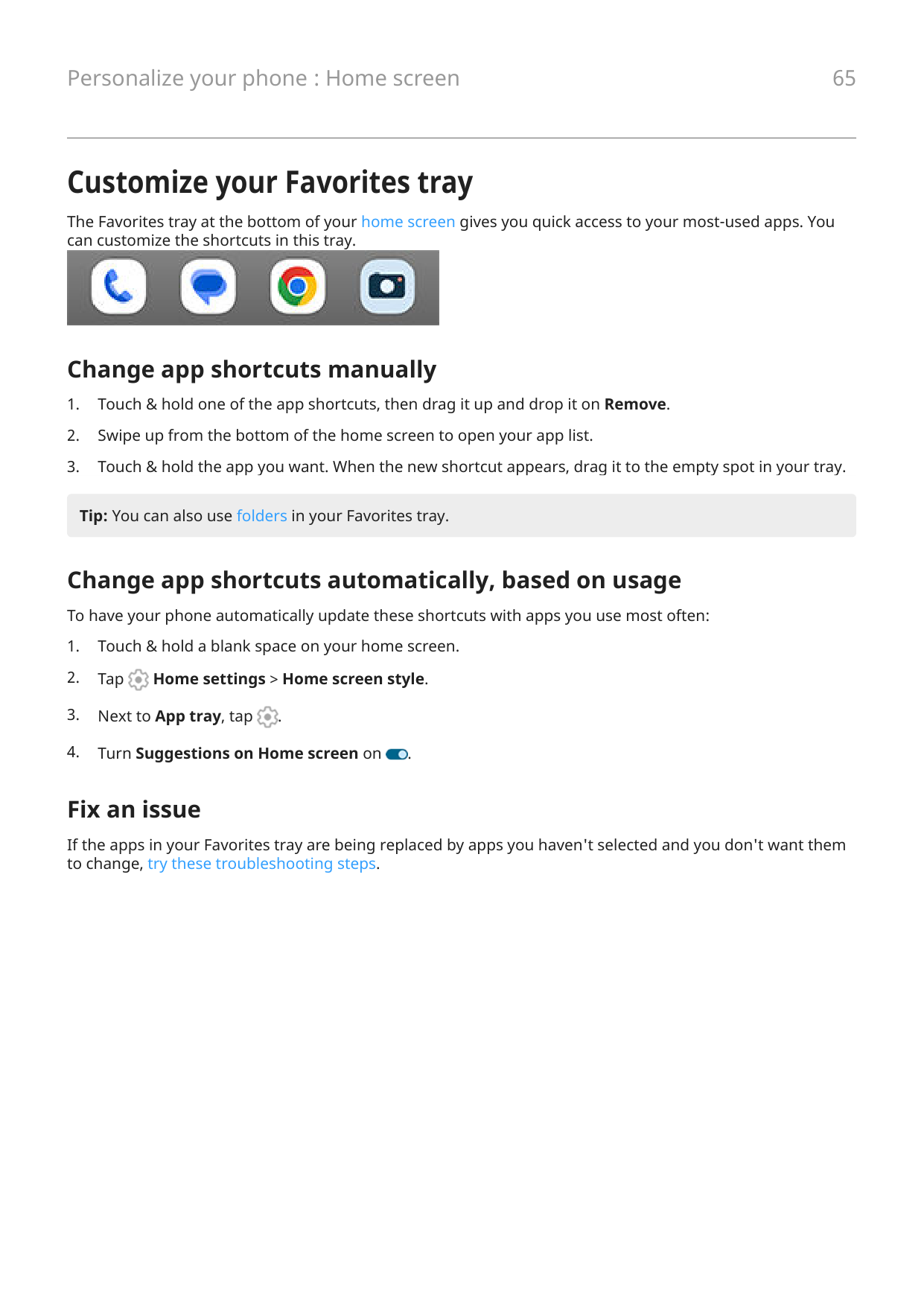
The Favorites tray at the bottom of your home screen gives you quick access to your most-used apps. You can customize the shortcuts in this tray.

Change app shortcuts manually
Tip: You can also use folders in your Favorites tray.
Change app shortcuts automatically, based on usage
To have your phone automatically update these shortcuts with apps you use most often:


Fix an issue
If the apps in your Favorites tray are being replaced by apps you haven't selected and you don't want them to change, try these troubleshooting steps.
Use widgets, shortcuts, or folders
Add widgets
Widgets stream information, giving some of an app’s functionality without opening the app. For example, the Calendar widget shows your daily agenda and gives you one-touch access to your full calendar.
##### Add widget

Adjust widget's size You can make some widgets larger to view more content:
Add shortcuts
On your home screen, you can add shortcuts to apps, so you don't have to open the tray and sort through all of your apps, shortcuts to common tasks, and shortcuts to open specific web pages.
##### Add app shortcuts
Add task shortcuts Many apps include shortcuts to common tasks, so you don’t have to open and navigate the app.

####### App Task shortcuts
Gmail • Compose new email

• Open to specific account
Maps • Navigate to Work

• Navigate to Home
YouTube • Search

Chrome • New incognito tab

• New tab
Calendar • New reminder

Messages • Open most recent conversation

• New conversation
Clock • Start screen saver

Settings • Bluetooth

##### Add web page shortcuts

Add folders Folders organize your shortcuts. You can create folders on your home screen or in your app tray. Home screen folders To create a folder on your home screen:




Remove widgets, shortcuts, or folders
To remove items from your home screen:

App icons on the home screen are shortcuts to installed apps found in the app tray. Removing an app shortcut from the home screen doesn't uninstall the app. Learn how to uninstall apps.
To select a totally new user interface for your home screen, download a different launcher.
Arrange apps and control icon's look
Choose where to find apps: app tray or home screen
The app tray holds all of your installed apps. Swipe up from the bottom of the home screen to open the tray. This simplifies your home screen, showing only apps you choose to add as shortcuts.
To see all apps on your home screen instead, you can remove the app tray. You can switch at any time.


If you’re using the app tray You can make these customizations in Home settings:


##### If you're using Open to put all apps on the home screen You can customize how app icons are arranged:

You can make the app icons on your home screen and in the app tray larger or smaller. You can also remove or expand the names below the icon.

Show or hide notification dots
You can control whether app icons show dots to alert you about unread notifications.


Home screen rotation lock
When when you enable Auto-rotate, app screens will rotate with your phone's orientation. You can keep your home screen from rotating while other apps auto-rotate.




Remove Google feed
When you swipe to the farthest-left home screen, you’ll see the Google news feed. To remove it:

Remake your home screen with launchers
About launchers
A launcher app is what makes your home screen look the way it does and controls how you organize and interact with your apps. The launcher that came with your phone puts the Google search widget and a clock widget on the home screen. See what that home screen looks like and how you can customize it.
To totally change the look and feel of your home screen, you’ll need to download a new launcher and update your settings to use it. Launchers often come with new wallpapers, gestures to interact with your phone, and customizable elements for your home screen.
You can always go back to the original launcher and home screen.
Get different launcher
Switch between launchers

Delete launchers You can only delete launchers that you installed. Touch & hold the launcher's app icon, then tap > Uninstall.

#### Personalize your phone : Lock screen 75
Use a screen saver
Set up screen saver
While your phone is idle on a dock or charger, turn it into a desk clock, a photo frame to show off your pics, or more.
Start screen saver
The screen saver automatically starts when you connect your phone to a dock or charger and the screen turns off.
To exit the screen saver and return to your home or lock screen:

Turn off screen saver
To prevent the screen saver from starting automatically:

Add screen savers Search for “Screen saver” in Play Store for apps that give you more. After you install an app, you can select the new ones in Settings > Display > Screen saver.
Open, close, switch apps
Open and close apps
To open an app, tap its icon on the home screen, or swipe up from the bottom of your home screen to open the app tray, then tap the app.
####### To leave an app and go to your home screen, just swipe up from the bottom of the screen.
You don't need to close apps. Android manages the memory and battery that apps use, so you don't need to worry about leaving apps open.
To close one app, drag up from the bottom of the screen, hold, then let go. In your recent apps, swipe up on the app.
To close all apps, drag up from the bottom of the screen, hold, then let go. In your recent apps, swipe right until you see the start of the list, then tap Clear all. (You can prevent certain apps from being cleared.)
Open app in freeform window
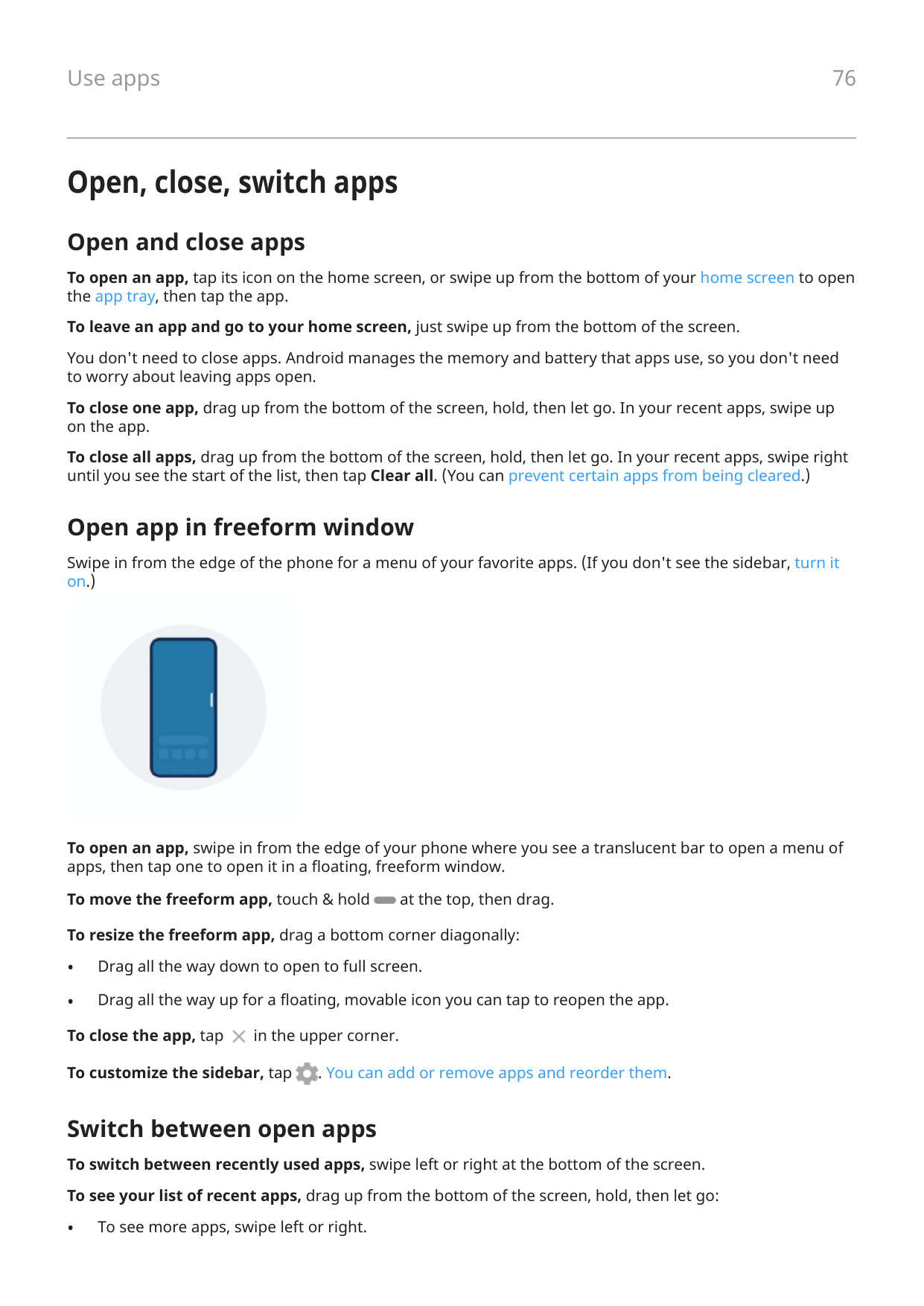
Swipe in from the edge of the phone for a menu of your favorite apps. (If you don't see the sidebar, turn it on.)

To open an app, swipe in from the edge of your phone where you see a translucent bar to open a menu of apps, then tap one to open it in a floating, freeform window.
To move the freeform app, touch & hold at the top, then drag. To resize the freeform app, drag a bottom corner diagonally:


Switch between open apps To switch between recently used apps, swipe left or right at the bottom of the screen. To see your list of recent apps, drag up from the bottom of the screen, hold, then let go:
Tip: Use two apps at once with split screen.
Clear recent apps
You can clear all apps from your list of recent apps. Or, you can prevent an app from being cleared from your recent apps when you tap Clear all to close all apps.
To remove all apps from the list:


See two apps at the same time
Depending on the app, you can sometimes use more than one app at once. You can also watch a video in a small window while you do other things.
Use two apps at once (freeform)
You can open a second app in a small, freeform window, using the sidebar at the edge of your screen.
Use two apps at once (split screen)
##### Split the screen


If you're using 3-button navigation , you can use a gesture to split the screen.
To set it up:


Exit split screen view Drag the divider line all the way up or down.
See one app while using another (Picture-in-picture)
With some apps, you can watch video in a small, movable frame while you do other things. Use it when navigating with Google Maps, too.


##### Turn off Picture-in-picture for an app

View notifications
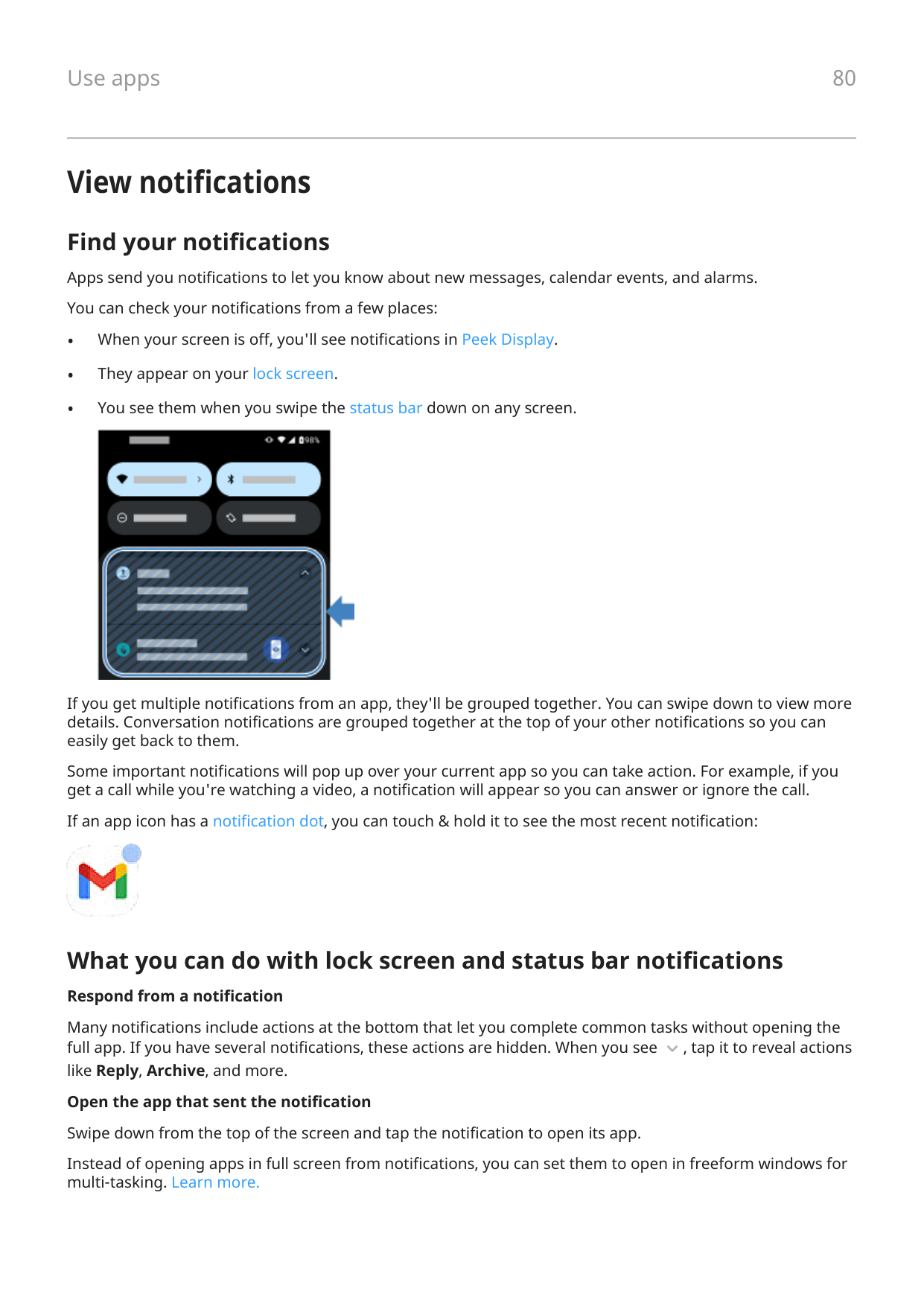
Find your notifications Apps send you notifications to let you know about new messages, calendar events, and alarms. You can check your notifications from a few places:

If you get multiple notifications from an app, they'll be grouped together. You can swipe down to view more details. Conversation notifications are grouped together at the top of your other notifications so you can easily get back to them.
Some important notifications will pop up over your current app so you can take action. For example, if you get a call while you're watching a video, a notification will appear so you can answer or ignore the call.
If an app icon has a notification dot, you can touch & hold it to see the most recent notification:

What you can do with lock screen and status bar notifications
####### Respond from a notification
Many notifications include actions at the bottom that let you complete common tasks without opening the full app. If you have several notifications, these actions are hidden. When you see , tap it to reveal actions like Reply, Archive, and more.

Open the app that sent the notification Swipe down from the top of the screen and tap the notification to open its app. Instead of opening apps in full screen from notifications, you can set them to open in freeform windows for multi-tasking. Learn more.
From the lock screen, tap the notification twice and enter your PIN, pattern, or password to unlock your screen and open the app.
Snooze a notification Tap . Then tap and select a duration to snooze notifications. To snooze notifications, first turn on snoozing. Dismiss a notification Swipe it sideways. Some notifications, like voicemails, require an action and cannot be dismissed. Dismiss all notifications Swipe to the end of your notifications and tap Clear all.


Control how and when apps send notifications Use Do Not Disturb to silence all notifications when you don’t want interruptions. Touch & hold a notification to customize that app's notifications. Then you can:
About preloaded apps
Sometimes, related apps (like apps from Google or from your carrier) are grouped into a folder.
Apps that came with your phone The following apps may be pre-installed on your phone. Don’t want some? Delete or disable them. Need other apps? You can download free and paid apps.
####### Icon App Description

Assistant Use your voice to control your phone.

Booking Book your whole trip in one app. Find great deals on flights, hotels, rental cars.

Calculator Make some quick calculations.

Calendar Keep track of your upcoming events, get automatic reminders on your phone, and coordinate with others by sharing calendars.

Camera Capture photos or videos. To learn more, read the Camera app's help.

Chrome Browse the web. Access your browser bookmarks from any device, and sync tabs with your computer or Android devices.

Clock Set alarms. Use a timer or stopwatch.

Contacts Organize and connect with your contacts. Assign ringtones to people.

Docs Create, edit, and collaborate with others on documents.

Dolby Atmos Optimize and adjust audio for your phone’s speaker and any connected listening device.

Drive Store and synchronize your files on Google's cloud, then access them anywhere you have an internet connection. Create and share spreadsheets, documents, and presentations. Scan documents and share or print them.

Facebook Connect with friends, family, and communities. Share updates and media. Find information on events, entertainment, and businesses.

Family Space Create a space on your phone where family can play safely, without disrupting your settings and privacy.

Files Browse and manage files and folders stored on your phone.

Find Device Locate and secure a lost phone.

Fit Track your health and physical activity.

Games Find tools & settings to help you focus on gaming.

Gmail Compose, send, view, or search your email from your phone or computer.

Google Search the web, see your updates, and adjust Google settings, including privacy.

Google One Get expanded storage, Google support, and other member benefits with a paid subscription.

Google TV Get movies and TV shows for instant viewing from Play Store. (Not available in all countries.)

Home Set up and control your Google Home and Chromecast devices, and other home products like lights, cameras, and thermostats.

Interactive wallpapers
Provides access to Motorola's interactive wallpapers, hosted on the cloud so they don't take up space on your phone until you download them.

Maps Find your destination, explore locations.

Meet Make video calls with your friends across Android and iOS.

Messages Send and receive text messages.

Moto Customize your phone's look, sound, and how you interact with it using gestures.

Moto Secure Manage network security, control app permissions, and create a secret folder for your most sensitive apps.

Motorola Notifications
Subscribe or unsubscribe to communications from Motorola.

News See headlines, weather, and information on your favorite topics and locations.

Phone Make calls.

Photos Manage photos and upload them automatically to your private album.

Play Store Get apps for your phone, as well as books, magazines, music, and movies and access them from your computer or any Android device.

Ready For Connect your phone and PC to share content and experiences easily between them. Learn more.

Recorder Record voice memos and review call recordings.

Settings Customize your phone settings.

Sheets Create, edit, and collaborate with others on spreadsheets.

Slides Create, edit, collaborate with others, and play presentations.

Spotify Discover music, audiobooks, podcasts.

TikTok Watch short-form videos. Create your own videos, and apply filters or effects to express yourself.

Wallet Securely store payment cards, flight and event tickets, transit passes, vaccination cards, loyalty and gift cards, digital car keys, and campus IDs in this digital wallet.

Weather Get weekly weather, doppler radar, local news, and national weather alerts.

YouTube Find, view, and upload videos to the web.

YT Music Stream your favorite albums, singles, and live performances, and get recommendations for new music.
Get help using an app


About the Moto app
The Moto app groups together features and settings that help you customize the way your phone looks, sounds, and behaves. Several of these features are available only on Motorola phones.

In the Moto app, touch to access these features and settings: Personalize Change your phone's layout, fonts, icon shapes, themes, and wallpapers. Gestures Control your phone with simple motions, like using a chopping motion to turn on the flashlight. Moto Secure Manage network security, control app permissions, and create a secret folder for your most sensitive apps. Tips Learn more about your phone with a guided tour and demos of favorite features. Display Control what shows on your lock screen. See what’s going on while your screen is off (Peek Display) or keep your screen on when you’re looking at it (Attentive Display). Play Adjust display and sound features for immersive, refined, and uninterrupted entertainment experiences. (Gametime and Dolby Atmos)

Turn gestures on/off Perform everyday tasks with quick motions. You turn each gesture on/off independently. Tap “Learn more” links to learn how to use and turn gestures on/off.
Double-tap the back of your phone for shortcut (open a selected app or perform action). Learn more.


Swipe in from the edge of your phone for a pop-up menu of your favorite apps. Learn more.

Twist your wrist twice quickly to open the camera from any screen. Learn more.

Make a chopping motion to turn the flashlight on or off. Learn more.

Use three fingers to take a screenshot. Learn more.

Unlock by lifting your phone and looking at it. Learn more.

Set your phone face down on a surface to start Do Not Disturb mode. Learn more.

Pick up your ringing phone to silence it and switch to vibrate. Learn more.

Swipe back and forth to use split screen. Learn more.
Get help with other features and settings
For information about other features or settings on your phone:

Focus on gaming
Find your games and gaming tools in one place
Open the Games app and then:


Open toolkit Use the toolkit to quickly adjust settings during a game. To open it, you can either:



Reposition Drag to the top, middle, bottom, or opposite side of the screen.

##### Reposition




Remove the toolkit If you don’t want to use the toolkit, you can remove it. Open the toolkit and tap Settings > Toolkit access > Hide the toolkit.

Turn off calls and notifications
##### From the toolkit




##### From Games app


Turn off gestures that conflict with game controls
Some gestures may conflict with game controls. You can turn them off while you’re playing games.


Adjust display settings


Use other apps while you play
You can add up to two shortcuts in the toolkit for quick access. When you open the app from the toolkit during a game, it appears in a small freeform window that you can reposition.
To add apps:


Record or take screenshot during game


Allow game play over mobile data
To save mobile data, Gametime prevents games from using mobile data when Wi-Fi is available. But you can change settings and allow games to use mobile data.


Install or update apps
Get apps You can download more apps, in addition to the apps preloaded on your phone. If the app will contain important information (like banking apps), you can install it directly into your secure folder. Otherwise, just put it with your other apps.
##### Get apps from Google Play Store

Tip: To prevent accidental or unwanted purchases, tap your profile icon > Settings. To learn more, read Google's help.

##### Restore Play Store apps
If you uninstalled an app you got from Play Store, you can reinstall it anytime. Have apps you use infrequently, such as a flight tracker? Delete them and easily reinstall when needed.


Get apps from other sources Before downloading, do some research: check the app's rating and read lots of comments. To download apps:

Stop adding icons automatically If you don’t want the app’s icon added to your home screen when you install an app:


Update apps
Updating your apps gives you the latest features and improves security and stability. For best performance, apps are set to update automatically.
If an app changes the information it wants to access on your phone, you'll get a notification to update the app manually and will be required to review and accept the new permissions.
##### Update Play Store apps manually


To read the summary of what changed, tap the app name before you update it.
Update Play Store apps automatically To control when your apps are automatically updated:


If you see apps waiting to update that are stuck in “Pending” status, update the Chrome app first.


Turn off Play Store auto-updates For best security and performance, keep apps set to update automatically. Stop a specific app from updating automatically


##### Stop all apps from updating automatically


Manage app permissions
What are permissions?
If an app wants to use specific features and personal information on your phone, it must ask for your permission. You can manage permissions at any time to allow, deny, or modify them.
Features you'll be asked about If an app wants to access (use, view, change) these features, it must ask you for permission:
##### Should you allow or deny access?
Before you give an app permission, it’s important to review what the app’s asking for. Make sure you're okay with what the app wants to do before you say yes.
Android apps can still work even if you don't give them all the permissions they ask for. For instance, an app might not need to know your location or see your contacts to do its thing. But, if you do allow it access, the app might work even better. It's a trade-off. On the one hand, you can limit what info the app knows. On the other hand, you might miss out on cool features.
Respond to app permission requests
You'll see permissions screens:

Review or change permissions
##### Review by feature
The first time you use an app, and sometimes when you install or update it, you are asked to grant the app permission to access certain data and phone features. You can adjust these permissions any time.
To adjust permissions by feature:

Tip: To see how the app uses each permission, tap > All permissions.

Delete or disable apps
Disable apps provided with phone You can't remove preloaded apps from your phone, but you can disable and hide apps that you don't need. To disable an app:
Delete apps you installed
You can delete (uninstall) apps that you downloaded. For many preloaded apps, you can disable but not delete them.


Delete apps installed by others
If you are the owner of the phone and shared it with users or guests, you can uninstall apps they installed. Although their apps don’t appear in your app tray or on your home screen, they do reduce available storage space.

Find problem apps with safe mode

Issues such as apps crashing, unexpected reboots, or fast battery drain could be caused by an app you installed. Use safe mode to start your phone with only the original software and apps. If the issues go away in safe mode, the problem is probably from an app you downloaded.
Step 1: Restart in safe mode

When it restarts, you'll see Safe mode across the bottom of the home screen, and all widgets and thirdparty apps will be disabled.
Step 2: Check if the problem goes away
Use your phone and see if the problem has gone away. Remember, you won’t be able to use any downloaded apps.
If the problem goes away, an app is probably causing your problem, so you should exit safe mode and check your apps.
If the problem doesn't go away, an app’s not the cause. Try these performance troubleshooting steps next.
Step 3: Exit safe mode
Press & hold the Power + Volume up buttons simultaneously, then touch Restart . Or, hold the Power button for about 30 seconds, or until your phone restarts.

Step 4: Check your apps
Protect against harmful apps
Scan phone for harmful apps
Play Protect helps keep your phone secure by automatically scanning your apps, including sideloaded apps, to check for potentially harmful apps (malware).
If Play Protect finds a potentially harmful app, it stops the app from running and warns you so that you can uninstall it.
To see the results or to rescan:

If your phone seems slow
If you’ve scanned your phone to confirm there aren’t any potentially harmful apps but your phone seems slow, troubleshoot the issue.
Search the web
Search from anywhere
You don't have to leave your current app to search for the info you need. Use Google Assistant from any screen to get search results and options for your next action.
To search:
For more help with Google Assistant, read Google's support information.
Search with the Google search bar

####### Type search terms


Use camera to search for info
You can use Google Lens with your camera to:

To use Google Lens:


You can also use Google Lens on captured photos and screenshots. In the Photos app, open the photo or screenshot, then tap .


To learn more, read Google's help.
Delete Google search history
To learn how, read Google's help.
Use search engine other than Google
To use a search engine other than Google:
Search your phone
Find an app

Find a setting


Find your phone number
Find photos, videos, files To find photos or videos on your phone, use the Photos app. To find downloaded files, use the Files app.
Browse websites
Your phone connects to your carrier's cellular network or to a Wi‑Fi network to access the internet. To save data charges on your cellular plan, use a Wi‑Fi connection.
Browse with Chrome
##### Visit and bookmark websites



##### Open and switch tabs In the Chrome app:



##### Clear browsing history


You can also review and delete your search history.
Change default browser
You can download other browsers from Play Store. After you've installed one, you can make it your default browser.
About text and multimedia messages
Text messages - SMS
SMS (Short Message Service) messages are text only. You can send a message up to 160 characters long. If you type more than that, your message will be sent in a series of SMS messages.
You can send one SMS to multiple people, and the replies will come in separate threads (unless you and your recipients have group messaging enabled).
SMS messages are included in most carriers' text messaging plans and don't use cellular data.
Multimedia messages - MMS
MMS (Multimedia Messaging Service) messages can include unlimited text and a photo, picture slideshow, video, or sound file.
You can send one MMS message to multiple people at once using group messaging, and replies will be delivered in group conversation threads to each person in the group.
MMS messages use cellular data, so you need a cellular data plan or pay-per-use payment to send them.
Group messaging
With group messaging, you can have a conversation with multiple people at once. All replies from recipients are delivered to all recipients, in a group conversation thread.
Even though you send one message to multiple people, you’ll be charged for each message received. Group messaging:
Note: Recipients who can't get MMS messages will receive an SMS instead. If there's media attached, they'll get a link to download it over Wi-Fi (if offered by their carrier). Replies are to the sender only, in an individual conversation.
If you don't want to receive replies in group chats, you can turn off group messaging in the Messages app.
Read, send messages
Work with messages
With the Messages app, you can send and receive text messages.

Read and reply to a message When you receive a text message with the Messages app, you'll see in the status bar.


Tips for incoming messages:




##### Manage drafts
When you begin composing a text message reply or a new message with recipients, it's saved in your message list as a draft until you send or delete it.

##### Forward a message


##### Copy text from a message


Work with attachments Your text messages can include photos, voice messages, and video as attachments. Add attachment




##### Save attachment you received
In the message, touch & hold the attachment, then tap > Save. Or, tap the attachment to open it and look for save options.

If you don't save an attached photo or video, it is kept within the message only. So, if you delete the message, you also delete the attachment. (You can try to recover recently deleted messages.)
View saved attachments For photos or videos, open the Photos app and tap Collections. For other attachments, open the Files app.
Manage, delete messages
Keep track of important messages
To access your important messages and conversations in the Messages app: Pin up to 3 conversations to keep these groups of messages at the top when you open the app. Star messages you want to find later.



##### Pin/unpin conversations To pin a conversation:


##### Star messages


Find starred messages To find starred messages across all conversations, go to the top of your conversation list and tap > Starred. To find starred messages within a specific conversation, open the conversation and tap > Starred.


Delete or archive texts
When you delete a message, you also delete any attached photos or videos. If you want the attachments, be sure to save them before deleting the message.

.


Control notifications for text messages
Follow the instructions below to change all notifications from your messaging app. But, if you want to stop text message notifications only during certain hours or from specific people, use Do Not Disturb instead.
##### If you use the Messages app


##### If you use a different messaging app

Request text delivery reports
See whether recipients receive your messages by requesting delivery reports.


Turn group messaging on or off
Group messaging allows conversation participants to reply to all recipients in a single thread. If you do not want multi-recipient SMS messages converted to MMS and want replies sent in separate threads only to you, turn off group messaging.
This feature is not available in all countries. To adjust the group messaging setting:


Change default messaging app
You can download additional messaging apps from Play Store. After you've installed one, you can make it your default messaging app.
To select a different app to send and receive text (SMS) and multimedia (MMS) messages:
Change text message reply to incoming calls
When your phone rings, you can drag towards to see a list of quick responses you can send by text message instead of answering the call.


To edit these quick responses:


Get text messages on your computer
Set up Device Pairing If you use the Messages app on your phone, you can see and send text messages on your computer. Pair your computer and the Messages app on your phone by scanning a QR code:




See and send messages
When you have unread messages, you'll see a red notification and number of unread messages in the browser tab on your computer.
To send messages from your computer, your phone must be on and connected to the internet. Usual carrier fees for sending text messages from your phone also apply to messages sent from your computer.
Sign out of Device Pairing
If you don’t use Messages on a paired computer for 14 days, you’re automatically signed out from that computer for security reasons.
If you're using a shared or public computer, sign out when you're done. To sign out from your phone:



To sign out from the computer, at the top of the message list, click > Unpair.

Read, send, manage emails
Read email
If you've set up email, you’ll start receiving emails after your account syncs with your phone. When you receive an email notification, you'll see in the status bar.




Send new email


Add attachment to email


Find emails When you open the Gmail app, you see your Inbox. To view sent email, drafts, recently deleted email, and other categories, touch . To search for emails, at the top of your email list enter terms, like the topic or the sender's name.

Delete emails To delete an open email, tap . To delete an open draft of an email, tap > Discard. To delete multiple emails, go to your email list, touch & hold the first message, then touch the other messages to select them, and tap . To delete large quantities of email, sign into your email account on your computer, and see your email provider's help for more information.


####### Tips:
Learn more For more help with Gmail, read Google's support information. For help managing email from other providers, sign into your email account on your computer and look for the provider's instructions.
View email attachments
View attachments Attachments appear at the end of an email. To view or play the attachment, tap it. If you see a message that you can't open the attachment type, most file types have a free viewer that you can use. In Play Store, search for the file type, then select and download an app.
Save attachments from email In the email, tap on the attachment to download and save it on your phone, or tap to save it in Drive. To view attachments later, open the Files app (go to Download) or the Drive app.


Delete attachments saved from email

Prevent previews of attachments Attached photos or videos appear as thumbnails, showing a preview. To see a generic thumbnail instead of a preview thumbnail until you open the file:

Preview inboxes from home screen
To preview your inboxes, open emails, or quickly start a new email, add the Gmail widget to your home screen.
With the widget, you can:


Add email signature
To add a signature automatically to the end of emails you send:

Control email notifications
You can control whether you see notifications when you receive an email.


Tip: To automatically silence notifications during hours you specify, use Do Not Disturb.
About the calendar
Keep track of upcoming events and get automatic reminders on your phone with your calendar. Google calendars let you save all your events in one place, which is secure, synced, and accessible from any webenabled device or computer when you've signed in to your account.
You can:
Your calendar can automatically create new events based on your incoming Gmail messages. For example, if you make restaurant reservations or book a flight, these events will show up automatically on your calendar; you don't have to add them.
If you created multiple calendars within your Google account, or if you have multiple Google accounts on your phone, you can control which events are synced with your phone.
Find calendar events
Open calendar events
You'll see in the status bar to alert you of upcoming events. Just swipe the status bar down and touch the notification to see the event details in your calendar.

To see your list of upcoming events, open the Calendar app.
Tip: For an overview of your upcoming events from your home screen, add a Calendar widget.
Get around the calendar
To glance at the month view:


Create and manage events
Create calendar events
As you're creating an event, you'll see suggestions for the event titles, locations, people, and more. In some cases, these suggestions are personalized based on information associated with your Google account and your previously created events.

Edit or delete calendar events

• To delete it, touch > Delete.

Control which events are shown
To temporarily hide calendar events for a Google account you don't need to see all the time:

Tip: When you hide events, the calendar still syncs with your Google account. To prevent that account's calendar from automatically syncing, from the home screen go to Settings > Passwords & accounts.
To exclude automatically-generated events created from Gmail (for events such as flight bookings and restaurant reservations):


Control notifications for calendar events


If you have assigned a ringtone for the notification but you silence your phone, your phone won't play the ringtone.
Tip: To automatically silence notifications during hours you specify, use Do Not Disturb.
Set alarms
Set alarm by touch


Tip: Your phone must be powered on for the alarm to activate.
Set alarm by voice


When an alarm is set You'll see in the status bar. To adjust it, open quick settings by swiping down twice, then swipe right and touch .


Delete an alarm


Use timer or stopwatch
Use timers
You can set multiple countdown timers with labels to keep track:




Tip: If you use timers frequently, add a task shortcut. Touch & hold , then drag Create new timer to your home screen.

Use a stopwatch
Record your time.


######## Tip: If you use stopwatches frequently, add a task shortcut. Touch & hold , then drag Start stopwatch to your home screen.

Set date and time
Change time format


.


Set date and time automatically

Set date and time manually

Switch time zones

Show multiple time zones
You can view multiple time zones in the Clock app, so you can coordinate plans with friends and co-workers in other cities, or stay in touch with family back home when you’re traveling.


Show home time zone
When traveling, you can view your home time zone in the Clock app.
######## 1. Open the Clock app and tap .

####### 2. Tap > Settings.

####### 3. Turn Automatic home clock on .

Share photos and videos
You can wirelessly share one, multiple, or all items from any Photos view, sending them as email or message attachments, uploading to the cloud, or using device-to-device connections like Bluetooth.
In addition to sharing wirelessly, you can transfer photos to your computer with a USB connection. To share wirelessly:

Tip: To clear all selections, touch at the top of the screen next to the number selected.


Upload photos and videos
Back up automatically


Adjust back up settings
To adjust settings for your automatic backups:


Back up manually


View your backed up photos and videos From your phone, open the Photos app. From your computer, sign in to photos.google.com.

Manage your storage



More help
To learn more, read Google's help.
Add contacts
Add contacts automatically
When you add an account to your phone, the contacts for that account are available on your phone automatically.
Add contact with Contacts app


Tips:


Add contact from text message
You can easily create a new contact or add a new number for an existing contact when you receive a text message from an unassigned number.




Other ways to add contacts
Edit or delete contacts
Edit contacts
After creating a contact, you can change the name, photo, and other contact information.



Merge contacts
If you have two contacts for the same person, you can merge the information (including all emails and phone numbers) into a single listing.
##### Automatically merge contacts


Delete contacts
You can delete contacts created and stored on your phone. If the contact is synced from a social network account, you need to delete the contact in that account. For example, a Facebook contact must be deleted from within your Facebook account. Or, hide Facebook contacts on your phone by filtering your contact list.
##### Delete one contact


##### Delete multiple contacts

######## 4. Touch .

Star your favorite contacts

Contacts you mark as favorites appear at the top of the list in the Contacts app and on the tab in the Phone app. To add someone to your favorites:

Sort contacts
Sort contacts in Contacts app


In the Contacts app, you can choose which contacts to show. These changes won't affect the contacts that show up in the Phone app.
In the Contacts app:


In the Phone app, use the tab to see only contacts you call frequently or have starred as favorites. To remove contacts from this tab, touch & hold the contact, then touch .


Share contacts
Ways to share contacts You can share one or all contacts by sending a name card file (.vcf). You can also share a contact’s information as a text message attachment. Or, just touch your phones together and beam the contact information with NFC.
Share one or a few contacts


Receive a name card file
Answer calls
Answer incoming call
When you receive a phone call, the Incoming call screen shows the caller ID. If you miss a call, you'll see in the status bar.

To answer an incoming call:

video call.
During a call, you can use the keypad to enter numbers or codes, use speakerphone or a paired Bluetooth device, and add other people to the call. Learn more.
Tip: You can save a recent call as a contact.
Auto answer on headset
Not all carriers support this feature.
You can set your phone to automatically answer calls after 2, 5, or 10 seconds when you're using a headset (wired or Bluetooth).


Dismiss incoming call
If you don’t want to talk to the caller, you can:

Control ringtones and notifications
You can:
Fix an issue
If your phone isn't ringing for incoming calls, look for in your status bar. Open quick settings and turn

Do Not Disturb off. Your phone will ring for incoming calls. Check your settings to make sure your phone is screening calls at the appropriate times. If you’re having other issues, try these troubleshooting steps.

Make calls
Make a call


Other ways to make calls
You can place calls from:



Return a recent call In the Phone app, touch , then touch next to the number.


Tip: You can save a recent call as a contact.
##### Dial a favorite contact

In the Phone app, touch to see your favorites, then touch the contact.

In the Contacts app, at the top of the list under , touch the contact.


##### Dial by contact lookup


Tip: To call frequent numbers with one touch from your home screen, add a Direct dial widget.
Dial by voice Get your assistant's attention, then say “Call” or “Dial” and one of the following:
You can download additional calling apps from Play Store. After you've installed one, you can make it your default calling app.
Fix an issue
If you can't make calls, try these troubleshooting steps.
During a call
Adjust sound during call
While listening, you can:


Enter a number
Touch on the call screen to use the numeric keypad.

Use other apps
When you put your phone up to your ear, the screen turns off to prevent you from accidentally touching it. To turn it back on, move it away from your ear or press the Power button.
To hide the call and use other apps, swipe up from the bottom of the screen. To return to the call, swipe the status bar down and touch Ongoing call.
Answer call waiting
If call waiting is active and a new call comes in, you can answer it. Touch Hold and Answer Voice. The first call is put on hold.
To switch between calls, touch . To merge the calls, touch .


Record calls Not all carriers and countries support this feature. To record an incoming or outgoing call:


To play or share the recording:




Recording a conversation without the consent of the other party is illegal in most countries. Know your country's laws before recording a call.
End the call
Tap on the call screen. Or:

Make video calls
Make video call with Meet app
Meet lets you video call anyone in your contact list who also uses Meet. Android users can get it from Play Store, and iPhone users can download it from the App Store. The video calls are secure and can’t be seen by others.
To get started, open the Meet app and follow the onscreen instructions to set it up. For more information, tap > Help & Feedback.

Get an app to make video calls
There are many video calling apps to choose from on Play Store (like WhatsApp, Skype, and more).
Make conference calls
To make a conference call:


Make calls over Wi-Fi
About Wi-Fi calling
Some carriers support Wi-Fi calling to make and receive calls and text messages from locations where your cellular signal is poor or not available. Contact your carrier to confirm that they support Wi-Fi calling for your phone.
Calls and texts that are made over a Wi-Fi network use your existing cellular rate plan, even when roaming:
When connected to a Wi-Fi network, your phone automatically switches between cellular and Wi-Fi networks for calls and texts based on the signal strengths.
Turn Wi-Fi calling on or off
If your carrier supports Wi-Fi calling, you need to turn it on.


Make Wi-Fi call
Depending on your carrier, you’ll see a Wi-Fi calling icon in the status bar, start and end call buttons, or the active call status indicator when your call is over a Wi-Fi network.
If you're not connected to Wi-Fi, calls use your carrier’s mobile network.
If Wi-Fi calling isn’t working
If you're outside your carrier's network and want to use Wi-Fi calling instead of roaming on another carrier’s network:
####### 1. Go to Settings > Network & internet > Mobile network.
Use caller ID
About caller ID
When you receive a call, caller ID shows the number on the incoming call or lock screens, unless the caller has hidden their information.
When you make a call, those you call will see your number if they use caller ID. Depending on your services, caller ID may also:
Change your caller ID info
To change the information that people see about you when you call, contact your carrier.
Hear caller ID announcement
You can hear the caller's name and number read out loud:


Identify and block spam callers automatically
For numbers that aren't in your contacts, Google can provide information about the number and warnings about potential spam callers.


You won't receive notifications for these calls, but you'll see them in your call history and can check any voicemail you receive.
When Caller ID & spam is on:
• If you see “Suspected spam caller” or “Spam” for an incoming call, you can answer the call or block and
report the number.


.

Turn call waiting on and off
When you’re on a call and a new call comes in, the new call is sent to voicemail. If you want to be notified of new calls instead, turn on call waiting.
Note: Some carriers automatically control call waiting. If you do not see this option on your phone, contact your carrier for more information.
To turn call waiting on:


When call waiting is on, if you're on a call and a new call comes in, you can answer it. The first call is put on hold. Touch to merge the two calls.

To turn call waiting off, go to Additional settings, then turn Call waiting off

Block calls and texts
If you don't want to receive calls or texts from a certain number, you can block it. When the number tries to contact you, your phone will automatically decline the call or text.
Block a number Use either app to block both calls and texts from a number. From the Phone app


Unblock a number Use either app to unblock a number, so you can receive calls and texts from that number. From the Phone app


##### From the Messages app

Block all numbers for a contact
If a contact has multiple numbers, you can block them all with the Contacts app.

##### Block a contact's numbers


##### Unblock the numbers

Block calls from unidentified callers


Your phone will block calls from private or unidentified numbers. You'll still receive calls from phone numbers that are stored in your contacts.
Tip: You can also automatically identify potential spam callers and easily block them with Google Caller ID & spam. Learn how to set it up.
View and delete call history
See your call history
To see all recent calls:


Icon Meaning

Missed call (incoming)

Call you answered (incoming)

Call you made (outgoing)


Save recent call as contact You can save a number to make it easy to find and call back later. To save a number:



Delete calls from history
Caution: There’s no way to restore the history after you delete it.
To delete one call:



Make emergency call from locked phone
In an emergency, you don’t need to unlock your phone to dial an emergency number (for example, 911 in the US or 112 in Europe).
To dial an emergency number from a locked screen:

Use voicemail
Listen to voicemail
If you've set up voicemail, you'll see in the status bar when a new voicemail message arrives.



If you listen to a new message and disconnect from voicemail without saving or deleting it, you will still see in the status bar.

Manage your mailbox
Your carrier provides your voicemail system.


Fix an issue If remains in your status bar after you listen to your voicemails, try the following. First, force stop the app:


If that doesn't help:
Listen to music
Get music
Stream songs or download them to your phone so you can listen when you’re on an airplane or don’t have an internet connection.
Your phone can play MP3, FLAC, M4A, AAC, AAC+, MIDI, and WAV files. To get music, do any of the following:
Stream songs with YT Music Easily find your favorite albums, singles, and live performances, and get recommendations for new music. The streaming service is free and contains ads. The paid, premium service offers:

• Home: Get customized stations and recommendations based on your mood, activity, or listening
history.

Enhance your music with Dolby Atmos
Want to tweak your sound? Open the Dolby Atmos app to use a preset Music sound profile, which you can customize. Or set up your own sound profile. Learn more.

Use Volume buttons to switch tracks When the screen is off, you can use the Volume buttons to switch tracks. To set it up:
####### 1. Go to Settings > Sound & vibration.Or, open the Moto app and touch > Play.

######## 2. Tap Media controls and turn it on .To switch tracks when the screen is off:

Volume down again.
Transfer music files
About transferring music You can move music files you've bought and saved on your devices to other devices you own. Music apps that share music files from cloud storage usually just share links to the files instead of transferring them between devices. To transfer music files, the music needs to be stored on the device.
Send files over Bluetooth
To send music files stored on your phone:


Receive files over Bluetooth

The files are saved in Music/Bluetooth, where music apps will find them. You’re ready to listen!
Transfer music from your computer
To move your music from your computer to your phone, connect them with a USB cable and copy the files to your phone’s Music folder.
Connect a MIDI device
To connect a MIDI device:
a. Swipe down from the top of your home screen and tap the Charging this device via USB
notification. b. Tap MIDI.
Connect to Wi‑Fi networks
Turn on and connect Open quick settings and tap to turn Wi‑Fi on. Your phone will automatically connect to Wi-Fi networks you've used before. If there aren't any, you can search for nearby networks and connect with one. When you're connected, you'll see in the status bar.


Change, share, remove networks
After connecting to a Wi-Fi network, your phone saves its details to automatically connect to previously used networks. You can manually connect to a different nearby network, share a network, or remove a saved network you no longer want to connect automatically.
Search for new networks To scan for nearby available networks that you haven't connected to before:


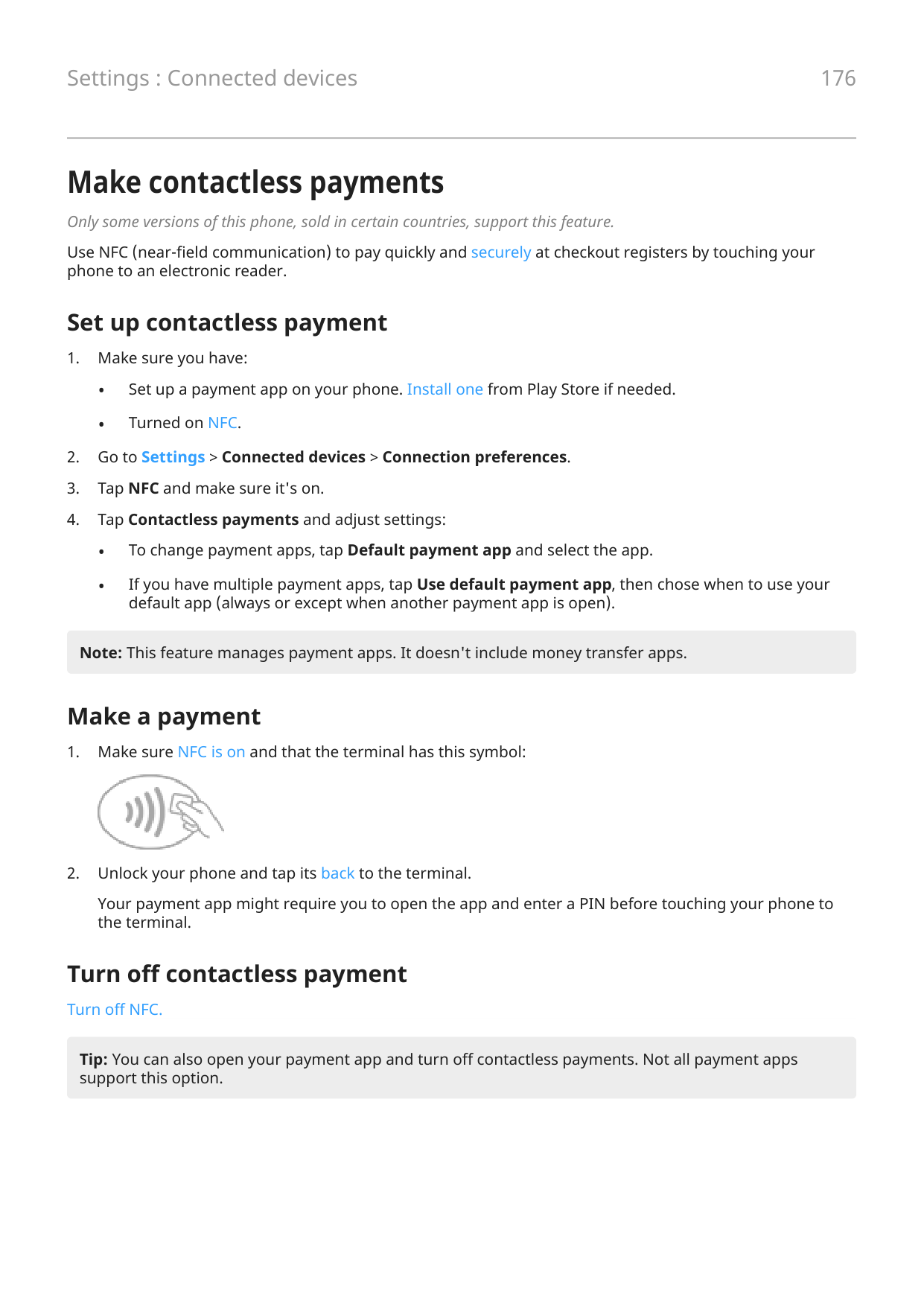


Change networks To switch to a network you've used before:


Share a network You can share connection information with a friend so they can connect to the same network.


Turn Wi-Fi off To save battery life, turn off Wi‑Fi when you're not near a Wi‑Fi network. Open quick settings and tap to turn it off.

Advanced Wi-Fi settings
##### Disable Wi-Fi scanning


The hidden network is now visible in the list of available networks, and if you weren’t connected to Wi-Fi previously, you’re now connected.
Connect with Wi-Fi Direct
If you have a device, like a printer or TV, that supports Wi-Fi Direct, you can connect your phone without a wireless router or cable.
When you turn on your phone’s Wi-Fi, Wi-Fi Direct is automatically enabled. To connect to a Wi-Fi Direct device:
Use Airplane mode
Airplane mode turns off all wireless connections on your phone to prevent it from transmitting signals that could interfere with airplane communications.
Turn it on Open quick settings and tap to turn airplane mode on. This disables all wireless connections (Wi‑Fi, voice and data for calls and text messages, Bluetooth). If your airline permits it, you can then turn Wi‑Fi and/or Bluetooth back on during the flight. Other wireless connections will remain off. Turn it off Open quick settings and tap .


Control data usage
Turn mobile data off/on Open quick settings and tap Mobile data. When you turn off cellular data, you can still use data over Wi-Fi. Cellular data must be ON if you want to:

Data plans often have limits, and it's easy to exceed them. Setting up a usage warning can prevent surprises by alerting you when approaching your limit. You can even set a usage limit to turn off cellular data when it's reached, eliminating unexpected charges.


Restrict background data
Even when you’re not actively using them, most apps use data in the background to sync information and deliver notifications.
To conserve data when you’re running low, use Data Saver to turn off background data for all apps. You can also prevent specific apps from ever using background data, whether Data Saver is on or not.
Notifications stop: When you turn off background data for an app, you won't receive ANY notifications from the app until you open the app so it can sync.
##### Restrict for all apps when you’re low on data


##### Restrict for specific apps indefinitely

Dual SIMs
If your phone has two SIMs, cellular data is active on only one SIM at a time. You can control which SIM is used.
Share your internet connection
When you need an internet connection for another device, share your phone's:
• For wireless sharing with another Wi-Fi capable device, turn on your Wi-Fi hotspot, which is great for
range and speed. This uses more power, so it's best when you can plug in.
stable, speedy, and safe connection in some situations than sharing over wireless connections. Your cellular plan must support data sharing. If you don’t know, contact your carrier.
Use your hotspot
##### Step 1: Set it up

.
##### Step 2: Connect devices


####### To connect Do this
A phone a. On your phone, next to the hotspot's name, tap and unlock if prompted. b. Use the other phone's camera to scan the QR code that provides the password.

Other device a. Open the device’s Wi-Fi settings. b. Select your phone’s hotspot. c. Enter the hotspot password. Learn how to find the hotspot's password.
##### View or change password
Note: Although you can turn off passwords for your hotspot, keeping a password prevents unauthorized usage of your cellular data.
##### Manage security
If you're getting a warning about weak security for your hotspot, set a strong hotspot password. Also, secure your hotspot by selecting a protocol:
Manage hotspot connections
View number of connections To see the number of devices connected to your hotspot:

By assigning a password for your hotspot, you ensure that people can't connect to your hotspot without your knowledge or permission.
Disconnect everyone To disconnect all devices and prevent them from reconnecting:
If you’re experiencing performance issues, you can limit the number of connections allowed or temporarily disconnect devices.
To allow only specified devices to connect:
To restrict access for a previously allowed device, tap the device name, then tap Delete.
USB tethering
To connect a device to the internet using your phone's cellular data and a USB cable:

To stop the connection, tap the notification and turn off USB tethering, then disconnect your phone and computer.
Bluetooth tethering
To connect a device to the internet using your phone's cellular data and a Bluetooth connection:

Connect to VPNs
A virtual private network (VPN) lets you access files on a secure network like an office network with a firewall. Contact your network administrator for VPN settings and any additional apps or requirements.
To set up a VPN connection:

Add a Private DNS service
Private DNS protects you when you browse the internet and use apps on your phone. It:
Your phone is set to Private DNS > Automatic by default. So, as long as your mobile or internet service providers offer encrypted DNS, you're protected. Check with your mobile and internet providers.
##### Private DNS services
The only time you need to change this setting is if you have a free or paid DNS service to use, instead of relying on your mobile or internet providers. To add the service to your phone:
Connect with Bluetooth
You can use Bluetooth to connect your phone to other devices without a cord. After you pair a Bluetooth device for the first time, your devices can connect automatically.
Turn Bluetooth on/off
Bluetooth uses more of your battery, so turn it off when not in use.

Pair with and use devices
To connect with a new Bluetooth accessory or other device, you need to pair with it. You only need to do this once for each device.
Your devices stay paired until you unpair them. Pair with a device


Tip: If you use a screen lock, you can define a paired Bluetooth device as a trusted device, keeping your phone unlocked while connected to it. When you disconnect or move out of range, your phone locks again. Go to Settings > Security & privacy > More security settings > Smart Lock > Trusted devices.
Can't pair? Troubleshoot the issue. Use paired device
Tip: Bluetooth connections can really drain your battery. Save power by turning Bluetooth off when you're not connected to a device.
After pairing with a device, you’ll need to set sharing options and then you can use Bluetooth to:

Configure, rename, or remove
##### Set sharing options for paired device

##### Change phone's name
You'll see your phone's name on other Bluetooth devices when you're pairing with them. You can change the name.

##### Remove (unpair) a device


##### Turn off Bluetooth scanning
When Bluetooth is off, your phone can still scan and automatically connect to a previously paired device. To prevent this, turn off Bluetooth scanning.
To turn off scanning:

Make contactless payments
Only some versions of this phone, sold in certain countries, support this feature.
Use NFC (near-field communication) to pay quickly and securely at checkout registers by touching your phone to an electronic reader.
Set up contactless payment
default app (always or except when another payment app is open).
Note: This feature manages payment apps. It doesn't include money transfer apps.
Make a payment

Your payment app might require you to open the app and enter a PIN before touching your phone to the terminal.
Turn off contactless payment
Turn off NFC.
Tip: You can also open your payment app and turn off contactless payments. Not all payment apps support this option.
Share or receive with NFC
Only some versions of this phone, sold in certain countries, support this feature.
NFC (near-field communication) makes it easy to securely share with sources you trust, without having to type a lot of information or struggle with pairing.
Turn NFC on

Share content between devices Share content from your phone to another device by touching the devices together (usually back to back). You can share content using the Files app. To learn how, read Google's help.
Read NFC tags on posters and signs
Receive web links, e-coupons, brochures, maps, and more from an NFC tag. Look for the NFC logo on NFCenabled accessories, posters, signs and store displays. Just touch the back of your phone to within 2 cm of the logo to receive its tag information.

Enable NFC icon in status bar
To know whether NFC is on by glancing at your status bar:


Turn NFC off
Open quick settings and tap .

Share files and links with nearby devices
Share content easily and securely. You can share things like photos or videos, contacts, documents, and links. Send them to another device near you without using an internet connection.
You can share with Android 6+ devices and Chromebooks, and with selected Windows devices through an app. Sharing with iPhones isn’t supported. For more about supported devices and countries, see Google's help.
Send and receive content
##### Turn on sharing


##### Receive content


Tip: You can change your phone’s name to something less identifiable before sharing or receiving. Go to Settings > Connected devices > Connection preferences > Quick Share > Device name and edit the name.
Choose who can see you for sharing
To adjust who can share with you:

Or, go to Settings > Connected devices > Connection preferences > Quick Share > Who can share with you.
• Your devices: Your phone is visible to your other devices that are signed into the same Google
account, even when the screen is off or locked.
access to 10 minutes, mark the checkbox.
If a contact isn't available, you'll need to add an email address associated with their Google account to their contact info.
Fix an issue
If you can't share content with someone, try these steps:
Transfer files between phone and computer (USB)
You can transfer music, photos, and other files between your phone's storage and computer (in either direction). Use a USB cable that's capable of data transfer and isn't for charging only.
Step 1: Connect phone to computer


Step 2: Transfer files
##### With a Windows computer
If you don't unlock the phone and change the USB connection to allow file transfers, you won't see any files on your phone.
##### With a Mac
If you don't unlock the phone and change the USB connection to allow file transfers, you won't see any files on your phone.
Where to find transferred files
Files are stored in these folders on your phone:
Fix an issue
If you’re having issues, try these troubleshooting steps.
Change USB preferences
Available USB modes Smart Connect: Pair and connect with Smart Connect File transfer: Allow all types of files to transfer from your phone to another device. USB tethering: Share your phone’s mobile data connection with another device. MIDI: Connect electronic musical instruments. PTP: Allow only photos to transfer from your phone to another device. Ready For: Use your phone as a mobile desktop. Learn more. No data transfer: Charge battery over USB.
Change USB mode
The default USB mode is No data transfer, which means your connection is charging the phone only. To allow your phone to communicate across USB for anything other than charging the phone, you need to change the USB connection mode.
##### From the popup

##### From notifications


Keep in charging mode only
If you don’t want to see a popup with choices of USB modes when you connect your phone to a device, you can turn the popup off. The mode defaults to No data transfer, for charging. And to change modes, you can use the notification or Settings app.
To turn off the popup:

Cast screen or media to TV
Mirror with Chromecast
To mirror your screen on a TV, showing all apps and screens you use on your phone, you must:



Cast an app
You can cast an app if you:

If you don't see or don't see your TV listed in the casting options, try these troubleshooting steps. While casting:


Cast personal media with Wi-Fi Direct
If your TV supports Wi-Fi Direct, set up a connection between your phone and TV so that you can view or play media from your phone.
For information about using Wi-Fi Direct after you've connected, see the user guide that came with your TV.
Fix an issue After each step, see if your issue is fixed. Check the basics

##### Check for app help
If you’re having issues casting with one of these apps, check their help center for troubleshooting information:
Print from your phone
Set up printing
To connect your printer and phone:
If your printer isn't found in Default Print Service:




About wireless sharing
What you can share
You can share your photos and videos, contacts, screenshots, and downloaded files.
When sharing photos and videos
When deciding how to share your photos or videos, consider these factors:
Ways to share
Choosing how to share depends on the type and amount of content you're sharing, and how widely you want to share it.
Quick Share Good for:
Bluetooth Good for:
Message (MMS) Good for:
Email Good for:
Cloud Good for:
Social app Good for:
Smart Connect Good for:
Adjust screen brightness To set your screen's brightness, open quick settings and slide . Your phone automatically adjusts your screen to the light around you, with Adaptive brightness. When the feature is on, you can still fine tune the brightness in quick settings. To turn this feature off:

Tips:

Use Dark theme Give your eyes and battery a break by changing to a dark background. When Dark theme is on:
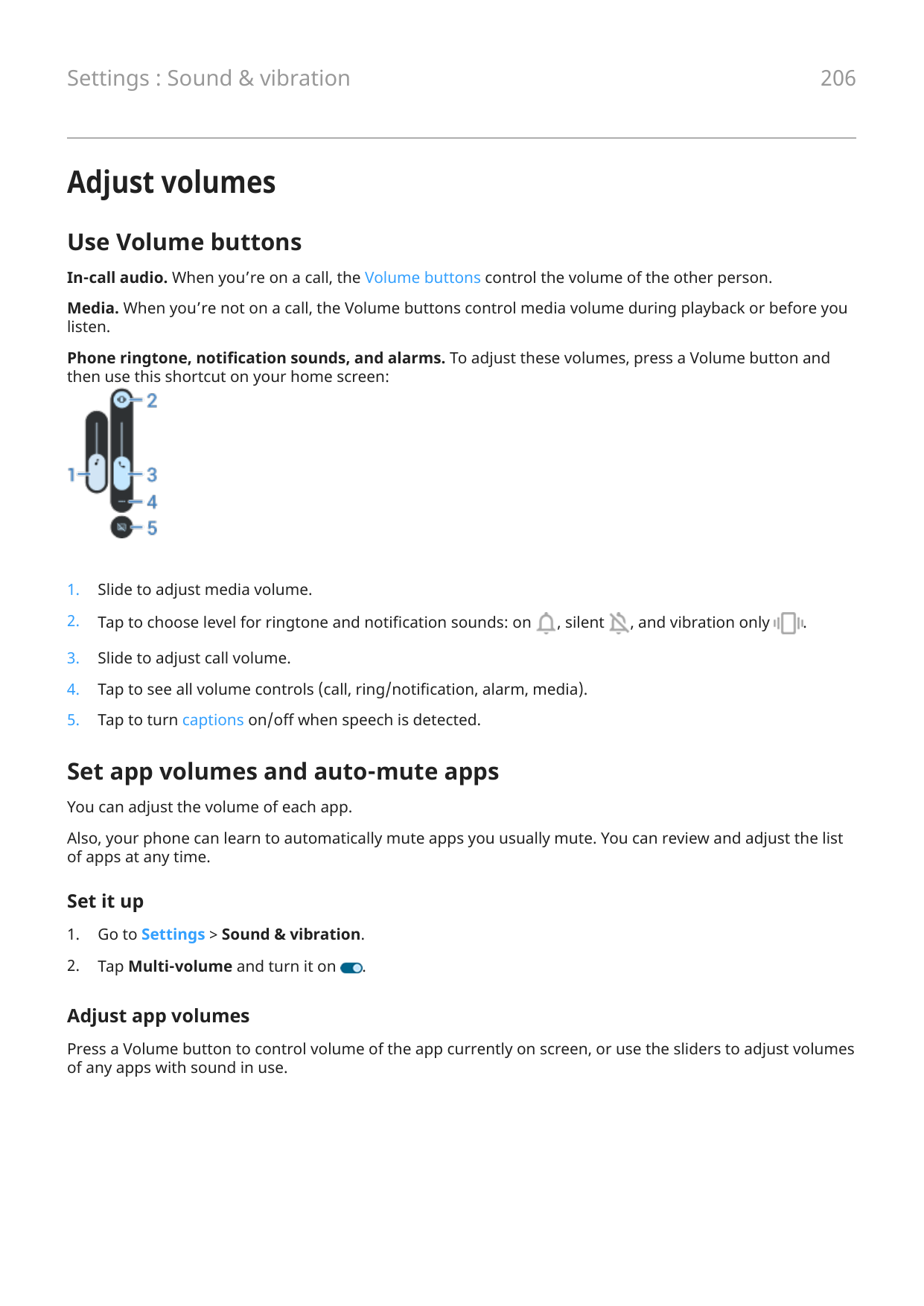
When it's off, if you run low on battery, Battery saver switches temporarily to the dark background until the phone has charged. Turn it on or off 1. Go to Settings > Display.


Tip: To add Dark theme to quick settings, open quick settings, tap , then drag the tile where you want it.


##### Set a schedule
Choose color mode
You can change the intensity of color on your screen for a realistic or enhanced look.
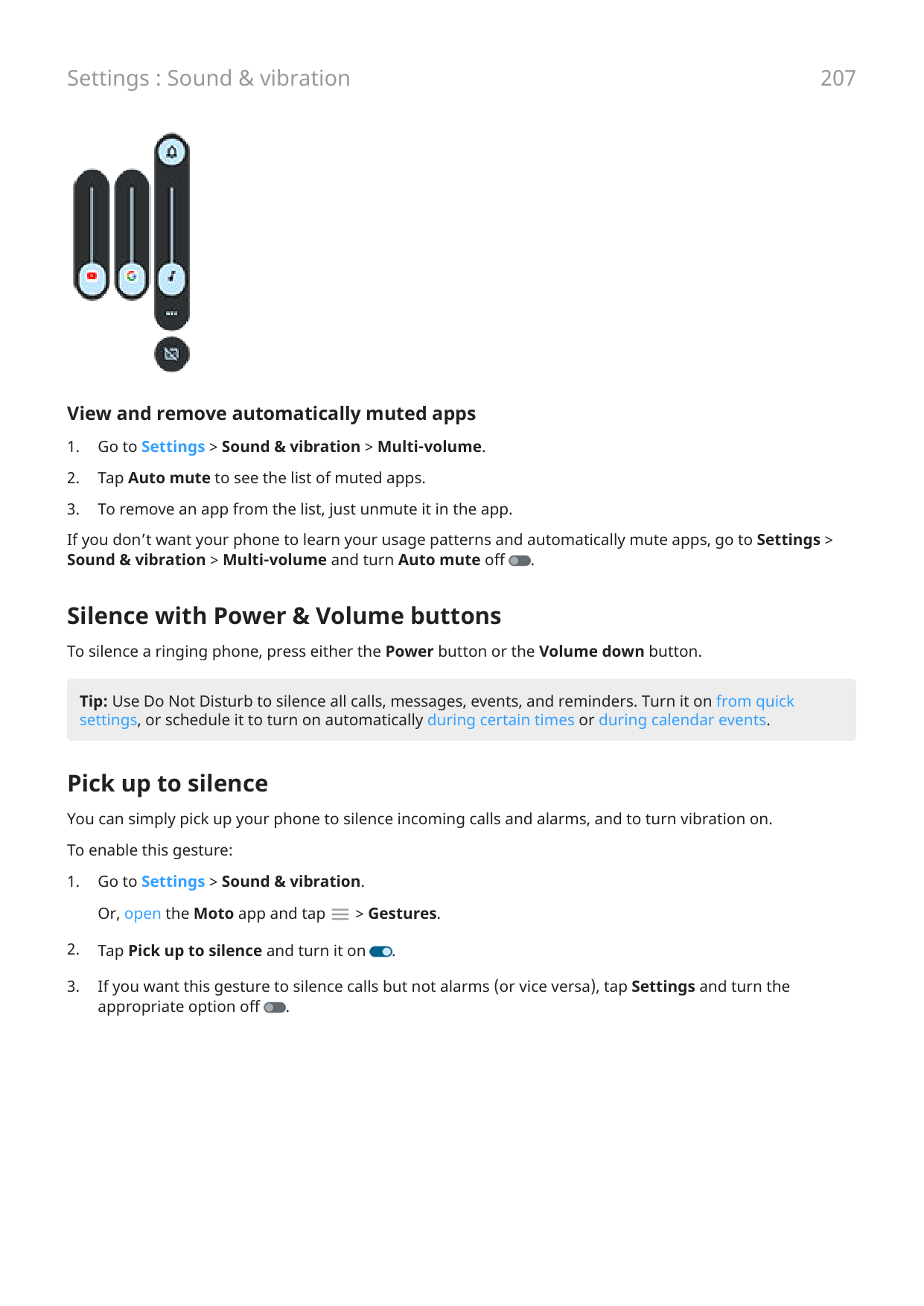

Tips:
Change text and icon size
You can make the text or other items on your screen smaller or larger for your comfort and convenience. You can also make text appear bolder and increase contrast to see it better.


a thin black line is added around white text, or a thin white line is added around black text.
Undo your changes To reset the display size and text to the original settings:

Adjust refresh rate
The action you see on your screen is a series of frames strung together, like a movie. A higher display refresh rate shows more frames per second, making the action smoother and more responsive. This uses more battery power.
You can adjust the display refresh rate, depending on your needs:
Note: When Battery saver is on, the refresh rate is set to 60Hz.
To raise or lower the refresh rate:
Show apps full screen
By default, apps avoid the banded area across the front camera, but you can set your apps to use full screen and stretch across the entire display.
You can turn it on or off for individual apps or all apps.
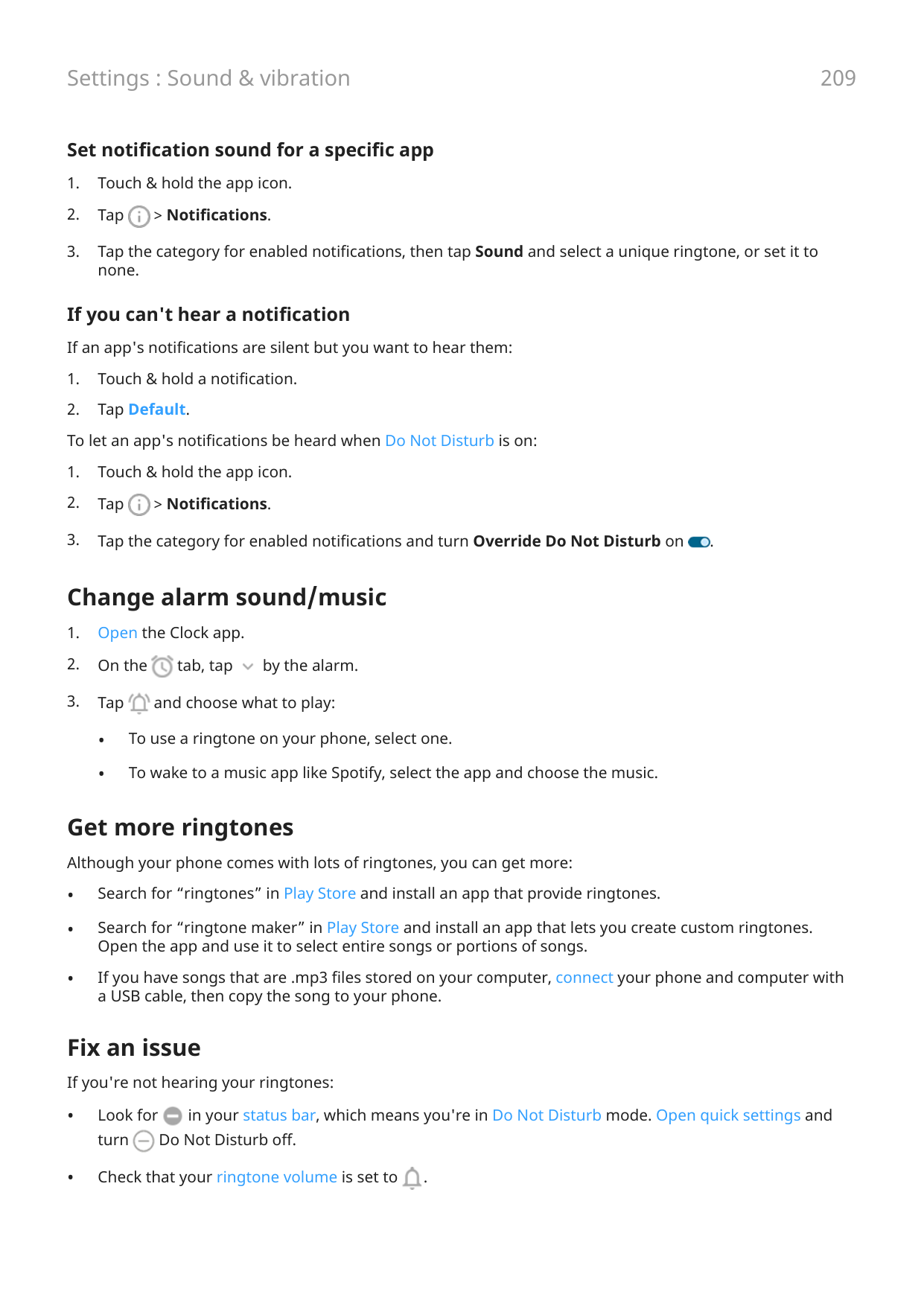


If you're using an app and want to toggle full screen on or off, you can do it from the recent apps list:

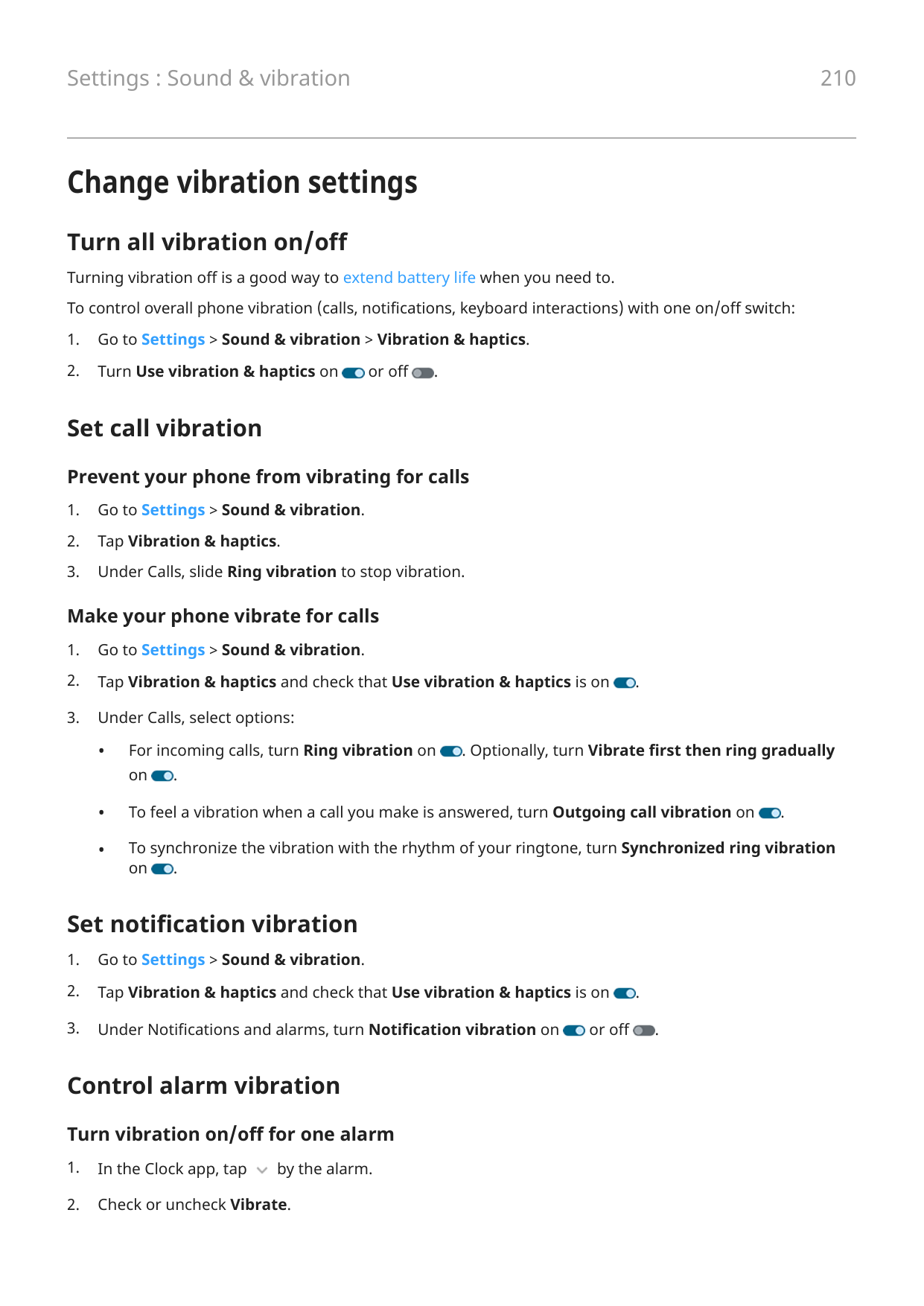


Stop automatic rotation
Prevent screen from rotating Open quick settings and turn Auto-rotate off. In this mode, you can manually rotate the current app. Turn your phone the direction you want, then touch

in the corner.

Allow screen to rotate To allow rotation for all apps, open quick settings and turn Auto-rotate on. You can also adjust this in Settings > Display > Auto-rotate screen.

Tip: If your home screen isn't rotating but Auto-rotate is on, then check your home screen settings. Touch & hold a blank spot on your home screen, then tap Home settings > Allow Home screen rotation.

Adjust Edge Lights
Lights show on your phone's edges to let you know the phone is charging or to alert you of an incoming call, notification, or alarm.
To change how they look and when they turn on, go to Settings > Display. Or, open the Moto app and tap > Display.

Turn lights on/off
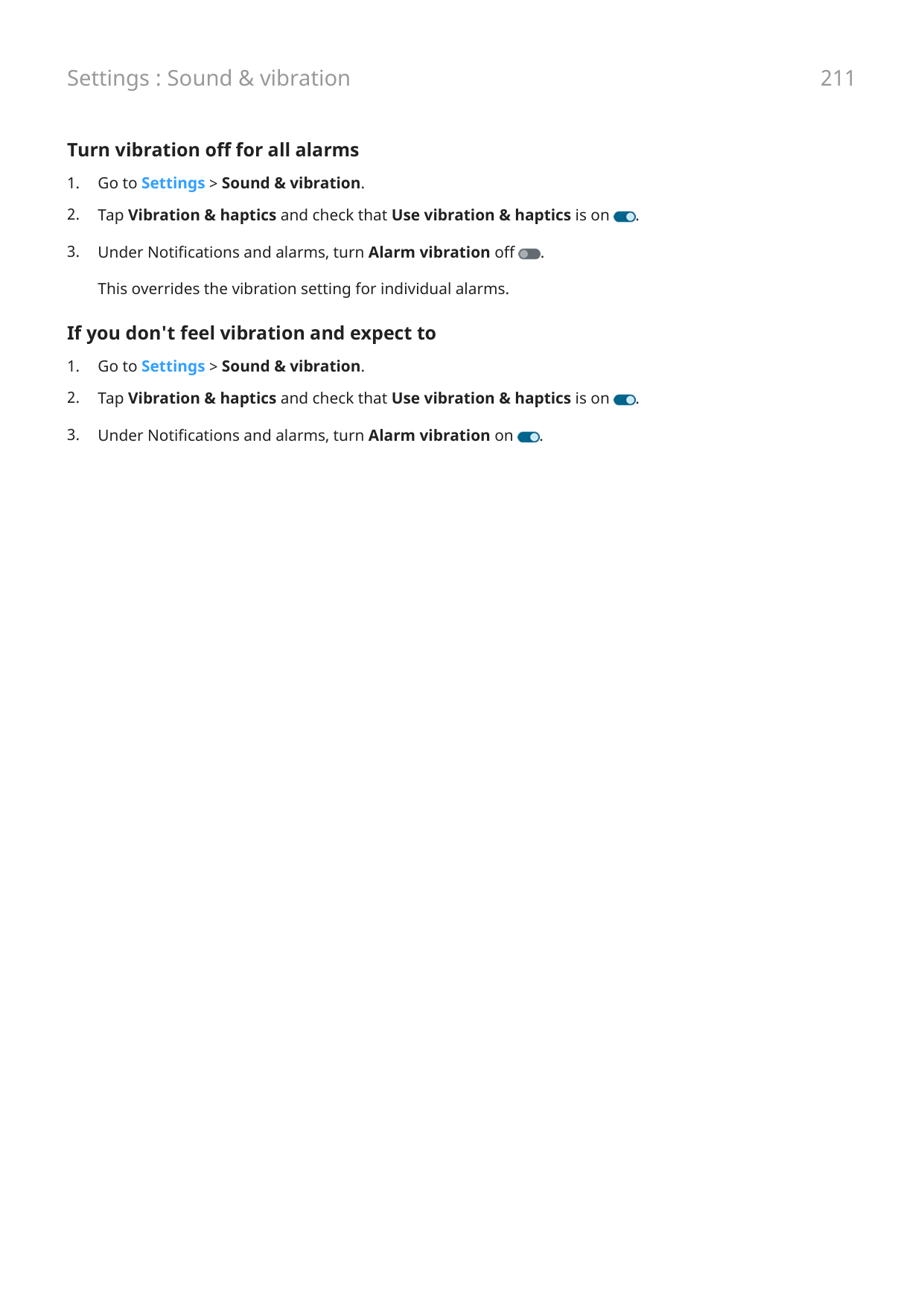
To stop or restart the lights:


Change color of lights

Customize when your lights turn on
If your phone is lighting up too much, you can turn the lights off by event (calls, alarms, notifications), by schedule, or when your screen is facing up.
##### Turn lights on/off for calls, alarms, or app notifications


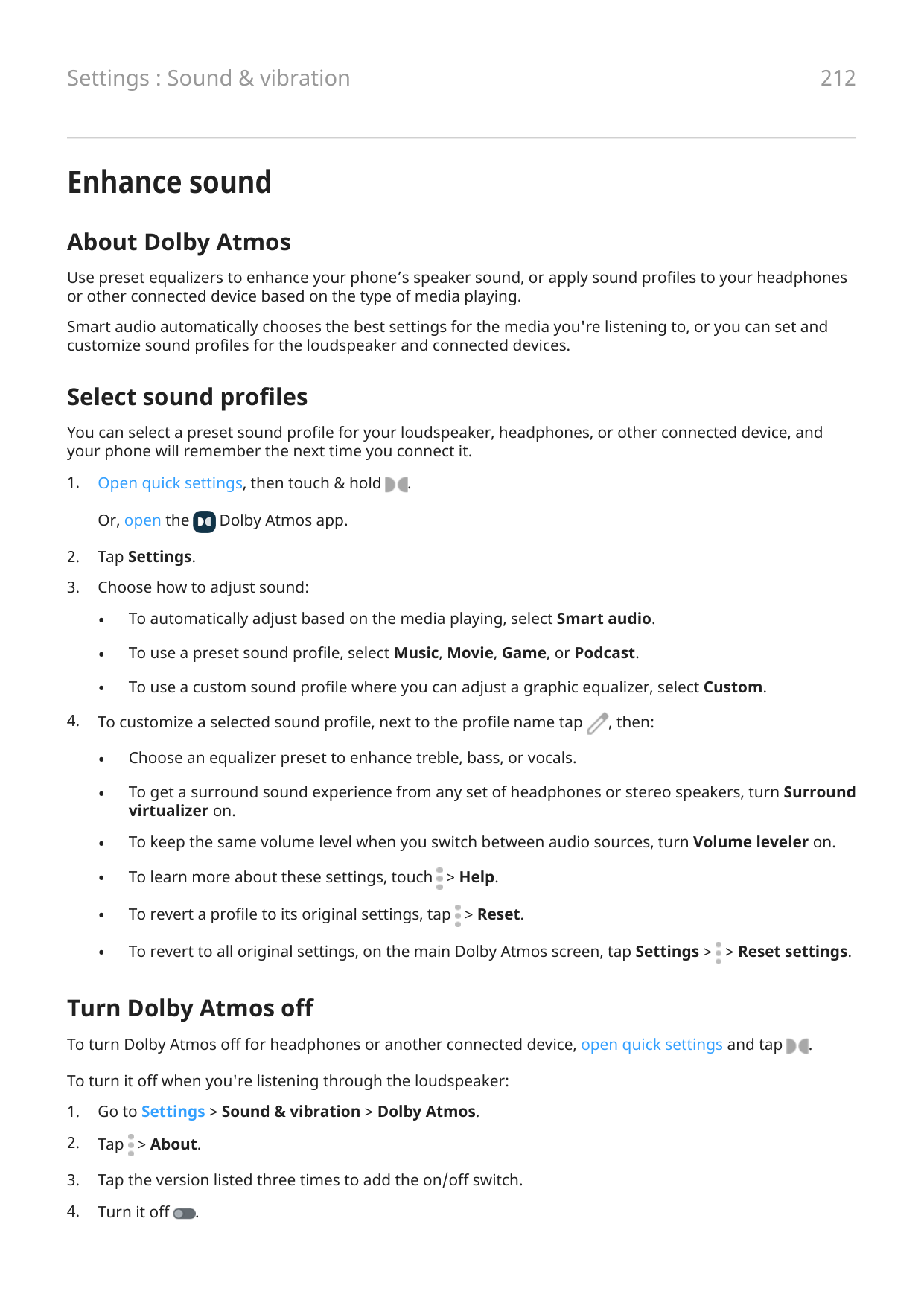
##### Turn off for a scheduled period of time To keep the lights dark at certain times:


Stop screen flicker in dark environments
If you're using your phone in dark environments and the screen flicker is irritating your eyes, use Flicker prevention.
To turn it on or off:


Adjust colors at night
If you selected a color mode, it will resume outside of night hours.
Automatically change screen to amber
Your phone can automatically filter out blue light and adjust screen colors to warmer tones at night, making it easier to view and read in dim light. You might even fall asleep more easily.
To adjust filter intensity, open quick settings, touch & hold , then use the slider to change the intensity of the amber filter.

Turn it off To temporarily switch back to regular colors from amber, open quick settings and turn off Night Light. To stop automatically changing to amber, select Settings > Display > Night Light > Schedule > None.

Automatically change screen to grayscale
To help you wind down at night, your phone can change to grayscale (black and white).

Turn it off To temporarily switch back to regular colors from grayscale, open quick settings and touch . To stop automatically changing to grayscale at night, go to Settings > Digital Wellbeing & parental controls > Bedtime mode > Customize > Screen options at bedtime and turn Grayscale off .


See Peek Display notifications
About Peek Display notifications
When your screen is off, battery-friendly notifications fade in and out, lighting only the pixels needed and showing notifications delivered since you last woke your screen. You can select which apps show notifications and limit content to control your privacy.
These notifications aren't displayed:
Respond to Peek Display notifications Check for notifications If you haven’t seen activity for a while, to wake your phone, bump it. Peek at contents Touch & hold an icon to preview the notification. View more and take action For more details and notifications, drag an app icon up, or drag it to . Then:


####### 1. Go to Settings > Display > Peek Display.Or, open the Moto app and tap > Display > Peek Display.

######## 2. If needed, turn Peek Display on .




Stop Peek Display notifications


Change screen timeout
Change when your screen turns off
Tip: Set a shorter time to extend battery life.
Stay on until you look away
Use Attentive Display to keep the screen on when you're looking at it and turn it off when you look away:
####### 1. Go to Settings > Display > Screen timeout.Or, open the Moto app and tap > Display.

######## 2. Tap Attentive Display and turn it on.If you don't want to use Attentive Display, then turn it off .

Set screen recording options
To adjust settings before recording your screen:


Learn how to adjust other settings, record your screen or find your recordings.
Change lock screen features Use these options to control what content and features appear on your lock screen. You can also control when your screen locks.
Limit lock screen notifications
Control which notifications appear You can turn off notifications for your lock screen, or choose between showing some or all content:
If you show notifications but hide sensitive content, then you'll receive notifications for incoming emails or chats, but they won't include message details.
##### Choose between icons or summary list
If you're allowing notifications to appear on your lock screen, you can display them in a list, where you can preview the content. Or, to keep them more private, you can just show a chip of icons for the apps that have sent notifications; touch the chip to see the full list.

Add message to lock screen
To add your name or a short message to your lock screen for anyone who finds your phone:
Tip: Don't put your mobile number as contact info on your lock screen unless you can access your voicemail from another device.
Control access to your wallet
To allow or prevent access to your Wallet without unlocking your phone:


Show and control smart devices
If you have Google Home devices (lights, cameras, thermostats), you can monitor and control them from the lock screen:

This allows you to review their controls from the lock screen, but you'll have to unlock to adjust their settings.

Adjust volumes
Use Volume buttons In-call audio. When you’re on a call, the Volume buttons control the volume of the other person. Media. When you’re not on a call, the Volume buttons control media volume during playback or before you listen. Phone ringtone, notification sounds, and alarms. To adjust these volumes, press a Volume button and then use this shortcut on your home screen:


Set app volumes and auto-mute apps You can adjust the volume of each app. Also, your phone can learn to automatically mute apps you usually mute. You can review and adjust the list of apps at any time.
##### Set it up

##### Adjust app volumes
Press a Volume button to control volume of the app currently on screen, or use the sliders to adjust volumes of any apps with sound in use.

##### View and remove automatically muted apps
If you don’t want your phone to learn your usage patterns and automatically mute apps, go to Settings > Sound & vibration > Multi-volume and turn Auto mute off .

Silence with Power & Volume buttons
To silence a ringing phone, press either the Power button or the Volume down button.
Tip: Use Do Not Disturb to silence all calls, messages, events, and reminders. Turn it on from quick settings, or schedule it to turn on automatically during certain times or during calendar events.
Pick up to silence You can simply pick up your phone to silence incoming calls and alarms, and to turn vibration on. To enable this gesture:
####### 1. Go to Settings > Sound & vibration.Or, open the Moto app and tap > Gestures.

######## 2. Tap Pick up to silence and turn it on .

######## 3. If you want this gesture to silence calls but not alarms (or vice versa), tap Settings and turn theappropriate option off .

Set ringtones
Change default call ringtone

Set call ringtone for a contact
You can choose a unique ringtone for calls from specific people so you'll know instantly who's calling.


Change notification sound
You can modify the notification sound for all apps, or assign a distinctive sound to notifications from a specific app, replacing the default.
##### Set default notification sound
##### Set notification sound for a specific app

If you can't hear a notification If an app's notifications are silent but you want to hear them:


Change alarm sound/music



Get more ringtones
Although your phone comes with lots of ringtones, you can get more:
Fix an issue
If you're not hearing your ringtones:


Change vibration settings
Turn all vibration on/off Turning vibration off is a good way to extend battery life when you need to. To control overall phone vibration (calls, notifications, keyboard interactions) with one on/off switch:


Set call vibration
##### Prevent your phone from vibrating for calls




Set notification vibration


Control alarm vibration
##### Turn vibration on/off for one alarm

##### Turn vibration off for all alarms


Enhance sound
About Dolby Atmos
Use preset equalizers to enhance your phone’s speaker sound, or apply sound profiles to your headphones or other connected device based on the type of media playing.
Smart audio automatically chooses the best settings for the media you're listening to, or you can set and customize sound profiles for the loudspeaker and connected devices.
Select sound profiles
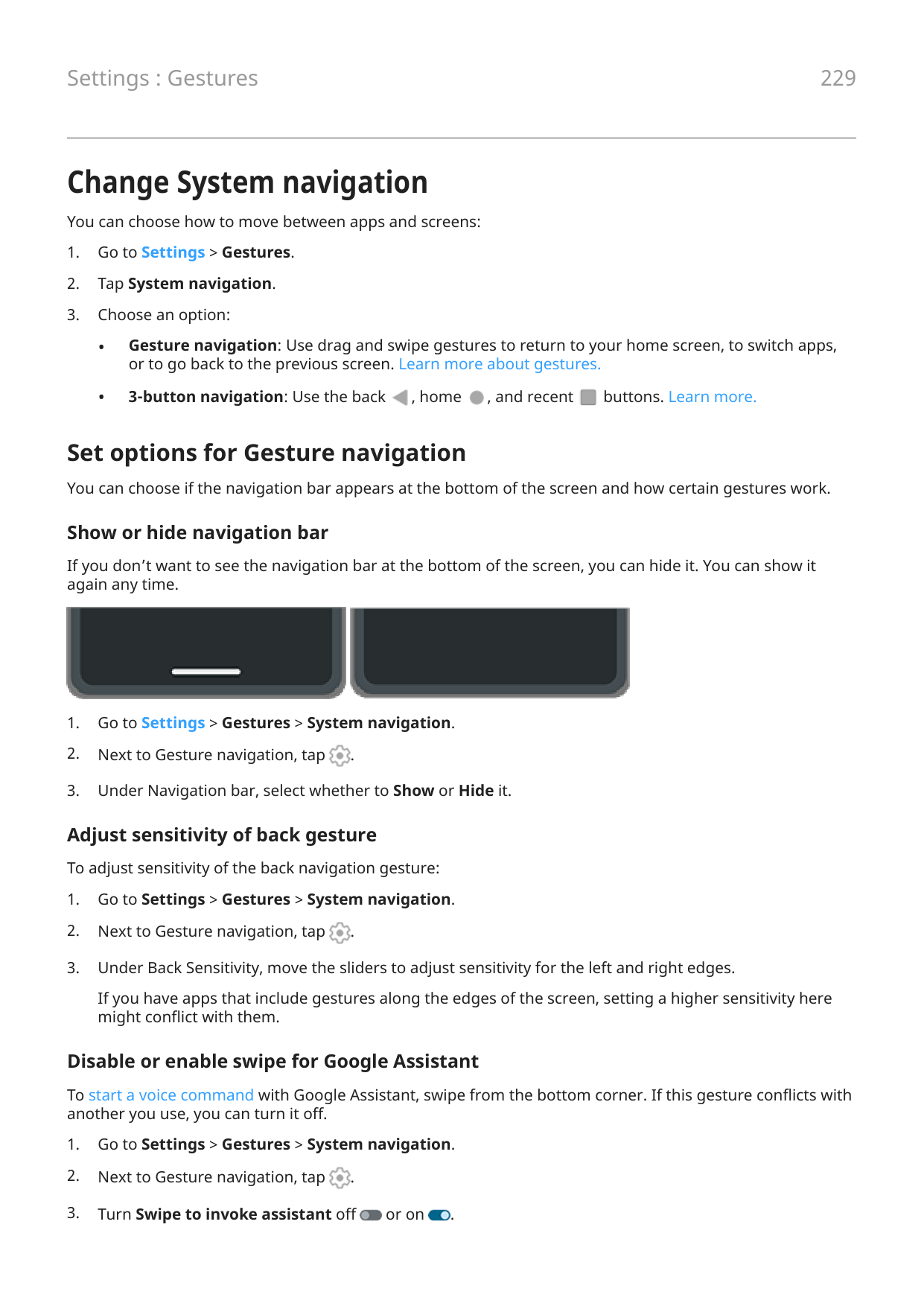
You can select a preset sound profile for your loudspeaker, headphones, or other connected device, and your phone will remember the next time you connect it.



Turn Dolby Atmos off To turn Dolby Atmos off for headphones or another connected device, open quick settings and tap . To turn it off when you're listening through the loudspeaker:


Silence calls & notifications
When you're busy, use Do Not Disturb to mute ringtones for incoming calls, stop vibration, and block notifications.
Quickly turn Do Not Disturb on or off
##### Turn it on


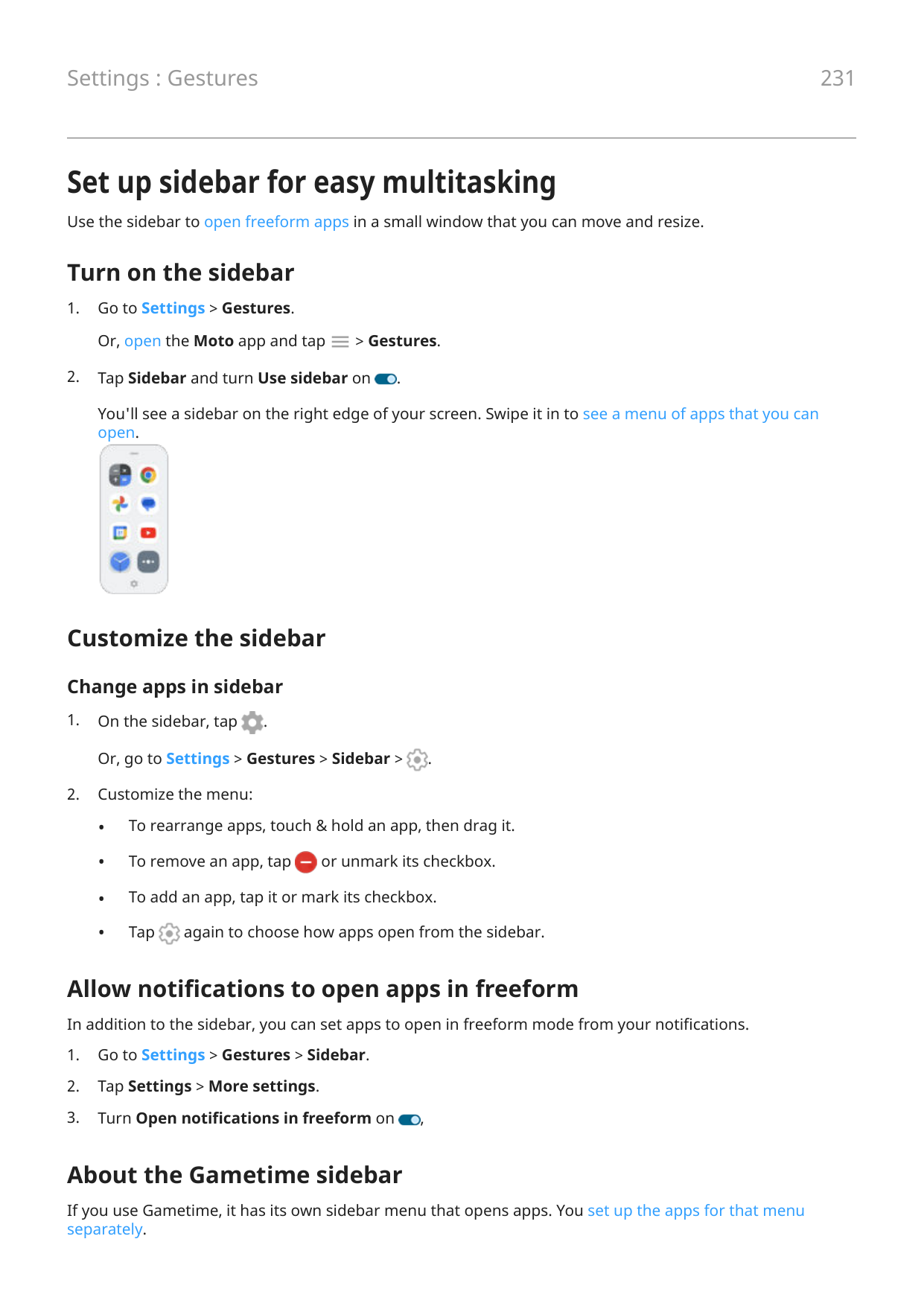

Turn it off Open quick settings and tap . If it's turning itself on again, but you don't want it to:


Set down to start You can turn on Do Not Disturb by placing your phone face down on a surface. To enable this gesture:


Silence automatically
Your phone can automatically switch into and out of Do Not Disturb mode, either based on your calendar events or on a schedule you create.
##### Silence during calendar events
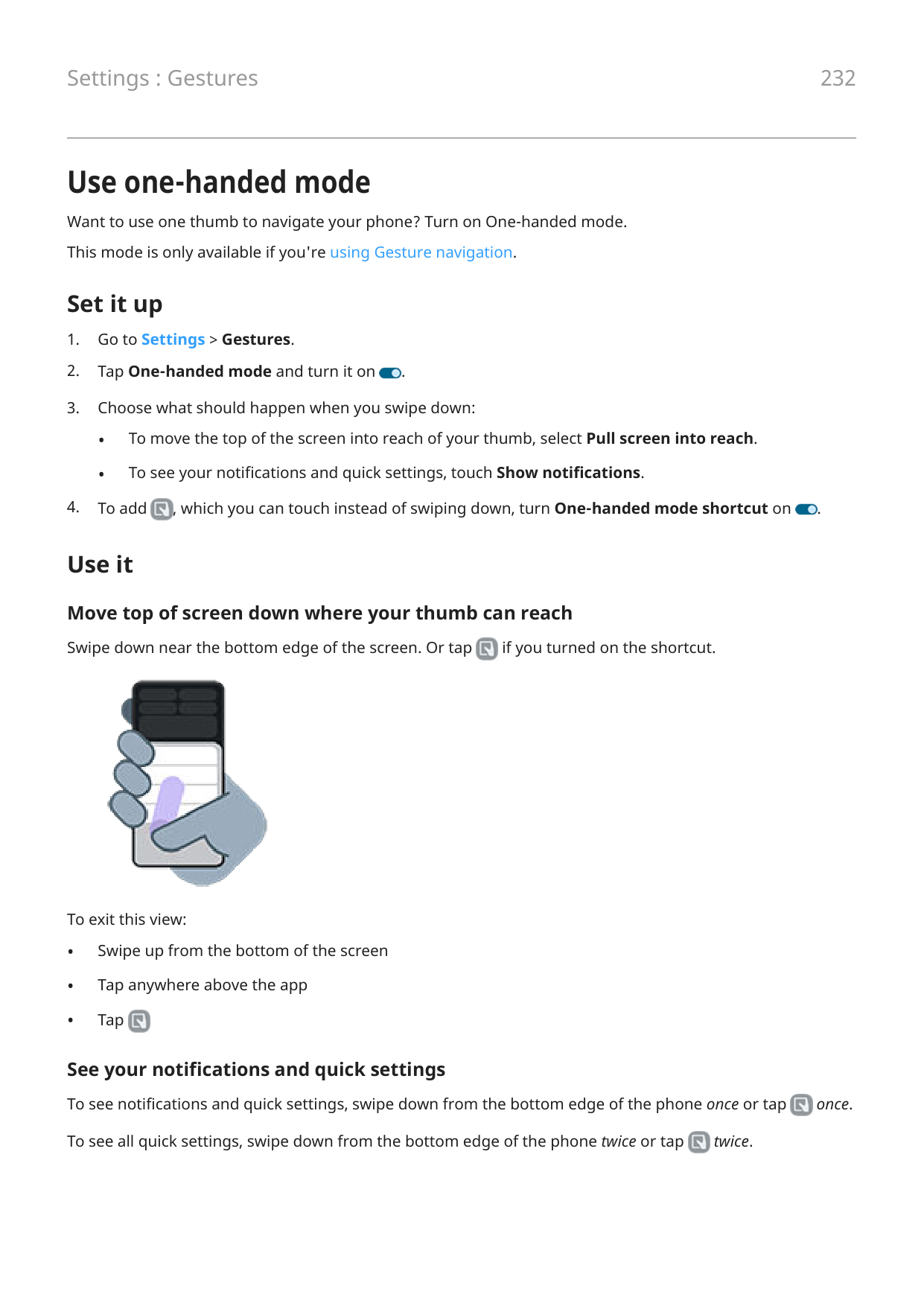


##### Silence using a schedule

start and end times, and level of silence.
Stop automatic silencing If you don't want your phone to switch automatically into and out of Do Not Disturb:



Choose what can interrupt You can choose which interruptions to allow when Do Not Disturb is on. Choose interruptions by People


##### Choose interruptions by Apps


You'll see selected apps under APPS THAT CAN INTERRUPT. To change which notifications can interrupt, tap the app in the list.
##### Allow alarms and other interruptions
Alarms and media sounds are allowed by default, but you can turn them off. You can also allow touch sounds, reminders, and calendar events to send notifications.



Stop phone from speaking
Silence replies to voice commands
Some voice commands (like “What's up?” and “What is the current weather?”) cause Google Assistant to speak in response.
To quickly silence a voice command response, tap . To have your phone show responses to voice commands on screen and not speak them:


Turn off screen reader If your phone describes everything you touch on screen, speaking your notifications, and reading messages aloud, you might have turned on a screen reader. This accessibility feature helps people with visual impairments. To turn it off:
Silence “Hello Moto” during power up
If you don’t want your phone to say “Hello Moto” when it powers up:

Turn off charging sounds
If you don’t want your phone to make a sound when it comes in contact with a charger:
Turn touch sounds on/off

Hear other notification sounds You can assign a ringtone for notifications from specific apps. You can also control sounds that notify you of other events:

Outgoing call vibration on .

If you don't want any of these sounds, just turn them off .

Turn notifications on/off
Turn off app notifications
When you receive unwanted notifications from an app, touch & hold the notification, then tap Turn off notifications.
To review all apps and adjust whether they can send notifications:


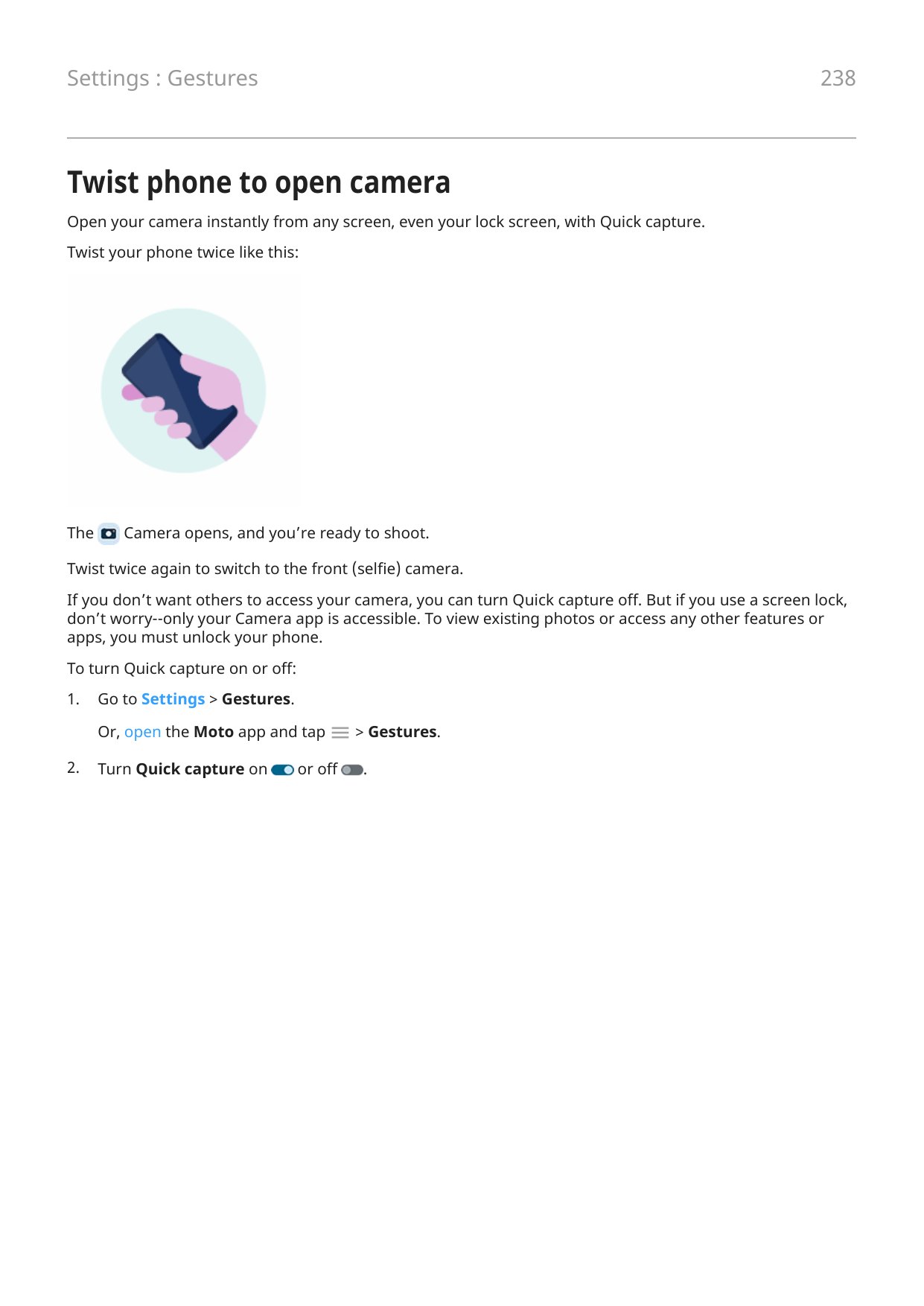

Tip: To prevent notifications from all apps during certain times or calendar events, use Do Not Disturb.
Turn on app notifications
If an app isn't sending notifications but you want it to:


Choose how notifications look and open
Turn notification dots off/on
App icons show dots to alert you about unread notifications. You can turn off dots for one or all apps.

##### Turn dots off for all apps
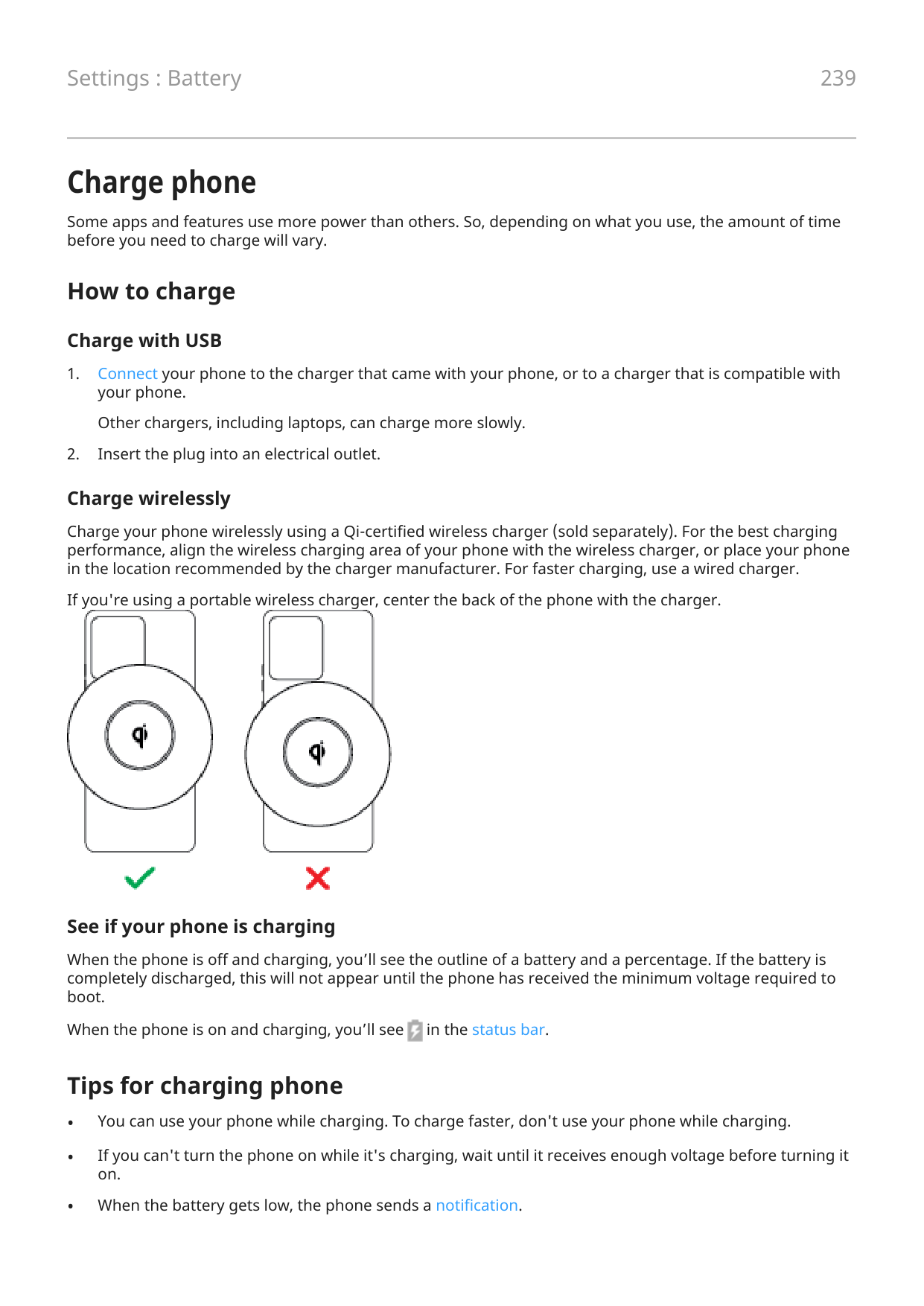


##### Turn dots off for one app


Turn bubbles off/on for messaging
Bubbles keep your conversations accessible by floating on top of other apps. Read and send messages from the bubble without opening the app. You can turn bubbles off if you want to always see conversations in their full app.


##### Turn off/on for specific app or conversation

Turn on snoozing
If you want to be able to snooze your notifications, turn on snoozing:

Allow notifications to open apps in freeform
In addition to the sidebar, you can set apps to open in freeform mode from your notifications.

Control notification sound
Change notification volume
To adjust the volume level of all notifications:

Change notification sound
You can modify the notification sound for all apps, or assign a distinctive sound to notifications from a specific app, replacing the default.
##### Set default notification sound
##### Set notification sound for a specific app

If you can't hear a notification If an app's notifications are silent but you want to hear them:


Silence an app's notifications
To temporarily silence notifications from all apps, use Do Not Disturb.
Change to Silent If you want an app's notifications to be less intrusive, you can categorize them:

• No sound from notifications: You will see notifications in the pull-down list of all notifications but
won’t hear their sound.
notification dots on app icons.
##### Hide status bar icons for silent notifications To hide the icons for silent notifications from all apps:

You won't see the icon in the status bar for any silent notifications. When you swipe the status bar down, the icon appears in the pull-down along with the notification.
Tip: To hide status bar icons for a single app, open the app and look in its settings. Only some apps let you do this.
Manage notification privacy
Control which apps read your notifications
Some apps need to access notifications from other apps to work properly. For example, a smart driving companion app needs to access notifications from other apps in order to read them aloud when you're driving.
Be sure that apps with access to your notifications have legitimate reasons, because with this access they can:
##### Check which apps can read your notifications
##### Stop app from reading notifications

If you restrict an app's access to notifications and then find the app isn't working properly, you can restore access.
##### Allow app to read notifications

Control lock screen notifications
If you've set a pattern, PIN or password, you can control which type of notifications show on your lock screen and prevent them from revealing private information.
To adjust notifications for all apps:

You’ll get lock screen notifications for an incoming email or chat, but they won’t include message details.
For finer control, leave this on to allow details, and instead hide sensitive content from specific apps.

To hide sensitive content from specific apps:

Tip: When you turn on Lockdown, notifications won't show on your lock screen.
See previously viewed notifications After you clear or snooze notifications, you can go to your notification history to view them again. To set it up:

Change System navigation
You can choose how to move between apps and screens:
• Gesture navigation: Use drag and swipe gestures to return to your home screen, to switch apps,
or to go back to the previous screen. Learn more about gestures.
• 3-button navigation: Use the back , home , and recent buttons. Learn more.


Set options for Gesture navigation You can choose if the navigation bar appears at the bottom of the screen and how certain gestures work. Show or hide navigation bar
If you don’t want to see the navigation bar at the bottom of the screen, you can hide it. You can show it again any time.


Adjust sensitivity of back gesture To adjust sensitivity of the back navigation gesture:

If you have apps that include gestures along the edges of the screen, setting a higher sensitivity here might conflict with them.
##### Disable or enable swipe for Google Assistant
To start a voice command with Google Assistant, swipe from the bottom corner. If this gesture conflicts with another you use, you can turn it off.


Set options for 3-button navigation
To start a voice command with Google Assistant, press & hold the home button. You can turn this gesture on or off any time.




Set up sidebar for easy multitasking
Use the sidebar to open freeform apps in a small window that you can move and resize.
Turn on the sidebar


You'll see a sidebar on the right edge of your screen. Swipe it in to see a menu of apps that you can open.

Customize the sidebar
##### Change apps in sidebar



Allow notifications to open apps in freeform
In addition to the sidebar, you can set apps to open in freeform mode from your notifications.

About the Gametime sidebar
If you use Gametime, it has its own sidebar menu that opens apps. You set up the apps for that menu separately.
Use one-handed mode Want to use one thumb to navigate your phone? Turn on One-handed mode. This mode is only available if you're using Gesture navigation.
Set it up


Use it
Move top of screen down where your thumb can reach Swipe down near the bottom edge of the screen. Or tap if you turned on the shortcut.


To exit this view:

See your notifications and quick settings To see notifications and quick settings, swipe down from the bottom edge of the phone once or tap once. To see all quick settings, swipe down from the bottom edge of the phone twice or tap twice.


Turn it off or remove
If you want to remove but still be able to swipe down near the bottom edge of the screen, go to Settings > Gestures > One-handed mode and turn One-handed mode shortcut off .


To turn off the gesture and remove :


Adjust screenshot settings
You can adjust settings for capturing screenshots at any time.

##### • Turn Use Three finger screenshot on or off .


###### • To prevent the three finger gesture from working in certain apps, tap Settings > and select the

apps.
Customize Power button gesture
You can customize the Power button, controlling what happens when you press it twice and when you press & hold it.
Choose what happens when you press Power twice
Emergency mode, select Power menu.
If you select a choice other than Power menu, then to see the Power menu for turning off and restarting, you'll need to press the Power + Volume up buttons simultaneously.
Double-tap back for shortcut
You can double-tap the back of your phone to:
##### Change what happens when you tap twice


Turn flashlight on and off
To turn your flashlight on or off:


Twist phone to open camera Open your camera instantly from any screen, even your lock screen, with Quick capture. Twist your phone twice like this:

The Camera opens, and you’re ready to shoot. Twist twice again to switch to the front (selfie) camera. If you don’t want others to access your camera, you can turn Quick capture off. But if you use a screen lock, don’t worry--only your Camera app is accessible. To view existing photos or access any other features or apps, you must unlock your phone. To turn Quick capture on or off:



Charge phone
Some apps and features use more power than others. So, depending on what you use, the amount of time before you need to charge will vary.
How to charge
##### Charge with USB
Charge your phone wirelessly using a Qi-certified wireless charger (sold separately). For the best charging performance, align the wireless charging area of your phone with the wireless charger, or place your phone in the location recommended by the charger manufacturer. For faster charging, use a wired charger.
If you're using a portable wireless charger, center the back of the phone with the charger.

##### See if your phone is charging
When the phone is off and charging, you’ll see the outline of a battery and a percentage. If the battery is completely discharged, this will not appear until the phone has received the minimum voltage required to boot.
When the phone is on and charging, you’ll see in the status bar.

Tips for charging phone
Extend battery life
Choose settings that use less battery
To get the most life from your battery:
Temporarily conserve battery power Use Battery saver mode to keep going on a low battery. Also, avoid these battery-intensive activities until you can charge:
Use optimized charging
Optimized charging reduces stress on your battery and extends its overall life by limiting time spent charging it over 80%.
If your phone has been plugged in for a few days, it limits charging.

Keep adaptive battery on
When you keep adaptive battery on, infrequently used apps will run less when you're not using them. Your phone will learn how you use apps over time and adjust for best battery life.

Prevent overcharging
Leaving your phone plugged into a charger can lead to overcharging, which over time shortens your battery’s life. Overcharge protection keeps your battery healthy by limiting its charge to 80% if it’s been plugged in for three days.
When Overcharge protection is limiting your charge, you'll see in the status bar. To fully charge your phone from 80%, just disconnect it from the charger and plug it in again. To turn this feature on or off:



Use Battery saver
Battery saver helps extend battery life until your next charge. Your phone can prompt you to activate it when the battery is low, or you can enable it anytime.
When Battery saver is on When the phone is in Battery saver mode, you'll see in the status bar. To save power, your phone will:

Turn Battery saver on/off
Open quick settings and tap to manually turn Battery saver on/off.

Turn Battery saver on automatically To turn Battery saver on when your battery is below a specified level:

Tip: Battery saver turns off while your phone is charging. It turns back on when you unplug the phone.
##### Let it turn off when your phone is charged
To prevent your phone from turning Battery saver on before you need it, you can set it to turn off when your phone is charged to 90% or above:


Show battery percentage in status bar
To show the percentage of battery power remaining in the status bar:

About storage options
Phone internal storage
You can store photos, videos, music, and applications on your phone. Files you downloaded from the internet and attachments you save from email or text messages are stored there, too.
You can free up space when needed.
Cloud storage
Clouds are great for storing files, like photos, videos, and music, you want to share and access from other devices.
Benefits include:
Cloud storage providers typically offer free storage that can be expanded with a paid subscription once you reach the free-storage limit. Or you can manage your free storage by removing files you no longer need to make space for new ones.
Apps like Drive and Photos let you easily back up media to cloud storage.
Manage phone storage
Free up space by scanning
To scan your phone for old and unused items to remove, like downloads and unused apps:



Free up space manually
To free up space:

Schedule automatic removal of photos and videos
If you automatically back up your photos and videos, you can automatically remove copies from your phone's internal storage after 30, 60, or 90 days.

Find downloaded files
You can download files and store them on your phone, including: • Photos, videos, and documents you save from emails or texts • Books, movies, or other content that you buy from Play Store and save for offline viewing
• Other files or images you download from the web
When the file has finished downloading, you'll see in the status bar. Tap the notification to open the file in the appropriate app.

To view, edit, or delete downloads:


Tip: To access downloads from a computer, connect your phone with a USB cable. Then open the phone's internal storage, and look for files in the Downloads folder.
Recover recently deleted files
You can try to recover recently deleted photos, videos, or texts. But do so as soon as possible. The more you use the phone, the more likely the file will be overwritten with new data.
Tip: Back up your photos to the cloud so you won't lose them if you delete them from your phone.
Upload music to cloud
You can store songs from your library in the cloud, for free, with Google YT Music (not available in all countries). Then you can instantly listen to your tunes wherever you are.
You can upload music from your:
After you’ve uploaded your music, you can listen to it: • On your computer by visiting music.youtube.com • On your phone with the YT Music app
Upload photos and videos
Back up automatically


Adjust back up settings
To adjust settings for your automatic backups:


####### folders.
• To back up items over your cellular network, touch Mobile data usage, then adjust options for
photos, videos, and roaming.
Back up manually


View your backed up photos and videos From your phone, open the Photos app. From your computer, sign in to photos.google.com.

Manage your storage


screenshots). b. Touch & hold an item to delete, then touch others to include. c. Touch .

More help
To learn more, read Google's help.
Scan documents and make copies
Scan document to Drive
Use your phone to scan documents directly to Google Drive.


Scan and save to folders from your home screen
Add Drive Scan widgets to your home screen to scan and save to new or selected folders. Each widget saves to a single folder on Drive. So, add multiple widgets, one for each folder you need (receipts, billing statements, recipes, etc.).
Use location services
About location information
You can let your phone use GPS, Wi‑Fi networks, mobile networks, and sensors to estimate your location. Apps that have your permission can use this information to deliver location-based services, such as the ability to check in, view traffic, find nearby restaurants, or tag your photos with the location where you took them.
Turn location on or off
To control what location information your phone can use:


When it's off, your phone can't find your precise location or share it with any apps. However, turning this off disables many useful features and apps.
Tip: To add a Location tile to quick settings, open quick settings. Tap . Then drag the Location tile where you want it.

Review apps using your location
To see which apps have recently accessed your location:
Review services using your location
Fix an issue
Issue: Location isn't working After each step, check to see if the issue is fixed.
If location works correctly in safe mode, a 3rd party app is probably causing the issue. A lot of apps use your phone's location. If these apps end up with corrupted files, it can affect your phone’s location too.
##### Issue: Location isn't accurate Turn accuracy on:

When this setting is on, your phone uses GPS, Wi-Fi, mobile networks, and sensors to get the most accurate location.
When it's off, your phone uses only GPS to find location, which can be slower and less accurate.
Let your phone scan for nearby Wi-Fi networks or Bluetooth devices:

Visual assistance
Adjust colors if you’re color blind Color correction is an experimental feature and might not work correctly everywhere on your phone. Turn it on

How you see colors Option to choose
It’s difficult to tell violet from blue. Yellow and green appear redder.
Red-green (Green weak, deuteranomaly)
Colors aren’t bright. Red, orange, and yellow appear greener.
Red-green (Red weak, protanomaly)
It’s difficult to tell yellow and red from pink. Blue appears greener.
Blue-yellow (Tritanomaly)
If colors don't appear as you expect, troubleshoot the issue. Add a shortcut To use an accessibility shortcut for quickly turning Color correction on/off:


Use color inversion
Color inversion flips all colors on your screen, turning light screens dark and dark screens light. This affects everything on screen, including media and images. While it can make reading text easier (light text on a dark background), it can also make it harder to understand images and videos.
If you're using Dark theme to reduce eye strain when reading, you might encounter specific apps that don’t support it and still have a light background. Turn Color inversion on to use those apps with a dark background. You can use quick settings or a shortcut to easily turn Color inversion on and off.
##### Turn it on


Add a shortcut To use an accessibility shortcut as an alternate to the quick setting:


Make screen extra dim
If the brightness slider in quick settings doesn't go low enough, you can set the screen to extra dim.

##### Set it up


Add a shortcut To use an accessibility shortcut as an alternate to the quick setting:

Use it Open quick settings and tap to turn it on/off. Touch & hold to adjust intensity and other settings. Or, if you set up accessibility shortcuts, tap or press & hold both Volume buttons.



Bold all text
To change all text on the screen to bold for easier reading:

Magnify the screen
You can magnify the screen by triple tapping it or by swiping up from the bottom of the screen with two fingers. If you're using 3-button navigation, you can add to magnify.

Turn it on To set up the way to start (zoom in) and stop (zoom out) magnification:


If you want to always magnify the entire screen, tap Magnification type and choose Magnify full screen.
If you only want the magnifier box, tap Magnification type and choose Magnify part of screen.
Add a shortcut To use gestures in addition to the shortcut:

Turning this on might make your phone feel slower. After you turn on magnification, single taps take slightly longer. This short delay lets your phone find out if your tap is part of a triple tap.
##### Use magnification




To zoom temporarily:

You can't zoom in on the keyboard or the buttons.


Fix an issue If you open or close an app when zoomed in, your phone automatically zooms out. To zoom in again, use
.

Use TalkBack to read screens Hear descriptions of everything you touch. Set it up


Stop readout If you added the shortcut, tap or press & hold both Volume buttons. Or, turn TalkBack off:


Hear audio description of movies and shows
For movies and shows that support it, you can hear a description of what’s happening on screen.


More assistance
You can also:
Hearing assistance
Caption all speech Your phone can automatically caption videos, podcasts, audio messages, and recordings. Turn captions on/off
Press a Volume button, then turn it on or off . (If you don't see this icon, change caption settings to add it.)


Or, go to Settings > Accessibility > Live Caption and turn it on or off . Battery use: When your battery gets low and Battery saver is on, Live Caption automatically turns off. Use the caption box


Change caption settings You can hide or show:



Turn on video captions

Use hearing devices
To get phone audio in your hearing device, pair it with your phone.


Use real-time text (RTT) during calls
Not all carriers support this feature.
Real-time text (RTT) lets you use text to communicate during a phone call. Your phone sends text as you type and the recipient can read your message while you write.
RTT:
##### Turn RTT on



Set up TTY device Not all carriers support this feature. For text-based communication, you can use text messaging and email. If you prefer to connect to a TTY device:


######## 3. Select a mode:
######## 4. Connect your phone and TTY with the audio cord that came with your TTY.
Dexterity assistance
Change timing controls
If you need more time to respond to a notification or messages that are visible only temporarily, you can adjust the time before they disappear:
Use external switch or keyboard If you’re unable to use a touchscreen, Switch Access lets you control the phone using external switches or keyboard keys to select items, scroll, enter text, and more. To use Switch Access, you must have one of the following: • An external switch. USB or Bluetooth switch devices send keystroke signals to your phone.
• An external keyboard. Standard USB or Bluetooth keyboards can work as switch devices by assigning
one or more keys to actions. Set up Switch Access

######## 2. Press the assigned switch or key to scan and highlight items on the screen or to select highlighteditems.
Use accessibility shortcuts
About accessibility shortcuts Shortcut: Essential controls for your phone The accessibility menu gives quick access to essential features on your phone. Shortcut: Accessibility features Easily turn accessibility features on/off from any screen. For each feature you're using, you can:

If you set up multiple buttons, they display as a group; drag to reposition the group around the sides of the screen.
If you're using gesture navigation, you can set up a gesture instead of buttons.
If you set this up for multiple accessibility features, you'll see a list of those features when you press both Volume buttons.
Use accessibility menu of essential controls
Open a large menu where you can:
##### Turn it on


Use it If you're using gesture navigation:

Manage accessibility buttons
For each accessibility feature you're using, you can add a button to the screen to quickly turn the feature on/off.
##### Add buttons
When you turn on an accessibility feature in Settings > Accessibility, if the feature supports shortcuts, you'll see a switch to turn on the shortcut. Tap the switch's name to see options for adding the button and assigning the feature to the Volume buttons.
Change button size and transparency This setting applies to the shortcuts for all accessibility features.

##### Gesture navigation: Choose between buttons and gesture
If you’re using gesture navigation, you can choose between using a gesture or a button for accessibility shortcuts. This setting applies to the shortcuts for all accessibility features.
Press Volume buttons for accessibility features You can press & hold the Volume buttons to turn accessibility features on/off. Set it up
###### Use the shortcut Press & hold the Volume Up and Down buttons at the same time for three seconds. If you assigned multiple accessibility features, you'll see a list. Tap a feature to it turn on/off.
Find accessible apps and devices
Motorola phones are tested with assistive technologies including TalkBack, Magnification, Voice Access, and Switch Access.
Learn about accessibility features of various electronic devices, including mobile phones, tablets, smart TVs, and wearables at gari.info
App listings in the Play Store app have tags in the “About this app” section that identify their accessibilty features. Tap a tag to explore apps with similar accessibilty features.
Set or change default apps If you have multiple apps that do the same thing, you can pick which app to use by default. Pick when asked
Sometimes, your phone asks which app to use. For example, your phone might ask which app to use to open a PDF file.
To set a default when asked:

Pick any time You can change some default apps (such as browser or messaging) at any time:
Adjust special app access
In Settings > Apps > Special app access, you can adjust these settings:
• Usage access: Control which apps have access to data about your app usage (what other apps you're
using and how often, your carrier, language settings, and other details).
• Unrestricted data: Allow certain apps to use background data even when Data Saver is on. Learn more.
You can also control whether apps have access to features such as Picture-in-picture, Battery optimization, and Do Not Disturb. In general, you shouldn’t need to adjust these.
Add or remove accounts
Add accounts
You can connect to your accounts, including your Google account, your Moto account, email, and social networking accounts.
##### Google account
When you set up your phone, you were prompted to add a Google account. If you skipped it then, be sure to set one up now so you can download apps from Play Store, get a customized information feed, and take full advantage of the Calendar, Gmail, and other apps included with your Google account.
To add a Google account:
Tip: Keep your apps up-to-date. To see if newer versions of the apps associated with your Google account are available, open the Play Store app and tap your profile icon > Manage apps & device.

Email or other app account Accounts are automatically added when you:
To review these accounts or add another:
If you don't see the type of account you want to add, install the related app from Play Store, then sign into your account through the app.
Remove accounts
If you remove an account, information you synced will be removed from your phone, but it is not deleted from your account.
To remove an account:
Tip: If you have trouble removing a corporate account, go to Settings > Security & privacy > More security settings > Device admin apps and turn off the app for the account, then try to remove it again.
Change name & info in your Google account
You can update, add, and remove basic info for your Google account:
more. Forgot your Google password, or want to change it? Learn how to reset your password. Other questions about your account? Read Google's help.
Sync apps with your Google account
When your phone syncs, your Google apps refresh their data, and you get notifications about updates.
See which apps auto-sync
By default, apps made by Google sync automatically. You can turn auto-sync off and back on for individual apps.
Whether other apps (not made by Google) can sync varies by app. See which Google apps auto-sync
Turning off auto-sync doesn’t remove the app or your data. It only stops the app from automatically refreshing your data.
##### Turn off for certain Google apps
For example, sync your Calendar and Gmail but don't sync Drive. Turn off for your Google account

To receive emails, calendar reminders, or other notifications from Google apps, you’ll need to sync manually.
Tip: Turning off auto-sync can help save battery life. To resume auto-sync after your battery recharges, turn it back on again.

Sync manually

Fix an issue
Select an issue to see troubleshooting steps:
Control what info Google collects
Google collects information from you to provide personalized services and tailored content, as outlined in the Google Privacy Policy.
You can review, delete, and control the information Google collects about you. Learn more from Google about:
About security
Screen lock options
To keep your phone secure, use a screen lock when it goes to sleep:
answer. If you forgot your pattern, PIN, or password, follow these steps. You can customize the lock screen by adding your contact info. You can also control which notifications appear on your lock screen.
Fingerprint sensor
Quickly and easily verify your identity using the fingerprint sensor on your phone, instead of entering a password, PIN, or pattern to unlock the phone, make online and in-store purchases, and sign into banking and financial apps.
You can add and remove fingerprints. Fingerprints:
• Are created from features of your fingertip, converted to a mathematical representation, and then
encrypted and stored only on the phone. No fingerprint images are ever stored.
Note: A fingerprint screen lock may be less secure than a strong pattern or PIN lock. It is possible to unlock the phone using a physical copy of a matching fingerprint.
Additional security options
Protect against harmful apps
Scan phone for harmful apps
Play Protect helps keep your phone secure by automatically scanning your apps, including sideloaded apps, to check for potentially harmful apps (malware).
If Play Protect finds a potentially harmful app, it stops the app from running and warns you so that you can uninstall it.
To see the results or to rescan:

If your phone seems slow
If you’ve scanned your phone to confirm there aren’t any potentially harmful apps but your phone seems slow, troubleshoot the issue.
Make sure your phone can be found
Make sure your phone can be found. Find My Device allows you to remotely locate, lock, and erase your phone.
If you ever need to find your phone, your phone will need to:

Set a screen lock
You can set up a screen lock to secure your phone. Each time you turn on your phone or turn on the screen, you’ll be asked to unlock it.
Set or change screen lock
Some lock options aren't available if you added a VPN or a work (corporate) email account to your phone.
Tip: After you set up a pattern, PIN, or password, you can set up fingerprint security to unlock your phone with the fingerprint sensor.
Screen lock types
No lock:

Unlock or lock automatically
If you're using a PIN, password, or pattern, you can:
Tip: Some of these options aren't available if you added a VPN or a work (corporate) email account to your phone.
Remove screen lock
Quickly tighten lock screen security
Unlocking with the fingerprint sensor and setting up automatic unlocking make it easier to keep your phone secure and minimize when you need to enter your PIN, pattern, or password. But sometimes you need to trade convenience for more security. You can temporarily tighten locks and prevent lock screen notifications.

Your fingerprint sensor and automatic unlock settings are disabled and notifications won’t be displayed on your lock screen.
Set advanced lock options Use these options to control when your phone locks and whether your code is visible when you unlock. You can also control what content is included on your lock screen.
Set time before locking Unless kept unlocked automatically, your phone locks the screen five seconds after the screen turns off. To increase or decrease the amount of time before automatically locking the screen:


Stop Power button from instantly locking
You can manually lock your phone by pressing the Power button. If you want the Power button to turn off the screen but not lock it:


Control network and security functions
When your screen locks, your network and security functions are also locked, making it easier to locate your phone and protect your data if your phone is lost or stolen.
Anyone using these quick settings or Power menu options from the lock screen must unlock the screen to continue:
####### 1. Open the Moto Secure app.Or, go to Settings > Security & privacy > Device lock and tap next to Screen lock.


####### 2. Tap Lock Network and security, then:

unlocking, turn it off .

Hide your pattern or PIN
You can hide your PIN or pattern to prevent others from viewing it when you unlock your screen. If you use a PIN, you can scramble the order of the numbers on the pad.
If you're using a pattern screen lock, make it more secure by hiding finger traces on the screen when you draw:



Hide passwords
To control whether characters briefly display when you enter a password to unlock your phone or log into websites and apps:
####### 1. Open the Moto Secure app and touch Privacy controls.Or, go to Settings > Security & privacy > Privacy > Privacy controls.

####### 2. Turn Show passwords off .

Use fingerprint security
Set up fingerprint security
The fingerprint sensor is part of your screen and appears only when you need it. Use it to unlock your phone, make fast and secure online and in-store purchases, and sign into bank and finance apps.
##### Add more fingerprints Keep in mind that:
• If multiple users share the phone, users should add their fingerprints from within their user profile,
instead of adding multiple fingerprints to your owner profile.
• Anyone whose fingerprints are added to a user profile can unlock the phone and authorize purchases
with the associated Google account or apps. Add a fingerprint for each finger you want to use with the sensor:
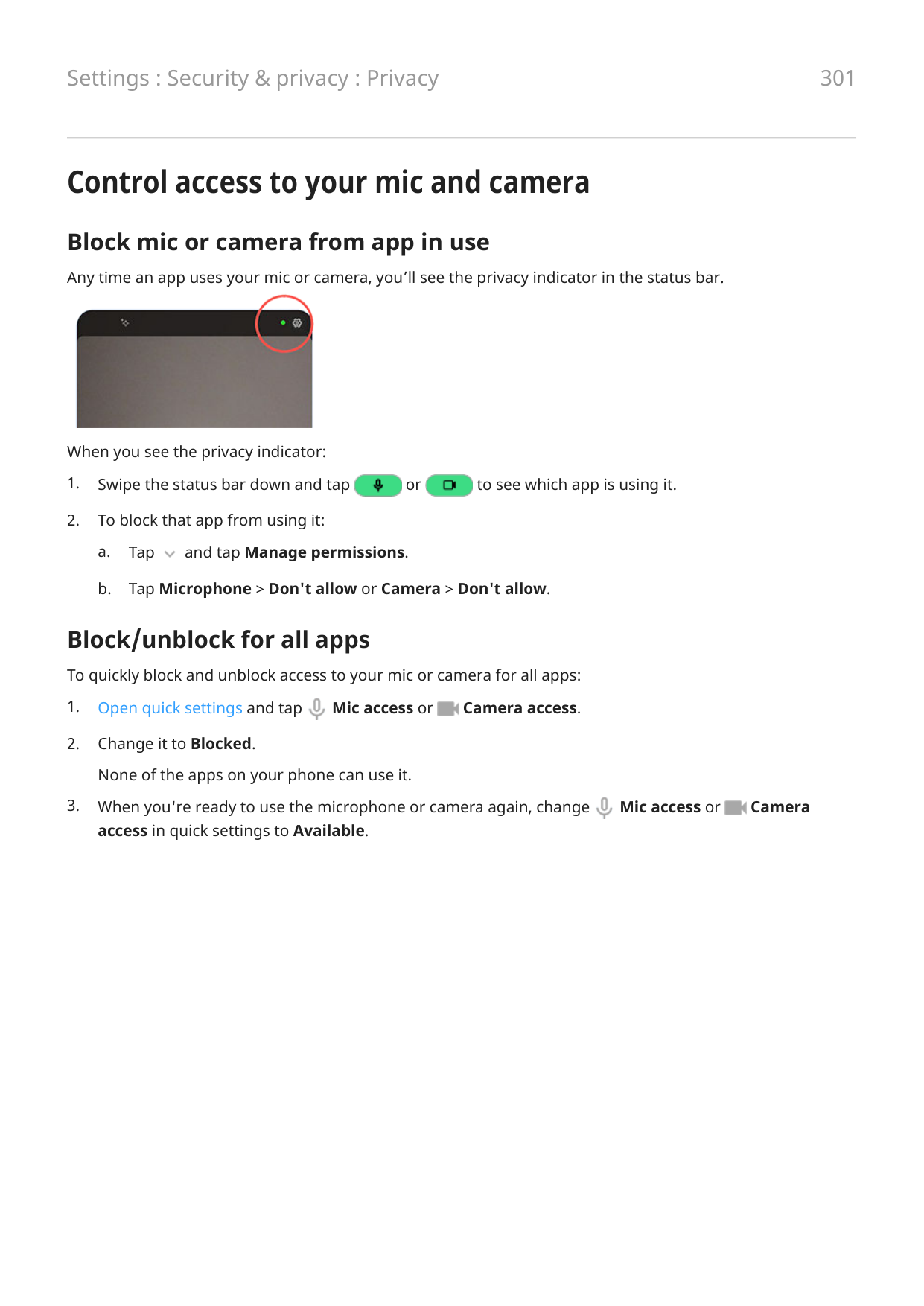

Change fingerprint animation You can adjust how the fingerprint icon animates in response to your touching the sensor:
Use fingerprint to unlock phone
To wake and unlock your screen, or any time you see on the screen, touch the sensor to verify your identity.

Tip: You can temporarily tighten security by turning off fingerprint unlocking and lock screen notifications with Lockdown mode.
Use fingerprint to sign in to apps
To use the fingerprint sensor with third-party apps:
Why am I still asked for PIN/pattern?
For maximum security, you still need to enter your pattern, PIN, or password:
Issue: Sometimes the sensor can’t read my fingerprints.
Each finger has a unique print. If you’ve added only one fingerprint, add more for other fingers you want to use with the sensor.
The sensor may have trouble reading fingerprints if your finger is:
If a registered fingerprint isn't working as expected, remove and re-add the fingerprint. If your finger is injured, add fingerprints for your other fingers and use them until healed.
##### Issue: Fingerprint option disappeared from Security & privacy menu. After each troubleshooting step, check to see if your issue is fixed.
######## 3. Check for app updates.Open the Play Store app, then touch your profile icon > Manage apps & device.

######## 4. Use safe mode to see if apps you installed are causing the issue and uninstall as needed.
If the sensor works correctly in safe mode, a 3rd party app is probably causing the issue. These apps can cause issues: lock screen apps, app locks that use the fingerprint sensor, RAM boosters, and RAM cleaners.
######## 5. Reset the phone.
Auto lock when you leave or disconnect
Take the worry out of remembering to lock your phone when you’re in less secure circumstances. Auto lock will lock your phone immediately for you instead of waiting for the full time before locking when it detects that you’ve:
may no longer be using it for a while
• Disconnected from a trusted Wi-Fi network To set it up:




Prevent repetitive unlocking
If you find yourself unlocking over and over, use Google's Extend Unlock to bypass the screen timeout and keep your phone unlocked when you’re in more secure circumstances such as:
• Update Google Play services. In the Google Search widget on your home screen, search for “Google
Play services”, then tap the app to open it.
• Go to Settings > Security & privacy > More security settings > Trust agents and enable Extend
Unlock.



For more help with Extend Unlock, see Google’s help.
Unlock with your face
Before using face matching
Keep in mind that:
Set up face matching
Whenever you turn on or wake the phone, it will search for your face and unlock the screen when it recognizes you.

Unlock your phone Show your face to the lock screen. If it doesn't recognize you, it stays locked and displays one of these icons.
####### Icon How to unlock

Use your password, PIN, or pattern

Use the fingerprint sensor
Change unlock options
##### For direct access to your home screen or last used app
Skip the Power button and just show the phone your face to unlock and go straight to your home screen or last used app. To set it up:

Turn off face matching
The phone will no longer recognize your face, and the data is deleted. To turn it on again, set up face matching again.
Fix an issue
If you're having trouble getting the phone to recognize your face:
Pin an app screen
Turn on pinning
Use pinning to keep the current app in view until you unpin it. For example, you can pin a game and your child cannot navigate anywhere else on your phone.
You can set up a pattern, PIN, or password required to unpin.
Pin and unpin an app
To pin a screen:


Protect apps in a secure folder
Keep your information private by putting sensitive apps in a secure folder. You can lock apps in the folder, hide the folder, and limit what information gets shown in notifications from your secure apps.
Set up the folder

secure option.


Disguise or hide folder
You can change the icon and app name to make the Secure folder more discreet. Or, you can hide it in the app tray or on home screen and access it only through Settings or Moto Secure.


##### Change your folder's icon and name


##### Restore original icon



##### Hide Secure folder
To hide the Secure folder in the Moto Secure app and in on your app tray or home screen (if you don't use an app tray):


To access your hidden Secure folder:

##### Unhide Secure folder


Manage secure apps and notifications You can add and remove apps from your secure folder, and control notifications from the secure apps. Add apps


Login information isn’t copied if you previously set up the app on your phone outside of the secure folder.
##### Remove apps


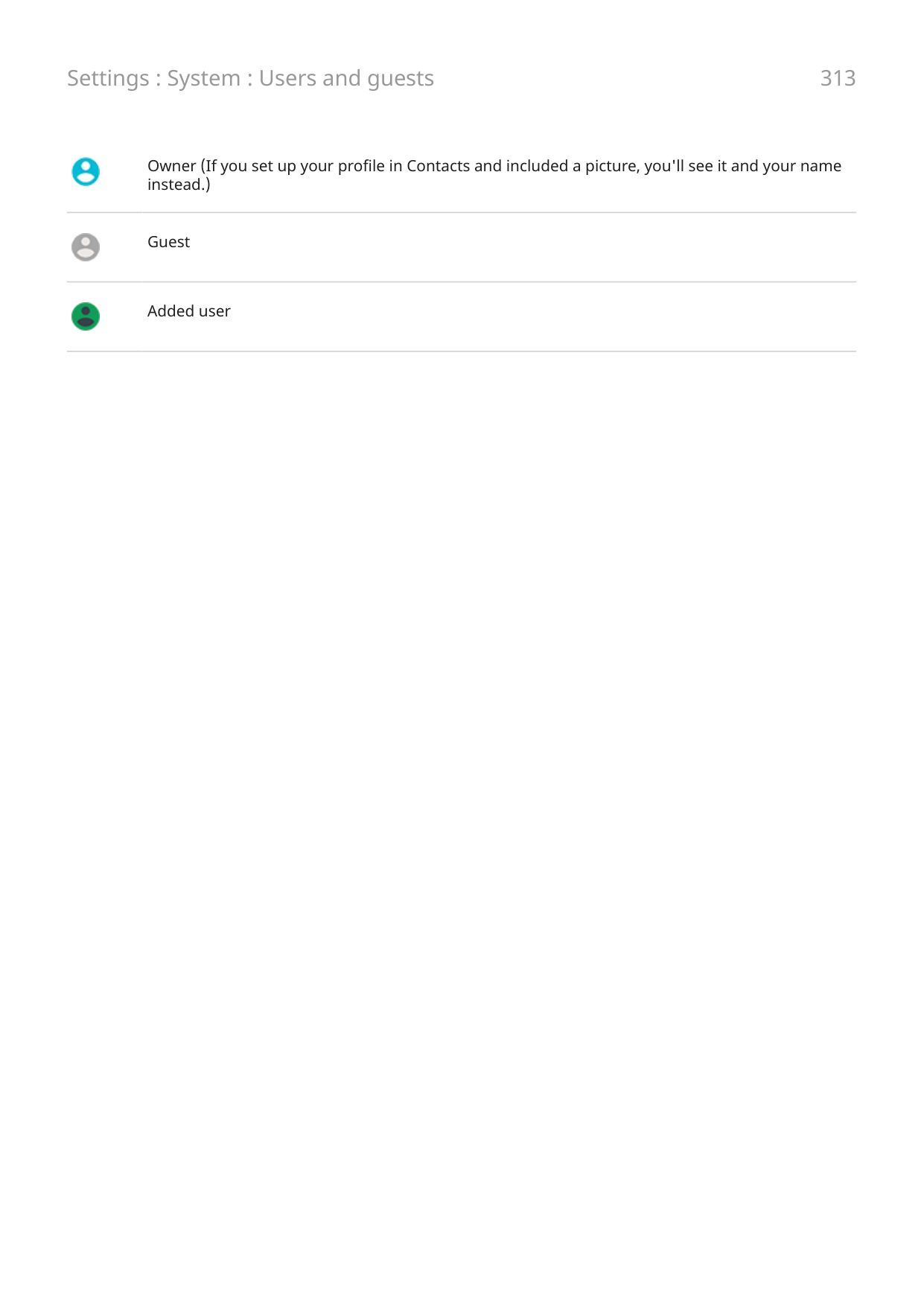
Change the folder's lock and timeout
When you set up the folder, you created its lock. You can change the lock at any time. You can also change how long the folder stays unlocked.
##### Change the PIN/password/pattern


secure option.
##### Set amount of time folder stays unlocked
Your secure folder automatically locks after a period of inactivity. You can increase or decrease the amount of time it can remain inactive before it locks.


Forgot your folder's PIN/password/pattern? If you don’t remember how to unlock your secure folder, you’ll need to delete the folder and set it up again.
This deletes all apps from the folder. If the app was only in your secure folder, you’ll need to reinstall the app.
Lock SIM card
Set up SIM lock
This feature is not available in all countries.
Your SIM card came with a default PIN from your carrier. You can use it to set up an optional SIM card lock, which prevents others from using your cellular plan and accessing account information if your phone is stolen.
If you add a SIM lock, you will be prompted to enter the PIN each time you swap SIM cards or restart the phone.


Unlock SIM card
When prompted, enter the PIN used to set up the SIM lock.
Caution: If you enter an incorrect PIN multiple times, the SIM will be disabled.
If you accidentally disabled SIM
If you enter an incorrect PIN multiple times, the SIM will be disabled. Contact your carrier for a PIN unlock key (PUK) to re-enable the SIM.
Change SIM PIN
To change the PIN code for your SIM card:

Review or change permissions
##### Review by feature
The first time you use an app, and sometimes when you install or update it, you are asked to grant the app permission to access certain data and phone features. You can adjust these permissions any time.
To adjust permissions by feature:
Review by app To adjust permissions by app:

Tip: To see how the app uses each permission, tap > All permissions.

Control access to your mic and camera
Block mic or camera from app in use
Any time an app uses your mic or camera, you’ll see the privacy indicator in the status bar.

When you see the privacy indicator:


Block/unblock for all apps
To quickly block and unblock access to your mic or camera for all apps:


Hide passwords
To control whether characters briefly display when you enter a password to unlock your phone or log into websites and apps:
####### 1. Open the Moto Secure app and touch Privacy controls.Or, go to Settings > Security & privacy > Privacy > Privacy controls.

####### 2. Turn Show passwords off .

#### Settings : Security & privacy 303
Keep Wi-Fi and mobile networks secure
Control warnings about and your connections to open networks (that require no password) and weakly secured Wi-Fi and mobile networks.




Prepare for emergencies
Set up emergency SOS
In an emergency, you can press the Power button quickly five times or more to start a blaring sound and automatically call emergency responders. If you sign in to your Google account, you can set your phone to send SOS text messages with your current location to emergency contacts and to record emergency video.
##### Set it up


Note: Don't enter a non-emergency number. If you do, your phone must be unlocked to use Emergency SOS, and your call might not be answered.
Send an emergency SOS Press the Power button five times or more to start the countdown alarm and call for help.
Disable emergency SOS Go to Settings > Safety & emergency > Emergency SOS, then turn Call emergency services off .

Set up emergency information
You can set up emergency information for first responders or others to view from your lock screen, such as your emergency contact and medical information (blood type, allergies).
##### Add your emergency information
Note: Anyone who picks up your phone can see your emergency info without unlocking your phone.
View your emergency information Anyone who needs to view your information should:
Add message to lock screen
To add your name or a short message to your lock screen for anyone who finds your phone:
Tip: Don't put your mobile number as contact info on your lock screen unless you can access your voicemail from another device.
Send your location to emergency services
Not all carriers and countries support this feature.
If Android Emergency Location Service (ELS) works in your country and on your carrier's network and if you haven't turned off ELS, when you call or text an emergency number, ELS sends your location to authorized emergency responders to help them locate you.
If ELS is off, your carrier might still send the phone’s location during an emergency call. For more information, check with your carrier.
To turn ELS on or off:


Turn emergency alerts off/on
Your phone can receive free alerts to inform you of public safety messages, threats to life and property (like extreme weather), and other emergencies.
When an emergency alert is sent out, appears in the status bar. Touch the notification to read the alert. You can turn most alerts off or on and adjust alert notification settings. Presidential alerts cannot be turned off.

Note: Because alerts are intended to save lives, please consider carefully before turning alerts off.
Customize the keyboard To customize Gboard, just tap in top row of the keyboard. Or, go to Settings > System > Languages & input > On-screen keyboard > Gboard.

Resize keyboard to type more accurately
Give yourself more space to type and reduce typos by adjusting the height of the keyboard. You can also reposition it for your best fit.



Tip: Voice typing can also improve typing speed and accuracy.
Change background appearance

Adjust keyboard sounds or vibration
The onscreen keyboard vibrates when you tap a key. Turn off vibration feedback if you prefer not to use it or want to improve battery life.
To adjust keyboard sounds or vibration:


With glide typing, you drag your finger over the letters in a word. If you want to turn this off and only use multi-touch typing:


Limit or turn off suggestions

• If you don’t want predictions based on your previous word, turn Next-word suggestions off .

You will only see suggestions for the current word you're typing.

information from Contacts.
Turn off auto-correction


Change keyboard apps
Your phone comes with Gboard and Voice typing, which you can customize. You can also install different onscreen keyboard and voice typing apps from Play Store, then select the one you want to use in Settings.


Download other keyboards

Most apps walk you through setup screens for your keyboard, and they may also open Settings where you turn it on.
Choose which keyboard to use In Settings, you choose which keyboard to use in all apps where you type with the onscreen keyboard. To change keyboards, turn on the one you want to use:


Remove keyboards To remove a keyboard you downloaded, uninstall its app. You can’t uninstall Gboard and Voice typing, which came with your phone.
Use multiple languages
Change display language
You selected the language for your phone during set up. To change it:

To remove a language, go to Settings > System > Languages & input > Languages, then tap > Remove, select the language, and tap .


Set language for an app
For specific apps, you can select a language that's different than your phone's default language:
Add language to keyboard
If you want a keyboard for a language that isn't a display language:



Open apps faster
With artificial intelligence (AI), your phone learns which apps you use most, then manages memory more efficiently so they open faster.
To turn this feature on or off:


Back up phone
Back up to Google
You can automatically back up the following items to your Google account:

Tip: Back up over Wi-Fi to prevent cellular data charges.
Not all apps back up data automatically. Check with the app developer. To automatically back up to Google Drive:


Manage your backup in Drive
On your phone:


Restore backed up data
When you add your Google account to a phone, photos, contacts, settings and app data that you previously backed up to that account are restored onto the phone.
Share your phone
Ways to share your phone

About owners, users, and guests
The owner can:
Important: To prevent others from switching to your owner profile and accessing your information, set a screen lock before you share your phone with users or guests.
When sharing your phone with users and guests, some apps are only available to the owner, not to other users and guests.
Switch users Only the owner can switch to the guest profile for loaning the phone and can switch between user profiles. To switch user profiles or see which is currently active, open quick settings. At the top of the screen, you'll see one of these icons after you've set up a user or added a guest.
####### Icon Meaning

Owner (If you set up your profile in Contacts and included a picture, you'll see it and your name instead.)

Guest

Added user
Add, modify, remove users
Add a user
You must be the device owner to add users.

Tip: To add users from quick settings on your lock screen without unlocking the phone, go to Settings > System > Multiple users and turn Add users from lock screen on .

Restrict calls and messages
From your owner profile, you control whether users can call and send texts with your phone:

Remove a user You can remove yourself as a user. You must be the device owner to remove other users. If you're a user who borrowed a phone:



######## 3. Tap .

Add or delete guest Create a temporary guest profile for sharing your phone with someone. If you need a space for someone to use on a regular basis, where apps and data can be saved, add a user instead of a guest session.
Lend to guest

End guest session
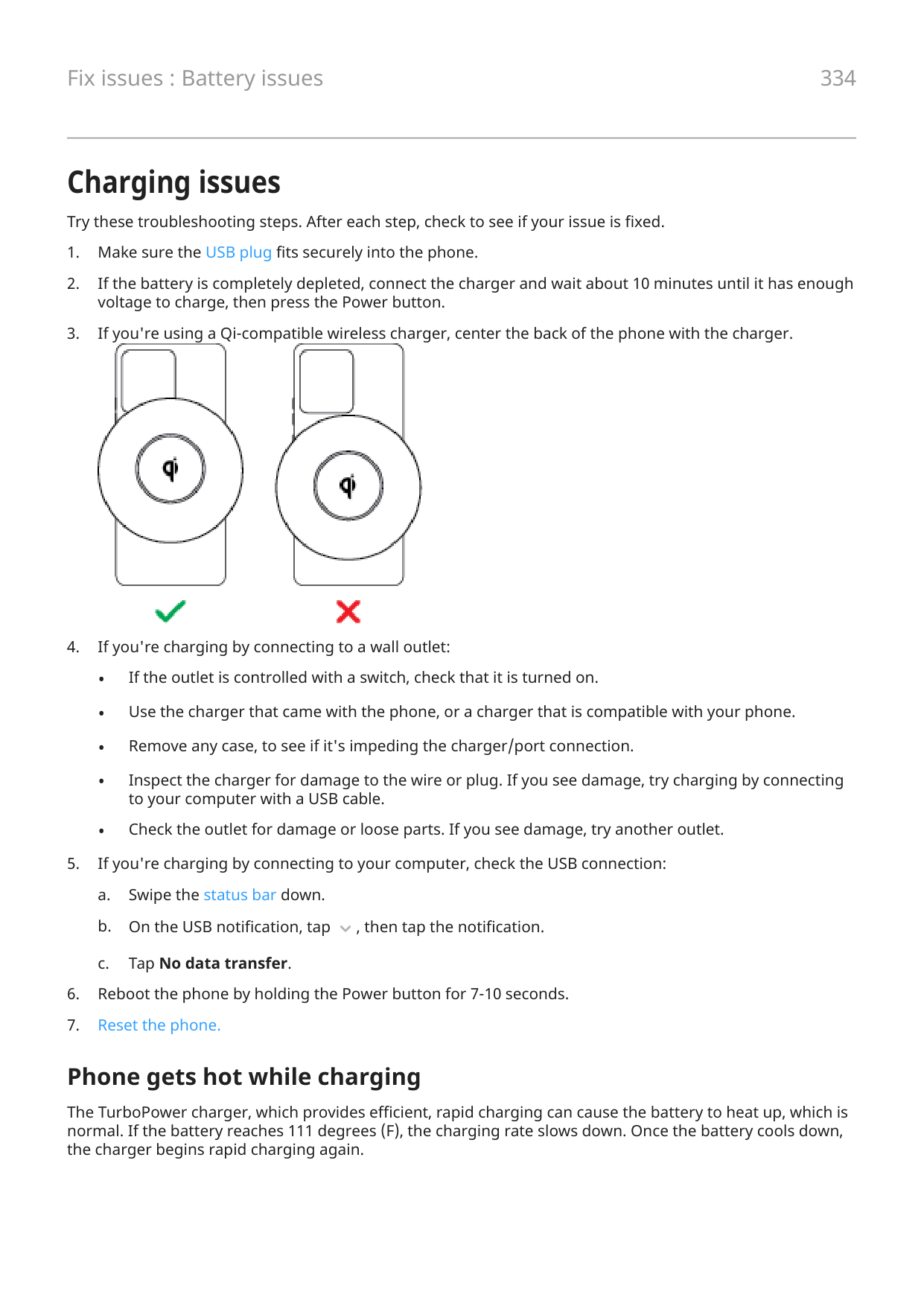

Record your IMEI number
An IMEI (International Mobile Equipment Identity) number is a unique code that identifies your phone. Phones with two SIM have two IMEI numbers, one for each SIM. This allows the phone to be identified separately on each network that the SIMs connect to.
You’ll need your IMEI number if you contact support regarding a warranty, and it’s important to have if your phone is stolen. Service providers can use the IMEI to block a stolen phone from cellular networks, and many police departments keep a record of stolen phones using this number.
You might never need your IMEI number, but it’s a good idea to record it, just in case. To find the IMEI number:
Find legal and product information To view the electronic regulatory label for your phone, go to Settings > About phone > Regulatory labels. For safety, environmental, warranty, and other legal information, go to Settings > About phone > Legal information. Printed legal information may also be provided with your phone. To find your phone's model or serial number, go to Settings > About phone > Model > Model Number (SKU).
Phone is slow or unstable If a certain app is slow, try these app-specific troubleshooting steps. If your phone is slow when viewing online content, it could be an issue with your connection. If you're on Wi-Fi, use a different Wi-Fi network, switch to mobile data, or contact your Internet Service Provider. If you're using a mobile connection, switch to Wi-Fi. If all apps are slow, it's probably an issue with your phone, not an app on your phone. Try these troubleshooting steps. After each step, check to see if the issue is fixed:
• If your phone is frozen, reboot it by pressing and holding the Power button for 7-10 seconds.

Phone feels warm or hot
Overview It's normal for your phone to feel warm, or even hot, depending on how you're using it. If your phone gets hot, it will slow charging, reduce brightness, and limit other functions until it cools down, or automatically shut off if it gets too hot. If your phone is too hot to touch, use a different phone, tablet, or computer to contact Motorola support.
Reasons your phone may get warm
If you're not using or charging it
Sometimes a process can get stuck in the background. If your phone is hot but you're not using or charging it, turn your phone off and on again. This will stop the previously stuck process and resolve the issue.
Phone won't turn on
If your phone isn't starting, has a black or blank screen, or turns on but immediately turns off, try these steps to fix the issue.
If your phone has a sign-of-life indicator look for a white light near the top front of the phone. This indicates that the phone is charging but battery is too low to power the screen.
If you're having problems charging, try these troubleshooting steps.
Phone restarts or crashes
If your phone randomly reboots, restarts, or shuts down without restarting, try the following.
b. If this doesn't work, connect your phone to charge for at least 5 minutes. Then, while connected to the charger, restart again by holding down the Power button for 30 seconds.
You may see issues if your phone's internal storage is almost full. To free up space, remove unnecessary files and clear cached data.
If your problem doesn't go away in safe mode, restart your phone and continue to the next section.
To remove any processes on your phone that may be causing the issue, you can reset your phone to factory settings.
A factory data reset will remove all data from your phone.
Screen is frozen or won't respond
Tip: If your screen goes black when the phone rings so you can't answer the call, clear data for the Phone app.
If your screen lags or blurs motion between actions, raise your refresh rate. If your phone freezes, stops responding, or is stuck on a blank or white screen, try the following:
restart again by holding down the Power button for 30 seconds. If your phone freezes again, check for a larger issue:
You may see issues if your phone's internal storage is almost full. To free up space, remove unnecessary files and clear cached data.
Screen displays wrong colors
Everything is grayscale, black and white
Go to Settings > Digital Wellbeing & parental controls > Bedtime mode > Customize > Screen options at bedtime and turn Grayscale off .

Everything is negative, reversed colors Go to Settings > Accessibility > Color and motion > Color inversion and turn it off . Learn more.

Tones, hues are different or missing

and motion > Color correction and turn Use color correction off .

Background turned dark/light
Go to Settings > Display and turn Dark theme off .

Screen brightness automatically too dim or bright
Adaptive brightness uses the ambient light sensor and machine learning to adjust your display brightness automatically. When you change the brightness slider, your phone learns your preferred levels for various lighting environments. Ideally, you’ll need to use the slider less and less.
If Adaptive brightness stops working as desired, you can reset it to retrain the system.

Troubleshoot issues with calls
Select the statement that best describes your issue:
Can't make calls
After each troubleshooting step, check to see if your issue is fixed.
Phone app icon is missing
If disappeared from your home screen, you just need to add a shortcut for the Phone app.

SIM card not recognized
If you see or in the status bar or a message that the SIM is not recognized:


Press the Power + Volume up buttons simultaneously, then touch Restart to establish a new connection with the network.
No signal


area where you can receive a signal, like outdoors. If you’re uncertain whether your carrier provides service in that location, check the coverage map on your carrier’s website.
Have signal, but can’t make calls
Press & hold the Power + Volume up buttons simultaneously, then touch Restart to establish a new connection with the network.
Consistent busy signal
####### Outbound calls
app. Try calling from a different number. Incoming calls
If you have a signal and can make calls, but callers tell you they consistently get a busy signal when calling you, check that you haven’t blocked their numbers.
Can't answer or phone doesn't ring
After each troubleshooting step, check to see if your issue is fixed.
Phone doesn’t ring or ring loud enough

• Open quick settings and touch to turn Do Not Disturb off. Your phone will ring for incoming

calls.
• Make sure your phone is set to screen calls at the appropriate times.
Can't answer ringing phone


Consistent busy signal
####### Outbound calls
####### Incoming calls
If you have a signal and can make calls, but callers tell you they consistently get a busy signal when calling you, check that you haven’t blocked their numbers.
Don’t get calls/texts
Calls go to voicemail
Check your Do Not Disturb settings:


Issues during calls
After each troubleshooting step, check to see if your issue is fixed.
Screen goes black
Dial a call and set the phone on a table (don't use speaker mode), then hold your hand over the proximity sensor to see if you can turn the screen off and on.
Calls are dropping
• Weak signal from your cellular provider is a common cause of dropped calls. In the status bar, see how many bars your network connection has. If you see only one or two bars, change locations to improve your signal strength, particularly if you are indoors.
Press & hold the Power + Volume up buttons simultaneously, then touch Power off. Then turn it on to establish a new connection with the network.
People can’t hear me
##### People can't hear me on calls


In the status bar, see how many bars your network connection has. If you see only one or two bars, change locations to improve your signal strength, particularly if you are indoors.
Press & hold the Power + Volume up buttons simultaneously, then tap Restart to establish a new connection with the network.


Saying “OK, Google” won't work from all screens, but you can tap the search widget first, then say “OK, Google”.
##### People can’t hear me on apps like Meet or WhatsApp
Poor sound quality on calls Start by checking your volume (Settings > Sound & vibration > Call volume). How are you listening to the call?
##### Wired headset
Press & hold the Power + Volume up buttons simultaneously, then tap Restart to establish a new connection with the network.
##### Connected Bluetooth device
Check the battery level of Bluetooth device and phone, and charge if necessary. Paired Bluetooth devices may disconnect or create noise when the phone or Bluetooth battery are low.
Charging issues
Try these troubleshooting steps. After each step, check to see if your issue is fixed.


Phone gets hot while charging
The TurboPower charger, which provides efficient, rapid charging can cause the battery to heat up, which is normal. If the battery reaches 111 degrees (F), the charging rate slows down. Once the battery cools down, the charger begins rapid charging again.
TurboPower charging not working
When the battery is below 78%, the TurboPower charger charges rapidly. When the battery is at 78% or higher, it charges at regular speed.
If your battery is below 78% and isn’t charging rapidly, disconnect your phone from the charger and plug it back in again.
Charging stops at 80% Overcharge protection keeps your battery healthy by limiting its charge to 80% if it’s been plugged in for three days. If you see in the status bar, to fully charge your phone from 80% just disconnect it from the charger and plug it in again.

Battery drains too fast
Battery life varies
The way you use your phone can really affect how long you can go before recharging your battery. Navigating, playing games, browsing the web, making calls and texting all require energy. So, your battery life may vary day to day, depending on what you're doing.
If your battery is draining faster than expected
If your battery life seems shorter than usual, a quick and easy step is to reboot your phone, especially if you haven't turned it off in longer than a week.
####### Tips:
Bluetooth issues
Bluetooth turning on automatically
After each step, check to see if your issue is fixed:
Can't pair
After each step, check to see if your issue is fixed:
Can’t reconnect previously paired device
Unpair the Bluetooth device, then pair it again:

Can't hear music
After each step, check to see if your issue is fixed:

Can't make or hear on calls
After each step, check to see if your issue is fixed:

Connection drops
After each step, check to see if your issue is fixed:

Paired device can't see contacts
Check that contact sharing is on:

Fix it: Check the basics
After each step, see if your issue is fixed:
Wi-Fi issues
After each troubleshooting step, check to see if the issue is fixed.
Can't connect to a network
router’s password and re-enter it on your phone.
Connection drops
After each troubleshooting step, check to see if the issue is fixed.
Hotspot problems
If you can't turn your hotspot on, check that:

If you've connected a computer or tablet but can't access certain web sites:
Can't transfer files or connect USB to computer
If you're having problems using a USB connection to connect your phone to your computer, try these troubleshooting steps.
Check your USB connection

Check your computer
##### Windows PC
####### 1. On your PC, check that Settings > Advanced system settings > Hardware tab > Device installation
settings is set to automatically detect and install drivers for new devices.
##### 2. Restart your PC. Mac computer
Check your phone
Forgot unlock code
If you forgot your PIN, pattern, or password for unlocking your screen, you need to erase your phone, set it up again, and set a new screen lock.
Can't sign in to Google
If you’ve forgotten the Gmail address and password for your Google account:
Account sync issues If your account is having problems syncing, you may see a message or an icon. In most cases, these issues are temporary and your account will sync again after a few minutes. If you keep having sync issues, try the solutions below.

Sync account manually
Basic troubleshooting
After each troubleshooting step, try manually syncing to test if sync works.

by the account name means that some or all of the account's information is configured to autosync.

by the account name means that the account will not auto-sync.
For sync to work, you need an Internet connection. To test if your connection is working, open a browser and load a website. If the website doesn't load, get help connecting to Wi-Fi or to cellular data.
For sync to work, you need to be able to sign in to your Google account. Make sure that you can sign in to your account in other ways and on another device. For example, try checking your Gmail with your computer's browser.
Advanced troubleshooting
After each troubleshooting step, try manually syncing to test if sync works.



App or widget issues
App or widget missing from home screen
If a widget disappeared from your home screen, then add the widget by touching & holding an empty spot on your home screen.
If an app disappeared from your home screen, the shortcut for opening the app was removed and you just need to add a shortcut.
If an app disappeared from your list of all apps, you need to reinstall it.
App icons being replaced in favorites
If the apps in your favorites tray are being replaced by apps you haven't selected and you don't want them to change, turn off app suggestions.


App crashes, won’t open, or isn’t working
After each step, check to see if the issue is fixed:

Tip: To figure out which third-party app is causing performance problems, use safe mode.
App is slow to open
If you experience a lag when opening an app, turn on performance settings.
App disabled in safe mode If apps are disabled because you’re in safe mode, you can’t use them until you exit safe mode. To exit safe mode, turn your phone off and then on again.
If you can't update apps
If you see apps waiting to update that are stuck in “Pending” status, update the Chrome app first.


Problems with app you installed
After each step, check to see if the issue is fixed:


Camera issues
Photo looks blurry Wipe the lens clean with a soft, dry cloth and retake the photo. If new photos still look blurry:
zoom during the shot itself, pixelation will be more evident.
• If you're indoors and taking a panoramic photo, switch to regular mode. Panorama works best for outdoor shots; the algorithm that stitches the images together isn’t optimized for indoor, up-close shots.
Accidentally deleted photos You can try to recover recently deleted photos. If recovered, be sure to back up your photos to the cloud.
WhatsApp camera issues
If you installed WhatsApp and have problems taking photos or videos with it:

Error: Please restart Camera to continue
After each troubleshooting step, check to see if the issue is fixed:
Error: Camera Busy
This error can occur if you use the camera in one app and then switch to another app that requires permission to access the camera.
After each troubleshooting step, check to see if the issue is fixed:
Review the list of the apps on your phone that request camera access and remove access for apps that look suspicious or that you don’t use.
Error: Trash is full
If you’re getting messages about the trash being full:

Messaging issues
If you’re having issues sending or receiving messages, try the following:
Red ! on text message
If you see , your text message was not sent.

Weak signal from your cellular provider is a common cause of unsent messages. In the status bar, see how many bars your network connection has. If you see only one or two bars, change locations to improve your signal strength, particularly if you are indoors.
Can't hear notifications


Can't send or receive messages
Can't send or receive pictures or videos
Check that:
Messages app stopped


Keyboard not working
If your keyboard has problems, like a missing spacebar:
Problems with Facebook, WhatsApp, other apps
If you’re having problems with messaging apps that you installed:


Gmail issues
For help with Gmail, read Google's troubleshooting information.
Play Store issues
For help with Play Store, read Google's troubleshooting information.
Update Android software
For best performance, keep your phone updated with the latest available Android software.
Check Android version number
To check what version of Android your phone is running:
Install Android software updates Your phone notifies you if an Android software update is available. To manually check for updates, go to Settings > System updates > Check for updates. If an upgrade is available, follow the onscreen instructions to install it.
####### Tips:
You can't downgrade to a previous software version after installing an update.
Check if and when updates are available
Types of updates:
• Security updates contain fixes and improvements from Google for your current version of the Android
operating system. Motorola provides these updates to most phones on a regular basis.
• Android OS updates are new versions of the Android operating system. Motorola provides OS updates
from Google to eligible phones as soon as possible.
To see if an OS update will be available for your phone, or if your phone is still eligible for security updates, see the software update website for your country. Our support agents get their Android update information from here too. If the website doesn't have a update release date for your phone, then we don’t know the release date yet.
For Android OS updates, with several phone models, regions, and distribution channels we may have hundreds of software versions to test before releasing an update to your phone. Because dependencies on carriers and other key partners for certifications, independent testing, and requests for changes take more time, all phone owners don't receive updates at the same time, even in the same region.
Reset connections, settings, or apps
Try these resets if you’re having issues with specific features on your phone. If the reset doesn’t resolve issues, you can take the larger step of resetting your phone.
Reset eSIM Only some versions of this phone, sold in certain countries, support this feature. Use this reset if you're changing phones or changing SIMs.
##### What gets deleted/removed when you reset
This removes the eSIM from your phone. It does not affect your mobile data account. To close an account, contact your carrier.
##### Reset
Reset Wi-Fi, cellular data, and Bluetooth
Use this reset if:

Reset If you're having problems with connections, review this information first:
Reset app preferences This reset doesn't allow you to choose individual apps; all apps will be reset. Before resetting all apps, if you're having trouble with one or two apps, reset the apps individually. If you still experience the following issues, then reset all apps:
Reset To reset all apps:
Reset phone
What a reset does
Resetting your phone erases all data and brings it back to out-of-the-box condition. This data will be erased from the phone:
• If you aren't automatically saving your photos and videos to your Google Photos library, back them
up now or copy them to a computer.
hours before resetting the phone if you reset your password.
• If you set a screen lock, make sure you know the PIN, pattern, or password.
To restore your data after resetting, you'll need to enter security information. This shows that you or someone you trust did the reset and helps prevent others from using your phone without permission.
FRP is security measure that keeps your data safe if your phone is lost or stolen, and that requires logging into the phone with the owner's account to reset the phone. Removing your account and screen lock before the reset lets the person you're giving it to set it up with their own information.
Reset phone from Settings
To erase all data and reset your phone:
Reset phone if you can't open Settings
If you can’t open Settings, do an external reset.
Allow several minutes for the reboot to complete. If the phone doesn't finish rebooting, press & hold the Power button until the screen turns dark, then release it to power up normally.
Get more help
####### Issue Where to get help
Billing or cellular network issues Contact your carrier.
Learn to use an app Open the app and touch or > Help.


Phone issue Visit mobilesupport.lenovo.com for solutions, user forums, live contact options.
#### Fix issues 361
Send feedback to Motorola
If you have comments or suggestions about your phone, we want to hear them. Go to Settings > Rating & feedback.
To send feedback frequently, including a screenshot of the previous screen, open quick settings and touch Share feedback. (You can add this to quick settings.)
To send feedback about a Motorola app, in the app, touch or or > Feedback.


