
Ask AI
— answers from the official manualAnswers from the official manual.
Common questions
Common Questions
10 totalWhat is the tool download address for programming the Pxton PX-888S?
The tool download address for programming the Pxton PX-888S walkie-talkies can be found at https://dwz.cn/QykdpEcO. (Page 1)
How do I set up the communication port in the Programming Tool?
Once the programming cable is connected properly, select “BF-480(UHF)” from the Model Type drop-down menu and choose the appropriate frequency range. The program will automatically detect available COM ports; if needed, manually assign a communication port from the drop-down menu as shown in Fig.5 (Page 5).
How do I load channel data when using the Programming Tool?
To load data from your radios, follow these steps: check that the COM port is available and connect to it; then, click to load radio channels. Ensure not to disconnect the cable during this process. You may also open preset channels by clicking 'Open' (Fig.7) or manually loading them via the Channel Data folder as shown in Fig.8 (Page 7).
What should I do to use CTCSS/DCS functions on my Pxton PX-888S?
To enable and configure the QT/DQT(CTCSS/DCS) function, select built-in codes from the drop-down menu in Fig.9 as only with the same decoding and encoding will two channels be able to contact (Page 8).
How do I perform batch channel frequency setting using the Programming Tool?
Use the Batch Setting Interface to input your starting Rx(receive) and Tx(Transmit) frequencies, as well as the frequency space between channels. Also set advanced features like CTCSS/DCS together; press OK to edit 16 channels at once (Fig.10). (Page 9)
Can I use VOX function on all models of the BF-480 series?
Some models of the BF-480 series no longer support the VOX function, so please verify compatibility with your specific model (Final paragraph).
Show 4 more questions
Full Manual
10 pages
Tool download addr : https://dwz.cn/QykdpEcO
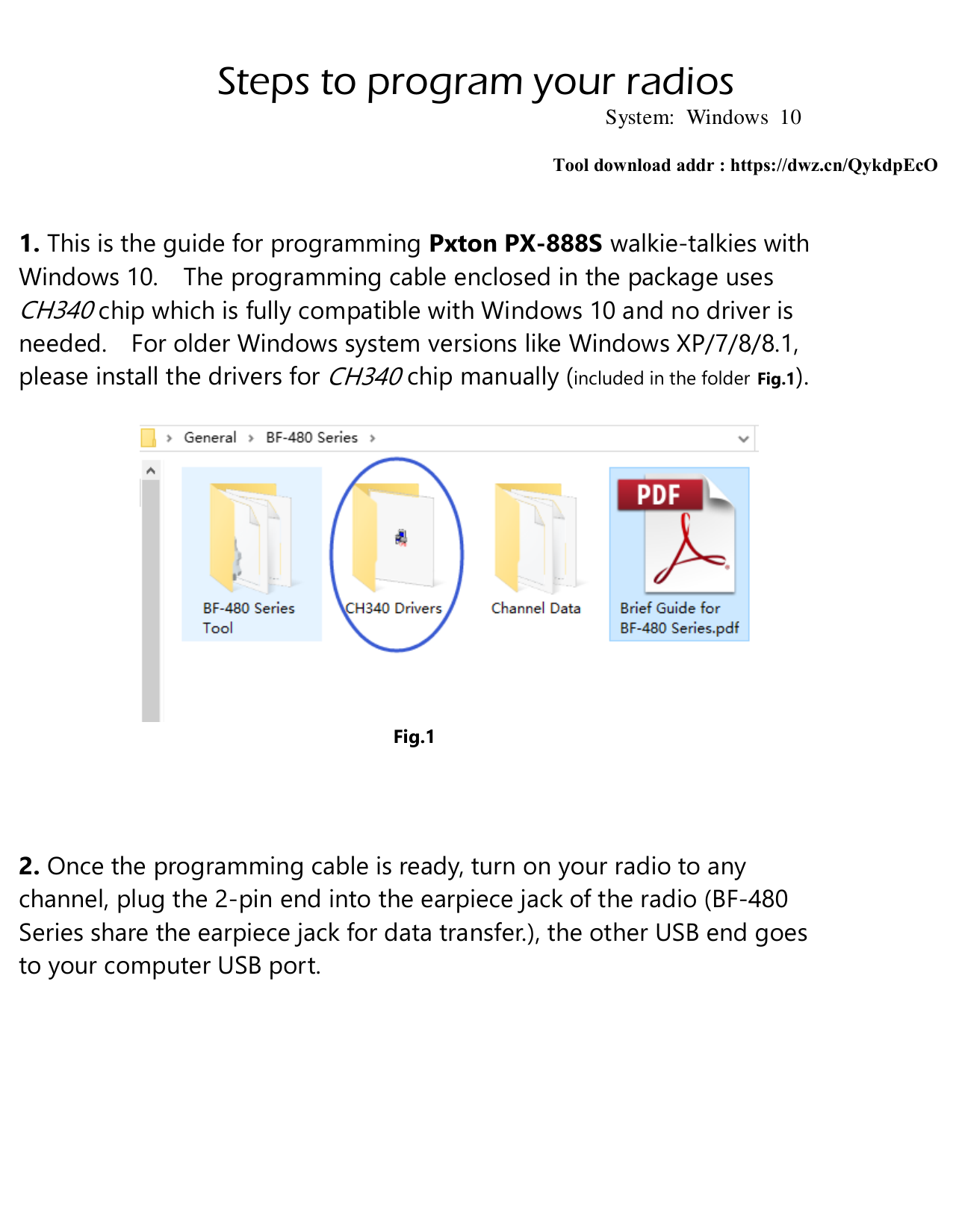
Fig.1
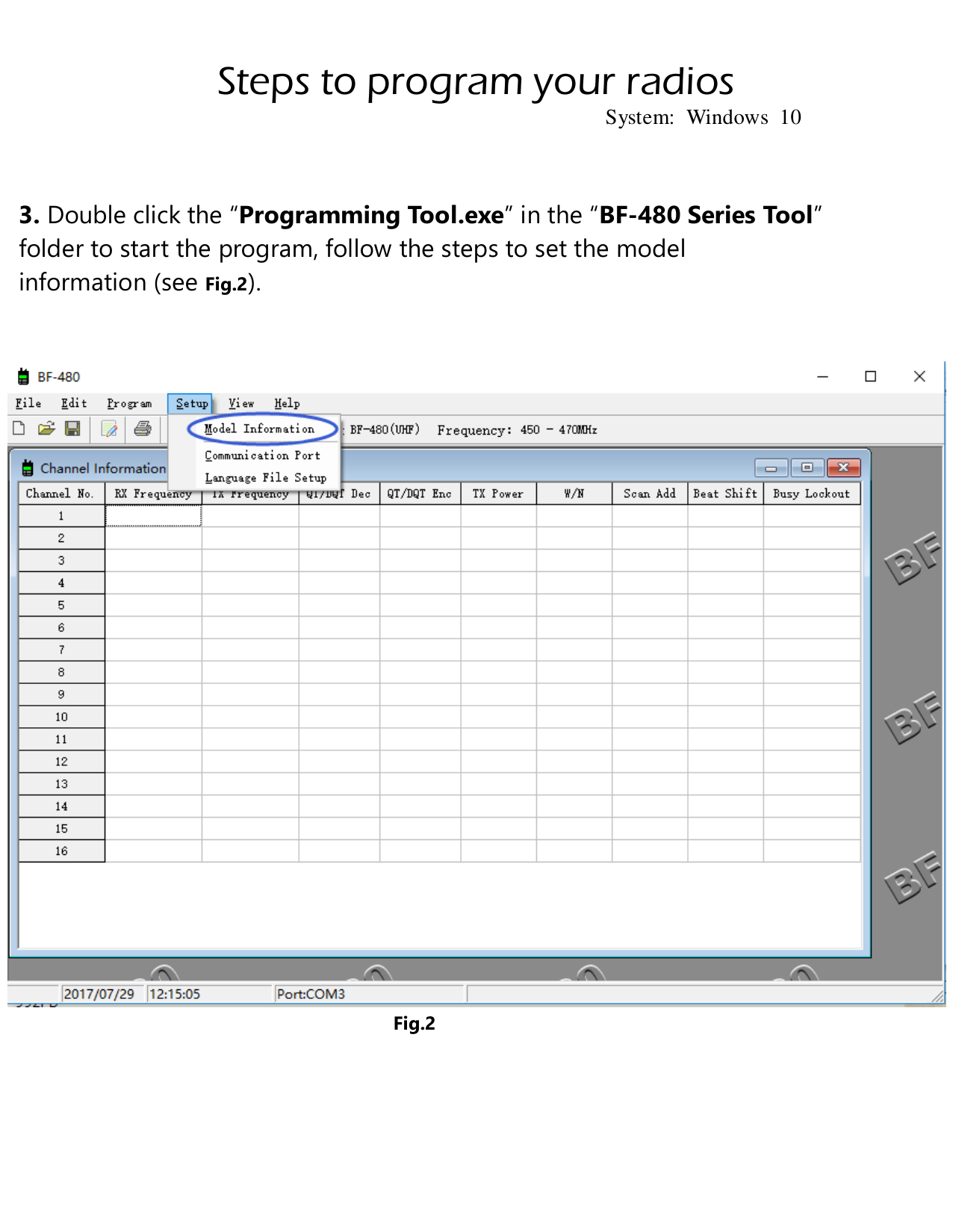

#### 3. Double click the “Programming Tool.exe” in the “BF-480 Series Tool”folder to start the program, follow the steps to set the modelinformation (see Fig.2).

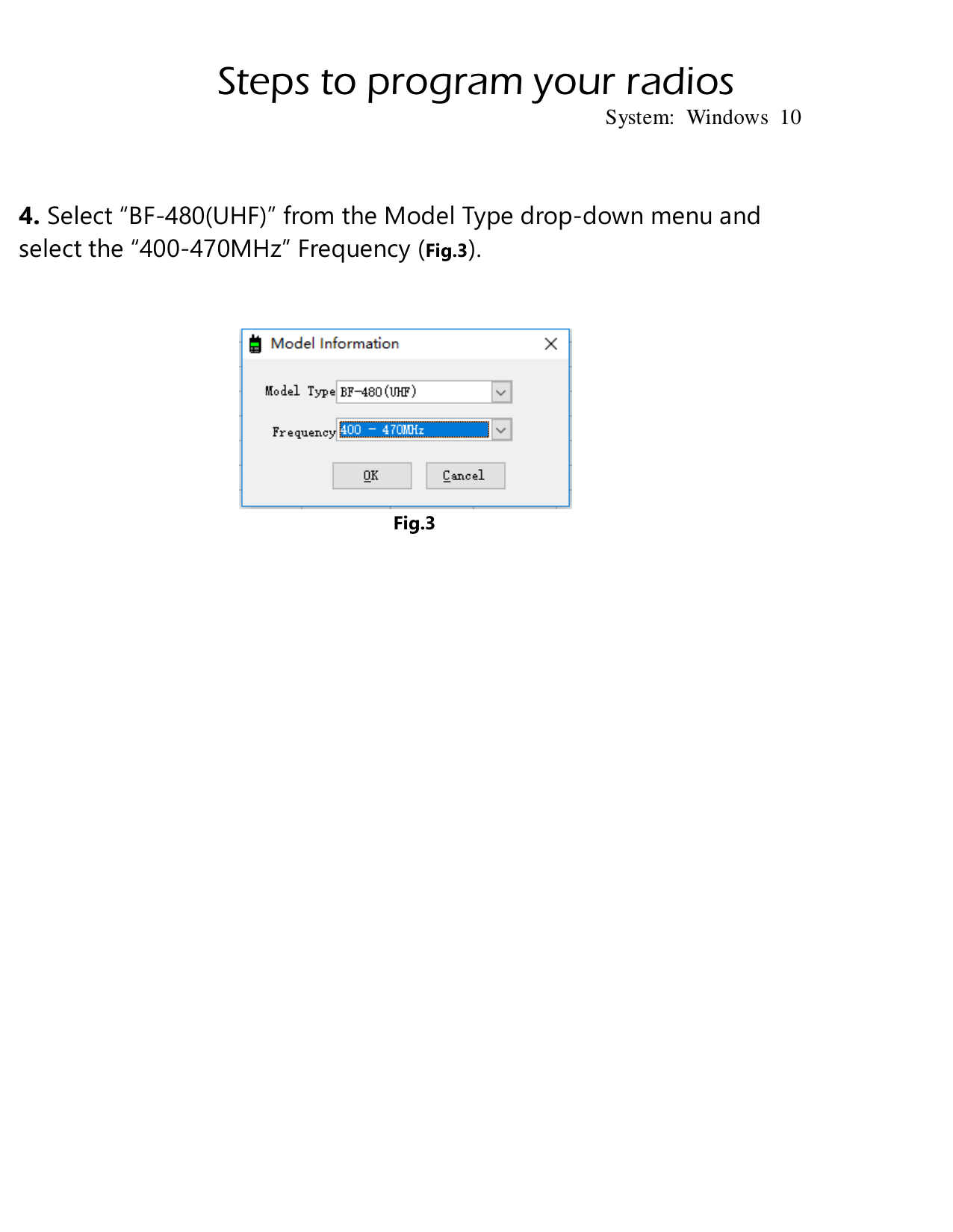
#### 4. Select “BF-480(UHF)” from the Model Type drop-down menu andselect the “400-470MHz” Frequency (Fig.3).

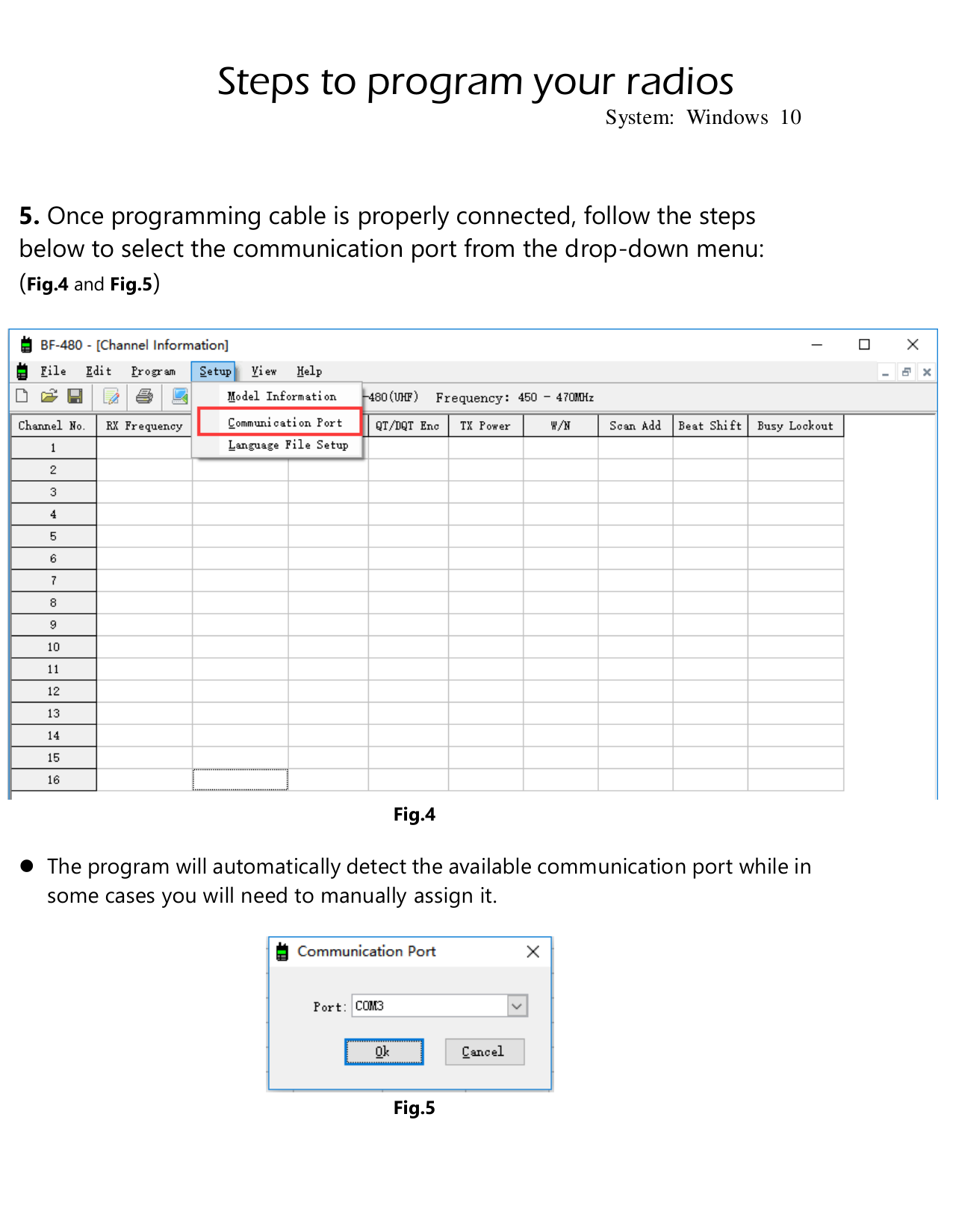
#### 5. Once programming cable is properly connected, follow the stepsbelow to select the communication port from the drop-down menu:(Fig.4 and Fig.5)

The program will automatically detect the available communication port while in some cases you will need to manually assign it.

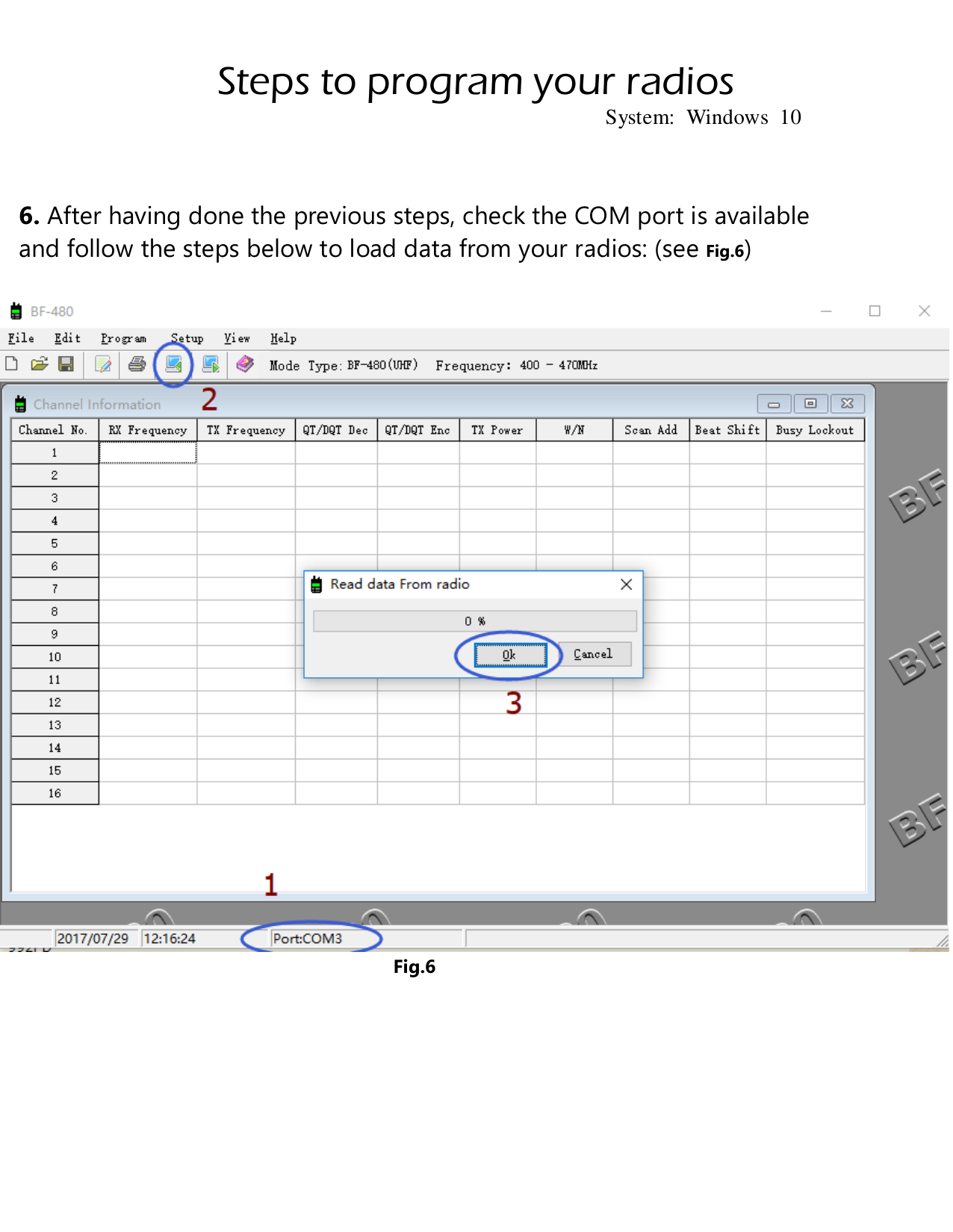
#### 6. After having done the previous steps, check the COM port is availableand follow the steps below to load data from your radios: (see Fig.6)
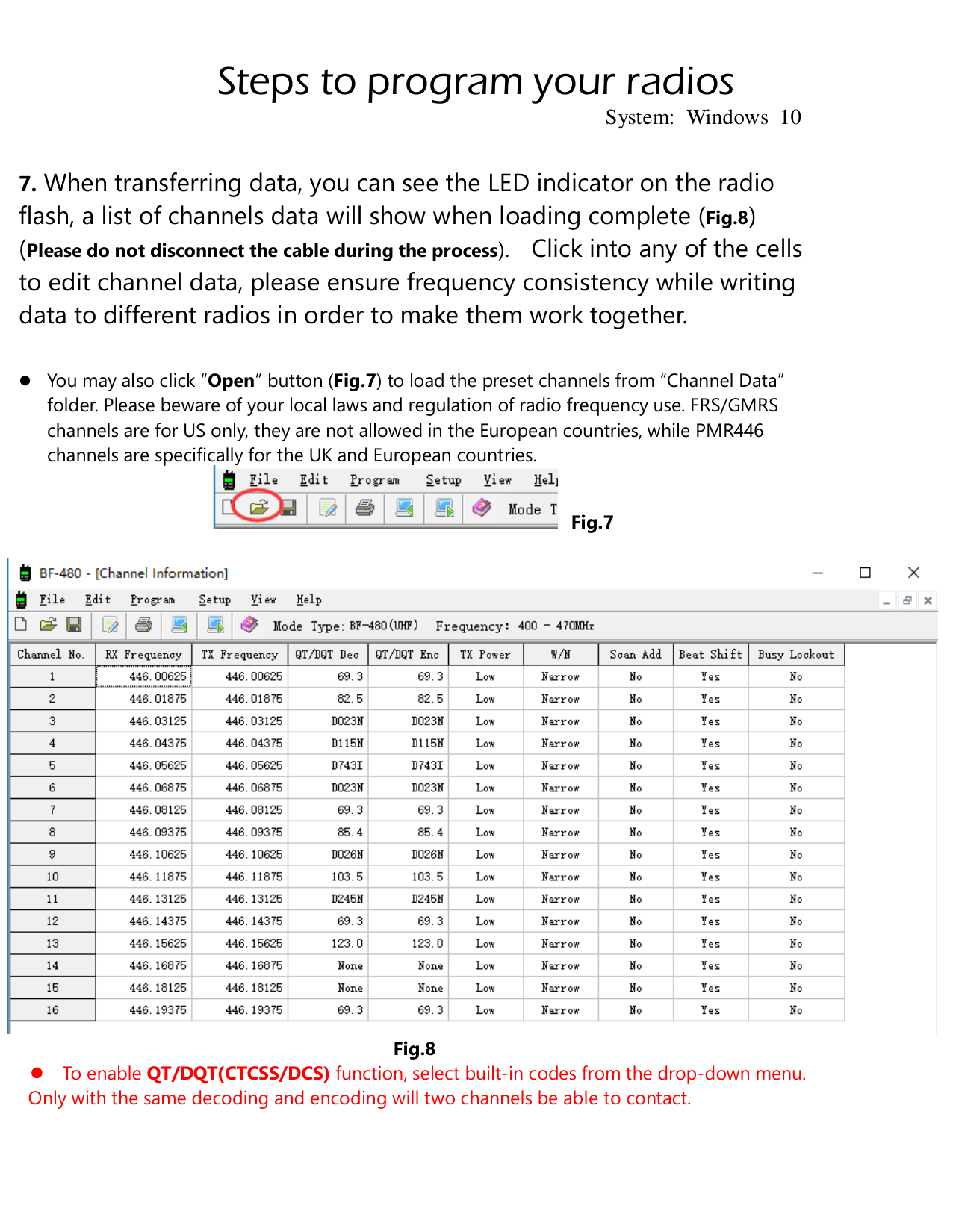

#### 7. When transferring data, you can see the LED indicator on the radioflash, a list of channels data will show when loading complete (Fig.8)(Please do not disconnect the cable during the process). Click into any of the cellsto edit channel data, please ensure frequency consistency while writingdata to different radios in order to make them work together.
You may also click “Open” button (Fig.7) to load the preset channels from “Channel Data” folder. Please beware of your local laws and regulation of radio frequency use. FRS/GMRS channels are for US only, they are not allowed in the European countries, while PMR446 channels are specifically for the UK and European countries.

##### Fig.7

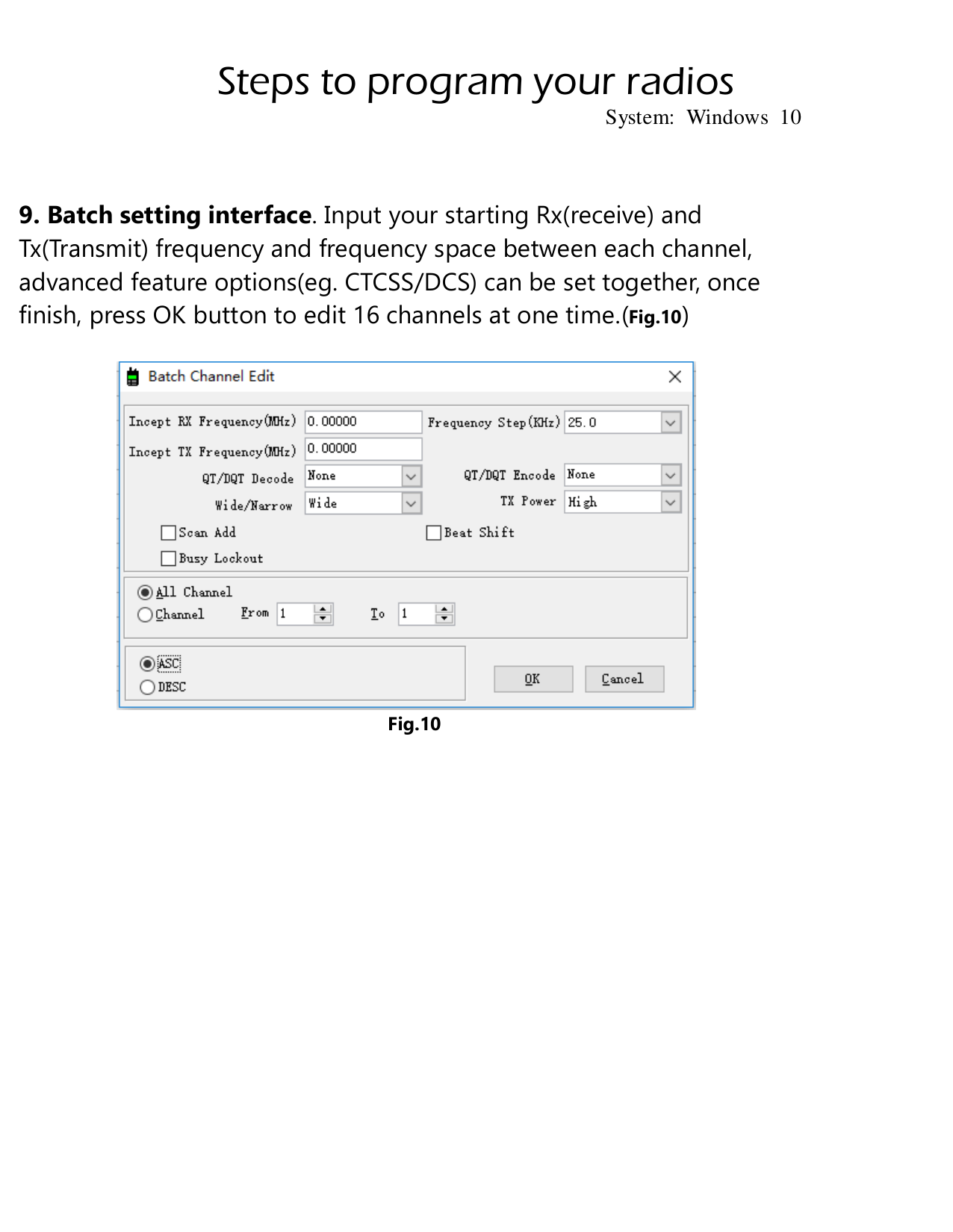
Fig.8 To enable QT/DQT(CTCSS/DCS) function, select built-in codes from the drop-down menu. Only with the same decoding and encoding will two channels be able to contact.
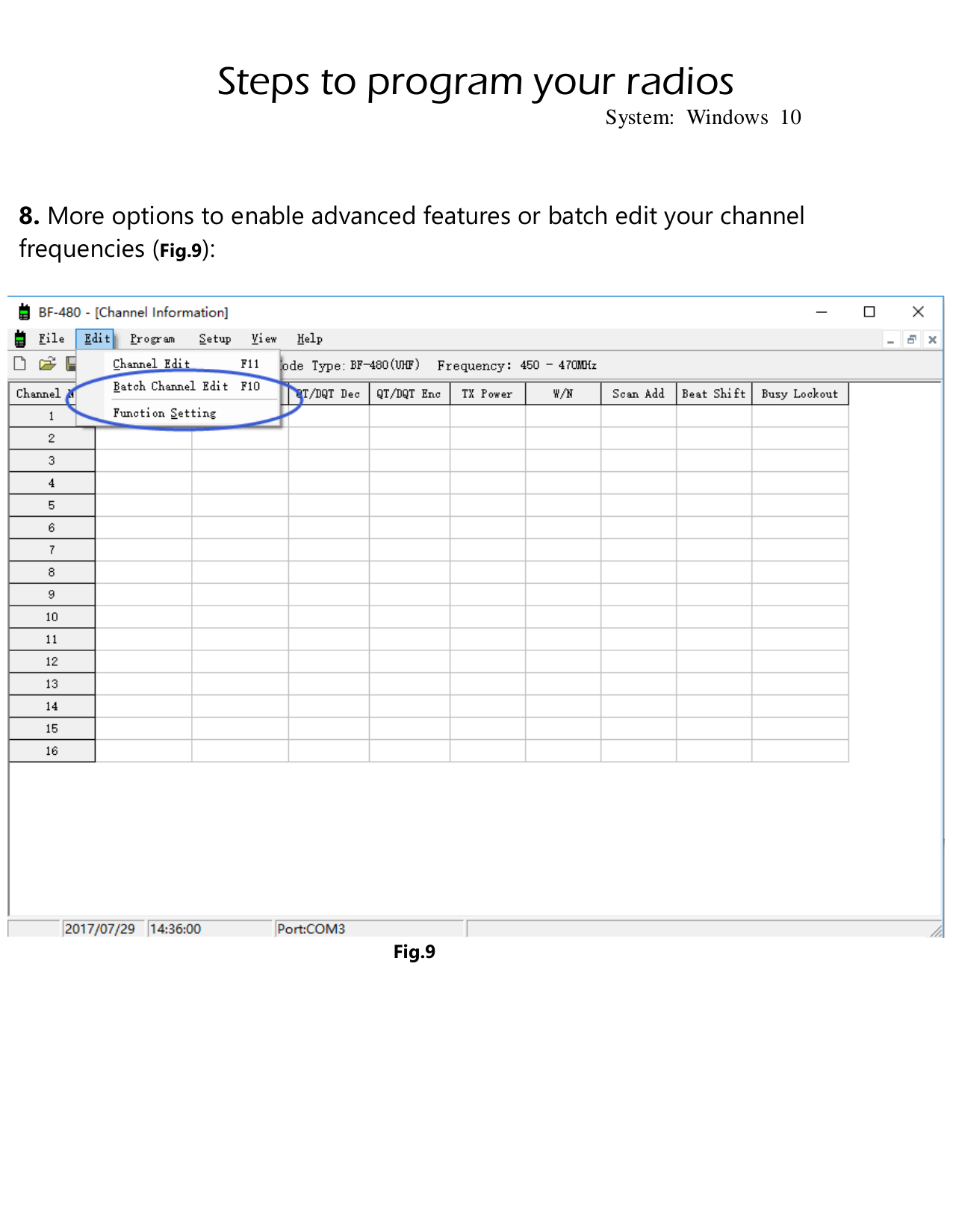
#### 8. More options to enable advanced features or batch edit your channelfrequencies (Fig.9):

#### 9. Batch setting interface. Input your starting Rx(receive) andTx(Transmit) frequency and frequency space between each channel,advanced feature options(eg. CTCSS/DCS) can be set together, oncefinish, press OK button to edit 16 channels at one time.(Fig.10)

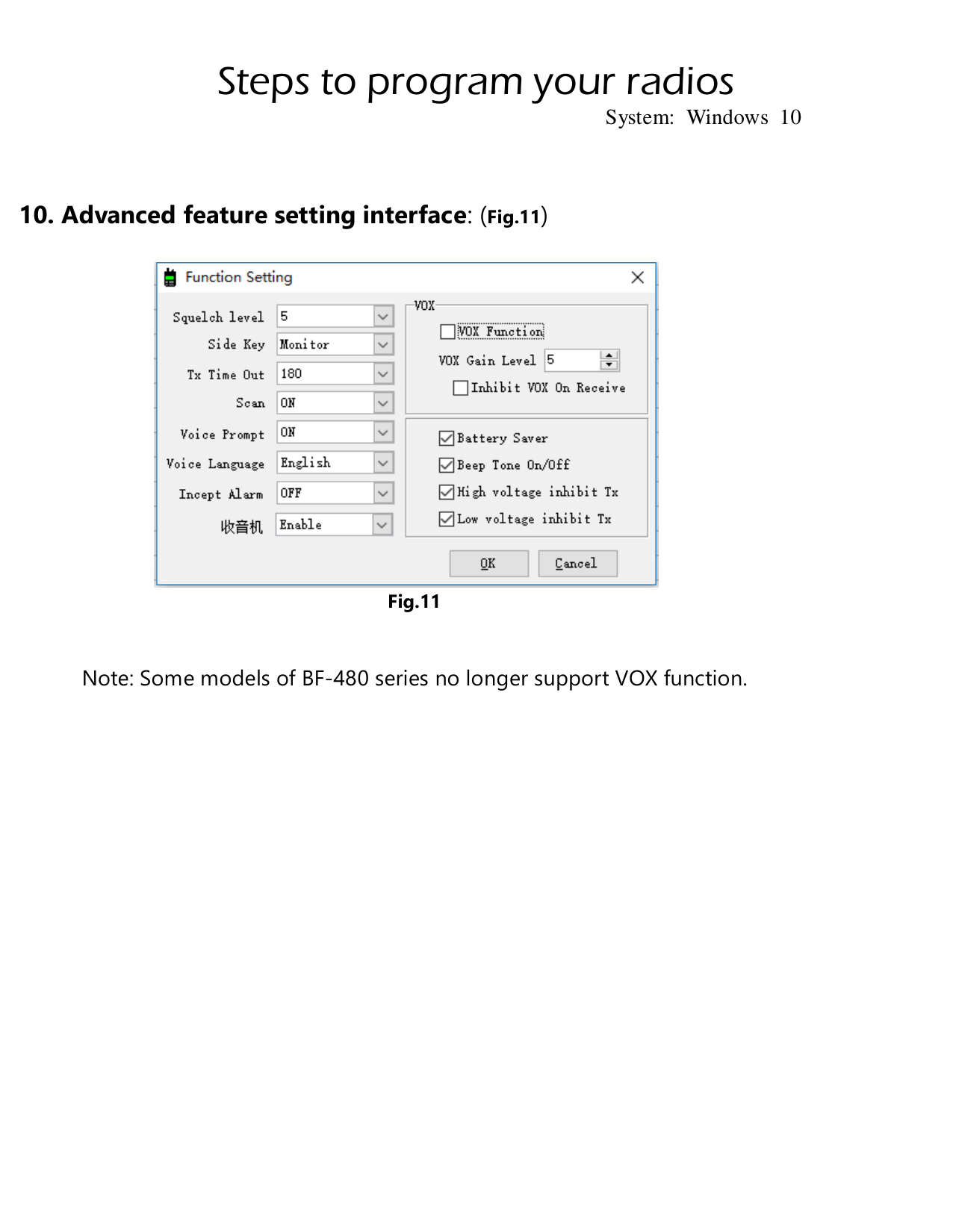
10. Advanced feature setting interface: (Fig.11)

Note: Some models of BF-480 series no longer support VOX function.
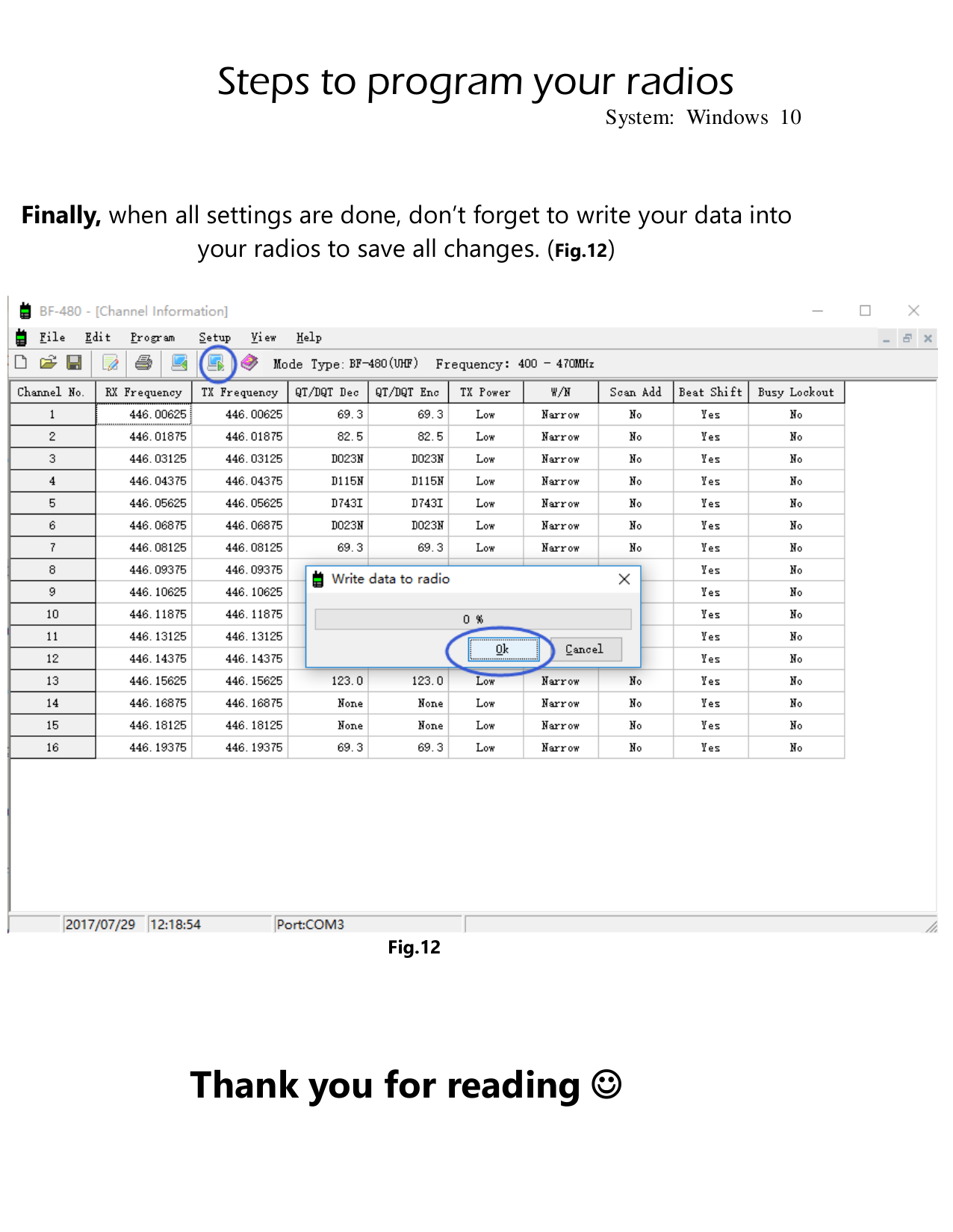
Finally, when all settings are done, don’t forget to write your data into your radios to save all changes. (Fig.12)

Fig.12