
Samsung EJ B3400 Smart Keyboard Trio 500
Ask AI
— answers from the official manualAnswers from the official manual.
Common questions
Common Questions
10 totalHow do I connect the Smart Keyboard Trio to my smartphone?
Press and hold ‘F7’, ‘F8’, or ‘F9’ for 3 seconds to enter pairing mode. On your Samsung phone, go to Settings > Connections > Bluetooth and select 'Smart KBD Trio 500' to connect it with the keyboard. Follow the on-screen instructions to complete the connection. (Page 4)
What does a slowly flashing red indicator light mean?
A slowly flashing red indicator light indicates that the battery level is very low, less than 10%. You should recharge or replace batteries soon. (Page 5)
How do I switch from one device to another?
Press the F7, F8, or F9 key once to switch between devices registered to those keys. The corresponding indicator light will flash to confirm you have switched successfully. (Page 6)
How do I perform a factory reset?
Press and hold the Power button for 10 seconds until the LED flashes red three times. This clears all settings and returns the device to its default state, after which you will need to re-pair with your devices. (Page 6)
What is the function of F5 key?
The F5 key displays favorites applications assigned on Samsung mobile devices. Press this key or press it and hold for 3 seconds to assign an application as a favorite. (Page 8)
How do I quickly connect my keyboard with multiple smartphones?
Bluetooth Easy Pairing makes connecting your keyboard with up to three devices easier; press and hold one of the F7, F8 or F9 keys for 3 seconds until pairing starts. Follow on-screen instructions on each smartphone to pair them. (Page 5)
Full Manual
14 pages

##### Samsung Smart Keyboard Trio 500
USER MANUAL
EJ-B3400
www.samsung.com03/2021. Rev.1.0
Table of Contents
English (UK) French (FR) German (DE) Swiss (SUI) Spanish (SP) Portuguese (POR) Italian (IT) Dutch (NLD) Hungarian (HUN) Polish (PL) Romanian (RO) Bulgarian (BUL) Croatian (HR) Slovenian (SL) Serbian (SR) Latvian (LV) Lithuanian (LT) Estonian (ET) Swedish (SV)
Norwegian (NOR) Finnish (FIN) Danish (DA) Greek (GR) Czech (CZ) Slovak (SK) Korean (KR) Chinese (CN) Chinese (TW) Arabic (AR) Farsi (FA) Russian (RU) Ukrainian (UKR) Kazakh (KZ) Turkish (TUR) Canada(FR) Latin Spanish(LT) Indonesian (ID) Brazil (POR)
Copyright © 2021 Samsung Electronics
ensure safe and proper use.
fromimproperusage orfailuretofollowsafetyprecautions.
#### Read me first
Please read this manual before using the device to ensure safe and proper use.
•
Images may differ in appearance from the actual product. Content is subject to change without prior notice.
•
Before connecting the keyboard with smart devices, make sure they are compatible with the keyboard.
#### Instructional icons
Warning: situations that could cause injury to yourself or others
Caution: situations that could cause damage to your device or other equipment
Notice: notes, usage tips, or additional information
#### Getting started
Package contents Check the product box for the following items:
Samsung Smart Keyboard Trio 500
Quick start guide
AAA Battery
The items supplied with the device and any available accessories may vary depending on the region or service provider.
The supplied items are designed only for this device and may not be compatible with other devices.
Appearances and specifications are subject to change without prior notice.
You can purchase additional accessories from your local Samsung retailer. Make sure they are compatible with the device before purchase.
Use only Samsung-approved accessories. Using unapproved accessories may cause the performance problems and malfunctions that are not covered by the warranty.
Availability of all accessories is subject to change depending entirely on manufacturing companies. For more information about available accessories, refer to the Samsung website.
########## Graphics used in this manual are for illustration purposes. The actual products may vary.
#### Device layout
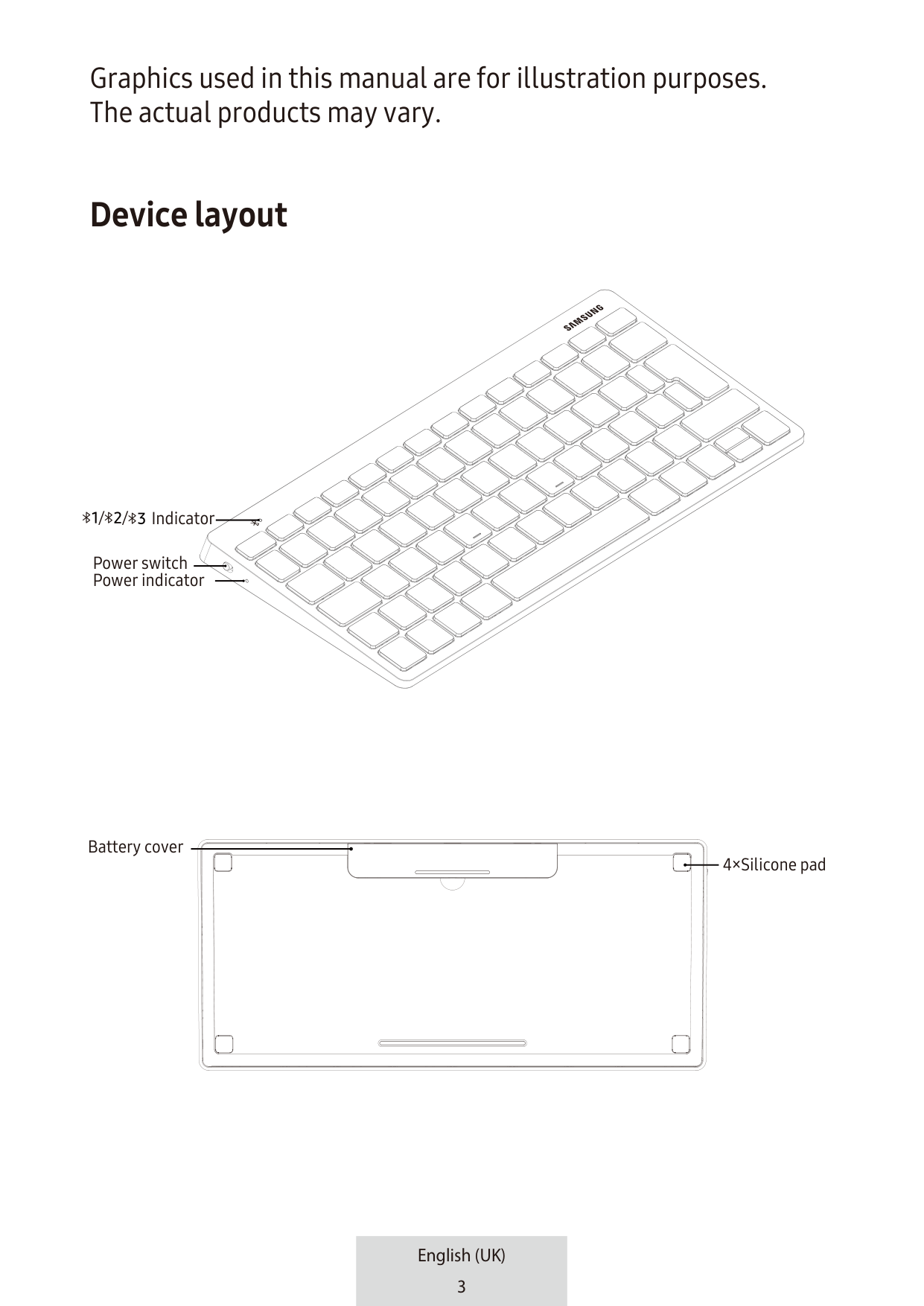
Indicator//
Power switch Power indicator
Battery cover
4×Silicone pad
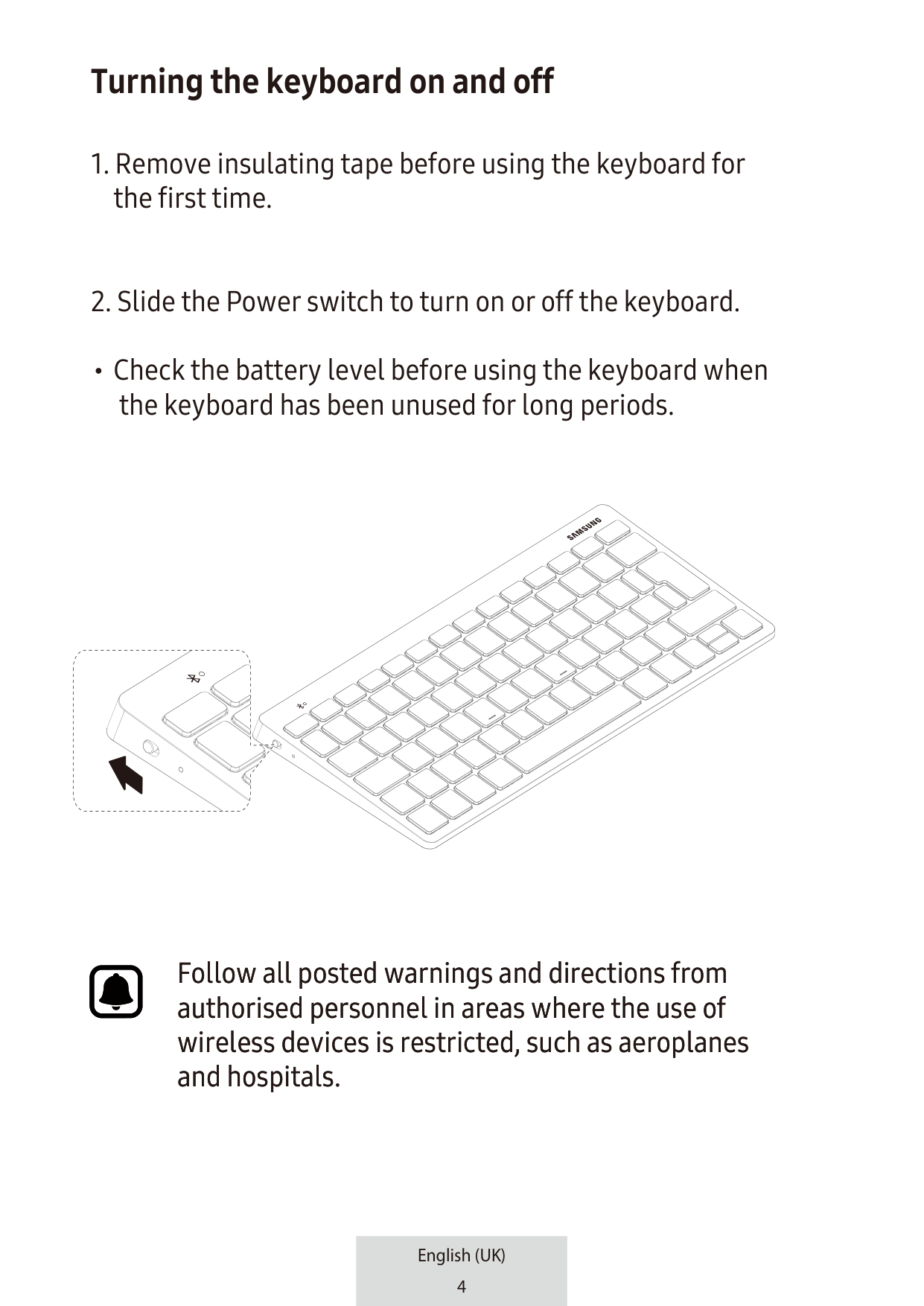
#### Turning the keyboard on and off
Check the battery level before using the keyboard when the keyboard has been unused for long periods.
Follow all posted warnings and directions from authorised personnel in areas where the use of wireless devices is restricted, such as aeroplanes and hospitals.
#### Bluetooth connections
About Bluetooth Bluetooth is a wireless technology standard that uses a
######## Notices for using Bluetooth
#### Indicator light identification
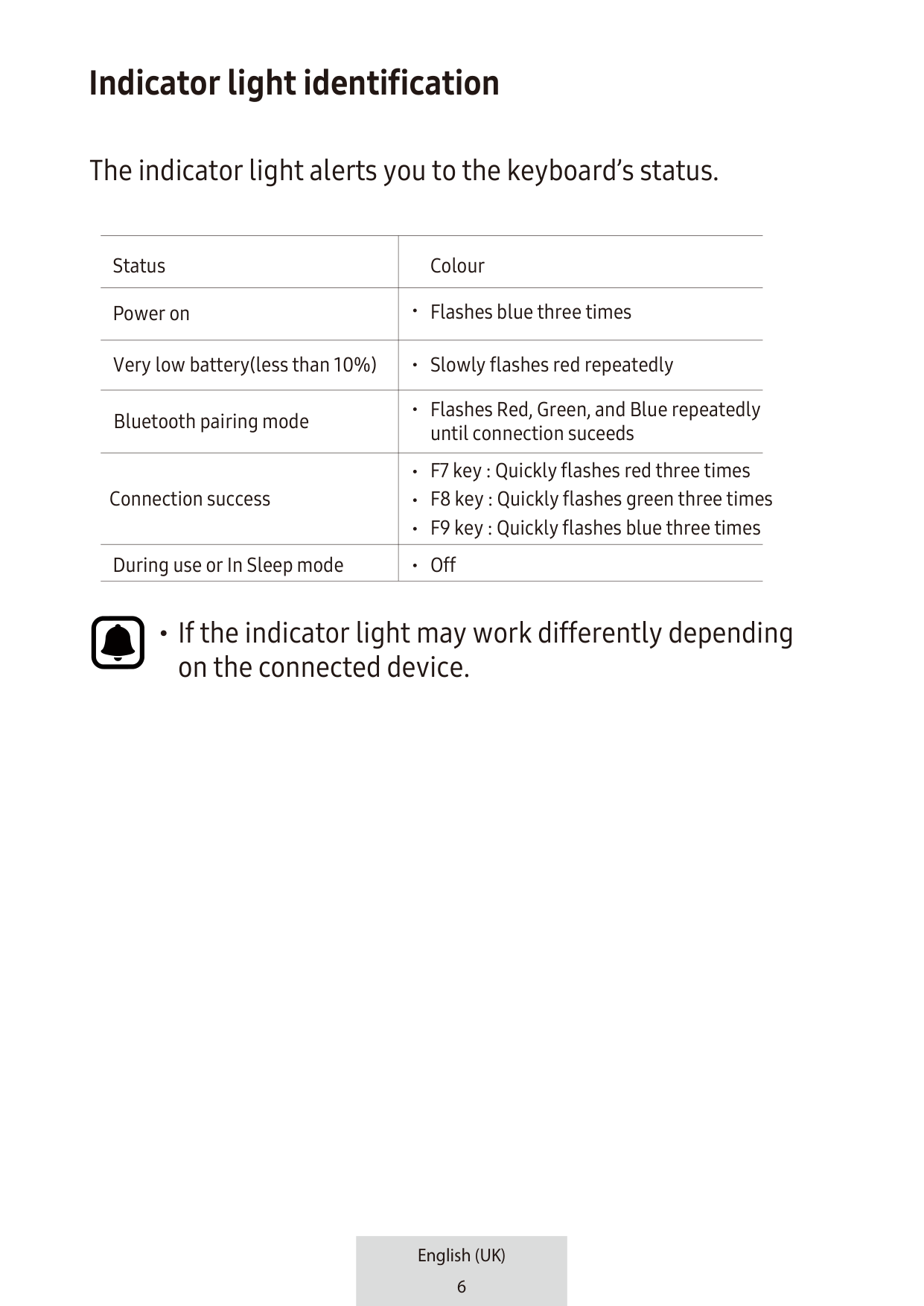
The indicator light alerts you to the keyboard’s status.
|Status|Colour| |---|---| |Power on|Flashes blue three times
| |Very low battery(less than 10%)|Slowly flashes red repeatedly| |Bluetooth pairing mode|Flashes Red, Green, and Blue repeatedly until connection suceeds
| |Connection success|F7 key : Quickly flashes red three times
F8 key : Quickly flashes green three times
F9 key : Quickly flashes blue three times
| |During use or In Sleep mode|Off
|
If the indicator light may work differently depending on the connected device.
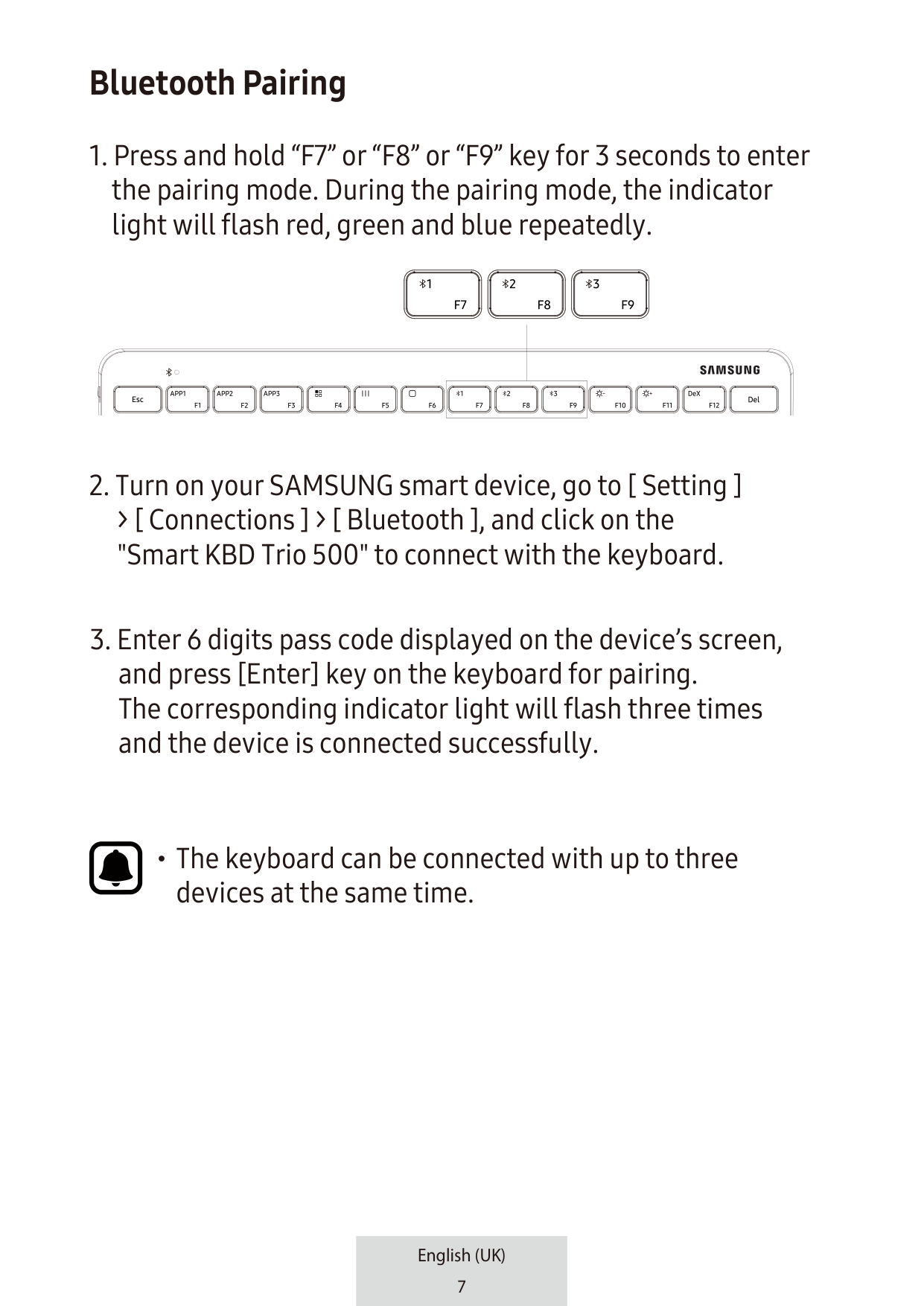
#### Bluetooth Pairing
The keyboard can be connected with up to three devices at the same time.
| | | |---|---| | | |
############ 1)
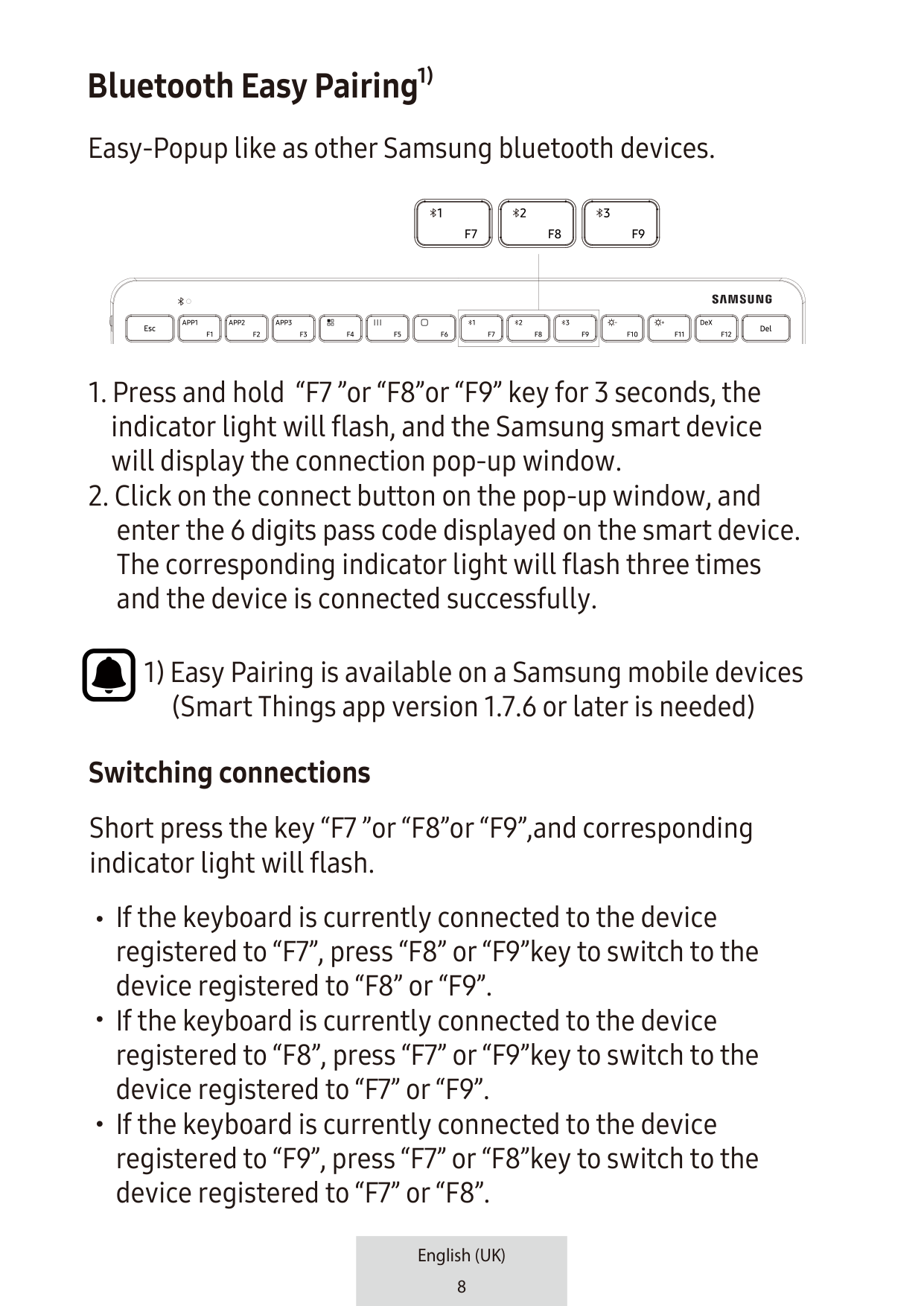
Bluetooth Easy Pairing Easy-Popup like as other Samsung bluetooth devices.
| | | |---|---| | | |
1) Easy Pairing is available on a Samsung mobile devices (Smart Things app version 1.7.6 or later is needed)
######## Switching connections
Short press the key “F7 ”or “F8”or “F9”,and corresponding indicator light will flash.
If the keyboard is currently connected to the device
#### Reconnecting or disconnecting from another device
######## Reconnecting the device
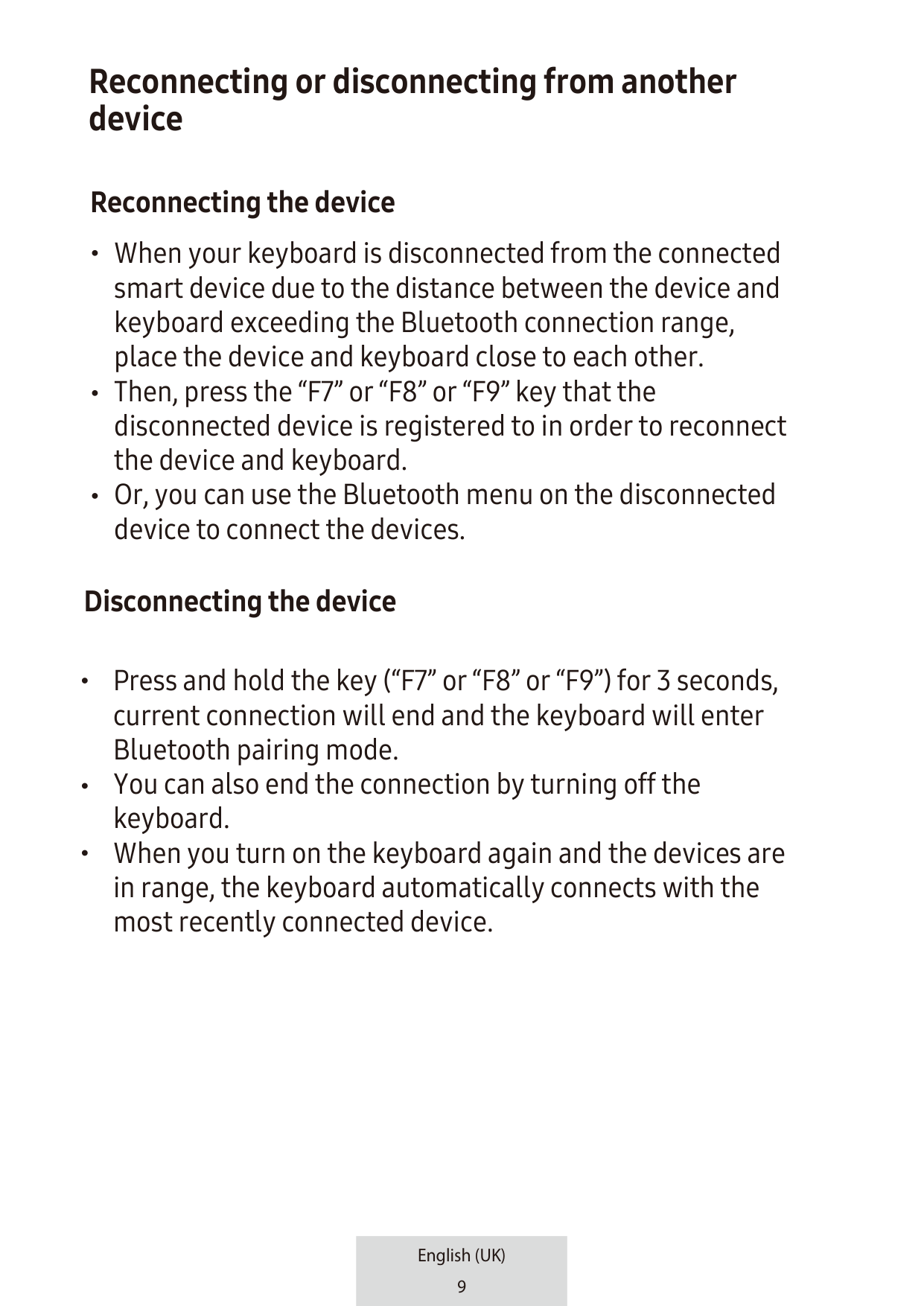
When your keyboard is disconnected from the connected smart device due to the distance between the device and keyboard exceeding the Bluetooth connection range, place the device and keyboard close to each other. Then, press the “F7” or “F8” or “F9” key that the disconnected device is registered to in order to reconnect the device and keyboard. Or, you can use the Bluetooth menu on the disconnected device to connect the devices.
######## Disconnecting the device
Press and hold the key (“F7” or “F8” or “F9”) for 3 seconds, current connection will end and the keyboard will enter Bluetooth pairing mode. You can also end the connection by turning off the keyboard. When you turn on the keyboard again and the devices are in range, the keyboard automatically connects with the most recently connected device.
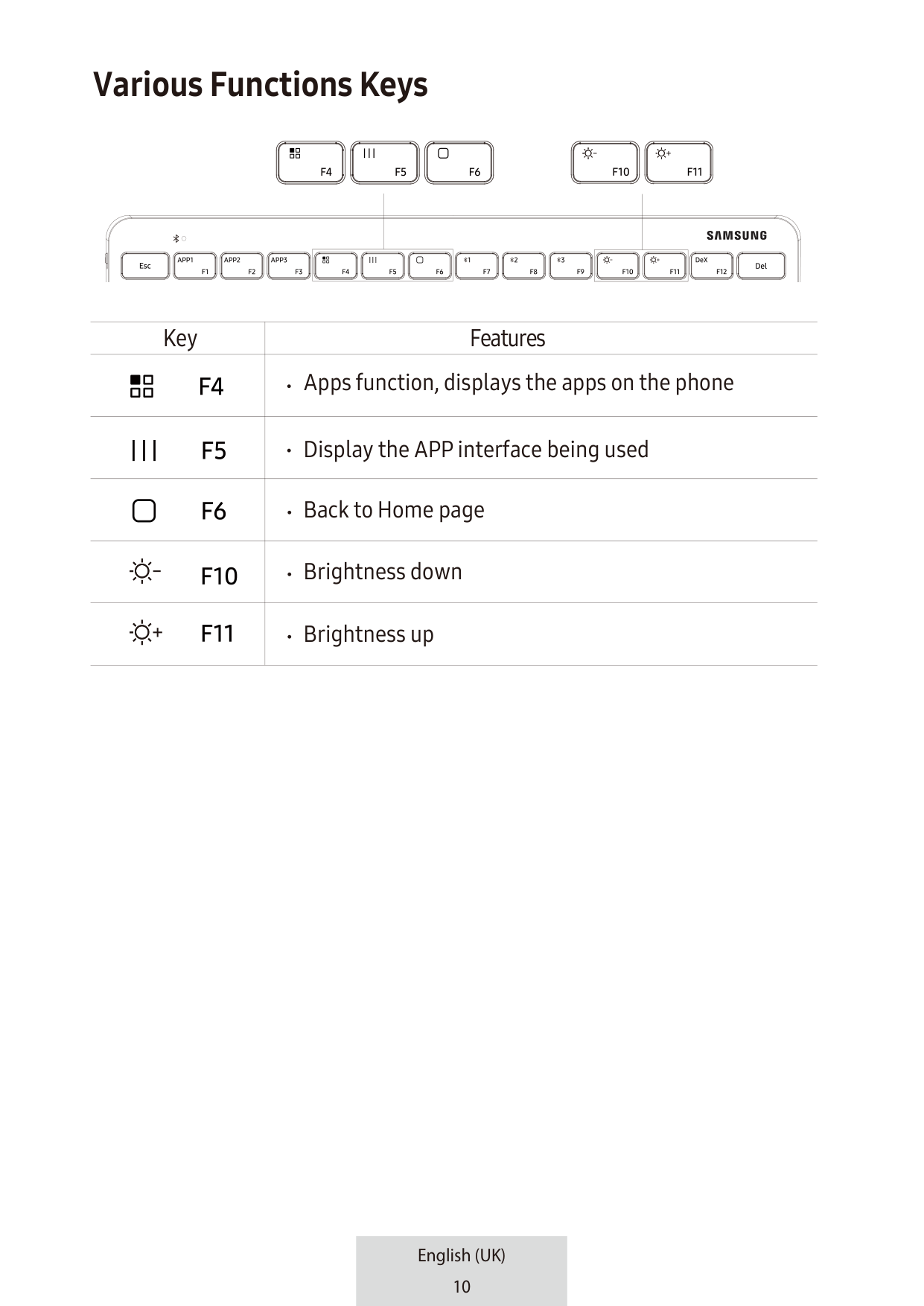
#### Various Functions Keys
| | | |---|---| | | |
| | | |---|---| | | |
########### Key Features
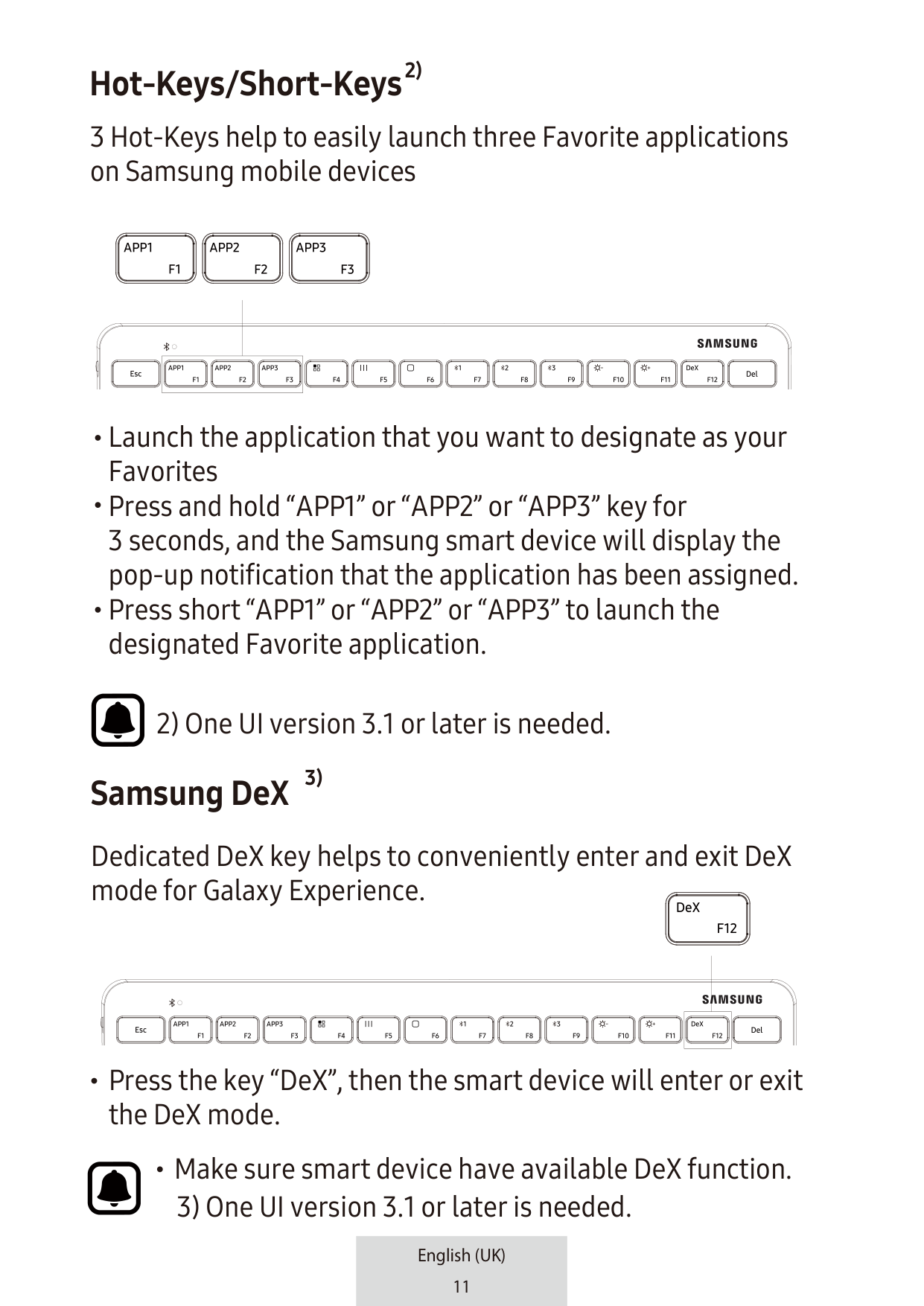
Apps function, displays the apps on the phone
Display the APP interface being used
Back to Home page
Brightness down
Brightness up
############ 2)
#### Hot-Keys/Short-Keys
| | | |---|---| | | |
Launch the application that you want to designate as your Favorites Press and hold “APP1” or “APP2” or “APP3” key for 3 seconds, and the Samsung smart device will display the pop-up notification that the application has been assigned. Press short “APP1” or “APP2” or “APP3” to launch the designated Favorite application.
3)
#### Samsung DeX
Dedicated DeX key helps to conveniently enter and exit DeX mode for Galaxy Experience.
| | | |---|---| | | |
Press the key “DeX”, then the smart device will enter or exit the DeX mode.
Make sure smart device have available DeX function.
#### Using the Keys
| | |---| | |
| | | | |
|---|---|---|---| | | | | |
| | | | | |---|---|---|---| | | | | |
| | |---| | |
| | |---| | |
| | | |---|---|
| | |---| | |
| | |---|
| |
| | |---| | |
| | | | | |---|---|---|---| | | | | |
| | | | | |---|---|---|---| | | | | |
| | | | | |---|---|---|---| | | | | |
| | | | | |---|---|---|---| | | | | |
| | | | | |---|---|---|---|
| | | | |
| | | | | |---|---|---|---| | | | | |
| | | | | |---|---|---|---| | | | | |
| | | | | |---|---|---|---| | | | | |
| | | | | |---|---|---|---| | | | | |
| | | | | |---|---|---|---| | | | | |
| | | | | |---|---|---|---|
| | | | |
| | | | | |---|---|---|---| | | | | |
| | | | | |---|---|---|---| | | | | |
| | | | | |---|---|---|---| | | | | |
| | | | | |---|---|---|---| | | | | |
| | | | | |---|---|---|---| | | | | |
| | | | | |---|---|---|---|
| | | | |
| | | | | |---|---|---|---| | | | | |
| | | | | |---|---|---|---| | | | | |
| | |---| | |
| | | | | |---|---|---|---| | | | | |
| | | | | |---|---|---|---| | | | | |
| | | | | |---|---|---|---|
| | | | |
| | | | |---|---|---| | | | |
| | | | | |---|---|---|---| | | | | |
| | | | | |---|---|---|---| | | | | |
| | | | | |---|---|---|---| | | | | |
| | | | | |---|---|---|---| | | | | |
| | | |---|---| | | |
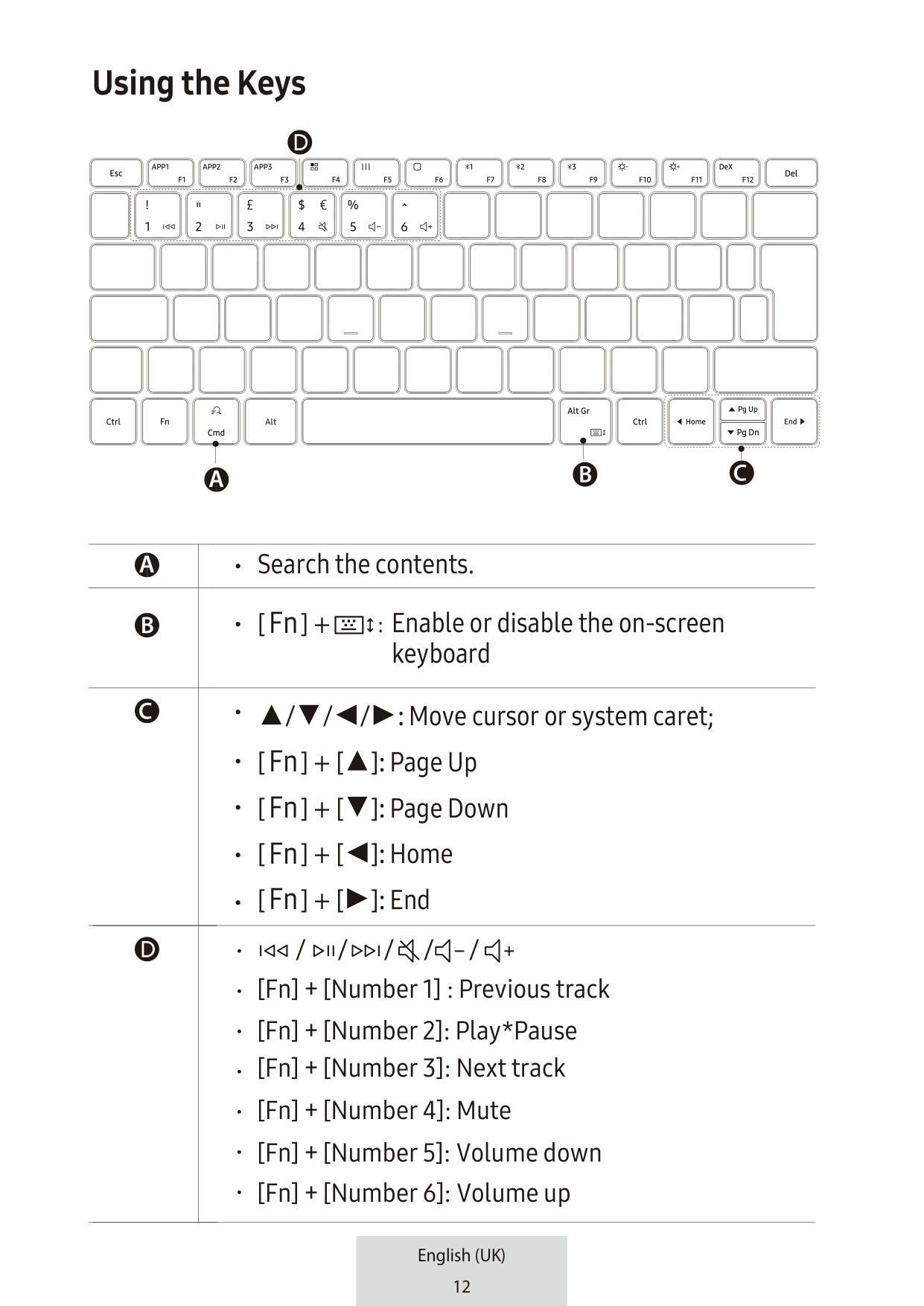
| |• Search the contents.| |---|---| | |• : Enable or disable the on-screen
keyboard
[Fn] +| | |• / / / : Move cursor or system caret;
• [Fn] + [ ]: Page Up
• [ ] + [ ]: Page Down
• [ ] + [ ]: Home
• [ ] + [ ]: End
Fn Fn Fn| | |[Fn] + [Number 1] : Previous track
[Fn] + [Number 2]: Play*Pause
[Fn] + [Number 3]: Next track
[Fn] + [Number 4]: Mute
[Fn] + [Number 5]: Volume down
[Fn] + [Number 6]: Volume up
/ / / / /|