Smart Life App Manual 14 manual
Unknown · 8 Q&As

Smart Life App Manual 14

Ask AI

— answers from the official manual

Answers from the official manual.

Common questions

Common Questions

8 total
1

How can I add an intelligent scene in Smart Life app?

Navigate to the 'Smart' page and click '+' or select 'Automation' for smart configuration. Add conditions using left or arrived (beta), with geographical location settings required. Automated scenes support various actions like executing, triggering automation, sending reminders, and time-lapse activities. Validate times can also be defined. (Pages 34–35)

2

How do I delete an existing scene or automation?

Go to the 'Intelligent' page and click 'Edit Automation' at the top left corner. Edit scenes by clicking '...' or change automation configuration by adjusting condition actions in the background. To remove, slide left on iOS to delete. (Pages 39-40)

3

How do I troubleshoot network issues with Smart Life?

Go to 'Help Center - Network Diagnostics' and follow the provided diagnostics that usually take two minutes. This helps in solving connectivity problems efficiently through detailed analysis and fixes. (Page 48-49)

4

How do I add smart cameras for cloud storage?

Navigate to 'Me - More Services' and enable camera services such as AI-filtered notifications, third-party access service, and cloud storage. With the purchased service, you can view historical videos uploaded by your devices without downloading them, enhancing both security and convenience (Pages 49–50).

5

How do I factory reset the Smart Life app?

Press and hold the button on the device or use the “Remove Device” option in the more menu to clear all data and return it to its initial state. (Page 29)

6

How do I add a new Zigbee device via Smart Life app?

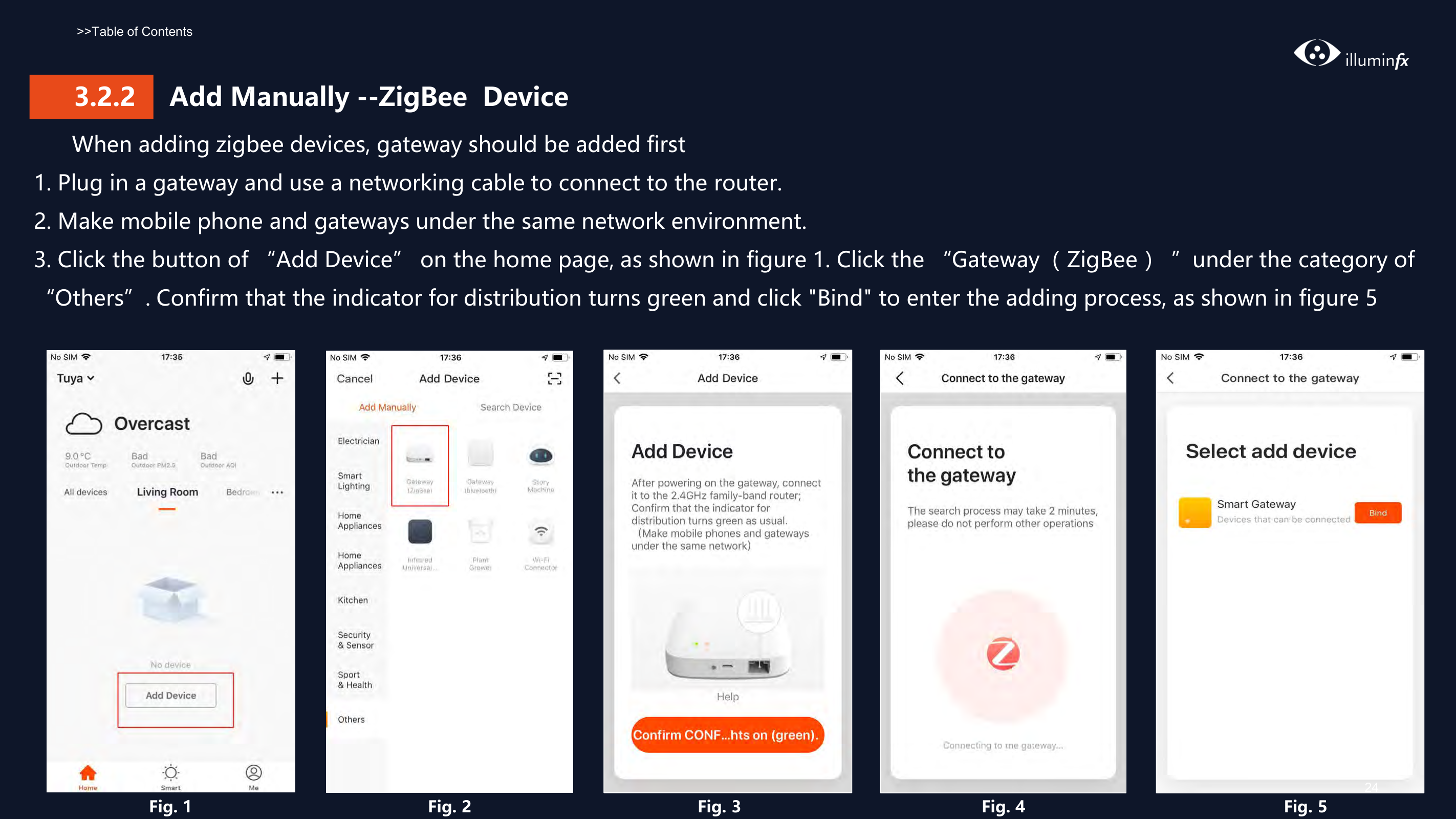
Plug in a gateway, connect it to the router with a network cable, and make sure your mobile phone is on the same network as the gateways. Click 'Add Device' on the home page and select 'Gateway (ZigBee)'. Check if the gateway distribution indicator turns green and click 'Bind' to proceed with configuration. (Page 23)

Show 2 more questions

Full Manual

51 pages
Page 1

![image 1](Smart-Life-Manual.IFX2021_images/imageFile1.png)

SMART LIFE App

v3.8.0

User Manual

![image 2](Smart-Life-Manual.IFX2021_images/imageFile2.png)

Table of Contents

  • 1. Download App------------------------------------------- 3
  • Page 2

  • 2. Registration/Login/Password Retrieval----------------4
  • 3. How to Use the App
  • 3.1 Home/Member Management ----- -------------------10
  • 3.2 Adding Devices - All Devices ------------------------14
  • 4. Control Devices
  • 4.1 Control Devices - Individual Control ----------------27
  • 4.2 Control Devices - Group Control --------------------31
  • Page 3

  • 5. Smart Scene Settings
  • 5.1 Automated Settings ----------------------------------33
  • 5.2 Scene Settings ---------------------------------------38
  • 5.3 Add/Modify/Delete ----------------------------------39
  • 6. Home----------------------------------------------------42
  • 7. "Me" Page-----------------------------------------------43
  • ![image 3](Smart-Life-Manual.IFX2021_images/imageFile3.png)

    Page 4

    ###### 1 Download App

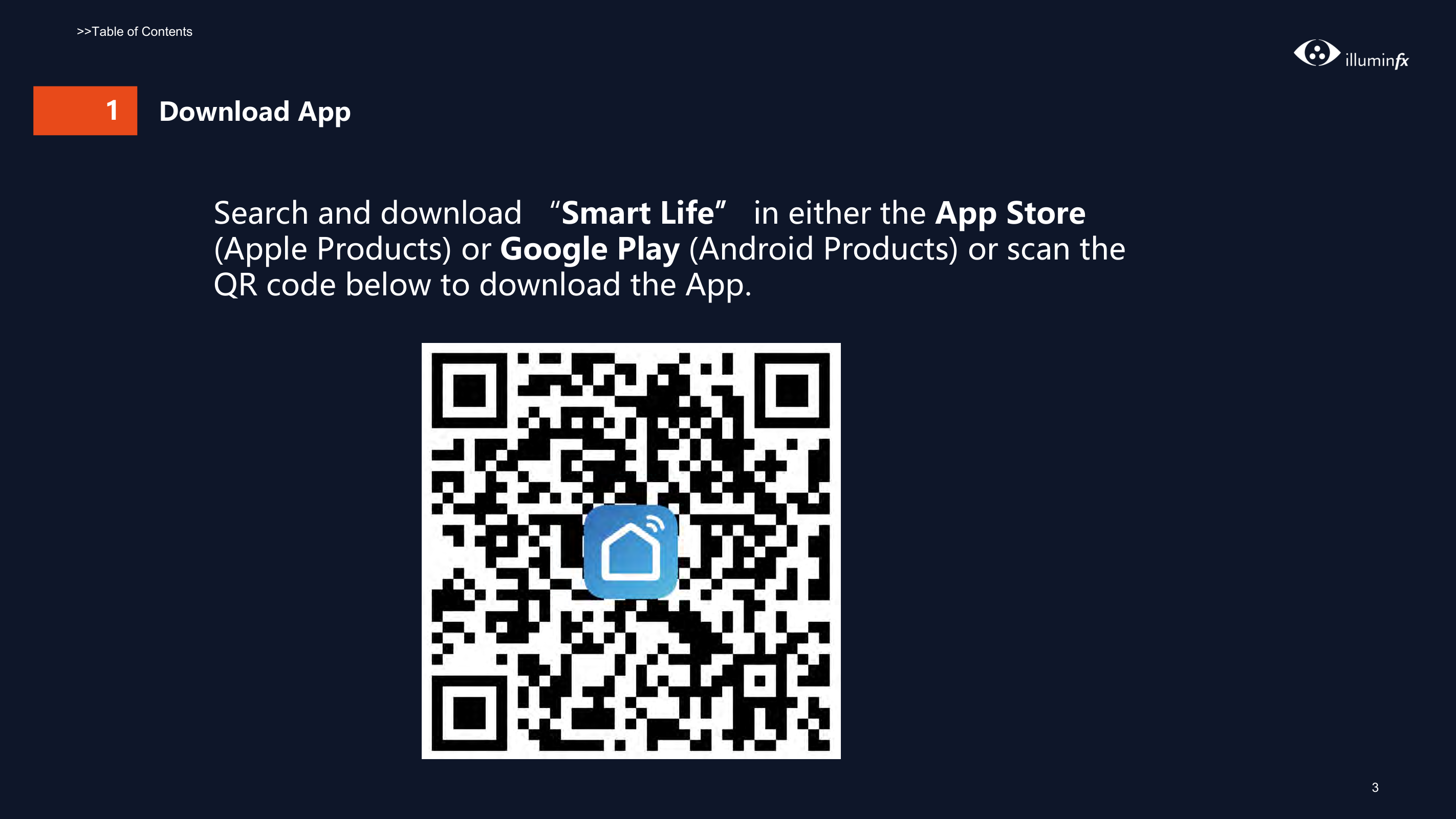
    Search and download “Smart Life” in either the App Store (Apple Products) or Google Play (Android Products) or scan the QR code below to download the App.

    ![image 5](Smart-Life-Manual.IFX2021_images/imageFile5.png)

    ![image 7](Smart-Life-Manual.IFX2021_images/imageFile7.png)

    ![image 8](Smart-Life-Manual.IFX2021_images/imageFile8.png)

    ########### Fig. 1 Fig. 2

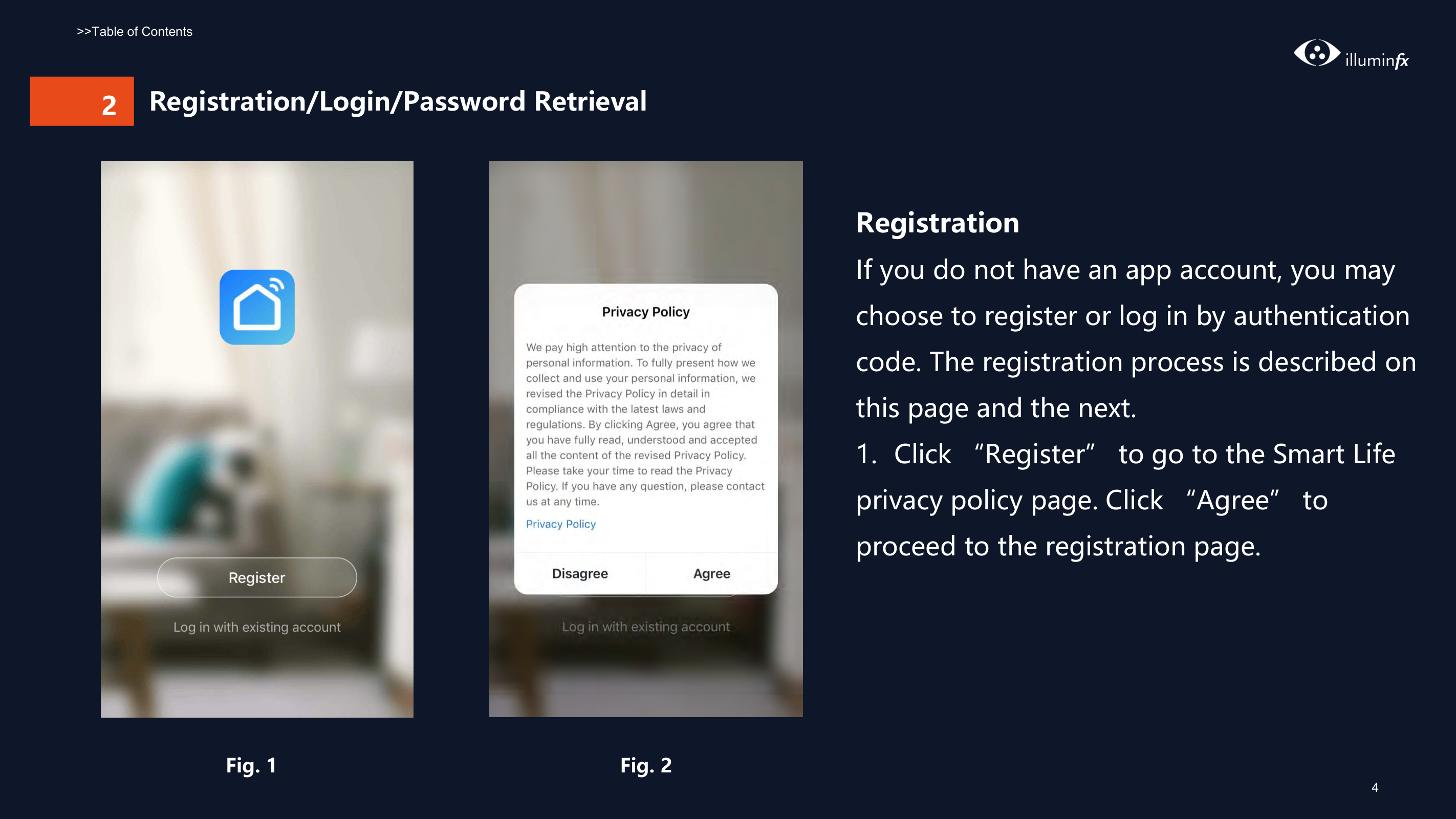
    Registration If you do not have an app account, you may choose to register or log in by authentication code. The registration process is described on this page and the next.
    Page 5

  • Click “Register” to go to the Smart Life privacy policy page. Click “Agree” to proceed to the registration page.
  • ![image 10](Smart-Life-Manual.IFX2021_images/imageFile10.png)

    ![image 11](Smart-Life-Manual.IFX2021_images/imageFile11.png)

    ![image 12](Smart-Life-Manual.IFX2021_images/imageFile12.png)

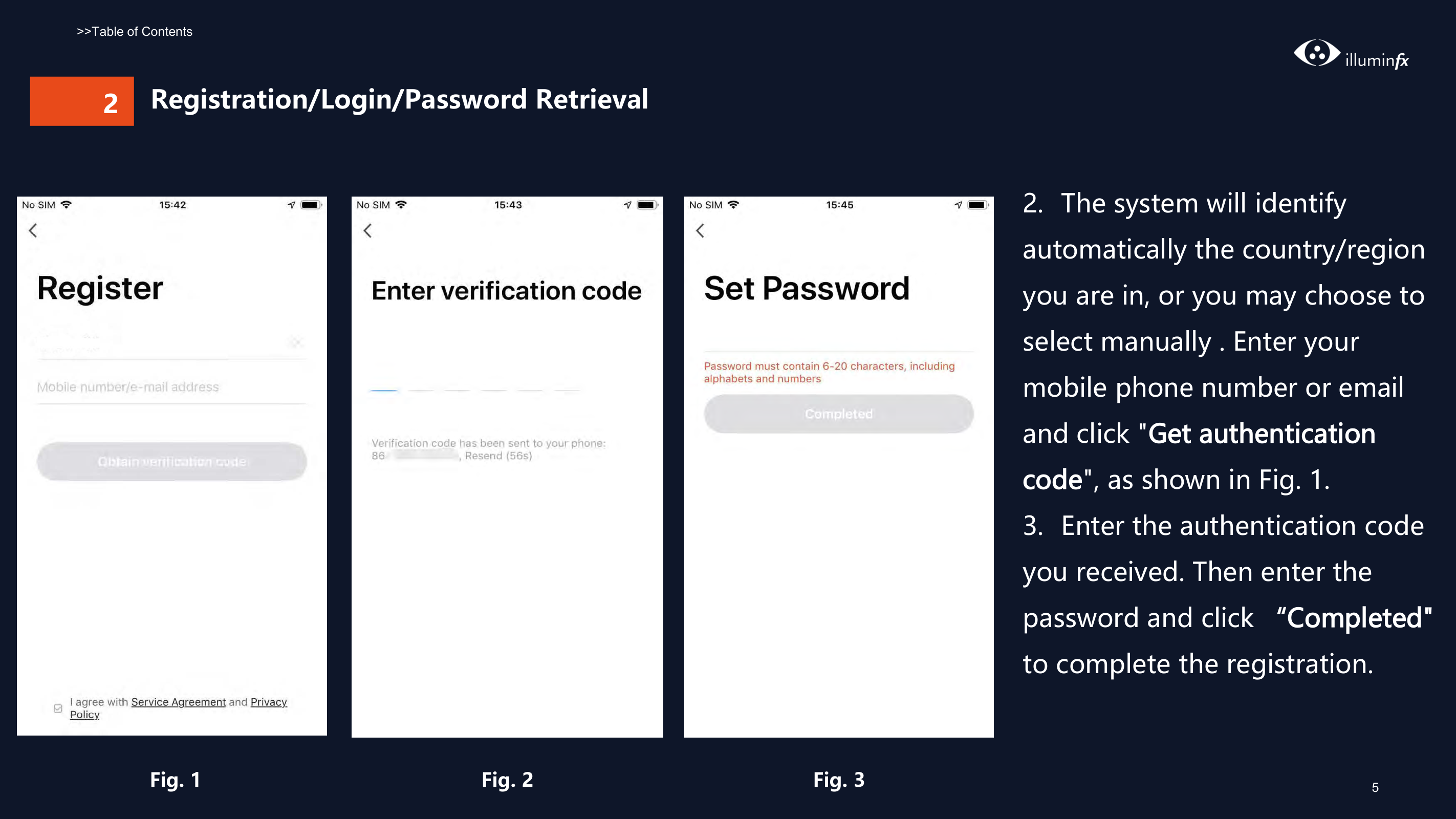
  • 2. The system will identify automatically the country/region you are in, or you may choose to select manually . Enter your mobile phone number or email and click "Get authentication code", as shown in Fig. 1.
  • 3. Enter the authentication code you received. Then enter the password and click “Completed" to complete the registration.
  • Page 6

    ########## Fig. 1 Fig. 2 Fig. 3

    #### 2

    ![image 14](Smart-Life-Manual.IFX2021_images/imageFile14.png)

    | | |---|

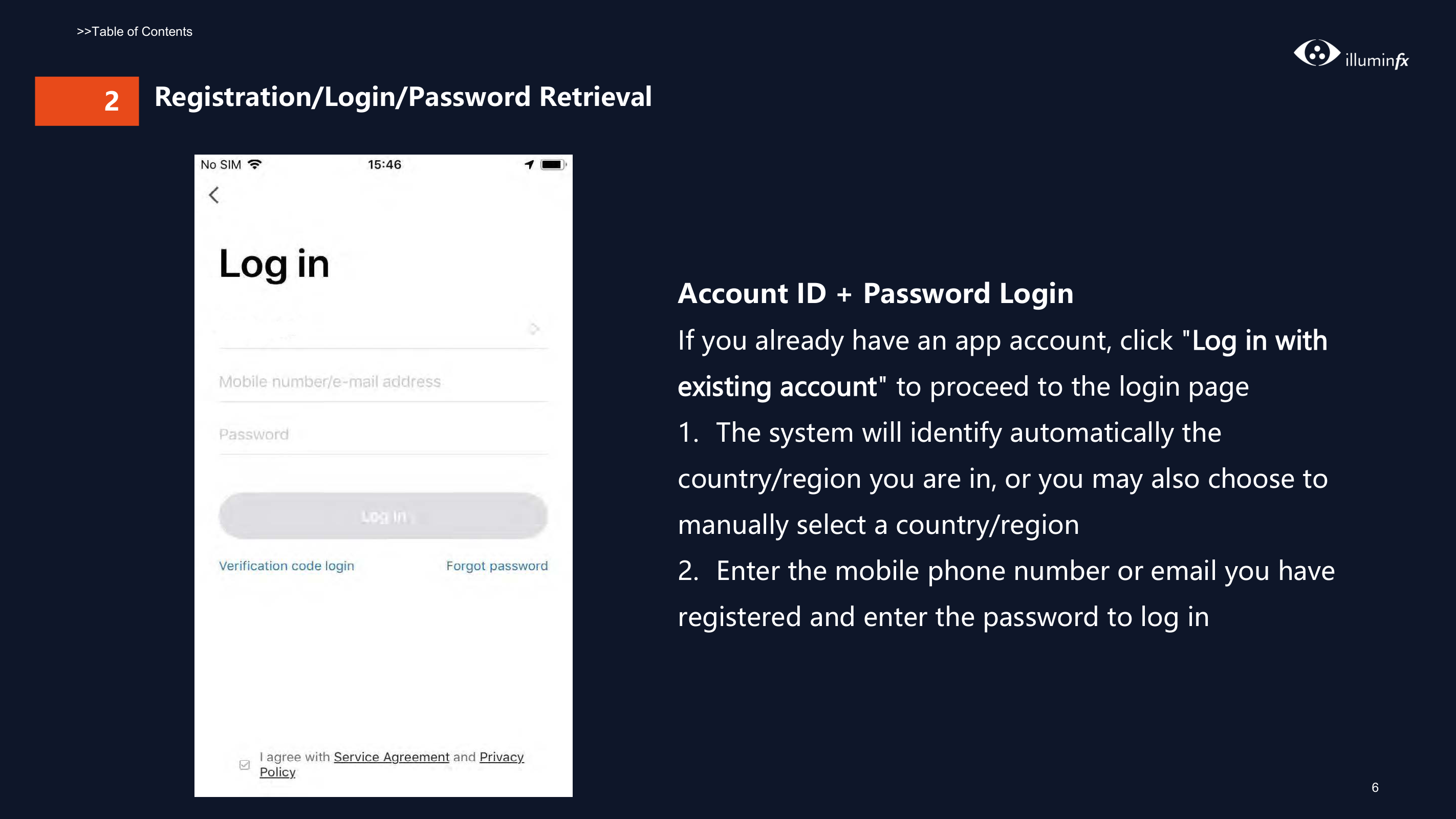
    Account ID + Password Login If you already have an app account, click "Log in with existing account" to proceed to the login page
  • 1. The system will identify automatically the country/region you are in, or you may also choose to manually select a country/region
  • Page 7

  • 2. Enter the mobile phone number or email you have registered and enter the password to log in
  • 2Verification Code Login

    ![image 16](Smart-Life-Manual.IFX2021_images/imageFile16.png)

    | | |---|

    ![image 17](Smart-Life-Manual.IFX2021_images/imageFile17.png)

    Page 8

    ![image 18](Smart-Life-Manual.IFX2021_images/imageFile18.png)

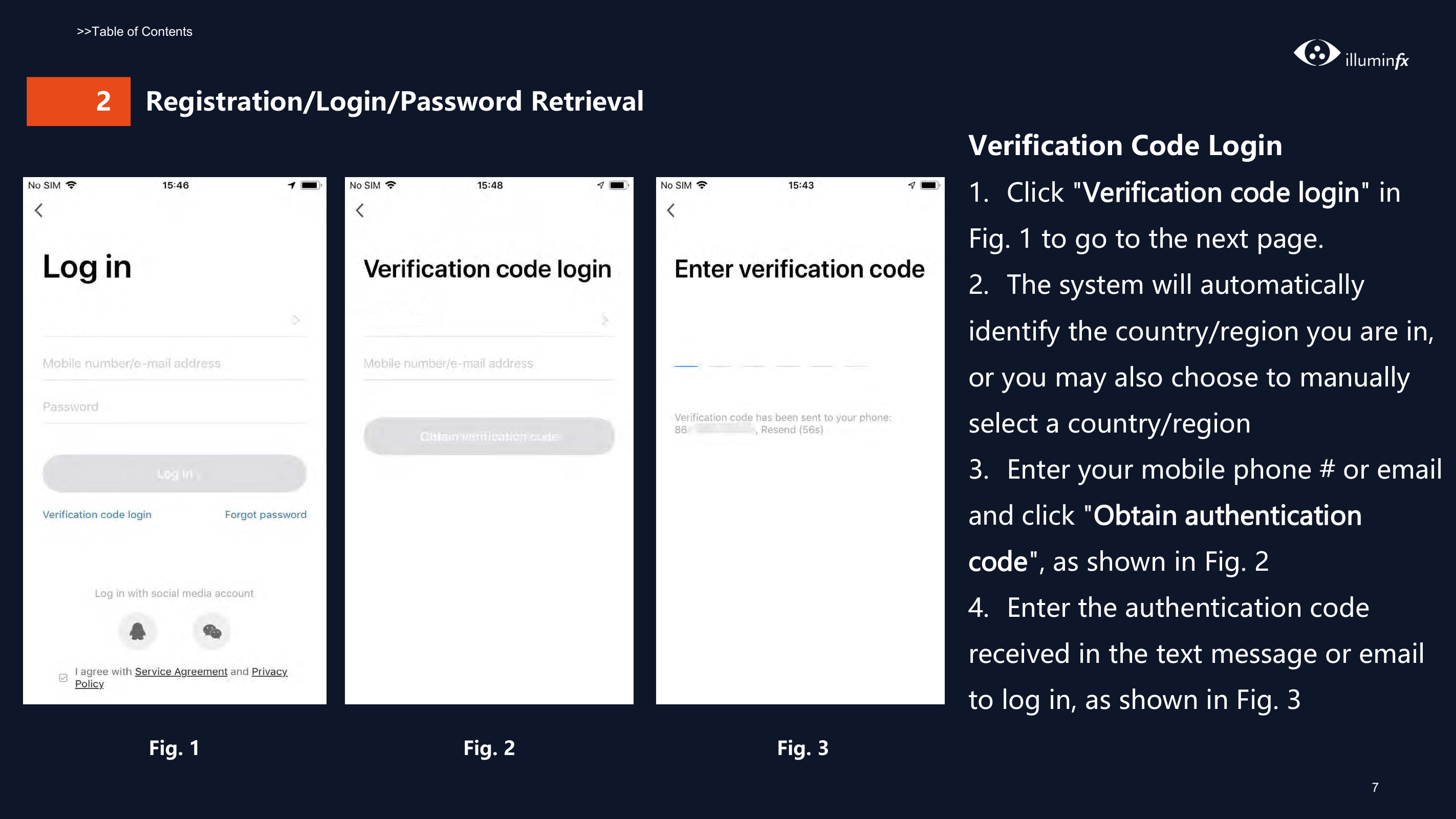
  • 1. Click "Verification code login" in Fig. 1 to go to the next page.
  • 2. The system will automatically identify the country/region you are in, or you may also choose to manually select a country/region
  • 3. Enter your mobile phone # or email and click "Obtain authentication code", as shown in Fig. 2
  • 4. Enter the authentication code received in the text message or email to log in, as shown in Fig. 3
  • Fig. 1 Fig. 2 Fig. 3

    ###### 2 Registration/Login/Password Retrieval

    ![image 20](Smart-Life-Manual.IFX2021_images/imageFile20.png)

    Page 9

    ![image 21](Smart-Life-Manual.IFX2021_images/imageFile21.png)

    |![image 22](Smart-Life-Manual.IFX2021_images/imageFile22.png)| |---|

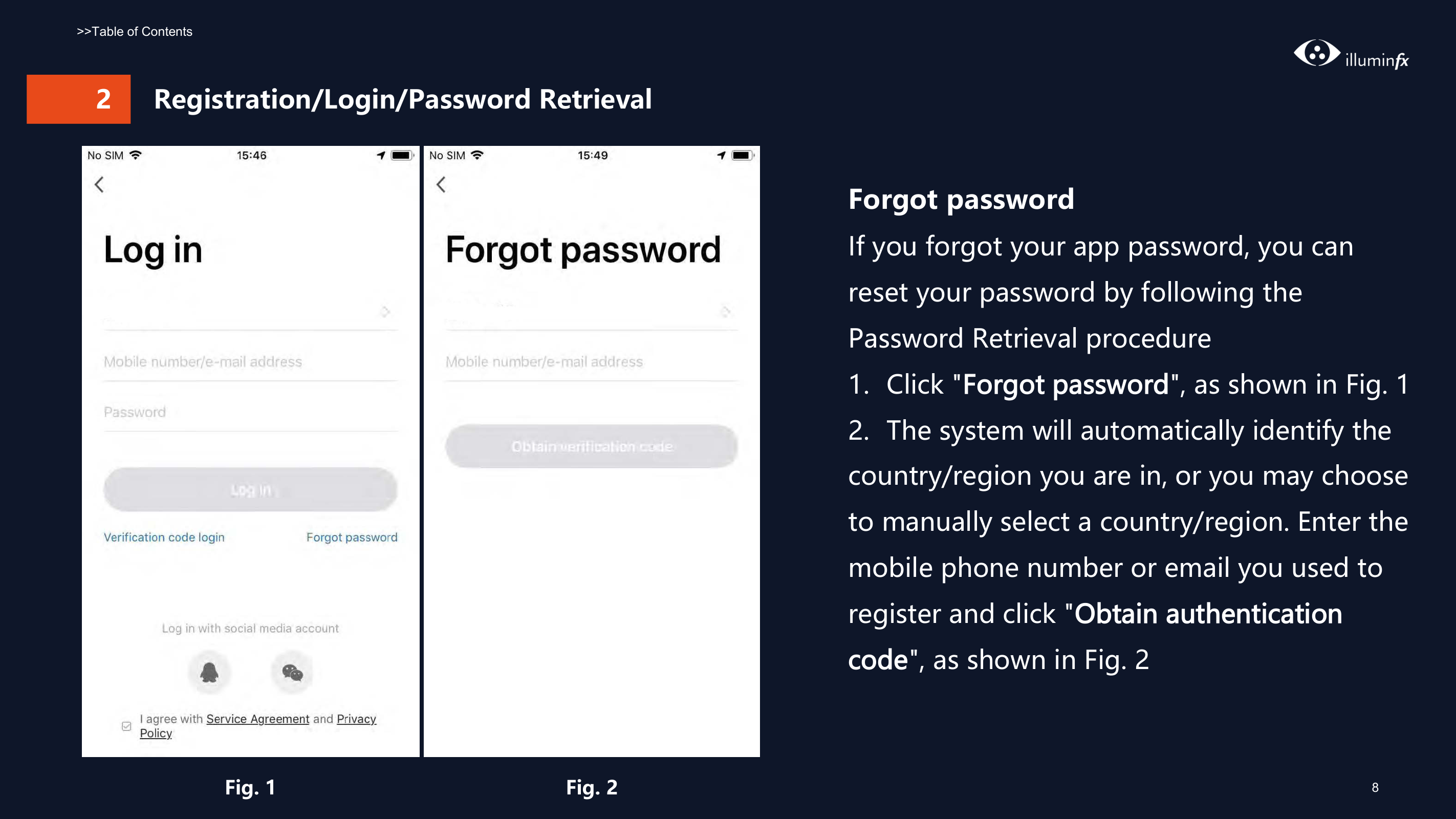
    ########### Fig. 1 Fig. 2

    Forgot password If you forgot your app password, you can reset your password by following the Password Retrieval procedure

  • 1. Click "Forgot password", as shown in Fig. 1
  • 2. The system will automatically identify the country/region you are in, or you may choose to manually select a country/region. Enter the mobile phone number or email you used to register and click "Obtain authentication code", as shown in Fig. 2
  • Page 10

    ![image 24](Smart-Life-Manual.IFX2021_images/imageFile24.png)

    ###### 2 Registration/Login/Password Retrieval
    ![image 25](Smart-Life-Manual.IFX2021_images/imageFile25.png)

    ![image 26](Smart-Life-Manual.IFX2021_images/imageFile26.png)

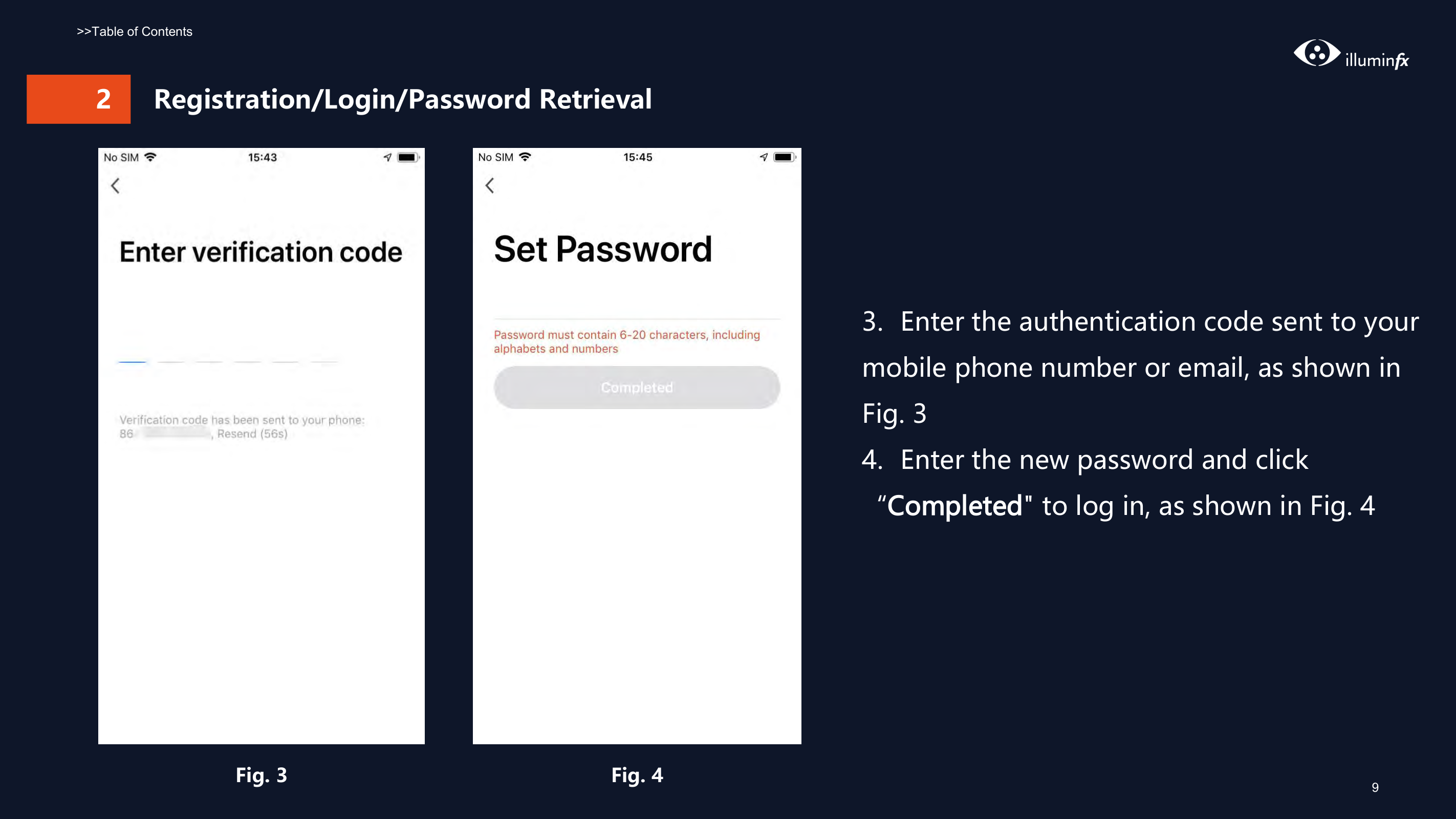
    Fig. 3 Fig. 4

  • 3. Enter the authentication code sent to your mobile phone number or email, as shown in Fig. 3
  • Page 11

  • 4. Enter the new password and click “Completed" to log in, as shown in Fig. 4
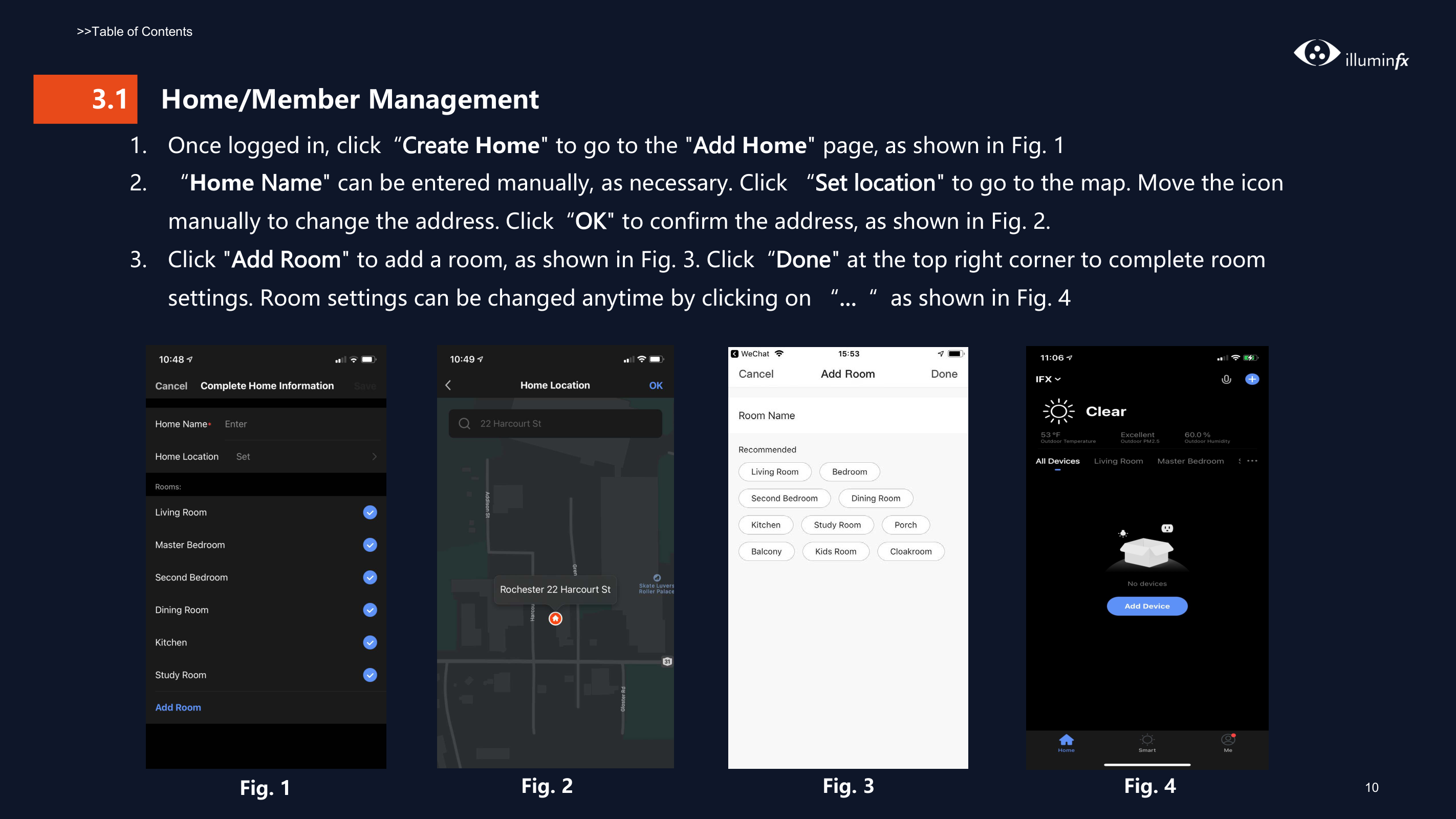
  • 1. Once logged in, click“Create Home" to go to the "Add Home" page, as shown in Fig. 1
  • 2. “Home Name" can be entered manually, as necessary. Click “Set location" to go to the map. Move the icon manually to change the address. Click“OK" to confirm the address, as shown in Fig. 2.
  • 3. Click "Add Room" to add a room, as shown in Fig. 3. Click“Done" at the top right corner to complete room settings. Room settings can be changed anytime by clicking on “…“ as shown in Fig. 4
  • ![image 28](Smart-Life-Manual.IFX2021_images/imageFile28.png)

    ![image 29](Smart-Life-Manual.IFX2021_images/imageFile29.png)

    ![image 30](Smart-Life-Manual.IFX2021_images/imageFile30.png)

    Page 12

    ![image 31](Smart-Life-Manual.IFX2021_images/imageFile31.png)

    Fig. 1 Fig. 2 Fig. 3 Fig. 4

    #### 3.1 Home/Member Management

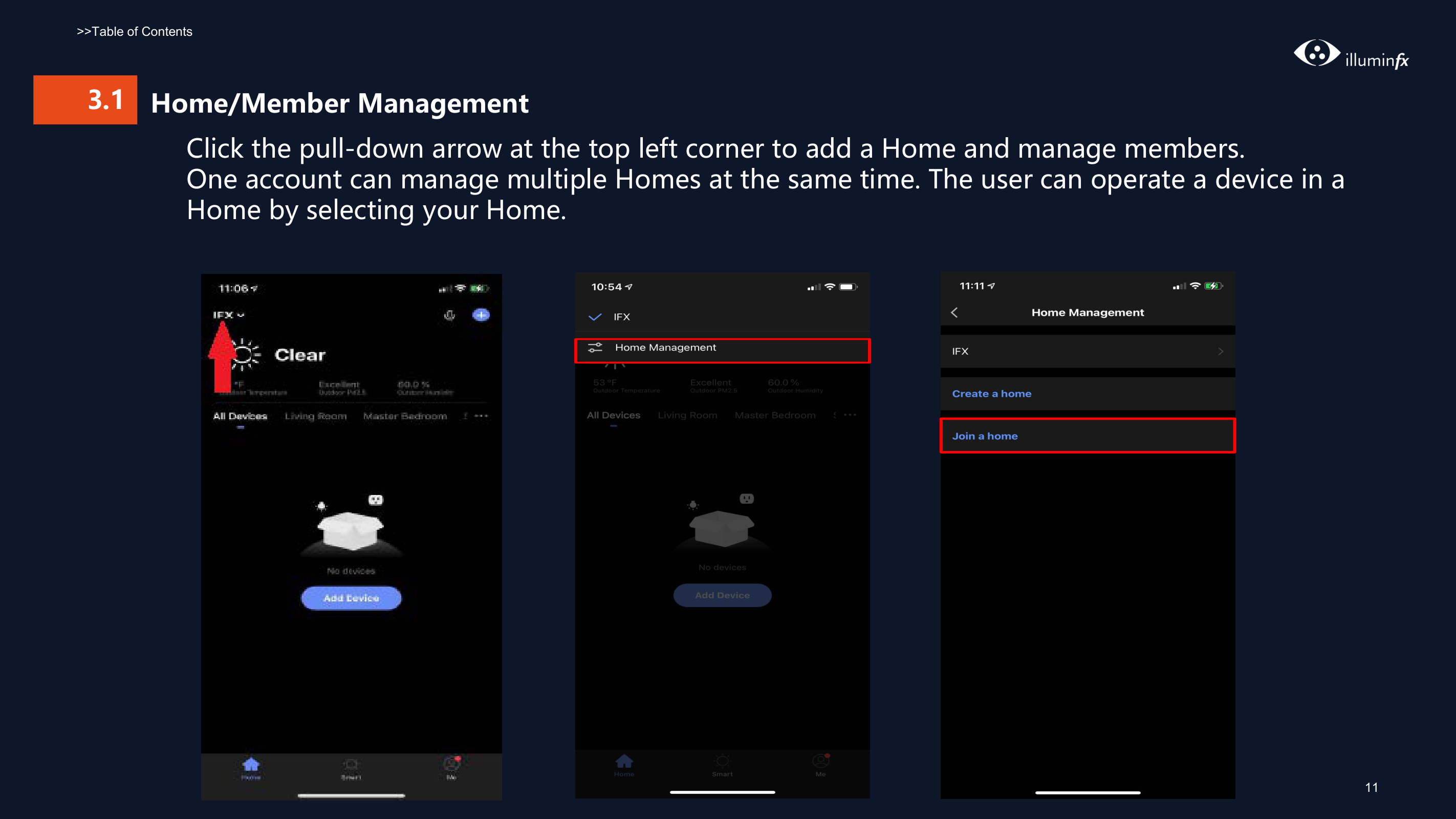
    Click the pull-down arrow at the top left corner to add a Home and manage members. One account can manage multiple Homes at the same time. The user can operate a device in a Home by selecting your Home.

    ![image 33](Smart-Life-Manual.IFX2021_images/imageFile33.png)

    ![image 34](Smart-Life-Manual.IFX2021_images/imageFile34.png)

    Page 13

    ![image 35](Smart-Life-Manual.IFX2021_images/imageFile35.png)

    | | |---|

    ![image 36](Smart-Life-Manual.IFX2021_images/imageFile36.png)

    | | |---|

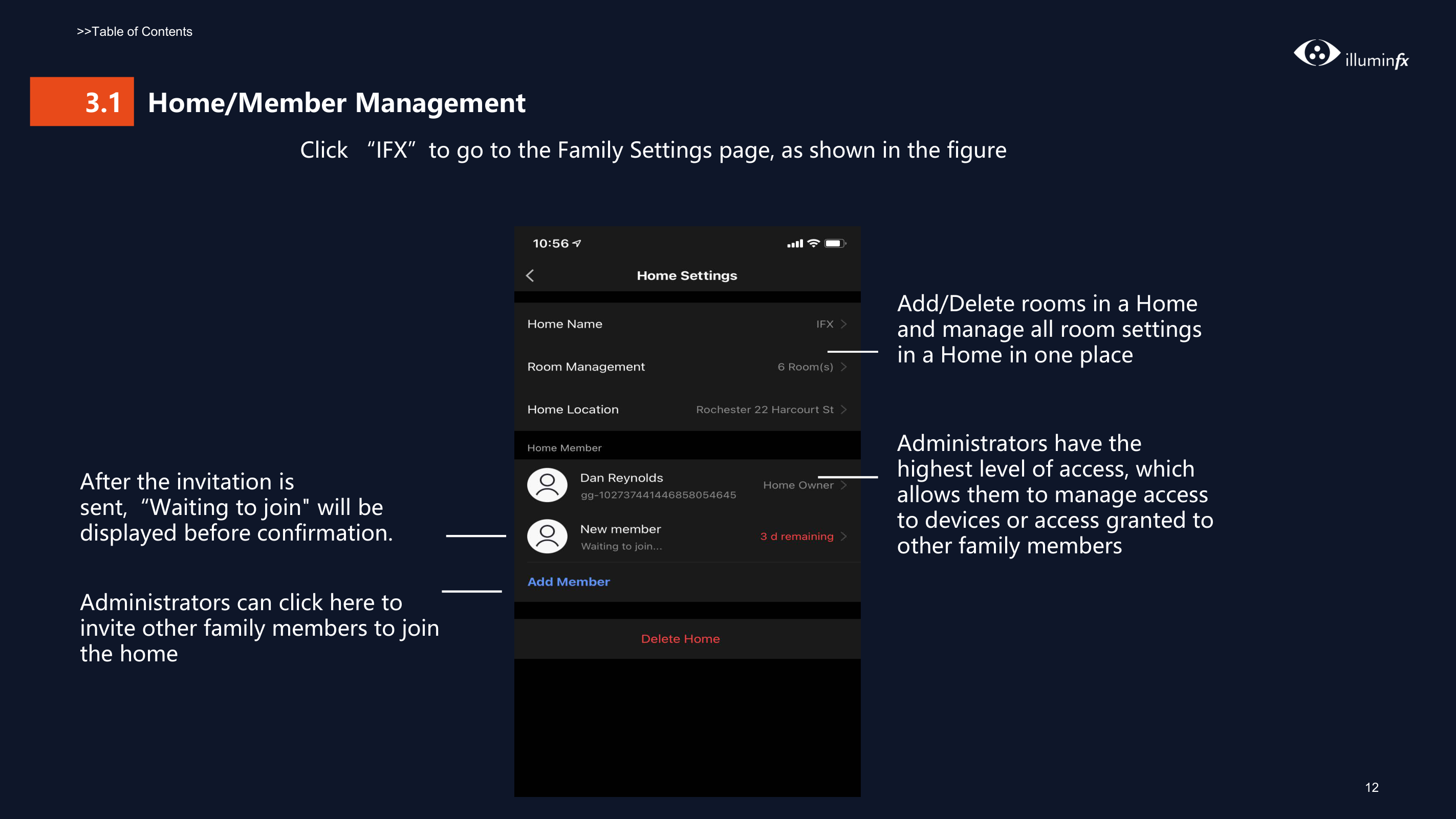
    Click “IFX”to go to the Family Settings page, as shown in the figure
    Page 14

    After the invitation is sent,“Waiting to join" will be displayed before confirmation.

    Administrators can click here to invite other family members to join the home

    ![image 38](Smart-Life-Manual.IFX2021_images/imageFile38.png)

    | | |---|

    ######## Add/Delete rooms in a Home and manage all room settings in a Home in one place
    Page 15

    Administrators have the highest level of access, which allows them to manage access to devices or access granted to other family members

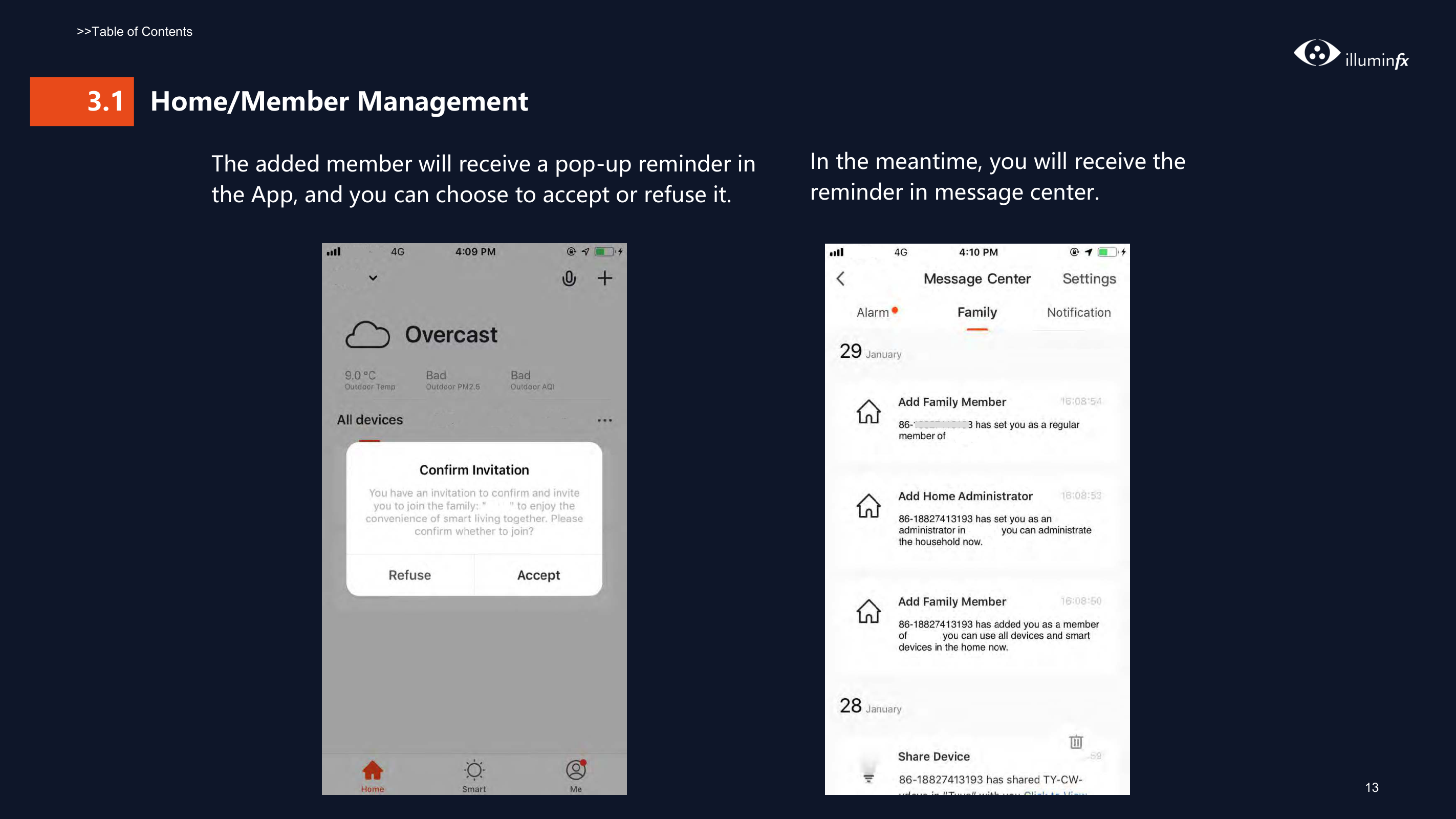
    The added member will receive a pop-up reminder in the App, and you can choose to accept or refuse it.

    In the meantime, you will receive the reminder in message center.

    ![image 40](Smart-Life-Manual.IFX2021_images/imageFile40.png)

    ![image 41](Smart-Life-Manual.IFX2021_images/imageFile41.png)

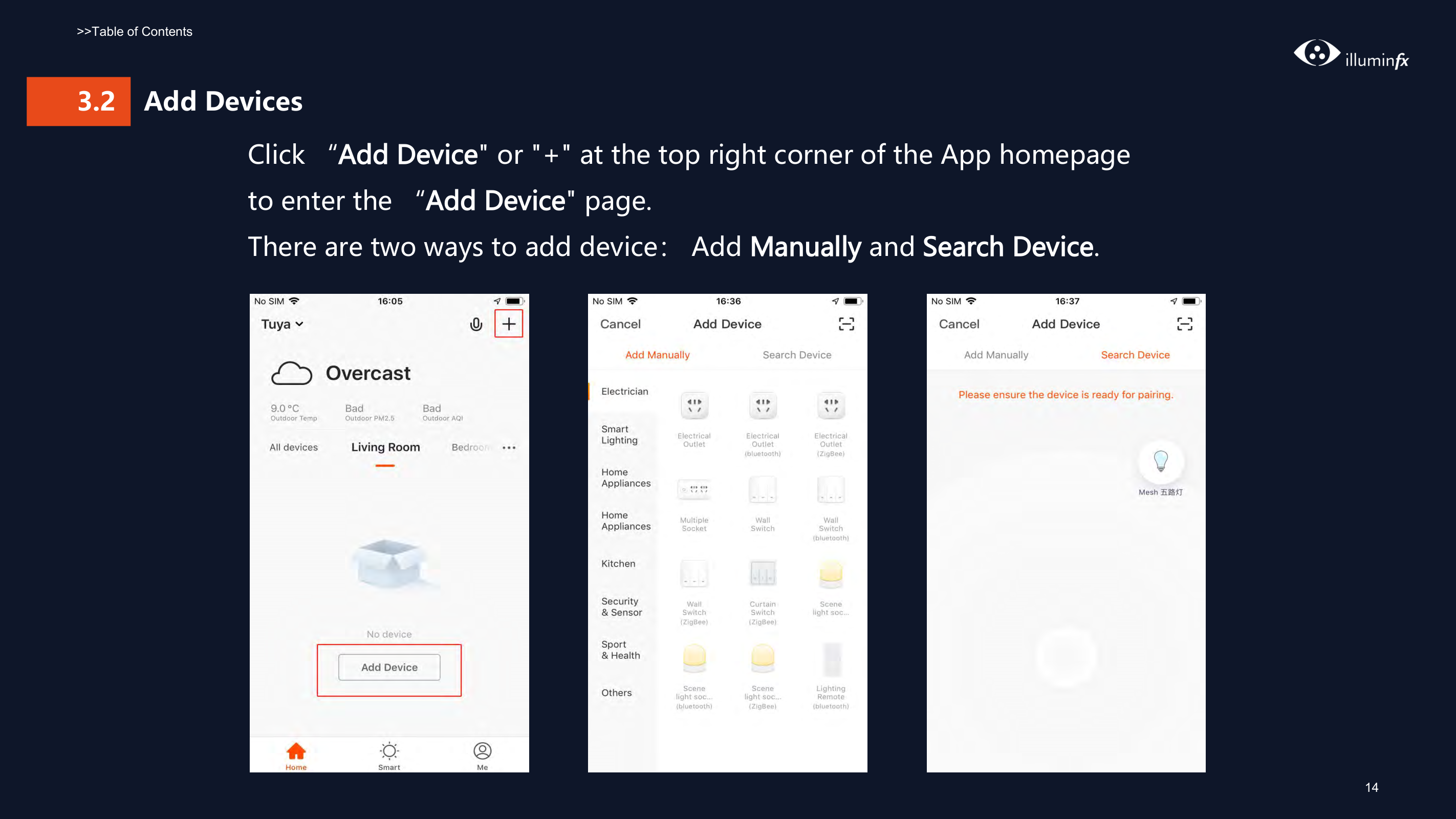
    ####### 3.2 Add DevicesClick “Add Device" or "+" at the top right corner of the App homepageto enter the “Add Device" page.There are two ways to add device: Add Manually and Search Device.

    ![image 43](Smart-Life-Manual.IFX2021_images/imageFile43.png)

    Page 16

    ![image 44](Smart-Life-Manual.IFX2021_images/imageFile44.png)

    ![image 45](Smart-Life-Manual.IFX2021_images/imageFile45.png)

    ###### Add Manually -wifi device - default mode

    #### 3.2.1

    ![image 47](Smart-Life-Manual.IFX2021_images/imageFile47.png)

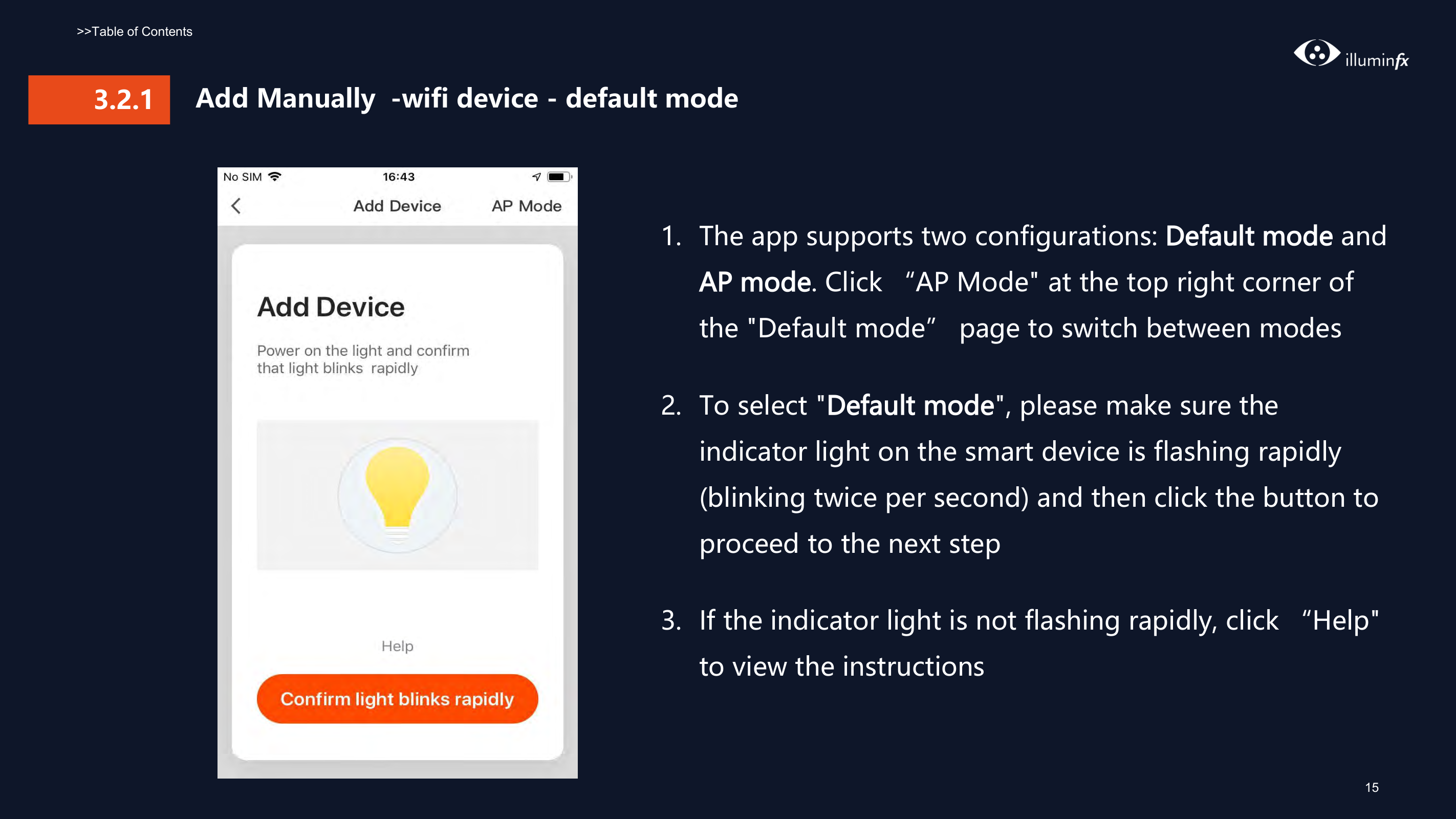
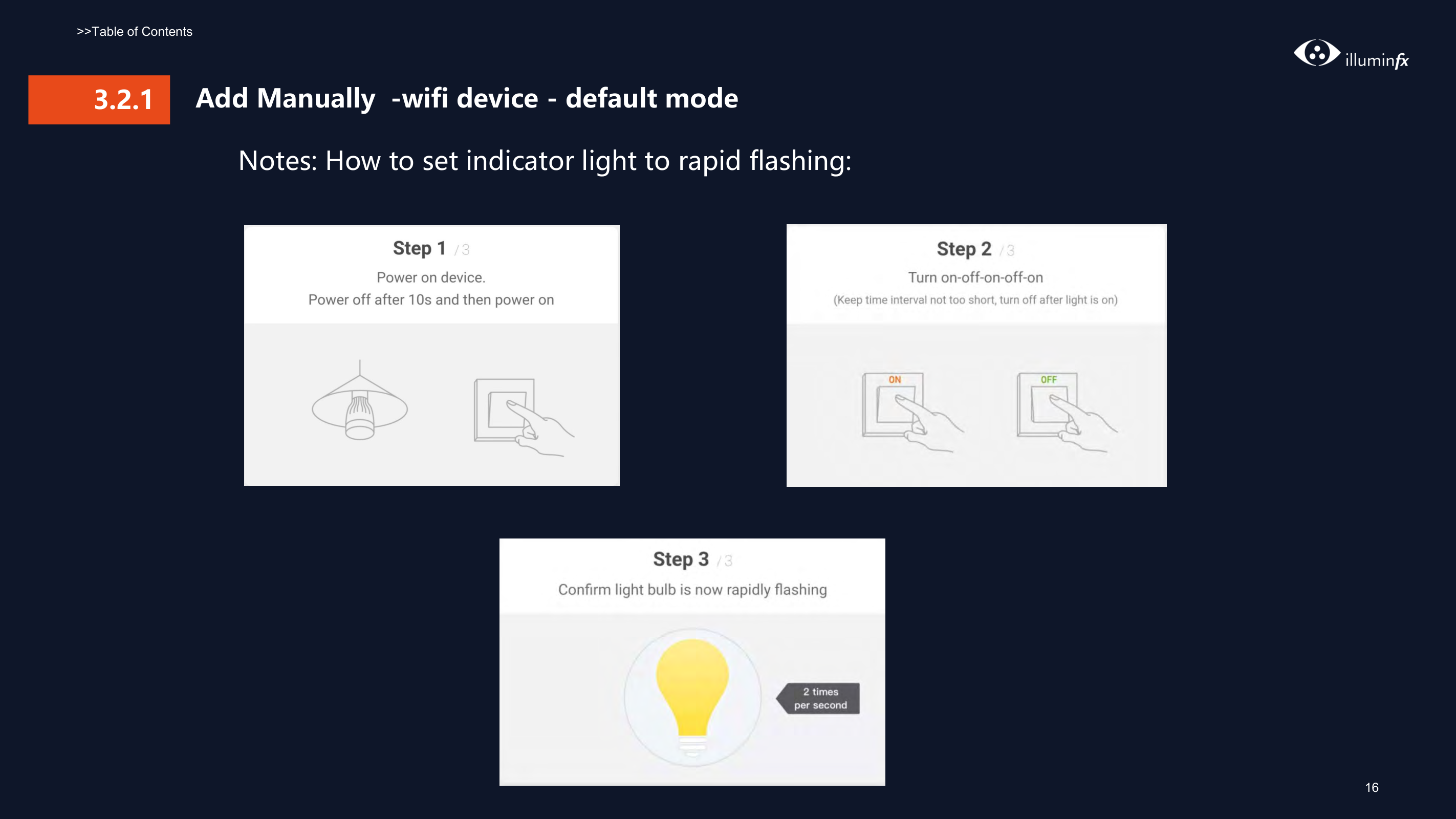
  • 1. The app supports two configurations: Default mode and AP mode. Click “AP Mode" at the top right corner of the "Default mode” page to switch between modes
  • 2. To select "Default mode", please make sure the indicator light on the smart device is flashing rapidly (blinking twice per second) and then click the button to proceed to the next step
  • Page 17

  • 3. If the indicator light is not flashing rapidly, click “Help" to view the instructions
  • #### Add Manually -wifi device - default mode3.2.1

    Notes: How to set indicator light to rapid flashing:

    ![image 49](Smart-Life-Manual.IFX2021_images/imageFile49.png)

    ![image 50](Smart-Life-Manual.IFX2021_images/imageFile50.png)

    ![image 51](Smart-Life-Manual.IFX2021_images/imageFile51.png)

    Page 18

    #### Add Manually -wifi device - AP Mode3.2.1

    ![image 53](Smart-Life-Manual.IFX2021_images/imageFile53.png)

    ![image 54](Smart-Life-Manual.IFX2021_images/imageFile54.png)

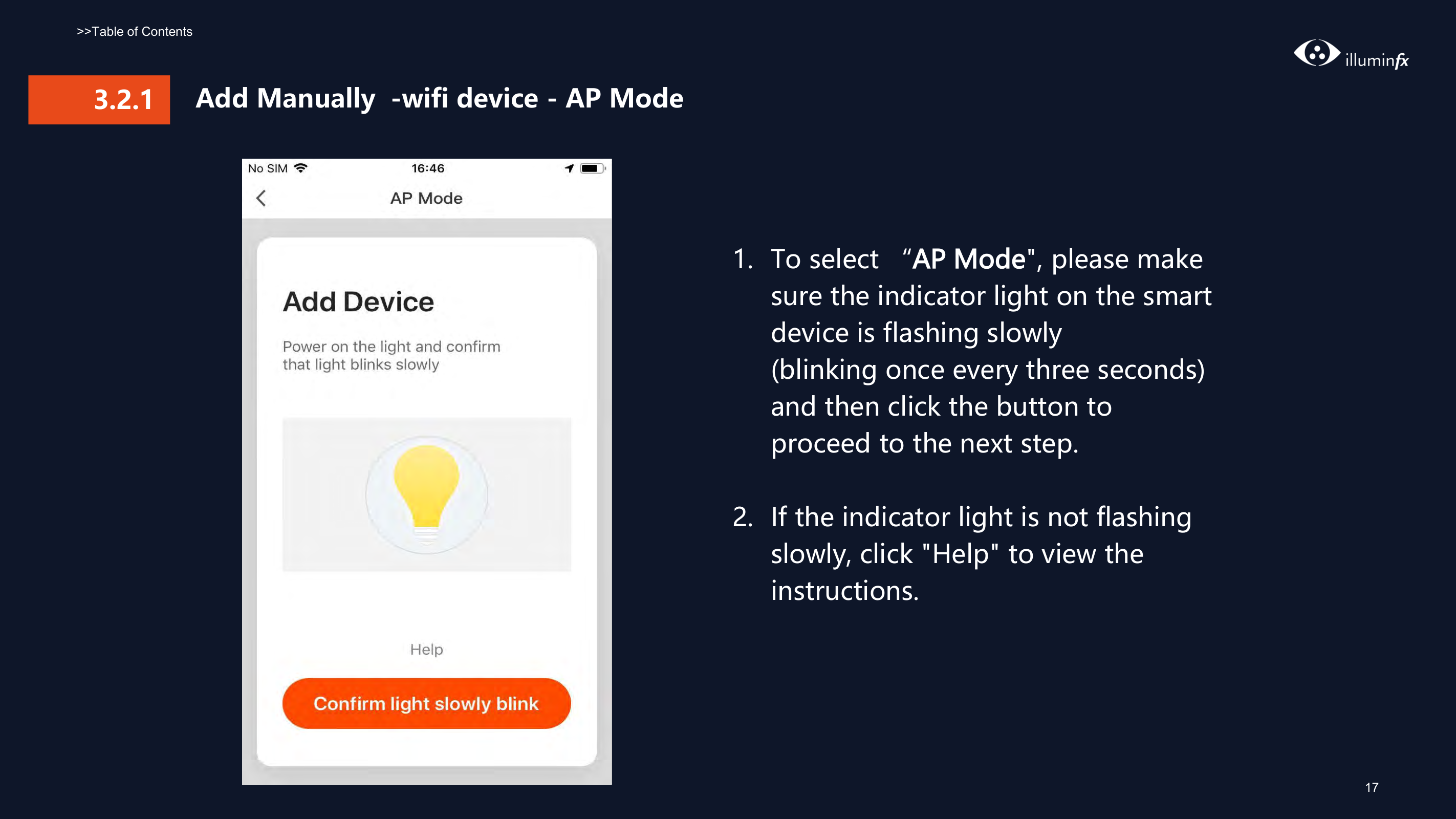
  • 1. To select “AP Mode", please make sure the indicator light on the smart device is flashing slowly (blinking once every three seconds) and then click the button to proceed to the next step.
  • 2. If the indicator light is not flashing slowly, click "Help" to view the instructions.
  • #### 3.2.1

    ###### Add Manually -wifi device - AP mode
    Page 19

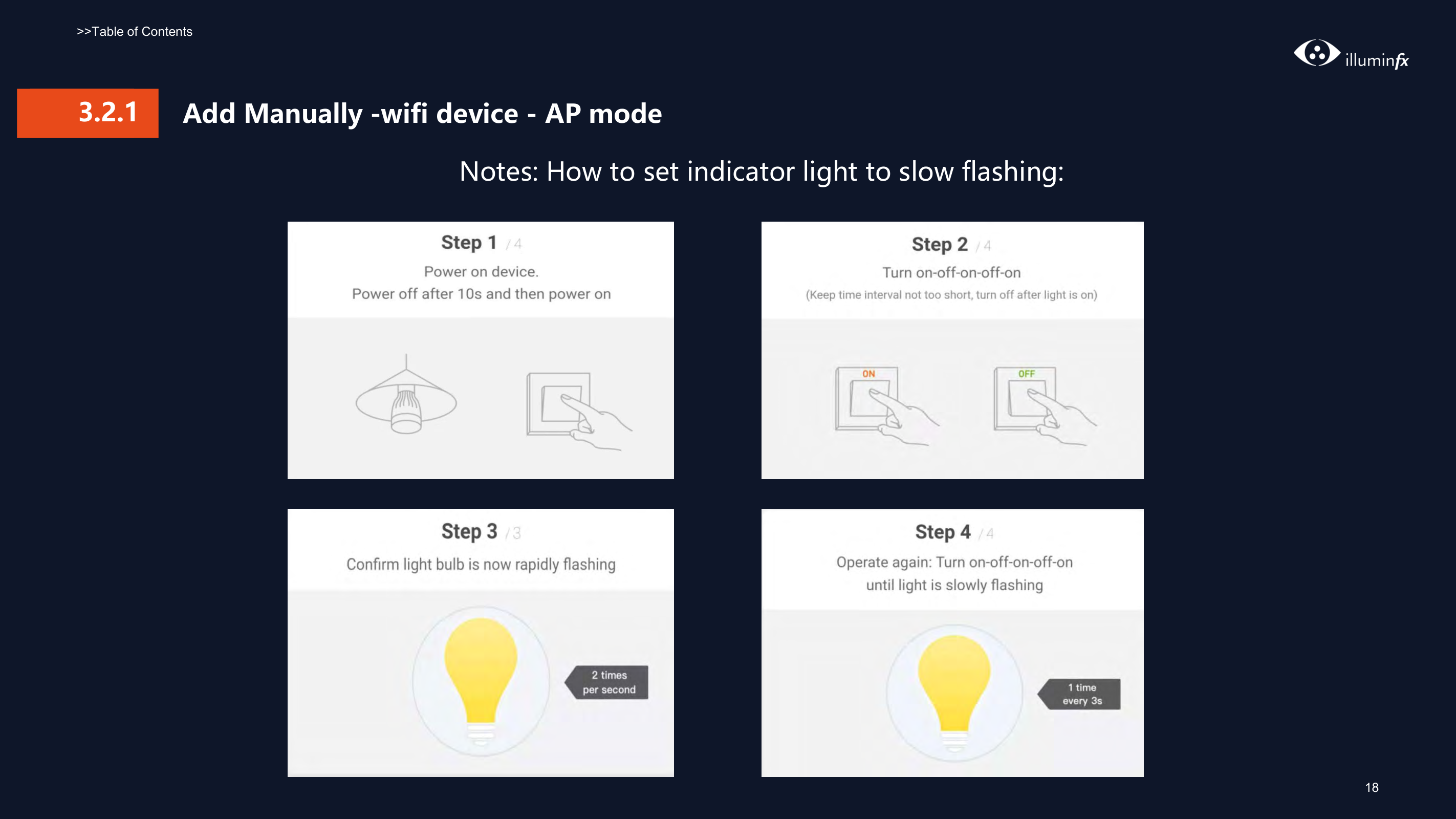
    Notes: How to set indicator light to slow flashing:

    ![image 56](Smart-Life-Manual.IFX2021_images/imageFile56.png)

    ![image 57](Smart-Life-Manual.IFX2021_images/imageFile57.png)

    ![image 58](Smart-Life-Manual.IFX2021_images/imageFile58.png)

    ![image 59](Smart-Life-Manual.IFX2021_images/imageFile59.png)

    ###### Add Manually -wifi device - Enter wifi password3.2.1
    Page 20

    ![image 61](Smart-Life-Manual.IFX2021_images/imageFile61.png)

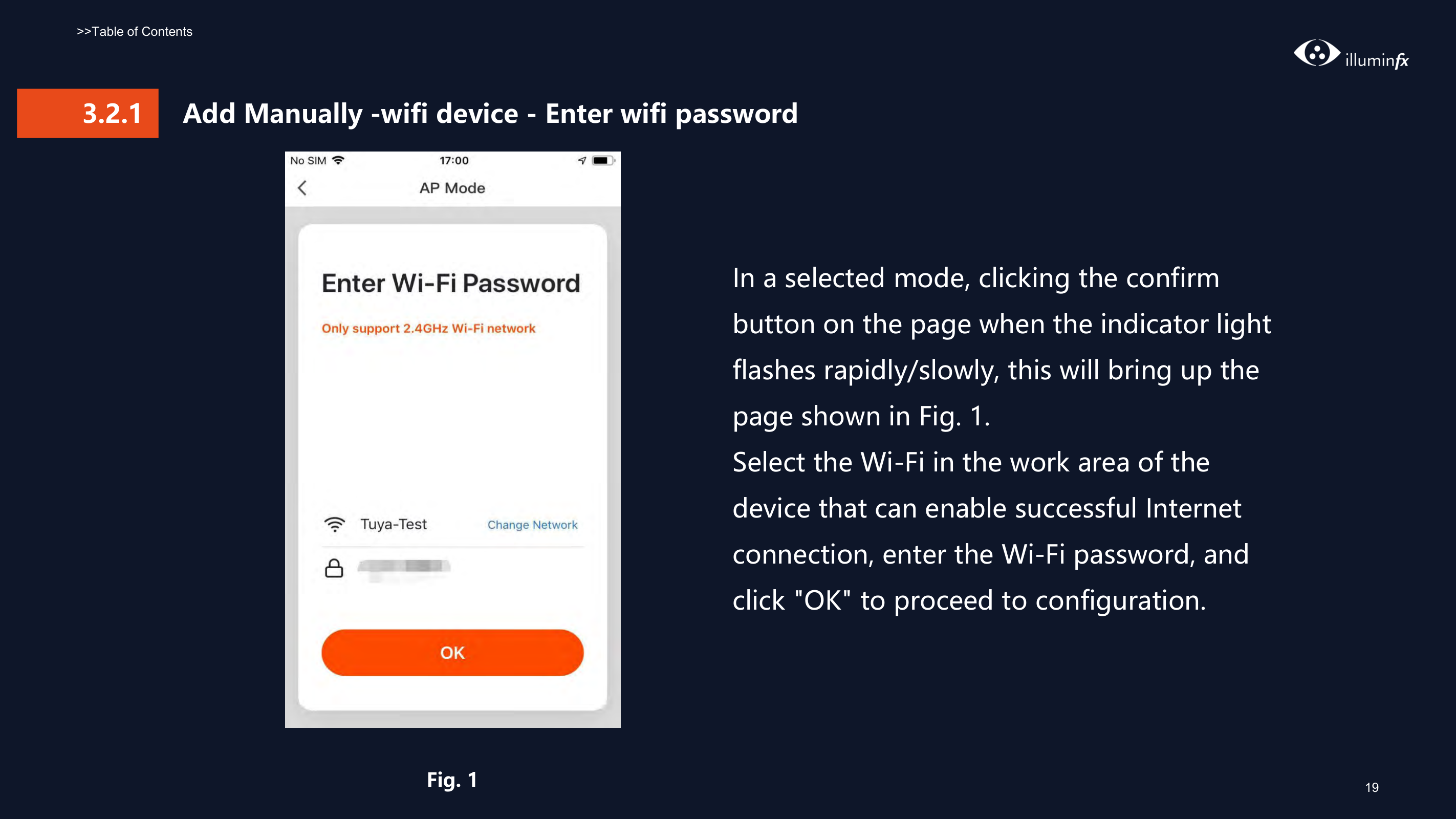
    In a selected mode, clicking the confirm button on the page when the indicator light flashes rapidly/slowly, this will bring up the page shown in Fig. 1. Select the Wi-Fi in the work area of the device that can enable successful Internet connection, enter the Wi-Fi password, and click "OK" to proceed to configuration.

    Fig. 1

    ###### 3.2 Add Manually– wifi device-Configuration

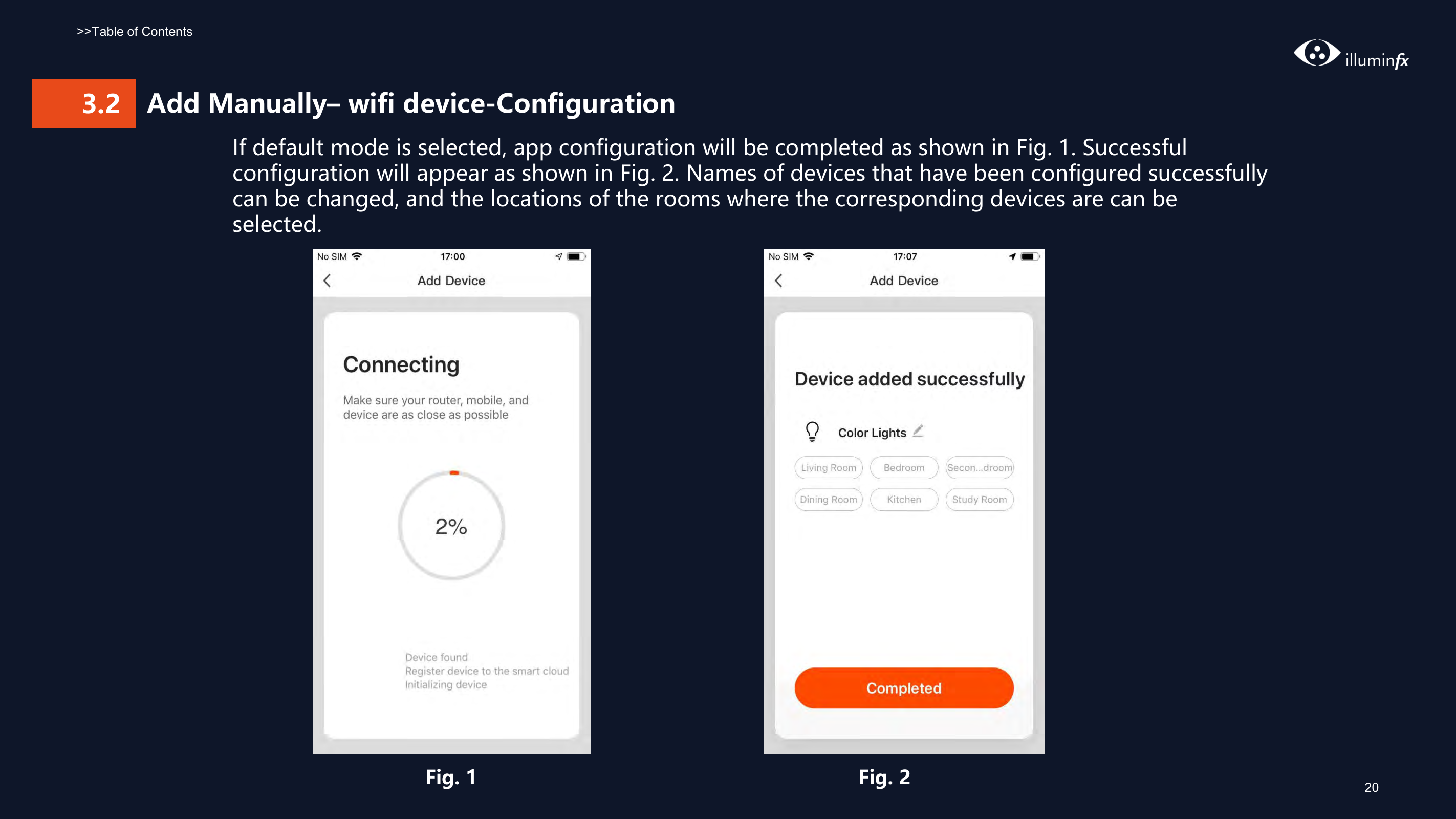
    If default mode is selected, app configuration will be completed as shown in Fig. 1. Successful configuration will appear as shown in Fig. 2. Names of devices that have been configured successfully can be changed, and the locations of the rooms where the corresponding devices are can be selected.

    ![image 63](Smart-Life-Manual.IFX2021_images/imageFile63.png)

    ![image 64](Smart-Life-Manual.IFX2021_images/imageFile64.png)

    Page 21

    ![image 65](Smart-Life-Manual.IFX2021_images/imageFile65.png)

    ![image 67](Smart-Life-Manual.IFX2021_images/imageFile67.png)

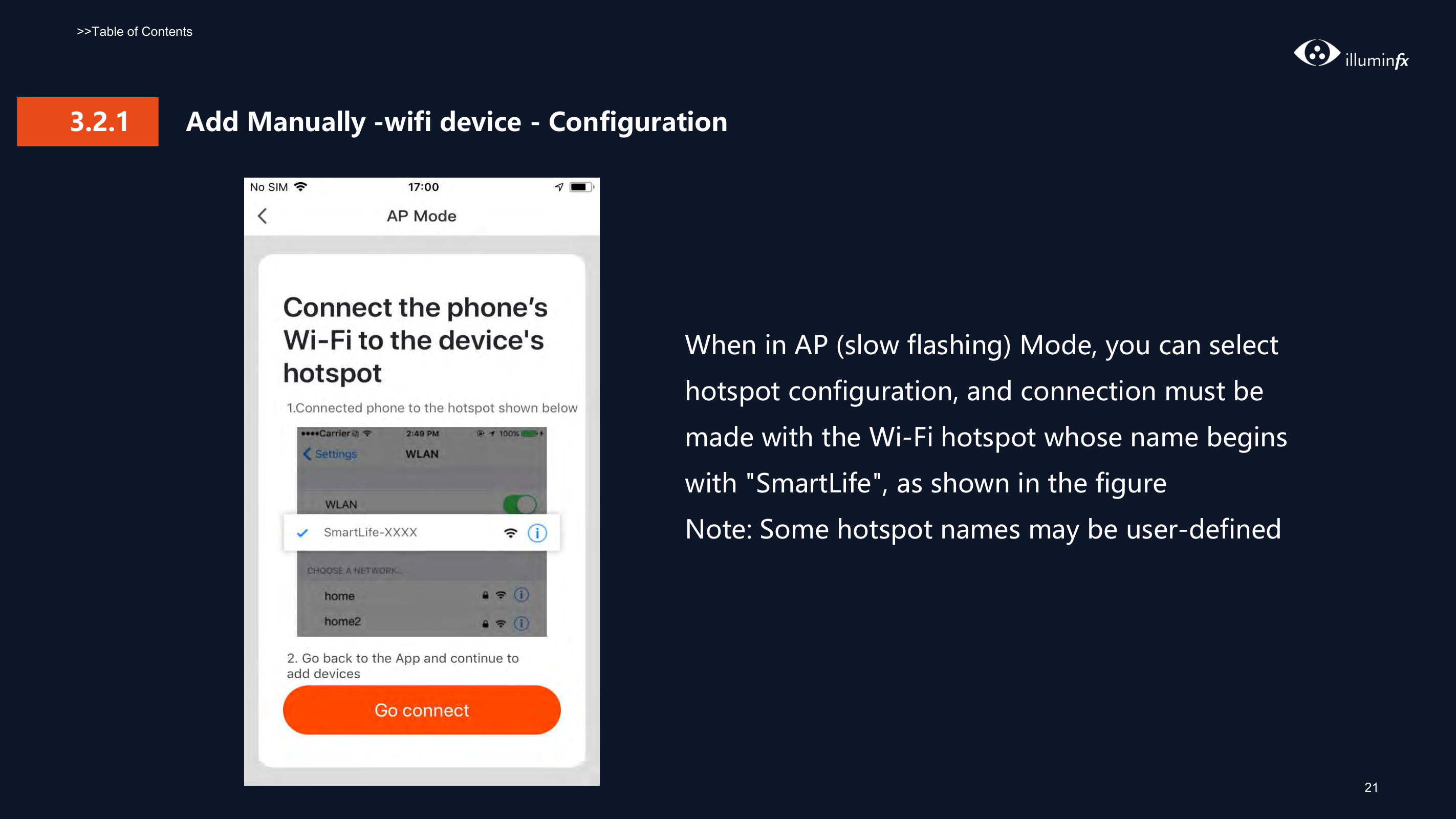
    ##### When in AP (slow flashing) Mode, you can select hotspot configuration, and connection must be made with the Wi-Fi hotspot whose name begins with "SmartLife", as shown in the figure Note: Some hotspot names may be user-defined

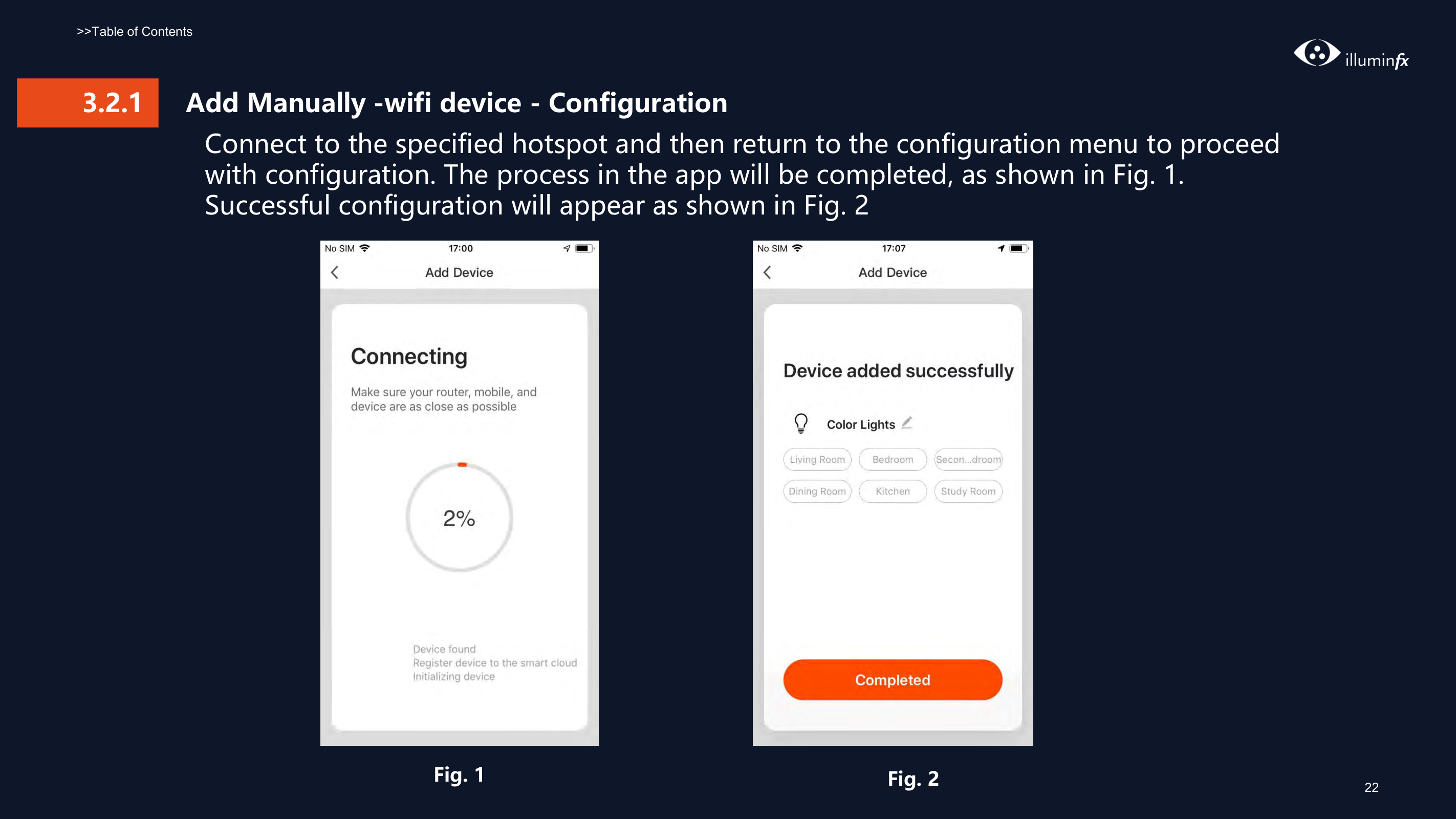
    ##### Connect to the specified hotspot and then return to the configuration menu to proceed with configuration. The process in the app will be completed, as shown in Fig. 1. Successful configuration will appear as shown in Fig. 2

    ![image 69](Smart-Life-Manual.IFX2021_images/imageFile69.png)

    ![image 70](Smart-Life-Manual.IFX2021_images/imageFile70.png)

    Page 22

    ![image 71](Smart-Life-Manual.IFX2021_images/imageFile71.png)

    ###### 3.2 Add Manually– wifi device-Failure

    ![image 73](Smart-Life-Manual.IFX2021_images/imageFile73.png)

    ![image 74](Smart-Life-Manual.IFX2021_images/imageFile74.png)

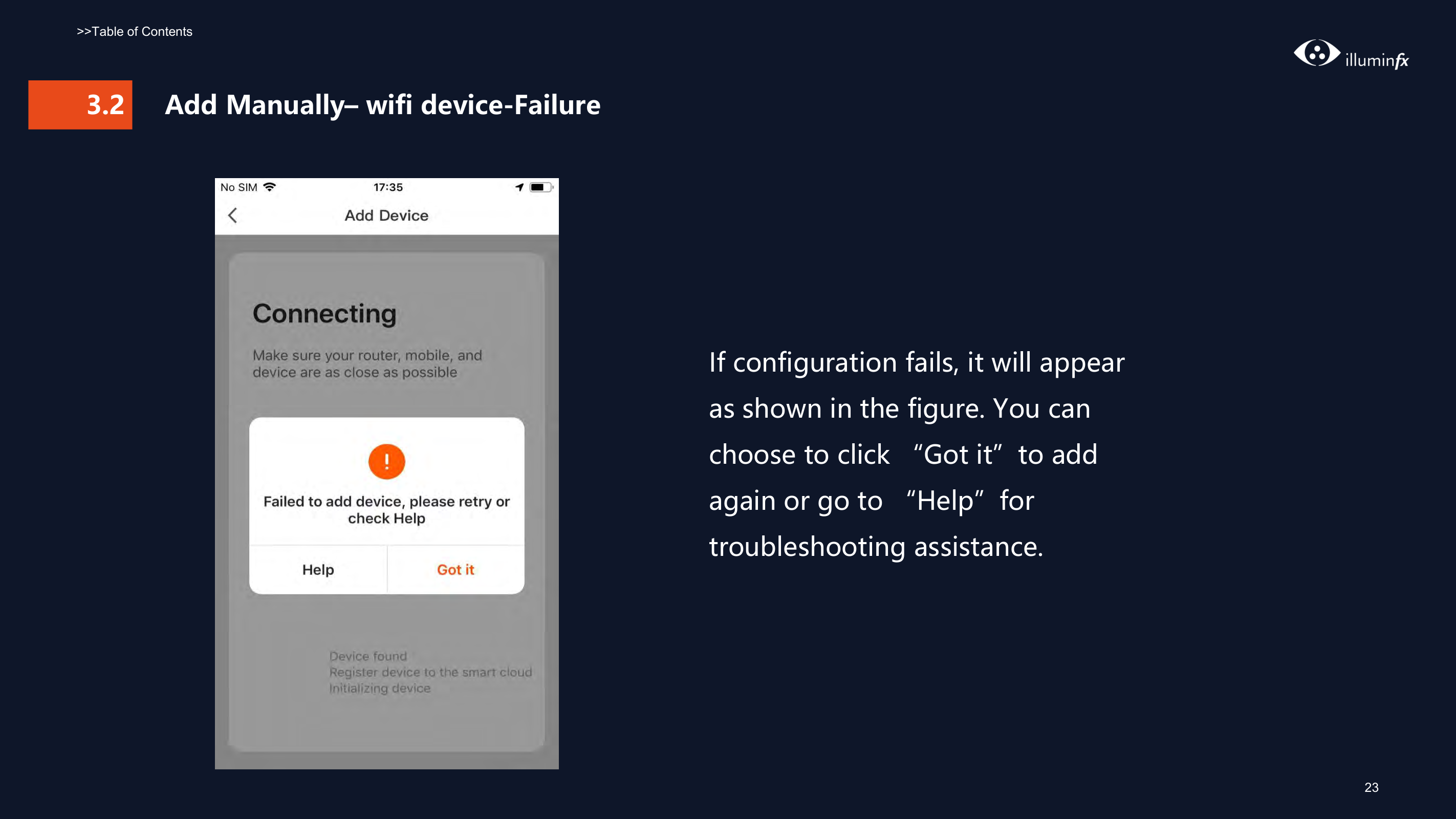
    If configuration fails, it will appear as shown in the figure. You can choose to click “Got it”to add again or go to “Help”for troubleshooting assistance.
  • 3.2.2 Add Manually --ZigBee Device When adding zigbee devices, gateway should be added first
  • Page 23

  • 1. Plug in a gateway and use a networking cable to connect to the router.
  • 2. Make mobile phone and gateways under the same network environment.
  • 3. Click the button of “Add Device” on the home page, as shown in figure 1. Click the “Gateway( ZigBee ) ”under the category of “Others”. Confirm that the indicator for distribution turns green and click "Bind" to enter the adding process, as shown in figure 5
  • ![image 76](Smart-Life-Manual.IFX2021_images/imageFile76.png)

    ![image 77](Smart-Life-Manual.IFX2021_images/imageFile77.png)

    Fig. 1 Fig. 2

    |![image 78](Smart-Life-Manual.IFX2021_images/imageFile78.png)

    ![image 79](Smart-Life-Manual.IFX2021_images/imageFile79.png)| |---|

    Page 24

    |![image 80](Smart-Life-Manual.IFX2021_images/imageFile80.png)

    ![image 81](Smart-Life-Manual.IFX2021_images/imageFile81.png)| |---|

    Fig. 3 Fig. 4

    |![image 82](Smart-Life-Manual.IFX2021_images/imageFile82.png)

    ![image 83](Smart-Life-Manual.IFX2021_images/imageFile83.png)| |---|

    Fig. 5

    Page 25

    #### 3.2.2

    ###### Add Manually --ZigBee Device

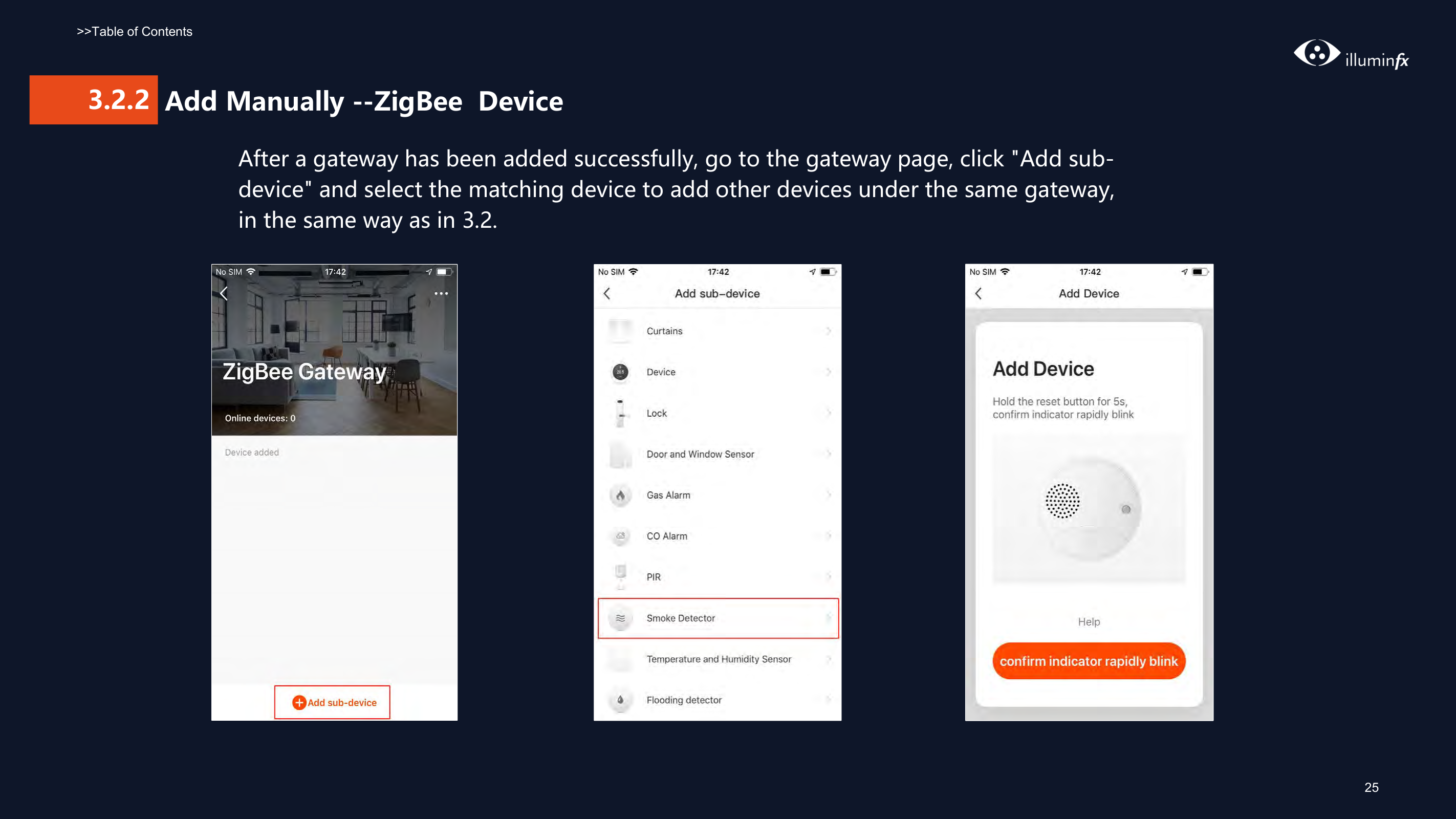
    After a gateway has been added successfully, go to the gateway page, click "Add subdevice" and select the matching device to add other devices under the same gateway, in the same way as in 3.2.

    |![image 85](Smart-Life-Manual.IFX2021_images/imageFile85.png)

    ![image 86](Smart-Life-Manual.IFX2021_images/imageFile86.png)| |---|

    |![image 87](Smart-Life-Manual.IFX2021_images/imageFile87.png)

    ![image 88](Smart-Life-Manual.IFX2021_images/imageFile88.png)| |---|

    Page 26

    |![image 89](Smart-Life-Manual.IFX2021_images/imageFile89.png)

    ![image 90](Smart-Life-Manual.IFX2021_images/imageFile90.png)| |---|

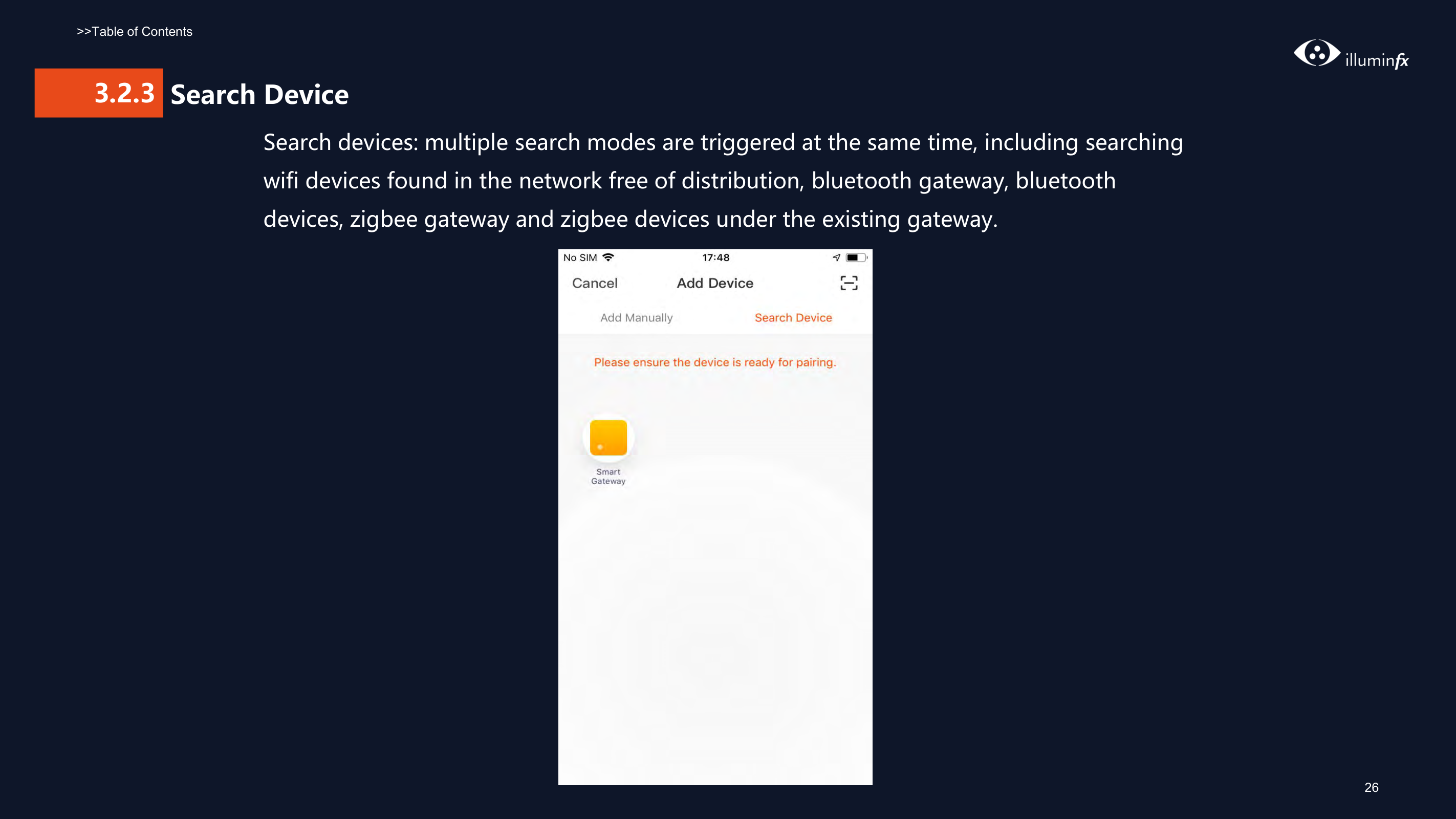
    ####### 3.2.3 Search Device Search devices: multiple search modes are triggered at the same time, including searching wifi devices found in the network free of distribution, bluetooth gateway, bluetooth devices, zigbee gateway and zigbee devices under the existing gateway.

    ![image 92](Smart-Life-Manual.IFX2021_images/imageFile92.png)

    ###### 4

    ###### Control Devices - Individual Control
    Page 27

    ![image 94](Smart-Life-Manual.IFX2021_images/imageFile94.png)

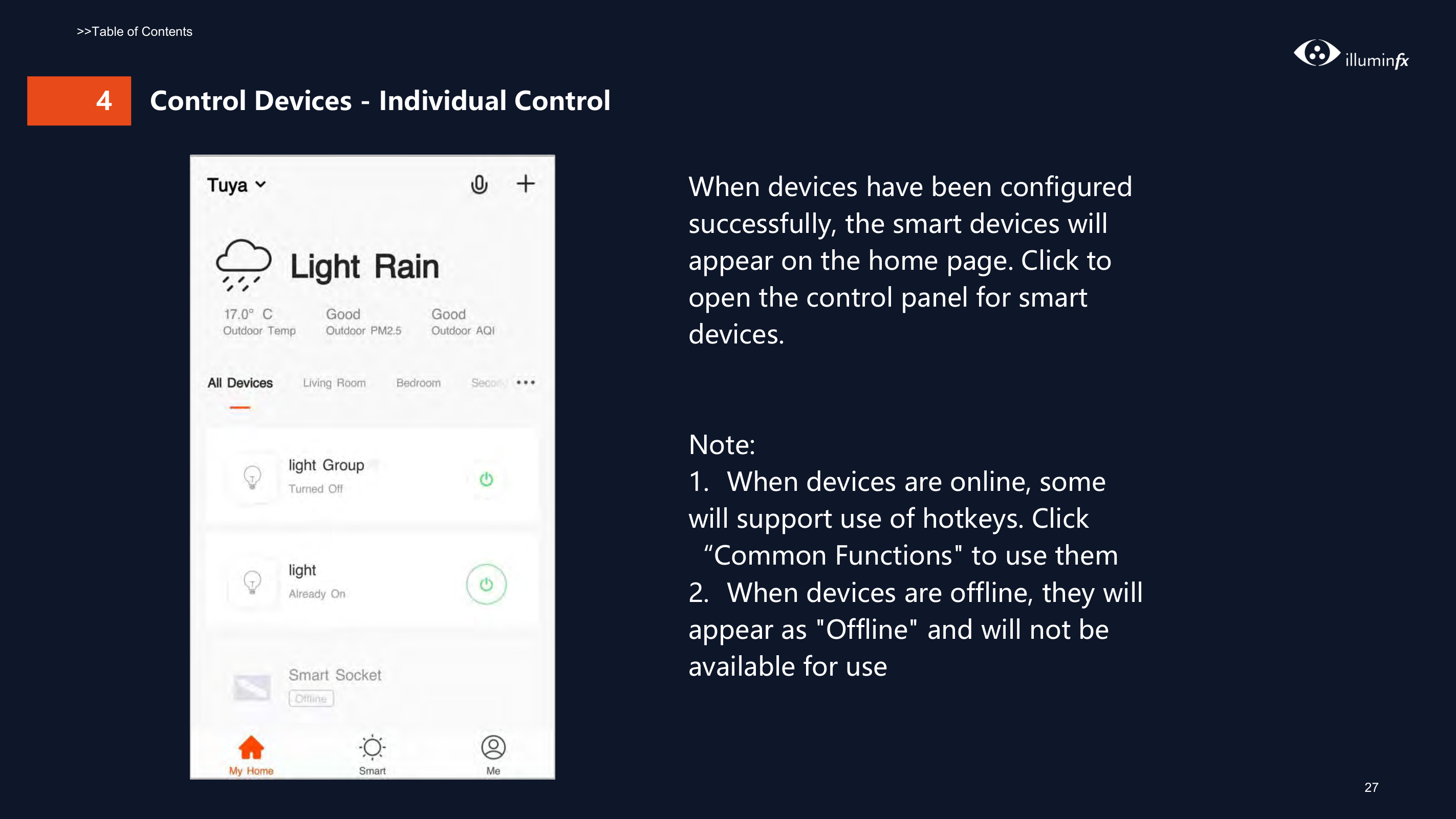
    When devices have been configured successfully, the smart devices will appear on the home page. Click to open the control panel for smart devices.

    Note:

  • 1. When devices are online, some will support use of hotkeys. Click “Common Functions" to use them
  • 2. When devices are offline, they will appear as "Offline" and will not be available for use
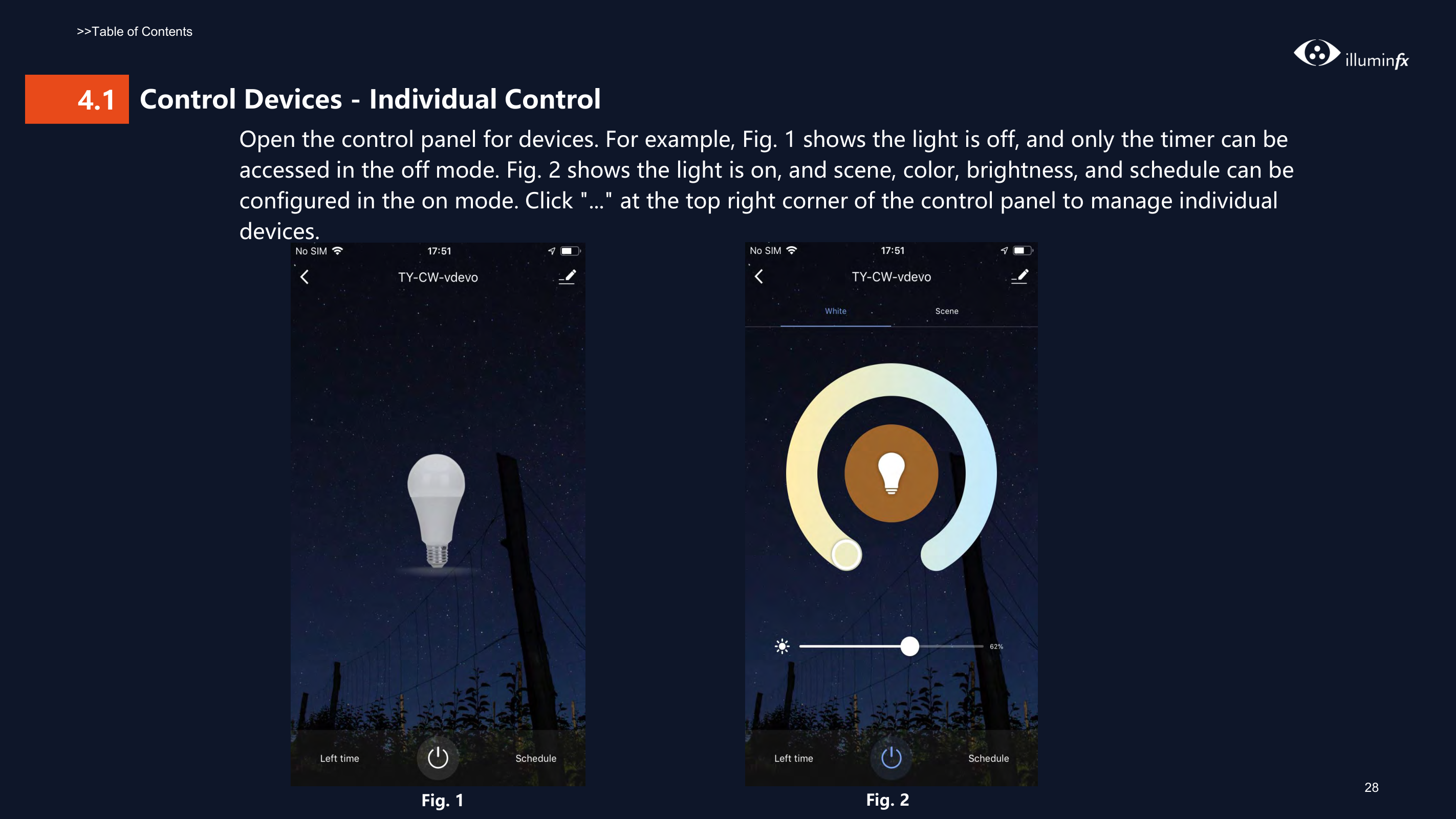
  • ##### 4.1 Control Devices - Individual Control Open the control panel for devices. For example, Fig. 1 shows the light is off, and only the timer can be accessed in the off mode. Fig. 2 shows the light is on, and scene, color, brightness, and schedule can be configured in the on mode. Click "..." at the top right corner of the control panel to manage individual devices.
    Page 28

    ![image 96](Smart-Life-Manual.IFX2021_images/imageFile96.png)

    ![image 97](Smart-Life-Manual.IFX2021_images/imageFile97.png)

    ![image 98](Smart-Life-Manual.IFX2021_images/imageFile98.png)

    ![image 99](Smart-Life-Manual.IFX2021_images/imageFile99.png)

    28

    Fig. 1 Fig. 2

    ###### 4.1 Control Devices - Individual Control
    Page 29

    ![image 101](Smart-Life-Manual.IFX2021_images/imageFile101.png)

    ![image 102](Smart-Life-Manual.IFX2021_images/imageFile102.png)

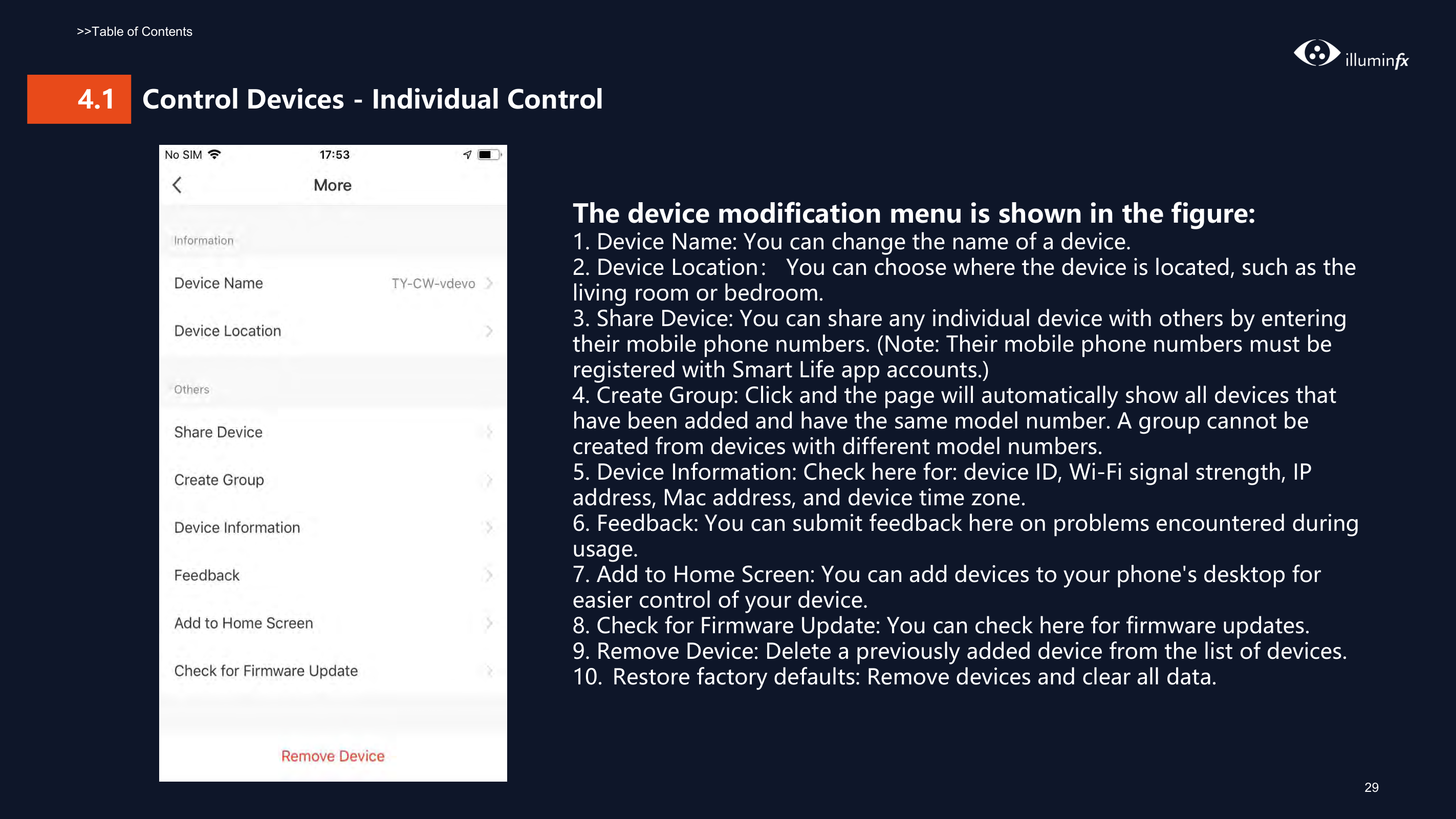
    ###### The device modification menu is shown in the figure:
  • 1. Device Name: You can change the name of a device.
  • 2. Device Location: You can choose where the device is located, such as the living room or bedroom.
  • 3. Share Device: You can share any individual device with others by entering their mobile phone numbers. (Note: Their mobile phone numbers must be registered with Smart Life app accounts.)
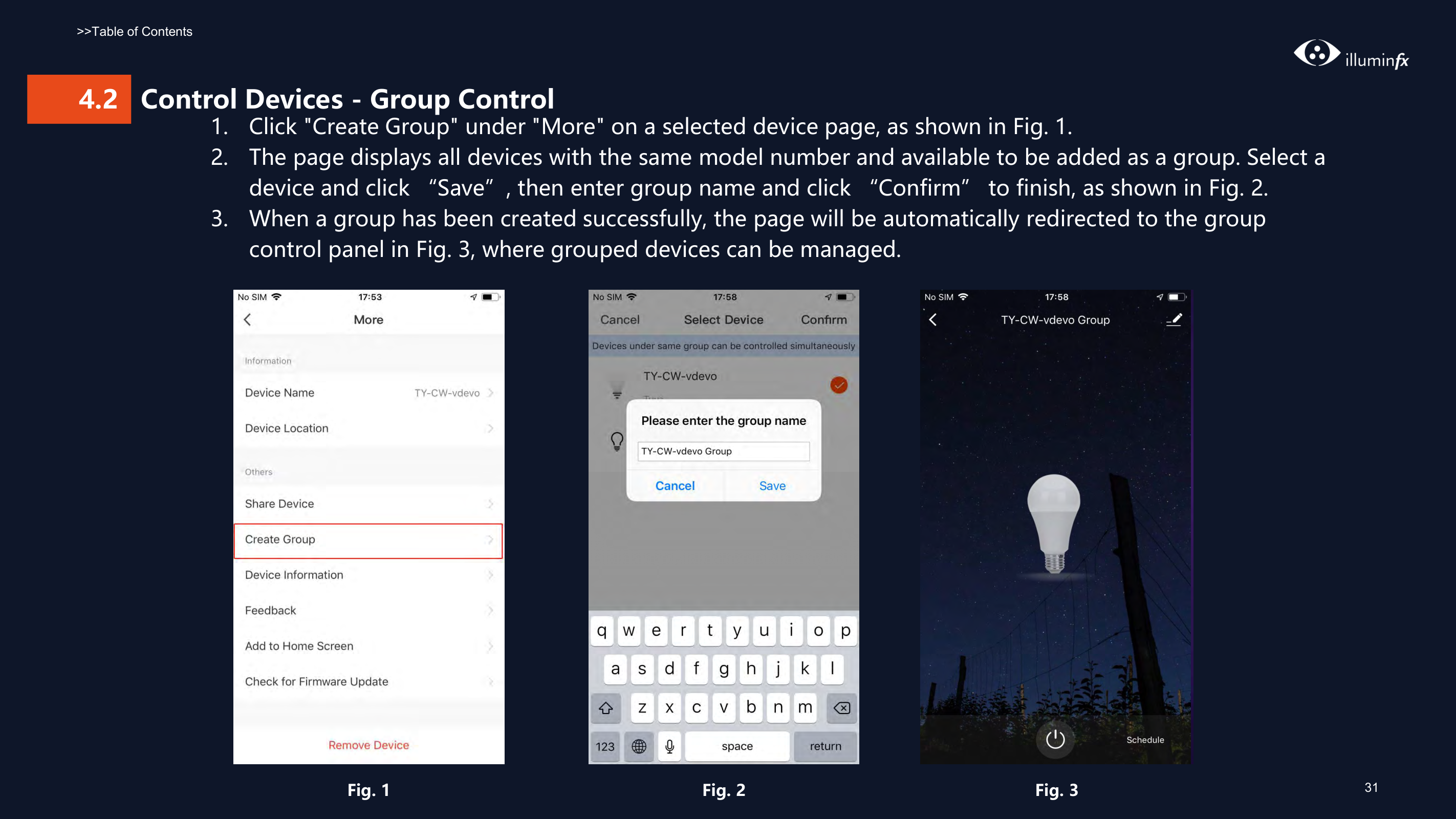
  • 4. Create Group: Click and the page will automatically show all devices that have been added and have the same model number. A group cannot be created from devices with different model numbers.
  • 5. Device Information: Check here for: device ID, Wi-Fi signal strength, IP address, Mac address, and device time zone.
  • 6. Feedback: You can submit feedback here on problems encountered during usage.
  • Page 30

  • 7. Add to Home Screen: You can add devices to your phone's desktop for easier control of your device.
  • 8. Check for Firmware Update: You can check here for firmware updates.
  • 9. Remove Device: Delete a previously added device from the list of devices.
  • 10. Restore factory defaults: Remove devices and clear all data.
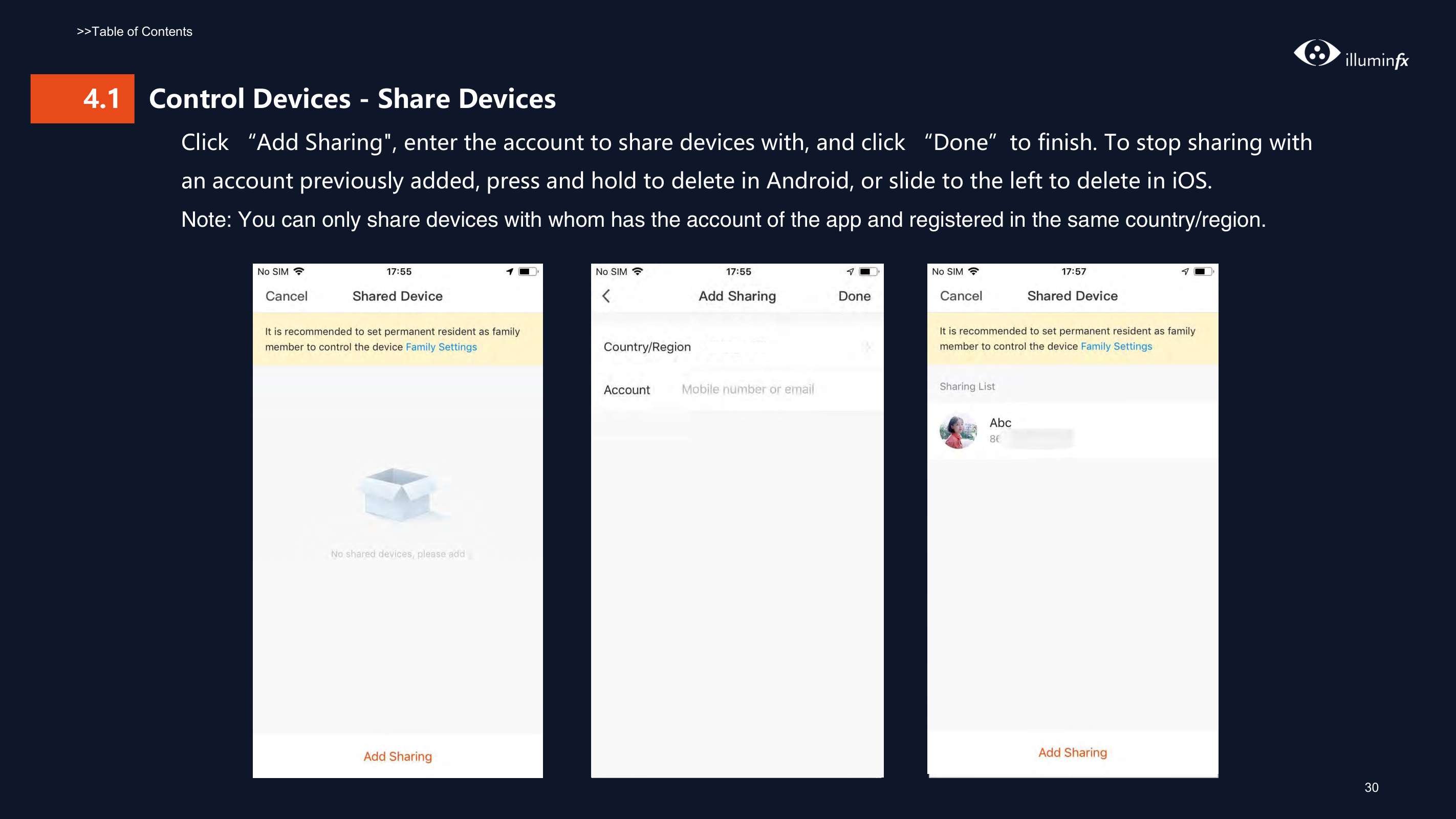
  • ####### 4.1 Control Devices - Share DevicesClick “Add Sharing", enter the account to share devices with, and click “Done”to finish. To stop sharing withan account previously added, press and hold to delete in Android, or slide to the left to delete in iOS.Note: You can only share devices with whom has the account of the app and registered in the same country/region.

    ![image 104](Smart-Life-Manual.IFX2021_images/imageFile104.png)

    ![image 105](Smart-Life-Manual.IFX2021_images/imageFile105.png)

    ![image 106](Smart-Life-Manual.IFX2021_images/imageFile106.png)

    Page 31

    ![image 107](Smart-Life-Manual.IFX2021_images/imageFile107.png)

  • 1. Click "Create Group" under "More" on a selected device page, as shown in Fig. 1.
  • 2. The page displays all devices with the same model number and available to be added as a group. Select a
  • device and click “Save”, then enter group name and click “Confirm” to finish, as shown in Fig. 2. 3. When a group has been created successfully, the page will be automatically redirected to the group

    control panel in Fig. 3, where grouped devices can be managed.

    ![image 109](Smart-Life-Manual.IFX2021_images/imageFile109.png)

    Page 32

    ![image 110](Smart-Life-Manual.IFX2021_images/imageFile110.png)

    ![image 111](Smart-Life-Manual.IFX2021_images/imageFile111.png)

    ![image 112](Smart-Life-Manual.IFX2021_images/imageFile112.png)

    ![image 113](Smart-Life-Manual.IFX2021_images/imageFile113.png)

    ![image 114](Smart-Life-Manual.IFX2021_images/imageFile114.png)

    ############# Fig. 1 Fig. 3Fig. 2
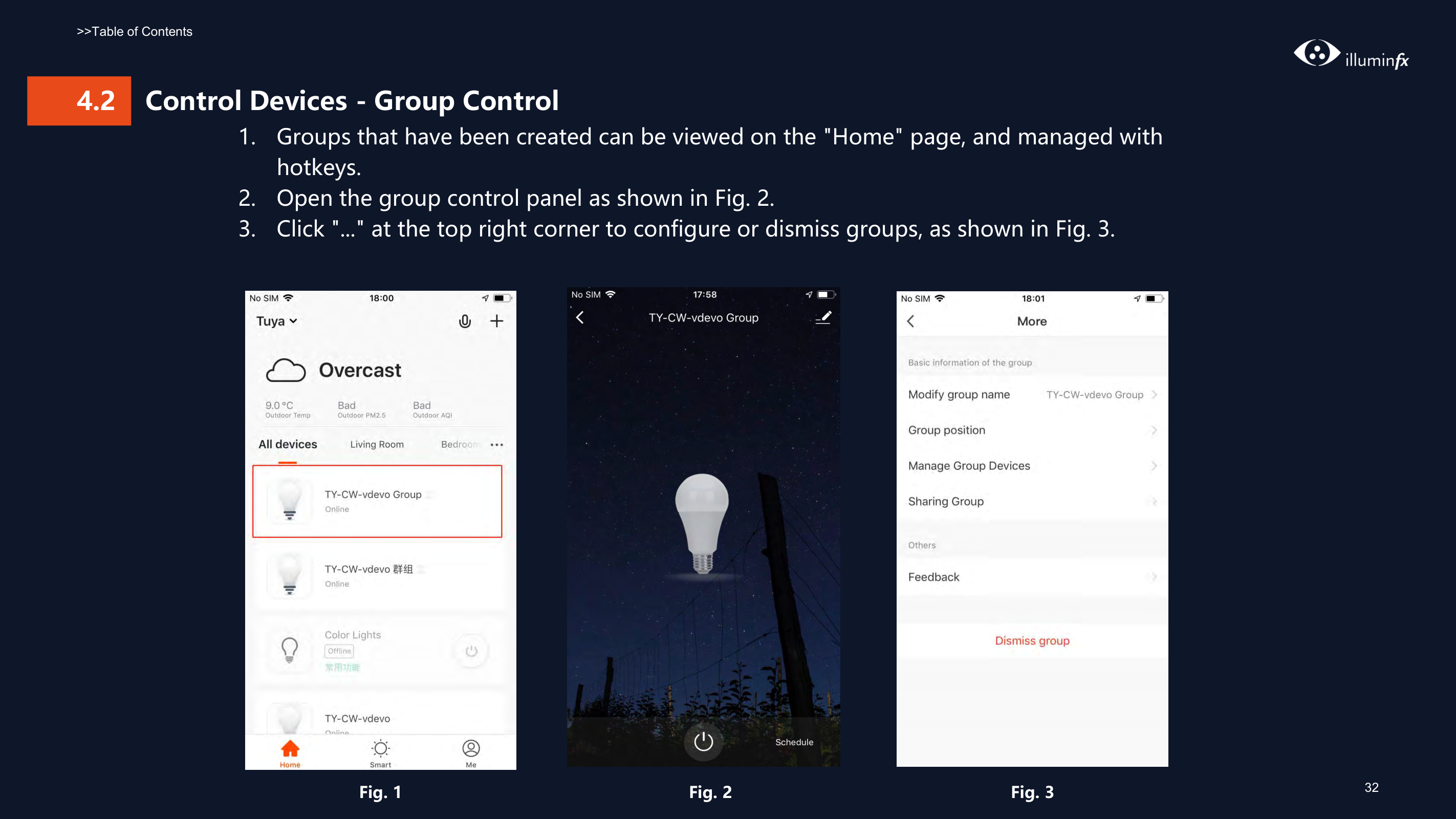
  • 1. Groups that have been created can be viewed on the "Home" page, and managed with hotkeys.
  • Page 33

  • 2. Open the group control panel as shown in Fig. 2.
  • 3. Click "..." at the top right corner to configure or dismiss groups, as shown in Fig. 3.
  • ![image 116](Smart-Life-Manual.IFX2021_images/imageFile116.png)

    ![image 117](Smart-Life-Manual.IFX2021_images/imageFile117.png)

    ![image 118](Smart-Life-Manual.IFX2021_images/imageFile118.png)

    ![image 119](Smart-Life-Manual.IFX2021_images/imageFile119.png)

    ![image 120](Smart-Life-Manual.IFX2021_images/imageFile120.png)

    Page 34

    Fig. 1 Fig. 2 Fig. 3

    32

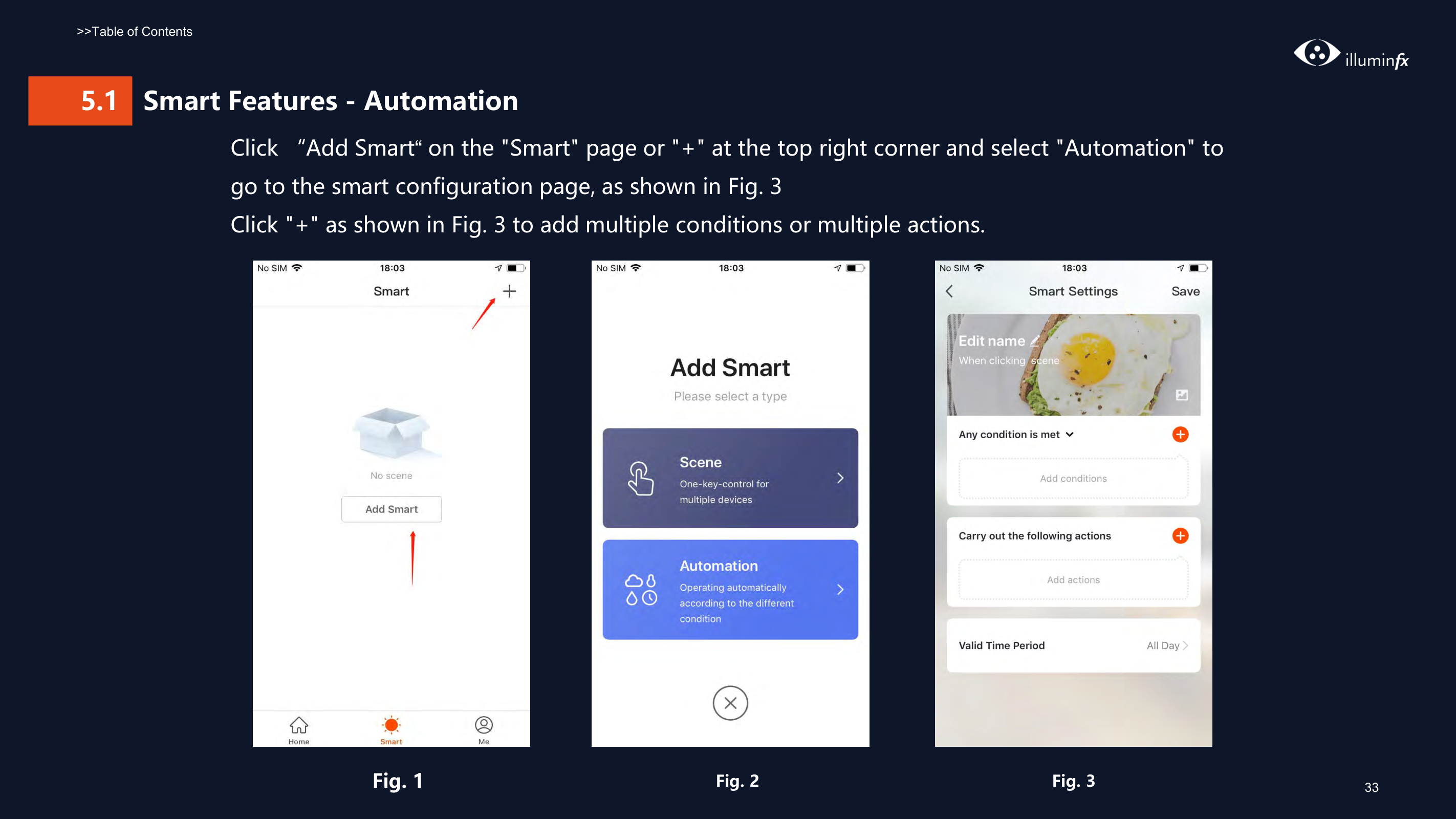
    ######### Click “Add Smart“ on the "Smart" page or "+" at the top right corner and select "Automation" to go to the smart configuration page, as shown in Fig. 3 Click "+" as shown in Fig. 3 to add multiple conditions or multiple actions.

    ![image 122](Smart-Life-Manual.IFX2021_images/imageFile122.png)

    ![image 123](Smart-Life-Manual.IFX2021_images/imageFile123.png)

    ![image 124](Smart-Life-Manual.IFX2021_images/imageFile124.png)

    Page 35

    Fig. 3Fig. 2Fig. 1

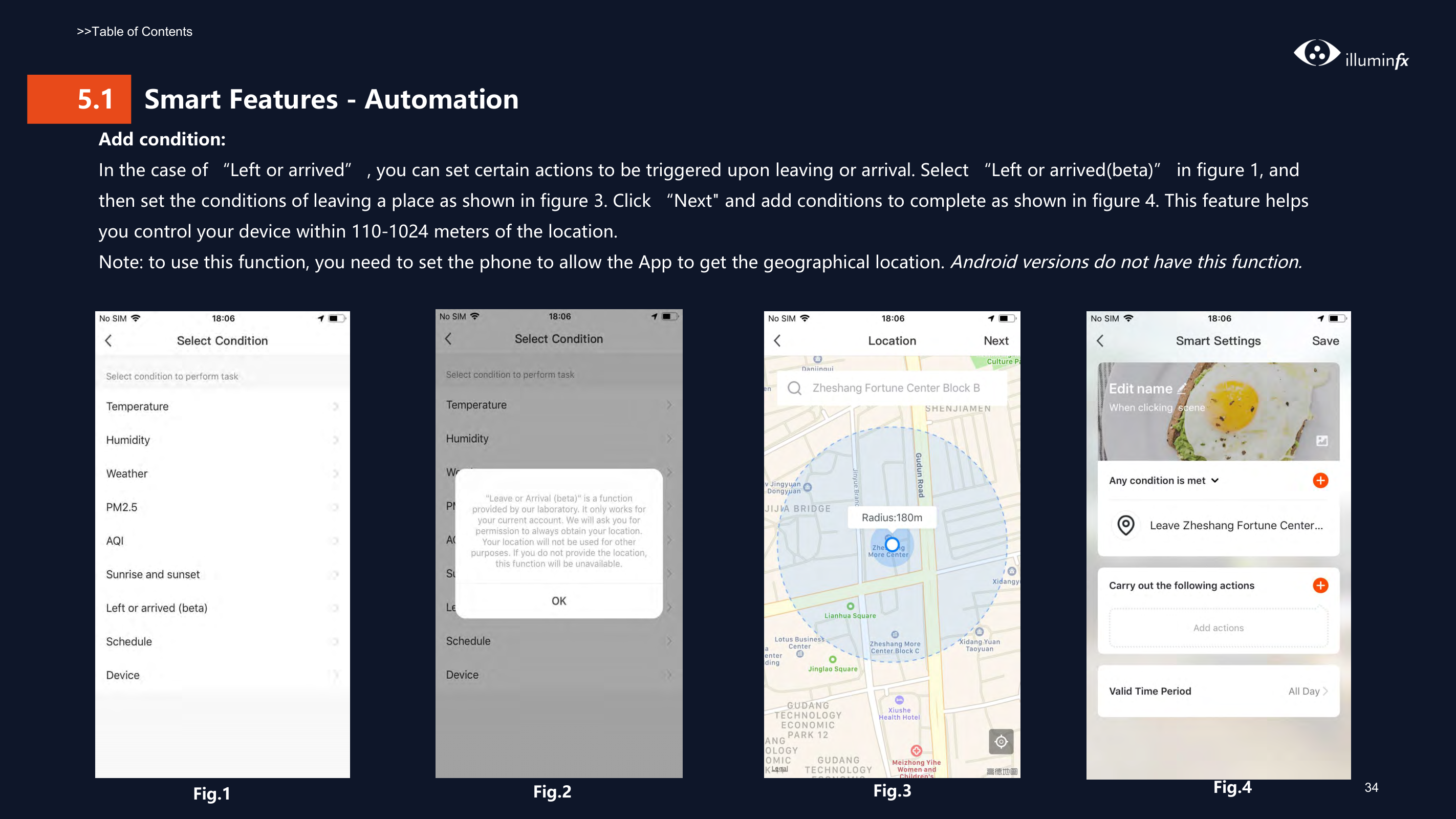
    ############ Add condition: In the case of “Left or arrived” , you can set certain actions to be triggered upon leaving or arrival. Select “Left or arrived(beta)” in figure 1, and then set the conditions of leaving a place as shown in figure 3. Click “Next" and add conditions to complete as shown in figure 4. This feature helps you control your device within 110-1024 meters of the location. Note: to use this function, you need to set the phone to allow the App to get the geographical location. Android versionsdo not have this function.

    ![image 126](Smart-Life-Manual.IFX2021_images/imageFile126.png)

    ![image 127](Smart-Life-Manual.IFX2021_images/imageFile127.png)

    ![image 128](Smart-Life-Manual.IFX2021_images/imageFile128.png)

    ![image 129](Smart-Life-Manual.IFX2021_images/imageFile129.png)

    Fig.4Fig.1Fig.2

    Page 36

    Fig.3

    ![image 131](Smart-Life-Manual.IFX2021_images/imageFile131.png)

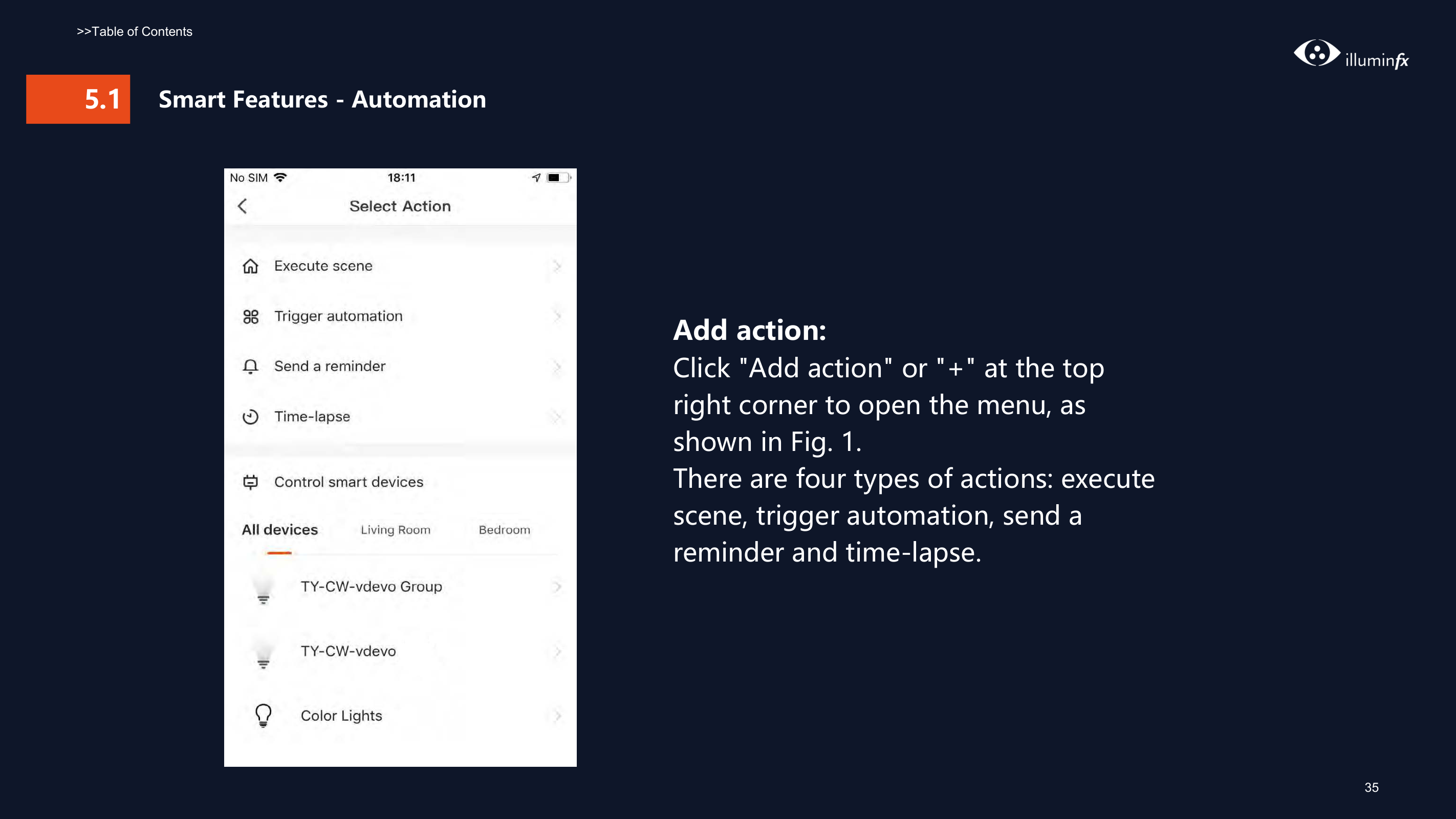
    Add action: Click "Add action" or "+" at the top right corner to open the menu, as shown in Fig. 1. There are four types of actions: execute scene, trigger automation, send a reminder and time-lapse.

    ![image 133](Smart-Life-Manual.IFX2021_images/imageFile133.png)

    | | |---|

    Page 37

    ![image 134](Smart-Life-Manual.IFX2021_images/imageFile134.png)

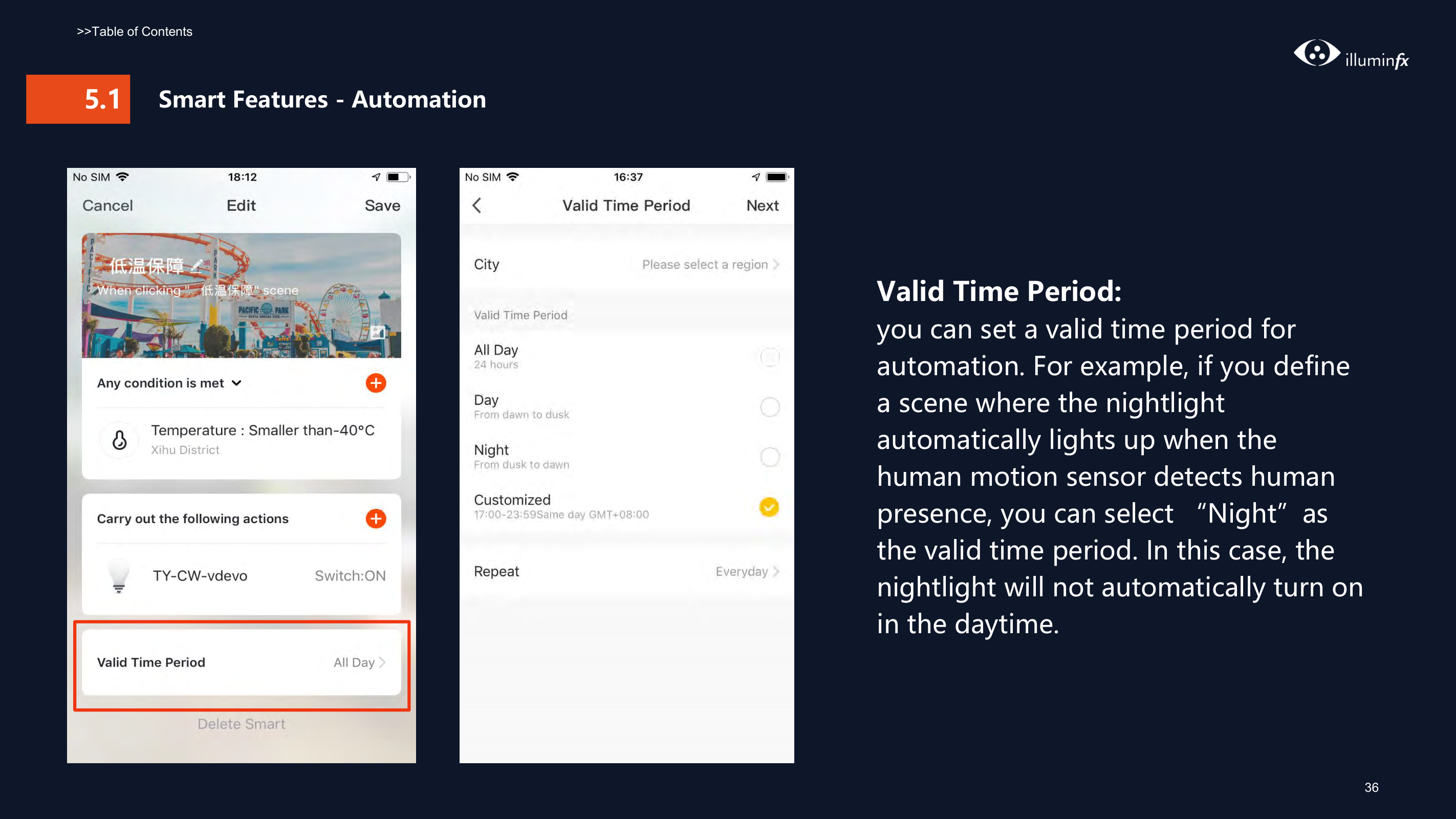
    Valid Time Period: you can set a valid time period for automation. For example, if you define a scene where the nightlight automatically lights up when the human motion sensor detects human presence, you can select “Night”as the valid time period. In this case, the nightlight will not automatically turn on in the daytime.

    ![image 136](Smart-Life-Manual.IFX2021_images/imageFile136.png)

    ![image 137](Smart-Life-Manual.IFX2021_images/imageFile137.png)

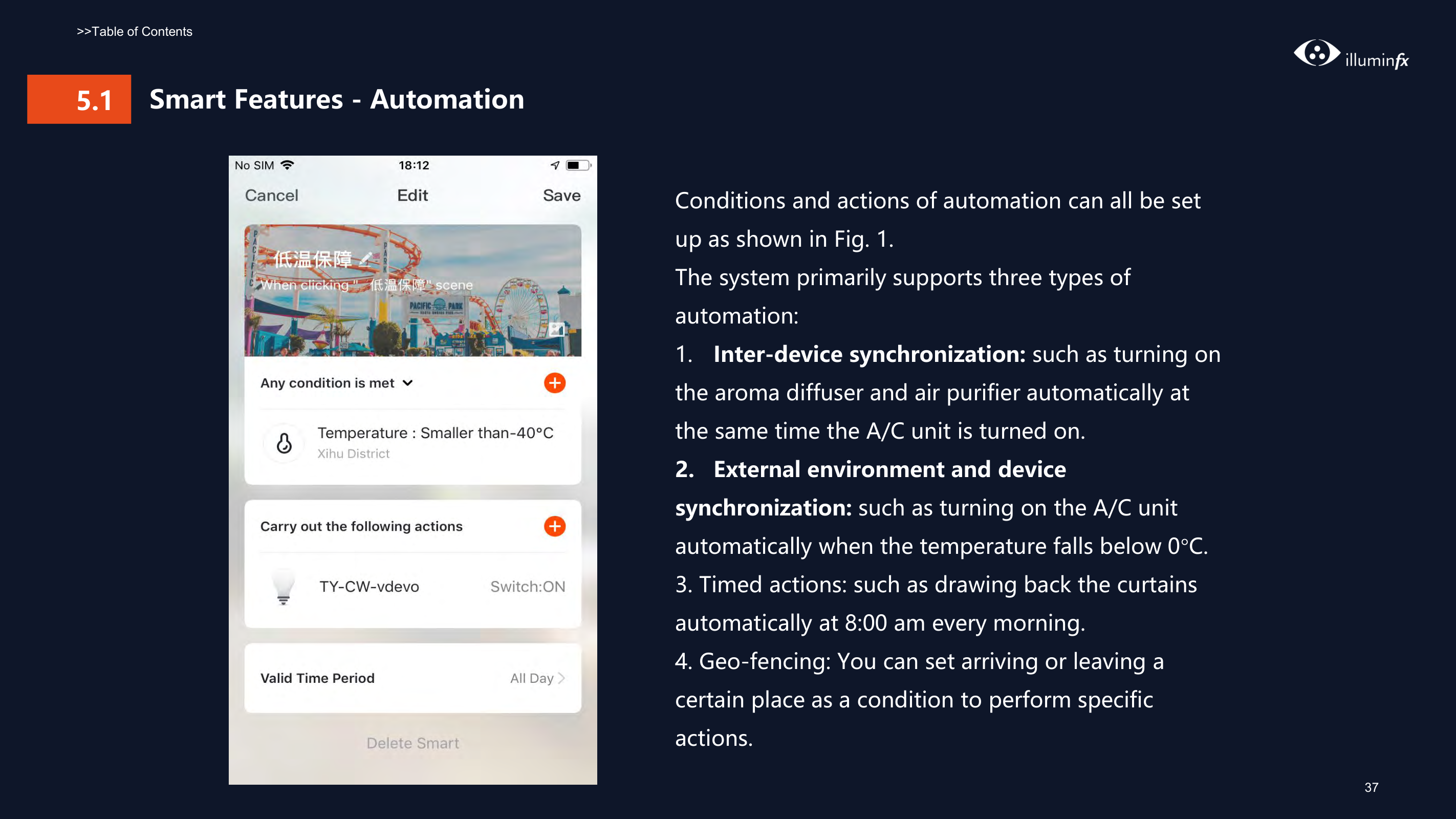
    Conditions and actions of automation can all be set up as shown in Fig. 1. The system primarily supports three types of automation:
  • 1. Inter-device synchronization: such as turning on the aroma diffuser and air purifier automatically at the same time the A/C unit is turned on.
  • 2. External environment and device synchronization: such as turning on the A/C unit automatically when the temperature falls below 0°C.
  • 3. Timed actions: such as drawing back the curtains automatically at 8:00 am every morning.
  • Page 38

  • 4. Geo-fencing: You can set arriving or leaving a certain place as a condition to perform specific actions.
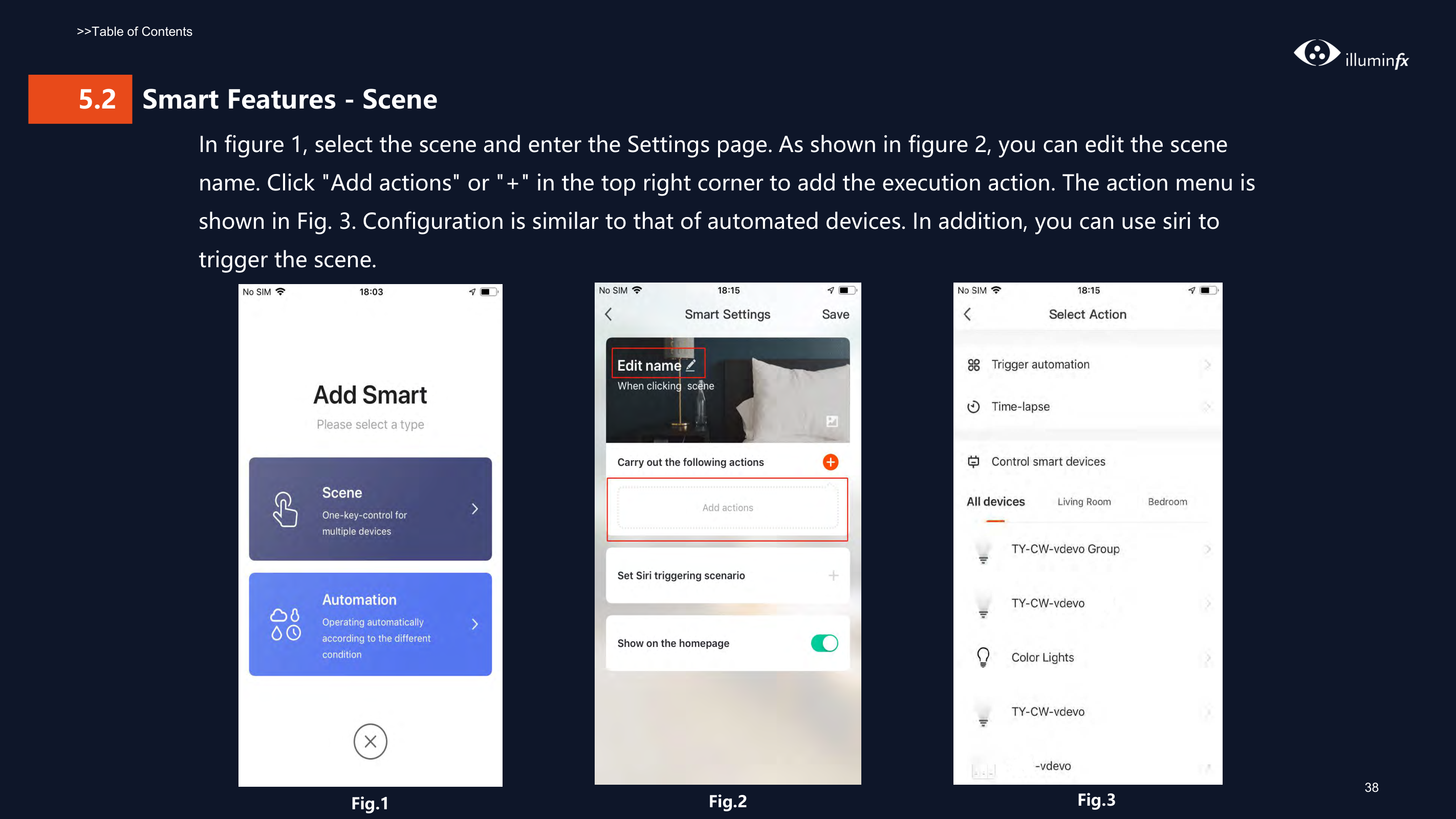
  • ######### In figure 1, select the scene and enter the Settings page. As shown in figure 2, you can edit the scene name. Click "Add actions" or "+" in the top right corner to add the execution action. The action menu is shown in Fig. 3. Configuration is similar to that of automated devices. In addition, you can use siri to trigger the scene.

    ![image 139](Smart-Life-Manual.IFX2021_images/imageFile139.png)

    ![image 140](Smart-Life-Manual.IFX2021_images/imageFile140.png)

    ![image 141](Smart-Life-Manual.IFX2021_images/imageFile141.png)

    Fig.1 Fig.2 Fig.3

    Page 39

    38

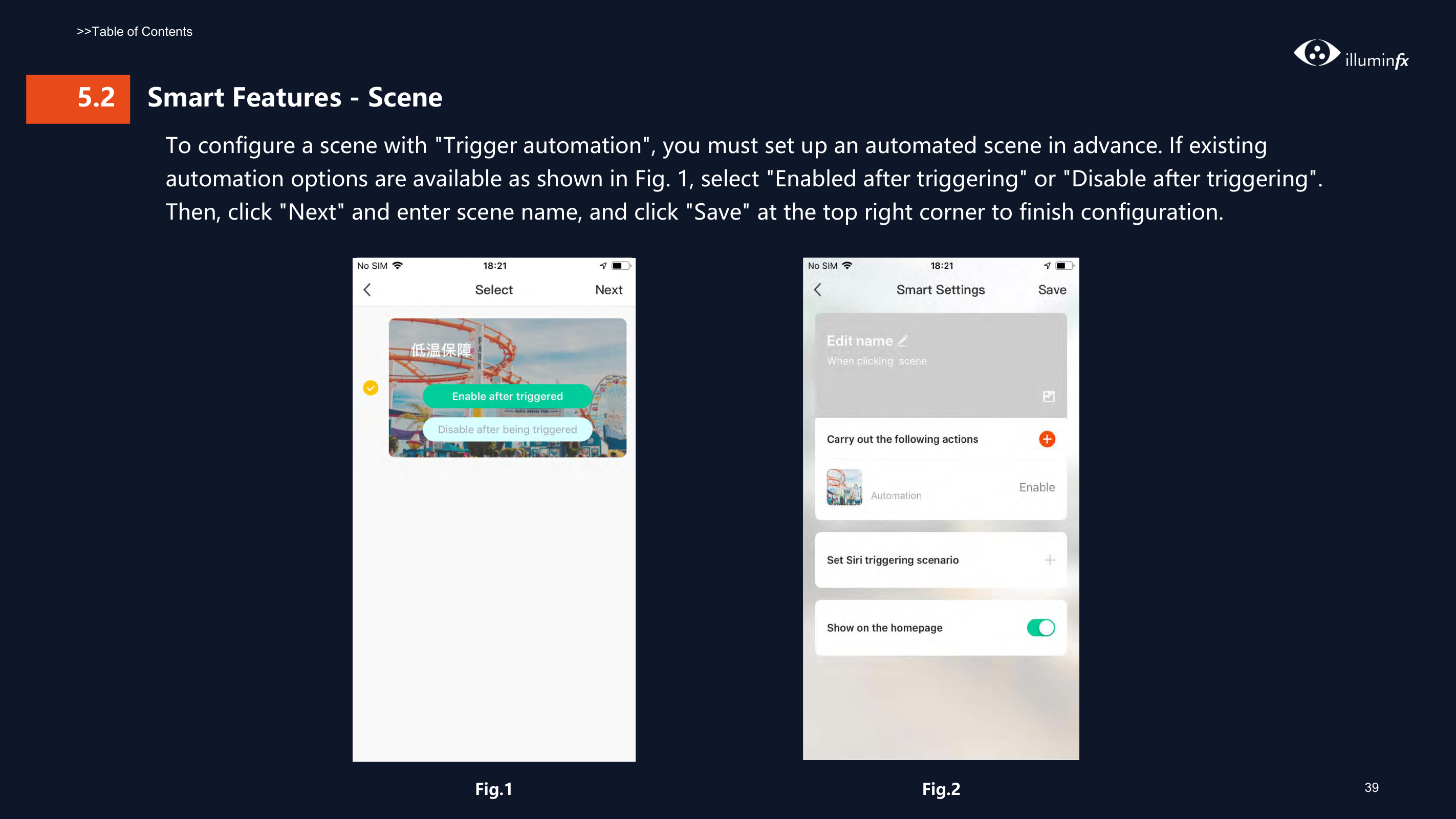
    ######### To configure a scene with "Trigger automation", you must set up an automated scene in advance. If existing automation options are available as shown in Fig. 1, select "Enabled after triggering" or "Disable after triggering". Then, click "Next" and enter scene name, and click "Save" at the top right corner to finish configuration.

    |![image 143](Smart-Life-Manual.IFX2021_images/imageFile143.png)

    ![image 144](Smart-Life-Manual.IFX2021_images/imageFile144.png)| |---|

    |![image 145](Smart-Life-Manual.IFX2021_images/imageFile145.png)

    ![image 146](Smart-Life-Manual.IFX2021_images/imageFile146.png)| |---|

    Fig.1 Fig.2

    Page 40

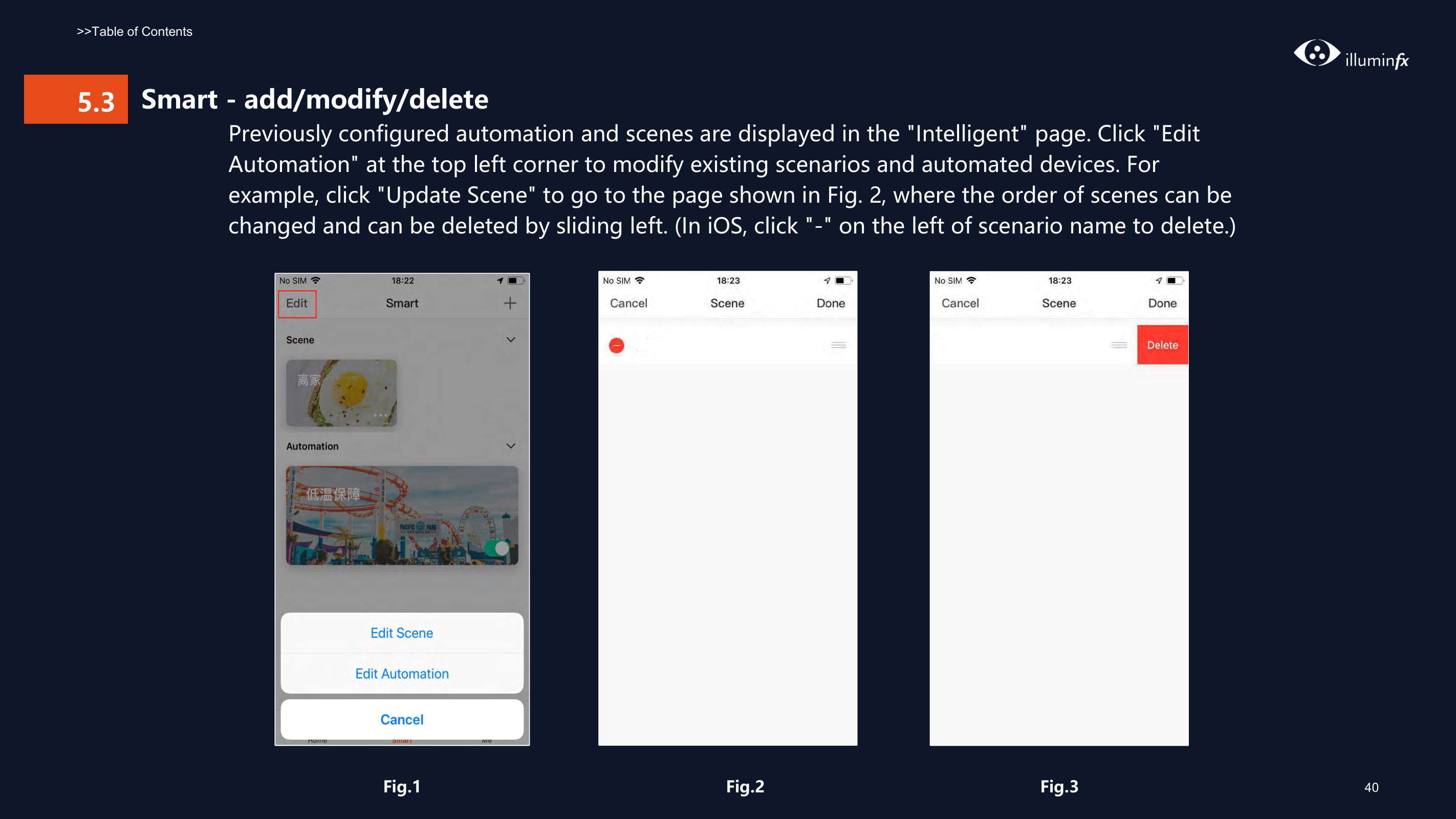
    ####### 5.3 Smart - add/modify/deletePreviously configured automation and scenes are displayed in the "Intelligent" page. Click "EditAutomation" at the top left corner to modify existing scenarios and automated devices. Forexample, click "Update Scene" to go to the page shown in Fig. 2, where the order of scenes can bechanged and can be deleted by sliding left. (In iOS, click "-" on the left of scenario name to delete.)

    |![image 148](Smart-Life-Manual.IFX2021_images/imageFile148.png)

    ![image 149](Smart-Life-Manual.IFX2021_images/imageFile149.png)| |---|

    |![image 150](Smart-Life-Manual.IFX2021_images/imageFile150.png)

    ![image 151](Smart-Life-Manual.IFX2021_images/imageFile151.png)| |---|

    |![image 152](Smart-Life-Manual.IFX2021_images/imageFile152.png)

    ![image 153](Smart-Life-Manual.IFX2021_images/imageFile153.png)| |---|

    Page 41

    Fig.1 Fig.2 Fig.3

    ###### 5.3

    ###### Smart - add/modify/delete

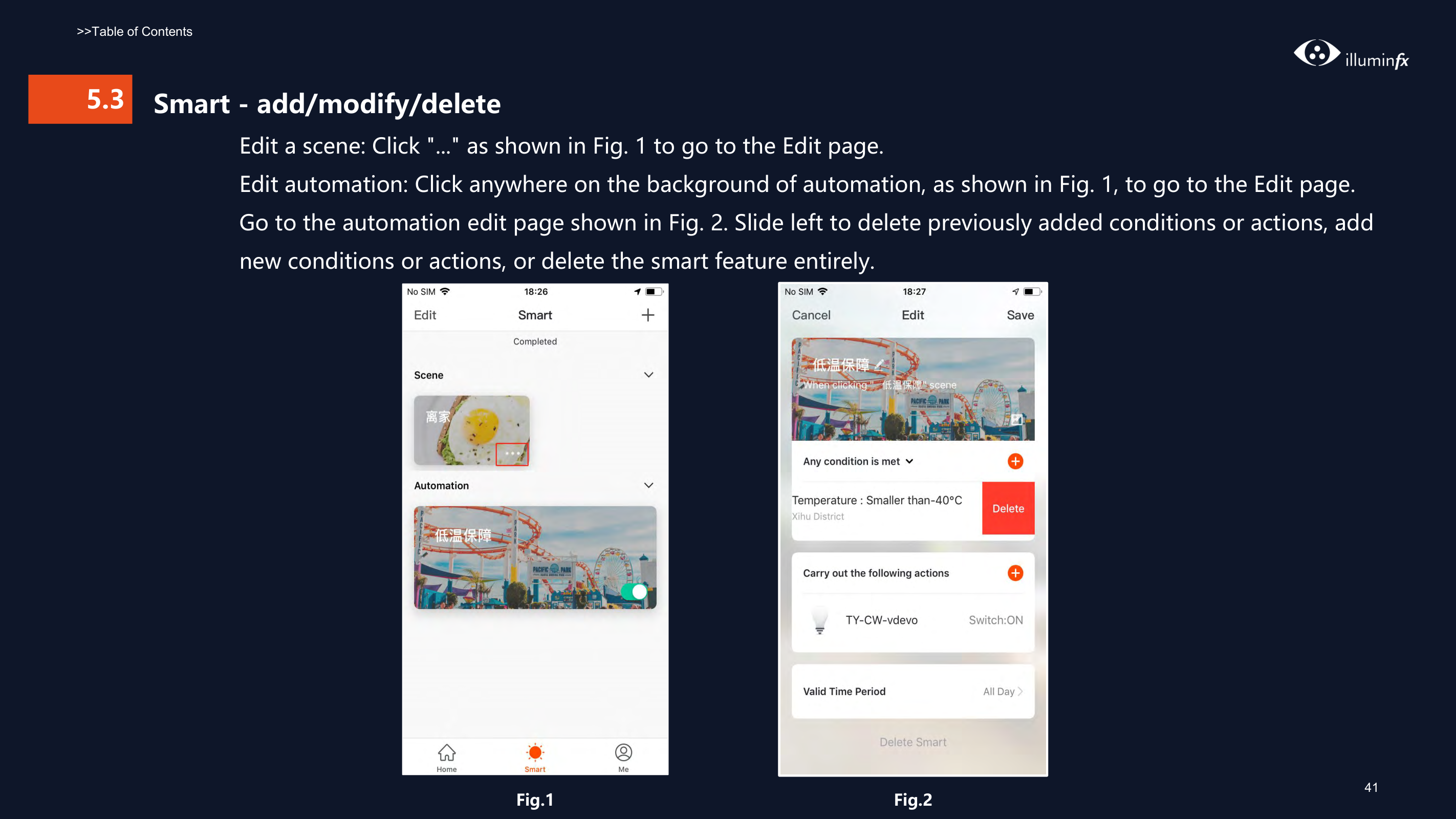
    Edit a scene: Click "..." as shown in Fig. 1 to go to the Edit page. Edit automation: Click anywhere on the background of automation, as shown in Fig. 1, to go to the Edit page. Go to the automation edit page shown in Fig. 2. Slide left to delete previously added conditions or actions, add new conditions or actions, or delete the smart feature entirely.

    |![image 155](Smart-Life-Manual.IFX2021_images/imageFile155.png)

    ![image 156](Smart-Life-Manual.IFX2021_images/imageFile156.png)| |---|

    Page 42

    |![image 157](Smart-Life-Manual.IFX2021_images/imageFile157.png)

    ![image 158](Smart-Life-Manual.IFX2021_images/imageFile158.png)| |---|

    Fig.1 Fig.2

    41

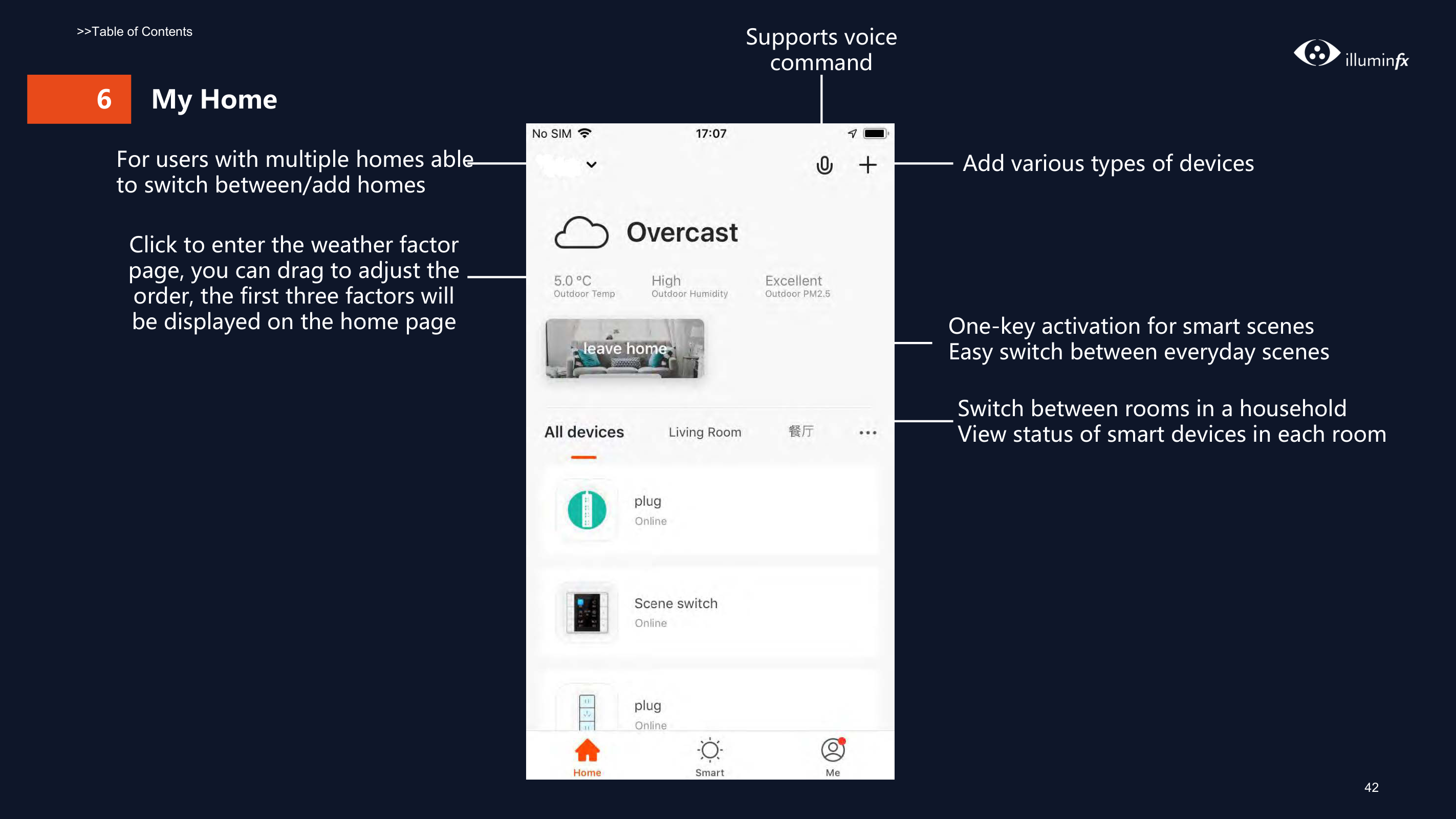
    Supports voice command

    >>Table of Contents
    Page 43

    ![image 159](Smart-Life-Manual.IFX2021_images/imageFile159.png)

    ###### 6 My Home

    ![image 160](Smart-Life-Manual.IFX2021_images/imageFile160.png)

    For users with multiple homes able to switch between/add homes

    Add various types of devices

    Click to enter the weather factor page, you can drag to adjust the order, the first three factors will be displayed on the home page

    One-key activation for smart scenes Easy switch between everyday scenes
    Page 44

    Switch between rooms in a household View status of smart devices in each room

    ###### 7 "Me" Page

    ![image 162](Smart-Life-Manual.IFX2021_images/imageFile162.png)

    ![image 163](Smart-Life-Manual.IFX2021_images/imageFile163.png)

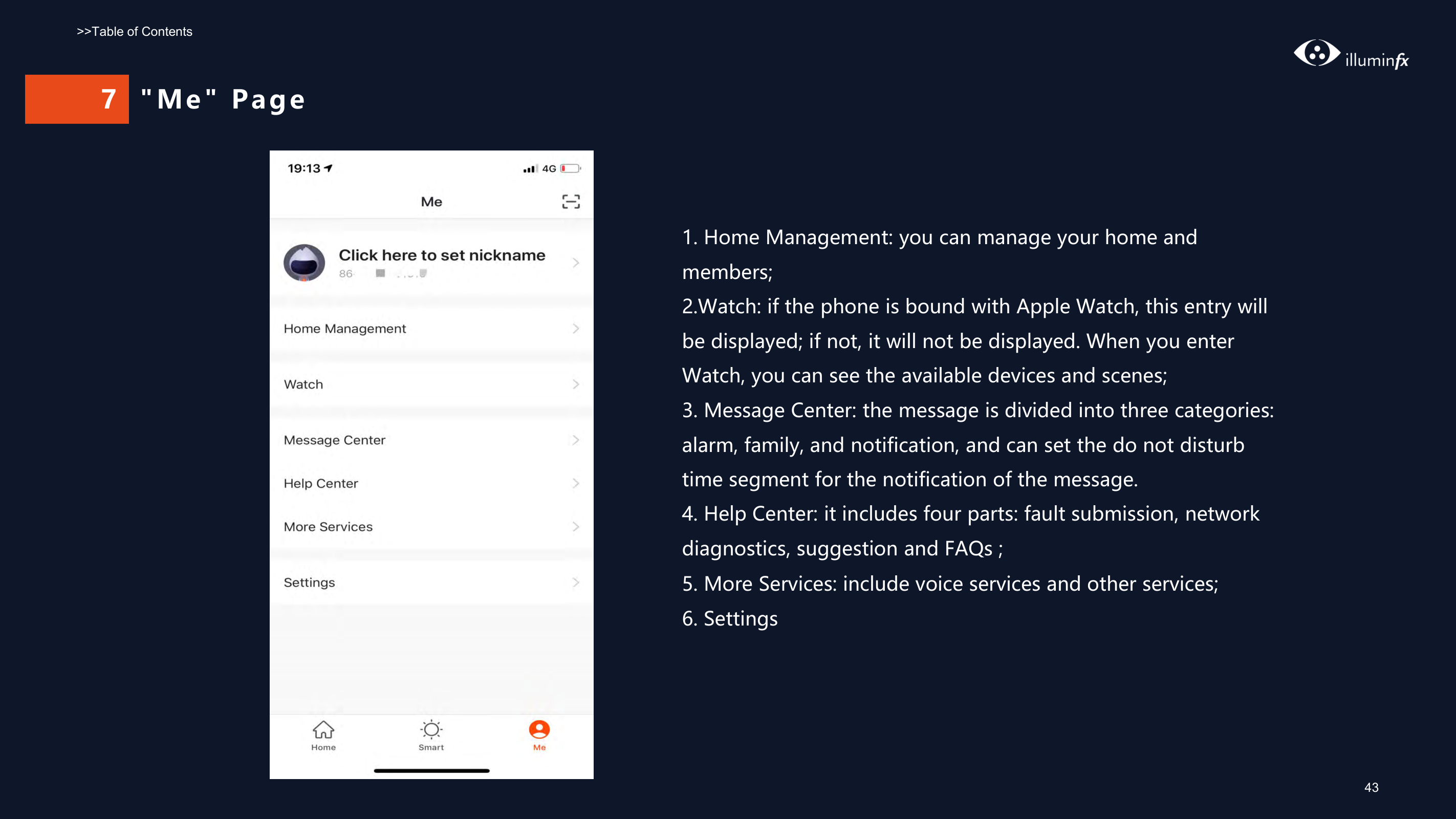
  • 1. Home Management: you can manage your home and members;
  • 2.Watch: if the phone is bound with Apple Watch, this entry will be displayed; if not, it will not be displayed. When you enter Watch, you can see the available devices and scenes;
  • 3. Message Center: the message is divided into three categories: alarm, family, and notification, and can set the do not disturb time segment for the notification of the message.
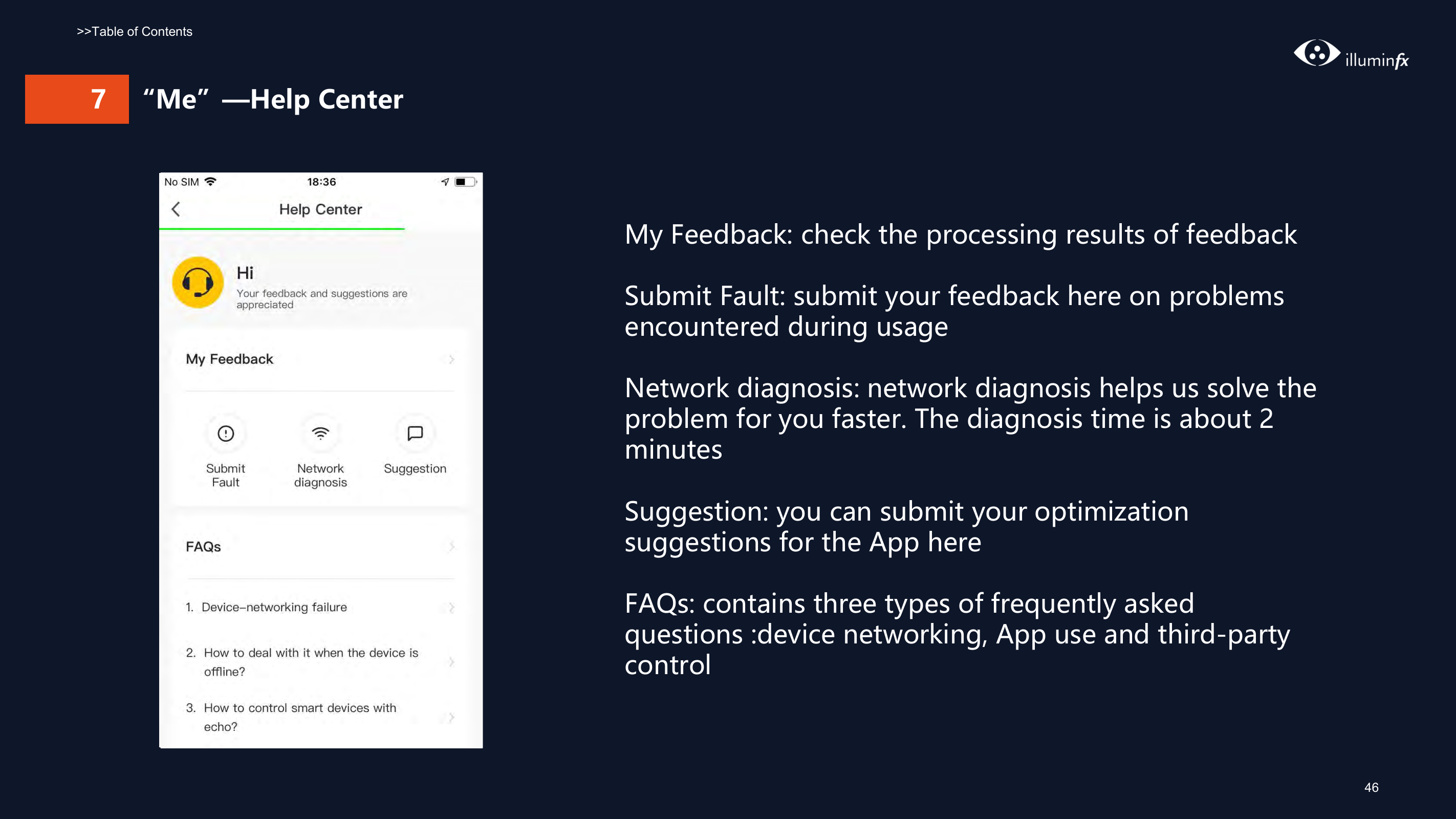
  • 4. Help Center: it includes four parts: fault submission, network diagnostics, suggestion and FAQs ;
  • Page 45

  • 5. More Services: include voice services and other services;
  • 6. Settings
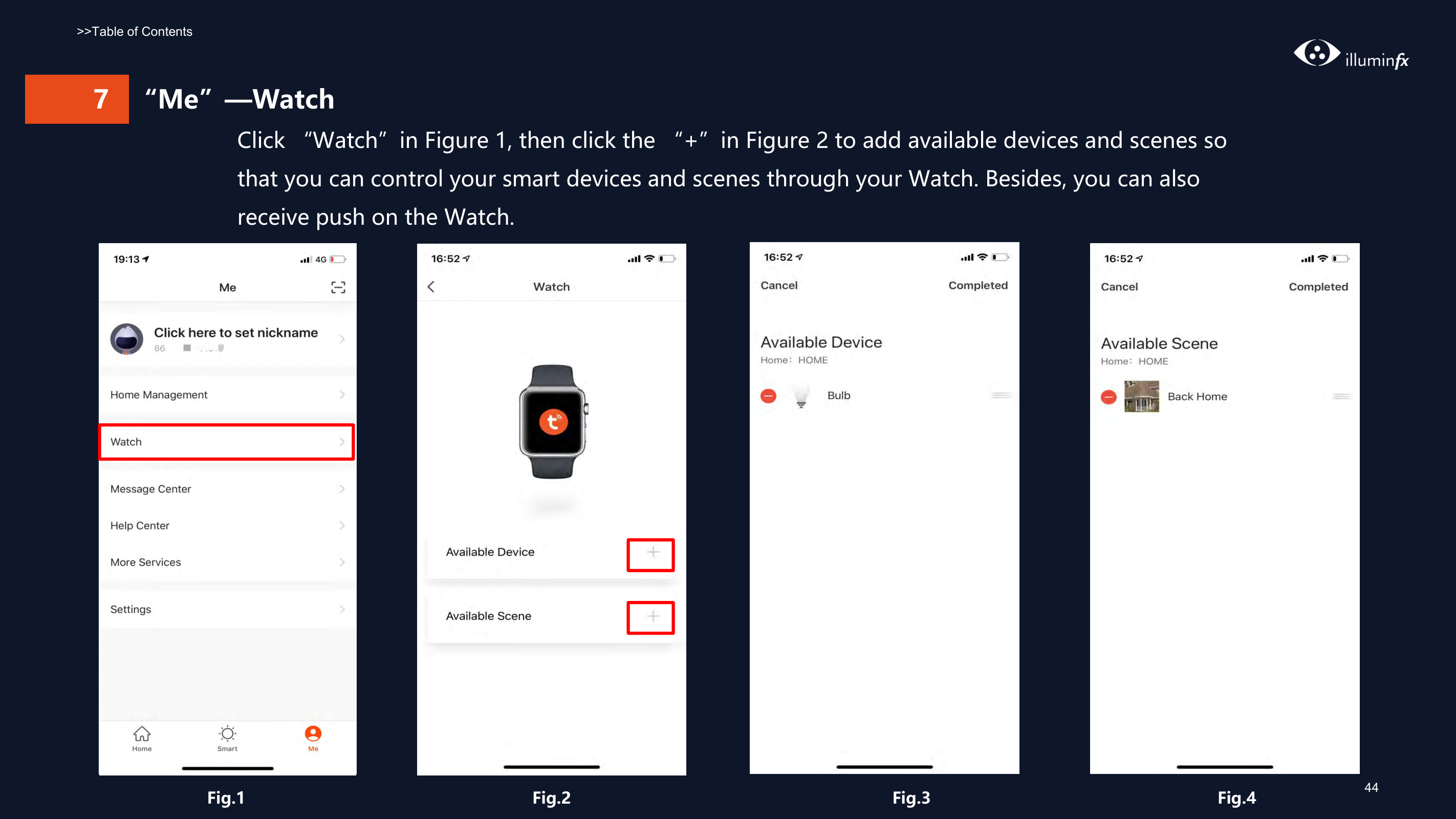
  • ####### 7 “Me”—Watch Click “Watch”in Figure 1, then click the “+”in Figure 2 to add available devices and scenes so that you can control your smart devices and scenes through your Watch. Besides, you can also receive push on the Watch.

    | | |---| | | |![image 165](Smart-Life-Manual.IFX2021_images/imageFile165.png)

    ![image 166](Smart-Life-Manual.IFX2021_images/imageFile166.png)|

    ![image 167](Smart-Life-Manual.IFX2021_images/imageFile167.png)

    Page 46

    ![image 168](Smart-Life-Manual.IFX2021_images/imageFile168.png)

    | | |---|

    | | |---|

    ![image 169](Smart-Life-Manual.IFX2021_images/imageFile169.png)

    Page 47

    ![image 170](Smart-Life-Manual.IFX2021_images/imageFile170.png)

    ![image 171](Smart-Life-Manual.IFX2021_images/imageFile171.png)

    ![image 172](Smart-Life-Manual.IFX2021_images/imageFile172.png)

    Fig.1 Fig.2 Fig.3 Fig.4

    44

    ###### 7 “Me”—Message Center

    ![image 174](Smart-Life-Manual.IFX2021_images/imageFile174.png)

    Page 48

    ![image 175](Smart-Life-Manual.IFX2021_images/imageFile175.png)

    ![image 176](Smart-Life-Manual.IFX2021_images/imageFile176.png)

    ![image 177](Smart-Life-Manual.IFX2021_images/imageFile177.png)

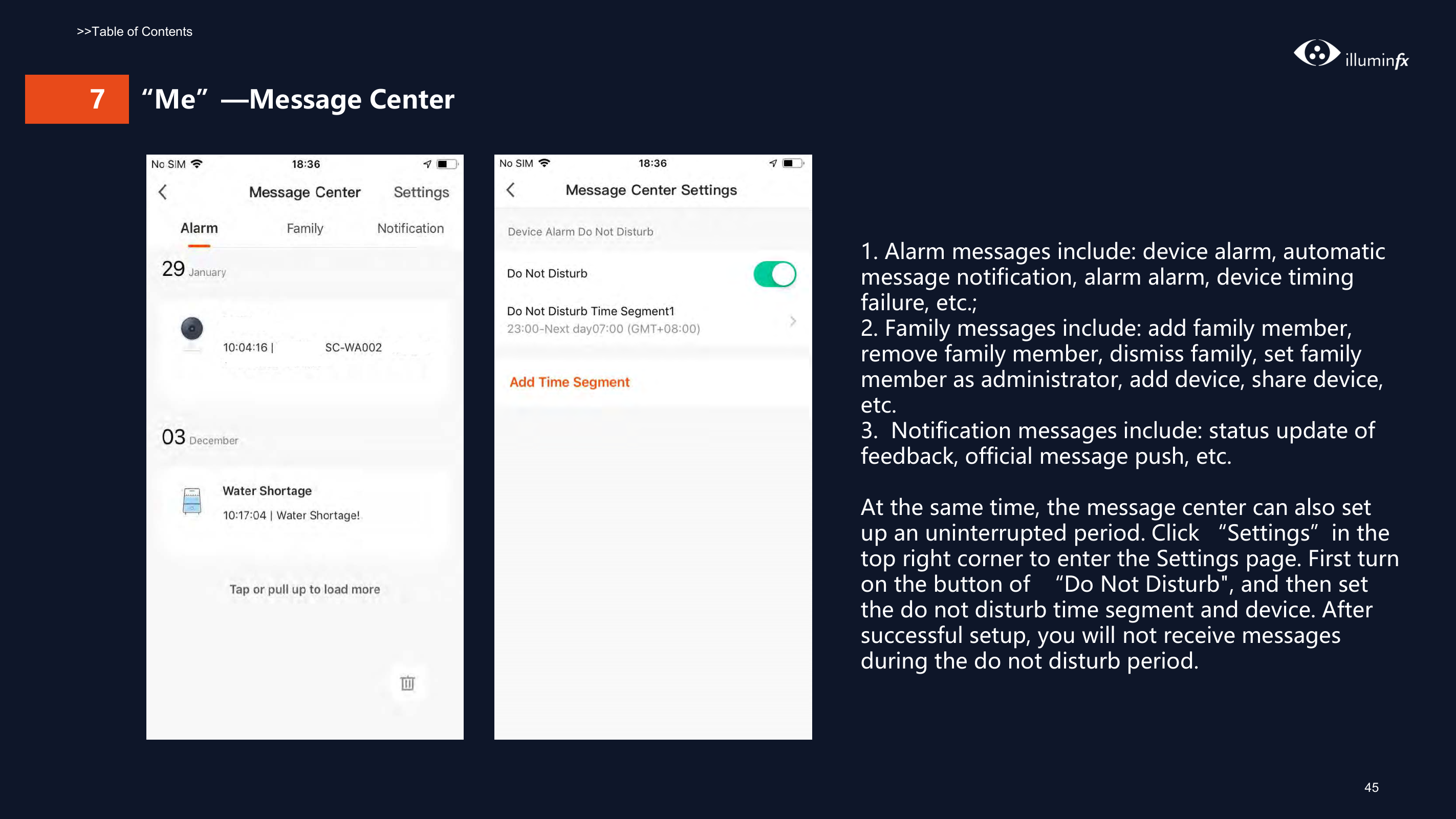
  • 1. Alarm messages include: device alarm, automatic message notification, alarm alarm, device timing failure, etc.;
  • 2. Family messages include: add family member, remove family member, dismiss family, set family member as administrator, add device, share device, etc.
  • 3. Notification messages include: status update of feedback, official message push, etc.
  • At the same time, the message center can also set up an uninterrupted period. Click “Settings”in the top right corner to enter the Settings page. First turn on the button of “Do Not Disturb", and then set the do not disturb time segment and device. After successful setup, you will not receive messages during the do not disturb period.
    Page 49

    ###### 7 “Me”—Help Center

    |![image 179](Smart-Life-Manual.IFX2021_images/imageFile179.png)

    ![image 180](Smart-Life-Manual.IFX2021_images/imageFile180.png)| |---|

    My Feedback: check the processing results of feedback Submit Fault: submit your feedback here on problems encountered during usage Network diagnosis: network diagnosis helps us solve the problem for you faster. The diagnosis time is about 2 minutes

    Suggestion: you can submit your optimization suggestions for the App here

    FAQs: contains three types of frequently asked questions :device networking, App use and third-party control
    Page 50

    ###### 7 “Me”—More Services

    ![image 182](Smart-Life-Manual.IFX2021_images/imageFile182.png)

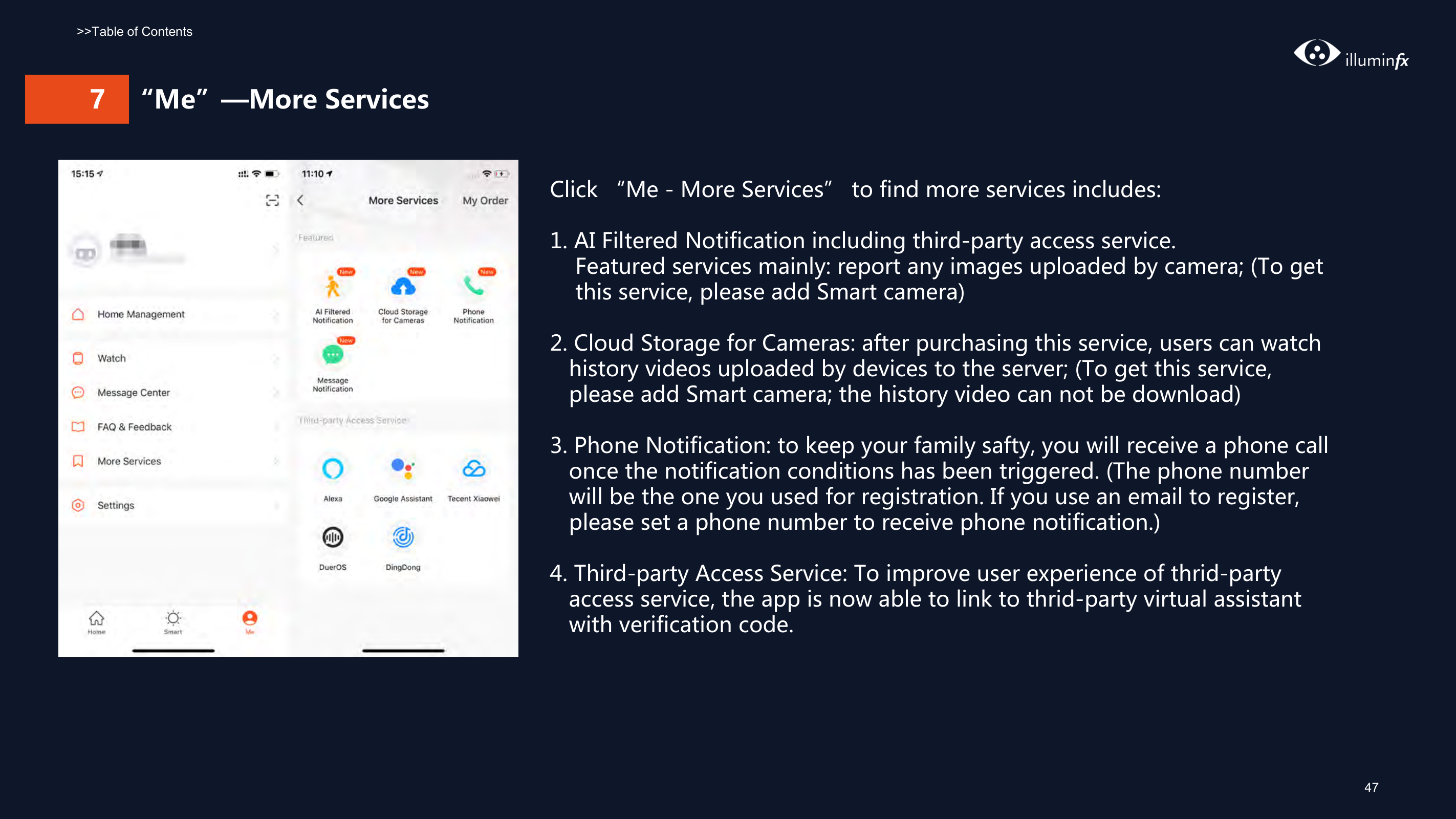
    Click “Me - More Services” to find more services includes:

  • 1. AI Filtered Notification including third-party access service. Featured services mainly: report any images uploaded by camera; (To get this service, please add Smart camera)
  • 2. Cloud Storage for Cameras: after purchasing this service, users can watch history videos uploaded by devices to the server; (To get this service, please add Smart camera; the history video can not be download)
  • 3. Phone Notification: to keep your family safty, you will receive a phone call once the notification conditions has been triggered. (The phone number will be the one you used for registration. If you use an email to register, please set a phone number to receive phone notification.)
  • 4. Third-party Access Service: To improve user experience of thrid-party access service, the app is now able to link to thrid-party virtual assistant with verification code.
  • ###### 7 “Me”—Settings

    Page 51

    ![image 184](Smart-Life-Manual.IFX2021_images/imageFile184.png)

    ![image 185](Smart-Life-Manual.IFX2021_images/imageFile185.png)

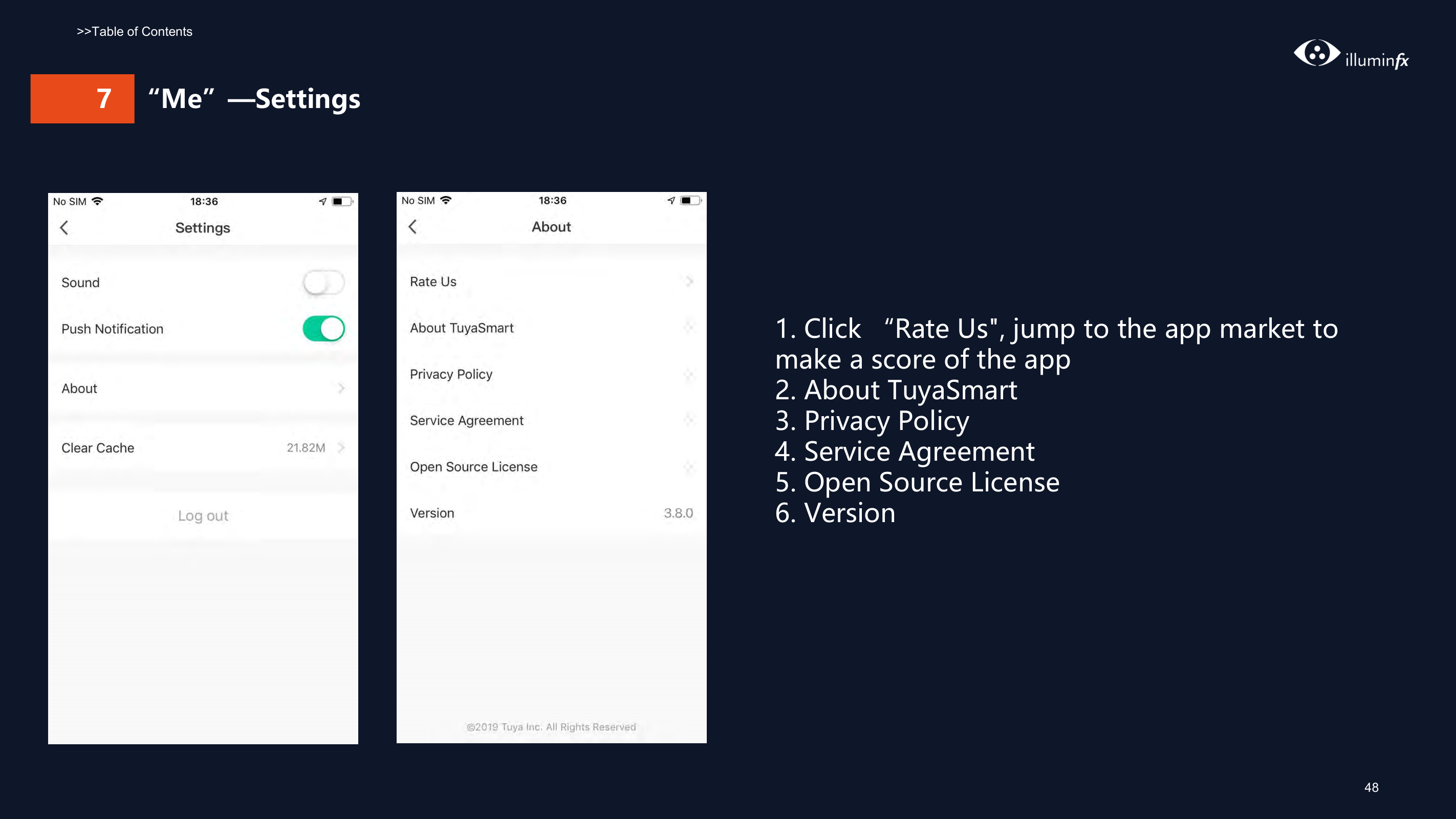
  • 1. Click “Rate Us", jump to the app market to make a score of the app
  • 2. About TuyaSmart
  • 3. Privacy Policy
  • 4. Service Agreement
  • 5. Open Source License
  • 6. Version
  • ###### 7 Personal Center

    |![image 187](Smart-Life-Manual.IFX2021_images/imageFile187.png)

    ![image 188](Smart-Life-Manual.IFX2021_images/imageFile188.png)| |---|

    |![image 189](Smart-Life-Manual.IFX2021_images/imageFile189.png)

    ![image 190](Smart-Life-Manual.IFX2021_images/imageFile190.png)| |---|

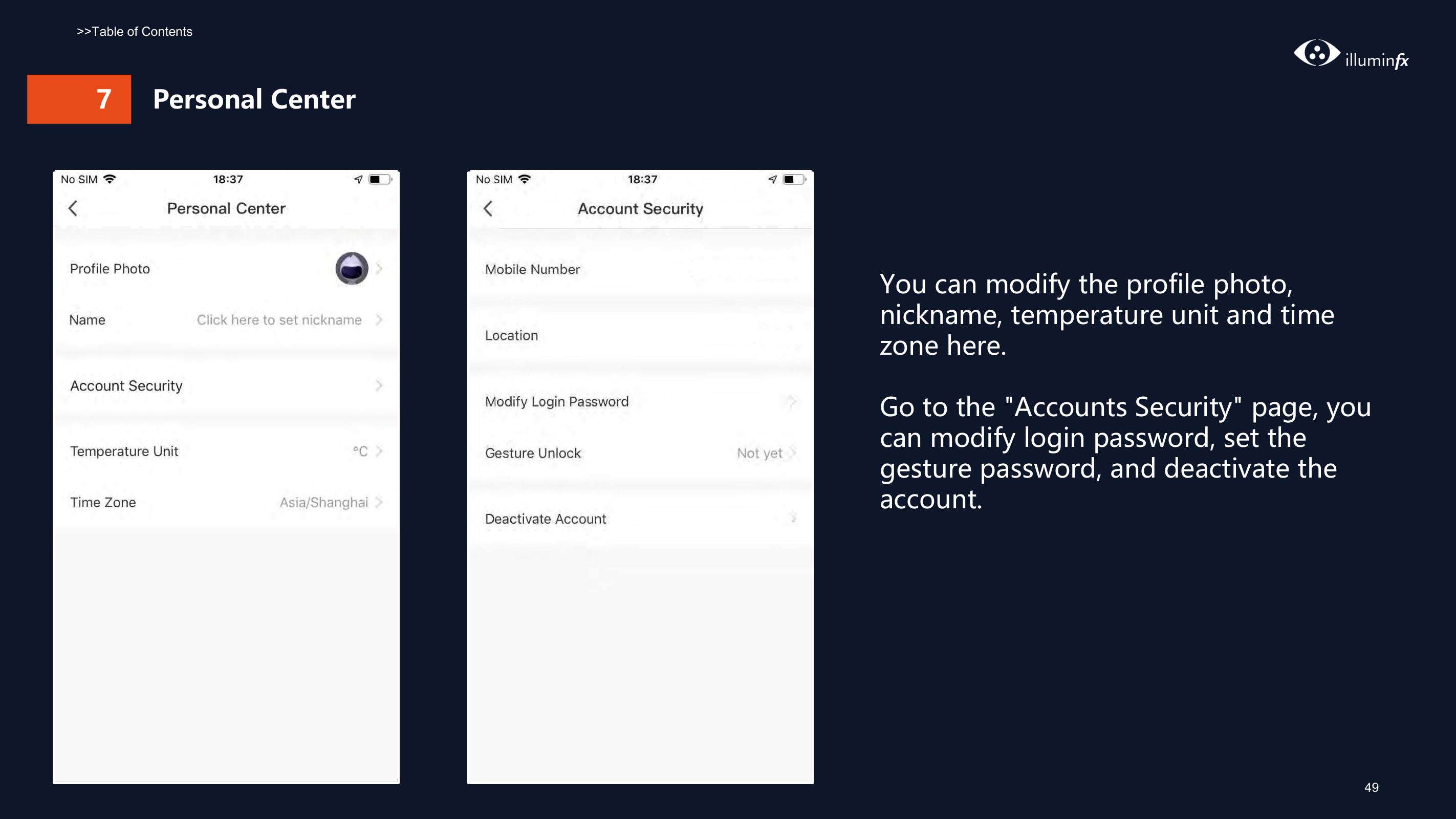
    You can modify the profile photo, nickname, temperature unit and time zone here.

    Go to the "Accounts Security" page, you can modify login password, set the gesture password, and deactivate the account.

    ###### 7 Personal-Modify Login Password

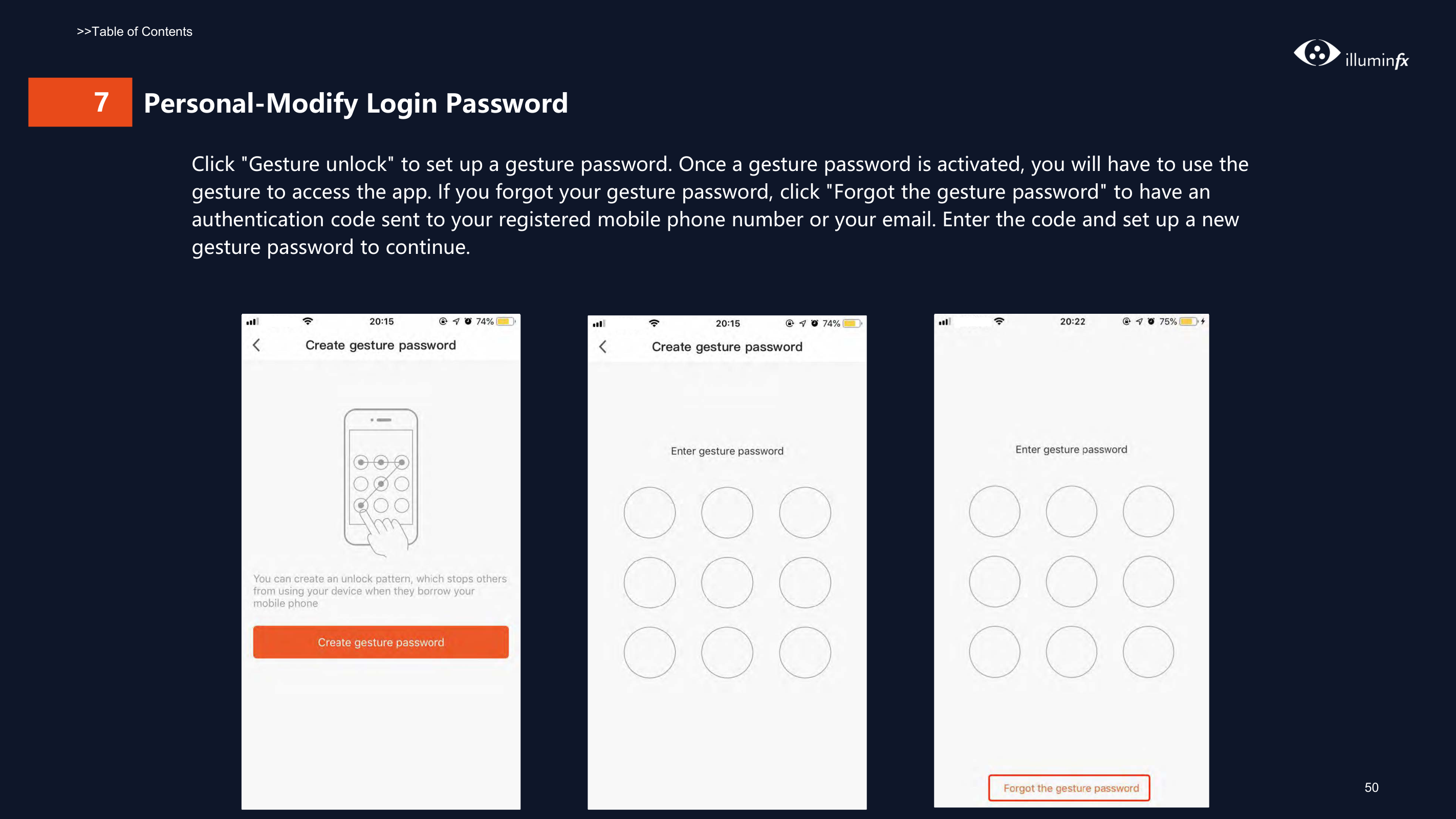
    Click "Gesture unlock" to set up a gesture password. Once a gesture password is activated, you will have to use the gesture to access the app. If you forgot your gesture password, click "Forgot the gesture password" to have an authentication code sent to your registered mobile phone number or your email. Enter the code and set up a new gesture password to continue.

    |![image 192](Smart-Life-Manual.IFX2021_images/imageFile192.png)

    ![image 193](Smart-Life-Manual.IFX2021_images/imageFile193.png)| |---|

    |![image 194](Smart-Life-Manual.IFX2021_images/imageFile194.png)

    ![image 195](Smart-Life-Manual.IFX2021_images/imageFile195.png)| |---|

    |![image 196](Smart-Life-Manual.IFX2021_images/imageFile196.png)

    ![image 197](Smart-Life-Manual.IFX2021_images/imageFile197.png)| |---|

    Thank You

    Notes:

  • 1) All figures display IOS interfaces. Android versions may vary slightly.
  • 2) Products and software are constantly being updated. Data and software interfaces shown here are for reference purposes only. Further changes made will not be separately disclosed
  • Similar Unknown