
Ask AI
— answers from the official manualAnswers from the official manual.
Common questions
Common Questions
19 totalHow do I reset the TI-36X Pro calculator to its default settings?
Press % c 2 to reset the calculator. This returns the unit to default settings and clears memory variables, pending operations, all entries in history, statistical data, any stored operation, and ans. All previously stored data will be lost after performing this reset.
What type of battery does the TI-36X Pro use and how do I replace it?
The TI-36X Pro uses one 3 volt CR2032 lithium battery. To replace it, remove the protective cover, turn the calculator face downwards, remove the screws from the back with a small screwdriver, carefully separate the front from the back, remove the old battery, and slide in a new battery checking the polarity (+ and -). Press firmly to snap the new battery into place.
How do I turn the TI-36X Pro on and off, and will my data be saved when I turn it off?
Press & to turn on the calculator and press % ' to turn it off. When turned off, the display is cleared, but the history, settings, and memory are retained. The APD (Automatic Power Down) feature also turns off the calculator automatically if no key is pressed for about 5 minutes.
What does the LOW BATTERY error message mean and how do I clear it?
The LOW BATTERY error message means you need to replace the battery. This message displays briefly and then disappears on its own, and pressing - does not clear this message. You should also consider replacing the battery if pressing & does not turn the unit on, the screen goes blank, or you get unexpected results.
How do I adjust the display contrast on the TI-36X Pro?
To adjust the contrast, press and release the % key, then press T to darken the screen or U to lighten the screen. The brightness and contrast of the display can depend on room lighting, battery freshness, and viewing angle.
What is the difference between Classic mode and MathPrint mode?
Classic mode displays inputs and outputs in a single line, while MathPrint mode displays most inputs and outputs in textbook format. In MathPrint mode, you can enter up to four levels of consecutive nested functions and expressions, which include fractions, square roots, exponents with ^, and other functions.
Show 13 more questions
What does the SYNTAX error mean on the TI-36X Pro?
What are the battery safety precautions I should follow with the TI-36X Pro?
How do I store and recall values in the memory variables on the TI-36X Pro?
What is the syntax error (SYNTAX) message for on TI-36X Pro?
What is meant by 'real' and 'complex number' solutions on TI-36X Pro?
How do I calculate derivatives on TI-36X Pro?
What is a possible cause of COMPLEX error during calculation?
How do I store a function into f(x) for later evaluation on TI-36X Pro?
What does the DIVIDE BY 0 error mean on the TI-36X Pro?
How do I adjust the display contrast on my Texas Instruments TI-36X Pro?
What are the angle modes available on the TI-36X Pro?
How do I clear all variables and settings on my TI-36X Pro calculator?
How do I convert a fraction to a mixed number on TI-36X Pro?
Full Manual
78 pages
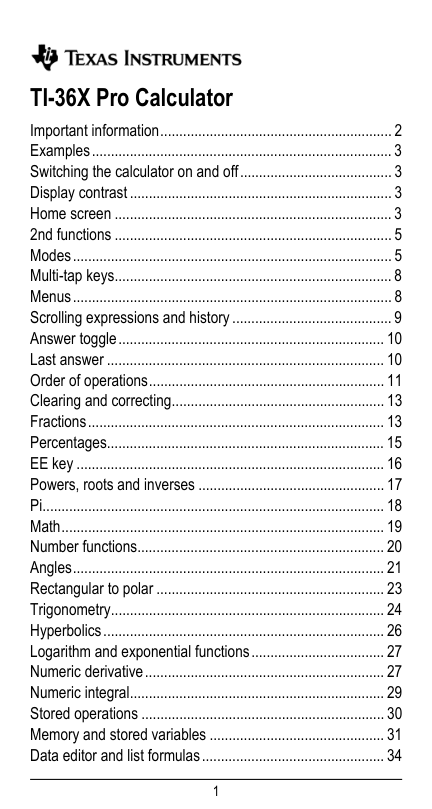
1 TI-36X Pro Calculator Important information............................................................. 2 Examples............................................................................... 3 Switching the calculator on and off........................................ 3 Display contrast..................................................................... 3 Home screen ......................................................................... 3 2nd functions ......................................................................... 5 Modes.................................................................................... 5 Multi-tap keys......................................................................... 8 Menus.................................................................................... 8 Scrolling expressions and history.......................................... 9 Answer toggle...................................................................... 10 Last answer ......................................................................... 10 Order of operations.............................................................. 11 Clearing and correcting........................................................ 13 Fractions.............................................................................. 13 Percentages......................................................................... 15 EE key ................................................................................. 16 Powers, roots and inverses ................................................. 17 Pi.......................................................................................... 18 Math..................................................................................... 19 Number functions................................................................. 20 Angles.................................................................................. 21 Rectangular to polar ............................................................ 23 Trigonometry........................................................................ 24 Hyperbolics.......................................................................... 26 Logarithm and exponential functions................................... 27 Numeric derivative............................................................... 27 Numeric integral................................................................... 29 Stored operations ................................................................ 30 Memory and stored variables .............................................. 31 Data editor and list formulas................................................ 34
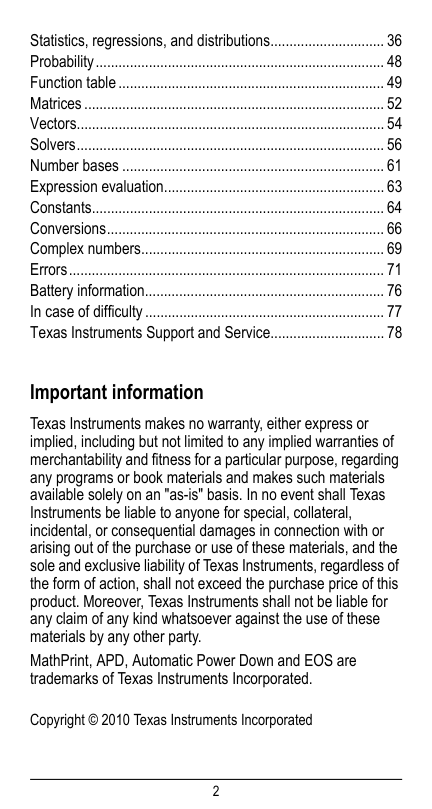
2 Statistics, regressions, and distributions.............................. 36 Probability............................................................................ 48 Function table...................................................................... 49 Matrices............................................................................... 52 Vectors................................................................................. 54 Solvers................................................................................. 56 Number bases ..................................................................... 61 Expression evaluation.......................................................... 63 Constants............................................................................. 64 Conversions......................................................................... 66 Complex numbers................................................................ 69 Errors................................................................................... 71 Battery information............................................................... 76 In case of difficulty............................................................... 77 Texas Instruments Support and Service.............................. 78 Important information Texas Instruments makes no warranty, either express or implied, including but not limited to any implied warranties of merchantability and fitness for a particular purpose, regarding any programs or book materials and makes such materials available solely on an "as-is" basis. In no event shall Texas Instruments be liable to anyone for special, collateral, incidental, or consequential damages in connection with or arising out of the purchase or use of these materials, and the sole and exclusive liability of Texas Instruments, regardless of the form of action, shall not exceed the purchase price of this product. Moreover, Texas Instruments shall not be liable for any claim of any kind whatsoever against the use of these materials by any other party. MathPrint, APD, Automatic Power Down and EOS are trademarks of Texas Instruments Incorporated. Copyright © 2010 Texas Instruments Incorporated
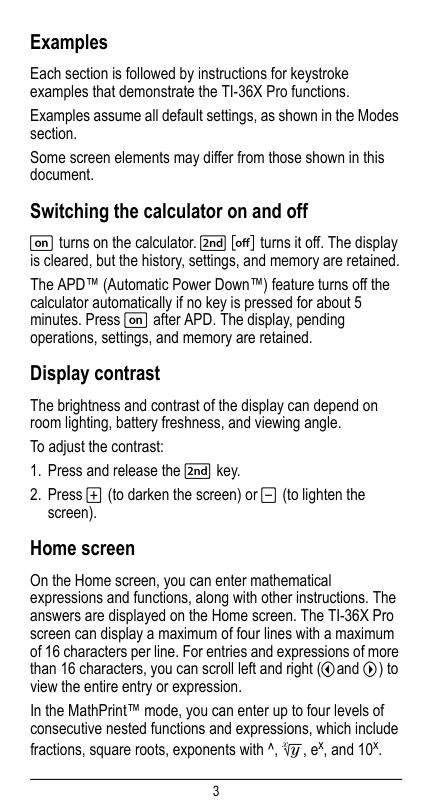
3 Examples Each section is followed by instructions for keystroke examples that demonstrate the TI-36X Pro functions. Examples assume all default settings, as shown in the Modes section. Some screen elements may differ from those shown in this document. Switching the calculator on and off & turns on the calculator. % ' turns it off. The display is cleared, but the history, settings, and memory are retained. The APD™ (Automatic Power Down™) feature turns off the calculator automatically if no key is pressed for about 5 minutes. Press & after APD. The display, pending operations, settings, and memory are retained. Display contrast The brightness and contrast of the display can depend on room lighting, battery freshness, and viewing angle. To adjust the contrast:
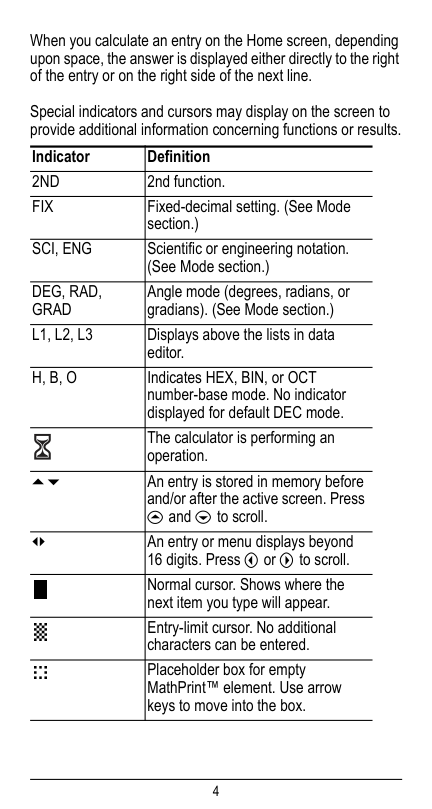
4 When you calculate an entry on the Home screen, depending upon space, the answer is displayed either directly to the right of the entry or on the right side of the next line. Special indicators and cursors may display on the screen to provide additional information concerning functions or results. Indicator Definition
2Nd
2nd function.Fix
Fixed-decimal setting. (See Mode section.)Sci, Eng
Scientific or engineering notation. (See Mode section.)Deg, Rad,
Grad
Angle mode (degrees, radians, or gradians). (See Mode section.)L1, L2, L3
Displays above the lists in data editor.H, B, O
Indicates HEX, BIN, or OCT number-base mode. No indicator displayed for default DEC mode. The calculator is performing an operation. 5 6 An entry is stored in memory before and/or after the active screen. Pressand $ to scroll.
³´ An entry or menu displays beyond 16 digits. Press ! or " to scroll. Normal cursor. Shows where the next item you type will appear. Entry-limit cursor. No additional characters can be entered. Placeholder box for empty MathPrint™ element. Use arrow keys to move into the box.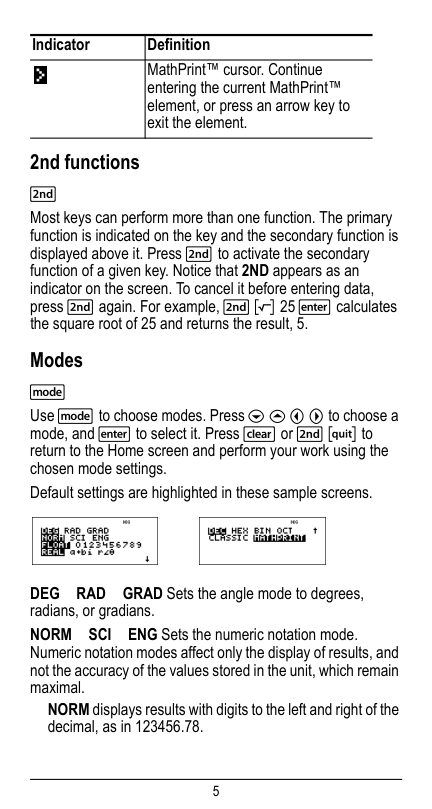
5 2nd functions % Most keys can perform more than one function. The primary function is indicated on the key and the secondary function is displayed above it. Press % to activate the secondary function of a given key. Notice that 2ND appears as an indicator on the screen. To cancel it before entering data, press % again. For example, % b 25 < calculates the square root of 25 and returns the result, 5. Modes q Use q to choose modes. Press $ # ! " to choose a mode, and < to select it. Press - or % s to return to the Home screen and perform your work using the chosen mode settings. Default settings are highlighted in these sample screens.
Deg
Rad
GRAD Sets the angle mode to degrees, radians, or gradians.Norm
Sci
ENG Sets the numeric notation mode. Numeric notation modes affect only the display of results, and not the accuracy of the values stored in the unit, which remain maximal. NORM displays results with digits to the left and right of the decimal, as in 123456.78. MathPrint™ cursor. Continue entering the current MathPrint™ element, or press an arrow key to exit the element. Indicator Definition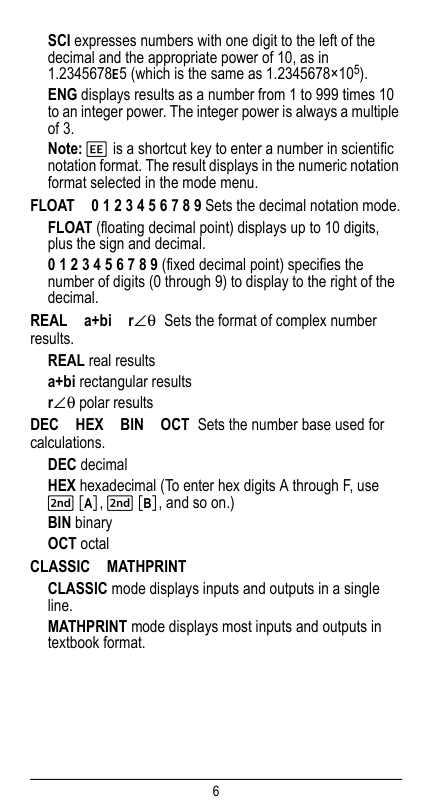
6 SCI expresses numbers with one digit to the left of the decimal and the appropriate power of 10, as in 1.2345678E5 (which is the same as 1.2345678×10⁵). ENG displays results as a number from 1 to 999 times 10 to an integer power. The integer power is always a multiple of 3. Note: E is a shortcut key to enter a number in scientific notation format. The result displays in the numeric notation format selected in the mode menu.
Float
0 1 2 3 4 5 6 7 8 9 Sets the decimal notation mode. FLOAT (floating decimal point) displays up to 10 digits, plus the sign and decimal. 0 1 2 3 4 5 6 7 8 9 (fixed decimal point) specifies the number of digits (0 through 9) to display to the right of the decimal.Real
a+bi r±q Sets the format of complex number results. REAL real results a+bi rectangular results r±q polar resultsDec
Hex
Bin
OCT Sets the number base used for calculations. DEC decimal HEX hexadecimal (To enter hex digits A through F, use % §, % ¨, and so on.) BIN binary OCT octalClassic
Mathprint
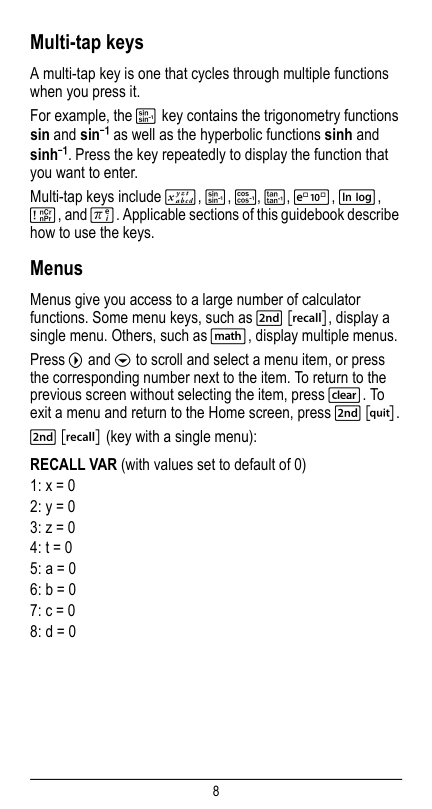
CLASSIC mode displays inputs and outputs in a single line. MATHPRINT mode displays most inputs and outputs in textbook format.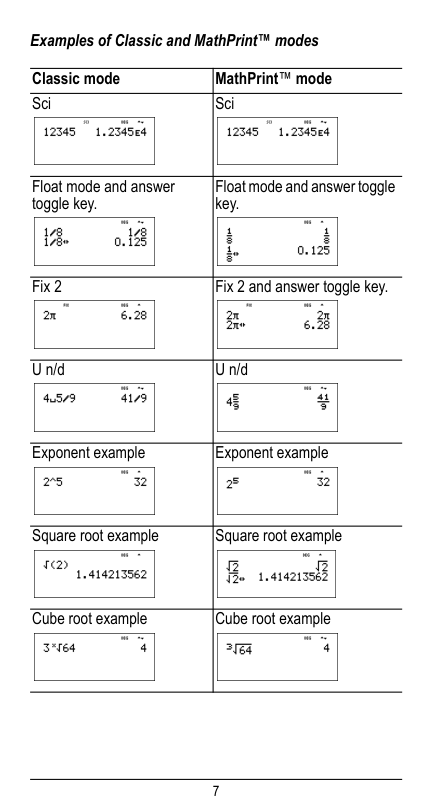
7 Examples of Classic and MathPrint™ modes Classic mode MathPrint™ mode Sci Sci Float mode and answer toggle key. Float mode and answer toggle key. Fix 2 Fix 2 and answer toggle key. U n/d U n/d Exponent example Exponent example Square root example Square root example Cube root example Cube root example
8 Multi-tap keys A multi-tap key is one that cycles through multiple functions when you press it. For example, the X key contains the trigonometry functions sin and sin/ as well as the hyperbolic functions sinh and sinh/. Press the key repeatedly to display the function that you want to enter. Multi-tap keys include z, X, Y, Z, C, D, H, and g. Applicable sections of this guidebook describe how to use the keys. Menus Menus give you access to a large number of calculator functions. Some menu keys, such as % h, display a single menu. Others, such as d, display multiple menus. Press " and $ to scroll and select a menu item, or press the corresponding number next to the item. To return to the previous screen without selecting the item, press -. To exit a menu and return to the Home screen, press % s. % h (key with a single menu): RECALL VAR (with values set to default of 0) 1: x = 0 2: y = 0 3: z = 0 4: t = 0 5: a = 0 6: b = 0 7: c = 0 8: d = 0
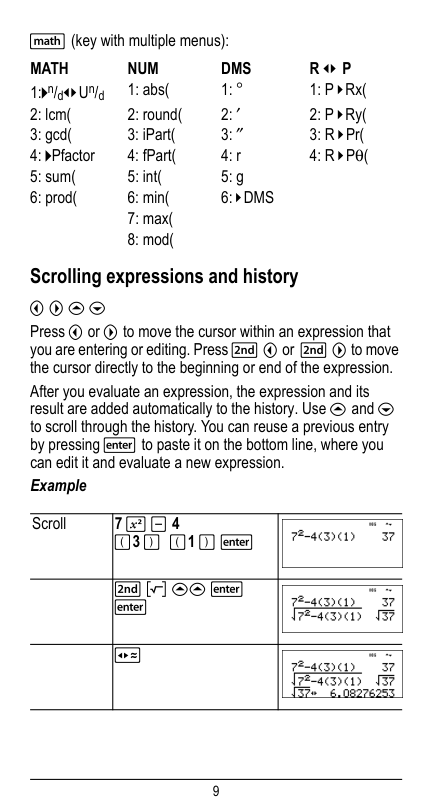
9 d (key with multiple menus): Scrolling expressions and history ! " # $ Press ! or " to move the cursor within an expression that you are entering or editing. Press % ! or % " to move the cursor directly to the beginning or end of the expression. After you evaluate an expression, the expression and its result are added automatically to the history. Use # and $ to scroll through the history. You can reuse a previous entry by pressing < to paste it on the bottom line, where you can edit it and evaluate a new expression. Example
Math
Num
Dms
R ³´ P
1:4n/d³´Un/d 1: abs( 1: ¡ 1: P ´Rx( 2: lcm( 2: round( 2: ¢ 2: P ´Ry( 3: gcd( 3: iPart( 3: £ 3: R ´Pr( 4: 4Pfactor 4: fPart( 4: r 4: R ´Pq( 5: sum( 5: int( 5: g 6: prod( 6: min(6: ´Dms
7: max( 8: mod( Scroll7 F U 4
(3 ) (1 ) < % b ## < < r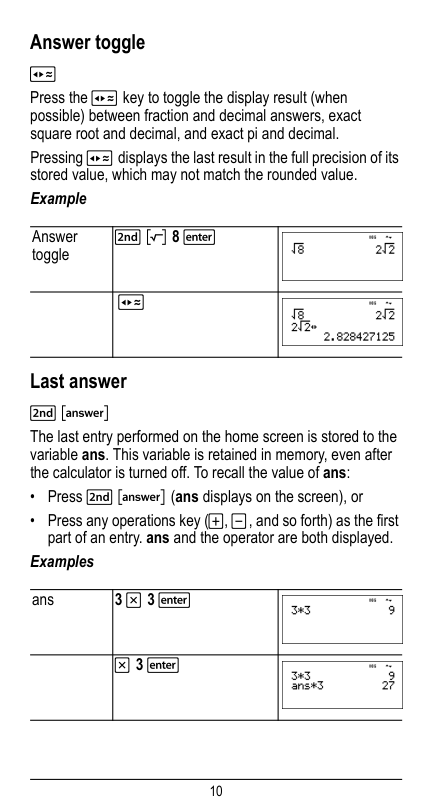
10 Answer toggle r Press the r key to toggle the display result (when possible) between fraction and decimal answers, exact square root and decimal, and exact pi and decimal. Pressing r displays the last result in the full precision of its stored value, which may not match the rounded value. Example Last answer % i The last entry performed on the home screen is stored to the variable ans. This variable is retained in memory, even after the calculator is turned off. To recall the value of ans:
3 V 3 <
V 3 <
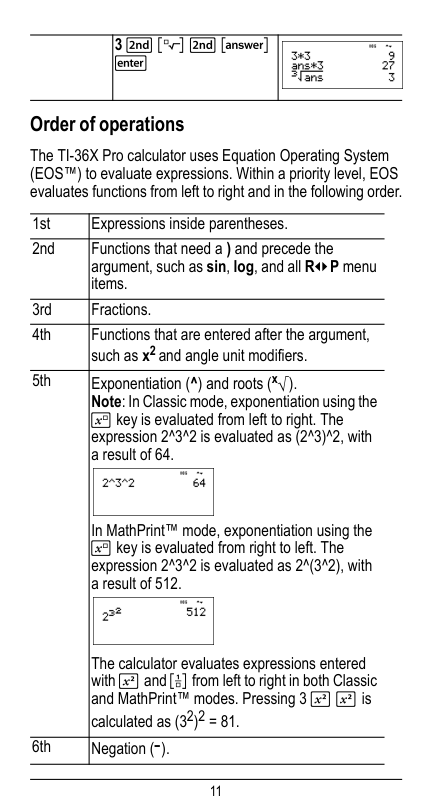
11 Order of operations The TI-36X Pro calculator uses Equation Operating System (EOS™) to evaluate expressions. Within a priority level, EOS evaluates functions from left to right and in the following order. 3 % c % i < 1st Expressions inside parentheses. 2nd Functions that need a ) and precede the argument, such as sin, log, and all R³´P menu items. 3rd Fractions. 4th Functions that are entered after the argument, such as x2 and angle unit modifiers. 5th Exponentiation (^) and roots (x‡). Note: In Classic mode, exponentiation using the G key is evaluated from left to right. The expression 2^3^2 is evaluated as (2^3)^2, with a result of 64. In MathPrint™ mode, exponentiation using the G key is evaluated from right to left. The expression 2^3^2 is evaluated as 2^(3^2), with a result of 512. The calculator evaluates expressions entered with F and a from left to right in both Classic and MathPrint™ modes. Pressing 3 F F is calculated as (32)2 = 81. 6th Negation (M).
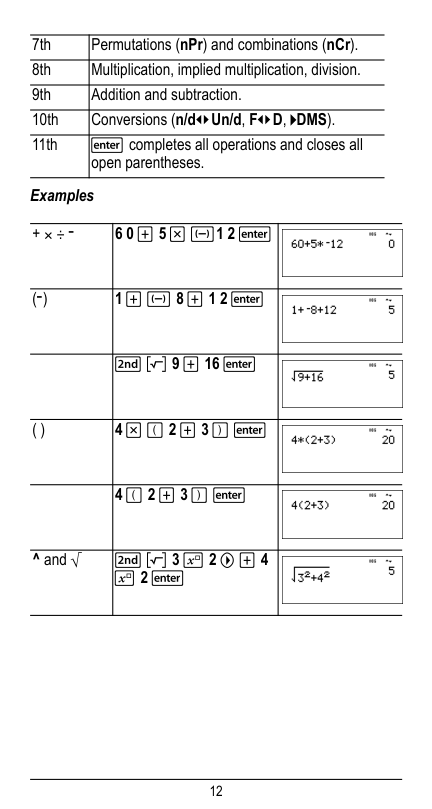
12 Examples 7th Permutations (nPr) and combinations (nCr). 8th Multiplication, implied multiplication, division. 9th Addition and subtraction. 10th Conversions (n/d³´Un/d, F³´D, 4DMS). 11th < completes all operations and closes all open parentheses.
+ Q P M
6 0 T 5 V M1 2 <
(M)
1 T M 8 T 1 2 <
% b 9 T 16 < ( )4 V ( 2 T 3 ) <
4 ( 2 T 3 ) <
^ and ‡ % b 3 G 2 " T 4G 2 <
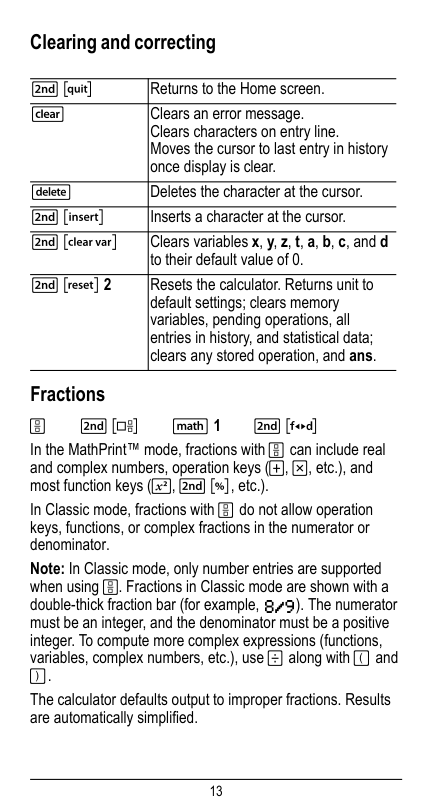
13 Clearing and correcting Fractions
P
% @ d 1 % ˜ In the MathPrint™ mode, fractions with P can include real and complex numbers, operation keys (T, V, etc.), and most function keys (F, % _, etc.). In Classic mode, fractions with P do not allow operation keys, functions, or complex fractions in the numerator or denominator. Note: In Classic mode, only number entries are supported when using P. Fractions in Classic mode are shown with a double-thick fraction bar (for example, ). The numerator must be an integer, and the denominator must be a positive integer. To compute more complex expressions (functions, variables, complex numbers, etc.), use W along with ( and ). The calculator defaults output to improper fractions. Results are automatically simplified. % s Returns to the Home screen.J
Deletes the character at the cursor. % f Inserts a character at the cursor. % { Clears variables x, y, z, t, a, b, c, and d to their default value of 0. % c 2 Resets the calculator. Returns unit to default settings; clears memory variables, pending operations, all entries in history, and statistical data; clears any stored operation, and ans.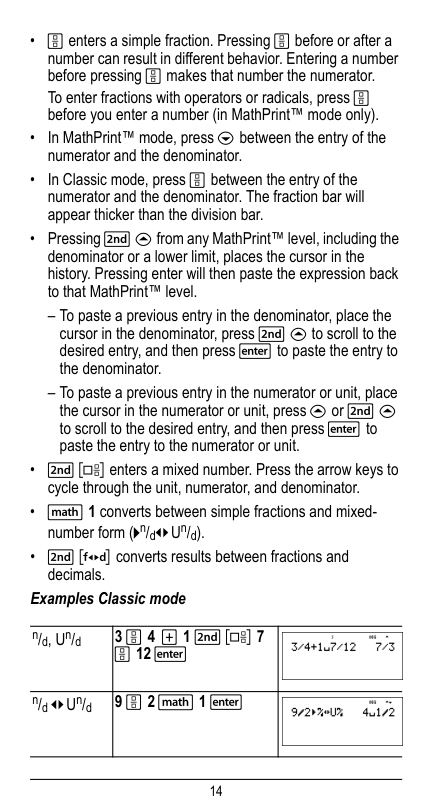
14
3 P 4 T 1 % @ 7
P 12 <
n/d ³´Un/d 9 P 2 d 1 <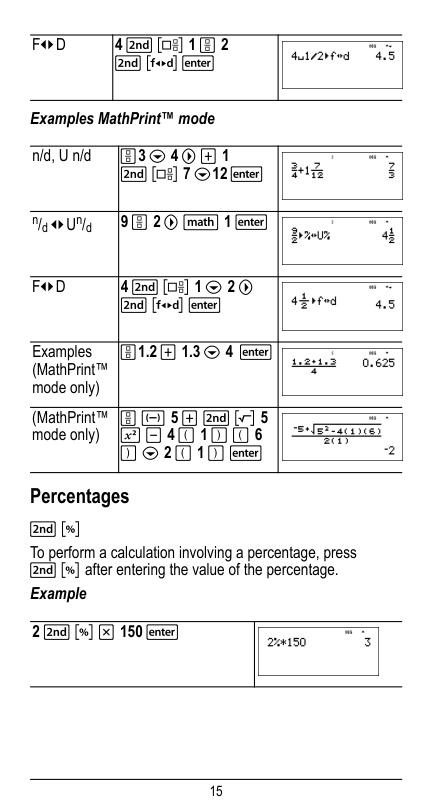
15 Examples MathPrint™ mode Percentages % _ To perform a calculation involving a percentage, press % _ after entering the value of the percentage. Example
F³´D
4 % @ 1 P 2
% ˜ < n/d, U n/dP3 $ 4 " T 1
% @ 7 $12 < n/d ³´Un/d 9 P 2 " d 1 <F³´D
4 % @ 1 $ 2 " % ˜ < Examples (MathPrint™ mode only)P1.2 T 1.3 $ 4 <
(MathPrint™ mode only) P M 5 T % b 5F U 4 ( 1 ) ( 6
) $ 2 ( 1 ) <2 % _ V 150 <
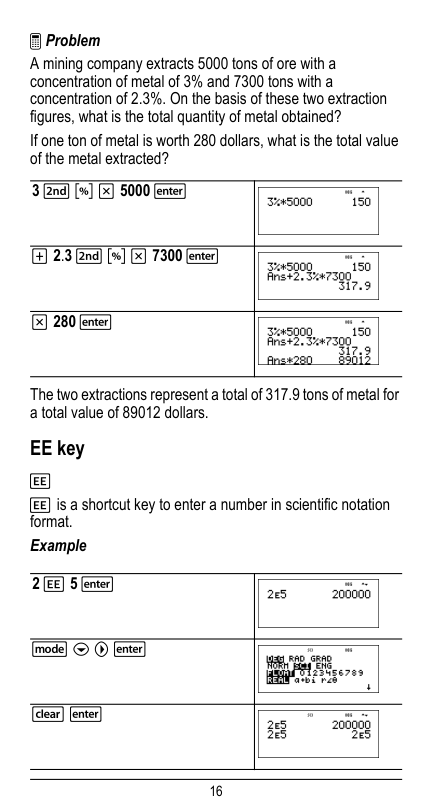
16 ³ Problem A mining company extracts 5000 tons of ore with a concentration of metal of 3% and 7300 tons with a concentration of 2.3%. On the basis of these two extraction figures, what is the total quantity of metal obtained? If one ton of metal is worth 280 dollars, what is the total value of the metal extracted? The two extractions represent a total of 317.9 tons of metal for a total value of 89012 dollars. EE key
E
E is a shortcut key to enter a number in scientific notation format. Example3 % _ V 5000 <
T 2.3 % _ V 7300 <
V 280 <
2 E 5 <
q $ " <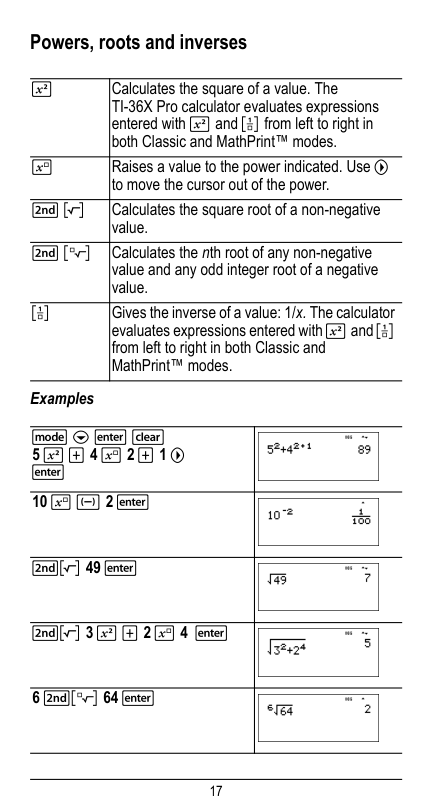
17 Powers, roots and inverses Examples
F
Calculates the square of a value. The TI-36X Pro calculator evaluates expressions entered with F and a from left to right in both Classic and MathPrint™ modes.G
Raises a value to the power indicated. Use " to move the cursor out of the power. % b Calculates the square root of a non-negative value. % c Calculates the nth root of any non-negative value and any odd integer root of a negative value. a Gives the inverse of a value: 1/x. The calculator evaluates expressions entered with F and a from left to right in both Classic and MathPrint™ modes. q $ < -5 F T 4 G 2 T 1 "
<10 G M 2 <
%b 49 < %b 3 F T 2 G 4 < 6 %c 64 <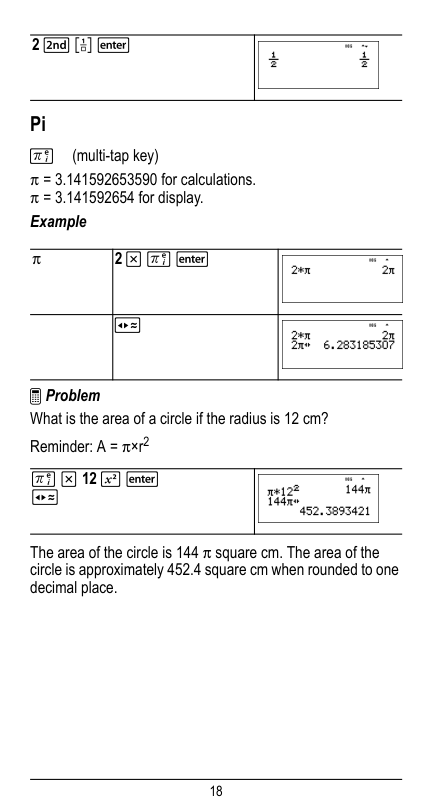
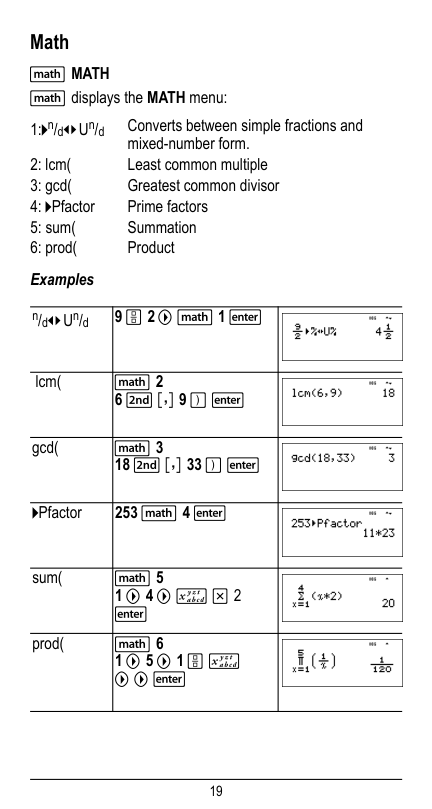
18 Pi g (multi-tap key) p = 3.141592653590 for calculations. p = 3.141592654 for display. Example ³ Problem What is the area of a circle if the radius is 12 cm? Reminder: A = p×r2 The area of the circle is 144 p square cm. The area of the circle is approximately 452.4 square cm when rounded to one decimal place. 2 % a < p 2 V g < r g V 12 F < r
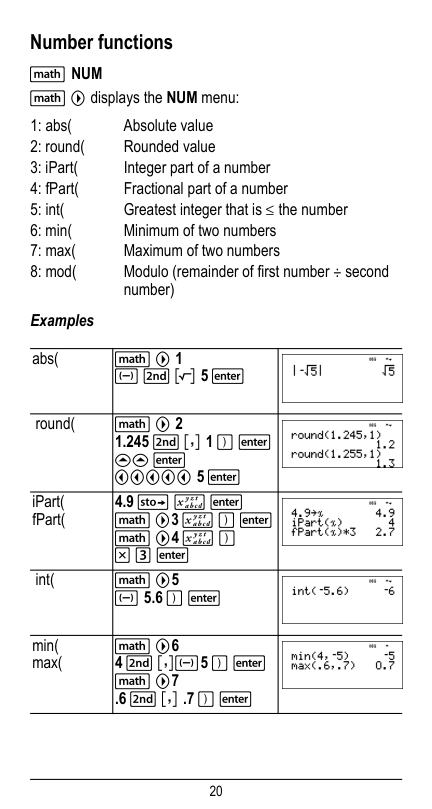
19 Math d MATH d displays the MATH menu: Examples 1:4n/d³´Un/d Converts between simple fractions and mixed-number form. 2: lcm( Least common multiple 3: gcd( Greatest common divisor 4: 4Pfactor Prime factors 5: sum( Summation 6: prod( Product n/d³´Un/d 9 P 2 " d 1 < lcm( d 2 6 % ` 9 ) < gcd( d 3 18 % ` 33 ) < 4Pfactor 253 d 4 < sum( d 5 1 " 4 " z V 2 < prod(S d 6 1 " 5 " 1 P z " " <
20 Number functions d NUM d " displays the NUM menu: Examples 1: abs( Absolute value 2: round( Rounded value 3: iPart( Integer part of a number 4: fPart( Fractional part of a number 5: int( Greatest integer that is the number 6: min( Minimum of two numbers 7: max( Maximum of two numbers 8: mod( Modulo (remainder of first number P second number) abs( d " 1 M % b 5 < round( d " 2 1.245 % ` 1 ) <
<
!!!!! 5 < iPart( fPart( 4.9 L z < d "3 z ) < d "4 z )V 3 <
int( d "5M 5.6 ) <
min( max( d "64 % `M5 ) <
d "7 .6 % ` .7 ) <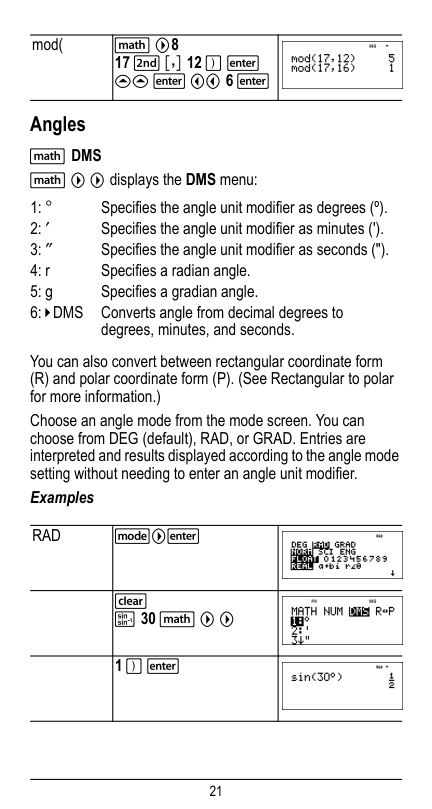
21 Angles d DMS d " " displays the DMS menu: You can also convert between rectangular coordinate form (R) and polar coordinate form (P). (See Rectangular to polar for more information.) Choose an angle mode from the mode screen. You can choose from DEG (default), RAD, or GRAD. Entries are interpreted and results displayed according to the angle mode setting without needing to enter an angle unit modifier. Examples mod( d "8 17 % ` 12 ) <
< !! 6 <
1: ¡ Specifies the angle unit modifier as degrees (º). 2: ¢ Specifies the angle unit modifier as minutes ('). 3: £ Specifies the angle unit modifier as seconds ("). 4: r Specifies a radian angle. 5: g Specifies a gradian angle.6: ´Dms
Converts angle from decimal degrees to degrees, minutes, and seconds.Rad
q"<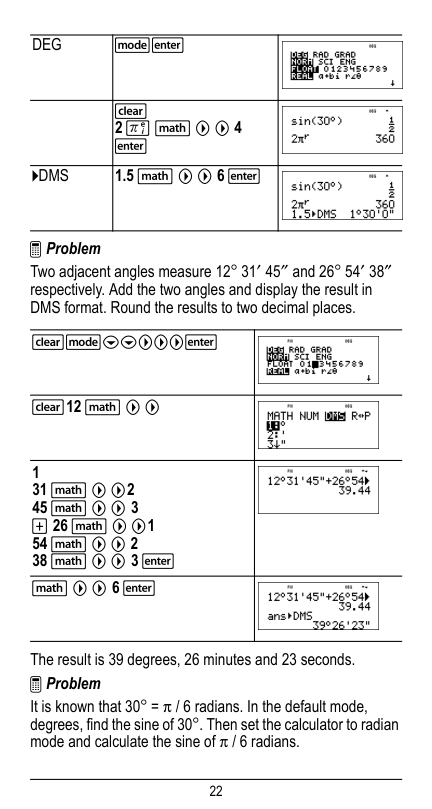
22 ³ Problem Two adjacent angles measure 12¡ 31¢ 45£ and 26¡ 54¢ 38£ respectively. Add the two angles and display the result in DMS format. Round the results to two decimal places. The result is 39 degrees, 26 minutes and 23 seconds. ³ Problem It is known that 30¡ = p / 6 radians. In the default mode, degrees, find the sine of 30¡. Then set the calculator to radian mode and calculate the sine of p / 6 radians.
Deg
q<4Dmss
1.5 d " " 6 < -q$$"""< -12 d " " 1 31 d " "2 45 d " " 3 T 26 d " "1 54 d " " 2 38 d " " 3 < d " " 6 <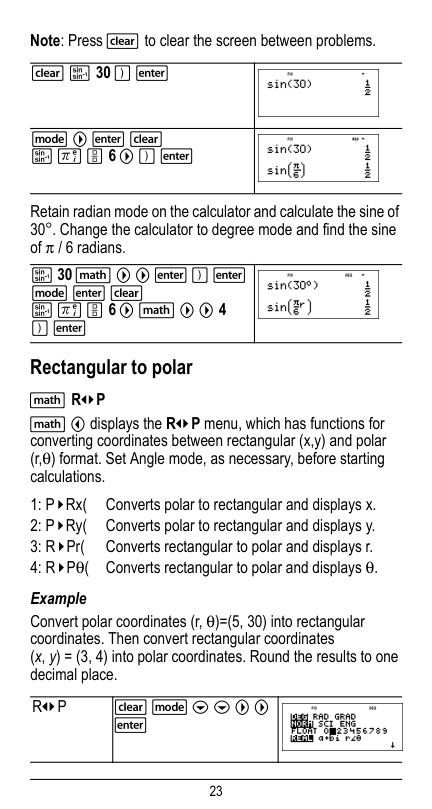
23 Note: Press - to clear the screen between problems. Retain radian mode on the calculator and calculate the sine of 30¡. Change the calculator to degree mode and find the sine of p / 6 radians. Rectangular to polar d R³´P d ! displays the R³´P menu, which has functions for converting coordinates between rectangular (x,y) and polar (r,q) format. Set Angle mode, as necessary, before starting calculations. Example Convert polar coordinates (r, q)=(5, 30) into rectangular coordinates. Then convert rectangular coordinates (x, y) = (3, 4) into polar coordinates. Round the results to one decimal place.
- X 30 ) <
q " < - X g P 6 " ) < X 30 d " " < ) < q < - X g P 6 " d " " 4 ) < 1: P ´Rx( Converts polar to rectangular and displays x. 2: P ´Ry( Converts polar to rectangular and displays y. 3: R ´Pr( Converts rectangular to polar and displays r. 4: R ´Pq( Converts rectangular to polar and displays q.R³´P
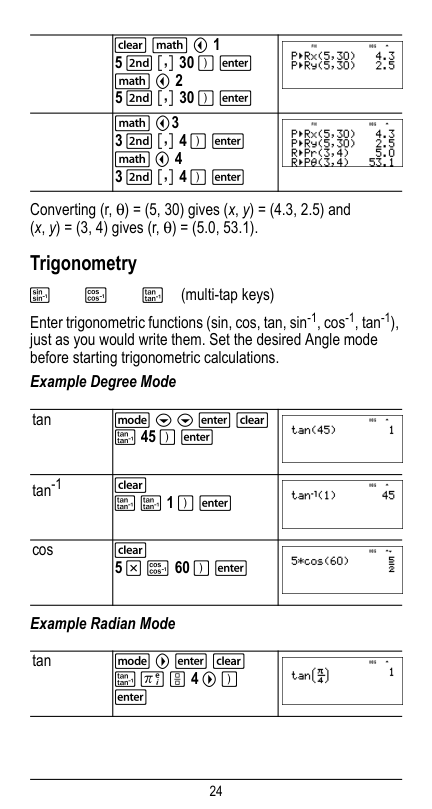
24 Converting (r, q) = (5, 30) gives (x, y) = (4.3, 2.5) and (x, y) = (3, 4) gives (r, q) = (5.0, 53.1). Trigonometry
X
Y
Z
(multi-tap keys) Enter trigonometric functions (sin, cos, tan, sin-1, cos-1, tan-1), just as you would write them. Set the desired Angle mode before starting trigonometric calculations. Example Degree Mode Example Radian ModeZ 45 ) <
tan-1Z Z 1 ) <
5 V Y 60 ) <
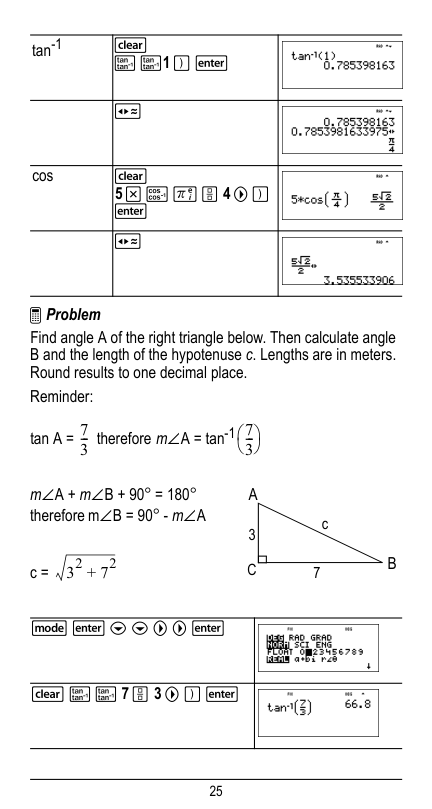
25 ³ Problem Find angle A of the right triangle below. Then calculate angle B and the length of the hypotenuse c. Lengths are in meters. Round results to one decimal place. Reminder:
tan-1
Z Z1 ) <
m±A + m±B + 90¡ = 180¡ therefore m±B = 90¡ - m±A c = q < $ $ " " <
- Z Z 7 P 3 " ) <
7 3-- 7 3--⎠ ⎞ ⎝ ⎛ 32 72 + cB
A
3 7C
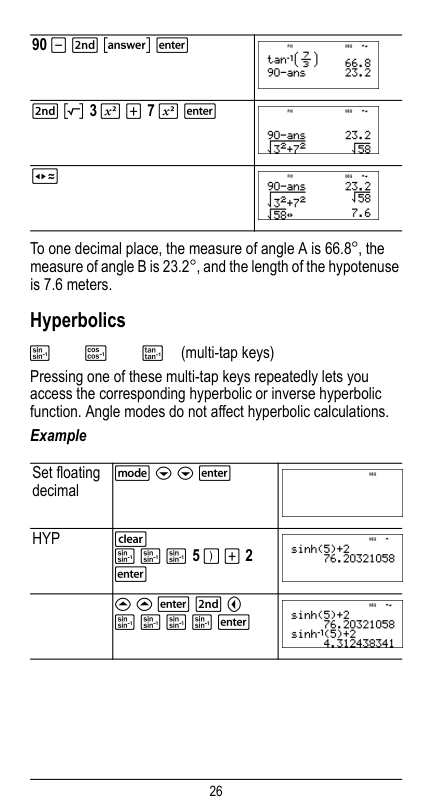
26 To one decimal place, the measure of angle A is 66.8¡, the measure of angle B is 23.2¡, and the length of the hypotenuse is 7.6 meters. Hyperbolics
X
Y
Z
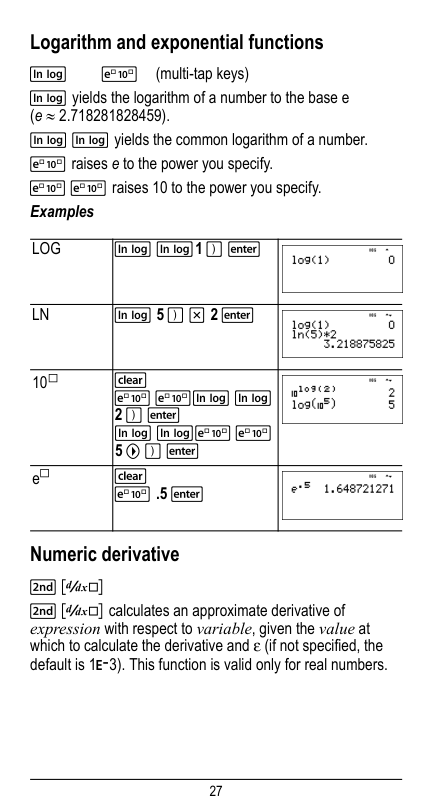
(multi-tap keys) Pressing one of these multi-tap keys repeatedly lets you access the corresponding hyperbolic or inverse hyperbolic function. Angle modes do not affect hyperbolic calculations. Example 90 U % i < % b 3 F T 7 F < r Set floating decimal q $ $ <Hyp
X X X 5 ) T 2
# < % !
X X X X <
27 Logarithm and exponential functions
D
C
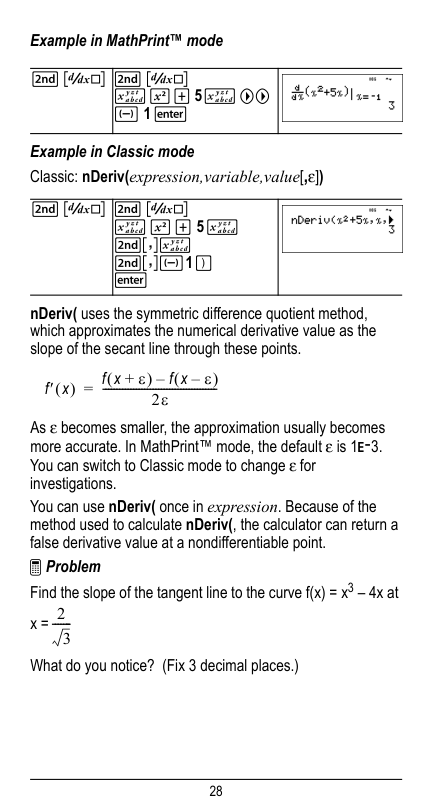
(multi-tap keys) D yields the logarithm of a number to the base e (e ≈2.718281828459). D D yields the common logarithm of a number. C raises e to the power you specify. C C raises 10 to the power you specify. Examples Numeric derivative% A
% A calculates an approximate derivative of expression with respect to variable, given the value at which to calculate the derivative and H (if not specified, the default is 1EM3). This function is valid only for real numbers.Log
D D1 ) <
Ln
D 5 ) V 2 <
10›C Cd D
D Dc C
5 " ) < e›C .5 <
28 Example in MathPrint™ mode Example in Classic mode Classic: nDeriv(expression,variable,value[,H]) nDeriv( uses the symmetric difference quotient method, which approximates the numerical derivative value as the slope of the secant line through these points. As H becomes smaller, the approximation usually becomes more accurate. In MathPrint™ mode, the default H is 1EM3. You can switch to Classic mode to change H for investigations. You can use nDeriv( once in expression. Because of the method used to calculate nDeriv(, the calculator can return a false derivative value at a nondifferentiable point. ³ Problem Find the slope of the tangent line to the curve f(x) = x3 – 4x at x =
What do you notice? (Fix 3 decimal places.)
% A % A
z F T 5 z ""M 1 <
% A % A
z F T 5 z %`z%`M1 )
< f′ x ( ) f x ε + ( ) f x ε – ( ) – 2ε ----------------------------------------- = 2 3 -------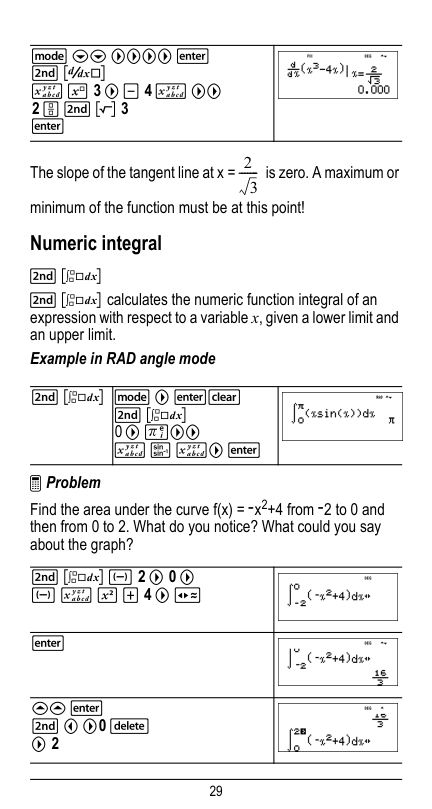
29 The slope of the tangent line at x = is zero. A maximum or minimum of the function must be at this point! Numeric integral
% Q
% Q calculates the numeric function integral of an expression with respect to a variable x, given a lower limit and an upper limit. Example in RAD angle mode ³ Problem Find the area under the curve f(x) = Mx2+4 from M2 to 0 and then from 0 to 2. What do you notice? What could you say about the graph? q $$ """" <% A
z G 3 " U 4 z "" 2 P % b 3 < % Q q " <-% Q
0 " g"" z X z" <% Q M 2 " 0 "
M z F T 4 " r <<
% ! "0 J
" 2 2 3 -------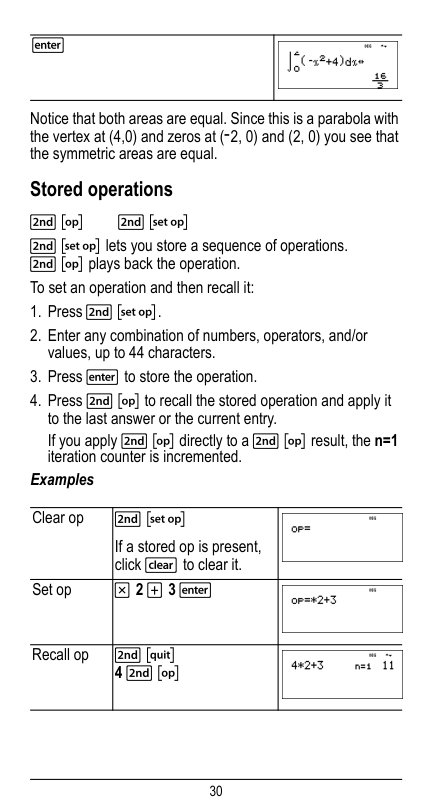
30 Notice that both areas are equal. Since this is a parabola with the vertex at (4,0) and zeros at (M2, 0) and (2, 0) you see that the symmetric areas are equal. Stored operations % m % n % n lets you store a sequence of operations. % m plays back the operation. To set an operation and then recall it:
V 2 T 3 <
Recall op % s 4 % m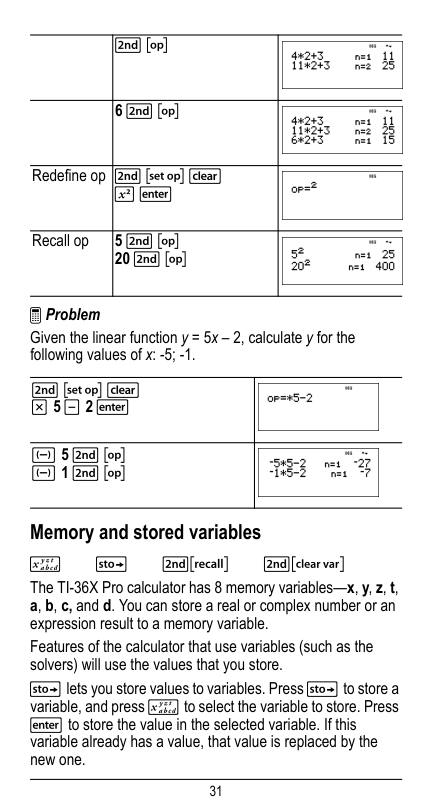
31 ³ Problem Given the linear function y = 5x – 2, calculate y for the following values of x: -5; -1. Memory and stored variables z
L
%h %{ The TI-36X Pro calculator has 8 memory variables—x, y, z, t, a, b, c, and d. You can store a real or complex number or an expression result to a memory variable. Features of the calculator that use variables (such as the solvers) will use the values that you store. L lets you store values to variables. Press L to store a variable, and press z to select the variable to store. Press < to store the value in the selected variable. If this variable already has a value, that value is replaced by the new one. % m 6 % m Redefine op % n -F <
Recall op 5 % m 20 % m % n -V 5 U 2 <
M 5 % m M 1 % m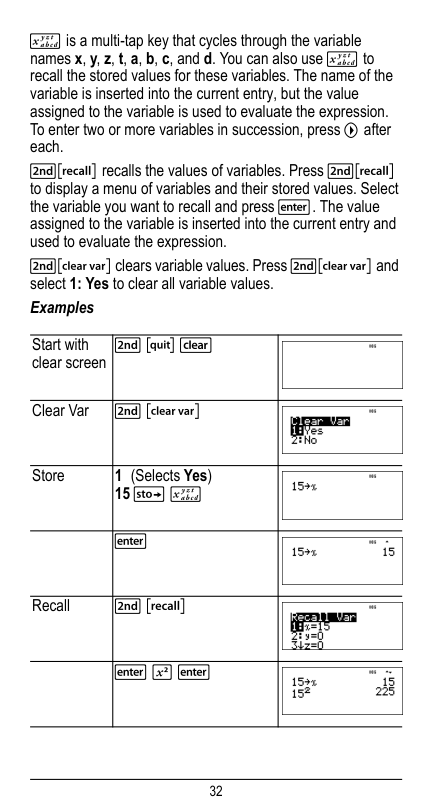
32 z is a multi-tap key that cycles through the variable names x, y, z, t, a, b, c, and d. You can also use z to recall the stored values for these variables. The name of the variable is inserted into the current entry, but the value assigned to the variable is used to evaluate the expression. To enter two or more variables in succession, press " after each. %h recalls the values of variables. Press %h to display a menu of variables and their stored values. Select the variable you want to recall and press <. The value assigned to the variable is inserted into the current entry and used to evaluate the expression. %{ clears variable values. Press %{ and select 1: Yes to clear all variable values. Examples Start with clear screen % s - Clear Var % { Store 1 (Selects Yes) 15 L z < Recall % h
< F <
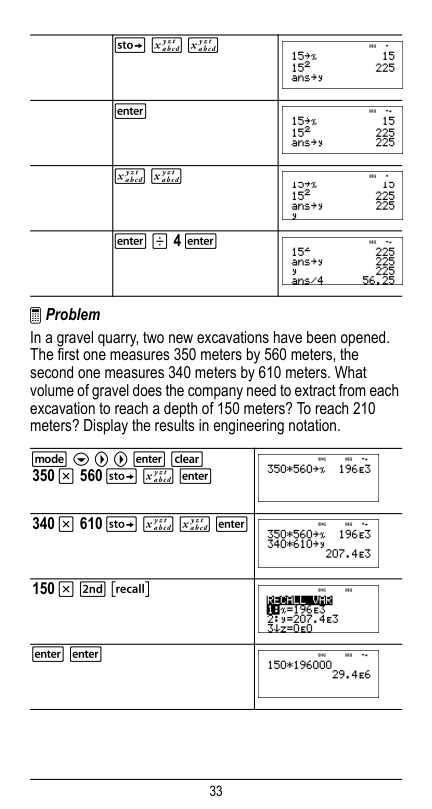
33 ³ Problem In a gravel quarry, two new excavations have been opened. The first one measures 350 meters by 560 meters, the second one measures 340 meters by 610 meters. What volume of gravel does the company need to extract from each excavation to reach a depth of 150 meters? To reach 210 meters? Display the results in engineering notation. L z z < z z
< W 4 <
q $ " " < - 350 V 560 L z < 340 V 610 L z z < 150 V % h < <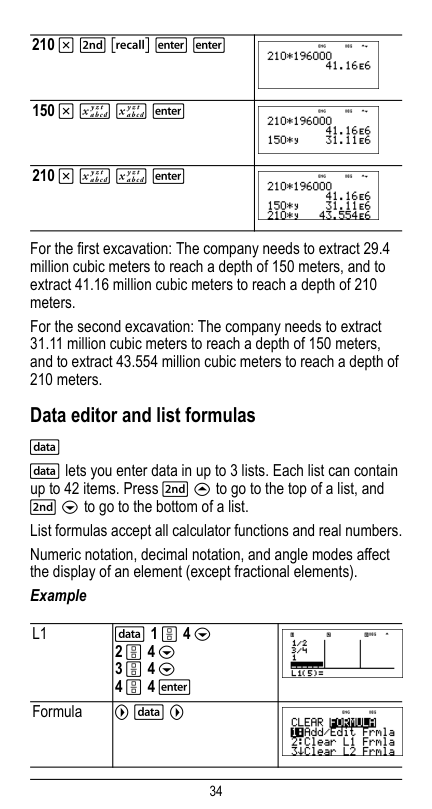
34 For the first excavation: The company needs to extract 29.4 million cubic meters to reach a depth of 150 meters, and to extract 41.16 million cubic meters to reach a depth of 210 meters. For the second excavation: The company needs to extract 31.11 million cubic meters to reach a depth of 150 meters, and to extract 43.554 million cubic meters to reach a depth of 210 meters. Data editor and list formulas v v lets you enter data in up to 3 lists. Each list can contain up to 42 items. Press % # to go to the top of a list, and % $ to go to the bottom of a list. List formulas accept all calculator functions and real numbers. Numeric notation, decimal notation, and angle modes affect the display of an element (except fractional elements). Example 210 V % h < < 150 V z z < 210 V z z <
L1
v 1 P 4 $2 P 4 $
3 P 4 $
4 P 4 <
Formula " v "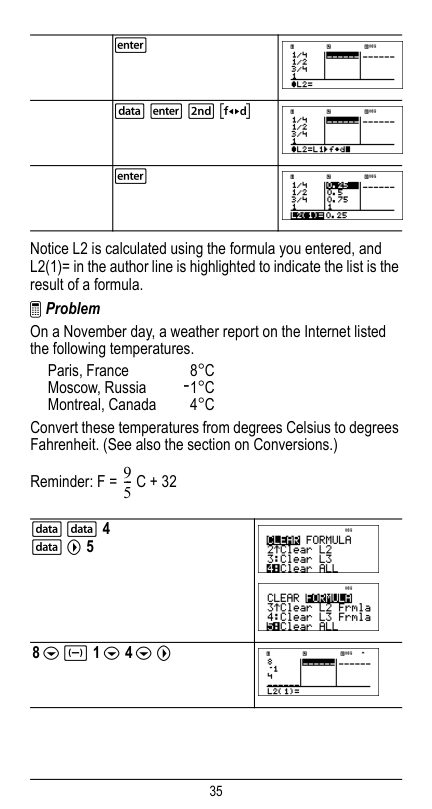
35 Notice L2 is calculated using the formula you entered, and L2(1)= in the author line is highlighted to indicate the list is the result of a formula. ³ Problem On a November day, a weather report on the Internet listed the following temperatures. Paris, France
8¡C
Moscow, RussiaM1¡C
Montreal, Canada4¡C
Convert these temperatures from degrees Celsius to degrees Fahrenheit. (See also the section on Conversions.) Reminder: F =C + 32
< v < % ˜ < v v 4 v " 58 $ M 1 $ 4 $ "
9 5--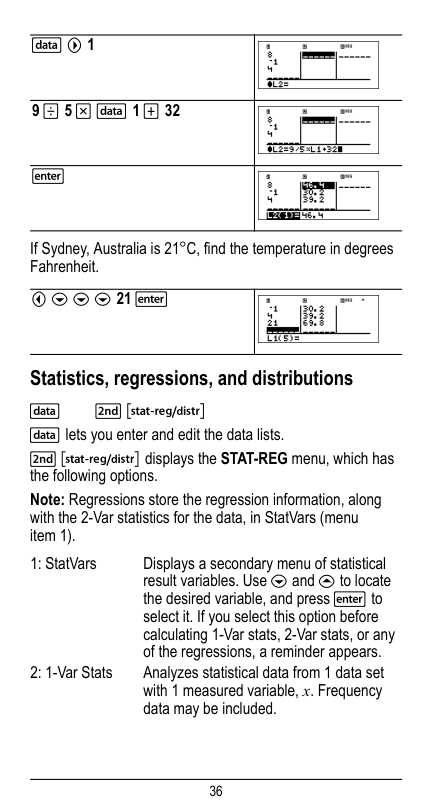
36 If Sydney, Australia is 21¡C, find the temperature in degrees Fahrenheit. Statistics, regressions, and distributions v % u v lets you enter and edit the data lists. % u displays the STAT-REG menu, which has the following options. Note: Regressions store the regression information, along with the 2-Var statistics for the data, in StatVars (menu item 1). v " 1 9 W 5 V v 1 T 32 < ! $ $ $ 21 < 1: StatVars Displays a secondary menu of statistical result variables. Use $ and # to locate the desired variable, and press < to select it. If you select this option before calculating 1-Var stats, 2-Var stats, or any of the regressions, a reminder appears. 2: 1-Var Stats Analyzes statistical data from 1 data set with 1 measured variable, x. Frequency data may be included.
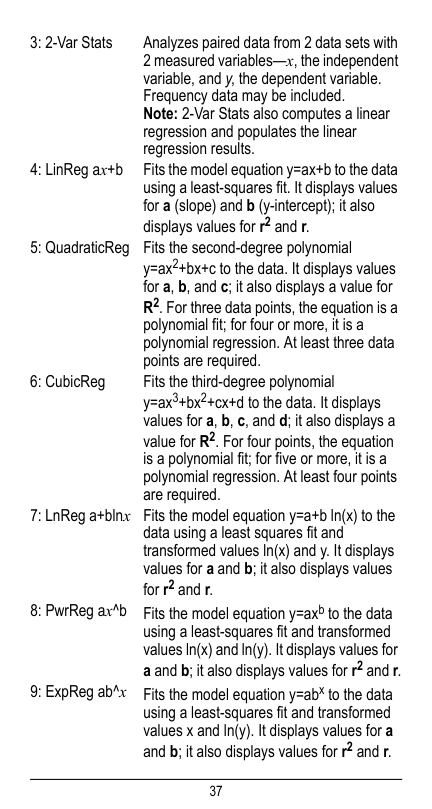
37 3: 2-Var Stats Analyzes paired data from 2 data sets with 2 measured variables—x, the independent variable, and y, the dependent variable. Frequency data may be included. Note: 2-Var Stats also computes a linear regression and populates the linear regression results. 4: LinReg ax+b Fits the model equation y=ax+b to the data using a least-squares fit. It displays values for a (slope) and b (y-intercept); it also displays values for r2 and r. 5: QuadraticReg Fits the second-degree polynomial y=ax2+bx+c to the data. It displays values for a, b, and c; it also displays a value for R2. For three data points, the equation is a polynomial fit; for four or more, it is a polynomial regression. At least three data points are required. 6: CubicReg Fits the third-degree polynomial y=ax3+bx2+cx+d to the data. It displays values for a, b, c, and d; it also displays a value for R2. For four points, the equation is a polynomial fit; for five or more, it is a polynomial regression. At least four points are required. 7: LnReg a+blnx Fits the model equation y=a+b ln(x) to the data using a least squares fit and transformed values ln(x) and y. It displays values for a and b; it also displays values for r2 and r. 8: PwrReg ax^b Fits the model equation y=axb to the data using a least-squares fit and transformed values ln(x) and ln(y). It displays values for a and b; it also displays values for r2 and r. 9: ExpReg ab^x Fits the model equation y=abx to the data using a least-squares fit and transformed values x and ln(y). It displays values for a and b; it also displays values for r2 and r.
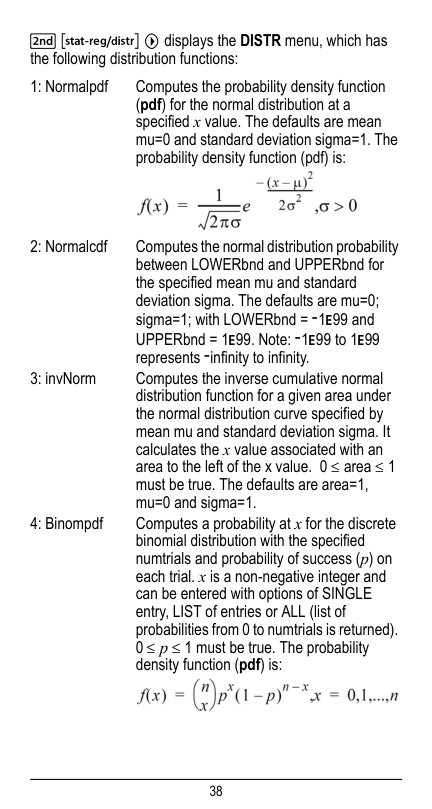
38 % u " displays the DISTR menu, which has the following distribution functions: 1: Normalpdf Computes the probability density function (pdf) for the normal distribution at a specified x value. The defaults are mean mu=0 and standard deviation sigma=1. The probability density function (pdf) is: 2: Normalcdf Computes the normal distribution probability between LOWERbnd and UPPERbnd for the specified mean mu and standard deviation sigma. The defaults are mu=0; sigma=1; with LOWERbnd = M1E99 and UPPERbnd = 1E99. Note: M1E99 to 1E99 represents Minfinity to infinity. 3: invNorm Computes the inverse cumulative normal distribution function for a given area under the normal distribution curve specified by mean mu and standard deviation sigma. It calculates the x value associated with an area to the left of the x value. 0 { area { 1 must be true. The defaults are area=1, mu=0 and sigma=1. 4: Binompdf Computes a probability at x for the discrete binomial distribution with the specified numtrials and probability of success (p) on each trial. x is a non-negative integer and can be entered with options of SINGLE entry, LIST of entries or ALL (list of probabilities from 0 to numtrials is returned). 0 { p { 1 must be true. The probability density function (pdf) is:
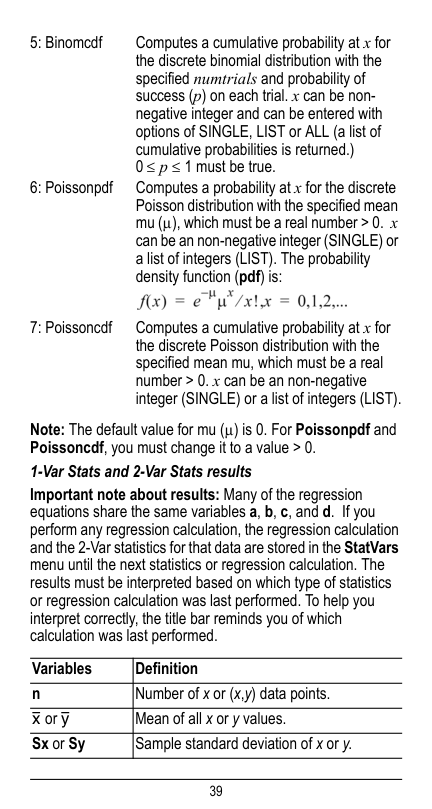
39 Note: The default value for mu (m) is 0. For Poissonpdf and Poissoncdf, you must change it to a value > 0. 1-Var Stats and 2-Var Stats results Important note about results: Many of the regression equations share the same variables a, b, c, and d. If you perform any regression calculation, the regression calculation and the 2-Var statistics for that data are stored in the StatVars menu until the next statistics or regression calculation. The results must be interpreted based on which type of statistics or regression calculation was last performed. To help you interpret correctly, the title bar reminds you of which calculation was last performed. 5: Binomcdf Computes a cumulative probability at x for the discrete binomial distribution with the specified numtrials and probability of success (p) on each trial. x can be non- negative integer and can be entered with options of SINGLE, LIST or ALL (a list of cumulative probabilities is returned.) 0 { p { 1 must be true. 6: Poissonpdf Computes a probability at x for the discrete Poisson distribution with the specified mean mu (m), which must be a real number > 0. x can be an non-negative integer (SINGLE) or a list of integers (LIST). The probability density function (pdf) is: 7: Poissoncdf Computes a cumulative probability at x for the discrete Poisson distribution with the specified mean mu, which must be a real number > 0. x can be an non-negative integer (SINGLE) or a list of integers (LIST). Variables Definition n Number of x or (x,y) data points. v or w Mean of all x or y values. Sx or Sy Sample standard deviation of x or y.
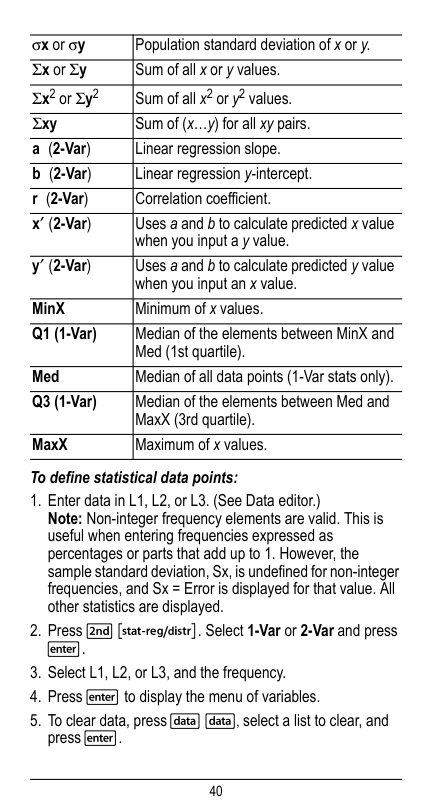
40 To define statistical data points:
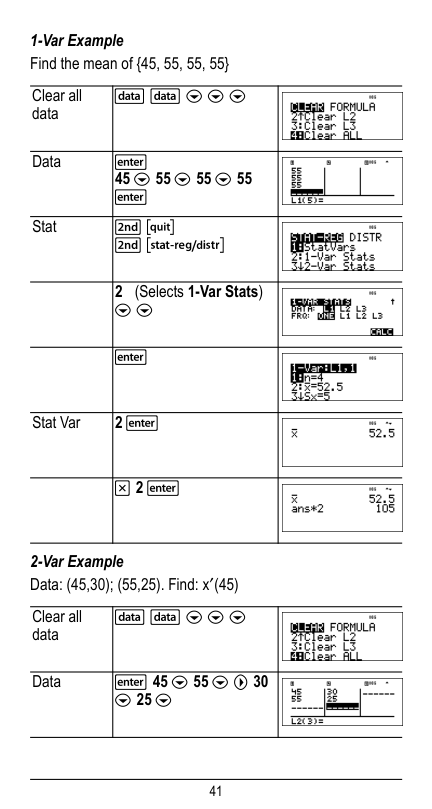
41 1-Var Example Find the mean of {45, 55, 55, 55} 2-Var Example Data: (45,30); (55,25). Find: x¢(45) Clear all data v v $ $ $ Data < 45 $ 55 $ 55 $ 55 < Stat % s % u 2 (Selects 1-Var Stats) $ $ < Stat Var 2 <
V 2 <
Clear all data v v $ $ $ Data < 45 $ 55 $ " 30 $ 25 $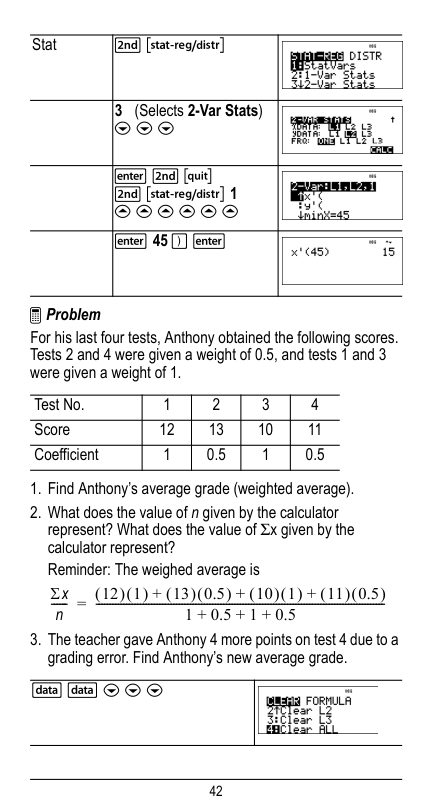
42 ³ Problem For his last four tests, Anthony obtained the following scores. Tests 2 and 4 were given a weight of 0.5, and tests 1 and 3 were given a weight of 1.
# # # # #
< 45 ) < Test No. 1 2 3 4 Score 12 13 10 11 Coefficient 1 0.5 1 0.5 v v $ $ $ Σx n------ 12 ( ) 1 ( ) 13 ( ) 0.5 ( ) 10 ( ) 1 ( ) 11 ( ) 0.5 ( ) + + + 1 0.5 1 0.5 + + + -------------------------------------------------------------------------------------------------------- =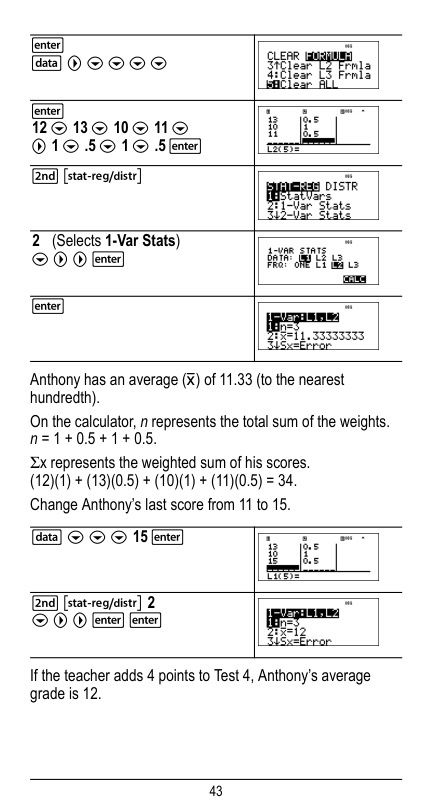
43 Anthony has an average (v) of 11.33 (to the nearest hundredth). On the calculator, n represents the total sum of the weights. n = 1 + 0.5 + 1 + 0.5. Gx represents the weighted sum of his scores. (12)(1) + (13)(0.5) + (10)(1) + (11)(0.5) = 34. Change Anthony’s last score from 11 to 15. If the teacher adds 4 points to Test 4, Anthony’s average grade is 12. < v " $ $ $ $ < 12 $ 13 $ 10 $ 11 $ " 1 $ .5 $ 1 $ .5 < % u 2 (Selects 1-Var Stats) $ " " < < v $ $ $ 15 < % u 2 $ " " < <
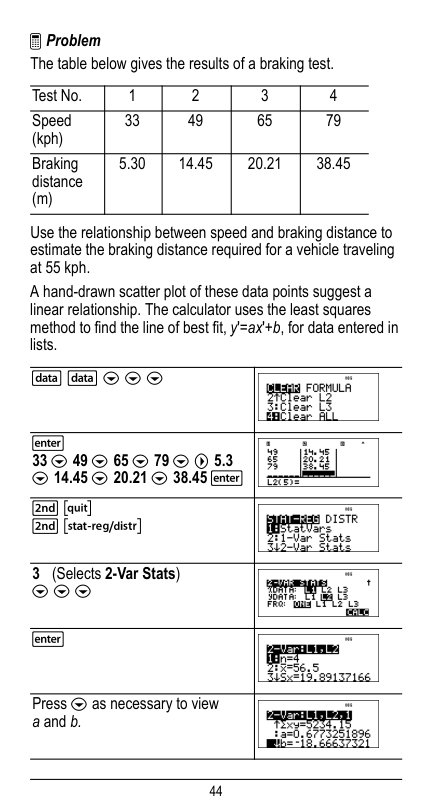
44 ³ Problem The table below gives the results of a braking test. Use the relationship between speed and braking distance to estimate the braking distance required for a vehicle traveling at 55 kph. A hand-drawn scatter plot of these data points suggest a linear relationship. The calculator uses the least squares method to find the line of best fit, y'=ax'+b, for data entered in lists. Test No. 1 2 3 4 Speed (kph) 33 49 65 79 Braking distance (m) 5.30 14.45 20.21 38.45 v v $ $ $ < 33 $ 49 $ 65 $ 79 $ " 5.3 $ 14.45 $ 20.21 $ 38.45 < % s % u 3 (Selects 2-Var Stats) $ $ $ < Press $ as necessary to view a and b.
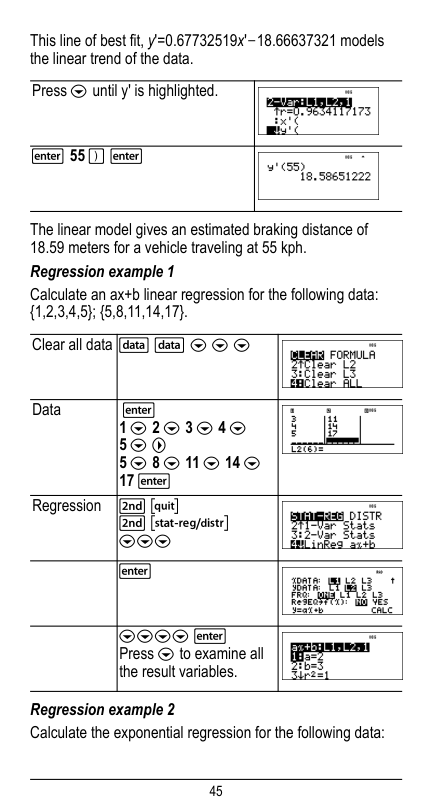
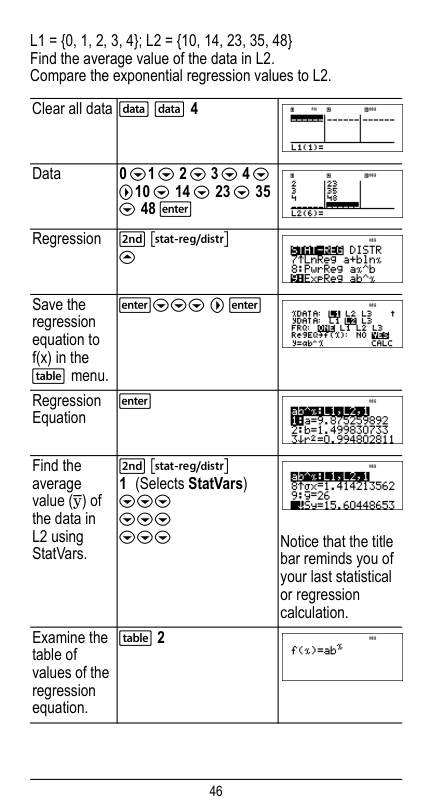
45 This line of best fit, y'=0.67732519x'N18.66637321 models the linear trend of the data. The linear model gives an estimated braking distance of 18.59 meters for a vehicle traveling at 55 kph. Regression example 1 Calculate an ax+b linear regression for the following data: {1,2,3,4,5}; {5,8,11,14,17}. Regression example 2 Calculate the exponential regression for the following data: Press $ until y' is highlighted. < 55 ) < Clear all data v v $ $ $ Data < 1 $ 2 $ 3 $ 4 $ 5 $ " 5 $ 8 $ 11 $ 14 $ 17 < Regression % s % u $$$ < $$$$ < Press $ to examine all the result variables.
46
L1 = {0, 1, 2, 3, 4}; L2 = {10, 14, 23, 35, 48}
Find the average value of the data in L2. Compare the exponential regression values to L2. Clear all data v v 4 Data 0 $1 $ 2 $ 3 $ 4 $ "10 $ 14 $ 23 $ 35 $ 48 < Regression % u # Save the regression equation to f(x) in the I menu. <$$$ " < Regression Equation < Find the average value (y) of the data in L2 using StatVars. % u 1 (Selects StatVars) $$$ $$$ $$$ Notice that the title bar reminds you of your last statistical or regression calculation. Examine the table of values of the regression equation.I 2
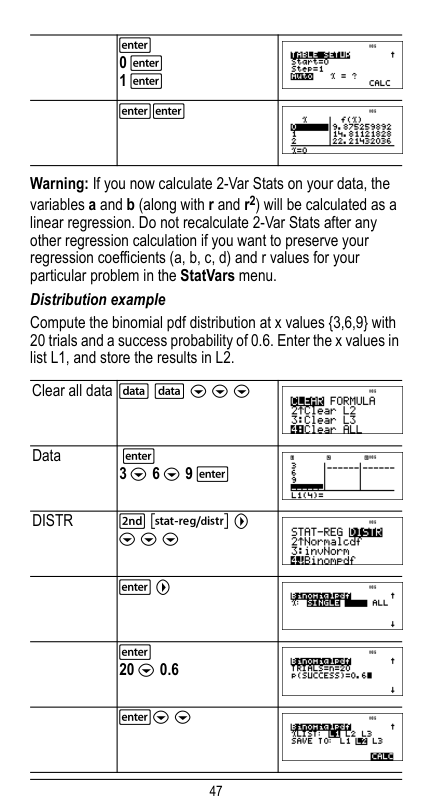
47 Warning: If you now calculate 2-Var Stats on your data, the variables a and b (along with r and r2) will be calculated as a linear regression. Do not recalculate 2-Var Stats after any other regression calculation if you want to preserve your regression coefficients (a, b, c, d) and r values for your particular problem in the StatVars menu. Distribution example Compute the binomial pdf distribution at x values {3,6,9} with 20 trials and a success probability of 0.6. Enter the x values in list L1, and store the results in L2. < 0 < 1 < << Clear all data v v $ $ $ Data < 3 $ 6 $ 9 <
Distr
% u " $ $ $ < " < 20 $ 0.6 <$ $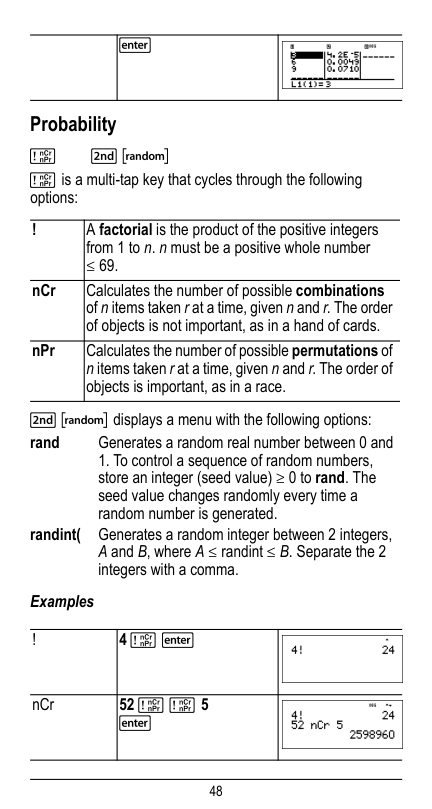
48 Probability
H
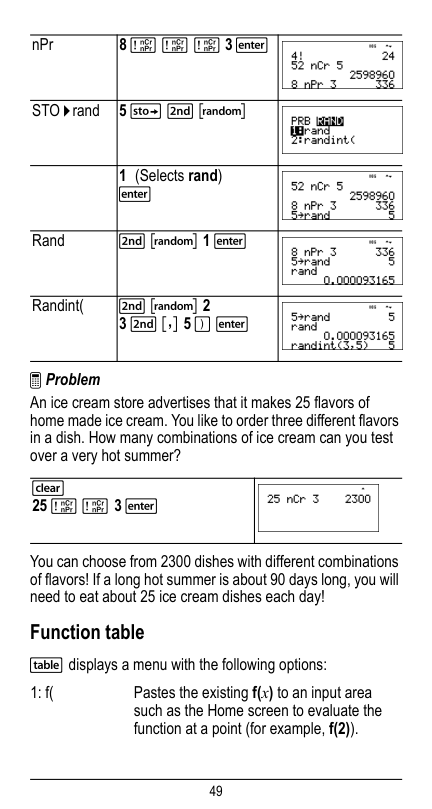
% † H is a multi-tap key that cycles through the following options:% † displays a menu with the following options: Examples < ! A factorial is the product of the positive integers from 1 to n. n must be a positive whole number { 69. nCr Calculates the number of possible combinations of n items taken r at a time, given n and r. The order of objects is not important, as in a hand of cards. nPr Calculates the number of possible permutations of n items taken r at a time, given n and r. The order of objects is important, as in a race. rand Generates a random real number between 0 and
4 H <
nCr52 H H 5
<
49 ³ Problem An ice cream store advertises that it makes 25 flavors of home made ice cream. You like to order three different flavors in a dish. How many combinations of ice cream can you test over a very hot summer? You can choose from 2300 dishes with different combinations of flavors! If a long hot summer is about 90 days long, you will need to eat about 25 ice cream dishes each day! Function table I displays a menu with the following options: nPr
8 H H H 3 <
STO 4rand5 L % †
1 (Selects rand) < Rand % † 1 < Randint( % † 2 3 % ` 5 ) <25 H H 3 <
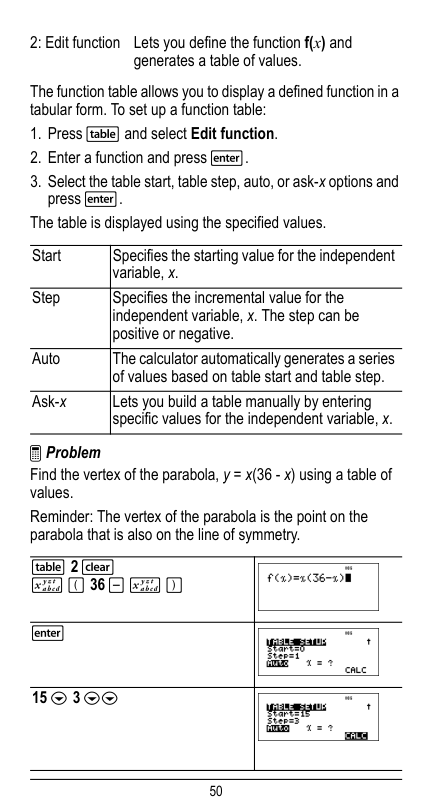
50 The function table allows you to display a defined function in a tabular form. To set up a function table:
I 2 -
z ( 36 U z ) < 15 $ 3 $$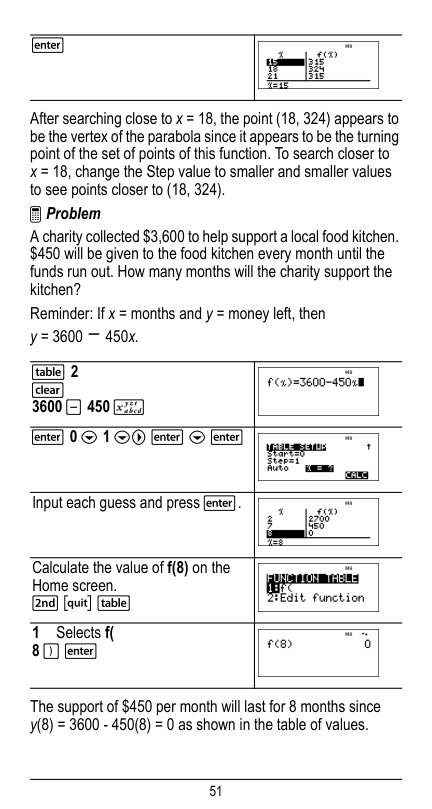
51 After searching close to x = 18, the point (18, 324) appears to be the vertex of the parabola since it appears to be the turning point of the set of points of this function. To search closer to x = 18, change the Step value to smaller and smaller values to see points closer to (18, 324). ³ Problem A charity collected $3,600 to help support a local food kitchen. $450 will be given to the food kitchen every month until the funds run out. How many months will the charity support the kitchen? Reminder: If x = months and y = money left, then y = 3600N 450x. The support of $450 per month will last for 8 months since y(8) = 3600 - 450(8) = 0 as shown in the table of values. <
I 2
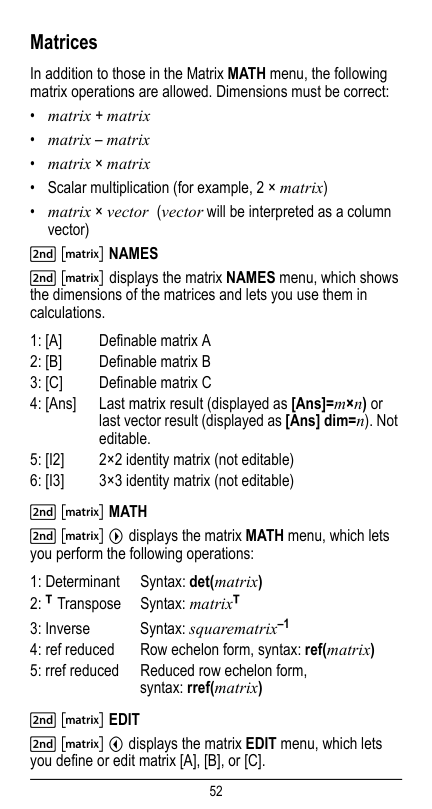
52 Matrices In addition to those in the Matrix MATH menu, the following matrix operations are allowed. Dimensions must be correct:
1: [A]
Definable matrix A2: [B]
Definable matrix B3: [C]
Definable matrix C 4: [Ans] Last matrix result (displayed as [Ans]=m×n) or last vector result (displayed as [Ans] dim=n). Not editable.5: [I2]
2×2 identity matrix (not editable)6: [I3]
3×3 identity matrix (not editable) 1: Determinant Syntax: det(matrix) 2: T Transpose Syntax: matrixT 3: Inverse Syntax: squarematrix–1 4: ref reduced Row echelon form, syntax: ref(matrix) 5: rref reduced Reduced row echelon form, syntax: rref(matrix)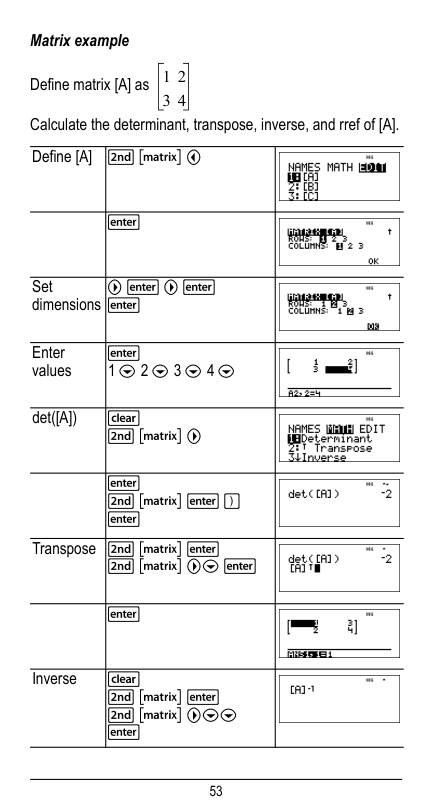
53 Matrix example Define matrix [A] as Calculate the determinant, transpose, inverse, and rref of [A]. Define [A] % t ! < Set dimensions " < " < < Enter values < 1 $ 2 $ 3 $ 4 $ det([A])
54 Vectors In addition to those in the Vector MATH menu, the following vector operations are allowed. Dimensions must be correct:
% … Names
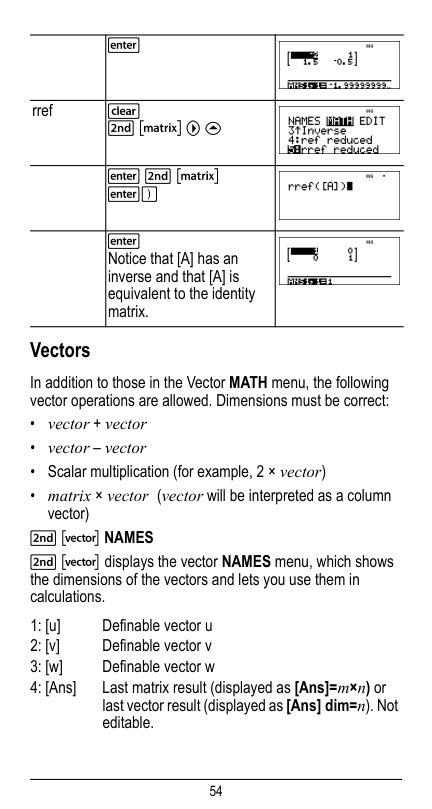
% … displays the vector NAMES menu, which shows the dimensions of the vectors and lets you use them in calculations. < rref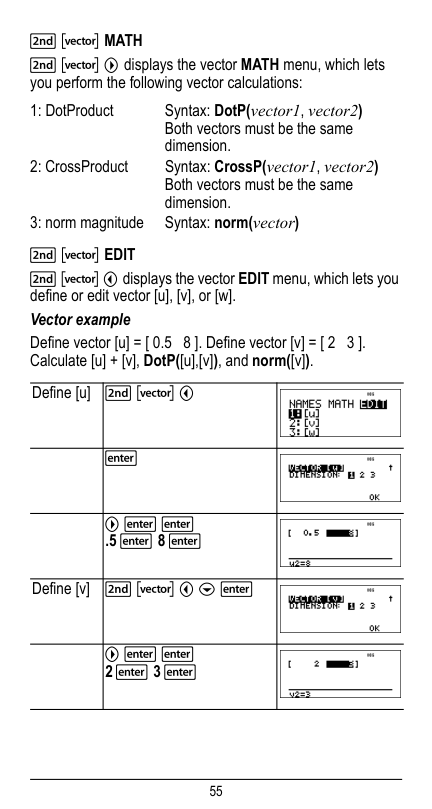
55
% … Math
% … " displays the vector MATH menu, which lets you perform the following vector calculations:% … Edit
% … ! displays the vector EDIT menu, which lets you define or edit vector [u], [v], or [w]. Vector example Define vector [u] = [ 0.5 8 ]. Define vector [v] = [ 2 3 ]. Calculate [u] + [v], DotP([u],[v]), and norm([v]). 1: DotProduct Syntax: DotP(vector1, vector2) Both vectors must be the same dimension. 2: CrossProduct Syntax: CrossP(vector1, vector2) Both vectors must be the same dimension. 3: norm magnitude Syntax: norm(vector) Define [u] % … ! < " < < .5 < 8 < Define [v] % … ! $ < " < < 2 < 3 <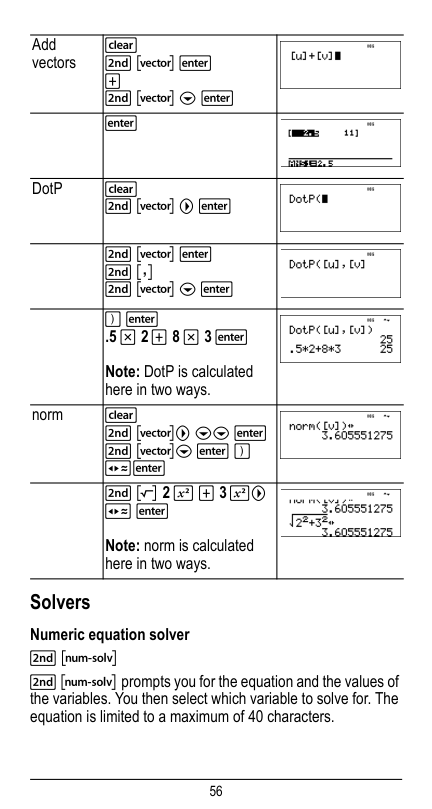
56 Solvers Numeric equation solver % ‰ % ‰ prompts you for the equation and the values of the variables. You then select which variable to solve for. The equation is limited to a maximum of 40 characters. Add vectors
T
% … $ < < DotP.5 V 2 T 8 V 3 <
Note: DotP is calculated here in two ways. norm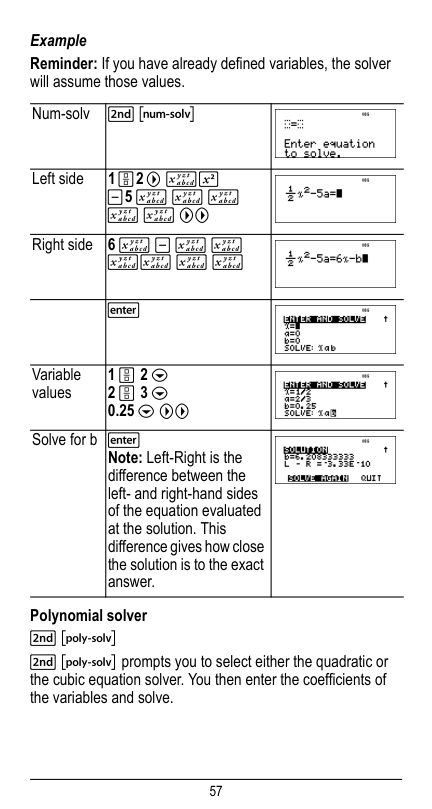
57 Example Reminder: If you have already defined variables, the solver will assume those values. Polynomial solver
% Š
% Š prompts you to select either the quadratic or the cubic equation solver. You then enter the coefficients of the variables and solve. Num-solv % ‰ Left side 1 P2 " zF U5 z z z z z "" Right side 6 z U z z zz z z < Variable values1 P 2 $
2 P 3 $
0.25 $ "" Solve for b < Note: Left-Right is the difference between the left- and right-hand sides of the equation evaluated at the solution. This difference gives how close the solution is to the exact answer.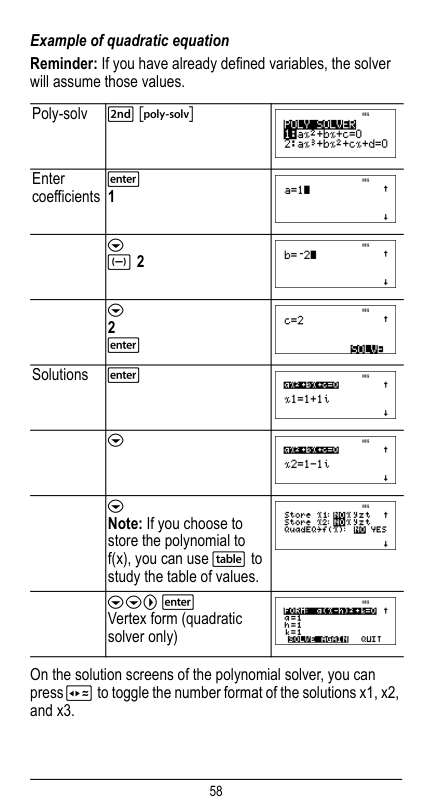
58 Example of quadratic equation Reminder: If you have already defined variables, the solver will assume those values. On the solution screens of the polynomial solver, you can press r to toggle the number format of the solutions x1, x2, and x3. Poly-solv
% Š
Enter coefficients < 1 $M 2
$ 2 < Solutions < $ $ Note: If you choose to store the polynomial to f(x), you can use I to study the table of values. $$" < Vertex form (quadratic solver only)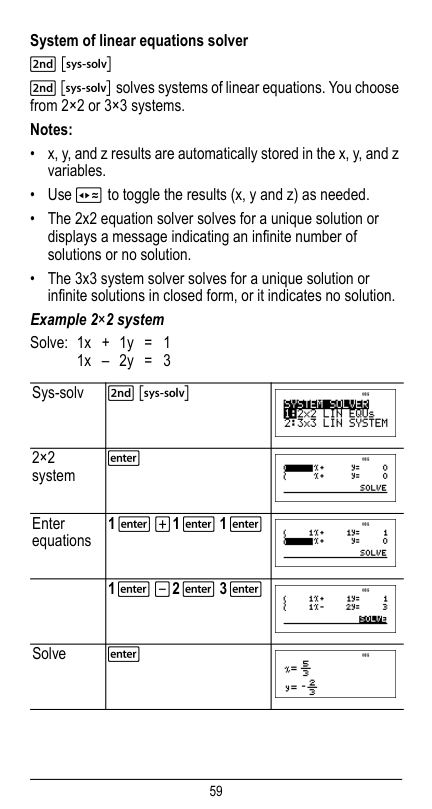
59 System of linear equations solver % ‹ % ‹ solves systems of linear equations. You choose from 2×2 or 3×3 systems. Notes:
1 < T1 < 1 <
1 < U2 < 3 <
Solve <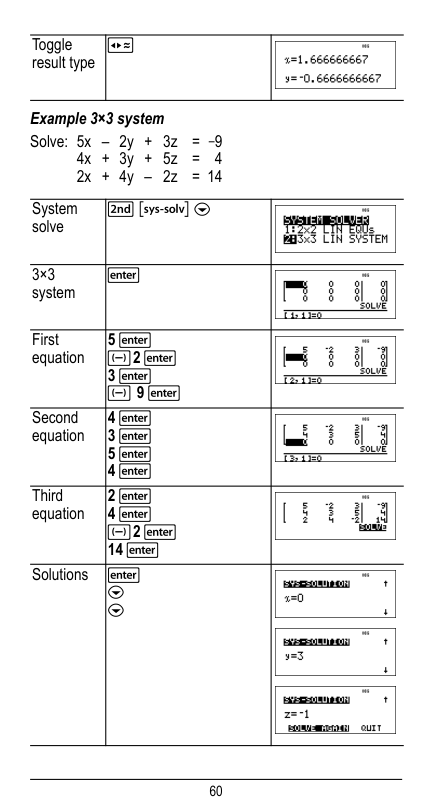
60 Example 3×3 system Solve: 5x – 2y + 3z = -9 4x + 3y + 5z = 4 2x + 4y – 2z = 14 Toggle result type r System solve % ‹ $ 3×3 system < First equation 5 <
M2 <
3 <M 9 <
Second equation 4 < 3 < 5 < 4 < Third equation 2 < 4 <M2 <
14 < Solutions < $ $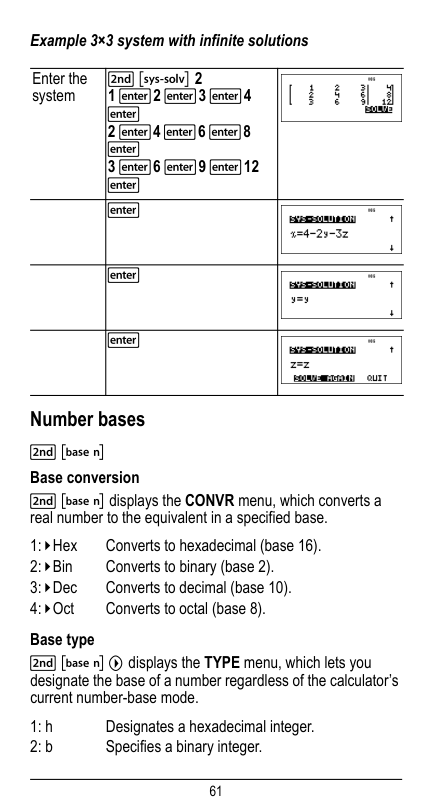
61 Example 3×3 system with infinite solutions Number bases % — Base conversion % — displays the CONVR menu, which converts a real number to the equivalent in a specified base. Base type % — " displays the TYPE menu, which lets you designate the base of a number regardless of the calculator’s current number-base mode. Enter the system % ‹ 2 1 <2 <3 <4 < 2 <4 <6 <8 < 3 <6 <9 <12 < < < < 1: ´Hex Converts to hexadecimal (base 16). 2: ´Bin Converts to binary (base 2). 3: ´Dec Converts to decimal (base 10). 4: ´Oct Converts to octal (base 8). 1: h Designates a hexadecimal integer. 2: b Specifies a binary integer.
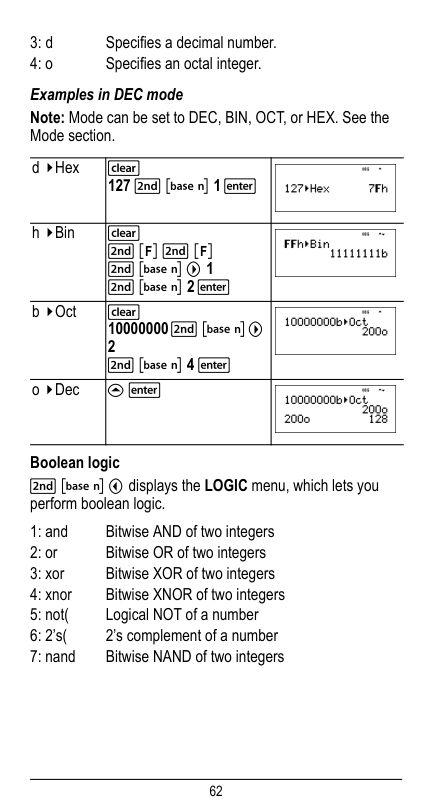
62 Examples in DEC mode Note: Mode can be set to DEC, BIN, OCT, or HEX. See the Mode section. Boolean logic % — ! displays the LOGIC menu, which lets you perform boolean logic. 3: d Specifies a decimal number. 4: o Specifies an octal integer. d ´Hex
<
1: and Bitwise AND of two integers 2: or Bitwise OR of two integers 3: xor Bitwise XOR of two integers 4: xnor Bitwise XNOR of two integers 5: not( Logical NOT of a number 6: 2’s( 2’s complement of a number 7: nand Bitwise NAND of two integers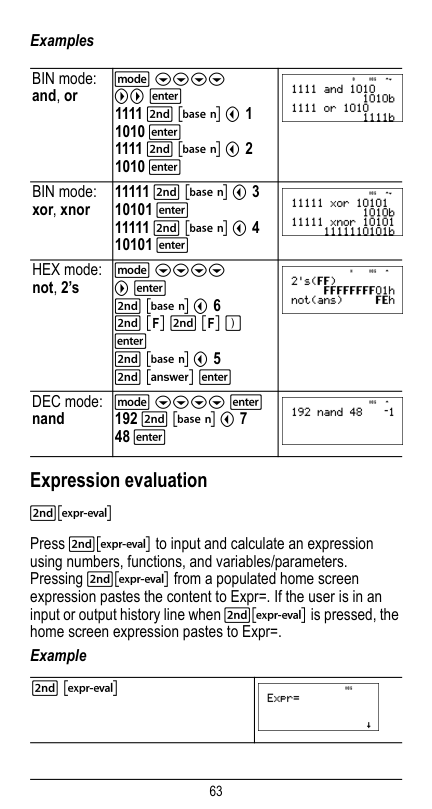
63 Examples Expression evaluation %‡ Press %‡ to input and calculate an expression using numbers, functions, and variables/parameters. Pressing %‡ from a populated home screen expression pastes the content to Expr=. If the user is in an input or output history line when %‡ is pressed, the home screen expression pastes to Expr=. Example BIN mode: and, or q $$$$ "" < 1111 % — ! 1 1010 < 1111 % — ! 2 1010 < BIN mode: xor, xnor 11111 % — ! 3 10101 < 11111 % — ! 4 10101 < HEX mode: not, 2’s q $$$$ " < % — ! 6 % ¬ % ¬ ) < % — ! 5 % i < DEC mode: nand q $$$$ < 192 % — ! 7 48 < % ‡
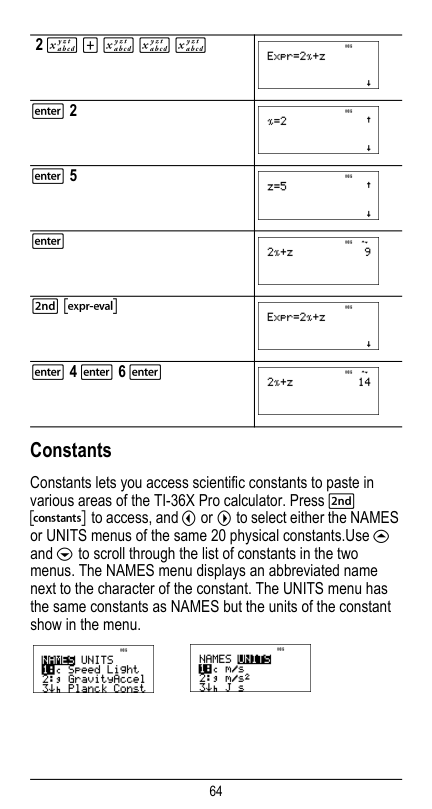
64 Constants Constants lets you access scientific constants to paste in various areas of the TI-36X Pro calculator. Press % Œ to access, and ! oro" to select either the NAMES or UNITS menus of the same 20 physical constants.Use # and $ to scroll through the list of constants in the two menus. The NAMES menu displays an abbreviated name next to the character of the constant. The UNITS menu has the same constants as NAMES but the units of the constant show in the menu. 2 z T z z z < 2 < 5 < % ‡ < 4 < 6 <
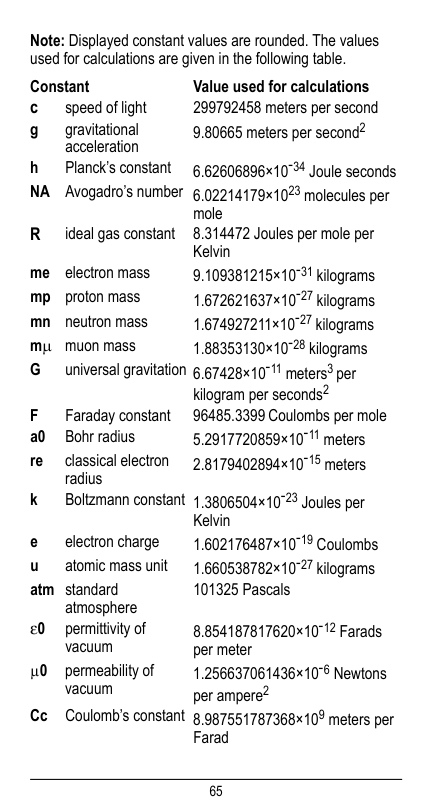
65 Note: Displayed constant values are rounded. The values used for calculations are given in the following table. Constant Value used for calculations c speed of light 299792458 meters per second g gravitational acceleration 9.80665 meters per second2 h Planck’s constant 6.62606896×10M34 Joule seconds
Na
Avogadro’s number 6.02214179×10²³ molecules per moleR
ideal gas constant 8.314472 Joules per mole per Kelvin me electron mass 9.109381215×10M31 kilograms mp proton mass 1.672621637×10M27 kilograms mn neutron mass 1.674927211×10M27 kilograms mμ muon mass 1.88353130×10M28 kilogramsG
universal gravitation 6.67428×10M11 meters3 per kilogram per seconds2F
Faraday constant 96485.3399 Coulombs per mole a0 Bohr radius 5.2917720859×10M11 meters re classical electron radius 2.8179402894×10M15 meters k Boltzmann constant 1.3806504×10M23 Joules per Kelvin e electron charge 1.602176487×10M19 Coulombs u atomic mass unit 1.660538782×10M27 kilograms atm standard atmosphere 101325 PascalsH0
permittivity of vacuum 8.854187817620×10M12 Farads per meter m0 permeability of vacuum 1.256637061436×10M6 Newtons per ampere2 Cc Coulomb’s constant 8.987551787368×10⁹ meters per Farad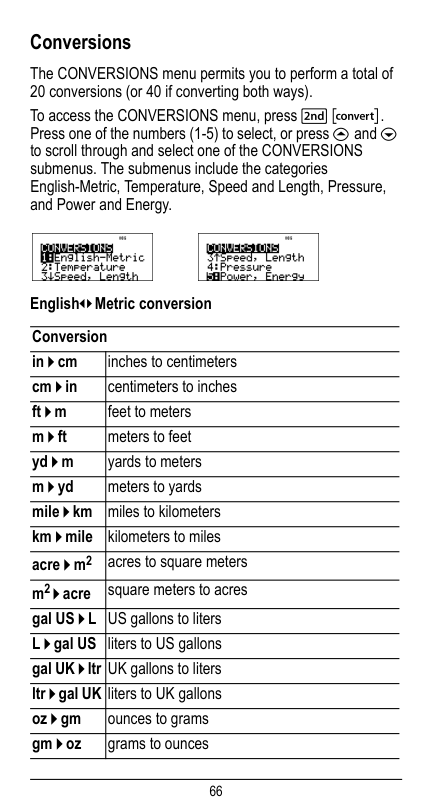
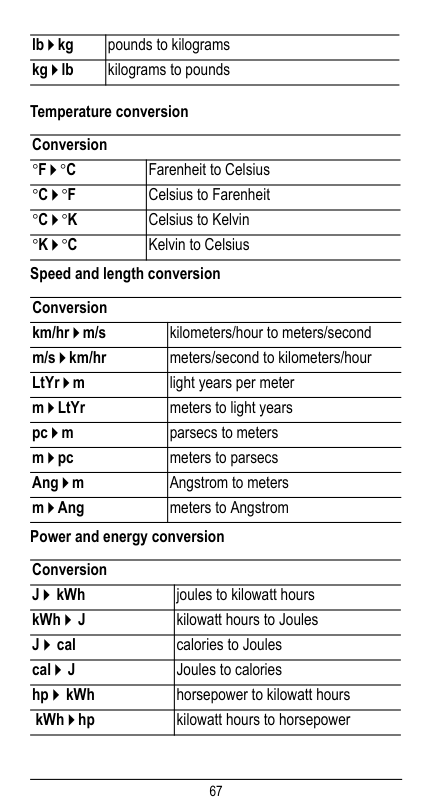
66 Conversions The CONVERSIONS menu permits you to perform a total of 20 conversions (or 40 if converting both ways). To access the CONVERSIONS menu, press % –. Press one of the numbers (1-5) to select, or press # and $ to scroll through and select one of the CONVERSIONS submenus. The submenus include the categories English-Metric, Temperature, Speed and Length, Pressure, and Power and Energy.
English³´Metric conversion Conversion in 4 cm inches to centimeters cm 4 in centimeters to inches ft 4 m feet to meters m 4 ft meters to feet yd 4 m yards to meters m 4 yd meters to yards mile 4 km miles to kilometers km 4 mile kilometers to miles acre 4 m2 acres to square meters m2 4 acre square meters to acres gal US 4 L US gallons to liters L 4 gal US liters to US gallons gal UK 4 ltr UK gallons to liters ltr 4 gal UK liters to UK gallons oz 4 gm ounces to grams gm 4 oz grams to ounces
67 Temperature conversion Speed and length conversion Power and energy conversion lb 4 kg pounds to kilograms kg 4 lb kilograms to pounds Conversion
¡F 4 ¡C
Farenheit to Celsius¡C 4 ¡F
Celsius to Farenheit¡C 4 ¡K
Celsius to Kelvin¡K 4 ¡C
Kelvin to Celsius Conversion km/hr 4 m/s kilometers/hour to meters/second m/s 4 km/hr meters/second to kilometers/hour LtYr 4 m light years per meter m 4 LtYr meters to light years pc 4 m parsecs to meters m 4 pc meters to parsecs Ang 4 m Angstrom to meters m 4 Ang meters to Angstrom Conversion J 4 kkWh joules to kilowatt hours kWh 4 kJ kilowatt hours to Joules J 4 kcal calories to Joules cal 4 kJ Joules to calories hp 4 kkWh horsepower to kilowatt hours kkWh 4 hp kilowatt hours to horsepower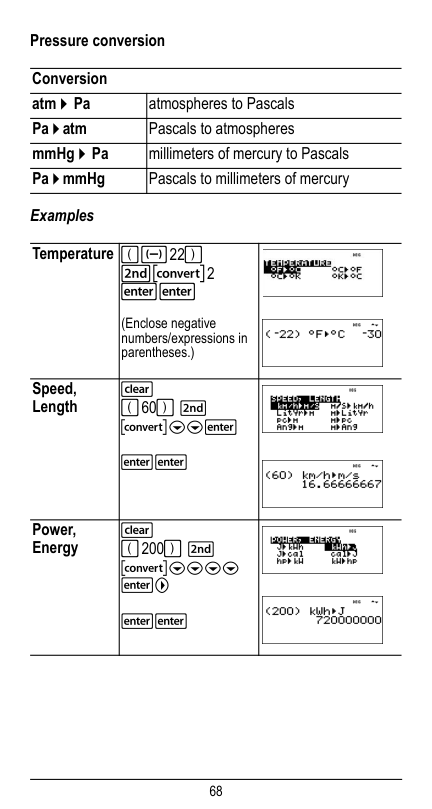
68 Pressure conversion Examples Conversion atm 4 kPa atmospheres to Pascals Pa 4 atm Pascals to atmospheres mmHg 4 kPa millimeters of mercury to Pascals Pa 4 mmHg Pascals to millimeters of mercury Temperature (M22) %–2 << (Enclose negative numbers/expressions in parentheses.) Speed, Length
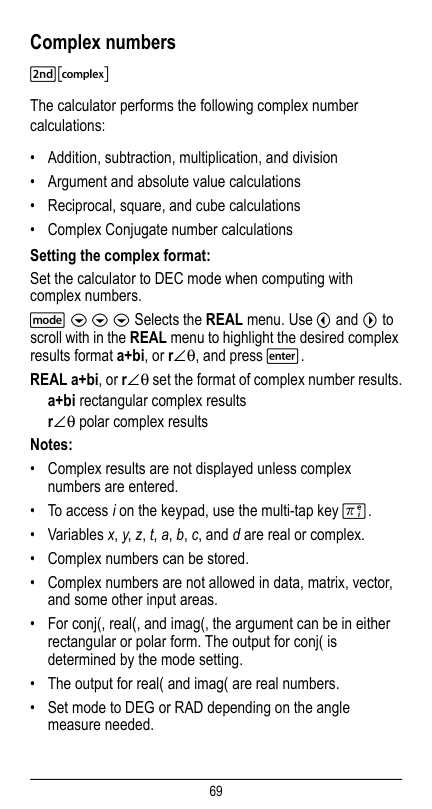
69 Complex numbers %ˆ The calculator performs the following complex number calculations:
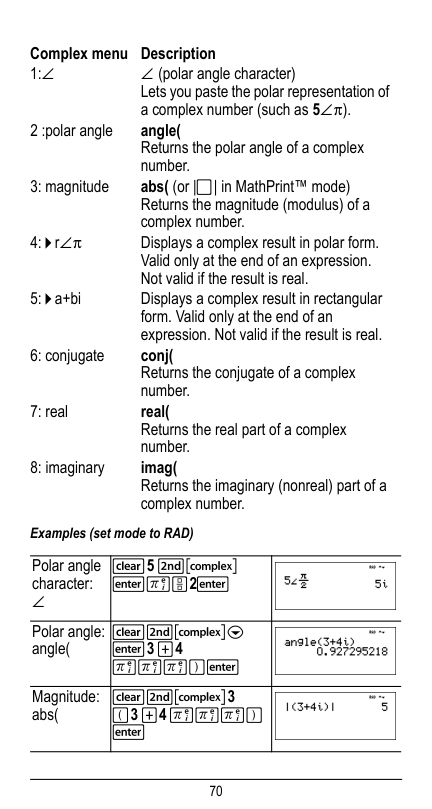
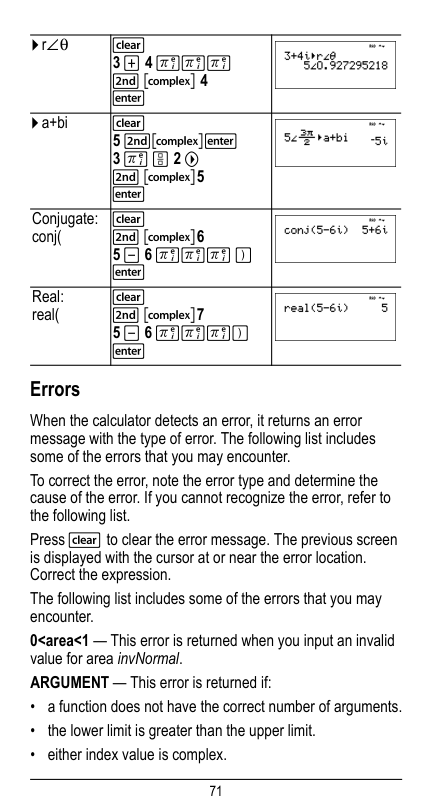
70 Examples (set mode to RAD) Complex menu Description 1:± ± (polar angle character) Lets you paste the polar representation of a complex number (such as 5±p). 2 :polar angle angle( Returns the polar angle of a complex number. 3: magnitude abs( (or |þ| in MathPrint™ mode) Returns the magnitude (modulus) of a complex number. 4: 4 r±p Displays a complex result in polar form. Valid only at the end of an expression. Not valid if the result is real. 5: 4 a+bi Displays a complex result in rectangular form. Valid only at the end of an expression. Not valid if the result is real. 6: conjugate conj( Returns the conjugate of a complex number. 7: real real( Returns the real part of a complex number. 8: imaginary imag( Returns the imaginary (nonreal) part of a complex number. Polar angle character: ± -5 %ˆ
71 Errors When the calculator detects an error, it returns an error message with the type of error. The following list includes some of the errors that you may encounter. To correct the error, note the error type and determine the cause of the error. If you cannot recognize the error, refer to the following list. Press - to clear the error message. The previous screen is displayed with the cursor at or near the error location. Correct the expression. The following list includes some of the errors that you may encounter. 0
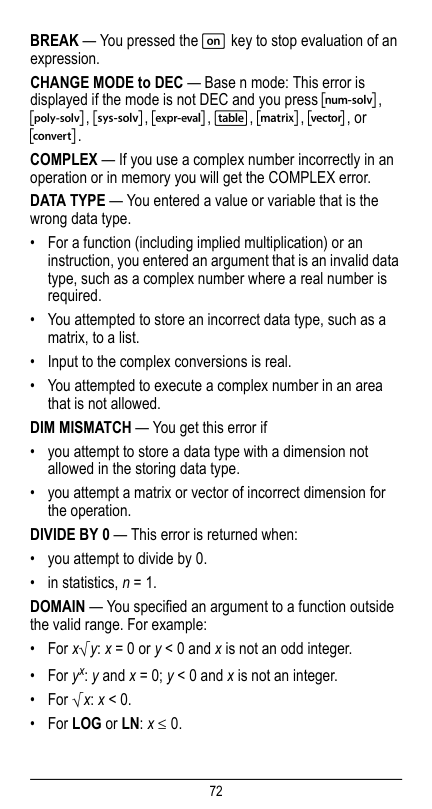
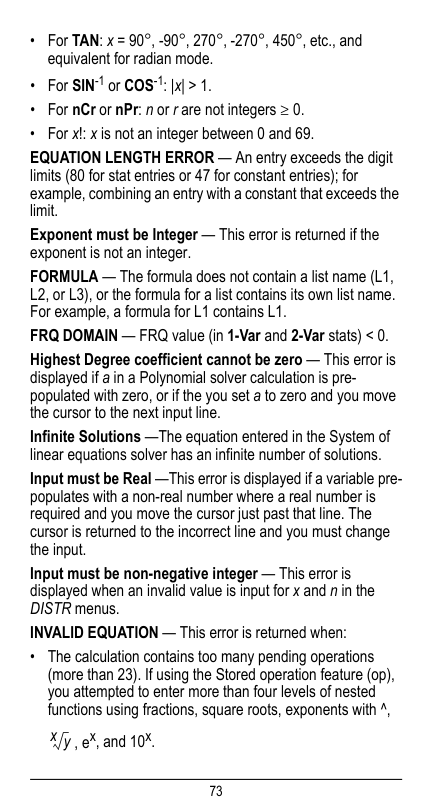
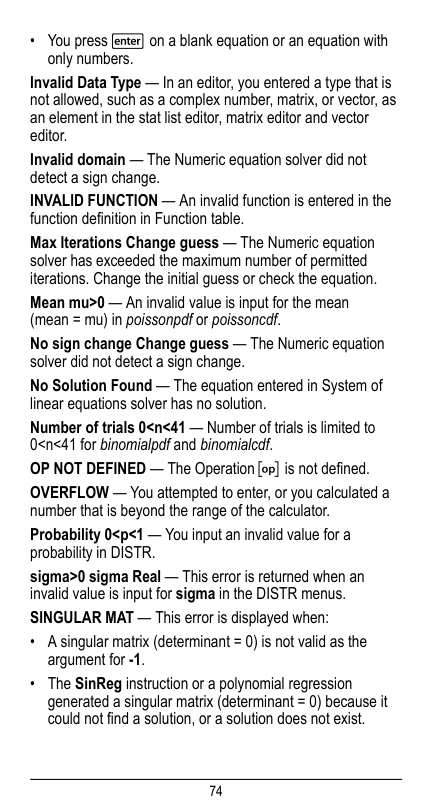
72 BREAK — You pressed the & key to stop evaluation of an expression. CHANGE MODE to DEC — Base n mode: This error is displayed if the mode is not DEC and you press ‰, Š, ‹, ‡, I, t, …, or –. COMPLEX — If you use a complex number incorrectly in an operation or in memory you will get the COMPLEX error. DATA TYPE — You entered a value or variable that is the wrong data type.
73
74
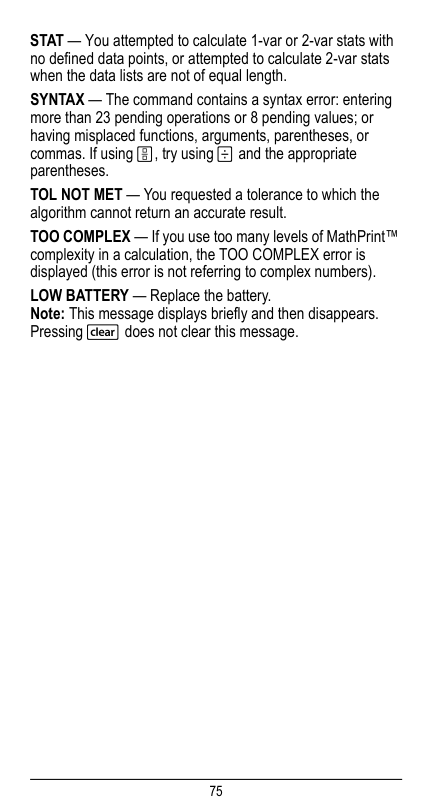
75 STAT — You attempted to calculate 1-var or 2-var stats with no defined data points, or attempted to calculate 2-var stats when the data lists are not of equal length. SYNTAX — The command contains a syntax error: entering more than 23 pending operations or 8 pending values; or having misplaced functions, arguments, parentheses, or commas. If using P, try using W and the appropriate parentheses. TOL NOT MET — You requested a tolerance to which the algorithm cannot return an accurate result. TOO COMPLEX — If you use too many levels of MathPrint™ complexity in a calculation, the TOO COMPLEX error is displayed (this error is not referring to complex numbers). LOW BATTERY — Replace the battery. Note: This message displays briefly and then disappears. Pressing - does not clear this message.
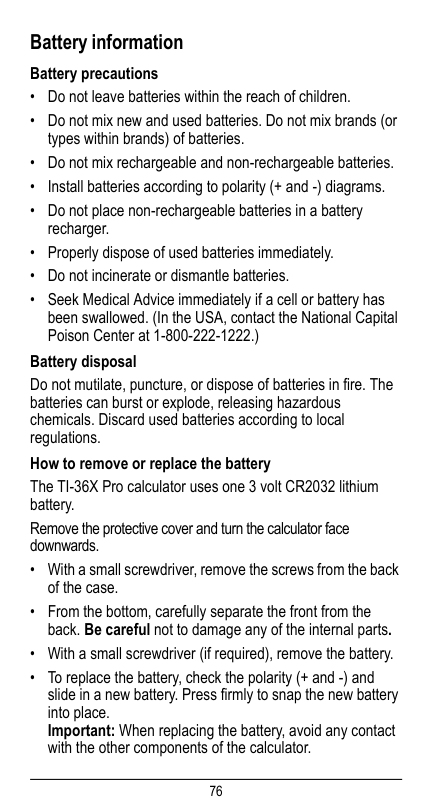
76 Battery information Battery precautions
77 Dispose of the dead battery immediately and in accordance with local regulations. Per CA Regulation 22 CCR 67384.4, the following applies to the button cell battery in this unit: Perchlorate Material - Special handling may apply. See www.dtsc.ca.gov/hazardouswaste/perchlorate In case of difficulty Review instructions to be certain calculations were performed properly. Check the battery to ensure that it is fresh and properly installed. Change the battery when:
78 Texas Instruments Support and Service For general information For technical support For product (hardware) service Customers in the U.S., Canada, Mexico, Puerto Rico and Virgin Islands: Always contact Texas Instruments Customer Support before returning a product for service. All other customers: Refer to the leaflet enclosed with this product (hardware) or contact your local Texas Instruments retailer/distributor. Home Page: education.ti.com KnowledgeBase and e-mail inquiries: education.ti.com/support Phone: