Time Guard Fst24 manual
Unknown · 9 Q&As

Time Guard Fst24

Ask AI

— answers from the official manual

Answers from the official manual.

Common questions

Common Questions

9 total
1

How do I set the clock?

Press and hold the Time button for 3 seconds, then release to enter time and date mode. Adjust year, month, day, hour (24-hour format), and minute using Adv/Ovr or Boost buttons and save settings for each parameter by pressing Time once until all are set correctly.(Page 8)

2

How do I modify the date and time of day?

Press and hold Time button for 3 seconds to enter date/time mode, use it repeatedly until minutes display, then adjust with Adv/Ovr or Boost buttons as needed. Save changes by pressing Time once to return to operating mode.(Page 8)

3

How do I program the ON/OFF times for a day?

Press and hold Prg button for 3 seconds until 'Hold' shows, then release; Mode screen appears where you can select programming type (24 hour or individual days). Set each ON/OFF time with Adv/Ovr or Boost buttons before pressing Prg to confirm and move on. Continue through all programs and exit by pressing Prg once to save.(Page 9-10)

4

How do I add boost times?

Pressing the Boost button once will activate a one-hour boost period, pressing it again activates two hours; third press cancels any active boosting and returns to normal mode.(Page 10)

5

How do I advance or override current programming?

In normal mode, Adv/Ovr button advances program to next time change. Current output state changes (ON ADVANCE, OFF ADVANCE), three presses select permanent ON/OFF status, fourth return to programmed operating mode.(Page 10)

6

How do I set the safety fuse?

Ensure correct polarity is observed when connecting incoming supply and outgoing load cables; Supply neutral terminal (N IN) for neutral (Blue or Black), Supply live terminal (L IN) for live (Brown or Red). Secure with fixing screws provided, ensuring cables are not trapped or damaged.(Pages 4-5)

Show 3 more questions

Full Manual

12 pages
Page 1

![image 1](Timeguard-FST24-Manual_images/imageFile1.png)

Installation & Operating Instructions

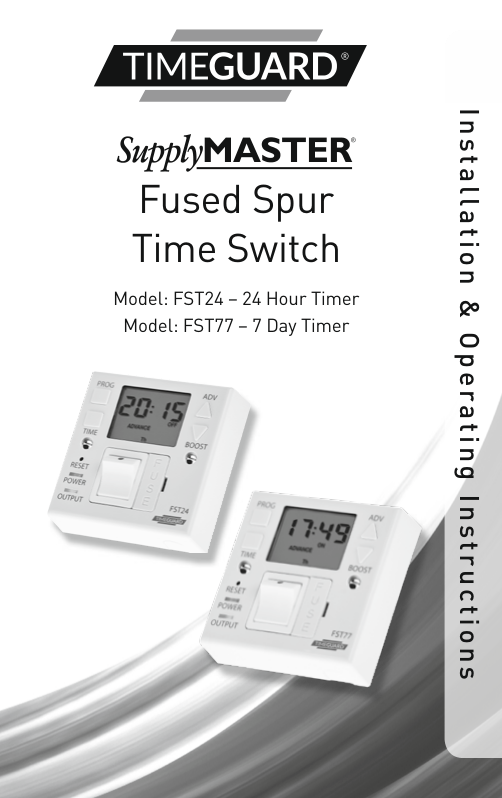
Fused Spur Time Switch Model: FST24 – 24 Hour Timer Model: FST77 – 7 Day Timer

![image 2](Timeguard-FST24-Manual_images/imageFile2.png)

![image 3](Timeguard-FST24-Manual_images/imageFile3.png)

#### 1. General Information

These instructions should be read carefully and retained for further reference and maintenance.

#### 2. Safety

  • • Before installation or maintenance, ensure the mains supply to the time switch is switched off and the circuit supply fuses are removed or the circuit breaker turned off.
  • • It is recommended that a qualified electrician is consulted or used for the installation of this time switch and install in accordance with the current IEE wiring and Building Regulations.
  • • Check that the total load on the circuit including when this time switch is fitted does not exceed the rating of the circuit cable, fuse or circuit breaker.
  • #### 3. Technical Specifications

    Page 2

  • • 230V AC 50 Hz
  • • Fused: Supplied with BS1362 13A Fuse
  • • Switch Rating: 13A Resistive (3kW) 750W Incandescent,
  • Halogen lighting 500W Fluorescent lighting 200W LED lighting 100W Compact Fluorescent lighting

  • • Contact Type: Normally Open
  • • Minimum Depth of Wall Box: 25mm
  • • Boost Times: 1, 2 hours
  • • Power Status LED Indicator: Red
  • • Output LED Indicator: Green
  • • Operating Temperature: 0°C to +40°C
  • • CE Approved
  • • Dimensions (H x W x D): 85mm x 85mm x 31mm Note: Not suitable for use with Discharge Lighting.
  • 1
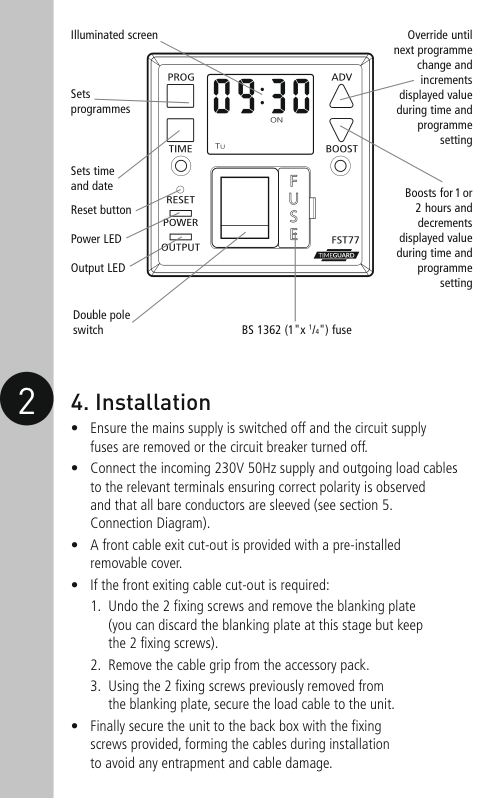
  • Illuminated screen

    Sets programmes

    Page 3

    Sets time and date

    Reset button

    Power LED

    Output LED

    | | |---| | |

    Double pole switch BS 1362 (1"x 1/4") fuse

    Override until next programme

    change and

    increments displayed value

    during time and programme setting
    Page 4

    Boosts for 1 or 2 hours and decrements

    displayed value during time and programme setting

    2 4. Installation

  • • Ensure the mains supply is switched off and the circuit supply fuses are removed or the circuit breaker turned off.
  • • Connect the incoming 230V 50Hz supply and outgoing load cables to the relevant terminals ensuring correct polarity is observed and that all bare conductors are sleeved (see section 5. Connection Diagram).
  • • A front cable exit cut-out is provided with a pre-installed removable cover.
  • • If the front exiting cable cut-out is required:
  • 1. Undo the 2 fixing screws and remove the blanking plate (you can discard the blanking plate at this stage but keep the 2 fixing screws).
  • 2. Remove the cable grip from the accessory pack.
  • 3. Using the 2 fixing screws previously removed from the blanking plate, secure the load cable to the unit.
  • • Finally secure the unit to the back box with the fixing screws provided, forming the cables during installation to avoid any entrapment and cable damage.
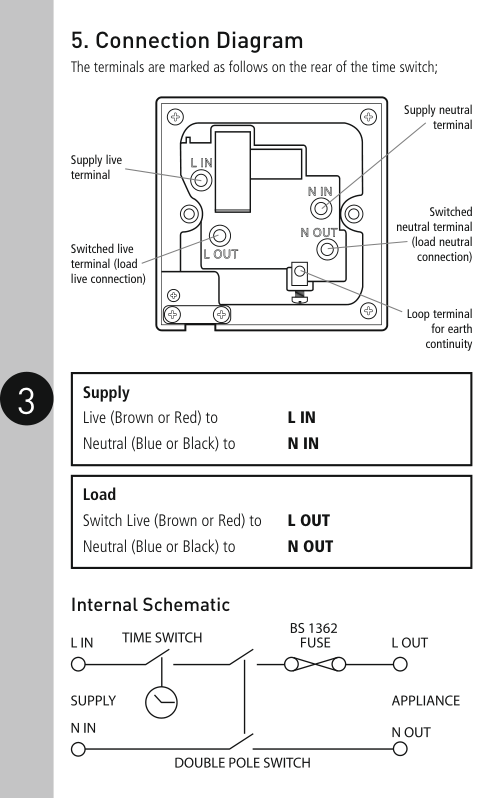
  • Connection Diagram The terminals are marked as follows on the rear of the time switch;
  • Supply neutral terminal

    Page 5

    | | | |---|---| | | | | | |

    Supply live terminal

    Switched neutral terminal

    (load neutral connection)

    Switched live terminal (load live connection)

    | | | | |---|---|---| | | | |

    Loop terminal for earth continuity
  • 3
  • Page 6

    |Supply

    Live (Brown or Red) to L IN Neutral (Blue or Black) to N IN| |---|

    |Load

    Switch Live (Brown or Red) to L OUT Neutral (Blue or Black) to N OUT| |---|

    Internal Schematic

    #### 6 Battery

  • • The unit has an in built non replaceable, rechargeable battery, which will keep the programmed times during power down situations for up to 4 weeks.
  • • If the screen goes blank, once power is restored, and 4 hours have elapsed (to give a working battery charge), Reset must be pressed, and times/programmes re-entered.
  • • Before programming for the first time, connect the unit to the mains for at least 15 minutes prior to pressing the Reset button and programming the unit.
  • • If the display is not visible or very faint, charge for 4 hours prior to pressing Reset and programming.
  • #### 7. Reset

    The unit must be reset before programming for the first time, or after subsequent discharge for more than 5 days, and following a 4 hour period of charging.
    Page 7

  • • Press the Rst button once using a pointed object e.g. a pencil or a paper clip.
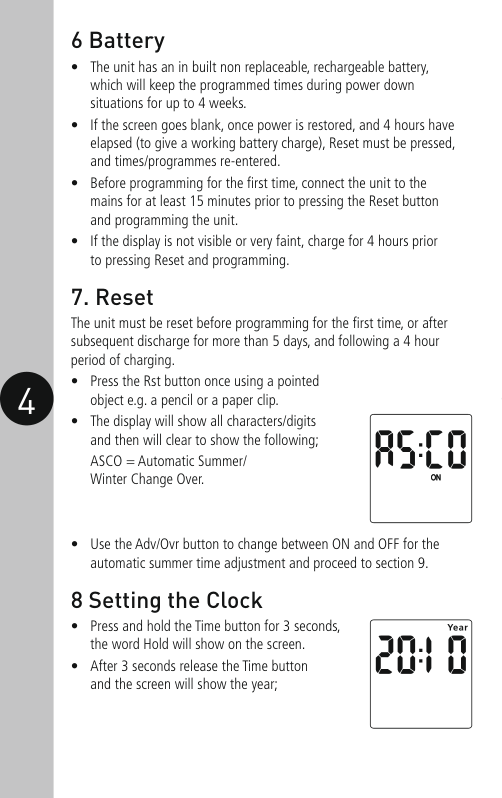
  • • The display will show all characters/digits and then will clear to show the following; ASCO = Automatic Summer/ Winter Change Over.
  • • Use the Adv/Ovr button to change between ON and OFF for the automatic summer time adjustment and proceed to section 9.
  • 4
  • #### 8 Setting the Clock

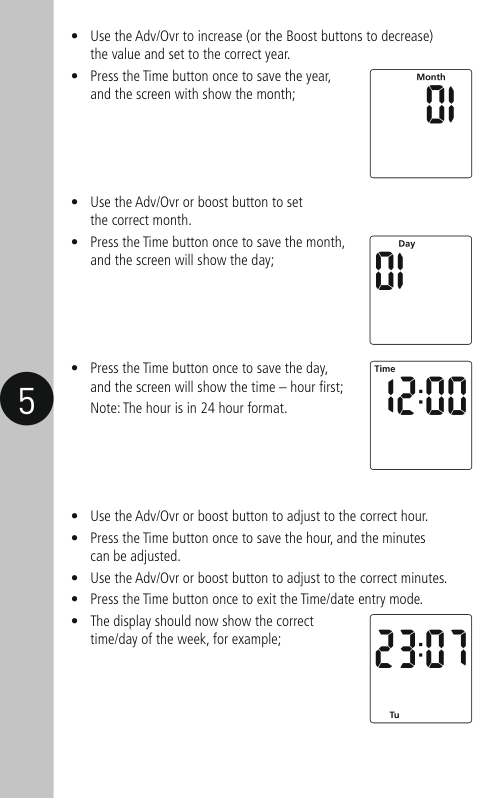
  • • Press and hold the Time button for 3 seconds, the word Hold will show on the screen.
  • • After 3 seconds release the Time button and the screen will show the year;
  • 5
  • • Use the Adv/Ovr to increase (or the Boost buttons to decrease) the value and set to the correct year.
  • • Press the Time button once to save the year, and the screen with show the month;
  • • Use the Adv/Ovr or boost button to set the correct month.
  • • Press the Time button once to save the month, and the screen will show the day;
  • • Press the Time button once to save the day, and the screen will show the time – hour first; Note: The hour is in 24 hour format.
  • • Use the Adv/Ovr or boost button to adjust to the correct hour.
  • Page 8

  • • Press the Time button once to save the hour, and the minutes can be adjusted.
  • • Use the Adv/Ovr or boost button to adjust to the correct minutes.
  • • Press the Time button once to exit the Time/date entry mode.
  • • The display should now show the correct time/day of the week, for example;
  • | | | | |---|---|---| | | | |

  • 6
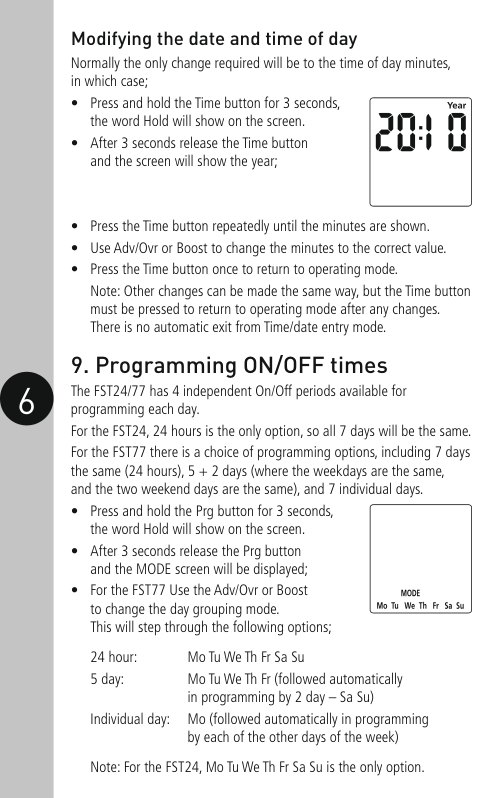
  • Modifying the date and time of day Normally the only change required will be to the time of day minutes, in which case;
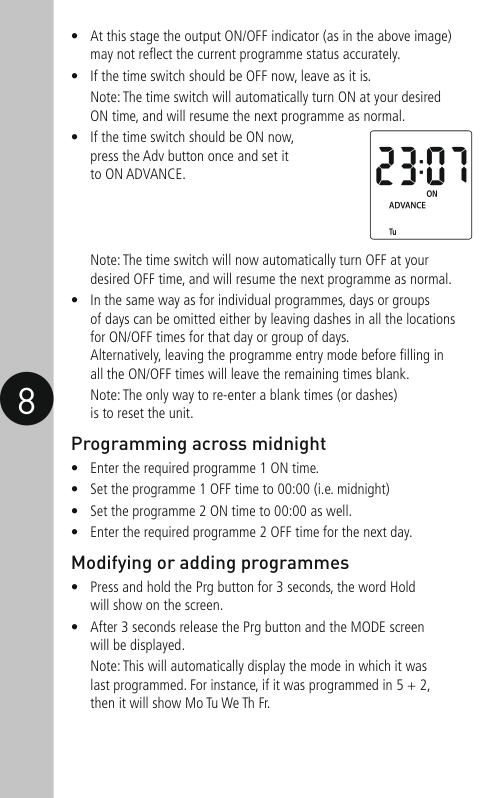
  • • Press and hold the Time button for 3 seconds, the word Hold will show on the screen.
  • • After 3 seconds release the Time button and the screen will show the year;
  • • Press the Time button repeatedly until the minutes are shown.
  • • Use Adv/Ovr or Boost to change the minutes to the correct value.
  • • Press the Time button once to return to operating mode. Note: Other changes can be made the same way, but the Time button must be pressed to return to operating mode after any changes. There is no automatic exit from Time/date entry mode.
  • Page 9

  • Programming ON/OFF times The FST24/77 has 4 independent On/Off periods available for programming each day. For the FST24, 24 hours is the only option, so all 7 days will be the same. For the FST77 there is a choice of programming options, including 7 days the same (24 hours), 5 + 2 days (where the weekdays are the same, and the two weekend days are the same), and 7 individual days.
  • • Press and hold the Prg button for 3 seconds, the word Hold will show on the screen.
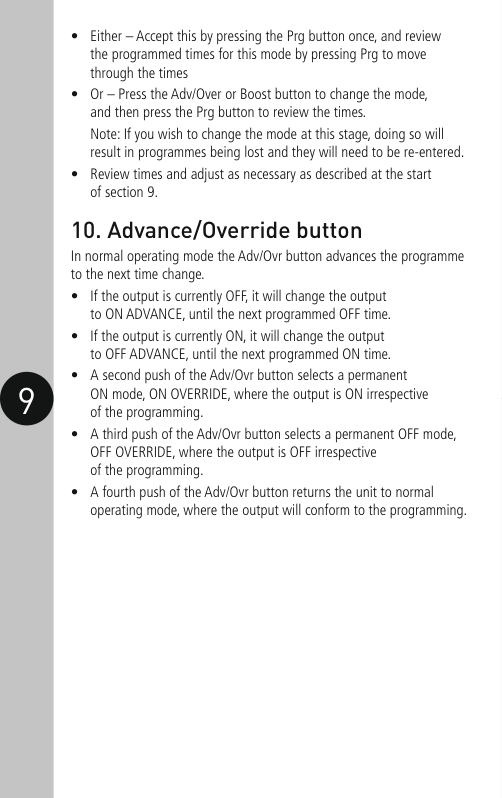
  • • After 3 seconds release the Prg button and the MODE screen will be displayed;
  • • For the FST77 Use the Adv/Ovr or Boost to change the day grouping mode. This will step through the following options;
  • 24 hour: Mo Tu We Th Fr Sa Su 5 day: Mo Tu We Th Fr (followed automatically

    in programming by 2 day – Sa Su) Individual day: Mo (followed automatically in programming by each of the other days of the week)

    Note: For the FST24, Mo Tu We Th Fr Sa Su is the only option.
  • 7
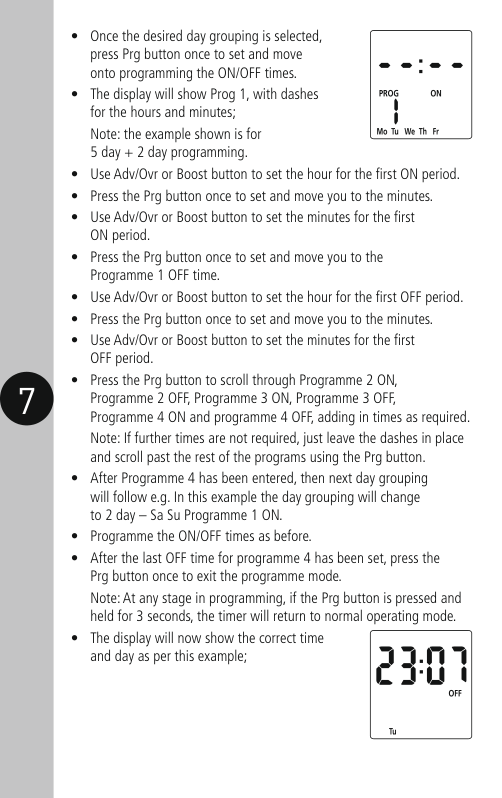
  • • Once the desired day grouping is selected, press Prg button once to set and move onto programming the ON/OFF times.
  • • The display will show Prog 1, with dashes for the hours and minutes; Note: the example shown is for 5 day + 2 day programming.
  • • Use Adv/Ovr or Boost button to set the hour for the first ON period.
  • • Press the Prg button once to set and move you to the minutes.
  • • Use Adv/Ovr or Boost button to set the minutes for the first ON period.
  • • Press the Prg button once to set and move you to the Programme 1 OFF time.
  • • Use Adv/Ovr or Boost button to set the hour for the first OFF period.
  • Page 10

  • • Press the Prg button once to set and move you to the minutes.
  • • Use Adv/Ovr or Boost button to set the minutes for the first OFF period.
  • • Press the Prg button to scroll through Programme 2 ON, Programme 2 OFF, Programme 3 ON, Programme 3 OFF, Programme 4 ON and programme 4 OFF, adding in times as required. Note: If further times are not required, just leave the dashes in place and scroll past the rest of the programs using the Prg button.
  • • After Programme 4 has been entered, then next day grouping will follow e.g. In this example the day grouping will change to 2 day – Sa Su Programme 1 ON.
  • • Programme the ON/OFF times as before.
  • • After the last OFF time for programme 4 has been set, press the Prg button once to exit the programme mode. Note: At any stage in programming, if the Prg button is pressed and held for 3 seconds, the timer will return to normal operating mode.
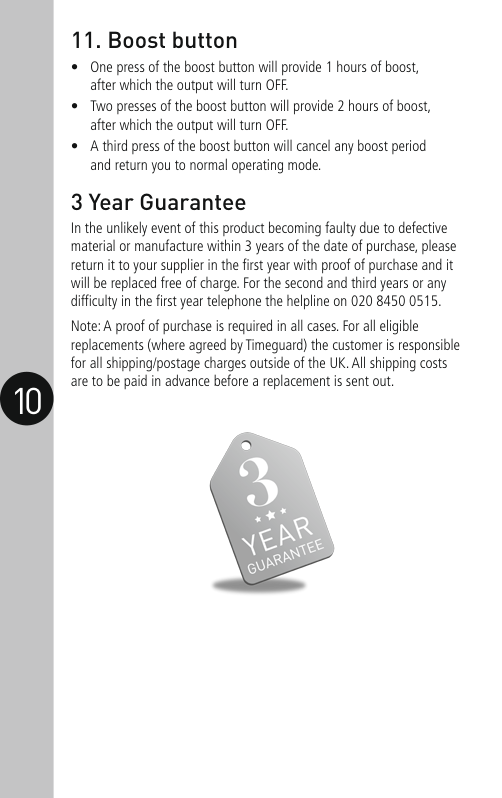
  • • The display will now show the correct time and day as per this example;
  • 8
  • • At this stage the output ON/OFF indicator (as in the above image) may not reflect the current programme status accurately.
  • • If the time switch should be OFF now, leave as it is. Note: The time switch will automatically turn ON at your desired ON time, and will resume the next programme as normal.
  • • If the time switch should be ON now, press the Adv button once and set it to ON ADVANCE.
  • Note: The time switch will now automatically turn OFF at your desired OFF time, and will resume the next programme as normal.

  • • In the same way as for individual programmes, days or groups of days can be omitted either by leaving dashes in all the locations for ON/OFF times for that day or group of days. Alternatively, leaving the programme entry mode before filling in all the ON/OFF times will leave the remaining times blank. Note: The only way to re-enter a blank times (or dashes) is to reset the unit. Programming across midnight
  • • Enter the required programme 1 ON time.
  • • Set the programme 1 OFF time to 00:00 (i.e. midnight)
  • • Set the programme 2 ON time to 00:00 as well.
  • • Enter the required programme 2 OFF time for the next day. Modifying or adding programmes
  • Page 11

  • • Press and hold the Prg button for 3 seconds, the word Hold will show on the screen.
  • • After 3 seconds release the Prg button and the MODE screen will be displayed. Note: This will automatically display the mode in which it was last programmed. For instance, if it was programmed in 5 + 2, then it will show Mo Tu We Th Fr.
  • • Either – Accept this by pressing the Prg button once, and review the programmed times for this mode by pressing Prg to move through the times
  • • Or – Press the Adv/Over or Boost button to change the mode, and then press the Prg button to review the times. Note: If you wish to change the mode at this stage, doing so will result in programmes being lost and they will need to be re-entered.
  • • Review times and adjust as necessary as described at the start of section 9.
  • Advance/Override button In normal operating mode the Adv/Ovr button advances the programme to the next time change.
  • • If the output is currently OFF, it will change the output to ON ADVANCE, until the next programmed OFF time.
  • • If the output is currently ON, it will change the output to OFF ADVANCE, until the next programmed ON time.
  • • A second push of the Adv/Ovr button selects a permanent ON mode, ON OVERRIDE, where the output is ON irrespective of the programming.
  • • A third push of the Adv/Ovr button selects a permanent OFF mode, OFF OVERRIDE, where the output is OFF irrespective of the programming.
  • • A fourth push of the Adv/Ovr button returns the unit to normal operating mode, where the output will conform to the programming.
  • 9
  • 10
  • Page 12

    #### 11. Boost button

  • • One press of the boost button will provide 1 hours of boost, after which the output will turn OFF.
  • • Two presses of the boost button will provide 2 hours of boost, after which the output will turn OFF.
  • • A third press of the boost button will cancel any boost period and return you to normal operating mode.
  • 3 Year Guarantee In the unlikely event of this product becoming faulty due to defective material or manufacture within 3 years of the date of purchase, please return it to your supplier in the first year with proof of purchase and it will be replaced free of charge. For the second and third years or any difficulty in the first year telephone the helpline on 020 8450 0515.

    Note: A proof of purchase is required in all cases. For all eligible replacements (where agreed by Timeguard) the customer is responsible for all shipping/postage charges outside of the UK. All shipping costs are to be paid in advance before a replacement is sent out.

    ![image 4](Timeguard-FST24-Manual_images/imageFile4.png)

    If you experience problems, do not immediately return the unit to the store. Telephone the Timeguard Customer Helpline;

    HELPLINE

    020 8450 0515

    or email helpline@timeguard.com

    Qualified Customer Support Co-ordinators will be on-line to assist in resolving your query.

    For a product brochure please contact:

    Timeguard Limited. Victory Park, 400 Edgware Road, London NW2 6ND Sales Office: 020 8452 1112 or email csc@timeguard.com

    www.timeguard.com

    67.058.504 (Issue 2)

    Zerofour – January 2016

    Similar Unknown