
Ask AI
— answers from the official manualAnswers from the official manual.
Common questions
Common Questions
10 totalWhat should I do if I'm not comfortable installing the thermostat myself?
If you are not comfortable working with electrical wiring or your home heating and cooling system, you should contact an HVAC service company to install and set up your Thermostat. Professional installation is recommended if you have any concerns.
Do I need a C-wire to install the Amazon Smart Thermostat?
Yes, the Amazon Smart Thermostat requires a C-wire or a power adapter kit. You should use the compatibility checker before purchasing to see if your home has a C-wire already. If there is no C-wire or unused wire behind the wall plate, a C-Wire Adapter is required.
How do I set up my Amazon Smart Thermostat?
Open the Alexa app on your mobile device, go to More > Add a Device > Thermostat > Amazon, and follow the guided instructions in the app. If your thermostat has already been installed on the wall, select Yes for instructions on connecting it to Wi-Fi and Alexa.
What should I do before disconnecting wires from my old thermostat?
Before disconnecting any wires, take a picture of the wiring connections for later reference and make careful notes of which terminals have wires connected. This photo will help you when reconnecting the wires to the new thermostat.
How can I tell if my HVAC system is high-voltage and incompatible with the Smart Thermostat?
Look for warning labels that say 110v or 220v, wires labeled L1 or L2, or wires connected by wire nuts (screw-on caps). If you see any of these high-voltage indicators, the Amazon Smart Thermostat won't work with your system.
What voice commands can I use to control the thermostat?
You can use voice commands such as 'Set the temperature to 68 degrees,' 'Set cooling to 70 degrees,' 'What's the temperature in the house,' 'Turn off the heat,' 'I'm leaving,' or 'I'm home.' You can issue these commands using any connected Echo device or the Alexa app.
Full Manual
11 pages
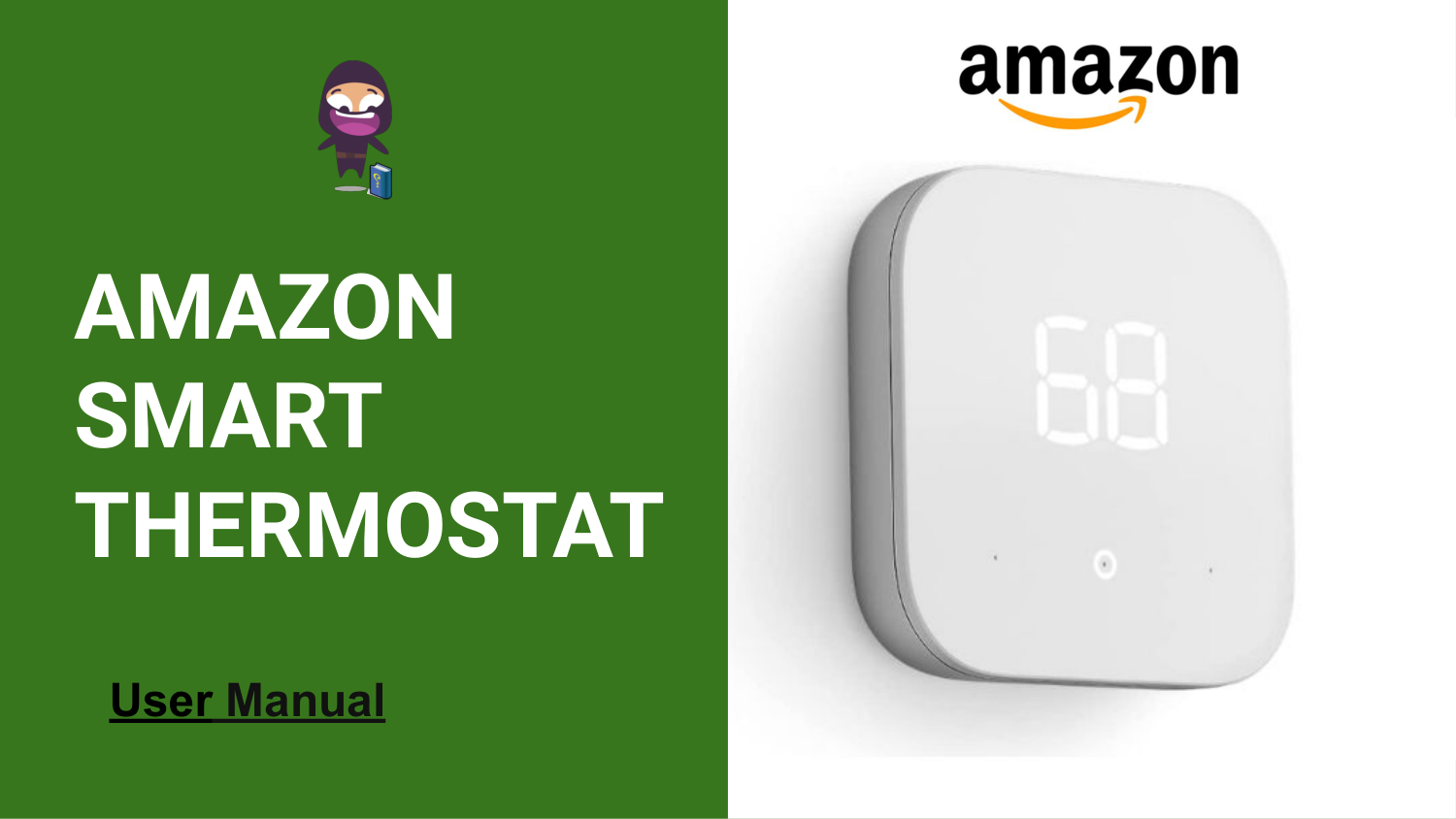
Amazon
Smart
Thermostat
User Manual
Introduction Amazon Smart Thermostat doesn't have a speaker or microphone. For voice control, use a compatible Alexa-enabled device, like an Echo (sold separately), or the Alexa app. Before purchasing, use the link “check compatibility” to see if the thermostat will work in your home and to determine if your home needs a C-wire power adapter. Amazon Smart Thermostat requires a C-wire or a power adapter kit. Use the compatibility checker to see if your home has one already. Guided installation instructions are included in the Alexa app. Smart upgrade - Amazon Smart Thermostat is an easy way to switch from a traditional thermostat and help reduce energy usage. Save money - After purchase, Amazon will send you an email with details about rebates that may be available from energy providers in your area. Explore rebates above. Save energy - According to EPA estimates, ENERGY STAR certified thermostats save an average of $50 on yearly energy bills. Automatic comfort - Alexa can do the programming for you, updating the temperature to keep you comfortable. On-the-go control - Let Alexa set the temperature, or set it yourself from anywhere with the Alexa app. You can do it - The Alexa app will guide you through the installation process, but customer service is always available. Reliable - Made with Honeywell Home Thermostat Technology and backed by 130 years of experience.
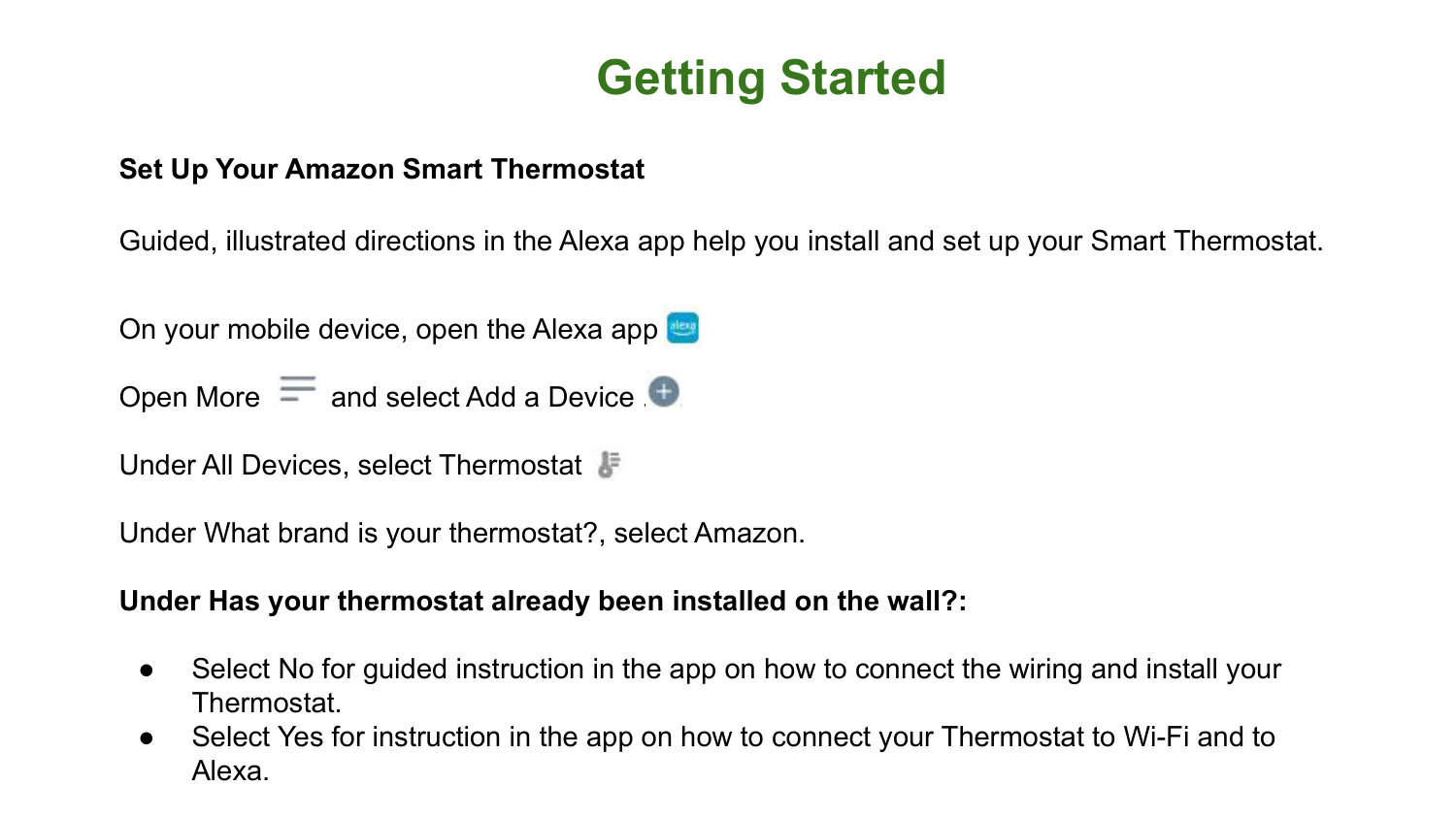
Getting Started Set Up Your Amazon Smart Thermostat Guided, illustrated directions in the Alexa app help you install and set up your Smart Thermostat. On your mobile device, open the Alexa app Open More and select Add a Device . Under All Devices, select Thermostat . Under What brand is your thermostat?, select Amazon. Under Has your thermostat already been installed on the wall?: ● Select No for guided instruction in the app on how to connect the wiring and install your Thermostat. ● Select Yes for instruction in the app on how to connect your Thermostat to Wi-Fi and to Alexa.
Connect the Wiring for Your Amazon Smart Thermostat We recommend that you use the guided instructions in the Alexa app to help you install your Amazon Smart Thermostat. See how to get started in the Alexa app at Set Up Your Amazon Smart Thermostat. If you don’t have access to the Alexa app, the steps below are part of those instructions. If you are not comfortable working with electrical wiring or your home heating and cooling system, contact a HVAC service company to install and set up your Thermostat. Remove the faceplate or box from your old thermostat. Before disconnecting any wires, take a picture of the wiring connections for later reference. Look for any of the following indicators that your system is high-voltage: ● Warning labels that say 110v or 220v ● Wires labeled L1 or L2 ● Wires connected by wire nuts (screw-on caps) ● If you see any of those high voltage indicators, the Amazon Smart Thermostat won’t work with your system
● Make careful notes of which terminals have wires connected. Take a photo with your phone for reference, including the terminal labels. ● Remove one wire at a time. Use the stickers that came with your Amazon Smart Thermostat to label each wire with the terminal it came from. Repeat until all wires have been removed and labeled. Don’t let the labeled wires fall back into the wall. ● Make sure there is a wire for the C terminal, which provides power from the HVAC system to the Thermostat. If you have no wire for the C terminal, some newer homes might have an unused wire behind the wall plate. If there is no unused wire to convert to a C wire, a C-Wire Adapter is required. We recommend the adapter compatible with the Amazon Smart Thermostat. ● If you find an unused wire, label it with the C sticker, and connect the other end of that wire at your HVAC system’s control panel to the C terminal, sometimes labeled as “24V” or “24 common”. Then connect the end at the Thermostat to the C terminal. ● Remove the wall plate from your old Thermostat. Install the Amazon Smart Thermostat optional trim plate if you want, and then install its wall plate so the labeled wires can come through. ● When the wall plate is fastened to the wall, connect each labeled wire from the wall into the slot as directed in the Alexa app. Refer to the labels, and the picture you took if needed. After connecting, gently tug each wire to make sure they’re connected. Make sure the R terminal switch is in the up position. ● Close the wire cover on the wall plate. Then align the Amazon Smart Thermostat faceplate with the wall plate and press together gently until it clicks into place. ● Turn the heating/cooling system power back on at the breaker box or switch where you turned it off.
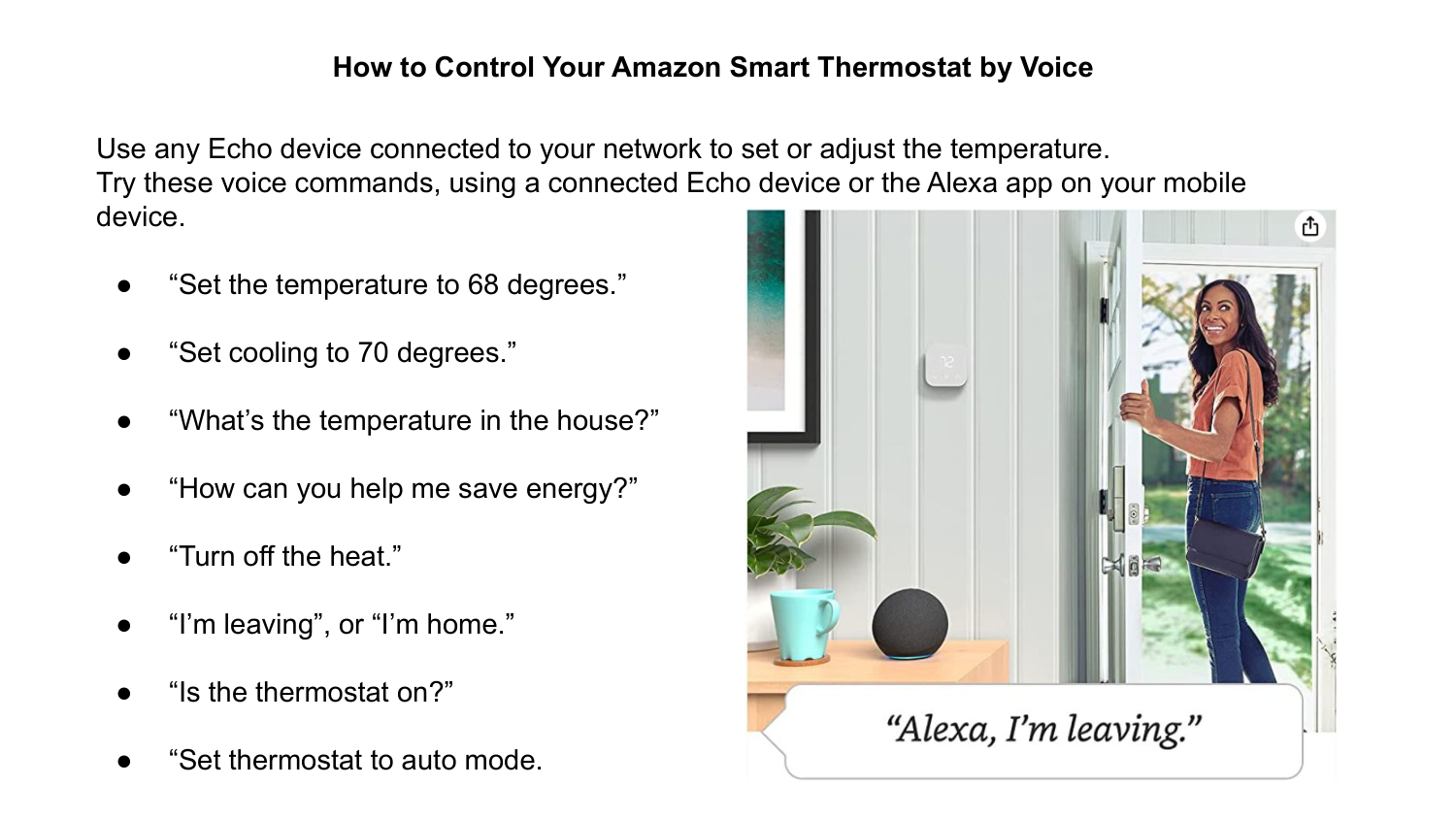
How to Control Your Amazon Smart Thermostat by Voice Use any Echo device connected to your network to set or adjust the temperature. Try these voice commands, using a connected Echo device or the Alexa app on your mobile device. ● “Set the temperature to 68 degrees.” ● “Set cooling to 70 degrees.” ● “What’s the temperature in the house?” ● “How can you help me save energy?” ● “Turn off the heat.” ● “I’m leaving”, or “I’m home.” ● “Is the thermostat on?” ● “Set thermostat to auto mode.
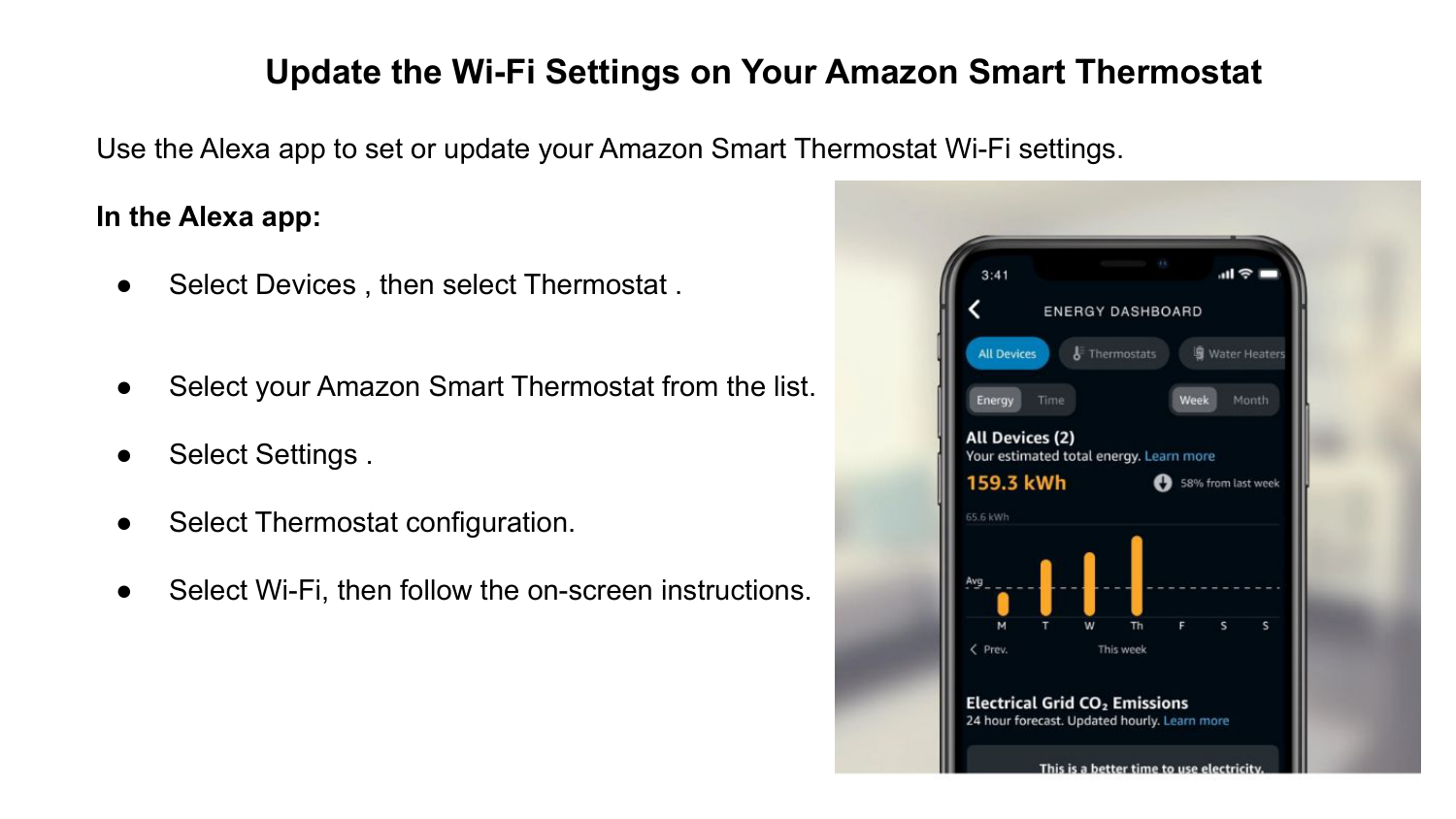
Update the Wi-Fi Settings on Your Amazon Smart Thermostat Use the Alexa app to set or update your Amazon Smart Thermostat Wi-Fi settings. In the Alexa app: ● Select Devices , then select Thermostat . ● Select your Amazon Smart Thermostat from the list. ● Select Settings . ● Select Thermostat configuration. ● Select Wi-Fi, then follow the on-screen instructions.
● How do I set up my Amazon Smart Thermostat? To set up your Amazon Smart Thermostat, open the Alexa app on your mobile device, go to More > Add a Device > Thermostat > Amazon. Follow the guided instructions in the app to connect the wiring and install your Thermostat. If your Thermostat has already been installed, select Yes for instruction on how to connect it to Wi-Fi and Alexa. ● How do I connect the wiring for my Amazon Smart Thermostat? Before connecting the wiring, make sure to switch off the power to your HVAC system at the breaker box or primary power switch. Then, remove the faceplate or box from your old thermostat and take a picture of the wiring connections for reference. Follow the instructions in the Alexa app to connect each labeled wire from the wall into the slot on the Thermostat's wall plate. ● Can I set my home temperature with a routine? Yes, you can use routines in the Alexa app to control your Amazon Smart Thermostat, including temperature settings. Open the Alexa app, go to More > Routines and follow the steps to create a routine that includes actions for your Smart Thermostat.
● How do I program my home temperature schedule on my Amazon Smart Thermostat? To program your home temperature schedule, open the Alexa app, go to Devices > Thermostat > Settings > Thermostat Schedule. Enter the times and temperatures you want for each daily event. You can also duplicate the schedule to other days of the week and turn on the Use thermostat schedule switch to start the schedule. ● How do I adjust my home temperature manually on my Amazon Smart Thermostat You can press the temperature up or down arrows on the Amazon Smart Thermostat display or use the Alexa app as a remote control to adjust your home temperature manually. In the Alexa app, go to Devices > Thermostat and use the dial to set the temperature or change the mode. ● How can I control my home temperature with Alexa Hunches? You can set up Automatic Actions in the Alexa app to manage your temperature automatically when Alexa has a hunch you're asleep or away. Open the Alexa app, go to Devices > Thermostat > Settings > Alexa automatic control and switch on Set sleep temperature or Set away temperature.
● How do I update the Wi-Fi settings on my Amazon Smart Thermostat? To update the Wi-Fi settings on your Amazon Smart Thermostat, open the Alexa app, go to Devices > Thermostat and select your Thermostat from the list. Follow the instructions in the app to set or update the Wi-Fi settings. ● How can I control my Amazon Smart Thermostat by voice? You can use any Echo device connected to your network or the Alexa app on your mobile device to control your Amazon Smart Thermostat by voice. Try using voice commands like "Set the temperature to 68 degrees" or "Turn off the heat" to adjust the temperature. ● What do the display lights on my Amazon Smart Thermostat mean? To find out what the display lights on your Amazon Smart Thermostat mean, open the Alexa app, go to Devices > Thermostat > Settings > Thermostat configuration > Thermostat icons. Tap on the icons displayed on the screen for descriptions of their functions.

Like And Subscribe us for more Videos