Apps Love Spouse App manual
Unknown · 5 Q&As

Apps Love Spouse App

Ask AI

— answers from the official manual

Answers from the official manual.

Common questions

Common Questions

5 total

Full Manual

7 pages
Page 1

![image 1](Love-Spouse-App-User-Manual_compressed_images/imageFile1.png)

APP Application User Manual

##### Thank you for your purchase, please read the user manual before use.

Love Spouse APP

![image 2](Love-Spouse-App-User-Manual_compressed_images/imageFile2.png)

#### Download and install " Love Spouse" APP

IOS system:

  • 1. Search for " Love Spouse " in App Store, download and install.
  • ![image 3](Love-Spouse-App-User-Manual_compressed_images/imageFile3.png)

  • 2. Scan the QR code with your mobile phone, and follow the prompts to download and install the " Love Spouse " APP.
  • Android system:

  • 1.Search for "Love Spouse" in Google Play, download and install.
  • Page 2

    ![image 4](Love-Spouse-App-User-Manual_compressed_images/imageFile4.png)

  • 2.Scan the QR code with your mobile phone, select the first or third one, and follow the prompts to download and install the " Love Spouse " APP. Register and log in
  • ![image 5](Love-Spouse-App-User-Manual_compressed_images/imageFile5.png)

    ![image 6](Love-Spouse-App-User-Manual_compressed_images/imageFile6.png)

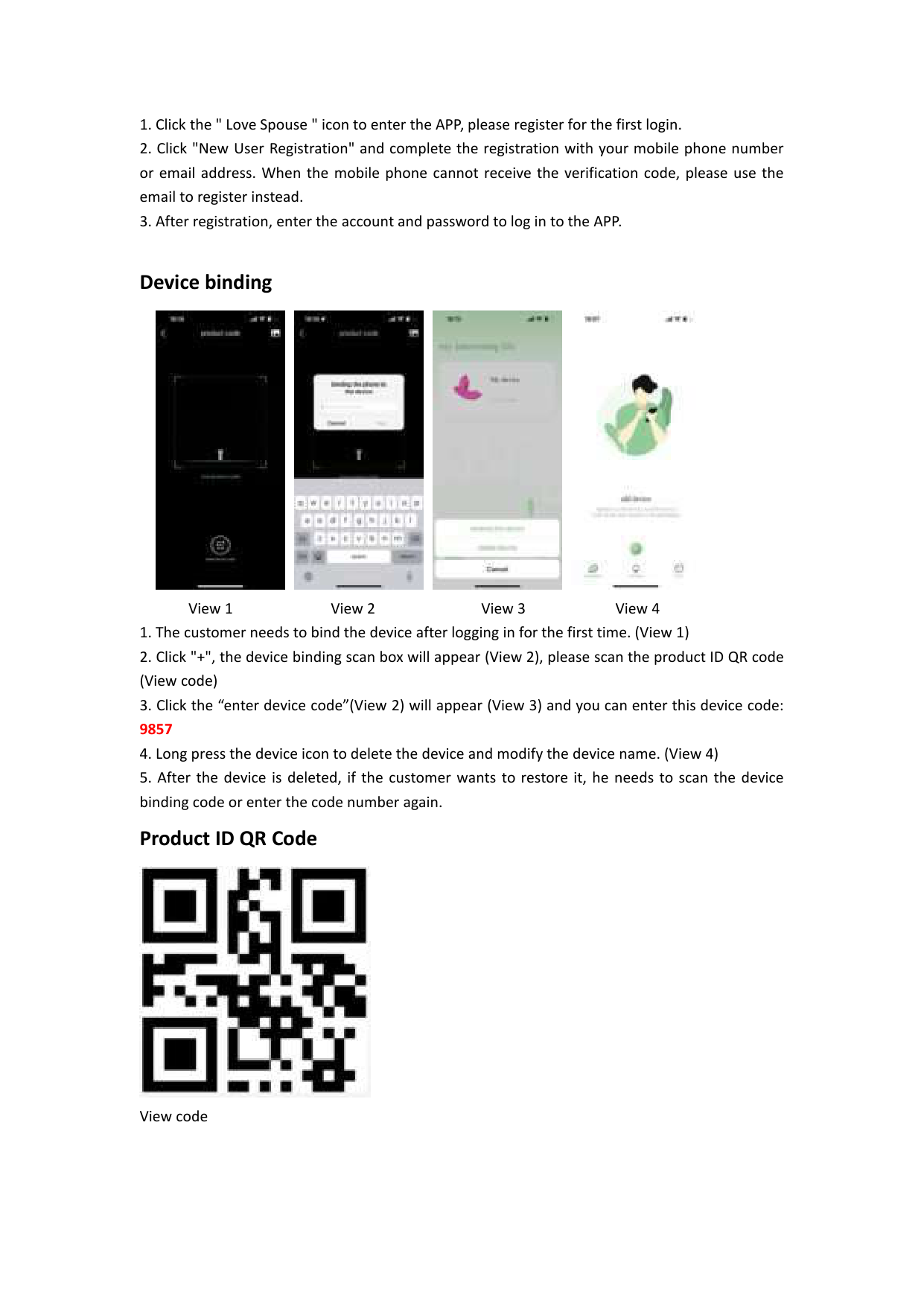
  • 1. Click the " Love Spouse " icon to enter the APP, please register for the first login.
  • 2. Click "New User Registration" and complete the registration with your mobile phone number or email address. When the mobile phone cannot receive the verification code, please use the email to register instead.
  • 3. After registration, enter the account and password to log in to the APP.
  • Device binding

    ![image 7](Love-Spouse-App-User-Manual_compressed_images/imageFile7.png)

    ![image 8](Love-Spouse-App-User-Manual_compressed_images/imageFile8.png)

    ![image 9](Love-Spouse-App-User-Manual_compressed_images/imageFile9.png)

    ![image 10](Love-Spouse-App-User-Manual_compressed_images/imageFile10.png)

    Page 3

    View 1 View 2 View 3 View 4

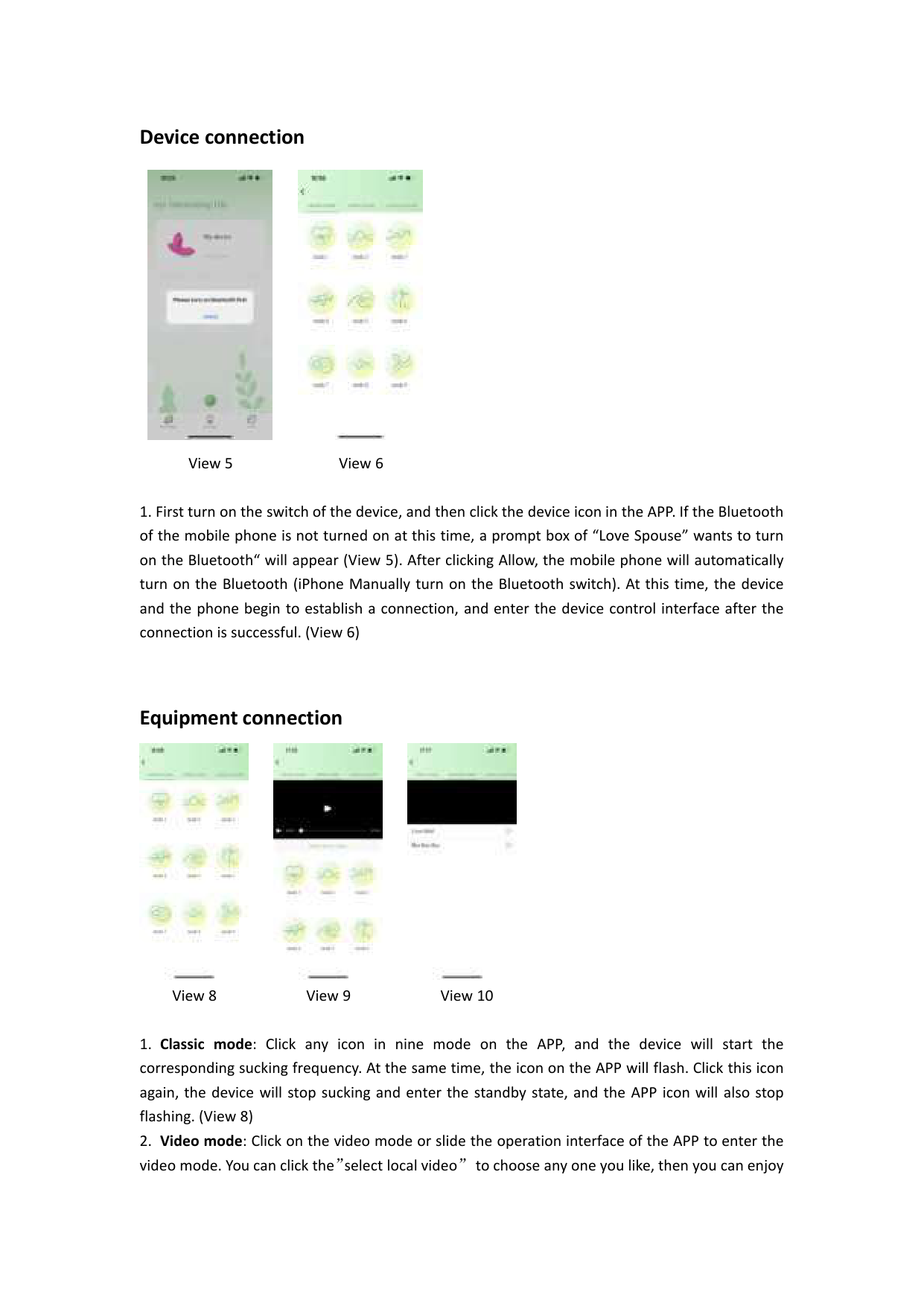
  • 1. The customer needs to bind the device after logging in for the first time. (View 1)
  • 2. Click "+", the device binding scan box will appear (View 2), please scan the product ID QR code (View code)
  • 3. Click the “enter device code”(View 2) will appear (View 3) and you can enter this device code: 9857
  • 4. Long press the device icon to delete the device and modify the device name. (View 4)
  • 5. After the device is deleted, if the customer wants to restore it, he needs to scan the device binding code or enter the code number again. Product ID QR Code
  • ![image 11](Love-Spouse-App-User-Manual_compressed_images/imageFile11.png)

    View code

    Device connection

    ![image 12](Love-Spouse-App-User-Manual_compressed_images/imageFile12.png)

    ![image 13](Love-Spouse-App-User-Manual_compressed_images/imageFile13.png)

    View 5 View 6

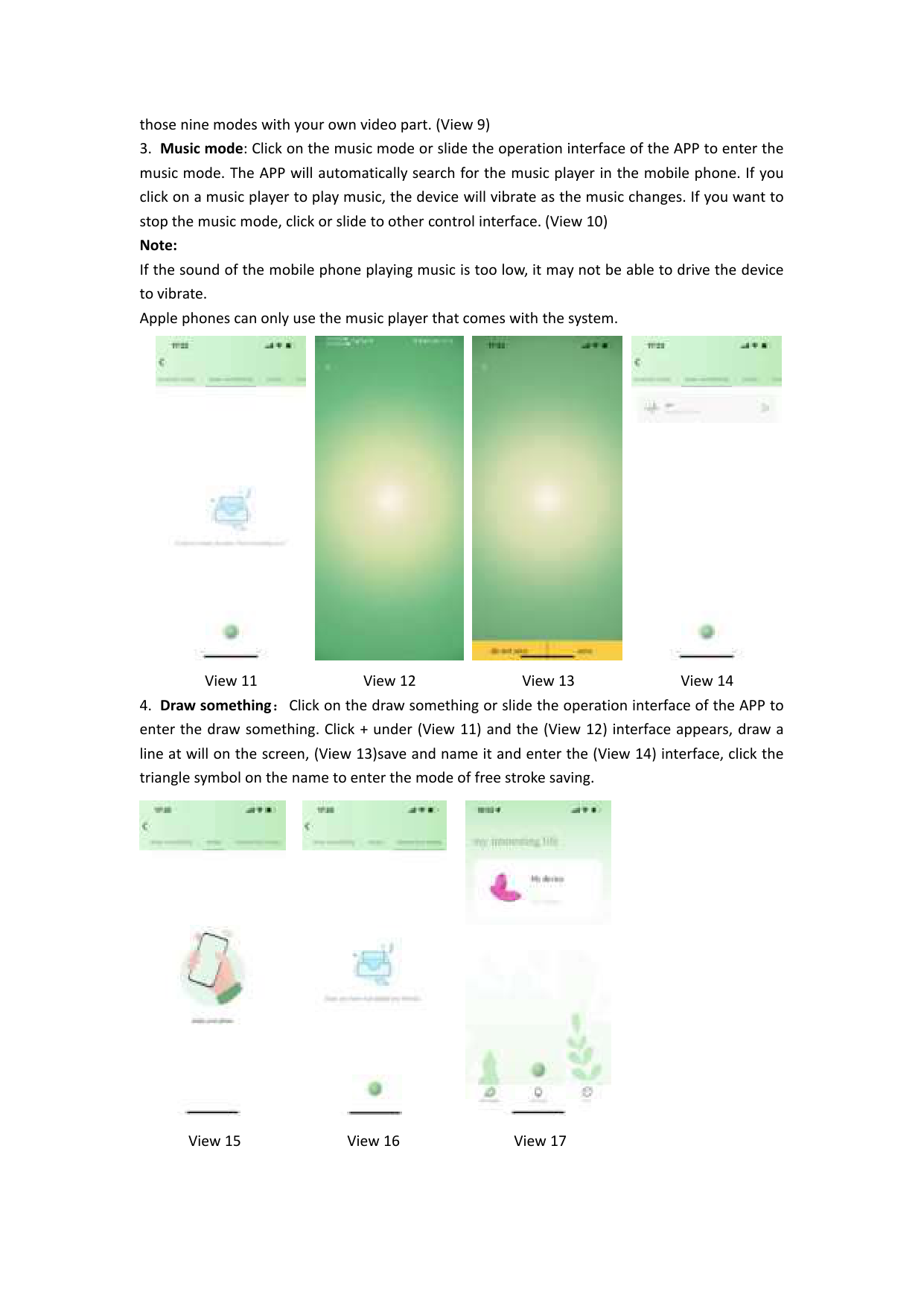
  • First turn on the switch of the device, and then click the device icon in the APP. If the Bluetooth of the mobile phone is not turned on at this time, a prompt box of “Love Spouse” wants to turn on the Bluetooth“ will appear (View 5). After clicking Allow, the mobile phone will automatically turn on the Bluetooth (iPhone Manually turn on the Bluetooth switch). At this time, the device and the phone begin to establish a connection, and enter the device control interface after the connection is successful. (View 6)
  • Page 4

    Equipment connection

    ![image 14](Love-Spouse-App-User-Manual_compressed_images/imageFile14.png)

    ![image 15](Love-Spouse-App-User-Manual_compressed_images/imageFile15.png)

    ![image 16](Love-Spouse-App-User-Manual_compressed_images/imageFile16.png)

    View 8 View 9 View 10

  • 1. Classic mode: Click any icon in nine mode on the APP, and the device will start the corresponding sucking frequency. At the same time, the icon on the APP will flash. Click this icon again, the device will stop sucking and enter the standby state, and the APP icon will also stop flashing. (View 8)
  • 2. Video mode: Click on the video mode or slide the operation interface of the APP to enter the video mode. You can click the”select local video”to choose any one you like, then you can enjoy
  • those nine modes with your own video part. (View 9)
  • 3. Music mode: Click on the music mode or slide the operation interface of the APP to enter the music mode. The APP will automatically search for the music player in the mobile phone. If you click on a music player to play music, the device will vibrate as the music changes. If you want to stop the music mode, click or slide to other control interface. (View 10) Note: If the sound of the mobile phone playing music is too low, it may not be able to drive the device to vibrate. Apple phones can only use the music player that comes with the system.
  • ![image 17](Love-Spouse-App-User-Manual_compressed_images/imageFile17.png)

    ![image 18](Love-Spouse-App-User-Manual_compressed_images/imageFile18.png)

    ![image 19](Love-Spouse-App-User-Manual_compressed_images/imageFile19.png)

    ![image 20](Love-Spouse-App-User-Manual_compressed_images/imageFile20.png)

    Page 5

    View 11 View 12 View 13 View 14

  • 4. Draw something:Click on the draw something or slide the operation interface of the APP to enter the draw something. Click + under (View 11) and the (View 12) interface appears, draw a line at will on the screen, (View 13)save and name it and enter the (View 14) interface, click the triangle symbol on the name to enter the mode of free stroke saving.
  • ![image 21](Love-Spouse-App-User-Manual_compressed_images/imageFile21.png)

    ![image 22](Love-Spouse-App-User-Manual_compressed_images/imageFile22.png)

    ![image 23](Love-Spouse-App-User-Manual_compressed_images/imageFile23.png)

    View 15 View 16 View 17

  • 5. Shake mode: Click on the shake mode or slide the operation interface of the APP to enter the shake mode, and the device will vibrate according to the shaking rhythm and amplitude of your phone (View 15).
  • 6. Interactive mode:
  • 6.1 Tap the interactive mode or slide the operation interface of the APP to enter the interactive mode. (View 16)
  • 6.2 Click the My device on the APP homepage to enter the interactive mode. (View 17)
  • ![image 24](Love-Spouse-App-User-Manual_compressed_images/imageFile24.png)

    ![image 25](Love-Spouse-App-User-Manual_compressed_images/imageFile25.png)

    Page 6

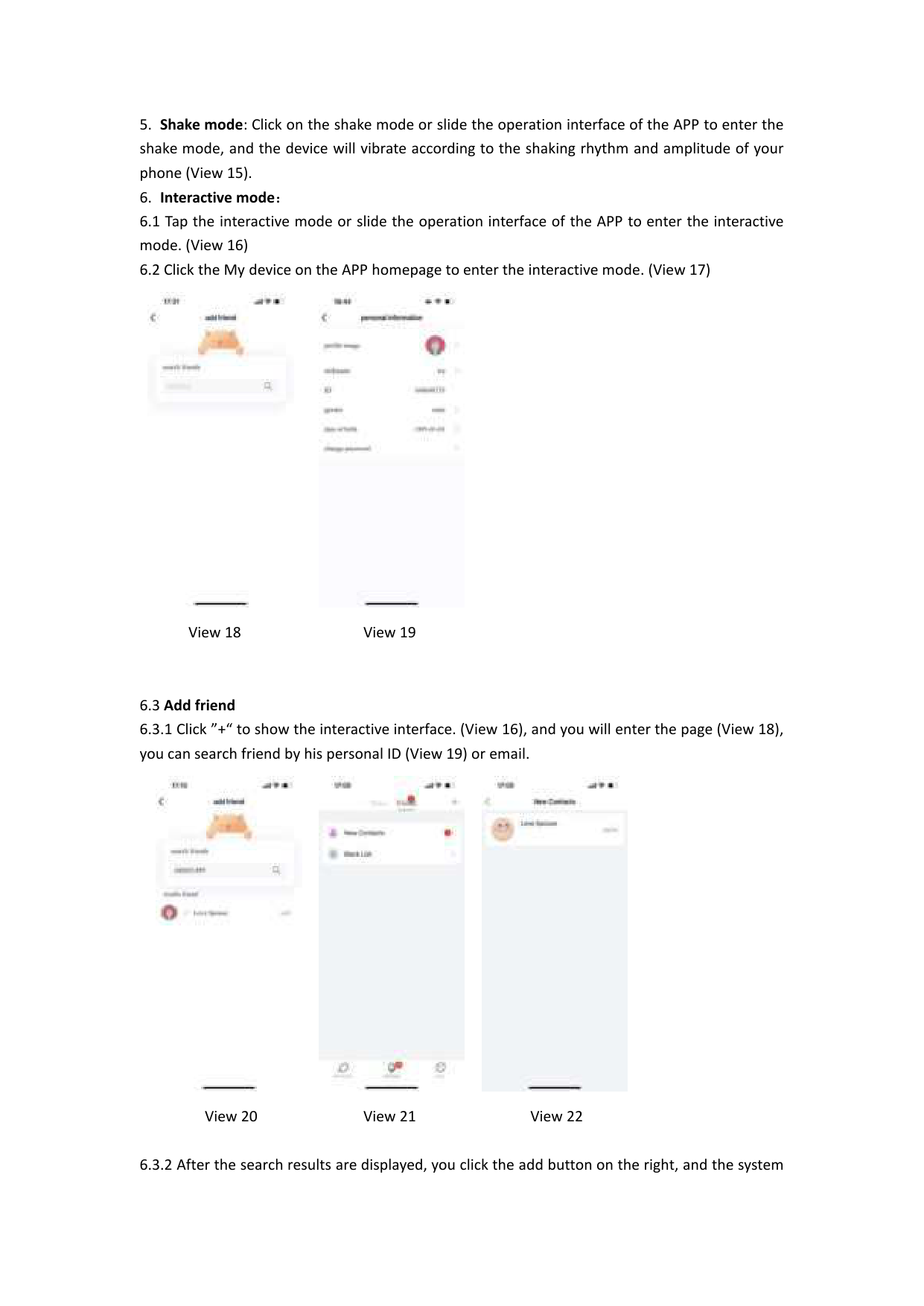
    View 18 View 19

  • 6.3 Add friend
  • 6.3.1 Click ”+“ to show the interactive interface. (View 16), and you will enter the page (View 18), you can search friend by his personal ID (View 19) or email.
  • ![image 26](Love-Spouse-App-User-Manual_compressed_images/imageFile26.png)

    ![image 27](Love-Spouse-App-User-Manual_compressed_images/imageFile27.png)

    ![image 28](Love-Spouse-App-User-Manual_compressed_images/imageFile28.png)

    View 20 View 21 View 22

  • 6.3.2 After the search results are displayed, you click the add button on the right, and the system
  • will send the friend request information to the target user. (View 20)
  • 6.3.3 After the other party receives the message of the friend application, click the message button to enter the message center to View the message (the red dot is the unread message) (View 21), agree or reject the other party‘s friend application, if agreed, the mutual friend addition is successful. (View 22)
  • ![image 29](Love-Spouse-App-User-Manual_compressed_images/imageFile29.png)

    Page 7

    ![image 30](Love-Spouse-App-User-Manual_compressed_images/imageFile30.png)

    View 23 View 24

  • 6.3.4 After the friend is successfully added(View 23), click the friend icon to send message, delete, black out, or report the friend. (View 24)
  • ![image 31](Love-Spouse-App-User-Manual_compressed_images/imageFile31.png)

    ![image 32](Love-Spouse-App-User-Manual_compressed_images/imageFile32.png)

    ![image 33](Love-Spouse-App-User-Manual_compressed_images/imageFile33.png)

    ![image 34](Love-Spouse-App-User-Manual_compressed_images/imageFile34.png)

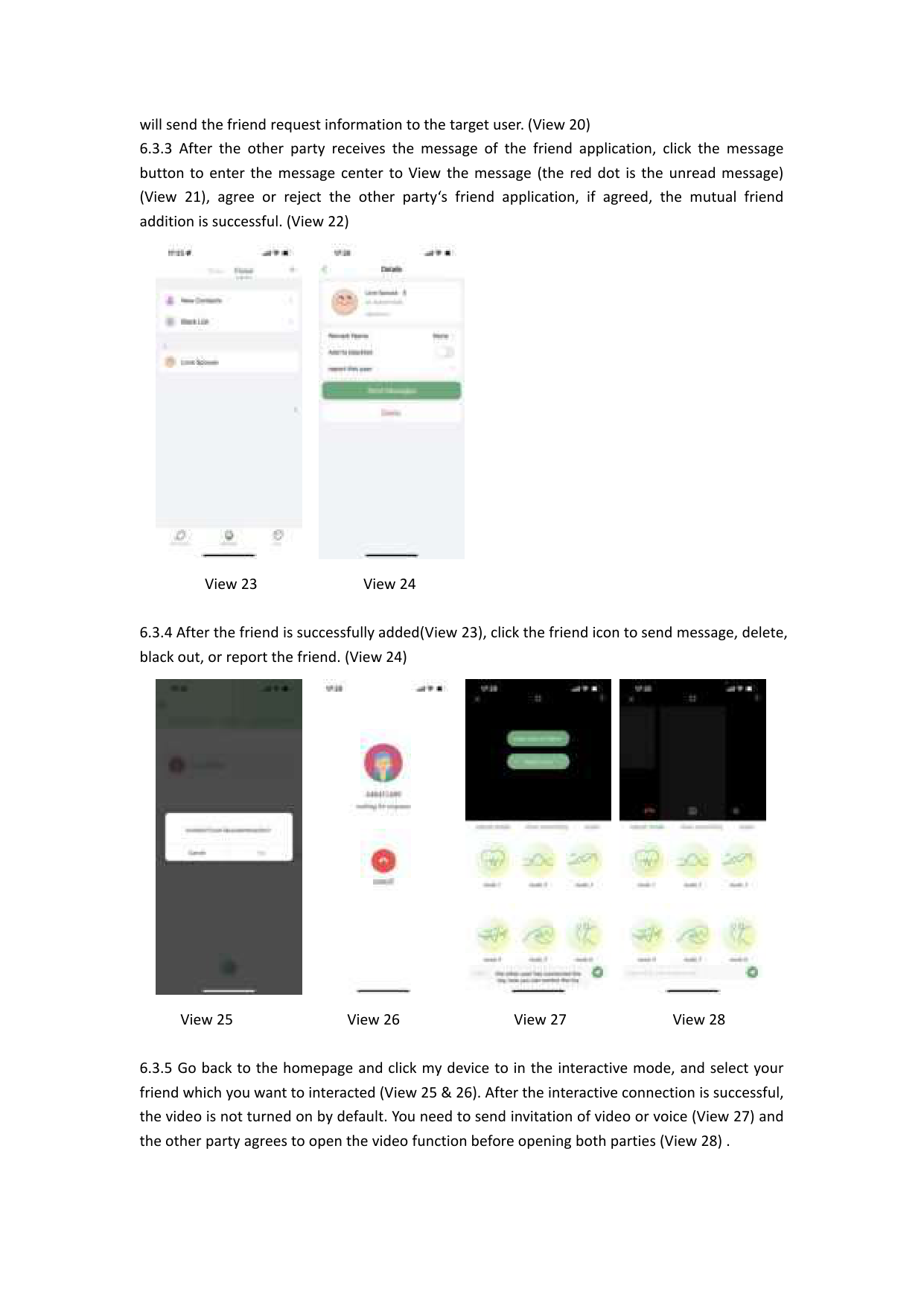
    View 25 View 26 View 27 View 28

  • 6.3.5 Go back to the homepage and click my device to in the interactive mode, and select your friend which you want to interacted (View 25 & 26). After the interactive connection is successful, the video is not turned on by default. You need to send invitation of video or voice (View 27) and the other party agrees to open the video function before opening both parties (View 28) .
  • #### Note:

  • 1. If the other party is not connected to the toy, your interactive interface has no control buttons at this time. The toy must be connected to the other party to have control buttons on your interactive interface. The device connection button on this interface is the Bluetooth icon in the upper right corner.
  • 2. When interacting, the control button is to control the other party’s device, not your own device.
  • More from Apps

    Similar Unknown