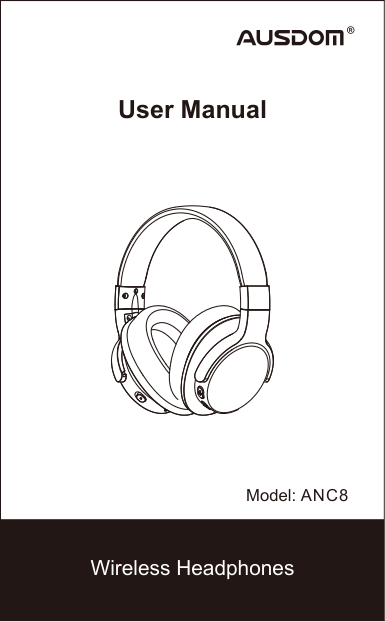
Ausdom ANC8 Noise Cancelling Wireless Headphones
Ask AI
— answers from the official manualAnswers from the official manual.
Common questions
Common Questions
19 totalWhat are the steps to charge the Ausdom M09 battery?
Use the included micro USB cable and connect one end to any power source. The LED will turn red during charging and it takes about 2 hours for a full charge.
What should I do if there is some noise when using my Ausdom M09?
Ensure no obstacles exist between the headphone and connected device, stay within an effective range of up to 10 meters.
How often should I clean my Ausdom M09 headphones?
Use a dry cloth for occasional cleaning if needed. Avoid exposing to liquids, extreme temperature or dropping from high places.
How long does the Ausdom M09 battery last when the headphone is in use?
The running time of the built-in battery offers around 8 hours of talk or music playback time and more than 2000 hours of standby time.
What should I do if the Ausdom M09 cannot be turned on?
Recharge the battery fully and try turning it on again. A flat battery prevents power-on functionality.
What does it mean when my Ausdom M09's LED keeps red light?
A low battery warning tone is provided along with a red LED indicating the battery level is low and needs charging immediately.
Show 13 more questions
How do I pair the Ausdom M09 with my phone or computer?
How can I make a call with my Ausdom M09?
What happens when no TF card is inserted and I press the power button twice?
How long does it take to fully charge the Ausdom ANC8 headphones?
What should I do if the headphones won't pair with my mobile phone?
How do I turn on the Active Noise Cancelling feature?
What is the wireless range of the ANC8 headphones?
How long is the battery playtime on the ANC8?
Can I use the ANC8 as a wired headphone?
What should I do if the headphones cannot be turned on?
How should I care for and store the ANC8 headphones?
What steps should I follow to pair the ANC8 with a device?
What is the recommended volume usage to protect my hearing?
Full Manual
13 pages
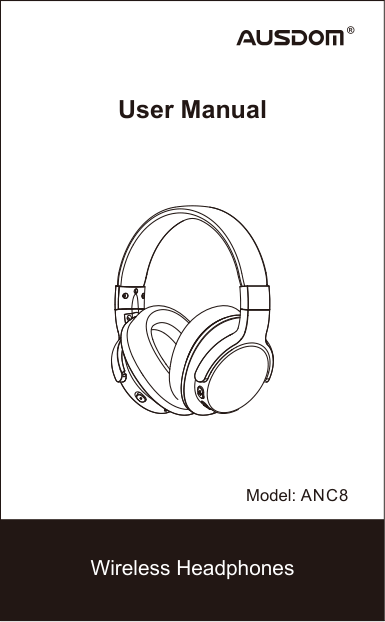
|User’s Manual
Wireless Headphone
MODEL:M09| |---|
|2. Package Contents
3. Product Overview
1. Introduction
- Wireless headphone*1
- Micro USB charging cable*1
- 3.5mm audio cable*1
- User’s manual*1
EN-1
Micro USB Charging Cable 3.5mm Audio Cable
Thank you for purchasing the AUSDOM M09 Wireless Headphone. M09 has fashionable appearance and eco-friendly package design. The headphone provides foldable design for easy storage and carrying. Artificial protein leather of earmuffs is simulated to human skin texture, giving you a long-time comfort. Built-in rechargeable battery provides more music playing and standby time.
M09 also can be used both wired and wireless via Wireless V4.2 to communicate with your Wireless-enabled device till 10 meters range. Its powerful and rich bass speaker brings you amazing and unprecedented audio enjoyment.
Note: Please read the user’s manual carefully before using, and keep it properly for future reference.
Micro USB interface for charging Microphone
LED Indicator
3.5mm line-in jack
TF Card Slot
Next track/V+
Previous track/VPower button| | |---|---|

| |EN-2
5-1 Pairing the headphone with a computer
Before pairing the headphone with your computer, please make sure your computer or laptop has the built-in Wireless feature. If not, you must purchase a Wireless dongle, preferably version 2.1 or above.
1.Make sure the headphone is off.
2.Start the Wireless program in the computer.
3.The “Search new device” screen will be displayed.
4.Do not place both devices more than one meter away from each other.
5.Press and hold the power button on the headphone until it powers on but don't let go just yet. Continue holding down on
5. Pairing with Wireless Devices
4. Charging the Battery

Any power source for USB use
Micro USB charging cable to the USB Interface for charging
Connect the micro USB charging cable to any power source and the USB interface located on the side of ear cup for charging. The headphone LED turns to solid red during charging. It takes about 2 hours for the first charge and after charging for as long as 1-1.5 hours. When the battery is fully charged the LED turns off.
You can also use the Wireless function during charging but will extend the charging time. If you use the audio cable or turn the headphone off for charging that will not affect the charging time.
When the battery is low, the LED keeps red light. At the same time the headphone also provides a low battery warning tone.
Note: It is strongly recommended fully charging for the first use. Playtime varies according to volume level and audio content .
| | |---|---|---|
| |EN-3
the power button until you see the LED indicator flashes blue and red alternately, which means your headphone is in "pairing mode" waiting to be paired with your device. The voice prompts "Pairing." 6.As soon as the computer system detects the new device and select “AUSDOM M09". Once successfully paired, the LED turns to solid blue. You will hear “Connected”.
5-2 Pairing the headphone with a phone
1.Make sure the headphone is off.
2.Do not place both devices more than one meter away from each other.
3.Press and hold the power button on the headphone until it powers on but don't let go just yet. Continue holding down on the power button until you see the LED indicator flashes blue and red alternately, which means your headphone is in "pairing mode" waiting to be paired with your device. The voice prompts "Pairing."
4.Start Wireless function on your phone and search for new devices.
5.Select the “AUSDOM M09” to pair. Once successfully paired, the LED turns to solid blue. You will hear “Connected”.
5-3 Connecting to paired devicesAUSDOM M09 will pair with the paired device automaticallywhen turning on. Because of different systems, somecomputers or laptops may need to be manually paired everytime.| | |---|---|---|

| |EN-4
6-1 Making a call
1.Make sure the headphone is pairing to the mobile phone. Dial through the mobile phone and press the call button on the phone.
2.To end a call, press the power button once again or also end the call directly by the phone.
6-2 Answering a callMake sure the Headphone is pairing with your phone. Pleaserefer to chapter 5. Pairing with Wireless devices.
1.When a call is incoming. The LED keeps solid red.
2.Press the power button on your headphone or the answer button on your phone to answer the call. If there is the music playback, it will pause.
3.To end a call, press the power button once again or also end the call directly by the phone.
4.As soon as the call is ended, the music will continue to play automatically.
Note: The microphone can't work when using as wired headphone.
6. Making and Answering a Call
7. Using a Wired Headphone
The M09 provides a 3.5mm audio jack located on the side of ear cup and an included audio cable for wired use.
This allows you to use the audio function with other devices without having wireless function. When the headphone's battery is low, you can still enjoy the music without worrying battery dead.| | |---|---|---|
| |EN-5

Avoid exposing to liquids and rain
Avoid exposing to extremely temperature
Avoid dropping from high places
Using as a wired headphone with a 3.5mm audio cable
Store the Headphone with power off and in a dry environment.
- If you don’t use the headphone for a long period, charging the battery every 2 months for 1-2 hours.
- Use a dry cloth for cleaning if needed.
- Avoid dropping the headphone from high places or on hard surfaces.
- Avoid exposing the headphone to extreme temperature. (Recommended Storage temperature is -40˚C-80˚C.)
- The headphone is NOT waterproof. Avoid exposing the headphone to rain or getting liquids into any button port or other openings.
- Please don’t twist or bend the headphone. This may cause permanent deformation.
- The built-in battery can’t be disposed in the fire to avoid explosion.
8. Take Care Your Headphone
| |

|---|---|---|
| |EN-6
10. Control Instructions
|Function|Operation| |---|---| |Power on|When the headphone is off, press and hold the power button 2 seconds. And the LED flashes blue and sounds “Power on”. Then flashes blue every second.| |Pairing with wireless devices|When the headphone is off, press and hold the power button for about 8 seconds until the LED flash blue and red alternatively, then select the “AUSDOM M09” to pair.|

|Power off|When the headphone is on, press and hold the power button 2 seconds. And the LED flashes red and sounds “Power off”.| |Increase volume|Press the Volume Up V+ button| |Decrease volume|Press the Volume Down V- button| |Play media|Press the power button| |Pause/restart media playback|Press the power button| |Skip to next track|Press and hold the V+ button for 2s| |Skip to previous track|Press and hold the V- button for 2s|

|Answer a call|When a call is coming, press the power button to answer the call. Then the blue LED lights .| |End a call|When a call is on line, press the power button to end.|
9. Protecting your Hearing
The Headphone is held close to your ears, so loud sounds pose a potential hearing risk. It is highly recommended that setting low volume level before putting on the headphone and avoiding exposing yourself continuously to high volumes. If you need to use the headphone for a long period, rest ten minutes for a half hour using.| | |---|---|---|
| |EN-7
Note:
-There will be a alert tone when the volume reaches the minimum or maximum level.
-When the TF card insert, the headphone will default to play the music in TF card.
|TF Card/Wireless Mode Exchange|TF Card/Wireless Mode Exchange|1.In wireless mode, press the power button twice, change to TF card mode, you will hear the prompt “play by TF card”. If no TF card insert, it will reconnect the device.
2.In TF card mode, press the power button twice, then you will hear the voice “connected”. The blue LED lights twice.
If the TF card insert, it will default to play by TF card.|

|---|---|---| |TF
Card
Play
Mode|Power on|When the headphone is off, press the power button 2 seconds to power on, it will automatically play the music in TF card, then the blue LED lights.| |TF
Card
Play
Mode|Play/pause|When in pause mode, press the power button once to play music; then press once again to pause.| |TF
Card
Play
Mode|Skip to next track|Press and hold the V+ button for 2s| |TF
Card
Play
Mode|Skip to previous track|Press and hold the V- button for 2s| |TF
Card
Play
Mode|Increase volume|Press the Volume Up V+ button| |TF
Card
Play
Mode|Decrease volume|Press the Volume Down V- button|

| | |---|---|---|
| |EN-8
11. Troubleshooting
Q: The headphone cannot be turned on. A: The battery may be flat. Please recharge the battery and try again. Refer to chapter 4. Charging the Battery.
Q: Why doesn’t the headphone pair with the mobile phone? A: Please check the followings.
- Check that the headphone is charged and is in pairing mode.
- Make sure that the mobile phone's Wireless function is on.
- Make sure the two devices are in the effective pairing range. (10 meters).
- Make sure that there is no obstacle between the headphone and the mobile phone, such as electronic equipment and a wall.
- Furthermore, you can try restarting the headphone and pairing it with the mobile phone again.
- Make sure the paired device’s wireless function is turned off. Q: There is some noise.
- A: Wireless is a radio technology, so it is sensitive to obstacles between the headphone and the pairing device. Please make sure that there is no obstacle between the two devices and is within 10 meters.
Q: I can't hear sound. A: Please check the followings.
- Try increase the volume.
- Make sure that the Wireless function is on and whether the two devices are connecting and within 10 meters.
| | |---|---|---|

| |EN-9
12. Warranty
The M09 is covered by a 1-year manufacturer warranty. For more information, visit: www.ausdom.com/warranty.
Q: My mobile phone or computer cannot find the headphone. A: Please check that the headphone is in pairing mode. Refer to chapter 5. Pairing with Wireless devices. Sometimes when the headphone is connected too many Wireless devices, it cannot search and pair effectively. Or your mobile phone and computer are already connected to many other devices. Try removing some connections before searching the headphone.| | |---|---|---|
| |EN-10
|Microphone Spec.|Microphone Unit|4*1.5mm| |---|---|---|

|Microphone Spec.|Directivity|Omni-directional| |Microphone Spec.|S.P.L|-42dB| |Microphone Spec.|Impedance|≤2.2KΩ| |Microphone Spec.|Frequency response|100Hz-10000Hz| |Microphone Spec.|Operating voltage|2V| |Speaker Spec.|Speaker diameter|Φ40mm| |Speaker Spec.|Impedance|32Ω|

|Speaker Spec.|S.P.L|108dB±3dB| |Speaker Spec.|THD|<4%| |Speaker Spec.|Frequency response|20Hz-20000Hz| |Wireless Spec.|Wireless version|4.2| |Wireless Spec.|Wireless distance|10m| |Wireless Spec.|Transmission frequency|2.402GHz-2.48GHz| |Wireless Spec.|Support profile|HSP/HFP/A2DP/AVRCP|

|Wireless Spec.|Pairing name|AUSDOM M09| |Battery Spec.|Battery type|Built-in 240mah rechargeable lithium battery| |Battery Spec.|Charging port|Micro USB 5V/1A| |Battery Spec.|Running time|About 8 hours talking/About 8 hours music playing time| |Battery Spec.|Standby time|More than 2000 hours| |Battery Spec.|Charging time|About 2 hours| |Battery Spec.|Operating temperature|-10˚C-45˚C|

Note:
-Features and technical specifications are subject to change without notice, we apologize for any inconvenience.
13. Specifications| | |---|---|---|
| |WARRANTY CARD
ATTENTIONS:
- Please read the return procedures and warranty policy carefully on www.ausdom.com/warranty before sending items back to point-of-purchase.
- Please fill the card and send it to your reseller together with the product if your product's warranty is valid.
S.N: Date of Purchase: Product Model: RMA Number: Return Reason: Customer Name: TEL: E-mail: Address:
| |---|---|
|For more information, please visit our official website www.ausdom.com
Your valuable comments and suggestions on improving AUSDOM products are welcomed!| | |---|---|