
Ask AI
— answers from the official manualAnswers from the official manual.
Common questions
Common Questions
20 totalHow do I reset the Blackweb Bwb17av002 to factory default settings?
Press and hold the Program button until the Program button lights up red, then press the 1 button, and finally press the OK button. The red indicator light will flash twice and the remote will revert to factory settings. All programmed codes will be lost after this process. (Page 14)
How do I know when the batteries need to be replaced?
If the red indicator light flashes 3 times while using the remote, the batteries need to be replaced. You should replace the batteries as soon as possible when this indication occurs. (Page 3)
How do I program the remote using Direct Code Entry?
Press and hold the Program button until it lights up red, then select the device category you want to program, and finally enter the 4-digit code from the included code list. If the red indicator light turns off after entering the code, a valid code was entered; if it flashes and remains on, the code was invalid and you should re-enter a different code. Code lists are also available at www.myblackwebremote.com. (Pages 6-8)
How do I program the remote using Auto Code Search if I can't find a working direct code?
Power on your device, press and hold the Program button until it lights red, select the device category, then point the remote at the device and press and hold the OK button until the device turns off. Immediately release the OK button to lock in the code when the device turns off. Note that this process may take over 10 minutes to scan through all possible codes. (Page 9)
How do I set up and use Favorite Channels on the remote?
Press and hold the Program button until it lights red, press the FAV button, select a number button (0-9) to store the channel, enter the channel number, and then press FAV again to save. To access a favorite channel, press the FAV button and then the programmed number button (0-9). Up to 10 favorite channels can be stored. (Page 10)
How do I lock the volume control to a specific device, such as a sound bar?
Press and hold the Program button until it lights red, select the device category you want to lock to the volume control, press VOL+, then press OK. The red indicator light will blink twice and turn off to confirm the Volume Lock is enabled. To disable Volume Lock, repeat the process but press VOL- instead of VOL+. (Page 11)
Show 14 more questions
How do I identify the programmed code for a device on my remote?
How long do I have to replace the batteries before losing my programmed codes?
What should I do if the remote won't change channels on my device?
What is the warranty period for the Blackweb Bwb17av002 and how do I obtain warranty service?
How do I factory reset the Blackweb Bwb17av002?
How do I program a new device code using Direct Code Entry?
What should I do if my remote doesn't work for a particular device?
How do I add my favorite channels?
How do I program volume control specifically for one device?
What steps should I take for troubleshooting general issues?
How do I identify my programmed codes?
How do I maintain my battery life?
What should I do when the low battery indicator flashes?
How can I test if programming was successful?
Full Manual
18 pages
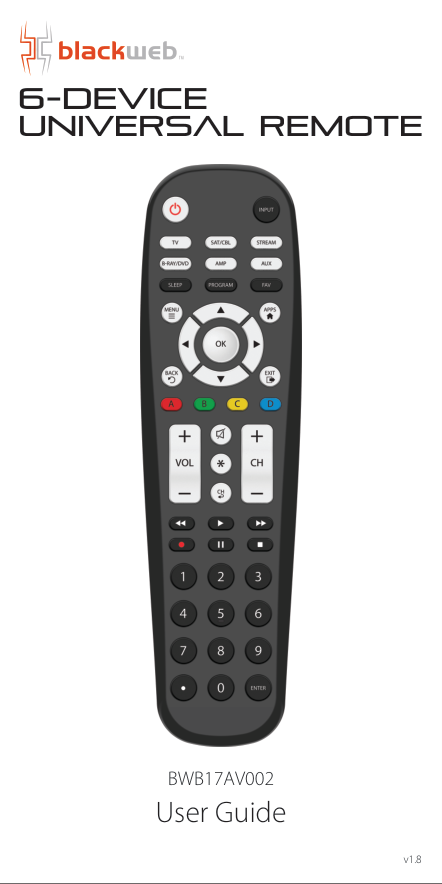
6-Device User Guide v1.8
Bwb17Av002
• Getting Started (Batteries)
• Getting Started (Buttons)
• Programming Your Remote (Direct Code Entry)
• Programming Your Remote (Auto Code Search)
• Favorite Channels
• Volume Lock
• Channel Lock
• Code Identification
• Reset To Factory Default Settings
• Troubleshooting
• Fcc Information
• Limited 90-Day Warranty
02 03 05 08 09 10 11 12 13 14 15 16Table Of Contents
01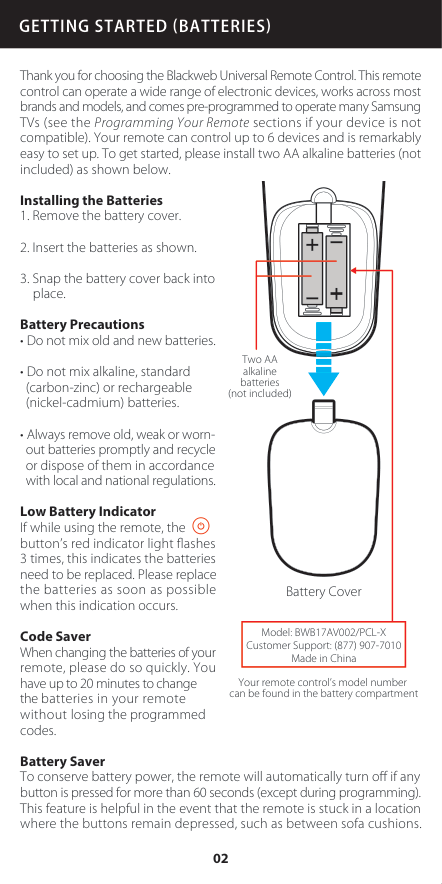
Thank you for choosing the Blackweb Universal Remote Control. This remote control can operate a wide range of electronic devices, works across most brands and models, and comes pre-programmed to operate many Samsung TVs (see the Programming Your Remote sections if your device is not compatible). Your remote can control up to 6 devices and is remarkably easy to set up. To get started, please install two AA alkaline batteries (not included) as shown below. Installing the Batteries
Code Saver When changing the batteries of your remote, please do so quickly. You have up to 20 minutes to change the batteries in your remote without losing the programmed codes. Battery Saver To conserve battery power, the remote will automatically turn off if any button is pressed for more than 60 seconds (except during programming). This feature is helpful in the event that the remote is stuck in a location where the buttons remain depressed, such as between sofa cushions.
Getting Started Batteries
Battery Cover Your remote control’s model number can be found in the battery compartment Two AA alkaline batteries (not included) Model: BWB17AV002/PCL-X Customer Support: (877) 907-7010 Made in China 02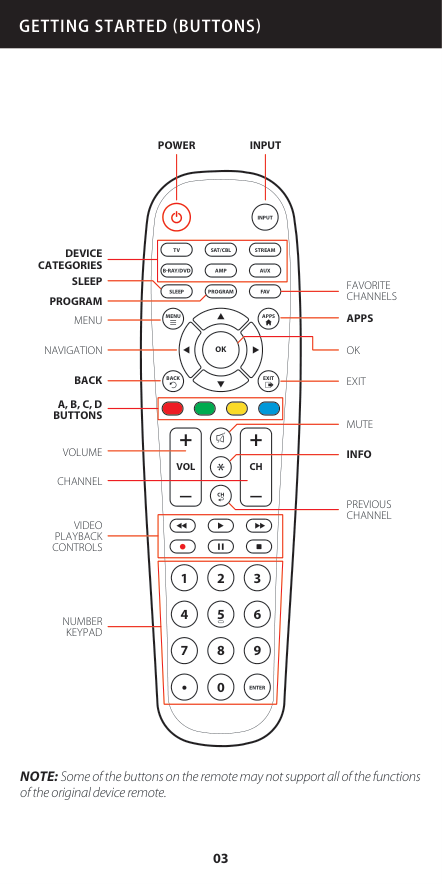
NOTE: Some of the buttons on the remote may not support all of the functions of the original device remote.
Getting Started Buttons
Amp
Program
Aux
Input
Fav
Enter
1 2 3 4 5 6 7 8 0 9 + +Ch
Sat/Cbl
Stream
Tv
B-Ray/Dvd
Sleep
Vol
Ch
Menu
Back
Apps
Exit
Ok
Power
Input
Device
Categories
Sleep
Program
Menu
Apps
Navigation
Ok
Back
Exit
A, B, C, D
Buttons
Volume
Channel
Mute
Info
Previous
Channel
Video
Playback
Controls
Number
Keypad
Favorite
Channels
03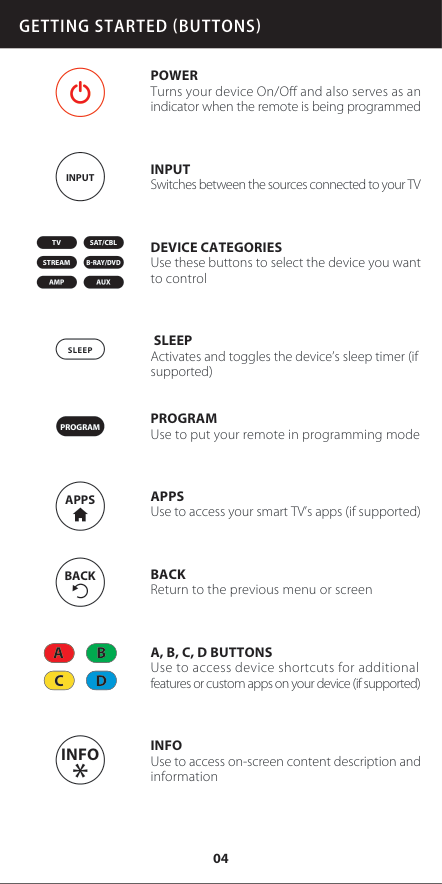
Power
Turns your device On/Off and also serves as an indicator when the remote is being programmedInput
Switches between the sources connected to your TVDevice Categories
Use these buttons to select the device you want to controlSleep
Activates and toggles the device’s sleep timer (if supported)Program
Use to put your remote in programming modeApps
Use to access your smart TV’s apps (if supported)Back
Return to the previous menu or screenA, B, C, D Buttons
Use to access device shortcuts for additional features or custom apps on your device (if supported)Info
Use to access on-screen content description and informationTv
BRay/Dvd
Sat/Cbl
Amp
Stream
Aux
Program
Sleep
Input
Back
A
B
C
D
Apps
Info
Getting Started Buttons
04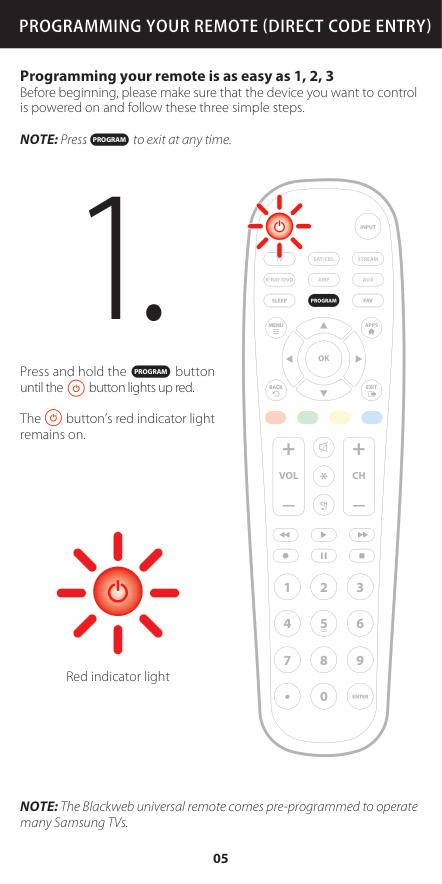
Press and hold the button until the button lights up red. The button’s red indicator light remains on. Programming your remote is as easy as 1, 2, 3 Before beginning, please make sure that the device you want to control is powered on and follow these three simple steps. NOTE: Press to exit at any time. NOTE: The Blackweb universal remote comes pre-programmed to operate many Samsung TVs.
Programming Your Remote Direct Code Entry
Amp
Aux
Sat/Cbl
Stream
Tv
B-Ray/Dvd
Input
Fav
Enter
1 2 3 4 5 6 7 8 0 9 + +Ch
Sleep
Vol
Ch
Menu
Back
Apps
Exit
Ok
Program
Program
Program
Red indicator light 05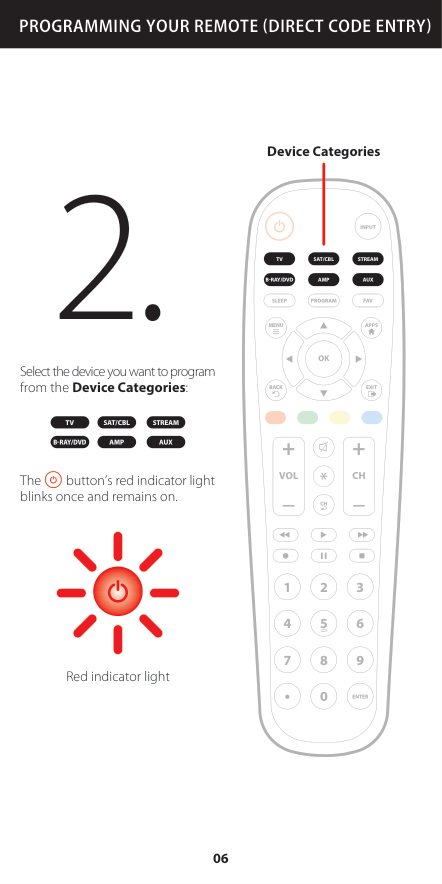
Amp
Aux
Sat/Cbl
Stream
Tv
B-Ray/Dvd
Input
Fav
Enter
1 2 3 4 5 6 7 8 0 9 + +Ch
Sleep
Vol
Ch
Menu
Back
Apps
Exit
Ok
Program
Select the device you want to program from the Device Categories: The button’s red indicator light blinks once and remains on.Programming Your Remote Direct Code Entry
Tv
Sat/Cbl
Stream
BRay/Dvd
Amp
Aux
Red indicator light 06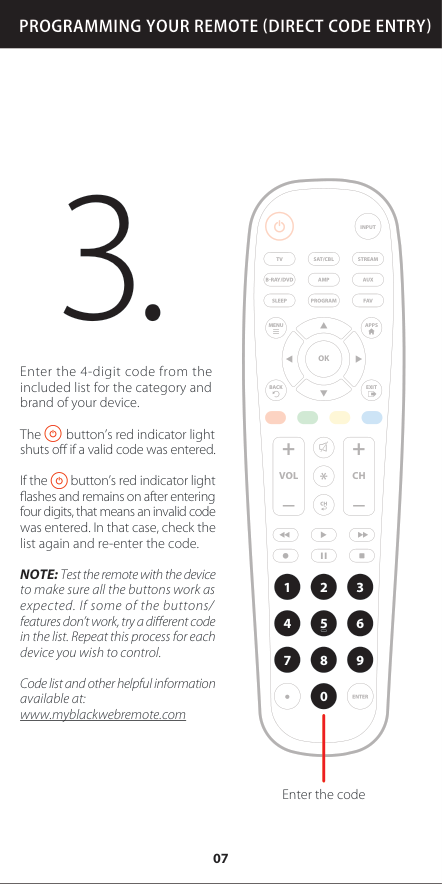
Amp
Aux
Sat/Cbl
Stream
Tv
B-Ray/Dvd
Input
Fav
Enter
1 2 3 4 5 6 7 8 0 9 + +Ch
Sleep
Vol
Ch
Menu
Back
Apps
Exit
Ok
Program
Programming Your Remote Direct Code Entry
Enter the 4-digit code from the included list for the category and brand of your device. The button’s red indicator light shuts off if a valid code was entered. If the button’s red indicator light flashes and remains on after entering four digits, that means an invalid code was entered. In that case, check the list again and re-enter the code. NOTE: Test the remote with the device to make sure all the buttons work as expected. If some of the buttons/ features don’t work, try a different code in the list. Repeat this process for each device you wish to control. Code list and other helpful information available at: www.myblackwebremote.com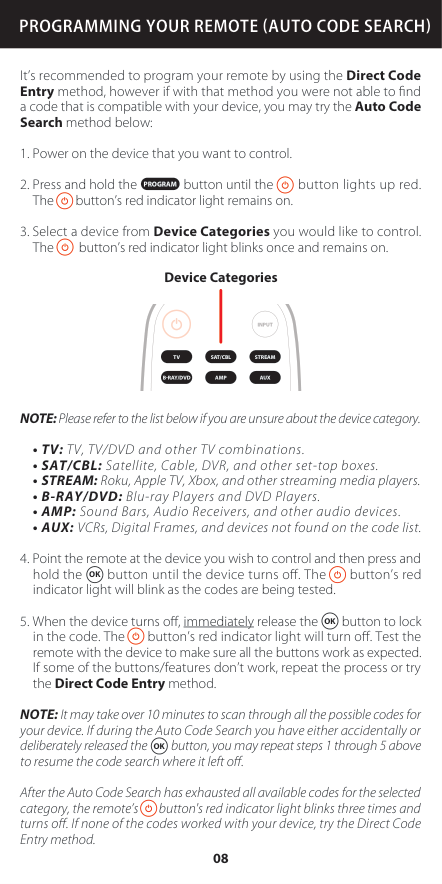
It’s recommended to program your remote by using the Direct Code Entry method, however if with that method you were not able to find a code that is compatible with your device, you may try the Auto Code Search method below:
Programming Your Remote Auto Code Search
Program
Amp
Aux
Sat/Cbl
Stream
Tv
B-Ray/Dvd
Input
Device Categories 08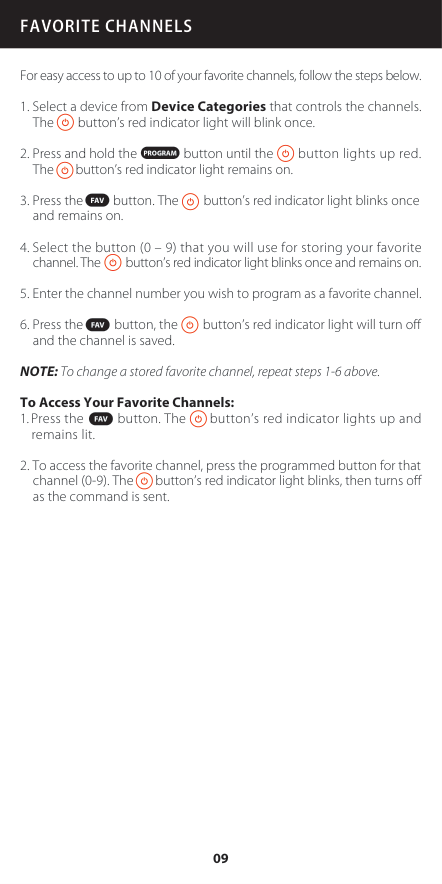
For easy access to up to 10 of your favorite channels, follow the steps below.
Favorite Channels
Program
Fav
Fav
Fav
09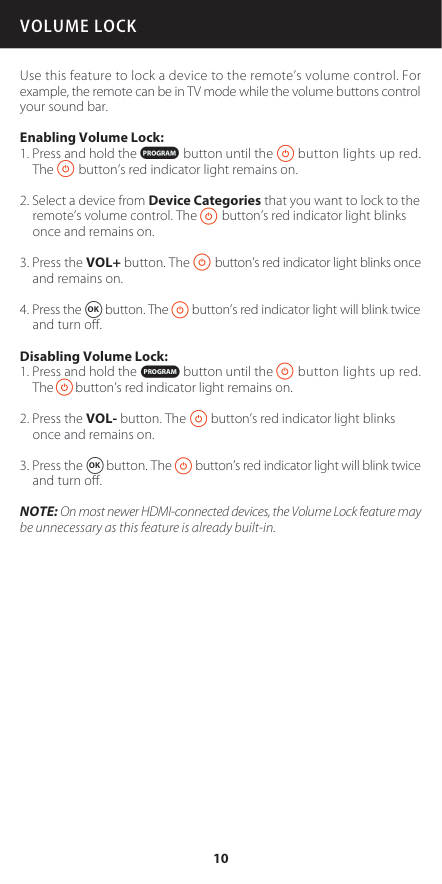
Use this feature to lock a device to the remote’s volume control. For example, the remote can be in TV mode while the volume buttons control your sound bar. Enabling Volume Lock:
Volume Lock
Program
Program
10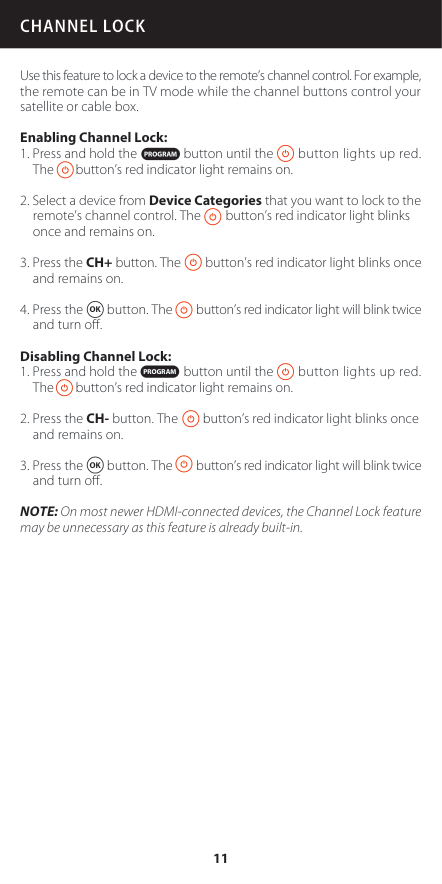
Use this feature to lock a device to the remote’s channel control. For example, the remote can be in TV mode while the channel buttons control your satellite or cable box. Enabling Channel Lock:
Channel Lock
Program
Program
11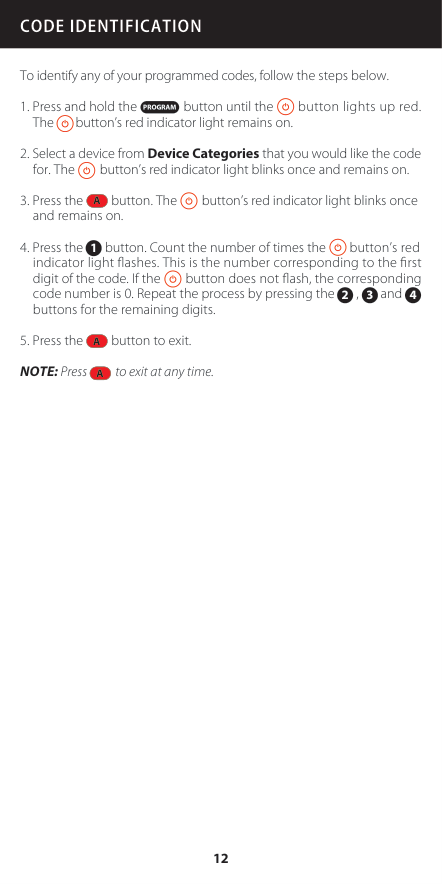
To identify any of your programmed codes, follow the steps below.
Code Identification
Program
1 2 3 4A
A
A
12
Reset To Factory Default Settings
Program
13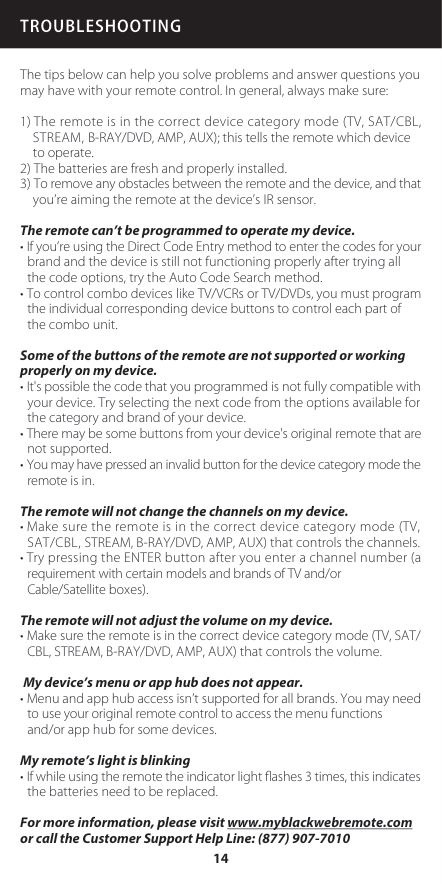
The tips below can help you solve problems and answer questions you may have with your remote control. In general, always make sure: 1) The remote is in the correct device category mode (TV, SAT/CBL, STREAM, B-RAY/DVD, AMP, AUX); this tells the remote which device to operate. 2) The batteries are fresh and properly installed. 3) To remove any obstacles between the remote and the device, and that you’re aiming the remote at the device’s IR sensor.
The remote can’t be programmed to operate my device.
Some of the buttons of the remote are not supported or working properly on my device.
The remote will not change the channels on my device.
The remote will not adjust the volume on my device.
Troubleshooting
14
This device complies with part 15 of the FCC rules. Operation is subject to the following two conditions: (1) this device may not cause harmful interference, and (2) this device must accept any interference received, including interference that may cause undesired operation. NOTE: This equipment has been tested and found to comply with the limits for a Class B digital device, pursuant to Part 15 of the FCC Rules. These limits are designed to provide reasonable protection against harmful interference in a residential installation. This equipment generates, uses and can radiate radio frequency energy and, if not installed and used in accordance with the instructions may cause harmful interference to radio communications. However, there is no guarantee that interference will not occur in a particular installation. If this equipment does cause harmful interference to radio or television reception, which can be determined by turning the equipment off and on, the user is encouraged to try to correct the interference by one or more of the following measures:
Fcc Information
15
Limited Warranty To Original Consumer
This product as supplied and distributed new by an authorized retailer is warranted by Southern Telecom, Inc. to the original consumer purchaser against defects in materials and workmanship (“Warranty”) as follows: Product Type: Universal Remote Control Territory: United States / Canada Warranty Period: 90 (Ninety) daysTo obtain warranty service:
Customer Support:
Authorized Service Center Customer Service Dept. 36 c/o Southern Telecom 400 Kennedy Drive Sayreville, NJ 08872
Warranty service not provided This warranty does not cover damage resulting from accident, misuse, abuse, improper installation or operation, lack of reasonable care and unauthorized modification. This warranty is voided in the event any unauthorized person opens, alters or repairs this product. All products being returned to the authorized service center for repair must be suitably packaged.
No Warranties, Whether Express Or Implied, Including, But Not
Limited To, Any Implied Warranties Of Merchantability Or Fitness
For A Particular Purpose, Other Than Those Expressly Described
Above Shall Apply. Distributor Further Disclaims All Warranties
After The Express Warranty Period Stated Above. No Other Express
Warranty Or Guaranty Given By Any Person, Firm Or Entity With
Respect To The Product Shall Be Binding On Distributor. Repair,
Replacement, Or Refund Of The Original Purchase Price - At
Limited 90Day Warranty
16
DISTRIBUTOR’S SOLE DISCRETION - ARE THE EXCLUSIVE REMEDIES OF THE CONSUMER. IN NO EVENT WILL DISTRIBUTOR OR ITS MANUFACTURERS BE LIABLE FOR ANY INCIDENTAL, DIRECT, INDIRECT, SPECIAL, PUNITIVE OR CONSEQUENTIAL DAMAGES (SUCH AS, BUT NOT LIMITED TO, DAMAGES FOR LOSS OF PROFITS, BUSINESS, SAVINGS, DATA OR RECORDS) CAUSED BY THE USE, MISUSE OR INABILITY TO USE THE PRODUCT. EXCEPT AS STATED HEREIN, NO OTHER WARRANTIES SHALL APPLY. NOTWITHSTANDING THE FOREGOING, CONSUMER’S RECOVERY AGAINST DISTRIBUTOR SHALL NOT EXCEED THE PURCHASE PRICE OF THE PRODUCT SOLD BY DISTRIBUTOR. THIS WARRANTY SHALL NOT EXTEND TO ANYONE OTHER THAN THE
Original Consumer Who Purchased The Product And Is Not Transferable.
Some countries, states or provinces do not allow the exclusion or limitation of incidental or consequential damages or allow limitations on warranties, so limitation or exclusions may not apply to you. This warranty gives you specific legal rights, and you may have other rights that vary from state to state or province to province. Contact your authorized retailer to determine if another warranty applies.
© Wal-Mart Stores, Inc. Blackweb is a trademark of Wal-Mart Stores, Inc. All Rights Reserved. Distributed by Wal-Mart Stores, Inc., Bentonville, AR