
Honeywell Silent Knight 6820 Fire Alarm Control Panel
Ask AI
— answers from the official manualAnswers from the official manual.
Common questions
Common Questions
10 totalHow many software zones and output groups can the 6820 support?
The 6820 supports 999 software zones and 999 output groups, providing flexibility in system configuration for various fire alarm applications. (Page 10)
What is the maximum number of addressable devices the 6820 panel can support?
The basic 6820 panel contains one built-in signaling line circuit (SLC) which supports up to 159 SK sensors and 159 SK modules, or 127 SD SLC devices. Additional SLC expanders like the 6815 (supporting up to 159 SK sensors and 159 SK modules each) can be added for a maximum of 1,110 points per 6820 control panel, while the 5815XL supports SD Protocol devices only for a maximum of 635 points per panel. (Page 10)
What are the recommended environmental conditions for installing the 6820 system?
The system meets NFPA requirements for operation at 0-49°C (32-120°F) and at a relative humidity of 93% ± 2% RH (non-condensing) at 32°C ± 2°C (90°F ± 3°F). However, the useful life of standby batteries and electronic components may be adversely affected by extreme temperatures and humidity, so it is recommended that the system be installed in an environment with a normal room temperature of 15-27°C (60-80°F). (Page 3)
What precautions must be taken before removing or inserting circuit boards?
Disconnect AC power and batteries prior to removing or inserting circuit boards, as failure to do so can damage circuits. Additionally, do not attempt to install, service, or operate the unit until manuals are read and understood, as control unit and associated equipment may be damaged by removing and/or inserting cards, modules, or interconnecting cables while the unit is energized. (Page 3)
How tight should screw terminals be tightened?
Do not tighten screw terminals more than 9 in-lbs, as over-tightening may damage threads, resulting in reduced terminal contact pressure and difficulty with screw terminal removal. (Page 3)
What is required after any programming operation or change in software?
To ensure proper system operation, the product must be tested in accordance with NFPA 72 after any programming operation or change in site-specific software. Re-acceptance testing is required after any change, addition or deletion of system components, or after any modification, repair or adjustment to system hardware or wiring, with all affected components tested 100% and at least 10% of initiating devices not directly affected tested as well. (Page 3)
Show 4 more questions
Full Manual
170 pages
6820/6820Evs
Addressable Fire Alarm Conrol Panel Manual Document LS10144-001SK-E Rev: E4/6/2022 Ecn: 151062
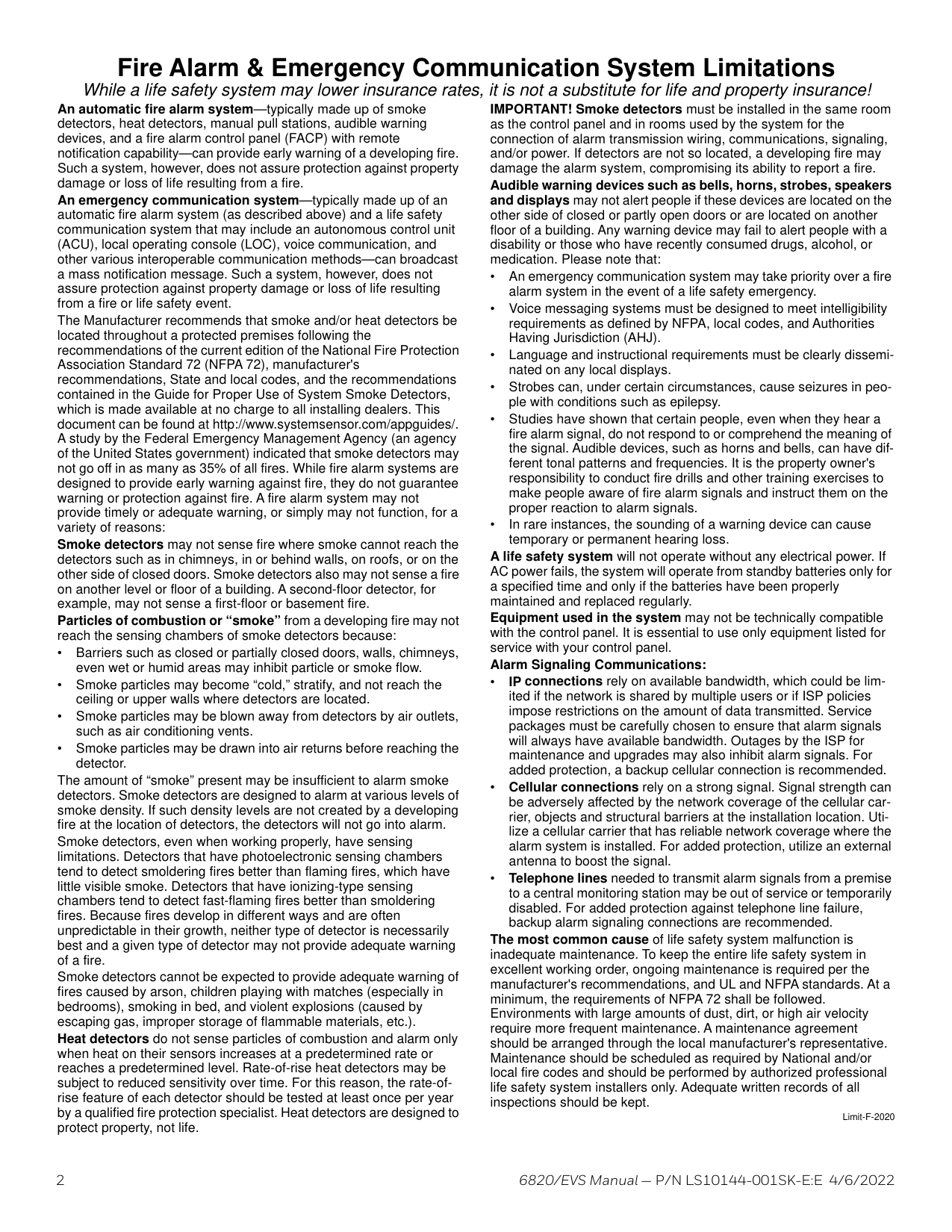
2 6820/EVS Manual — P/N LS10144-001SK-E:E 4/6/2022 Fire Alarm & Emergency Communication System Limitations While a life safety system may lower insurance rates, it is not a substitute for life and property insurance! An automatic fire alarm system—typically made up of smoke detectors, heat detectors, manual pull stations, audible warning devices, and a fire alarm control panel (FACP) with remote notification capability—can provide early warning of a developing fire. Such a system, however, does not assure protection against property damage or loss of life resulting from a fire. An emergency communication system—typically made up of an automatic fire alarm system (as described above) and a life safety communication system that may include an autonomous control unit (ACU), local operating console (LOC), voice communication, and other various interoperable communication methods—can broadcast a mass notification message. Such a system, however, does not assure protection against property damage or loss of life resulting from a fire or life safety event. The Manufacturer recommends that smoke and/or heat detectors be located throughout a protected premises following the recommendations of the current edition of the National Fire Protection Association Standard 72 (NFPA 72), manufacturer's recommendations, State and local codes, and the recommendations contained in the Guide for Proper Use of System Smoke Detectors, which is made available at no charge to all installing dealers. This document can be found at http://www.systemsensor.com/appguides/. A study by the Federal Emergency Management Agency (an agency of the United States government) indicated that smoke detectors may not go off in as many as 35% of all fires. While fire alarm systems are designed to provide early warning against fire, they do not guarantee warning or protection against fire. A fire alarm system may not provide timely or adequate warning, or simply may not function, for a variety of reasons: Smoke detectors may not sense fire where smoke cannot reach the detectors such as in chimneys, in or behind walls, on roofs, or on the other side of closed doors. Smoke detectors also may not sense a fire on another level or floor of a building. A second-floor detector, for example, may not sense a first-floor or basement fire. Particles of combustion or “smoke” from a developing fire may not reach the sensing chambers of smoke detectors because: • Barriers such as closed or partially closed doors, walls, chimneys, even wet or humid areas may inhibit particle or smoke flow. • Smoke particles may become “cold,” stratify, and not reach the ceiling or upper walls where detectors are located. • Smoke particles may be blown away from detectors by air outlets, such as air conditioning vents. • Smoke particles may be drawn into air returns before reaching the detector. The amount of “smoke” present may be insufficient to alarm smoke detectors. Smoke detectors are designed to alarm at various levels of smoke density. If such density levels are not created by a developing fire at the location of detectors, the detectors will not go into alarm. Smoke detectors, even when working properly, have sensing limitations. Detectors that have photoelectronic sensing chambers tend to detect smoldering fires better than flaming fires, which have little visible smoke. Detectors that have ionizing-type sensing chambers tend to detect fast-flaming fires better than smoldering fires. Because fires develop in different ways and are often unpredictable in their growth, neither type of detector is necessarily best and a given type of detector may not provide adequate warning of a fire. Smoke detectors cannot be expected to provide adequate warning of fires caused by arson, children playing with matches (especially in bedrooms), smoking in bed, and violent explosions (caused by escaping gas, improper storage of flammable materials, etc.). Heat detectors do not sense particles of combustion and alarm only when heat on their sensors increases at a predetermined rate or reaches a predetermined level. Rate-of-rise heat detectors may be subject to reduced sensitivity over time. For this reason, the rate-of- rise feature of each detector should be tested at least once per year by a qualified fire protection specialist. Heat detectors are designed to protect property, not life. IMPORTANT! Smoke detectors must be installed in the same room as the control panel and in rooms used by the system for the connection of alarm transmission wiring, communications, signaling, and/or power. If detectors are not so located, a developing fire may damage the alarm system, compromising its ability to report a fire. Audible warning devices such as bells, horns, strobes, speakers and displays may not alert people if these devices are located on the other side of closed or partly open doors or are located on another floor of a building. Any warning device may fail to alert people with a disability or those who have recently consumed drugs, alcohol, or medication. Please note that: • An emergency communication system may take priority over a fire alarm system in the event of a life safety emergency. • Voice messaging systems must be designed to meet intelligibility requirements as defined by NFPA, local codes, and Authorities Having Jurisdiction (AHJ). • Language and instructional requirements must be clearly dissemi- nated on any local displays. • Strobes can, under certain circumstances, cause seizures in peo- ple with conditions such as epilepsy. • Studies have shown that certain people, even when they hear a fire alarm signal, do not respond to or comprehend the meaning of the signal. Audible devices, such as horns and bells, can have dif- ferent tonal patterns and frequencies. It is the property owner's responsibility to conduct fire drills and other training exercises to make people aware of fire alarm signals and instruct them on the proper reaction to alarm signals. • In rare instances, the sounding of a warning device can cause temporary or permanent hearing loss. A life safety system will not operate without any electrical power. If AC power fails, the system will operate from standby batteries only for a specified time and only if the batteries have been properly maintained and replaced regularly. Equipment used in the system may not be technically compatible with the control panel. It is essential to use only equipment listed for service with your control panel. Alarm Signaling Communications: • IP connections rely on available bandwidth, which could be lim- ited if the network is shared by multiple users or if ISP policies impose restrictions on the amount of data transmitted. Service packages must be carefully chosen to ensure that alarm signals will always have available bandwidth. Outages by the ISP for maintenance and upgrades may also inhibit alarm signals. For added protection, a backup cellular connection is recommended. • Cellular connections rely on a strong signal. Signal strength can be adversely affected by the network coverage of the cellular car- rier, objects and structural barriers at the installation location. Uti- lize a cellular carrier that has reliable network coverage where the alarm system is installed. For added protection, utilize an external antenna to boost the signal. • Telephone lines needed to transmit alarm signals from a premise to a central monitoring station may be out of service or temporarily disabled. For added protection against telephone line failure, backup alarm signaling connections are recommended. The most common cause of life safety system malfunction is inadequate maintenance. To keep the entire life safety system in excellent working order, ongoing maintenance is required per the manufacturer's recommendations, and UL and NFPA standards. At a minimum, the requirements of NFPA 72 shall be followed. Environments with large amounts of dust, dirt, or high air velocity require more frequent maintenance. A maintenance agreement should be arranged through the local manufacturer's representative. Maintenance should be scheduled as required by National and/or local fire codes and should be performed by authorized professional life safety system installers only. Adequate written records of all inspections should be kept. Limit-F-2020
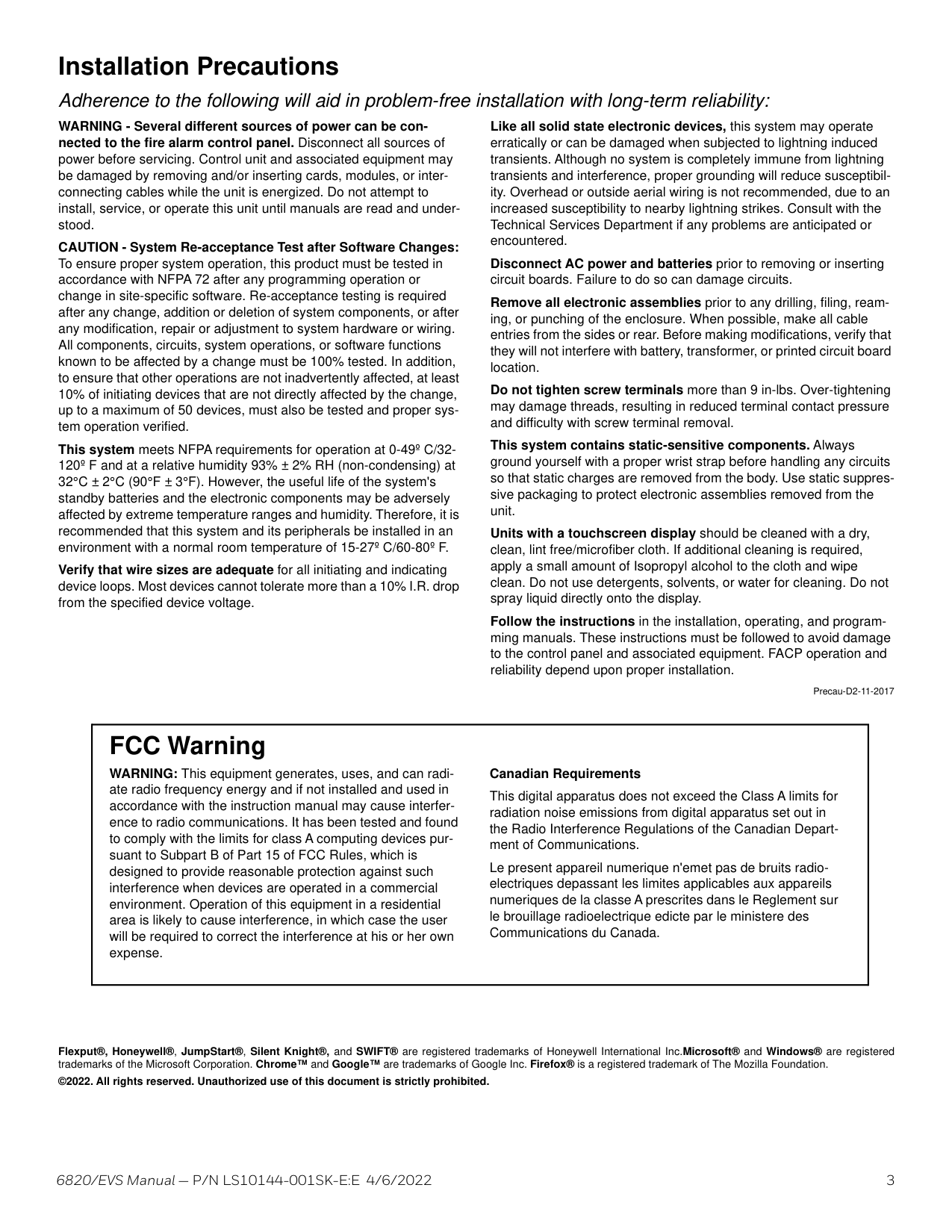
6820/EVS Manual — P/N LS10144-001SK-E:E 4/6/2022 3 Installation Precautions Adherence to the following will aid in problem-free installation with long-term reliability: WARNING - Several different sources of power can be con- nected to the fire alarm control panel. Disconnect all sources of power before servicing. Control unit and associated equipment may be damaged by removing and/or inserting cards, modules, or inter- connecting cables while the unit is energized. Do not attempt to install, service, or operate this unit until manuals are read and under- stood. CAUTION - System Re-acceptance Test after Software Changes: To ensure proper system operation, this product must be tested in accordance with NFPA 72 after any programming operation or change in site-specific software. Re-acceptance testing is required after any change, addition or deletion of system components, or after any modification, repair or adjustment to system hardware or wiring. All components, circuits, system operations, or software functions known to be affected by a change must be 100% tested. In addition, to ensure that other operations are not inadvertently affected, at least 10% of initiating devices that are not directly affected by the change, up to a maximum of 50 devices, must also be tested and proper sys- tem operation verified. This system meets NFPA requirements for operation at 0-49º C/32- 120º F and at a relative humidity 93% ± 2% RH (non-condensing) at 32°C ± 2°C (90°F ± 3°F). However, the useful life of the system's standby batteries and the electronic components may be adversely affected by extreme temperature ranges and humidity. Therefore, it is recommended that this system and its peripherals be installed in an environment with a normal room temperature of 15-27º C/60-80º F. Verify that wire sizes are adequate for all initiating and indicating device loops. Most devices cannot tolerate more than a 10% I.R. drop from the specified device voltage. Like all solid state electronic devices, this system may operate erratically or can be damaged when subjected to lightning induced transients. Although no system is completely immune from lightning transients and interference, proper grounding will reduce susceptibil- ity. Overhead or outside aerial wiring is not recommended, due to an increased susceptibility to nearby lightning strikes. Consult with the Technical Services Department if any problems are anticipated or encountered. Disconnect AC power and batteries prior to removing or inserting circuit boards. Failure to do so can damage circuits. Remove all electronic assemblies prior to any drilling, filing, ream- ing, or punching of the enclosure. When possible, make all cable entries from the sides or rear. Before making modifications, verify that they will not interfere with battery, transformer, or printed circuit board location. Do not tighten screw terminals more than 9 in-lbs. Over-tightening may damage threads, resulting in reduced terminal contact pressure and difficulty with screw terminal removal. This system contains static-sensitive components. Always ground yourself with a proper wrist strap before handling any circuits so that static charges are removed from the body. Use static suppres- sive packaging to protect electronic assemblies removed from the unit. Units with a touchscreen display should be cleaned with a dry, clean, lint free/microfiber cloth. If additional cleaning is required, apply a small amount of Isopropyl alcohol to the cloth and wipe clean. Do not use detergents, solvents, or water for cleaning. Do not spray liquid directly onto the display. Follow the instructions in the installation, operating, and program- ming manuals. These instructions must be followed to avoid damage to the control panel and associated equipment. FACP operation and reliability depend upon proper installation. Precau-D2-11-2017 FCC Warning WARNING: This equipment generates, uses, and can radi- ate radio frequency energy and if not installed and used in accordance with the instruction manual may cause interfer- ence to radio communications. It has been tested and found to comply with the limits for class A computing devices pur- suant to Subpart B of Part 15 of FCC Rules, which is designed to provide reasonable protection against such interference when devices are operated in a commercial environment. Operation of this equipment in a residential area is likely to cause interference, in which case the user will be required to correct the interference at his or her own expense. Canadian Requirements This digital apparatus does not exceed the Class A limits for radiation noise emissions from digital apparatus set out in the Radio Interference Regulations of the Canadian Depart- ment of Communications. Le present appareil numerique n'emet pas de bruits radio- electriques depassant les limites applicables aux appareils numeriques de la classe A prescrites dans le Reglement sur le brouillage radioelectrique edicte par le ministere des Communications du Canada. Flexput®, Honeywell®, JumpStart®, Silent Knight®, and SWIFT® are registered trademarks of Honeywell International Inc.Microsoft® and Windows® are registered trademarks of the Microsoft Corporation. Chrome™ and Google™ are trademarks of Google Inc. Firefox® is a registered trademark of The Mozilla Foundation. ©2022. All rights reserved. Unauthorized use of this document is strictly prohibited.
4 6820/EVS Manual — P/N LS10144-001SK-E:E 4/6/2022 Software Downloads In order to supply the latest features and functionality in fire alarm and life safety technology to our customers, we make frequent upgrades to the embedded software in our products. To ensure that you are installing and programming the latest features, we strongly recommend that you download the most current version of software for each product prior to commissioning any system. Contact Technical Support with any questions about software and the appropriate version for a specific application. Documentation Feedback Your feedback helps us keep our documentation up-to-date and accurate. If you have any comments or suggestions about our online Help or printed manuals, you can email us. Please include the following information: • Product name and version number (if applicable) • Printed manual or online Help • Topic Title (for online Help) • Page number (for printed manual) • Brief description of content you think should be improved or corrected • Your suggestion for how to correct/improve documentation Send email messages to: FireSystems.TechPubs@honeywell.com Please note this email address is for documentation feedback only. If you have any technical issues, please contact Technical Services. This symbol (shown left) on the product(s) and / or accompanying documents means that used electrical and electronic products should not be mixed with general household waste. For proper treatment, recovery and recycling, contact your local authorities or dealer and ask for the correct method of disposal. Electrical and electronic equipment contains materials, parts and substances, which can be dangerous to the environment and harmful to human health if the waste of electrical and electronic equipment (WEEE) is not disposed of correctly.
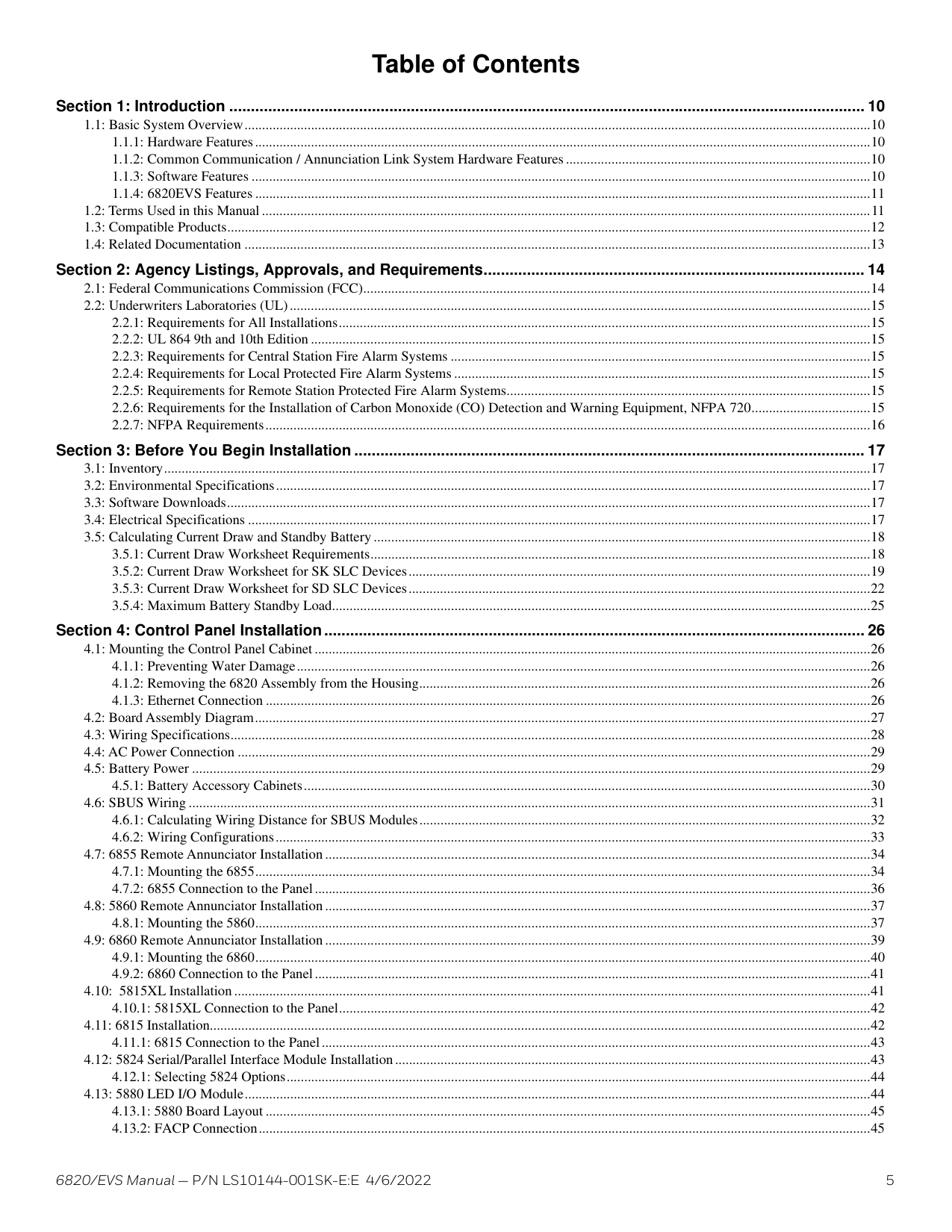
6820/EVS Manual — P/N LS10144-001SK-E:E 4/6/2022 5 Table of Contents Section 1: Introduction ................................................................................................................................................... 10 1.1: Basic System Overview...................................................................................................................................................................................10 1.1.1: Hardware Features................................................................................................................................................................................10 1.1.2: Common Communication / Annunciation Link System Hardware Features .......................................................................................10 1.1.3: Software Features .................................................................................................................................................................................10 1.1.4: 6820EVS Features ................................................................................................................................................................................11 1.2: Terms Used in this Manual ..............................................................................................................................................................................11 1.3: Compatible Products........................................................................................................................................................................................12 1.4: Related Documentation ...................................................................................................................................................................................13 Section 2: Agency Listings, Approvals, and Requirements........................................................................................ 14 2.1: Federal Communications Commission (FCC).................................................................................................................................................14 2.2: Underwriters Laboratories (UL)......................................................................................................................................................................15 2.2.1: Requirements for All Installations........................................................................................................................................................15 2.2.2: UL 864 9th and 10th Edition ................................................................................................................................................................15 2.2.3: Requirements for Central Station Fire Alarm Systems ........................................................................................................................15 2.2.4: Requirements for Local Protected Fire Alarm Systems .......................................................................................................................15 2.2.5: Requirements for Remote Station Protected Fire Alarm Systems........................................................................................................15 2.2.6: Requirements for the Installation of Carbon Monoxide (CO) Detection and Warning Equipment, NFPA 720..................................15 2.2.7: NFPA Requirements.............................................................................................................................................................................16 Section 3: Before You Begin Installation ...................................................................................................................... 17 3.1: Inventory..........................................................................................................................................................................................................17 3.2: Environmental Specifications..........................................................................................................................................................................17 3.3: Software Downloads........................................................................................................................................................................................17 3.4: Electrical Specifications ..................................................................................................................................................................................17 3.5: Calculating Current Draw and Standby Battery ..............................................................................................................................................18 3.5.1: Current Draw Worksheet Requirements...............................................................................................................................................18 3.5.2: Current Draw Worksheet for SK SLC Devices....................................................................................................................................19 3.5.3: Current Draw Worksheet for SD SLC Devices....................................................................................................................................22 3.5.4: Maximum Battery Standby Load..........................................................................................................................................................25 Section 4: Control Panel Installation............................................................................................................................. 26 4.1: Mounting the Control Panel Cabinet ...............................................................................................................................................................26 4.1.1: Preventing Water Damage....................................................................................................................................................................26 4.1.2: Removing the 6820 Assembly from the Housing.................................................................................................................................26 4.1.3: Ethernet Connection .............................................................................................................................................................................26 4.2: Board Assembly Diagram................................................................................................................................................................................27 4.3: Wiring Specifications.......................................................................................................................................................................................28 4.4: AC Power Connection .....................................................................................................................................................................................29 4.5: Battery Power ..................................................................................................................................................................................................29 4.5.1: Battery Accessory Cabinets..................................................................................................................................................................30 4.6: SBUS Wiring ...................................................................................................................................................................................................31 4.6.1: Calculating Wiring Distance for SBUS Modules.................................................................................................................................32 4.6.2: Wiring Configurations..........................................................................................................................................................................33 4.7: 6855 Remote Annunciator Installation ............................................................................................................................................................34 4.7.1: Mounting the 6855................................................................................................................................................................................34 4.7.2: 6855 Connection to the Panel...............................................................................................................................................................36 4.8: 5860 Remote Annunciator Installation ............................................................................................................................................................37 4.8.1: Mounting the 5860................................................................................................................................................................................37 4.9: 6860 Remote Annunciator Installation ............................................................................................................................................................39 4.9.1: Mounting the 6860................................................................................................................................................................................40 4.9.2: 6860 Connection to the Panel...............................................................................................................................................................41 4.10: 5815XL Installation ......................................................................................................................................................................................41 4.10.1: 5815XL Connection to the Panel........................................................................................................................................................42 4.11: 6815 Installation.............................................................................................................................................................................................42 4.11.1: 6815 Connection to the Panel.............................................................................................................................................................43 4.12: 5824 Serial/Parallel Interface Module Installation........................................................................................................................................43 4.12.1: Selecting 5824 Options.......................................................................................................................................................................44 4.13: 5880 LED I/O Module...................................................................................................................................................................................44 4.13.1: 5880 Board Layout .............................................................................................................................................................................45 4.13.2: FACP Connection...............................................................................................................................................................................45
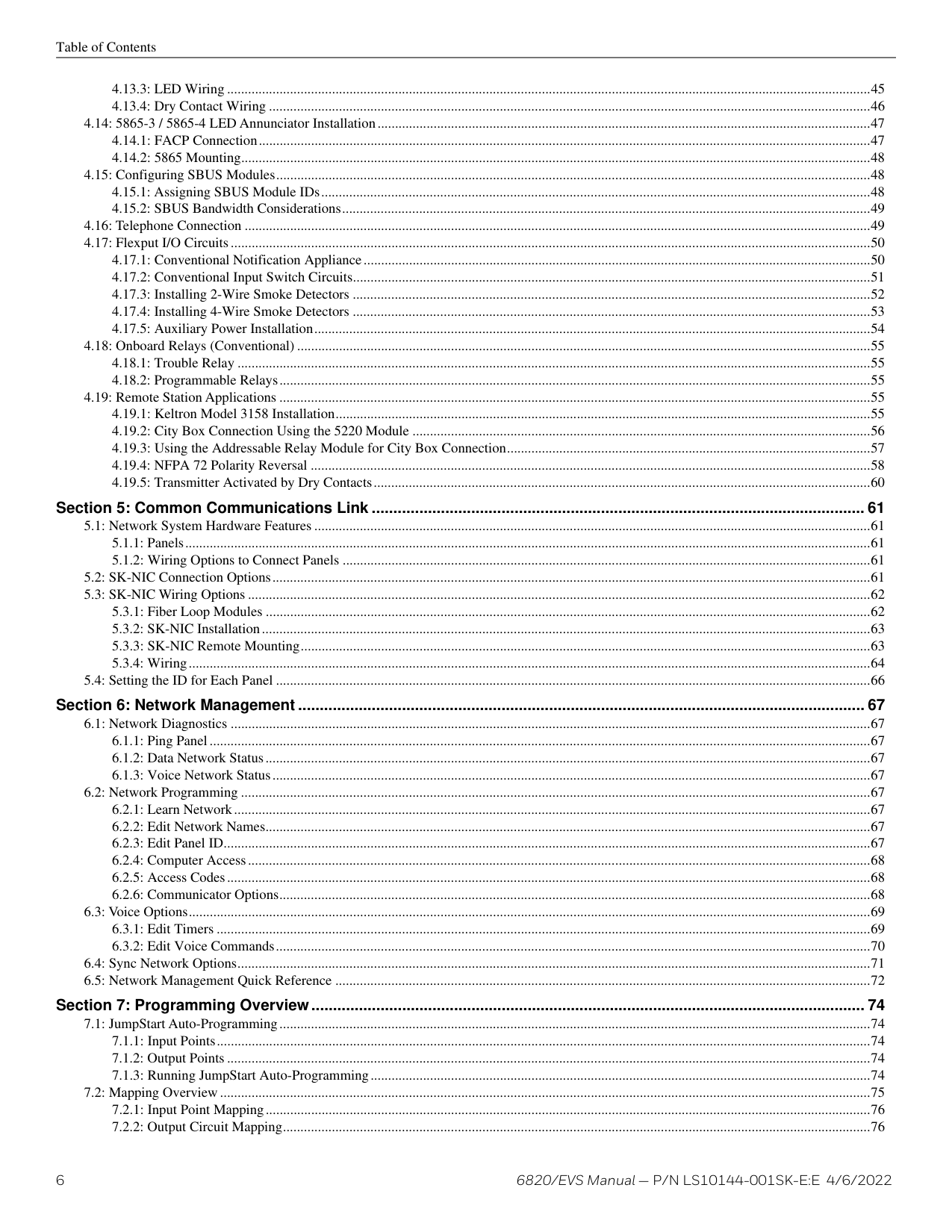
6 6820/EVS Manual — P/N LS10144-001SK-E:E 4/6/2022 Table of Contents 4.13.3: LED Wiring ........................................................................................................................................................................................45 4.13.4: Dry Contact Wiring ............................................................................................................................................................................46 4.14: 5865-3 / 5865-4 LED Annunciator Installation.............................................................................................................................................47 4.14.1: FACP Connection...............................................................................................................................................................................47 4.14.2: 5865 Mounting....................................................................................................................................................................................48 4.15: Configuring SBUS Modules..........................................................................................................................................................................48 4.15.1: Assigning SBUS Module IDs.............................................................................................................................................................48 4.15.2: SBUS Bandwidth Considerations.......................................................................................................................................................49 4.16: Telephone Connection ...................................................................................................................................................................................49 4.17: Flexput I/O Circuits .......................................................................................................................................................................................50 4.17.1: Conventional Notification Appliance.................................................................................................................................................50 4.17.2: Conventional Input Switch Circuits....................................................................................................................................................51 4.17.3: Installing 2-Wire Smoke Detectors ....................................................................................................................................................52 4.17.4: Installing 4-Wire Smoke Detectors ....................................................................................................................................................53 4.17.5: Auxiliary Power Installation...............................................................................................................................................................54 4.18: Onboard Relays (Conventional) ....................................................................................................................................................................55 4.18.1: Trouble Relay .....................................................................................................................................................................................55 4.18.2: Programmable Relays.........................................................................................................................................................................55 4.19: Remote Station Applications .........................................................................................................................................................................55 4.19.1: Keltron Model 3158 Installation.........................................................................................................................................................55 4.19.2: City Box Connection Using the 5220 Module ...................................................................................................................................56 4.19.3: Using the Addressable Relay Module for City Box Connection........................................................................................................57 4.19.4: NFPA 72 Polarity Reversal ................................................................................................................................................................58 4.19.5: Transmitter Activated by Dry Contacts..............................................................................................................................................60 Section 5: Common Communications Link .................................................................................................................. 61 5.1: Network System Hardware Features ...............................................................................................................................................................61 5.1.1: Panels....................................................................................................................................................................................................61 5.1.2: Wiring Options to Connect Panels .......................................................................................................................................................61 5.2: SK-NIC Connection Options...........................................................................................................................................................................61 5.3: SK-NIC Wiring Options ..................................................................................................................................................................................62 5.3.1: Fiber Loop Modules .............................................................................................................................................................................62 5.3.2: SK-NIC Installation..............................................................................................................................................................................63 5.3.3: SK-NIC Remote Mounting...................................................................................................................................................................63 5.3.4: Wiring...................................................................................................................................................................................................64 5.4: Setting the ID for Each Panel ..........................................................................................................................................................................66 Section 6: Network Management ................................................................................................................................... 67 6.1: Network Diagnostics .......................................................................................................................................................................................67 6.1.1: Ping Panel.............................................................................................................................................................................................67 6.1.2: Data Network Status.............................................................................................................................................................................67 6.1.3: Voice Network Status...........................................................................................................................................................................67 6.2: Network Programming ....................................................................................................................................................................................67 6.2.1: Learn Network......................................................................................................................................................................................67 6.2.2: Edit Network Names.............................................................................................................................................................................67 6.2.3: Edit Panel ID.........................................................................................................................................................................................67 6.2.4: Computer Access..................................................................................................................................................................................68 6.2.5: Access Codes........................................................................................................................................................................................68 6.2.6: Communicator Options.........................................................................................................................................................................68 6.3: Voice Options...................................................................................................................................................................................................69 6.3.1: Edit Timers ...........................................................................................................................................................................................69 6.3.2: Edit Voice Commands..........................................................................................................................................................................70 6.4: Sync Network Options.....................................................................................................................................................................................71 6.5: Network Management Quick Reference .........................................................................................................................................................72 Section 7: Programming Overview................................................................................................................................ 74 7.1: JumpStart Auto-Programming.........................................................................................................................................................................74 7.1.1: Input Points...........................................................................................................................................................................................74 7.1.2: Output Points ........................................................................................................................................................................................74 7.1.3: Running JumpStart Auto-Programming...............................................................................................................................................74 7.2: Mapping Overview ..........................................................................................................................................................................................75 7.2.1: Input Point Mapping.............................................................................................................................................................................76 7.2.2: Output Circuit Mapping........................................................................................................................................................................76

6820/EVS Manual — P/N LS10144-001SK-E:E 4/6/2022 7 Table of Contents 7.2.3: Event Mapping.....................................................................................................................................................................................77 7.2.4: Mapping LED Points............................................................................................................................................................................78 7.3: Programming Using the HFSS Software Suite................................................................................................................................................78 7.4: Programming Using an Annunciator ...............................................................................................................................................................79 7.4.1: Entering / Exiting Panel Programming.................................................................................................................................................79 7.5: Programming Menu Quick Reference.............................................................................................................................................................80 Section 8: Programming................................................................................................................................................. 90 8.1: UL 864 / UL 2572 Programming Requirements..............................................................................................................................................90 8.2: Modules ...........................................................................................................................................................................................................90 8.2.1: Edit Modules.........................................................................................................................................................................................90 8.2.2: Adding a Module..................................................................................................................................................................................91 8.2.3: Deleting a Module ................................................................................................................................................................................91 8.2.4: View Module List.................................................................................................................................................................................91 8.3: Zone .................................................................................................................................................................................................................92 8.3.1: Edit Zone ..............................................................................................................................................................................................92 8.3.2: View Zone Points .................................................................................................................................................................................94 8.4: Group ...............................................................................................................................................................................................................94 8.4.1: Edit Group ............................................................................................................................................................................................94 8.4.2: View Group Points ...............................................................................................................................................................................95 8.4.3: Edit OPG Template...............................................................................................................................................................................95 8.5: Point.................................................................................................................................................................................................................95 8.5.1: Point Programming For 5815XL Module.............................................................................................................................................95 8.5.2: Point Programming For 6815 Module..................................................................................................................................................97 8.5.3: Point Programming For Internal or External Power Module (5895XL) ............................................................................................100 8.5.4: Point Programming for 5880/5865 Modules ......................................................................................................................................101 8.5.5: Point Programming for the 5496 ........................................................................................................................................................101 8.5.6: Point Programming for EVS Amplifiers ............................................................................................................................................102 8.5.7: Point Programming for EVS-VCM, and EVS-RVM .........................................................................................................................102 8.6: System Options..............................................................................................................................................................................................104 8.6.1: Communication Options.....................................................................................................................................................................104 8.6.2: Time Options ......................................................................................................................................................................................106 8.6.3: Miscellaneous Options........................................................................................................................................................................107 8.6.4: Daylight Saving Options.....................................................................................................................................................................108 8.6.5: Edit Banner .........................................................................................................................................................................................108 8.6.6: SLC Family.........................................................................................................................................................................................108 8.6.7: JumpStart Auto-Programming............................................................................................................................................................109 8.7: Restore Defaults.............................................................................................................................................................................................109 8.8: Voice Options.................................................................................................................................................................................................109 8.8.1: VCM Maintenance..............................................................................................................................................................................109 8.8.2: Voice Settings.....................................................................................................................................................................................109 Section 9: System Operation........................................................................................................................................ 110 9.1: Annunciator Description................................................................................................................................................................................110 9.1.1: LCD Display.......................................................................................................................................................................................111 9.1.2: Banner.................................................................................................................................................................................................112 9.2: Menu System ................................................................................................................................................................................................112 9.2.1: Panel Login Menu...............................................................................................................................................................................112 9.2.2: Main Menu Overview.........................................................................................................................................................................113 9.2.3: Using the Menus.................................................................................................................................................................................114 9.3: Basic Operation .............................................................................................................................................................................................114 9.3.1: Setting Time and Date ........................................................................................................................................................................114 9.3.2: Disable / Enable a Point......................................................................................................................................................................114 9.3.3: View Event History ............................................................................................................................................................................114 9.3.4: Conduct a Fire Drill............................................................................................................................................................................115 9.3.5: Conduct an Indicator Test...................................................................................................................................................................115 9.3.6: Conduct a Walk Test ..........................................................................................................................................................................115 9.3.7: Conduct a Communicator Test...........................................................................................................................................................115 9.3.8: Manual AlarmNet Registration...........................................................................................................................................................115 9.3.9: Silence Alarms or Troubles ................................................................................................................................................................115 9.3.10: Reset Alarms.....................................................................................................................................................................................116 9.3.11: Check Detector Sensitivity Through Point Status ...........................................................................................................................116 9.3.12: View Status of a Point ......................................................................................................................................................................118

8 6820/EVS Manual — P/N LS10144-001SK-E:E 4/6/2022 Table of Contents 9.3.13: View Alarms or Troubles .................................................................................................................................................................118 9.3.14: System Information .........................................................................................................................................................................118 9.4: Event Priority.................................................................................................................................................................................................119 9.4.1: System Control ...................................................................................................................................................................................119 9.4.2: System Override .................................................................................................................................................................................119 9.4.3: Event Priority......................................................................................................................................................................................119 9.4.4: Priority Rules......................................................................................................................................................................................120 9.4.5: Other Priority Considerations.............................................................................................................................................................120 9.5: Operation Mode Behavior .............................................................................................................................................................................120 9.5.1: Multi-Site Annunciator and Multi-Site User Access..........................................................................................................................123 9.6: Releasing Operations.....................................................................................................................................................................................123 9.6.1: Single Interlock Zone Releasing.........................................................................................................................................................124 9.6.2: Double Interlock Zone Releasing .......................................................................................................................................................124 9.7: Smoke Alarm Verification .............................................................................................................................................................................125 9.8: Function Keys...............................................................................................................................................................................................125 9.8.1: Recording an F-Key Macro ................................................................................................................................................................125 9.8.2: Aborting an F-Key Macro Recording Session....................................................................................................................................125 9.8.3: Erasing an F-Key Macro.....................................................................................................................................................................125 9.8.4: Using a Recorded F-Key Macro.........................................................................................................................................................126 9.8.5: F-Key Status Event.............................................................................................................................................................................126 9.8.6: F-Key Map Inhibit..............................................................................................................................................................................126 Section 10: Emergency Voice System Operation....................................................................................................... 127 10.1: Overview......................................................................................................................................................................................................127 10.2: LOC Functionality.......................................................................................................................................................................................127 10.2.1: Keys and LEDs.................................................................................................................................................................................127 10.2.2: Gaining EVS Control........................................................................................................................................................................128 10.2.3: Manual EVS......................................................................................................................................................................................128 10.2.4: Fire Page Mode.................................................................................................................................................................................129 10.2.5: Message Mode..................................................................................................................................................................................129 10.2.6: Custom EVS Event...........................................................................................................................................................................130 10.2.7: Passing EVS Control ........................................................................................................................................................................130 10.2.8: Exit EVS Control Menu....................................................................................................................................................................130 10.2.9: Relinquish EVS Control ...................................................................................................................................................................131 10.2.10: EVS Reset.......................................................................................................................................................................................131 10.3: EVS Super User...........................................................................................................................................................................................131 10.4: EVS Point Functionality..............................................................................................................................................................................131 10.4.1: EVS Point Activations......................................................................................................................................................................131 10.4.2: EVS-VCM and EVS-RVM Points....................................................................................................................................................131 10.5: Amplifier Programming...............................................................................................................................................................................131 10.5.1: Adding an Amplifier.........................................................................................................................................................................131 10.5.2: Editing an Amplifier.........................................................................................................................................................................132 10.6: LOC Programming ......................................................................................................................................................................................132 10.6.1: Adding an LOC.................................................................................................................................................................................132 10.6.2: Editing an LOC.................................................................................................................................................................................132 10.7: Using the Microphone .................................................................................................................................................................................133 10.7.1: Microphone Functionality ................................................................................................................................................................133 10.7.2: Custom EVS Event...........................................................................................................................................................................133 10.7.3: Fire Page ...........................................................................................................................................................................................133 10.7.4: Emergency Page ...............................................................................................................................................................................133 10.7.5: Paging ...............................................................................................................................................................................................133 10.8: Recording Custom Messages.......................................................................................................................................................................133 10.8.1: Recording Messages 1-15 Using Aux Audio Input..........................................................................................................................134 10.8.2: Recording Messages 1-15 Using the Microphone............................................................................................................................135 10.8.3: Erasing User Message.......................................................................................................................................................................136 10.8.4: Using HFSS Voice Message Load Software....................................................................................................................................136 Section 11: Reporting ................................................................................................................................................... 138 11.1: Receivers Compatible with the Control Panel.............................................................................................................................................138 11.2: SIA - Panel PI Modifier Reporting ..............................................................................................................................................................147 11.3: SIA – Panel Communicator .........................................................................................................................................................................148
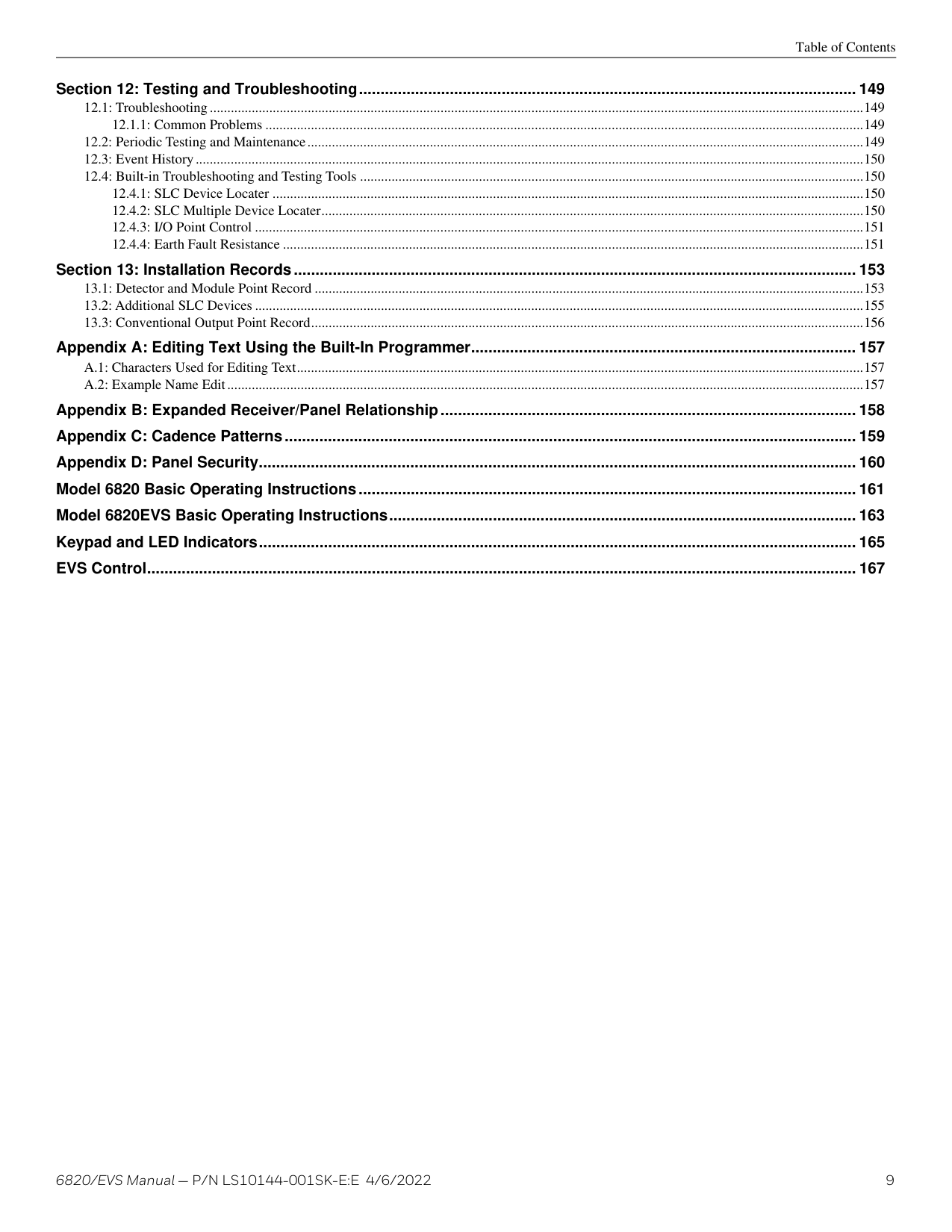
6820/EVS Manual — P/N LS10144-001SK-E:E 4/6/2022 9 Table of Contents Section 12: Testing and Troubleshooting................................................................................................................... 149 12.1: Troubleshooting ...........................................................................................................................................................................................149 12.1.1: Common Problems ...........................................................................................................................................................................149 12.2: Periodic Testing and Maintenance...............................................................................................................................................................149 12.3: Event History...............................................................................................................................................................................................150 12.4: Built-in Troubleshooting and Testing Tools ................................................................................................................................................150 12.4.1: SLC Device Locater .........................................................................................................................................................................150 12.4.2: SLC Multiple Device Locater...........................................................................................................................................................150 12.4.3: I/O Point Control ..............................................................................................................................................................................151 12.4.4: Earth Fault Resistance ......................................................................................................................................................................151 Section 13: Installation Records.................................................................................................................................. 153 13.1: Detector and Module Point Record .............................................................................................................................................................153 13.2: Additional SLC Devices ..............................................................................................................................................................................155 13.3: Conventional Output Point Record..............................................................................................................................................................156 Appendix A: Editing Text Using the Built-In Programmer......................................................................................... 157 A.1: Characters Used for Editing Text..................................................................................................................................................................157 A.2: Example Name Edit......................................................................................................................................................................................157 Appendix B: Expanded Receiver/Panel Relationship................................................................................................ 158 Appendix C: Cadence Patterns.................................................................................................................................... 159 Appendix D: Panel Security.......................................................................................................................................... 160 Model 6820 Basic Operating Instructions................................................................................................................... 161 Model 6820EVS Basic Operating Instructions............................................................................................................ 163 Keypad and LED Indicators.......................................................................................................................................... 165 EVS Control.................................................................................................................................................................... 167
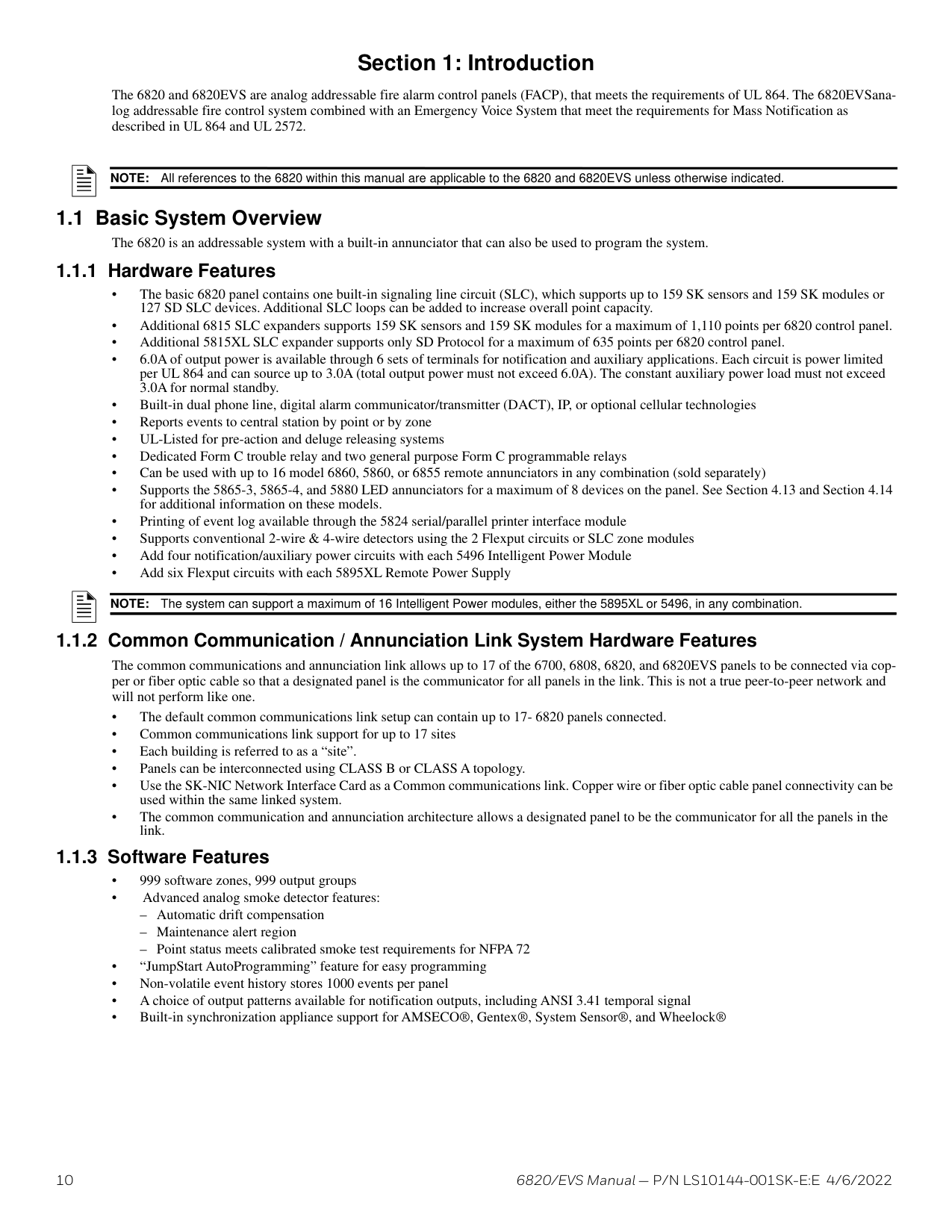
10 6820/EVS Manual — P/N LS10144-001SK-E:E 4/6/2022 Section 1: Introduction The 6820 and 6820EVS are analog addressable fire alarm control panels (FACP), that meets the requirements of UL 864. The 6820EVSana- log addressable fire control system combined with an Emergency Voice System that meet the requirements for Mass Notification as described in UL 864 and UL 2572.
1.1 Basic System Overview The 6820 is an addressable system with a built-in annunciator that can also be used to program the system. 1.1.1 Hardware Features • The basic 6820 panel contains one built-in signaling line circuit (SLC), which supports up to 159 SK sensors and 159 SK modules or 127 SD SLC devices. Additional SLC loops can be added to increase overall point capacity. • Additional 6815 SLC expanders supports 159 SK sensors and 159 SK modules for a maximum of 1,110 points per 6820 control panel. • Additional 5815XL SLC expander supports only SD Protocol for a maximum of 635 points per 6820 control panel. • 6.0A of output power is available through 6 sets of terminals for notification and auxiliary applications. Each circuit is power limited per UL 864 and can source up to 3.0A (total output power must not exceed 6.0A). The constant auxiliary power load must not exceed 3.0A for normal standby. • Built-in dual phone line, digital alarm communicator/transmitter (DACT), IP, or optional cellular technologies • Reports events to central station by point or by zone • UL-Listed for pre-action and deluge releasing systems • Dedicated Form C trouble relay and two general purpose Form C programmable relays • Can be used with up to 16 model 6860, 5860, or 6855 remote annunciators in any combination (sold separately) • Supports the 5865-3, 5865-4, and 5880 LED annunciators for a maximum of 8 devices on the panel. See Section 4.13 and Section 4.14 for additional information on these models. • Printing of event log available through the 5824 serial/parallel printer interface module • Supports conventional 2-wire & 4-wire detectors using the 2 Flexput circuits or SLC zone modules • Add four notification/auxiliary power circuits with each 5496 Intelligent Power Module • Add six Flexput circuits with each 5895XL Remote Power Supply 1.1.2 Common Communication / Annunciation Link System Hardware Features The common communications and annunciation link allows up to 17 of the 6700, 6808, 6820, and 6820EVS panels to be connected via cop- per or fiber optic cable so that a designated panel is the communicator for all panels in the link. This is not a true peer-to-peer network and will not perform like one. • The default common communications link setup can contain up to 17- 6820 panels connected. • Common communications link support for up to 17 sites • Each building is referred to as a “site”. • Panels can be interconnected using CLASS B or CLASS A topology. • Use the SK-NIC Network Interface Card as a Common communications link. Copper wire or fiber optic cable panel connectivity can be used within the same linked system. • The common communication and annunciation architecture allows a designated panel to be the communicator for all the panels in the link. 1.1.3 Software Features • 999 software zones, 999 output groups • Advanced analog smoke detector features: – Automatic drift compensation – Maintenance alert region – Point status meets calibrated smoke test requirements for NFPA 72 • “JumpStart AutoProgramming” feature for easy programming • Non-volatile event history stores 1000 events per panel • A choice of output patterns available for notification outputs, including ANSI 3.41 temporal signal • Built-in synchronization appliance support for AMSECO®, Gentex®, System Sensor®, and Wheelock®
Note:
All references to the 6820 within this manual are applicable to the 6820 and 6820EVS unless otherwise indicated.Note:
The system can support a maximum of 16 Intelligent Power modules, either the 5895XL or 5496, in any combination.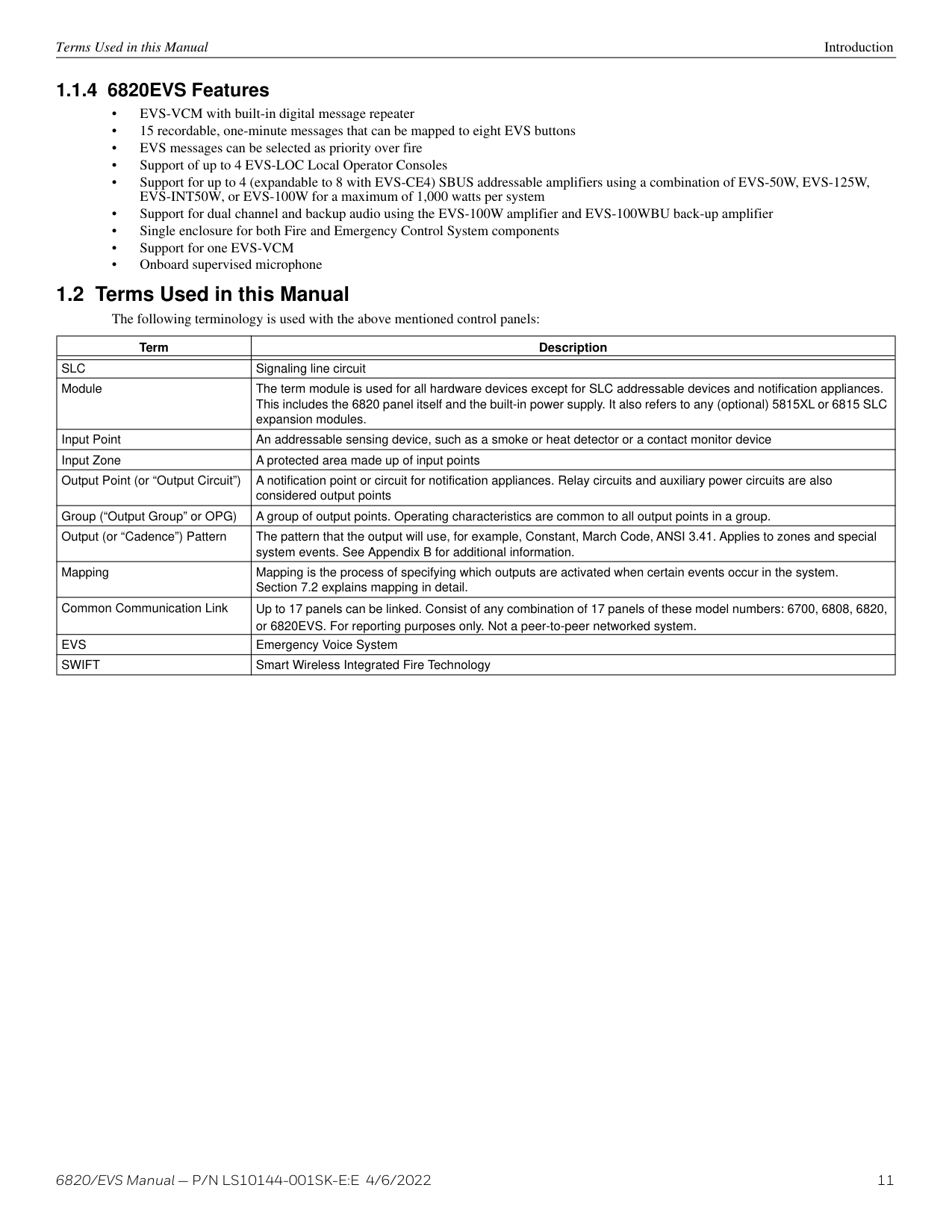
6820/EVS Manual — P/N LS10144-001SK-E:E 4/6/2022 11 Terms Used in this Manual Introduction 1.1.4 6820EVS Features • EVS-VCM with built-in digital message repeater • 15 recordable, one-minute messages that can be mapped to eight EVS buttons • EVS messages can be selected as priority over fire • Support of up to 4 EVS-LOC Local Operator Consoles • Support for up to 4 (expandable to 8 with EVS-CE4) SBUS addressable amplifiers using a combination of EVS-50W, EVS-125W, EVS-INT50W, or EVS-100W for a maximum of 1,000 watts per system • Support for dual channel and backup audio using the EVS-100W amplifier and EVS-100WBU back-up amplifier • Single enclosure for both Fire and Emergency Control System components • Support for one EVS-VCM • Onboard supervised microphone 1.2 Terms Used in this Manual The following terminology is used with the above mentioned control panels: Term Description
Slc
Signaling line circuit Module The term module is used for all hardware devices except for SLC addressable devices and notification appliances. This includes the 6820 panel itself and the built-in power supply. It also refers to any (optional) 5815XL or 6815 SLC expansion modules. Input Point An addressable sensing device, such as a smoke or heat detector or a contact monitor device Input Zone A protected area made up of input points Output Point (or “Output Circuit”) A notification point or circuit for notification appliances. Relay circuits and auxiliary power circuits are also considered output points Group (“Output Group” or OPG) A group of output points. Operating characteristics are common to all output points in a group. Output (or “Cadence”) Pattern The pattern that the output will use, for example, Constant, March Code, ANSI 3.41. Applies to zones and special system events. See Appendix B for additional information. Mapping Mapping is the process of specifying which outputs are activated when certain events occur in the system. Section 7.2 explains mapping in detail. Common Communication Link Up to 17 panels can be linked. Consist of any combination of 17 panels of these model numbers: 6700, 6808, 6820, or 6820EVS. For reporting purposes only. Not a peer-to-peer networked system.Evs
Emergency Voice SystemSwift
Smart Wireless Integrated Fire Technology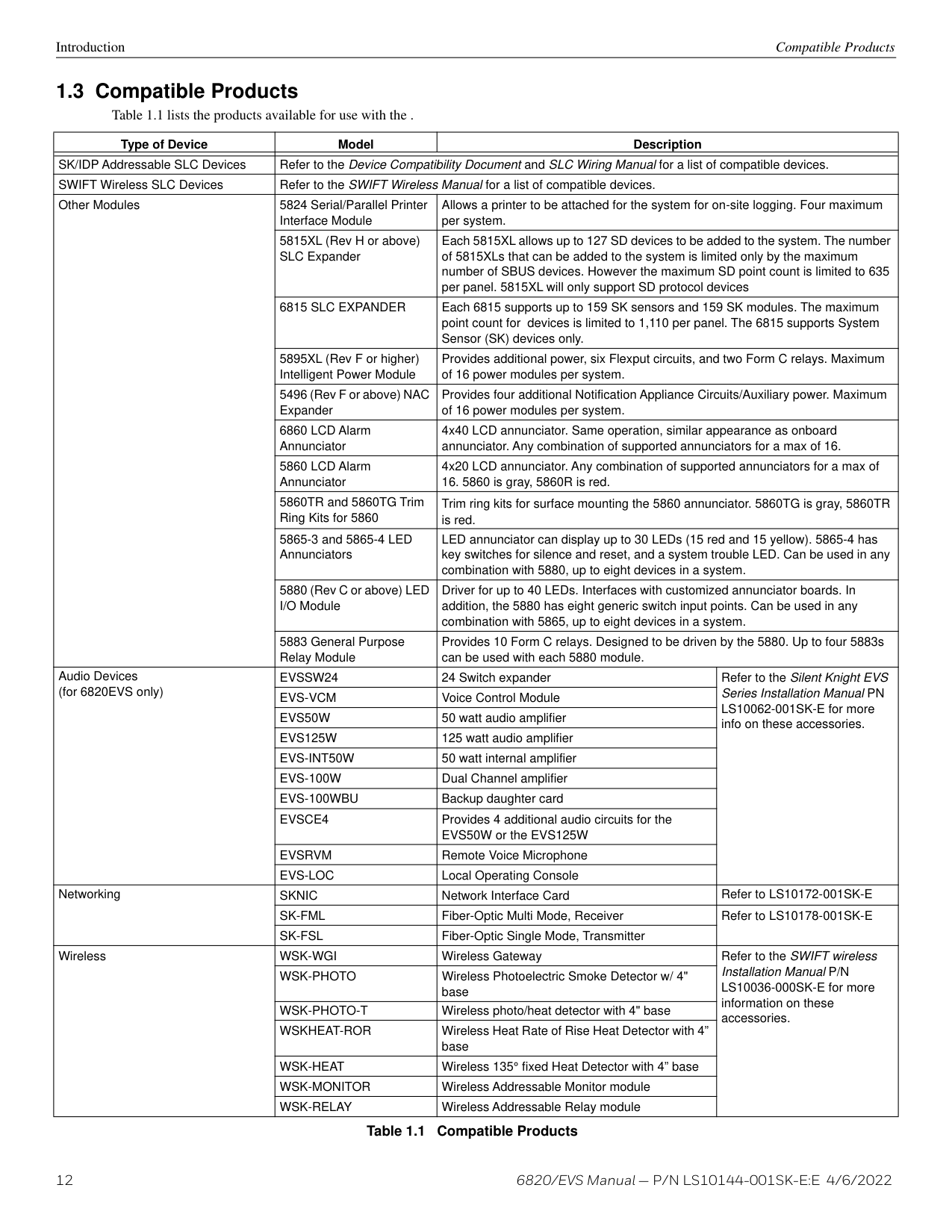
12 6820/EVS Manual — P/N LS10144-001SK-E:E 4/6/2022 Introduction Compatible Products 1.3 Compatible Products Table 1.1 lists the products available for use with the . Type of Device Model Description SK/IDP Addressable SLC Devices Refer to the Device Compatibility Document and SLC Wiring Manual for a list of compatible devices. SWIFT Wireless SLC Devices Refer to the SWIFT Wireless Manual for a list of compatible devices. Other Modules 5824 Serial/Parallel Printer Interface Module Allows a printer to be attached for the system for on-site logging. Four maximum per system. 5815XL (Rev H or above) SLC Expander Each 5815XL allows up to 127 SD devices to be added to the system. The number of 5815XLs that can be added to the system is limited only by the maximum number of SBUS devices. However the maximum SD point count is limited to 635 per panel. 5815XL will only support SD protocol devices
6815 Slc Expander
Each 6815 supports up to 159 SK sensors and 159 SK modules. The maximum point count for devices is limited to 1,110 per panel. The 6815 supports System Sensor (SK) devices only. 5895XL (Rev F or higher) Intelligent Power Module Provides additional power, six Flexput circuits, and two Form C relays. Maximum of 16 power modules per system. 5496 (Rev F or above) NAC Expander Provides four additional Notification Appliance Circuits/Auxiliary power. Maximum of 16 power modules per system. 6860 LCD Alarm Annunciator 4x40 LCD annunciator. Same operation, similar appearance as onboard annunciator. Any combination of supported annunciators for a max of 16. 5860 LCD Alarm Annunciator 4x20 LCD annunciator. Any combination of supported annunciators for a max ofEvssw24
24 Switch expander Refer to the Silent Knight EVS Series Installation Manual PN LS10062-001SK-E for more info on these accessories.Evs-Vcm
Voice Control ModuleEvs50W
50 watt audio amplifierEvs125W
125 watt audio amplifierEvs-Int50W
50 watt internal amplifierEvs-100W
Dual Channel amplifierEvs-100Wbu
Backup daughter cardEvsce4
Provides 4 additional audio circuits for the EVS50W or the EVS125WEvsrvm
Remote Voice MicrophoneEvs-Loc
Local Operating Console NetworkingSknic
Network Interface Card Refer to LS10172-001SK-ESk-Fml
Fiber-Optic Multi Mode, Receiver Refer to LS10178-001SK-ESk-Fsl
Fiber-Optic Single Mode, Transmitter WirelessWsk-Wgi
Wireless Gateway Refer to the SWIFT wireless Installation Manual P/N LS10036-000SK-E for more information on these accessories.Wsk-Photo
Wireless Photoelectric Smoke Detector w/ 4" baseWsk-Photo-T
Wireless photo/heat detector with 4" baseWskheat-Ror
Wireless Heat Rate of Rise Heat Detector with 4” baseWsk-Heat
Wireless 135° fixed Heat Detector with 4” baseWsk-Monitor
Wireless Addressable Monitor moduleWsk-Relay
Wireless Addressable Relay module Table 1.1 Compatible Products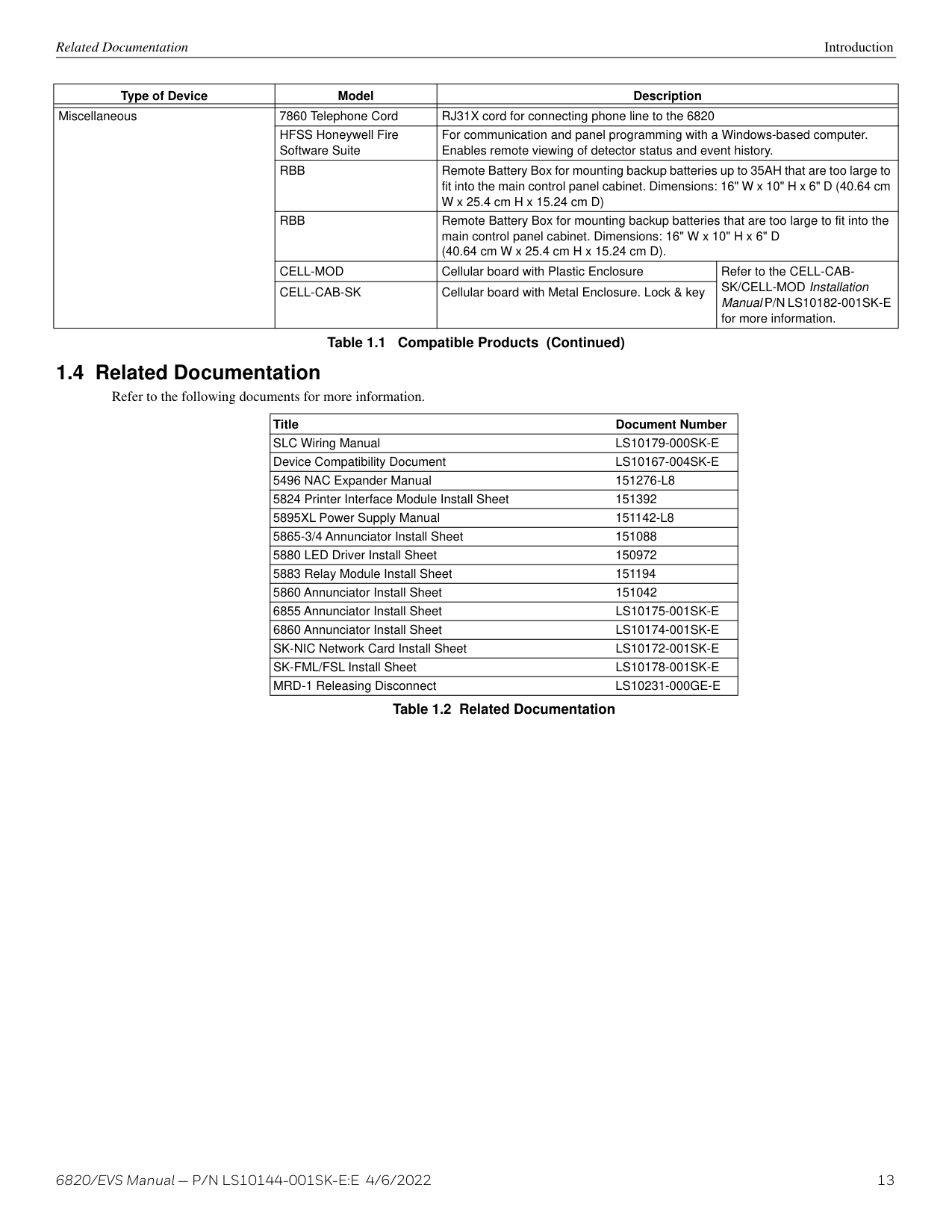
6820/EVS Manual — P/N LS10144-001SK-E:E 4/6/2022 13 Related Documentation Introduction 1.4 Related Documentation Refer to the following documents for more information. Miscellaneous 7860 Telephone Cord RJ31X cord for connecting phone line to the 6820 HFSS Honeywell Fire Software Suite For communication and panel programming with a Windows-based computer. Enables remote viewing of detector status and event history.
Rbb
Remote Battery Box for mounting backup batteries up to 35AH that are too large to fit into the main control panel cabinet. Dimensions: 16" W x 10" H x 6" D (40.64 cm W x 25.4 cm H x 15.24 cm D)Rbb
Remote Battery Box for mounting backup batteries that are too large to fit into the main control panel cabinet. Dimensions: 16" W x 10" H x 6" D (40.64 cm W x 25.4 cm H x 15.24 cm D).Cell-Mod
Cellular board with Plastic Enclosure Refer to the CELL-CAB- SK/CELL-MOD Installation Manual P/N LS10182-001SK-E for more information.Cell-Cab-Sk
Cellular board with Metal Enclosure. Lock & key Type of Device Model Description Table 1.1 Compatible Products (Continued) Title Document Number SLC Wiring ManualLs10179-000Sk-E
Device Compatibility DocumentLs10167-004Sk-E
5496 NAC Expander Manual151276-L8
5824 Printer Interface Module Install Sheet 151392 5895XL Power Supply Manual151142-L8
5865-3/4 Annunciator Install Sheet 151088 5880 LED Driver Install Sheet 150972 5883 Relay Module Install Sheet 151194 5860 Annunciator Install Sheet 151042 6855 Annunciator Install SheetLs10175-001Sk-E
6860 Annunciator Install SheetLs10174-001Sk-E
SK-NIC Network Card Install SheetLs10172-001Sk-E
SK-FML/FSL Install SheetLs10178-001Sk-E
MRD-1 Releasing DisconnectLs10231-000Ge-E
Table 1.2 Related Documentation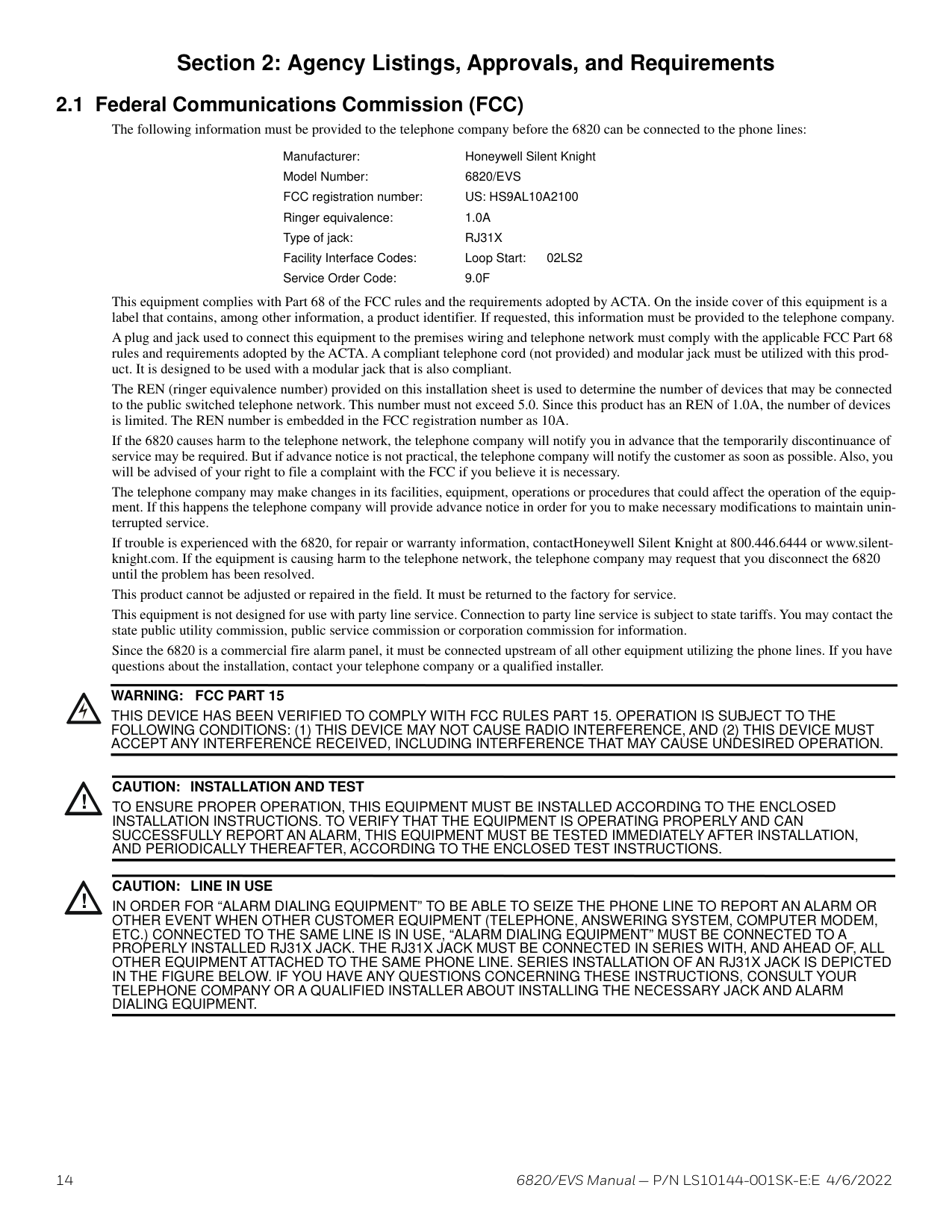
14 6820/EVS Manual — P/N LS10144-001SK-E:E 4/6/2022 Section 2: Agency Listings, Approvals, and Requirements 2.1 Federal Communications Commission (FCC) The following information must be provided to the telephone company before the 6820 can be connected to the phone lines: This equipment complies with Part 68 of the FCC rules and the requirements adopted by ACTA. On the inside cover of this equipment is a label that contains, among other information, a product identifier. If requested, this information must be provided to the telephone company. A plug and jack used to connect this equipment to the premises wiring and telephone network must comply with the applicable FCC Part 68 rules and requirements adopted by the ACTA. A compliant telephone cord (not provided) and modular jack must be utilized with this prod- uct. It is designed to be used with a modular jack that is also compliant. The REN (ringer equivalence number) provided on this installation sheet is used to determine the number of devices that may be connected to the public switched telephone network. This number must not exceed 5.0. Since this product has an REN of 1.0A, the number of devices is limited. The REN number is embedded in the FCC registration number as 10A. If the 6820 causes harm to the telephone network, the telephone company will notify you in advance that the temporarily discontinuance of service may be required. But if advance notice is not practical, the telephone company will notify the customer as soon as possible. Also, you will be advised of your right to file a complaint with the FCC if you believe it is necessary. The telephone company may make changes in its facilities, equipment, operations or procedures that could affect the operation of the equip- ment. If this happens the telephone company will provide advance notice in order for you to make necessary modifications to maintain unin- terrupted service. If trouble is experienced with the 6820, for repair or warranty information, contactHoneywell Silent Knight at 800.446.6444 or www.silent- knight.com. If the equipment is causing harm to the telephone network, the telephone company may request that you disconnect the 6820 until the problem has been resolved. This product cannot be adjusted or repaired in the field. It must be returned to the factory for service. This equipment is not designed for use with party line service. Connection to party line service is subject to state tariffs. You may contact the state public utility commission, public service commission or corporation commission for information. Since the 6820 is a commercial fire alarm panel, it must be connected upstream of all other equipment utilizing the phone lines. If you have questions about the installation, contact your telephone company or a qualified installer. Manufacturer: Honeywell Silent Knight Model Number:
6820/Evs
FCC registration number:Us: Hs9Al10A2100
Ringer equivalence:1.0A
Type of jack:Rj31X
Facility Interface Codes: Loop Start: 02LS2 Service Order Code:9.0F
!Warning:
Fcc Part 15
THIS DEVICE HAS BEEN VERIFIED TO COMPLY WITH FCC RULES PART 15. OPERATION IS SUBJECT TO THE FOLLOWING CONDITIONS: (1) THIS DEVICE MAY NOT CAUSE RADIO INTERFERENCE, AND (2) THIS DEVICE MUST ACCEPT ANY INTERFERENCE RECEIVED, INCLUDING INTERFERENCE THAT MAY CAUSE UNDESIRED OPERATION. !Caution: Installation And Test
TO ENSURE PROPER OPERATION, THIS EQUIPMENT MUST BE INSTALLED ACCORDING TO THE ENCLOSED INSTALLATION INSTRUCTIONS. TO VERIFY THAT THE EQUIPMENT IS OPERATING PROPERLY AND CAN SUCCESSFULLY REPORT AN ALARM, THIS EQUIPMENT MUST BE TESTED IMMEDIATELY AFTER INSTALLATION,And Periodically Thereafter, According To The Enclosed Test Instructions.
!Caution: Line In Use
IN ORDER FOR “ALARM DIALING EQUIPMENT” TO BE ABLE TO SEIZE THE PHONE LINE TO REPORT AN ALARM OR OTHER EVENT WHEN OTHER CUSTOMER EQUIPMENT (TELEPHONE, ANSWERING SYSTEM, COMPUTER MODEM, ETC.) CONNECTED TO THE SAME LINE IS IN USE, “ALARM DIALING EQUIPMENT” MUST BE CONNECTED TO A PROPERLY INSTALLED RJ31X JACK. THE RJ31X JACK MUST BE CONNECTED IN SERIES WITH, AND AHEAD OF, ALL OTHER EQUIPMENT ATTACHED TO THE SAME PHONE LINE. SERIES INSTALLATION OF AN RJ31X JACK IS DEPICTED IN THE FIGURE BELOW. IF YOU HAVE ANY QUESTIONS CONCERNING THESE INSTRUCTIONS, CONSULT YOUR TELEPHONE COMPANY OR A QUALIFIED INSTALLER ABOUT INSTALLING THE NECESSARY JACK AND ALARMDialing Equipment.

6820/EVS Manual — P/N LS10144-001SK-E:E 4/6/2022 15 Underwriters Laboratories (UL) Agency Listings, Approvals, and Requirements 2.2 Underwriters Laboratories (UL) 2.2.1 Requirements for All Installations General requirements are described in this section. When installing an individual device, refer to the specific section of the manual for addi- tional requirements. The following subsections list specific requirements for each type of installation (for example, Central Station Fire Alarm systems, Local Protected Fire Alarm systems, and so on). See Section 9.6 for information on releasing operation.
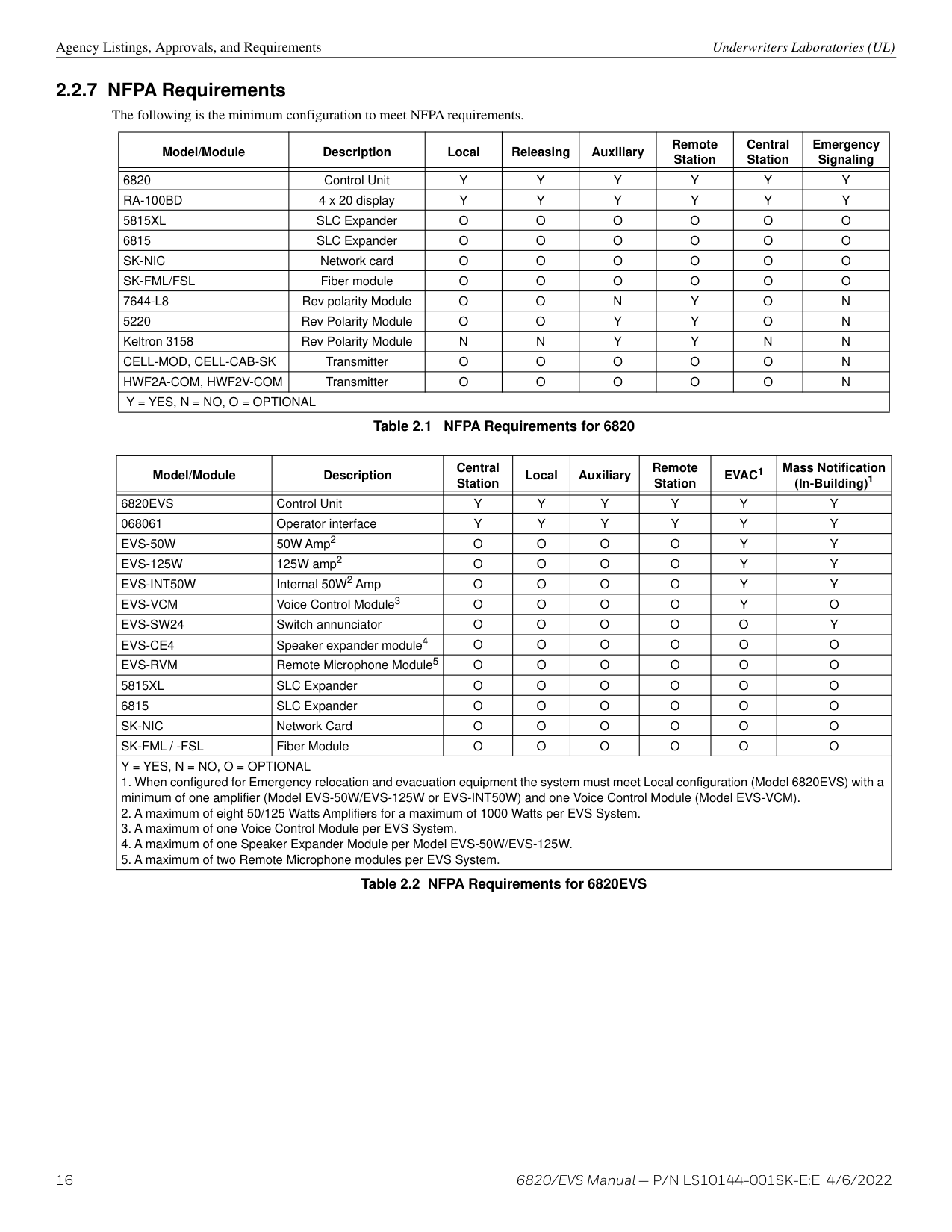
16 6820/EVS Manual — P/N LS10144-001SK-E:E 4/6/2022 Agency Listings, Approvals, and Requirements Underwriters Laboratories (UL) 2.2.7 NFPA Requirements The following is the minimum configuration to meet NFPA requirements. Model/Module Description Local Releasing Auxiliary Remote Station Central Station Emergency Signaling 6820 Control Unit
Y
Y
Y
Y
Y
Y
Ra-100Bd
4 x 20 displayY
Y
Y
Y
Y
Y
5815Xl
SLC ExpanderO
O
O
O
O
O
6815 SLC ExpanderO
O
O
O
O
O
Sk-Nic
Network cardO
O
O
O
O
O
Sk-Fml/Fsl
Fiber moduleO
O
O
O
O
O
7644-L8
Rev polarity ModuleO
O
N
Y
O
N
5220 Rev Polarity ModuleO
O
Y
Y
O
N
Keltron 3158 Rev Polarity ModuleN
N
Y
Y
N
N
Cell-Mod, Cell-Cab-Sk
TransmitterO
O
O
O
O
N
Hwf2A-Com, Hwf2V-Com
TransmitterO
O
O
O
O
N
Y = Yes, N = No, O = Optional
Table 2.1 NFPA Requirements for 6820 Model/Module Description Central Station Local Auxiliary Remote StationEvac1
Mass Notification (In-Building)16820Evs
Control UnitY
Y
Y
Y
Y
Y
068061 Operator interfaceY
Y
Y
Y
Y
Y
Evs-50W
50W Amp2O
O
O
O
Y
Y
Evs-125W
125W amp2O
O
O
O
Y
Y
Evs-Int50W
Internal 50W2 AmpO
O
O
O
Y
Y
Evs-Vcm
Voice Control Module3O
O
O
O
Y
O
Evs-Sw24
Switch annunciatorO
O
O
O
O
Y
Evs-Ce4
Speaker expander module4O
O
O
O
O
O
Evs-Rvm
Remote Microphone Module5O
O
O
O
O
O
5815Xl
SLC ExpanderO
O
O
O
O
O
6815 SLC ExpanderO
O
O
O
O
O
Sk-Nic
Network CardO
O
O
O
O
O
Sk-Fml / -Fsl
Fiber ModuleO
O
O
O
O
O
Y = Yes, N = No, O = Optional
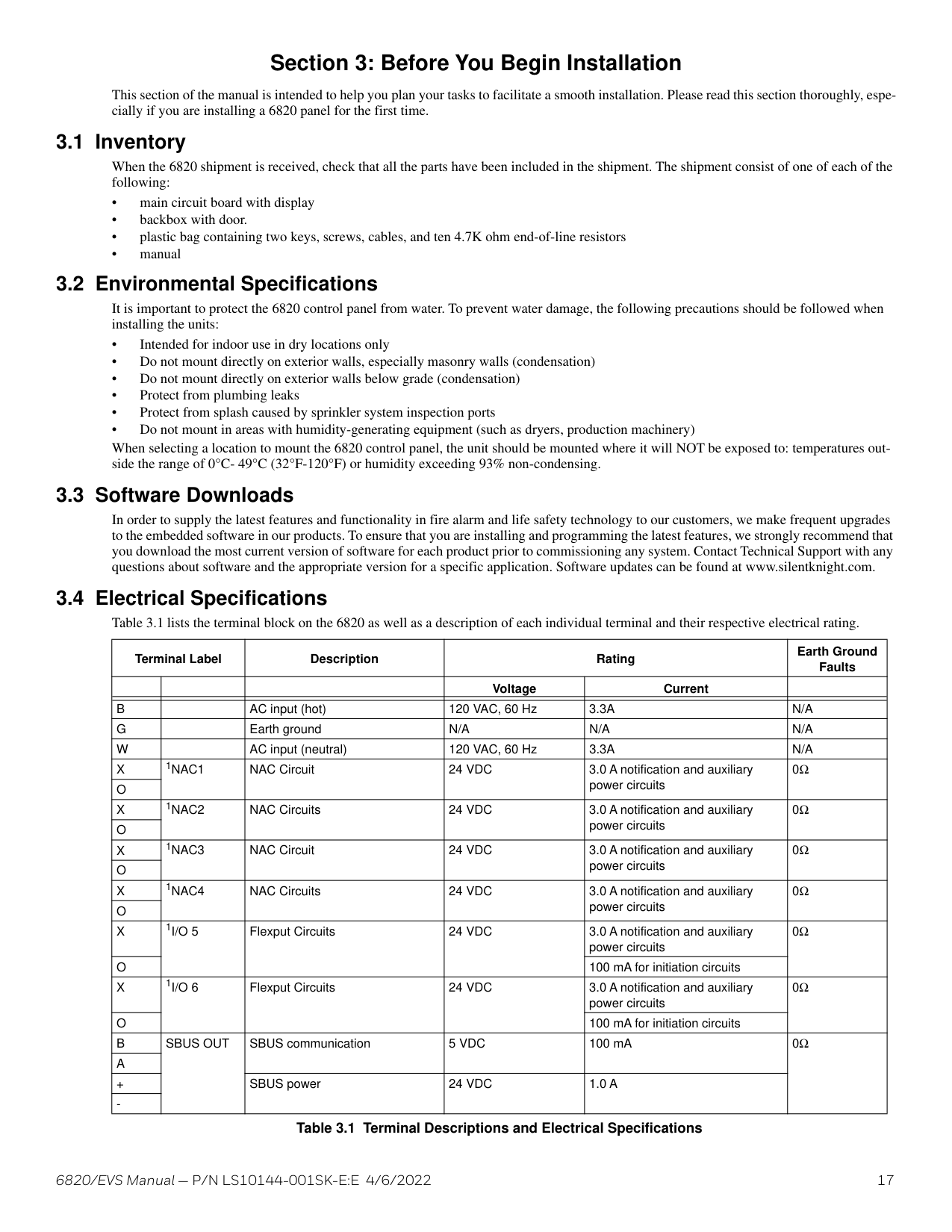
6820/EVS Manual — P/N LS10144-001SK-E:E 4/6/2022 17 Section 3: Before You Begin Installation This section of the manual is intended to help you plan your tasks to facilitate a smooth installation. Please read this section thoroughly, espe- cially if you are installing a 6820 panel for the first time. 3.1 Inventory When the 6820 shipment is received, check that all the parts have been included in the shipment. The shipment consist of one of each of the following: • main circuit board with display • backbox with door. • plastic bag containing two keys, screws, cables, and ten 4.7K ohm end-of-line resistors • manual 3.2 Environmental Specifications It is important to protect the 6820 control panel from water. To prevent water damage, the following precautions should be followed when installing the units: • Intended for indoor use in dry locations only • Do not mount directly on exterior walls, especially masonry walls (condensation) • Do not mount directly on exterior walls below grade (condensation) • Protect from plumbing leaks • Protect from splash caused by sprinkler system inspection ports • Do not mount in areas with humidity-generating equipment (such as dryers, production machinery) When selecting a location to mount the 6820 control panel, the unit should be mounted where it will NOT be exposed to: temperatures out- side the range of 0°C- 49°C (32°F-120°F) or humidity exceeding 93% non-condensing. 3.3 Software Downloads In order to supply the latest features and functionality in fire alarm and life safety technology to our customers, we make frequent upgrades to the embedded software in our products. To ensure that you are installing and programming the latest features, we strongly recommend that you download the most current version of software for each product prior to commissioning any system. Contact Technical Support with any questions about software and the appropriate version for a specific application. Software updates can be found at www.silentknight.com. 3.4 Electrical Specifications Table 3.1 lists the terminal block on the 6820 as well as a description of each individual terminal and their respective electrical rating. Terminal Label Description Rating Earth Ground Faults Voltage Current
B
AC input (hot) 120 VAC, 60 Hz3.3A
N/A
G
Earth groundN/A
N/A
N/A
W
AC input (neutral) 120 VAC, 60 Hz3.3A
N/A
X
1Nac1
NAC Circuit24 Vdc
3.0 A notification and auxiliary power circuits0Ω
O
X
1Nac2
NAC Circuits24 Vdc
3.0 A notification and auxiliary power circuits0Ω
O
X
1Nac3
NAC Circuit24 Vdc
3.0 A notification and auxiliary power circuits0Ω
O
X
1Nac4
NAC Circuits24 Vdc
3.0 A notification and auxiliary power circuits0Ω
O
X
1I/O 5
Flexput Circuits24 Vdc
3.0 A notification and auxiliary power circuits0Ω
O
100 mA for initiation circuitsX
1I/O 6
Flexput Circuits24 Vdc
3.0 A notification and auxiliary power circuits0Ω
O
100 mA for initiation circuitsB
Sbus Out
SBUS communication5 Vdc
100 mA0Ω
A
+ SBUS power24 Vdc
1.0 A
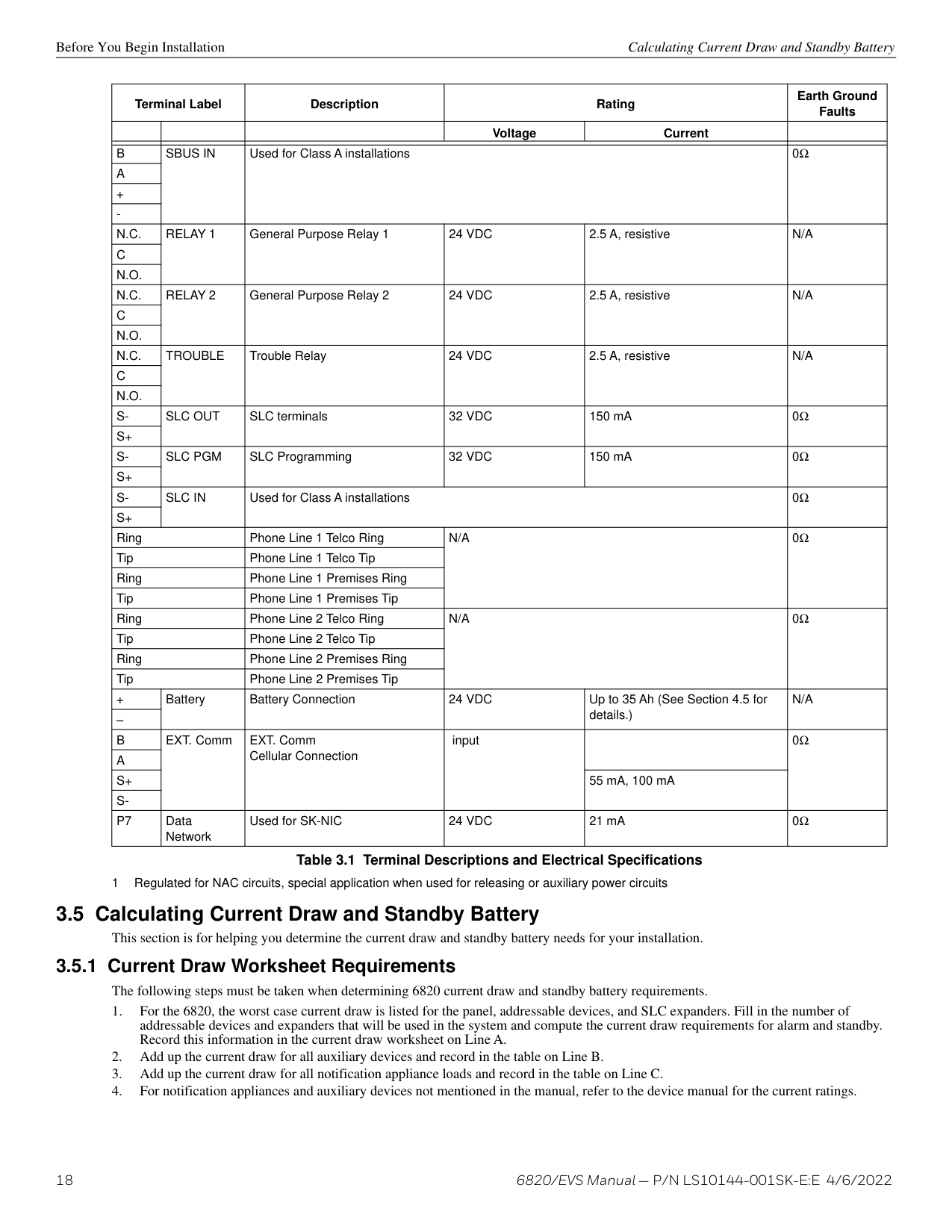
18 6820/EVS Manual — P/N LS10144-001SK-E:E 4/6/2022 Before You Begin Installation Calculating Current Draw and Standby Battery 3.5 Calculating Current Draw and Standby Battery This section is for helping you determine the current draw and standby battery needs for your installation. 3.5.1 Current Draw Worksheet Requirements The following steps must be taken when determining 6820 current draw and standby battery requirements.
B
Sbus In
Used for Class A installations0Ω
A
+N.C.
Relay 1
General Purpose Relay 124 Vdc
2.5 A, resistiveN/A
C
N.O.
N.C.
Relay 2
General Purpose Relay 224 Vdc
2.5 A, resistiveN/A
C
N.O.
N.C.
Trouble
Trouble Relay24 Vdc
2.5 A, resistiveN/A
C
N.O.
S-
Slc Out
SLC terminals32 Vdc
150 mA0Ω
S+
S-
Slc Pgm
SLC Programming32 Vdc
150 mA0Ω
S+
S-
Slc In
Used for Class A installations0Ω
S+
Ring Phone Line 1 Telco RingN/A
0Ω
Tip Phone Line 1 Telco Tip Ring Phone Line 1 Premises Ring Tip Phone Line 1 Premises Tip Ring Phone Line 2 Telco RingN/A
0Ω
Tip Phone Line 2 Telco Tip Ring Phone Line 2 Premises Ring Tip Phone Line 2 Premises Tip + Battery Battery Connection24 Vdc
Up to 35 Ah (See Section 4.5 for details.)N/A
–B
EXT. Comm EXT. Comm Cellular Connection input0Ω
A
S+
55 mA, 100 mAS-
P7
Data Network Used for SK-NIC24 Vdc
21 mA0Ω
1 Regulated for NAC circuits, special application when used for releasing or auxiliary power circuits Terminal Label Description Rating Earth Ground Faults Voltage Current Table 3.1 Terminal Descriptions and Electrical Specifications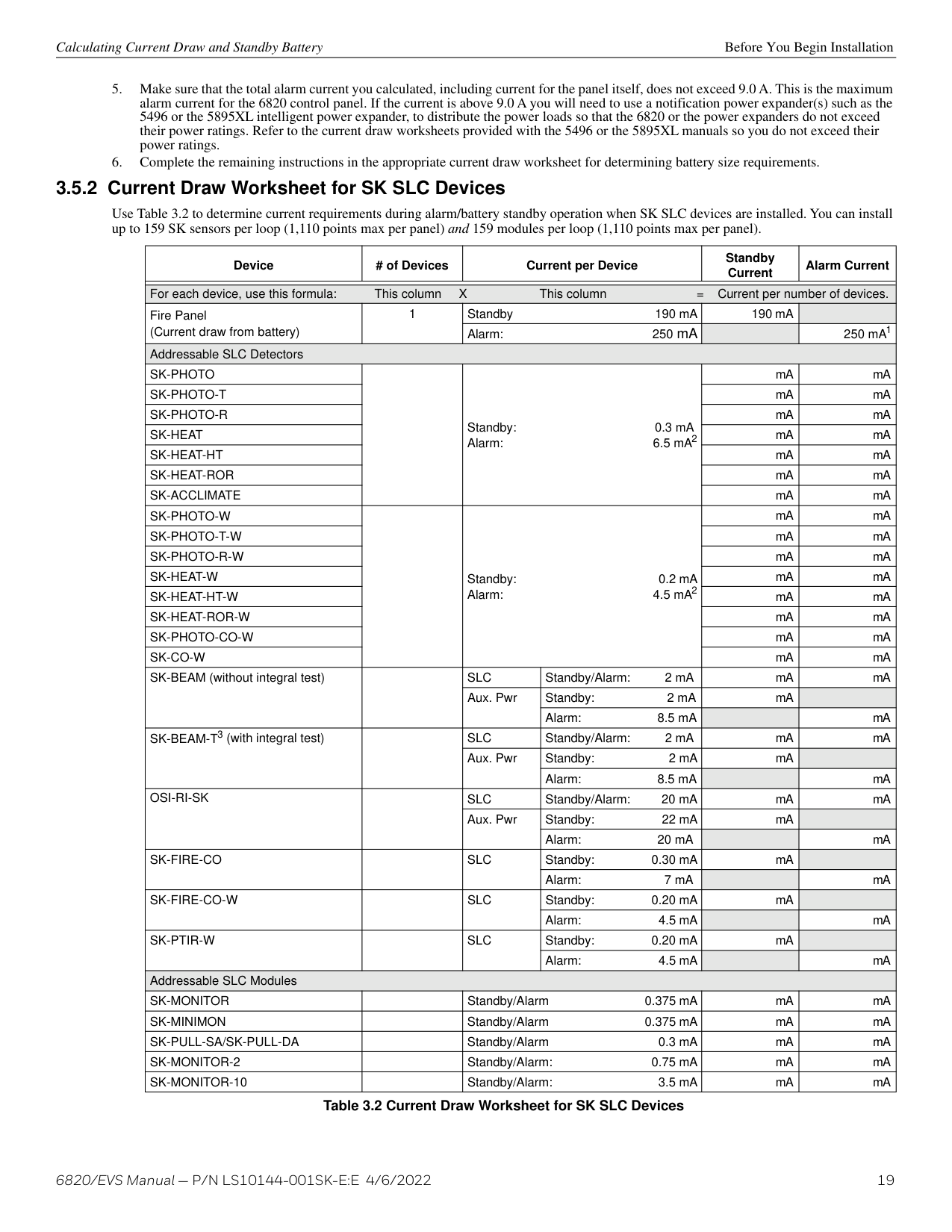
6820/EVS Manual — P/N LS10144-001SK-E:E 4/6/2022 19 Calculating Current Draw and Standby Battery Before You Begin Installation
of Devices
Current per Device Standby Current Alarm Current For each device, use this formula: This column X This column = Current per number of devices. Fire Panel (Current draw from battery) 1 Standby 190 mA 190 mA Alarm: 250 mA 250 mA1 Addressable SLC DetectorsSk-Photo
Standby: 0.3 mA Alarm: 6.5 mA2 mA mASk-Photo-T
mA mASk-Photo-R
mA mASk-Heat
mA mASk-Heat-Ht
mA mASk-Heat-Ror
mA mASk-Acclimate
mA mASk-Photo-W
Standby: 0.2 mA Alarm: 4.5 mA2 mA mASk-Photo-T-W
mA mASk-Photo-R-W
mA mASk-Heat-W
mA mASk-Heat-Ht-W
mA mASk-Heat-Ror-W
mA mASk-Photo-Co-W
mA mASk-Co-W
mA mA SK-BEAM (without integral test)Slc
Standby/Alarm: 2 mA mA mA Aux. Pwr Standby: 2 mA mA Alarm: 8.5 mA mA SK-BEAM-T3 (with integral test)Slc
Standby/Alarm: 2 mA mA mA Aux. Pwr Standby: 2 mA mA Alarm: 8.5 mA mAOsi-Ri-Sk
Slc
Standby/Alarm: 20 mA mA mA Aux. Pwr Standby: 22 mA mA Alarm: 20 mA mASk-Fire-Co
Slc
Standby: 0.30 mA mA Alarm: 7 mA mASk-Fire-Co-W
Slc
Standby: 0.20 mA mA Alarm: 4.5 mA mASk-Ptir-W
Slc
Standby: 0.20 mA mA Alarm: 4.5 mA mA Addressable SLC ModulesSk-Monitor
Standby/Alarm 0.375 mA mA mASk-Minimon
Standby/Alarm 0.375 mA mA mASk-Pull-Sa/Sk-Pull-Da
Standby/Alarm 0.3 mA mA mASk-Monitor-2
Standby/Alarm: 0.75 mA mA mASk-Monitor-10
Standby/Alarm: 3.5 mA mA mA Table 3.2 Current Draw Worksheet for SK SLC Devices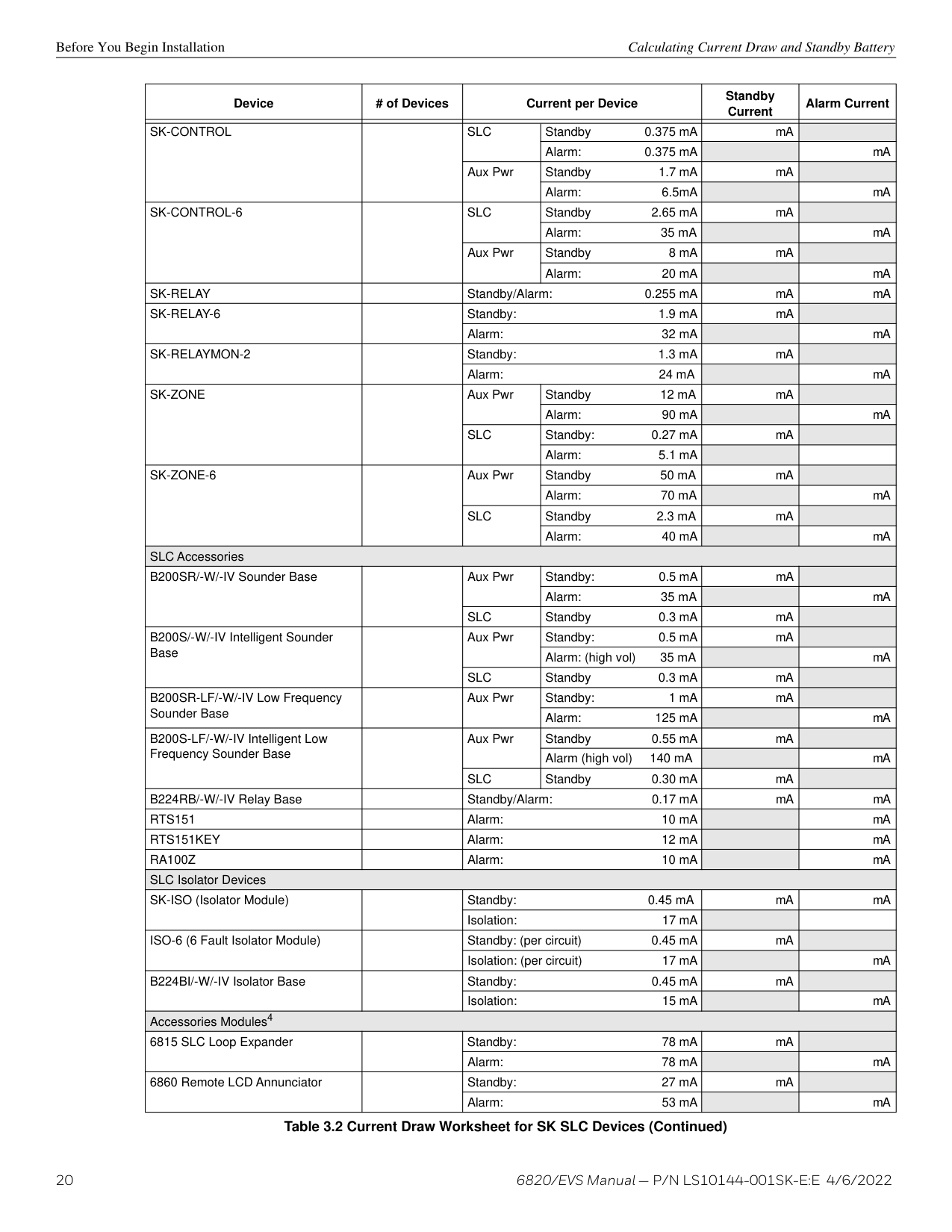
20 6820/EVS Manual — P/N LS10144-001SK-E:E 4/6/2022 Before You Begin Installation Calculating Current Draw and Standby Battery
Sk-Control
Slc
Standby 0.375 mA mA Alarm: 0.375 mA mA Aux Pwr Standby 1.7 mA mA Alarm: 6.5mA mASk-Control-6
Slc
Standby 2.65 mA mA Alarm: 35 mA mA Aux Pwr Standby 8 mA mA Alarm: 20 mA mASk-Relay
Standby/Alarm: 0.255 mA mA mASk-Relay-6
Standby: 1.9 mA mA Alarm: 32 mA mASk-Relaymon-2
Standby: 1.3 mA mA Alarm: 24 mA mASk-Zone
Aux Pwr Standby 12 mA mA Alarm: 90 mA mASlc
Standby: 0.27 mA mA Alarm: 5.1 mASk-Zone-6
Aux Pwr Standby 50 mA mA Alarm: 70 mA mASlc
Standby 2.3 mA mA Alarm: 40 mA mA SLC Accessories B200SR/-W/-IV Sounder Base Aux Pwr Standby: 0.5 mA mA Alarm: 35 mA mASlc
Standby 0.3 mA mA B200S/-W/-IV Intelligent Sounder Base Aux Pwr Standby: 0.5 mA mA Alarm: (high vol) 35 mA mASlc
Standby 0.3 mA mA B200SR-LF/-W/-IV Low Frequency Sounder Base Aux Pwr Standby: 1 mA mA Alarm: 125 mA mA B200S-LF/-W/-IV Intelligent Low Frequency Sounder Base Aux Pwr Standby 0.55 mA mA Alarm (high vol) 140 mA mASlc
Standby 0.30 mA mA B224RB/-W/-IV Relay Base Standby/Alarm: 0.17 mA mA mARts151
Alarm: 10 mA mARts151Key
Alarm: 12 mA mARa100Z
Alarm: 10 mA mA SLC Isolator Devices SK-ISO (Isolator Module) Standby: 0.45 mA mA mA Isolation: 17 mA ISO-6 (6 Fault Isolator Module) Standby: (per circuit) 0.45 mA mA Isolation: (per circuit) 17 mA mA B224BI/-W/-IV Isolator Base Standby: 0.45 mA mA Isolation: 15 mA mA Accessories Modules4 6815 SLC Loop Expander Standby: 78 mA mA Alarm: 78 mA mA 6860 Remote LCD Annunciator Standby: 27 mA mA Alarm: 53 mA mA Deviceof Devices
Current per Device Standby Current Alarm Current Table 3.2 Current Draw Worksheet for SK SLC Devices (Continued)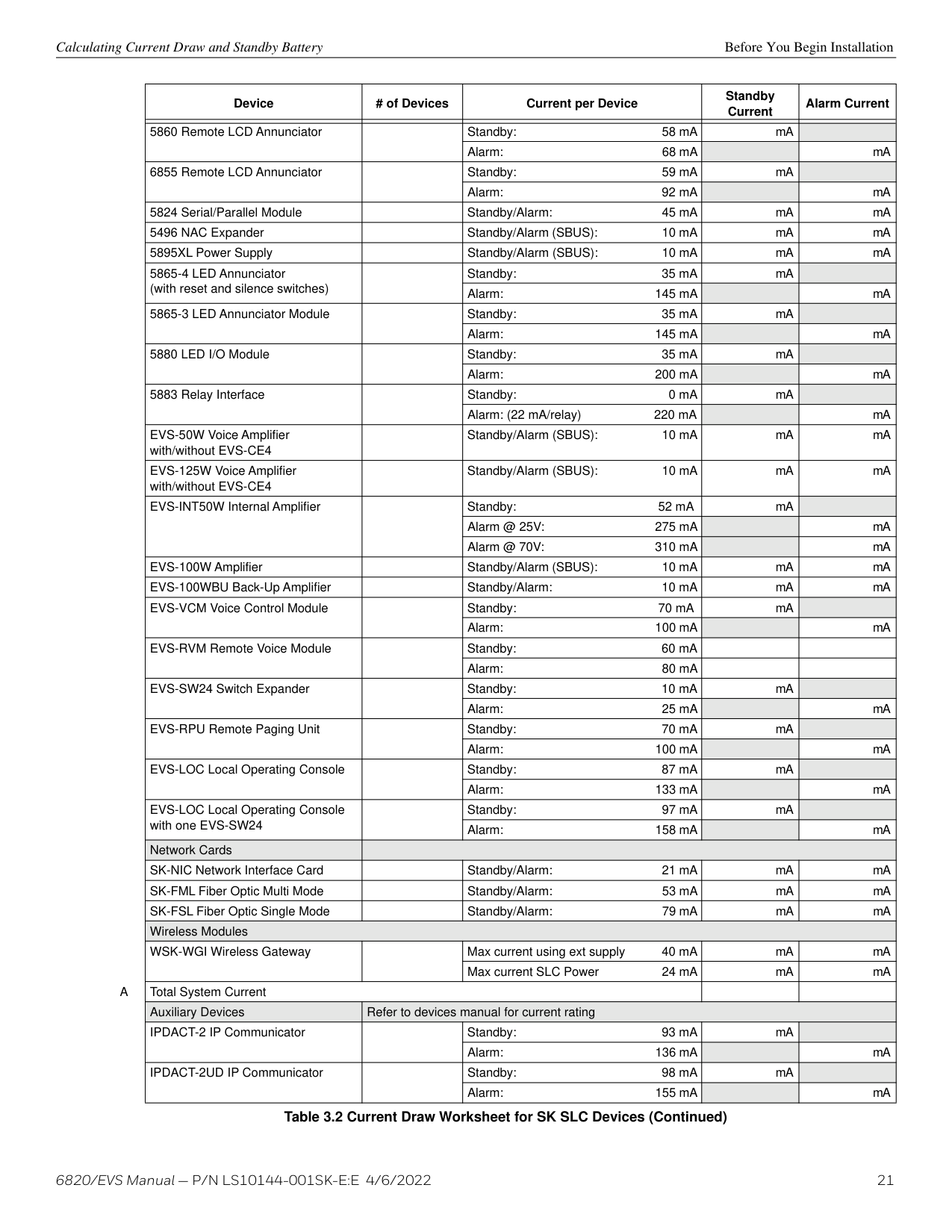
6820/EVS Manual — P/N LS10144-001SK-E:E 4/6/2022 21 Calculating Current Draw and Standby Battery Before You Begin Installation 5860 Remote LCD Annunciator Standby: 58 mA mA Alarm: 68 mA mA 6855 Remote LCD Annunciator Standby: 59 mA mA Alarm: 92 mA mA 5824 Serial/Parallel Module Standby/Alarm: 45 mA mA mA 5496 NAC Expander Standby/Alarm (SBUS): 10 mA mA mA 5895XL Power Supply Standby/Alarm (SBUS): 10 mA mA mA 5865-4 LED Annunciator (with reset and silence switches) Standby: 35 mA mA Alarm: 145 mA mA 5865-3 LED Annunciator Module Standby: 35 mA mA Alarm: 145 mA mA 5880 LED I/O Module Standby: 35 mA mA Alarm: 200 mA mA 5883 Relay Interface Standby: 0 mA mA Alarm: (22 mA/relay) 220 mA mA EVS-50W Voice Amplifier with/without EVS-CE4 Standby/Alarm (SBUS): 10 mA mA mA EVS-125W Voice Amplifier with/without EVS-CE4 Standby/Alarm (SBUS): 10 mA mA mA EVS-INT50W Internal Amplifier Standby: 52 mA mA Alarm @ 25V: 275 mA mA Alarm @ 70V: 310 mA mA EVS-100W Amplifier Standby/Alarm (SBUS): 10 mA mA mA EVS-100WBU Back-Up Amplifier Standby/Alarm: 10 mA mA mA EVS-VCM Voice Control Module Standby: 70 mA mA Alarm: 100 mA mA EVS-RVM Remote Voice Module Standby: 60 mA Alarm: 80 mA EVS-SW24 Switch Expander Standby: 10 mA mA Alarm: 25 mA mA EVS-RPU Remote Paging Unit Standby: 70 mA mA Alarm: 100 mA mA EVS-LOC Local Operating Console Standby: 87 mA mA Alarm: 133 mA mA EVS-LOC Local Operating Console with one EVS-SW24 Standby: 97 mA mA Alarm: 158 mA mA Network Cards SK-NIC Network Interface Card Standby/Alarm: 21 mA mA mA SK-FML Fiber Optic Multi Mode Standby/Alarm: 53 mA mA mA SK-FSL Fiber Optic Single Mode Standby/Alarm: 79 mA mA mA Wireless Modules WSK-WGI Wireless Gateway Max current using ext supply 40 mA mA mA Max current SLC Power 24 mA mA mA
A
Total System Current Auxiliary Devices Refer to devices manual for current rating IPDACT-2 IP Communicator Standby: 93 mA mA Alarm: 136 mA mA IPDACT-2UD IP Communicator Standby: 98 mA mA Alarm: 155 mA mA Deviceof Devices
Current per Device Standby Current Alarm Current Table 3.2 Current Draw Worksheet for SK SLC Devices (Continued)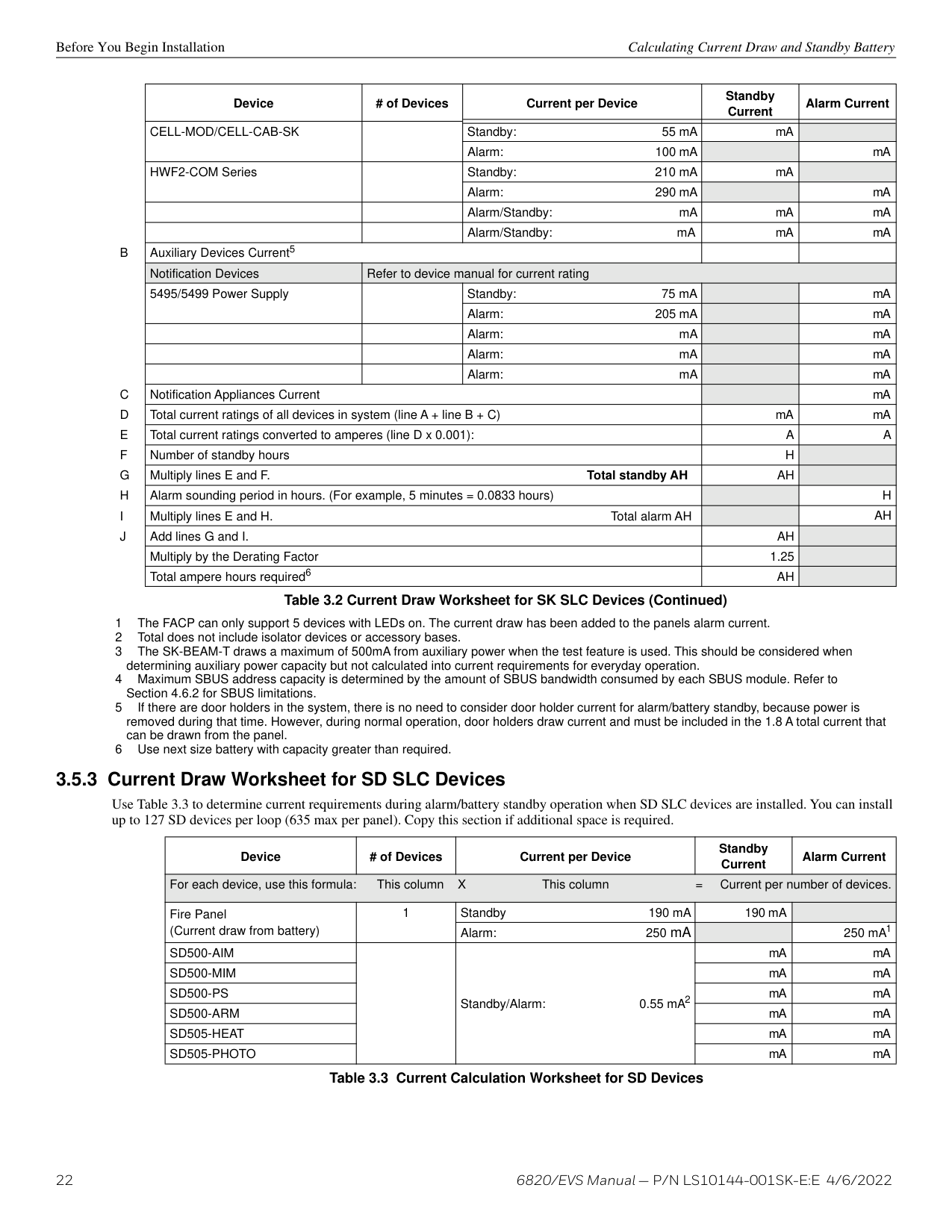
22 6820/EVS Manual — P/N LS10144-001SK-E:E 4/6/2022 Before You Begin Installation Calculating Current Draw and Standby Battery 3.5.3 Current Draw Worksheet for SD SLC Devices Use Table 3.3 to determine current requirements during alarm/battery standby operation when SD SLC devices are installed. You can install up to 127 SD devices per loop (635 max per panel). Copy this section if additional space is required.
Cell-Mod/Cell-Cab-Sk
Standby: 55 mA mA Alarm: 100 mA mA HWF2-COM Series Standby: 210 mA mA Alarm: 290 mA mA Alarm/Standby: mA mA mA Alarm/Standby: mA mA mAB
Auxiliary Devices Current5 Notification Devices Refer to device manual for current rating 5495/5499 Power Supply Standby: 75 mA mA Alarm: 205 mA mA Alarm: mA mA Alarm: mA mA Alarm: mA mAC
Notification Appliances Current mAD
Total current ratings of all devices in system (line A + line B + C) mA mAE
Total current ratings converted to amperes (line D x 0.001):A
A
F
Number of standby hoursH
G
Multiply lines E and F. Total standby AHAh
H
Alarm sounding period in hours. (For example, 5 minutes = 0.0833 hours)H
I
Multiply lines E and H. Total alarm AHAh
J
Add lines G and I.Ah
Multiply by the Derating Factor 1.25 Total ampere hours required6Ah
1 The FACP can only support 5 devices with LEDs on. The current draw has been added to the panels alarm current. 2 Total does not include isolator devices or accessory bases. 3 The SK-BEAM-T draws a maximum of 500mA from auxiliary power when the test feature is used. This should be considered when determining auxiliary power capacity but not calculated into current requirements for everyday operation. 4 Maximum SBUS address capacity is determined by the amount of SBUS bandwidth consumed by each SBUS module. Refer to Section 4.6.2 for SBUS limitations. 5 If there are door holders in the system, there is no need to consider door holder current for alarm/battery standby, because power is removed during that time. However, during normal operation, door holders draw current and must be included in the 1.8 A total current that can be drawn from the panel. 6 Use next size battery with capacity greater than required. Deviceof Devices
Current per Device Standby Current Alarm Current Table 3.2 Current Draw Worksheet for SK SLC Devices (Continued) Deviceof Devices
Current per Device Standby Current Alarm Current For each device, use this formula: This column X This column = Current per number of devices. Fire Panel (Current draw from battery) 1 Standby 190 mA 190 mA Alarm: 250 mA 250 mA1Sd500-Aim
Standby/Alarm: 0.55 mA2 mA mASd500-Mim
mA mASd500-Ps
mA mASd500-Arm
mA mASd505-Heat
mA mASd505-Photo
mA mA Table 3.3 Current Calculation Worksheet for SD Devices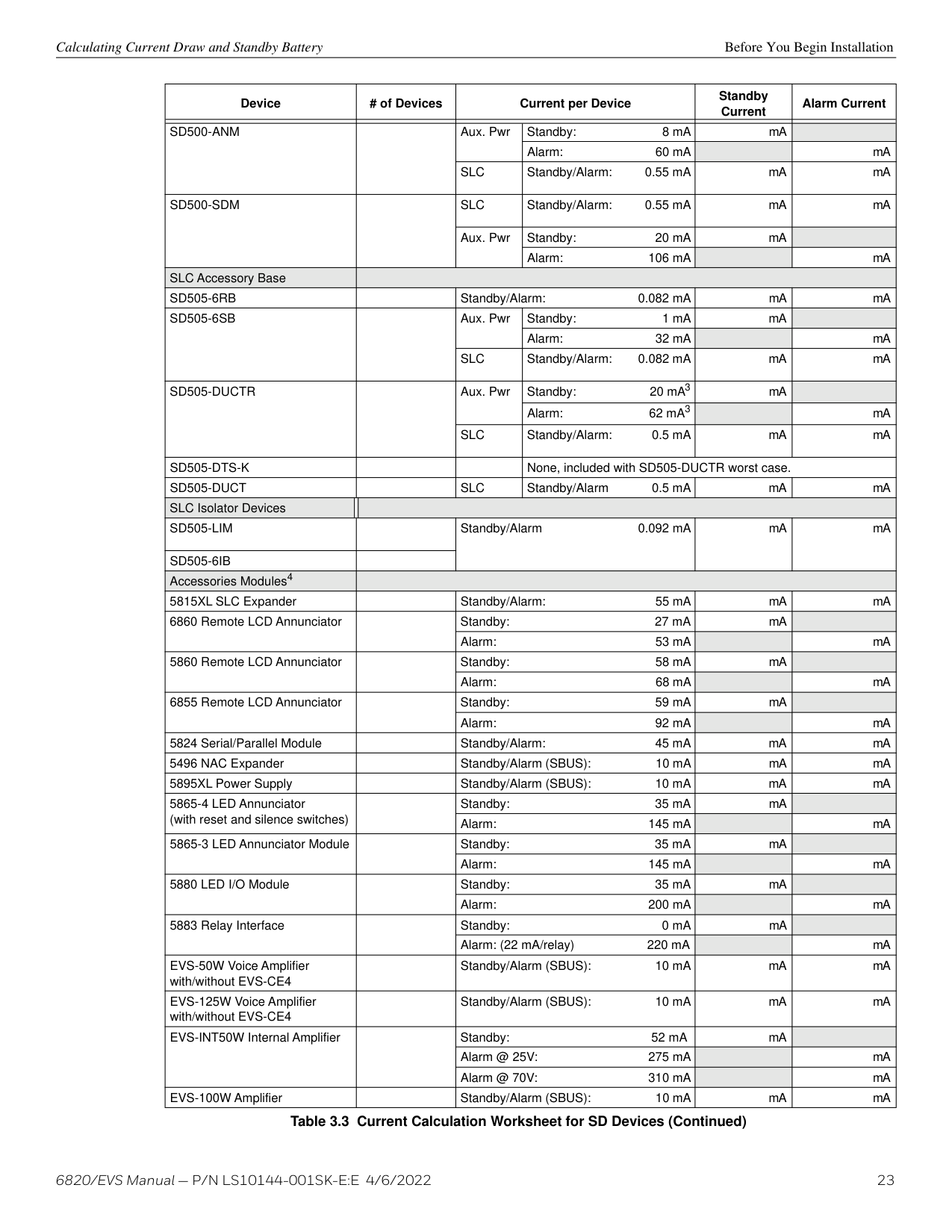
6820/EVS Manual — P/N LS10144-001SK-E:E 4/6/2022 23 Calculating Current Draw and Standby Battery Before You Begin Installation
Sd500-Anm
Aux. Pwr Standby: 8 mA mA Alarm: 60 mA mASlc
Standby/Alarm: 0.55 mA mA mASd500-Sdm
Slc
Standby/Alarm: 0.55 mA mA mA Aux. Pwr Standby: 20 mA mA Alarm: 106 mA mA SLC Accessory BaseSd505-6Rb
Standby/Alarm: 0.082 mA mA mASd505-6Sb
Aux. Pwr Standby: 1 mA mA Alarm: 32 mA mASlc
Standby/Alarm: 0.082 mA mA mASd505-Ductr
Aux. Pwr Standby: 20 mA3 mA Alarm: 62 mA3 mASlc
Standby/Alarm: 0.5 mA mA mASd505-Dts-K
None, included with SD505-DUCTR worst case.Sd505-Duct
Slc
Standby/Alarm 0.5 mA mA mA SLC Isolator DevicesSd505-Lim
Standby/Alarm 0.092 mA mA mASd505-6Ib
Accessories Modules4 5815XL SLC Expander Standby/Alarm: 55 mA mA mA 6860 Remote LCD Annunciator Standby: 27 mA mA Alarm: 53 mA mA 5860 Remote LCD Annunciator Standby: 58 mA mA Alarm: 68 mA mA 6855 Remote LCD Annunciator Standby: 59 mA mA Alarm: 92 mA mA 5824 Serial/Parallel Module Standby/Alarm: 45 mA mA mA 5496 NAC Expander Standby/Alarm (SBUS): 10 mA mA mA 5895XL Power Supply Standby/Alarm (SBUS): 10 mA mA mA 5865-4 LED Annunciator (with reset and silence switches) Standby: 35 mA mA Alarm: 145 mA mA 5865-3 LED Annunciator Module Standby: 35 mA mA Alarm: 145 mA mA 5880 LED I/O Module Standby: 35 mA mA Alarm: 200 mA mA 5883 Relay Interface Standby: 0 mA mA Alarm: (22 mA/relay) 220 mA mA EVS-50W Voice Amplifier with/without EVS-CE4 Standby/Alarm (SBUS): 10 mA mA mA EVS-125W Voice Amplifier with/without EVS-CE4 Standby/Alarm (SBUS): 10 mA mA mA EVS-INT50W Internal Amplifier Standby: 52 mA mA Alarm @ 25V: 275 mA mA Alarm @ 70V: 310 mA mA EVS-100W Amplifier Standby/Alarm (SBUS): 10 mA mA mA Deviceof Devices
Current per Device Standby Current Alarm Current Table 3.3 Current Calculation Worksheet for SD Devices (Continued)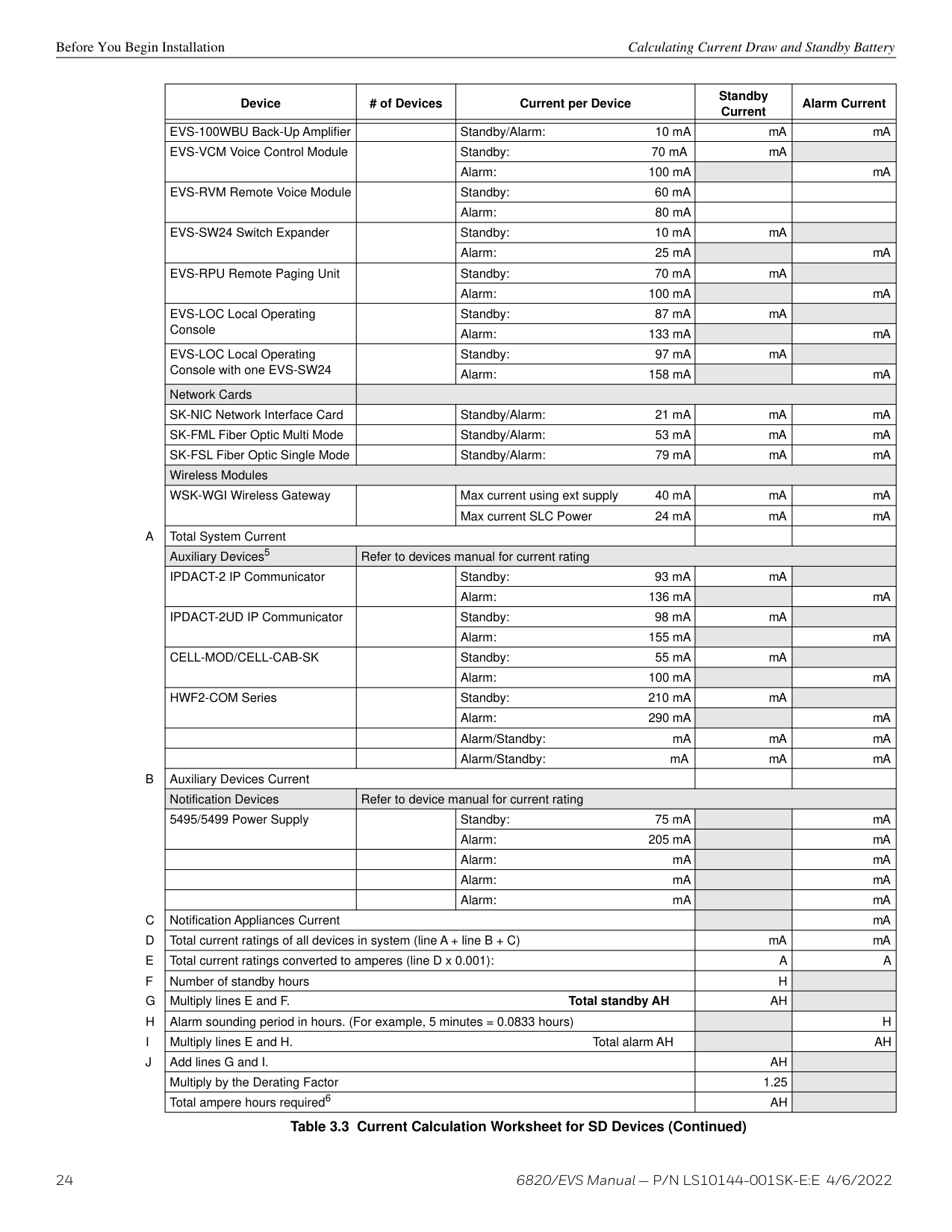
24 6820/EVS Manual — P/N LS10144-001SK-E:E 4/6/2022 Before You Begin Installation Calculating Current Draw and Standby Battery EVS-100WBU Back-Up Amplifier Standby/Alarm: 10 mA mA mA EVS-VCM Voice Control Module Standby: 70 mA mA Alarm: 100 mA mA EVS-RVM Remote Voice Module Standby: 60 mA Alarm: 80 mA EVS-SW24 Switch Expander Standby: 10 mA mA Alarm: 25 mA mA EVS-RPU Remote Paging Unit Standby: 70 mA mA Alarm: 100 mA mA EVS-LOC Local Operating Console Standby: 87 mA mA Alarm: 133 mA mA EVS-LOC Local Operating Console with one EVS-SW24 Standby: 97 mA mA Alarm: 158 mA mA Network Cards SK-NIC Network Interface Card Standby/Alarm: 21 mA mA mA SK-FML Fiber Optic Multi Mode Standby/Alarm: 53 mA mA mA SK-FSL Fiber Optic Single Mode Standby/Alarm: 79 mA mA mA Wireless Modules WSK-WGI Wireless Gateway Max current using ext supply 40 mA mA mA Max current SLC Power 24 mA mA mA
A
Total System Current Auxiliary Devices5 Refer to devices manual for current rating IPDACT-2 IP Communicator Standby: 93 mA mA Alarm: 136 mA mA IPDACT-2UD IP Communicator Standby: 98 mA mA Alarm: 155 mA mACell-Mod/Cell-Cab-Sk
Standby: 55 mA mA Alarm: 100 mA mA HWF2-COM Series Standby: 210 mA mA Alarm: 290 mA mA Alarm/Standby: mA mA mA Alarm/Standby: mA mA mAB
Auxiliary Devices Current Notification Devices Refer to device manual for current rating 5495/5499 Power Supply Standby: 75 mA mA Alarm: 205 mA mA Alarm: mA mA Alarm: mA mA Alarm: mA mAC
Notification Appliances Current mAD
Total current ratings of all devices in system (line A + line B + C) mA mAE
Total current ratings converted to amperes (line D x 0.001):A
A
F
Number of standby hoursH
G
Multiply lines E and F. Total standby AHAh
H
Alarm sounding period in hours. (For example, 5 minutes = 0.0833 hours)H
I
Multiply lines E and H. Total alarm AHAh
J
Add lines G and I.Ah
Multiply by the Derating Factor 1.25 Total ampere hours required6Ah
Deviceof Devices
Current per Device Standby Current Alarm Current Table 3.3 Current Calculation Worksheet for SD Devices (Continued)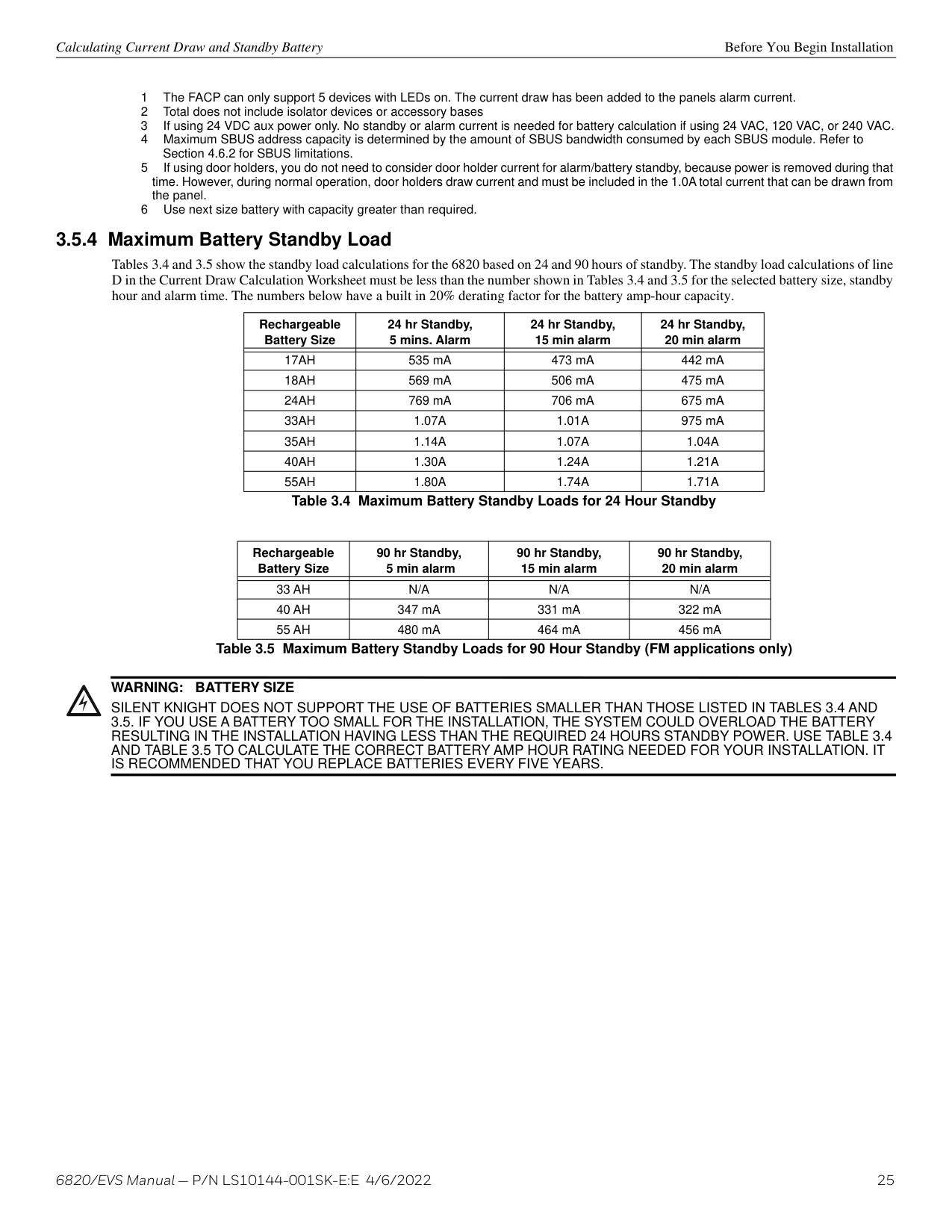
6820/EVS Manual — P/N LS10144-001SK-E:E 4/6/2022 25 Calculating Current Draw and Standby Battery Before You Begin Installation 3.5.4 Maximum Battery Standby Load Tables 3.4 and 3.5 show the standby load calculations for the 6820 based on 24 and 90 hours of standby. The standby load calculations of line D in the Current Draw Calculation Worksheet must be less than the number shown in Tables 3.4 and 3.5 for the selected battery size, standby hour and alarm time. The numbers below have a built in 20% derating factor for the battery amp-hour capacity.
1 The FACP can only support 5 devices with LEDs on. The current draw has been added to the panels alarm current. 2 Total does not include isolator devices or accessory bases 3 If using 24 VDC aux power only. No standby or alarm current is needed for battery calculation if using 24 VAC, 120 VAC, or 240 VAC. 4 Maximum SBUS address capacity is determined by the amount of SBUS bandwidth consumed by each SBUS module. Refer to Section 4.6.2 for SBUS limitations. 5 If using door holders, you do not need to consider door holder current for alarm/battery standby, because power is removed during that time. However, during normal operation, door holders draw current and must be included in the 1.0A total current that can be drawn from the panel. 6 Use next size battery with capacity greater than required. Rechargeable Battery Size 24 hr Standby, 5 mins. Alarm 24 hr Standby, 15 min alarm 24 hr Standby, 20 min alarm
17Ah
535 mA 473 mA 442 mA18Ah
569 mA 506 mA 475 mA24Ah
769 mA 706 mA 675 mA33Ah
1.07A
1.01A
975 mA35Ah
1.14A
1.07A
1.04A
40Ah
1.30A
1.24A
1.21A
55Ah
1.80A
1.74A
1.71A
Table 3.4 Maximum Battery Standby Loads for 24 Hour Standby Rechargeable Battery Size 90 hr Standby, 5 min alarm 90 hr Standby, 15 min alarm 90 hr Standby, 20 min alarm33 Ah
N/A
N/A
N/A
40 Ah
347 mA 331 mA 322 mA55 Ah
480 mA 464 mA 456 mA Table 3.5 Maximum Battery Standby Loads for 90 Hour Standby (FM applications only) !Warning:
Battery Size
SILENT KNIGHT DOES NOT SUPPORT THE USE OF BATTERIES SMALLER THAN THOSE LISTED IN TABLES 3.4 AND 3.5. IF YOU USE A BATTERY TOO SMALL FOR THE INSTALLATION, THE SYSTEM COULD OVERLOAD THE BATTERY RESULTING IN THE INSTALLATION HAVING LESS THAN THE REQUIRED 24 HOURS STANDBY POWER. USE TABLE 3.4 AND TABLE 3.5 TO CALCULATE THE CORRECT BATTERY AMP HOUR RATING NEEDED FOR YOUR INSTALLATION. ITIs Recommended That You Replace Batteries Every Five Years.
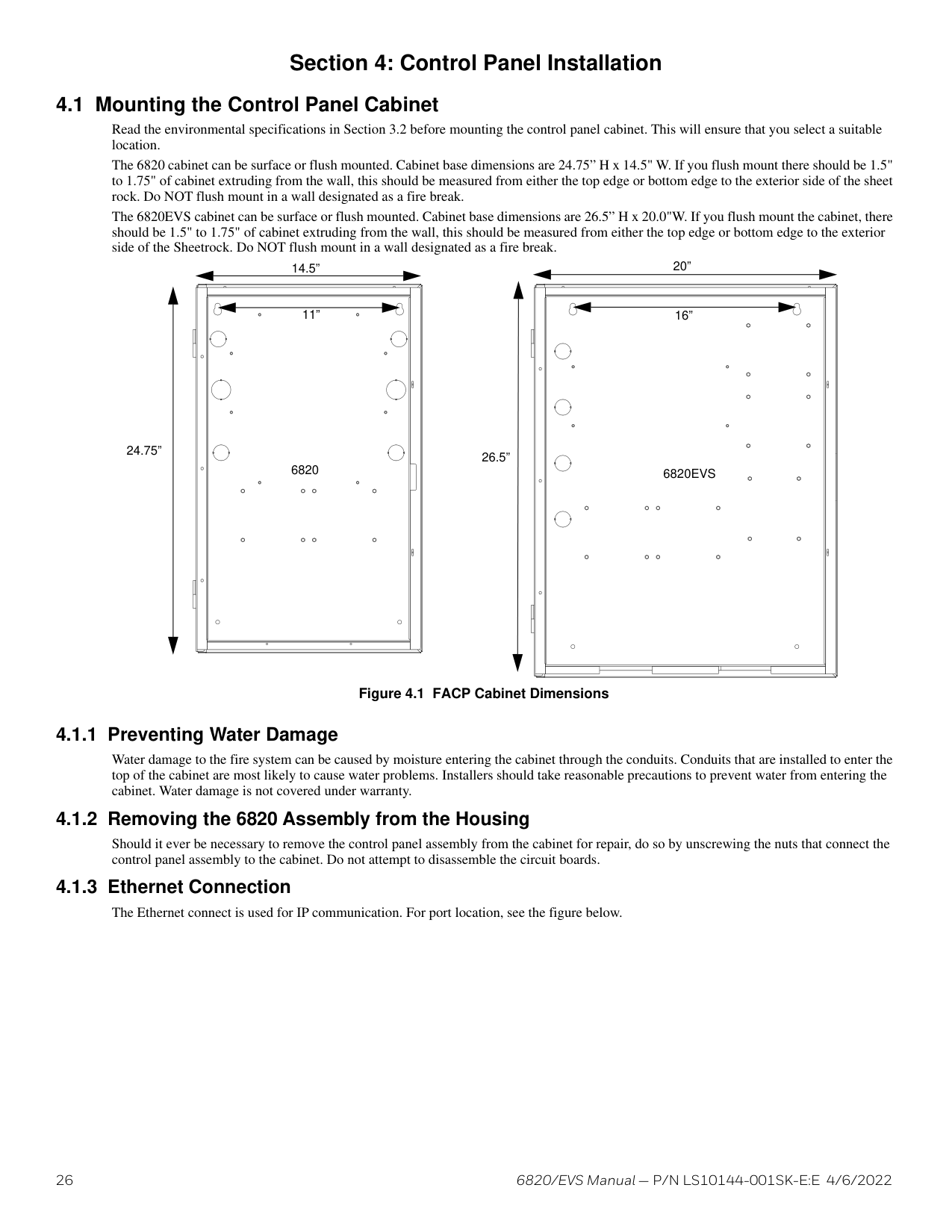
26 6820/EVS Manual — P/N LS10144-001SK-E:E 4/6/2022 Section 4: Control Panel Installation 4.1 Mounting the Control Panel Cabinet Read the environmental specifications in Section 3.2 before mounting the control panel cabinet. This will ensure that you select a suitable location. The 6820 cabinet can be surface or flush mounted. Cabinet base dimensions are 24.75” H x 14.5" W. If you flush mount there should be 1.5" to 1.75" of cabinet extruding from the wall, this should be measured from either the top edge or bottom edge to the exterior side of the sheet rock. Do NOT flush mount in a wall designated as a fire break. The 6820EVS cabinet can be surface or flush mounted. Cabinet base dimensions are 26.5” H x 20.0"W. If you flush mount the cabinet, there should be 1.5" to 1.75" of cabinet extruding from the wall, this should be measured from either the top edge or bottom edge to the exterior side of the Sheetrock. Do NOT flush mount in a wall designated as a fire break. 4.1.1 Preventing Water Damage Water damage to the fire system can be caused by moisture entering the cabinet through the conduits. Conduits that are installed to enter the top of the cabinet are most likely to cause water problems. Installers should take reasonable precautions to prevent water from entering the cabinet. Water damage is not covered under warranty. 4.1.2 Removing the 6820 Assembly from the Housing Should it ever be necessary to remove the control panel assembly from the cabinet for repair, do so by unscrewing the nuts that connect the control panel assembly to the cabinet. Do not attempt to disassemble the circuit boards. 4.1.3 Ethernet Connection The Ethernet connect is used for IP communication. For port location, see the figure below. 14.5” 11” 24.75” Figure 4.1 FACP Cabinet Dimensions 20” 16” 26.5” 6820
6820Evs
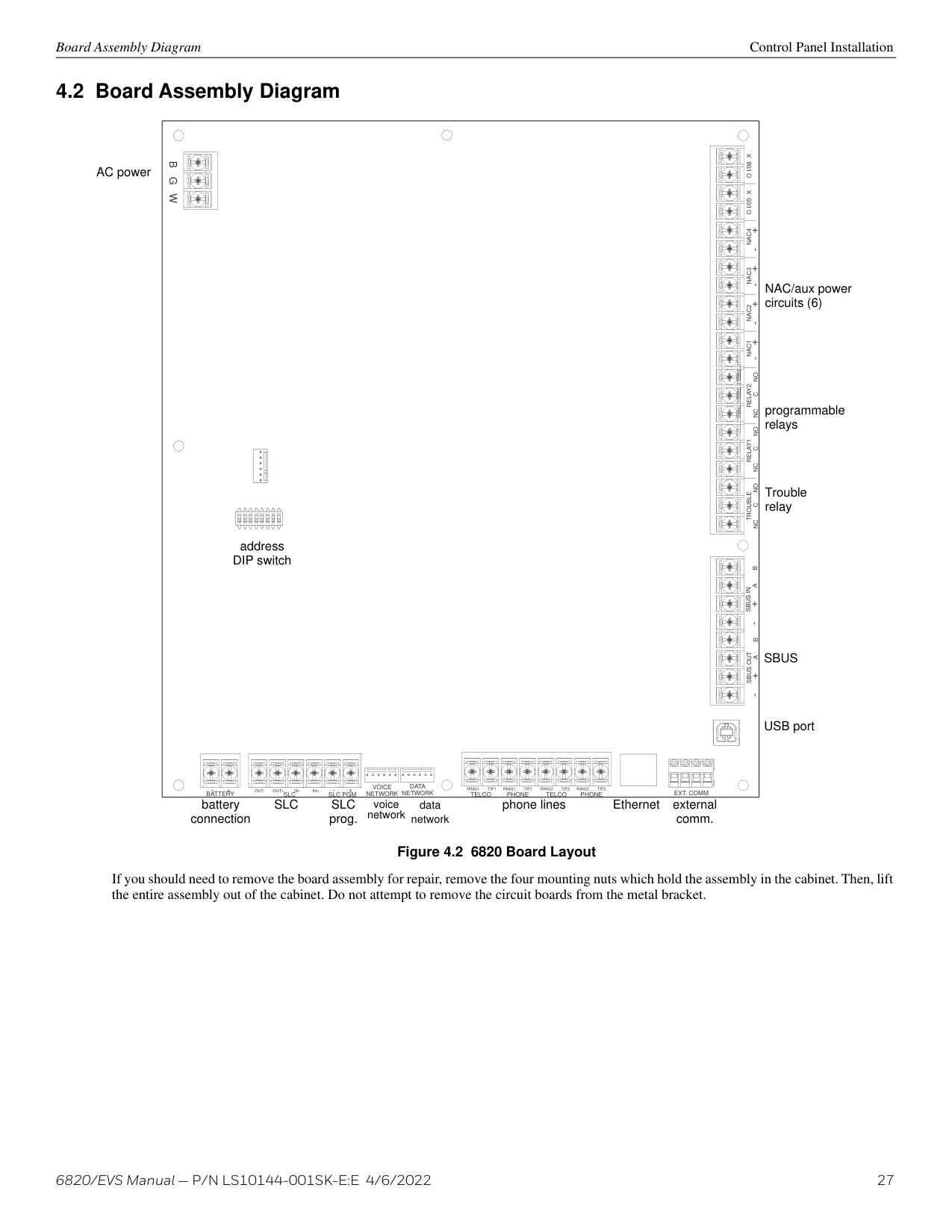
6820/EVS Manual — P/N LS10144-001SK-E:E 4/6/2022 27 Board Assembly Diagram Control Panel Installation 4.2 Board Assembly Diagram If you should need to remove the board assembly for repair, remove the four mounting nuts which hold the assembly in the cabinet. Then, lift the entire assembly out of the cabinet. Do not attempt to remove the circuit boards from the metal bracket.
Ext. Comm
Voice
Network
Data
Network
Telco Phone Telco Phone
Slc Slc Pgm
Battery
B G W
RING1 TIP1 RING1 TIP1 RING2 TIP2 RING2 TIP2Out- Out+ In- In+ - +
Trouble
Sbus Out
Sbus In
Nc C No
- + A B
- + A B
Relay1
Nc C No
Relay2
Nc C No
NAC1 NAC2 NAC3 NAC4 O I/05 X O I/06 X + - + - + - + - AC power address DIP switch battery connectionSlc
Slc
prog. voice network data network phone lines Ethernet external comm. USB portSbus
Trouble relay programmable relays NAC/aux power circuits (6) Figure 4.2 6820 Board Layout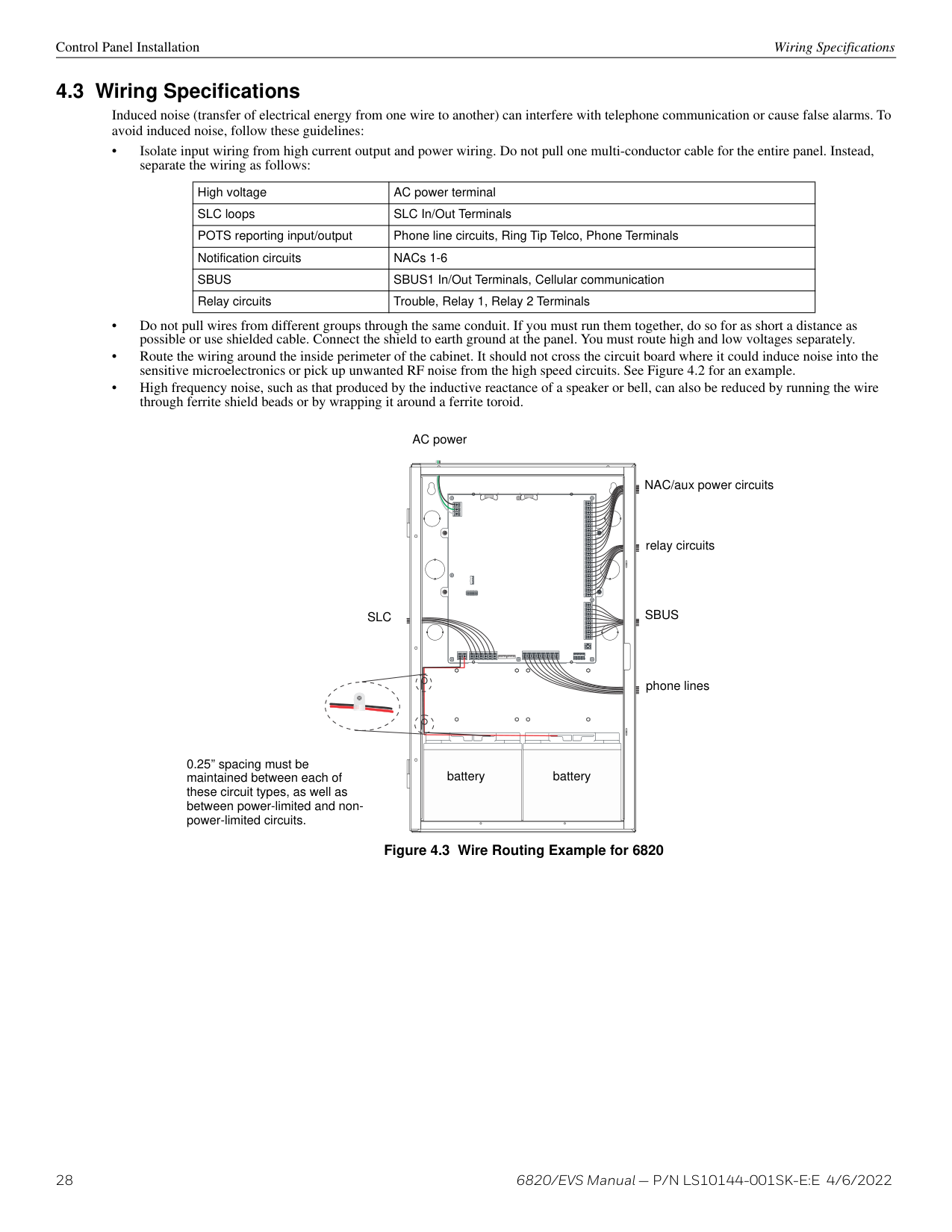
28 6820/EVS Manual — P/N LS10144-001SK-E:E 4/6/2022 Control Panel Installation Wiring Specifications 4.3 Wiring Specifications Induced noise (transfer of electrical energy from one wire to another) can interfere with telephone communication or cause false alarms. To avoid induced noise, follow these guidelines: • Isolate input wiring from high current output and power wiring. Do not pull one multi-conductor cable for the entire panel. Instead, separate the wiring as follows: • Do not pull wires from different groups through the same conduit. If you must run them together, do so for as short a distance as possible or use shielded cable. Connect the shield to earth ground at the panel. You must route high and low voltages separately. • Route the wiring around the inside perimeter of the cabinet. It should not cross the circuit board where it could induce noise into the sensitive microelectronics or pick up unwanted RF noise from the high speed circuits. See Figure 4.2 for an example. • High frequency noise, such as that produced by the inductive reactance of a speaker or bell, can also be reduced by running the wire through ferrite shield beads or by wrapping it around a ferrite toroid.
High voltage AC power terminal SLC loops SLC In/Out Terminals POTS reporting input/output Phone line circuits, Ring Tip Telco, Phone Terminals Notification circuits NACs 1-6
Sbus
SBUS1 In/Out Terminals, Cellular communication Relay circuits Trouble, Relay 1, Relay 2 Terminals Figure 4.3 Wire Routing Example for 6820 AC powerSlc
NAC/aux power circuits relay circuitsSbus
phone lines 0.25” spacing must be maintained between each of these circuit types, as well as between power-limited and non- power-limited circuits. battery battery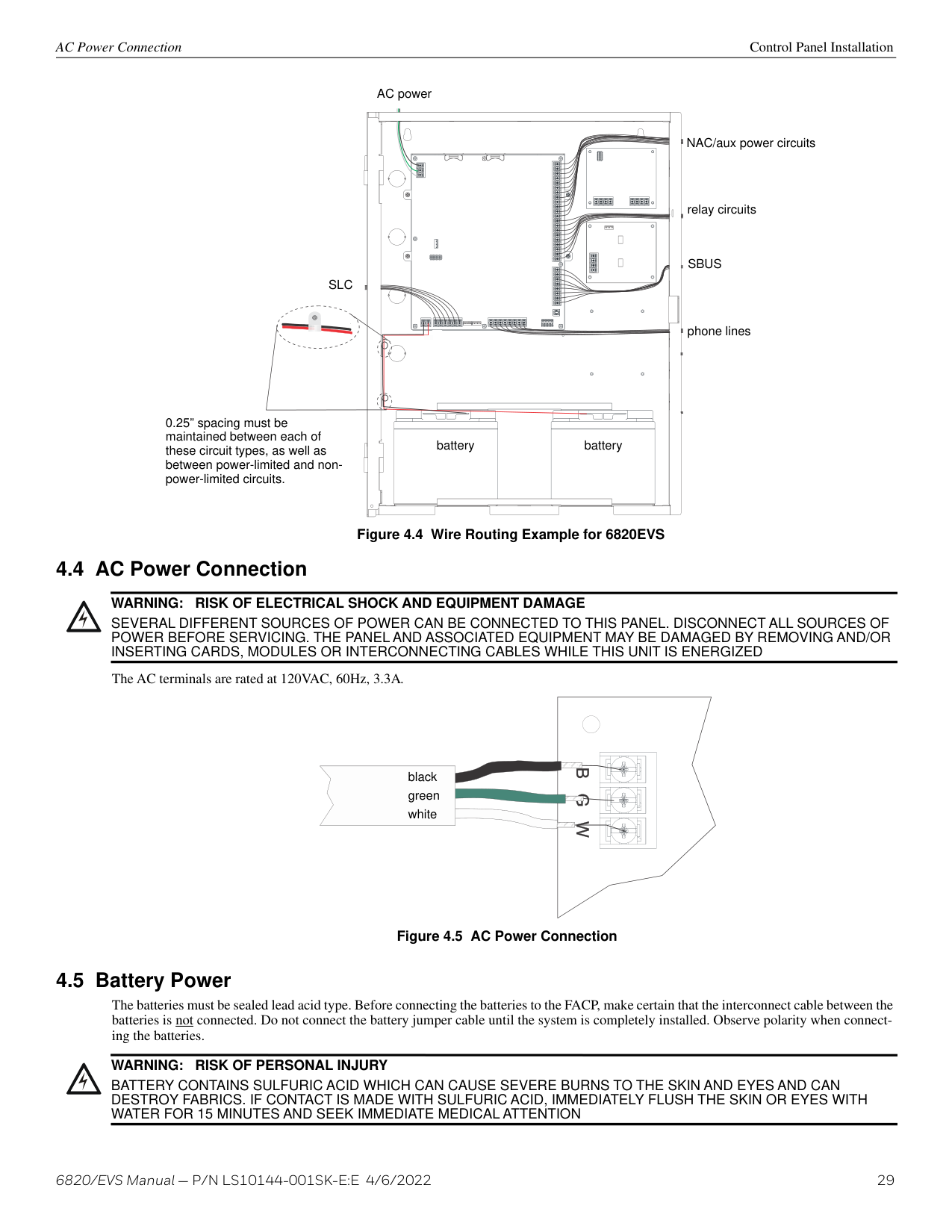
6820/EVS Manual — P/N LS10144-001SK-E:E 4/6/2022 29 AC Power Connection Control Panel Installation 4.4 AC Power Connection The AC terminals are rated at 120VAC, 60Hz, 3.3A. 4.5 Battery Power The batteries must be sealed lead acid type. Before connecting the batteries to the FACP, make certain that the interconnect cable between the batteries is not connected. Do not connect the battery jumper cable until the system is completely installed. Observe polarity when connect- ing the batteries. AC power
Slc
NAC/aux power circuits relay circuitsSbus
phone lines 0.25” spacing must be maintained between each of these circuit types, as well as between power-limited and non- power-limited circuits. battery battery Figure 4.4 Wire Routing Example for 6820EVS !Warning:
Risk Of Electrical Shock And Equipment Damage
SEVERAL DIFFERENT SOURCES OF POWER CAN BE CONNECTED TO THIS PANEL. DISCONNECT ALL SOURCES OF POWER BEFORE SERVICING. THE PANEL AND ASSOCIATED EQUIPMENT MAY BE DAMAGED BY REMOVING AND/ORInserting Cards, Modules Or Interconnecting Cables While This Unit Is Energized
Figure 4.5 AC Power Connection black green white !Warning:
Risk Of Personal Injury
BATTERY CONTAINS SULFURIC ACID WHICH CAN CAUSE SEVERE BURNS TO THE SKIN AND EYES AND CAN DESTROY FABRICS. IF CONTACT IS MADE WITH SULFURIC ACID, IMMEDIATELY FLUSH THE SKIN OR EYES WITHWater For 15 Minutes And Seek Immediate Medical Attention
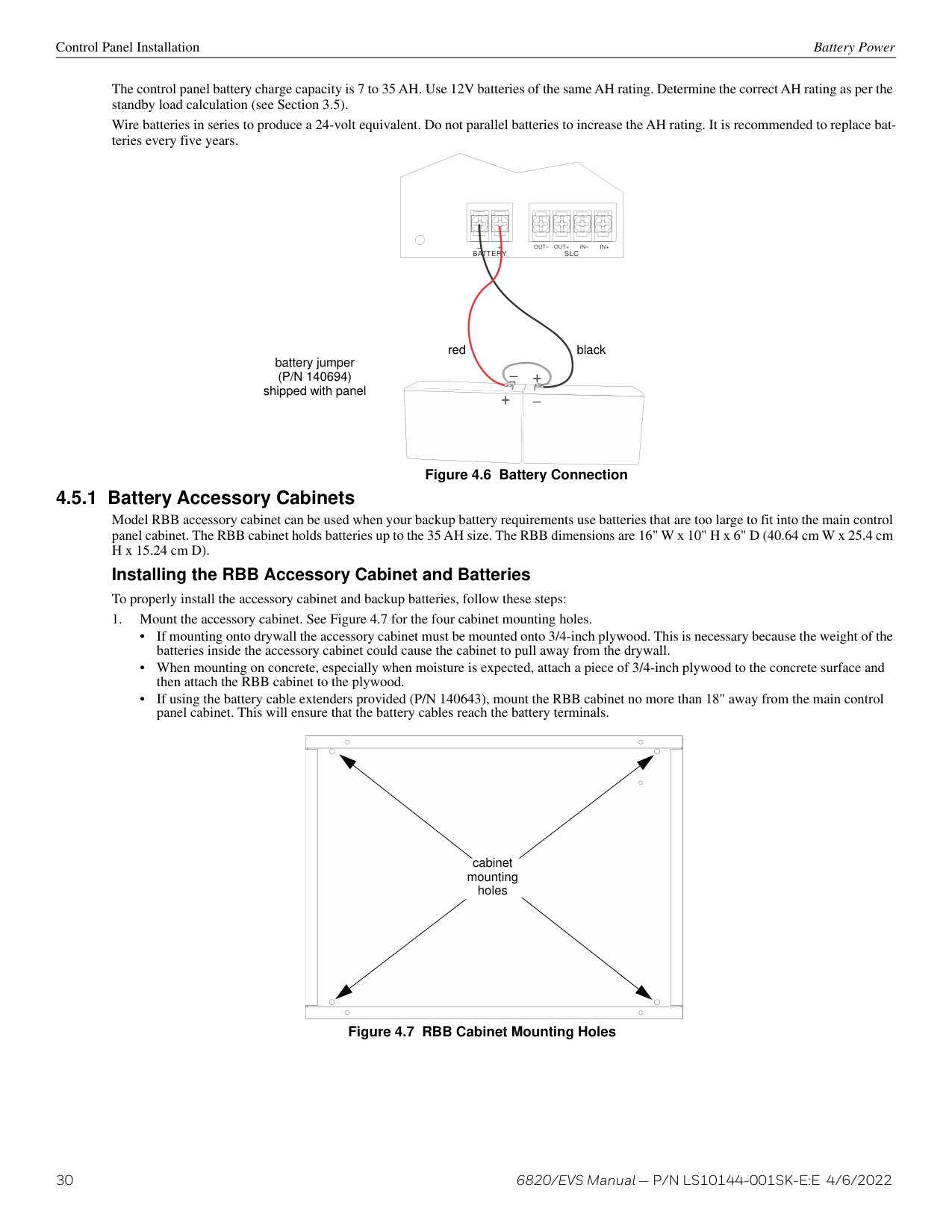
30 6820/EVS Manual — P/N LS10144-001SK-E:E 4/6/2022 Control Panel Installation Battery Power The control panel battery charge capacity is 7 to 35 AH. Use 12V batteries of the same AH rating. Determine the correct AH rating as per the standby load calculation (see Section 3.5). Wire batteries in series to produce a 24-volt equivalent. Do not parallel batteries to increase the AH rating. It is recommended to replace bat- teries every five years. 4.5.1 Battery Accessory Cabinets Model RBB accessory cabinet can be used when your backup battery requirements use batteries that are too large to fit into the main control panel cabinet. The RBB cabinet holds batteries up to the 35 AH size. The RBB dimensions are 16" W x 10" H x 6" D (40.64 cm W x 25.4 cm H x 15.24 cm D). Installing the RBB Accessory Cabinet and Batteries To properly install the accessory cabinet and backup batteries, follow these steps:
Battery
– +Slc
Out–
Out+
In–
In+
_ _ + + battery jumper(P/N 140694)
shipped with panel red black Figure 4.6 Battery Connection Figure 4.7 RBB Cabinet Mounting Holes cabinet mounting holes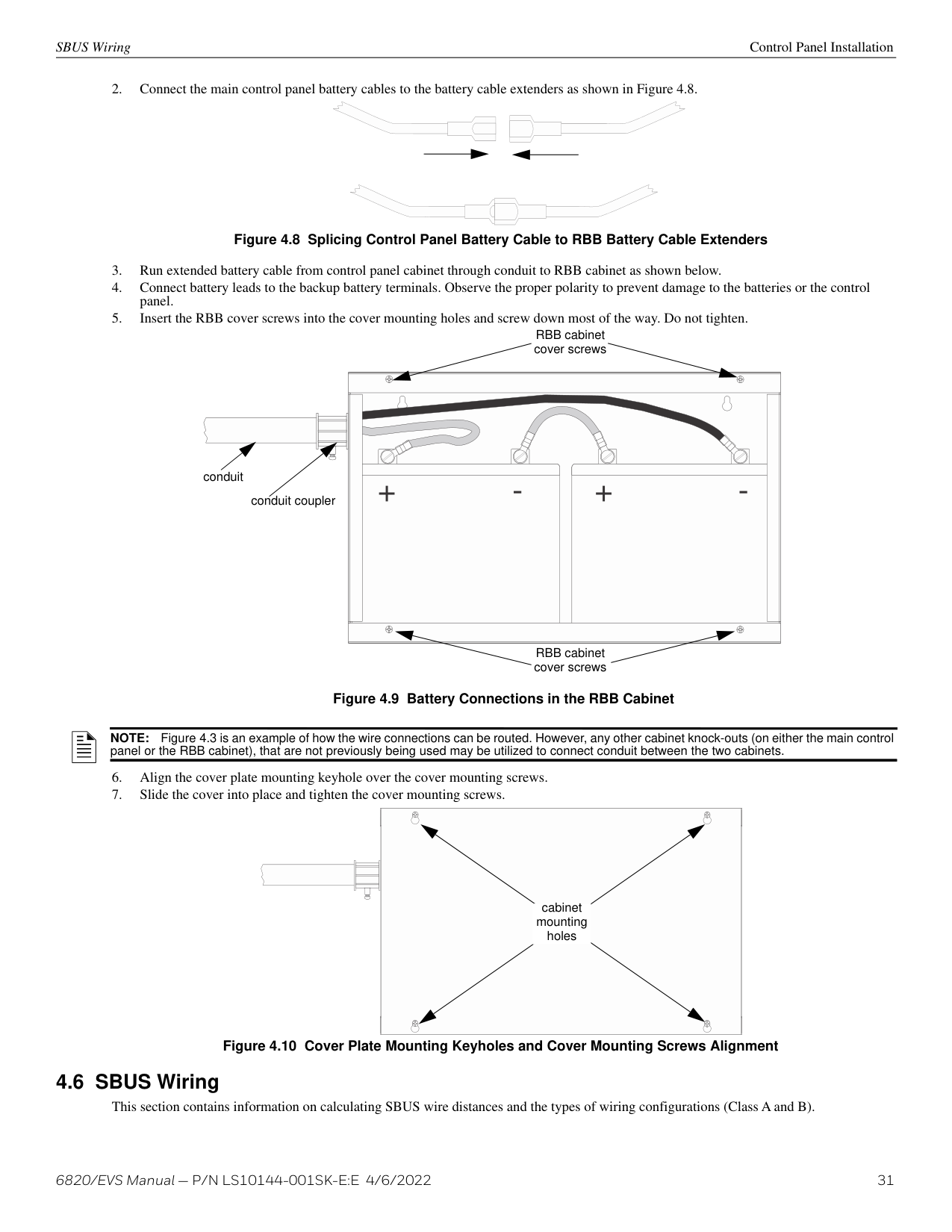
6820/EVS Manual — P/N LS10144-001SK-E:E 4/6/2022 31 SBUS Wiring Control Panel Installation
Note:
Figure 4.3 is an example of how the wire connections can be routed. However, any other cabinet knock-outs (on either the main control panel or the RBB cabinet), that are not previously being used may be utilized to connect conduit between the two cabinets. Figure 4.10 Cover Plate Mounting Keyholes and Cover Mounting Screws Alignment cabinet mounting holes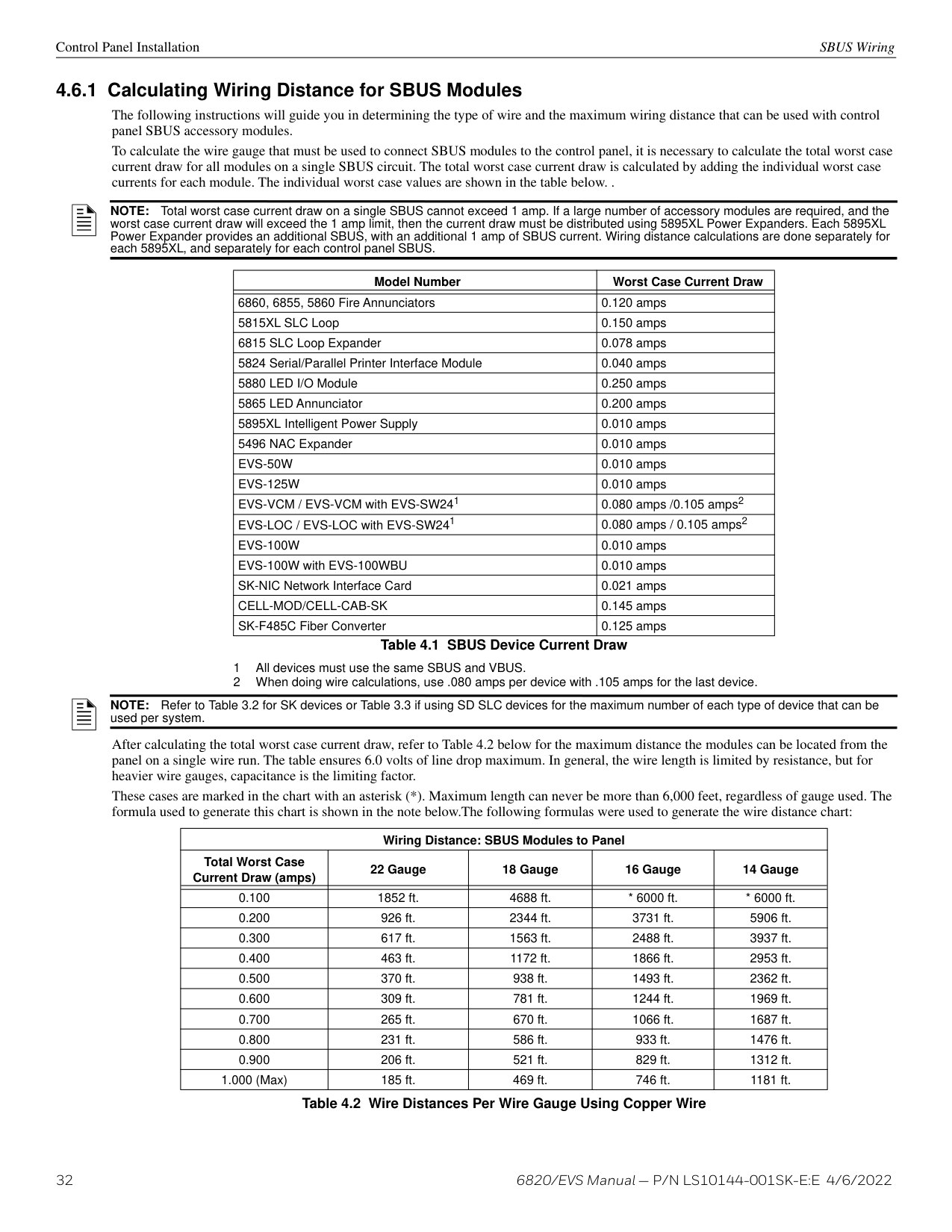
32 6820/EVS Manual — P/N LS10144-001SK-E:E 4/6/2022 Control Panel Installation SBUS Wiring 4.6.1 Calculating Wiring Distance for SBUS Modules The following instructions will guide you in determining the type of wire and the maximum wiring distance that can be used with control panel SBUS accessory modules. To calculate the wire gauge that must be used to connect SBUS modules to the control panel, it is necessary to calculate the total worst case current draw for all modules on a single SBUS circuit. The total worst case current draw is calculated by adding the individual worst case currents for each module. The individual worst case values are shown in the table below. . After calculating the total worst case current draw, refer to Table 4.2 below for the maximum distance the modules can be located from the panel on a single wire run. The table ensures 6.0 volts of line drop maximum. In general, the wire length is limited by resistance, but for heavier wire gauges, capacitance is the limiting factor. These cases are marked in the chart with an asterisk (*). Maximum length can never be more than 6,000 feet, regardless of gauge used. The formula used to generate this chart is shown in the note below.The following formulas were used to generate the wire distance chart:
Note:
Total worst case current draw on a single SBUS cannot exceed 1 amp. If a large number of accessory modules are required, and the worst case current draw will exceed the 1 amp limit, then the current draw must be distributed using 5895XL Power Expanders. Each 5895XL Power Expander provides an additional SBUS, with an additional 1 amp of SBUS current. Wiring distance calculations are done separately for each 5895XL, and separately for each control panel SBUS. Model Number Worst Case Current Draw 6860, 6855, 5860 Fire Annunciators 0.120 amps 5815XL SLC Loop 0.150 amps 6815 SLC Loop Expander 0.078 amps 5824 Serial/Parallel Printer Interface Module 0.040 amps 5880 LED I/O Module 0.250 amps 5865 LED Annunciator 0.200 amps 5895XL Intelligent Power Supply 0.010 amps 5496 NAC Expander 0.010 ampsEvs-50W
0.010 ampsEvs-125W
0.010 amps EVS-VCM / EVS-VCM with EVS-SW241 0.080 amps /0.105 amps2 EVS-LOC / EVS-LOC with EVS-SW241 0.080 amps / 0.105 amps2Evs-100W
0.010 amps EVS-100W with EVS-100WBU 0.010 amps SK-NIC Network Interface Card 0.021 ampsCell-Mod/Cell-Cab-Sk
0.145 amps SK-F485C Fiber Converter 0.125 amps Table 4.1 SBUS Device Current Draw 1 All devices must use the same SBUS and VBUS. 2 When doing wire calculations, use .080 amps per device with .105 amps for the last device.Note:
Refer to Table 3.2 for SK devices or Table 3.3 if using SD SLC devices for the maximum number of each type of device that can be used per system. Wiring Distance: SBUS Modules to Panel Total Worst Case Current Draw (amps) 22 Gauge 18 Gauge 16 Gauge 14 Gauge 0.100 1852 ft. 4688 ft.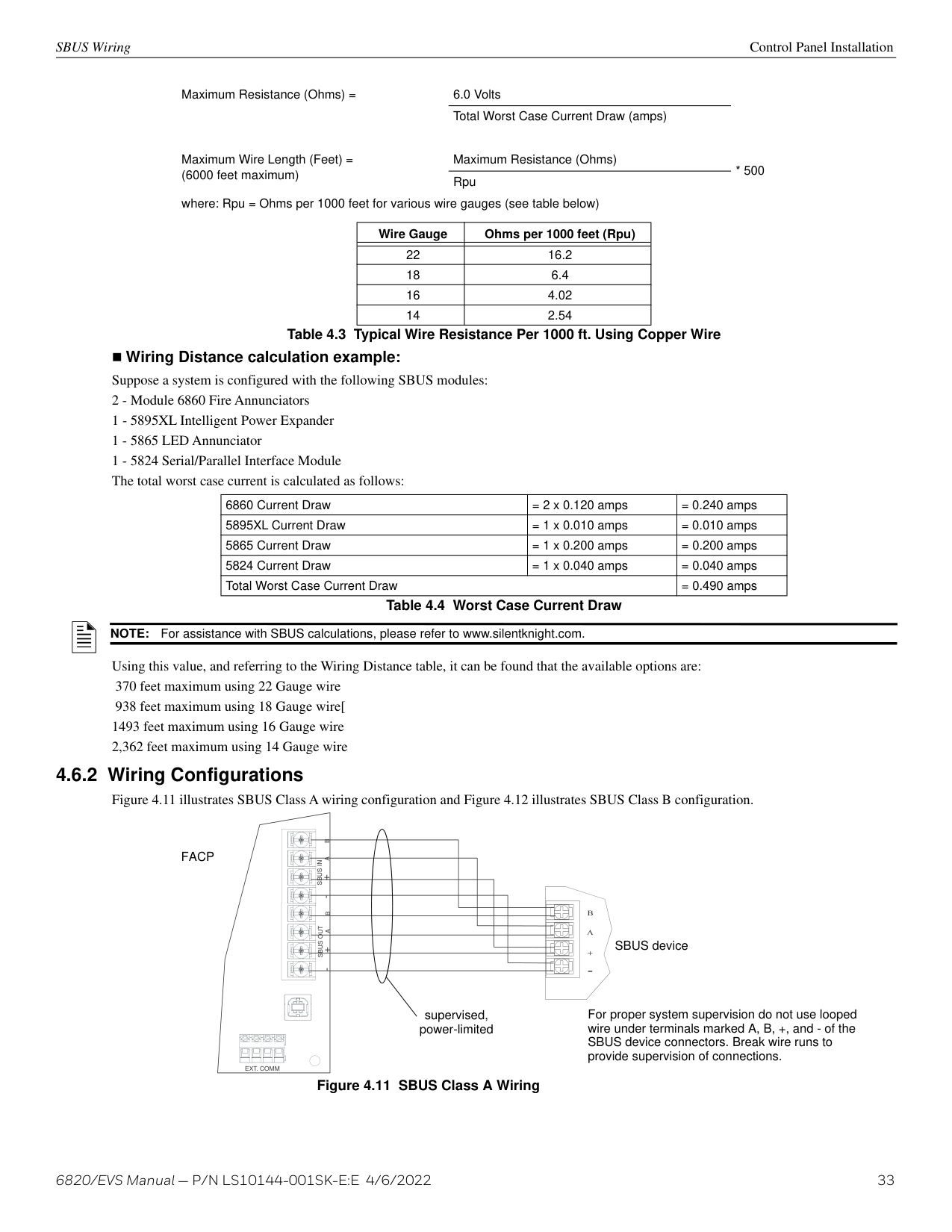
6820/EVS Manual — P/N LS10144-001SK-E:E 4/6/2022 33 SBUS Wiring Control Panel Installation Wiring Distance calculation example: Suppose a system is configured with the following SBUS modules: 2 - Module 6860 Fire Annunciators 1 - 5895XL Intelligent Power Expander 1 - 5865 LED Annunciator 1 - 5824 Serial/Parallel Interface Module The total worst case current is calculated as follows: Using this value, and referring to the Wiring Distance table, it can be found that the available options are: 370 feet maximum using 22 Gauge wire 938 feet maximum using 18 Gauge wire[ 1493 feet maximum using 16 Gauge wire 2,362 feet maximum using 14 Gauge wire 4.6.2 Wiring Configurations Figure 4.11 illustrates SBUS Class A wiring configuration and Figure 4.12 illustrates SBUS Class B configuration. Maximum Resistance (Ohms) = 6.0 Volts Total Worst Case Current Draw (amps) Maximum Wire Length (Feet) = (6000 feet maximum) Maximum Resistance (Ohms)
Note:
For assistance with SBUS calculations, please refer to www.silentknight.com.Ext. Comm
Sbus Out
Sbus In
- + A B
- + A B
supervised, power-limitedFacp
SBUS device Figure 4.11 SBUS Class A Wiring For proper system supervision do not use looped wire under terminals marked A, B, +, and - of the SBUS device connectors. Break wire runs to provide supervision of connections.
34 6820/EVS Manual — P/N LS10144-001SK-E:E 4/6/2022 Control Panel Installation 6855 Remote Annunciator Installation
4.7 6855 Remote Annunciator Installation The optional model 6855 Remote Annunciator, is shown in Figure 4.13. The 6855 can be surface or flush mounted. Up to 12 annunciators can be added to the 6808 system in any combination.
6855 installation involves the following steps:
Ext. Comm
Sbus Out
Sbus In
- + A B
- + A B
supervised, power-limitedFacp
SBUS device Figure 4.12 SBUS Class B Wiring Model 6855 Figure 4.13 6855 Remote Annunciator
6820/EVS Manual — P/N LS10144-001SK-E:E 4/6/2022 35 6855 Remote Annunciator Installation Control Panel Installation Flush Mounting Backbox dimensions are 9-9/32” W x 8-3/8” H. Minimum depth is 2". The backbox can be mounted prior to the complete installation of the 6855 using any of the mounting holes shown below.
Surface Mounting The optional Model RA-100TR Trim Ring Kit is available for use when surface mounting.

36 6820/EVS Manual — P/N LS10144-001SK-E:E 4/6/2022 Control Panel Installation 6855 Remote Annunciator Installation
Sb Sa S+ S-
Ext. Comm
Sbus Out
Sbus In
- + A B
- + A B
Figure 4.17 6855 Connection to the Panel supervised, power-limitedFacp
6855 annunciator
6820/EVS Manual — P/N LS10144-001SK-E:E 4/6/2022 37 5860 Remote Annunciator Installation Control Panel Installation 4.8 5860 Remote Annunciator Installation The 5860 is an optional remote annunciator. Up to 16 annunciators can be added to the 6820 system. 5860 installation involves the following steps:
Fire Alarm Annunciator
Figure 4.18 5860 Remote AnnunciatorFire Alarm Annunciator
Figure 4.19 5860 Annunciator Parts
38 6820/EVS Manual — P/N LS10144-001SK-E:E 4/6/2022 Control Panel Installation 5860 Remote Annunciator Installation The 5860 comes from the factory fully assembled. You must disassemble it for mounting. To disassemble the annunciator, use a 5/64” hex wrench to remove the set screws, located on the bottom of the annunciator bezel. (See Figure 4.20 for location of the set screws.) Flush Mounting This section of the manual describes flush mounting. You can flush-mount with or without an electrical box. Flush Mounting with an Electrical Box The 5860 annunciator can be used with the following types of electrical boxes: 4S, single-gang, and double-gang. If an electrical box is used, the box must be 1-3/8” back from the face of the wall to accommodate the annunciator. Studs used with an elec- trical box must be 2x4” (or larger). Flush Mounting Steps

6820/EVS Manual — P/N LS10144-001SK-E:E 4/6/2022 39 6860 Remote Annunciator Installation Control Panel Installation
Sb Sa S+ S-
Ext. Comm
Sbus Out
Sbus In
- + A B
- + A B
Figure 4.22 5860 Connection to the Panel supervised, power-limited Model 6860Back
Back
Back
Next
Next
Next
Figure 4.23 6860 Remote Annunciator
40 6820/EVS Manual — P/N LS10144-001SK-E:E 4/6/2022 Control Panel Installation 6860 Remote Annunciator Installation 4.9.1 Mounting the 6860 This section of the manual describes mounting the remote annunciator. The annunciator can be flush or surface mounted. Flush Mounting This section of the manual describes flush mounting. Follow these steps to flush mount the 6860.

6820/EVS Manual — P/N LS10144-001SK-E:E 4/6/2022 41 5815XL Installation Control Panel Installation
Sb Sa S+ S-
Sbus Out
- + A B
supervised, power-limited Figure 4.27 6860 Connection to the PanelFacp
6860Note:
5815XL will only support SD protocol devices on this panel.
42 6820/EVS Manual — P/N LS10144-001SK-E:E 4/6/2022 Control Panel Installation 6815 Installation Figure 4.28 is a drawing of the 5815XL board, showing the location of terminals and DIP switches. 4.10.1 5815XL Connection to the Panel Connect the 5815XL to the control panel as shown in Figure 4.29. After the 5815XL is connected to the panel, it must be added to the sys- tem. This programming steps are described in Section 8.2.2. 4.11 6815 Installation The 6815 SLC expander lets you add additional addressable devices. The maximum number of SK SLC devices per panel is 1,110. The number of s is limited by the maximum number of SBUS devices. To install the 6815:
Sb U S
– +A
B
Slc O U T
S+
Sc -
S+
Sc -
Slc In
On
1 2 3 4 5 6 Figure 4.28 5815XL Board to panel via SBUS to SLC loop address DIP switchSb Us
– +A
B
Sl Co Ut
S+
Sc -
S+
Sc -
Slc In
On
1 2 3 4 5 6Ext. Comm
Sbus Out
Sbus In
- + A B
- + A B
Sb U S
– +A
B
Sl Co Ut
S+
S C-
S+
Sc -
Slc In
On
1 2 3 4 5 6Facp
5815Xl
5815Xl
supervised, power-limited Figure 4.29 5815XL Connection to FACPNote:
An external 6815 will support SK or SWIFT SLC devices.
6820/EVS Manual — P/N LS10144-001SK-E:E 4/6/2022 43 5824 Serial/Parallel Interface Module Installation Control Panel Installation Figure 4.30 is a drawing of the 6815 board, showing the location of terminals and DIP switches. 4.11.1 6815 Connection to the Panel Connect the 6815 to the control panel as shown in Figure 4.31. After the 6815 is connected to the panel, it must be added to the system. This programming steps are described in Section 8.2.2. 4.12 5824 Serial/Parallel Interface Module Installation The 5824 serial/parallel interface module allows you to connect a printer to the panel, so you can print a real-time log of system events. Instructions for installing the 5824 appear below. The 5824 is for ancillary use only. 5824 installation involves the following steps:
Sb U S
– +A
B
Slc O U T
S+
Sc -
S+
Sc -
Slc In
On
1 2 3 4 5 6 DIP switches for setting IDs to panel SBUS to SLC loop Figure 4.30 6815 BoardSbu S
– +A
B
Slc O U T
S+
Sc -
S+
Sc-
Slc In
On
1 2 3 4 5 6Sbu S
– +A
B
Slc O U T
S+
Sc-
S+
Sc-
Slc In
On
1 2 3 4 5 6Ext. Comm
Sbus Out
Sbus In
- + A B
- + A B
Facp
6815 6815 supervised, power-limited Figure 4.31 6815 Connection to FACPNote:
There is a maximum of four 5824 modules allowed per panel.
44 6820/EVS Manual — P/N LS10144-001SK-E:E 4/6/2022 Control Panel Installation 5880 LED I/O Module
Ext. Comm
Sbus Out
Sbus In
- + A B
- + A B
S+
S-
On
1 2 3 4 5A
B
Sbus
DIP switches 5824 connectors for connection to printer parallel serial supervised, power-limitedFacp
Figure 4.32 5824 Connection to the Panel Option Choices Baud Rate: 75 - 19200 Data Bits: 5 - 8 Stop Bits: 0.5, 1, 2 Parity: None, Even, Odd Table 4.5 Serial Printer Options Select Yes if printer should be supervised for Out-of-Paper and Offline conditions. Select type of printer, Parallel or Serial. Monitor Printer=Yes Output Port=Parallel Event Logging=NO More Figure 4.33 Selecting Printer and Output Port Options
6820/EVS Manual — P/N LS10144-001SK-E:E 4/6/2022 45 5880 LED I/O Module Control Panel Installation 4.13.1 5880 Board Layout Figure 4.34 shows the locations of screw terminals for connection to the panel and contact monitor wiring, pin connectors for connecting LEDs and the DIP switch for selecting an SBUS ID number for the 5880. 4.13.2 FACP Connection The 5880 connects to the panel via the SBUS. Make connections as shown in Figure 4.35. After the 5880 is connected to the panel, it must be added to the system. This programming step is described in Section 8.2.2. 4.13.3 LED Wiring There are four 12-pin connectors on the 5880 board for connecting LEDs. Each LED gets its power from Pin 11. Internal resistors are sized so that there is approximately 10 mA of current for each LED; no series resistors are required. LED outputs can be mapped to output circuits. See Section 8.5.4 for programming details. Wire the LEDs as shown in Figure 4.36.
S-
S+
A
B
In - 48
C+
In - 47 In - 46
C+
In - 45 In - 44
C+
In - 43 In - 42
C+
In - 41
P1
P2
P3
P4
1 10 11 20 21 30 31 40 LED Out LED Power not used LED Out LED Power not used LED Out LED Power not used LED Out LED Power not used SBUS (ID#) Address DIP switch SBUS Connector Figure 4.34 5880 Board Layout dry contact inputs- supervised, power-limitedExt. Comm
Sbus Out
Sbus In
- + A B
- + A B
S-
S+
A
B
1On
2 3 4 5 supervised, power-limited 5880Facp
Figure 4.35 5880 Connection to 6820
46 6820/EVS Manual — P/N LS10144-001SK-E:E 4/6/2022 Control Panel Installation 5880 LED I/O Module On connector P1, Pin 12 is an open collector output for controlling a piezo. If used, the 5880 piezo will match the piezo pattern of the onboard or remote annunciator. 4.13.4 Dry Contact Wiring The 8 input circuits on the 5880 board are for monitoring switch inputs. Any type of switch supported by the control panel can be used with the 5880. For example, you can use a 5880 to monitor pull stations, water flow, tamper, reset, or silence switches. Wire dry contacts as shown in Figure 4.37. Notice grouping of terminals. Power terminals are shared by two inputs.
Note:
The circuit connected to “Open Collector Output” (last pin on P1) must be current limited so that no more than 100 mA of current is allowed to flow into the open collector transistor. Figure 4.36 5880 Board LayoutLed1
Led2
Led3
Led4
Led5
Led6
Led7
Led8
Led9
Led10
LED Power no connection Pin # 1 2 3 4 5 6 7 8 9 10 11 12Led11
Led12
Led13
Led14
Led15
Led16
Led17
Led18
Led19
Led20
LED Power no connectionP1
P2
Pin # 1 2 3 4 5 6 7 8 9 10 11 12 Cathode LEDs Anode Cathode LEDs Anode P3 and P4 are wired the same as P2.In - 48
C+
In - 47 In - 46
C+
In - 45 In - 44
C+
In - 43 In - 42
C+
In - 41
4.7kΩ EOL resistors supervised wiring 5880 Figure 4.37 Dry Contact Wiring
6820/EVS Manual — P/N LS10144-001SK-E:E 4/6/2022 47 5865-3 / 5865-4 LED Annunciator Installation Control Panel Installation 4.14 5865-3 / 5865-4 LED Annunciator Installation The 5865-3 and 5865-4 are LED annunciators. The 5865-4 has 30 mappable LEDs, remote fire system silence and fire system reset key switches, and a general system trouble LED. The 5865-3 has 30 mappable LEDs only. These are arranged as 15 pairs of red (typically used for alarm) and yellow (typically used for trouble) LEDs. Installation of the 5865-3 and 5865-4 is identical. The keyswitches and the trouble LED follow the behavior of other system annunciators and do not require any installation steps. The following sub-sections describe how to install the 5865-3 and 5865-4 hardware. Refer to Section 8 for programming information.
4.14.1 FACP Connection The 5865 connects to the panel via the SBUS. Make connections as shown below. After the 5865 is connected to the panel, it must be added to the system. This programming step is described in Section 8.2.2.
Note:
This manual uses “5865” when referring to aspects of the 5865-3 and 5865-4 that are common to both models.Silence
Trouble
Reset
1 2 9 10 11 12 21 22 19 20 29 30 3 4 5 6 7 8 13 14 15 16 17 18 23 24 25 26 27 28 Note: Numbers indicate point numbers for 5865. They do not appear on board assembly. Note: 5865 switches follow the main FACP, no installation or programming required. 5865-4 Board Assembly 5865-3 Board Assembly Plexiglass plate mounted to the LED board at the factory. Do not remove. Figure 4.38 5865-3 and 5865-4 Assembly (Front View)Ext. Comm
Sbus Out
Sbus In
- + A B
- + A B
supervised, power-limited Class B Figure 4.39 5865 Connection to the FACPFacp
5865
48 6820/EVS Manual — P/N LS10144-001SK-E:E 4/6/2022 Control Panel Installation Configuring SBUS Modules 4.14.2 5865 Mounting Mount the 5865-4 to a standard 4-gang electrical box. Mount the 5865-3 to a standard 3-gang electrical box. In Figure 4.40, the 5865-4 attached to a 4-gang box, is used as an example. The 5865 ships with a set of zone description labels that can be inserted into the 5865 board assembly. These labels can be used in a type- writer or can be written on by hand. Slide the labels under the plexiglass as shown in Figure 4.41. The LEDs will show through the label when illuminated. 4.15 Configuring SBUS Modules This section describes how to configure any system hardware modules that have been added to the system. 4.15.1 Assigning SBUS Module IDs SBUS devices on a panel are addressed from 1 to 63. Although the addressing scheme allows 63 SBUS devices to be connected to a panel, the actual number is limited by current draw and SBUS bandwidth usage as discussed below. When installing a hardware module (see Table 4.1 for a list of compatible devices), you must use the DIP switches on the module to assign an ID number to the module. Address zero is an invalid address and is not allowed. Attach the 5865 to a standard 3- or 4-gang electrical box. The 5865 is mounted to a plexiglass plate at the factory. cover plate Figure 4.40 5865 Mounting Example
Silence
Trouble
Reset
Top
Zone 1 1st Flr South Zone 2 1st Flr West Zone 3 2nd Flr West Zone 4 2nd Flr East Zone 5 3rd Floor Figure 4.41 Inserting Zone Description Labels
6820/EVS Manual — P/N LS10144-001SK-E:E 4/6/2022 49 Telephone Connection Control Panel Installation Figure 4.42 shows all possible DIP switch positions and their correlation to a numerical ID. For example, to select ID 2, place DIP switch 2 in the up or on position. Refer to Section 8.2 to edit, add, delete, and view module list. 4.15.2 SBUS Bandwidth Considerations Each SBUS device generates a certain amount of traffic on the SBUS. Generally, the amount of traffic generated depends on the type of SBUS device. To help you figure out the SBUS bandwidth usage of a given collection of devices, a tool is available on the Silent Knight website (www.silentknight.com). The tool will serve as a guide to help determine how heavily loaded an SBUS is with respect to bandwidth. We recommend you use this tool if you plan to have more than eight SBUS devices per SBUS. Remember to include devices that are on 5895XL SBUS repeaters in your list of devices for SBUS bandwidth calculations. Refer to Section 4.6.1. 4.16 Telephone Connection Connect the telephone lines as shown in Figure 4.43. The 7860 phone cord is available from Silent Knight for this purpose. If you do not use the model 7860 to connect to the phone lines, the wire used for the connection must be 26 AWG or larger diameter wire. A number of programmable options are available for customizing telephone lines. These options are described in “Phone Lines” on page 104. 1 4 5 6 2 3 1 4 5 6 2 3 1 4 5 6 2 3 1 4 5 6 2 3
On
Off
address address address address Figure 4.42 Possible SBUS Module AddressesExt. Comm
Voice
Network
Data
Network
Telco Phone Telco Phone
Slc Slc Pgm
Battery
RING1 TIP1 RING1 TIP1 RING2 TIP2 RING2 TIP2Out- Out+ In- In+ - +

50 6820/EVS Manual — P/N LS10144-001SK-E:E 4/6/2022 Control Panel Installation Flexput I/O Circuits 4.17 Flexput I/O Circuits The two Flexput circuits are an innovative and versatile feature of the control panel. They can be used as: Class A or B notification circuits, Class A or B initiation circuits (either 2- or 4-wire detectors), or as auxiliary power (resettable, continuous, sounder base sync, or door holder). The polarity of the Flexput terminals differs depending on whether the circuit is programmed as an input or an output circuit. If the circuit is programmed as an input circuit (for a detector or normally open contact) the X terminal is negative and O terminal is positive. If the circuit is programmed as an output circuit (Aux power or NAC) then the X terminal is positive and the O terminal is negative. 4.17.1 Conventional Notification Appliance This sub-section of the manual explains how to install conventional notification appliances for Class A and Class B configurations. Class B Notification Wiring You must use an appliance listed in the Device Compatibility Document. To install a circuit:
Note:
Where power to a device or appliance is supplied over a separate pathway from the notification appliance and/or SLC, the operation of the power pathway shall meet the performance requirements of the, notification appliance, and/or signaling-line circuit(s) and the power circuit shall be defined by the applicable class in the product installation wiring diagram/instructions consistent with the operation of the particular power pathway. Current Maximum Impedance1.0A
3Ω
1.5A
2Ω
2.0A
1.5Ω
2.5A
1.2Ω
3.0A
1.0Ω
Table 4.6 Maximum Impedance Class BLay2
C No
NAC1 NAC2 NAC3 NAC4 O I/05 X O I/06 X + - + - + - + - + + + + + + + + + + + + + + + + + + Alarm Polarity Shown 4.7 kΩ EOL Regulated, 24 VDC Full Wave Rectified circuits. Rated at 27.4 VDC, 3A per circuit, 6A max total. supervised, power-limited Figure 4.44 Class B Notification Appliance Circuit Wiring !Caution: System Supervision
FOR PROPER SYSTEM SUPERVISION DO NOT USE LOOPED WIRE UNDER TERMINALS MARKED – AND + OF THENac Circuit. Break Wire Runs To Provide Supervision Of Connections.

6820/EVS Manual — P/N LS10144-001SK-E:E 4/6/2022 51 Flexput I/O Circuits Control Panel Installation
Lay2
C No
NAC1 NAC2 NAC3 NAC4 O I/05 X O I/06 X + - + - + - + - + + + + + + + + + + + + + + + + + + Figure 4.45 Class A Notification Appliance Circuit Configuration supervised, power-limited Alarm Polarity Shown Regulated, 24 VDC Full Wave Rectified circuits. Rated at 27.4 VDC, 3A per circuit, 6A max total.Note:
In programming any point that uses multiple Flexput circuits, the lowest Flexput circuit number is used to refer to the circuit pair. For example, Figure 4.45 uses both Flexput circuit 1 and 2, so in programming, these would be referred to as point 1. Current Maximum Impedance1.0A
3Ω
1.5A
2Ω
2.0A
1.5Ω
2.5A
1.2Ω
3.0A
1.0Ω
Table 4.7 Maximum Impedance Class ALay2
C No
NAC1 NAC2 NAC3 NAC4 O I/05 X O I/06 X + - + - + - + - EOL 4.7 kΩ supervised, power-limited Figure 4.46 Class B Input Switches
52 6820/EVS Manual — P/N LS10144-001SK-E:E 4/6/2022 Control Panel Installation Flexput I/O Circuits Class A Inputs You can connect conventional Class A switches, such as waterflow switches and pull stations, directly to the Flexput circuits of the control panel. To install a Class A switch:
Lay2
C No
NAC1 NAC2 NAC3 NAC4 O I/05 X O I/06 X + - + - + - + - Maximum Impedance per circuit is 50Ω. supervised, power-limited Figure 4.47 Class A Initiating SwitchesNote:
In programming any point that uses multiple Flexput circuits, the lowest Flexput circuit number is used to refer to the circuit pair. For example, Figure 4.47 uses both Flexput circuit 5 and 6, so in programming it would be referred to as point 5.Lay2
C No
NAC1 NAC2 NAC3 NAC4 O I/05 X O I/06 X + - + - + - + - +
6820/EVS Manual — P/N LS10144-001SK-E:E 4/6/2022 53 Flexput I/O Circuits Control Panel Installation Installing 2-Wire Class A Smoke Detectors To install a Class A two-wire smoke detector, wire as shown below. 4.17.4 Installing 4-Wire Smoke Detectors Any compatible, UL-listed four-wire smoke detector can be used with the control panel. Refer to the Device Compatibility Document for a list of devices. Figures 4.50 and 4.51 illustrate how to connect a UL-listed four-wire detector to the control panel. Installing a Class B 4-Wire Smoke Detector Figure 4.50 illustrates how to install a 4-wire Class B smoke detector. Conventions used for wiring 4-wire Class B loops:
Lay2
C No
NAC1 NAC2 NAC3 NAC4 O I/05 X O I/06 X + - + - + - + - +Note:
In programming any point that uses multiple Flexput circuits, the lowest Flexput circuit number is used to refer to the circuit pair. For example, Figure 4.49 uses both Flexput circuit 5 and 6, so in programming it would be referred to as point 5 + +Lay2
C No
NAC1 NAC2 NAC3 NAC4 O I/05 X O I/06 X + - + - + - + - Figure 4.50 Class B 4-Wire Smoke Detector Connections Air ProductsPam-2
Supervision Module blue orange white gray supervised, power limitedEsl 449Ct
Note:
In programming any point that uses multiple Flexput circuits, the lowest Flexput circuit number is used to refer to the circuit pair. For example, Figure 4.50 uses both Flexput circuit 5 and 6, so in programming it would be referred to as point 5.
54 6820/EVS Manual — P/N LS10144-001SK-E:E 4/6/2022 Control Panel Installation Flexput I/O Circuits
Pam-2
Supervision Module blue orange white gray supervised, power limitedNote:
In programming, any point that uses multiple Flexput circuits are always referred to as the lowest Flexput circuit number used. In this example, Figure 4.51 uses Flexput circuits 5, 6 together with NAC 4. In programming (4, 5, 6) would be referred to as point 5.
6820/EVS Manual — P/N LS10144-001SK-E:E 4/6/2022 55 Onboard Relays (Conventional) Control Panel Installation 4.18 Onboard Relays (Conventional) The control panel has two built-in programmable relays and a built-in trouble relay. All relays are Form C rated at 2.5 A @ 24VDC. 4.18.1 Trouble Relay The control panel has a dedicated Form C trouble relay. The relay provides a normally open and a normally closed contact. The trouble relay will deactivate under any trouble condition. 4.18.2 Programmable Relays The control panel has two Form C programmable relays. Each relay provides a normally open and a normally closed contact. To install one or two programmable relays, follow these steps.
No
C
Com
Relay 2
Trouble
Com
No
C
Relay 1
Com
No
C
Figure 4.52 Conventional Relay CircuitsTrouble
Nc C No
Relay1
Nc C No
Relay2
Nc C No
Nac1 Nac2 Nac3 Nac4
+ - + - + - + - Connect to power-limited sources only. Figure 4.53 Conventional Relay CircuitsNote:
The NC contact is the relay contact that is closed when the panel has power and there are no trouble conditions.
56 6820/EVS Manual — P/N LS10144-001SK-E:E 4/6/2022 Control Panel Installation Remote Station Applications
Trouble
Nc C No
Relay1
Nc C No
Relay2
Nc C No
Nac1 Nac2 Nac3 Nac4
+ - + - + - + -Sbus Out
Sbus In
- + A B
- + A B
This is not suitable for remote station protected premises service where separate transmission circuits are required for fire supervisory, if applicable, and trouble signals. This is intended for connection to a polarity reversal circuit of a remote station receiving unit having compatible ratings. All circuits power-limited. All wiring supervised. Keltron Receiving Equipment to earth ground #4 not used 4.7K EOLs Model 3158 Figure 4.54 Keltron 3158 Connection to Control Panel
6820/EVS Manual — P/N LS10144-001SK-E:E 4/6/2022 57 Remote Station Applications Control Panel Installation
Trouble
Nc C No
Relay1
Nc C No
Relay2
Nc C No
Nac1 Nac2 Nac3 Nac4
+ - + - + - + -Sbus Out
Sbus In
- + A B
- + A B
Intended for connection to a polarity reversal circuit of a Remote Station receiving unit having compatible ratings. The shunt connection is recognized only as a supplementary signaling unit as part of a local control unit and is not recognized as an auxiliary control unit connection per NFPA 72. NAC circuit 1 used as an example. Any NAC circuit can be used. non-supervised, non-power-limited city box orange yellow red brown Figure 4.55 City Box ConnectionTrouble
Nc C No
Relay1
Nc C No
Relay2
Nc C No
Nac1
+ - UL listed EOL must be Installed in City Box Enclosure to SBUS out (+) to SBUS out (-) to SLC (-) (+) to city boxFacp
Sk-Relay
Figure 4.56 Relay Module for City Box Connection
58 6820/EVS Manual — P/N LS10144-001SK-E:E 4/6/2022 Control Panel Installation Remote Station Applications 4.19.4 NFPA 72 Polarity Reversal Using the 5220 Module When the 5220 is wired and programmed for polarity reversal, it reports alarm and trouble events to a remote site. Alarms will override trou- ble conditions and it will not be possible to reset the remote indicator until the condition is cleared and the control panel is reset. If an alarm condition occurs, the alarm relay will close, overriding the trouble condition. Standby Current: 100 mA, 24 VDC Alarm Current: 100 mA, 24 VDC To install the 5220 for polarity reversal, follow the steps below:
Note:
Intended for connection to a polarity reversal circuit of a control unit at the protected premises having compatible rating. Intended for connection to a Polarity Reversal circuit of a Remote Station receiving unit having compatible ratings.Sbus Out
Sbus In
- + A B
- + A B
+Trouble
Nc C No
Relay1
Nc C No
Relay2
Nc C No
Nac1 Nac2 Nac3 Nac4
+ - + - + - + - All circuits power-limited All wiring supervised. Jumper terminals 3 & 4 when City Box is not used. remote indicator Program relay for alarm orange yellow red brown NAC circuit 2 and Relay 1 used as examples. Any NAC and relay circuit can be used. Figure 4.57 Polarity Reversal Connection Using the 5220 ModuleNote:
Use only Flexput/NAC circuits on the control panel for reverse polarity.
6820/EVS Manual — P/N LS10144-001SK-E:E 4/6/2022 59 Remote Station Applications Control Panel Installation
O I/01 X
O I/02 X
O I/03 X
O I/04 X
O I/05 X
O I/06 X
O I/07 X
O I/08 X
Battery
+ - remote indicator black white black white7644-L8
7644-L8
1k Figure 4.58 Polarity Reversal Connection Using the 7644-L8 – +Trouble
Nc C No
Relay1
Nc C No
Relay2
Nc C No
Nac1 Nac2 Nac3 Nac4
+ - + - + - + - remote indicator black white black white7644-L8
7644-L8
1k Figure 4.59 Polarity Reversal Connection Using the 7644-L8
60 6820/EVS Manual — P/N LS10144-001SK-E:E 4/6/2022 Control Panel Installation Remote Station Applications 4.19.5 Transmitter Activated by Dry Contacts This section describes the connection of a UL 864 listed remote station transmitter to the 6820 dry relay contacts. The 6820 FACP contacts must be supervised by the remote station transmitter module using end-of-line resistors (ELRs) with a value determined by the transmitter manufacturer. Power is also provided by the remote station transmitter manufacturer. Refer to the remote station transmitter manufacturer’s manual for details.
Trouble
Nc C No
Relay1
Nc C No
Relay2
Nc C No
Nac1 Nac2 Nac3 Nac4
+ - + - + - + - Note: The trouble relay is a fail-safe relay. With power applied to the FACP and no troubles to the panel, the contacts should be in the indication indicated in the drawing. trouble relay supervisory relay alarm relay typical input zone triggers Do not loop wire under terminals. Break wire runs to provide supervision of connections. Figure 4.60 Transmitter Activated by Dry Contacts
6820/EVS Manual — P/N LS10144-001SK-E:E 4/6/2022 61 Section 5: Common Communications Link 5.1 Network System Hardware Features 6820 panels can be networked to create a virtual system that is larger than 1,110 addressable points. Each additional provides another 1,110 addressable points to the network total. For example, a network of 17- 6820panels provides a maximum addressable point capacity of 18,870 points (1,110 x 17 = 18,870). 5.1.1 Panels 6820 and other applicable addressable panels can be linked together for common communications to the central station. “Sites” are used to allow for individual or common annunciation across the link. Up to 17 sites can be activated and programmed for the link. This does not cre- ate a peer-to-peer network and will not operate as one. 5.1.2 Wiring Options to Connect Panels
Use provided 2’ cable and wire in conduit.
Facp
Facp
Facp
Sk-Nic
Sk-Nic
Sk-Nic
Class B wiring Class A wiring Figure 5.1 External SK-NIC Wiring OptionFacp
Facp
Facp
Sk-Nic
Sk-Nic
Sk-Nic
Class B wiring Class A wiring Figure 5.2 Internal SK-NIC Wiring Option
62 6820/EVS Manual — P/N LS10144-001SK-E:E 4/6/2022 Common Communications Link SK-NIC Wiring Options 5.3 SK-NIC Wiring Options Linking a group of 6820 panels requires the use of a network interface card with each panel. The SK-NIC connects to other linked units using unshielded, twisted-pair wiring or fiber optic cable. 5.3.1 Fiber Loop Modules Two types of fiber- optic modules are available to use to transmit and receive communication with the SK-NIC. For more information, see the SK-FML/ SK-FSL Installation Instructions P/N LS10178-001SK-E. The SK-FML (Fiber-Optic Multi-Mode) and SK-FSL (Fiber-Optic Single-Mode) are plug-in fiber loop modules. The two types of fiber optic modules are used as one channel to transmit or receive communications with the SK-NIC, ARCNET communication circuit. The following describe the two types of fiber optic modules. • The SK-FML is a fiber module that allows the multi-mode fiber to link between nodes. • The SK-FSL is a fiber module that allows the single-mode fiber to link between nodes. Each fiber loop module can Transmit (TX) and Receive (RX) fiber-optic cable connecting to the SK-NIC. Up to two fiber loop cards can be added to the SK-NIC, and both cards may be combined in the same configuration. Accessory Mounting Kits The SK-NIC can be mounted within the 6820 cabinet or in the SK-NIC-KIT accessory cabinet. The SK-NIC-KIT includes the SK-NIC, cab- inet with door, cable, and mounting hardware. The accessory kits are available if you want to install the SK-NIC outside of the 6820 cabinet. Figure 5.3 SK-NIC Network Interface Card
Led1
Led2
Rx
Tx
SK-FSL Single-Mode Fiber Module SK-FML Multi-Mode Fiber Module Figure 5.4 Types of Fiber Loop ModulesLed1
Led2
Rx
Tx
Figure 5.5 SK-NIC with Fiber Loop Modules
6820/EVS Manual — P/N LS10144-001SK-E:E 4/6/2022 63 SK-NIC Wiring Options Common Communications Link 5.3.2 SK-NIC Installation The SK-NIC is designed to mount on one of the SLC expander standoff sets inside the cabinet or remotely using the accessory cabinet. Use the following steps to mount the SK-NIC inside the 6820.
Led1
Led2
Rx
Tx
Voice
Network
Data
Network
Telco Phone Telco Phone
Slc Slc Pgm
Battery
RING1 TIP1 RING1 TIP1 RING2 TIP2 RING2 TIP2Out- Out+ In- In+ - +
Facp
Sk-Nic

64 6820/EVS Manual — P/N LS10144-001SK-E:E 4/6/2022 Common Communications Link SK-NIC Wiring Options 5.3.4 Wiring Unshielded Twisted Pair Wiring between Multiple Panels Unshielded twisted pair wiring between multiple panels is shown in Figure 5.7. Class X wiring is shown with a dotted line. Fiber Optic Multi-Mode Wiring between Multiple Panels Fiber optic cable between multiple panels is shown in Figure 5.8 and Figure 5.9. Class X is shown with a dotted line.
A
B
A
B
A
B
A
B
A
B
A
B
Tb2
Tb2
Tb2
last control panel/SK-NIC next control panel/SK-NIC first control panel/SK-NIC port 2 port 1 port 2 port 1 port 2 port 1 Class X wiring Figure 5.7 Twisted Pair Wiring Configuration Class X wiring in out in out port 2 port 1 in out in out port 2 port 1 in out in out port 2 port 1 last control panel/SK-NIC next control panel/SK-NIC first control panel/SK-NIC Figure 5.8 Fiber-Optic Wiring Multi-Mode Example
6820/EVS Manual — P/N LS10144-001SK-E:E 4/6/2022 65 SK-NIC Wiring Options Common Communications Link
Fiber Optic and Twisted Pair Wiring between Multiple Panels A mixture of fiber optic cable and twisted pair wiring between multiple panels is shown in Figure 5.10. Class X cabling is shown with dotted line. Class X wiring port 2 port 1 port 2 port 1 port 2 port 1 last control panel/SK-NIC next control panel/SK-NIC first control panel/SK-NIC in out in out in out in out in out in out Figure 5.9 Fiber-Optic Wiring Single-Mode Example
A
B
A
B
Tb2
A
B
A
B
Tb2
port 1 Class X wiring port 2 last control panel/SK-NIC next control panel/SK-NIC first control panel/SK-NIC port 1 port 2 port 1 port 2 in out in out in out in out Figure 5.10 Twisted-Pair and Fiber-Optic Combination Wiring Example
66 6820/EVS Manual — P/N LS10144-001SK-E:E 4/6/2022 Common Communications Link Setting the ID for Each Panel 5.4 Setting the ID for Each Panel Use the DIP switch positions 1 through 5 to set the ID for each panel. Note that switches 7 and 8 are not used and should remain in the OFF position. See the figure below for possible DIP switch settings. Address 0 is an invalid address and cannot be used.
Note:
It is important that much thought is given when choosing the network IDs for each panel. It is difficult to change the IDs once panel programming has begun. 1 7 8 4 5 6 2 3 0 1 2 3 4 5 6 7 8 9 10 11 12 13 14 15 16 17 1 7 8 4 5 6 2 3 1 7 8 4 5 6 2 3 1 7 8 4 5 6 2 3 Figure 5.11 PanelID SettingsOn
Off
Address Address Address Address
6820/EVS Manual — P/N LS10144-001SK-E:E 4/6/2022 67 Section 6: Network Management 6.1 Network Diagnostics 6.1.1 Ping Panel The Ping Panel menu allows you to continually ping any panel programmed into the network. As the selected panel is being pinged, the Ping Panel screen will display the reply time, minimum and maximum reply times, and sent and received counters.
Note:
Although the word “Network” is used in this section, it applies to system menus that relate to the physical wire and/or fiber optic connections between multiple panels. The 6820 does not support peer-to-peer networking.Note:
If adding panels to network, the system will automatically run the Sync Network Options. You will be required to select which panel to distribute network options from. See Section 6.4.
68 6820/EVS Manual — P/N LS10144-001SK-E:E 4/6/2022 Network Management Network Programming When using the PC configuration software to program the panels, the Network Panel ID will be locked from future editing. The only way to change it will be to restore defaults and use this menu again. Edit the Network Panel ID

6820/EVS Manual — P/N LS10144-001SK-E:E 4/6/2022 69 Voice Options Network Management
Sia500
•Sia8
•Sia20
• Ethernet • Cellular •Unused
Communicator Reporting Table The Communicator Report Table specifies event reporting for each panel on the network. Each row in the table specifies a panel, event types to report, primary and backup receiver numbers, and report by point or zone. Associated with the receivers are account number and daily test option. The table can have up to 99 rows.Note:
Only the SIA format sends the panel ID when reporting. test primary account test secondary account Panel: 03 YYYYR009:321456 N
R013:987456 N
01=03Yyyy 009N 013N
02=02Nnyn 015N 014Y

70 6820/EVS Manual — P/N LS10144-001SK-E:E 4/6/2022 Network Management Voice Options Control Lockout The Control Lockout countdown timer is set to the programmed value when an LOC gains EVS Control. The timer starts over upon any key press at the EVS Control LOC. While the Control Lockout timer is active, an LOC of equal priority must request EVS control. The Control Lockout timer is cleared when EVS Control is relinquished. The Control Lockout timer does not apply to EVS Super User control. Select Immediate/Timer/Never Range 0-720 min/0-59 sec Auto Reset EVS MIC Triggered Event If the Timer is selected, the event will automatically reset after being active for the programmed time. If Event Disabled is selected, the event will not be allowed to be activate from an LOC Station. Selecting Never will require an emergency system reset to be performed to reset the event. Select Never/Timer/Event Disabled, Range from 1-240 min 6.3.2 Edit Voice Commands When a voice output group is selected to be activated by a zone, the cadence pattern choice does not apply. For voice output groups, one of six system wide voice commands will activate instead of the cadence pattern.

6820/EVS Manual — P/N LS10144-001SK-E:E 4/6/2022 71 Sync Network Options Network Management
Note:
520Hz tones are available when using the ECS-VCM, EVS-INT50W, or EVS-100W amplifiers. These include ANSI 520, Temp 4 520, Steady 520. See the Device Compatibility Document for a list of compatible speakers. Select Source 01= Panel 1 02= Panel 2 03= Panel 3 Select Source01= 07/28/21 12:20 Of
02 Panel 2 03 Panel 3 Select Source01=/28/21 12:20 Of8B
02 Panel 2 03 Panel 3 Select the line number. #1 in this example. Line #1 scrolls to show the date. Scroll down to see checksum. Figure 6.2 Sync Network OptionsNote:
If you try to sync with the network and an incompatible panel is found, an error message will display.
72 6820/EVS Manual — P/N LS10144-001SK-E:E 4/6/2022 Network Management Network Management Quick Reference 6.5 Network Management Quick Reference Menu Options/Defaults Comments Learn Network Guest or member Add or remove panels into the network See Section 6.2.1 Edit Network Names Panel Names Network Panel ID Edit Panel Names See Section 6.2.2 Site Names Edit Site Member Edit Site Names Edit Panel ID Change current panel
Id
See Section 6.2.3 Computer Access Computer Access Number *123456 See Section 6.2.4 Computer Code *0 Access Codes Select Profile (01 - 20) Edit Name Profile 1 is the profile that dictates what functions the Firefighter Key has access to. Because this is the profile for a keys, the user name and the access code can not be edited for this profile. Edit Access Code Communicator Options Communicator Assignments Select Panel Primary 0=unused See Section 6.2.6 Communicator Miscellaneous SIA Options Enable pi SIA Modifier See, "Communicator Miscellaneous" Include Panel ID in SIA Reporting Receiver Configuration Select Panel Select Receiver Receiver Number See, "Receiver Configuration" Receiver Format Contact IDSia500
Sia8
Sia20
Ethernet CellularUnused
Receiver Credentials Communicator Report Table Panel See, "Communicator Reporting Table". Report Alarms Report Supervisory Report Troubles Report Events by Point Primary Receiver Primary Account Test Primary Account Secondary Receiver Secondary Account Test Secondary Account Table 6.2 Network Management Quick Reference Chart
6820/EVS Manual — P/N LS10144-001SK-E:E 4/6/2022 73 Network Management Quick Reference Network Management Voice Options Choose Site Edit Timers Control Lockout Immediate/Timer/ Never See Section 6.3.1 Auto Reset EVS Event 1-8 Never/Timer/Event Disabled Auto Reset EVS MIC Triggered Event Edit Voice Commands Fire Alarm See Section 6.3.2 Fire System Aux 1 Fire System Aux 2 Fire Zone Aux 1 Fire Zone Aux 2 Fire Supervisory Fire Prealarm Custom Emergency Comm Emergency Communication 1-8 System Alert 1-5 Trouble Fire Interlock Release Choose Site Edit Voice Commands Fire Interlock Alert See Section 6.3.2 Emergency Supervisory CO Alarm CO Supervisory Sync Network Options See Section 6.4 Menu Options/Defaults Comments Table 6.2 Network Management Quick Reference Chart (Continued)

74 6820/EVS Manual — P/N LS10144-001SK-E:E 4/6/2022 Section 7: Programming Overview This section of the manual is intended to give you an overview of the programming process. Please read this section of the manual carefully, especially if you are programming the control panel for the first time. The JumpStart Auto-programming feature automates many programming tasks and selects default options for the system. JumpStart should be at least once when you are installing the system. See Section 7.1 for details. After you run JumpStart, you may need to do some additional programming depending on your installation. Section 8 of this manual covers manual programmable options in detail. Programming the panel can be thought of as a three part process. You must program: • Network options. This affects how all panels in the network work together. (see Section 6 for details). • System options. These are options that affect general operation of the panel. (see Section 8.6 for details). • Options for input points and zones. These are primarily options that control the detection behavior of devices. (see Section 8.3 and Section 8.5 for details). • Options for output points and groups. This includes selecting characteristics for output groups and mapping output circuits to output groups. (see Section 8.4 for details). 7.1 JumpStart Auto-Programming The JumpStart Auto-Programming feature allows for faster system setup. When you run JumpStart AutoProgramming, the panel searches for expanders and SLC devices not currently in the system. The new devices are added in their default configuration. At the end of the Jump- Start you can choose to not accept the new devices and go back to the configuration you had before. JumpStart saves the installer from hav- ing to program options for each device. Depending on the application, the installer may need to make some changes after JumpStart completes. See Section 7.1.3 for complete details about running JumpStart. 7.1.1 Input Points The first JumpStart on the panel in default configuration will determine the number and type of input points (detectors or contact monitor modules) on each SLC loop. JumpStart Auto-Programming assigns the correct detector type (heat, ionization or photoelectric), so the installer does not need to edit the device type for detectors. Any contact monitor modules on the system will be assigned type “Manual Pull.” The installer will need to manually change the switch type if manual pull is not correct. The first JumpStart AutoProgramming creates one zone (Zone 1) and assigns all input points to Zone 1. Zone 1 is mapped to Output Group 1. 7.1.2 Output Points The 6820 JumpStart creates three output groups. The 6820EVS with amplifiers will create four output groups. The output circuits are assigned as follows: Circuits 1-6 Configured as Notification and assigned to Group 1. Circuit 7 (Relay 1) Assigned to Group 998. Circuit 8 (Relay 2) Assigned to Group 999. Amplifier Circuits Assigned to Group 2. JumpStart automatically programs Zone 1 to activate Group 2. Addressable output points (Relay modules) All addressable relay devices will be configured as “Output Pt” (general purpose output point) and assigned to Group 1. 7.1.3 Running JumpStart Auto-Programming Run JumpStart Auto-Programming immediately after you have addressed and connected all input devices (detectors, pull stations, and so on) and output devices (notification appliances, relays, and so on). To run JumpStart AutoProgramming, follow these steps.
Note:
Relay output is constant even if the zone activating the relay is programmed with an output pattern.Note:
If you need to install a few devices after you have run JumpStart, you can install them manually or run JumpStart again at a later time. JumpStart will keep user options, such as names, for devices already installed. Follow instructions in Section 7 for configuration.
6820/EVS Manual — P/N LS10144-001SK-E:E 4/6/2022 75 Mapping Overview Programming Overview
Note:
Mapping cannot be programmed through the annunciators. It can only be programmed through the HFSS Honeywell Fire Software Suite.
76 6820/EVS Manual — P/N LS10144-001SK-E:E 4/6/2022 Programming Overview Mapping Overview 7.2.1 Input Point Mapping Input points are assigned to input zones, as Figure 7.2 shows. Any input point can be assigned to any input zone. (Input points can be assigned to one zone only. An input point can be designated as “Unused,” which means it has not been assigned to a zone). 7.2.2 Output Circuit Mapping Figure 7.3 is a simple example showing how to assign notification and relay output circuits to groups. point 1 point 2 point 3 point 4 point 5 point 6 point 7 point 8 point 1105 point 1106 point 1107 point 1108 point 1109 point 1110 point 4 point 5 point 6 point 7 point 8 through zone 1 zone 2 zone 3 zone 4 zone 5 zone 6 through zone 248 zone 249 zone 250 Figure 7.2 Input Point Assignment Example output circuit 3 NAC circuit output circuit 4 aux power output Aux power outputs are not mapped to output groups. group 1 group 2 through group 998 group 999 output circuit 5 Relay 1 output circuit 6 Relay 2 In this example, all NAC outputs are assigned to group 1. JumpStart creates group 998 and group 999 for Relay 1 and Relay 2. output circuit 1 NAC circuit output circuit 2 NAC circuit Figure 7.3 Assigning Output Circuits to Groups (Example)

6820/EVS Manual — P/N LS10144-001SK-E:E 4/6/2022 77 Mapping Overview Programming Overview 7.2.3 Event Mapping There are 11 types of Zone events, 14 types of Panel events, and 6 types of Site events that can be mapped. For each event type, you can acti- vate the output groups with specific output patterns. Mapping examples are shown in Figures 7.4 and 7.5. System Zone Panel Site Fire Manual Pull Alarm System Aux 1 Alarm Fire Drill Water Flow Alarm System Aux 2 Alarm General Fire Alarm Detector Alarm (heat or smoke detectors) General Fire Supervisory Zone Aux 1 Alarm General Fire Pre-Alarm Zone Aux 2 Alarm Interlock Alert Interlock Release Pre-Alarm Fire Supervisory Status Point CO Alarm CO Supervisory1 1 Temporal 4 and other recognized coding should not be used for NAC circuits mapped to CO supervisory events Emergency LOC EVS 1-8 Alarm General EVS Alarm General EVS Supervisory Point EVS 1-8 Alarm Advisory Trouble SBUS Expander Trouble General Trouble Status Point Active SBUS Class A Trouble Site Silenced SLC Loop Trouble Voice Aux In 1-8 Alarm AC Loss Trouble F1 Key Active Battery Trouble F2 Key Active Ground Fault Trouble F3 Key Active Phone Line Trouble F4 Key Active Reporting Account Trouble Voice Aux in 1-2 Printer Trouble System Mic Active Aux Power Trouble Background Music System Switch Trouble Output Group Trouble Zone 1: manual pull alarm pattern 00 constant pattern 02
Ansi 3.41
This example shows Zone 1 manual pull alarm event mapped to:
78 6820/EVS Manual — P/N LS10144-001SK-E:E 4/6/2022 Programming Overview Programming Using the HFSS Software Suite 7.2.4 Mapping LED Points Figure 7.6 is a simple example showing how LED points are mapped to zones and output groups. Typically you would create two output groups for each zone, one for alarms and one for troubles. (LED points are available when models 5865-3/4 and/or 5880 are used with the system). 7.3 Programming Using the HFSS Software Suite You can use the HFSS Software Suite to program the control panel onsite (personnel will need to be onsite during the upload or download process). HFSS is a software package that lets you easily program the control panel using a Windows-based computer. HFSS is needed for Mapping. When using HFSS, you can set up the programming options for the panel, save the options in a file, then download the file to the panel. You can connect to the control panel directly using the onboard USB or Ethernet. Updates are available at www.silentknight.com. Zone 3 Offices 3rd floor Zone 2 Storage 2nd floor Zone 1 Show Room 1st floor Group 3 3rd floor notification Group 2 2nd floor notification Group 1 1st floor notification supervisory detector alarm manual pull constant
Ansi 3.41
Ansi 3.41
Zone 3 Offices 3rd floor Zone 2 Storage 2nd floor Zone 1 Show Room 1st floor Group 3 3rd floor notification Group 2 2nd floor notification Group 1 1st floor notification supervisory detector alarm manual pull constantAnsi 3.41
Ansi 3.41
same floor floor above floor below Figure 7.5 Example of Zone Events Mapped to Output Groups and Patterns Zone 1 manual pull alarm Zone 1 detector alarm Zone 1 trouble Output group 1 red LED 1 alarm outputs (horns, strobes, etc.) An alarm in Zone1 will activate red LED1 and any other required outputs. Output group 2 yellow LED 2 maintenance room sounder A trouble in Zone1 will activate yellow LED2 plus any other needed outputs. (In this example, it activates a sounder in the maintenance room.) Output group 3 red LED 3 alarm outputs (horns, strobes, etc.) An alarm in Zone2 will activate red LED3 and any other required outputs. Output group 2 yellow LED4 A trouble in Zone2 will activate yellow LED4. Zone 2 manual pull alarm Zone 2 detector alarm Zone 2 trouble Mapping LEDs to Zones and Output Groups Figure 7.6 Example of LED Points Mapped to Output Groups (applies to Models 5865-3/4 and 5880)
6820/EVS Manual — P/N LS10144-001SK-E:E 4/6/2022 79 Programming Using an Annunciator Programming Overview 7.4 Programming Using an Annunciator You can program the control panel from a system annunciator, using either the control panel’s onboard annunciator or a 6860, 6855, or 5860 remote annunciator. The following subsections describe programming basics, including a description of editing keys available for programming and how to move through programming menus. Section 8 contains specific information about individual programming options. 7.4.1 Entering / Exiting Panel Programming Entering Program Mode
Note:
Output mapping cannot be programmed through the onboard and remote annunciators. Mapping is only available through the HFSS Honeywell Fire Software Suite. To Press Select from a menu Enter the number of the option. Enter numeric data Press the appropriate number on the annunciator. Enter text (alphanumeric data) Enter each character individually using the Up and Down arrow keys until the one you wish to select displays. Then press right arrow to select the character. See Appendix A for a complete list of characters. Select from a scrolling list Use up arrow and down arrow to move through a list of available options. When the option you want to select is displayed, press ENTER. Table 7.1 Menu Options Main Menu 1=System Tests 2 Point Functions 3 Event History Menu Name selected option (displays next to equal sign) Arrow indicates more screens. Press the down arrow key to access. Figure 7.7 Moving Through the Program Menu
80 6820/EVS Manual — P/N LS10144-001SK-E:E 4/6/2022 Programming Overview Programming Menu Quick Reference 7.5 Programming Menu Quick Reference This section of the manual lists all Panel Programming options in the order they appear on the sub-menus. Default settings are indicated in text or marked with an asterisk (*). The comments column provide quick information and a reference to a section (if applicable) which has more detailed information. Menu Options/Defaults Comments Module Edit Module Select Module Edit Module ID See Section 8.2.1 Enter Module Name Edit Module specific options Add Module 5824 Serial/Parallel/IO
See Section 8.2.2
6860 Lcd
Annunciator5860 Lcd
Annunciator6855 Lcd
Annunciator 6815 SLC Loop Expander 5815XL SLC Loop Expander 5895XL Power Supply 5496 NAC Expander 5880 LED/IO Module 5865-LED Annunc. Module EVS-50W Voice Amplifier1 EVS-125W Voice Amplifier1 EVS-100W Voice Amplifier1 EVS-VCM Voice Control Module1 EVSRVM Remote Voice Module1 SKNIC Network Interface Card Delete Module Select Module See Section 8.2.3 View Module List Select Module See Section 8.2.4 Table 7.2 Programming Menu Quick Reference Chart
6820/EVS Manual — P/N LS10144-001SK-E:E 4/6/2022 81 Programming Menu Quick Reference Programming Overview Zone Edit Zone Select Zone Edit Zone Name Section See “Edit Zone Name” on page 92. Zone Properties Verification Type *1-Count See “Edit Zone Properties” on page 92. 2-Count Alarm Ver.
Pas
Sngl Ilock
Dbl Ilock
Heat Temp Set 135° to 150°F SD devices. See “Edit Zone Properties” on page 92. 135° to 190°F SK device. See “Edit Zone Properties” on page 92. Zone Accessory Opt Single/Multi- station Cadence 00-23 See “Zone Accessory Options” on page 93. CO Single/Multi station Cadence 00-23 Local Zone Yes No View Zone Points Select Zone See Section 8.3.2 Group Edit Group Select Group Group Name See “Edit Group Name” on page 94. Group Properties Voice Group Y or N See “Edit Group Properties” on page 94. Switch 1-64 Template Override Y or N Allow Sys Override Y or N Dynamic Act/Template Override Cadence 00-23 (See Appendix B.) View Group Points Select Group See Section 8.4.2 Edit OPG Template Select template Modify name and which output groups are in template See Section 8.4.3 Menu Options/Defaults Comments Table 7.2 Programming Menu Quick Reference Chart (Continued)
82 6820/EVS Manual — P/N LS10144-001SK-E:E 4/6/2022 Programming Overview Programming Menu Quick Reference Point SD and SK Devices on Internal SLC,External , and External
5815Xl
Enter Pt Select ModuleUnused
See Section 8.5Switch
2, 3, 4, 5Manual Pull
Waterflow
*Latch
Non-Latch
Fire
Supervsy
*Latch
Non-Latch
Fire Drill
Silence
Reset
P.A.S. Ack
Zone Aux1
*Latch
Non-Latch
Zone Aux2
Latch
Non-Latch
System Aux1
Latch
Non-Latch
System Aux2
Latch
Non-Latch
Detector
Fire Tamper
Latch
Non-Latch
Manual Release
Interlock
Status Point
Co Detector Switch
Co
Supervisory
Detector
Switch
Latch
Non-Latch
Ecs Input
Latch
Non-Latch
Ecs Tamper
Latch
Non-Latch
Ecs Super-
Visory
Latch
Non-Latch
Trouble_Mon
Notif
2,3,4,5Output Pt
Select GroupAux Const
Aux Reset
Aux Door
Menu Options/Defaults Comments Table 7.2 Programming Menu Quick Reference Chart (Continued)
6820/EVS Manual — P/N LS10144-001SK-E:E 4/6/2022 83 Programming Menu Quick Reference Programming Overview Point (cont.) SD and SK Devices on Internal SLC,External , and External
5815Xl
Enter Pt Select SensorRelay
2,3,4,5Output Pt
Select Group See Section 8.5Aux Reset
Aux Door
Slc Led 3,5
LED Number 1-80 LED Function Notif UnusedDetector
2,4 2-WIRE SMOKE Select Zone W. Gateway 2,4W Switch
2,4,6 Same as SWITCHW-Relay
2,4,6 Same as RelayUnused
Detector
2,3,,4,5Photo
No Accessory baseSdr Bas
Single station or Multi station Silence or Non-SilenceRly Bas
I-SdrBa (Intelligent Sounder Base) 2,4 Latch or non-latch, Single station or Multi station, Silence or Non- Silence, volume high (default) or lowIon
No Accessory baseSdr Bas
Single station or Multi station Silence or Non-SilenceRly Bas
I-SdrBa (Intelligent Sounder Base) 2,4 Latch or non-latch, Single station or Multi station, Silence or Non- Silence, volume high (default) or low Menu Options/Defaults Comments Table 7.2 Programming Menu Quick Reference Chart (Continued)
84 6820/EVS Manual — P/N LS10144-001SK-E:E 4/6/2022 Programming Overview Programming Menu Quick Reference Point (cont.) SD and SK Devices on Internal SLC,External , and External
5815Xl
Enter Pt Select SensorDetector
2,3,,4,5Heat2,3,,4,5
No Accessory baseSdr Bas
Single station or Multi station Silence or Non-SilenceRly Bas
I-SdrBa (Intelligent Sounder Base) 2,4 Latch or non-latch, Single station or Multi station, Silence or Non- Silence, volume high (default) or lowPhoto Duct
2,3,,4,5 No Accessory baseDct Rly
2-Wire Smoke 3,5
Ion Duct3,5
No Accessory baseDct Rly
Acclimate
2,4 No Accessory baseSdr Bas
Single station or Multi station Silence or Non-SilenceRly Bas
I-SdrBa (Intelligent Sounder Base) Latch or non-latch, Single station or Multi station, Silence or Non- Silence, volume high (default) or lowHeat Ht
2,4 No Accessory base SDR base Single station or Multi station Silence or Non-Silence RLY base I-SdrBa (Intelligent Sounder Base) Latch or non-latch, Single station or Multi station, Silence or Non- Silence, volume high (default) or lowPhot-Heat
2,4 No Accessory baseSdr Bas
Single station or Multi station Silence or Non-SilenceRly Bas
I-SdrBa (Intelligent Sounder Base) Latch or non-latch, Single station or Multi station, Silence or Non- Silence, volume high (default) or lowBeam2,4
Sup Det
2,3,,4,5 Same function as DETECTORLatch
Non-Latch
Menu Options/Defaults Comments Table 7.2 Programming Menu Quick Reference Chart (Continued)
6820/EVS Manual — P/N LS10144-001SK-E:E 4/6/2022 85 Programming Menu Quick Reference Programming Overview Point (cont.) SD and SK Devices on Internal SLC,External , and External
5815Xl
Enter Pt Select Sensor (cont.)Co Fire 2,4
Co
Alarm/Fire
Alarm
No Accessory baseSdr Bas
Single station or Multi station Silence or Non-SilenceRly Bas
I-SdrBA (Intelligent Sounder Base) Latch or non-latch, Single station or Multi station, Silence or Non- Silence, volume high (default) or lowCo
Alarm/Fire
Supr
No Accessory baseSdr Bas
Single station or Multi station Silence or Non-SilenceRly Bas
I-SdrBA (Intelligent Sounder Base) Latch or non-latch, Single station or Multi station, Silence or Non- Silence, volume high (default) or lowCo Supr/
Fire Alarm
No Accessory baseSdr Bas
Single station or Multi station Silence or Non-SilenceRly Bas
I-SdrBA (Intelligent Sounder Base) Latch or non-latch, Single station or Multi station, Silence or Non- Silence, volume high (default) or lowCo Supr/
Fire Supr
No Accessory baseSdr Bas
Single station or Multi station Silence or Non-SilenceRly Bas
I-SdrBA (Intelligent Sounder Base) Latch or non-latch, Single station or Multi station, Silence or Non- Silence, volume high (default) or low W-Detector 2,4,6 Photo2,4,6 See Section 8.5 Acclimate2,4,6 Photo-Heat2,4,6 Heat2,4,6W-Sup Det
2,4,6 Same as W- Detector Menu Options/Defaults Comments Table 7.2 Programming Menu Quick Reference Chart (Continued)
86 6820/EVS Manual — P/N LS10144-001SK-E:E 4/6/2022 Programming Overview Programming Menu Quick Reference Point (cont) Internal Power and External Power Enter Pt /Select Function Select Sensor
Unused
See Section 8.5B Notif
NOTIF OUTPUT Select Group Super-vised Yes or NoControl
Circuit
A Notif
NOTIF OUTPUT Select Group Super-vised Yes or NoControl
Circuit
Aux Pwr
Constant
Aux Reset
Aux Door
Aux Sync7
B Switch
Manual Pull
Latch and Non-Latch feature only appear for WATERFLOW,FIRE SUPERVISORY,Fire Tamper, Zone Aux1, Zone
Aux2, System Aux1, System Aux2,
EVS INPUT, EVS TAMPER, and EVSSupervisory.
Water-Flow
Fire Super-
Visory
Fire Tamper
Fire Drill
Silence
Reset
P.A.S. Ack
Zone Aux 1
Zone Aux2
System Aux1
System Aux2
Manual
Release
Interlock
Evs Input
If EVS INPUT is selected choose associated EVENTEvs Tamper
Evs
Supervisory
Status Point
A Switch
Same as B SWITCH See Section 8.5.3B Detect
2-Wire Smoke
4-Wire Smoke
Co 4 Wire Det
Co 4 Wire
Sup Det
Latch Non-LatchA Detect
2-Wire Smoke
4-Wire Smoke
Co 4 Wire Det
Co 4 Wire
Sup Det
Latch Non-Latch Select Group or Zone Number Group or Zone selection will appear depending on the function selected Edit Name Enter Name Menu Options/Defaults Comments Table 7.2 Programming Menu Quick Reference Chart (Continued)
6820/EVS Manual — P/N LS10144-001SK-E:E 4/6/2022 87 Programming Menu Quick Reference Programming Overview Point (cont.) 5496 Edit Point #
Unused
See Section 8.5.5B Notif
Control Circuit Notif Output Select Group Super-vised Yes or NoA Notif
Aux_Pwr
Constant Edit Name Aux Sync Aux Door Aux Reset-5880/-5865/Evs
Series Amplifiers Enter Point #Unused
See Section 8.5.4 and Section 8.5.6Notif
Select Group Edit Name Enter NameEvs-Vcm,
Evs-Rvm,
Enter Pt /Select FunctionUnused
See Section 8.5.7Switch8
Supervisory
Tamper
Water Flow
P.A.S. (Non-latching) MANUAL PULL (Latching)System Silence
(Non-latching)System Reset
Zone Aux 1
Zone Aux 2
System Aux 1
System Aux 2
Fire Drill
Manual Release Switch
Interlock Switch
Status Point
Ecs Input
Ecs Tamper
Ecs Supervisory
Voice Aux Ecs 1-4
Voice Aux Status 1-2
Background Music Enable
Menu Options/Defaults Comments Table 7.2 Programming Menu Quick Reference Chart (Continued)
88 6820/EVS Manual — P/N LS10144-001SK-E:E 4/6/2022 Programming Overview Programming Menu Quick Reference System Options Communication Options Auto Time Test Set the Hour
*02:00Am
See “Auto Test Time” on page 104. Set the Minutes Select AM/PM Enter Interval 24 hrs,12 hrs, *6 hrs, 4 hrs Phone Lines For each phone line (1 & 2) select: Dialing Prefix Up to 9 digits *none See “Phone Lines” on page 104.of Answer Rings
Range: 00-15 *06 Number of rings before panel answers a call from a computer Select Dialing OptionTt
*Tt
Touch ToneTt/Pl
TouchTone alternating with pulsePulse
Pulse dialing Rotary Pulse FormatU = 60/40
*U
See “Phone Lines” on page 104.E = 66/34
Dial Tone Disabled Y or N*N
Monitor Line Y or N*N
Answering Machine Bypass Y or N*N
Phone Line Unused Y or N*N
Edit Ethernet IP Address See “Edit Ethernet” on page 106. Subn Mask SubNet Default Gateway DHCP Enable AlarmNet Timers Ethernet Supervise 75 sec, 90 Sec, 3 min, 5 min, 1 hr, 24 hrs, 30 days, None *5 Minutes See “AlarmNet Timers” on page 106. Cellular Supervise 24Hrs, 30 days, none *24 Hours Old Alarm Time 10 min, 15 min, 30 Minutes, 1 hr, 2 hrs, 4 hrs, 8 hrs, 12 hrs, 24hrs, none *30 Minutes Communication Options Phone Line Gains Dialing High *High See “Phone Line Gains” on page 106. Low Normal Reporting Low *Low Normal High Menu Options/Defaults Comments Table 7.2 Programming Menu Quick Reference Chart (Continued)
6820/EVS Manual — P/N LS10144-001SK-E:E 4/6/2022 89 Programming Menu Quick Reference Programming Overview System Options cont. Time Options Water Flow Delay 0 - 90 Seconds *1 sec Water Flow delay is the number of seconds before a water flow alarm is generated. See “Water Flow Delay” on page 107 Alarm Verify 60 to 250 seconds *60 sec See “Alarm Verify” on page 107. Low AC Report Time 0 - 30 hours *3 hrs See Section 8.6.2. AC Freq: 50 Hz *60Hz See “Change AC Line Frequency” on page 107. 60 Hz Internal Clock Display Format
Am/Pm
*Am/Pm
See “Clock Format (AM/PM or Military)” on page 107.Mil
Auto-resound 4 hours *24 hours See “Auto-Resound (4 or 24 hours)” on page 107. 24 hours Miscellaneous Options SYNC Strobes when SilencedY
*N
See “Strobes Active when Silenced” on page 108.N
Auto Display EventsY
*N
See “Auto Display Events” on page 108.N
Daylight Saving Options Auto Daylight Saving TimeY
*Y
See “Daylight Saving Time Start and End” on page 108.N
DST Start Select week: 1st, 2nd, 3rd, 4th or Last Select month See “Daylight Saving Time Start and End” on page 108 DST End Edit Banner Refer to Appendix A. See Section 8.6.5. SLC FamilySk
See Section 8.6.6.Sd
Jump Start AutoPrg Y (Yes) See Section 8.6.7. N (No) Restore Defaults Y (Yes) N (No) See Section 8.7. Voice Options1Vcm
Maintenance PC Connection See Section 8.8. Local Recording Edit Voice Settings Enable Dual Channel System *=Default 1 Requires EVS module programmed into the panel. 2 Available on internal SLC. 3 Available on external 5815XL expander. 4 Available with SLC family as SK. 5 Available with SLC family as SD. 6 Requires wireless gateway. 7 AUX SYNC setting is only applicable for the B200S Intelligent Sounder Base. 8 Requires EVS module programmed into the panel. Menu Options/Defaults Comments Table 7.2 Programming Menu Quick Reference Chart (Continued)
90 6820/EVS Manual — P/N LS10144-001SK-E:E 4/6/2022 Section 8: Programming This section of the manual describes how to manually program the control panel from the built-in annunciator. Each subsection discusses these menu options in detail. All options described in this section can be performed using the HFSS Honeywell Fire Software Suite. 8.1 UL 864 / UL 2572 Programming Requirements 8.2 Modules This section lists the options available under the module option in the Panel Programming. The following modules are available for the con- trol panel: 5824 serial/parallel/IO printer interface module, 6860, 5860, and 6855 LCD remote annunciators, 5815XL SLC Loop expander for SD devices, 6815 SLC Loop Expander for devices, 5895XL power supply,5496 NAC expander, 5880 LED I/O module, 5865 LED annunciator Module, EVS-50W, EVS-125W, EVS-INT50W, EVS-100W audio amplifiers, EVS-VCM voice control module, EVS-RVM remote voice module, and SK-NIC network interface card. 8.2.1 Edit Modules The features that can be edited when this option is selected are module ID, module name, or features that are specific to the module to be edited. To edit an existing module:
Note:
JumpStart auto-programming should be run Before any customized programming is performed. Thoroughly test the system after running JumpStart because it automatically programs the system, searching for and configuring all SLC and SBUS devices it finds. JumpStart allows you to confirm the integrity of the installation prior to performing any custom programming. After determining that the hardware is properly installed, custom programming can be performed. NOTICE TO USERS, INSTALLERS, AUTHORITIES HAVING JURISDICTION, AND OTHER INVOLVED PARTIES: This product incorporates field programmable software. In order for the product to comply with the requirements in the Standard for Control Units and Accessories for Fire Alarm Systems, UL 864 and UL 2572, certain programming features or options must be limited to specific values or not used at all as indicated below. Programming Option Menu Item Permitted in UL 864(Y/N)
Permitted in UL 2572(Y/N)
Possible Settings Settings Permitted in UL 864 Settings Permitted inUl 2572
Time Options Auto-resound Yes Yes 4 hrs, 24hrs 4 hours if using SWIFT devices 24 hours if using other devices 4 hours if using SWIFT devices 24 hours if using other devices Time Options Low AC Report Delay Yes Yes 0-30 hours 1-3 hours 1-3 hours Communication Options Auto Test Time Yes Yes 4, 6, 12, and 24 hrs 4 or 6 hours 4 or 6 hours Silencing Options Auto Silence Yes Yes 0-60 minutes 3-60 minutes 3-60 minutes Display Oldest Event Y (Enabled) Yes Yes Yes or No Yes Yes N (Disabled) No No Yes or No No No Initial Delay 0-28 Yes Yes 0-28 hours 3 hours 3 hours Alarm Verification1 1 When 2-count delay is active, you cannot use the alarm verification. Alarm Verification Yes Yes 60-250 seconds (Confirmation period) 0-60 seconds 0-60 seconds Manual Release Switch2 2 The Manual Release Switch shall override any pre-discharge delays resulting in an immediate release or start of the Manual Release Delay period. The delay period shall be 30 seconds or less from the activation of the switch to the actuation of the releasing device(s). 3 Temporal 4 and other recognized coding should not be used for NAC circuits mapped to CO supervisory events. Manual Release Yes Yes 0-120 seconds (delay period) 0-30 seconds (delay period) 0-30 seconds (delay period) Auto Reset EVS MIC Triggered Event Auto Reset EVS MIC Triggered Event Yes Yes Never Timer Event Disabled Never Timer Event Disabled Never Timer Event Disabled EVS Input EVS Input Yes Yes Latching Non-Latching Latching Latching Event Priority CO Alarm No No Yes & No No No Table 8.1 Programming Requirements
6820/EVS Manual — P/N LS10144-001SK-E:E 4/6/2022 91 Modules Programming Editing Module ID
Note:
You cannot edit the module ID for any internal devices, or the SK-NIC.Note:
See Appendix A for editing names.5880-Led I/O
Module ID: 03 5880 03_________5880-Led I/O
Ab_____________
Default name for 5880 module (no customization) Use arrow keys to select characters. Letters begin displaying with “A”. Press the ENTER key to select the desired character. Use the right arrow to move to the next character. Figure 8.1 Edit Module Name Programming Screen ExampleNote:
If you add a module that has not been physically connected, the panel will go into trouble after it reinitializes (when you exit the Program Menu). When the new module is attached, the trouble will correct itself automatically.
92 6820/EVS Manual — P/N LS10144-001SK-E:E 4/6/2022 Programming Zone
Note:
See Appendix A for editing names. Type of Delay Description 1-Count1 One Count (No Delay). When this option is enabled, an alarm occurs immediately when a single device of any of the following types goes into alarm: detector, manual pull, water flow, Aux1 or Aux2. This is considered the most typical operation and is the default for all zones. 2-Count When this type of alarm delay is used, two or more detectors within the zone must go into alarm in order for the zone to report an alarm. Switches of type manual pull, water flow, Detector Switch, Aux1 and Aux2 are an exception; they will cause an alarm when only one switch is in alarm. When a single detector is in alarm in a 2-Count zone, the system enters a pre-alarm condition. In a pre-alarm condition, the touchpad PZT beeps and the annunciator display indicates that a pre-alarm has occurred. If the zone has been mapped to an output group for the pre-alarm event, the output group will activate. The pre-alarm will not be reported to the central station. Alarm Verification Alarm verification is an optional false alarm prevention feature that verifies an alarm condition by resetting the smoke detector. If the alarm condition still exists by the time the reset cycle has completed, the detector will go into alarm. If the detector is no longer in alarm, no report will go to the central station. The alarm verification sequence is ignored if the zone is already in alarm. Table 8.2 Alarm Delay Types Detection type also selected from this screen (see Table 8.2). Z001-Type:1-Count___ Heat [150]F. Zone number being programmed Select the temperature that will cause heat detectors in this zone to go into alarm. Range: 135°-190° (SK devices) 135°-150° (SD devices) Figure 8.2 Edit Zone Properties
6820/EVS Manual — P/N LS10144-001SK-E:E 4/6/2022 93 Zone Programming Heat Detector Sensitivity Use this feature to set the temperature at which high temperature detectors will respond. All detectors in the zone will respond in the same way. The range for the SD505-HEAT heat detector is from 135°F to 150°F. The range for SK-HEAT-HT heat detectors is from 135°F to
190°F.
The high temperature SK heat detectors are absolute temperature devices. This means that they respond to an alarm immediately if the tem- perature in the zone goes above the programmed temperature.Sngl Ilock
See Section 9.6.1 for single interlock releasing operation.Dbl Ilock
See Section 9.6.2 for double interlock releasing operation. 1 SK-FIRE-CO and other CO detectors can only be installed in a 1 count zone. They will operate as a 1- count point regardless of the programmed zone type (i.e. Alarm Verification, 2 count, etc.). 2 PAS operation requires the approval of the local Authority Having Jurisdiction. Alarm Verification, two-count, single interlock releasing, and double interlock releasing cannot be used while PAS is enabled. Type of Delay Description Table 8.2 Alarm Delay Types (Continued)Note:
The B200S Intelligent Sounder base provides the recommended CO cadence pattern.Note:
If the SLC protocol is changed from SD to IDP/SK series and the cadence is no longer valid for IDP/SK, the zone cadence will be set to constant on.
94 6820/EVS Manual — P/N LS10144-001SK-E:E 4/6/2022 Programming Group 8.3.2 View Zone Points To view the points in a zone, follow these steps:
Note:
See Appendix A for editing names.Note:
These settings only apply to non-voice groups.
6820/EVS Manual — P/N LS10144-001SK-E:E 4/6/2022 95 Point Programming Silencing Options The following silencing options are available for each output group. 8.4.2 View Group Points
Note:
See Appendix A for editing names. Type Selection Function Latching Option CommentsUnused
Select for SLC points that are unused.Detector
Photo
Spot photoelectric detectors.Ion
Spot ionization detector.Heat
Spot heat detector.Photo Duct
Duct photoelectric detector.Ion Duct
Duct Ion detector.2-Wire Smoke
2-wire smoke detector. Table 8.4 Programming Options for 5815XL Modules
96 6820/EVS Manual — P/N LS10144-001SK-E:E 4/6/2022 Programming Point
Sup Det
Photo
Latching Non Latching Use this option when you want a detector to indicate a supervisory alarm.Ion
Heat
Photo Duct
Ion Duct
Switch
Manual Pull
Use this switch type for manual pull stations. This input is always latched. The switch can clear only when an alarm is reset. This switch type has the highest fire priority; it overrides any other type of fire alarm.Waterflow
Latching Use this switch type for monitoring water flow in a sprinkler system. Switch closure will cause a sprinkler alarm. Water flow switches can be programmed as latching or non-latching. You can program a delay of up to 90 seconds to be used with a water flow switch. The delay allows for normal, brief changes in sprinkler system water pressure. The water flow alarm will not activate unless the switch is active for the programmed delay time. If a delay is used, the system begins counting down when the switch closes. If the switch opens (restores) before the timer expires, a water flow alarm is not generated. If the water flow switch remains closed after the timer expires, a water flow alarm will be generated. Non LatchingFire
Supervisory
Latching Use this switch type for tamper monitoring of sprinklers and other fire protection devices. If a contact closes, a sprinkler supervisory event will be generated. Supervisory switches can be latching or non-latching. Non LatchingFire Drill
System-level, non latching switch. This switch is an alternative way of causing a fire drill. It has the same operation as the fire drill option available from the annunciator. When the switch is activated, a fire drill begins; when the switch is de-activated, the fire drill ends.Silence
This system-level switch is an alternative way to silence the fire system. It has the same effect as pressing the Silence key.Reset
This system-level switch is an alternative way to reset the fire system. It has the same effect as pressing the Reset key.P.A.S. Ack
Positive acknowledge switch. This switch must be used in zones programmed as Positive Alarm Sequence (see “Edit Zone Properties” on page 92). If an acknowledge switch closes when an alarm or trouble condition is not already in progress, a trouble will occur. You must use a UL listed normally open, momentary switch type. The switch must be rated at 5V, 100 mA (minimum) and be used with an EOL resistor for supervision.Zone Aux1
Latching Use these switch types if you want to monitor special zone-level conditions (such as dry contact from a remote power supply). Non LatchingZone Aux2
Latching Non LatchingSystem Aux1
Latching Use these switch types if you want to monitor special system-wide conditions (such as dry contact from a remote power supply). Non LatchingSystem Aux2
Latching Non Latching Type Selection Function Latching Option Comments Table 8.4 Programming Options for 5815XL Modules (Continued)
6820/EVS Manual — P/N LS10144-001SK-E:E 4/6/2022 97 Point Programming 8.5.2 Point Programming For 6815 Module To program for points on an 6815 module, follow these steps:
Switch
(cont.)Detector
Used to monitor conventional 4-wire detectors, a contact closure will generate a detector alarm event.Fire Tamper
Latching Performs identically to a supervisory switch, but will be indicated as a tamper switch on the LCD annunciator. Non LatchingManual
Release
Manual release switchInterlock
Interlock release switch input.Status Point
Evs Input
Latching User also has EVS Event Number 1-8 option for EVS INPUT. Only available when an EVS-VCM is installed in the system. Non LatchingEvs Tamper
Latching Non LatchingEvs Super-
Visory
Latching Non LatchingCo Detect
Switch
CO Detector SwitchCo
Supervisory
Detect Switch
Latching CO Supervisory Detector Switch Non LatchingNotif
Output Pt
Select Group Output point, a general use notification type. Use for driving standard notification appliances.Aux Const
Use constant power for applications that require a constant auxiliary power source. Power is always present at constant circuits.Aux Reset
Use for auxiliary power, resettable applications. See Section 4.17.5 for a description of how this option operates.Aux Door
Use for auxiliary power, door holder applications. For example, if you were using an auxiliary power supply for door holders, you would use this option. See Section Door Holder Power for a description of how this option operates.Relay
Output Pt
Select Group Output point, a general use relay type. Use for applications requiring a relay, such as fan shutdown, elevator recall, and so on.Aux Reset
Use for auxiliary power, resettable applications. See Section 4.17.5 for a description of how this option operates.Aux Door
Use for auxiliary power, door holder applications. For example, if you were using an auxiliary power supply for door holders, you would use this option. See “Door Holder Power” on page 54 for a description of how this option operates.Slc Led
Led Number
01-80 For use with SD devices only. 80 sub addresses on LED.Led Function
UnusedNotif
Notification can have group number. Type Selection Function Latching Option Comments Table 8.4 Programming Options for 5815XL Modules (Continued)
98 6820/EVS Manual — P/N LS10144-001SK-E:E 4/6/2022 Programming Point Type Selection Function Latching Option Comments
Unused
Select for SLC points that are unused.Detector
Photo
Spot photoelectric detectors.Ion
Spot ION detectorsHeat
Spot heat detector.Photo Duct
Duct photoelectric detector.Acclimate
Acclimate photoelectric detector.Heat Ht
High temperature heat detector.Photo-Heat
Photoelectric detector with heat sensor.Beam
Beam smoke detector.Sup Det
Photo
Latching Non Latching Use this option when you want a detector to indicate a supervisory alarm.Ion
Heat
Photo Duct
Acclimate
Heat Ht
Photo-Heat
Beam
Co Smoke Detector
Co Alrm /
Fire Alrm
No Accessory Base, Sounder base, Relay Base, or Intelligent Sounder base. Bases can be set for Single station or Multi station, Silence or Non-Silence, Latching or non-latching. Intelligent sounder bases can have volume set for high or low.Co Alrm /
Fire Supr
Co Supr /
Fire Alrm
Co Supr /
Fire Supr
Latching Non Latching Supervisory switches can be latching or non-latching.W-Detector
Photo
Wireless photoelectric detectorsPhoto-Heat
Wireless heat detectorHeat
Wireless heat detectorW-Sup Det Switch
Same as W-Detector Latching Non Latching Wireless photoelectric detectorsSwitch
Manual Pull
Use this switch type for manual pull stations. This input is always latched. The switch can clear only when an alarm is reset. This switch type has the highest fire priority; it overrides any other type of fire alarm.Waterflow
Latching Use this switch type for monitoring water flow in a sprinkler system. Switch closure will cause a sprinkler alarm. Water flow switches can be programmed as latching or non-latching. You can program a delay of up to 90 seconds to be used with a water flow switch. The delay allows for normal, brief changes in sprinkler system water pressure. The water flow alarm will not activate unless the switch is active for the programmed delay time. If a delay is used, the system begins counting down when the switch closes. If the switch opens (restores) before the timer expires, a water flow alarm is not generated. If the water flow switch remains closed after the timer expires, a water flow alarm will be generated. Non LatchingFire Supervisory
Latching Use this switch type for tamper monitoring of sprinklers and other fire protection devices. If a contact closes, a sprinkler supervisory event will be generated. Supervisory switches can be latching or non-latching. Non LatchingFire Drill
System-level, non latching switch. This switch is an alternative way of causing a fire drill. It has the same operation as the fire drill option available from the annunciator. When the switch is activated, a fire drill begins; when the switch is de-activated, the fire drill ends. Table 8.5 Programming Options for 6815 Modules
6820/EVS Manual — P/N LS10144-001SK-E:E 4/6/2022 99 Point Programming
Switch
(cont.)Silence
This system-level switch is an alternative way to silence the fire system. It has the same effect as pressing the Silence key.Reset
This system-level switch is an alternative way to reset the fire system. It has the same effect as pressing the Reset key.P.A.S. Ack
Positive acknowledge switch. This switch must be used in zones programmed as Positive Alarm Sequence (see “Edit Zone Properties” on page 92). If an acknowledge switch closes when an alarm or trouble condition is not already in progress, a trouble will occur. You must use a UL listed normally open, momentary switch type. The switch must be rated at 5V, 100 mA (minimum) and be used with an EOL resistor for supervision.Zone Aux1
Latching Use these switch types if you want to monitor special zone-level conditions (such as dry contact from a remote power supply). Non LatchingZone Aux2
Latching Non LatchingSystem Aux1
Latching Use these switch types if you want to monitor special system-wide conditions (such as dry contact from a remote power supply). Non LatchingSystem Aux2
Latching Non LatchingDetector
Used to monitor conventional 4-wire detectors, a contact closure will generate a detector alarm event.Fire Tamper
Latching Performs identically to a supervisory switch, but will be indicated as a tamper switch on the LCD annunciator. Non LatchingManual Release
Manual release switchInterlock
Interlock release switch input.Status Point
Evs Input
Latching User also has EVS Event Number 1-8 option for EVS INPUT. Only available when an EVS-VCM is installed in the system. Non LatchingEvs Tamper
Latching Non LatchingEvs
Supervisory
Latching Non LatchingCo Detect Switch
CO Detector SwitchCo Supervisory
Detect Switch
Latching CO Supervisory Detector Switch Non LatchingTrouble_Mon
Use this switch type to monitor trouble from external devices. Trouble monitors are used in HVAC operations.Notif
Output Pt
Select Group Output point, a general use notification type. Use for driving standard notification appliances.Aux Const
Use constant power for applications that require a constant auxiliary power source. Power is always present at constant circuits.Aux Reset
Use for auxiliary power, resettable applications. See “Resettable Power” on page 54 for a description of how this option operates.Aux Door
Use for auxiliary power, door holder applications. For example, if you were using an auxiliary power supply for door holders, you would use this option. See “Door Holder Power” on page 54 for a description of how this option operates.Relay
Output Pt
Select Group Output point, a general use relay type. Use for applications requiring a relay, such as fan shutdown, elevator recall, and so on.Aux Reset
Use for auxiliary power, resettable applications. See “Resettable Power” on page 54 for a description of how this option operates.Aux Door
Use for auxiliary power, door holder applications. For example, if you were using an auxiliary power supply for door holders, you would use this option. See “Door Holder Power” on page 54 for a description of how this option operates. Type Selection Function Latching Option Comments Table 8.5 Programming Options for 6815 Modules (Continued)
100 6820/EVS Manual — P/N LS10144-001SK-E:E 4/6/2022 Programming Point 8.5.3 Point Programming For Internal or External Power Module (5895XL) To program for an internal or external power module points:
W-Switch
Same as SWITCH W-Relay Same as Relay When a wireless relay is in use, module device count must be limited to 109 modules per loop. This includes wired and wireless modules that are on the same loop. The module address must be within 1-109. Type Selection Function Latching Option Comments Table 8.5 Programming Options for 6815 Modules (Continued) Choices Type Selections Function Selections for each Type Comments Enter Point Select TypeUnused
B Notif
Notif Output
User also has Supervised/Unsupervised optionControl Circuit
A Notif
Same as B NOTIFAux_Pwr
Constant
Constant auxiliary powerAux Reset
Resettable auxiliary powerAux Door
Door holder auxiliary powerAux Sync
B Switch
Manual Pull
Refer to comments column of Table 8.5 for description of these options. Latch or Non-latching feature only appears for WATERFLOW, FIRESupervisory, Fire Tamper, Zone Aux1, Zone Aux2,
SYSTEM AUX1, SYSTEM AUX2, ECS INPUT, ECS TAMPER, andEcs Supervisory.
Waterflow
Fire Supervisory
Fire Tamper
Fire Drill
Silence
Reset
P.A.S. Ack
Zone Aux1
Zone Aux2
System Aux1
System Aux2
Manual Release
Interlock
Status Point
Evs Input
User also has EVS Event Number 1-8 option for EVS INPUT.Only available when a EVS-VCM is installed in the system.Evs Tamper
Evs Supervisory
A Switch
Same as B SWITCH Table 8.6 Menu Choices for Internal/External Power Module
6820/EVS Manual — P/N LS10144-001SK-E:E 4/6/2022 101 Point Programming 8.5.4 Point Programming for 5880/5865 Modules To program the 5880/5865 module output points:
B Detect
2-Wire Smoke
Used for Class B, 2-wire detectors.4-Wire Smoke
Used for Class B, 4-wire detectors.Co 4-Wire Det
Used for Class B, 4-wire CO detectors.Co 4-Wire Sup Det
Latching or Non-latching used for Class B, 4-wire CO Supervisory detectorsA Detect
2-Wire Smoke
Used for Class A, 2-wire detectors.4-Wire Smoke
Used for Class A, 4-wire detectors.Co 4-Wire Det
Used for Class A, 4-wire CO detectors.Co 4-Wire Sup Det
Latching or Non-latching used for Class A, 4-wire CO Supervisory detectors Select Zone/Group Group or Zone selection will appear depending on the type selected. Edit Name See Appendix A. Choices Type Selections Function Selections for each Type Comments Table 8.6 Menu Choices for Internal/External Power Module (Continued)M01 P001 Notif
G01
Module_1 Ckt_1
M01 P048 Switch
Z001
Module_1 Ckt_1

102 6820/EVS Manual — P/N LS10144-001SK-E:E 4/6/2022 Programming Point
M01 P001 Constant
Sys
Module_1 Ckt_1
Enter Pt or <= to Exit> point number Select aux power type Select name for the point Figure 8.6 Programming Points Screen for the EVS AmplifiersM04 P004 Notif
Sys
Module_1 Ckt_8
Enter Pt or <= to Exit> point number Select NOTIF or UNUSED Select name for the point Figure 8.7 Programming Points Screen for the EVS-VCM and EVS-RVM ModulesM04 P004 Switch
G001
Module_1 Ckt_8
Enter Pt or <= to Exit> point number Select SWITCH or UNUSED Select name for the point
6820/EVS Manual — P/N LS10144-001SK-E:E 4/6/2022 103 Point Programming Choices Type Selections Function Selections for each Type Comments 5880 (output)
Unused
Notif
(outputs pt 1-40)Notif Output
Control Circuit
5880 (input 41-48)Switch
Manual Pull
Refer to comments column of Table 8.5 for description of these options. Latch or Non-latching feature only appears for WATERFLOW, FIRESupervisory, Fire Tamper, Zone Aux1, Zone Aux2, System
AUX1, SYSTEM AUX2, EVS INPUT, EVS TAMPER, and EVSSupervisory.
Waterflow
Fire Supervisory
Fire Tamper
Detector
Fire Drill
Silence
Reset
P.A.S. Ack
Zone Aux1
Zone Aux2
System Aux1
System Aux2
Manual Release
Interlock
Status Point
Evs Input
User also has ECS Event Number 1-8 option for EVS INPUT, EVS TAMPER, and EVS SUPERVISORY functions in both 5880 and EVS- VCM/EVSRVM choices. Only available when an EVS-VCM is installed in the system to the EVSRVM choice part.Evs Tamper
Evs Supervisory
5865Unused
Notif
Notif Output
Control Circuit
EVS Amplifiers(Evs50/125W)
Unused
Notif
Table 8.7 Choices for Point Programming Modules
104 6820/EVS Manual — P/N LS10144-001SK-E:E 4/6/2022 Programming System Options 8.6 System Options This section of the manual explains how to customize software options that affect general operation of the system. This includes such items as: Communication Options, Time Options, Miscellaneous Options, Daylight Saving Options, Edit Banner, and SLC Family. Refer to each individual subsection for complete instructions. 8.6.1 Communication Options Auto Test Time To access the Auto Test Time screen:
Evsrvm, Evsvcm
Unused
Switch
Manual Pull
Refer to comments column of Table 8.5 for description of these options. Latch or Non-latching feature only appears for WATERFLOW, FIRESupervisory, Fire Tamper, Zone Aux1, Zone Aux2, System
AUX1, SYSTEM AUX2, EVS INPUT, EVS TAMPER, and EVSSupervisory
Waterflow
Fire Supervisory
Fire Tamper
Fire Drill
Silence
Reset
P.A.S. Ack
Zone Aux1
Zone Aux2
System Aux1
System Aux2
Manual Release
Interlock
Status Point
Evs Input
User also has ECS Event Number 1-8 option for EVS INPUT, EVS TAMPER, and EVS SUPERVISORY functions in both 5880 and EVS- VCM/EVSRVM choices. Only available when an EVS-VCM is installed in the system to the EVSRVM choice part.Evs Tamper
Evs Supervisory
Voice Aux Status 1-2
Background Music
Voice Aux Ecs 1-4
Choices Type Selections Function Selections for each Type Comments Table 8.7 Choices for Point Programming Modules (Continued)Note:
AM and PM are only available if the panel “Clock Options” are set for AMPM mode. Otherwise the clock is in military time and AMPM is not selectable
6820/EVS Manual — P/N LS10144-001SK-E:E 4/6/2022 105 System Options Programming
Pulse
If this option is selected, only pulse dialing will be used for this phone line.Tt
Touch-tone dialing. If this option is selected, only touch-tone dialing will be used for this phone line.Tt/Pl
Touch-tone alternating with pulse. If this option is selected, the communicator will first attempt to use touch- tone. It will switch to pulse if touch-tone is not successful on the first attempt. It will continue to alternate between TT and pulse for additional attempts. Table 8.8 Dial OptionsU
U.S. standard format. Uses the 60 msec / 40 msec make/break ratio.E
European format. Uses the 66 msec / 34 msec make/break ratio. Line:1 N P: Rings: 06 D:TT Options: UNYN
106 6820/EVS Manual — P/N LS10144-001SK-E:E 4/6/2022 Programming System Options The selection made here must match the programming for this option in the Communication Configuration dialog box of HFSS.
AlarmNet Timers
Mac:0000.0020.6894
Mac Crc:01E2
Ip:158.100.049.148
Gw:158.100.048.254
Dhcp:Y

6820/EVS Manual — P/N LS10144-001SK-E:E 4/6/2022 107 System Options Programming Water Flow Delay You can program a delay of 0-90 seconds (zero means no delay) to be used in conjunction with a water flow switch. The delay is system- wide. All water flow switches on the system will use the same delay period. To access the screen for programming water flow delay, follow these steps:
Note:
You must select 1-3 hours in UL central station installations and UL remote signaling installations.
108 6820/EVS Manual — P/N LS10144-001SK-E:E 4/6/2022 Programming System Options Strobes Active when Silenced When “SYNC Strobe:” is selected as Y (Yes), the strobes will continue to flash when the system is silenced and will stop flashing when the system is reset.
Note:
The “SYNC Strobe” only functions with outputs that use a synchronized output pattern.
6820/EVS Manual — P/N LS10144-001SK-E:E 4/6/2022 109 Restore Defaults Programming
Note:
When you change the SLC type from one protocol to another, the following message will appear. Changing the SLC family will set all SLC points to [Press for More] Back Accept Figure 8.12 SLC Family ChangeNote:
JumpStart Auto-Programming is used to auto learn the system hardware after devices have been added or removed from the system. Hardware devices which remain the same between repeat JumpStart will retain any customized text or options associated with the device. It is best to carefully consider the Network ID setting for each panel before the first JumpStart Auto-Programming is performed. Once this is done, the panel must be defaulted back to factory defaults if the network ID settings need to change. family will set all SLC points toUnused

110 6820/EVS Manual — P/N LS10144-001SK-E:E 4/6/2022 Section 9: System Operation Operation of the control panel is user friendly. Menus guide you step-by-step through operations. This section of the manual is an overview of the operation menus. Please read this entire section carefully before operating the panel. 9.1 Annunciator Description Figure 9.1 shows the annunciator that is part of the 6820 control panel board assembly.
Alarm
Trouble
Silenced
Power
Review
Alarm
Trouble
Review
Review
Supervisory
1 2 3 4 7 0 # 8 9 5 6
6820/EVS Manual — P/N LS10144-001SK-E:E 4/6/2022 111 Annunciator Description System Operation Figure 9.2 shows the annunciator that is part of the 6820EVS control panel board assembly. 9.1.1 LCD Display The control panel LCD displays system messages, annunciates alarms, supervisories and troubles, provides status information, and prompts for input. Annunciator keys beep when they are pressed.
En Te R
N Ex T
B A C K
B A Ck
N E X T
N Ex T
A C K
D R Ill
R E Se T
Sile N C E
1 4 7 8 9F1
F2
F3
F4
B A C K
silence alarms/troubles single key acknowledge reset alarms/troubles fire drill Arrow keys for moving through menus. Enter key accepts selections. number keys for entering numeric data programmable function keys five system status LEDs 160-character LCD Messages display on 4 lines with up to 40 characters per line. Figure 9.2 6820EVS Control Panel Annunciator
112 6820/EVS Manual — P/N LS10144-001SK-E:E 4/6/2022 System Operation Menu System 9.1.2 Banner The banner is the message that displays on the control panel when the system is in normal mode (no alarm or trouble condition exists and menus are not in use). A customize message can be created that will display instead of the internal (default) message. See Section 8.6.5 for information on editing the banner. 9.2 Menu System The control panel is easy to operate from the Main Menu. To view the Main Menu press the ENTER or right arrow key on the control panel or remote annunciator. This will bring up the panel login menu, as described in Section 9.2.1. Once validated, the user will be able to access the Main Menu as shown in Section 9.2.2. Select the desired option. You will be prompted for as access code if required. The control panel supports up to 20 access codes. The profile for each access code (or user) can be modified through the network program- ming option (see Section 6.2.5 for access code programming). 9.2.1 Panel Login Menu After pressing ENTER, and 1 for the login menu, a screen will prompt for the type of access account, Administrator or User. An administra- tor has the ability to modify user accounts and view the cybersecurity log. The User account has access to panel programming. Admin Profiles After initial power-up, the 6820 requires a password change and user account setup before programming. Only Admin1 will be active. Using the login for Admin1, the default password (0000000) must be changed to a new, unique password. This new password must be 7-digits and cannot be sequential or easily guessed. If the password is not changed, a default password trouble will appear on the panel. There is a maximum of two administrator profiles available. After the administrator account is set up, you must create a User account(s). Only a User account has the ability to program the control panel. There is a maximum of 18 User accounts available. Admin accounts can: • View cybersecurity logs with date/time stamp • Edit name to user profiles • Enable/disable user profiles • Modify access codes of user profiles • Edit access to panel functions • Change computer access code • Restore factory default settings to the panel User (Installer) Profiles There are two programming levels which will access the Programming screens. From either of the screens, access to specific system and device features or programming may be obtained. An “Installer” can program local panel data relating to device types, zoning, messages, control panel functions, etc. A “Multi-site Installer” can program panel data across a network. A user has the ability to change their adminis- trator-assigned password after it has been assigned for the first time. Refer to Section 6.2.5 on page 68. • Profile 1 is the profile used that dictates what functions to which the Fire Fighter Key has access. Because this is the profile used for a key, the User Name and the Access Code cannot be edited. Site 1 Silent Knight 6808
All Systems Normal
08/03/21 01:15:06Pm
ABC Company Fire SystemAll Systems Normal
08/03/21 01:15:06Pm
internal banner text custom banner example Figure 9.3 6820 Banner Display Examples Site 1 Silent Knight - Model 6820All Systems Normal
08/03/21 01:15:06Pm
Site 1Abc Company - Fire System
All Systems Normal
08/03/21 01:15:06Pm
internal banner text custom banner example Figure 9.4 6820EVS Banner Display Examples
6820/EVS Manual — P/N LS10144-001SK-E:E 4/6/2022 113 Menu System System Operation • Profile 2 is defaulted as “Installer” and profile 3 is defaulted to “Multi-Site Installer”. Profiles 4-18 are empty profiles available for assignment. User profiles 2-18 can be edited for name and panel functions. Table 9.1 lists the panel functions that can be selected for each user profile. Invalid Password/Panel Timeout If a password is entered incorrectly or is not a valid password, the panel will display an error message. You must hit ENTER or the left arrow key and re-enter the password correctly. After ten invalid attempts, the panel will panel will lock for 30 seconds and then you can try again. However, if the password has been forgotten, record the 20-character code displayed on the panel and contact Technical Services. After proper authentication, the password will be supplied. 9.2.2 Main Menu Overview The chart below is a brief overview of the Main Menu. These options are described in greater detail throughout this section of the manual. Type of Function Selectable Functions Panel Operations System Reset System Silence System Ack Fire Drill Key *F1 Function Key *F2 Function Key *F3 Function Key *F4 Function Key Panel Menus System Tests Fire Drill Menu Indicator Test Walk Test-No Report Walk Test -With Report Communicator Test Clear History Buffer Point Functions Disable/Enable Point Point Status Set SLC Device Address SLC Single Device Locater SLC Multiple Device Locater I/O Point Control Event History Set Time & Date System Information Network Diagnostics Network Programming Panel Programming Send/Receive Firmware Update *Function Keys are only available on the 6860 LCD annunciator. Table 9.1 User Profile Selectable Panel Functions Main Menu Options Description 1- System Tests Access to Fire Drill, Indicator Test, Walk Tests, Communicator Test, Clear History Buffer, Manual AlarmNet Registration and Manual Communicator Reset. 2- Point Functions Enable/disable points, Point Status, SLC Single Device Locater, SLC Multiple Device Locater, and I/O Point Control. 3- Event History Display event history on the LCD. See Section 9.3.3 for more information. 4- Set Time & Date Set time and date for the system 5- Network Diagnostics Ping Panel and Data Network Status 6- Network Programming Access Learn Network, Edit Network Names, Edit Panel ID, Computer Access, Access Codes, Communicator Options, Voice Options, Sync Network Options 7- Panel Programming Brings up a set of menus for programming the panel. These options are described in detail in Section 8. 8- System Information Menus to view information about the panel such as model, ID, serial number, revision, send or receive firmware updates and feature registration activation Table 9.2 Main Menu Options

114 6820/EVS Manual — P/N LS10144-001SK-E:E 4/6/2022 System Operation Basic Operation 9.2.3 Using the Menus 9.3 Basic Operation 9.3.1 Setting Time and Date
Note:
The panel’s time is as accurate as the input AC power line frequency and may drift over time if the frequency fluctuates.
6820/EVS Manual — P/N LS10144-001SK-E:E 4/6/2022 115 Basic Operation System Operation 9.3.4 Conduct a Fire Drill This system test initiates a Fire Drill alarm and activates Fire Drill mapping for 10 minutes or until a user manually exits the fire drill.
Caution: Alarm Verification
IF ANY ALARM VERIFICATION ZONES ARE BEING USED, THE USER WILL BE ASKED IF THEY WISH TO DISABLEAlarm Verification During Walk Test. This Occurs For Either Walk Test Option.
Note:
The panel does not do a full 30 second reset on resettable power outputs. As soon as the device is back to normal, the panel is ready to go to the next device.Note:
Alarm and trouble signals that have been silenced, but the detector remains un-restored, will resound every 4 or 24 hours depending on user selection until the detector is restored. Refer to “Auto-Resound (4 or 24 hours)” on page 94.
116 6820/EVS Manual — P/N LS10144-001SK-E:E 4/6/2022 System Operation Basic Operation 9.3.10 Reset Alarms Press RESET to perform a control panel reset. If an external reset switch has been installed, activating the switch will reset fire alarms. Reset Communicator This option allows the user to Reset the Communicator. The LCD will display: “Resetting Communicator… Please Wait“ You will be returned to the Main Menu when the reset is complete. The Communicator is not allowed to be reset when alarms or supervisories are active. Communicator Reset is not allowed if any of the fol- lowing are active: • Fire Alarm • Fire Supervisory • Fire Pre-Alarm • CO Alarm • CO Supervisory • EVS Alarm • EVS Supervisory 9.3.11 Check Detector Sensitivity Through Point Status The control panel constantly monitors smoke detectors to ensure that sensitivity levels are in compliance with NFPA 72. Detectors are sam- pled every three hours. If sensitivity for a detector is not in compliance, the panel goes into trouble, generating a Calibration Trouble condition. A detector enters a Calibration Maintenance state to indicate that it is approaching an out of compliance condition (but is currently still in compliance). When a Calibration Trouble condition occurs, the central station receives a detector trouble report (“373” + Zone # for Contact ID format; “FT” + Zone # in SIA format). To check sensitivity for an individual detector, follow the steps below.
Note:
Multi-site displays do not allow for silencing multiple sites. Pressing SILENCE will only locally silence the PZT built into the annunciator.Note:
For EVS systems, pressing silence at an LOC will only silence the system in control. See Section 9.4.1.Note:
Multi-Site displays do not reset multiple sites.Note:
For EVS Systems, pressing reset at an LOC will prompt the user for which system they want to reset. See Section 9.4.1.
6820/EVS Manual — P/N LS10144-001SK-E:E 4/6/2022 117 Basic Operation System Operation A screen similar to those shown below will display.
Smoke Photo 2.5%
Module_33 Point_4
[Z001] [M33:004] A058
Normal >=More
Example of detector in compliance Example of detector not in complianceAtl=151 (2.5% Ob/Ft)
Aca=057 M=093 T=109
Clear Air = 058 (01%) Peak-061 (04%) >=HLPSmoke Photo ---%
Module_33 Point_4
[Z001] [M33:004] A058
Cal Trble >=More
Atl=151 (2.5% Ob/Ft)
Aca=057 M=093 T=109
Clear Air = 058 (01%) Peak-061 (04%) >=HLP ATL=Alarm Threshold ACA=Average Clr Air M=Maint Threshold T=Trouble ThresholdCo Smoke 2.0%
Module_33 Sensor_4
[Z001] [M33:004] Axxx
Sensitivity = 2.0% CO= xxx ppm detector ID detector state percent obscurity per foot Possible states:
118 6820/EVS Manual — P/N LS10144-001SK-E:E 4/6/2022 System Operation Basic Operation You can print the detector status by uploading the detector status to, and printing from the HFSS Honeywell Fire Software Suite. 9.3.12 View Status of a Point
Module_97 Point_101
[Z001] [M97:P_101] Clean Air = 059 NORMAL >= MORE Sensitivity = 2.0% CO = xxx ppmCo Smoke 2.0%
Module_33 Sensor_4
[Z001] [M33:004] Axxx
Alarm Threshold=169 (___% ob/ft) Maint Threshold=083 Trble Threshold=094 Clear Air=058 (01%) Avg Clear Air=056 Peak=059 (02%) Det-Photo ___% ob/ftModule_97 Point_101
[Z001] [M97:P_101] A058
Cal Trble >= More
Example of detector in compliance detector ID detector state percent obscurity per foot Possible states:
6820/EVS Manual — P/N LS10144-001SK-E:E 4/6/2022 119 Event Priority System Operation Ethernet Info Press 5 from the System Information menu for Ethernet Information. AlarmNet Info Press 6 from the System Information menu for AlarmNet Info. • Cell Strength: 0 to 100% • Status: Registered/Not Registered AlarmNet Temporary PIN Press 7 from the System Information menu to enter an AlarmNet Temporary PIN. This is issued by AlarmNet to register a new panel in case the existing FACP is ever replaced. 9.4 Event Priority This section describes how the event activations are handled by the control panel with regards to priority. 9.4.1 System Control The 820EVS control panel integrates both a fire and emergency system into one. When events are active from both systems the control panel makes intelligent decisions to determine which system should be controlling outputs. This is called System Control. This manual will refer to the fire or emergency systems having System Control, this means that the system has an active alarm or supervisory event that has a higher event priority than an active alarm or supervisory event from the other system. For this consideration, the control panel looks at the highest priority event active on each system. When both systems are active, the system with control will activate System Override. System Override is activated on the lower priority, non-System Control panel system (fire or emergency system.) 9.4.2 System Override System Override temporarily disengages output group activations from the system being overridden. This is done to not provide conflicting messages and signaling and help with reducing confusion of the building occupants. When output groups are supposed to be active but are not because System Control has activated System Override, they are re-activated every 30 seconds for 2-3 seconds to indicate to the building occupants that there is still an event active. This will only occur when the system with System Control is not using the output group. The System Override option is programmable for non-voice output groups on a per output group basis through the panel output group programming menus and in HFSS. In these places the option is called Allow System Override and defaults to YES. It is also possible to not reactivate the output groups every 30 seconds when System Override is active on a per system basis. This option is programmable in HFSS. There are times when you would not want to allow System Override for an output group. For example: fire is programmed to an elevator relay to bring the elevator to the bottom floor for fire only. If fire and EVS are active with EVS being the higher priority event, you still need the elevator to move to the bottom floor and only audible and visual notification appliances must be overridden. In this case, the output group assigned to the relay would be set to NO on the Allow System Override setting. See Section 8.4.1 to edit group properties. 9.4.3 Event Priority Each event type (see Table 9.3) has a priority level assigned to it. When more than one event type is active, the panel uses the Event Priority Table to determine which event mapping to use to control output groups. The Event Priority Table can be modified using HFSS. It is strongly recommended that before each installation a risk analysis is done by the stake holders (property owners, AHJ, occupants, etc…) to determine which events take precedence over others. The Emergency LOC Alarm entry in the Event Priority Table encompasses all EVS Alarm Events that can be activated from an LOC (LOC Mic Triggered EVS Alarm and LOC EVS 1 Alarm through LOC EVS 8 Alarm). By default, these events do not have a priority - they can be activated in any order. A programming option in HFSS exists to force a priority scheme for the LOC EVS Alarm Events. When this option is enabled, the lower numbered the EVS event is, the higher priority it has (e.g. LOC EVS 1 Alarm is higher priority than LOC EVS 8 Alarm). With this priority scheme, once a higher priority EVS Event has been activated, an EVS reset must be performed before a lower priority EVS Event can be activated. The Event Priority Table contains the following events for modification. Mac:00D0.2D73.489C
Ip:000.000.000.000
DHCP: Y Next Gw: 000.000.000.000
Back MAC CRC:0000 Fire System Emergency System Fire Manual Pull Alarm Emergency LOC Alarm Fire Detector Alarm Emergency 1 Point Alarm Fire Water Flow Alarm Emergency 2 Point Alarm Fire Interlock Release Alarm Emergency 3 Point Alarm Fire Zone Aux 1 Alarm Emergency 4 Point Alarm Fire Zone Aux 2 Alarm Emergency 5 Point Alarm Table 9.3 Event Priority

120 6820/EVS Manual — P/N LS10144-001SK-E:E 4/6/2022 System Operation Operation Mode Behavior 9.4.4 Priority Rules
Note:
Status Points, Status Voice Aux 1, Status Voice Aux 2, and Background Music are contained within the System Status event priority. All fire, emergency, and system troubles are prioritized into the Trouble Event Priority.Fire: Alrm Supr
Co: Alrm Supr

6820/EVS Manual — P/N LS10144-001SK-E:E 4/6/2022 121 Operation Mode Behavior System Operation Operating Mode Occurs When System Behavior In This Mode You Can Normal No alarm, supervisory, or trouble condition exists and menus are not in use. SYSTEM POWER LED is on. The All Systems Normal display indicates that the system is in normal mode. The current date and time display on the last line of the LCD. Enter the appropriate code, or rotate the key to activate the Main Menu. Alarm A smoke detector goes into alarm or a pull station is activated. CO detector goes into alarm. If more than 3 categories are active at a single time, the screen will display as shown. The system will report events to the central station. The onboard annunciator will sound loud, steady beeps to distinguish alarm signals. For a fire alarm, the sequence is a loud steady beep.(Any notification devices attached to the system will also sound). For an EVS Alarm, the sequence is four seconds on, one second off. The GENERAL ALARM LED flashes. The LCD displays a screen similar to this one. Pressing the right arrow key or Info will display the location macro, date/time stamp, and site/panel number if applicable. Pressing the down arrow key to view the type and location of alarm. (Message will alternate with the date/time display.) Press the down arrow to view the alarm. A screen similar to this one displays. Press SILENCE and enter an Access Code (or activate the key) to silence the annunciator (and any notification devices attached to the system). When the alarm condition clears, press RESET and enter a code (or activate the key) to restore the panel to normal. Table 9.4 Panel Operating Modes Site 1 Model 6820
All Systems Normal
08/03/21 01:45:52Pm
Fire: Alrm
Waterflow SW Zone_1 1 of 1 Info> Site 1Co Alrm
[Press for status]Fire: Alrm Supr Trbl
Co: Alrm Supr
Sys: Trbl
Alarm: Man_Pull
Module_33 Point_2
Zone_2
3 of 5 device type showing 3 of 5 events
122 6820/EVS Manual — P/N LS10144-001SK-E:E 4/6/2022 System Operation Operation Mode Behavior Supervisory The system detects a supervisory condition. A Supervisory with a CO detector. The system will report events to the central station. The onboard annunciator sounds a loud, pulsing beep to distinguish supervisory signals. For fire supervisory signals, the sequence is one second on, one second off. For EVS supervisory signals, the sequence is two seconds on, three seconds off. The SUPERVISORY LED flashes. The LCD displays a screen similar to this one. Pressing the right arrow key or Info to display the location macro, date/time stamp, and site/panel, if applicable. Press the right arrow key or Info to view the type and location of the Supervisory event. The message will alternate with the time/date display. Press the down arrow to view the fire supervisory condition. A screen similar to this one displays. Press SILENCE and enter an Access Code (or activate the key) to silence the annunciator. Once the supervisory condition has been corrected, the system will restore automatically. Trouble A system trouble condition occurs. A trouble condition with a CO detector The system will report events to the central station. The onboard annunciator sounds a loud, pulsing beep in the sequence one second on, nine seconds off. The SYSTEM TROUBLE LED flashes. The LCD displays a screen similar to this one. Press the right arrow key or Info to display the location macro, date/time stamp, and site/panel, if applicable. Press the right arrow key or Info to view the type and location of the Trouble event. The message will alternate with the time/date display. Press down arrow to view the fire trouble. A screen similar to this one displays. Press SILENCE to silence the annunciator. Once the trouble condition has been fixed, the system will restore itself automatically. Pre-alarm A single detector trips in a 2-Count zone. (2-Count means two detectors must trip before an alarm is reported.) The touchpad piezo beeps. The LCD displays a screen similar to this one. Press the right arrow key or Info to display the location macro, date/time stamp, and site/panel, if applicable. Press down arrow to view the Prealarm. A screen similar to this one displays. All system operations are available in this mode. Operating Mode Occurs When System Behavior In This Mode You Can Table 9.4 Panel Operating Modes (Continued)
Fire: Supervisory
Supervisory SwSbus_97 Module_2
1 of 1 Info> Site 1Co: Supr
[Press for status]Supervsy: Man_Pull
Module_33 Point_2
[Z002] [M33]
1 of 1 device type showing 1 of 1 eventFire: Trouble
1 of 1 Info> Site 1Co: Trouble
[Press for status] TROUBLE: CO SmokeSbus_33 Sensor_2
[Z002] [M33:S002]
Missing 5 of 8 showing 5 of 8 events device type module/ point zone # In this case, the panel does not see a detector that should be on the loop. trouble typeFire: Prealarm
Det-PhotoSbus_97 Sensor_33
1 of 1 Info>Prealarm:Smoke-Phot
Module_33 Point_2
[Z002] [M33]
1 of 1 device type showing 1 of 1 event
6820/EVS Manual — P/N LS10144-001SK-E:E 4/6/2022 123 Releasing Operations System Operation 9.5.1 Multi-Site Annunciator and Multi-Site User Access Multi-site annunciators are unique as they can display the status and event history of all sites they are assigned to. These displays can be especially useful in guard shacks or security centers. A multi-site display is indicated by the words “Multi-Site Display” at the top of the idle screen. • The F-Macro keys are disabled until a multi-site user access code has been entered and a specific site has been selected. • Multi-site Annunciator silencing rules: – If any new troubles, supervisory, pre-alarms, or alarms are triggered in any assigned sites, Locally Silenced annunciator will resound. – If a multi-site annunciator is locally silenced for 4 or 24 hours depending on user selection (see “Auto-Resound (4 or 24 hours)” on page 107), the locally silenced annunciator will resound. • The 6820 Menu System is disabled on a multi-site annunciator. Pressing the Right or Enter keys will bring you straight into event history for assigned sites. To get into the menu system, a multi-site user password must be entered and then a site must be selected from the site selection menu. Once this is done you will have access to the idle screen of that site and the annunciator will temporarily act like a single site annunciator. • A multi-site annunciator will sound the highest priority tone from the sites it is assigned to. A multi-site display is created in Module programming in the edit properties menu for an annunciator. See Section 8.2.1. An annunciator cannot be programmed as a multi-site display when it is associated with an EVS-VCM or EVS-RVM in an EVS system. 9.6 Releasing Operations The control panel supports two types of releasing: Double Interlock Zone and Single Interlock Zone. The Double Interlock Zone operation requires an interlock switch input in the system, and the Single Interlock Zone does not. An interlock switch is typically a dry-contact pres- sure switch. When Single or Double Interlock Zone releasing is selected using HFSS, the software suite will automatically default the following system parameters. Defaults can be modified through programming. • Output Group 2 is created. Output Group 2 will be defaulted as a “Detector Alarm” output group for all releasing zones. NAC [98:001] is assigned to Output Group 2. • Output Group 3 is created. Output Group 3 will be defaulted as a “Interlock Release Alert” output group for all releasing zones. NAC [98:002] is assigned to Output Group 3. • Output Group 4 is created. Output Group 4 will be defaulted as “Interlock Release Alarm” output group for all releasing zones. NAC circuit [98:003] is assigned to Output Group 4. Reset The RESET button is pressed followed by a valid code, if necessary. All LEDs are on briefly then the LCD displays “RESET IN PROGRESS”. If the reset process completes normally, the date and time normal mode screen displays. Menus are not available during the reset process. Silenced An alarm or trouble condition has been silenced but still exists. To silence alarms and troubles, press SILENCE followed by the Installer or User Code, if necessary. The SYSTEM SILENCE LED is on. The SYSTEM TROUBLE, SUPERVISORY, and/or GENERAL ALARM LED (depending on condition) is on. The annunciator (and any notification devices attached to the system) will be silenced. Press down arrow to view the location of the alarm, supervisory, or trouble. When the condition no longer exists, the SYSTEM SILENCED and SYSTEM TROUBLE LED, SUPERVISORY and/or GENERAL ALARM LEDs turn off. Operating Mode Occurs When System Behavior In This Mode You Can Table 9.4 Panel Operating Modes (Continued)
Note:
A multi-site display is created in Module programming in the edit properties menu for an annunciator. See Section 8.2.1.Note:
The installer must define which input points will be used for detectors, manual release switches, or interlock/pressure switches. For manual release operation, Installer must use an FM approved/ UL listed releasing manual stationNote:
For manual release operations, an FM approved/ UL listed releasing manual station must be used. Refer to the Device Compatibility Document for approved releasing devices.
124 6820/EVS Manual — P/N LS10144-001SK-E:E 4/6/2022 System Operation Releasing Operations . 9.6.1 Single Interlock Zone Releasing A single interlock zone utilizes a minimum of two addressable detectors and a designated manual release switch. Conditions Required for a Pre-Alert Output Activation If any single addressable detector is activated, the “Pre-Alert” output will activate. This alerts the user that the initial stages required for a release condition are present. (Refer to Table 9.5). Conditions Required for a General Alarm and Release Output Activation If two or more addressable detectors, or a manual release switch activate, the “Alarm” and “Release” outputs will activate and the “Pre- Alarm” output will deactivate. (Refer to Table 9.5 below.) 9.6.2 Double Interlock Zone Releasing A Double Interlock Zone uses a minimum of two addressable detectors, a designated manual release switch, and an interlock switch input. An interlock switch is typically a dry-contact pressure switch and will be referred to as an interlock/pressure switch in this document. Only addressable detectors can be used. No conventional detectors can be used. Conditions Required for a Pre-Alert Output Activation If any single addressable detector is activated, the “Pre-Alert” output will activate. This alerts the user that the initial stages required for a release condition are present. (Refer to Table 9.6.) Conditions Required for a General Alarm Output Activation If two addressable detectors, a manual release switch is activated, or an interlock switch is active, the “Pre-Alert” and “General Alarm” out- puts will activate. + – Either NAC circuit can be used. UL-listed solenoid supervisory module- must be located at the solenoid. releasing solenoid Use 1 solenoid per circuit. red black Figure 9.8 Wiring Configuration for Solenoid
Note:
For releasing operations, a manual releasing disconnect switch is required per UL 864. Refer to the MRD-1H Series Document for installation instructions. !Caution: Addressable Detectors/Manual Release Switch
ONLY ADDRESSABLE DETECTORS CAN BE USED. NO CONVENTIONAL DETECTORS CAN BE USED. EACH SINGLEInterlock Zone Input Requires At Least One Manual Release Switch.
Inputs Output Results 1st Addressable DetectorX
X
X
X
2nd Addressable DetectorX
X
X
X
Manual Release StationX
X
X
X
Normal Pre-Alert Release and General Alarm Table 9.5 Single Interlock Zone Operation !Caution: Detector Spacing
DETECTORS MUST BE INSTALLED AT 0.7 TIMES THE LINEAR SPACING AS DESCRIBED IN NFPA 72
6820/EVS Manual — P/N LS10144-001SK-E:E 4/6/2022 125 Smoke Alarm Verification System Operation Conditions Required for a Release Output Activation Any release requires the activation of an interlock switch, and either a manual release switch or 2 activated addressable detectors. When these conditions are met, the “Release” and “General Alarm” outputs will activate, and the “Pre-Alert” outputs will deactivate. 9.7 Smoke Alarm Verification Figure 9.9 illustrates how the Smoke Alarm Verification cycle operates. During the Confirmation Period if there is no alarm indication then the system will return to normal operation. 9.8 Function Keys The function keys on the 6820EVS or 6860 only have multiple features. Their macro key functionality can simplify the disabling, activating, or inhibiting points or groups respectively. They can also be used as a status type activation event and for activating Map Inhibit. Each F-Key macro can hold 50 events. To access the F-Key Recording menu:
X
X
X
X
X
X
X
X
2nd Addressable DetectorX
X
X
X
X
X
X
X
Manual Release StationX
X
X
X
X
X
X
X
Interlock/Pressure SwitchX
X
X
X
X
X
X
X
Normal Pre-Alert Pre-Alert and General Alarm Pre-Alert and General Alarm Table 9.6 Double Interlock Zone Operation !Caution: Detector Spacing
DETECTORS MUST BE INSTALLED AT 0.7 TIMES THE LINEAR SPACING AS DESCRIBED IN NFPA 72 reset period 12 seconds restart period 16 seconds confirmation period 60-250 seconds (programmable) Figure 9.9 Smoke Verification Cycle
126 6820/EVS Manual — P/N LS10144-001SK-E:E 4/6/2022 System Operation Function Keys 9.8.4 Using a Recorded F-Key Macro

6820/EVS Manual — P/N LS10144-001SK-E:E 4/6/2022 127 Section 10: Emergency Voice System Operation 10.1 Overview The 6820EVS control panel and accessories provides features to meet the requirements for a Mass Notification Systems as described in NFPA 72 and is compliant with the UL 2572 standard. The EVS (Emergency Voice System) is integrated with the fire alarm and voice evac- uation functions of the control panel. In a networked panel system, only one panel can be chosen to be the voice evacuation/EVS panel for the site. There are two ways for activating EVS in the 6820EVS panel: EVS Point Activations EVS Point Activation involves using pre-determined EVS Alarm input points to activate EVS Alarm events. These events cause output areas to activate based on mapping that is programmed into the system at installation. This is very similar to the tradi- tional mapping that the fire system has utilized to date. Manual LOC Activations Manual LOC Activation involves using the LOC EVS interface to activate EVS Events, choose output areas, and speak through a microphone. These selections are not pre-determined and allow the user to make system functionality decisions when the event is actually happening. This requires the activation of Manual EVS State which bypasses EVS Point Activations. See Section 10.2.3. 10.2 LOC Functionality An LOC (Local Operating Console) consists of either the EVS series panel (EVS-VCM Voice Control Module and the Fire Alarm Control Panel) or the EVS-LOC (EVS-RVM Remote Voice Module and its associated 6860 keypad.) An LOC is created by adding an EVS-VCM or EVS-RVM to the system and associating a keypad to it. The LOC provides eight buttons for activating the EVS messages, a button to gain and request EVS Control, and a microphone for live paging. There can be up to 16 LOC devices in the system. In a networked panel system, all of the LOCs must be connected through SBUS to the panel that includes the EVS-VCM. 10.2.1 Keys and LEDs This section outlines the functionality of the keys and LEDs on the EVS-VCM and EVS-RVM expander modules. EVS Control Key Pressing the EVS Control Key will do one of two things:
Note:
For LOC-activated emergency alarm events, if an area is programmed through mapping to be active, that area is automatically selected and can not be deactivated using the Select Keys.Note:
These are only active when the microphone PTT (push-to-talk) is engaged.
128 6820/EVS Manual — P/N LS10144-001SK-E:E 4/6/2022 Emergency Voice System Operation LOC Functionality 10.2.2 Gaining EVS Control When attempting to gain EVS Control, there are three things that govern whether or not EVS Control can be obtained:
All Call
Ecs Control
Non-Active
Call
Ready
To Talk
Figure 10.1 Front View of EVS Keypad All Call button Ready To Talk LED Non-Active Call button EVS ControlLed
EVS Control button output group select buttons EVS message 1-8 activate buttons EVS status/ alarm LEDsNote:
The lockout timer must be programmed to expire sometime other than Never.
6820/EVS Manual — P/N LS10144-001SK-E:E 4/6/2022 129 LOC Functionality Emergency Voice System Operation exited. Only an EVS Reset can exit the Manual EVS State. If a user gains EVS Control at an LOC and does not activate an EVS message, the system will automatically generate an EVS Supervisory indicating such. This prevents an LOC from being in an undesired state of EVS Con- trol when an actual event emerges. There are two modes for interacting with the LOC EVS interface when in Manual EVS State: • Message Mode • Fire Page Mode These two modes allow you to quickly toggle areas of output for a desired message or to speak to a microphone for EVS Paging. After gaining EVS Control, the system is in Fire Page Mode of the Manual EVS State. Switching between Fire Page Mode and Message Mode At any time while in EVS Control, you can switch between Fire Page Mode and Message Mode. Fire Page Mode is entered by simply engag- ing the microphone.
Fire Page Mode
SELECT KEYS: Toggle Output Areas Microphone Active Release Microphone for MESSAGE MODEFire Page Mode
Fire Alarm Priority Higher than EVS Microphone and SELECT KETS Disabled MESSAGE Disabled for MESSAGE MODEMessage Mode
ECS MESSAGE KEYS: Choose Message SELECT KEYS: Toggle Output Areas Engage Microphone for FIRE PAGE MODE
130 6820/EVS Manual — P/N LS10144-001SK-E:E 4/6/2022 Emergency Voice System Operation LOC Functionality When Fire is set to higher priority than EVS in user programming, and NACs are active due to a release alarm, EVS functions and the micro- phone will be disabled. In this instance, NACs take higher priority over EVS messages. The screen will display the following. 10.2.6 Custom EVS Event Custom EVS events allows the user to generate an EVS event and speak a custom message using the microphone. Once the user is done speaking the message, the tone and any associated strobes will continue to be active in the output areas. To generate a Custom EVS Event:
Message Mode
Fire Alarm Priority Higher than EVS MESSAGE and SELECT KETS Disabled Microphone Disabled for FIRE PAGE MODEGain Evs Control Options Menu
1=Request ECS Control from LOC 2 Gain EVS Control as EVS Super User 3 Wait for Lockout Timer to Expire 30 Figure 10.2 Request EVS Control with Lockout Timer Active Relinquishing EVS Control Automatic EVS Timer: 30 1=Cancel, Keep EVS Control 2 Accept, Relinquish EVS Control Figure 10.3 Another LOC is Requesting EVS Control
6820/EVS Manual — P/N LS10144-001SK-E:E 4/6/2022 131 EVS Super User Emergency Voice System Operation 10.2.9 Relinquish EVS Control Relinquishing EVS Control is accomplished by pressing the EVS Control Key from within Message Mode. A screen will be displayed to ensure the user wants to relinquish EVS Control. EVS Control will be automatically relinquished after a time-out on this screen. When EVS Control is relinquished, the system stays in the Manual EVS State. EVS Control can then be gained by another LOC or again at the same
Loc.
10.2.10 EVS Reset An EVS reset is accomplished by pressing the RESET button from an LOC. The user will be prompted to reset either the fire system or emergency system. After an EVS reset, the LOC will automatically exit the LOC EVS interface. 10.3 EVS Super User The EVS Super User access code profile function provides the ability to override all EVS Control rules and gain EVS Control. The EVS Super User is the highest priority user in the system. The EVS Super User has several features that differ from the normal user:Note:
In order to perform an EVS reset, the display must be associated with the EVS-VCM or EVS-RVM. Refer to Figure 10.6.2.Note:
Background Music is only allowed to be mapped to circuit 8 of the EVS-100W amplifiers to ensure correct active supervision.
132 6820/EVS Manual — P/N LS10144-001SK-E:E 4/6/2022 Emergency Voice System Operation LOC Programming
Facp.
10.5.2 Editing an Amplifier When editing amplifiers, the features that may be edited are: module ID, module name, amplifier module, EVS-CE4 installed (Yes or No), and output voltage. To edit an existing module:Evs-Vcm
•Evs-Rvm
Each device is assigned a priority level: Low, Normal, or High. 10.6.1 Adding an LOC To add new LOCs to the system, follow these steps:Note:
If you add a module to panel programming that has not been physically connected, the panel will go into trouble after it re-initializes (when you exit the Program Menu). When the new module is attached, the trouble will restore automatically the next time you power up the system.Note:
You can also use HFSS to edit an LOC.
6820/EVS Manual — P/N LS10144-001SK-E:E 4/6/2022 133 Using the Microphone Emergency Voice System Operation 10.7 Using the Microphone 10.7.1 Microphone Functionality Each microphone in the system is capable of providing live fire system or EVS paging. The microphones are housed within the EVS Series panel enclosure and the EVS-LOC/EVSRPU cabinets. A maximum of five microphones can be installed in the system. 10.7.2 Custom EVS Event This event is activated by gaining EVS Control at a LOC and using the microphone without any EVS event already active in the Manual EVS State. In this case, the Mic Triggered EVS Alarm mapping and General EVS Alarm mapping will be activated and stay activated until a different EVS event is activated at the LOC or the user resets the Emergency Communication System. 10.7.3 Fire Page A fire page can only occur when: • Only the fire system is active. • Both fire and EVS are active and the fire alarm is programmed to be of higher priority than the active EVS alarm. – If the fire alarm has the highest active priority and EVS is also active, any LOC can do a fire page given LOC device priority rules are followed. If the user is at the LOC with EVS Control, and the fire page is of higher priority that the EVS event, the LOC will automatically relinquish EVS Control to do the fire page when the user engages the microphone. • Only the fire system is active, the user has gained EVS Control and custom EVS event is a lower priority than the fire alarm. – In this case, if any LOC has EVS Control, the LOC will automatically relinquish control to allow for the fire page. • If both the fire alarm and EVS are active and the active EVS event is programmed for higher priority than fire alarm, the user must also gain EVS control. – In this case a fire page is NOT allowed at all and the LOC must gain EVS control in order to do any live voice. 10.7.4 Emergency Page An emergency page can occur when: • Only the emergency system is active and the user has gained EVS Control. • Both fire and the emergency systems are active and the highest priority active emergency event is programmed to be of higher priority than the highest priority active fire event and the user has gained EVS Control. • Only fire system is active, the Emergency LOC Alarm priority is higher than the active fire system event and the user has gained EVS Control. This will trigger the EVS system and enable mapping for 'Mic Triggered EVS Alarm' and 'General EVS Alarm'. 10.7.5 Paging If there are no active emergency or fire system events, the microphone at an LOC can be used for paging by following these steps:
All Call
Ready
To Talk
Ready to Talk LED
134 6820/EVS Manual — P/N LS10144-001SK-E:E 4/6/2022 Emergency Voice System Operation Recording Custom Messages When in the record mode, the EVS-VCM keys will function as follows: While in the Local Record mode, Select Keys 1-15 will be used to reference message slots 1-15. The associated green Select Key LED will indicate that a message is currently programmed in the corresponding slot. When there is no message recorded (or the message is erased), the associated green Select Key LED will be off. While recording a particular message, the associated red Select Key LED will turn on until recording is completed. The Select Key 1-15 will be used to playback a recorded message or to select the message slot to record to or erase. When in the Local Record mode, the EVS-VCM LEDs will function as follows: 10.8.1 Recording Messages 1-15 Using Aux Audio Input Recording messages from the Aux Audio Input enables you to load customized, pre-recorded messages into an EVS message location. Follow these steps to record a user message using Aux Audio Input.
All Call
Ecs Control
Non-Active
Call
Ready
To Talk
Key Function EVS Message Key 1 Select message slot to record EVS Message Key 3 Start and stop recording from Aux Audio Input EVS Message Key 8 Erase user message 1-15 Select Keys 1-15 Message storage lot 1-15 ECS Message Key 1 ECS Message Key 3 ECS Message Key 8 Select Keys 1-15
6820/EVS Manual — P/N LS10144-001SK-E:E 4/6/2022 135 Recording Custom Messages Emergency Voice System Operation
Aux Audio
In
Gnd
plug in speaker cable to Audio/Line Out terminal block connection onEvs-Vcm
Figure 10.5 AUX Audio Connection for RecordingNote:
The keypad will light the green Select Key LED for message slots that are occupied. If a message is already stored in the desired slot, then you must erase the message first. (see Section 10.8.3).
136 6820/EVS Manual — P/N LS10144-001SK-E:E 4/6/2022 Emergency Voice System Operation Recording Custom Messages
Note:
The keypad will light the green Select Key LED for message slots that are occupied. If a message is already stored in the desired slot, then you must erase the message first. (See Section 10.8.3).Note:
The keypad will light the green Select Key LEDs for message slots that are occupied (can be erased).
6820/EVS Manual — P/N LS10144-001SK-E:E 4/6/2022 137 Recording Custom Messages Emergency Voice System Operation
Sbus
Vbus 2 In
Vbus 2 Out
+ + +A
B
Figure 10.6 USB Cable Connections
138 6820/EVS Manual — P/N LS10144-001SK-E:E 4/6/2022 Section 11: Reporting This section lists receivers that are compatible with this control panel, and the reporting codes sent by the control panel for SIA and Contact ID formats. 11.1 Receivers Compatible with the Control Panel Table 11.1 shows receivers compatible with the control panel. Manufacturer Model Format Silent Knight by Honeywell Model 9800 SIA and Contact ID Model 9000 (SIA formats)
Sia
Honeywell Security AlarmNet 7810-ir IP and Cellular Receiver, Contact ID only AdemcoMx8000
SIA and Contact ID Model 685 (Contact ID ) Contact ID Sur-Gard SG-MLR2-DG (V. 1.64 or higher) SIA and Contact ID Osborne Hoffman Quickalert SIA and Contact ID Table 11.1 Receivers Compatible with the Control Panel SIA Reporting Format Contact ID Reporting Format SIA pi ModifierSia
Event Description Module ID # (If Any)Sia
Event Codes Parameter Fixed Length Format NN - panel IDXx- Sbus Id
ZZZ- Zone # PPPP- Point # GGG- Group # E- Emergency # RRRR-Receiver # Qualifier Event Code Group # Contact # System Events System Events are reported when either “Report by Point” or Report by Zone is selected AC power low troubleAt
0Atnn000000
1 301 00 000 AC power low trouble restoreAr
0Arnn000000
3 301 00 000 Auto dialer test communications trouble line 1Yc
1Ycnn000001
1 350 Receiver # 001 Auto dialer test communications trouble line 1 restoreYk
1Yknn000001
3 350 Receiver # 001 Auto dialer test communications trouble line 2Yc
2Ycnn000002
1 350 Receiver # 002 Auto dialer test communications trouble line 2 restoreYk
2Yknn000002
3 350 Receiver # 002 Automatic test normalRp
0Rpnn000000
1 602 00 000 Automatic test off normalRy
0Rynn000000
1 608 00 000 Battery voltage troubleYt
Exp. IDYtnnxx0000
1 302 Exp. ID 000 Battery voltage trouble restoreYr
Exp. IDYrnnxx0000
3 302 Exp. ID 000 Date changed eventJd
0Jdnn000000
1 625 00 000 EVS ResetOr
1Ornn000001
1 401 00 001 Emergency System OverriddenQs
0Qsnn000000
1 244 00 000 Emergency System Overridden RestoreQr
0Qrnn000000
3 244 00 000 Fire drill has begunFi
0Finn000000
1 604 00 000 Fire drill has endedFk
0Fknn000000
3 604 00 000 F1 Mapping InhibitedFt
2001Ftnn002001
1 570 00 001 F1 Mapping Inhibited RestoralFj
2001Fjnn002001
3 570 00 001 F2 Mapping InhibitedFt
2002Ftnn002002
1 570 00 002 F2 Mapping Inhibited RestoralFj
2002Fjnn002002
3 570 00 002 F3 Mapping InhibitedFt
2003Ftnn002003
1 570 00 003 F3 Mapping Inhibited RestoralFj
2003Fjnn002003
3 570 00 003 Table 11.2 Reporting Formats Table
6820/EVS Manual — P/N LS10144-001SK-E:E 4/6/2022 139 Receivers Compatible with the Control Panel Reporting F4 Mapping Inhibited
Ft
2004Ftnn002004
1 570 00 004 F4 Mapping Inhibited RestoralFj
2004Fjnn002004
3 570 00 004 Fire ResetOr
0Ornn000000
1 401 00 000 Fire System OverriddenFs
0Fsnn000000
1 245 00 000 Fire System Override RestoreFr
0Frnn000000
3 245 00 000 Ground fault condition troubleYp
Exp. IDYpnnxx0000
1 310 Exp. ID 000 Ground fault condition trouble restoreYq
Exp. IDYqnnxx0000
3 310 Exp. ID 000 Initial power upRr
0Rrnn000000
1 305 00 000 Local programming aborted or ended with errorsLu
0Lunn000000
1 628 00 000 Local programming beginLb
0Lbnn000000
1 627 00 000 Local programming ended normallyLs
0Lsnn000000
1 628 00 000 Network node trouble (panel missing)Em
Panel IDEmnnnn0000
1 334 Panel ID 000 Network node trouble restore (panel no longer missing)En
Panel IDEnnnnn0000
3 334 Panel ID 000 OPG Inhibit TroubleFt
Group # + 1000Ftnn001Ggg
1 320 00 Group # OPG Inhibit Trouble RestoreFj
Group # + 1000Fjnn001Ggg
3 320 00 Group # OPG Inhibit of Releasing GroupSs
Group # + 1000Ssnn001Ggg
1 203 00 Group # OPG Inhibit of Releasing Group RestoreSr
Group # + 1000Srnn001Ggg
3 203 00 Group # Phone line 1 trouble detectedLt
1Ltnn000001
1 351 00 000 Phone line 1 trouble restoreLr
1Lrnn000001
3 351 00 000 Phone line 2 trouble detectedLt
2Ltnn000002
1 352 00 000 Phone line 2 trouble restoreLr
2Lrnn000002
3 352 00 000 Printer is off-line troubleVz
Exp. IDVznnxx0000
1 336 Exp. ID 000 Printer is off-line trouble restoreVy
Exp. IDVynnxx0000
3 336 Exp. ID 000 Printer is out of paper troubleVo
Exp. IDVonnxx0000
1 335 Exp. ID 000 Printer is out of paper trouble restoreVi
Exp. IDVinnxx0000
3 335 Exp. ID 000 Releasing Notif/Control Circuit Disabled pi Exp. ID SS Point #Ssnnxxpppp
1 203 Exp. ID Point # Releasing Notif/Control Circuit enabled pi Exp. ID SR Point #Srnnxxpppp
3 203 Exp. ID Point # Remote programming aborted or ended with errorsRu
0Runn000000
1 413 00 000 Remote programming ended normallyRs
0Rsnn000000
1 412 00 000 Repeater ground fault troubleEm
0103Emnn000103
1 334 Panel ID 103 Repeater ground fault trouble restoreEn
0103Ennn000103
3 334 Panel ID 103 Repeater missing troubleEm
0100Emnn000100
1 334 Panel ID 100 Repeater missing trouble restoreEn
0100Ennn000100
3 334 Panel ID 100 Repeater Rx1 communication troubleEm
0101Emnn000101
1 334 Panel ID 101 Repeater Rx1 communication trouble restoreEn
0101Ennn000101
3 334 Panel ID 101 Repeater Rx2 communication troubleEm
0102Emnn000102
1 334 Panel ID 102 Repeater Rx2 communication trouble restoreEn
0102Ennn000102
3 334 Panel ID 102 SBUS Class A supervision lostEt
Exp. IDEtnnxx0000
1 333 Exp. ID 000 SIA Reporting Format Contact ID Reporting Format SIA pi ModifierSia
Event Description Module ID # (If Any)Sia
Event Codes Parameter Fixed Length Format NN - panel IDXx- Sbus Id
ZZZ- Zone # PPPP- Point # GGG- Group # E- Emergency # RRRR-Receiver # Qualifier Event Code Group # Contact # Table 11.2 Reporting Formats Table (Continued)
140 6820/EVS Manual — P/N LS10144-001SK-E:E 4/6/2022 Reporting Receivers Compatible with the Control Panel SBUS Class A supervision restore
Er
Exp. IDErnnxx0000
3 333 Exp. ID 000 SBUS expander troubleEt
Exp. IDEtnnxx0000
1 333 Exp. ID 000 SBUS expander trouble restoreEr
Exp. IDErnnxx0000
3 333 Exp. ID 000 SLC class A supervision troubleEt
Exp. IDEtnnxx0000
1 331 Exp. ID 000 SLC class A supervision trouble restoreEr
Exp. IDErnnxx0000
3 331 Exp. ID 000 SLC programming ended, system activeTe
0Tenn000000
3 607 00 000 SLC programming started, system shut downTs
0Tsnn000000
1 607 00 000 SLC short circuit troubleEt
Exp. IDEtnnxx0000
1 332 Exp. ID 000 SLC short circuit trouble restoreEr
Exp. IDErnnxx0000
3 332 Exp. ID 000 Time changed eventJt
0Jtnn000000
1 625 00 000 Unable to report to account troubleRt
Receiver #Rtnn00Rrrr
1 354 00 Receiver # Unable to report to account trouble restoreYk
Receiver #Yknn00Rrrr
3 354 00 Receiver # User access code changedJv
0Jvnn000000
1 602 00 000 User initiated manual dialer testRx
0Rxnn000000
1 601 00 000 Walk test beginTs
0Tsnn000000
1 607 00 000 Walk test endTe
0Tenn000000
3 607 00 000 Zone Events Zone events are reported only when “Report by Zone” is selected Auxiliary power troubleFt
0000Ftnn000000
1 320 00 000 Auxiliary power trouble restoreFj
0000Fjnn000000
3 320 00 000 CO Detector AlarmGa
Zone #Gann000Zzz
1 162 00 Zone # CO Detector Alarm RestoreGh
Zone #Ghnn000Zzz
3 162 00 Zone # CO Detector Supervisory AlarmGs
Zone #Gsnn000Zzz
1 200 00 Zone # CO Detector Supervisory Alarm RestoreGr
Zone #Grnn000Zzz
3 200 00 Zone # CO Detector TroubleGt
Zone #Gtnn000Zzz
1 373 00 Zone # CO Detector Trouble RestoreGj
Zone #Gjnn000Zzz
3 373 00 Zone # Detector AlarmFa
Zone #Fann000Zzz
1 110 00 Zone # Detector Alarm RestoreFh
Zone #Fhnn000Zzz
3 110 00 Zone # Detector troubleFt
Zone #Ftnn000Zzz
1 373 00 Zone # Detector trouble restoreFj
Zone #Fjnn000Zzz
3 373 00 Zone # EVS Switch TroubleQt
0Qtnn000000
1 242 00 000 EVS Switch Trouble RestoreQj
0Qjnn000000
3 242 00 000 EVS Supervisory/Tamper AlarmQs
0Qsnn000000
1 241 00 000 EVS Supervisory/Tamper Alarm RestoreQr
0Qrnn000000
3 241 00 000 EVS Output Group TroubleQt
Group # +1000Qtnn001Ggg
1 320 00 Group # EVS Output Group Trouble RestoreQj
Group # +1000Qjnn001Ggg
3 320 00 Group # External Reset/Silence/Fire Drill switch troubleUt
0000Utnn000000
1 373 00 000 External Reset/Silence/Fire Drill switch trouble restoreUj
0000Ujnn000000
3 373 00 000 LOC Mic Activated EVS AlarmQa
0Qann000000
1 220 00 000 SIA Reporting Format Contact ID Reporting Format SIA pi ModifierSia
Event Description Module ID # (If Any)Sia
Event Codes Parameter Fixed Length Format NN - panel IDXx- Sbus Id
ZZZ- Zone # PPPP- Point # GGG- Group # E- Emergency # RRRR-Receiver # Qualifier Event Code Group # Contact # Table 11.2 Reporting Formats Table (Continued)
6820/EVS Manual — P/N LS10144-001SK-E:E 4/6/2022 141 Receivers Compatible with the Control Panel Reporting LOC Mic Activated EVS Alarm Restore
Qh
0Qhnn000000
3 220 00 000 LOC/Point EVS # AlarmQa
Emergency #Qann0E0000
1 220 + Emerge ncy # 00 000 LOC/Point EVS # Alarm RestoreQh
Emergency #Qhnn0E0000
3 220 + Emerge ncy # 00 000 Manual pull switch alarmFa
Zone #Fann000Zzz
1 115 00 Zone # Manual pull switch alarm restoreFh
Zone #Fhnn000Zzz
3 115 00 Zone # Manual pull switch troubleFt
Zone #Ftnn000Zzz
1 373 00 Zone # Manual pull switch trouble restoreFj
Zone #Fjnn000Zzz
3 373 00 Zone # Notification output troubleFt
Group # + 1000Ftnn001Ggg
1 320 00 Group # Notification output trouble restoreFj
Group # + 1000Fjnn001Ggg
3 320 00 Group # Positive Alarm Sequence acknowledge switch troubleFt
Zone #Ftnn000Zzz
1 373 00 Zone # Positive Alarm Sequence acknowledge switch trouble restoreFj
Zone #Fjnn000Zzz
3 373 00 Zone # SLC LED Module troubleEt
0000Etnn000000
1 333 00 000 SLC LED Module trouble restoreEr
0000Ernn000000
3 333 00 000 Status Point Types TroubleUt
0Utnn000000
1 379 00 000 Status Point Types Trouble RestoreUj
0Ujnn000000
3 379 00 000 Supervisory Detector AlarmFs
Zone #Fsnn000Zzz
1 200 00 Zone # Supervisory Detector Alarm RestoreFr
Zone #Frnn000Zzz
3 200 00 Zone # Supervisory/Tamper AlarmFs
Zone #Fsnn000Zzz
1 200 00 Zone # Supervisory/Tamper alarm condition restoreFr
Zone #Frnn000Zzz
3 200 00 Zone # Supervisory/Tamper switch troubleFt
Zone #Ftnn000Zzz
1 373 00 Zone # Supervisory/Tamper switch trouble restoreFj
Zone #Fjnn000Zzz
3 373 00 Zone # System-based AUX1 switch alarmUa
1000Uann001000
1 140 01 000 System-based AUX1 switch alarm restoreUh
1000Uhnn001000
3 140 01 000 System-based AUX1 switch troubleUt
1000Utnn001000
1 373 01 000 System-based AUX1 switch trouble restoreUj
1000Ujnn001000
3 373 01 000 System-based AUX2 switch alarmUa
2000Uann002000
1 140 02 000 System-based AUX2 switch alarm restoreUh
2000Uhnn002000
3 140 02 000 System-based AUX2 switch troubleUt
2000Utnn002000
1 373 02 000 System-based AUX2 switch trouble restoreUj
2000Ujnn002000
3 373 02 000 Voice Aux EVS 1 AlarmUa
3Uann003000
1 171 00 000 Voice Aux EVS 1 Alarm RestoreUh
3Uhnn003000
3 171 00 000 Voice Aux EVS 2 AlarmUa
4Uann004000
1 172 00 000 Voice Aux EVS 2 Alarm RestoreUh
4Uhnn004000
3 172 00 000 Voice Aux EVS 3 AlarmUa
5Uann005000
1 173 00 000 Voice Aux EVS 3 Alarm RestoreUh
5Uhnn005000
3 173 00 000 Voice Aux EVS 4 AlarmUa
6Uann006000
1 174 00 000 Voice Aux EVS 4 Alarm RestoreUh
6Uhnn006000
3 174 00 000 SIA Reporting Format Contact ID Reporting Format SIA pi ModifierSia
Event Description Module ID # (If Any)Sia
Event Codes Parameter Fixed Length Format NN - panel IDXx- Sbus Id
ZZZ- Zone # PPPP- Point # GGG- Group # E- Emergency # RRRR-Receiver # Qualifier Event Code Group # Contact # Table 11.2 Reporting Formats Table (Continued)
142 6820/EVS Manual — P/N LS10144-001SK-E:E 4/6/2022 Reporting Receivers Compatible with the Control Panel Water flow switch alarm
Sa
Zone #Sann000Zzz
1 113 00 Zone # Water flow switch alarm RestoreSh
Zone #Shnn000Zzz
3 113 00 Zone # Water flow switch troubleSt
Zone #Stnn000Zzz
1 373 00 Zone # Water flow switch trouble RestoreSj
Zone #Sjnn000Zzz
3 373 00 Zone # Zone-based AUX1 switch alarmUa
Zone # + 1000Uann001Zzz
1 140 01 Zone # Zone-based AUX1 switch alarm restoreUh
Zone # + 1000Uhnn001Zzz
3 140 01 Zone # Zone-based AUX1 switch troubleUt
Zone # + 1000Utnn001Zzz
1 373 01 Zone # Zone-based AUX1 switch trouble restoreUj
Zone # + 1000Ujnn001Zzz
3 373 01 Zone # Zone-based AUX2 switch alarmUa
Zone # + 2000Uann002Zzz
1 140 02 Zone # Zone-based AUX2 switch alarm restoreUh
Zone # + 2000Uhnn002Zzz
3 140 02 Zone # Zone-based AUX2 switch troubleUt
Zone # + 2000Utnn002Zzz
1 373 02 Zone # Zone-based AUX2 switch trouble restoreUj
Zone # + 2000Ujnn002Zzz
3 373 02 Zone # Point Events For SK devices, sensors 1–159 are reported as Points 1–159, modules 1–159 are reported as Points 201–359. An unexpected SLC device has been detected pi Exp. ID XE Point #Xennxxpppp
1 380 Exp. ID Point # An unexpected SLC device has been removed pi Exp. ID XI Point #Xinnxxpppp
3 380 Exp. ID Point # Auxiliary power disabled pi Exp. ID FB Point #Fbnnxxpppp
1 571 Exp. ID Point # Auxiliary power enabled pi Exp. ID FU Point #Funnxxpppp
3 571 Exp. ID Point # Auxiliary power Trouble pi Exp. ID FT Point #Ftnnxxpppp
1 320 Exp. ID Point # Auxiliary power trouble restore pi Exp. ID FJ Point #Fjnnxxpppp
3 320 Exp. ID Point # Background Music Switch is Trouble pi Exp. ID UT Point #Utnnxxpppp
1 379 Exp. ID Point # Background Music Switch is Trouble Restored pi Exp. ID UJ Point #Ujnnxxpppp
3 379 Exp. ID Point # Background Music Switch is Disabled pi Exp. ID UB Point #Ubnnxxpppp
1 580 Exp. ID Point # Background Music Switch is Enabled pi Exp. ID UU Point #Uunnxxpppp
3 580 Exp. ID Point # CO Detector Trouble pi Exp. ID GT Point #Gtnnxxpppp
1 373 Exp. ID Point # CO Detector Trouble Restore pi Exp. ID GJ Point #Gjnnxxpppp
3 373 Exp. ID Point # CO Detector Disabled pi Exp. ID GB Point #Gbnnxxpppp
1 571 Exp. ID Point # CO Detector Enabled pi Exp. ID GU Point #Gunnxxpppp
3 571 Exp. ID Point # Detector Alarm pi Exp. ID FA Point #Fannxxpppp
1 110 Exp. ID Point # Detector Alarm restore pi Exp. ID FH Point #Fhnnxxpppp
3 110 Exp. ID Point # Detector Disabled pi Exp. ID FB Point #Fbnnxxpppp
1 571 Exp. ID Point # Detector Enabled pi Exp. ID FU Point #Funnxxpppp
3 571 Exp. ID Point # Detector Trouble pi Exp. ID FT Point #Ftnnxxpppp
1 373 Exp. ID Point # Detector Trouble restore pi Exp. ID FJ Point #Fjnnxxpppp
3 373 Exp. ID Point # Detector CO Alarm pi Exp. ID GA Point #Gannxxpppp
1 162 Exp. ID Point # Detector CO Alarm Restore pi Exp. ID GH Point #Ghnnxxpppp
3 162 Exp. ID Point # Detector CO Supervisory Alarm pi Exp. ID GS Point #Gsnnxxpppp
1 200 Exp. ID Point # Detector CO Supervisory Alarm Restore pi Exp. ID GR Point #Grnnxxpppp
3 200 Exp. ID Point # SIA Reporting Format Contact ID Reporting Format SIA pi ModifierSia
Event Description Module ID # (If Any)Sia
Event Codes Parameter Fixed Length Format NN - panel IDXx- Sbus Id
ZZZ- Zone # PPPP- Point # GGG- Group # E- Emergency # RRRR-Receiver # Qualifier Event Code Group # Contact # Table 11.2 Reporting Formats Table (Continued)
6820/EVS Manual — P/N LS10144-001SK-E:E 4/6/2022 143 Receivers Compatible with the Control Panel Reporting EVS Alarm # Point Alarm pi Exp. ID QA
(Eppp) E -
Emergency # PPP - Point #Qannxxeppp
1 220 + Emerge ncy # Exp. ID Point # EVS Alarm # Point Alarm Restore pi Exp. ID QH(Eppp) E -
Emergency # PPP - Point #Qhnnxxeppp
3 220 + Emerge ncy # Exp. ID Point # EVS Alarm # Point Trouble pi Exp. ID QT Point #Qtnnxxpppp
1 242 Exp. ID Point # EVS Alarm # Point Trouble Restore pi Exp. ID QJ Point #Qjnnxxpppp
3 242 Exp. ID Point # EVS Alarm # Point Disabled pi Exp. ID QB Point #Qbnnxxpppp
1 243 Exp. ID Point # EVS Alarm # Point Enabled pi Exp. ID QU Point #Qunnxxpppp
3 243 Exp. ID Point # EVS Supervisory/Tamper Alarm pi Exp. ID QS Point #Qsnnxxpppp
1 241 Exp. ID Point # EVS Supervisory/Tamper Alarm Restore pi Exp. ID QR Point #Qrnnxxpppp
3 241 Exp. ID Point # EVS Supervisory/Tamper Trouble pi Exp. ID QT Point #Qtnnxxpppp
1 242 Exp. ID Point # EVS Supervisory/Tamper Trouble Restore pi Exp. ID QJ Point #Qjnnxxpppp
3 242 Exp. ID Point # EVS Supervisory/Tamper Disabled pi Exp. ID QB Point #Qbnnxxpppp
1 243 Exp. ID Point # EVS Supervisory/Tamper Enabled pi Exp. ID QU Point #Qunnxxpppp
3 243 Exp. ID Point # EVS NAC Trouble pi Exp. ID QT Point #Qtnnxxpppp
1 320 Exp. ID Point # EVS NAC Trouble Restored pi Exp. ID QJ Point #Qjnnxxpppp
3 320 Exp. ID Point # EVS Control Circuit Trouble pi Exp. ID QT Point #Qtnnxxpppp
1 320 Exp. ID Point # EVS Control Circuit Trouble Restored pi Exp. ID QJ Point #Qjnnxxpppp
3 320 Exp. ID Point # EVS Relay Trouble pi Exp. ID QT Point #Qtnnxxpppp
1 320 Exp. ID Point # EVS Relay Trouble Restored pi Exp. ID QJ Point #Qjnnxxpppp
3 320 Exp. ID Point # EVS Notification Trouble pi Exp. ID QT Point #Qtnnxxpppp
1 320 Exp. ID Point # EVS Notification Trouble Restored pi Exp. ID QJ Point #Qjnnxxpppp
3 320 Exp. ID Point # External Reset/Silence/Fire Drill switch disabled pi Exp. ID UB Point #Ubnnxxpppp
1 571 Exp. ID Point # External Reset/Silence/Fire Drill switch enabled pi Exp. ID UU Point #Uunnxxpppp
3 571 Exp. ID Point # External Reset/Silence/Fire Drill switch trouble pi Exp. ID UT Point #Utnnxxpppp
1 373 Exp. ID Point # External Reset/Silence/Fire Drill switch trouble restore pi Exp. ID UJ Point #Ujnnxxpppp
3 373 Exp. ID Point # Interlock switch alarm (Water Release Zone) pi Exp. ID FA Point #Fannxxpppp
1 110 Exp. ID Point # Interlock switch alarm restore (Water Release Zone) pi Exp. ID FH Point #Fhnnxxpppp
3 110 Exp. ID Point # Interlock switch disabled pi Exp. ID FB Point #Fbnnxxpppp
1 571 Exp. ID Point # Interlock switch enabled pi Exp. ID FU Point #Funnxxpppp
3 571 Exp. ID Point # Interlock switch trouble (Water Release Zone) pi Exp. ID FT Point #Ftnnxxpppp
1 373 Exp. ID Point # Interlock switch trouble restore (Water Release Zone) pi Exp. ID FJ Point #Fjnnxxpppp
3 373 Exp. ID Point # LOC Mic Activated EVS Alarm pi Exp. ID QA 0Qannxx0000
1 220 Exp. ID 000 LOC Mic Activated EVS Alarm Restore pi Exp. ID QH 0Qhnnxx0000
3 220 Exp. ID 000 SIA Reporting Format Contact ID Reporting Format SIA pi ModifierSia
Event Description Module ID # (If Any)Sia
Event Codes Parameter Fixed Length Format NN - panel IDXx- Sbus Id
ZZZ- Zone # PPPP- Point # GGG- Group # E- Emergency # RRRR-Receiver # Qualifier Event Code Group # Contact # Table 11.2 Reporting Formats Table (Continued)
144 6820/EVS Manual — P/N LS10144-001SK-E:E 4/6/2022 Reporting Receivers Compatible with the Control Panel LOC EVS # Alarm pi Exp. ID QA Emergency #
Qannxxe000
1 220 + Emerge ncy # Exp. ID 000 LOC EVS # Alarm Restore pi Exp. ID QH Emergency #Qhnnxxe000
3 220 + Emerge ncy # Exp. ID 000 Manual pull switch alarm pi Exp. ID FA Point #Fannxxpppp
1 115 Exp. ID Point # Manual pull switch alarm restore pi Exp. ID FH Point #Fhnnxxpppp
3 115 Exp. ID Point # Manual pull switch disabled pi Exp. ID FB Point #Fbnnxxpppp
1 571 Exp. ID Point # Manual pull switch enabled pi Exp. ID FU Point #Funnxxpppp
3 571 Exp. ID Point # Manual pull switch trouble pi Exp. ID FT Point #Ftnnxxpppp
1 373 Exp. ID Point # Manual pull switch trouble restore pi Exp. ID FJ Point #Fjnnxxpppp
3 373 Exp. ID Point # Manual release switch alarm (Water Release Zone) pi Exp. ID FA Point #Fannxxpppp
1 110 Exp. ID Point # Manual release switch alarm restore (Water Release Zone) pi Exp. ID FH Point #Fhnnxxpppp
3 110 Exp. ID Point # Manual release switch disabled pi Exp. ID FB Point #Fbnnxxpppp
1 571 Exp. ID Point # Manual release switch enabled pi Exp. ID FU Point #Funnxxpppp
3 571 Exp. ID Point # Manual release switch trouble (Water Release Zone) pi Exp. ID FT Point #Ftnnxxpppp
1 373 Exp. ID Point # Manual release switch trouble restore (Water Release Zone) pi Exp. ID FJ Point #Fjnnxxpppp
3 373 Exp. ID Point # Notification output point disabled pi Exp. ID FB Point #Fbnnxxpppp
1 571 Exp. ID Point # Notification output point enabled pi Exp. ID FU Point #Funnxxpppp
3 571 Exp. ID Point # Notification output point trouble pi Exp. ID FT Point #Ftnnxxpppp
1 320 Exp. ID Point # Notification output point trouble restore pi Exp. ID FJ Point #Fjnnxxpppp
3 320 Exp. ID Point # Positive Alarm Sequence acknowledge switch disabled pi Exp. ID FB Point #Fbnnxxpppp
1 571 Exp. ID Point # Positive Alarm Sequence acknowledge switch enabled pi Exp. ID FU Point #Funnxxpppp
3 571 Exp. ID Point # Positive Alarm Sequence acknowledge switch trouble pi Exp. ID FT Point #Ftnnxxpppp
1 373 Exp. ID Point # Positive Alarm Sequence acknowledge switch trouble restore pi Exp. ID FJ Point #Fjnnxxpppp
3 373 Exp. ID Point # Status Point Trouble pi Exp. ID UT Point #Utnnxxpppp
1 379 Exp. ID Point # Status Point Trouble Restored pi Exp. ID UJ Point #Ujnnxxpppp
3 379 Exp. ID Point # Status Point is Disabled pi Exp. ID UB Point #Ubnnxxpppp
1 580 Exp. ID Point # Status Point is Enabled pi Exp. ID UU Point #Uunnxxpppp
3 580 Exp. ID Point # Supervisory/Tamper Alarm pi Exp. ID FS Point #Fsnnxxpppp
1 200 Exp. ID Point # Supervisory/Tamper Alarm Restore pi Exp. ID FR Point #Frnnxxpppp
3 200 Exp. ID Point # Supervisory/Tamper point disabled pi Exp. ID FB Point #Fbnnxxpppp
1 571 Exp. ID Point # Supervisory/Tamper point enabled pi Exp. ID FU Point #Funnxxpppp
3 571 Exp. ID Point # Supervisory/Tamper point trouble pi Exp. ID FT Point #Ftnnxxpppp
1 373 Exp. ID Point # Supervisory/Tamper point trouble restore pi Exp. ID FJ Point #Fjnnxxpppp
3 373 Exp. ID Point # SIA Reporting Format Contact ID Reporting Format SIA pi ModifierSia
Event Description Module ID # (If Any)Sia
Event Codes Parameter Fixed Length Format NN - panel IDXx- Sbus Id
ZZZ- Zone # PPPP- Point # GGG- Group # E- Emergency # RRRR-Receiver # Qualifier Event Code Group # Contact # Table 11.2 Reporting Formats Table (Continued)
6820/EVS Manual — P/N LS10144-001SK-E:E 4/6/2022 145 Receivers Compatible with the Control Panel Reporting System-based AUX1 switch alarm pi Exp. ID UA Point #
Uannxxpppp
1 140 Exp. ID Point # System-based AUX1 switch alarm restore pi Exp. ID UH Point #Uhnnxxpppp
3 140 Exp. ID Point # System-based AUX1 switch disabled pi Exp. ID UB Point #Ubnnxxpppp
1 571 Exp. ID Point # System-based AUX1 switch enabled pi Exp. ID UU Point #Uunnxxpppp
3 571 Exp. ID Point # System-based AUX1 switch trouble pi Exp. ID UT Point #Utnnxxpppp
1 373 Exp. ID Point # System-based AUX1 switch trouble restore pi Exp. ID UJ Point #Ujnnxxpppp
3 373 Exp. ID Point # System-based AUX2 switch alarm pi Exp. ID UA Point #Uannxxpppp
1 140 Exp. ID Point # System-based AUX2 switch alarm restore pi Exp. ID UH Point #Uhnnxxpppp
3 140 Exp. ID Point # System-based AUX2 switch disabled pi Exp. ID UB Point #Ubnnxxpppp
1 571 Exp. ID Point # System-based AUX2 switch enabled pi Exp. ID UU Point #Uunnxxpppp
3 571 Exp. ID Point # System-based AUX2 switch trouble pi Exp. ID UT Point #Utnnxxpppp
1 373 Exp. ID Point # System-based AUX2 switch trouble restore pi Exp. ID UJ Point #Ujnnxxpppp
3 373 Exp. ID Point # Voice Aux EVS 1 Point Alarm pi Exp. ID UA (3PPP) PPP - Point #Uannxx3Ppp
1 171 Exp. ID Point # Voice Aux EVS 1 Point Alarm Restore pi Exp. ID UH (3PPP) PPP - Point #Uhnnxx3Ppp
3 171 Exp. ID Point # Voice Aux EVS 2 Point Alarm pi Exp. ID UA (4PPP) PPP - Point #Uannxx4Ppp
1 172 Exp. ID Point # Voice Aux EVS 2 Point Alarm Restore pi Exp. ID UH (4PPP) PPP - Point #Uhnnxx4Ppp
3 172 Exp. ID Point # Voice Aux EVS 3 Point Alarm pi Exp. ID UA (5PPP) PPP - Point #Uannxx5Ppp
1 173 Exp. ID Point # Voice Aux EVS 3 Point Alarm Restore pi Exp. ID UH (5PPP) PPP - Point #Uhnnxx5Ppp
3 173 Exp. ID Point # Voice Aux EVS 4 Point Alarm pi Exp. ID UA (6PPP) PPP - Point #Uannxx6Ppp
1 174 Exp. ID Point # Voice Aux EVS 4 Point Alarm Restore pi Exp. ID UH (6PPP) PPP - Point #Uhnnxx6Ppp
3 174 Exp. ID Point # Voice Aux EVS Point Trouble pi Exp. ID UT Point #Utnnxxpppp
1 379 Exp. ID Point # Voice Aux EVS Point Trouble Restore pi Exp. ID UJ Point #Ujnnxxpppp
3 379 Exp. ID Point # Voice Aux EVS Point Disabled pi Exp. ID UB Point #Ubnnxxpppp
1 580 Exp. ID Point # Voice Aux EVS Point Enabled pi Exp. ID UU Point #Uunnxxpppp
3 580 Exp. ID Point # Voice Aux Status 1 Switch is Trouble pi Exp. ID UT Point #Utnnxxpppp
1 379 Exp. ID Point # Voice Aux Status 1 Switch is Trouble Restored pi Exp. ID UJ Point #Ujnnxxpppp
3 379 Exp. ID Point # Voice Aux Status 1 Switch is Disabled pi Exp. ID UB Point #Ubnxxpppp
1 580 Exp. ID Point # Voice Aux Status 1 Switch is Enabled pi Exp. ID UU Point #Uunxxpppp
3 580 Exp. ID Point # Voice Aux Status 2 Switch is Trouble pi Exp. ID UT Point #Utnnxxpppp
1 379 Exp. ID Point # Voice Aux Status 2 Switch is Trouble Restored pi Exp. ID UJ Point #Ujnnxxpppp
3 379 Exp. ID Point # Voice Aux Status 2 Switch is Disabled pi Exp. ID UB Point #Ubnnxxpppp
1 580 Exp. ID Point # Voice Aux Status 2 Switch is Enabled pi Exp. ID UU Point #Uunnxxpppp
3 580 Exp. ID Point # Water flow switch alarm pi Exp. ID SA Point #Sannxxpppp
1 113 Exp. ID Point # Water flow switch alarm restore pi Exp. ID SH Point #Shnnxxpppp
3 113 Exp. ID Point # SIA Reporting Format Contact ID Reporting Format SIA pi ModifierSia
Event Description Module ID # (If Any)Sia
Event Codes Parameter Fixed Length Format NN - panel IDXx- Sbus Id
ZZZ- Zone # PPPP- Point # GGG- Group # E- Emergency # RRRR-Receiver # Qualifier Event Code Group # Contact # Table 11.2 Reporting Formats Table (Continued)
146 6820/EVS Manual — P/N LS10144-001SK-E:E 4/6/2022 Reporting Receivers Compatible with the Control Panel Water flow switch disabled pi Exp. ID SB Point #
Sbnnxxpppp
1 571 Exp. ID Point # Water flow switch enabled pi Exp. ID SU Point #Sunnxxpppp
3 571 Exp. ID Point # Water flow switch trouble pi Exp. ID ST Point #Stnnxxpppp
1 373 Exp. ID Point # Water flow switch trouble restore pi Exp. ID SJ Point #Sjnnxxpppp
3 373 Exp. ID Point # Zone-based AUX1 switch alarm pi Exp. ID UA Point #Uannxxpppp
1 140 Exp. ID Point # Zone-based AUX1 switch alarm restore pi Exp. ID UH Point #Uhnnxxpppp
3 140 Exp. ID Point # Zone-based AUX1 switch disabled pi Exp. ID UB Point #Ubnnxxpppp
1 571 Exp. ID Point # Zone-based AUX1 switch enabled pi Exp. ID UU Point #Uunnxxpppp
3 571 Exp. ID Point # Zone-based AUX1 switch trouble pi Exp. ID UT Point #Utnnxxpppp
1 373 Exp. ID Point # Zone-based AUX1 switch trouble restore pi Exp. ID UJ Point #Ujnnxxpppp
3 373 Exp. ID Point # Zone-based AUX2 switch alarm pi Exp. ID UA Point #Uannxxpppp
1 140 Exp. ID Point # Zone-based AUX2 switch alarm restore pi Exp. ID UH Point #Uhnnxxpppp
3 140 Exp. ID Point # Zone-based AUX2 switch disabled pi Exp. ID UB Point #Ubnnxxpppp
1 571 Exp. ID Point # Zone-based AUX2 switch enabled pi Exp. ID UU Point #Uunnxxpppp
3 571 Exp. ID Point # Zone-based AUX2 switch trouble pi Exp. ID UT Point #Utnnxxpppp
1 373 Exp. ID Point # Zone-based AUX2 switch trouble restore pi Exp. ID UJ Point #Ujnnxxpppp
3 373 Exp. ID Point # System-based Wireless Gateway Trouble pi Exp. ID UT Point #Utnnxxpppp
1 373 Exp. ID Point # System-based Wireless Gateway Trouble - restore pi Exp. ID UJ Point #Ujnnxxpppp
3 373 Exp. ID Point # Wireless Gateway Trouble pi Exp. ID UT Point #Utnnxxpppp
1 373 Exp. ID Point # Wireless Gateway Trouble restore pi Exp. ID UJ Point #Ujnnxxpppp
3 373 Exp. ID Point # SIA Reporting Format Contact ID Reporting Format SIA pi ModifierSia
Event Description Module ID # (If Any)Sia
Event Codes Parameter Fixed Length Format NN - panel IDXx- Sbus Id
ZZZ- Zone # PPPP- Point # GGG- Group # E- Emergency # RRRR-Receiver # Qualifier Event Code Group # Contact # Table 11.2 Reporting Formats Table (Continued)
6820/EVS Manual — P/N LS10144-001SK-E:E 4/6/2022 147 SIA - Panel PI Modifier Reporting Reporting 11.2 SIA - Panel PI Modifier Reporting Events are sent to the central station as a variable length string: The event format is:
Eezzzz
Where: EE Event code (2 characters) ZZZZ Event parameter (up to four digits – not zero filled)Id
Module ZoneZzzz
PointZzzz
Fields Sent SIA Event Data Fire Alarm-Zone Zone n/a n/a97 15 n/aEe-Zz
Fa15
Fire Alarm-Zone Zone n/a n/a 05 n/aEe-Z
Fa5
Fire Alarm-Point Point n/a 01 n/a 123 EE-ZZ /EE-ZZZ pi01/FA123 Fire Alarm-Point Point n/a 33 n/a 203 EE-ZZ /EE-ZZZ pi11/FA203 Expander Trouble n/a n/a 11 n/a n/aEe-Zz
Et11
Auto Test n/a n/a n/a n/a n/aEe-Z
Rp0
Battery Trouble-Panel 32 n/a n/a 98 n/a n/aEe-Zz
Yt98
Battery Trouble-Expander 18 n/a n/a 18 n/a n/aEe-Zz
Yt18
SLC Loop Shorted n/a n/a 44 n/a n/aEe-Zz
Et44
Program Begin Panel ID=32 n/a n/a n/a n/a n/aEe-Z
Lb0
Program Begin Panel ID= 22 n/a n/a n/a n/a n/aEe-Z
Lb0
AC Power Loss - Panel 22 n/a n/a 98 n/a n/aEe-Z
At0
Fire Trouble Point n/a 97 n/a 200 EE-ZZ /EE-ZZZ pi97/FT200 Fire Trouble Zone n/a 97 01 n/aEe-Z
Ft1
Fire Trouble-Nac Point n/a 98 n/a Nac Circuit 7 EE-ZZ /EE-Z pi98/FT7 Z=Pt. # Fire Trouble-Nac Zone n/a 98 n/a Nac Circuit 7 EE-ZZZFt400
Zzz=Opg#
Table 11.3 SIA- Panel - PI Modifier Reporting Examples
148 6820/EVS Manual — P/N LS10144-001SK-E:E 4/6/2022 Reporting SIA – Panel Communicator 11.3 SIA – Panel Communicator (Differences/additional features are underlined) Events are sent to the Central Station Receiver as a fixed length string: The event format is:
Eeppmmzzzz
Where EE Event code (2 characters) PP Panel number (2 digits – Zero Filled) (valid range from 1 to 64) MM Module number (2 digits – Zero Filled) (valid range from 1 to 98, typically Module information) ZZZZ Event parameter (4 digits – Zero Filled) (typically Point, Zone or Circuit information)Pp
ModuleMm
ZoneZzzz
PointZzzz
Fields Sent SIA Event Data Fire Alarm-Zone Zone 32 n/a 15 n/aEe-Pp-Mm-Zzzz
Fa32000015
Fire Alarm-Zone Zone 32 n/a 05 n/aEe-Pp-Mm-Zzzz
Fa32000005
Fire Alarm-Point Point 32 01 n/a 123Ee-Pp-Mm-Zzzz
Fa32010123
Fire Alarm-Point Point 21 33 n/a 203Ee-Pp-Mm-Zzzz
Fa21330203
Expander Trouble n/a 15 11 n/a n/aEe-Pp-Mm-Zzzz
Et15110000
Auto Test n/a 32 n/a n/a n/aEe-Pp-Mm-Zzzz
Rp32000000
Battery Trouble-Panel 32 n/a 32 98 n/a n/aEe-Pp-Mm-Zzzz
Yt32980000
Battery Trouble-Expander 18 n/a 32 18 n/a n/aEe-Pp-Mm-Zzzz
Yt32180000
SLC Loop Shorted n/a 01 44 n/a n/aEe-Pp-Mm-Zzzz
Et01440000
Program Begin n/a 32 n/a n/a n/aEe-Pp-Mm-Zzzz
Lb32000000
Program Begin n/a 22 n/a n/a n/aEe-Pp-Mm-Zzzz
Lb22000000
AC Power Loss- Panel 22 n/a 22 98 n/a n/aEe-Pp-Mm-Zzzz
At22980000
Mm = 00
Fire Trouble Point 22 97 n/a 200Ee-Pp-Mm-Zzzz
Ft22970200
Fire Trouble Zone 22 97 1 n/aEe-Pp-Mm-Zzzz
Ft22970001
Mm = 00
Fire Trouble-NAC Point 22 98 n/a NAC Circuit 7 EE-PP-MM-ZZZZFt22980007
ZZZZ=Pt. # Fire Trouble-NAC Zone 22 98 n/a NAC Circuit 7 EE-PP-MM-ZZZZFt22980007
Zzzz=Opg #
Table 11.4 SIA Reporting Examples
6820/EVS Manual — P/N LS10144-001SK-E:E 4/6/2022 149 Section 12: Testing and Troubleshooting 12.1 Troubleshooting This section of the manual offers suggestions for troubleshooting hardware problems. Please read this section if you encounter a problem when installing the control panel. If these suggestions do not solve your problem or if you encounter a problem that is not listed here, contact Silent Knight Technical Support at 800.446.6444 for assistance. 12.1.1 Common Problems 12.2 Periodic Testing and Maintenance To ensure proper and reliable operation, it is recommended that system inspection and testing be scheduled monthly or as required by national and/or local fire codes. Testing should be done by a qualified service representative if a malfunction is encountered. Before Testing
Lcd.
An address has been assigned to more than one detector. Correct the address following the procedure described for SK and SD devices in the SLC Wiring Manual. Auxiliary power or notification circuits have incorrect polarity. Correct polarity. For notification and auxiliary power circuits: When in alarm or powered, terminals labeled “X” are positive, terminals labeled “O” are negative. SLC devices are not being recognized (trouble message “Missing” displays). Check hardware connections. If devices are physically connected, make sure wiring is correct. Refer to the SLC Wiring Manual. For 6815 and 5815XL devices, make sure the device connects to the 6815 and 5815XL via the SLC OUT terminals. There can be only one SLC loop on the main panel and on each 6815 and 5815XL module. Do not connect devices to terminals labeled SLC IN. Make sure SLC devices have been addressed properly. For information on device addressing, refer to the SLC Wiring Manual. For contact monitor modules, which are addressed using DIP switches, the DIP switch must be set to the correct address before power is applied to the SLC loop. If this procedure is not followed, the device will have an incorrect address. Make sure correct polarity has been observed for SLC device wiring. For information on wiring, refer to the SLC Wiring Manual. SLC devices are not being recognized (trouble message “Missing” displays on the annunciator). Check that SLC loop impedance is within the required range. To measure impedance, use the following procedure:
150 6820/EVS Manual — P/N LS10144-001SK-E:E 4/6/2022 Testing and Troubleshooting Event History • Notification Appliance Circuits • Initiating devices
Note:
Once you exit, the system will resume normal operation. System will be shut down during SLC device locating: Continue? NO Figure 12.2 Shut Down Warning
6820/EVS Manual — P/N LS10144-001SK-E:E 4/6/2022 151 Built-in Troubleshooting and Testing Tools Testing and Troubleshooting
Note:
Once you exit, the system will resume normal operation. Function Terminal Label Low Biased High Biased (Values in Ohms) High Trip High Restore Low Trip Low Restore Flexput Notification CircuitsX
I/O 6
O
0 0X
I/O 5
O
0 0Nac 4
Nac 3
Nac 2
Nac 1
B
Sbus Out
A
B
Sbus In
A
Sc-
Slc Out
S+
0 0Sc-
Slc In
S+
0 0Ext. Comm
B
A

152 6820/EVS Manual — P/N LS10144-001SK-E:E 4/6/2022 Notes

6820/EVS Manual — P/N LS10144-001SK-E:E 4/6/2022 153 Section 13: Installation Records This section of the manual is for you to use if you wish to track how points, zones, and groups have been programmed. 13.1 Detector and Module Point Record If installing SK SLC devices, use Table 13.1 to record detector points (up to 159 per SLC loop) installed on the onboard SLC loop and make a copy of Table 13.2 to record installed modules (up to 159 per SLC loop). Module Address Zone / Group Description Module Address Zone/ Group Description Onboard 1 Onboard 2 Onboard 3 Onboard 4 Onboard 5 Onboard 6 Onboard 7 Onboard 8 Onboard 9 Onboard 10 Onboard 11 Onboard 12 Onboard 13 Onboard 14 Onboard 15 Onboard 16 Onboard 17 Onboard 18 Onboard 19 Onboard 20 Onboard 21 Onboard 22 Onboard 23 Onboard 24 Onboard 25 Onboard 26 Onboard 27 Onboard 28 Onboard 29 Onboard 30 Onboard 31 Onboard 32 Onboard 33 Onboard 34 Onboard 35 Onboard 36 Onboard 37 Onboard 38 Onboard 39 Onboard 40 Onboard 41 Onboard 42 Onboard 43 Onboard 44 Onboard 45 Onboard 46 Onboard 47 Onboard 48 Onboard 49 Onboard 50 Onboard 51 Onboard 52 Onboard 53 Onboard 54 Onboard 55 Onboard 56 Onboard 57 Onboard 58 Onboard 59 Onboard 60 Onboard 61 Onboard 62 Onboard 63 Onboard 64 Onboard 65 Onboard 66 Onboard 67 Onboard 68 Onboard 69 Onboard 70 Onboard 71 Onboard 72 Onboard 73 Onboard 74 Onboard 75 Onboard 76 Onboard 77 Onboard 78 Onboard 79 Onboard 80 Onboard 81 Onboard 82 Onboard 83 Onboard 84 Onboard 85 Onboard 86 Onboard 87 Onboard 88 Table 13.1 Installation Record of Onboard Devices

154 6820/EVS Manual — P/N LS10144-001SK-E:E 4/6/2022 Installation Records Detector and Module Point Record Onboard 89 Onboard 90 Onboard 91 Onboard 92 Onboard 93 Onboard 94 Onboard 95 Onboard 96 Onboard 97 Onboard 98 Onboard 99 Onboard 100 Onboard 101 Onboard 102 Onboard 103 Onboard 104 Onboard 105 Onboard 106 Onboard 107 Onboard 108 Onboard 109 Onboard 110 Onboard 111 Onboard 112 Onboard 113 Onboard 114 Onboard 115 Onboard 116 Onboard 117 Onboard 118 Onboard 119 Onboard 120 Onboard 121 Onboard 122 Onboard 123 Onboard 124 Onboard 125 Onboard 126 Onboard 127 Onboard 128 Onboard 129 Onboard 130 Onboard 131 Onboard 132 Onboard 133 Onboard 134 Onboard 135 Onboard 136 Onboard 137 Onboard 138 Onboard 139 Onboard 140 Onboard 141 Onboard 142 Onboard 143 Onboard 144 Onboard 145 Onboard 146 Onboard 147 Onboard 148 Onboard 149 Onboard 150 Onboard 151 Onboard 152 Onboard 153 Onboard 154 Onboard 155 Onboard 156 Onboard 157 Onboard 158 Onboard 159 Module Address Zone / Group Description Module Address Zone/ Group Description Table 13.1 Installation Record of Onboard Devices (Continued)

6820/EVS Manual — P/N LS10144-001SK-E:E 4/6/2022 155 Additional SLC Devices Installation Records 13.2 Additional SLC Devices Use the table below to record devices installed on additional 6815/5815XL modules. Make a copy of this page if additional pages are needed. Module Addr Zone / Group Description Module Addr Zone/ Group Description Table 13.2 Installation Record of Devices Installed on 6815/5815XL

156 6820/EVS Manual — P/N LS10144-001SK-E:E 4/6/2022 Installation Records Conventional Output Point Record 13.3 Conventional Output Point Record This chart can be used to keep track of how conventional output points (circuits) have been configured. Point/Circuit Group Description 1 2 3 4 5 6 7 8

6820/EVS Manual — P/N LS10144-001SK-E:E 4/6/2022 157 Appendix A: Editing Text Using the Built-In Programmer This section contains tables of programmable characters that may be used for device, module, site, template, group, and zone names or phone numbers. T9 style editing is used. A.1 Characters Used for Editing Text Table A.1 lists the available characters and their associated numeric designator. When programming:
Abc 1
Def 2
Ghi 3
Jkl 4
Mno 5
Pqr 6
Stu 7
Vwx 8
Yz 9
Spc 0 Numbers and Special Characters 1 [ ] 1 2 ( ) 2 3 . , 3 4 : ; 4 5 ’ " 5 6 ? ! 6 7 ‘ / 7 8 – + 8 9 = - 9 0 0$ #
Table A.1 Character TableNote:
After three seconds of no change, a letter will automatically be accepted. Also, pressing the next number will automatically accept the previous choice.
158 6820/EVS Manual — P/N LS10144-001SK-E:E 4/6/2022 Appendix B: Expanded Receiver/Panel Relationship The available receiver number will correspond with what panel number you entered. Receiver numbers are populated based on panel number and audited to allow only the 4 appropriate receivers. See Section 6.2.6. Panel Available Receiver Numbers 1 1 2 3 4 2 5 6 7 8 3 9 10 11 12 4 13 14 15 16 5 17 18 19 20 6 21 22 23 24 7 25 26 27 28 8 29 30 31 32 9 33 34 35 36 10 37 38 39 40 11 41 42 43 44 12 45 46 47 48 13 49 50 51 52 14 53 54 55 56 15 57 58 59 60 16 61 62 63 64 17 65 66 67 68 Table B.1 Receiver/Panel Relationship

6820/EVS Manual — P/N LS10144-001SK-E:E 4/6/2022 159 Appendix C: Cadence Patterns Table C.1 shows the cadence patterns available for use with the control panel. # Name Pattern Description (Patterns repeat until condition is cleared.) 00 Constant Continuous sound (This is the only pattern that can be used for relay circuits. The system will override any other choice.) 01 March Time 0.5 second on, 0.5 second off 02
Ansi 3.41
0.5 sec on, 0.5 sec off, 0.5 sec on, 0.5 sec off, 0.5 sec on, 1.5 sec off 03 Single Stroke 0.1 sec on, 1 sec off, 0.1 sec on, 1 sec off, 0.1 sec on, 3 sec off 04 California 5 sec on, 10 sec off 05 Zone-coded, Zone 1 0.5 sec on, 0.5 sec off This pattern is multiplied by the zone number in alarm, followed by 3 seconds off. For example, Pattern 6, Zone 2 coded: (pattern x two): 0.5 sec on, 0.5 sec off, 0.5 sec on, 0.5 sec off, 3 sec off 06 Zone-coded, Zone 2 07 Zone-coded, Zone 3 08 Zone-coded, Zone 4 09 Zone-coded, Zone 5 10 Zone-coded, Zone 6 11 Zone-coded, Zone 7 12 Zone-coded, Zone 8 13 Zone-coded, Custom 1 14 Zone-coded, Custom 2 15 Zone-coded, Custom 3 16 Zone-coded, Custom 4 17 Sync Type- Faraday (N/A) These outputs provide synchronization for Gentex, System Sensor, Wheelock, or AMESECO synchronized appliances. 18 Sync Type- Gentex 19 Sync Type- System Sensor 20 Sync Type- Wheelock 21 Sync Type- AMSECO 22 Power Isolated Disconnected. No voltage at terminals. 23 Temporal 4 0.1 sec on, 0.1 sec off, 0.1 sec on, 0.1 sec off, 0.1 sec on, 0.1 sec off, 0.1 sec on, 5 sec off, Table C.1 Cadence Patterns
160 6820/EVS Manual — P/N LS10144-001SK-E:E 4/6/2022 Appendix D: Panel Security Panel Installation / Maintenance Security Checklist System Description: ________________________________________________________________ System Location: __________________________________________________________________ Installer: _________________________________________________ Date: ___________________ Complete the following Cybersecurity Tasks for Each Panel Installation • Install the panel in a secure location considering both software and hardware vulnerabilities. • Change the default password to a unique password. • Securely configure networks and firewalls. • Assess security risks. • Develop a Disaster and Recovery Plan. • Develop a Backup and Recovery Strategy. • Install, configure and keep anti virus software updated on all computers which access the panel. • Keep operating system updated on all computers which access the panel. • Deliver all required system information upon delivery to the system owner. • Train end-users on security maintenance tasks upon system delivery. • For decommissioning, dispose of data securely. • Ensure the Ethernet cable is removed from the FACP when not being utilized for configuration or for reporting purposes. Security and Data Protection Communication Security - Level 1 Stored Data Security - Level 0 Physical Security - Level 1 Access Control Security - Level 1

Cut along dotted line. Model 6820 Basic Operating Instructions These Instructions must be framed and displayed next to the 6820 panel in accordance with NFPA 72 fire code for Local Protected Fire Alarm Systems. Test the system in accordance to NFPA 72. P/N LS10160-001SK-E Rev B ECN: 151062 Operation Task to Perform Silence Alarms and Troubles Press SILENCE and then enter a code if prompted. The Silence LED will light. Reset Alarms Press RESET and then enter a code if prompted. View Alarms, Supervisories, and Troubles For each type of condition press the Up or Down button associated for Alarms, Supervisories, or Troubles. View Point Status
Fire: Alrm Supr Trbl
Co: Alrm Supr
Sys: Trbl
Fire: Alarm
Waterflow Sw Zone_1 1 of 1 Info>
Cut along dotted line.

Cut along dotted line. Model 6820EVS Basic Operating Instructions These Instructions must be framed and displayed next to the 6820EVS panel in accordance with NFPA 72 fire code for Local Protected Fire Alarm Systems. Test the system in accordance to NFPA 72. P/N LS10161-001SK-E Rev B 151062 Operation Task to Perform Silence Alarms and Troubles Press SILENCE and then enter a code if prompted. The Silence LED will light. Reset Alarms
Fire: Alarm Supervisory Trouble
Co: Alarm Supervisory
Emergency: Alarm Supervisory
System: Trouble

Cut along dotted line.

Cut along dotted line. Keypad and LED Indicators
Led
Color State Definition Select Keys Red On The corresponding area is active for the EVS message currently playing Off The corresponding area is not active. Green On The corresponding area is active for the microphone. Off The corresponding area is not active for the microphone. Blink One or more associated network page destination panels are unable to output the page. EVS Control LED Green Blink When this LED is blinking, someone has requested control of the EVS System. On LOC has EVS Control and the user is able to make changes to the EVS. Off LOC does not have EVS Control. EVS Message LED Red On The corresponding EVS event was activated by an EVS device. Off The corresponding EVS event was not activated from this LOC. Green On The corresponding EVS event is active and was generated from the LOC (or was activated from another LOC, but this LOC now has EVS Control). LED ConditionsAll Call
Ecs Control
Non-Active
Call
Ready
To Talk
Front View of EVS Keypad All Call button Ready To Talk LED Non-Active Call button EVS ControlLed
EVS Control button output group select buttons EVS message 1-8 activate buttons EVS status/ alarm LEDs
Cut along dotted line.

Cut along dotted line. EVS Control
How to Operate the Microphone:
Gain Evs Control Options Menu
1=Request EVS Control from LOC 2 Gain EVS Control as EVS Super User 3 Wait for Lockout Timer to Expire 30
Cut along dotted line.

Manufacturer Warranties and Limitation of Liability Manufacturer Warranties. Subject to the limitations set forth herein, Manufacturer warrants that the Products manufactured by it in its Northford, Connecticut facility and sold by it to its authorized Distributors shall be free, under normal use and service, from defects in material and workmanship for a period of thirty six months (36) months from the date of manufacture (effective Jan. 1, 2009). The Products manufactured and sold by Manufacturer are date stamped at the time of production. Manufacturer does not warrant Products that are not manufactured by it in its Northford, Connecticut facility but assigns to its Distributor, to the extent possible, any warranty offered by the manufacturer of such product. This warranty shall be void if a Product is altered, serviced or repaired by anyone other than Manufacturer or its authorized Distributors. This warranty shall also be void if there is a failure to maintain the Products and the systems in which they operate in proper working conditions.
Manufacturer Makes No Further Warranties, And Disclaims Any
And All Other Warranties, Either Expressed Or Implied, With
Respect To The Products, Trademarks, Programs And Services
Rendered
By
Manufacturer
Including
Without
Limitation,
Infringement, Title, Merchantability, Or Fitness For Any
Particular Purpose. Manufacturer Shall Not Be Liable For Any
Personal Injury Or Death Which May Arise In The Course Of, Or As
A Result Of, Personal, Commercial Or Industrial Uses Of Its
Products.
This document constitutes the only warranty made by Manufacturer with respect to its products and replaces all previous warranties and is the only warranty made by Manufacturer. No increase or alteration, written or verbal, of the obligation of this warranty is authorized. Manufacturer does not represent that its products will prevent any loss by fire or otherwise. Warranty Claims. Manufacturer shall replace or repair, at Manufacturer's discretion, each part returned by its authorized Distributor and acknowledged by Manufacturer to be defective, provided that such part shall have been returned to Manufacturer with all charges prepaid and the authorized Distributor has completed Manufacturer's Return Material Authorization form. The replacement part shall come from Manufacturer's stock and may be new or refurbished. THE FOREGOING ISDistributor'S Sole And Exclusive Remedy In The Event Of A
Warranty Claim.
Warn-HL-08-2009.fm 6820/EVS Manual — P/N LS10144-001SK-E:E 4/6/2022 169
