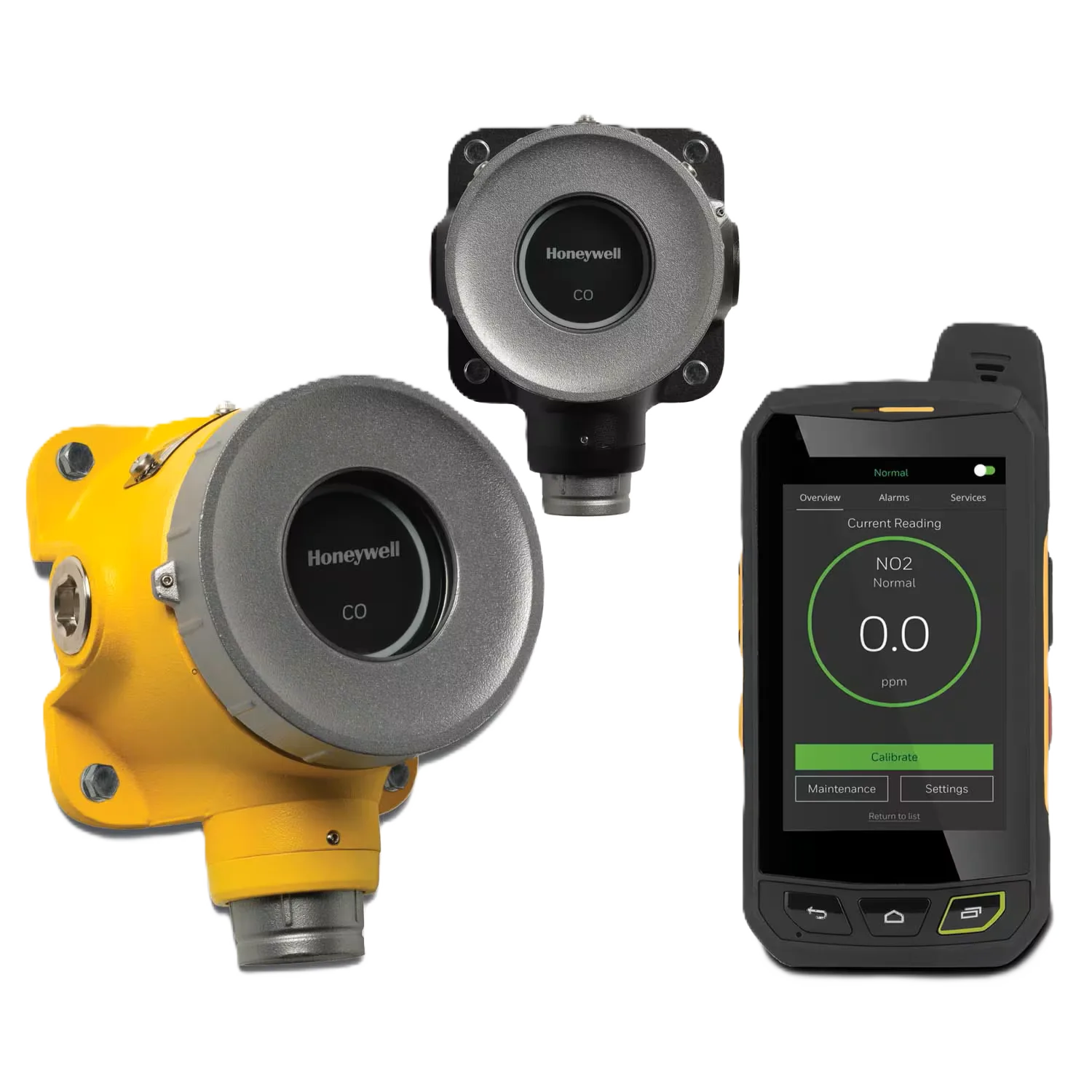
Honeywell XNX Universal Transmitter Modbus Board
Ask AI
— answers from the official manualAnswers from the official manual.
Common questions
Common Questions
30 totalWhat tool do I need to remove the XNX cover during installation?
You need a 2mm hex key to unscrew and remove the cover of the XNX transmitter. This tool is provided with the Modbus option board installation kit.
Why should I apply anti-seize compound during Modbus board installation?
Anti-seize compound should be applied to the threads before replacing the cover to prevent corrosion buildup. This ensures easier maintenance and prevents thread damage during future disassembly.
What should I do with the blank label on the POD when installing a Modbus board?
Remove the blank label from the POD and replace it with the label provided with the new Modbus option board. This helps identify the installed option board.
What safety precautions should I take when handling the Modbus Board?
Handle the board by its edges only and avoid touching electronic components directly to prevent electrostatic discharge (ESD) damage. Wear grounded wrist or foot straps, ESD shoes, or heel grounders to dissipate static energy. Prior to handling, neutralize any static charge in your body or equipment, and store components in static-safe packaging.
How do I install the Modbus option board into my XNX transmitter?
First, remove power from the XNX unit and use a 2mm hex key to unscrew the cover. Slide out the POD, place it face-down on a flat surface, remove the back cover, and insert the option board pins into the connector on the main board. Reassemble the POD, apply anti-seize compound to the threads, and reinstall it into the housing.
What should I do if the XNX displays Fault 152 after installing a new option board?
Fault 152 indicates the need to configure the new option board. Navigate to the Transmitter Data screens under the Information Menu, access the Option Revision screen using the switches, then swipe the magnetic switch on the front panel to display the Accept New Option Screen. Highlight the new option and swipe the magnetic switch to accept the change.
Show 24 more questions
What is the Modbus pin configuration for the termination switch?
Can I install the Modbus option board while the XNX is powered on?
Is the Modbus option compatible with all XNX configurations?
How do I contact Honeywell technical support if I encounter issues with the Modbus Board?
What is the pin configuration for the Modbus termination switch SW5?
Where can I get technical support for the Modbus board installation?
What are the step-by-step installation instructions for the Modbus option board?
What should I apply to the POD threads before reinstalling it?
What tool do I need to remove the XNX cover during installation?
What safety precautions should I take before installing the Modbus board into my XNX transmitter?
Can I use the Modbus option board with Relay or Foundation Fieldbus options?
How should I position the POD while installing the option board?
How do I properly terminate the Modbus connection on the board?
What should I do if I need technical support for the Modbus board installation?
What happens after I accept the new Modbus option on the XNX display?
Why should I apply anti-seize compound when reinstalling the POD?
How do I replace the label on the POD when installing the Modbus board?
Why does my XNX display Fault 152 after installing the Modbus board?
What safety precautions should I take when handling the Modbus board?
Can the Modbus option board be used with Relay or Foundation Fieldbus options?
What should I do before installing an option board into a previously installed XNX unit?
How do I access the internal components of the POD to install the Modbus board?
What does Fault 152 mean after installing a new option board?
How do I protect electronic components from electrostatic discharge damage?