
Ask AI
— answers from the official manualAnswers from the official manual.
Common questions
Common Questions
10 totalHow do I set up wireless connectivity for the HP Color Laser 150 printer?
To configure a wireless connection, download and install the HP printer software. Follow the installation instructions to connect your printer to your wireless network. If successful, the Wireless light on the control panel should glow steadily blue when connected (Page 2).
What does it mean if the Wireless light is blinking but I cannot print wirelessly?
This indicates that wireless connection mode is active, but the wireless network setup has not completed yet. Solve this by verifying proximity to the wireless network within a range of 30 meters (Page 6).
How do I use WPS to set up my printer wirelessly?
Press the WPS button on your router, then press and hold the Wireless button on the printer control panel for at least three seconds. After two minutes, the network connection should be established (Page 3).
How do I print the Configuration Report/Network Summary from the control panel?
Press and hold the Resume button on your printer’s control panel for ten seconds to trigger a report that includes network connection and setup information (Page 3).
What should I do if my printer is unable to connect to wireless networks automatically?
Ensure any USB cable connecting the printer during temporary settings is unplugged as instructed by software prompts. For manual setup, manually reset your wireless network on the printer (Page 4).
What are the recommended operating environmental conditions for the HP Color Laser 150 printer?
Maintain temperatures between 17.5° – 25° C (63.5° – 77° F) and humidity levels ranging from 30% to 70%. Ensure equipment is kept in a well-ventilated area away from direct sunlight.
Full Manual
16 pages
HP Color Laser 150 series
Reference Guide
Read this guide to get to know the printer control panel, learn how to interpret control panel light patterns, solve wireless connection problems, and find more information.
#### English
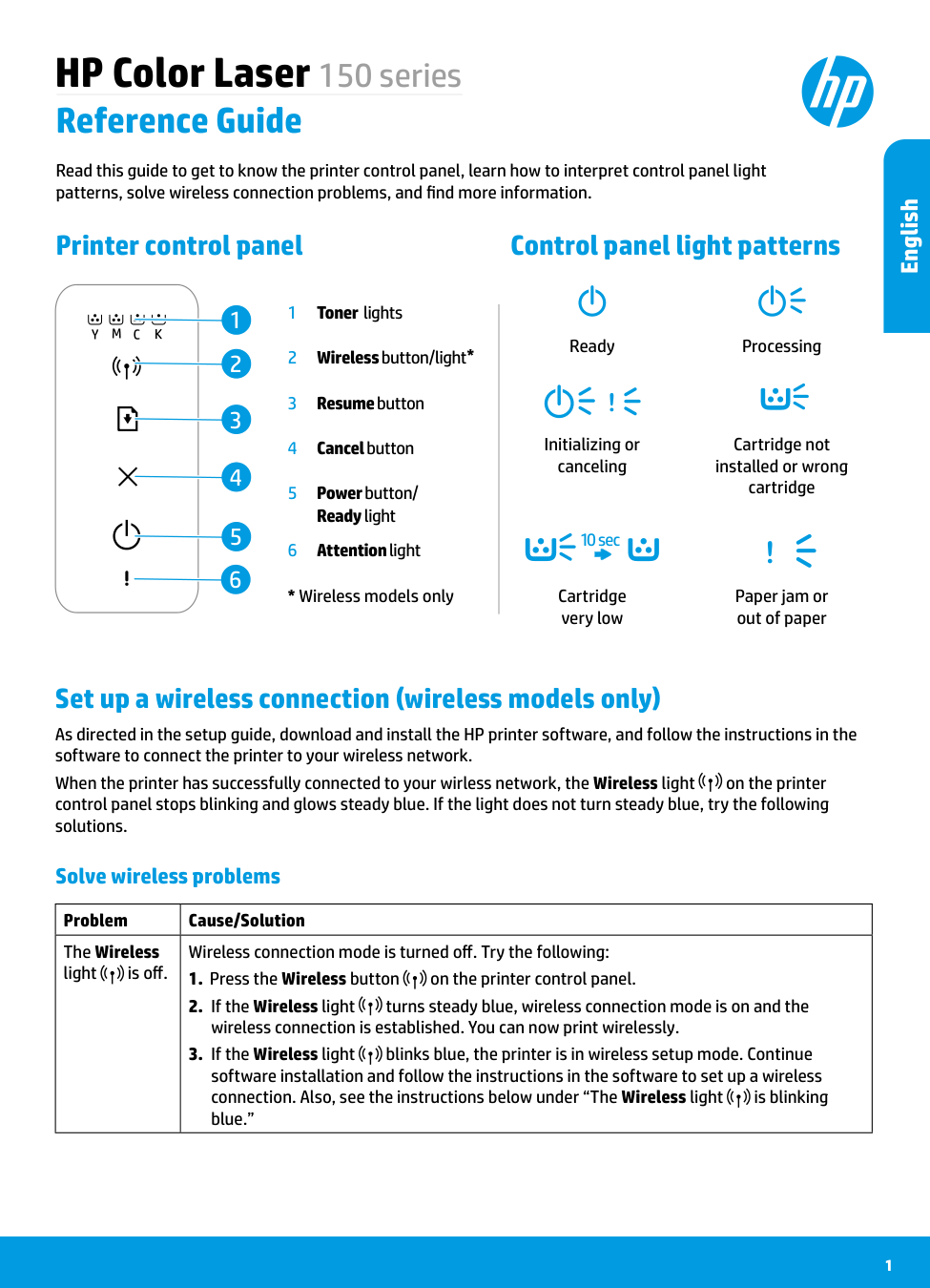
Printer control panel
Control panel light patterns
Ready Processing
!
Initializing or canceling
Cartridge not installed or wrong cartridge
10 sec !
Cartridge very low
Paper jam or out of paper
Set up a wireless connection (wireless models only)
As directed in the setup guide, download and install the HP printer software, and follow the instructions in the software to connect the printer to your wireless network.
When the printer has successfully connected to your wirless network, the Wireless light on the printer control panel stops blinking and glows steady blue. If the light does not turn steady blue, try the following solutions.
Solve wireless problems
|Problem|Cause/Solution| |---|---| |The Wireless light is off.
|Wireless connection mode is turned off. Try the following:
1. Press the Wireless button on the printer control panel.
2. If the Wireless light turns steady blue, wireless connection mode is on and the wireless connection is established. You can now print wirelessly.
3. If the Wireless light blinks blue, the printer is in wireless setup mode. Continue software installation and follow the instructions in the software to set up a wireless connection. Also, see the instructions below under “The Wireless light is blinking blue.”
|
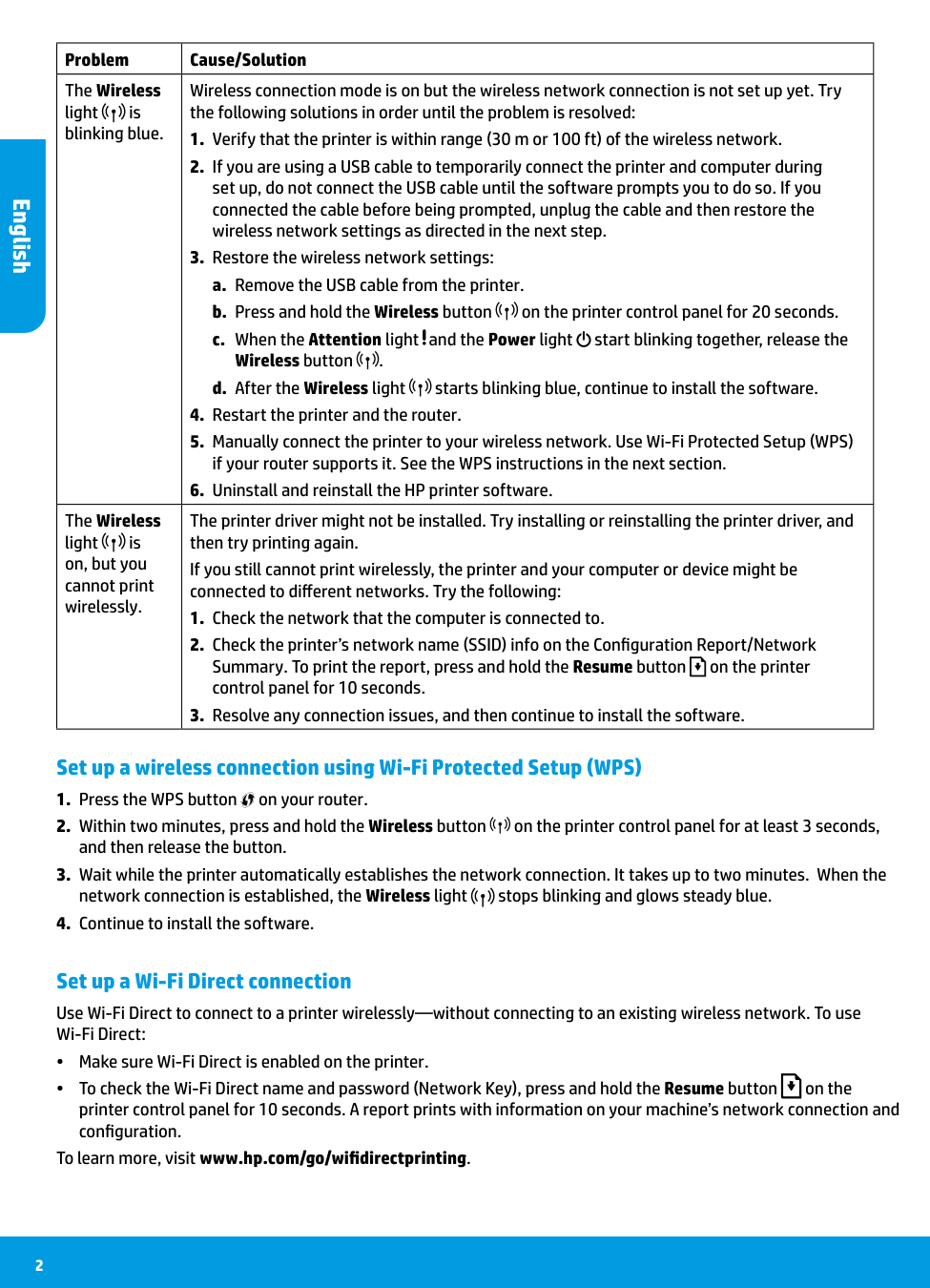
|Problem|Cause/Solution| |---|---| |The Wireless light is blinking blue.
|Wireless connection mode is on but the wireless network connection is not set up yet. Try the following solutions in order until the problem is resolved:
1. Verify that the printer is within range (30 m or 100 ft) of the wireless network.
2. If you are using a USB cable to temporarily connect the printer and computer during set up, do not connect the USB cable until the software prompts you to do so. If you connected the cable before being prompted, unplug the cable and then restore the wireless network settings as directed in the next step.
3. Restore the wireless network settings:
a. Remove the USB cable from the printer.
b. Press and hold the Wireless button on the printer control panel for 20 seconds.
c. When the Attention light and the Power light start blinking together, release the Wireless button .
d. After the Wireless light starts blinking blue, continue to install the software.
4. Restart the printer and the router.
5. Manually connect the printer to your wireless network. Use Wi-Fi Protected Setup (WPS) if your router supports it. See the WPS instructions in the next section.
6. Uninstall and reinstall the HP printer software.
| |The Wireless light is on, but you cannot print wirelessly.
|The printer driver might not be installed. Try installing or reinstalling the printer driver, and then try printing again. If you still cannot print wirelessly, the printer and your computer or device might be connected to different networks. Try the following:
1. Check the network that the computer is connected to.
2. Check the printer’s network name (SSID) info on the Configuration Report/Network Summary. To print the report, press and hold the Resume button on the printer control panel for 10 seconds.
3. Resolve any connection issues, and then continue to install the software.
|
#### English
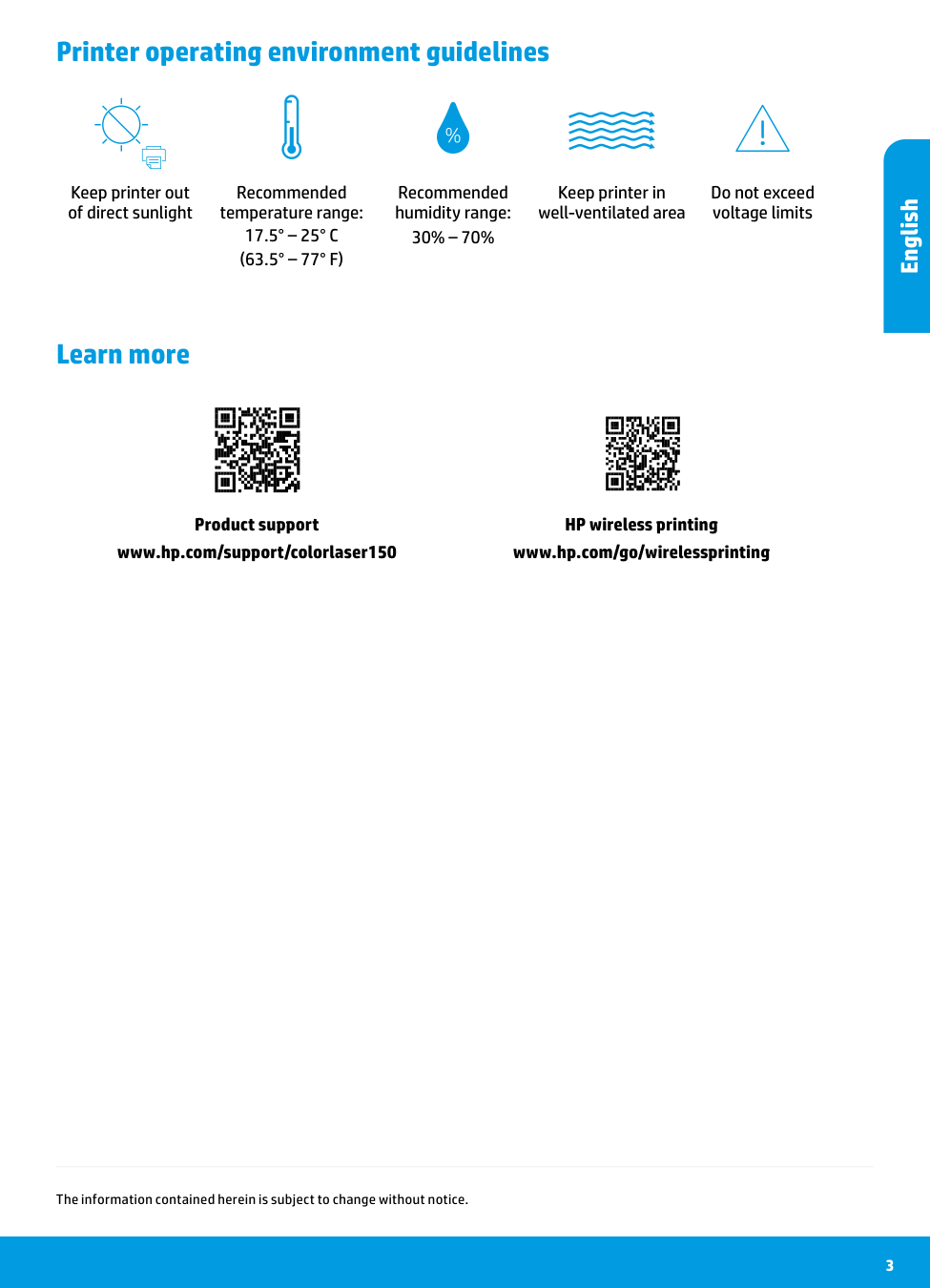
##### Set up a wireless connection using Wi-Fi Protected Setup (WPS)
##### Set up a Wi-Fi Direct connection
Use Wi-Fi Direct to connect to a printer wirelessly—without connecting to an existing wireless network. To use Wi-Fi Direct:
To learn more, visit www.hp.com/go/wifidirectprinting.
Printer operating environment guidelines
Keep printer out of direct sunlight
Recommended temperature range: 17.5° – 25° C (63.5° – 77° F)
Recommended humidity range: 30% – 70%
Keep printer in well-ventilated area
Do not exceed voltage limits
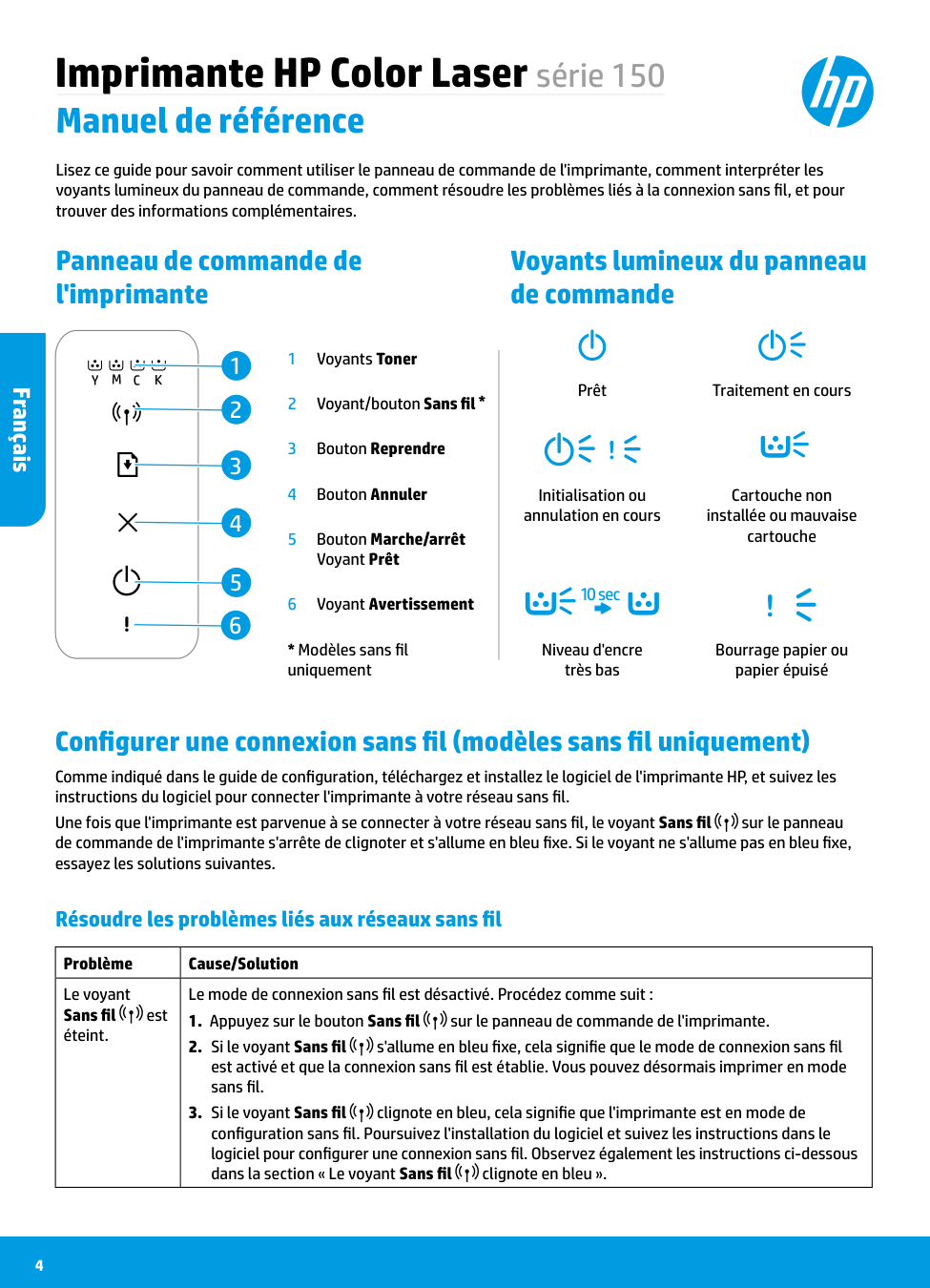
Learn more
Product support www.hp.com/support/colorlaser150
HP wireless printing www.hp.com/go/wirelessprinting
#### English
The information contained herein is subject to change without notice.
Imprimante HP Color Laser série 150
Manuel de référence
Lisez ce guide pour savoir comment utiliser le panneau de commande de l'imprimante, comment interpréter les voyants lumineux du panneau de commande, comment résoudre les problèmes liés à la connexion sans fil, et pour trouver des informations complémentaires.
Panneau de commande de l'imprimante
Voyants lumineux du panneau de commande
#### Français
Prêt Traitement en cours
!
Initialisation ou annulation en cours
Cartouche non installée ou mauvaise cartouche
10 sec !
Niveau d'encre très bas
Bourrage papier ou papier épuisé
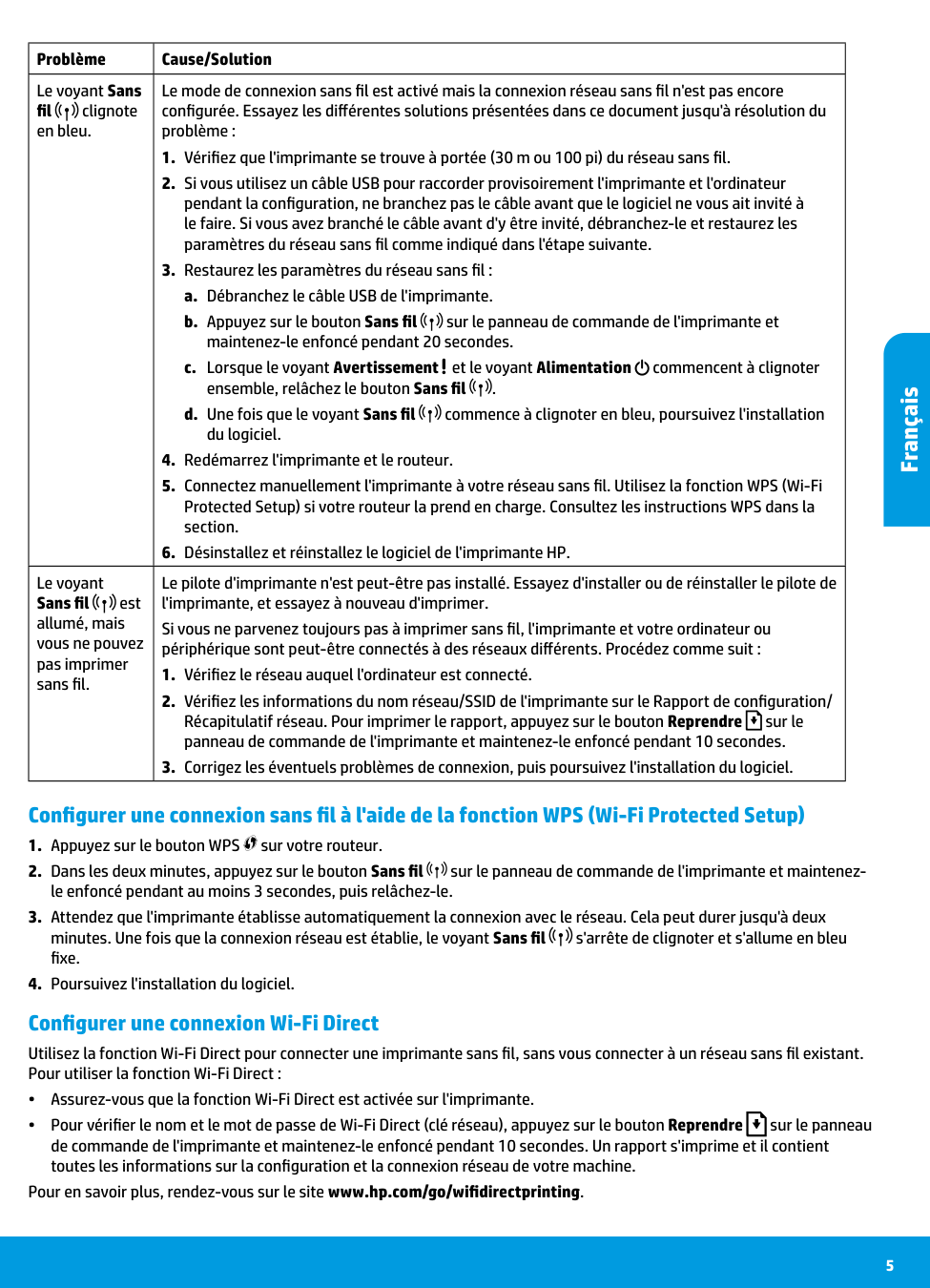
Configurer une connexion sans fil (modèles sans fil uniquement) Comme indiqué dans le guide de configuration, téléchargez et installez le logiciel de l'imprimante HP, et suivez les instructions du logiciel pour connecter l'imprimante à votre réseau sans fil. Une fois que l'imprimante est parvenue à se connecter à votre réseau sans fil, le voyant Sans fil sur le panneau de commande de l'imprimante s'arrête de clignoter et s'allume en bleu fixe. Si le voyant ne s'allume pas en bleu fixe, essayez les solutions suivantes.
Résoudre les problèmes liés aux réseaux sans fil
|Problème|Cause/Solution| |---|---| |Le voyant Sans fil est éteint.
|Le mode de connexion sans fil est désactivé. Procédez comme suit :
1. Appuyez sur le bouton Sans fil sur le panneau de commande de l'imprimante.
2. Si le voyant Sans fil s'allume en bleu fixe, cela signifie que le mode de connexion sans fil est activé et que la connexion sans fil est établie. Vous pouvez désormais imprimer en mode sans fil.
3. Si le voyant Sans fil clignote en bleu, cela signifie que l'imprimante est en mode de configuration sans fil. Poursuivez l'installation du logiciel et suivez les instructions dans le logiciel pour configurer une connexion sans fil. Observez également les instructions ci-dessous dans la section « Le voyant Sans fil clignote en bleu ».
|
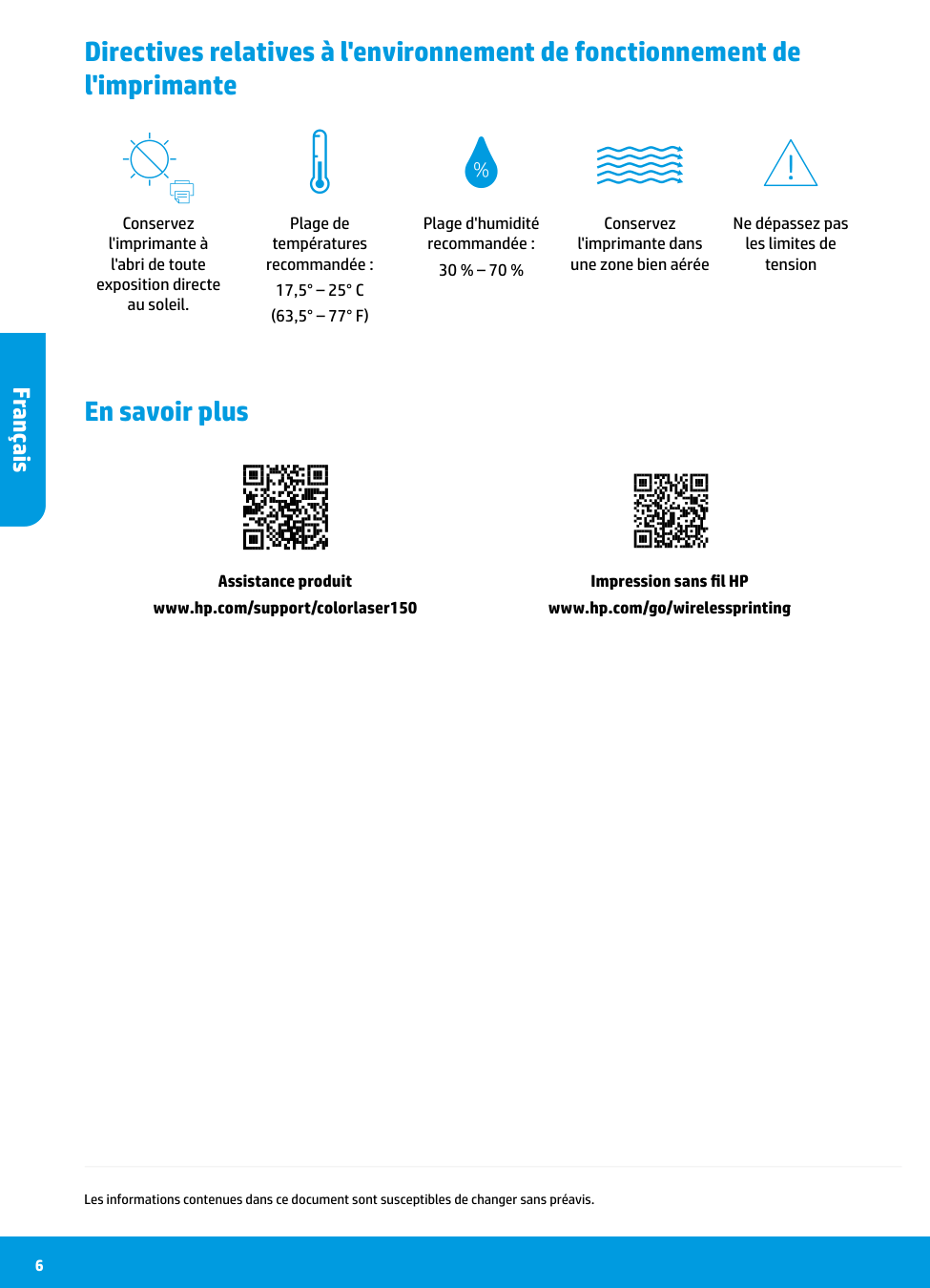
|Problème|Cause/Solution| |---|---| |Le voyant Sans fil clignote en bleu.
|Le mode de connexion sans fil est activé mais la connexion réseau sans fil n'est pas encore configurée. Essayez les différentes solutions présentées dans ce document jusqu'à résolution du problème :
1. Vérifiez que l'imprimante se trouve à portée (30 m ou 100 pi) du réseau sans fil.
2. Si vous utilisez un câble USB pour raccorder provisoirement l'imprimante et l'ordinateur pendant la configuration, ne branchez pas le câble avant que le logiciel ne vous ait invité à le faire. Si vous avez branché le câble avant d'y être invité, débranchez-le et restaurez les paramètres du réseau sans fil comme indiqué dans l'étape suivante.
3. Restaurez les paramètres du réseau sans fil :
a. Débranchez le câble USB de l'imprimante.
b. Appuyez sur le bouton Sans fil sur le panneau de commande de l'imprimante et maintenez-le enfoncé pendant 20 secondes.
c. Lorsque le voyant Avertissement et le voyant Alimentation commencent à clignoter ensemble, relâchez le bouton Sans fil .
d. Une fois que le voyant Sans fil commence à clignoter en bleu, poursuivez l'installation du logiciel.
4. Redémarrez l'imprimante et le routeur.
5. Connectez manuellement l'imprimante à votre réseau sans fil. Utilisez la fonction WPS (Wi-Fi Protected Setup) si votre routeur la prend en charge. Consultez les instructions WPS dans la section.
6. Désinstallez et réinstallez le logiciel de l'imprimante HP.
| |Le voyant Sans fil est allumé, mais vous ne pouvez pas imprimer sans fil.
|Le pilote d'imprimante n'est peut-être pas installé. Essayez d'installer ou de réinstaller le pilote de l'imprimante, et essayez à nouveau d'imprimer. Si vous ne parvenez toujours pas à imprimer sans fil, l'imprimante et votre ordinateur ou périphérique sont peut-être connectés à des réseaux différents. Procédez comme suit :
1. Vérifiez le réseau auquel l'ordinateur est connecté.
2. Vérifiez les informations du nom réseau/SSID de l'imprimante sur le Rapport de configuration/ Récapitulatif réseau. Pour imprimer le rapport, appuyez sur le bouton Reprendre sur le panneau de commande de l'imprimante et maintenez-le enfoncé pendant 10 secondes.
3. Corrigez les éventuels problèmes de connexion, puis poursuivez l'installation du logiciel.
|
#### Français
##### Configurer une connexion sans fil à l'aide de la fonction WPS (Wi-Fi Protected Setup)
##### Configurer une connexion Wi-Fi Direct
Utilisez la fonction Wi-Fi Direct pour connecter une imprimante sans fil, sans vous connecter à un réseau sans fil existant. Pour utiliser la fonction Wi-Fi Direct :
Pour en savoir plus, rendez-vous sur le site www.hp.com/go/wifidirectprinting.
#### Français
Directives relatives à l'environnement de fonctionnement de l'imprimante
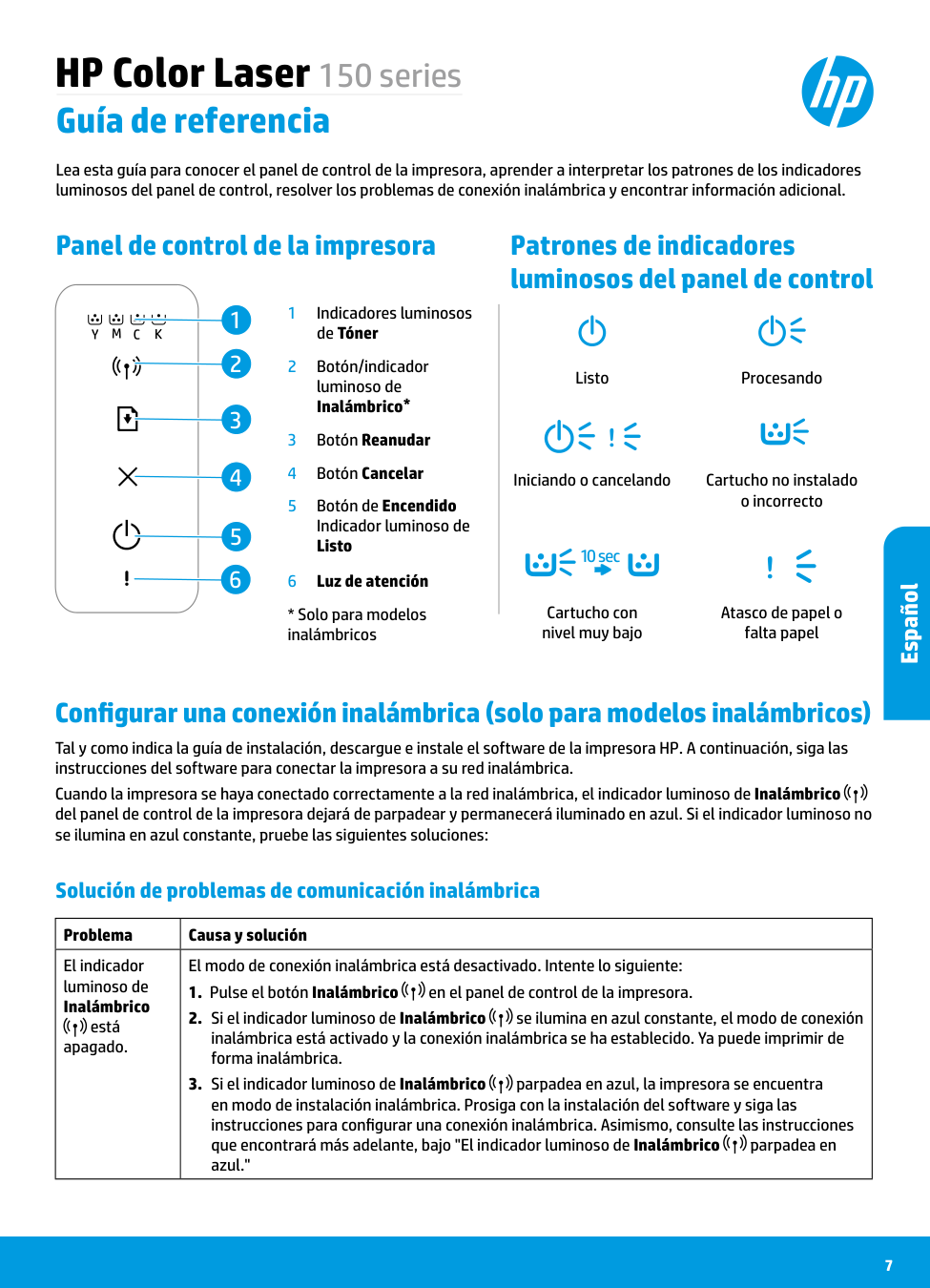
Conservez l'imprimante à l'abri de toute exposition directe au soleil.
Plage de températures recommandée : 17,5° – 25° C (63,5° – 77° F)
Plage d'humidité recommandée : 30 % – 70 %
Conservez l'imprimante dans une zone bien aérée
Ne dépassez pas les limites de tension
En savoir plus
Assistance produit www.hp.com/support/colorlaser150
Impression sans fil HP www.hp.com/go/wirelessprinting
Les informations contenues dans ce document sont susceptibles de changer sans préavis.
HP Color Laser 150 series
Guía de referencia
Lea esta guía para conocer el panel de control de la impresora, aprender a interpretar los patrones de los indicadores luminosos del panel de control, resolver los problemas de conexión inalámbrica y encontrar información adicional.
Panel de control de la impresora
Patrones de indicadores luminosos del panel de control
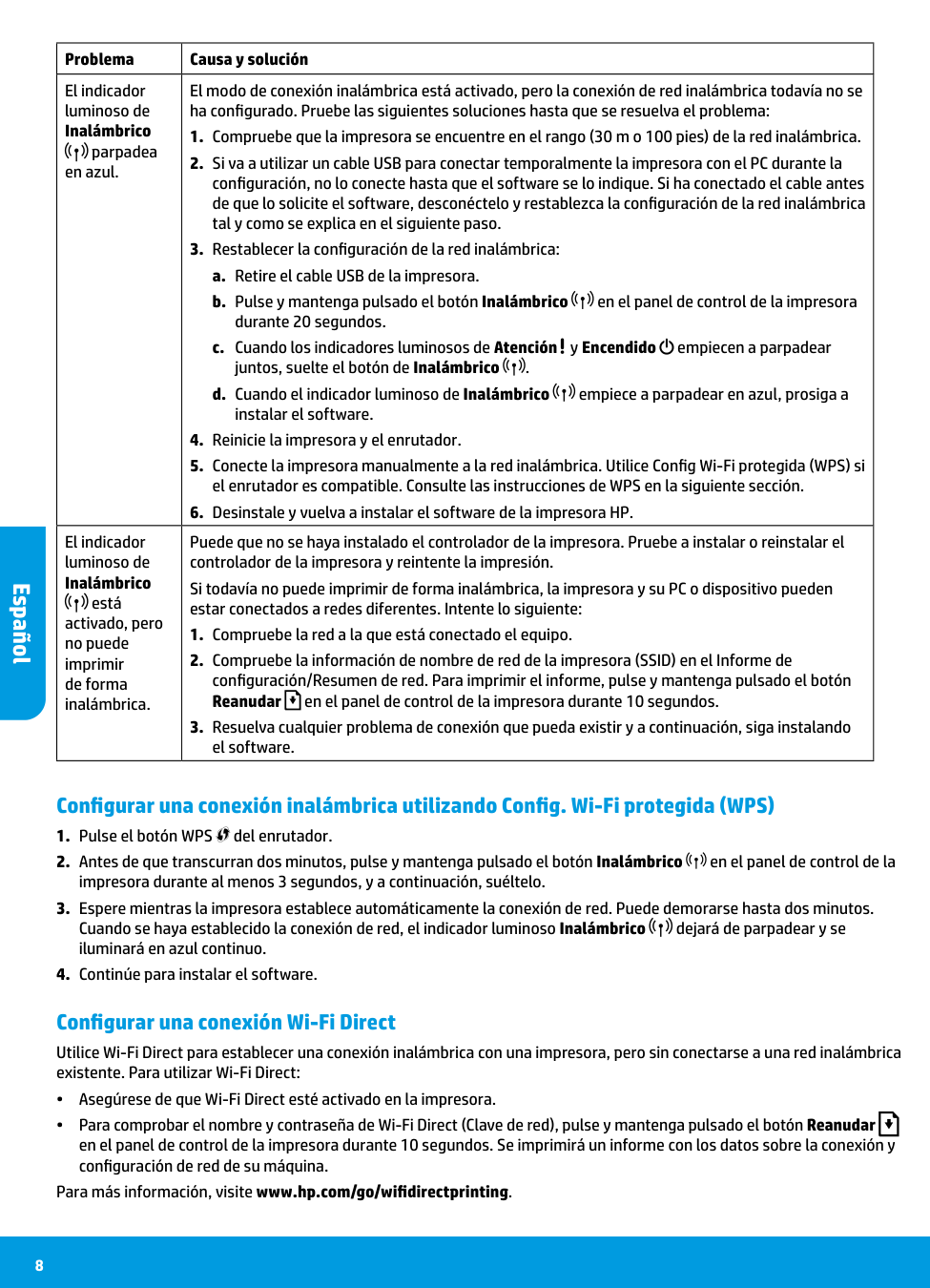
Listo Procesando
!
Iniciando o cancelando Cartucho no instalado o incorrecto
10 sec !
#### Español
Cartucho con nivel muy bajo
Atasco de papel o falta papel
Configurar una conexión inalámbrica (solo para modelos inalámbricos) Tal y como indica la guía de instalación, descargue e instale el software de la impresora HP. A continuación, siga las instrucciones del software para conectar la impresora a su red inalámbrica. Cuando la impresora se haya conectado correctamente a la red inalámbrica, el indicador luminoso de Inalámbrico del panel de control de la impresora dejará de parpadear y permanecerá iluminado en azul. Si el indicador luminoso no se ilumina en azul constante, pruebe las siguientes soluciones:
Solución de problemas de comunicación inalámbrica
|Problema|Causa y solución| |---|---| |El indicador luminoso de Inalámbrico está
apagado.|El modo de conexión inalámbrica está desactivado. Intente lo siguiente:
1. Pulse el botón Inalámbrico en el panel de control de la impresora.
2. Si el indicador luminoso de Inalámbrico se ilumina en azul constante, el modo de conexión inalámbrica está activado y la conexión inalámbrica se ha establecido. Ya puede imprimir de forma inalámbrica.
3. Si el indicador luminoso de Inalámbrico parpadea en azul, la impresora se encuentra en modo de instalación inalámbrica. Prosiga con la instalación del software y siga las instrucciones para configurar una conexión inalámbrica. Asimismo, consulte las instrucciones que encontrará más adelante, bajo "El indicador luminoso de Inalámbrico parpadea en azul."
|
#### Español
|Problema|Causa y solución| |---|---| |El indicador luminoso de Inalámbrico
parpadea en azul.|El modo de conexión inalámbrica está activado, pero la conexión de red inalámbrica todavía no se ha configurado. Pruebe las siguientes soluciones hasta que se resuelva el problema:
1. Compruebe que la impresora se encuentre en el rango (30 m o 100 pies) de la red inalámbrica.
2. Si va a utilizar un cable USB para conectar temporalmente la impresora con el PC durante la configuración, no lo conecte hasta que el software se lo indique. Si ha conectado el cable antes de que lo solicite el software, desconéctelo y restablezca la configuración de la red inalámbrica tal y como se explica en el siguiente paso.
3. Restablecer la configuración de la red inalámbrica:
a. Retire el cable USB de la impresora.
b. Pulse y mantenga pulsado el botón Inalámbrico en el panel de control de la impresora durante 20 segundos.
c. Cuando los indicadores luminosos de Atención y Encendido empiecen a parpadear juntos, suelte el botón de Inalámbrico .
d. Cuando el indicador luminoso de Inalámbrico empiece a parpadear en azul, prosiga a instalar el software.
4. Reinicie la impresora y el enrutador.
5. Conecte la impresora manualmente a la red inalámbrica. Utilice Config Wi-Fi protegida (WPS) si el enrutador es compatible. Consulte las instrucciones de WPS en la siguiente sección.
6. Desinstale y vuelva a instalar el software de la impresora HP.
| |El indicador luminoso de Inalámbrico está activado, pero no puede imprimir de forma inalámbrica.
|Puede que no se haya instalado el controlador de la impresora. Pruebe a instalar o reinstalar el controlador de la impresora y reintente la impresión. Si todavía no puede imprimir de forma inalámbrica, la impresora y su PC o dispositivo pueden estar conectados a redes diferentes. Intente lo siguiente:
1. Compruebe la red a la que está conectado el equipo.
2. Compruebe la información de nombre de red de la impresora (SSID) en el Informe de configuración/Resumen de red. Para imprimir el informe, pulse y mantenga pulsado el botón Reanudar en el panel de control de la impresora durante 10 segundos.
3. Resuelva cualquier problema de conexión que pueda existir y a continuación, siga instalando el software.
|
##### Configurar una conexión inalámbrica utilizando Config. Wi-Fi protegida (WPS)
##### Configurar una conexión Wi-Fi Direct
Utilice Wi-Fi Direct para establecer una conexión inalámbrica con una impresora, pero sin conectarse a una red inalámbrica existente. Para utilizar Wi-Fi Direct:
Para más información, visite www.hp.com/go/wifidirectprinting.
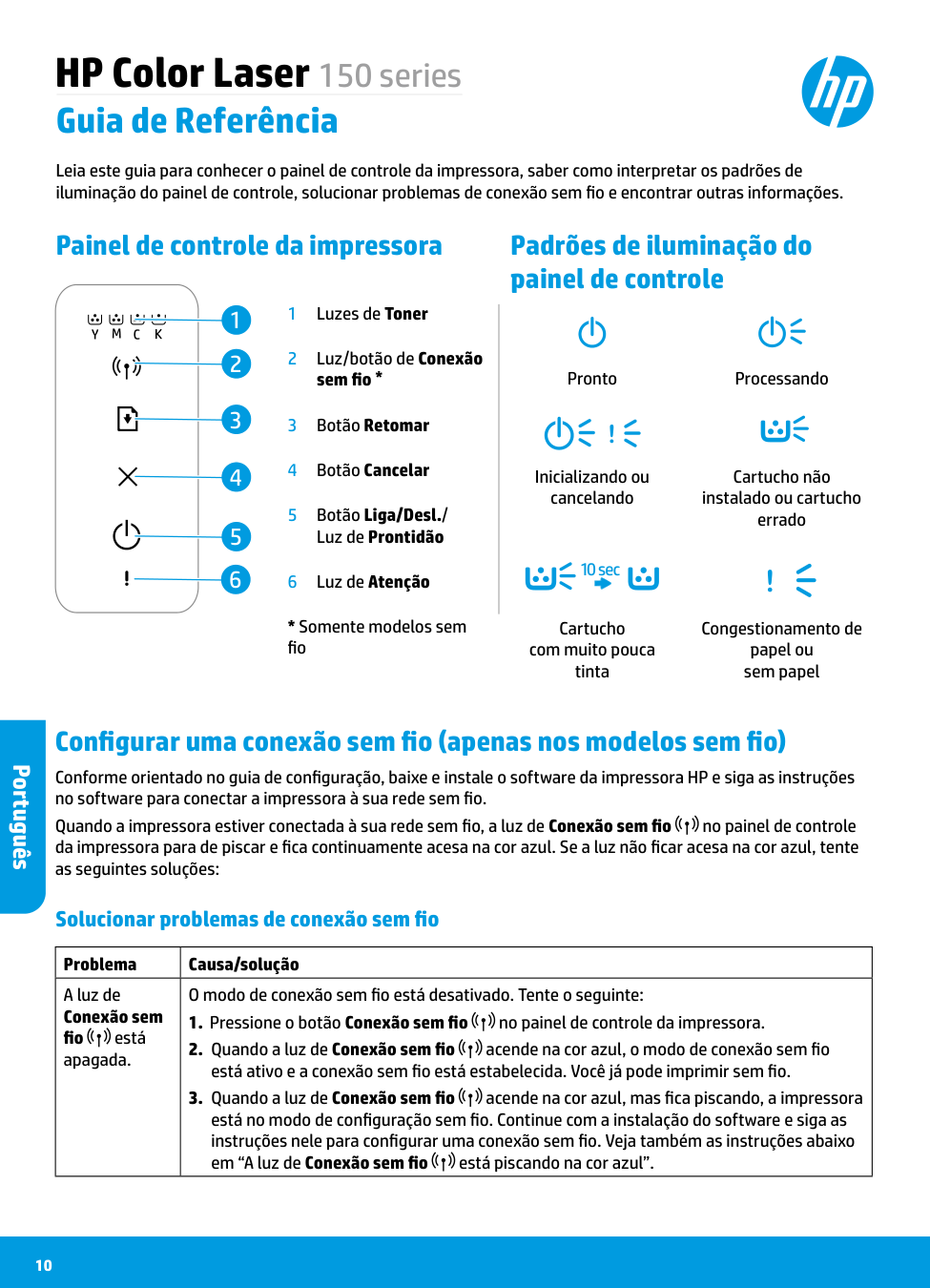
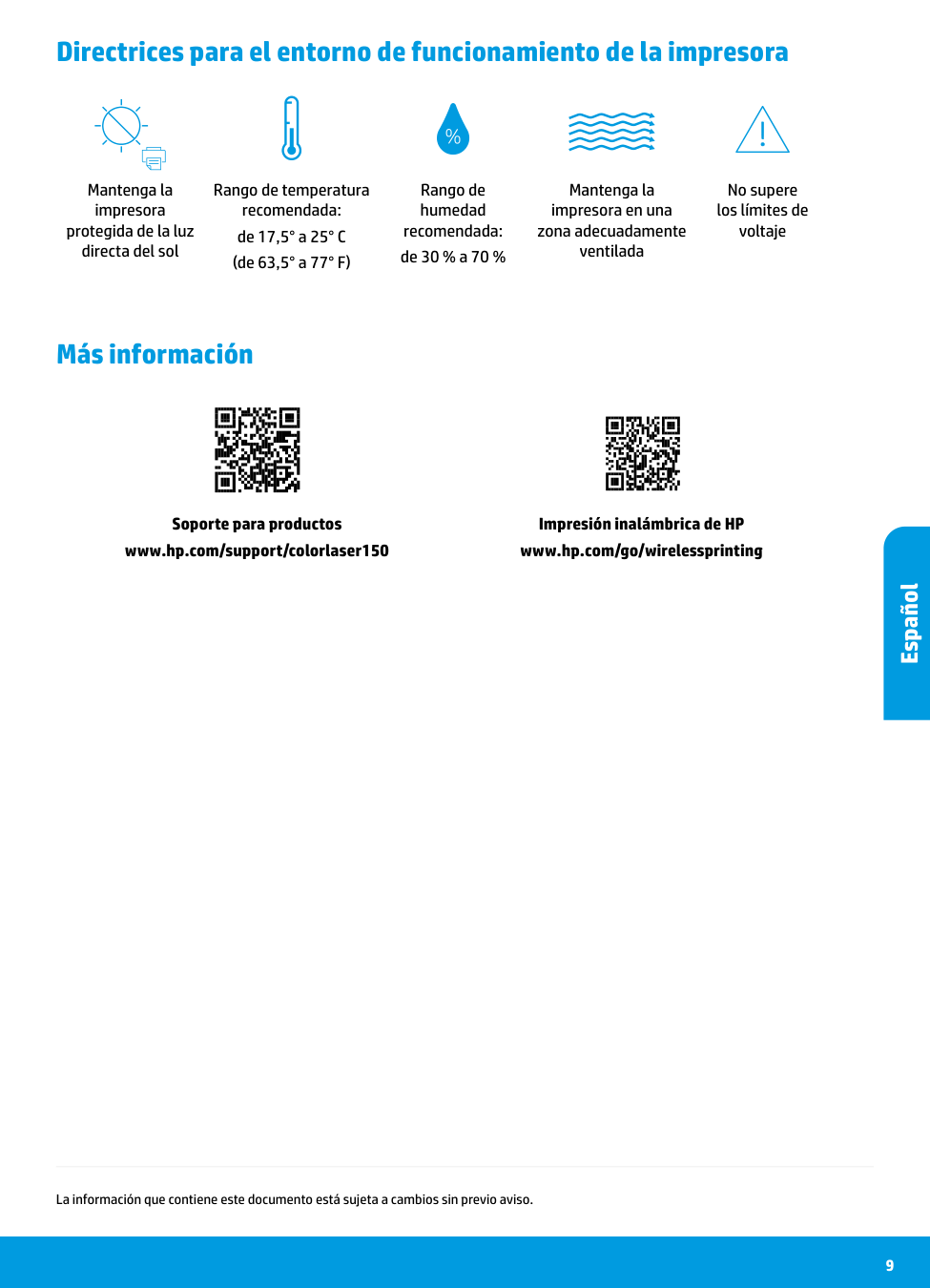
Directrices para el entorno de funcionamiento de la impresora
Mantenga la impresora protegida de la luz directa del sol
Rango de temperatura recomendada: de 17,5° a 25° C (de 63,5° a 77° F)
Rango de humedad recomendada: de 30 % a 70 %
Mantenga la impresora en una zona adecuadamente ventilada
No supere los límites de voltaje
Más información
Soporte para productos www.hp.com/support/colorlaser150
Impresión inalámbrica de HP www.hp.com/go/wirelessprinting
#### Español
La información que contiene este documento está sujeta a cambios sin previo aviso.
HP Color Laser 150 series
Guia de Referência
Leia este guia para conhecer o painel de controle da impressora, saber como interpretar os padrões de iluminação do painel de controle, solucionar problemas de conexão sem fio e encontrar outras informações.
Painel de controle da impressora
1 2 3 4 5 6
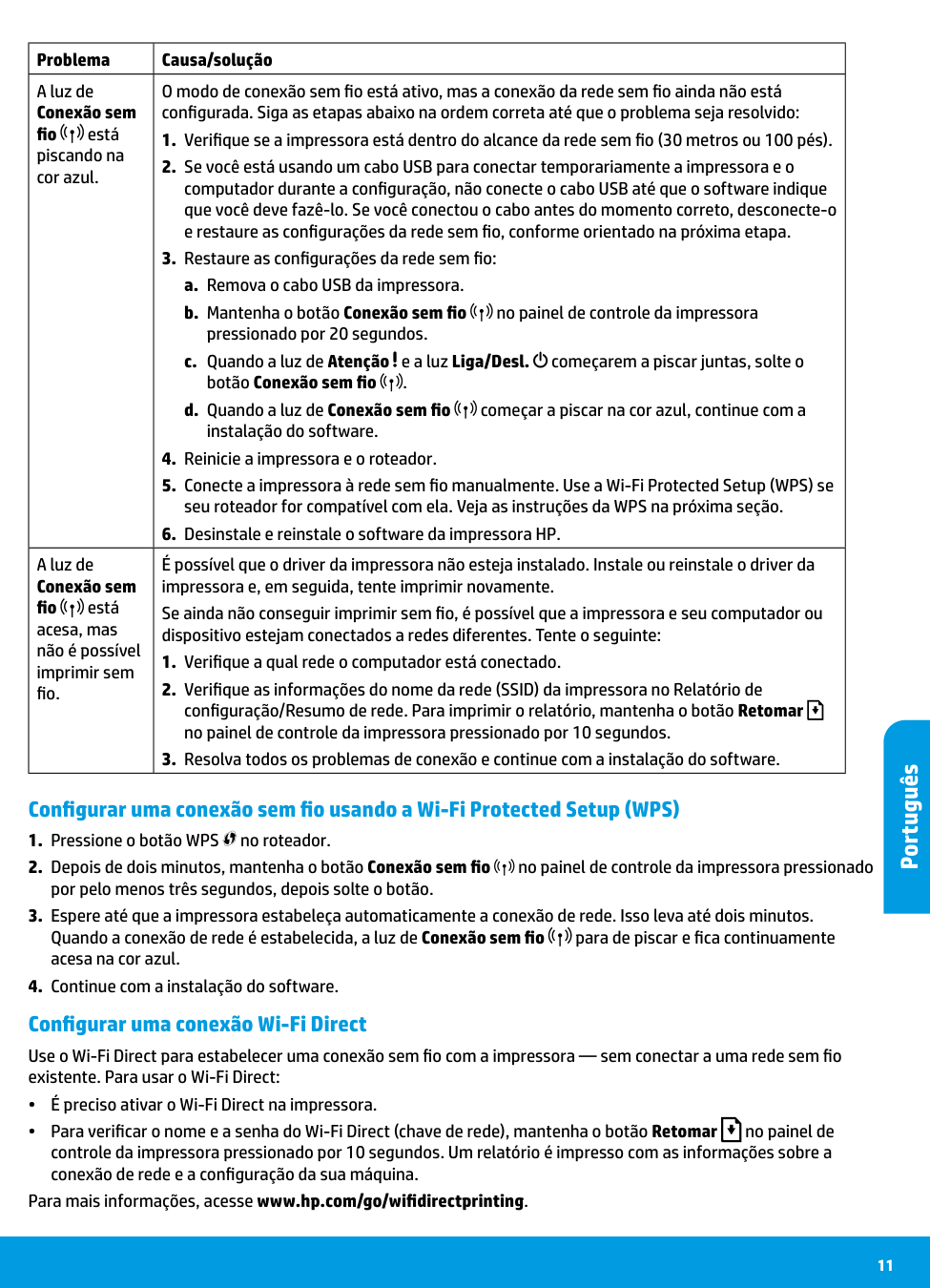
Padrões de iluminação do painel de controle
Pronto Processando
!
Inicializando ou cancelando
Cartucho não instalado ou cartucho errado
10 sec !
Cartucho com muito pouca tinta
Congestionamento de papel ou sem papel
Configurar uma conexão sem fio (apenas nos modelos sem fio)
#### Português
Conforme orientado no guia de configuração, baixe e instale o software da impressora HP e siga as instruções no software para conectar a impressora à sua rede sem fio.
Quando a impressora estiver conectada à sua rede sem fio, a luz de Conexão sem fio no painel de controle da impressora para de piscar e fica continuamente acesa na cor azul. Se a luz não ficar acesa na cor azul, tente as seguintes soluções:
Solucionar problemas de conexão sem fio
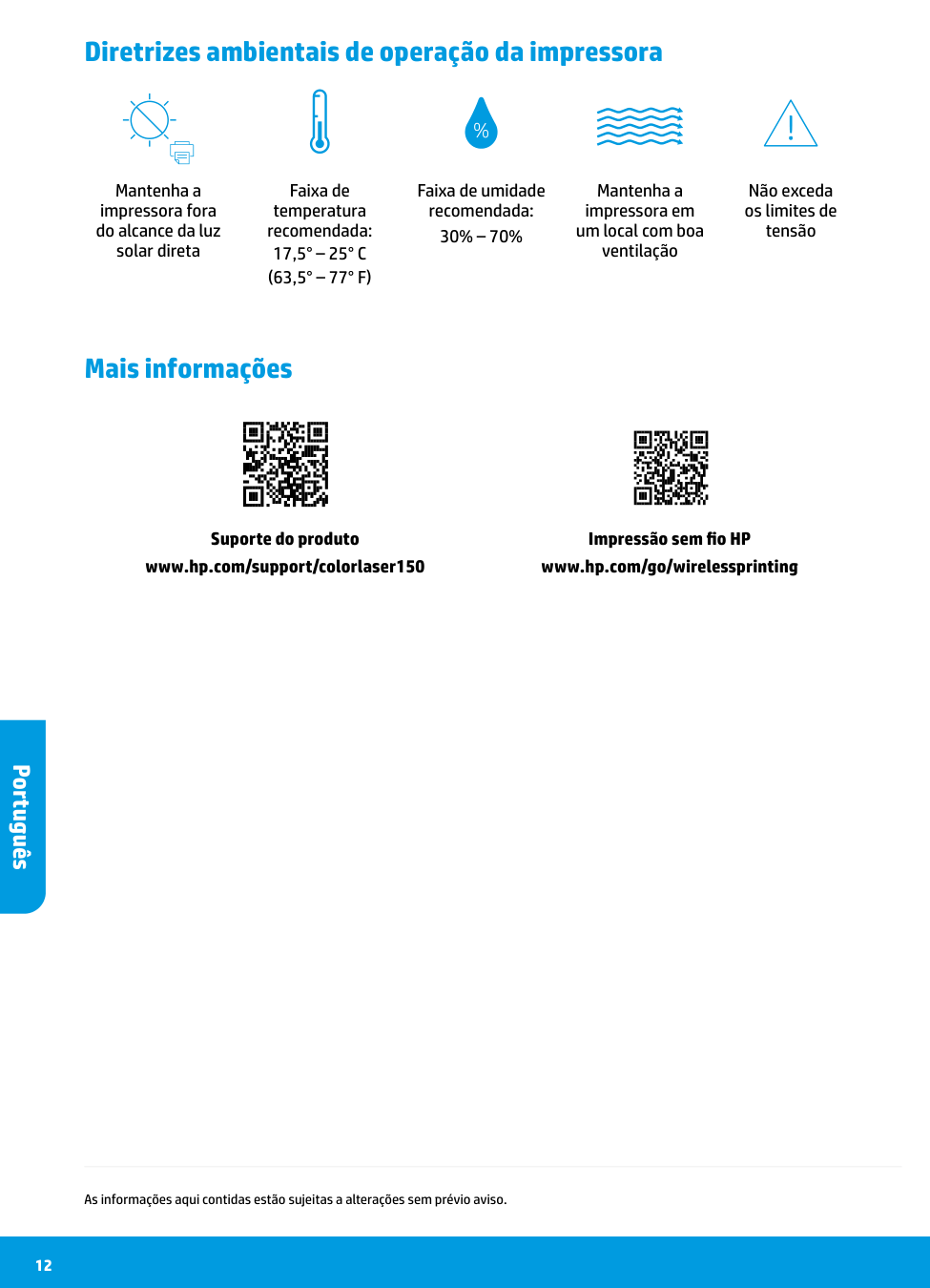
|Problema|Causa/solução| |---|---| |A luz de Conexão sem fio está apagada.
|O modo de conexão sem fio está desativado. Tente o seguinte:
1. Pressione o botão Conexão sem fio no painel de controle da impressora.
2. Quando a luz de Conexão sem fio acende na cor azul, o modo de conexão sem fio está ativo e a conexão sem fio está estabelecida. Você já pode imprimir sem fio.
3. Quando a luz de Conexão sem fio acende na cor azul, mas fica piscando, a impressora está no modo de configuração sem fio. Continue com a instalação do software e siga as instruções nele para configurar uma conexão sem fio. Veja também as instruções abaixo em “A luz de Conexão sem fio está piscando na cor azul”.
|
|Problema|Causa/solução| |---|---| |A luz de Conexão sem fio está piscando na cor azul.
|O modo de conexão sem fio está ativo, mas a conexão da rede sem fio ainda não está configurada. Siga as etapas abaixo na ordem correta até que o problema seja resolvido:
1. Verifique se a impressora está dentro do alcance da rede sem fio (30 metros ou 100 pés).
2. Se você está usando um cabo USB para conectar temporariamente a impressora e o computador durante a configuração, não conecte o cabo USB até que o software indique que você deve fazê-lo. Se você conectou o cabo antes do momento correto, desconecte-o e restaure as configurações da rede sem fio, conforme orientado na próxima etapa.
3. Restaure as configurações da rede sem fio:
a. Remova o cabo USB da impressora.
b. Mantenha o botão Conexão sem fio no painel de controle da impressora pressionado por 20 segundos.
c. Quando a luz de Atenção e a luz Liga/Desl. começarem a piscar juntas, solte o botão Conexão sem fio .
d. Quando a luz de Conexão sem fio começar a piscar na cor azul, continue com a instalação do software.
4. Reinicie a impressora e o roteador.
5. Conecte a impressora à rede sem fio manualmente. Use a Wi-Fi Protected Setup (WPS) se seu roteador for compatível com ela. Veja as instruções da WPS na próxima seção.
6. Desinstale e reinstale o software da impressora HP.
| |A luz de Conexão sem fio está acesa, mas não é possível imprimir sem fio.
|É possível que o driver da impressora não esteja instalado. Instale ou reinstale o driver da impressora e, em seguida, tente imprimir novamente. Se ainda não conseguir imprimir sem fio, é possível que a impressora e seu computador ou dispositivo estejam conectados a redes diferentes. Tente o seguinte:
1. Verifique a qual rede o computador está conectado.
2. Verifique as informações do nome da rede (SSID) da impressora no Relatório de configuração/Resumo de rede. Para imprimir o relatório, mantenha o botão Retomar no painel de controle da impressora pressionado por 10 segundos.
3. Resolva todos os problemas de conexão e continue com a instalação do software.
|
#### Português
##### Configurar uma conexão sem fio usando a Wi-Fi Protected Setup (WPS)
##### Configurar uma conexão Wi-Fi Direct
Use o Wi-Fi Direct para estabelecer uma conexão sem fio com a impressora — sem conectar a uma rede sem fio existente. Para usar o Wi-Fi Direct:
Para mais informações, acesse www.hp.com/go/wifidirectprinting.
Diretrizes ambientais de operação da impressora
Mantenha a impressora fora do alcance da luz solar direta
Faixa de temperatura recomendada: 17,5° – 25° C (63,5° – 77° F)
Faixa de umidade recomendada: 30% – 70%
Mantenha a impressora em um local com boa ventilação
Não exceda os limites de tensão
Mais informações
Suporte do produto www.hp.com/support/colorlaser150
Impressão sem fio HP www.hp.com/go/wirelessprinting
#### Português
As informações aqui contidas estão sujeitas a alterações sem prévio aviso.
HP Color Laser 150 series
רזע ךירדמ
חולב תוירונה לש הרואתה יסופד תא שרפל דציכ דומלל ,תספדמה לש הרקבה חול תא ריכהל ידכ ךירדמה תא ארק .ףסונ עדימ שפחלו יטוחלא רוביחב תויעב רותפל ,הרקבה
#### תירבע
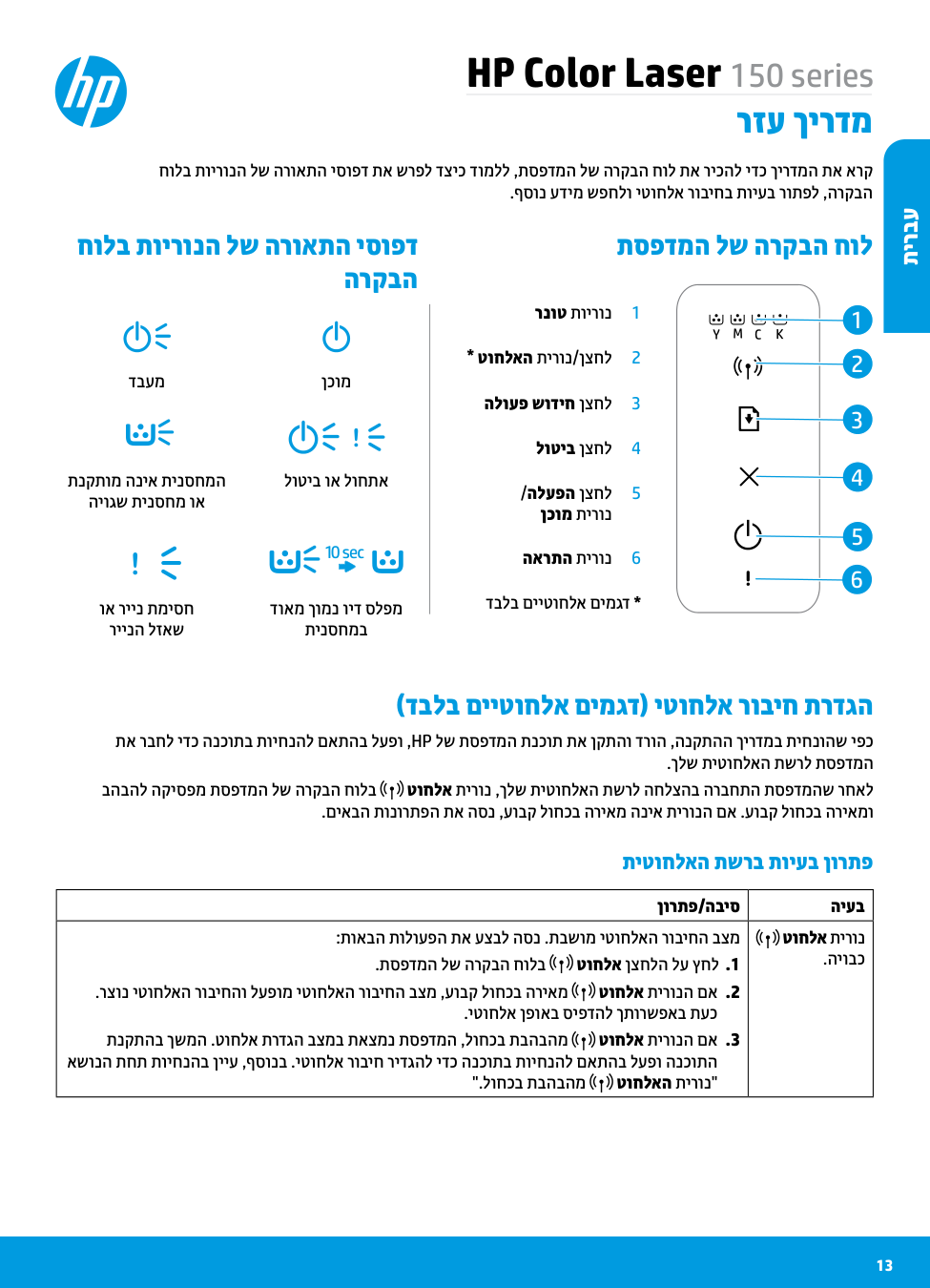
חולב תוירונה לש הרואתה יסופד הרקבה
תספדמה לש הרקבה חול
1רנוטתוירונ
2*טוחלאהתירונ/ןצחל
ןכומדבעמ
###### 3הלועפשודיחןצחל
!
4לוטיבןצחל
לוטיב וא לוחתאתנקתומהניאתינסחמה היוגש תינסחמ וא
10 sec!
דבלב םייטוחלא םימגד *
וא ריינ תמיסח ריינה לזאש
דואמ ךומנ ויד סלפמ תינסחמב
(דבלב םייטוחלא םימגד) יטוחלא רוביח תרדגה
תא רבחל ידכ הנכותב תויחנהל םאתהב לעפו ,HP לש תספדמה תנכות תא ןקתהו דרוה ,הנקתהה ךירדמב תיחנוהש יפכ
.ךלש תיטוחלאה תשרל תספדמה בהבהל הקיספמ תספדמה לש הרקבה חולב טוחלא תירונ ,ךלש תיטוחלאה תשרל החלצהב הרבחתה תספדמהש רחאל
.םיאבה תונורתפה תא הסנ ,עובק לוחכב הריאמ הניא תירונה םא .עובק לוחכב הריאמו תיטוחלאה תשרב תויעב ןורתפ
|ןורתפ/הביס|היעב| |---|---| |:תואבה תולועפה תא עצבל הסנ .תבשומ יטוחלאה רוביחה בצמ .תספדמה לש הרקבה חולב טוחלא ןצחלה לע ץחל .1 .רצונ יטוחלאה רוביחהו לעפומ יטוחלאה רוביחה בצמ ,עובק לוחכב הריאמ טוחלא תירונה םא .2
.יטוחלא ןפואב סיפדהל ךתורשפאב תעכ
תנקתהב ךשמה .טוחלא תרדגה בצמב תאצמנ תספדמה ,לוחכב תבהבהמ טוחלא תירונה םא .3 אשונה תחת תויחנהב ןייע ,ףסונב .יטוחלא רוביח רידגהל ידכ הנכותב תויחנהל םאתהב לעפו הנכותה
".לוחכב תבהבהמ טוחלאה תירונ"
|טוחלא תירונ .היובכ|
#### תירבע
|ןורתפ/הביס|היעב| |---|---| |דע םיאבה תונורתפה תא הסנ .רדגומ אל ןיידע יטוחלאה תשרה רוביח לבא ,לעפומ יטוחלא רוביח בצמ :רתפית היעבהש
.תיטוחלאה תשרה לש (לגר 100 וא 'מ 30) הטילקה חווטב תאצמנ תספדמהש אדו .1 רבחת לא ,הרדגהה ךלהמב בשחמה תאו תספדמה תא תינמז רבחל ידכ USB לבכב שמתשמ התא םא .2 תושעל תיחנוהש ינפל לבכה תא תרביח םא .תאז תושעל ךתוא החנת הנכותהש דע USB-ה לבכ תא
.אבה בלשב תויחנהל םאתהב תיטוחלאה תשרה תורדגה תא רזחש ןכמ רחאלו לבכה תא קתנ ,תאז :תיטוחלאה תשרה תורדגה תא רזחש .3
.תספדמהמ USB-ה לבכ תא קתנ .א
.תוינש 20 ךשמל תספדמה לש הרקבה חולב טוחלאה ןצחל לע תכשוממ הציחל ץחל .ב ןצחל תא ררחש ,דחיב בהבהל תוליחתמ יוביכ/הלעפהה תירונו הארתהה תירונ רשאכ .ג
. טוחלאה
.הנכותה תנקתהב ךשמה ,לוחכב בהבהל הליחתמ טוחלאה תירונש רחאל .ד
.בתנה תאו תספדמה תא שדחמ לעפה .4 בתנה םא (WPS) Wi-Fi Protected Setup-ב שמתשה .ךלש תיטוחלאה תשרל תספדמה תא תינדי רבח .5
.אבה ףיעסב WPS-ה תויחנהב ןייע .וז תורשפאב ךמות ךלש
.שדחמ התוא ןקתהו HP לש תספדמה תנכות לש הנקתהה תא רסה .6|טוחלאה תירונ
תבהבהמ
.לוחכב| |רחאלו ,תספדמה ןקתה להנמ תא שדחמ ןיקתהל וא ןיקתהל הסנ .ןקתומ אל תספדמה ןקתה להנמש ןכתיי .סיפדהל בוש הסנ ןכמ םירבוחמ ךלש ןקתהה וא בשחמהו תספדמהש ןכתיי ,יטוחלא ןפואב סיפדהל ךתורשפאב ןיא ןיידע םא :תואבה תולועפה תא עצבל הסנ .תונוש תותשרל
.הילא רבוחמ בשחמהש תשרה תא קודב .1 ,חודה תא סיפדהל ידכ .תשרה םוכיס/הרוצתה חודב (SSID) תספדמה לש תשרה םש יטרפ תא קודב .2
.תוינש 10 ךשמל תספדמה לש הרקבה חולב הלועפ שודיח ןצחלה תא קזחהו ץחל
.הנכותה תנקתהב ךשמה ןכמ רחאלו ,רוביחה תויעב לכ תא רותפ .3|טוחלאה תירונ
,תלעפומ
ןיא לבא ךתורשפאב
ןפואב סיפדהל .יטוחלא|
##### (WPS) Wi-Fi Protected Setup תועצמאב יטוחלא רוביח תרדגה
.ךלש בתנב WPS ןצחל לע ץחל .1 ררחש ןכמ רחאלו ,תוחפל תוינש 3 ךשמל תספדמה לש הרקבה חולב טוחלאה ןצחל לע תכשוממ הציחל ץחל ,תוקד יתש ךות .2
.ןצחלה תא תירונ ,רצונ תשרה רוביחש רחאל .תוקד יתש דע ךשמנ ךילהתה .תשרה רוביח תא יטמוטוא ןפואב תרצוי תספדמהש ןמזב ןתמה .3
.עובק לוחכב הריאמו בהבהל הקיספמ טוחלאה
.הנכותה תנקתהב ךשמה .4

Wi-Fi Direct רוביח תרדגה :Wi‑Fi Direct-ב שמתשהל ידכ .תמייק תיטוחלא תשרל רבחתהל ילבמ - יטוחלא ןפואב תספדמל רבחתהל ידכ Wi-Fi Direct-ב שמתשה
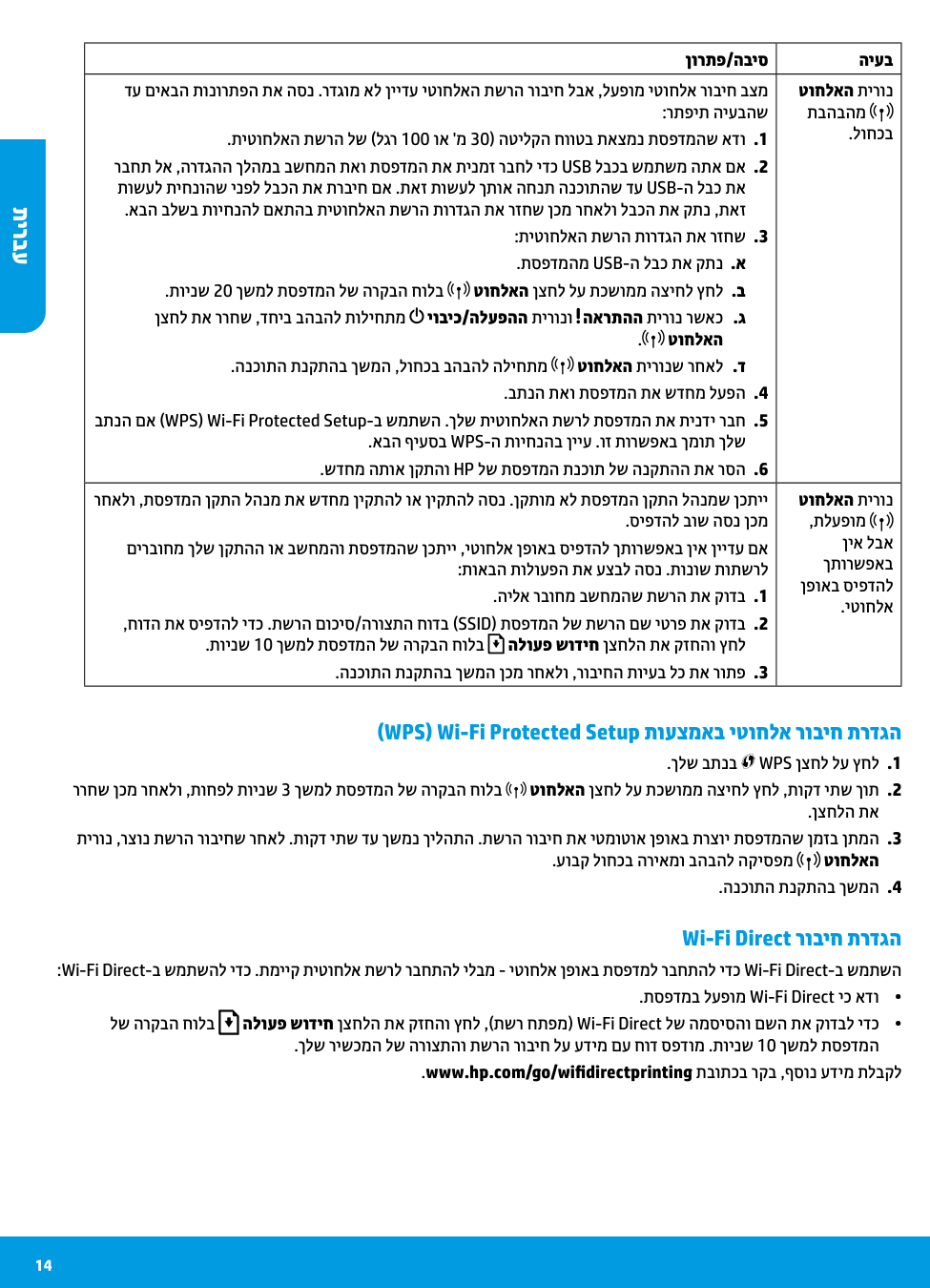
•.תספדמבלעפומWi-Fi Directיכאדו •לשהרקבהחולבהלועפשודיחןצחלהתאקזחהוץחל,(תשרחתפמ) Wi-Fi Directלשהמסיסהוםשהתאקודבלידכ
.ךלש רישכמה לש הרוצתהו תשרה רוביח לע עדימ םע חוד ספדומ .תוינש 10 ךשמל תספדמה
.www.hp.com/go/wifidirectprinting תבותכב רקב ,ףסונ עדימ תלבקל
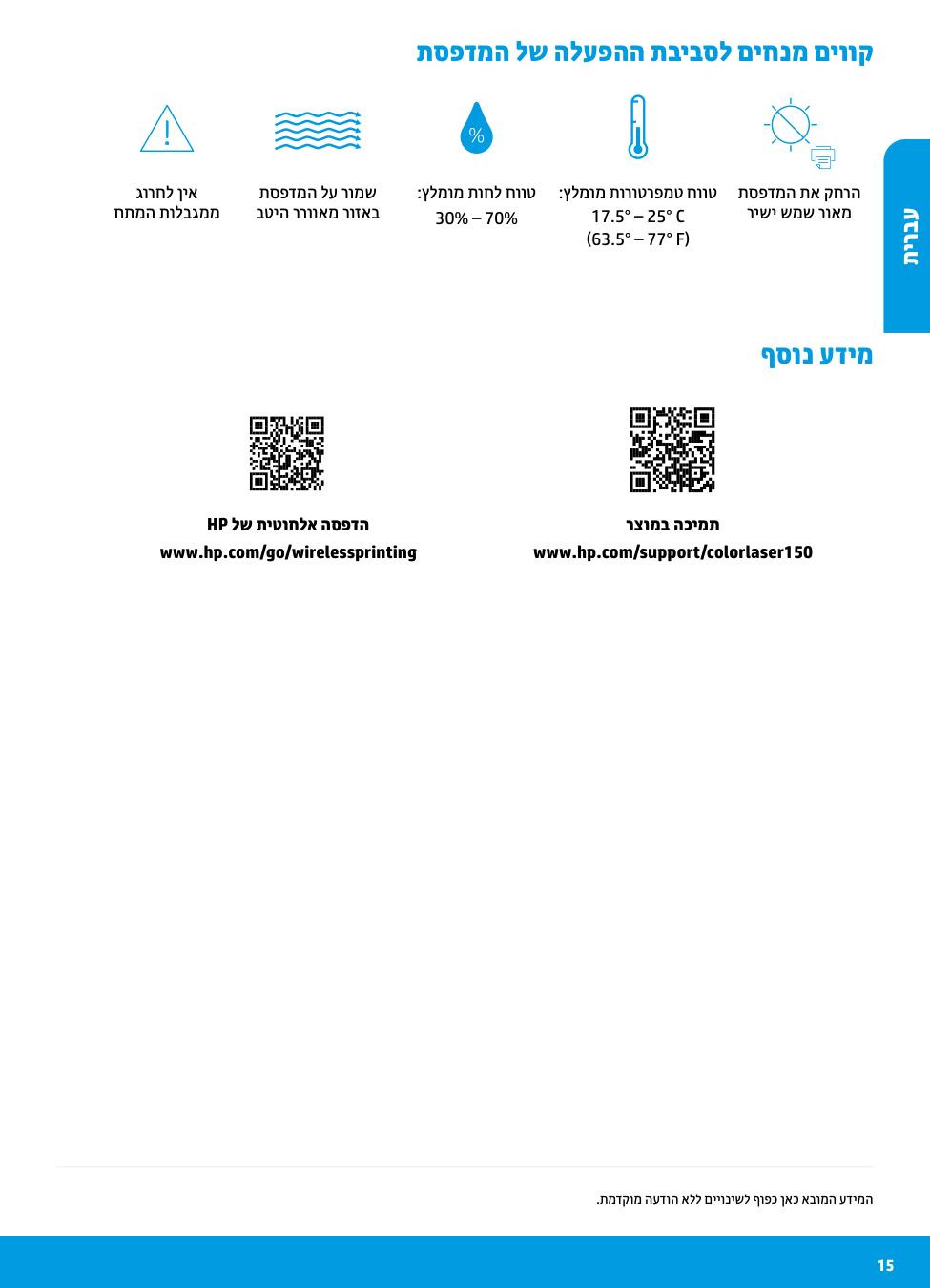
גורחל ןיא חתמה תולבגממ
תספדמה לע רומש בטיה ררוואמ רוזאב
תספדמה לש הלעפהה תביבסל םיחנמ םיווק
:ץלמומ תוחל חווט 30% – 70%
:ץלמומ תורוטרפמט חווט 17.5° – 25° C (63.5° – 77° F)
תספדמה תא קחרה רישי שמש רואמ
#### תירבע
ףסונ עדימ
HP לש תיטוחלא הספדה www.hp.com/go/wirelessprinting
רצומב הכימת www.hp.com/support/colorlaser150
.תמדקומ העדוה אלל םייונישל ףופכ ןאכ אבומה עדימה
Printed in English © Copyright 2019 HP Development Company, L.P.
Printed in Spanish Printed in Portuguese
EN FR ES PT HE
JC68-04045A00
*4ZB94-90902* *4ZB94-90902* 4ZB94-90902