HP 15 F1000 Laptop PC manual
Laptops · 8 Q&As

HP 15 F1000 Laptop PC

Ask AI

— answers from the official manual

Answers from the official manual.

Common questions

Common Questions

8 total
1

What should I do if my hard drive or eMMC light keeps blinking?

A blinking white hard drive/eMMC light indicates that the internal storage device is being accessed. If you're concerned about excessive activity, it might be a normal process, but check for system updates or disk errors using Windows tools.

2

How do I replace the battery in my HP 15 Notebook PC?

To remove and install a battery: Turn off your computer, disconnect all external devices, and unplug the power cord. Then turn the laptop upside down on a flat surface, slide the release latch located at the bottom to unlock the battery, and lift it out using two fingers in the center of the battery. Ensure compatibility before inserting by sliding the new battery straight in until it clicks into place.

3

Where can I find my computer's specifications?

Refer to chapter 12 Specifications for detailed information on processor, display, memory, hard drive capacities and types available in your HP 15 Notebook PC model.

4

How do I locate the WLAN antenna cables when swapping a wireless module?

To access and replace the WLAN module, follow steps to remove necessary parts like battery, service door, optical drive. Disconnect the WLAN antenna cables from terminals on the WLAN module; ensure correct placement with protective sleeves if disengaged.

5

What is the safe operating temperature for my laptop?

To prevent overheating and potential injury, avoid placing the device directly on your lap or any soft surface like pillows which can obstruct airflow and cause hot spots. Use it only on a hard flat surface with ventilation around.

6

How do I update my BIOS in Windows 10?

Start Setup Utility (BIOS) from the Windows search function, then download an appropriate BIOS update for your model from HP's website and follow installation instructions within the utility.

Show 2 more questions

Full Manual

107 pages
Page 1

HP 15 Notebook PC

Maintenance and Service Guide

© Copyright 2015 HP Development Company, L.P.

AMD is a trademark of Advanced Micro Devices, Inc. Bluetooth is a trademark owned by its proprietor and used by HP Inc. under license. Intel, Celeron, Centrino, and Pentium are trademarks of Intel Corporation in the U.S. and other countries. Microsoft and Windows are U.S. registered trademarks of the Microsoft group of companies.

The information contained herein is subject to change without notice. The only warranties for HP products and services are set forth in the express warranty statements accompanying such products and services. Nothing herein should be construed as constituting an additional warranty. HP shall not be liable for technical or editorial errors or omissions contained herein.

Second Edition: August 2015 First Edition: November 2014 Document Part Number: 793965-002

######## Product notice

This guide describes features that are common to most models. Some features may not be available on your computer.

Not all features are available in all editions of Windows. This computer may require upgraded and/or separately purchased hardware, drivers, and/or software to take full advantage of Windows functionality. See http://www.microsoft.com for details.

######## Software terms

By installing, copying, downloading, or otherwise using any software product preinstalled on this computer, you agree to be bound by the terms of the HP End User License Agreement (EULA). If you do not accept these license terms, your sole remedy is to return the entire unused product (hardware and software) within 14 days for a refund subject to the refund policy of your place of purchase.

For any further information or to request a full refund of the computer, please contact your local point of sale (the seller).

#### Important Notice about Customer Self-Repair Parts
Page 2

CAUTION: Your computer includes Customer Self-Repair parts and parts that should only be accessed by an authorized service provider. See Chapter 5, "Removal and replacement procedures for Customer Self-Repair parts," for details. Accessing parts described in Chapter 6, "Removal and replacement procedures for Authorized Service Provider only parts," can damage the computer or void your warranty.

iii

####### iv Important Notice about Customer Self-Repair Parts

#### Safety warning notice

WARNING! To reduce the possibility of heat-related injuries or of overheating the device, do not place the device directly on your lap or obstruct the device air vents. Use the device only on a hard, flat surface. Do not allow another hard surface, such as an adjoining optional printer, or a soft surface, such as pillows or rugs or clothing, to block airflow. Also, do not allow the AC adapter to contact the skin or a soft surface, such as pillows or rugs or clothing, during operation. The device and the AC adapter comply with the user-accessible surface temperature limits defined by the International Standard for Safety of Information Technology Equipment (IEC 60950).

v

####### vi Safety warning notice

Table of contents

  • 1 Product description ....................................................................................................................................... 1
  • 2 External component identification .................................................................................................................. 4 Right side ............................................................................................................................................................... 4 Left side ................................................................................................................................................................. 5 Display .................................................................................................................................................................... 6 Top .......................................................................................................................................................................... 8
  • TouchPad ............................................................................................................................................. 8 Lights ................................................................................................................................................... 8 Buttons and speakers ....................................................................................................................... 10 Keys ................................................................................................................................................... 11

    Bottom ................................................................................................................................................................. 12 Locating system information .............................................................................................................................. 14

  • 3 Illustrated parts catalog .............................................................................................................................. 15 Computer major components .............................................................................................................................. 15 Display assembly subcomponents ...................................................................................................................... 19 Miscellaneous parts ............................................................................................................................................. 20 Mass storage devices ........................................................................................................................................... 21
  • Page 3

  • 4 Removal and replacement procedures preliminary requirements .................................................................... 22 Tools required ...................................................................................................................................................... 22 Service considerations ......................................................................................................................................... 22
  • Plastic parts ....................................................................................................................................... 22 Cables and connectors ...................................................................................................................... 23 Drive handling ................................................................................................................................... 23

    Grounding guidelines ........................................................................................................................................... 24

    Electrostatic discharge damage ........................................................................................................ 24 Packaging and transporting guidelines .......................................................................... 25 Workstation guidelines ................................................................................................... 25 Equipment guidelines ..................................................................................................... 26

  • 5 Removal and replacement procedures for Customer Self-Repair parts ............................................................. 27 Component replacement procedures .................................................................................................................. 27
  • Battery ............................................................................................................................................... 28 Service door ....................................................................................................................................... 29

    vii

    Memory module ................................................................................................................................ 30 WLAN module .................................................................................................................................... 31 Optical drive ....................................................................................................................................... 33

    ###### 6 Removal and replacement procedures for Authorized Service Provider parts ................................................... 35Component replacement procedures .................................................................................................................. 35

    Display panel ..................................................................................................................................... 36 Keyboard ........................................................................................................................................... 38 Top cover ........................................................................................................................................... 40 Hard drive .......................................................................................................................................... 44 Power button board .......................................................................................................................... 47 TouchPad button board ..................................................................................................................... 49 Optical drive connector cable ............................................................................................................ 51 System board .................................................................................................................................... 52 RTC battery ........................................................................................................................................ 57 Fan ..................................................................................................................................................... 59 Heat sink assembly ........................................................................................................................... 61 Power connector cable ...................................................................................................................... 63 Speakers ............................................................................................................................................ 64 Display assembly ............................................................................................................................... 65

    ####### 7 Using Setup Utility (BIOS) in Windows 8.1 ...................................................................................................... 73Starting Setup Utility (BIOS) ................................................................................................................................ 73Updating the BIOS ................................................................................................................................................ 73

    Determining the BIOS version ........................................................................................................... 73 Downloading a BIOS update .............................................................................................................. 73

    Page 4

    ####### 8 Using Setup Utility (BIOS) in Windows 10 ....................................................................................................... 75Starting Setup Utility (BIOS) ................................................................................................................................ 75Updating Setup Utility (BIOS) .............................................................................................................................. 75

    Determining the BIOS version ........................................................................................................... 75 Downloading a BIOS update .............................................................................................................. 76

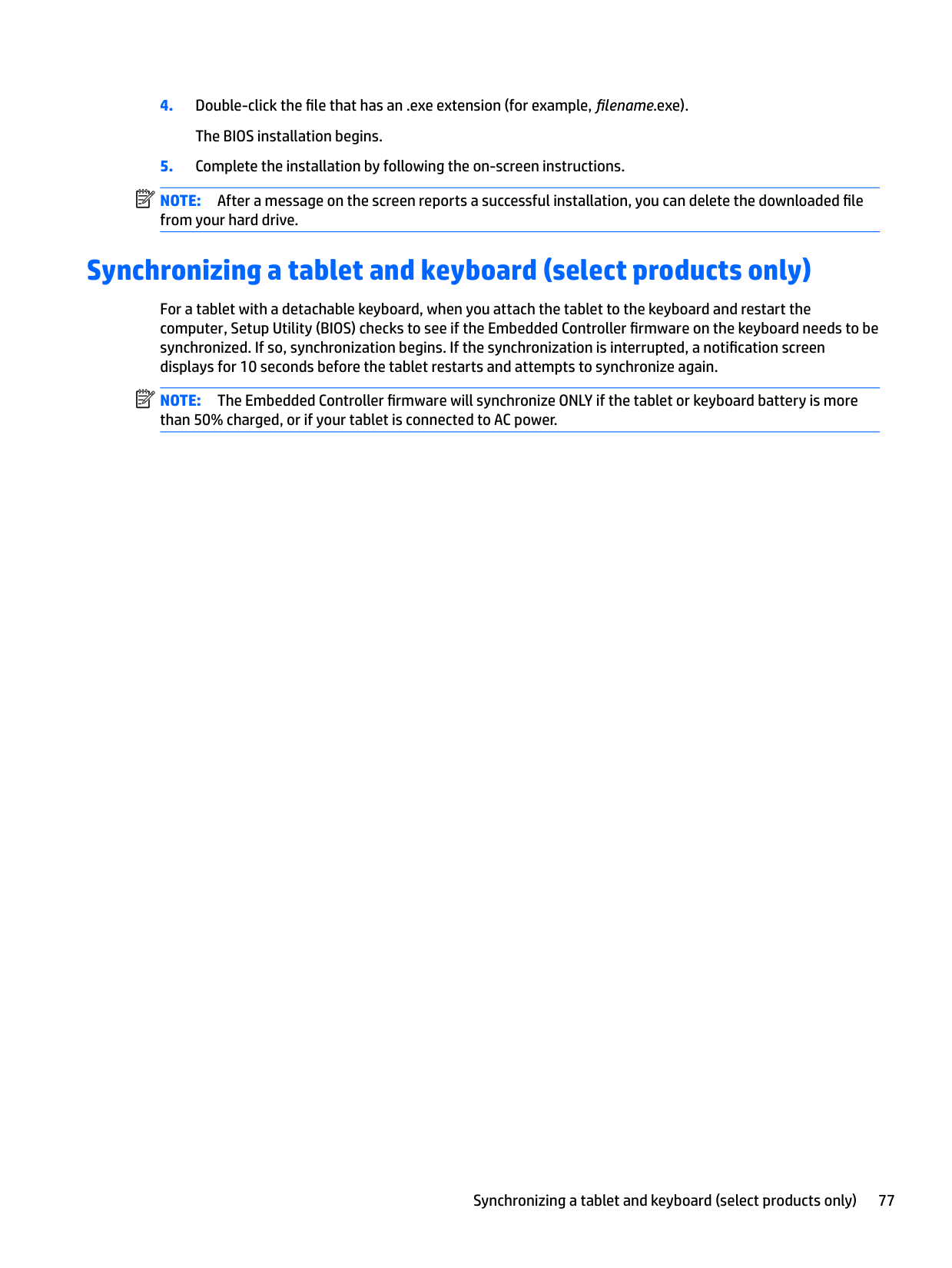
    Synchronizing a tablet and keyboard (select products only) .............................................................................. 77

    ###### 9 Backing up, restoring, and recovering in Windows 8.1 .................................................................................... 78Creating recovery media and backups ................................................................................................................ 78

    Creating HP Recovery media (select models only) ........................................................................... 78 Using Windows tools ........................................................................................................................................... 79 Restore and recovery ........................................................................................................................................... 79

    Recovering using HP Recovery Manager ........................................................................................... 80

    viii

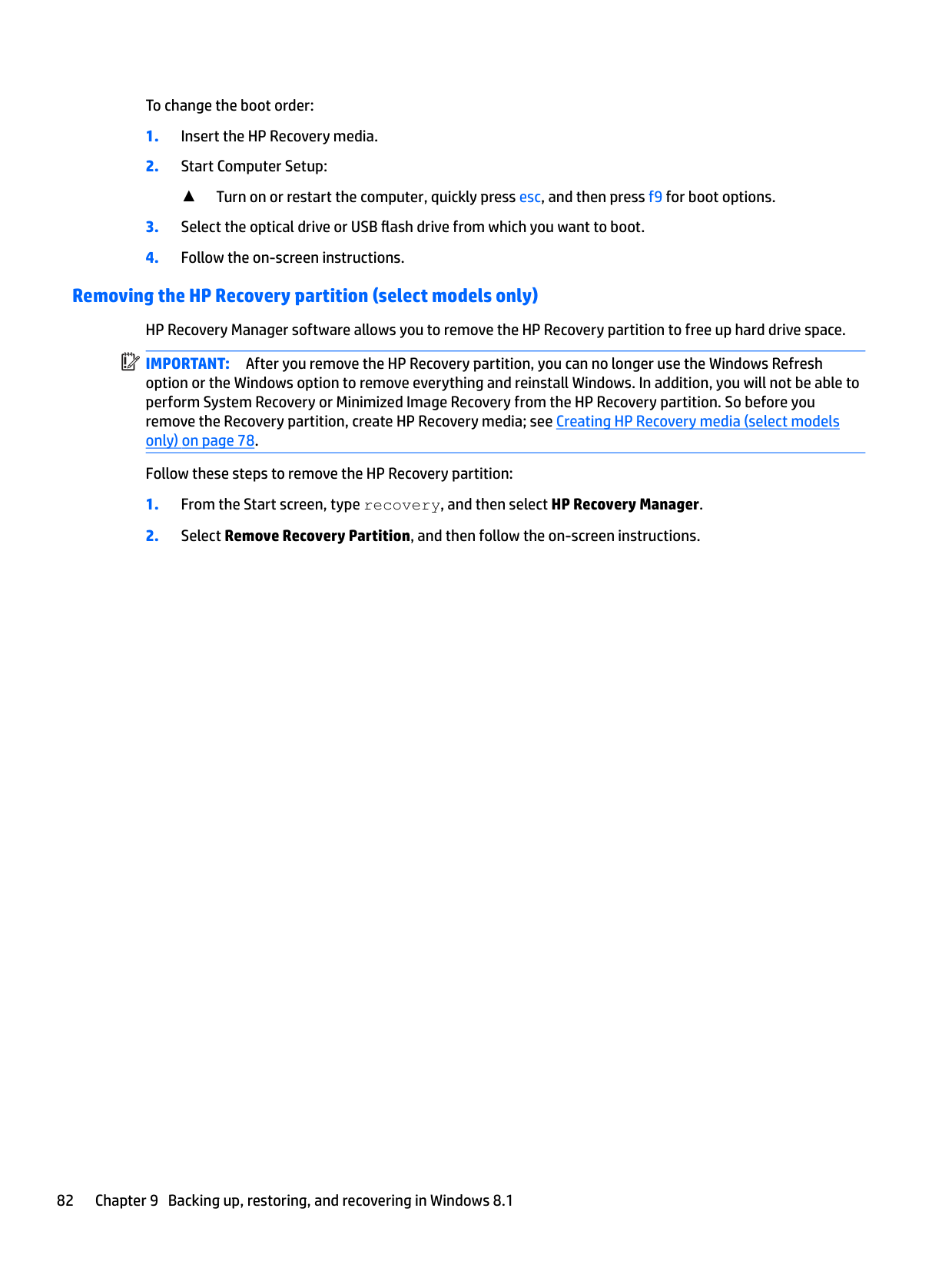
    What you need to know before you get started ............................................................. 80 Using the HP Recovery partition (select models only) ................................................... 81 Using HP Recovery media to recover .............................................................................. 81 Changing the computer boot order ................................................................................ 81 Removing the HP Recovery partition (select models only) ............................................ 82

  • 10 Backing up, restoring, and recovering in Windows 10 .................................................................................... 83 Creating recovery media and backups ................................................................................................................ 83
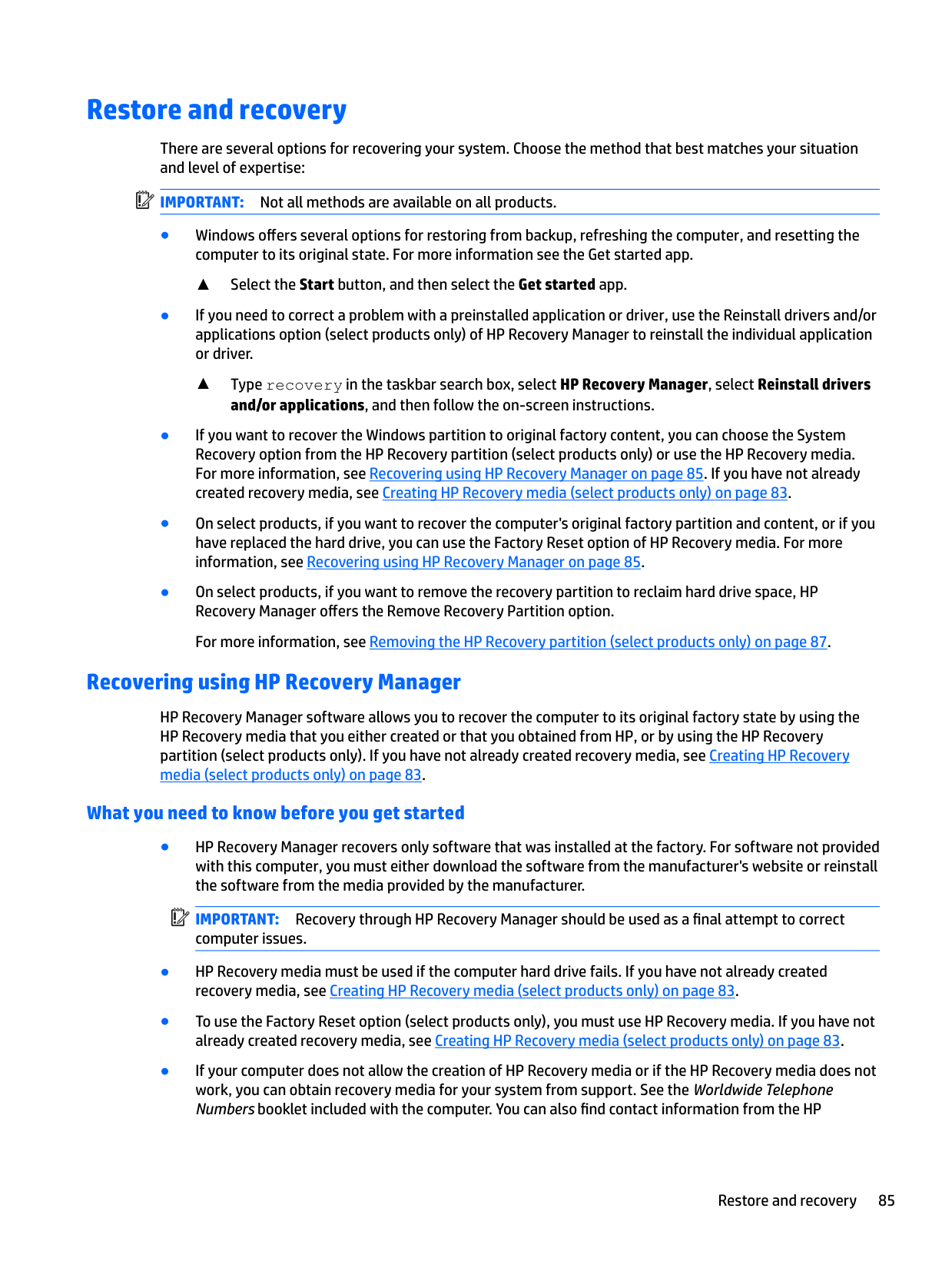
  • Creating HP Recovery media (select products only) ......................................................................... 83 Using Windows tools ........................................................................................................................................... 84 Restore and recovery ........................................................................................................................................... 85

    Recovering using HP Recovery Manager ........................................................................................... 85 What you need to know before you get started ............................................................. 85 Using the HP Recovery partition (select products only) ................................................. 86 Using HP Recovery media to recover .............................................................................. 86 Changing the computer boot order ................................................................................ 87 Removing the HP Recovery partition (select products only) ......................................... 87
  • 11 Using HP PC Hardware Diagnostics (UEFI) ..................................................................................................... 88 Downloading HP PC Hardware Diagnostics (UEFI) to a USB device .................................................................... 89
  • 12 Specifications ............................................................................................................................................ 90 Computer specifications ...................................................................................................................................... 90 15.6-inch display specifications .......................................................................................................................... 90 Hard drive specifications ..................................................................................................................................... 91
  • 13 Power cord set requirements ...................................................................................................................... 92 Requirements for all countries ............................................................................................................................ 92 Requirements for specific countries and regions ................................................................................................ 92
  • Page 5

  • 14 Recycling .................................................................................................................................................. 94
  • Index ............................................................................................................................................................. 95

    ix

    ####### x

    1 Product description

    Category Description Product Name HP 15 Notebook PC Processors Processors are attached to the system board.

  • ● Intel Core i3-4030U, 1.9 GHz, 1333 MHz/3 MB L2 cache, 15 W
  • ● Intel Core i3-4010U, 1.7 GHz, 1333 MHz/3 MB L2 cache, 15 W
  • ● Intel Core i3-4005U, 1.7 GHz, 1333 MHz/3 MB L2 cache, 15 W
  • ● Intel Pentium N3540, 2.16 GHz, turbo up to 2.66 GHz, 1333 MHz/2 MB L2 cache, 4.5 W
  • ● Intel Pentium N3530, 2.16 GHz, turbo up to 2.58 GHz, 1333 MHz/2 MB L2 cache, 4.5 W
  • ● Intel Celeron N2940, 1.83 GHz, turbo up to 2.25 GHz, 1333 MHz/2 MB L2 cache, quad SDP, 4.5 W
  • ● Intel Celeron N2840, 2.16 GHz, turbo up to 2.25 GHz, 1333 MHz/2 MB L2 cache, 4.5 W
  • ● Intel Celeron N2830, 1.83 GHz, turbo up to 2.41 GHz, 1333 MHz/2 MB L2 cache, 4.5 W
  • Chipset Intel Bay Trail-M SoC Intel Shark Bay ULT One Chip Solution Intel Braswell SoC

    Page 6

    ######## Graphics Internal graphics:

  • ● Intel HD Graphics 4400 (Core i3 processors)
  • ● Intel HD Graphics (Pentium and Celeron processors) Supports either HD Decode, DX11.1, and HDMI or HD Decode, DX11, and HDMI
  • Panel 15.6 in, white light-emitting diode (WLED), high-definition (HD), BrightView (1366×768) display, 3.6 mm, SVA; typical brightness: 200 nits All display assemblies include wireless local area network (WLAN) antenna cables 16:9 Ultra Wide Aspect Ratio Touchscreen, multi-touch enabled

    Memory Two SODIMM non-customer-accessible/upgradable memory module slots (Core i3 processors) DDR3L-1600 MHz dual channel support (DDR3L-1600 dual channel support) One SODIMM non-customer-accessible/upgradable memory module slot (Pentium, Celeron processors) DDR3L-1333 MHz dual channel support (DDR3L-1600 downgraded to DDR3L-1333) Supports up to 4 GB max system memory (DDR3L-1600 MHz module) Supports the following system RAM configurations:

  • ● 8192 MB (8192 MB×1 or 4096 MB×2)
  • ● 6144 MB (4096 MB×1 + 2048 MB×1)
  • ● 4096 MB (4096 MB×1 or 2048 MB×2)
  • ● 2048 MB (2048 MB×1)
  • Hard drive Supports 6.35 cm (2.5 in) hard drives in 9.5 mm (.37 in) and 7.0 mm (.28 in) thicknesses (all hard drives use the same bracket) Serial ATA Accelerometer/hard drive protection support Supports the following hard drives:

  • ● 750 GB, 5400 rpm, 9.5 mm
  • ● 500 GB, 5400 rpm, 9.5 mm and 7.0 mm
  • ● 320 GB, 5400 rpm, 9.5 mm and 7.0 mm
  • Optical drive 9.5 mm tray load, SATA, fixed DVD±RW Double-Layer SuperMulti Drive Zero power optical drive Supports M-Disc
    Page 7

    Audio and video HD audio Dual speakers VGA camera (fixed, no tilt with activity LED; 640×480 by 24 frames per second) HD camera (fixed, no tilt with activity LED; 1280×720 by 30 frames per second) Single digital microphone

    Ethernet Integrated 10/100 NIC Wireless Integrated wireless options with single antennas (HMC/PCIe)

    Support for the following WLAN formats:

  • ● Qualcomm Atheros AR9485 802.11bgn 1x1 Wi-Fi adapter
  • ● Realtek RTL8188EE 802.11bgn 1x1 Wi-Fi adapter
  • ● Realtek RT8723BE 802.11bgn 1x1 Wi-Fi+BT 4.0 Combo Adapter
  • ● Broadcom BCM43142 802.11bgn 1x1 Wi-Fi + BT 4.0 HMC Combo Adapter Compatible with Miracast-certified devices Wireless display support (WiFi direct)
  • External media cards

    HP Multi-Format Memory Card Reader slot with push-push technology, supporting the following digital card formats:

  • ● Secure Digital (SD) Memory Card
  • ● Secure Digital High Capacity (SDHC) Memory Card
  • ● Secure Digital eXtended Capacity (SDXC) Memory Card
  • Ports AC Smart Pin adapter plug (4.5 mm barrel) Combination audio-out (headphone)/audio-in (microphone) RJ-45 (Ethernet) USB 3.0 (2 ports), USB 2.0 (1 port) HDMI 1.4 output supporting 1920x1200 @ 60 Hz

    Keyboard/ pointing devices
    Page 8

    Full-size, textured island-style with black keyboard frame

    2 Chapter 1 Product description

    Multitouch gestures enabled Supports Windows® 8 Modern TrackPad Gestures Support PS/2 interface

    Power requirements

    Supports the following AC adapters: 1 M length power cord 45 W HP Smart AC adapter (3-wire, 4.5 mm barrel) Supports the following batteries:

  • ● 4 cell, 41 Whr, 2.8 AH
  • ● 3 cell, 31 Whr, 2.8 AH
  • Security Kensington Security Lock

    TPM 2.0 (SharkBay and Braswell)

    Operating system Preinstalled: Windows 10 Windows 8.1 with Bing image (64 bit) Windows 8.1

    Serviceability End user replaceable parts: AC adapter Battery Keyboard (select model replacement only) Memory module Optical drive Hard drive WLAN module

    2 External component identification

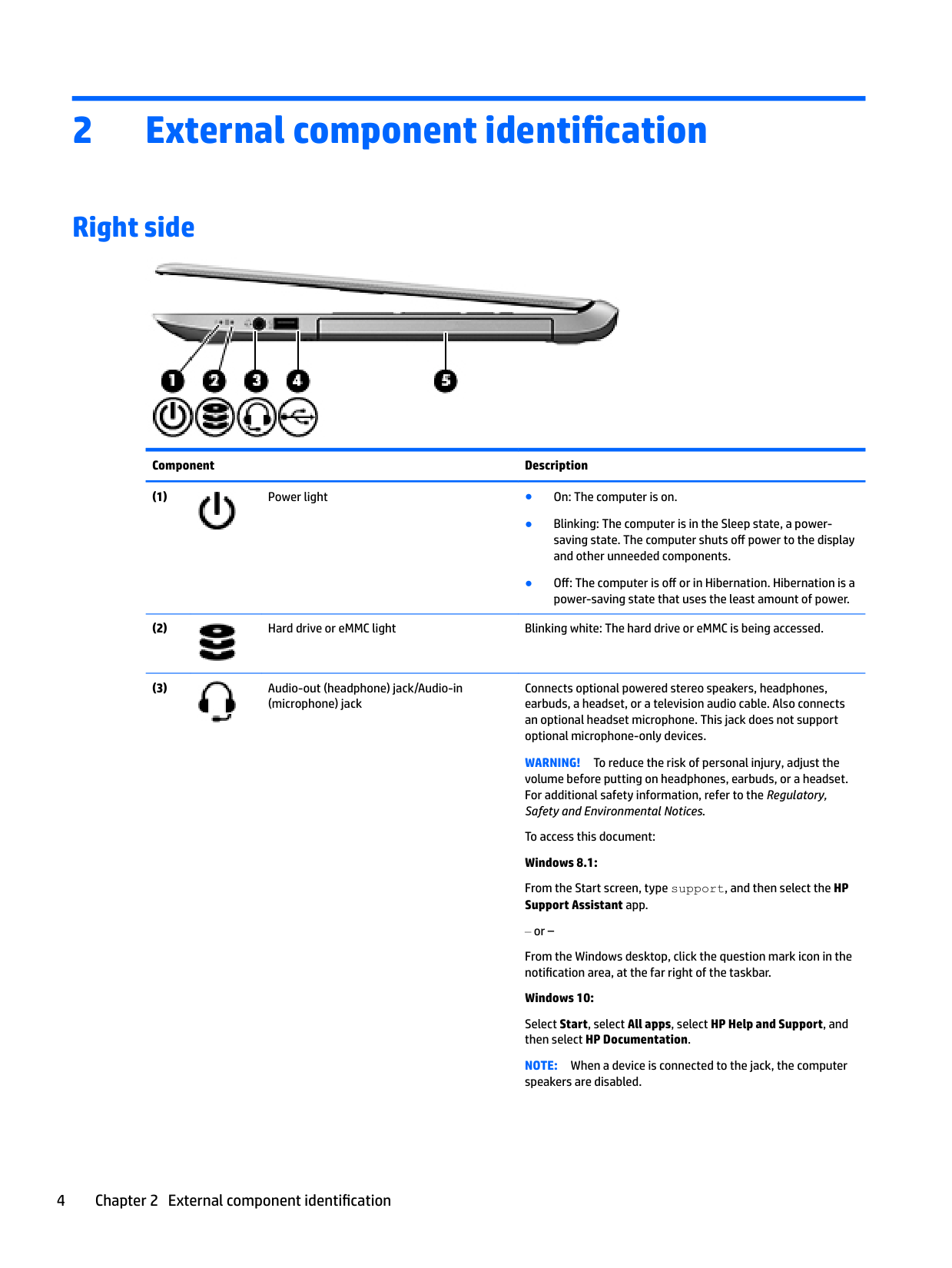
    Right side
    Page 9

    ![image 1](c04763947_images/imageFile1.png)

    ######## Component Description

  • (1) Power light ● On: The computer is on.
  • ![image 2](c04763947_images/imageFile2.png)

  • ● Blinking: The computer is in the Sleep state, a powersaving state. The computer shuts off power to the display and other unneeded components.
  • ● Off: The computer is off or in Hibernation. Hibernation is a power-saving state that uses the least amount of power.
  • (2) Hard drive or eMMC light Blinking white: The hard drive or eMMC is being accessed.
  • ![image 3](c04763947_images/imageFile3.png)

  • (3) Audio-out (headphone) jack/Audio-in (microphone) jack
  • Connects optional powered stereo speakers, headphones, earbuds, a headset, or a television audio cable. Also connects an optional headset microphone. This jack does not support optional microphone-only devices.

    ![image 4](c04763947_images/imageFile4.png)

    WARNING! To reduce the risk of personal injury, adjust the volume before putting on headphones, earbuds, or a headset. For additional safety information, refer to the Regulatory, Safety and Environmental Notices.

    Page 10

    To access this document: Windows 8.1: From the Start screen, type support, and then select the HP Support Assistant app.

    or –

    From the Windows desktop, click the question mark icon in the notification area, at the far right of the taskbar.

    Windows 10:

    Select Start, select All apps, select HP Help and Support, and then select HP Documentation.

    NOTE: When a device is connected to the jack, the computer speakers are disabled.

    NOTE: Be sure that the device cable has a 4-conductor connector that supports both audio-out (headphone) and audio-in (microphone).

  • (4) USB 2.0 port Connects an optional USB device, such as a keyboard, mouse, external drive, printer, scanner or USB hub.
  • ![image 5](c04763947_images/imageFile5.png)

  • (5) Optical drive (select models only) Depending on your computer model, reads an optical disc or reads and writes to an optical disc.
  • NOTE: For disc compatibility information, go to the Help and

    Support web page. Follow the web page instructions to select your computer model. Select Drivers & Downloads, and then follow the on-screen instructions.
    Page 11

    In Windows 10, type help in the taskbar search box, select Help and Support, and then type disc compatibility in the search box.

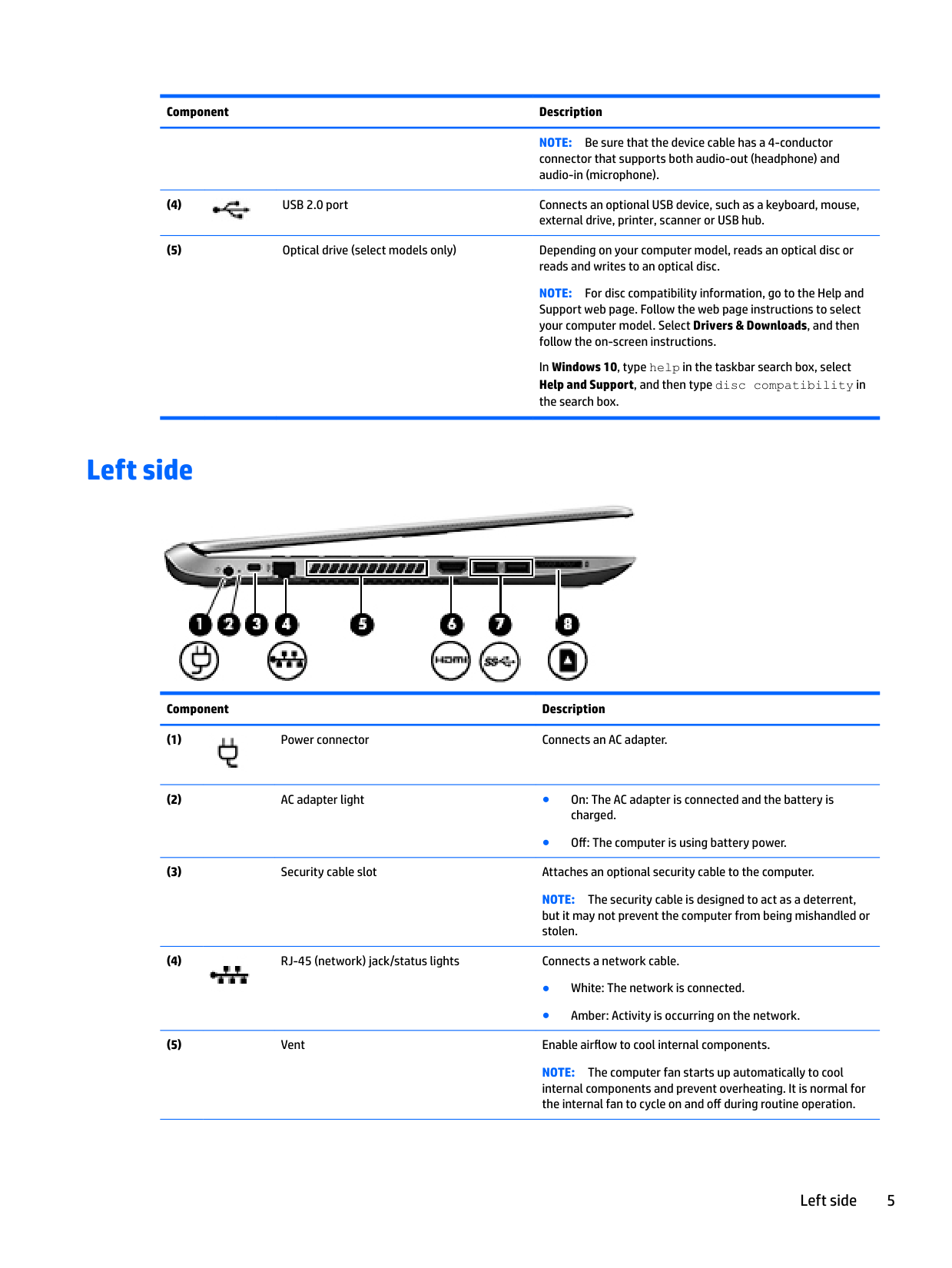
    Left side

    ![image 6](c04763947_images/imageFile6.png)

    ######## Component Description

  • (1) Power connector Connects an AC adapter.
  • ![image 7](c04763947_images/imageFile7.png)

  • (2) AC adapter light ● On: The AC adapter is connected and the battery is charged.
  • ● Off: The computer is using battery power.

  • (3) Security cable slot Attaches an optional security cable to the computer.
  • NOTE: The security cable is designed to act as a deterrent, but it may not prevent the computer from being mishandled or stolen.

  • (4) RJ-45 (network) jack/status lights Connects a network cable.
  • ![image 8](c04763947_images/imageFile8.png)

    Page 12

  • ● White: The network is connected.
  • ● Amber: Activity is occurring on the network.
  • (5) Vent Enable airflow to cool internal components.
  • NOTE: The computer fan starts up automatically to cool internal components and prevent overheating. It is normal for the internal fan to cycle on and off during routine operation.

    Left side 5

  • (6) HDMI port Connects an optional video or audio device, such as a highdefinition television, any compatible digital or audio component, or a high-speed HDMI device.
  • ![image 9](c04763947_images/imageFile9.png)

  • (7) USB 3.0 ports Connect optional USB devices, such as a keyboard, mouse, external drive, printer, scanner or USB hub.
  • ![image 10](c04763947_images/imageFile10.png)

  • (8) Memory card reader Reads optional memory cards that store, manage, share, or access information. To insert a card:
  • ![image 11](c04763947_images/imageFile11.png)

    ● Hold the card label-side up, with connectors facing the slot, insert the card into the slot, and then push in on the card until it is firmly seated.
    Page 13

    To remove a card:

    ● Press in on the card until it pops out.

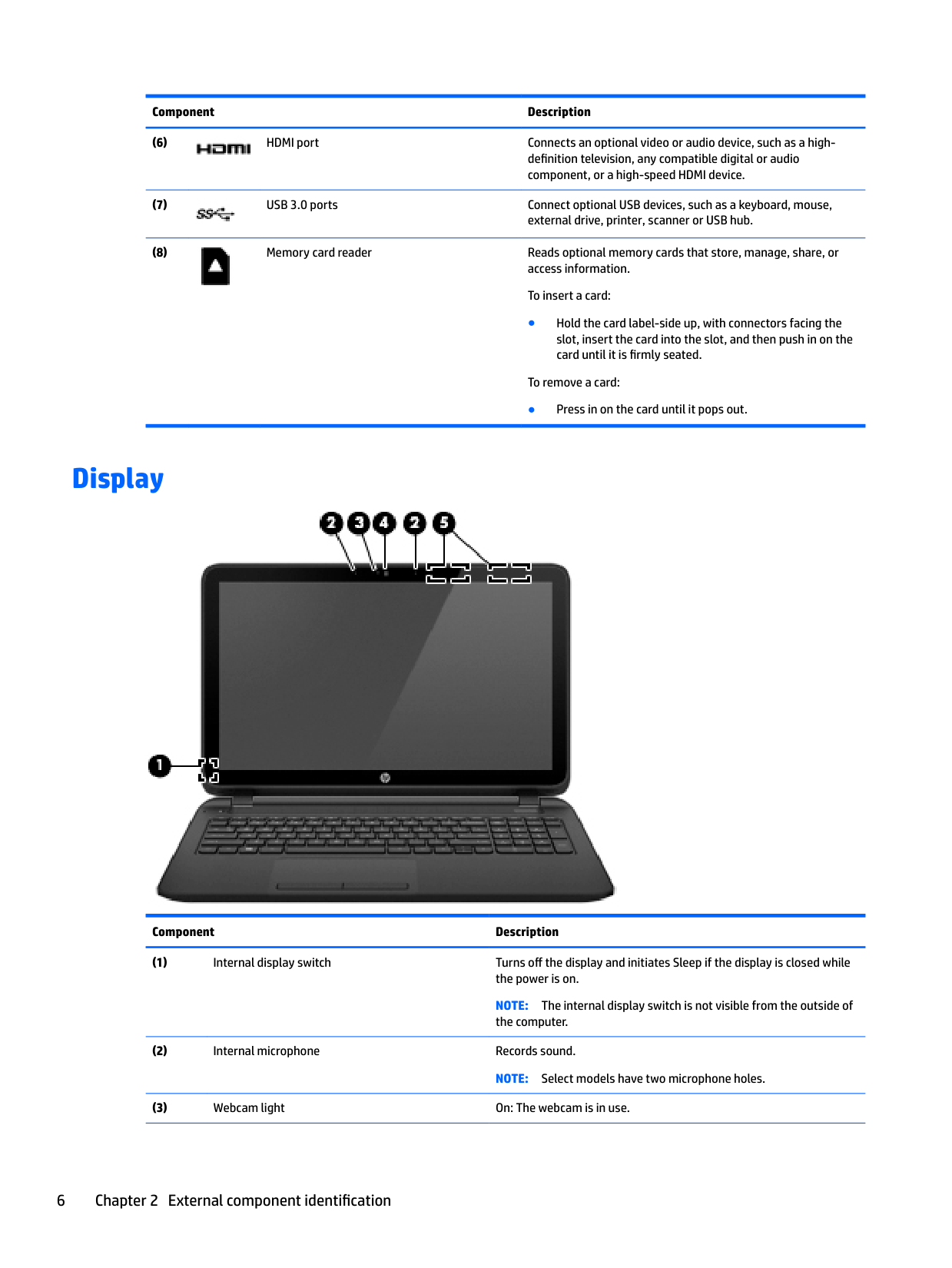
    Display

    ![image 12](c04763947_images/imageFile12.png)

    ######## Component Description

  • (1) Internal display switch Turns off the display and initiates Sleep if the display is closed while the power is on.
  • NOTE: The internal display switch is not visible from the outside of the computer.

  • (2) Internal microphone Records sound. NOTE: Select models have two microphone holes.
  • (3) Webcam light On: The webcam is in use.
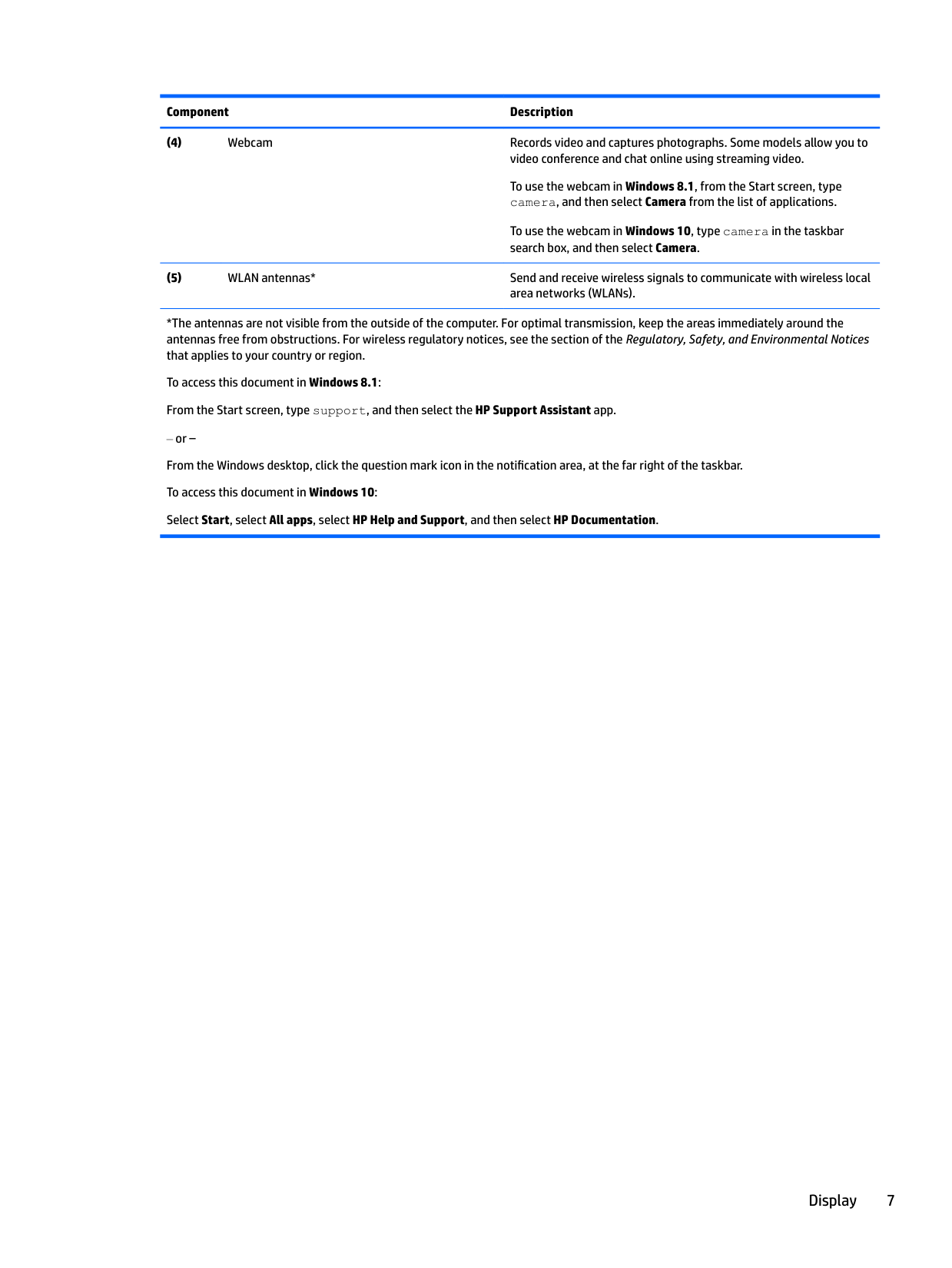
  • (4) Webcam Records video and captures photographs. Some models allow you to video conference and chat online using streaming video.
  • To use the webcam in Windows 8.1, from the Start screen, type camera, and then select Camera from the list of applications.

    To use the webcam in Windows 10, type camera in the taskbar search box, and then select Camera.
    Page 14

  • (5) WLAN antennas* Send and receive wireless signals to communicate with wireless local area networks (WLANs).
  • *The antennas are not visible from the outside of the computer. For optimal transmission, keep the areas immediately around the antennas free from obstructions. For wireless regulatory notices, see the section of the Regulatory, Safety, and Environmental Notices that applies to your country or region.

    To access this document in Windows 8.1: From the Start screen, type support, and then select the HP Support Assistant app.

    ‒ or – From the Windows desktop, click the question mark icon in the notification area, at the far right of the taskbar. To access this document in Windows 10: Select Start, select All apps, select HP Help and Support, and then select HP Documentation.

    Display 7

    Top

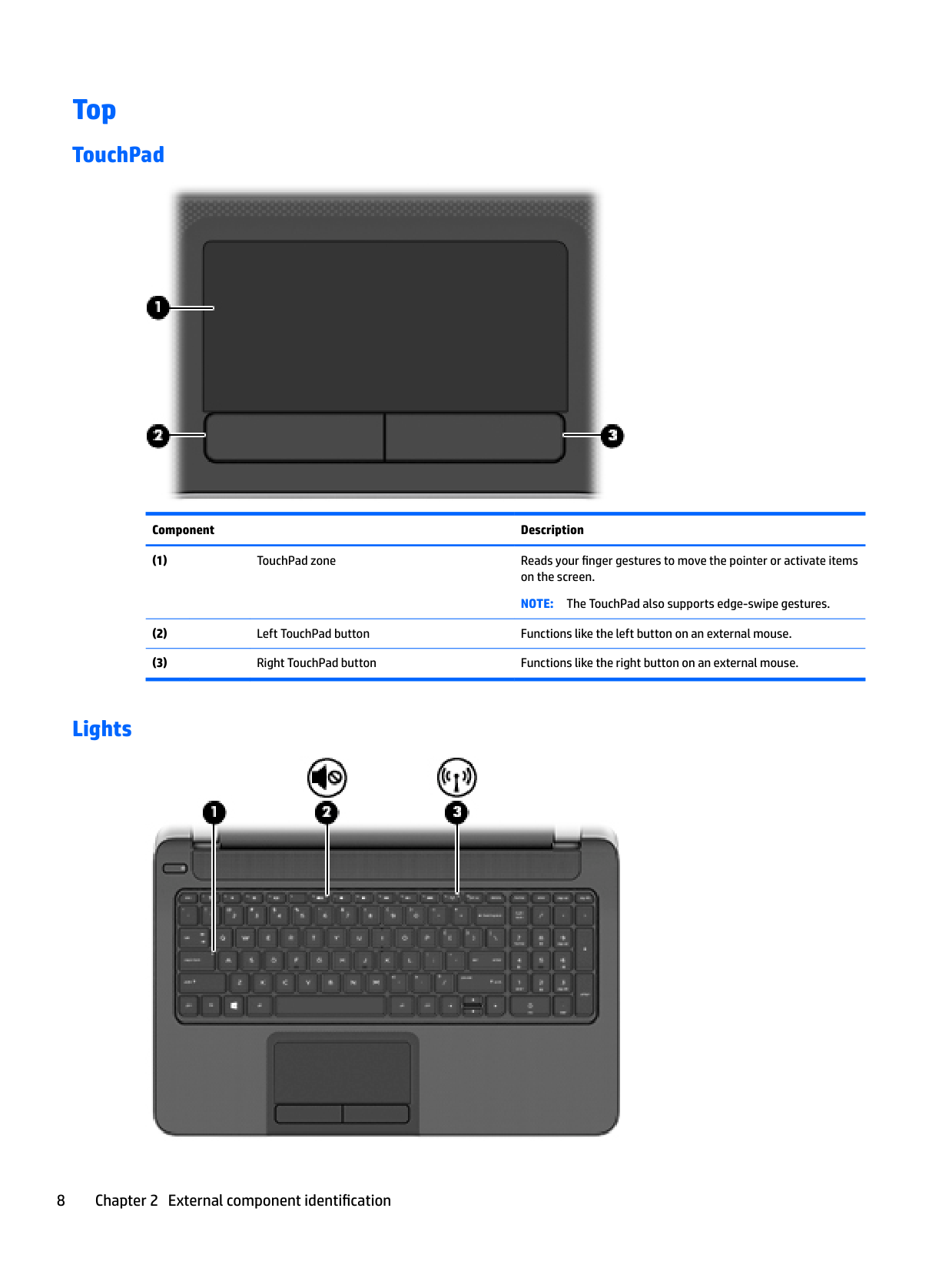
    #### TouchPad

    ![image 13](c04763947_images/imageFile13.png)

    ######## Component Description

  • (1) TouchPad zone Reads your finger gestures to move the pointer or activate items on the screen. NOTE: The TouchPad also supports edge-swipe gestures.
  • (2) Left TouchPad button Functions like the left button on an external mouse.
  • (3) Right TouchPad button Functions like the right button on an external mouse.
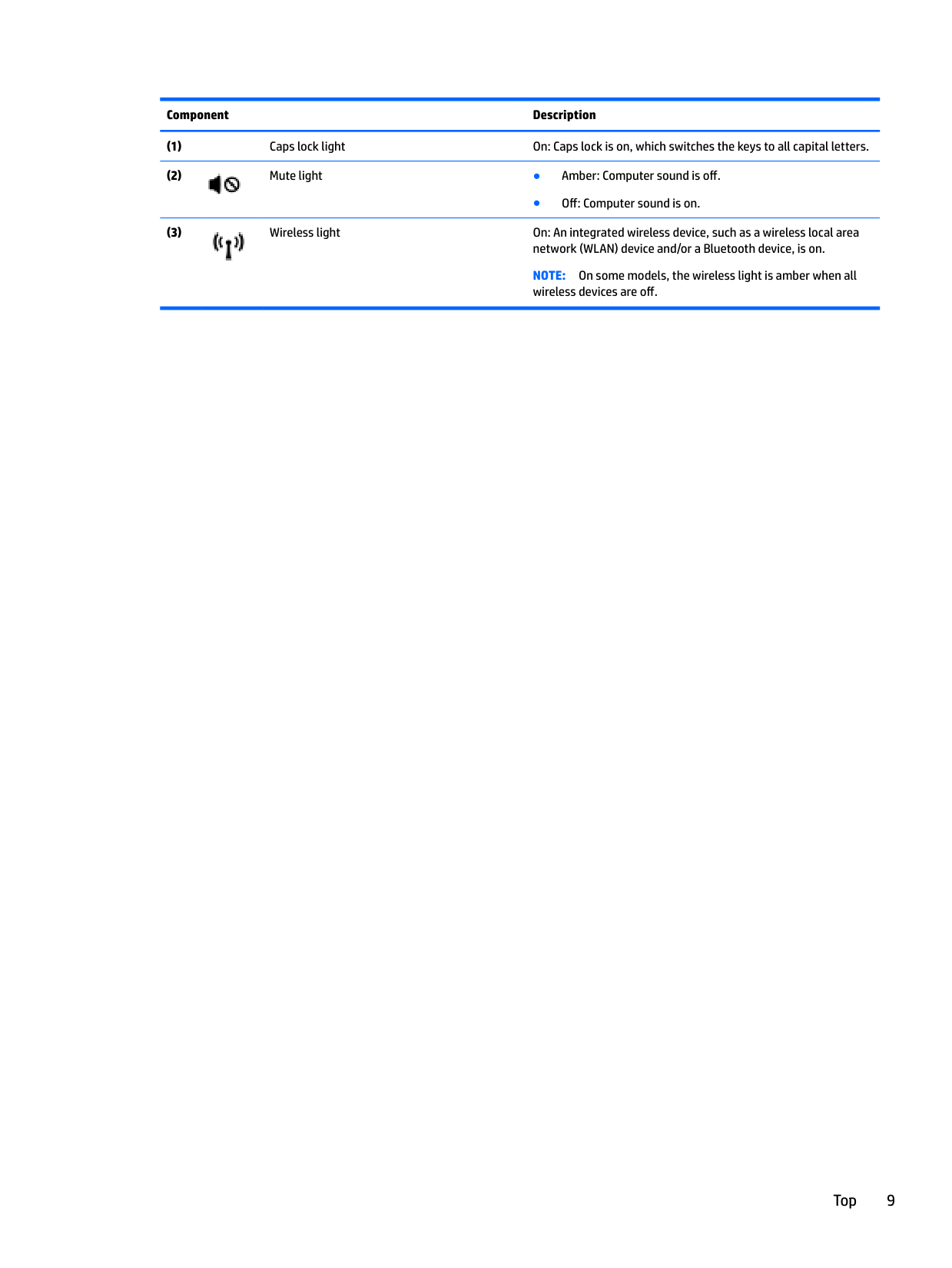
  • #### Lights

    Page 15

    ![image 14](c04763947_images/imageFile14.png)

  • (1) Caps lock light On: Caps lock is on, which switches the keys to all capital letters.
  • (2) Mute light ● Amber: Computer sound is off.
  • ![image 15](c04763947_images/imageFile15.png)

    ● Off: Computer sound is on.

  • (3) Wireless light On: An integrated wireless device, such as a wireless local area network (WLAN) device and/or a Bluetooth device, is on.
  • ![image 16](c04763947_images/imageFile16.png)

    NOTE: On some models, the wireless light is amber when all wireless devices are off.

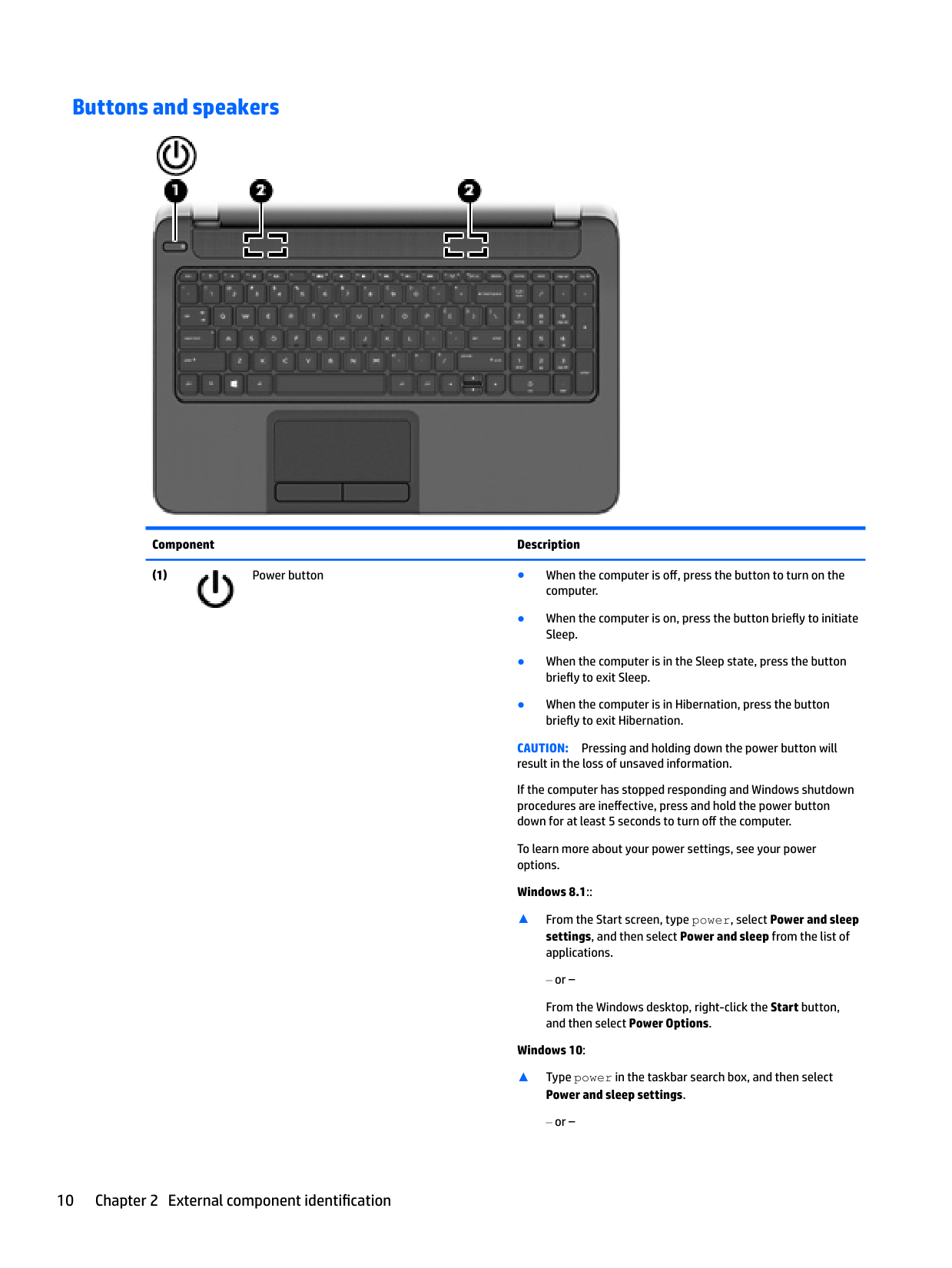
    #### Buttons and speakers

    ![image 17](c04763947_images/imageFile17.png)

    ######## Component Description

  • (1) Power button ● When the computer is off, press the button to turn on the computer.
  • Page 16

    ![image 18](c04763947_images/imageFile18.png)

  • ● When the computer is on, press the button briefly to initiate Sleep.
  • ● When the computer is in the Sleep state, press the button briefly to exit Sleep.
  • ● When the computer is in Hibernation, press the button briefly to exit Hibernation.
  • CAUTION: Pressing and holding down the power button will result in the loss of unsaved information. If the computer has stopped responding and Windows shutdown procedures are ineffective, press and hold the power button down for at least 5 seconds to turn off the computer. To learn more about your power settings, see your power options. Windows 8.1::

    ▲ From the Start screen, type power, select Power and sleep settings, and then select Power and sleep from the list of applications.

    or –

    From the Windows desktop, right-click the Start button, and then select Power Options.

    ######## Windows 10:

    ▲ Type power in the taskbar search box, and then select

    ######## Power and sleep settings.

    ‒ or –

    Right-click the Start button, and then select Power Options.
    Page 17

  • (2) Speakers Produce sound.
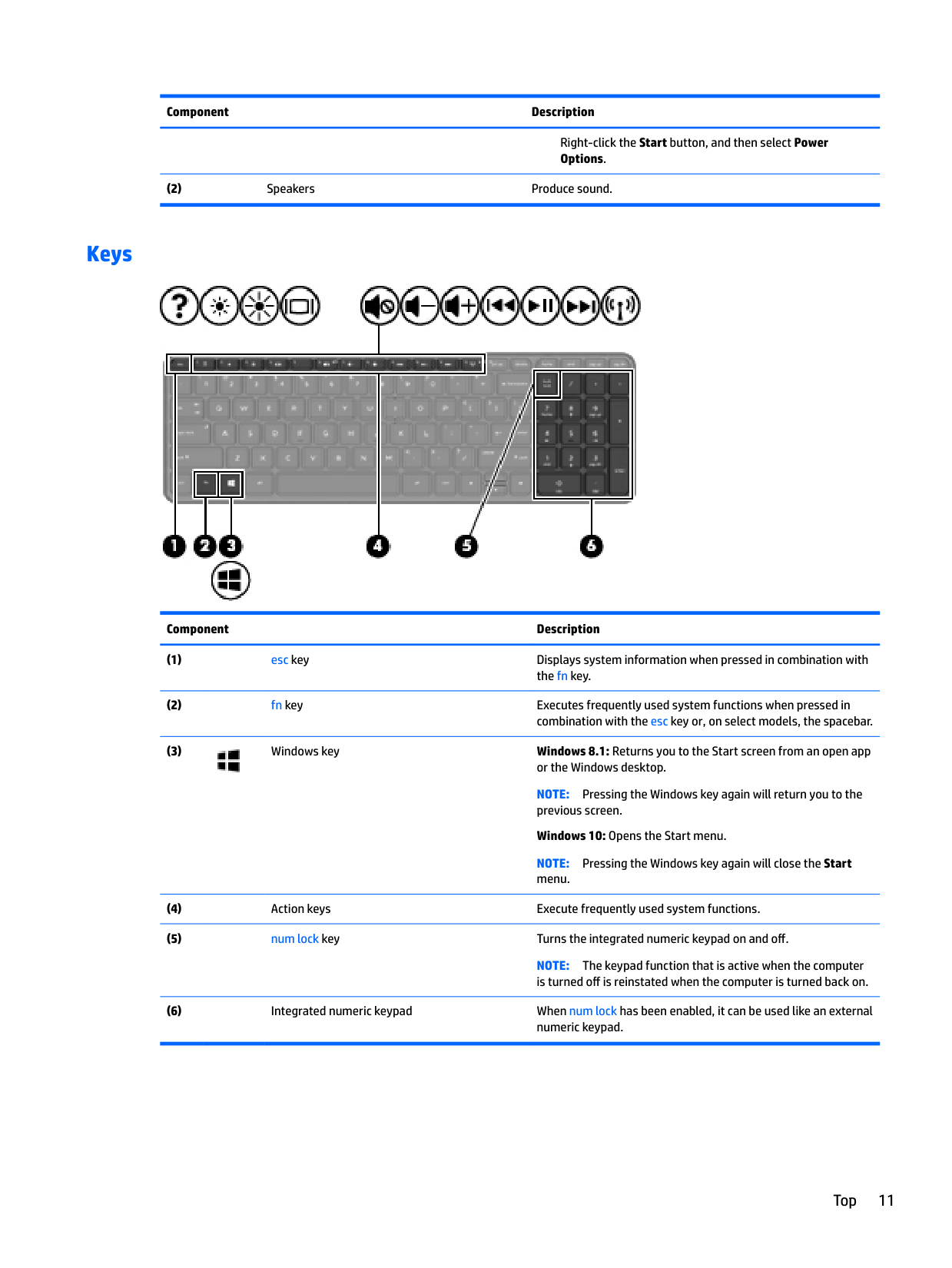
  • #### Keys

    ![image 19](c04763947_images/imageFile19.png)

    ######## Component Description

  • (1) esc key Displays system information when pressed in combination with the fn key.
  • (2) fn key Executes frequently used system functions when pressed in combination with the esc key or, on select models, the spacebar.
  • (3) Windows key Windows 8.1: Returns you to the Start screen from an open app or the Windows desktop.
  • ![image 20](c04763947_images/imageFile20.png)

    NOTE: Pressing the Windows key again will return you to the previous screen.

    Windows 10: Opens the Start menu. NOTE: Pressing the Windows key again will close the Start menu.

  • (4) Action keys Execute frequently used system functions.
  • (5) num lock key Turns the integrated numeric keypad on and off.
  • NOTE: The keypad function that is active when the computer is turned off is reinstated when the computer is turned back on.
    Page 18

  • (6) Integrated numeric keypad When num lock has been enabled, it can be used like an external numeric keypad.
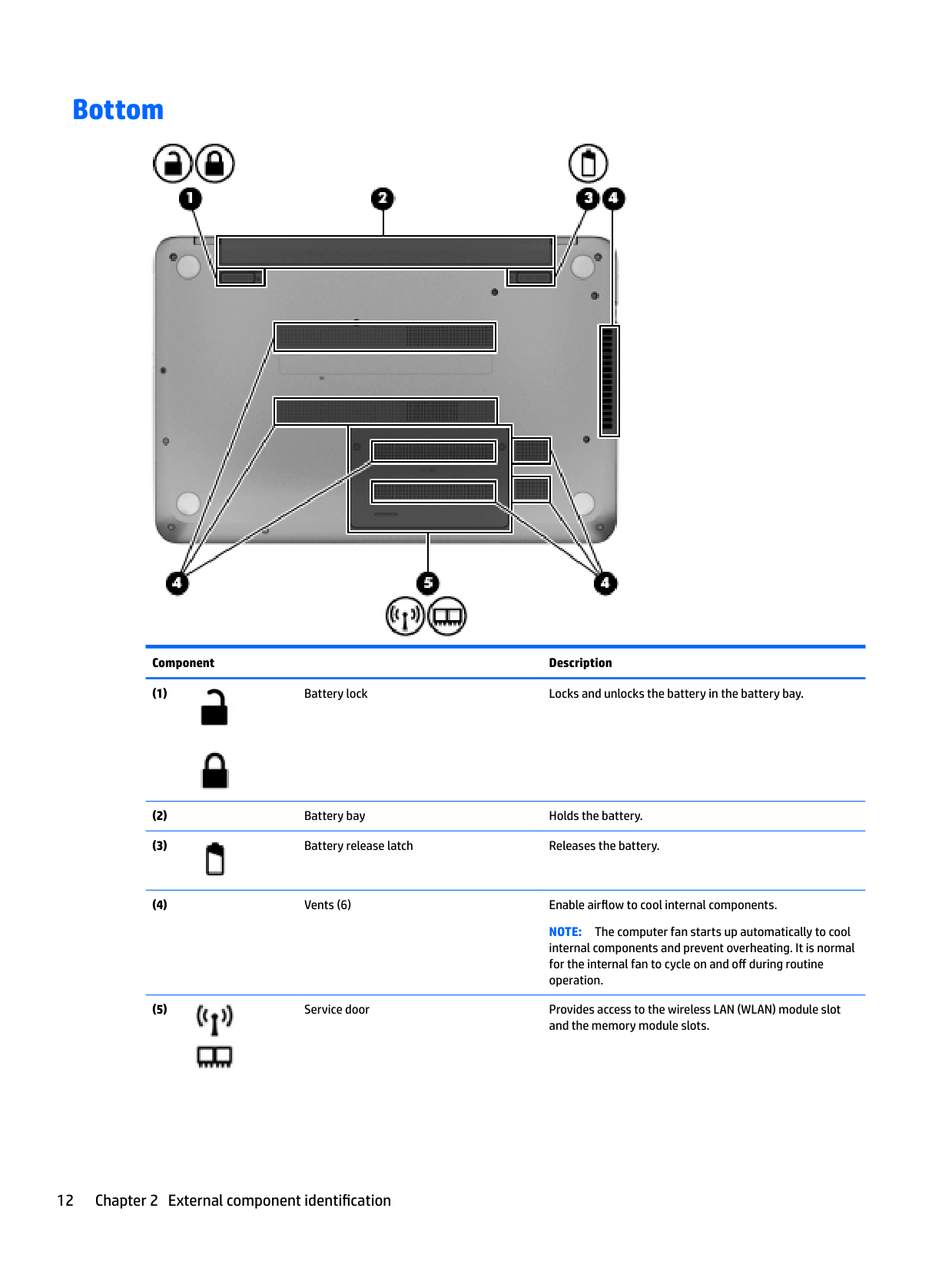
  • Bottom

    ![image 21](c04763947_images/imageFile21.png)

    ######## Component Description

  • (1) Battery lock Locks and unlocks the battery in the battery bay.
  • ![image 22](c04763947_images/imageFile22.png)

    ![image 23](c04763947_images/imageFile23.png)

  • (2) Battery bay Holds the battery.
  • (3) Battery release latch Releases the battery.
  • ![image 24](c04763947_images/imageFile24.png)

  • (4) Vents (6) Enable airflow to cool internal components.
  • NOTE: The computer fan starts up automatically to cool internal components and prevent overheating. It is normal for the internal fan to cycle on and off during routine operation.
  • (5) Service door Provides access to the wireless LAN (WLAN) module slot and the memory module slots.
  • Page 19

    ![image 25](c04763947_images/imageFile25.png)

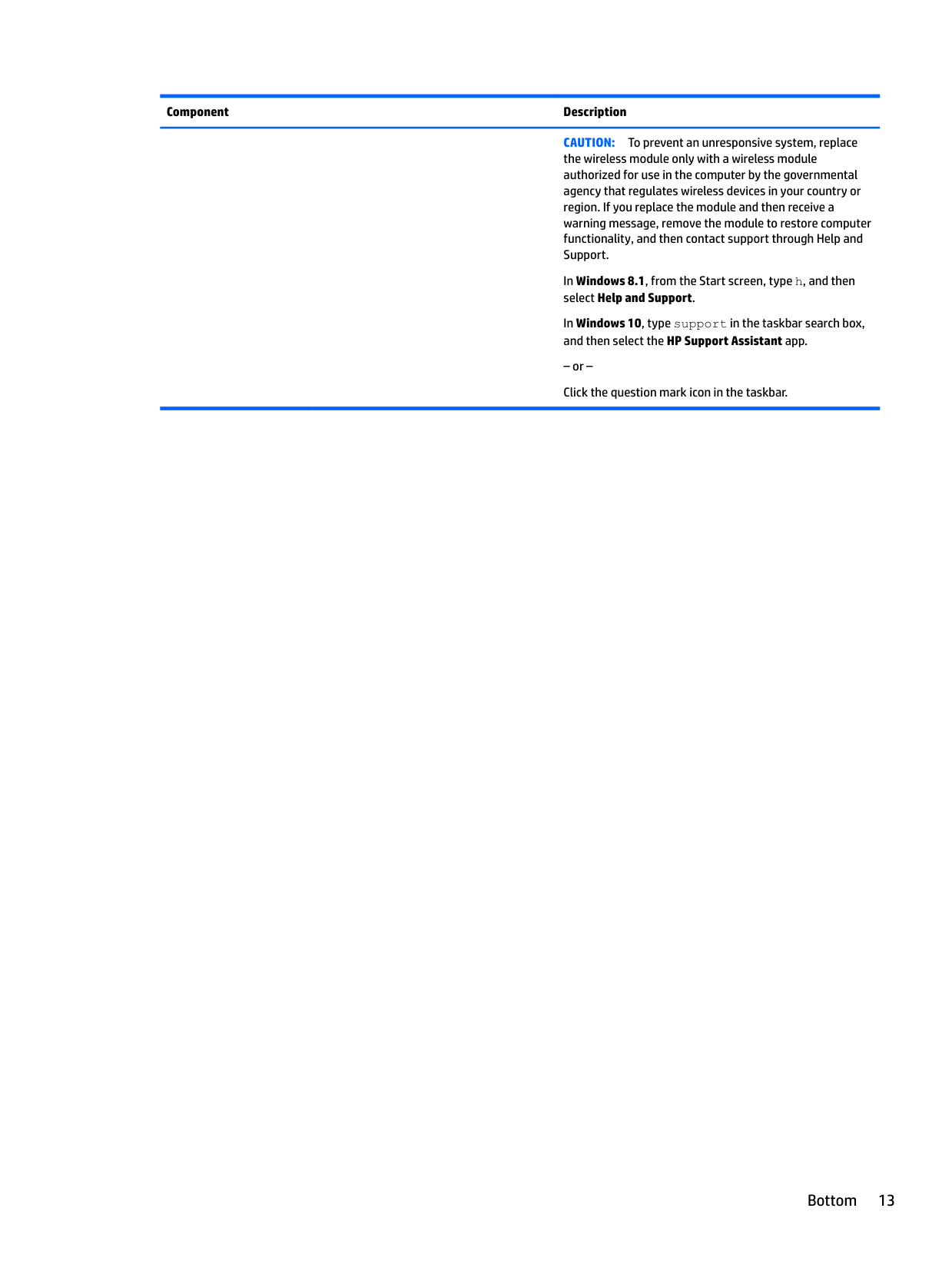
    CAUTION: To prevent an unresponsive system, replace the wireless module only with a wireless module authorized for use in the computer by the governmental agency that regulates wireless devices in your country or region. If you replace the module and then receive a warning message, remove the module to restore computer functionality, and then contact support through Help and Support.

    In Windows 8.1, from the Start screen, type h, and then select Help and Support.

    In Windows 10, type support in the taskbar search box, and then select the HP Support Assistant app.

    – or – Click the question mark icon in the taskbar.

    Bottom 13

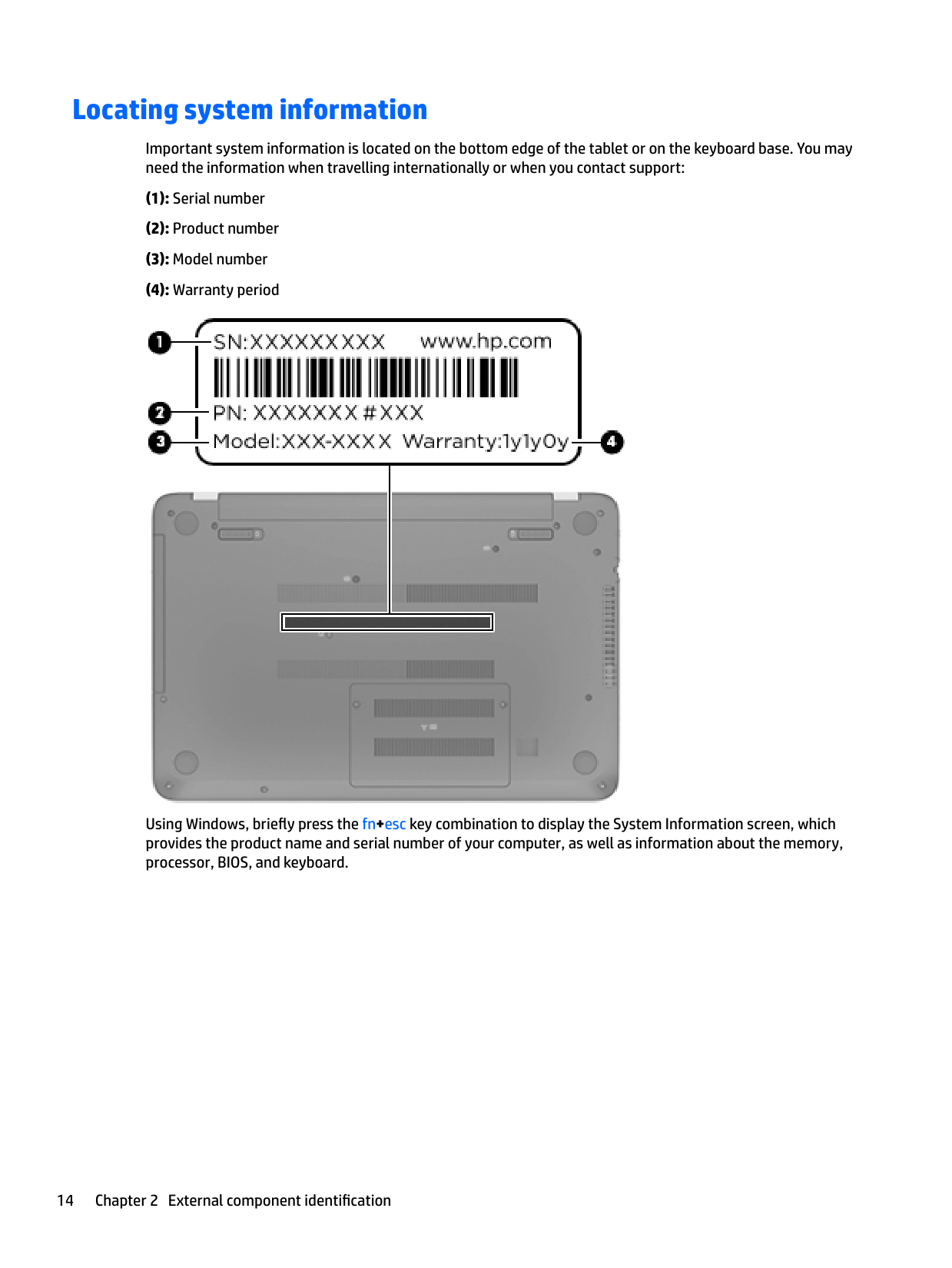
    Locating system information

    Important system information is located on the bottom edge of the tablet or on the keyboard base. You may need the information when travelling internationally or when you contact support:

  • (1): Serial number
  • (2): Product number
  • (3): Model number
  • (4): Warranty period
  • ![image 26](c04763947_images/imageFile26.png)

    Page 20

    Using Windows, briefly press the fn+esc key combination to display the System Information screen, which provides the product name and serial number of your computer, as well as information about the memory, processor, BIOS, and keyboard.

    3 Illustrated parts catalog

    Computer major components

    | | |---|

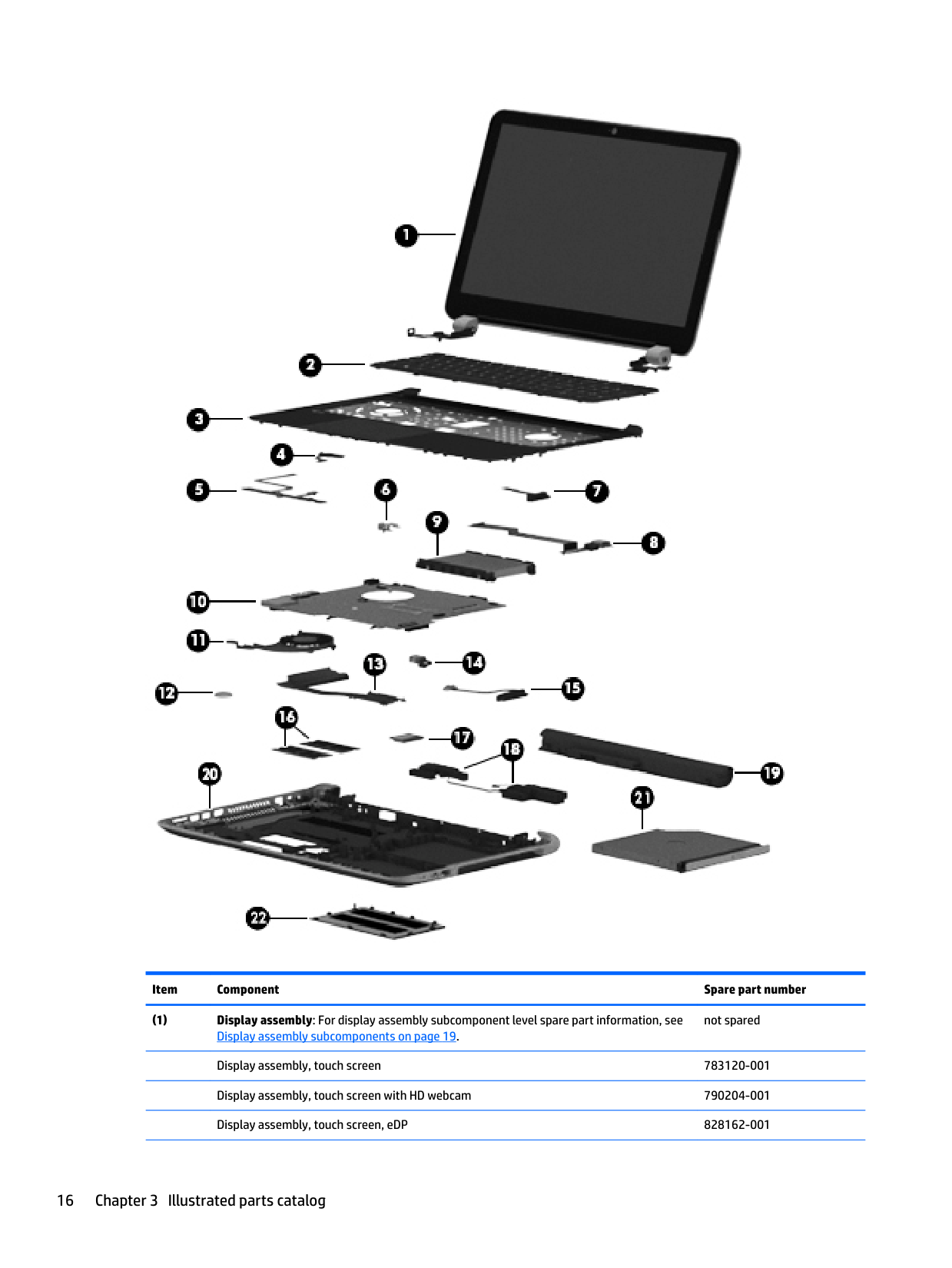
    NOTE: HP continually improves and changes product parts. For complete and current information on supported parts for your computer, go to http://partsurfer.hp.com, select your country or region, and then follow the on-screen instructions.

    | | |---|

    NOTE: Details about your computer, including model, serial number, product key, and length of warranty, are on the service tag at the bottom of your computer. See Locating system information on page 14 for details.

    ![image 27](c04763947_images/imageFile27.png)

    ######## Item Component Spare part number
  • (1) Display assembly: For display assembly subcomponent level spare part information, see Display assembly subcomponents on page 19.
  • Page 21

    not spared

    Display assembly, touch screen 783120-001 Display assembly, touch screen with HD webcam 790204-001 Display assembly, touch screen, eDP 828162-001

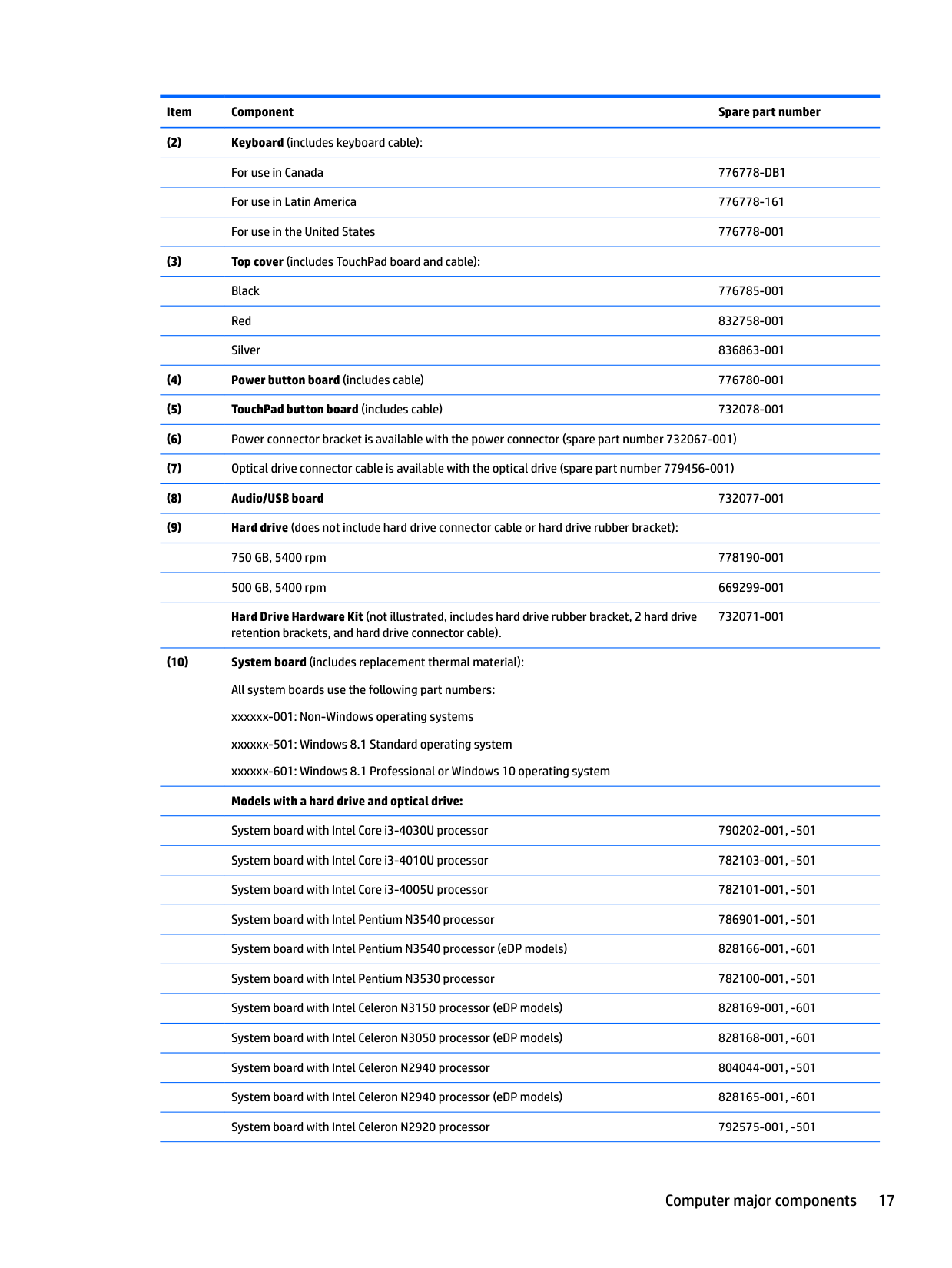
  • (2) Keyboard (includes keyboard cable): For use in Canada 776778-DB1 For use in Latin America 776778-161 For use in the United States 776778-001
  • (3) Top cover (includes TouchPad board and cable): Black 776785-001 Red 832758-001 Silver 836863-001
  • (4) Power button board (includes cable) 776780-001
  • (5) TouchPad button board (includes cable) 732078-001
  • (6) Power connector bracket is available with the power connector (spare part number 732067-001)
  • (7) Optical drive connector cable is available with the optical drive (spare part number 779456-001)
  • (8) Audio/USB board 732077-001
  • (9) Hard drive (does not include hard drive connector cable or hard drive rubber bracket): 750 GB, 5400 rpm 778190-001 500 GB, 5400 rpm 669299-001
  • Hard Drive Hardware Kit (not illustrated, includes hard drive rubber bracket, 2 hard drive retention brackets, and hard drive connector cable).

    732071-001
  • (10) System board (includes replacement thermal material): All system boards use the following part numbers: xxxxxx-001: Non-Windows operating systems xxxxxx-501: Windows 8.1 Standard operating system xxxxxx-601: Windows 8.1 Professional or Windows 10 operating system Models with a hard drive and optical drive: System board with Intel Core i3-4030U processor 790202-001, -501
  • System board with Intel Core i3-4010U processor 782103-001, -501
  • System board with Intel Core i3-4005U processor 782101-001, -501 System board with Intel Pentium N3540 processor 786901-001, -501 System board with Intel Pentium N3540 processor (eDP models) 828166-001, -601 System board with Intel Pentium N3530 processor 782100-001, -501 System board with Intel Celeron N3150 processor (eDP models) 828169-001, -601 System board with Intel Celeron N3050 processor (eDP models) 828168-001, -601 System board with Intel Celeron N2940 processor 804044-001, -501 System board with Intel Celeron N2940 processor (eDP models) 828165-001, -601 System board with Intel Celeron N2920 processor 792575-001, -501
  • Page 22

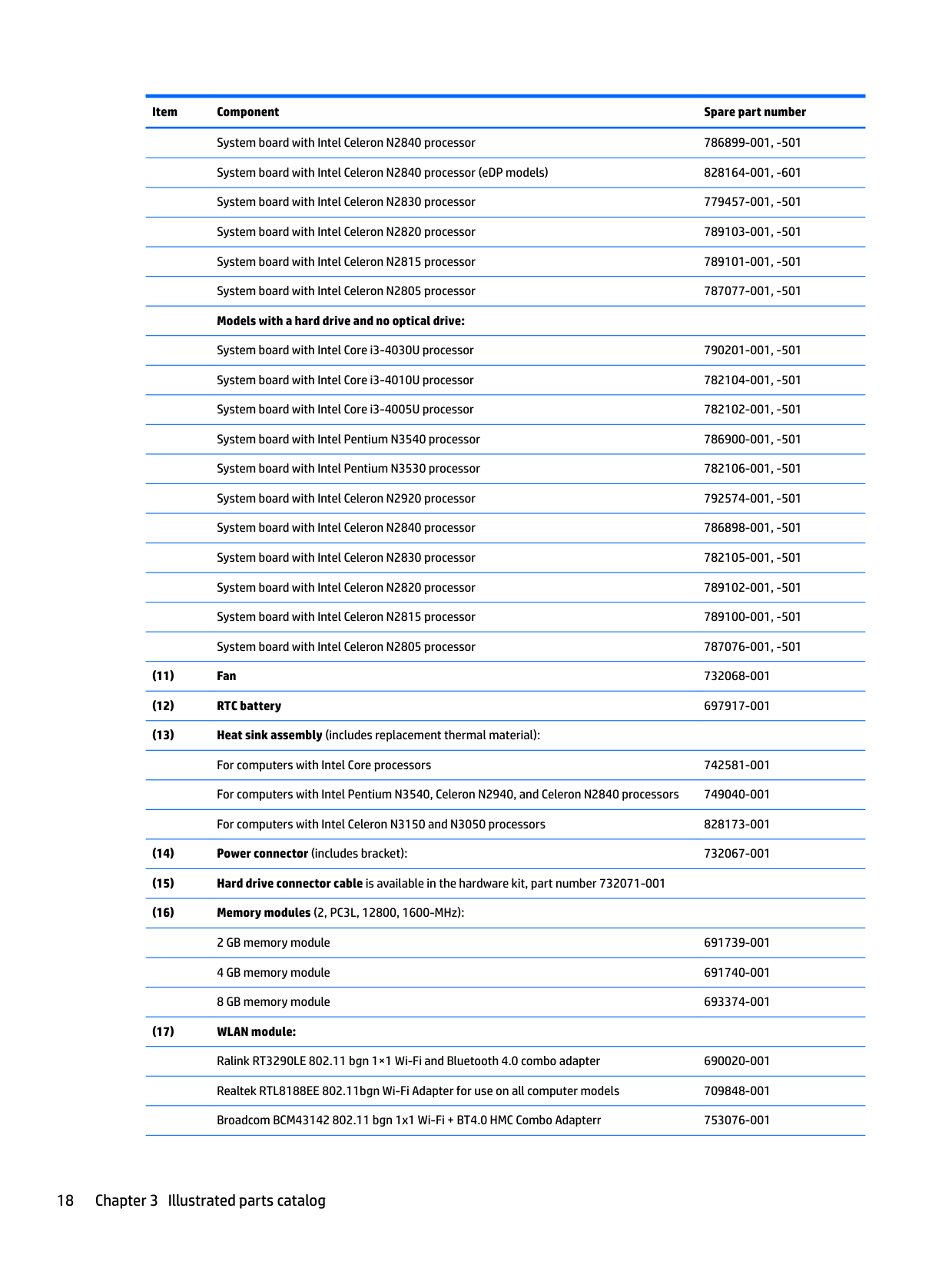
    System board with Intel Celeron N2840 processor 786899-001, -501 System board with Intel Celeron N2840 processor (eDP models) 828164-001, -601 System board with Intel Celeron N2830 processor 779457-001, -501 System board with Intel Celeron N2820 processor 789103-001, -501 System board with Intel Celeron N2815 processor 789101-001, -501 System board with Intel Celeron N2805 processor 787077-001, -501 Models with a hard drive and no optical drive:

    System board with Intel Core i3-4030U processor 790201-001, -501
  • System board with Intel Core i3-4010U processor 782104-001, -501
  • System board with Intel Core i3-4005U processor 782102-001, -501 System board with Intel Pentium N3540 processor 786900-001, -501 System board with Intel Pentium N3530 processor 782106-001, -501 System board with Intel Celeron N2920 processor 792574-001, -501 System board with Intel Celeron N2840 processor 786898-001, -501 System board with Intel Celeron N2830 processor 782105-001, -501 System board with Intel Celeron N2820 processor 789102-001, -501 System board with Intel Celeron N2815 processor 789100-001, -501 System board with Intel Celeron N2805 processor 787076-001, -501
  • (11) Fan 732068-001
  • (12) RTC battery 697917-001
  • (13) Heat sink assembly (includes replacement thermal material): For computers with Intel Core processors 742581-001 For computers with Intel Pentium N3540, Celeron N2940, and Celeron N2840 processors 749040-001 For computers with Intel Celeron N3150 and N3050 processors 828173-001
  • (14) Power connector (includes bracket): 732067-001
  • (15) Hard drive connector cable is available in the hardware kit, part number 732071-001
  • (16) Memory modules (2, PC3L, 12800, 1600-MHz): 2 GB memory module 691739-001 4 GB memory module 691740-001 8 GB memory module 693374-001
  • (17) WLAN module: Ralink RT3290LE 802.11 bgn 1×1 Wi-Fi and Bluetooth 4.0 combo adapter 690020-001 Realtek RTL8188EE 802.11bgn Wi-Fi Adapter for use on all computer models 709848-001 Broadcom BCM43142 802.11 bgn 1x1 Wi-Fi + BT4.0 HMC Combo Adapterr 753076-001
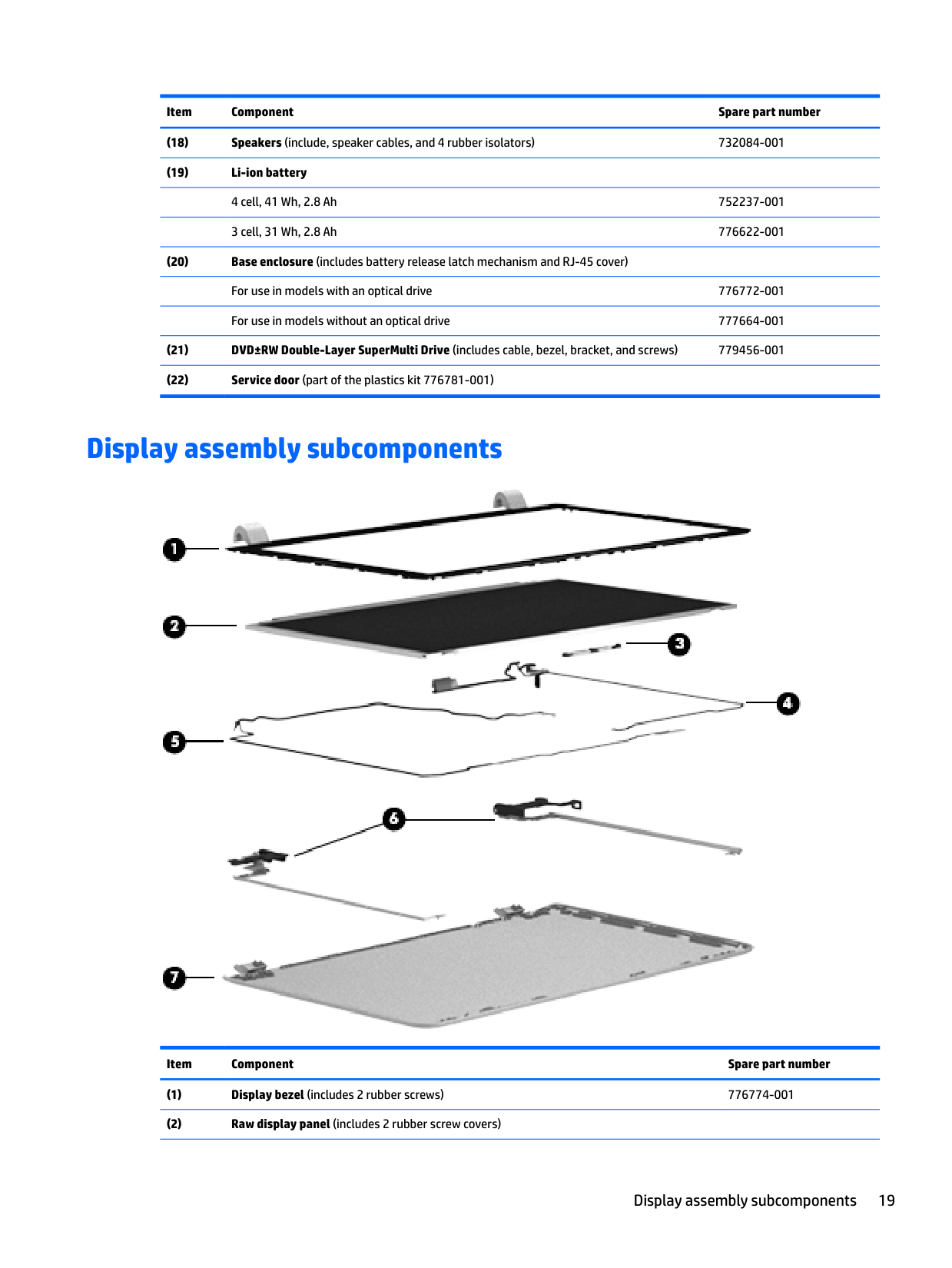
  • (18) Speakers (include, speaker cables, and 4 rubber isolators) 732084-001
  • (19) Li-ion battery 4 cell, 41 Wh, 2.8 Ah 752237-001 3 cell, 31 Wh, 2.8 Ah 776622-001
  • (20) Base enclosure (includes battery release latch mechanism and RJ-45 cover) For use in models with an optical drive 776772-001 For use in models without an optical drive 777664-001
  • (21) DVD±RW Double-Layer SuperMulti Drive (includes cable, bezel, bracket, and screws) 779456-001
  • Page 23

  • (22) Service door (part of the plastics kit 776781-001)
  • Display assembly subcomponents

    ![image 28](c04763947_images/imageFile28.png)

    ######## Item Component Spare part number

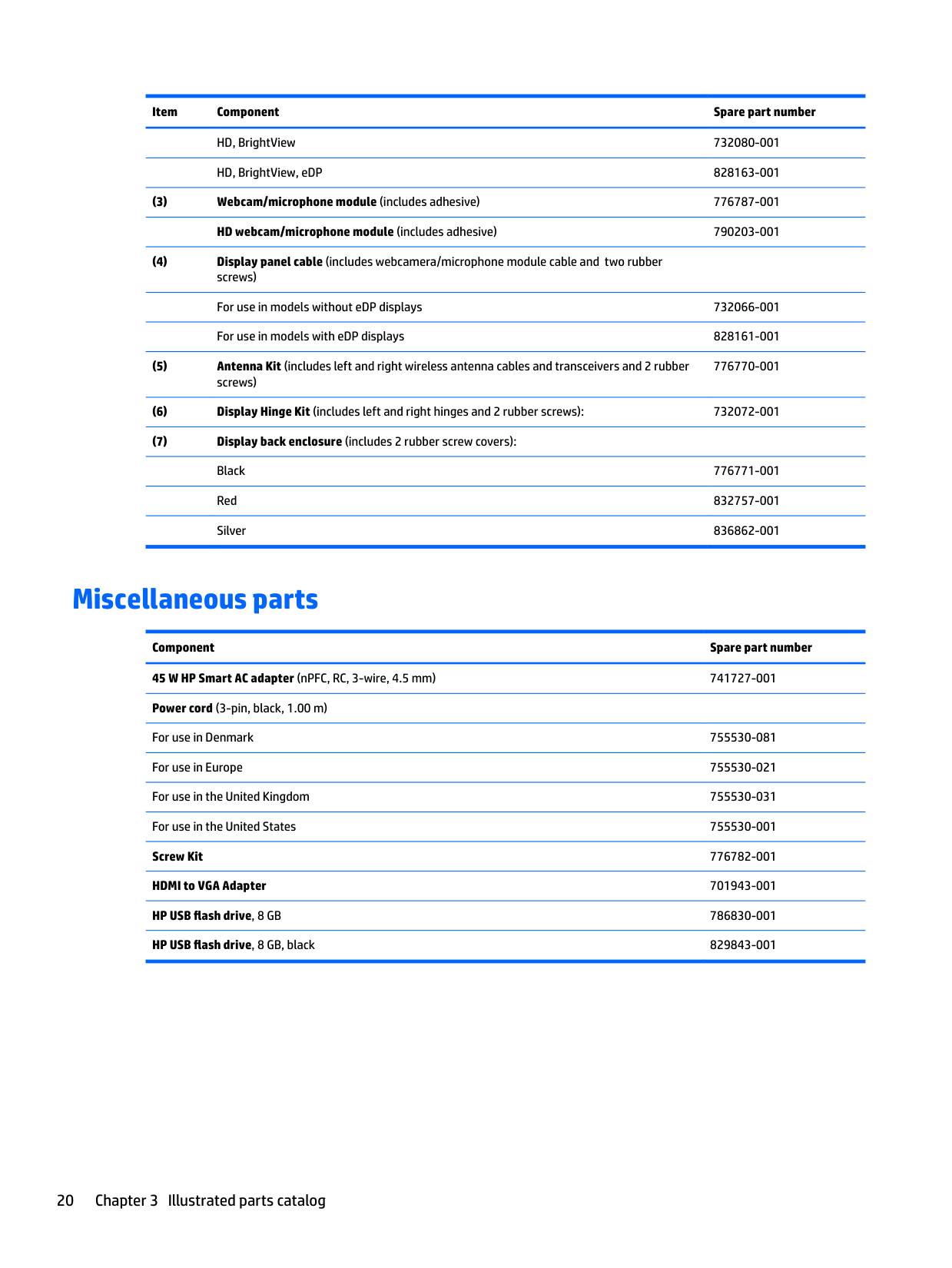
  • (1) Display bezel (includes 2 rubber screws) 776774-001
  • (2) Raw display panel (includes 2 rubber screw covers)
  • Display assembly subcomponents 19

    HD, BrightView 732080-001 HD, BrightView, eDP 828163-001

  • (3) Webcam/microphone module (includes adhesive) 776787-001 HD webcam/microphone module (includes adhesive) 790203-001
  • (4) Display panel cable (includes webcamera/microphone module cable and two rubber screws) For use in models without eDP displays 732066-001 For use in models with eDP displays 828161-001
  • (5) Antenna Kit (includes left and right wireless antenna cables and transceivers and 2 rubber screws)
  • 776770-001

  • (6) Display Hinge Kit (includes left and right hinges and 2 rubber screws): 732072-001
  • (7) Display back enclosure (includes 2 rubber screw covers): Black 776771-001 Red 832757-001 Silver 836862-001
  • Page 24

    Miscellaneous parts

    Component Spare part number 45 W HP Smart AC adapter (nPFC, RC, 3-wire, 4.5 mm) 741727-001 Power cord (3-pin, black, 1.00 m)

    For use in Denmark 755530-081 For use in Europe 755530-021 For use in the United Kingdom 755530-031 For use in the United States 755530-001 Screw Kit 776782-001 HDMI to VGA Adapter 701943-001 HP USB flash drive, 8 GB 786830-001 HP USB flash drive, 8 GB, black 829843-001

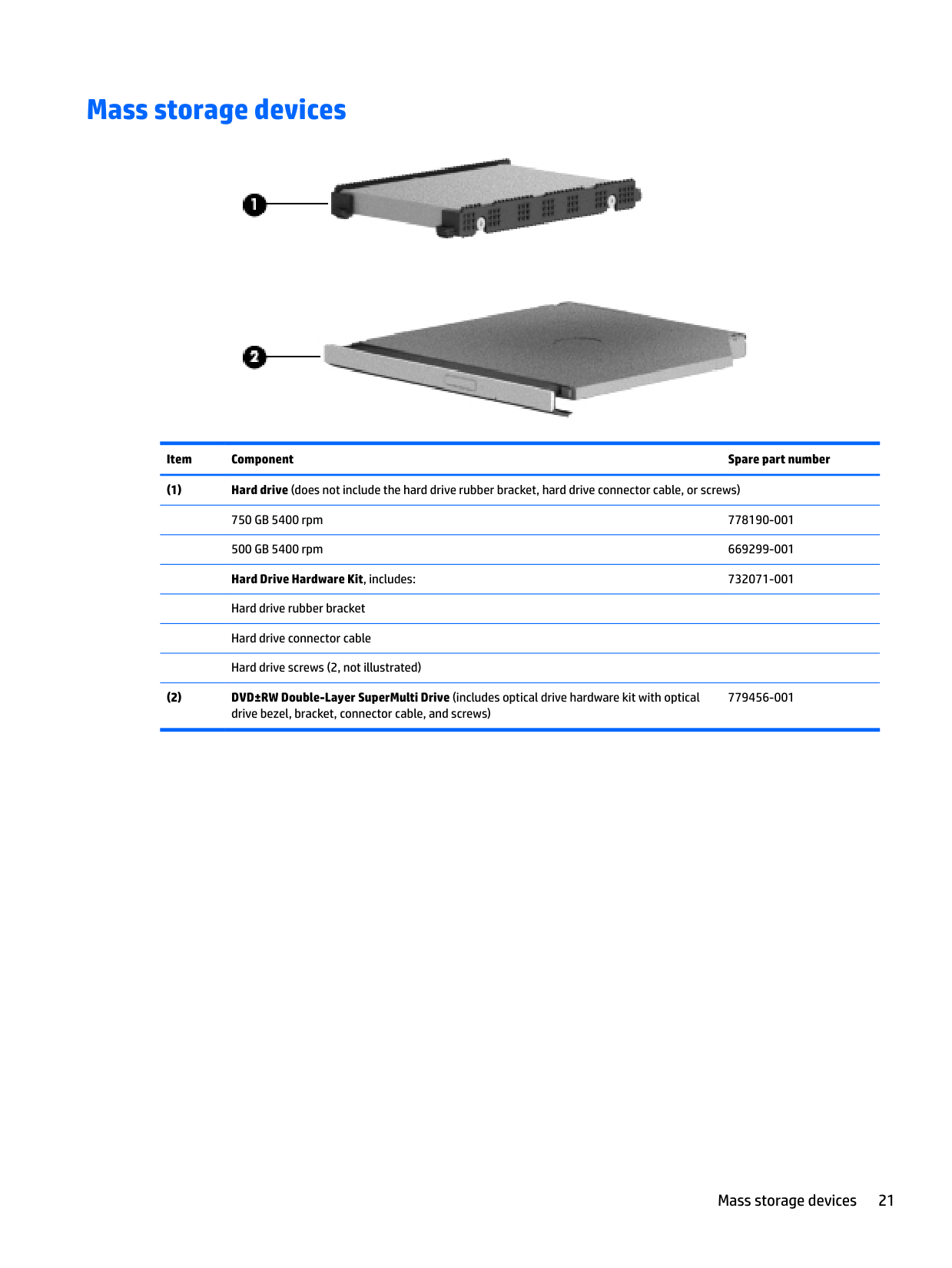
    Mass storage devices

    ![image 29](c04763947_images/imageFile29.png)

    ######## Item Component Spare part number

  • (1) Hard drive (does not include the hard drive rubber bracket, hard drive connector cable, or screws) 750 GB 5400 rpm 778190-001 500 GB 5400 rpm 669299-001 Hard Drive Hardware Kit, includes: 732071-001 Hard drive rubber bracket Hard drive connector cable Hard drive screws (2, not illustrated)
  • (2) DVD±RW Double-Layer SuperMulti Drive (includes optical drive hardware kit with optical drive bezel, bracket, connector cable, and screws)
  • 779456-001

    Mass storage devices 21

    4 Removal and replacement procedurespreliminary requirements

    Tools required
    Page 25

    You will need the following tools to complete the removal and replacement procedures:

  • ● Flat-bladed screwdriver
  • ● Magnetic screwdriver
  • ● Phillips P0 and P1 screwdrivers
  • Service considerations

    The following sections include some of the considerations that you must keep in mind during disassembly and assembly procedures.

    | | |---|

    NOTE: As you remove each subassembly from the computer, place the subassembly (and all accompanying screws) away from the work area to prevent damage.

    #### Plastic parts

    CAUTION: Using excessive force during disassembly and reassembly can damage plastic parts. Use care when handling the plastic

    #### Cables and connectors

    CAUTION: When servicing the computer, be sure that cables are placed in their proper locations during the reassembly process. Improper cable placement can damage the computer.
    Page 26

    Cables must be handled with extreme care to avoid damage. Apply only the tension required to unseat or seat the cables during removal and insertion. Handle cables by the connector whenever possible. In all cases, avoid bending, twisting, or tearing cables. Be sure that cables are routed in such a way that they cannot be caught or snagged by parts being removed or replaced. Handle flex cables with extreme care; these cables tear easily.

    Drive handling CAUTION: Drives are fragile components that must be handled with care. To prevent damage to the computer, damage to a drive, or loss of information, observe these precautions: Before removing or inserting a hard drive, shut down the computer. If you are unsure whether the computer is off or in Hibernation, turn the computer on, and then shut it down through the operating system. Before handling a drive, be sure that you are discharged of static electricity. While handling a drive, avoid touching the connector. Before removing a diskette drive or optical drive, be sure that a diskette or disc is not in the drive and be sure that the optical drive tray is closed. Handle drives on surfaces covered with at least one inch of shock-proof foam. Avoid dropping drives from any height onto any surface. Avoid exposing an internal hard drive to products that have magnetic fields, such as monitors or speakers. Avoid exposing an internal hard drive to products that have magnetic fields, such as monitors or speakers. Avoid exposing a drive to temperature extremes or liquids. If a drive must be mailed, place the drive in a bubble pack mailer or other suitable form of protective packaging and label the package “FRAGILE.”

    Service considerations 23

    Grounding guidelines

    #### Electrostatic discharge damage

    Electronic components are sensitive to electrostatic discharge (ESD). Circuitry design and structure determine the degree of sensitivity. Networks built into many integrated circuits provide some protection, but in many cases, ESD contains enough power to alter device parameters or melt silicon junctions.

    A discharge of static electricity from a finger or other conductor can destroy static-sensitive devices or microcircuitry. Even if the spark is neither felt nor heard, damage may have occurred.

    An electronic device exposed to ESD may not be affected at all and can work perfectly throughout a normal cycle. Or the device may function normally for a while, then degrade in the internal layers, reducing its life expectancy.

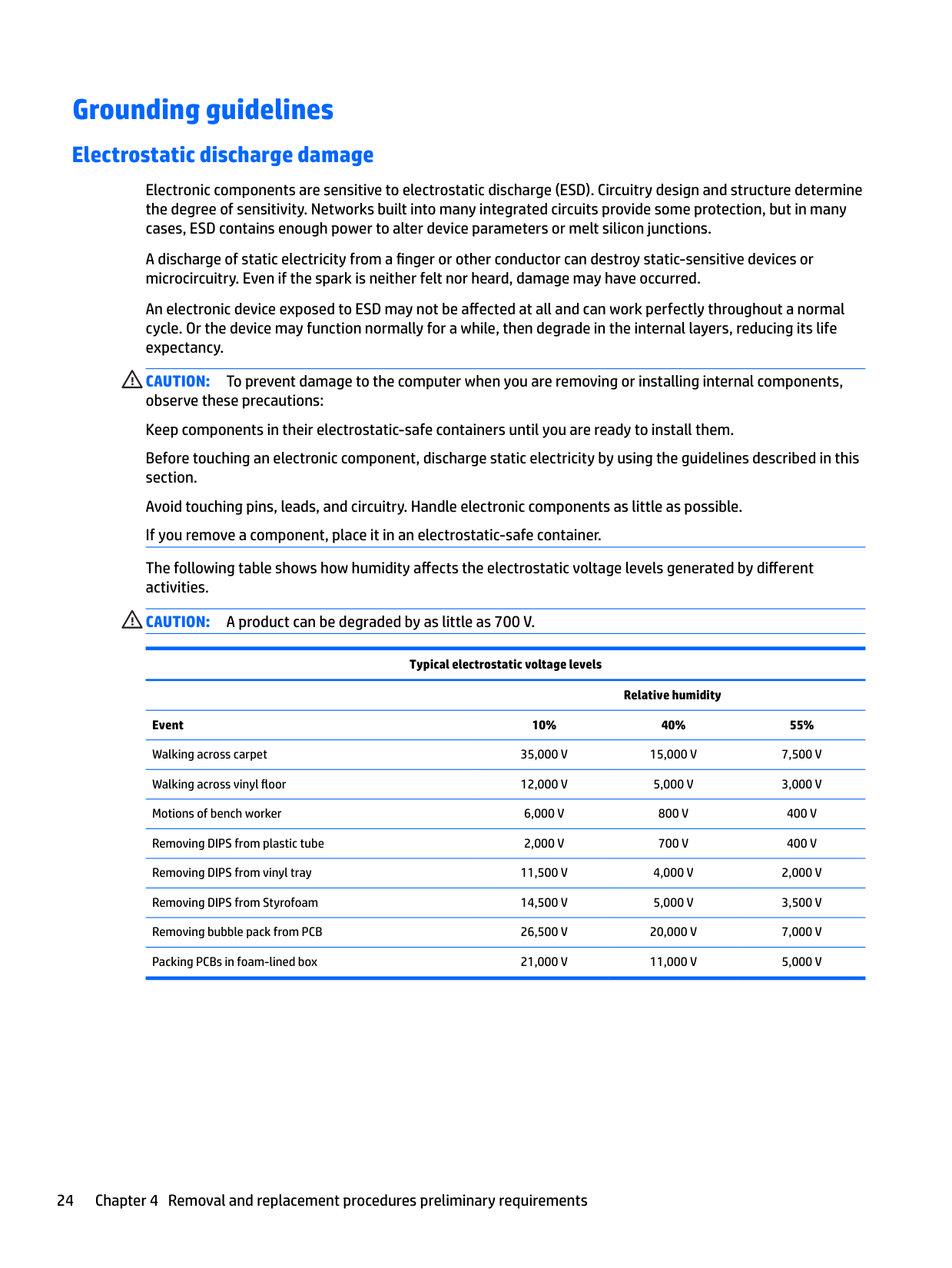
    CAUTION: To prevent damage to the computer when you are removing or installing internal components, observe these precautions: Keep components in their electrostatic-safe containers until you are ready to install them. Before touching an electronic component, discharge static electricity by using the guidelines described in this section. Avoid touching pins, leads, and circuitry. Handle electronic components as little as possible. If you remove a component, place it in an electrostatic-safe container. The following table shows how humidity affects the electrostatic voltage levels generated by different activities. CAUTION: A product can be degraded by as little as 700 V.

    Typical electrostatic voltage levels

    Relative humidity Event 10% 40% 55% Walking across carpet 35,000 V 15,000 V 7,500 V Walking across vinyl floor 12,000 V 5,000 V 3,000 V Motions of bench worker 6,000 V 800 V 400 V Removing DIPS from plastic tube 2,000 V 700 V 400 V Removing DIPS from vinyl tray 11,500 V 4,000 V 2,000 V Removing DIPS from Styrofoam 14,500 V 5,000 V 3,500 V Removing bubble pack from PCB 26,500 V 20,000 V 7,000 V Packing PCBs in foam-lined box 21,000 V 11,000 V 5,000 V

    ##### Packaging and transporting guidelines
    Page 27

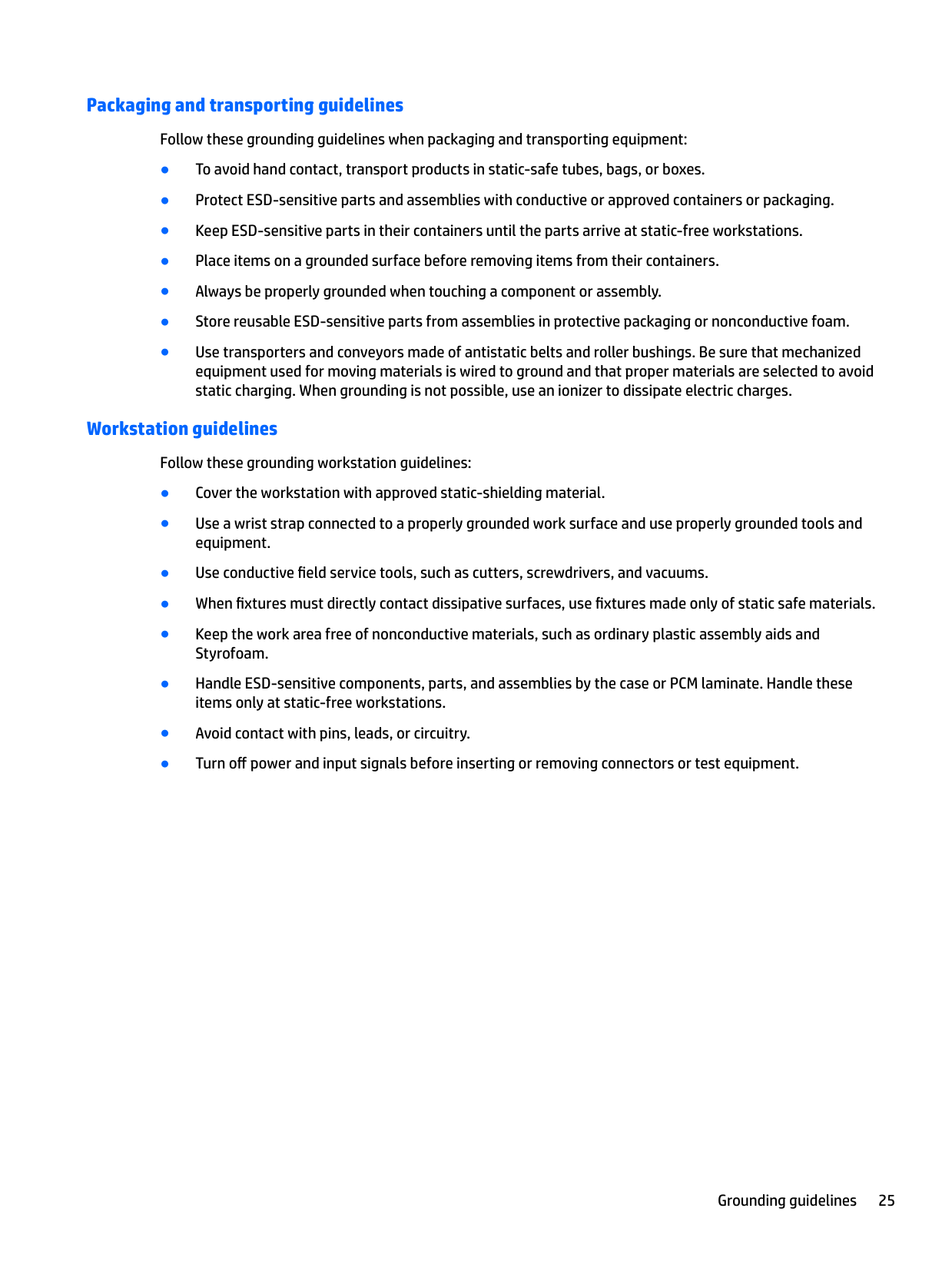
    Follow these grounding guidelines when packaging and transporting equipment:

  • ● To avoid hand contact, transport products in static-safe tubes, bags, or boxes.
  • ● Protect ESD-sensitive parts and assemblies with conductive or approved containers or packaging.
  • ● Keep ESD-sensitive parts in their containers until the parts arrive at static-free workstations.
  • ● Place items on a grounded surface before removing items from their containers.
  • ● Always be properly grounded when touching a component or assembly.
  • ● Store reusable ESD-sensitive parts from assemblies in protective packaging or nonconductive foam.
  • ● Use transporters and conveyors made of antistatic belts and roller bushings. Be sure that mechanized equipment used for moving materials is wired to ground and that proper materials are selected to avoid static charging. When grounding is not possible, use an ionizer to dissipate electric charges.
  • ##### Workstation guidelines

    Follow these grounding workstation guidelines:
  • ● Cover the workstation with approved static-shielding material.
  • ● Use a wrist strap connected to a properly grounded work surface and use properly grounded tools and equipment.
  • ● Use conductive field service tools, such as cutters, screwdrivers, and vacuums.
  • ● When fixtures must directly contact dissipative surfaces, use fixtures made only of static safe materials.
  • ● Keep the work area free of nonconductive materials, such as ordinary plastic assembly aids and Styrofoam.
  • ● Handle ESD-sensitive components, parts, and assemblies by the case or PCM laminate. Handle these items only at static-free workstations.
  • ● Avoid contact with pins, leads, or circuitry.
  • ● Turn off power and input signals before inserting or removing connectors or test equipment.
  • Page 28

    Grounding guidelines 25

    ##### Equipment guidelines

    Grounding equipment must include either a wrist strap or a foot strap at a grounded workstation.

  • ● When seated, wear a wrist strap connected to a grounded system. Wrist straps are flexible straps with a minimum of one megohm ±10% resistance in the ground cords. To provide proper ground, wear a strap snugly against the skin at all times. On grounded mats with banana-plug connectors, use alligator clips to connect a wrist strap.
  • ● When standing, use foot straps and a grounded floor mat. Foot straps (heel, toe, or boot straps) can be used at standing workstations and are compatible with most types of shoes or boots. On conductive floors or dissipative floor mats, use foot straps on both feet with a minimum of one megohm resistance between the operator and ground. To be effective, the conductive must be worn in contact with the skin. The following grounding equipment is recommended to prevent electrostatic damage:
  • ● Antistatic tape
  • ● Antistatic smocks, aprons, and sleeve protectors
  • ● Conductive bins and other assembly or soldering aids
  • ● Nonconductive foam
  • ● Conductive tabletop workstations with ground cords of one megohm resistance
  • ● Static-dissipative tables or floor mats with hard ties to the ground
  • ● Field service kits
  • ● Static awareness labels
  • ● Material-handling packages
  • ● Nonconductive plastic bags, tubes, or boxes
  • ● Metal tote boxes
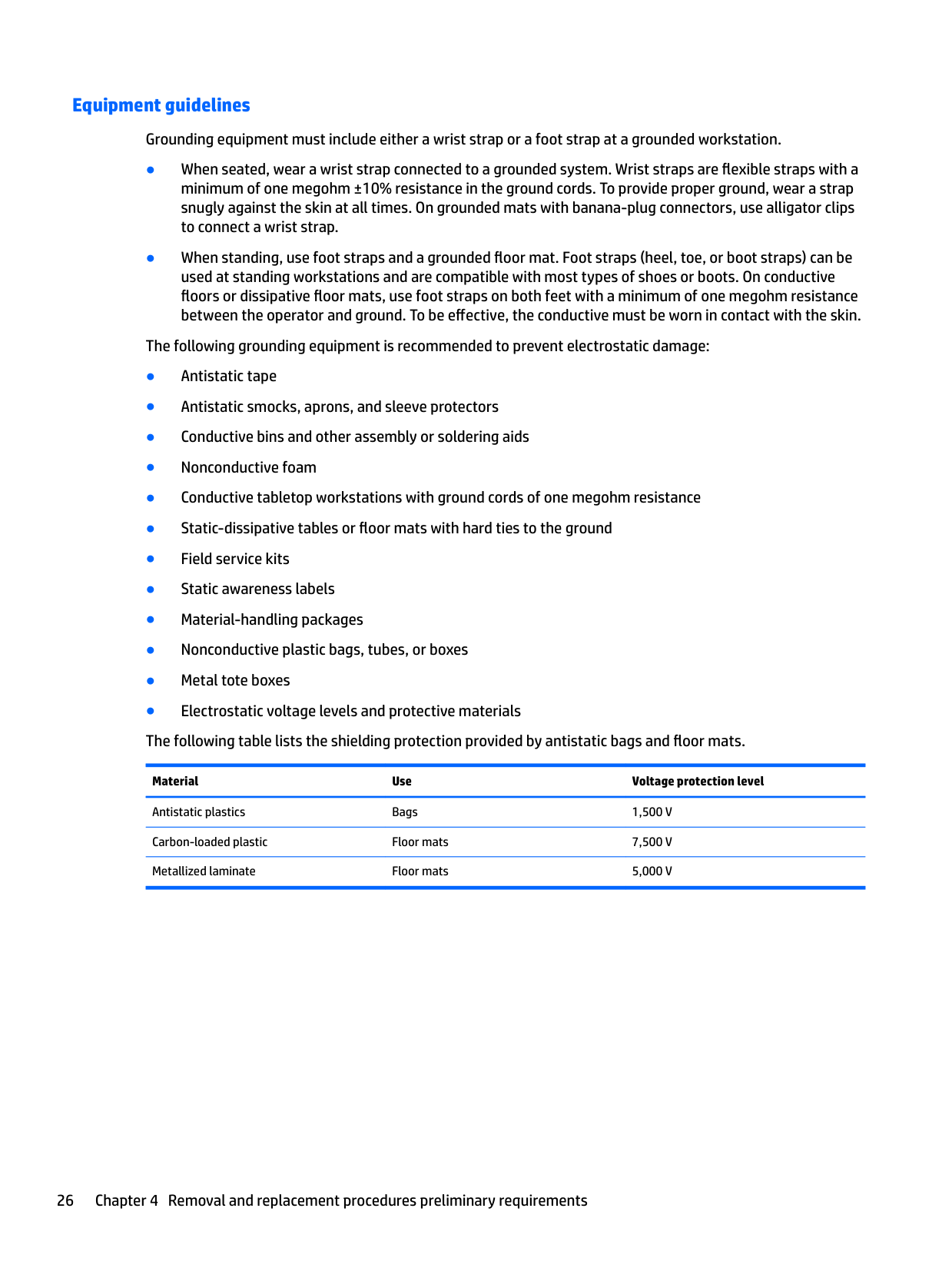
  • ● Electrostatic voltage levels and protective materials The following table lists the shielding protection provided by antistatic bags and floor mats.
  • Material Use Voltage protection level

    Antistatic plastics Bags 1,500 V Carbon-loaded plastic Floor mats 7,500 V Metallized laminate Floor mats 5,000 V
    Page 29

    5 Removal and replacement procedures for Customer Self-Repair parts

    | | |---|

    NOTE: The Customer Self-Repair program is not available in all locations. Installing a part not supported by the Customer Self-Repair program may void your warranty. Check your warranty to determine if Customer Self-Repair is supported in your location.

    | | |---|

    NOTE: HP continually improves and changes product parts. For complete and current information on supported parts for your computer, go to http://partsurfer.hp.com, select your country or region, and then follow the on-screen instructions.

    Component replacement procedures

    | | |---|

    NOTE: Please read and follow the procedures described here to access and replace Customer Self-Repair parts successfully.

    | | |---|
    Page 30

    NOTE: Details about your computer, including model, serial number, product key, and length of warranty, are on the service tag at the bottom of your computer. See Locating system information on page 14 for details.

    This chapter provides removal and replacement procedures for Customer Self-Repair parts. There are as many as 12 screws that must be removed, replaced, and/or loosened when servicing Customer Self-Repair parts. Make special note of each screw size and location during removal and replacement.

    #### Battery

    ######## Description Spare part number

    4 cell, 41-Wh, 2.8-Ah, Li-ion battery 752237-001 3 cell, 31 Wh, 2.8-Ah, Li-ion battery 776622-001

    Before disassembling the computer, follow these steps:

  • 1. Turn off the computer. If you are unsure whether the computer is off or in Hibernation, turn the computer on, and then shut it down through the operating system.
  • 2. Disconnect the power from the computer by unplugging the power cord from the computer.
  • 3. Disconnect all external devices from the computer. Remove the battery:
  • 1. Turn the computer upside down on a flat surface.
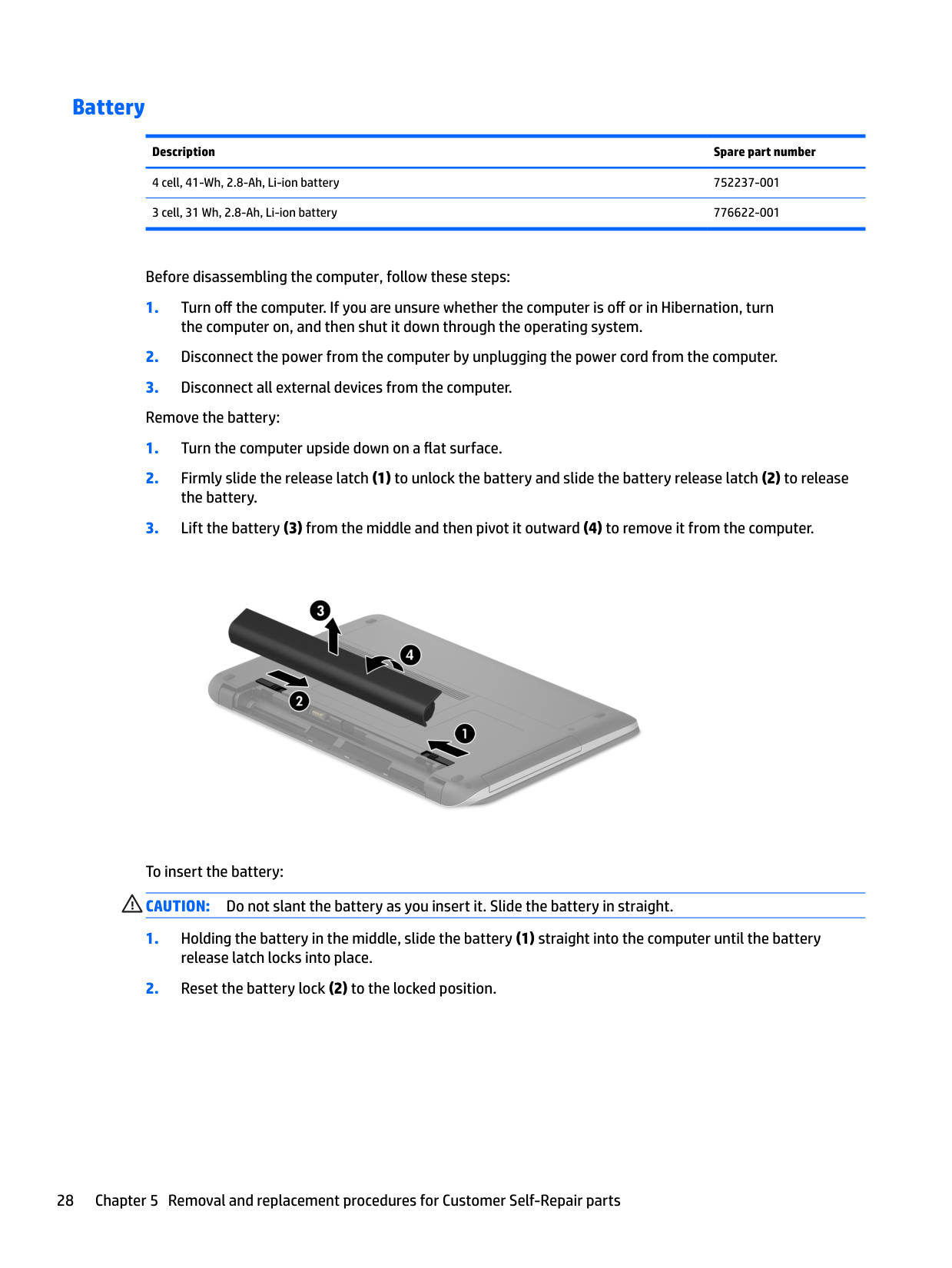
  • 2. Firmly slide the release latch (1) to unlock the battery and slide the battery release latch (2) to release the battery.
  • 3. Lift the battery (3) from the middle and then pivot it outward (4) to remove it from the computer.
  • ![image 30](c04763947_images/imageFile30.png)

    Page 31

    To insert the battery: CAUTION: Do not slant the battery as you insert it. Slide the battery in straight.

  • 1. Holding the battery in the middle, slide the battery (1) straight into the computer until the battery release latch locks into place.
  • 2. Reset the battery lock (2) to the locked position.
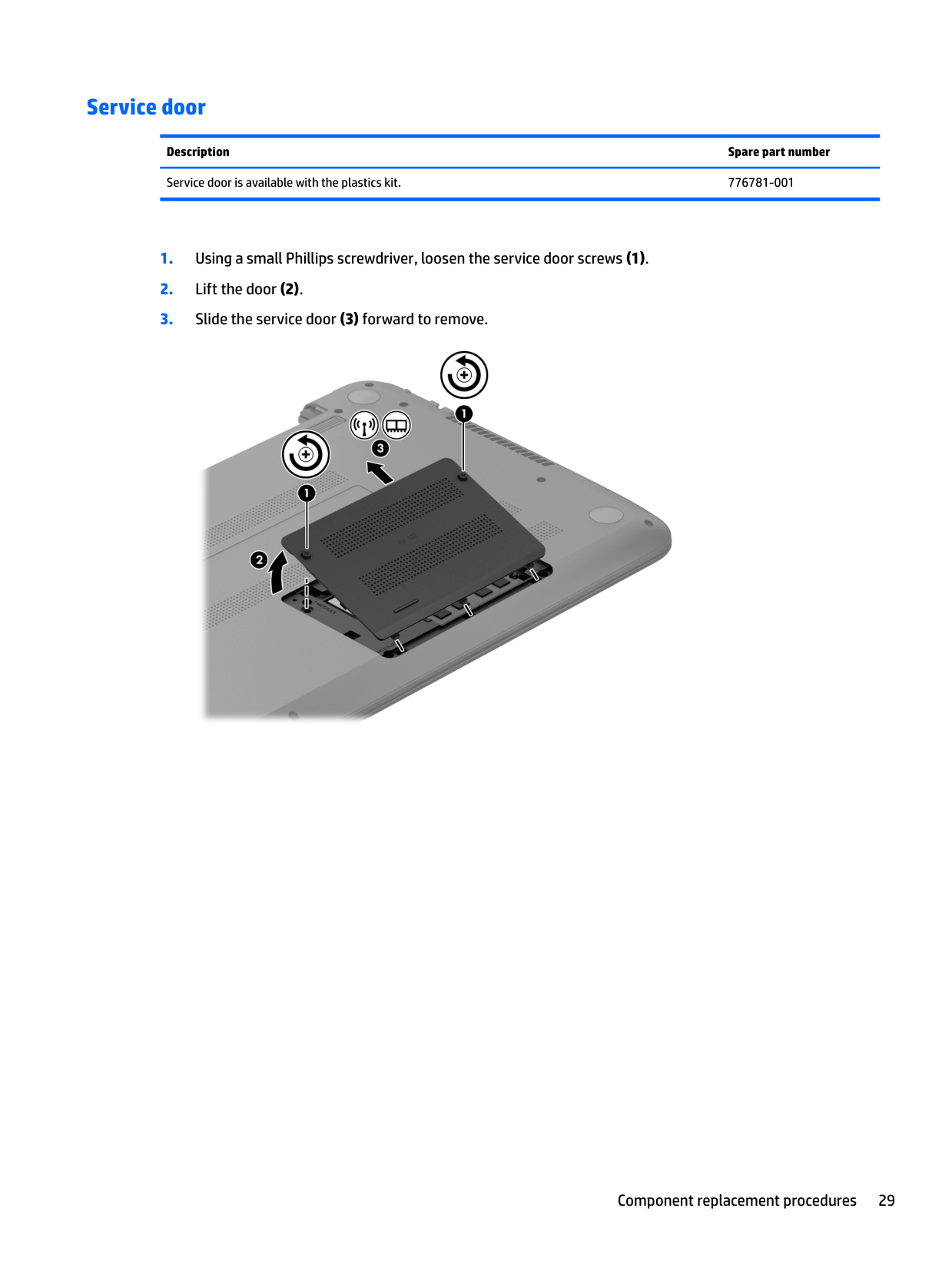
  • #### Service door

    Description Spare part number Service door is available with the plastics kit. 776781-001

  • 1. Using a small Phillips screwdriver, loosen the service door screws (1).
  • 2. Lift the door (2).
  • 3. Slide the service door (3) forward to remove.
  • ![image 31](c04763947_images/imageFile31.png)

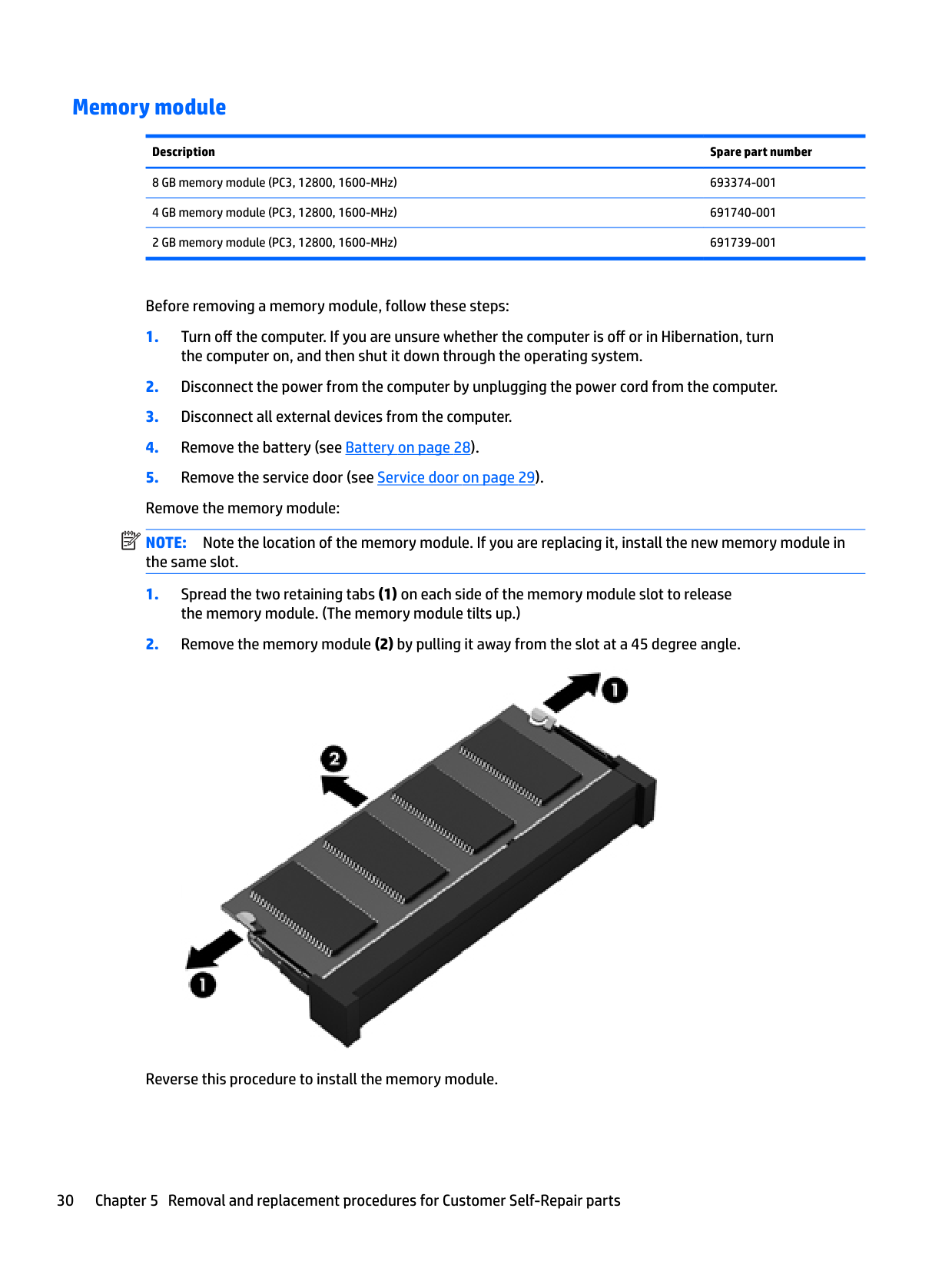
    #### Memory module

    Description Spare part number 8 GB memory module (PC3, 12800, 1600-MHz) 693374-001
  • 4 GB memory module (PC3, 12800, 1600-MHz) 691740-001 2 GB memory module (PC3, 12800, 1600-MHz) 691739-001
  • Page 32

    Before removing a memory module, follow these steps:

  • 1. Turn off the computer. If you are unsure whether the computer is off or in Hibernation, turn the computer on, and then shut it down through the operating system.
  • 2. Disconnect the power from the computer by unplugging the power cord from the computer.
  • 3. Disconnect all external devices from the computer.
  • 4. Remove the battery (see Battery on page 28).
  • 5. Remove the service door (see Service door on page 29). Remove the memory module:
  • | | |---|

    NOTE: Note the location of the memory module. If you are replacing it, install the new memory module in the same slot.

  • 1. Spread the two retaining tabs (1) on each side of the memory module slot to release the memory module. (The memory module tilts up.)
  • 2. Remove the memory module (2) by pulling it away from the slot at a 45 degree angle.
  • ![image 32](c04763947_images/imageFile32.png)

    Reverse this procedure to install the memory module.

    #### WLAN module
    Page 33

    ######## Description Spare part number

    Ralink RT3290LE 802.11 bgn 1×1 Wi-Fi and Bluetooth 4.0 combo adapter 690020-001 Realtek RTL8188EE 802.11 bgn Wi-Fi adapter 709848-001 Broadcom BCM43142 802.11 bgn 1x1 Wi-Fi + BT4.0 HMC Combo Adapter 753076-001

    CAUTION: To prevent an unresponsive system, replace the wireless module only with a wireless module authorized for use in the computer by the governmental agency that regulates wireless devices in your country or region. If you replace the module and then receive a warning message, remove the module to restore device functionality, and then contact technical support.

    Before removing the WLAN module, follow these steps:

  • 1. Turn off the computer. If you are unsure whether the computer is off or in Hibernation, turn the computer on, and then shut it down through the operating system.
  • 2. Disconnect the power from the computer by unplugging the power cord from the computer.
  • 3. Disconnect all external devices from the computer.
  • 4. Remove the battery (see Battery on page 28).
  • 5. Remove the service door (see Service door on page 29).
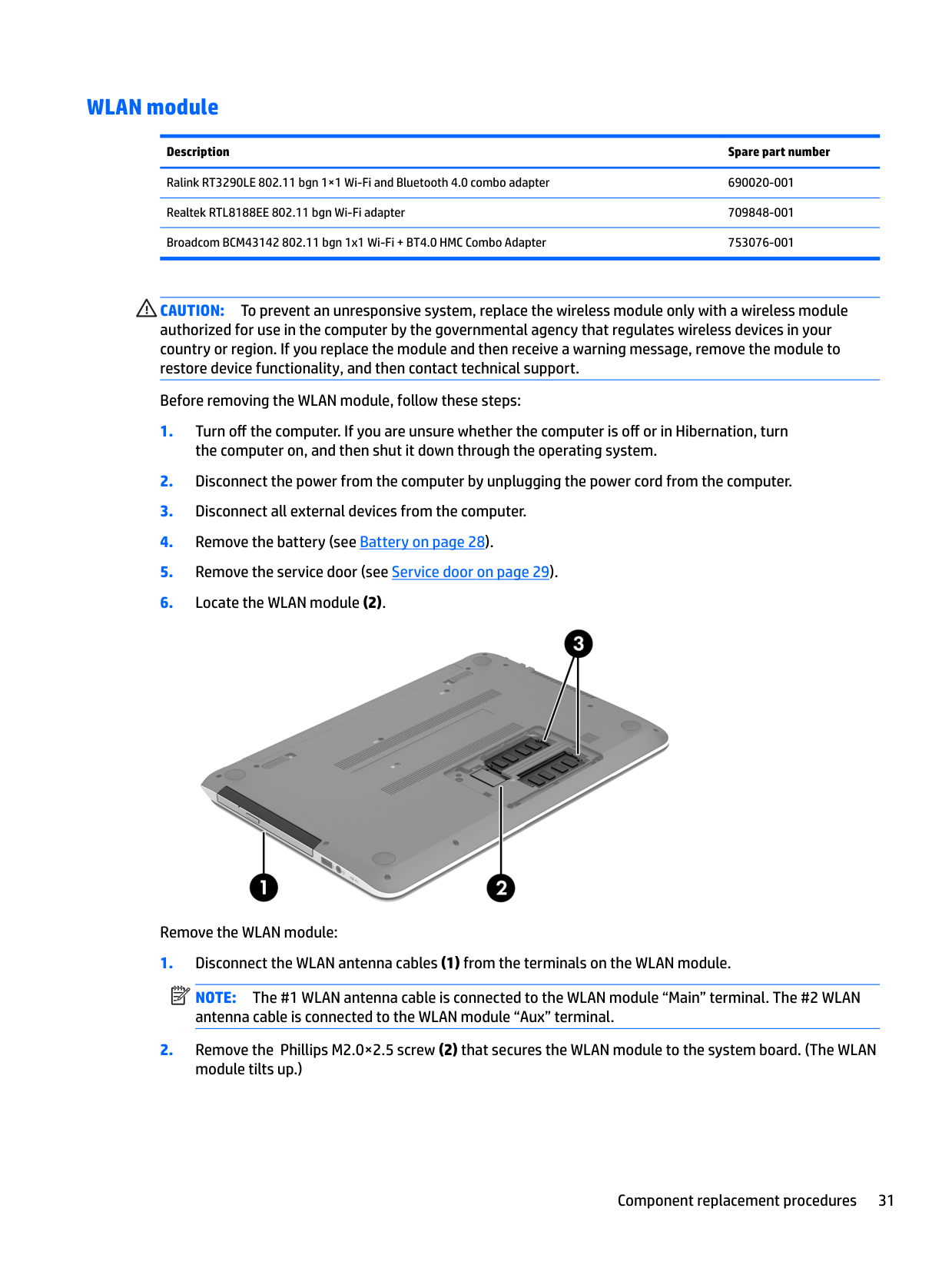
  • 6. Locate the WLAN module (2).
  • ![image 33](c04763947_images/imageFile33.png)

    Remove the WLAN module:

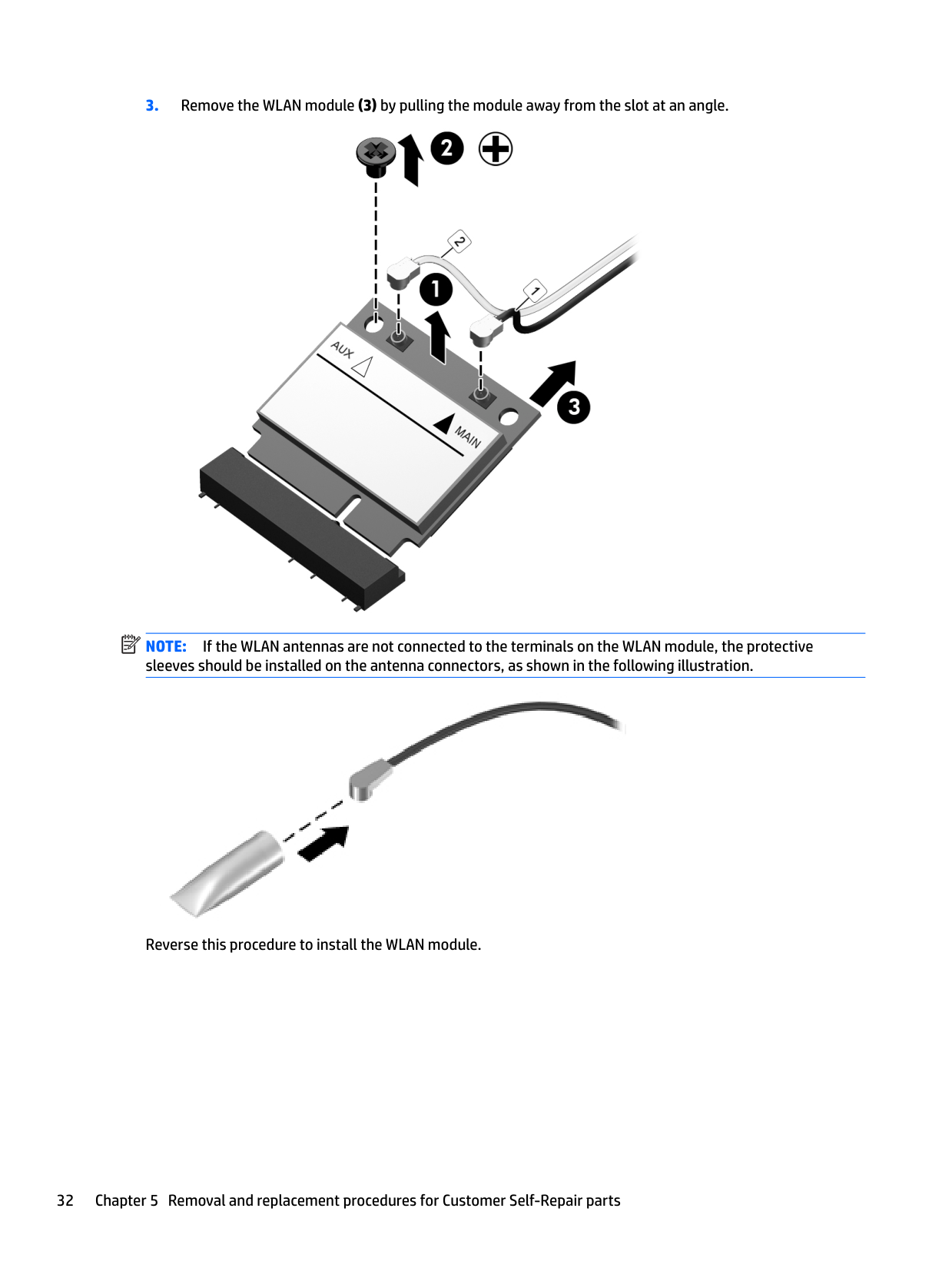
  • 1. Disconnect the WLAN antenna cables (1) from the terminals on the WLAN module.
  • Page 34

    NOTE: The #1 WLAN antenna cable is connected to the WLAN module “Main” terminal. The #2 WLAN antenna cable is connected to the WLAN module “Aux” terminal.

  • 2. Remove the Phillips M2.0×2.5 screw (2) that secures the WLAN module to the system board. (The WLAN module tilts up.)
  • | | |---|

  • 3. Remove the WLAN module (3) by pulling the module away from the slot at an angle.
  • ![image 34](c04763947_images/imageFile34.png)

    | | |---|

    NOTE: If the WLAN antennas are not connected to the terminals on the WLAN module, the protective sleeves should be installed on the antenna connectors, as shown in the following illustration.

    ![image 35](c04763947_images/imageFile35.png)

    Reverse this procedure to install the WLAN module.

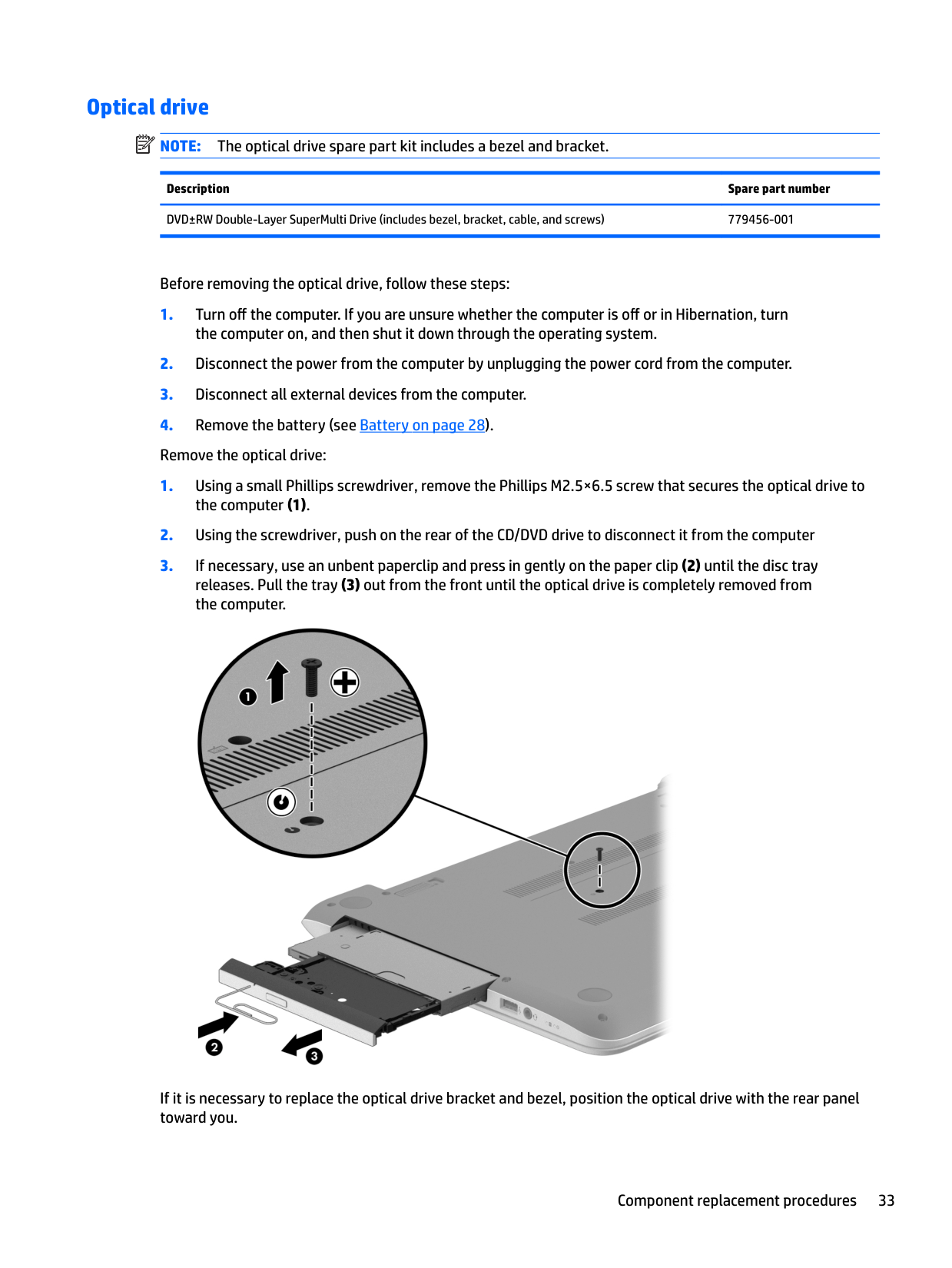
    #### Optical drive
    Page 35

    | | |---|

    NOTE: The optical drive spare part kit includes a bezel and bracket.

    Description Spare part number DVD±RW Double-Layer SuperMulti Drive (includes bezel, bracket, cable, and screws) 779456-001

    Before removing the optical drive, follow these steps:

  • 1. Turn off the computer. If you are unsure whether the computer is off or in Hibernation, turn the computer on, and then shut it down through the operating system.
  • 2. Disconnect the power from the computer by unplugging the power cord from the computer.
  • 3. Disconnect all external devices from the computer.
  • 4. Remove the battery (see Battery on page 28). Remove the optical drive:
  • 1. Using a small Phillips screwdriver, remove the Phillips M2.5×6.5 screw that secures the optical drive to the computer (1).
  • 2. Using the screwdriver, push on the rear of the CD/DVD drive to disconnect it from the computer
  • 3. If necessary, use an unbent paperclip and press in gently on the paper clip (2) until the disc tray releases. Pull the tray (3) out from the front until the optical drive is completely removed from the computer.
  • ![image 36](c04763947_images/imageFile36.png)

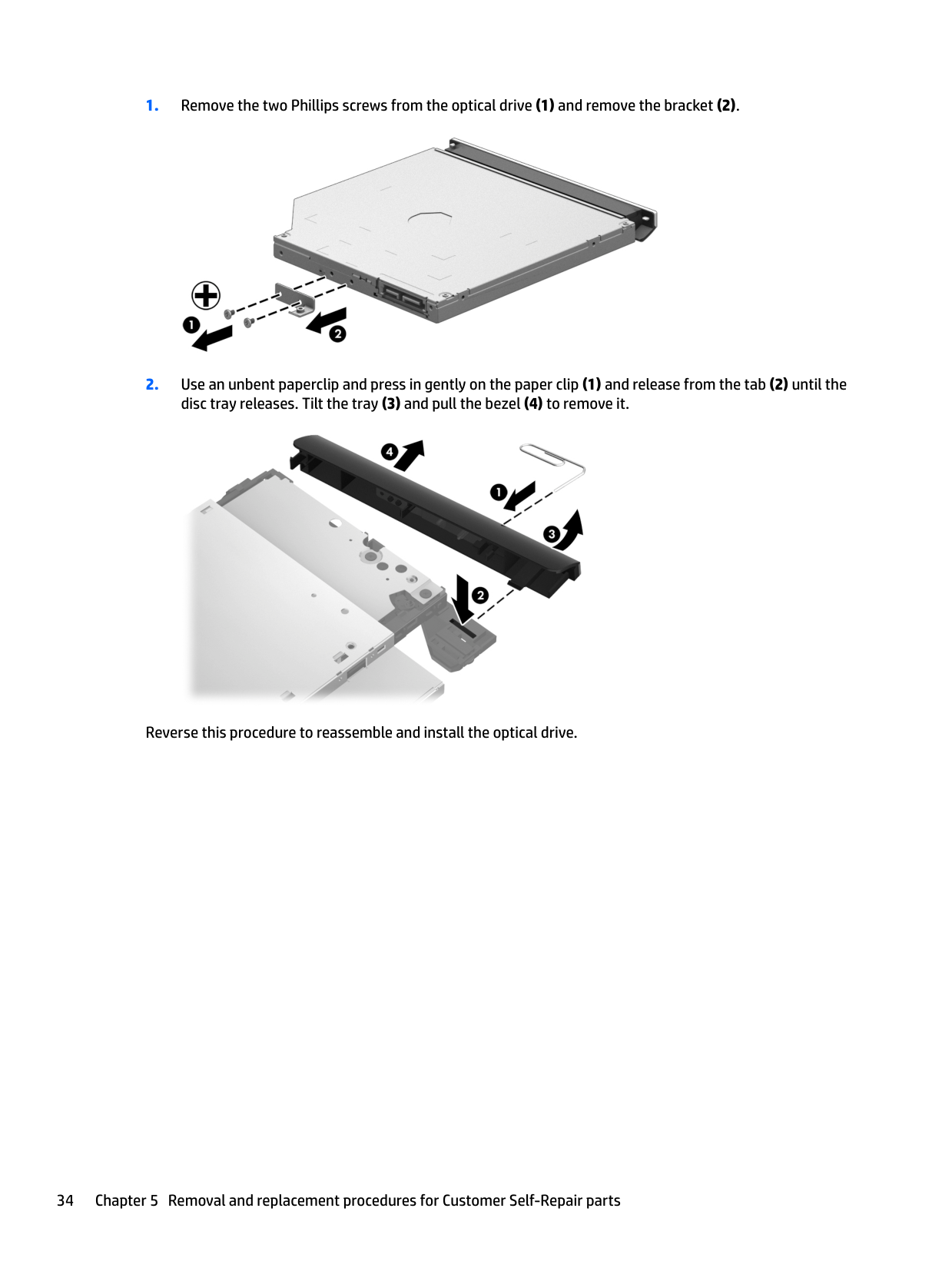
    If it is necessary to replace the optical drive bracket and bezel, position the optical drive with the rear panel toward you.
    Page 36

  • 1. Remove the two Phillips screws from the optical drive (1) and remove the bracket (2).
  • ![image 37](c04763947_images/imageFile37.png)

  • 2. Use an unbent paperclip and press in gently on the paper clip (1) and release from the tab (2) until the disc tray releases. Tilt the tray (3) and pull the bezel (4) to remove it.
  • ![image 38](c04763947_images/imageFile38.png)

    Reverse this procedure to reassemble and install the optical drive.

    6 Removal and replacement procedures for Authorized Service Provider parts

    CAUTION: Components described in this chapter should only be accessed by an authorized service provider. Accessing these parts can damage the computer or void the warranty.

    | | |---|

    NOTE: HP continually improves and changes product parts. For complete and current information on supported parts for your computer, go to http://partsurfer.hp.com, select your country or region, and then follow the on-screen instructions.

    Component replacement procedures

    | |
    Page 37

    |---|

    NOTE: Details about your computer, including model, serial number, product key, and length of warranty, are on the service tag at the bottom of your computer. See Locating system information on page 14 for details.

    This chapter provides removal and replacement procedures for Authorized Service Provider only parts. There are as many as 62 screws that must be removed, replaced, and/or loosened when servicing Authorized Service Provider only parts. Make special note of each screw size and location during removal and replacement.

    #### Display panel

    | | |---|

    NOTE: These procedures are for replacing the display panel for HP Pavilion Notebook. For procedures to replace the HP Pavilion Notebook display assembly subcomponents, see Display assembly on page 65.

    Description Spare part number

    Display bezel 776774-001 Display panel, raw (HD, BrightView) 732080-001 Display panel, raw (HD, BrightView, eDP) 828163-001

    | | |---|

    IMPORTANT: Make special note of each screw and screw lock size and location during removal and replacement Before removing the display panel, follow these steps:
    Page 38

  • 1. Turn off the computer. If you are unsure whether the computer is off or in Hibernation, turn the computer on, and then shut it down through the operating system.
  • 2. Disconnect the power from the computer by unplugging the power cord from the computer.
  • 3. Disconnect all external devices from the computer.
  • 4. Remove the battery (see Battery on page 28). Remove the panel: If it is necessary to replace the display bezel or any of the display assembly subcomponents:
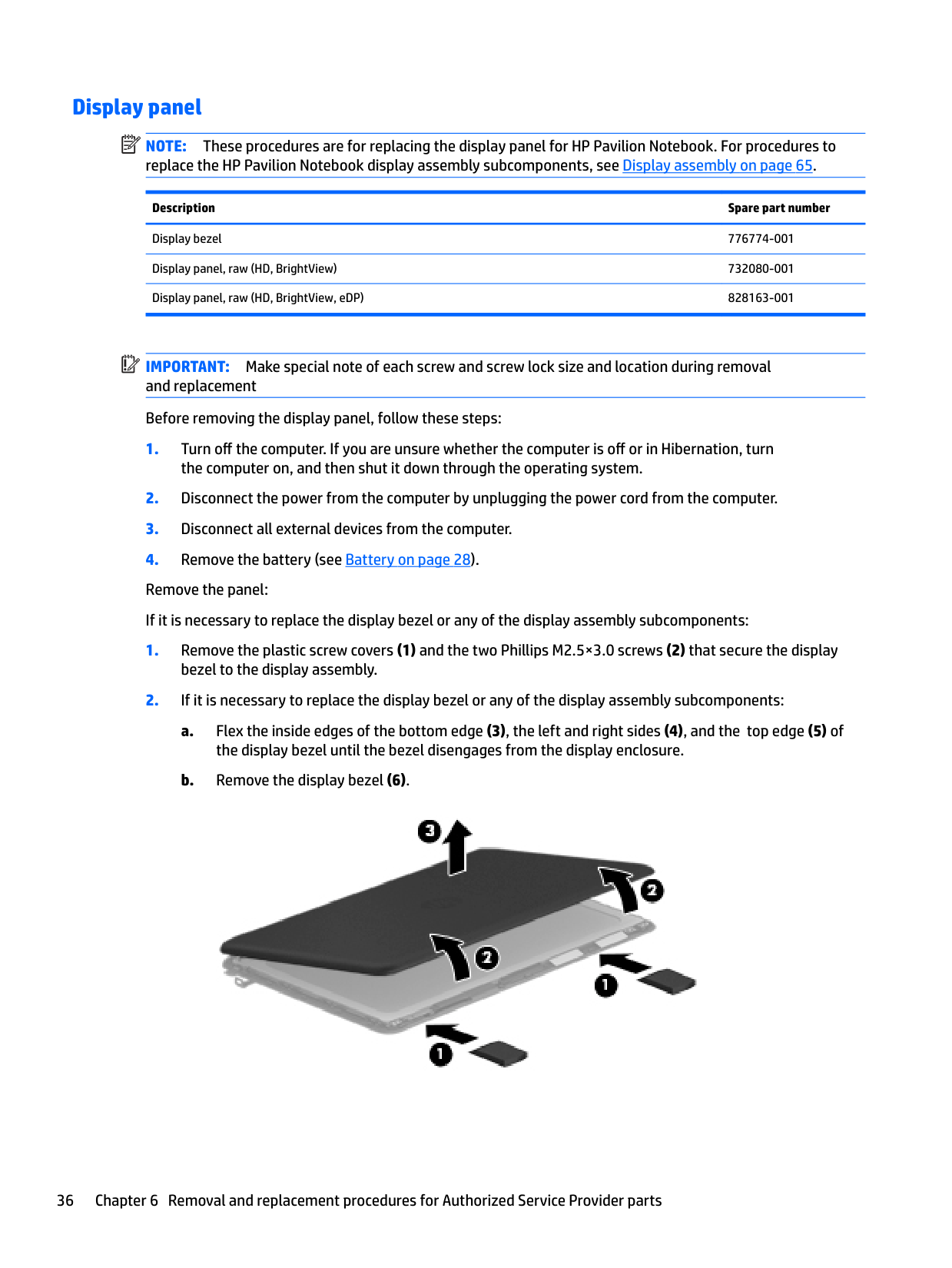
  • 1. Remove the plastic screw covers (1) and the two Phillips M2.5×3.0 screws (2) that secure the display bezel to the display assembly.
  • 2. If it is necessary to replace the display bezel or any of the display assembly subcomponents:
  • a. Flex the inside edges of the bottom edge (3), the left and right sides (4), and the top edge (5) of the display bezel until the bezel disengages from the display enclosure.
  • b. Remove the display bezel (6).
  • ![image 39](c04763947_images/imageFile39.png)

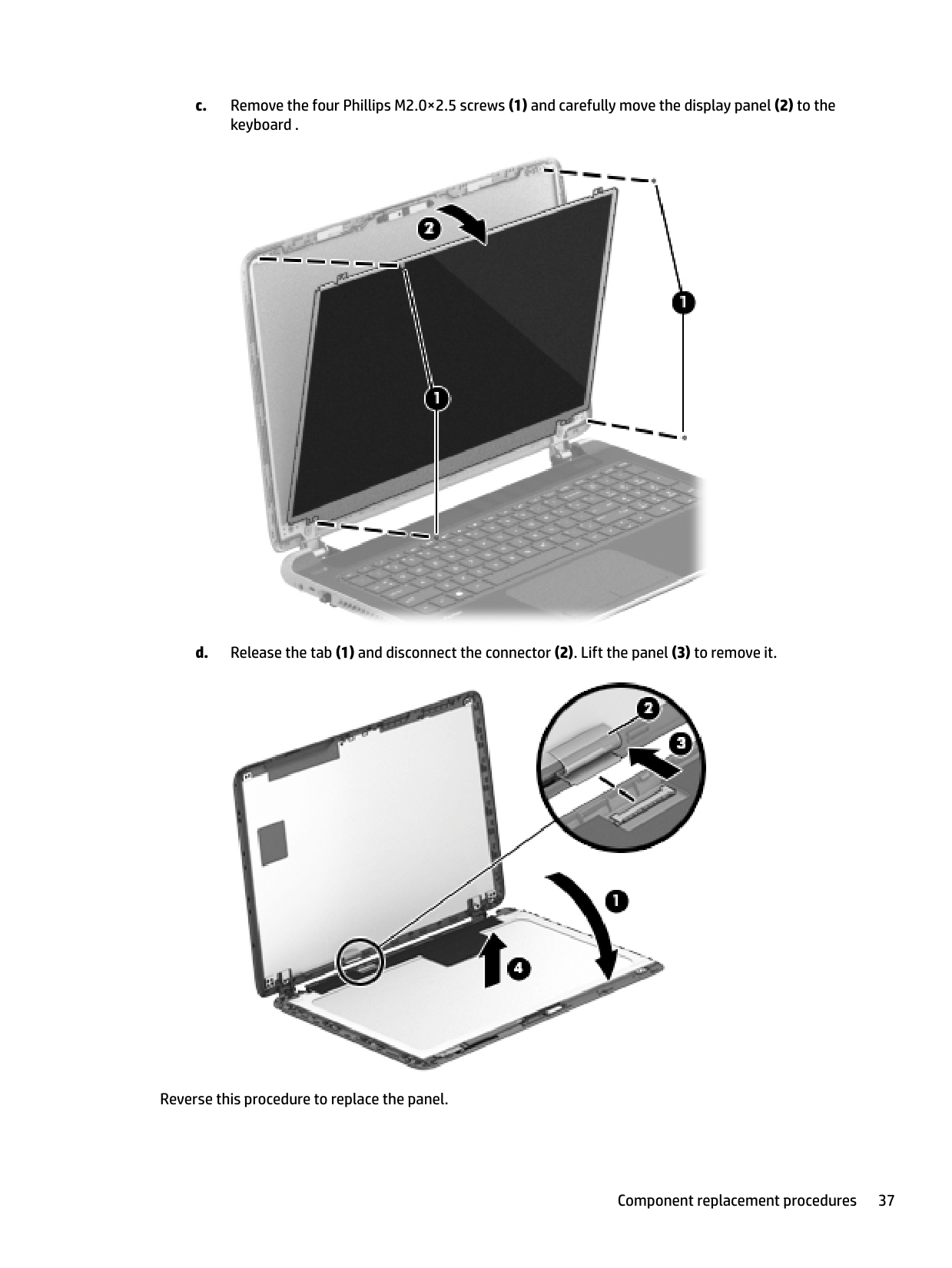
  • c. Remove the four Phillips M2.0×2.5 screws (1) and carefully move the display panel (2) to the keyboard .
  • ![image 40](c04763947_images/imageFile40.png)

  • d. Release the tab (1) and disconnect the connector (2). Lift the panel (3) to remove it.
  • ![image 41](c04763947_images/imageFile41.png)

    Page 39

    Reverse this procedure to replace the panel.

    #### Keyboard

    | | |---|

    NOTE: The keyboard spare part kit includes a keyboard cable.

    Description Spare part number

    Keyboard for use in Canada 776778-DB1 Keyboard for use in Latin America 776778-161 Keyboard for use in the United States 776778-001

    Before removing the keyboard, follow these steps:

  • 1. Turn off the computer. If you are unsure whether the computer is off or in Hibernation, turn the computer on, and then shut it down through the operating system.
  • 2. Disconnect the power from the computer by unplugging the power cord from the computer.
  • 3. Disconnect all external devices from the computer.
  • 4. Remove the battery (see Battery on page 28). Remove the keyboard:
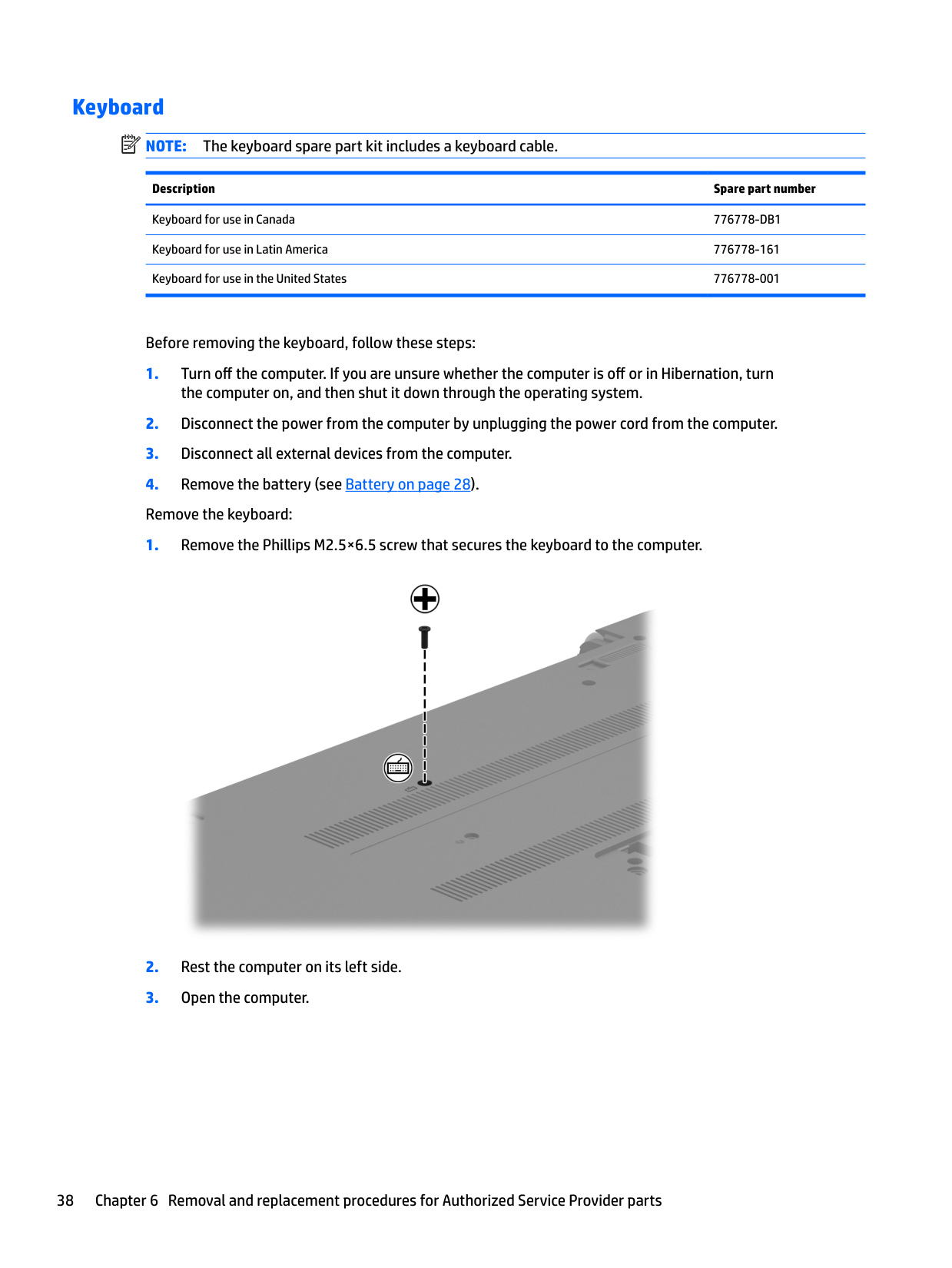
  • 1. Remove the Phillips M2.5×6.5 screw that secures the keyboard to the computer.
  • ![image 42](c04763947_images/imageFile42.png)

    Page 40

  • 2. Rest the computer on its left side.
  • 3. Open the computer.
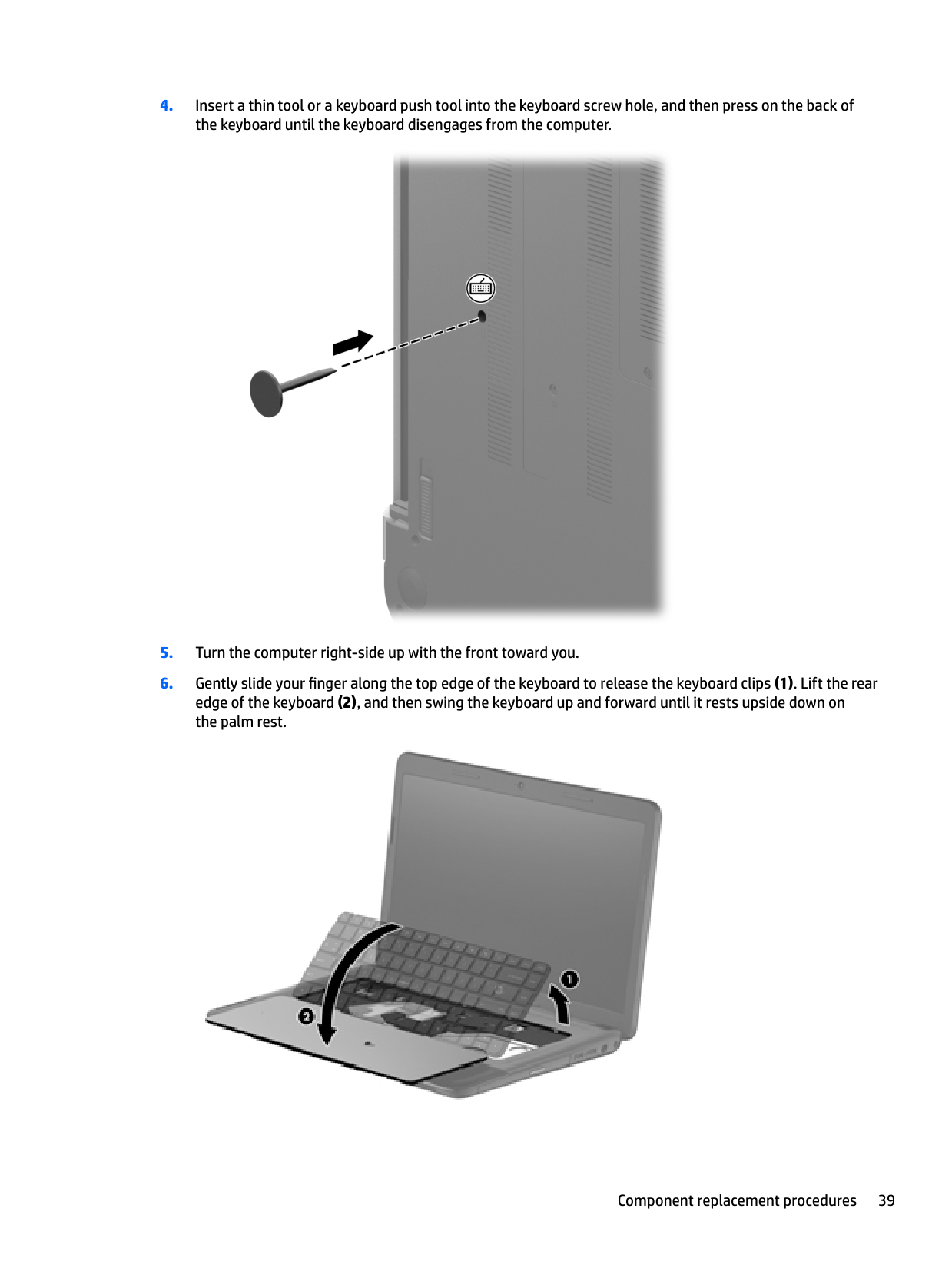
  • 4. Insert a thin tool or a keyboard push tool into the keyboard screw hole, and then press on the back of the keyboard until the keyboard disengages from the computer.
  • ![image 43](c04763947_images/imageFile43.png)

  • 5. Turn the computer right-side up with the front toward you.
  • 6. Gently slide your finger along the top edge of the keyboard to release the keyboard clips (1). Lift the rear edge of the keyboard (2), and then swing the keyboard up and forward until it rests upside down on the palm rest.
  • ![image 44](c04763947_images/imageFile44.png)

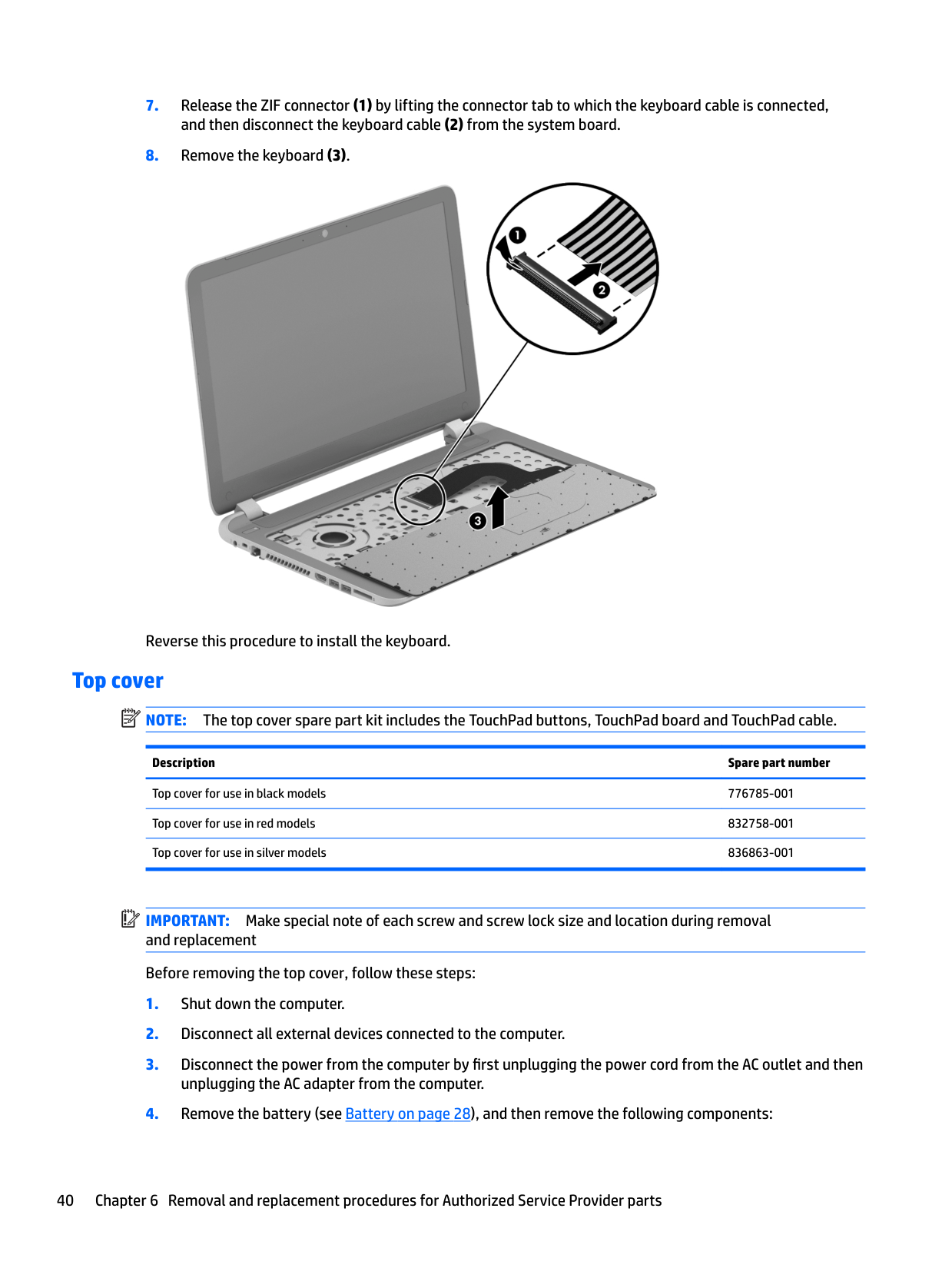
  • 7. Release the ZIF connector (1) by lifting the connector tab to which the keyboard cable is connected, and then disconnect the keyboard cable (2) from the system board.
  • 8. Remove the keyboard (3).
  • ![image 45](c04763947_images/imageFile45.png)

    Reverse this procedure to install the keyboard.

    #### Top cover
    Page 41

    | | |---|

    NOTE: The top cover spare part kit includes the TouchPad buttons, TouchPad board and TouchPad cable.

    Description Spare part number

    Top cover for use in black models 776785-001 Top cover for use in red models 832758-001 Top cover for use in silver models 836863-001

    | | |---|

    IMPORTANT: Make special note of each screw and screw lock size and location during removal and replacement Before removing the top cover, follow these steps:
  • 1. Shut down the computer.
  • 2. Disconnect all external devices connected to the computer.
  • 3. Disconnect the power from the computer by first unplugging the power cord from the AC outlet and then unplugging the AC adapter from the computer.
  • 4. Remove the battery (see Battery on page 28), and then remove the following components:
  • a. Optical drive (see Optical drive on page 33).
  • b. Remove the service door (see Service door on page 29).
  • Page 42

  • c. Remove the WLAN module (see WLAN module on page 31).
  • d. Remove the memory module (see Memory module on page 30).
  • e. Keyboard (see Keyboard on page 38).
  • Remove the top cover:

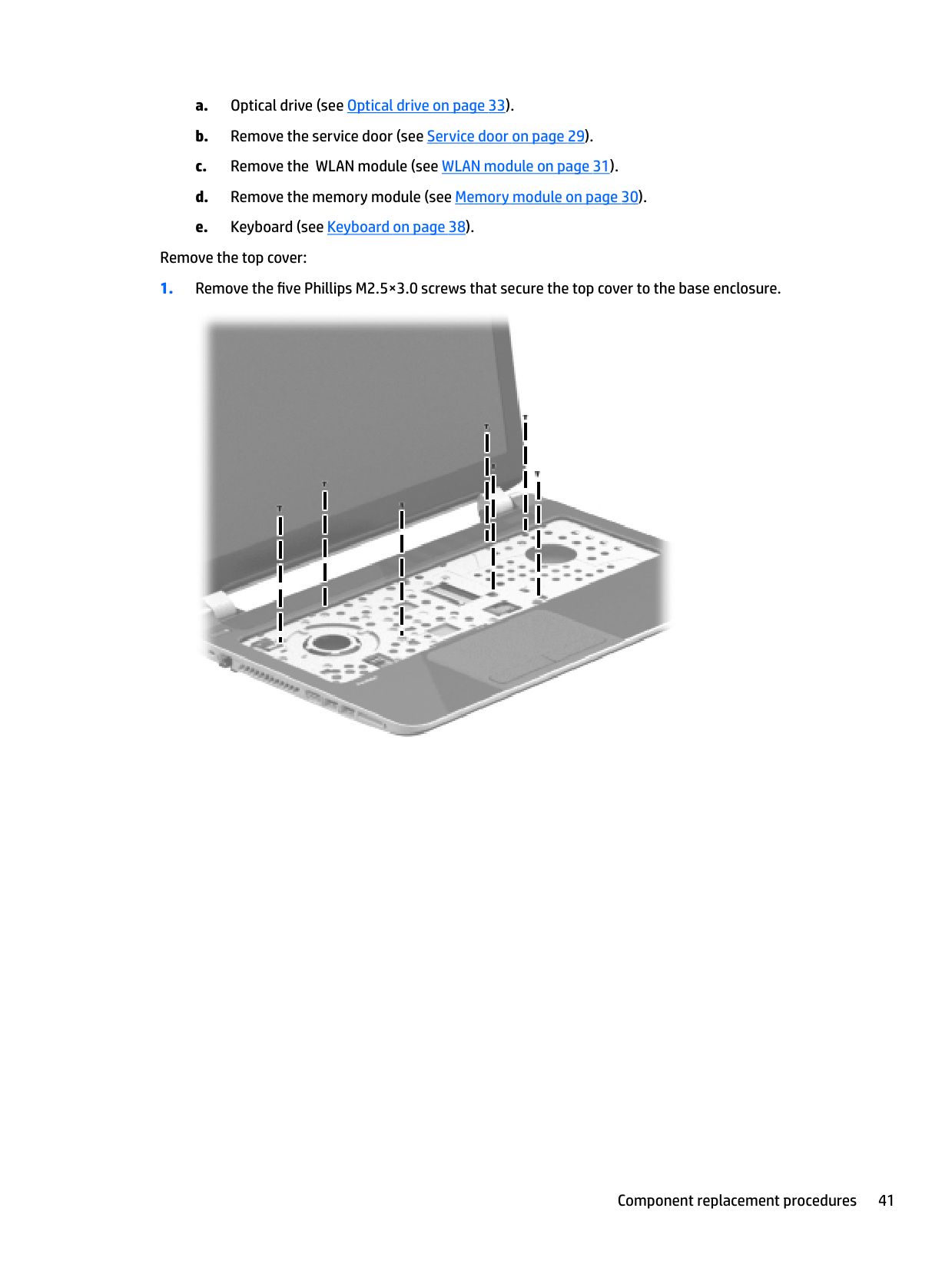
  • 1. Remove the five Phillips M2.5×3.0 screws that secure the top cover to the base enclosure.
  • ![image 46](c04763947_images/imageFile46.png)

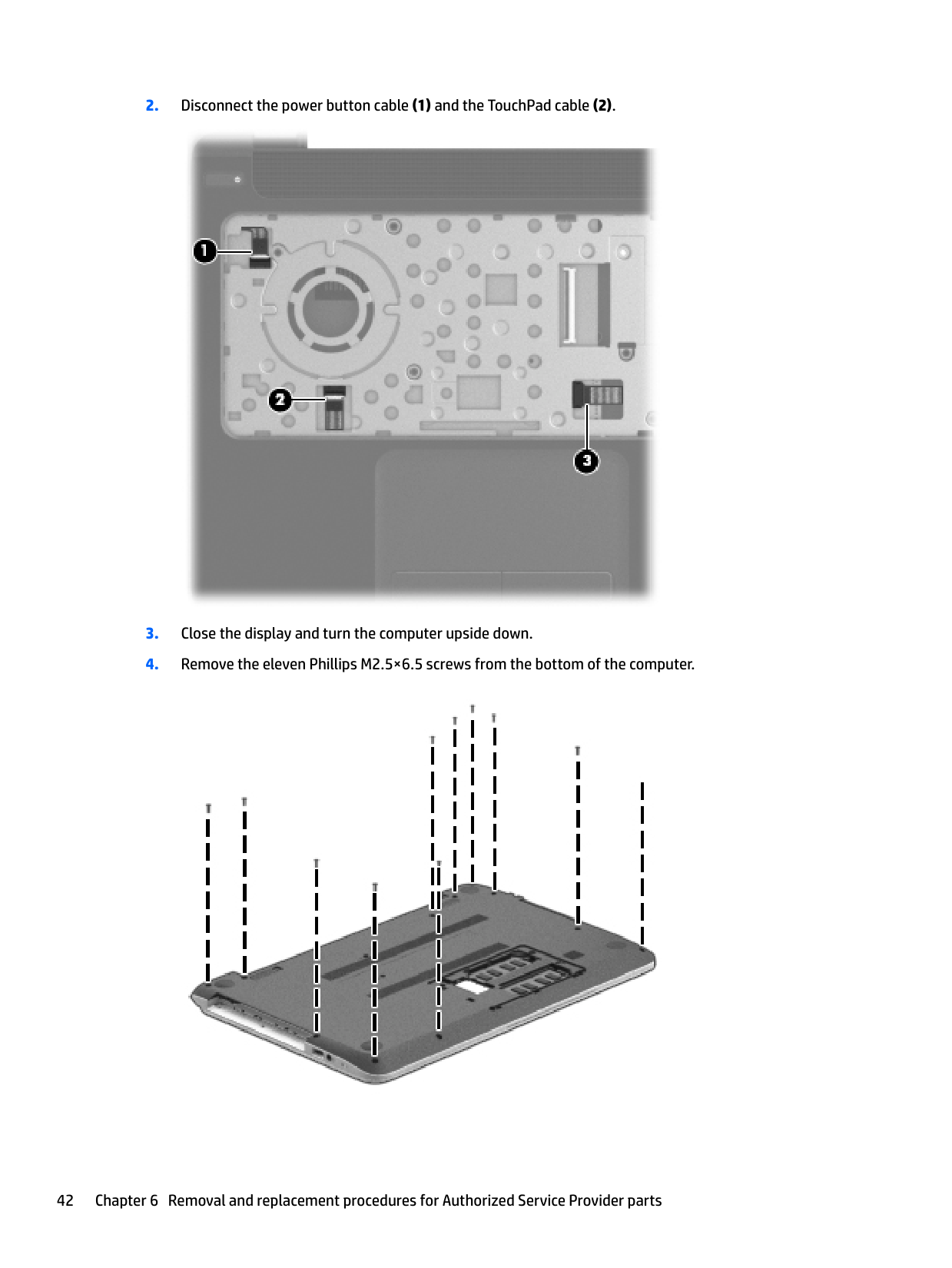
  • 2. Disconnect the power button cable (1) and the TouchPad cable (2).
  • ![image 47](c04763947_images/imageFile47.png)

  • 3. Close the display and turn the computer upside down.
  • 4. Remove the eleven Phillips M2.5×6.5 screws from the bottom of the computer.
  • ![image 48](c04763947_images/imageFile48.png)

    Page 43

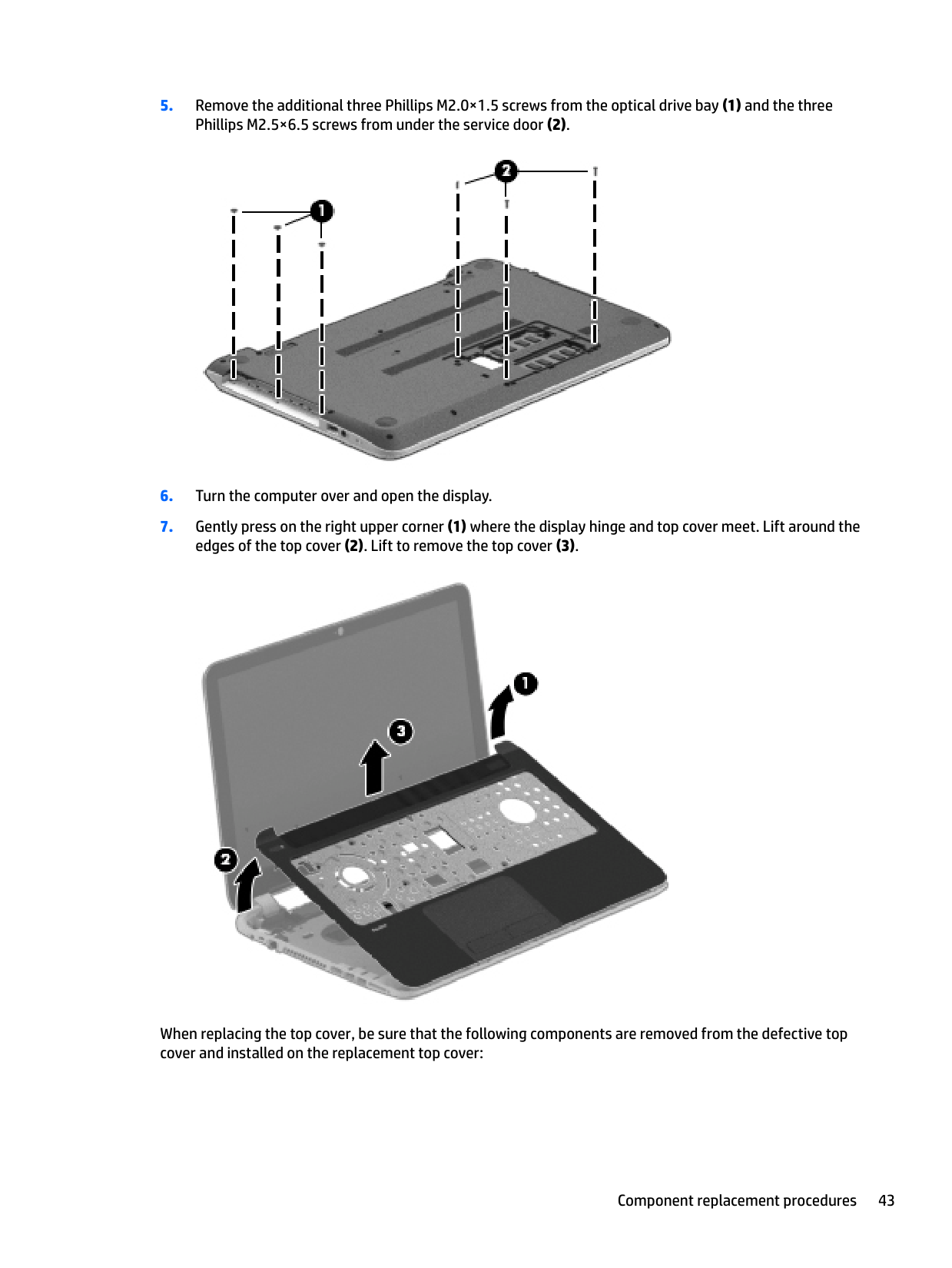
  • 5. Remove the additional three Phillips M2.0×1.5 screws from the optical drive bay (1) and the three Phillips M2.5×6.5 screws from under the service door (2).
  • ![image 49](c04763947_images/imageFile49.png)

  • 6. Turn the computer over and open the display.
  • 7. Gently press on the right upper corner (1) where the display hinge and top cover meet. Lift around the edges of the top cover (2). Lift to remove the top cover (3).
  • ![image 50](c04763947_images/imageFile50.png)

    When replacing the top cover, be sure that the following components are removed from the defective top cover and installed on the replacement top cover:

  • ● Power button board and cable (see Power button board on page 47).
  • ● Optical drive cable, (see Optical drive on page 33).
  • ● USB/audio board, (see Hard drive on page 44). Reverse this procedure to install the top cover.
  • #### Hard drive

    | | |---|

    Page 44

    NOTE: The hard drive spare part kit includes the hard drive rubber bracket and screws. These components are included in the Hard Drive Hardware Kit, spare part number 732071-001.

    Description Spare part number 750 GB, 5400 rpm 778190-001 500 GB, 5400 rpm 669299-001 Hard Drive Hardware Kit (not illustrated, includes hard drive rubber bracket, 2 hard drive retention brackets, and hard drive connector cable).

    732071-001

    Before removing the hard drive, follow these steps:
  • 1. Turn off the computer. If you are unsure whether the computer is off or in Hibernation, turn the computer on, and then shut it down through the operating system.
  • 2. Disconnect the power from the computer by unplugging the power cord from the computer.
  • 3. Disconnect all external devices from the computer.
  • 4. Remove the battery (see Battery on page 28), and then remove the following components:
  • a. Optical drive (see Optical drive on page 33).
  • b. Service door (see Service door on page 29).
  • c. WLAN module (see WLAN module on page 31).
  • d. Memory module (see Memory module on page 30).
  • e. Keyboard (see Keyboard on page 38).
  • f. Top cover (see Top cover on page 40).
  • Page 45

    Remove the hard drive:

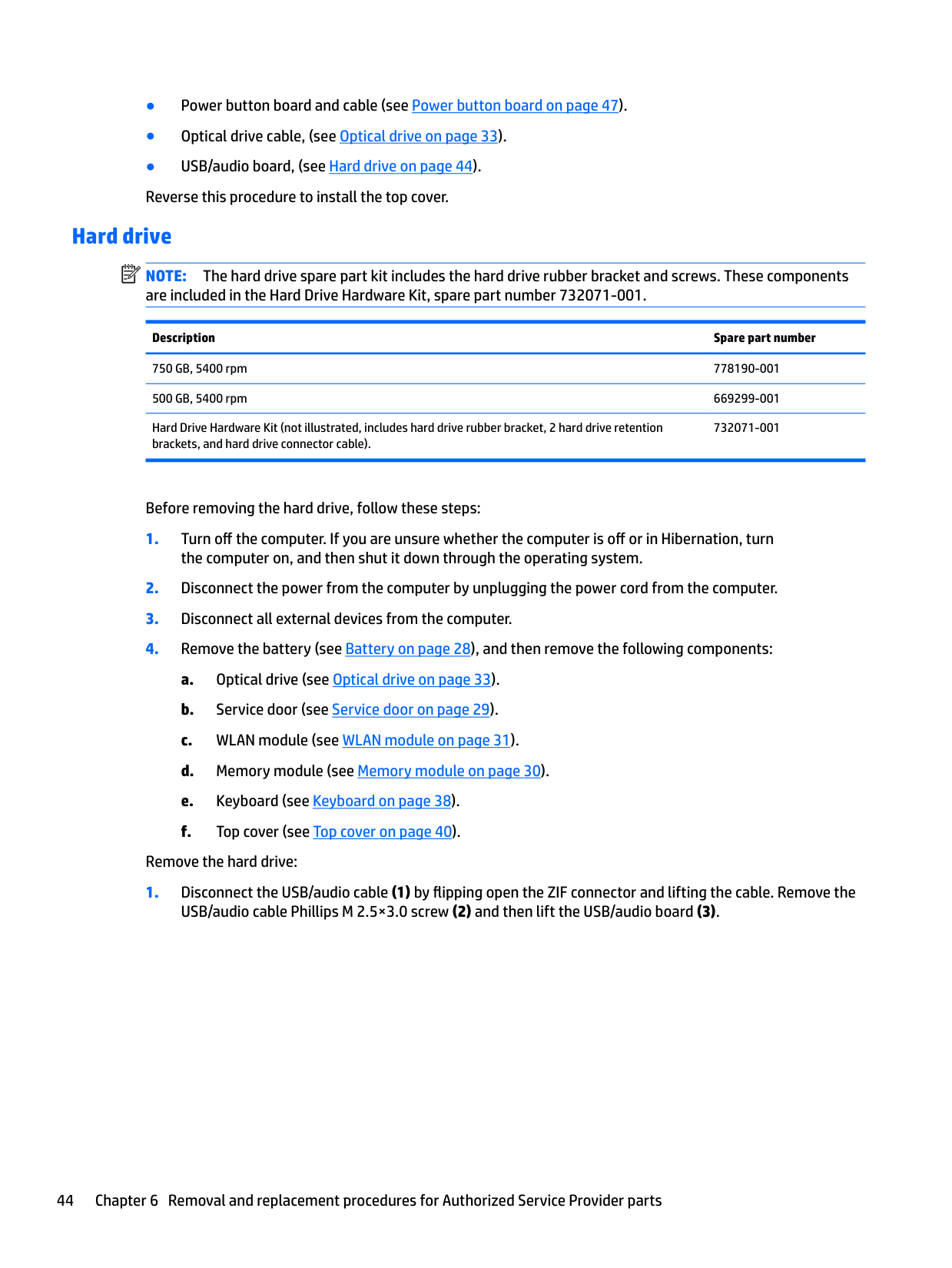
  • 1. Disconnect the USB/audio cable (1) by flipping open the ZIF connector and lifting the cable. Remove the USB/audio cable Phillips M 2.5×3.0 screw (2) and then lift the USB/audio board (3).
  • ![image 51](c04763947_images/imageFile51.png)

    ####### 2. Lift the front of the hard drive (1) and slide the hard drive (2) forward .

    ![image 52](c04763947_images/imageFile52.png)

  • 3. Release the hard drive connector cable from the clips.
  • NOTE: You will disconnect the hard drive connector cable from the system board when you remove the system board.

    ![image 53](c04763947_images/imageFile53.png)

  • 4. If it is necessary to disassemble the hard drive, perform the following steps:
  • | | |---|

    Page 46

  • a. Remove the four Phillips M3.0×3.5 screws (1) from the bracket and separate the front edges of the hard drive rubber bracket from the hard drive
  • b. Disassemblying the hard drive
  • ![image 54](c04763947_images/imageFile54.png)

    Reverse this procedure to reassemble and install the hard drive.

    #### Power button board

    Description Spare part number Power button board (includes cable) 776780-001

    Before removing the power button board, follow these steps:
  • 1. Turn off the computer. If you are unsure whether the computer is off or in Hibernation, turn the computer on, and then shut it down through the operating system.
  • 2. Disconnect the power from the computer by unplugging the power cord from the computer.
  • 3. Disconnect all external devices from the computer.
  • 4. Remove the battery (see Battery on page 28), and then remove the following components:
  • a. Optical drive (see Optical drive on page 33).
  • b. Service door (see Service door on page 29).
  • Page 47

  • c. WLAN module (see WLAN module on page 31).
  • d. Memory module (see Memory module on page 30).
  • e. Keyboard (see Keyboard on page 38).
  • f. Top cover (see Top cover on page 40).
  • Remove the power button board:

  • 1. Turn the top cover upside down, with the front toward you.
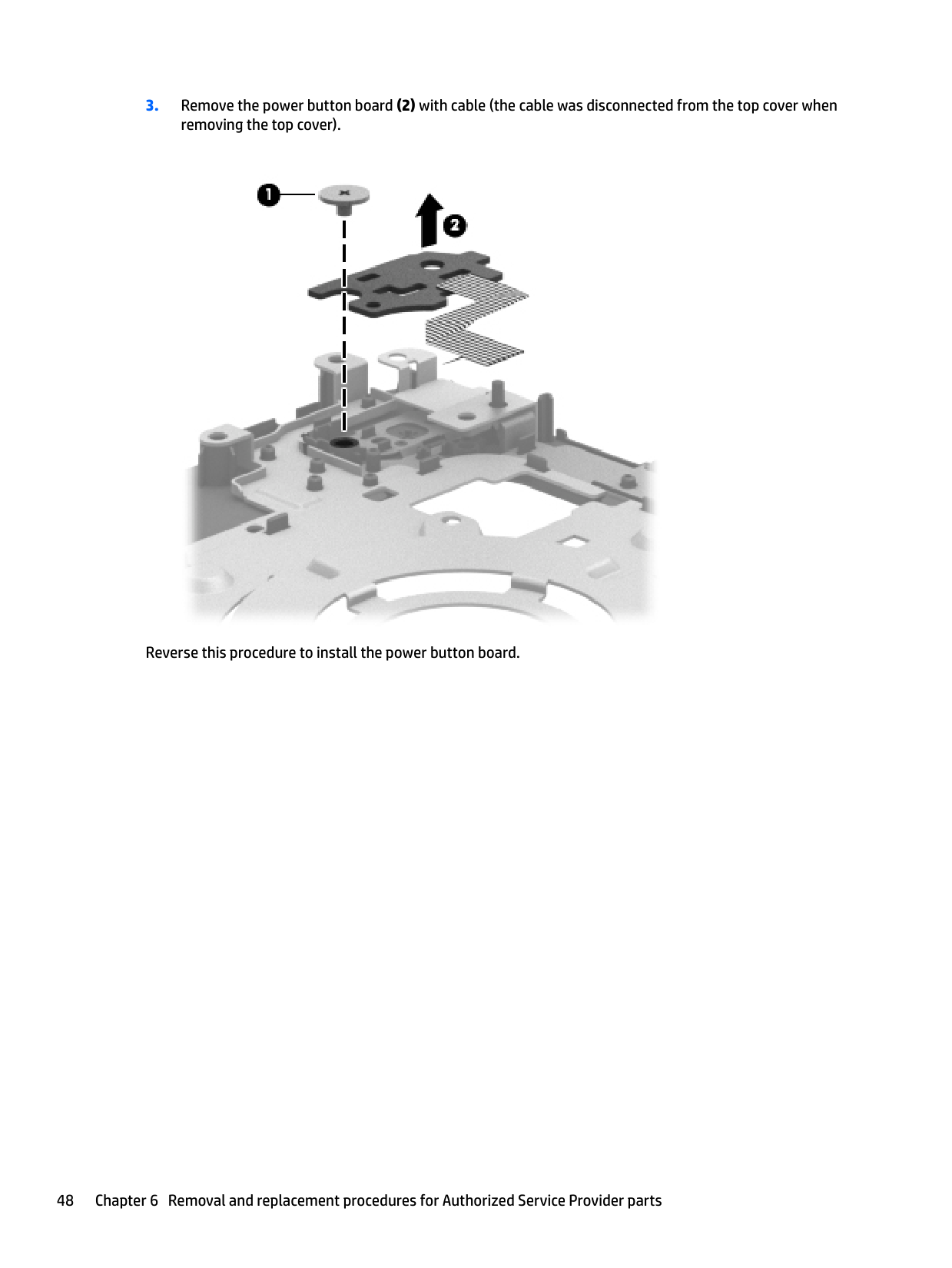
  • 2. Remove the Phillips M2.5×2.5 screw (1) that secures the power button board to the top cover.
  • 3. Remove the power button board (2) with cable (the cable was disconnected from the top cover when removing the top cover).
  • ![image 55](c04763947_images/imageFile55.png)

    Reverse this procedure to install the power button board.

    #### TouchPad button board

    Description Spare part number TouchPad button board (includes cable) 732078-001
    Page 48

    Before removing the TouchPad button board, follow these steps:

  • 1. Turn off the computer. If you are unsure whether the computer is off or in Hibernation, turn the computer on, and then shut it down through the operating system.
  • 2. Disconnect the power from the computer by unplugging the power cord from the computer.
  • 3. Disconnect all external devices from the computer.
  • 4. Remove the battery (see Battery on page 28), and then remove the following components:
  • a. Optical drive (see Optical drive on page 33).
  • b. Service door (see Service door on page 29).
  • c. WLAN module (see WLAN module on page 31).
  • d. Memory module (see Memory module on page 30).
  • e. Keyboard (see Keyboard on page 38).
  • f. Top cover (see Top cover on page 40).
  • Remove the TouchPad button board:

  • 1. Turn the top cover upside down, with the front toward you.
  • Page 49

  • 2. Release the TouchPad ZIF connector, and then disconnect the TouchPad button board cable (1) from the TouchPad board.
  • 3. Remove the Phillips M2.0×3.5 broadhead screw (2) that secures the TouchPad button board bracket to the top cover.
  • 4. Lift up and remove the TouchPad button board (3).
  • ![image 56](c04763947_images/imageFile56.png)

    Reverse this procedure to install the TouchPad button board.

    Optical drive connector cable NOTE: The optical drive connector cable is included with the optical drive, spare part number 779456-001. Before removing the optical drive connector cable, follow these steps:

    | | |---|
  • 1. Turn off the computer. If you are unsure whether the computer is off or in Hibernation, turn the computer on, and then shut it down through the operating system.
  • 2. Disconnect the power from the computer by unplugging the power cord from the computer.
  • 3. Disconnect all external devices from the computer.
  • 4. Remove the battery (see Battery on page 28), and then remove the following components:
  • a. Optical drive (see Optical drive on page 33).
  • Page 50

  • b. Service door (see Service door on page 29).
  • c. WLAN module (see WLAN module on page 31).
  • d. Memory module (see Memory module on page 30).
  • e. Keyboard (see Keyboard on page 38).
  • f. Top cover (see Top cover on page 40).
  • Remove the optical drive connector cable:

  • 1. Disconnect the optical drive connector cable (1) from the system board.
  • 2. Release the optical drive connector cable from the clip (2) built into the base enclosure.
  • 3. Remove the optical drive connector cable.
  • ![image 57](c04763947_images/imageFile57.png)

    Reverse this procedure to install the optical drive connector cable.

    #### System board

    | |
    Page 51

    |---|

    NOTE: The system board spare part kit includes replacement thermal material.

    Description Spare part number All system boards use the following part numbers: xxxxxx-001: Non-Windows operating systems xxxxxx-501: Windows 8.1 Standard operating system xxxxxx-601: Windows 8.1 Professional or Windows 10 operating system Models with a hard drive and optical drive: System board with Intel Core i3-4030U processor 790202-001, -501

  • System board with Intel Core i3-4010U processor 782103-001, -501
  • System board with Intel Core i3-4005U processor 782101-001, -501 System board with Intel Pentium N3540 processor 786901-001, -501 System board with Intel Pentium N3540 processor (eDP models) 828166-001, -601 System board with Intel Pentium N3530 processor 782100-001, -501 System board with Intel Celeron N3150 processor (eDP models) 828169-001, -601 System board with Intel Celeron N3050 processor (eDP mdoels) 828168-001, -601 System board with Intel Celeron N2940 processor 804044-001, -501 System board with Intel Celeron N2940 processor (eDP models) 828165-001, -601 System board with Intel Celeron N2920 processor 792575-001, -501 System board with Intel Celeron N2840 processor 786899-001, -501 System board with Intel Celeron N2840 processor (eDP models) 828164-001, -601 System board with Intel Celeron N2830 processor 779457-001, -501 System board with Intel Celeron N2820 processor 789103-001, -501 System board with Intel Celeron N2815 processor 789101-001, -501 System board with Intel Celeron N2805 processor 787077-001, -501 Models with a hard drive and no optical drive: System board with Intel Core i3-4030U processor 790201-001, -501
  • System board with Intel Core i3-4010U processor 782104-001, -501

  • System board with Intel Core i3-4005U processor 782102-001, -501 System board with Intel Pentium N3540 processor 786900-001, -501 System board with Intel Pentium N3530 processor 782106-001, -501 System board with Intel Celeron N2920 processor 792574-001, -501 System board with Intel Celeron N2840 processor 786898-001, -501
  • ######## Description Spare part number

    System board with Intel Celeron N2830 processor 782105-001, -501 System board with Intel Celeron N2820 processor 789102-001, -501 System board with Intel Celeron N2815 processor 789100-001, -501 System board with Intel Celeron N2805 processor 787076-001, -501

    Before removing the system board, follow these steps:
  • Turn off the computer. If you are unsure whether the computer is off or in Hibernation, turn
  • Page 52

    the computer on, and then shut it down through the operating system.

  • 2. Disconnect the power from the computer by unplugging the power cord from the computer.
  • 3. Disconnect all external devices from the computer.
  • 4. Remove the battery (see Battery on page 28), and then remove the following components:
  • a. Optical drive (see Optical drive on page 33).
  • b. Service door (see Service door on page 29).
  • c. WLAN module (see WLAN module on page 31).
  • d. Memory module (see Memory module on page 30).
  • e. Keyboard (see Keyboard on page 38).
  • f. Top cover (see Top cover on page 40).
  • g. Hard drive (see Hard drive on page 44).
  • When replacing the system board, be sure that the following components are removed from the defective system board and installed on the replacement system board:
    Page 53

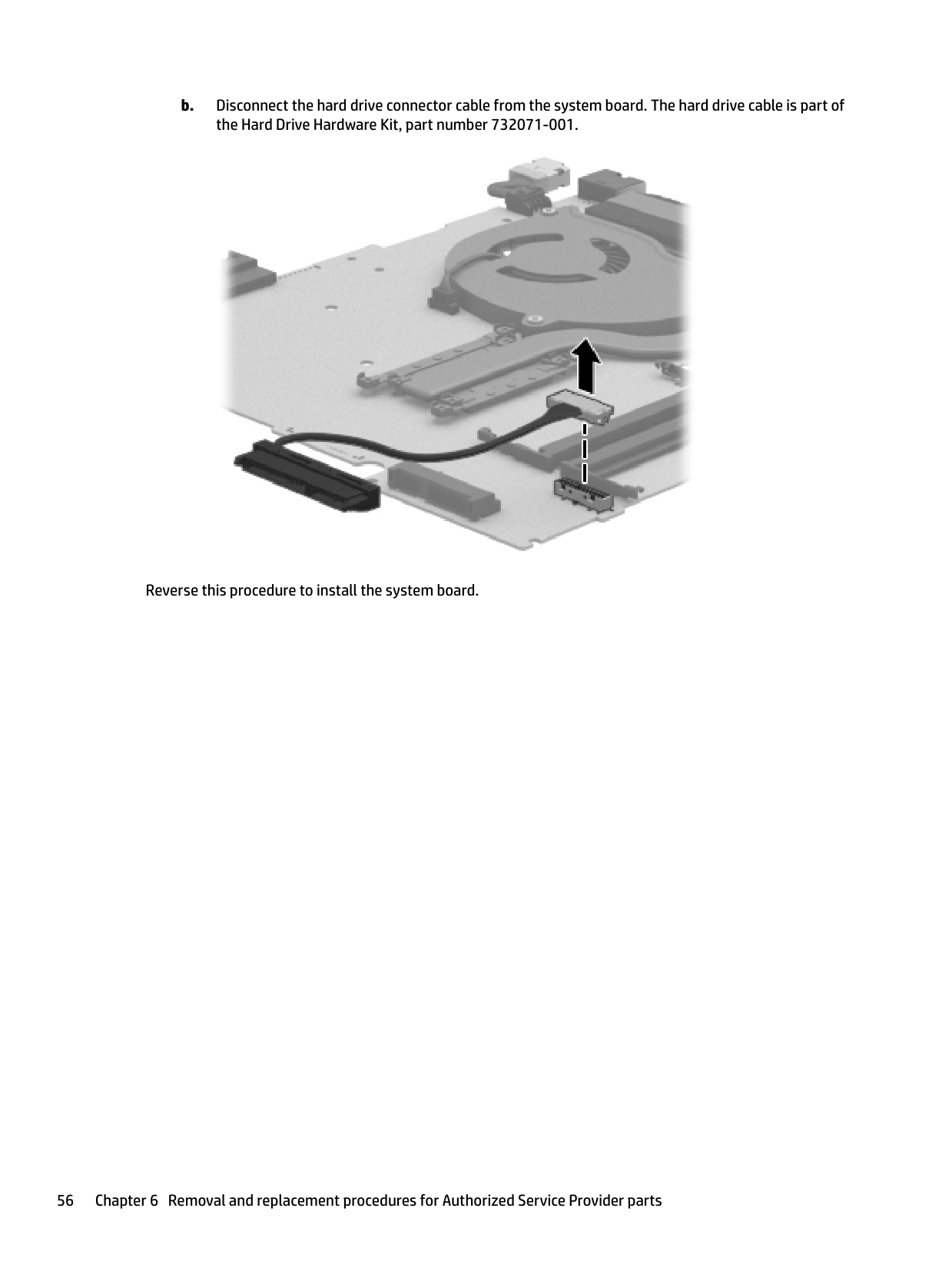
  • ● Hard drive cable
  • ● Power connector cable
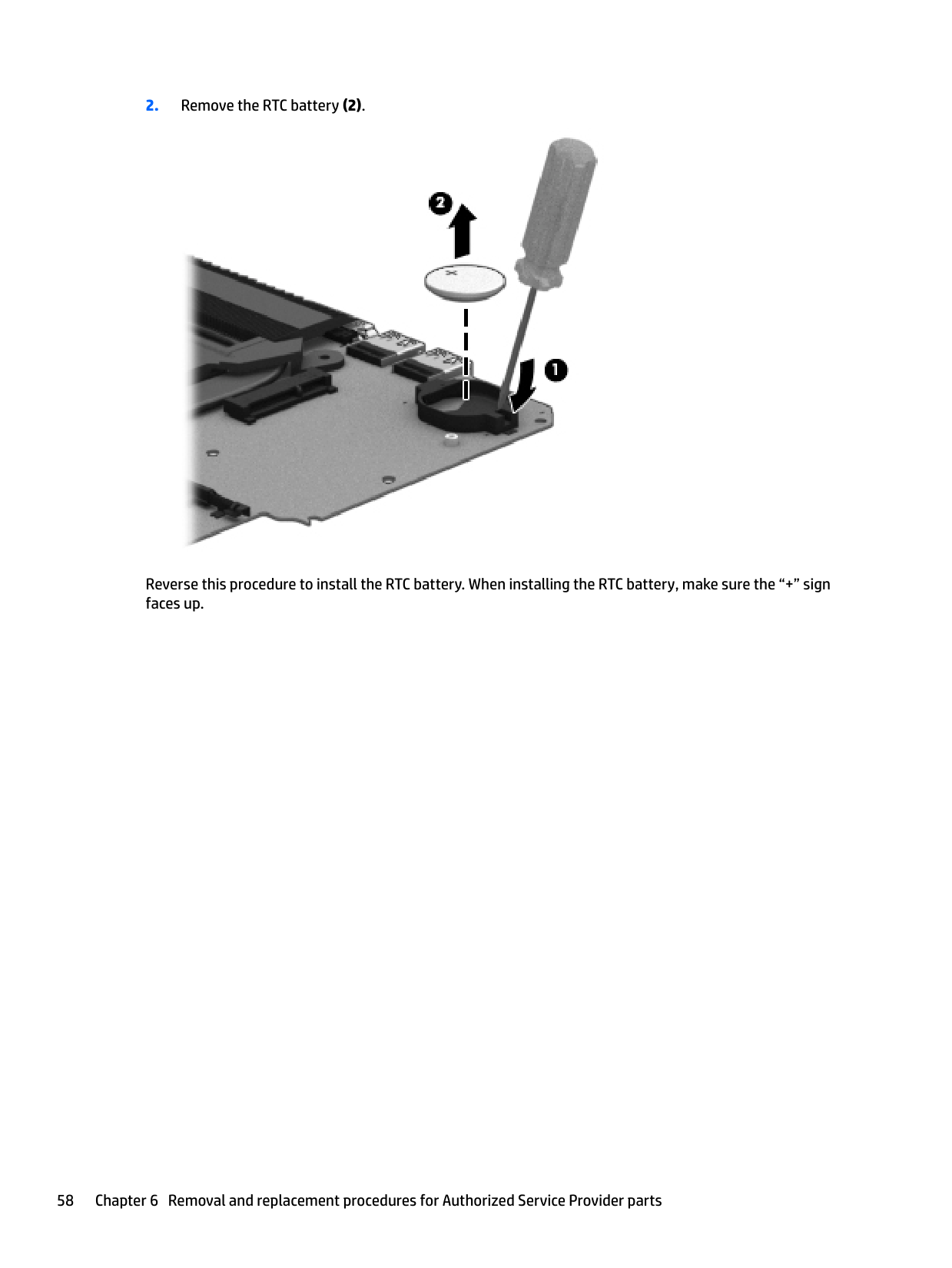
  • ● RTC battery (see RTC battery on page 57)
  • ● Fan (see Heat sink assembly on page 61)
  • ● Heat sink assembly (see Heat sink assembly on page 61) Remove the system board:
  • 1. Disconnect the following cables from the system board:
  • (1) Display panel cable
  • (2) Speaker cable
  • (3) Optical drive connector cable
  • (4) USB/audio board cable
  • ![image 58](c04763947_images/imageFile58.png)

  • 2. Remove the two Phillips M2.5×6.5 and M2.0×5.0 screws (1). Remove the bracket (2) that secures the power connector bracket to the base enclosure.
  • ![image 59](c04763947_images/imageFile59.png)

  • 3. Remove the four Phillips M2.5×5.0 screws (1) that secure the system board to the base enclosure.
  • Page 54

  • 4. Lift the right side of the system board (2) until it rests at an angle.
  • 5. Carefully remove from the power connector (3). Remove the system board by sliding it up and to the right at an angle and pull the system board (4) carefully to the right.
  • ![image 60](c04763947_images/imageFile60.png)

  • 6. Remove the hard drive connector cable:
  • a. Turn the system board upside down, with the front toward you.
  • b. Disconnect the hard drive connector cable from the system board. The hard drive cable is part of the Hard Drive Hardware Kit, part number 732071-001.
  • ![image 61](c04763947_images/imageFile61.png)

    Reverse this procedure to install the system board.

    #### RTC battery

    Description Spare part number RTC battery 697917-001

    Before removing the RTC battery, follow these steps:
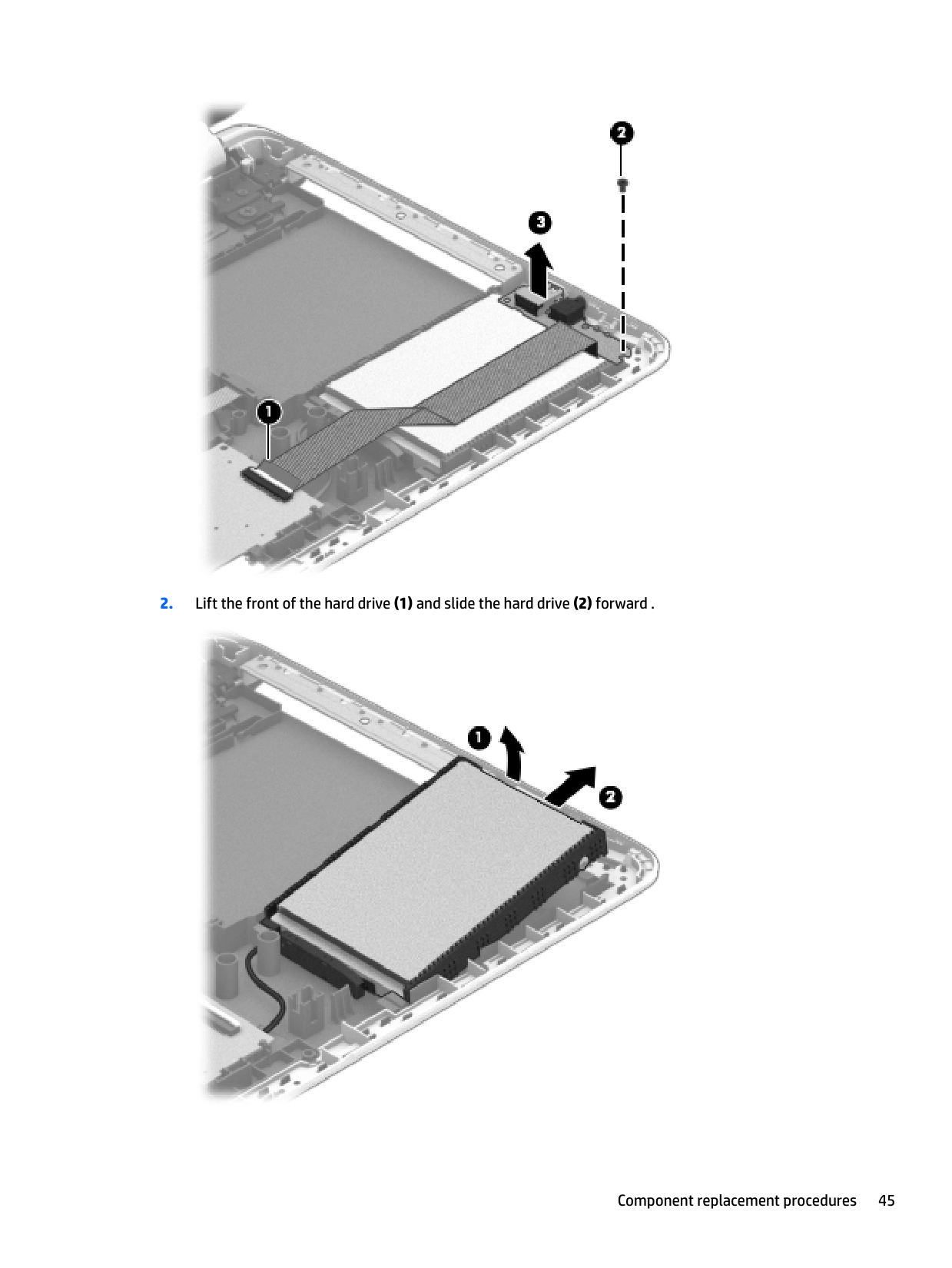
    Page 55

  • Turn off the computer. If you are unsure whether the computer is off or in Hibernation, turn
  • the computer on, and then shut it down through the operating system.
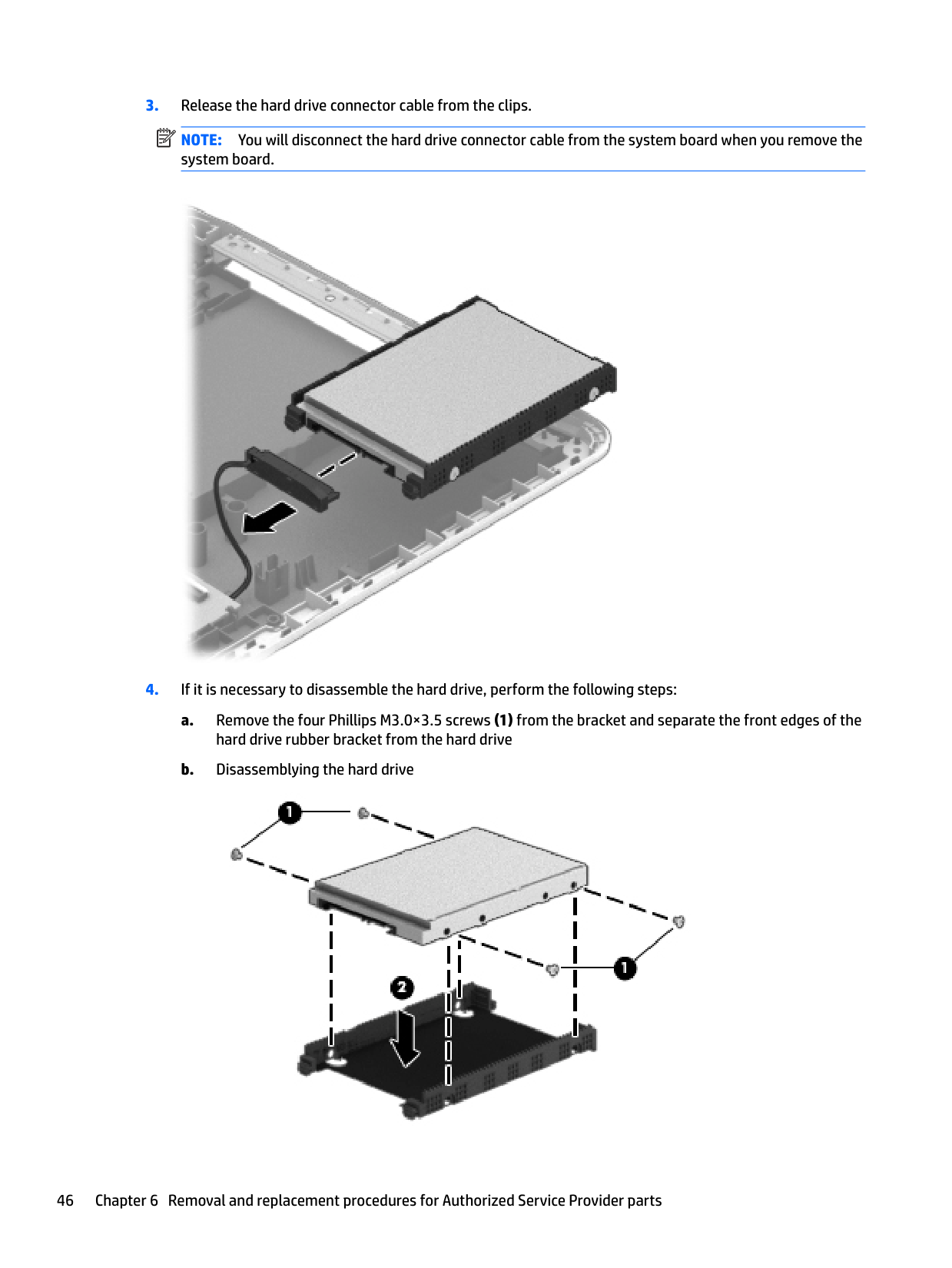
  • 2. Disconnect the power from the computer by unplugging the power cord from the computer.
  • 3. Disconnect all external devices from the computer.
  • 4. Remove the battery (see Battery on page 28), and then remove the following components:
  • a. Optical drive (see Optical drive on page 33).
  • b. Service door (see Service door on page 29).
  • c. WLAN module (see WLAN module on page 31).
  • d. Memory module (see Memory module on page 30).
  • e. Keyboard (see Keyboard on page 38).
  • f. Top cover (see Top cover on page 40).
  • g. Hard drive (see Hard drive on page 44).
  • h. System board (see System board on page 52).
  • Page 56

    Remove the RTC battery:

  • 1. Use a flat-bladed, non-metallic tool (1) to release the RTC battery from the socket on the system board.
  • 2. Remove the RTC battery (2).
  • ![image 62](c04763947_images/imageFile62.png)

    Reverse this procedure to install the RTC battery. When installing the RTC battery, make sure the “+” sign faces up.

    #### Fan

    Description Spare part number Fan 732068-001

    | | |---|

    NOTE: To properly ventilate the computer, allow at least 7.6 cm (3 in) of clearance on the left side of the computer. The computer uses an electric fan for ventilation. The fan is controlled by a temperature sensor and is designed to turn on automatically when high temperature conditions exist. These conditions are affected by high external temperatures, system power consumption, power management/battery conservation configurations, battery fast charging, and software requirements. Exhaust air is displaced through the ventilation grill located on the left side of the computer.

    Before removing the fan, follow these steps:
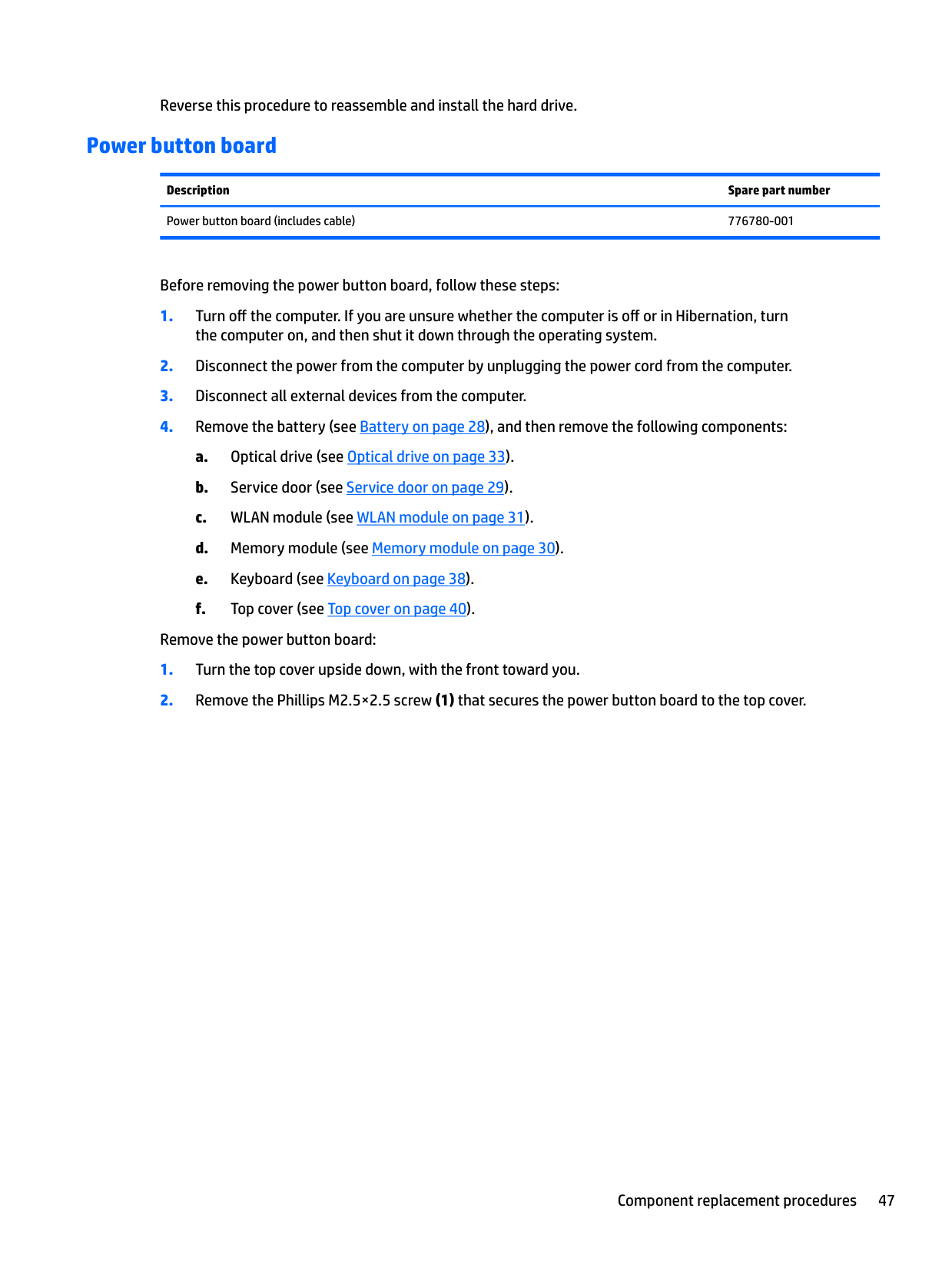
    Page 57

  • 1. Turn off the computer. If you are unsure whether the computer is off or in Hibernation, turn the computer on, and then shut it down through the operating system.
  • 2. Disconnect the power from the computer by unplugging the power cord from the computer.
  • 3. Disconnect all external devices from the computer.
  • 4. Remove the battery (see Battery on page 28), and then remove the following components:
  • a. Optical drive (see Optical drive on page 33).
  • b. Service door (see Service door on page 29).
  • c. WLAN module (see WLAN module on page 31).
  • d. Memory module (see Memory module on page 30).
  • e. Keyboard (see Keyboard on page 38).
  • f. Top cover (see Top cover on page 40).
  • g. Hard drive (see Hard drive on page 44).
  • h. System board (see System board on page 52).
  • Remove the fan:

    Page 58

  • 1. Turn the system board upside down, with the front toward you.
  • 2. Disconnect the fan cable (1) from the system board.
  • 3. Remove the 2 screws (2) that secure the fan to the system board.
  • 4. Remove the fan (3) from the system board.
  • ![image 63](c04763947_images/imageFile63.png)

    Reverse this procedure to install the fan.

    #### Heat sink assembly

    ######## Description Spare part number

    Heat sink for use with Intel Core processors 742581-001 Heat sink for use in computers with Intel Pentium N3540, Celeron N2940, and Celeron N2840 processors 749040-001 Heat sink for use in computers with Intel Celeron N3150 and N3050 processors 828173-001

    | | |---|

    NOTE: To properly ventilate the computer, allow at least 7.6 cm (3 in) of clearance on the left side of the computer. The computer uses an electric fan for ventilation. The fan is controlled by a temperature sensor and is designed to turn on automatically when high temperature conditions exist. These conditions are affected by high external temperatures, system power consumption, power management/battery conservation configurations, battery fast charging, and software requirements. Exhaust air is displaced through the ventilation grill located on the left side of the computer.
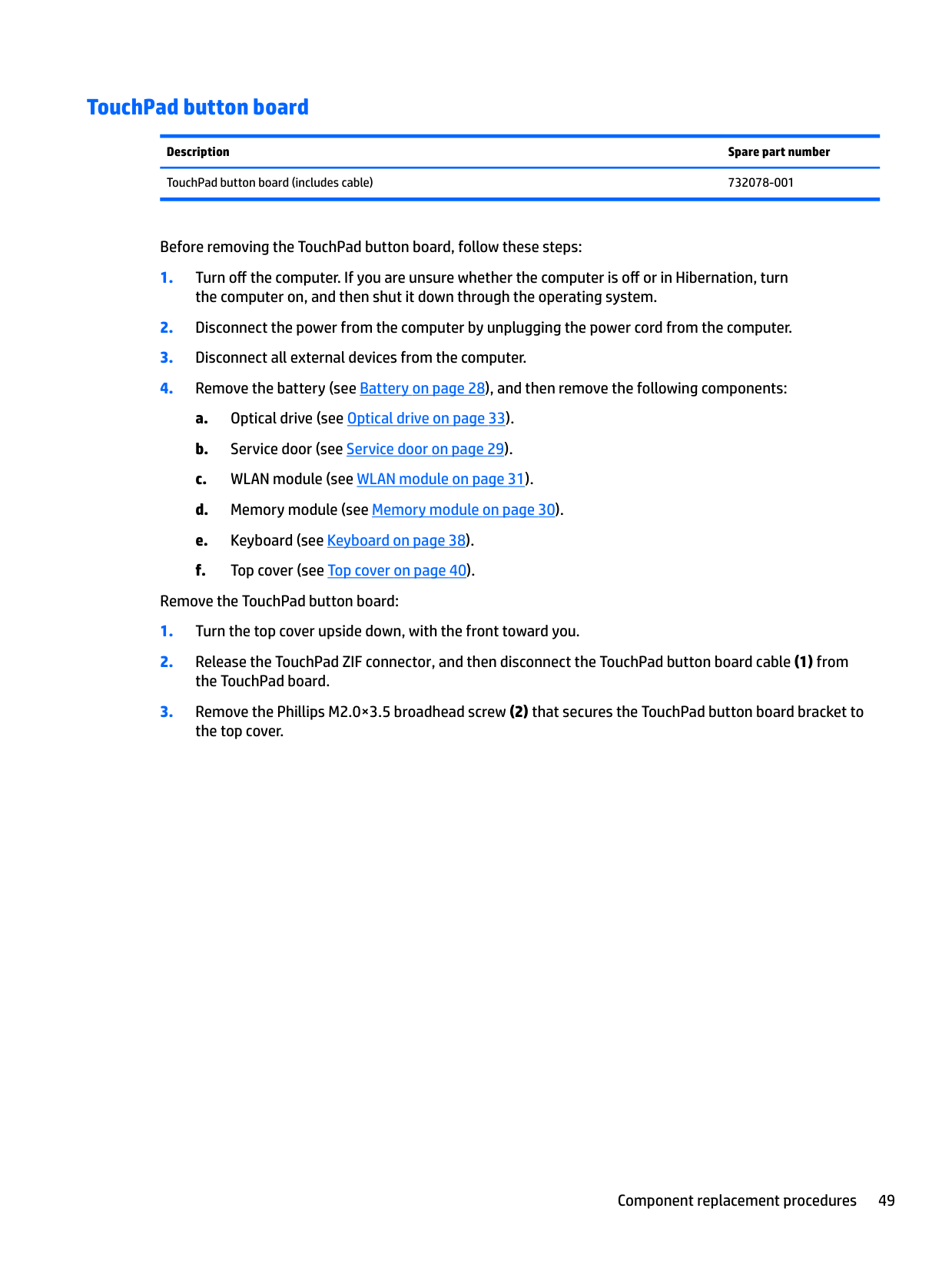
    Page 59

    Before removing the fan/heat sink assembly, follow these steps:
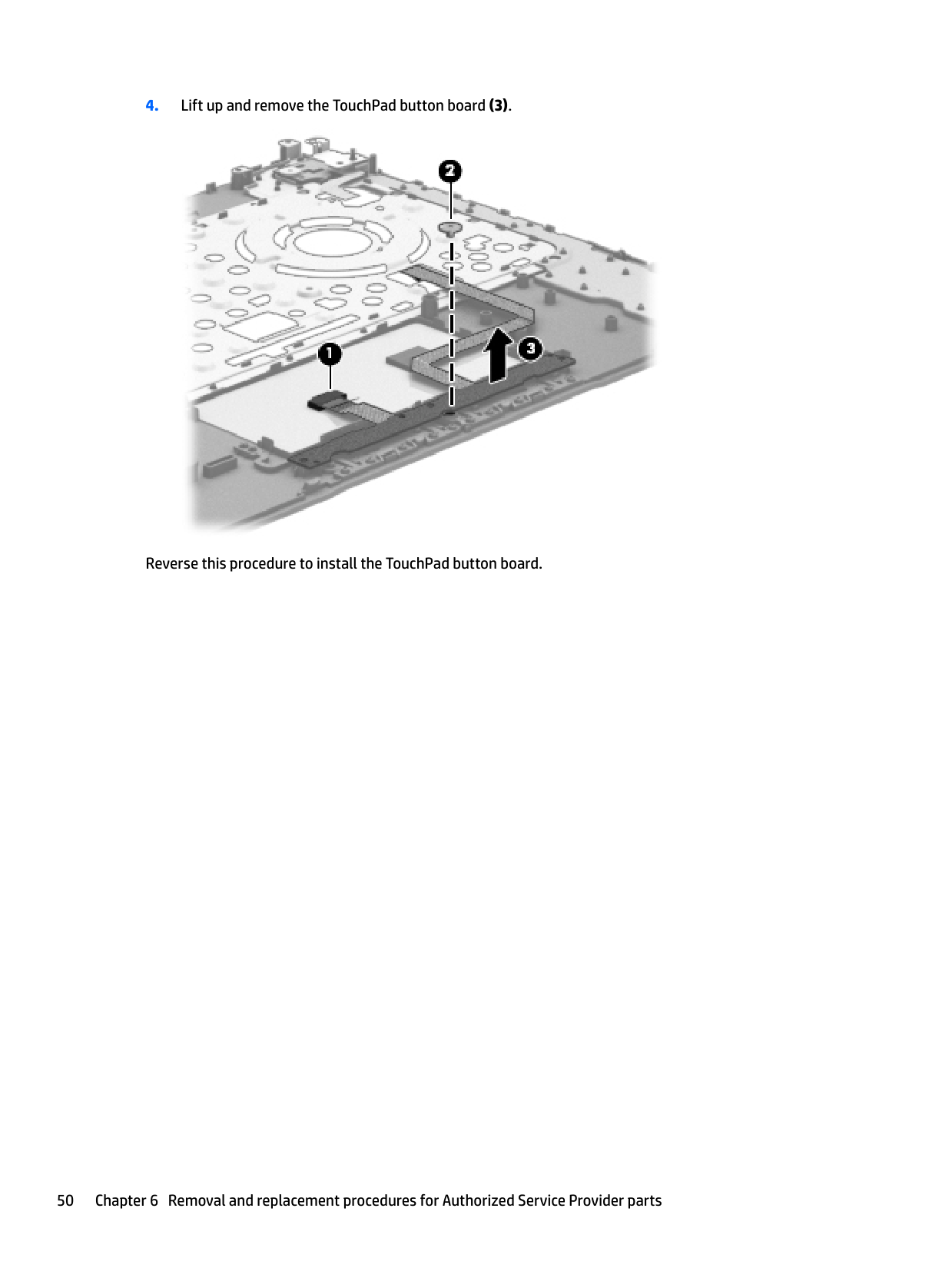
  • 1. Turn off the computer. If you are unsure whether the computer is off or in Hibernation, turn the computer on, and then shut it down through the operating system.
  • 2. Disconnect the power from the computer by unplugging the power cord from the computer.
  • 3. Disconnect all external devices from the computer.
  • 4. Remove the battery (see Battery on page 28), and then remove the following components:
  • a. Optical drive (see Optical drive on page 33).
  • b. Service door (see Service door on page 29).
  • c. WLAN module (see WLAN module on page 31).
  • d. Memory module (see Memory module on page 30).
  • e. Keyboard (see Keyboard on page 38).
  • f. Top cover (see Top cover on page 40).
  • g. Hard drive (see Hard drive on page 44).
  • h. System board (see System board on page 52).
  • Page 60

    Remove the heat sink assembly:

  • 1. Turn the system board upside down, with the front toward you.
  • 2. Disconnect the fan cable from the system board.
  • 3. Following the 1, 2, 3, 4 sequence stamped into the fan/heat sink assembly, loosen the four Phillips M2.0×10.0 captive screws (1) that secure the fan/heat sink assembly to the system board.
  • ####### 4. Remove the heat sink assembly (2).

    ![image 64](c04763947_images/imageFile64.png)

    Thoroughly clean the thermal connections (1) on the system board and the heat sink (2) before replacing a heat sink onto a system board.

    | | |---|

    NOTE: The following illustration shows the replacement thermal material locations on a computer model equipped with a graphics subsystem with UMA memory. Thermal paste is used on the processor (1) and the fan/heat sink assembly section (2) that services it.

    ![image 65](c04763947_images/imageFile65.png)

    ####### 5. Reverse this procedure to install the fan/heat sink assembly. Replace the thermal material that shipswith the replacement heat sink.

    #### Power connector cable
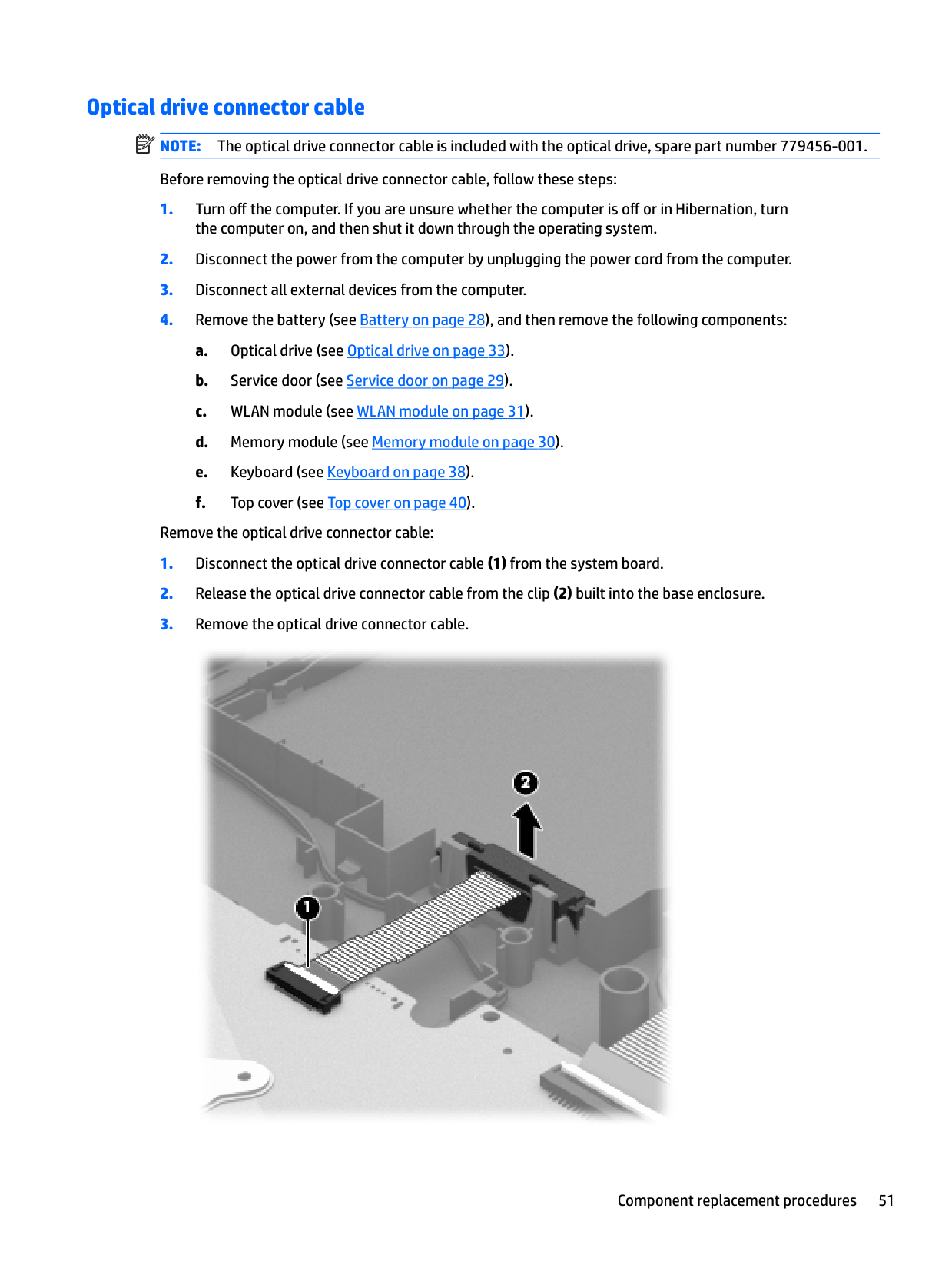
    Page 61

    Description Spare part number Power connector cable (includes bracket) 732067-001

    Before removing the power connector cable, follow these steps:

  • Turn off the computer. If you are unsure whether the computer is off or in Hibernation, turn
  • the computer on, and then shut it down through the operating system.

  • 2. Disconnect the power from the computer by unplugging the power cord from the computer.
  • 3. Disconnect all external devices from the computer.
  • 4. Remove the battery (see Battery on page 28), and then remove the following components: a. Optical drive (see Optical drive on page 33). b. Service door (see Service door on page 29). c. WLAN module (see WLAN module on page 31). d. Memory module (see Memory module on page 30). e. Keyboard (see Keyboard on page 38). f. Top cover (see Top cover on page 40). g. Hard drive (see Hard drive on page 44). h. System board (see System board on page 52).
  • | | |---|

    Remove the power connector board: NOTE: The power connector bracket was removed when removing the system board.

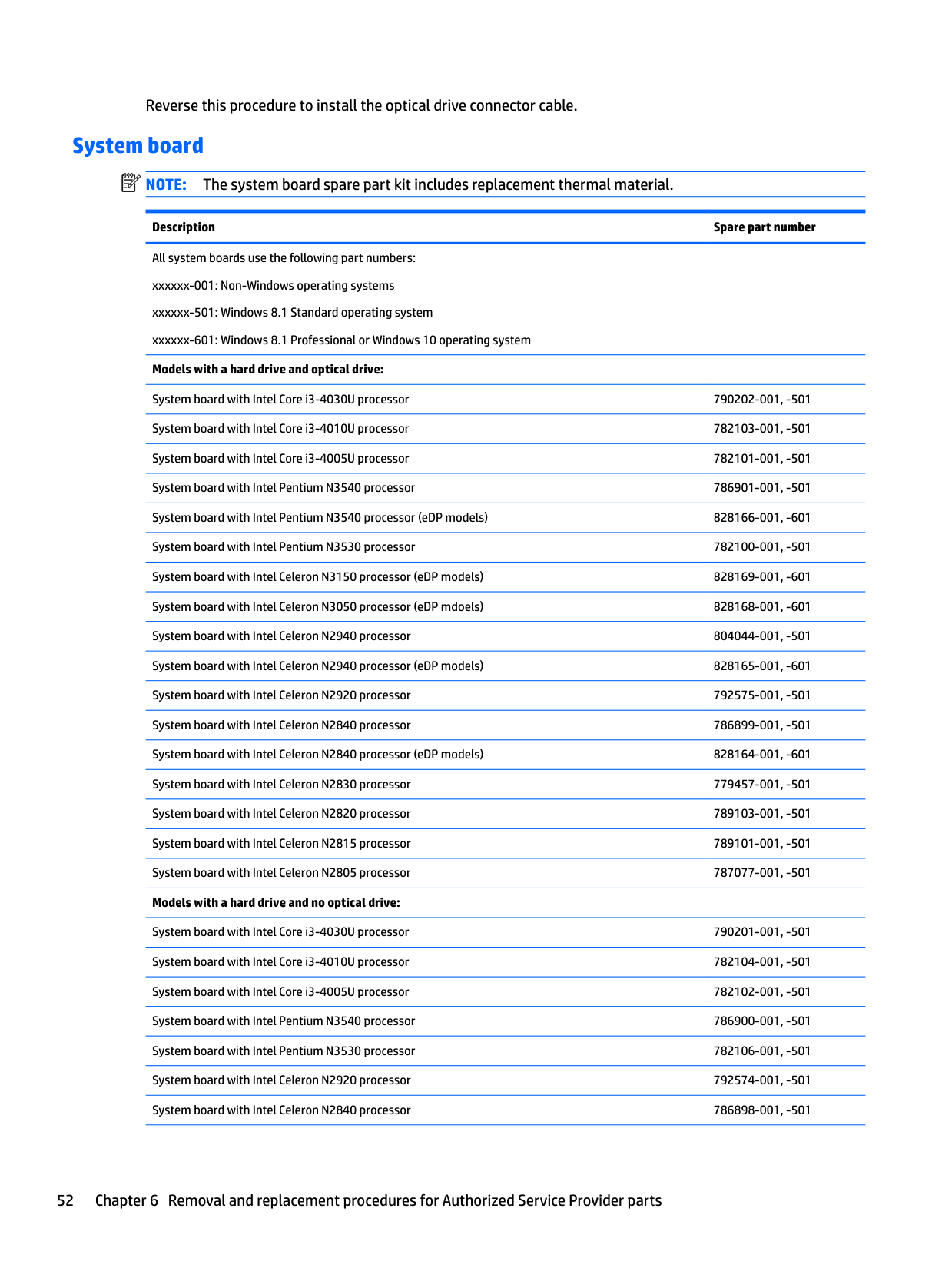
  • 1. Turn the system board upside down, with the front toward you.
  • 2. Release the power connector from the clip built into the system board.
  • ![image 66](c04763947_images/imageFile66.png)

    Page 62

    Reverse this procedure to install the power connector cable.

    #### Speakers

    Description Spare part number Speakers (include, speaker cable, and 4 rubber isolators) 732084-001

    Before removing the speakers, follow these steps:

  • Turn off the computer. If you are unsure whether the computer is off or in Hibernation, turn
  • the computer on, and then shut it down through the operating system.
  • 2. Disconnect the power from the computer by unplugging the power cord from the computer.
  • 3. Disconnect all external devices from the computer.
  • 4. Remove the battery (see Battery on page 28), and then remove the following components:
  • a. Optical drive (see Optical drive on page 33).
  • b. Service door (see Service door on page 29).
  • c. WLAN module (see WLAN module on page 31).
  • d. Memory module (see Memory module on page 30).
  • Page 63

  • e. Keyboard (see Keyboard on page 38).
  • f. Top cover (see Top cover on page 40).
  • g. Hard drive (see Hard drive on page 44).
  • h. System board (see System board on page 52).
  • Remove the speakers:

    ▲ Remove the speakers by lifting up on the clip on the right side speaker and lifting the speakers. Carefully and gently lift the speaker wire connecting the left and right speakers. NOTE: The speaker connection cable was removed when removing the system board. NOTE: The speakers include rubber isolators that are installed in the screw holes. These isolators are crucial to the performance of the speakers.

    | | |---|

    | | |---|

    ![image 67](c04763947_images/imageFile67.png)

    Reverse this procedure to install the speaker.
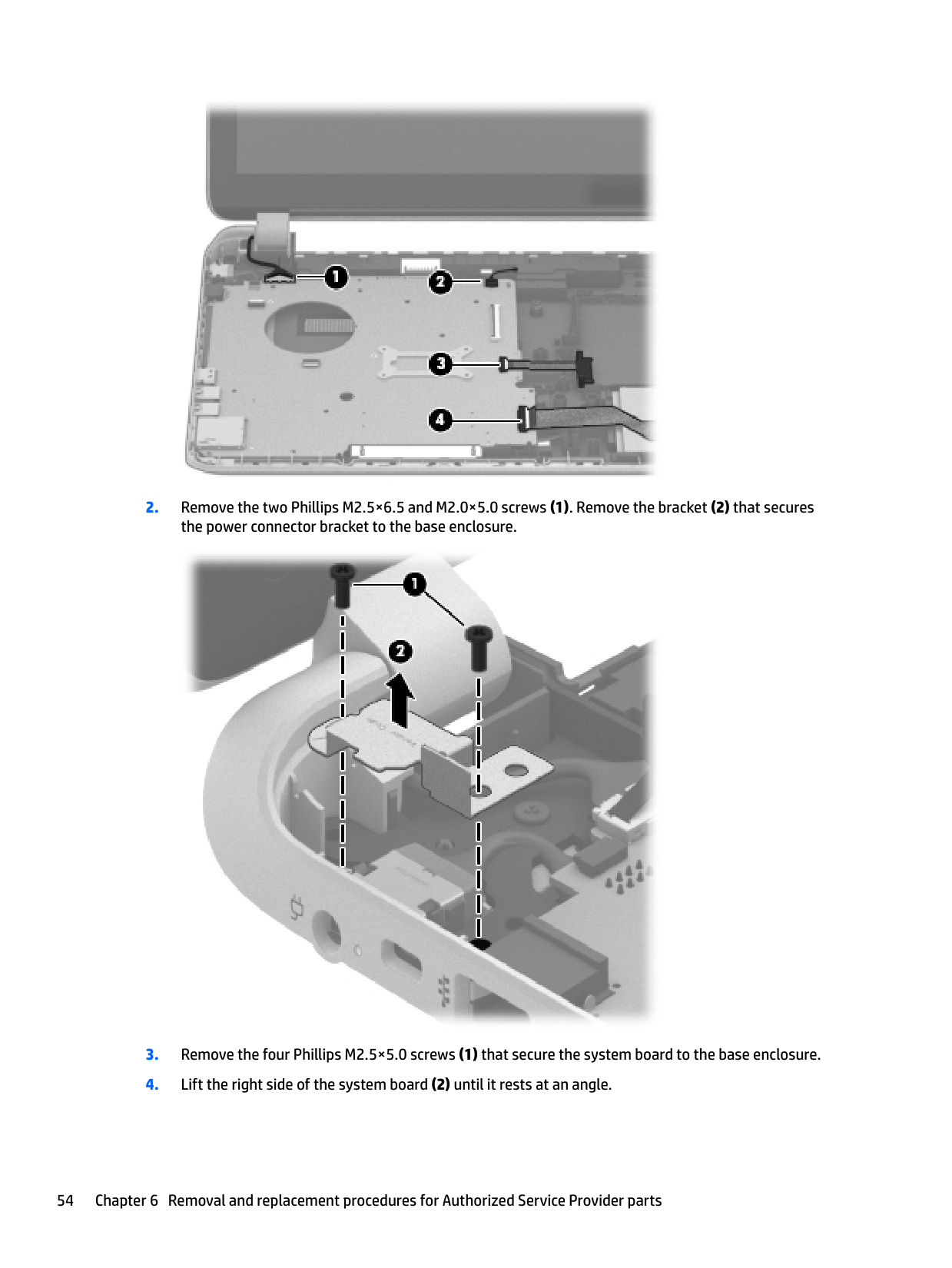
    Page 64

    #### Display assembly

    Description Spare part number Display assembly, ltouch screen 783120-001 Display assembly, touch screen with HD webcam 790204-001 Display assembly, touch screen, eDP 828162-001 Display bezel (includes 2 rubber screws) 776774-001 Display panel, raw (HD, BrightView) 732080-001 Display panel, raw (HD, BrightView, eDP) 828163-001 Webcam/microphone module (includes adhesive) 776787-001 Webcam/microphone module, HD(includes adhesive) 790203-001 Display panel cable for use in models without eDP displays (includes webcamera/microphone module cable and two rubber screws)

    732066-001

    Display panel cable for use in models with eDP displays (includes webcamera/microphone module cable and two rubber screws)

    828161-001

    Antenna Kit (includes left and right wireless antenna cables and transceivers and 2 rubber screws) 776770-001 Display Hinge Kit (includes 2 rubber screws): 732072-001 Display enclosure for use in black models (includes 2 rubber screw covers) 776771-001

    ######## Description Spare part number

    Display enclosure for use in red models (includes 2 rubber screw covers) 832757-001 Display enclosure for use in silver models (includes 2 rubber screw covers) 836862-001

    | | |---|

    NOTE: The display assembly is spared both together and at the subcomponent level. For more display assembly spare part information, see the individual removal subsections. Before removing the display assembly, follow these steps:
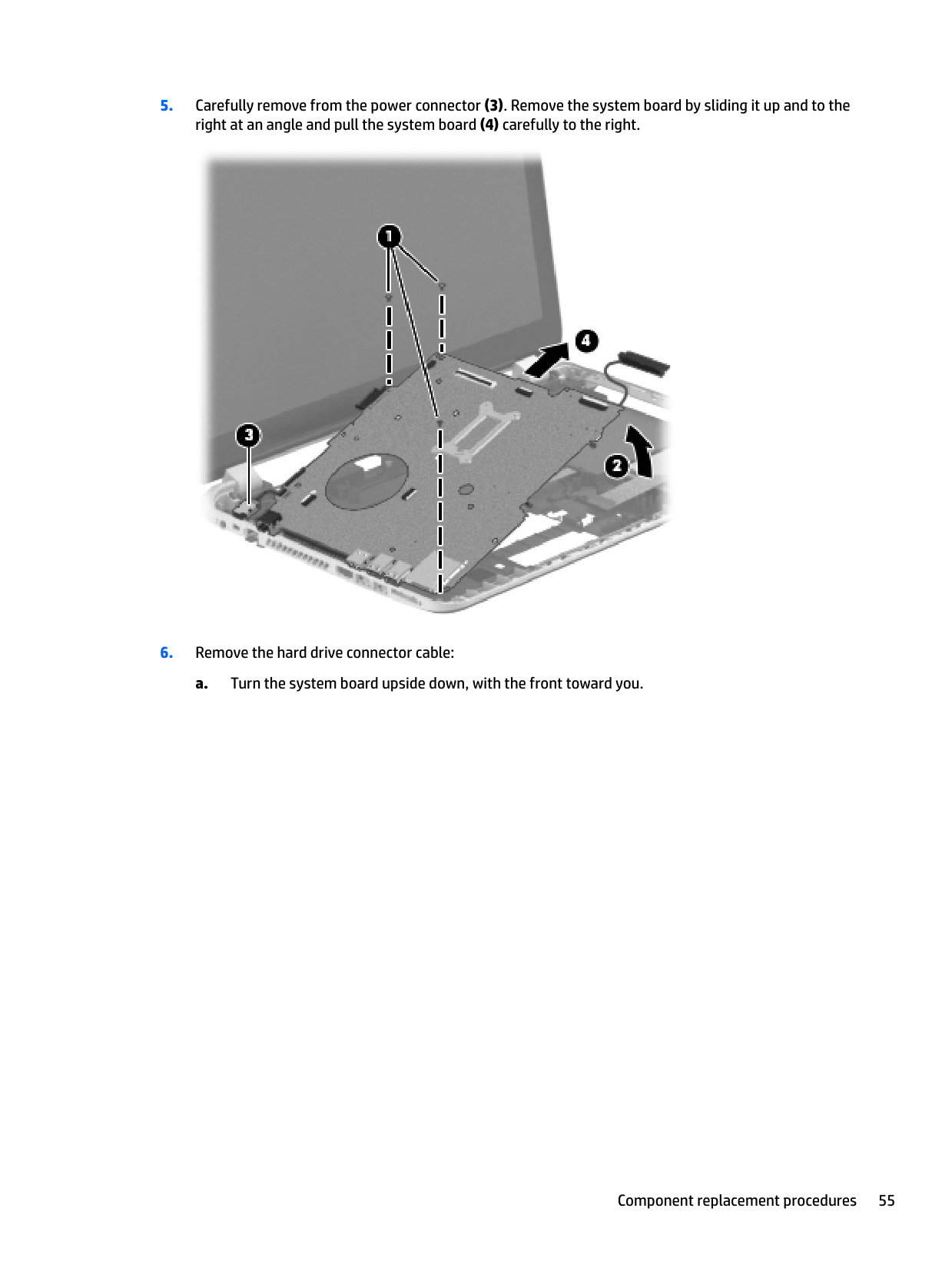
  • 1. Turn off the computer. If you are unsure whether the computer is off or in Hibernation, turn the computer on, and then shut it down through the operating system.
  • 2. Disconnect the power from the computer by unplugging the power cord from the computer.
  • 3. Disconnect all external devices from the computer.
  • Page 65

  • 4. Remove the battery (see Battery on page 28), and then remove the following components:
  • a. Optical drive (see Optical drive on page 33).
  • b. Service door (see Service door on page 29).
  • c. WLAN module (see WLAN module on page 31).
  • d. Memory module (see Memory module on page 30).
  • e. Keyboard (see Keyboard on page 38).
  • f. Top cover (see Top cover on page 40).
  • g. Hard drive (see Hard drive on page 44).
  • h. System board (see System board on page 52).
  • Remove the display assembly:

  • 1. Remove the three Phillips M2.5×5.0 screws (1) and Phillips M2.5×2.5 broadhead screw (2) that secures the display assembly to the base enclosure.
  • Page 66

  • 2. Remove the display assembly (3).
  • ![image 68](c04763947_images/imageFile68.png)

  • 3. If it is necessary to replace the display bezel or any of the display assembly subcomponents:
  • a. Remove the two display bezel screw covers (1) and the two Phillips M2.5×5.0 screws (2) that secure the display bezel to the display assembly. The display bezel screw covers are included in the display bezel spare part kit, spare part number 676644-001, and in all display assembly subcomponent spare part kits.
  • b. Flex the inside edges of the bottom edge (3), the left and right sides (4), and the top edge (5) of the display bezel until the bezel disengages from the display enclosure.
  • c. Remove the display bezel (6). The display bezel is available using spare part number 776774-001.
  • ![image 69](c04763947_images/imageFile69.png)

    CAUTION: Be sure the work surface is clear of all tools, screws, and computer components before turning the display panel upside down on the work surface.

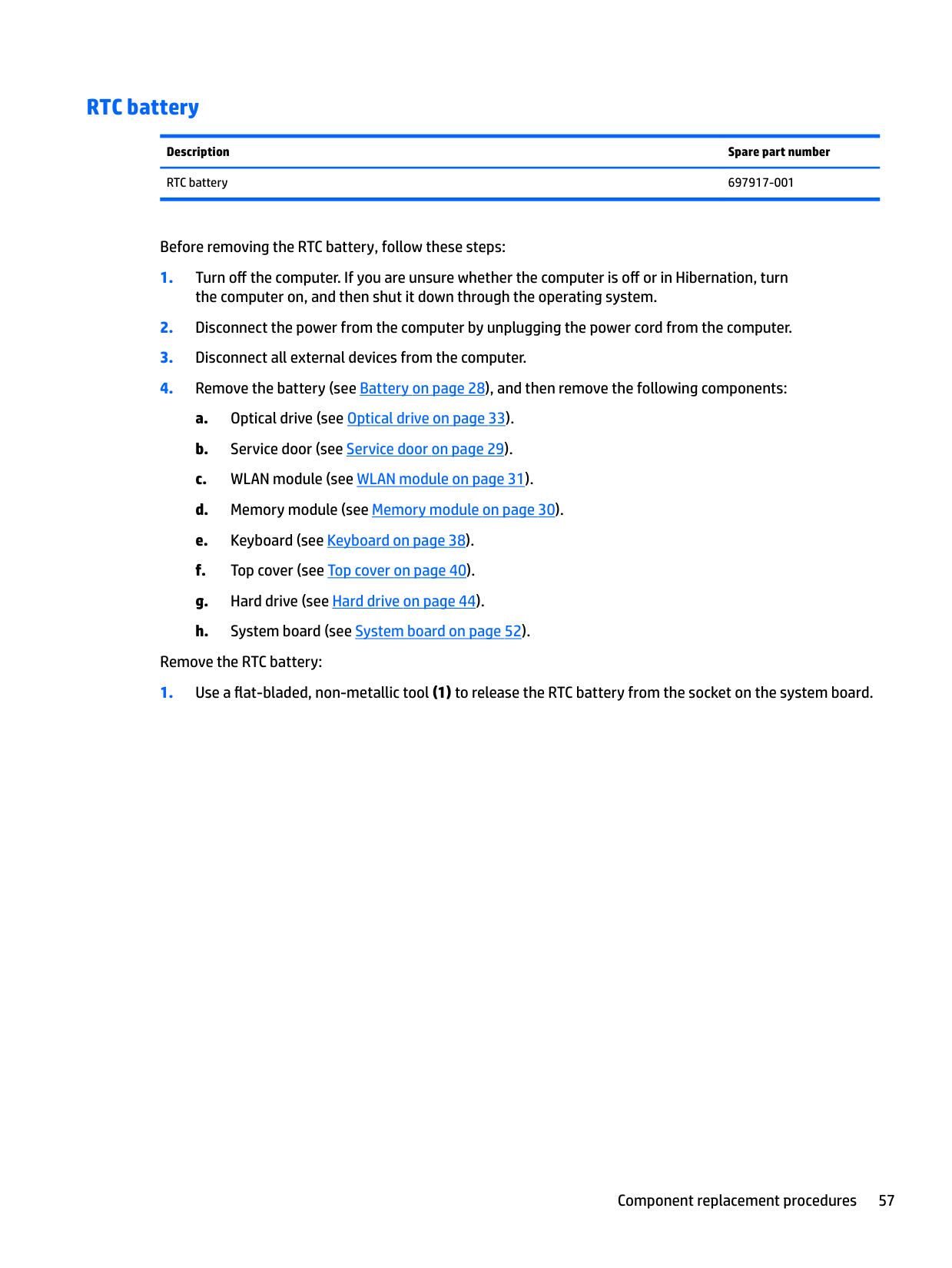
  • 4. If it is necessary to replace the display panel:
  • a. Remove the four Phillips M2.0×3.5 screws (1) that secure the display panel to the display enclosure.
  • b. Lift the top edge of the display panel (2) and turn the display panel upside down.
  • ![image 70](c04763947_images/imageFile70.png)

  • c. Release the connector (1) that secures the display panel cable connector to the display panel.
  • Page 67

  • d. Disconnect the display panel cable (2) from the display panel and remove the panel (3).
  • ![image 71](c04763947_images/imageFile71.png)

  • 5. If it is necessary to replace the webcamera/microphone module:
  • a. Disconnect the webcamera/microphone module cable (1) from the webcamera/microphone module. (The webcamera/microphone module cable is part of the display panel cable.)
  • b. Detach the webcamera/microphone module (2) from the display enclosure.
  • ![image 72](c04763947_images/imageFile72.png)

  • 6. If it is necessary to replace the hinges:
  • a. Remove the four Phillips M2.5×4.0 screws (1) and (2) that secure the hinges to

    the display enclosure.

    b. Remove the hinges and brackets (3) from the display enclosure.

    ![image 73](c04763947_images/imageFile73.png)

    Page 68

  • 7. If it is necessary to replace the display panel cable:
  • a. Release the display panel cable from the clips (1) and routing channel built into the display enclosure.
  • b. Carefully release the cable from the channel guides (2) and remove the display panel cable (3).
  • ![image 74](c04763947_images/imageFile74.png)

  • 8. If it is necessary to replace the wireless antenna cables and transceivers:
  • a. Release the wireless antenna transceivers (1) from the display enclosure. (The wireless antenna transceivers are attached to the display enclosure with double-sided tape.)
  • b. Release the wireless antenna cables from the clips (2) built into the display enclosure.
  • c. Remove the wireless antenna cables and transceivers (3). The wireless antenna cables and transceivers are available in the Antenna Kit, spare part number 776770-001.
  • ![image 75](c04763947_images/imageFile75.png)

    Reverse this procedure to install the display assembly.
    Page 69

    7 Using Setup Utility (BIOS) in Windows 8.1

    Setup Utility, or Basic Input/Output System (BIOS), controls communication between all the input and output devices on the system (such as disk drives, display, keyboard, mouse, and printer). Setup Utility (BIOS) includes settings for the types of devices installed, the startup sequence of the computer, and the amount of system and extended memory.

    Starting Setup Utility (BIOS)

    CAUTION: Use extreme care when making changes in Setup Utility (BIOS). Errors can prevent the computer from operating properly.

    ▲ Turn on or restart the computer, quickly press esc, and then press f10.

    Updating the BIOS Updated versions of the BIOS may be available on the HP website. Most BIOS updates on the HP website are packaged in compressed files called SoftPaqs. Some download packages contain a file named Readme.txt, which contains information regarding installing and troubleshooting the file.

    #### Determining the BIOS version

    To determine whether available BIOS updates contain later BIOS versions than the one currently installed on the computer, you need to know the version of the system BIOS that is installed.

    BIOS version information (also known as ROM date and System BIOS) can be revealed from the Start screen by typing support, selecting the HP Support Assistant app, selecting My computer, and then selecting System Information, or by using Setup Utility (BIOS).
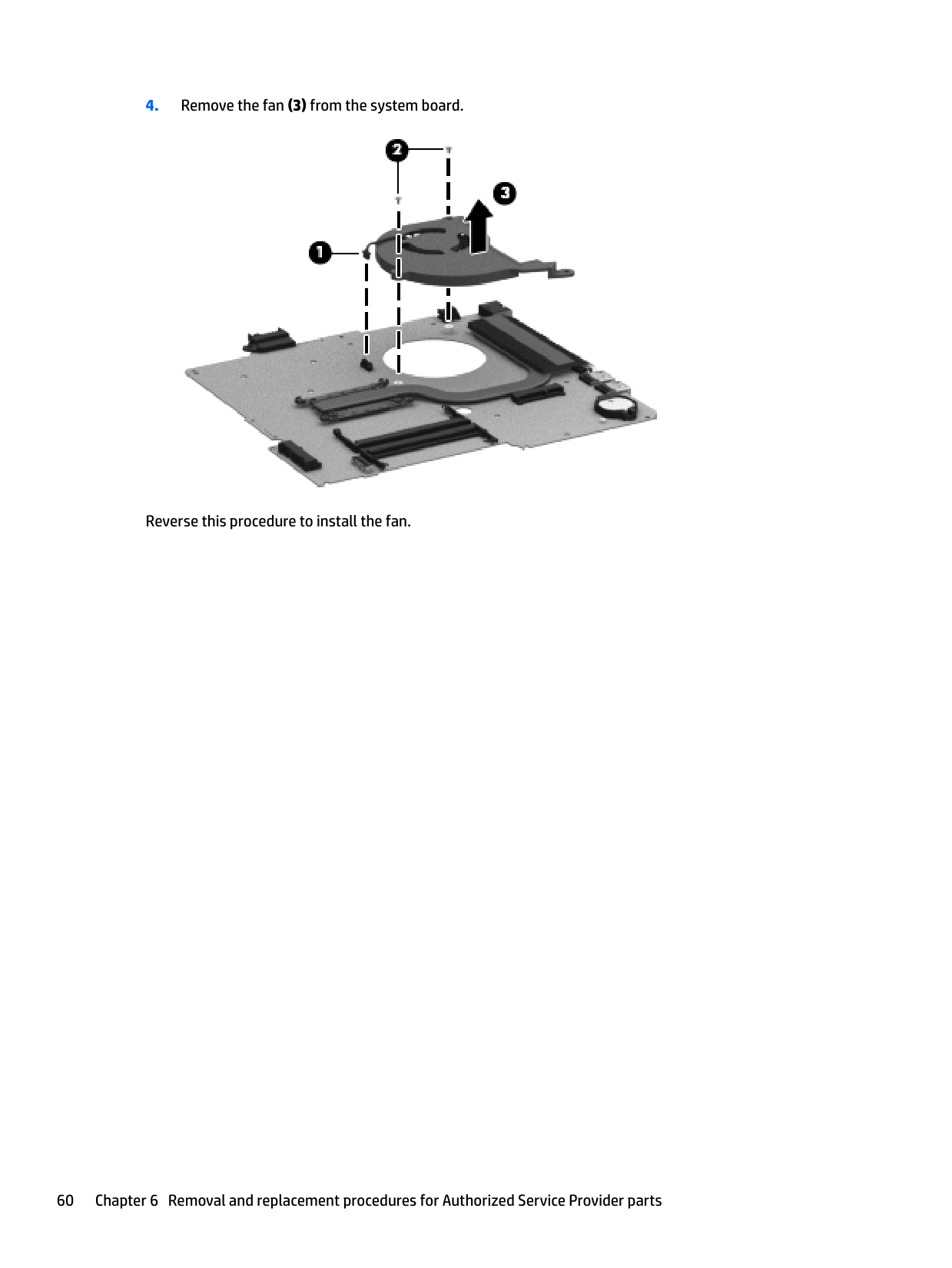
  • 1. Start Setup Utility (BIOS) (see Starting Setup Utility (BIOS) on page 73).
  • 2. Select Main, and then make note of your BIOS version.
  • 3. Select Exit, select Exit Discarding Changes, and then follow the on-screen instructions.
  • Page 70

    #### Downloading a BIOS update

    CAUTION: To reduce the risk of damage to the computer or an unsuccessful installation, download and install a BIOS update only when the computer is connected to reliable external power using the AC adapter. Do not download or install a BIOS update while the computer is running on battery power, docked in an optional docking device, or connected to an optional power source. During the download and installation, follow these instructions:

  • ● Do not disconnect power from the computer by unplugging the power cord from the AC outlet.
  • ● Do not shut down the computer or initiate Sleep.
  • ● Do not insert, remove, connect, or disconnect any device, cable, or cord.
  • | | |---|

    NOTE: If your computer is connected to a network, consult the network administrator before installing any software updates, especially system BIOS updates.

  • 1. From the Start screen, type support, and then select the HP Support Assistant app.
  • ‒ or –

    From the Windows desktop, click the question mark icon in the notification area, at the far right of the taskbar.
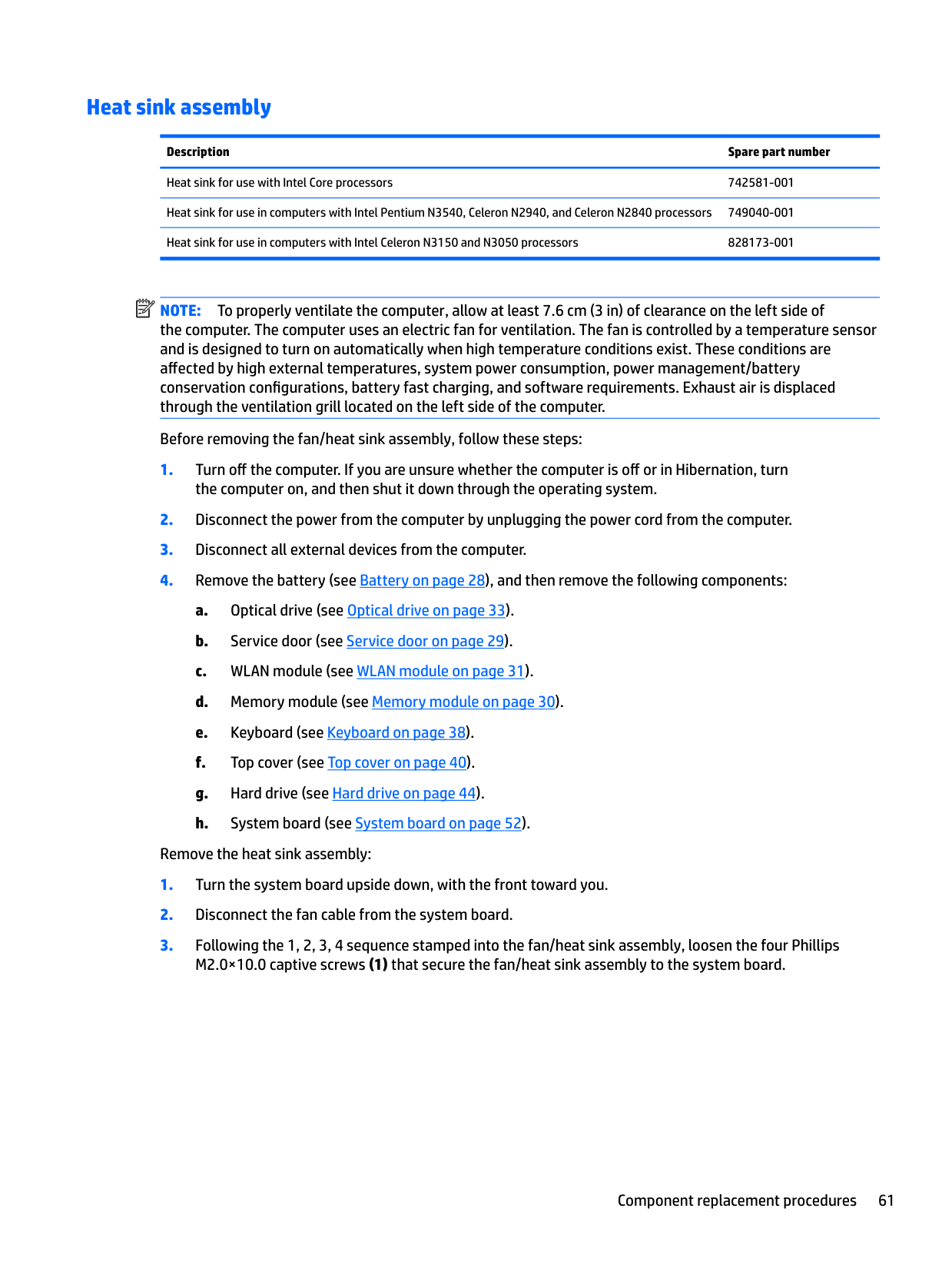
  • 2. Click Updates and tune-ups, and then click Check for HP updates now.
  • 3. Follow the on-screen instructions.
  • 4. At the download area, follow these steps:
  • Page 71

  • a. Identify the most recent BIOS update and compare it to the BIOS version currently installed on your computer. If the update is more recent than your BIOS, make a note of the date, name, or other identifier. You may need this information to locate the update later, after it has been downloaded to your hard drive.
  • b. Follow the on-screen instructions to download your selection to the hard drive.
  • If the update is more recent than your BIOS, make a note of the path to the location on your hard drive where the BIOS update is downloaded. You will need to access this path when you are ready to install the update.

    BIOS installation procedures vary. Follow any instructions that appear on the screen after the download is complete. If no instructions appear, follow these steps:

  • 1. From the Start screen, type file, and then select File Explorer.
  • ‒ or – From the Windows desktop, right-click the Start button, and then select File Explorer.

  • 2. Click your hard drive designation. The hard drive designation is typically Local Disk (C:).
  • 3. Using the hard drive path you recorded earlier, open the folder on your hard drive that contains the update.
  • 4. Double-click the file that has an .exe extension (for example, filename.exe). The BIOS installation begins.
  • 5. Complete the installation by following the on-screen instructions.
  • | | |---|

    NOTE: After a message on the screen reports a successful installation, you can delete the downloaded file from your hard drive.
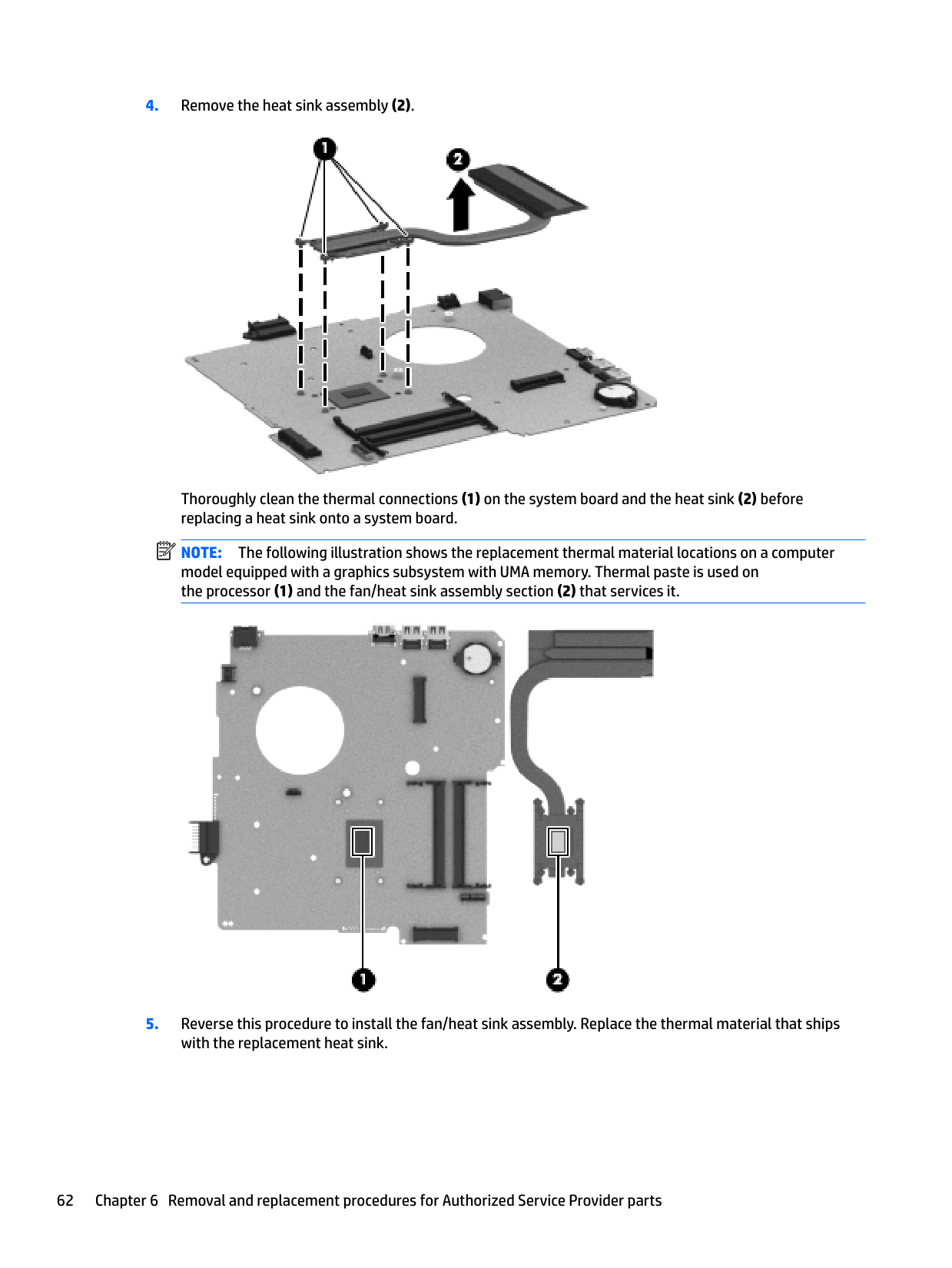
    Page 72

    74 Chapter 7 Using Setup Utility (BIOS) in Windows 8.1

    8 Using Setup Utility (BIOS) in Windows 10

    Setup Utility, or Basic Input/Output System (BIOS), controls communication between all the input and output devices on the system (such as disk drives, display, keyboard, mouse, and printer). Setup Utility (BIOS) includes settings for the types of devices installed, the startup sequence of the computer, and the amount of system and extended memory.

    | | |---|

    NOTE: To start Setup Utility on convertible computers, your computer must be in notebook mode and you must use the keyboard attached to your notebook. The on-screen keyboard, which displays in tablet mode, cannot access Setup Utility.

    Starting Setup Utility (BIOS)

    CAUTION: Use extreme care when making changes in Setup Utility (BIOS). Errors can prevent the computer from operating properly.

    | | |---|

    NOTE: To start Setup Utility on convertible computers, your computer must be in notebook mode and you must use the keyboard attached to your notebook. The on-screen keyboard, which displays in tablet mode, cannot access Setup Utility.

  • ● Computers or tablets with keyboards:
  • ▲ Turn on or restart the computer, quickly press esc, and then press f10.
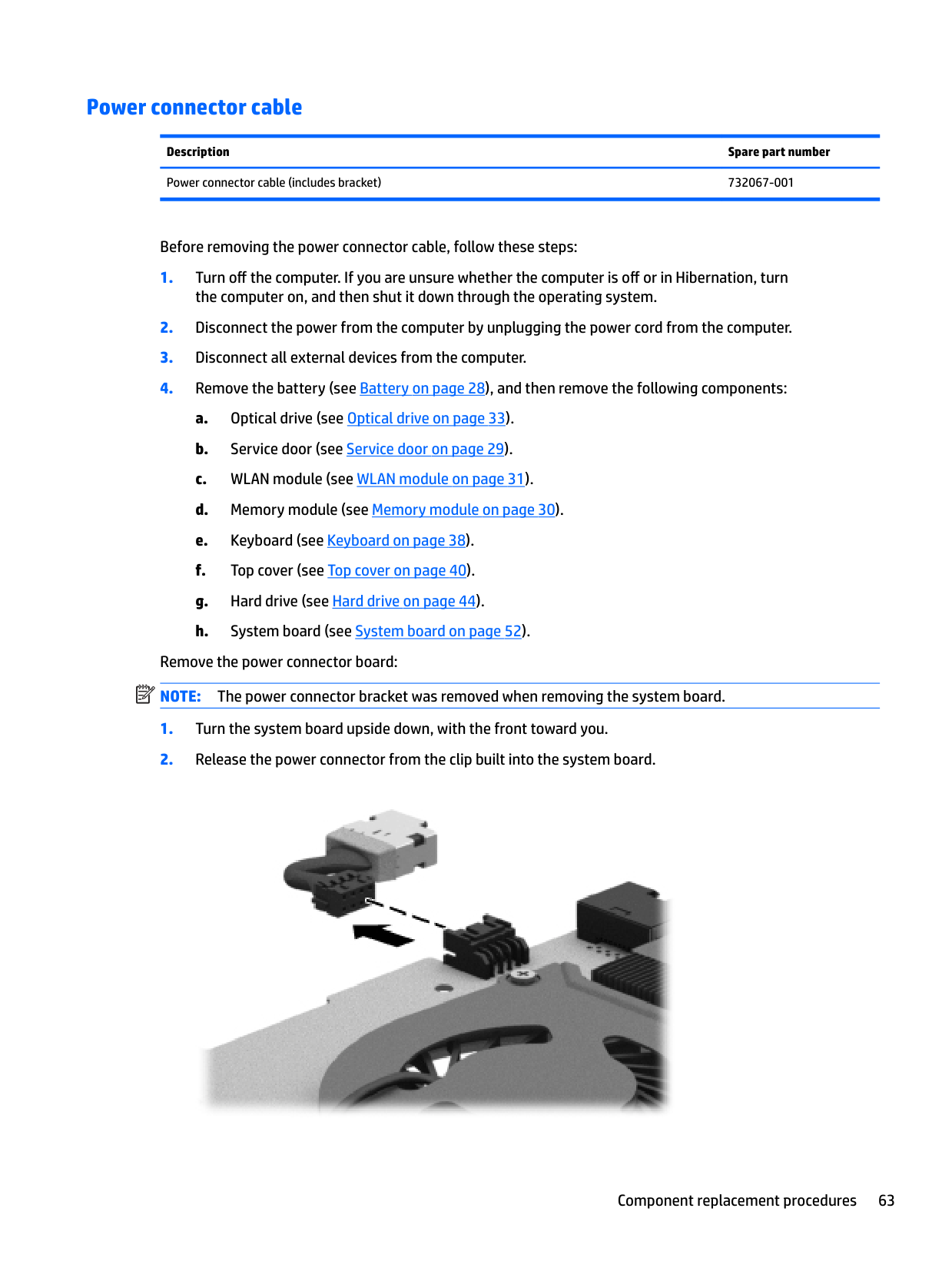
    Page 73

  • ● Tablets without keyboards:
  • 1. Turn on or restart the tablet, and then quickly hold down the volume down button.
  • or Turn on or restart the tablet, and then quickly hold down the Windows button.
  • 2. Tap f10.
  • Updating Setup Utility (BIOS) Updated versions of Setup Utility (BIOS) may be available on the HP website. Most BIOS updates on the HP website are packaged in compressed files called SoftPaqs. Some download packages contain a file named Readme.txt, which contains information regarding installing and troubleshooting the file.

    Determining the BIOS version To decide whether you need to update Setup Utility (BIOS), first determine the BIOS version on your computer. To reveal the BIOS version information (also known as ROM date and System BIOS):

  • 1. Type support in the taskbar search box, and then select the HP Support Assistant app.
  • – or –

    Click the question mark icon in the taskbar.
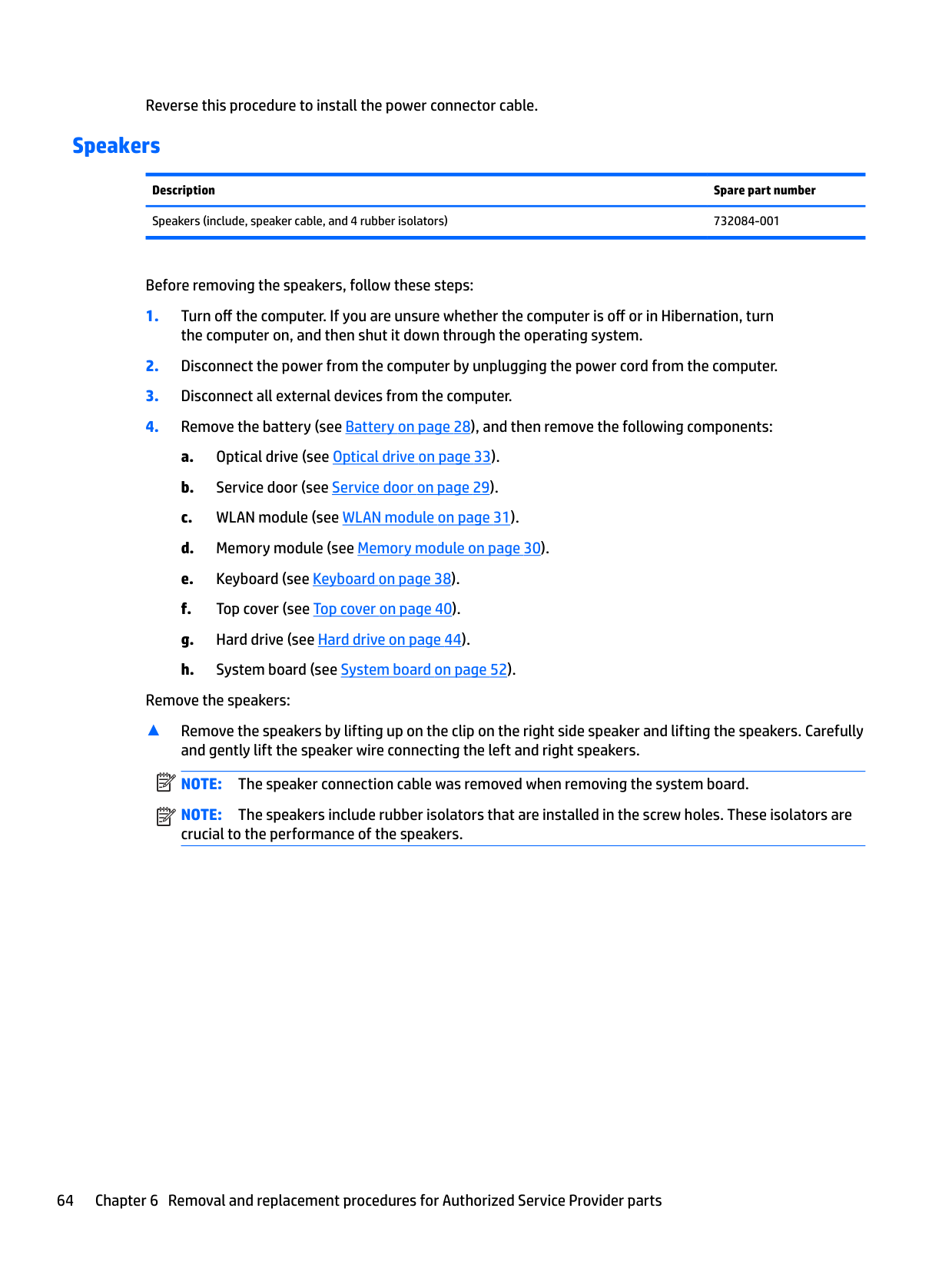
  • 2. Select My PC, and then select Specifications.
  • Page 74

    – or –

    ▲ Use Setup Utility (BIOS). To use Setup Utility (BIOS):

  • 1. Start Setup Utility (BIOS) (see Starting Setup Utility (BIOS) on page 75).
  • 2. Select Main, select System Information, and then make note of the BIOS version.
  • 3. Select Exit, select No, and then follow the on-screen instructions. To check for later BIOS versions, see Downloading a BIOS update on page 76.
  • #### Downloading a BIOS update

    CAUTION: To reduce the risk of damage to the computer or an unsuccessful installation, download and install a BIOS update only when the computer is connected to reliable external power using the AC adapter. Do not download or install a BIOS update while the computer is running on battery power, docked in an optional docking device, or connected to an optional power source. During the download and installation, follow these instructions:

  • ● Do not disconnect power from the computer by unplugging the power cord from the AC outlet.
  • ● Do not shut down the computer or initiate Sleep.
  • ● Do not insert, remove, connect, or disconnect any device, cable, or cord.
  • | | |---|

    NOTE: If your computer is connected to a network, consult the network administrator before installing any software updates, especially system BIOS updates.
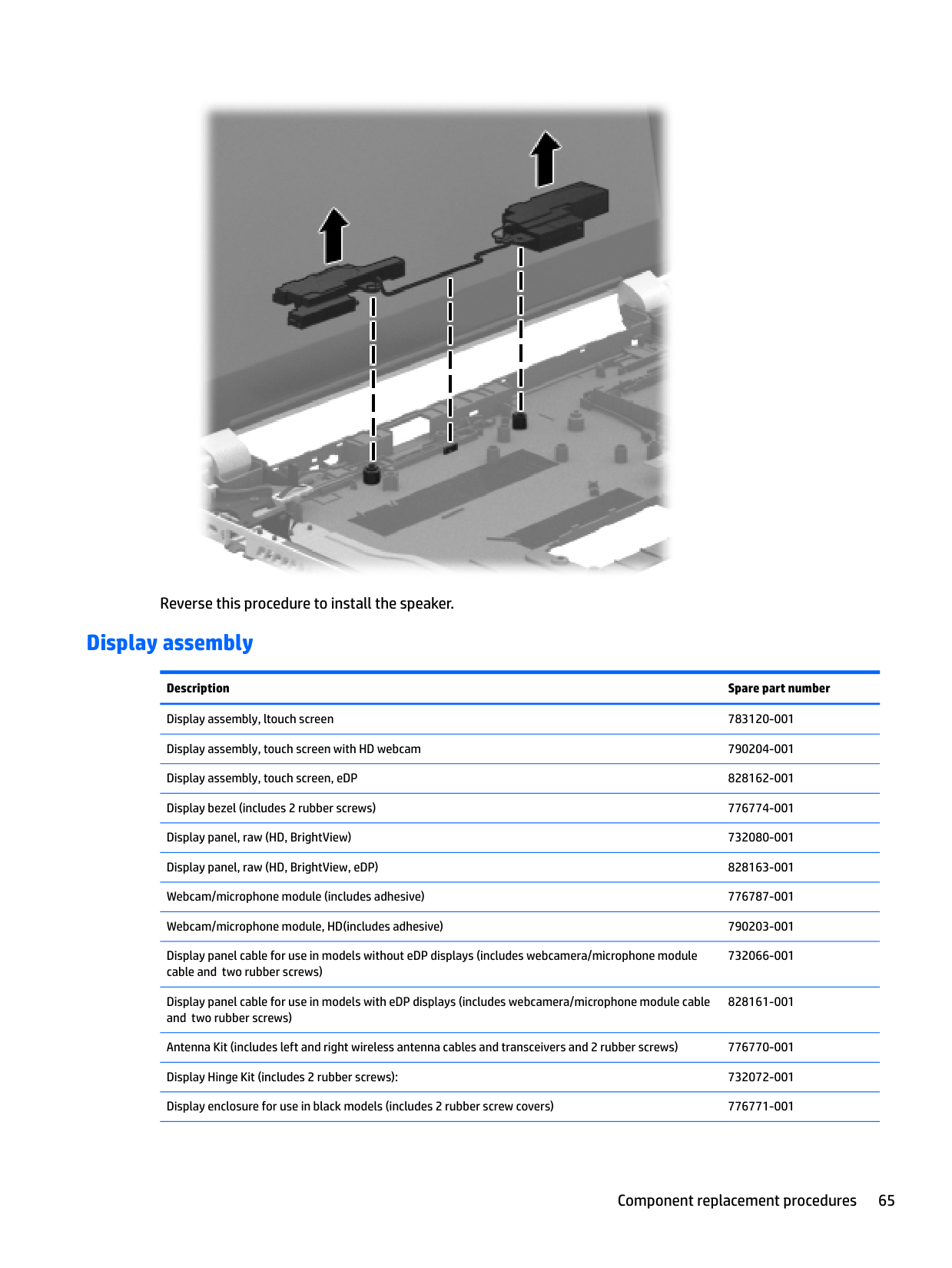
    Page 75

  • 1. Type support in the taskbar search box, and then select the HP Support Assistant app.
  • – or – Click the question mark icon in the taskbar.

  • 2. Click Updates, and then click Check for updates and messages.
  • 3. Follow the on-screen instructions.
  • 4. At the download area, follow these steps:
  • a. Identify the most recent BIOS update and compare it to the BIOS version currently installed on your computer. If the update is more recent than your BIOS version, make a note of the date, name, or other identifier. You may need this information to locate the update later, after it has been downloaded to your hard drive.
  • b. Follow the on-screen instructions to download your selection to the hard drive.
  • Make a note of the path to the location on your hard drive where the BIOS update is downloaded. You will need to access this path when you are ready to install the update.

    BIOS installation procedures vary. Follow any instructions that appear on the screen after the download is complete. If no instructions appear, follow these steps:

  • 1. Type file in the taskbar search box, and then select File Explorer.
  • 2. Click your hard drive designation. The hard drive designation is typically Local Disk (C:).
  • 3. Using the hard drive path you recorded earlier, open the folder that contains the update.
  • 76 Chapter 8 Using Setup Utility (BIOS) in Windows 10
  • 4. Double-click the file that has an .exe extension (for example, filename.exe). The BIOS installation begins.
  • Page 76

  • 5. Complete the installation by following the on-screen instructions.
  • | | |---|

    NOTE: After a message on the screen reports a successful installation, you can delete the downloaded file from your hard drive.

    Synchronizing a tablet and keyboard (select products only)

    For a tablet with a detachable keyboard, when you attach the tablet to the keyboard and restart the computer, Setup Utility (BIOS) checks to see if the Embedded Controller firmware on the keyboard needs to be synchronized. If so, synchronization begins. If the synchronization is interrupted, a notification screen displays for 10 seconds before the tablet restarts and attempts to synchronize again.

    | | |---|

    NOTE: The Embedded Controller firmware will synchronize ONLY if the tablet or keyboard battery is more than 50% charged, or if your tablet is connected to AC power.

    Synchronizing a tablet and keyboard (select products only) 77

    9 Backing up, restoring, and recovering in Windows 8.1

    This chapter provides information about the following processes. The information in the chapter is standard procedure for most models.
    Page 77

  • ● Creating recovery media and backups
  • ● Restoring and recovering your system For additional information, refer to the HP Support Assistant.
  • ▲ From the Start screen, type support, and then select the HP Support Assistant app.

  • or From the Windows desktop, click the question mark icon in the notification area, at the far right of the taskbar.
  • Creating recovery media and backups

    The following methods of creating recovery media and backups are available on select models only. Choose the available method according to your computer model.

  • ● Use HP Recovery Manager after you successfully set up the computer to create HP Recovery media. This step creates a backup of the HP Recovery partition on the computer. The backup can be used to reinstall the original operating system in cases where the hard drive is corrupted or has been replaced. For information on creating recovery media, see Creating HP Recovery media (select models only) on page 78. For information on the recovery options that are available using the recovery media, see Recovering using HP Recovery Manager on page 80.
  • ● Use Windows tools to create system restore points and create backups of personal information. For more information, see Using Windows tools on page 79. NOTE: If storage is 32 GB or less, Microsoft System Restore is disabled by default.
  • | | |---|

    #### Creating HP Recovery media (select models only)

    | | |---|
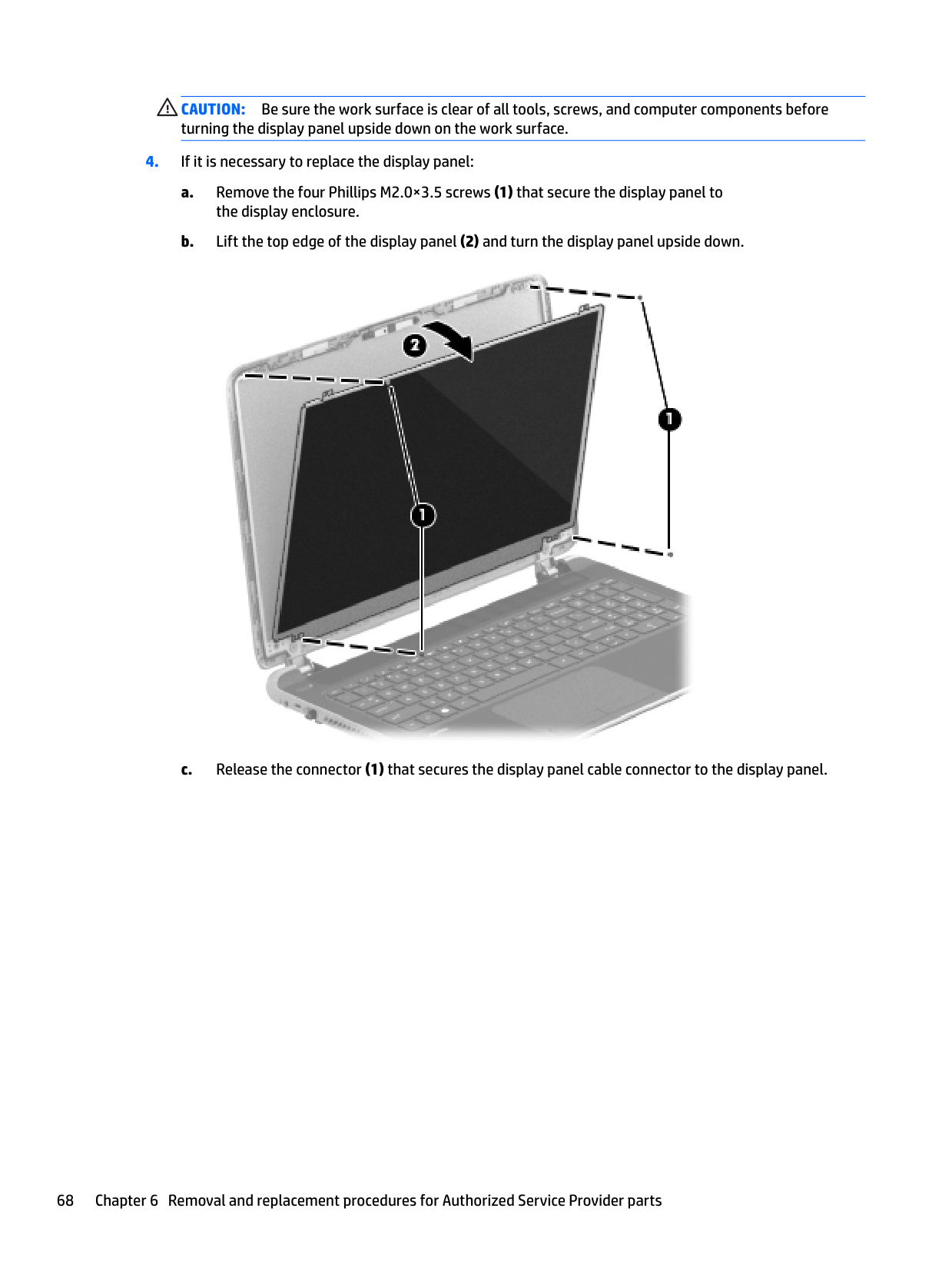
    Page 78

    IMPORTANT: If your computer does not list a Recovery Media Creation option, you can obtain recovery media for your system from support. See the Worldwide Telephone Numbers booklet included with the computer. You can also find contact information from the HP website. Go to http://www.hp.com/support, select your country or region, and follow the on-screen instructions.

    HP Recovery Manager is a software program that allows you to create recovery media after you successfully set up the computer. HP Recovery media can be used to perform system recovery if the hard drive becomes corrupted. System recovery reinstalls the original operating system and the software programs installed at the factory and then configures the settings for the programs. HP Recovery media can also be used to customize the system or restore the factory image if you replace the hard drive.

  • ● Only one set of recovery media can be created. Handle these recovery tools carefully, and keep them in a safe place.
  • ● HP Recovery Manager examines the computer and determines the required storage capacity for the media that will be required.
  • ● To create recovery discs, your computer must have an optical drive with DVD writer capability, and you must use only high-quality blank DVD-R, DVD+R, DVD-R DL, or DVD+R DL discs. Do not use rewritable discs such as CD±RW, DVD±RW, double-layer DVD±RW, or BD-RE (rewritable Blu-ray) discs; they are not compatible with HP Recovery Manager software. Or, instead, you can use a high-quality blank USB flash drive.
  • ● If your computer does not include an integrated optical drive with DVD writer capability, but you would like to create DVD recovery media, you can use an external optical drive (purchased separately) to create recovery discs, or you can obtain recovery discs for your computer from support. See the Worldwide Telephone Numbers booklet included with the computer. You can also find contact information from the HP website. Go to http://www.hp.com/support, select your country or region, and follow the on-screen instructions. If you use an external optical drive, it must be connected directly to a USB port on the computer; the drive cannot be connected to a USB port on an external device, such as a USB hub.
  • ● Be sure that the computer is connected to AC power before you begin creating the recovery media.
  • ● The creation process can take an hour or more. Do not interrupt the creation process.
  • ● If necessary, you can exit the program before you have finished creating all of the recovery DVDs. HP Recovery Manager will finish burning the current DVD. The next time you start HP Recovery Manager, you will be prompted to continue, and the remaining discs will be burned.
  • To create HP Recovery media:

  • 1. From the Start screen, type recovery, and then select HP Recovery Manager.
  • 2. Select Recovery Media Creation, and then follow the on-screen instructions. If you ever need to recover the system, see Recovering using HP Recovery Manager on page 80.
  • Using Windows tools You can create system restore points and create backups of personal information using Windows tools. NOTE: If storage is 32 GB or less, Microsoft System Restore is disabled by default.

    | |
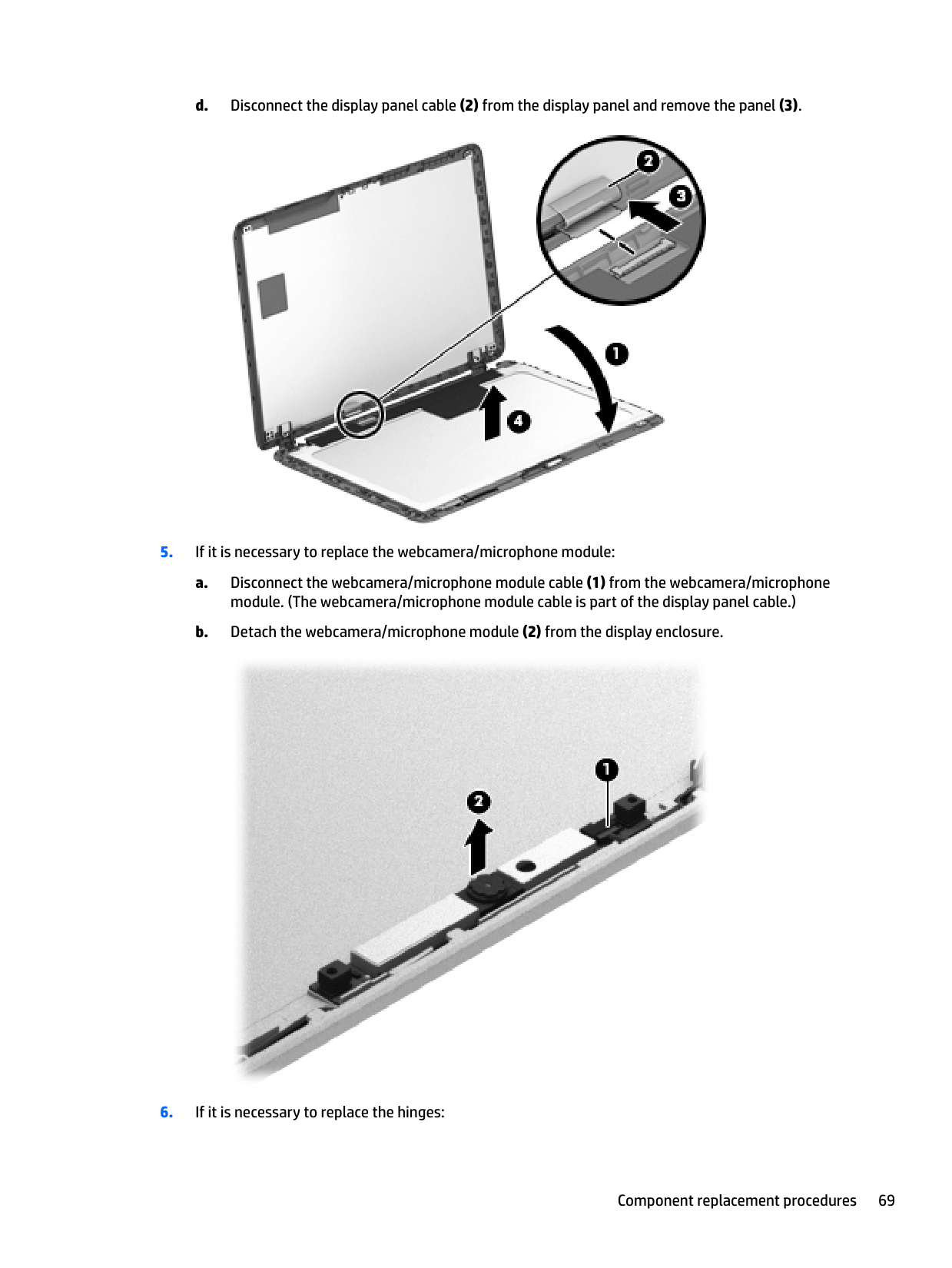
    Page 79

    |---|

    ▲ From the Start screen, type help, and then select Help and Support. or –

    From the Windows desktop, click the question mark icon in the notification area, at the far right of the taskbar.

    For more information and steps, see Help and Support.

    Restore and recovery

    There are several options for recovering your system. Choose the method that best matches your situation and level of expertise:

    | | |---|

    IMPORTANT: Not all methods are available on all models.

  • ● Windows offers several options for restoring from backup, refreshing the computer, and resetting the computer to its original state. For more information see Help and Support.
  • Using Windows tools 79

    ▲ From the Start screen, type support, and then select the HP Support Assistant app.
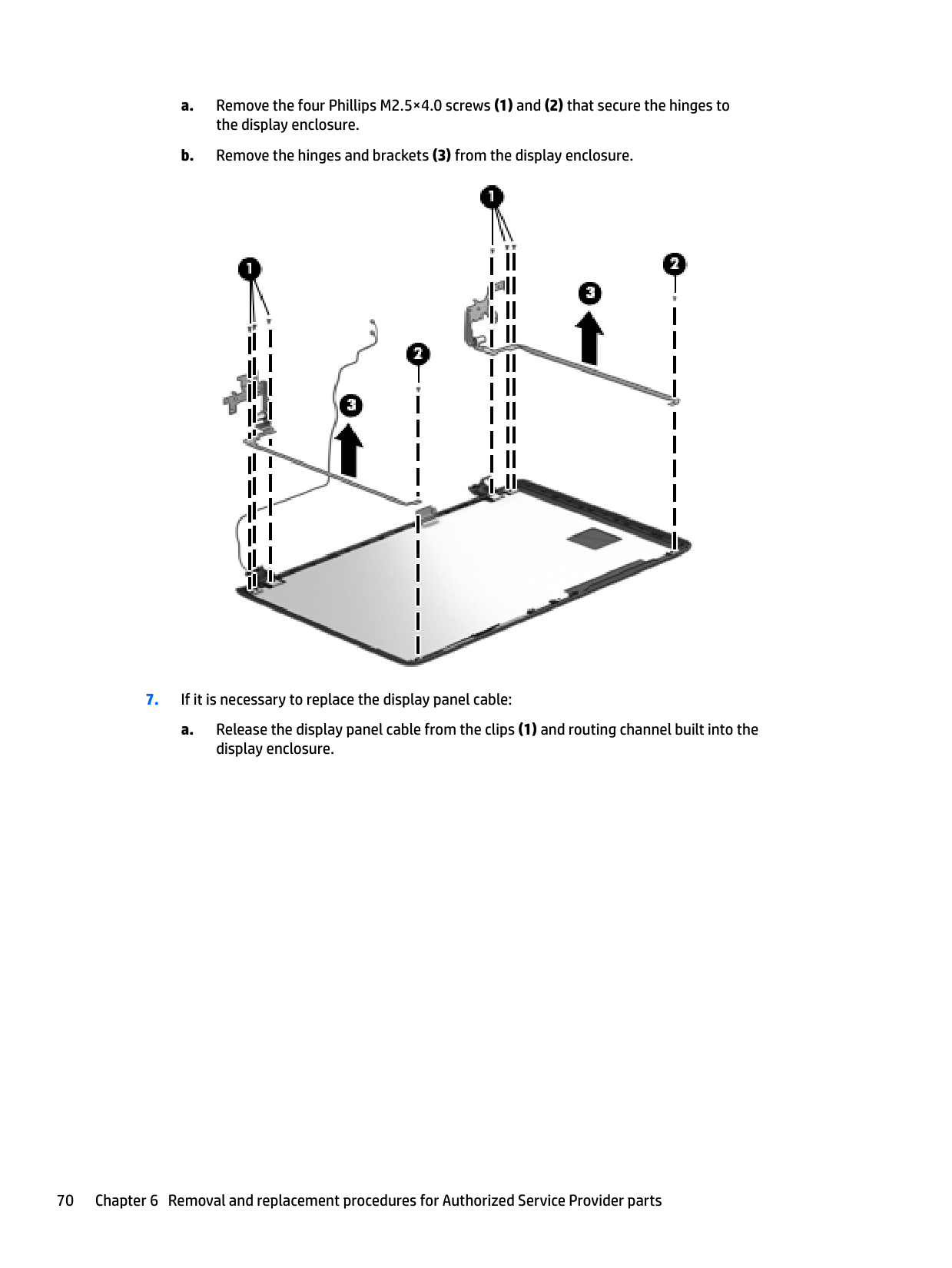
    Page 80

  • or From the Windows desktop, click the question mark icon in the notification area, at the far right of the taskbar.
  • ● If you need to correct a problem with a preinstalled application or driver, use the Drivers and Applications Reinstall option of HP Recovery Manager to reinstall the individual application or driver.
  • ▲ From the Start screen, type recovery, select HP Recovery Manager, select Drivers and

    Applications Reinstall, and then follow the on-screen instructions.

  • ● On select models, if you want to reset your computer using a minimized image, you can choose the HP Minimized Image Recovery option from the HP Recovery partition or HP Recovery media. Minimized Image Recovery installs only drivers and hardware-enabling applications. Other applications included in the image continue to be available for installation through the Drivers and Applications Reinstall option in HP Recovery Manager. For more information, see Recovering using HP Recovery Manager on page 80.
  • ● If you want to recover the Windows partition to original factory content, you can choose the System Recovery option from the HP Recovery partition (select models only) or use the HP Recovery media. For more information, see Recovering using HP Recovery Manager on page 80. If you have not already created recovery media, see Creating HP Recovery media (select models only) on page 78.
  • ● On select models, if you want to recover the computer's original factory partition and content , or if you have replaced the hard drive, you can use the Factory Reset option of HP Recovery media. For more information, see Recovering using HP Recovery Manager on page 80.
  • ● On select models, if you want to remove the recovery partition to reclaim hard drive space, HP Recovery Manager offers the Remove Recovery Partition option. For more information, see Removing the HP Recovery partition (select models only) on page 82.
  • #### Recovering using HP Recovery Manager

    HP Recovery Manager software allows you to recover the computer to its original factory state by using the HP Recovery media that you either created or that you obtained from support, or by using the HP Recovery partition (select models only). If you have not already created recovery media, see Creating HP Recovery

    media (select models only) on page 78.

    ##### What you need to know before you get started
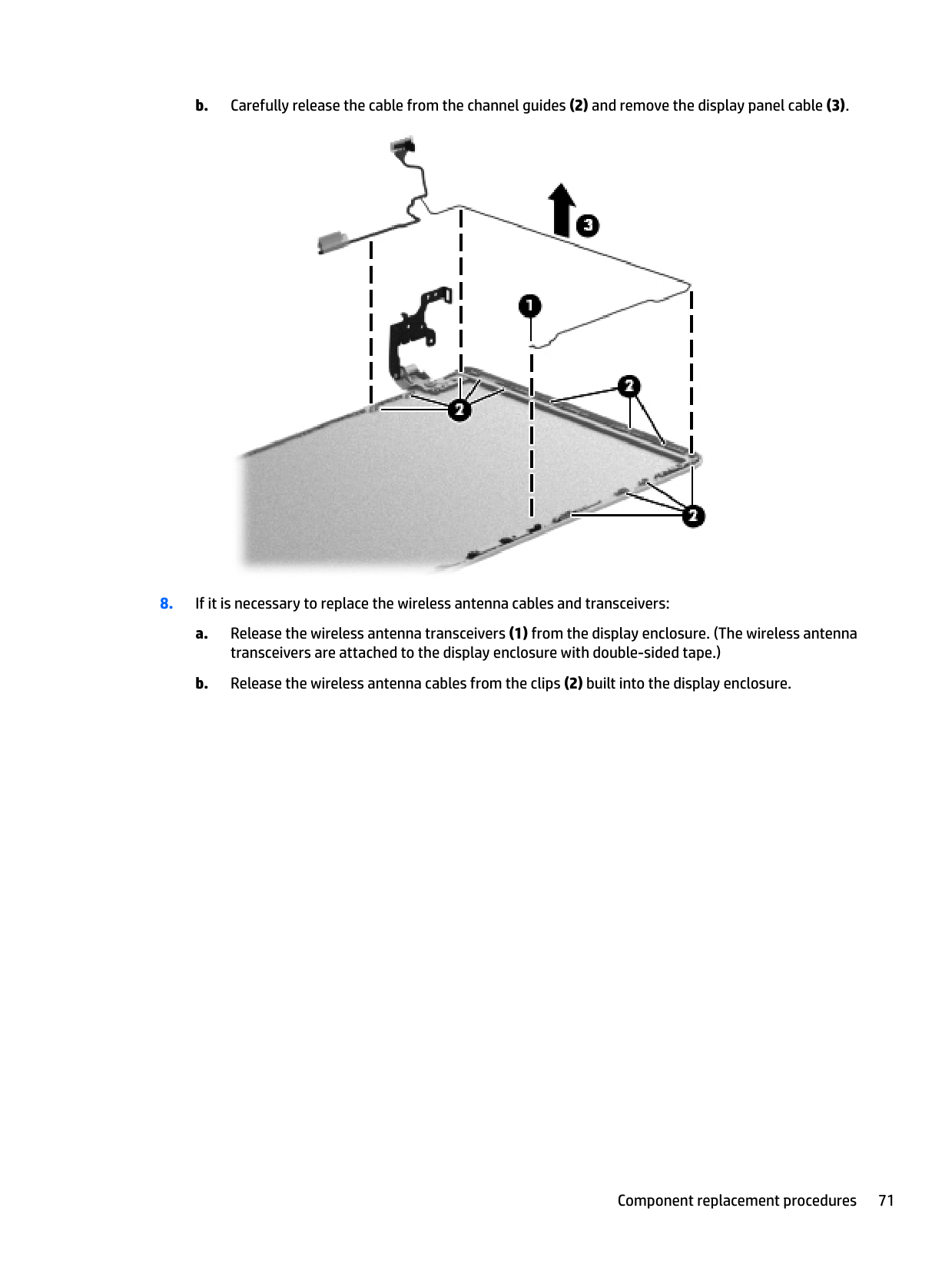
    Page 81

  • ● HP Recovery Manager recovers only software that was installed at the factory. For software not provided with this computer, you must either download the software from the manufacturer's website or reinstall the software from the media provided by the manufacturer.
  • IMPORTANT: Recovery through HP Recovery Manager should be used as a final attempt to correct computer issues.

  • ● HP Recovery media must be used if the computer hard drive fails. If you have not already created recovery media, see Creating HP Recovery media (select models only) on page 78.
  • ● To use the Factory Reset option (select models only), you must use HP Recovery media. If you have not already created recovery media, see Creating HP Recovery media (select models only) on page 78.
  • ● If your computer does not allow the creation of HP Recovery media or if the HP Recovery media does not work, you can obtain recovery media for your system from support. See the Worldwide Telephone Numbers booklet included with the computer. You can also find contact information from the HP
  • | | |---|

    website. Go to http://www.hp.com/support, select your country or region, and follow the on-screen instructions.

    | | |---|

    | | |---|
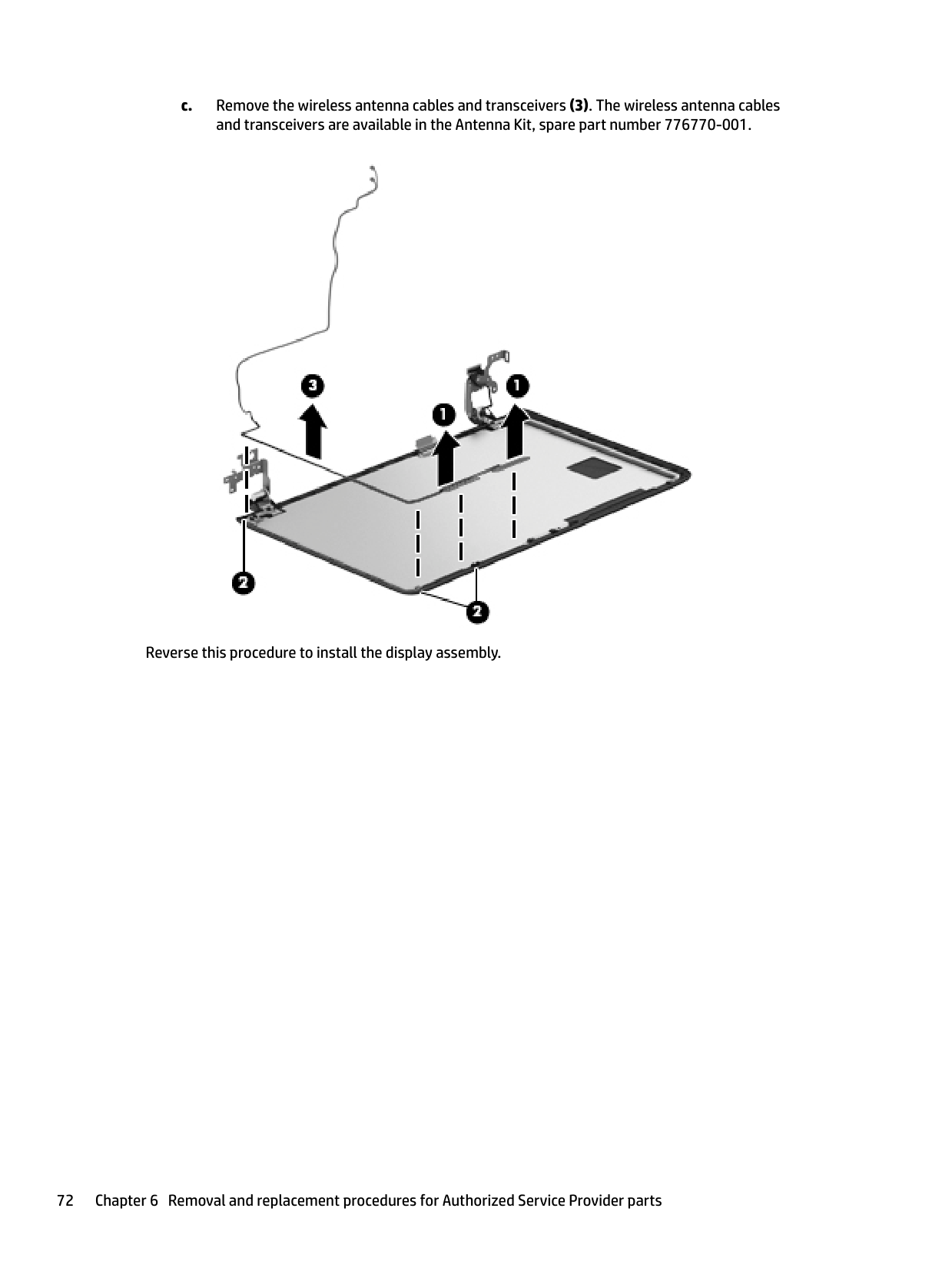
    Page 82

    IMPORTANT: HP Recovery Manager does not automatically provide backups of your personal data. Before beginning recovery, back up any personal data you want to retain. Using HP Recovery media, you can choose from one of the following recovery options: NOTE: Only the options available for your computer display when you start the recovery process.

  • ● System Recovery—Reinstalls the original operating system, and then configures the settings for the programs that were installed at the factory.
  • ● Minimized Image Recovery (select models only)—Reinstalls the operating system and all hardwarerelated drivers and software, but not other software applications.
  • ● Factory Reset—Restores the computer to its original factory state by deleting all information from the hard drive and re-creating the partitions. Then it reinstalls the operating system and the software that was installed at the factory.
  • The HP Recovery partition (select models only) allows System Recovery and Minimized Image Recovery (select models only).

    ##### Using the HP Recovery partition (select models only)

    The HP Recovery partition allows you to perform a system recovery or minimized image recovery (select models only) without the need for recovery discs or a recovery USB flash drive. This type of recovery can be used only if the hard drive is still working.

    To start HP Recovery Manager from the HP Recovery partition:

  • 1. From the Start screen, type recovery, select HP Recovery Manager, and then select HP Recovery Environment.
  • orPress f11 while the computer boots, or press and hold f11 as you press the power button.
  • 2. Select Troubleshoot from the boot options menu.
  • 3. Select Recovery Manager, and then follow the on-screen instructions.
  • ##### Using HP Recovery media to recover
    Page 83

    You can use HP Recovery media to recover the original system. This method can be used if your system does not have an HP Recovery partition or if the hard drive is not working properly.

  • 1. If possible, back up all personal files.
  • 2. Insert the HP Recovery media, and then restart the computer.
  • NOTE: If the computer does not automatically restart in HP Recovery Manager, change the computer boot order. See Changing the computer boot order on page 81.

  • 3. Follow the on-screen instructions.
  • | | |---|

    ##### Changing the computer boot order

    If your computer does not restart in HP Recovery Manager, you can change the computer boot order, which is the order of devices listed in BIOS where the computer looks for startup information. You can change the selection for an optical drive or a USB flash drive.

    Restore and recovery 81

    To change the boot order:
  • 1. Insert the HP Recovery media.
  • 2. Start Computer Setup:
  • Page 84

    ▲ Turn on or restart the computer, quickly press esc, and then press f9 for boot options.

  • 3. Select the optical drive or USB flash drive from which you want to boot.
  • 4. Follow the on-screen instructions.
  • Removing the HP Recovery partition (select models only) HP Recovery Manager software allows you to remove the HP Recovery partition to free up hard drive space. IMPORTANT: After you remove the HP Recovery partition, you can no longer use the Windows Refresh option or the Windows option to remove everything and reinstall Windows. In addition, you will not be able to perform System Recovery or Minimized Image Recovery from the HP Recovery partition. So before you remove the Recovery partition, create HP Recovery media; see Creating HP Recovery media (select models only) on page 78. Follow these steps to remove the HP Recovery partition:

    | | |---|

  • 1. From the Start screen, type recovery, and then select HP Recovery Manager.
  • 2. Select Remove Recovery Partition, and then follow the on-screen instructions.
  • 10 Backing up, restoring, and recovering in Windows 10

    This chapter provides information about the following processes. The information in the chapter is standard procedure for most products.
  • ● Creating recovery media and backups
  • ● Restoring and recovering your system For additional information, refer to the HP support assistant app.
  • Page 85

    ▲ Type support in the taskbar search box, and then select the HP Support Assistant app.

    ‒ or – Click the question mark icon in the taskbar.

    | | |---|

    IMPORTANT: If you will be performing recovery procedures on a tablet, the tablet battery must be at least 70% charged before you start the recovery process.

    IMPORTANT: For a tablet with a detachable keyboard, connect the keyboard to the keyboard dock before beginning any recovery process.

    Creating recovery media and backups

    The following methods of creating recovery media and backups are available on select products only. Choose the available method according to your computer model.

  • ● Use HP Recovery Manager to create HP Recovery media after you successfully set up the computer. This step creates a backup of the HP Recovery partition on the computer. The backup can be used to reinstall the original operating system in cases where the hard drive is corrupted or has been replaced. For information on creating recovery media, see Creating HP Recovery media (select products only) on page 83. For information on the recovery options that are available using the recovery media, see Using Windows tools on page 84.
  • ● Use Windows tools to create system restore points and create backups of personal information. For more information, see Recovering using HP Recovery Manager on page 85. NOTE: If storage is 32 GB or less, Microsoft System Restore is disabled by default.
  • | | |---|

    Page 86

    #### Creating HP Recovery media (select products only)

    If possible, check for the presence of the Recovery partition and the Windows partition. From the Start menu, select File Explorer, and then select This PC.

  • ● If your computer does not list the Windows partition and the Recovery partition, you can obtain recovery media for your system from support. See the Worldwide Telephone Numbers booklet included with the computer. You can also find contact information on the HP website. Go to http://www.hp.com/support, select your country or region, and follow the on-screen instructions.
  • Creating recovery media and backups 83

    You can use Windows tools to create system restore points and create backups of personal information, see Using Windows tools on page 84.

  • ● If your computer does list the Recovery partition and the Windows partition, you can use HP Recovery Manager to create recovery media after you successfully set up the computer. HP Recovery media can be used to perform system recovery if the hard drive becomes corrupted. System recovery reinstalls the original operating system and software programs that were installed at the factory and then configures the settings for the programs. HP Recovery media can also be used to customize the system or restore the factory image if you replace the hard drive.
  • ◦ Only one set of recovery media can be created. Handle these recovery tools carefully, and keep them in a safe place.
  • ◦ HP Recovery Manager examines the computer and determines the required storage capacity for the media that will be required.
  • ◦ To create recovery discs, your computer must have an optical drive with DVD writer capability, and you must use only high-quality blank DVD-R, DVD+R, DVD-R DL, or DVD+R DL discs. Do not use rewritable discs such as CD±RW, DVD±RW, double-layer DVD±RW, or BD-RE (rewritable Blu-ray) discs; they are not compatible with HP Recovery Manager software. Or, instead, you can use a highquality blank USB flash drive.
  • ◦ If your computer does not include an integrated optical drive with DVD writer capability, but you would like to create DVD recovery media, you can use an external optical drive (purchased separately) to create recovery discs. If you use an external optical drive, it must be connected directly to a USB port on the computer; the drive cannot be connected to a USB port on an external device, such as a USB hub. If you cannot create DVD media yourself, you can obtain recovery discs for your computer from HP. See the Worldwide Telephone Numbers booklet included with the computer. You can also find contact information on the HP website. Go to http://www.hp.com/ support, select your country or region, and follow the on-screen instructions.
  • ◦ Be sure that the computer is connected to AC power before you begin creating the recovery media.
  • ◦ The creation process can take an hour or more. Do not interrupt the creation process.
  • ◦ If necessary, you can exit the program before you have finished creating all of the recovery DVDs. HP Recovery Manager will finish burning the current DVD. The next time you start HP Recovery Manager, you will be prompted to continue.
  • | |

    Page 87

    |---|

    To create HP Recovery media: IMPORTANT: For a tablet with a detachable keyboard, connect the keyboard to the keyboard dock before beginning these steps.

  • 1. Type recovery in the taskbar search box, and then select HP Recovery Manager.
  • 2. Select Create recovery media, and then follow the on-screen instructions. If you ever need to recover the system, see Recovering using HP Recovery Manager on page 85.
  • Using Windows tools

    You can create recovery media, system restore points, and backups of personal information using Windows tools.

    | | |---|

    NOTE: If storage is 32 GB or less, Microsoft System Restore is disabled by default. For more information and steps, see the Get started app.

    ▲ Select the Start button, and then select the Get started app.

    Restore and recovery

    There are several options for recovering your system. Choose the method that best matches your situation and level of expertise:
    Page 88

    | | |---|

    IMPORTANT: Not all methods are available on all products.

  • ● Windows offers several options for restoring from backup, refreshing the computer, and resetting the computer to its original state. For more information see the Get started app.
  • ▲ Select the Start button, and then select the Get started app.

  • ● If you need to correct a problem with a preinstalled application or driver, use the Reinstall drivers and/or applications option (select products only) of HP Recovery Manager to reinstall the individual application or driver.
  • ▲ Type recovery in the taskbar search box, select HP Recovery Manager, select Reinstall drivers

    and/or applications, and then follow the on-screen instructions.

  • ● If you want to recover the Windows partition to original factory content, you can choose the System Recovery option from the HP Recovery partition (select products only) or use the HP Recovery media. For more information, see Recovering using HP Recovery Manager on page 85. If you have not already created recovery media, see Creating HP Recovery media (select products only) on page 83.
  • ● On select products, if you want to recover the computer's original factory partition and content, or if you have replaced the hard drive, you can use the Factory Reset option of HP Recovery media. For more information, see Recovering using HP Recovery Manager on page 85.
  • ● On select products, if you want to remove the recovery partition to reclaim hard drive space, HP Recovery Manager offers the Remove Recovery Partition option. For more information, see Removing the HP Recovery partition (select products only) on page 87.
  • #### Recovering using HP Recovery Manager
    Page 89

    HP Recovery Manager software allows you to recover the computer to its original factory state by using the HP Recovery media that you either created or that you obtained from HP, or by using the HP Recovery partition (select products only). If you have not already created recovery media, see Creating HP Recovery media (select products only) on page 83.

    ##### What you need to know before you get started

  • ● HP Recovery Manager recovers only software that was installed at the factory. For software not provided with this computer, you must either download the software from the manufacturer's website or reinstall the software from the media provided by the manufacturer.
  • IMPORTANT: Recovery through HP Recovery Manager should be used as a final attempt to correct computer issues.

  • ● HP Recovery media must be used if the computer hard drive fails. If you have not already created recovery media, see Creating HP Recovery media (select products only) on page 83.
  • ● To use the Factory Reset option (select products only), you must use HP Recovery media. If you have not already created recovery media, see Creating HP Recovery media (select products only) on page 83.
  • ● If your computer does not allow the creation of HP Recovery media or if the HP Recovery media does not work, you can obtain recovery media for your system from support. See the Worldwide Telephone Numbers booklet included with the computer. You can also find contact information from the HP
  • | | |---|

    website. Go to http://www.hp.com/support, select your country or region, and follow the on-screen instructions.

    | | |---|
    Page 90

    | | |---|

    IMPORTANT: HP Recovery Manager does not automatically provide backups of your personal data. Before beginning recovery, back up any personal data you want to retain. Using HP Recovery media, you can choose from one of the following recovery options: NOTE: Only the options available for your computer display when you start the recovery process.

  • ● System Recovery—Reinstalls the original operating system, and then configures the settings for the programs that were installed at the factory.
  • ● Factory Reset—Restores the computer to its original factory state by deleting all information from the hard drive and re-creating the partitions. Then it reinstalls the operating system and the software that was installed at the factory.
  • The HP Recovery partition (select products only) allows System Recovery only. Using the HP Recovery partition (select products only)

    The HP Recovery partition allows you to perform a system recovery without the need for recovery discs or a recovery USB flash drive. This type of recovery can be used only if the hard drive is still working.

    | | |---|

    To start HP Recovery Manager from the HP Recovery partition: IMPORTANT: For a tablet with a detachable keyboard, connect the keyboard to the keyboard dock before beginning these steps (select products only).

  • 1. Type recovery in the taskbar search box, select Recovery Manager, and then select HP Recovery Environment.
  • - or-
  • For computers or tablets with keyboards attached, press f11 while the computer boots, or press and hold f11 as you press the power button.
    Page 91

    For tablets without keyboards: Turn on or restart the tablet, and then quickly hold down the volume down button; then select f11.

  • - or Turn on or restart the tablet, and then quickly hold down the Windows button; then select f11.
  • 2. Select Troubleshoot from the boot options menu.
  • 3. Select Recovery Manager, and then follow the on-screen instructions.
  • ##### Using HP Recovery media to recover

    You can use HP Recovery media to recover the original system. This method can be used if your system does not have an HP Recovery partition or if the hard drive is not working properly.

  • 1. If possible, back up all personal files.
  • 2. Insert the HP Recovery media, and then restart the computer.
  • NOTE: If the computer does not automatically restart in HP Recovery Manager, change the computer boot order. See Changing the computer boot order on page 87.

  • 3. Follow the on-screen instructions.
  • | | |---|

    Page 92

    ##### Changing the computer boot order

    If your computer does not restart in HP Recovery Manager, you can change the computer boot order, which is the order of devices listed in BIOS where the computer looks for startup information. You can change the selection to an optical drive or a USB flash drive.

    | | |---|

    To change the boot order: IMPORTANT: For a tablet with a detachable keyboard, connect the keyboard to the keyboard dock before beginning these steps.

  • 1. Insert the HP Recovery media.
  • 2. Access BIOS: For computers or tablets with keyboards attached:
  • ▲ Turn on or restart the computer or tablet, quickly press esc, and then press f9 for boot options. For tablets without keyboards:

    ▲ Turn on or restart the tablet, and then quickly hold down the volume down button; then select f9.

  • or Turn on or restart the tablet, and then quickly hold down the Windows button; then select f9.
  • 3. Select the optical drive or USB flash drive from which you want to boot.
  • 4. Follow the on-screen instructions.
  • Removing the HP Recovery partition (select products only) HP Recovery Manager software allows you to remove the HP Recovery partition to free up hard drive space. IMPORTANT: After you remove the HP Recovery partition, you will not be able to perform System Recovery or create HP recovery media from the HP Recovery partition. So before you remove the Recovery partition, create HP Recovery media; see Creating HP Recovery media (select products only) on page 83. NOTE: The Remove Recovery Partition option is only available on products that support this function. Follow these steps to remove the HP Recovery partition:
    Page 93

    | | |---|

    | | |---|

  • 1. Type recovery in the taskbar search box, and then select HP Recovery Manager.
  • 2. Select Remove Recovery Partition, and then follow the on-screen instructions.
  • 11 Using HP PC Hardware Diagnostics (UEFI)

    HP PC Hardware Diagnostics is a Unified Extensible Firmware Interface (UEFI) that allows you to run diagnostic tests to determine whether the computer hardware is functioning properly. The tool runs outside the operating system so that it can isolate hardware failures from issues that are caused by the operating system or other software components.

    | | |---|

    NOTE: To start BIOS on a convertible computer, your computer must be in notebook mode and you must use the keyboard attached to your tablet. The on-screen keyboard, which displays in tablet mode, cannot access BIOS.

    To start HP PC Hardware Diagnostics UEFI:
    Page 94

  • 1. Start BIOS:
  • ● Computers or tablets with keyboards:
  • ▲ Turn on or restart the computer, quickly press esc.

  • ● Tablets without keyboards:
  • ▲ Turn on or restart the tablet, and then quickly hold down the volume down button.

  • or Turn on or restart the tablet, and then quickly hold down the Windows button.
  • 2. Press or tap f2. The BIOS searches three places for the diagnostic tools, in the following order:
  • a. Connected USB drive NOTE: To download the HP PC Hardware Diagnostics (UEFI) tool to a USB drive, see Downloading HP PC Hardware Diagnostics (UEFI) to a USB device on page 89.
  • b. Hard drive
  • c. BIOS
  • 3. When the diagnostic tool opens, select the type of diagnostic test you want to run, and then follow the on-screen instructions. On a tablet, press the volume down button to stop a diagnostic test.
  • | |

    Page 95

    |---|

    | | |---|

    NOTE: If you need to stop a diagnostic test on computers or tablets with a keyboard, press esc.

    88 Chapter 11 Using HP PC Hardware Diagnostics (UEFI)

    Downloading HP PC Hardware Diagnostics (UEFI) to a USB device There are two options to download HP PC Hardware Diagnostics to a USB device: Download the latest UEFI version:

  • 1. Go to http://www.hp.com/go/techcenter/pcdiags. The HP PC Diagnostics home page is displayed.
  • 2. In the HP PC Hardware Diagnostics section, click the Download link, and then select Run. Download any version of UEFI for a specific product:
  • 1. Go to http://www.hp.com/support, and then select your country. The HP Support page is displayed.
  • 2. Click Drivers & Downloads.
  • 3. In the text box, enter the product name, and then click Go.
  • – or – Click Find Now to let HP automatically detect your product.
    Page 96

  • 4. Select your computer, and then select your operating system.
  • 5. In the Diagnostic section, follow the on-screen instructions to select and download the UEFI version you want.
  • Downloading HP PC Hardware Diagnostics (UEFI) to a USB device 89

    12 Specifications

    Computer specifications

    Metric U.S. Dimensions

    Width 38.56 cm 15.18 in Depth 25.8 cm 10.15 in Height (front to back) 2.26 cm .89 in

    ######## Weight 2.09 or 2.29 kg (depending on

    configuration)

    Input power Operating voltage and current 19.5 V dc @ 3.33 A – 65 W

    19 V dc @ 4.62 A – 90 W

    4.61 lb or 5.05 (depending on configuration)

    19.5 V dc @ 2.31 – 45 W (select models only)
    Page 97

    Temperature Operating 5°C to 35°C 41°F to 95°F Nonoperating ‑20°C to 60°C ‑4°F to 140°F Relative humidity (noncondensing) Operating 10% to 90% Nonoperating 5% to 95% Maximum altitude (unpressurized)

    Operating ‑15 m to 3,048 m ‑50 ft to 10,000 ft Nonoperating ‑15 m to 12,192 m ‑50 ft to 40,000 ft NOTE: Applicable product safety standards specify thermal limits for plastic surfaces. The device operates well within this range of

    temperatures.

    15.6-inch display specifications

    ######## Metric U.S.

    Dimensions Height 20.77 cm 8.175 in Width 37.78 cm 14.875 in Diagonal 39.62 cm 15.6 in

    90 Chapter 12 Specifications

    Metric U.S. Number of colors Up to 16.8 million Contrast ratio 500:1 (typical) Brightness 200 nits Pixel resolution Pitch 0.252mm x 0.252mm Format 1366×768 Configuration RGB vertical stripe Backlight LED Character display 80 × 25 Total power consumption 2.0 W Viewing angle ±65° horizontal, ±50° vertical (typical)

    Hard drive specifications

    ######## 750 GB* 500 GB*

    Dimensions Height 9.5 or 7 mm 9.5 mm Width 70 mm 70 mm Weight 107 g max 107 g max Interface type SATA SATA Transfer rate 300 MB/sec 300 MB/sec Security ATA security ATA security Seek times (typical read, including setting) Single track 1.2 ms 1.5 ms Average 11.0 ms 12.0 ms Maximum 21.0 ms 22.0 ms Logical blocks 1,464,271,578 976,752,240 Disk rotational speed 5400 rpm 5400 rpm Operating temperature 5°C to 55°C (41°F to 131°F) 5°C to 55°C (41°F to 131°F)

    *Size refers to hard drive storage capacity. Actual accessible capacity is less. Actual drive specifications may differ slightly. NOTE: Certain restrictions and exclusions apply. Contact support for details.
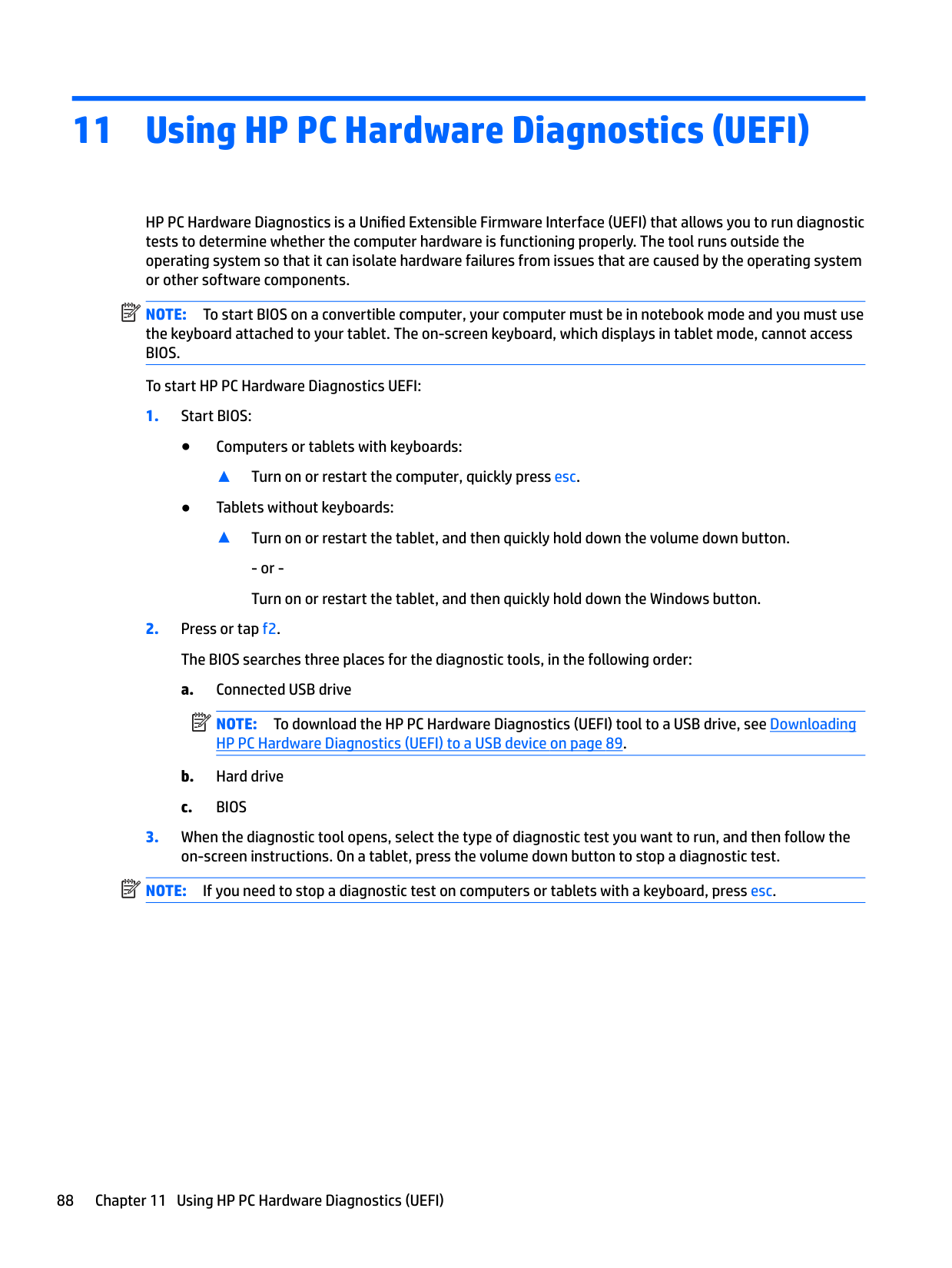
    Page 98

    Hard drive specifications 91

    13 Power cord set requirements

    The wide-range input feature of the computer permits it to operate from any line voltage from 100 to 120 volts AC, or from 220 to 240 volts AC.

    The 3-conductor power cord set included with the computer meets the requirements for use in the country or region where the equipment is purchased.

    Power cord sets for use in other countries and regions must meet the requirements of the country or region where the computer is used.

    Requirements for all countries

    The following requirements are applicable to all countries and regions:

  • ● The length of the power cord set must be at least 1.0 m (3.3 ft) and no more than 2.0 m (6.5 ft).
  • ● All power cord sets must be approved by an acceptable accredited agency responsible for evaluation in the country or region where the power cord set will be used.
  • ● The power cord sets must have a minimum current capacity of 10 amps and a nominal voltage rating of 125 or 250 V AC, as required by the power system of each country or region.
  • ● The appliance coupler must meet the mechanical configuration of an EN 60 320/IEC 320 Standard Sheet C13 connector for mating with the appliance inlet on the back of the computer.
  • Requirements for specific countries and regions

    ######## Country/region Accredited agency Applicable note number

    Australia EANSW 1 Austria OVE 1 Belgium CEBC 1 Canada CSA 2 Denmark DEMKO 1 Finland FIMKO 1 France UTE 1 Germany VDE 1 Italy IMQ 1 Japan METI 3 The Netherlands KEMA 1 Norway NEMKO 1 The People's Republic of China COC 5 South Korea EK 4
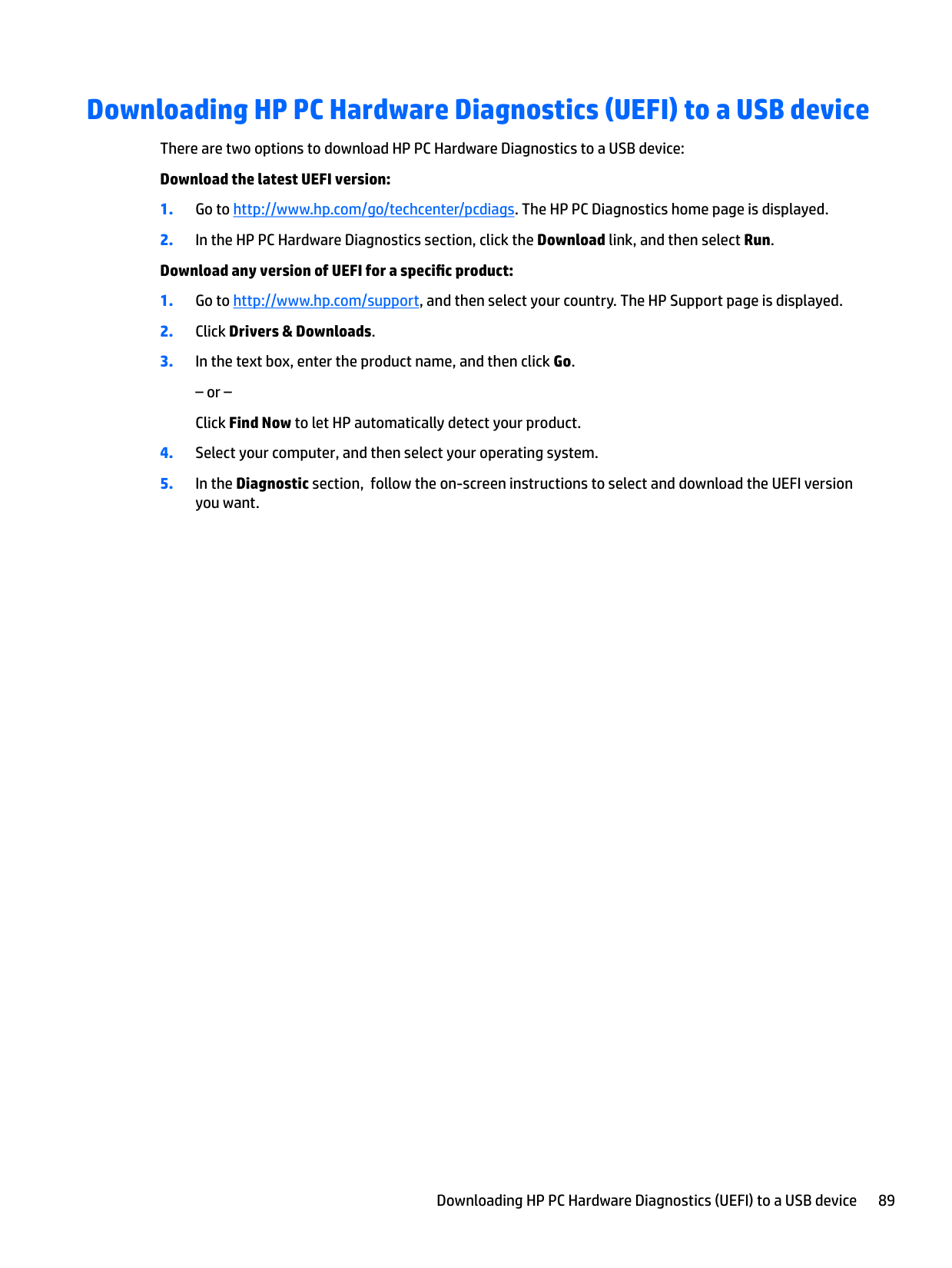
    Page 99

    92 Chapter 13 Power cord set requirements

    ######## Country/region Accredited agency Applicable note number

    Sweden SEMKO 1 Switzerland SEV 1 Taiwan BSMI 4 The United Kingdom BSI 1 The United States UL 2

  • 1. The flexible cord must be Type HO5VV-F, 3-conductor, 1.0-mm² conductor size. Power cord set fittings (appliance coupler and wall plug) must bear the certification mark of the agency responsible for evaluation in the country or region where it will be used.
  • 2. The flexible cord must be Type SPT-3 or equivalent, No. 18 AWG, 3-conductor. The wall plug must be a two-pole grounding type with a NEMA 5-15P (15 A, 125 V) or NEMA 6-15P (15 A, 250 V) configuration.
  • 3. The appliance coupler, flexible cord, and wall plug must bear a “T” mark and registration number in accordance with the Japanese Dentori Law. The flexible cord must be Type VCT or VCTF, 3-conductor, 1.00-mm² conductor size. The wall plug must be a twopole grounding type with a Japanese Industrial Standard C8303 (7 A, 125 V) configuration.
  • 4. The flexible cord must be Type RVV, 3-conductor, 0.75-mm² conductor size. Power cord set fittings (appliance coupler and wall plug) must bear the certification mark of the agency responsible for evaluation in the country or region where it will be used.
  • 5. The flexible cord must be Type VCTF, 3-conductor, 0.75-mm² conductor size. Power cord set fittings (appliance coupler and wall plug) must bear the certification mark of the agency responsible for evaluation in the country or region where it will be used.
  • Requirements for specific countries and regions 93

    14 Recycling

    When a non-rechargeable or rechargeable battery has reached the end of its useful life, do not dispose of the battery in general household waste. Follow the local laws and regulations in your area for battery disposal.

    HP encourages customers to recycle used electronic hardware, HP original print cartridges, and rechargeable batteries. For more information about recycling programs, see the HP Web site at http://www.hp.com/recycle.

    94 Chapter 14 Recycling

    Index
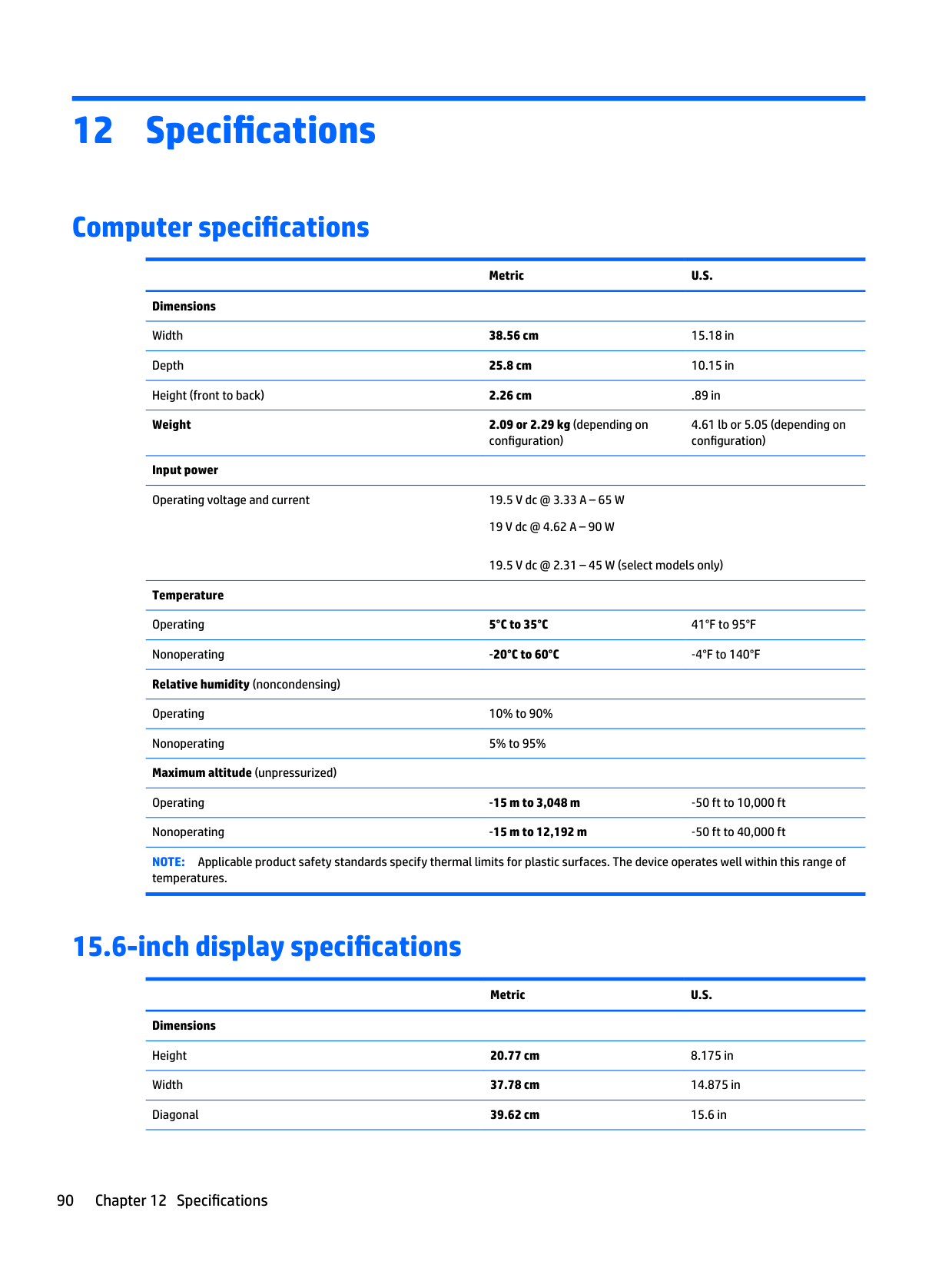
    Page 100

  • A AC adapter 5 AC adapter, spare part numbers 20 action keys
  • identifying 11

    antenna removal 71 spare part number 20, 65, 72 Antenna Kit, spare part number 20,

    65, 72 audio, product description 2 audio-out (headphone) jacks 4

  • B backups 78, 83 base enclosure, spare part number
  • 19

    battery removal 28 spare part number 19, 28

    battery cover, identifying 12 battery lock, locks and unlocks the

    battery 12 battery release latch 12 BIOS

    determining version 73, 75 downloading an update 73, 76 starting the Setup Utility 73, 75 updating 73, 75

    boot order changing 81, 87

    buttons left TouchPad 8 power 10 right TouchPad 8
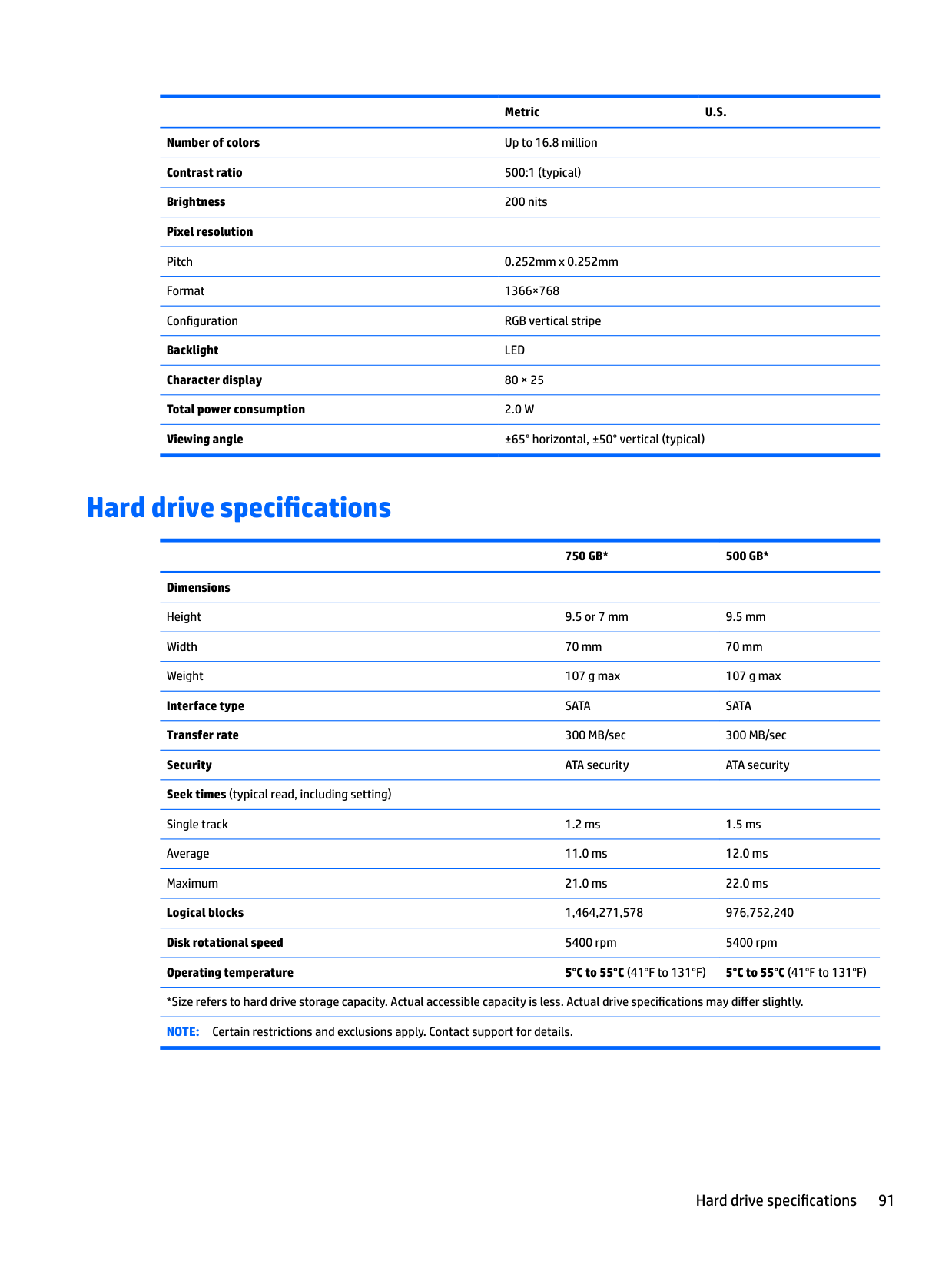
    Page 101

  • C caps lock light, identifying 9 chipset, product description 1 components
  • bottom 12 display 6 left side 5 right side 4 top 8

    computer major components 15 computer specifications 90 connector, power 5

  • D display
  • specifications 90

    display assembly removal 65 spare part numbers 65 subcomponents 19

    display bezel removal 36, 67 spare part number 19, 36, 65,

    67 display enclosure, spare part numbers 20, 65

    display hinge removal 69 spare part number 20, 65, 70

    Display Hinge Kit, spare part number 20, 65, 70

    display panel product description 1 removal 68
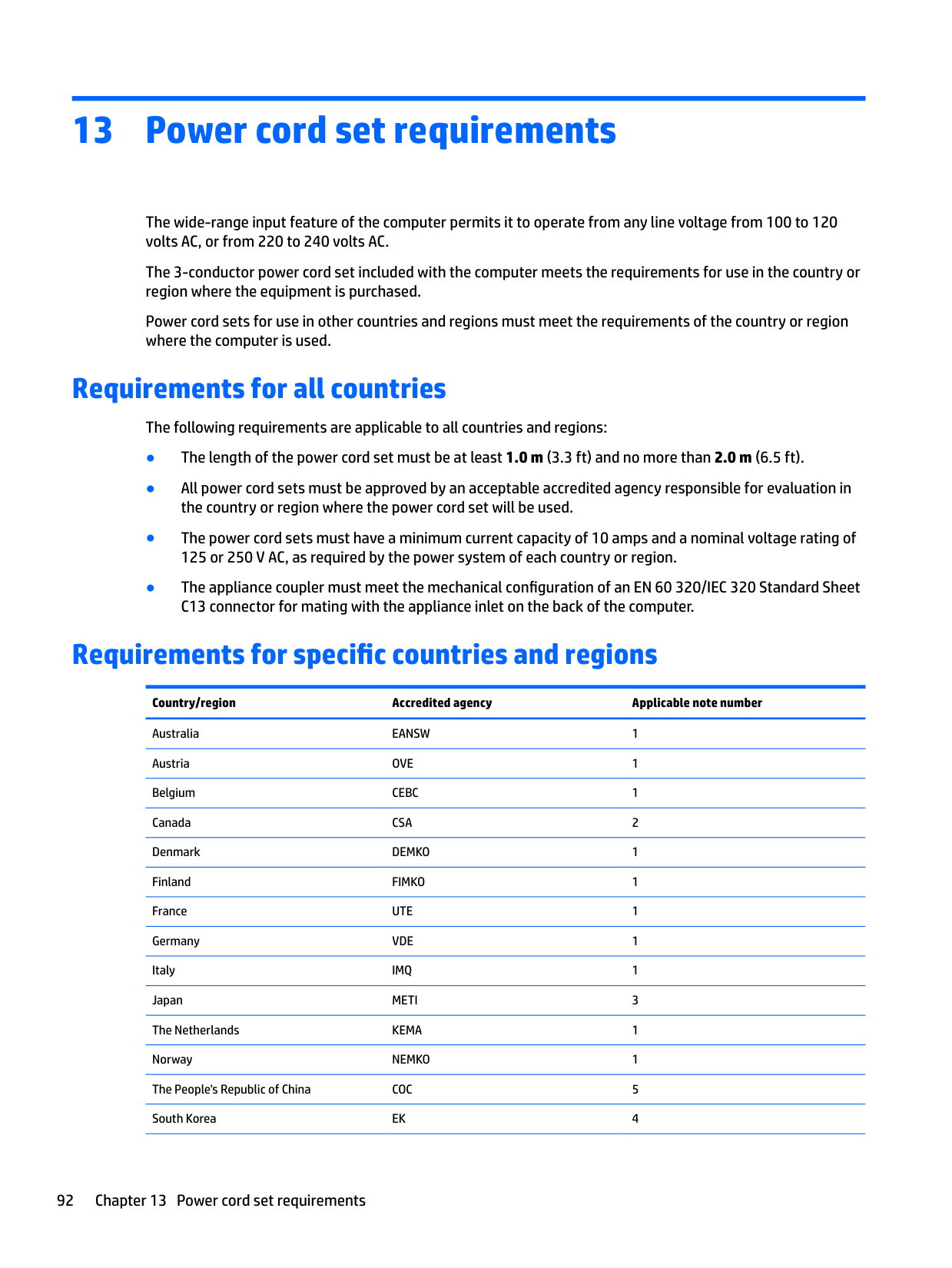
  • spare part number 19, 69
  • Page 102

    display panel cable removal 70

  • spare part number 20, 65, 71
  • DVD±RW Double-Layer SuperMulti

    Drive removal 33 spare part number 19, 21, 33

  • E esc key, identifying 11 Ethernet, product description 2
  • F fan
  • removal 59 spare part numbers 59

    fan/heat sink assembly removal 61 spare part numbers 18, 61

    fn key, identifying 11

  • G graphics, product description 1
  • H hard drive
  • product description 2 removal 44 spare part numbers 17, 21, 44 specifications 91 hard drive connector cable

    illustrated 21
    Page 103

    Hard Drive Hardware Kit contents 21 spare part number 17, 21, 44

    hard drive light 4 hard drive rubber bracket

    illustrated 21 removal 46

    hard drive, identifying 12 HDMI 20 HDMI port

    identifying 6 HP PC Hardware Diagnostics (UEFI) using 88

    HP Recovery Manager correcting boot problems 81, 87 starting 81, 86

    HP Recovery media

    creating 78, 83 recovery 81, 86

    HP Recovery partition recovery 81, 86 removing 82, 87

  • I integrated numeric keypad,
  • identifying 11 internal display switch, identifying 6 internal microphone, identifying 6
  • J jacks
  • Page 104

    audio-out (headphone) 4 network 5 RJ-45 (network) 5

  • K keyboard
  • product description 2 removal 38 spare part numbers 17, 38

    keypad, integrated numeric 11 keys

    action 11 esc 11 fn 11 num lock 11 Windows 11

  • L labels
  • serial number 14 latches 12 lights

    AC adapter 5 caps lock 9 eMMC 4 hard drive 4 mute 9 power 4 wireless 9

  • M memory card reader, identifying 6 memory module
  • identifying 12 product description 1 removal 30 spare part numbers 18, 30

    microphone

    product description 2 minimized image recovery 81, 86 minimized image, creating 80, 85 model name 1 mute light, identifying 9
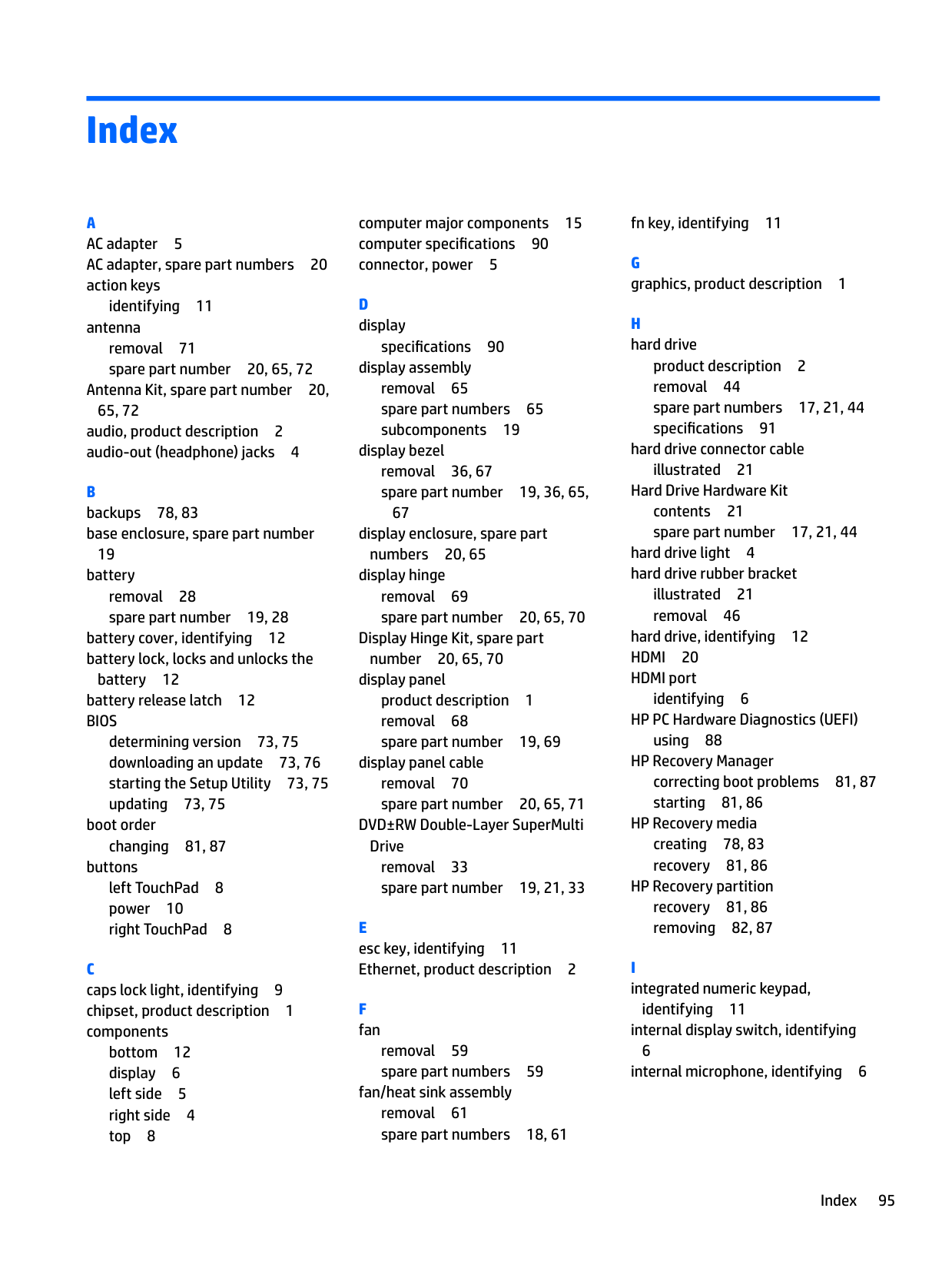
    Page 105

  • N network jack, identifying 5 num lock key, identifying 11
  • O operating system, product
  • description 3

    optical drive product description 2 removal 33 spare part numbers 33

    optical drive bracket removal 33

    optical drive connector cable removal 51 spare part number 51

    optical drive, identifying 5 original system recovery 80, 85

  • P Plastics Kit, spare part number 29 pointing device, product
  • description 2

    ports charging (powered) 6 HDMI 6 product description 2 USB 3.0 6

    power button board removal 47
  • spare part number 17, 47
  • Page 106

    power button, identifying 10 power connector cable

    removal 63

  • spare part number 18, 63
  • power connector, identifying 5 power cord

    set requirements 92 spare part numbers 20

    power lights, identifying 4 power requirements, product

    description 3 processor

    product description 1

    product description audio 2 chipset 1 display panel 1 Ethernet 2 external media cards 2 graphics 1 hard drive 2 keyboard 2 memory module 1

    microphone 2 operating system 3 optical drive 2 pointing device 2 ports 2 power requirements 3 processors 1 product name 1 security 3 serviceability 3 video 2 wireless 2

    product name 1 product name and number,

    computer 14
    Page 107

  • R recover
  • options 79, 85

    recovery discs 79, 81, 84, 86 HP Recovery Manager 80, 85 media 81, 86 starting 81, 86 supported discs 79, 84 system 80, 85 USB flash drive 81, 86 using HP Recovery media 79, 84

    recovery media creating 78, 83 creating using HP Recovery

    Manager 79, 84 recovery partition

    removing 82, 87 regulatory information 14 removal/replacement

    procedures 27, 35 RJ-45 (network) jack, identifying 5 RTC battery

    removal 57 spare part number 18, 57

  • S Screw Kit, spare part number 20 security cable slot, identifying 5 security, product description 3 serial number 14 serial number, computer 14 service cover
  • removal 29

    96 Index

    service door

    spare part number 29 serviceability, product description 3 slots

    memory card 6 security cable 5

    speakers identifying 11 removal 64 spare part number 19, 64

    specifications computer 90 display 90 hard drive 91

    supported discs, recovery 79, 84 system board

    removal 52 spare part numbers 17, 52

    system information locating 14 system recovery 80, 85 system restore point

    creating 79, 84 system restore point, creating 78, 83

  • T top cover
  • removal 40 spare part numbers 17, 40

    TouchPad buttons 8

    TouchPad button board removal 49 spare part number 17, 49

    TouchPad zone, identifying 8

  • U USB 3.0 ports identifying 6
  • V vents, identifying 12 video, product description 2
  • W warranty period 14 webcam
  • identifying 7 webcam light, identifying 6

    webcamera/microphone module removal 69 spare part number 20, 65, 69

    Windows system restore point 78, 79, 83,

    84 Windows key, identifying 11 Windows tools

    using 79, 84

    wireless antenna removal 71 spare part number 20, 65, 72

    wireless light 9 wireless, product description 2 WLAN antennas, identifying 7 WLAN module

    removal 31 spare part numbers 18, 31

    More from HP

    Similar Laptops