HP Color Laserjet Pro Mfp 3301 3304 3388 Printer
Printers · 25 Q&As

HP Color Laserjet Pro Mfp 3301 3304 3388 Printer

Ask AI

— answers from the official manual

Answers from the official manual.

Common questions

Common Questions

25 total
1

How do I configure the fax machine’s time, date, and header?

From the Home screen on the control panel, select Setup > Fax Setup > Basic Setup > Time/Date. Use the keypad to enter the current time or date, then select OK.

2

How do I print multiple pages per sheet?

In your software program, go to Print option and in the printer properties window, set the number of pages per sheet from the Properties or Preferences dialog box. Ensure correct paper orientation is selected.

3

What should I do if a warning message about low cartridge levels displays on the control panel?

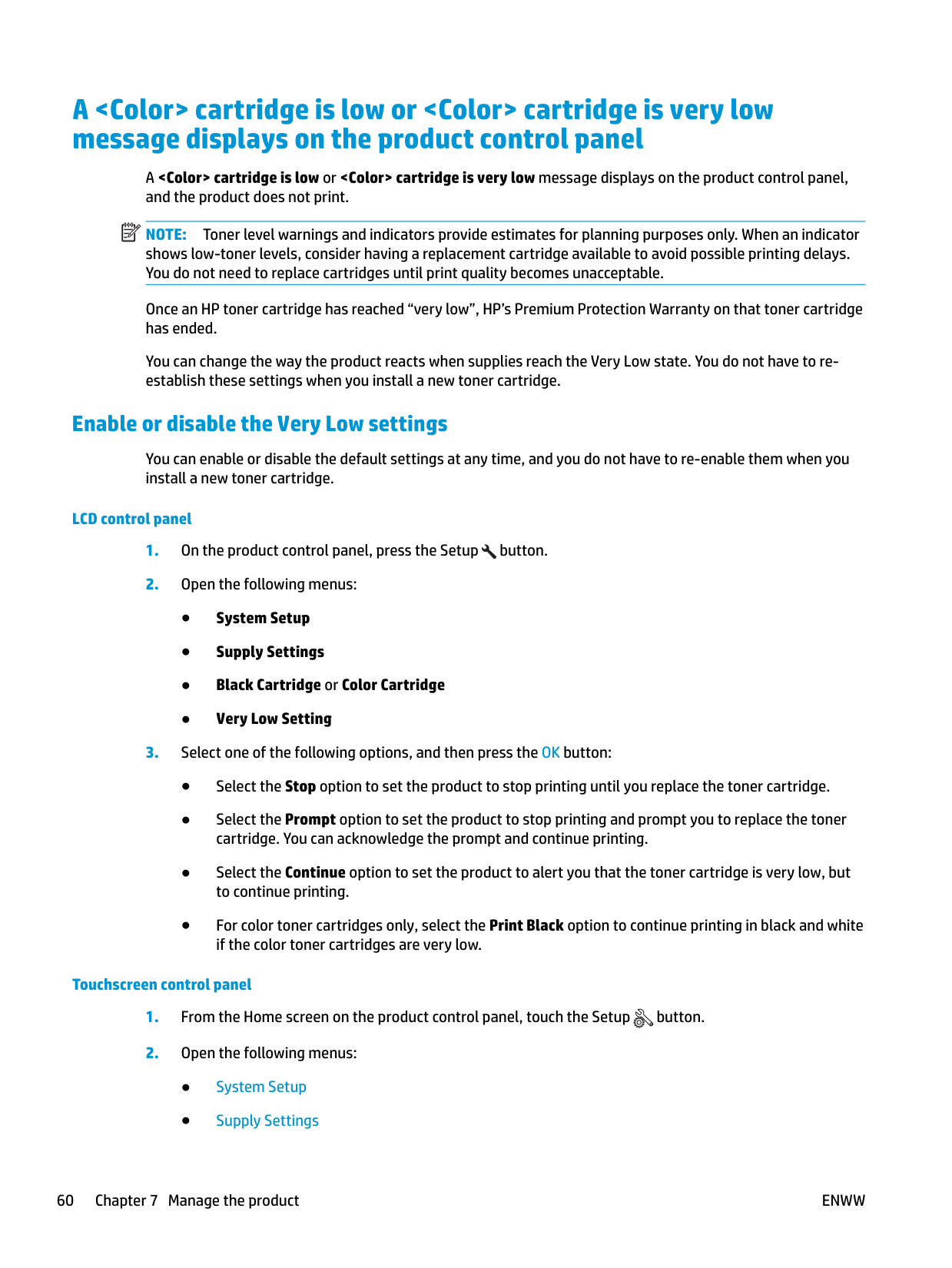
A <Color> cartridge is low or <Color> cartridge is very low message can be enabled/disabled using Economy settings, and it notifies that the toner needs replacement when quality is no longer acceptable.

4

How do I load Legal-size paper into the printer?

To load Legal paper, squeeze the side latch at the front of the tray and pull it towards you. Tray 2 will extend from the front of the printer by approximately 2 inches (50.8 mm). For more printer-specific help, visit hp.com/support. (Page 5)

5

My computer is connected to a VPN and the software can't find the printer during setup. What should I do?

Disconnect from the VPN before installing the HP printer software, then reconnect to the VPN after finishing printer setup. Note that you should consider your location and the security of the Wi-Fi network before disconnecting from a VPN. (Page 6)

6

My computer is connected via Ethernet. Do I need to disconnect it to set up the printer's Wi-Fi?

No, you do not need to disconnect the Ethernet cable from the printer. Simply turn on the computer's Wi-Fi while setting up the printer, and the Ethernet connection can remain active. (Page 6)

Show 19 more questions

Full Manual

120 pages
Page 1

COLOR LASERJET PRO MFP

User Guide

![image 1](c03629244_images/imageFile1.png)

![image 2](c03629244_images/imageFile2.png)

![image 3](c03629244_images/imageFile3.png)

![image 4](c03629244_images/imageFile4.png)

![image 5](c03629244_images/imageFile5.png)

![image 6](c03629244_images/imageFile6.png)

![image 7](c03629244_images/imageFile7.png)

![image 8](c03629244_images/imageFile8.png)

![image 9](c03629244_images/imageFile9.png)

![image 10](c03629244_images/imageFile10.png)

![image 11](c03629244_images/imageFile11.png)

![image 12](c03629244_images/imageFile12.png)

![image 13](c03629244_images/imageFile13.png)

![image 14](c03629244_images/imageFile14.png)

![image 15](c03629244_images/imageFile15.png)

![image 16](c03629244_images/imageFile16.png)

![image 17](c03629244_images/imageFile17.png)

![image 18](c03629244_images/imageFile18.png)

Page 2

![image 19](c03629244_images/imageFile19.png)

![image 20](c03629244_images/imageFile20.png)

![image 21](c03629244_images/imageFile21.png)

![image 22](c03629244_images/imageFile22.png)

![image 23](c03629244_images/imageFile23.png)

![image 24](c03629244_images/imageFile24.png)

![image 25](c03629244_images/imageFile25.png)

![image 26](c03629244_images/imageFile26.png)

![image 27](c03629244_images/imageFile27.png)

![image 28](c03629244_images/imageFile28.png)

OK

![image 29](c03629244_images/imageFile29.png)

![image 30](c03629244_images/imageFile30.png)

![image 31](c03629244_images/imageFile31.png)

![image 32](c03629244_images/imageFile32.png)

![image 33](c03629244_images/imageFile33.png)

![image 34](c03629244_images/imageFile34.png)

![image 35](c03629244_images/imageFile35.png)

![image 36](c03629244_images/imageFile36.png)

![image 37](c03629244_images/imageFile37.png)

Page 3

![image 38](c03629244_images/imageFile38.png)

![image 39](c03629244_images/imageFile39.png)

![image 40](c03629244_images/imageFile40.png)

![image 41](c03629244_images/imageFile41.png)

![image 42](c03629244_images/imageFile42.png)

![image 43](c03629244_images/imageFile43.png)

![image 44](c03629244_images/imageFile44.png)

![image 45](c03629244_images/imageFile45.png)

![image 46](c03629244_images/imageFile46.png)

![image 47](c03629244_images/imageFile47.png)

X

![image 48](c03629244_images/imageFile48.png)

![image 49](c03629244_images/imageFile49.png)

![image 50](c03629244_images/imageFile50.png)

![image 51](c03629244_images/imageFile51.png)

![image 52](c03629244_images/imageFile52.png)

![image 53](c03629244_images/imageFile53.png)

![image 54](c03629244_images/imageFile54.png)

![image 55](c03629244_images/imageFile55.png)

![image 56](c03629244_images/imageFile56.png)

Page 4

![image 57](c03629244_images/imageFile57.png)

![image 58](c03629244_images/imageFile58.png)

![image 59](c03629244_images/imageFile59.png)

![image 60](c03629244_images/imageFile60.png)

![image 61](c03629244_images/imageFile61.png)

![image 62](c03629244_images/imageFile62.png)

![image 63](c03629244_images/imageFile63.png)

![image 64](c03629244_images/imageFile64.png)

![image 65](c03629244_images/imageFile65.png)

![image 66](c03629244_images/imageFile66.png)

![image 67](c03629244_images/imageFile67.png)

![image 68](c03629244_images/imageFile68.png)

![image 69](c03629244_images/imageFile69.png)

![image 70](c03629244_images/imageFile70.png)

M176 M177

HP Color LaserJet Pro MFP M176, M177

User Guide

########### Copyright and License

© Copyright 2015 HP Development Company, L.P.

Reproduction, adaptation, or translation without prior written permission is prohibited, except as allowed under the copyright laws.

Page 5

The information contained herein is subject to change without notice.

The only warranties for HP products and services are set forth in the express warranty statements accompanying such products and services. Nothing herein should be construed as constituting an additional warranty. HP shall not be liable for technical or editorial errors or omissions contained herein.

Edition 1, 11/2015

########### Trademark Credits

Adobe®, Acrobat®, and PostScript® are trademarks of Adobe Systems Incorporated.

Apple and the Apple logo are trademarks of Apple Computer, Inc., registered in the U.S. and other countries. iPod is a trademark of Apple Computer, Inc. iPod is for legal or rightholderauthorized copying only. Don't steal music.

Bluetooth is a trademark owned by its proprietor and used by HP Company under license.

Microsoft®, Windows®, Windows® XP, and Windows Vista® are U.S. registered trademarks of Microsoft Corporation.

Table of contents

  • 1 Product introduction ..................................................................................................................................... 1 Product comparison ............................................................................................................................................... 2 Product views ......................................................................................................................................................... 4
  • Product front view ............................................................................................................................... 4 Product back view ............................................................................................................................... 5

    Control panel overview .......................................................................................................................................... 6 LCD control-panel layout (M176n model) ........................................................................................... 6 Touchscreen control-panel layout (M177fw model) .......................................................................... 7 Control-panel Home screen ................................................................................................................ 8

  • 2 Paper trays ................................................................................................................................................. 11 Supported paper sizes and types ........................................................................................................................ 12
  • Supported paper sizes ...................................................................................................................... 12 Supported paper types ..................................................................................................................... 13

    Load the input tray .............................................................................................................................................. 15

  • 3 Print ........................................................................................................................................................... 19 Print tasks (Windows) .......................................................................................................................................... 20
  • How to print (Windows) ..................................................................................................................... 20 Manually print on both sides (Windows) ........................................................................................... 20 Print multiple pages per sheet (Windows) ........................................................................................ 22 Select the paper type (Windows) ...................................................................................................... 25 Additional printing information ........................................................................................................ 26

    Print tasks (Mac OS X) .......................................................................................................................................... 27 How to print (Mac OS X) ..................................................................................................................... 27 Manually print on both sides (Mac OS X) ........................................................................................... 27 Print multiple pages per sheet (Mac OS X) ........................................................................................ 28 Select the paper type (Mac OS X) ...................................................................................................... 28 Additional printing information ........................................................................................................ 28

    Web-based printing ............................................................................................................................................. 30 HP ePrint ............................................................................................................................................ 30

    ENWW iii

    Page 6

    HP ePrint software ............................................................................................................................ 30 AirPrint ............................................................................................................................................... 31

    Set up HP Wireless Direct Printing (touchscreen models only) .......................................................................... 32

  • 4 Copy ........................................................................................................................................................... 33 Make a copy .......................................................................................................................................................... 34 Copy on both sides (duplex) ................................................................................................................................ 35 Optimize copy quality .......................................................................................................................................... 36
  • 5 Scan ........................................................................................................................................................... 37 Scan by using the HP Scan software (Windows) ................................................................................................. 38 Scan by using the HP Scan software (Mac OS X) ................................................................................................. 39
  • 6 Fax ............................................................................................................................................................. 41 Connect and configure the product for fax ......................................................................................................... 42
  • Connect the product .......................................................................................................................... 42 Configure the product ....................................................................................................................... 43

    Configure fax time, date, and header ............................................................................. 43 Control panel ................................................................................................ 43 HP Fax Setup Wizard (Windows) .................................................................. 44

    Configure for stand-alone fax ........................................................................................ 44 Configure for an answering machine .............................................................................. 44 Configure for an extension phone .................................................................................. 44

    Install the HP Fax software (Windows, optional) .............................................................................. 45

    Send a fax ............................................................................................................................................................ 46 Send a fax by dialing manually from the product control panel ...................................................... 46 Send a fax from the HP software (Windows) .................................................................................... 46

    Create, edit, and delete speed-dial entries ......................................................................................................... 47 Create and edit speed-dial entries .................................................................................................... 47 Delete speed-dial entries .................................................................................................................. 47

  • 7 Manage the product ..................................................................................................................................... 49 Change the product connection type (Windows) ................................................................................................ 50 Use HP Web Services applications (touchscreen models only) .......................................................................... 51 HP Device Toolbox (Windows) ............................................................................................................................. 52 HP Utility for Mac OS X ......................................................................................................................................... 54
  • Open the HP Utility ............................................................................................................................ 54 HP Utility features ............................................................................................................................. 54

    Product security features .................................................................................................................................... 56 Set or change the product password ................................................................................................ 56

    Lock the product ................................................................................................................................ 57

    Economy settings ................................................................................................................................................ 58 Print with EconoMode ....................................................................................................................... 58 Configure the Sleep/Auto Off After setting ....................................................................................... 58

    A cartridge is low or cartridge is very low message displays on the product control panel .................................................................................................................................................................... 60

    Enable or disable the Very Low settings ........................................................................................... 60 Replace the toner cartridge ................................................................................................................................. 62 Replace the imaging drum ................................................................................................................................... 66

  • 8 Solve problems ............................................................................................................................................ 71 Control panel help system (touchscreen models only) ...................................................................................... 72 Restore the factory-set defaults ......................................................................................................................... 73 Solve paper feed or jam problems ...................................................................................................................... 74
  • The product does not pick up paper ................................................................................................. 74 The product picks up multiple sheets of paper ................................................................................ 74 Frequent or recurring paper jams ..................................................................................................... 74 Prevent paper jams ........................................................................................................................... 75

    Page 7

    Clear jams from the input tray ............................................................................................................................. 76 Clear jams in the output bin ................................................................................................................................. 78 Clear jams in the document feeder ..................................................................................................................... 80 Improve print quality ........................................................................................................................................... 82

    Print from a different software program .......................................................................................... 82 Set the paper-type setting for the print job ..................................................................................... 82

    Check the paper-type setting (Windows) ....................................................................... 82 Check the paper-type setting (Mac OS X) ....................................................................... 83

    Check the toner-cartridge status ...................................................................................................... 83 Calibrate the product to align the colors .......................................................................................... 84 Print a cleaning page ......................................................................................................................... 84 Perform additional print quality troubleshooting ............................................................................ 85

    Print the print quality page ............................................................................................. 85 Interpret the print quality page ...................................................................................... 85

    Inspect the toner cartridge for damage ............................................................................................ 86 Check the paper and printing environment ...................................................................................... 86

    Use paper that meets HP specifications ......................................................................... 86 Check the product environment ..................................................................................... 87

    Check the EconoMode settings ......................................................................................................... 87 Adjust color settings (Windows) ....................................................................................................... 87

    Improve copy and scan quality ............................................................................................................................ 89 Check the scanner glass for dirt and smudges ................................................................................. 89 Check the paper settings .................................................................................................................. 89

    ENWW v

    Check the image adjustment settings .............................................................................................. 90 Optimize for text or pictures ............................................................................................................. 90 Edge-to-edge copying ....................................................................................................................... 91 Clean the pickup rollers and separation pad in the document feeder ............................................. 91

    Improve fax image quality ................................................................................................................................... 93 Check the scanner glass for dirt or smudges ................................................................................... 93 Check the send-fax resolution setting .............................................................................................. 93 Check the lightness/darkness setting ............................................................................................... 93 Check the Error Correction setting .................................................................................................... 94 Check the Fit-to-Page setting ........................................................................................................... 94 Clean the pickup rollers and separation pad in the document feeder ............................................. 94 Send to a different fax machine ........................................................................................................ 95 Check the sender's fax machine ........................................................................................................ 95

    Solve wired network problems ............................................................................................................................ 96 Poor physical connection .................................................................................................................. 96 The computer is using the incorrect IP address for the product ...................................................... 96 The computer is unable to communicate with the product .............................................................. 96 The product is using incorrect link and duplex settings for the network ........................................ 97 New software programs might be causing compatibility problems ................................................ 97 The computer or workstation might be set up incorrectly ............................................................... 97 The product is disabled, or other network settings are incorrect .................................................... 97

    Solve wireless network problems ....................................................................................................................... 98 Wireless connectivity checklist ......................................................................................................... 98 The product does not print after the wireless configuration completes ......................................... 99 The product does not print, and the computer has a third-party firewall installed ........................ 99 The wireless connection does not work after moving the wireless router or product .................... 99 Cannot connect more computers to the wireless product ............................................................... 99 The wireless product loses communication when connected to a VPN ........................................... 99 The network does not appear in the wireless networks list ............................................................ 99 The wireless network is not functioning ........................................................................................ 100 Perform a wireless network diagnostic test ................................................................................... 100 Reduce interference on a wireless network ................................................................................... 100

    Solve fax problems ............................................................................................................................................ 102 Check the hardware setup .............................................................................................................. 102 Faxes are sending slowly ................................................................................................................ 103 Fax quality is poor ........................................................................................................................... 104 Fax cuts off or prints on two pages ................................................................................................. 104

  • 9 Parts, supplies, and accessories .................................................................................................................. 105 Order parts, accessories, and supplies ............................................................................................................. 106 Customer self-repair parts ................................................................................................................................ 106
  • Accessories ........................................................................................................................................................ 106

    ######## Index ........................................................................................................................................................... 107

    ENWW vii

    Page 8

    1 Product introduction

  • ● Product comparison
  • ● Product views
  • ● Control panel overview Go to www.hp.com/support/ljMFPM176series or www.hp.com/support/ljMFPM177series for HP's all-inclusive help for your product:
  • ● Solve problems.
  • ● Download software updates.
  • ● Join support forums.
  • ● Find warranty and regulatory information. You can also go to www.hp.com/support for Worldwide support and other HP products.
  • ENWW 1

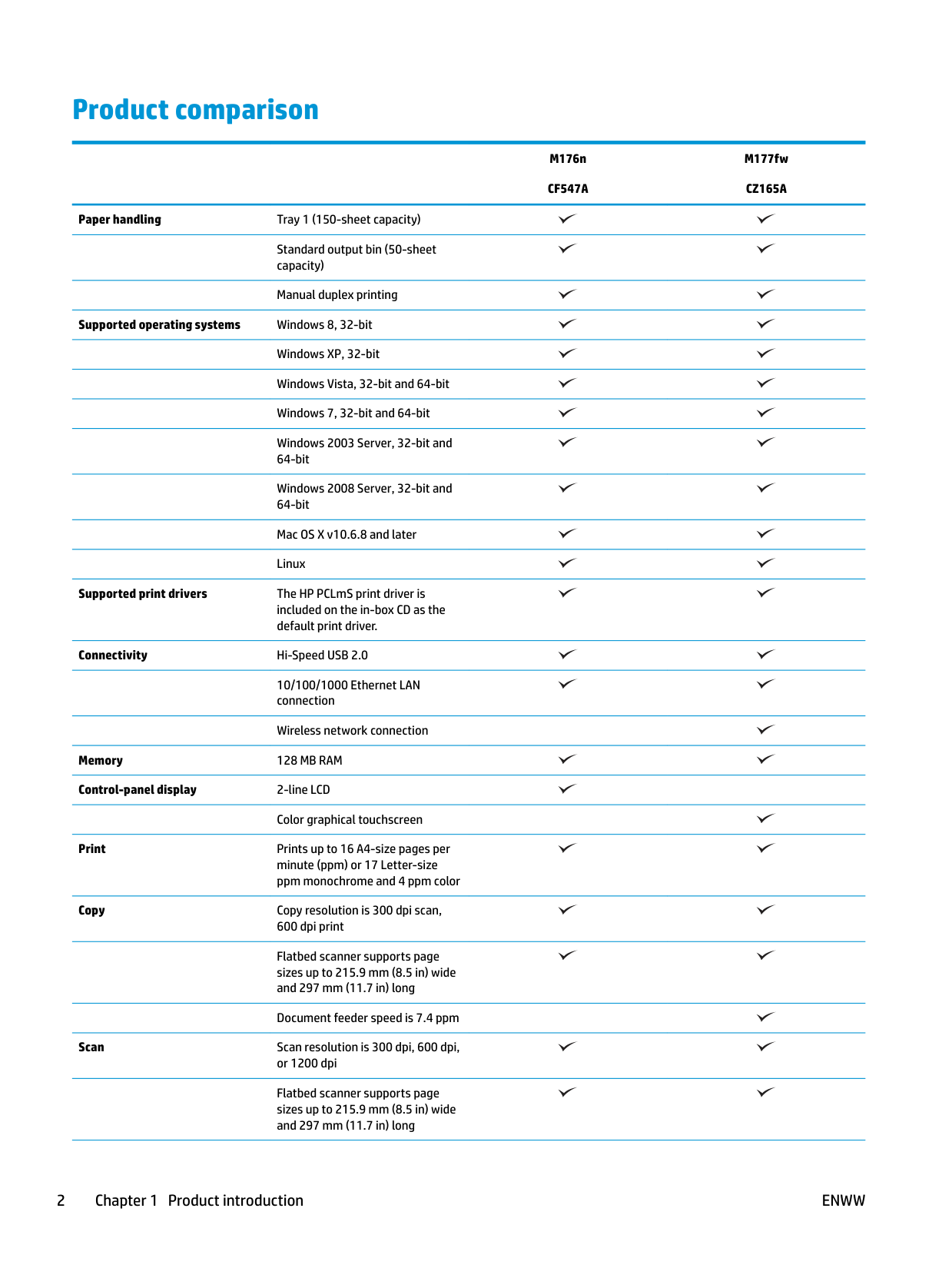
    #### Product comparison

    Paper handling Tray 1 (150-sheet capacity)

    Standard output bin (50-sheet capacity)

    Manual duplex printing

    Supported operating systems Windows 8, 32-bit Windows XP, 32-bit Windows Vista, 32-bit and 64-bit Windows 7, 32-bit and 64-bit Windows 2003 Server, 32-bit and 64-bit Windows 2008 Server, 32-bit and 64-bit Mac OS X v10.6.8 and later Linux

    Supported print drivers The HP PCLmS print driver is included on the in-box CD as the default print driver.

    Connectivity Hi-Speed USB 2.0

    10/100/1000 Ethernet LAN connection

    Wireless network connection Memory 128 MB RAM Control-panel display 2-line LCD

    Color graphical touchscreen

    Print Prints up to 16 A4-size pages per minute (ppm) or 17 Letter-size ppm monochrome and 4 ppm color

    Copy Copy resolution is 300 dpi scan, 600 dpi print Flatbed scanner supports page sizes up to 215.9 mm (8.5 in) wide and 297 mm (11.7 in) long Document feeder speed is 7.4 ppm

    Page 9

    Scan Scan resolution is 300 dpi, 600 dpi, or 1200 dpi Flatbed scanner supports page sizes up to 215.9 mm (8.5 in) wide and 297 mm (11.7 in) long

    M176n CF547A

    M177fw CZ165A

    Document feeder speed is 7.4 ppm Fax V.34 with two RJ-11 fax ports

    Approximately 500 pages of fax storage, with four days of powerfail recovery

    M176n CF547A

    M177fw CZ165A

    ENWW Product comparison 3

    #### Product views

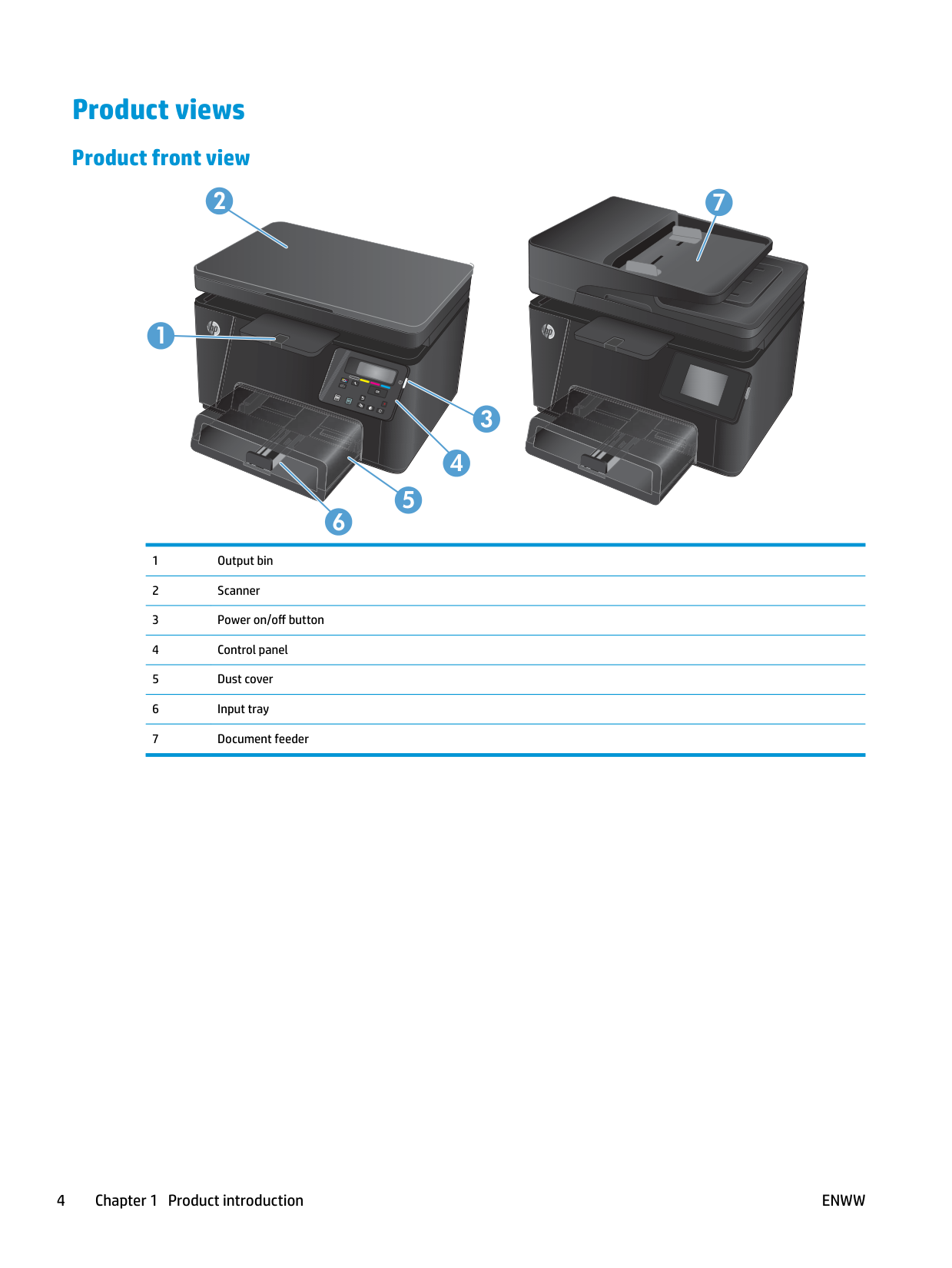
    ###### Product front view

    2

    1

    ![image 71](c03629244_images/imageFile71.png)

    ![image 72](c03629244_images/imageFile72.png)

    ![image 73](c03629244_images/imageFile73.png)

    ![image 74](c03629244_images/imageFile74.png)

    ![image 75](c03629244_images/imageFile75.png)

    ![image 76](c03629244_images/imageFile76.png)

    ![image 77](c03629244_images/imageFile77.png)

    ![image 78](c03629244_images/imageFile78.png)

    Page 10

    ![image 79](c03629244_images/imageFile79.png)

    ![image 80](c03629244_images/imageFile80.png)

    ![image 81](c03629244_images/imageFile81.png)

    ![image 82](c03629244_images/imageFile82.png)

    ![image 83](c03629244_images/imageFile83.png)

    ![image 84](c03629244_images/imageFile84.png)

    ![image 85](c03629244_images/imageFile85.png)

    ![image 86](c03629244_images/imageFile86.png)

    ![image 87](c03629244_images/imageFile87.png)

    ![image 88](c03629244_images/imageFile88.png)

    OK

    ![image 89](c03629244_images/imageFile89.png)

    ![image 90](c03629244_images/imageFile90.png)

    ![image 91](c03629244_images/imageFile91.png)

    ![image 92](c03629244_images/imageFile92.png)

    ![image 93](c03629244_images/imageFile93.png)

    ![image 94](c03629244_images/imageFile94.png)

    X

    3

    ![image 95](c03629244_images/imageFile95.png)

    Page 11

    ![image 96](c03629244_images/imageFile96.png)

    ![image 97](c03629244_images/imageFile97.png)

    ![image 98](c03629244_images/imageFile98.png)

    ![image 99](c03629244_images/imageFile99.png)

    ![image 100](c03629244_images/imageFile100.png)

    ![image 101](c03629244_images/imageFile101.png)

    ![image 102](c03629244_images/imageFile102.png)

    4

    ![image 103](c03629244_images/imageFile103.png)

    5

    ![image 104](c03629244_images/imageFile104.png)

    6

  • 1 Output bin
  • 2 Scanner
  • 3 Power on/off button
  • 4 Control panel
  • 5 Dust cover
  • 6 Input tray
  • 7 Document feeder
  • 7

    ![image 105](c03629244_images/imageFile105.png)

    ![image 106](c03629244_images/imageFile106.png)

    ![image 107](c03629244_images/imageFile107.png)

    Page 12

    ![image 108](c03629244_images/imageFile108.png)

    ![image 109](c03629244_images/imageFile109.png)

    ![image 110](c03629244_images/imageFile110.png)

    ![image 111](c03629244_images/imageFile111.png)

    ![image 112](c03629244_images/imageFile112.png)

    ![image 113](c03629244_images/imageFile113.png)

    ![image 114](c03629244_images/imageFile114.png)

    ![image 115](c03629244_images/imageFile115.png)

    ![image 116](c03629244_images/imageFile116.png)

    ![image 117](c03629244_images/imageFile117.png)

    ![image 118](c03629244_images/imageFile118.png)

    ![image 119](c03629244_images/imageFile119.png)

    ![image 120](c03629244_images/imageFile120.png)

    ![image 121](c03629244_images/imageFile121.png)

    ![image 122](c03629244_images/imageFile122.png)

    ![image 123](c03629244_images/imageFile123.png)

    ![image 124](c03629244_images/imageFile124.png)

    ![image 125](c03629244_images/imageFile125.png)

    ![image 126](c03629244_images/imageFile126.png)

    ![image 127](c03629244_images/imageFile127.png)

    Page 13

    ![image 128](c03629244_images/imageFile128.png)

    ![image 129](c03629244_images/imageFile129.png)

    ![image 130](c03629244_images/imageFile130.png)

    ![image 131](c03629244_images/imageFile131.png)

    ![image 132](c03629244_images/imageFile132.png)

    ![image 133](c03629244_images/imageFile133.png)

    ![image 134](c03629244_images/imageFile134.png)

    ![image 135](c03629244_images/imageFile135.png)

    ![image 136](c03629244_images/imageFile136.png)

    ![image 137](c03629244_images/imageFile137.png)

    ![image 138](c03629244_images/imageFile138.png)

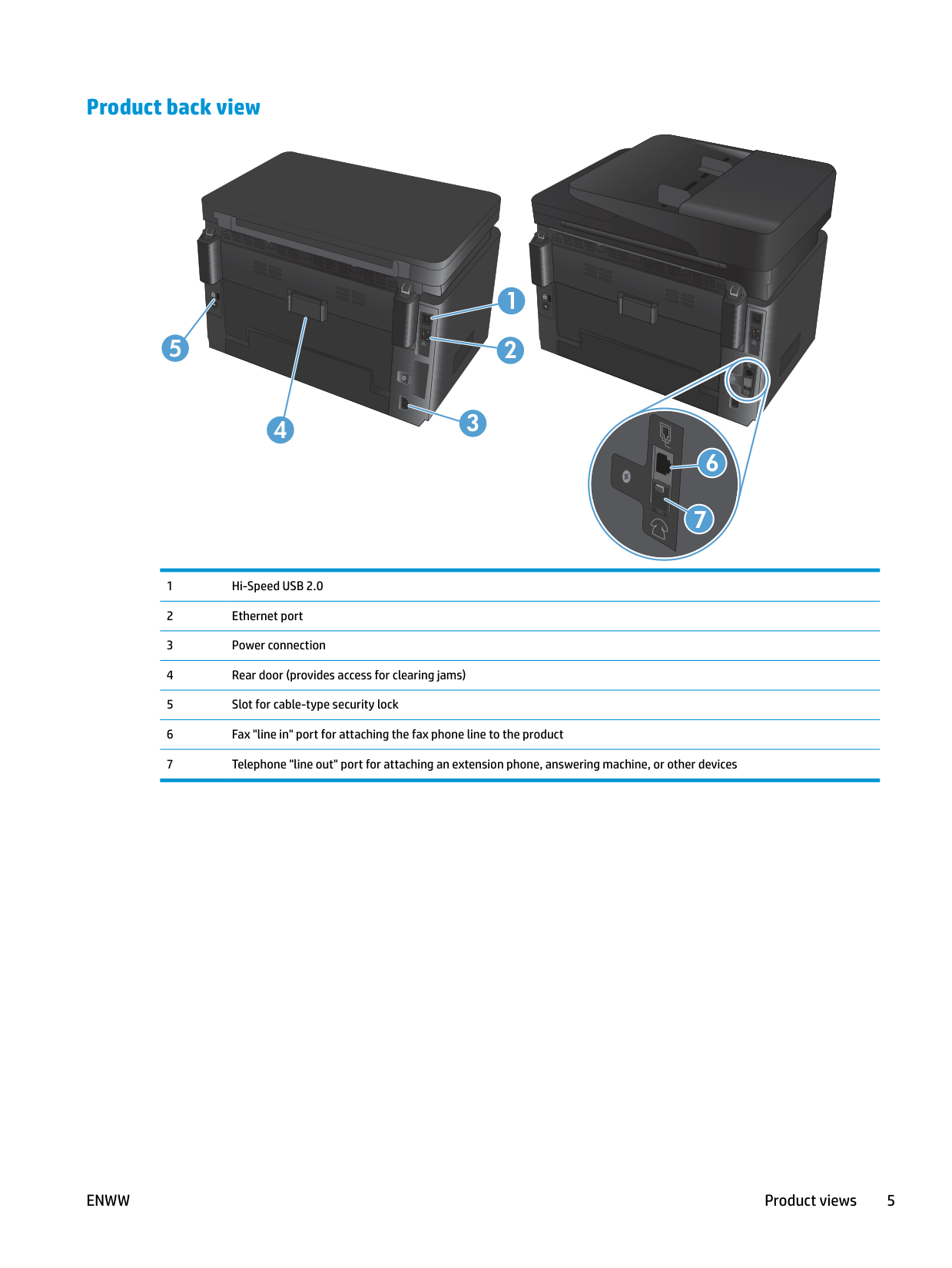
    ###### Product back view

  • 1
  • 2
  • 5

    3

    4

    6

    7

    Page 14

  • 1 Hi-Speed USB 2.0
  • 2 Ethernet port
  • 3 Power connection
  • 4 Rear door (provides access for clearing jams)
  • 5 Slot for cable-type security lock
  • 6 Fax "line in" port for attaching the fax phone line to the product
  • 7 Telephone "line out" port for attaching an extension phone, answering machine, or other devices
  • ENWW Product views 5

    #### Control panel overview

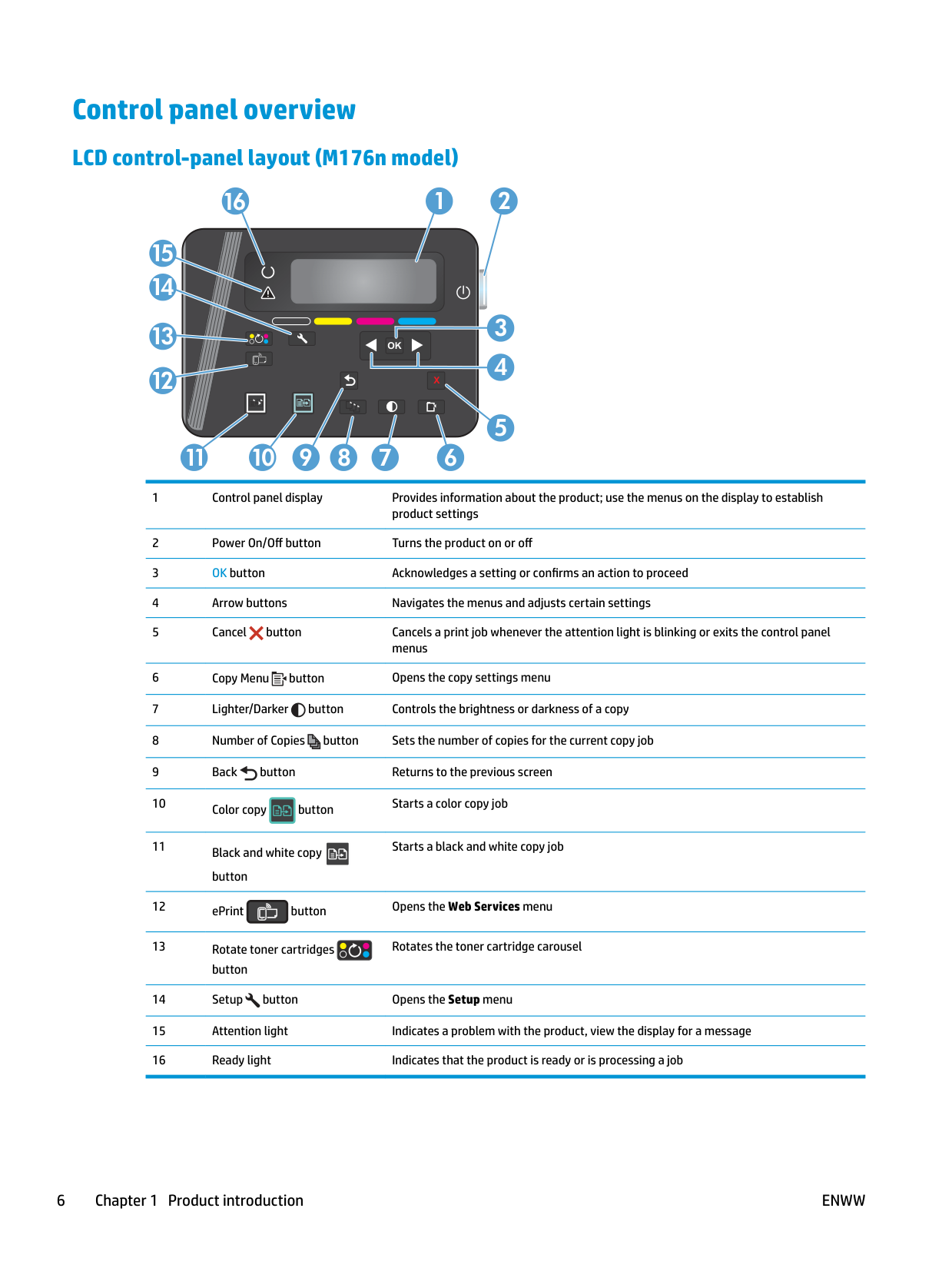
    LCD control-panel layout (M176n model)

    1 2

  • 12
  • 13
  • 14
  • 11

    16

  • 15
  • | | | |---|---| |OK| | |X| |

    3

    4

    Page 15

    5 678910

  • 1 Control panel display Provides information about the product; use the menus on the display to establish product settings
  • 2 Power On/Off button Turns the product on or off
  • 3 OK button Acknowledges a setting or confirms an action to proceed
  • 4 Arrow buttons Navigates the menus and adjusts certain settings
  • 5 Cancel button Cancels a print job whenever the attention light is blinking or exits the control panel
  • menus

  • 6 Copy Menu button Opens the copy settings menu
  • 7 Lighter/Darker button Controls the brightness or darkness of a copy
  • 8 Number of Copies button Sets the number of copies for the current copy job
  • 9 Back button Returns to the previous screen
  • 10 Color copy button Starts a color copy job
  • 11 Black and white copy button
  • | | |---|

    Starts a black and white copy job

  • 12 ePrint button Opens the Web Services menu
  • 13 Rotate toner cartridges button
  • Rotates the toner cartridge carousel

  • 14 Setup button Opens the Setup menu
  • 15 Attention light Indicates a problem with the product, view the display for a message
  • 16 Ready light Indicates that the product is ready or is processing a job
  • Page 16

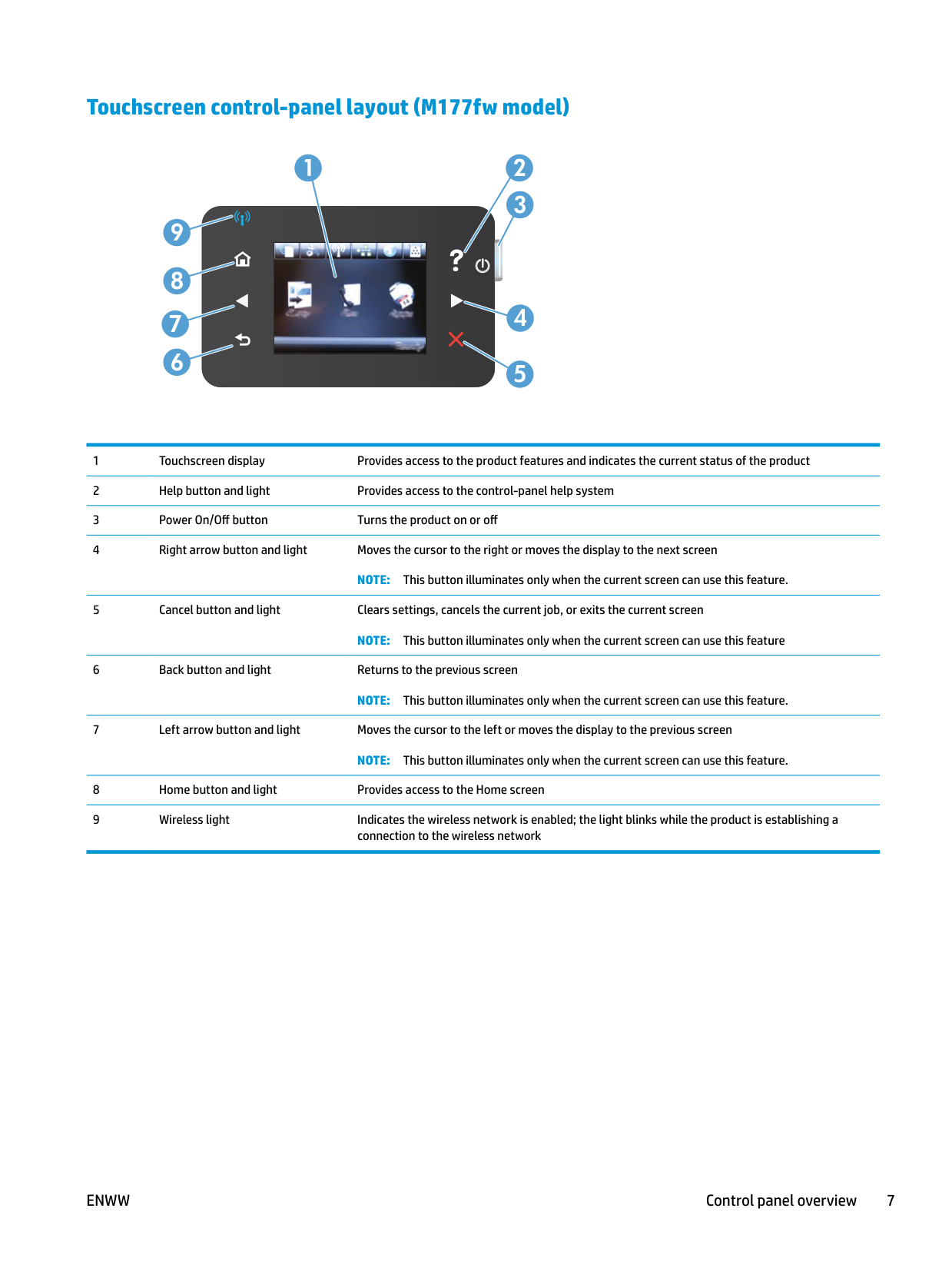
    ###### Touchscreen control-panel layout (M177fw model)

    ##### 1

    2

  • 3
  • 4
  • 5
  • ##### 9

    ![image 139](c03629244_images/imageFile139.png)

    ##### 876

  • 1 Touchscreen display Provides access to the product features and indicates the current status of the product
  • 2 Help button and light Provides access to the control-panel help system
  • 3 Power On/Off button Turns the product on or off
  • 4 Right arrow button and light Moves the cursor to the right or moves the display to the next screen NOTE: This button illuminates only when the current screen can use this feature.
  • 5 Cancel button and light Clears settings, cancels the current job, or exits the current screen NOTE: This button illuminates only when the current screen can use this feature
  • 6 Back button and light Returns to the previous screen NOTE: This button illuminates only when the current screen can use this feature.
  • 7 Left arrow button and light Moves the cursor to the left or moves the display to the previous screen NOTE: This button illuminates only when the current screen can use this feature.
  • 8 Home button and light Provides access to the Home screen
  • 9 Wireless light Indicates the wireless network is enabled; the light blinks while the product is establishing a connection to the wireless network
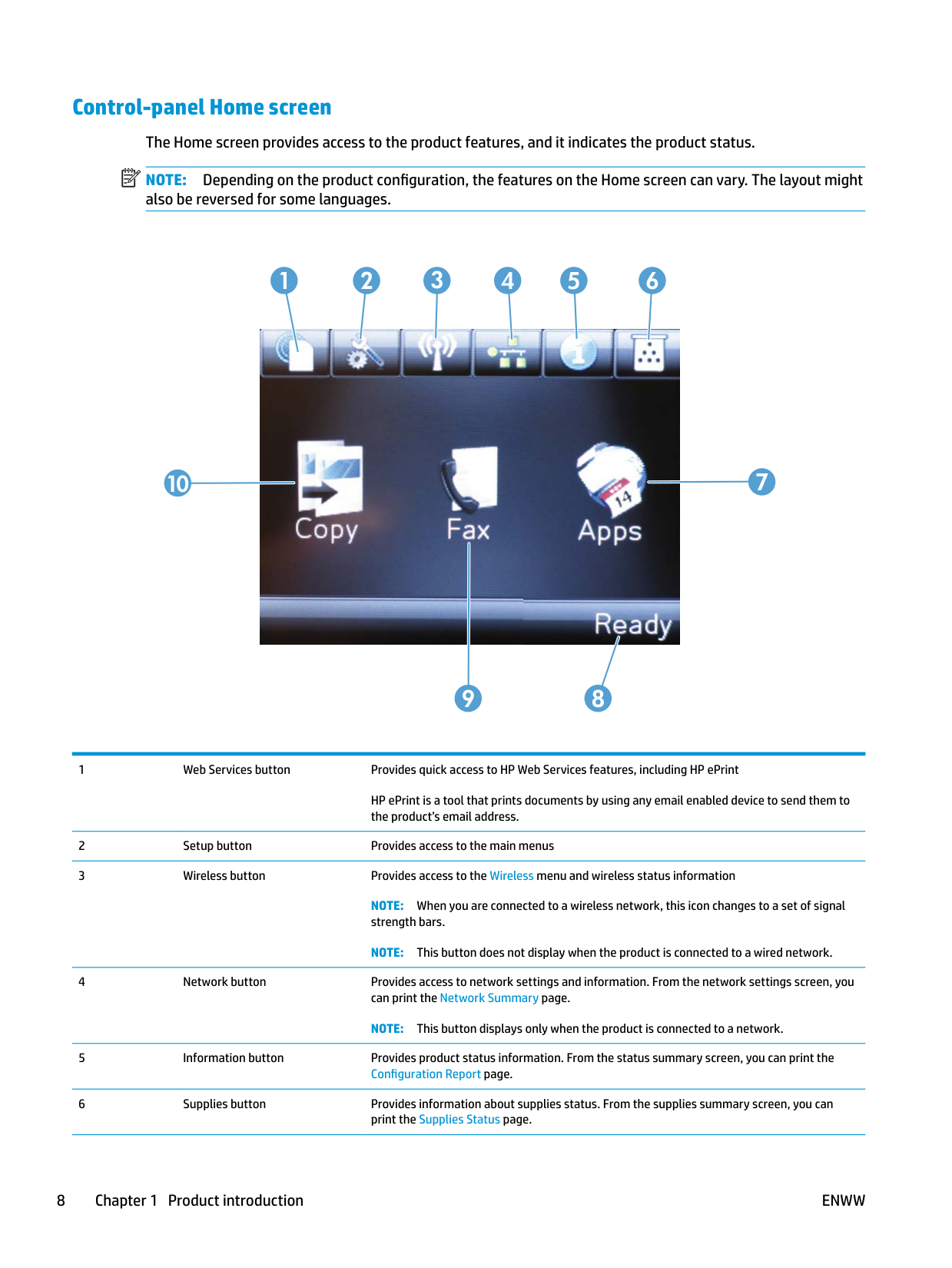
  • Control-panel Home screen The Home screen provides access to the product features, and it indicates the product status. NOTE: Depending on the product configuration, the features on the Home screen can vary. The layout might also be reversed for some languages.

    | | |---|

    ##### 1 2 3 4 5 6

    ![image 140](c03629244_images/imageFile140.png)

    Page 17

    ![image 141](c03629244_images/imageFile141.png)

    10 7

    ![image 142](c03629244_images/imageFile142.png)

    ##### 89

  • 1 Web Services button Provides quick access to HP Web Services features, including HP ePrint
  • HP ePrint is a tool that prints documents by using any email enabled device to send them to the product’s email address.

  • 2 Setup button Provides access to the main menus
  • 3 Wireless button Provides access to the Wireless menu and wireless status information
  • NOTE: When you are connected to a wireless network, this icon changes to a set of signal strength bars.

    NOTE: This button does not display when the product is connected to a wired network.

  • 4 Network button Provides access to network settings and information. From the network settings screen, you can print the Network Summary page. NOTE: This button displays only when the product is connected to a network.
  • 5 Information button Provides product status information. From the status summary screen, you can print the Configuration Report page.
  • 6 Supplies button Provides information about supplies status. From the supplies summary screen, you can print the Supplies Status page.
  • 7 Apps button Provides access to the Apps menu to print directly from Web applications that you have downloaded from the HP Connected Web site at www.hpconnected.com
  • 8 Product status Indicates whether the product is ready or is processing a job
  • 9 Fax button Provides access to the fax features
  • 10 Copy button Provides access to the copy features
  • 2 Paper trays

  • ● Supported paper sizes and types
  • ● Load the input tray Go to www.hp.com/support/ljMFPM176series or www.hp.com/support/ljMFPM177series for HP's all-inclusive help for your product:
  • ● Solve problems.
  • ● Download software updates.
  • ● Join support forums.
  • Page 18

  • ● Find warranty and regulatory information. You can also go to www.hp.com/support for Worldwide support and other HP products.
  • ENWW 11

    #### Supported paper sizes and types

  • ● Supported paper sizes
  • ● Supported paper types
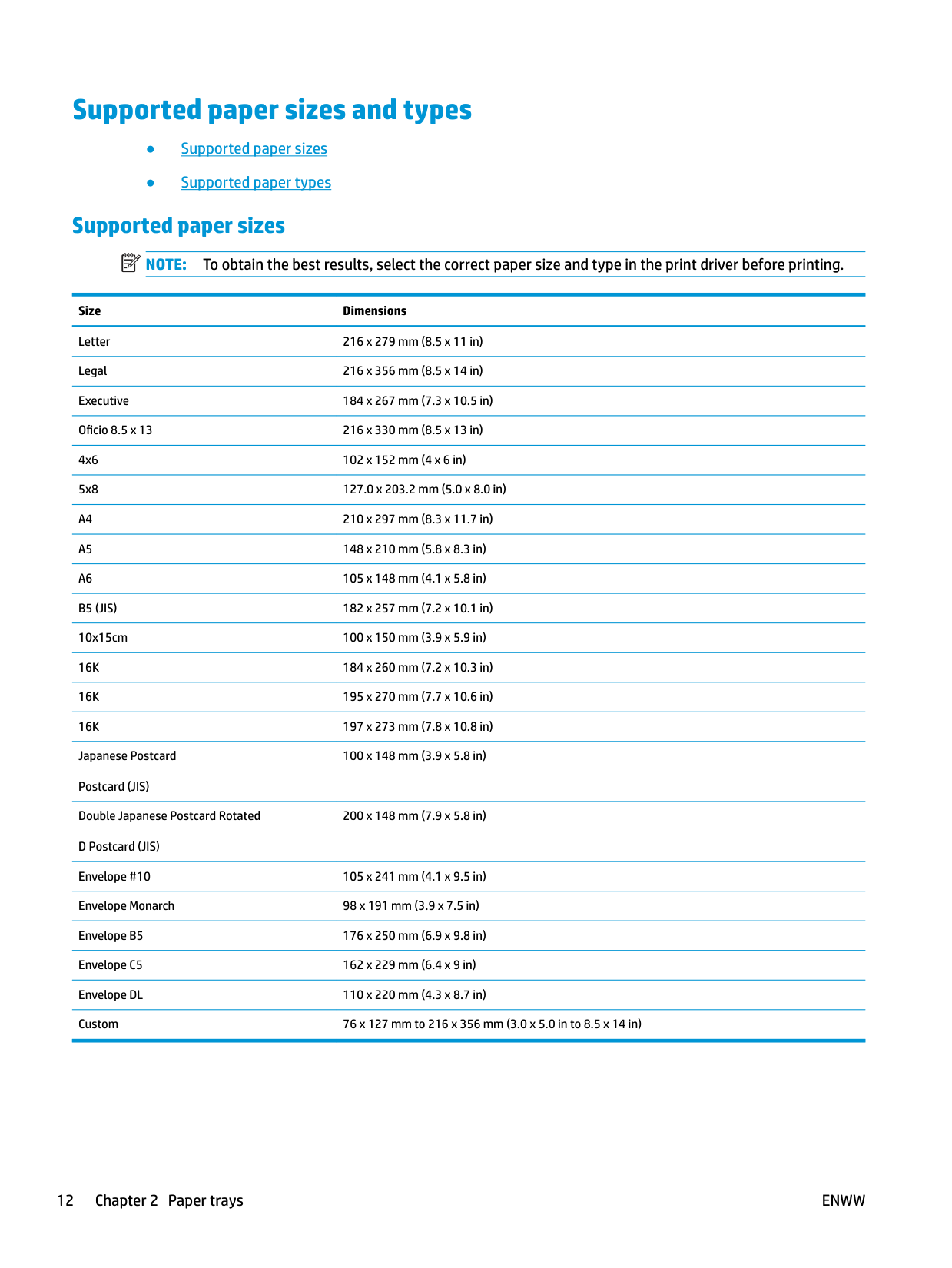
  • ###### Supported paper sizes

    | | |---|

    NOTE: To obtain the best results, select the correct paper size and type in the print driver before printing.

    Size Dimensions Letter 216 x 279 mm (8.5 x 11 in) Legal 216 x 356 mm (8.5 x 14 in) Executive 184 x 267 mm (7.3 x 10.5 in) Oficio 8.5 x 13 216 x 330 mm (8.5 x 13 in)

  • 4x6 102 x 152 mm (4 x 6 in)
  • 5x8 127.0 x 203.2 mm (5.0 x 8.0 in)
  • A4 210 x 297 mm (8.3 x 11.7 in)
  • A5 148 x 210 mm (5.8 x 8.3 in)
  • A6 105 x 148 mm (4.1 x 5.8 in) B5 (JIS) 182 x 257 mm (7.2 x 10.1 in) 10x15cm 100 x 150 mm (3.9 x 5.9 in) 16K 184 x 260 mm (7.2 x 10.3 in) 16K 195 x 270 mm (7.7 x 10.6 in) 16K 197 x 273 mm (7.8 x 10.8 in) Japanese Postcard Postcard (JIS)
  • 100 x 148 mm (3.9 x 5.8 in)

    Double Japanese Postcard Rotated D Postcard (JIS)

    200 x 148 mm (7.9 x 5.8 in)

    Envelope #10 105 x 241 mm (4.1 x 9.5 in) Envelope Monarch 98 x 191 mm (3.9 x 7.5 in)

  • Envelope B5 176 x 250 mm (6.9 x 9.8 in)
  • Page 19

  • Envelope C5 162 x 229 mm (6.4 x 9 in) Envelope DL 110 x 220 mm (4.3 x 8.7 in) Custom 76 x 127 mm to 216 x 356 mm (3.0 x 5.0 in to 8.5 x 14 in)
  • Supported paper types The product supports the following paper types: NOTE: To obtain the best results, select the correct paper size and type in the print driver before printing.

    | | |---|

  • ● Plain
  • ● Labels
  • ● Letterhead
  • ● Envelope
  • ● Preprinted
  • ● Prepunched
  • ● Colored
  • ● Bond
  • ● Recycled
  • ● Rough
  • ● HP EcoSMART Lite
  • ● HP LaserJet 90g
  • ● HP Color Laser Matte 105g
  • ● HP Premium Choice Matte 120g
  • ● HP Brochure Matte 150g
  • ● HP Cover Matte 200g
  • ● HP Matte Photo 200g
  • ● HP Premium Presentation Glossy 120g
  • ● HP Brochure Glossy 150g
  • ● HP Tri-fold Brochure Glossy 150g
  • ● HP Brochure Glossy 200g
  • ● HP Brochure Glossy 200g (faster printing)
  • ● HP Brochure Glossy 200g (higher gloss)
  • ● Light 60–74g
  • ● Intermediate 85-95g
  • ● Midweight 96–110g
  • ● Heavy 111–130g
  • ● Extra Heavy 131–175g
  • ENWW Supported paper sizes and types 13

    Page 20

  • ● Mid-Weight Glossy 96-110g
  • ● Heavy Glossy 111-130g
  • ● Extra Heavy Glossy 131-175g
  • ● Card Glossy 176-220g
  • ● Color Laser Transparency
  • ● Heavy Envelope
  • ● Heavy Rough
  • ● HP Tough Paper
  • #### Load the input tray

    | | |---|

    NOTE: The input tray has a maximum capacity of 150 sheets.

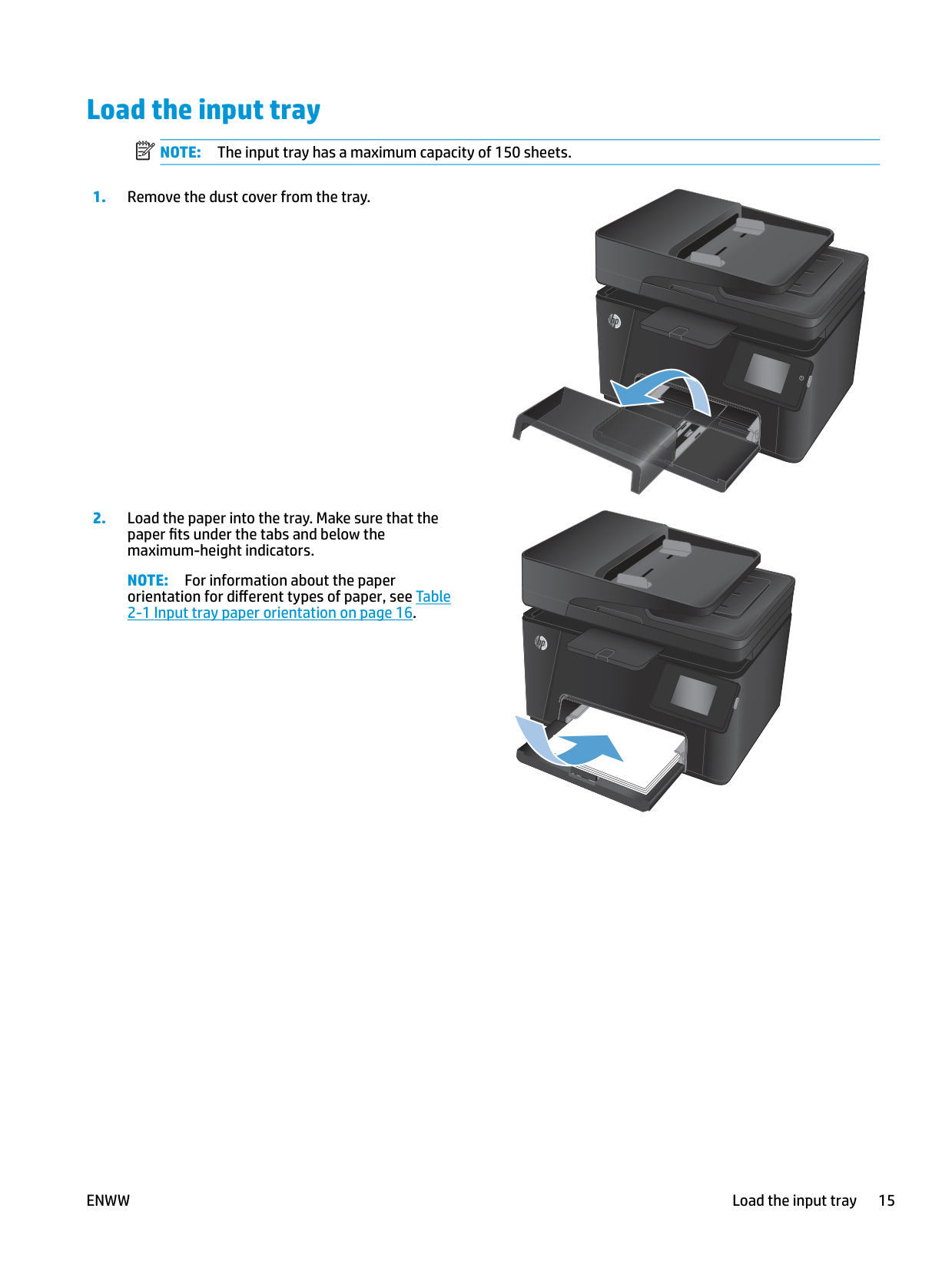
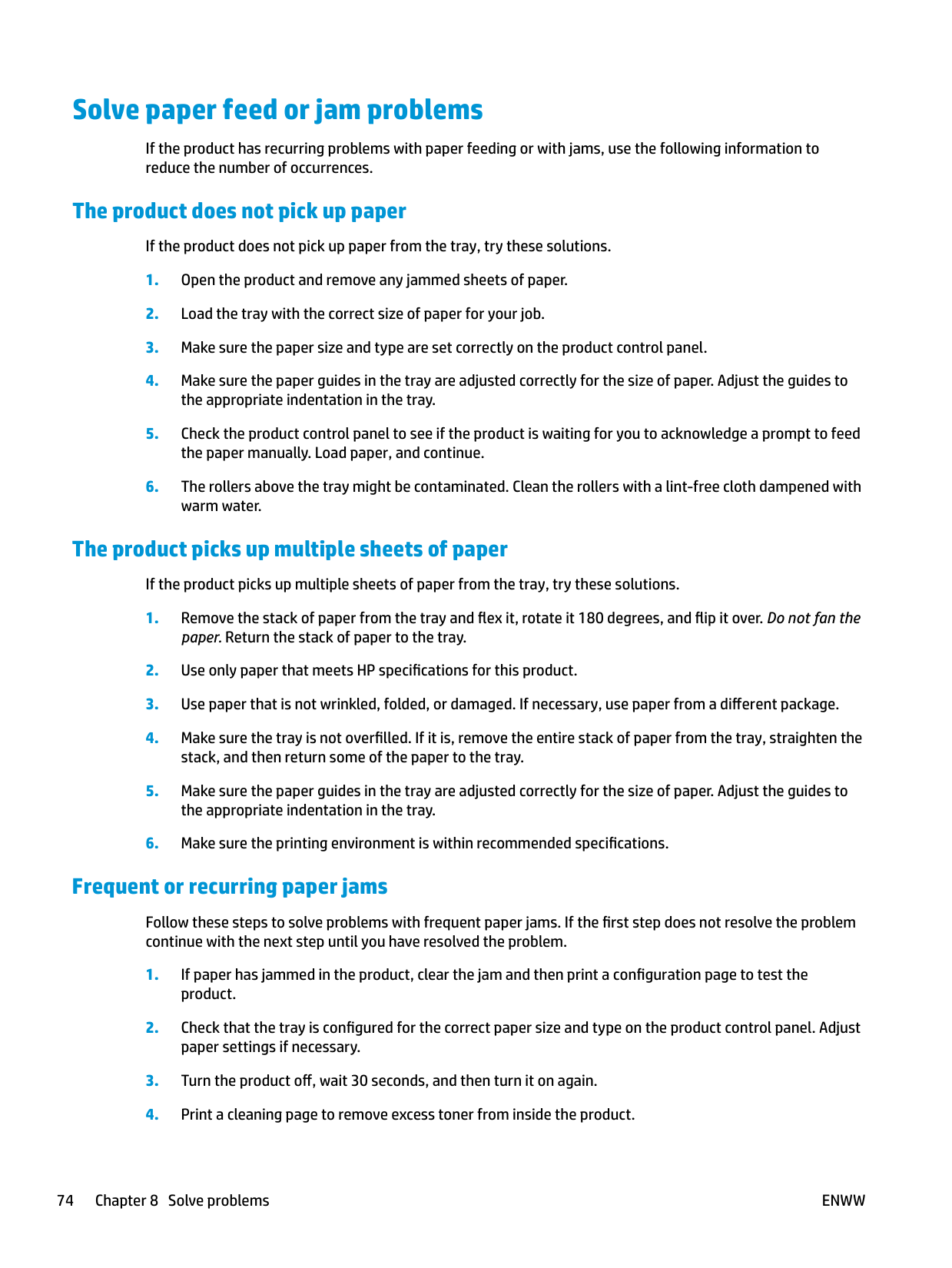
  • 1. Remove the dust cover from the tray.
  • ![image 143](c03629244_images/imageFile143.png)

    ![image 144](c03629244_images/imageFile144.png)

    ![image 145](c03629244_images/imageFile145.png)

    ![image 146](c03629244_images/imageFile146.png)

    ![image 147](c03629244_images/imageFile147.png)

    ![image 148](c03629244_images/imageFile148.png)

    ![image 149](c03629244_images/imageFile149.png)

    ![image 150](c03629244_images/imageFile150.png)

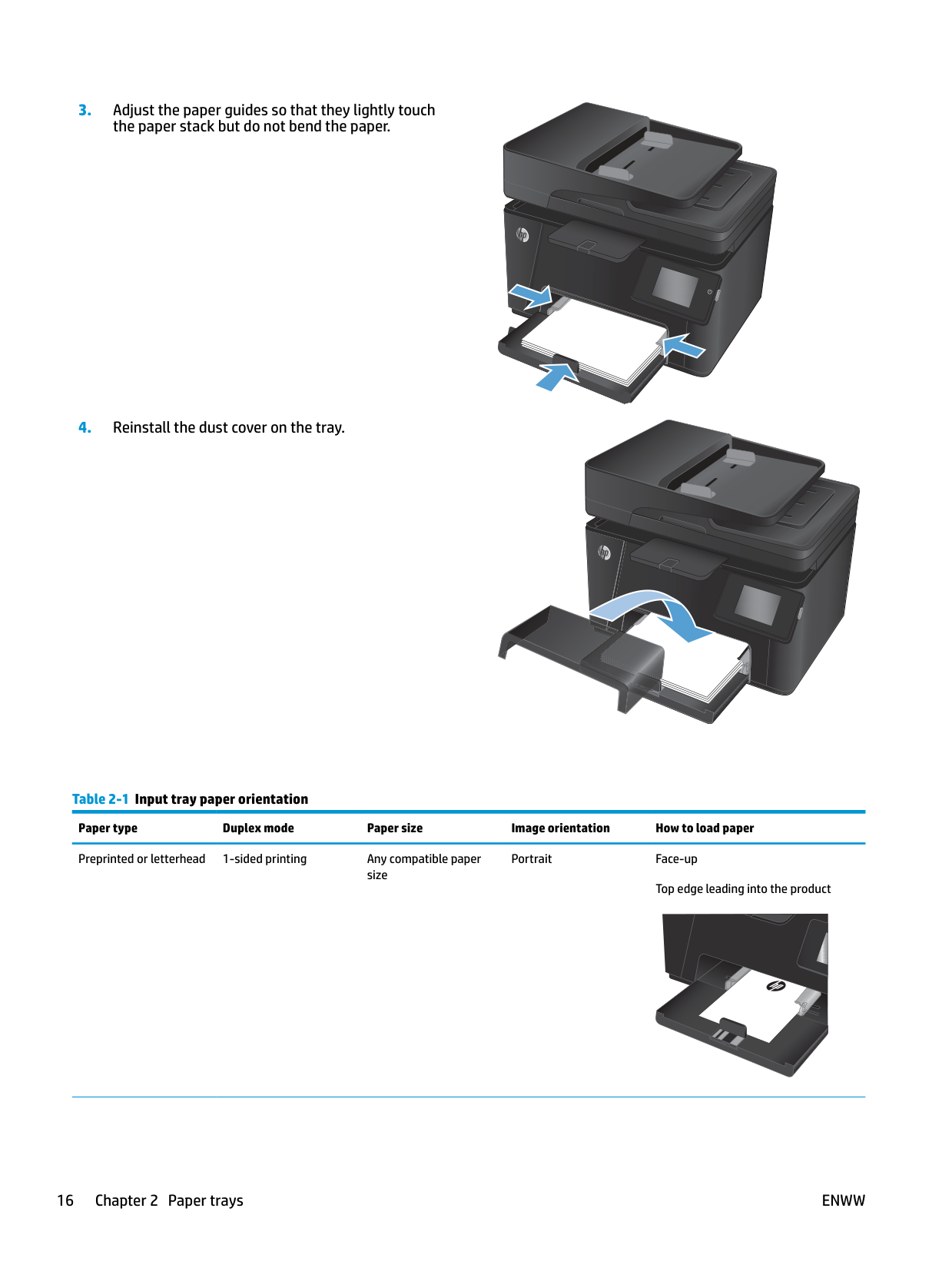
  • 2. Load the paper into the tray. Make sure that the paper fits under the tabs and below the maximum-height indicators.
  • Page 21

    NOTE: For information about the paper orientation for different types of paper, see Table 2-1 Input tray paper orientation on page 16.

    ![image 151](c03629244_images/imageFile151.png)

    ![image 152](c03629244_images/imageFile152.png)

    ![image 153](c03629244_images/imageFile153.png)

    ![image 154](c03629244_images/imageFile154.png)

    ![image 155](c03629244_images/imageFile155.png)

    ![image 156](c03629244_images/imageFile156.png)

    ![image 157](c03629244_images/imageFile157.png)

    ![image 158](c03629244_images/imageFile158.png)

    ![image 159](c03629244_images/imageFile159.png)

    ![image 160](c03629244_images/imageFile160.png)

    ![image 161](c03629244_images/imageFile161.png)

    ![image 162](c03629244_images/imageFile162.png)

    ![image 163](c03629244_images/imageFile163.png)

    ![image 164](c03629244_images/imageFile164.png)

    ![image 165](c03629244_images/imageFile165.png)

    ![image 166](c03629244_images/imageFile166.png)

    ![image 167](c03629244_images/imageFile167.png)

    ![image 168](c03629244_images/imageFile168.png)

    ![image 169](c03629244_images/imageFile169.png)

    Page 22

    ![image 170](c03629244_images/imageFile170.png)

    ![image 171](c03629244_images/imageFile171.png)

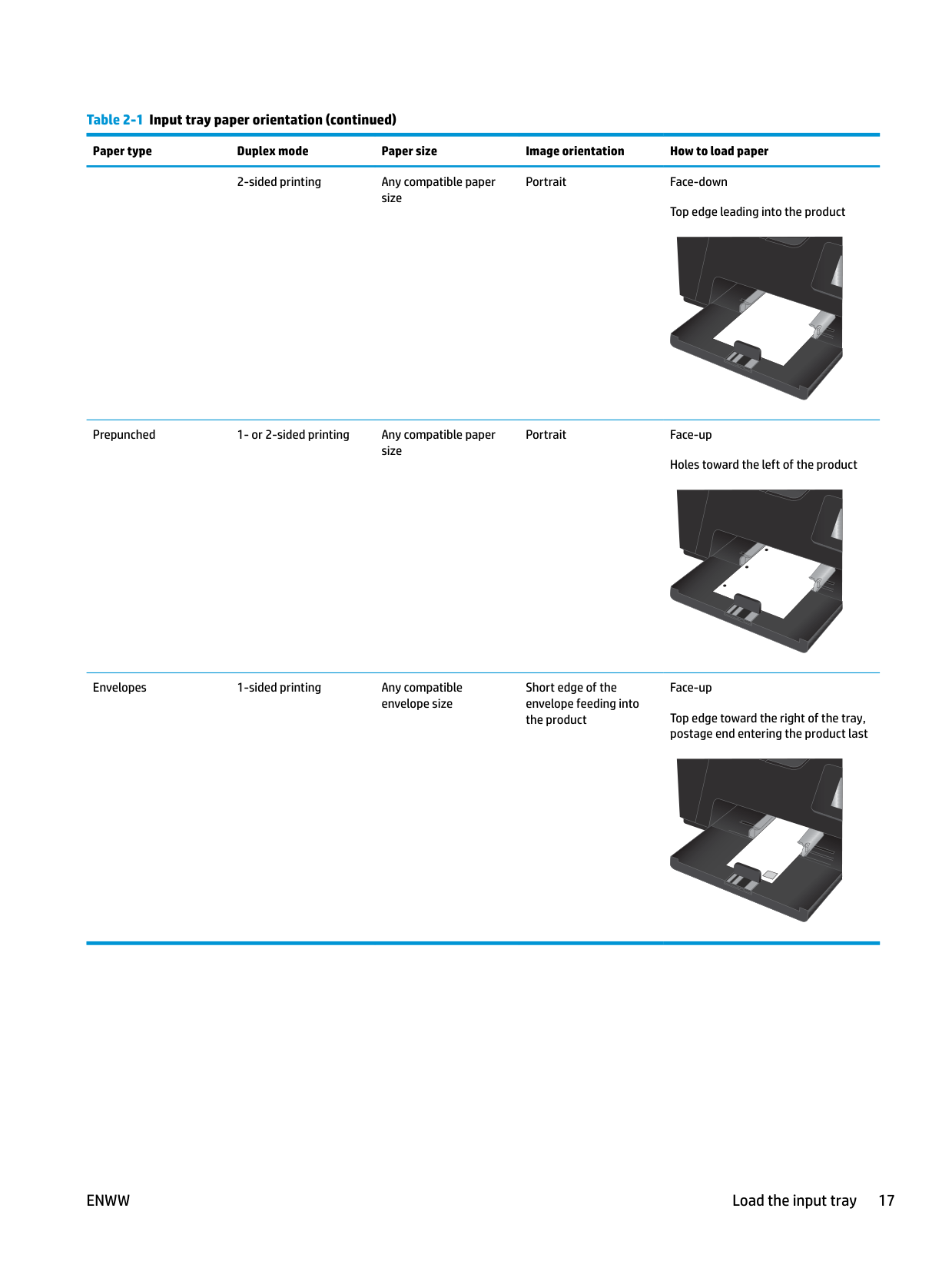
  • 3. Adjust the paper guides so that they lightly touch the paper stack but do not bend the paper.
  • ![image 172](c03629244_images/imageFile172.png)

    ![image 173](c03629244_images/imageFile173.png)

    ![image 174](c03629244_images/imageFile174.png)

    ![image 175](c03629244_images/imageFile175.png)

    ![image 176](c03629244_images/imageFile176.png)

    ![image 177](c03629244_images/imageFile177.png)

    ![image 178](c03629244_images/imageFile178.png)

    ![image 179](c03629244_images/imageFile179.png)

    ![image 180](c03629244_images/imageFile180.png)

    ![image 181](c03629244_images/imageFile181.png)

    ![image 182](c03629244_images/imageFile182.png)

    ![image 183](c03629244_images/imageFile183.png)

    ![image 184](c03629244_images/imageFile184.png)

    ![image 185](c03629244_images/imageFile185.png)

    ![image 186](c03629244_images/imageFile186.png)

    ![image 187](c03629244_images/imageFile187.png)

    ![image 188](c03629244_images/imageFile188.png)

    Page 23

    ![image 189](c03629244_images/imageFile189.png)

    ![image 190](c03629244_images/imageFile190.png)

    ![image 191](c03629244_images/imageFile191.png)

    ![image 192](c03629244_images/imageFile192.png)

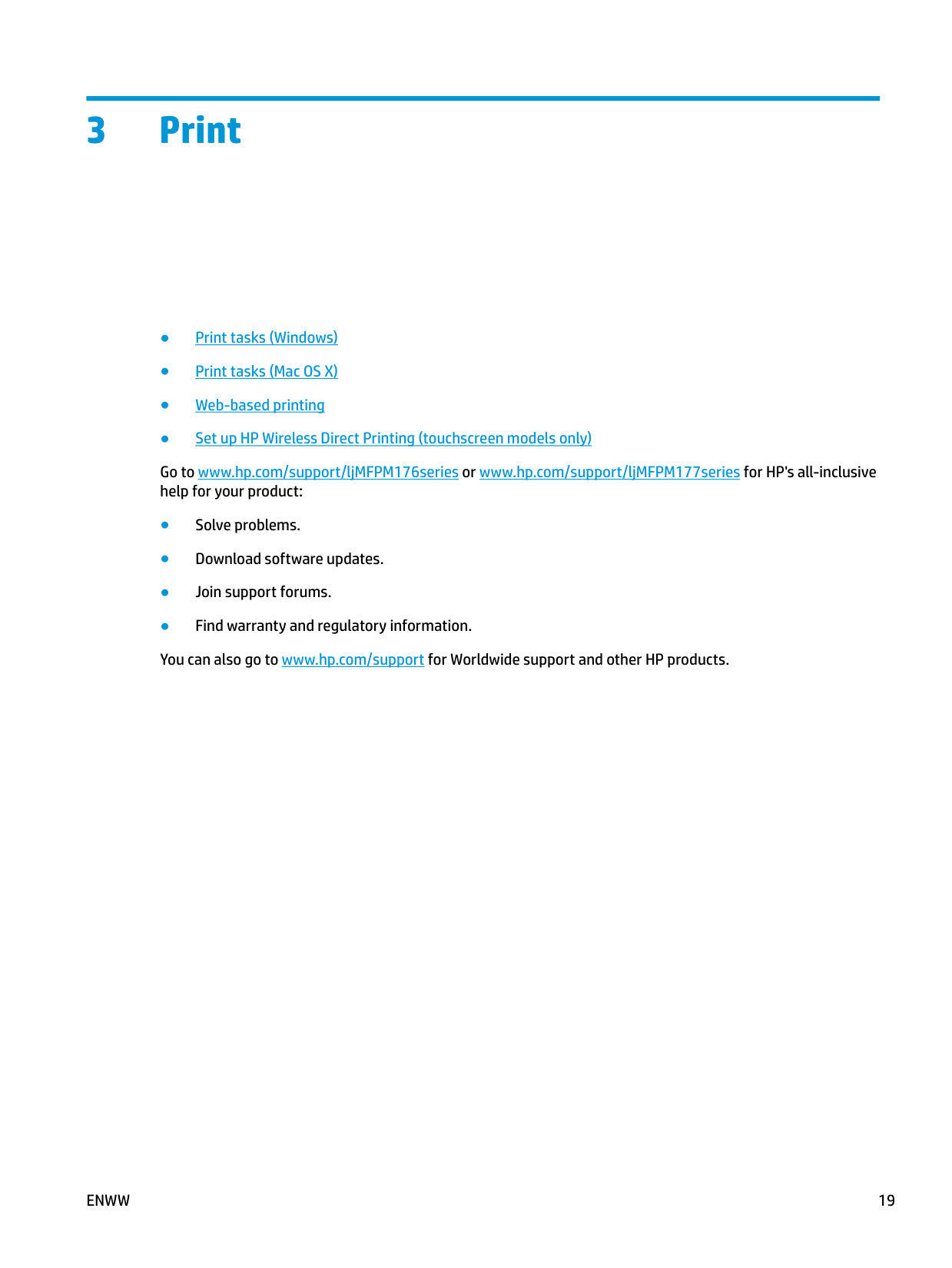
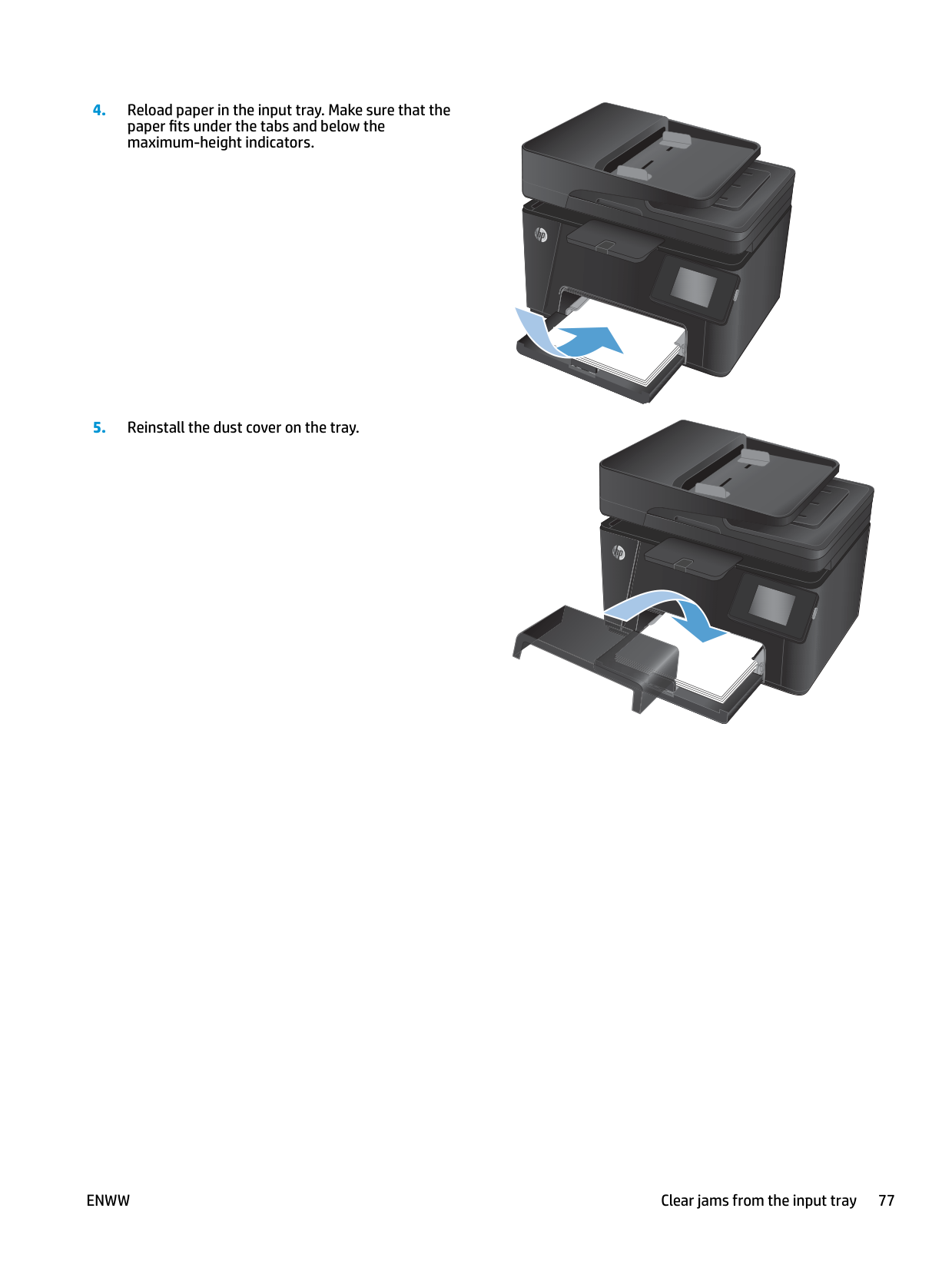
  • 4. Reinstall the dust cover on the tray.
  • ![image 193](c03629244_images/imageFile193.png)

    ![image 194](c03629244_images/imageFile194.png)

    ![image 195](c03629244_images/imageFile195.png)

    ![image 196](c03629244_images/imageFile196.png)

    ![image 197](c03629244_images/imageFile197.png)

    ![image 198](c03629244_images/imageFile198.png)

    ![image 199](c03629244_images/imageFile199.png)

    ![image 200](c03629244_images/imageFile200.png)

    ![image 201](c03629244_images/imageFile201.png)

    ![image 202](c03629244_images/imageFile202.png)

    ![image 203](c03629244_images/imageFile203.png)

    ![image 204](c03629244_images/imageFile204.png)

    Table 2-1 Input tray paper orientation Paper type Duplex mode Paper size Image orientation How to load paper Preprinted or letterhead 1-sided printing Any compatible paper

    Portrait Face-up Top edge leading into the product

    size

    Page 24

    ########## Table 2-1 Input tray paper orientation (continued)

    ########### Paper type Duplex mode Paper size Image orientation How to load paper

    2-sided printing Any compatible paper size

    Portrait Face-down Top edge leading into the product

    Prepunched 1- or 2-sided printing Any compatible paper size

    Envelopes 1-sided printing Any compatible envelope size

    Portrait Face-up Holes toward the left of the product

    Short edge of the envelope feeding into the product

    Face-up

    Top edge toward the right of the tray, postage end entering the product last

    3 Print

  • ● Print tasks (Windows)
  • ● Print tasks (Mac OS X)
  • ● Web-based printing
  • ● Set up HP Wireless Direct Printing (touchscreen models only) Go to www.hp.com/support/ljMFPM176series or www.hp.com/support/ljMFPM177series for HP's all-inclusive help for your product:
  • ● Solve problems.
  • ● Download software updates.
  • ● Join support forums.
  • ● Find warranty and regulatory information. You can also go to www.hp.com/support for Worldwide support and other HP products.
  • ENWW 19

    #### Print tasks (Windows)

    Page 25

  • ● How to print (Windows)
  • ● Manually print on both sides (Windows)
  • ● Print multiple pages per sheet (Windows)
  • ● Select the paper type (Windows)
  • ● Additional printing information
  • ###### How to print (Windows)

    The following procedure describes the basic printing process for Windows.

  • 1. From the software program, select the Print option.
  • 2. Select the product from the list of printers, and then click or tap the Properties or Preferences button to open the print driver. NOTE: The name of the button varies for different software programs.
  • 3. Click or tap the tabs in the print driver to configure the available options.
  • 4. Click or tap the OK button to return to the Print dialog box. Select the number of copies to print from this screen.
  • 5. Click or tap the OK button to print the job.
  • | | |---|

    ###### Manually print on both sides (Windows)

  • 1. From the software program, select the Print option.
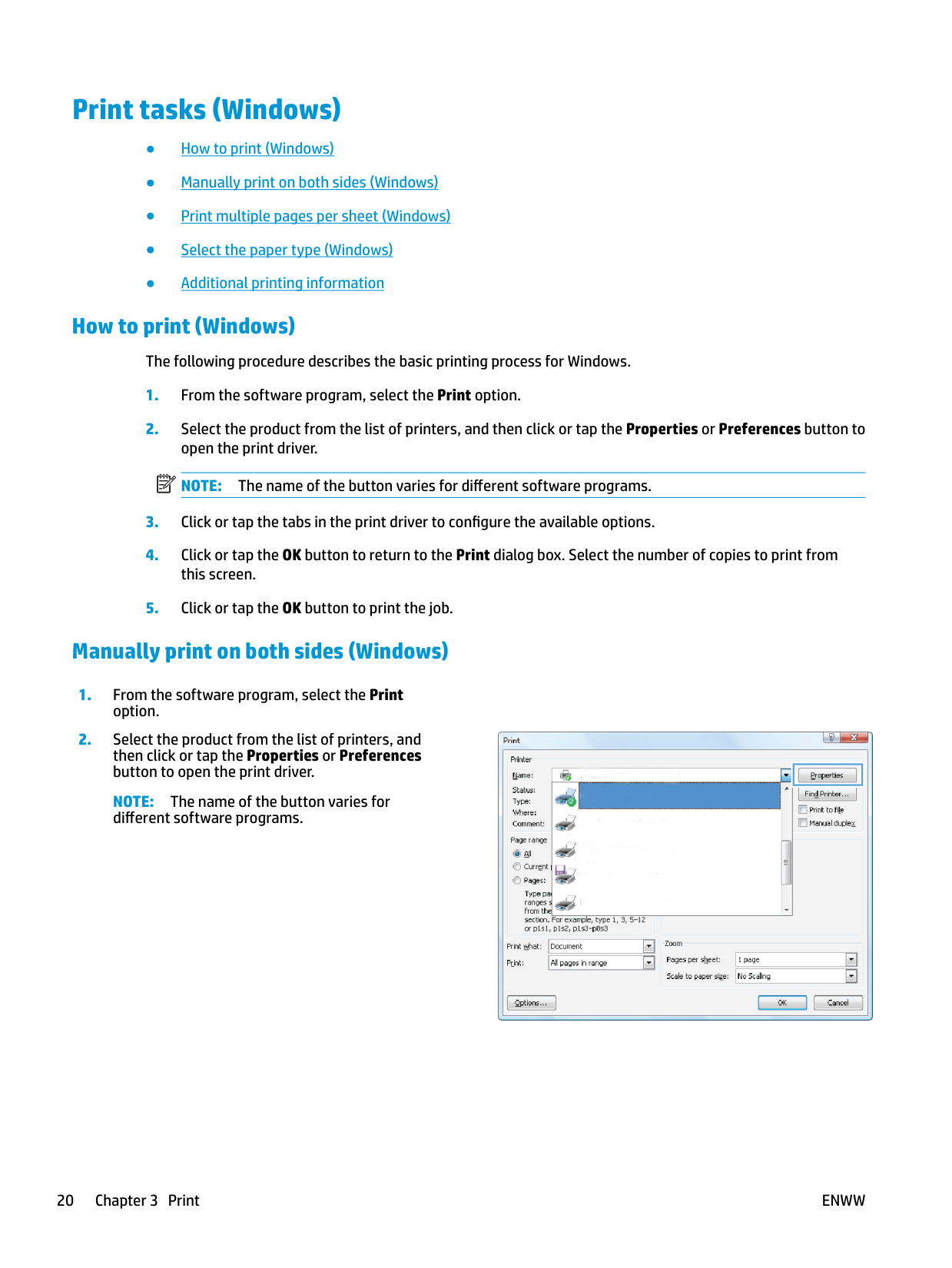
  • 2. Select the product from the list of printers, and then click or tap the Properties or Preferences button to open the print driver.
  • NOTE: The name of the button varies for different software programs.

    ![image 205](c03629244_images/imageFile205.png)

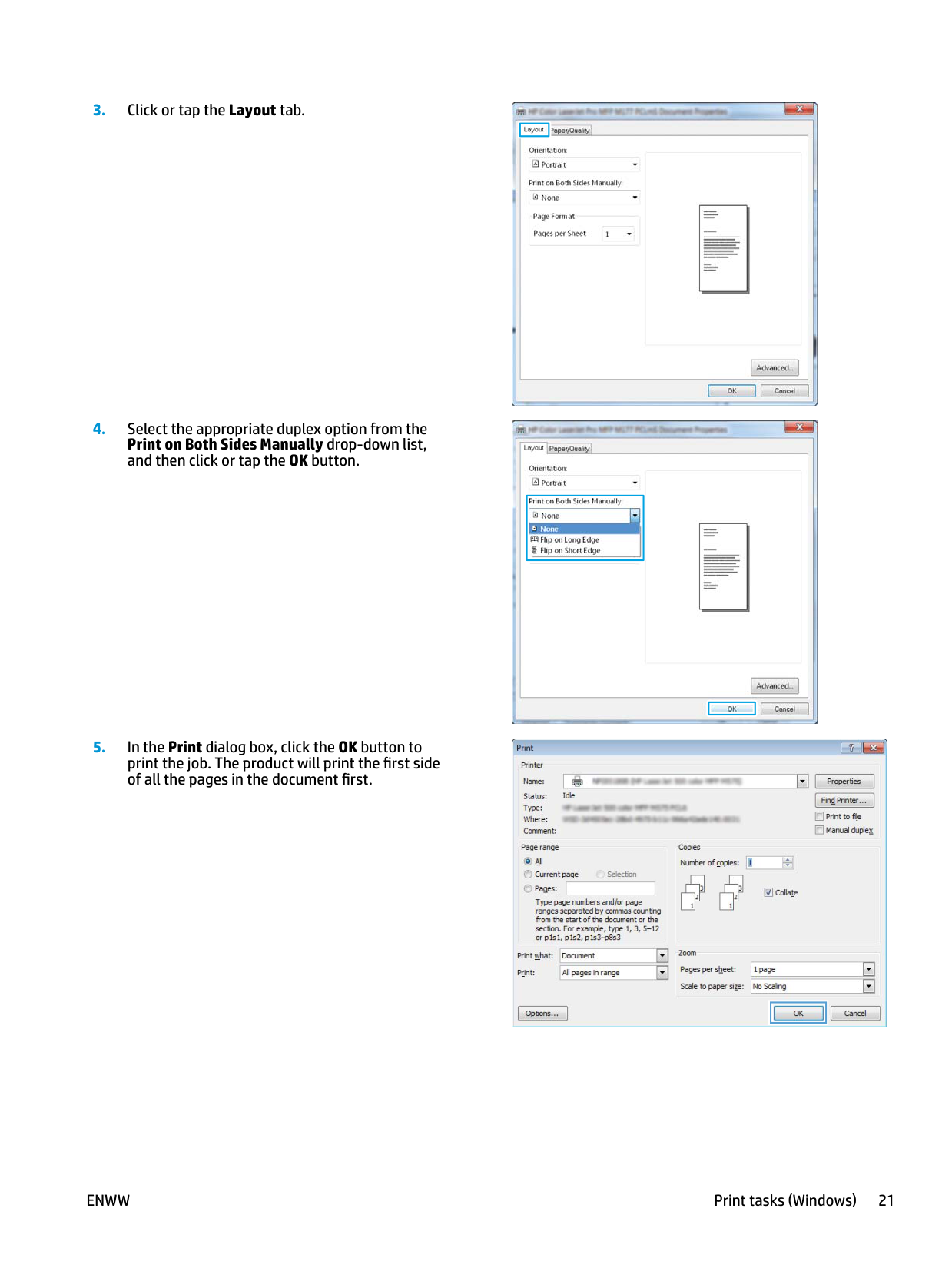
    ######### 4. Select the appropriate duplex option from thePrint on Both Sides Manually drop-down list,and then click or tap the OK button.

    Page 26

    ######### 5. In the Print dialog box, click the OK button toprint the job. The product will print the first sideof all the pages in the document first.

    ![image 207](c03629244_images/imageFile207.png)

    ![image 208](c03629244_images/imageFile208.png)

    | | |---|

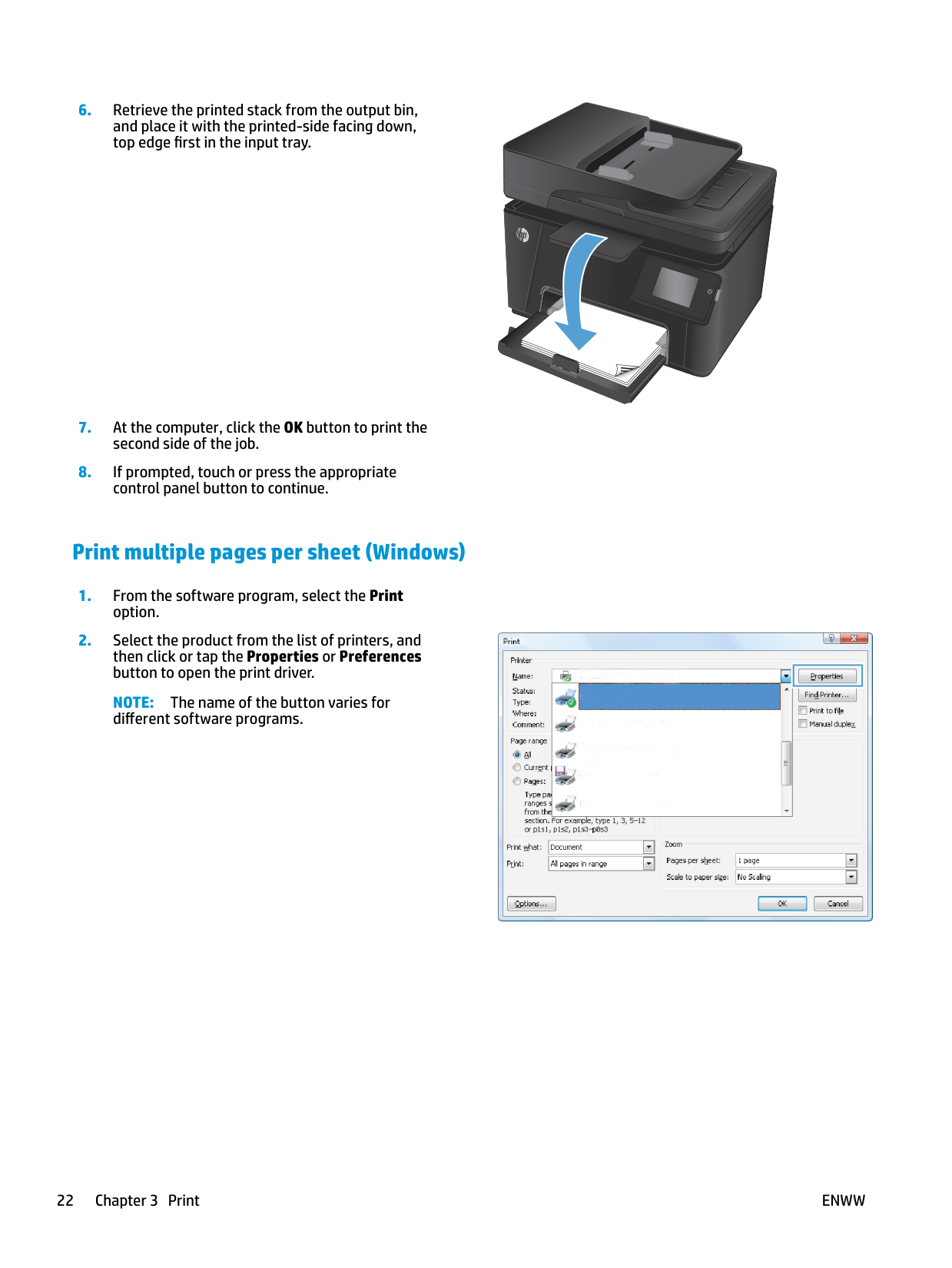
  • 6. Retrieve the printed stack from the output bin, and place it with the printed-side facing down, top edge first in the input tray.
  • ![image 209](c03629244_images/imageFile209.png)

    ![image 210](c03629244_images/imageFile210.png)

    ![image 211](c03629244_images/imageFile211.png)

    ![image 212](c03629244_images/imageFile212.png)

    ![image 213](c03629244_images/imageFile213.png)

    ![image 214](c03629244_images/imageFile214.png)

    ![image 215](c03629244_images/imageFile215.png)

    ![image 216](c03629244_images/imageFile216.png)

    ![image 217](c03629244_images/imageFile217.png)

    ![image 218](c03629244_images/imageFile218.png)

    ![image 219](c03629244_images/imageFile219.png)

    ![image 220](c03629244_images/imageFile220.png)

    ![image 221](c03629244_images/imageFile221.png)

    ![image 222](c03629244_images/imageFile222.png)

    Page 27

    ![image 223](c03629244_images/imageFile223.png)

    ![image 224](c03629244_images/imageFile224.png)

    ![image 225](c03629244_images/imageFile225.png)

    ![image 226](c03629244_images/imageFile226.png)

    ![image 227](c03629244_images/imageFile227.png)

    ![image 228](c03629244_images/imageFile228.png)

    ![image 229](c03629244_images/imageFile229.png)

  • 7. At the computer, click the OK button to print the second side of the job.
  • 8. If prompted, touch or press the appropriate control panel button to continue.
  • ###### Print multiple pages per sheet (Windows)

  • 1. From the software program, select the Print option.
  • 2. Select the product from the list of printers, and then click or tap the Properties or Preferences button to open the print driver.
  • NOTE: The name of the button varies for different software programs.

    ![image 230](c03629244_images/imageFile230.png)

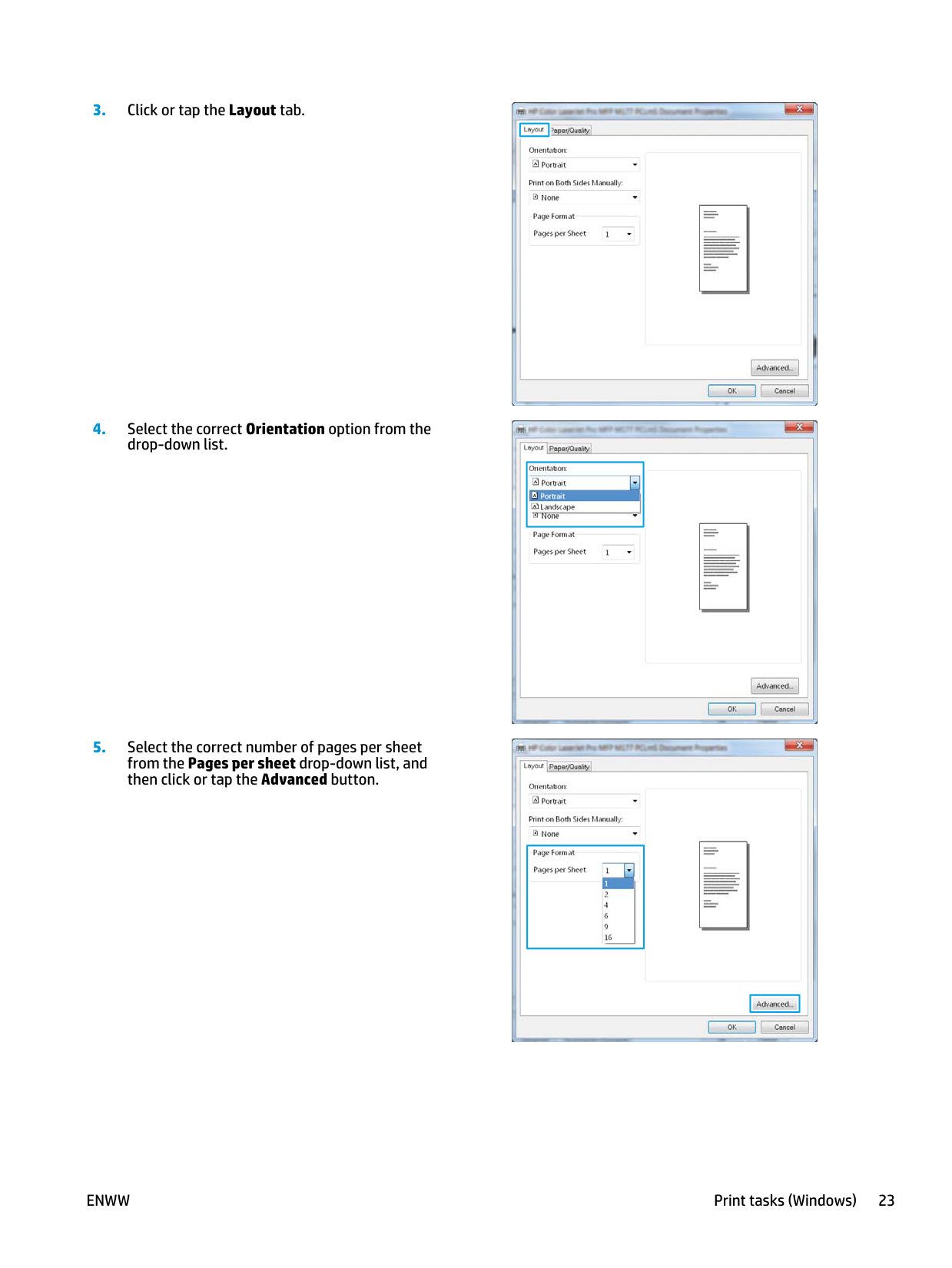
    ######### 4. Select the correct Orientation option from thedrop-down list.

    ######### 5. Select the correct number of pages per sheetfrom the Pages per sheet drop-down list, andthen click or tap the Advanced button.

    ![image 232](c03629244_images/imageFile232.png)

    | | |---|

    ![image 233](c03629244_images/imageFile233.png)

    Page 28

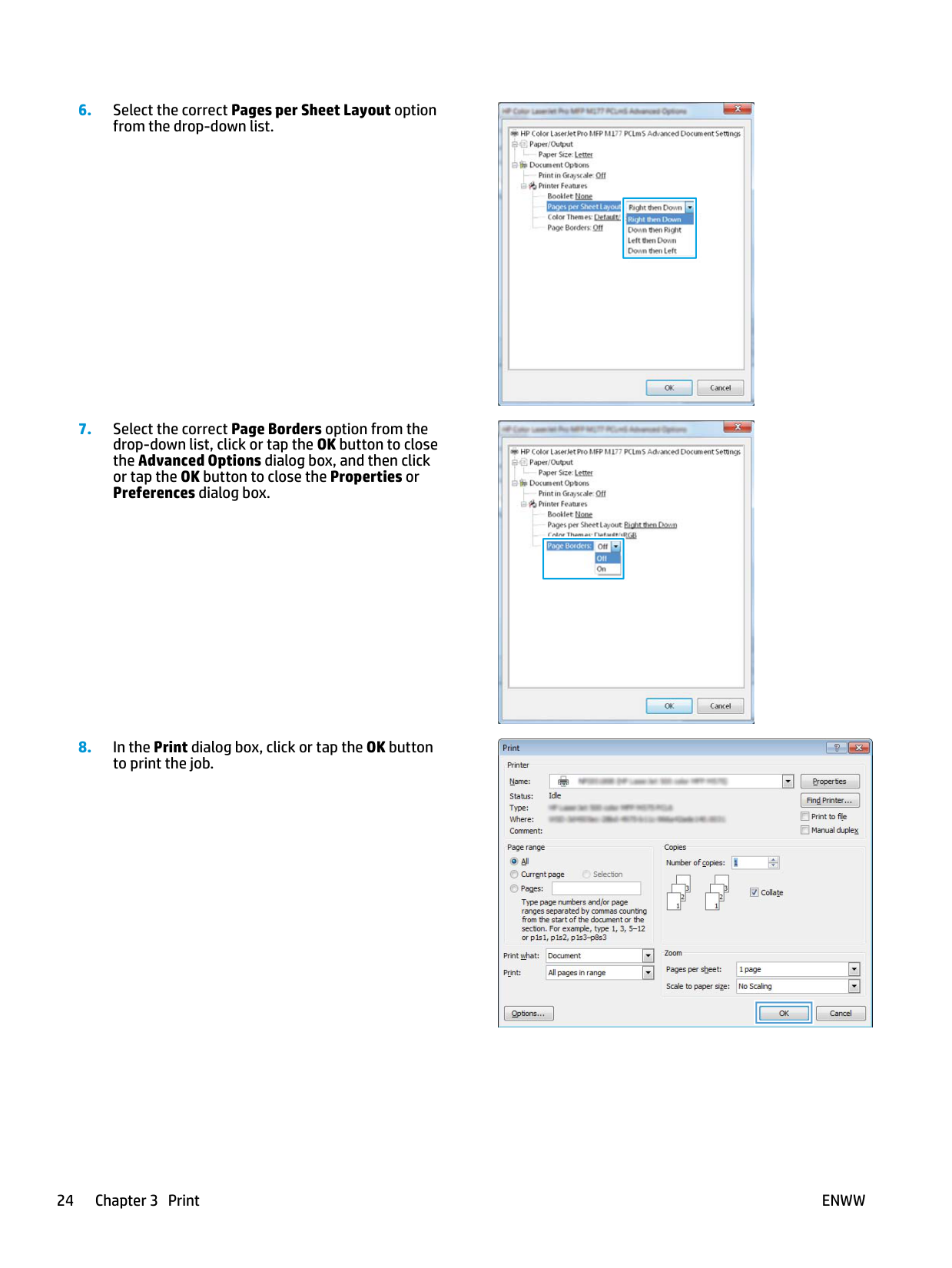
    ######### 6. Select the correct Pages per Sheet Layout optionfrom the drop-down list.

    ######### 7. Select the correct Page Borders option from thedrop-down list, click or tap the OK button to closethe Advanced Options dialog box, and then clickor tap the OK button to close the Properties orPreferences dialog box.

    ######### 8. In the Print dialog box, click or tap the OK buttonto print the job.

    ![image 234](c03629244_images/imageFile234.png)

    | | |---|

    ![image 235](c03629244_images/imageFile235.png)

    | | |---|

    ![image 236](c03629244_images/imageFile236.png)

    | | |---|

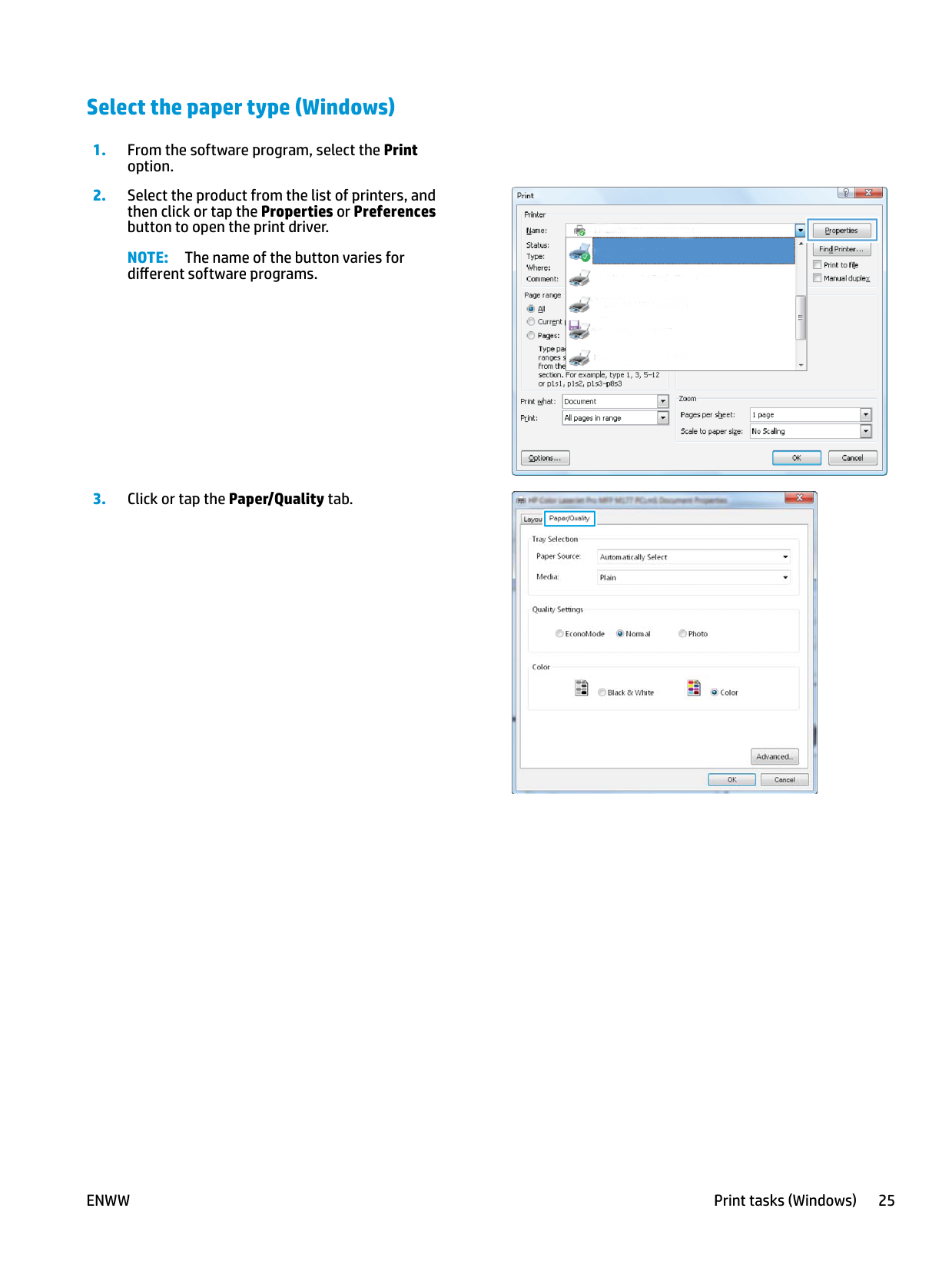
    ###### Select the paper type (Windows)

  • 1. From the software program, select the Print option.
  • 2. Select the product from the list of printers, and then click or tap the Properties or Preferences button to open the print driver.
  • NOTE: The name of the button varies for different software programs.

    ![image 237](c03629244_images/imageFile237.png)

  • 3. Click or tap the Paper/Quality tab.
  • ![image 238](c03629244_images/imageFile238.png)

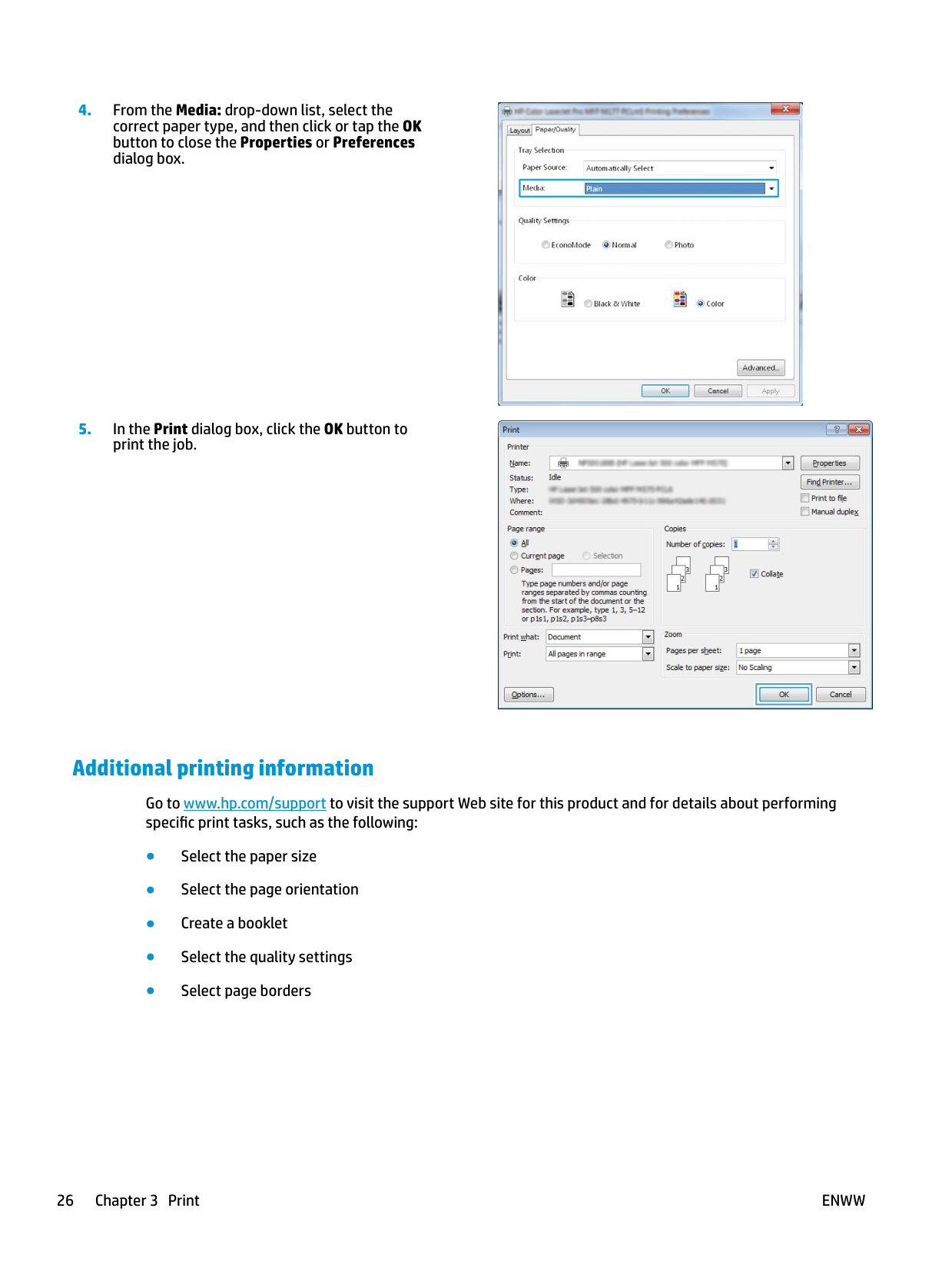
  • 4. From the Media: drop-down list, select the correct paper type, and then click or tap the OK button to close the Properties or Preferences dialog box.
  • Page 29

    ![image 239](c03629244_images/imageFile239.png)

    | | |---|

  • 5. In the Print dialog box, click the OK button to print the job.
  • ![image 240](c03629244_images/imageFile240.png)

    | | |---|

    ###### Additional printing information

    Go to www.hp.com/support to visit the support Web site for this product and for details about performing specific print tasks, such as the following:

  • ● Select the paper size
  • ● Select the page orientation
  • ● Create a booklet
  • ● Select the quality settings
  • ● Select page borders
  • #### Print tasks (Mac OS X)

  • ● How to print (Mac OS X)
  • ● Manually print on both sides (Mac OS X)
  • ● Print multiple pages per sheet (Mac OS X)
  • ● Select the paper type (Mac OS X)
  • ● Additional printing information
  • ###### How to print (Mac OS X)

    Page 30

    The following procedure describes the basic printing process for Mac OS X.

  • 1. Click the File menu, and then click the Print option.
  • 2. In the Printer menu, select the product.
  • 3. Open the menus drop-down list or click Show Details, and then select other menus to adjust the print settings.
  • 4. Click the Print button.
  • ###### Manually print on both sides (Mac OS X)

    | | |---|

    NOTE: This feature is available if you install the HP print driver. It might not be available if you are using AirPrint.

  • 1. Click the File menu, and then click the Print option.
  • 2. In the Printer menu, select this product.
  • 3. Open the menus drop-down list or click Show Details, and then click the Manual Duplex menu.
  • 4. Click the Manual Duplex box, and then select a binding option.
  • 5. Click the Print button.
  • 6. Go to the product, and remove any blank paper that is in the input tray.
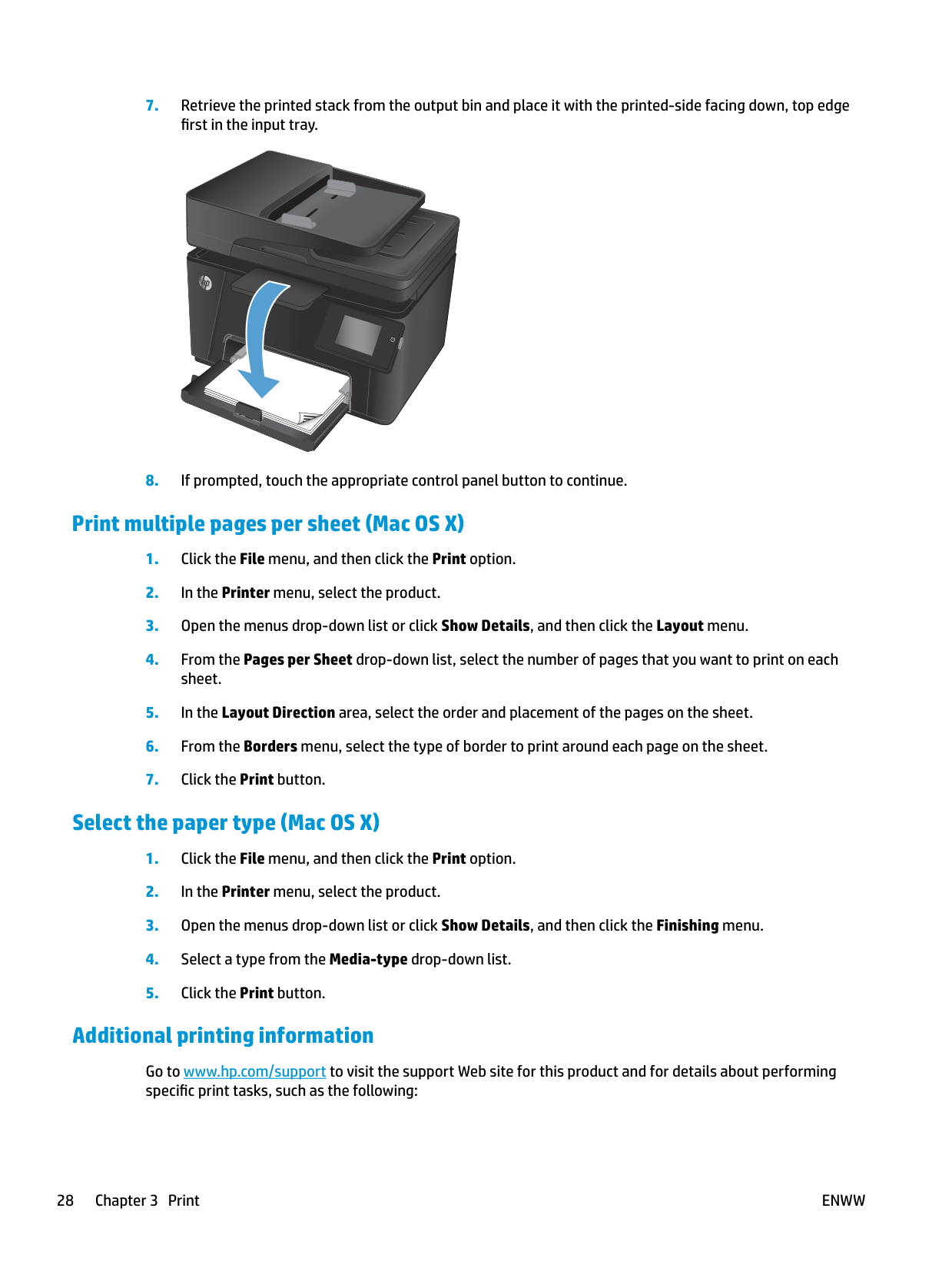
  • 7. Retrieve the printed stack from the output bin and place it with the printed-side facing down, top edge first in the input tray.
  • ![image 241](c03629244_images/imageFile241.png)

    ![image 242](c03629244_images/imageFile242.png)

    ![image 243](c03629244_images/imageFile243.png)

    ![image 244](c03629244_images/imageFile244.png)

    ![image 245](c03629244_images/imageFile245.png)

    ![image 246](c03629244_images/imageFile246.png)

    ![image 247](c03629244_images/imageFile247.png)

    Page 31

    ![image 248](c03629244_images/imageFile248.png)

    ![image 249](c03629244_images/imageFile249.png)

    ![image 250](c03629244_images/imageFile250.png)

    ![image 251](c03629244_images/imageFile251.png)

    ![image 252](c03629244_images/imageFile252.png)

    ![image 253](c03629244_images/imageFile253.png)

    ![image 254](c03629244_images/imageFile254.png)

    ![image 255](c03629244_images/imageFile255.png)

    ![image 256](c03629244_images/imageFile256.png)

    ![image 257](c03629244_images/imageFile257.png)

    ![image 258](c03629244_images/imageFile258.png)

    ![image 259](c03629244_images/imageFile259.png)

    ![image 260](c03629244_images/imageFile260.png)

    ![image 261](c03629244_images/imageFile261.png)

  • 8. If prompted, touch the appropriate control panel button to continue.
  • ###### Print multiple pages per sheet (Mac OS X)

  • 1. Click the File menu, and then click the Print option.
  • 2. In the Printer menu, select the product.
  • 3. Open the menus drop-down list or click Show Details, and then click the Layout menu.
  • 4. From the Pages per Sheet drop-down list, select the number of pages that you want to print on each sheet.
  • 5. In the Layout Direction area, select the order and placement of the pages on the sheet.
  • 6. From the Borders menu, select the type of border to print around each page on the sheet.
  • Page 32

  • 7. Click the Print button.
  • ###### Select the paper type (Mac OS X)

  • 1. Click the File menu, and then click the Print option.
  • 2. In the Printer menu, select the product.
  • 3. Open the menus drop-down list or click Show Details, and then click the Finishing menu.
  • 4. Select a type from the Media-type drop-down list.
  • 5. Click the Print button.
  • ###### Additional printing information

    Go to www.hp.com/support to visit the support Web site for this product and for details about performing specific print tasks, such as the following:

  • ● Create and use printing shortcuts or presets
  • ● Select the paper size, or use a custom paper size
  • ● Select the page orientation
  • ● Create a booklet
  • ● Scale a document to fit a specific paper size
  • ● Print the first or last pages of the document on different paper
  • ● Print watermarks on a document
  • #### Web-based printing

    Several options are available for remote printing over the Internet.

    ###### HP ePrint

    Use HP ePrint to print documents by sending them as an email attachment to the product's email address from any email enabled device.

    To use HP ePrint, the product must meet these requirements:

  • ● The product must be connected to a wired or wireless network and have Internet access.
  • ● HP Web Services must be enabled on the product, and the product must be registered with HP Connected. LCD control panel
  • 1. Find the product IP address.
  • Page 33

  • a. On the product control panel, press the Setup button.
  • b. Open the following menus:
  • ● Network Setup
  • ● Show IP Address
  • 2. To open the HP Embedded Web Server, enter the product IP address into the address line of a Web browser on the computer.
  • 3. Click the HP Web Services tab on the HP Embedded Web Server, and then click Enable. The product enables Web Services, and then prints an information page.
  • The information page contains the printer code that you use to register your HP product at HP Connected.

  • 4. Go to www.hpconnected.com to create an HP ePrint account and complete the setup process. Touchscreen control panel
  • 1. From the Home screen on the product control panel, touch the Web Services button.
  • 2. Touch the Enable Web Services button. The product enables Web Services, and then prints an information page.
  • The information page contains the printer code that you use to register your HP product at HP Connected.

  • 3. Go to www.hpconnected.com to create an HP ePrint account and complete the setup process.
  • For more information, go to www.hp.com/support to review additional support information for your product.

    ###### HP ePrint software

    The HP ePrint software makes it easy to print from a desktop or laptop computer to any HP ePrint capable product. After installing the software, open the Print option from within your application, and then select HP ePrint from the installed printers list. This software makes it easy to find HP ePrint-enabled products that are

    registered to your HP Connected account. The target HP product can be at your desk or in a remote location, such as a branch office or across the globe.

    For Windows, the HP ePrint software also supports traditional direct IP printing to local network printers on the network (LAN or WAN) to supported PostScript® products.

    | | |---|

    Page 34

    Go to www.hp.com/go/eprintsoftware for drivers and information. NOTE: The HP ePrint software is a PDF workflow utility for Mac, and is not technically a print driver. HP ePrint software for Mac supports print paths only through HP Connected and does not support direct IP printing to local network printers.

    ###### AirPrint

    Direct printing using Apple’s AirPrint is supported for iOS 4.2 or later. Use AirPrint to print directly to the product from an iPad, iPhone (3GS or later), or iPod touch (third generation or later) in the following applications:

  • ● Mail
  • ● Photos
  • ● Safari
  • ● iBooks
  • ● Select third-party applications
  • To use AirPrint, the product must be connected to the same wireless network as the Apple device. For more information about using AirPrint and about which HP products are compatible with AirPrint, go to www.hp.com/go/airprint.

    | | |---|

    NOTE: AirPrint does not support USB connections. AirPrint provides print-only mobile functionality. AirPrint does not support scanning.

    ENWW Web-based printing 31

    Set up HP Wireless Direct Printing (touchscreen models only) NOTE: This feature is available with wireless models only and the product might require a firmware update to use this feature. The HP Wireless Direct Printing feature lets you print from your wireless mobile device directly to an HP Wireless Direct-enabled product without requiring connection to an established network or the Internet. Use HP Wireless Direct to print wirelessly from the following devices:

    | | |---|

  • ● iPhone, iPad, or iTouch using Apple AirPrint or the HP ePrint mobile app
  • ● Mobile devices that run Android, iOS, or Symbian using the HP ePrint Home & Biz application
  • ● Any wireless capable computer with any operating system.
  • For more information on HP Wireless Direct, go to www.hp.com/go/wirelessprinting, and then click HP Wireless Direct.

    To set up HP Wireless Direct from the control panel, complete the following steps:

  • 1. From the Home screen on the product control panel, touch the Wireless button.
  • Page 35

  • 2. Open the following menus:
  • ● Wireless Menu
  • ● Wireless Direct Settings
  • ● On/Off
  • 3. Touch the On menu item. The product saves the setting and then returns the control panel to the Wireless Direct Settings menu.
  • 4 Copy

  • ● Make a copy
  • ● Copy on both sides (duplex)
  • ● Optimize copy quality Go to www.hp.com/support/ljMFPM176series or www.hp.com/support/ljMFPM177series for HP's all-inclusive help for your product: ● Solve problems. ● Download software updates.
  • ● Join support forums.
  • ● Find warranty and regulatory information. You can also go to www.hp.com/support for Worldwide support and other HP products.
  • ENWW 33

    #### Make a copy

    ######## LCD control panel

  • 1. Load the document on the scanner glass according to the indicators on the product.
  • 2. Close the scanner.
  • 3. At the product control panel, press the Number of Copies button.
  • 4. Select the number of copies.
  • 5. Press either the Black Start Copy
  • | | |---|

    Page 36

    button or the Color Start Copy button to start copying.

    ######## Touchscreen control panel

  • 1. Load the document on the scanner glass according to the indicators on the product.
  • 2. Close the scanner.
  • 3. From the Home screen on the product control panel, touch the Copy button.
  • 4. Touch the arrows to change the number of copies, or touch the existing number and type the number of copies.
  • 5. Touch the Black or Color button to start copying.
  • #### Copy on both sides (duplex)

  • 1. Load the document on the scanner glass according to the indicators on the product.
  • 2. Close the scanner.
  • 3. Start the copy job.
  • ● LCD control panel: On the product control panel, press either the Black Start Copy
  • | | |---|

    button or the Color Start Copy button.

  • ● Touchscreen control panel: From the Home screen on the product control panel, touch the Copy button, select the number of copies, and then touch the Black or Color button.
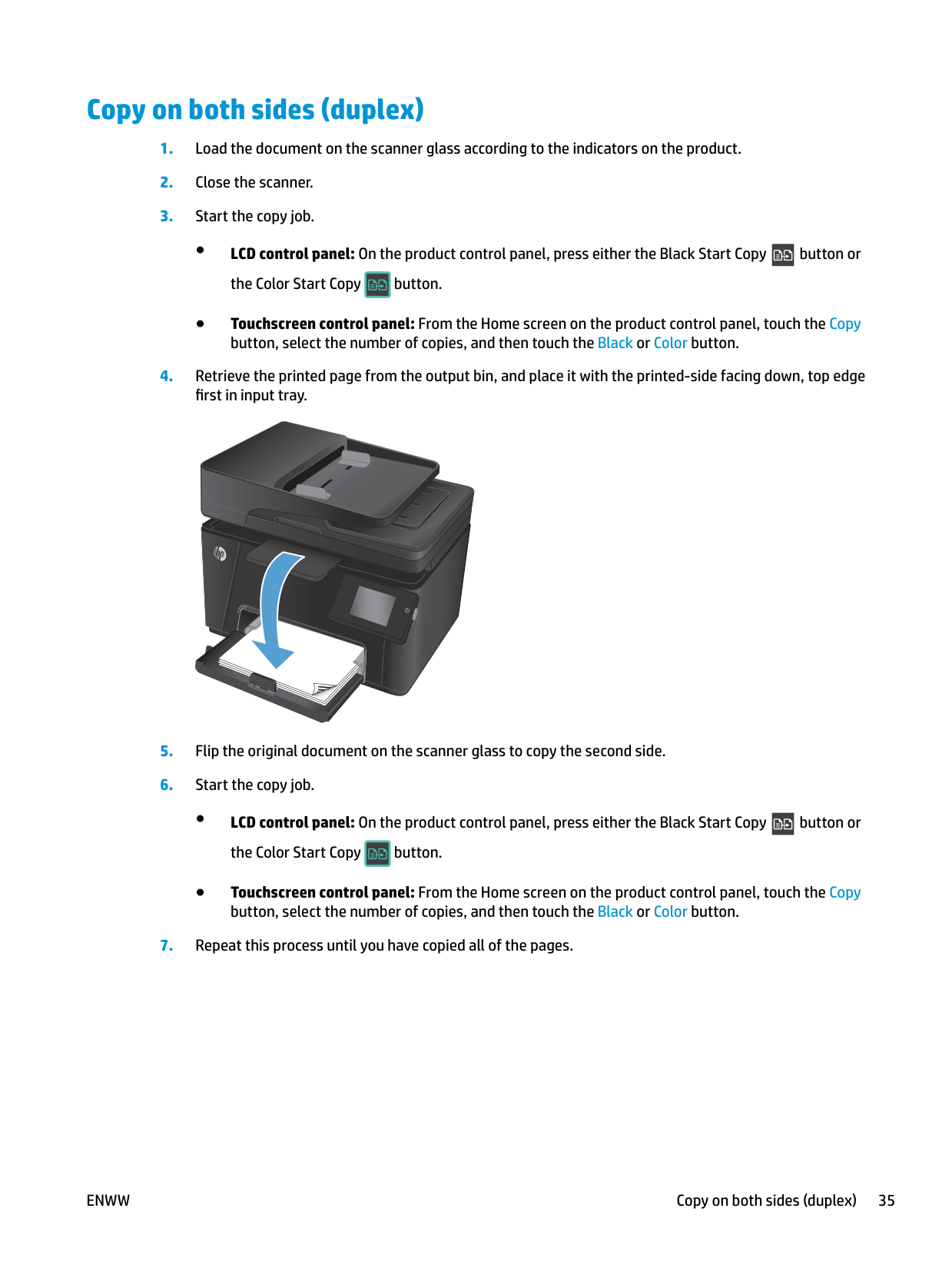
  • 4. Retrieve the printed page from the output bin, and place it with the printed-side facing down, top edge first in input tray.
  • ![image 262](c03629244_images/imageFile262.png)

    ![image 263](c03629244_images/imageFile263.png)

    ![image 264](c03629244_images/imageFile264.png)

    ![image 265](c03629244_images/imageFile265.png)

    ![image 266](c03629244_images/imageFile266.png)

    Page 37

    ![image 267](c03629244_images/imageFile267.png)

    ![image 268](c03629244_images/imageFile268.png)

    ![image 269](c03629244_images/imageFile269.png)

    ![image 270](c03629244_images/imageFile270.png)

    ![image 271](c03629244_images/imageFile271.png)

    ![image 272](c03629244_images/imageFile272.png)

    ![image 273](c03629244_images/imageFile273.png)

    ![image 274](c03629244_images/imageFile274.png)

    ![image 275](c03629244_images/imageFile275.png)

    ![image 276](c03629244_images/imageFile276.png)

    ![image 277](c03629244_images/imageFile277.png)

    ![image 278](c03629244_images/imageFile278.png)

    ![image 279](c03629244_images/imageFile279.png)

    ![image 280](c03629244_images/imageFile280.png)

    ![image 281](c03629244_images/imageFile281.png)

    ![image 282](c03629244_images/imageFile282.png)

  • 5. Flip the original document on the scanner glass to copy the second side.
  • 6. Start the copy job.
  • ● LCD control panel: On the product control panel, press either the Black Start Copy
  • | | |---|

    Page 38

    button or the Color Start Copy button.

  • ● Touchscreen control panel: From the Home screen on the product control panel, touch the Copy button, select the number of copies, and then touch the Black or Color button.
  • 7. Repeat this process until you have copied all of the pages.
  • ENWW Copy on both sides (duplex) 35

    #### Optimize copy quality

    The following copy-quality settings are available:

  • ● Auto Select: Use this setting when you are not concerned about the quality of the copy. This is the default setting.
  • ● Mixed: Use this setting for documents that contain a mixture of text and graphics.
  • ● Text: Use this setting for documents that contain mostly text.
  • ● Picture: Use this setting for documents that contain mostly graphics.
  • ######## LCD control panel

  • 1. Load the document on the scanner glass according to the indicators on the product.
  • 2. Close the scanner.
  • 3. On the product control panel, press the Copy Menu button.
  • 4. Open the Optimize menu.
  • 5. Use the arrow buttons to scroll through the options, and then press the OK button to select it.
  • 6. Press either the Black Start Copy
  • | | |---|

    button or the Color Start Copy button to start copying.

    ######## Touchscreen control panel

    Page 39

  • 1. Load the document on the scanner glass according to the indicators on the product.
  • 2. Close the scanner.
  • 3. From the Home screen on the product control panel, touch the Copy button.
  • 4. Touch the Settings button, and then scroll to and touch the Optimize button.
  • 5. Touch the arrow buttons to scroll through the options, and then touch an option to select it.
  • 6. Touch the Back button, and then touch the Black or Color button to start copying.
  • 5 Scan

  • ● Scan by using the HP Scan software (Windows) ● Scan by using the HP Scan software (Mac OS X) Go to www.hp.com/support/ljMFPM176series or www.hp.com/support/ljMFPM177series for HP's all-inclusive help for your product: ● Solve problems. ● Download software updates.
  • ● Join support forums.
  • ● Find warranty and regulatory information. You can also go to www.hp.com/support for Worldwide support and other HP products.
  • ENWW 37

    #### Scan by using the HP Scan software (Windows)

    Use the HP Scan software to initiate scanning from software on your computer. You can save the scanned image as a file or send it to another software application.

    | | |---|

  • 1. Load the document on the scanner glass according to the indicators on the product.
  • NOTE: For best results, load small-size paper (Letter, A4, or smaller) with the long edge of the paper along the left side of the scanner glass.

  • 2. Click Start, and then click Programs (or All Programs in Windows XP).
  • 3. Click HP, and then select your product.
  • 4. Click HP Scan, select a scanning shortcut, and then adjust the settings if necessary.
  • 5. Click Scan. NOTE: Click Advanced Settings to gain access to more options. Click Create New Shortcut to create a customized set of settings and save it in the list of shortcuts.
  • | | |---|

    Page 40

    #### Scan by using the HP Scan software (Mac OS X)

    Use the HP Scan software to initiate scanning from software on your computer.

  • 1. Load the document on the scanner glass according to the indicators on the product.
  • NOTE: For best results, load small-size paper (letter, A4, or smaller) with the long edge of the paper along the left side of the scanner glass.

  • 2. Open the HP Scan software, which is located in the HP folder inside the Applications folder.
  • 3. Follow the on-screen instructions to scan the document.
  • 4. When you have scanned all the pages, click the Done button to save them to a file.
  • | | |---|

    ENWW Scan by using the HP Scan software (Mac OS X) 39

    6 Fax

  • ● Connect and configure the product for fax
  • ● Send a fax
  • ● Create, edit, and delete speed-dial entries Go to www.hp.com/support/ljMFPM176series or www.hp.com/support/ljMFPM177series for HP's all-inclusive help for your product:
  • ● Solve problems.
  • ● Download software updates.
  • ● Join support forums.
  • ● Find warranty and regulatory information. You can also go to www.hp.com/support for Worldwide support and other HP products.
  • ENWW 41

    #### Connect and configure the product for fax

  • ● Connect the product
  • Page 41

  • ● Configure the product
  • ● Install the HP Fax software (Windows, optional)
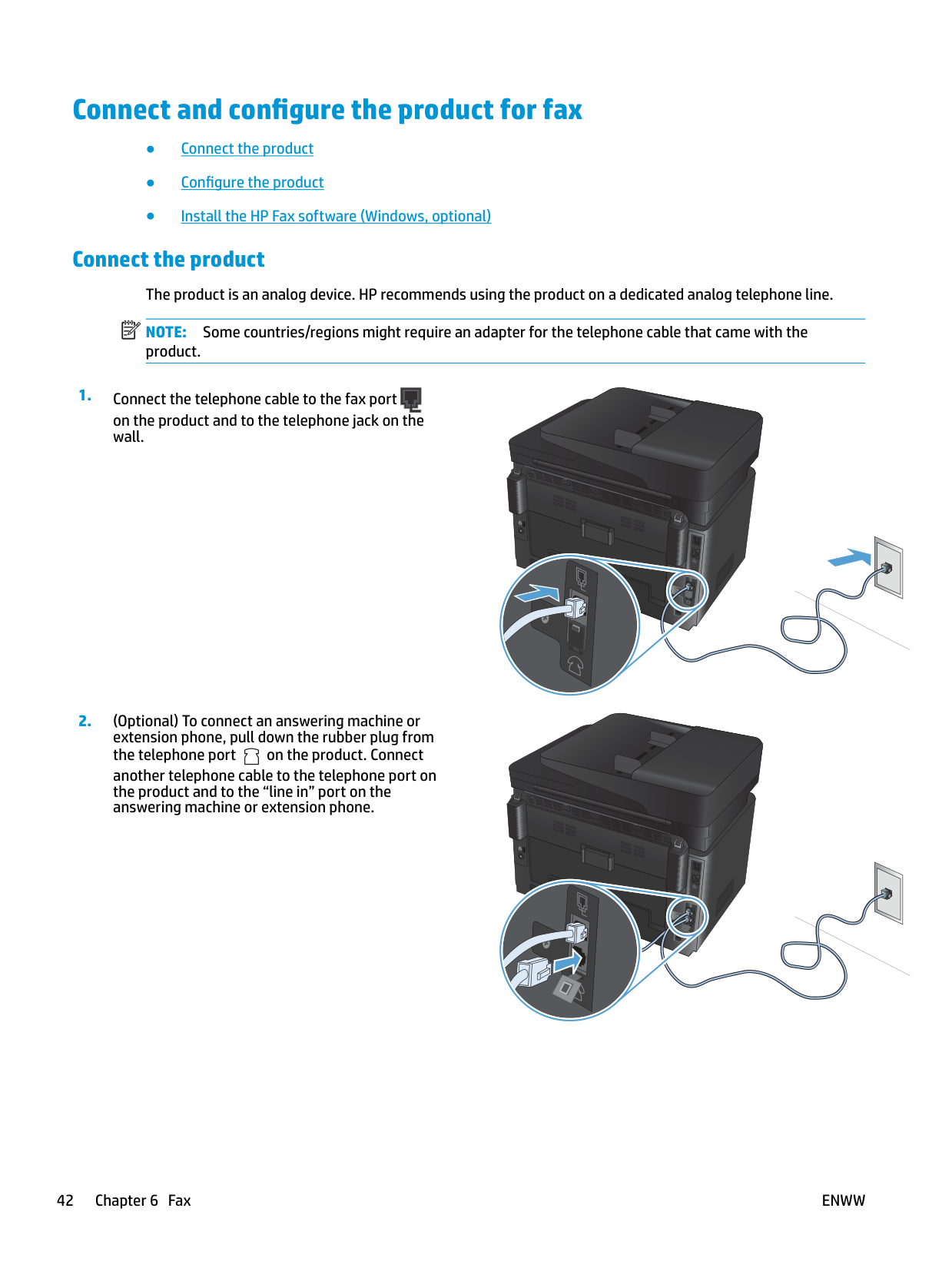
  • Connect the product The product is an analog device. HP recommends using the product on a dedicated analog telephone line. NOTE: Some countries/regions might require an adapter for the telephone cable that came with the product.

    | | |---|

  • 1. Connect the telephone cable to the fax port
  • on the product and to the telephone jack on the wall.

  • 2. (Optional) To connect an answering machine or extension phone, pull down the rubber plug from the telephone port on the product. Connect
  • another telephone cable to the telephone port on the product and to the “line in” port on the answering machine or extension phone.

    ###### Configure the product

    How you configure the product varies depending on whether you set it up for standalone fax, with an answering machine, or with an extension phone.

    | | |---|

    NOTE: Configuring the fax time, date, and header settings is required to use the fax feature.

  • ● Configure fax time, date, and header
  • ● Configure for stand-alone fax
  • ● Configure for an answering machine
  • ● Configure for an extension phone
  • ####### Configure fax time, date, and header

    Page 42

    You might have configured these settings when you installed the software. You can configure these settings at any time by using the product control panel or the HP Fax Setup Wizard.

  • ● Control panel
  • ● HP Fax Setup Wizard (Windows)
  • ######## Control panel

  • 1. From the Home screen on the product control panel, select Setup .
  • 2. Select Fax Setup, and then select Basic Setup.
  • 3. Select Time/Date.
  • 4. Select the 12-hour clock or 24-hour clock.
  • 5. Use the keypad to enter the current time, and then select OK.
  • 6. Select the date format.
  • 7. Use the keypad to enter the current date, and then select OK.
  • 8. Select Fax Header.
  • 9. Use the keypad to enter your fax number, and then select OK. NOTE: The maximum number of characters for the fax number is 20.
  • 10. Use the keypad to enter your company name or header, and then select OK.
  • | | |---|

    To enter special characters that are not on the standard keypad, select @#$ to open a keypad that contains special characters.

    | | |---|

    NOTE: The maximum number of characters for the fax header is 40.

    ######## HP Fax Setup Wizard (Windows)

  • 1. Click Start, and then click Programs.
  • 2. Click HP, click the name of the product, and then click Fax Setup Wizard.
  • Page 43

  • 3. Follow the on-screen instructions to configure the fax settings.
  • ####### Configure for stand-alone fax

    You can use the product as a stand-alone fax machine without connecting it to a computer or a network.

  • 1. From the Home screen on the product control panel, select Setup .
  • 2. Select Fax Setup, and then select Fax Set-Up Utility.
  • 3. Follow the on-screen prompts and select the appropriate response for each question.
  • | | |---|

    NOTE: The maximum number of characters for the fax number is 20. The maximum number of characters for the fax header is 40.

    ####### Configure for an answering machine

    If you connect a telephone answering machine to the product, you need to configure the Rings to Answer and Answer Mode settings for the product. Follow these steps to configure the product.

  • 1. From the Home screen on the product control panel, select Setup .
  • 2. Select Fax Setup, and then select Basic Setup.
  • 3. Select Rings to Answer.
  • 4. Set the product rings-to-answer setting for at least one ring more than the number of rings for which the answering machine is set. Use the keypad to enter the number of rings, and then select OK.
  • 5. Select Back to return to the Basic Setup menu.
  • 6. Select Answer Mode.
  • 7. Select TAM, and then select OK.
  • With this setting, the product listens for fax tones after the answering machine has picked up the call. The product picks up a call if fax tones are detected.

    ####### Configure for an extension phone

    If you connect an extension phone to the product, you need to change some fax settings for the product to work with this configuration. Follow these steps to configure the product.

    Page 44

  • 1. From the Home screen on the product control panel, select Setup .
  • 2. Select Fax Setup, and then select Advanced Setup.
  • 3. Select Extension Phone.
  • 4. Make sure that the On option is selected.
  • With this setting turned on, you can alert the product to pick up the incoming fax call by pressing 1-2-3 sequentially on the telephone keypad. Turn this setting off only if you use pulse dialing or if you have a

    service from your telephone company that also uses the 1-2-3 sequence. The telephone company service does not work if it conflicts with the product.

  • 5. Select Back twice to return to the Fax Setup menu.
  • 6. Select Basic Setup, and then select Answer Mode.
  • 7. Select Fax/Tel.
  • With this setting, the product automatically picks up all calls and determines if the call is a voice or fax call. If the call is a fax call, the product handles the call as an incoming fax. If the incoming call is detected as a voice call, the product generates an audible synthesized ring to alert you of an incoming voice call.

  • 8. Select Back twice to return to the Fax Setup menu.
  • 9. Select Advanced Setup, and then select Fax/Tel Ring Time.
  • 10. Select the number of seconds after which the product should stop sounding the Fax/Tel audible ring to notify you of an incoming voice call.
  • ###### Install the HP Fax software (Windows, optional)

    With HP Fax software, you can fax electronic documents from a computer if you meet the following requirements:

  • ● The product is connected directly to the computer or to a network to which the computer is connected.
  • ● The product software is installed on the computer.
  • ● The computer operating system is one that this product supports.
  • | | |---|

    NOTE: The HP Fax software that came with the product is the only computer fax program that works with the product. The product is not compatible with fax software produced by other manufacturers.

    If the HP Fax software is not installed on your computer, use one of the following methods to install the software.

    Page 45

  • ● Software CD: Insert the software CD that shipped with your HP product into the computer, and then follow the on-screen instructions.
  • ● Download from the Web: Go to www.hp.com/support, click Drivers & Software, and then follow the onscreen instructions to download the latest HP software.
  • | | |---|

    NOTE: When prompted by the software installer, make sure that HP Fax Software is selected as one of the software components to install.

    #### Send a fax

  • ● Send a fax by dialing manually from the product control panel
  • ● Send a fax from the HP software (Windows) CAUTION: To prevent damage to the product, do not use an original that contains correction tape, correction fluid, paper clips, or staples. Also, do not load photographs, small originals, or fragile originals into the document feeder.
  • ###### Send a fax by dialing manually from the product control panel

  • 1. Load the document.
  • ● If you are loading an original on the scanner glass, place it on the scanner glass face-down, in the left rear corner of the scanner glass.
  • ● If you are loading multiple pages in the document feeder, load the pages face-up, and then adjust the paper guides until they are snug against the paper. NOTE: If documents are in the document feeder and on the scanner glass at the same time, the product processes the document in the document feeder and not the one on the scanner glass.
  • 2. From the Home screen on the product control panel, select Fax.
  • 3. Use the keypad to enter the fax number.
  • NOTE: To use access codes, credit cards, or calling cards, you must dial the fax number manually to allow for pauses and dialing codes. To send a fax to an international destination, dial manually to allow for pauses and international dialing codes. You cannot use speed dials with access codes, credit cards, calling cards, or to dial international destinations.

  • 4. Select Start Fax.
  • | | |---|

    | | |---|

    Page 46

    | | |---|

    NOTE: If you are faxing from the scanner glass and your document includes multiple pages, follow the control panel prompts to confirm and load additional pages.

    ###### Send a fax from the HP software (Windows)

  • 1. Load the document.
  • ● If you are loading an original on the scanner glass, place it on the scanner glass face-down, in the left rear corner of the scanner glass.
  • ● If you are loading multiple pages in the document feeder, load the pages face-up, and then adjust the paper guides until they are snug against the paper.
  • NOTE: If documents are in the document feeder and on the scanner glass at the same time, the product processes the document in the document feeder and not the one on the scanner glass.

  • 2. From the computer, click Start, click Programs (or All Programs in Windows XP), and then click HP.
  • 3. Click the product name, and then click HP Send Fax. The fax software opens.
  • 4. Enter the fax number of one or more recipients.
  • 5. Click Send Now.
  • | | |---|

    #### Create, edit, and delete speed-dial entries

    You can store frequently dialed fax numbers (up to 100 entries) as speed-dial entries.

  • ● Create and edit speed-dial entries
  • ● Delete speed-dial entries
  • ###### Create and edit speed-dial entries

  • 1. From the Home screen on the product control panel, touch the Fax button.
  • Page 47

  • 2. Touch Fax Menu, and then touch Phone Book Setup.
  • 3. Touch Individual Setup.
  • 4. Select an unassigned number from the list.
  • 5. Use the keypad to enter a name for the entry, and then touch the OK button.
  • 6. Use the keypad to enter the fax number for the entry, and then touch the OK button.
  • ###### Delete speed-dial entries

  • 1. From the Home screen on the product control panel, touch the Fax button.
  • 2. Touch Fax Menu, and then touch Phone Book Setup.
  • 3. Touch Delete Entry.
  • 4. Select the entry you want to delete, and then touch the OK button. NOTE: If you want to delete all speed-dial entries, select Delete All Entries.
  • | | |---|

    ENWW Create, edit, and delete speed-dial entries 47

    7 Manage the product

  • ● Change the product connection type (Windows)
  • ● Use HP Web Services applications (touchscreen models only)
  • ● HP Device Toolbox (Windows)
  • ● HP Utility for Mac OS X
  • ● Product security features
  • ● Economy settings
  • ● A cartridge is low or cartridge is very low message displays on the product control panel
  • ● Replace the toner cartridge
  • ● Replace the imaging drum Go to www.hp.com/support/ljMFPM176series or www.hp.com/support/ljMFPM177series for HP's all-inclusive help for your product:
  • Page 48

  • ● Solve problems.
  • ● Download software updates.
  • ● Join support forums.
  • ● Find warranty and regulatory information. You can also go to www.hp.com/support for Worldwide support and other HP products.
  • ENWW 49

    #### Change the product connection type (Windows)

    If you are already using the product and you wish to change the way it is connected, use the Reconfigure your HP Device shortcut on your computer desktop to change the connection. For example, you can reconfigure the product to use a different wireless address, to connect to a wired or wireless network, or change from a network connection to a USB connection. You can change the configuration without inserting the product CD. After you select the type of connection you wish to make, the program goes directly to the portion of the product setup procedure that needs to change.

    #### Use HP Web Services applications (touchscreen models only)

    Several innovative applications are available for this product that you can download directly from the Internet. For more information and to download these applications go to the HP Connected Web site at www.hpconnected.com.

    To use this feature, the product must be connected to a computer or network that has an Internet connection. HP Web Services must be enabled on the product.

  • 1. From the Home screen on the product control panel, touch the Web Services button.
  • 2. Touch the Enable Web Services button.
  • After you download an application from the HP Connected Web site, it is available in the Apps menu on the product control panel. This process enables both HP Web Services and the Apps menu.

    ENWW Use HP Web Services applications (touchscreen models only) 51

    #### HP Device Toolbox (Windows)

    Use the HP Device Toolbox for Windows to check product status or to view or change product settings from your computer. This tool opens the HP Embedded Web Server for the product.

    | | |---|

    NOTE: This tool is available only if you performed a full installation when you installed the product. Depending on how the product is connected, some features might not be available.

  • 1. Click the Start button, and then click the Programs item.
  • 2. Click your HP product group, and then click the HP Device Toolbox item.
  • Page 49

    Tab or section Description Home tab

  • ● Device Status: Shows the product status and shows the approximate percent life remaining of HP supplies.
  • ● Supplies Status: Shows the approximate percent life remaining of HP supplies. Actual supply life remaining can vary. Consider having a replacement supply available to install when print quality is no longer acceptable. The supply does not need to be replaced unless the print quality is no longer acceptable.
  • ● Device Configuration: Shows the information found on the product configuration page.
  • ● Network Summary: Shows the information found on the product network configuration page.
  • ● Reports: Print the configuration and supplies status pages that the product generates.
  • ● Event Log: Shows a list of all product events and errors.
  • Provides product, status, and configuration information.

    ########### System tab

    Provides the ability to configure the product from your computer.

  • ● Device Information: Provides basic product and company information.
  • ● Paper Setup: Change the default paper-handling settings for the product.
  • ● Print Quality: Change the default print-quality settings for the product.
  • ● EcoSMART Console: Change the default times for entering Sleep mode or Auto Power Down mode. Configure which events cause the product to wake.
  • ● Paper Types: Configure print modes that correspond to the paper types that the product accepts.
  • ● System Setup: Change the system defaults for the product.
  • ● Service: Perform the cleaning procedure on the product.
  • ● Save and Restore: Save the current settings for the product to a file on the computer. Use this file to load the same settings onto another product or to restore these settings to this product at a later time.
  • ● Administration: Set or change the product password. Enable or disable product features.
  • NOTE: The System tab can be password-protected. If this product is on a network, always consult with the administrator before changing settings on this tab.

    ########### Print tab

    Provides the ability to change default print settings from your computer.

    Printing: Change the default product print settings, such as number of copies and paper orientation. These are the same options that are available on the control panel.

    Tab or section Description Fax tab ● Phone Book: Add or delete entries in the fax phone book.

  • ● Junk Fax List: Set fax numbers to block from sending faxes to the product.
  • Page 50

  • ● Fax Activity Log: Review recent fax activity for the product.
  • ########### Networking tab

    Provides the ability to change network settings from your computer.

    Network administrators can use this tab to control network-related settings for the product when it is connected to an IP-based network. It also allows the network administrator to set up Wireless Direct functionality. This tab does not appear if the product is directly connected to a computer.

    HP Web Services tab Use this tab to set up and use various Web tools with the product.

    ENWW HP Device Toolbox (Windows) 53

    HP Utility for Mac OS X Use the HP Utility for Mac OS X to view or change product settings from your computer. You can use the HP Utility when the product is connected with a USB cable or is connected to a TCP/IP-based network.

    Open the HP Utility From the Finder, click Applications, click HP, and then click HP Utility. If HP Utility is not included, use the following procedure to open it:

  • 1. At the computer, open the Apple menu, click the System Preferences menu, and then click the Print & Fax icon or the Print & Scan icon.
  • 2. Select the product in the left side of the window.
  • 3. Click the Options & Supplies button.
  • 4. Click the Utility tab.
  • 5. Click the Open Printer Utility button.
  • ###### HP Utility features

    The HP Utility toolbar is at the top of every page. It includes these items:

  • ● Devices: Click this button to show or hide Mac products found by the HP Utility in the Printers pane at the left side of the screen.
  • ● All Settings: Click this button to return to the HP Utility main page.
  • ● HP Support: Click this button to open a browser and go to the HP support Web site for the product.
  • ● Supplies: Click this button to open the HP SureSupply Web site.
  • ● Registration: Click this button to open the HP registration Web site.
  • ● Recycling: Click this button to open the HP Planet Partners Recycling Program Web site.
  • HP Utility consists of pages that you open by clicking in the All Settings list. The following table describes the tasks that you can perform with HP Utility.

    Menu Item Description Information and Support Supplies Status Show the product supplies status and provides links for ordering

    Page 51

    supplies online.

    Device Information Show information about the currently selected product, including the product Service ID (if assigned), the firmware version (FW Version), the Serial Number, and the IP address.

    Menu Item Description File Upload Transfer files from the computer to the product. You can upload

    the following types of files:

  • ● HP LaserJet printer command language (.PRN)
  • ● Portable document format (.PDF)
  • ● Text (.TXT)
  • HP Connected Access the HP Connected Web site. Information Message Center Display error events that have occurred with the product. Printer Settings Auto-off Configure the product to automatically turn off after a period of

    inactivity. You can adjust the number of minutes after which the product turns off.

    Network Settings Configure the network settings, such as the IPv4 settings, IPv6

    settings, Bonjour settings, and other settings.

    Supplies Management Configure how the product should behave when supplies are

    nearing the end of their estimated life. Trays Configuration Change the paper size and type for each of the trays. Additional Settings Open the HP Embedded Web Server (EWS) for the product.

    NOTE: USB connections are not supported. Fax Settings Basic Fax Settings Set up the fields in the fax header and configure how the product

    answers incoming calls. Junk Fax Blocking Store the fax numbers you want to block. Fax Forwarding Set up the product to send the incoming faxes to a different

    number. Fax Logs View the logs of all faxes. Fax Speed Dials Add fax numbers to the speed dial list.

    ENWW HP Utility for Mac OS X 55

    #### Product security features

    The product supports security standards and recommended protocols that help you keep the product secure, protect critical information on your network, and simplify the way you monitor and maintain the product.

    For in-depth information about HP's secure imaging and printing solutions, visit www.hp.com/go/ secureprinting. The site provides links to white papers and FAQ documents about security features.

    ###### Set or change the product password

    Page 52

    Use the HP Embedded Web Server to set a password or change an existing password for a product on a network.

    ######## LCD control panel

  • 1. On the product control panel, press the Setup button.
  • 2. Open the following menus:
  • ● Network Setup
  • ● Show IP Address
  • 3. To open the HP Embedded Web Server, enter the product IP address into the address line of a Web browser.
  • NOTE: You can also access the HP Embedded Web Server from the HP Device Toolbox for Windows or the HP Utility for Mac OS X.

  • 4. Click the System tab, and click the Product Security link.
  • NOTE: If a password has previously been set, you are prompted to provide the password. Enter the password, and then click the Apply button.

  • 5. Enter the new password in the New Password box and in the Verify Password box.
  • 6. At the bottom of the window, click the Apply button to save the password.
  • | | |---|

    | | |---|

    ######## Touchscreen control panel

  • 1. From the Home screen on the product control panel, touch the Network button to find the product IP address.
  • 2. To open the HP Embedded Web Server, enter the product IP address into the address line of a Web browser.
  • NOTE: You can also access the HP Embedded Web Server from the HP Device Toolbox for Windows or the HP Utility for Mac OS X.

    Page 53

  • 3. Click the System tab, and then click the Product Security link.
  • NOTE: If a password has previously been set, you are prompted to provide the password. Enter the password, and then click the Apply button.

  • 4. Enter the new password in the New Password box and in the Verify Password box.
  • 5. At the bottom of the window, click the Apply button to save the password.
  • | | |---|

    | | |---|

    ###### Lock the product

  • You can attach a security cable to the slot on the
  • back of the product.

    ENWW Product security features 57

    #### Economy settings

  • ● Print with EconoMode
  • ● Configure the Sleep/Auto Off After setting
  • ###### Print with EconoMode

    This product has an EconoMode option for printing drafts of documents. Using EconoMode can use less toner. However, using EconoMode can also reduce print quality.

    HP does not recommend the full-time use of EconoMode. If EconoMode is used full-time, the toner supply might outlast the mechanical parts in the toner cartridge. If print quality begins to degrade and is no longer acceptable, consider replacing the toner cartridge.

    | | |---|

    Page 54

    NOTE: If this option is not available in your print driver, you can set it using the HP Embedded Web Server.

  • 1. From the software program, select the Print option.
  • 2. Select the product, and then click the Properties or Preferences button.
  • 3. Click the Paper/Quality tab.
  • 4. Click the EconoMode check box.
  • ###### Configure the Sleep/Auto Off After setting

    ######## LCD control panel

  • 1. On the product control panel, press the Setup button.
  • 2. Open the following menus:
  • ● System Setup
  • ● Energy Settings
  • ● Sleep/Auto Off After
  • 3. Use the arrow keys to select the time for the Sleep/Auto Off delay, and then press the OK button. NOTE: The default value is 15 Minutes.
  • 4. The product automatically wakes when it receives jobs or when you press a button on the product control panel. You can change which events cause the product to wake. Open the following menus:
  • | | |---|

  • ● System Setup
  • ● Energy Settings
  • ● Wake/Auto On Events To turn off a wake event, select the event, and then select the No option.
  • ######## Touchscreen control panel

  • 1. From the Home screen on the product control panel, touch the Setup button.
  • Page 55

  • 2. Open the following menus:
  • ● System Setup
  • ● Energy Settings
  • ● Sleep/Auto Off After
  • 3. Select the time for the Sleep/Auto Off delay. NOTE: The default value is 15 Minutes.
  • 4. The product automatically wakes when it receives jobs or when you touch the screen on the product control panel. You can change which events cause the product to wake. Open the following menus:
  • | | |---|

  • ● System Setup
  • ● Energy Settings
  • ● Wake/Auto On Events To turn off a wake event, select the event, and then select the No option.
  • ENWW Economy settings 59

    #### A cartridge is low or cartridge is very low message displays on the product control panel

    A cartridge is low or cartridge is very low message displays on the product control panel, and the product does not print.

    | | |---|

    NOTE: Toner level warnings and indicators provide estimates for planning purposes only. When an indicator shows low-toner levels, consider having a replacement cartridge available to avoid possible printing delays. You do not need to replace cartridges until print quality becomes unacceptable.

    Once an HP toner cartridge has reached “very low”, HP’s Premium Protection Warranty on that toner cartridge has ended.

    You can change the way the product reacts when supplies reach the Very Low state. You do not have to reestablish these settings when you install a new toner cartridge.

    ###### Enable or disable the Very Low settings

    Page 56

    You can enable or disable the default settings at any time, and you do not have to re-enable them when you install a new toner cartridge.

    ######## LCD control panel

  • 1. On the product control panel, press the Setup button.
  • 2. Open the following menus:
  • ● System Setup
  • ● Supply Settings
  • ● Black Cartridge or Color Cartridge
  • ● Very Low Setting
  • 3. Select one of the following options, and then press the OK button:
  • ● Select the Stop option to set the product to stop printing until you replace the toner cartridge.
  • ● Select the Prompt option to set the product to stop printing and prompt you to replace the toner cartridge. You can acknowledge the prompt and continue printing.
  • ● Select the Continue option to set the product to alert you that the toner cartridge is very low, but to continue printing.
  • ● For color toner cartridges only, select the Print Black option to continue printing in black and white if the color toner cartridges are very low.
  • ######## Touchscreen control panel

  • 1. From the Home screen on the product control panel, touch the Setup button.
  • 2. Open the following menus:
  • ● System Setup
  • ● Supply Settings
  • ● Black Cartridge or Color Cartridge
  • ● Very Low Setting
  • 3. Select one of the following options:
  • Page 57

  • ● Select the Stop option to set the product to stop printing until you replace the toner cartridge.
  • ● Select the Prompt option to set the product to stop printing and prompt you to replace the toner cartridge. You can acknowledge the prompt and continue printing.
  • ● Select the Continue option to set the product to alert you that the toner cartridge is very low, but to continue printing.
  • ● For color toner cartridges only, select the Print Black option to continue printing in black and white if the color toner cartridges are very low.
  • For models with fax, when the product is set to the Stop option there is some risk that faxes will not print after the new cartridge is installed if your product has received more faxes than the memory can hold while stopped.

    For models with fax, when the product is set to the Prompt option, there is some risk that faxes will not print after the new cartridge is installed if your product has received more faxes than the memory can hold while the product is waiting for the prompt to be acknowledged.

    Once an HP toner cartridge has reached Very Low, HP’s Premium Protection Warranty on that toner cartridge has ended. All print defects or cartridge failures incurred when an HP toner cartridge is used in Continue at very low mode will not be considered to be defects in materials or workmanship in the toner cartridge under the HP Print Cartridge Warranty Statement.

    ENWW A cartridge is low or cartridge is very low message displays on the product control panel 61

    #### Replace the toner cartridge

    When a toner cartridge approaches the end of useful life, you are prompted to order a replacement. You can continue printing with the current cartridge until redistributing the toner no longer yields acceptable print quality.

  • 1. Rotate the cartridges to access the cartridge that needs replacement.
  • ● LCD Control panel: Press the Rotate Cartridges button to access the cartridge that needs replacement. The control panel indicates the cartridge that is accessible in the rotation.
  • ● Touchscreen control panel: Touch the Supply icon for the cartridge that needs replacement. The cartridges rotate to the cartridge you select.
  • |OK| |---|

    |X| |---|

    |![image 283](c03629244_images/imageFile283.png)| |---|

  • 2. Lift the scanner assembly.
  • Page 58

    ![image 284](c03629244_images/imageFile284.png)

    ![image 285](c03629244_images/imageFile285.png)

    ![image 286](c03629244_images/imageFile286.png)

    ![image 287](c03629244_images/imageFile287.png)

    ![image 288](c03629244_images/imageFile288.png)

    ![image 289](c03629244_images/imageFile289.png)

    ![image 290](c03629244_images/imageFile290.png)

    ![image 291](c03629244_images/imageFile291.png)

    ![image 292](c03629244_images/imageFile292.png)

    ![image 293](c03629244_images/imageFile293.png)

    ![image 294](c03629244_images/imageFile294.png)

    ![image 295](c03629244_images/imageFile295.png)

    ![image 296](c03629244_images/imageFile296.png)

    ![image 297](c03629244_images/imageFile297.png)

    ![image 298](c03629244_images/imageFile298.png)

    ![image 299](c03629244_images/imageFile299.png)

    ![image 300](c03629244_images/imageFile300.png)

    ![image 301](c03629244_images/imageFile301.png)

    ![image 302](c03629244_images/imageFile302.png)

  • 3. Open the top cover.
  • Page 59

    ![image 303](c03629244_images/imageFile303.png)

    ![image 304](c03629244_images/imageFile304.png)

    ![image 305](c03629244_images/imageFile305.png)

    ![image 306](c03629244_images/imageFile306.png)

    ![image 307](c03629244_images/imageFile307.png)

    ![image 308](c03629244_images/imageFile308.png)

    ![image 309](c03629244_images/imageFile309.png)

    ![image 310](c03629244_images/imageFile310.png)

    ![image 311](c03629244_images/imageFile311.png)

    ![image 312](c03629244_images/imageFile312.png)

    ![image 313](c03629244_images/imageFile313.png)

    ![image 314](c03629244_images/imageFile314.png)

    ![image 315](c03629244_images/imageFile315.png)

    ![image 316](c03629244_images/imageFile316.png)

    ![image 317](c03629244_images/imageFile317.png)

    ![image 318](c03629244_images/imageFile318.png)

    ![image 319](c03629244_images/imageFile319.png)

    ![image 320](c03629244_images/imageFile320.png)

  • 4. Remove the toner cartridge.
  • ![image 321](c03629244_images/imageFile321.png)

    Page 60

    ![image 322](c03629244_images/imageFile322.png)

    ![image 323](c03629244_images/imageFile323.png)

    ![image 324](c03629244_images/imageFile324.png)

    ![image 325](c03629244_images/imageFile325.png)

    ![image 326](c03629244_images/imageFile326.png)

    ![image 327](c03629244_images/imageFile327.png)

    ![image 328](c03629244_images/imageFile328.png)

    ![image 329](c03629244_images/imageFile329.png)

    ![image 330](c03629244_images/imageFile330.png)

    ![image 331](c03629244_images/imageFile331.png)

    ![image 332](c03629244_images/imageFile332.png)

    ![image 333](c03629244_images/imageFile333.png)

    ![image 334](c03629244_images/imageFile334.png)

    ![image 335](c03629244_images/imageFile335.png)

    ![image 336](c03629244_images/imageFile336.png)

    ![image 337](c03629244_images/imageFile337.png)

    ![image 338](c03629244_images/imageFile338.png)

    ![image 339](c03629244_images/imageFile339.png)

  • 5. Remove the new toner cartridge from the bag. Place the used toner cartridge in the bag for recycling.
  • 6. Grasp both sides of the toner cartridge and distribute the toner by gently rocking the cartridge.
  • Page 61

  • 7. Grasp the toner cartridge by the center handle, and then pull the protective plastic shield straight off the cartridge.
  • CAUTION: Do not touch the shutter or the surface of the roller.

  • 8. Bend the tab on the left side of the cartridge until the tab breaks loose. Pull the tab until all the tape is removed from the cartridge. Place the tab and tape in the toner cartridge box to return for recycling.
  • 9. Align the toner cartridge with the tracks inside the product, and then insert the toner cartridge until it is firmly seated.
  • NOTE: Compare the color label on the toner

    cartridge to the color label in the carousel slot to make sure the toner cartridge color matches the carousel position.

    ![image 340](c03629244_images/imageFile340.png)

    ![image 341](c03629244_images/imageFile341.png)

    ![image 342](c03629244_images/imageFile342.png)

    ![image 343](c03629244_images/imageFile343.png)

    ![image 344](c03629244_images/imageFile344.png)

    ![image 345](c03629244_images/imageFile345.png)

    ![image 346](c03629244_images/imageFile346.png)

    ![image 347](c03629244_images/imageFile347.png)

    ![image 348](c03629244_images/imageFile348.png)

    ![image 349](c03629244_images/imageFile349.png)

    ![image 350](c03629244_images/imageFile350.png)

    ![image 351](c03629244_images/imageFile351.png)

    ![image 352](c03629244_images/imageFile352.png)

    Page 62

    ![image 353](c03629244_images/imageFile353.png)

    ![image 354](c03629244_images/imageFile354.png)

    ![image 355](c03629244_images/imageFile355.png)

    ![image 356](c03629244_images/imageFile356.png)

    ![image 357](c03629244_images/imageFile357.png)

    ![image 358](c03629244_images/imageFile358.png)

  • 10. Close the top cover.
  • ![image 359](c03629244_images/imageFile359.png)

    ![image 360](c03629244_images/imageFile360.png)

    ![image 361](c03629244_images/imageFile361.png)

    ![image 362](c03629244_images/imageFile362.png)

    ![image 363](c03629244_images/imageFile363.png)

    ![image 364](c03629244_images/imageFile364.png)

    ![image 365](c03629244_images/imageFile365.png)

    ![image 366](c03629244_images/imageFile366.png)

    ![image 367](c03629244_images/imageFile367.png)

    ![image 368](c03629244_images/imageFile368.png)

    ![image 369](c03629244_images/imageFile369.png)

    ![image 370](c03629244_images/imageFile370.png)

    ![image 371](c03629244_images/imageFile371.png)

    Page 63

    ![image 372](c03629244_images/imageFile372.png)

    ![image 373](c03629244_images/imageFile373.png)

    ![image 374](c03629244_images/imageFile374.png)

    ![image 375](c03629244_images/imageFile375.png)

    ![image 376](c03629244_images/imageFile376.png)

  • 11. Rotate to the next cartridge that needs replacement.
  • ● LCD Control panel: Press the Rotate Cartridges button to move to the next
  • |![image 377](c03629244_images/imageFile377.png)| |---|

    |OK| |---|

    |X| |---|

    cartridge. Repeat this process until you have finished replacing toner cartridges.

  • ● Touchscreen control panel: Touch the Supply icon for the cartridge that needs replacement. The cartridges rotate to the cartridge you select. Repeat this process until you have finished replacing toner cartridges.
  • NOTE: The top cover must be closed to rotate the cartridges.

  • 12. When the cartridges have been replaced, close the scanner assembly.
  • ![image 378](c03629244_images/imageFile378.png)

    Page 64

    ![image 379](c03629244_images/imageFile379.png)

    ![image 380](c03629244_images/imageFile380.png)

    ![image 381](c03629244_images/imageFile381.png)

    ![image 382](c03629244_images/imageFile382.png)

    ![image 383](c03629244_images/imageFile383.png)

    ![image 384](c03629244_images/imageFile384.png)

    ![image 385](c03629244_images/imageFile385.png)

    ![image 386](c03629244_images/imageFile386.png)

    ![image 387](c03629244_images/imageFile387.png)

    ![image 388](c03629244_images/imageFile388.png)

    ![image 389](c03629244_images/imageFile389.png)

    ![image 390](c03629244_images/imageFile390.png)

    ![image 391](c03629244_images/imageFile391.png)

    ![image 392](c03629244_images/imageFile392.png)

    ![image 393](c03629244_images/imageFile393.png)

    ![image 394](c03629244_images/imageFile394.png)

    ![image 395](c03629244_images/imageFile395.png)

    ![image 396](c03629244_images/imageFile396.png)

    #### Replace the imaging drum

  • 1. Lift the scanner assembly.
  • Page 65

    ![image 397](c03629244_images/imageFile397.png)

    ![image 398](c03629244_images/imageFile398.png)

    ![image 399](c03629244_images/imageFile399.png)

    ![image 400](c03629244_images/imageFile400.png)

    ![image 401](c03629244_images/imageFile401.png)

    ![image 402](c03629244_images/imageFile402.png)

    ![image 403](c03629244_images/imageFile403.png)

    ![image 404](c03629244_images/imageFile404.png)

    ![image 405](c03629244_images/imageFile405.png)

    ![image 406](c03629244_images/imageFile406.png)

    ![image 407](c03629244_images/imageFile407.png)

    ![image 408](c03629244_images/imageFile408.png)

    ![image 409](c03629244_images/imageFile409.png)

    ![image 410](c03629244_images/imageFile410.png)

    ![image 411](c03629244_images/imageFile411.png)

    ![image 412](c03629244_images/imageFile412.png)

    ![image 413](c03629244_images/imageFile413.png)

    ![image 414](c03629244_images/imageFile414.png)

    ![image 415](c03629244_images/imageFile415.png)

  • 2. Open the top cover.
  • Page 66

    ![image 416](c03629244_images/imageFile416.png)

    ![image 417](c03629244_images/imageFile417.png)

    ![image 418](c03629244_images/imageFile418.png)

    ![image 419](c03629244_images/imageFile419.png)

    ![image 420](c03629244_images/imageFile420.png)

    ![image 421](c03629244_images/imageFile421.png)

    ![image 422](c03629244_images/imageFile422.png)

    ![image 423](c03629244_images/imageFile423.png)

    ![image 424](c03629244_images/imageFile424.png)

    ![image 425](c03629244_images/imageFile425.png)

    ![image 426](c03629244_images/imageFile426.png)

    ![image 427](c03629244_images/imageFile427.png)

    ![image 428](c03629244_images/imageFile428.png)

    ![image 429](c03629244_images/imageFile429.png)

    ![image 430](c03629244_images/imageFile430.png)

    ![image 431](c03629244_images/imageFile431.png)

    ![image 432](c03629244_images/imageFile432.png)

    ![image 433](c03629244_images/imageFile433.png)

  • 3. Remove the dust cover from the tray.
  • ![image 434](c03629244_images/imageFile434.png)

    Page 67

    ![image 435](c03629244_images/imageFile435.png)

    ######### 4. Open the front cover.

    ######### 5. Lift the two levers that hold the imaging drum.

    ######### 6. Remove the old imaging drum.

    ![image 436](c03629244_images/imageFile436.png)

    ![image 437](c03629244_images/imageFile437.png)

    ![image 438](c03629244_images/imageFile438.png)

    ######### 7. Remove the new imaging drum from the bag.Place the used imaging drum in the bag forrecycling.

    ![image 439](c03629244_images/imageFile439.png)

    ######### 8. Remove the protective shielding from the newimaging drum.

    CAUTION: To prevent damage, do not expose the imaging drum to light. Cover it with a piece of paper.

    Do not touch the green roller. Fingerprints on the imaging drum can cause print-quality problems.

    ######### 9. Insert the new imaging drum in the product.

    ######### 10. Lower the two levers that hold the imaging drum.

    ![image 440](c03629244_images/imageFile440.png)

    ![image 441](c03629244_images/imageFile441.png)

    ######### 11. Close the front cover.

    ######### 12. Reinstall the dust cover on the tray.

    ![image 442](c03629244_images/imageFile442.png)

    ![image 443](c03629244_images/imageFile443.png)

    Page 68

    ![image 444](c03629244_images/imageFile444.png)

    ![image 445](c03629244_images/imageFile445.png)

    ######### 13. Close the top cover.

    ######### 14. Close the scanner assembly.

    ![image 446](c03629244_images/imageFile446.png)

    ![image 447](c03629244_images/imageFile447.png)

    ![image 448](c03629244_images/imageFile448.png)

    ![image 449](c03629244_images/imageFile449.png)

    ![image 450](c03629244_images/imageFile450.png)

    ![image 451](c03629244_images/imageFile451.png)

    ![image 452](c03629244_images/imageFile452.png)

    ![image 453](c03629244_images/imageFile453.png)

    ![image 454](c03629244_images/imageFile454.png)

    ![image 455](c03629244_images/imageFile455.png)

    ![image 456](c03629244_images/imageFile456.png)

    ![image 457](c03629244_images/imageFile457.png)

    ![image 458](c03629244_images/imageFile458.png)

    ![image 459](c03629244_images/imageFile459.png)

    ![image 460](c03629244_images/imageFile460.png)

    ![image 461](c03629244_images/imageFile461.png)

    Page 69

    ![image 462](c03629244_images/imageFile462.png)

    ![image 463](c03629244_images/imageFile463.png)

    ![image 464](c03629244_images/imageFile464.png)

    ![image 465](c03629244_images/imageFile465.png)

    ![image 466](c03629244_images/imageFile466.png)

    ![image 467](c03629244_images/imageFile467.png)

    ![image 468](c03629244_images/imageFile468.png)

    ![image 469](c03629244_images/imageFile469.png)

    ![image 470](c03629244_images/imageFile470.png)

    ![image 471](c03629244_images/imageFile471.png)

    ![image 472](c03629244_images/imageFile472.png)

    ![image 473](c03629244_images/imageFile473.png)

    ![image 474](c03629244_images/imageFile474.png)

    ![image 475](c03629244_images/imageFile475.png)

    ![image 476](c03629244_images/imageFile476.png)

    ![image 477](c03629244_images/imageFile477.png)

    ![image 478](c03629244_images/imageFile478.png)

    ![image 479](c03629244_images/imageFile479.png)

    ![image 480](c03629244_images/imageFile480.png)

    ![image 481](c03629244_images/imageFile481.png)

    Page 70

    ![image 482](c03629244_images/imageFile482.png)

    8 Solve problems

  • ● Control panel help system (touchscreen models only)
  • ● Restore the factory-set defaults
  • ● Solve paper feed or jam problems
  • ● Clear jams from the input tray
  • ● Clear jams in the output bin
  • ● Clear jams in the document feeder
  • ● Improve print quality
  • ● Improve copy and scan quality
  • ● Improve fax image quality
  • ● Solve wired network problems
  • ● Solve wireless network problems
  • ● Solve fax problems Go to www.hp.com/support/ljMFPM176series or www.hp.com/support/ljMFPM177series for HP's all-inclusive help for your product:
  • ● Solve problems.
  • ● Download software updates.
  • ● Join support forums.
  • ● Find warranty and regulatory information. You can also go to www.hp.com/support for Worldwide support and other HP products.
  • ENWW 71

    #### Control panel help system (touchscreen models only)

    The product has a built-in Help system that explains how to use each screen. To open the Help system, touch the Help button in the upper-right corner of the screen.

    Page 71

    For some screens, the Help opens to a global menu where you can search for specific topics. You can browse through the menu structure by touching the buttons in the menu.

    Some Help screens include animations that guide you through procedures, such as clearing jams. For screens that contain settings for individual jobs, the Help opens to a topic that explains the options for that screen. If the product alerts you of an error or warning, touch the Help button to open a message that describes the problem. The message also contains instructions to help solve the problem.

    #### Restore the factory-set defaults

    Restoring the factory-set defaults returns all of the product and network settings to the factory defaults. It will not reset the page count, tray size, or language. To restore the product to the factory-default settings, follow these steps.

    CAUTION: Restoring the factory-set defaults returns all of the settings to the factory defaults, and it also deletes any pages that are stored in the memory.

  • 1. On the product control panel, press or touch the Setup button.
  • 2. Open the Service menu.
  • 3. Select the Restore Defaults option, and then press or touch the OK button. The product automatically restarts.
  • ENWW Restore the factory-set defaults 73

    #### Solve paper feed or jam problems

    If the product has recurring problems with paper feeding or with jams, use the following information to reduce the number of occurrences.

    ###### The product does not pick up paper

    If the product does not pick up paper from the tray, try these solutions.

  • 1. Open the product and remove any jammed sheets of paper.
  • 2. Load the tray with the correct size of paper for your job.
  • 3. Make sure the paper size and type are set correctly on the product control panel.
  • 4. Make sure the paper guides in the tray are adjusted correctly for the size of paper. Adjust the guides to the appropriate indentation in the tray.
  • 5. Check the product control panel to see if the product is waiting for you to acknowledge a prompt to feed the paper manually. Load paper, and continue.
  • 6. The rollers above the tray might be contaminated. Clean the rollers with a lint-free cloth dampened with warm water.
  • ###### The product picks up multiple sheets of paper

    If the product picks up multiple sheets of paper from the tray, try these solutions.

  • 1. Remove the stack of paper from the tray and flex it, rotate it 180 degrees, and flip it over. Do not fan the paper. Return the stack of paper to the tray.
  • Page 72

  • 2. Use only paper that meets HP specifications for this product.
  • 3. Use paper that is not wrinkled, folded, or damaged. If necessary, use paper from a different package.
  • 4. Make sure the tray is not overfilled. If it is, remove the entire stack of paper from the tray, straighten the stack, and then return some of the paper to the tray.
  • 5. Make sure the paper guides in the tray are adjusted correctly for the size of paper. Adjust the guides to the appropriate indentation in the tray.
  • 6. Make sure the printing environment is within recommended specifications.
  • ###### Frequent or recurring paper jams

    Follow these steps to solve problems with frequent paper jams. If the first step does not resolve the problem continue with the next step until you have resolved the problem.

  • 1. If paper has jammed in the product, clear the jam and then print a configuration page to test the product.
  • 2. Check that the tray is configured for the correct paper size and type on the product control panel. Adjust paper settings if necessary.
  • 3. Turn the product off, wait 30 seconds, and then turn it on again.
  • 4. Print a cleaning page to remove excess toner from inside the product.
  • a. From the Home screen on the product control panel, touch the Setup button.
  • b. Touch the Service menu.
  • c. Touch the Cleaning Page button.
  • d. Load plain letter or A4 paper when you are prompted.
  • e. Touch the OK button to begin the cleaning process.
  • The product prints the first side and then prompts you to remove the page from the output bin and reload it in Tray 1, keeping the same orientation. Wait until the process is complete. Discard the page that prints.

  • 5. Print a configuration page to test the product.
  • a. From the Home screen on the product control panel, touch the Setup button.
  • b. Touch the Reports menu.
  • c. Touch the Configuration Report button.
  • If none of these steps resolves the problem, the product might need service. Contact HP customer support.

    ###### Prevent paper jams

    Page 73

    To reduce the number of paper jams, try these solutions.

  • 1. Use only paper that meets HP specifications for this product.
  • 2. Use paper that is not wrinkled, folded, or damaged. If necessary, use paper from a different package.
  • 3. Use paper that has not previously been printed or copied on.
  • 4. Make sure the tray is not overfilled. If it is, remove the entire stack of paper from the tray, straighten the stack, and then return some of the paper to the tray.
  • 5. Make sure the paper guides in the tray are adjusted correctly for the size of paper. Adjust the guides so they are touching the paper stack without bending it.
  • 6. Make sure that the tray is fully inserted in the product.
  • 7. If you are printing on heavy, embossed, or perforated paper, use the manual feed feature and feed sheets one at a time.
  • 8. Verify that the tray is configured correctly for the paper type and size.
  • 9. Make sure the printing environment is within recommended specifications.
  • ENWW Solve paper feed or jam problems 75

    #### Clear jams from the input tray

    A Jam in tray 1. Clear Jam and press [OK] message displays on the product control panel.

  • 1. Remove the dust cover from the tray.
  • ![image 483](c03629244_images/imageFile483.png)

    ![image 484](c03629244_images/imageFile484.png)

    ![image 485](c03629244_images/imageFile485.png)

    ![image 486](c03629244_images/imageFile486.png)

    ![image 487](c03629244_images/imageFile487.png)

    ![image 488](c03629244_images/imageFile488.png)

    ![image 489](c03629244_images/imageFile489.png)

    ![image 490](c03629244_images/imageFile490.png)

    ![image 491](c03629244_images/imageFile491.png)

    ![image 492](c03629244_images/imageFile492.png)

    Page 74

    ![image 493](c03629244_images/imageFile493.png)

    ![image 494](c03629244_images/imageFile494.png)

  • 2. Remove the stack of paper from the input tray.
  • ![image 495](c03629244_images/imageFile495.png)

    ![image 496](c03629244_images/imageFile496.png)

    ![image 497](c03629244_images/imageFile497.png)

  • 3. Remove any jammed paper visible in the input tray area. Use both hands to remove jammed paper to avoid tearing the paper.
  • ![image 498](c03629244_images/imageFile498.png)

    ![image 499](c03629244_images/imageFile499.png)

    ![image 500](c03629244_images/imageFile500.png)

    ![image 501](c03629244_images/imageFile501.png)

    ![image 502](c03629244_images/imageFile502.png)

    ![image 503](c03629244_images/imageFile503.png)

    ![image 504](c03629244_images/imageFile504.png)

    ![image 505](c03629244_images/imageFile505.png)

    ![image 506](c03629244_images/imageFile506.png)

    ![image 507](c03629244_images/imageFile507.png)

    ![image 508](c03629244_images/imageFile508.png)

    ![image 509](c03629244_images/imageFile509.png)

    Page 75

    ![image 510](c03629244_images/imageFile510.png)

    ![image 511](c03629244_images/imageFile511.png)

    ![image 512](c03629244_images/imageFile512.png)

    ![image 513](c03629244_images/imageFile513.png)

    ![image 514](c03629244_images/imageFile514.png)

    ![image 515](c03629244_images/imageFile515.png)

    ![image 516](c03629244_images/imageFile516.png)

    ![image 517](c03629244_images/imageFile517.png)

    ![image 518](c03629244_images/imageFile518.png)

  • 4. Reload paper in the input tray. Make sure that the paper fits under the tabs and below the maximum-height indicators.
  • ![image 519](c03629244_images/imageFile519.png)

    ![image 520](c03629244_images/imageFile520.png)

    ![image 521](c03629244_images/imageFile521.png)

    ![image 522](c03629244_images/imageFile522.png)

    ![image 523](c03629244_images/imageFile523.png)

    ![image 524](c03629244_images/imageFile524.png)

    ![image 525](c03629244_images/imageFile525.png)

    ![image 526](c03629244_images/imageFile526.png)

    ![image 527](c03629244_images/imageFile527.png)

    ![image 528](c03629244_images/imageFile528.png)

    Page 76

    ![image 529](c03629244_images/imageFile529.png)

    ![image 530](c03629244_images/imageFile530.png)

    ![image 531](c03629244_images/imageFile531.png)

    ![image 532](c03629244_images/imageFile532.png)

    ![image 533](c03629244_images/imageFile533.png)

    ![image 534](c03629244_images/imageFile534.png)

    ![image 535](c03629244_images/imageFile535.png)

    ![image 536](c03629244_images/imageFile536.png)

    ![image 537](c03629244_images/imageFile537.png)

    ![image 538](c03629244_images/imageFile538.png)

    ![image 539](c03629244_images/imageFile539.png)

  • 5. Reinstall the dust cover on the tray.
  • ![image 540](c03629244_images/imageFile540.png)

    ![image 541](c03629244_images/imageFile541.png)

    ![image 542](c03629244_images/imageFile542.png)

    ![image 543](c03629244_images/imageFile543.png)

    ![image 544](c03629244_images/imageFile544.png)

    ![image 545](c03629244_images/imageFile545.png)

    ![image 546](c03629244_images/imageFile546.png)

    ![image 547](c03629244_images/imageFile547.png)

    Page 77

    ![image 548](c03629244_images/imageFile548.png)

    ![image 549](c03629244_images/imageFile549.png)

    ![image 550](c03629244_images/imageFile550.png)

    ![image 551](c03629244_images/imageFile551.png)

    ENWW Clear jams from the input tray 77

    #### Clear jams in the output bin

    A Jam in output bin message displays on the product control panel.

  • 1. If paper is visible in the output bin, grasp the leading edge with both hands and slowly remove it.
  • ![image 552](c03629244_images/imageFile552.png)

    ![image 553](c03629244_images/imageFile553.png)

    ![image 554](c03629244_images/imageFile554.png)

    ![image 555](c03629244_images/imageFile555.png)

    ![image 556](c03629244_images/imageFile556.png)

    ![image 557](c03629244_images/imageFile557.png)

    ![image 558](c03629244_images/imageFile558.png)

    ![image 559](c03629244_images/imageFile559.png)

    ![image 560](c03629244_images/imageFile560.png)

    ![image 561](c03629244_images/imageFile561.png)

    ![image 562](c03629244_images/imageFile562.png)

    ![image 563](c03629244_images/imageFile563.png)

    Page 78

    ![image 564](c03629244_images/imageFile564.png)

    ![image 565](c03629244_images/imageFile565.png)

    ![image 566](c03629244_images/imageFile566.png)

    ![image 567](c03629244_images/imageFile567.png)

    ![image 568](c03629244_images/imageFile568.png)

    ![image 569](c03629244_images/imageFile569.png)

    ![image 570](c03629244_images/imageFile570.png)

    ![image 571](c03629244_images/imageFile571.png)

    ![image 572](c03629244_images/imageFile572.png)

    ![image 573](c03629244_images/imageFile573.png)

    ![image 574](c03629244_images/imageFile574.png)

    ![image 575](c03629244_images/imageFile575.png)

  • 2. Open the rear door to check for jammed paper.
  • 3. Remove any jammed paper. Use both hands to pull out the paper to avoid tearing.
  • 4. Close the rear door.
  • ENWW Clear jams in the output bin 79

    #### Clear jams in the document feeder

    A Jam in the document feeder message displays on the product control panel.

  • 1. If paper is visible in the document feeder, grasp the leading edge with both hands and slowly remove it.
  • Page 79

    ![image 576](c03629244_images/imageFile576.png)

    ![image 577](c03629244_images/imageFile577.png)

    ![image 578](c03629244_images/imageFile578.png)

    ![image 579](c03629244_images/imageFile579.png)

    ![image 580](c03629244_images/imageFile580.png)

    ![image 581](c03629244_images/imageFile581.png)

    ![image 582](c03629244_images/imageFile582.png)

    ![image 583](c03629244_images/imageFile583.png)

    ![image 584](c03629244_images/imageFile584.png)

    ![image 585](c03629244_images/imageFile585.png)

    ![image 586](c03629244_images/imageFile586.png)

    ![image 587](c03629244_images/imageFile587.png)

    ![image 588](c03629244_images/imageFile588.png)

    ![image 589](c03629244_images/imageFile589.png)

    ![image 590](c03629244_images/imageFile590.png)

    ![image 591](c03629244_images/imageFile591.png)

    ![image 592](c03629244_images/imageFile592.png)

    ![image 593](c03629244_images/imageFile593.png)

    ![image 594](c03629244_images/imageFile594.png)

    ![image 595](c03629244_images/imageFile595.png)

    Page 80

    ![image 596](c03629244_images/imageFile596.png)

    ![image 597](c03629244_images/imageFile597.png)

    ![image 598](c03629244_images/imageFile598.png)

    ![image 599](c03629244_images/imageFile599.png)

  • 2. Lift the document feeder input tray.
  • ![image 600](c03629244_images/imageFile600.png)

    ![image 601](c03629244_images/imageFile601.png)

    ![image 602](c03629244_images/imageFile602.png)

    ![image 603](c03629244_images/imageFile603.png)

    ![image 604](c03629244_images/imageFile604.png)

    ![image 605](c03629244_images/imageFile605.png)

    ![image 606](c03629244_images/imageFile606.png)

    ![image 607](c03629244_images/imageFile607.png)

    ![image 608](c03629244_images/imageFile608.png)

    ![image 609](c03629244_images/imageFile609.png)

    ![image 610](c03629244_images/imageFile610.png)

    ![image 611](c03629244_images/imageFile611.png)

    ![image 612](c03629244_images/imageFile612.png)

    ![image 613](c03629244_images/imageFile613.png)

    ![image 614](c03629244_images/imageFile614.png)

    Page 81

    ![image 615](c03629244_images/imageFile615.png)

    ![image 616](c03629244_images/imageFile616.png)

    ![image 617](c03629244_images/imageFile617.png)

    ![image 618](c03629244_images/imageFile618.png)

    ![image 619](c03629244_images/imageFile619.png)

    ![image 620](c03629244_images/imageFile620.png)

    ![image 621](c03629244_images/imageFile621.png)

    ![image 622](c03629244_images/imageFile622.png)

  • 3. Lift the jam-access cover.
  • ![image 623](c03629244_images/imageFile623.png)

    ![image 624](c03629244_images/imageFile624.png)

    ![image 625](c03629244_images/imageFile625.png)

    ![image 626](c03629244_images/imageFile626.png)

  • 4. Remove any jammed paper. Use both hands to pull out the paper to avoid tearing.
  • ![image 627](c03629244_images/imageFile627.png)

    ![image 628](c03629244_images/imageFile628.png)

    ![image 629](c03629244_images/imageFile629.png)

    ![image 630](c03629244_images/imageFile630.png)

  • 5. Close the jam-access cover.
  • Page 82

    ![image 631](c03629244_images/imageFile631.png)

    ![image 632](c03629244_images/imageFile632.png)

    ![image 633](c03629244_images/imageFile633.png)

    ![image 634](c03629244_images/imageFile634.png)

  • 6. Close the document-feeder input tray.
  • ![image 635](c03629244_images/imageFile635.png)

    ![image 636](c03629244_images/imageFile636.png)

    ![image 637](c03629244_images/imageFile637.png)

    ![image 638](c03629244_images/imageFile638.png)

    ![image 639](c03629244_images/imageFile639.png)

    ![image 640](c03629244_images/imageFile640.png)

    ![image 641](c03629244_images/imageFile641.png)

    ![image 642](c03629244_images/imageFile642.png)

    ![image 643](c03629244_images/imageFile643.png)

    ![image 644](c03629244_images/imageFile644.png)

    ![image 645](c03629244_images/imageFile645.png)

    ![image 646](c03629244_images/imageFile646.png)

    ![image 647](c03629244_images/imageFile647.png)

    ![image 648](c03629244_images/imageFile648.png)

    ![image 649](c03629244_images/imageFile649.png)

    Page 83

    ![image 650](c03629244_images/imageFile650.png)

    ![image 651](c03629244_images/imageFile651.png)

    ![image 652](c03629244_images/imageFile652.png)

    ![image 653](c03629244_images/imageFile653.png)

    ![image 654](c03629244_images/imageFile654.png)

    ![image 655](c03629244_images/imageFile655.png)

    ![image 656](c03629244_images/imageFile656.png)

    ![image 657](c03629244_images/imageFile657.png)

    ![image 658](c03629244_images/imageFile658.png)

    ![image 659](c03629244_images/imageFile659.png)

    ![image 660](c03629244_images/imageFile660.png)

    ENWW Clear jams in the document feeder 81

    #### Improve print quality

  • ● Print from a different software program
  • ● Set the paper-type setting for the print job
  • ● Check the toner-cartridge status
  • ● Calibrate the product to align the colors
  • ● Print a cleaning page
  • ● Perform additional print quality troubleshooting
  • ● Inspect the toner cartridge for damage
  • Page 84

  • ● Check the paper and printing environment
  • ● Check the EconoMode settings
  • ● Adjust color settings (Windows)
  • ###### Print from a different software program

    Try printing from a different software program. If the page prints correctly, the problem is with the software program from which you were printing.

    ###### Set the paper-type setting for the print job

    Check the paper-type setting if you are printing from a software program and the pages have any of these problems:

  • ● smeared print
  • ● fuzzy print
  • ● dark print
  • ● curled paper
  • ● scattered dots of toner
  • ● loose toner
  • ● small areas of missing toner
  • ####### Check the paper-type setting (Windows)

  • 1. From the software program, select the Print option.
  • 2. Select the product, and then click the Properties or Preferences button.
  • 3. Click the Paper/Quality tab.
  • 4. From the Media: drop-down list, select the correct paper type.
  • 5. Click the OK button to close the Document Properties dialog box. In the Print dialog box, click the OK
  • button to print the job.

    ####### Check the paper-type setting (Mac OS X)

  • 1. Click the File menu, and then click the Print option.
  • 2. In the Printer menu, select the product.
  • Page 85

  • 3. By default, the print driver displays the Copies & Pages menu. Open the menus drop-down list, and then click the Finishing menu.
  • 4. Select a type from the Media-type drop-down list.
  • 5. Click the Print button.
  • ###### Check the toner-cartridge status

    Check the supplies status page for the following information:

  • ● Estimated percentage of cartridge life remaining
  • ● Approximate pages remaining
  • ● Part numbers for HP toner cartridges
  • ● Number of pages printed Use the following procedures to print the supplies status page:
  • ######## LCD control panel

  • 1. On the product control panel, press the Setup button.
  • 2. Open the following menus:
  • ● Reports
  • ● Supplies status
  • 3. Select Print Supplies status page, and then press the OK button.
  • ######## Touchscreen control panel

  • 1. From the Home screen on the product control panel, touch the Supplies button.
  • 2. Touch the Report button to print the supplies status page.
  • ###### Calibrate the product to align the colors

    If the printed output has colored shadows, blurry graphics, or areas that have poor color, you might need to calibrate the product to align the colors. Print the diagnostics page from the Reports menu on the control panel to check the color alignment. If the blocks of color on that page are not aligned with each other, you need to calibrate the product.

    ######## LCD control panel

    Page 86

  • 1. On the product control panel, press the Setup button.
  • 2. Open the following menus:
  • ● System Setup
  • ● Print Quality
  • ● Calibrate Color
  • 3. Select the Calibrate Now option, and then press the OK button.
  • ######## Touchscreen control panel

  • 1. From the Home screen on the product control panel, touch the Setup button.
  • 2. Open the following menus:
  • ● System Setup
  • ● Print Quality
  • ● Color Calibration
  • 3. Select the Calibrate now option, and then press the OK button.
  • ###### Print a cleaning page

    ######## LCD control panel

  • 1. From the product control panel, press the Setup button.
  • 2. Open the Service menu.
  • 3. Select the Cleaning mode option, and then press the OK button.
  • The product prints the first side and then prompts you to remove the page from the output bin and reload it in Tray 1, keeping the same orientation. Wait until the process is complete. Discard the page that prints.

    ######## Touchscreen control panel

    Page 87

  • 1. From the Home screen on the product control panel, touch the Setup button.
  • 2. Touch the Service menu.
  • 3. Touch the Cleaning Page button.
  • 4. Load plain letter or A4 paper when you are prompted.
  • 5. Touch the OK button to begin the cleaning process.
  • The product prints the first side and then prompts you to remove the page from the output bin and reload it in Tray 1, keeping the same orientation. Wait until the process is complete. Discard the page that prints.

    ###### Perform additional print quality troubleshooting Print the print quality page LCD control panel

  • 1. From the product control panel, press the Setup button.
  • 2. Open the following menus:
  • ● System Setup
  • ● Reports
  • 3. Select the Print Quality Report option, and then press the OK button.
  • ######## Touchscreen control panel

  • 1. From the Home screen on the product control panel, touch the Setup button.
  • 2. Open the Reports menu.
  • 3. Touch the Print Quality Page option, and then touch the OK button.
  • ####### Interpret the print quality page

    This page contains five bands of color, which are divided into four groups as indicated in the following illustration. By examining each group, you can isolate the problem to a particular toner cartridge.

    Section Toner cartridge

    Page 88

  • 1 Yellow
  • 2 Cyan
  • 3 Black
  • 4 Magenta
  • ● If dots or streaks appear in only one of the groups, replace the toner cartridge that correlates with that group.
  • ● If dots appear in more than one group, print a cleaning page. If this does not solve the problem, determine if the dots are always the same color; for example, if magenta dots appear in all five color bands. If the dots are all the same color, replace that toner cartridge.
  • ● If streaks appear in multiple color bands, contact HP. A component other than the toner cartridge is probably causing the problem.
  • ###### Inspect the toner cartridge for damage

  • 1. Remove the toner cartridges from the product, and verify that the sealing tape has been removed.
  • 2. Grasp both sides of the toner cartridge and distribute the toner by gently rocking the cartridge.
  • 3. Check the memory chips for damage.
  • 4. Examine the surface of the roller on the toner cartridges.
  • CAUTION: Do not touch the roller on the toner cartridges. Fingerprints on the roller can cause printquality problems.

  • 5. If you see any scratches, fingerprints, or other damage on the roller, replace the toner cartridge.
  • 6. If the roller does not appear to be damaged, rock the toner cartridges gently several times and reinstall them. Print a few pages to see if the problem has resolved.
  • ###### Check the paper and printing environment Use paper that meets HP specifications

    Use different paper if you are having any of the following problems:

  • ● The printing is too light or seems faded in areas.
  • ● Specks of toner are on the printed pages.
  • ● Toner is smearing on the printed pages.
  • ● Printed characters seem misformed.
  • ● Printed pages are curled.
  • Always use a paper type and weight that this product supports. In addition, follow these guidelines when selecting paper:

  • ● Use paper that is of good quality and free of cuts, nicks, tears, spots, loose particles, dust, wrinkles, voids, staples, and curled or bent edges.
  • ● Use paper that has not been previously printed on.
  • ● Use paper that is designed for use in laser printers. Do not use paper that is designed only for use in inkjet printers.
  • ● Use paper that is not too rough. Using smoother paper generally results in better print quality.
  • Page 89

    ####### Check the product environment

    Verify that the product is operating within the environmental specifications listed in the product Warranty and Legal Guide.

    ###### Check the EconoMode settings

    HP does not recommend the full-time use of EconoMode. If EconoMode is used full-time, the toner supply might outlast the mechanical parts in the toner cartridge. If print quality begins to degrade and is no longer acceptable, consider replacing the toner cartridge.

    Follow these steps if the entire page is too dark or too light.

  • 1. From the software program, select the Print option.
  • 2. Select the product, and then click the Properties or Preferences button.
  • 3. Click the Paper/Quality tab, and then locate the Quality Settings area.
  • 4. If the entire page is too dark, select the EconoMode setting. If the entire page is too light, make sure you are using the correct setting for the print job.
  • ● If you a printing photos, select the Photo option. ● For all other print jobs, select the Normal option.

  • 5. Click the OK button to close the Document Properties dialog box. In the Print dialog box, click the OK button to print the job.
  • ###### Adjust color settings (Windows)

    ######## Change the color theme

  • 1. From the software program, select the Print option.
  • 2. Select the product, and then click the Properties or Preferences button.
  • 3. Click the Advanced button.
  • 4. Select a color theme from the Color Themes drop-down list.
  • ● None: No color theme is used.
  • ● Default/sRGB: This theme sets the product to print RGB data in raw device mode. When using this theme, manage color in the software program or in the operating system for correct rendering.
  • ● Vivid/sRGB: The product increases the color saturation in the midtones. Use this theme when printing business graphics.
  • ● Photo (sRGB): The product interprets RGB color as if it were printed as a photograph using a digital mini lab. The product renders deeper, more saturated colors differently than with the Default (sRBG) theme. Use this theme when printing photos.
  • ● Photo (Adobe RGB 1998): Use this theme with printing digital photos that use the AdobeRGB color space rather than sRGB. Turn off color management in the software program when using this theme.
  • Page 90

  • 5. Click the OK button to close the Advanced Options dialog box, and then click the OK button to close the Document Properties dialog box. In the Print dialog box, click the OK button to print the job.
  • ######## Change the color options

  • 1. From the software program, select the Print option.
  • 2. Select the product, and then click the Properties or Preferences button.
  • 3. Click the Paper/Quality tab.
  • 4. In the Color section, select Black & White or Color.
  • NOTE: When Black & White is selected, the Print in Grayscale setting in the Advanced Options is automatically changed to the Black print cartridge only option.

  • 5. Click the OK button to close the Document Properties dialog box. In the Print dialog box, click the OK button to print the job.
  • | | |---|

    #### Improve copy and scan quality

    ###### Check the scanner glass for dirt and smudges

    Over time, specks of debris might collect on the scanner glass and white plastic backing, which can affect performance. Use the following procedure to clean the scanner.

  • 1. Press the power button to turn the product off, and then disconnect the power cable from the electrical outlet.
  • 2. Open the scanner lid.
  • 3. Clean the scanner glass and the white plastic backing underneath the scanner lid with a soft cloth or sponge that has been moistened with nonabrasive glass cleaner.
  • CAUTION: Do not use abrasives, acetone, benzene, ammonia, ethyl alcohol, or carbon tetrachloride on any part of the product; these can damage the product. Do not place liquids directly on the glass or platen. They might seep and damage the product.

  • 4. Dry the glass and white plastic parts with a chamois or a cellulose sponge to prevent spotting.
  • 5. Connect the power cable to an outlet, and then press the power button to turn the product on.
  • ###### Check the paper settings

    ######## LCD control panel

    Page 91

  • 1. On the product control panel, press the Setup button.
  • 2. Open the following menus:
  • ● System Setup
  • ● Paper Setup
  • 3. Select the Def. paper size option.
  • 4. Select the name of the paper size that is in Tray 1, and then press the OK button.
  • 5. Select the Def. paper type option.
  • 6. Select the name of the paper type that is in Tray 1, and then press the OK button.
  • ######## Touchscreen control panel

  • 1. From the Home screen on the product control panel, touch the Setup button.
  • 2. Open the following menus:
  • ● System Setup
  • ● Paper Setup
  • 3. Select the Paper Size option, and then touch the name of the paper size that is in Tray 1.
  • 4. Select the Paper Type option, and then touch the name of the paper type that is in Tray 1.
  • ###### Check the image adjustment settings

    The following image adjustment settings are available:

  • ● Lightness: Adjusts the lightness/darkness setting.
  • ● Contrast: Adjusts the contrast between the lightest and darkest areas of the image.
  • ● Sharpen: Adjusts clarity of text characters.
  • ● Color Balance: Adjusts the red, green, and blue color hues.
  • ######## LCD control panel

    Page 92

  • 1. On the product control panel, press the Copy Menu button.
  • 2. Select the Image Adjustment menu.
  • 3. Use the arrow buttons to scroll through the options, select the setting you want to adjust.
  • 4. Use the arrow buttons to adjust the value for the setting, and then press the OK button to select an option.
  • 5. Adjust another setting, or press the OK button to return to the main copy menu.
  • ######## Touchscreen control panel

  • 1. From the Home screen, touch the Copy button.
  • 2. Touch the Settings button, and then scroll to and touch the Image Adjustment option.
  • 3. Touch the name of the setting you want to adjust.
  • 4. Touch the — or + buttons to adjust the value for the setting, and then touch the OK button.
  • 5. Adjust another setting, or touch the Back button to return to the main copy menu.
  • ###### Optimize for text or pictures

    The following copy-quality settings are available:

  • ● Auto Select: Use this setting when you are not concerned about the quality of the copy. This is the default setting.
  • ● Mixed: Use this setting for documents that contain a mixture of text and graphics.
  • ● Text: Use this setting for documents that contain mostly text.
  • ● Picture: Use this setting for documents that contain mostly graphics.
  • ######## LCD control panel

  • 1. Load the document onto the scanner glass.
  • 2. On the product control panel, press the Copy Menu button.
  • 3. Select the Optimize menu.
  • 4. Use the arrow buttons to scroll through the options, and then press the OK button to select an option.
  • 5. Press either the Black Start Copy
  • | |

    Page 93

    |---|

    button or the Color Start Copy button to start copying.

    ######## Touchscreen control panel

  • 1. Load the document onto the scanner glass.
  • 2. From the Home screen on the product control panel, touch the Copy button.
  • 3. Touch the Settings button, and then scroll to and touch the Optimize button. Touch the arrow buttons to scroll through the options, and then touch an option to select it.
  • 4. Touch the Back button, and then touch the Black or Color button to start copying.
  • ###### Edge-to-edge copying

    The product cannot print fully edge-to-edge. There is a 4 mm (0.2 inch) unprintable border around the page.

    ######## Considerations for printing or scanning documents with cropped edges:

  • ● When the original is smaller than the output size, move the original 4 mm (0.2 inch) away from the corner indicated by the icon on the scanner. Recopy or scan in this position.
  • ● When the original is the size of the printed output that you want, use the Reduce/Enlarge feature to reduce the image so the copy is not cropped.
  • ###### Clean the pickup rollers and separation pad in the document feeder

    If the document feeder experiences paper-handling problems, such as jams or multiple-page feeds, clean the document-feeder rollers and separation pad.

  • 1. Lift the document-feeder input tray.
  • ![image 661](c03629244_images/imageFile661.png)

    ![image 662](c03629244_images/imageFile662.png)

    ![image 663](c03629244_images/imageFile663.png)

    ![image 664](c03629244_images/imageFile664.png)

    ![image 665](c03629244_images/imageFile665.png)

    Page 94

    ![image 666](c03629244_images/imageFile666.png)

    ![image 667](c03629244_images/imageFile667.png)

    ![image 668](c03629244_images/imageFile668.png)

    ![image 669](c03629244_images/imageFile669.png)

    ![image 670](c03629244_images/imageFile670.png)

    ![image 671](c03629244_images/imageFile671.png)

    ![image 672](c03629244_images/imageFile672.png)

    ![image 673](c03629244_images/imageFile673.png)

    ![image 674](c03629244_images/imageFile674.png)

    ![image 675](c03629244_images/imageFile675.png)

    ![image 676](c03629244_images/imageFile676.png)

    ![image 677](c03629244_images/imageFile677.png)

    ![image 678](c03629244_images/imageFile678.png)

    ![image 679](c03629244_images/imageFile679.png)

    ![image 680](c03629244_images/imageFile680.png)

    ![image 681](c03629244_images/imageFile681.png)

    ![image 682](c03629244_images/imageFile682.png)

    ![image 683](c03629244_images/imageFile683.png)

    ![image 684](c03629244_images/imageFile684.png)

    ![image 685](c03629244_images/imageFile685.png)

    Page 95

    ![image 686](c03629244_images/imageFile686.png)

    ######### 2. Use a moist, lint-free cloth to wipe both pickuprollers and the separation pad to remove dirt.

    CAUTION: Do not use abrasives, acetone, benzene, ammonia, ethyl alcohol, or carbon tetrachloride on any part of the product; these can damage the product. Do not place liquids directly on the glass or platen. They might seep and damage the product.

    ######### 3. Close the document-feeder input tray.

    ![image 687](c03629244_images/imageFile687.png)

    ![image 688](c03629244_images/imageFile688.png)

    ![image 689](c03629244_images/imageFile689.png)

    ![image 690](c03629244_images/imageFile690.png)

    ![image 691](c03629244_images/imageFile691.png)

    ![image 692](c03629244_images/imageFile692.png)

    ![image 693](c03629244_images/imageFile693.png)

    ![image 694](c03629244_images/imageFile694.png)

    ![image 695](c03629244_images/imageFile695.png)

    ![image 696](c03629244_images/imageFile696.png)

    ![image 697](c03629244_images/imageFile697.png)

    ![image 698](c03629244_images/imageFile698.png)

    ![image 699](c03629244_images/imageFile699.png)

    ![image 700](c03629244_images/imageFile700.png)

    ![image 701](c03629244_images/imageFile701.png)

    ![image 702](c03629244_images/imageFile702.png)

    Page 96

    ![image 703](c03629244_images/imageFile703.png)

    ![image 704](c03629244_images/imageFile704.png)

    ![image 705](c03629244_images/imageFile705.png)

    ![image 706](c03629244_images/imageFile706.png)

    ![image 707](c03629244_images/imageFile707.png)

    ![image 708](c03629244_images/imageFile708.png)

    ![image 709](c03629244_images/imageFile709.png)

    ![image 710](c03629244_images/imageFile710.png)

    ![image 711](c03629244_images/imageFile711.png)

    ![image 712](c03629244_images/imageFile712.png)

    ![image 713](c03629244_images/imageFile713.png)

    ![image 714](c03629244_images/imageFile714.png)

    ![image 715](c03629244_images/imageFile715.png)

    ![image 716](c03629244_images/imageFile716.png)

    ![image 717](c03629244_images/imageFile717.png)

    ![image 718](c03629244_images/imageFile718.png)

    ![image 719](c03629244_images/imageFile719.png)

    ![image 720](c03629244_images/imageFile720.png)

    ![image 721](c03629244_images/imageFile721.png)

    ![image 722](c03629244_images/imageFile722.png)

    Page 97

    ![image 723](c03629244_images/imageFile723.png)

    ![image 724](c03629244_images/imageFile724.png)

    ![image 725](c03629244_images/imageFile725.png)

    ![image 726](c03629244_images/imageFile726.png)

    ![image 727](c03629244_images/imageFile727.png)

    ![image 728](c03629244_images/imageFile728.png)

    ![image 729](c03629244_images/imageFile729.png)

    ![image 730](c03629244_images/imageFile730.png)

    ![image 731](c03629244_images/imageFile731.png)

    ![image 732](c03629244_images/imageFile732.png)

    ![image 733](c03629244_images/imageFile733.png)

    ![image 734](c03629244_images/imageFile734.png)

    ![image 735](c03629244_images/imageFile735.png)

    ![image 736](c03629244_images/imageFile736.png)

    ![image 737](c03629244_images/imageFile737.png)

    ![image 738](c03629244_images/imageFile738.png)

    #### Improve fax image quality

  • ● Check the scanner glass for dirt or smudges
  • ● Check the send-fax resolution setting
  • ● Check the lightness/darkness setting
  • Page 98

  • ● Check the Error Correction setting
  • ● Check the Fit-to-Page setting
  • ● Clean the pickup rollers and separation pad in the document feeder
  • ● Send to a different fax machine
  • ● Check the sender's fax machine
  • ###### Check the scanner glass for dirt or smudges

    Over time, specks of debris might collect on the scanner glass and white plastic backing, which can affect performance. Use the following procedure to clean the scanner.

  • 1. Press the power button to turn the product off, and then disconnect the power cable from the electrical outlet.
  • 2. Open the scanner lid.
  • 3. Clean the scanner glass, the document feeder strips, and the white plastic backing with a soft cloth or sponge that has been moistened with nonabrasive glass cleaner.
  • CAUTION: Do not use abrasives, acetone, benzene, ammonia, ethyl alcohol, or carbon tetrachloride on any part of the product; these can damage the product. Do not place liquids directly on the glass or platen. They might seep and damage the product.

  • 4. Dry the glass and white plastic parts with a chamois or a cellulose sponge to prevent spotting.
  • 5. Close the scanner lid.
  • 6. Connect the power cable to an outlet, and then press the power button to turn the product on.
  • ###### Check the send-fax resolution setting

  • 1. From the Home screen on the product control panel, touch the Setup button.
  • 2. Select Fax Setup.
  • 3. Select Advanced Setup, and then select Fax Resolution.
  • 4. Select the desired resolution setting, and then touch OK.
  • ###### Check the lightness/darkness setting

    If the fax output is too light or too dark, check the lightness/darkness setting to make sure it is appropriate for the fax job.

  • 1. From the Home screen on the product control panel, touch the Setup button.
  • Page 99

  • 2. Select Fax Setup, and then select Advanced Setup.
  • 3. Select Lighter/Darker, and then adjust the setting for your fax job.
  • ###### Check the Error Correction setting

    Usually, the product monitors the signals on the telephone line while it is sending or receiving a fax. If the product detects an error during the transmission and the error-correction setting is On, the product can request that the portion of the fax be resent. The factory-set default for error correction is On.

    You should turn off error correction only if you are having trouble sending or receiving a fax, and you are willing to accept the errors in the transmission. Turning off the setting might be useful when you are trying to send a fax overseas or receive one from overseas, or if you are using a satellite telephone connection.

  • 1. From the Home screen on the product control panel, touch the Setup button.
  • 2. Select Service, and then select Fax Service.
  • 3. Select Error Correction, and then select On.
  • Check the Fit-to-Page setting If the product printed a fax job off the page, turn on the fit-to-page feature from the product control panel. NOTE: Make sure that the default paper size setting matches the size of the paper in the tray.

    | | |---|

  • 1. From the Home screen on the product control panel, touch the Setup button.
  • 2. Select Fax Setup, and then select Advanced Setup.
  • 3. Select Fit to Page, and then select On.
  • ###### Clean the pickup rollers and separation pad in the document feeder

    If the document feeder experiences paper-handling problems, such as jams or multiple-page feeds, clean the document-feeder rollers and separation pad.

  • 1. Lift the document-feeder input tray.
  • ![image 739](c03629244_images/imageFile739.png)

    ![image 740](c03629244_images/imageFile740.png)

    Page 100

    ![image 741](c03629244_images/imageFile741.png)

    ![image 742](c03629244_images/imageFile742.png)

    ![image 743](c03629244_images/imageFile743.png)

    ![image 744](c03629244_images/imageFile744.png)

    ![image 745](c03629244_images/imageFile745.png)

    ![image 746](c03629244_images/imageFile746.png)

    ![image 747](c03629244_images/imageFile747.png)

    ![image 748](c03629244_images/imageFile748.png)

    ![image 749](c03629244_images/imageFile749.png)

    ![image 750](c03629244_images/imageFile750.png)

    ![image 751](c03629244_images/imageFile751.png)

    ![image 752](c03629244_images/imageFile752.png)

    ![image 753](c03629244_images/imageFile753.png)

    ![image 754](c03629244_images/imageFile754.png)

    ![image 755](c03629244_images/imageFile755.png)

    ![image 756](c03629244_images/imageFile756.png)

    ![image 757](c03629244_images/imageFile757.png)

    ![image 758](c03629244_images/imageFile758.png)

    ![image 759](c03629244_images/imageFile759.png)

    ![image 760](c03629244_images/imageFile760.png)

    Page 101

    ![image 761](c03629244_images/imageFile761.png)

    ![image 762](c03629244_images/imageFile762.png)

    ![image 763](c03629244_images/imageFile763.png)

    ![image 764](c03629244_images/imageFile764.png)

  • 2. Use a moist, lint-free cloth to wipe both pickup rollers and the separation pad to remove dirt.
  • CAUTION: Do not use abrasives, acetone, benzene, ammonia, ethyl alcohol, or carbon tetrachloride on any part of the product; these can damage the product. Do not place liquids directly on the glass or platen. They might seep and damage the product.

    ![image 765](c03629244_images/imageFile765.png)

    ![image 766](c03629244_images/imageFile766.png)

    ![image 767](c03629244_images/imageFile767.png)

    ![image 768](c03629244_images/imageFile768.png)

    ![image 769](c03629244_images/imageFile769.png)

    ![image 770](c03629244_images/imageFile770.png)

    ![image 771](c03629244_images/imageFile771.png)

    ![image 772](c03629244_images/imageFile772.png)

    ![image 773](c03629244_images/imageFile773.png)

    ![image 774](c03629244_images/imageFile774.png)

    ![image 775](c03629244_images/imageFile775.png)

    ![image 776](c03629244_images/imageFile776.png)

    ![image 777](c03629244_images/imageFile777.png)

    ![image 778](c03629244_images/imageFile778.png)

    Page 102

    ![image 779](c03629244_images/imageFile779.png)

    ![image 780](c03629244_images/imageFile780.png)

    ![image 781](c03629244_images/imageFile781.png)

    ![image 782](c03629244_images/imageFile782.png)

    ![image 783](c03629244_images/imageFile783.png)

    ![image 784](c03629244_images/imageFile784.png)

    ![image 785](c03629244_images/imageFile785.png)

    ![image 786](c03629244_images/imageFile786.png)

    ![image 787](c03629244_images/imageFile787.png)

    ![image 788](c03629244_images/imageFile788.png)

    ![image 789](c03629244_images/imageFile789.png)

    ![image 790](c03629244_images/imageFile790.png)

  • 3. Close the document-feeder input tray.
  • ![image 791](c03629244_images/imageFile791.png)

    ![image 792](c03629244_images/imageFile792.png)

    ![image 793](c03629244_images/imageFile793.png)

    ![image 794](c03629244_images/imageFile794.png)

    ![image 795](c03629244_images/imageFile795.png)

    ![image 796](c03629244_images/imageFile796.png)

    ![image 797](c03629244_images/imageFile797.png)

    Page 103

    ![image 798](c03629244_images/imageFile798.png)

    ![image 799](c03629244_images/imageFile799.png)

    ![image 800](c03629244_images/imageFile800.png)

    ![image 801](c03629244_images/imageFile801.png)

    ![image 802](c03629244_images/imageFile802.png)

    ![image 803](c03629244_images/imageFile803.png)

    ![image 804](c03629244_images/imageFile804.png)

    ![image 805](c03629244_images/imageFile805.png)

    ![image 806](c03629244_images/imageFile806.png)

    ![image 807](c03629244_images/imageFile807.png)

    ![image 808](c03629244_images/imageFile808.png)

    ![image 809](c03629244_images/imageFile809.png)

    ![image 810](c03629244_images/imageFile810.png)

    ![image 811](c03629244_images/imageFile811.png)

    ![image 812](c03629244_images/imageFile812.png)

    ![image 813](c03629244_images/imageFile813.png)

    ![image 814](c03629244_images/imageFile814.png)

    ![image 815](c03629244_images/imageFile815.png)

    ![image 816](c03629244_images/imageFile816.png)

    ###### Send to a different fax machine

    Page 104

    Send the fax job to a different fax machine to see if another machine will successfully receive the fax job.

  • ● If another fax machine receives the fax successfully, check the connection and settings on the original receiving fax machine.
  • ● If another fax machine does not receive the fax successfully, check the fax settings on your product. If the fax is still unsuccessful, there might be interference on the phone line. Try to resend the fax later.
  • Check the sender's fax machine Ask the sender to darken the contrast setting on the sending fax machine, and then resend the fax. If the received fax quality is still poor, check the fax settings on your product.

    #### Solve wired network problems

    Check the following items to verify that the product is communicating with the network. Before beginning, print a configuration page from the product control panel and locate the product IP address that is listed on this page.

  • ● Poor physical connection
  • ● The computer is using the incorrect IP address for the product
  • ● The computer is unable to communicate with the product
  • ● The product is using incorrect link and duplex settings for the network
  • ● New software programs might be causing compatibility problems
  • ● The computer or workstation might be set up incorrectly
  • ● The product is disabled, or other network settings are incorrect
  • | | |---|

    NOTE: HP does not support peer-to-peer networking, as the feature is a function of Microsoft operating systems and not of the HP print drivers. For more information, go to Microsoft at www.microsoft.com.

    ###### Poor physical connection

  • 1. Verify that the product is attached to the correct network port using a cable of the correct length.
  • 2. Verify that cable connections are secure.
  • 3. Look at the network port connection on the back of the product, and verify that the amber activity light and the green link-status light are lit.
  • 4. If the problem continues, try a different cable or port on the hub.
  • Page 105

    ###### The computer is using the incorrect IP address for the product

  • 1. Open the printer properties and click the Ports tab. Verify that the current IP address for the product is selected. The product IP address is listed on the product configuration page.
  • 2. If you installed the product using the HP standard TCP/IP port, select the box labeled Always print to this printer, even if its IP address changes.
  • 3. If you installed the product using a Microsoft standard TCP/IP port, use the hostname instead of the IP address.
  • 4. If the IP address is correct, delete the product and then add it again.
  • ###### The computer is unable to communicate with the product

  • 1. Test network communication by pinging the network.
  • a. Open a command-line prompt on your computer. For Windows, click Start, click Run, type cmd, and

    then press Enter.

    b. Type ping followed by the IP address for your product.

    For Mac OS X, open the Network Utility, and then supply the IP address in the correct field in the Ping pane.

    c. If the window displays round-trip times, the network is working.

  • 2. If the ping command failed, verify that the network hubs are on, and then verify that the network settings, the product, and the computer are all configured for the same network.
  • ###### The product is using incorrect link and duplex settings for the network

    HP recommends leaving these settings in automatic mode (the default setting). If you change these settings, you must also change them for your network.

    ###### New software programs might be causing compatibility problems

    Verify that any new software programs are correctly installed and that they use the correct print driver.

    ###### The computer or workstation might be set up incorrectly

  • 1. Check the network drivers, print drivers, and the network redirection settings.
  • 2. Verify that the operating system is configured correctly.
  • Page 106

    ###### The product is disabled, or other network settings are incorrect

  • 1. Review the configuration page to check the status of the network protocol. Enable it if necessary.
  • 2. Reconfigure the network settings if necessary.
  • ENWW Solve wired network problems 97

    #### Solve wireless network problems

  • ● Wireless connectivity checklist
  • ● The product does not print after the wireless configuration completes
  • ● The product does not print, and the computer has a third-party firewall installed
  • ● The wireless connection does not work after moving the wireless router or product
  • ● Cannot connect more computers to the wireless product
  • ● The wireless product loses communication when connected to a VPN
  • ● The network does not appear in the wireless networks list
  • ● The wireless network is not functioning
  • ● Perform a wireless network diagnostic test
  • ● Reduce interference on a wireless network
  • ###### Wireless connectivity checklist

  • ● Verify that the network cable is not connected.
  • ● Verify that the product and the wireless router are turned on and have power. Also make sure that the wireless radio in the product is turned on.
  • ● Verify that the service set identifier (SSID) is correct. Print a configuration page to determine the SSID. If you are not sure the SSID is correct, run the wireless setup again.
  • ● With secured networks, verify that the security information is correct. If the security information is incorrect, run the wireless setup again.
  • ● If the wireless network is working correctly, try accessing other computers on the wireless network. If the network has Internet access, try connecting to the Internet over a wireless connection.
  • Page 107

  • ● Verify that the encryption method (AES or TKIP) is the same for the product as it is for the wireless access point (on networks using WPA security).
  • ● Verify that the product is within the range of the wireless network. For most networks, the product must be within 30 m (100 ft) of the wireless access point (wireless router).
  • ● Verify that obstacles do not block the wireless signal. Remove any large metal objects between the access point and the product. Make sure poles, walls, or support columns containing metal or concrete do not separate the product and wireless access point.
  • ● Verify that the product is located away from electronic devices that might interfere with the wireless signal. Many devices can interfere with the wireless signal including motors, cordless phones, security system cameras, other wireless networks, and some Bluetooth devices.
  • ● Verify that the print driver is installed on the computer.
  • ● Verify that you have selected the correct printer port.
  • ● Verify that the computer and product connect to the same wireless network.
  • ● For Mac OS X, verify that the wireless router supports Bonjour.
  • ###### The product does not print after the wireless configuration completes

  • 1. Make sure that the product is turned on and in the ready state.
  • 2. Turn off any third-party firewalls on your computer.
  • 3. Make sure that the wireless network is working correctly.
  • 4. Make sure that your computer is working correctly. If necessary, restart the computer.
  • 5. Verify that you can open the product HP Embedded Web Server from a computer on the network.
  • ###### The product does not print, and the computer has a third-party firewall installed

  • 1. Update the firewall with the most recent update available from the manufacturer.
  • 2. If programs request firewall access when you install the product or try to print, make sure you allow the programs to run.
  • 3. Temporarily turn off the firewall, and then install the wireless product on the computer. Enable the firewall when you have completed the wireless installation.
  • ###### The wireless connection does not work after moving the wireless router or product

  • 1. Make sure that the router or product connects to the same network that your computer connects to.
  • 2. Print a configuration page.
  • 3. Compare the service set identifier (SSID) on the configuration page to the SSID in the printer
  • configuration for the computer.

  • If the numbers are not the same, the devices are not connecting to the same network. Reconfigure the
  • wireless setup for the product.

    ###### Cannot connect more computers to the wireless product

    Page 108

  • 1. Make sure that the other computers are within the wireless range and that no obstacles block the signal. For most networks, the wireless range is within 30 m (100 ft) of the wireless access point.
  • 2. Make sure that the product is turned on and in the ready state.
  • 3. Turn off any third-party firewalls on your computer.
  • 4. Make sure that the wireless network is working correctly.
  • 5. Make sure that your computer is working correctly. If necessary, restart the computer.
  • ###### The wireless product loses communication when connected to a VPN

    ● Typically, you cannot connect to a VPN and other networks at the same time.

    ###### The network does not appear in the wireless networks list

  • ● Make sure the wireless router is turned on and has power.
  • ● The network might be hidden. However, you can still connect to a hidden network.
  • ###### The wireless network is not functioning

  • 1. Make sure that the network cable is not connected.
  • 2. To verify if the network has lost communication, try connecting other devices to the network.
  • 3. Test network communication by pinging the network.
  • a. Open a command-line prompt on your computer. For Windows, click Start, click Run, type cmd, and then press Enter.
  • b. Type ping followed by the router IP address.
  • For Mac OS X, open the Network Utility, and then supply the IP address in the correct field in the Ping pane.

  • c. If the window displays round-trip times, the network is working.
  • 4. Make sure that the router or product connects to the same network that the computer connects to.
  • a. Print a configuration page.
  • b. Compare the service set identifier (SSID) on the configuration report to the SSID in the printer configuration for the computer.
  • c. If the numbers are not the same, the devices are not connecting to the same network. Reconfigure the wireless setup for the product.
  • Page 109

    ###### Perform a wireless network diagnostic test

    From the product control panel, you can run a diagnostic test that provides information about the wireless network settings.

    ######## LCD control panel

  • 1. On the product control panel, press the Setup button.
  • 2. Select Network Setup, and then select Wireless Menu.
  • 3. Select Network Test, and then press the OK button. The product prints a test page that shows test results.
  • ######## Touchscreen control panel

  • 1. From the Home screen on the product control panel, touch the Setup button.
  • 2. Select Network Setup, and then select Wireless Menu.
  • 3. Select Run Network Test. The product prints a test page that shows test results.
  • ###### Reduce interference on a wireless network

    The following tips can reduce interference in a wireless network:

  • ● Keep the wireless devices away from large metal objects, such as filing cabinets, and other electromagnetic devices, such as microwaves and cordless telephones. These objects can disrupt radio signals.
  • ● Keep the wireless devices away from large masonry structures and other building structures. These objects can absorb radio waves and lower signal strength.
  • ● Position the wireless router in a central location in line of sight with the wireless products on the network.
  • #### Solve fax problems

  • ● Check the hardware setup
  • ● Faxes are sending slowly
  • ● Fax quality is poor
  • ● Fax cuts off or prints on two pages
  • Page 110

    ###### Check the hardware setup

  • ● Several possible fixes are available. After each recommended action, retry faxing to see if the problem is resolved.
  • ● For best results during fax problem solving, make sure the line from the product is connected directly to the wall phone port. Disconnect all other devices that are connected to the product.
  • 1. Verify that the telephone cord is connected to the correct port on the back of the product.
  • 2. Check the phone line by using the fax test:
  • a. From the Home screen on the product control panel, touch the Setup button.
  • b. Select Service, and then select Fax Service.
  • c. Select Run Fax Test. The product prints a fax test report. The report contains the following possible results:
  • ● Pass: The report contains all of the current fax settings for review.
  • ● Fail: The report indicates the nature of the error and contains suggestions for how to resolve the issue.
  • 3. Verify that the product firmware is current:
  • a. Go to www.hp.com/support.
  • b. Click Drivers & Software, type your product number in the window, and then click Search. If necessary, click your model in a list of similar products. The Software & Driver Downloads page opens.
  • c. Select your operating system from the drop-down menu, and then click Next.
  • d. Click the plus sign next to Firmware, and then click HP LaserJet Firmware Update Utility.
  • e. Click Download.
  • f. When the download is complete, follow the on-screen instructions to install and run the utility.
  • The utility checks for firmware updates for your HP product. If updates are found, the utility installs the available update.

  • g. When firmware updates are complete, try to resend the fax.
  • 4. Verify that the fax was set up when the product software was installed. From the computer, in the HP program folder, run the Fax Setup Utility.
  • 5. Verify that the telephone service supports analog fax. NOTE: HP products are designed specifically for use with analog phone services.
  • ● If using ISDN or digital PBX, contact your service provider for information about configuring to an analog fax line.
  • Page 111

  • ● If using a VoIP service, change the Fax Speed to Slow(V.29) from the control panel. Ask if your service provider supports fax and for the recommended fax modem speed. Some companies might require an adapter.
  • ● If you are using a DSL service, make sure that a filter is included on the phone-line connection to the product. Contact the DSL service provider, or purchase a DSL filter if you do not have one. If a DSL filter is installed, try another filter because filters can be defective.
  • 6. If the error persists, find more detailed problem-solving solutions in the sections that follow this one.
  • | | |---|

    ###### Faxes are sending slowly

    The product is experiencing poor phone line quality.

  • ● Retry sending the fax when the line conditions have improved.
  • ● Check with the phone service provider that the line supports fax.
  • ● Use white paper for the original. Do not use colors such as gray, yellow, or pink.
  • ● Divide large fax jobs into smaller sections, and then fax them individually.
  • ● Turn off the Error Correction setting:
  • 1. From the Home screen on the product control panel, touch the Setup button.
  • 2. Select Service, and then select Fax Service. 3. Select Error Correction, and then select Off. NOTE: Turning off Error Correction can reduce image quality.
  • ● Increase the Fax Speed setting:
  • 1. From the Home screen on the product control panel, touch the Setup button.
  • 2. Select Fax Setup, and then select Advanced Setup.
  • 3. Select Fax Speed, and then select the correct setting.
  • ● Change the fax settings on the control panel to a lower resolution: NOTE: Higher resolution faxes can take longer to send than lower resolution faxes.
  • | | |---|

    Page 112

    | | |---|

  • 1. From the Home screen on the product control panel, touch the Setup button.
  • 2. Select Fax Setup, and then select Advanced Setup.
  • 3. Select Fax Resolution, and then select the correct setting.
  • ENWW Solve fax problems 103

    ###### Fax quality is poor

    Fax is blurry or light.

  • ● Increase fax resolution when sending faxes. Resolution does not affect received faxes.
  • 1. From the Home screen on the product control panel, touch the Setup button.
  • 2. Select Fax Setup, and then select Advanced Setup.
  • 3. Select Fax Resolution, and then select the correct setting. NOTE: Increasing resolution slows transmission speed.
  • ● Turn on the Error Correction setting from the control panel.
  • 1. From the Home screen on the product control panel, touch the Setup button.
  • 2. Select Service, and then select Fax Service. 3. Select Error Correction, and then select On.
  • ● Check the toner cartridges and replace a cartridge if necessary.
  • ● Ask the sender to darken the contrast setting on the sending fax machine, and then resend the fax.
  • | | |---|

    Page 113

    ###### Fax cuts off or prints on two pages

  • ● Set the Default Paper Size setting. Faxes print on a single size of paper based on the Default Paper Size settings.
  • 1. From the Home screen on the product control panel, touch the Setup button.
  • 2. Select System Setup, and then select Paper Setup.
  • 3. Select Paper Size, and then select the correct setting.
  • ● Set the paper type and size for the tray used for faxes.
  • ● Turn on the Fit to Page setting to print longer length faxes on letter or A4 size paper.
  • 1. From the Home screen on the product control panel, touch the Setup button.
  • 2. Select Fax Setup, and then select Advanced Setup.
  • 3. Select Fit to Page, and then select On.
  • | | |---|

    NOTE: If the Fit to Page setting is off and the Default Paper Size setting is set to Letter, a Legal-size original prints on two pages.

    9 Parts, supplies, and accessories

  • ● Order parts, accessories, and supplies
  • ● Customer self-repair parts
  • ● Accessories Go to www.hp.com/support/ljMFPM176series or www.hp.com/support/ljMFPM177series for HP's all-inclusive help for your product: ● Solve problems. ● Download software updates.
  • ● Join support forums.
  • ● Find warranty and regulatory information. You can also go to www.hp.com/support for Worldwide support and other HP products.
  • ENWW 105

    Page 114

    #### Order parts, accessories, and supplies

    HP original toner cartridges and paper www.hp.com/go/suresupply Order genuine HP parts or accessories www.hp.com/buy/parts Order through service or support providers Contact an HP-authorized service or support provider.

    #### Customer self-repair parts

    The following customer self-repair parts are available for the product.

  • ● Parts listed as Mandatory self-replacement are to be installed by customers, unless you are willing to pay HP service personnel to perform the repair. For these parts, on-site or return-to-depot support is not provided under the HP product warranty.
  • ● Parts listed as Optional self-replacement can be installed by HP service personnel at your request for no additional charge during the product warranty period.
  • Item Description Self-replacement options Part number

    HP 130A Black LaserJet Toner Cartridge

    Replacement black toner cartridge Mandatory CF350A

    HP 130A Cyan LaserJet Toner Cartridge

    Replacement cyan toner cartridge Mandatory CF351A

    HP 130A Magenta LaserJet Toner Cartridge

    Replacement magenta toner cartridge

    Mandatory CF352A

    HP 130A Yellow LaserJet Toner Cartridge

    Replacement yellow toner cartridge

    Mandatory CF353A

    Imaging Drum Replacement imaging drum Mandatory CE314A Pickup roller kit Replacement pickup roller for the

    Mandatory CF547-65001

    input tray

    Page 115

    Separation pad kit Replacement separation pad for the input tray

    Mandatory CF547-65010

    Paper pickup tray Replacement input tray Mandatory CF547-65011 Paper delivery tray Replacement output tray Mandatory CF547-65012 Dust cover Replacement dust cover for input

    Mandatory CF547-65013

    tray

    #### Accessories

    Item Description Part number USB cable 2-meter standard USB-compatible device

    C6518A

    connector

    106 Chapter 9 Parts, supplies, and accessories ENWW

    Index

  • A accessories
  • ordering 106 part numbers 106

    AirPrint 31 applications

    downloading 51 Apps menu 51

  • B bins, output
  • locating 4

  • C cartridge
  • replacing 62 checklist

    wireless connectivity 98

    Page 116

    cleaning glass 89 paper path 84

    color alignment, calibrating 84 color options

    changing, Windows 87 color theme

    changing, Windows 87

    control panel help 72 Home screen 8 LCD buttons and lights 6 locating 4 touchscreen buttons and lights

    7 copy quality

    improving 89

    copying edges of documents 91 multiple copies 34

    optimizing for text or pictures

    90 quality, adjusting 36 setting paper size and type 89 single copies 34 two-sided documents 35

    covers, locating 4 customer self-repair

    part numbers 106

  • D defaults, restoring 73 document feeder 35
  • copying two-sided documents

    35 double-sided copying 35 double-sided printing

    Mac 27 Windows 20

    drivers

    paper types 13 drum

    replacing 66 duplex 35 duplex printing Mac 27

    duplex printing (double-sided) Windows 20

    Page 117

    duplexing manually (Mac) 27 manually (Windows) 20

  • E EconoMode setting 58, 87 economy settings 58 Embedded Web Server
  • changing password 56 opening 56

  • F factory-set defaults, restoring 73 fax troubleshooting
  • hardware setup 102

  • G glass, cleaning 89
  • H hardware setup
  • fax troubleshooting 102 help, control panel 72 Home screen, control panel 8 HP Device Toolbox, using 52 HP Embedded Web Server

    changing password 56 opening 56

    HP ePrint 30 HP ePrint software 30 HP Scan software (Mac) 39 HP Scan software (Windows) 38 HP Utility 54 HP Utility for Mac

    Bonjour 54 features 54 HP Utility, Mac 54 HP Web Services

    applications 51 enabling 51

    HP Wireless Direct Printing 32

  • I imaging drum
  • replacing 66 input tray

    loading 15 interface ports

    locating 5

    J jams

    causes of 75

    Page 118

    L labels

    printing (Windows) 25 loading

    input tray 15 lock

    product 57

  • M Macintosh
  • HP Utility 54 maintenance kits

    part numbers 106

    manual duplex Mac 27 Windows 20

    memory included 2

    multiple pages per sheet printing (Mac) 28 printing (Windows) 22

  • N network
  • password, changing 56 password, setting 56

    network installation 50 networks

    installing the product 50 models supporting 2

    number of copies, changing 34

  • O on/off button, locating 4 online help, control panel 72 ordering
  • supplies and accessories 106 output bin

    locating 4

  • P pages per minute 2 pages per sheet
  • selecting (Mac) 28 selecting (Windows) 22

    Page 119

    paper jams 75

    ordering 106 selecting 86 supported sizes 12 supported types 13

    paper pickup problems

    solving 74 paper type

    selecting (Windows) 25 paper types

    selecting (Mac) 28

    part numbers customer self-repair 106 maintenance kits 106 supplies 106

    ports

    locating 5 power connection locating 5 power switch, locating 4 print on both sides

    Mac 27 manually, Windows 20 Windows 20

    print quality improving 82

    print quality page interpreting 85 printing 85

  • R replacing imaging drum 66 replacing toner cartridge 62 restoring factory-set defaults 73
  • S scan quality
  • improving 89 scanner

    glass cleaning 89

    scanning from HP Scan software (Mac) 39 from HP Scan software

    (Windows) 38 settings

    factory-set defaults, restoring 73 sleep delay

    setting 58 software

    Page 120

    HP Utility 54

    special paper printing (Windows) 25

    status Home screen, control panel 8 HP Utility, Mac 54

    supplies low threshold settings 60 ordering 106 part numbers 106 replacing imaging drum 66 replacing toner cartridge 62 status, viewing with HP Utility for

    Mac 54

    using when low 60 supplies status

    checking 83 supplies status page printing 83

    supported paper sizes 12

    T toner

    amount remaining 83

    toner cartridge checking for damage 86 low threshold settings 60 replacing 62 using when low 60

    transparencies

    printing (Windows) 25 Tray 1

    orientation 16 trays

    included 2 locating 4

    troubleshooting faxes 102 jams 75 network problems 96 paper feed problems 74 wired network 96 wireless network 98

    two-sided copying 35

    W Web Services

    applications 51 enabling 51

    wireless network troubleshooting 98

    ######### wireless network interference 100

    More from HP

    Similar Printers