Ask AI
— answers from the official manualAnswers from the official manual.
Common questions
Common Questions
9 totalWhat should I do if HP Easy Start doesn't detect my printer?
Use Method 2: Manually download from printer support website (Windows) by going to www.hp.com/support/colorljm479mfp, selecting Software and drivers, and downloading the appropriate software for your printer model and operating system.
How do I manually configure the IP address?
See the printer user guide at www.hp.com/support/colorljm479mfp for information on how to manually configure the IP address.
Why doesn't my printer work with digital phone lines (DSL/ADSL, PBX, ISDN)?
HP printers designed for analog telephone services do not typically support digital lines. Consult your installer or a professional to find out which setup options are best for these situations.
How can I set up my printer in a PBX system with different ring patterns?
Ensure you dial the fax number from an external line when recording the ring pattern detection in a PBX phone system with varied internal and external call rings.
How do I configure basic fax settings using Control Panel Setup Wizard?
Touch the Fax Setup icon on the Dashboard, then touch Setup Wizard to start configuring your settings according to the screens displayed.
Why can't my answering machine connect properly?
Disconnect the answering machine’s phone cord and plug it into the printer. Connect the included fax port cable from the printer to your telephone jack, adhering to any required adapter needs.
Full Manual
8 pages
2
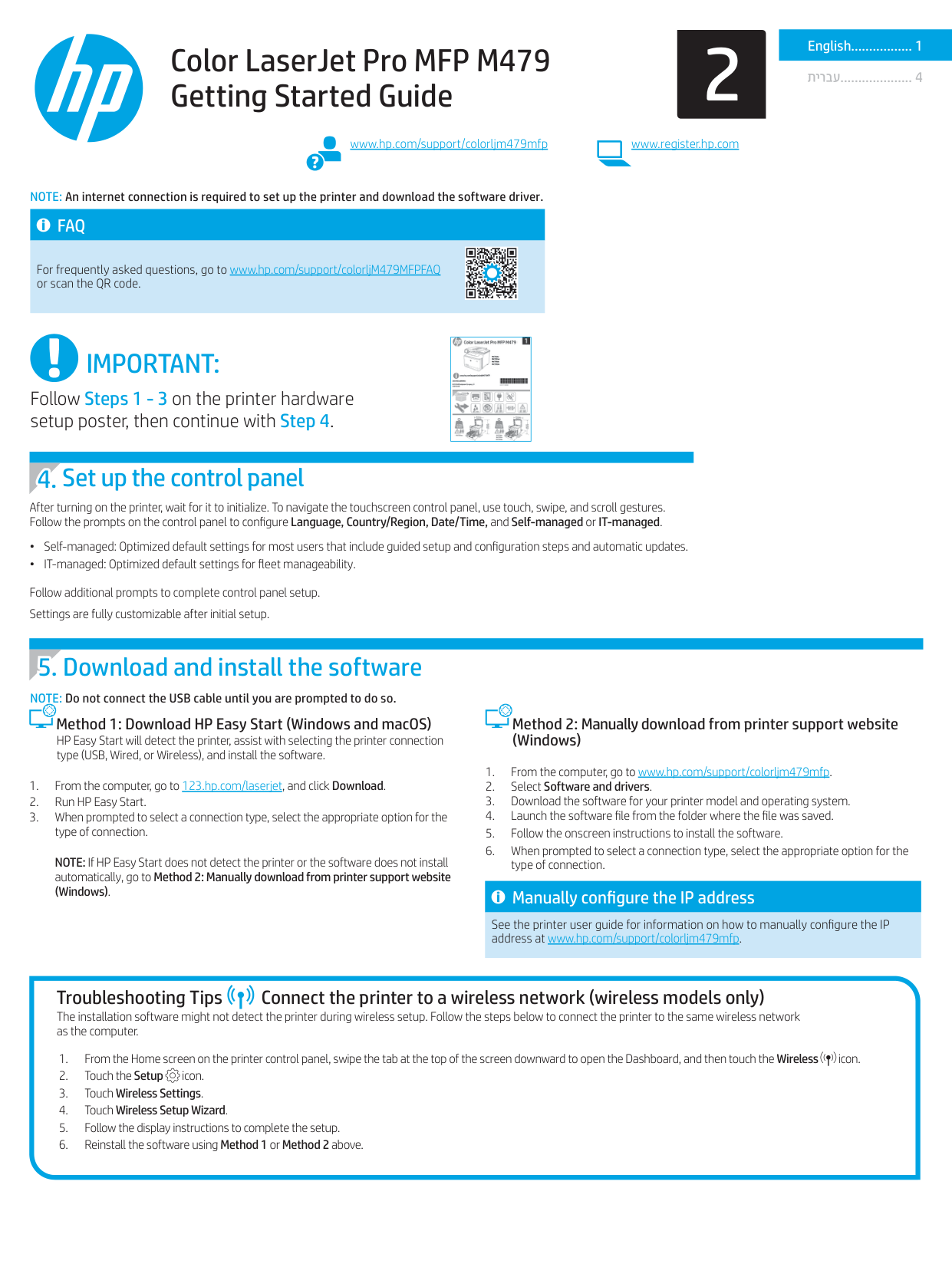
Color LaserJet Pro MFP M479 Getting Started Guide
www.hp.com/support/colorljm479mfp www.register.hp.com
NOTE: An internet connection is required to set up the printer and download the software driver.
####### FAQ
For frequently asked questions, go to www.hp.com/support/colorljM479MFPFAQ or scan the QR code.
English................. 1
.................... 4
IMPORTANT:
###### Follow Steps 1 - 3 on the printer hardware setup poster, then continue with Step 4.
NOTE: If HP Easy Start does not detect the printer or the software does not install automatically, go to Method 2: Manually download from printer support website (Windows).
Method 2: Manually download from printer support website (Windows)
NOTE: Do not connect the USB cable until you are prompted to do so.
|
| |---|
After turning on the printer, wait for it to initialize. To navigate the touchscreen control panel, use touch, swipe, and scroll gestures. Follow the prompts on the control panel to configure Language, Country/Region, Date/Time, and Self-managed or IT-managed.
Follow additional prompts to complete control panel setup. Settings are fully customizable after initial setup.
#### 5. Download and install the software
Method 1: Download HP Easy Start (Windows and macOS) HP Easy Start will detect the printer, assist with selecting the printer connection type (USB, Wired, or Wireless), and install the software.
####### Manually configure the IP address
See the printer user guide for information on how to manually configure the IP address at www.hp.com/support/colorljm479mfp.
Troubleshooting Tips Connect the printer to a wireless network (wireless models only) The installation software might not detect the printer during wireless setup. Follow the steps below to connect the printer to the same wireless network as the computer.
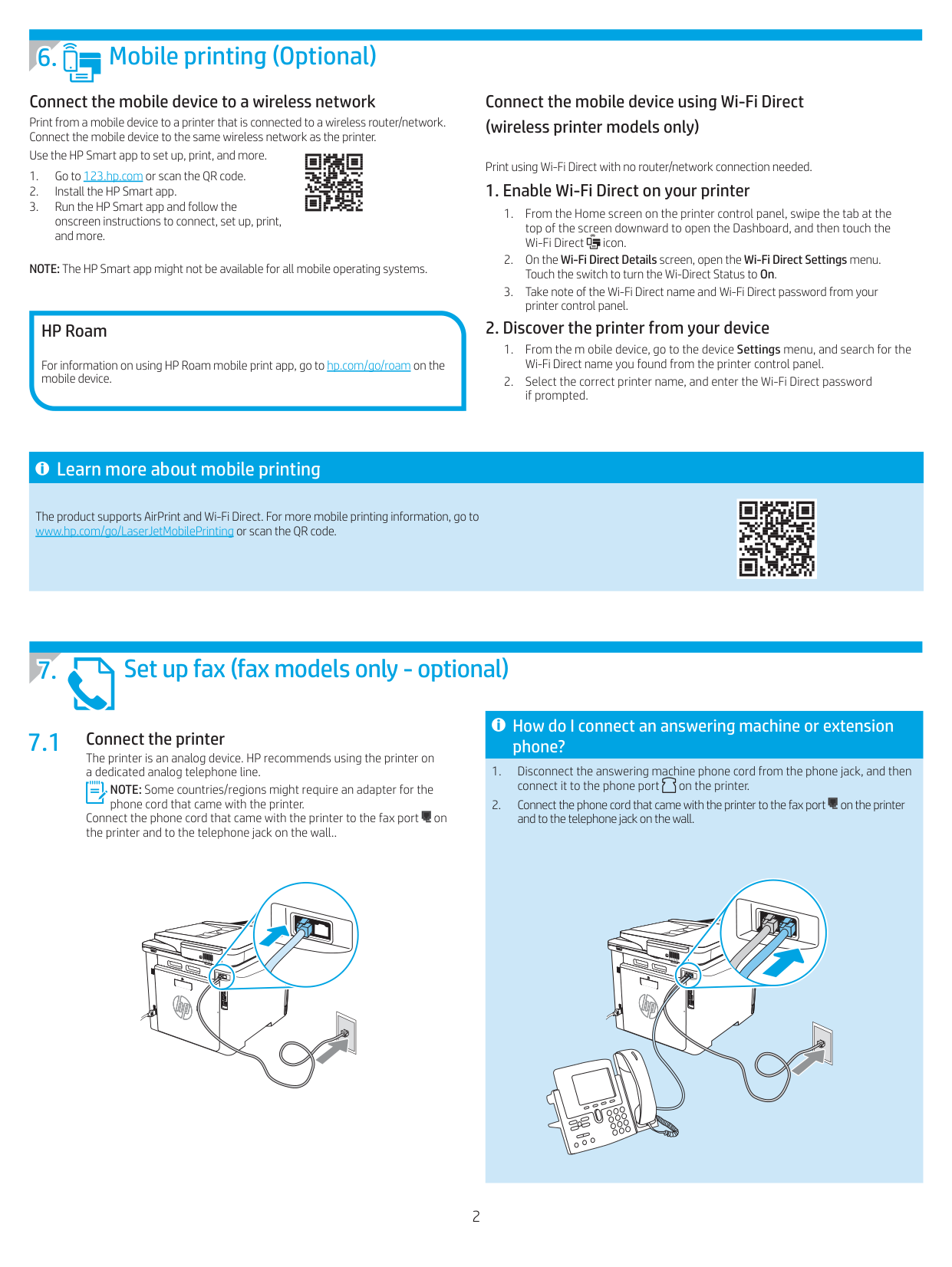
#### 6. Mobile printing (Optional)
Connect the mobile device to a wireless network
Print from a mobile device to a printer that is connected to a wireless router/network. Connect the mobile device to the same wireless network as the printer.
Use the HP Smart app to set up, print, and more.
NOTE: The HP Smart app might not be available for all mobile operating systems.
####### HP Roam
For information on using HP Roam mobile print app, go to hp.com/go/roam on the mobile device.
Connect the mobile device using Wi-Fi Direct (wireless printer models only)
Print using Wi-Fi Direct with no router/network connection needed.
##### Learn more about mobile printing
The product supports AirPrint and Wi-Fi Direct. For more mobile printing information, go to www.hp.com/go/LaserJetMobilePrinting or scan the QR code.
How do I connect an answering machine or extension phone?
#### 7.1
Connect the printer The printer is an analog device. HP recommends using the printer on a dedicated analog telephone line.
NOTE: Some countries/regions might require an adapter for the phone cord that came with the printer.
Connect the phone cord that came with the printer to the fax port on the printer and to the telephone jack on the wall..
####### How do I set up HP printers in digital phone environments?
HP printers are designed specifically for use with traditional analog phone services. For a digital phone environment (such as DSL/ADSL, PBX, ISDN, or FoIP), digital-to-analog filters or converters might be necessary when setting up the printer for fax.
NOTE: Depending on the phone company, the printer might not be compatible with all digital service lines or providers, in all digital environments, or with all digital-to-analog converters. Contact the phone company to determine which setup options are best.
NOTE: When setting up ring pattern detection in a PBX phone system that has different ring patterns for internal and external calls, make sure to dial the printer fax number using an external number for recording the ring pattern.
#### 7.2
Configure the printer Configuring the fax time, date, and header settings is required to use the fax feature. The easiest method is to use the Fax Set-Up Wizard in the product software. Alternately, configure these and other basic fax settings using the control panel. Fax Set-Up Wizard (software)
Control Panel
####### Learn more!
For more information about other ways to send faxes, such as scheduling a fax to be sent later or sending faxes from a computer, see the user guide or go to www.hp.com/support/colorljm479mfp.
#### 8. Use the scan feature
####### Windows
macOS Go to the Applications folder and open HP Easy Scan.
Use the HP Scan application shortcut on the Desktop, or open the HP Printer Assistant, select Scan, and then select Scan a Document or Photo.
Troubleshooting
####### User guide
The user guide includes printer usage and troubleshooting information. It is available on the Web:
####### Check for firmware updates
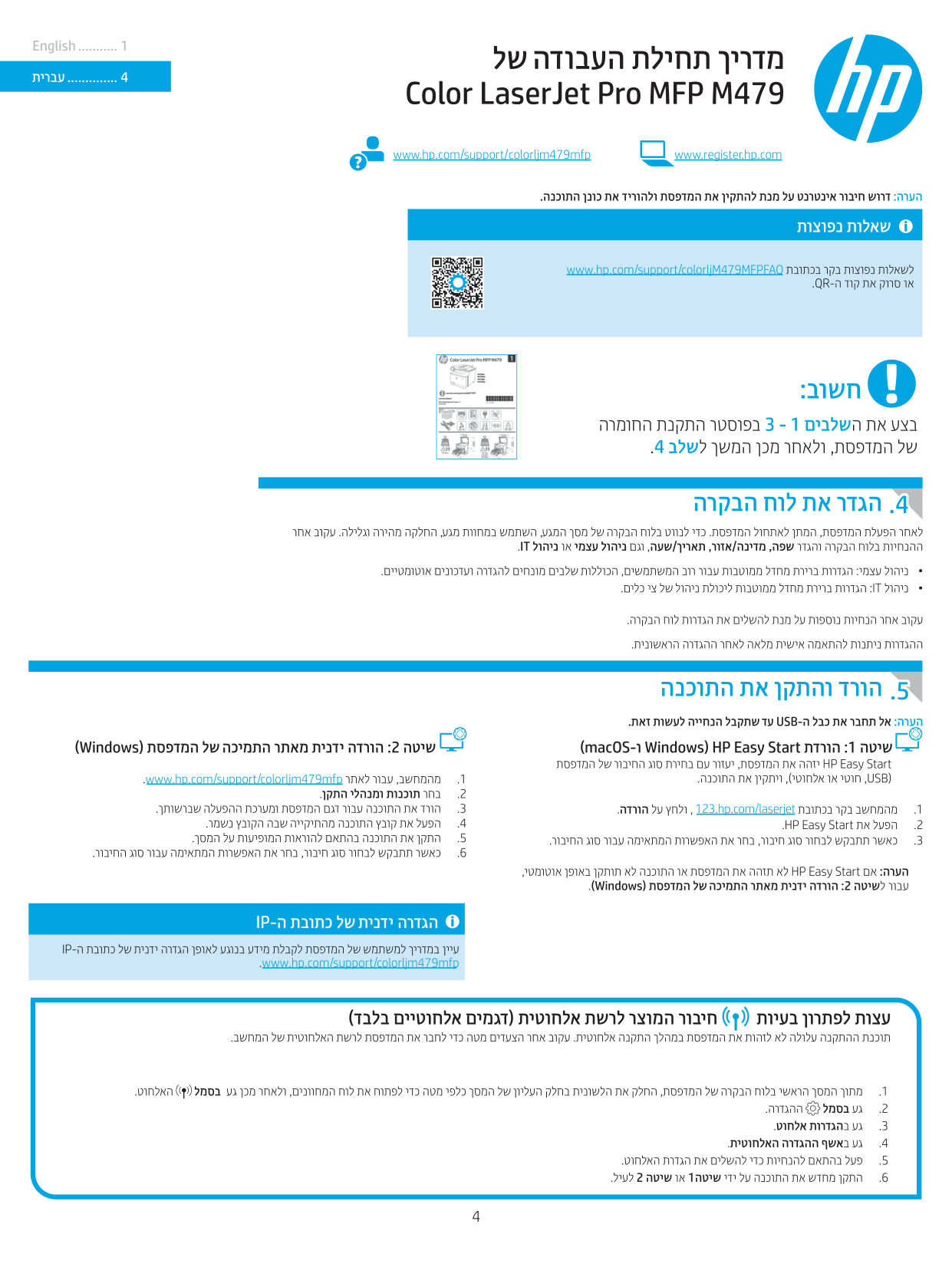
Control panel help To access help topics, touch the Help button on the printer control panel.


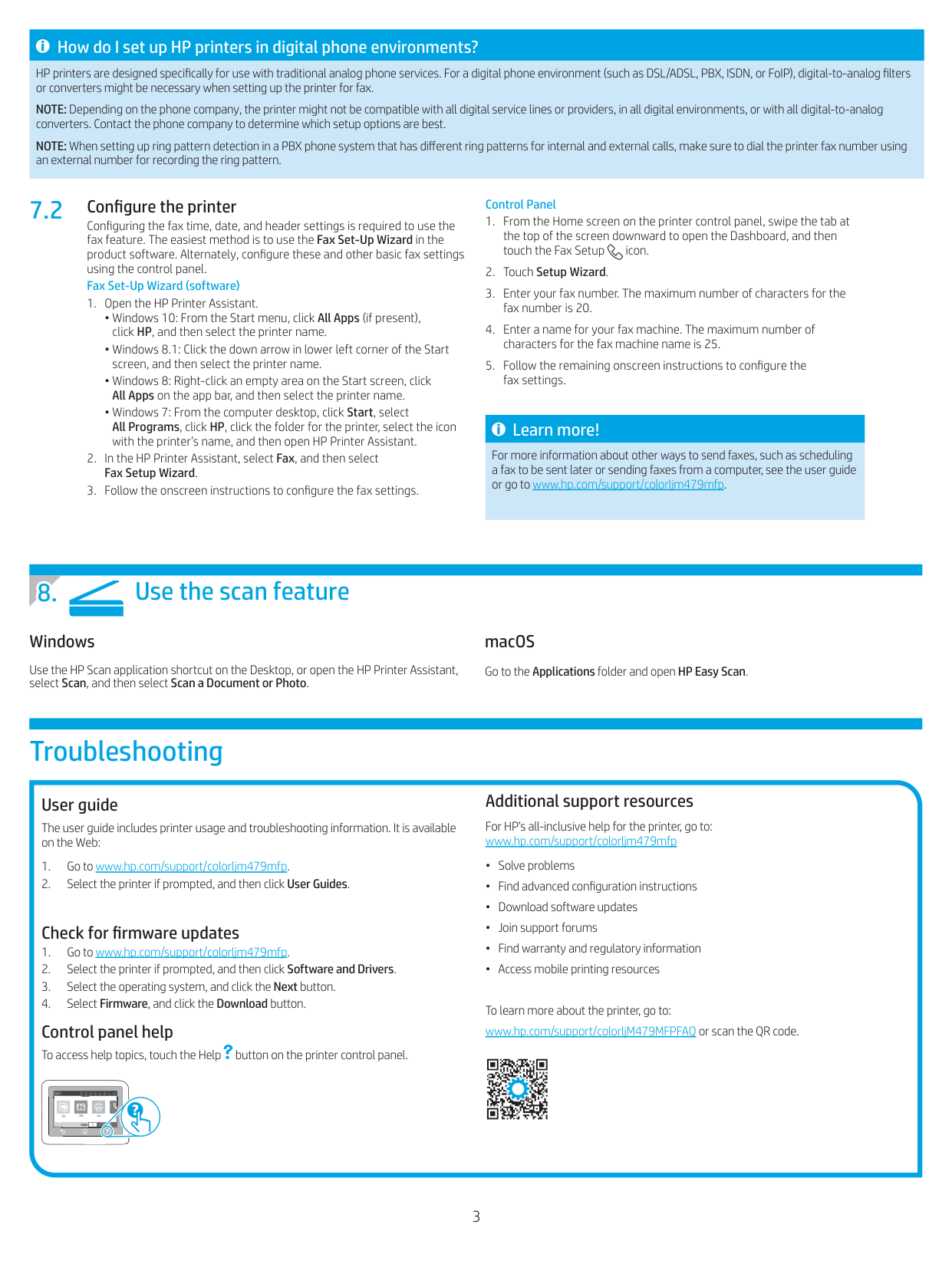






Additional support resources For HP’s all-inclusive help for the printer, go to: www.hp.com/support/colorljm479mfp
To learn more about the printer, go to: www.hp.com/support/colorljM479MFPFAQ or scan the QR code.
English ........... 1
.............. 4
www.hp.com/support/colorljm479mfp www.register.hp.com
|| |---|
#### .4
7.1
####### ?ילטיגיד ןופלט לש תוביבסב HP תוספדמ ןיקתהל דציכ
םיריממה םינקתהב וא םיננסמב ךרוצ היהיש ןכתיי ,(FoIP וא ISDN , PBX , DSL/ADSL ןוגכ) ילטיגיד ןופלט לש הביבסל .לבוקמה גוסהמ םייגולנא ןופלט יתוריש םע שומישל דחוימב וננכות HP תוספדמ .סקפל תספדמה תרדגה תעב יגולנאל-ילטיגידמ תרבחל הנפ .יגולנאל ילטיגידמ םיריממה םינקתהה לכל וא ,תוילטיגידה תוביבסה לכב ,םיקפסה לכל וא ילטיגידה תורישה יווק לכל תמאות היהת אל תספדמהש ןכתיי ,ןופלטה תרבחל םאתהב :הרעה
.רתויב תובוטה ןה הרדגה תויורשפא וליא עובקל ידכ ןופלטה ינוציח רפסמ תועצמאב תספדמה לש סקפה רפסמ תא גייחל דפקה ,תוינוציח תוחישלו תוימינפ תוחישל םינוש לוצלצ יסופד תללוכה PBX גוסמ םינופלט תכרעמב לוצלצ סופד יוהיז לש הרדגה תעב :הרעה
.לוצלצה סופד דועיתל
#### 7.2
####### !ףסונ עדימ לבק
סקפ תחילש ןומזת ןוגכ ,םיסקפ תחילשל תורחא םיכרד לע ףסונ עדימ תלבקל שמתשמל ךירדמב ןייע ,בשחממ םיסקפ תחילש וא רתוי רחואמ דעומב .www.hp.com/support/colorljm479mfp
.8






© Copyright 2021 HP Development Company, L.P. Reproduction, adaptation or translation without prior written permission is prohibited, except as allowed under the copyright laws. The information contained herein is subject to change without notice. The only warranties for HP products and services are set forth in the express warranty statements accompanying such products and services. Nothing herein should be construed as constituting an additional warranty. HP shall not be liable for technical or editorial errors or omissions contained herein. Trademark Credits Windows® is a U.S. registered trademark of Microsoft Corporation.
Apple and the Apple logo are trademarks of Apple Inc., registered in the U.S. and other countries.
macOS is a trademark of Apple Inc., registered in the U.S. and other countries.
AirPrint is a trademark of Apple Inc., registered in the U.S. and other countries.
W1A77-90927