Ask AI
— answers from the official manualAnswers from the official manual.
Common questions
Common Questions
20 totalWhat should I do if the printer software installation fails?
Remove the CD from the computer's CD/DVD drive and disconnect the USB cable from the computer, then restart the computer. Insert the printer software CD again and follow the on-screen instructions to install the printer software, making sure not to connect the USB cable until you are told to do so. After the installation finishes, restart the computer. (Page 2)
How do I set the HP Deskjet 1010 as the default printer on Windows?
Go to your printer settings through the Control Panel and make sure your printer has a check mark in the circle next to it. If it is not selected as the default printer, right-click the printer icon and choose 'Set as Default Printer' from the menu. The navigation path differs slightly depending on your Windows version (Windows XP, Vista, 7, or 8). (Page 2)
How do I uninstall and reinstall the HP Deskjet 1010 software on a Mac?
To uninstall, disconnect the HP printer from your computer, open the Applications: Hewlett-Packard folder, and double-click HP Uninstaller, then follow the on-screen instructions. To reinstall, connect the USB cable, insert the HP software CD into your computer's CD/DVD drive, open the CD on the desktop, double-click HP Installer, and follow the on-screen instructions. (Page 2)
How do I cancel or resume a print job on a Mac?
In System Preferences, click Print & Scan (or Print & Fax in OS X v10.6), then click Open Print Queue. Click a print job to select it, and use the Delete button to cancel the selected print job or the Resume button to continue a paused print job. (Page 2)
What is the warranty period for the HP Deskjet 1010 Printer and its ink cartridges?
The printer itself is covered by a 1-year limited warranty, while ink cartridges are warranted until the HP ink is depleted or the 'end of warranty' date printed on the cartridge is reached, whichever comes first. Software media is covered for 90 days and accessories for 90 days. The cartridge warranty does not cover HP ink products that have been refilled, remanufactured, refurbished, misused, or tampered with. (Page 3)
Does using a non-HP or refilled ink cartridge void the warranty on the HP Deskjet 1010?
Using a non-HP cartridge or a refilled cartridge does not automatically void the printer warranty or any HP support contract. However, if printer failure or damage is attributable to the use of a non-HP or refilled ink cartridge, HP will charge its standard time and materials charges to service the printer for that particular failure or damage. (Page 3)
Show 14 more questions
Is it normal for ink to be consumed even when I am not actively printing on the HP Deskjet 1010?
How can I reset the HP Deskjet 1010 Printer series to factory settings?
What should I do if my printer has a software installation issue?
How do I set up the HP Deskjet 1010 Printer series?
What is the process for checking the print queue?
What should I do if my printer is not set as the default printing device?
What is included in the ReadMe file?
Where can I find additional help for troubleshooting my printer issues?
What is the duration of the limited warranty for HP Deskjet 1010 Ink Cartridges?
How do I uninstall printer software using the Uninstaller tool?
How do I register my HP Deskjet 1010 Printer for support?
How do I reset the HP Deskjet 1010 Printer?
How do I set up the HP Deskjet 1010 Printer for the first time?
How do I know if the HP Deskjet 1010 is powered on?
Full Manual
18 pages
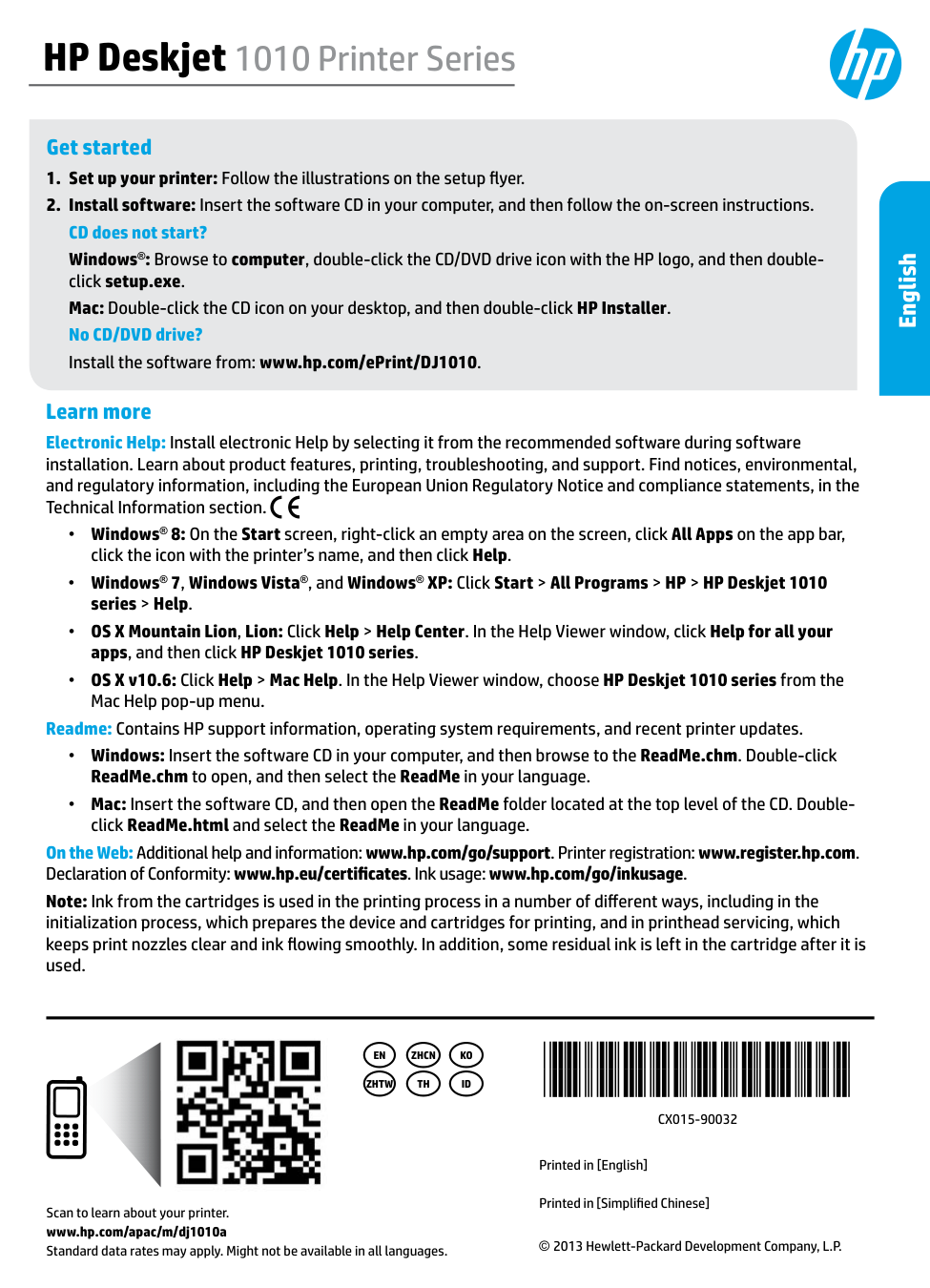
*Cx015-90032*
*Cx015-90032*
Cx015-90032
Printed in [English] Printed in [Simplified Chinese] © 2013 Hewlett-Packard Development Company, L.P.Zhcn
Ko
En
Th
Id
Zhtw
HP Deskjet 1010 Printer Series Get started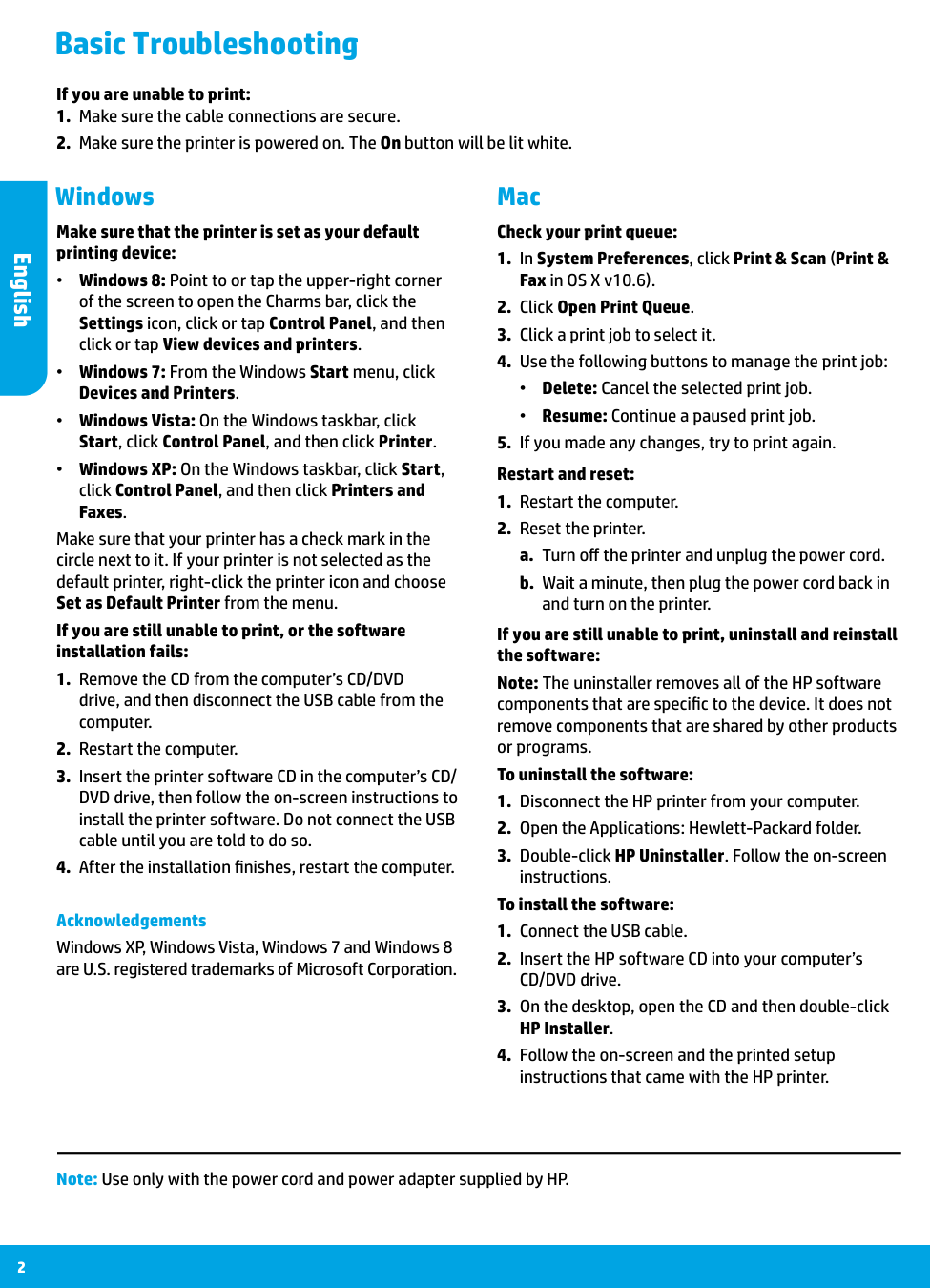
2 Mac Windows Basic Troubleshooting Make sure that the printer is set as your default printing device: •• Windows 8: Point to or tap the upper-right corner of the screen to open the Charms bar, click the Settings icon, click or tap Control Panel, and then click or tap View devices and printers. •• Windows 7: From the Windows Start menu, click Devices and Printers. •• Windows Vista: On the Windows taskbar, click Start, click Control Panel, and then click Printer. •• Windows XP: On the Windows taskbar, click Start, click Control Panel, and then click Printers and Faxes. Make sure that your printer has a check mark in the circle next to it. If your printer is not selected as the default printer, right-click the printer icon and choose Set as Default Printer from the menu. If you are still unable to print, or the software installation fails:
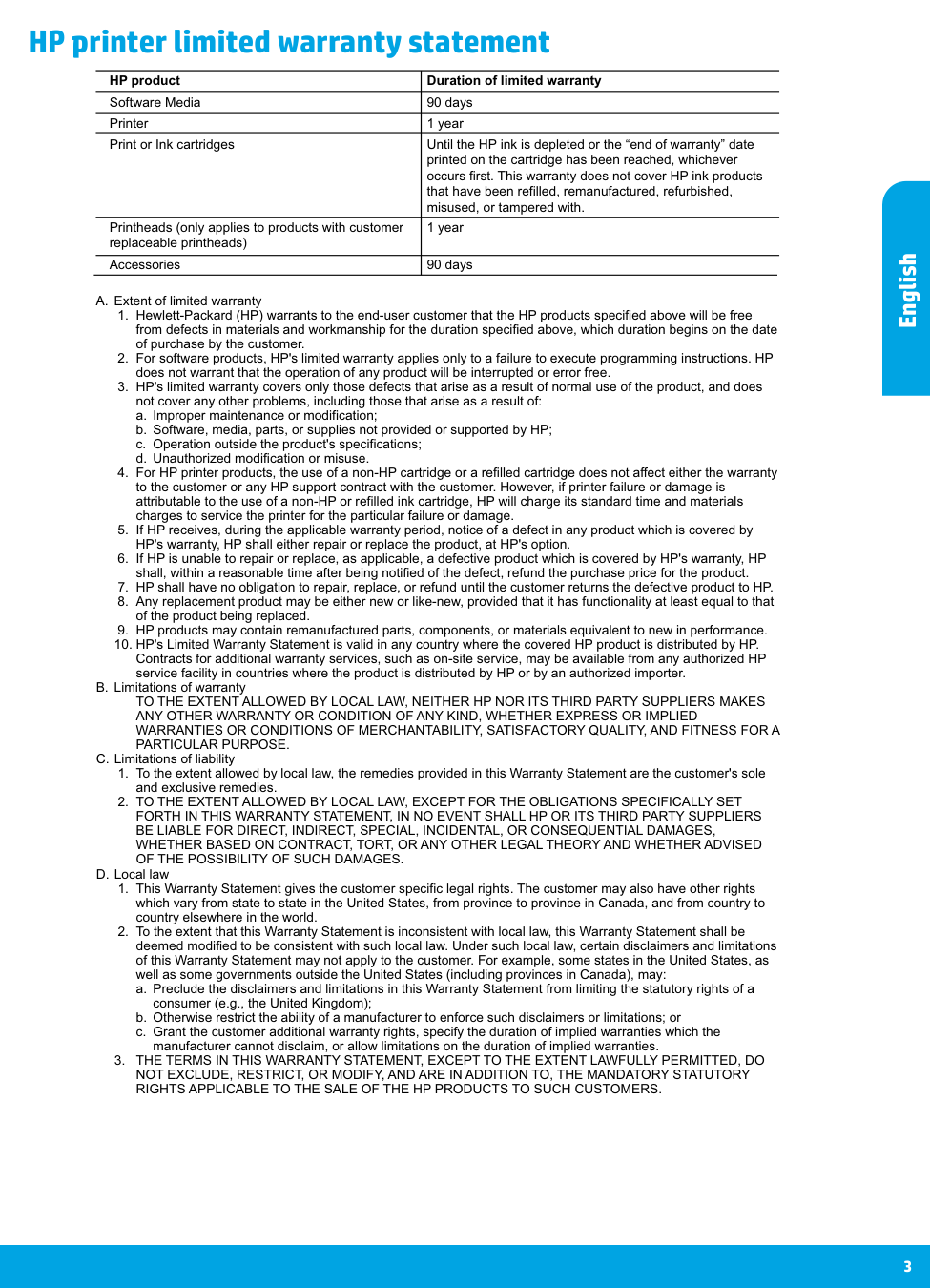
3 HP printer limited warranty statement A. Extent of limited warranty
a. Improper maintenance or modification;
b. Software, media, parts, or supplies not provided or supported by HP;
c. Operation outside the product's specifications;
d. Unauthorized modification or misuse.
Any Other Warranty Or Condition Of Any Kind, Whether Express Or Implied
WARRANTIES OR CONDITIONS OF MERCHANTABILITY, SATISFACTORY QUALITY, AND FITNESS FOR AParticular Purpose.
C. Limitations of liabilityBe Liable For Direct, Indirect, Special, Incidental, Or Consequential Damages,
Whether Based On Contract, Tort, Or Any Other Legal Theory And Whether Advised
Of The Possibility Of Such Damages.
D. Local lawa. Preclude the disclaimers and limitations in this Warranty Statement from limiting the statutory rights of a consumer (e.g., the United Kingdom);
b. Otherwise restrict the ability of a manufacturer to enforce such disclaimers or limitations; or
c. Grant the customer additional warranty rights, specify the duration of implied warranties which the manufacturer cannot disclaim, or allow limitations on the duration of implied warranties.
Rights Applicable To The Sale Of The Hp Products To Such Customers.
HP product Duration of limited warranty Software Media 90 days Printer 1 year Print or Ink cartridges Until the HP ink is depleted or the “end of warranty” dateprinted on the cartridge has been reached, whichever
occurs first. This warranty does not cover HP ink products
that have been refilled, remanufactured, refurbished,
misused, or tampered with. Printheads (only applies to products with customer 1 year replaceable printheads) Accessories 90 days English
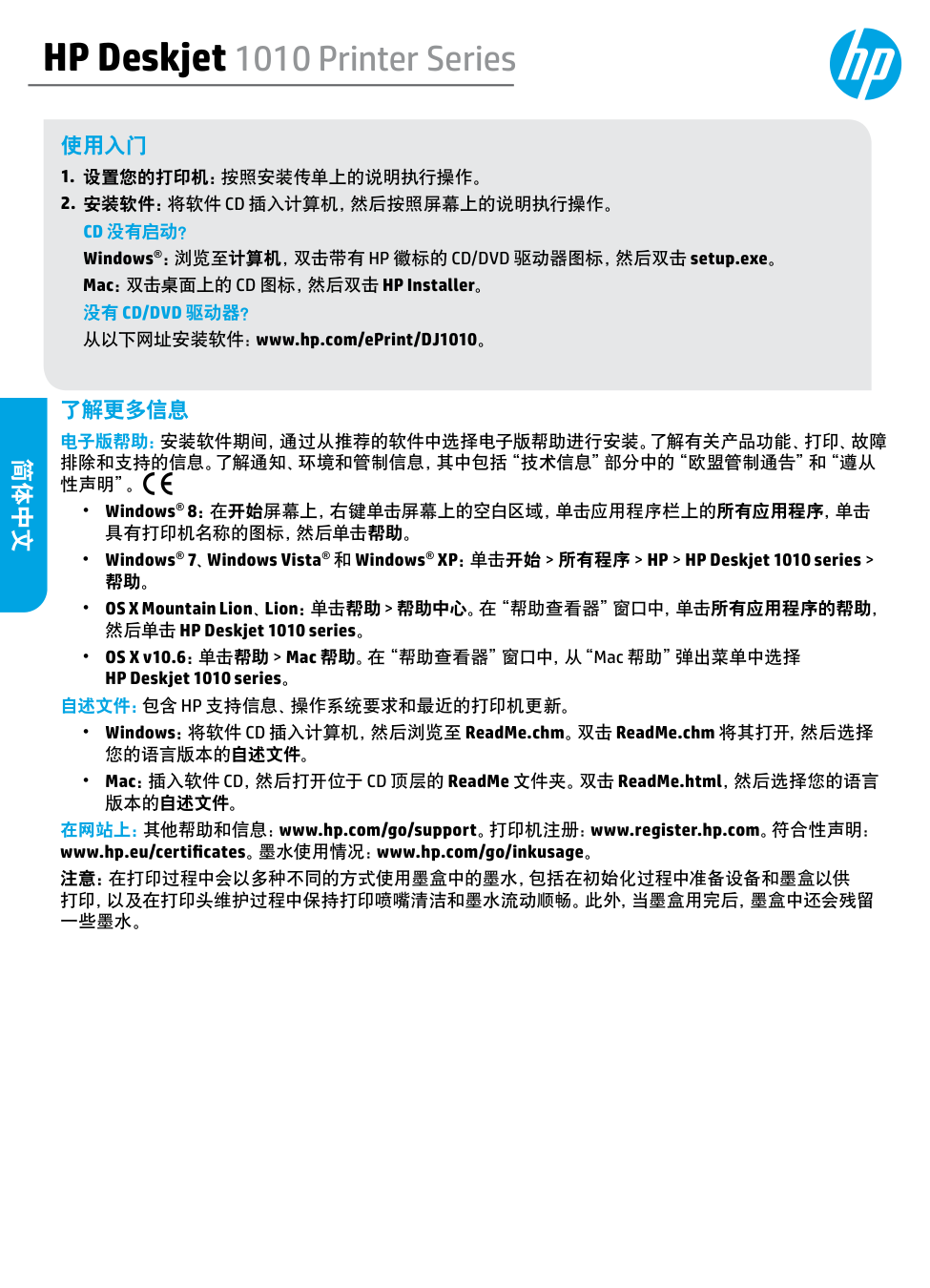
HP Deskjet 1010 Printer Series 使用入门
2. 安装软件:将软件 Cd 插入计算机,然后按照屏幕上的说明执行操作。
Cd 没有启动?
Windows®:浏览至计算机,双击带有 HP 徽标的 CD/DVD 驱动器图标,然后双击 setup.exe。 Mac:双击桌面上的 CD 图标,然后双击 HP Installer。没有 Cd/Dvd 驱动器?
从以下网址安装软件:www.hp.com/ePrint/DJ1010。 了解更多信息 电子版帮助:安装软件期间,通过从推荐的软件中选择电子版帮助进行安装。了解有关产品功能、打印、故障 排除和支持的信息。了解通知、环境和管制信息,其中包括“技术信息”部分中的“欧盟管制通告”和“遵从 性声明”。 • Windows® 8:在开始屏幕上,右键单击屏幕上的空白区域,单击应用程序栏上的所有应用程序,单击 具有打印机名称的图标,然后单击帮助。 • Windows® 7、Windows Vista® 和 Windows® XP:单击开始 > 所有程序 > HP > HP Deskjet 1010 series > 帮助。 • OS X Mountain Lion、Lion:单击帮助 > 帮助中心。在“帮助查看器”窗口中,单击所有应用程序的帮助, 然后单击 HP Deskjet 1010 series。 • OS X v10.6:单击帮助 > Mac 帮助。在“帮助查看器”窗口中,从“Mac 帮助”弹出菜单中选择 HP Deskjet 1010 series。自述文件:包含 Hp 支持信息、操作系统要求和最近的打印机更新。
• Windows:将软件 CD 插入计算机,然后浏览至 ReadMe.chm。双击 ReadMe.chm 将其打开,然后选择 您的语言版本的自述文件。 • Mac:插入软件 CD,然后打开位于 CD 顶层的 ReadMe 文件夹。双击 ReadMe.html,然后选择您的语言 版本的自述文件。 在网站上:其他帮助和信息:www.hp.com/go/support。打印机注册:www.register.hp.com。符合性声明: www.hp.eu/certificates。墨水使用情况:www.hp.com/go/inkusage。 注意:在打印过程中会以多种不同的方式使用墨盒中的墨水,包括在初始化过程中准备设备和墨盒以供 打印,以及在打印头维护过程中保持打印喷嘴清洁和墨水流动顺畅。此外,当墨盒用完后,墨盒中还会残留 一些墨水。 简体中文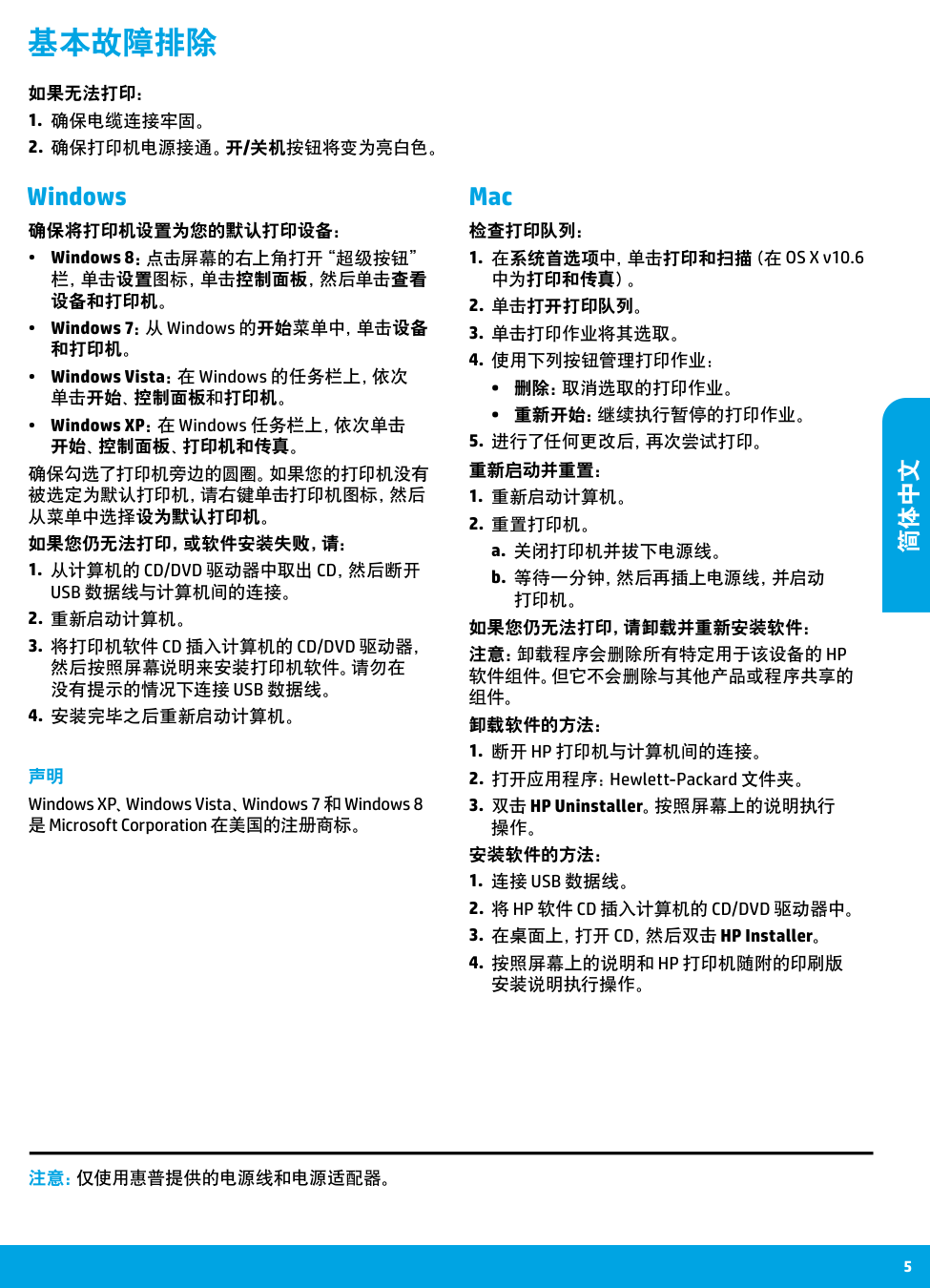
5 Mac Windows 基本故障排除 确保将打印机设置为您的默认打印设备:
1. 从计算机的 Cd/Dvd 驱动器中取出 Cd,然后断开
Usb 数据线与计算机间的连接。
3. 将打印机软件 Cd 插入计算机的 Cd/Dvd 驱动器,
然后按照屏幕说明来安装打印机软件。请勿在没有提示的情况下连接 Usb 数据线。
注意:卸载程序会删除所有特定用于该设备的 Hp
软件组件。但它不会删除与其他产品或程序共享的 组件。 卸载软件的方法:1. 断开 Hp 打印机与计算机间的连接。
1. 连接 Usb 数据线。
2. 将 Hp 软件 Cd 插入计算机的 Cd/Dvd 驱动器中。
4. 按照屏幕上的说明和 Hp 打印机随附的印刷版
安装说明执行操作。 检查打印队列: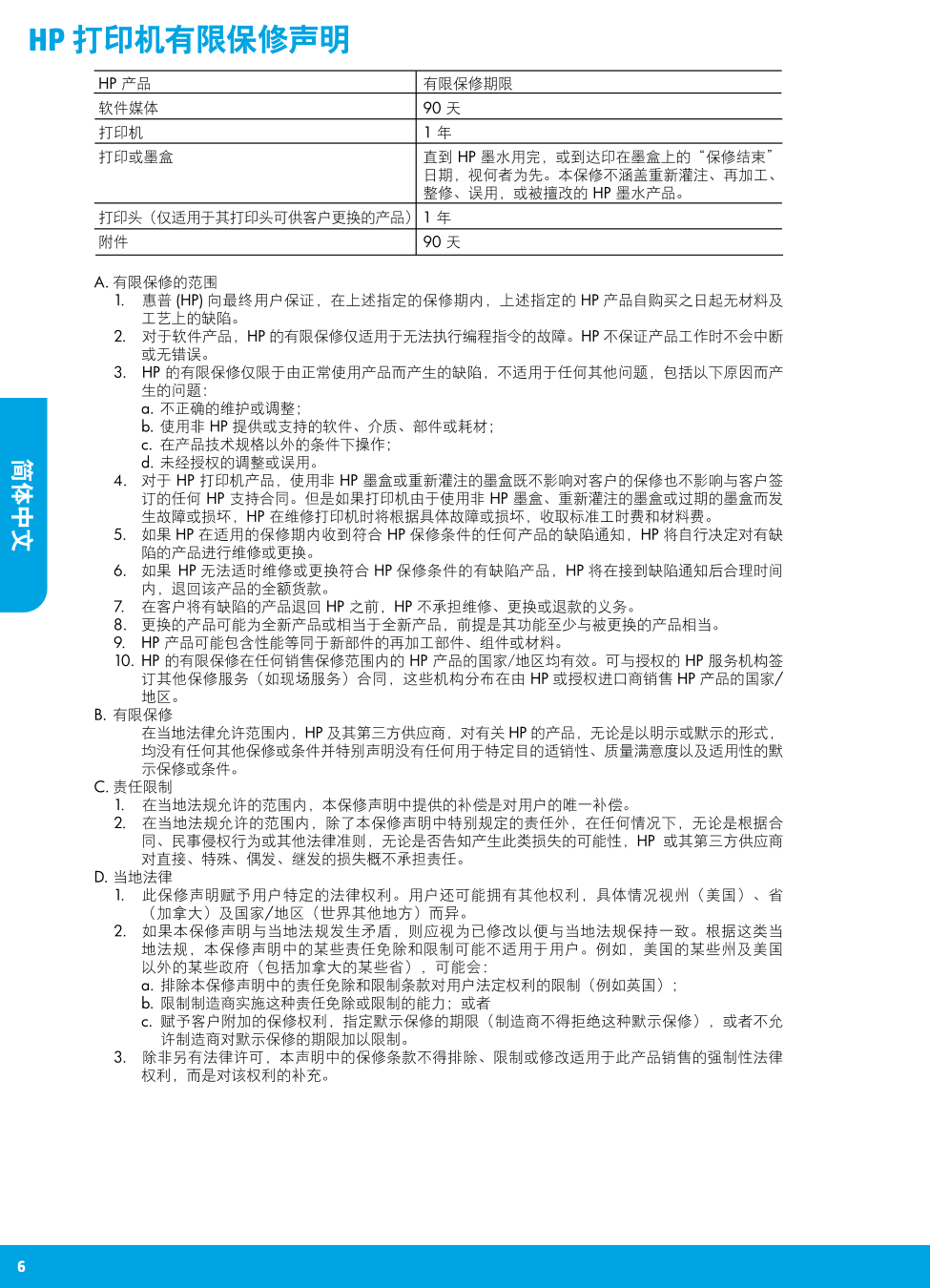
6
Hp 打印机有限保修声明
简体中文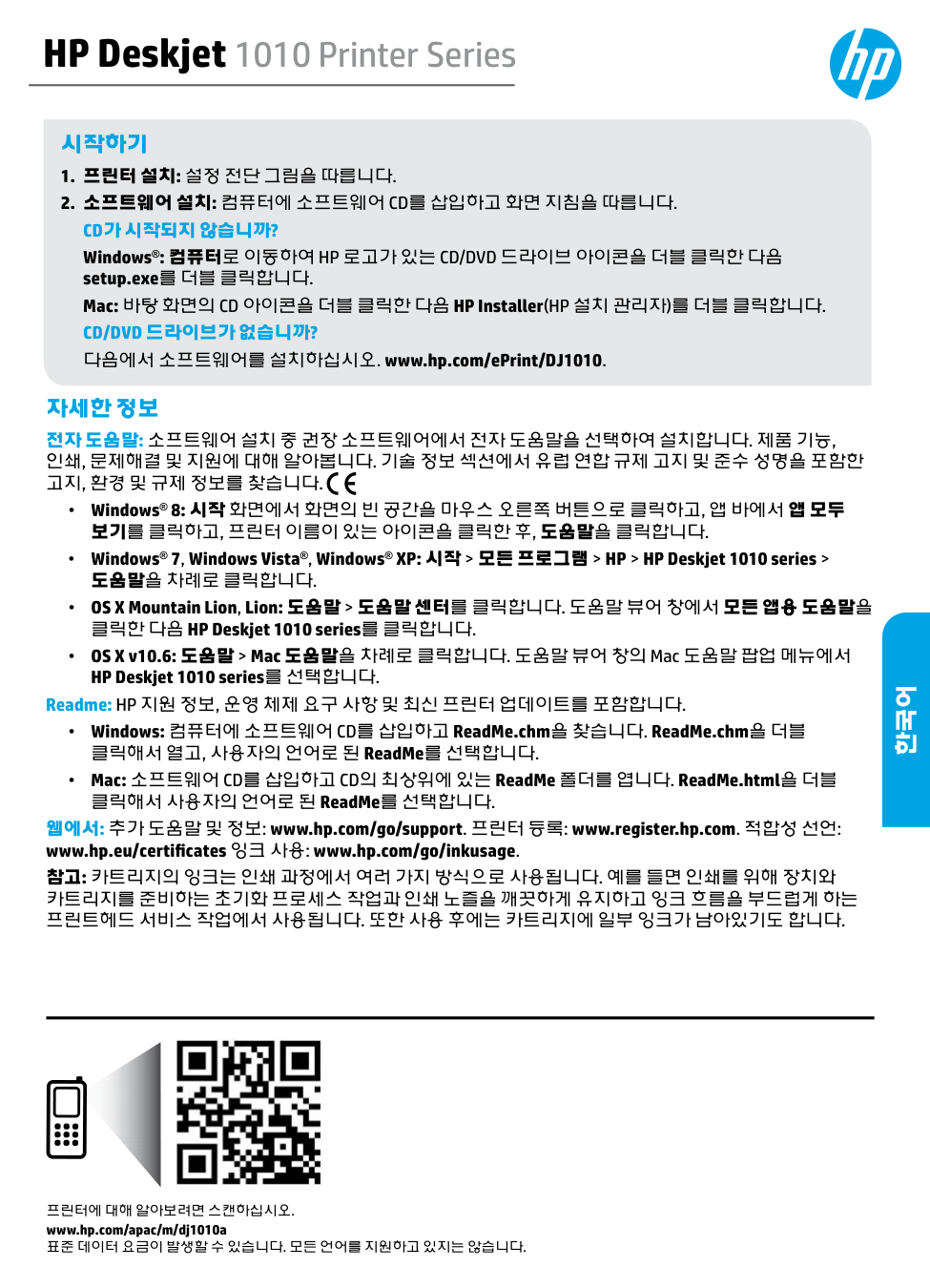
HP Deskjet 1010 Printer Series 시작하기
2. 소프트웨어 설치: 컴퓨터에 소프트웨어 Cd를 삽입하고 화면 지침을 따릅니다.
Cd가 시작되지 않습니까?
Windows®: 컴퓨터로 이동하여 HP 로고가 있는 CD/DVD 드라이브 아이콘을 더블 클릭한 다음 setup.exe를 더블 클릭합니다. Mac: 바탕 화면의 CD 아이콘을 더블 클릭한 다음 HP Installer(HP 설치 관리자)를 더블 클릭합니다.Cd/Dvd 드라이브가 없습니까?
다음에서 소프트웨어를 설치하십시오. www.hp.com/ePrint/DJ1010. 자세한 정보 전자 도움말: 소프트웨어 설치 중 권장 소프트웨어에서 전자 도움말을 선택하여 설치합니다. 제품 기능, 인쇄, 문제해결 및 지원에 대해 알아봅니다. 기술 정보 섹션에서 유럽 연합 규제 고지 및 준수 성명을 포함한 고지, 환경 및 규제 정보를 찾습니다. • Windows® 8: 시작 화면에서 화면의 빈 공간을 마우스 오른쪽 버튼으로 클릭하고, 앱 바에서 앱 모두 보기를 클릭하고, 프린터 이름이 있는 아이콘을 클릭한 후, 도움말을 클릭합니다. • Windows® 7, Windows Vista®, Windows® XP: 시작 > 모든 프로그램 > HP > HP Deskjet 1010 series > 도움말을 차례로 클릭합니다. • OS X Mountain Lion, Lion: 도움말 > 도움말 센터를 클릭합니다. 도움말 뷰어 창에서 모든 앱용 도움말을 클릭한 다음 HP Deskjet 1010 series를 클릭합니다. • OS X v10.6: 도움말 > Mac 도움말을 차례로 클릭합니다. 도움말 뷰어 창의 Mac 도움말 팝업 메뉴에서 HP Deskjet 1010 series를 선택합니다. Readme: HP 지원 정보, 운영 체제 요구 사항 및 최신 프린터 업데이트를 포함합니다. • Windows: 컴퓨터에 소프트웨어 CD를 삽입하고 ReadMe.chm을 찾습니다. ReadMe.chm을 더블 클릭해서 열고, 사용자의 언어로 된 ReadMe를 선택합니다. • Mac: 소프트웨어 CD를 삽입하고 CD의 최상위에 있는 ReadMe 폴더를 엽니다. ReadMe.html을 더블 클릭해서 사용자의 언어로 된 ReadMe를 선택합니다. 웹에서: 추가 도움말 및 정보: www.hp.com/go/support. 프린터 등록: www.register.hp.com. 적합성 선언: www.hp.eu/certificates 잉크 사용: www.hp.com/go/inkusage. 참고: 카트리지의 잉크는 인쇄 과정에서 여러 가지 방식으로 사용됩니다. 예를 들면 인쇄를 위해 장치와 카트리지를 준비하는 초기화 프로세스 작업과 인쇄 노즐을 깨끗하게 유지하고 잉크 흐름을 부드럽게 하는 프린트헤드 서비스 작업에서 사용됩니다. 또한 사용 후에는 카트리지에 일부 잉크가 남아있기도 합니다. 프린터에 대해 알아보려면 스캔하십시오. www.hp.com/apac/m/dj1010a 표준 데이터 요금이 발생할 수 있습니다. 모든 언어를 지원하고 있지는 않습니다. 한국어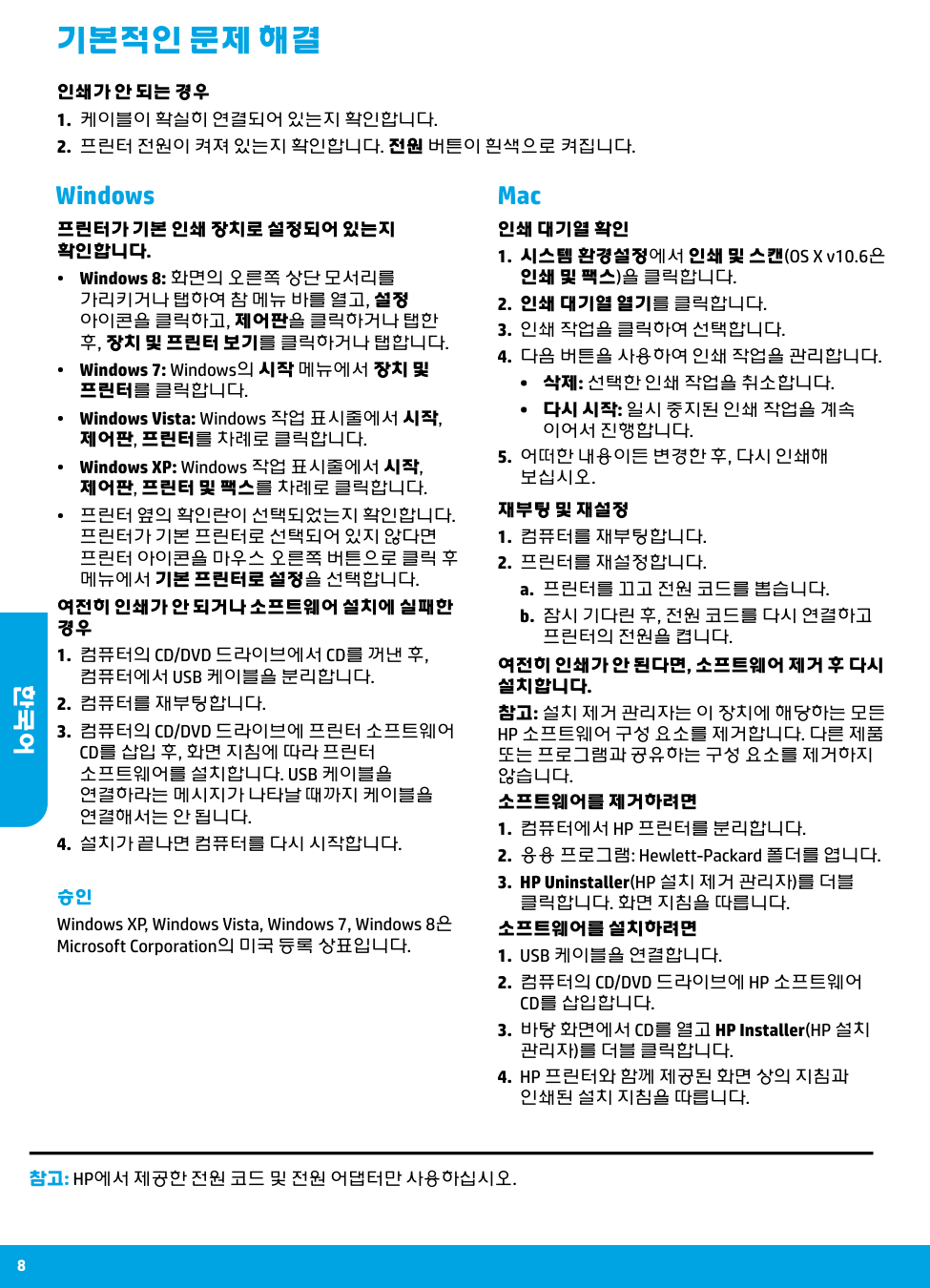
8 Mac Windows 기본적인 문제 해결 프린터가 기본 인쇄 장치로 설정되어 있는지 확인합니다.
1. 컴퓨터의 Cd/Dvd 드라이브에서 Cd를 꺼낸 후,
컴퓨터에서 Usb 케이블을 분리합니다.
3. 컴퓨터의 Cd/Dvd 드라이브에 프린터 소프트웨어
Cd를 삽입 후, 화면 지침에 따라 프린터
소프트웨어를 설치합니다. Usb 케이블을
연결하라는 메시지가 나타날 때까지 케이블을 연결해서는 안 됩니다.Hp 소프트웨어 구성 요소를 제거합니다. 다른 제품
또는 프로그램과 공유하는 구성 요소를 제거하지 않습니다. 소프트웨어를 제거하려면1. 컴퓨터에서 Hp 프린터를 분리합니다.
1. Usb 케이블을 연결합니다.
2. 컴퓨터의 Cd/Dvd 드라이브에 Hp 소프트웨어
Cd를 삽입합니다.
4. Hp 프린터와 함께 제공된 화면 상의 지침과
인쇄된 설치 지침을 따릅니다. 인쇄 대기열 확인참고: Hp에서 제공한 전원 코드 및 전원 어댑터만 사용하십시오.
한국어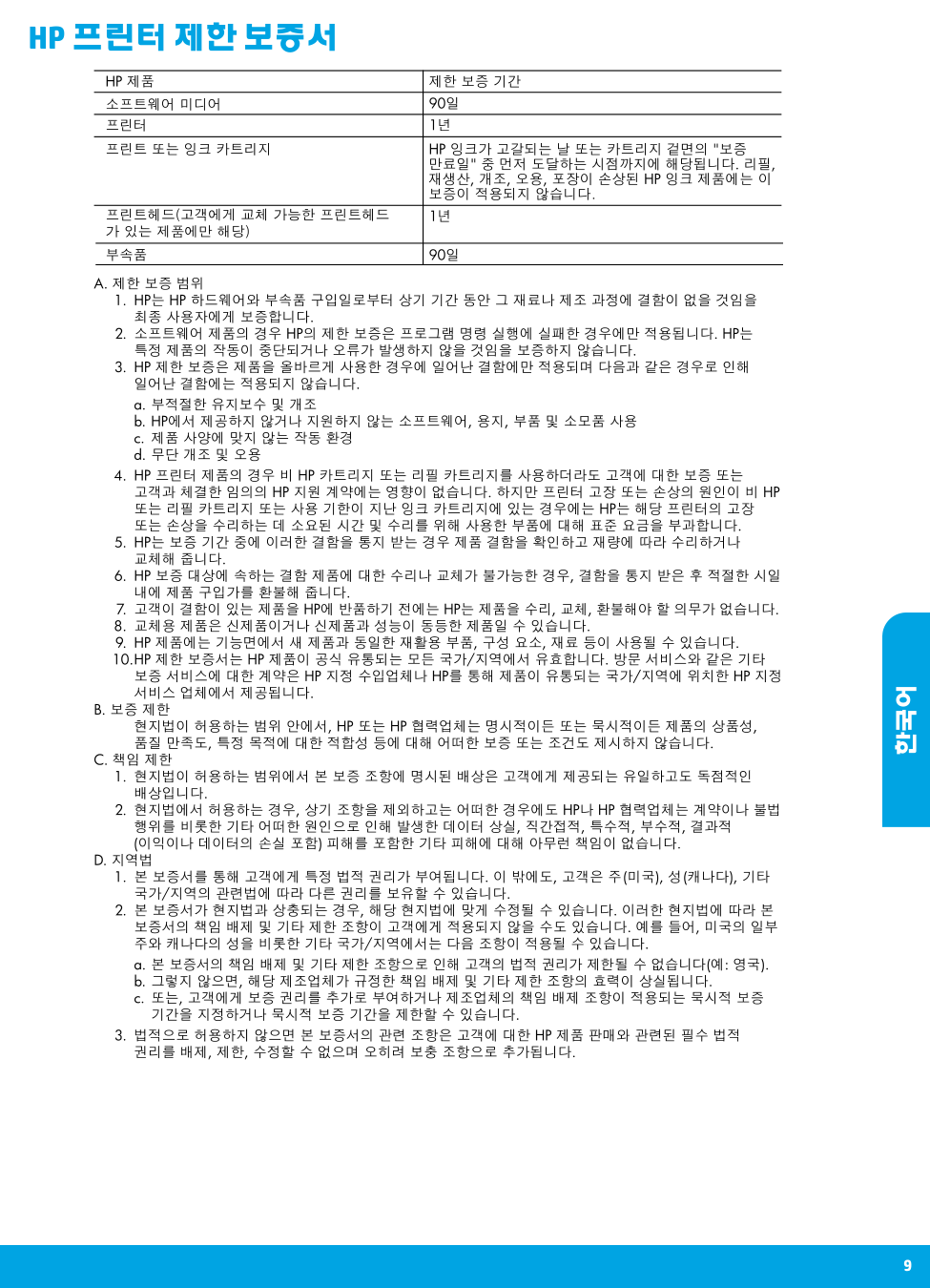
9
Hp 프린터 제한 보증서
한국어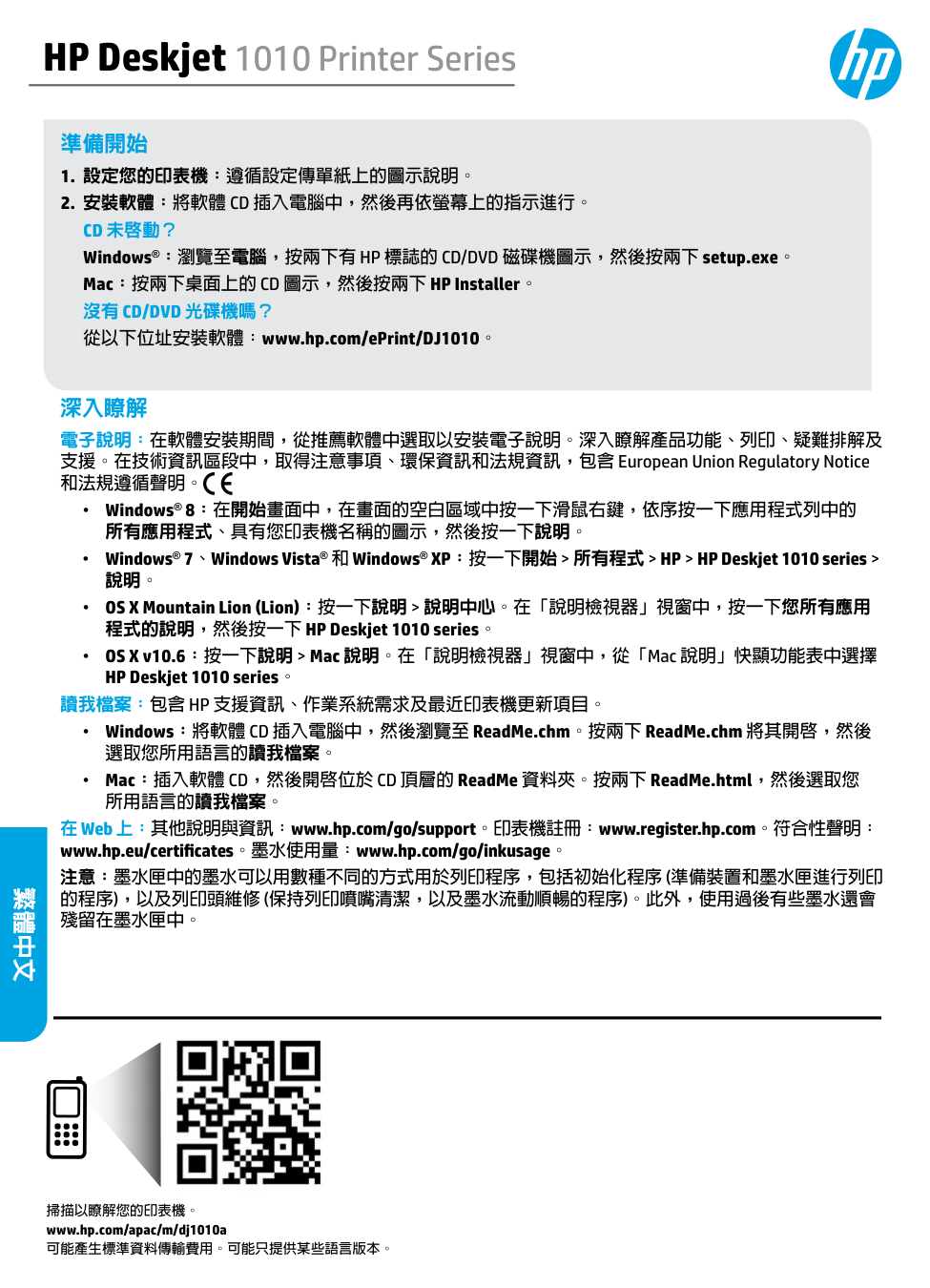
HP Deskjet 1010 Printer Series 準備開始
2. 安裝軟體:將軟體 Cd 插入電腦中,然後再依螢幕上的指示進行。
Cd 未啟動?
Windows®:瀏覽至電腦,按兩下有 HP 標誌的 CD/DVD 磁碟機圖示,然後按兩下 setup.exe。 Mac:按兩下桌面上的 CD 圖示,然後按兩下 HP Installer。沒有 Cd/Dvd 光碟機嗎?
從以下位址安裝軟體:www.hp.com/ePrint/DJ1010。 深入瞭解 電子說明:在軟體安裝期間,從推薦軟體中選取以安裝電子說明。深入瞭解產品功能、列印、疑難排解及 支援。在技術資訊區段中,取得注意事項、環保資訊和法規資訊,包含 European Union Regulatory Notice 和法規遵循聲明。 • Windows® 8:在開始畫面中,在畫面的空白區域中按一下滑鼠右鍵,依序按一下應用程式列中的 所有應用程式、具有您印表機名稱的圖示,然後按一下說明。 • Windows® 7、Windows Vista® 和 Windows® XP:按一下開始 > 所有程式 > HP > HP Deskjet 1010 series > 說明。 • OS X Mountain Lion (Lion):按一下說明 > 說明中心。在「說明檢視器」視窗中,按一下您所有應用 程式的說明,然後按一下 HP Deskjet 1010 series。 • OS X v10.6:按一下說明 > Mac 說明。在「說明檢視器」視窗中,從「Mac 說明」快顯功能表中選擇 HP Deskjet 1010 series。讀我檔案:包含 Hp 支援資訊、作業系統需求及最近印表機更新項目。
• Windows:將軟體 CD 插入電腦中,然後瀏覽至 ReadMe.chm。按兩下 ReadMe.chm 將其開啟,然後 選取您所用語言的讀我檔案。 • Mac:插入軟體 CD,然後開啟位於 CD 頂層的 ReadMe 資料夾。按兩下 ReadMe.html,然後選取您 所用語言的讀我檔案。 在 Web 上:其他說明與資訊:www.hp.com/go/support。印表機註冊:www.register.hp.com。符合性聲明: www.hp.eu/certificates。墨水使用量:www.hp.com/go/inkusage。 注意:墨水匣中的墨水可以用數種不同的方式用於列印程序,包括初始化程序 (準備裝置和墨水匣進行列印 的程序),以及列印頭維修 (保持列印噴嘴清潔,以及墨水流動順暢的程序)。此外,使用過後有些墨水還會 殘留在墨水匣中。 掃描以瞭解您的印表機。 www.hp.com/apac/m/dj1010a 可能產生標準資料傳輸費用。可能只提供某些語言版本。 繁體中文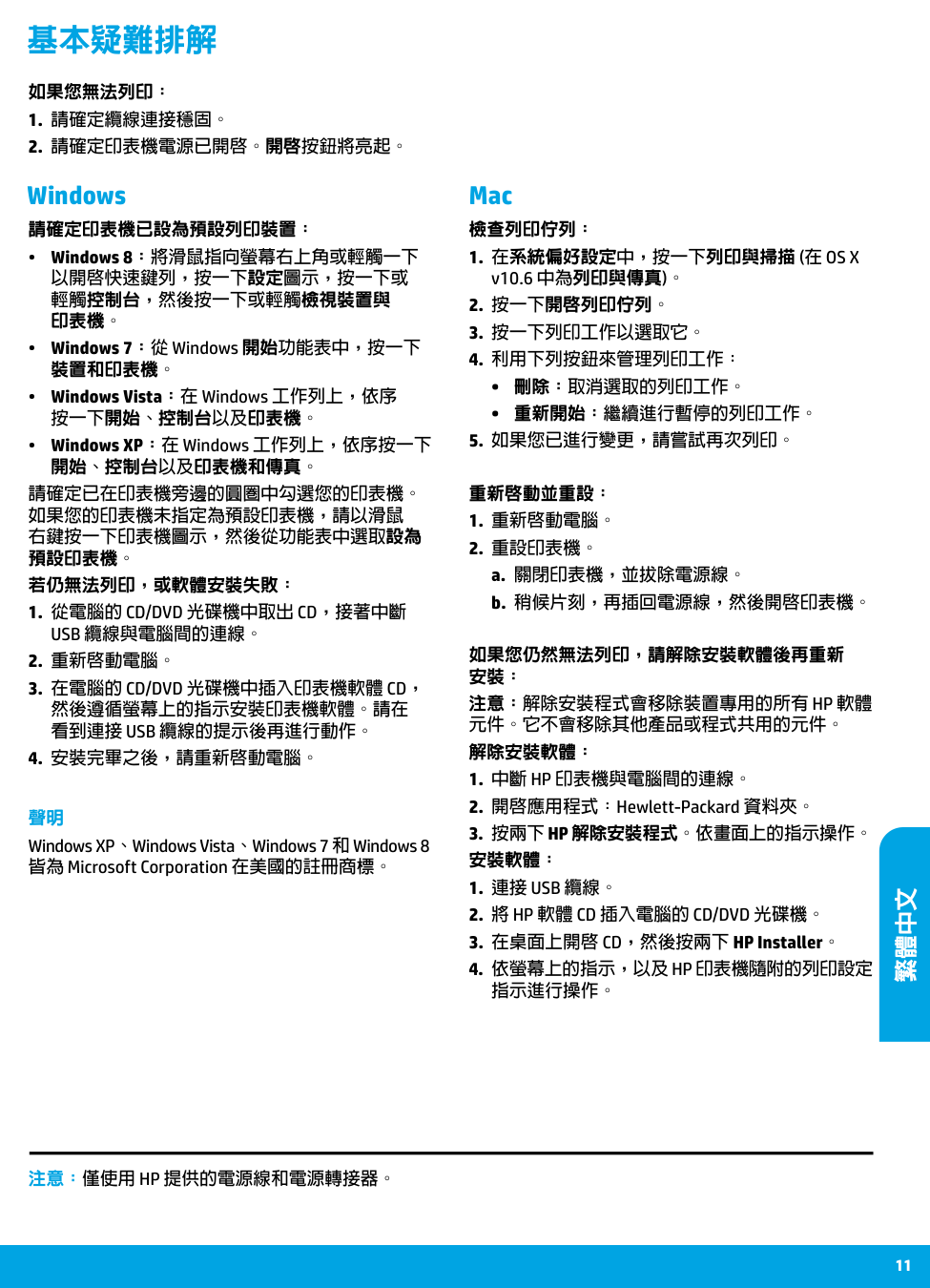
11 Mac Windows 基本疑難排解 請確定印表機已設為預設列印裝置:
1. 從電腦的 Cd/Dvd 光碟機中取出 Cd,接著中斷
Usb 纜線與電腦間的連線。
3. 在電腦的 Cd/Dvd 光碟機中插入印表機軟體 Cd,
然後遵循螢幕上的指示安裝印表機軟體。請在看到連接 Usb 纜線的提示後再進行動作。
注意:解除安裝程式會移除裝置專用的所有 Hp 軟體
元件。它不會移除其他產品或程式共用的元件。 解除安裝軟體:1. 中斷 Hp 印表機與電腦間的連線。
3. 按兩下 Hp 解除安裝程式。依畫面上的指示操作。
安裝軟體:1. 連接 Usb 纜線。
2. 將 Hp 軟體 Cd 插入電腦的 Cd/Dvd 光碟機。
4. 依螢幕上的指示,以及 Hp 印表機隨附的列印設定
指示進行操作。 檢查列印佇列:1. 在系統偏好設定中,按一下列印與掃描 (在 Os X
v10.6 中為列印與傳真)。注意:僅使用 Hp 提供的電源線和電源轉接器。
繁體中文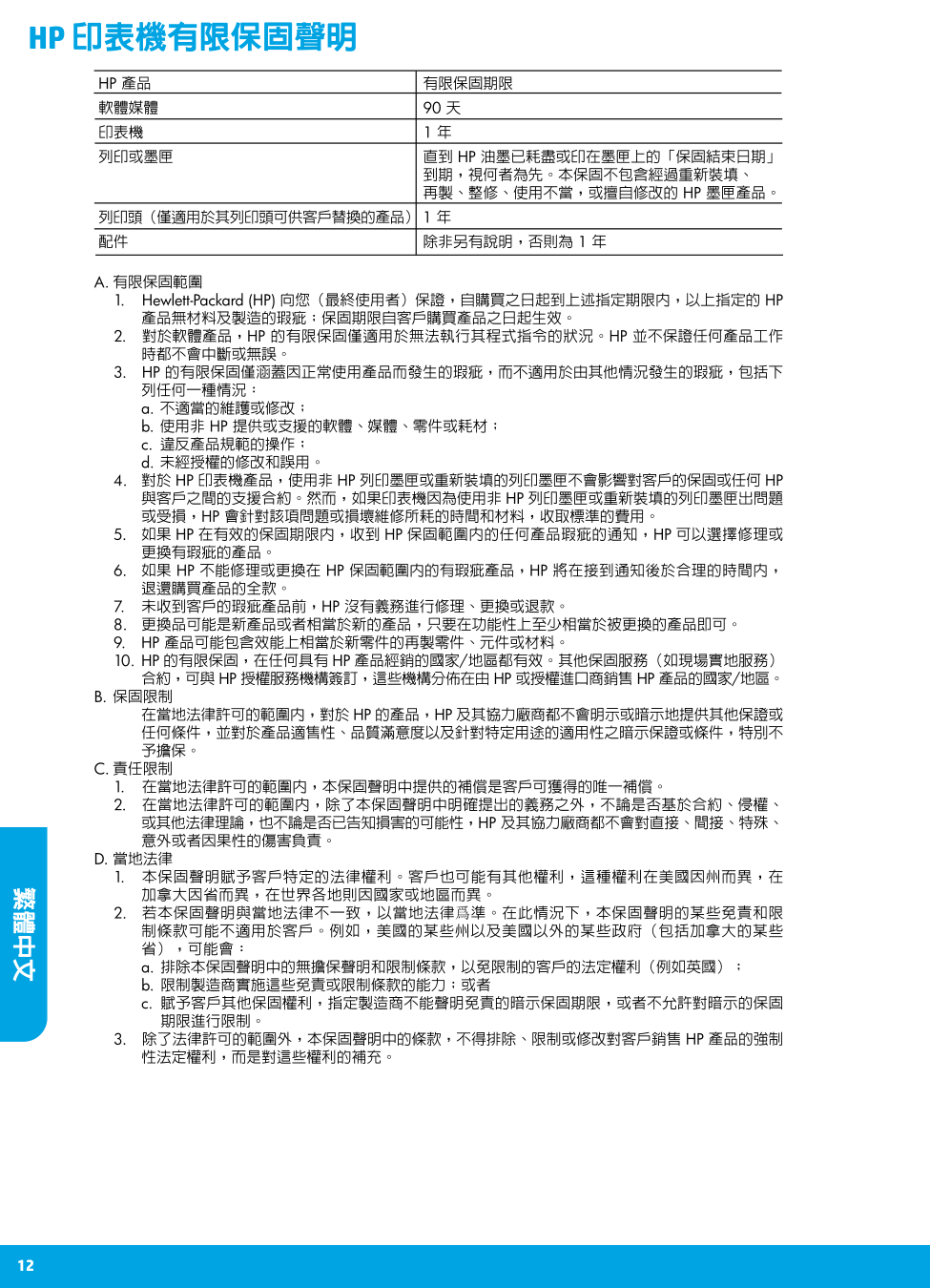
12
Hp 印表機有限保固聲明
繁體中文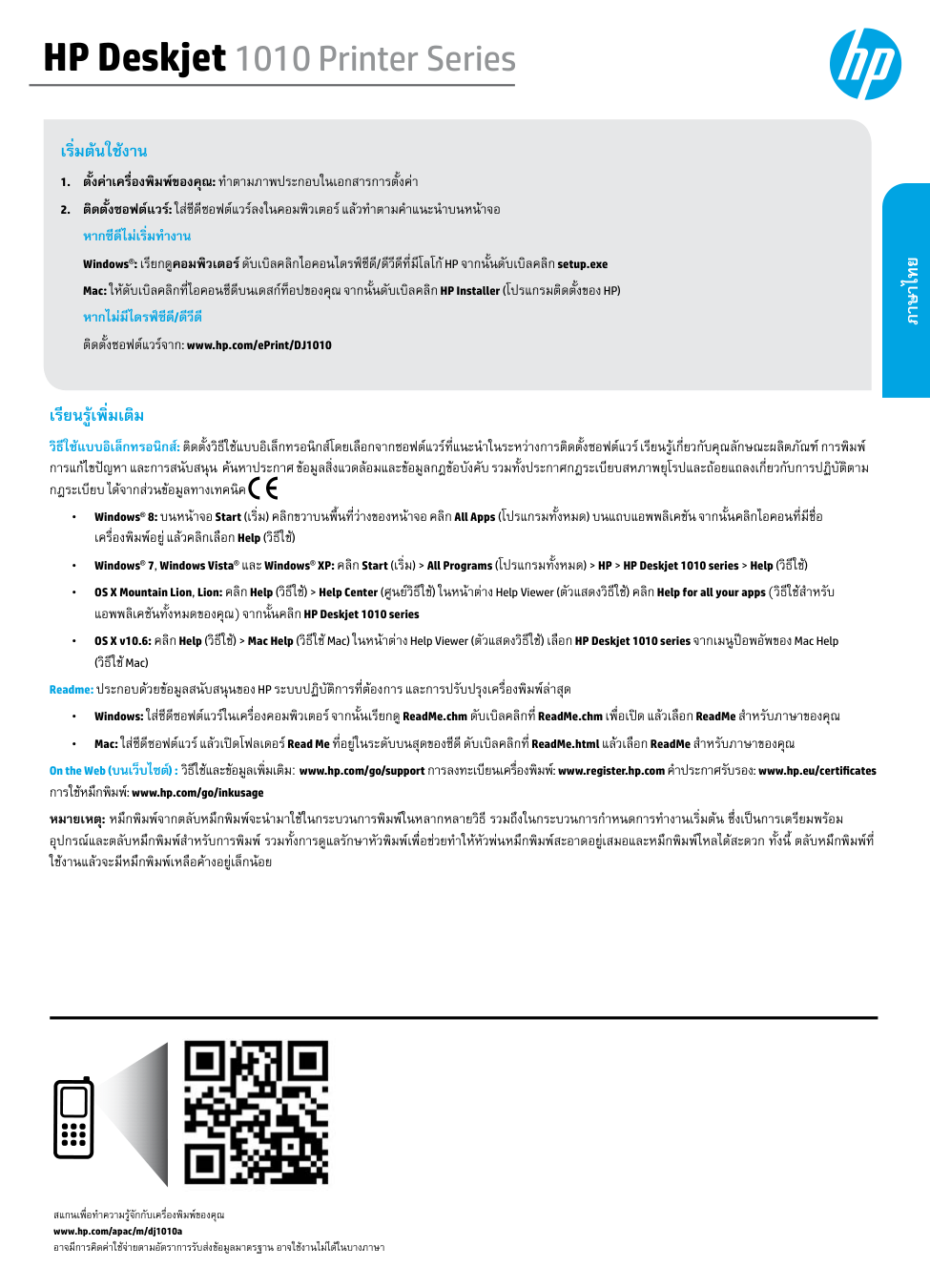
HP Deskjet 1010 Printer Series เริ่มต้นใช้งาน
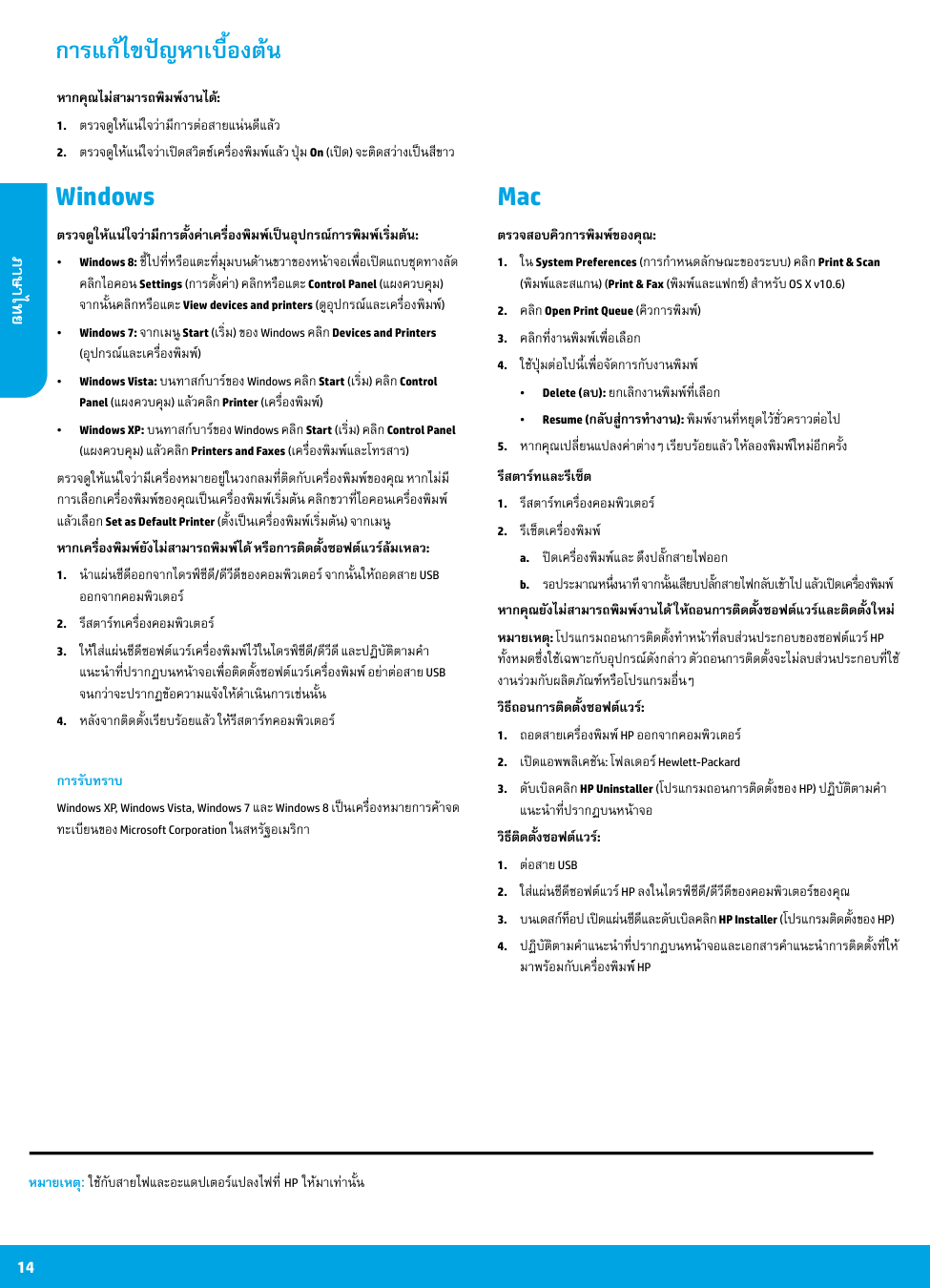
14 Mac Windows การแก้ไขปัญหาเบื้องต้น ตรวจดูให้แน่ใจว่ามีการตั้งค่าเครื่องพิมพ์เป็นอุปกรณ์การพิมพ์เริ่มต้น: • Windows 8: ชี้ไปที่หรือแตะที่มุมบนด้านขวาของหน้าจอเพื่อเปิดแถบชุดทางลัด คลิกไอคอน Settings (การตั้งค่า) คลิกหรือแตะ Control Panel (แผงควบคุม) จากนั้นคลิกหรือแตะ View devices and printers (ดูอุปกรณ์และเครื่องพิมพ์) • Windows 7: จากเมนู Start (เริ่ม) ของ Windows คลิก Devices and Printers (อุปกรณ์และเครื่องพิมพ์) • Windows Vista: บนทาสก์บาร์ของ Windows คลิก Start (เริ่ม) คลิก Control Panel (แผงควบคุม) แล้วคลิก Printer (เครื่องพิมพ์) • Windows XP: บนทาสก์บาร์ของ Windows คลิก Start (เริ่ม) คลิก Control Panel (แผงควบคุม) แล้วคลิก Printers and Faxes (เครื่องพิมพ์และโทรสาร) ตรวจดูให้แน่ใจว่ามีเครื่องหมายอยู่ในวงกลมที่ติดกับเครื่องพิมพ์ของคุณ หากไม่มี การเลือกเครื่องพิมพ์ของคุณเป็นเครื่องพิมพ์เริ่มต้น คลิกขวาที่ไอคอนเครื่องพิมพ์ แล้วเลือก Set as Default Printer (ตั้งเป็นเครื่องพิมพ์เริ่มต้น) จากเมนู หากเครื่องพิมพ์ยังไม่สามารถพิมพ์ได้ หรือการติดตั้งซอฟต์แวร์ล้มเหลว:
1. ถอดสายเครื่องพิมพ์ Hp ออกจากคอมพิวเตอร์
1. ต่อสาย Usb
2. ใส่แผ่นซีดีซอฟต์แวร์ Hp ลงในไดรฟ์ซีดี/ดีวีดีของคอมพิวเตอร์ของคุณ
มาพร้อมกับเครื่องพิมพ์ Hp
ตรวจสอบคิวการพิมพ์ของคุณ:หมายเหตุ: ใช้กับสายไฟและอะแดปเตอร์แปลงไฟที่ Hp ให้มาเท่านั้น
ภาษาไทย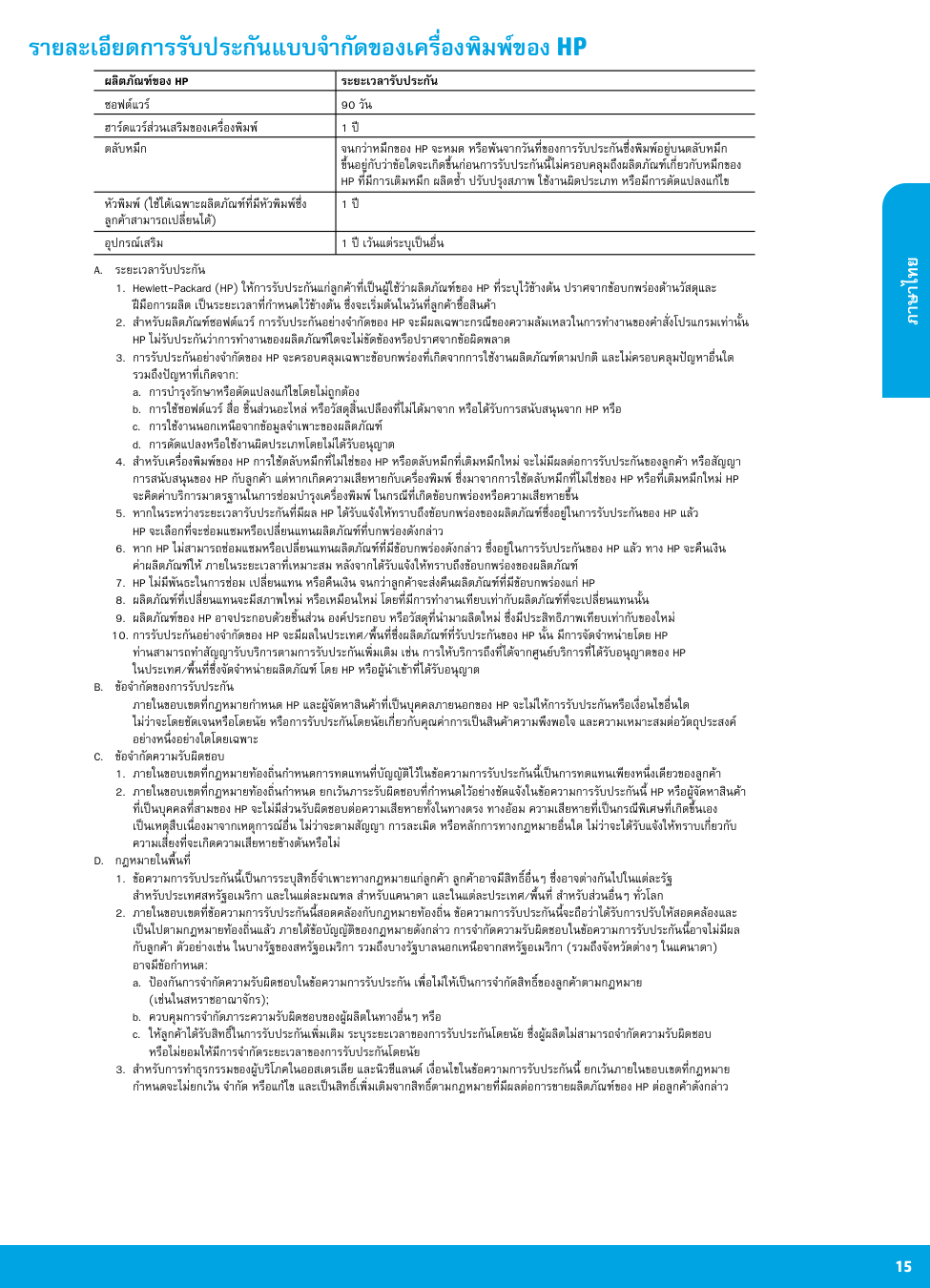
15
รายละเอียดการรับประกันแบบจำ�กัดของเครื่องพิมพ์ของ Hp
A. ระยะเวลารับประกัน
Hp ไมรับประกันวาการทำงานของผลิตภัณฑใดจะไมขัดของหรือปราศจากขอผิดพลาด
a. การบำรุงรักษาหรือดัดแปลงแกไขโดยไมถูกตอง
b. การใชซอฟตแวร สื่อ ชิ้นสวนอะไหล หรือวัสดุสิ้นเปลืองที่ไมไดมาจาก หรือไดรับการสนับสนุนจาก HP หรือ
c. การใชงานนอกเหนือจากขอมูลจำเพาะของผลิตภัณฑ
d. การดัดแปลงหรือใชงานผิดประเภทโดยไมไดรับอนุญาต
Hp จะเลือกที่จะซอมแซมหรือเปลี่ยนแทนผลิตภัณฑที่บกพรองดังกลาว
ในประเทศ/พื้นที่ซึ่งจัดจำหนายผลิตภัณฑ โดย Hp หรือผูนำเขาที่ไดรับอนุญาต
B. ขอจำกัดของการรับประกัน
ภายในขอบเขตที่กฎหมายกำหนด HP และผูจัดหาสินคาที่เปนบุคคลภายนอกของ HP จะไมใหการรับประกันหรือเงื่อนไขอื่นใด ไมวาจะโดยชัดเจนหรือโดยนัย หรือการรับประกันโดยนัยเกี่ยวกับคุณคาการเปนสินคาความพึงพอใจ และความเหมาะสมตอวัตถุประสงค อยางหนึ่งอยางใดโดยเฉพาะ
C. ขอจำกัดความรับผิดชอบ
D. กฎหมายในพื้นที่
a. ปองกันการจำกัดความรับผิดชอบในขอความการรับประกัน เพื่อไมใหเปนการจำกัดสิทธิ์ของลูกคาตามกฎหมาย (เชนในสหราชอาณาจักร);
b. ควบคุมการจำกัดภาระความรับผิดชอบของผูผลิตในทางอื่นๆ หรือ
c. ใหลูกคาไดรับสิทธิ์ในการรับประกันเพิ่มเติม ระบุระยะเวลาของการรับประกันโดยนัย ซึ่งผูผลิตไมสามารถจำกัดความรับผิดชอบ หรือไมยอมใหมีการจำกัดระยะเวลาของการรับประกันโดยนัย
ผลิตภัณฑของ Hp
ระยะเวลารับประกัน ซอฟตแวร 90 วัน ฮารดแวรสวนเสริมของเครื่องพิมพ 1 ป ตลับหมึกจนกวาหมึกของ Hp จะหมด หรือพนจากวันที่ของการรับประกันซึ่งพิมพอยูบนตลับหมึก
ขึ้นอยูกับวาขอใดจะเกิดขึ้นกอนการรับประกันนี้ไมครอบคลุมถึงผลิตภัณฑเกี่ยวกับหมึกของHp ที่มีการเติมหมึก ผลิตซ้ำ ปรับปรุงสภาพ ใชงานผิดประเภท หรือมีการดัดแปลงแกไข
หัวพิมพ (ใชไดเฉพาะผลิตภัณฑที่มีหัวพิมพซึ่ง 1 ป ลูกคาสามารถเปลี่ยนได) อุปกรณเสริม 1 ป เวนแตระบุเปนอื่น ภาษาไทย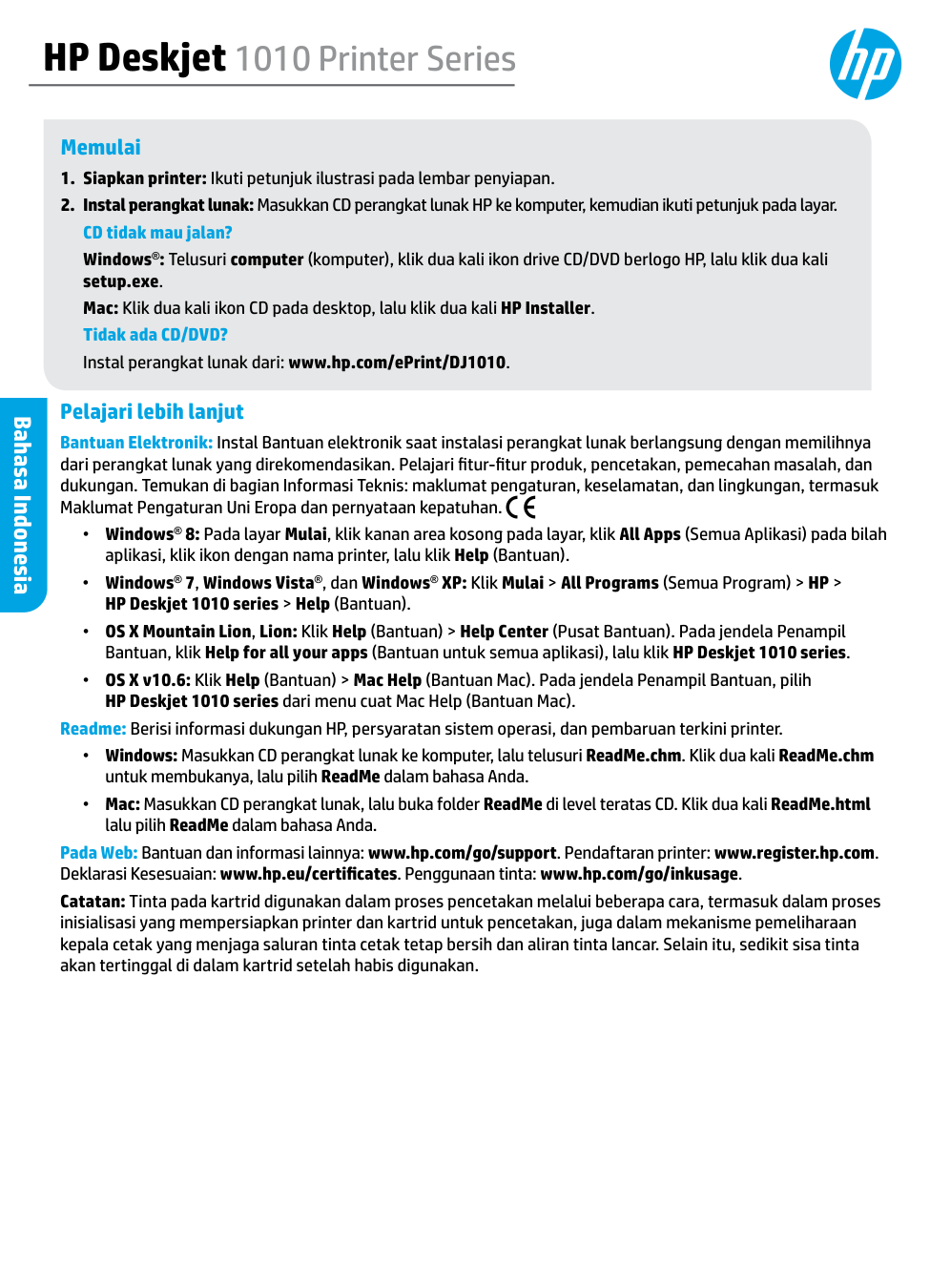
HP Deskjet 1010 Printer Series Memulai
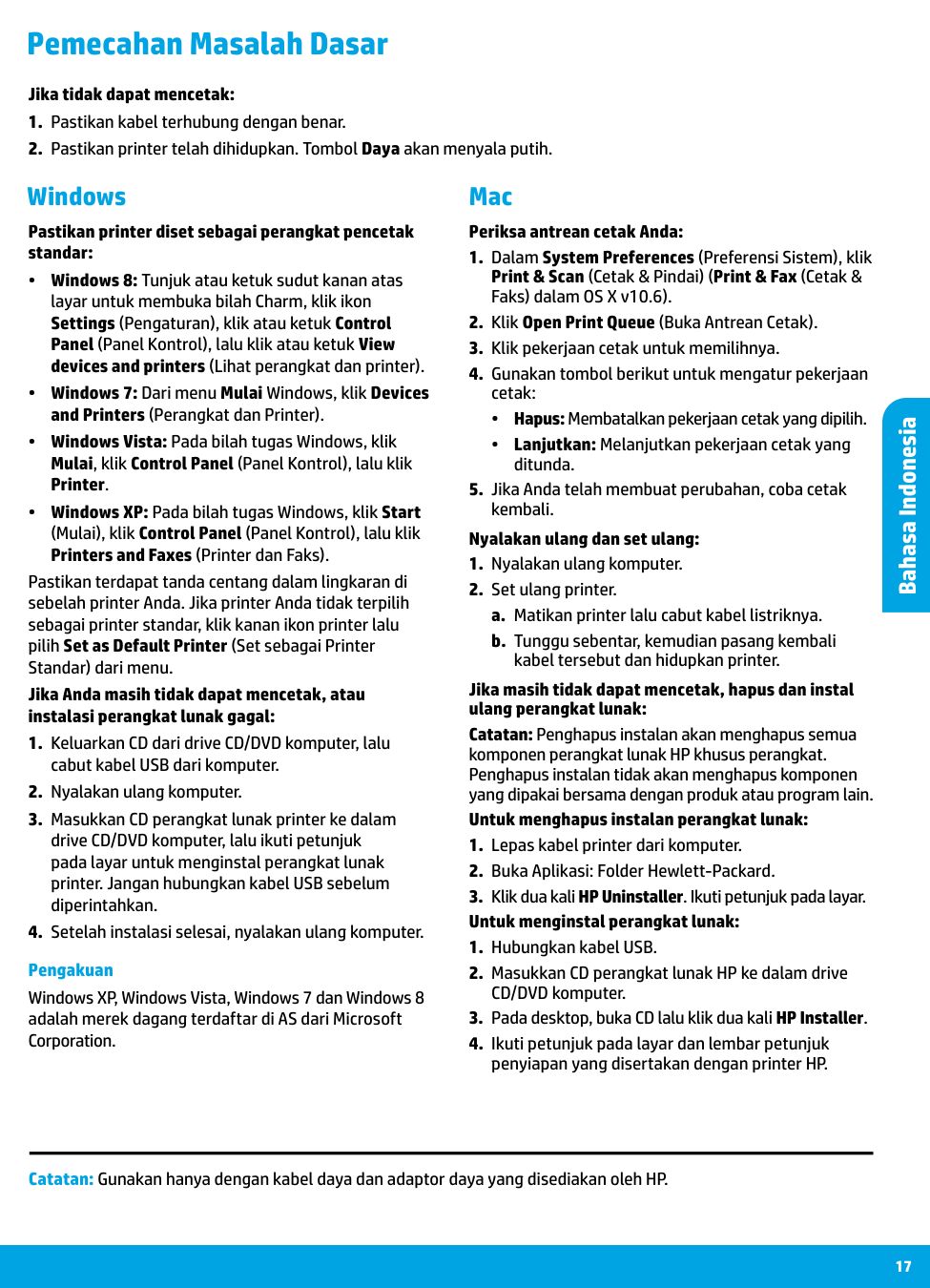
17 Mac Windows Pemecahan Masalah Dasar Pastikan printer diset sebagai perangkat pencetak standar:
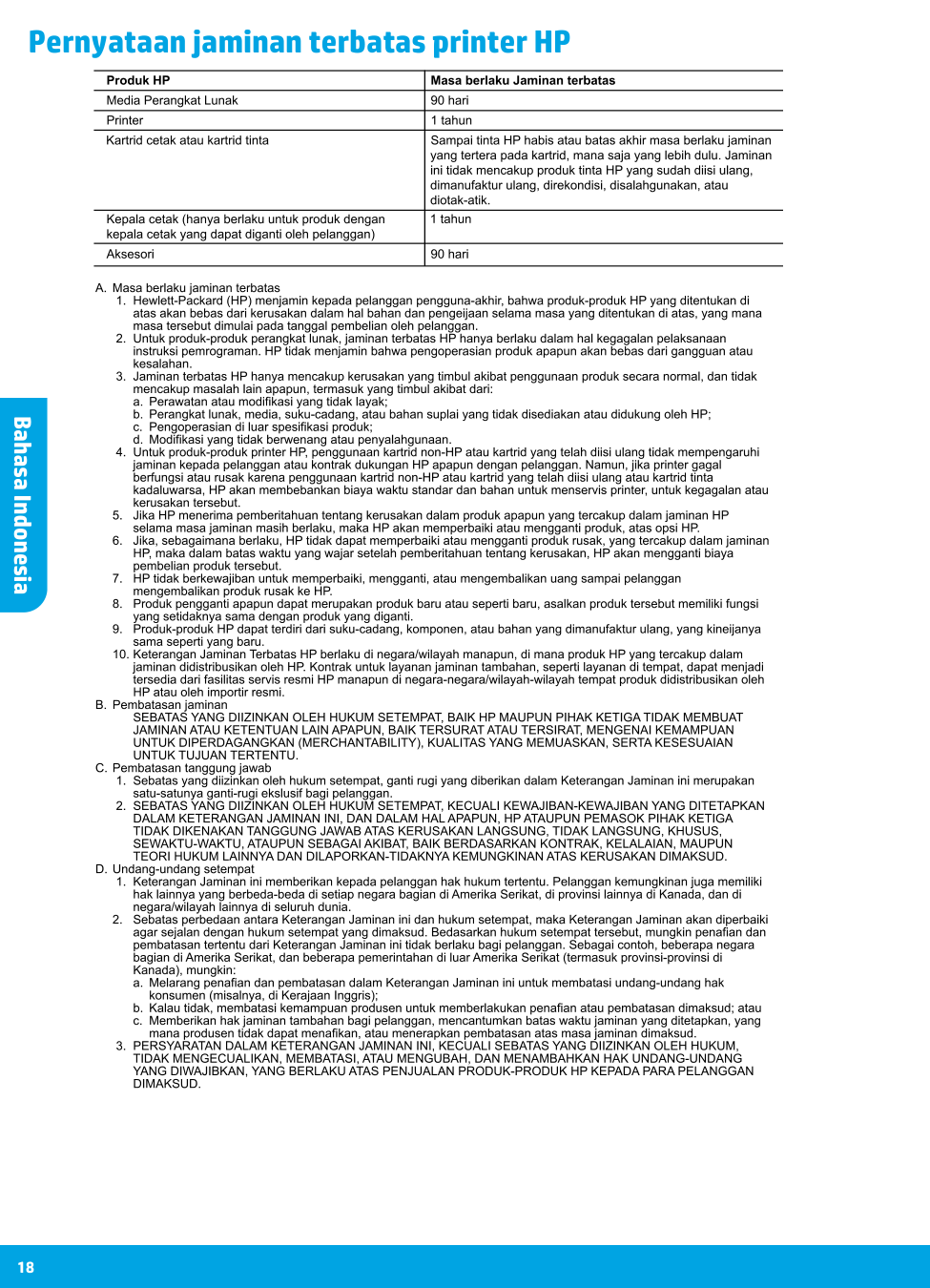
18 Pernyataan jaminan terbatas printer HP Bahasa Indonesia Bahasa Indonesia