
Ask AI
— answers from the official manualAnswers from the official manual.
Common questions
Common Questions
25 totalCan I use the printer without HP Smart software?
The manual indicates that HP Smart software is required for setup and to activate HP+ features. It is essential to install this software from 123.hp.com or your app store before using the printer.
What should I do if I have Wi-Fi connection problems?
If you experience Wi-Fi troubleshooting issues, consult the Reference Guide for Wi-Fi troubleshooting tips and solutions. Make sure your computer or mobile device is positioned near the printer during setup.
What software do I need to install to use my HP Deskjet 2700e?
Install the required HP Smart software from 123.hp.com or your device’s app store onto a computer or mobile device.
How do I install HP Smart software for my printer?
Install the required HP Smart software from 123.hp.com or your app store on a computer or mobile device. (Page 2)
What should I do if I’m experiencing Wi-Fi connection issues with my printer?
Consult the Reference Guide for Wi-Fi troubleshooting and tips. The printer must be near your computer or mobile device during setup. (Page 2)
How do I connect my HP Deskjet 2700e to a network?
Follow the instructions in the HP Smart app to connect your printer to a network. Ensure that your device is near the printer during setup for Wi-Fi connections.
Show 19 more questions
What are the Wi-Fi connectivity requirements for my printer during setup?
How do I turn on my HP DeskJet 2700e All-in-One printer?
How do I remove packaging from my HP DeskJet 2700e?
How do I ensure my device is close enough for setting up a printer’s Wi-Fi connection?
What is the first step to set up the HP Deskjet 2700E?
Where can I find the HP Smart software needed for setup?
Do I need to be near the printer when connecting it to Wi-Fi?
What should I do after installing HP Smart software?
Where can I find setup videos and additional help?
What packaging materials need to be removed before setup?
Is there a specific order to follow during initial setup?
Where is the ink access door located and what do I need to do with it?
Where can I find help for Wi-Fi setup issues?
How do I properly dispose of packaging from my HP printer?
What happens if I don’t have a computer nearby during setup?
How do I access help and support for my HP Deskjet series printer?
Can I add more features once my HP Deskjet 2700e is set up?
What languages are supported in the setup guide?
Do I need a specific app to set up my HP Deskjet 2700e?
Full Manual
2 pages
Find setup information and videos online.Get help with setupEN
Obtenir de l’aide pour la configuration
Lisez les informations de configuration et regardez les vidéos en ligne.
FR
Obtenga ayuda para la configuración
Encontrará información y vídeos sobre configuración en la red.
ES
hp.com/support/printer-setup
Guide de configuration Guía de configuración (Lea ésto primero)
HP DeskJet 2700e All-in-One series
Setup Guide
1
EN FR ES
26K67-90019
© Copyright 2021 HP Development Company, L.P. Printed in China Imprimé en Chine Impreso en China
The Apple logo is a trademark of Apple Inc., registered in the U.S. and other countries.
App Store is a service mark of Apple Inc. Android, Google Play, and the Google Play logo are trademarks of Google Inc.
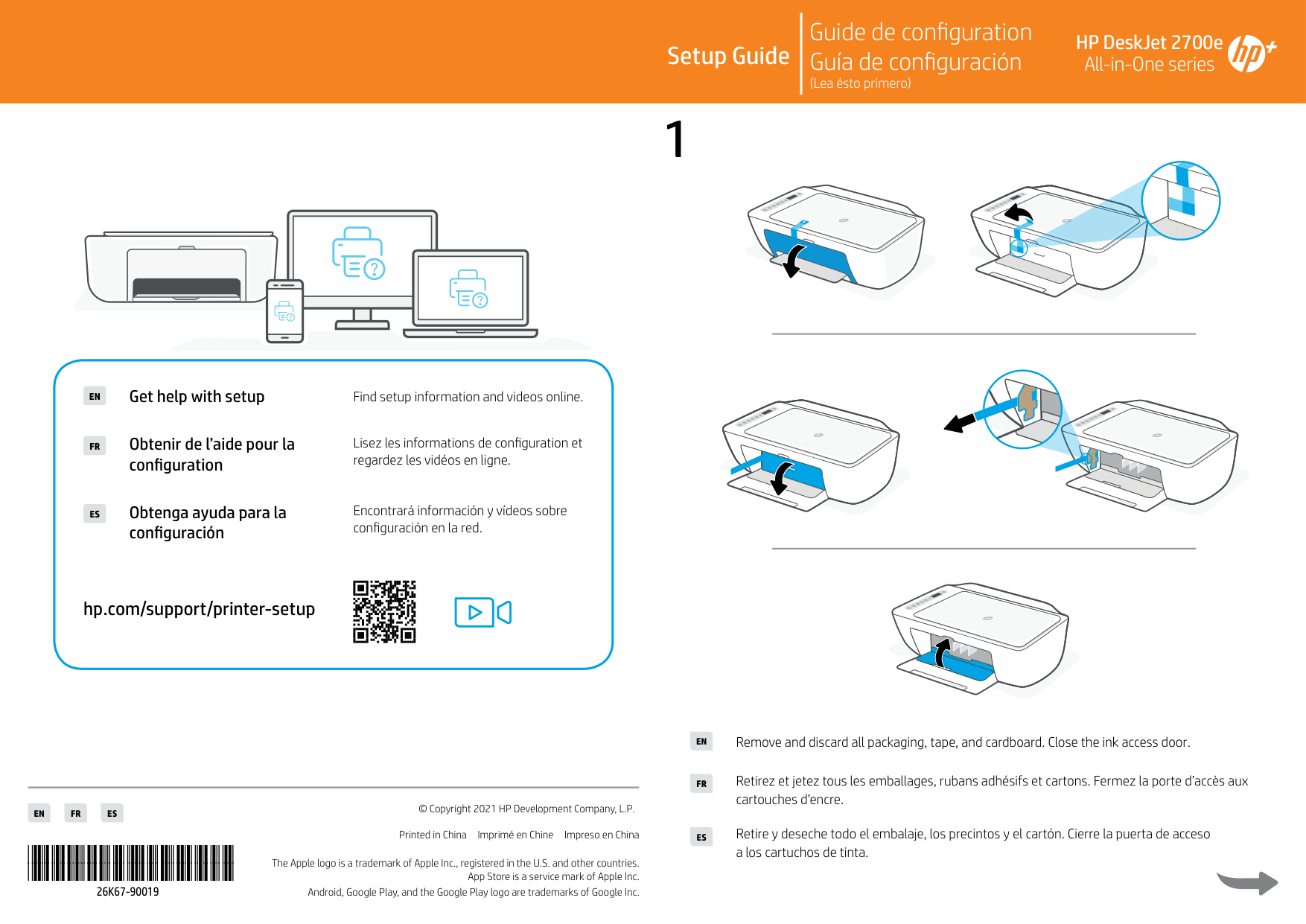
Remove and discard all packaging, tape, and cardboard. Close the ink access door.EN
FR
ES
Retirez et jetez tous les emballages, rubans adhésifs et cartons. Fermez la porte d’accès aux cartouches d’encre.
Retire y deseche todo el embalaje, los precintos y el cartón. Cierre la puerta de acceso a los cartuchos de tinta.
2
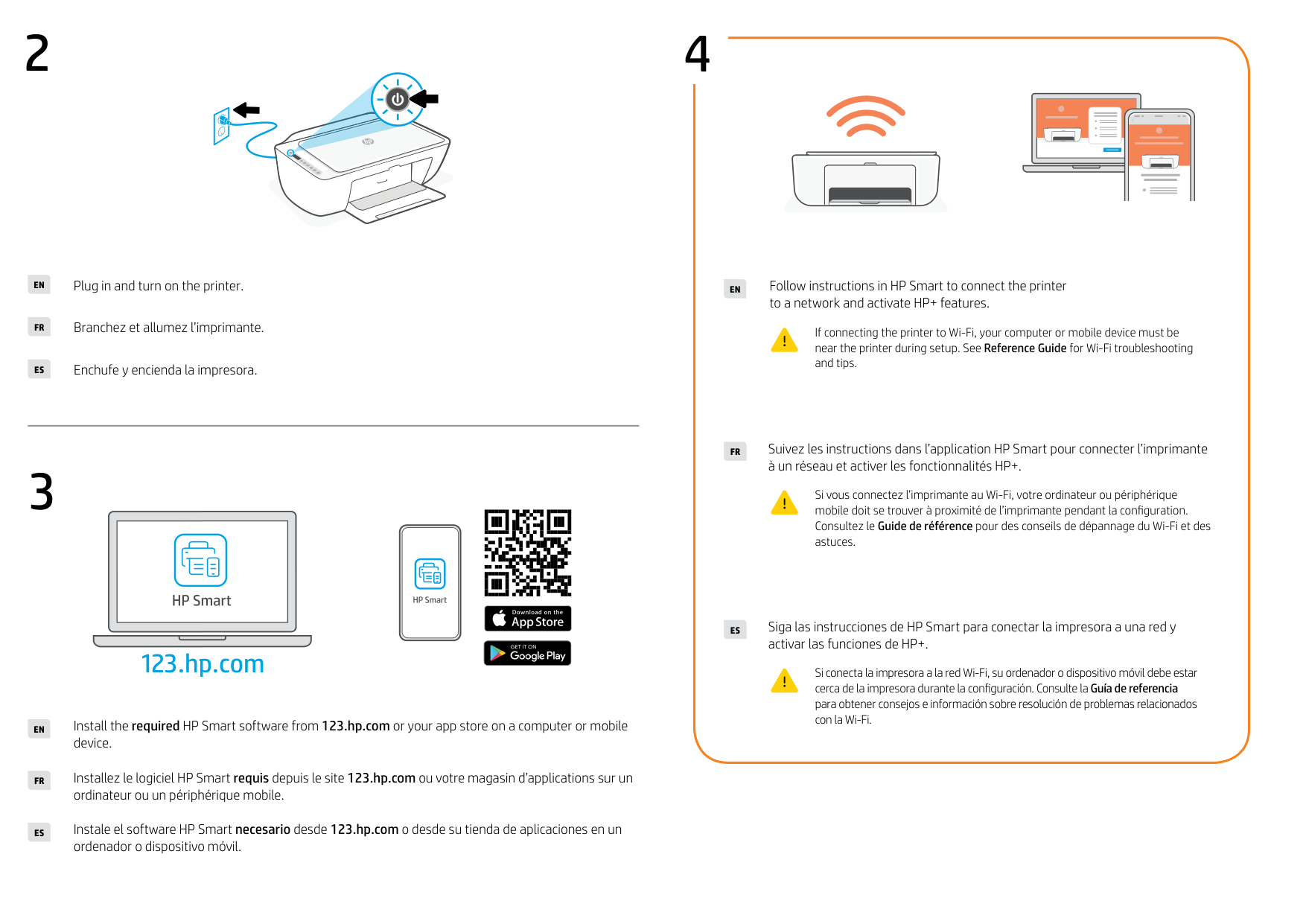
Plug in and turn on the printer.EN
Branchez et allumez l’imprimante.FR
Enchufe y encienda la impresora.ES
4
EN
Follow instructions in HP Smart to connect the printer to a network and activate HP+ features.
If connecting the printer to Wi-Fi, your computer or mobile device must be near the printer during setup. See Reference Guide for Wi-Fi troubleshooting and tips.
3
FR
Suivez les instructions dans l’application HP Smart pour connecter l’imprimante à un réseau et activer les fonctionnalités HP+.
Si vous connectez l’imprimante au Wi-Fi, votre ordinateur ou périphérique mobile doit se trouver à proximité de l’imprimante pendant la configuration. Consultez le Guide de référence pour des conseils de dépannage du Wi-Fi et des astuces.
123.hp.com
EN
FR
ES
Install the required HP Smart software from 123.hp.com or your app store on a computer or mobile device.
Installez le logiciel HP Smart requis depuis le site 123.hp.com ou votre magasin d’applications sur un ordinateur ou un périphérique mobile.
Instale el software HP Smart necesario desde 123.hp.com o desde su tienda de aplicaciones en un ordenador o dispositivo móvil.
ES
Siga las instrucciones de HP Smart para conectar la impresora a una red y activar las funciones de HP+.
Si conecta la impresora a la red Wi-Fi, su ordenador o dispositivo móvil debe estar cerca de la impresora durante la configuración. Consulte la Guía de referencia para obtener consejos e información sobre resolución de problemas relacionados con la Wi-Fi.