
Ask AI
— answers from the official manualAnswers from the official manual.
Common questions
Common Questions
20 totalHow do I connect the HP DeskJet 3720 to my wireless network using WPS?
Press and hold the Wireless button until it starts blinking, then press the WPS button on your router within two minutes. When the Wireless button remains lit, the printer is connected to your wireless network.
How do I know if my printer is connected to a wireless network?
If the blue Wireless light stays on steady, the printer is connected to a wireless network. If the blue light is blinking, the wireless capability is on but the printer is not yet connected to a network.
What does the blinking Resume button light mean on the HP DeskJet 3720?
A blinking Resume button light indicates a warning or error state on the printer. Press the Resume button to continue printing after the error has been cleared, for example after clearing a paper jam.
How do I put the HP DeskJet 3720 into wireless setup mode?
Press and hold the Wireless and Cancel buttons at the same time for a few seconds. When the Power button and blue wireless light start blinking, the printer is ready to connect to your network.
What should I do if the Web Services light is blinking on my printer?
A blinking Web Services light indicates there is a problem with Web Services. Press the Web Services button to print a page that will help you solve the problem.
How do I print a Network Test Report and Network Configuration Page?
Press the Wireless and Information buttons at the same time to print the Network Test Report and Network Configuration Page. This is useful for diagnosing wireless connection issues.
Show 14 more questions
How far should I stay from the HP DeskJet 3720 antenna during normal operation due to radio frequency exposure?
How can I troubleshoot a paper jam?
What does it mean when the 'Wireless' light blinks?
How do I reset Wi-Fi Direct settings?
What is the warranty period for my HP Deskjet 3720?
How do I print a network test report?
Is it safe to use non-HP or refilled ink cartridges in the HP DeskJet 3720?
What is the warranty period for the HP DeskJet 3720 printer and its ink cartridges?
Is Wi-Fi Direct secure by default on the HP DeskJet 3720?
How do I set up web services?
How do I turn off wireless capabilities?
What should I do if my ink runs low?
How do I connect my printer through Wi-Fi Protected Setup?
How do I convert from a USB connection to wireless?
Full Manual
10 pages
*J9V86-90076*
*J9V86-90076*
J9V86-90076
© Copyright 2017 HP Development Company, L.P. Printed in [English] Printed in [French] Printed in [Spanish]En
Fr
Es
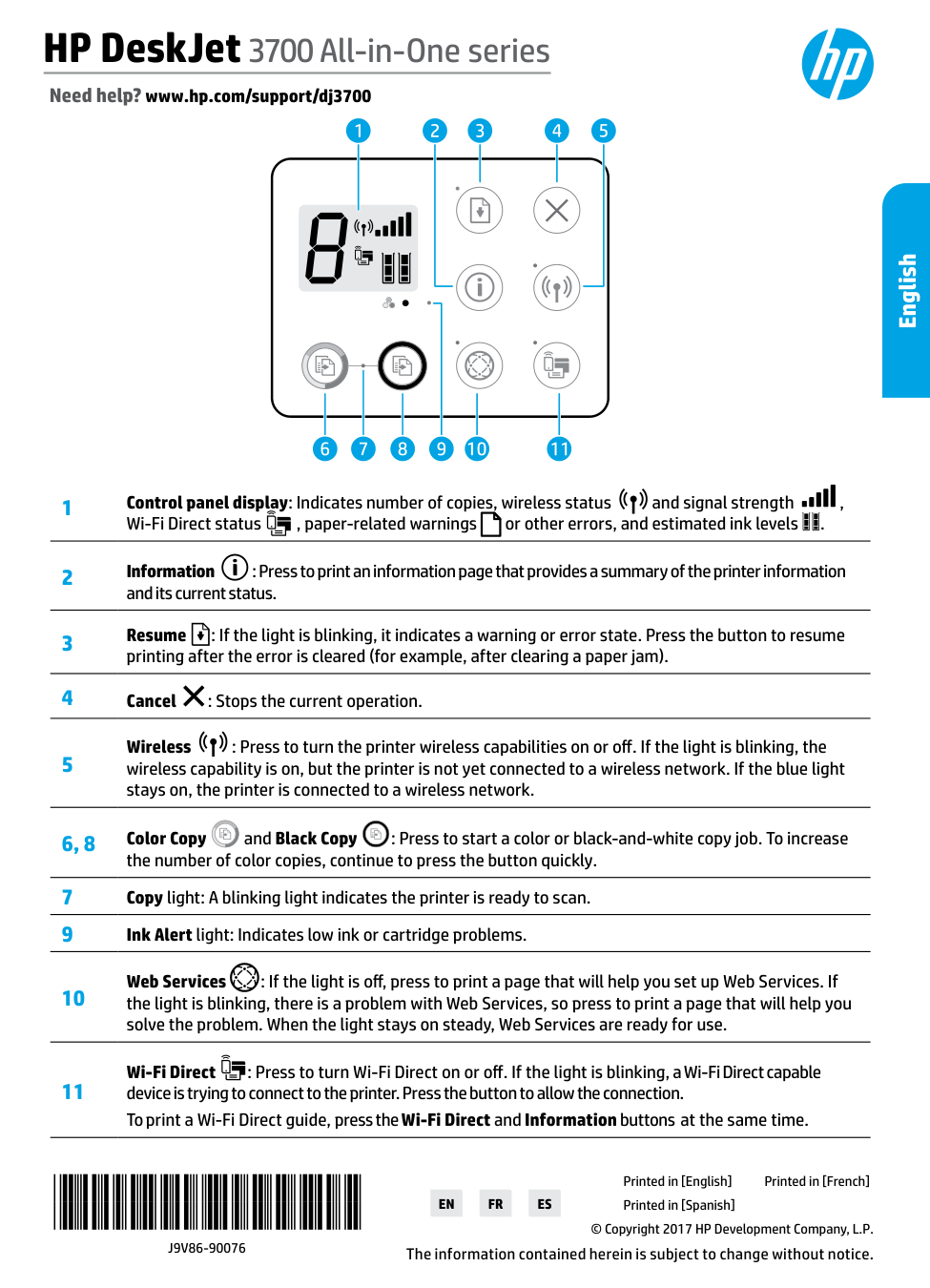
The information contained herein is subject to change without notice. Need help? www.hp.com/support/dj3700 1 Control panel display: Indicates number of copies, wireless status and signal strength , Wi-Fi Direct status , paper-related warnings or other errors, and estimated ink levels . 2 Information : Press to print an information page that provides a summary of the printer information and its current status. 3 Resume : If the light is blinking, it indicates a warning or error state. Press the button to resume printing after the error is cleared (for example, after clearing a paper jam). 4 Cancel : Stops the current operation. 5 Wireless : Press to turn the printer wireless capabilities on or off. If the light is blinking, the wireless capability is on, but the printer is not yet connected to a wireless network. If the blue light stays on, the printer is connected to a wireless network. 6, 8 Color Copy and Black Copy : Press to start a color or black-and-white copy job. To increase the number of color copies, continue to press the button quickly. 7 Copy light: A blinking light indicates the printer is ready to scan. 9 Ink Alert light: Indicates low ink or cartridge problems. 10 Web Services : If the light is off, press to print a page that will help you set up Web Services. If the light is blinking, there is a problem with Web Services, so press to print a page that will help you solve the problem. When the light stays on steady, Web Services are ready for use. 11 Wi-Fi Direct : Press to turn Wi-Fi Direct on or off. If the light is blinking, a Wi-Fi Direct capable device is trying to connect to the printer. Press the button to allow the connection. To print a Wi-Fi Direct guide, press the Wi-Fi Direct and Information buttons at the same time. HP DeskJet 3700 All-in-One series English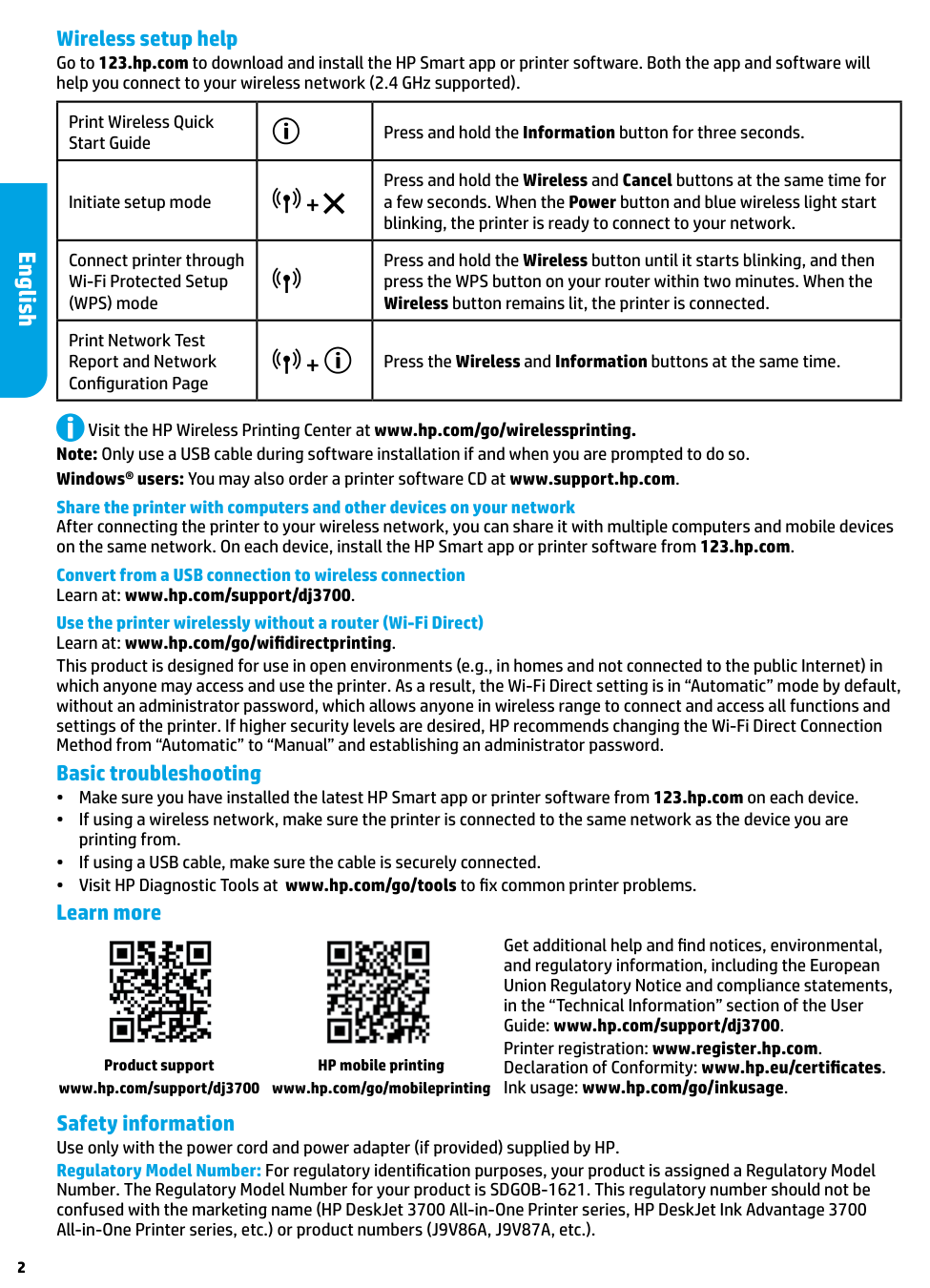
2 Wireless setup help Go to 123.hp.com to download and install the HP Smart app or printer software. Both the app and software will help you connect to your wireless network (2.4 GHz supported). Print Wireless Quick Start Guide Press and hold the Information button for three seconds. Initiate setup mode + Press and hold the Wireless and Cancel buttons at the same time for a few seconds. When the Power button and blue wireless light start blinking, the printer is ready to connect to your network. Connect printer through Wi-Fi Protected Setup (WPS) mode Press and hold the Wireless button until it starts blinking, and then press the WPS button on your router within two minutes. When the Wireless button remains lit, the printer is connected. Print Network Test Report and Network Configuration Page + Press the Wireless and Information buttons at the same time. Visit the HP Wireless Printing Center at www.hp.com/go/wirelessprinting. Note: Only use a USB cable during software installation if and when you are prompted to do so. Windows® users: You may also order a printer software CD at www.support.hp.com. Share the printer with computers and other devices on your network After connecting the printer to your wireless network, you can share it with multiple computers and mobile devices on the same network. On each device, install the HP Smart app or printer software from 123.hp.com. Convert from a USB connection to wireless connection Learn at: www.hp.com/support/dj3700. Use the printer wirelessly without a router (Wi-Fi Direct) Learn at: www.hp.com/go/wifidirectprinting. This product is designed for use in open environments (e.g., in homes and not connected to the public Internet) in which anyone may access and use the printer. As a result, the Wi-Fi Direct setting is in “Automatic” mode by default, without an administrator password, which allows anyone in wireless range to connect and access all functions and settings of the printer. If higher security levels are desired, HP recommends changing the Wi-Fi Direct Connection Method from “Automatic” to “Manual” and establishing an administrator password. Basic troubleshooting •• Make sure you have installed the latest HP Smart app or printer software from 123.hp.com on each device. •• If using a wireless network, make sure the printer is connected to the same network as the device you are printing from. •• If using a USB cable, make sure the cable is securely connected. •• Visit HP Diagnostic Tools at www.hp.com/go/tools to fix common printer problems. Learn more Safety information Use only with the power cord and power adapter (if provided) supplied by HP. Regulatory Model Number: For regulatory identification purposes, your product is assigned a Regulatory Model Number. The Regulatory Model Number for your product is SDGOB-1621. This regulatory number should not be confused with the marketing name (HP DeskJet 3700 All-in-One Printer series, HP DeskJet Ink Advantage 3700 All-in-One Printer series, etc.) or product numbers (J9V86A, J9V87A, etc.). Get additional help and find notices, environmental, and regulatory information, including the European Union Regulatory Notice and compliance statements, in the “Technical Information” section of the User Guide: www.hp.com/support/dj3700. Printer registration: www.register.hp.com. Declaration of Conformity: www.hp.eu/certificates. Ink usage: www.hp.com/go/inkusage. HP mobile printing www.hp.com/go/mobileprinting Product support www.hp.com/support/dj3700 English
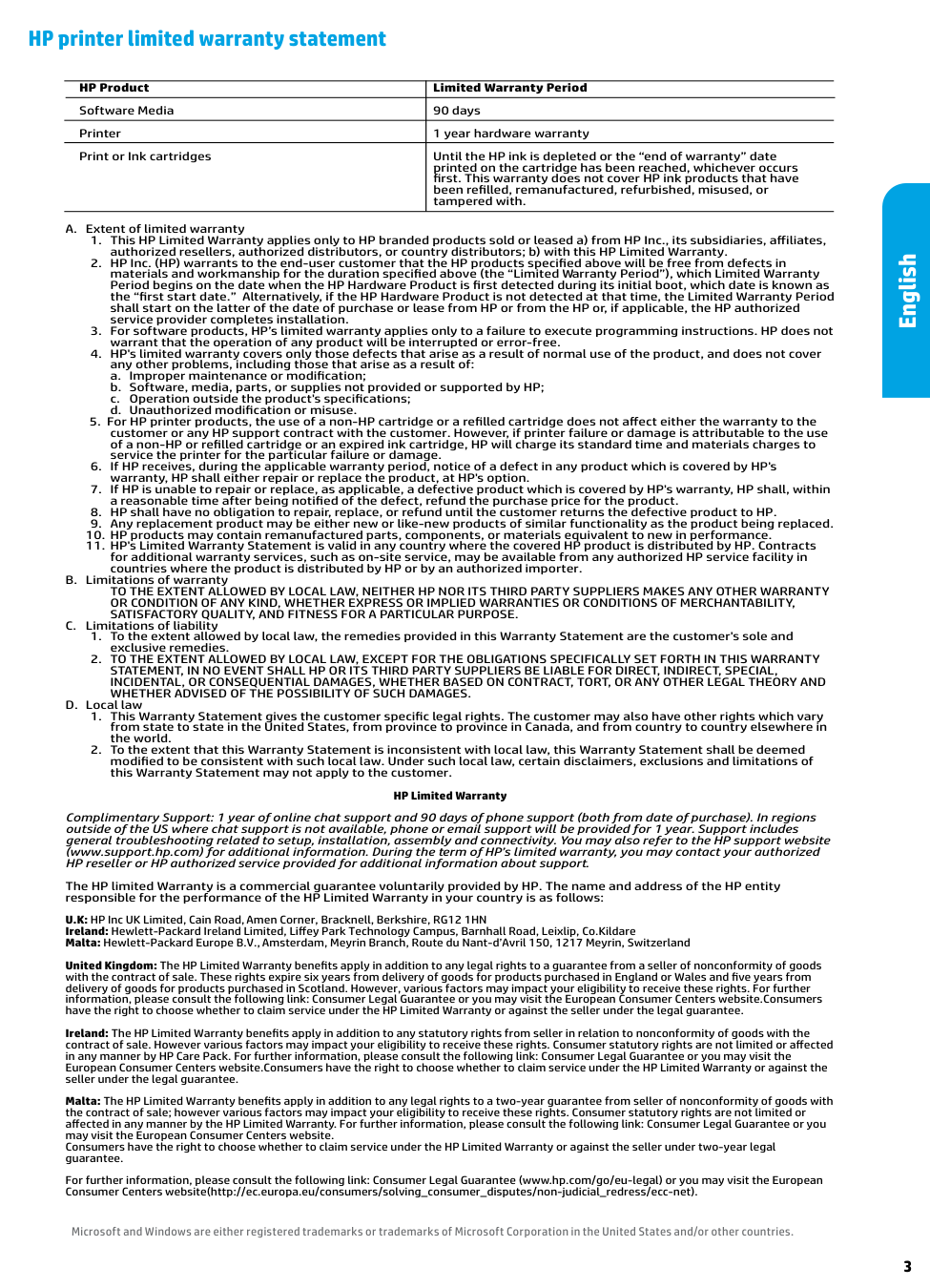
3 HP printer limited warranty statement Microsoft and Windows are either registered trademarks or trademarks of Microsoft Corporation in the United States and/or other countries. A. Extent of limited warranty
a. Improper maintenance or modification;
b. Software, media, parts, or supplies not provided or supported by HP;
c. Operation outside the product's specifications;
d. Unauthorized modification or misuse.
Satisfactory Quality, And Fitness For A Particular Purpose.
C. Limitations of liabilityWhether Advised Of The Possibility Of Such Damages.
D. Local lawprinted on the cartridge has been reached, whichever occurs
first. This warranty does not cover HP ink products that have
been refilled, remanufactured, refurbished, misused, or
tampered with. English
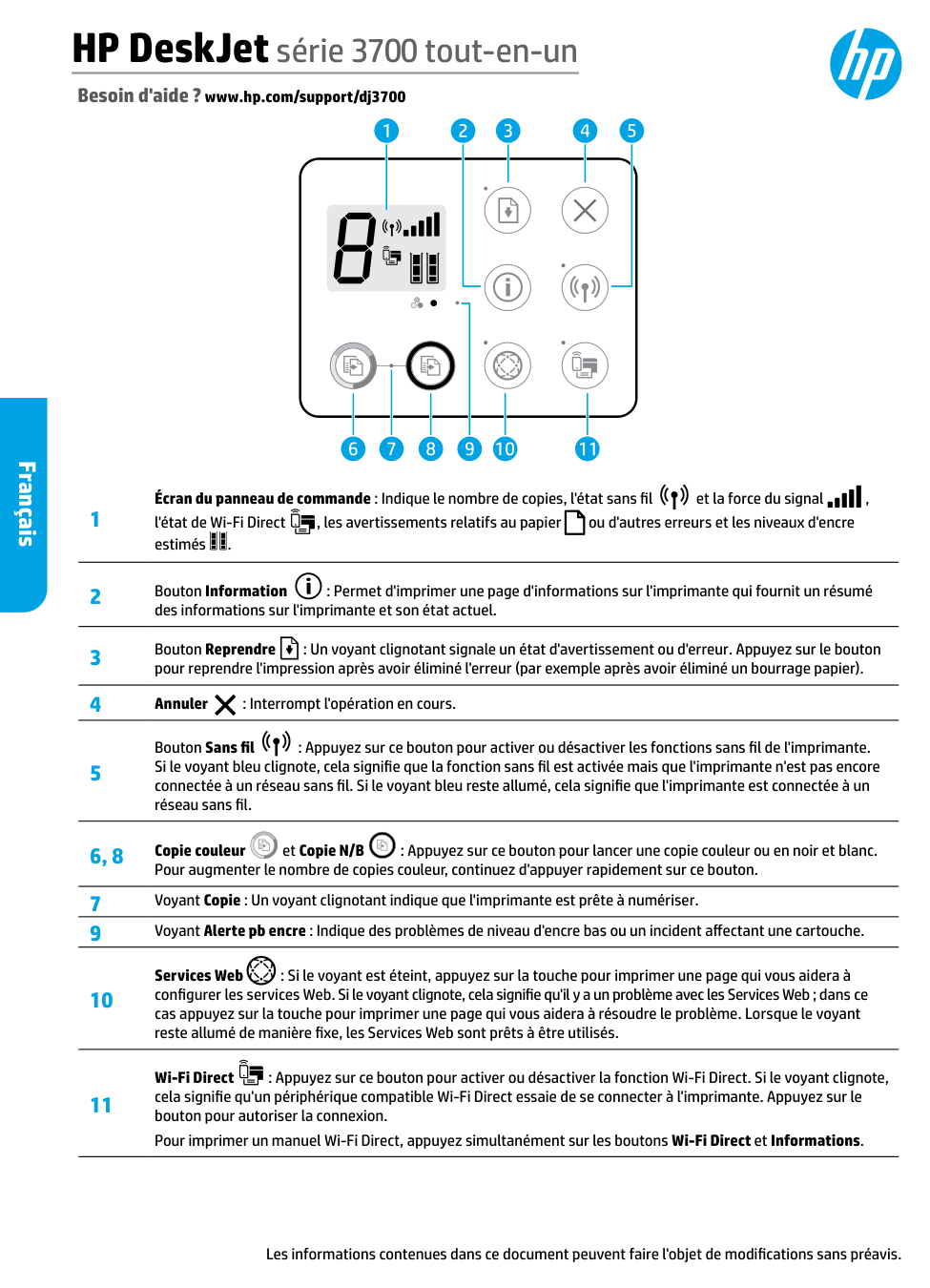
Les informations contenues dans ce document peuvent faire l'objet de modifications sans préavis. Besoin d'aide ? www.hp.com/support/dj3700 1 Écran du panneau de commande : Indique le nombre de copies, l'état sans fil et la force du signal , l'état de Wi-Fi Direct , les avertissements relatifs au papier ou d'autres erreurs et les niveaux d'encre estimés . 2 Bouton Information : Permet d'imprimer une page d'informations sur l'imprimante qui fournit un résumé des informations sur l'imprimante et son état actuel. 3 Bouton Reprendre : Un voyant clignotant signale un état d'avertissement ou d'erreur. Appuyez sur le bouton pour reprendre l'impression après avoir éliminé l'erreur (par exemple après avoir éliminé un bourrage papier). 4 Annuler : Interrompt l'opération en cours. 5 Bouton Sans fil : Appuyez sur ce bouton pour activer ou désactiver les fonctions sans fil de l'imprimante. Si le voyant bleu clignote, cela signifie que la fonction sans fil est activée mais que l'imprimante n'est pas encore connectée à un réseau sans fil. Si le voyant bleu reste allumé, cela signifie que l'imprimante est connectée à un réseau sans fil. 6, 8 Copie couleur et Copie N/B : Appuyez sur ce bouton pour lancer une copie couleur ou en noir et blanc. Pour augmenter le nombre de copies couleur, continuez d'appuyer rapidement sur ce bouton. 7 Voyant Copie : Un voyant clignotant indique que l'imprimante est prête à numériser. 9 Voyant Alerte pb encre : Indique des problèmes de niveau d'encre bas ou un incident affectant une cartouche. 10 Services Web : Si le voyant est éteint, appuyez sur la touche pour imprimer une page qui vous aidera à configurer les services Web. Si le voyant clignote, cela signifie qu'il y a un problème avec les Services Web ; dans ce cas appuyez sur la touche pour imprimer une page qui vous aidera à résoudre le problème. Lorsque le voyant reste allumé de manière fixe, les Services Web sont prêts à être utilisés. 11 Wi-Fi Direct : Appuyez sur ce bouton pour activer ou désactiver la fonction Wi-Fi Direct. Si le voyant clignote, cela signifie qu'un périphérique compatible Wi-Fi Direct essaie de se connecter à l'imprimante. Appuyez sur le bouton pour autoriser la connexion. Pour imprimer un manuel Wi-Fi Direct, appuyez simultanément sur les boutons Wi-Fi Direct et Informations. HP DeskJet série 3700 tout-en-un Français
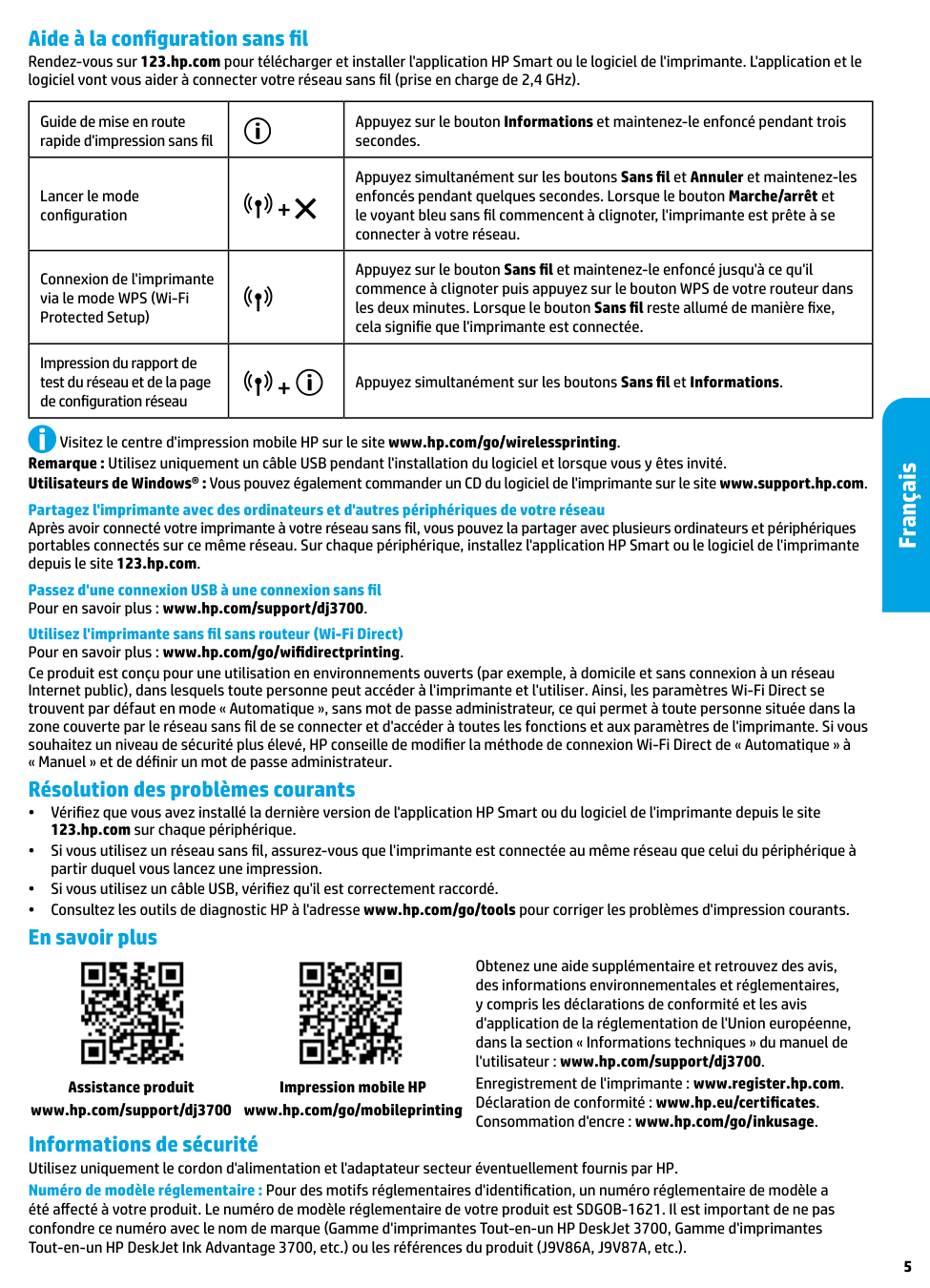
Français 5 Aide à la configuration sans fil Rendez-vous sur 123.hp.com pour télécharger et installer l'application HP Smart ou le logiciel de l'imprimante. L'application et le logiciel vont vous aider à connecter votre réseau sans fil (prise en charge de 2,4 GHz). Guide de mise en route rapide d'impression sans fil Appuyez sur le bouton Informations et maintenez-le enfoncé pendant trois secondes. Lancer le mode configuration + Appuyez simultanément sur les boutons Sans fil et Annuler et maintenez-les enfoncés pendant quelques secondes. Lorsque le bouton Marche/arrêt et le voyant bleu sans fil commencent à clignoter, l'imprimante est prête à se connecter à votre réseau. Connexion de l'imprimante via le mode WPS (Wi-Fi Protected Setup) Appuyez sur le bouton Sans fil et maintenez-le enfoncé jusqu'à ce qu'il commence à clignoter puis appuyez sur le bouton WPS de votre routeur dans les deux minutes. Lorsque le bouton Sans fil reste allumé de manière fixe, cela signifie que l'imprimante est connectée. Impression du rapport de test du réseau et de la page de configuration réseau + Appuyez simultanément sur les boutons Sans fil et Informations. Visitez le centre d'impression mobile HP sur le site www.hp.com/go/wirelessprinting. Remarque : Utilisez uniquement un câble USB pendant l'installation du logiciel et lorsque vous y êtes invité. Utilisateurs de Windows® : Vous pouvez également commander un CD du logiciel de l'imprimante sur le site www.support.hp.com. Partagez l'imprimante avec des ordinateurs et d'autres périphériques de votre réseau Après avoir connecté votre imprimante à votre réseau sans fil, vous pouvez la partager avec plusieurs ordinateurs et périphériques portables connectés sur ce même réseau. Sur chaque périphérique, installez l'application HP Smart ou le logiciel de l'imprimante depuis le site 123.hp.com. Passez d'une connexion USB à une connexion sans fil Pour en savoir plus : www.hp.com/support/dj3700. Utilisez l'imprimante sans fil sans routeur (Wi-Fi Direct) Pour en savoir plus : www.hp.com/go/wifidirectprinting. Ce produit est conçu pour une utilisation en environnements ouverts (par exemple, à domicile et sans connexion à un réseau Internet public), dans lesquels toute personne peut accéder à l'imprimante et l'utiliser. Ainsi, les paramètres Wi-Fi Direct se trouvent par défaut en mode « Automatique », sans mot de passe administrateur, ce qui permet à toute personne située dans la zone couverte par le réseau sans fil de se connecter et d'accéder à toutes les fonctions et aux paramètres de l'imprimante. Si vous souhaitez un niveau de sécurité plus élevé, HP conseille de modifier la méthode de connexion Wi-Fi Direct de « Automatique » à « Manuel » et de définir un mot de passe administrateur. Résolution des problèmes courants •• Vérifiez que vous avez installé la dernière version de l'application HP Smart ou du logiciel de l'imprimante depuis le site 123.hp.com sur chaque périphérique. •• Si vous utilisez un réseau sans fil, assurez-vous que l'imprimante est connectée au même réseau que celui du périphérique à partir duquel vous lancez une impression. •• Si vous utilisez un câble USB, vérifiez qu'il est correctement raccordé. •• Consultez les outils de diagnostic HP à l'adresse www.hp.com/go/tools pour corriger les problèmes d'impression courants. En savoir plus Informations de sécurité Utilisez uniquement le cordon d'alimentation et l'adaptateur secteur éventuellement fournis par HP. Numéro de modèle réglementaire : Pour des motifs réglementaires d'identification, un numéro réglementaire de modèle a été affecté à votre produit. Le numéro de modèle réglementaire de votre produit est SDGOB-1621. Il est important de ne pas confondre ce numéro avec le nom de marque (Gamme d'imprimantes Tout-en-un HP DeskJet 3700, Gamme d'imprimantes Tout-en-un HP DeskJet Ink Advantage 3700, etc.) ou les références du produit (J9V86A, J9V87A, etc.). Obtenez une aide supplémentaire et retrouvez des avis, des informations environnementales et réglementaires, y compris les déclarations de conformité et les avis d'application de la réglementation de l'Union européenne, dans la section « Informations techniques » du manuel de l'utilisateur : www.hp.com/support/dj3700. Enregistrement de l'imprimante : www.register.hp.com. Déclaration de conformité : www.hp.eu/certificates. Consommation d'encre : www.hp.com/go/inkusage. Impression mobile HP www.hp.com/go/mobileprinting Assistance produit www.hp.com/support/dj3700
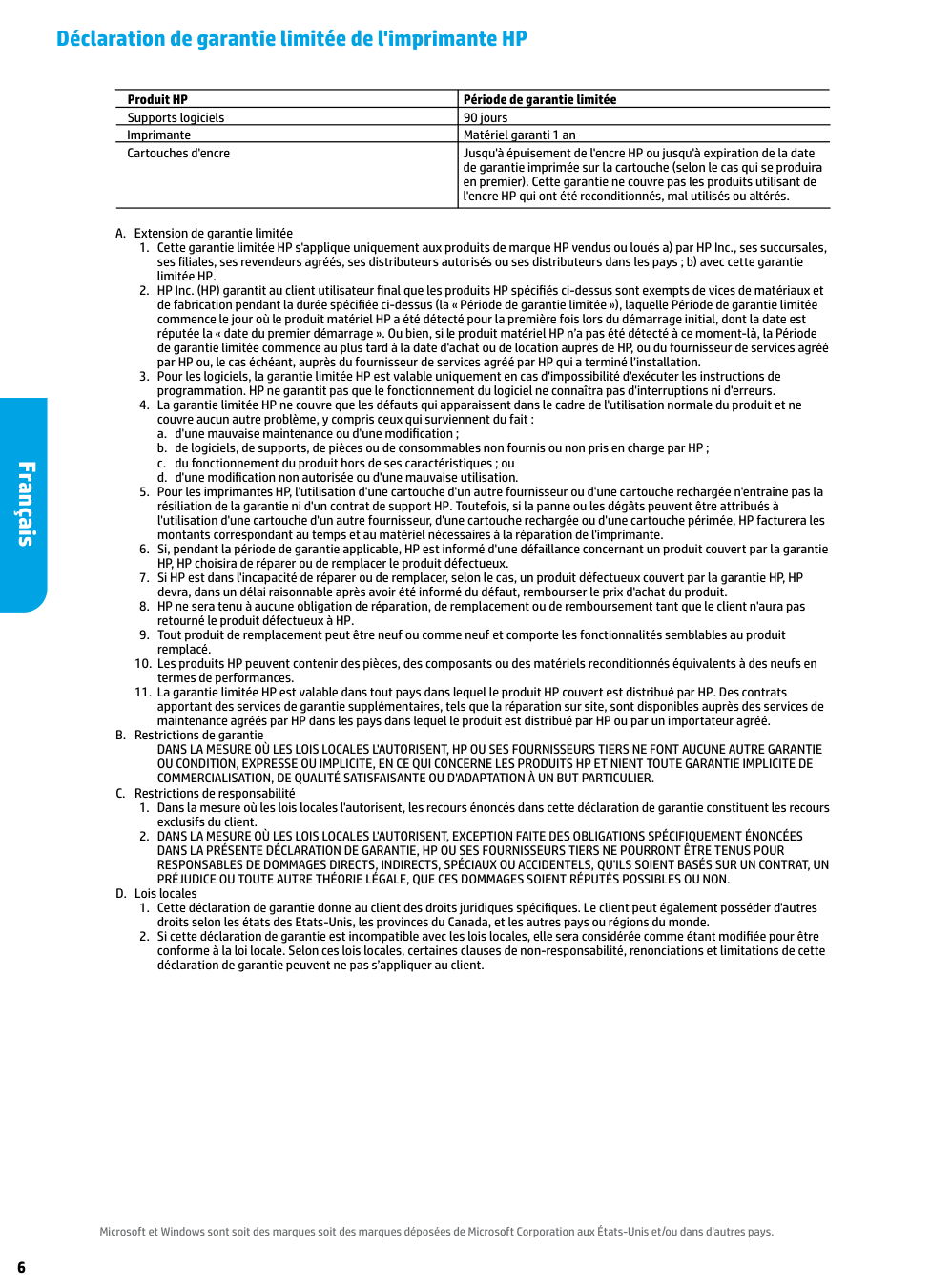
6 Déclaration de garantie limitée de l'imprimante HP Microsoft et Windows sont soit des marques soit des marques déposées de Microsoft Corporation aux États-Unis et/ou dans d'autres pays. A. Extension de garantie limitée
a. d'une mauvaise maintenance ou d'une modification ;
b. de logiciels, de supports, de pièces ou de consommables non fournis ou non pris en charge par HP ;
c. du fonctionnement du produit hors de ses caractéristiques ; ou
d. d'une modification non autorisée ou d'une mauvaise utilisation.
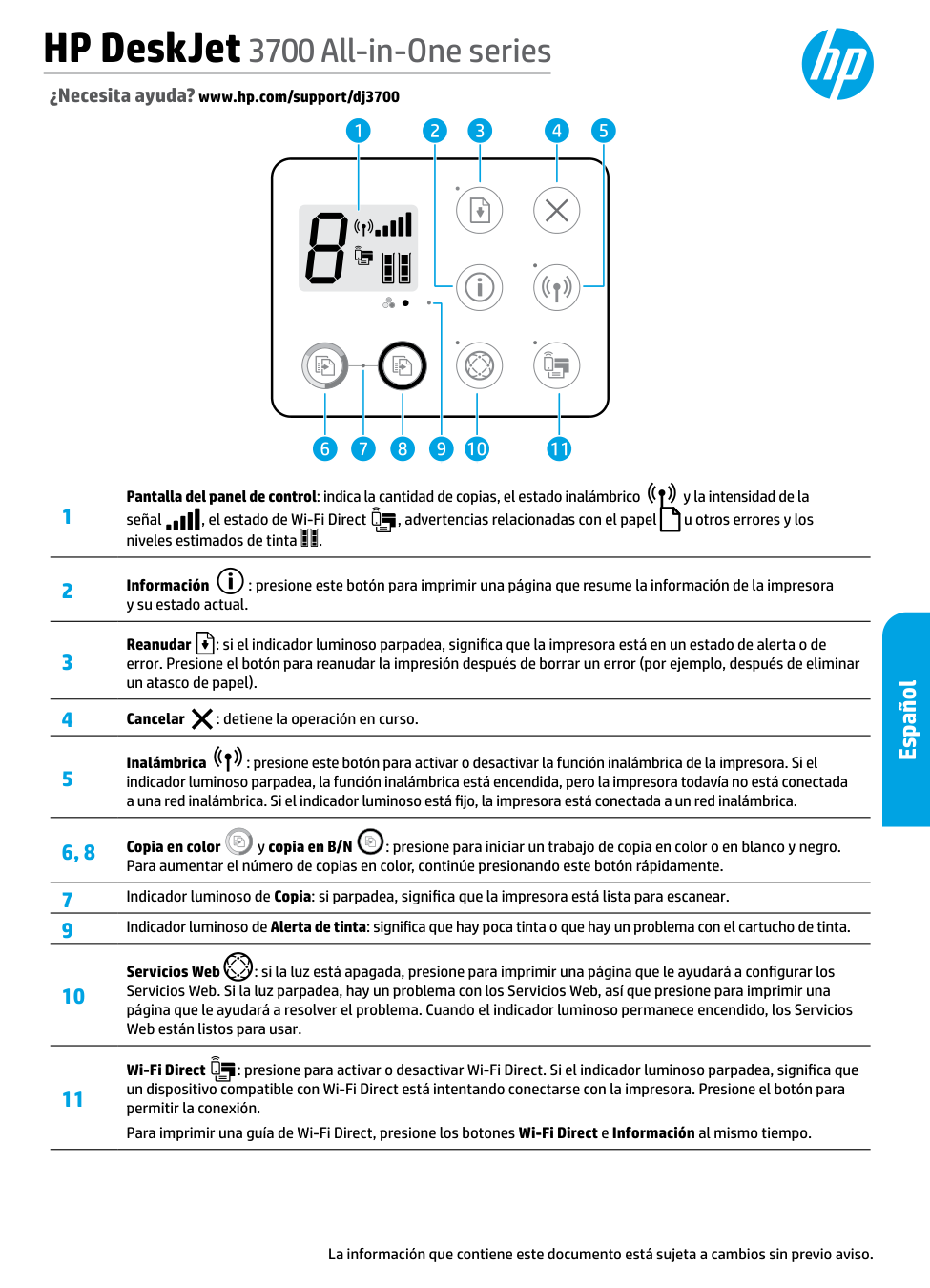
Español La información que contiene este documento está sujeta a cambios sin previo aviso. ¿Necesita ayuda? www.hp.com/support/dj3700 1 Pantalla del panel de control: indica la cantidad de copias, el estado inalámbrico y la intensidad de la señal , el estado de Wi-Fi Direct , advertencias relacionadas con el papel u otros errores y los niveles estimados de tinta . 2 Información : presione este botón para imprimir una página que resume la información de la impresora y su estado actual. 3 Reanudar : si el indicador luminoso parpadea, significa que la impresora está en un estado de alerta o de error. Presione el botón para reanudar la impresión después de borrar un error (por ejemplo, después de eliminar un atasco de papel). 4 Cancelar : detiene la operación en curso. 5 Inalámbrica : presione este botón para activar o desactivar la función inalámbrica de la impresora. Si el indicador luminoso parpadea, la función inalámbrica está encendida, pero la impresora todavía no está conectada a una red inalámbrica. Si el indicador luminoso está fijo, la impresora está conectada a un red inalámbrica. 6, 8 Copia en color y copia en B/N : presione para iniciar un trabajo de copia en color o en blanco y negro. Para aumentar el número de copias en color, continúe presionando este botón rápidamente. 7 Indicador luminoso de Copia: si parpadea, significa que la impresora está lista para escanear. 9 Indicador luminoso de Alerta de tinta: significa que hay poca tinta o que hay un problema con el cartucho de tinta. 10 Servicios Web : si la luz está apagada, presione para imprimir una página que le ayudará a configurar los Servicios Web. Si la luz parpadea, hay un problema con los Servicios Web, así que presione para imprimir una página que le ayudará a resolver el problema. Cuando el indicador luminoso permanece encendido, los Servicios Web están listos para usar. 11 Wi-Fi Direct : presione para activar o desactivar Wi-Fi Direct. Si el indicador luminoso parpadea, significa que un dispositivo compatible con Wi-Fi Direct está intentando conectarse con la impresora. Presione el botón para permitir la conexión. Para imprimir una guía de Wi-Fi Direct, presione los botones Wi-Fi Direct e Información al mismo tiempo. HP DeskJet 3700 All-in-One series
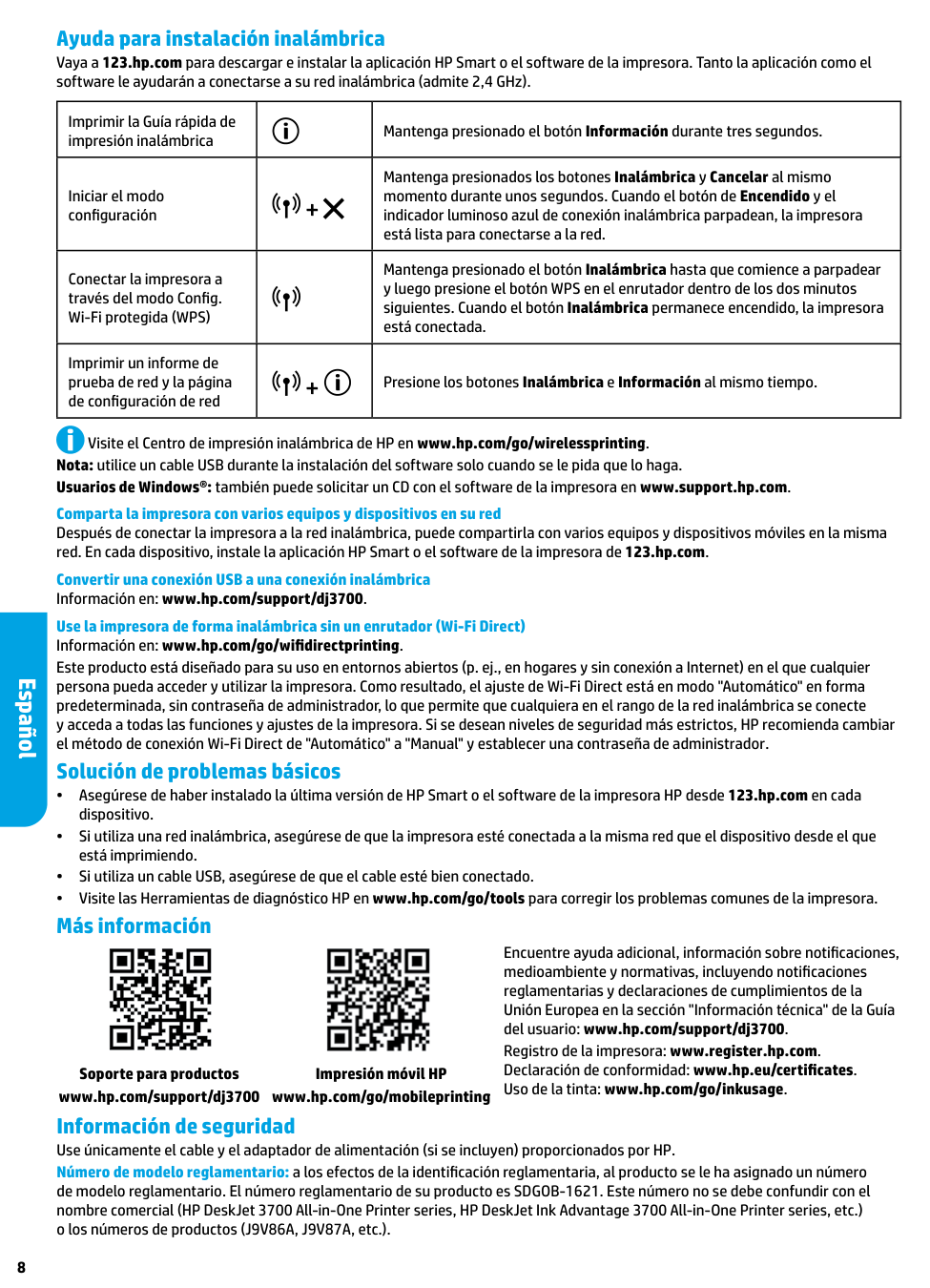
8 Ayuda para instalación inalámbrica Vaya a 123.hp.com para descargar e instalar la aplicación HP Smart o el software de la impresora. Tanto la aplicación como el software le ayudarán a conectarse a su red inalámbrica (admite 2,4 GHz). Imprimir la Guía rápida de impresión inalámbrica Mantenga presionado el botón Información durante tres segundos. Iniciar el modo configuración + Mantenga presionados los botones Inalámbrica y Cancelar al mismo momento durante unos segundos. Cuando el botón de Encendido y el indicador luminoso azul de conexión inalámbrica parpadean, la impresora está lista para conectarse a la red. Conectar la impresora a través del modo Config. Wi-Fi protegida (WPS) Mantenga presionado el botón Inalámbrica hasta que comience a parpadear y luego presione el botón WPS en el enrutador dentro de los dos minutos siguientes. Cuando el botón Inalámbrica permanece encendido, la impresora está conectada. Imprimir un informe de prueba de red y la página de configuración de red + Presione los botones Inalámbrica e Información al mismo tiempo. Visite el Centro de impresión inalámbrica de HP en www.hp.com/go/wirelessprinting. Nota: utilice un cable USB durante la instalación del software solo cuando se le pida que lo haga. Usuarios de Windows®: también puede solicitar un CD con el software de la impresora en www.support.hp.com. Comparta la impresora con varios equipos y dispositivos en su red Después de conectar la impresora a la red inalámbrica, puede compartirla con varios equipos y dispositivos móviles en la misma red. En cada dispositivo, instale la aplicación HP Smart o el software de la impresora de 123.hp.com. Convertir una conexión USB a una conexión inalámbrica Información en: www.hp.com/support/dj3700. Use la impresora de forma inalámbrica sin un enrutador (Wi-Fi Direct) Información en: www.hp.com/go/wifidirectprinting. Este producto está diseñado para su uso en entornos abiertos (p. ej., en hogares y sin conexión a Internet) en el que cualquier persona pueda acceder y utilizar la impresora. Como resultado, el ajuste de Wi-Fi Direct está en modo "Automático" en forma predeterminada, sin contraseña de administrador, lo que permite que cualquiera en el rango de la red inalámbrica se conecte y acceda a todas las funciones y ajustes de la impresora. Si se desean niveles de seguridad más estrictos, HP recomienda cambiar el método de conexión Wi-Fi Direct de "Automático" a "Manual" y establecer una contraseña de administrador. Solución de problemas básicos •• Asegúrese de haber instalado la última versión de HP Smart o el software de la impresora HP desde 123.hp.com en cada dispositivo. •• Si utiliza una red inalámbrica, asegúrese de que la impresora esté conectada a la misma red que el dispositivo desde el que está imprimiendo. •• Si utiliza un cable USB, asegúrese de que el cable esté bien conectado. •• Visite las Herramientas de diagnóstico HP en www.hp.com/go/tools para corregir los problemas comunes de la impresora. Más información Información de seguridad Use únicamente el cable y el adaptador de alimentación (si se incluyen) proporcionados por HP. Número de modelo reglamentario: a los efectos de la identificación reglamentaria, al producto se le ha asignado un número de modelo reglamentario. El número reglamentario de su producto es SDGOB-1621. Este número no se debe confundir con el nombre comercial (HP DeskJet 3700 All-in-One Printer series, HP DeskJet Ink Advantage 3700 All-in-One Printer series, etc.) o los números de productos (J9V86A, J9V87A, etc.). Encuentre ayuda adicional, información sobre notificaciones, medioambiente y normativas, incluyendo notificaciones reglamentarias y declaraciones de cumplimientos de la Unión Europea en la sección "Información técnica" de la Guía del usuario: www.hp.com/support/dj3700. Registro de la impresora: www.register.hp.com. Declaración de conformidad: www.hp.eu/certificates. Uso de la tinta: www.hp.com/go/inkusage. Impresión móvil HP www.hp.com/go/mobileprinting Soporte para productos www.hp.com/support/dj3700 Español
9 Declaración de garantía limitada de la impresora HP Microsoft y Windows son marcas comerciales registradas o marcas comerciales de Microsoft Corporation en EE. UU. y otros países. A. Alcance de la garantía limitada
a. Mantenimiento o modificación indebidos;
b. Software, soportes de impresión, piezas o consumibles que HP no proporcione o no admita;
c. Uso que no se ajuste a las especificaciones del producto;
d. Modificación o uso incorrecto no autorizados.
Satisfactoria E Idoneidad Para Un Fin Determinado.
C. Limitaciones de responsabilidad
HP company notice The printer is designed in an environmentally sound manner, and meets product requirements from regulatory agencies in your country/region. Some statements might not be applicable for your printer. For information on open source software used in this printer, visit www.hp.com/software/opensource. Chemical substances HP is committed to providing our customers with information about the chemical substances in our products as needed to comply with legal requirements such as REACH (Regulation EC No 1907/2006 of the European Parliament and the Council). A chemical information report for this product can be found at: www.hp.com/go/reach. Disposal of waste equipment by users This symbol means do not dispose of your product with your other household waste. Instead, you should protect human health and the environment by handing over your waste equipment to a designated collection point for the recycling of waste electrical and electronic equipment. For more information, please contact your household waste disposal service, or go to www.hp.com/recycle. California Perchlorate Material Notice Perchlorate material - special handling may apply. See www.dtsc.ca.gov/hazardouswaste/perchlorate. This product’s real-time clock battery or coin cell battery may contain perchlorate and may require special handling when recycled or disposed of in California. Exposure to radio frequency radiation CAUTION: The radiated output power of this device is far below the FCC radio frequency exposure limits. Nevertheless, the device shall be used in such a manner that the potential for human contact during normal operation is minimized. This product and any attached external antenna, if supported, shall be placed in such a manner to minimize the potential for human contact during normal operation. In order to avoid the possibility of exceeding the FCC radio frequency exposure limits, human proximity to the antenna shall not be less than 20 cm (8 inches) during normal operation. FCC statement The United States Federal Communications Commission (in 47 CFR 15.105) has specified that the following notice be brought to the attention of users of this product. This equipment has been tested and found to comply with the limits for a Class B digital device, pursuant to Part 15 of the FCC Rules. These limits are designed to provide reasonable protection against harmful interference in a residential installation. This equipment generates, uses and can radiate radio frequency energy and, if not installed and used in accordance with the instructions, may cause harmful interference to radio communications. However, there is no guarantee that interference will not occur in a particular installation. If this equipment does cause harmful interference to radio or television reception, which can be determined by turning the equipment off and on, the user is encouraged to try to correct the interference by one or more of the following measures: •• Reorient or relocate the receiving antenna. •• Increase the separation between the equipment and the receiver. •• Connect the equipment into an outlet on a circuit different from that to which the receiver is connected. •• Consult the dealer or an experienced radio/TV technician for help. For further information, contact: Manager of Corporate Product Regulations, HP Inc. 1501 Page Mill Road, Palo Alto, CA 94304, U.S.A. Modifications (part 15.21) The FCC requires the user to be notified that any changes or modifications made to this device that are not expressly approved by HP may void the user’s authority to operate the equipment. This device complies with Part 15 of the FCC Rules. Operation is subject to the following two conditions: (1) this device may not cause harmful interference, and (2) this device must accept any interference received, including interference that may cause undesired operation. Notice to users in Canada Under Industry Canada regulations, this radio transmitter may only operate using an antenna of a type and maximum (or lesser) gain approved for the transmitter by Industry Canada. To reduce potential radio interference to other users, the antenna type and its gain should be so chosen that the equivalent isotropically radiated power (e.i.r.p.) is not more than that necessary for successful communication. This device complies with Industry Canada licence-exempt RSS standard(s). Operation is subject to the following two conditions: (1) this device may not cause interference, and (2) this device must accept any interference, including interference that may cause undesired operation of the device. WARNING! Exposure to Radio Frequency Radiation The radiated output power of this device is below the Industry Canada radio frequency exposure limits. Nevertheless, the device should be used in such a manner that the potential for human contact is minimized during normal operation. To avoid the possibility of exceeding the Industry Canada radio frequency exposure limits, human proximity to the antennas should not be less than 20 cm (8 inches). Avis de la société HP Cette imprimante est le fruit d’une conception respectueuse de l’environnement et réponde aux exigences produits des organismes de réglementation de votre pays/région. Certaines déclarations peuvent ne pas s’appliquer à votre imprimante. Pour plus d’informations sur les logiciels libres utilisés avec cette imprimante, veuillez consulter le site www.hp.com/software/opensource. Substances chimiques HP s’attache à informer ses clients des substances chimiques utilisées dans ses produits, pour se conformer aux obligations légales telles que la réglementation REACH (Réglementation européenne EC No 1907/2006 sur les substances chimiques). Une note d’information chimique sur ce produit peut être consultée à l’adresse : www.hp.com/go/reach. Mise au rebut de l’équipement usagé par les utilisateurs Ce symbole signifie qu’il est interdit de jeter votre produit avec vos ordures ménagères. En effet, il est de votre responsabilité de protéger la santé humaine et l’environnement en apportant vos équipements électriques et électroniques usagés dans un point de collecte où ils pourront être recyclés. Pour en savoir plus, veuillez contacter votre service de collecte des ordures ménagères ou rendez-vous sur www.hp.com/recycle. Note à l’attention des utilisateurs canadiens Conformément au Règlement d’Industrie Canada, cet émetteur radioélectrique ne peut fonctionner qu’avec une antenne d’un type et d’un gain maximum (ou moindre) approuvé par Industrie Canada. Afin de réduire le brouillage radioélectrique potentiel pour d’autres utilisateurs, le type d’antenne et son gain doivent être choisis de manière à ce que la puissance isotrope rayonnée équivalente (p.i.r.e.) ne dépasse pas celle nécessaire à une communication réussie. Cet appareil est conforme aux normes RSS exemptes de licence d’Industrie Canada. Son fonctionnement dépend des deux conditions suivantes : (1) cet appareil ne doit pas provoquer d’interférences nuisibles et (2) doit accepter toutes les interférences reçues, y compris des interférences pouvant provoquer un fonctionnement non souhaité de l’appareil. AVERTISSEMENT! Relatif à l’exposition aux radiofréquences. La puissance de rayonnement de cet appareil se trouve sous les limites d’exposition de radiofréquences d’Industrie Canada. Néanmoins, cet appareil doit être utilisé de telle sorte qu’il doive être mis en contact le moins possible avec le corps humain. Afin d’éviter le dépassement éventuel des limites d’exposition aux radiofréquences d’Industrie Canada, il est recommandé de maintenir une distance de plus de 20 cm entre les antennes et l’utilisateur.