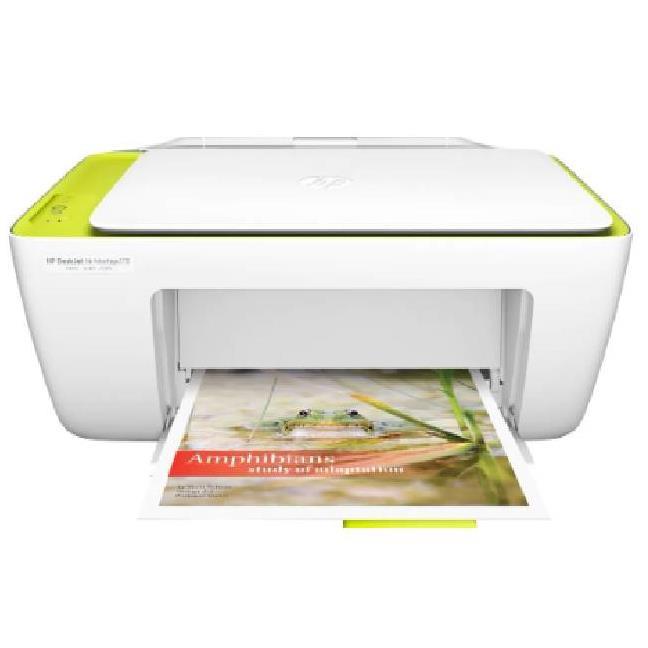
HP Deskjet Ink Advantage 2135 All IN One Printer
Ask AI
— answers from the official manualAnswers from the official manual.
Common questions
Common Questions
9 totalHow do I resolve a paper jam in the input tray?
Press the Cancel button ( ) to try clearing the jam automatically. If unsuccessful, manually remove the paper gently from the input tray and ensure no foreign objects are blocking the path before reloading paper. Then press the Resume button ( ) on the control panel to continue the current job. (Page 50)
What should I do if a printed page comes out skew?
Ensure that the paper is loaded in the far-right side of the input tray and adjust the paper-width guide against the left side of the paper. Load more paper only when the printer stops printing to prevent jamming issues (Page 57).
How do I install new ink cartridges in my printer?
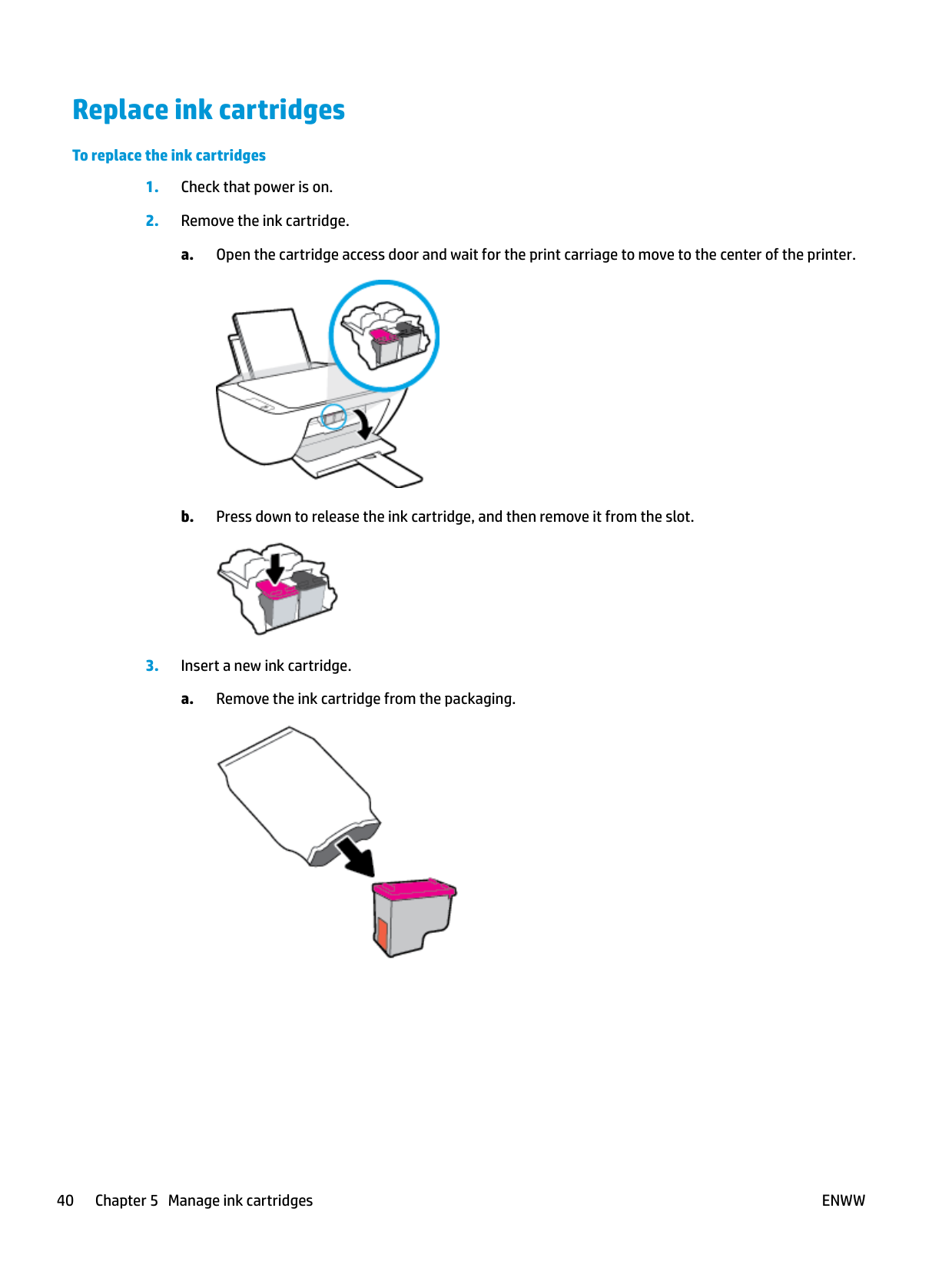
Power is on, open the cartridge access door, and wait for the print carriage to move to the center of the printer. Press down to release an existing ink cartridge and remove it from the slot. Insert a new ink cartridge by removing plastic tape using pull tab and slide into slot until it clicks into place (Page 41).
Why do I get low ink alerts on my printer?
Ink level warnings are estimates; they help plan cartridge replacements to avoid printing disruptions. Consider having a spare replacement cartridge ready when you receive these messages (Page 38).
What should I do if my printer can't detect ink cartridges?
Make sure the protective piece of plastic tape is removed and clean the cartridge contacts. If issues persist, install both ink cartridges simultaneously; if only one shows a problem, replace that specific cartridge (Page 56).
How do I check my printer's estimated ink levels?
In the HP printer software, click the Estimated Ink Levels tab to see how much ink is remaining in each of your cartridges (Pages 38 and 40).
Full Manual
88 pages


HP DeskJet 2130 All-in-One series
Table of contents
ENWW iii
Tips for working with cartridges ......................................................................................................................... 44
Appendix A Technical information ................................................................................................................... 69 Hewlett-Packard Company notices ..................................................................................................................... 70 Specifications ....................................................................................................................................................... 71 Environmental product stewardship program .................................................................................................... 73 Regulatory notices ............................................................................................................................................... 78
###### Index ............................................................................................................................................................. 83

iv ENWW
1 HP DeskJet 2130 series Help
Learn how to use your HP DeskJet 2130 series.
####### 2 Chapter 1 HP DeskJet 2130 series Help ENWW
2 Get started
Printer parts

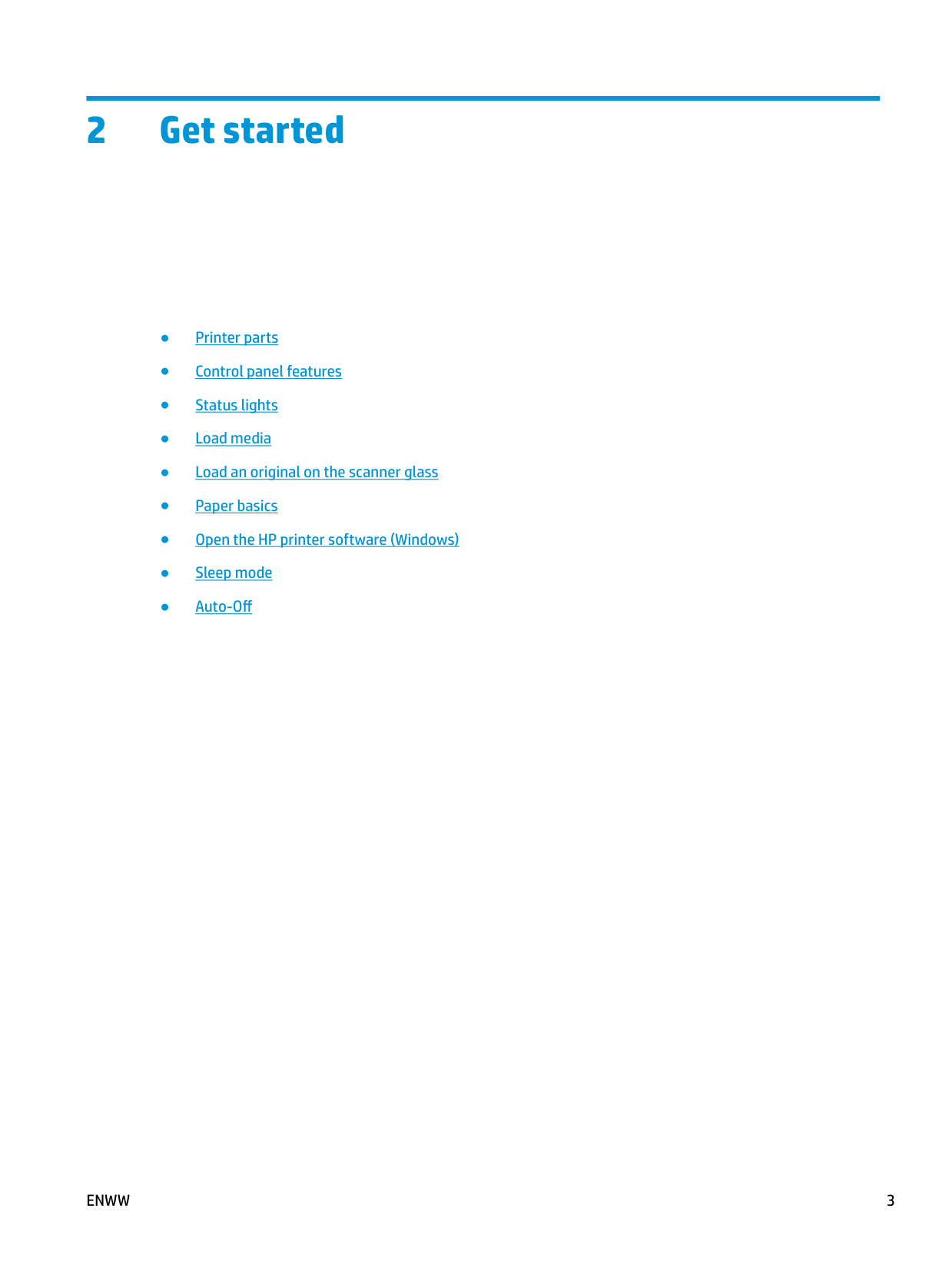
|1|Paper-width guide| |---|---|
|2|Input tray| |3|Input tray shield| |4|Scanner lid| |5|Scanner glass| |6|Control panel| |7|Cartridge access door| |8|Ink cartridges| |9|Output tray| |10|Output tray extender (also referred to as the tray extender)| |11|Power connection| |12|USB port|
Control panel features

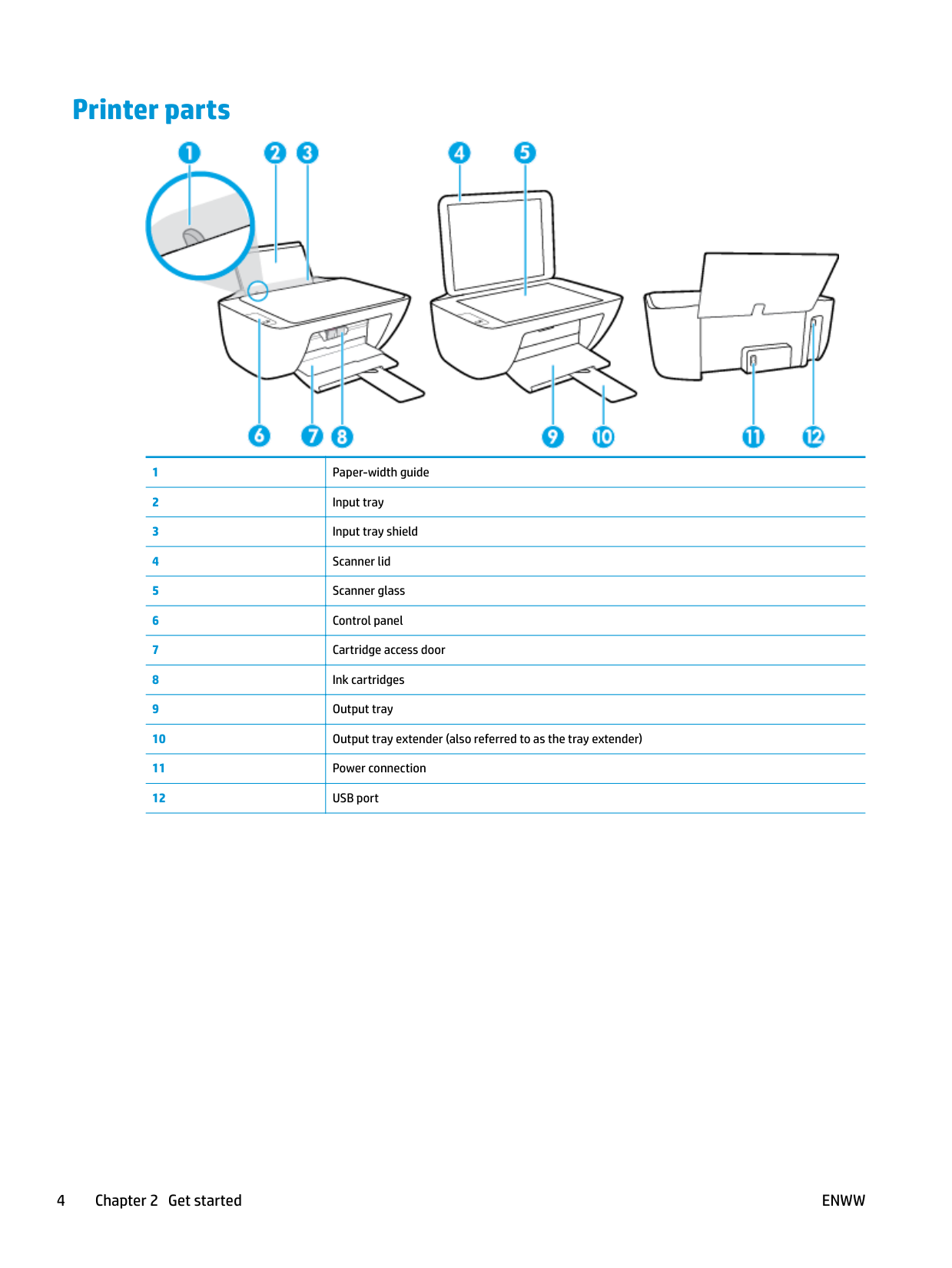
|Feature|Description| |---|---| |1|Cancel button: Stops the current operation.| |2|Resume button: Resumes a job after a disruption (for example, after loading paper or clearing a paper jam).
Resume light: Indicates the printer is in a warning or error state.| |3|Start Copy Black button: Starts a black-and-white copy job. To increase the number of black-andwhite copies, press the button multiple times. Copying will start two seconds after the last button press.| |4|Start Copy Color button: Starts a color copy job. To increase the number of color copies, press the button multiple times. Copying will start two seconds after the last button press.| |5|Power button: Turns the printer on or off.| |6|Ink Alert lights: Indicates low ink or an ink cartridge problem.|
ENWW Control panel features 5
Status lights
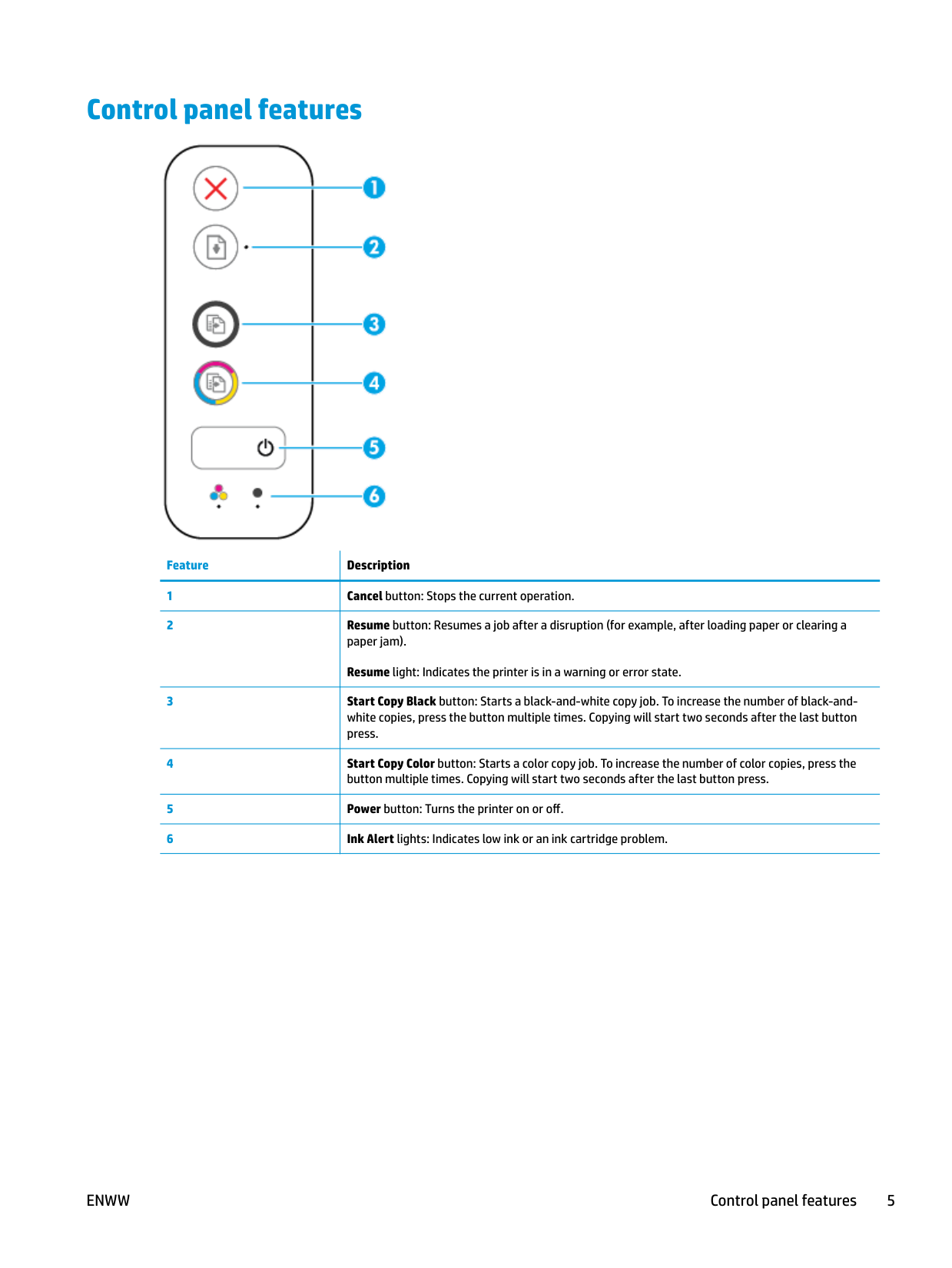
####### ● Power button light

Status Description On The printer is on. Off The printer is powered off. Dimmed Indicates the printer is in Sleep mode. The printer automatically enters Sleep mode after 5
minutes of inactivity.
Blinking The printer is processing a job. To cancel the job, press the Cancel button ( ).

Fast blinking If the cartridge access door is open, close it. If the cartridge access door is closed and the light is fast blinking, the printer is in an error state that you can resolve by following the on-screen messages from the computer. If you do not see any on-screen messages, try printing a document to generate an on-screen message.
####### ● The Resume light is blinking.

Cause Solution There is no paper in the input tray. Load paper in the input tray, and then press the Resume


button ( ) to continue printing. For information about how to load paper, see Load media on page 10.
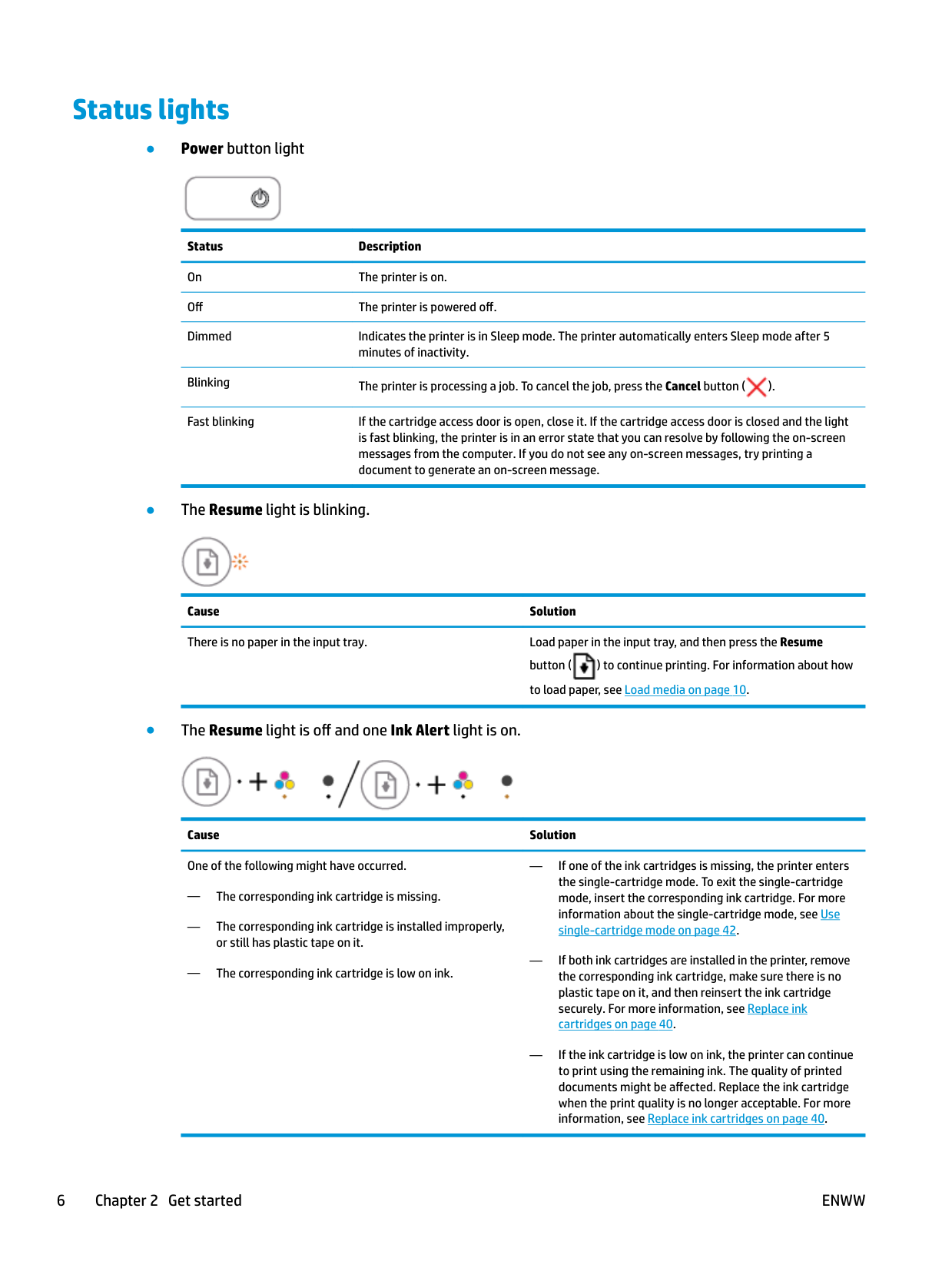
####### ● The Resume light is off and one Ink Alert light is on.

Cause Solution One of the following might have occurred.
— If one of the ink cartridges is missing, the printer enters
the single-cartridge mode. To exit the single-cartridge mode, insert the corresponding ink cartridge. For more information about the single-cartridge mode, see Use
— The corresponding ink cartridge is missing.
— The corresponding ink cartridge is installed improperly, or still has plastic tape on it.
single-cartridge mode on page 42.
— If both ink cartridges are installed in the printer, remove the corresponding ink cartridge, make sure there is no plastic tape on it, and then reinsert the ink cartridge securely. For more information, see Replace ink cartridges on page 40.
— The corresponding ink cartridge is low on ink.
— If the ink cartridge is low on ink, the printer can continue to print using the remaining ink. The quality of printed documents might be affected. Replace the ink cartridge when the print quality is no longer acceptable. For more information, see Replace ink cartridges on page 40.
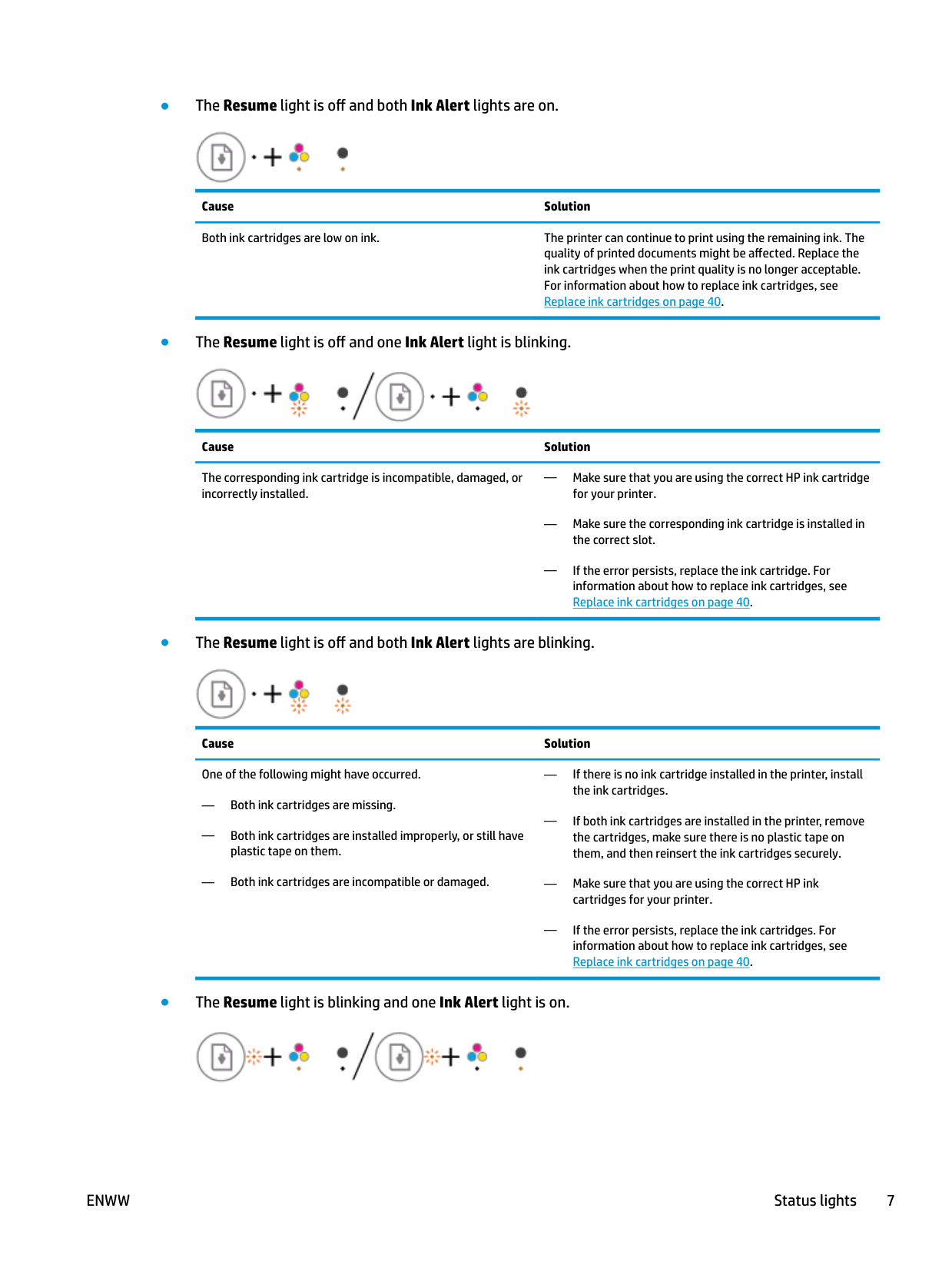
####### ● The Resume light is off and both Ink Alert lights are on.

Cause Solution Both ink cartridges are low on ink. The printer can continue to print using the remaining ink. The
quality of printed documents might be affected. Replace the ink cartridges when the print quality is no longer acceptable. For information about how to replace ink cartridges, see
Replace ink cartridges on page 40.
####### ● The Resume light is off and one Ink Alert light is blinking.

Cause Solution
The corresponding ink cartridge is incompatible, damaged, or incorrectly installed.
— Make sure that you are using the correct HP ink cartridge for your printer.
— Make sure the corresponding ink cartridge is installed in the correct slot.
— If the error persists, replace the ink cartridge. For information about how to replace ink cartridges, see Replace ink cartridges on page 40.
####### ● The Resume light is off and both Ink Alert lights are blinking.

Cause Solution One of the following might have occurred.
— If there is no ink cartridge installed in the printer, install the ink cartridges.
— Both ink cartridges are missing.
— If both ink cartridges are installed in the printer, remove the cartridges, make sure there is no plastic tape on them, and then reinsert the ink cartridges securely.
— Both ink cartridges are installed improperly, or still have plastic tape on them.
— Both ink cartridges are incompatible or damaged.
— Make sure that you are using the correct HP ink cartridges for your printer.
— If the error persists, replace the ink cartridges. For information about how to replace ink cartridges, see Replace ink cartridges on page 40.
####### ● The Resume light is blinking and one Ink Alert light is on.

— If the corresponding ink cartridge is newly installed, it might be counterfeit or previously used. Refer to the message in your HP printer software for more information.
— A counterfeit or previously used ink cartridge is installed.
— The corresponding ink cartridge is very low on ink.
— If the corresponding ink cartridge is not newly installed, it is very low on ink. Press the Resume button ( ) to continue printing, and replace the ink cartridge when the print quality is no longer acceptable. For information about how to replace ink cartridges, see Replace ink cartridges on page 40.

####### ● The Resume light is blinking and both Ink Alert lights are on.

Cause Solution One of the following might have occurred.
— If the ink cartridges are newly installed, they might be counterfeit or previously used. Refer to the message in the HP printer software for more information.
— The counterfeit or previously used ink cartridges are installed.
— If the ink cartridges are not newly installed, they are very low on ink. Press the Resume button ( ) to continue
— Both of the ink cartridges are very low on ink.

printing, and replace the ink cartridges when the print quality is no longer acceptable. For information about how to replace ink cartridges, see Replace ink cartridges
on page 40.
####### ● The Resume light is blinking, the Power button light is on, and both Ink Alert lights are blinking.

Cause Solution One of the following might have occurred.
Clear paper jams or carriage jams if any. For more information, see Jams and paper-feed issues on page 50.
— There is a paper jam.
— The cartridge carriage inside the printer has stalled.
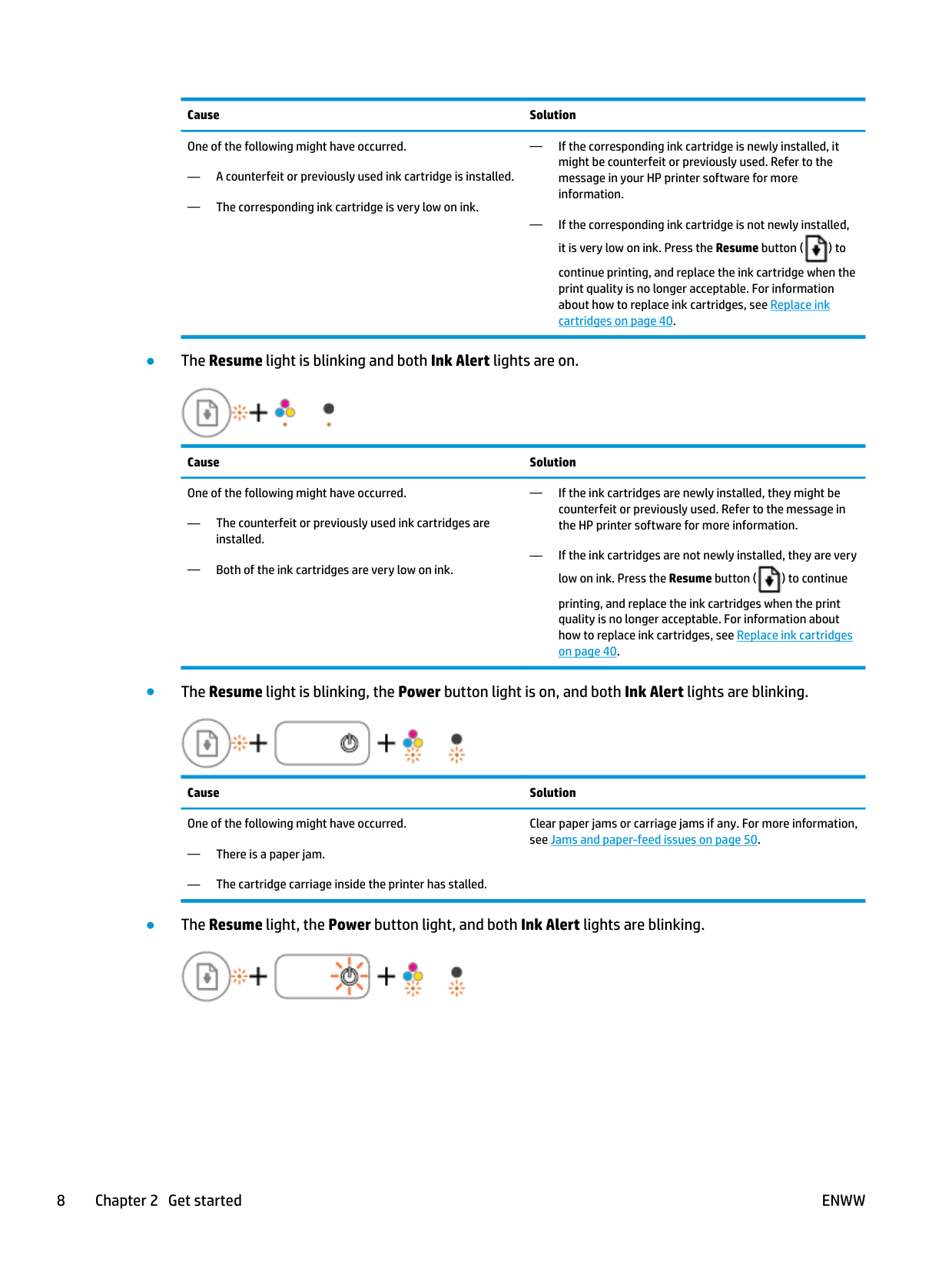
####### ● The Resume light, the Power button light, and both Ink Alert lights are blinking.

Reset the printer.
— The scanner is not working.
— The printer is in an error state.
If the problem persists, contact HP. The printer can still print even if the scanner is not working.
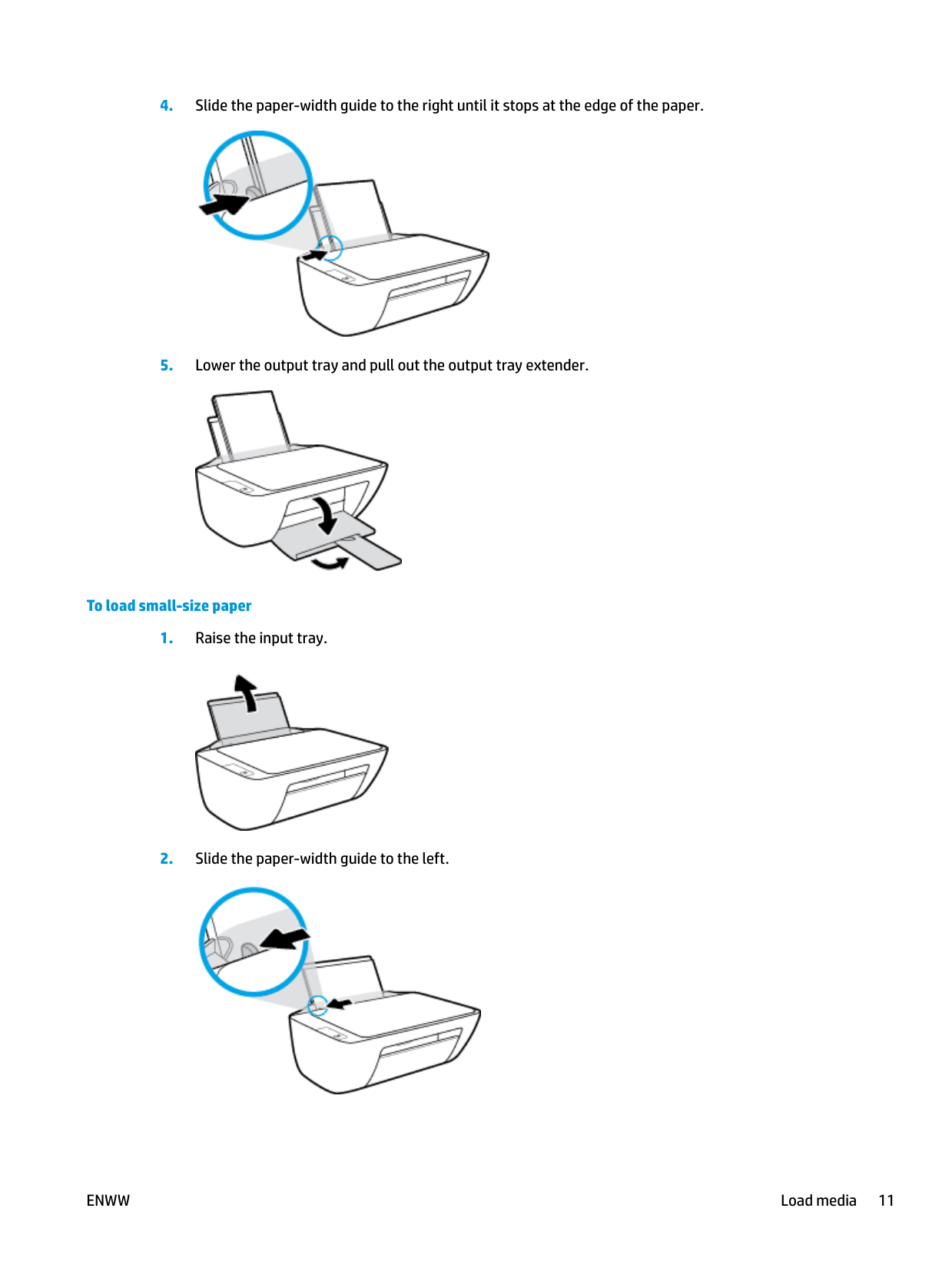
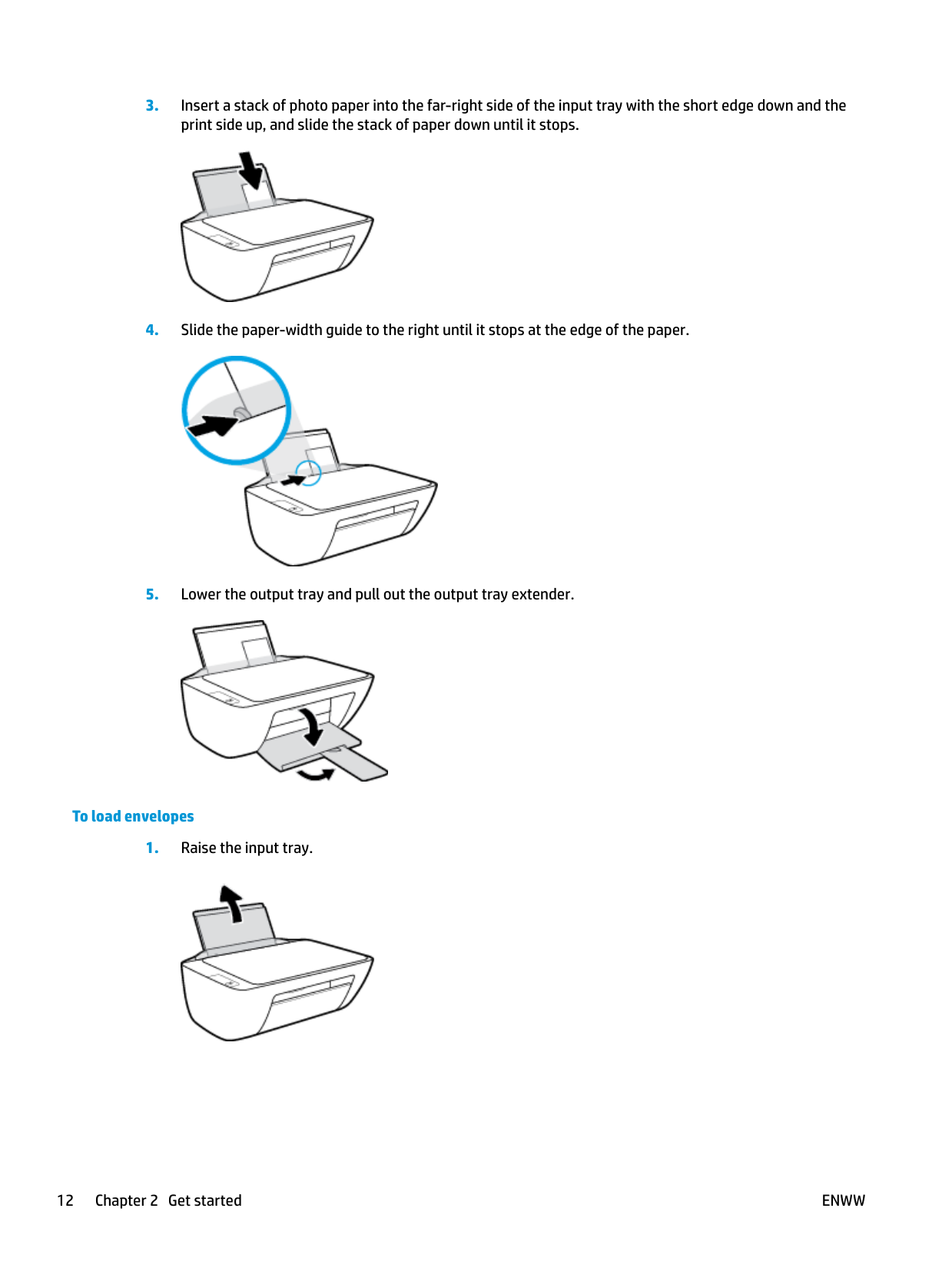
Load media
Select a paper size to continue.
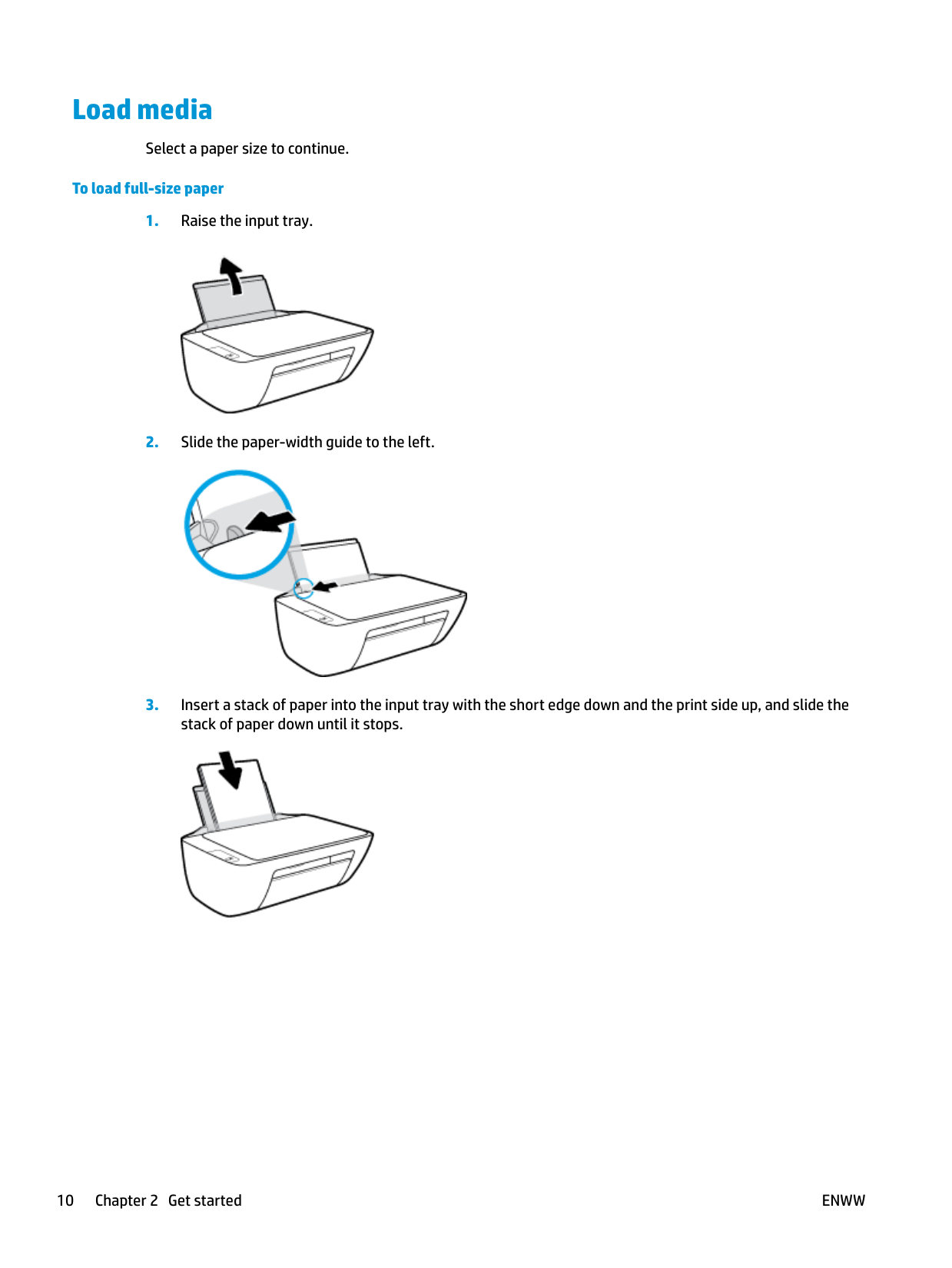
###### To load full-size paper




###### To load small-size paper




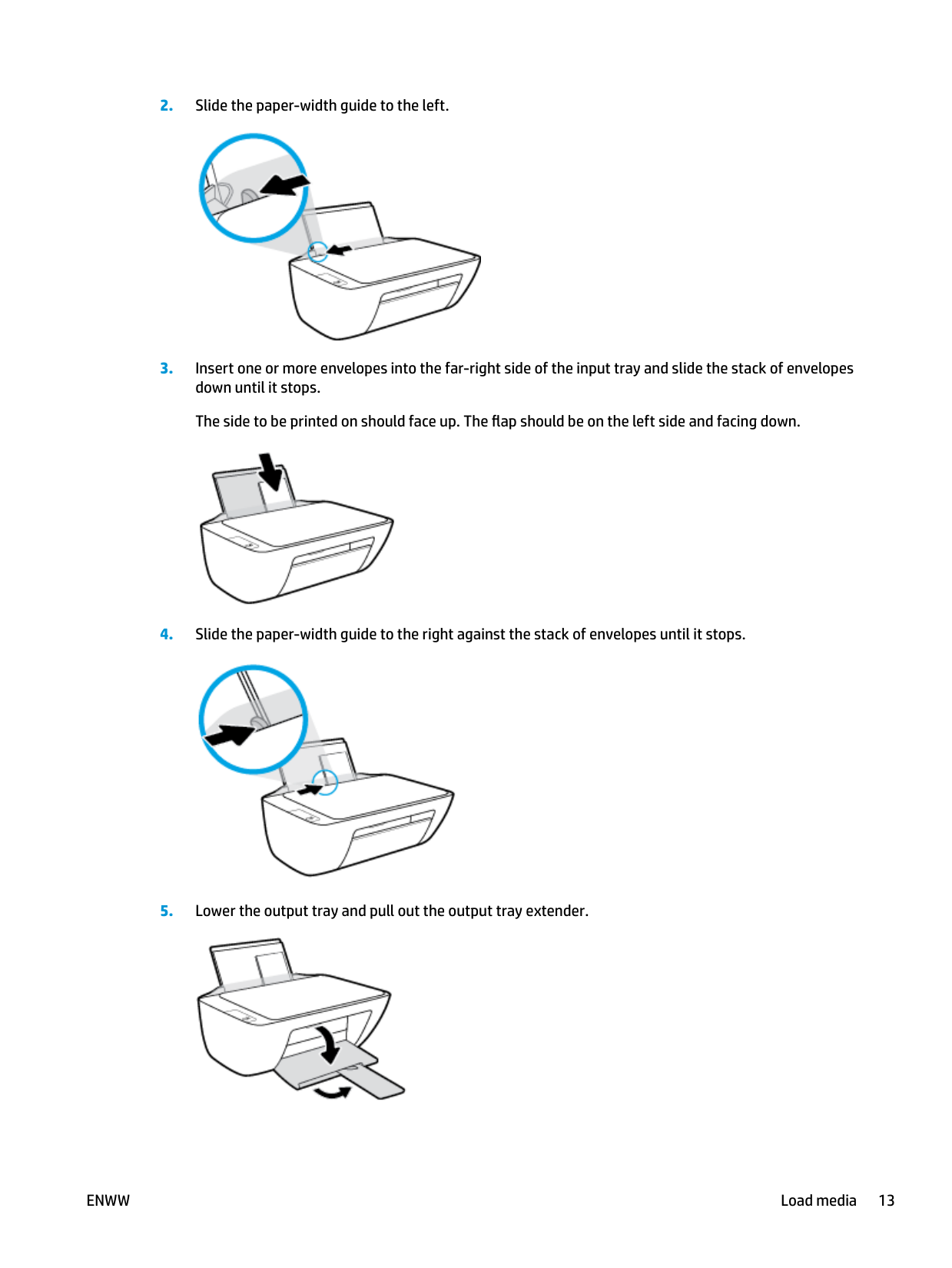
###### To load envelopes

####### 2. Slide the paper-width guide to the left.

####### 3. Insert one or more envelopes into the far-right side of the input tray and slide the stack of envelopesdown until it stops.The side to be printed on should face up. The flap should be on the left side and facing down.

####### 4. Slide the paper-width guide to the right against the stack of envelopes until it stops.

####### 5. Lower the output tray and pull out the output tray extender.

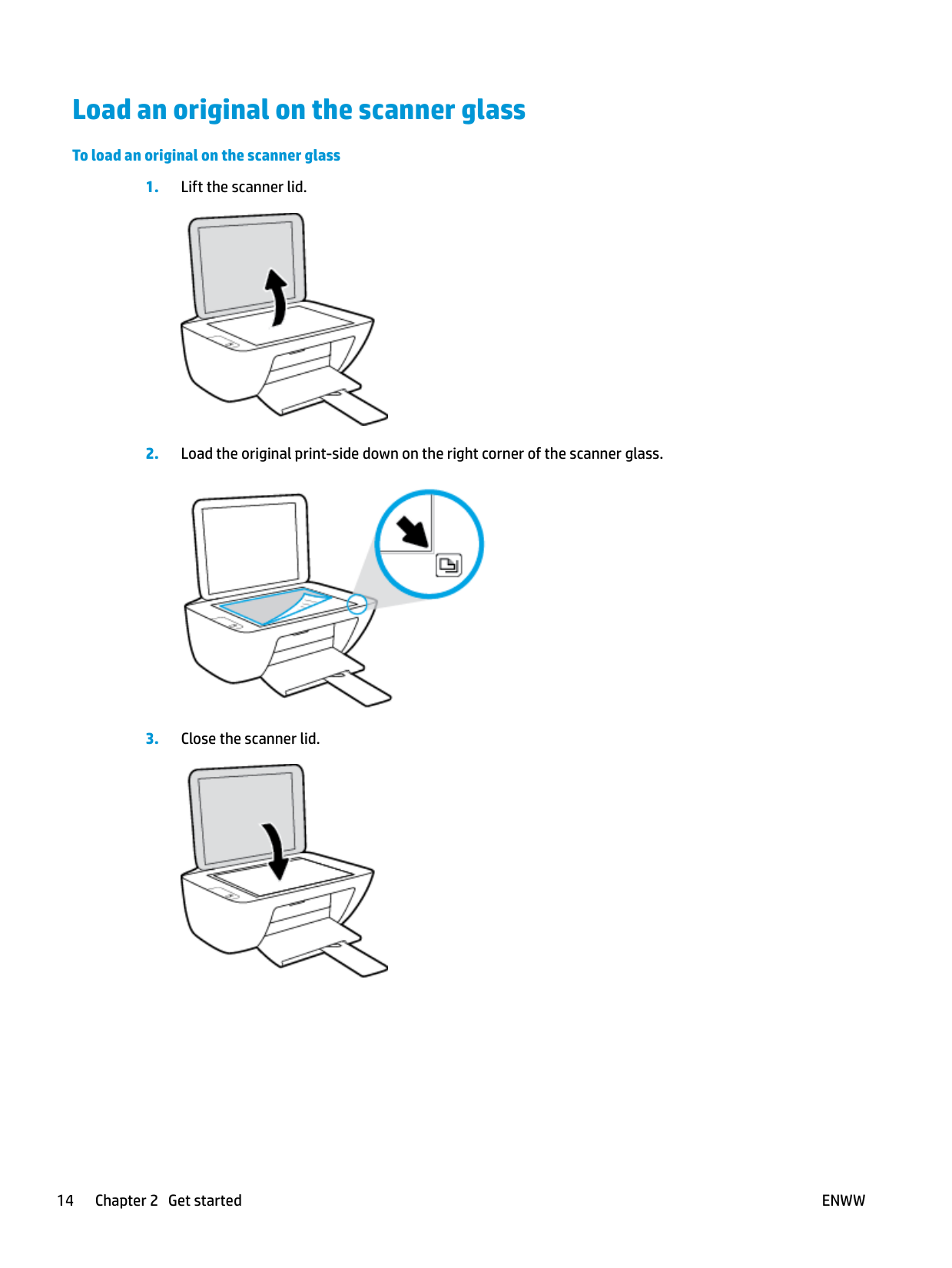
Load an original on the scanner glass
###### To load an original on the scanner glass



Paper basics
The printer is designed to work well with most types of office paper. It is best to test a variety of print paper types before buying large quantities. Use HP paper for optimum print quality. Visit the HP website at www.hp.com for more information about HP paper.

HP recommends plain papers with the ColorLok logo for printing everyday documents. All papers with the ColorLok logo are independently tested to meet high standards of reliability and print quality, and produce documents with crisp, vivid color, bolder blacks, and that dry faster than ordinary plain papers. Look for papers with the ColorLok logo in a variety of weights and sizes from major paper manufacturers.
This section contains the following topics:
#### Recommended papers for printing
If you want the best print quality, HP recommends using HP papers that are specifically designed for the type of project you are printing.
Depending on your country/region, some of these papers might not be available.
Photo printing
HP Premium Plus Photo Paper is HP’s highest-quality photo paper for your best photos. With HP Premium Plus Photo Paper, you can print beautiful photos that are instant-dry so you can share them right off the printer. It is available in several sizes, including A4, 8.5 x 11 inches, 4 x 6 inches (10 x 15 cm), 5 x 7 inches (13 x 18 cm), and in two finishes - glossy or soft gloss (semi-gloss). Ideal for framing, displaying, or gifting your best photos and special photo projects. HP Premium Plus Photo Paper delivers exceptional results with professional quality and durability.
This glossy photo paper features an instant-dry finish for easy handling without smudging. It resists water, smears, fingerprints, and humidity. Your prints have a look and feel comparable to a storeprocessed photo. It is available in several sizes, including A4, 8.5 x 11 inches, 10 x 15 cm (4 x 6 inches), 13 x 18 cm (5 x 7 inches). It is acid-free for longer lasting documents.
Print colorful, everyday snapshots at a low cost, using paper designed for casual photo printing. This affordable photo paper dries quickly for easy handling. Get sharp, crisp images when you use this paper with any inkjet printer. It is available in glossy finish in several sizes, including A4, 8.5 x 11 inches, 5 x 7 inches, and 4 x 6 inches (10 x 15 cm). It is acid-free for longer lasting documents.
HP Photo Value Packs conveniently package original HP ink cartridges and HP Advanced Photo Paper to save you time and take the guesswork out of printing affordable, lab-quality photos with your HP
ENWW Paper basics 15
printer. Original HP inks and HP Advanced Photo Paper have been designed to work together so your photos are long lasting and vivid, print after print. Great for printing out an entire vacation's worth of photos or multiple prints to share.
Business documents
This paper is a heavy two-sided matte paper perfect for presentation, proposals, reports, and newsletters. It is heavyweight for an impressive look and feel.
These papers are glossy-coated on both sides for two-sided use. They are the perfect choice for nearphotographic reproductions and business graphics for report covers, special presentations, brochures, mailers, and calendars.
These papers are matte-coated on both sides for two-sided use. They are the perfect choice for nearphotographic reproductions and business graphics for report covers, special presentations, brochures, mailers, and calendars.
###### Everyday printing
All the papers listed for everyday printing feature ColorLok Technology for less smearing, bolder blacks, and vivid colors.
###### ● HP Bright White Inkjet Paper
HP Bright White Inkjet Paper delivers high-contrast colors and sharp text. It is opaque enough for twosided color usage with no show-through, which makes it ideal for newsletters, reports, and flyers.
###### ● HP Printing Paper
HP Printing Paper is a high-quality multifunction paper. It produces documents that look and feel more substantial than documents printed on standard multipurpose or copy paper. It is acid-free for longer lasting documents.
###### ● HP Office Paper
HP Office Paper is a high-quality multifunction paper. It is suitable for copies, drafts, memos, and other everyday documents. It is acid-free for longer lasting documents.
####### ● HP Office Recycled PaperHP Office Recycled Paper is a high-quality multifunction paper made with 30% recycled fiber.
Order HP paper supplies The printer is designed to work well with most types of office paper. Use HP paper for optimum print quality. To order HP papers and other supplies, go to www.hp.com . At this time, some portions of the HP website are available in English only. HP recommends plain papers with the ColorLok logo for printing and copying of everyday documents. All papers with the ColorLok logo are independently tested to meet high standards of reliability and print quality, and produce documents with crisp, vivid color, bolder blacks and shorter dry-time than ordinary plain papers. Look for papers with the ColorLok logo in a variety of weights and sizes from major paper manufacturers.
Open the HP printer software (Windows)
After installing the HP printer software, double-click the printer icon on the desktop or do one of the following to open the printer software:
ENWW Open the HP printer software (Windows) 17
Sleep mode
Auto-Off
This feature turns the printer off after 2 hours of inactivity to help reduce energy use. Auto-Off turns the printer off completely, so you must use the Power button to turn the printer back on. If your printer supports this energy saving feature, Auto-Off is automatically enabled or disabled depending on printer capabilities and connection options. Even when Auto-Off is disabled, the printer enters Sleep mode after 5 minutes of inactivity to help reduce energy use.
ENWW Auto-Off 19
3 Print
ENWW 21
Print documents
Before printing documents, make sure you have paper loaded in the input tray and the output tray is open. For more information about loading paper, see Load media on page 10.
###### To print a document (Windows)
Depending on your software application, this button might be called Properties, Options, Printer Setup, Printer Properties, Printer, or Preferences.
###### To print documents (OS X)
NOTE: The following options are available for a USB connected printer. Locations for the options can vary from one application to another.
| | |---|
| | |---|
###### To print on both sides of the page (Windows)

Depending on your software application, this button might be called Properties, Options, Printer Setup, Printer Properties, Printer, or Preferences.
###### To print on both sides of the page (OS X)
ENWW Print documents 23
Print photos
Before printing photos, make sure you have photo paper loaded in the input tray and the output tray is open. For more information about loading paper, see Load media on page 10.
###### To print a photo on photo paper (Windows)
Depending on your software application, this button might be called Properties, Options, Printer Setup, Printer Properties, Printer, or Preferences.

| | |---|
###### To print a photo from the computer (OS X)
| | |---|
NOTE: The following options are available for a USB connected printer. Locations for the options can vary from one application to another.

| | |---|
— Off: applies no changes to the image.
— Basic: automatically focuses the image; moderately adjusts image sharpness.
ENWW Print photos 25
Print envelopes Before printing envelopes, make sure you have envelopes loaded in the input tray and the output tray is open. You can load one or more envelopes into the input tray. Do not use shiny or embossed envelopes or envelopes that have clasps or windows. For more information about loading envelopes, see Load media on page 10. NOTE: For specific details on how to format text for printing on envelopes, consult the help files in your word application.
| | |---|
###### To print an envelope (Windows)
Depending on your software application, this button might be called Properties, Options, Printer Setup, Printer Properties, Printer, or Preferences.
###### To print envelopes (OS X)
NOTE: The following options are available for a USB connected printer. Locations for the options can vary from one application to another.
| | |---|
| | |---|
Print using the maximum dpi Use maximum dots per inch (dpi) to print high-quality, sharp images on photo paper. Printing in maximum dpi takes longer than printing with other settings and requires a large amount of disk space. For a list of supported print resolutions, visit the HP DeskJet 2130 series support website at www.hp.com/ support.
###### To print in maximum dpi mode (Windows)
Depending on your software application, this button might be called Properties, Options, Printer Setup, Printer Properties, Printer, or Preferences.
###### To print using maximum dpi (OS X)
NOTE: The following options are available for a USB connected printer. Locations for the options can vary from one application to another.

| | |---|
| | |---|
ENWW Print using the maximum dpi 27
Tips for print success
To print successfully, the HP ink cartridges should be functioning properly with sufficient ink, the paper should be loaded correctly, and the printer should have the appropriate settings.
Print settings do not apply to copying or scanning.
###### Ink tips
###### Paper loading tips
###### Printer settings tips (Windows)
— Print in Grayscale: Allows you to print a black and white document using the black ink only. Select Black Ink Only, and then click OK . It also allows you to print a high quality black and white image. Select High Quality Grayscale, and then click OK .
— Pages per Sheet Layout: Helps you specify the order of the pages if you print the document with more than two pages per sheet. NOTE: The preview on the Layout tab cannot reflect what you select from the Pages per Sheet Layout drop-down list.
| | |---|
— HP Real Life Technologies: This feature smooths and sharpens images and graphics for improved print quality.
— Booklet: Allows you to print a multiple-page document as a booklet. It places two pages on each side of a sheet that can then be folded into a booklet in half size of the paper. Select a binding method from the drop-down list, and then click OK.
| | |---|
NOTE: The preview on the Layout tab cannot reflect what you select from the Booklet dropdown list.
— Pages to Print: Allows you to print the odd pages only, print the even pages only, or print all pages.
— Page Borders: Allows you to add borders to the pages if you print the document with two or more pages per sheet. NOTE: The preview on the Layout tab cannot reflect what you select from the Page Borders drop-down list.
| | |---|
To add a new printing shortcut, after making settings on the Layout or Paper/Quality tab, click the Printing Shortcut tab, click Save As and enter a name, and then click OK.
| | |---|
To delete a printing shortcut, select it, and then click Delete. NOTE: You cannot delete the default printing shortcuts.
###### Printer settings tips (OS X)
ENWW Tips for print success 29
###### Notes
NOTE: HP cannot guarantee the quality or reliability of non-HP supplies. Product service or repairs required as a result of using a non-HP supply will not be covered under warranty. If you believe the purchased original HP ink cartridges, go to: www.hp.com/go/anticounterfeit
NOTE: When you receive a low-ink warning message, consider having a replacement ink cartridge available to avoid possible printing delays. You do not need to replace the ink cartridges until the print quality becomes unacceptable.
| | |---|
| | |---|
4 Copy and scan
ENWW 31
Copy documents
| | |---|
NOTE: All documents are copied in normal quality print mode. You cannot change the print mode quality when copying.
###### To copy documents


Copying will start two seconds after the last button press. TIP: You can increase the number of copies by pressing the button multiple times.
Scan
#### Scan to a computer
Before scanning to a computer, make sure you have already installed the HP recommended printer software. The printer and computer must be connected and turned on.
###### To scan a document or photo to a file (Windows)
| | |---|
NOTE: Click the More link at the top right corner of the Scan dialog to review and modify settings for any scan. For more information, see Change scan settings (Windows) on page 35. If Show Viewer After Scan is selected, you can make adjustments to the scanned image in the preview screen.
###### To scan a document or photo to email (Windows)
Choose Email as PDF or Email as JPEG to open your email software with the scanned file as an attachment.
| | |---|
NOTE: Click the More link at the top right corner of the Scan dialog to review and modify settings for any scan. For more information, see Change scan settings (Windows) on page 35. If Show Viewer After Scan is selected, you can make adjustments to the scanned image in the preview screen.
###### To scan an original from HP printer software (OS X)
#### Create a new scan shortcut (Windows)
You can create your own scan shortcut to make scanning easier. For example, you might want to regularly scan and save photos in PNG format, rather than JPEG.
For example, if you are creating a new shortcut for photos, choose either Save as JPEG or Email as JPEG . This makes available the options for working with graphics when scanning.
| | |---|
NOTE: Click the More link at the top right corner of the Scan dialog to review and modify settings for any scan. For more information, see Change scan settings (Windows) on page 35.
#### Change scan settings (Windows)
You can modify any of the scan settings either for a singular use or save the changes to use permanently. These settings include options such as page size and orientation, scan resolution, contrast, and the folder location for saved scans.
Programs, click HP, click the folder for the printer, and then select the icon with the printer's name.
The detailed settings pane appears on the right. The left column summarizes the current settings for each section. The right column allows you to change the settings in the highlighted section.
Some settings allow greater flexibility by displaying a new pane. These are indicated by a + (plus sign) at the right of the setting. You must either accept or cancel any changes on this pane to return to the detailed settings pane.
Tips for copy and scan success
Use the following tips to copy and scan successfully:
5 Manage ink cartridges
This section contains the following topics:
ENWW 37
Check estimated ink levels
You can easily check the ink supply level to determine how soon you might need to replace an ink cartridge. The ink supply level shows an estimate of the amount of ink remaining in the ink cartridges.
###### To check the ink levels from the HP printer software (Windows)
###### To check the ink levels from the HP printer software (OS X)
HP Utility is located in the Hewlett-Packard folder in the Applications folder at the top level of the hard disk.
| | |---|
NOTE: If you have installed a refilled or remanufactured ink cartridge, or an ink cartridge that has been used in another printer, the ink level indicator might be inaccurate or unavailable.
| | |---|
NOTE: Ink level warnings and indicators provide estimates for planning purposes only. When you receive a low-ink warning message, consider having a replacement ink cartridge available to avoid possible printing delays. You do not have to replace the ink cartridges until the print quality is unacceptable.
| | |---|
NOTE: Ink from the ink cartridges is used in the printing process in a number of different ways, including in the initialization process, which prepares the printer and cartridges for printing, and in printhead servicing, which keeps print nozzles clear and ink flowing smoothly. In addition, some residual ink is left in the ink cartridge after it is used. For more information, see www.hp.com/go/inkusage.
Order ink supplies
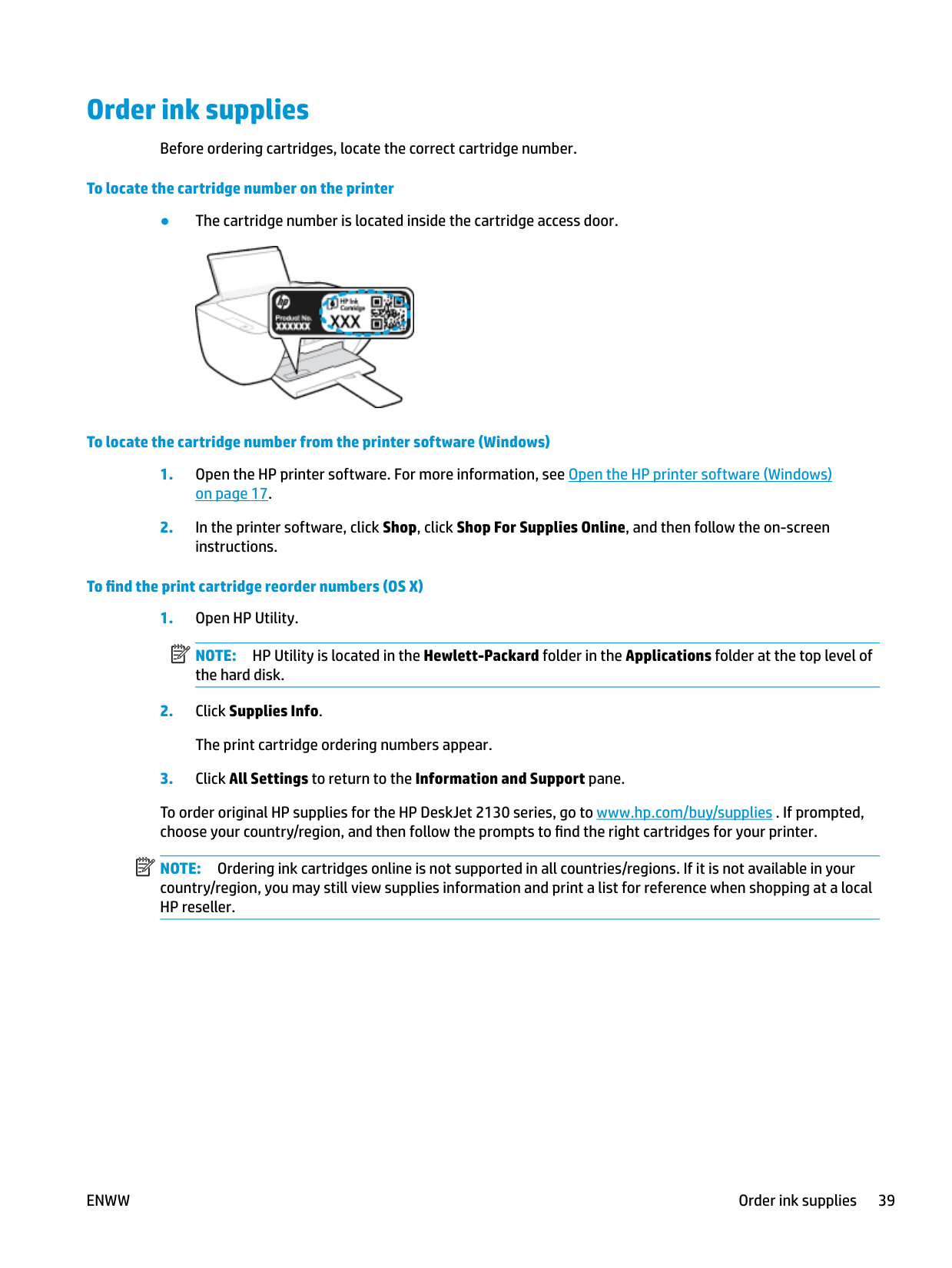
Before ordering cartridges, locate the correct cartridge number.
###### To locate the cartridge number on the printer
● The cartridge number is located inside the cartridge access door.

###### To locate the cartridge number from the printer software (Windows)
###### To find the print cartridge reorder numbers (OS X)
NOTE: HP Utility is located in the Hewlett-Packard folder in the Applications folder at the top level of the hard disk.
| | |---|
To order original HP supplies for the HP DeskJet 2130 series, go to www.hp.com/buy/supplies . If prompted, choose your country/region, and then follow the prompts to find the right cartridges for your printer.
| | |---|
NOTE: Ordering ink cartridges online is not supported in all countries/regions. If it is not available in your country/region, you may still view supplies information and print a list for reference when shopping at a local HP reseller.
ENWW Order ink supplies 39
Replace ink cartridges
###### To replace the ink cartridges
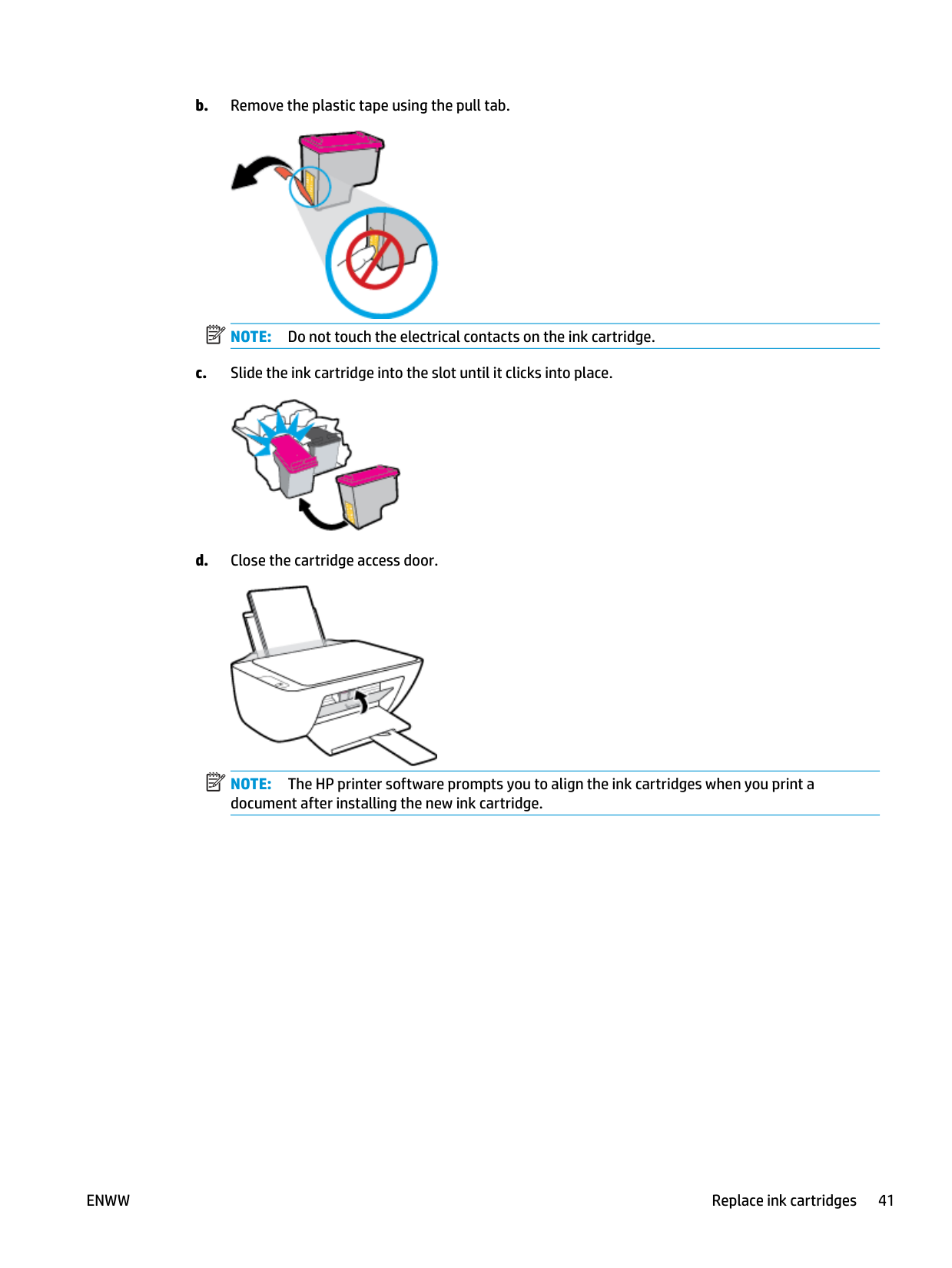


NOTE: Do not touch the electrical contacts on the ink cartridge.

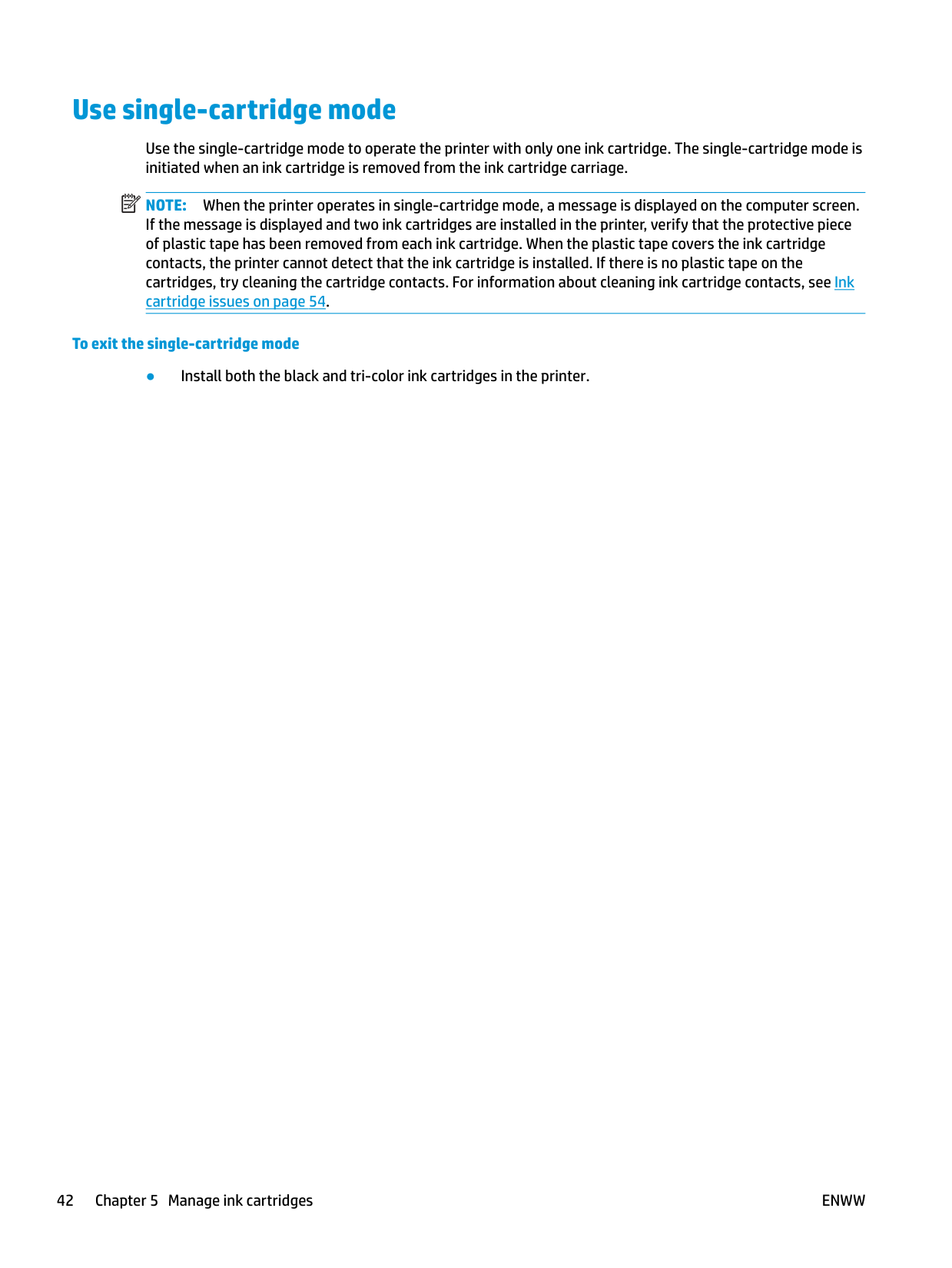
| | |---|
| | |---|

NOTE: The HP printer software prompts you to align the ink cartridges when you print a document after installing the new ink cartridge.
ENWW Replace ink cartridges 41
Use single-cartridge mode
Use the single-cartridge mode to operate the printer with only one ink cartridge. The single-cartridge mode is initiated when an ink cartridge is removed from the ink cartridge carriage.
| | |---|
NOTE: When the printer operates in single-cartridge mode, a message is displayed on the computer screen. If the message is displayed and two ink cartridges are installed in the printer, verify that the protective piece of plastic tape has been removed from each ink cartridge. When the plastic tape covers the ink cartridge contacts, the printer cannot detect that the ink cartridge is installed. If there is no plastic tape on the cartridges, try cleaning the cartridge contacts. For information about cleaning ink cartridge contacts, see Ink cartridge issues on page 54.
###### To exit the single-cartridge mode
● Install both the black and tri-color ink cartridges in the printer.
Cartridge warranty information
The HP cartridge warranty is applicable when the cartridge is used in its designated HP printing device. This warranty does not cover HP ink cartridges that have been refilled, remanufactured, refurbished, misused, or tampered with.
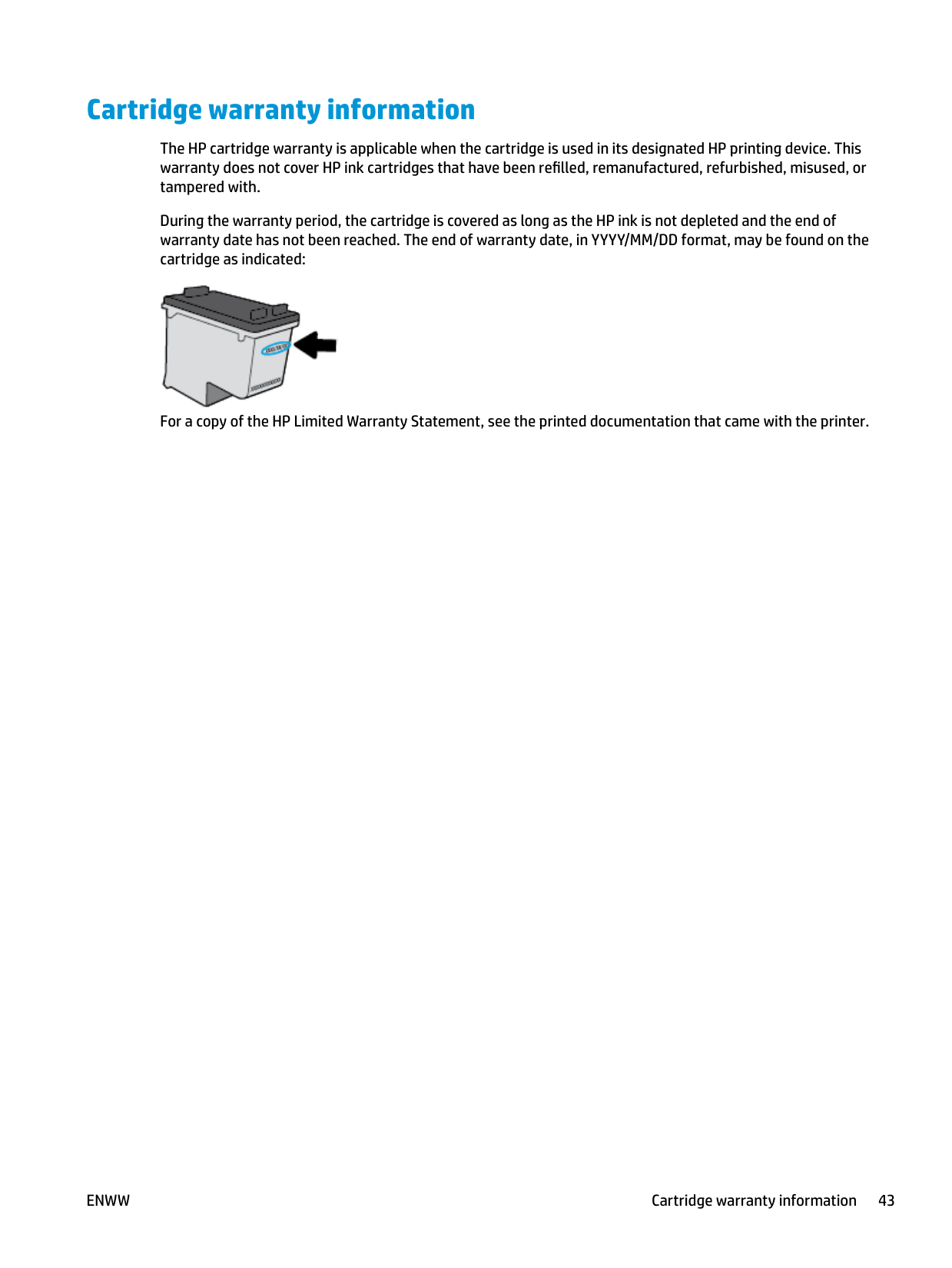
During the warranty period, the cartridge is covered as long as the HP ink is not depleted and the end of warranty date has not been reached. The end of warranty date, in YYYY/MM/DD format, may be found on the cartridge as indicated:

For a copy of the HP Limited Warranty Statement, see the printed documentation that came with the printer.
ENWW Cartridge warranty information 43
Tips for working with cartridges
Use the following tips to work with cartridges:
6 Connect your printer
ENWW 45
Connect your printer to your computer with a USB cable (nonnetwork connection)
The printer supports a rear USB 2.0 High Speed port for connection to a computer.
###### To connect the printer with the USB cable

| | |---|
If the printer software has been installed, the printer will operate as a plug-and-play device. If the software has not been installed, insert the CD that came with the printer and follow the on-screen instructions.
Connect a new printer
If you have not connected the printer to your computer, or you want to connect another new printer of the same model to your computer, you can use the following instructions to set up the connection.
| | |---|
NOTE: Use this method if you have already installed the printer software.
###### To connect a new printer (Windows)
To connect a new printer (OS X)
ENWW Connect a new printer 47
7 Solve a problem
This section contains the following topics:
ENWW 49
Jams and paper-feed issues
What do you want to do?
#### Clear a paper jam
Solve paper jam issues. Use an HP online troubleshooting wizard Instructions for clearing paper jams and resolving issues with paper or the paper feed.
##### NOTE: The HP online troubleshooting wizards may not be available in all languages. Read general instructions in the Help for clearing paper jams
| | |---|
Paper jams can occur in several locations.

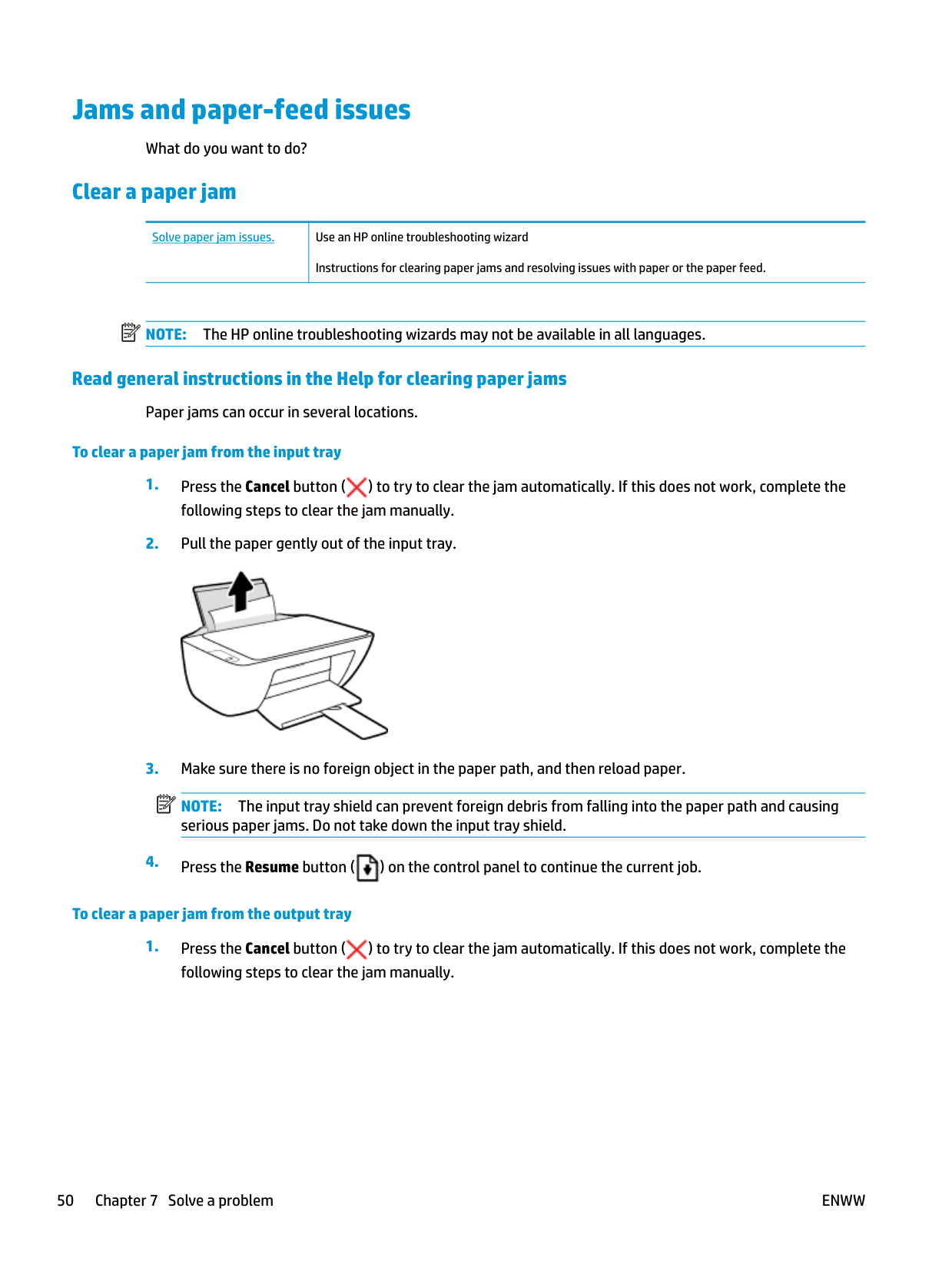
###### To clear a paper jam from the input tray


NOTE: The input tray shield can prevent foreign debris from falling into the paper path and causing serious paper jams. Do not take down the input tray shield.
| | |---|

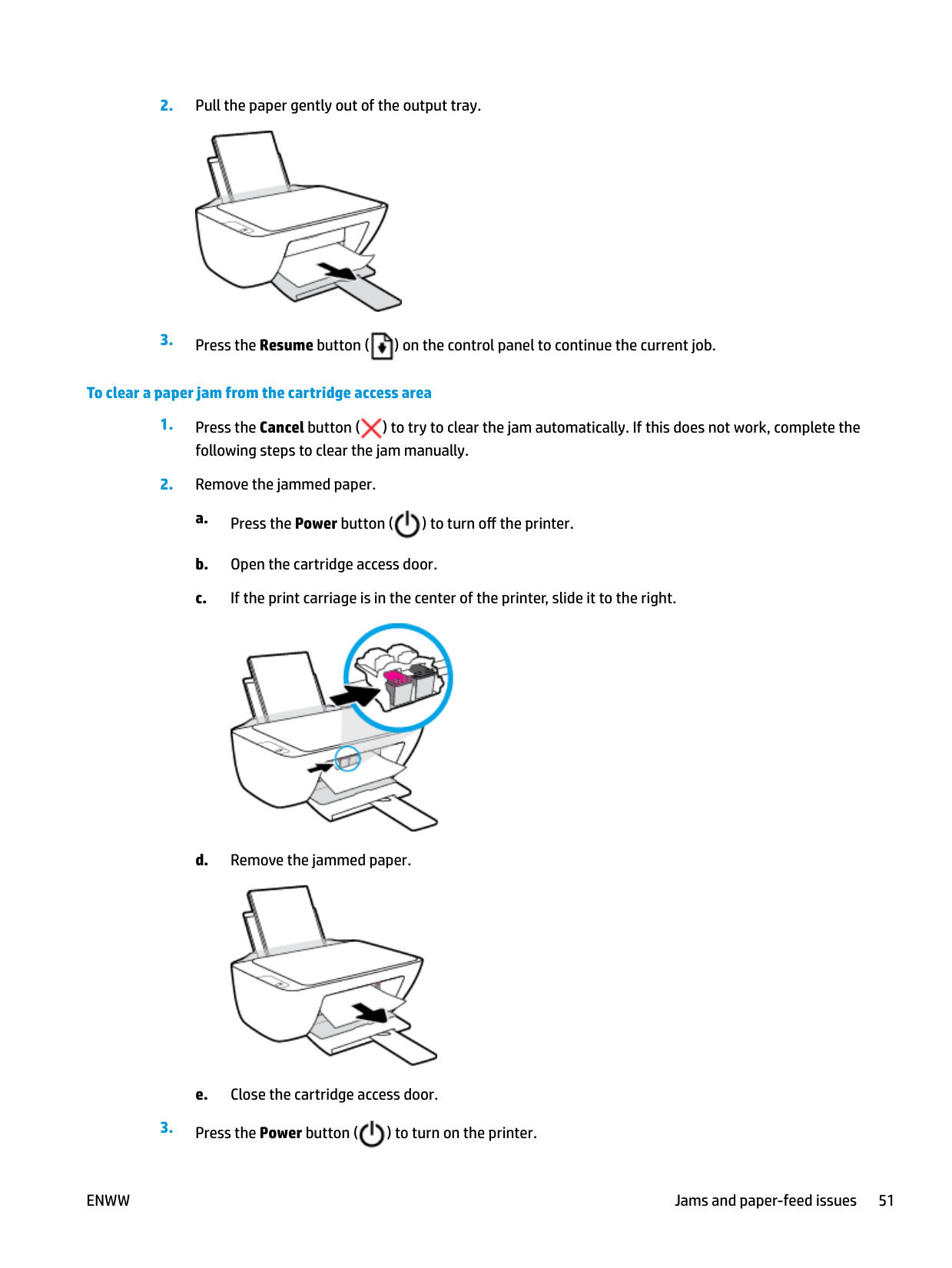
###### To clear a paper jam from the output tray


###### To clear a paper jam from the cartridge access area



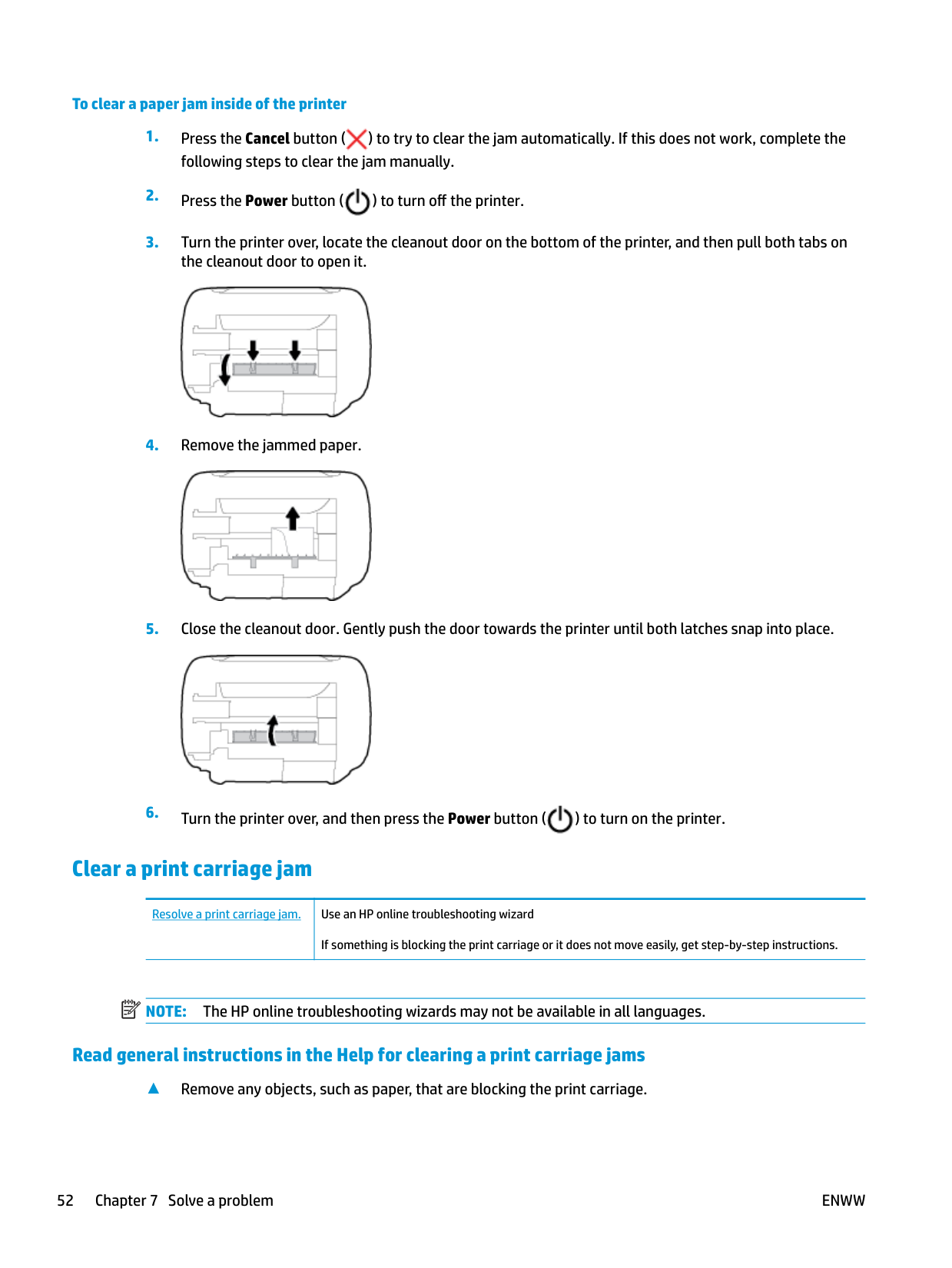
###### To clear a paper jam inside of the printer



#### Clear a print carriage jam
Resolve a print carriage jam. Use an HP online troubleshooting wizard If something is blocking the print carriage or it does not move easily, get step-by-step instructions.
##### NOTE: The HP online troubleshooting wizards may not be available in all languages. Read general instructions in the Help for clearing a print carriage jams
| | |---|
▲ Remove any objects, such as paper, that are blocking the print carriage.
| | |---|
NOTE: Do not use any tools or other devices to remove jammed paper. Always use caution when removing jammed paper from inside the printer.
#### Learn how to avoid paper jams
To help avoid paper jams, follow these guidelines.
#### Solve paper-feed problems
What kind of problem are you having?
###### ● Paper is not picked up from the input tray
— Make sure paper is loaded in the input tray. For more information, see Load media on page 10.
— Adjust the paper-width guide in the input tray to fit snugly against all paper. Make sure the paperwidth guide does not bend the paper in the input tray.
— Make sure paper in the input tray is not curled. Uncurl paper by bending it in the opposite direction of the curl.
###### ● Pages are skewing
— Make sure the paper is loaded in the far-right side of the input tray and the paper-width guide is fit against the left side of the paper.
— Load paper into the printer only when it is not printing.
###### ● Multiple pages are being picked up
— Adjust the paper-width guide in the input tray to fit snugly against all paper. Make sure the paper-
width guide does not bend the paper in the input tray. — Make sure the input tray is not overloaded with paper.
— Make sure the pieces of the loaded paper are not sticking together.
— Use HP paper for optimum performance and efficiency.
Ink cartridge issues
#### Identify whether an ink cartridge has a problem
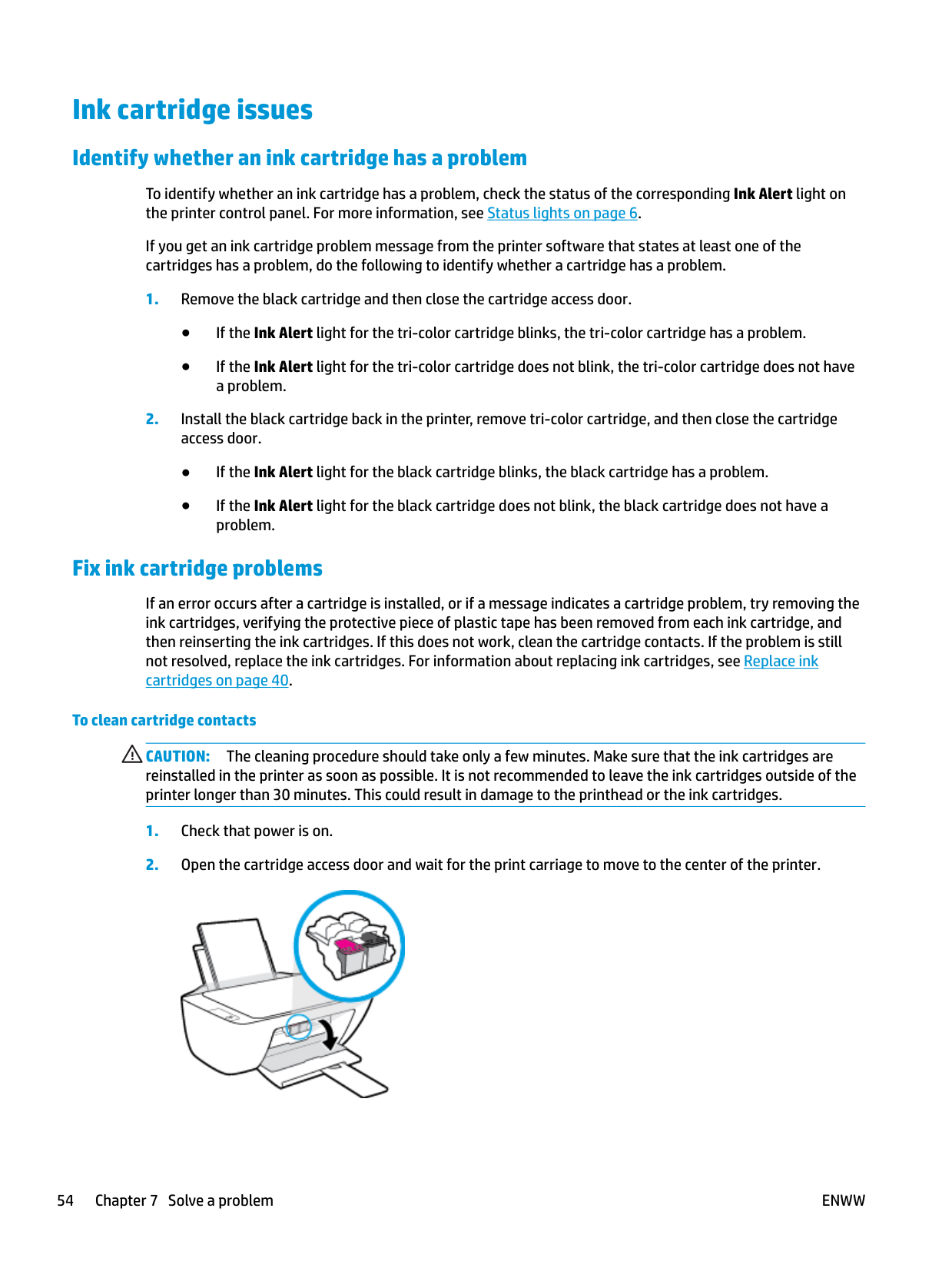
To identify whether an ink cartridge has a problem, check the status of the corresponding Ink Alert light on the printer control panel. For more information, see Status lights on page 6.
If you get an ink cartridge problem message from the printer software that states at least one of the cartridges has a problem, do the following to identify whether a cartridge has a problem.
#### Fix ink cartridge problems
If an error occurs after a cartridge is installed, or if a message indicates a cartridge problem, try removing the ink cartridges, verifying the protective piece of plastic tape has been removed from each ink cartridge, and then reinserting the ink cartridges. If this does not work, clean the cartridge contacts. If the problem is still not resolved, replace the ink cartridges. For information about replacing ink cartridges, see Replace ink cartridges on page 40.
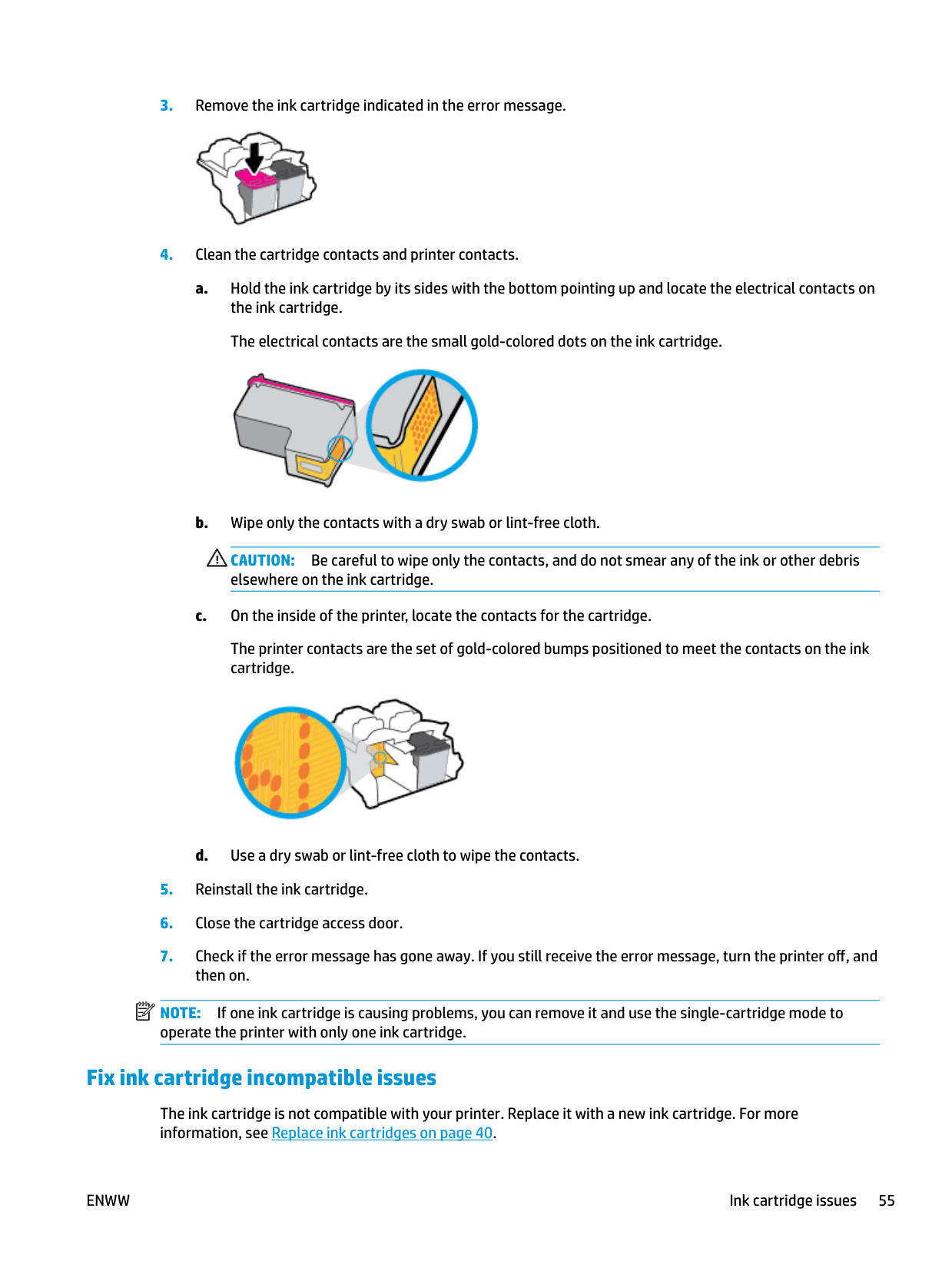
###### To clean cartridge contacts
CAUTION: The cleaning procedure should take only a few minutes. Make sure that the ink cartridges are reinstalled in the printer as soon as possible. It is not recommended to leave the ink cartridges outside of the printer longer than 30 minutes. This could result in damage to the printhead or the ink cartridges.


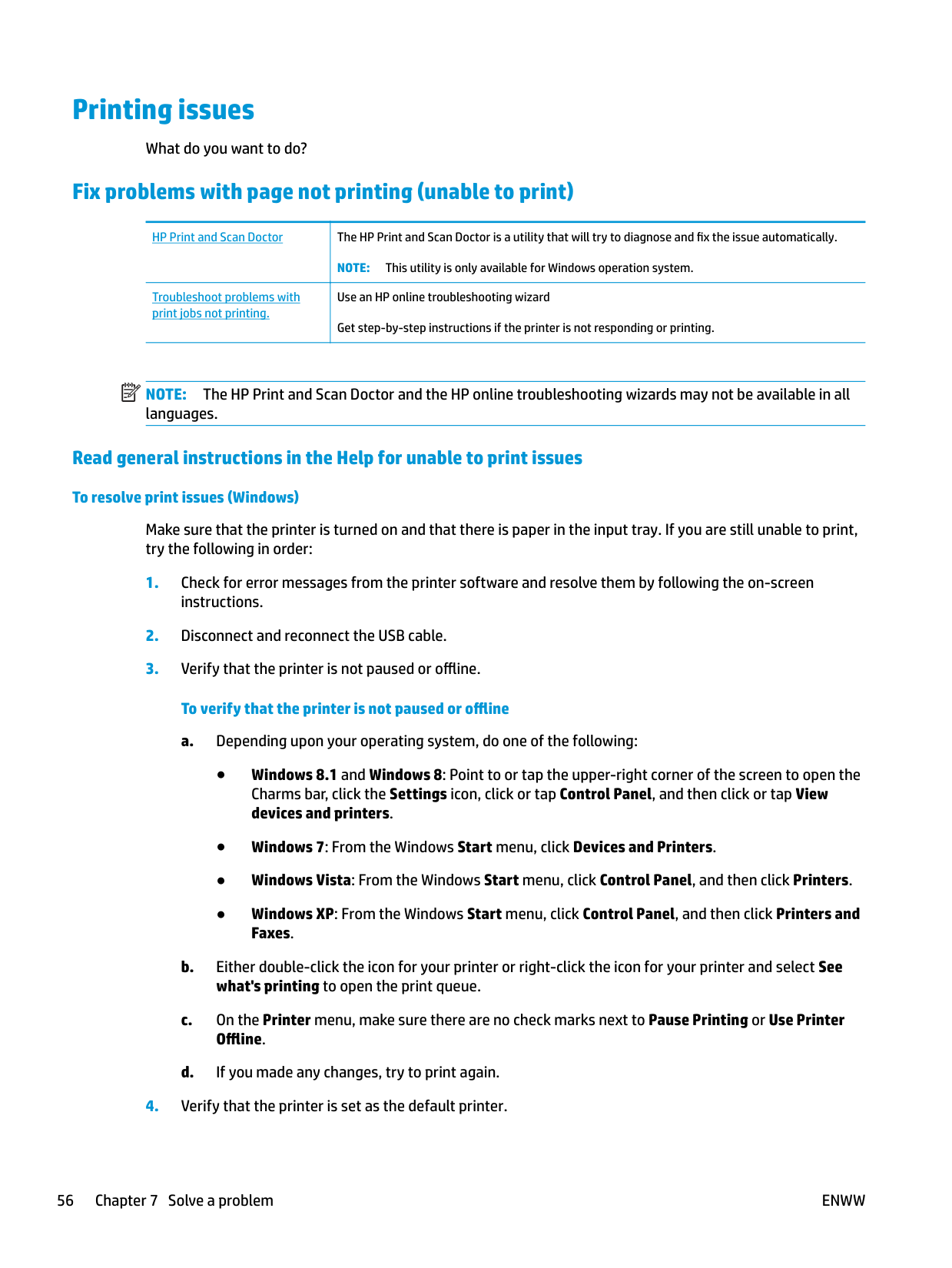
CAUTION: Be careful to wipe only the contacts, and do not smear any of the ink or other debris elsewhere on the ink cartridge.
The printer contacts are the set of gold-colored bumps positioned to meet the contacts on the ink cartridge.

| | |---|
NOTE: If one ink cartridge is causing problems, you can remove it and use the single-cartridge mode to operate the printer with only one ink cartridge.
#### Fix ink cartridge incompatible issues
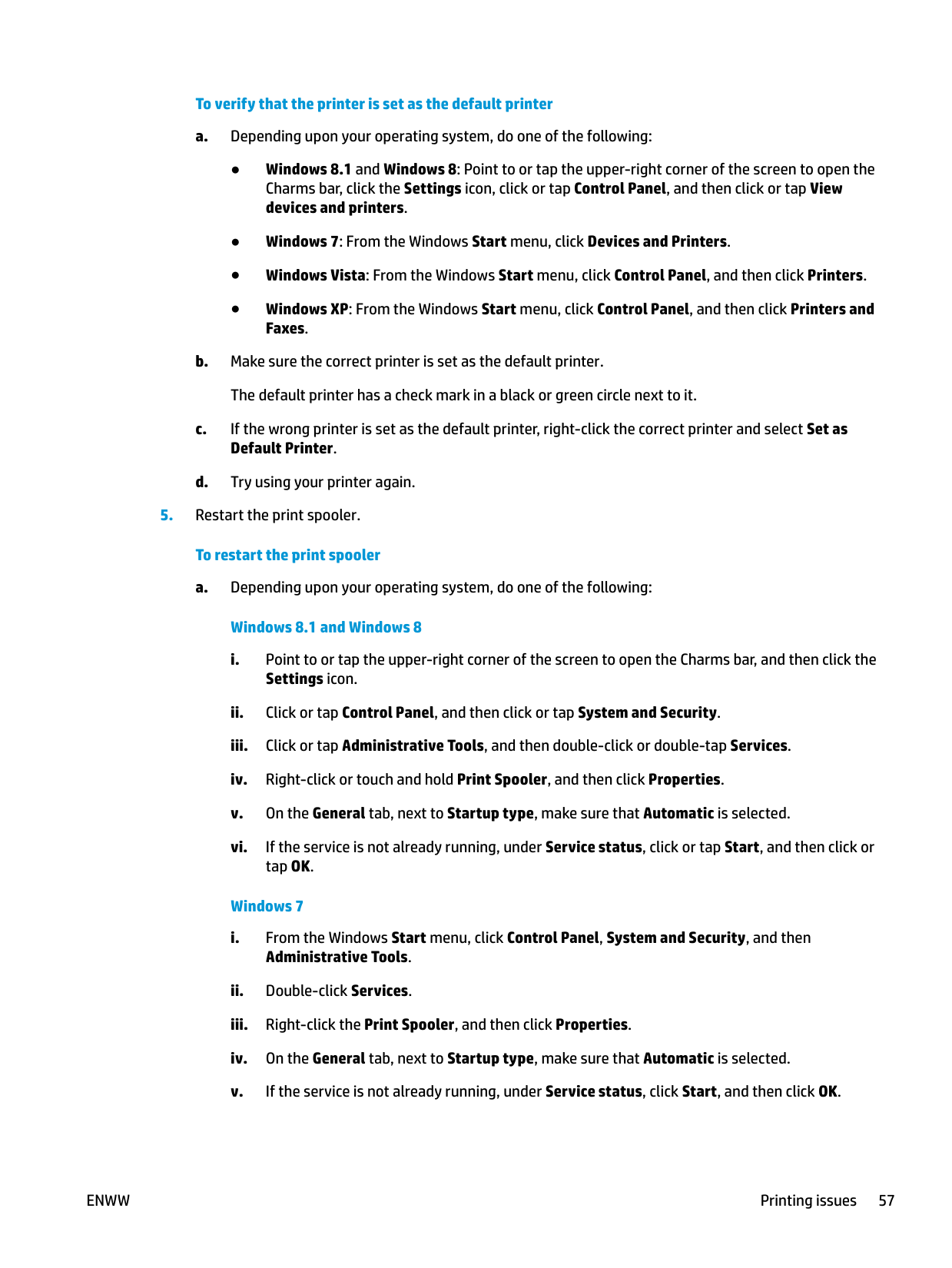
The ink cartridge is not compatible with your printer. Replace it with a new ink cartridge. For more information, see Replace ink cartridges on page 40.
ENWW Ink cartridge issues 55
Printing issues
What do you want to do?
#### Fix problems with page not printing (unable to print)
|HP Print and Scan Doctor|The HP Print and Scan Doctor is a utility that will try to diagnose and fix the issue automatically. NOTE: This utility is only available for Windows operation system.| |---|---| |Troubleshoot problems with print jobs not printing.
|Use an HP online troubleshooting wizard Get step-by-step instructions if the printer is not responding or printing.|
| | |---|
NOTE: The HP Print and Scan Doctor and the HP online troubleshooting wizards may not be available in all languages.
##### Read general instructions in the Help for unable to print issues To resolve print issues (Windows)
Make sure that the printer is turned on and that there is paper in the input tray. If you are still unable to print, try the following in order:
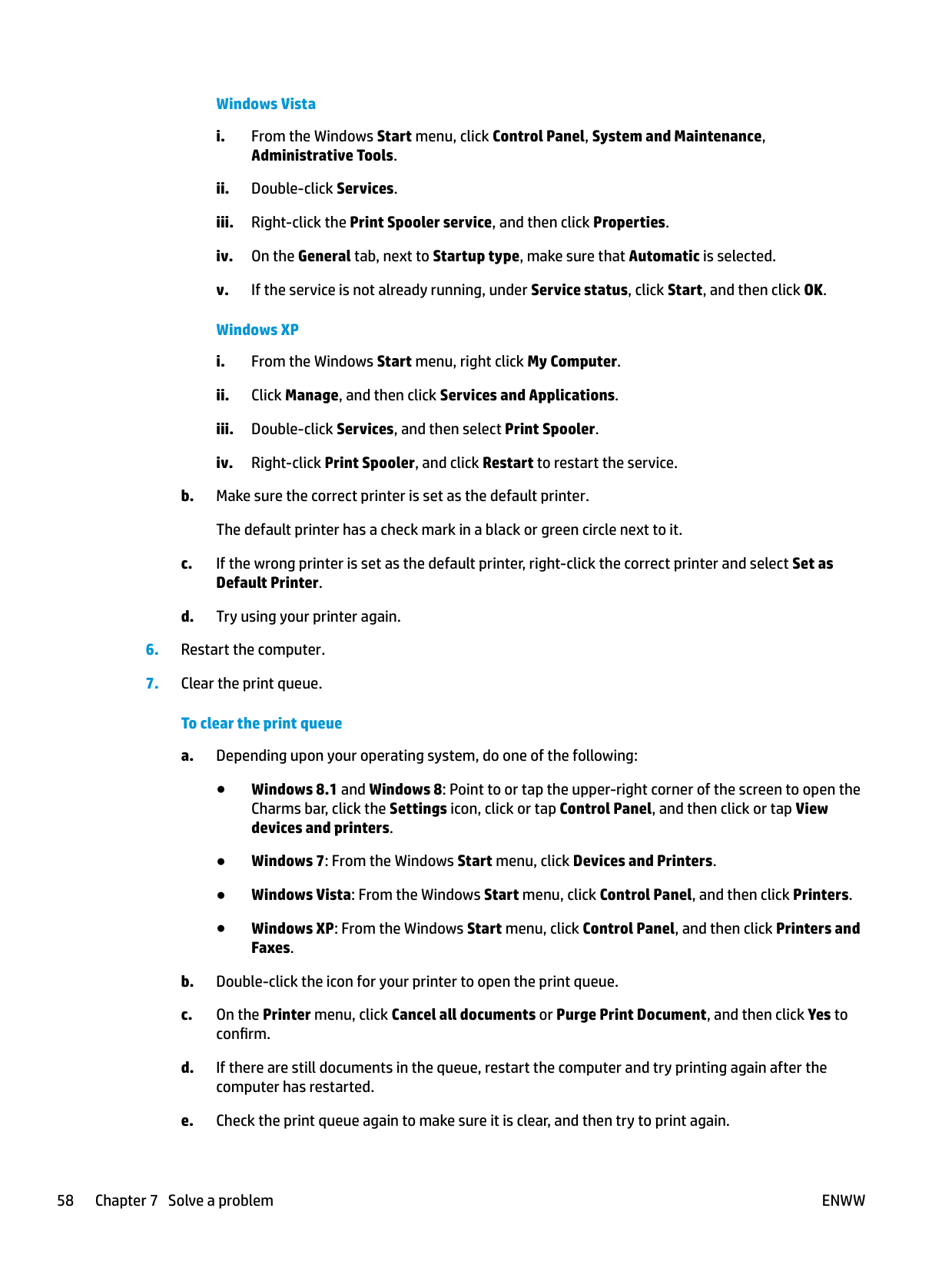
###### To verify that the printer is set as the default printer
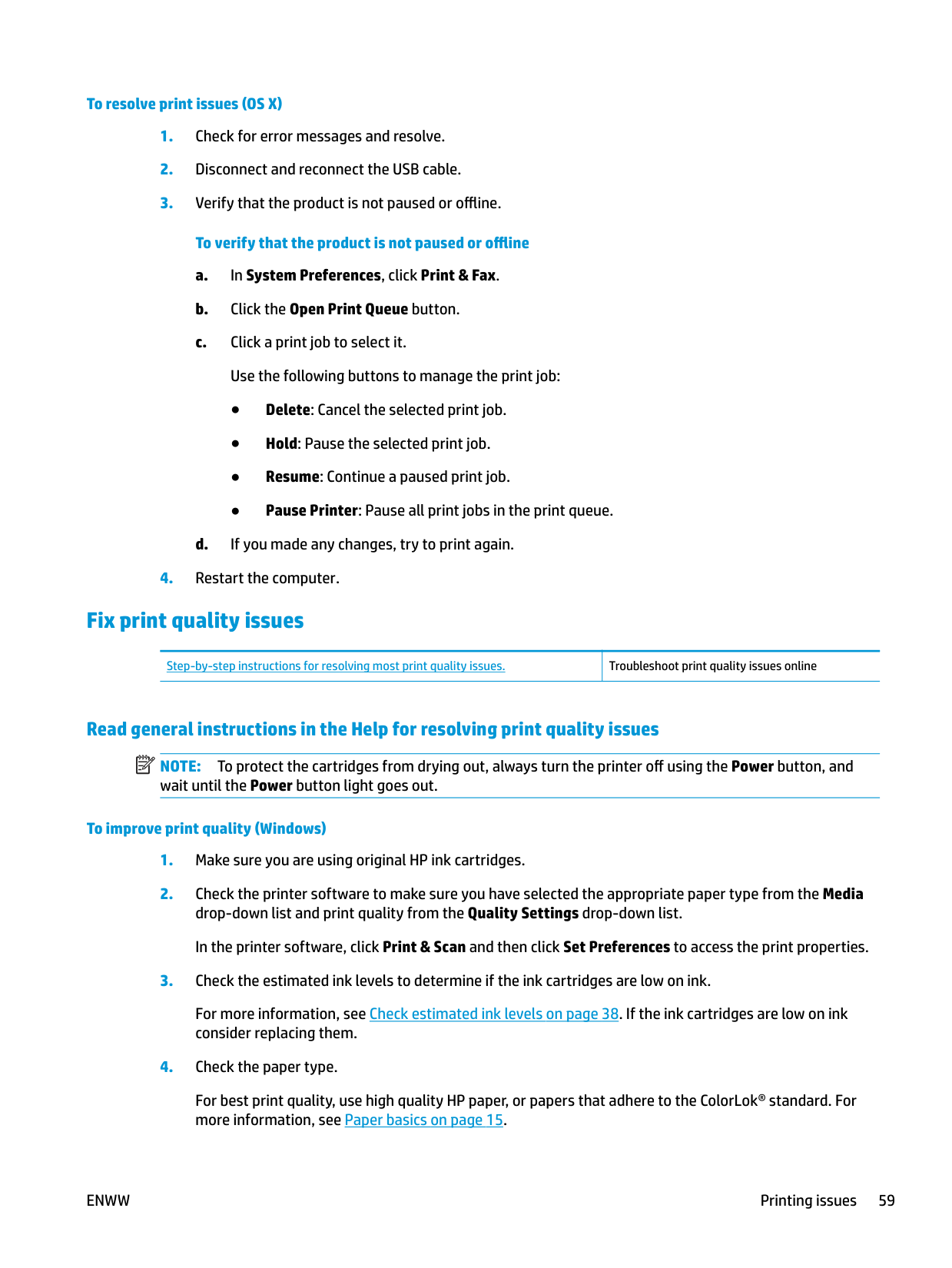
###### 5. Restart the print spooler.To restart the print spooler
Windows 7
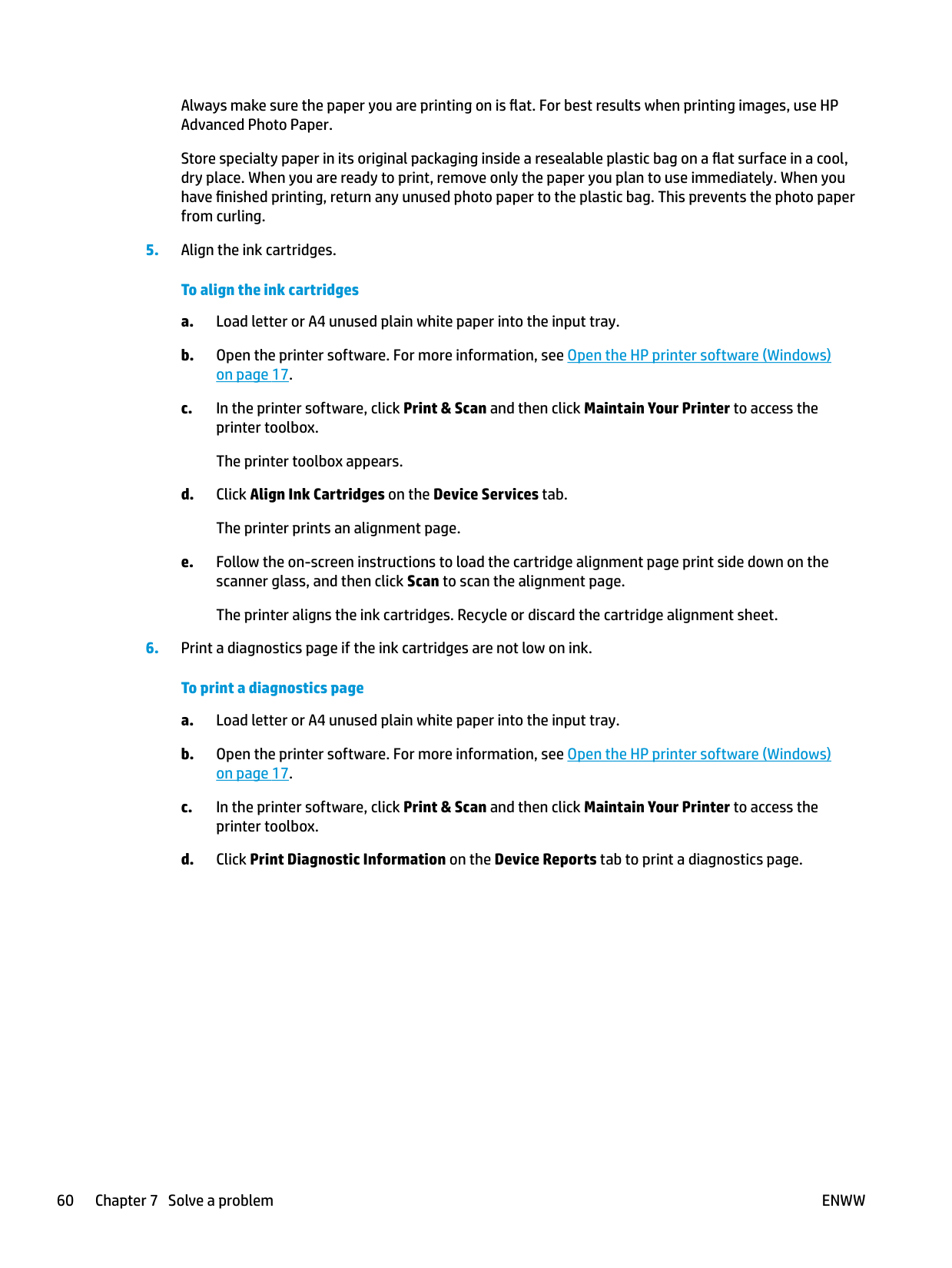
Windows Vista
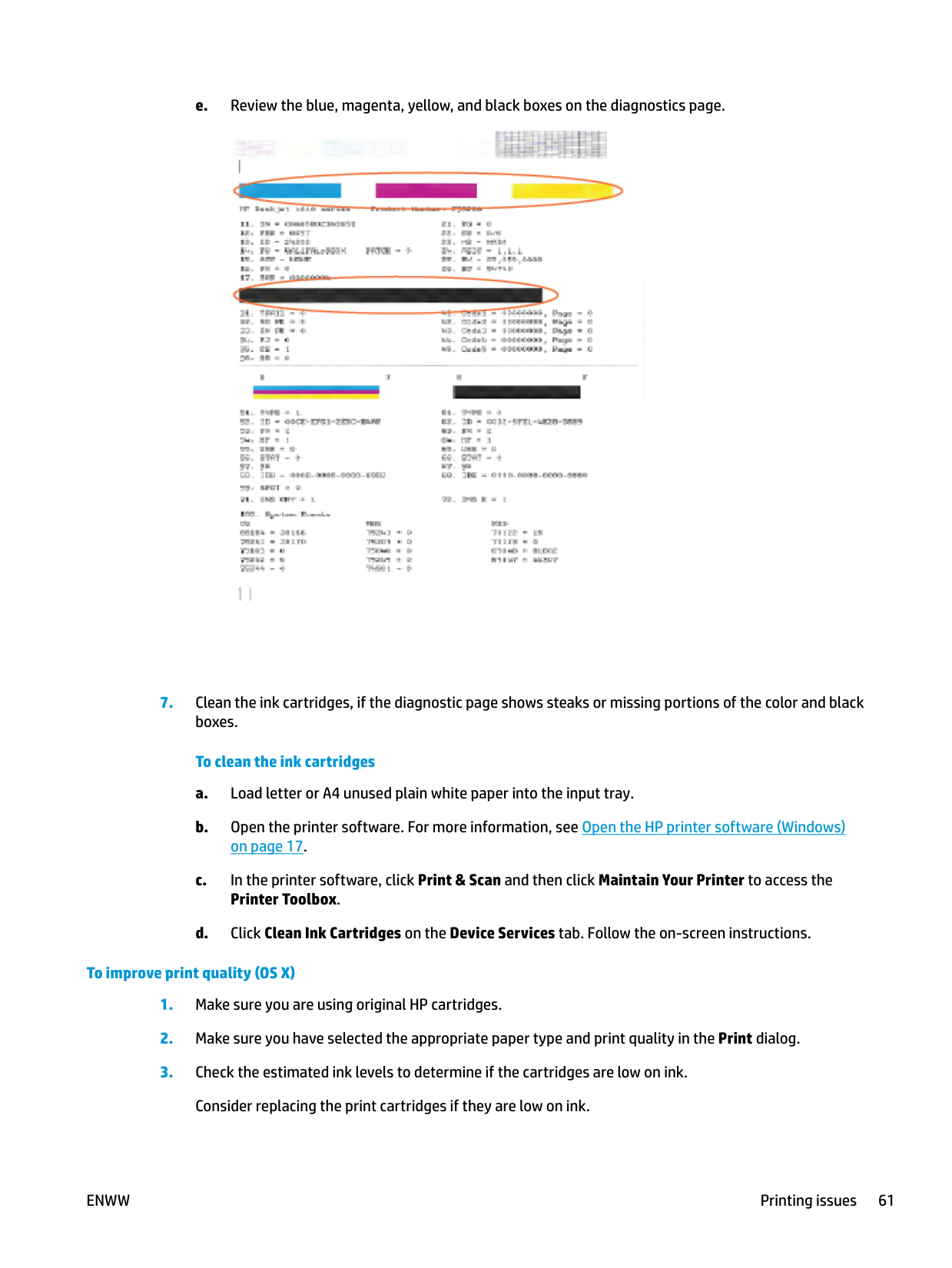
###### To resolve print issues (OS X)
#### Fix print quality issues
Step-by-step instructions for resolving most print quality issues. Troubleshoot print quality issues online
##### Read general instructions in the Help for resolving print quality issues
| |
|---|
NOTE: To protect the cartridges from drying out, always turn the printer off using the Power button, and wait until the Power button light goes out.
###### To improve print quality (Windows)
For best print quality, use high quality HP paper, or papers that adhere to the ColorLok® standard. For more information, see Paper basics on page 15.
Always make sure the paper you are printing on is flat. For best results when printing images, use HP Advanced Photo Paper.
Store specialty paper in its original packaging inside a resealable plastic bag on a flat surface in a cool, dry place. When you are ready to print, remove only the paper you plan to use immediately. When you have finished printing, return any unused photo paper to the plastic bag. This prevents the photo paper from curling.
###### 5. Align the ink cartridges.To align the ink cartridges

####### 6. Print a diagnostics page if the ink cartridges are not low on ink.To print a diagnostics page

###### To improve print quality (OS X)
####### 4. Check the paper type.
For best print quality, use high quality HP paper, or papers that adhere to the ColorLok® standard. For more information, see Paper basics on page 15.
Always make sure the paper you are printing on is flat. For best results when printing images, use HP Advanced Photo Paper.
Store specialty paper in its original packaging inside a resealable plastic bag on a flat surface in a cool, dry place. When you are ready to print, remove only the paper you plan to use immediately. When you have finished printing, return any unused photo paper to the plastic bag. This prevents the photo paper from curling.
###### 5. Align the printer cartridges.To align print cartridges from the software
NOTE: HP Utility is located in the Hewlett-Packard folder in the Applications folder at the top level of the hard disk.
| | |---|
###### 6. Print a test page.To print a test page
NOTE: HP Utility is located in the Hewlett-Packard folder in the Applications folder at the top level of the hard disk.
| | |---|
Check the test page for jagged lines in the text or streaks in the text and colored boxes. If you are seeing jagged lines, or streaks, or no ink in portions of the boxes, then automatically clean the cartridges.
####### 7. If the diagnostic page shows steaks or missing portions of the text or colored boxes, clean the printcartridges automatically.
###### To automatically clean the print head
NOTE: HP Utility is located in the Hewlett-Packard folder in the Applications folder at the top level of the hard disk.
CAUTION: Clean the print head only when necessary. Unnecessary cleaning wastes ink and shortens the life of the print head.
NOTE: If print quality still seems poor after you complete cleaning, try aligning the printer. If print quality problems persist after cleaning and aligning, contact HP support.
| |

|---|
| | |---|
Copy issues
Troubleshoot copy problems. Use an HP online troubleshooting wizard Get step-by-step instructions if the printer does not create a copy, or if your printouts are low quality.
| | |---|
NOTE: The HP online troubleshooting wizards may not be available in all languages. Tips for copy and scan success on page 36
Scan issues
|HP Print and Scan Doctor
|The HP Print and Scan Doctor is a utility that will try to diagnose and fix the issue automatically. NOTE: This utility is only available for Windows operation system.| |---|---| |Solve scan problems|Use an HP online troubleshooting wizard Get step-by-step instructions if you cannot create a scan or if your scans are low quality.|
| |
|---|
NOTE: The HP Print and Scan Doctor and the HP online troubleshooting wizards may not be available in all languages.
Tips for copy and scan success on page 36
ENWW Scan issues 65
Printer hardware issues
###### Close cartridge access door
● Cartridge door must be closed to begin printing.

###### The printer shuts down unexpectedly
| | |---|
NOTE: When Auto-Off is enabled, the printer will automatically turn off after 2 hours of inactivity to help reduce energy use. For more information, see Auto-Off on page 19.
###### Resolve printer failure
● Turn the printer off, then on. If that does not resolve the problem, contact HP.
HP support
For the latest product updates and support information, visit the HP DeskJet 2130 series support website at www.hp.com/support. HP online support provides a variety of options for help with your printer:


Drivers & downloads: Download software drivers and updates, as well as product manuals and documentation that came in the box with your printer.
HP support forums: Visit HP Support Forums for answers to common questions and issues. You can view questions posted by other HP customers, or sign in and post your own questions and comments.
Troubleshooting: Use HP online tools to detect your printer and find recommended solutions.
#### Contact HP
If you need help from an HP technical support representative to solve a problem, visit the Contact Support website. The following contact options are available at no cost for in-warranty customers (HP agent-assisted support for out-of warranty customers may require a fee):
Chat with an HP support agent online.

Call an HP support agent.

When contacting HP support, be prepared to provide the following information:

#### Register printer
By taking just a few quick minutes to register, you can enjoy quicker service, more efficient support, and product support alerts. If you did not register your printer while installing the software, you can register now at http://www.register.hp.com.
ENWW HP support 67
#### Additional warranty options
Extended service plans are available for the HP DeskJet 2130 series at additional costs. Go to www.hp.com/ support , select your country/region and language, then explore the extended warranty options available for your printer.
A Technical information
The technical specifications and international regulatory information for the HP DeskJet 2130 series are provided in this section.
For additional specifications, see the printed documentation that came with the HP DeskJet 2130 series. This section contains the following topics:
ENWW 69
Hewlett-Packard Company notices The information contained herein is subject to change without notice. All rights reserved. Reproduction, adaptation, or translation of this material is prohibited without prior written permission of Hewlett-Packard, except as allowed under the copyright laws. The only warranties for HP products and services are set forth in the express warranty statements accompanying such products and services. Nothing herein should be construed as constituting an additional warranty. HP shall not be liable for technical or editorial errors or omissions contained herein. © 2014 HP Development Company, L.P. Microsoft®, Windows ®, Windows® XP, Windows Vista®, Windows® 7, Windows® 8, and Windows® 8.1 are U.S. registered trademarks of Microsoft Corporation.
Specifications
Technical specifications for the HP DeskJet 2130 series are provided in this section. For more product specifications, see the Product Data Sheet at www.hp.com/support .
###### System requirements
###### Environmental specifications
###### Input tray capacity
###### Output tray capacity
###### Paper size
● For a complete list of supported media sizes, see the printer software.
###### Paper weights
ENWW Specifications 71
###### Print specifications
###### Copy specifications
###### Scan specifications
###### Print resolution
● For a list of supported print resolutions, visit the HP DeskJet 2130 series support website at www.hp.com/support.
###### Cartridge yield
● Visit www.hp.com/go/learnaboutsupplies for more information on estimated cartridge yields.
###### Acoustic information
● If you have Internet access, you can access acoustic information from the HP website.
Environmental product stewardship program
Hewlett-Packard is committed to providing quality products in an environmentally sound manner. Design for recycling has been incorporated into this product. The number of materials has been kept to a minimum while ensuring proper functionality and reliability. Dissimilar materials have been designed to separate easily. Fasteners and other connections are easy to locate, access, and remove using common tools. High priority parts have been designed to access quickly for efficient disassembly and repair.
For more information, visit HP's Commitment to the Environment Web site at: www.hp.com/hpinfo/globalcitizenship/environment
#### Eco-Tips
HP is committed to helping customers reduce their environmental footprint. Please visit the HP Environmental Programs and Initiatives website for more information on HP’s environmental initiatives.
www.hp.com/hpinfo/globalcitizenship/environment/
#### European Union Commission Regulation 1275/2008
For product power data, including the power consumption of the product in networked standby if all wired network ports are connected and all wireless network ports are activated, please refer to section P14 ‘Additional Information’ of the product IT ECO Declaration at www.hp.com/hpinfo/globalcitizenship/ environment/productdata/itecodesktop-pc.html.
#### Paper use
This product is suited for the use of recycled paper according to DIN 19309 and EN 12281:2002.
#### Plastics
Plastic parts over 25 grams are marked according to international standards that enhance the ability to identify plastics for recycling purposes at the end of product life.
Material safety data sheets Material safety data sheets (MSDS) can be obtained from the HP website at: www.hp.com/go/msds
#### Recycling program
HP offers an increasing number of product return and recycling programs in many countries/regions, and partners with some of the largest electronic recycling centers throughout the world. HP conserves resources by reselling some of its most popular products. For more information regarding recycling of HP products, please visit:
www.hp.com/hpinfo/globalcitizenship/environment/recycle/
#### HP inkjet supplies recycling program
HP is committed to protecting the environment. The HP Inkjet Supplies Recycling Program is available in many countries/regions, and lets you recycle used print cartridges and ink cartridges free of charge. For more information, go to the following website:
www.hp.com/hpinfo/globalcitizenship/environment/recycle/
#### Power consumption
Hewlett-Packard printing and imaging equipment marked with the ENERGY STAR® logo is qualified to the U.S. Environmental Protection Agency’s ENERGY STAR specifications for imaging equipment. The following mark will appear on ENERGY STAR qualified imaging products:

Additional ENERGY STAR qualified imaging product model information is listed at: www.hp.com/go/energystar
#### Disposal of waste equipment by users

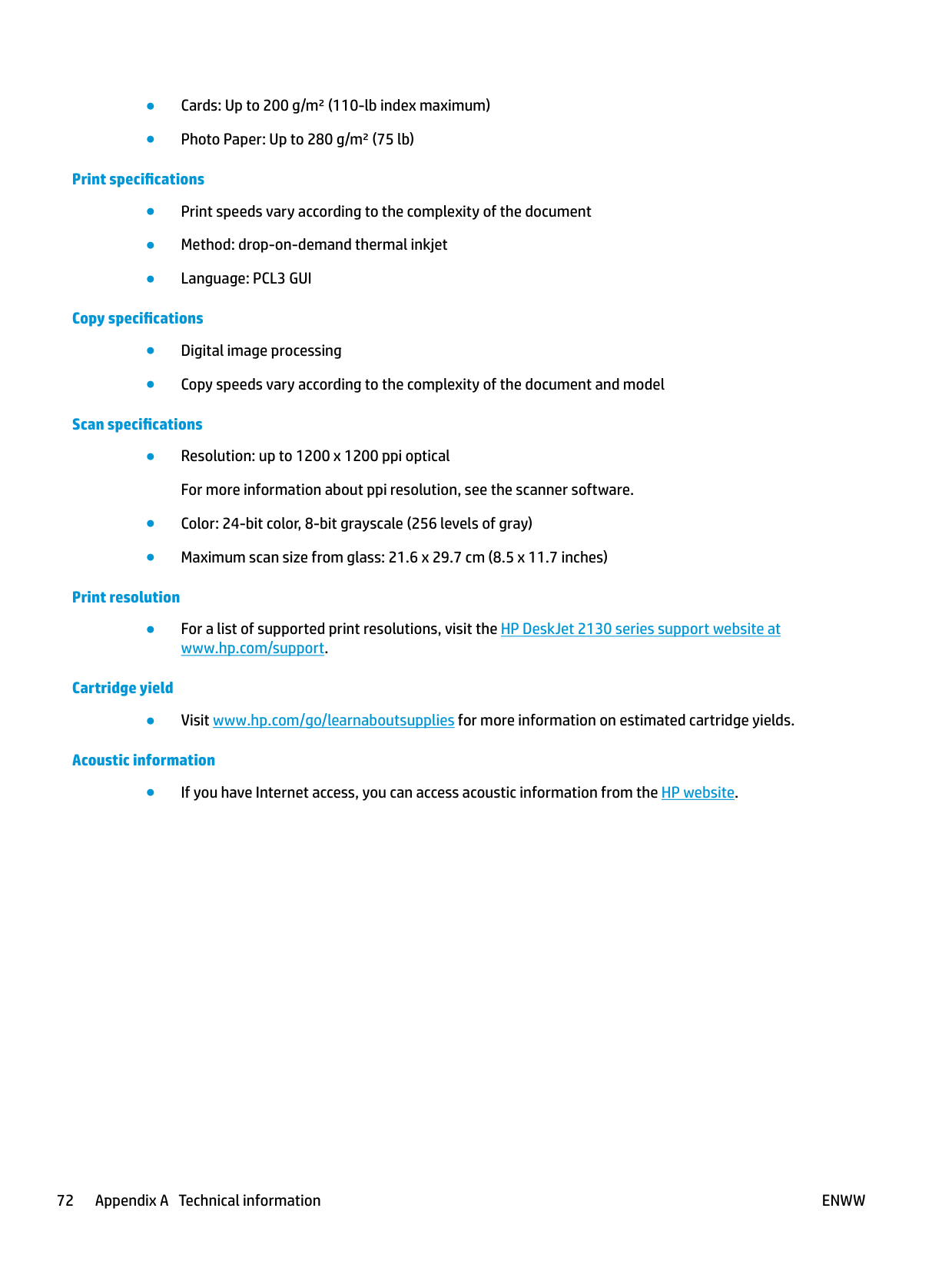
This symbol means do not dispose of your product with your other household waste. Instead, you should protect human health and the environment by handing over your waste equipment to a designated collection point for the recycling of waste electrical and electronic equipment. For more information, please contact your household waste disposal service, or go to http://www.hp.com/recycle.
#### Chemical substances
HP is committed to providing our customers with information about the chemical substances in our products as needed to comply with legal requirements such as REACH (Regulation EC No 1907/2006 of the European Parliament and the Council). A chemical information report for this product can be found at: www.hp.com/go/ reach.
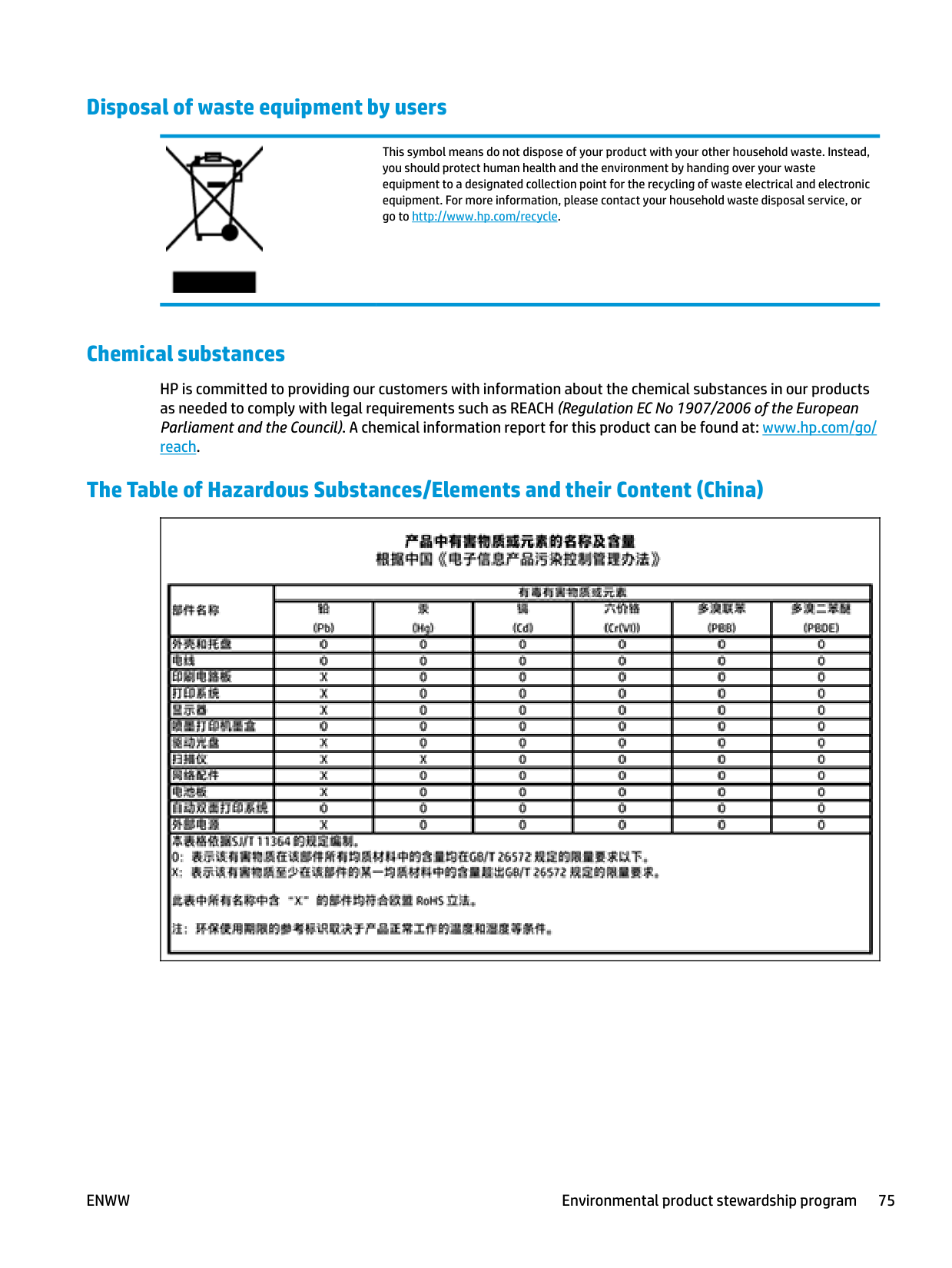
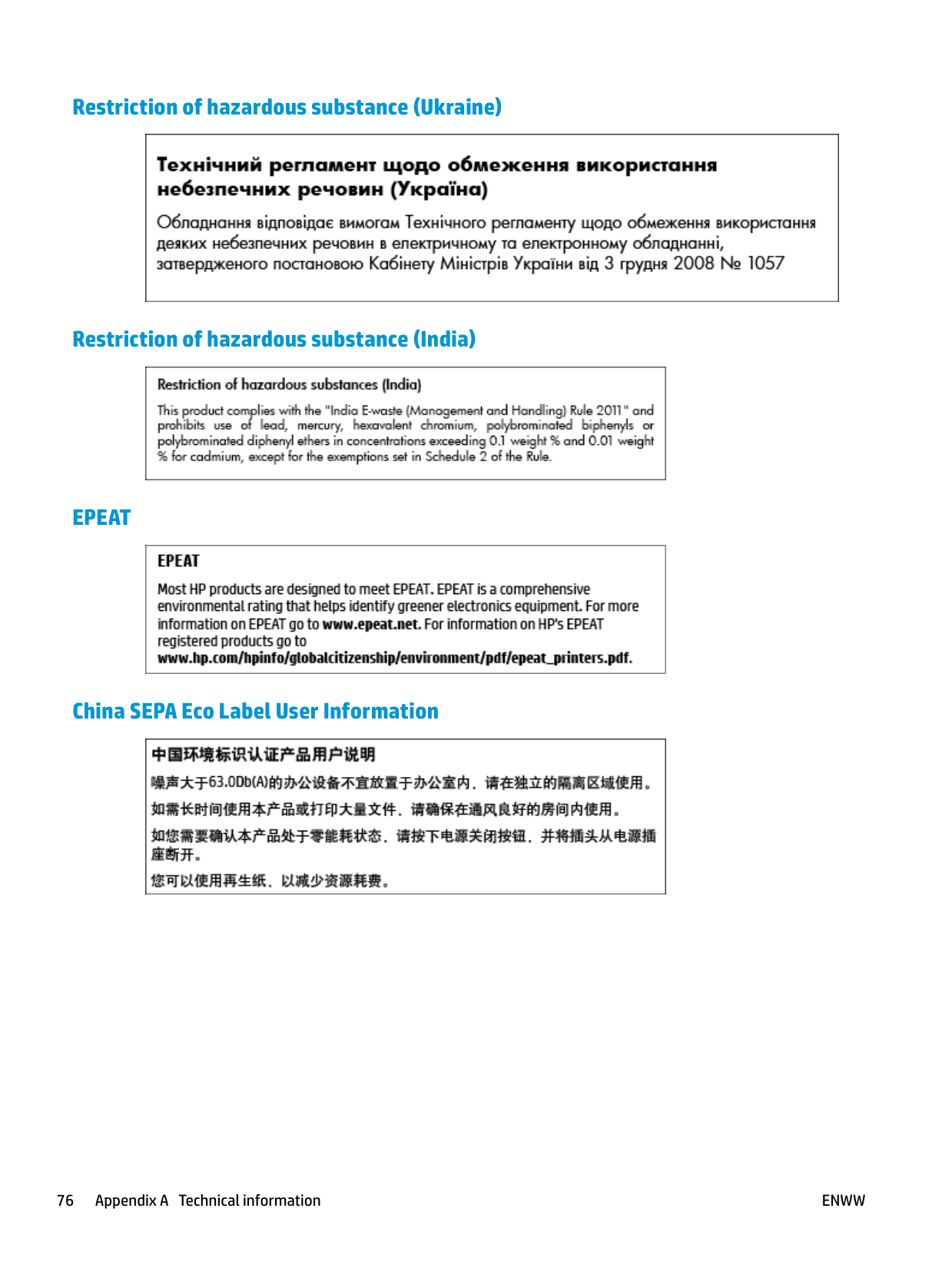
#### The Table of Hazardous Substances/Elements and their Content (China)

#### Restriction of hazardous substance (Ukraine)

#### Restriction of hazardous substance (India)

#### EPEAT

#### China SEPA Eco Label User Information

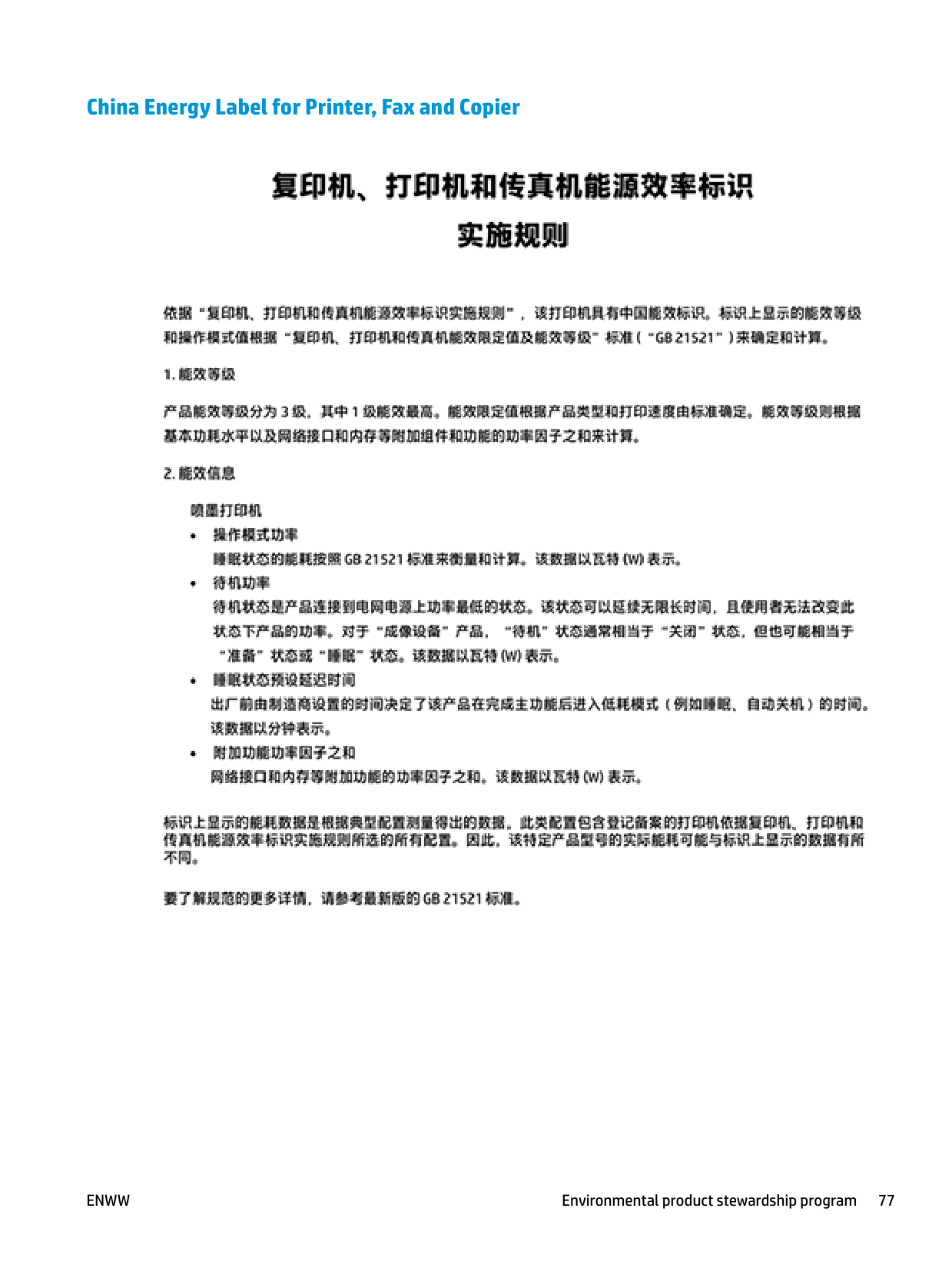
#### China Energy Label for Printer, Fax and Copier

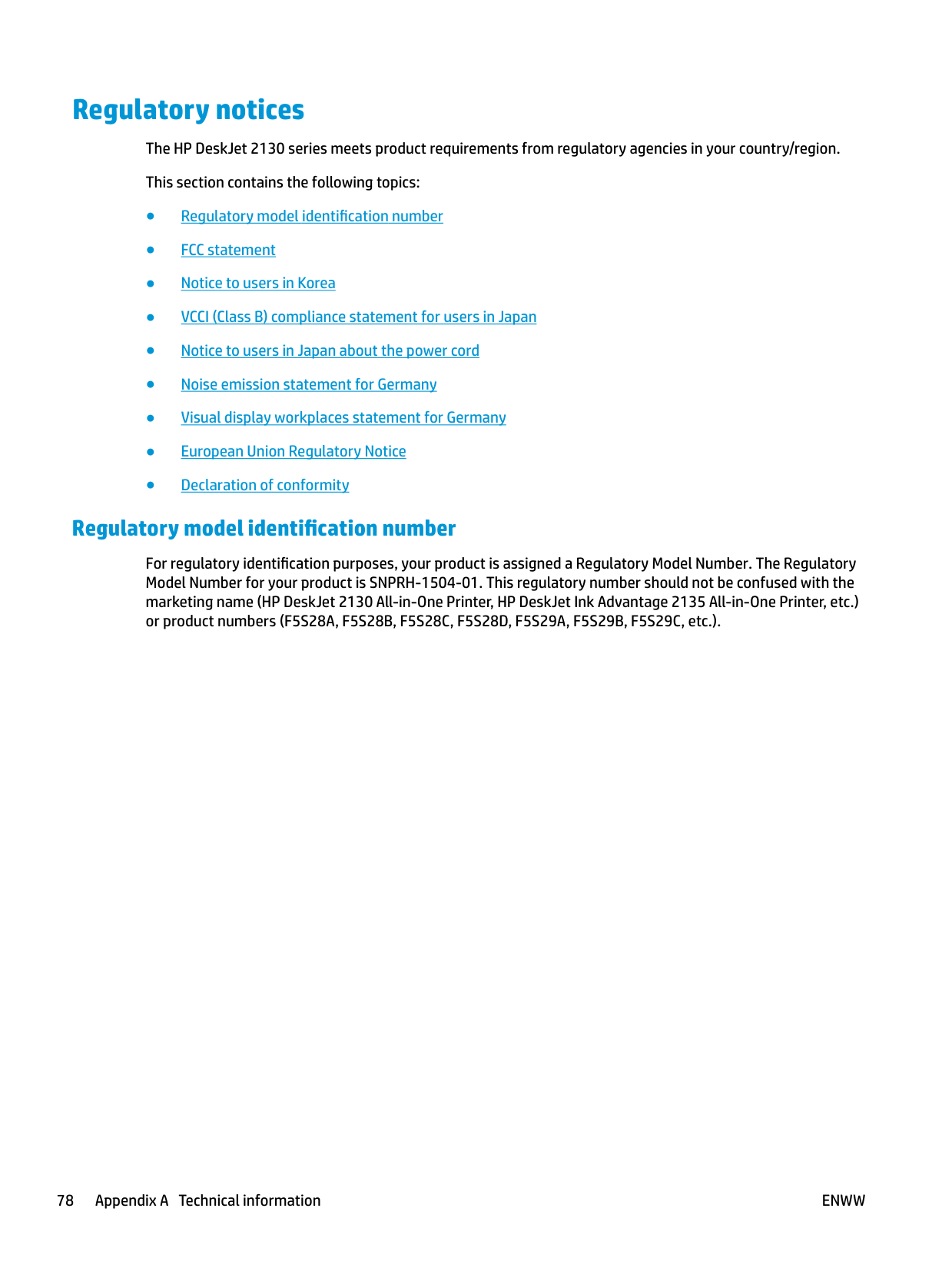
Regulatory notices The HP DeskJet 2130 series meets product requirements from regulatory agencies in your country/region. This section contains the following topics:
#### Regulatory model identification number
For regulatory identification purposes, your product is assigned a Regulatory Model Number. The Regulatory Model Number for your product is SNPRH-1504-01. This regulatory number should not be confused with the marketing name (HP DeskJet 2130 All-in-One Printer, HP DeskJet Ink Advantage 2135 All-in-One Printer, etc.) or product numbers (F5S28A, F5S28B, F5S28C, F5S28D, F5S29A, F5S29B, F5S29C, etc.).
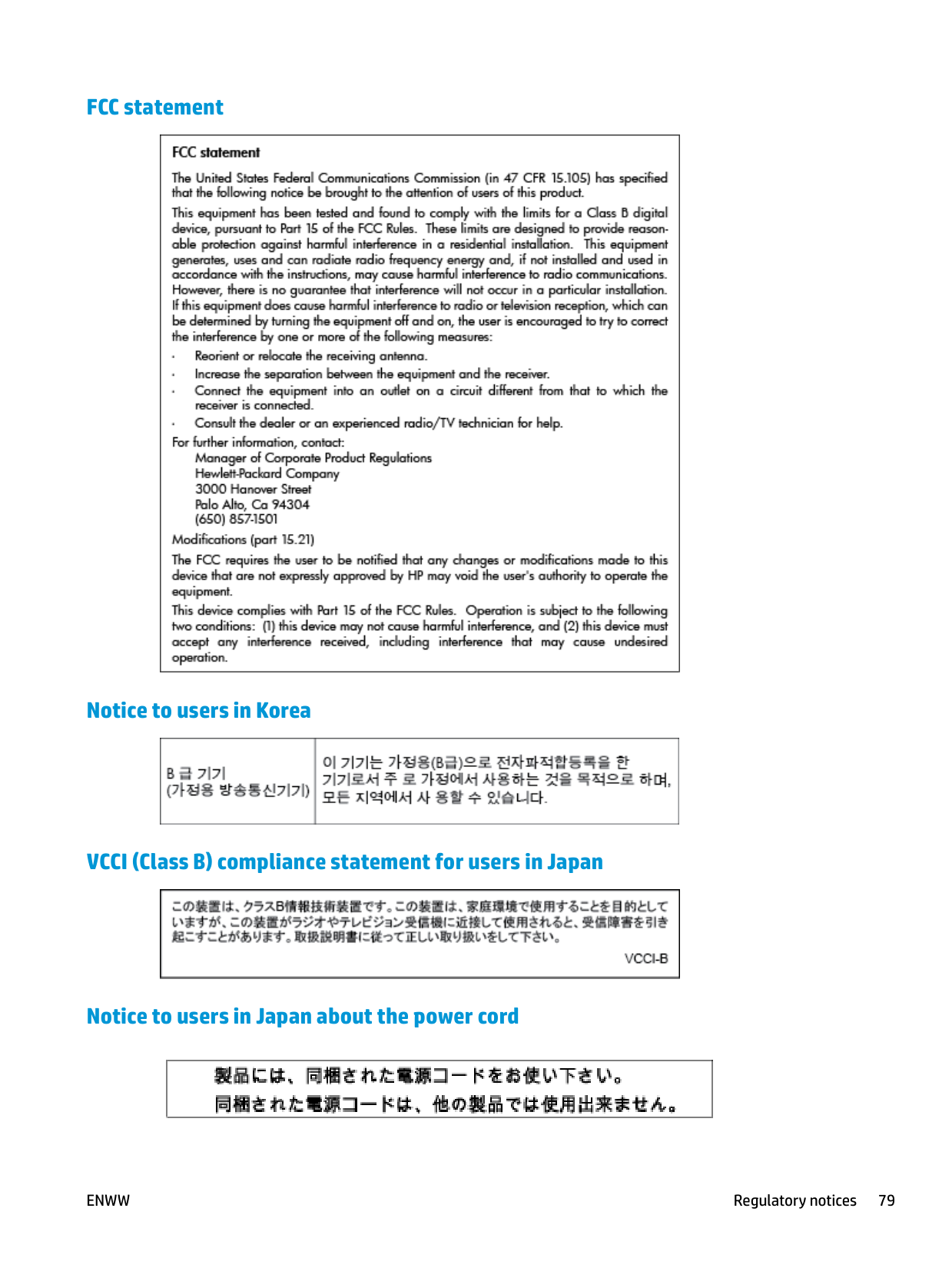
#### FCC statement


#### Notice to users in Korea

#### VCCI (Class B) compliance statement for users in Japan

#### Notice to users in Japan about the power cord

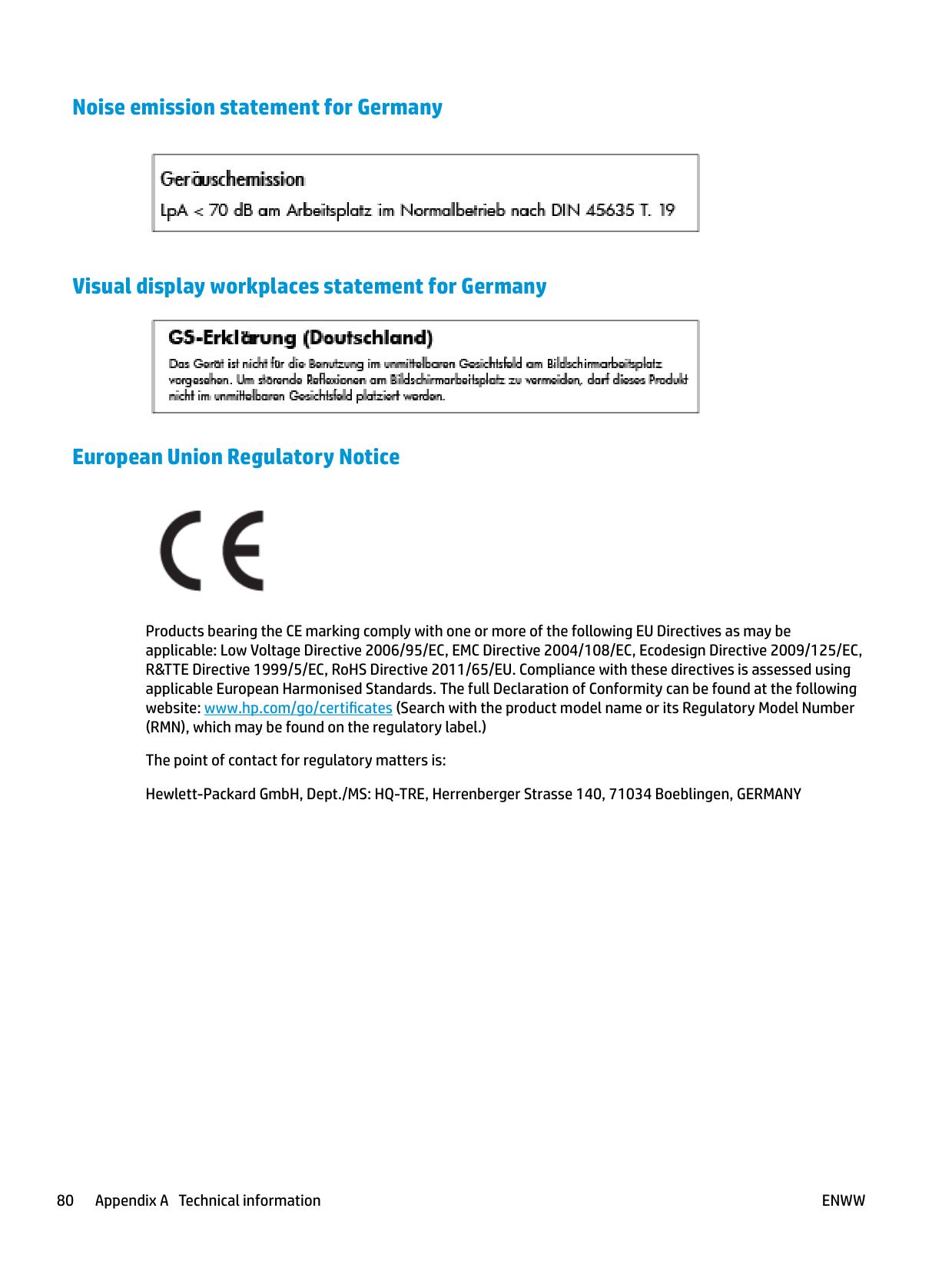
#### Noise emission statement for Germany

#### Visual display workplaces statement for Germany

#### European Union Regulatory Notice

Products bearing the CE marking comply with one or more of the following EU Directives as may be applicable: Low Voltage Directive 2006/95/EC, EMC Directive 2004/108/EC, Ecodesign Directive 2009/125/EC, R&TTE Directive 1999/5/EC, RoHS Directive 2011/65/EU. Compliance with these directives is assessed using applicable European Harmonised Standards. The full Declaration of Conformity can be found at the following website: www.hp.com/go/certificates (Search with the product model name or its Regulatory Model Number (RMN), which may be found on the regulatory label.)
The point of contact for regulatory matters is: Hewlett-Packard GmbH, Dept./MS: HQ-TRE, Herrenberger Strasse 140, 71034 Boeblingen, GERMANY
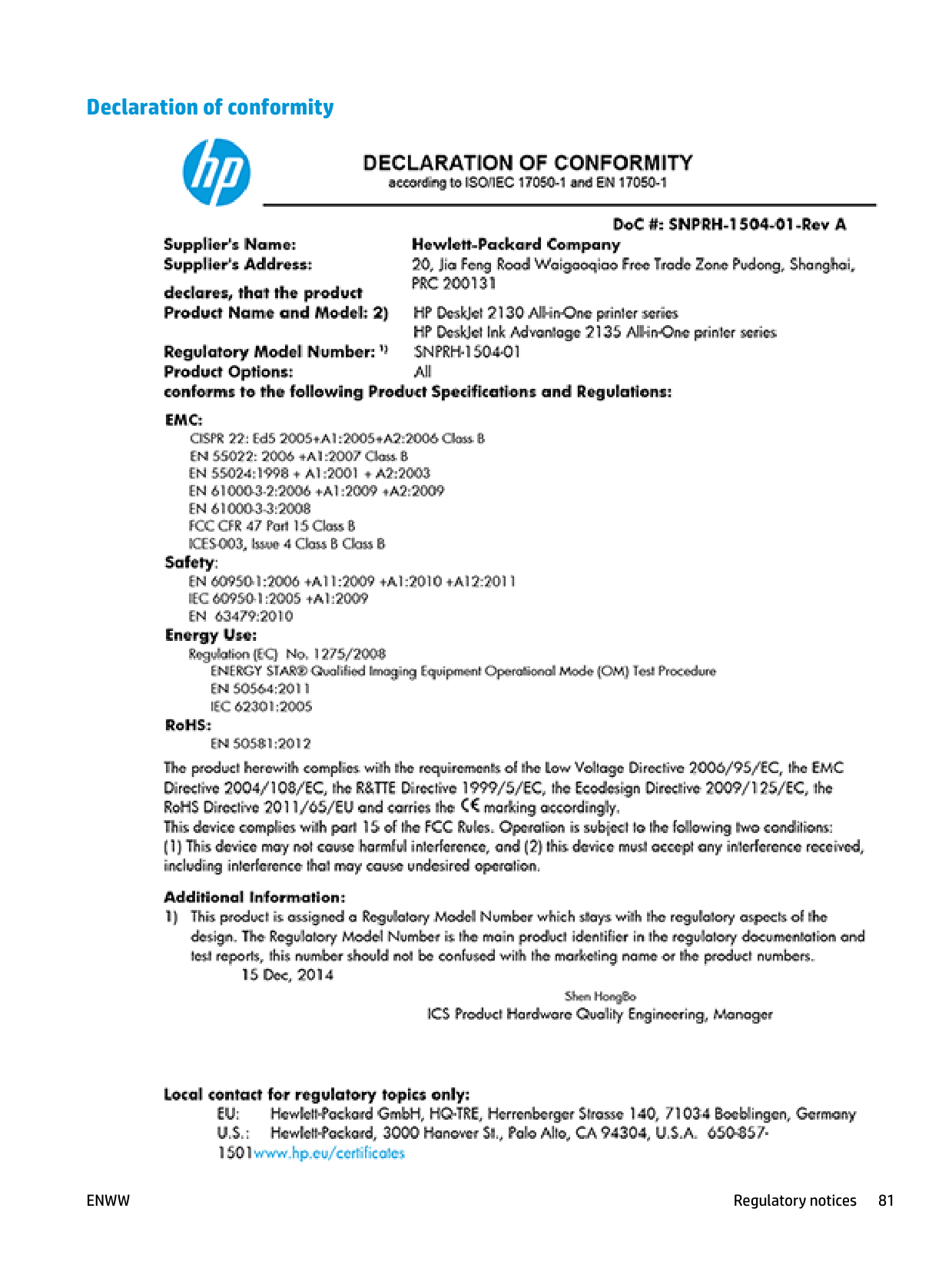
#### Declaration of conformity

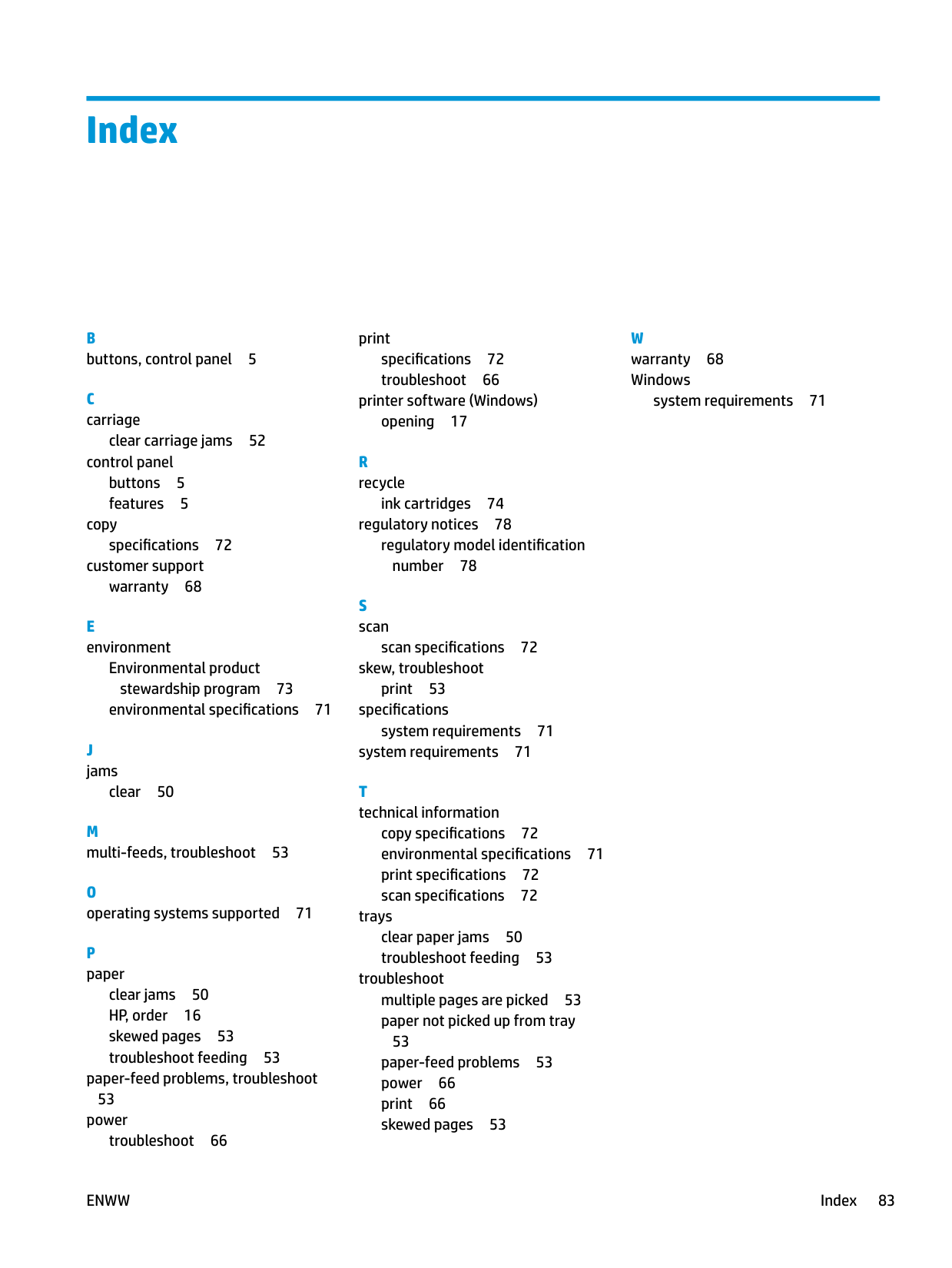
Index
clear carriage jams 52
control panel buttons 5 features 5
copy
specifications 72 customer support
warranty 68
E environment

Environmental product stewardship program 73 environmental specifications 71
J jams
clear 50
M multi-feeds, troubleshoot 53
clear jams 50 HP, order 16 skewed pages 53 troubleshoot feeding 53
paper-feed problems, troubleshoot
53 power
troubleshoot 66
print specifications 72 troubleshoot 66
printer software (Windows) opening 17
ink cartridges 74 regulatory notices 78 regulatory model identification number 78
scan specifications 72 skew, troubleshoot
print 53 specifications
system requirements 71 system requirements 71
copy specifications 72 environmental specifications 71 print specifications 72 scan specifications 72
trays clear paper jams 50 troubleshoot feeding 53
troubleshoot multiple pages are picked 53 paper not picked up from tray
53 paper-feed problems 53 power 66 print 66 skewed pages 53
W warranty 68 Windows
system requirements 71
ENWW Index 83
####### 84 Index ENWW