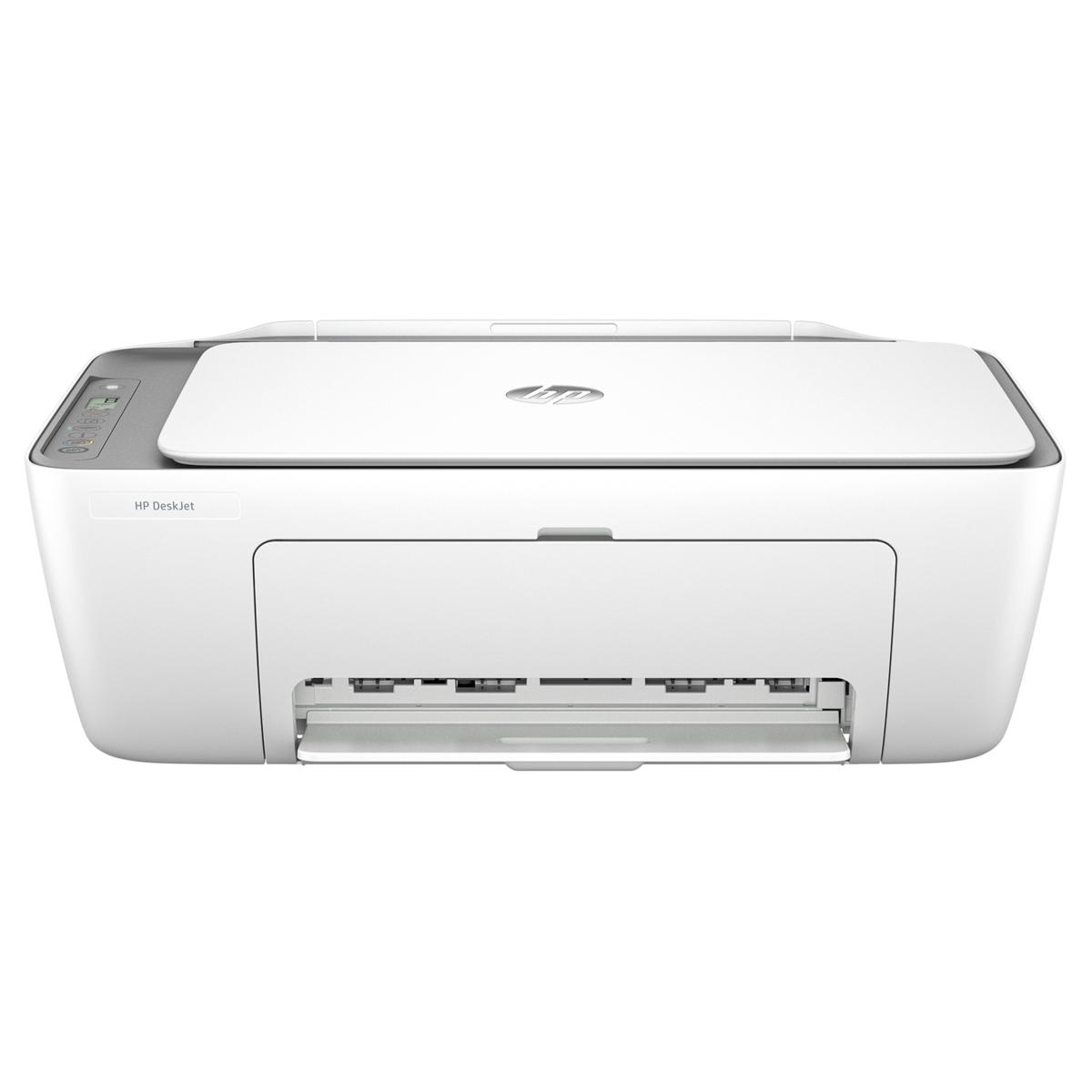
HP Deskjet Ink Advantage 2800 All IN One Printer
Ask AI
— answers from the official manualAnswers from the official manual.
Common questions
Common Questions
8 total我该怎样正确安装墨盒?
打开墨水检修门,移除保护胶带后旋转并插入墨盒至其卡入到位为止。(Page 5)
我的纸张尺寸与打印机设置不匹配怎么办?
需要使用较大尺寸的纸张,将正确的纸张装入或将打印设置调整为合适的纸张大小。(Page 3)
遇到E4错误(卡纸),我该如何操作?
取出进纸区域或清除区域中的卡纸。具体步骤包括关闭打印机,降低进纸盒,清空出纸箱并打开检修门,然后清理纸张。(Page 4)
如何自动恢复Wi-Fi连接?
按住电源键和无线按钮直至蓝色灯闪烁。等待一分钟后关闭HP软件并重新启动后再尝试连接。(Page 7)
我如何重置打印机的Wi-Fi设置?
同时按住电源和无线按钮直至蓝色灯闪烁,等待一分钟后再关闭HP软件重新启动尝试连接。(Page 7)
如何装载纸张进行打印或复印操作?
向上拉起输入托盘即可看到,装入合适的纸张,并调整导板位置。(Page 6)
Show 2 more questions
Full Manual
12 pages
参考指南
Reference Guide
HP DeskJet All-in-One series 2800 Ink Advantage 2800 Ink Advantage Ultra 4900
简体中文
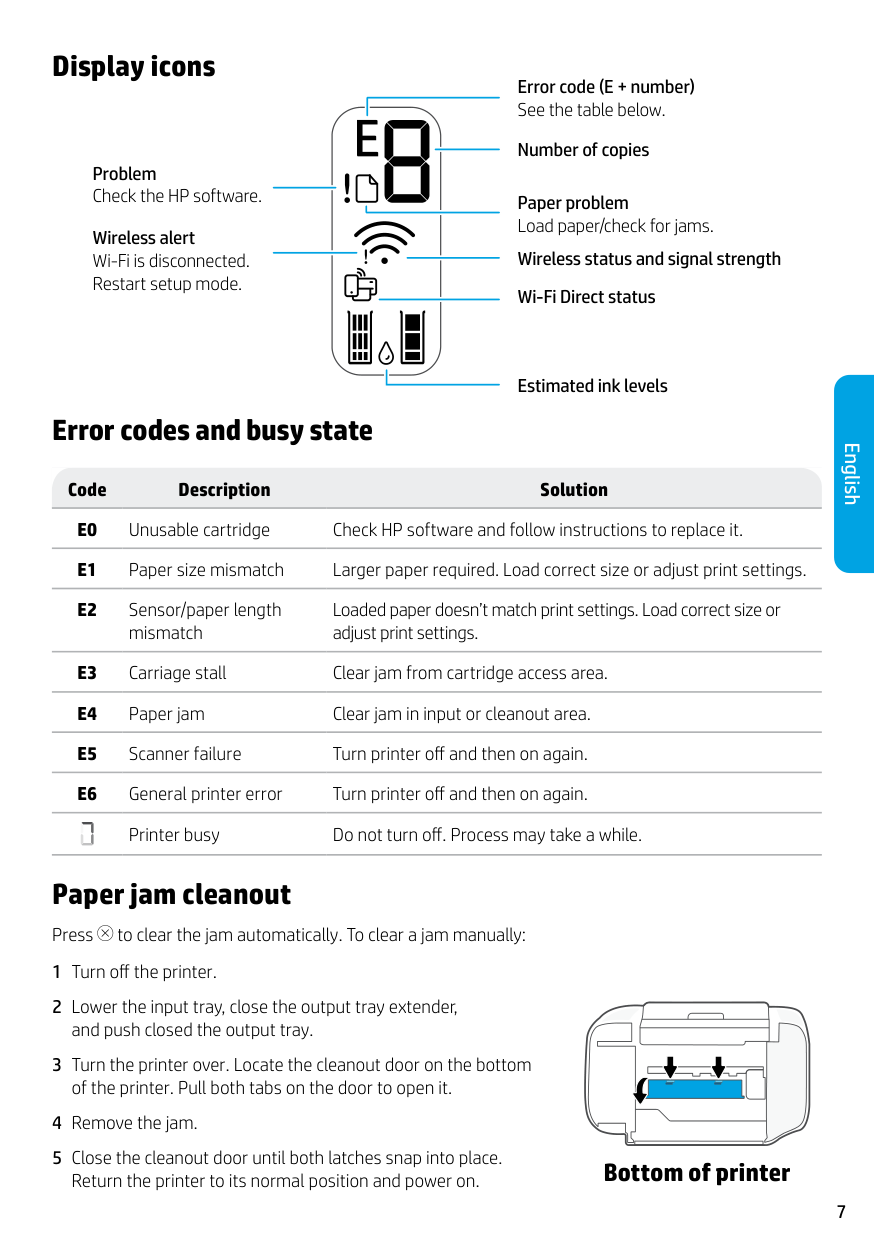
打印机功能
背面正面
1
6
7 8
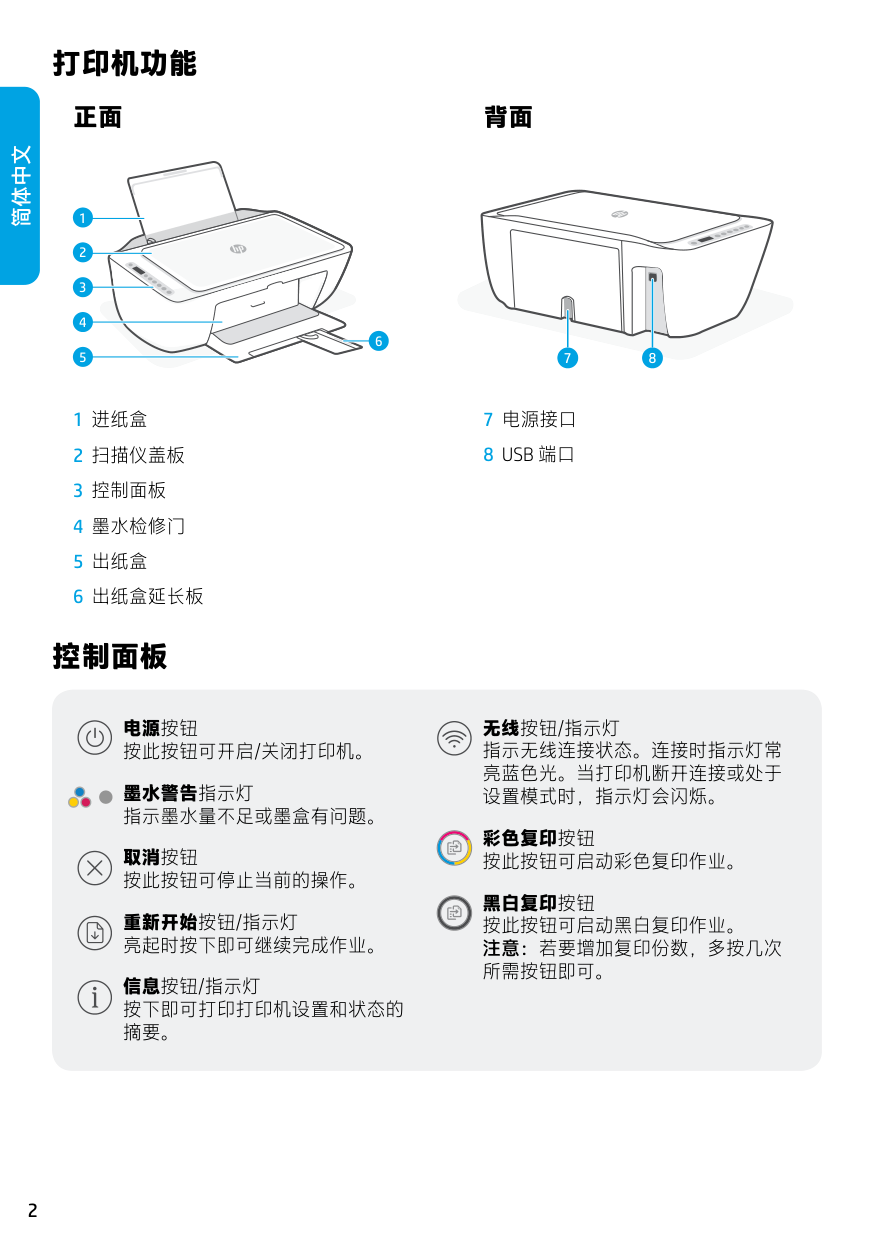
控制面板
电源按钮 按此按钮可开启/关闭打印机。
墨水警告指示灯 指示墨水量不足或墨盒有问题。
取消按钮 按此按钮可停止当前的操作。
重新开始按钮/指示灯 亮起时按下即可继续完成作业。
信息按钮/指示灯 按下即可打印打印机设置和状态的 摘要。
无线按钮/指示灯
指示无线连接状态。连接时指示灯常 亮蓝色光。当打印机断开连接或处于 设置模式时,指示灯会闪烁。
彩色复印按钮 按此按钮可启动彩色复印作业。
黑白复印按钮 按此按钮可启动黑白复印作业。 注意:若要增加复印份数,多按几次 所需按钮即可。
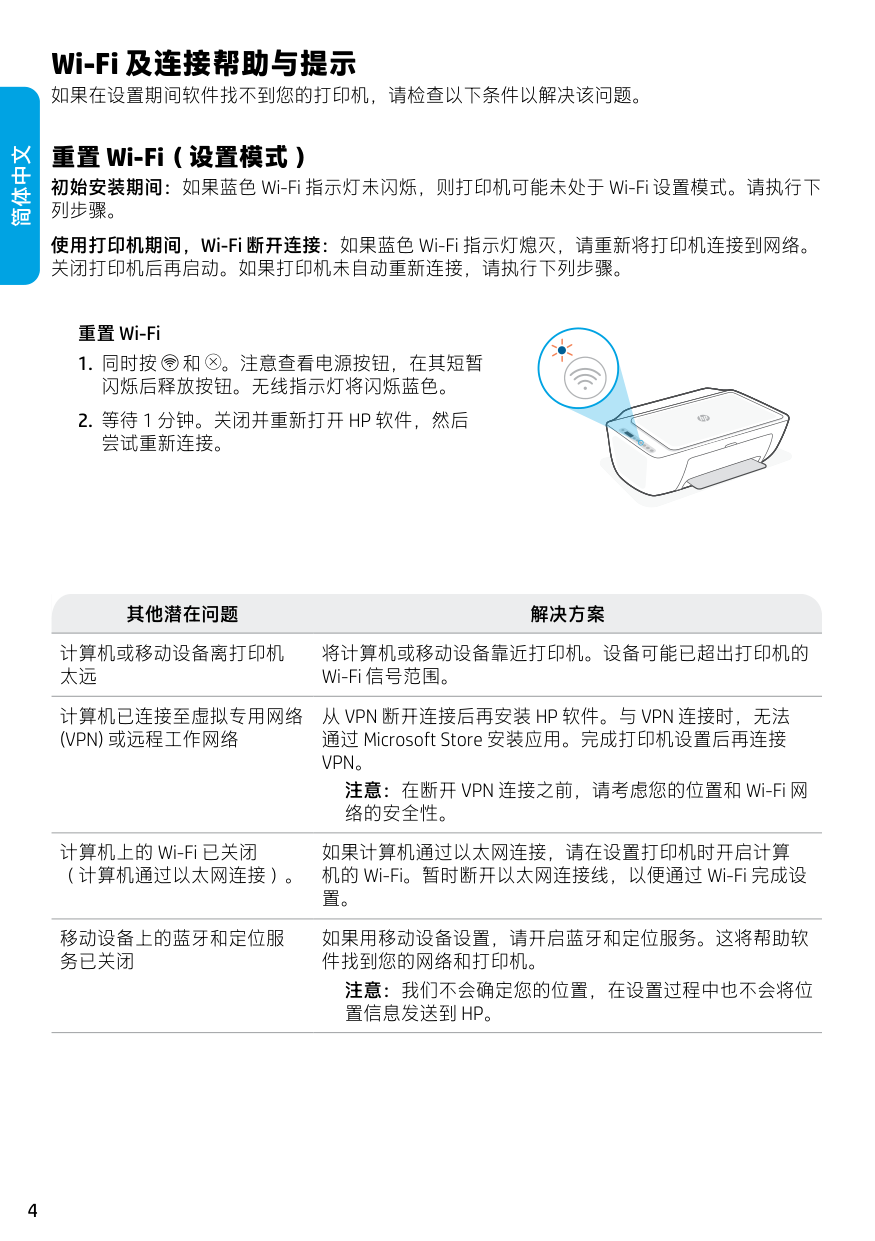
显示屏图标
出现问题 检查 HP 软件
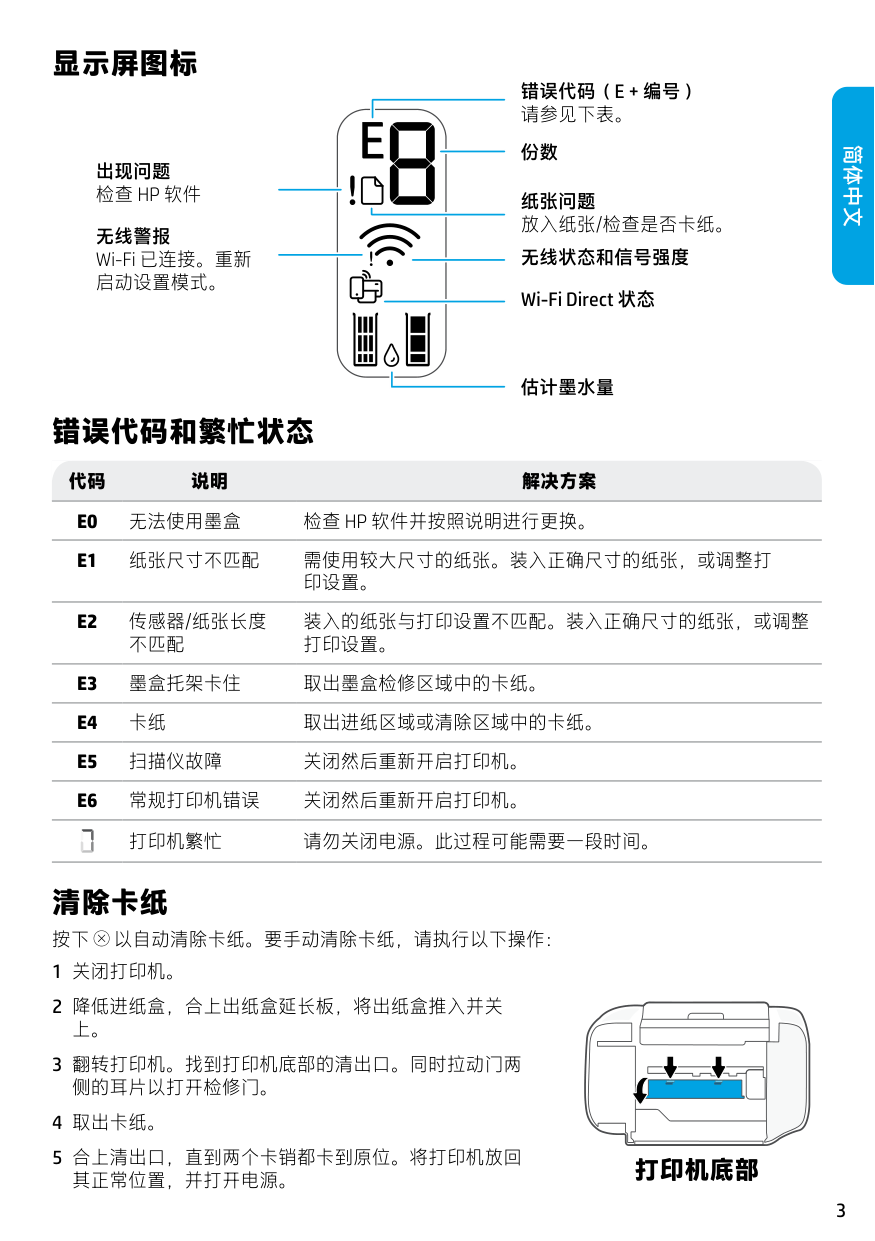
无线警报 Wi-Fi 已连接。重新 启动设置模式。
错误代码(E + 编号) 请参见下表。
份数
纸张问题 放入纸张/检查是否卡纸。
无线状态和信号强度
Wi-Fi Direct 状态
估计墨水量
简体中文
错误代码和繁忙状态
###### 代码 说明 解决方案
装入的纸张与打印设置不匹配。装入正确尺寸的纸张,或调整 打印设置。
打印机繁忙 请勿关闭电源。此过程可能需要一段时间。
清除卡纸
按下 以自动清除卡纸。要手动清除卡纸,请执行以下操作:
打印机底部
简体中文
Wi-Fi 及连接帮助与提示
如果在设置期间软件找不到您的打印机,请检查以下条件以解决该问题。
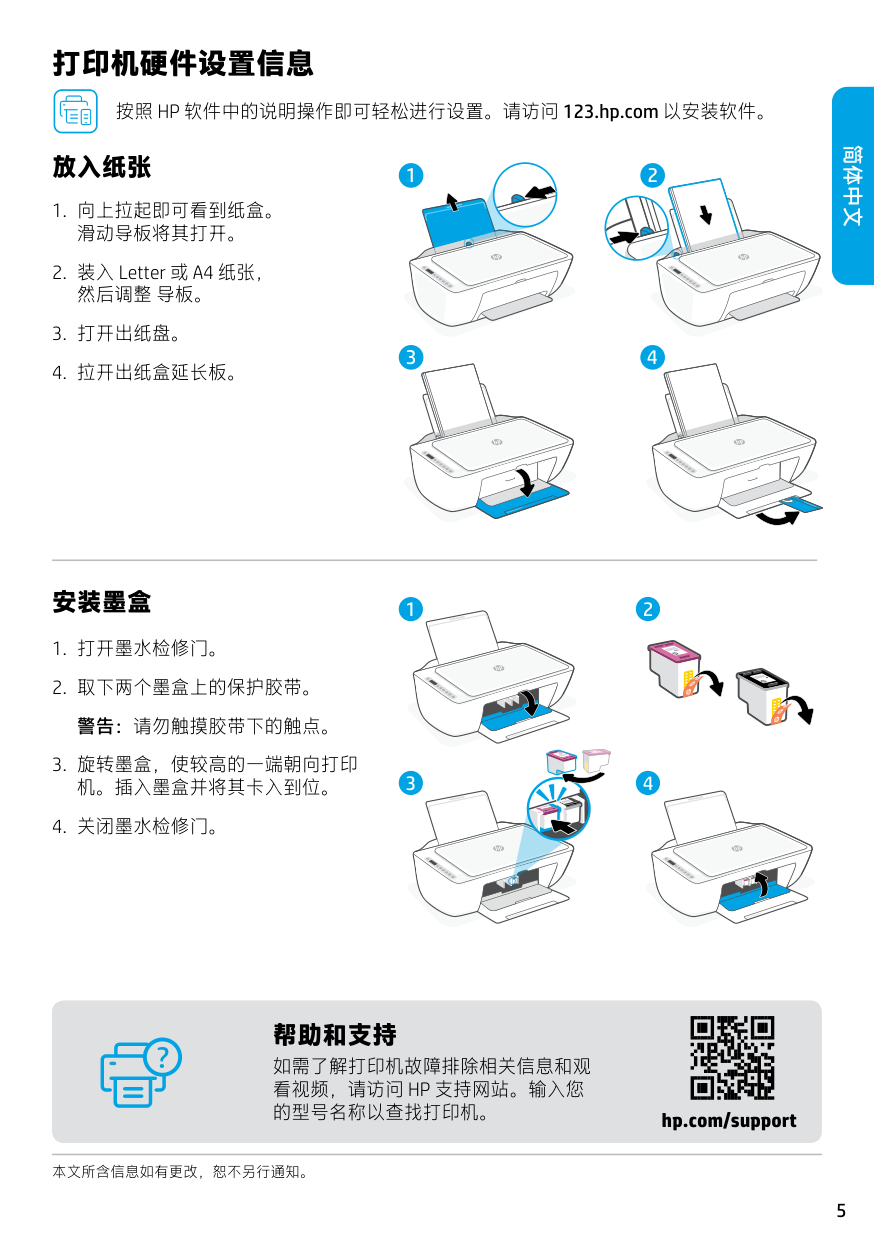
重置 Wi-Fi(设置模式) 初始安装期间:如果蓝色 Wi-Fi 指示灯未闪烁,则打印机可能未处于 Wi-Fi 设置模式。请执行下 列步骤。 使用打印机期间,Wi-Fi 断开连接:如果蓝色 Wi-Fi 指示灯熄灭,请重新将打印机连接到网络。 关闭打印机后再启动。如果打印机未自动重新连接,请执行下列步骤。
重置 Wi-Fi
其他潜在问题 解决方案
计算机或移动设备离打印机 太远
将计算机或移动设备靠近打印机。设备可能已超出打印机的 Wi-Fi 信号范围。
计算机已连接至虚拟专用网络 (VPN) 或远程工作网络
计算机上的 Wi-Fi 已关闭 (计算机通过以太网连接)。
从 VPN 断开连接后再安装 HP 软件。与 VPN 连接时,无法 通过 Microsoft Store 安装应用。完成打印机设置后再连接 VPN。
注意:在断开 VPN 连接之前,请考虑您的位置和 Wi-Fi 网 络的安全性。
如果计算机通过以太网连接,请在设置打印机时开启计算 机的 Wi-Fi。暂时断开以太网连接线,以便通过 Wi-Fi 完成设 置。
移动设备上的蓝牙和定位服 务已关闭
如果用移动设备设置,请开启蓝牙和定位服务。这将帮助软 件找到您的网络和打印机。
注意:我们不会确定您的位置,在设置过程中也不会将位 置信息发送到 HP。
打印机硬件设置信息
按照 HP 软件中的说明操作即可轻松进行设置。请访问 123.hp.com 以安装软件。
简体中文
#### 放入纸张
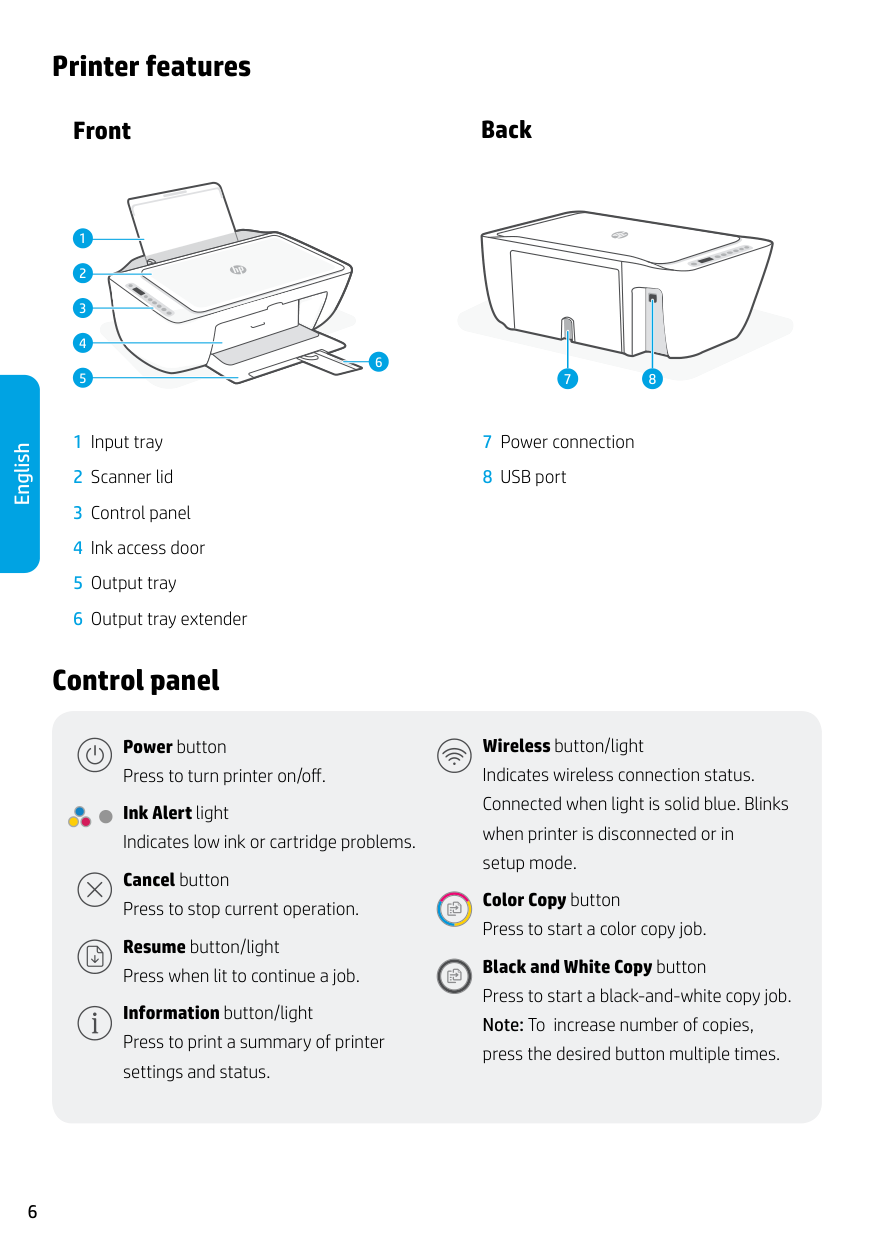
1 2
3 4
#### 安装墨盒
2
1
3
4
帮助和支持 如需了解打印机故障排除相关信息和观 看视频,请访问 HP 支持网站。输入您 的型号名称以查找打印机。
hp.com/support
本文所含信息如有更改,恕不另行通知。
Printer features
#### BackFront
English
1
6
Control panel
7 8
Power button Press to turn printer on/off. Ink Alert light Indicates low ink or cartridge problems. Cancel button Press to stop current operation. Resume button/light Press when lit to continue a job. Information button/light Press to print a summary of printer settings and status.
Wireless button/light Indicates wireless connection status. Connected when light is solid blue. Blinks when printer is disconnected or in setup mode. Color Copy button
Press to start a color copy job. Black and White Copy button Press to start a black-and-white copy job.
Note: To increase number of copies, press the desired button multiple times.
Display icons
Problem Check the HP software.
Wireless alert Wi-Fi is disconnected. Restart setup mode.
Error codes and busy state
Error code (E + number) See the table below.
Number of copies
Paper problem Load paper/check for jams.
Wireless status and signal strength
Wi-Fi Direct status
Estimated ink levels
###### Code Description Solution
Loaded paper doesn’t match print settings. Load correct size or adjust print settings.
English
Printer busy Do not turn off. Process may take a while.
Paper jam cleanout
Press to clear the jam automatically. To clear a jam manually:

Help and tips for Wi-Fi and connectivity
If the software is unable to find your printer during setup, check the following conditions to resolve the issue.
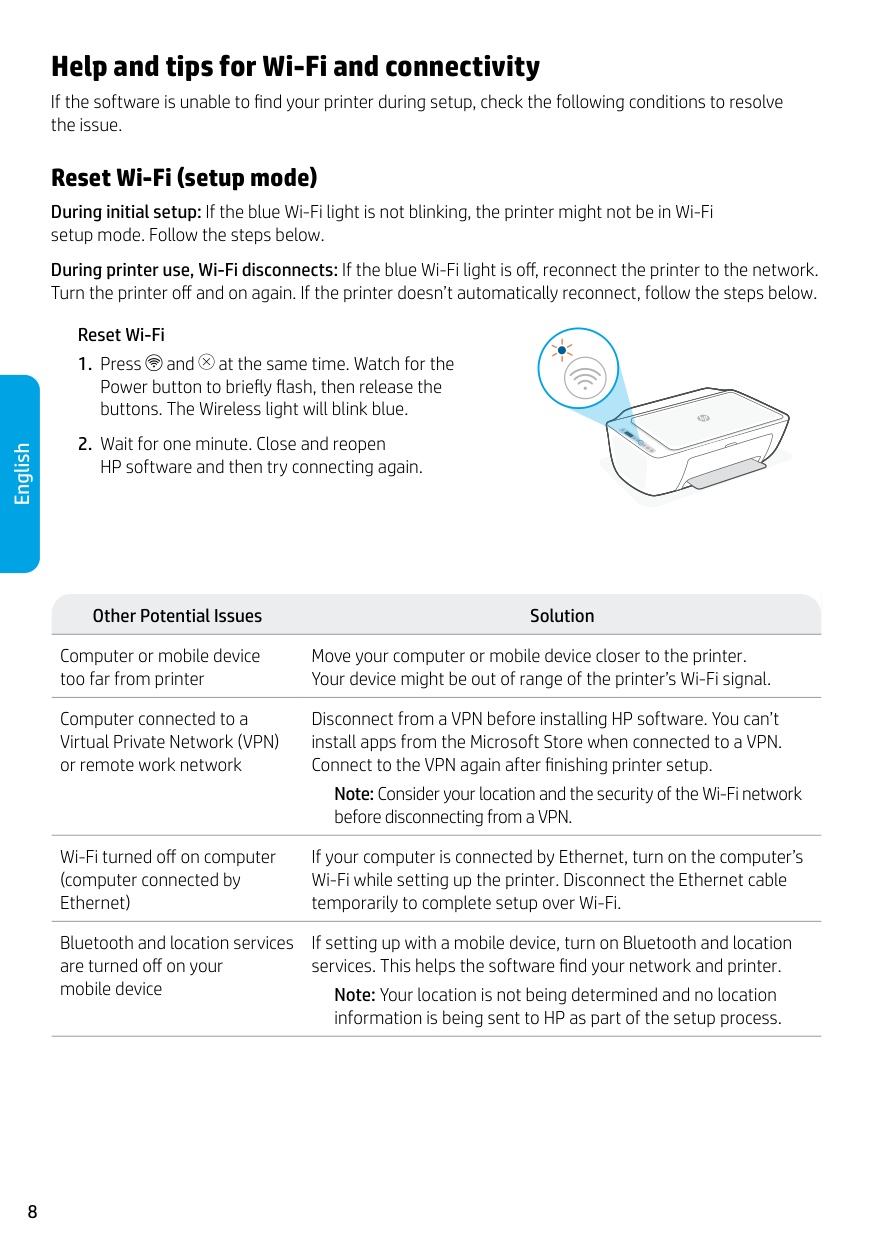
Reset Wi-Fi (setup mode) During initial setup: If the blue Wi-Fi light is not blinking, the printer might not be in Wi-Fi setup mode. Follow the steps below.
During printer use, Wi-Fi disconnects: If the blue Wi-Fi light is off, reconnect the printer to the network. Turn the printer off and on again. If the printer doesn’t automatically reconnect, follow the steps below.
English
Reset Wi-Fi
Other Potential Issues Solution
Computer or mobile device too far from printer
Computer connected to a Virtual Private Network (VPN) or remote work network
Wi-Fi turned off on computer (computer connected by Ethernet)
Bluetooth and location services are turned off on your mobile device
Move your computer or mobile device closer to the printer. Your device might be out of range of the printer’s Wi-Fi signal.
Disconnect from a VPN before installing HP software. You can’t install apps from the Microsoft Store when connected to a VPN. Connect to the VPN again after finishing printer setup.

Note: Consider your location and the security of the Wi-Fi network before disconnecting from a VPN.
If your computer is connected by Ethernet, turn on the computer’s Wi-Fi while setting up the printer. Disconnect the Ethernet cable temporarily to complete setup over Wi-Fi.
If setting up with a mobile device, turn on Bluetooth and location services. This helps the software find your network and printer.
Note: Your location is not being determined and no location information is being sent to HP as part of the setup process.
Printer hardware setup information
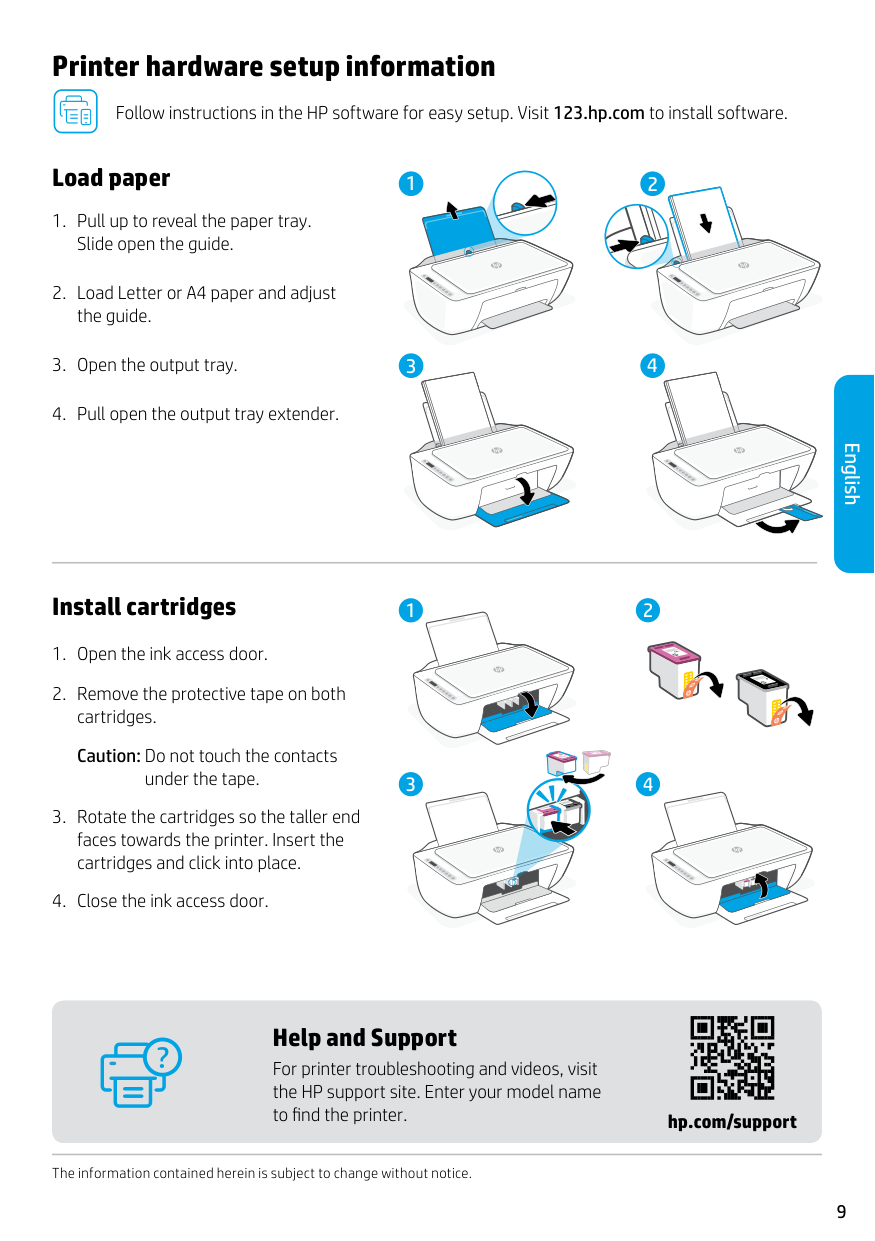
Follow instructions in the HP software for easy setup. Visit 123.hp.com to install software.
#### Load paper
1 2
3 4
##### English
#### Install cartridges
2
1

Caution: Do not touch the contacts
under the tape.
3
4
#### Help and Support
For printer troubleshooting and videos, visit the HP support site. Enter your model name to find the printer.
hp.com/support
The information contained herein is subject to change without notice.
© Copyright 2023 HP Development Company, L.P.
泰国印刷
Printed in China
ENZHCN *54R24-90001* *54R24-90001*
54R24-90001