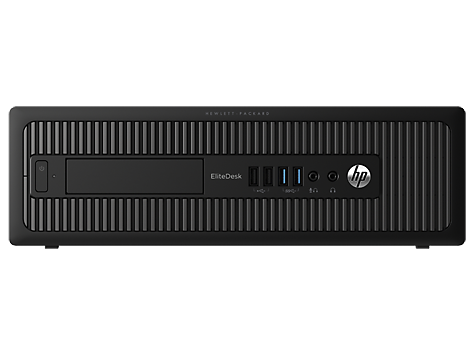
HP Elitedesk 800 G1 Small Form Factor PC
Ask AI
— answers from the official manualAnswers from the official manual.
Common questions
Common Questions
29 totalWhat do the red blinking LED codes mean on the HP EliteDesk 800 G1?
Red blinking LED codes on the power LED indicate specific hardware failures. For example, 4 blinks indicate a power failure or power supply overload, 5 blinks indicate a pre-video memory error, 6 blinks indicate a pre-video graphics error, and 7 blinks indicate a system board failure. The pattern is a set number of blinks per second followed by a 2-second pause before repeating. (Page 2)
How do I access the BIOS/Computer Setup on the HP EliteDesk 800 G1?
Press the F10 key during computer boot to access the Setup Utility. If you miss the prompt, restart the computer and press F10 again when the monitor light turns green. Alternatively, press Esc when the 'Press the ESC key for Startup Menu' message appears, then press F10 to enter Computer Setup. (Page 3)
How do I set or change a Power-On or Setup password on the HP EliteDesk 800 G1?
To set a password, enter Computer Setup by pressing F10 during boot, then navigate to Security > Setup Password or Security > Power-On Password and follow the on-screen instructions. To change an existing password, type your current password, a slash (/), your new password, another slash, and the new password again when prompted. Save changes by selecting File > Save Changes and Exit. (Page 3)
How do I clear the CMOS on the HP EliteDesk 800 G1?
Turn off the computer and disconnect the power cord from the power outlet, then remove the access panel. On the system board, press and hold the CMOS button for 5 seconds, then replace the access panel, reconnect the power cord, and turn on the computer. (Page 3)
What is the maximum amount of RAM supported by the HP EliteDesk 800 G1?
The HP EliteDesk 800 G1 Small Form Factor supports a maximum of 32 GB of RAM. The memory type required is Non-ECC DDR3 PC3-12800 (1600 MHz). Available memory module sizes are 2 GB, 4 GB, and 8 GB. (Page 1)
What does the POST error message '1720-SMART Hard Drive Detects Imminent Failure' mean and what should I do?
This error message means your hard drive is about to fail. You should enter Computer Setup and run the Drive Protection System (DPS) self-test under Storage > DPS Self-Test to confirm the issue, and apply a hard drive firmware patch if applicable. Most importantly, back up all contents immediately and replace the hard drive. (Page 2)
Show 23 more questions
How do I delete a Setup or Power-On password on the HP EliteDesk 800 G1?
What should I do if I get a '164-Memory Size Error' or '201-Memory Error' POST message?
How do I enable or disable USB ports?
What POST codes indicate a system board failure?
How do I reset the BIOS settings to default?
How can I change the storage configuration?
How do I enable boot from USB?
What if my system BIOS is reporting a memory size error (164)?
What CPU models does this PC support?
What storage drive bays are available in the HP EliteDesk 800 G1 Small Form Factor?
What USB ports are available on the front and rear of the HP EliteDesk 800 G1?
How do I factory reset the HP EliteDesk 800 G1?
How do I secure the setup utility with a password?
What are the possible power-on error codes for the HP EliteDesk 800 G1?
How can I troubleshoot a hard drive that shows imminent failure?
How do I enter Computer Setup?
How do I set up a password for Computer Setup?
How do I clear CMOS memory?
How do I disable or enable SATA ports?
How do I change or delete a Power-On password?
How do I set up boot order?
How do I assign a Smart Cover in Computer Setup?
How can I delete a password from Computer Setup?
Full Manual
4 pages
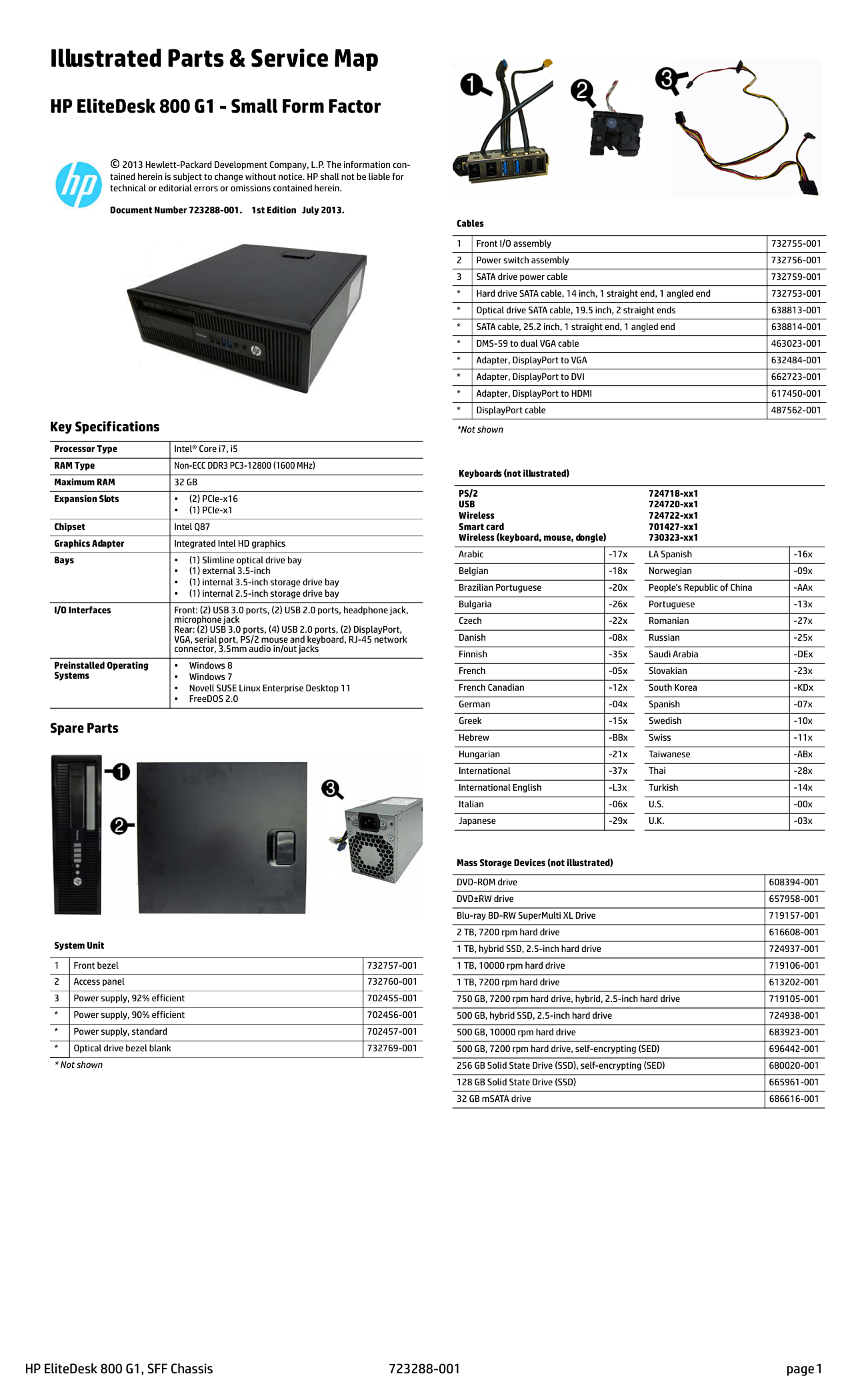
Illustrated Parts & Service Map
HP EliteDesk 800 G1 - Small Form Factor

© 2013 Hewlett-Packard Development Company, L.P. The information contained herein is subject to change without notice. HP shall not be liable for technical or editorial errors or omissions contained herein.
Document Number 723288-001. 1st Edition July 2013.

Key Specifications
|Processor Type|Intel® Core i7, i5| |---|---| |RAM Type|Non-ECC DDR3 PC3-12800 (1600 MHz)| |Maximum RAM|32 GB| |Expansion Slots|• (2) PCIe-x16
•(1) PCIe-x1
| |Chipset|Intel Q87| |Graphics Adapter|Integrated Intel HD graphics| |Bays|• (1) Slimline optical drive bay
• (1) external 3.5-inch
• (1) internal 3.5-inch storage drive bay
• (1) internal 2.5-inch storage drive bay
| |I/O Interfaces|Front: (2) USB 3.0 ports, (2) USB 2.0 ports, headphone jack, microphone jack Rear: (2) USB 3.0 ports, (4) USB 2.0 ports, (2) DisplayPort, VGA, serial port, PS/2 mouse and keyboard, RJ-45 network connector, 3.5mm audio in/out jacks| |Preinstalled Operating Systems|•Windows 8
•Windows 7
• Novell SUSE Linux Enterprise Desktop 11
• FreeDOS 2.0
|
Spare Parts

System Unit
|1|Front bezel|732757-001| |---|---|---| |2|Access panel|732760-001| |3|Power supply, 92% efficient|702455-001| |*|Power supply, 90% efficient|702456-001| |*|Power supply, standard|702457-001| |*|Optical drive bezel blank|732769-001|

###### Cables
|1|Front I/O assembly|732755-001| |---|---|---| |2|Power switch assembly|732756-001| |3|SATA drive power cable|732759-001| |*|Hard drive SATA cable, 14 inch, 1 straight end, 1 angled end|732753-001| |*|Optical drive SATA cable, 19.5 inch, 2 straight ends|638813-001| |*|SATA cable, 25.2 inch, 1 straight end, 1 angled end|638814-001| |*|DMS-59 to dual VGA cable|463023-001| |*|Adapter, DisplayPort to VGA|632484-001| |*|Adapter, DisplayPort to DVI|662723-001| |*|Adapter, DisplayPort to HDMI|617450-001| |*|DisplayPort cable|487562-001|
*Not shown
Keyboards (not illustrated) PS/2 USB Wireless Smart card Wireless (keyboard, mouse, dongle)
724718-xx1 724720-xx1 724722-xx1 701427-xx1 730323-xx1
Arabic -17x LA Spanish -16x Belgian -18x Norwegian -09x Brazilian Portuguese -20x People’s Republic of China -AAx Bulgaria -26x Portuguese -13x Czech -22x Romanian -27x Danish -08x Russian -25x Finnish -35x Saudi Arabia -DEx French -05x Slovakian -23x French Canadian -12x South Korea -KDx German -04x Spanish -07x Greek -15x Swedish -10x Hebrew -BBx Swiss -11x Hungarian -21x Taiwanese -ABx International -37x Thai -28x International English -L3x Turkish -14x Italian -06x U.S. -00x Japanese -29x U.K. -03x
###### Mass Storage Devices (not illustrated)
|DVD-ROM drive|608394-001| |---|---| |DVD±RW drive|657958-001| |Blu-ray BD-RW SuperMulti XL Drive|719157-001| |2 TB, 7200 rpm hard drive|616608-001|
|1 TB, hybrid SSD, 2.5-inch hard drive|724937-001| |1 TB, 10000 rpm hard drive|719106-001| |1 TB, 7200 rpm hard drive|613202-001| |750 GB, 7200 rpm hard drive, hybrid, 2.5-inch hard drive|719105-001| |500 GB, hybrid SSD, 2.5-inch hard drive|724938-001| |500 GB, 10000 rpm hard drive|683923-001| |500 GB, 7200 rpm hard drive, self-encrypting (SED)|696442-001| |256 GB Solid State Drive (SSD), self-encrypting (SED)|680020-001| |128 GB Solid State Drive (SSD)|665961-001| |32 GB mSATA drive|686616-001|

###### Miscellaneous Parts
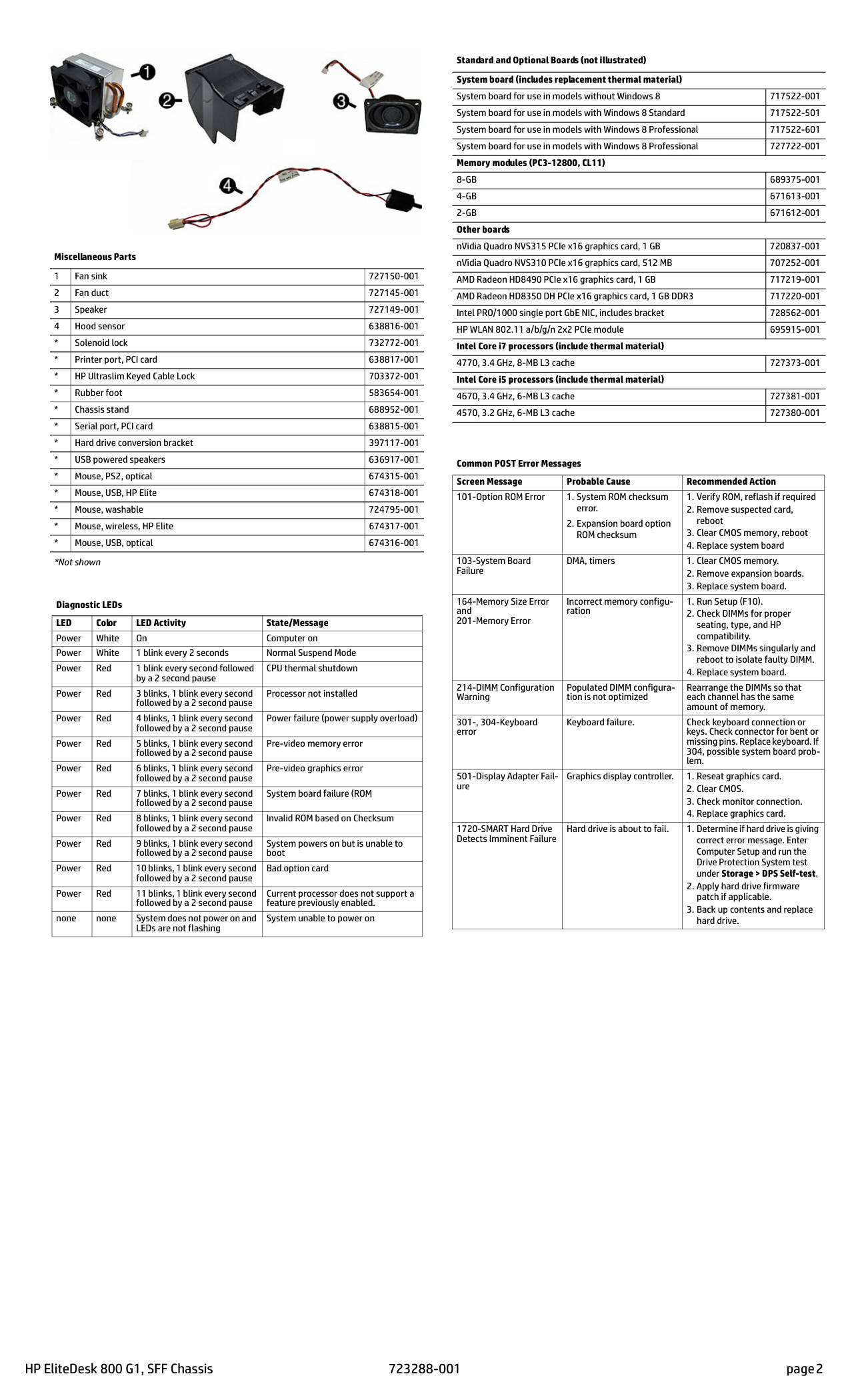
|1|Fan sink|727150-001| |---|---|---| |2|Fan duct|727145-001| |3|Speaker|727149-001| |4|Hood sensor|638816-001| |*|Solenoid lock|732772-001| |*|Printer port, PCI card|638817-001| |*|HP Ultraslim Keyed Cable Lock|703372-001| |*|Rubber foot|583654-001| |*|Chassis stand|688952-001| |*|Serial port, PCI card|638815-001| |*|Hard drive conversion bracket|397117-001| |*|USB powered speakers|636917-001| |*|Mouse, PS2, optical|674315-001| |*|Mouse, USB, HP Elite|674318-001| |*|Mouse, washable|724795-001| |*|Mouse, wireless, HP Elite|674317-001| |*|Mouse, USB, optical|674316-001|
*Not shown
Diagnostic LEDs
|LED|Color|LED Activity|State/Message| |---|---|---|---| |Power|White|On|Computer on| |Power|White|1 blink every 2 seconds|Normal Suspend Mode| |Power|Red|1 blink every second followed by a 2 second pause|CPU thermal shutdown| |Power|Red|3 blinks, 1 blink every second followed by a 2 second pause|Processor not installed| |Power|Red|4 blinks, 1 blink every second followed by a 2 second pause|Power failure (power supply overload)| |Power|Red|5 blinks, 1 blink every second followed by a 2 second pause|Pre-video memory error| |Power|Red|6 blinks, 1 blink every second followed by a 2 second pause|Pre-video graphics error| |Power|Red|7 blinks, 1 blink every second followed by a 2 second pause|System board failure (ROM| |Power|Red|8 blinks, 1 blink every second followed by a 2 second pause|Invalid ROM based on Checksum| |Power|Red|9 blinks, 1 blink every second followed by a 2 second pause|System powers on but is unable to boot| |Power|Red|10 blinks, 1 blink every second followed by a 2 second pause|Bad option card| |Power|Red|11 blinks, 1 blink every second followed by a 2 second pause|Current processor does not support a feature previously enabled.| |none|none|System does not power on and LEDs are not flashing|System unable to power on|
Standard and Optional Boards (not illustrated) System board (includes replacement thermal material)
|System board for use in models without Windows 8|717522-001| |---|---| |System board for use in models with Windows 8 Standard|717522-501| |System board for use in models with Windows 8 Professional|717522-601| |System board for use in models with Windows 8 Professional|727722-001|
Memory modules (PC3-12800, CL11)
|8-GB|689375-001| |---|---| |4-GB|671613-001| |2-GB|671612-001|
Other boards
|nVidia Quadro NVS315 PCIe x16 graphics card, 1 GB|720837-001| |---|---| |nVidia Quadro NVS310 PCIe x16 graphics card, 512 MB|707252-001| |AMD Radeon HD8490 PCIe x16 graphics card, 1 GB|717219-001| |AMD Radeon HD8350 DH PCIe x16 graphics card, 1 GB DDR3|717220-001| |Intel PRO/1000 single port GbE NIC, includes bracket|728562-001| |HP WLAN 802.11 a/b/g/n 2x2 PCIe module|695915-001|
Intel Core i7 processors (include thermal material) 4770, 3.4 GHz, 8-MB L3 cache 727373-001 Intel Core i5 processors (include thermal material)
|4670, 3.4 GHz, 6-MB L3 cache|727381-001| |---|---| |4570, 3.2 GHz, 6-MB L3 cache|727380-001|
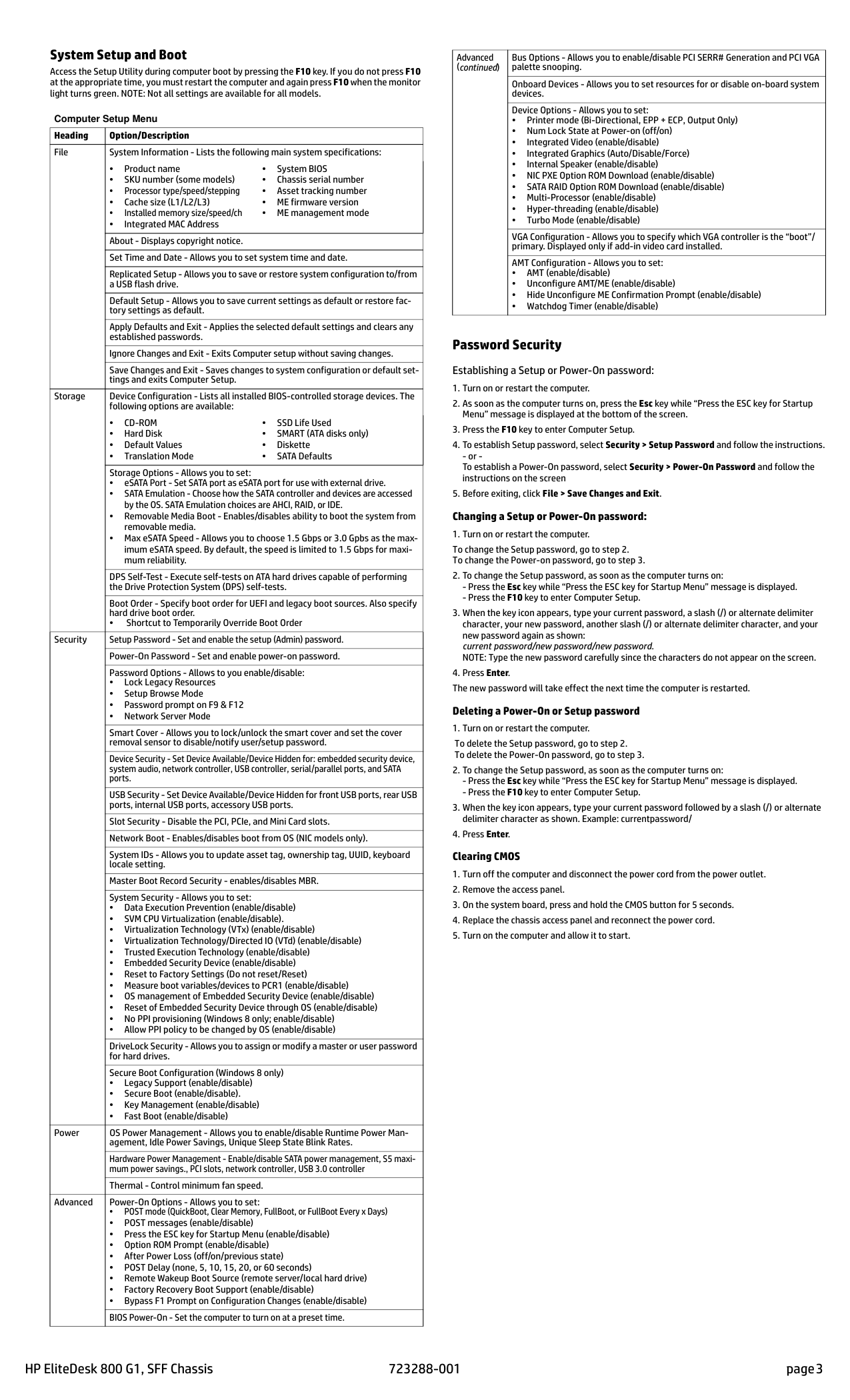
Common POST Error Messages
|Screen Message|Probable Cause|Recommended Action| |---|---|---| |101-Option ROM Error|1. System ROM checksum error.
2. Expansion board option ROM checksum
|1. Verify ROM, reflash if required
2. Remove suspected card, reboot
3. Clear CMOS memory, reboot
4. Replace system board
| |103-System Board Failure|DMA, timers|1. Clear CMOS memory.
2. Remove expansion boards.
3. Replace system board.
| |164-Memory Size Error and 201-Memory Error|Incorrect memory configuration|1. Run Setup (F10).
2. Check DIMMs for proper seating, type, and HP compatibility.
3. Remove DIMMs singularly and reboot to isolate faulty DIMM.
4. Replace system board.
| |214-DIMM Configuration Warning|Populated DIMM configuration is not optimized|Rearrange the DIMMs so that each channel has the same amount of memory.| |301-, 304-Keyboard error|Keyboard failure.|Check keyboard connection or keys. Check connector for bent or missing pins. Replace keyboard. If 304, possible system board problem.| |501-Display Adapter Failure|Graphics display controller.|1. Reseat graphics card.
2. Clear CMOS.
3. Check monitor connection.
4. Replace graphics card.
| |1720-SMART Hard Drive Detects Imminent Failure|Hard drive is about to fail.|1. Determine if hard drive is giving correct error message. Enter Computer Setup and run the Drive Protection System test under Storage > DPS Self-test.
2. Apply hard drive firmware patch if applicable.
3. Back up contents and replace hard drive.
|
#### System Setup and Boot
Access the Setup Utility during computer boot by pressing the F10 key. If you do not press F10 at the appropriate time, you must restart the computer and again pressF10 when the monitor light turns green. NOTE: Not all settings are available for all models.
###### Computer Setup Menu
|Heading|Option/Description| |---|---| |File|System Information - Lists the following main system specifications:
• Product name
• SKU number (some models)
• Processor type/speed/stepping
•Cache size (L1/L2/L3)
• Installed memory size/speed/ch
• Integrated MAC Address
•System BIOS
• Chassis serial number
• Asset tracking number
•ME firmware version
• ME management mode
| |File|About - Displays copyright notice.| |File|Set Time and Date - Allows you to set system time and date.| |File|Replicated Setup - Allows you to save or restore system configuration to/from a USB flash drive.| |File|Default Setup - Allows you to save current settings as default or restore factory settings as default.| |File|Apply Defaults and Exit - Applies the selected default settings and clears any established passwords.| |File|Ignore Changes and Exit - Exits Computer setup without saving changes.| |File|Save Changes and Exit - Saves changes to system configuration or default settings and exits Computer Setup.| |Storage|Device Configuration - Lists all installed BIOS-controlled storage devices. The following options are available:
•CD-ROM
•Hard Disk
• Default Values
• Translation Mode
•SSD Life Used
•SMART (ATA disks only)
•Diskette
•SATA Defaults
| |Storage|Storage Options - Allows you to set:
• eSATA Port - Set SATA port as eSATA port for use with external drive.
• SATA Emulation - Choose how the SATA controller and devices are accessed by the OS. SATA Emulation choices are AHCI, RAID, or IDE.
• Removable Media Boot - Enables/disables ability to boot the system from removable media.
• Max eSATA Speed - Allows you to choose 1.5 Gbps or 3.0 Gpbs as the maximum eSATA speed. By default, the speed is limited to 1.5 Gbps for maximum reliability.
| |Storage|DPS Self-Test - Execute self-tests on ATA hard drives capable of performing the Drive Protection System (DPS) self-tests.| |Storage|Boot Order - Specify boot order for UEFI and legacy boot sources. Also specify hard drive boot order.
• Shortcut to Temporarily Override Boot Order| |Security|Setup Password - Set and enable the setup (Admin) password.| |Security|Power-On Password - Set and enable power-on password.| |Security|Password Options - Allows to you enable/disable:
•Lock Legacy Resources
• Setup Browse Mode
• Password prompt on F9 & F12
• Network Server Mode
| |Security|Smart Cover - Allows you to lock/unlock the smart cover and set the cover removal sensor to disable/notify user/setup password.| |Security|Device Security - Set Device Available/Device Hidden for: embedded security device, system audio, network controller, USB controller, serial/parallel ports, and SATA ports.| |Security|USB Security - Set Device Available/Device Hidden for front USB ports, rear USB ports, internal USB ports, accessory USB ports.| |Security|Slot Security - Disable the PCI, PCIe, and Mini Card slots.| |Security|Network Boot - Enables/disables boot from OS (NIC models only).| |Security|System IDs - Allows you to update asset tag, ownership tag, UUID, keyboard locale setting.| |Security|Master Boot Record Security - enables/disables MBR.| |Security|System Security - Allows you to set:
• Data Execution Prevention (enable/disable)
• SVM CPU Virtualization (enable/disable).
• Virtualization Technology (VTx) (enable/disable)
• Virtualization Technology/Directed IO (VTd) (enable/disable)
• Trusted Execution Technology (enable/disable)
• Embedded Security Device (enable/disable)
• Reset to Factory Settings (Do not reset/Reset)
• Measure boot variables/devices to PCR1 (enable/disable)
• OS management of Embedded Security Device (enable/disable)
• Reset of Embedded Security Device through OS (enable/disable)
• No PPI provisioning (Windows 8 only; enable/disable)
• Allow PPI policy to be changed by OS (enable/disable)
| |Security|DriveLock Security - Allows you to assign or modify a master or user password for hard drives.| |Security|Secure Boot Configuration (Windows 8 only)
• Legacy Support (enable/disable)
• Secure Boot (enable/disable).
• Key Management (enable/disable)
• Fast Boot (enable/disable)
| |Power|OS Power Management - Allows you to enable/disable Runtime Power Management, Idle Power Savings, Unique Sleep State Blink Rates.| |Power|Hardware Power Management - Enable/disable SATA power management, S5 maximum power savings., PCI slots, network controller, USB 3.0 controller| |Power|Thermal - Control minimum fan speed.| |Advanced|Power-On Options - Allows you to set:
• POST mode (QuickBoot, Clear Memory, FullBoot, or FullBoot Every x Days)
• POST messages (enable/disable)
• Press the ESC key for Startup Menu (enable/disable)
• Option ROM Prompt (enable/disable)
• After Power Loss (off/on/previous state)
• POST Delay (none, 5, 10, 15, 20, or 60 seconds)
• Remote Wakeup Boot Source (remote server/local hard drive)
• Factory Recovery Boot Support (enable/disable)
• Bypass F1 Prompt on Configuration Changes (enable/disable)
| |Advanced|BIOS Power-On - Set the computer to turn on at a preset time.|
|Advanced (continued)|Bus Options - Allows you to enable/disable PCI SERR# Generation and PCI VGA palette snooping.| |---|---| |Advanced (continued)|Onboard Devices - Allows you to set resources for or disable on-board system devices.| |Advanced (continued)|Device Options - Allows you to set:
• Printer mode (Bi-Directional, EPP + ECP, Output Only)
• Num Lock State at Power-on (off/on)
• Integrated Video (enable/disable)
• Integrated Graphics (Auto/Disable/Force)
• Internal Speaker (enable/disable)
• NIC PXE Option ROM Download (enable/disable)
• SATA RAID Option ROM Download (enable/disable)
• Multi-Processor (enable/disable)
• Hyper-threading (enable/disable)
• Turbo Mode (enable/disable)
| |Advanced (continued)|VGA Configuration - Allows you to specify which VGA controller is the “boot”/ primary. Displayed only if add-in video card installed.| |Advanced (continued)|AMT Configuration - Allows you to set:
• AMT (enable/disable)
• Unconfigure AMT/ME (enable/disable)
• Hide Unconfigure ME Confirmation Prompt (enable/disable)
• Watchdog Timer (enable/disable)
|
Password Security Establishing a Setup or Power-On password:
To change the Setup password, go to step 2. To change the Power-on password, go to step 3.
To delete the Setup password, go to step 2. To delete the Power-On password, go to step 3.
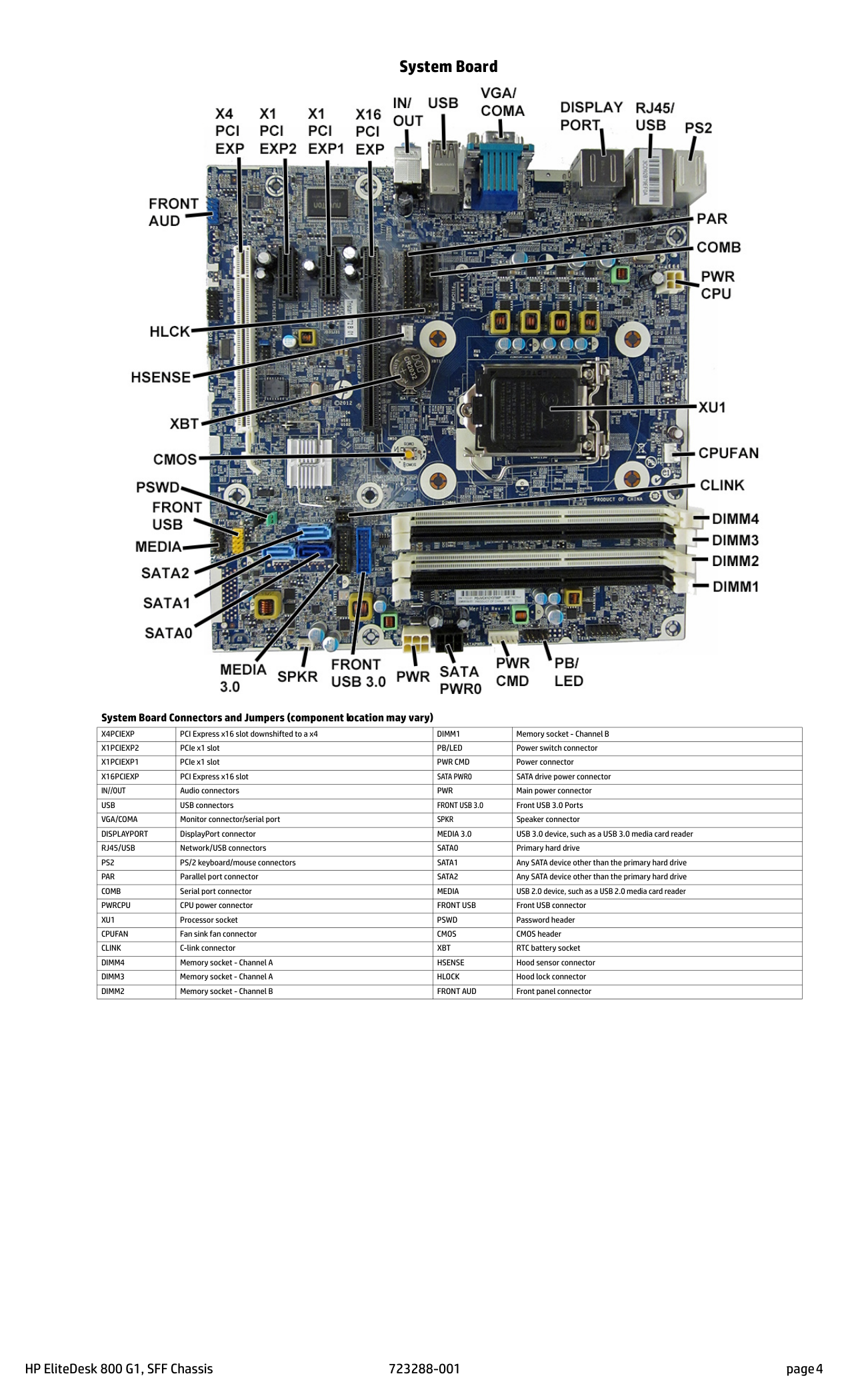
System Board

System Board Connectors and Jumpers (component location may vary)
|X4PCIEXP|PCI Express x16 slot downshifted to a x4|DIMM1|Memory socket - Channel B| |---|---|---|---| |X1PCIEXP2|PCIe x1 slot|PB/LED|Power switch connector| |X1PCIEXP1|PCIe x1 slot|PWR CMD|Power connector| |X16PCIEXP|PCI Express x16 slot|SATA PWR0|SATA drive power connector| |IN//OUT|Audio connectors|PWR|Main power connector| |USB|USB connectors|FRONT USB 3.0|Front USB 3.0 Ports| |VGA/COMA|Monitor connector/serial port|SPKR|Speaker connector| |DISPLAYPORT|DisplayPort connector|MEDIA 3.0|USB 3.0 device, such as a USB 3.0 media card reader| |RJ45/USB|Network/USB connectors|SATA0|Primary hard drive| |PS2|PS/2 keyboard/mouse connectors|SATA1|Any SATA device other than the primary hard drive| |PAR|Parallel port connector|SATA2|Any SATA device other than the primary hard drive| |COMB|Serial port connector|MEDIA|USB 2.0 device, such as a USB 2.0 media card reader| |PWRCPU|CPU power connector|FRONT USB|Front USB connector| |XU1|Processor socket|PSWD|Password header| |CPUFAN|Fan sink fan connector|CMOS|CMOS header| |CLINK|C-link connector|XBT|RTC battery socket| |DIMM4|Memory socket - Channel A|HSENSE|Hood sensor connector| |DIMM3|Memory socket - Channel A|HLOCK|Hood lock connector| |DIMM2|Memory socket - Channel B|FRONT AUD|Front panel connector|