Ask AI
— answers from the official manualAnswers from the official manual.
Common questions
Common Questions
10 totalCan I upgrade the memory? If so, where?
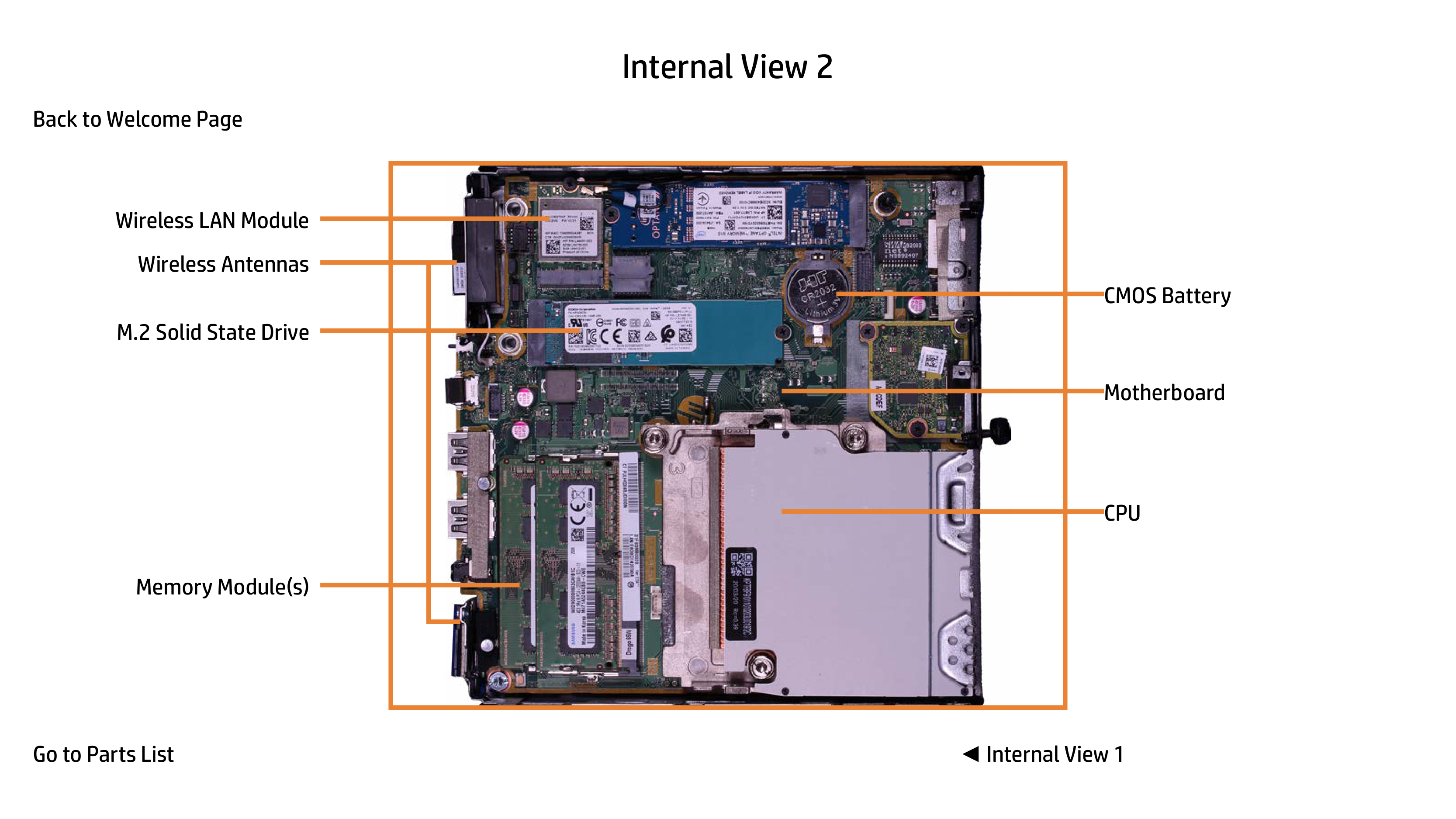
The computer supports upgrading via access to Memory Modules located on the Lower Option Board or Motherboard.
How do I remove the bottom panel for internal maintenance?
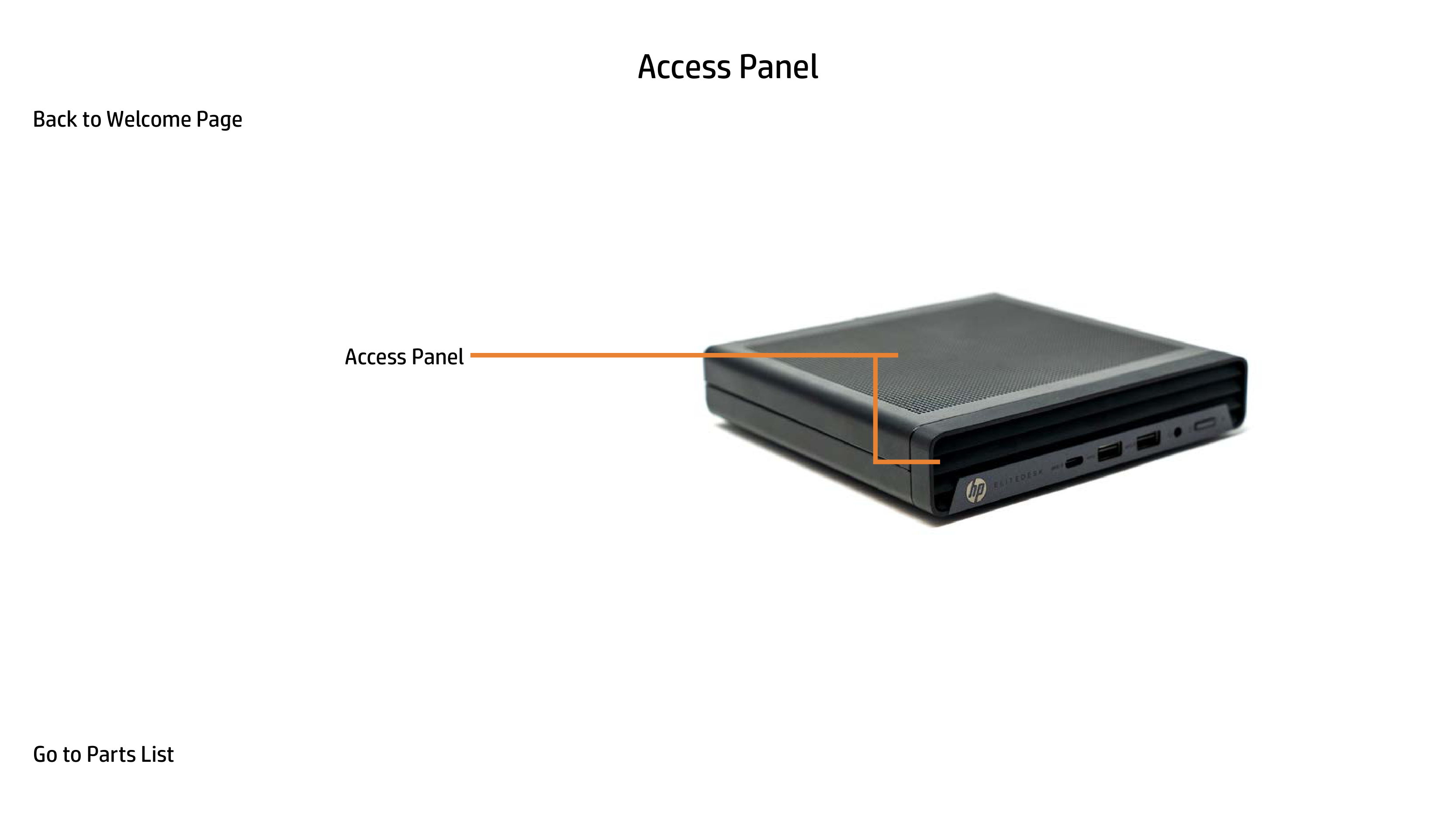
Release clips found around the perimeter of the bottom cover and lift it off. This allows full access to components like the storage drive cage, fans, and M.2 SSD.
How do I factory reset the [product]?
Press and hold the Power button for 10 seconds until the LED flashes red. This clears all settings and returns the device to factory defaults. You will need to re-pair all connected devices after the reset.
What are power connectors available on the rear of the [product]?
The rear includes USB 3.1 ports (x3), a security lock slot, a DC-in port, an RJ-45 connector, and additional USB Type-C port as well as DisplayPorts (x2).
How do I access the internal components of the [product]?
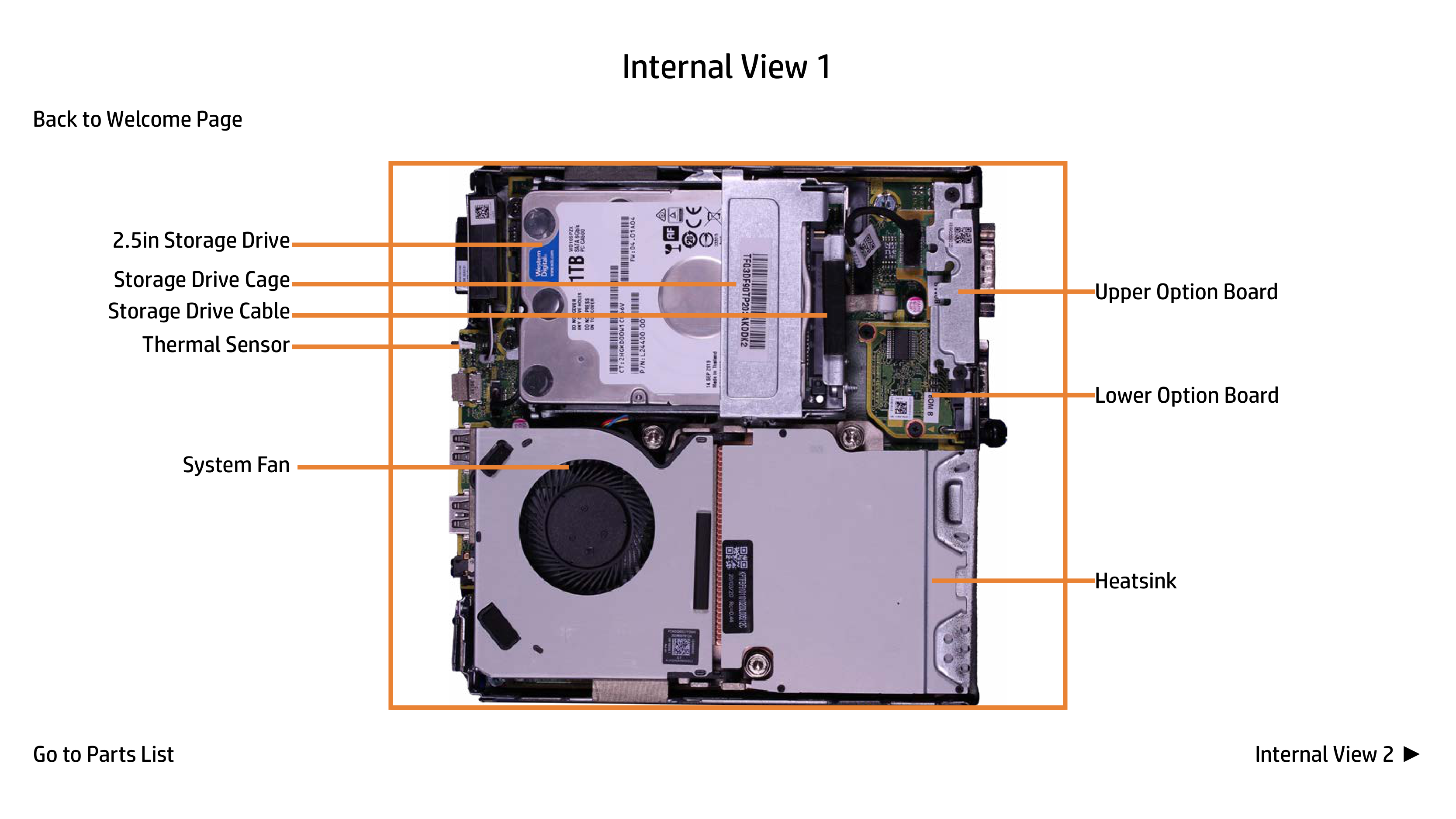
Open the access panel on either side or remove the bottom plate to gain access. Detailed diagrams and images guide you through identifying each component like the system fan, storage drive cage, M.2 SSD.
Where is the power button located?
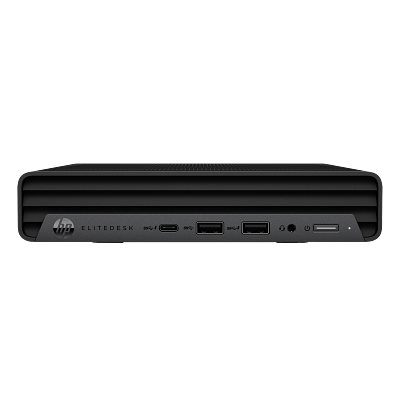
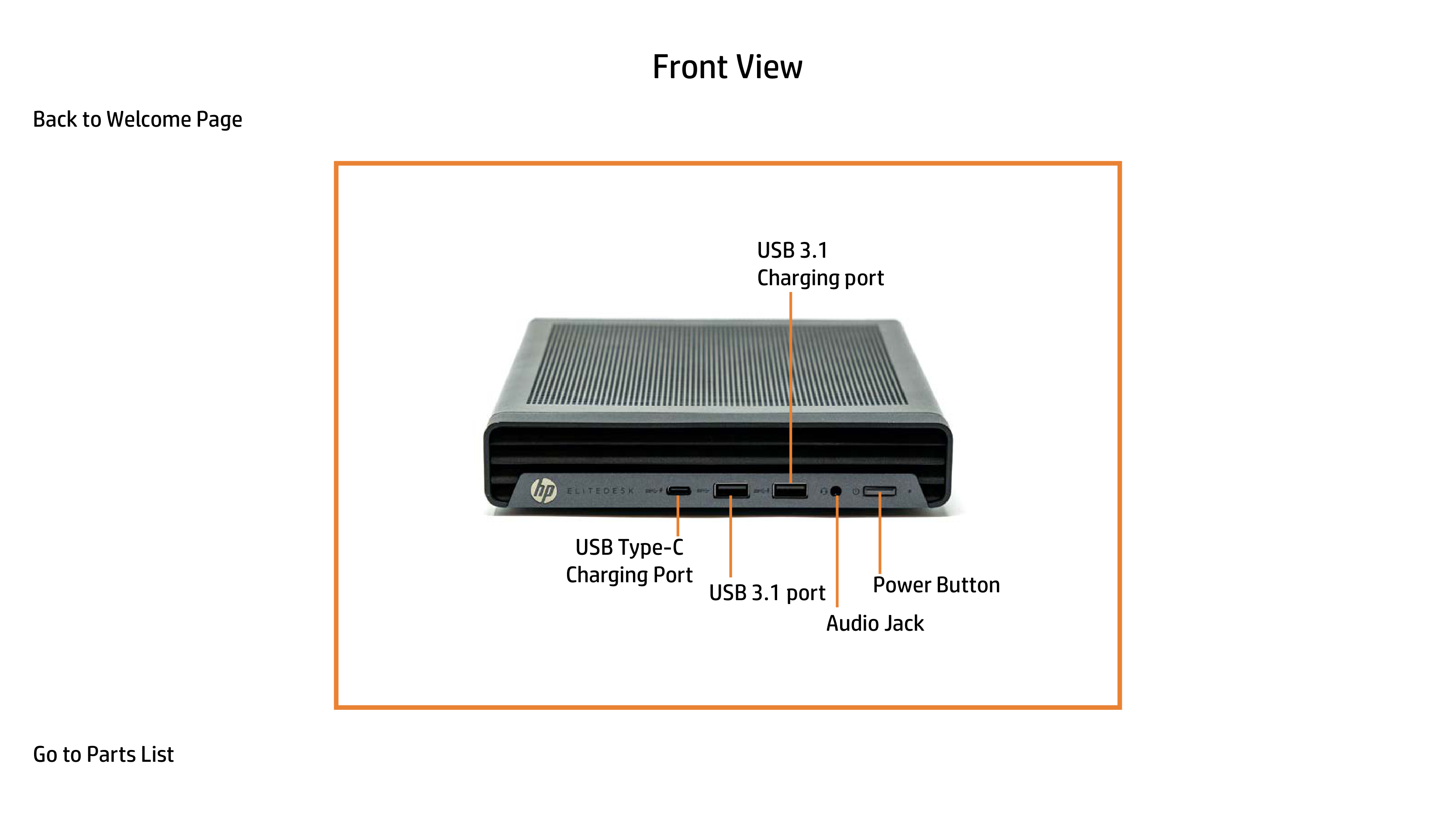
The Power button is on the front of the unit, also contains an audio jack and USB ports for quick connections (Page 4).
Full Manual
29 pages
Interactive Part Locator HP EliteDesk 800 35W/65W/95W G6 DM
Welcome to the interactive part locator for the HP EliteDesk 800 35W/65W/95W G6 DM
Here’s how to use it… External Views (Click the link to navigate to the views) On this page you will find large icons of each of the external views of this product. To view a specific view in greater detail, simply click that view. Parts List (Click the link to navigate to the parts) On this page, you will find a list of all of the replaceable parts for this product. To view a specific part and its location in the product, click the part name in the list.
That’s it! On every page there is a link that brings you back to either the External Views or the Parts List, enabling you to navigate to whatever view or part you wish to review.
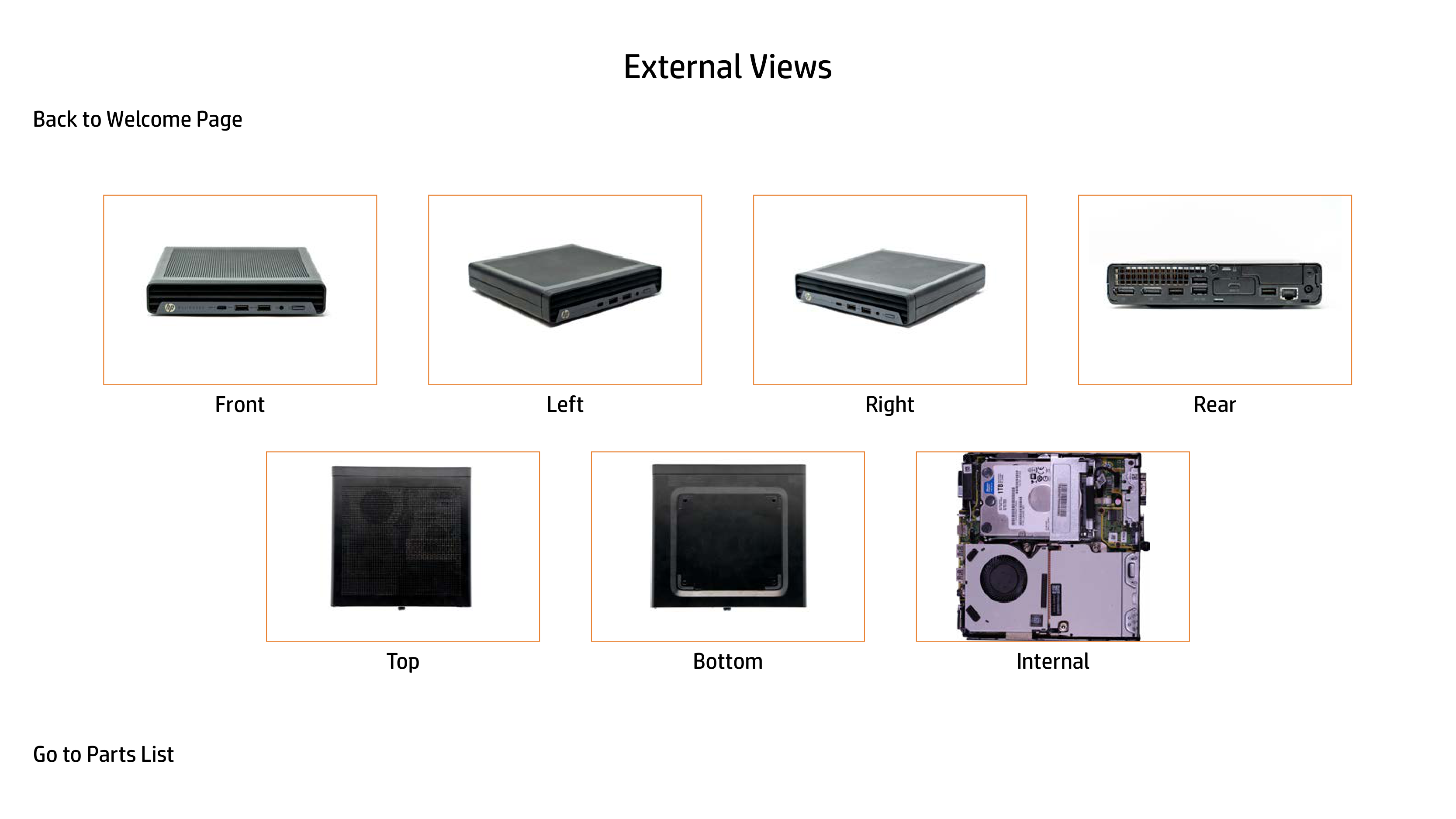
External Views
Front
Left Right Rear
Top Bottom
Internal
Parts List
Front View
|
Power Button Audio Jack
USB 3.1 port
USB 3.1 Charging port
USB Type-C Charging Port| |---|
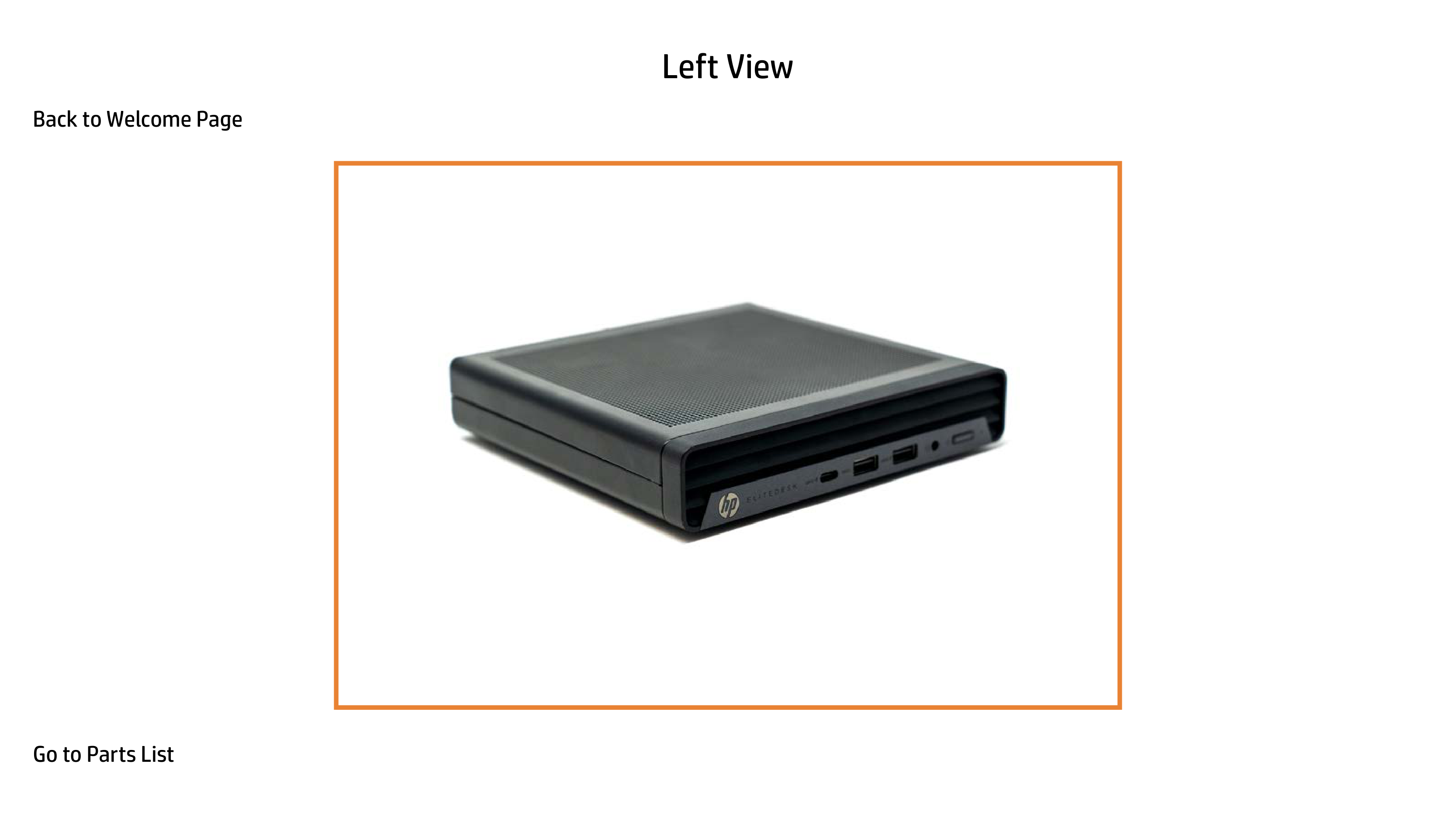
Left View
|| |---|
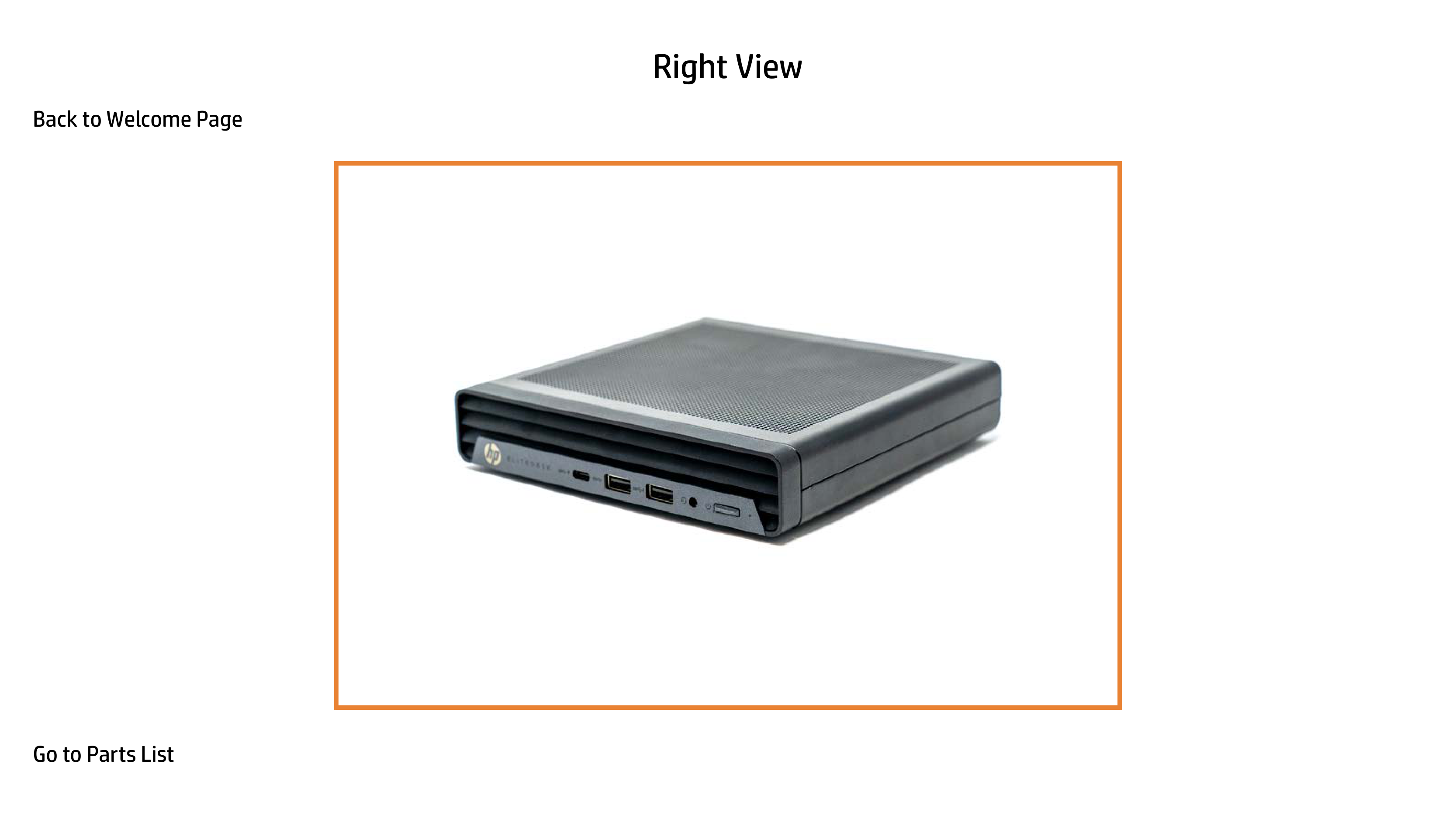
Right View
||
|---|
Rear View

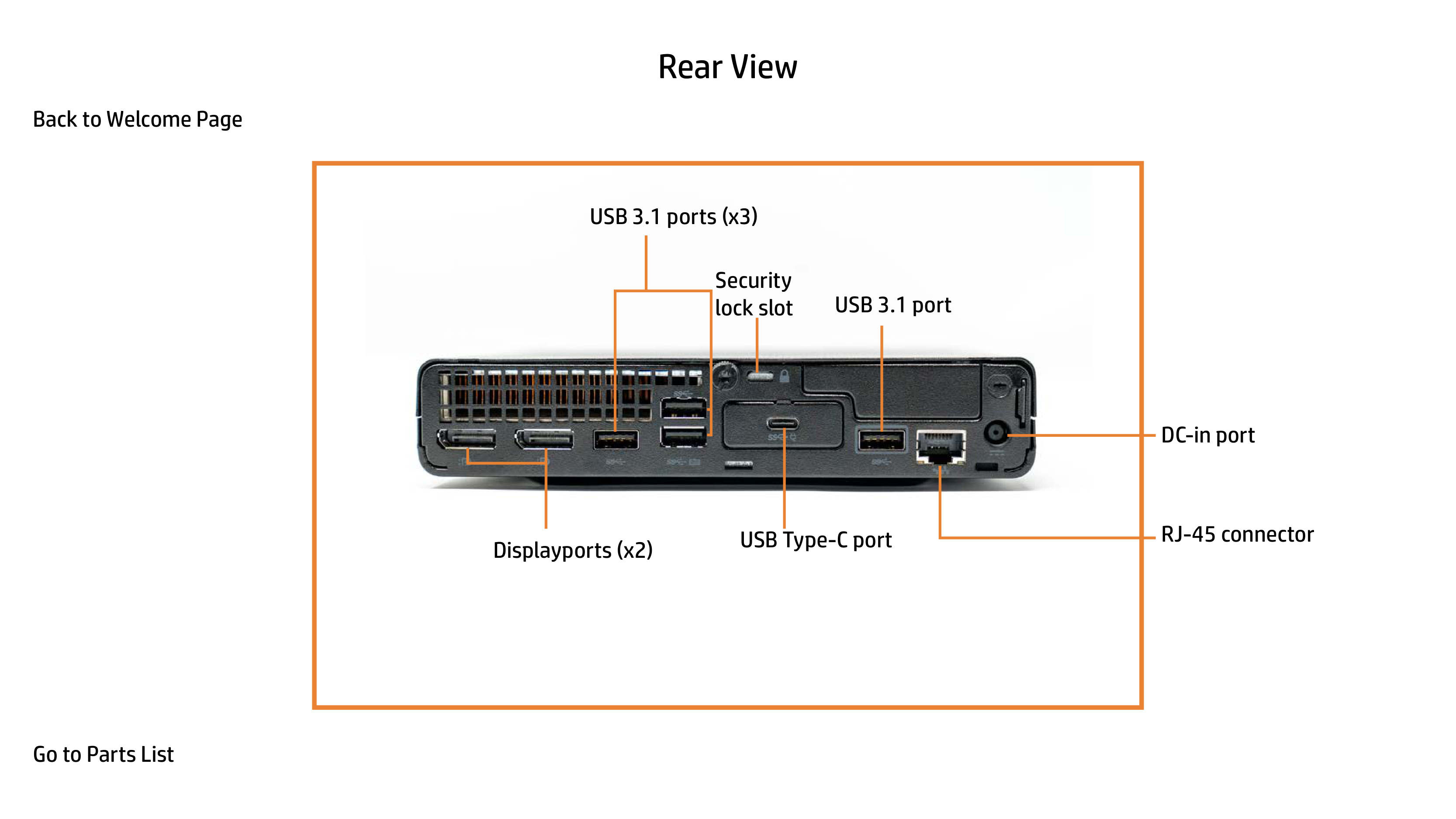
USB 3.1 ports (x3)
| | | |---|---| | | |
Security lock slot
USB 3.1 port
USB Type-C port
Displayports (x2)
DC-in port
RJ-45 connector
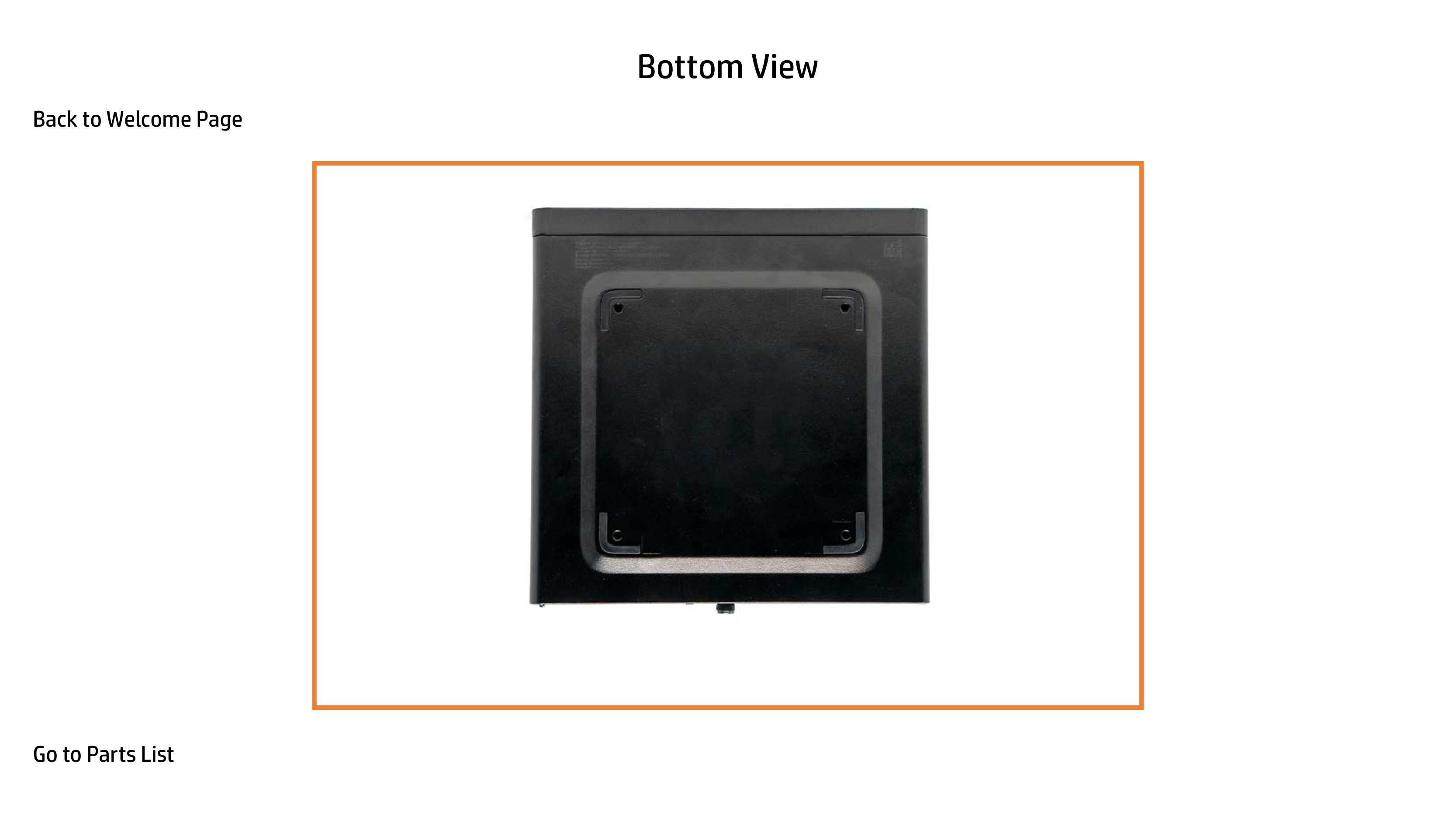
Bottom View
|| |---|
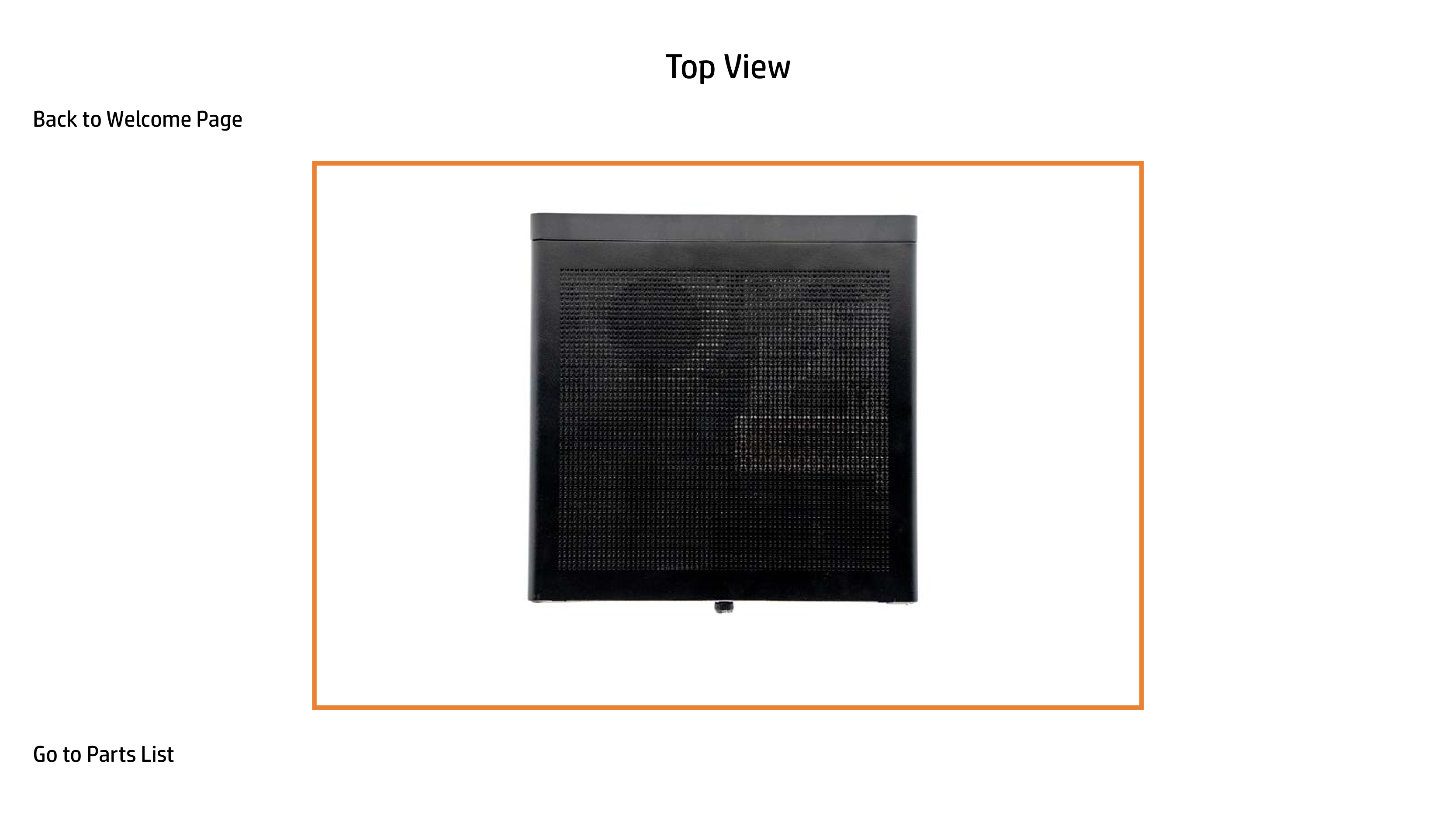
Top View
||
|---|
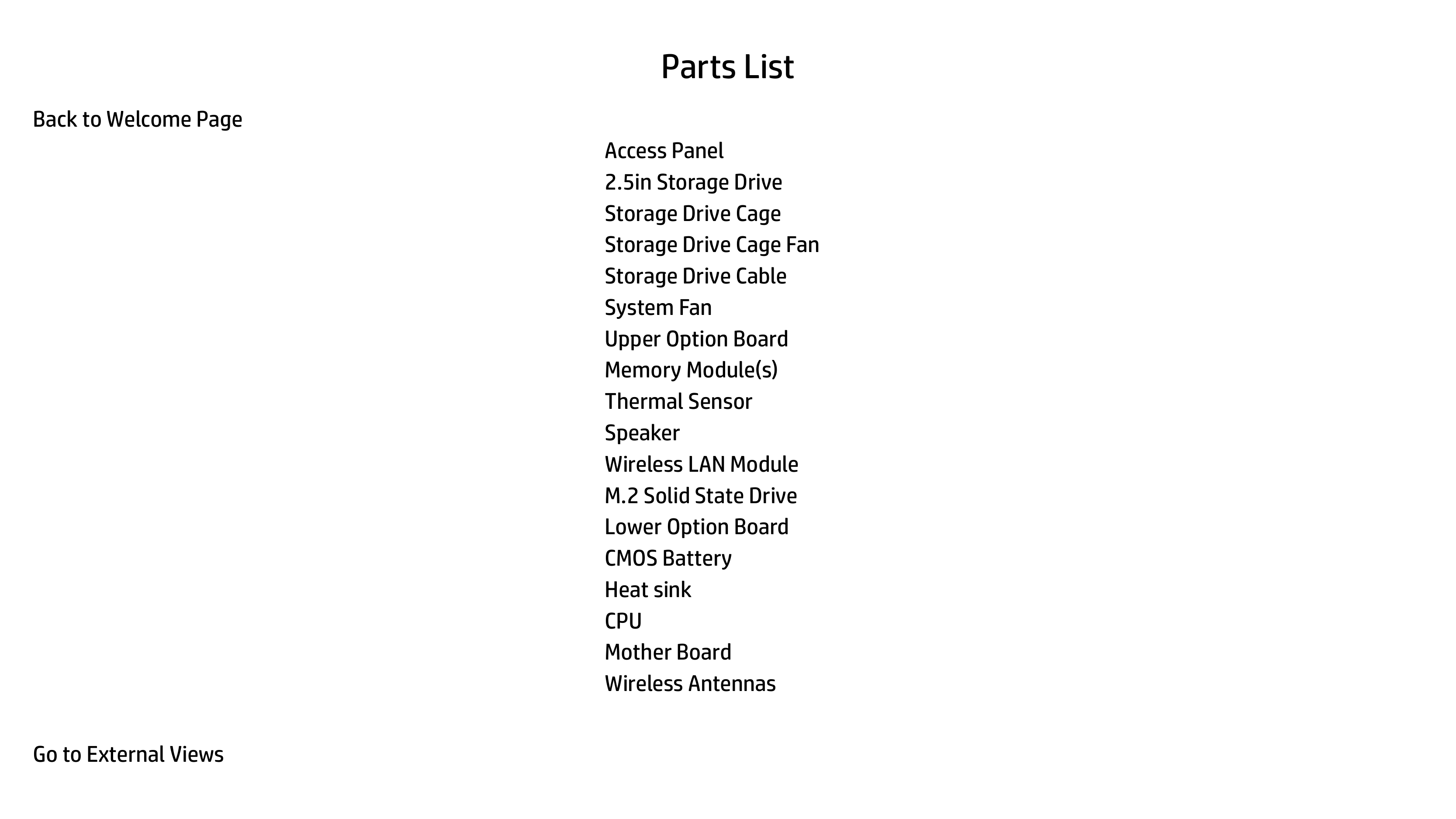
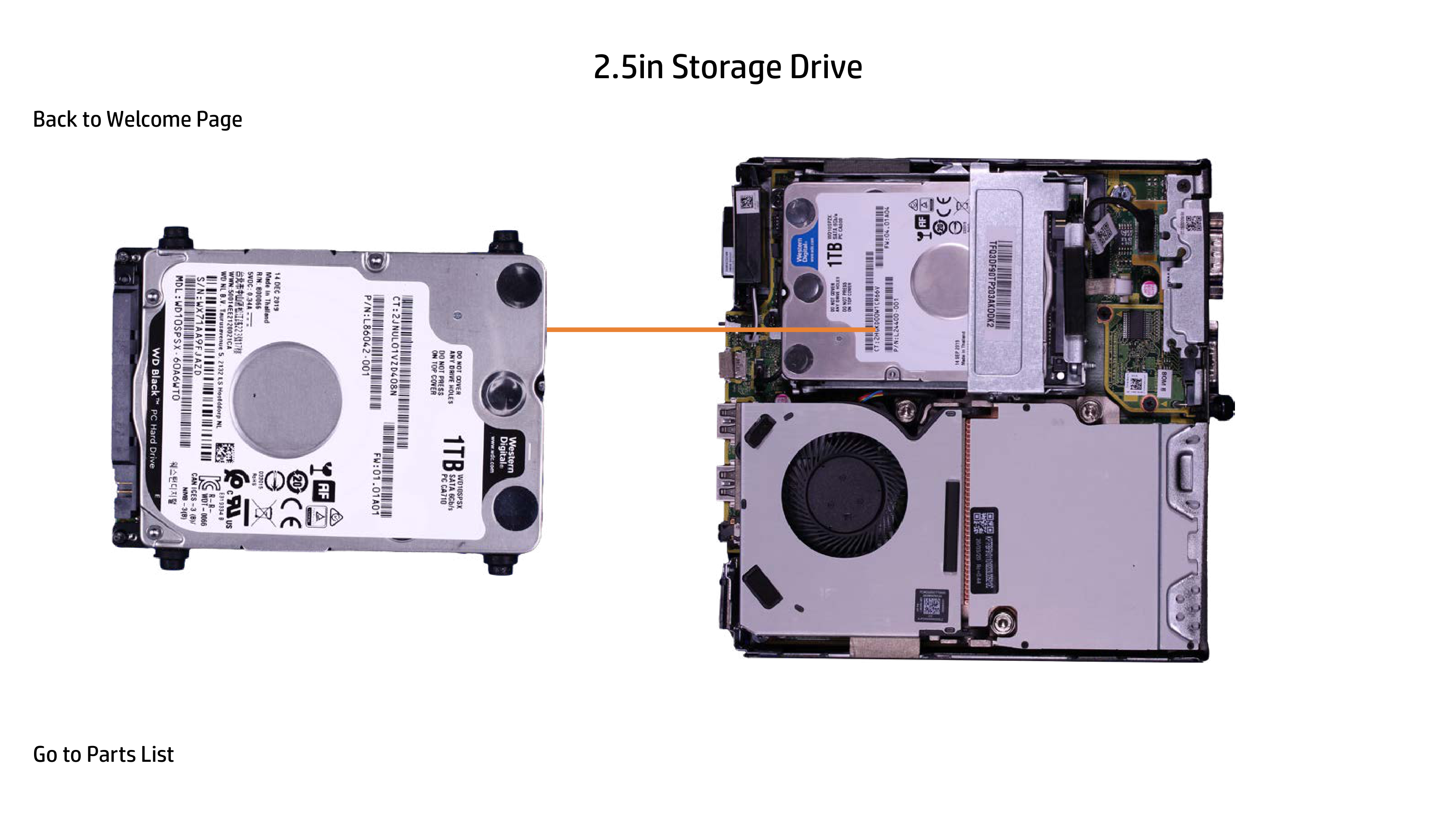
2.5in Storage Drive
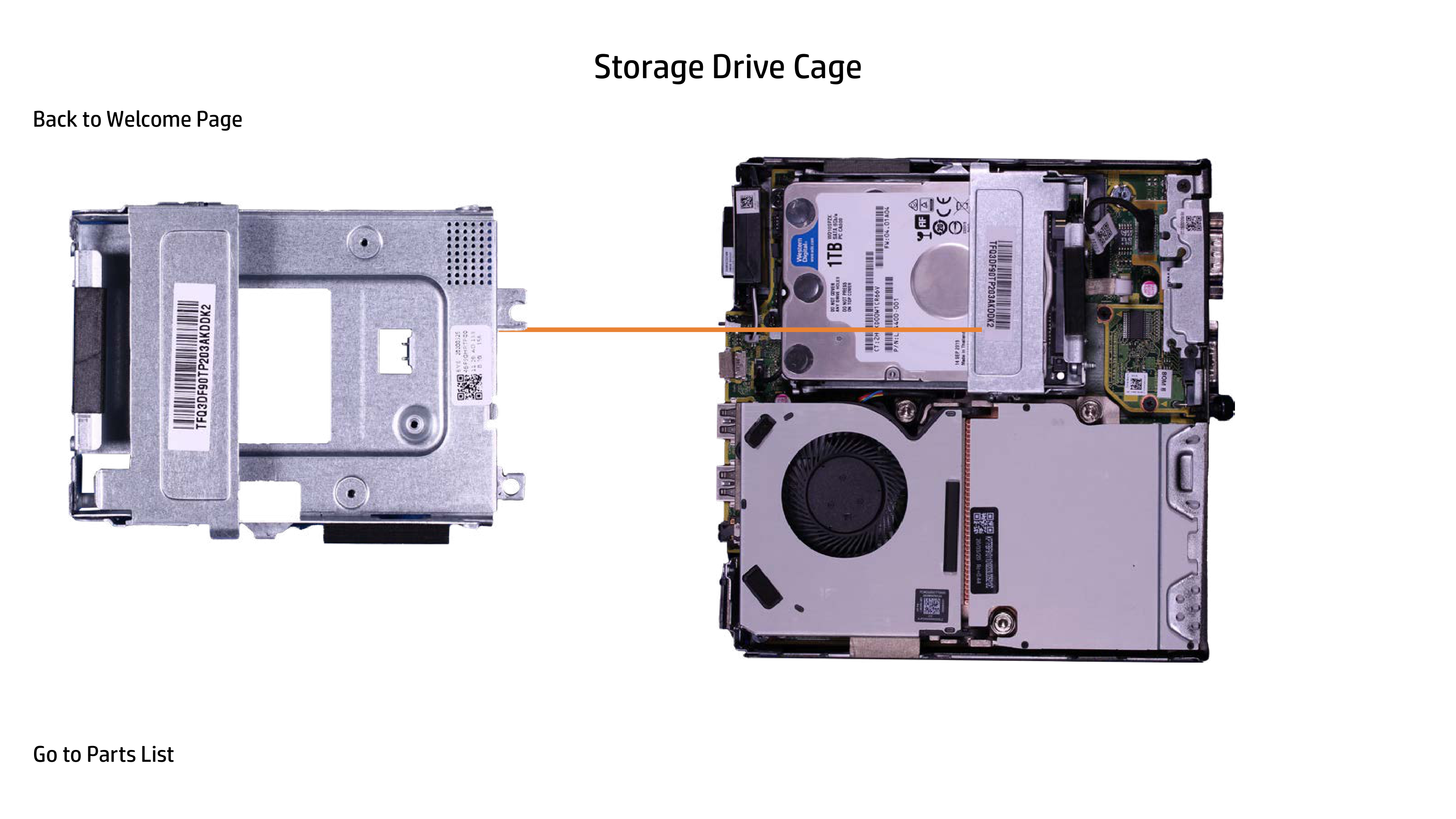
Storage Drive Cage Storage Drive Cable
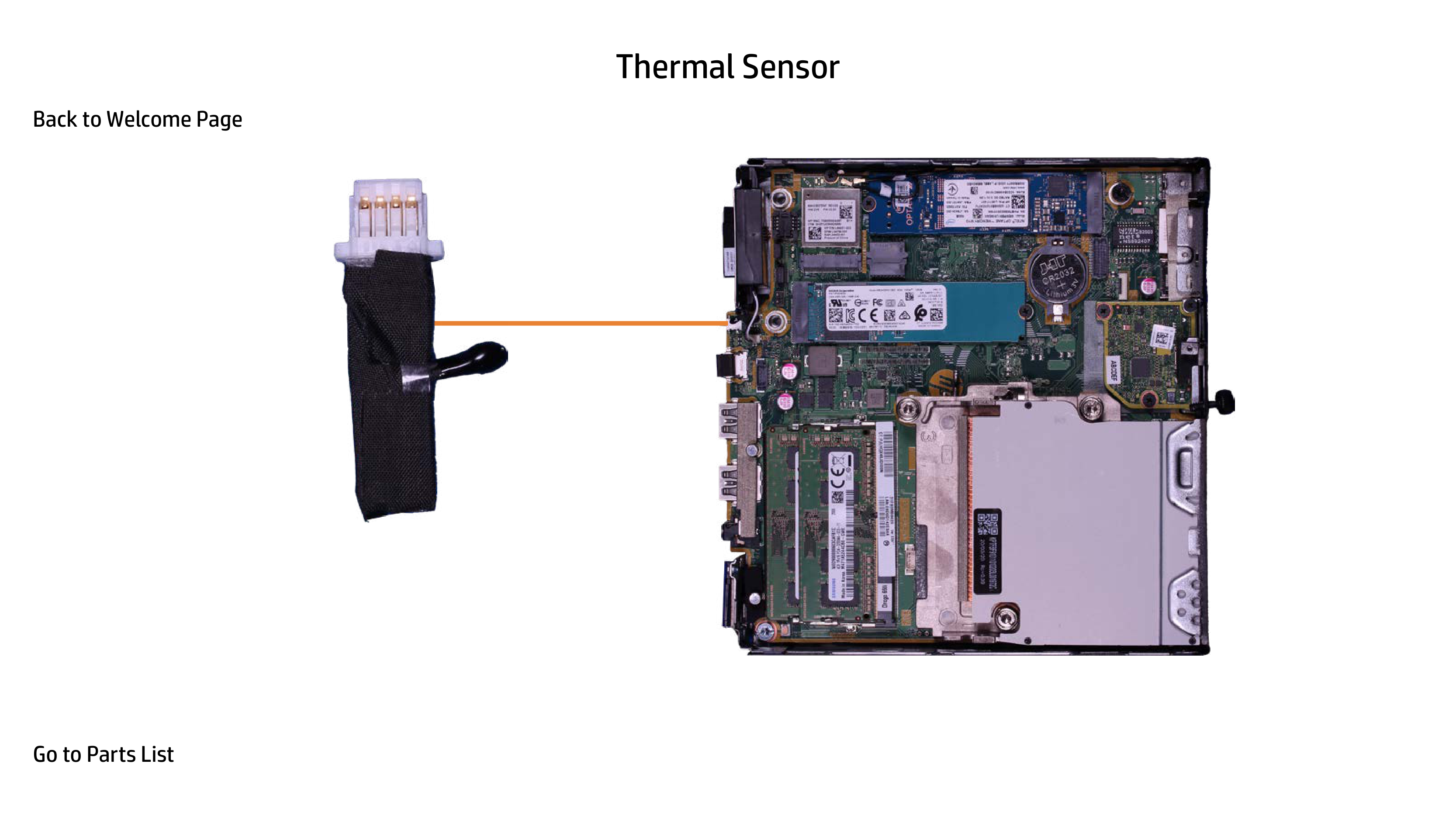
Thermal Sensor
System Fan

Upper Option Board
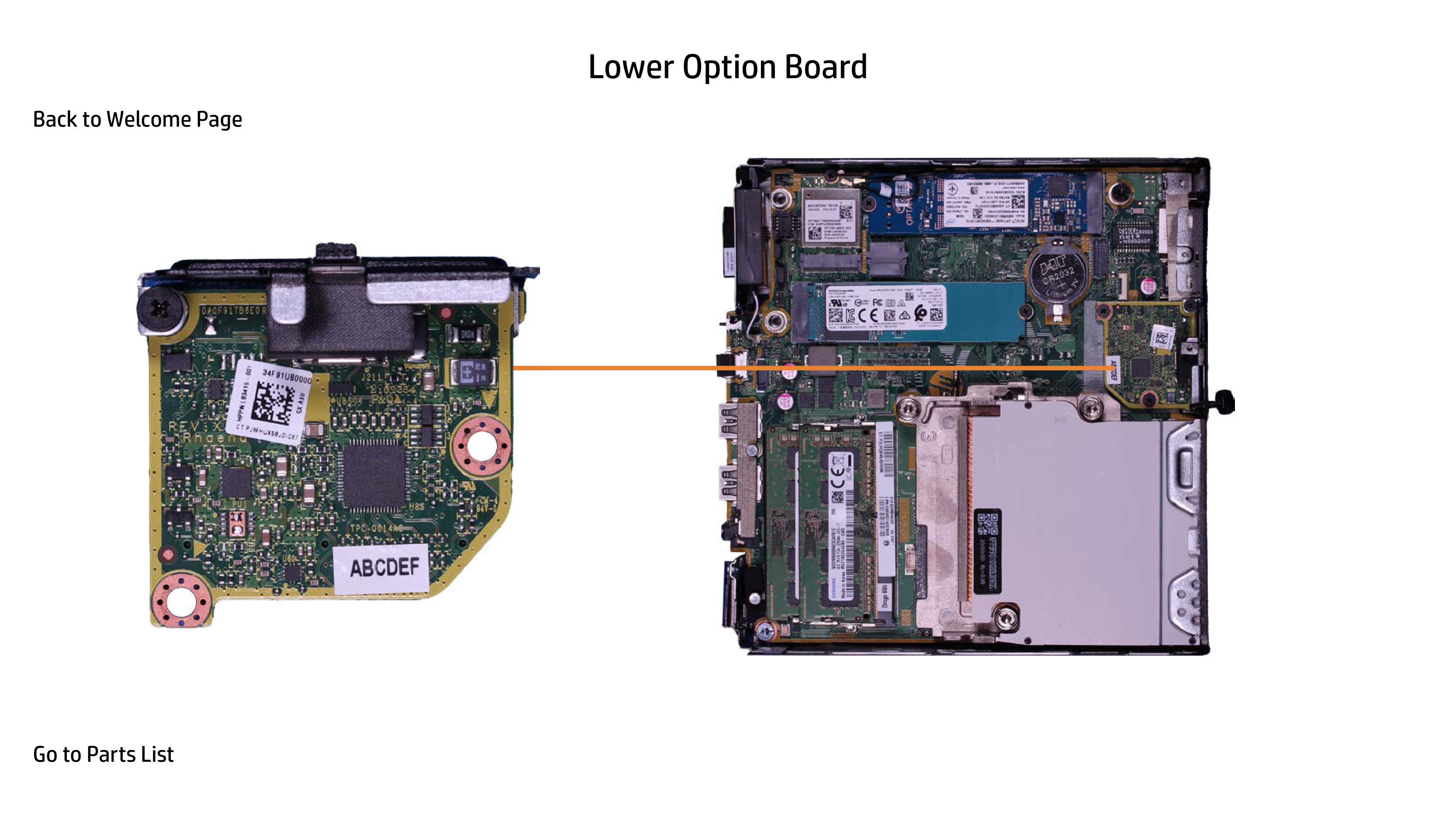
Lower Option Board
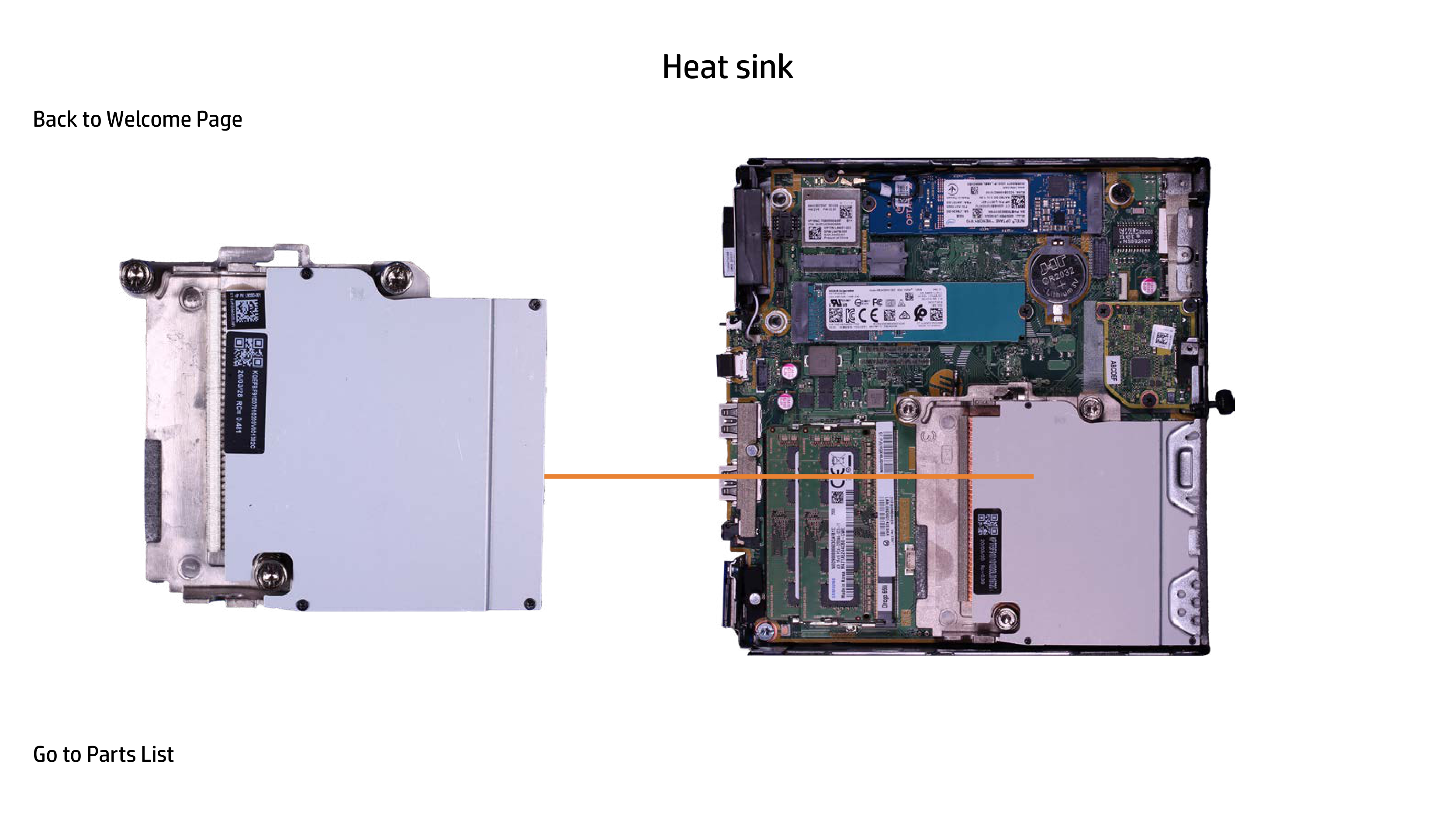
Heatsink
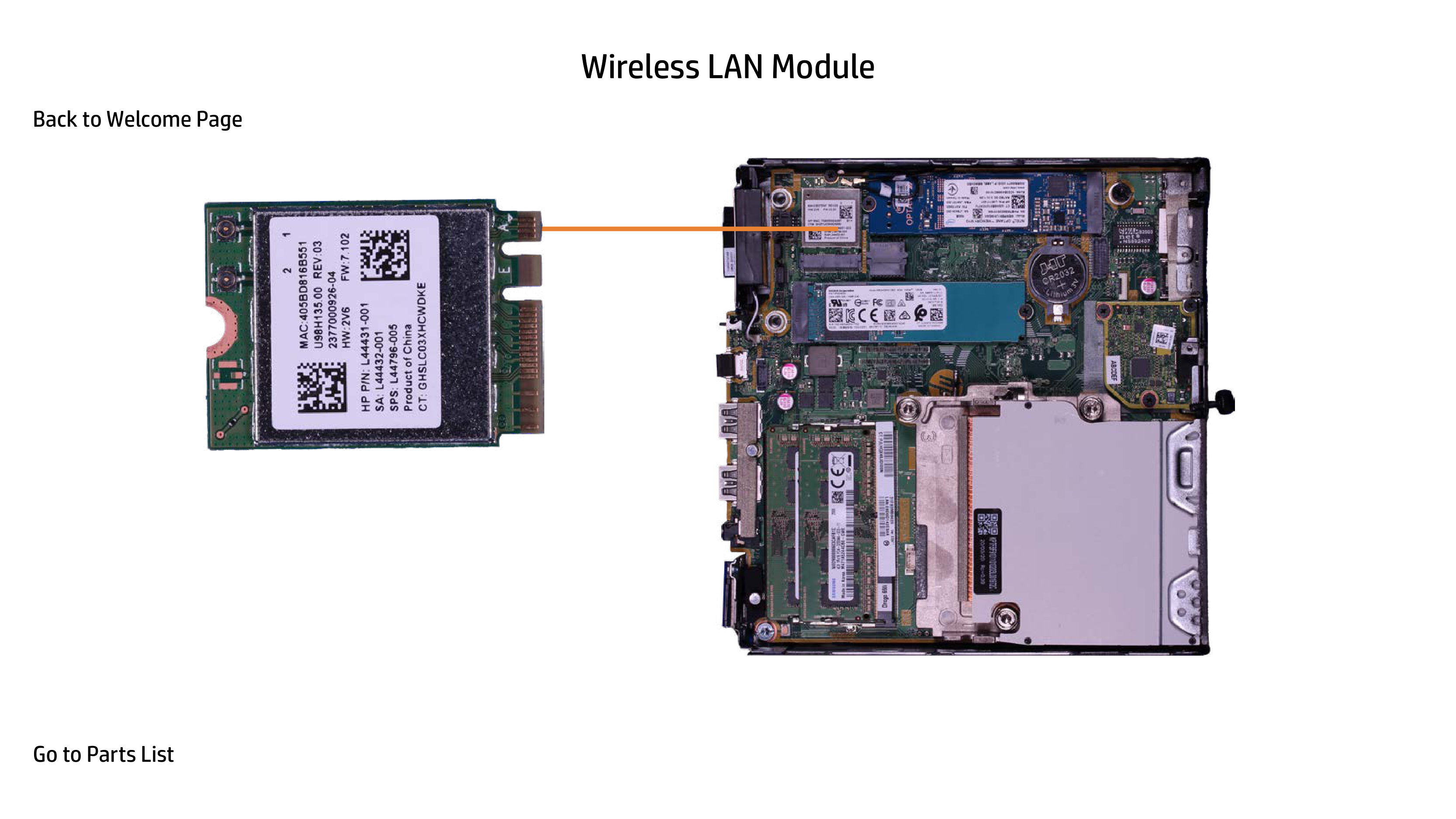
Wireless LAN Module
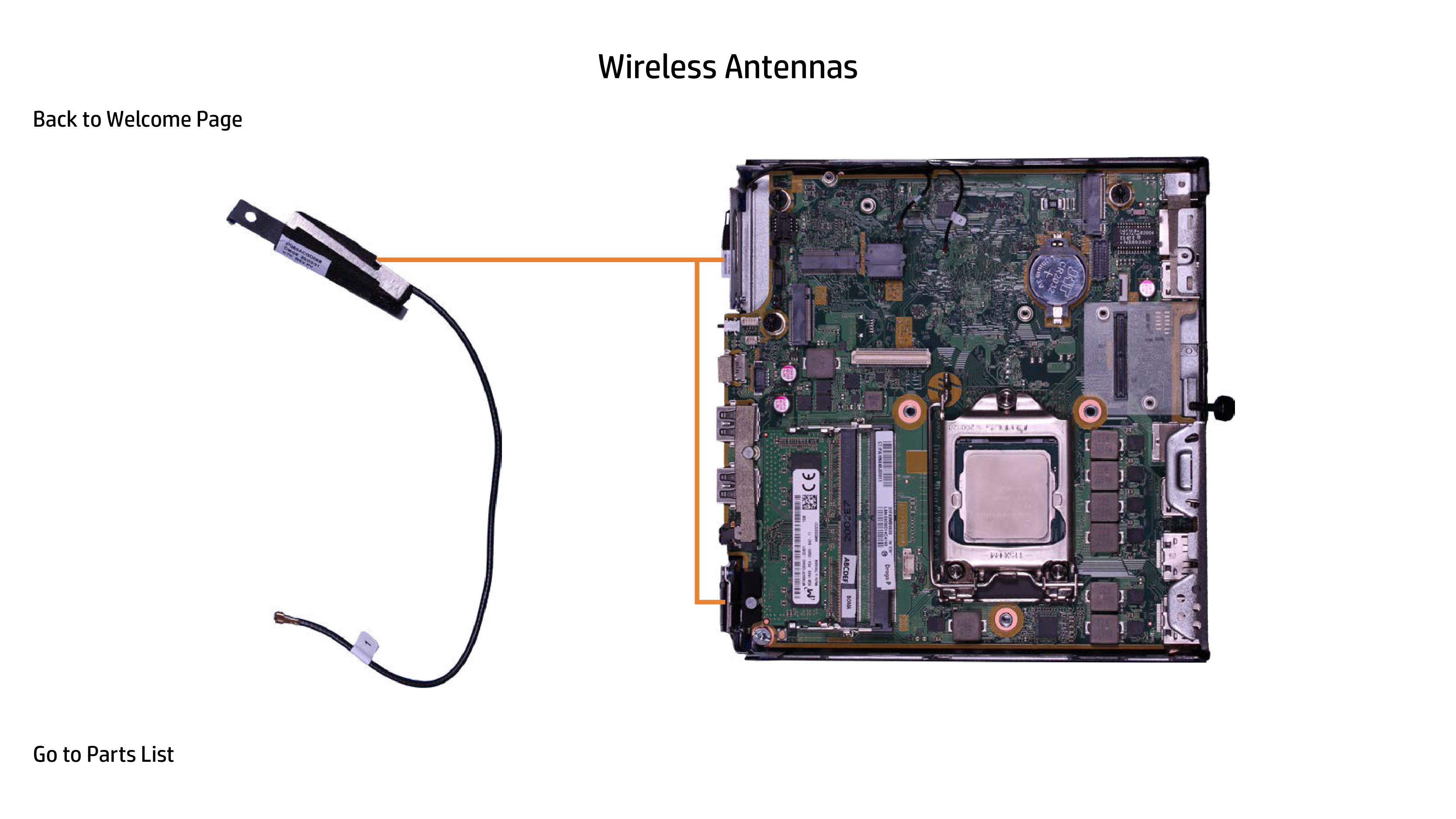
Wireless Antennas
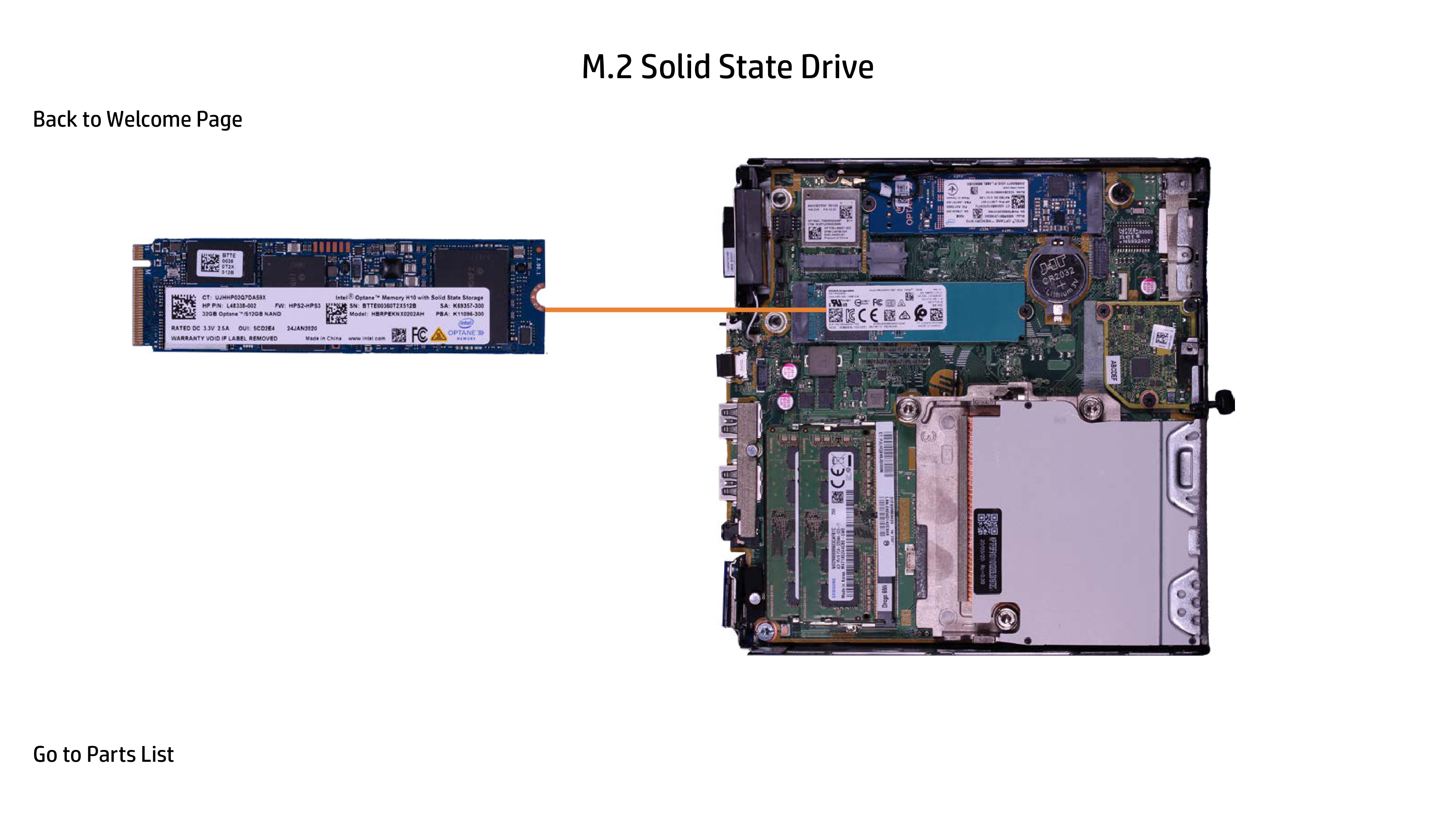
M.2 Solid State Drive
Memory Module(s)

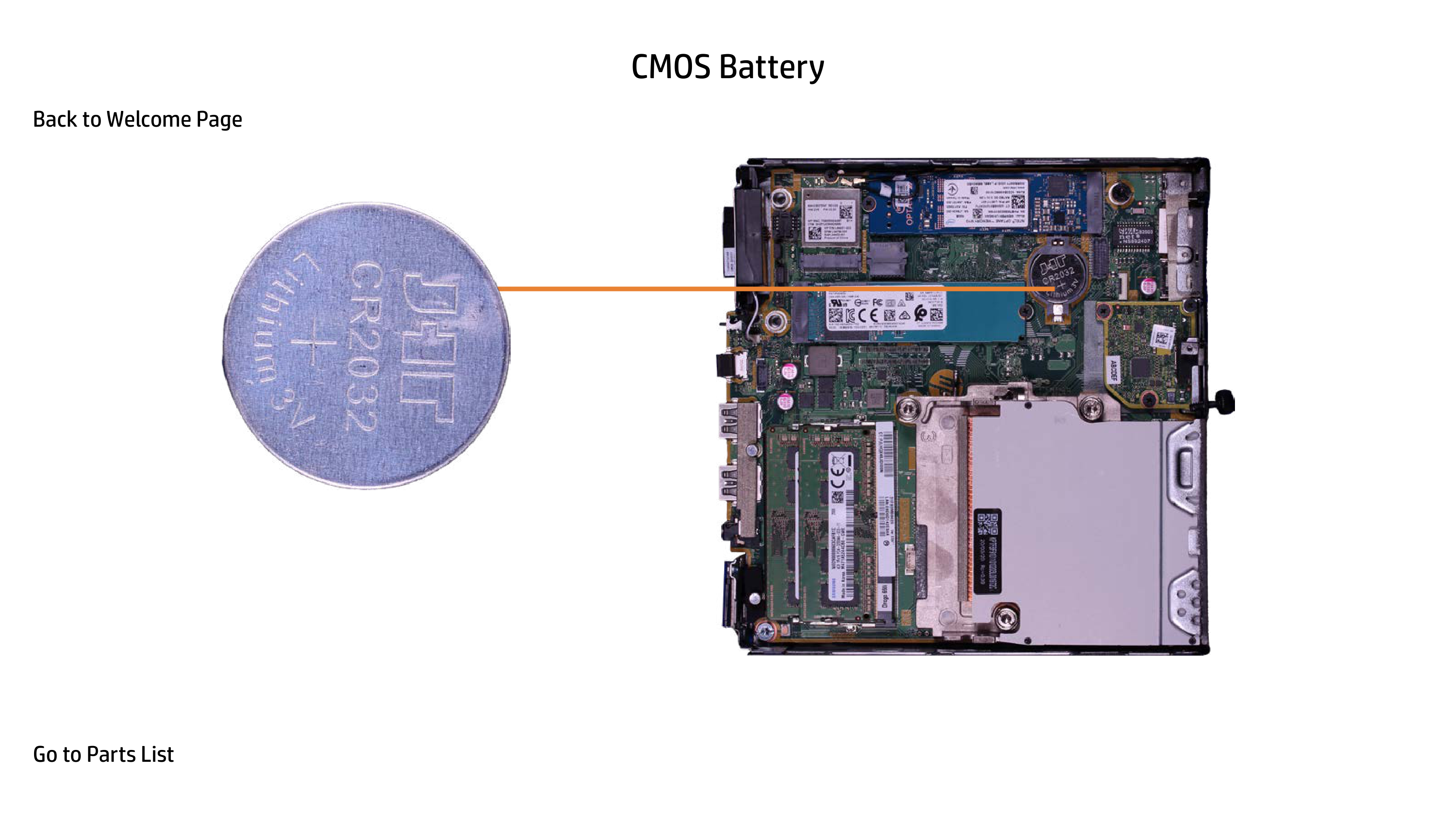
CMOS Battery
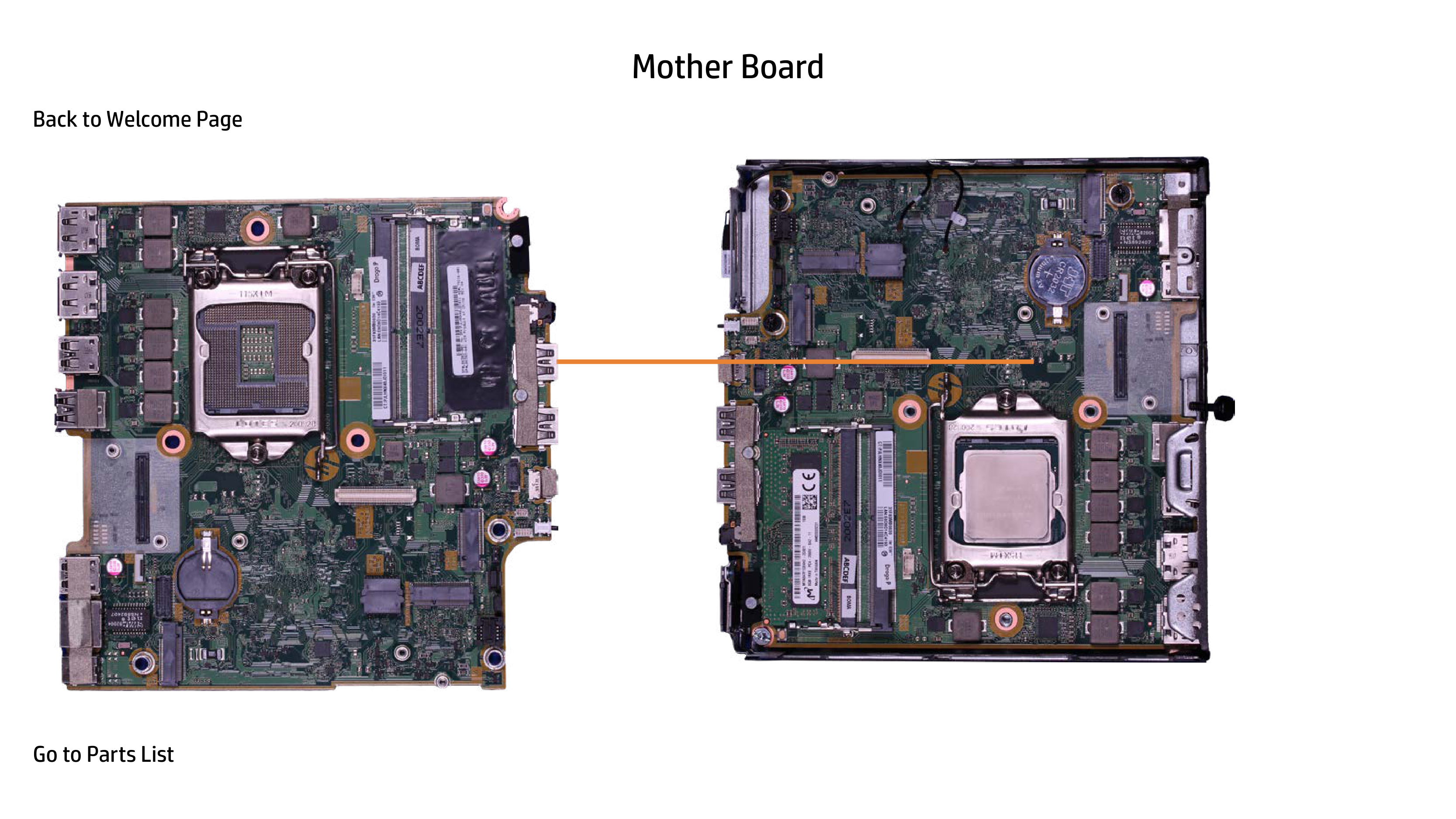
Motherboard
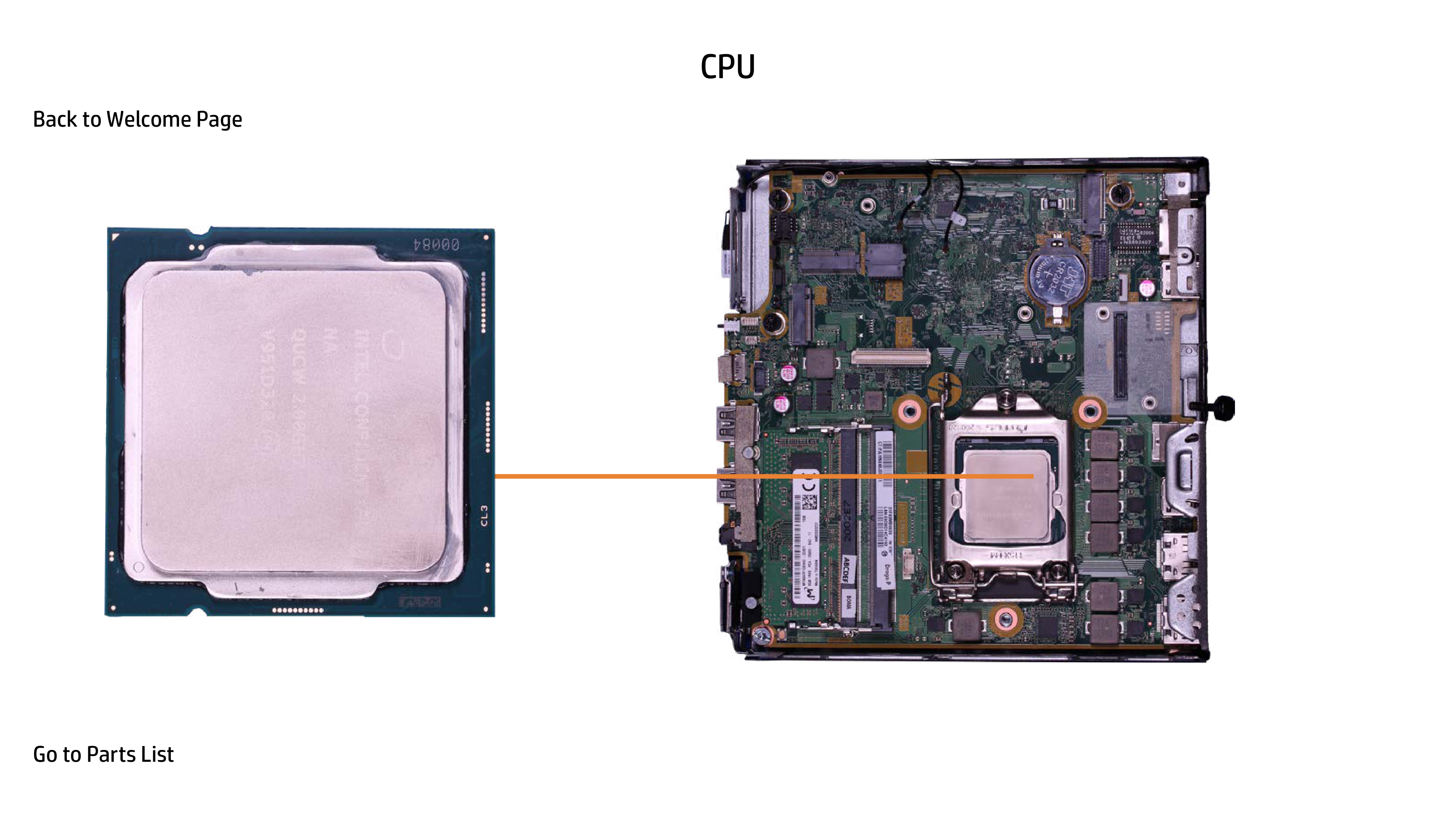
CPU
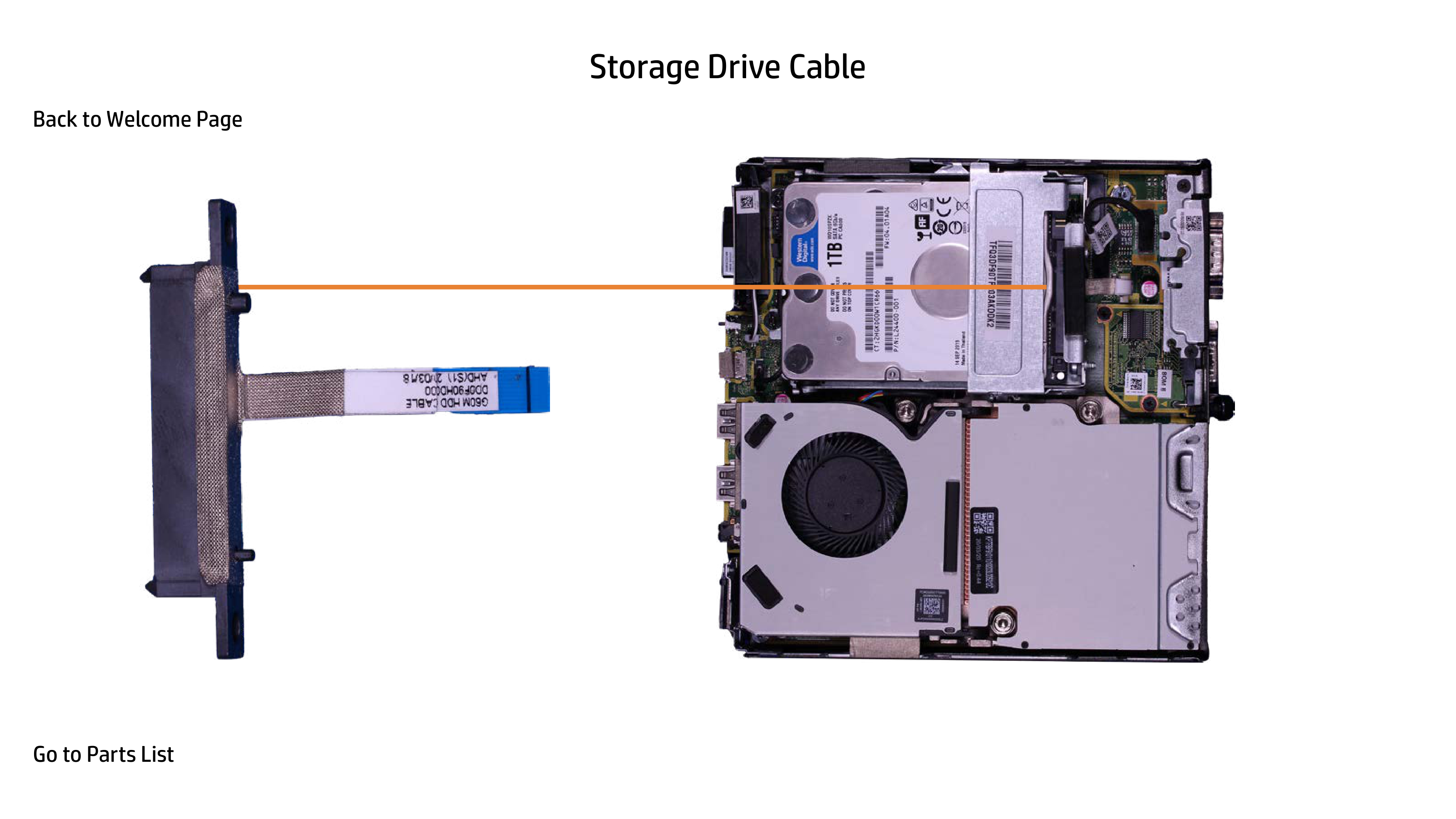
Access Panel
Access Panel

2.5in Storage Drive
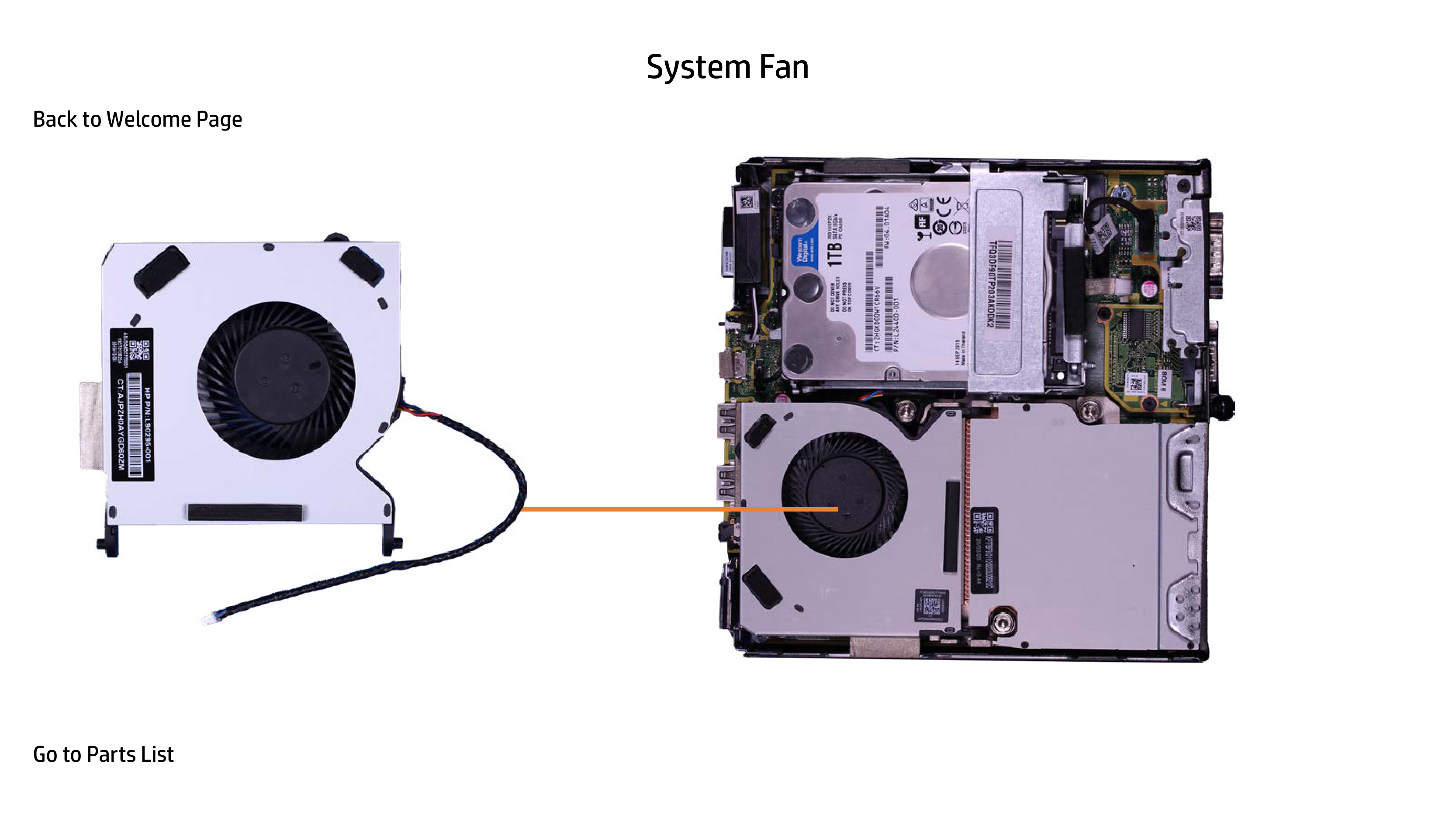


Storage Drive Cage
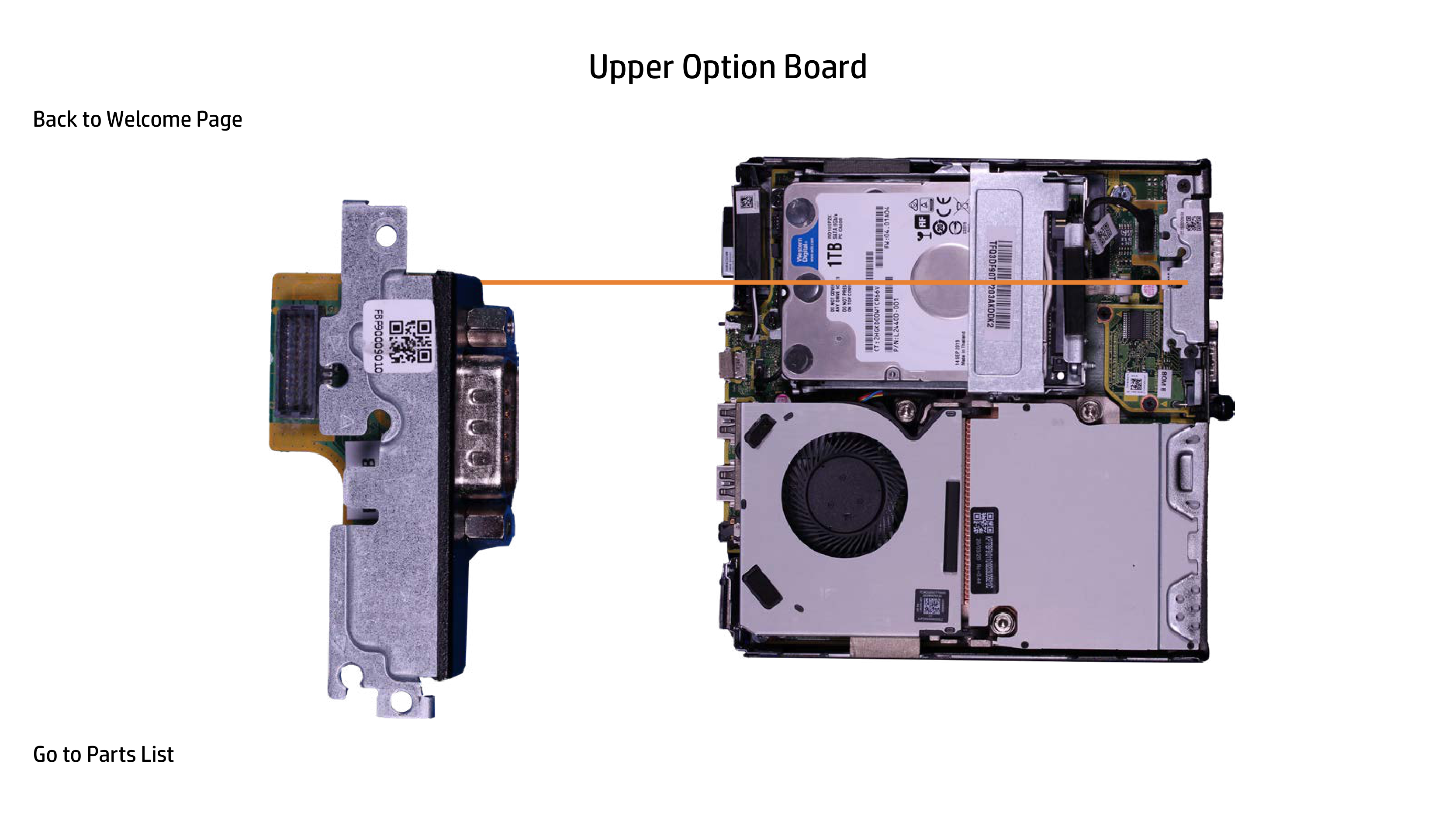


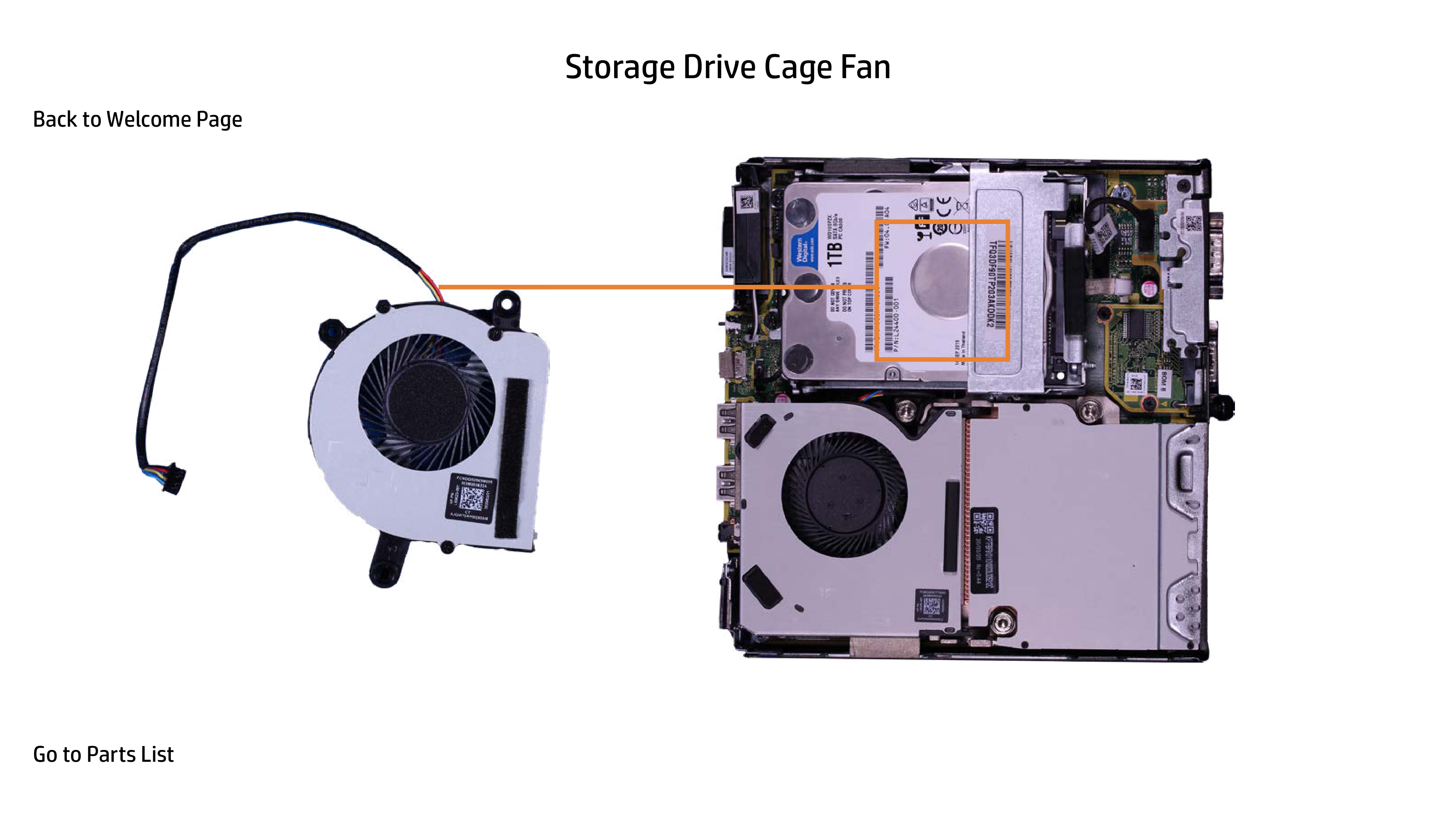
Storage Drive Cage Fan

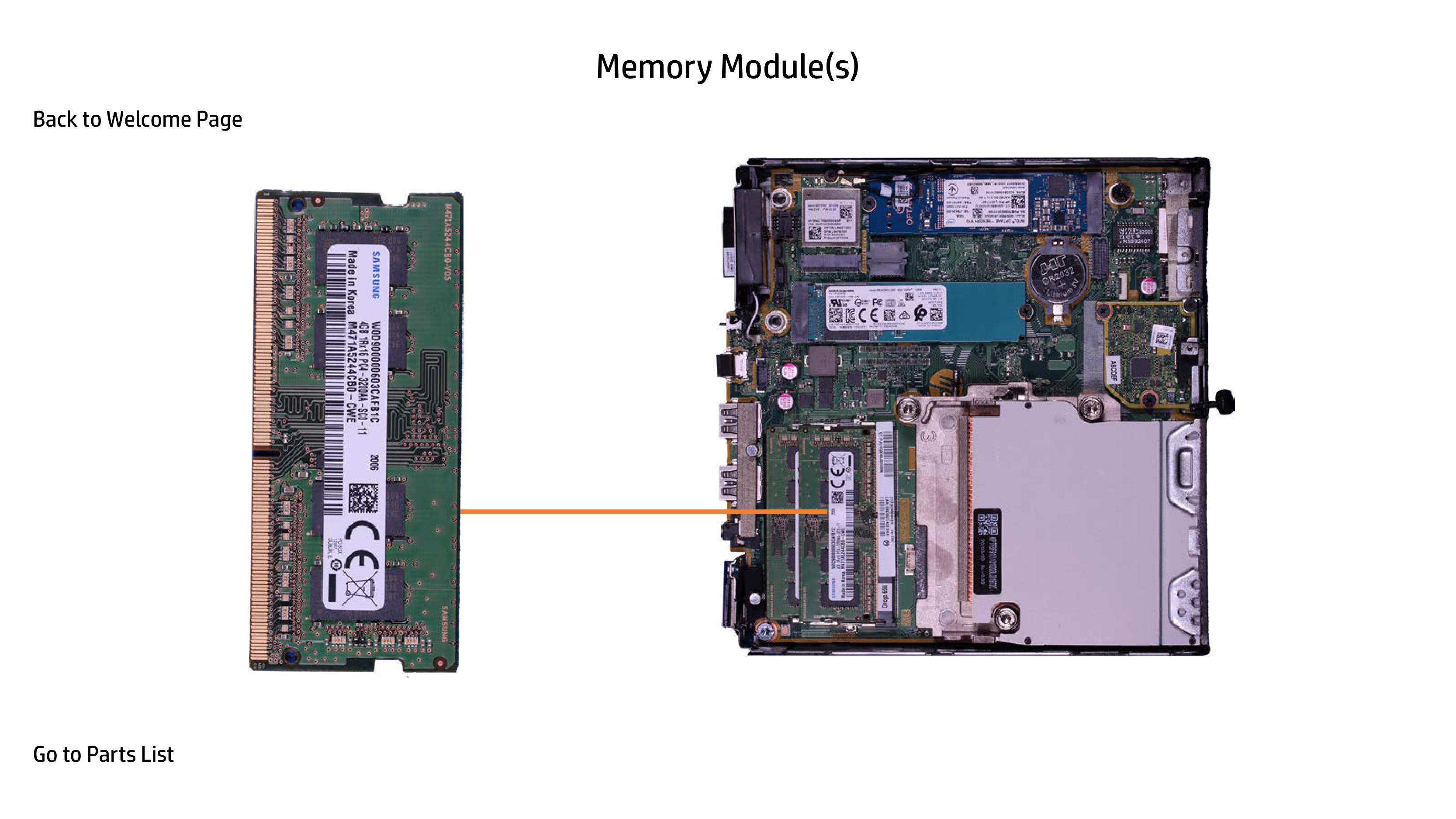

| | | |---|---| | | |
Storage Drive Cable


System Fan


Upper Option Board


Memory Module(s)


Thermal Sensor


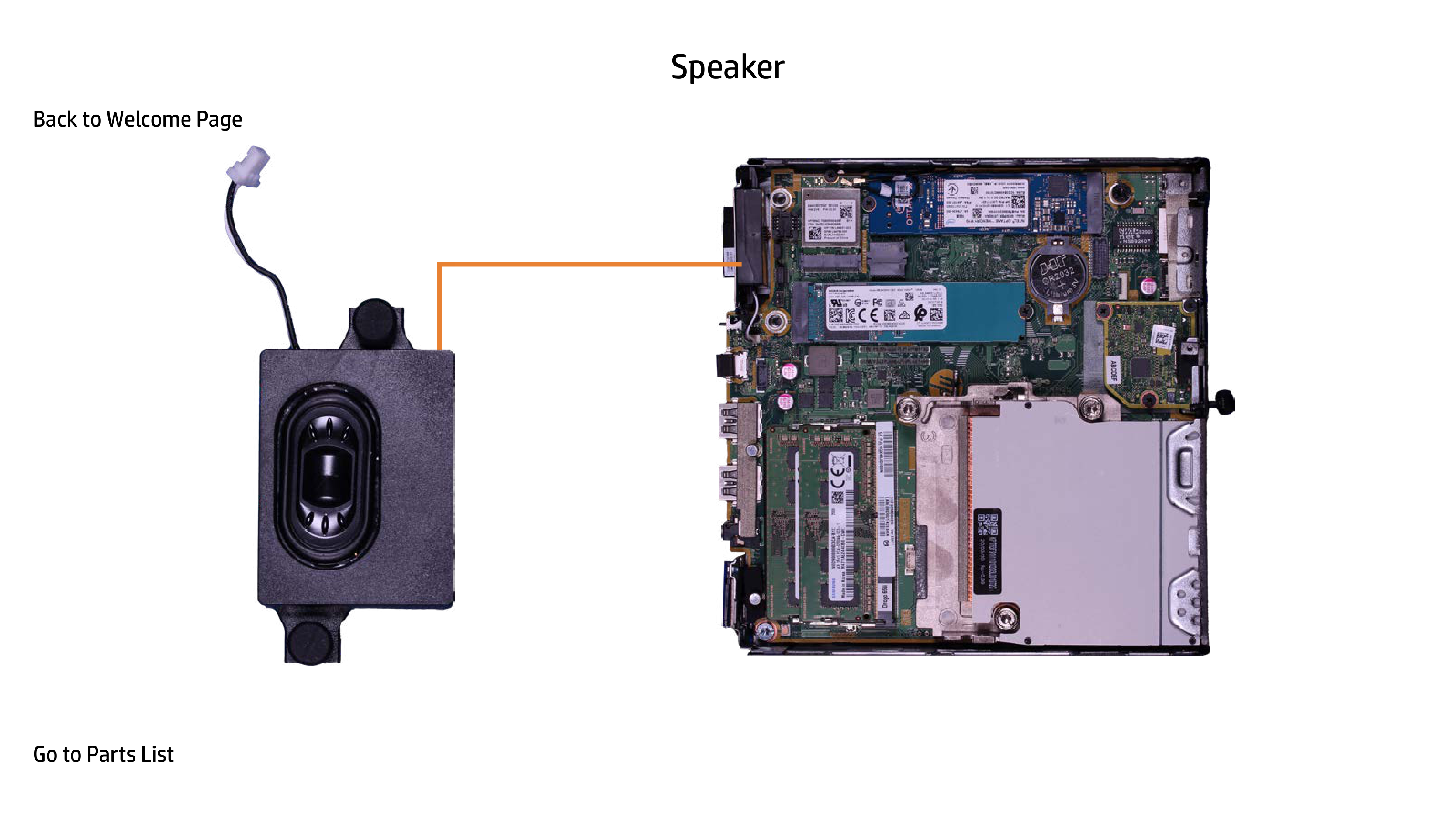
Speaker


Wireless LAN Module


M.2 Solid State Drive


Lower Option Board


CMOS Battery


Heat sink


CPU


Mother Board


Wireless Antennas

