
Ask AI
— answers from the official manualAnswers from the official manual.
Common questions
Common Questions
20 totalHow do I set up the HP Envy 5540 printer for the first time?
Follow the instructions in the Start Here booklet to set up your printer. Then visit 123.hp.com/setup to install the mobile app or printer software and connect the printer to your network. You will also need to create an online account to activate your printer, which you will be guided through after installing the mobile app or printer software. (Page 1)
What does the blinking wireless light on the HP Envy 5540 mean?
The wireless light indicates the status of your printer's wireless connection. A solid blue light means a wireless connection has been established and you can print. A slow blinking light means wireless is on but the printer is not connected to a network, while a fast blinking light indicates a wireless error — check the message on the printer display for details. (Page 2)
What should I do if I cannot print from my HP Envy 5540?
First, make sure the cable connections are secure and the printer is powered on — the On button should be lit white. Check the wireless status light to confirm the printer is connected to a network, and ensure the printer is set as your default printing device in your computer's settings. You can also visit www.hp.com/go/tools to download free diagnostic utilities to help fix common printer problems. (Page 3)
How do I reset the HP Envy 5540 printer if it stops working?
To reset the printer, turn it off and unplug the power cord. Wait a minute, then plug the power cord back in and turn on the printer. You should also restart your computer as part of the troubleshooting process. (Page 3)
How do I print a Wireless Test Report to check my network connection?
From the printer control panel, touch the Wireless icon, then touch Settings, and then touch Print Reports, followed by Wireless Test Report. The report will print automatically and includes a Diagnostics Results section showing all tests performed, as well as a Current Configuration section showing the Network Name (SSID) your printer is connected to. (Page 4)
Can I use the HP Envy 5540 without a wireless router?
Yes, you can use Wi-Fi Direct to print wirelessly without a router from your computer, smartphone, or other wireless-enabled device. To enable it, touch the Wi-Fi Direct icon on the Home screen, and if Status is Off, touch Wi-Fi Direct Settings and turn it on. Note that a Wi-Fi Direct connection does not provide Internet access. (Page 5)
Show 14 more questions
How do I connect my HP Envy 5540 printer wirelessly?
What steps should I follow if my HP Envy 5540 printer fails to connect through USB?
How can I uninstall my HP Envy 5540 printer software?
Can I use Wi-Fi Direct to print from my HP Envy 5540 without a router?
Does the HP Envy 5540 printer come with a warranty and what does it cover?
How do I convert my USB connected printer to wireless?
How do I ensure my HP Envy 5540 remains secure during Wi-Fi Direct usage?
How do I switch the HP Envy 5540 from a USB connection to a wireless connection on Windows?
Does the HP Envy 5540 support Apple AirPrint?
What is the warranty duration for the HP Envy 5540 printer and its ink cartridges?
What safety precautions should I follow when using the HP Envy 5540?
How do I factory reset the HP Envy 5540 printer?
What are the safety precautions I should follow when setting up my HP Envy 5540 printer?
What steps should I take if my HP Envy 5540 printer is not printing?
Full Manual
6 pages
© 2015 HP Development Company, L.P.
*G0V47-90073*
*G0V47-90073*
G0V47-90073
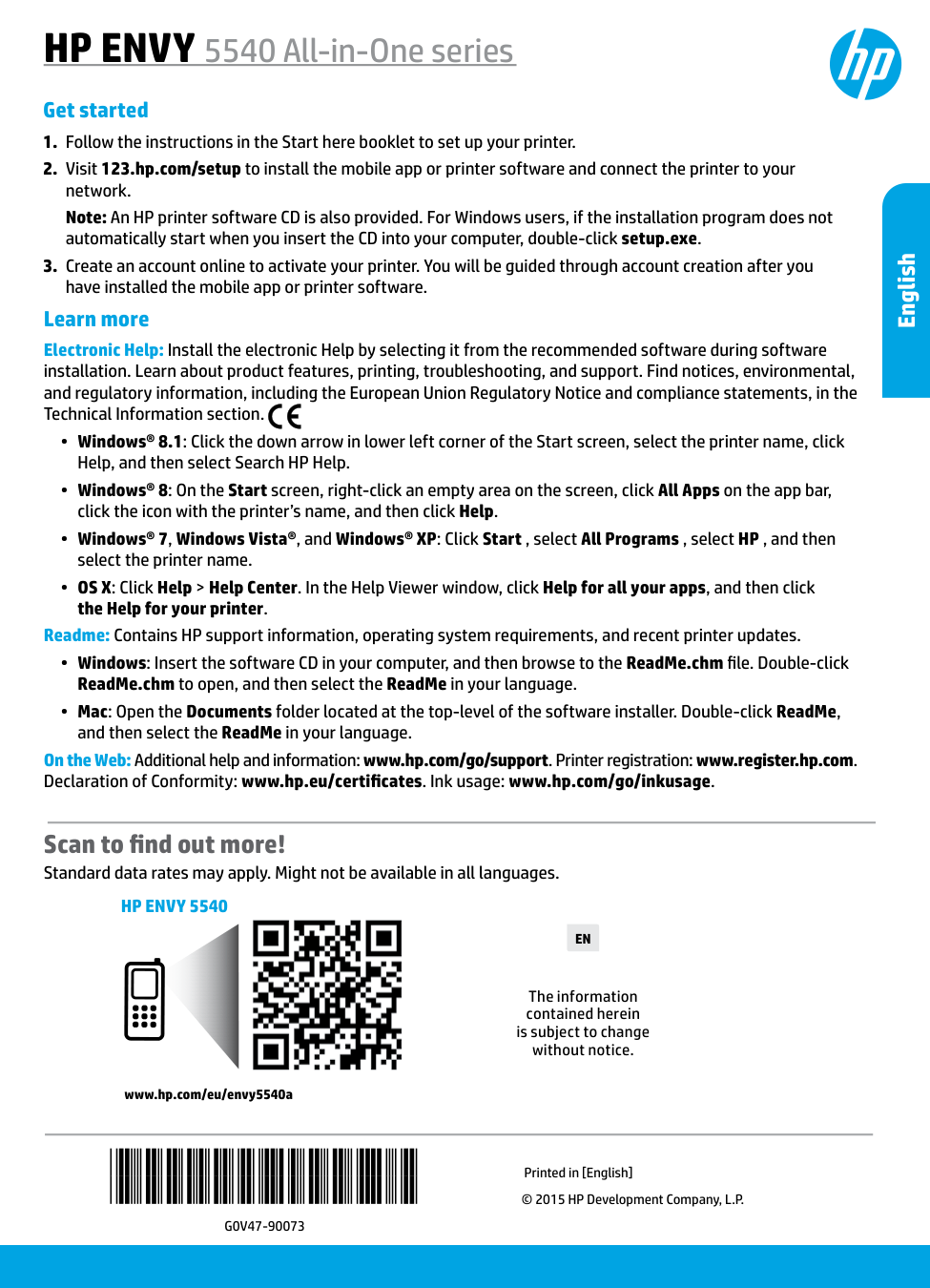
Printed in [English] The information contained herein is subject to change without notice. www.hp.com/eu/envy5540a Scan to find out more! Standard data rates may apply. Might not be available in all languages. Learn more Electronic Help: Install the electronic Help by selecting it from the recommended software during software installation. Learn about product features, printing, troubleshooting, and support. Find notices, environmental, and regulatory information, including the European Union Regulatory Notice and compliance statements, in the Technical Information section. •• Windows® 8.1: Click the down arrow in lower left corner of the Start screen, select the printer name, click Help, and then select Search HP Help. •• Windows® 8: On the Start screen, right-click an empty area on the screen, click All Apps on the app bar, click the icon with the printer’s name, and then click Help. •• Windows® 7, Windows Vista®, and Windows® XP: Click Start , select All Programs , select HP , and then select the printer name. •• OS X: Click Help > Help Center. In the Help Viewer window, click Help for all your apps, and then click the Help for your printer. Readme: Contains HP support information, operating system requirements, and recent printer updates. •• Windows: Insert the software CD in your computer, and then browse to the ReadMe.chm file. Double-click ReadMe.chm to open, and then select the ReadMe in your language. •• Mac: Open the Documents folder located at the top-level of the software installer. Double-click ReadMe, and then select the ReadMe in your language. On the Web: Additional help and information: www.hp.com/go/support. Printer registration: www.register.hp.com. Declaration of Conformity: www.hp.eu/certificates. Ink usage: www.hp.com/go/inkusage. Get startedHp Envy 5540
EnglishEn
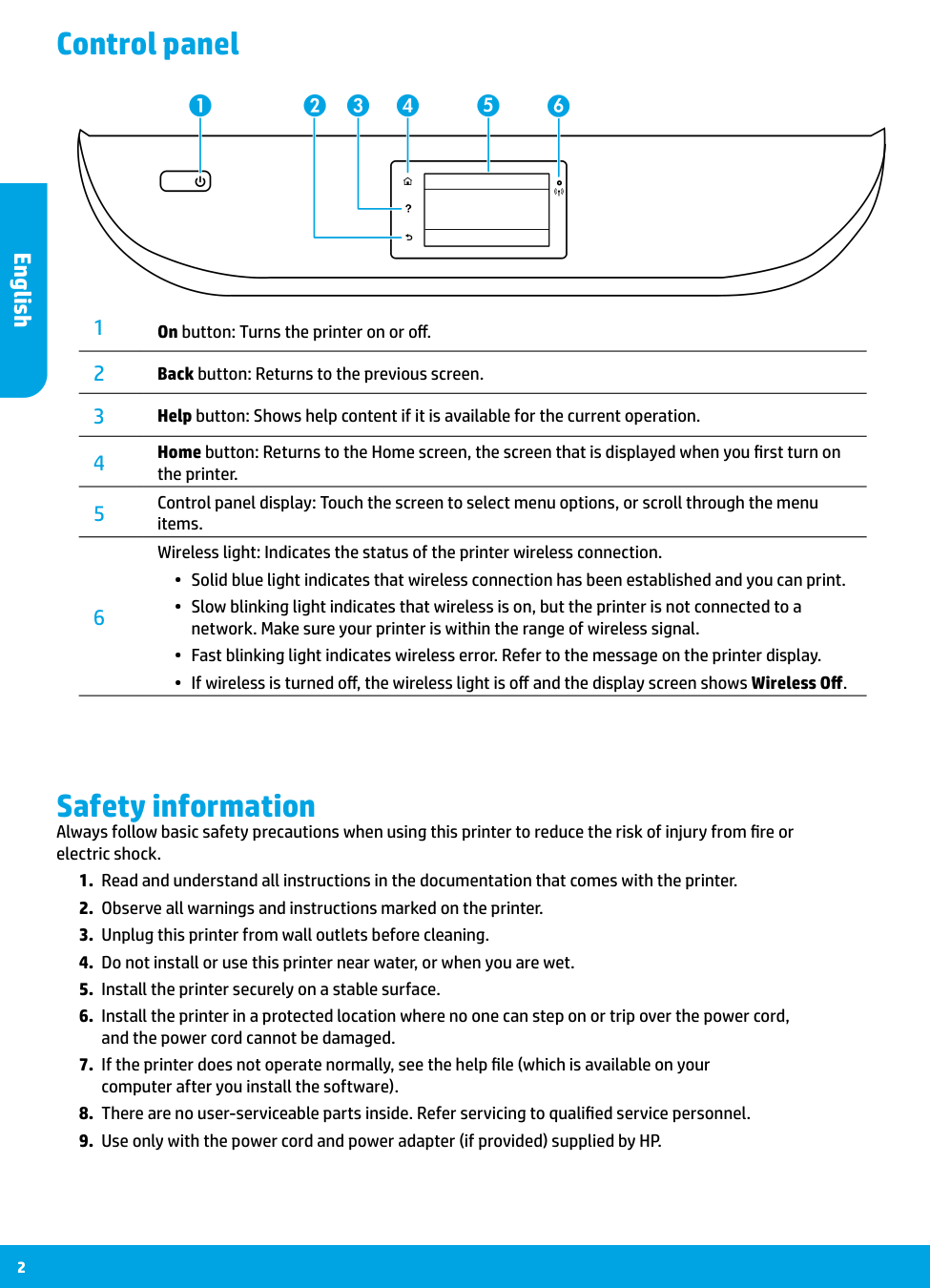
2 Safety information Always follow basic safety precautions when using this printer to reduce the risk of injury from fire or electric shock.
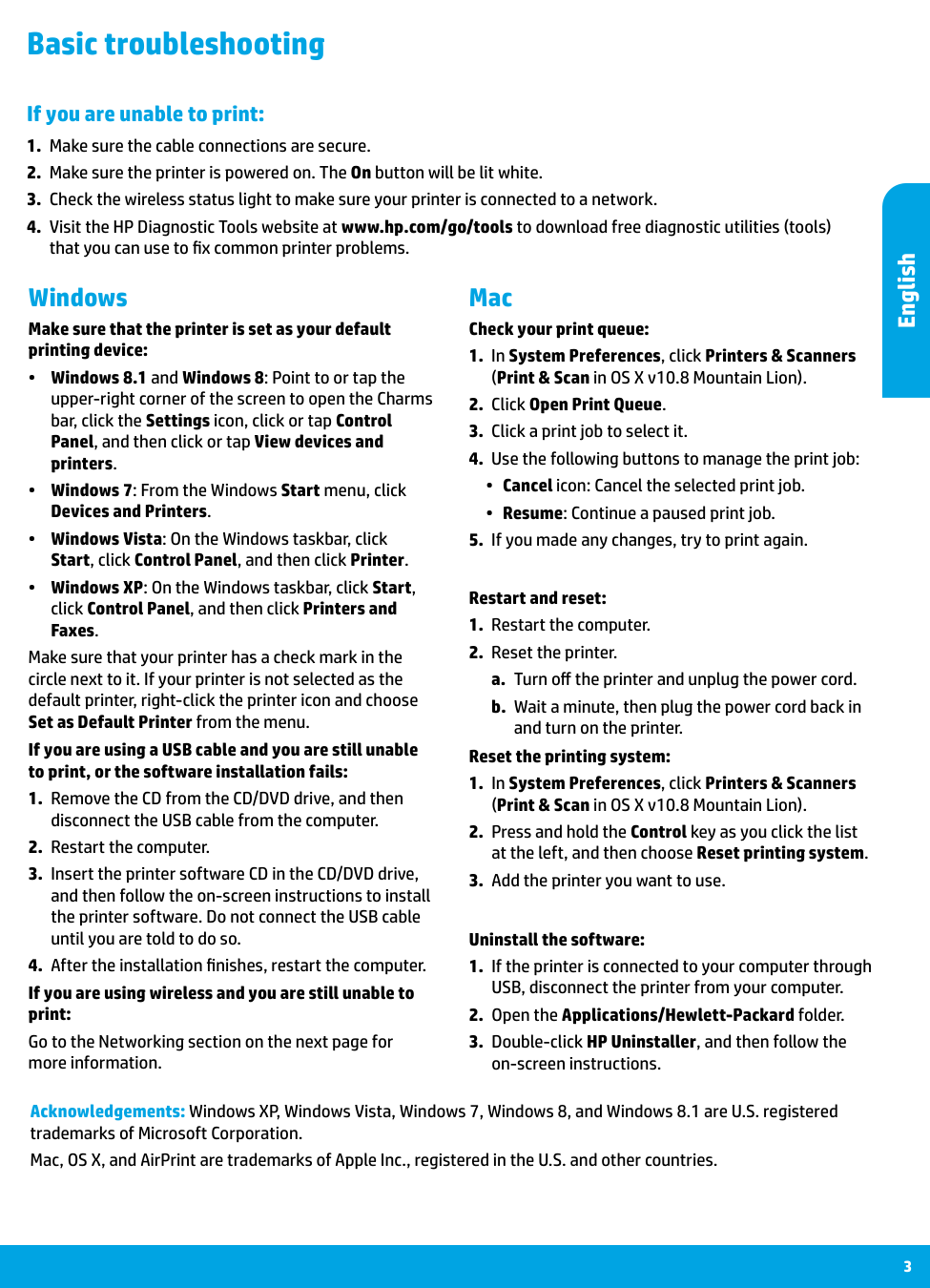
3 Mac Windows Basic troubleshooting If you are unable to print:
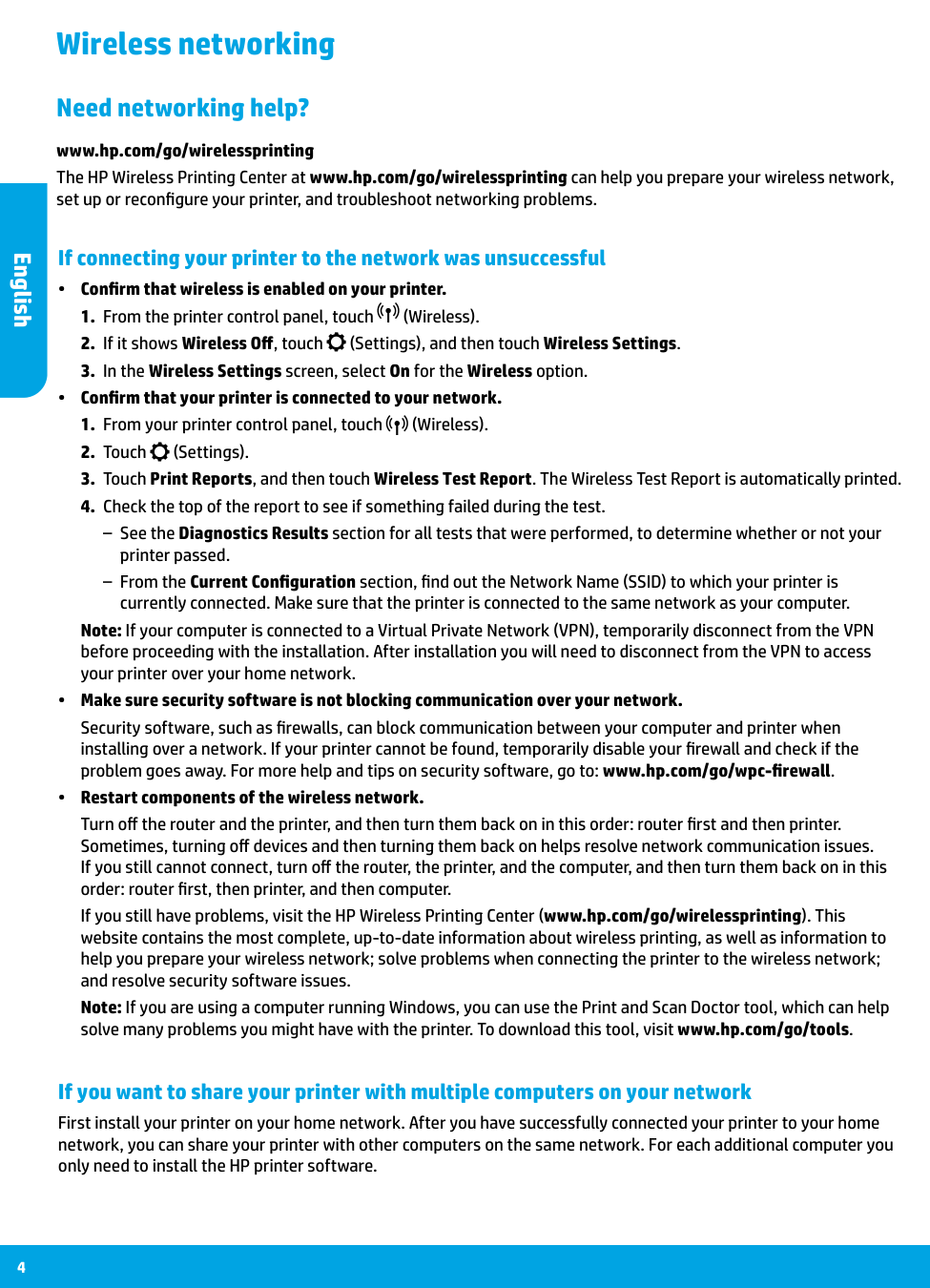
4 Wireless networking If connecting your printer to the network was unsuccessful •• Confirm that wireless is enabled on your printer.
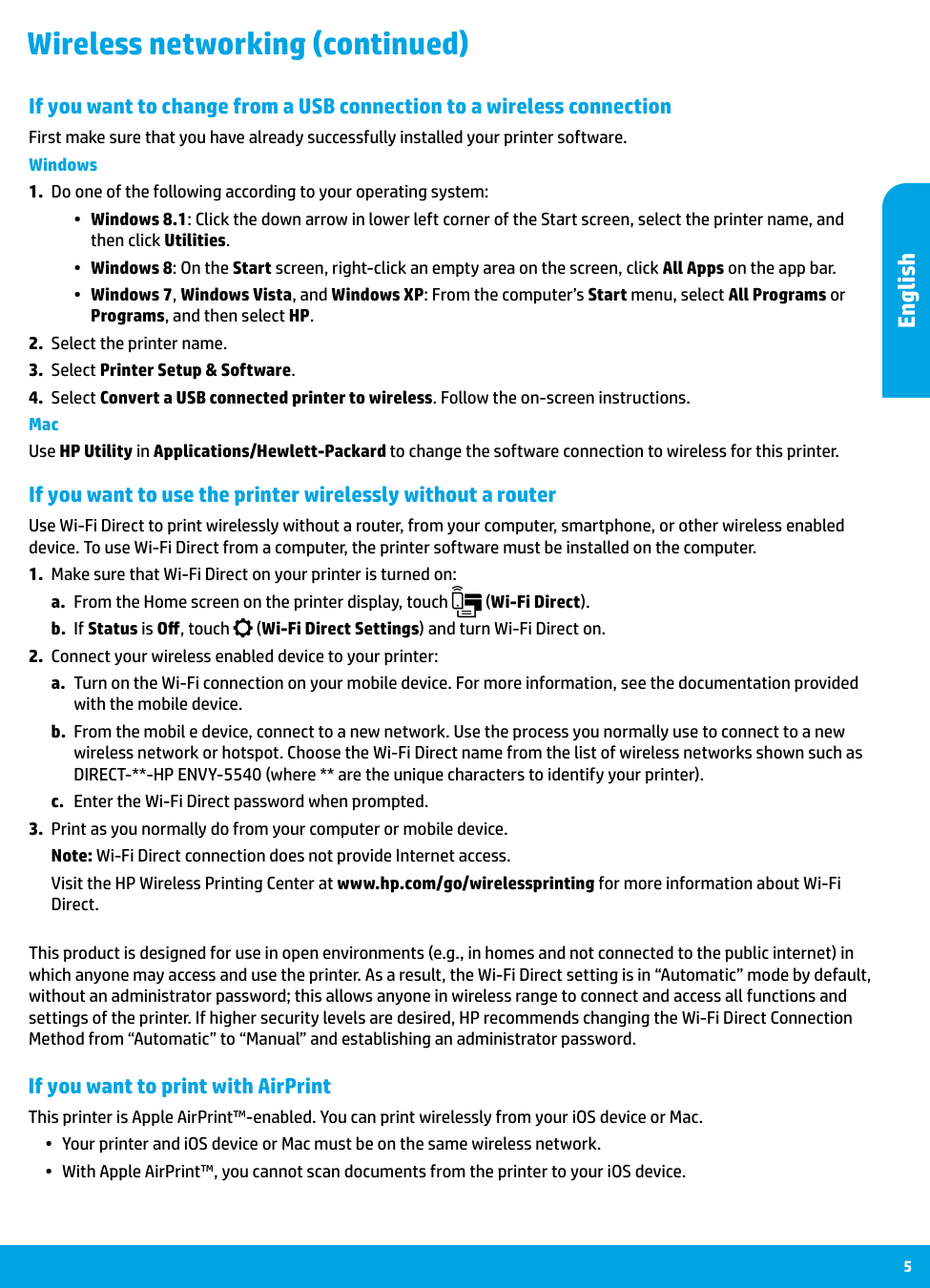
5 If you want to use the printer wirelessly without a router Use Wi-Fi Direct to print wirelessly without a router, from your computer, smartphone, or other wireless enabled device. To use Wi-Fi Direct from a computer, the printer software must be installed on the computer.
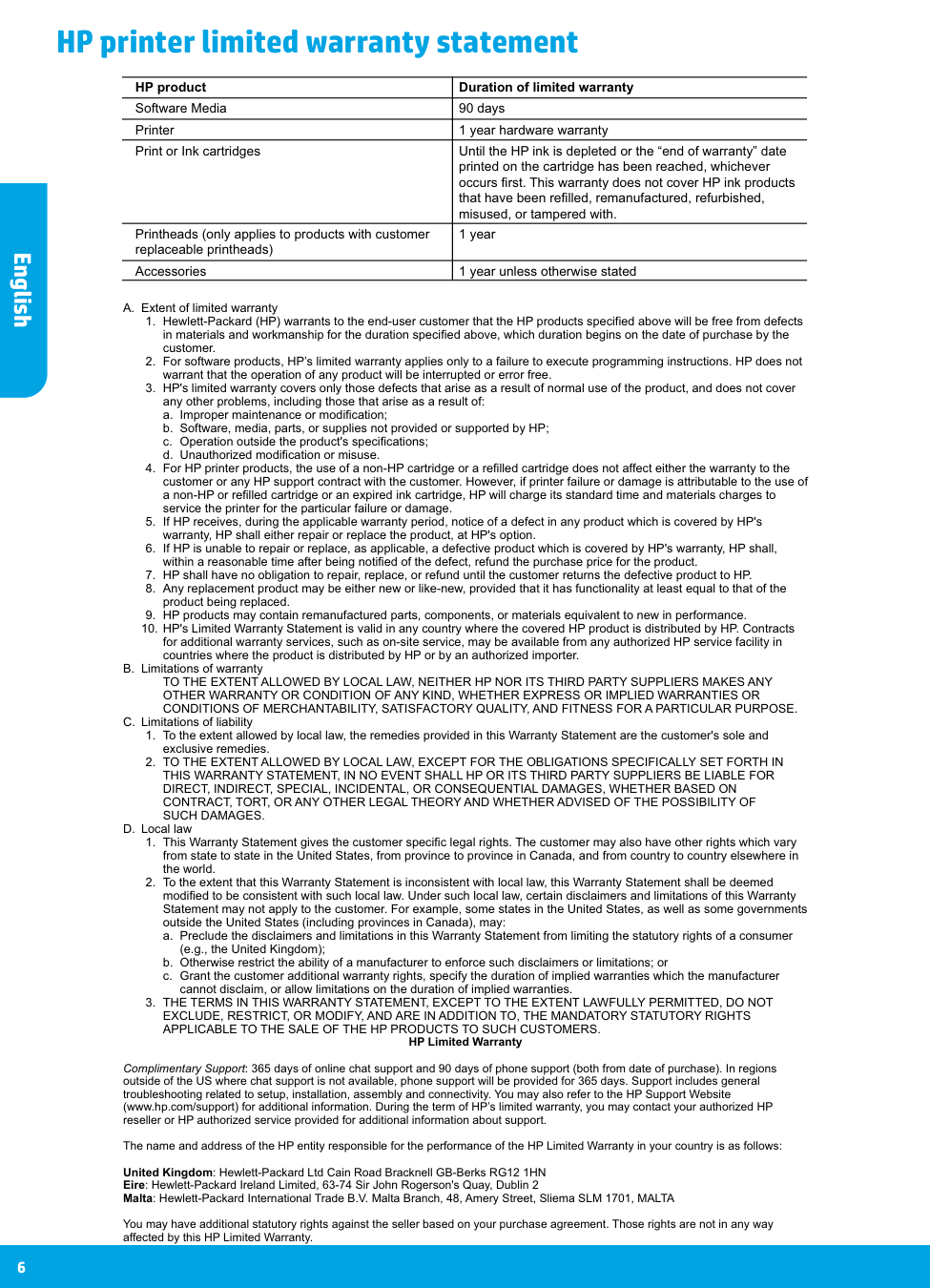
English 6 HP printer limited warranty statement A. Extent of limited warranty
a. Improper maintenance or modification;
b. Software, media, parts, or supplies not provided or supported by HP;
c. Operation outside the product's specifications;
d. Unauthorized modification or misuse.
Such Damages.
D. Local lawa. Preclude the disclaimers and limitations in this Warranty Statement from limiting the statutory rights of a consumer (e.g., the United Kingdom);
b. Otherwise restrict the ability of a manufacturer to enforce such disclaimers or limitations; or
c. Grant the customer additional warranty rights, specify the duration of implied warranties which the manufacturer cannot disclaim, or allow limitations on the duration of implied warranties.
Applicable To The Sale Of The Hp Products To Such Customers.
HP Limited Warranty Complimentary Support: 365 days of online chat support and 90 days of phone support (both from date of purchase). In regions outside of the US where chat support is not available, phone support will be provided for 365 days. Support includes general troubleshooting related to setup, installation, assembly and connectivity. You may also refer to the HP Support Website (www.hp.com/support) for additional information. During the term of HP’s limited warranty, you may contact your authorized HP reseller or HP authorized service provided for additional information about support. The name and address of the HP entity responsible for the performance of the HP Limited Warranty in your country is as follows: United Kingdom: Hewlett-Packard Ltd Cain Road Bracknell GB-Berks RG12 1HN Eire: Hewlett-Packard Ireland Limited, 63-74 Sir John Rogerson's Quay, Dublin 2 Malta: Hewlett-Packard International Trade B.V. Malta Branch, 48, Amery Street, Sliema SLM 1701, MALTA You may have additional statutory rights against the seller based on your purchase agreement. Those rights are not in any way affected by this HP Limited Warranty. HP product Duration of limited warranty Software Media 90 days Printer 1 year hardware warranty Print or Ink cartridges Until the HP ink is depleted or the “end of warranty” dateprinted on the cartridge has been reached, whichever
occurs first. This warranty does not cover HP ink products
that have been refilled, remanufactured, refurbished,
misused, or tampered with. Printheads (only applies to products with customer 1 year replaceable printheads) Accessories 1 year unless otherwise stated