
HP Envy 6400E All-in-One Series Printer
Ask AI
— answers from the official manualAnswers from the official manual.
Common questions
Common Questions
9 totalHow do I adjust printer lights and volume using HP Smart app?
In the HP Smart app, tap your printer image on Home screen, then select Preferences to alter light brightness or volume settings according to environment needs.
How do I install the HP Print Service Plugin on an Android device?
Download the HP Print Service Plugin from the Google Play application store to enable mobile printing for your printer without a Wi-Fi router.
What does it mean when I see purple in middle WPS setup mode on edge lighting?
The light bar glowing purple in the center indicates that the printer is setting up for connection with HP Smart app after passing network credentials.
How do I view print status and manage settings using Embedded Web Server (EWS)?
Open EWS via Control Panel by pressing Info button repeatedly until all buttons light up, then use specific button combinations or access it through a networked computer’s web browser.
How do I change the default paper size detected by my printer using HP Smart app?
In the HP Smart app, select your printer and choose Preferences to find Tray and Paper Management settings where you can adjust the default large, medium or small paper sizes.
How do I change paper settings for my HP Envy 6400e from Load Media function?
Open the paper tray, adjust paper-width guides according to the type of media being loaded (slide outward or inward), and insert media properly before closing the tray.
Full Manual
142 pages
User Guide

HP ENVY 6400e All-in-One series
HP company notices THE INFORMATION CONTAINED HEREIN IS SUBJECT TO CHANGE WITHOUT NOTICE. ALL RIGHTS RESERVED. REPRODUCTION, ADAPTATION, OR TRANSLATION OF THIS MATERIAL IS PROHIBITED WITHOUT PRIOR WRITTEN PERMISSION OF HP, EXCEPT AS ALLOWED UNDER THE COPYRIGHT LAWS. THE ONLY WARRANTIES FOR HP PRODUCTS AND SERVICES ARE SET FORTH IN THE EXPRESS WARRANTY STATEMENTS ACCOMPANYING SUCH PRODUCTS AND SERVICES. NOTHING HEREIN SHOULD BE CONSTRUED AS CONSTITUTING AN ADDITIONAL WARRANTY. HP SHALL NOT BE LIABLE FOR TECHNICAL OR EDITORIAL ERRORS OR OMISSIONS CONTAINED HEREIN. © Copyright 2021 HP Development Company, L.P. Microsoft and Windows are either registered trademarks or trademarks of Microsoft Corporation in the United States and/or other countries. Mac, OS X, macOS, and AirPrint are trademarks of Apple Inc., registered in the U.S. and other countries. ENERGY STAR and the ENERGY STAR mark are registered trademarks owned by the U.S. Environmental Protection Agency. Android and Chromebook are trademarks of Google LLC. Amazon and Kindle are trademarks of Amazon.com, Inc. or its affiliates. iOS is a trademark or registered trademark of Cisco in the U.S. and other countries and is used under license. Safety information

Always follow basic safety precautions when using this product to reduce risk of injury from fire or electric shock.
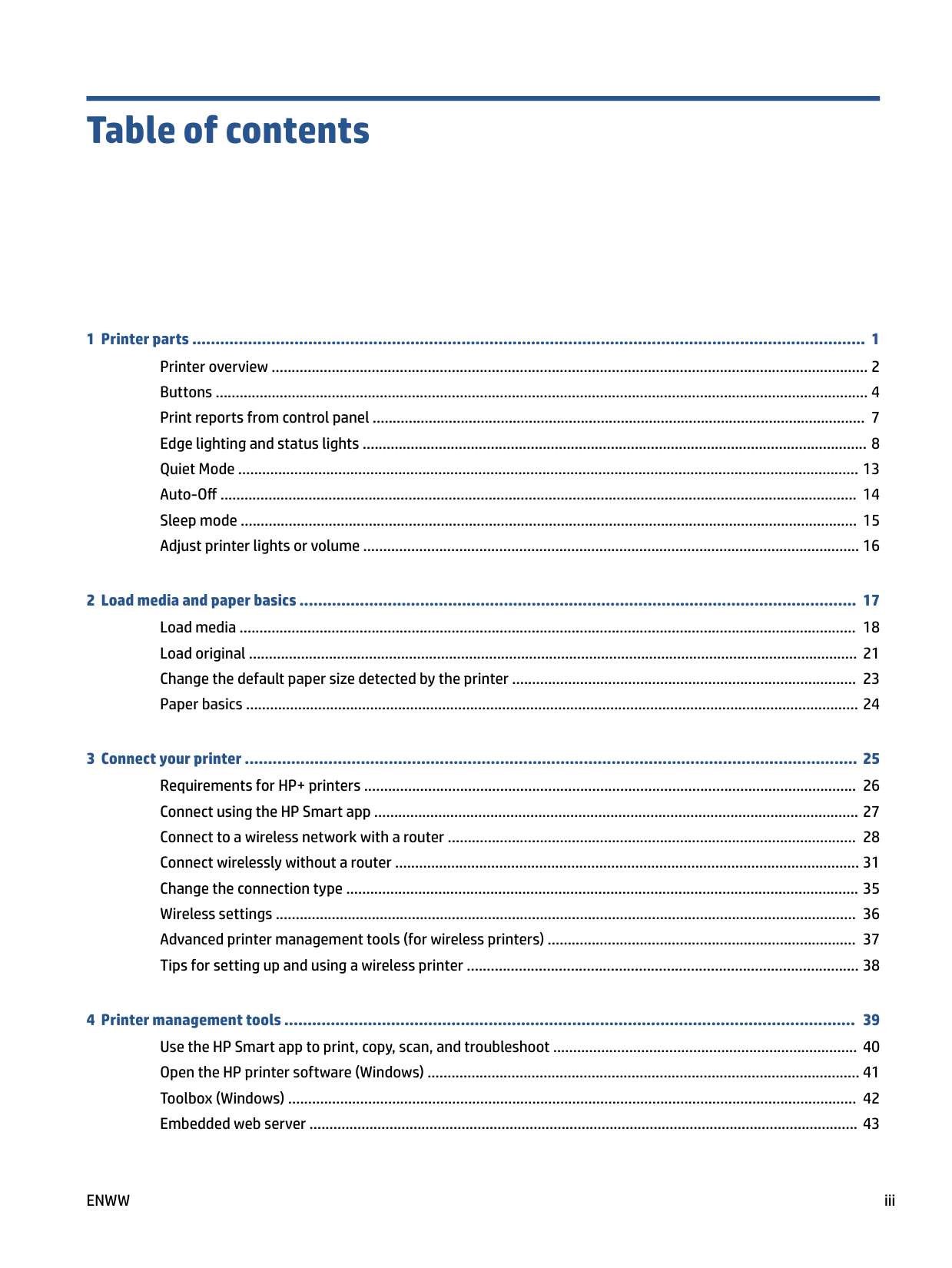
Table of contents
ENWW iii
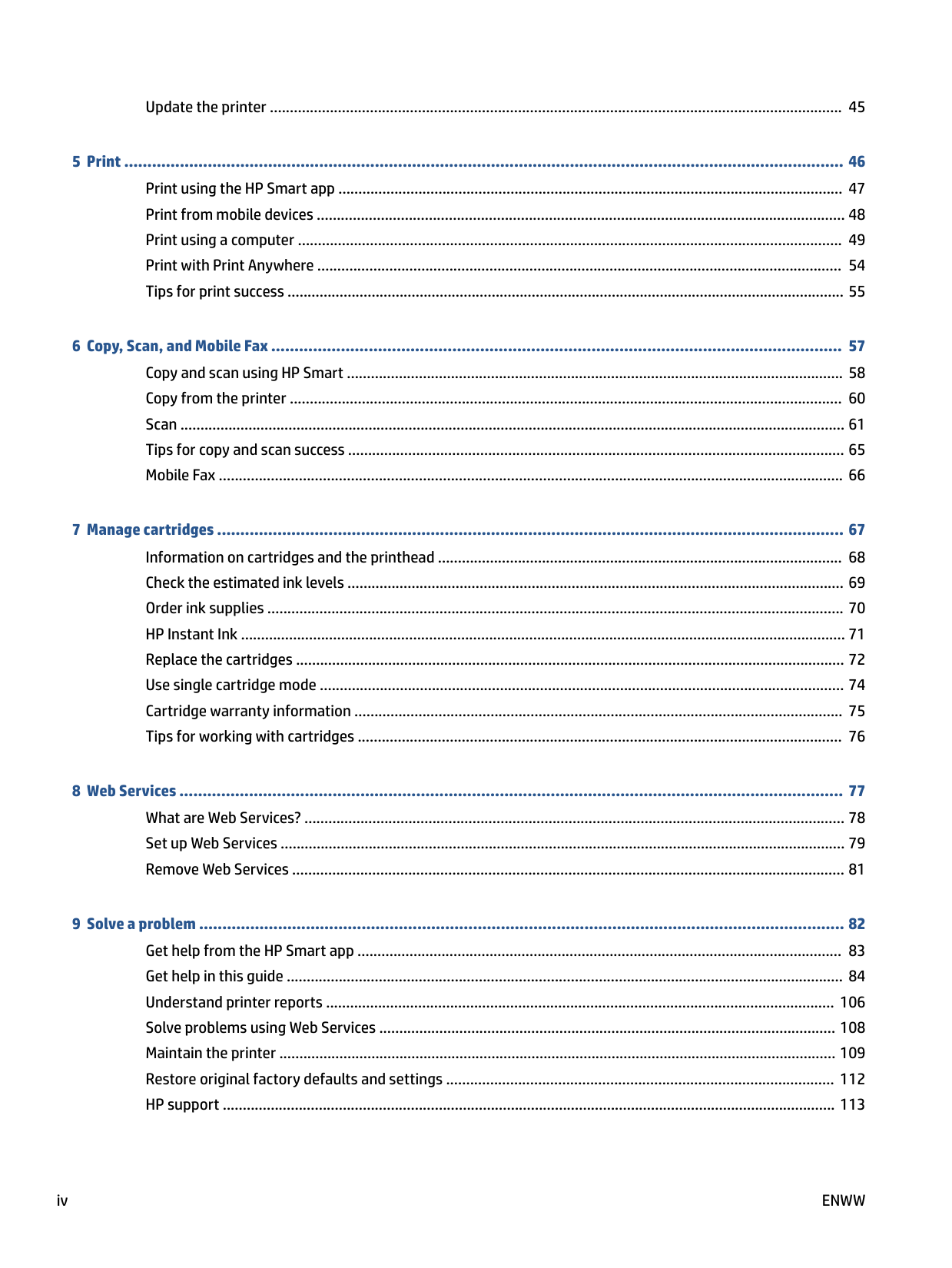
Update the printer ............................................................................................................................................... 45
###### 10 HP EcoSolutions (HP and the Environment) ................................................................................................ 115Energy Save Mode ............................................................................................................................................. 116
Appendix A Technical information ................................................................................................................. 117 HP Company notices .......................................................................................................................................... 118 Specifications ..................................................................................................................................................... 119 Regulatory notices ............................................................................................................................................. 121 Environmental product stewardship program .................................................................................................. 127
###### Index ........................................................................................................................................................... 135
ENWW v
1 Printer parts
This section contains the following topics:
ENWW 1
Printer overview
#### Top and front view

|Feature|Description
| |---|---| |1|Scanner lid
|
|2|Lid-backing
| |3|Output tray
| |4|Document feeder paper-width guides
| |5|Document feeder input tray
| |6|Paper-width guides
| |7|Paper tray
| |8|Paper tray door
| |9|Ink cartridges
| |10|Control panel
| |11|Output tray extender (also referred to as the tray extender)
| |12|Cartridge access door
| |13|Scanner glass|
#### Back view

|1|Power connection| |---|---| |2|Wi-Fi button
| |3|Power button
| |4|USB port
| |5|Document feeder input tray|
ENWW Printer overview 3
Buttons
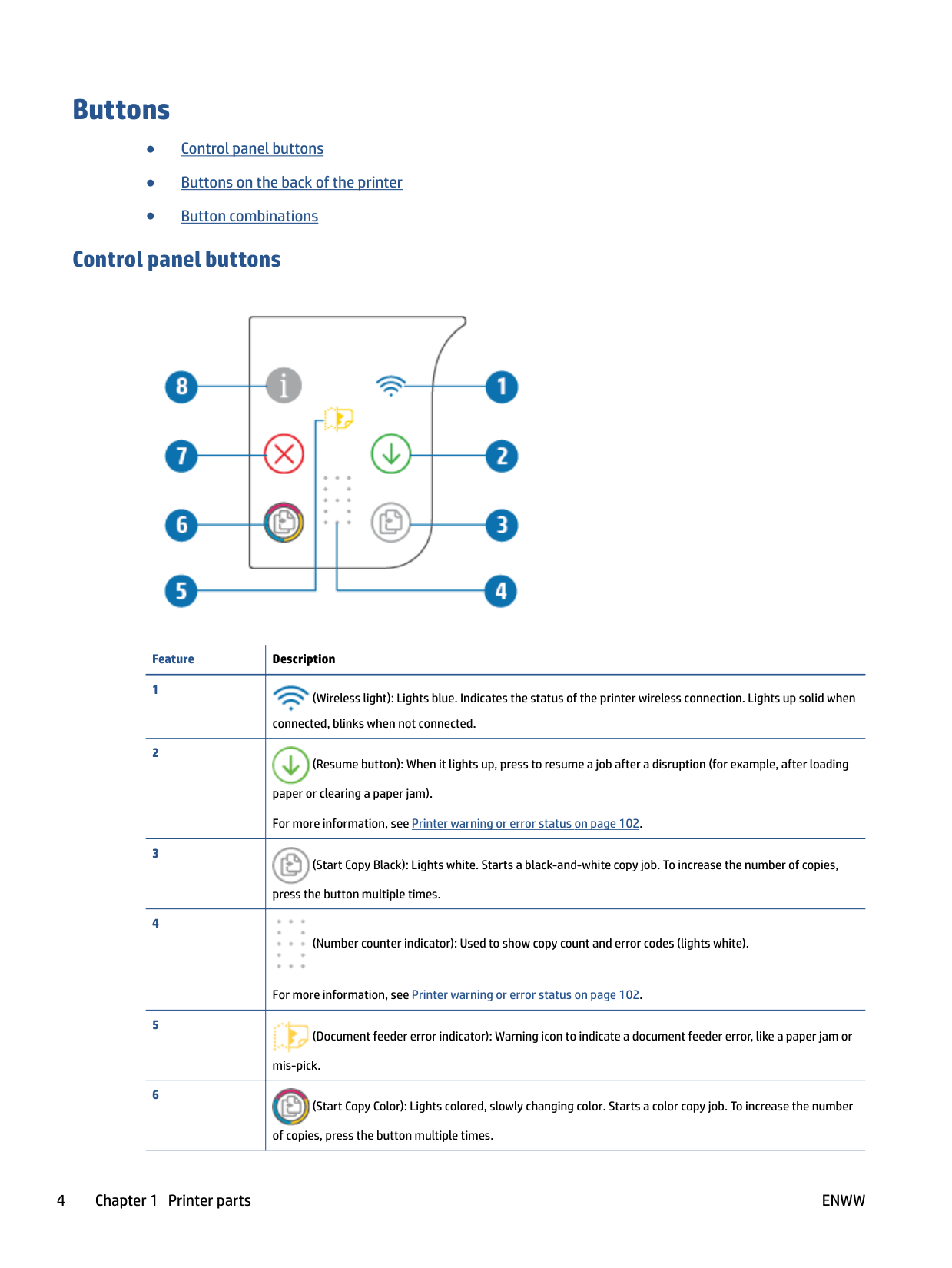
#### Control panel buttons

|Feature|Description
| |---|---| |1|
(Wireless light): Lights blue. Indicates the status of the printer wireless connection. Lights up solid when connected, blinks when not connected.
| |2|
(Resume button): When it lights up, press to resume a job after a disruption (for example, after loading paper or clearing a paper jam). For more information, see Printer warning or error status on page 102.
| |3|
(Start Copy Black): Lights white. Starts a black-and-white copy job. To increase the number of copies, press the button multiple times.
| |4|
(Number counter indicator): Used to show copy count and error codes (lights white).
For more information, see Printer warning or error status on page 102.
| |5|
(Document feeder error indicator): Warning icon to indicate a document feeder error, like a paper jam or mis-pick.
| |6|
(Start Copy Color): Lights colored, slowly changing color. Starts a color copy job. To increase the number of copies, press the button multiple times.|
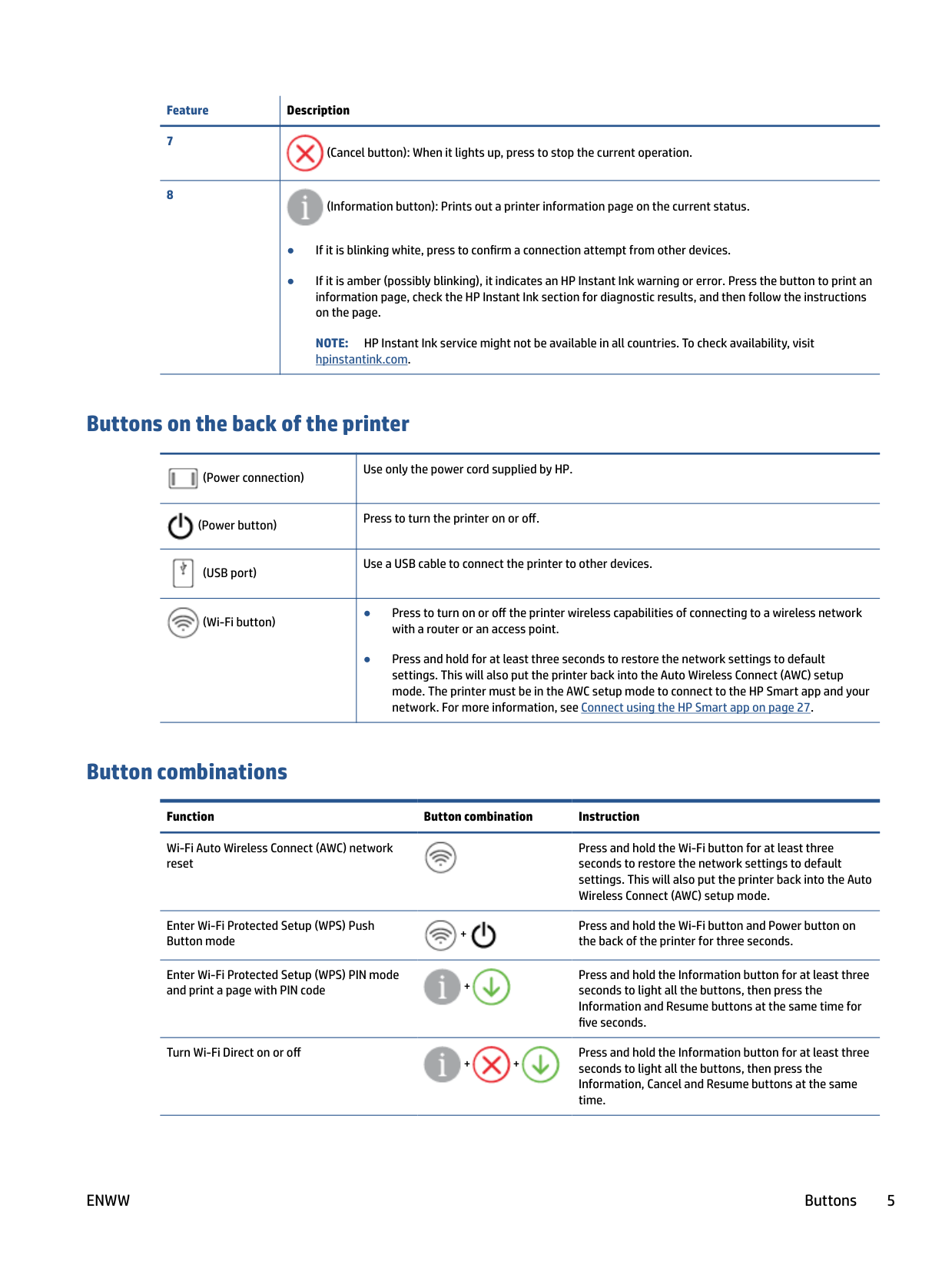
|Feature|Description
| |---|---| |7|
(Cancel button): When it lights up, press to stop the current operation.
| |8|
(Information button): Prints out a printer information page on the current status.
● If it is blinking white, press to confirm a connection attempt from other devices.
● If it is amber (possibly blinking), it indicates an HP Instant Ink warning or error. Press the button to print an information page, check the HP Instant Ink section for diagnostic results, and then follow the instructions on the page.
NOTE: HP Instant Ink service might not be available in all countries. To check availability, visit hpinstantink.com.
|
#### Buttons on the back of the printer

|
(Power connection)|Use only the power cord supplied by HP.| |---|---| |
(Power button)|Press to turn the printer on or off.
| |
(USB port)|Use a USB cable to connect the printer to other devices.
| |
(Wi-Fi button)|● Press to turn on or off the printer wireless capabilities of connecting to a wireless network with a router or an access point.
● Press and hold for at least three seconds to restore the network settings to default settings. This will also put the printer back into the Auto Wireless Connect (AWC) setup mode. The printer must be in the AWC setup mode to connect to the HP Smart app and your network. For more information, see Connect using the HP Smart app on page 27.
|
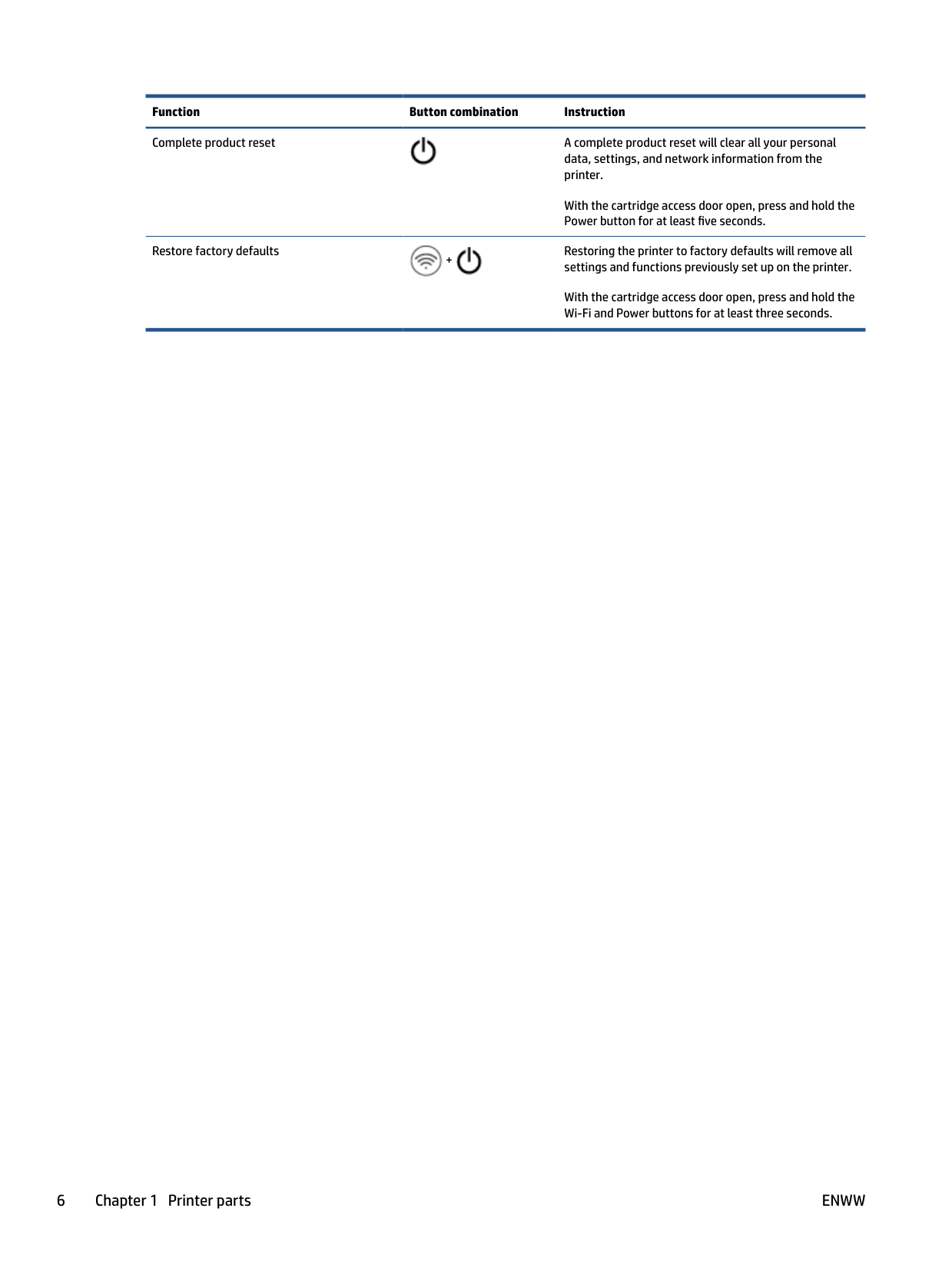
#### Button combinations
######### Function Button combination Instruction
Wi-Fi Auto Wireless Connect (AWC) network reset
Press and hold the Wi-Fi button for at least three seconds to restore the network settings to default settings. This will also put the printer back into the Auto Wireless Connect (AWC) setup mode.

Enter Wi-Fi Protected Setup (WPS) Push Button mode
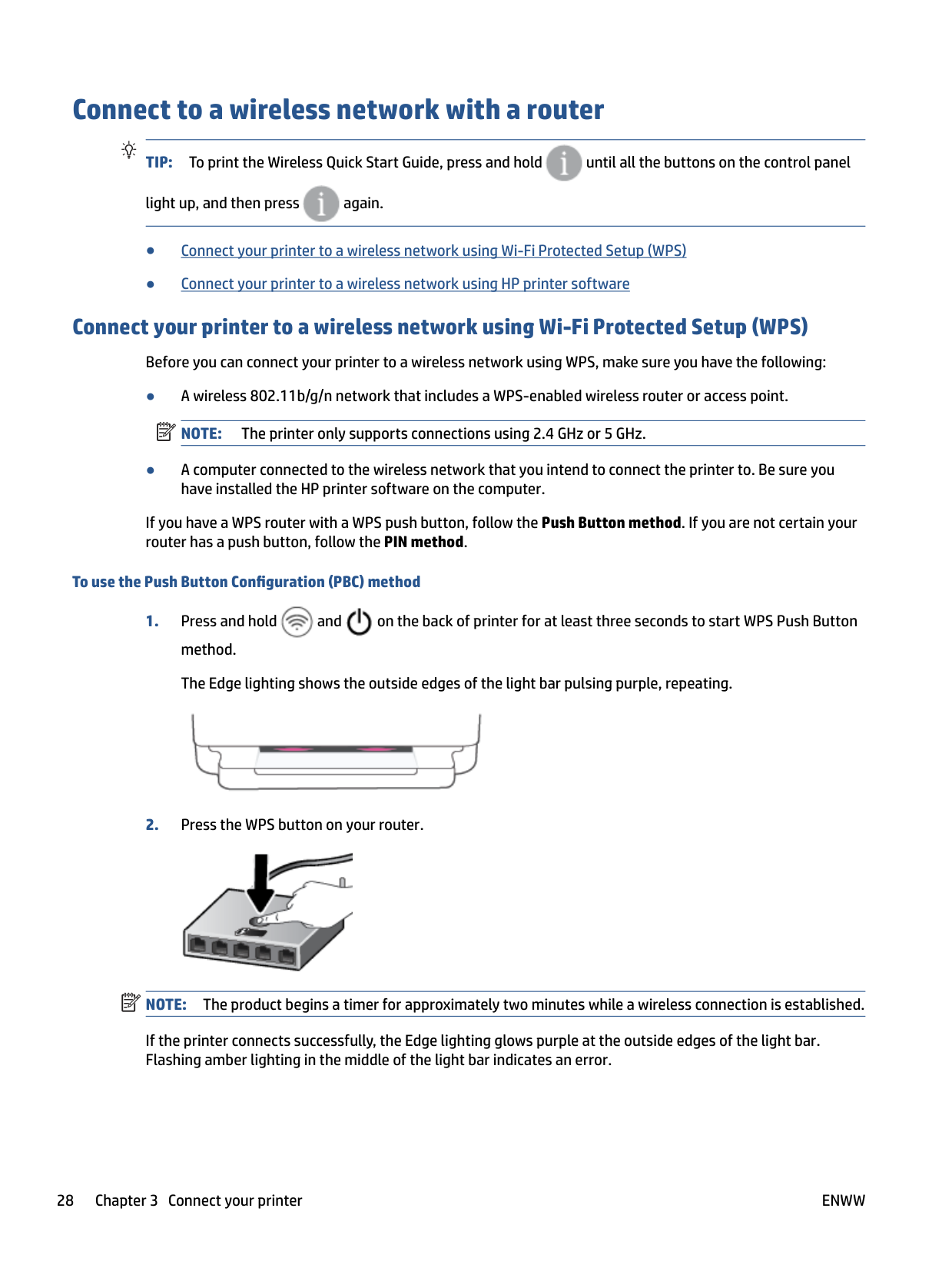
Press and hold the Wi-Fi button and Power button on the back of the printer for three seconds.


+
Enter Wi-Fi Protected Setup (WPS) PIN mode and print a page with PIN code +
Press and hold the Information button for at least three seconds to light all the buttons, then press the Information and Resume buttons at the same time for five seconds.


Turn Wi-Fi Direct on or off
Press and hold the Information button for at least three seconds to light all the buttons, then press the Information, Cancel and Resume buttons at the same time.


+ +
ENWW Buttons 5
Function Button combination Instruction Complete product reset A complete product reset will clear all your personal

data, settings, and network information from the printer.
With the cartridge access door open, press and hold the Power button for at least five seconds.
Restore factory defaults
Restoring the printer to factory defaults will remove all settings and functions previously set up on the printer.


+
With the cartridge access door open, press and hold the Wi-Fi and Power buttons for at least three seconds.
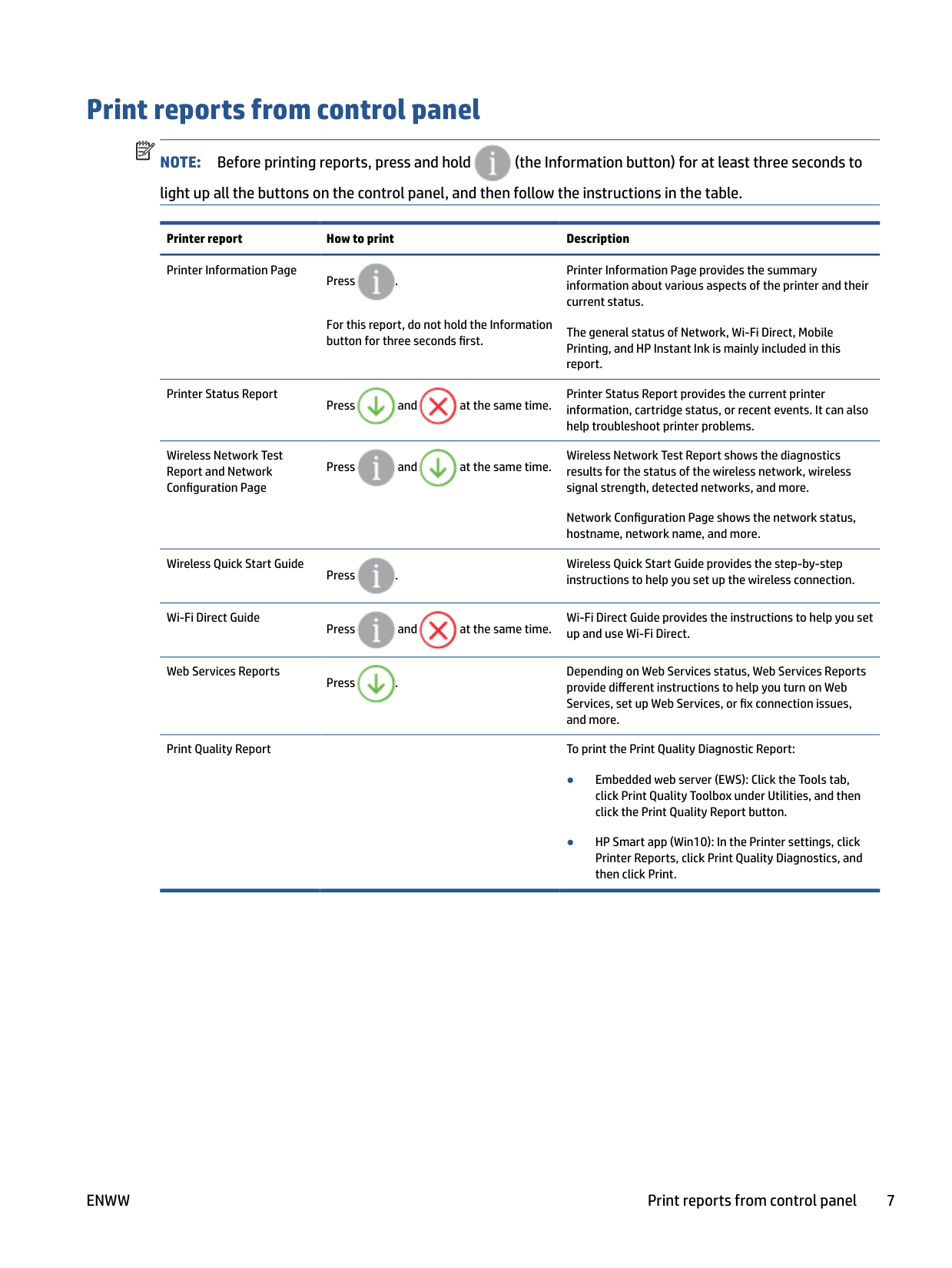
Print reports from control panel
| | |---|

NOTE: Before printing reports, press and hold (the Information button) for at least three seconds to light up all the buttons on the control panel, and then follow the instructions in the table.
Printer report How to print Description Printer Information Page
Printer Information Page provides the summary information about various aspects of the printer and their current status.

Press .
For this report, do not hold the Information button for three seconds first.
The general status of Network, Wi-Fi Direct, Mobile Printing, and HP Instant Ink is mainly included in this report.
Printer Status Report
Printer Status Report provides the current printer information, cartridge status, or recent events. It can also help troubleshoot printer problems.


Press and at the same time.
Wireless Network Test Report and Network Configuration Page
Wireless Network Test Report shows the diagnostics results for the status of the wireless network, wireless signal strength, detected networks, and more.


Press and at the same time.
Network Configuration Page shows the network status, hostname, network name, and more.
Wireless Quick Start Guide
Wireless Quick Start Guide provides the step-by-step instructions to help you set up the wireless connection.

Press .
Wi-Fi Direct Guide
Wi-Fi Direct Guide provides the instructions to help you set up and use Wi-Fi Direct.


Press and at the same time.
Web Services Reports
Depending on Web Services status, Web Services Reports provide different instructions to help you turn on Web Services, set up Web Services, or fix connection issues, and more.

Press .
Print Quality Report To print the Print Quality Diagnostic Report:
ENWW Print reports from control panel 7
Edge lighting and status lights
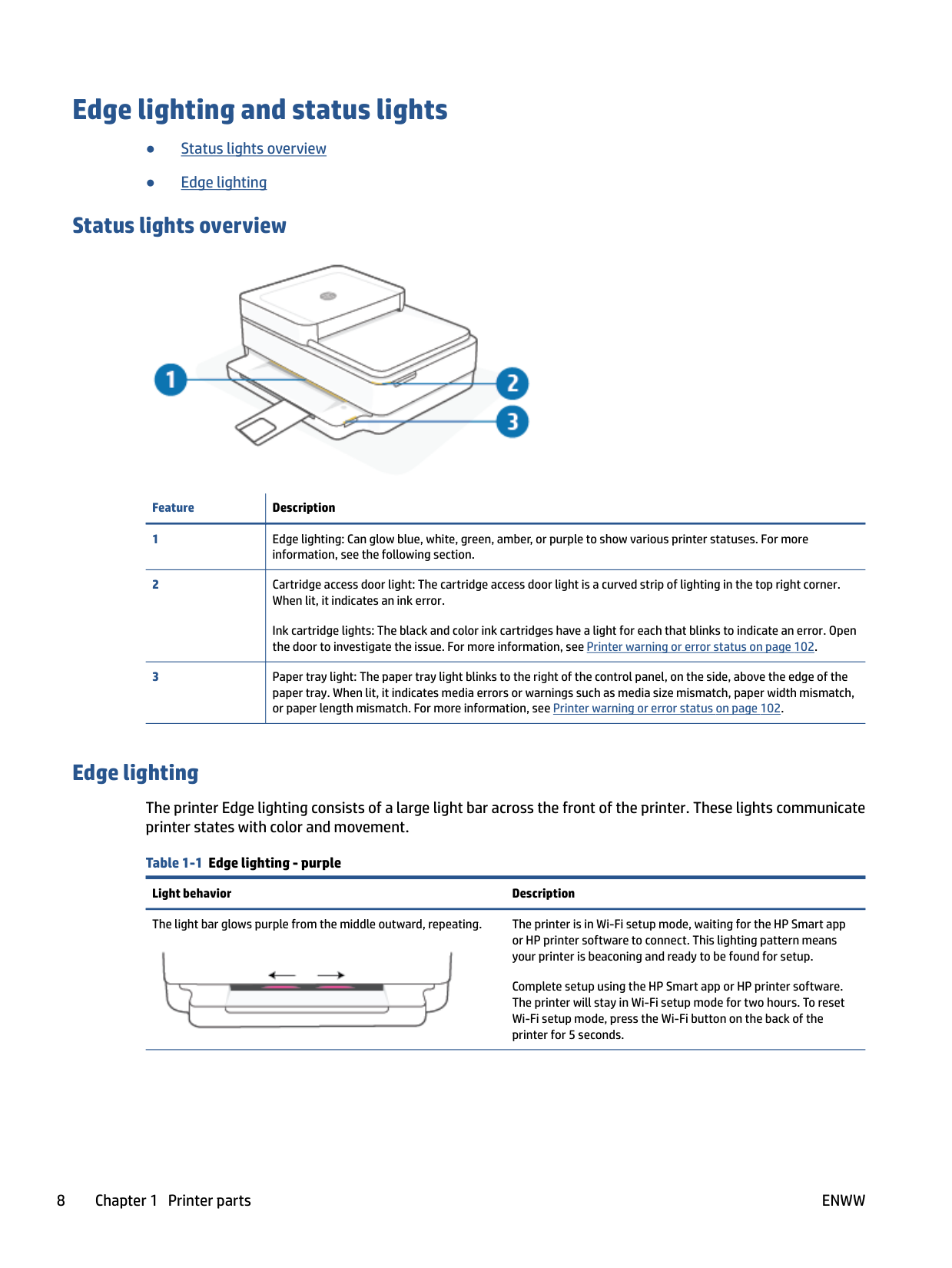
Status lights overview

|Feature|Description
| |---|---| |1|Edge lighting: Can glow blue, white, green, amber, or purple to show various printer statuses. For more information, see the following section.
| |2|Cartridge access door light: The cartridge access door light is a curved strip of lighting in the top right corner. When lit, it indicates an ink error.
Ink cartridge lights: The black and color ink cartridges have a light for each that blinks to indicate an error. Open the door to investigate the issue. For more information, see Printer warning or error status on page 102.
| |3|Paper tray light: The paper tray light blinks to the right of the control panel, on the side, above the edge of the paper tray. When lit, it indicates media errors or warnings such as media size mismatch, paper width mismatch, or paper length mismatch. For more information, see Printer warning or error status on page 102.
|
Edge lighting
The printer Edge lighting consists of a large light bar across the front of the printer. These lights communicate printer states with color and movement.
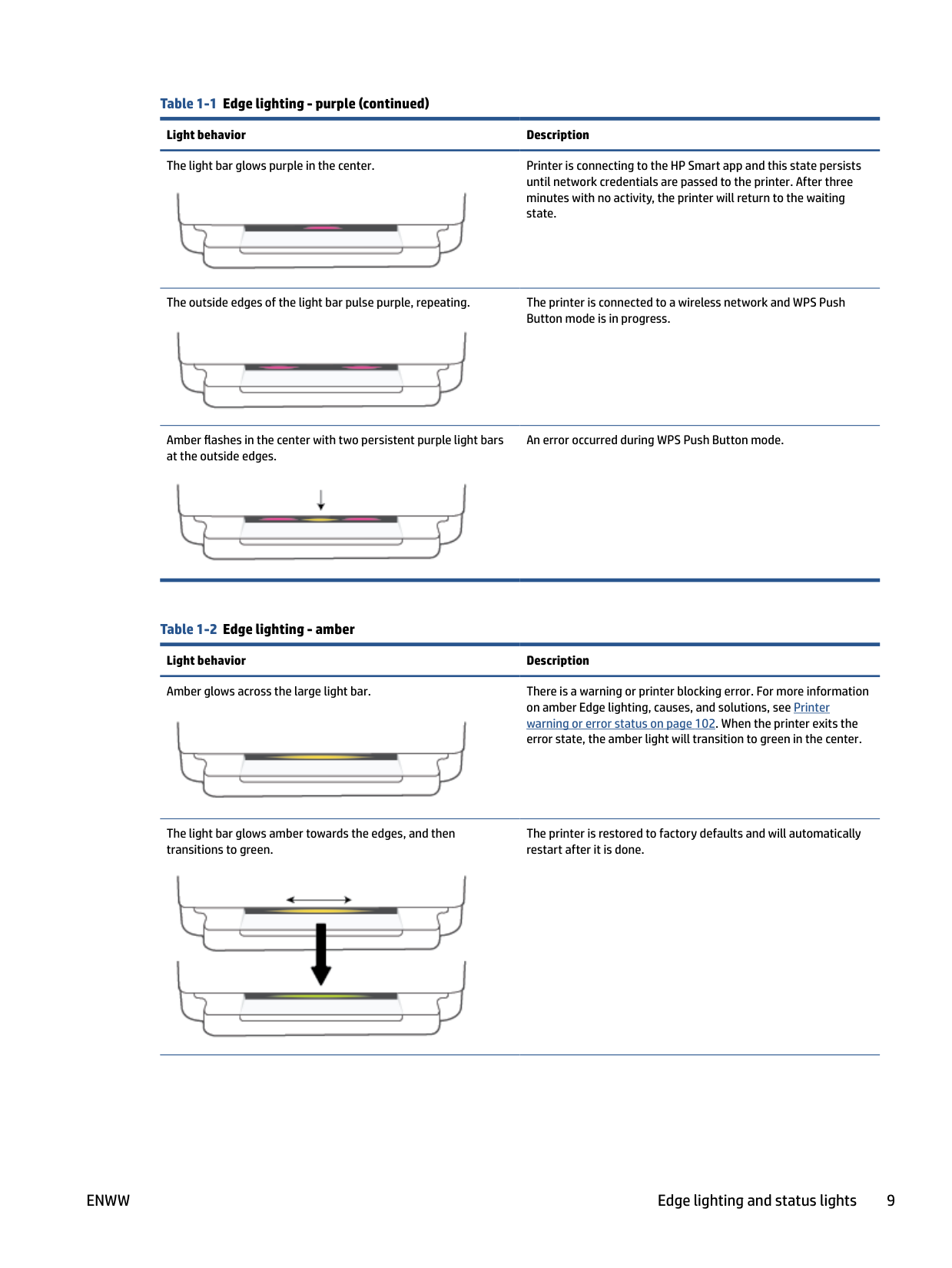
The light bar glows purple from the middle outward, repeating. The printer is in Wi-Fi setup mode, waiting for the HP Smart app or HP printer software to connect. This lighting pattern means your printer is beaconing and ready to be found for setup.

Complete setup using the HP Smart app or HP printer software. The printer will stay in Wi-Fi setup mode for two hours. To reset Wi-Fi setup mode, press the Wi-Fi button on the back of the printer for 5 seconds.

until network credentials are passed to the printer. After three minutes with no activity, the printer will return to the waiting state.
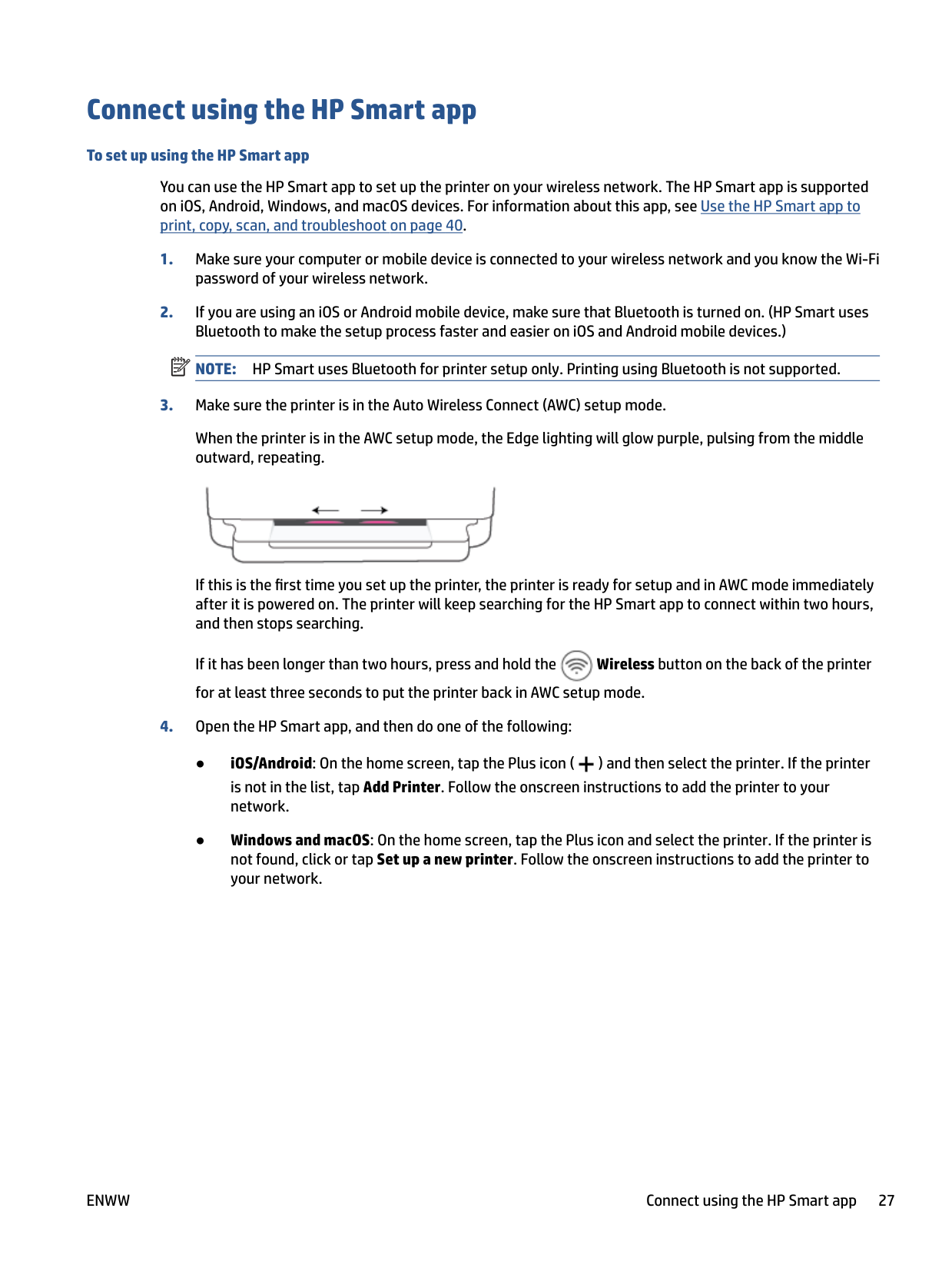
The outside edges of the light bar pulse purple, repeating. The printer is connected to a wireless network and WPS Push Button mode is in progress.

Amber flashes in the center with two persistent purple light bars at the outside edges.

An error occurred during WPS Push Button mode.
Amber glows across the large light bar. There is a warning or printer blocking error. For more information on amber Edge lighting, causes, and solutions, see Printer warning or error status on page 102. When the printer exits the error state, the amber light will transition to green in the center.

The light bar glows amber towards the edges, and then transitions to green.
The printer is restored to factory defaults and will automatically restart after it is done.


Turn the printer off and then on again to resolve the issue.
Three quick amber flashes in the center of the light bar. Currently disabled button is pressed.

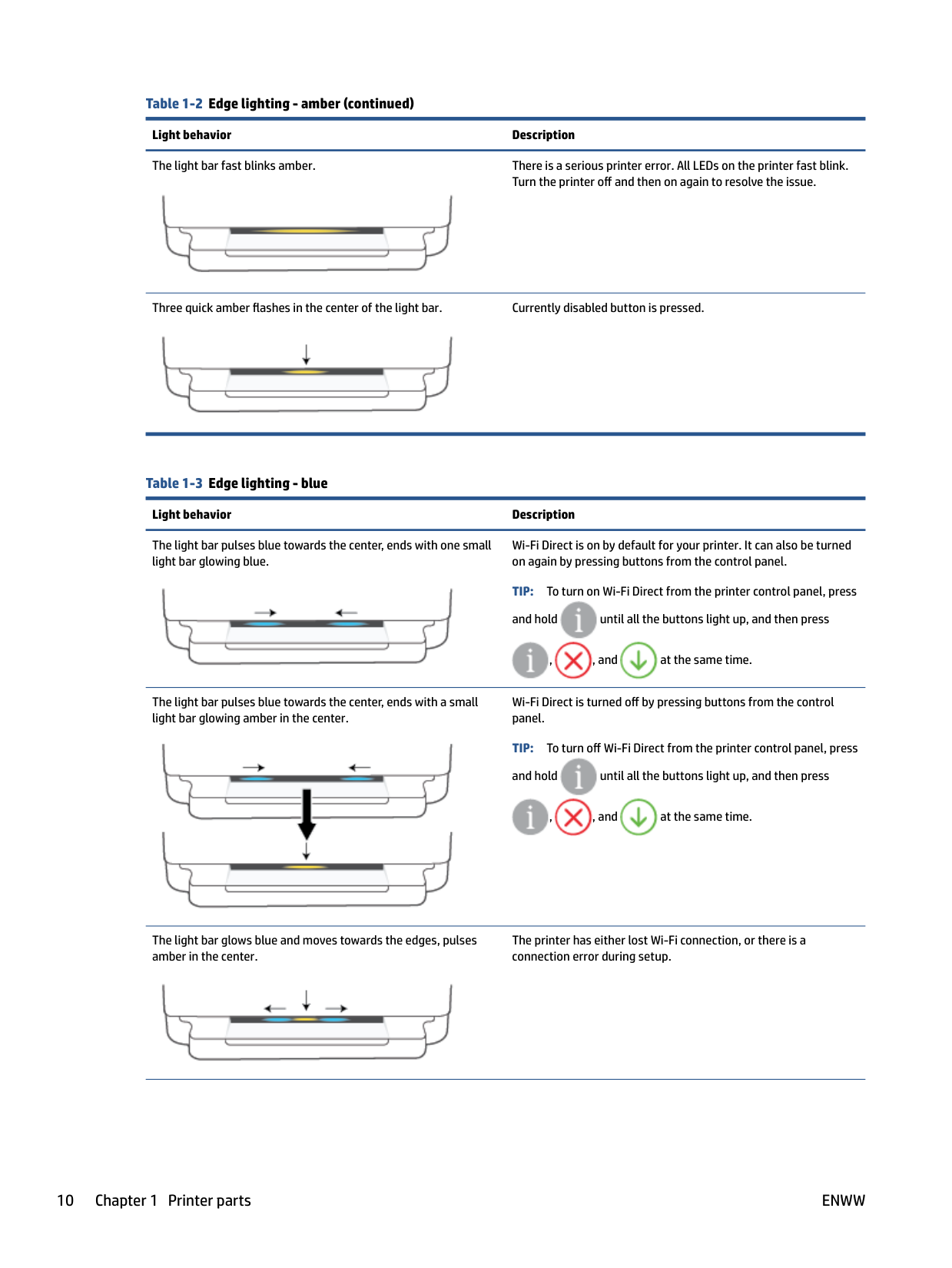
The light bar pulses blue towards the center, ends with one small light bar glowing blue.
Wi-Fi Direct is on by default for your printer. It can also be turned on again by pressing buttons from the control panel.

TIP: To turn on Wi-Fi Direct from the printer control panel, press and hold until all the buttons light up, and then press




, , and at the same time.
The light bar pulses blue towards the center, ends with a small light bar glowing amber in the center.
Wi-Fi Direct is turned off by pressing buttons from the control panel.

TIP: To turn off Wi-Fi Direct from the printer control panel, press and hold until all the buttons light up, and then press


, , and at the same time.
The light bar glows blue and moves towards the edges, pulses amber in the center.
The printer has either lost Wi-Fi connection, or there is a connection error during setup.

######## Table 1-3 Edge lighting - blue (continued)Light behavior Description
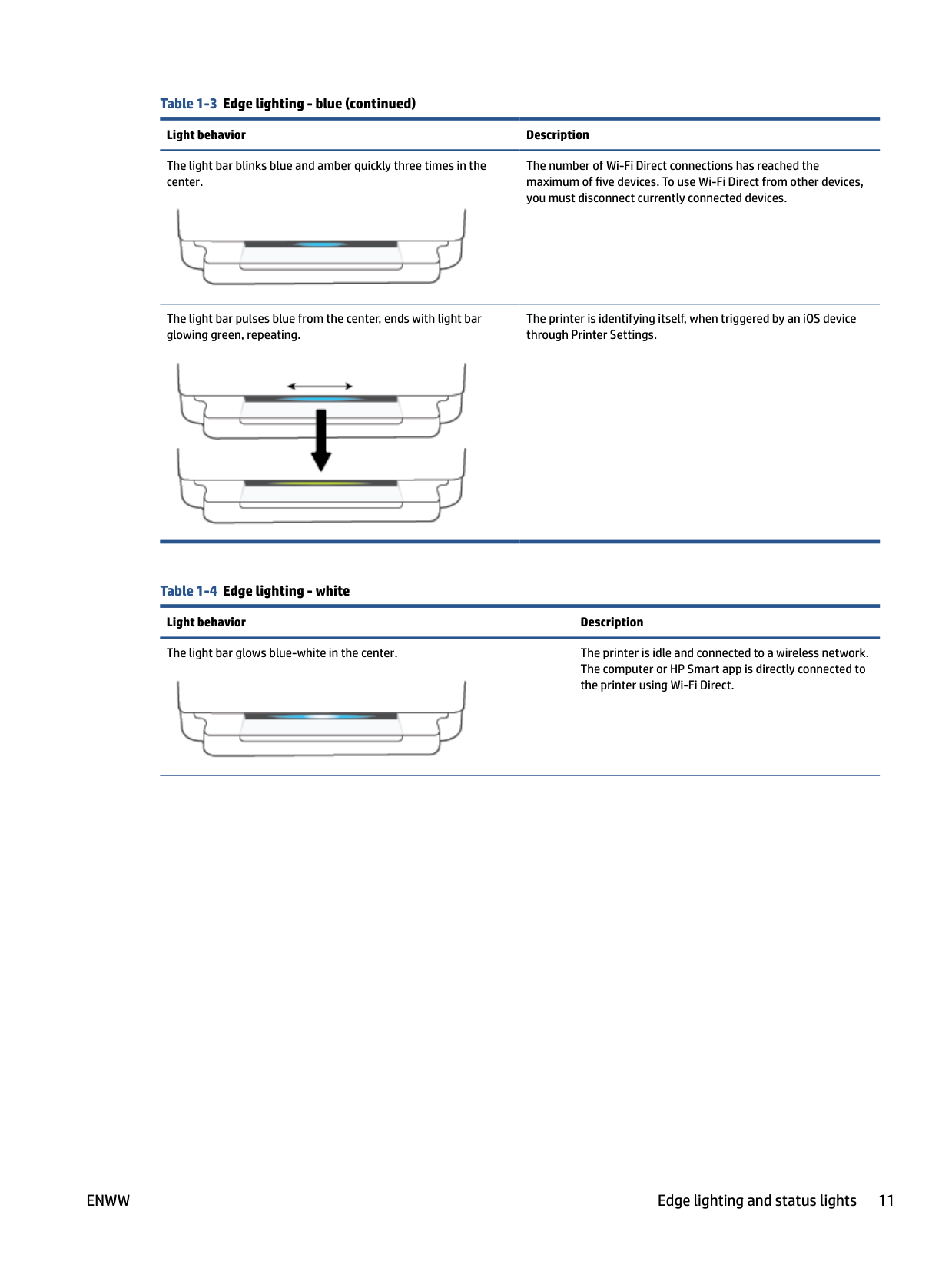
The light bar blinks blue and amber quickly three times in the center.
The number of Wi-Fi Direct connections has reached the maximum of five devices. To use Wi-Fi Direct from other devices, you must disconnect currently connected devices.

The printer is identifying itself, when triggered by an iOS device through Printer Settings.
The light bar pulses blue from the center, ends with light bar glowing green, repeating.

######## Table 1-4 Edge lighting - whiteLight behavior Description
The light bar glows blue-white in the center. The printer is idle and connected to a wireless network. The computer or HP Smart app is directly connected to the printer using Wi-Fi Direct.


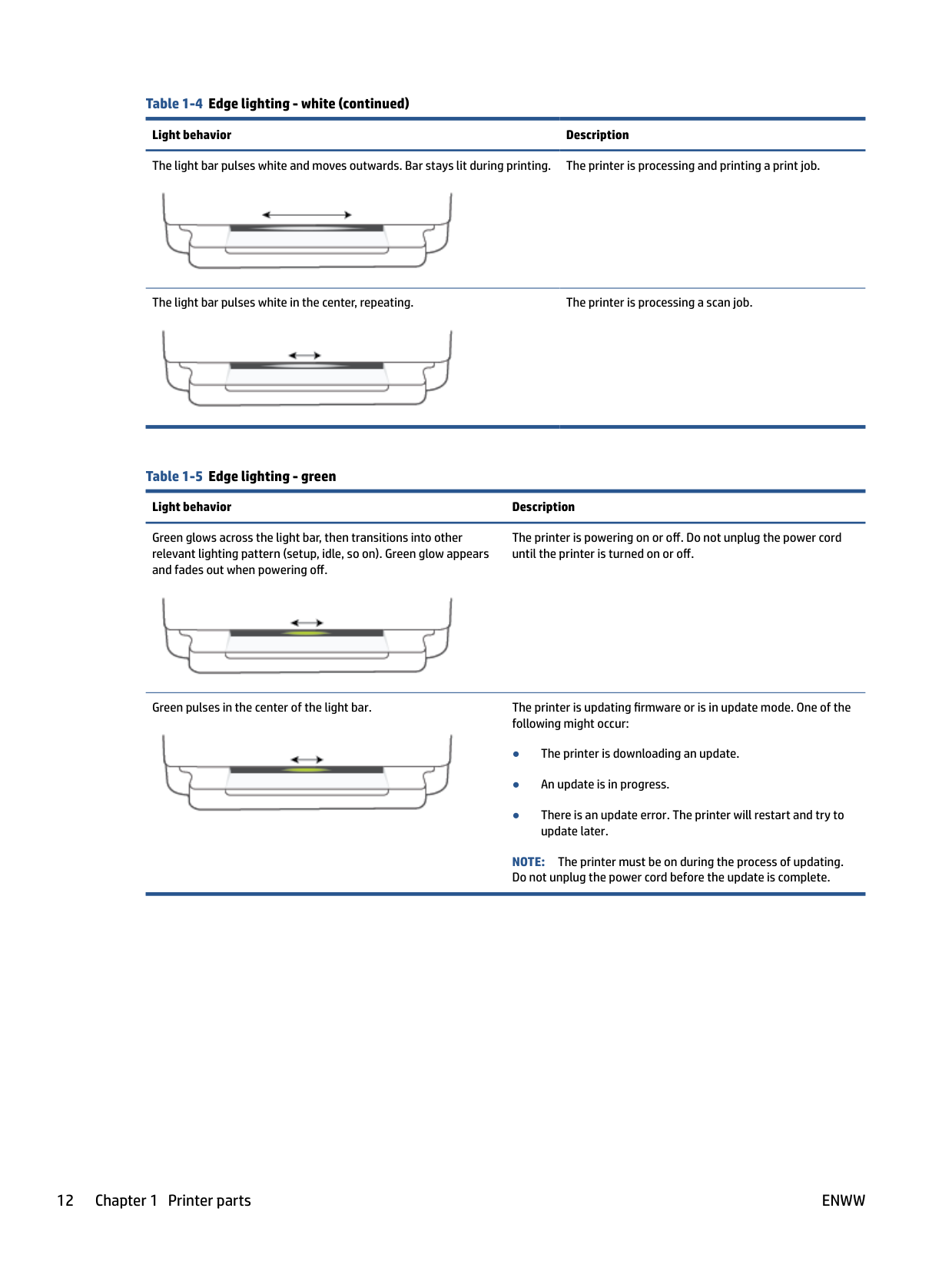
The light bar pulses white in the center, repeating. The printer is processing a scan job.

Green glows across the light bar, then transitions into other relevant lighting pattern (setup, idle, so on). Green glow appears and fades out when powering off.
The printer is powering on or off. Do not unplug the power cord until the printer is turned on or off.

Green pulses in the center of the light bar. The printer is updating firmware or is in update mode. One of the following might occur:

NOTE: The printer must be on during the process of updating. Do not unplug the power cord before the update is complete.
Quiet Mode
Quiet Mode slows down printing to reduce overall noise without affecting print quality. Quiet Mode only works for printing with Better print quality on plain paper. To reduce printing noise, turn on Quiet Mode. To print at normal speed, turn Quiet Mode off. Quiet Mode is off by default.
| | |---|
NOTE: In Quiet Mode, if you print on plain paper with the Draft or Best print quality, or if you print photos or envelopes, the printer works in the same way as when Quiet Mode is off.
###### To turn Quiet Mode on or off from an Android or iOS device
###### To turn Quiet Mode on or off from the embedded web server (EWS)
ENWW Quiet Mode 13
Auto-Off
This feature turns the printer off after 2 hours of inactivity to help reduce energy use. Auto-Off turns the printer off completely, so you must use the Power button to turn the printer back on. If your printer supports this energy-saving feature, Auto-Off is automatically enabled or disabled depending on printer capabilities and connection options. Even when Auto-Off is disabled, the printer enters Energy Save Mode on page 116 after 5 minutes of inactivity to help reduce energy use.
Sleep mode
Power usage is reduced while in Sleep mode. After initial setup of printer, the printer will enter Sleep mode after five minutes of inactivity. Use the HP Smart app to change the period of inactivity before the printer sleeps by selecting Advanced Settings. You can also change this setting using the printer’s embedded web server by completing the following steps.
###### To change the time to Sleep mode
NOTE: If prompted for a password, enter the PIN from the label on your printer. It might be near the cartridge access area inside the printer or on the back, side, or bottom of the printer.
| | |---|
ENWW Sleep mode 15
Adjust printer lights or volume
You can adjust the brightness of the printer lights or the printer sound according to your environment and needs.
NOTE: The available volume sound effects will vary based on printer firmware or model.
To adjust printer lights or volume from an Android or iOS device
2 Load media and paper basics
ENWW 17
Load media
###### To load paper



###### To load envelopes

ENWW Load media 19
####### 2. Slide the paper-width guides to the edges of the paper tray.

####### 3. Insert one or more envelopes into the middle of the paper tray and slide the stack of envelopes in until itstops. The side to be printed on should face down in the printer.

####### 4. Slide the paper-width guides to the left and right edges of the stack of envelopes until they stop at bothedges.

####### 5. Close the paper tray.

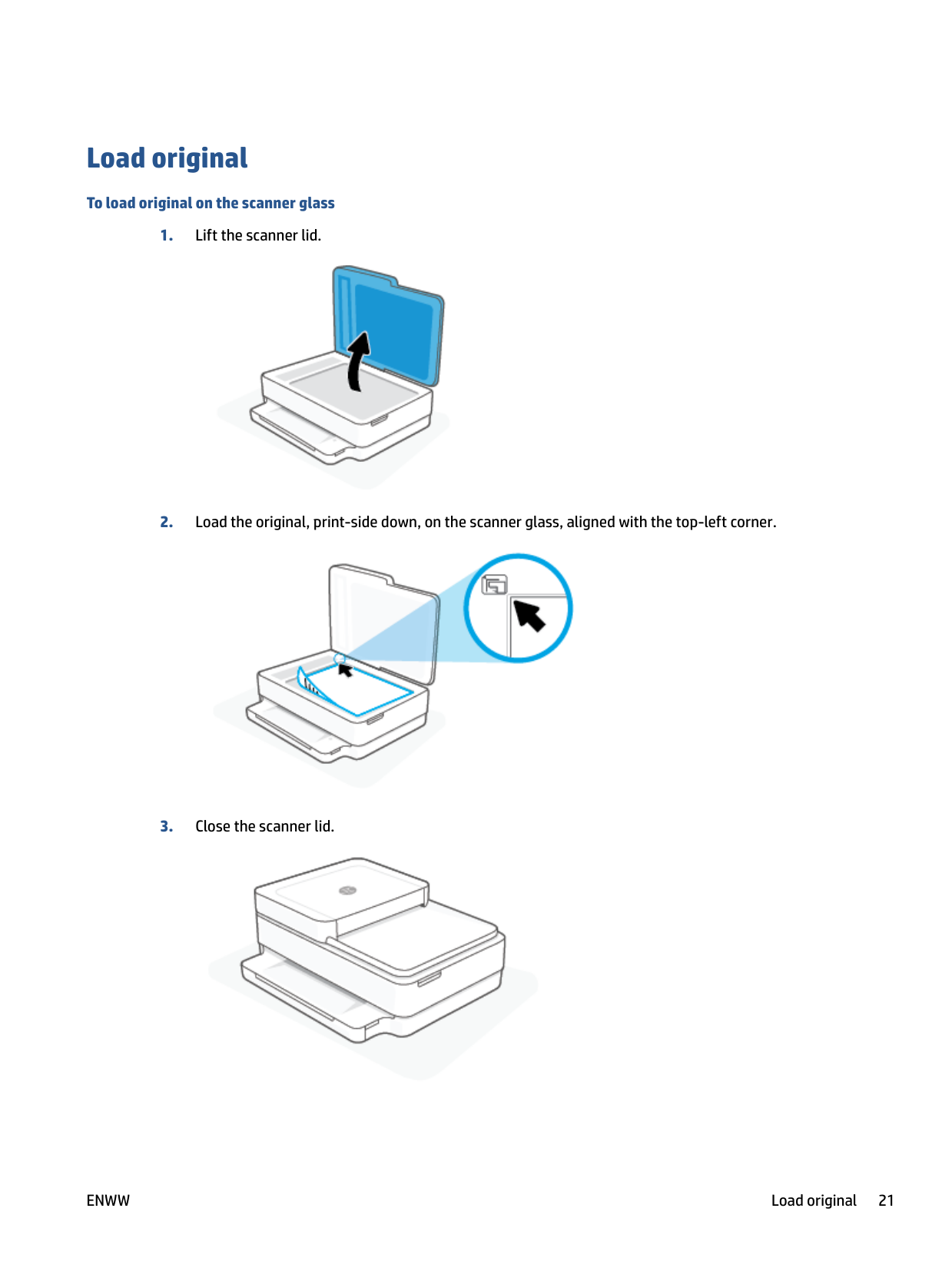
Load original
###### To load original on the scanner glass


ENWW Load original 21
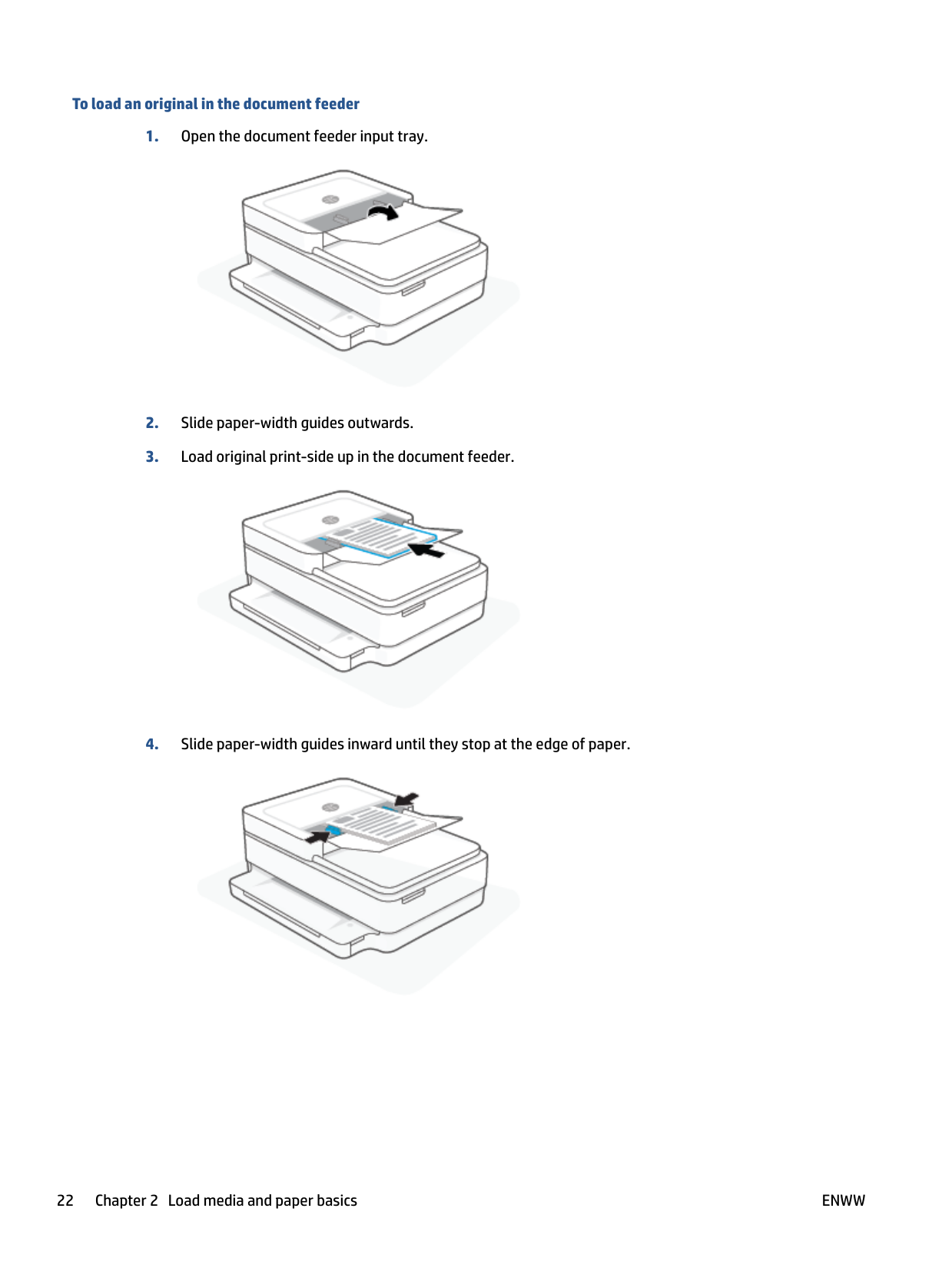
###### To load an original in the document feeder


Change the default paper size detected by the printer
The printer can automatically detect whether the paper tray has paper loaded and detect whether the loaded paper is large, small, or medium width. You can change the default large, medium, or small paper size detected by the printer.
###### To change the default paper size detected by the printer from an Android or iOS device

###### To change the default paper size detected by the printer from the embedded web server (EWS)
ENWW Change the default paper size detected by the printer 23
Paper basics
The printer is designed to work well with most types of office paper. It is best to test a variety of print paper types before buying large quantities. Use HP paper for optimum print quality. Visit the HP website at www.hp.com for more information about HP paper.

HP recommends plain papers with the ColorLok logo for printing everyday documents. All papers with the ColorLok logo are independently tested to meet high standards of reliability and print quality, and produce documents with crisp, vivid color, bolder blacks, and that dry faster than ordinary plain papers. Look for papers with the ColorLok logo in a variety of weights and sizes from major paper manufacturers.
3 Connect your printer
Your printer supports the following connection types for printing: Wi-Fi, Wi-Fi Direct, Ethernet, and USB. Use HP Smart software and a network connection to set up your printer and receive the HP+ offer. After setup, you can print using a USB cable connection or Wi-Fi Direct, if desired, but the printer must also still be connected to the Internet if you have enabled HP+.
ENWW 25
Requirements for HP+ printers
#### Keep the printer connected to the Internet
HP+ printers are cloud-connected devices that must remain connected to the Internet in order to function. The Internet connection enables the printer to deliver HP+ specific app features and firmware updates. During setup, you must connect the printer to the Internet by Wi-Fi or Ethernet. After setup, you can print using a USB cable connection, if desired, but the printer must also still be connected to the Internet.
#### Use Original HP cartridges
Original HP cartridges are cartridges manufactured and sold by HP in official HP packaging. If non-Original HP supplies or refilled cartridges are installed, HP+ printers will not operate as expected.
#### Have an HP account
Create or sign into an HP account to manage your printer.
Connect using the HP Smart app
###### To set up using the HP Smart app
You can use the HP Smart app to set up the printer on your wireless network. The HP Smart app is supported on iOS, Android, Windows, and macOS devices. For information about this app, see Use the HP Smart app to print, copy, scan, and troubleshoot on page 40.
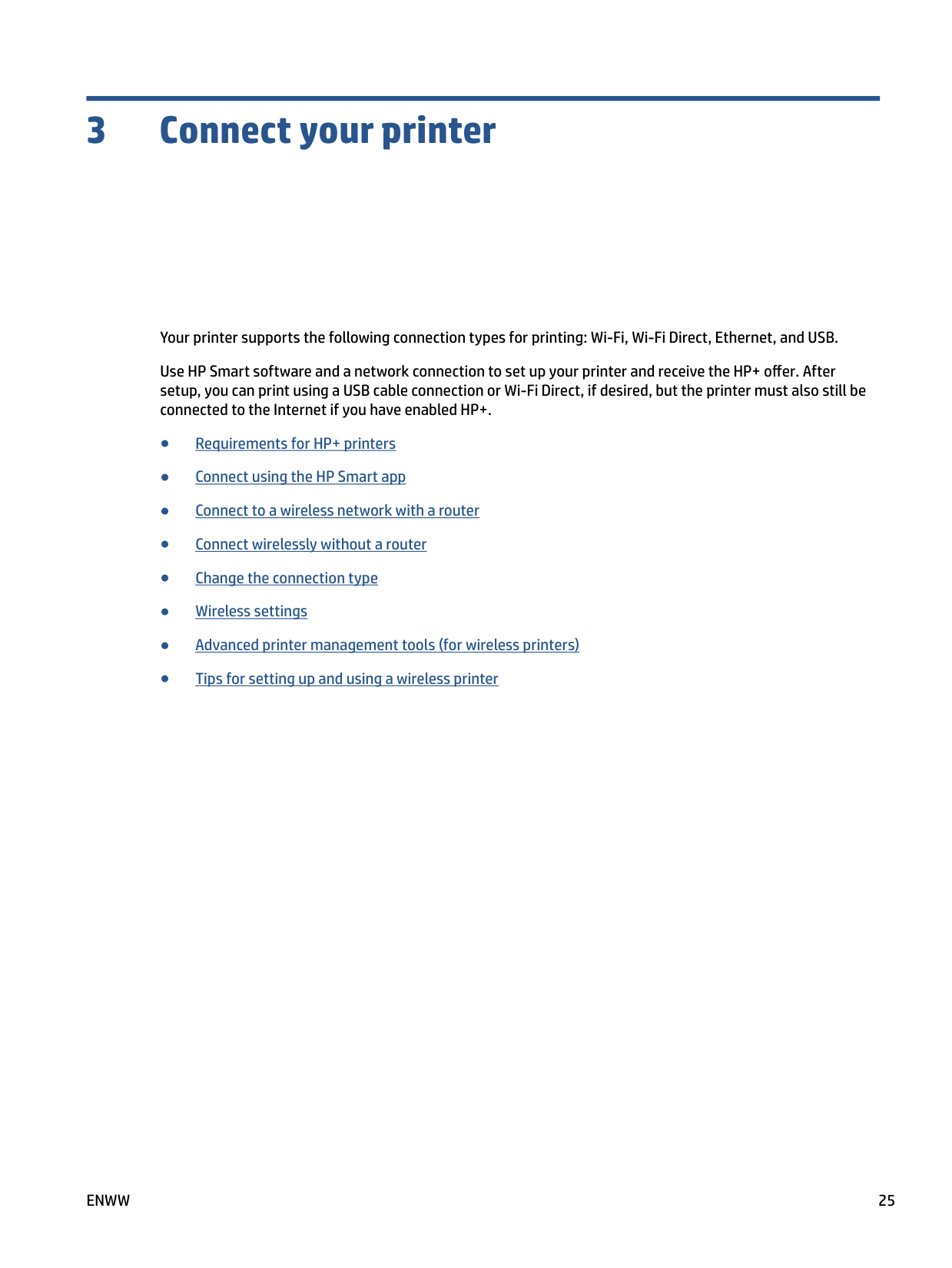
When the printer is in the AWC setup mode, the Edge lighting will glow purple, pulsing from the middle outward, repeating.

If this is the first time you set up the printer, the printer is ready for setup and in AWC mode immediately after it is powered on. The printer will keep searching for the HP Smart app to connect within two hours, and then stops searching.
If it has been longer than two hours, press and hold the Wireless button on the back of the printer for at least three seconds to put the printer back in AWC setup mode.

| | |---|

is not in the list, tap Add Printer. Follow the onscreen instructions to add the printer to your network.
ENWW Connect using the HP Smart app 27
Connect to a wireless network with a router

TIP: To print the Wireless Quick Start Guide, press and hold until all the buttons on the control panel

light up, and then press again.
#### Connect your printer to a wireless network using Wi-Fi Protected Setup (WPS)
Before you can connect your printer to a wireless network using WPS, make sure you have the following:
| | |---|
If you have a WPS router with a WPS push button, follow the Push Button method. If you are not certain your router has a push button, follow the PIN method.
###### To use the Push Button Configuration (PBC) method


| | |---|
NOTE: The product begins a timer for approximately two minutes while a wireless connection is established.
If the printer connects successfully, the Edge lighting glows purple at the outside edges of the light bar. Flashing amber lighting in the middle of the light bar indicates an error.
###### To use the PIN method


and for at least five seconds to start WPS PIN method and print a page with a PIN code.

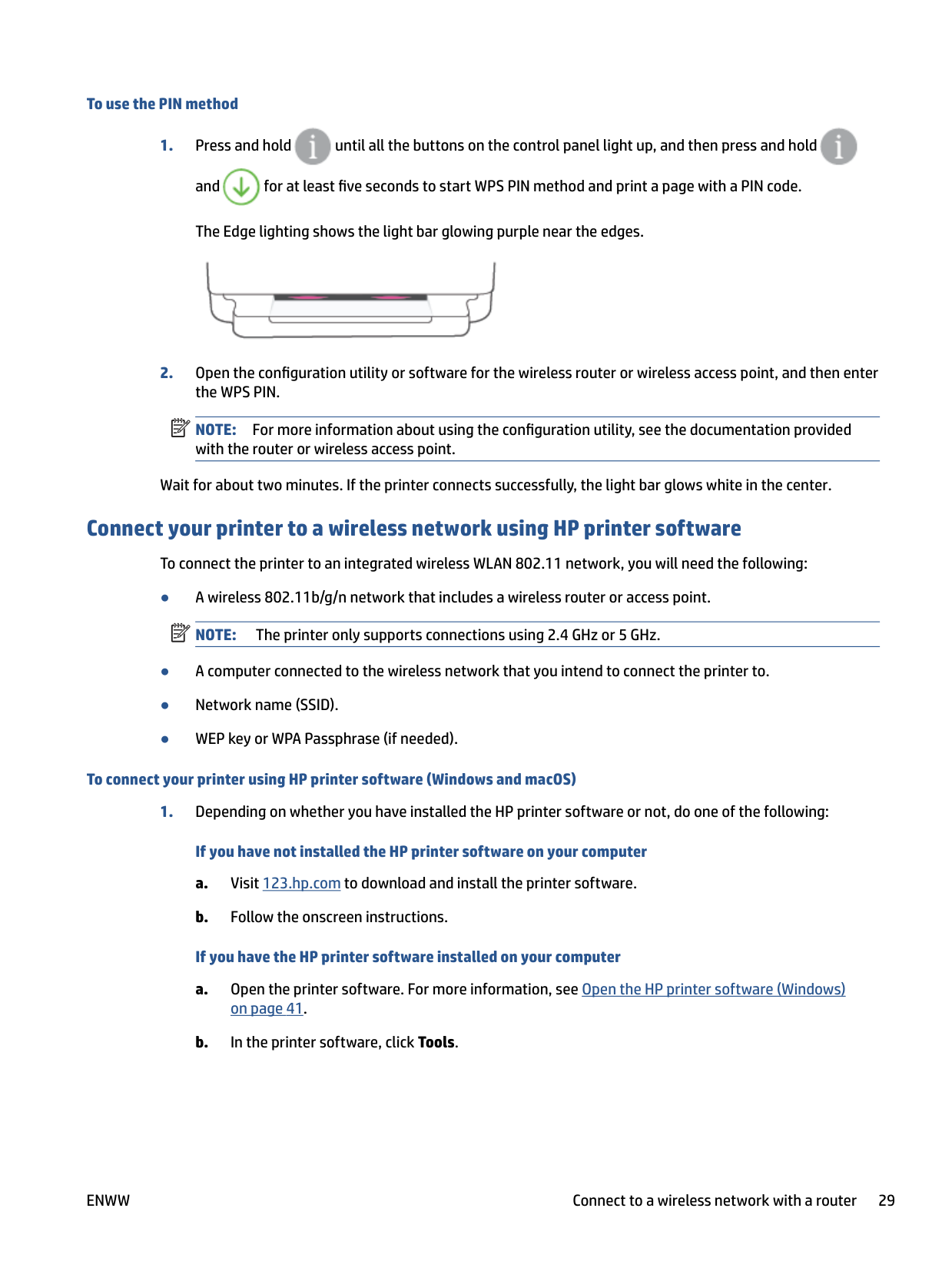
The Edge lighting shows the light bar glowing purple near the edges.

| | |---|
NOTE: For more information about using the configuration utility, see the documentation provided with the router or wireless access point.
Wait for about two minutes. If the printer connects successfully, the light bar glows white in the center.
#### Connect your printer to a wireless network using HP printer software
To connect the printer to an integrated wireless WLAN 802.11 network, you will need the following:
| | |---|
###### To connect your printer using HP printer software (Windows and macOS)
###### If you have not installed the HP printer software on your computer
ENWW Connect to a wireless network with a router 29
center.
Connect wirelessly without a router
With Wi-Fi Direct, you can print wirelessly from a computer, smart phone, tablet, or other wireless-capable device—without connecting to an existing wireless network.
###### Guidelines for using Wi-Fi Direct
If you have not installed the HP printer software on the computer, connect to Wi-Fi Direct first and then install the printer software. Select Wireless when prompted by the printer software for a connection type.
###### To turn Wi-Fi Direct on or off from the control panel


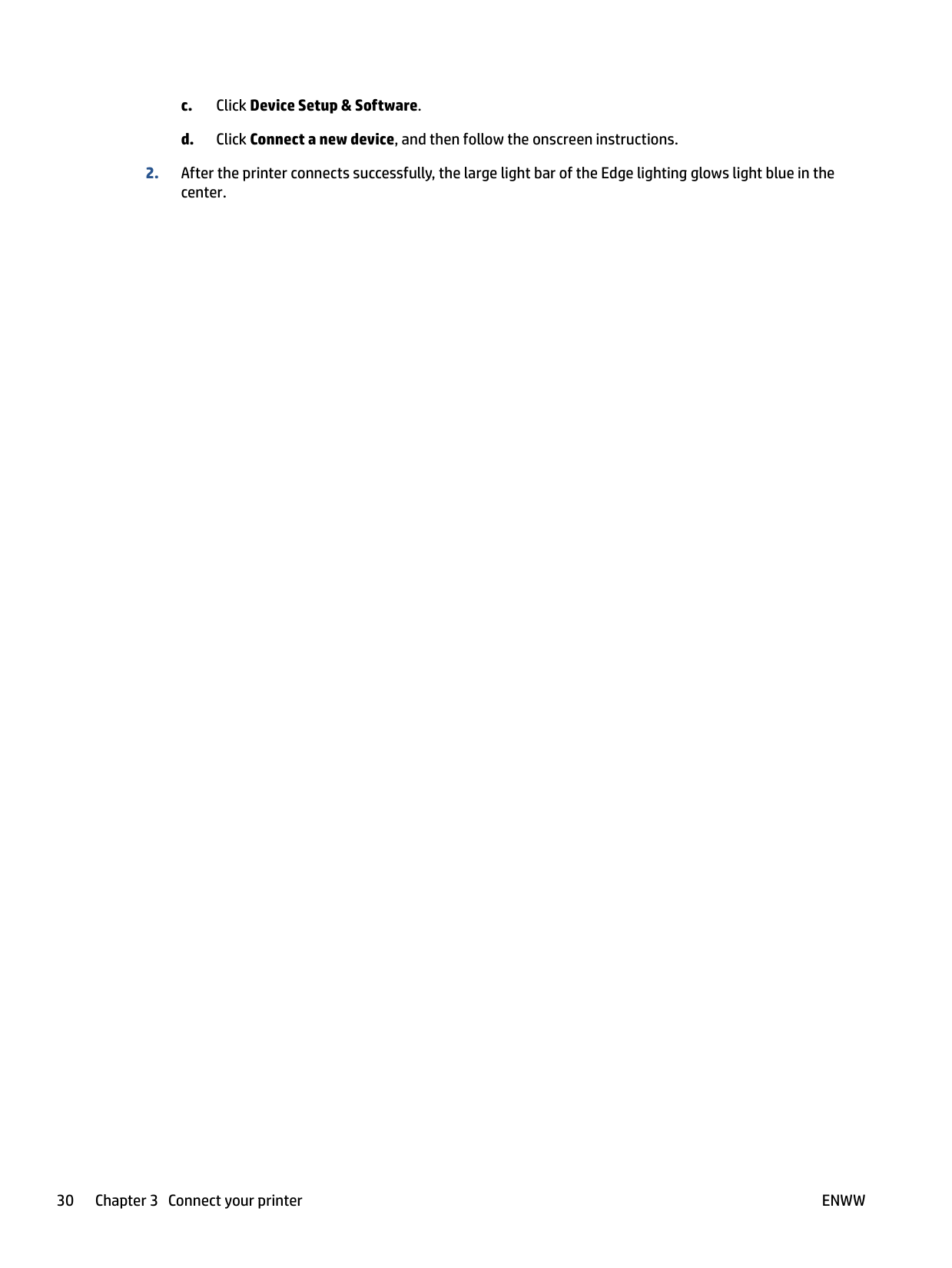
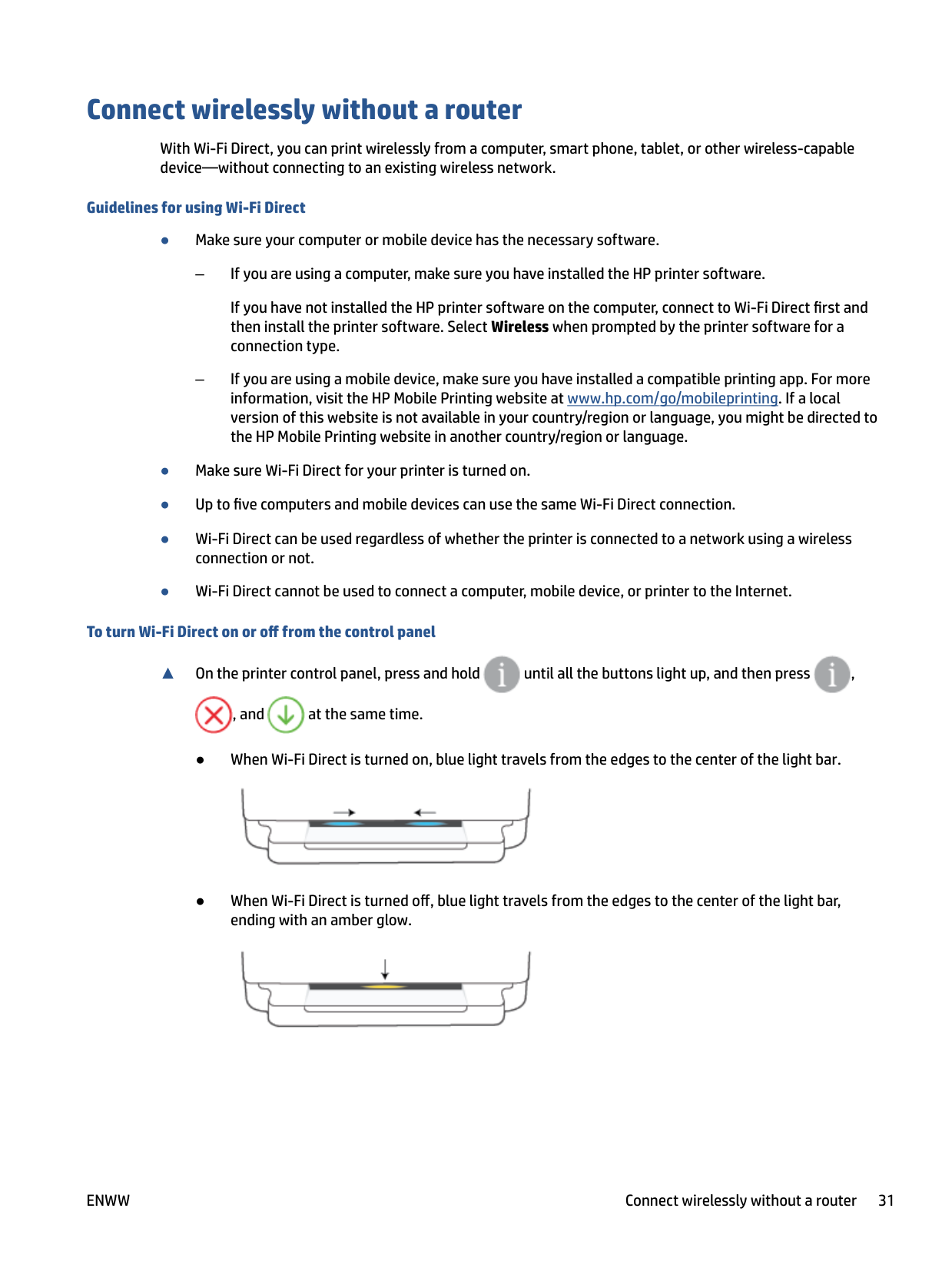
▲ On the printer control panel, press and hold until all the buttons light up, and then press ,


, and at the same time.


| |
|---|
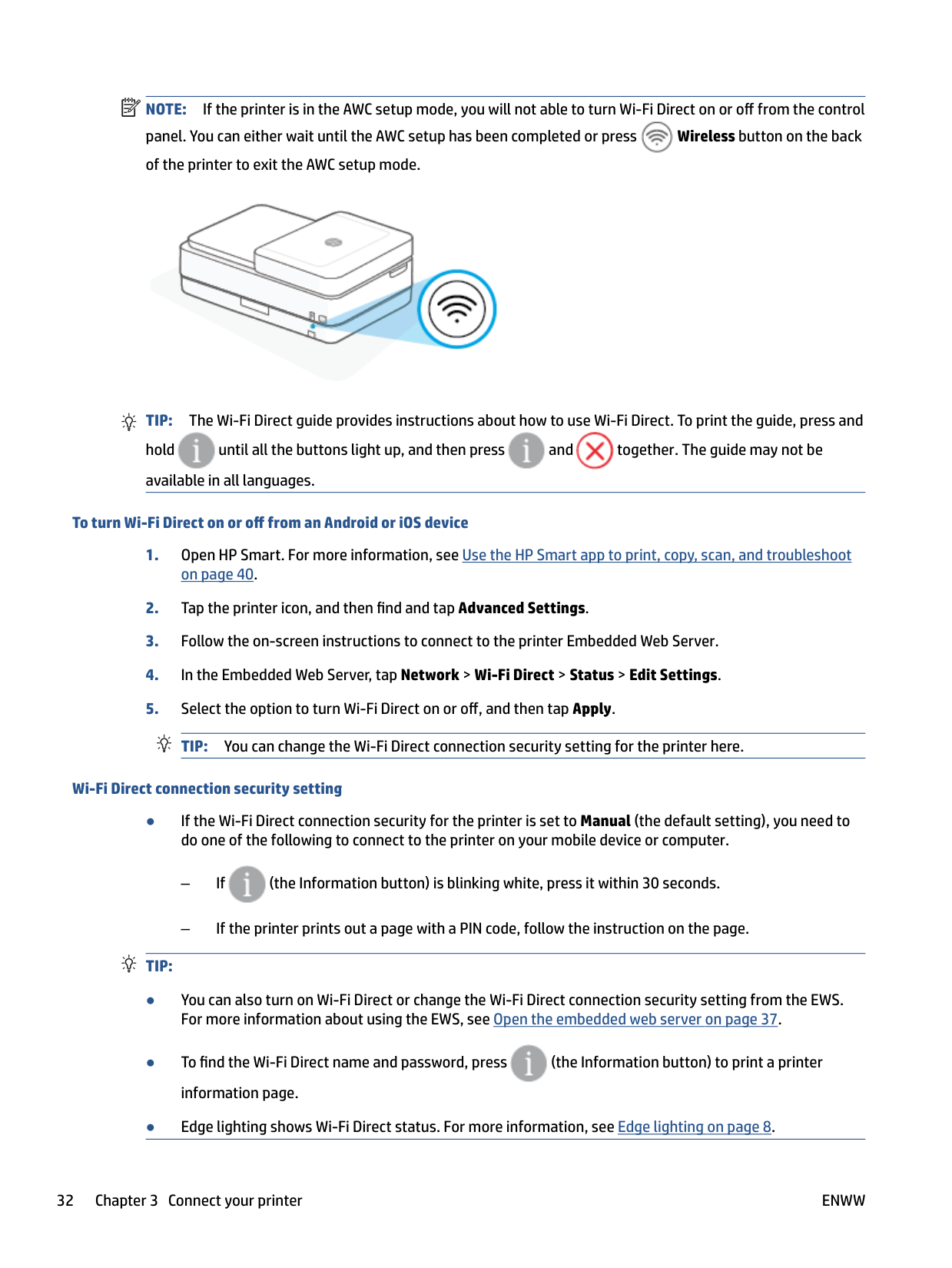
NOTE: If the printer is in the AWC setup mode, you will not able to turn Wi-Fi Direct on or off from the control panel. You can either wait until the AWC setup has been completed or press Wireless button on the back of the printer to exit the AWC setup mode.


TIP: The Wi-Fi Direct guide provides instructions about how to use Wi-Fi Direct. To print the guide, press and hold until all the buttons light up, and then press and together. The guide may not be available in all languages.


###### To turn Wi-Fi Direct on or off from an Android or iOS device
###### Wi-Fi Direct connection security setting
● If the Wi-Fi Direct connection security for the printer is set to Manual (the default setting), you need to do one of the following to connect to the printer on your mobile device or computer.

###### TIP:

###### To print from a wireless-capable mobile device that supports Wi-Fi Direct
Make sure you have installed the latest version of HP Print Service Plugin on your mobile device (if using an Android device). You can download this plugin from the Google Play application store.
###### To print from a wireless-capable mobile device that does not support Wi-Fi Direct
Make sure you have installed a compatible printing app on your mobile device. For more information, visit the HP Mobile Printing website at www.hp.com/go/mobileprinting. If a local version of this website is not available in your country/region or language, you might be directed to the HP Mobile Printing website in another country/region or language.
| | |---|
###### To print from a wireless-capable computer (Windows)
| | |---|
Change the connection type
If you first set up your printer and installed the software with a USB cable, directly connecting the printer to your computer, you can easily change to a wireless network connection. You will need a wireless 802.11a/b/g/n network that includes a wireless router or access point.
| | |---|
NOTE: The printer supports connections using 2.4GHz or 5GHz . Before changing from a USB connection to a wireless network, make sure that:
###### To change from a USB connection to a wireless network (Windows)
###### To change from a USB connect to a wireless network using the HP Smart app (Windows 10/macOS)
TIP: If you want to select a different printer, click the ( ) on the toolbar at the left side of the screen, and then select a different printer from the list of all available printers.

###### To change from a wireless connection to a USB connection (Windows/macOS)
▲ Connect the printer and the computer with a USB cable. The USB port is at the back of the printer.
ENWW Change the connection type 35
Wireless settings
You can set up and manage your printer wireless connection. This includes printing information about network settings, turning the wireless function on or off, and restoring wireless settings.
###### To turn on or off the wireless capability of the printer

Press Wireless button on the back of the printer to turn on or off the printer wireless capabilities.
###### To restore network settings to default settings

● Press and hold Wireless button on the back of the printer for at least three seconds. Then the
printer enters the Auto Wireless Connect (AWC) setup mode. It keeps searching and waiting for the HP Smart app to connect within about two hours, and then stops searching.
###### To change wireless settings (Windows)
This method is available if you have already installed the printer software.
Advanced printer management tools (for wireless printers)
When the printer is connected to a network, you can use the embedded web server (EWS) to view status information, change settings, and manage the printer from your computer.
| | |---|
NOTE: You can open and use the EWS without being connected to the Internet. However, some features are not available.
| | |---|
NOTE: To view or change some settings, you might need a password.
● Open the embedded web server
#### Open the embedded web server
You can use one of the following ways to open the embedded web server.
###### To open the embedded web server through a network

up, and then press and at the same time to print the wireless network test report and network configuration page.


For example, if the IP address is 192.168.0.12, type the following address into a web browser: https://192.168.0.12.
###### To open the embedded web server from HP Smart (Windows and macOS)
To open the embedded web server from HP Smart:
###### To open the embedded web server through Wi-Fi Direct
For information about cookies, see Embedded web server on page 43.
ENWW Advanced printer management tools (for wireless printers) 37
Tips for setting up and using a wireless printer
Use the following tips to set up and use a wireless printer:
| | |---|
4 Printer management tools
ENWW 39
Use the HP Smart app to print, copy, scan, and troubleshoot
HP Smart helps you to set up, copy, scan, print, share, and manage your HP printer. You can share documents and images through email, text messages, and popular cloud and social media services (such as iCloud, Google Drive, Dropbox, and Facebook). You can also set up new HP printers, as well as monitor and order supplies.
| | |---|
NOTE: The HP Smart app might not be available in all languages. Some features might not be available with all printer models.
###### To install the HP Smart app
▲ The HP Smart app is supported on iOS, Android, Windows 10, and macOS devices. To install the app on
your device, go to 123.hp.com and follow the onscreen instructions to access your device’s app store.
###### To open the HP Smart app on a Windows 10 computer
▲ After installing the HP Smart app, from the device desktop, click Start, and then select HP Smart from
the app list.
###### Connect to your printer
▲ Make sure that your device is connected to the same network as the printer. Then HP Smart will
automatically detect the printer.
###### Get more information about the HP Smart app
For basic instructions on how to print, copy, scan, and troubleshoot using HP Smart, see Print using the HP Smart app on page 47, Copy, Scan, and Mobile Fax on page 57 and Get help from the HP Smart app on page 83.
For more information about using HP Smart for printing, copying, scanning, accessing printer features, and troubleshooting issues, go to:
Open the HP printer software (Windows)
After installing the HP printer software, double-click the printer icon on the desktop or do one of the following to open the printer software:
| | |---|
NOTE: If you have not installed the HP printer software, visit 123.hp.com to download and install the necessary software.
ENWW Open the HP printer software (Windows) 41
Toolbox (Windows) The Toolbox provides maintenance information about the printer. NOTE: The Toolbox can be installed along with the HP printer software if the computer meets the system requirements. For information about system requirements, see Specifications on page 119.
| | |---|
###### To open the Toolbox
Embedded web server
When the printer is connected to a network, you can use the printer's embedded web server (EWS) to view status information, change settings, and manage it from your computer.
| | |---|
NOTE: For your security, some settings in the EWS are password-protected. If prompted for a password, enter the PIN from the label on your printer. It might be near the cartridge access area inside the printer or on the back, side, or bottom of the printer.
| | |---|
NOTE: You can open and use the embedded web server without being connected to the Internet. However, some features are not available.
#### About cookies
The embedded Web server (EWS) places very small text files (cookies) on your hard drive when you are browsing. These files let the EWS recognize your computer the next time you visit. For example, if you have configured the EWS language, a cookie helps remember which language you have selected so that the next time you access the EWS, the pages are displayed in that language. Some cookies (such as the cookie that stores customer-specific preferences) are stored on the computer until you clear them manually.
You can configure your browser to accept all cookies, or you can configure it to alert you every time a cookie is offered, which allows you to decide which cookies to accept or refuse. You can also use your browser to remove unwanted cookies.
Depending on your printer, if you disable cookies, you also disable one or more of the following features:
For information about how to change your privacy and cookie settings and how to view or delete cookies, see the documentation available with your Web browser.
#### Embedded web server cannot be opened
###### Check your network setup
###### Check the computer
● Make sure the computer that you are using is connected to the same network as the printer.
ENWW Embedded web server 43
###### Check your web browser
###### Check the printer IP address



TIP: If you are using a computer running Windows, you can visit the HP online support website at www.support.hp.com . This website provides information and utilities that can help you correct many common printer problems.
Update the printer
By default, if the printer is connected to a network and Web Services has been enabled, the printer automatically checks for updates.
###### To enable the printer to automatically check for updates
###### To update the printer using the embedded web server
For more information, see Open the embedded web server on page 37.
| | |---|
| | |---|
| | |---|
ENWW Update the printer 45
5 Print
Most print settings are automatically handled by the software application. Change the settings manually only when you want to change print quality, print on specific types of paper, or use special features.
This section contains the following topics:
Print using the HP Smart app
This section provides basic instructions for using the HP Smart app to print from your Android, iOS, Windows 10 or macOS device. For more information about using the HP Smart app, go to:
###### To print from an Android or iOS device
###### To print from a Windows 10 device
TIP: If you want to select a different printer, click or tap the icon on the toolbar at the left side of the screen, and then select a different printer from the list of all available printers.

ENWW Print using the HP Smart app 47
Print from mobile devices
You can print documents and photos directly from your mobile devices, including iOS, Android, Windows Mobile, Chromebook and Amazon Kindle Fire.
| | |---|
NOTE: You can also use the HP Smart app to print from mobile devices. For more information, see Print using the HP Smart app on page 47.
###### To print from mobile devices
TIP: If you want to print without connecting to a router, use Wi-Fi Direct to print from a mobile device. For more information, see Connect wirelessly without a router on page 31.

NOTE: Devices running iOS 4.2 or later have AirPrint preinstalled.
NOTE: If your printer is not listed, you might need to do a one-time setup of the printer using the Add Printer wizard.
NOTE: For detailed information about enabling printing from your mobile devices, visit the HP Mobile Printing website ( www.hp.com/go/mobileprinting ). If a local version of this website is not available in your country/region or language, you might be directed to the HP Mobile Printing website in another country/region or language.
| | |---|
| | |---|
| | |---|
Print using a computer
#### Print documents
Before printing documents, make sure you have paper loaded in the paper tray and the output tray is open. For more information about loading paper, see Load media on page 18.
###### To print a document (Windows)
Depending on your software application, this button might be called Properties, Options, Printer Setup, Printer Properties, Printer, or Preferences.
NOTE: If you change the paper size, make sure that you have loaded the correct paper in the paper tray.
For more printing tips, see Printer settings tips on page 55.
| | |---|
###### To print on both sides of the page (Windows)
Depending on your software application, this button might be called Properties, Options, Printer Setup, Printer Properties, Printer, or Preferences.
NOTE: If you change the paper size, make sure that you have loaded the correct paper in the paper tray.
For more printing tips, see Printer settings tips on page 55.
| | |---|

#### Print photos
Before printing photos, make sure you have photo paper loaded in the paper tray and the output tray is open. For more information about loading paper, see Load media on page 18.
###### To print a photo on photo paper (Windows)
Depending on your software application, this button might be called Properties, Options, Printer Setup, Printer Properties, Printer, or Preferences.
NOTE: If you change the paper size, make sure that you have loaded the correct paper in the paper tray.
For more printing tips, see Printer settings tips on page 55.
| | |---|
| | |---|
NOTE: After the printing is finished, remove unused photo paper from the paper tray. Store the photo paper so it does not start to curl, which could reduce the quality of your printout.
#### Print envelopes
Before printing envelopes, make sure you have envelopes loaded in the paper tray and the output tray is open. You can load one or more envelopes into the paper tray. Do not use shiny or embossed envelopes or envelopes that have clasps or windows. For more information about loading envelopes, see Load media on page 18.
| | |---|
NOTE: For specific details on how to format text for printing on envelopes, consult the help files in your word application.
###### To print an envelope (Windows)
Depending on your software application, this button might be called Properties, Options, Printer Setup, Printer Properties, Printer, or Preferences.
#### Print on both sides (duplexing)
###### To print on both sides of the paper (Windows)
Depending on your software application, this button might be called Properties, Options, Printer Setup, Printer Properties, Printer, or Preferences.
| | |---|
NOTE: To set print settings for all print jobs, make the changes in the HP printer software provided with the printer. For more information on the HP printer software, see Printer management tools on page 39.
NOTE: If you change the paper size, be sure to load the correct paper in the paper tray and set the paper size on the printer control panel.
| | |---|
#### Print using the maximum dpi
Use maximum dots per inch (dpi) to print high-quality, sharp images on photo paper. Printing in maximum dpi takes longer than printing with other settings and requires a large amount of disk space. For a list of supported print resolutions, visit the product support website at www.support.hp.com.
###### To print in maximum dpi mode (Windows)
Depending on your software application, this button might be called Properties, Options, Printer Setup, Printer Properties, Printer, or Preferences.
NOTE: Not all paper types support maximum dpi. You will see an alert icon beside the option if the selected paper type in the Media drop-down list does not support it. For more printing tips, see Printer settings tips on page 55.
| | |---|
#### Print using a Mac desktop or laptop
The printer is compatible with Mac computers running macOS or OS X 10.7 and later and Apple AirPrint. Follow the instructions in this section to enable printing from a Mac computer using AirPrint.
| | |---|
NOTE: Use the HP Smart app to monitor ink levels and printer alerts.
If you have not set up the printer and connected it to your network, first go to 123.hp.com to install the necessary software and complete setup.
Once the printer is set up and connected to your wireless network, follow the steps below to enable printing with AirPrint.

Print with Print Anywhere

Print Anywhere is a free service from HP that allows you to use the HP Smart app with your HP Account to print remotely using cellular data or a remote Wi-Fi connection.
With Print Anywhere, you can print to your HP web-connected printer anytime, from any location. Click here to go online for more information.
Before you can use Print Anywhere, make sure the printer is connected to an active network providing Internet access.
###### To print a document using HP ePrint
If you did not create an HP Account during setup, follow the steps below for your operating system to enable HP ePrint .
iOS/Android
| | |---|
NOTE: If you want to use HP ePrint capabilities from multiple devices, you need to sign in with your HP Account on each of the additional devices. After signing in, the new device will be ready to print with HP ePrint .
Tips for print success
To print successfully, the HP cartridges should be functioning properly with sufficient ink, the paper should be loaded correctly, and the printer should have the appropriate settings.
#### Ink tips
| | |---|
NOTE: Original HP cartridges are designed and tested with HP printers and papers to help you easily produce great results, time after time. HP cannot guarantee the quality or reliability of non-HP supplies. Product service or repairs required as a result of using a non-HP supply will not be covered under warranty. If you see a 'Non-HP Cartridge' message displayed from the printer software and you believe you purchased original HP cartridges, go to: www.hp.com/go/anticounterfeit .
#### Paper loading tips
#### Printer settings tips
###### Printer settings tips (Windows)
ENWW Tips for print success 55
The print quality is measured in print resolution dots per inch (dpi). Higher dpi produces clearer and more detailed prints, but slows print speed and might use more ink.
6 Copy, Scan, and Mobile Fax
You can scan documents, photos, and other paper types, and send them to a variety of destinations, such as a computer or an email recipient.
When scanning documents with the HP printer software, you can scan to a format that can be searched and edited.
| | |---|
When scanning a borderless original, use the scanner glass and not the document feeder. NOTE: Some scan functions are only available after you have installed the HP printer software.
ENWW 57
Copy and scan using HP Smart
You can use the HP Smart app to copy and scan documents or photos using your device camera. HP Smart includes editing tools that allow you to adjust the scanned image before saving, sharing, or printing. You can print, save your scans locally or in cloud storage, and share them via email, SMS, Facebook, Instagram, etc. To copy and scan with HP Smart, follow the instructions provided in the appropriate section below, depending on the type of device you are using.
This section provides basic instructions for using the HP Smart app to copy or scan from your Android, iOS, Windows 10 or macOS device. For more information about using the HP Smart app, go to:
#### Copy and scan from an Android or iOS device
###### To copy from an Android or iOS device
TIP: For the best result, adjust the camera position to place the original within the provided frame on the preview screen.
###### To scan from an Android or iOS device
#### Scan from a Windows 10 device
###### To scan a document or photo using the device camera
If your device has a camera, you can use the HP Smart app to scan a printed document or photo with the device camera. You can then use HP Smart to edit, save, print or share the image.
###### To edit a previously scanned document or photo
HP Smart provides editing tools, such as crop or rotate, so that you can use to adjust a previously scanned document or photo on your device.
ENWW Copy and scan using HP Smart 59
Copy from the printer
The Copy button on the printer display allows you to easily select number of copies and color or black and white for copying on plain paper.
###### From the scanner glass


Copying will start two seconds after the last button press. TIP: You can increase the number of copies by pressing the button multiple times.
###### From the automatic-document feeder


Copying will start two seconds after the last button press. TIP: You can increase the number of copies by pressing the button multiple times.
Scan
You can scan documents, photos, and other paper types, and send them to a variety of destinations, such as a computer or an email recipient.
| | |---|
When scanning a borderless original, use the scanner glass and not the document feeder. NOTE: Some scan functions are only available after you have installed the HP printer software.
#### Scan using HP printer software
##### Scan to a computer
Before scanning to a computer, make sure you have already installed the HP recommended printer software. The printer and computer must be connected and turned on.
In addition, on Windows computers, the printer software must be running prior to scanning.
###### To enable the scan to a computer feature (Windows)
If the printer is connected to the computer with a USB connection, the feature for scanning to computer is enabled by default and cannot be disabled.
If you are using a network connection, follow these instructions if the feature has been disabled, and you wish to enable it again.
###### To scan an original from HP printer software (Windows)
| | |---|
NOTE: The initial screen allows you to review and modify basic settings. Click the More link at the top right corner of the Scan dialog to review and modify detailed settings. For more information, see Change scan settings (Windows) on page 63.
##### Scan to email To scan a document or photo to email from HP printer software (Windows)
| | |---|
NOTE: The initial screen allows you to review and modify basic settings. Click the More link at the top right corner of the Scan dialog to review and modify detailed settings. For more information, see Change scan settings (Windows) on page 63. If Show Viewer After Scan is selected, you can make adjustments to the scanned image in the preview screen.
##### Create a new scan shortcut (Windows)
You can create your own scan shortcut to make scanning easier. For example, you might want to regularly scan and save photos in PNG format, rather than JPEG.
For example, if you are creating a new shortcut for photos, choose either Save as JPEG or Email as JPEG . This makes available the options for working with graphics when scanning.
| | |---|
NOTE: The initial screen allows you to review and modify basic settings. Click the More link at the top right corner of the Scan dialog to review and modify detailed settings. For more information, see Change scan settings (Windows) on page 63.
##### Change scan settings (Windows)
You can modify any of the scan settings either for a singular use or save the changes to use permanently. These settings include options such as page size and orientation, scan resolution, contrast, and the folder location for saved scans.
The detailed settings pane appears on the right. The left column summarizes the current settings for each section. The right column allows you to change the settings in the highlighted section.
Some settings allow greater flexibility by displaying a new pane. These are indicated by a + (plus sign) at the right of the setting. You must either accept or cancel any changes on this pane to return to the detailed settings pane.

#### Scan using Webscan
Webscan is a feature of the embedded web server that lets you scan photos and documents from your printer to your computer using a web browser.
This feature is available even if you did not install the printer software on your computer. For more information, see Open the embedded web server on page 37.
| | |---|
NOTE: By default, Webscan is off. You can enable this feature from the EWS.
If you are unable to open Webscan in the EWS, your network administrator might have turned it off. For more information, contact your network administrator or the person who set up your network.
###### To enable Webscan
###### To scan using Webscan
Scanning using Webscan offers basic scan options. For additional scan options or functionality, scan from the HP printer software.
Tips for copy and scan success
Use the following tips to copy and scan successfully:
ENWW Tips for copy and scan success 65
Mobile Fax
Use the HP Smart app to quickly scan and fax multiple pages at once from your mobile device or computer. The HP Smart app will securely send your fax.
For more information about Mobile Fax, visit the HP Smart website.
###### Use Mobile Fax in the HP Smart app
NOTE: Mobile Fax is available in specific countries/regions. If you do not see a Mobile Fax option in the Personalize Menu, Mobile Fax might not be available in your country/region.
| | |---|
7 Manage cartridges
ENWW 67
Information on cartridges and the printhead
The following tips help maintain HP cartridges and ensure consistent print quality.

CAUTION: HP recommends that you replace any missing cartridges as soon as possible to avoid print quality issues and possible extra ink usage or damage to the ink system. Never turn off the printer when cartridges are missing.
Check the estimated ink levels
You can check the estimated ink levels from the printer software, printer control panel or HP Smart.
###### To check the ink levels from the printer software (Windows)
###### To check the ink levels from HP Smart
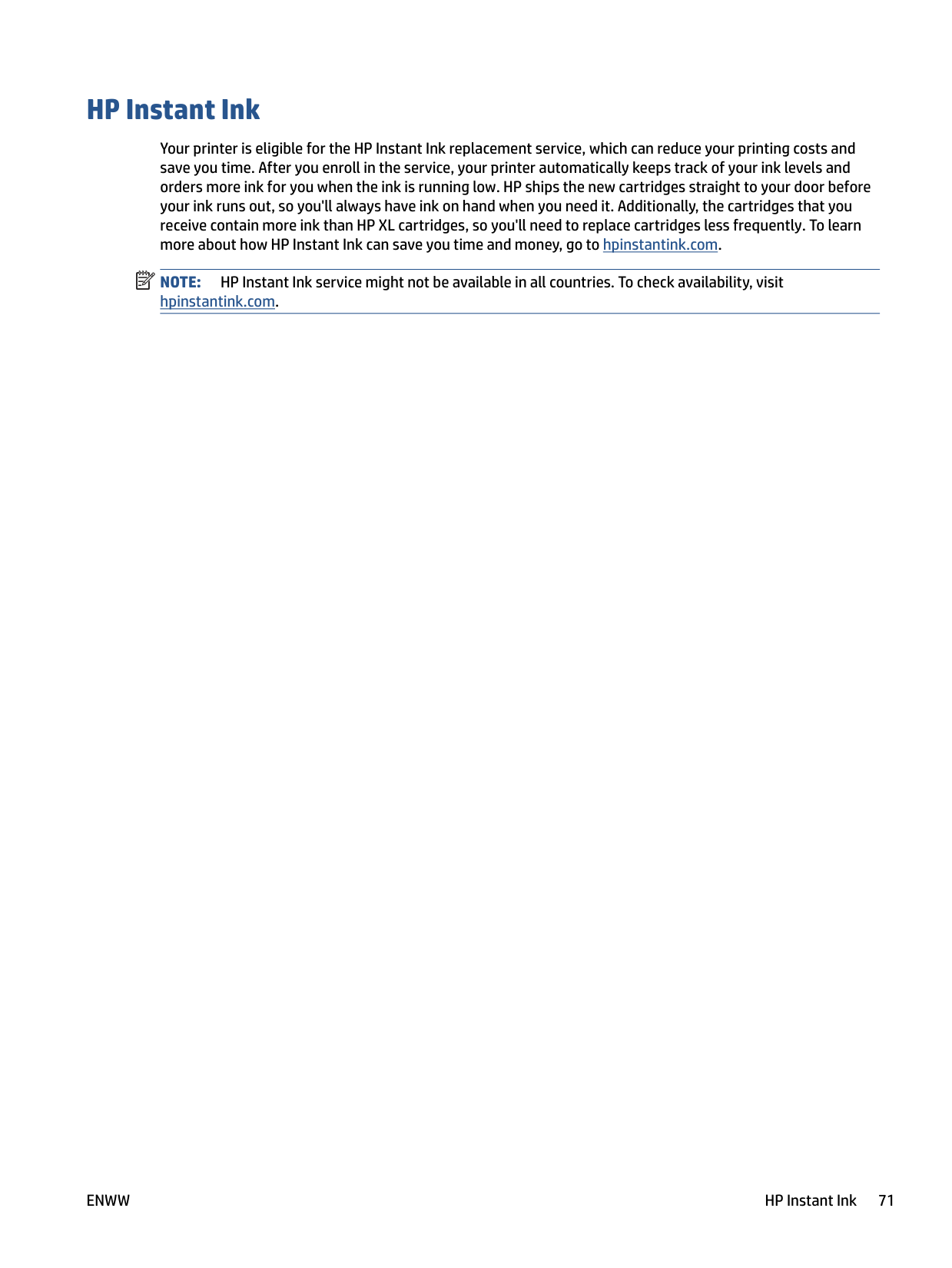
▲ Open HP Smart on your mobile device. The estimated ink levels for your printer appear at the top of the
screen, beside the picture of the printer.
| | |---|
NOTE: Ink level warnings and indicators provide estimates for planning purposes only. When an indicator shows low-ink levels, consider having a replacement ink cartridge available to avoid possible printing delays. You do not need to replace ink cartridges until print quality becomes unacceptable.
| | |---|
NOTE: If you have installed a refilled or remanufactured cartridge, or a cartridge that has been used in another printer, the ink level indicator might be inaccurate or unavailable.
| | |---|
NOTE: Ink from the cartridges is used in the printing process in a number of different ways, including in the initialization process, which prepares the printer and cartridges for printing, and in printhead servicing, which keeps print nozzles clear and ink flowing smoothly. In addition, some residual ink is left in the cartridge after it is used. For more information, see www.hp.com/go/inkusage .
ENWW Check the estimated ink levels 69
Order ink supplies
Before ordering cartridges, locate the correct cartridge number.
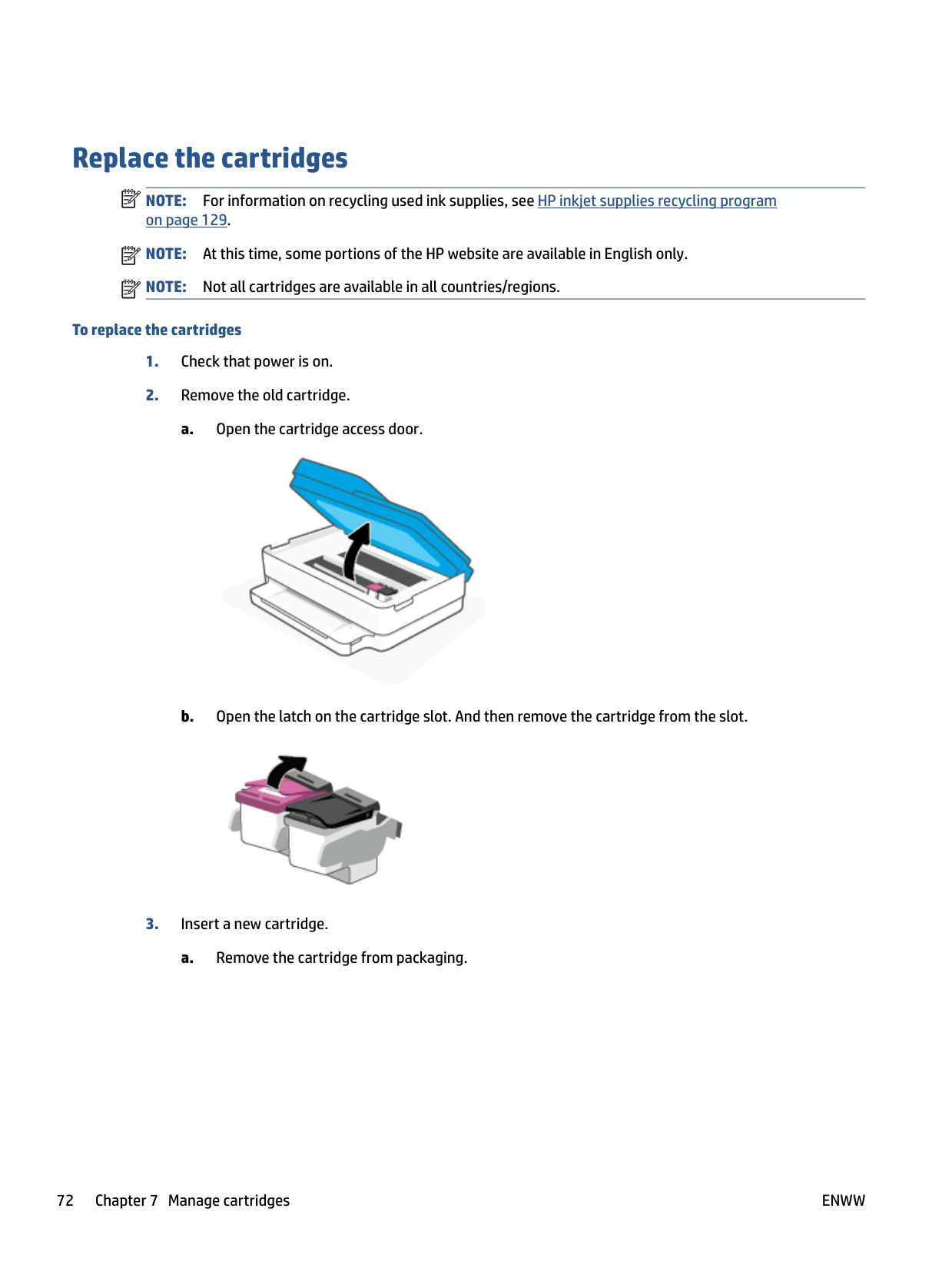
###### To locate the cartridge number on the printer
● The cartridge number is located inside the cartridge access door.

###### To locate the cartridge number from the HP Smart app
● Open HP Smart. On the Home screen, click or tap the printer image, and then click or tap Supported
###### Supplies or Supply Status.
To order original HP supplies for the printer, go to www.hp.com/buy/supplies . If prompted, choose your country/region, and then follow the prompts to find the right cartridges for your printer.
| | |---|
NOTE: Ordering cartridges online is not supported in all countries/regions. If it is not available in your country/region, you may still view supplies information and print a list for reference when shopping at a local HP reseller.
HP Instant Ink
Your printer is eligible for the HP Instant Ink replacement service, which can reduce your printing costs and save you time. After you enroll in the service, your printer automatically keeps track of your ink levels and orders more ink for you when the ink is running low. HP ships the new cartridges straight to your door before your ink runs out, so you'll always have ink on hand when you need it. Additionally, the cartridges that you receive contain more ink than HP XL cartridges, so you'll need to replace cartridges less frequently. To learn more about how HP Instant Ink can save you time and money, go to hpinstantink.com.
| | |---|
NOTE: HP Instant Ink service might not be available in all countries. To check availability, visit hpinstantink.com.
ENWW HP Instant Ink 71
Replace the cartridges
| | |---|
NOTE: For information on recycling used ink supplies, see HP inkjet supplies recycling program on page 129.
| | |---|
| | |---|
NOTE: At this time, some portions of the HP website are available in English only. NOTE: Not all cartridges are available in all countries/regions.
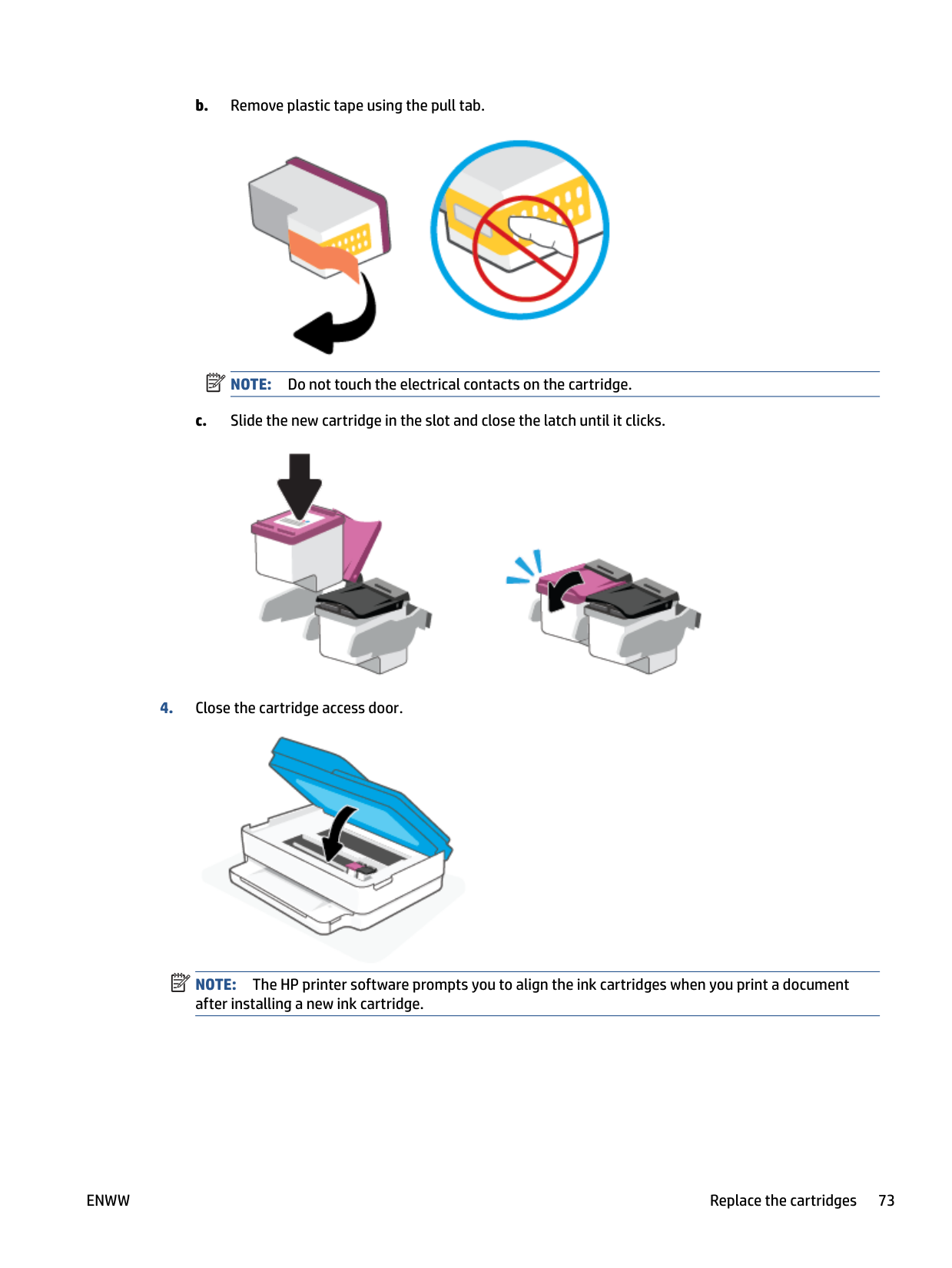
###### To replace the cartridges



NOTE: Do not touch the electrical contacts on the cartridge.
| | |---|

| | |---|

NOTE: The HP printer software prompts you to align the ink cartridges when you print a document after installing a new ink cartridge.
ENWW Replace the cartridges 73
Use single cartridge mode
Use the single cartridge mode to operate the printer with only one cartridge. The single cartridge mode is initiated when one of the following occurs.
| | |---|
NOTE: If the printer enters the single cartridge mode when two cartridges are installed in the printer, verify that the protective piece of plastic tape has been removed from each cartridge. When the plastic tape covers the cartridge contacts, the printer cannot detect that the cartridge is installed. If there is no plastic tape on the cartridges, try cleaning the cartridge contacts. For information about cleaning cartridge contacts, see Ink cartridge issues on page 92.
###### To exit the single cartridge mode
● Install both the black and tri-color cartridges in the printer.
Cartridge warranty information
The HP cartridge warranty is applicable when the cartridge is used in its designated HP printing device. This warranty does not cover HP cartridges that have been refilled, remanufactured, refurbished, misused, or tampered with.
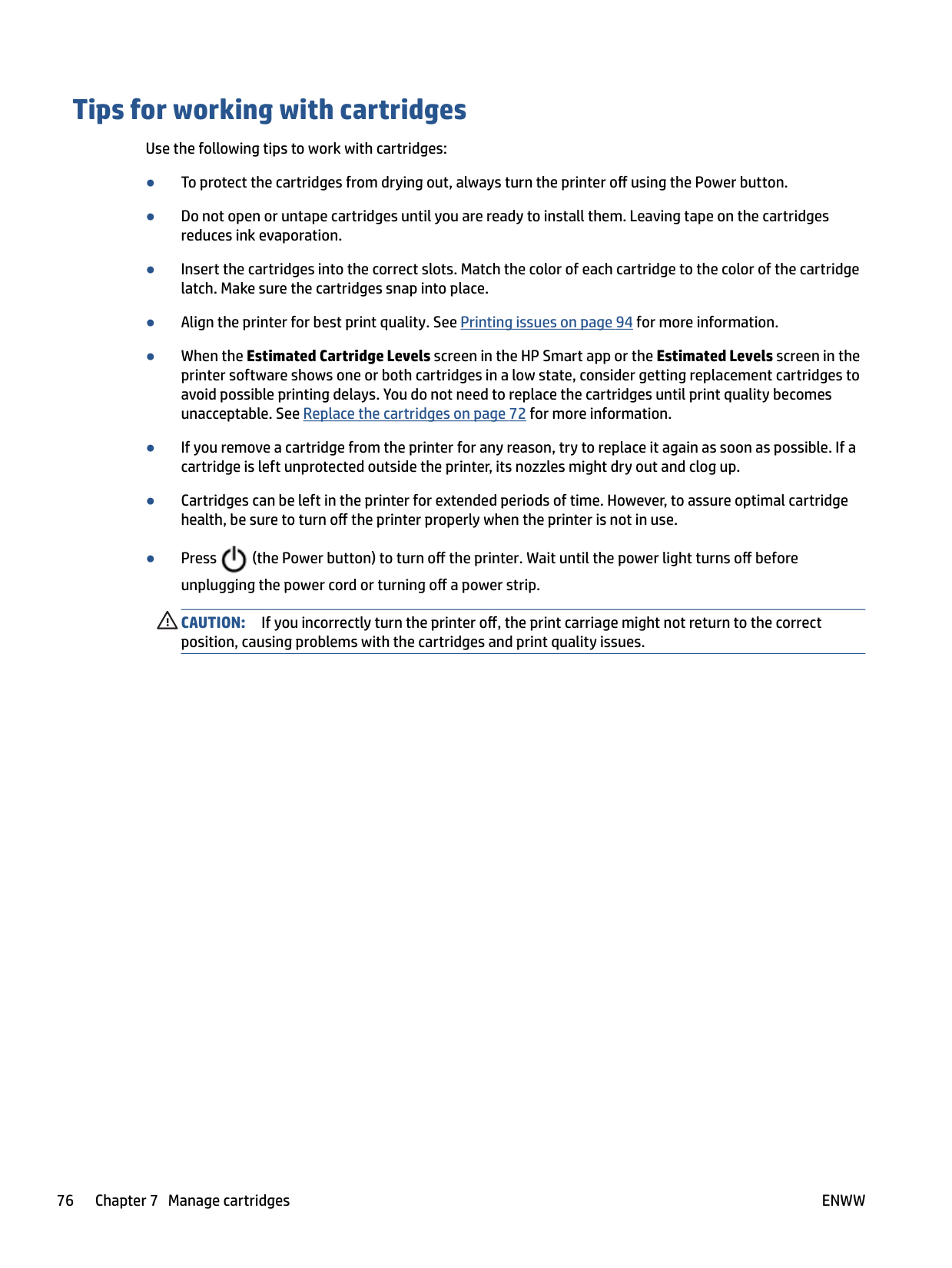
During the warranty period, the cartridge is covered as long as the HP ink is not depleted and the end of warranty date has not been reached. The end of warranty date, in YYYY/MM/DD format, may be found on the cartridge as indicated:

For a copy of the HP Limited Warranty Statement, visit www.hp.com/go/orderdocuments.
ENWW Cartridge warranty information 75
Tips for working with cartridges
Use the following tips to work with cartridges:

CAUTION: If you incorrectly turn the printer off, the print carriage might not return to the correct position, causing problems with the cartridges and print quality issues.
8 Web Services
This section contains the following topics:
ENWW 77
What are Web Services?
The printer offers innovative, web-enabled solutions that can help you quickly access the Internet, obtain documents, and print them faster and with less hassle—and all without using a computer.
| | |---|
NOTE: To use these web features, the printer must be connected to the Internet. You cannot use these web features if the printer is connected using a USB cable.
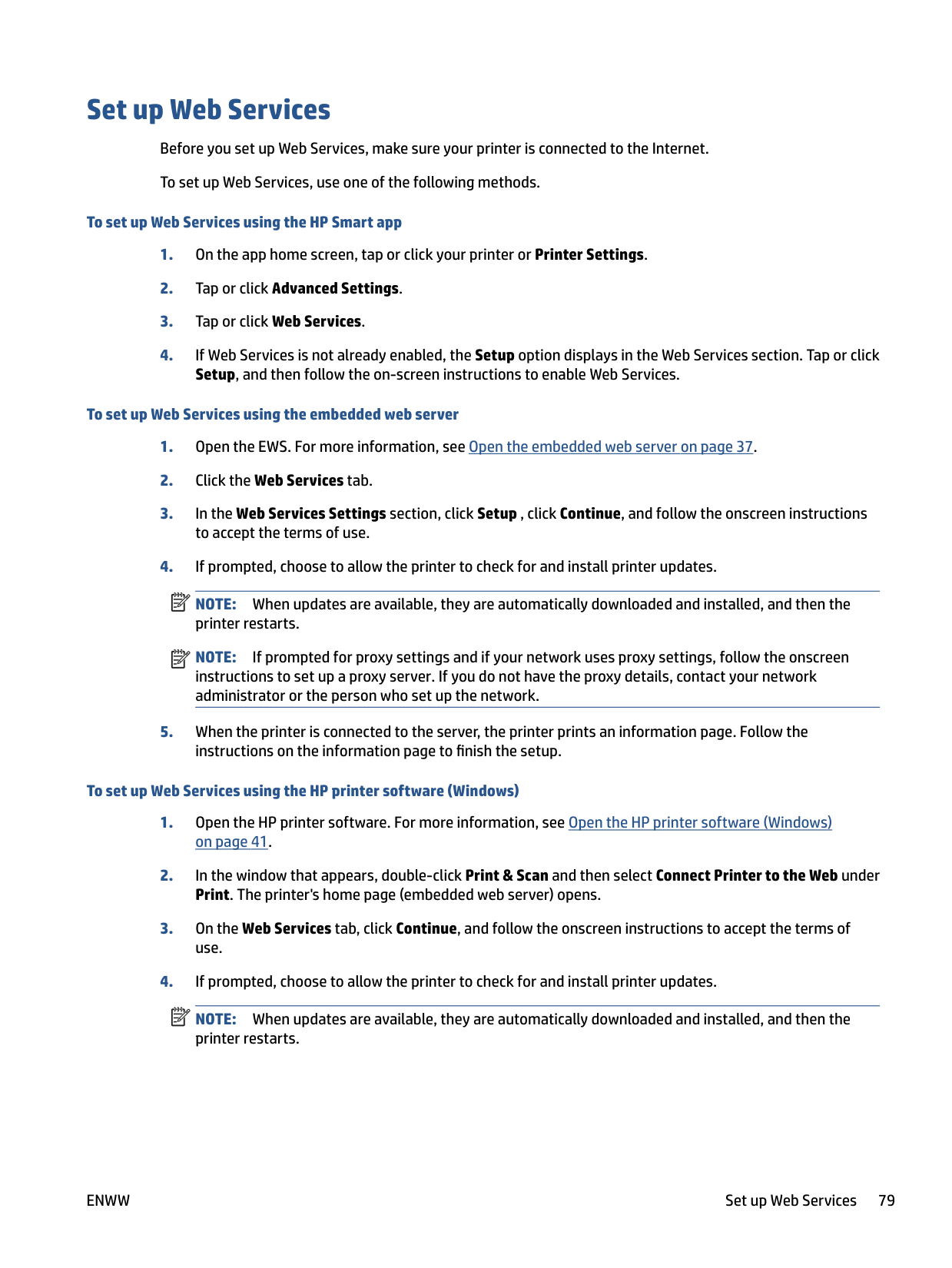
Set up Web Services Before you set up Web Services, make sure your printer is connected to the Internet. To set up Web Services, use one of the following methods.
###### To set up Web Services using the HP Smart app

###### To set up Web Services using the embedded web server
NOTE: When updates are available, they are automatically downloaded and installed, and then the printer restarts.
NOTE: If prompted for proxy settings and if your network uses proxy settings, follow the onscreen instructions to set up a proxy server. If you do not have the proxy details, contact your network administrator or the person who set up the network.
| | |---|
| | |---|
###### To set up Web Services using the HP printer software (Windows)
| | |---|
NOTE: When updates are available, they are automatically downloaded and installed, and then the printer restarts.
ENWW Set up Web Services 79
| | |---|
NOTE: If prompted for proxy settings and if your network uses proxy settings, follow the onscreen instructions to set up a proxy server. If you do not have the details, contact your network administrator or the person who set up the network.
instructions on the information page to finish the setup.
Remove Web Services
Use the following instructions to remove Web Services.
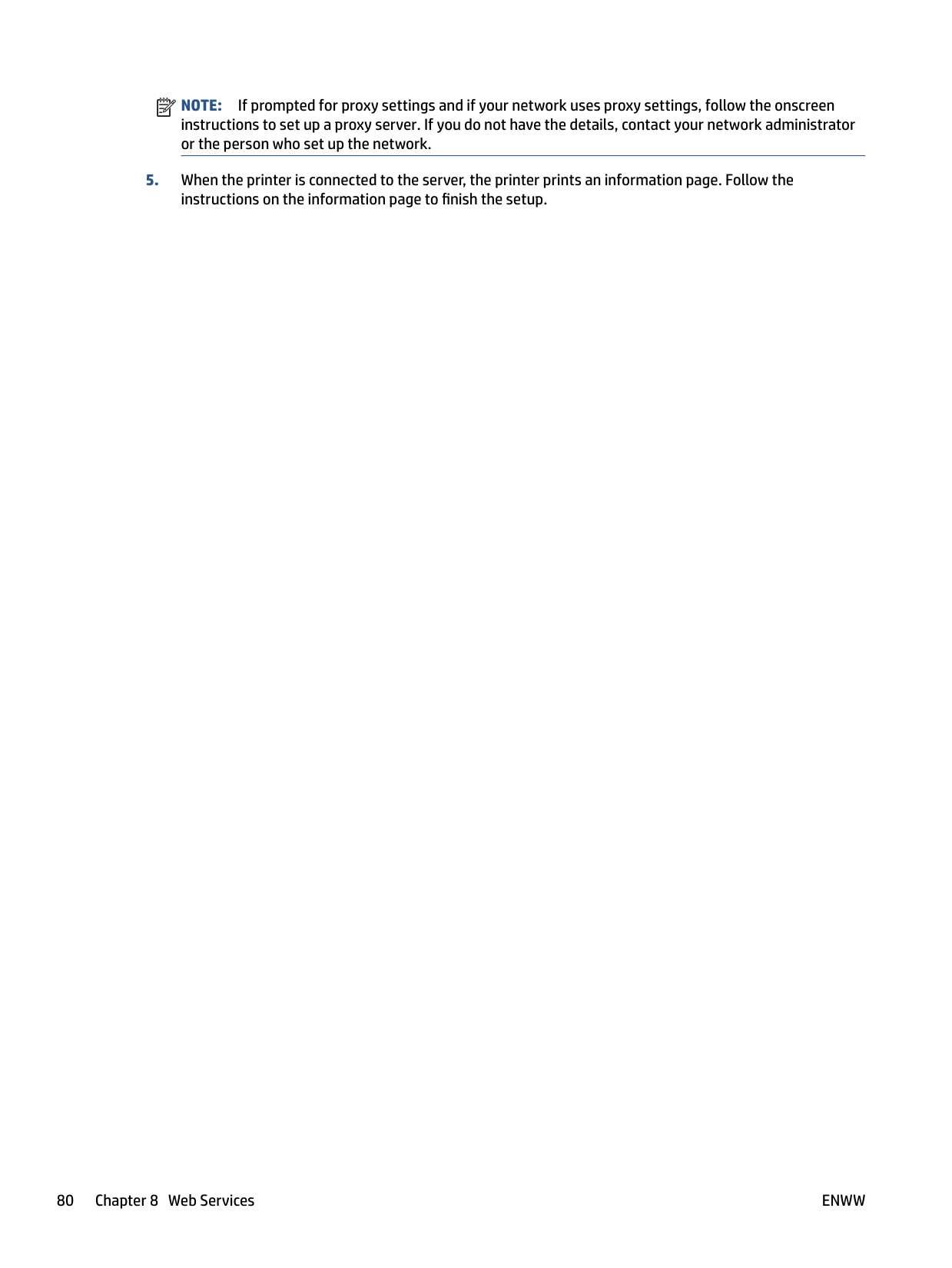
###### To remove Web Services using the embedded web server
ENWW Remove Web Services 81
9 Solve a problem
This section contains the following topics:
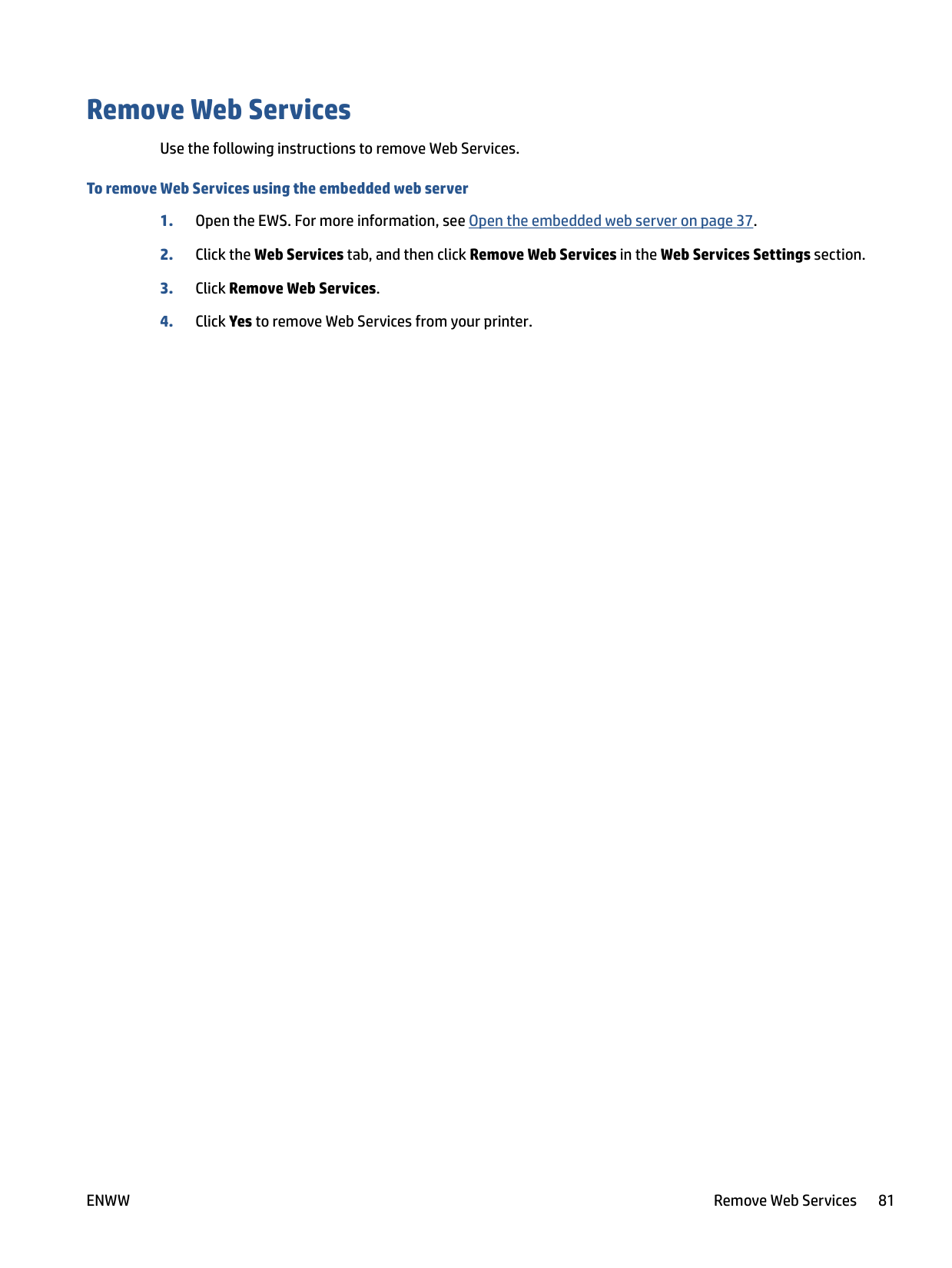
Get help from the HP Smart app
The HP Smart app provides alerts for printer issues (jams and other problems), links to help content, and options to contact support for additional assistance.
ENWW Get help from the HP Smart app 83
Get help in this guide
This section contains the following topics:
#### Jams and paper-feed issues
##### Clear a paper jam
| | |---|
NOTE: Paper jams can occur in several areas. Clear paper jam from the paper tray first. It helps to clear the paper path and make clearing jams from other areas easier. Then continue to the next area until all paper jams are located and cleared.
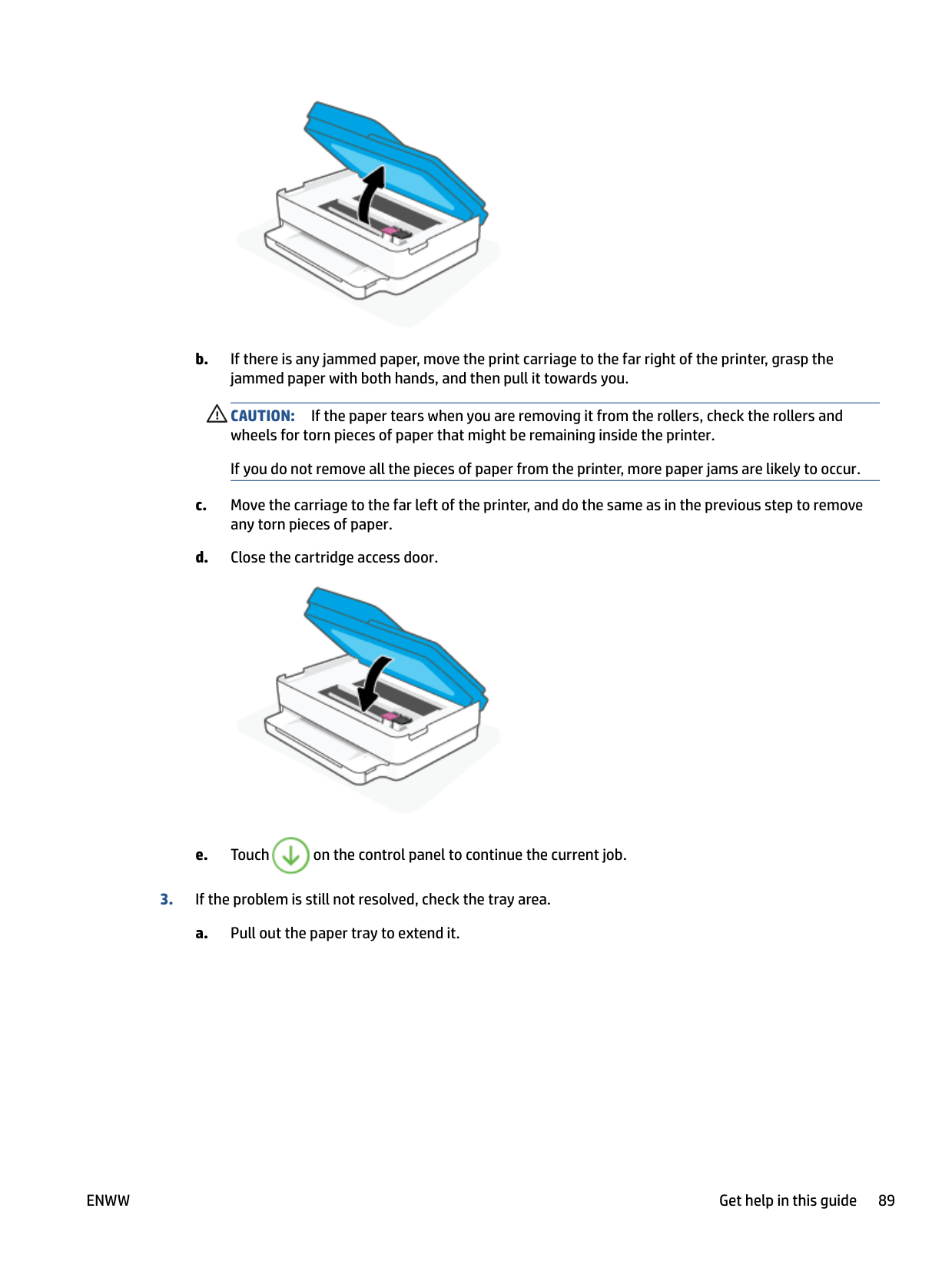
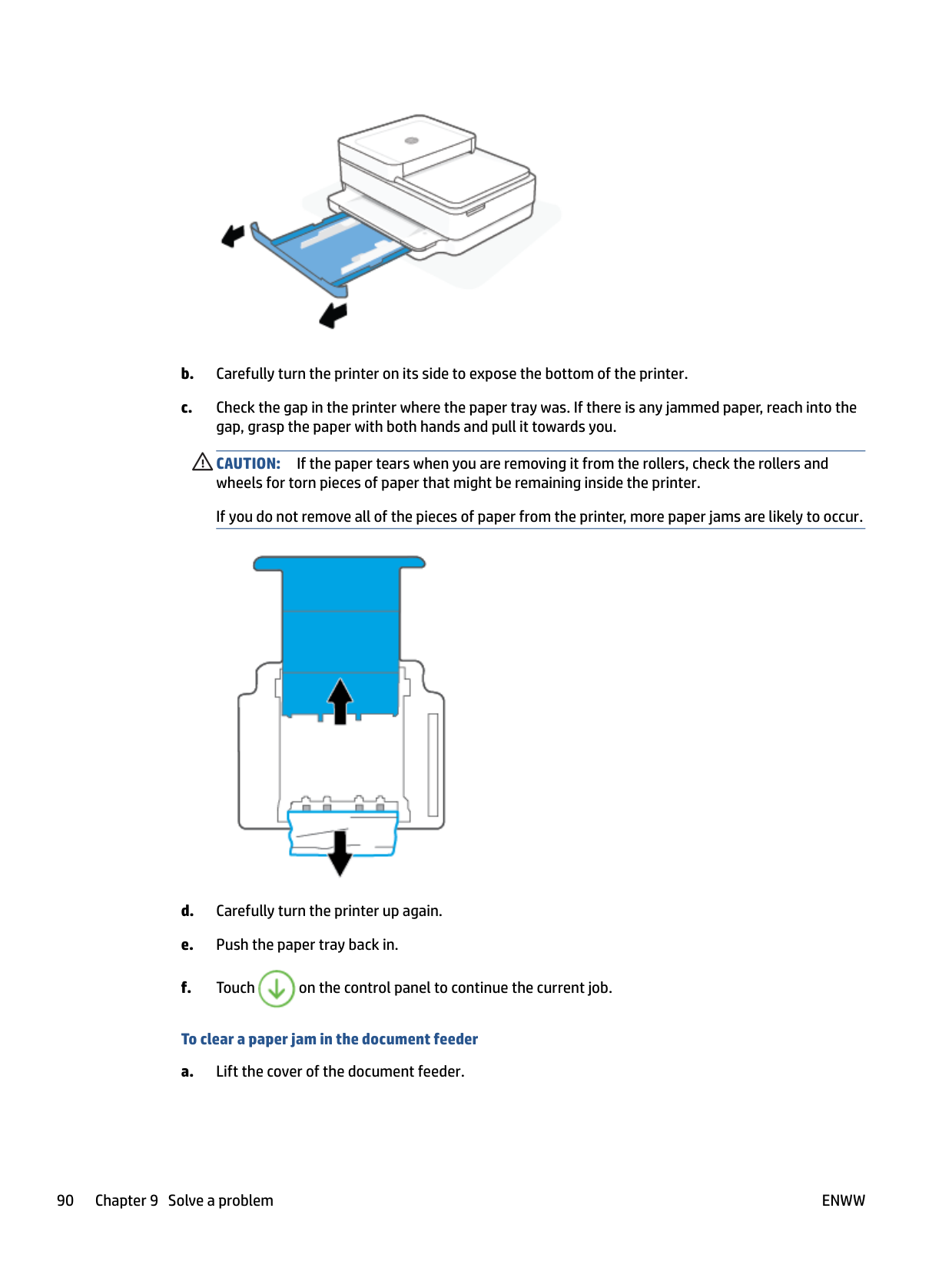
###### To clear a paper jam from the paper tray


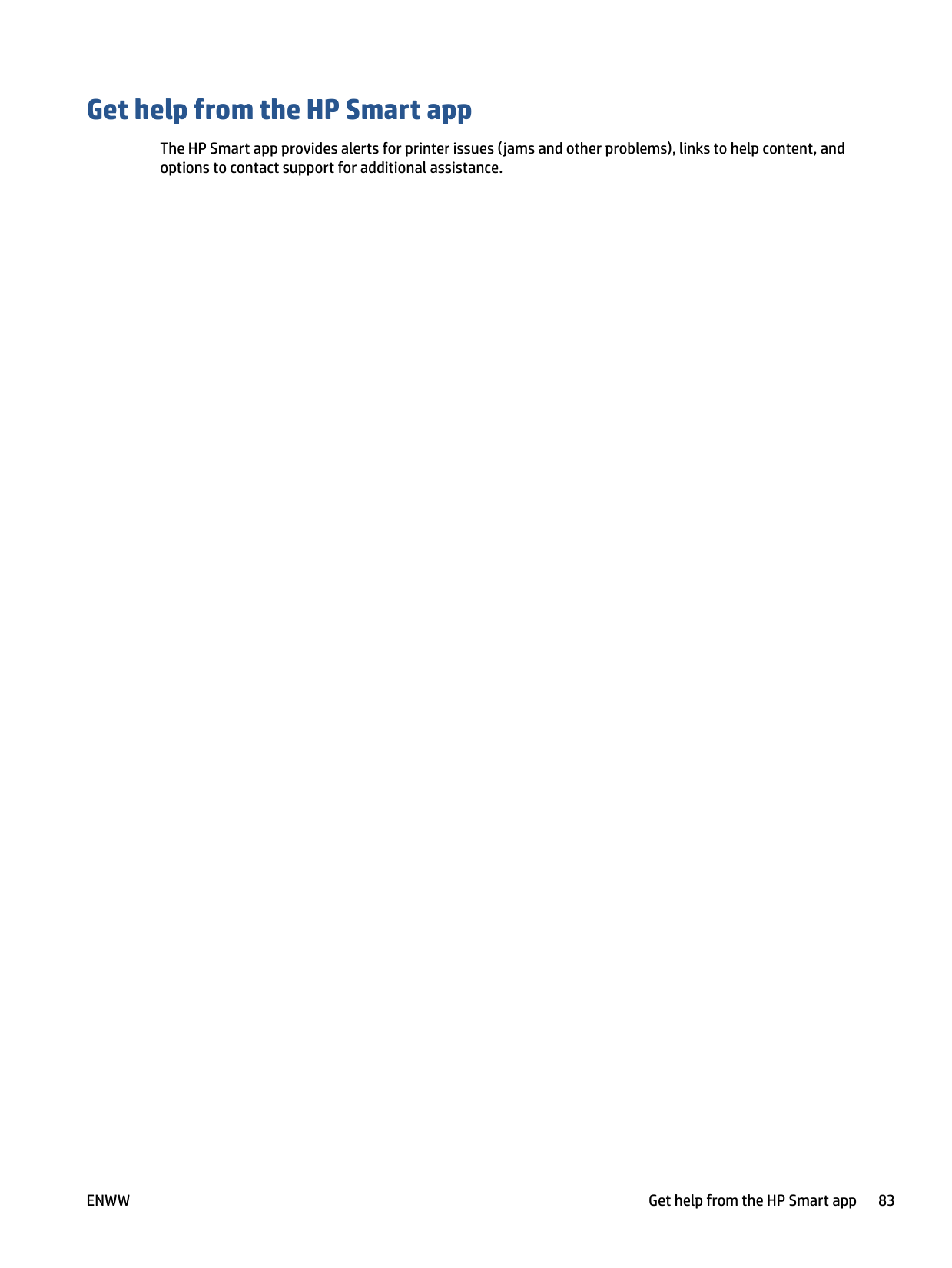
###### To clear a paper jam from the output tray

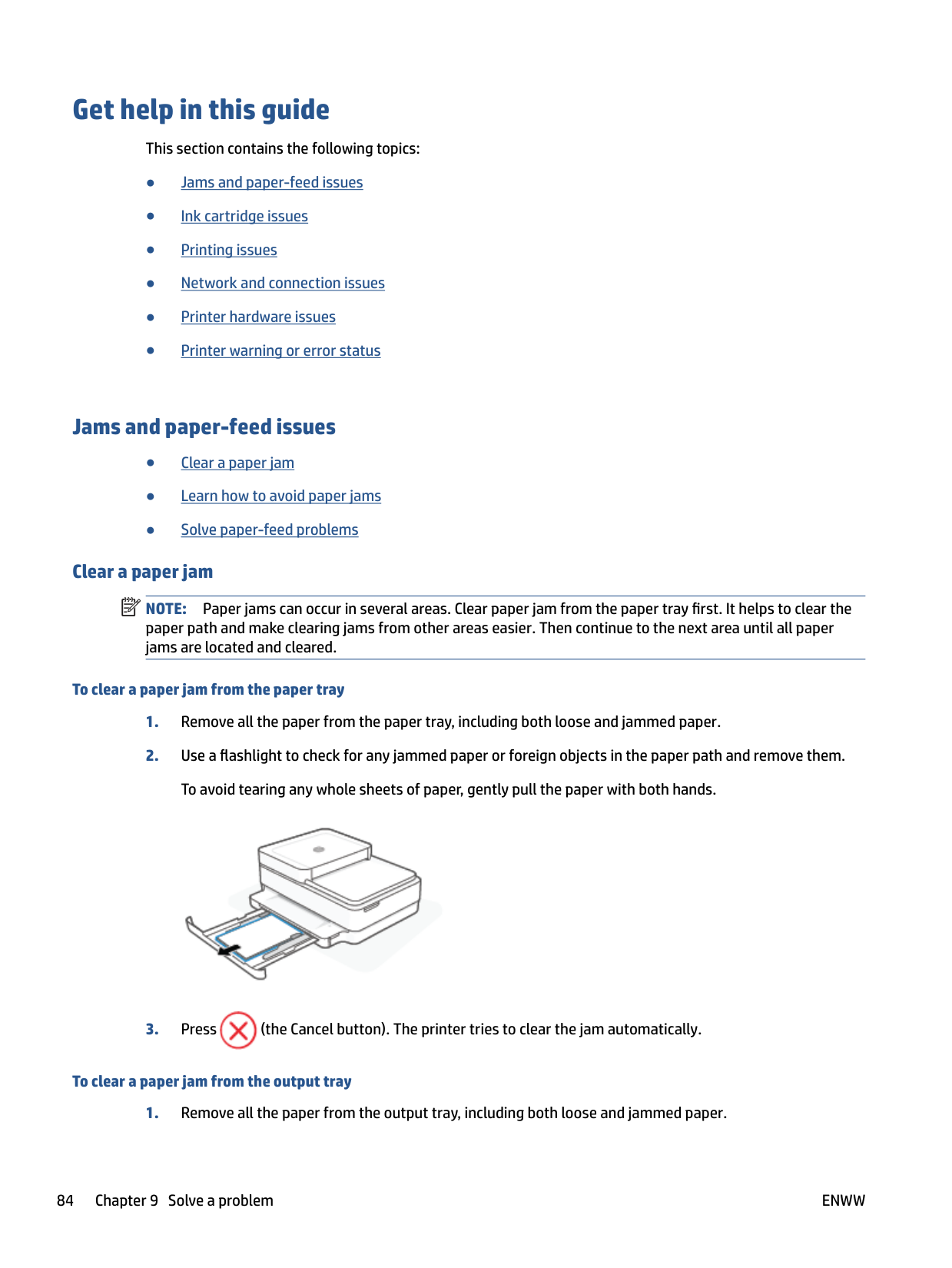
###### To clear a paper jam from the cartridge access area


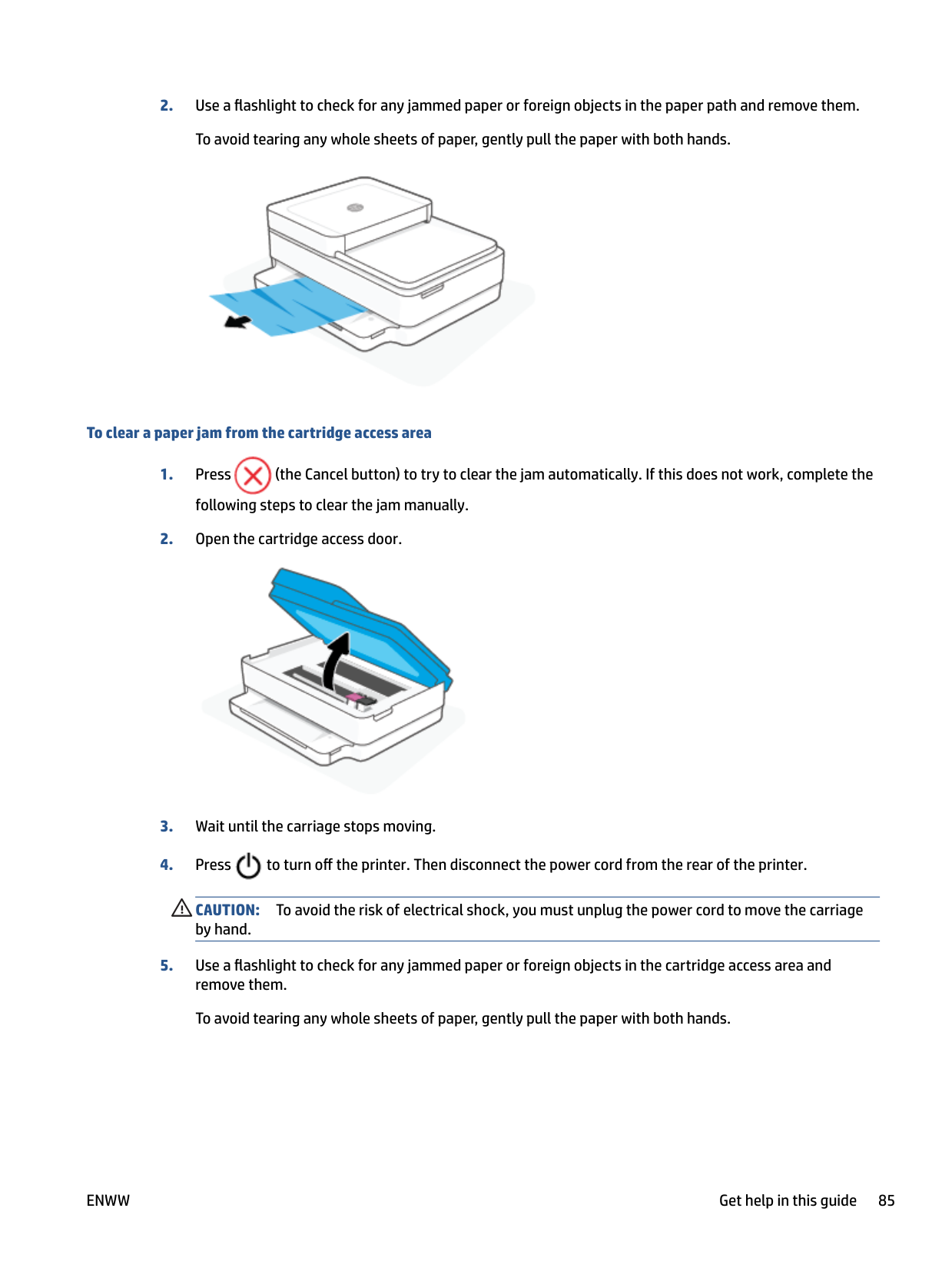
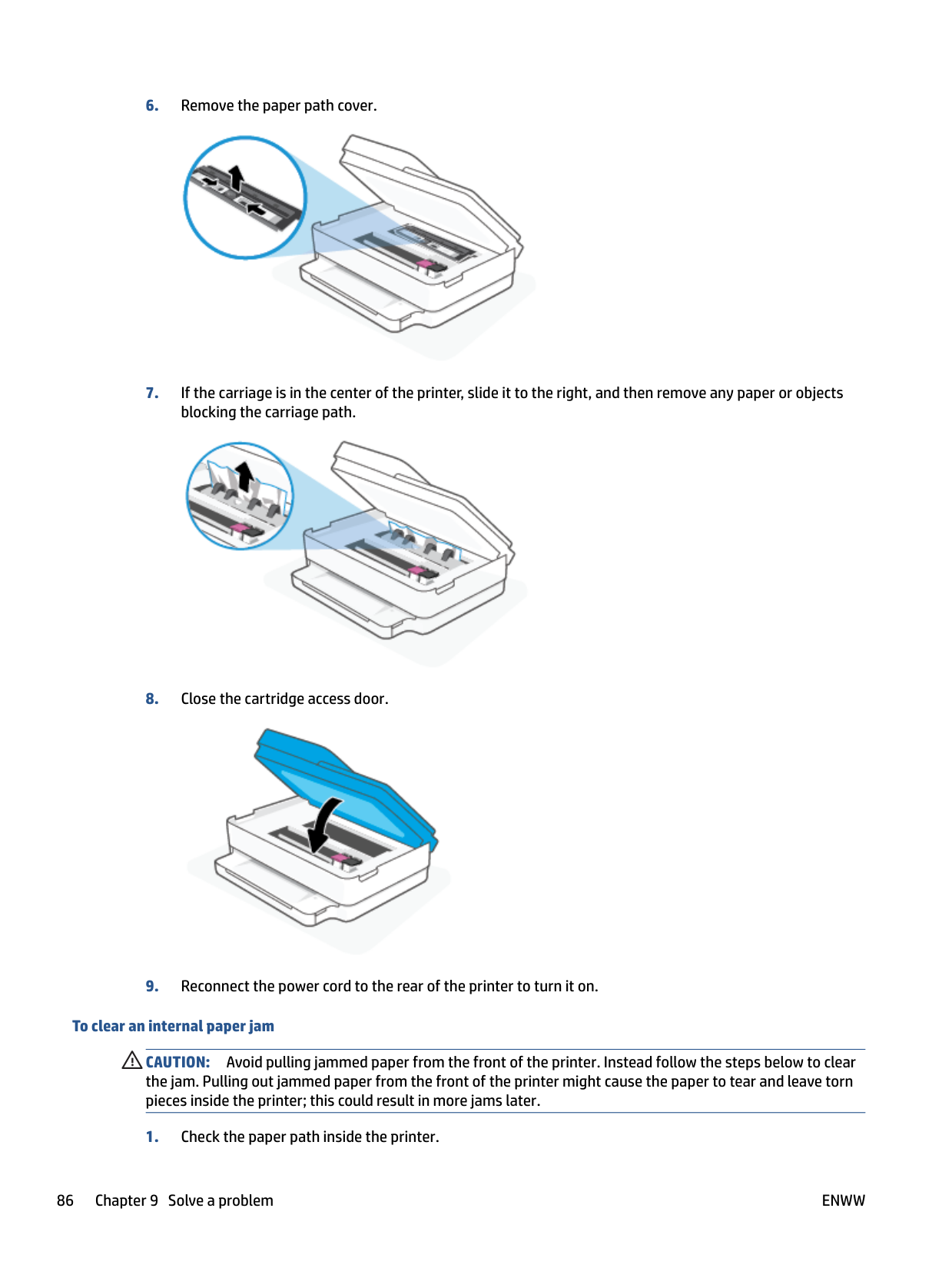
CAUTION: To avoid the risk of electrical shock, you must unplug the power cord to move the carriage by hand.



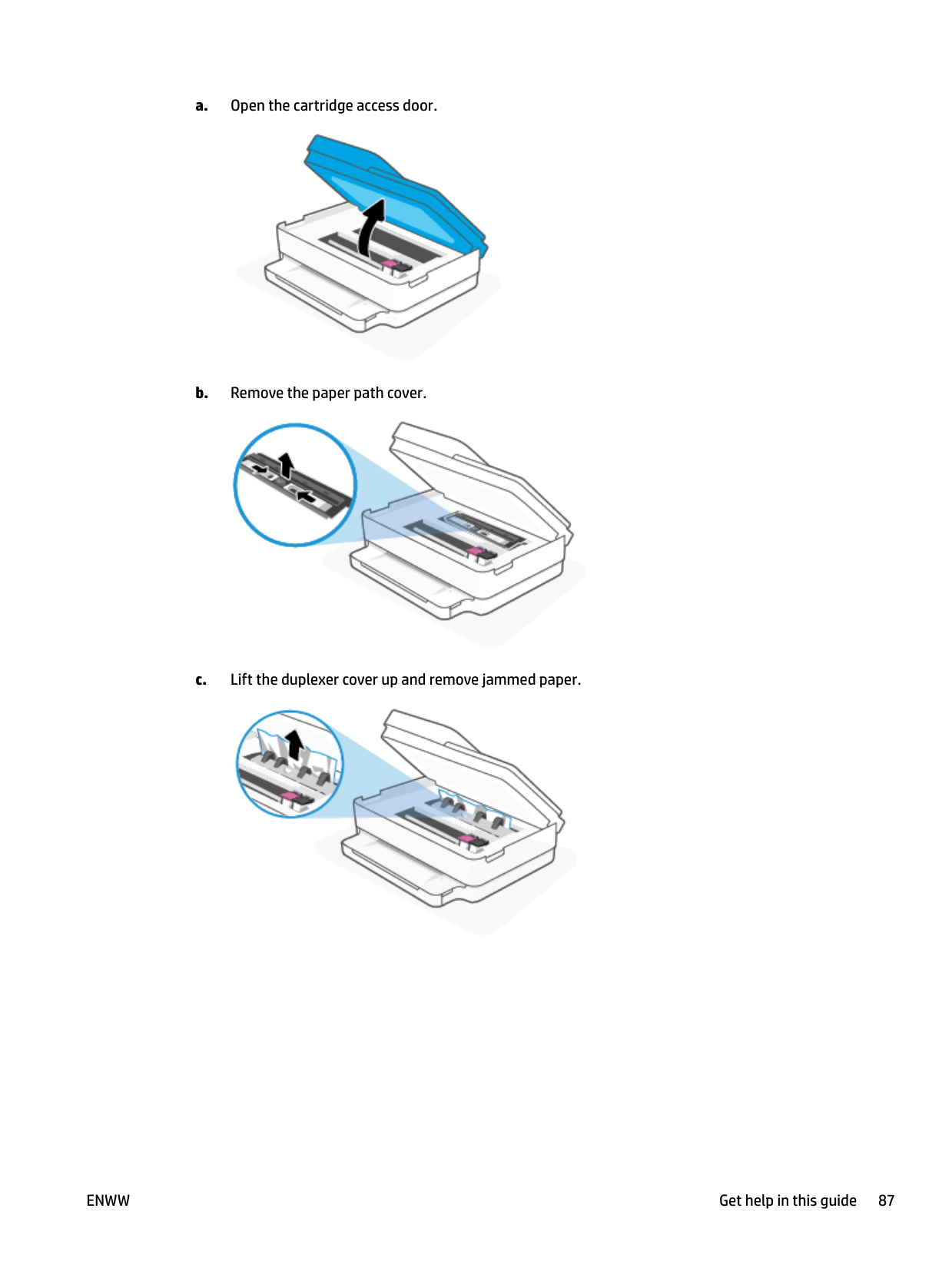
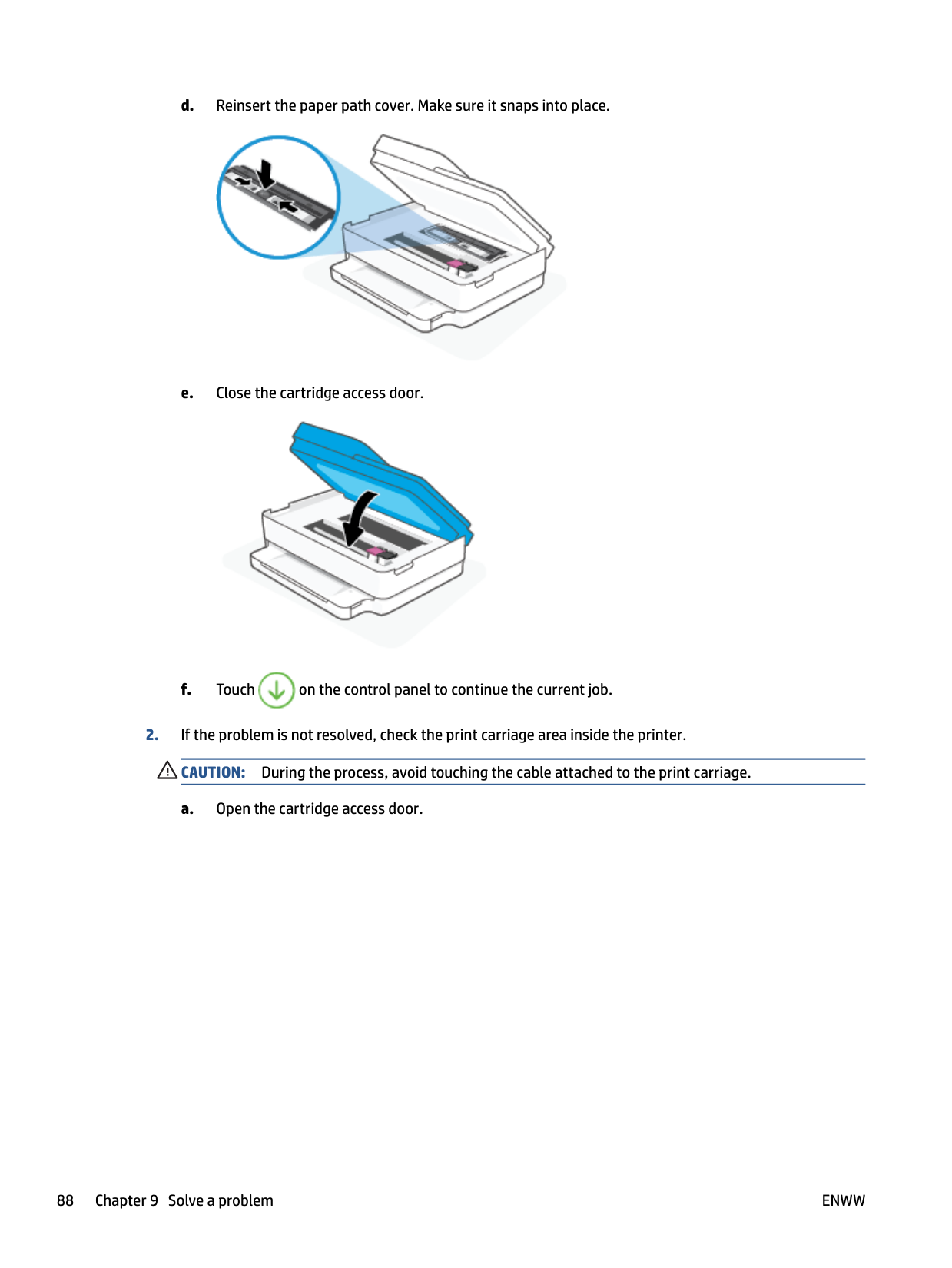
###### To clear an internal paper jam
CAUTION: Avoid pulling jammed paper from the front of the printer. Instead follow the steps below to clear the jam. Pulling out jammed paper from the front of the printer might cause the paper to tear and leave torn pieces inside the printer; this could result in more jams later.
####### a. Open the cartridge access door.

####### b. Remove the paper path cover.

####### c. Lift the duplexer cover up and remove jammed paper.



CAUTION: If the paper tears when you are removing it from the rollers, check the rollers and wheels for torn pieces of paper that might be remaining inside the printer. If you do not remove all the pieces of paper from the printer, more paper jams are likely to occur.


CAUTION: If the paper tears when you are removing it from the rollers, check the rollers and wheels for torn pieces of paper that might be remaining inside the printer. If you do not remove all of the pieces of paper from the printer, more paper jams are likely to occur.


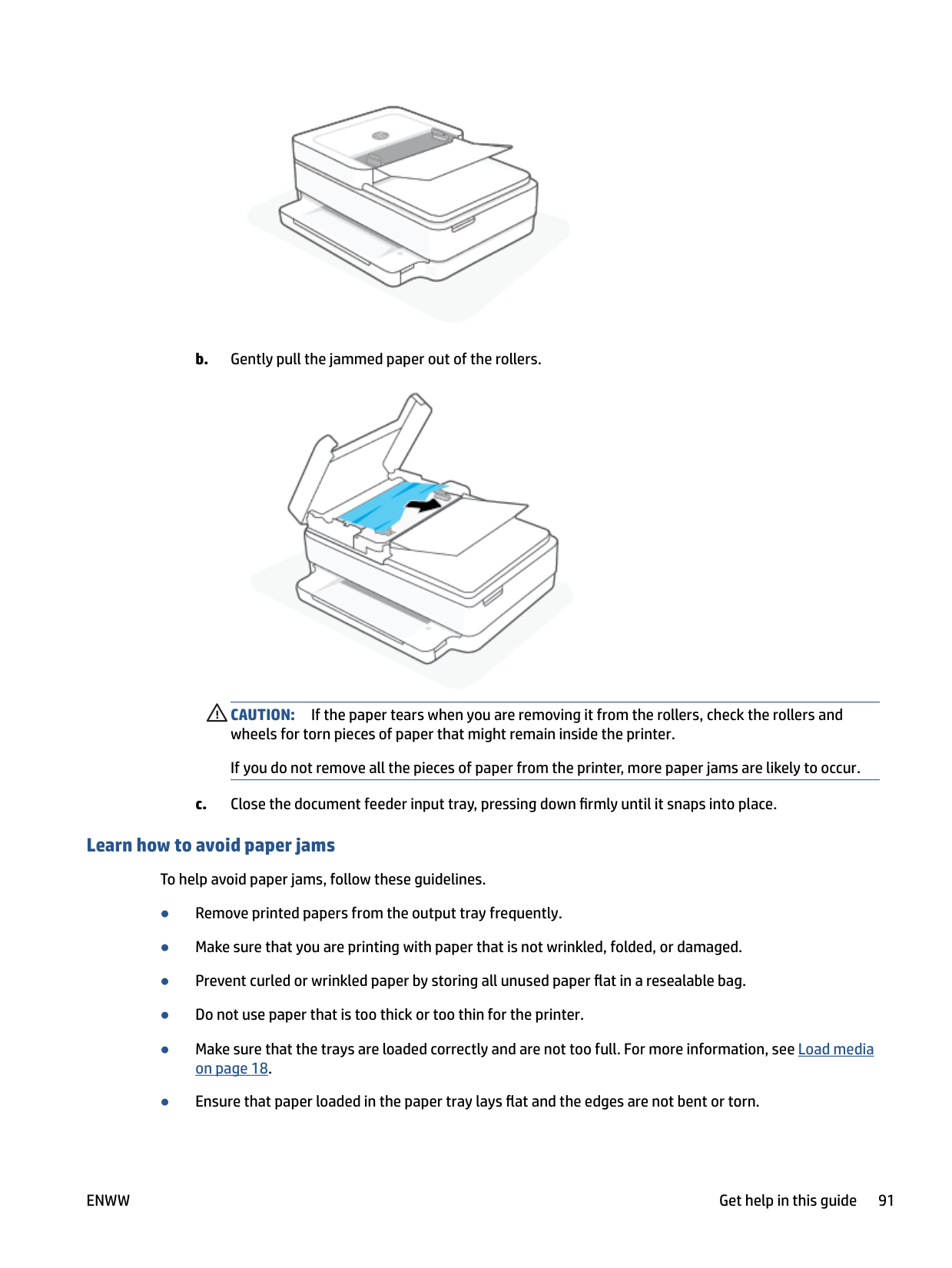
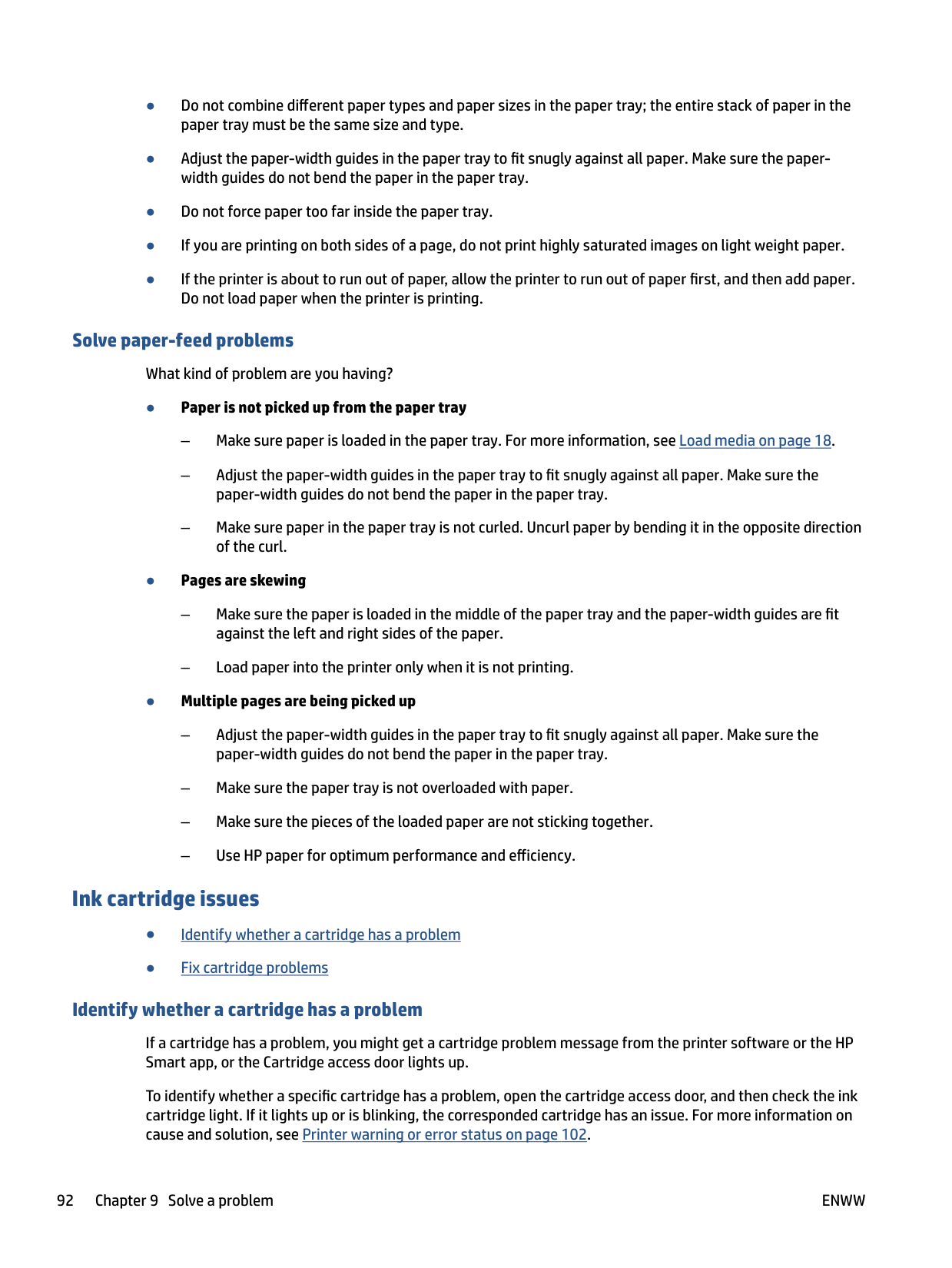
###### To clear a paper jam in the document feeder


CAUTION: If the paper tears when you are removing it from the rollers, check the rollers and wheels for torn pieces of paper that might remain inside the printer. If you do not remove all the pieces of paper from the printer, more paper jams are likely to occur.
##### Learn how to avoid paper jams
To help avoid paper jams, follow these guidelines.
##### Solve paper-feed problems
What kind of problem are you having?
###### ● Paper is not picked up from the paper tray
###### ● Pages are skewing
###### ● Multiple pages are being picked up
#### Ink cartridge issues
##### Identify whether a cartridge has a problem
If a cartridge has a problem, you might get a cartridge problem message from the printer software or the HP Smart app, or the Cartridge access door lights up.
To identify whether a specific cartridge has a problem, open the cartridge access door, and then check the ink cartridge light. If it lights up or is blinking, the corresponded cartridge has an issue. For more information on cause and solution, see Printer warning or error status on page 102.
##### Fix cartridge problems
If an error occurs after a cartridge is installed, or if a message indicates a cartridge problem, try removing the cartridges, verifying the protective piece of plastic tape has been removed from each cartridge, and then reinserting the cartridges. If this does not work, clean the cartridge contacts. If the problem is still not resolved, replace the cartridges. For information about replacing cartridges, see Replace the cartridges on page 72.
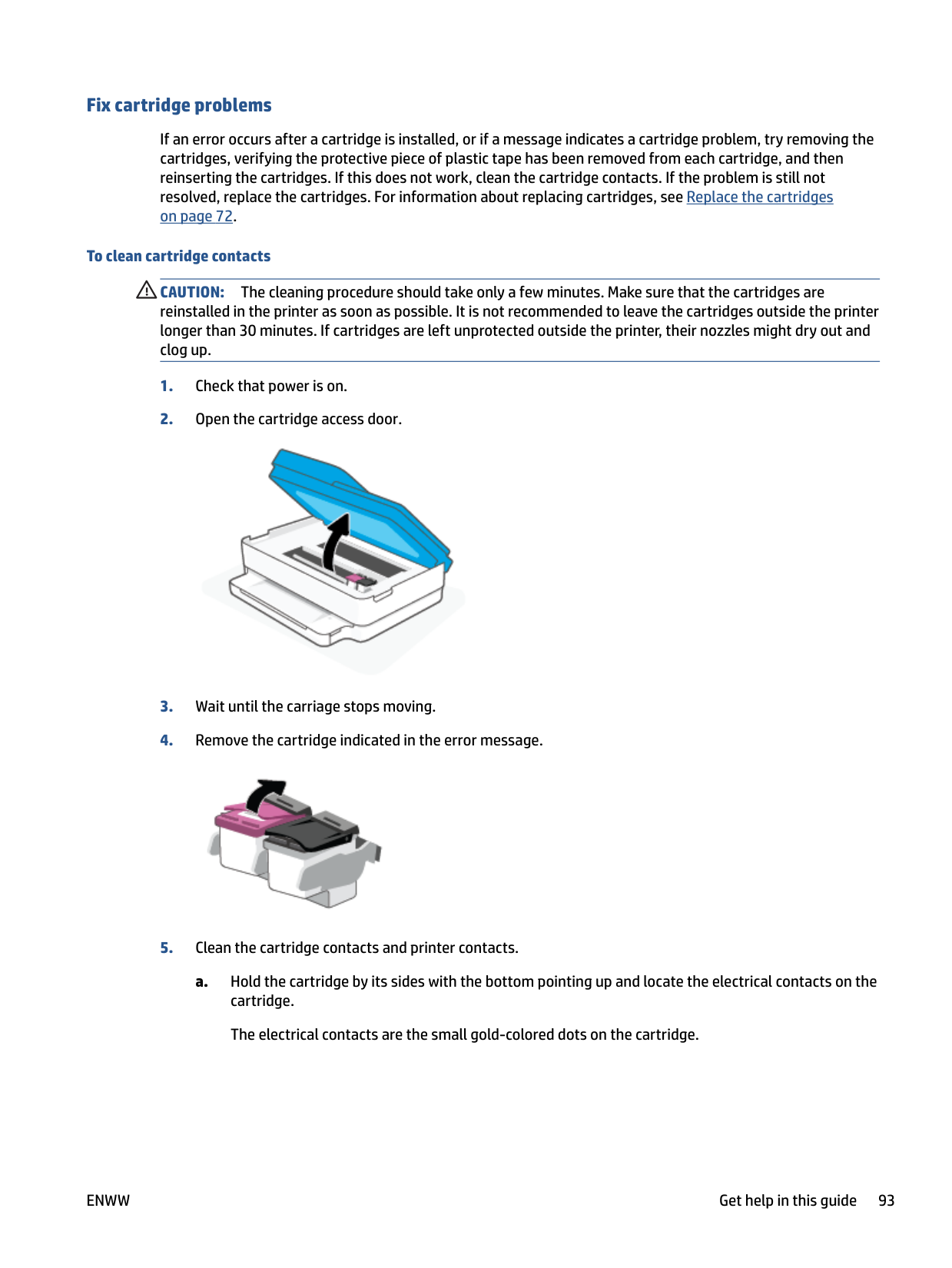
###### To clean cartridge contacts
CAUTION: The cleaning procedure should take only a few minutes. Make sure that the cartridges are reinstalled in the printer as soon as possible. It is not recommended to leave the cartridges outside the printer longer than 30 minutes. If cartridges are left unprotected outside the printer, their nozzles might dry out and clog up.



CAUTION: Be careful to wipe only the contacts, and do not smear any of the ink or other debris elsewhere on the cartridge.
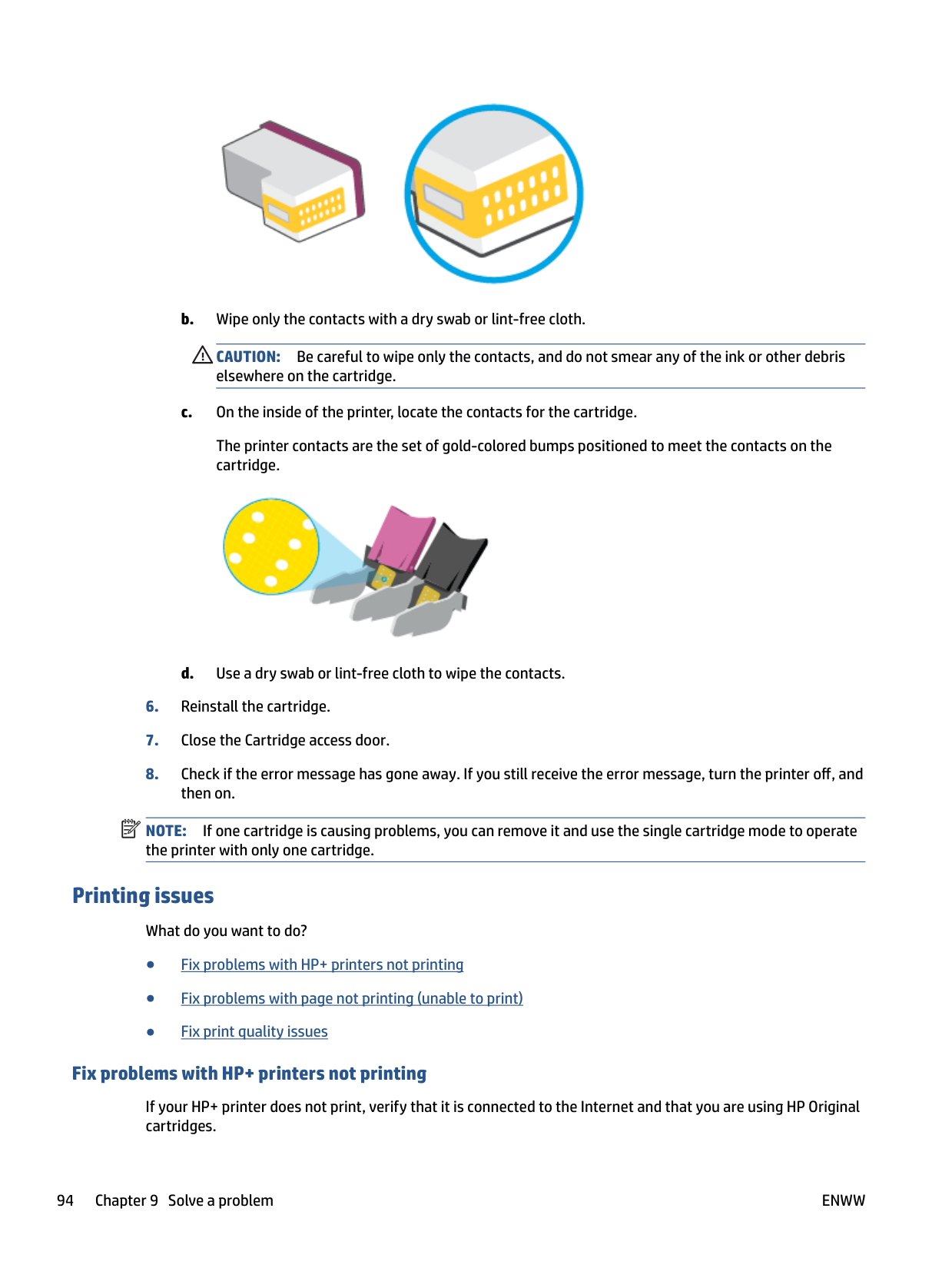
The printer contacts are the set of gold-colored bumps positioned to meet the contacts on the cartridge.

| | |---|
NOTE: If one cartridge is causing problems, you can remove it and use the single cartridge mode to operate the printer with only one cartridge.
#### Printing issues
What do you want to do?
##### Fix problems with HP+ printers not printing
If your HP+ printer does not print, verify that it is connected to the Internet and that you are using HP Original cartridges.
HP+ printers must be connected to the Internet over Wi-Fi or Ethernet to function. Your printer might be occasionally disconnected from the Internet (for example, due to power outage, network or router issues, or turning off the printer when not in use). You might be able to print a limited number of pages while the printer is disconnected, but it is critical to reconnect the printer to continue printing.
Also, make sure you have installed Original HP cartridges. Original HP cartridges are manufactured and sold by HP in official HP packaging. HP+ printers require Original HP cartridges. If non-Original HP or refilled cartridges are installed, HP+ printers will not operate as expected.
##### Fix problems with page not printing (unable to print) To resolve print issues (Windows)
Make sure that the printer is turned on and that there is paper in the paper tray. If you are still unable to print, try the following in order:
###### 5. Restart the print spooler.To restart the print spooler
Windows 7
##### Fix print quality issues
| | |---|
NOTE: To protect the cartridges from drying out, always turn the printer off using the Power button.
###### To improve print quality (Windows)
For best print quality, use high quality HP paper, or papers that adhere to the ColorLok® standard. For more information, see Paper basics on page 24.
Always make sure the paper you are printing on is flat. For best results when printing images, use HP Advanced Photo Paper.
Store specialty paper in its original packaging inside a resealable plastic bag on a flat surface in a cool, dry place. When you are ready to print, remove only the paper you plan to use immediately. When you have finished printing, return any unused photo paper to the plastic bag. This prevents the photo paper from curling.
If any of the color blocks show white lines, are faded, or are missing completely, continue to the next step.


###### 7. Clean the cartridges.To clean the cartridges
#### Network and connection issues
What do you want to do?
##### Fix wireless connection
Choose one of the following troubleshooting options.



Check the top of the wireless network test report to see if something failed during the test. You can also see your Wi-Fi signal strength.
##### Fix Wi-Fi Direct connection

three seconds to turn on all the button lights, and then press and hold , , and together.



If you are using a mobile device that does not support Wi-Fi Direct, make sure you have installed a compatible printing app. For more information, visit the HP Mobile Printing website at www.hp.com/go/ mobileprinting. If a local version of this website is not available in your country/region or language, you might be directed to the HP Mobile Printing website in another country/region or language.
NOTE: If your mobile device does not support Wi-Fi, you are not able to use Wi-Fi Direct.
| | |---|

#### Printer hardware issues
TIP: Run the HP Print and Scan Doctor to diagnose and automatically fix printing, scanning, and copying issues. The application is only available in some languages.
###### The printer shuts down unexpectedly
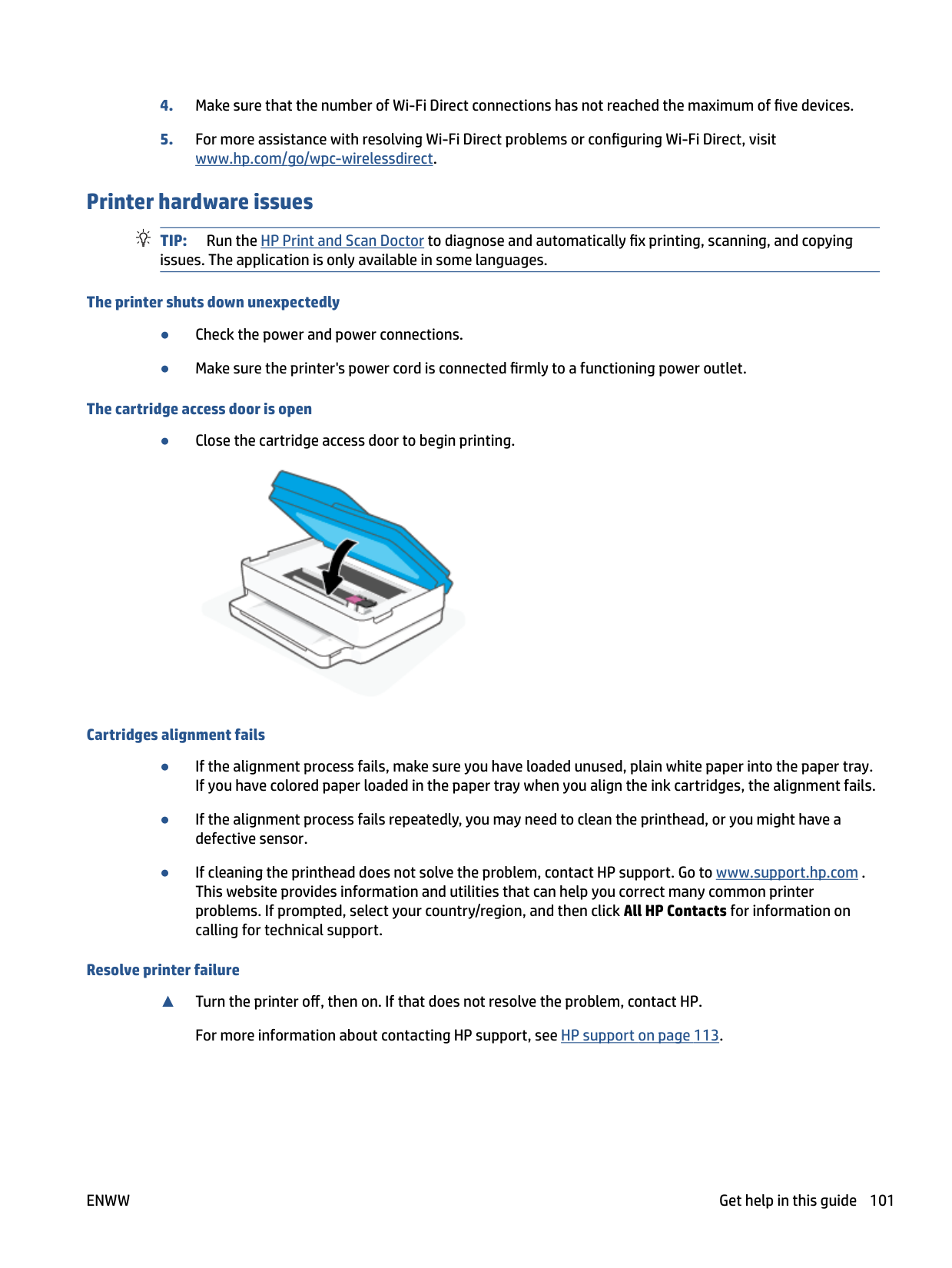
###### The cartridge access door is open
● Close the cartridge access door to begin printing.

###### Cartridges alignment fails
###### Resolve printer failure
▲ Turn the printer off, then on. If that does not resolve the problem, contact HP.
For more information about contacting HP support, see HP support on page 113.
#### Printer warning or error status
| | |---|
NOTE: The HP Smart app provides detailed information for printer warnings and errors. Open the app and check the printer status, and then follow the onscreen instructions to fix the issue. Then check the following for additional assistance if needed.
##### Wireless connection errors
######### Light behavior Cause and Solution
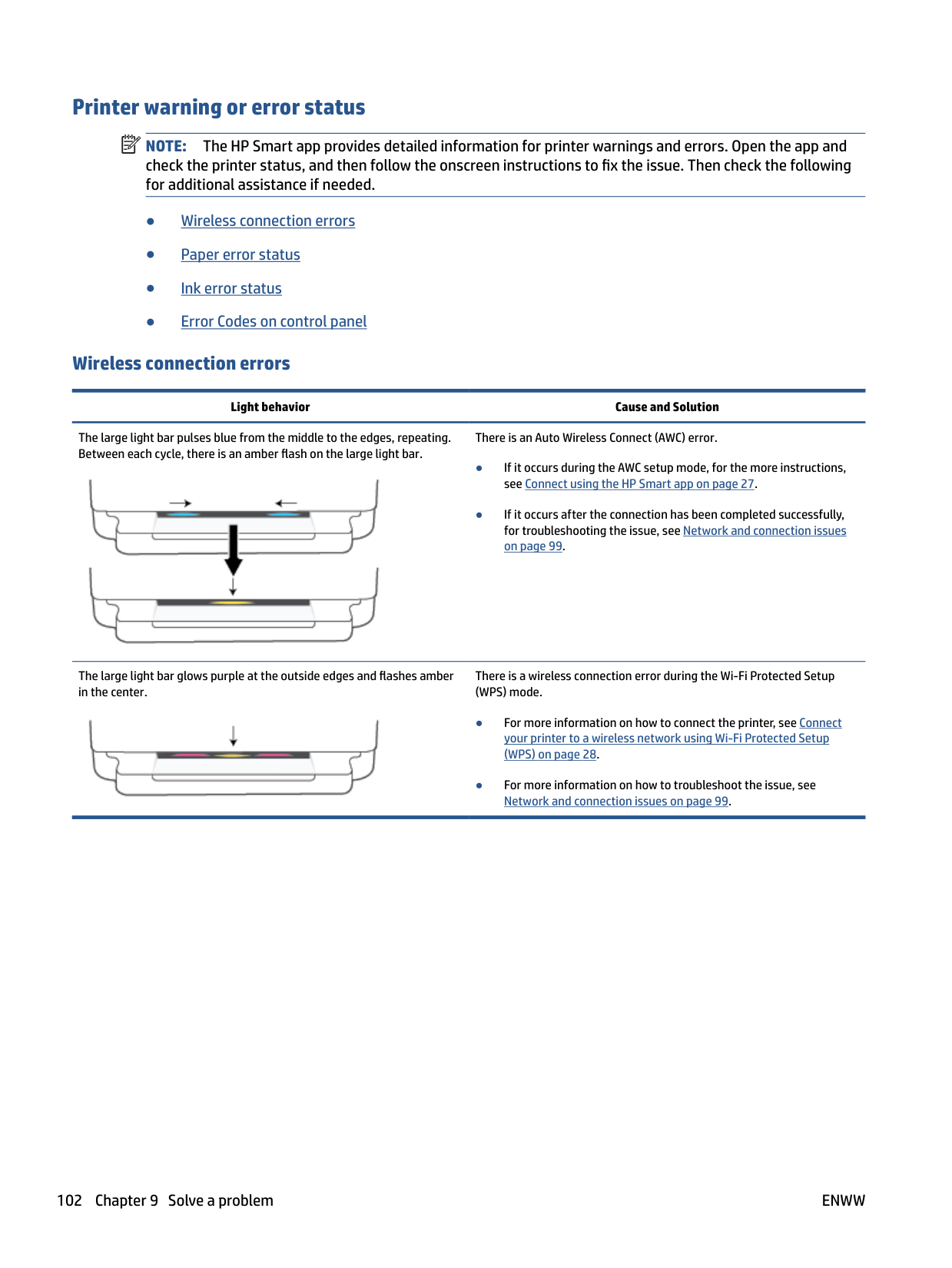
The large light bar pulses blue from the middle to the edges, repeating. Between each cycle, there is an amber flash on the large light bar.
There is an Auto Wireless Connect (AWC) error.

The large light bar glows purple at the outside edges and flashes amber in the center.
There is a wireless connection error during the Wi-Fi Protected Setup (WPS) mode.

##### Paper error status
######### Light behavior Cause and SolutionEdge lightingPaper tray light


Amber across the large light bar
Blinking On Off The printer receives a printing job, starts feeding paper, and detects that the paper width for the printing job is bigger than the width of the loaded paper.

Press (the Cancel button) to cancel the printing job and eject paper.
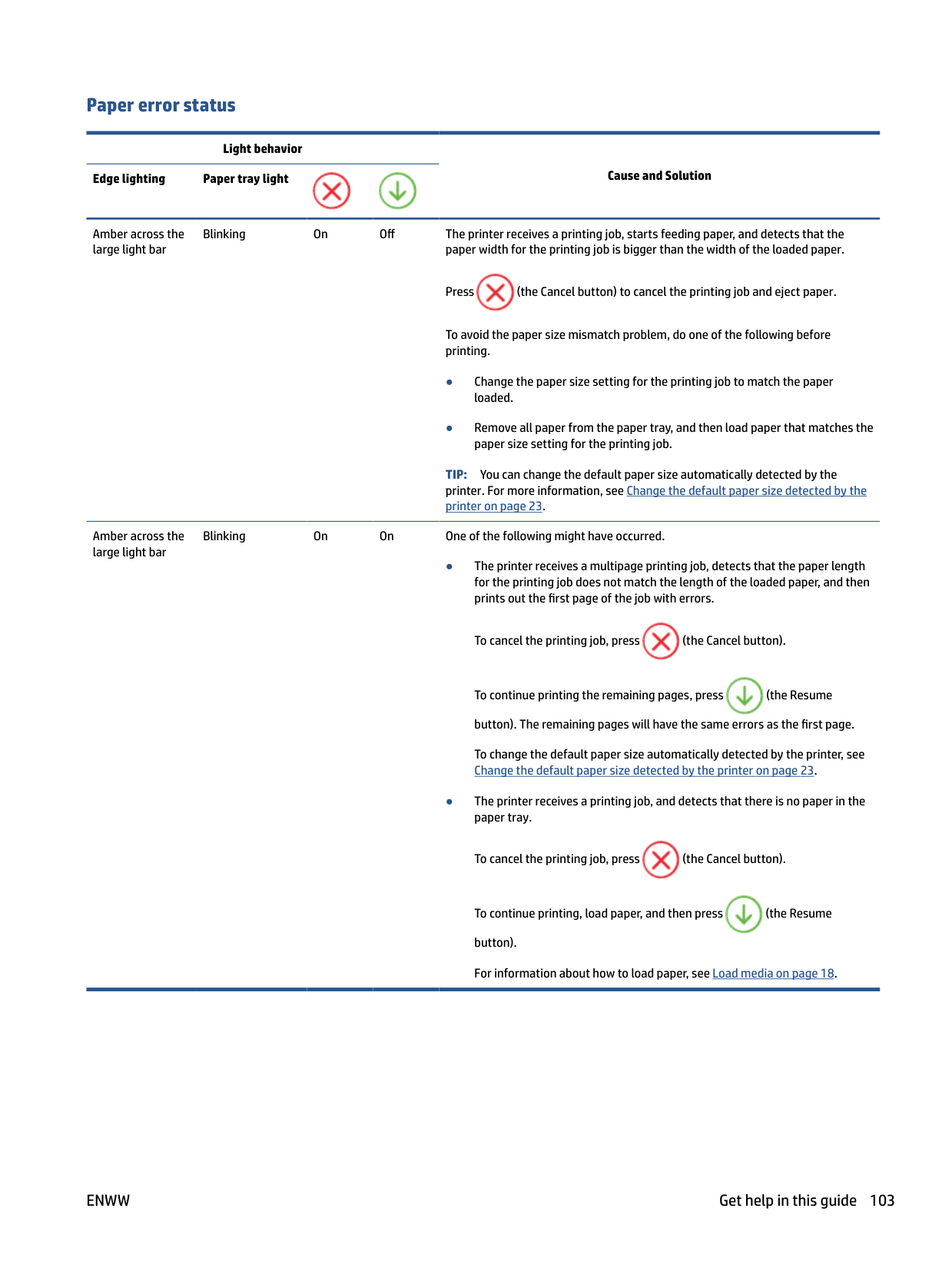
To avoid the paper size mismatch problem, do one of the following before printing.
TIP: You can change the default paper size automatically detected by the printer. For more information, see Change the default paper size detected by the printer on page 23.
Amber across the large light bar
Blinking On On One of the following might have occurred.
To cancel the printing job, press (the Cancel button).

To continue printing the remaining pages, press (the Resume button). The remaining pages will have the same errors as the first page. To change the default paper size automatically detected by the printer, see Change the default paper size detected by the printer on page 23.


To cancel the printing job, press (the Cancel button).

To continue printing, load paper, and then press (the Resume button). For information about how to load paper, see Load media on page 18.
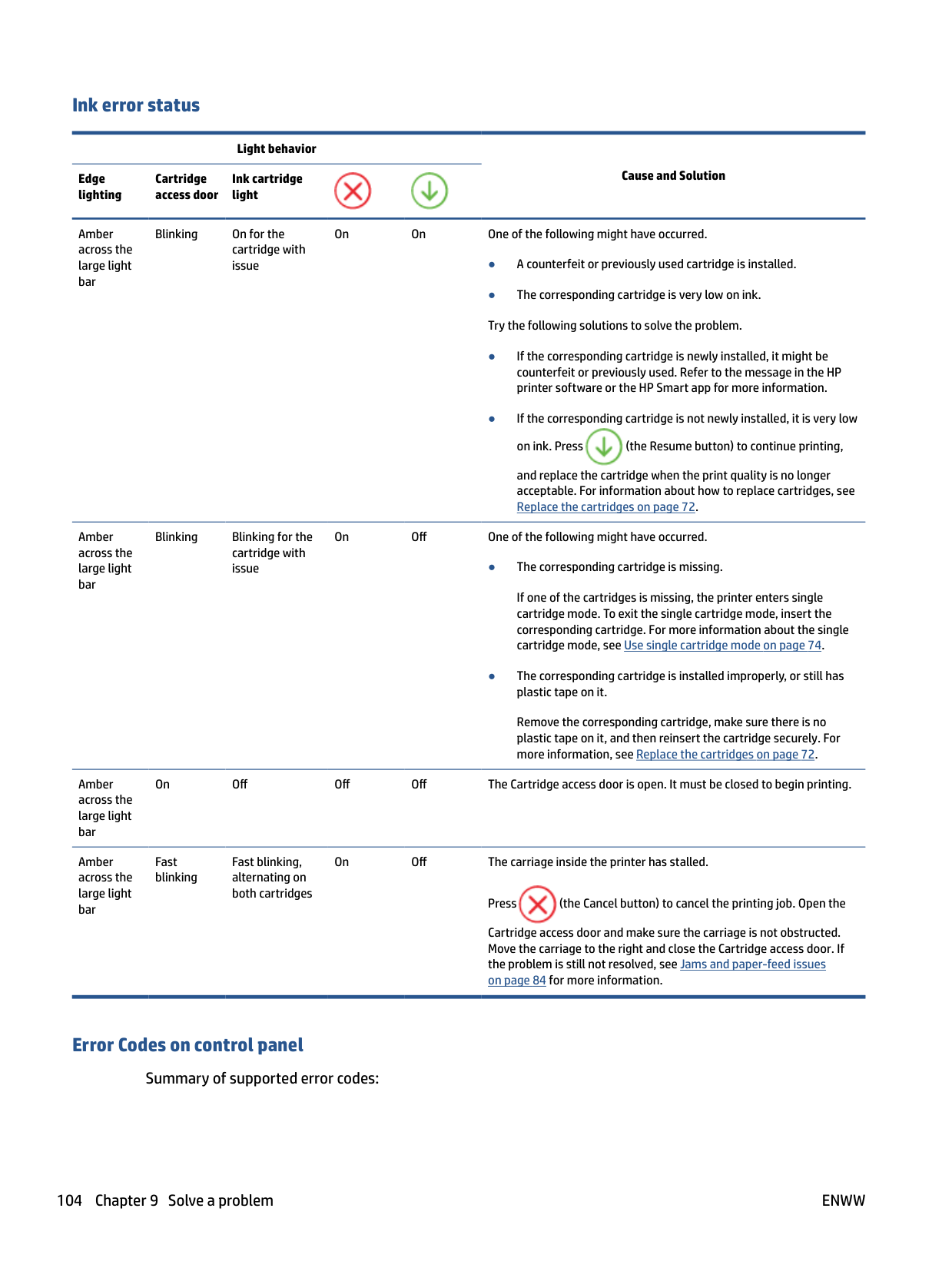
##### Ink error status
Light behavior
Cause and SolutionEdge lighting
Cartridge access door
Ink cartridge light


Amber across the large light bar
Blinking On for the cartridge with issue
On On One of the following might have occurred.

and replace the cartridge when the print quality is no longer acceptable. For information about how to replace cartridges, see Replace the cartridges on page 72.
Amber across the large light bar
Blinking Blinking for the cartridge with issue
On Off One of the following might have occurred.
If one of the cartridges is missing, the printer enters single cartridge mode. To exit the single cartridge mode, insert the corresponding cartridge. For more information about the single cartridge mode, see Use single cartridge mode on page 74.
Remove the corresponding cartridge, make sure there is no plastic tape on it, and then reinsert the cartridge securely. For more information, see Replace the cartridges on page 72.
Amber across the large light bar
On Off Off Off The Cartridge access door is open. It must be closed to begin printing.
Amber across the large light bar
Fast blinking
Fast blinking, alternating on both cartridges
On Off The carriage inside the printer has stalled.

Press (the Cancel button) to cancel the printing job. Open the Cartridge access door and make sure the carriage is not obstructed. Move the carriage to the right and close the Cartridge access door. If the problem is still not resolved, see Jams and paper-feed issues on page 84 for more information.
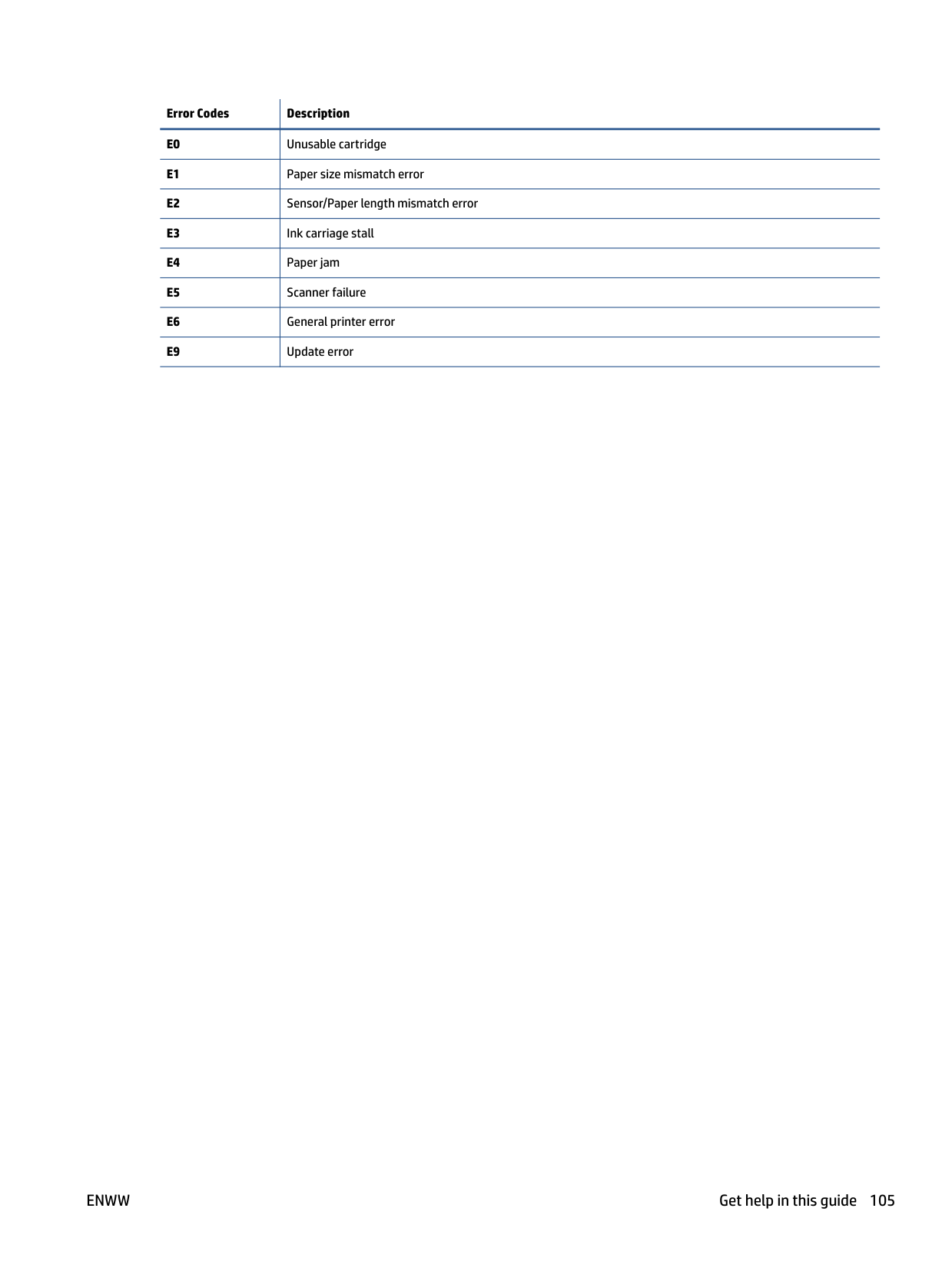
##### Error Codes on control panel
Summary of supported error codes:
|Error Codes|Description
| |---|---| |E0|Unusable cartridge
| |E1|Paper size mismatch error
| |E2|Sensor/Paper length mismatch error
| |E3|Ink carriage stall
| |E4|Paper jam
| |E5|Scanner failure
| |E6|General printer error
| |E9|Update error|
Understand printer reports
You can print the following reports to help troubleshoot problems with the printer.

#### Printer status report
Use the printer status report to view current printer information and cartridge status. Also use the printer status report to help you troubleshoot problems with the printer.
The printer status report also contains a log of recent events. If you need to call HP, it is often useful to print the printer status report before calling.
#### Network configuration page
If the printer is connected to a network, you can print a network configuration page to view the network settings for the printer and a list of networks detected by your printer. The last page of the report includes a list of all detectable wireless networks in the area, along with signal strength and the channels being used. This might help you select a channel for your network which is not heavily used by other networks (which will improve network performance).
| | |---|
NOTE: In order to get the list of detected wireless networks in the area, the wireless radio on the printer should be turned on. If it is off the list is not displayed. You can use the network configuration page to help troubleshoot network connectivity problems. If you need to call HP, it is often useful to print this page before calling.
#### Print quality report
Print quality problem can be due to many causes - incorrect software setting, a poor image source file, or the printing system itself. If you are unhappy with the quality of your prints, a Print Quality Report page can help you determine if the printing system is working correctly.
#### Wireless test report
When you print the Wireless Test Report, a number of tests are run to check various conditions of the printer wireless connection. The report shows the results of the tests. If an issue is discovered, message along with how to fix it is provided at the top of the report. Some key wireless configuration details are provided at the bottom section of the report.
#### Web access test report
Print the web access report to help identify internet connectivity issues which can affect Web Services.
ENWW Understand printer reports 107
Solve problems using Web Services
If you are having problems using Web Services, such as HP ePrint , check the following:
| | |---|
If the proxy settings used by your firewall have changed, you must update these settings in either the printer control panel or the embedded web server. If these settings are not updated, you will not be able to use Web Services.
For more information, see Set up Web Services on page 79.
TIP: For additional help on setting up and using Web Services, visit the HP Smart website. (might not be available in all countries/regions).
Maintain the printer
#### Clean the scanner glass
Dust or dirt on the scanner glass, scanner lid backing, or scanner frame can slow down performance, degrade the quality of scans, and affect the accuracy of special features such as fitting copies to a certain page size.
###### To clean the scanner glass

WARNING! Before cleaning the printer, turn the printer off by pressing (the Power button) and unplugging the power cord from the electrical socket.
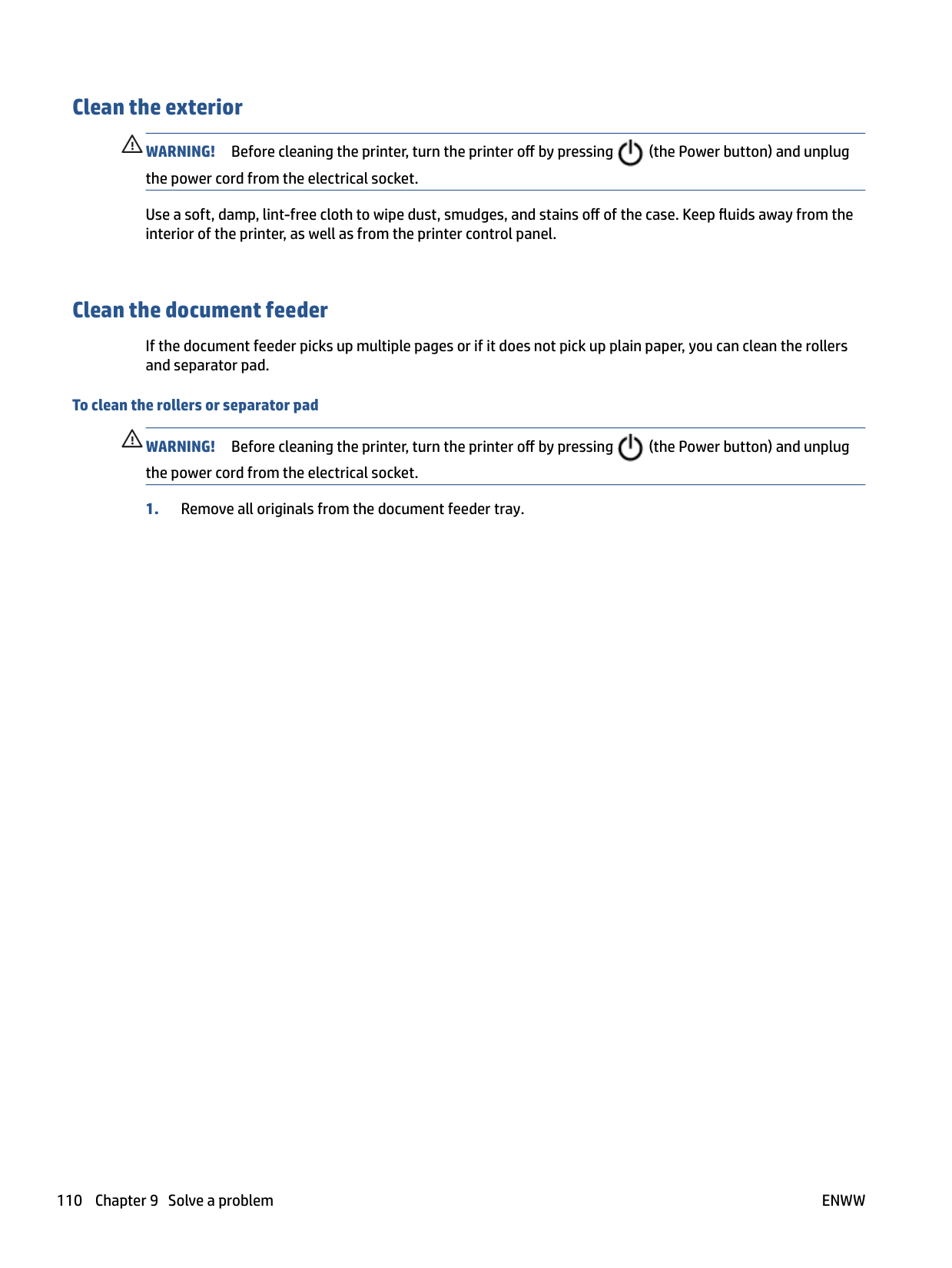


CAUTION: Use only glass cleaner to clean the scanner glass. Avoid cleaners that contain abrasives, acetone, benzene, and carbon tetrachloride, all of which can damage the scanner glass. Avoid isopropyl alcohol because it can leave streaks on the scanner glass.
CAUTION: Do not spray the glass cleaner directly on the scanner glass. If too much glass cleaner is applied, the cleaner could leak under the scanner glass and damage the scanner.
Clean the exterior WARNING! Before cleaning the printer, turn the printer off by pressing (the Power button) and unplug the power cord from the electrical socket. Use a soft, damp, lint-free cloth to wipe dust, smudges, and stains off of the case. Keep fluids away from the interior of the printer, as well as from the printer control panel.

#### Clean the document feeder
If the document feeder picks up multiple pages or if it does not pick up plain paper, you can clean the rollers and separator pad.
###### To clean the rollers or separator pad

WARNING! Before cleaning the printer, turn the printer off by pressing (the Power button) and unplug the power cord from the electrical socket.
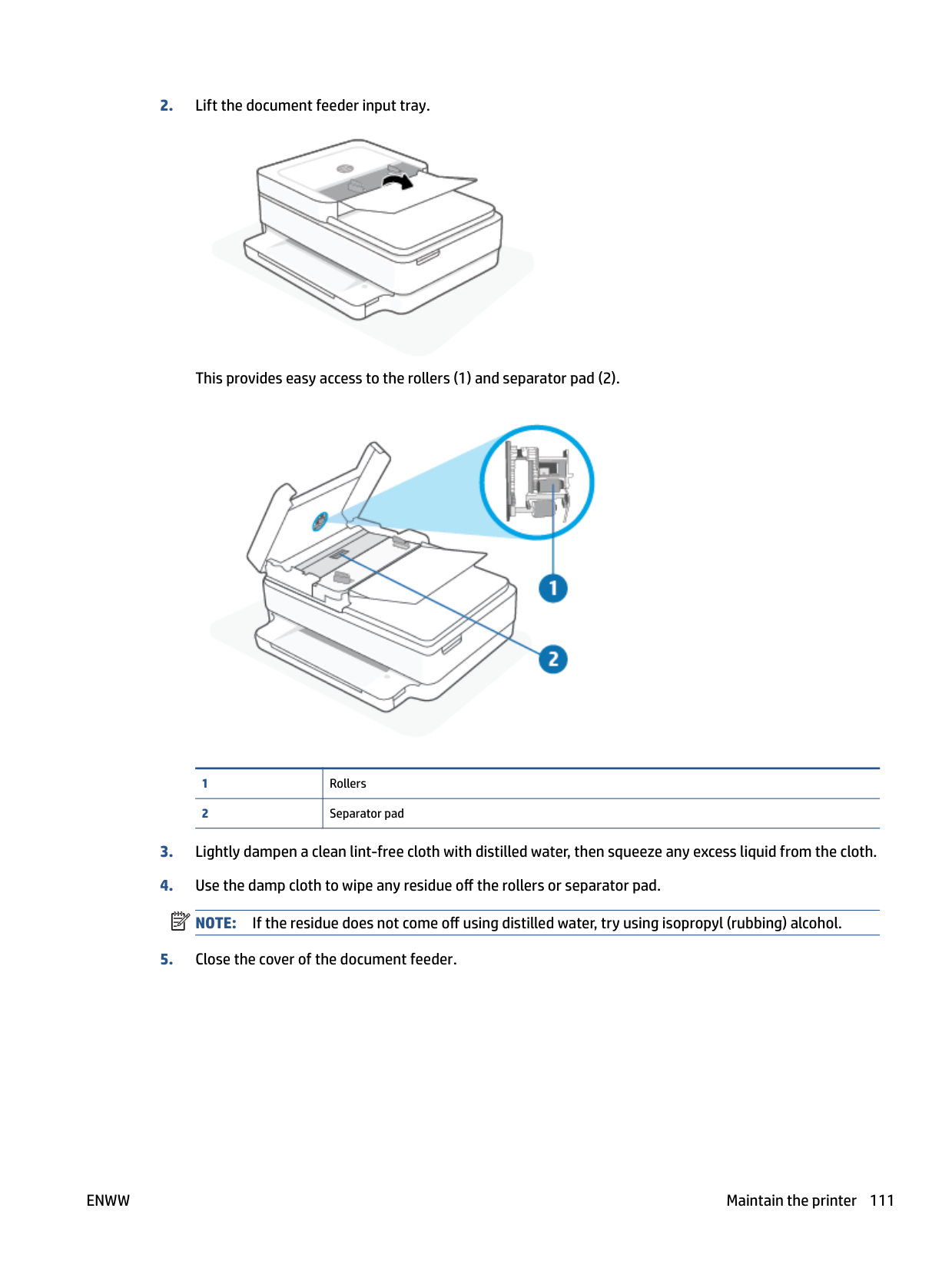

This provides easy access to the rollers (1) and separator pad (2).

|1|Rollers| |---|---| |2|Separator pad|
| | |---|
Restore original factory defaults and settings
If you disable some functions or change some settings and want to change them back, you can restore the printer to the original factory settings or network settings.
###### To restore the printer to the original factory defaults


###### To restore the printer to the original network settings

● On the back of the printer, press and hold the Wireless button for at least three seconds.
| | |---|
NOTE: When you reset the printer network settings, previously configured wireless settings (such as the link speed or IP address) are removed. The IP address is set back to the Automatic mode.
TIP: You can visit the HP online support website at www.support.hp.com for information and utilities that can help you correct many common printer problems. (Windows) Run the HP Print and Scan Doctor to diagnose and automatically fix printing, scanning, and copying issues. The application is only available in some languages.
HP support
For the latest product updates and support information, visit the product support website at www.support.hp.com. HP online support provides a variety of options for help with your printer:

Get troubleshooting assistance: Find information for resolving paper jams, network connection issues, print quality issues, printer errors, and more.

Get software and drivers: Download software, drivers, and firmware you need for the printer.

Ask the community: Join the community forums to find solutions, ask questions, and share tips.
HP Diagnostics Solutions: Use HP online tools to detect your printer and find recommended solutions. For Windows operating systems, you can automatically diagnose and resolve printer issues with HP Print and Scan Doctor.

| | |---|
NOTE: You can also find help online by visiting the Printer Essentials webpage. Here you can find links to install the HP Smart app, purchase replacement ink for your printer (including HP Instant Ink, if applicable), and get help with common printer tasks.
#### Contact HP
If you need help from an HP technical support representative to solve a problem, visit the www.support.hp.com. The following contact options are available at no cost for in-warranty customers (HP agent-assisted support for out-of warranty customers may require a fee):

Chat with an HP support agent or the HP Virtual Agent online.

Call an HP support agent.
When contacting HP support, be prepared to provide the following information:

ENWW HP support 113
#### Register printer
By taking just a few minutes to register, you can enjoy quicker service, more efficient support, and product support alerts. If you did not register your printer while installing the software, you can register now at https://www.register.hp.com.
#### Additional warranty options
Extended service plans are available for the printer at additional costs. Go to www.support.hp.com, select your country/region and language, then explore the extended warranty options available for your printer.
10 HP EcoSolutions (HP and the Environment)
HP is committed to helping you optimize your environmental footprint and empowering you to print responsibly—at home or in the office.
For more detailed information about environmental guidelines that HP follows during the manufacturing process, see Environmental product stewardship program on page 127. For more information about HP's environmental initiatives, visit www.hp.com/ecosolutions.
Energy Save Mode Power usage is reduced while in Energy Save Mode. After initial setup of printer, the printer will enter Energy Save Mode after 5 minutes of inactivity.
###### To change the time to Energy Save Mode from the embedded web server (EWS)
116 Chapter 10 HP EcoSolutions (HP and the Environment) ENWW
A Technical information
The technical specifications and international regulatory information for the HP ENVY All-in-One 6400e series are provided in this section.
For additional specifications, see the printed documentation that came with the HP ENVY All-in-One 6400e series.
This section contains the following topics:
HP Company notices The information contained herein is subject to change without notice. All rights reserved. Reproduction, adaptation, or translation of this material is prohibited without prior written permission of HP, except as allowed under the copyright laws. The only warranties for HP products and services are set forth in the express warranty statements accompanying such products and services. Nothing herein should be construed as constituting an additional warranty. HP shall not be liable for technical or editorial errors or omissions contained herein. © Copyright 2021 HP Development Company, L.P. Microsoft and Windows are either registered trademarks or trademarks of Microsoft Corporation in the United States and/or other countries. Bluetooth is a trademark owned by its proprietor and used by HP Inc. under license.
Specifications
The information here is subject to change without notice. For more product specifications, see the Product Data Sheet at www.support.hp.com .
###### System requirements
● For information about software and system requirements or future operating system releases and support, visit the HP online support website at www.support.hp.com .
###### Environmental specifications
###### paper tray capacity
###### Output tray capacity
###### Document feeder input tray capacity
● Plain paper sheets: Up to 35
###### Paper size
● For a complete list of supported media sizes, see the printer software.
###### Paper weights
ENWW Specifications 119
###### Print specifications
###### Print resolution
● For a list of supported print resolutions, visit the product support website at www.support.hp.com.
###### Scan specifications
● ● Optical Resolution: up to 1200 dpi
###### Copy specifications
● ● Copy Resolution (black and color): up to 300 x 300 dpi
###### Cartridge yield
● Visit www.hp.com/go/learnaboutsupplies for more information on estimated cartridge yields.
###### Acoustic information
● If you have Internet access, you can access acoustic information from the HP website.
Regulatory notices
The HP ENVY All-in-One 6400e series meets product requirements from regulatory agencies in your country/ region.
This section contains the following topics:
#### Regulatory model number
For regulatory identification purposes, your product is assigned with a Regulatory Model Number. The Regulatory Model Number for your product is SNPRC-1807-02 and this number should not be confused with the marketing names or product numbers.
#### FCC statement
The United States Federal Communications Commission (in 47 CFR 15.105) has specified that the following notice be brought to the attention of users of this product.
This equipment has been tested and found to comply with the limits for a Class B digital device, pursuant to Part 15 of the FCC Rules. These limits are designed to provide reasonable protection against harmful interference in a residential installation. This equipment generates, uses and can radiate radio frequency energy and, if not installed and used in accordance with the instructions, may cause harmful interference to radio communications. However, there is no guarantee that interference will not occur in a particular installation. If this equipment does cause harmful interference to radio or television reception, which can be determined by turning the equipment off and on, the user is encouraged to try to correct the interference by one or more of the following measures:
For further information, contact: Manager of Corporate Product Regulations, HP Inc. 1501 Page Mill Road, Palo Alto, CA 94304, U.S.A.
Modifications (part 15.21) The FCC requires the user to be notified that any changes or modifications made to this device that are not expressly approved by HP may void the user’s authority to operate the equipment. This device complies with Part 15 of the FCC Rules. Operation is subject to the following two conditions: (1) this device may not cause harmful interference, and (2) this device must accept any interference received, including interference that may cause undesired operation.
#### Notice to users in Korea
B급 기기 (가정용 방송통신기자재)
이 기기는 가정용(B급) 전자파적합기기로서 주로 가정에서 사용하는 것을 목적으로 하며, 모든 지역에서 사용할 수 있습니다.
#### VCCI (Class B) compliance statement for users in Japan
この装置は、クラス B 機器です。この装置は、住宅環境で使用することを目的としていますが、この装置がラジオやテレビジョン受信 機に近接して使用されると、受信障害を引き起こすことがあります。取扱説明書に従って正しい取り扱いをして下さい。
VCCI-B
Notice to users in Japan about the power cord 製品には、同梱された電源コードをお使い下さい。 同梱された電源コードは、他の製品では使用出来ません。
Noise emission statement for Germany Geräuschemission LpA < 70 dB am Arbeitsplatz im Normalbetrieb nach DIN 45635 T. 19
#### European Union and United Kingdom Regulatory Notice

Products bearing the CE marking and UK marking comply to applicable EU Directives and the equivalent UK Statutory Instruments and can operate in at least one EU Member State and in Great Britain. The full EU and UK Declaration of Conformity can be found at the following website: www.hp.eu/certificates (Search with the product model name or its Regulatory Model Number (RMN), which may be found on the regulatory label.)
The point of contact for regulatory matters: For EU: HP Deutschland GmbH, HP HQ-TRE, 71025 Boeblingen, Germany For GB: HP Inc UK Ltd, Regulatory Enquiries, Earley West, 300 Thames Valley Park Drive, Reading, RG6 1PT
#### Email: techregshelp@hp.com Products with wireless functionality EMF
This product meets international guidelines (ICNIRP) for exposure to radio frequency radiation. If it incorporates a radio transmitting and receiving device that in normal use, a separation distance of 20 cm ensures that radio frequency exposure levels comply with EU requirements.
##### Wireless functionality in Europe
For products with 802.11 b/g/n or Bluetooth radio:

IMPORTANT: IEEE 802.11x wireless LAN with 5.17-5.33 GHz frequency band is restricted for indoor use only in all countries reflected in the matrix. Using this WLAN application outdoor might lead to interference issues with existing radio services.
#### Visual display workplaces statement for Germany
###### GS-Erklärung (Deutschland)
Das Gerät ist nicht für die Benutzung im unmittelbaren Gesichtsfeld am Bildschirmarbeitsplatz vorgesehen. Um störende Reflexionen am Bildschirmarbeitsplatz zu vermeiden, darf dieses Produkt nicht im unmittelbaren Gesichtsfeld platziert werden.
#### Declaration of conformity
Declaration of conformity can be found at www.hp.eu/certificates.
#### Regulatory wireless statements
This section contains the following regulatory information pertaining to wireless products:
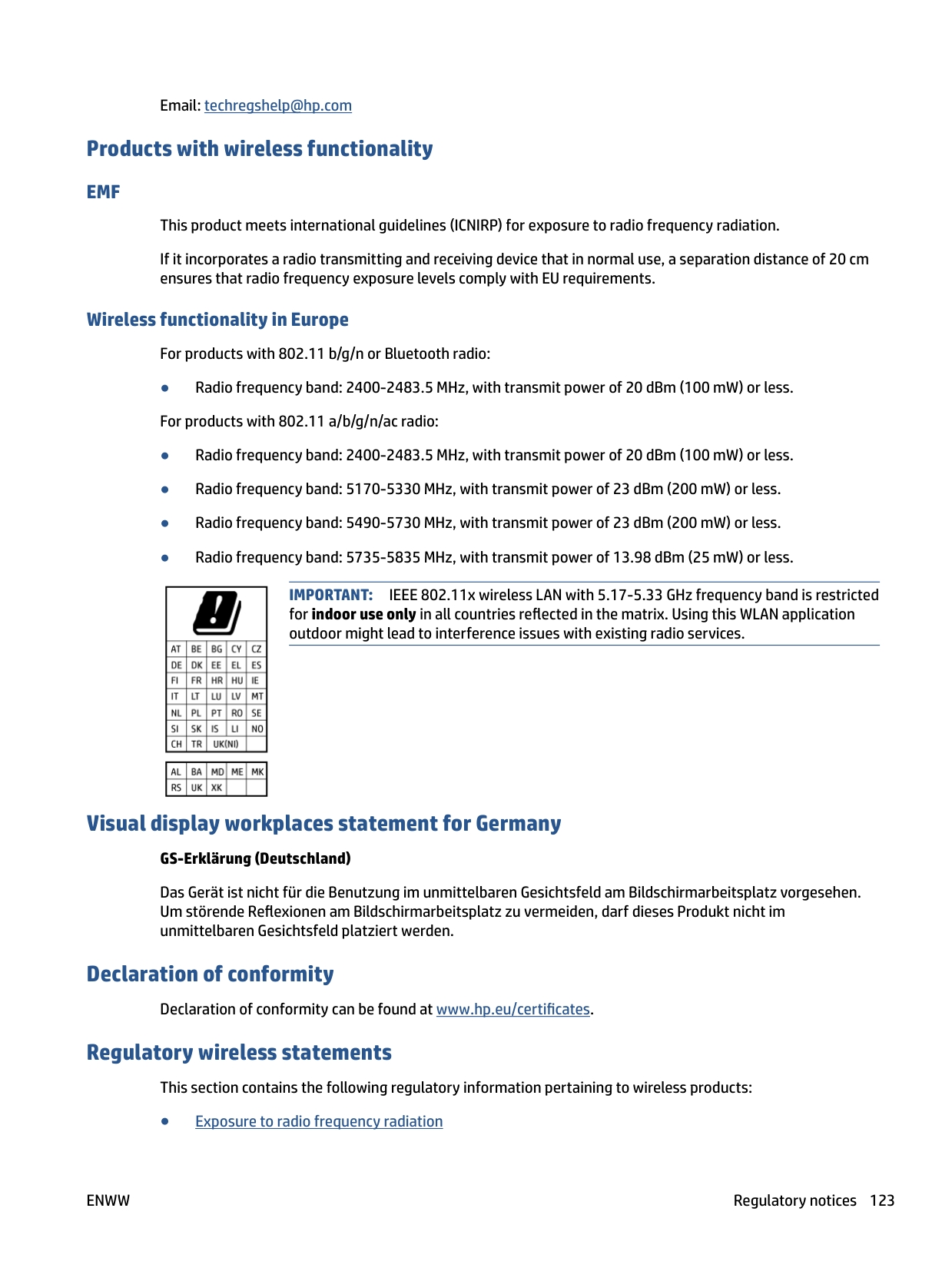
##### Exposure to radio frequency radiation
CAUTION: The radiated output power of this device is far below the FCC radio frequency exposure limits. Nevertheless, the device shall be used in such a manner that the potential for human contact during normal operation is minimized. This product and any attached external antenna, if supported, shall be placed in such a manner to minimize the potential for human contact during normal operation. In order to avoid the possibility of exceeding the FCC radio frequency exposure limits, human proximity to the antenna shall not be less than 20 cm (8 inches) during normal operation.

##### Notice to users in Canada (5 GHz)
CAUTION: When using IEEE 802.11a wireless LAN, this product is restricted to indoor use, due to its operation in the 5.15- to 5.25-GHz frequency range. The Industry Canada requires this product to be used indoors for the frequency range of 5.15 GHz to 5.25 GHz to reduce the potential for harmful interference to co-channel mobile satellite systems. High-power radar is allocated as the primary user of the 5.25- to 5.35GHz and 5.65- to 5.85-GHz bands. These radar stations can cause interference with and/or damage to this device.

ATTENTION: Lors de l'utilisation du réseau local sans fil IEEE 802.11a, ce produit se limite à une utilisation en intérieur à cause de son fonctionnement sur la plage de fréquences de 5,15 à 5,25 GHz. Industrie Canada stipule que ce produit doit être utilisé en intérieur dans la plage de fréquences de 5,15 à 5,25 GHz afin de réduire le risque d'interférences éventuellement dangereuses avec les systèmes mobiles par satellite via un canal adjacent. Le radar à haute puissance est alloué pour une utilisation principale dans une plage de fréquences de 5,25 à 5,35 GHz et de 5,65 à 5,85 GHz. Ces stations radar peuvent provoquer des interférences avec cet appareil et l'endommager.

Notice to users in Taiwan (5 GHz) 應避免影響附近雷達系統之操作。 高增益指向性天線只得應用於固定式點對點系統。
##### Notice to users in Serbia (5 GHz)
Upotreba ovog uredjaja je ogranicna na zatvorene prostore u slucajevima koriscenja na frekvencijama od 5150-5350 MHz.
##### Notice to users in Mexico
La operación de este equipo está sujeta a las siguientes dos condiciones: (1) es posible que este equipo o dispositivo no cause interferencia perjudicial y (2) este equipo o dispositivo debe aceptar cualquier interferencia, incluyendo la que pueda causar su operación no deseada.
Para saber el modelo de la tarjeta inalámbrica utilizada, revise la etiqueta regulatoria de la impresora. Notice to users in Brazil
Este equipamento opera em caráter secundário, isto é, não tem direito à proteção contra interferência prejudicial, mesmo de estações do mesmo tipo, e não pode causar interferência em sistemas operando em caráter primário. Este equipamento não tem direito à proteção contra interferência prejudicial e não pode causar interferência em sistemas devidamente autorizados.
Para obter mais informações, verifique o site da ANATEL www.anatel.gov.br. Notice to users in Canada
Under Industry Canada regulations, this radio transmitter may only operate using an antenna of a type and maximum (or lesser) gain approved for the transmitter by Industry Canada. To reduce potential radio interference to other users, the antenna type and its gain should be so chosen that the equivalent isotropically radiated power (e.i.r.p.) is not more than that necessary for successful communication.
This device complies with Industry Canada licence-exempt RSS standard(s). Operation is subject to the following two conditions: (1) this device may not cause interference, and (2) this device must accept any interference, including interference that may cause undesired operation of the device.
WARNING! Exposure to Radio Frequency Radiation. The radiated output power of this device is below the Industry Canada radio frequency exposure limits. Nevertheless, the device should be used in such a manner that the potential for human contact is minimized during normal operation.
To avoid the possibility of exceeding the Industry Canada radio frequency exposure limits, human proximity to the antennas should not be less than 20 cm (8 inches).
Conformément au Règlement d'Industrie Canada, cet émetteur radioélectrique ne peut fonctionner qu'avec une antenne d'un type et d'un gain maximum (ou moindre) approuvé par Industrie Canada. Afin de réduire le brouillage radioélectrique potentiel pour d'autres utilisateurs, le type d'antenne et son gain doivent être choisis de manière à ce que la puissance isotrope rayonnée équivalente (p.i.r.e.) ne dépasse pas celle nécessaire à une communication réussie.
Cet appareil est conforme aux normes RSS exemptes de licence d'Industrie Canada. Son fonctionnement dépend des deux conditions suivantes : (1) cet appareil ne doit pas provoquer d'interférences nuisibles et (2) doit accepter toutes les interférences reçues, y compris des interférences pouvant provoquer un fonctionnement non souhaité de l'appareil.
AVERTISSEMENT relatif à l'exposition aux radiofréquences. La puissance de rayonnement de cet appareil se trouve sous les limites d'exposition de radiofréquences d'Industrie Canada. Néanmoins, cet appareil doit être utilisé de telle sorte qu'il doive être mis en contact le moins possible avec le corps humain.
Afin d'éviter le dépassement éventuel des limites d'exposition aux radiofréquences d'Industrie Canada, il est recommandé de maintenir une distance de plus de 20 cm entre les antennes et l'utilisateur.
##### Notice to users in Taiwan
取得審驗證明之低功率射頻器材,非經核准,公司、商號或使用者均不得擅自變 更頻率、加大功率或變更 原設計之特性及功能。低功率射頻器材之使用不得影響 飛航安全及干擾合法通信;經發現有干擾現象
時,應立即停用,並改善至無干擾 時方得繼續使用。前述合法通信,指依電信管理法規定作業之無線電通 信。低功 率射頻器材須忍受合法通信或工業、科學及醫療用電波輻射性電機設備之干擾。
##### Notice to users in Japan
この機器は技術基準適合証明又は工事設計認証を受けた無線設備を搭載しています。 Notice to users in Thailand (5 GHz)
เครือ่งวทิยคุมนาคมนีมรีะดบัการแผค่ลืน่แมเ่หล็กไฟฟ้าสอดคลอ้งตามมาตรฐานความปลอดภยัตอ่สขุภาพของมนุษย์จากการ ใชเ้ครือ่งวทิยคุมนาคมทคี่ณะกรรมการกจิการโทรคมนาคมแหง่ชาตปิระกาศกาํหนด
This radio communication equipment has the electromagnetic field strength in compliance with the Safety Standard for the Use of Radio Communication Equipment on Human Health announced by the National Telecommunications Commission.
Environmental product stewardship program
HP is committed to providing quality products in an environmentally sound manner. Design for recycling has been incorporated into this product. The number of materials has been kept to a minimum while ensuring proper functionality and reliability. Dissimilar materials have been designed to separate easily. Fasteners and other connections are easy to locate, access, and remove using common tools. High priority parts have been designed to access quickly for efficient disassembly and repair. For more information, visit HP's Commitment to the Environment website at:
www.hp.com/sustainableimpact
#### HP tips for reducing environmental impact
2 Program availability varies. Original HP cartridge return and recycling is currently available in more than 50 countries, territories, and regions in Asia, Europe, and North and South America through the HP Planet Partners program. For more information, visit: www.hp.com/recycle.
#### Eco-Tips
HP is committed to helping customers reduce their environmental footprint. Please visit the HP Eco Solutions website for more information on HP’s environmental initiatives.
www.hp.com/sustainableimpact
#### European Union Commission Regulation 1275/2008
For product power data, including the power consumption of the product in networked standby if all wired network ports are connected and all wireless network ports are activated, please refer to section P15 ‘Additional Information’ of the product IT ECO Declaration at www.hp.com/hpinfo/globalcitizenship/ environment/productdata/itecodesktop-pc.html.
#### Paper
This product is suited for the use of recycled paper according to DIN 19309 and EN 12281:2002.
#### Plastics
Plastic parts over 25 grams are marked according to international standards that enhance the ability to identify plastics for recycling purposes at the end of product life.
#### Safety data sheets
Safety Data Sheets, product safety and environmental information are available at www.hp.com/go/ecodata or on request.
#### Recycling program
HP offers an increasing number of product return and recycling programs in many countries/regions, and partners with some of the largest electronic recycling centers throughout the world. HP conserves resources by reselling some of its most popular products. For more information regarding recycling of HP products, please visit:
www.hp.com/recycle
#### HP inkjet supplies recycling program
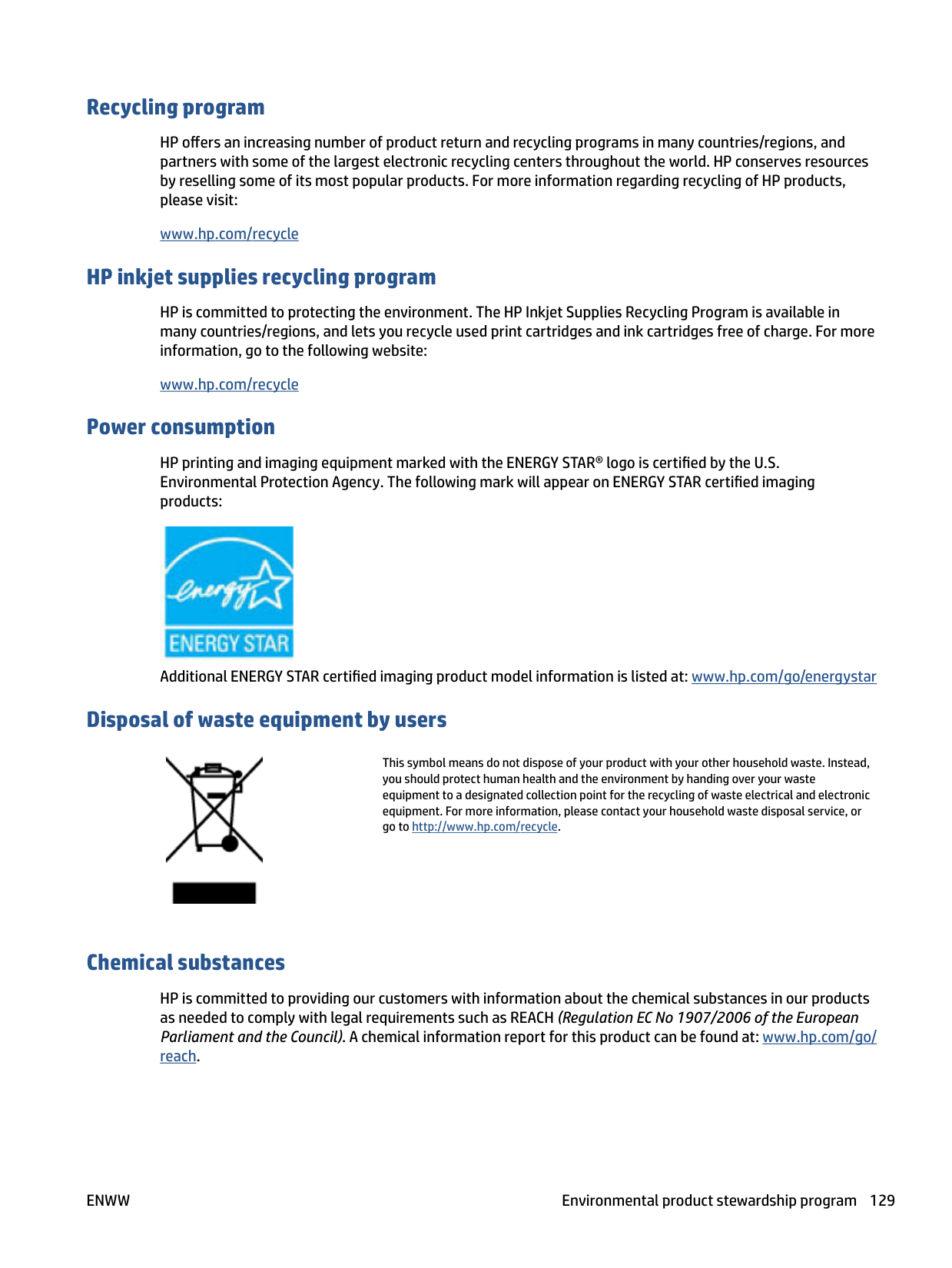
HP is committed to protecting the environment. The HP Inkjet Supplies Recycling Program is available in many countries/regions, and lets you recycle used print cartridges and ink cartridges free of charge. For more information, go to the following website:
www.hp.com/recycle
#### Power consumption
HP printing and imaging equipment marked with the ENERGY STAR® logo is certified by the U.S. Environmental Protection Agency. The following mark will appear on ENERGY STAR certified imaging products:

Additional ENERGY STAR certified imaging product model information is listed at: www.hp.com/go/energystar
#### Disposal of waste equipment by users

This symbol means do not dispose of your product with your other household waste. Instead, you should protect human health and the environment by handing over your waste equipment to a designated collection point for the recycling of waste electrical and electronic equipment. For more information, please contact your household waste disposal service, or go to http://www.hp.com/recycle.
#### Chemical substances
HP is committed to providing our customers with information about the chemical substances in our products as needed to comply with legal requirements such as REACH (Regulation EC No 1907/2006 of the European Parliament and the Council). A chemical information report for this product can be found at: www.hp.com/go/ reach.
#### Declaration of the Presence Condition of the Restricted Substances Marking (Taiwan)
台灣 限用物質含有情況標示聲明書 Taiwan Declaration of the Presence Condition of the Restricted Substances Marking
限用物質及其化學符號 Restricted substances and their chemical symbols 鉛 (Pb)
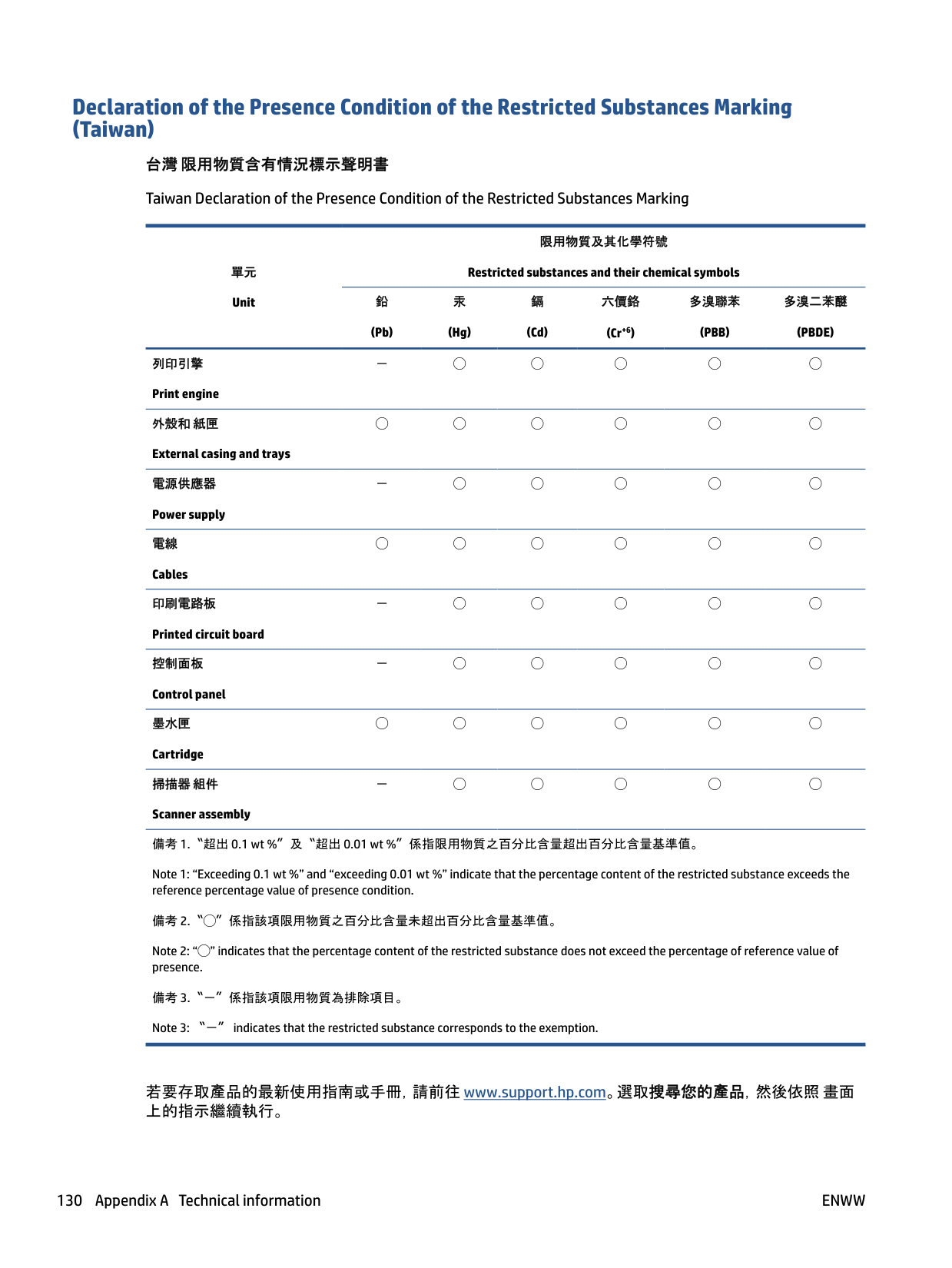
單元 Unit
多溴二苯醚 (PBDE)
汞 (Hg)
鎘 (Cd)
六價鉻 (Cr+6)
多溴聯苯 (PBB)
列印引擎 Print engine
- ◯ ◯ ◯ ◯ ◯
外殼和 紙匣 External casing and trays
◯ ◯ ◯ ◯ ◯ ◯
電源供應器 Power supply
- ◯ ◯ ◯ ◯ ◯
電線 Cables
◯ ◯ ◯ ◯ ◯ ◯
印刷電路板 Printed circuit board

- ◯ ◯ ◯ ◯ ◯
控制面板 Control panel
- ◯ ◯ ◯ ◯ ◯
墨水匣 Cartridge
◯ ◯ ◯ ◯ ◯ ◯
掃描器 組件 Scanner assembly
- ◯ ◯ ◯ ◯ ◯
備考 2.〝◯〞係指該項限用物質之百分比含量未超出百分比含量基準值。
備考 3.〝-〞係指該項限用物質為排除項目。
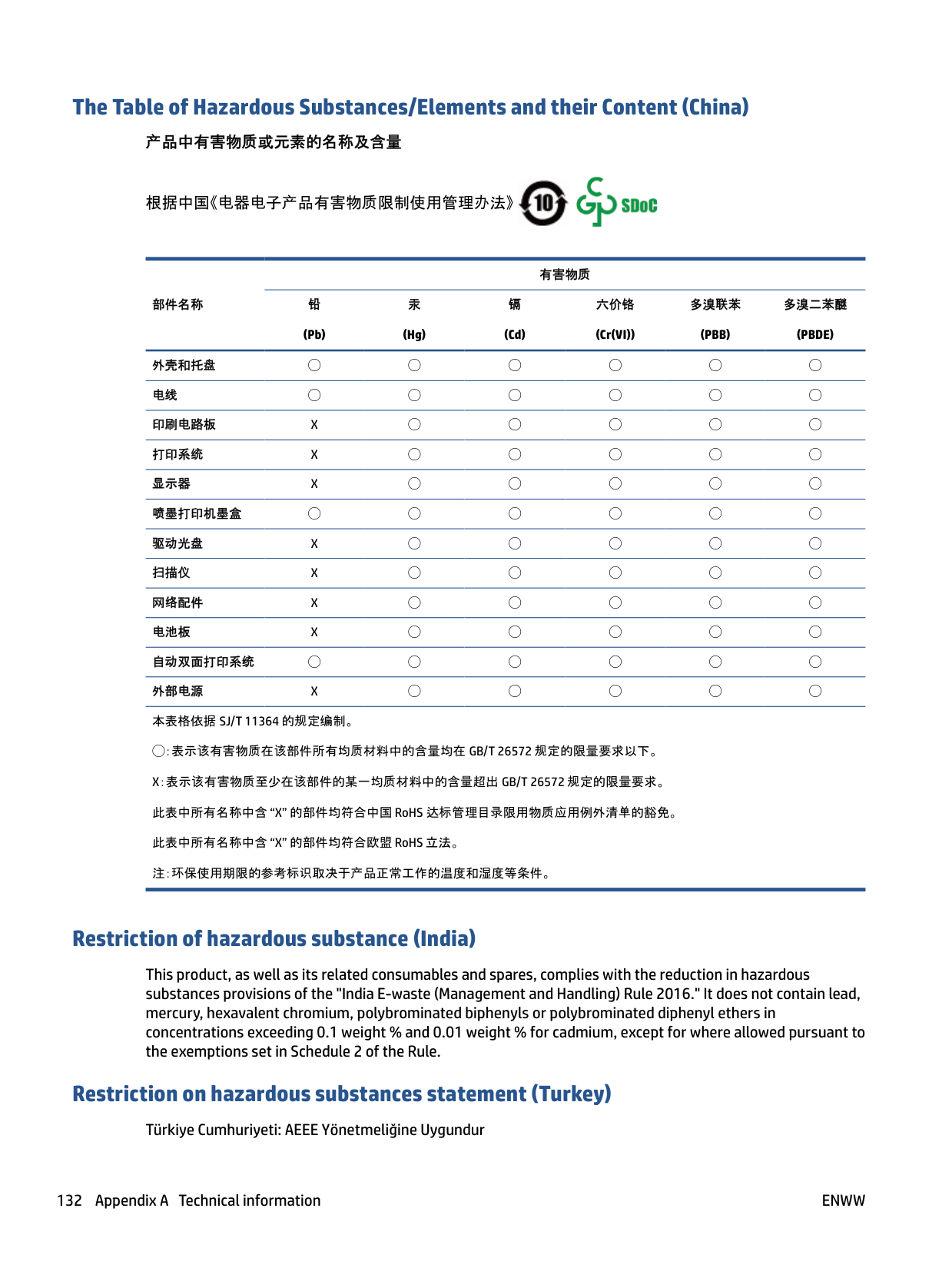
若要存取產品的最新使用指南或手冊,請前往 www.support.hp.com。選取搜尋您的產品,然後依照 畫面 上的指示繼續執行。
####### To access the latest user guides or manuals for your product, go to www.support.hp.com. Select Find your product, and then follow the onscreen instructions.
#### The Table of Hazardous Substances/Elements and their Content (China)
###### 产品中有害物质或元素的名称及含量


根据中国《电器电子产品有害物质限制使用管理办法》
有害物质 铅 (Pb)
镉 (Cd)
六价铬 (Cr(VI))
多溴联苯 (PBB)
多溴二苯醚 (PBDE)
汞 (Hg)
部件名称
外壳和托盘 ◯ ◯ ◯ ◯ ◯ ◯ 电线 ◯ ◯ ◯ ◯ ◯ ◯ 印刷电路板 X ◯ ◯ ◯ ◯ ◯ 打印系统 X ◯ ◯ ◯ ◯ ◯ 显示器 X ◯ ◯ ◯ ◯ ◯ 喷墨打印机墨盒 ◯ ◯ ◯ ◯ ◯ ◯ 驱动光盘 X ◯ ◯ ◯ ◯ ◯ 扫描仪 X ◯ ◯ ◯ ◯ ◯ 网络配件 X ◯ ◯ ◯ ◯ ◯ 电池板 X ◯ ◯ ◯ ◯ ◯ 自动双面打印系统 ◯ ◯ ◯ ◯ ◯ ◯ 外部电源 X ◯ ◯ ◯ ◯ ◯ 本表格依据 SJ/T 11364 的规定编制。
◯:表示该有害物质在该部件所有均质材料中的含量均在 GB/T 26572 规定的限量要求以下。 X:表示该有害物质至少在该部件的某一均质材料中的含量超出 GB/T 26572 规定的限量要求。 此表中所有名称中含 “X” 的部件均符合中国 RoHS 达标管理目录限用物质应用例外清单的豁免。 此表中所有名称中含 “X” 的部件均符合欧盟 RoHS 立法。 注:环保使用期限的参考标识取决于产品正常工作的温度和湿度等条件。
#### Restriction of hazardous substance (India)
This product, as well as its related consumables and spares, complies with the reduction in hazardous substances provisions of the "India E-waste (Management and Handling) Rule 2016." It does not contain lead, mercury, hexavalent chromium, polybrominated biphenyls or polybrominated diphenyl ethers in concentrations exceeding 0.1 weight % and 0.01 weight % for cadmium, except for where allowed pursuant to the exemptions set in Schedule 2 of the Rule.
#### Restriction on hazardous substances statement (Turkey)
Türkiye Cumhuriyeti: AEEE Yönetmeliğine Uygundur
#### EPEAT
Most HP products are designed to meet EPEAT. EPEAT is a comprehensive environmental rating that helps identify greener electronics equipment. For more information on EPEAT go to www.epeat.net. For information on HP's EPEAT registered products go to www.hp.com/hpinfo/globalcitizenship/environment/pdf/ epeat_printers.pdf.
SEPA Ecolabel User Information (China) 中国环境标识认证产品用户说明 噪声大于 63.0 dB(A) 的办公设备不宜放置于办公室内,请在独立的隔离区域使用。 如需长时间使用本产品或打印大量文件,请确保在通风良好的房间内使用。 如您需要确认本产品处于零能耗状态,请按下电源关闭按钮,并将插头从电源插座断开。 您可以使用再生纸,以减少资源耗费。
#### China Energy Label for Printer, Fax and Copier
###### 复印机、打印机和传真机能源效率标识实施规则
依据“复印机、打印机和传真机能源效率标识实施规则”,该打印机具有中国能效标识。标识上显示的能效 等级和操作模式值根据“复印机、打印机和传真机能效限定值及能效等级”标准(“GB 21521”)来确定和计 算。
产品能效等级分 3 级,其中 1 级能效最高。能效限定值根据产品类型和打印速度由标准确定。能效 等级则根据基本功耗水平以及网络接口和内存等附加组件和功能的功率因子之和来计算。
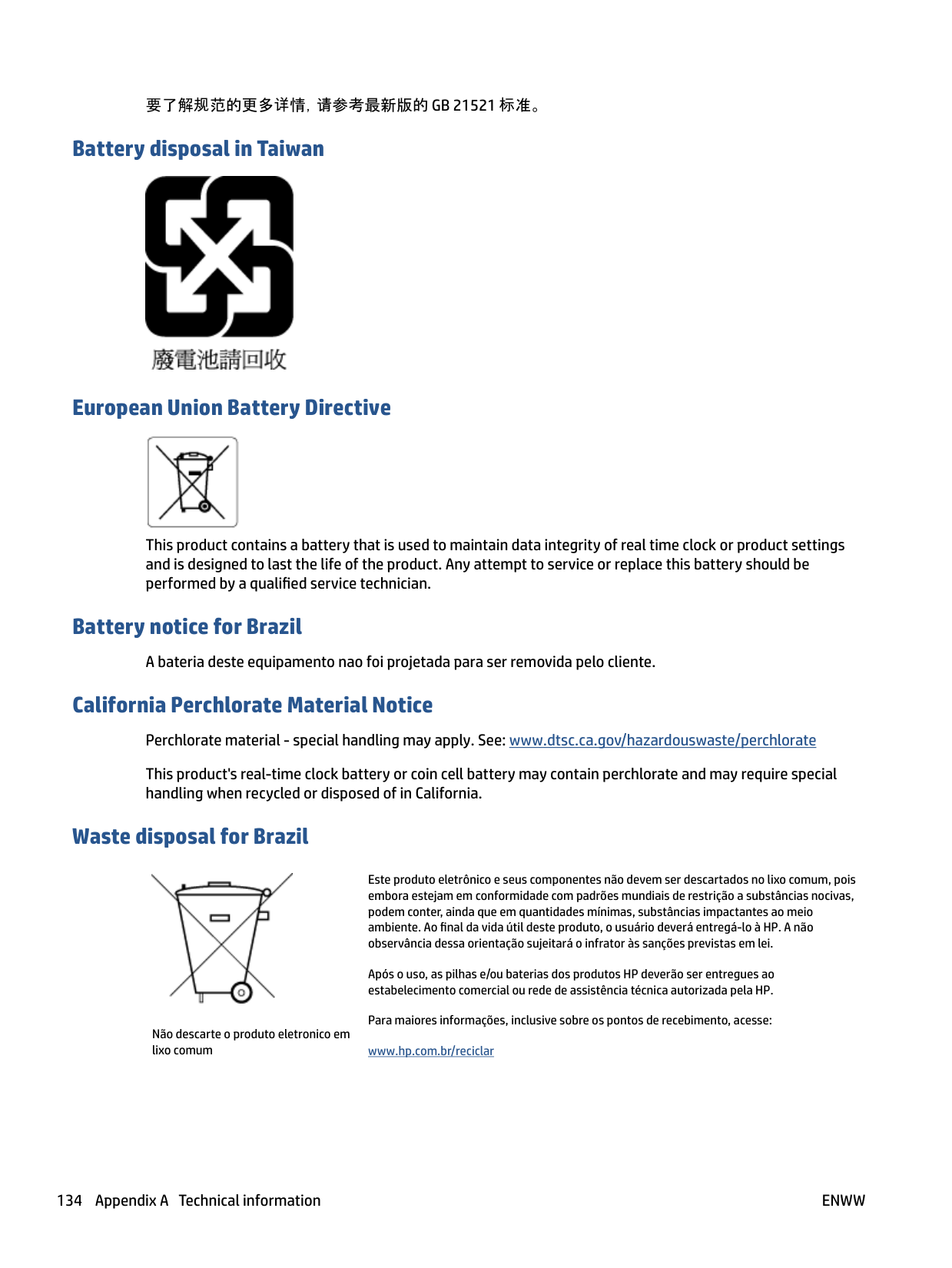
待机状态是产品连接到电网电源上功率最低的状态。该状态可以延续无限长时间,且使用者无 法改变此状态下产品的功率。对于“成像设备”产品,“待机”状态通常相当于“关闭”状态,但也可 能相当于“准备”状态或者“睡眠”状态。该数据以瓦特 (W) 表示。
出厂前由制造商设置的时间决定了该产品在完成主功能后进入低耗模式(例如睡眠、自动关 机)的时间。该数据以分钟表示。
标识上显示的能耗数据是根据典型配置测量得出的数据,此类配置包含登记备案的打印机依据复印机、 打印机和传真机能源效率标识实施规则所选的所有配置。因此,该特定产品型号的实际能耗可能与标识 上显示的数据有所不同。
要了解规范的更多详情,请参考最新版的 GB 21521 标准。
#### Battery disposal in Taiwan

#### European Union Battery Directive

This product contains a battery that is used to maintain data integrity of real time clock or product settings and is designed to last the life of the product. Any attempt to service or replace this battery should be performed by a qualified service technician.
#### Battery notice for Brazil
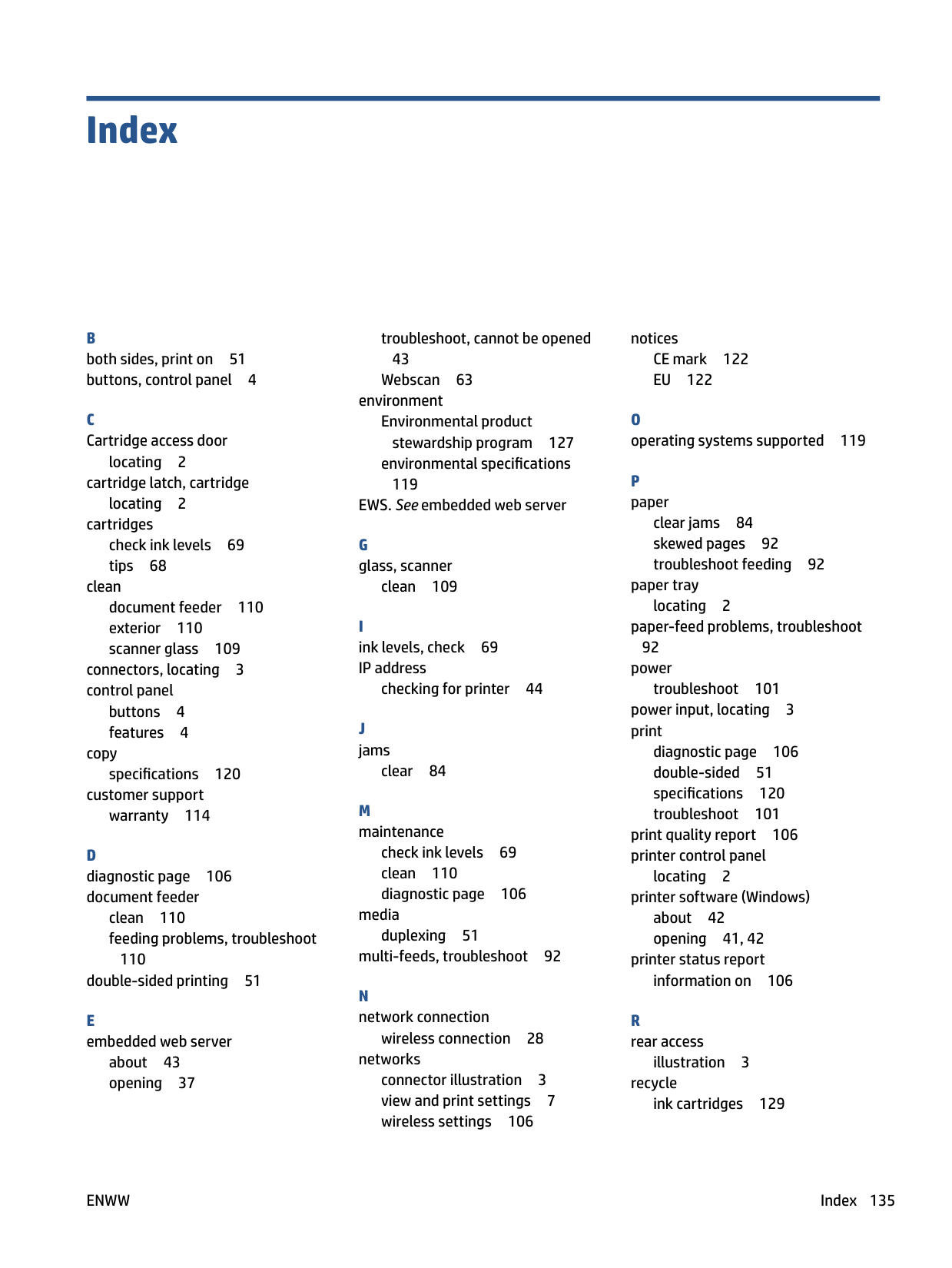
A bateria deste equipamento nao foi projetada para ser removida pelo cliente.
California Perchlorate Material Notice Perchlorate material - special handling may apply. See: www.dtsc.ca.gov/hazardouswaste/perchlorate This product's real-time clock battery or coin cell battery may contain perchlorate and may require special handling when recycled or disposed of in California.
#### Waste disposal for Brazil

Não descarte o produto eletronico em lixo comum
Este produto eletrônico e seus componentes não devem ser descartados no lixo comum, pois embora estejam em conformidade com padrões mundiais de restrição a substâncias nocivas, podem conter, ainda que em quantidades mínimas, substâncias impactantes ao meio ambiente. Ao final da vida útil deste produto, o usuário deverá entregá-lo à HP. A não observância dessa orientação sujeitará o infrator às sanções previstas em lei. Após o uso, as pilhas e/ou baterias dos produtos HP deverão ser entregues ao estabelecimento comercial ou rede de assistência técnica autorizada pela HP. Para maiores informações, inclusive sobre os pontos de recebimento, acesse: www.hp.com.br/reciclar
Index
locating 2 cartridge latch, cartridge locating 2
cartridges check ink levels 69 tips 68
clean document feeder 110 exterior 110 scanner glass 109
connectors, locating 3 control panel
buttons 4 features 4
copy
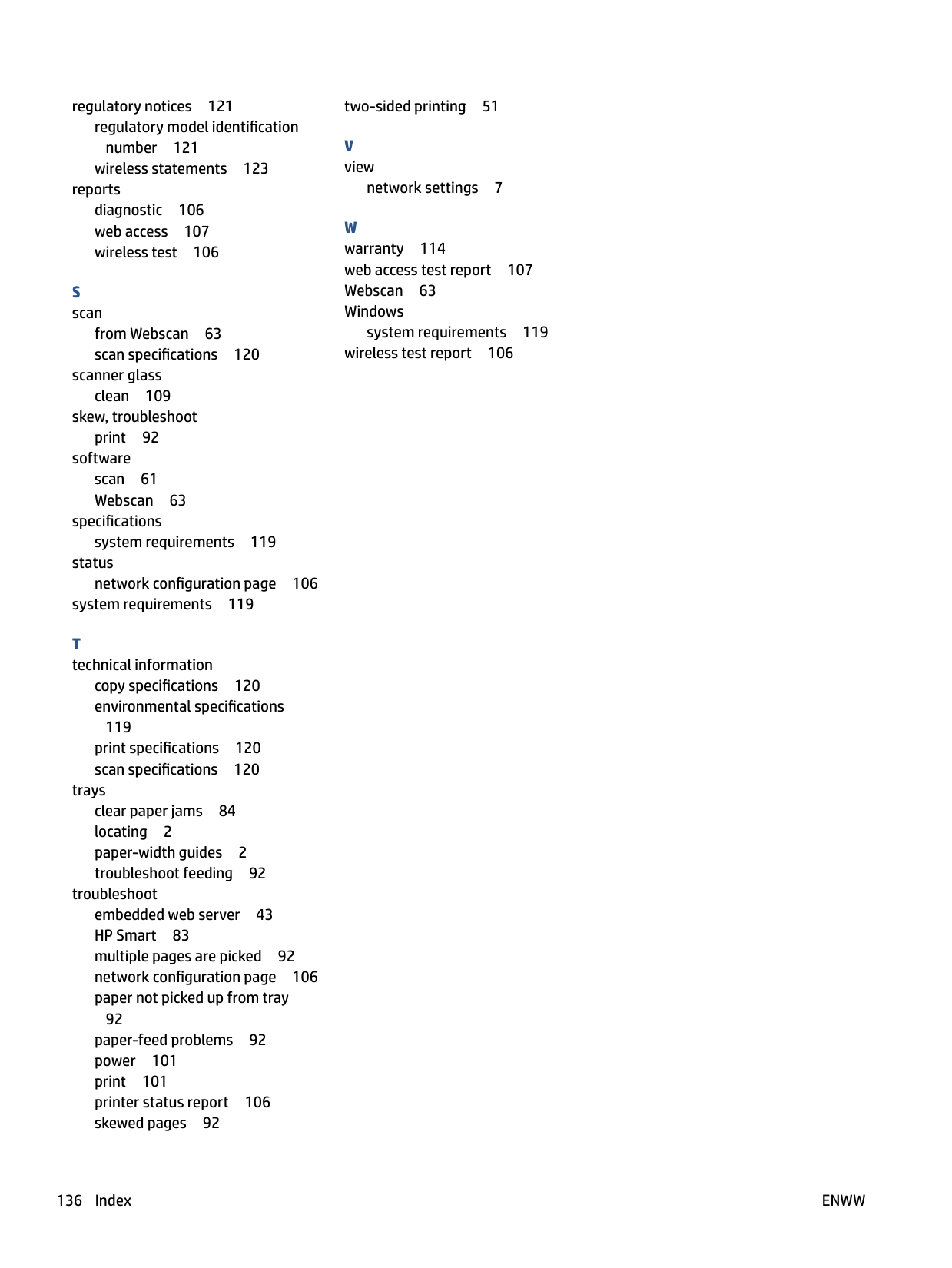
specifications 120 customer support
warranty 114
clean 110 feeding problems, troubleshoot
110 double-sided printing 51
about 43 opening 37
troubleshoot, cannot be opened 43
Webscan 63 environment
Environmental product
stewardship program 127 environmental specifications
119 EWS. See embedded web server
G glass, scanner
clean 109
checking for printer 44
clear 84
check ink levels 69 clean 110 diagnostic page 106
media duplexing 51 multi-feeds, troubleshoot 92
wireless connection 28
networks connector illustration 3 view and print settings 7 wireless settings 106
notices CE mark 122 EU 122
clear jams 84 skewed pages 92 troubleshoot feeding 92
paper tray locating 2 paper-feed problems, troubleshoot
92 power
troubleshoot 101 power input, locating 3 print
diagnostic page 106 double-sided 51 specifications 120 troubleshoot 101 print quality report 106 printer control panel
locating 2
printer software (Windows) about 42 opening 41, 42
printer status report information on 106
R rear access
illustration 3 recycle
ink cartridges 129
ENWW Index 135
regulatory notices 121 regulatory model identification number 121 wireless statements 123
reports diagnostic 106 web access 107 wireless test 106
from Webscan 63 scan specifications 120
scanner glass
clean 109 skew, troubleshoot
print 92
software scan 61 Webscan 63
specifications
system requirements 119 status
network configuration page 106 system requirements 119
copy specifications 120 environmental specifications
119
print specifications 120 scan specifications 120
trays clear paper jams 84 locating 2 paper-width guides 2 troubleshoot feeding 92
troubleshoot embedded web server 43 HP Smart 83 multiple pages are picked 92 network configuration page 106 paper not picked up from tray
92 paper-feed problems 92 power 101 print 101 printer status report 106 skewed pages 92
two-sided printing 51
network settings 7
system requirements 119 wireless test report 106
136 Index ENWW