
Ask AI
— answers from the official manualAnswers from the official manual.
Common questions
Common Questions
9 totalHow much RAM and hard disk space is needed for the installation?
Ensure your PC has at least 8 MB or more of RAM (16 MB recommended) and at least 20 MB of free hard disk space. (Page 2)
What steps are required to install the software on Windows NT 4.0?
Insert the CD into the disk drive, and if it does not start automatically, click Start and then Run, type D:\setup in the command line (replace D with your actual CD drive letter), and follow on-screen instructions to complete installation.
How do I manually install software on Windows 3.1x?
Insert the CD, pull down the File menu in Program Manager and click Run, then type D:\setup (D=CD drive letter) into the command line to start installation.
What is a basic troubleshooting step if I can't print?
Ensure power cord connection is correct by printing a self-test page from printer control panel buttons while in Ready mode.
How do I troubleshoot issues with software installation or non-functional features?
Verify applications are closed, reinstall the software and possibly reboot your PC if issues persist without indication of errors during installation.
How do I access the self-test page on the printer control panel?
Press and release the Go button while the printer is in Ready status to generate a self-test page.
Full Manual
10 pages
Printed on at least 50%Total Recycled Fiber with at least 10% Post-Consumer Paper
Copyright© 1998 Hewlett-Packard Co. Printed in USA
Manual Part No. C4221-90926
C4221-90926

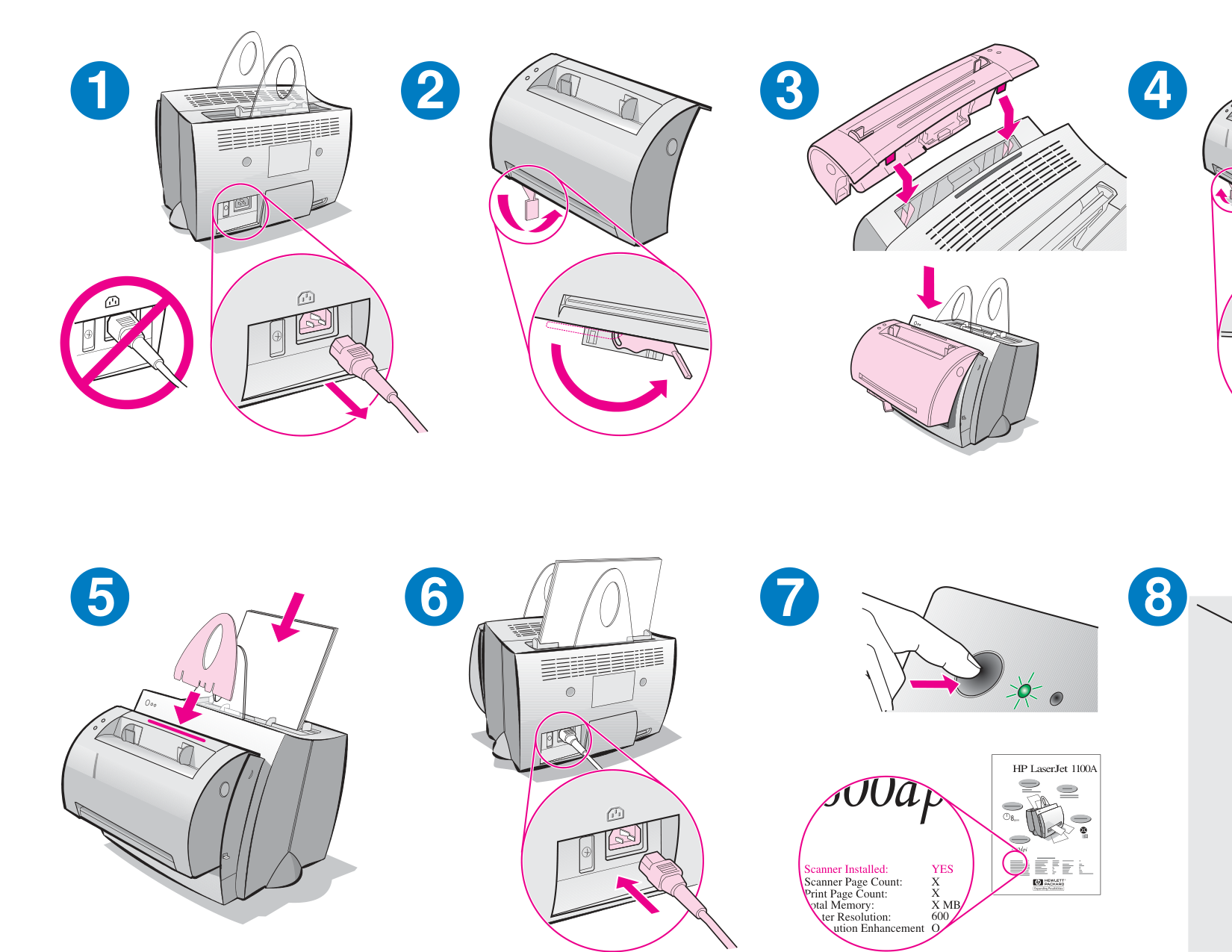
21 3
5 6 7
Scanner Installed: YES X X XMB 600 O
Scanner Page Count: Print Page Count:
otal Memory: ter Resolution: ution Enhancement
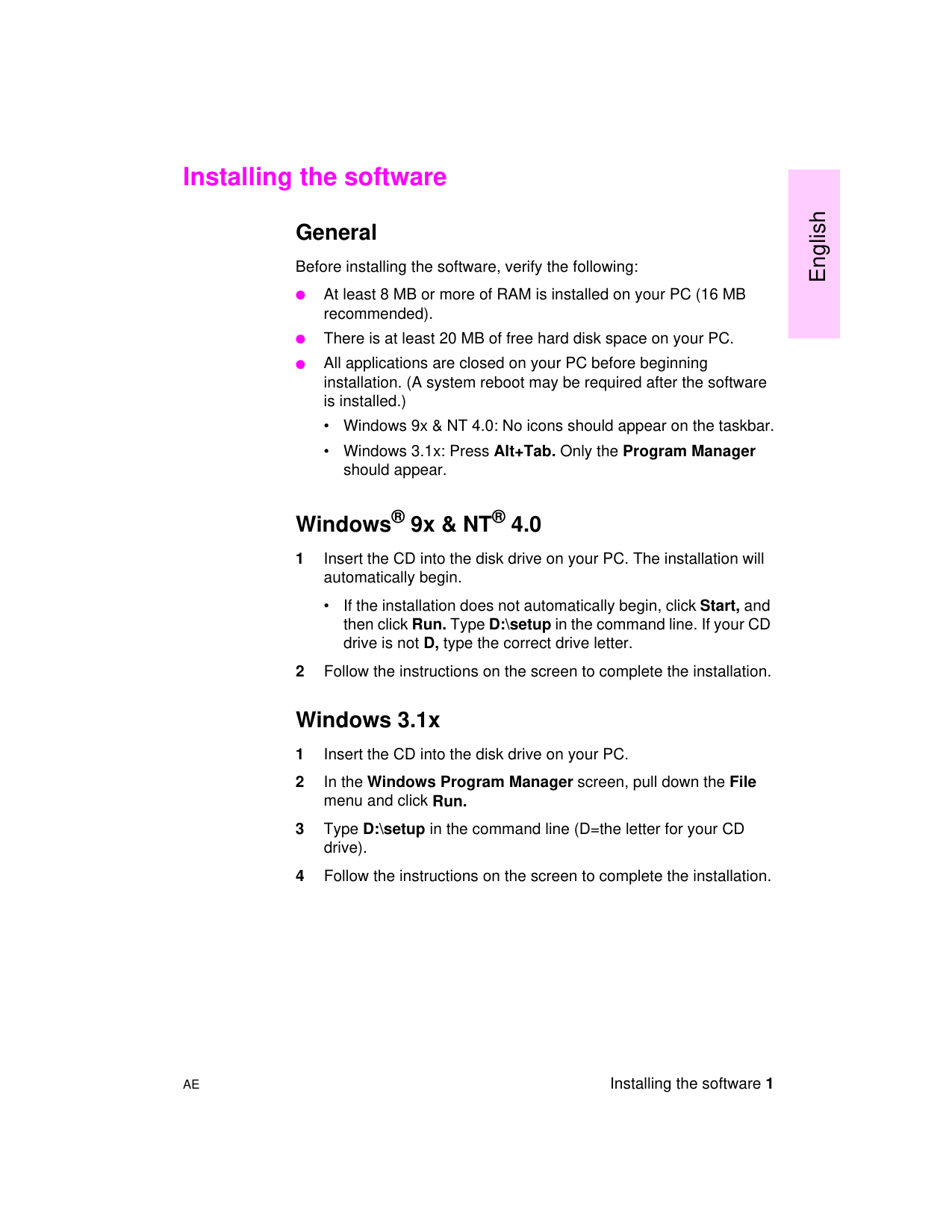
Installing the software
General
Before installing the software, verify the following:
At least 8 MB or more of RAM is installed on your PC (16 MB recommended).
There is at least 20 MB of free hard disk space on your PC. All applications are closed on your PC before beginning installation. (A system reboot may be required after the software is installed.)
English
Windows® 9x & NT® 4.0
• If the installation does not automatically begin, click Start, and then click Run. Type D:\setup in the command line. If your CD drive is not D, type the correct drive letter.
Windows 3.1x
AE Installing the software 1
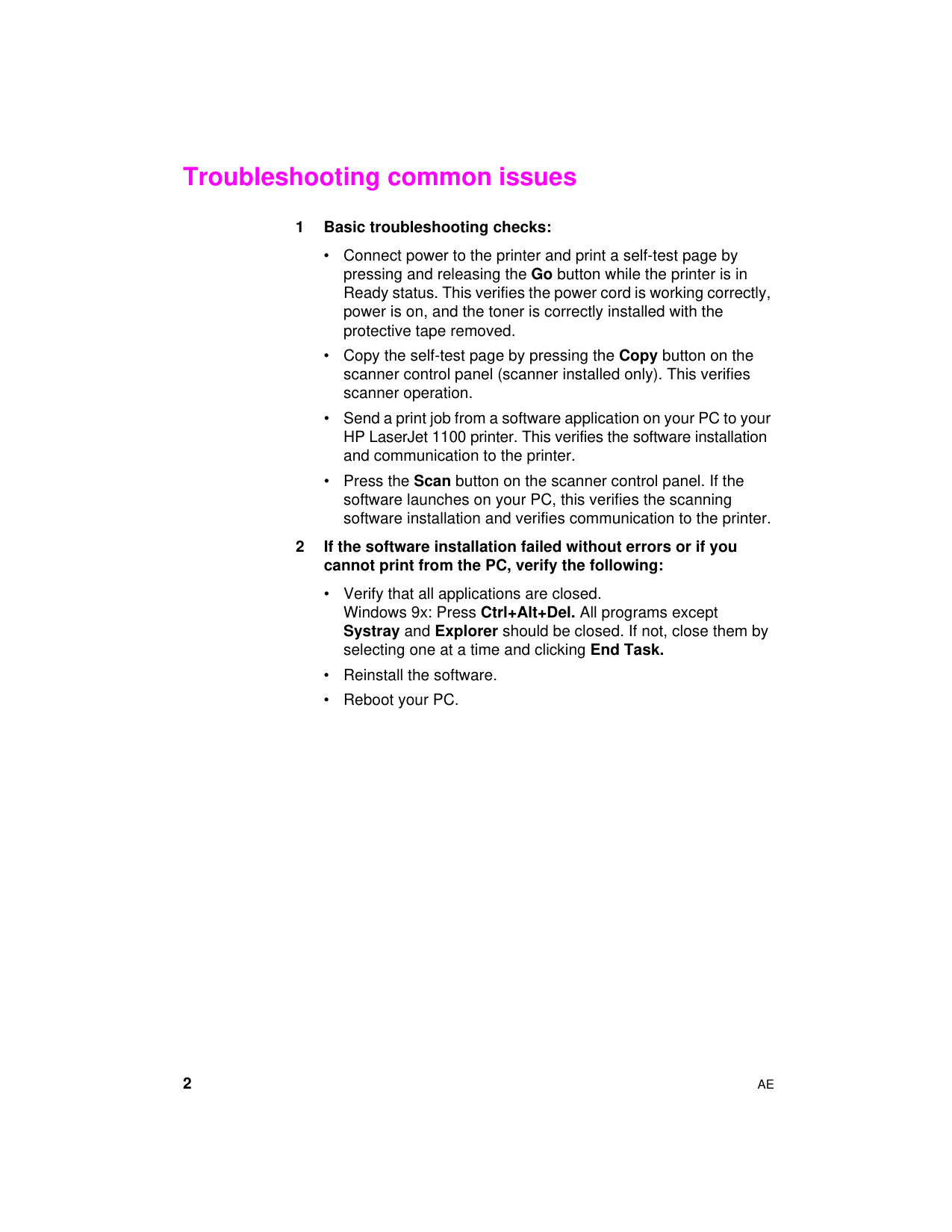
Troubleshooting common issues
#### 1 Basic troubleshooting checks:
#### 2 If the software installation failed without errors or if youcannot print from the PC, verify the following:
2 AE
Instalación del software
General
Antes de instalar el software, verifique que:
Su ordenador disponga de al menos 8 MB de RAM o más (se recomiendan 16 MB).
Haya al menos 20 MB de espacio libre en el disco duro de su ordenador.
Todas las aplicaciones estén cerradas antes de empezar la instalación (es posible que deba reiniciar el sistema una vez concluida la instalación del software).
Español
Windows® 9x y NT® 4.0
• Si la instalación no empieza automáticamente, haga clic en
Inicio y en Ejecutar, y luego escriba D:\setup en la línea de comandos. Si la unidad de CD ROM no es D, escriba la letra correspondiente a dicha unidad.
Windows 3.1x
SM Instalación del software 1
Resolución de los problemas más comunes
#### 1 Comprobaciones básicas para la resolución de problemas:
#### 2 Si el software de instalación falló sin indicar errores o si nopuede imprimir desde el ordenador, verifique que:
2 SM
Installation du logiciel
Généralités
Avant d’installer le logiciel, assurez-vous que :
votre PC dispose d’au moins 8 Mo de mémoire vive (16 Mo recommandés).
votre PC dispose d’un espace disque libre d’au moins 20 Mo. toutes les applications de votre PC sont fermées (il se peut que vous deviez réinitialiser le système après l’installation du logiciel).
Windows® 9x et NT® 4.0
1 Insérez le CD dans le lecteur de votre PC ; l’installation
commence automatiquement.
• Si ce n’est pas le cas, cliquez sur Démarrer, puis sur Exécuter.
Tapez D:\setup sur la ligne de commande. Si votre lecteur de CD ne correspond pas à la lettre D, tapez la lettre appropriée.
2 Suivez les instructions qui s’affichent pour effectuer l’installation.
Français
Windows 3.1x 1 Insérez le CD dans le lecteur de votre PC. 2 Dans le Gestionnaire de programmes Windows déroulez le
menu Fichier, puis cliquez sur Exécuter.
3 Tapez D:\setup sur la ligne de commande (D = la lettre de votre
lecteur de CD).
4 Suivez les instructions qui s’affichent pour effectuer l’installation.
FC Installation du logiciel 1
Résolution des problèmes courants
#### 1 Vérification de base :
#### 2 Si l’installation du logiciel a échoué sans indiquer d’erreurou si vous ne parvenez pas à imprimer depuis le PC,procédez comme suit :
2 FC
Instalação do software
Geral
Antes de instalar o software, verifique o seguinte:
Se há pelo menos 8 MB ou mais de memória RAM instalada no computador (recomendável 16 MB).
Se há pelo menos 20 MB de espaço disponível na unidade de disco rígido do computador.
Se todos os aplicativos estão fechados no computador antes de iniciar a instalação. (Pode ser exigida a inicialização do sistema após a instalação do software.)
de Programas deve aparecer.
Windows® 9x e NT® 4.0
• Caso isso não aconteça, clique em Iniciar, e, a seguir, em Executar. Digite D:\setup na linha de comando. Se a unidade de CD não for D, digite a letra correta.
Windows 3.1x
Português
PG Instalação do software 1
Solução de problemas comuns
#### 1 Verificações básicas para solução de problemas:
#### 2 Se a instalação do software falhou sem apresentar nenhumerro ou se não foi possível imprimir a partir do computador,verifique o seguinte:
2 PG