
Ask AI
— answers from the official manualAnswers from the official manual.
Common questions
Common Questions
9 totalHow can I change the language on my Device Control Panel?
Press MENU/ENTER, navigate to Common Settings with left/right arrows, select Language and choose preferred option. The device will then automatically restart after selection.
What do I need to know about using transparencies?
Use only HP transparency film designed for use with the printer. Load a single page at time and ensure correct media type setting is selected in device properties.
If pages did not print, what should I check?
Firstly, look for any messages displayed on your screen or whether the media got pulled through properly. Also inspect for jams and ensure proper connection of USB/parallel cables.
How can I restore the device to its factory settings?
Press MENU/ENTER, use < or > buttons to navigate to Service, select Restore defaults and press MENU/ENTER twice to confirm. The device will automatically restart with all settings reset to their original state.
What should I do if the printer does not turn on?
Check that power is reaching the device by ensuring it's properly plugged in and the power switch is turned on. See page 76 of troubleshooting section for more details.
How do I change the default paper size?
Press MENU/ENTER, navigate to Common settings with < or > buttons, select Def. paper size and choose from Letter, Legal, or A4 by navigating again.
Full Manual
164 pages
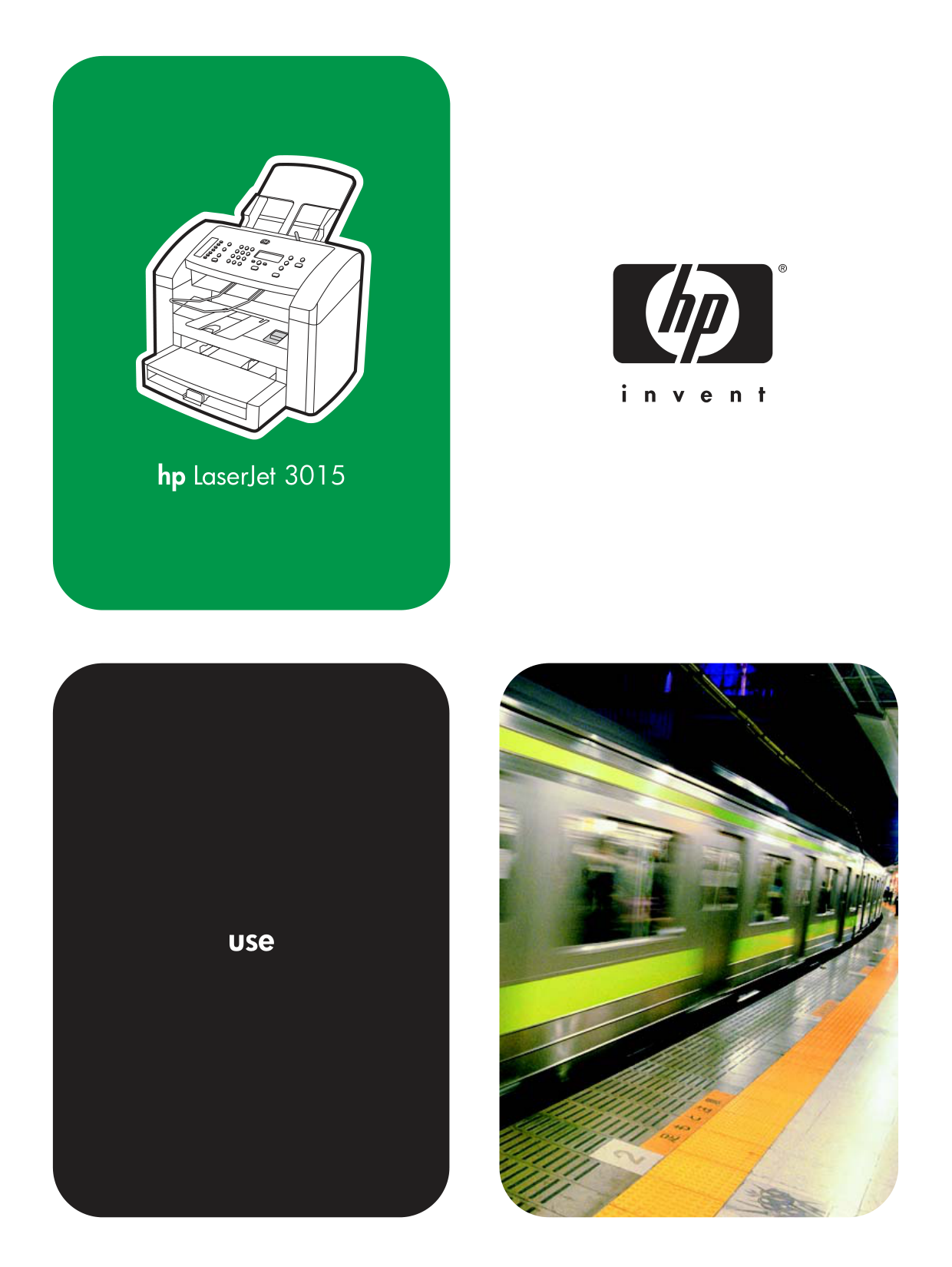
hp LaserJet 3015
#### use

hp LaserJet 3015 all-in-one
User Guide
########### Copyright Information
© Copyright 2004 Hewlett-Packard Development Company, L.P.
Reproduction, adaptation or translation without prior written permission is prohibited, except as allowed under the copyright laws.
The information contained herein is subject to change without notice.
The only warranties for HP products and services are set forth in the express warranty statements accompanying such products and services. Nothing herein should be construed as constituting an additional warranty. HP shall not be liable for technical or editorial errors or omissions contained herein.
A user of the Hewlett-Packard product associated with this user guide is granted a license to: a) print hard copies of this user guide for PERSONAL, INTERNAL or COMPANY use subject to the restriction not to sell, re-sell or otherwise distribute the hard copies; and b) place an electronic copy of this user guide on a network server, provided access to the electronic copy is limited to PERSONAL, INTERNAL users of the Hewlett-Packard product associated with this user guide.

Part number: Q2669-90951 Edition 2, 4/2009
########### Trademark Credits
Adobe® and PostScript® are trademarks of Adobe Systems Incorporated.
Microsoft®, Windows®, and Windows NT® are U.S. registered trademarks of Microsoft Corporation.
UNIX® is a registered trademark of The Open Group.
All other products mentioned herein may be trademarks of their respective companies.
Table of contents
####### 1 Getting to know your device
Identifying the hp LaserJet 3015 all-in-one ...............................................................................2
Package contents ...............................................................................................................2 Device features .........................................................................................................................3 Identifying the hardware components .......................................................................................4
HP LaserJet 3015 all-in-one hardware components ..........................................................4 Identifying the device control panel components ......................................................................5 Identifying the software components ........................................................................................6 Print-media specifications .........................................................................................................7

Supported paper weights and sizes ...................................................................................7
####### 2 Changing the settings by using the hp toolbox or the device controlpanel
Using the hp toolbox ...............................................................................................................10 Supported operating systems ...........................................................................................10 Supported browsers .........................................................................................................10 To view the hp toolbox ......................................................................................................10 The hp toolbox sections ....................................................................................................11
Using the device control panel ................................................................................................13 Printing a configuration page ............................................................................................13 Printing a device control panel menu map .......................................................................13 Restoring the factory-set defaults .....................................................................................13 Changing the device control panel display language .......................................................14 Changing the default media size ......................................................................................14 Using the device volume controls .....................................................................................14
####### 3 Printing
Printing by using manual feed .................................................................................................18
To print by using manual feed ..........................................................................................18 Stopping or canceling a print job .............................................................................................19 Printer drivers ..........................................................................................................................20
Changing print settings .....................................................................................................20
Understanding print-quality settings ........................................................................................21 To temporarily change print-quality settings ....................................................................21 To change print-quality settings for all future jobs ............................................................21 To use EconoMode (to save toner) ..................................................................................21
Optimizing print quality for media types ..................................................................................23
To gain access to the optimizing feature ..........................................................................23 Device media specifications ....................................................................................................24 Guidelines for using media .....................................................................................................25
Paper ................................................................................................................................25 Common media problems table .......................................................................................25 Labels ...............................................................................................................................25 Transparencies .................................................................................................................2 6
ENWW iii
Envelopes .........................................................................................................................26 Card stock and heavy media ............................................................................................27
Selecting media for the automatic document feeder (ADF) ....................................................29 Automatic document feeder (ADF) specifications ............................................................29
Printing on envelopes ..............................................................................................................30 To print on one envelope ..................................................................................................30 To print on multiple envelopes .........................................................................................31
Printing on transparencies and labels .....................................................................................33
To print on transparencies or labels .................................................................................33 Printing on letterhead and preprinted forms ...........................................................................35
To print on letterhead and preprinted forms .....................................................................35 Printing on custom-sized media or card stock ........................................................................36 To print on custom-sized media or card stock .................................................................36 Printing on both sides of the media (manual duplexing) .........................................................37
To manually duplex ..........................................................................................................37 Printing multiple pages on a single sheet of media ................................................................39
To print multiple pages on a single sheet .........................................................................39 Printing booklets ......................................................................................................................40
To print booklets ...............................................................................................................40 Printing watermarks ................................................................................................................42
To use the watermark feature ...........................................................................................42
####### 4 Copying
Loading originals to copy ........................................................................................................44
To load originals into the automatic document feeder (ADF) input tray ...........................44 Starting a copy job ..................................................................................................................46 Canceling a copy job ...............................................................................................................46 Adjusting the copy quality .......................................................................................................47
To adjust the copy quality for the current job ...................................................................47 To adjust the default copy quality .....................................................................................47
Adjusting the lighter/darker (contrast) setting .........................................................................48 To adjust the lighter/darker setting for the current job ......................................................48 To adjust the default lighter/darker setting .......................................................................48
Reducing or enlarging copies .................................................................................................49 To reduce or enlarge copies for the current job ...............................................................50 To change the default copy size .......................................................................................50
Changing the default copy-collation setting ............................................................................52
To change the default copy-collation setting ....................................................................52 Changing the default number of copies ..................................................................................53
To change the default number of copies ..........................................................................53 Copying two-sided originals ....................................................................................................54 To copy a multiple-page stack of two-sided originals .......................................................54
####### 5 Scanning
Loading originals to scan ........................................................................................................56
Loading originals into the automatic document feeder (ADF) input tray ..........................56 Understanding scanning methods ..........................................................................................58 Canceling a scan job ...............................................................................................................59 Scanning from the device control panel ..................................................................................60
Programming the Scan to button ......................................................................................60 Scanning to e-mail ............................................................................................................60 Scanning to a folder ..........................................................................................................60
Scanning by using hp LaserJet Scan software .......................................................................61 Scanning to e-mail ............................................................................................................61 To scan to a file ................................................................................................................61
Scanning to another software program ............................................................................62 Scanning to the Readiris OCR software ...........................................................................63
Scanning by using TWAIN-compliant and WIA-compliant software .......................................64 Using TWAIN-compliant and WIA-compliant software .....................................................64 Scanning by using OCR ..........................................................................................................65 Readiris .............................................................................................................................65
Scanner resolution and color ..................................................................................................66 Resolution and color guidelines .......................................................................................66 Color .................................................................................................................................67
####### 6 Faxing
..................................................................................................................................................70 ...........................................................................................................................................70
####### 7 Cleaning and maintenance
Cleaning the outside of the device ..........................................................................................72 To clean the exterior .........................................................................................................72 To clean the glass ............................................................................................................72
Cleaning the media path .........................................................................................................73 To clean the media path ...................................................................................................73
####### 8 Troubleshooting
Device does not turn on ..........................................................................................................76 Is power reaching the device? ..........................................................................................76
The device control panel display has black lines or dots, or fades ........................................77 Black lines or dots ............................................................................................................77 Faded device control panel display ..................................................................................77
Pages print but are totally blank ..............................................................................................78 Is the sealing tape still in the print cartridge? ...................................................................78 Does the configuration page print? ..................................................................................78 Does the document contain blank pages? .......................................................................78 Is the original loaded correctly? ........................................................................................78
Pages did not print ..................................................................................................................79 Does a message appear on your computer screen? .......................................................79 Is media being pulled into the device correctly? ..............................................................79 Are media jams present? ..................................................................................................79 Is the parallel or USB Device Cable (A/B) working, and is it connected correctly? .........79 Are other devices running on your computer? .................................................................79
Pages printed, but a problem exists ........................................................................................80 Is the print quality poor? ...................................................................................................80 Is the printed page different from what appears onscreen? .............................................80 Are the device settings appropriate for the print media? .................................................80
Onscreen error messages appear ..........................................................................................81 Printer not responding/error writing to LPT1 ....................................................................81 Cannot access port (in use by another application) .........................................................81
Paper-handling problems exist ...............................................................................................82 Print is skewed (crooked) .................................................................................................82 More than one sheet feeds at one time ............................................................................82 Device does not pull media from the media input tray .....................................................82 Media curls when fed through device ...............................................................................82
Printed page is different from what appears onscreen ...........................................................83 Is the text garbled, incorrect, or incomplete? ...................................................................83 Are graphics or text missing? Are there blank pages? ....................................................83 Is the page format different from the format on another printer? .....................................84
ENWW v
Is the quality of the graphics poor? ..................................................................................84
Media jams occur in the printer ...............................................................................................85 To clear a media jam ........................................................................................................85 To clear other media jams ................................................................................................87 Tips to avoid media jams ..................................................................................................88
Print quality is unacceptable ...................................................................................................89 Light print or fade ..............................................................................................................89 Toner specks ....................................................................................................................89 Dropouts ...........................................................................................................................90 Vertical lines .....................................................................................................................90 Gray background ..............................................................................................................91 Toner smear .....................................................................................................................91 Loose toner .......................................................................................................................92 Vertical repetitive defects .................................................................................................92 Misformed characters .......................................................................................................93 Page skew ........................................................................................................................93 Curl or wave ......................................................................................................................94 Wrinkles or creases ..........................................................................................................94 Toner scatter outline .........................................................................................................95
Device control panel error messages appear .........................................................................96 Resolving common error messages .................................................................................96 Critical error messages .....................................................................................................96 Alert messages .................................................................................................................9 7 Warning messages ...........................................................................................................97
No copy came out ...................................................................................................................99 Is media loaded in the input tray? ....................................................................................99 Is the original loaded correctly? ........................................................................................99 Is the ADF media lever set correctly? ..............................................................................99
Copies are blank, or images are missing or faded ...............................................................100 Has the sealing tape been removed from the print cartridge? .......................................100 Is the print cartridge low on toner? .................................................................................100 Is the original of poor quality? ........................................................................................100 Does the original have a colored background? ..............................................................100
Copy quality is unacceptable ................................................................................................101 Preventing problems .......................................................................................................101
Media jams occur in the automatic document feeder (ADF) ................................................102 Typical automatic document feeder (ADF) jam locations ..............................................102 Automatic document feeder (ADF) media lever .............................................................102 To clear a media jam from the automatic document feeder (ADF) ................................103
Copy defects are apparent ....................................................................................................104 Vertical white or faded stripes ........................................................................................104 Blank pages ....................................................................................................................104 Wrong original was copied .............................................................................................105 Too light or dark ..............................................................................................................105 Unwanted lines ...............................................................................................................105 Black dots or streaks ......................................................................................................105 Unclear text .....................................................................................................................105 Reduced size ..................................................................................................................105
Scanned image is of poor quality ..........................................................................................106 Is the original a second-generation photo or picture? ....................................................106 Is the image quality better when the document is printed? ............................................106 Is the image skewed (crooked)? ....................................................................................106 Does the scanned image show blotting, lines, vertical white stripes, or any other defect? ............................................................................................................................106 Do graphics look different from the original? ..................................................................106
Part of the image did not scan ..............................................................................................107
Was the original loaded correctly? .................................................................................107 Does the original have a colored background? ..............................................................107 Are text or images on the back of a two-sided original appearing in the scan? ............107 Is the original longer than 381 mm (15 inches)? ............................................................107 Is the original too small? .................................................................................................107 Is the media size correct? ...............................................................................................107
The scan takes too long ........................................................................................................108 Is your resolution or color level set too high? .................................................................108 Is your software set to scan in color? .............................................................................108 Did you send a print job or copy job before you tried to scan? ......................................108 Is your computer set for bidirectional communication? ..................................................108
Error messages appear .........................................................................................................109 Common scanning error messages ...............................................................................109
Scan quality is unacceptable ................................................................................................110 Preventing problems .......................................................................................................110 Blank pages ....................................................................................................................110 Too light or dark ..............................................................................................................110 Unwanted lines ...............................................................................................................110 Black dots or streaks ......................................................................................................110 Unclear text .....................................................................................................................110
####### Appendix A Specifications
HP LaserJet 3015 all-in-one .................................................................................................113
HP LaserJet 3015 all-in-one specifications ....................................................................113 HP LaserJet 3015 all-in-one battery .....................................................................................115
####### Appendix B Regulatory Information
................................................................................................................................................117 FCC regulations ....................................................................................................................118 Telephone consumer protection act (United States) ............................................................119 IC CS-03 requirements .........................................................................................................120 Regulatory information for the European Union countries/regions .......................................120 Safety statements .................................................................................................................121
Laser safety statement ...................................................................................................121 Canada DOC regulations ...............................................................................................121 Laser statement for Finland ............................................................................................122 Korean EMI statement ....................................................................................................122 Australia ..........................................................................................................................123
Declaration of Conformity .....................................................................................................124 Environmental product stewardship program .......................................................................125
Protecting the environment .............................................................................................125 Ozone production ...........................................................................................................125 Energy consumption .......................................................................................................125 Toner consumption .........................................................................................................125 Paper use .......................................................................................................................125 Plastics ...........................................................................................................................125 HP LaserJet printing supplies .........................................................................................126 HP printing supplies returns and recycling program information ...................................126 U.S. returns .....................................................................................................................126 Non-U.S. returns .............................................................................................................126 Paper ..............................................................................................................................126 Material restrictions ........................................................................................................126 Nederlands .....................................................................................................................127 For more information ......................................................................................................127
Material safety data sheets ...................................................................................................128
ENWW vii
Appendix C HP limited warranty statement HP LaserJet 3015 all-in-one ONE-YEAR LIMITED WARRANTY ........................................129
####### Appendix D HP parts and accessories
Ordering HP parts and accessories ......................................................................................132 HP parts and accessories chart .....................................................................................132
HP LaserJet print cartridges .................................................................................................134 HP policy on non-HP print cartridges .............................................................................134 To install a print cartridge ...............................................................................................134 Storing print cartridges ...................................................................................................134 Print cartridge life expectancy ........................................................................................134 Recycling print cartridges ...............................................................................................134 Saving toner ....................................................................................................................135
####### Appendix E Service and support
Obtaining hardware service ..................................................................................................138 To obtain hardware service ............................................................................................138 To remove the media input tray ......................................................................................139
Extended warranty ................................................................................................................140 Service information form .......................................................................................................141
####### Glossary Index

1
Getting to know your device
Use these topics to acquaint yourself with your new HP LaserJet 3015 all-in-one:
ENWW 1
##### Identifying the hp LaserJet 3015 all-in-one
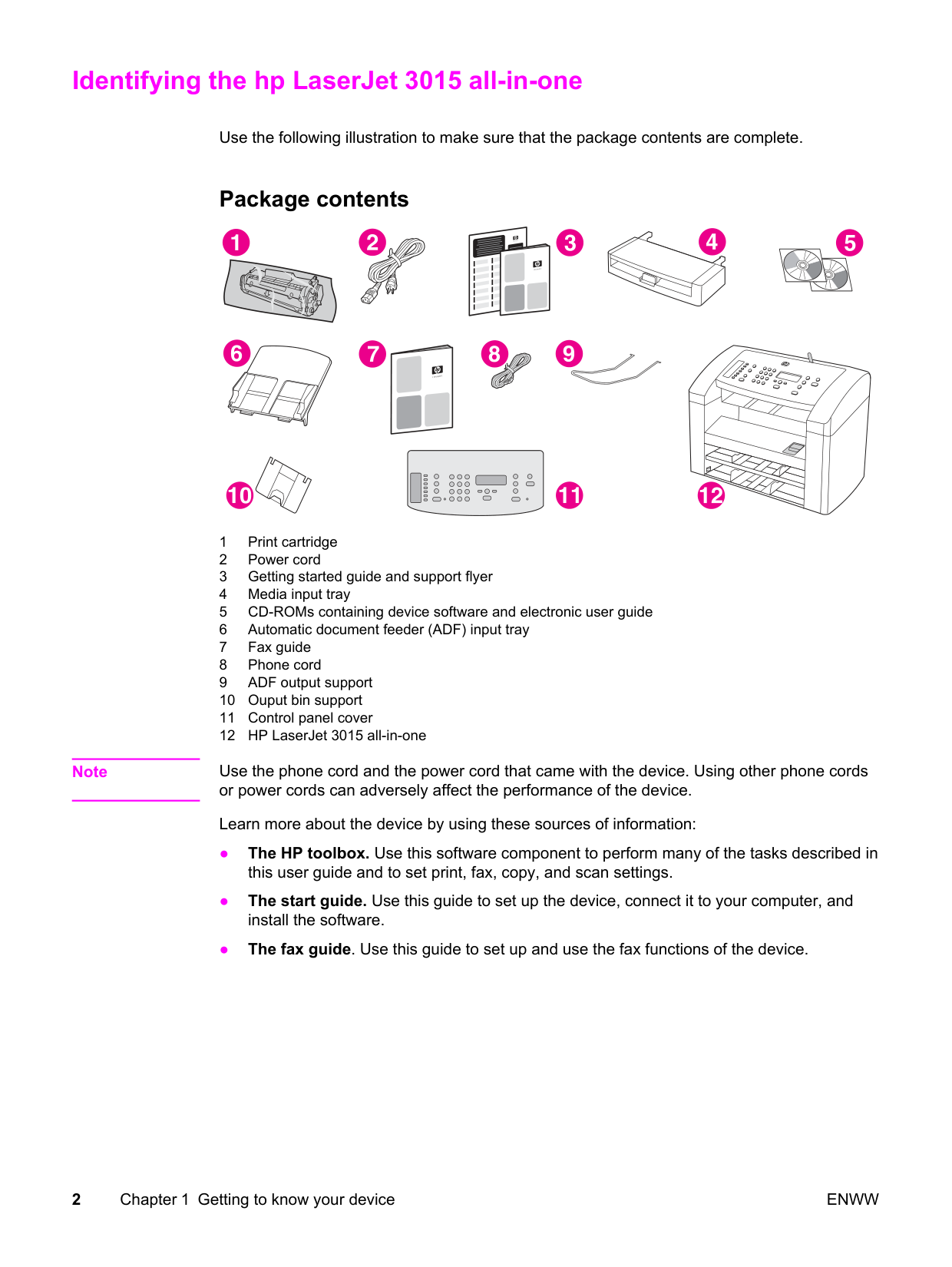
Use the following illustration to make sure that the package contents are complete.
###### Package contents
Note Use the phone cord and the power cord that came with the device. Using other phone cords
or power cords can adversely affect the performance of the device. Learn more about the device by using these sources of information:
##### Device features
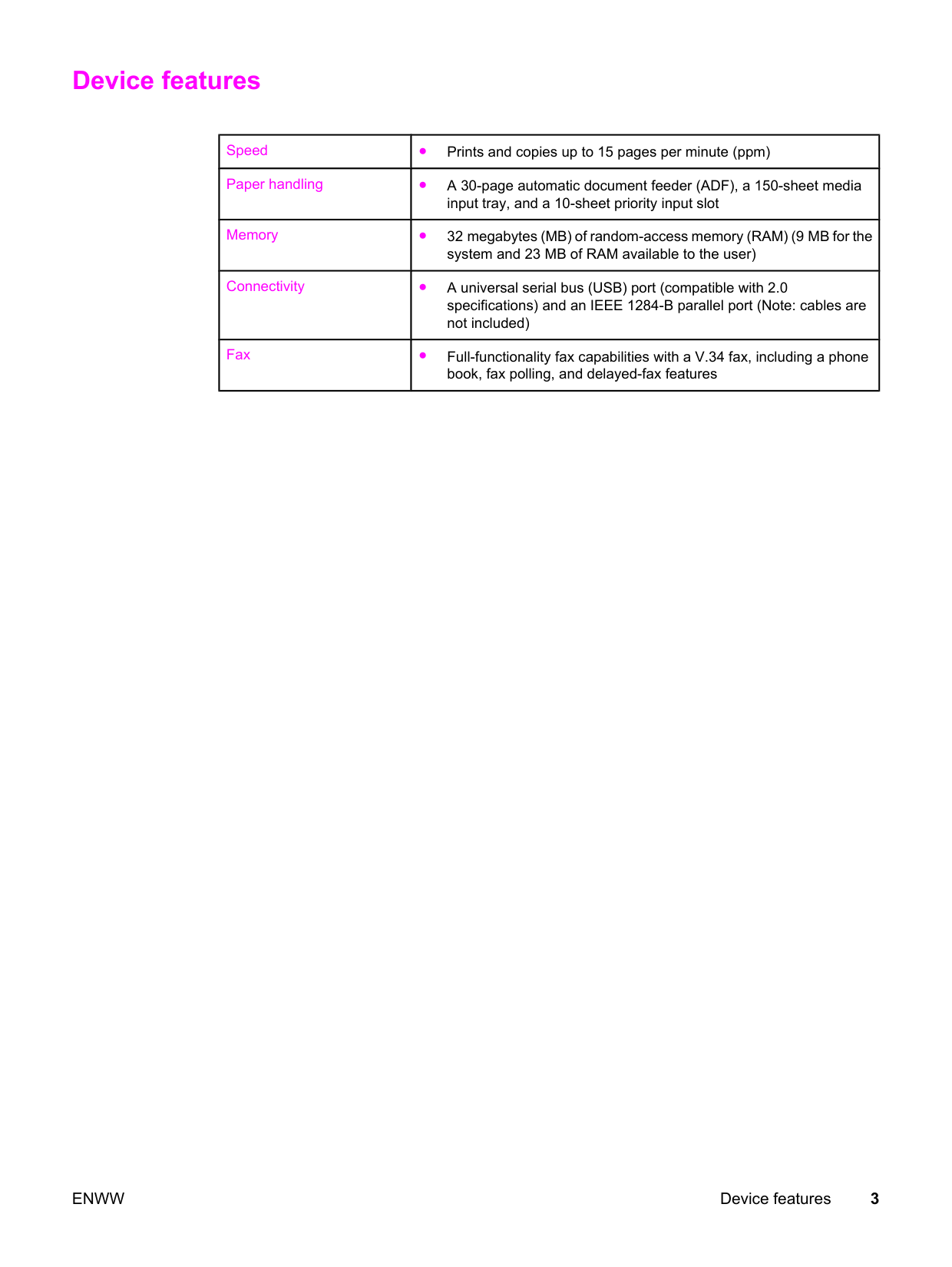
|Speed|● Prints and copies up to 15 pages per minute (ppm)| |---|---| |Paper handling|● A 30-page automatic document feeder (ADF), a 150-sheet media input tray, and a 10-sheet priority input slot| |Memory|● 32 megabytes (MB) of random-access memory (RAM) (9 MB for the system and 23 MB of RAM available to the user)| |Connectivity|● A universal serial bus (USB) port (compatible with 2.0 specifications) and an IEEE 1284-B parallel port (Note: cables are not included)| |Fax|● Full-functionality fax capabilities with a V.34 fax, including a phone book, fax polling, and delayed-fax features|
ENWW Device features 3
##### Identifying the hardware components
Use the following illustrations to identify the device hardware components.
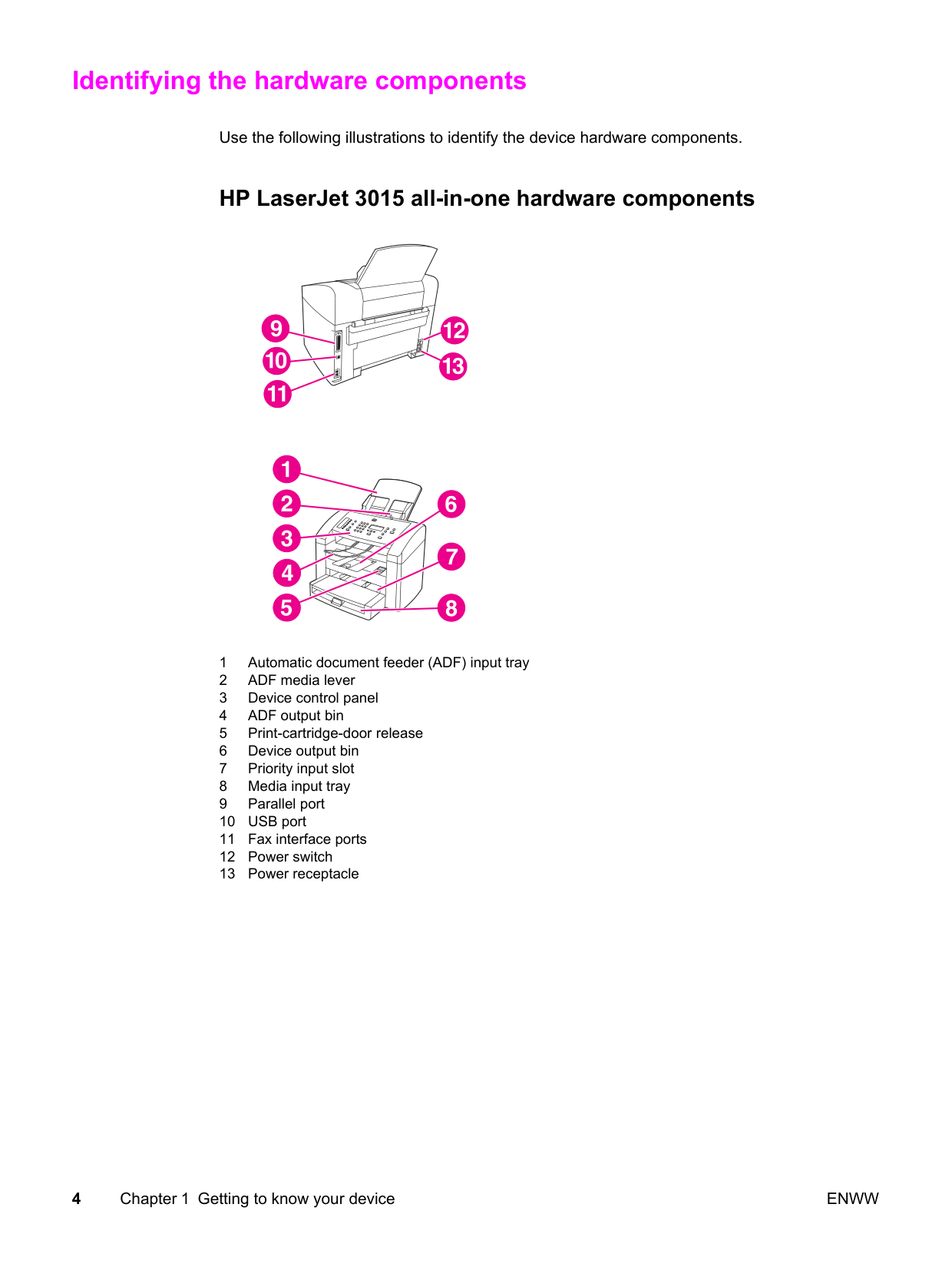
###### HP LaserJet 3015 all-in-one hardware components
##### Identifying the device control panel components
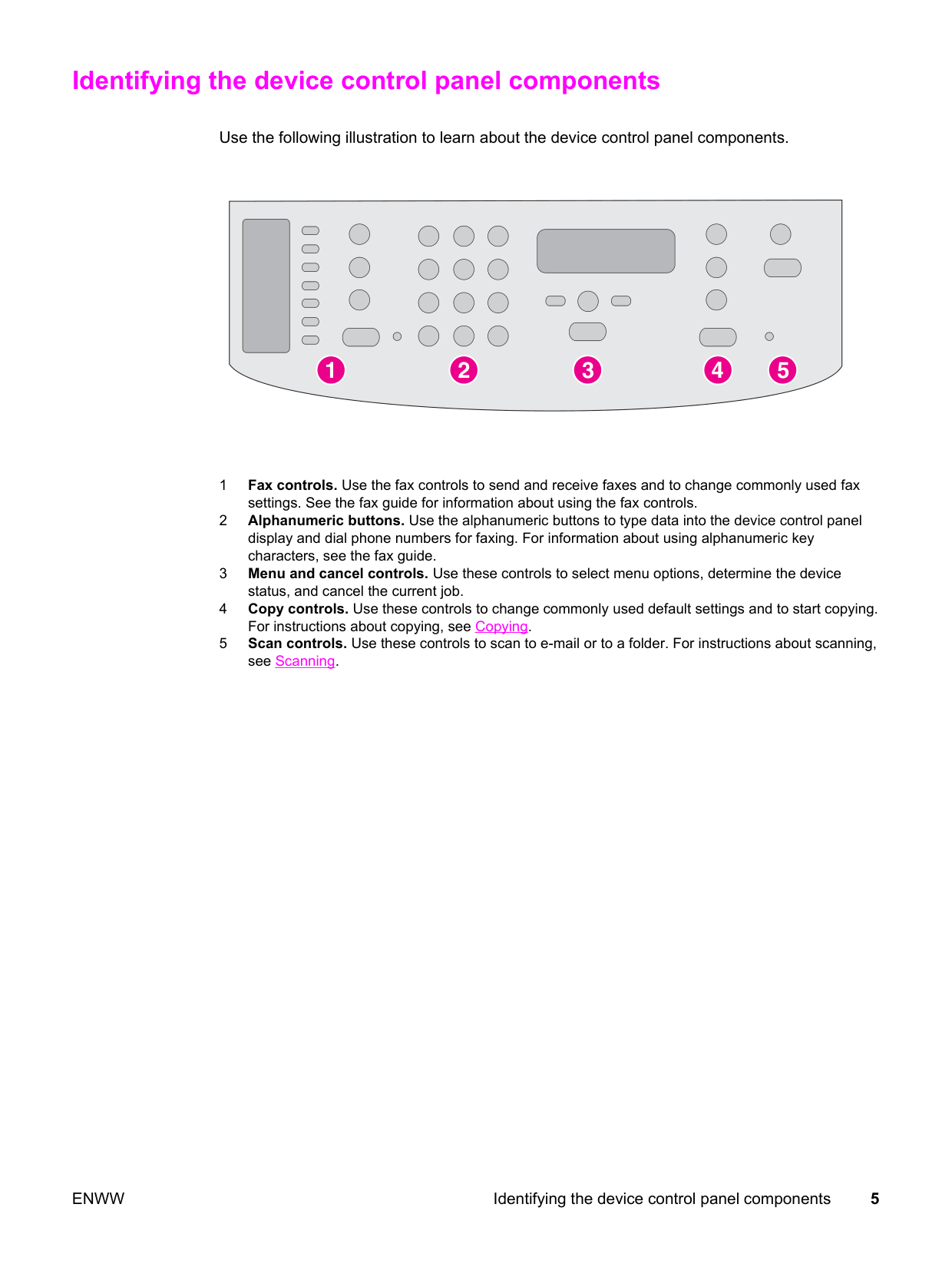
Use the following illustration to learn about the device control panel components.
ENWW Identifying the device control panel components 5
##### Identifying the software components
Note The software components that are installed depend on the operating system (OS) and the
installation type. See the start guide for more information. The following software items are included with the device:
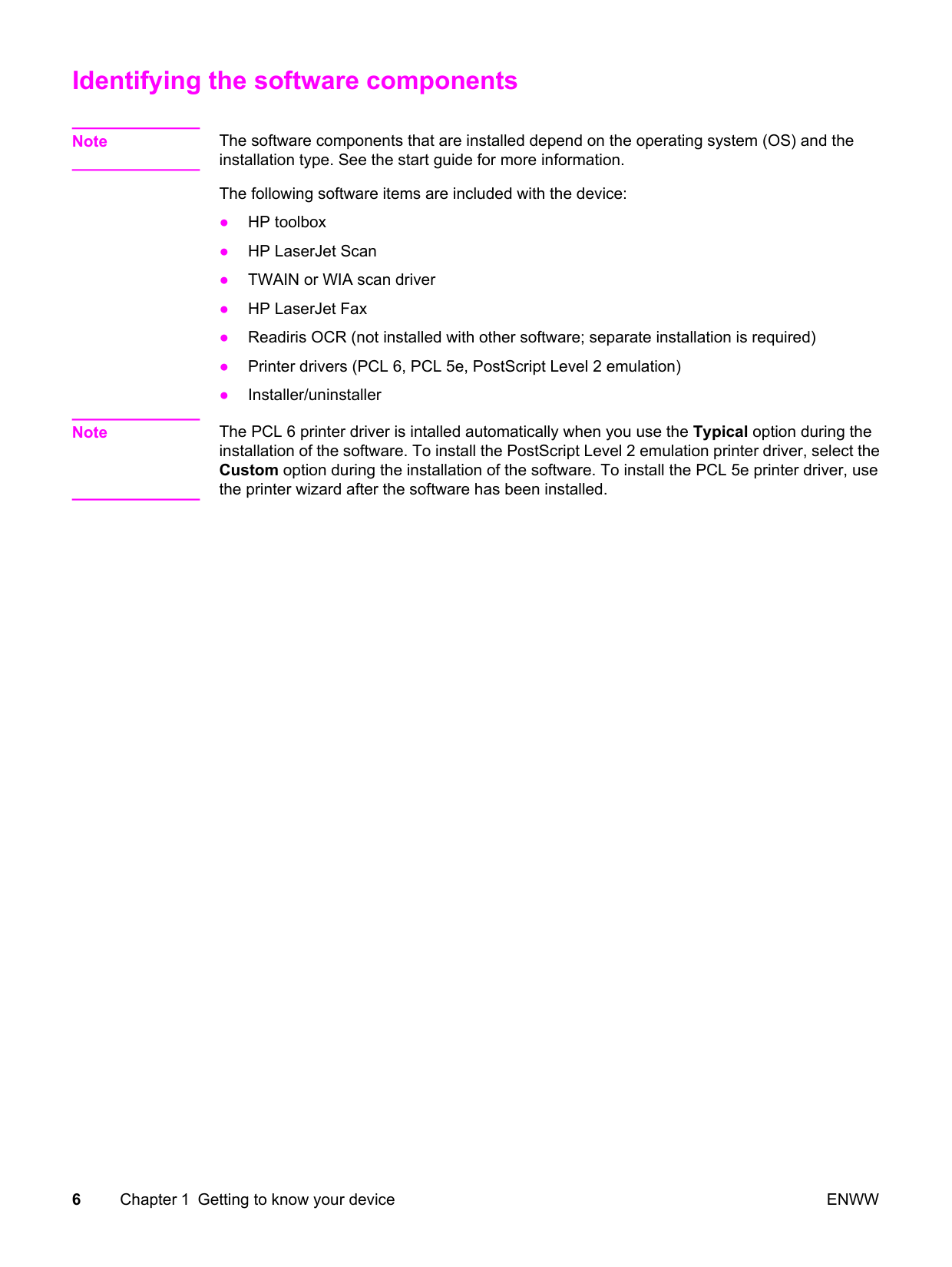
Note The PCL 6 printer driver is intalled automatically when you use the Typical option during the
installation of the software. To install the PostScript Level 2 emulation printer driver, select the Custom option during the installation of the software. To install the PCL 5e printer driver, use the printer wizard after the software has been installed.
##### Print-media specifications
For optimum results, use conventional 75 g/m2 to 90 g/m2 (20 to 24 lb) photocopy paper. Verify that the paper is of good quality and is free of cuts, nicks, tears, spots, loose particles, dust, wrinkles, curls, or bent edges.
Note The printer supports a wide range of standard and custom sizes of print media. The capacity of trays and bins can vary depending on media weight and thickness and environmental conditions. Smoothness—100 to 250 (Sheffield).
Use only transparencies designed for use with HP LaserJet printers.
###### Supported paper weights and sizes
######## Media input tray paper sizes
|Media input tray|Dimensions|Weight or thickness|Capacity| |---|---|---|---| |Minimum-size paper|76 by 127 mm (3 by 5 in)|60 to 163 g/m2 (16 to 43 lb bond)|150 sheets (60 g/m2; 16 lb bond)| |Maximum-size paper|216 by 356 mm (8.5 by 14 in)|60 to 163 g/m2 (16 to 43 lb bond)|150 sheets (60 g/m2; 16 lb bond)|
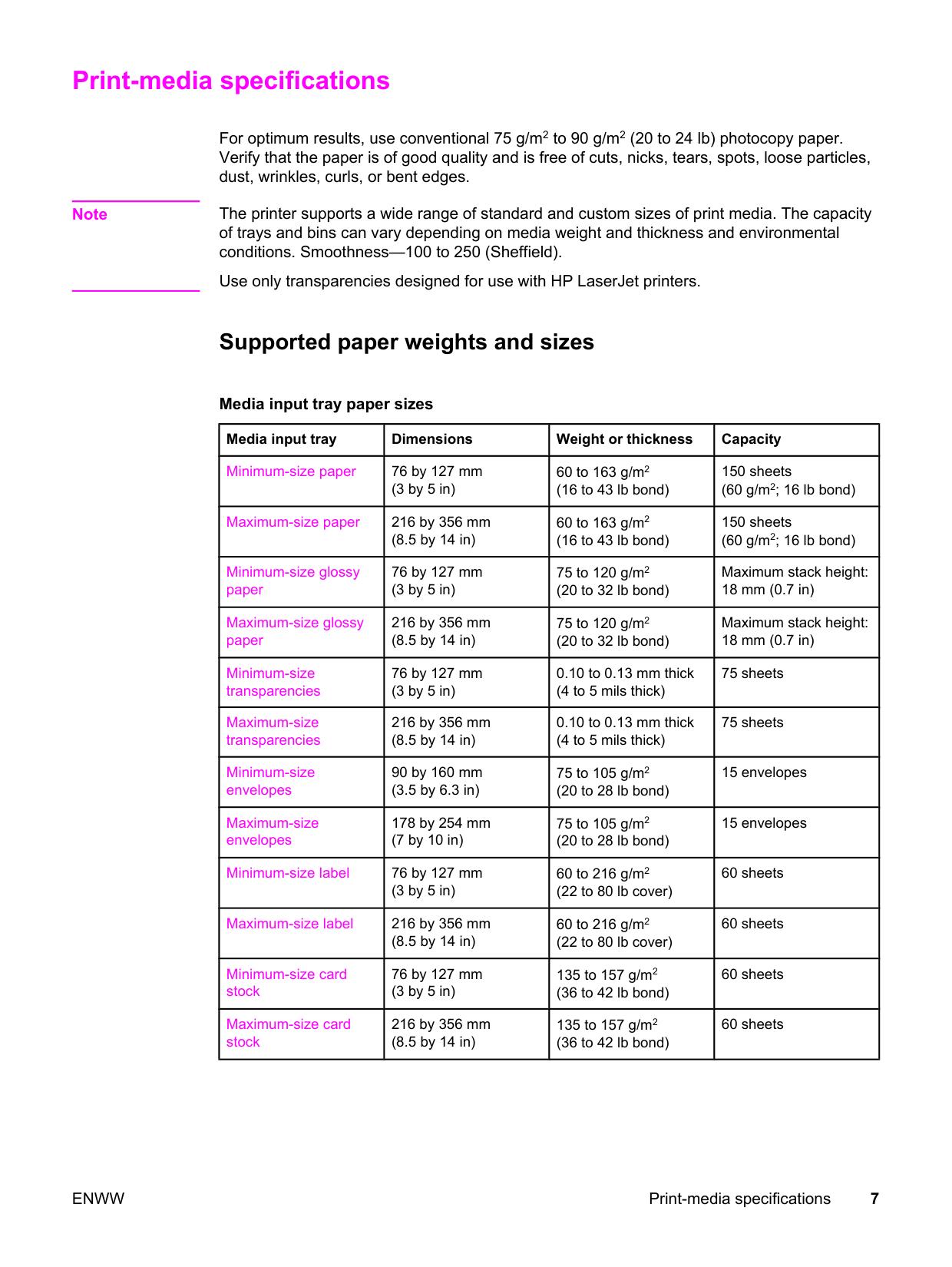
|Minimum-size glossy paper|76 by 127 mm (3 by 5 in)|75 to 120 g/m2 (20 to 32 lb bond)|Maximum stack height: 18 mm (0.7 in)| |Maximum-size glossy paper|216 by 356 mm (8.5 by 14 in)|75 to 120 g/m2 (20 to 32 lb bond)|Maximum stack height: 18 mm (0.7 in)| |Minimum-size transparencies|76 by 127 mm (3 by 5 in)|0.10 to 0.13 mm thick (4 to 5 mils thick)|75 sheets| |Maximum-size transparencies|216 by 356 mm (8.5 by 14 in)|0.10 to 0.13 mm thick (4 to 5 mils thick)|75 sheets| |Minimum-size envelopes|90 by 160 mm (3.5 by 6.3 in)|75 to 105 g/m2 (20 to 28 lb bond)|15 envelopes| |Maximum-size envelopes|178 by 254 mm (7 by 10 in)|75 to 105 g/m2 (20 to 28 lb bond)|15 envelopes| |Minimum-size label|76 by 127 mm (3 by 5 in)|60 to 216 g/m2 (22 to 80 lb cover)|60 sheets| |Maximum-size label|216 by 356 mm (8.5 by 14 in)|60 to 216 g/m2 (22 to 80 lb cover)|60 sheets| |Minimum-size card stock|76 by 127 mm (3 by 5 in)|135 to 157 g/m2 (36 to 42 lb bond)|60 sheets| |Maximum-size card stock|216 by 356 mm (8.5 by 14 in)|135 to 157 g/m2 (36 to 42 lb bond)|60 sheets|
ENWW Print-media specifications 7
Priority input slot paper sizes
|Priority input slot|Dimensions|Weight or thickness|Capacity| |---|---|---|---| |Minimum-size paper|76 by 127 mm (3 by 5 in)|60 to 163 g/m2 (16 to 43 lb bond)|10 sheets (75 g/m2; 20 lb bond)| |Maximum-size paper|216 by 356 mm (8.5 by 14 in)|60 to 163 g/m2 (16 to 43 lb bond)|10 sheets (75 g/m2; 20 lb bond)| |Minimum-size glossy paper|76 by 127 mm (3 by 5 in)|75 to 120 g/m2 (20 to 32 lb bond)|Maximum stack height: 1.5 mm (0.06 in)| |Maximum-size glossy paper|216 by 356 mm (8.5 by 14 in)|75 to 120 g/m2 (20 to 32 lb bond)|Maximum stack height: 1.5 mm (0.06 in)|
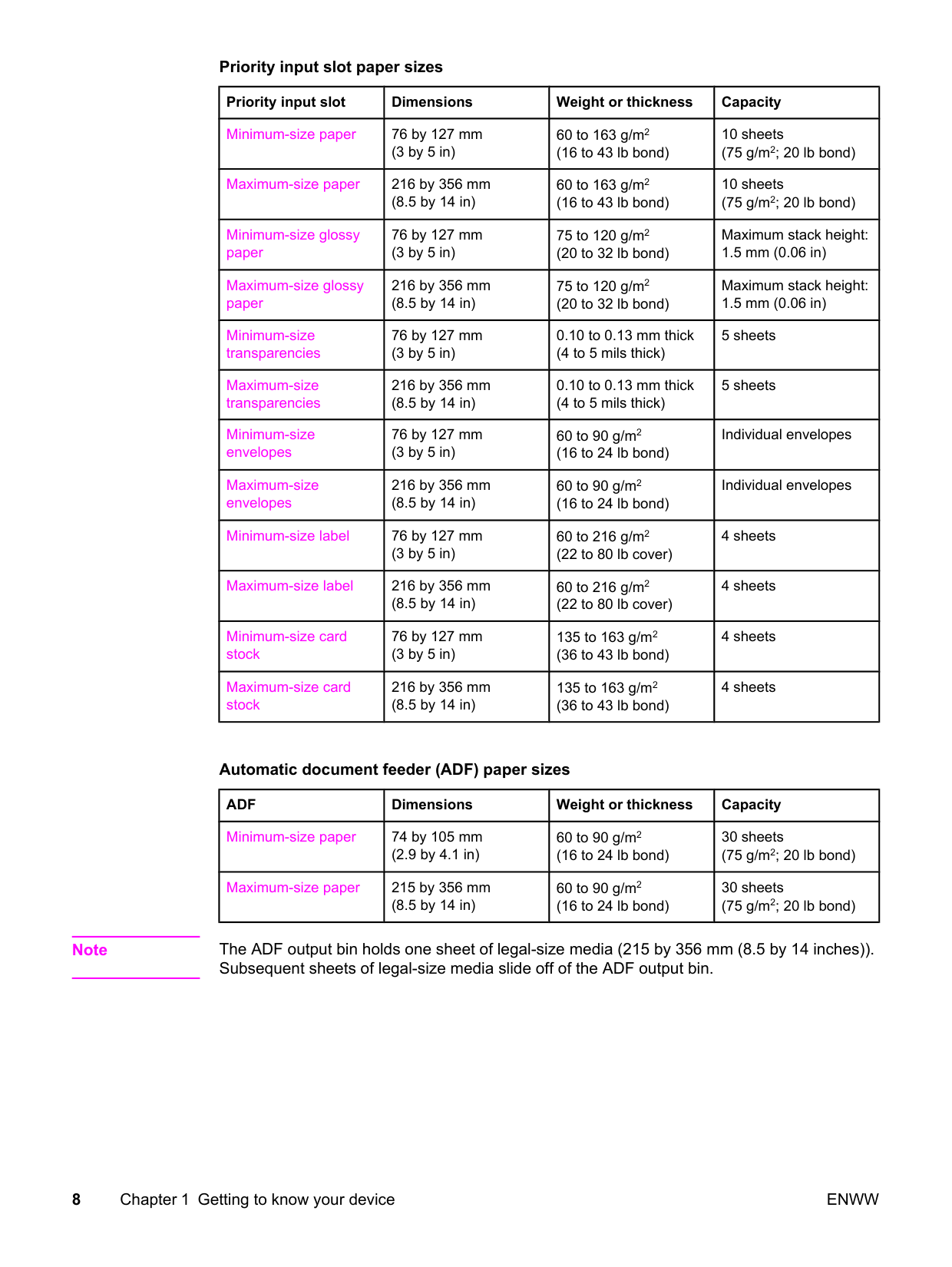
|Minimum-size transparencies|76 by 127 mm (3 by 5 in)|0.10 to 0.13 mm thick (4 to 5 mils thick)|5 sheets| |Maximum-size transparencies|216 by 356 mm (8.5 by 14 in)|0.10 to 0.13 mm thick (4 to 5 mils thick)|5 sheets| |Minimum-size envelopes|76 by 127 mm (3 by 5 in)|60 to 90 g/m2 (16 to 24 lb bond)|Individual envelopes| |Maximum-size envelopes|216 by 356 mm (8.5 by 14 in)|60 to 90 g/m2 (16 to 24 lb bond)|Individual envelopes| |Minimum-size label|76 by 127 mm (3 by 5 in)|60 to 216 g/m2 (22 to 80 lb cover)|4 sheets| |Maximum-size label|216 by 356 mm (8.5 by 14 in)|60 to 216 g/m2 (22 to 80 lb cover)|4 sheets| |Minimum-size card stock|76 by 127 mm (3 by 5 in)|135 to 163 g/m2 (36 to 43 lb bond)|4 sheets| |Maximum-size card stock|216 by 356 mm (8.5 by 14 in)|135 to 163 g/m2 (36 to 43 lb bond)|4 sheets|
Automatic document feeder (ADF) paper sizes
|ADF|Dimensions|Weight or thickness|Capacity| |---|---|---|---| |Minimum-size paper|74 by 105 mm (2.9 by 4.1 in)|60 to 90 g/m2 (16 to 24 lb bond)|30 sheets (75 g/m2; 20 lb bond)| |Maximum-size paper|215 by 356 mm (8.5 by 14 in)|60 to 90 g/m2 (16 to 24 lb bond)|30 sheets (75 g/m2; 20 lb bond)|
Note The ADF output bin holds one sheet of legal-size media (215 by 356 mm (8.5 by 14 inches)).
Subsequent sheets of legal-size media slide off of the ADF output bin.
2
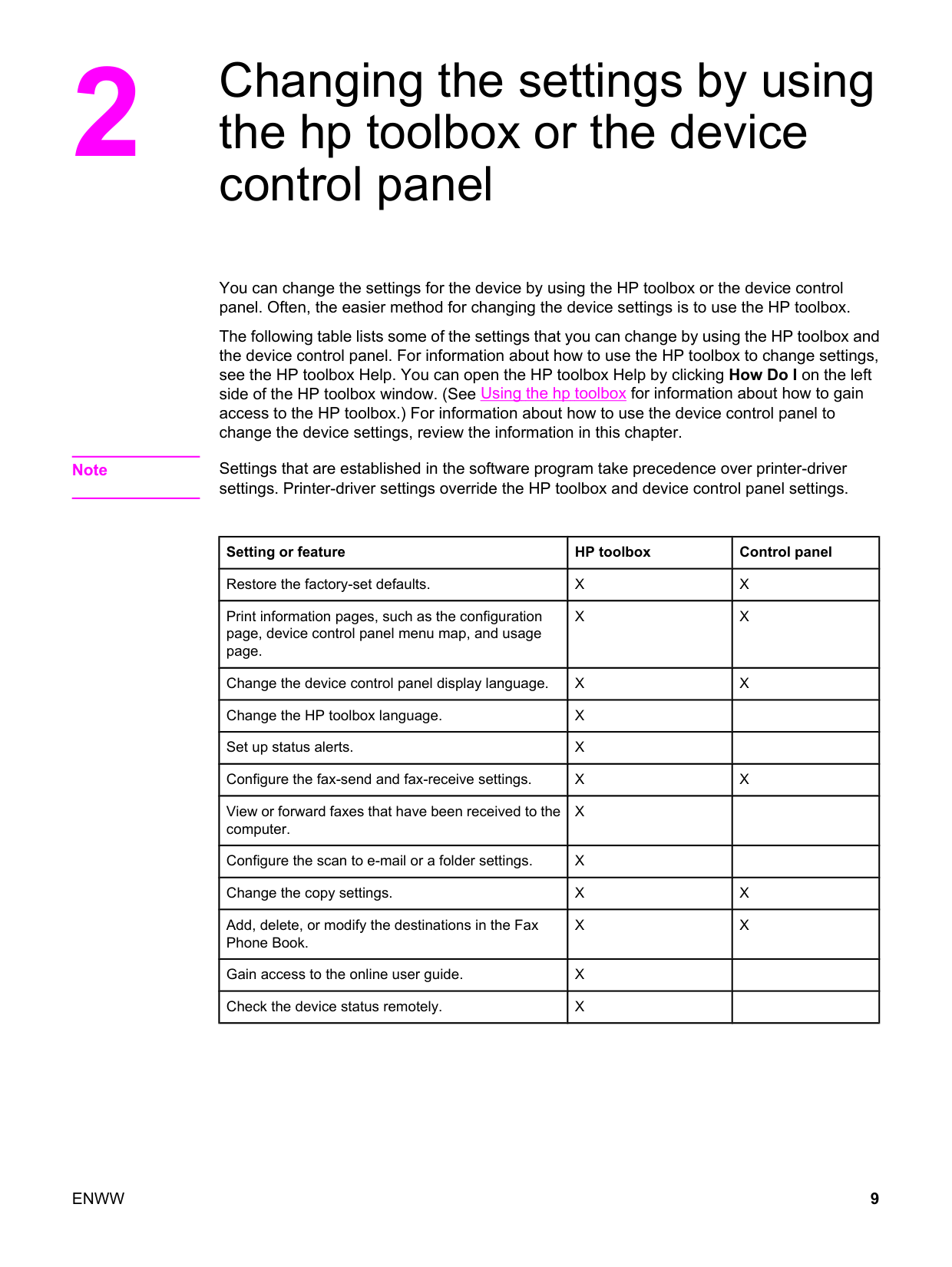
Changing the settings by using the hp toolbox or the device control panel
You can change the settings for the device by using the HP toolbox or the device control panel. Often, the easier method for changing the device settings is to use the HP toolbox.
The following table lists some of the settings that you can change by using the HP toolbox and the device control panel. For information about how to use the HP toolbox to change settings, see the HP toolbox Help. You can open the HP toolbox Help by clicking How Do I on the left side of the HP toolbox window. (See Using the hp toolbox for information about how to gain access to the HP toolbox.) For information about how to use the device control panel to change the device settings, review the information in this chapter.
Note Settings that are established in the software program take precedence over printer-driver settings. Printer-driver settings override the HP toolbox and device control panel settings.
Setting or feature HP toolbox Control panel Restore the factory-set defaults. X X
Print information pages, such as the configuration page, device control panel menu map, and usage page.
X X
Change the device control panel display language. X X Change the HP toolbox language. X Set up status alerts. X Configure the fax-send and fax-receive settings. X X View or forward faxes that have been received to the computer.
X
Configure the scan to e-mail or a folder settings. X Change the copy settings. X X Add, delete, or modify the destinations in the Fax Phone Book.
X X
Gain access to the online user guide. X Check the device status remotely. X
######### ENWW 9
##### Using the hp toolbox
The HP toolbox is a Web application that you can use for the following tasks.
You can view the HP toolbox when the device is directly connected to a computer, or when the device is connected to a network. You must have performed a complete software installation to use the HP toolbox.
Note You do not need Internet access to open and use the HP toolbox. However, if you click a link in the Other Links area, you must have Internet access to go to the site associated with the link. For more information, see Other links.
###### Supported operating systems
The HP toolbox is supported for the following operating systems:
● Windows 98, Windows 2000, Windows Millennium Edition (Me), and Windows XP
Note The transmission control protocol/Internet protocol (TCP/IP) must be installed in the operating
system for the HP toolbox to function.
###### Supported browsers
To use the HP toolbox, you must have one of the following browsers:
To view the hp toolbox
Open the HP toolbox in one of the following ways:
Note After you open the URL, you can bookmark it so that you can return to it quickly in the future.
###### The hp toolbox sections
The HP toolbox contains the following sections:
Other links
Each page in the HP toolbox contains links to the HP website for device registration and device support, and links for ordering supplies. You must have Internet access to use any of these links. If you use a dial-up connection and did not connect when you first opened the HP toolbox, you must connect before you can view these websites.
Status tab The Status tab has links to the following main pages:
Note For more information about fax functions and features, see the fax guide.
ENWW Using the hp toolbox 11
Scan to... tab The Scan to... tab has links to the following main pages:
Note The scan preferences apply to only Scan to E-mail or a Folder.
####### Troubleshooting tab
The Troubleshooting tab has links to various device troubleshooting information, such as how to clear a media jam; how to resolve print-quality problems; and how to resolve fax, copy, or scan problems.
Documentation tab The Documentation tab contains links to the following information sources:
##### Using the device control panel
You can also configure settings at the device control panel. This section describes how to perform the following tasks:
###### Printing a configuration page
You can see which device settings are currently selected by printing a configuration page.
####### To print a configuration page
###### Printing a device control panel menu map
You can see all of your device control panel menu options by printing a device control panel menu map.
####### To print a device control panel menu map
###### Restoring the factory-set defaults
Restoring the factory-set defaults returns all of the settings to the factory defaults and clears the fax header name and phone number. (See the fax guide for information about how to add your information to the fax header.) This procedure clears fax numbers and names that are associated with one-touch keys and speed-dial codes, and deletes any pages that are stored in the memory. The procedure then automatically restarts the device.
####### To restore the factory-set defaults
The device automatically restarts.
###### Changing the device control panel display language
Use this procedure to have reports print in, and messages on the the device control panel display appear in, a language other than the default for your country/region.
Note The Demo page prints in English only.
####### To change the device control panel display language
###### Changing the default media size
The media size should be set to the size of media that you normally load in the media input tray. The device uses this setting for copying, printing reports, printing faxes, and determining autoreduction for incoming faxes.
####### To change the default paper size
###### Using the device volume controls
You can control the volume of the following sounds:
####### To change the alarm volume
The alarm sounds when the device is presenting an alert or critical error message. The alarm duration length is either one or three seconds, depending on the type of error.
Note The factory-set default for the alarm volume is Soft.
####### To change the volume for the fax
This setting determines the volume of various fax sounds that occur when the device is sending or receiving fax jobs.
Note The factory-set default is Soft.
####### To change the ring volume of the fax
The fax ring sounds when the device is initially sending or receiving a call. The ring duration length depends on the local telecom ring-pattern length.
Note The factory-set default is Soft.
####### To change the device control panel key-press volume
The key-press volume controls the sound that is made when a device control panel button is pressed.
Note The factory-set default for the device control panel key-press volume is Soft.
3
Printing
Use the following information to perform printing tasks with the device:
ENWW 17
##### Printing by using manual feed
Use manual feed when printing on mixed media (for example, printing on an envelope, then a letter, then an envelope, and so on). Load an envelope in the priority input tray and load letterhead in the media input tray.
###### To print by using manual feed
##### Stopping or canceling a print job
If your print job is currently printing, you can cancel it by pressing CANCEL on the device control panel.
CAUTION Pressing CANCEL clears the job that the device is currently processing. If more than one process is running (for example, the device is printing a document while receiving a fax), pressing CANCEL clears the process that currently appears on the device control panel.
You can also cancel a print job from a software program or a print queue. To stop the print job immediately, remove the remaining print media from the device. After printing stops, use one of the following options:
ENWW Stopping or canceling a print job 19
##### Printer drivers
When you installed the device software, you selected one of the following printer drivers:
PCL 6 driver (default driver): Use the PCL 6 driver to take full advantage of the device features. Unless complete backward compatibility with previous printer control language (PCL) drivers or older printers is necessary, the PCL 6 driver is recommended.
PCL 5e driver: Use the PCL 5e driver if you need print results to look consistent with those from older HP LaserJet printers. Certain features (FastRes 1200 and 300 dpi) are not available in this driver. (Do not use the PCL 5e driver that is provided with this device with older printers.)
PS driver: Use the PostScript® (PS) driver for compatibility with PS needs. Certain features (manual duplexing, printing booklets, watermarks, and printing more than four pages per sheet) are not available with this driver.
Note The device automatically switches between PS emulation and PCL printer languages depending on the driver that you have selected. The PS emulation emulates Adobe® PostScript Level 2. For information about gaining access to your printer driver see Changing print settings.
###### Changing print settings
After installation, you can gain access to print settings from the device printer driver or from another software program. These settings do not affect other users on a network.
You can also change some of the printer settings through the HP toolbox. For more information about the HP toolbox, see Using the hp toolbox.
####### To change default settings across all programs
Windows 98, Windows Me, and Windows XP Home: From the Start menu, point to Settings, and then click Printers. Right-click the device icon, and then click Properties. Make the necessary changes to the settings, and then click OK.
Windows NT 4.0, Windows 2000, and Windows XP Professional: From the Start menu, point to Settings, and then click Printers. For Windows 2000, right-click the device icon, and then click Printing Preferences. For Windows NT 4.0, right-click the device icon, and then click Document Defaults.Make the necessary changes to the settings, and then click OK.
Note The actual steps can vary; these are the most common methods.
####### To change settings for a print job
On the File menu, click Print. In the Print dialog box, click Properties. Change the settings that you want to apply for the current print job, and then click OK.
##### Understanding print-quality settings
Print-quality settings affect how light or dark the print is on the page and the style in which the graphics are printed. You can also use the print-quality settings to optimize the print quality for a specific media type. See Optimizing print quality for media types for more information.
You can change the settings in the device properties to accommodate the types of jobs that you are printing. The following settings are available, depending on the printer driver that you are using:
Note Changing the resolution can change the formatting of your text.
###### To temporarily change print-quality settings
To change the print-quality settings only for the current software program, open the properties through the Print Setup menu in the program that you are using to print. See Changing print settings for more information.
###### To change print-quality settings for all future jobs
For Windows 98, Windows 2000, and Windows Me:
###### To use EconoMode (to save toner)
EconoMode is a feature that allows the device to use less toner per page. Selecting this option extends the life of the toner supply and reduces the cost per page. However, it also reduces print quality. The printed image is lighter, but it is adequate for printing drafts or proofs.
ENWW Understanding print-quality settings 21
Hewlett-Packard does not recommend full-time use of EconoMode. If EconoMode is used full-time when the average toner coverage is significantly less than five percent, it is possible that the toner supply will outlast the mechanical parts in the print cartridge. If print quality begins to degrade under these circumstances, you will need to install a new print cartridge, even if toner remains in the cartridge.
Note Not all device features are available from all printer drivers or operating systems. See the
device properties (driver) online Help for information about available features for the driver.
Note See To change print-quality settings for all future jobs for instructions about using the
EconoMode setting for all future print jobs.
##### Optimizing print quality for media types
Media type settings control the temperature of the device fuser. You can change the settings for the print media that you are using to optimize the print quality. The following are the media types that you can optimize for:
###### To gain access to the optimizing feature
You can gain access to the optimizing feature on the Paper tab or the Paper/Quality tab in the device properties (printer driver). For more information, see Changing print settings.
Note Printing speeds might vary depending on the type and size of media used.
You might need to change the setting again to optimize for the type of media on which you normally print.
ENWW Optimizing print quality for media types 23
##### Device media specifications
HP LaserJet devices produce excellent print quality. The device prints on a variety of media, such as cut-sheet paper (including recycled paper), envelopes, labels, transparencies, and custom-sized media. Properties such as weight, grain, and moisture content are important factors affecting device performance and output quality.
The device can use a variety of paper and other print media in accordance with the guidelines in this user guide. Media that does not meet these guidelines might cause the following problems:
For best results, use only HP-brand paper and print media. Hewlett-Packard Company cannot recommend the use of other brands. Because they are not HP products, HP cannot influence or control their quality.
It is possible for media to meet all of the guidelines in this user guide and still not produce satisfactory results. This might be the result of improper handling, unacceptable temperature and humidity levels, or other variables over which Hewlett-Packard has no control.
Before you purchase a large quantity of media, make sure that it meets the requirements specified in this user guide and in the HP LaserJet Printer Family Print Media Guide. (See Ordering HP parts and accessories for more information about ordering the guidelines.) Always test media before you purchase a large quantity.
CAUTION Using media that does not meet Hewlett-Packard specifications might cause problems for the device, requiring repair. This repair is not covered by the Hewlett-Packard warranty or service agreements.
Note For information about supported media sizes, weights, and other specifications, see Print-
media specifications.
##### Guidelines for using media
Use the guidelines in this section when selecting and using print media.
###### Paper
For best results, use conventional paper. Make sure that the paper is of good quality and free of cuts, nicks, tears, spots, loose particles, dust, wrinkles, voids, and curled or bent edges.
If you are unsure about what type of paper you are loading (such as bond or recycled), check the label on the package.
Some paper causes print quality problems, jamming, or damage to the device.
Note Do not use letterhead that is printed with low-temperature inks, such as those used in some types of thermography. Do not use raised letterhead. The device uses heat and pressure to fuse toner to the media. Make sure that any colored media or preprinted forms use inks that are compatible with the device temperature (200° C or 392° F for 0.1 second).
Common media problems table
|Symptom|Problem with media|Solution| |---|---|---| |Poor print quality or toner adhesion, or problems with feeding.|Too moist, too rough, too smooth, or embossed.
Faulty media lot.|Try another kind of media between 100 and 250 Sheffield and 4 to 6 percent moisture content.| |Dropouts, jamming, or curl.|Media has been stored improperly.|Store media flat in its moistureproof wrapping.| |Increased gray background shading.|The media weight is too heavy.|Use lighter media.| |Excessive curl, or problems with feeding.|Too moist, wrong grain direction, or short-grain construction.|Use long-grain media.| |Jamming, or damage to device.|Cutouts or perforations.|Do not use media with cutouts or perforations.| |Problems with feeding.|Ragged edges.|Use good-quality media.|
Labels
Note For best results, use only HP-brand labels. To order HP supplies, visit http://www.hp.com.
When selecting labels, consider the quality of the following factors:
###### Transparencies
Transparencies must be able to withstand 200° C (392° F), the device maximum temperature.
###### Envelopes
When selecting envelopes, consider the quality of the following factors.
####### Envelope construction
Envelope construction is critical. Envelope fold lines can vary considerably, not only between manufacturers, but also within a box from the same manufacturer. Successful printing on envelopes depends on the quality of the envelopes, which includes the following factors:
####### Envelopes with double-side seams
An envelope with double-side-seam construction has vertical seams at both ends of the envelope rather than diagonal seams. This style is more likely to wrinkle during printing. Make sure that the seam extends all the way to the corner of the envelope as shown in the following illustration:
####### Envelopes with adhesive strips or flaps
Envelopes with a peel-off adhesive strip or with more than one flap that folds over to seal must use adhesives that are compatible with the heat and pressure in the device (200° C or 392° F). The extra flaps and strips might cause wrinkling, creasing, or jams.
####### Envelope storage
Proper storage of envelopes contributes to good print quality. You should store envelopes flat. If air is trapped in an envelope, creating an air bubble, the envelope might wrinkle during printing.
###### Card stock and heavy media
You can print on many types of card stock from the input trays, including index cards and postcards. Some card stock performs better than others because the construction is better suited for feeding through a laser device.
For optimum device performance, do not use media heavier than 157 g/m2 (42 lb). Media that is too heavy might cause misfeeds, stacking problems, media jams, poor toner fusing, poor print quality, or excessive mechanical wear.
Note You might be able to print on heavier media if you do not fill the input trays to capacity and if
you use media with a smoothness rating of 100 to 180 Sheffield.
####### Card stock construction
Note The ADF output bin holds one sheet of legal-size media (215 by 356 mm (8.5 by 14 inches)).
Subsequent sheets of legal-size media slide off of the ADF output bin.
Card stock guidelines Set margins at least 2 mm ( (0.08) inch) away from the edges.
##### Selecting media for the automatic document feeder (ADF)
Use the following guidelines when selecting media for the ADF.
###### Automatic document feeder (ADF) specifications
Note The ADF is recommended only for paper faxing, copying, and scanning.
The ADF output bin holds one sheet of legal-size media (215 by 356 mm (8.5 by 14 inches)). Subsequent sheets of legal-size media slide off of the ADF output bin.
ENWW Selecting media for the automatic document feeder (ADF) 29
##### Printing on envelopes
Use one of the following methods to print on envelopes.
###### To print on one envelope
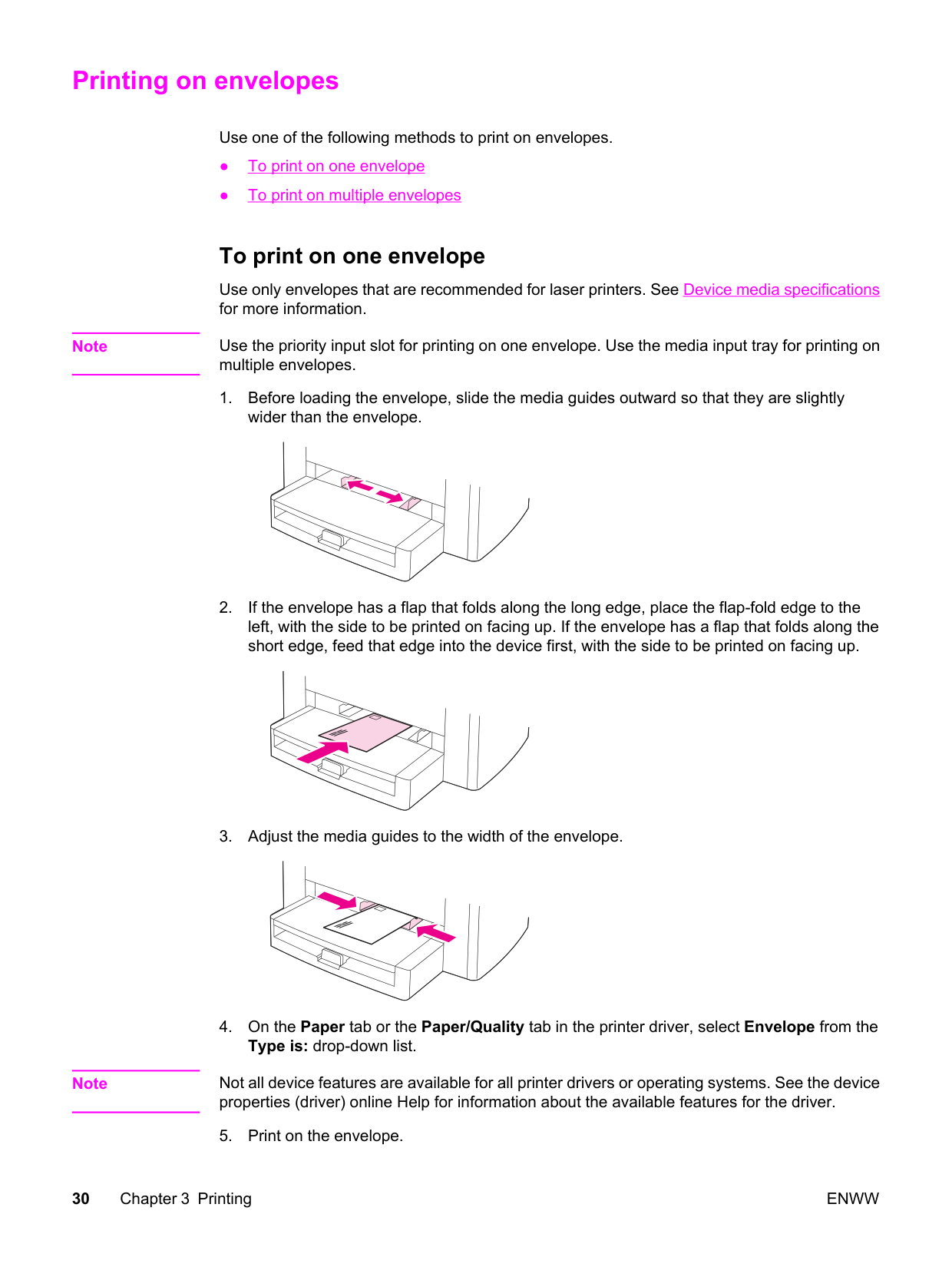
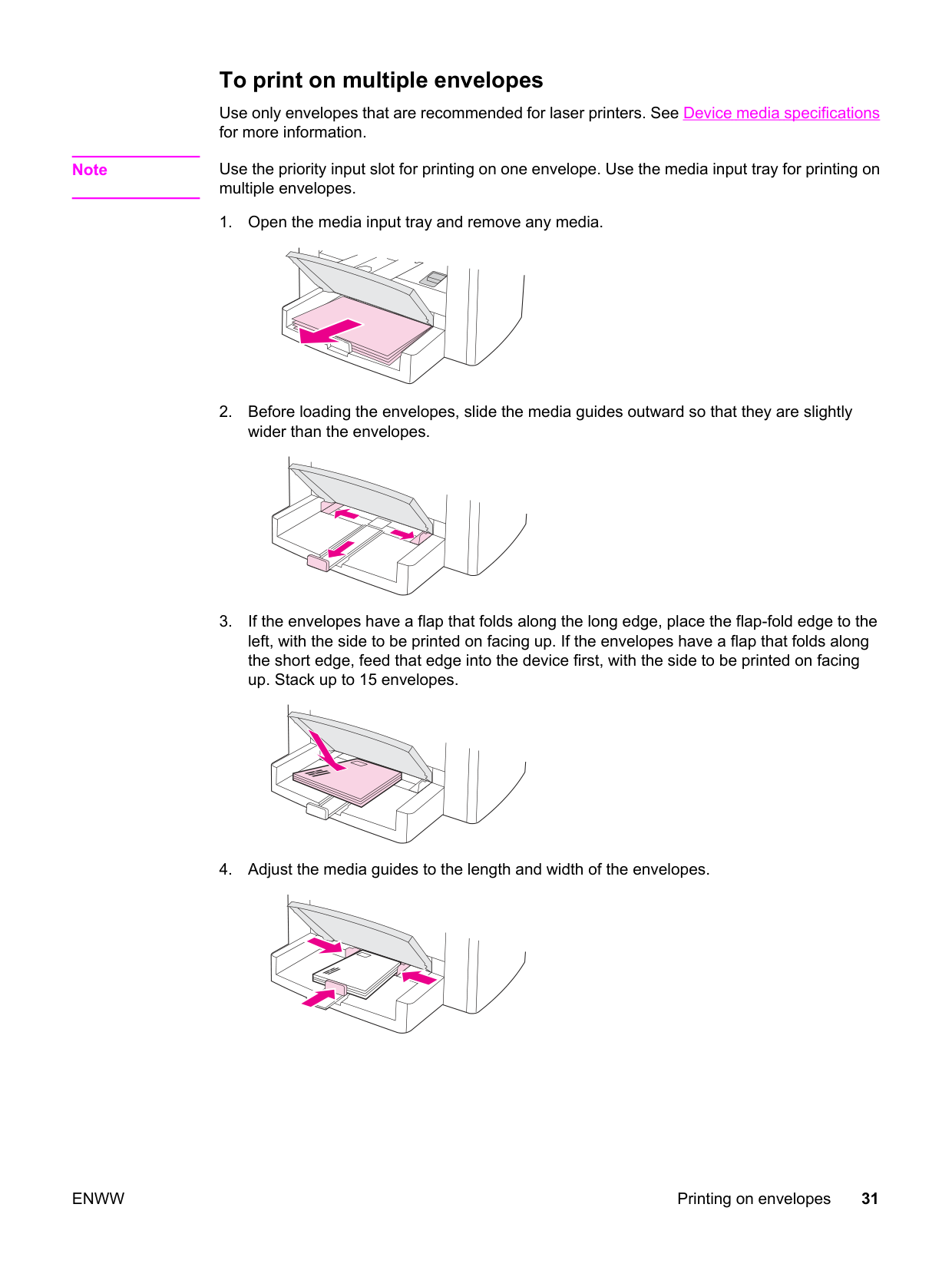
Use only envelopes that are recommended for laser printers. See Device media specifications for more information.
Note Use the priority input slot for printing on one envelope. Use the media input tray for printing on
multiple envelopes.
Note Not all device features are available for all printer drivers or operating systems. See the device
properties (driver) online Help for information about the available features for the driver.
###### To print on multiple envelopes
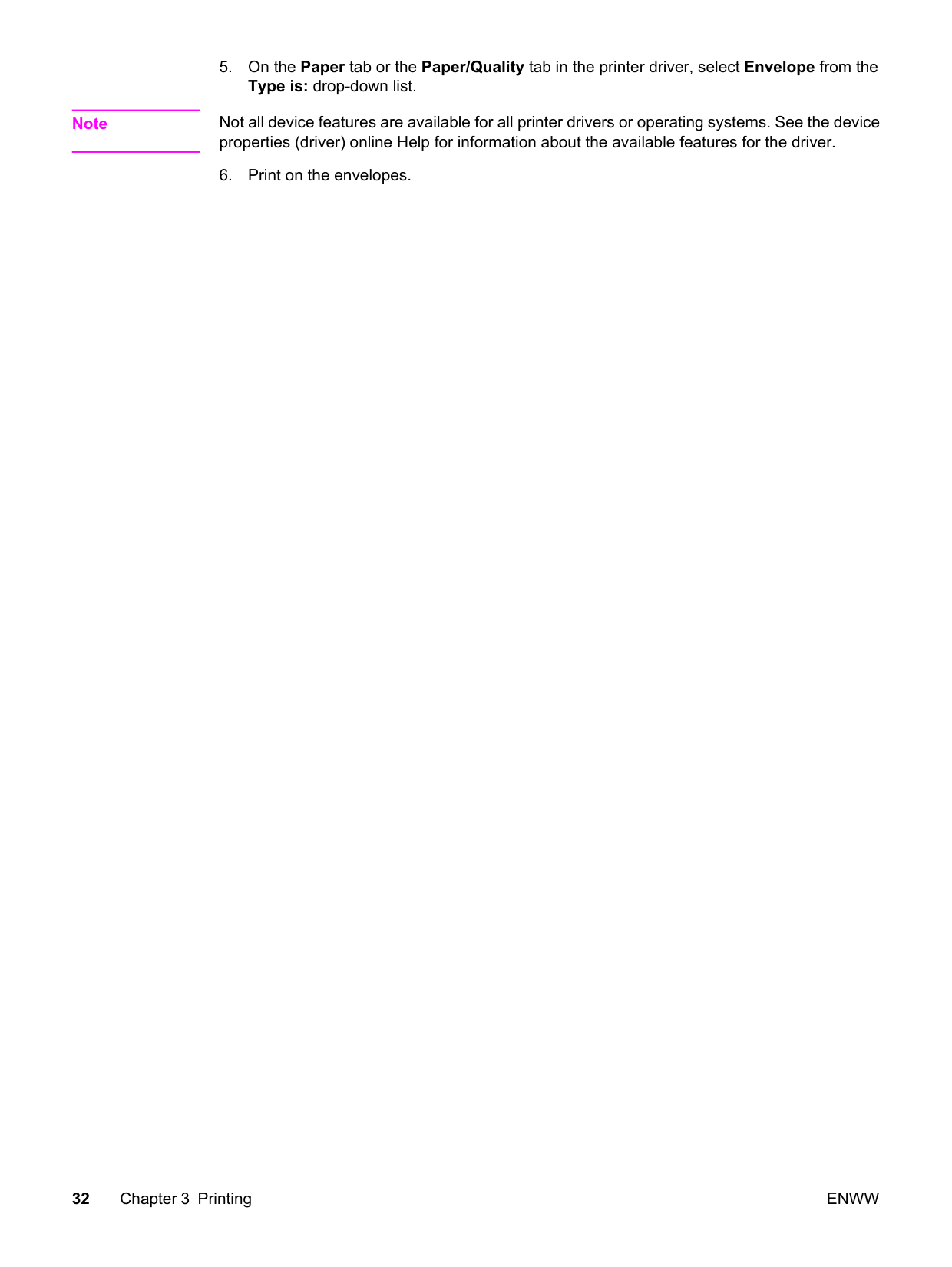
Use only envelopes that are recommended for laser printers. See Device media specifications for more information.
Note Use the priority input slot for printing on one envelope. Use the media input tray for printing on
multiple envelopes.
ENWW Printing on envelopes 31
Note Not all device features are available for all printer drivers or operating systems. See the device
properties (driver) online Help for information about the available features for the driver.
##### Printing on transparencies and labels
Use only transparencies and labels that are recommended for use in laser printers, such as HP transparency film and HP laser-quality labels. See Device media specifications for more information.
CAUTION Inspect the media to make sure that it is not wrinkled or curled and that it does not have any torn edges or missing labels. Do not send the labels through the device more than once. The adhesive can damage the device.
###### To print on transparencies or labels
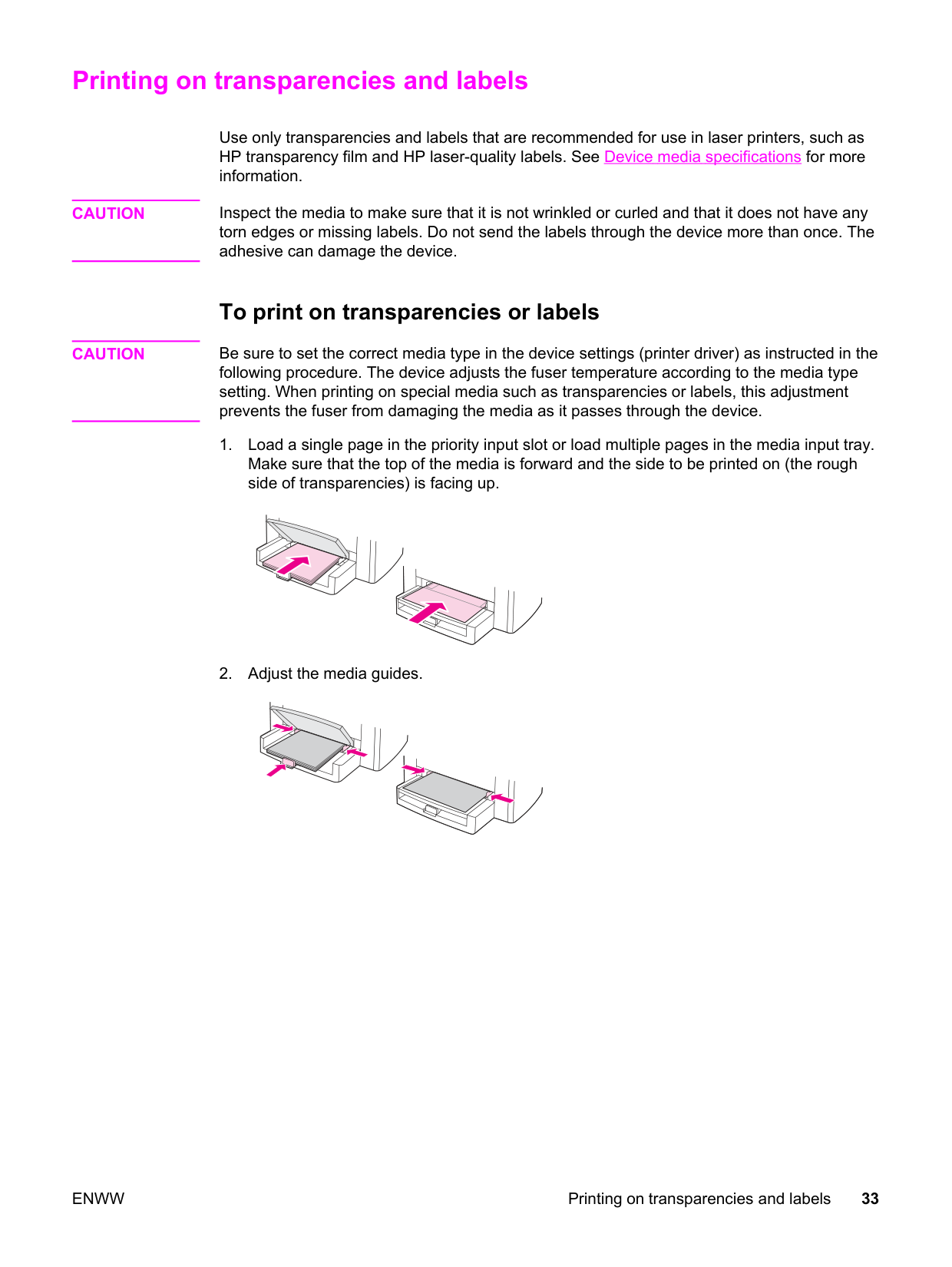
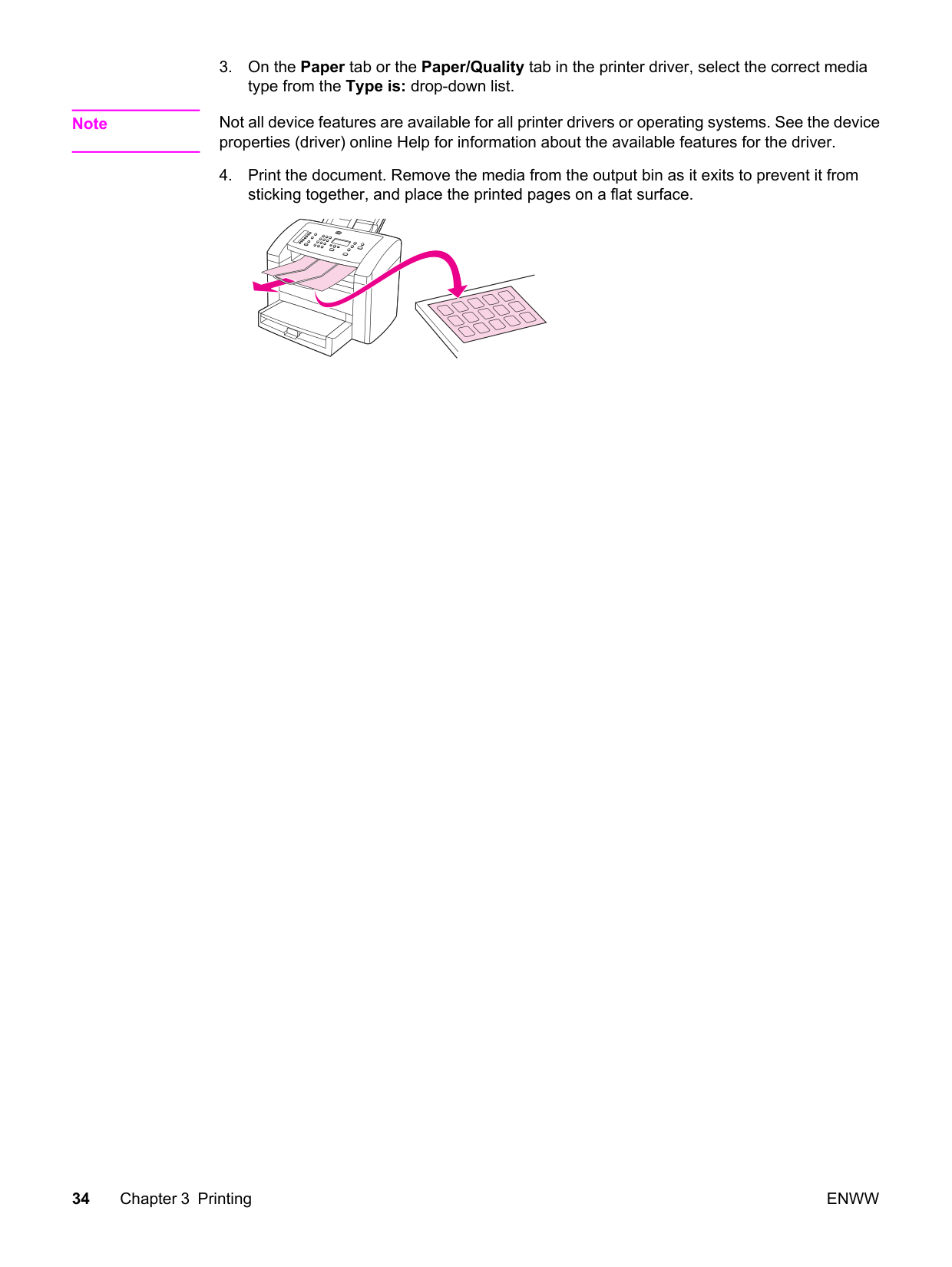
CAUTION Be sure to set the correct media type in the device settings (printer driver) as instructed in the following procedure. The device adjusts the fuser temperature according to the media type setting. When printing on special media such as transparencies or labels, this adjustment prevents the fuser from damaging the media as it passes through the device.
ENWW Printing on transparencies and labels 33
Note Not all device features are available for all printer drivers or operating systems. See the device
properties (driver) online Help for information about the available features for the driver.
##### Printing on letterhead and preprinted forms
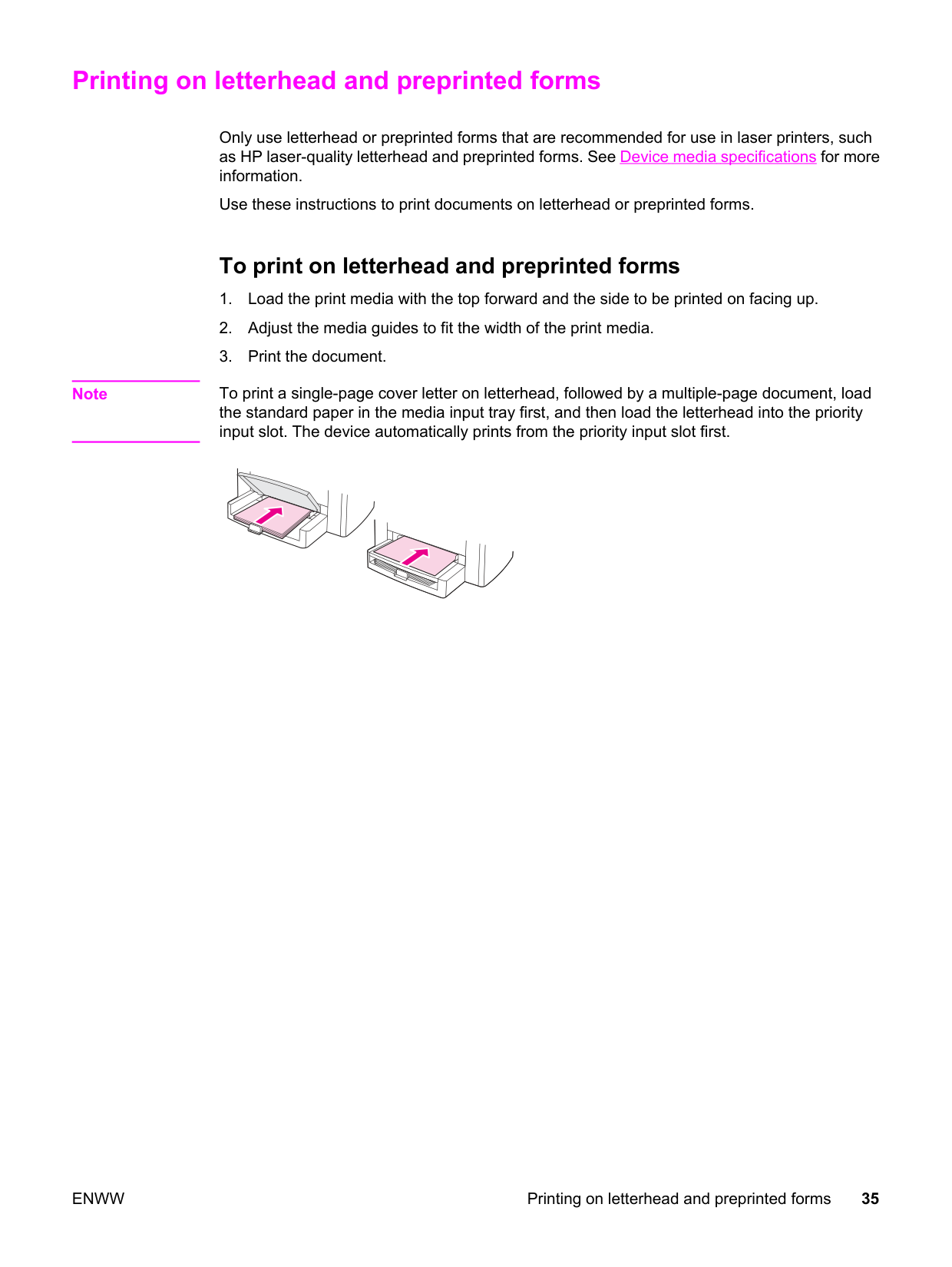
Only use letterhead or preprinted forms that are recommended for use in laser printers, such as HP laser-quality letterhead and preprinted forms. See Device media specifications for more information.
Use these instructions to print documents on letterhead or preprinted forms.
###### To print on letterhead and preprinted forms
Note To print a single-page cover letter on letterhead, followed by a multiple-page document, load the standard paper in the media input tray first, and then load the letterhead into the priority input slot. The device automatically prints from the priority input slot first.
ENWW Printing on letterhead and preprinted forms 35
##### Printing on custom-sized media or card stock
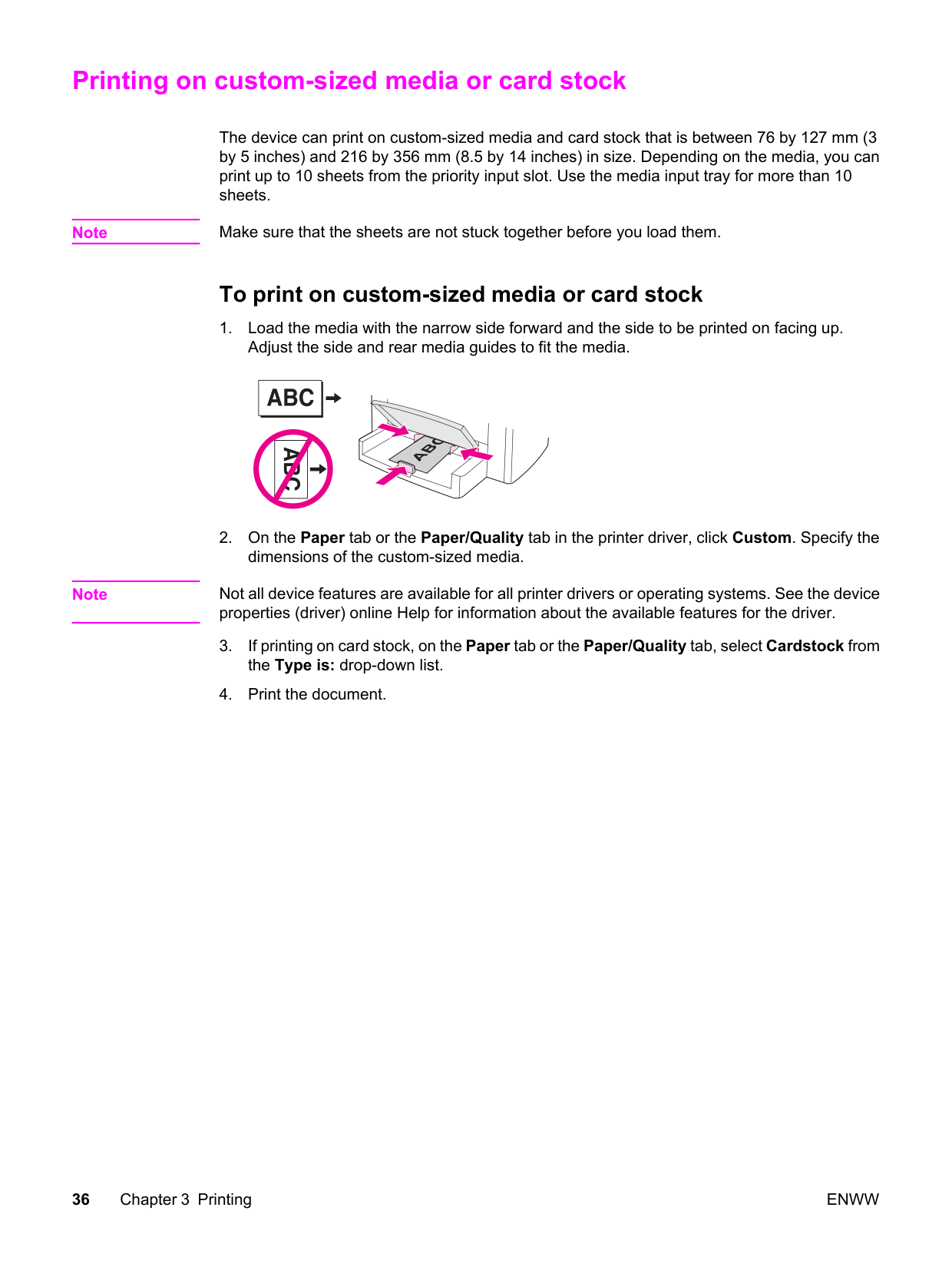
The device can print on custom-sized media and card stock that is between 76 by 127 mm (3 by 5 inches) and 216 by 356 mm (8.5 by 14 inches) in size. Depending on the media, you can print up to 10 sheets from the priority input slot. Use the media input tray for more than 10 sheets.
Note Make sure that the sheets are not stuck together before you load them.
###### To print on custom-sized media or card stock
Note Not all device features are available for all printer drivers or operating systems. See the device
properties (driver) online Help for information about the available features for the driver.
##### Printing on both sides of the media (manual duplexing)
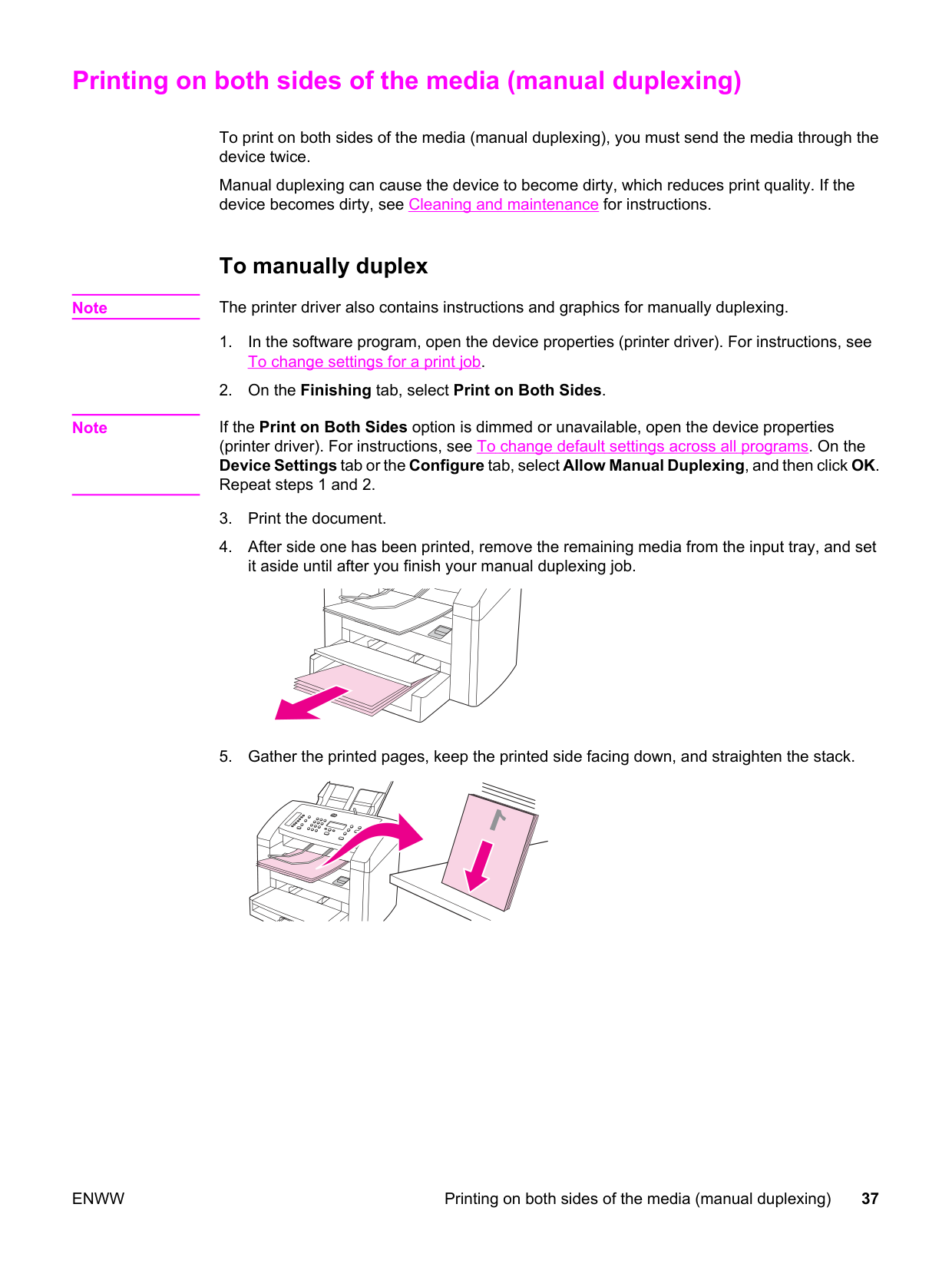
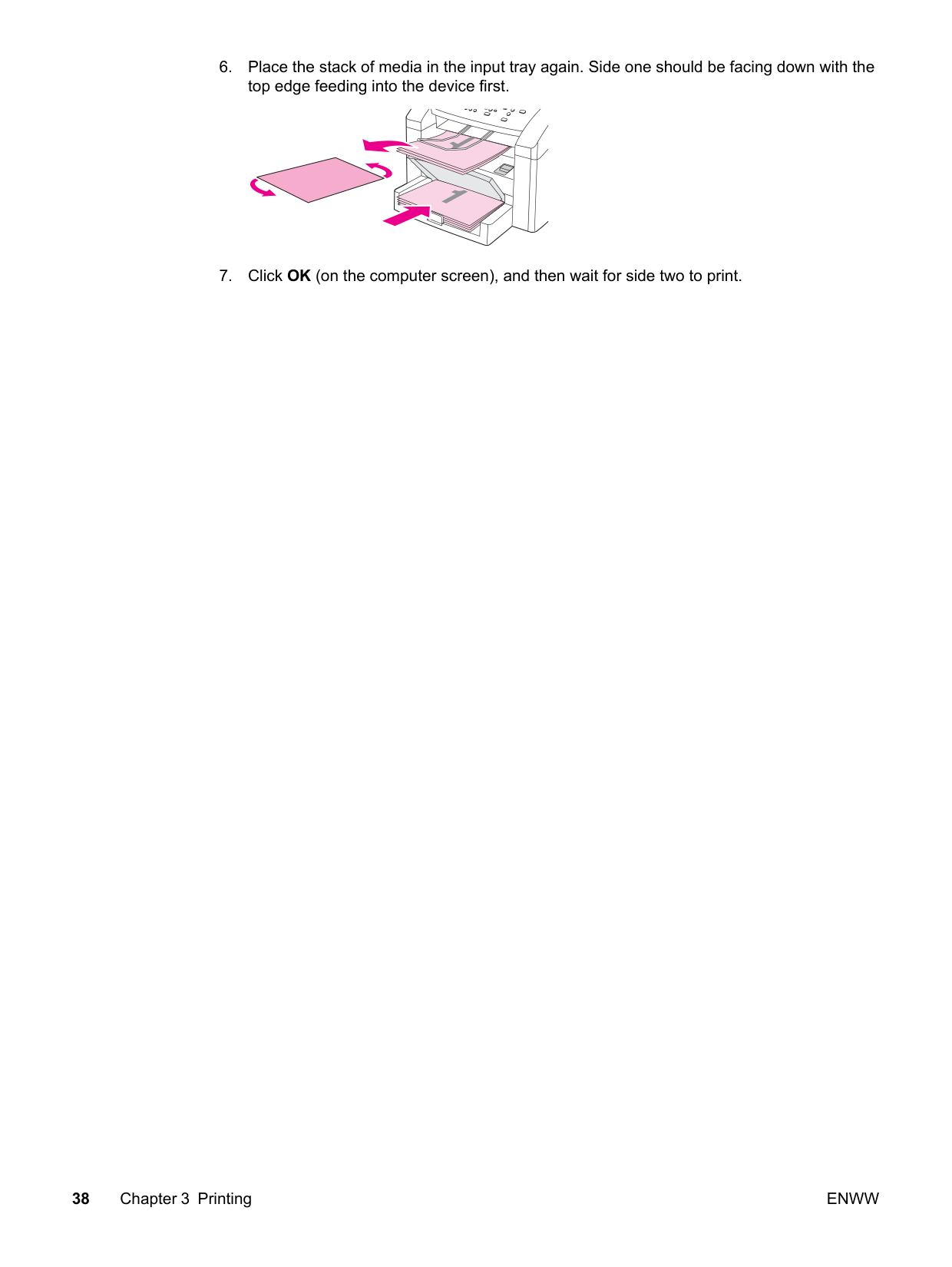
To print on both sides of the media (manual duplexing), you must send the media through the device twice.
Manual duplexing can cause the device to become dirty, which reduces print quality. If the device becomes dirty, see Cleaning and maintenance for instructions.
###### To manually duplex
Note The printer driver also contains instructions and graphics for manually duplexing.
Note If the Print on Both Sides option is dimmed or unavailable, open the device properties (printer driver). For instructions, see To change default settings across all programs. On the Device Settings tab or the Configure tab, select Allow Manual Duplexing, and then click OK. Repeat steps 1 and 2.
ENWW Printing on both sides of the media (manual duplexing) 37
##### Printing multiple pages on a single sheet of media
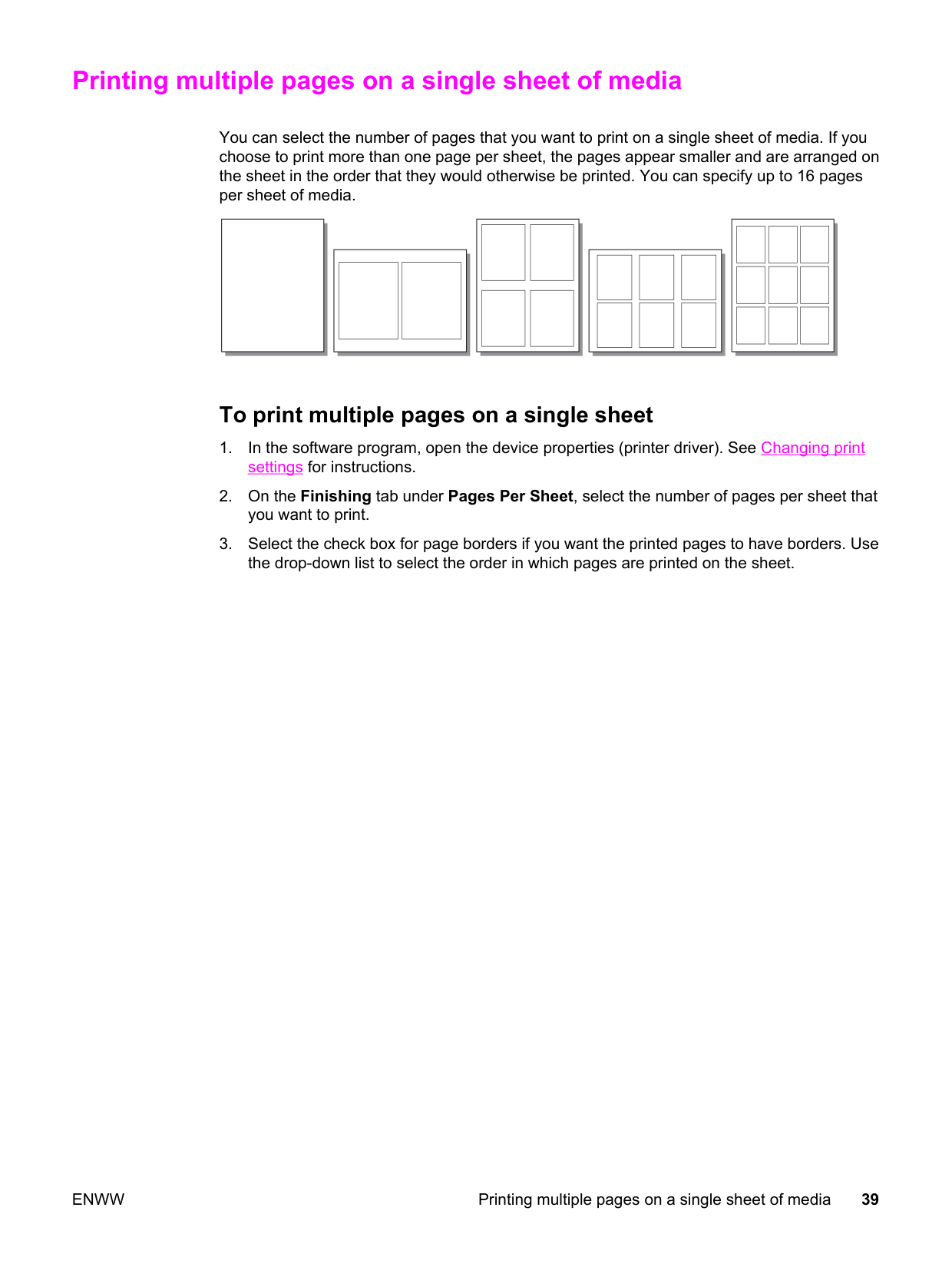
You can select the number of pages that you want to print on a single sheet of media. If you choose to print more than one page per sheet, the pages appear smaller and are arranged on the sheet in the order that they would otherwise be printed. You can specify up to 16 pages per sheet of media.
###### To print multiple pages on a single sheet
ENWW Printing multiple pages on a single sheet of media 39
##### Printing booklets
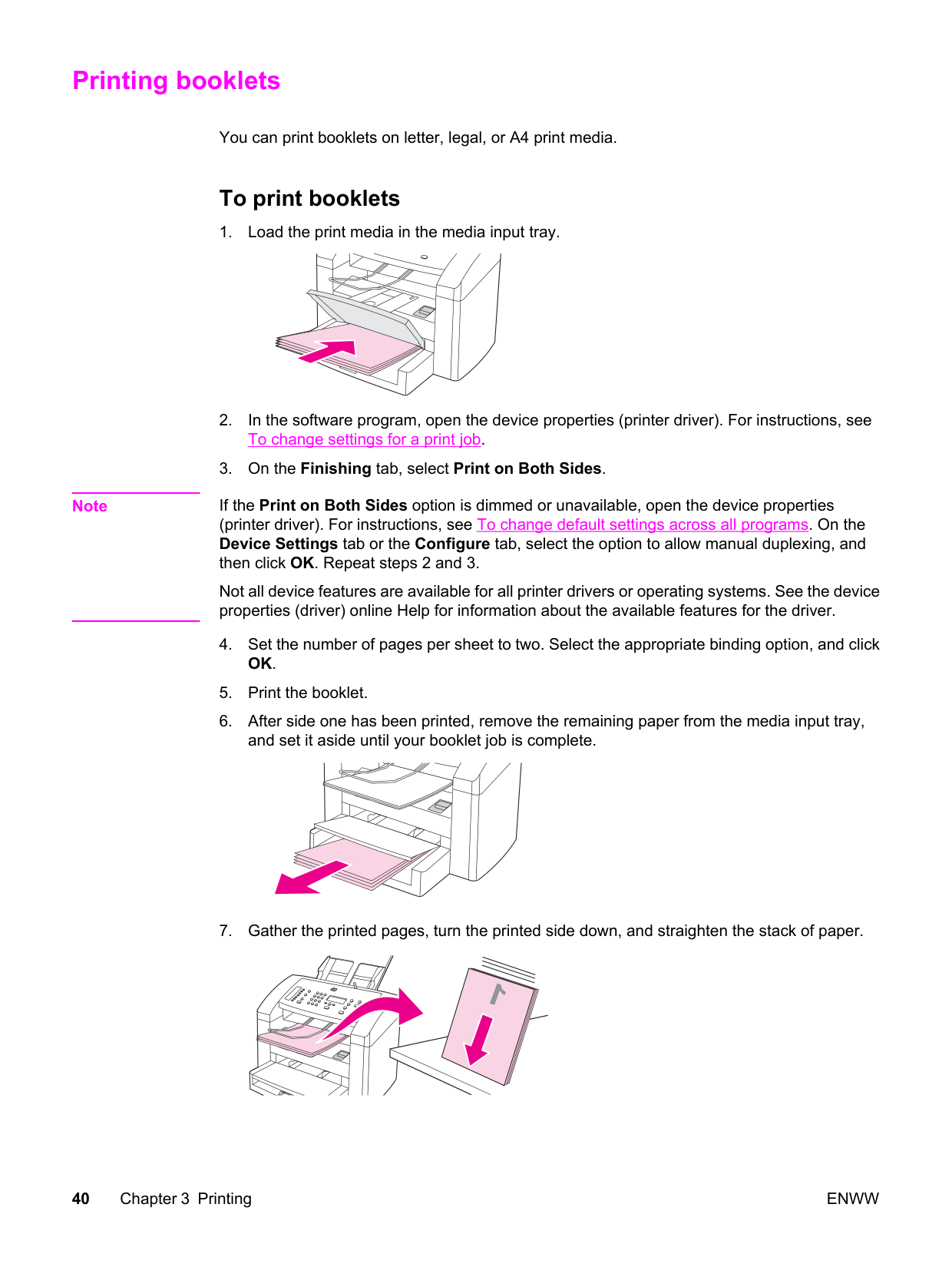
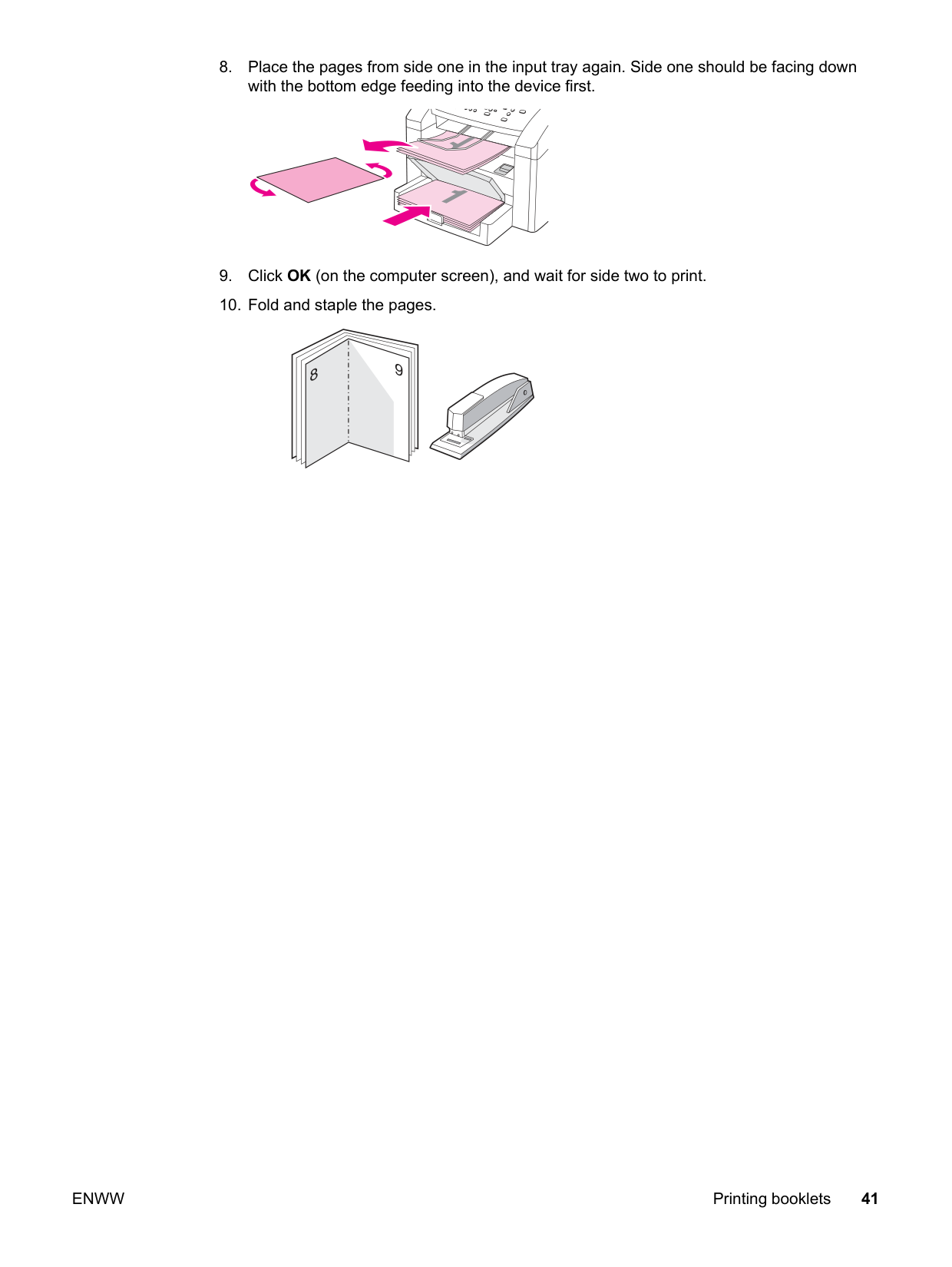
You can print booklets on letter, legal, or A4 print media.
###### To print booklets
Note If the Print on Both Sides option is dimmed or unavailable, open the device properties
(printer driver). For instructions, see To change default settings across all programs. On the Device Settings tab or the Configure tab, select the option to allow manual duplexing, and then click OK. Repeat steps 2 and 3.
Not all device features are available for all printer drivers or operating systems. See the device properties (driver) online Help for information about the available features for the driver.
ENWW Printing booklets 41
##### Printing watermarks
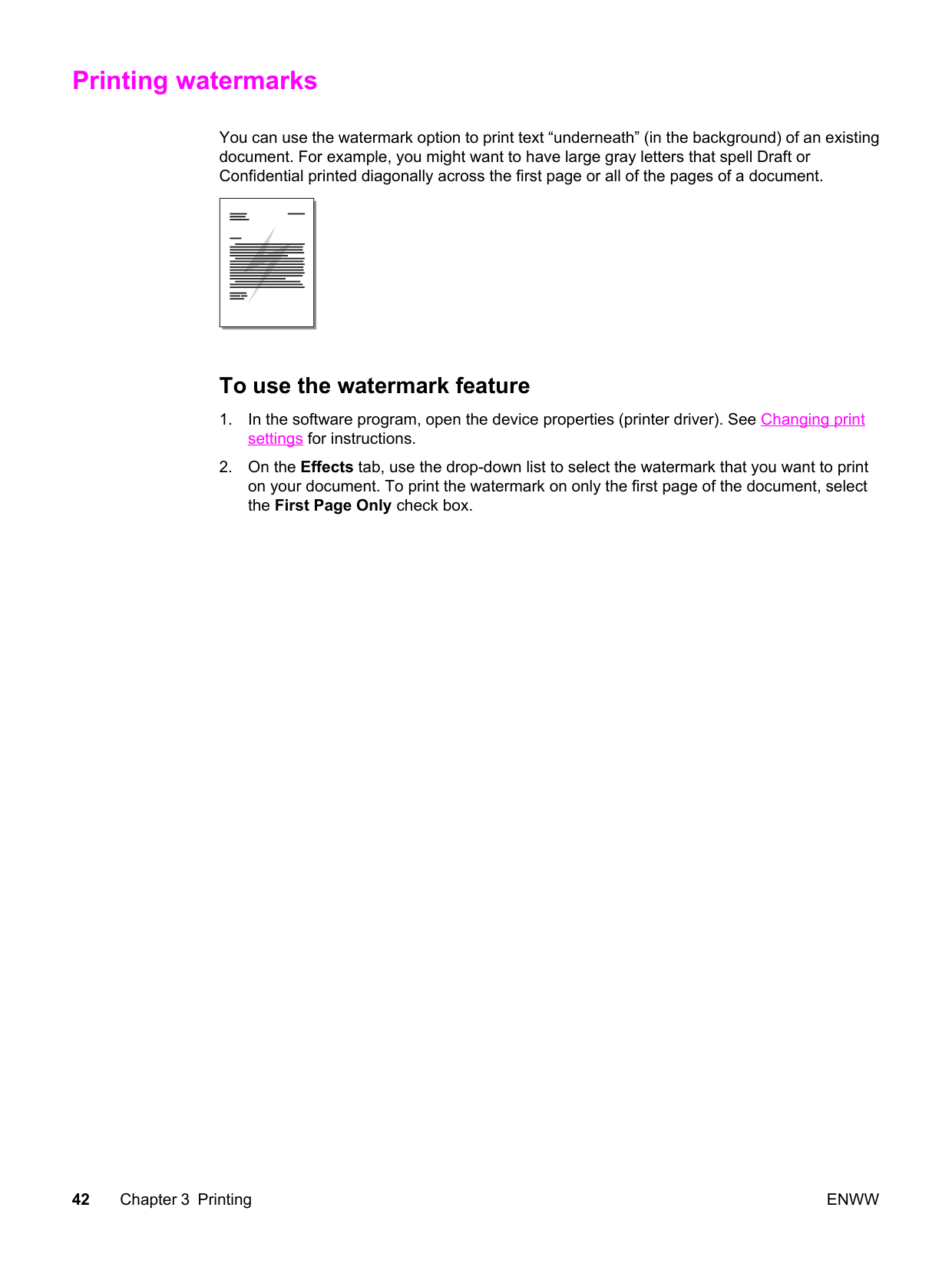
You can use the watermark option to print text “underneath” (in the background) of an existing document. For example, you might want to have large gray letters that spell Draft or Confidential printed diagonally across the first page or all of the pages of a document.
###### To use the watermark feature
4
Copying
Use these instructions to perform copying tasks with your device:
Note Many of the functions that are described in this chapter also can be performed by using the HP
toolbox. For instructions about using the HP toolbox, see Using the hp toolbox.
ENWW 43
##### Loading originals to copy
Use these instructions to load originals into your device for copying. See Selecting media for the automatic document feeder (ADF) for information about choosing original documents for copying.
###### To load originals into the automatic document feeder (ADF) input tray
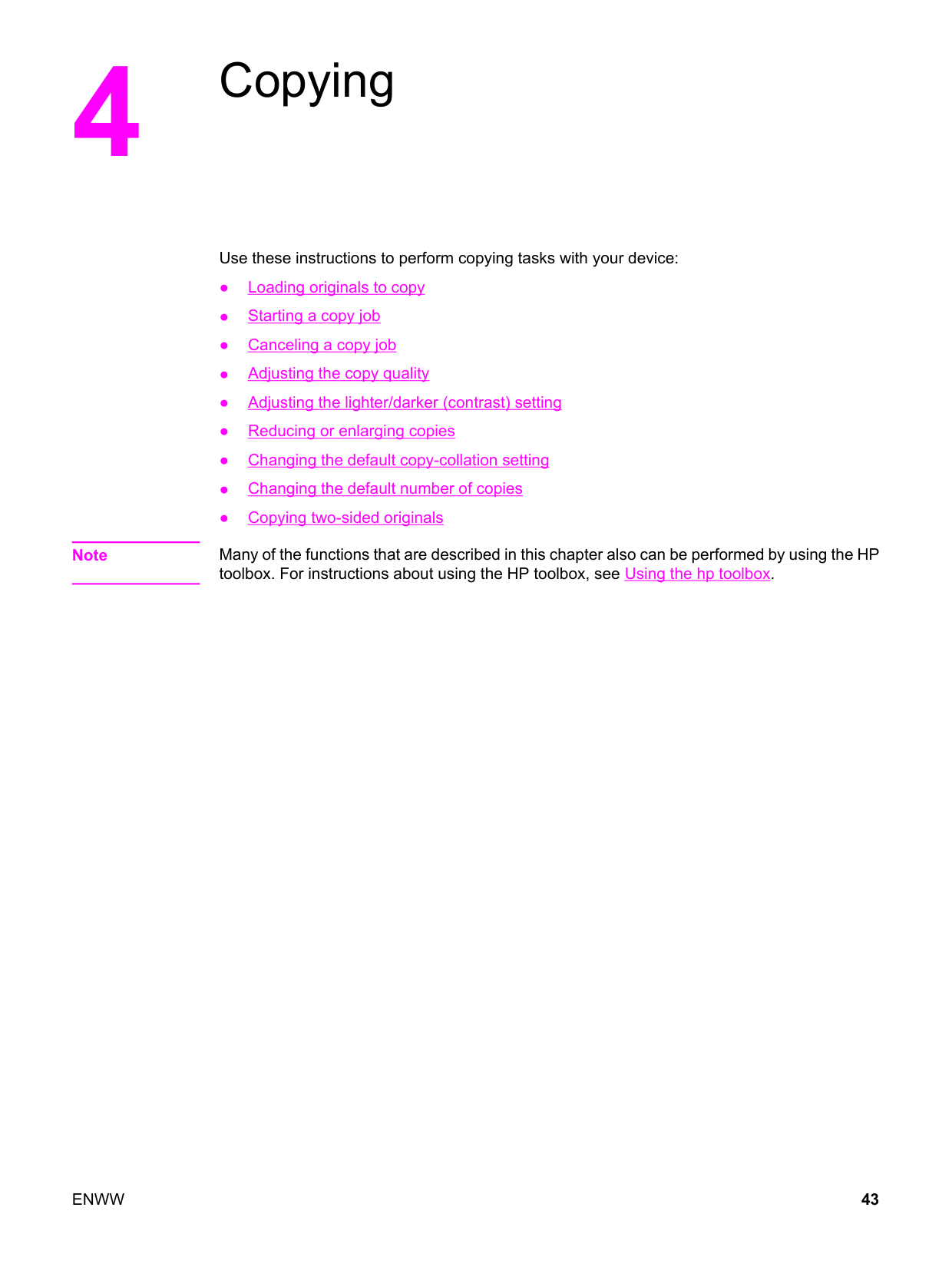
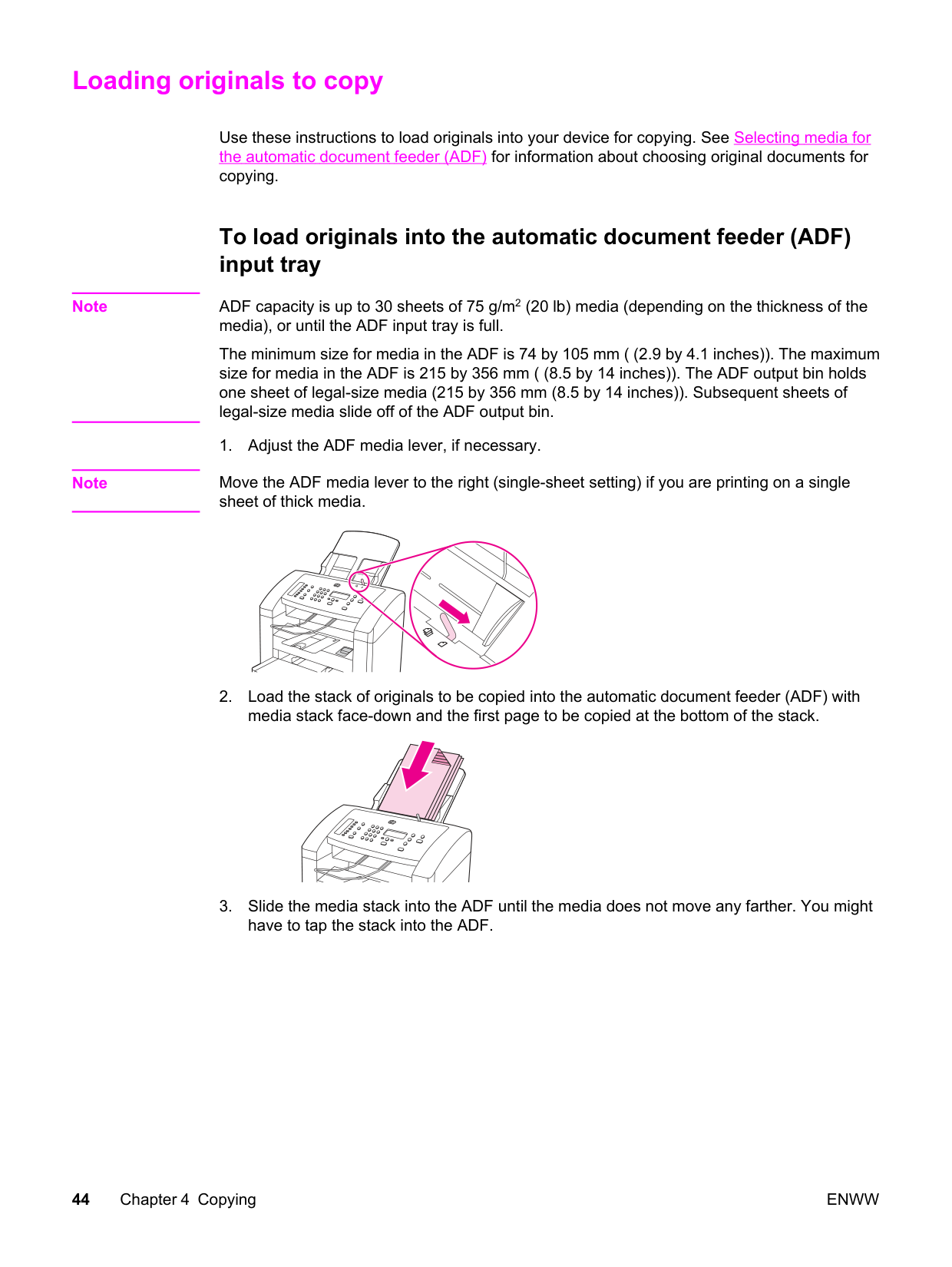
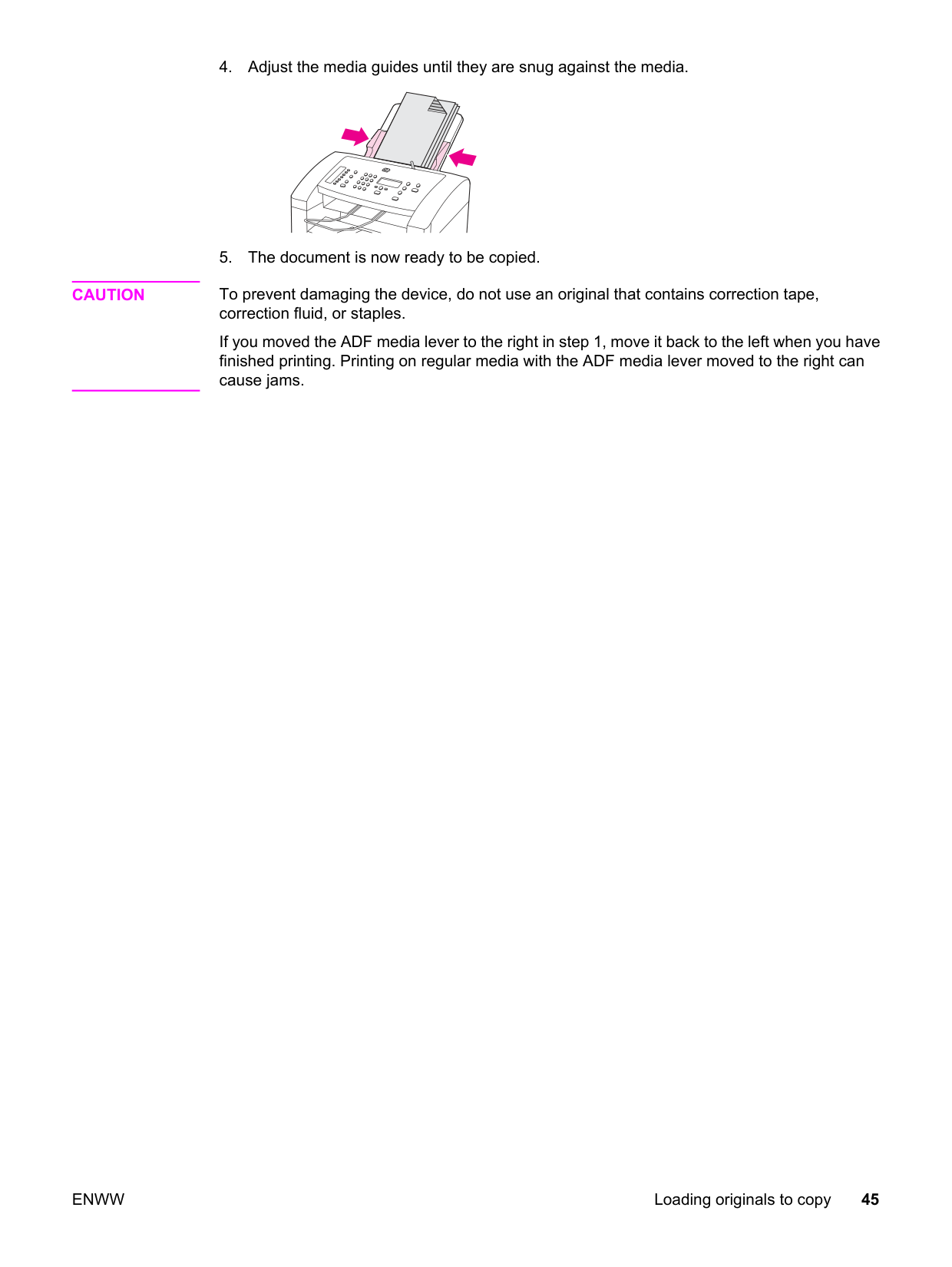
Note ADF capacity is up to 30 sheets of 75 g/m2 (20 lb) media (depending on the thickness of the media), or until the ADF input tray is full. The minimum size for media in the ADF is 74 by 105 mm ( (2.9 by 4.1 inches)). The maximum size for media in the ADF is 215 by 356 mm ( (8.5 by 14 inches)). The ADF output bin holds one sheet of legal-size media (215 by 356 mm (8.5 by 14 inches)). Subsequent sheets of legal-size media slide off of the ADF output bin.
Note Move the ADF media lever to the right (single-sheet setting) if you are printing on a single
sheet of thick media.
CAUTION To prevent damaging the device, do not use an original that contains correction tape, correction fluid, or staples. If you moved the ADF media lever to the right in step 1, move it back to the left when you have finished printing. Printing on regular media with the ADF media lever moved to the right can cause jams.
ENWW Loading originals to copy 45
##### Starting a copy job
To make copies with your device, use the following instructions.
For more detailed instructions about loading originals into the ADF input tray, see Loading originals to copy.
##### Canceling a copy job
To cancel a copy job, press CANCEL on the device control panel. If more than one process is running, pressing CANCEL clears the process that currently appears on the device control panel display.
Note If you cancel a copy job, clear the original document from the automatic document feeder
(ADF).
##### Adjusting the copy quality
The factory-set default for copy quality is Text. This setting is the best for items that contain mostly text.
When making a copy of a photo or graphic, you can select the Photo setting to increase the quality of your copy, or select the Best Photo setting for the highest photo quality.
If you want to conserve toner, and the copy quality is not as important, select Draft.
###### To adjust the copy quality for the current job
Note The change in the copy quality setting remains active for about two minutes after the copy job has been completed. During this time, Settings=Custom appears on the device control panel display.
###### To adjust the default copy quality
ENWW Adjusting the copy quality 47
##### Adjusting the lighter/darker (contrast) setting
The lighter/darker setting affects the lightness or darkness (contrast) of the copy. Use the following procedure to change the contrast for the current copy job only.
###### To adjust the lighter/darker setting for the current job
Note The change in the setting remains active for about two minutes after the copy job has been
completed. During this time, Settings=Custom appears on the device control panel display.
###### To adjust the default lighter/darker setting
##### Reducing or enlarging copies
The device can reduce copies to as little as 25 percent of the original or enlarge copies to as much as 400 percent of the original. It can also make the following reductions or enlargements automatically:
Note You must change the default paper size in the media input tray to match the output size, or
part of your copy might be cut off. For instructions, see Changing the default media size.
Note After selecting the 2 pages/sheet or 4 pages/sheet option, you must select the page
orientation (portrait or landscape).
###### To reduce or enlarge copies for the current job
To reduce or enlarge copies for the current job only, use the following instructions.
If you select 2 pages/sheet or 4 pages/sheet, select the orientation (portrait or landscape).
Note The change in the setting remains active for about two minutes after the copy job has been
completed. During this time, Settings=Custom appears on the device control panel display.
###### To change the default copy size
The default copy size is the size to which copies are normally reduced or enlarged. If you keep the factory-default size setting of Original=100%, all copies will be the same size as the original document.
######### 4. Use the < or the > button to select the option for how you normally want to reduce orenlarge copies. You can select:
If you select Custom: 25-400%, type in the percentage of the original size that you normally want for copies.
If you select 2 pages/sheet or 4 pages/sheet, select the orientation (portrait or landscape).
######### 5. Press MENU/ENTER to save your selection.
##### Changing the default copy-collation setting
You can set the device to automatically collate multiple copies into sets. For example, if you are making two copies of three pages and the automatic collation is on, the pages print in this order: 1,2,3,1,2,3. If automatic collation is off, the pages print in this order: 1,1,2,2,3,3.
To use the automatic collation, the original document must fit into the memory. If it does not, the device makes only one copy and a message appears notifying you of the change. If that happens, use one of the following methods to finish the job:
The collation setting can also be changed from the device software. For instructions about changing settings from the device software, see Changing print settings.
###### To change the default copy-collation setting
Note The factory-set default for automatic copy collation is On.
##### Changing the default number of copies
You can choose to have the default number of copies be any number from 1 to 99.
###### To change the default number of copies
Note The factory-set default for the number of copies is 1.
ENWW Changing the default number of copies 53
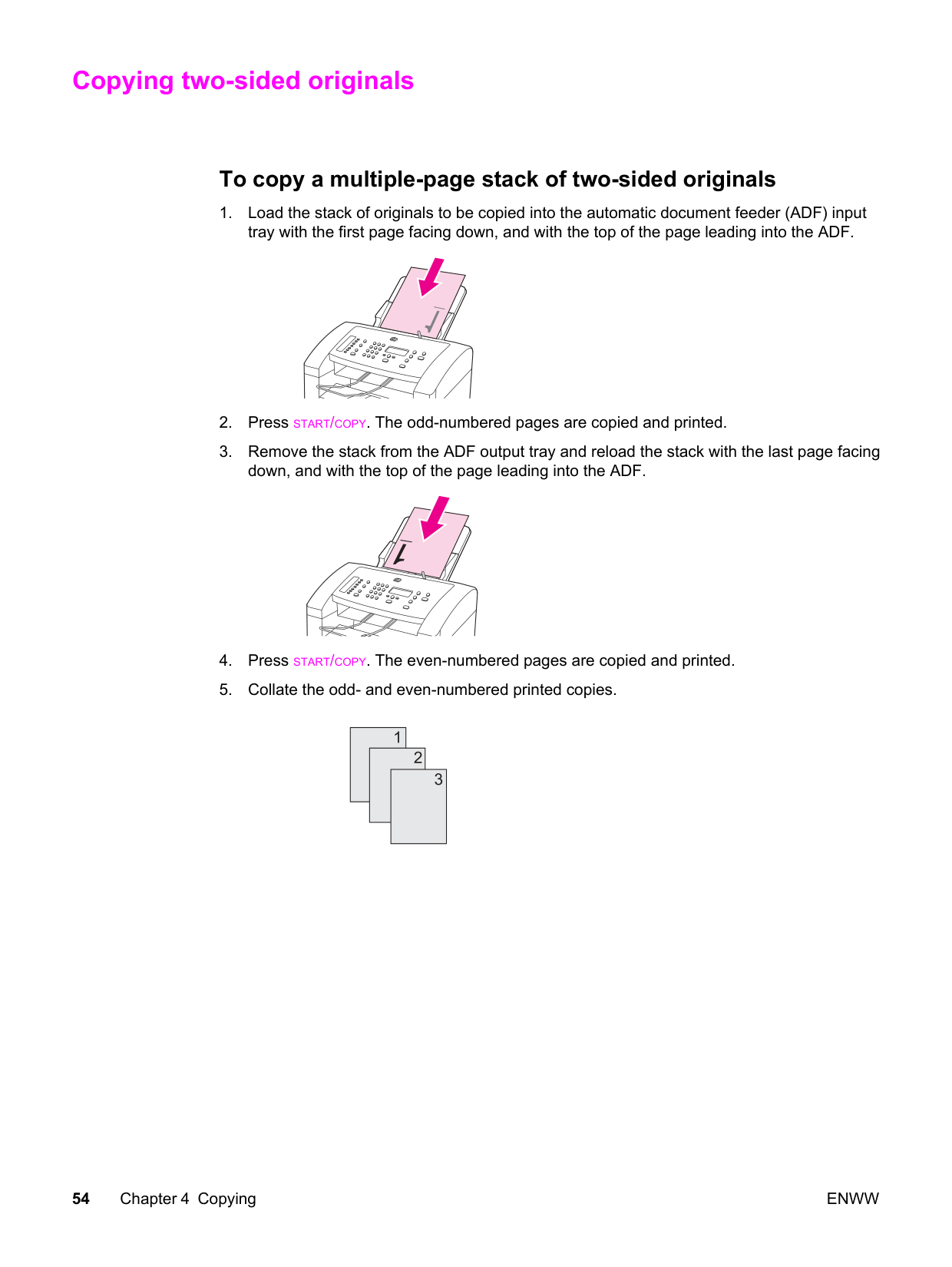
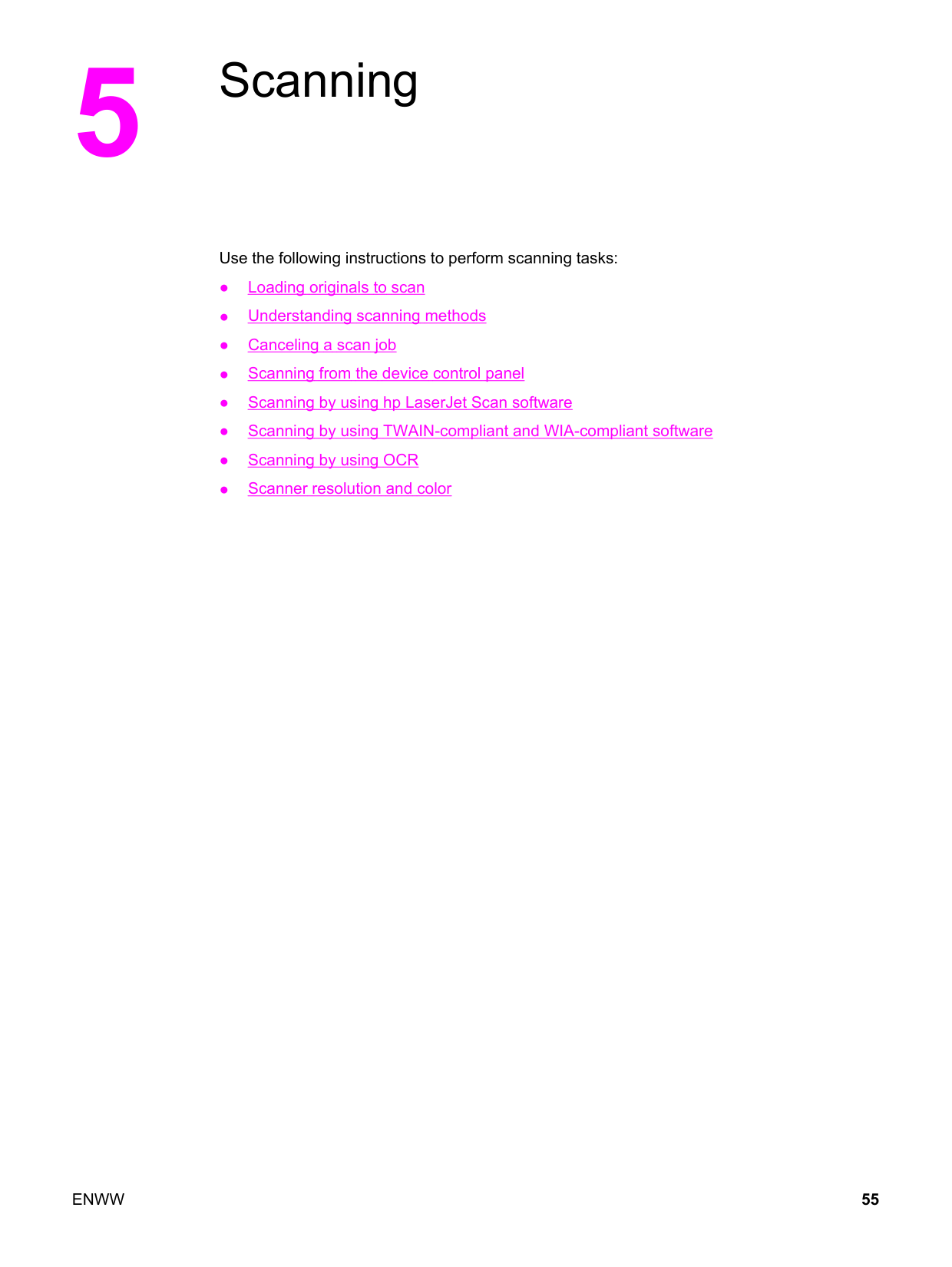
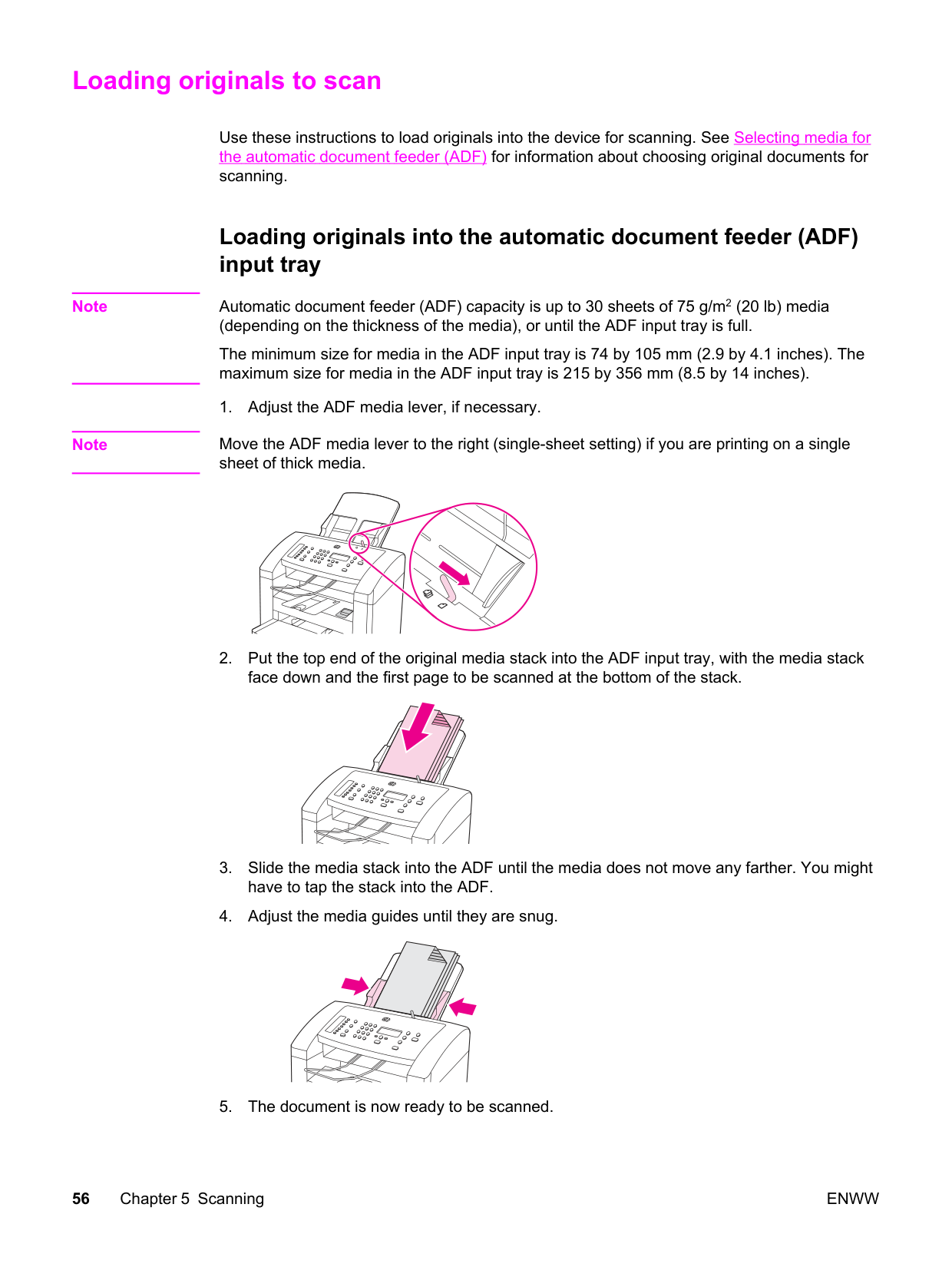
##### Copying two-sided originals

###### To copy a multiple-page stack of two-sided originals
| | |---|
5
Scanning
Use the following instructions to perform scanning tasks:
ENWW 55
##### Loading originals to scan
Use these instructions to load originals into the device for scanning. See Selecting media for the automatic document feeder (ADF) for information about choosing original documents for scanning.
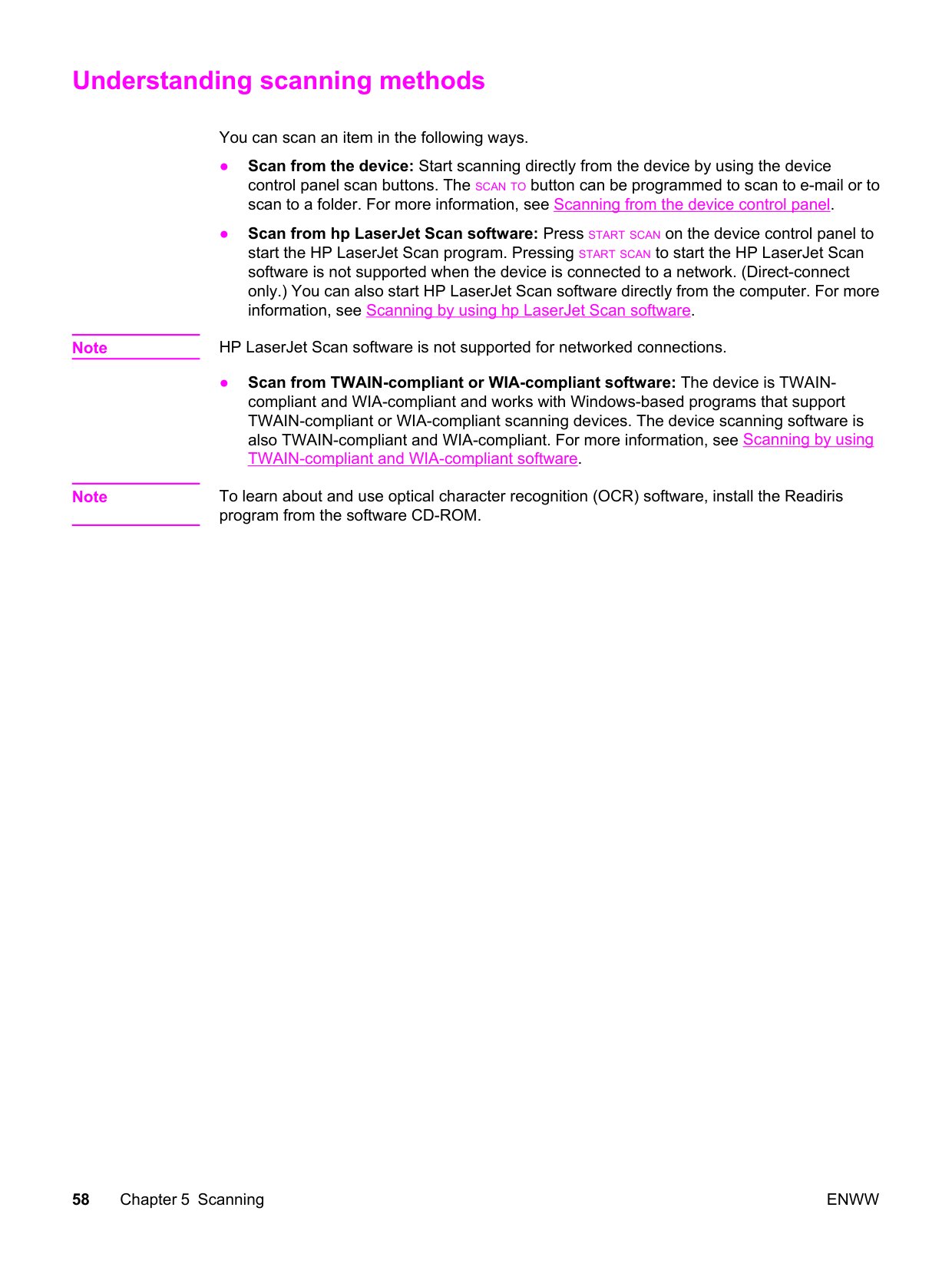
###### Loading originals into the automatic document feeder (ADF) input tray
Note Automatic document feeder (ADF) capacity is up to 30 sheets of 75 g/m2 (20 lb) media (depending on the thickness of the media), or until the ADF input tray is full. The minimum size for media in the ADF input tray is 74 by 105 mm (2.9 by 4.1 inches). The maximum size for media in the ADF input tray is 215 by 356 mm (8.5 by 14 inches).
Note Move the ADF media lever to the right (single-sheet setting) if you are printing on a single
sheet of thick media.
CAUTION To prevent damaging the device, do not use an original that has correction fluid, correction tape, or staples. If you moved the ADF media lever to the right in step 1, move it back to the left when you have finished printing. Printing on regular media with the ADF media lever moved to the right can cause jams.
ENWW Loading originals to scan 57
##### Understanding scanning methods
You can scan an item in the following ways.
Note HP LaserJet Scan software is not supported for networked connections.
● Scan from TWAIN-compliant or WIA-compliant software: The device is TWAINcompliant and WIA-compliant and works with Windows-based programs that support TWAIN-compliant or WIA-compliant scanning devices. The device scanning software is also TWAIN-compliant and WIA-compliant. For more information, see Scanning by using TWAIN-compliant and WIA-compliant software.
Note To learn about and use optical character recognition (OCR) software, install the Readiris
program from the software CD-ROM.
##### Canceling a scan job
To cancel a scan job, use one of the following procedures.
If you cancel a scan job, remove the original document from the automatic document feeder (ADF) input tray.
ENWW Canceling a scan job 59
##### Scanning from the device control panel
Use the following instructions to scan directly from the device control panel. Note The computer that is connected to the device must be turned on.
###### Programming the Scan to button
To program the device SCAN TO button, you must gain access to the device settings. Go to the Scan section of the HP toolbox and click the Scan to... tab. For more information, see the HP toolbox Help.
###### Scanning to e-mail
To scan to e-mail by using the SCAN TO button on the device control panel, use the following procedure:
Note To use this feature, an e-mail recipient must be programmed in the Scan to... tab. See
Programming the Scan to button.
###### Scanning to a folder
To scan to a folder by using the SCAN TO button on the device control panel, use the following instructions.
Note To use this feature, a folder must be set up in the Scan to... tab prior to use. See
Programming the Scan to button.
##### Scanning by using hp LaserJet Scan software
Use the HP LaserJet Scan software program to scan an item to any of the following:
For more detailed instructions about loading original documents into the automatic document feeder (ADF), see Loading originals to scan.
###### Scanning to e-mail
Press START SCAN on the device. HP LaserJet Scan software opens on the computer. Pressing START SCAN to start the HP LaserJet Scan software is not supported when the device is connected to a network. (Direct-connect only.)
Note You can save the settings using the Quick Sets option on the General tab. If you then select the check box after saving a Quick Set, the saved settings will be the default settings the next time you scan to e-mail.
Note If no e-mail recipient is entered on the E-mail tab, the original is scanned and attached to a new e-mail message, but is not sent. You can then enter an e-mail recipient, add text or other attachments, and then send the message.
The options that you set in step 6 are for the current job only, unless you save them as a Quick Set.
###### To scan to a file
Press START SCAN on the device. HP LaserJet Scan software opens on the computer. Pressing START SCAN to start the HP LaserJet Scan software is not supported when the device is connected to a network. (Direct-connect only.)
Note You can save the settings using the Quick Sets option on the General tab. If you then select the check box after saving a Quick Set, the saved settings will be the default settings the next time you scan to a file.
Note The options that you set in step 6 are for the current job only, unless you save them as a
Quick Set.
###### Scanning to another software program
Scanning to another software program allows you to scan to a program that is not TWAINcompliant or WIA-compliant.
Press START SCAN on the device. HP LaserJet Scan software opens on the computer. Pressing START SCAN to start the HP LaserJet Scan software is not supported when the device is connected to a network. (Direct-connect only.)
Note You can save the settings using the Quick Sets option on the General tab. If you then select the check box after saving a Quick Set, the saved settings will be the default settings the next time you scan to another software program.
Note The options that you set in step 6 are for the current job only, unless you save them as a
Quick Set.
###### Scanning to the Readiris OCR software
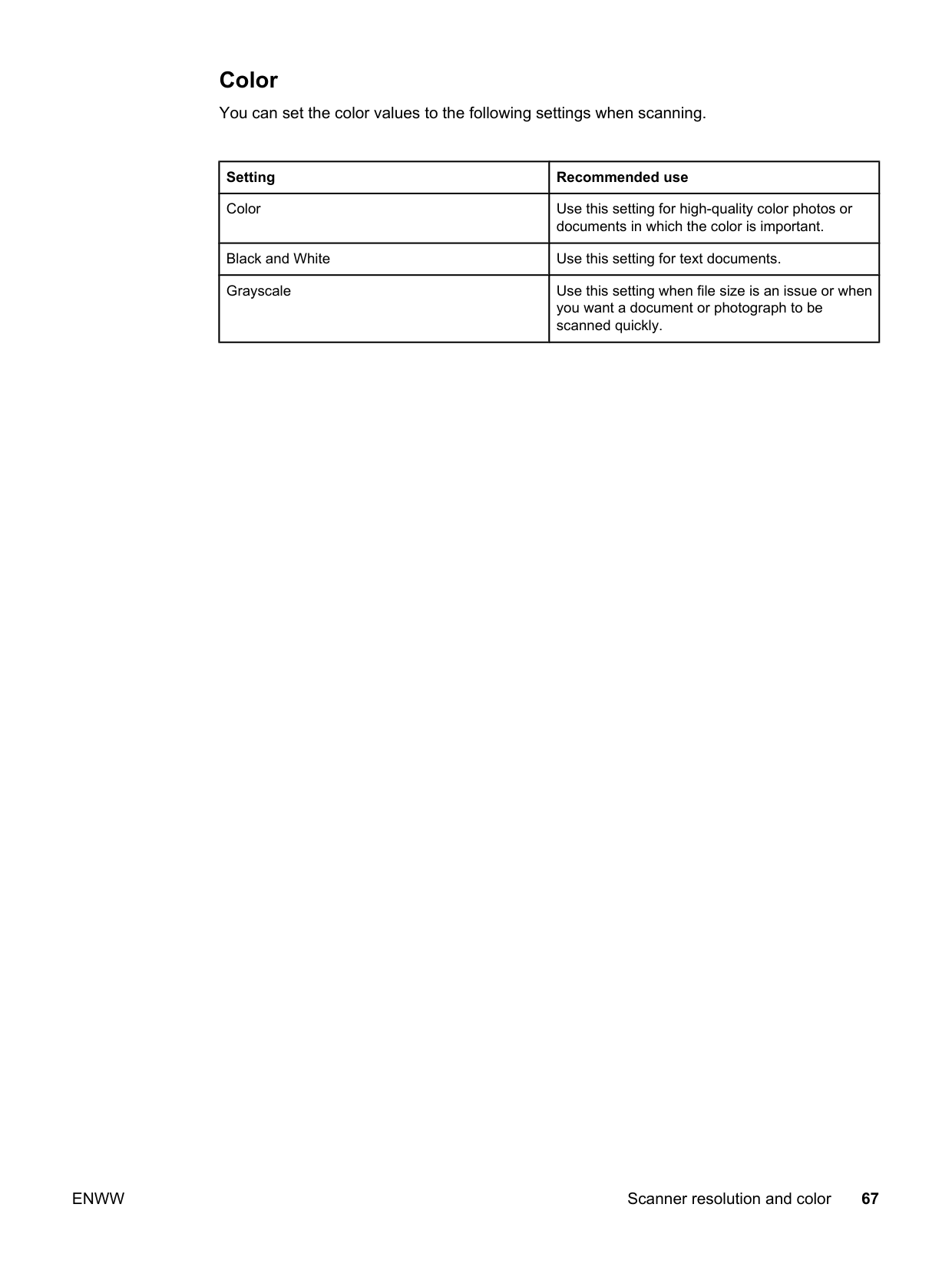
Press START SCAN on the device. HP LaserJet Scan software opens on the computer. Pressing START SCAN to start the HP LaserJet Scan software is not supported when the device is connected to a network. (Direct-connect only.)
Note Readiris must be installed on the computer before the device can scan to the Readiris OCR program. The software CD-ROM that came with the device includes the Readiris OCR program.
##### Scanning by using TWAIN-compliant and WIA-compliant software
The device is TWAIN-compliant and Windows Imaging Application (WIA)-compliant. The device works with Windows-based programs that support TWAIN-compliant or WIA-compliant scanning devices.
Note If the software program you are using is not TWAIN-compliant or WIA-compliant, see
Scanning to another software program.
###### Using TWAIN-compliant and WIA-compliant software

While you are in a TWAIN-enabled or WIA-enabled program, you can gain access to the scanning feature and scan an image directly into the open program. For more information, see the Help file or the documentation that came with your TWAIN-compliant or WIA-compliant software program.
Scanning from a TWAIN-enabled program Generally, a software program is TWAIN-enabled if it has a command such as Acquire, File Acquire, Scan, Import New Object, Insert from, or Scanner. If you are unsure whether the program is compliant or you do not know what the command is called, see the software program Help or documentation.
When scanning from a TWAIN-enabled program, the HP LaserJet Scan software might start automatically. If the HP LaserJet Scan software starts, you can make changes while you are previewing the image. If the program does not start automatically, the image goes to the TWAIN-enabled program immediately.
######## To scan from a TWAIN-enabled program
Start the scan from within the TWAIN-enabled program. See the software program Help or documentation for information about the commands and steps to use.
####### Scanning from a WIA-enabled program (Windows XP only)
WIA is another way to scan an image directly into a software program, such as Microsoft® Word. WIA uses Microsoft software to scan, instead of HP LaserJet Scan software.
Generally, a software program is WIA-enabled if it has a command such as Picture/From Scanner or Camera in the Insert or File menu. If you are unsure whether the program is WIA-enabled, see the software program Help or documentation.
######## To scan from a WIA-enabled program
Start the scan from within the WIA-enabled program. See the software program Help or documentation for information about the commands and steps to use.
######## OR

In the Cameras and Scanner folder, double-click the device icon. This opens the standard WIA-enabled software program, which enables you to scan to a file.
##### Scanning by using OCR
You can use OCR software to import scanned text into your preferred word-processing program for editing.
###### Readiris
The software CD-ROM includes the Readiris OCR program. If you want to use the Readiris program, install it from the software CD-ROM, and then follow the instructions in the online Help.
ENWW Scanning by using OCR 65
##### Scanner resolution and color
If you are printing a scanned image, and the quality is not what you expected, you might have selected a resolution or color setting in the scanner software that does not match your needs. Resolution and color affect the following features of scanned images:

Resolution is measured in dots per inch (dpi). Color, grayscale, and black and white define the number of colors possible. You can adjust the scanner hardware resolution to up to 600 dpi. The software can perform an enhanced resolution up to 9,600 dpi. You can set color and grayscale at 1 bit (black and white), or at 8 bit (256 levels of gray) to 24 bit (true color).
The resolution and color guidelines table lists simple tips that you can follow to meet your scanning needs.
Note Setting the resolution and color to a high value can create large files that take up disk space and slow the scanning process. Before setting the resolution and color, determine how you are going to use the scanned image.
###### Resolution and color guidelines
The following table describes the recommended resolution and color settings for different types of scan jobs.
|Intended use|Recommended resolution|Recommended color settings| |---|---|---| |Fax|150 dpi|● Black and White| |E-mail|150 dpi|● Black and White, if the image does not require smooth gradation
● Grayscale, if the image requires smooth gradation
● Color, if the image is in color
| |Edit text|300 dpi|● Black and White| |Print (graphics or text)|600 dpi for complex graphics, or if you want to significantly enlarge the document
300 dpi for normal graphics and text
150 dpi for photos|● Black and White for text and line art
● Grayscale for shaded or colored graphics and photos
● Color, if the image is in color
| |Display on screen|75 dpi|● Black and White for text
● Grayscale for graphics and photos
● Color, if the image is in color
|
###### Color
You can set the color values to the following settings when scanning.

|Setting|Recommended use| |---|---| |Color|Use this setting for high-quality color photos or documents in which the color is important.| |Black and White|Use this setting for text documents.| |Grayscale|Use this setting when file size is an issue or when you want a document or photograph to be scanned quickly.|
ENWW Scanner resolution and color 67
6
Faxing
For instructions about using the device fax functionality, see the fax guide that came with the device.
######### 70 Chapter 6 Faxing ENWW
7
Cleaning and maintenance
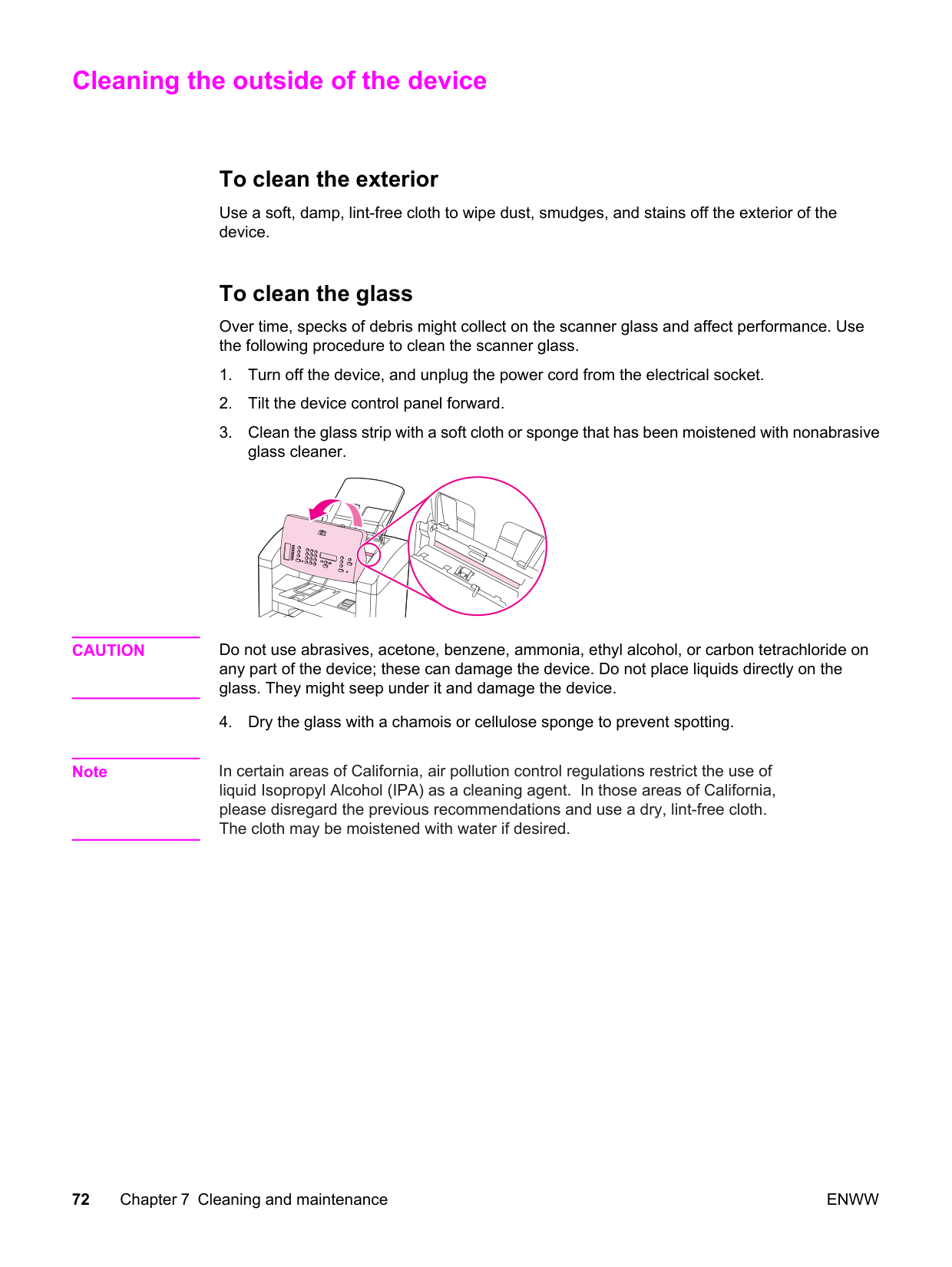
Use the topics below to learn about basic cleaning and maintenance tasks:
##### Cleaning the outside of the device
###### To clean the exterior
Use a soft, damp, lint-free cloth to wipe dust, smudges, and stains off the exterior of the device.
###### To clean the glass
Over time, specks of debris might collect on the scanner glass and affect performance. Use the following procedure to clean the scanner glass.
CAUTION Do not use abrasives, acetone, benzene, ammonia, ethyl alcohol, or carbon tetrachloride on any part of the device; these can damage the device. Do not place liquids directly on the glass. They might seep under it and damage the device.
######## Note
In certain areas of California, air pollution control regulations restrict the use of liquid Isopropyl Alcohol (IPA) as a cleaning agent. In those areas of California, please disregard the previous recommendations and use a dry, lint-free cloth. The cloth may be moistened with water if desired.
##### Cleaning the media path
If you are experiencing toner specks or dots on the printouts, clean the media path.
###### To clean the media path
ENWW Cleaning the media path 73

8
Troubleshooting
Use this section to find tips for solving problems with the device:
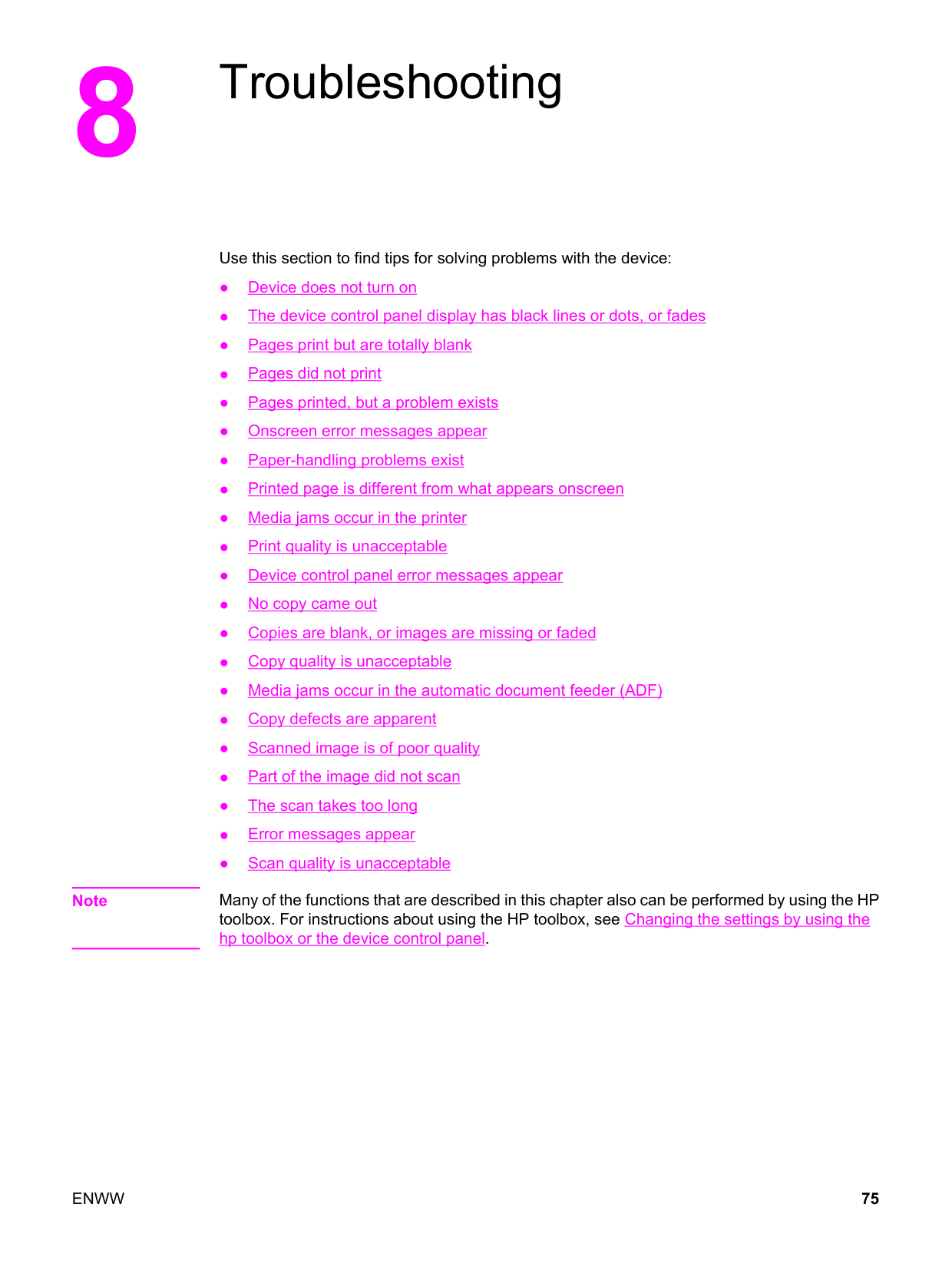
Note Many of the functions that are described in this chapter also can be performed by using the HP toolbox. For instructions about using the HP toolbox, see Changing the settings by using the hp toolbox or the device control panel.
ENWW 75
##### Device does not turn on
Try the tips in this section if the device does not turn on.
###### Is power reaching the device?
WARNING! If the problem persists after you try the preceding remedies, the device might be experiencing a mechanical failure. Unplug the device from the power outlet and contact HP. See the support flyer that came with the device for information about contacting HP.
##### The device control panel display has black lines or dots, or fades
Try the tips in this section if the device control panel display has black lines or dots, or fades.
###### Black lines or dots
CAUTION Static electricity can cause unexpected black lines or dots to appear on the device control panel display. Do not touch the device control panel display if there is a chance that you have collected a static electric charge (for example, by walking on carpet in a low-humidity environment).
Unexpected lines or dots might appear on the device control panel display if the device control panel display is exposed to a static electric charge. Wait until the black lines or dots fade away (usually within a few minutes).
Note Do not print while the black lines or dots are visible.
Do not turn the device off and on. This does not solve the problem.
###### Faded device control panel display
CAUTION Magnets or strong electric fields can cause the device control panel display to fade. Do not
place the device near magnets or strong electric fields. The device control panel display might fade if the device is exposed to magnets or strong electric fields. Move the device away from the magnets or strong electric fields, and wait until the device control panel display returns to normal (usually within a few minutes).
Note Do not print while the device control panel display is faded.
Do not turn the device off and on unless you are moving it to a different location. This does not solve the problem.
ENWW The device control panel display has black lines or dots, or fades 77
##### Pages print but are totally blank
Try the tips in this section if pages exit the device, but have nothing printed on them.
###### Is the sealing tape still in the print cartridge?
The sealing tape might still be in the print cartridge. Remove the print cartridge and pull out the sealing tape. Reinstall the print cartridge. Try printing the document again.
###### Does the configuration page print?
To check the device, print a configuration page. See Printing a configuration page for instructions.
###### Does the document contain blank pages?
The document might contain blank pages. Check the document that you are printing to see if content appears on all of the pages.
###### Is the original loaded correctly?
If you are making a copy, the original might be loaded incorrectly. The original must be loaded into the automatic document feeder (ADF) with the print-side facing down. If the original is loaded print-side up, the copy prints out blank.
##### Pages did not print
Try these tips when the device does not print any pages.
###### Does a message appear on your computer screen?
See Onscreen error messages appear for more information.
###### Is media being pulled into the device correctly?
See Paper-handling problems exist for more information.
###### Are media jams present?
See Media jams occur in the automatic document feeder (ADF) or Media jams occur in the printer for more information.
###### Is the parallel or USB Device Cable (A/B) working, and is it connected correctly? The parallel or USB Device Cable (A/B) might be defective. Try the following remedies:
###### Are other devices running on your computer?
ENWW Pages did not print 79
##### Pages printed, but a problem exists
Try these tips when pages are printed on, but a problem exists.
###### Is the print quality poor?
See Print quality is unacceptable for more information.
###### Is the printed page different from what appears onscreen?
See Printed page is different from what appears onscreen for more information.
###### Are the device settings appropriate for the print media?
See Paper-handling problems exist for more information.
##### Onscreen error messages appear
If the following messages appear onscreen, use the appropriate procedures to remedy the problem.
###### Printer not responding/error writing to LPT1
Check the following conditions:
Cannot access port (in use by another application)
A device conflict exists. This might occur if another device is installed on your computer and is running status software. The status software dominates the parallel port on the computer and denies the device access to the port.
Try the following remedies:
Note In some operating systems, you must click Spool Settings on the Details tab in order to see
the bidirectional support option.
ENWW Onscreen error messages appear 81
##### Paper-handling problems exist
Use the tips in this section when the device experiences paper-handling problems.
###### Print is skewed (crooked)
######## Are the media guides adjusted properly?
Remove all media from the input tray, straighten the stack, and then load the media in the input tray again. Adjust the media guides to the width and length of the media that you are using and try printing again. See Device media specifications or the start guide for more information.
More than one sheet feeds at one time Is the media input tray too full? See the start guide for more information about loading media input trays. Is the media wrinkled, folded, or damaged?
Make sure the media is not wrinkled, folded, or damaged. Try printing on media from a new or different package.
Is the automatic document feeder (ADF) media lever set incorrectly? Make sure the ADF media lever is set to the multiple-sheet setting (to the left).
###### Device does not pull media from the media input tray Is the device in manual feed mode? Try one of the following remedies:
###### Media curls when fed through device
See Curl or wave for more information.
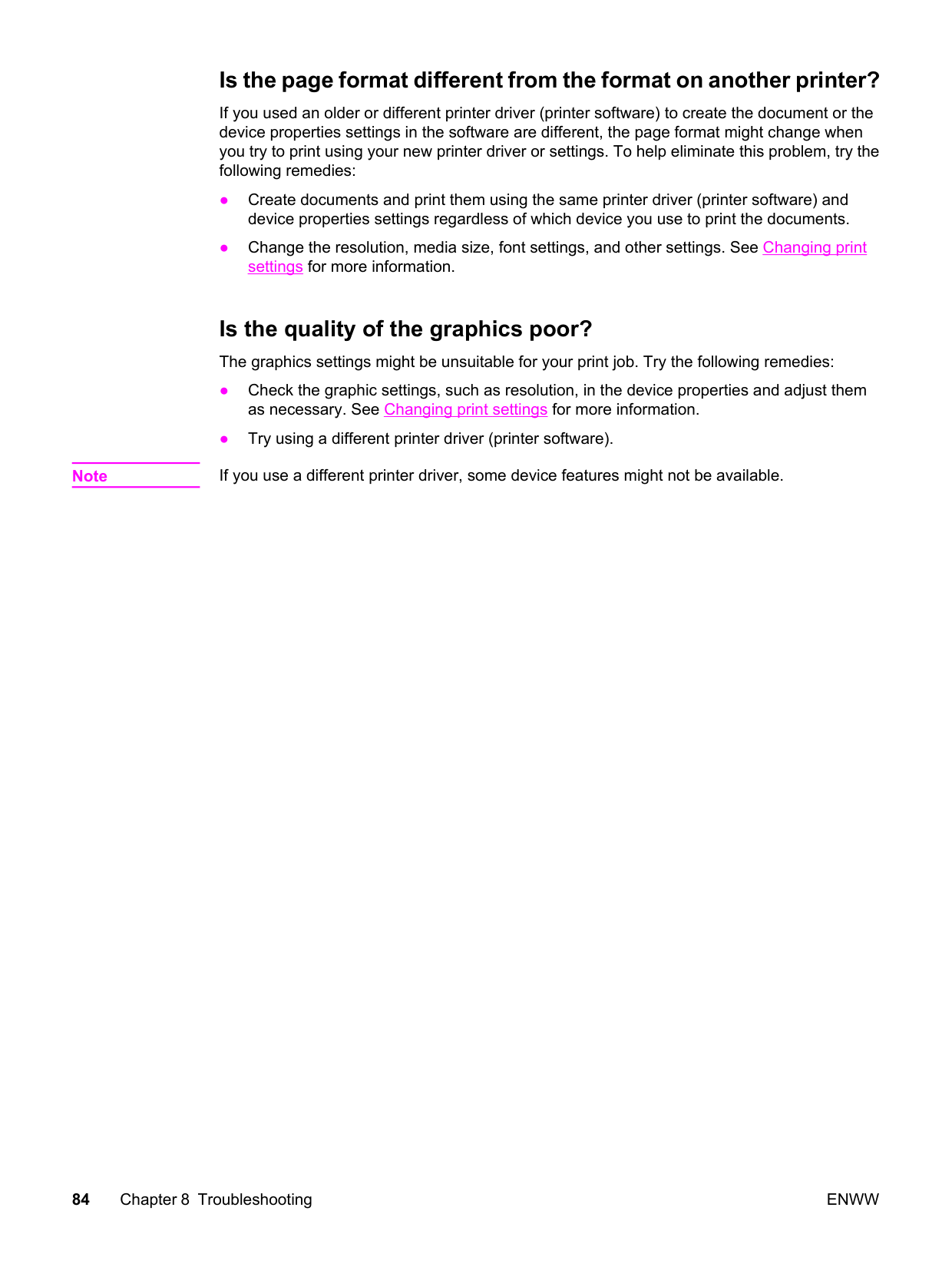
##### Printed page is different from what appears onscreen
Try the tips in this section when what is printed on the page differs from what appears onscreen.
###### Is the text garbled, incorrect, or incomplete?
To verify that the device is functioning, print a configuration page . See Printing a configuration page for instructions. If the configuration page prints successfully, try the following remedies:
###### Are graphics or text missing? Are there blank pages?
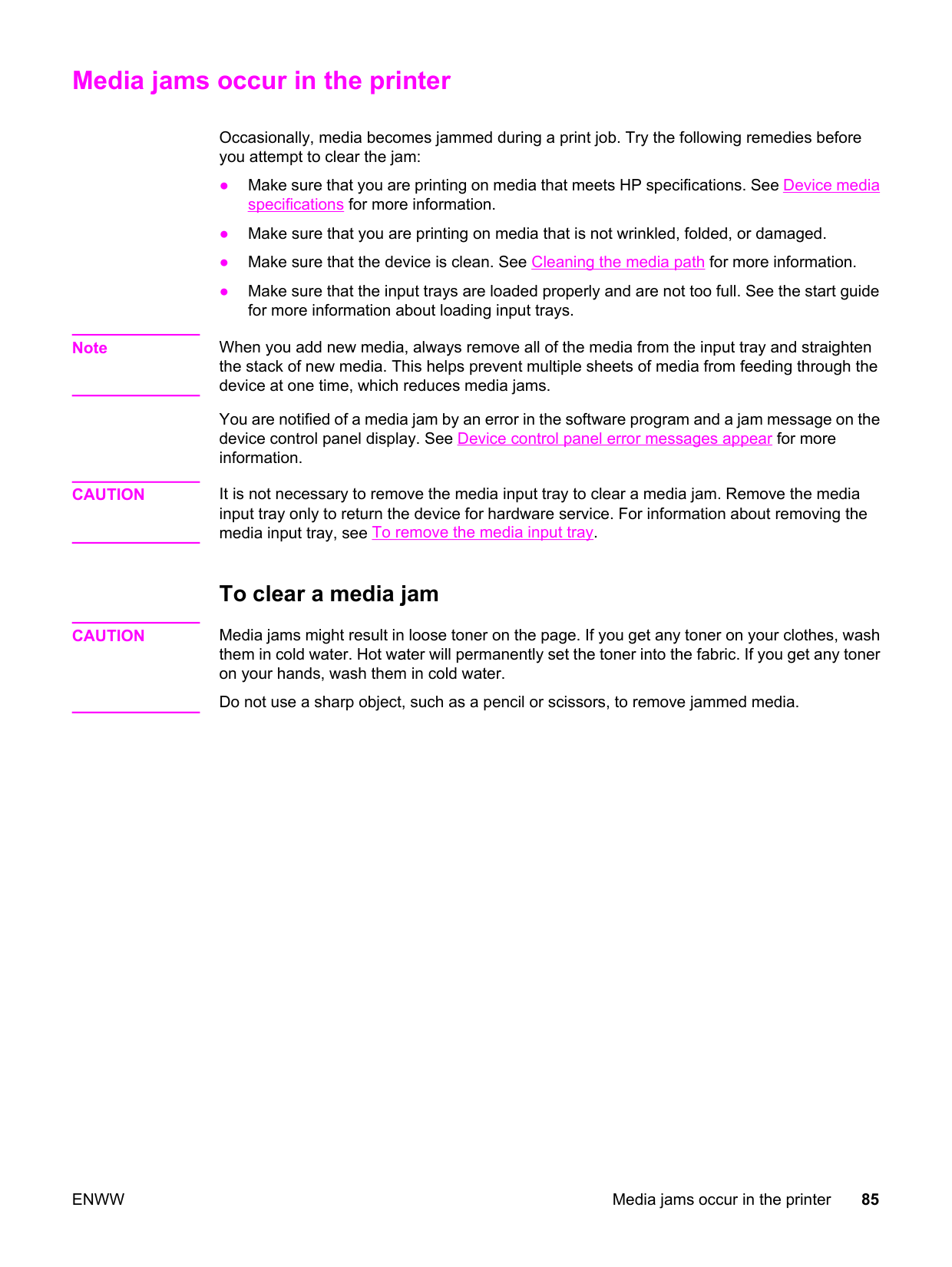
Note If you use a different printer driver, some device features might not be available.
ENWW Printed page is different from what appears onscreen 83
###### Is the page format different from the format on another printer?
If you used an older or different printer driver (printer software) to create the document or the device properties settings in the software are different, the page format might change when you try to print using your new printer driver or settings. To help eliminate this problem, try the following remedies:
###### Is the quality of the graphics poor?
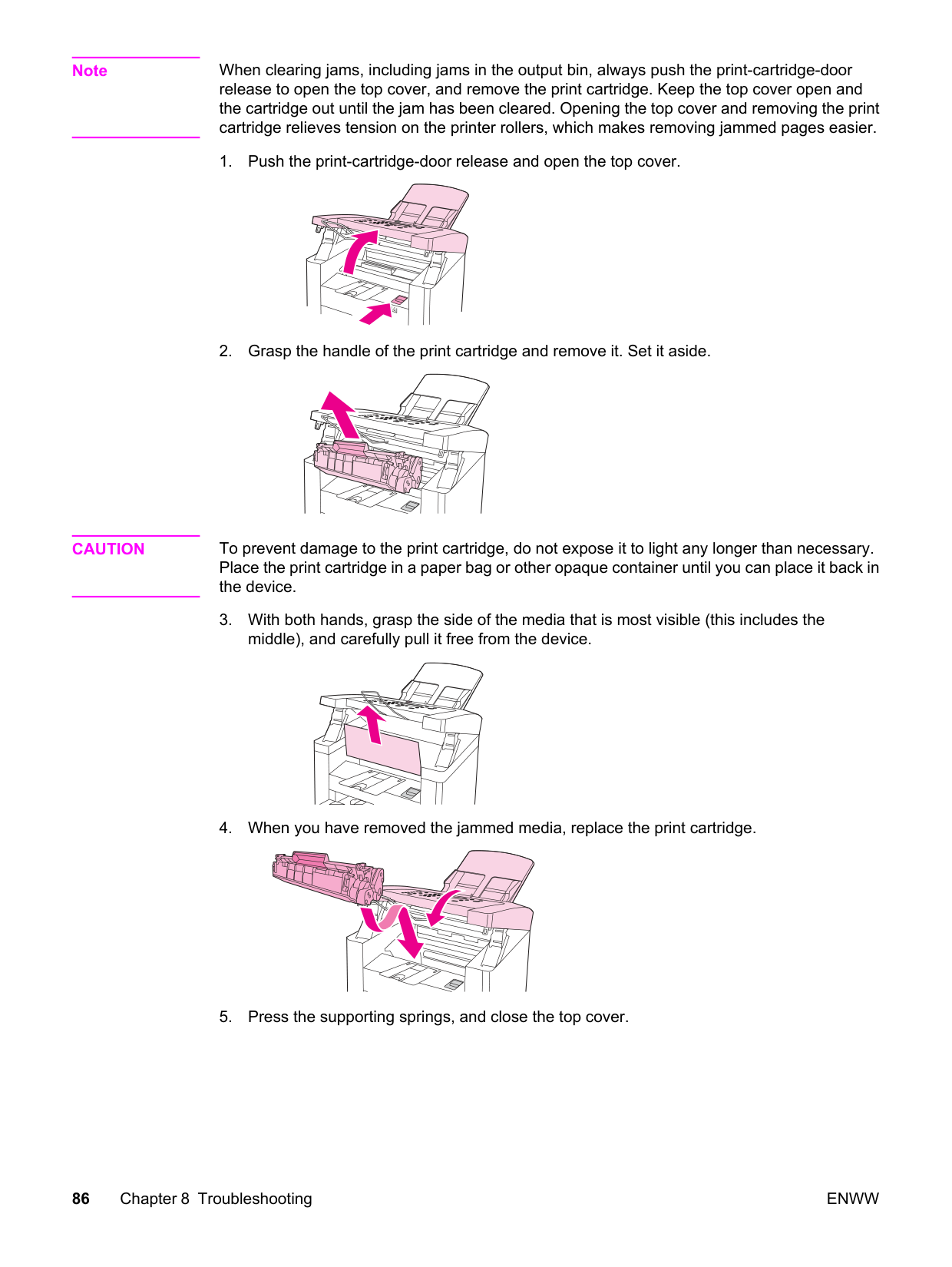
The graphics settings might be unsuitable for your print job. Try the following remedies:
Note If you use a different printer driver, some device features might not be available.
##### Media jams occur in the printer
Occasionally, media becomes jammed during a print job. Try the following remedies before you attempt to clear the jam:
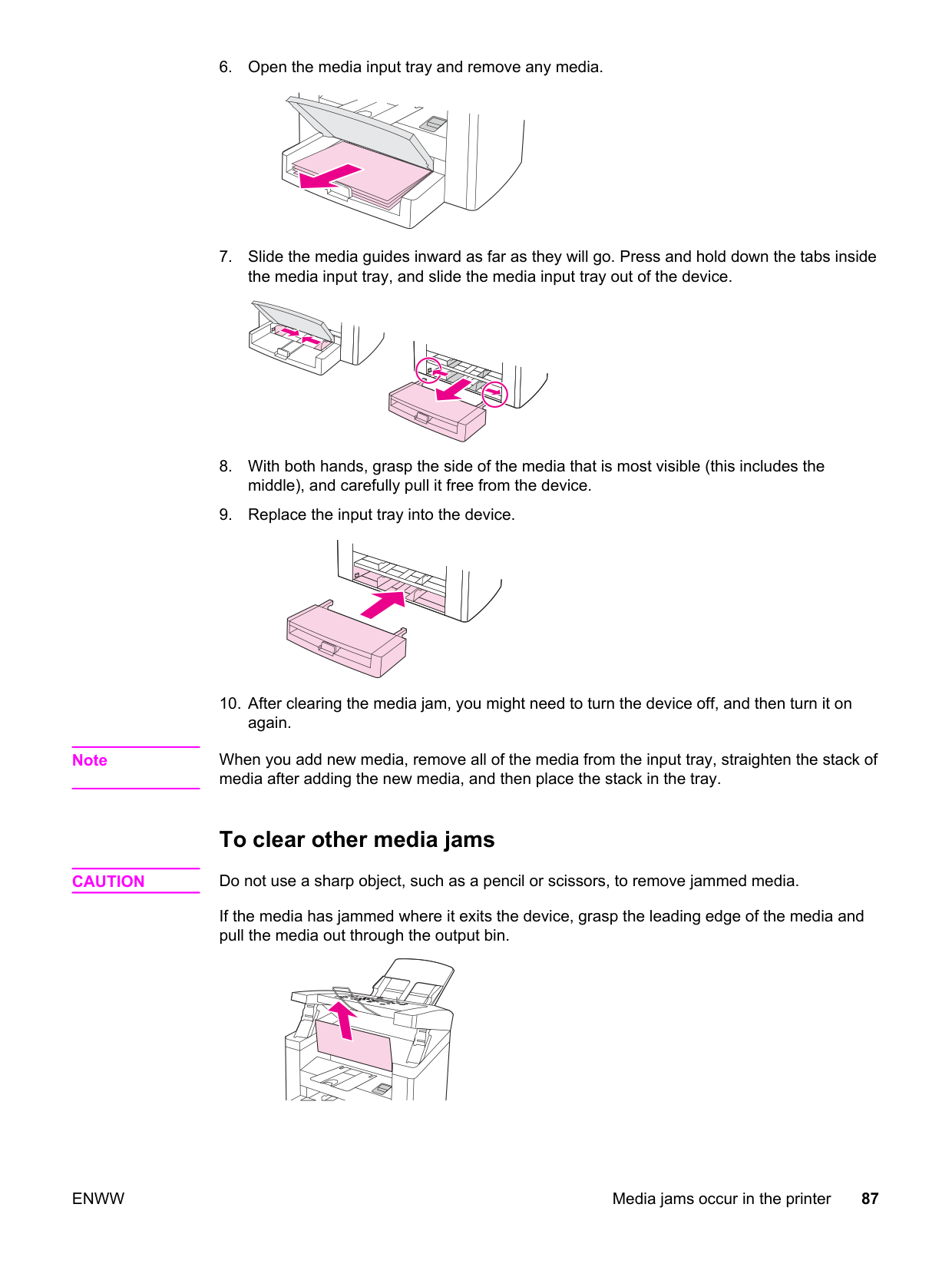
Note When you add new media, always remove all of the media from the input tray and straighten the stack of new media. This helps prevent multiple sheets of media from feeding through the device at one time, which reduces media jams.
You are notified of a media jam by an error in the software program and a jam message on the device control panel display. See Device control panel error messages appear for more information.
CAUTION It is not necessary to remove the media input tray to clear a media jam. Remove the media input tray only to return the device for hardware service. For information about removing the media input tray, see To remove the media input tray.
###### To clear a media jam
CAUTION Media jams might result in loose toner on the page. If you get any toner on your clothes, wash them in cold water. Hot water will permanently set the toner into the fabric. If you get any toner on your hands, wash them in cold water.
Do not use a sharp object, such as a pencil or scissors, to remove jammed media.
Note When clearing jams, including jams in the output bin, always push the print-cartridge-door release to open the top cover, and remove the print cartridge. Keep the top cover open and the cartridge out until the jam has been cleared. Opening the top cover and removing the print cartridge relieves tension on the printer rollers, which makes removing jammed pages easier.
CAUTION To prevent damage to the print cartridge, do not expose it to light any longer than necessary. Place the print cartridge in a paper bag or other opaque container until you can place it back in the device.
Note When you add new media, remove all of the media from the input tray, straighten the stack of
media after adding the new media, and then place the stack in the tray.
###### To clear other media jams
CAUTION Do not use a sharp object, such as a pencil or scissors, to remove jammed media.
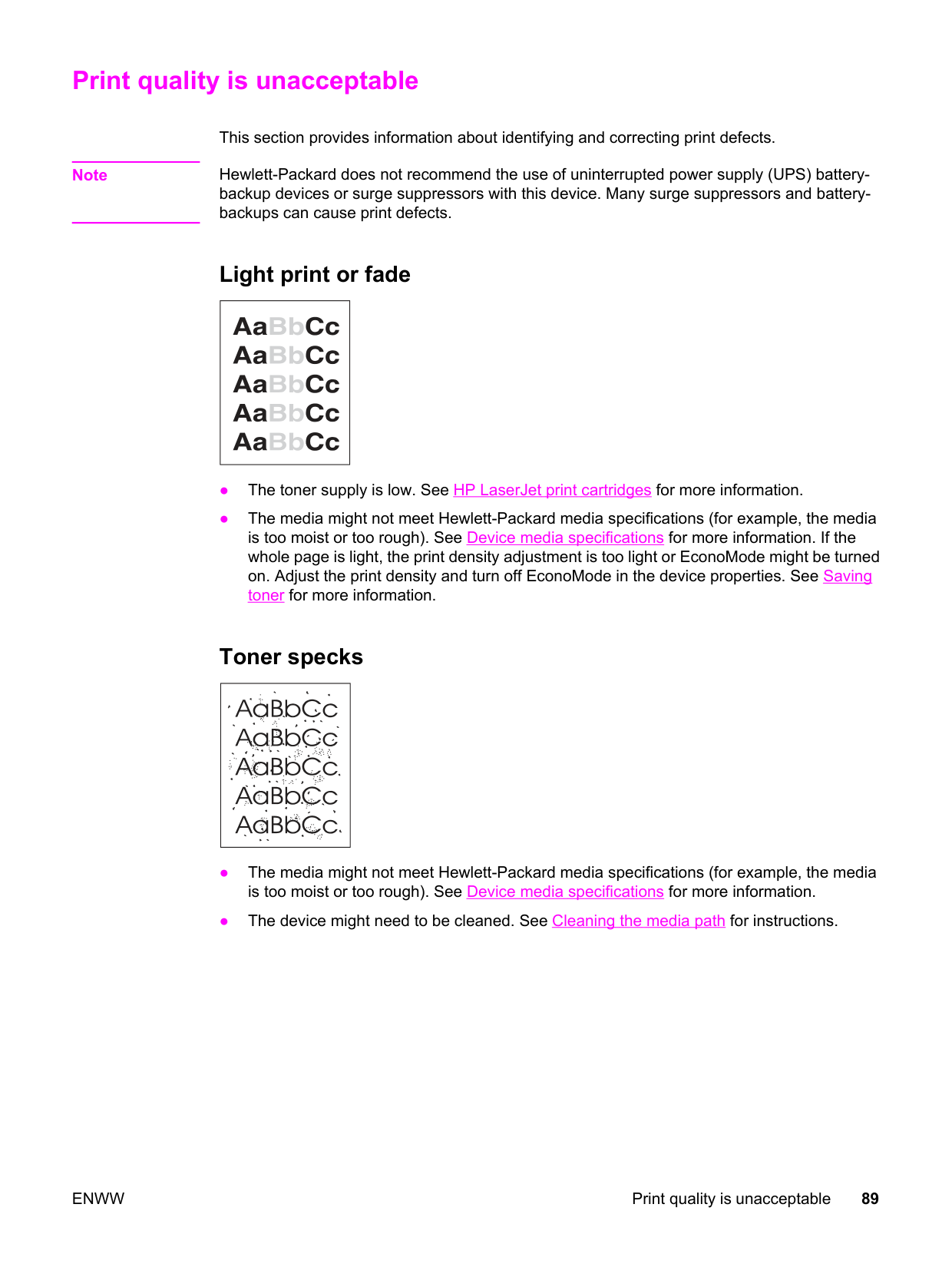
If the media has jammed where it exits the device, grasp the leading edge of the media and pull the media out through the output bin.
Note If you turned the device off before clearing the media jam, turn it on again, and then restart
your printing or copying job. If the media has jammed in the automatic document feeder (ADF), see Media jams occur in the automatic document feeder (ADF).
###### Tips to avoid media jams
##### Print quality is unacceptable
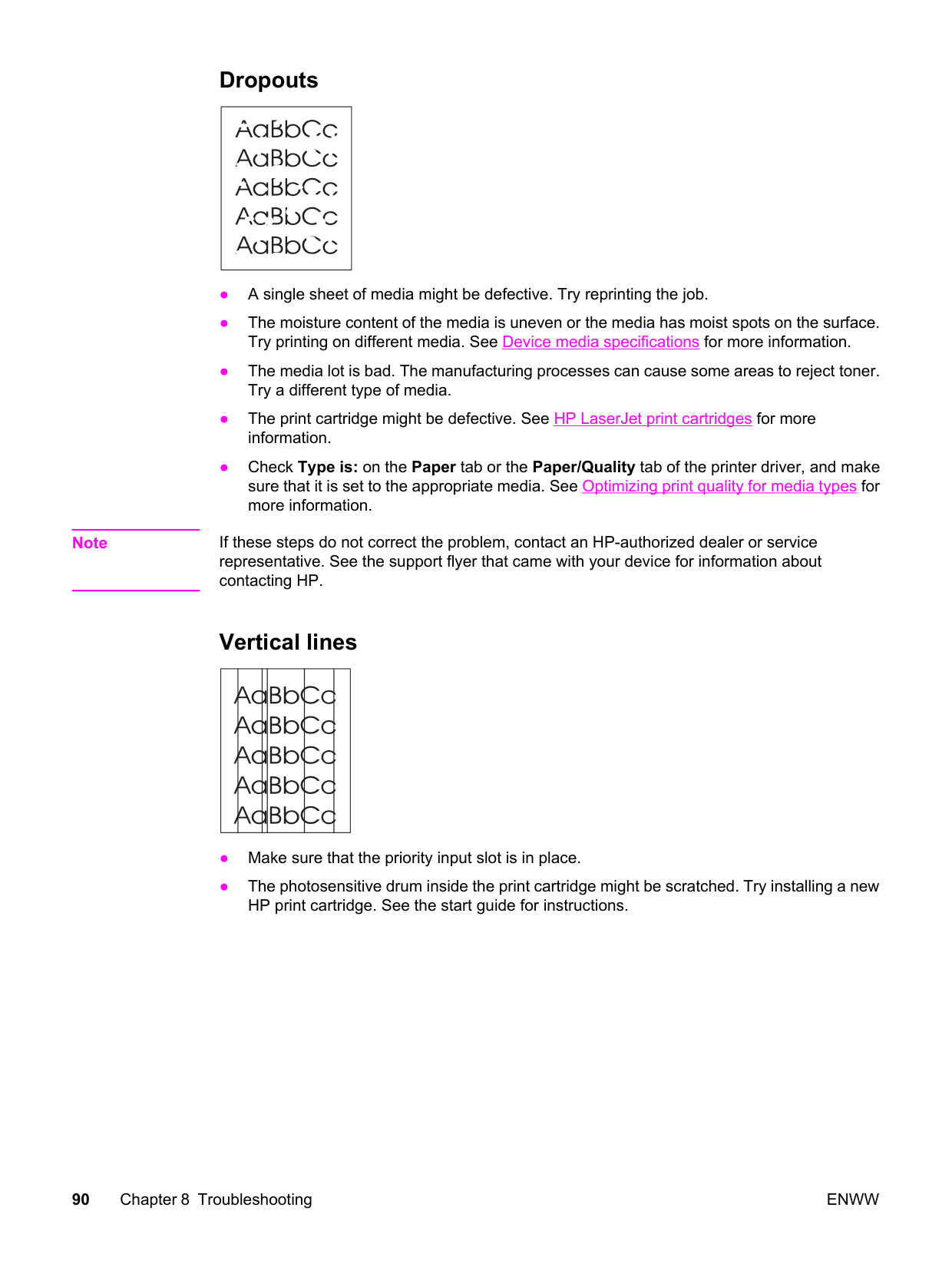
This section provides information about identifying and correcting print defects.
Note Hewlett-Packard does not recommend the use of uninterrupted power supply (UPS) batterybackup devices or surge suppressors with this device. Many surge suppressors and batterybackups can cause print defects.
###### Light print or fade
###### Toner specks
###### Dropouts
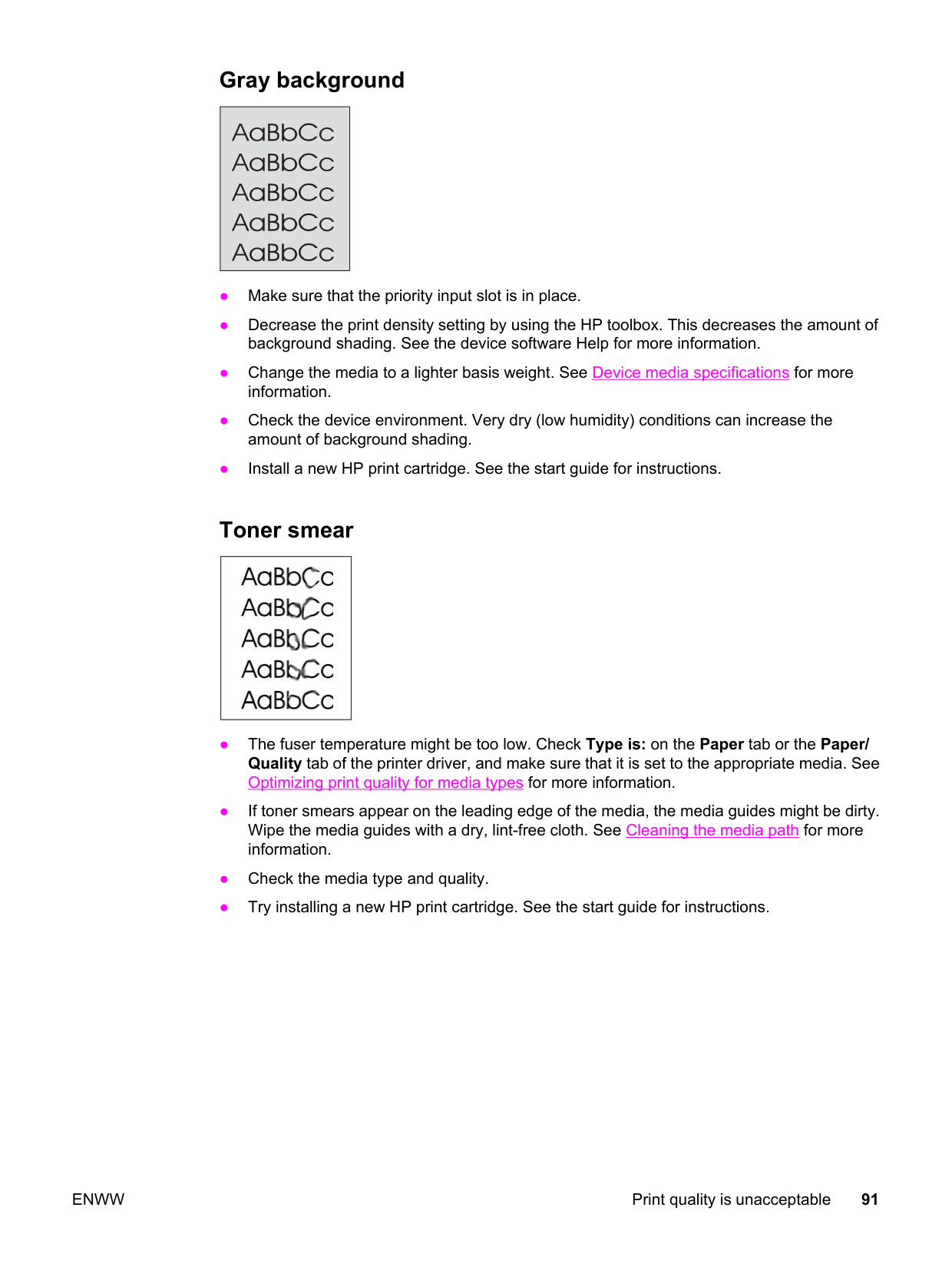
Note If these steps do not correct the problem, contact an HP-authorized dealer or service representative. See the support flyer that came with your device for information about contacting HP.
###### Vertical lines
###### Gray background
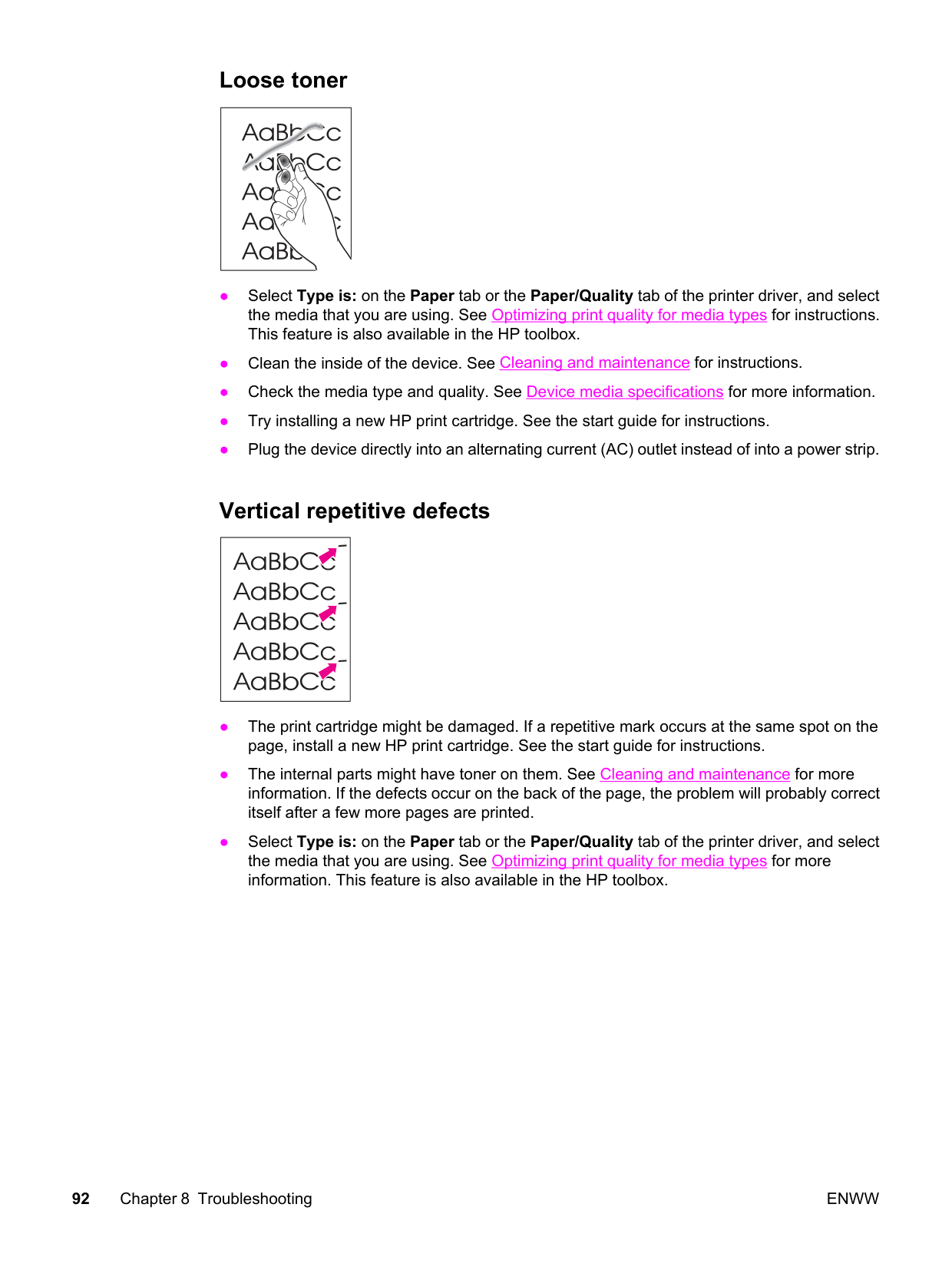
Toner smear

###### Loose toner
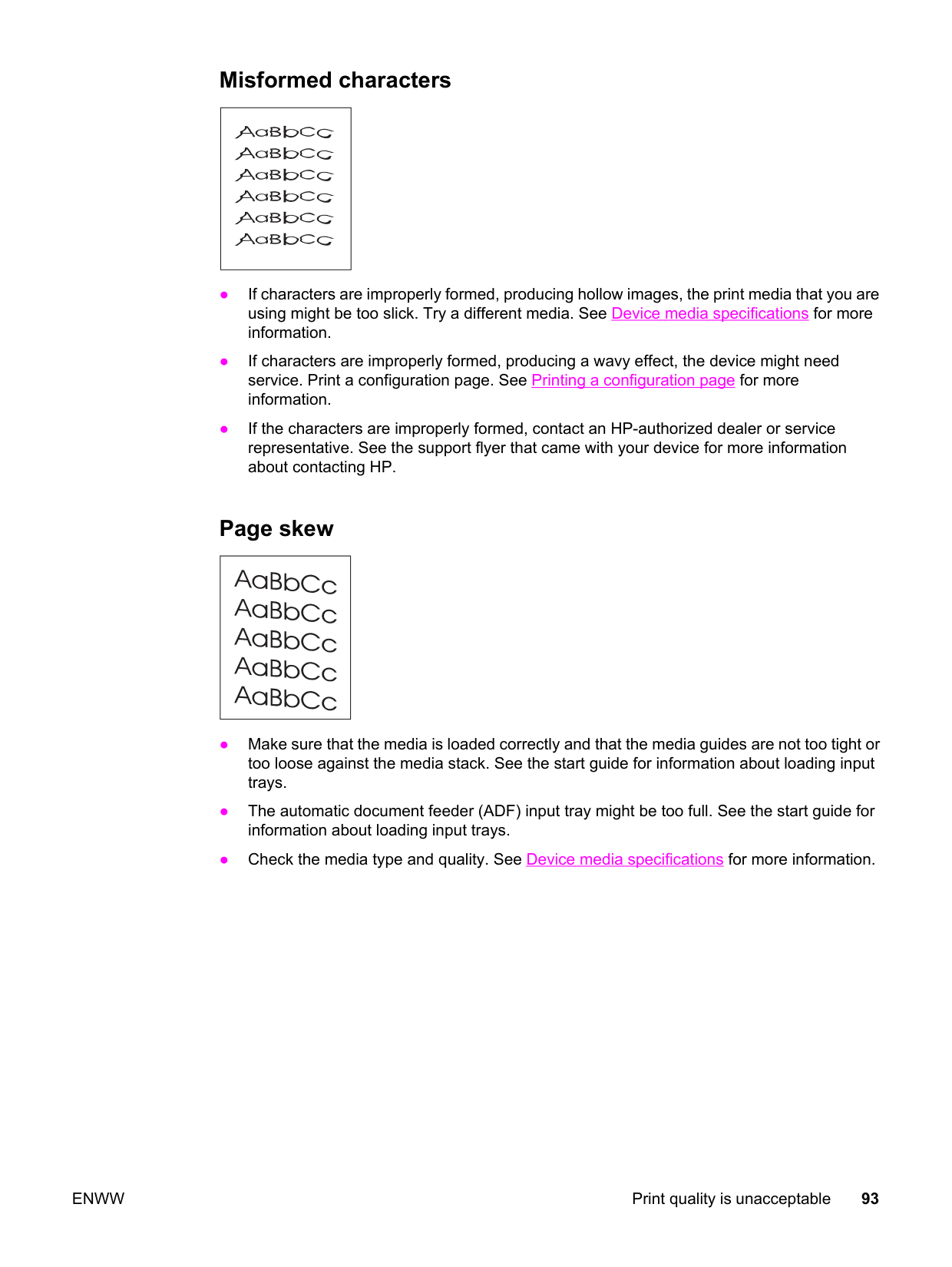
Vertical repetitive defects
###### Misformed characters
| | |---|
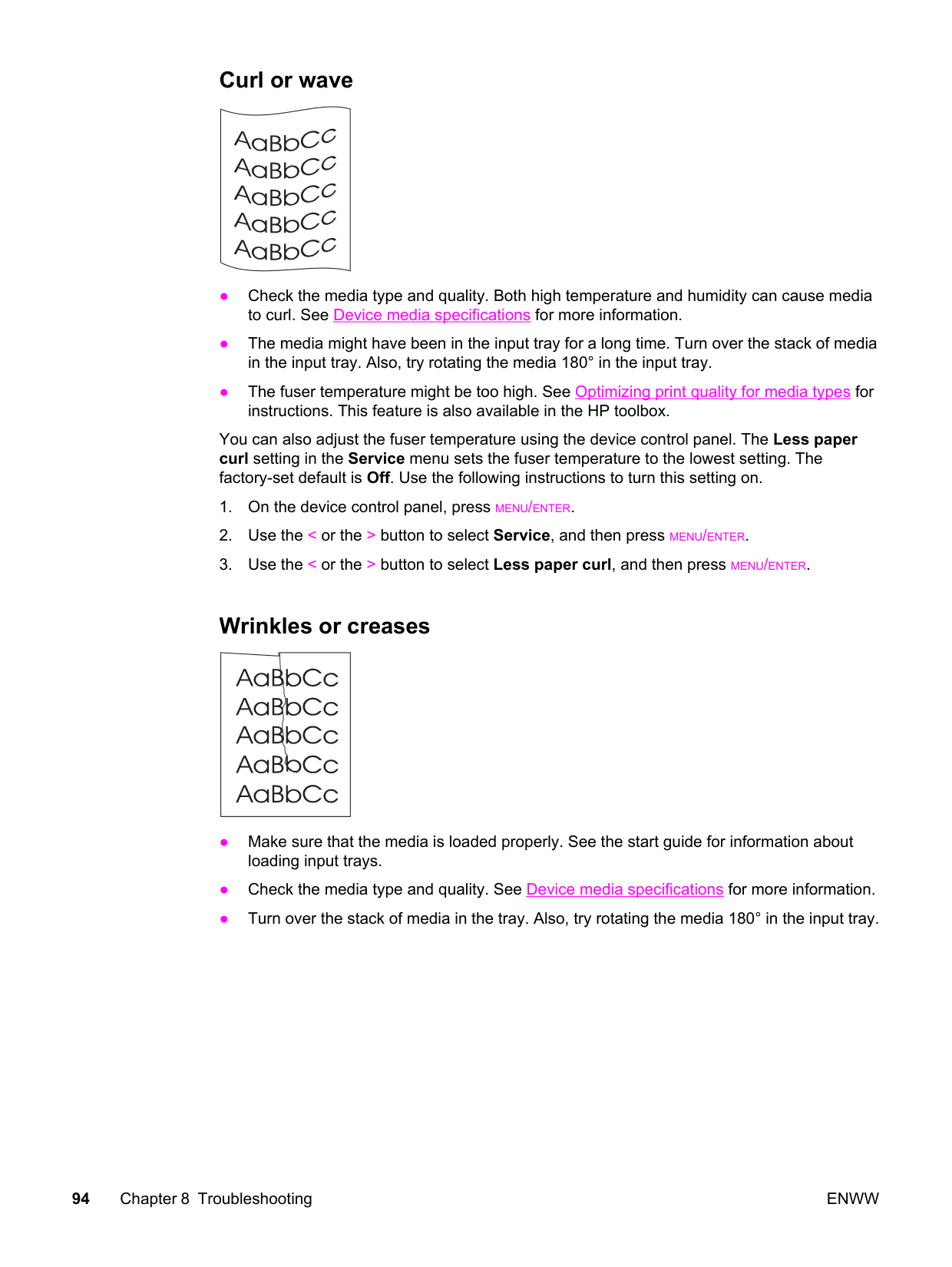
###### Page skew
###### Curl or wave
You can also adjust the fuser temperature using the device control panel. The Less paper curl setting in the Service menu sets the fuser temperature to the lowest setting. The factory-set default is Off. Use the following instructions to turn this setting on.
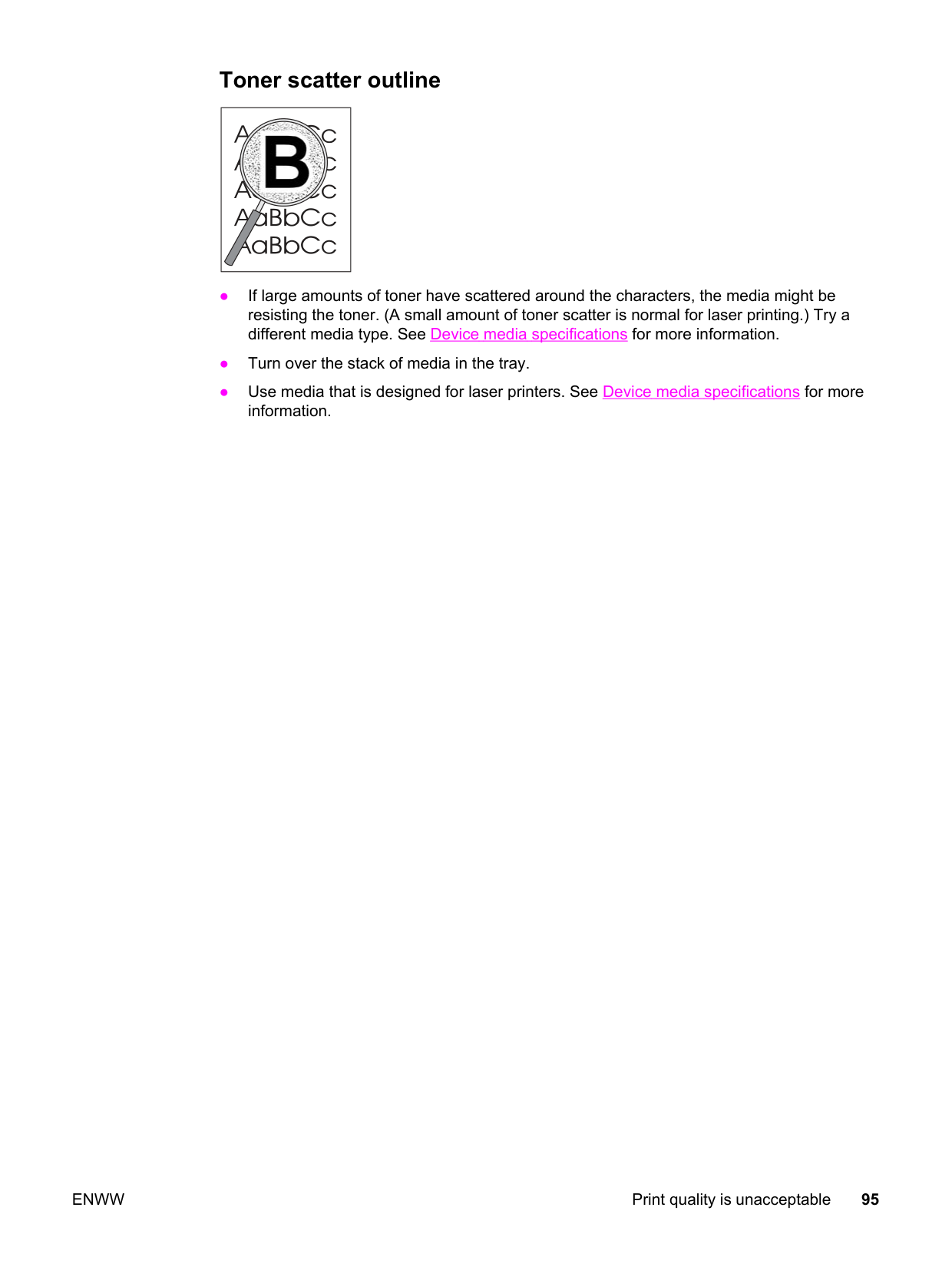
###### Wrinkles or creases
###### Toner scatter outline

##### Device control panel error messages appear
This section contains information about error messages that can appear on the device control panel display, and how to clear them.
###### Resolving common error messages
The following messages are the most common error messages that can appear on the device control panel display.
####### Door open or no print cartridge
The print cartridge door is open or no print cartridge has been installed. Make sure that you have correctly installed the print cartridge in the device. For information about installing the print cartridge, see the start guide.
After you have checked the print cartridge, close the print cartridge door securely. When the problem is solved, the device either completes the current job or returns to the Ready state.
####### Add paper. [enter] to continue
The device is out of print media. Load media into the media input tray or the priority input slot. For information about loading media into the input trays, see the start guide.
If media is already loaded, remove the stack of media, check for and clear any media jams, and reload the input tray.
When the problem is solved, press MENU/ENTER. The device either completes the current job or returns to the Ready state.
###### Critical error messages
When a critical error occurs, the current copying or scanning job stops and one of the following messages appears on the device control panel:
If one of these messages appears on the device control panel display, the device is experiencing a critical device error. Unplug the device for five minutes, and then plug it back in. If the error persists, contact HP customer service at the number provided on the support flyer included with the device, or visit http://www.hp.com.
###### Alert messages
Alert messages indicate that some action must be performed, such as adding print media or clearing a jam. When an alert message appears, the device automatically stops the current task and the job does not proceed until someone attends to the situation. After you correct the error, the device either completes the task or returns to the Ready state. The exception to this is when you want to use the main menus system. Then the device changes the display so that you can use the menus system.
The following messages are generic alert messages that might appear on the device control panel display:
Note See Media jams occur in the automatic document feeder (ADF) or Media jams occur in the
printer for more information about media jams.
###### Warning messages
Warning messages are important enough to warrant notification. They are of short duration, but the condition that they describe might affect the completion of the task or the quality of the output. When a warning message appears, the active job might be canceled. The message appears on the device control panel display for five seconds.
The following messages are generic warning messages that might appear on the device control panel display:
ENWW Device control panel error messages appear 97
If a warning message is related to a printing task and the auto continue setting is on, then the message appears for 10 seconds. If you do not press MENU/ENTER or CANCEL, the device continues processing the print job. If the auto continue setting is off, then the print-related warning message appears until you either press MENU/ENTER to proceed, or press CANCEL to cancel the job.
Note The auto continue setting is available in the printer driver and the HP toolbox. To find out whether the auto continue setting is turned on, print a configuration page. See Printing a configuration page for more information.
##### No copy came out
###### Is media loaded in the input tray?
Load media in the device. See Loading originals to copy for more information.
###### Is the original loaded correctly?
Make sure that the original is loaded correctly in the automatic document feeder (ADF) input tray. The original should be loaded top down in the ADF input tray, with the side to be copied facing down. Insert the original into the ADF until it stops. See Loading originals to copy for more information.
###### Is the ADF media lever set correctly?
Make sure the automatic document feeder (ADF) media lever is in the correct position for the media you are using. Slide it to the single-sheet setting (to the right) when you are printing on thick media. Slide it to the multiple-sheet setting (to the left) when you are printing on regular media. For more information, see Loading originals to copy.
ENWW No copy came out 99
##### Copies are blank, or images are missing or faded
###### Has the sealing tape been removed from the print cartridge?
The sealing tape might not have been removed from the print cartridge. Remove the print cartridge from the device, pull out the sealing tape, and reinstall the print cartridge. See the start guide for information about installing a print cartridge.
###### Is the print cartridge low on toner?
The print cartridge is used for making copies. If the print cartridge is low on toner, the copies will be faded.
###### Is the original of poor quality?
The accuracy of the copy depends on the quality and size of the original. If your original is too light, the copy might not be able to compensate, even if you adjust the contrast.
###### Does the original have a colored background?
Colored backgrounds might cause images in the foreground to blend into the background, or the background might appear in a different shade.
##### Copy quality is unacceptable
This section provides information about the following topics:
Preventing problems
The following are a few simple steps you can take to improve copy quality:
Note Recurring feed problems indicate the copier/separation pad is worn. See Ordering HP parts
and accessories to order a new separation pad.
ENWW Copy quality is unacceptable 101
##### Media jams occur in the automatic document feeder (ADF)
Occasionally, media becomes jammed during a copy, scan, or fax job. You are notified of a media jam by a software error message and the Doc feeder jam Clear, Reload message that appears on the device control panel display.
###### Typical automatic document feeder (ADF) jam locations
###### Automatic document feeder (ADF) media lever
If you are using thick media, slide the media lever to the single-sheet setting (to the right). Load a single sheet of media into the ADF.
When you have finished, copying, scanning, or faxing, slide the ADF media lever back to the multiple-sheet setting (to the left).
###### To clear a media jam from the automatic document feeder (ADF)
Note Use only your hands to remove jammed media. Using other objects can damage internal
parts.
ENWW Media jams occur in the automatic document feeder (ADF) 103
##### Copy defects are apparent
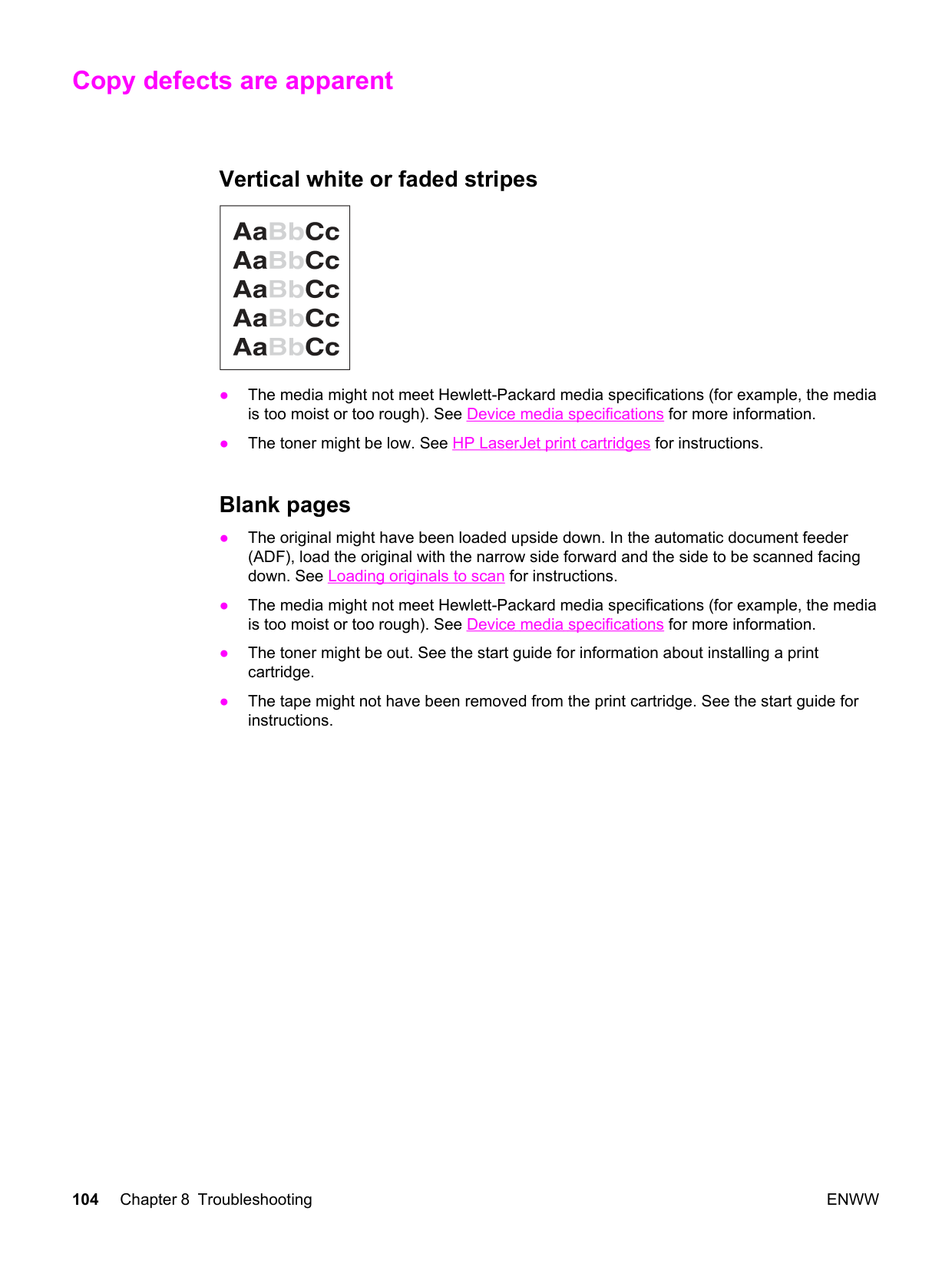
###### Vertical white or faded stripes
Blank pages
###### Wrong original was copied
Too light or dark
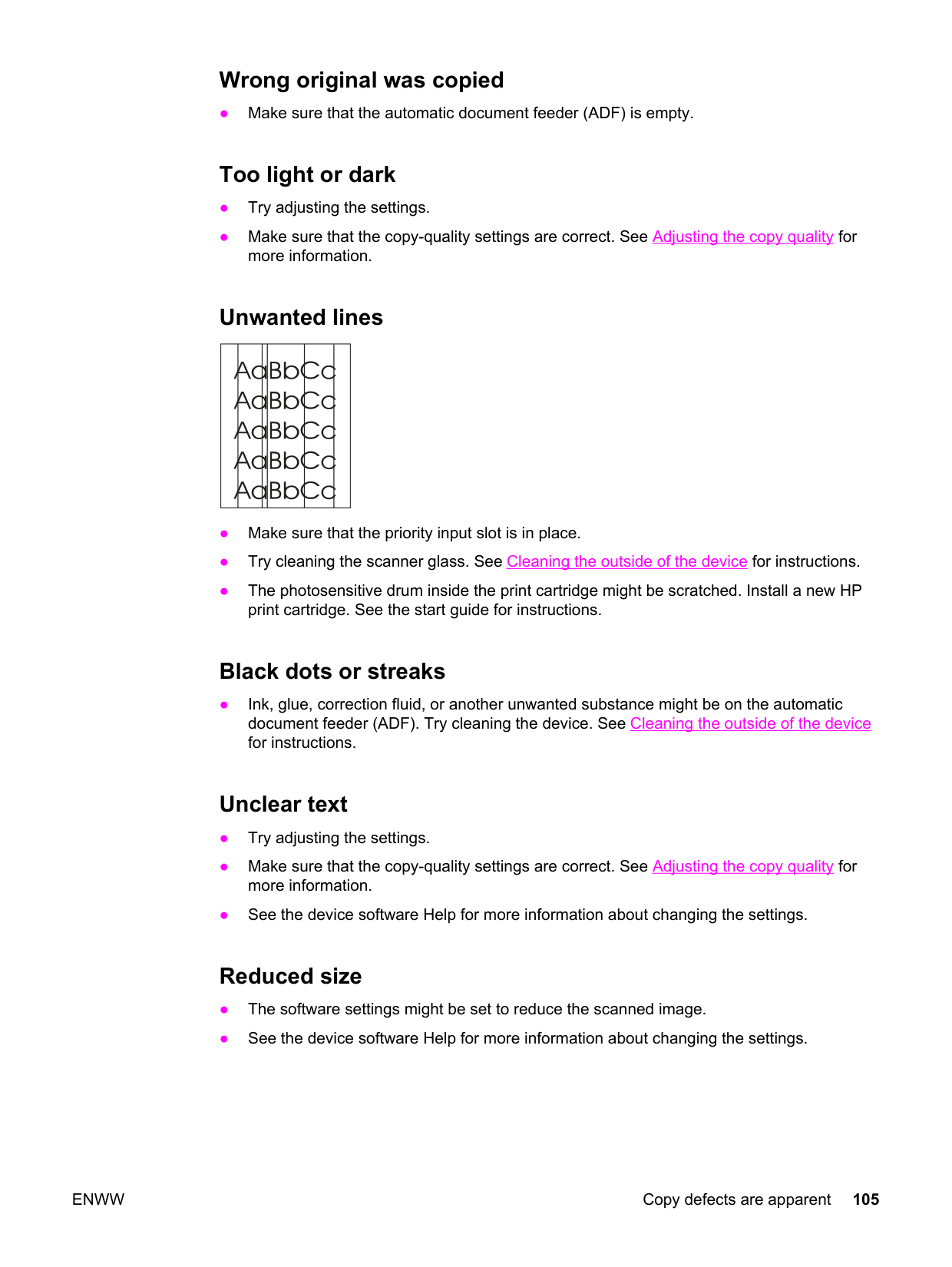
###### Unwanted lines
###### Black dots or streaks
● Ink, glue, correction fluid, or another unwanted substance might be on the automatic document feeder (ADF). Try cleaning the device. See Cleaning the outside of the device for instructions.
###### Unclear text
Reduced size
ENWW Copy defects are apparent 105
##### Scanned image is of poor quality
###### Is the original a second-generation photo or picture?
Reprinted photographs, such as those in newspapers or magazines, are printed by using tiny dots of ink that make an interpretation of the original photograph, which dramatically decreases the quality. Often, the ink dots form unwanted patterns that can be detected when the image is scanned, printed, or appears onscreen. If the following suggestions do not solve your problem, you might need to use a better-quality version of the original.
###### Is the image quality better when the document is printed?
The image that appears on the screen is not always an accurate representation of the quality of the scan.
###### Is the image skewed (crooked)?
The original might have been loaded incorrectly. Be sure to use the media guides when you load the originals into the automatic document feeder (ADF). See Loading originals to scan for more information.
Does the scanned image show blotting, lines, vertical white stripes, or any other defect? If the scanner is dirty, the image that it produces does not have optimum clarity. See Cleaning the outside of the device for instructions.
Do graphics look different from the original?
The graphics settings might not be suitable for the type of scan job that you are performing. Try changing the graphics settings. See Scanner resolution and color for more information.
##### Part of the image did not scan
###### Was the original loaded correctly?
Make sure that you loaded the original correctly. See Loading originals to scan for instructions.
###### Does the original have a colored background?
Colored backgrounds can cause images in the foreground to blend into the background. Try adjusting the settings before you scan the original or enhancing the image after you scan the original. See Scanner resolution and color for more information.
###### Are text or images on the back of a two-sided original appearing in the scan?
Two-sided originals can "bleed" text or images from the back side to the scan if the originals are printed on media that is too thin or too transparent.
###### Is the original longer than 381 mm (15 inches)?
The maximum scannable length is 381 mm (15 inches) when you use the automatic document feeder (ADF). If the page exceeds the maximum length, the scanner stops. (Copies can be longer.)
CAUTION Do not try to pull the original from the ADF; you might damage the scanner or your original.
See Media jams occur in the automatic document feeder (ADF) for instructions.
###### Is the original too small?
The minimum size that the automatic document feeder (ADF) supports is 51 by 89 mm (2 by 3.5 inches). The original might be jammed. See Media jams occur in the automatic document feeder (ADF) for instructions.
###### Is the media size correct?
In Scan settings, make sure that the input media size is large enough for the document that you are scanning. See Scanner resolution and color for more information.
ENWW Part of the image did not scan 107
##### The scan takes too long
###### Is your resolution or color level set too high?
If you set the resolution and color level too high, the scan job takes longer and results in larger files. To obtain good results when scanning or copying, it is important that you use the correct resolution and color level settings for your job. See Scanner resolution and color for more information.
###### Is your software set to scan in color?
The system default is color, which takes longer to scan even when scanning a monochrome original. If you acquire an image through TWAIN or WIA, you can change the settings so that the original scans in grayscale or black-and-white. See the device software Help for details.
###### Did you send a print job or copy job before you tried to scan?
If you sent a print job or copy job before you tried to scan, the scan will start if the scanner is not busy. However, the printer and scanner share memory, which means that the scan might be slower.
###### Is your computer set for bidirectional communication?
See the documentation that came with your computer to change the basic input/ouput settings (BIOS). The recommended bidirectional setting for the parallel port is ECP. The USB connection is always bidirectional.
##### Error messages appear
If one of the following messages appears on the screen, use this information to remedy the problem.
###### Common scanning error messages
This section describes common scanning error messages, and how to remedy them. The most common scanning error messages include the following:
Make sure that you have connected the USB Device Cable (A/B) or IEEE 1284-B-compliant parallel cable to the correct port on the back of your computer. If you have another port, try attaching the cable to the other port. Make sure that you have an EPP-(bidirectional) or ECPcompliant parallel port on your computer. An EPP parallel port is the minimum requirement; use of an ECP parallel port is strongly recommended. See the documentation that came with your computer for more information about your port.
Some devices might not share the parallel port with the device. If you have an external hard drive, or you have a network switchbox connected to the same USB or parallel port as the device, the other device might be interfering. To connect and use the device, you must disconnect the other device or you must use two ports on the computer. You might need to add another parallel interface card. Hewlett-Packard strongly recommends that you use an ECP parallel interface card. See the documentation that came with your computer for more information about installing an additional parallel interface card or resolving device conflicts.
Verify that the correct TWAIN source is selected. In the software, check the TWAIN source by selecting Select Scanner from the File menu.
ENWW Error messages appear 109
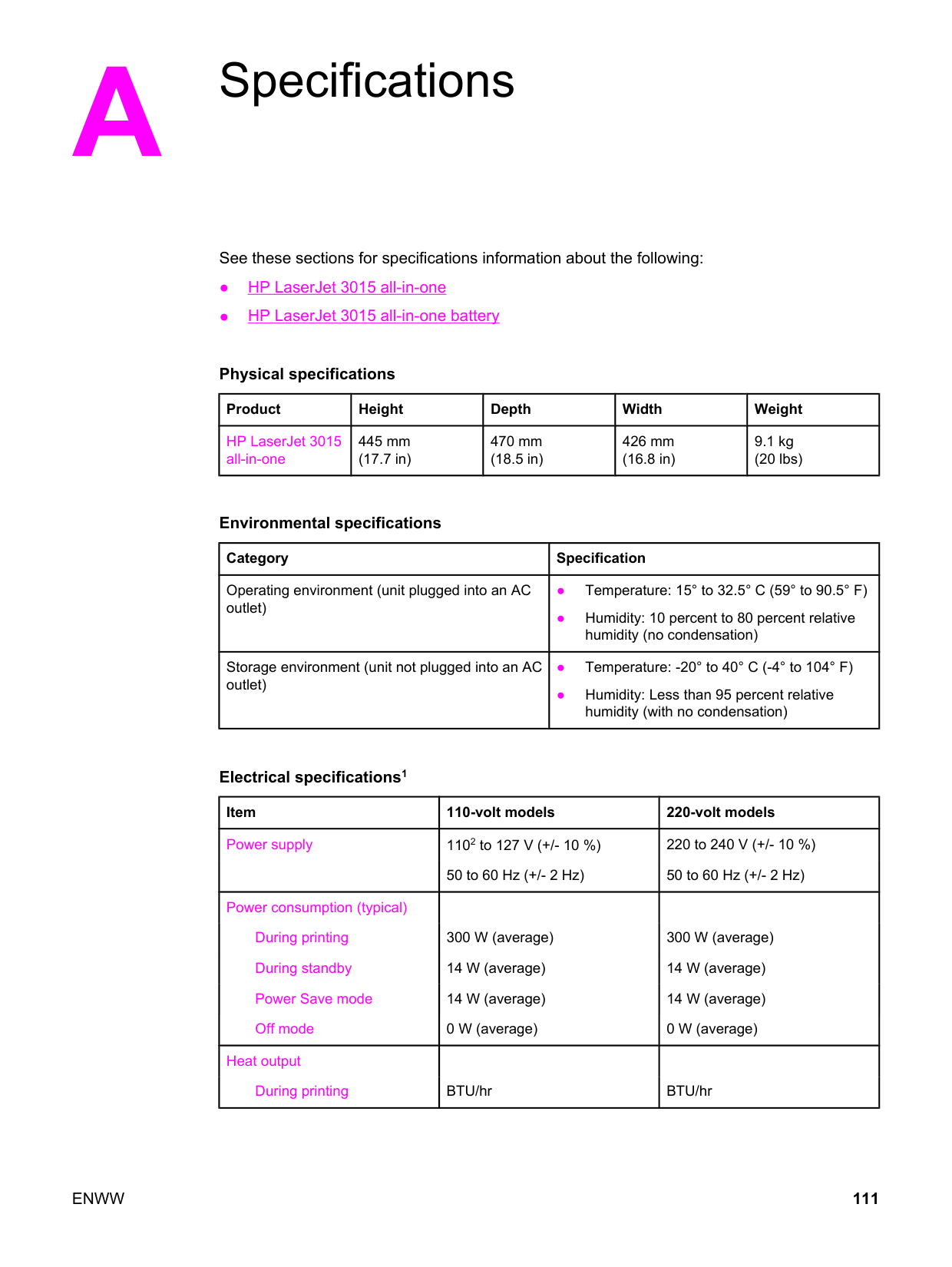
##### Scan quality is unacceptable
This section provides information about improving scan quality by preventing or correcting problems.
###### Preventing problems
The following are a few simple steps you can take to improve copy and scan quality:
Blank pages
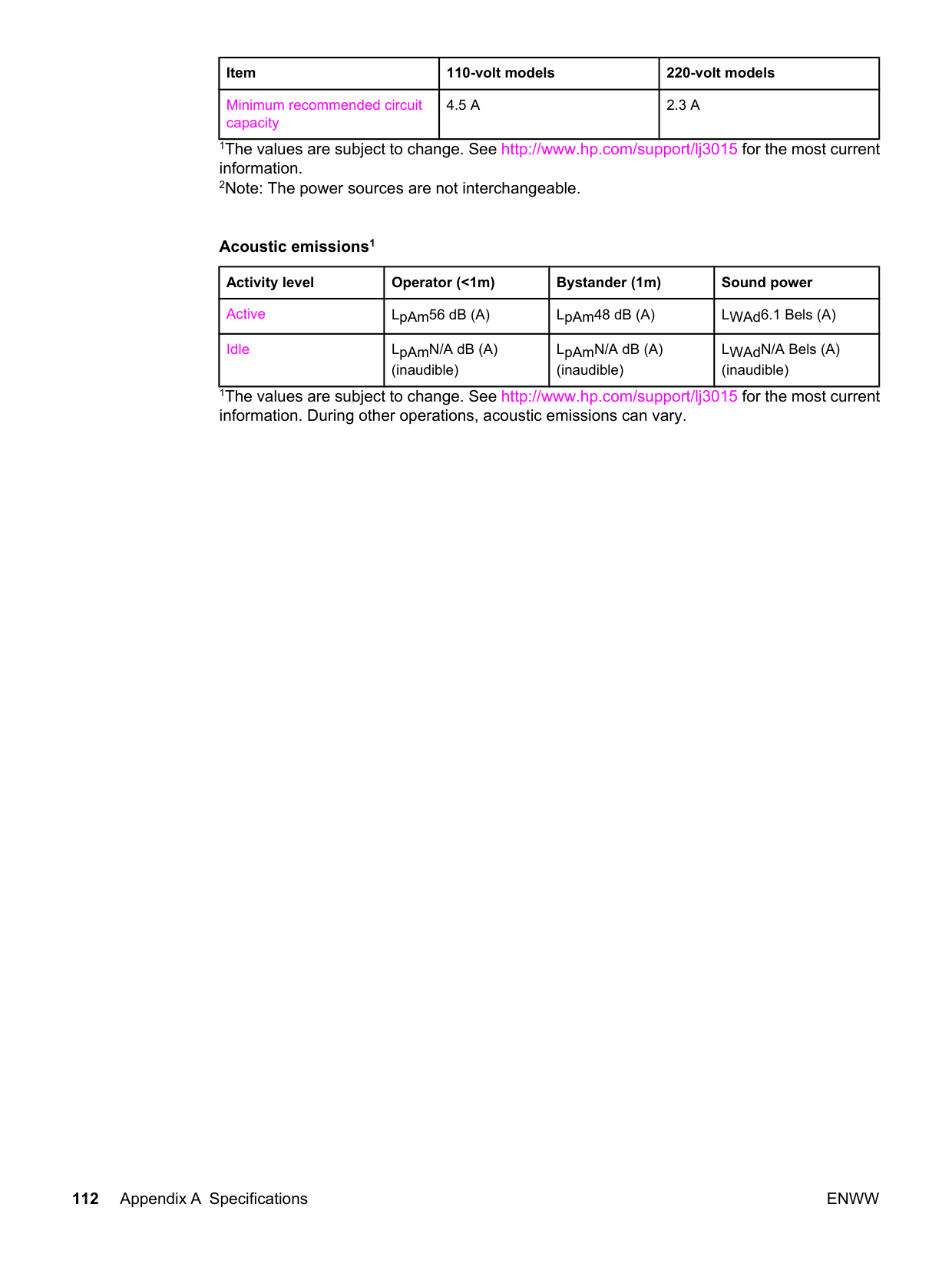
###### Too light or dark
● Try adjusting the settings.
Make sure you have the correct resolution and color settings. See Scanner resolution and color for more information.
###### Unwanted lines
● Ink, glue, correction fluid, or an unwanted substance might be on the scanner. Try cleaning the scanner surface. See Cleaning the outside of the device for instructions.
###### Black dots or streaks
● Ink, glue, correction fluid, or an unwanted substance might be on the scanner surface. Try cleaning the scanner surface. See Cleaning the outside of the device for instructions.
###### Unclear text
● Try adjusting the settings.
Make sure you have the correct resolution and color settings. See Scanner resolution and color for more information.
A
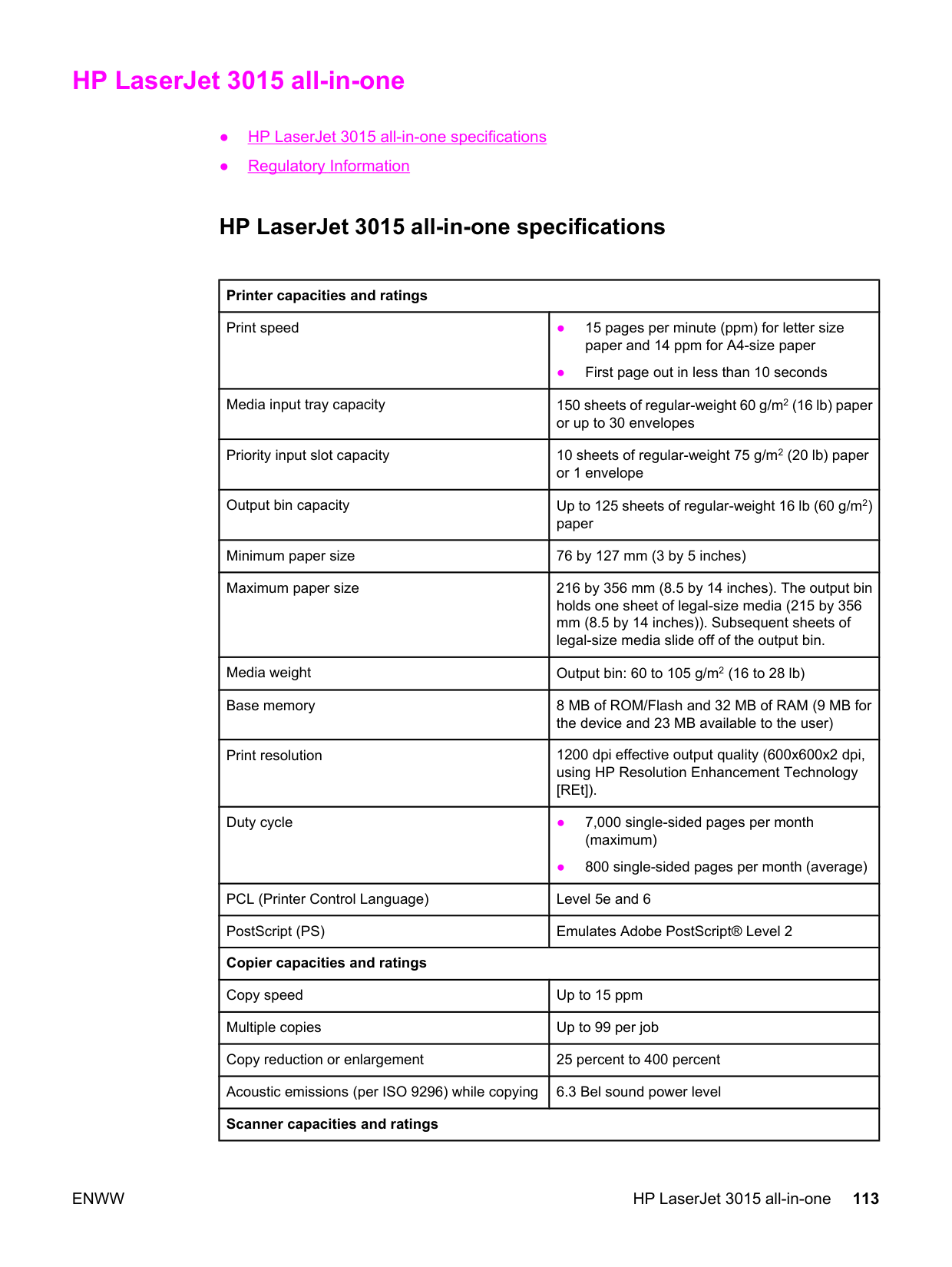
Specifications
See these sections for specifications information about the following:
######## Physical specifications
########## Product Height Depth Width Weight
HP LaserJet 3015 all-in-one
445 mm (17.7 in)
470 mm (18.5 in)
426 mm (16.8 in)
9.1 kg (20 lbs)
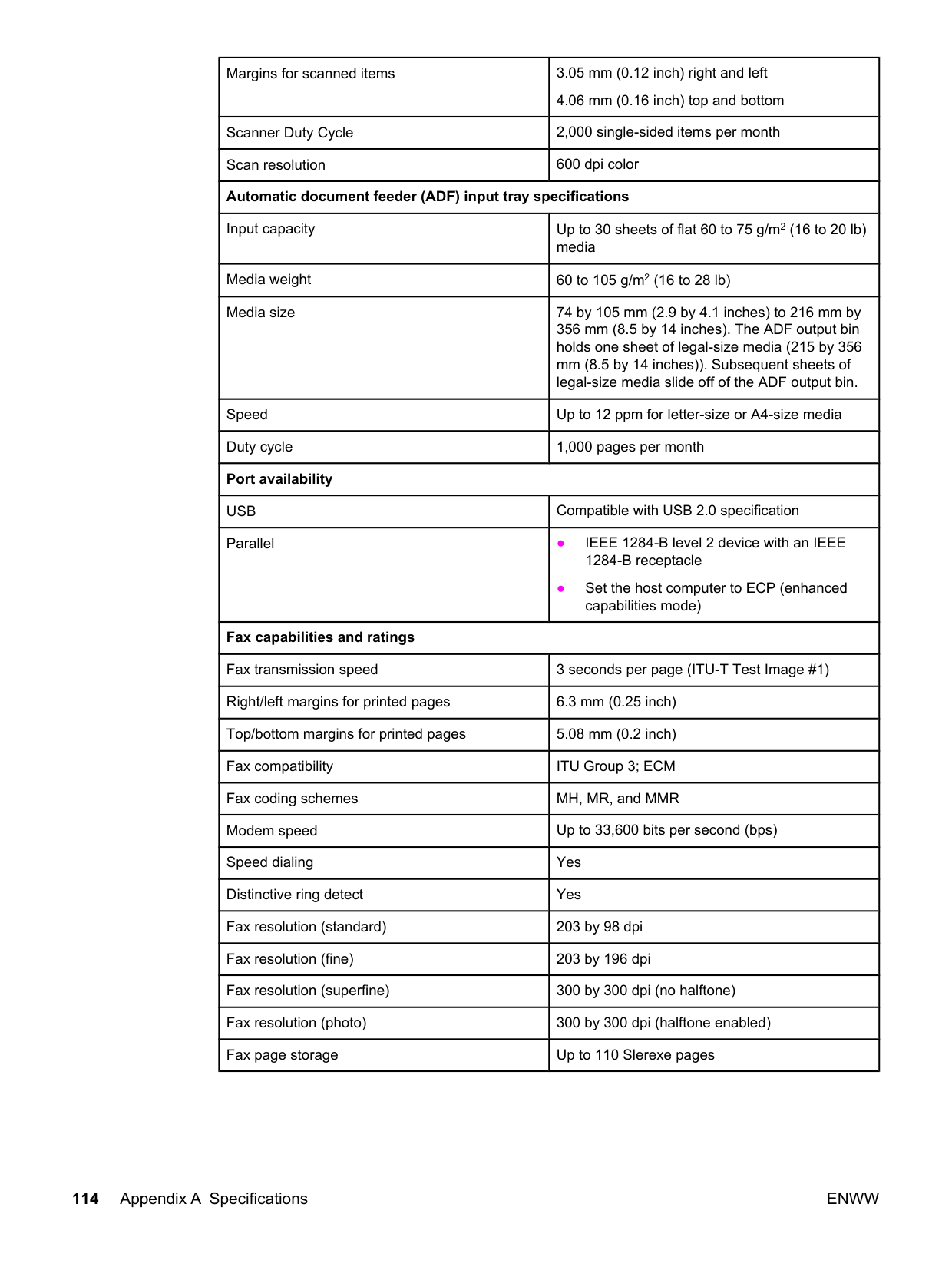
######## Environmental specifications
########## Category Specification
Operating environment (unit plugged into an AC outlet)
Storage environment (unit not plugged into an AC outlet)
Electrical specifications1 Item 110-volt models 220-volt models Power supply 1102 to 127 V (+/- 10 %) 220 to 240 V (+/- 10 %)
50 to 60 Hz (+/- 2 Hz) 50 to 60 Hz (+/- 2 Hz)
Power consumption (typical) During printing 300 W (average) 300 W (average) During standby 14 W (average) 14 W (average) Power Save mode 14 W (average) 14 W (average) Off mode 0 W (average) 0 W (average)
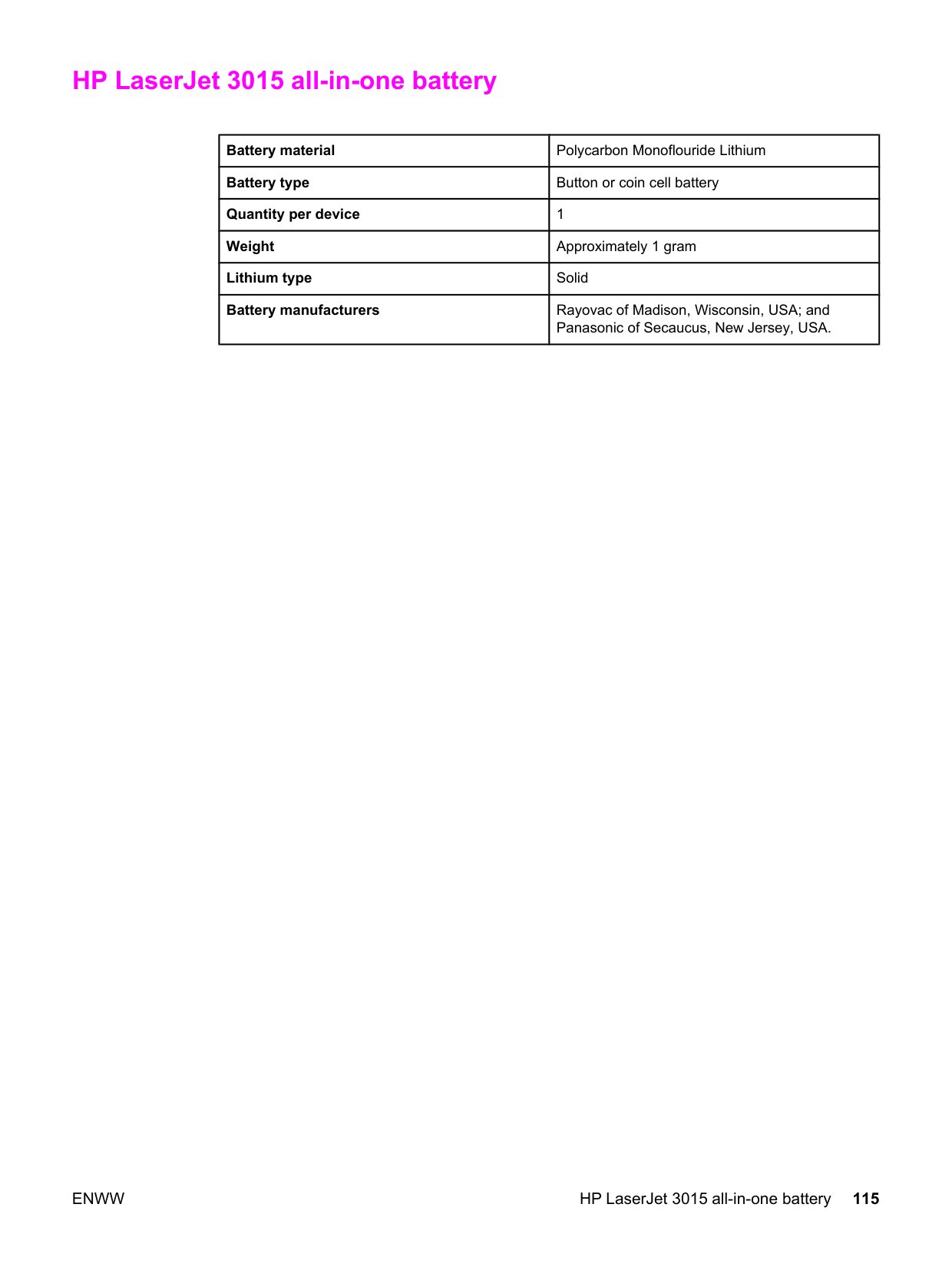
Heat output During printing BTU/hr BTU/hr
######### ENWW 111
|Item|110-volt models|220-volt models| |---|---|---| |Minimum recommended circuit capacity|4.5 A|2.3 A|
1The values are subject to change. See http://www.hp.com/support/lj3015 for the most current information. 2Note: The power sources are not interchangeable.
######## Acoustic emissions1
|Activity level|Operator (<1m)|Bystander (1m)|Sound power| |---|---|---|---| |Active|LpAm56 dB (A)|LpAm48 dB (A)|LWAd6.1 Bels (A)| |Idle|LpAmN/A dB (A) (inaudible)|LpAmN/A dB (A) (inaudible)|LWAdN/A Bels (A) (inaudible)|
1The values are subject to change. See http://www.hp.com/support/lj3015 for the most current information. During other operations, acoustic emissions can vary.

##### HP LaserJet 3015 all-in-one
###### HP LaserJet 3015 all-in-one specifications
Printer capacities and ratings Print speed ● 15 pages per minute (ppm) for letter size
paper and 14 ppm for A4-size paper
● First page out in less than 10 seconds Media input tray capacity 150 sheets of regular-weight 60 g/m2 (16 lb) paper or up to 30 envelopes Priority input slot capacity 10 sheets of regular-weight 75 g/m2 (20 lb) paper or 1 envelope Output bin capacity Up to 125 sheets of regular-weight 16 lb (60 g/m2)
paper Minimum paper size 76 by 127 mm (3 by 5 inches) Maximum paper size 216 by 356 mm (8.5 by 14 inches). The output bin
holds one sheet of legal-size media (215 by 356 mm (8.5 by 14 inches)). Subsequent sheets of legal-size media slide off of the output bin.
Media weight Output bin: 60 to 105 g/m2 (16 to 28 lb) Base memory 8 MB of ROM/Flash and 32 MB of RAM (9 MB for
the device and 23 MB available to the user)
Print resolution 1200 dpi effective output quality (600x600x2 dpi, using HP Resolution Enhancement Technology [REt]).
Duty cycle ● 7,000 single-sided pages per month (maximum)
● 800 single-sided pages per month (average) PCL (Printer Control Language) Level 5e and 6 PostScript (PS) Emulates Adobe PostScript® Level 2 Copier capacities and ratings Copy speed Up to 15 ppm Multiple copies Up to 99 per job Copy reduction or enlargement 25 percent to 400 percent Acoustic emissions (per ISO 9296) while copying 6.3 Bel sound power level Scanner capacities and ratings
ENWW HP LaserJet 3015 all-in-one 113
|Margins for scanned items|3.05 mm (0.12 inch) right and left
4.06 mm (0.16 inch) top and bottom
| |---|---| |Scanner Duty Cycle|2,000 single-sided items per month| |Scan resolution|600 dpi color| |Automatic document feeder (ADF) input tray specifications|Automatic document feeder (ADF) input tray specifications| |Input capacity|Up to 30 sheets of flat 60 to 75 g/m2 (16 to 20 lb) media| |Media weight|60 to 105 g/m2 (16 to 28 lb)| |Media size|74 by 105 mm (2.9 by 4.1 inches) to 216 mm by 356 mm (8.5 by 14 inches). The ADF output bin holds one sheet of legal-size media (215 by 356 mm (8.5 by 14 inches)). Subsequent sheets of legal-size media slide off of the ADF output bin.| |Speed|Up to 12 ppm for letter-size or A4-size media| |Duty cycle|1,000 pages per month| |Port availability|Port availability| |USB|Compatible with USB 2.0 specification| |Parallel|● IEEE 1284-B level 2 device with an IEEE 1284-B receptacle
● Set the host computer to ECP (enhanced capabilities mode)
|
|Fax capabilities and ratings|Fax capabilities and ratings| |Fax transmission speed|3 seconds per page (ITU-T Test Image #1)| |Right/left margins for printed pages|6.3 mm (0.25 inch)| |Top/bottom margins for printed pages|5.08 mm (0.2 inch)| |Fax compatibility|ITU Group 3; ECM| |Fax coding schemes|MH, MR, and MMR| |Modem speed|Up to 33,600 bits per second (bps)| |Speed dialing|Yes| |Distinctive ring detect|Yes| |Fax resolution (standard)|203 by 98 dpi| |Fax resolution (fine)|203 by 196 dpi| |Fax resolution (superfine)|300 by 300 dpi (no halftone)| |Fax resolution (photo)|300 by 300 dpi (halftone enabled)| |Fax page storage|Up to 110 Slerexe pages|
##### HP LaserJet 3015 all-in-one battery
|Battery material|Polycarbon Monoflouride Lithium| |---|---| |Battery type|Button or coin cell battery| |Quantity per device|1|
|Weight|Approximately 1 gram| |Lithium type|Solid| |Battery manufacturers|Rayovac of Madison, Wisconsin, USA; and Panasonic of Secaucus, New Jersey, USA.|
ENWW HP LaserJet 3015 all-in-one battery 115
B
Regulatory Information
See these sections for regulatory information:
ENWW 117
##### FCC regulations
This equipment has been tested and found to comply with the limits for a Class B digital device, pursuant to Part 15 of the FCC rules. These limits are designed to provide reasonable protection against harmful interference in a residential installation. This equipment generates, uses, and can radiate radio frequency energy. If not installed and used in accordance with the instructions, it may cause harmful interference to radio communications. However, there is no guarantee that interference will not occur in a particular installation. If this equipment does cause harmful interference to radio or television reception, which can be determined by turning the equipment off and on, the user is encouraged to try to correct the interference by one or more of the following measures:
Note Any changes or modifications to the printer that are not expressly approved by HP could void
the user’s authority to operate this equipment.
Note Use of a shielded interface cable is required to comply with the Class B limits of Part 15 of
FCC rules. FCC Part 68 Requirements (United States) This equipment complies with FCC rules, Part 68. On the back of this equipment is a label that contains, among other information, the FCC registration number and ringer equivalence number (REN) for this equipment. If requested, this information must be provided to the telephone company. The REN is used to determine the quantity of devices which may be connected to the telephone line. Excessive RENs on the telephone line may result in the devices not ringing in response to an incoming call. In most, but not all, areas, the sum of the RENs should not exceed five (5.0). To be certain of the number of devices that may be connected to the line, as determined by the total RENs, contact the telephone company to determine the maximum REN for the calling area. This equipment uses the following USOC jacks: RJ11C.
An FCC-compliant telephone cord and modular plug is provided with this equipment. This equipment is designed to be connected to the telephone network or premises wiring using a compatible modular jack which is Part 68 compliant. This equipment cannot be used on telephone company-provided coin service. Connection to Party Line Service is subject to state tariffs. If this equipment causes harm to the telephone network, the telephone company will notify you in advance that temporary discontinuance of service may be required. If advance notice isn't practical, the telephone company will notify the customer as soon as possible. Also, you will be advised of your right to file a complaint with the FCC if you believe it is necessary. The telephone company may make changes in its facilities, equipment, operations, or procedures that could affect the operation of the equipment. If this happens, the telephone company will provide advance notice in order for you to make the necessary modifications in order to maintain uninterrupted service. If trouble is experienced with this equipment, please see the numbers in the front of this manual for repair and (or) warranty information. If the trouble is causing harm to the telephone network, the telephone company may request you remove the equipment from the network until the problem is resolved. The following repairs can be done by the customer: Replace any original equipment that came with the product. This includes the print cartridge, the supports for trays and bins, the power cord, and the telephone cord. It is recommended that the customer install an AC surge arrestor in the AC outlet to which this device is connected. This is to avoid damage to the equipment caused by local lightning strikes and other electrical surges.
##### Telephone consumer protection act (United States)
The Telephone Consumer Protection Act of 1991 makes it unlawful for any person to use a computer or other electronic device, including fax machines, to send any message unless such message clearly contains, in a margin at the top or bottom of each transmitted page or on the first page of the transmission, the date and time it is sent and an identification of the business, other entity, or individual sending the message and the telephone number of the sending machine or such business, other entity, or individual. (The telephone number provided cannot be a 900 number or any other number for which charges exceed local or long-distance transmission charges.) In order to program this information into your facsimile, please see the fax guide.
ENWW Telephone consumer protection act (United States) 119
##### IC CS-03 requirements
NOTICE: The Industry Canada label identifies certified equipment. This certification means the equipment meets certain telecommunications network protective, operational, and safety requirements as prescribed in the appropriate Terminal Equipment Technical Requirement document(s). The Department does not guarantee the equipment will operate to the user’s satisfaction. Before installing this equipment, users should ensure that it is permissible for the equipment to be connected to the facilities of the local telecommunications company. The equipment must also be installed using an acceptable method of connection. The customer should be aware that compliance with the above conditions may not prevent degradation of service in some situations. Repairs to certified equipment should be coordinated by a representative designated by the supplier. Any repairs or alterations made by the user to this equipment, or equipment malfunctions, may give the telecommunications company cause to request the user to disconnect the equipment. Users should ensure for their own protection that the electrical ground connections of the power utility, telephone lines, and internal metallic water pipe system, if present, are connected together. This precaution can be particularly important in rural areas.
CAUTION Users should not attempt to make such connections themselves, but should contact the appropriate electric inspection authority, or electrician, as appropriate. The Ringer Equivalence Number (REN) of this device is 0.7.
Notice: The Ringer Equivalence Number (REN) assigned to each terminal device provides an indication of the maximum number of terminals allowed to be connected to a telephone interface. The termination on an interface may consist of any combination of devices subject only to the requirement that the sum of the Ringer Equivalence Number of all the devices does not exceed five (5.0). The standard connecting arrangement code (telephone jack type) for equipment with direct connections to the telephone network is CA11A.
##### Regulatory information for the European Union countries/regions
This equipment has been designed to work in all of the countries/regions of the European Economic Area (Public Switched Telephone Networks) only. Network compatibility is dependent on internal software settings. Contact your equipment supplier if it is necessary to use the equipment on a different telephone network. For further product support, contact Hewlett-Packard at the phone numbers provided in the support flyer that came with the product.
##### Safety statements
###### Laser safety statement
The Center for Devices and Radiological Health (CDRH) of the U.S. Food and Drug Administration has implemented regulations for laser products manufactured since August 1,
WARNING! Using controls, making adjustments, or performing procedures other than those specified in
this manual can result in exposure to hazardous radiation.
Canada DOC regulations This equipment complies with Canadian EMC Class B requirements. Conforme á la classe B des normes canadiennes de compatibilité électromagnétiques. << CEM>>.
Laser statement for Finland LASERTURVALLISUUS LUOKAN 1 LASERLAITE KLASS 1 LASER APPARAT
HP LaserJet 3015 all-in-one-laserkirjoitin on käyttäjän kannalta turvallinen luokan 1 laserlaite. Normaalissa käytössä kirjoittimen suojakotelointi estää lasersäteen pääsyn laitteen ulkopuolelle.

Laitteen turvallisuusluokka on määritetty standardin EN 60825-1:1994 + A11:1996 + A2:2001 mukaisesti.
######## VAROITUS!
Laitteen käyttäminen muulla kuin käyttöohjeessa mainitulla tavalla saattaa altistaa käyttäjän turvallisuusluokan 1 ylittävälle näkymättömälle lasersäteilylle.
######## VARNING!
Om apparaten används på annat sätt än i bruksanvisning specificerats, kan användaren utsättas för osynlig laserstrålning, som överskrider gränsen för laserklass 1.
######## HUOLTO
HP LaserJet 3015 all-in-one-kirjoittimen sisällä ei ole käyttäjän huollettavissa olevia kohteita. Laitteen saa avata ja huoltaa ainoastaan sen huoltamiseen koulutettu henkilö. Tällaiseksi huoltotoimenpiteeksi ei katsota väriainekasetin vaihtamista, paperiradan puhdistusta tai muita käyttäjän käsikirjassa lueteltuja, käyttäjän tehtäväksi tarkoitettuja ylläpitotoimia, jotka voidaan suorittaa ilman erikoistyökaluja.
######## VARO!
Mikäli kirjoittimen suojakotelo avataan, olet alttiina näkymättömälle lasersäteilylle laitteen ollessa toiminnassa. Älä katso säteeseen.
######## VARNING!
Om laserprinterns skyddshölje öppnas då apparaten är i funktion, utsättas användaren för osynlig laserstrålning. Betrakta ej strålen.
Tiedot laitteessa käytettävän laserdiodin säteilyominaisuuksista: Aallonpituus 770-795 nm Teho 5 mW Luokan 3B laser
###### Korean EMI statement

###### Australia
This equipment complies with Australian EMC requirements.
##### Declaration of Conformity
Declaration of Conformity according to ISO/IEC Guide 22 and EN 45014
Manufacturer’s Name: Hewlett-Packard Company Manufacturer’s Address: 11311 Chinden Boulevard
Boise, Idaho 83714-1021, USA
declares that the product Product Name: HP LaserJet 3015 all-in-one Product Number: Q2669A (Regulatory Model3: BOISB-0307-00 Product Options: All conforms to the following Product Specifications: Safety: IEC 60950:1999 / EN60950:2000
IEC 60825-1:1993 + A1:1996 + A2:2001 / EN 60825-1:1994 + A11:1996 + A2:2001 (Class 1 Laser/LED Product) GB4943-1995
EMC: CISPR 22:1998 / EN 55022:1998 - Class B1
########### Supplementary Information:
The product herewith complies with the requirements of the EMC Directive 89/336/EEC, the Low Voltage Directive 73/23/EEC, the R&TTE Directive 1999/5/EC (Annex II), and carries the CE-Marking accordingly
3For regulatory purposes, this product is assigned a Regulatory model number. This number should not be confused with the marketing name (HP LaserJet 3015) or the product number (Q2669A).
Boise, Idaho 83713, USA November 1, 2003
For Regulatory Topics Only: Australia Contact Product Regulations Manager, Hewlett-Packard Australia, Ltd. 31-41 Joseph Street Blackburn, Victoria 3130, Australia European Contact Your Local Hewlett-Packard Sales and Service Office or Hewlett-Packard Gmbh, Department HQ-TRE / Standards
Europe Herrenberger Strasse 140 Böblingen, D-71034, (+49-7031-14-3143)
##### Environmental product stewardship program
###### Protecting the environment
Hewlett-Packard Company is committed to providing quality products in an environmentally sound manner. This product has been designed with several attributes to minimize impacts on our environment.
###### Ozone production
This product generates no appreciable ozone gas (O3).
###### Energy consumption
Energy usage drops significantly while in Power Save mode, which saves natural resources and saves money without affecting the high performance of this product. This product qualifies for ENERGY STAR® (version 1.0), which is a voluntary program to encourage the development of energy-efficient office products.
ENERGY STAR® is a U.S. registered service mark of the U.S. Environmental Protection Agency. As an ENERGY STAR® Partner, Hewlett-Packard Company has determined this product meets ENERGY STAR® Guidelines (version 1.0) for energy efficiency. For more information, see http://www.energystar.gov.
###### Toner consumption
EconoMode/Toner Miser uses significantly less toner, which might extend the life of the print cartridge.
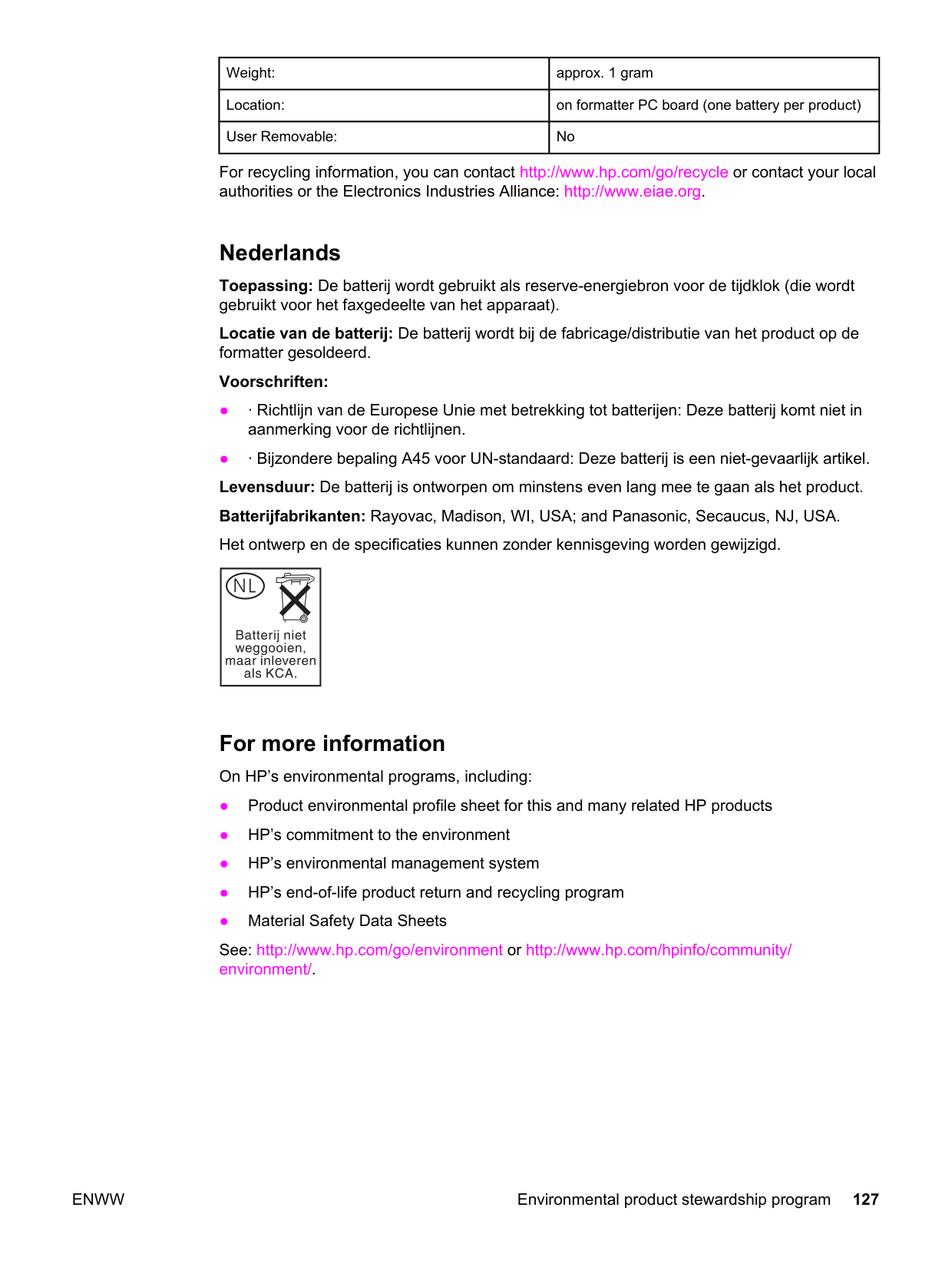
###### Paper use
This product’s manual duplex feature (two-sided printing, see Printing on both sides of the media (manual duplexing)), and printing multiple pages on one page can reduce paper usage and the resulting demands on natural resources.
###### Plastics
Plastic parts over 25 grams are marked according to international standards that enhance the ability to identify plastics for recycling purposes at the end of the product’s life.
###### HP LaserJet printing supplies
In many countries/regions, this product’s printing supplies (for example, print cartridge, drum, fuser) can be returned to HP through the HP Printing Supplies Returns and Recycling Program. An easy to use and free takeback program is available in over 48 countries/regions. Multi-lingual program information and instructions are included in every new HP LaserJet print cartridge and consumables package.
###### HP printing supplies returns and recycling program information
Since 1990, the HP Printing Supplies Returns and Recycling Program has collected millions of used LaserJet print cartridges that otherwise may have been discarded in the world’s landfills. The HP LaserJet print cartridges and supplies are collected and bulk shipped to our resource and recovery partners who disassemble the cartridge. After a thorough quality inspection, selected parts are reclaimed for use in new cartridges. Remaining materials are separated and converted into raw materials for use by other industries to make a variety of useful products.
###### U.S. returns
For a more environmentally responsible return of used cartridges and supplies, HP encourages the use of bulk returns. Simply bundle two or more cartridges together and use the single, pre-paid, pre-addressed UPS label that is supplied in the package. For more information in the U.S., call (1) (800) (340-2445) or visit the HP LaserJet Supplies website at http://www.hp.com/recycle.
###### Non-U.S. returns

Non-U.S. customers should call the local HP Sales and Service Office or visit the http://www.hp.com/recycle web site for further information regarding availability of the HP Supplies Returns and Recycling Program.
###### Paper
This product is capable of using recycled papers when the paper meets the guidelines outlined in the Print Media Guide. See Device media specifications for more information. This product is suitable for the use of recycled paper according to DIN 19309.
###### Material restrictions
This HP product contains mercury in the fluorescent lamp or scanner that may require special handling at end-of-life.
This HP product contains lead in solder. This HP product contains a battery that might require special handling at end of life.
Type: Lithium Carbon Monofluoride (solid button cell)
|Weight:|approx. 1 gram| |---|---| |Location:|on formatter PC board (one battery per product)| |User Removable:|No|
For recycling information, you can contact http://www.hp.com/go/recycle or contact your local authorities or the Electronics Industries Alliance: http://www.eiae.org.
###### Nederlands
Toepassing: De batterij wordt gebruikt als reserve-energiebron voor de tijdklok (die wordt gebruikt voor het faxgedeelte van het apparaat).
Locatie van de batterij: De batterij wordt bij de fabricage/distributie van het product op de formatter gesoldeerd.
######## Voorschriften:
| | |---|
For more information
On HP’s environmental programs, including:

See: http://www.hp.com/go/environment or http://www.hp.com/hpinfo/community/ environment/.
##### Material safety data sheets
Material Safety Data Sheets (MSDS) can be obtained by contacting the HP LaserJet Supplies web site at http://www.hp.com/hpinfo/community/environment/productinfo/safety.htm.
C
HP limited warranty statement
##### HP LaserJet 3015 all-in-one ONE-YEAR LIMITED WARRANTY
HP PRODUCT HP LaserJet 3015 all-in-one
DURATION OF LIMITED WARRANTY One year
HP warrants to you, the end-user customer, that HP hardware, accessories, and supplies will be free from defects in materials and workmanship after the date of purchase, for the period specified above. If HP receives notice of such defects during the warranty period, HP will, at its option, either repair or replace products which prove to be defective. Replacement products may be either new or equivalent in performance to new.
HP warrants to you that HP software will not fail to execute its programming instructions after the date of purchase, for the period specified above, due to defects in material and workmanship when properly installed and used. If HP receives notice of such defects during the warranty period, HP will replace software which does not execute its programming instructions due to such defects.
HP does not warrant that the operation of HP products will be uninterrupted or error free. If HP is unable, within a reasonable time, to repair or replace any product to a condition as warranted, you will be entitled to a refund of the purchase price upon prompt return of the product.
HP products may contain remanufactured parts equivalent to new in performance or may have been subject to incidental use.
Warranty does not apply to defects resulting from (a) improper or inadequate maintenance or calibration, (b) software, interfacing, parts, or supplies not supplied by HP, (c) unauthorized modification or misuse, (d) operation outside of the published environmental specifications for the product, or (e) improper site preparation or maintenance. TO THE EXTENT ALLOWED BY LOCAL LAW, THE ABOVE WARRANTIES ARE EXCLUSIVE AND NO OTHER WARRANTY OR CONDITION, WHETHER WRITTEN OR ORAL, IS EXPRESSED OR IMPLIED AND HP SPECIFICALLY DISCLAIMS ANY IMPLIED WARRANTIES OR CONDITIONS OF MERCHANTABILITY, SATISFACTORY QUALITY, AND FITNESS FOR A PARTICULAR PURPOSE. Some countries/regions, states, or provinces do not allow limitations on the duration of an implied warranty, so the above limitation or exclusion might not apply to you. This warranty gives you specific legal rights and you might also have other rights that vary from country/region to country/region, state to state, or province to province.
HP’s limited warranty is valid in any country/region or locality where HP has a support presence for this product and where HP has marketed this product. The level of warranty service you receive may vary according to local standards. HP will not alter form, fit, or function of the product to make it operate in a country/region for which it was never intended to function for legal or regulatory reasons.
TO THE EXTENT ALLOWED BY LOCAL LAW, THE REMEDIES IN THIS WARRANTY STATEMENT ARE YOUR SOLE AND EXCLUSIVE REMEDIES. EXCEPT AS INDICATED ABOVE, IN NO EVENT WILL HP OR ITS SUPPLIERS BE LIABLE FOR LOSS OF DATA OR FOR DIRECT, SPECIAL, INCIDENTAL, CONSEQUENTIAL (INCLUDING LOST PROFIT OR DATA), OR OTHER DAMAGE, WHETHER BASED IN CONTRACT, TORT, OR OTHERWISE. Some countries/regions, states, or provinces do not allow the exclusion or limitation of incidental or consequential damages, so the above limitation or exclusion may not apply to you.
ENWW HP LaserJet 3015 all-in-one ONE-YEAR LIMITED WARRANTY 129
THE WARRANTY TERMS CONTAINED IN THIS STATEMENT, EXCEPT TO THE EXTENT LAWFULLY PERMITTED, DO NOT EXCLUDE, RESTRICT, OR MODIFY AND ARE IN ADDITION TO THE MANDATORY STATUTORY RIGHTS APPLICABLE TO THE SALE OF THIS PRODUCT TO YOU.
130 Appendix C HP limited warranty statement ENWW
D
HP parts and accessories
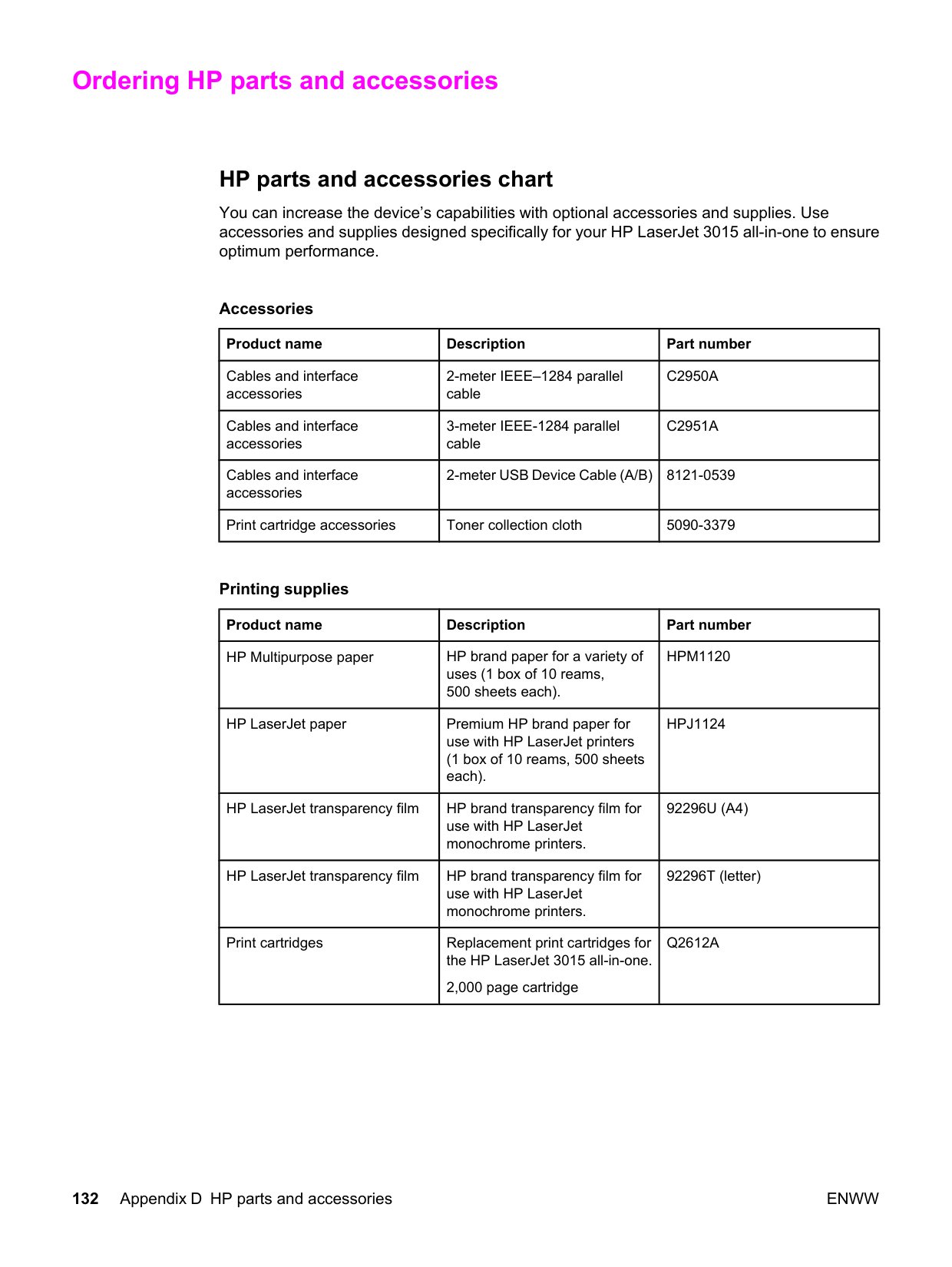
Use the following topics to find out about ordering parts and accessories for your device:
ENWW 131
##### Ordering HP parts and accessories
###### HP parts and accessories chart
You can increase the device’s capabilities with optional accessories and supplies. Use accessories and supplies designed specifically for your HP LaserJet 3015 all-in-one to ensure optimum performance.
Accessories
|Product name|Description|Part number| |---|---|---| |Cables and interface accessories|2-meter IEEE–1284 parallel cable|C2950A| |Cables and interface accessories|3-meter IEEE-1284 parallel cable|C2951A|
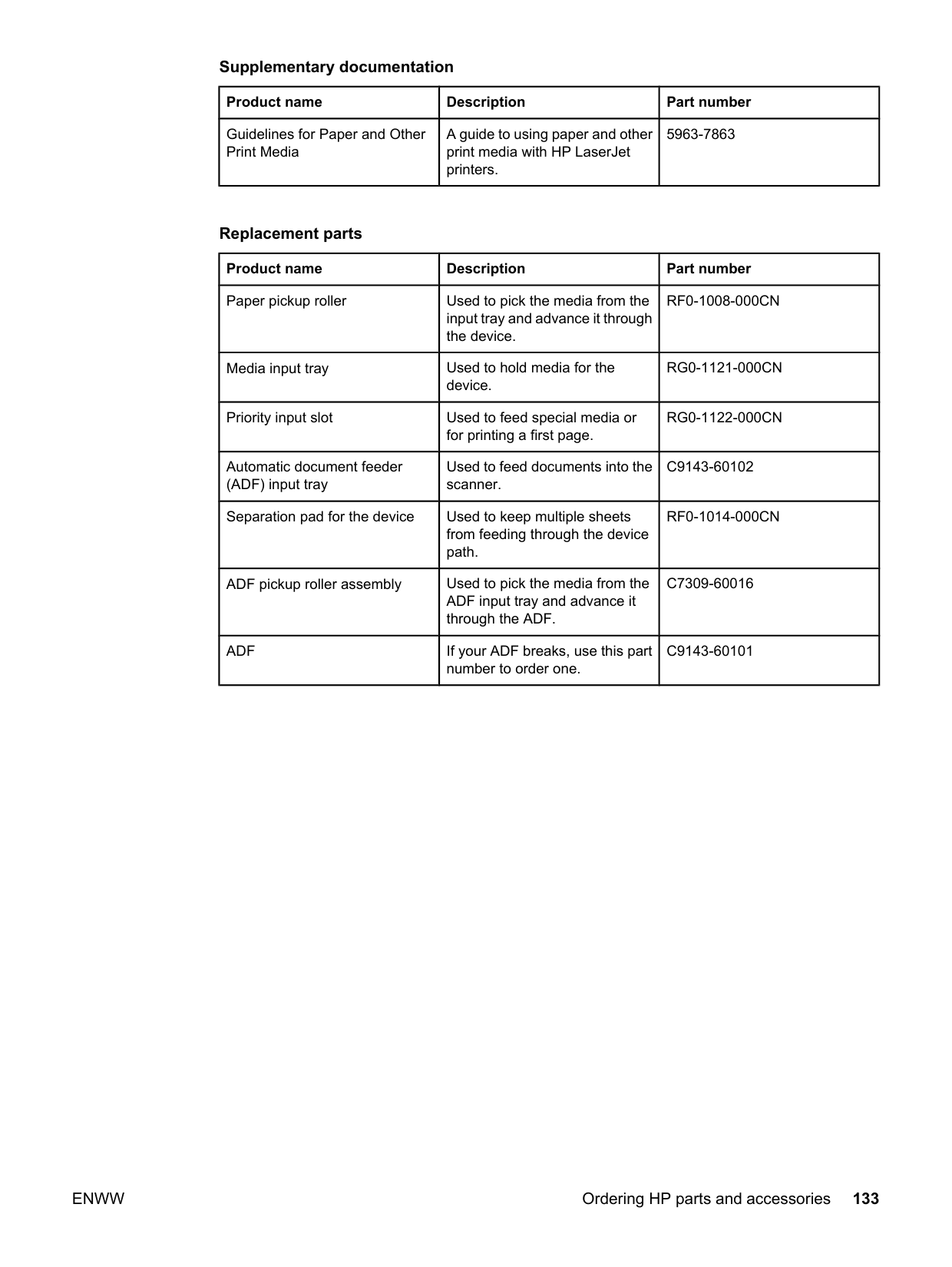
|Cables and interface accessories|2-meter USB Device Cable (A/B)|8121-0539| |Print cartridge accessories|Toner collection cloth|5090-3379|
Printing supplies
|Product name|Description|Part number| |---|---|---| |HP Multipurpose paper|HP brand paper for a variety of uses (1 box of 10 reams, 500 sheets each).|HPM1120| |HP LaserJet paper|Premium HP brand paper for use with HP LaserJet printers (1 box of 10 reams, 500 sheets each).|HPJ1124| |HP LaserJet transparency film|HP brand transparency film for use with HP LaserJet monochrome printers.|92296U (A4)| |HP LaserJet transparency film|HP brand transparency film for use with HP LaserJet monochrome printers.|92296T (letter)| |Print cartridges|Replacement print cartridges for the HP LaserJet 3015 all-in-one.
2,000 page cartridge|Q2612A|
Supplementary documentation
|Product name|Description|Part number| |---|---|---| |Guidelines for Paper and Other Print Media|A guide to using paper and other print media with HP LaserJet printers.|5963-7863|
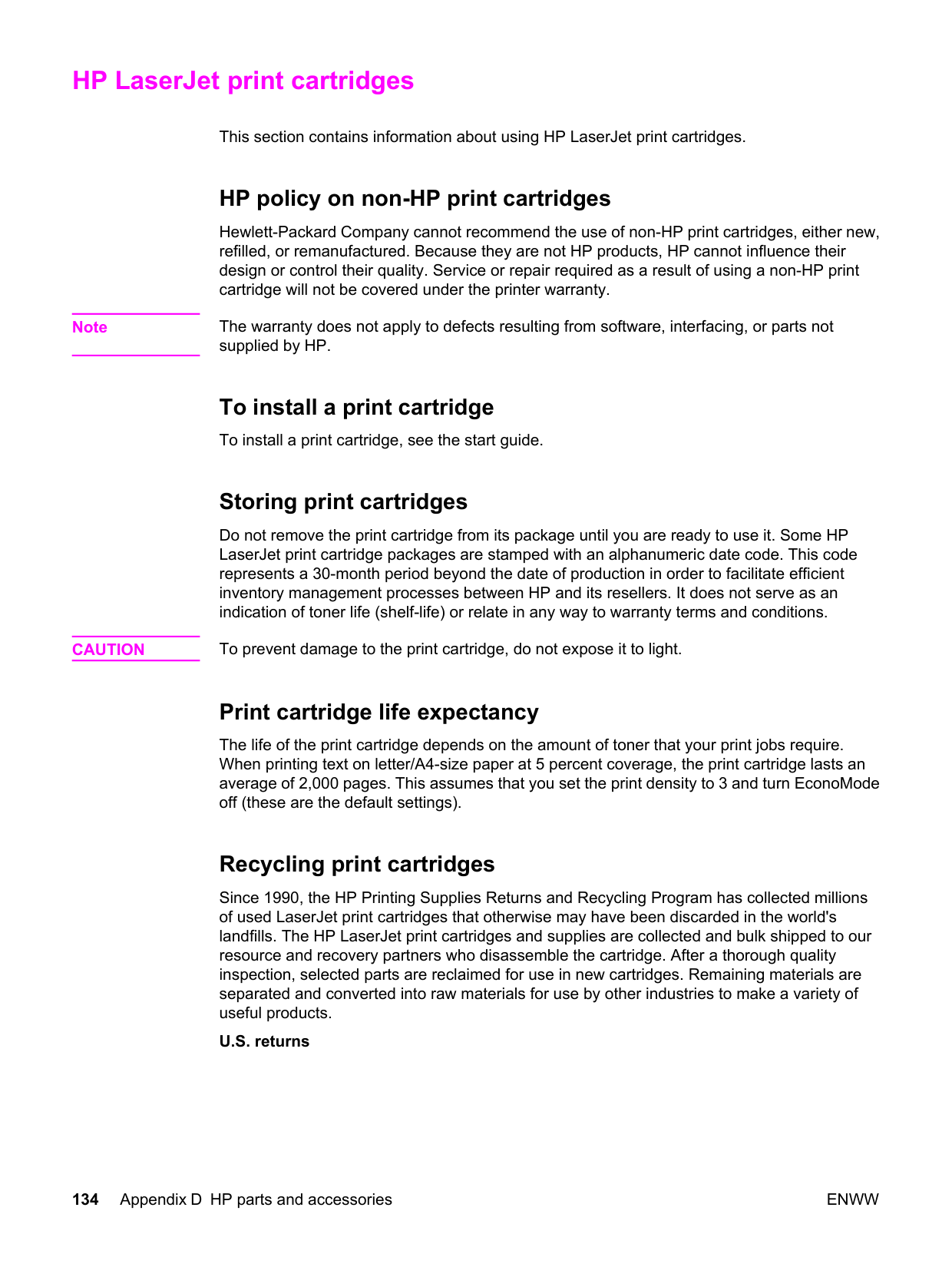
Replacement parts
|Product name|Description|Part number| |---|---|---| |Paper pickup roller|Used to pick the media from the input tray and advance it through the device.|RF0-1008-000CN| |Media input tray|Used to hold media for the device.|RG0-1121-000CN| |Priority input slot|Used to feed special media or for printing a first page.|RG0-1122-000CN| |Automatic document feeder (ADF) input tray|Used to feed documents into the scanner.|C9143-60102| |Separation pad for the device|Used to keep multiple sheets from feeding through the device path.|RF0-1014-000CN| |ADF pickup roller assembly|Used to pick the media from the ADF input tray and advance it through the ADF.|C7309-60016| |ADF|If your ADF breaks, use this part number to order one.|C9143-60101|
ENWW Ordering HP parts and accessories 133
##### HP LaserJet print cartridges
This section contains information about using HP LaserJet print cartridges.
###### HP policy on non-HP print cartridges
Hewlett-Packard Company cannot recommend the use of non-HP print cartridges, either new, refilled, or remanufactured. Because they are not HP products, HP cannot influence their design or control their quality. Service or repair required as a result of using a non-HP print cartridge will not be covered under the printer warranty.
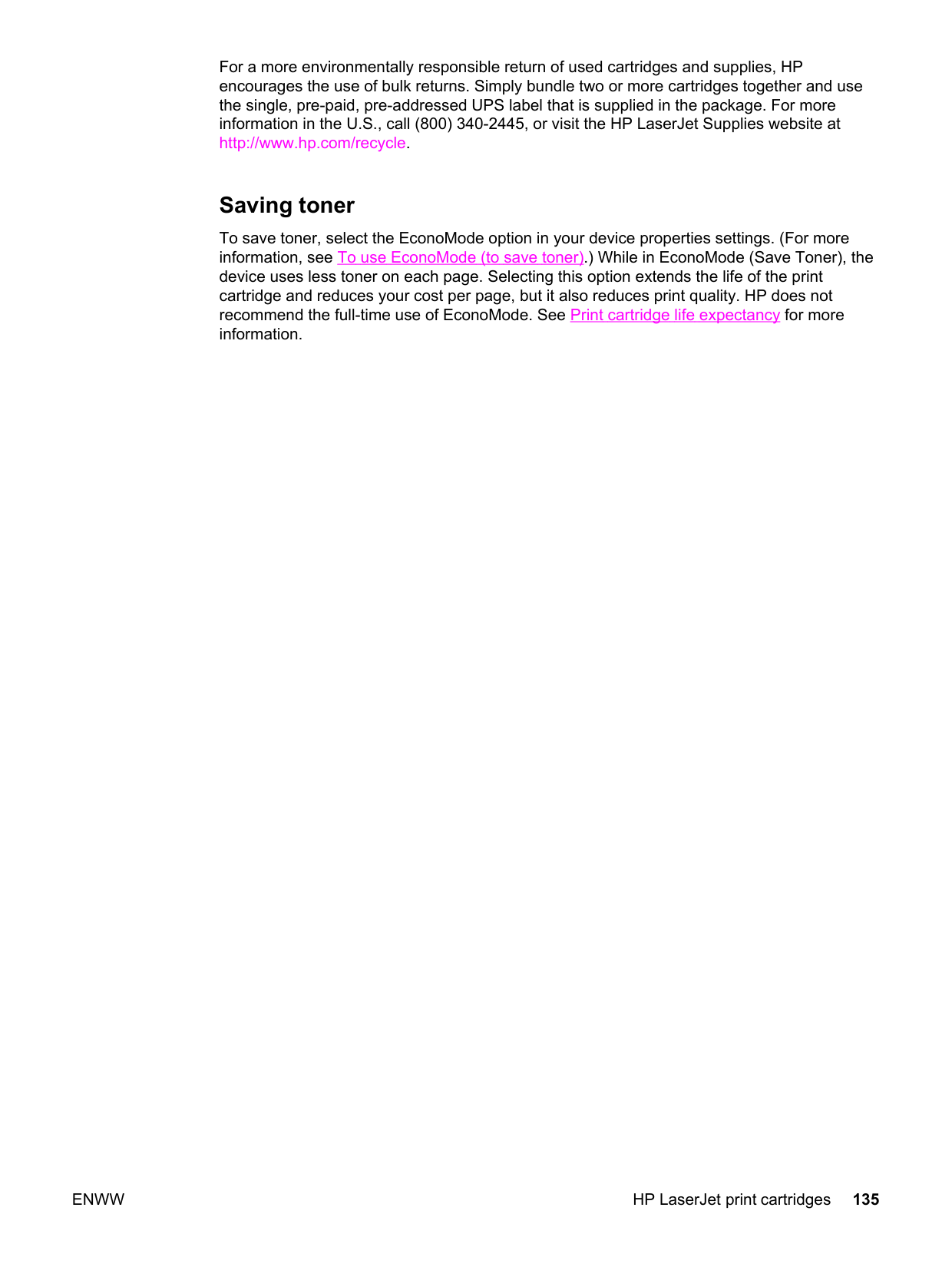
Note The warranty does not apply to defects resulting from software, interfacing, or parts not
supplied by HP.
###### To install a print cartridge
To install a print cartridge, see the start guide.
###### Storing print cartridges
Do not remove the print cartridge from its package until you are ready to use it. Some HP LaserJet print cartridge packages are stamped with an alphanumeric date code. This code represents a 30-month period beyond the date of production in order to facilitate efficient inventory management processes between HP and its resellers. It does not serve as an indication of toner life (shelf-life) or relate in any way to warranty terms and conditions.
CAUTION To prevent damage to the print cartridge, do not expose it to light.
###### Print cartridge life expectancy
The life of the print cartridge depends on the amount of toner that your print jobs require. When printing text on letter/A4-size paper at 5 percent coverage, the print cartridge lasts an average of 2,000 pages. This assumes that you set the print density to 3 and turn EconoMode off (these are the default settings).
###### Recycling print cartridges
Since 1990, the HP Printing Supplies Returns and Recycling Program has collected millions of used LaserJet print cartridges that otherwise may have been discarded in the world's landfills. The HP LaserJet print cartridges and supplies are collected and bulk shipped to our resource and recovery partners who disassemble the cartridge. After a thorough quality inspection, selected parts are reclaimed for use in new cartridges. Remaining materials are separated and converted into raw materials for use by other industries to make a variety of useful products.

######## U.S. returns
For a more environmentally responsible return of used cartridges and supplies, HP encourages the use of bulk returns. Simply bundle two or more cartridges together and use the single, pre-paid, pre-addressed UPS label that is supplied in the package. For more information in the U.S., call (800) 340-2445, or visit the HP LaserJet Supplies website at http://www.hp.com/recycle.
###### Saving toner
To save toner, select the EconoMode option in your device properties settings. (For more information, see To use EconoMode (to save toner).) While in EconoMode (Save Toner), the device uses less toner on each page. Selecting this option extends the life of the print cartridge and reduces your cost per page, but it also reduces print quality. HP does not recommend the full-time use of EconoMode. See Print cartridge life expectancy for more information.
ENWW HP LaserJet print cartridges 135
E
Service and support
Use these topics to learn about obtaining device service and support.
ENWW 137
##### Obtaining hardware service
Note Warranty service and support options might vary depending on your country/region. For
additional support information, visit http://www.hp.com.
###### To obtain hardware service
If your hardware should fail during the warranty period, HP offers the following support options:
####### Returning the unit
When shipping equipment, HP recommends insuring it. Also, include a copy of your proof of purchase. Please also fill out the Service information form to ensure the most accurate repairs.
CAUTION Shipping damage resulting from inadequate packaging is the customer’s responsibility. See
the following repackaging guidelines.
####### Repackaging guidelines
CAUTION Toner left in the device during shipping can damage the device.
###### To remove the media input tray
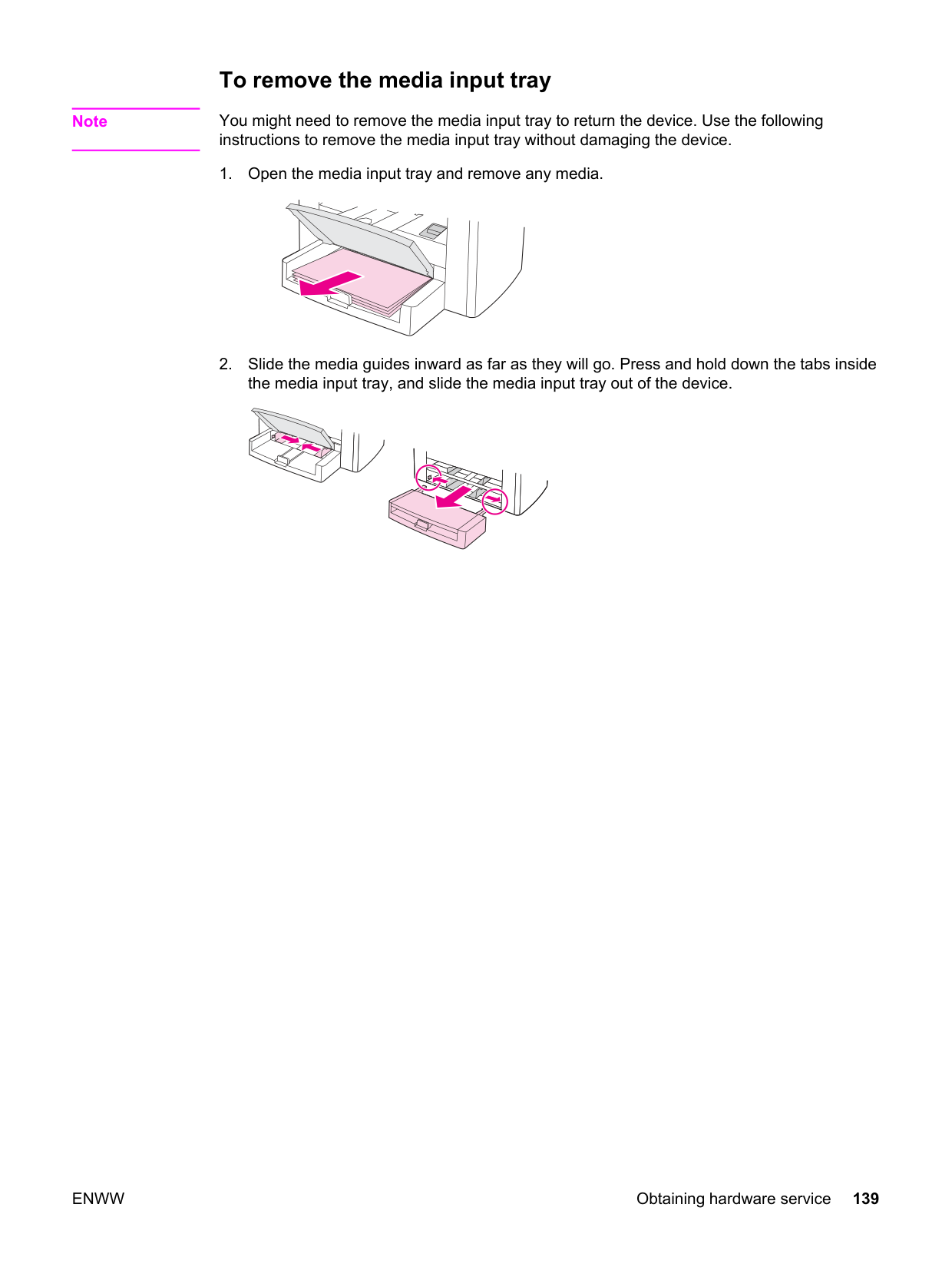
Note You might need to remove the media input tray to return the device. Use the following
instructions to remove the media input tray without damaging the device.
ENWW Obtaining hardware service 139
##### Extended warranty
In most countries/regions, HP CarePack provides additional—beyond standard warrantycoverage for the HP product and all HP-supplied internal components. This hardware maintenance can uplift the standard warranty (i.e. from next-day to same-day service) and/or extend it up to five years. The HP CarePack can provide Express Exchange or onsite service. For more support information, contact the Customer Care Service and Support group; see the support flyer that came with your device for the appropriate phone numbers and information.
##### Service information form
|Who is returning the equipment?|Who is returning the equipment?|Date:| |---|---|---| |Person to contact:|Person to contact:|Phone:| |Alternate contact:|Alternate contact:|Phone:|
|Return shipping address:|Return shipping address:|Special shipping instructions:| |What is being sent?|Model number:|Serial number:| |Please attach any relevant printouts when returning equipment. Do not ship accessories that are not required to complete the repair (for example, media trays, manuals, and cleaning supplies).|Please attach any relevant printouts when returning equipment. Do not ship accessories that are not required to complete the repair (for example, media trays, manuals, and cleaning supplies).|Please attach any relevant printouts when returning equipment. Do not ship accessories that are not required to complete the repair (for example, media trays, manuals, and cleaning supplies).| |What needs to be done?
1. Describe the conditions of the failure (What was the failure? What were you doing when the failure occurred? What software were you running? Can you make the failure reoccur?).|What needs to be done?
1. Describe the conditions of the failure (What was the failure? What were you doing when the failure occurred? What software were you running? Can you make the failure reoccur?).|What needs to be done?
1. Describe the conditions of the failure (What was the failure? What were you doing when the failure occurred? What software were you running? Can you make the failure reoccur?).| |2. If the failure is intermittent, how much time elapses between failures?|2. If the failure is intermittent, how much time elapses between failures?|2. If the failure is intermittent, how much time elapses between failures?| |3. Is the unit connected to any of the following? (Please provide manufacturer and model numbers.)|3. Is the unit connected to any of the following? (Please provide manufacturer and model numbers.)|3. Is the unit connected to any of the following? (Please provide manufacturer and model numbers.)| |Personal Computer:|Modem:|Network:| |4. Additional comments:|4. Additional comments:|4. Additional comments:|
ENWW Service information form 141
Glossary
1284-B
The 1284 parallel port standard was developed by the Institute of Electrical and Electronics Engineers (IEEE). The term "1284-B" refers to a specific connector type on the end of the parallel cable that attaches to the peripheral (for example, a printer). A 1284-B connector is larger than a 1284-C connector, for example.
ADF
all-in-one
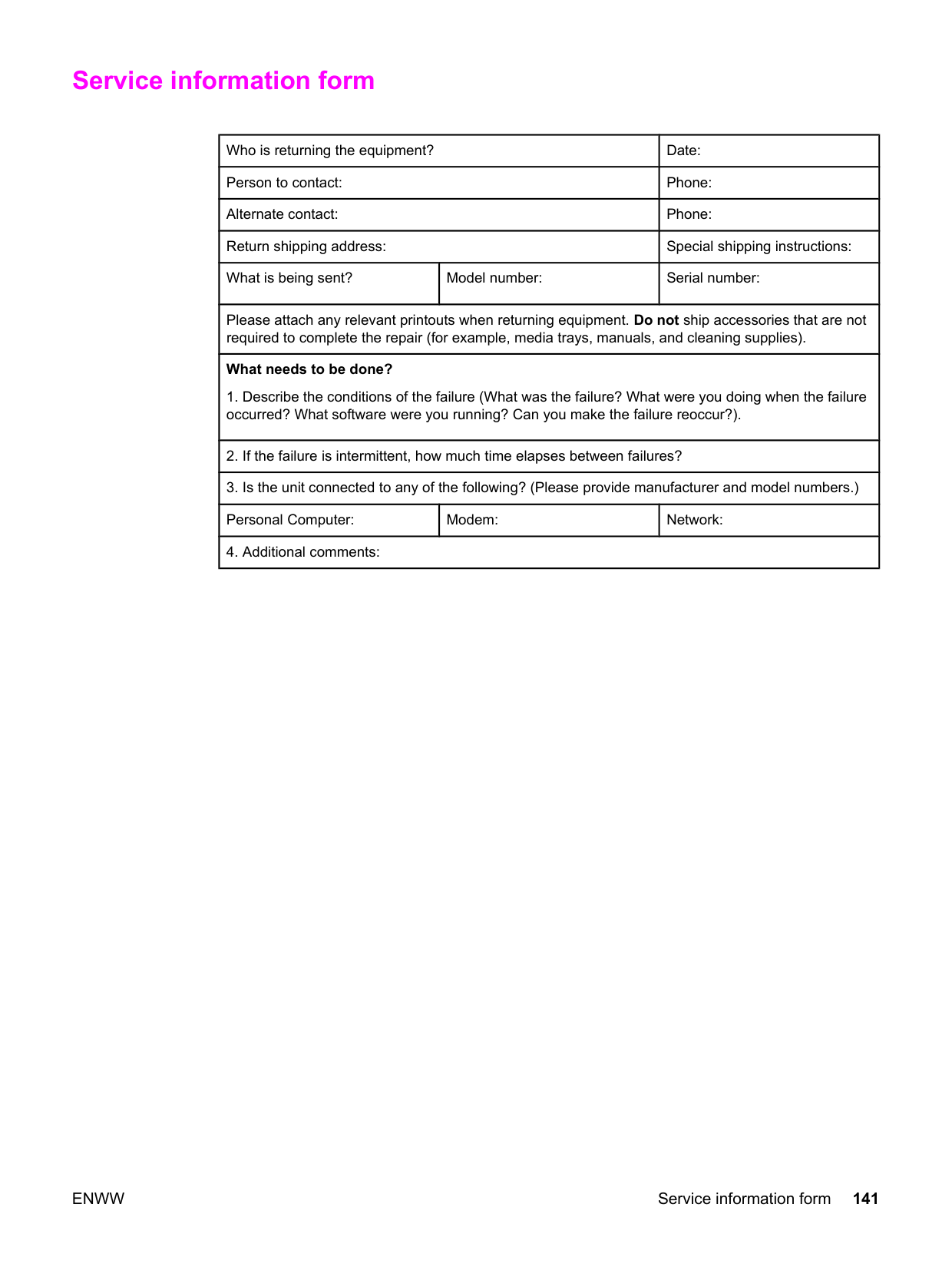
browser
collate
contrast
DIMMs
Automatic document feeder. The ADF is used to automatically feed originals into the device for copying, scanning, or faxing.
A designation given to HP devices that can perform several functions, such as printing, faxing, copying, and scanning.
Short for Web browser, a software program that is used to locate and open Web pages.
The process of printing a multiple-copy job in sets. When collate is selected, the device prints an entire set before printing additional copies. Otherwise, the device prints the specified number of copies of one page before printing the subsequent pages.
The difference between the dark and light areas of an image. The lower the number value, the more closely the shades resemble each other. The higher the number, the more the shades appear separate from each other.
Dual inline memory module, a small circuit board that holds memory. A single in-line memory module (SIMM) has a 32-bit path to the memory, whereas a DIMM has a 64-bit path.
dots per inch (dpi)

A measurement of resolution that is used for scanning and printing. Generally, more dots per inch result in a higher resolution, more visible detail in the image, and a larger file size.
dpi
See dots per inch (dpi). e-mail (electronic mail)
An abbreviation for electronic mail. Software that can be used to electronically transmit items over a communications network.
EconoMode
ECP
file format
grayscale
halftone
HP Director toolbar
HP toolbox
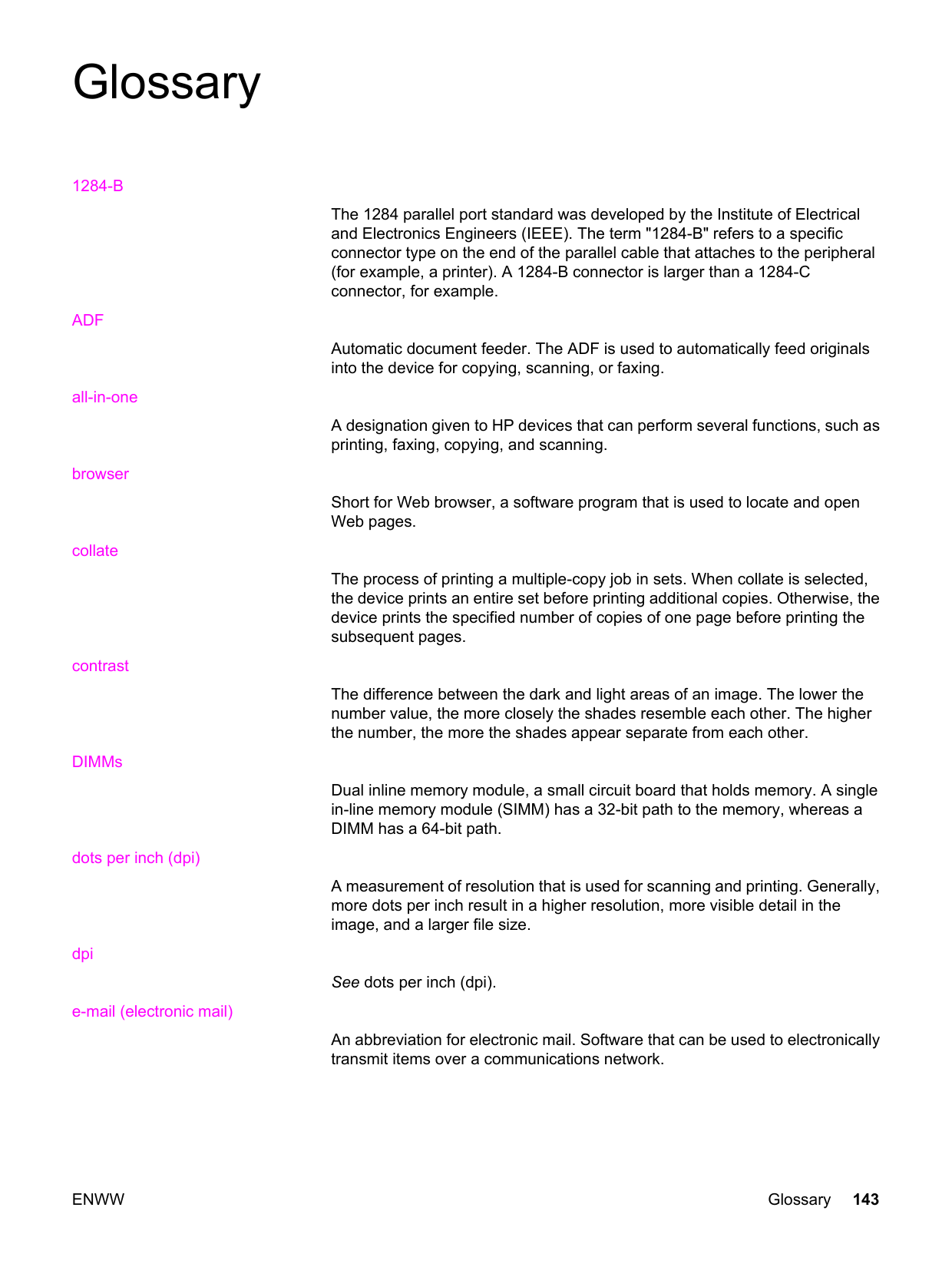
EconoMode is a toner-saving feature on the device. EconoMode reduces the amount of toner on a printed page, so that the print cartridge lasts longer. The printed result is similar to printing a document in draft mode.
Extended capabilities port, a parallel-port standard for computers that supports bidirectional communication between the computer and attached devices (such as a printer).
The way the contents of a file are structured by a program or group of programs.
Shades of gray that represent light and dark portions of an image when color images are converted to grayscale; colors are represented by various shades of gray.
An image type that simulates grayscale by varying the number of dots. Highly colored areas consist of a large number of dots, while lighter areas consist of a smaller number of dots.
Available for Macintosh only. A software screen that is used when working with documents. When the document is loaded into the automatic document feeder (ADF) and the computer is connected directly to the device, the HP Director appears on the computer screen to initiate faxing, copying, or scanning.
The HP toolbox is a Web page that opens in a Web browser and provides access to the device management and troubleshooting tools, embedded Web server, and device documentation.
link
A connection to a program or device that can be used to send information from the device software to other programs, such as e-mail, electronic fax, and OCR links.
Optical Character Recognition (OCR) software
OCR software converts an electronic image of text, such as a scanned document, into a form that word processor, spreadsheet, and database programs can use.
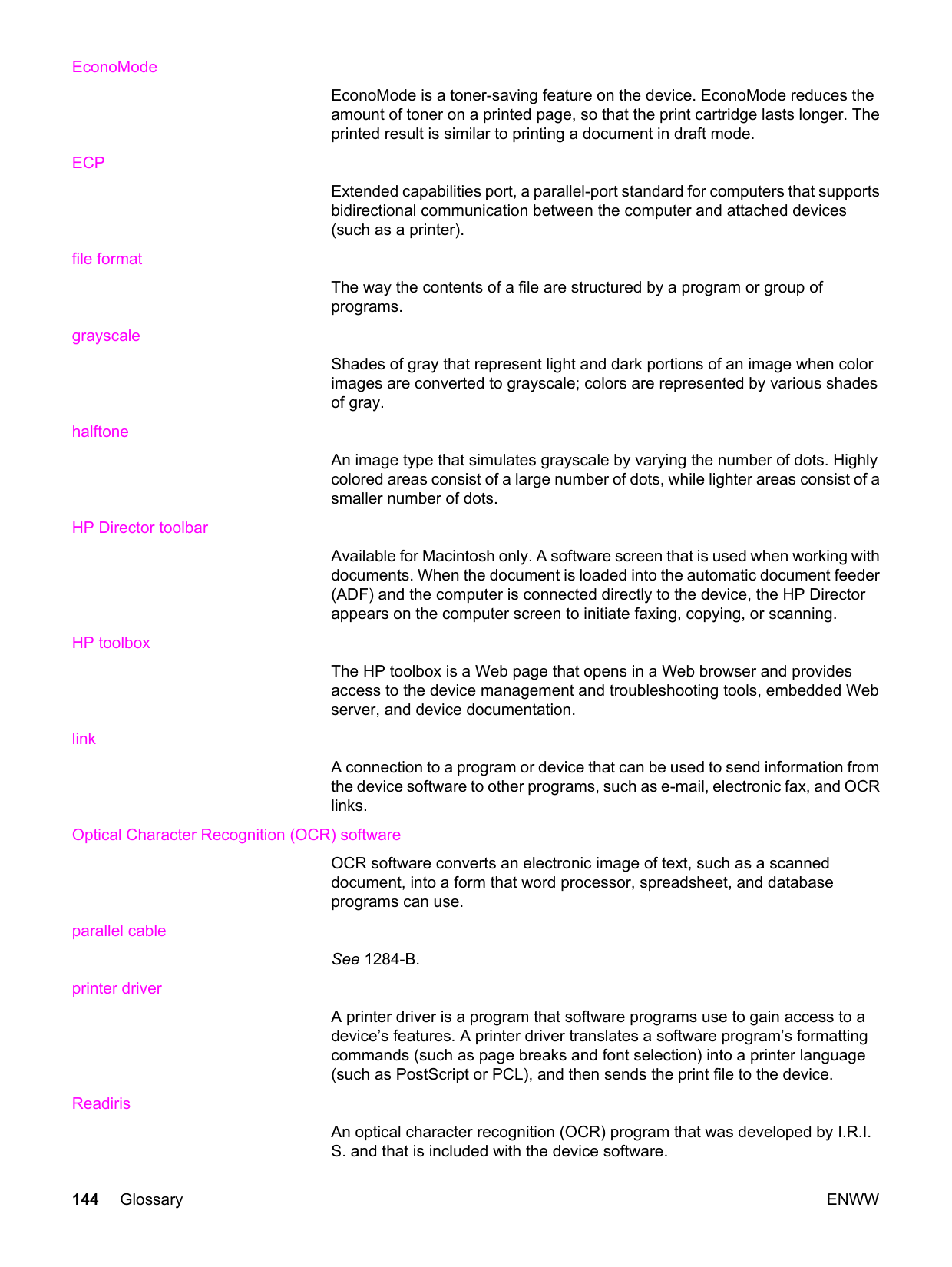
parallel cable
See 1284-B. printer driver
A printer driver is a program that software programs use to gain access to a device’s features. A printer driver translates a software program’s formatting commands (such as page breaks and font selection) into a printer language (such as PostScript or PCL), and then sends the print file to the device.
Readiris
An optical character recognition (OCR) program that was developed by I.R.I. S. and that is included with the device software.
resolution
The sharpness of an image, measured in dots per inch (dpi). The higher the dpi, the greater the resolution.
surge protector
A device that protects a power supply and communications lines from electrical surges.
TWAIN
An industry standard for scanners and software. By using a TWAIN-compliant scanner with a TWAIN-compliant program, a scan can be initiated from within the program.
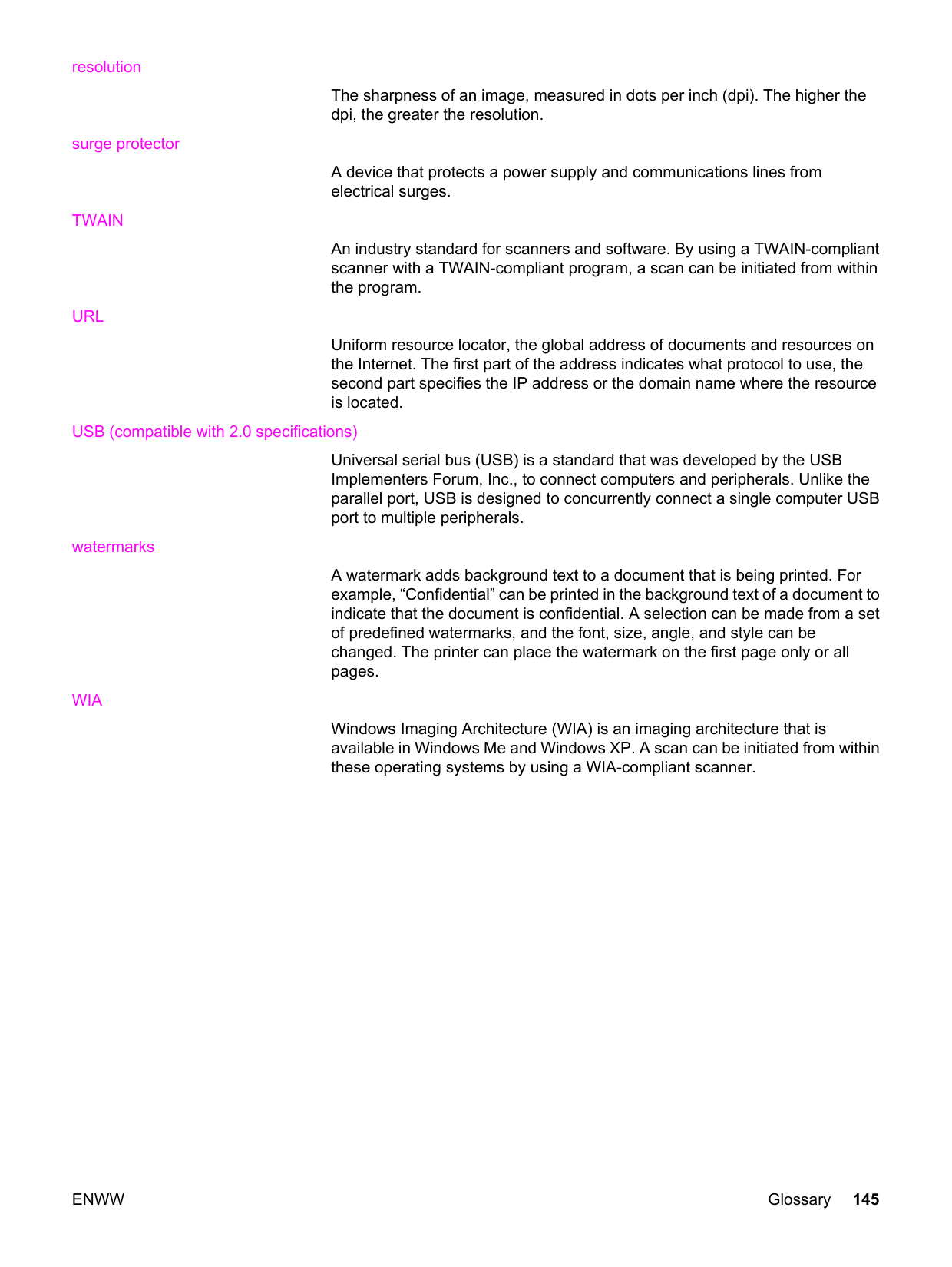
URL
Uniform resource locator, the global address of documents and resources on the Internet. The first part of the address indicates what protocol to use, the second part specifies the IP address or the domain name where the resource is located.
watermarks
Universal serial bus (USB) is a standard that was developed by the USB Implementers Forum, Inc., to connect computers and peripherals. Unlike the parallel port, USB is designed to concurrently connect a single computer USB port to multiple peripherals.
A watermark adds background text to a document that is being printed. For example, “Confidential” can be printed in the background text of a document to indicate that the document is confidential. A selection can be made from a set of predefined watermarks, and the font, size, angle, and style can be changed. The printer can place the watermark on the first page only or all pages.
WIA
Windows Imaging Architecture (WIA) is an imaging architecture that is available in Windows Me and Windows XP. A scan can be initiated from within these operating systems by using a WIA-compliant scanner.
Index
######## Symbols/Numerics 2-sided originals
copying 54 2-sided printing 37 300 dpi print-quality setting 21 600 dpi print-quality setting 21

clearing jams 102 duty cycle 114 input tray 4 loading input tray 56 media specifications 8 ordering parts 133 output bin 4 selecting media 29 specifications 29, 114
adjusting contrast default for copying 48 contrast for current copy job 48 copy quality 47 default copy size 49 device control panel key-press volume 16 languages, device control panel display 14 settings 9 settings from the computer 20 volume 14
alarm volume
adjusting 15 alcohol, cleaning with 72 alert messages 97 Australia
EMC statements 123
C cables
interface, ordering 132 Canada DOC regulations 121 canceling
copy jobs 46 print jobs 19 scan jobs 59
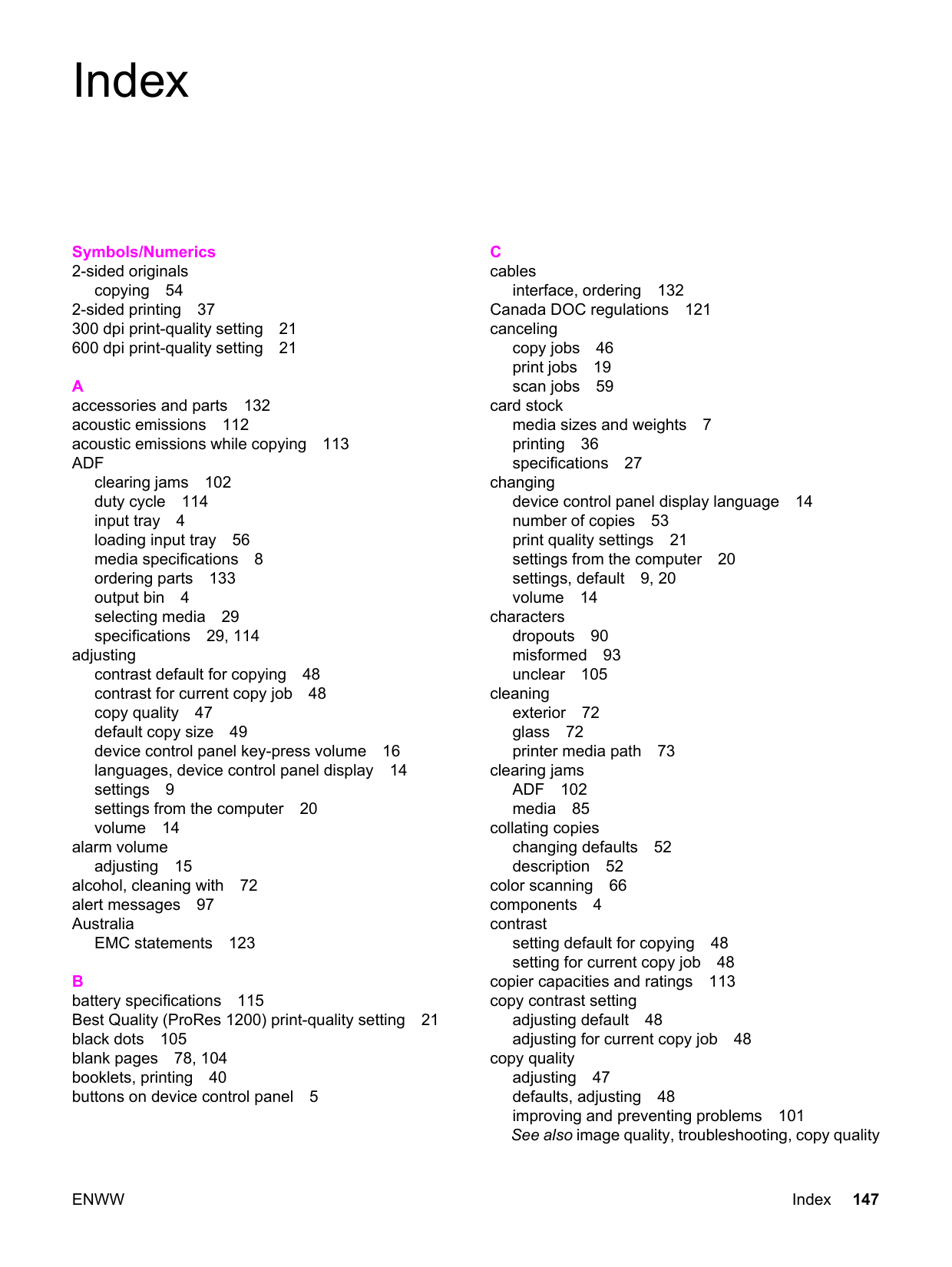
card stock media sizes and weights 7 printing 36 specifications 27
changing device control panel display language 14 number of copies 53 print quality settings 21 settings from the computer 20 settings, default 9, 20 volume 14
characters dropouts 90 misformed 93 unclear 105
cleaning exterior 72 glass 72 printer media path 73
clearing jams ADF 102 media 85
collating copies changing defaults 52 description 52
color scanning 66 components 4 contrast
setting default for copying 48 setting for current copy job 48
copier capacities and ratings 113 copy contrast setting
adjusting default 48 adjusting for current copy job 48
copy quality adjusting 47 defaults, adjusting 48 improving and preventing problems 101 See also image quality, troubleshooting, copy quality
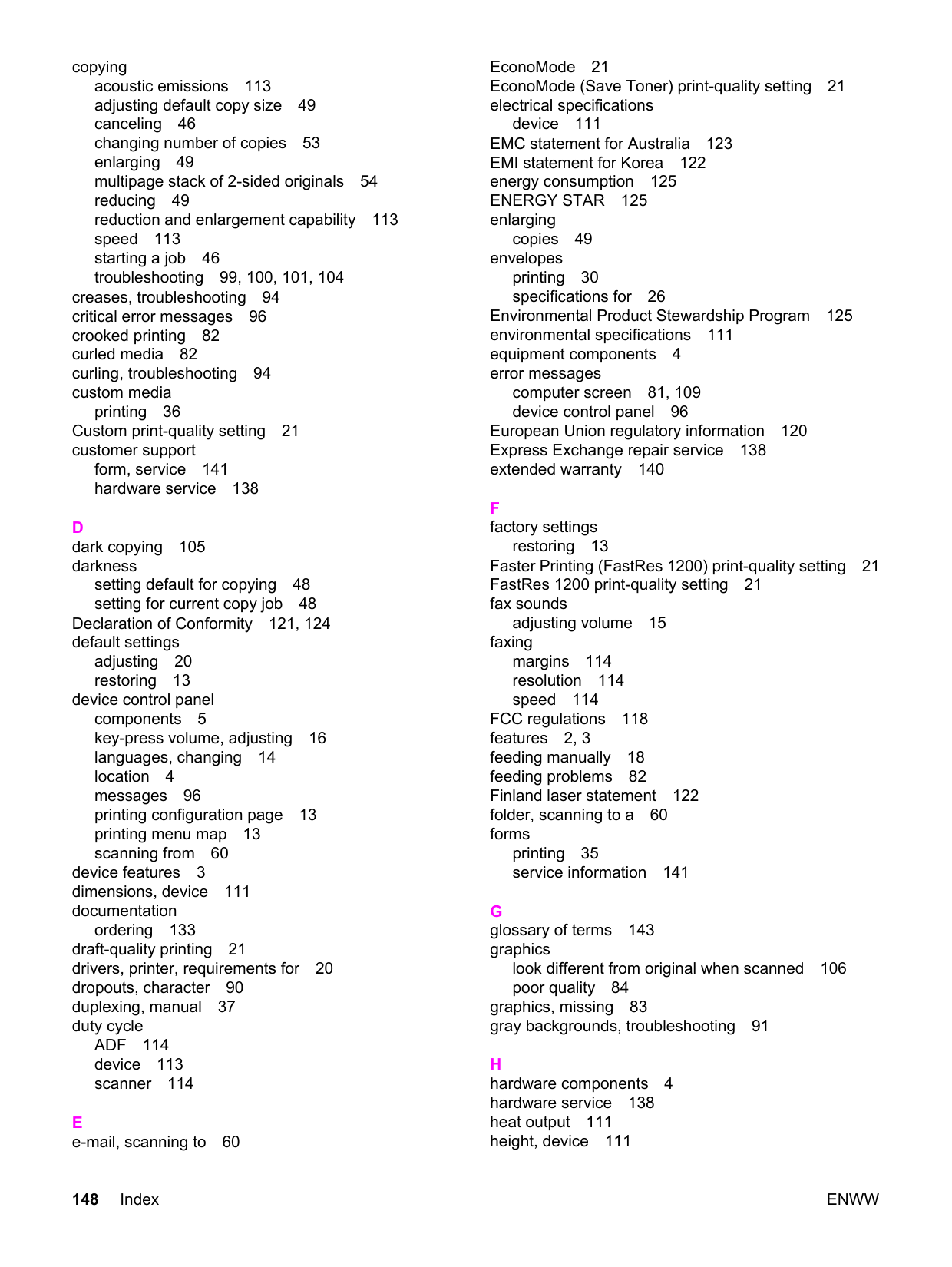
copying acoustic emissions 113 adjusting default copy size 49 canceling 46 changing number of copies 53 enlarging 49 multipage stack of 2-sided originals 54 reducing 49 reduction and enlargement capability 113 speed 113 starting a job 46 troubleshooting 99, 100, 101, 104
creases, troubleshooting 94 critical error messages 96 crooked printing 82 curled media 82 curling, troubleshooting 94 custom media
printing 36 Custom print-quality setting 21 customer support
form, service 141 hardware service 138
setting default for copying 48 setting for current copy job 48
Declaration of Conformity 121, 124 default settings
adjusting 20 restoring 13 device control panel components 5 key-press volume, adjusting 16 languages, changing 14 location 4 messages 96 printing configuration page 13 printing menu map 13 scanning from 60
device features 3 dimensions, device 111 documentation
ordering 133 draft-quality printing 21 drivers, printer, requirements for 20 dropouts, character 90 duplexing, manual 37 duty cycle
ADF 114 device 113 scanner 114
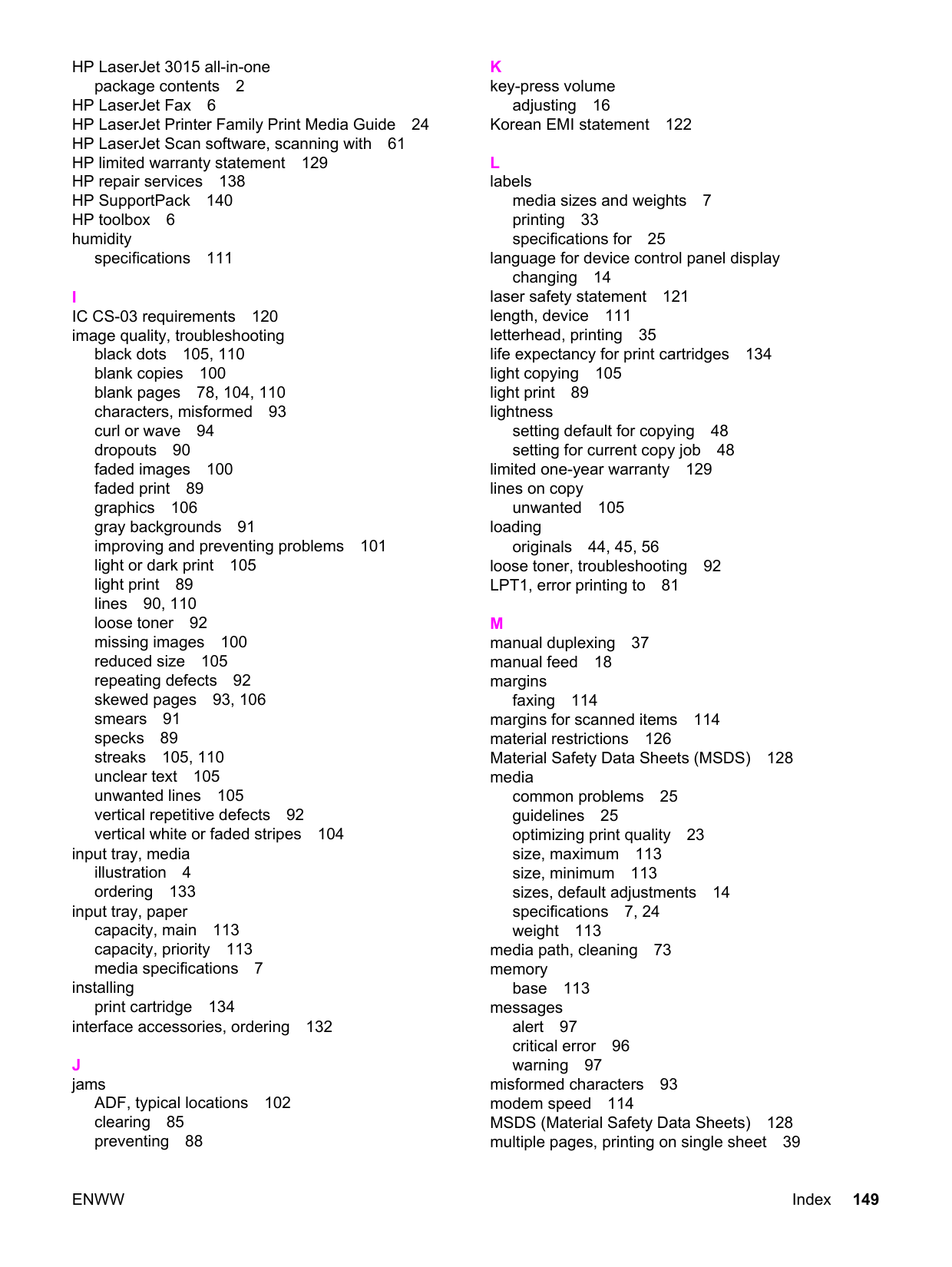
EconoMode 21 EconoMode (Save Toner) print-quality setting 21 electrical specifications
device 111 EMC statement for Australia 123 EMI statement for Korea 122 energy consumption 125 ENERGY STAR 125 enlarging
copies 49
envelopes printing 30 specifications for 26
Environmental Product Stewardship Program 125 environmental specifications 111 equipment components 4 error messages
computer screen 81, 109 device control panel 96
European Union regulatory information 120 Express Exchange repair service 138 extended warranty 140
restoring 13 Faster Printing (FastRes 1200) print-quality setting 21 FastRes 1200 print-quality setting 21 fax sounds
adjusting volume 15
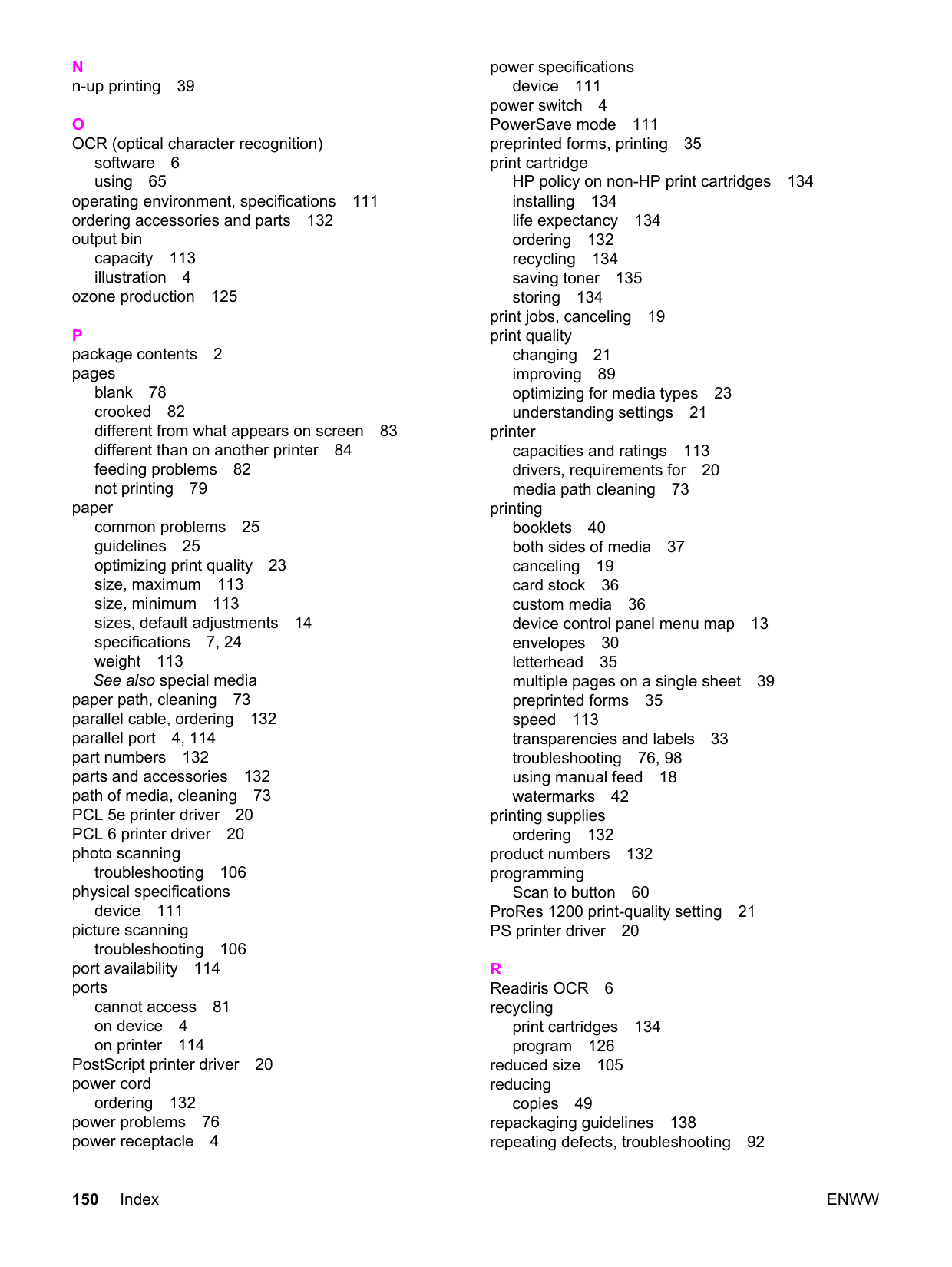
faxing margins 114 resolution 114 speed 114
FCC regulations 118 features 2, 3 feeding manually 18 feeding problems 82 Finland laser statement 122 folder, scanning to a 60 forms
printing 35 service information 141
look different from original when scanned 106 poor quality 84 graphics, missing 83 gray backgrounds, troubleshooting 91
HP LaserJet 3015 all-in-one package contents 2 HP LaserJet Fax 6 HP LaserJet Printer Family Print Media Guide 24 HP LaserJet Scan software, scanning with 61 HP limited warranty statement 129 HP repair services 138 HP SupportPack 140 HP toolbox 6 humidity
specifications 111
black dots 105, 110 blank copies 100 blank pages 78, 104, 110 characters, misformed 93 curl or wave 94 dropouts 90 faded images 100 faded print 89 graphics 106 gray backgrounds 91 improving and preventing problems 101 light or dark print 105 light print 89 lines 90, 110 loose toner 92 missing images 100 reduced size 105 repeating defects 92 skewed pages 93, 106 smears 91 specks 89 streaks 105, 110 unclear text 105 unwanted lines 105 vertical repetitive defects 92 vertical white or faded stripes 104
input tray, media illustration 4 ordering 133
input tray, paper capacity, main 113 capacity, priority 113 media specifications 7
installing print cartridge 134 interface accessories, ordering 132
ADF, typical locations 102 clearing 85 preventing 88
adjusting 16 Korean EMI statement 122
media sizes and weights 7 printing 33 specifications for 25
language for device control panel display
changing 14 laser safety statement 121 length, device 111 letterhead, printing 35 life expectancy for print cartridges 134 light copying 105 light print 89 lightness
setting default for copying 48 setting for current copy job 48
limited one-year warranty 129 lines on copy
unwanted 105 loading
originals 44, 45, 56 loose toner, troubleshooting 92 LPT1, error printing to 81
faxing 114 margins for scanned items 114 material restrictions 126 Material Safety Data Sheets (MSDS) 128 media
common problems 25 guidelines 25 optimizing print quality 23 size, maximum 113 size, minimum 113 sizes, default adjustments 14 specifications 7, 24 weight 113
media path, cleaning 73 memory
base 113
messages alert 97 critical error 96 warning 97

misformed characters 93 modem speed 114 MSDS (Material Safety Data Sheets) 128 multiple pages, printing on single sheet 39
software 6 using 65
operating environment, specifications 111 ordering accessories and parts 132 output bin
capacity 113 illustration 4
ozone production 125
blank 78 crooked 82 different from what appears on screen 83 different than on another printer 84 feeding problems 82 not printing 79
paper common problems 25 guidelines 25 optimizing print quality 23 size, maximum 113 size, minimum 113 sizes, default adjustments 14 specifications 7, 24 weight 113 See also special media
paper path, cleaning 73 parallel cable, ordering 132 parallel port 4, 114 part numbers 132 parts and accessories 132 path of media, cleaning 73

troubleshooting 106 physical specifications
device 111 picture scanning
troubleshooting 106 port availability 114 ports
cannot access 81 on device 4 on printer 114
PostScript printer driver 20 power cord
ordering 132 power problems 76 power receptacle 4
power specifications
device 111 power switch 4 PowerSave mode 111 preprinted forms, printing 35 print cartridge
HP policy on non-HP print cartridges 134 installing 134 life expectancy 134 ordering 132 recycling 134 saving toner 135 storing 134
print jobs, canceling 19 print quality
changing 21 improving 89 optimizing for media types 23 understanding settings 21
printer capacities and ratings 113 drivers, requirements for 20 media path cleaning 73
printing booklets 40 both sides of media 37 canceling 19 card stock 36 custom media 36 device control panel menu map 13 envelopes 30 letterhead 35 multiple pages on a single sheet 39 preprinted forms 35 speed 113 transparencies and labels 33 troubleshooting 76, 98 using manual feed 18 watermarks 42
printing supplies
ordering 132 product numbers 132 programming
Scan to button 60 ProRes 1200 print-quality setting 21 PS printer driver 20
R Readiris OCR 6 recycling
print cartridges 134 program 126
reduced size 105 reducing
copies 49 repackaging guidelines 138 repeating defects, troubleshooting 92
replacement parts, ordering 133 resolution
faxing 114 printing 113 scanning 66, 114
restoring factory settings 13 returning the unit 138 returns for supplies 126 ring volume
adjusting 15
S safety
statements 121 saving print cartridge toner 135 scan quality
improving and preventing problems 110 troubleshooting 106
scanner capacities and ratings 113 scanning
canceling 59 color 66 error messages 109 LaserJet Scan software 61 margins 114 methods 58 OCR, using 65 quality, improving 110 resolution 66, 114 takes too long 108 to a file 61 to a folder 60 to e-mail 60 troubleshooting 106 TWAIN, using 64 WIA, using 64
separation pad, ordering 133 service
hardware 138 information form 141
settings changing defaults 9 changing from the computer 20 restoring factory default 13
shipping damage 138 size
device 111 media 7
size reduced 105 skewed pages 93 skewed printing 82 smeared toner 91 software components 6 special media
specifications 28 specifications
ADF 29, 114
battery 115 card stock and heavy media 27 copier capacities and ratings 113 envelopes 26 labels 25 media 7, 24 printer capacities and ratings 113 scanner capacities and ratings 113 transparencies 26
specs on media 89 speed
copy 113 fax 114 modem 114 print 113
standby power specifications 111 statements
Australian EMC 123 Declaration of Conformity 121, 124 extended warranty 140 FCC Part 68 requirements 118 FCC regulations 118 Finland laser 122 IC CS-03 requirements 120 Korean EMI 122 laser safety 121 telephone consumer protection act 119 warranty 129
storage environment, specifications 111 storing print cartridges 134 streaks 105 supplies
ordering 132 support, customer. See customer support SupportPack 140
T telephone consumer protection act 119 telephone lines
fax tone volume, adjusting 15 telephone port 4 temperature
specifications 111 terminology 143 text
garbled, incorrect, or incomplete 83 missing 83, 107
toner consumption 125 loose 92 saving 21, 135 scattered outline 95 smear 91 specks 89
transparencies media sizes and weights 7 printing 33
specifications for 26
troubleshooting black dots 110 blank pages 78, 100, 110 characters, misformed 93 copy output 99 copying 99 creases 94 curled media 82 curling paper 94 dropouts 90 error messages 81 faded print 89 feeding problems 79, 82 graphics 83, 84, 106 gray backgrounds 91 light print 89 lines 90, 110 list of problems 75 loose toner 92 media guides 82 media jams 85 media problems 25 not responding 76, 79, 81 pages not printing 79 paper 107 parallel ports 81 pickup roller 82 power on 76 printer 76, 98 quality, image 106 repeating defects 92 scanning 106 sizes, wrong 107 skewed pages 93, 106 skewed print 82 smears 91 specks 89, 95 streaks 110 text problems 83, 107, 110 too dark 110 too light 110
vertical repetitive defects 92 wrinkles 94 See also image quality, troubleshooting
turn on, device does not 76 TWAIN
error message 109 scanning with 64
two-sided originals copying 54
two-sided printing 37
cable, ordering 132 port 4, 114
adjusting 14 device control panel key-press, adjusting 16
volume, adjusting 14
extended 140 limited one-year 129
watermarks, printing 42 weight
ADF media 114 device 111 media 7, 113
white or faded stripes 104 WIA
scanning with 64 width, device 111 wrinkling, troubleshooting 94
© 2004 Hewlett-Packard Development Company, LP
www.hp.com/support/lj3015
Q2669-90951