Ask AI
— answers from the official manualAnswers from the official manual.
Common questions
Common Questions
8 totalWhat is the maximum weight of media that can be used in the HP LaserJet 3055?
The automatic document feeder (ADF) input tray supports a maximum paper weight of up to 24 lb (167 g/m²).
How do I connect the HP LaserJet 3055 to a telephone line?
Connect the included fax cord to the port on the printer marked with an 'L' and then connect it to a telephone jack.
What should I do if there is no power when turning on the HP LaserJet 3055?
Ensure the power cord is securely connected to both the printer and a power outlet. Also, check that any connected power strip is switched on or connect directly to a wall outlet to test it.
How do I install the print cartridge in my HP LaserJet 3055?
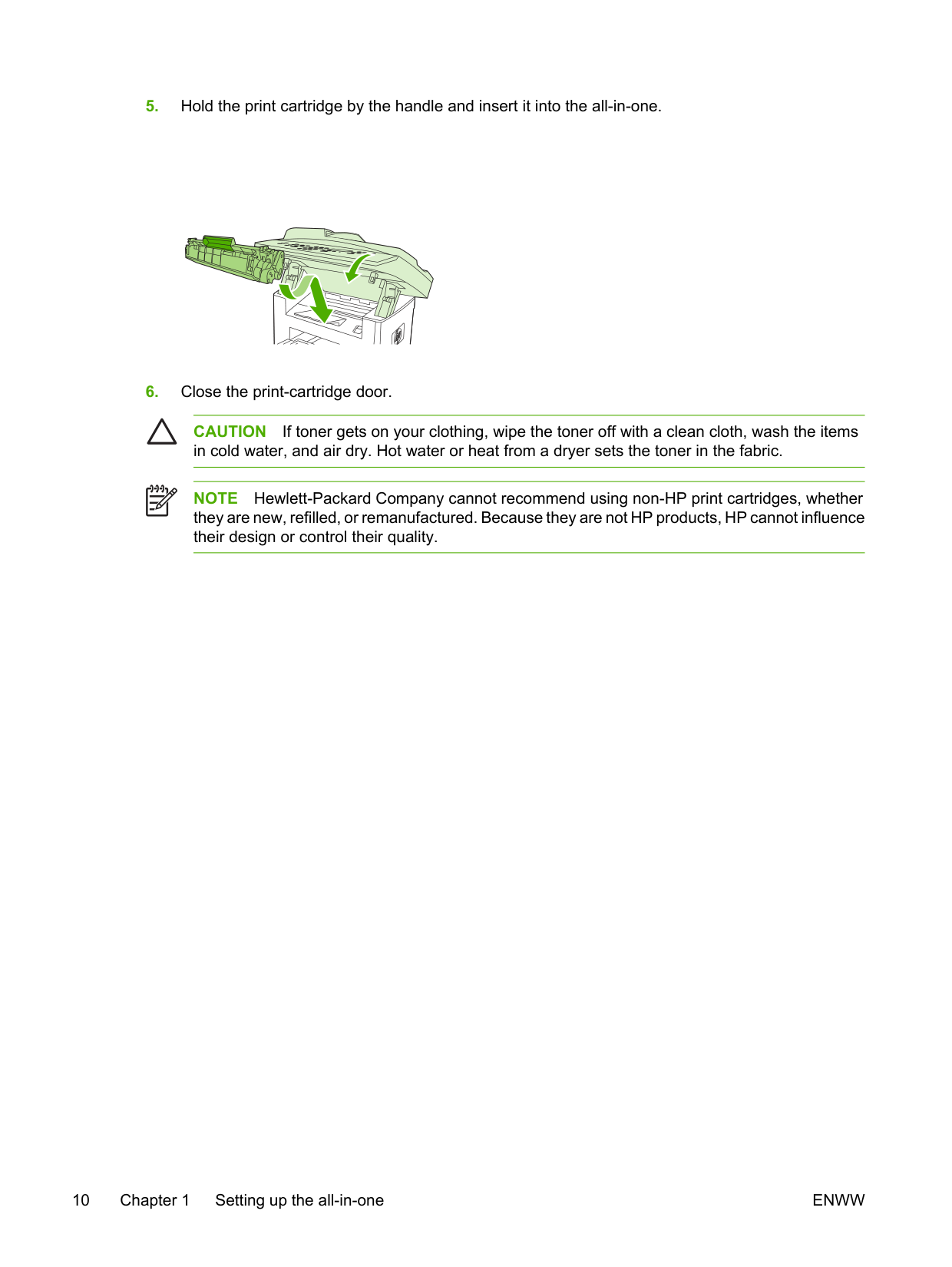
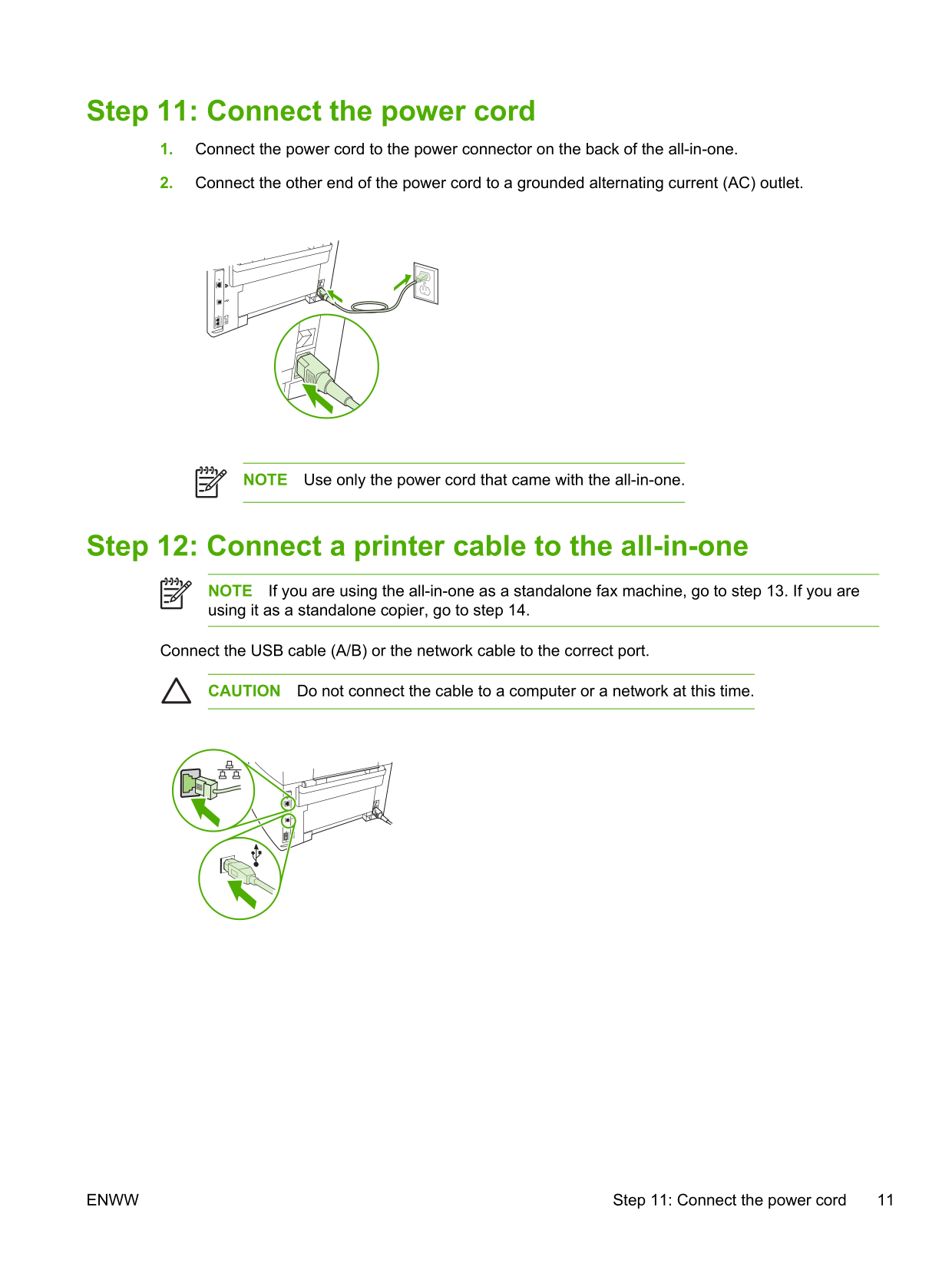
Press the cartridge-door release, remove the cartridge from packaging and rock it several times. Pull off all sealing tape, hold by the handle and insert into the printer, then close the door.
How do I test if my HP LaserJet 3055 is set up correctly?
Press Menu, select Reports, choose Config report, and press to print a configuration report. Check for prints; if blank, ensure the tape was removed.
Where can I find instructions on how to clear ADF jams on my HP LaserJet 3055?
To clear jams, open the ADF door, lift up the pickup roller, remove jammed media carefully without damaging parts, return pickup roller and close the ADF door.
Full Manual
28 pages
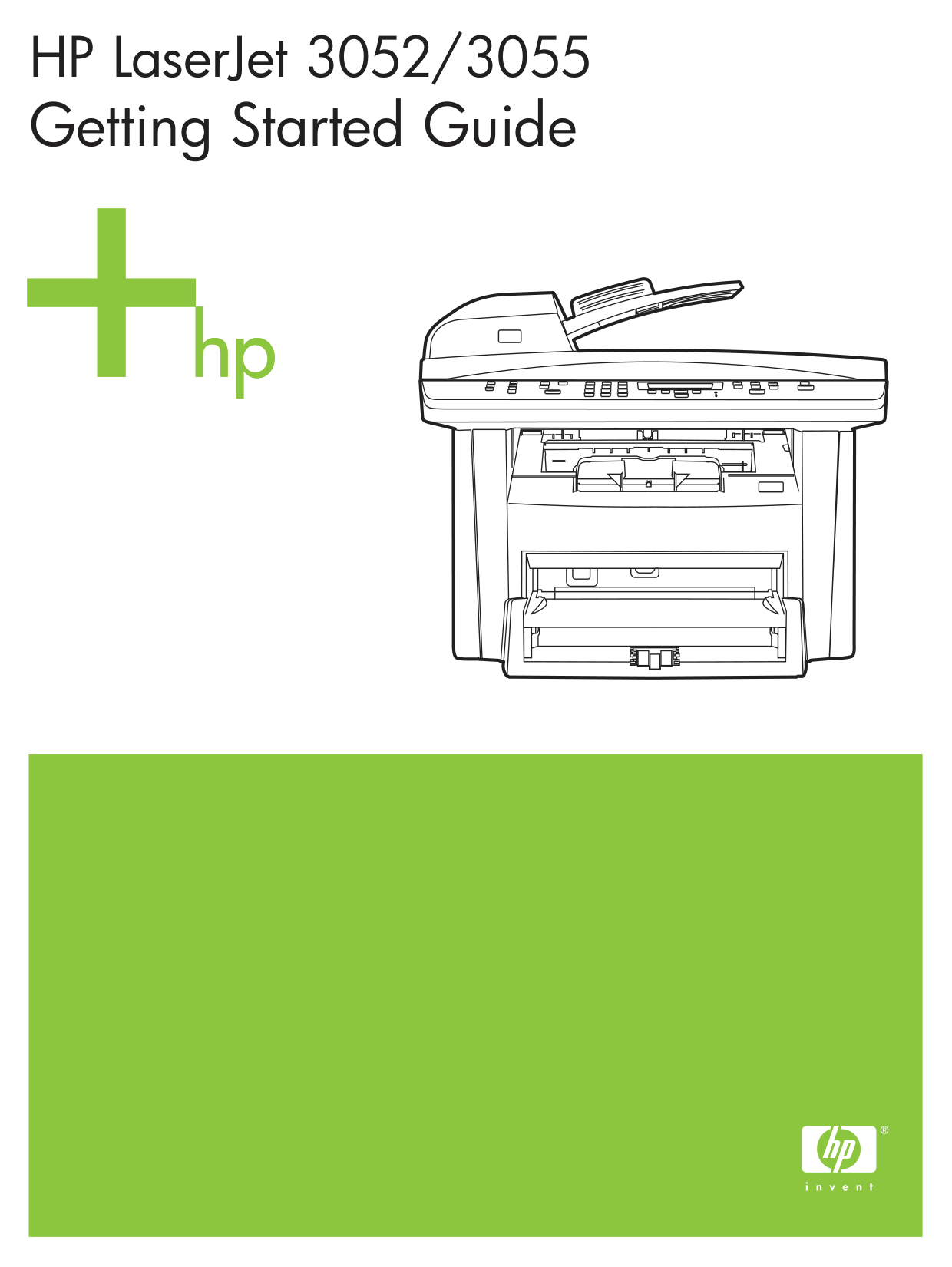
HP LaserJet 3052/3055 Getting Started Guide
| | | | |---|---|---| | | | |
############## Copyright Information
© 2006 Copyright Hewlett-Packard Development Company, L.P.
Reproduction, adaptation or translation without prior written permission is prohibited, except as allowed under the copyright laws.
The information contained in this document is subject to change without notice.
The only warranties for HP products and services are set forth in the express warranty statements accompanying such products and services. Nothing herein should be construed as constituting an additional warranty. HP shall not be liable for technical or editorial errors or omissions contained herein.
Edition 1, 4/2006 Q6502-90902
############## FCC Regulations
This equipment has been tested and found to comply with the limits for a Class B digital device, pursuant to Part 15 of the FCC rules. These limits are designed to provide reasonable protection against harmful interference in a residential installation. This equipment generates, uses, and can radiate radio frequency energy. If this equipment is not installed and used in accordance with the instructions, it may cause harmful interference to radio communications. However, there is no guarantee that interference will not occur in a particular installation. If this equipment does cause harmful interference to radio or television reception, which can be determined by turning the equipment off and on, the user is encouraged to try to correct the interference by one or more of the following measures:
Reorient or relocate the receiving antenna. Increase separation between equipment and receiver. Connect equipment to an outlet on a circuit different from that to which the receiver is located. Consult your dealer or an experienced radio/ TV technician. Any changes or modifications to the printer that are not expressly approved by HP could void the user's authority to operate this equipment.
Use of a shielded interface cable is required to comply with the Class B limits of Part 15 of FCC rules.
This equipment complies with FCC rules, Part 68. On the back of this equipment is a label that contains, among other information, the FCC registration number and ringer equivalence number (REN) for this equipment. If requested, this information must be provided to the telephone company. The REN is used to determine the quantity of devices which may be connected to the telephone line. Excessive RENs on the telephone line may result in the devices not ringing in response to an incoming call. In most, but not all, areas, the sum of the RENs should not exceed five (5.0). To be certain of the number of devices that may be connected to the line, as determined by the total RENs, contact the telephone company to determine the maximum REN for the calling area.
This equipment uses the following USOC jacks: RJ11C.
An FCC-compliant telephone cord and modular plug is provided with this equipment.
This equipment is designed to be connected to the telephone network or premises wiring using a compatible modular jack which is Part 68 compliant. This equipment cannot be used on telephone company-provided coin service. Connection to Party Line Service is subject to state tariffs. If this equipment causes harm to the telephone network, the telephone company will notify you in advance that temporary discontinuance of service may be required. If advance notice is not practical, the telephone company will notify the customer as soon as possible. Also, you will be advised of your right to file a complaint with the FCC if you believe it is necessary. The telephone company may make changes in its facilities, equipment, operations, or procedures that could affect the operation of the equipment. If this happens, the telephone company will provide advance notice in order for you to make the necessary modifications in order to maintain uninterrupted service. If trouble is experienced with this equipment, please see the numbers in the front of this manual for repair and (or) warranty information. If the trouble is causing harm to the telephone network, the telephone company may request you remove the equipment from the network until the problem is resolved. The following repairs can be done by the customer: Replace any original equipment that came with the device. This includes the print cartridge, the supports for trays and bins, the power cord, and the telephone cord. It is recommended that the customer install an AC surge arrestor in the AC outlet to which this device is connected. This is to avoid damage to the equipment caused by local lightning strikes and other electrical surges.
See the electronic User Guide for more regulatory information.
############## Trademark Credits
Microsoft®, Windows®, is a U.S. registered trademark of Microsoft Corporation. All other devices mentioned herein may be trademarks of their respective companies.
Table of contents
############ 1 Setting up the all-in-one

Clearing ADF jams...............................................................................................................19 Preventing streaks and spots on scans and copies.............................................................20 Clearing print jams...............................................................................................................20
ENWW v
############# vi ENWW
1 Setting up the all-in-one
##### Step 1: Prepare the location
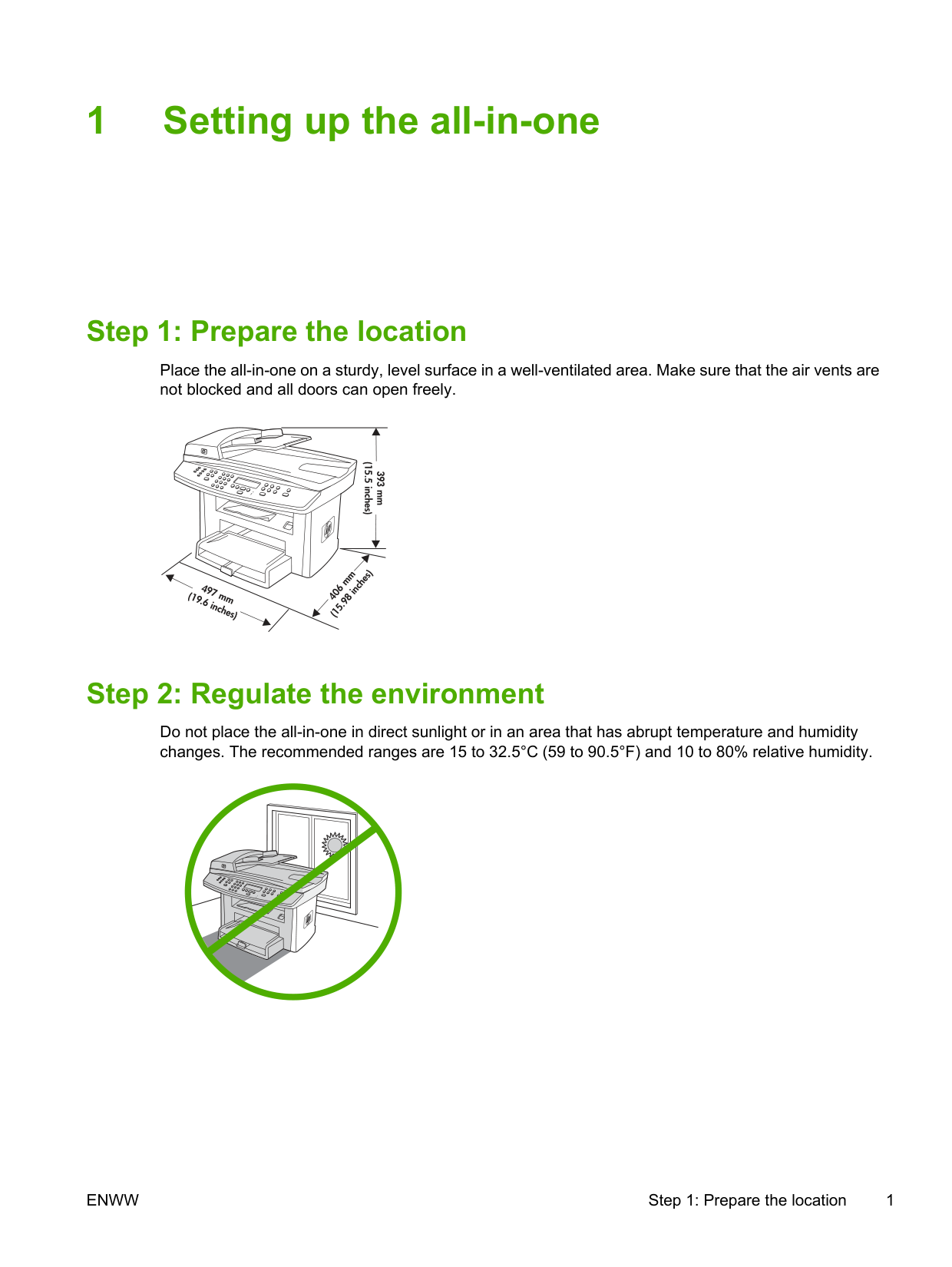
Place the all-in-one on a sturdy, level surface in a well-ventilated area. Make sure that the air vents are not blocked and all doors can open freely.
393 mm(15.5 inches)
406 mm(15.98 inches)
497 mm (19.6 inches)
##### Step 2: Regulate the environment
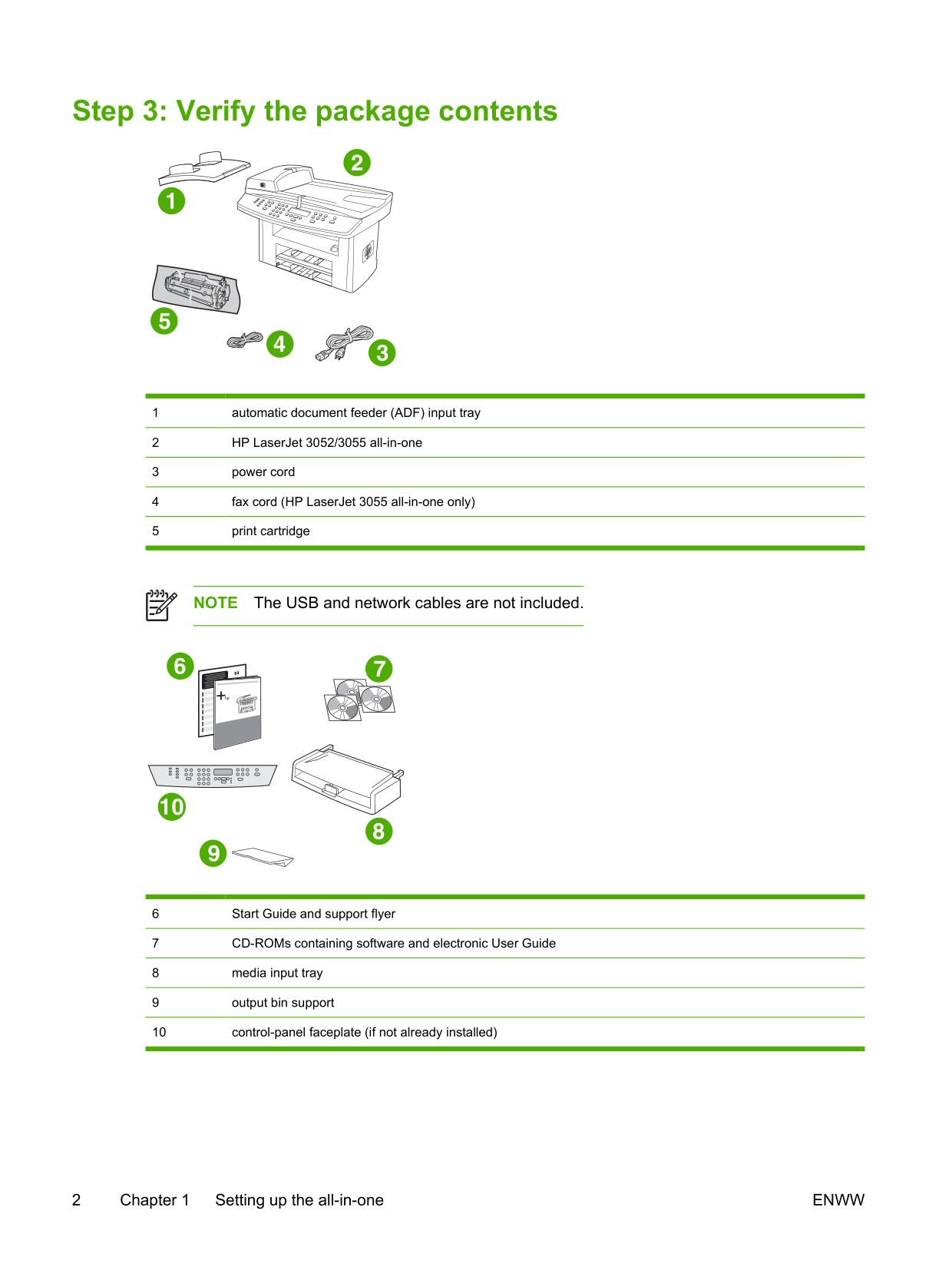
Do not place the all-in-one in direct sunlight or in an area that has abrupt temperature and humidity changes. The recommended ranges are 15 to 32.5°C (59 to 90.5°F) and 10 to 80% relative humidity.
ENWW Step 1: Prepare the location 1
##### Step 3: Verify the package contents
| | |---|
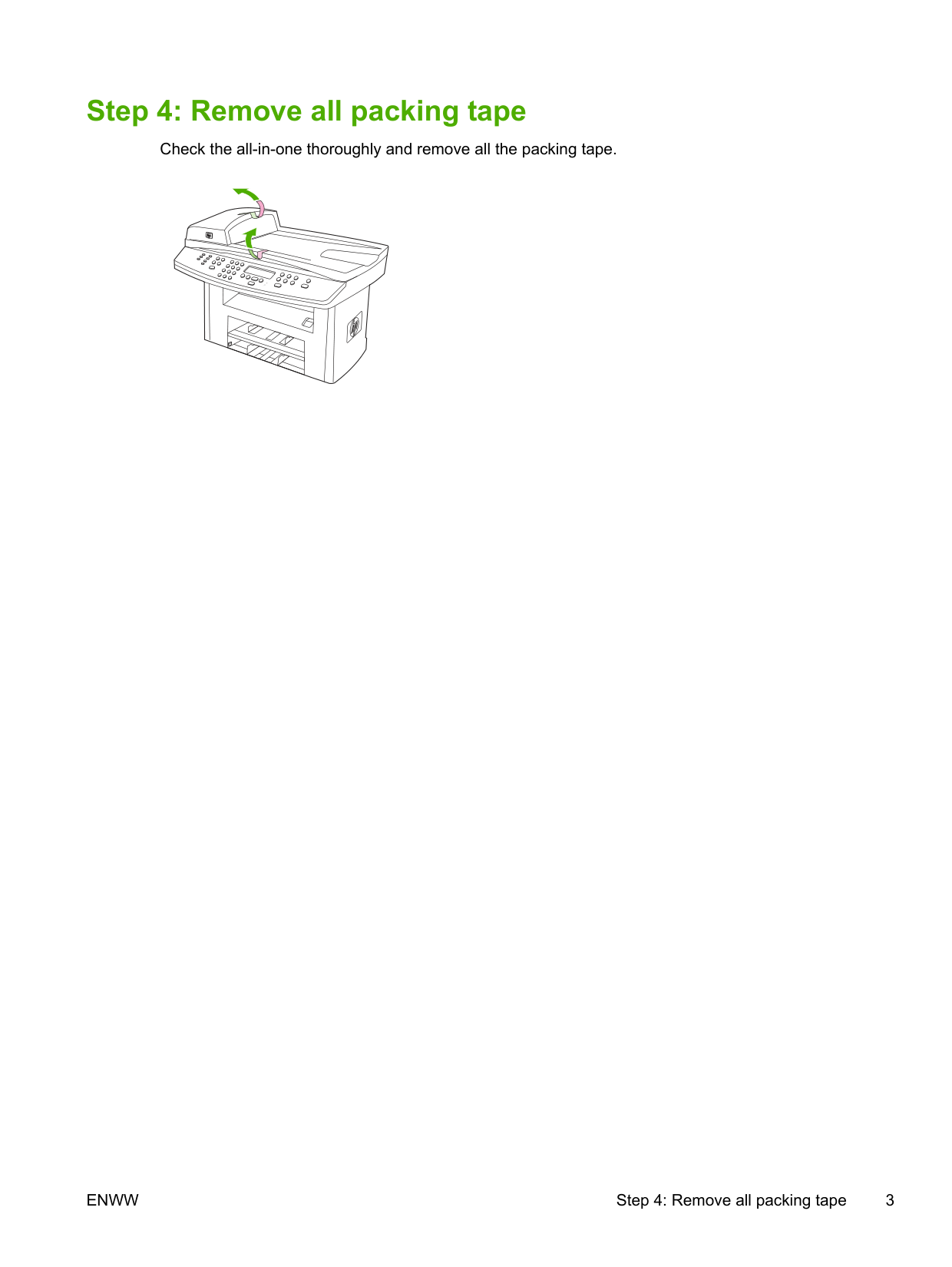
NOTE The USB and network cables are not included.
##### Step 4: Remove all packing tape
Check the all-in-one thoroughly and remove all the packing tape.
ENWW Step 4: Remove all packing tape 3
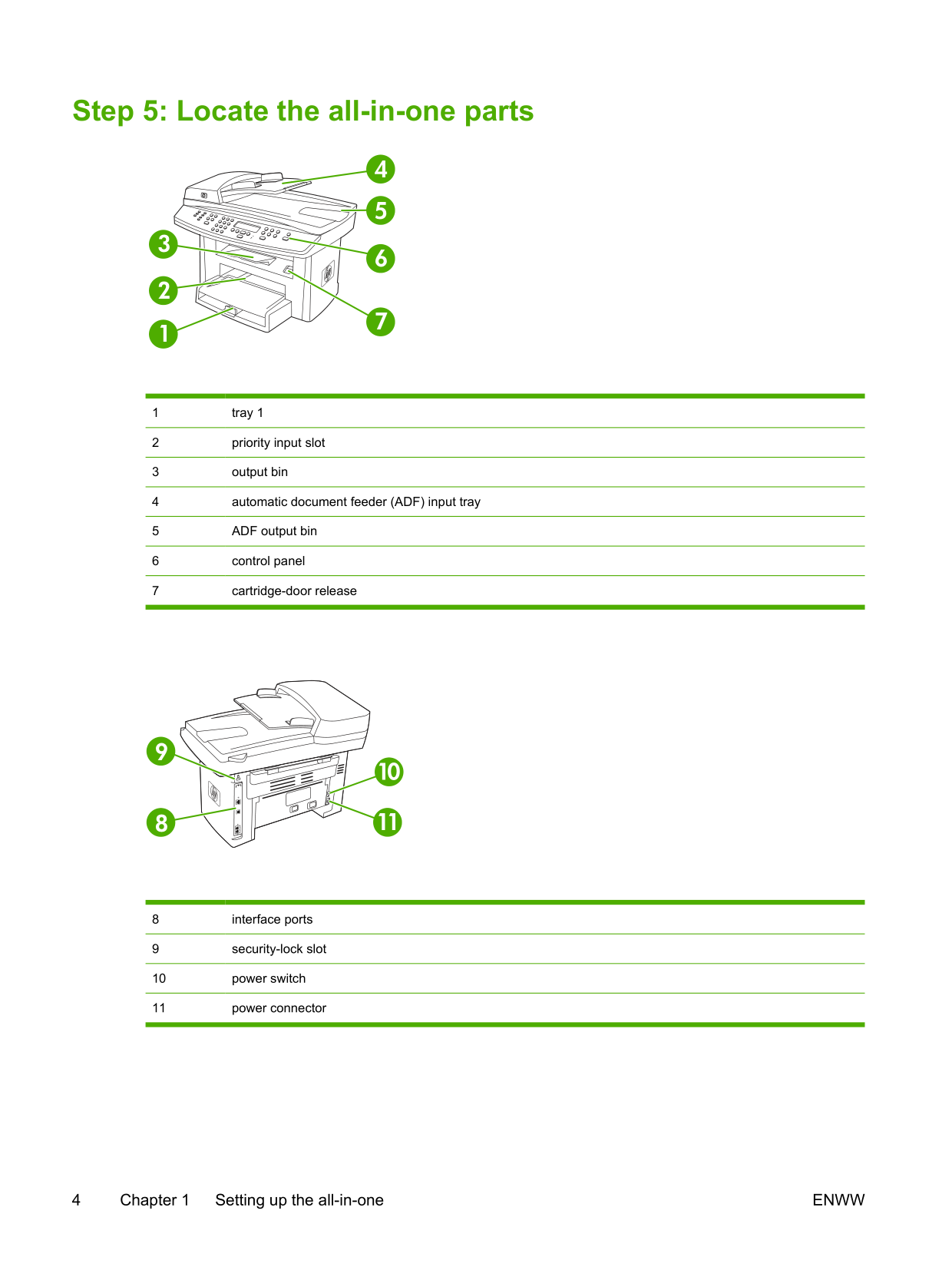
##### Step 5: Locate the all-in-one parts
6
7
10 118
9
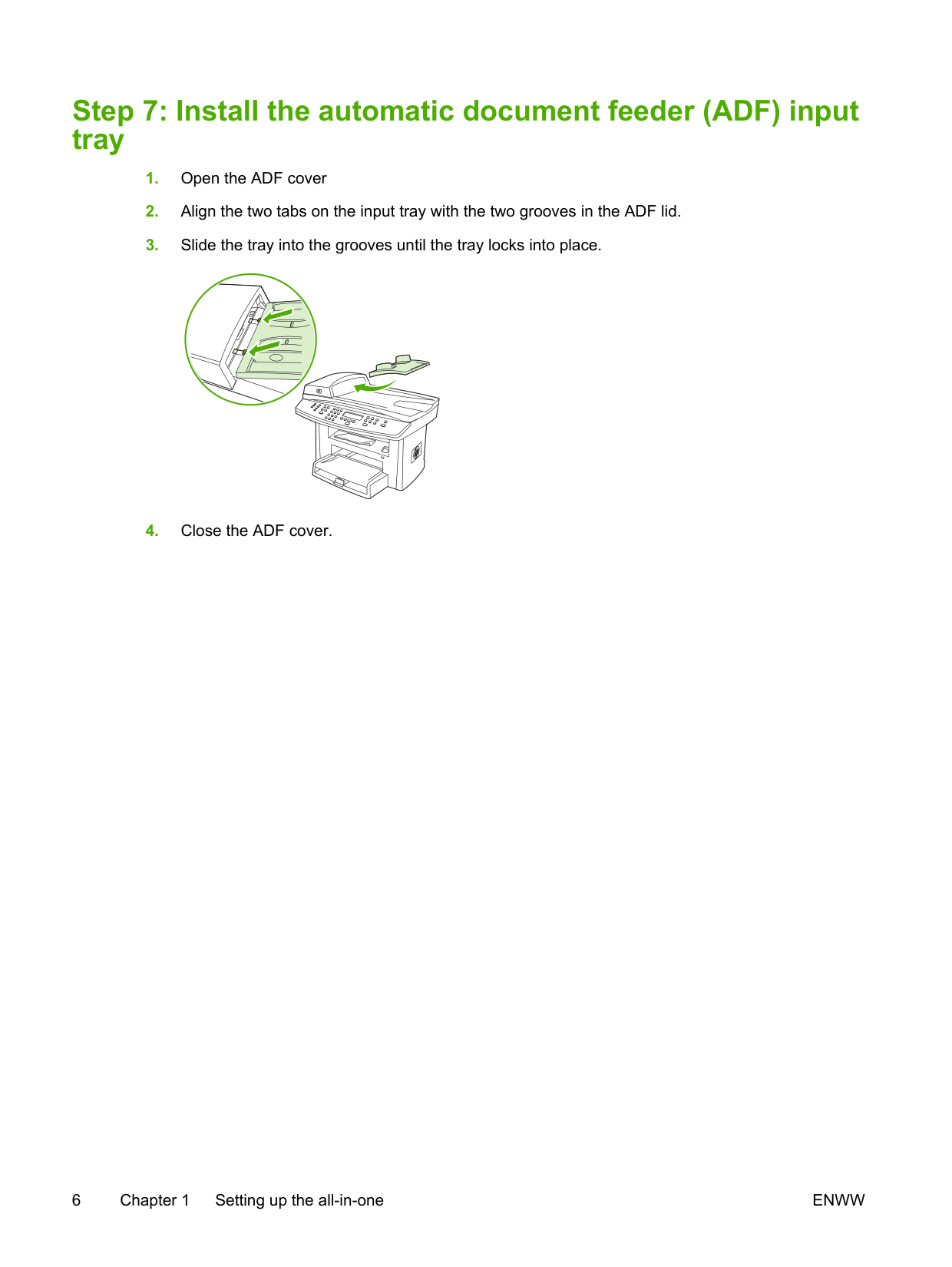
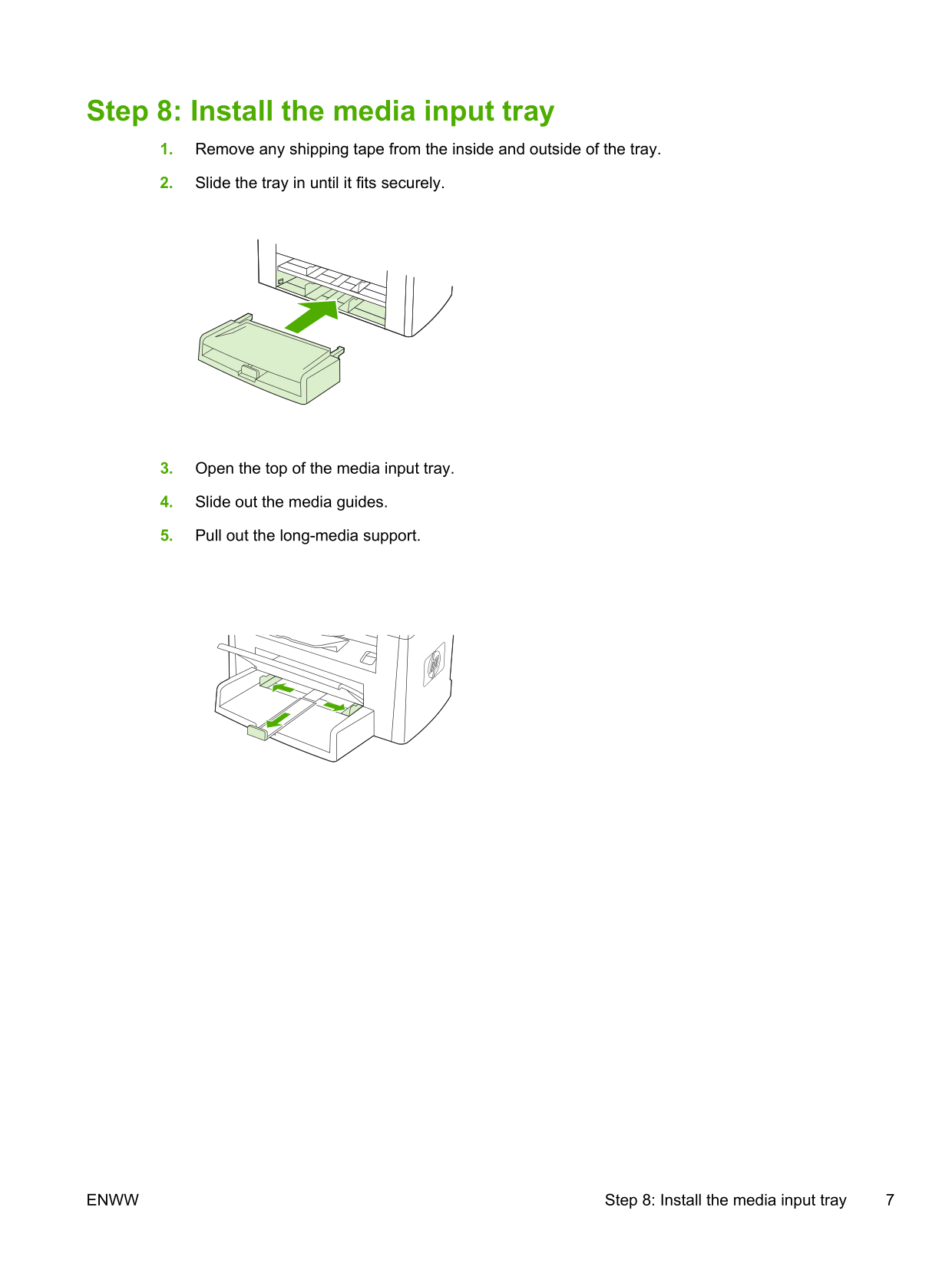
##### Step 6: Install the control-panel faceplate (if not alreadyinstalled)
| | |---|
NOTE The control panel for the HP LaserJet 3055 all-in-one is shown.
3
2
1 1
3
2
| | |---|
NOTE Make sure that the faceplate is aligned correctly and is not pressing any buttons.
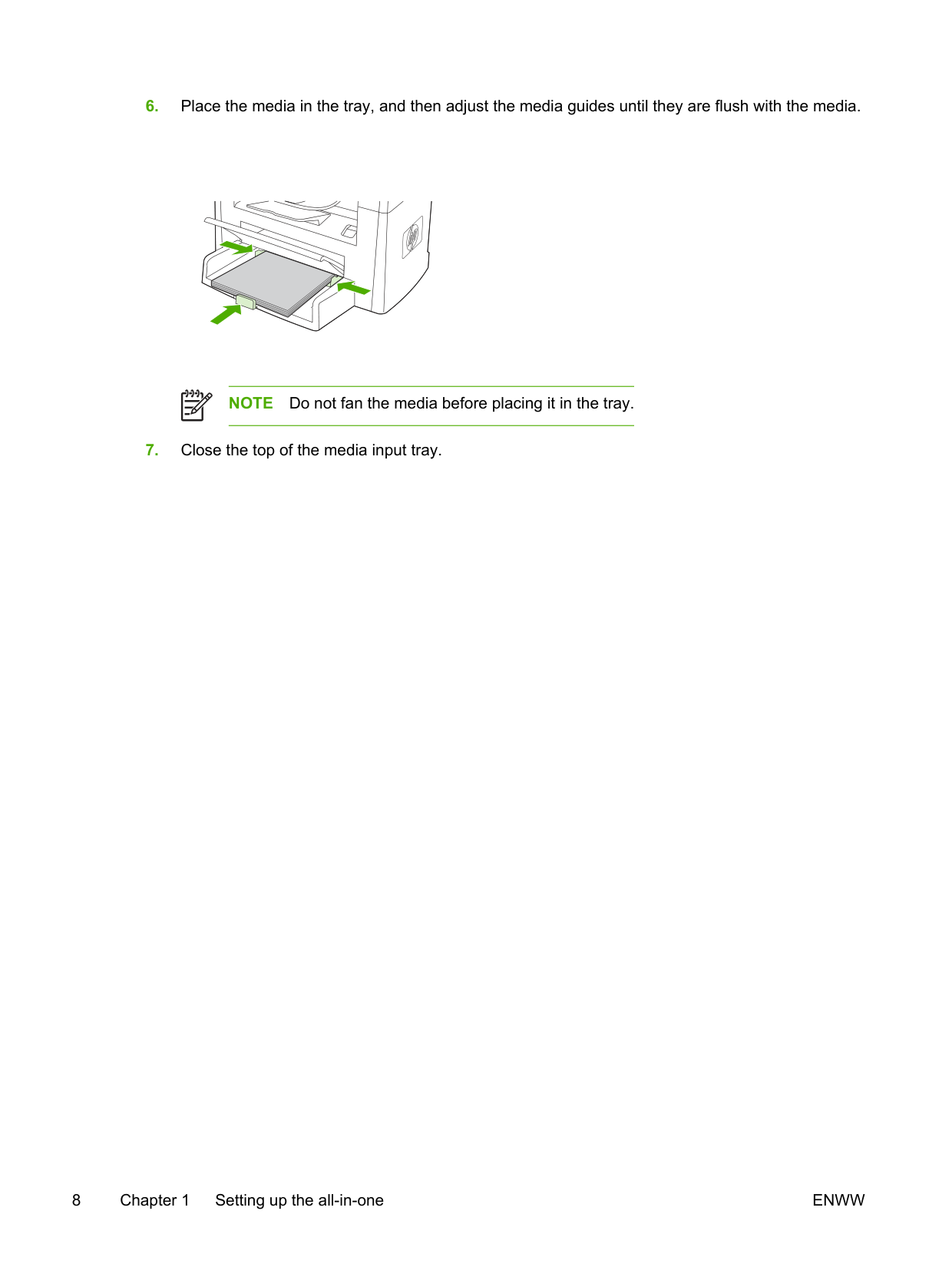
The control panel includes the following areas:
######## 2 3 541
ENWW Step 6: Install the control-panel faceplate (if not already installed) 5
##### Step 7: Install the automatic document feeder (ADF) inputtray
##### Step 8: Install the media input tray
############# 6. Place the media in the tray, and then adjust the media guides until they are flush with the media.
| | |---|
NOTE Do not fan the media before placing it in the tray.
############# 7. Close the top of the media input tray.
##### Step 9: Install the output bin support
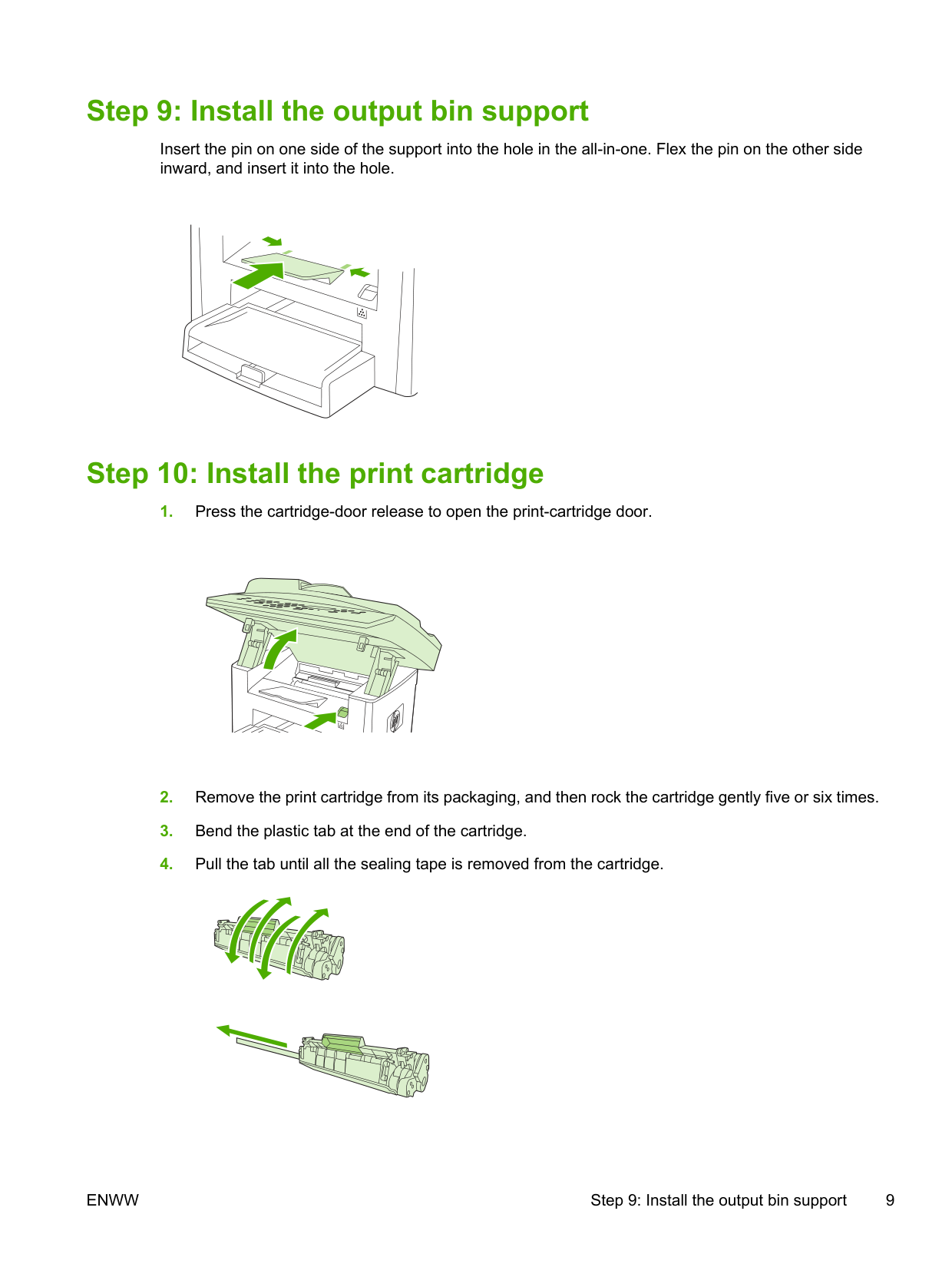
Insert the pin on one side of the support into the hole in the all-in-one. Flex the pin on the other side inward, and insert it into the hole.
##### Step 10: Install the print cartridge
| | |---|
CAUTION If toner gets on your clothing, wipe the toner off with a clean cloth, wash the items in cold water, and air dry. Hot water or heat from a dryer sets the toner in the fabric.
NOTE Hewlett-Packard Company cannot recommend using non-HP print cartridges, whether they are new, refilled, or remanufactured. Because they are not HP products, HP cannot influence their design or control their quality.
##### Step 11: Connect the power cord
| | |---|
NOTE Use only the power cord that came with the all-in-one.
Step 12: Connect a printer cable to the all-in-one
| | |---|
NOTE If you are using the all-in-one as a standalone fax machine, go to step 13. If you are using it as a standalone copier, go to step 14.
Connect the USB cable (A/B) or the network cable to the correct port.
CAUTION Do not connect the cable to a computer or a network at this time.
ENWW Step 11: Connect the power cord 11
##### Step 13: Connect to a telephone line (HP LaserJet 3055 all-in-one only)
| | |---|
NOTE If you are not using the fax functionality, go to step 14.
| | |---|
NOTE Use only the fax cord that came with the all-in-one. For more information about faxing, see the online User Guide.
###### Step 14: Turn on the all-in-one
Press the power switch on the back of the all-in-one.
Hint If the all-in-one has no power and no lights are lit on the control panel, make sure that the power cord is attached securely to both the all-in-one and a power outlet. Also, if the power cord is connected to a power strip, make sure that the power strip is switched on, or connect the allin-one directly to a wall outlet to test the power strip.
12 Chapter 1 Setting up the all-in-one ENWW
##### Step 15: Set the control-panel-display language andlocation (if necessary)
If prompted by the control panel, select your language and location. Follow the instructions on the control panel.
| |
|---|
NOTE The all-in-one automatically restarts after you select the location.
##### Step 16: Test the hardware setup by printing aconfiguration report
Hint If the page that prints is totally blank, remove the print cartridge, make sure that the sealing tape is removed (see step 10), reinstall the print cartridge, and then try printing the page again.
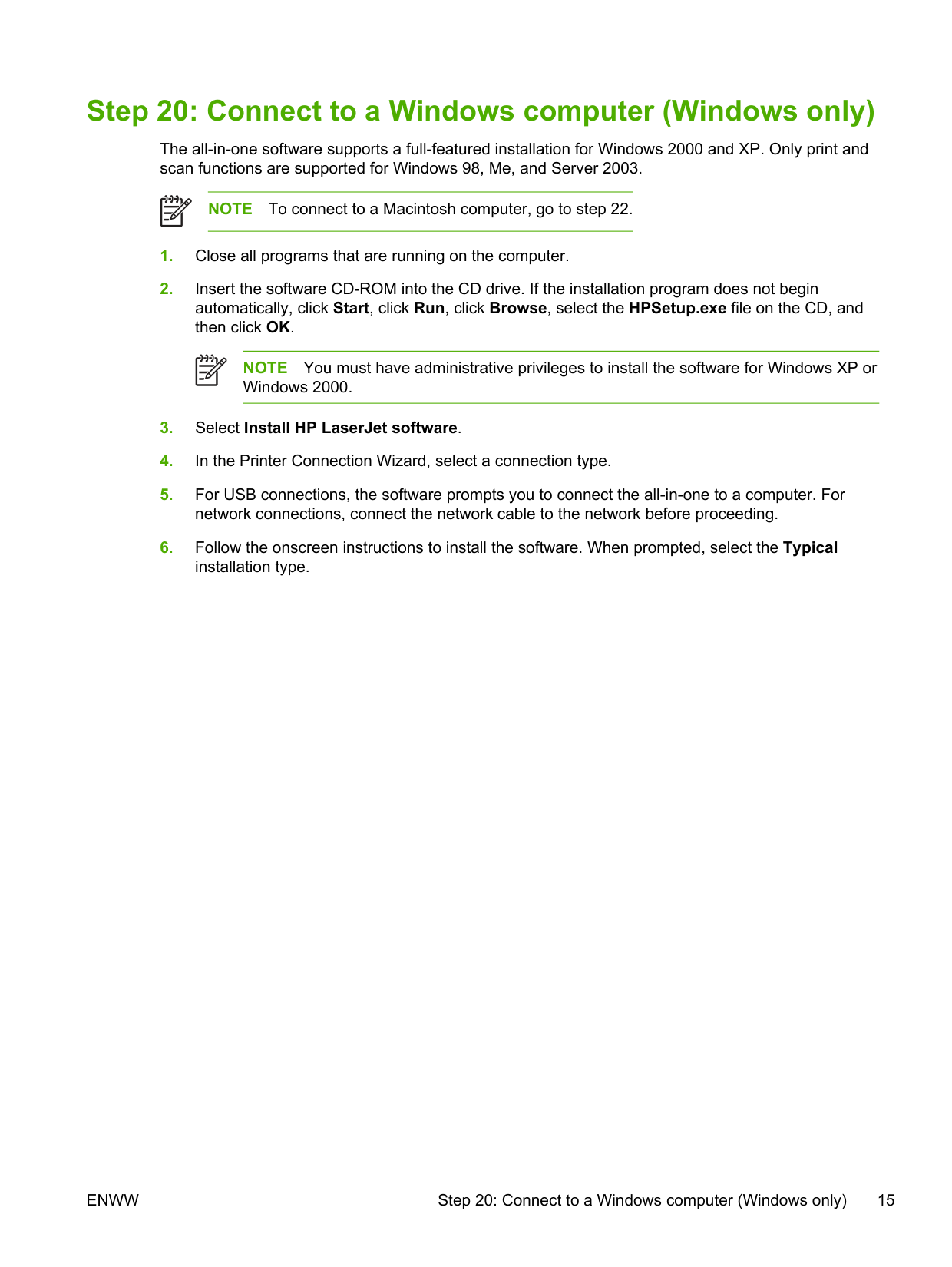
##### Step 17: Test the copier by using the automatic documentfeeder (ADF)
Hint If the copy job produces a blank page, make sure that the original is loaded print-side up and that no jams exist in the ADF and paper path. For information about removing jams and other troubleshooting tips, see the online User Guide.
ENWW Step 15: Set the control-panel-display language and location (if necessary) 13
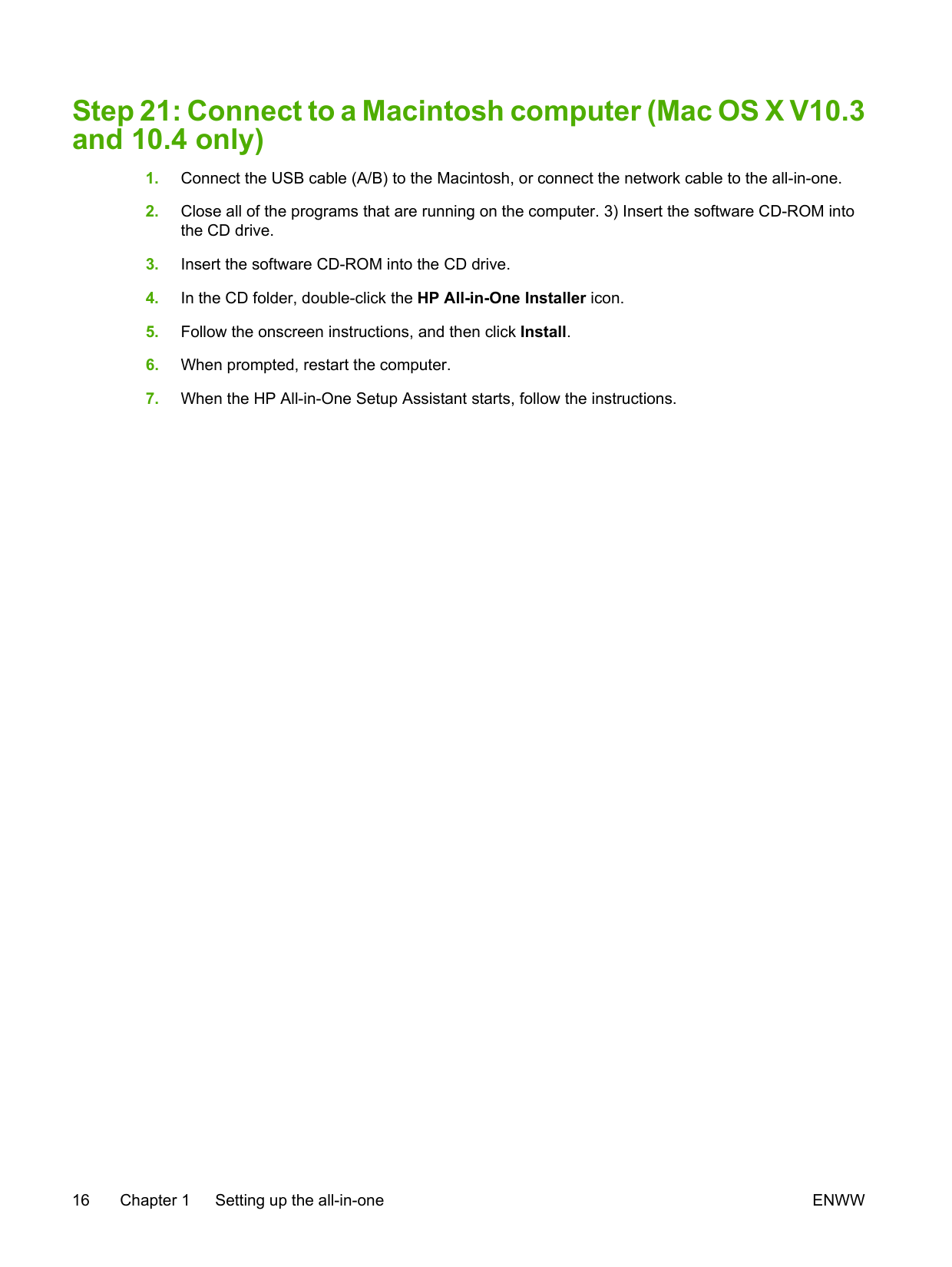
##### Step 18: Test the copier by using the flatbed scanner.
Hint If the copy job produces a blank page, make sure that the original is loaded print-side down on the flatbed scanner and that no jams exist in the paper path. For information about removing jams and other troubleshooting tips, see the online User Guide.
#### Step 19: Complete the hardware setup
If you are using the all-in-one as a standalone copier, the setup is complete. If you are using the all-inone as a standalone fax, go to step 22 to complete the setup. To install the software, go to step 20 for Windows or step 21 for Macintosh.
##### Step 20: Connect to a Windows computer (Windows only)
The all-in-one software supports a full-featured installation for Windows 2000 and XP. Only print and scan functions are supported for Windows 98, Me, and Server 2003.
| | |---|
NOTE To connect to a Macintosh computer, go to step 22.
| | |---|
NOTE You must have administrative privileges to install the software for Windows XP or Windows 2000.
ENWW Step 20: Connect to a Windows computer (Windows only) 15
##### Step 21: Connect to a Macintosh computer (Mac OS X V10.3and 10.4 only)
##### Step 22: Fax setup (HP LaserJet 3055 all-in-one only)
If you installed the all-in-one software, the HP LaserJet Fax Setup Utility (Windows) or Setup Assistant (Mac) automatically runs. The software prompts you to set the time, date and fax header. In many countries/regions, this is a legal requirement.
Hint If the utility does not run automatically, access it in the program group.
If you are using the all-in-one as a standalone fax, complete the following steps:
| | |---|

NOTE The maximum number of characters for the fax number is 20; it is 40 for the company name.
NOTE For complete information about using the fax features, including how to set up fax features to work with telephone services such as voice mail, see the online User Guide.
ENWW Step 22: Fax setup (HP LaserJet 3055 all-in-one only) 17
##### Step 23: Test the software installation.
Print a page from any program to make sure that the software is correctly installed. If the installation failed, reinstall the software. If the reinstallation fails, go to step 26.
##### Step 24: Register the all-in-one
Register at http://www.register.hp.com to receive free all-in-one updates and information that is relevant to you, including driver or software update notifications, all-in-one support alerts, and tips for using your HP all-in-one.
##### Step 25: Program the Scan To button (Windows only)

##### Step 26: Use the HP ToolboxFX software to set devicesettings (Windows only)
| | |---|
NOTE The HP ToolboxFX software does not support Macintosh operating systems.
##### Step 27: Support information

For customer support, see http://www.hp.com/support/lj3052 or http://www.hp.com/support/lj3055, or see the support flyer for more information.
##### Congratulations!
The all-in-one is ready to use. See the online User Guide or use the HP ToolboxFX software (Windows 2000 or XP only) to solve problems. The following sections provide tips for using the all-in-one.
##### Tips for using the all-in-one
####### Clearing ADF jams
ENWW Step 27: Support information 19

####### Preventing streaks and spots on scans and copies
####### Clearing print jams
© 2006 Hewlett-Packard Development Company, L.P. www.hp.com
Q6502-90902