
Ask AI
— answers from the official manualAnswers from the official manual.
Common questions
Common Questions
19 totalWhere should I place the HP LaserJet Enterprise M608 printer?
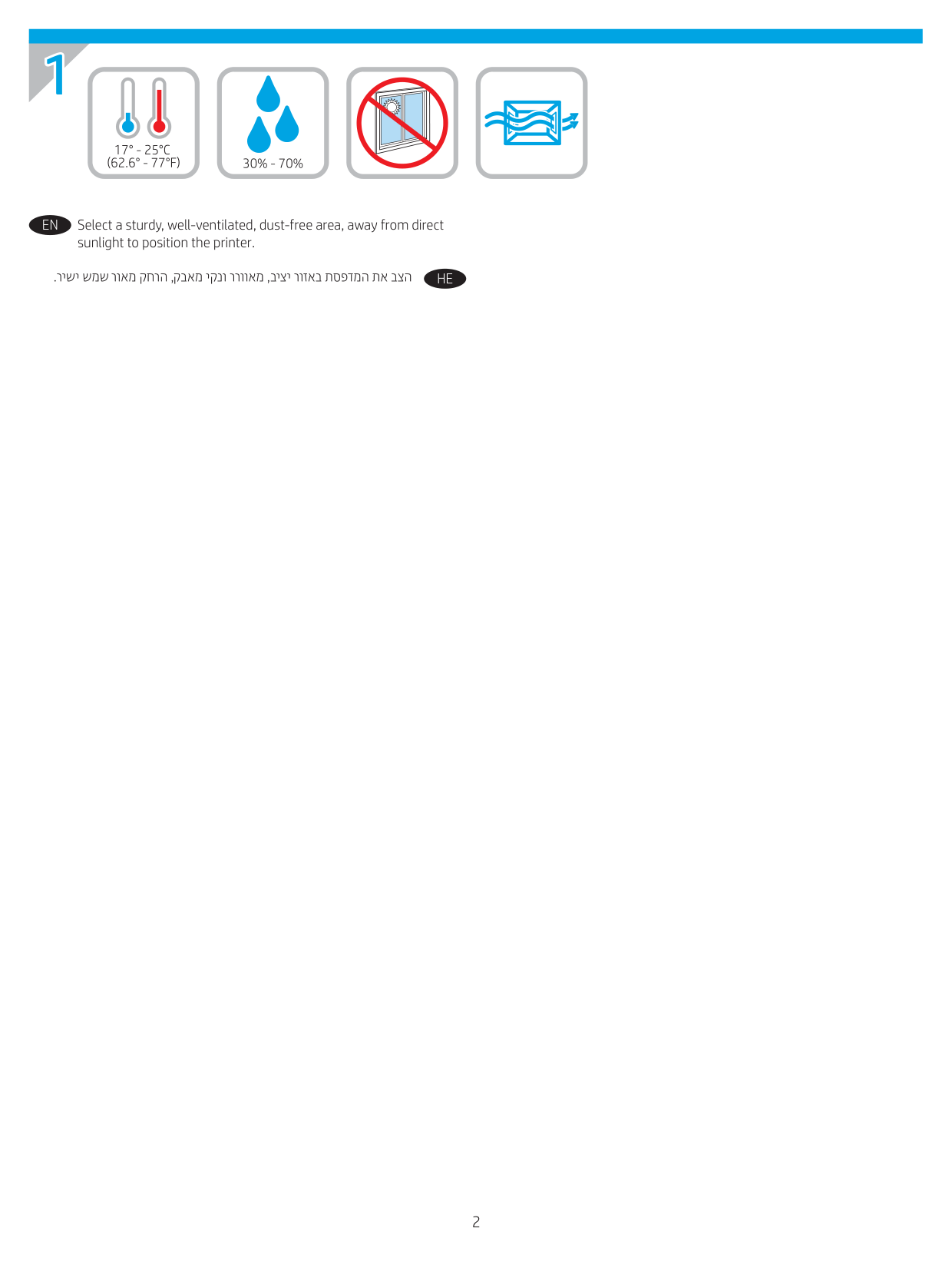
Select a sturdy, well-ventilated, dust-free area, away from direct sunlight to position the printer. These conditions help ensure reliable printer operation and longevity. (Page 2)
What voltage does the HP LaserJet Enterprise M608 require?
The printer uses either 100-127 Vac or 220-240 Vac and 50/60 Hz. You should make sure your power source is adequate for the printer voltage rating, which is listed on the printer label. To prevent damage, use only the power cable provided with the printer. (Page 8)
When should I connect the USB cable during setup on a Windows computer?
On Windows, do not connect the USB cable until prompted during the software installation step. If a network cable was already connected in step 6, you should proceed directly to step 9 instead. (Page 9)
When should I connect the USB cable during setup on a Mac?
On a Mac, you should connect the USB cable during step 8 of the setup process. Note that the cables are not included with the printer and must be supplied separately. (Page 9)
How do I connect the M608 to a network during setup?
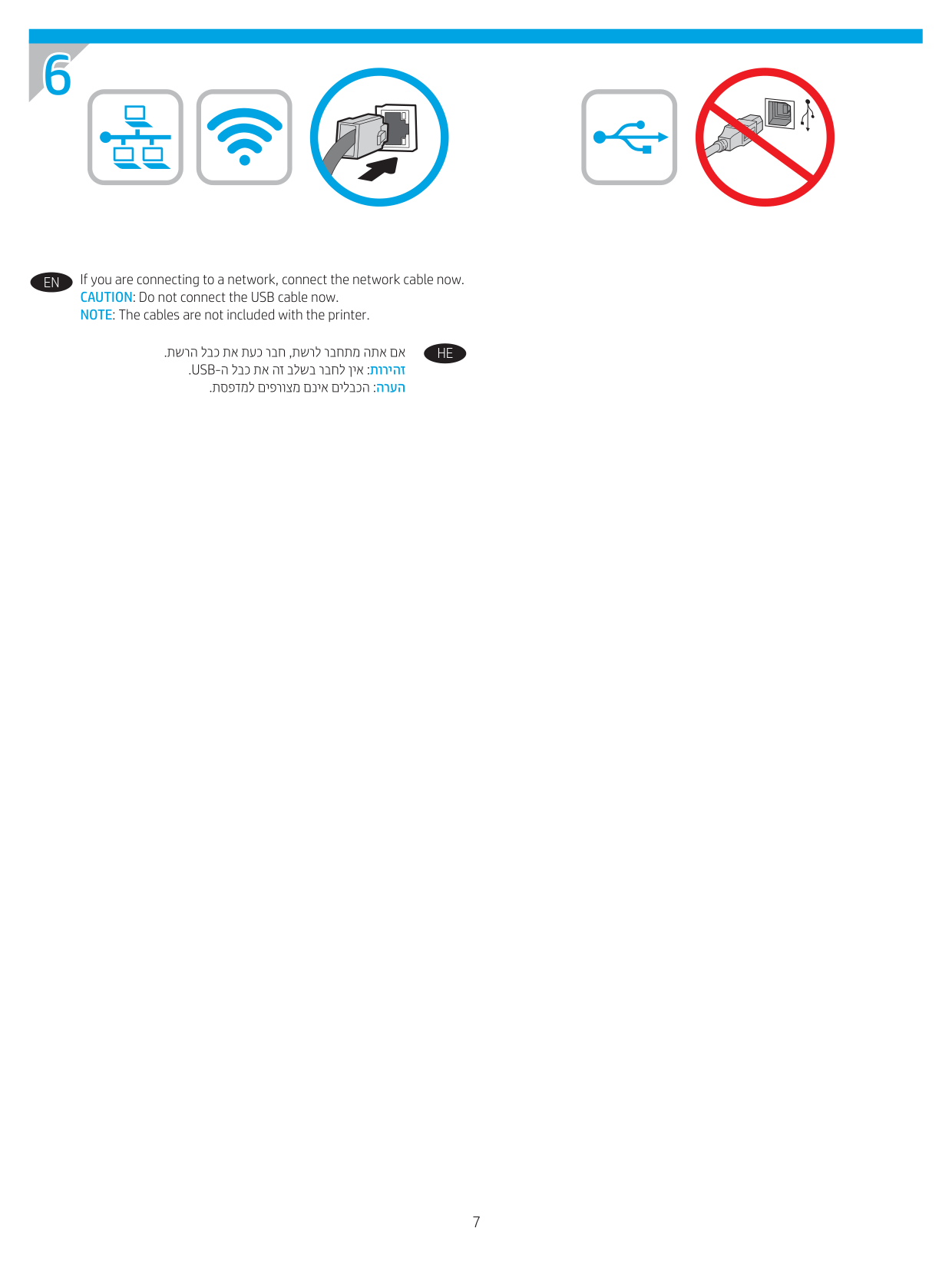
Connect the network cable during step 6 of the setup process, before powering on the printer. You should not connect the USB cable at this stage. Note that cables are not included with the printer. (Page 7)
How do I set the language, date, and time on the HP LaserJet Enterprise M608?
After turning on the printer, use the control panel to set the language, date/time format, and time zone. This is done as part of the initial power-on setup in step 7. (Page 8)
Show 13 more questions
How do I set up the network connection for my HP LaserJet Enterprise M608?
What is the electrical specification for my HP LaserJet Enterprise M608 printer?
How can I configure additional network options for my HP LaserJet Enterprise M608?
What software options are available for installing my HP LaserJet Enterprise M608?
Where can I find detailed installation instructions for my HP LaserJet Enterprise M608?
How do I set up my HP LaserJet Enterprise M608 to print from Windows?
How can I check my firmware and update if necessary?
What safety guidelines should I follow when setting up my printer?
What software installation methods are available for the HP LaserJet Enterprise M608?
Where can I find advanced configuration information for the HP LaserJet Enterprise M608?
Does the HP LaserJet Enterprise M608 comply with FCC regulations?
Are there any Windows versions with limited feature support for the M608 software?
How do I set up my HP LaserJet Enterprise M608 to print from a Mac?
Full Manual
11 pages
www.hp.com/support/ljM608 www.hp.com/support/ljM609 LaserJet Enterprise M608, M609
En
Installation GuideHe
2 1
En
Select a sturdy, well-ventilated, dust-free area, away from direct sunlight to position the printer.He
3 2 3 3 1 2
4 4 4.1 4.3 4.5 4.4 4.2
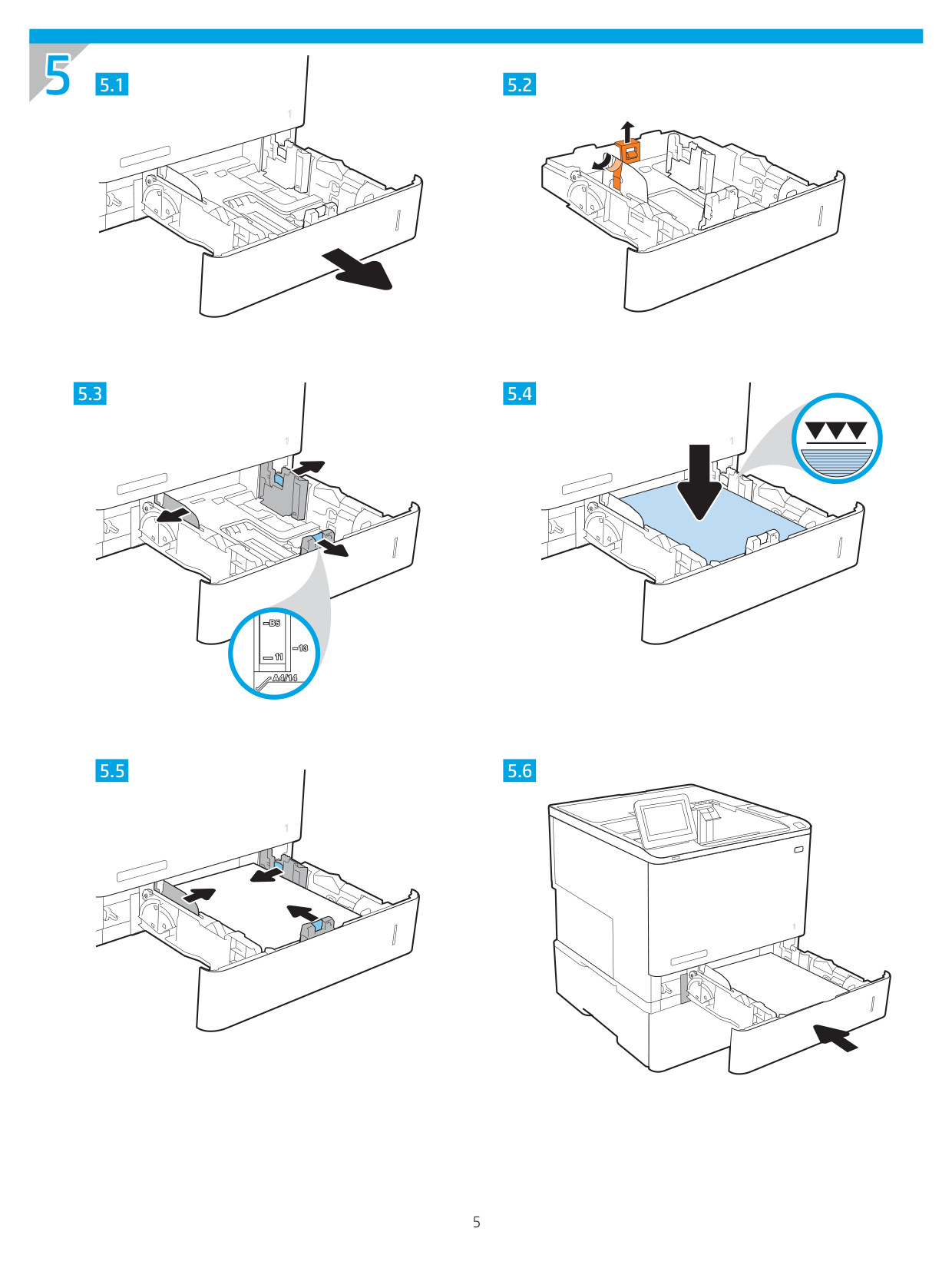
5 5.6 5 5.1 5.2 5.3 5.4 5.5
7 6
En
If you are connecting to a network, connect the network cable now. CAUTION: Do not connect the USB cable now. NOTE: The cables are not included with the printer.He
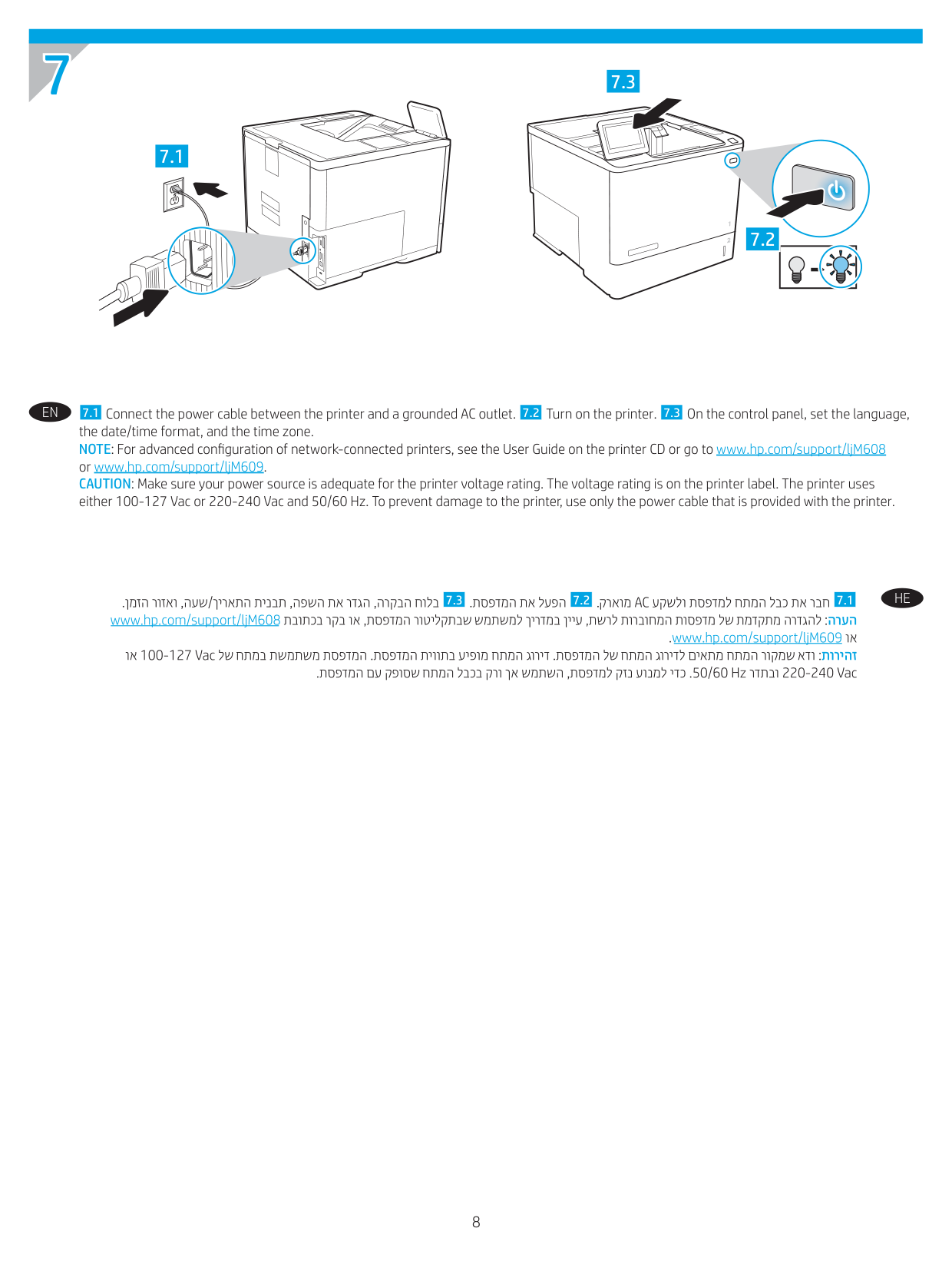
8 7 7.2 7.1 7.3 7.1 Connect the power cable between the printer and a grounded AC outlet. 7.2 Turn on the printer. 7.3 On the control panel, set the language, the date/time format, and the time zone. NOTE: For advanced configuration of network-connected printers, see the User Guide on the printer CD or go to www.hp.com/support/ljM608 or www.hp.com/support/ljM609. CAUTION: Make sure your power source is adequate for the printer voltage rating. The voltage rating is on the printer label. The printer uses either 100-127 Vac or 220-240 Vac and 50/60 Hz. To prevent damage to the printer, use only the power cable that is provided with the printer.
En
He
7.3 7.2 7.1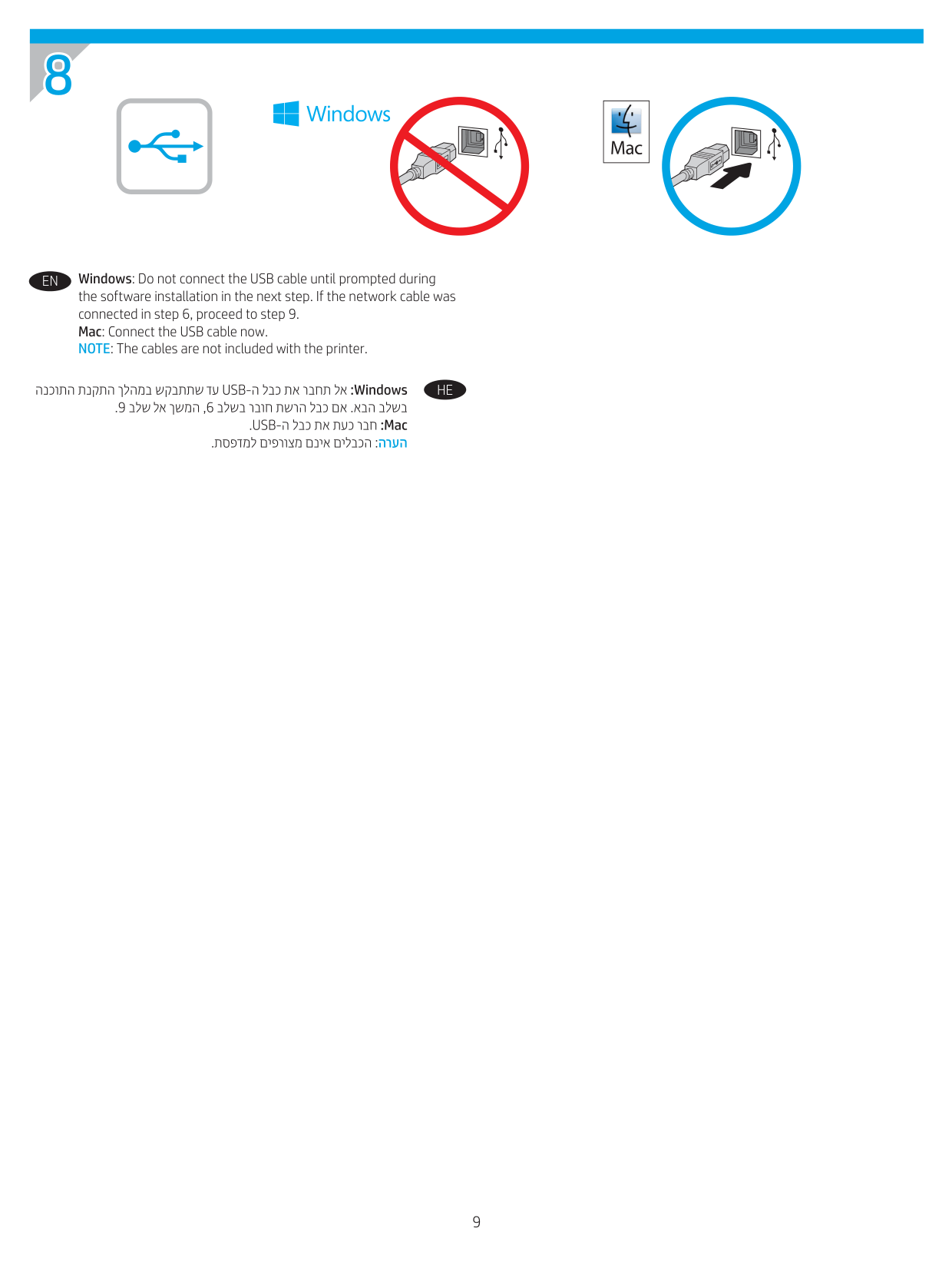
9 8
En
Windows: Do not connect the USB cable until prompted during the software installation in the next step. If the network cable was connected in step 6, proceed to step 9. Mac: Connect the USB cable now. NOTE: The cables are not included with the printer.He
10 9
En
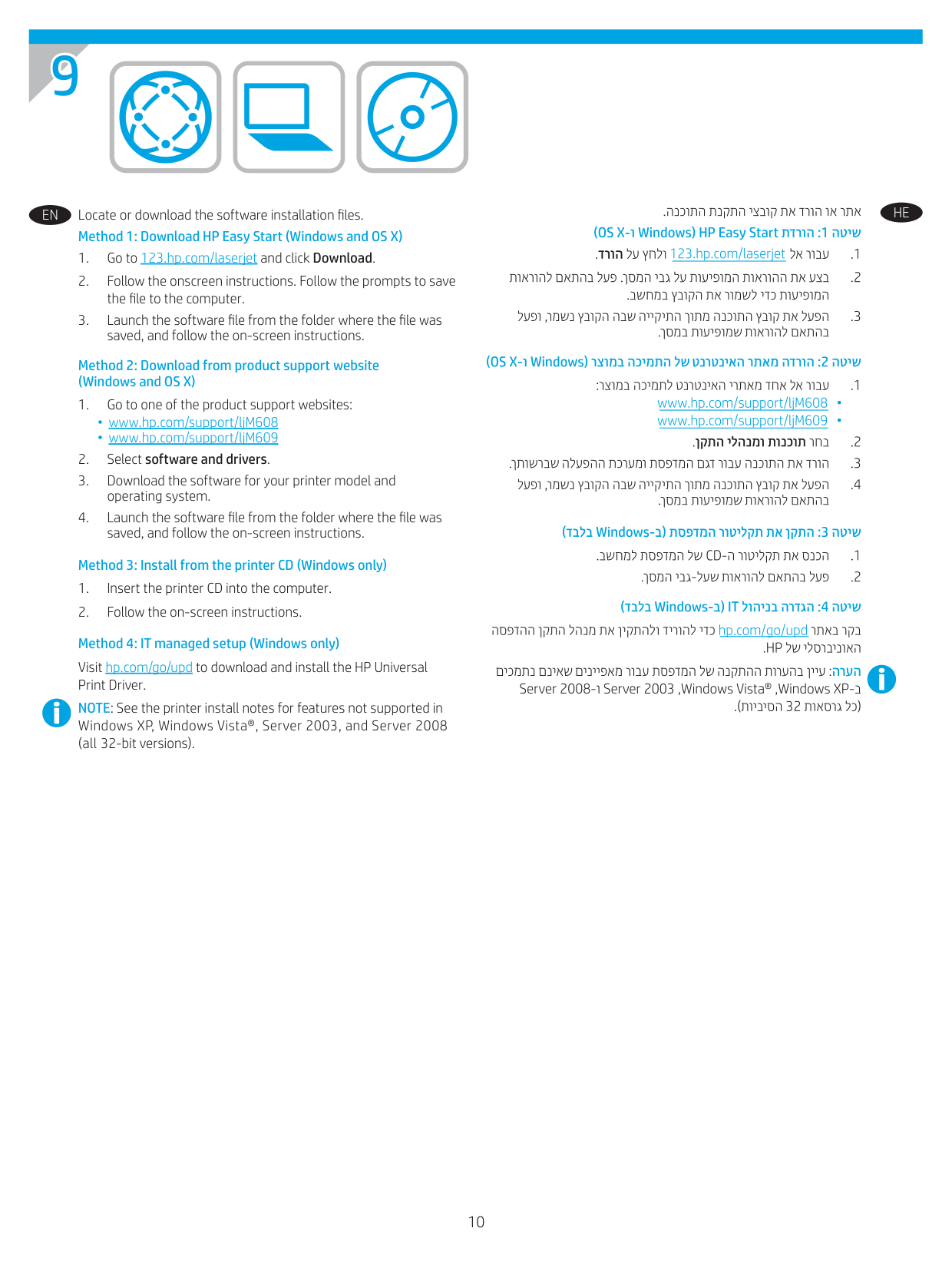
Locate or download the software installation files. Method 1: Download HP Easy Start (Windows and OS X)He
11 10
En
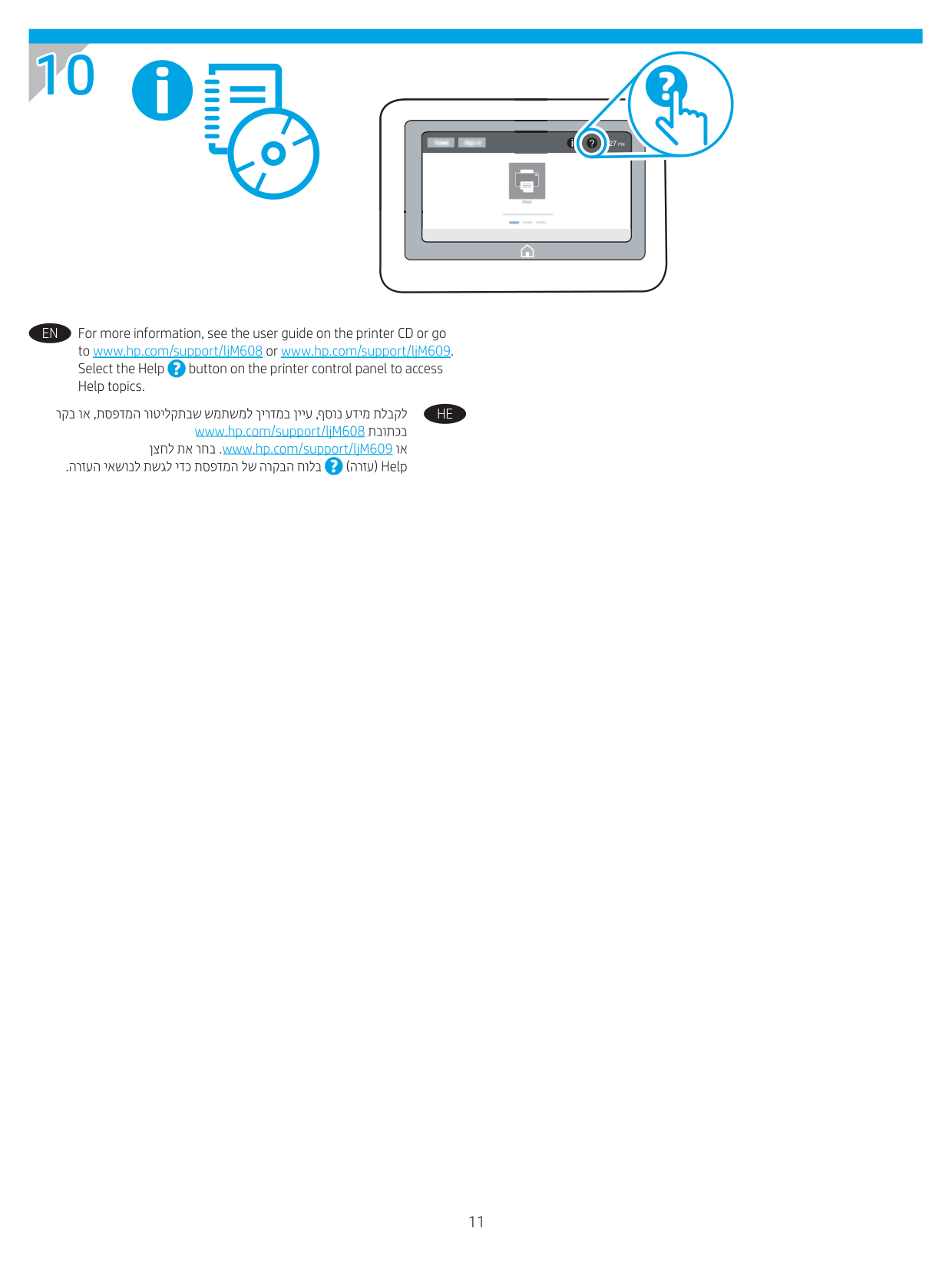
For more information, see the user guide on the printer CD or go to www.hp.com/support/ljM608 or www.hp.com/support/ljM609. Select the Help button on the printer control panel to access Help topics.He
Copyright and license © Copyright 2017 HP Development Company, L.P. Reproduction, adaptation or translation without prior written permission is prohibited, except as allowed under the copyright laws. The information contained herein is subject to change without notice. The only warranties for HP products and services are set forth in the express warranty statements accompanying such products and services. Nothing herein should be construed as constituting an additional warranty. HP shall not be liable for technical or editorial errors or omissions contained herein. FCC Regulations This equipment has been tested and found to comply with the limits for a Class A digital device, pursuant to Part 15 of the FCC rules. These limits are designed to provide reasonable protection against harmful interference in a residential installation. This equipment generates, uses, and can radiate radio frequency energy, and if not installed and used in accordance with the instruction manual, may cause harmful interference to radio communications. Operation of this equipment in a residential area is likely to cause harmful interference in which case the user will be required to correct the interference at his own expense. NOTE: Any changes or modifications to the printer that are not expressly approved by HP could void the user’s authority to operate this equipment. Use of a shielded interface cable is required to comply with the Class A limits of Part 15 of FCC rules. Trademark Credits Windows®, Windows® XP, Windows Vista®, Windows® 7, Windows® 8, Windows® 10, and Windows Server® are trademarks of the Microsoft Group of companies. www.hp.com AirPrint and the AirPrint logo are trademarks of Apple Inc.