
HP Laserjet M1319 Multifunction Printer
Ask AI
— answers from the official manualAnswers from the official manual.
Common questions
Common Questions
29 totalHow fast does the HP LaserJet M1319 MFP print pages?
The HP LaserJet M1319f MFP prints letter-size pages at speeds up to 19 pages per minute (ppm) and A4-size pages at speeds up to 18 ppm. These speeds apply to standard print jobs under normal operating conditions. (Page 21)
How many sheets can Tray 1 hold on the M1319 MFP?
Tray 1 holds up to 250 sheets of print media or up to 10 envelopes. There is also a priority input tray that holds up to 10 sheets of print media, and the output bin holds up to 100 sheets. (Page 21)
What operating systems are supported by the HP LaserJet M1319 MFP?
Full software installation is supported on Windows XP (32-bit and 64-bit), Windows Vista (32-bit), and Mac OS X v10.3, v10.4, and later. Print and scan drivers only are available for Windows XP (64-bit), Windows Vista (64-bit), Windows 2000, and Windows 2003 Server (32-bit and 64-bit). For Mac OS X v10.4 and later, both PPC and Intel Core Processor Macs are supported. (Page 26)
How do I connect the HP LaserJet M1319 MFP to my computer via USB?
Do not connect the USB cable from the product to the computer until the installer prompts you to do so. Insert the product CD into your computer, follow the installer instructions, allow the installation process to complete, and then restart the computer. (Page 27)
What is the print resolution of the HP LaserJet M1319 MFP?
The printer prints at 600 dots per inch (dpi) and FastRes 1200 dpi. FastRes 1200 produces 1200-dpi print quality for fast, high-quality printing of business text and graphics. Copy resolution is 300 dpi and scanning provides 600 pixels per inch (ppi) full-color scanning. (Page 22)
What is the expected page yield for the print cartridge in the M1319 MFP?
The product ships with a 1,000-page (average yield) starter cartridge. The average yield for replacement cartridges is 2,000 pages, in accordance with ISO/IEC 19752, though actual yield depends on specific use. (Page 22)
Show 23 more questions
How do I access and navigate the control-panel menus on the M1319 MFP?
How do I perform an NVRAM initialization (factory reset) on the M1319 MFP?
What safety precautions should I follow when using the HP LaserJet M1319 MFP?
How do I set the M1319 MFP to automatically answer incoming fax calls?
How do I adjust contrast and light/dark settings for copying?
What is the procedure for fax polling?
How do I set up the printer on Windows Vista?
How do I clean the paper path?
How long is my print cartridge expected to last?
How do I change the fax resolution?
How do I reset the product’s settings?
How do I cancel a print job from both the control panel and Windows interface?
How do I setup duplex printing on this printer?
How can I change the orientation from portrait to landscape?
How do I clear a paper jam from the input tray?
How do I replace the print cartridge?
How do I create a booklet using the printer?
How can I set up different first or last page for specific documents?
How do I configure different page sizes for printing documents?
Can you walk me through troubleshooting common issues related to print quality?
Where can I find support for different paper types and capacities?
What is the process to print multiple pages on a single sheet?
What is required for printing transparencies correctly?
Full Manual
13 pages
Create a booklet
|How do I?|Steps to perform| |---|---| |Create a booklet
|1 On the File menu in the software program, click Print.
2 Select the driver, and then click Properties or Preferences.
3 Click the Finishing tab.
4 Select Print On Both Sides (Manually).
5 In the drop-down box for Booklet Printing, select either Left Edge Binding or Right Edge Binding. The Pages per Sheet setting automatically changes to 2 pages per sheet.
6 Click OK.

3
4
5
6
|
Print a different first or last page
|How do I?|Steps to perform| |---|---| |Use different paper and print covers
NOTE: The paper size must be the same for all pages of the print job.
|1 On the File menu in the software program, click Print.
2 Select the driver, and then click Properties or Preferences.
3 On the Paper/Quality tab, select the appropriate paper.
4 Click Use Different Paper/Covers.
5 Select the pages that you want to use to print specific pages on different paper.
6 To print front or back covers, select Add Blank or Preprinted Cover.
7 Click OK.

3
6
4
7
5
|
Print on different page sizes
|How do I?|Steps to perform| |---|---| |Select a page size|1 On the File menu in the software program, click Print.
2 Select the driver, and then click Properties or Preferences.
3 On the Paper/Quality tab, select the size from the Size is drop-down list.
4 Click OK.

3
4
|
Use features in the Windows driver
|How do I?|Steps to perform| |---|---| |Open the printer driver
Get help for any printing option
Create a printing shortcut|On the File menu in the software program, click Print. Select the printer, and then click Properties or Preferences.
● In the printer driver Properties dialog box, click the Help button.
● Press the F1 key on the computer keyboard.
● Click the question-mark symbol in the upper-right corner of the printer driver.
● Right-click on any item in the driver, and then click What's This?.

1 Click the Paper/Quality tab.
2 Choose your paper options and/or print quality.
3 Create a name for the shortcut in the Print Task Quick Sets drop-down list.

1
3
2
|
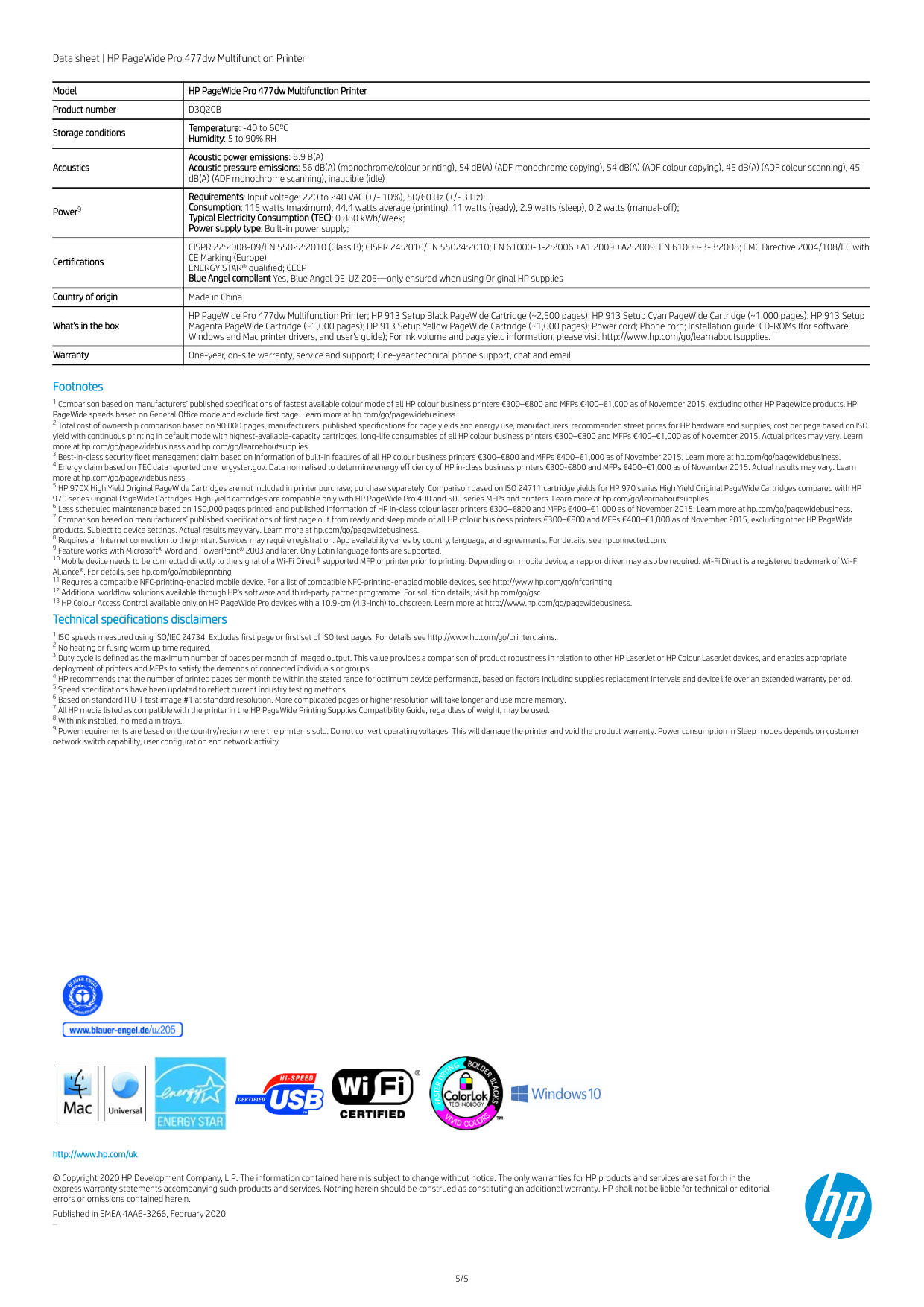
|How do I?|Steps to perform| |---|---| |Cancel a print job from the product control panel
Cancel a print job from the Windows print queue|To cancel the print job, press and release Cancel on the product control panel.
NOTE: Pressing Cancel clears the job that the product is currently processing. If more than one process is running (for example, the product is printing a document while receiving a fax), pressing Cancel clears the process that currently appears on the product control panel.
Typically, a dialog box appears briefly on the computer screen, allowing you to cancel the print job.
● Windows 2000: Go to the Printer dialog box. Click Start, click Settings, and then click Printers. Doubleclick the product icon to open the window, select the print job, and then click Delete.
● Windows XP: Click Start, click Settings, and then click Printers and Faxes. Double-click the product icon to open the window, right-click the print job that you want to cancel, and then click Cancel.
● Windows Vista: Click Start, click Control Panel, and then, under Hardware and Sound, click Printer. Double-click the product icon to open the window, right-click the print job that you want to cancel, and then click Cancel.
● Macintosh print queue: Open the print queue by double-clicking the product icon in the dock. Highlight the print job, and then click Delete.
|
Print on both sides (duplex)
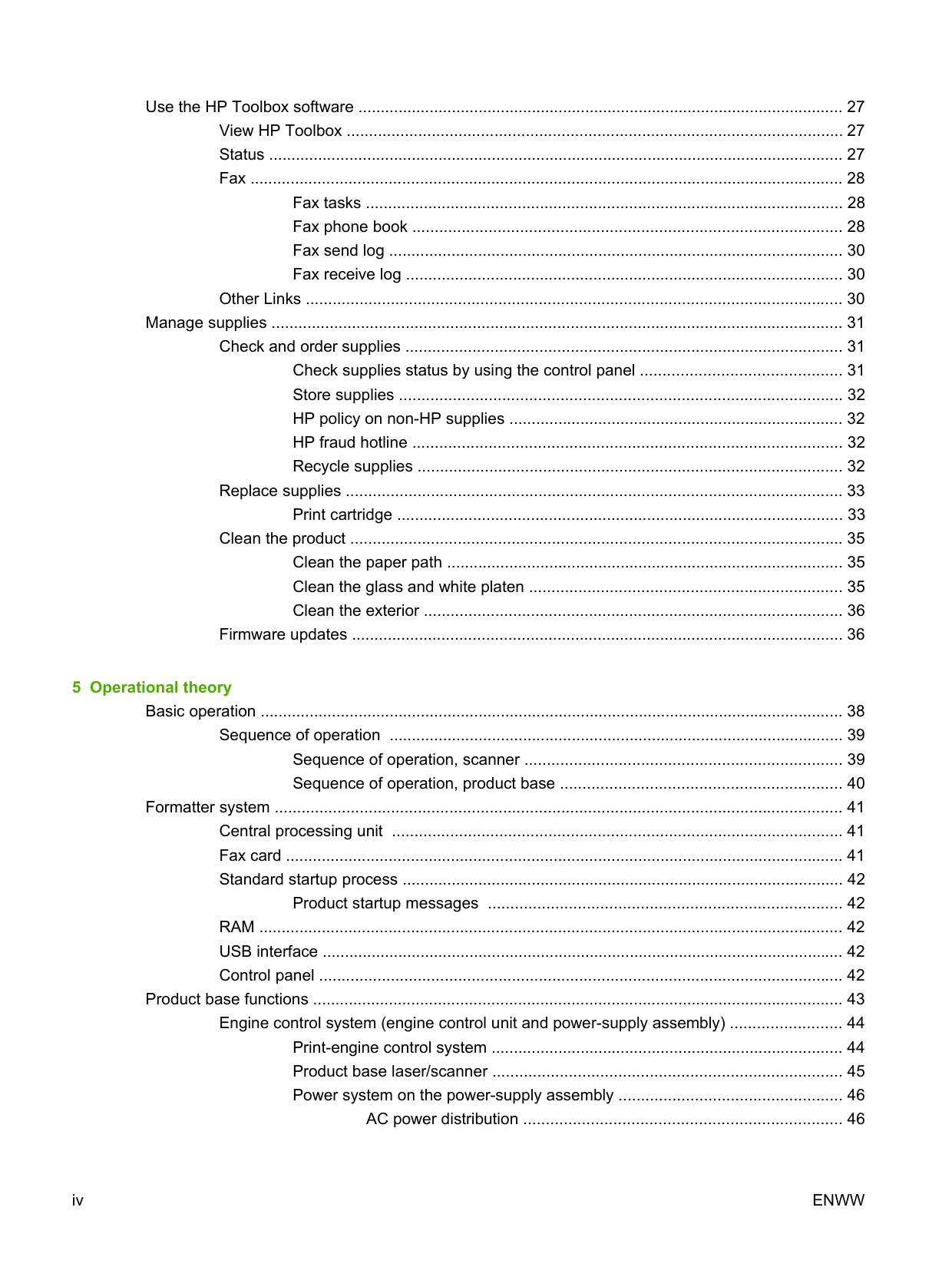
|How do I?|Steps to perform| |---|---| |Print on both sides of the paper (duplex printing)
NOTE: If the Print on Both Sides option is dimmed or unavailable, open the properties (printer driver). On the Device Settings tab or the Configure tab, select Allow Manual Duplexing, and then click OK. Repeat steps 1 and 2.|1 In the software program, open the properties (printer driver).
2 On the Finishing tab, select Print on Both Sides (Manually).
3 Print the document.

4 After one side has been printed, remove the remaining media from the input tray, and set it aside until after you finish the duplexing job.
2
|
|How do I?|Steps to perform| |---|---|
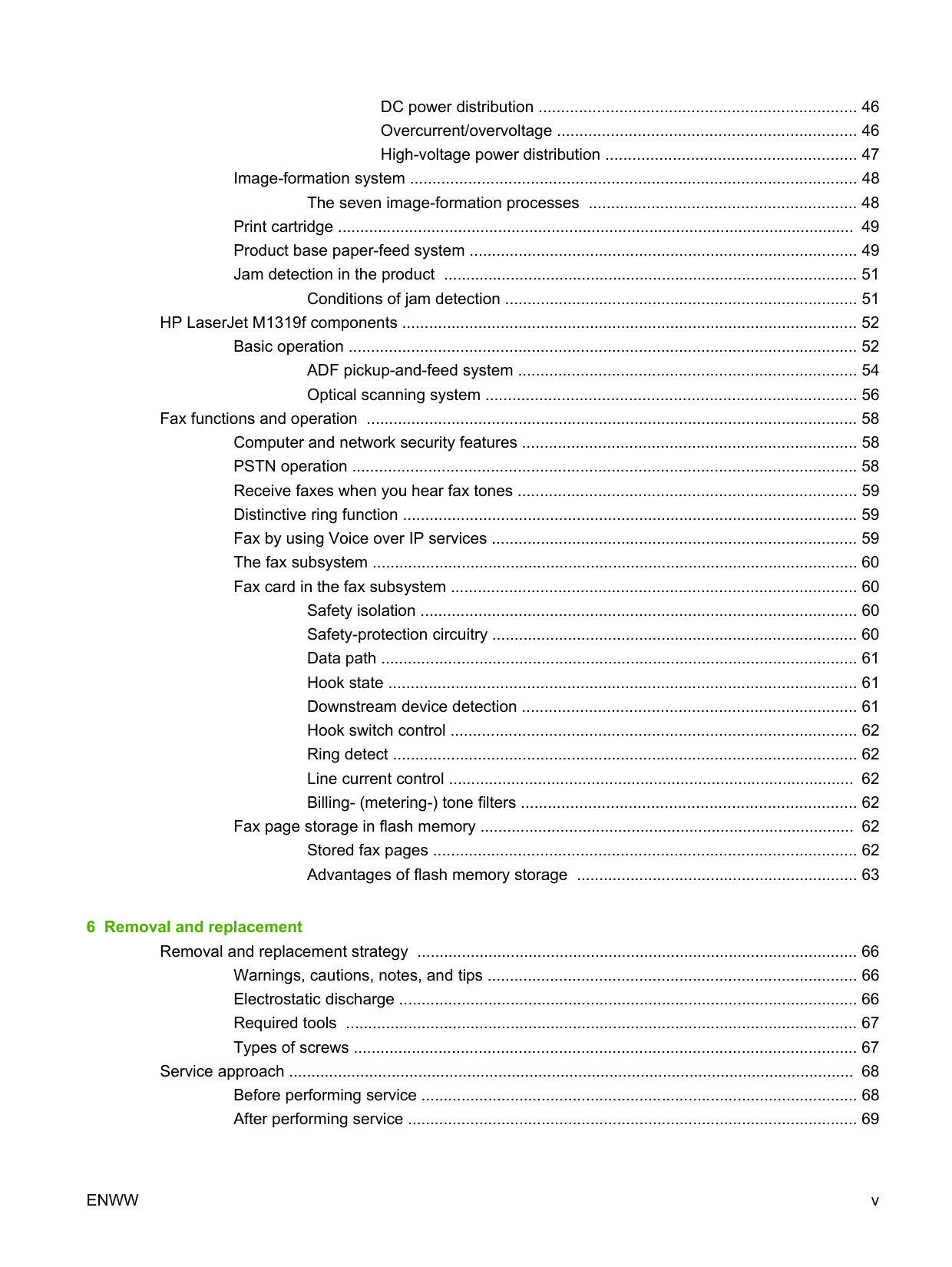
|Print on both sides of the paper (duplex printing) (continued)|5 Without changing the orientation, remove the printed stack from the output bin, and then straighten the stack.
6 Maintaining the same orientation, place the stack of media in the input tray again. The printed side should be facing down.
7 On the product control panel, press OK and wait for the second side to print.
|
Print on letterhead or pre-printed forms
|How do I?|Steps to perform| |---|---|
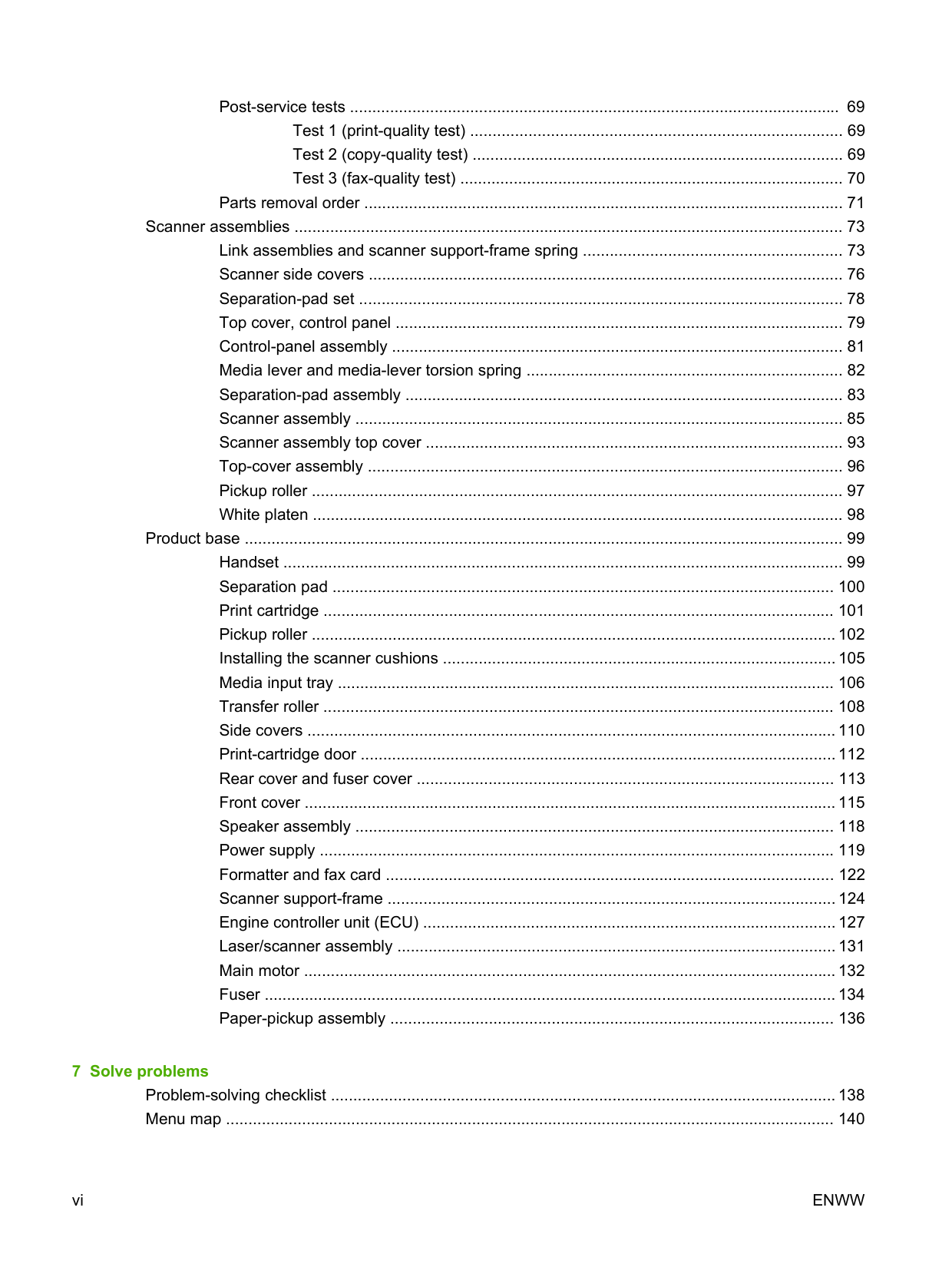
|Load paper and print media|1 Open the media input tray and remove any media.
2 Load the media. Make sure that the top of the media is forward and the side to be printed on is facing up.
3 Adjust the media guides to the length and width of the media.
| |Print on letterhead or pre-printed forms
|1 On the printer driver, on the Paper/Quality tab, select the media type from the Type is: drop-down list.
2 Print the document.

4
|
|How do I?|Steps to perform|Steps to perform| |---|---|---| |Supported paper types and tray capacity|Type is Priority input tray Tray 1 capacity| |
|Supported paper types and tray capacity|Plain Color Preprinted Prepunched Recycled
Up to 10 sheets Up to 250 sheets| | |Supported paper types and tray capacity|Light Up to 10 sheets Up to 260 sheets| | |Supported paper types and tray capacity|Envelopes 1 envelope Up to 10 envelopes| | |Supported paper types and tray capacity|Labels 1 sheet Not supported| | |Supported paper types and tray capacity|Bond 1 sheet Up to 250 sheets| | |Supported paper types and tray capacity|Rough 1 sheet Up to 200 sheets| | |Supported paper types and tray capacity|Transparencies 1 sheet Up to 200 sheets| |
|Supported paper types and tray capacity|Heavy Up to 10 sheets Not supported| |
Print multiple pages per sheet
|How do I?|Steps to perform| |---|---|
|Print multiple pages per sheet|You can print more than one page on a single sheet of paper.
1 On the File menu in the software program, click Print.
2 Select the driver, and then click Properties or Preferences.
3 Click the Finishing tab.
4 In the Document Options drop-down list, select the number of pages that you want to print on each sheet (1, 2, 4, 6, 9, or 16).
5 If the number of pages is greater than 1, select the correct options for Print page borders and Page order. If you need to change the page orientation, click Portrait or Landscape.
6 Click OK. The product is now set to print the number of pages per sheet that you have selected.

5
4
3
6
|
Select page orientation
|How do I?|Steps to perform| |---|---|
|Select page orientation|1 On the File menu in the software program, click Print.
2 Select the driver, and then click Properties or Preferences.
3 On the Finishing tab, select either Portrait or Landscape in the Orientation section.
4 Click OK.

3
4
|
Print on special paper, labels, or transparencies
|How do I?|Steps to perform| |---|---|
|Load paper and print media
|1 Open the media input tray and remove any media.
2 Load the media. Make sure that the top of the media is forward and the side to be printed on is facing up.
3 Adjust the media guides to the length and width of the media.
| |Print on special paper, labels, or transparencies
CAUTION: Be sure to set the correct media type in the product settings. The product adjusts the fuser temperature according to the media type setting. When printing on special media such as transparencies or labels, this adjustment prevents the fuser from damaging the media as it passes through the product.|1 On the printer driver, on the Paper/Quality tab, select the media type from the Type is: drop-down list.
2 Print the document.
|
|How do I?|Steps to perform|Steps to perform| |---|---|---| |Supported paper types and tray capacity|Type is Priority input tray Tray 1 capacity| | |Supported paper types and tray capacity|Plain Color Preprinted Prepunched Recycled
Up to 10 sheets Up to 250 sheets| | |Supported paper types and tray capacity|Light Up to 10 sheets Up to 260 sheets| | |Supported paper types and tray capacity|Envelopes 1 envelope Up to 10 envelopes| | |Supported paper types and tray capacity|Labels 1 sheet Not supported| | |Supported paper types and tray capacity|Bond 1 sheet Up to 250 sheets| | |Supported paper types and tray capacity|Rough 1 sheet Up to 200 sheets| | |Supported paper types and tray capacity|Transparencies 1 sheet Up to 200 sheets| | |Supported paper types and tray capacity|Heavy Up to 10 sheets Not supported| |