Ask AI
— answers from the official manualAnswers from the official manual.
Common questions
Common Questions
15 totalHow do I restart Wi-Fi setup mode if it has timed out on the HP LaserJet M207 M212?
To restart Wi-Fi setup mode, press and hold the Wireless button for 5 seconds and release it so all control panel buttons light up, then press the Wireless button and Information button at the same time once and release. The Wireless light will blink blue, indicating setup mode is active. Wait one minute, then close and reopen HP Smart and try connecting again.
What does a blinking blue wireless light indicate on the HP LaserJet M207 M212?
A blinking blue wireless light means the printer is currently connecting to a network. Once successfully connected, the wireless light will remain solid blue, indicating the printer is connected and ready for use.
Why can't the HP Smart software find my printer during setup?
Several conditions can prevent the software from finding your printer, including the printer's Wi-Fi setup mode timing out, your computer or mobile device being too far from the printer, being connected to a VPN, or having Bluetooth and location services turned off on your mobile device. Check each of these conditions and resolve them before attempting setup again.
Can I set up my HP LaserJet M207 M212 while connected to a VPN?
No, you must disconnect from a VPN before installing the HP Smart software, as apps cannot be installed from the Microsoft Store while connected to a VPN. You can reconnect to the VPN again after finishing the printer setup.
What does the paper light blinking mean on the HP LaserJet M207 M212?
A blinking paper light means the printer is either out of paper or there is a paper jam. You will need to either refill the paper tray or clear the paper jam to resolve the issue.
How do I set up my HP LaserJet M207 M212 if my computer is connected via Ethernet?
If your computer is connected by Ethernet, you need to turn on the computer's Wi-Fi while setting up the printer. Disconnect the Ethernet cable temporarily to complete the setup over Wi-Fi.
Show 9 more questions
Do I need to enable Bluetooth and location services on my mobile device to set up the HP LaserJet M207 M212?
How do I reset the printer to factory settings?
What does it mean if the printer's LED is solid amber?
Why won't my Wi-Fi setup mode work after pressing the Wireless button?
What should I do if my printer fails to connect through Wi-Fi?
What steps are needed for wireless setup mode?
What are some common wireless setup issues?
How can I set up my HP LaserJet M207-M212 series for Wi-Fi?
What safety precautions should I take while using this printer?
Full Manual
8 pages
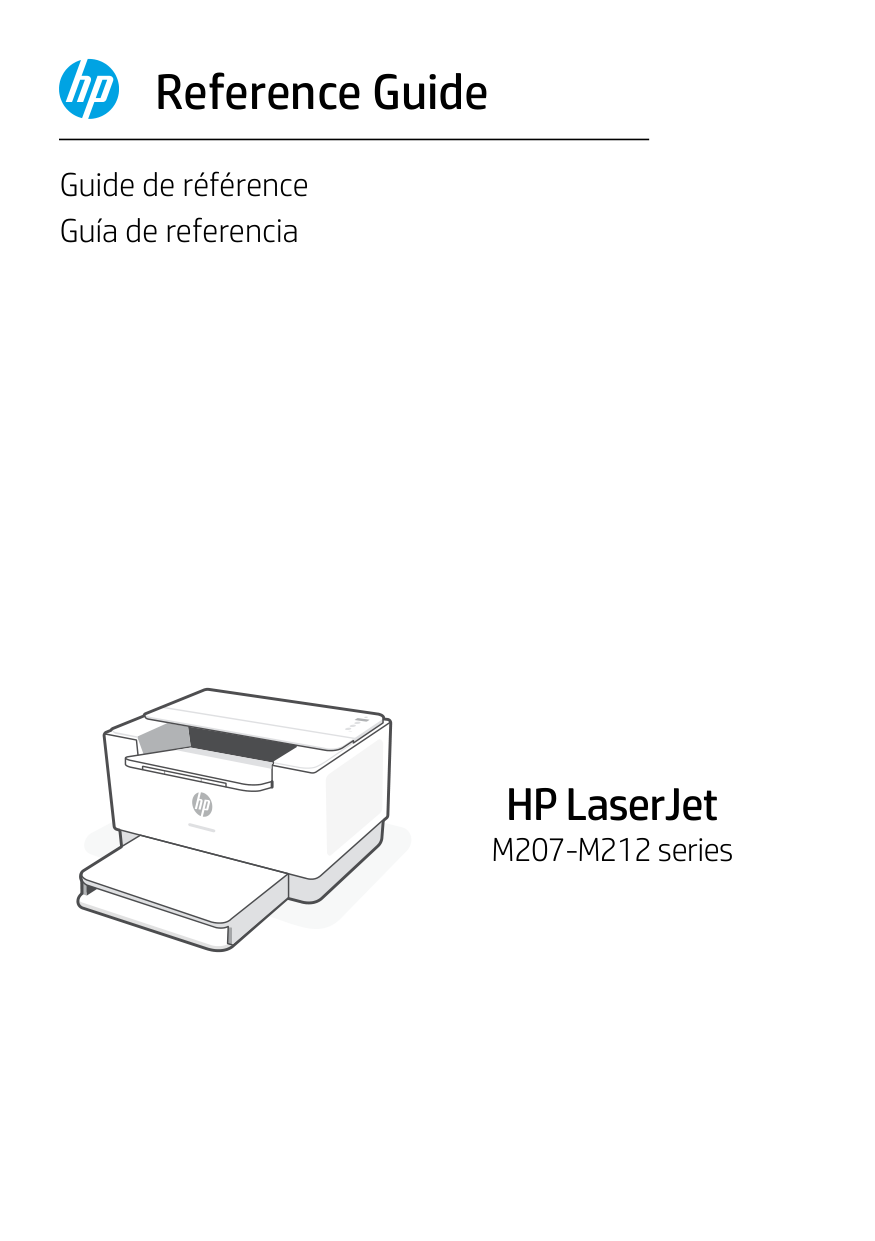
Guide de référence Guía de referencia Reference Guide HP LaserJet M207-M212 series
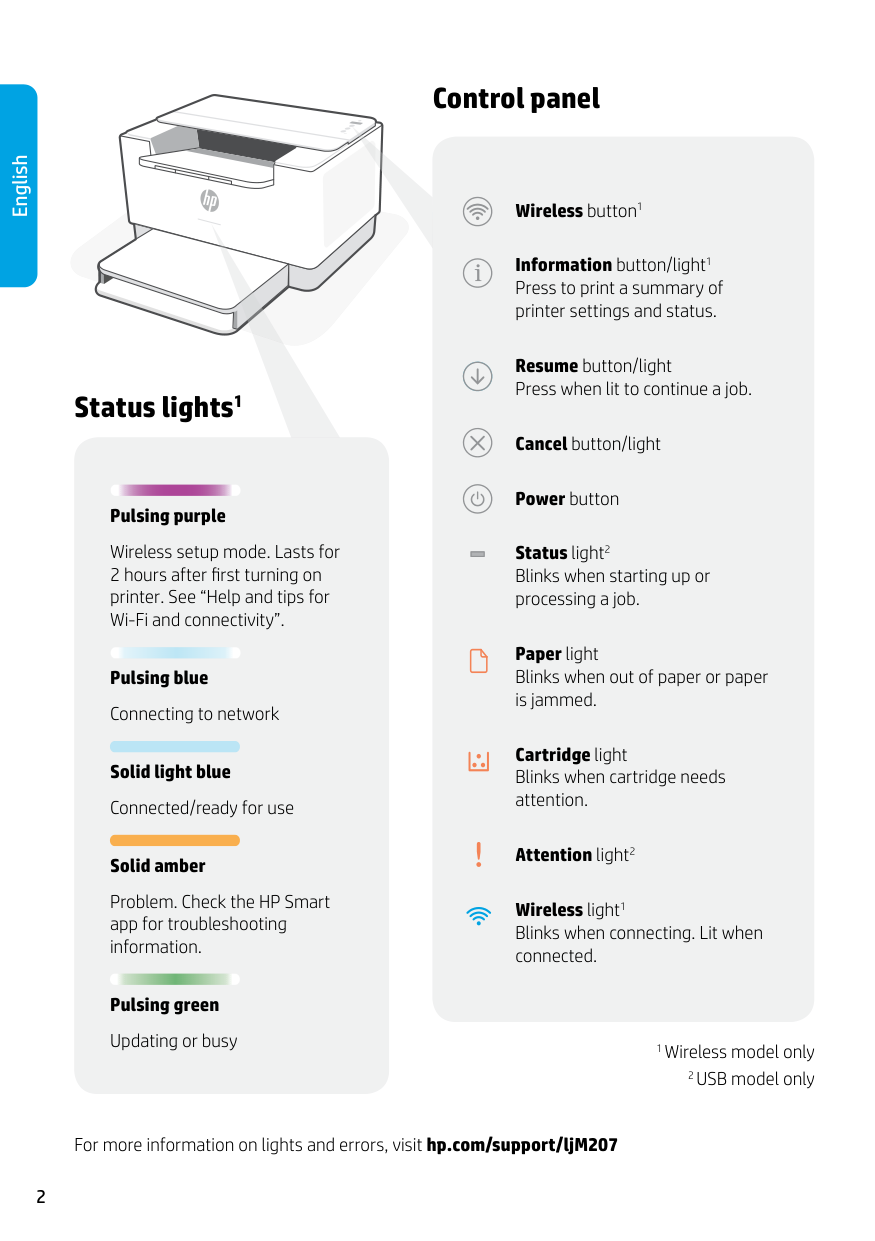
2 Status lights1 Pulsing purple Wireless setup mode. Lasts for 2 hours after first turning on printer. See “Help and tips for Wi-Fi and connectivity”. Pulsing blue Connecting to network Solid light blue Connected/ready for use Solid amber Problem. Check the HP Smart app for troubleshooting information. Pulsing green Updating or busy For more information on lights and errors, visit hp.com/support/ljM207 English Control panel Wireless button1 Information button/light1 Press to print a summary of printer settings and status. Resume button/light Press when lit to continue a job. Cancel button/light Power button Status light2 Blinks when starting up or processing a job. Paper light Blinks when out of paper or paper is jammed. Cartridge light Blinks when cartridge needs attention. Attention light2 Wireless light1 Blinks when connecting. Lit when connected. 1 Wireless model only 2 USB model only
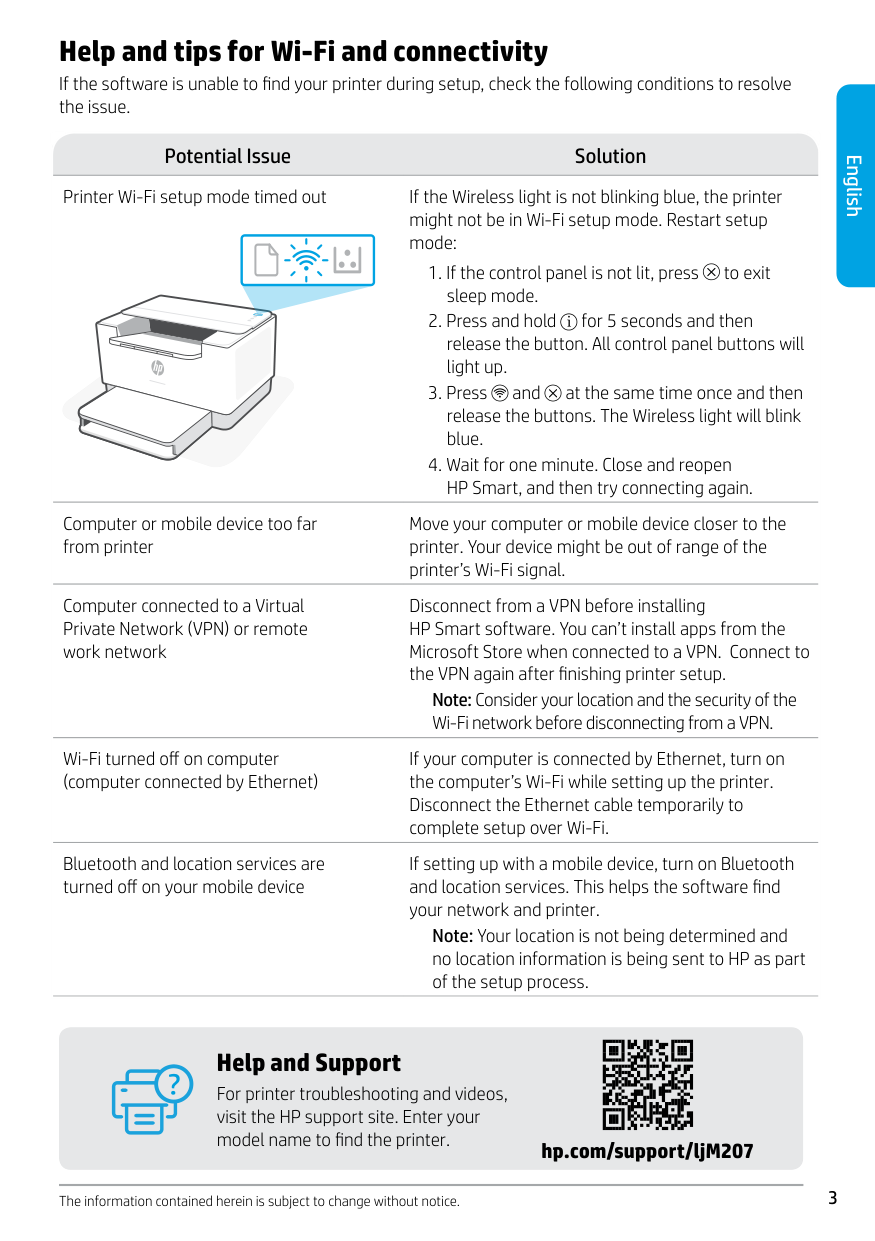
English 3 Potential Issue Solution Printer Wi-Fi setup mode timed out If the Wireless light is not blinking blue, the printer might not be in Wi-Fi setup mode. Restart setup mode:
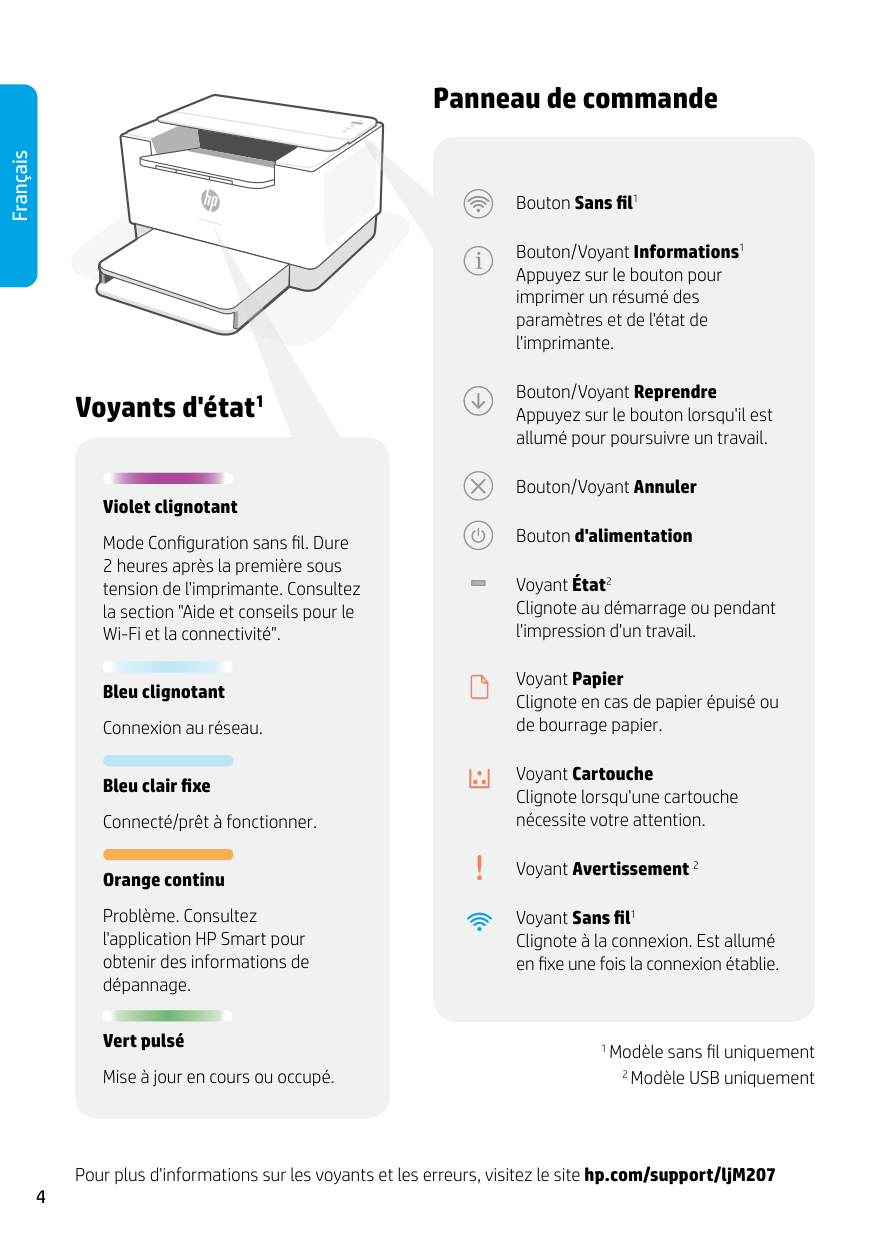
4 Panneau de commande Voyants d'état1 Violet clignotant Mode Configuration sans fil. Dure 2 heures après la première sous tension de l'imprimante. Consultez la section "Aide et conseils pour le Wi-Fi et la connectivité". Bleu clignotant Connexion au réseau. Bleu clair fixe Connecté/prêt à fonctionner. Orange continu Problème. Consultez l'application HP Smart pour obtenir des informations de dépannage. Vert pulsé Mise à jour en cours ou occupé. Pour plus d'informations sur les voyants et les erreurs, visitez le site hp.com/support/ljM207 Français Bouton Sans fil1 Bouton/Voyant Informations1 Appuyez sur le bouton pour imprimer un résumé des paramètres et de l'état de l'imprimante. Bouton/Voyant Reprendre Appuyez sur le bouton lorsqu'il est allumé pour poursuivre un travail. Bouton/Voyant Annuler Bouton d'alimentation Voyant État2 Clignote au démarrage ou pendant l'impression d'un travail. Voyant Papier Clignote en cas de papier épuisé ou de bourrage papier. Voyant Cartouche Clignote lorsqu'une cartouche nécessite votre attention. Voyant Avertissement 2 Voyant Sans fil1 Clignote à la connexion. Est allumé en fixe une fois la connexion établie. 1 Modèle sans fil uniquement 2 Modèle USB uniquement
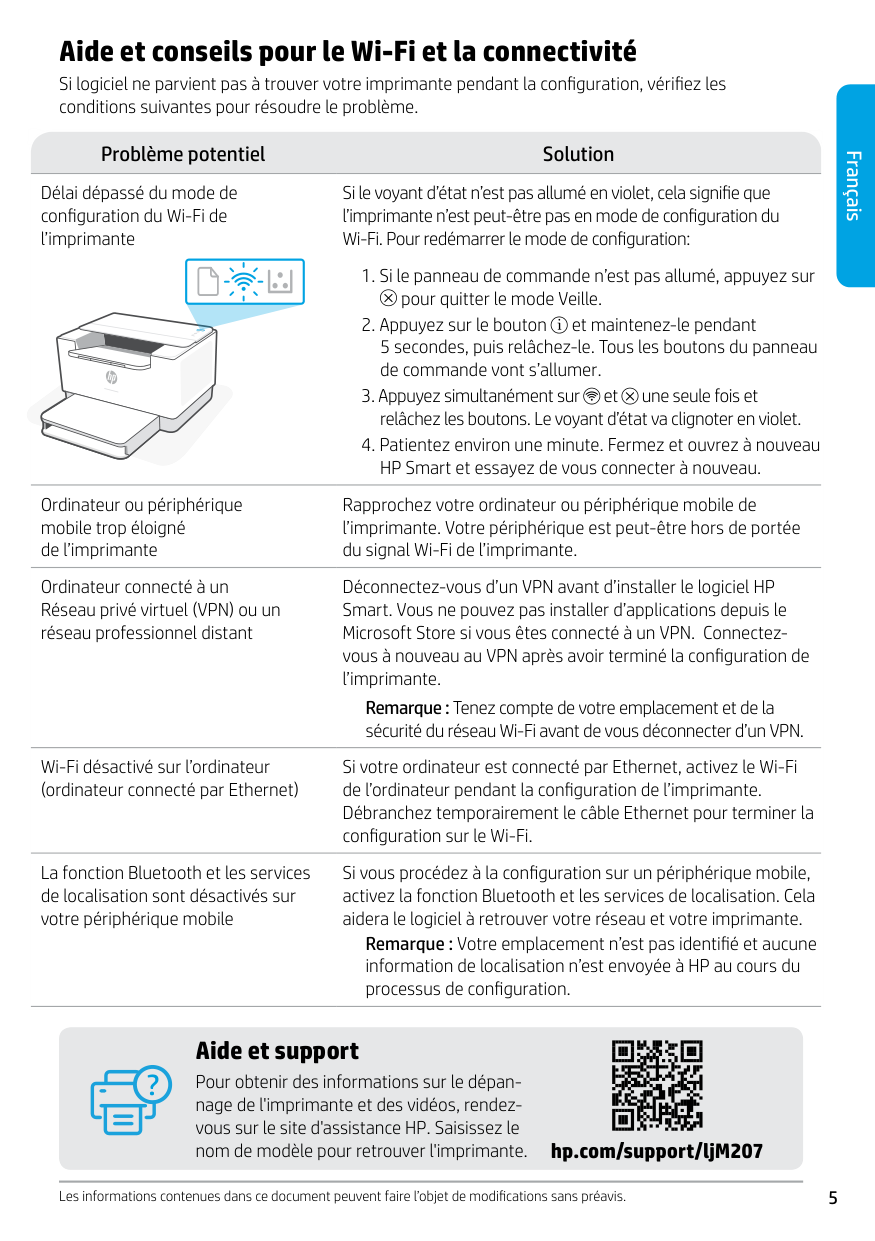
Français 5 Aide et conseils pour le Wi-Fi et la connectivité Si logiciel ne parvient pas à trouver votre imprimante pendant la configuration, vérifiez les conditions suivantes pour résoudre le problème. Les informations contenues dans ce document peuvent faire l’objet de modifications sans préavis. Problème potentiel Solution Délai dépassé du mode de configuration du Wi-Fi de l’imprimante Si le voyant d’état n’est pas allumé en violet, cela signifie que l’imprimante n’est peut-être pas en mode de configuration du Wi-Fi. Pour redémarrer le mode de configuration:
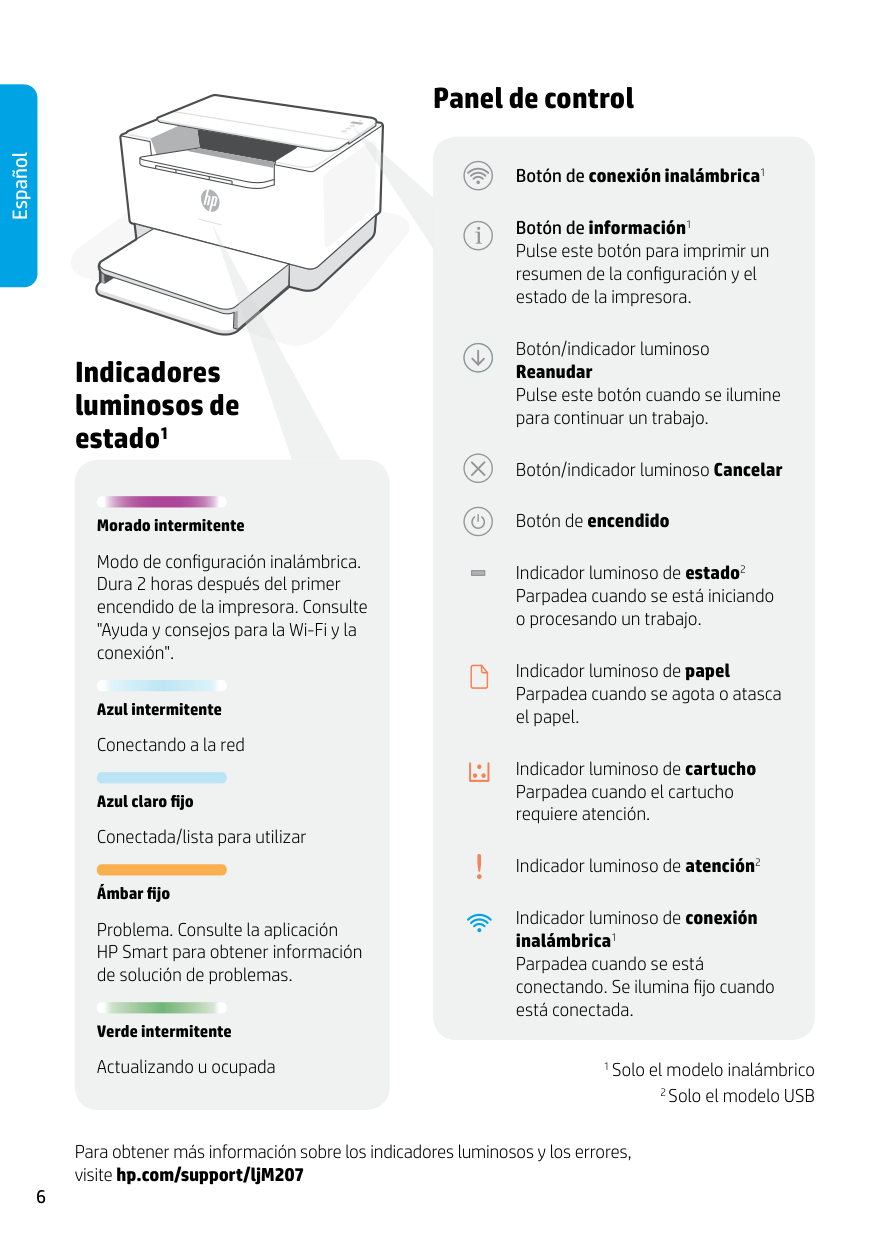
6 Panel de control Indicadores luminosos de estado1 Morado intermitente Modo de configuración inalámbrica. Dura 2 horas después del primer encendido de la impresora. Consulte "Ayuda y consejos para la Wi-Fi y la conexión". Azul intermitente Conectando a la red Azul claro fijo Conectada/lista para utilizar Ámbar fijo Problema. Consulte la aplicación HP Smart para obtener información de solución de problemas. Verde intermitente Actualizando u ocupada Para obtener más información sobre los indicadores luminosos y los errores, visite hp.com/support/ljM207 Español Botón de conexión inalámbrica1 Botón de información1 Pulse este botón para imprimir un resumen de la configuración y el estado de la impresora. Botón/indicador luminoso Reanudar Pulse este botón cuando se ilumine para continuar un trabajo. Botón/indicador luminoso Cancelar Botón de encendido Indicador luminoso de estado2 Parpadea cuando se está iniciando o procesando un trabajo. Indicador luminoso de papel Parpadea cuando se agota o atasca el papel. Indicador luminoso de cartucho Parpadea cuando el cartucho requiere atención. Indicador luminoso de atención2 Indicador luminoso de conexión inalámbrica1 Parpadea cuando se está conectando. Se ilumina fijo cuando está conectada. 1 Solo el modelo inalámbrico 2 Solo el modelo USB
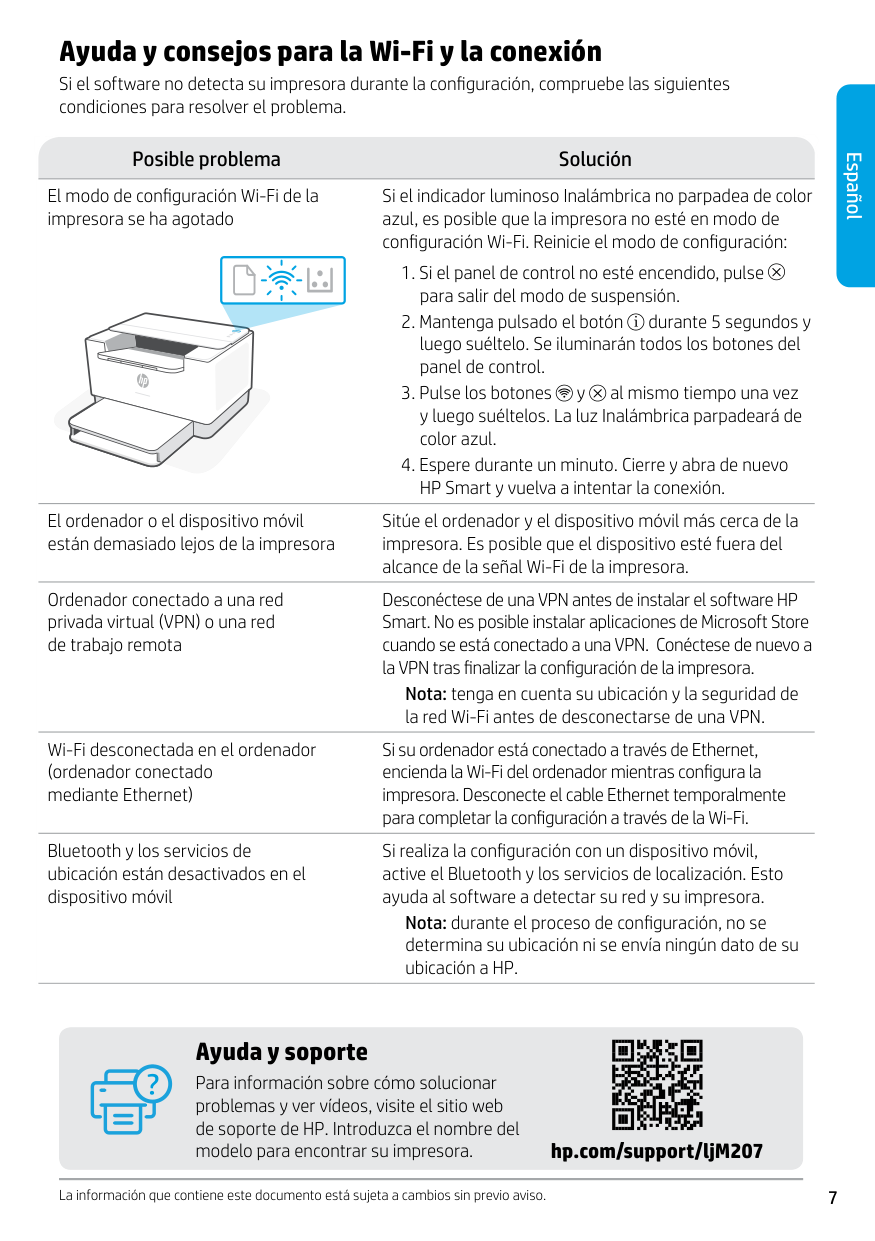
Español 7 Ayuda y consejos para la Wi-Fi y la conexión Si el software no detecta su impresora durante la configuración, compruebe las siguientes condiciones para resolver el problema. La información que contiene este documento está sujeta a cambios sin previo aviso. Posible problema Solución El modo de configuración Wi-Fi de la impresora se ha agotado Si el indicador luminoso Inalámbrica no parpadea de color azul, es posible que la impresora no esté en modo de configuración Wi-Fi. Reinicie el modo de configuración:
para salir del modo de suspensión.