Ask AI
— answers from the official manualAnswers from the official manual.
Common questions
Common Questions
10 totalWhat does the error code Er/01 mean and how do I fix it?
Er/01 indicates that there is no paper loaded. Load paper to resolve this issue.
How do I clear a paper jam indicated by the error code Er/04, Er/05 or Er06?
These codes indicate a paper jam. Clear the jammed paper from the printer and then restart the device to fix this issue.
What should I do if the printer display shows error code Er/07 or Er/11?
Er/07 and Er/11 indicate that the cartridge needs to be reinstalled. Remove and then reinstall the appropriate cartridge following the instructions in the Setup Guide.
How do I enter Wi-Fi setup mode on my printer if it did not initiate automatically?
Press and hold the Wireless button for 5 seconds until the Wireless light flashes blue, then add the printer through the HP Smart app.
What steps should I take if I am experiencing issues connecting to my printer via Wi-Fi?
Ensure your device is near the printer and connected to the correct network. Also, make sure Bluetooth and location services are enabled on mobile devices for best results.
How can I reset the printer if it gets stuck or stops responding?
Press and hold the Power button for more than 10 seconds until the LED starts blinking red, which indicates a factory reset. Then follow setup steps again using HP Smart.
Show 4 more questions
How do I resolve connectivity issues when my computer is connected to a Virtual Private Network (VPN)?
Where can I find comprehensive information about error codes and light patterns?
What are the solutions if my computer is connected via Ethernet but I need Wi-Fi?
How can I obtain help for troubleshooting my printer?
Full Manual
8 pages
Reference Guide
Manuel de référence Guía de referencia
HP LaserJet MFP
M139-M142 series
Control panel
#### English
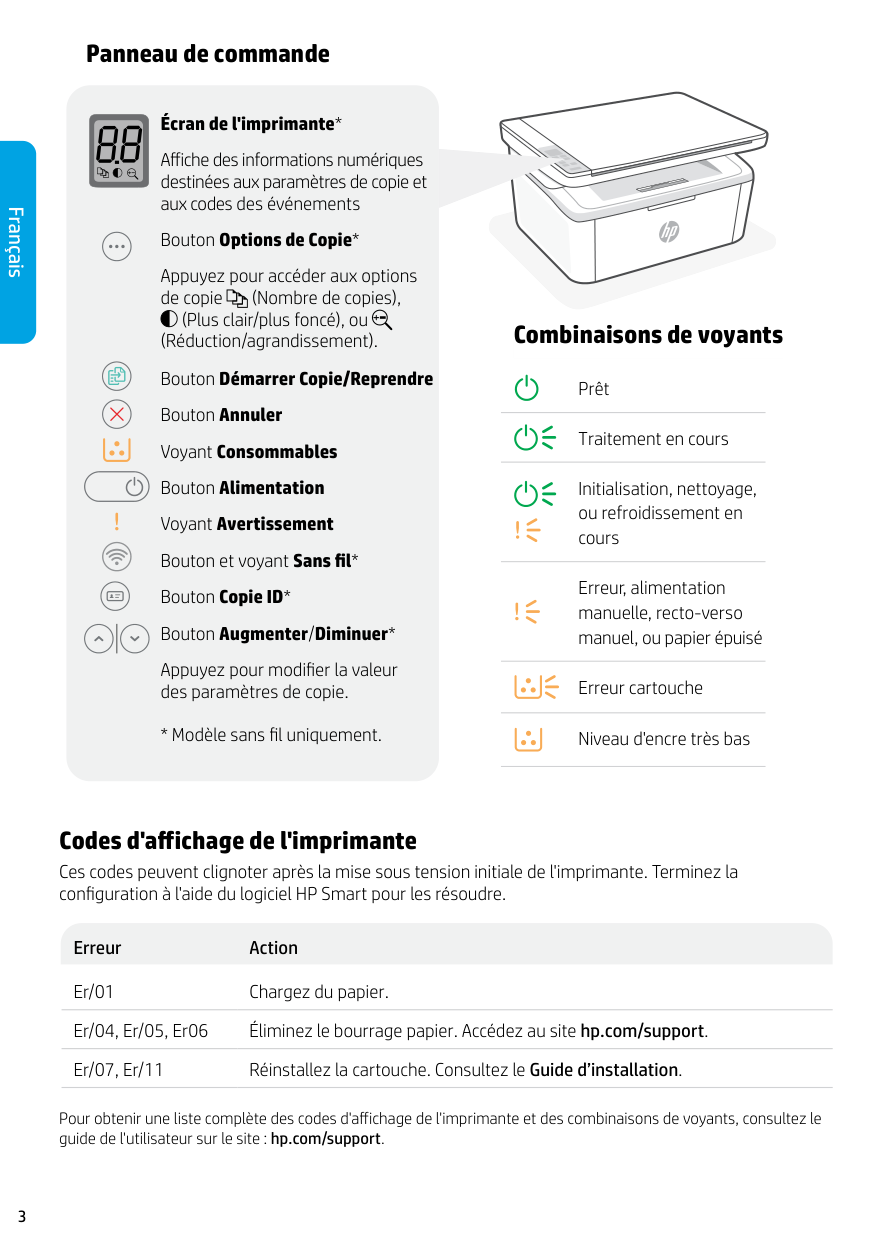
##### Printer display*
Shows numerical information for copy settings and event codes.
Copy Options button*
Press to access (Number of Copies), (Lighter/Darker), or (Reduce/Enlarge) copy options.
Start Copy/Resume button
Cancel button
Supplies light
Power button
Attention light
Wireless button and light*
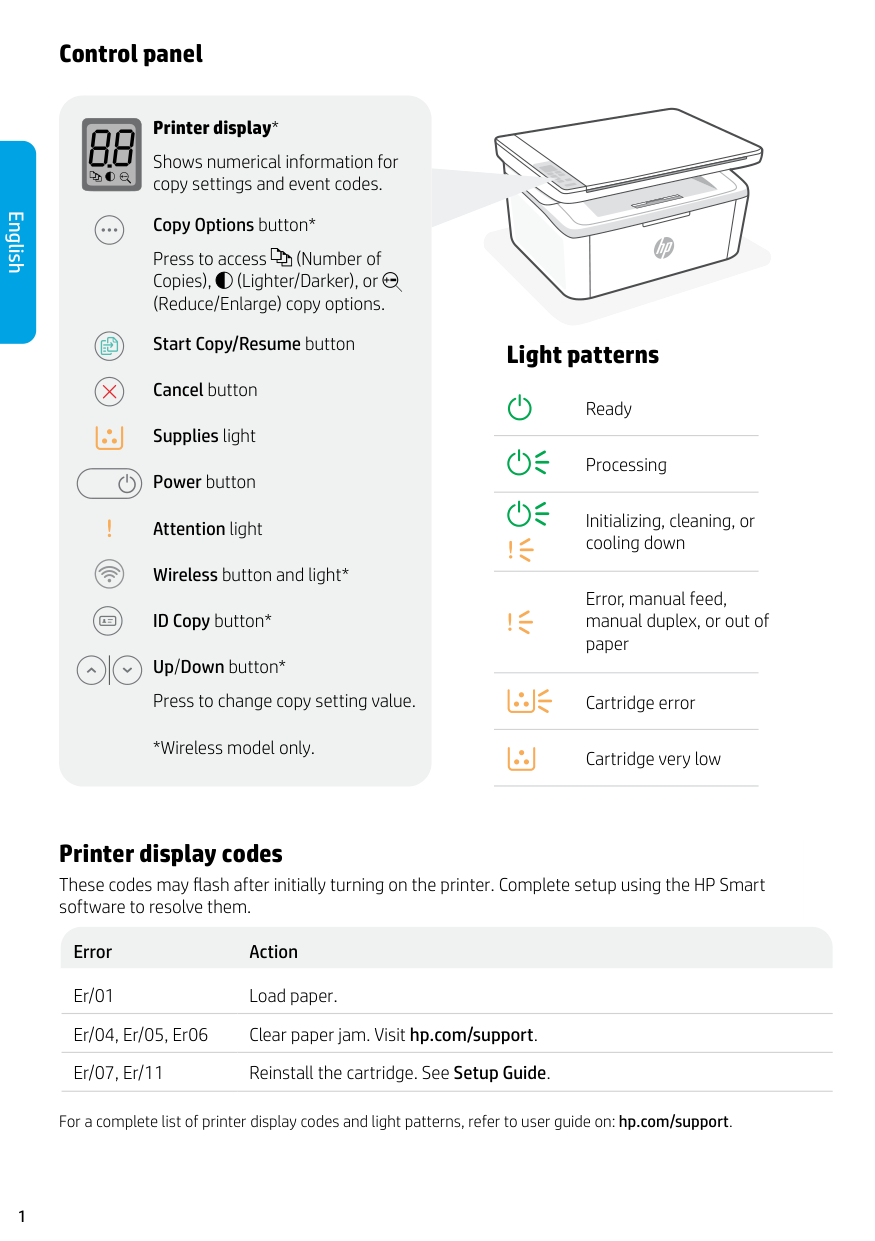
ID Copy button*
Up/Down button* Press to change copy setting value.
*Wireless model only.
Light patterns
Ready
Processing
Initializing, cleaning, or cooling down
Error, manual feed, manual duplex, or out of paper
Cartridge error
Cartridge very low
Printer display codes These codes may flash after initially turning on the printer. Complete setup using the HP Smart software to resolve them.
Error Action Er/01 Load paper. Er/04, Er/05, Er06 Clear paper jam. Visit hp.com/support. Er/07, Er/11 Reinstall the cartridge. See Setup Guide.
For a complete list of printer display codes and light patterns, refer to user guide on: hp.com/support.
Help and tips for Wi-Fi and connectivity (wireless model only) If the software is unable to find your printer during setup, check the following conditions to resolve the issue.
Potential Issue Solution
Printer Wi-Fi setup mode timed out If the Wireless light is not blinking blue, the printer might not be in Wi-Fi setup mode. Restart setup mode:
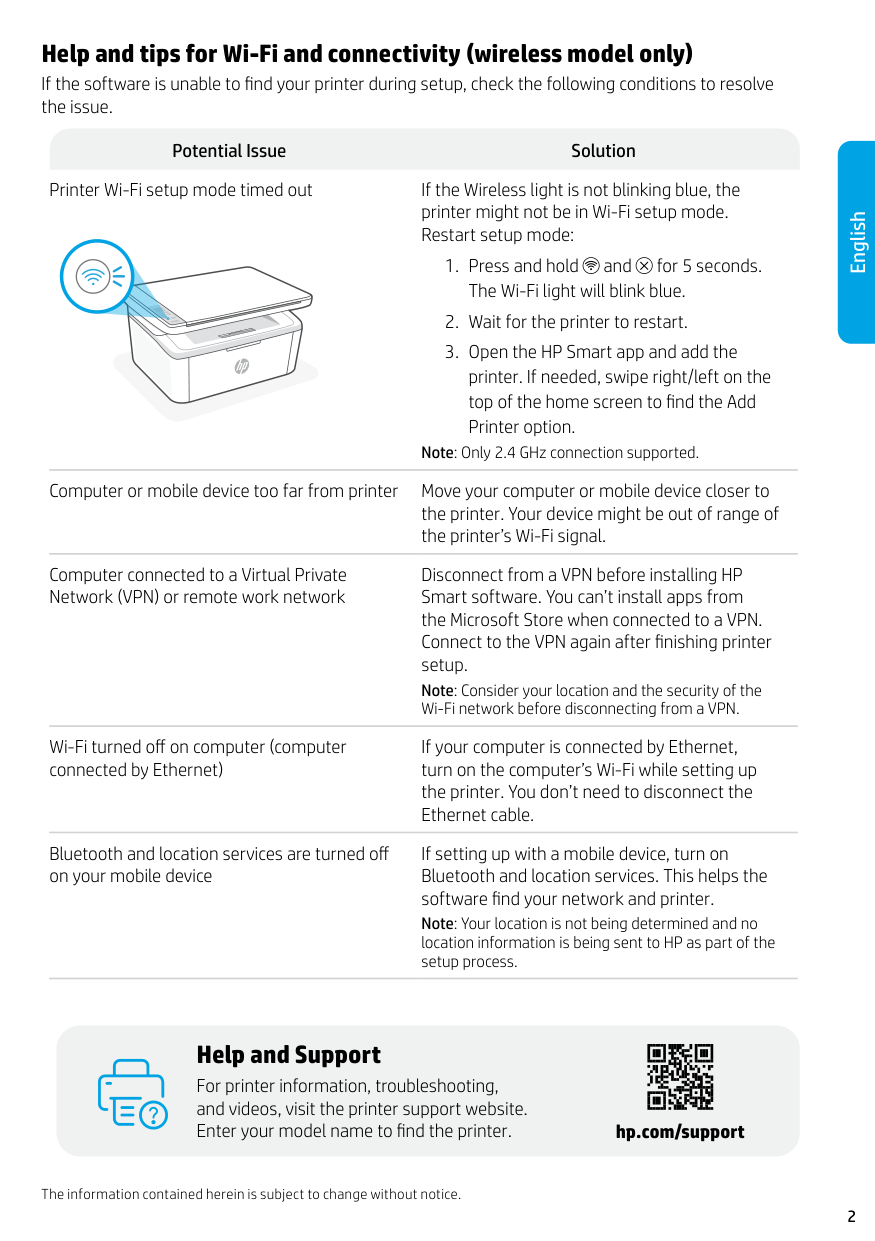
Note: Only 2.4 GHz connection supported.
Computer or mobile device too far from printer Move your computer or mobile device closer to the printer. Your device might be out of range of the printer’s Wi-Fi signal.
Computer connected to a Virtual Private Network (VPN) or remote work network
Disconnect from a VPN before installing HP Smart software. You can’t install apps from the Microsoft Store when connected to a VPN. Connect to the VPN again after finishing printer setup. Note: Consider your location and the security of the Wi-Fi network before disconnecting from a VPN.
Wi-Fi turned off on computer (computer connected by Ethernet)
Bluetooth and location services are turned off on your mobile device
If your computer is connected by Ethernet, turn on the computer’s Wi-Fi while setting up the printer. You don’t need to disconnect the Ethernet cable.
If setting up with a mobile device, turn on Bluetooth and location services. This helps the software find your network and printer. Note: Your location is not being determined and no location information is being sent to HP as part of the setup process.
English
Help and Support
For printer information, troubleshooting, and videos, visit the printer support website. Enter your model name to find the printer.
The information contained herein is subject to change without notice.
hp.com/support
#### Français
Panneau de commande
Écran de l'imprimante* Affiche des informations numériques destinées aux paramètres de copie et aux codes des événements Bouton Options de Copie* Appuyez pour accéder aux options de copie (Nombre de copies),
(Plus clair/plus foncé), ou (Réduction/agrandissement). Bouton Démarrer Copie/Reprendre Bouton Annuler Voyant Consommables Bouton Alimentation Voyant Avertissement Bouton et voyant Sans fil* Bouton Copie ID* Bouton Augmenter/Diminuer* Appuyez pour modifier la valeur des paramètres de copie.
Combinaisons de voyants
Prêt
Traitement en cours
Initialisation, nettoyage, ou refroidissement en cours
Erreur, alimentation manuelle, recto-verso manuel, ou papier épuisé
Erreur cartouche
Niveau d'encre très bas
Codes d'affichage de l'imprimante Ces codes peuvent clignoter après la mise sous tension initiale de l'imprimante. Terminez la configuration à l'aide du logiciel HP Smart pour les résoudre.
Erreur Action Er/01 Chargez du papier. Er/04, Er/05, Er06 Éliminez le bourrage papier. Accédez au site hp.com/support. Er/07, Er/11 Réinstallez la cartouche. Consultez le Guide d’installation.
Pour obtenir une liste complète des codes d'affichage de l'imprimante et des combinaisons de voyants, consultez le guide de l'utilisateur sur le site : hp.com/support.
Aide et conseils pour le Wi-Fi et la connectivité (modèle sans fil uniquement)
Si logiciel ne parvient pas à trouver votre imprimante pendant la configuration, vérifiez les conditions suivantes pour résoudre le problème.
Problème potentiel Solution
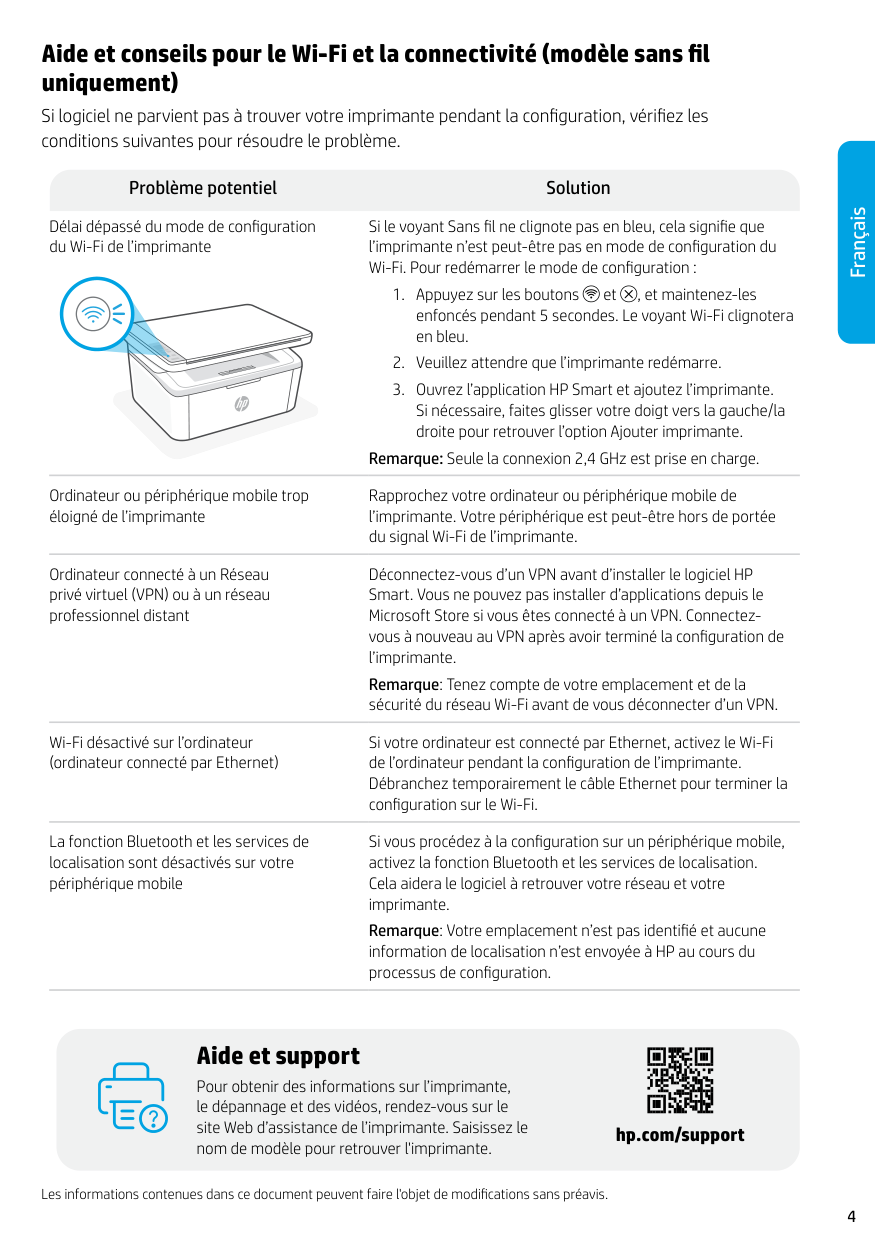
Délai dépassé du mode de configuration du Wi-Fi de l’imprimante
Si le voyant Sans fil ne clignote pas en bleu, cela signifie que l’imprimante n’est peut-être pas en mode de configuration du Wi-Fi. Pour redémarrer le mode de configuration :
Remarque: Seule la connexion 2,4 GHz est prise en charge.
Ordinateur ou périphérique mobile trop éloigné de l’imprimante
Ordinateur connecté à un Réseau privé virtuel (VPN) ou à un réseau professionnel distant
Wi-Fi désactivé sur l’ordinateur (ordinateur connecté par Ethernet)
La fonction Bluetooth et les services de localisation sont désactivés sur votre périphérique mobile
Rapprochez votre ordinateur ou périphérique mobile de l’imprimante. Votre périphérique est peut-être hors de portée du signal Wi-Fi de l’imprimante.
Déconnectez-vous d’un VPN avant d’installer le logiciel HP Smart. Vous ne pouvez pas installer d’applications depuis le Microsoft Store si vous êtes connecté à un VPN. Connectezvous à nouveau au VPN après avoir terminé la configuration de l’imprimante. Remarque: Tenez compte de votre emplacement et de la sécurité du réseau Wi-Fi avant de vous déconnecter d’un VPN.
Si votre ordinateur est connecté par Ethernet, activez le Wi-Fi de l’ordinateur pendant la configuration de l’imprimante. Débranchez temporairement le câble Ethernet pour terminer la configuration sur le Wi-Fi.
Si vous procédez à la configuration sur un périphérique mobile, activez la fonction Bluetooth et les services de localisation. Cela aidera le logiciel à retrouver votre réseau et votre imprimante. Remarque: Votre emplacement n’est pas identifié et aucune information de localisation n’est envoyée à HP au cours du processus de configuration.
#### Français
Aide et support
Pour obtenir des informations sur l’imprimante, le dépannage et des vidéos, rendez-vous sur le site Web d’assistance de l’imprimante. Saisissez le nom de modèle pour retrouver l'imprimante.
hp.com/support
Les informations contenues dans ce document peuvent faire l'objet de modifications sans préavis.
#### Español
Panel de control
##### Pantalla de la impresora*
Muestra información numérica para la configuración de copia y los códigos de evento.
Botón Opciones de copia* Pulse este botón para acceder a las opciones de copia (Número de copias), (Más claro/más oscuro) o (Reducir/ampliar). Botón Iniciar copia/Reanudar Botón Cancelar Indicador luminoso Suministros Botón de encendido Luz de aviso Botón e indicador luminoso de conexión inalámbrica* Botón Copia de ID* Botón Arriba/Abajo* Pulse este botón para cambiar el valor de configuración de copia.
*Solo para el modelo inalámbrico.
Patrones de luz
Listo
Procesando
Iniciando, limpiando o enfriando
Error, alimentación manual, dúplex manual o falta papel
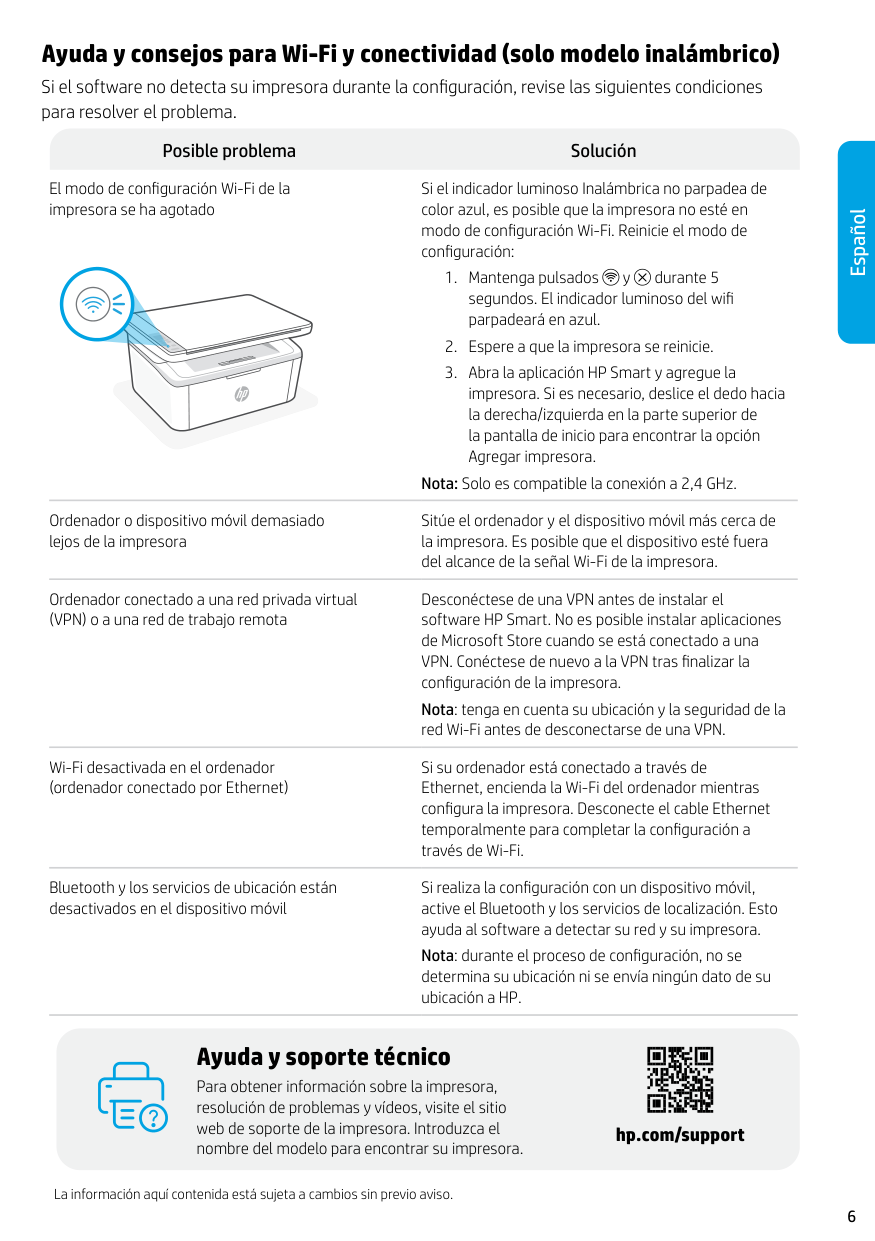
Error de cartucho
Cartucho con nivel deficiente
Códigos de la pantalla de la impresora Puede ser que estos códigos parpadeen después de encender la impresora por primera vez. Complete la configuración con el software HP Smart para resolverlos.
Error Acción Er/01 Cargue papel. Er/04, Er/05, Er06 Elimine el atasco de papel. Visite hp.com/support. Er/07, Er/11 Vuelva a instalar el cartucho. Consulte la Guía de configuración.
Para obtener una lista completa de los códigos de la pantalla de la impresora y de los patrones de luz, consulte la guía del usuario disponible en: hp.com/support.
Ayuda y consejos para Wi-Fi y conectividad (solo modelo inalámbrico) Si el software no detecta su impresora durante la configuración, revise las siguientes condiciones para resolver el problema.
Posible problema Solución
El modo de configuración Wi-Fi de la impresora se ha agotado
Si el indicador luminoso Inalámbrica no parpadea de color azul, es posible que la impresora no esté en modo de configuración Wi-Fi. Reinicie el modo de configuración:
Nota: Solo es compatible la conexión a 2,4 GHz.
Ordenador o dispositivo móvil demasiado lejos de la impresora
Ordenador conectado a una red privada virtual (VPN) o a una red de trabajo remota
Wi-Fi desactivada en el ordenador (ordenador conectado por Ethernet)

Bluetooth y los servicios de ubicación están desactivados en el dispositivo móvil
Sitúe el ordenador y el dispositivo móvil más cerca de la impresora. Es posible que el dispositivo esté fuera del alcance de la señal Wi-Fi de la impresora.
Desconéctese de una VPN antes de instalar el software HP Smart. No es posible instalar aplicaciones de Microsoft Store cuando se está conectado a una VPN. Conéctese de nuevo a la VPN tras finalizar la configuración de la impresora. Nota: tenga en cuenta su ubicación y la seguridad de la red Wi-Fi antes de desconectarse de una VPN.
Si su ordenador está conectado a través de Ethernet, encienda la Wi-Fi del ordenador mientras configura la impresora. Desconecte el cable Ethernet temporalmente para completar la configuración a través de Wi-Fi.
Si realiza la configuración con un dispositivo móvil, active el Bluetooth y los servicios de localización. Esto ayuda al software a detectar su red y su impresora. Nota: durante el proceso de configuración, no se determina su ubicación ni se envía ningún dato de su ubicación a HP.
Ayuda y soporte técnico
Para obtener información sobre la impresora, resolución de problemas y vídeos, visite el sitio web de soporte de la impresora. Introduzca el nombre del modelo para encontrar su impresora.
La información aquí contenida está sujeta a cambios sin previo aviso.
hp.com/support
#### Español
® Copyright 2021 HP Development Company, L.P.
7MD72-90936
Printed in Vietnam Imprimé au Vietnam Impreso en Vietnám
EN FR ES