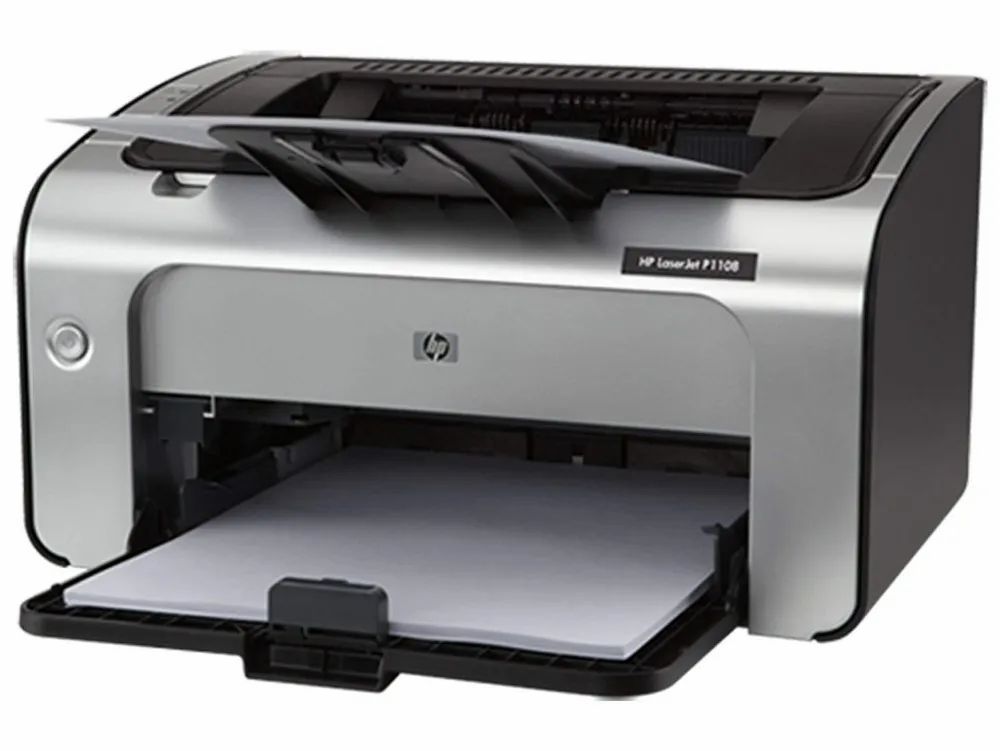
Ask AI
— answers from the official manualAnswers from the official manual.
Common questions
Common Questions
9 totalWhat steps are involved in replacing the print cartridge on an HP LaserJet P1008?
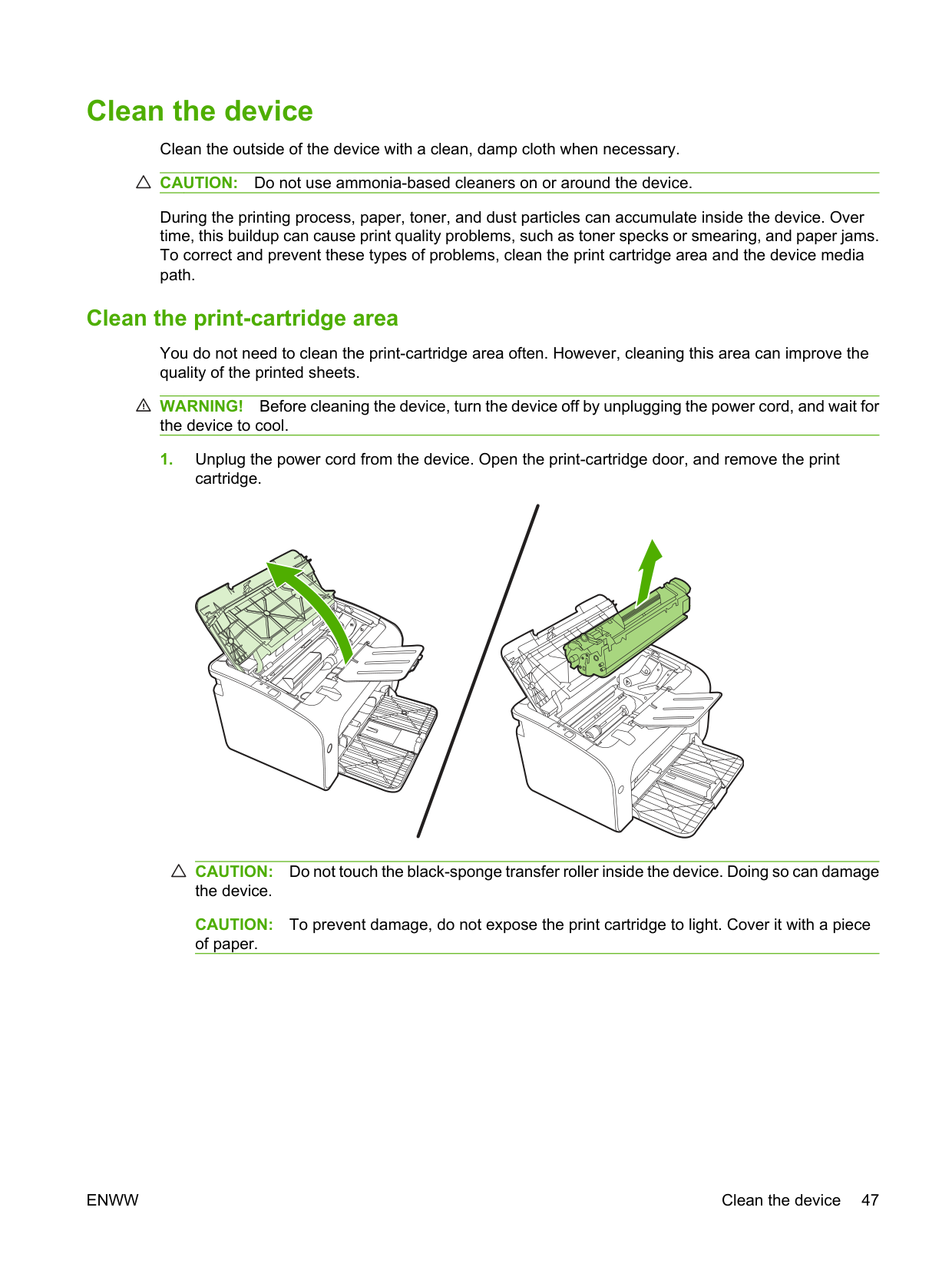
To replace the print cartridge on an HP LaserJet P1008, open the print-cartridge door, remove the old cartridge, install the new one by gently rocking it front-to-back to distribute toner evenly, and close the print-cartridge door.
How do I clean the paper path in an HP LaserJet P1008?
To clean the paper path in your HP LaserJet P1008, load a transparency into the input tray and print a cleaning page accessed via printer Properties or Preferences. Allow up to 2 minutes for this process to complete.
What safety warnings are associated with handling media in my HP LaserJet P1008?
Avoid using papers that exceed device specifications, such as staples attached or glossy paper not designed for laser printers; these can damage the printer and may result in repair costs not covered by warranty.
How do I change my print-quality settings on an HP LaserJet P1008?
To adjust print quality, open the printer Properties (for Windows) or Preferences, go to Paper/Quality tab and select your preferred option such as FastRes 600 for better output quality but faster processing.
What actions should I take if there is a paper jam in my HP LaserJet P1008?
If there’s a paper jam, first press Cancel on the control panel (HP LaserJet P1008 only). Then remove any stuck pages from the input tray or print-cartridge area carefully without damaging the device.
How can I manually perform two-sided printing with my HP LaserJet P1008?
For manual dual-side printing, after printing one side of a document place it back into the tray with the other side facing up and click Continue to print the second page. Don't change the orientation between sides.
Full Manual
120 pages
HP LaserJet P1007/P1008/P1505/P1505n
User Guide
| | | |---|---| | | |
HP LaserJet P1007/P1008/P1505/P1505n
User Guide
########## Copyright and License
© 2007 Copyright Hewlett-Packard Development Company, L.P.
Reproduction, adaptation, or translation without prior written permission is prohibited, except as allowed under the copyright laws.
The information contained herein is subject to change without notice.
The only warranties for HP products and services are set forth in the express warranty statements accompanying such products and services. Nothing herein should be construed as constituting an additional warranty. HP shall not be liable for technical or editorial errors or omissions contained herein.
Part number: CC365-90905 Edition 1, 12/2007

########## Trademark Credits
Microsoft®, Windows®, and Windows NT® are U.S. registered trademarks of Microsoft Corporation.
PostScript® is a registered trademark of Adobe Systems Incorporated.
Table of contents
HP LaserJet P1007/P1008 .................................................................................................. 4 HP LaserJet P1505/P1505n ................................................................................................ 5
USB connections ............................................................................................................... 14 Network connections (HP LaserJet P1500 Series network models only) .......................... 14
Connect the device to the network .................................................................... 14 Install the software for the network device ........................................................ 15
Software for Windows ........................................................................................................................ 16
Windows printer drivers ..................................................................................................... 16 Printer preferences (driver) ............................................................................... 16 Printer properties online Help ............................................................................ 16 Print-setting priorities ........................................................................................ 16 Additional Windows driver types (HP LaserJet P1500 Series network models) ............................................................................................................. 16 Install the Windows printer software ................................................................. 16

To install printer software for Windows Server 2003 (print driver only) .................................................................................................. 16 To install printer software for Windows 2000 and XP ....................... 17
Change printer-driver settings for Windows ...................................................... 17
Embedded Web server (HP LaserJet P1500 Series network models only) ...................... 17 Software for Macintosh ....................................................................................................................... 18
Macintosh printer drivers ................................................................................................... 18
ENWW iii
Install the Macintosh printer driver .................................................................... 18 Configure the Macintosh printer driver .............................................................. 18
Media that can damage the device .................................................................................... 24 Media to avoid ................................................................................................................... 24
Special media for printing ................................................................................................................... 25 Envelopes .......................................................................................................................... 25 Labels ................................................................................................................................ 25 Transparencies .................................................................................................................. 25 Letterhead or preprinted forms .......................................................................................... 26 Heavy paper ...................................................................................................................... 26
Priority feed slot (HP LaserJet P1008/P1500 Series only) ................................................ 29 Main input tray ................................................................................................................... 29 Tray adjustment for short media (HP LaserJet P1007 only) .............................................. 29
Print on special media ........................................................................................................................ 31 Change print driver to match your media size and type .................................................... 31 Print Types and tray capacity ............................................................................................ 31 Printing on both sides of the paper (manual two-sided printing) ........................................ 32 Printing multiple pages on a single sheet of paper (N-up printing) .................................... 34 Printing booklets ................................................................................................................ 34 Printing watermarks ........................................................................................................... 35 Printing mirror images ........................................................................................................ 36
Canceling a print job ........................................................................................................................... 37
Demo page ........................................................................................................................ 42 Configuration page ............................................................................................................ 42 Supplies Status page ......................................................................................................... 42
Embedded Web server (HP LaserJet P1500 Series network models only) ....................................... 43 Open the embedded Web server ....................................................................................... 43 Information tab ................................................................................................................... 44 Settings tab ........................................................................................................................ 44 Networking tab ................................................................................................................... 44
Links .................................................................................................................................. 44
Manage supplies ................................................................................................................................ 45 Supplies life ....................................................................................................................... 45 Check and order supplies .................................................................................................. 45 Supplies storage guidelines ............................................................................................... 45 Replace and recycle supplies ............................................................................................ 45 Redistribute toner .............................................................................................................. 46 HP policy on non-HP supplies ........................................................................................... 46
Reset the device for non-HP supplies ............................................................... 46 HP anti-counterfeit supplies Web site ................................................................................ 46
Clean the device ................................................................................................................................. 47 Clean the print-cartridge area ............................................................................................ 47 Clean the device paper path .............................................................................................. 49
Change the pickup roller .................................................................................................................... 50 Clean the pickup roller ........................................................................................................................ 53 Change the printer separation pad ..................................................................................................... 54 EconoMode ........................................................................................................................................ 57
Status-light patterns ........................................................................................................................... 63 Clearing jams ..................................................................................................................................... 66
Typical media jam locations ............................................................................................... 66 Removing a jammed page ................................................................................................. 66
Improve print quality ........................................................................................................................... 69 Light print or faded ............................................................................................................. 69 Toner specks ..................................................................................................................... 69 Dropouts ............................................................................................................................ 69 Vertical lines ...................................................................................................................... 70 Gray background ............................................................................................................... 70 Toner smear ...................................................................................................................... 70 Loose toner ........................................................................................................................ 71 Vertical repetitive defects ................................................................................................... 71 Misformed characters ........................................................................................................ 71 Page skew ......................................................................................................................... 72 Curl or wave ....................................................................................................................... 72
ENWW v
Wrinkles or creases ........................................................................................................... 72 Toner-scatter outline .......................................................................................................... 72
Media problem-solving ....................................................................................................................... 73 Printed page is different from what appeared on screen .................................................................... 74
Garbled, incorrect, or incomplete text ................................................................................ 74 Missing graphics or text, or blank pages ........................................................................... 74 Page format is different than on another HP LaserJet printer ........................................... 74 Graphics quality ................................................................................................................. 75
Printer software problems .................................................................................................................. 76 Common Macintosh problems ............................................................................................................ 77 Network-setup problem-solving .......................................................................................................... 79
HP Care Pack™ Services and Service Agreements ......................................................... 90 Guidelines for repacking the device ................................................................................................... 91
Laser safety statement ...................................................................................................... 99 Canadian DOC regulations ................................................................................................ 99 Korean EMI statement ....................................................................................................... 99 Laser statement for Finland ............................................................................................. 100 Substances Table (China) ............................................................................................... 101
Environmental product stewardship program ................................................................................... 102 Protecting the environment .............................................................................................. 102 Ozone production ............................................................................................................ 102 Power consumption ......................................................................................................... 102 Toner consumption .......................................................................................................... 102 Paper use ........................................................................................................................ 102
Plastics ............................................................................................................................ 102 HP LaserJet print supplies ............................................................................................... 102 Return and recycling instructions ..................................................................................... 103
United States and Puerto Rico ........................................................................ 103 Multiple returns (two to eight cartridges) ........................................ 103 Single returns ................................................................................. 103 Shipping .......................................................................................... 103
Non-US returns ............................................................................................... 103 Paper ............................................................................................................................... 103 Material restrictions .......................................................................................................... 103 Disposal of waste equipment by users in private households in the European Union .... 104 Material Safety Data Sheet (MSDS) ................................................................................ 104 For more information ....................................................................................................... 104
####### Index ................................................................................................................................................................. 105
ENWW vii
1 Product information
ENWW 1
#### Product configurations
HP LaserJet P1007/P1008 HP LaserJet P1505/P1505n
#### Product features
Benefit Supporting features
Excellent print quality ● HP print cartridges.
Ease of use ● The print cartridge is easy to install.
Flexible paper handling ● Main tray for letterhead, envelopes, labels, transparencies,
custom-sized media, postcards, and heavy paper.
Interface connections ● Hi-Speed 2.0 USB port.
● Built-in internal print server for connecting to a 10/100Base-
T network. (HP LaserJet P1500 Series network models only) Energy savings ● The device automatically conserves electricity by
substantially reducing power consumption when it is not printing.
Economical printing ● N-up printing (printing more than one page on a sheet) and
Printing on Both Sides features save paper. See Printing on both sides of the paper (manual two-sided printing) on page 32.
Archive printing ● When printing pages that are to be stored long-term, this
option sets the device to a mode that reduces toner smearing and dusting.
● Select Archive as the paper type.

Supplies ● A Supplies Status page with print cartridge gauges that
estimate remaining supply level. Not available for non-HP supplies.
Accessibility ● Online user guide compatible with text screen-readers.
● All doors and covers can be opened with one hand. Security ● Kensington lock receptacle on back of device.
ENWW Product features 3
#### Identify product parts
##### HP LaserJet P1007/P1008
|1|Output bin
| |---|---| |2|Foldable Output Tray Extension| |3|Priority feed slot
|

|4|Foldable Main Input tray
| |5|Short Media Extender (HP LaserJet P1007 only)| |6|Power button
| |7|Cartridge door lift-tab
| |8|Control panel (HP LaserJet P1008 control panel shown)|
1 USB Port
|2|Power receptacle| |---|---| |3|Serial number|
##### HP LaserJet P1505/P1505n
|1|Output bin
| |---|---| |2|Foldable Output Tray Extension|
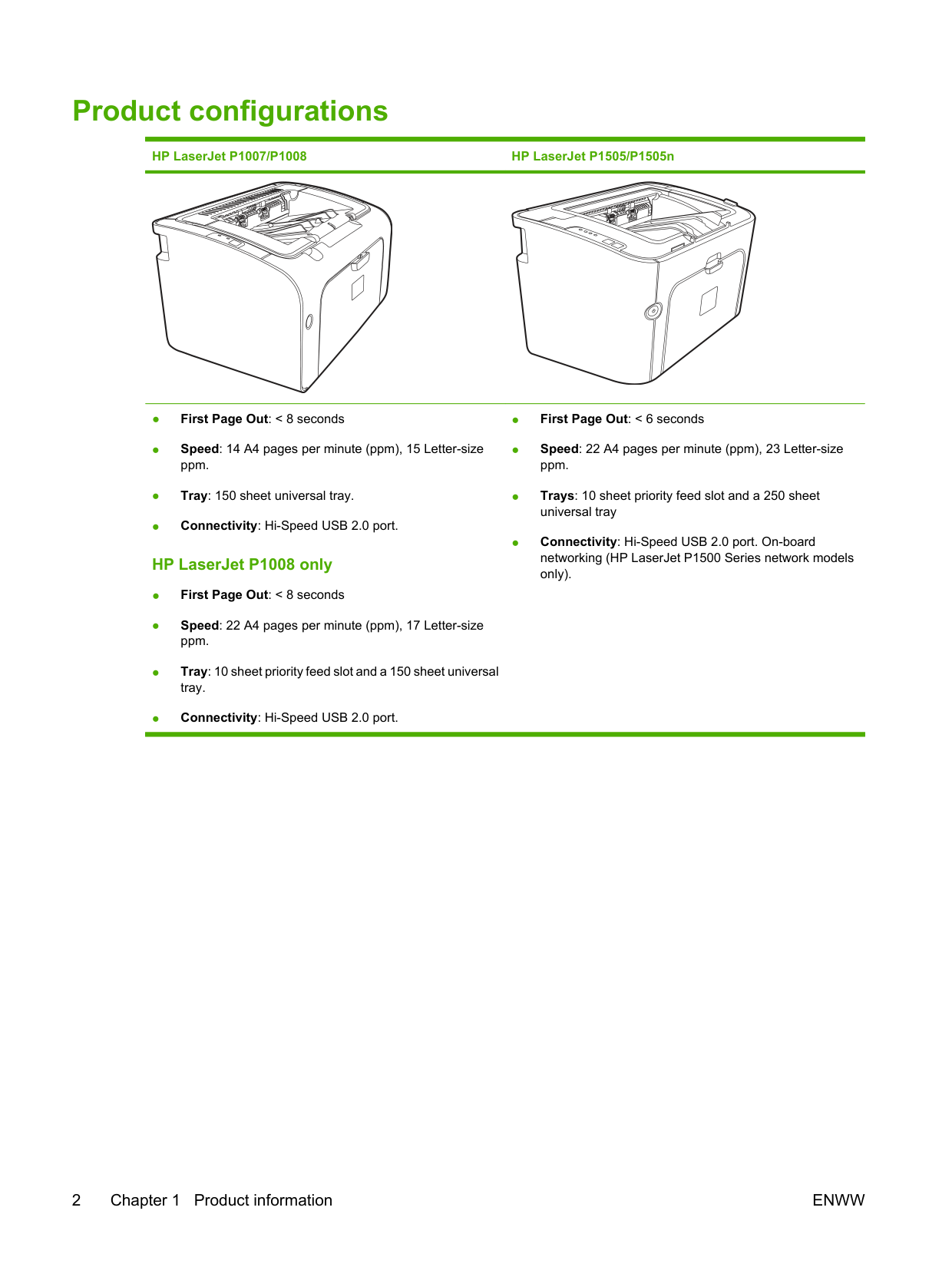
|3|Priority feed slot
| |4|Input tray
| |5|Power button| |6|Cartridge door lift-tab
| |7|Control panel|
1 USB Port
ENWW Identify product parts 5
|2|HP internal network port (HP LaserJet P1500 Series network models only)| |---|---| |3|Power receptacle| |4|Serial Number|
2 Control panel
ENWW 7
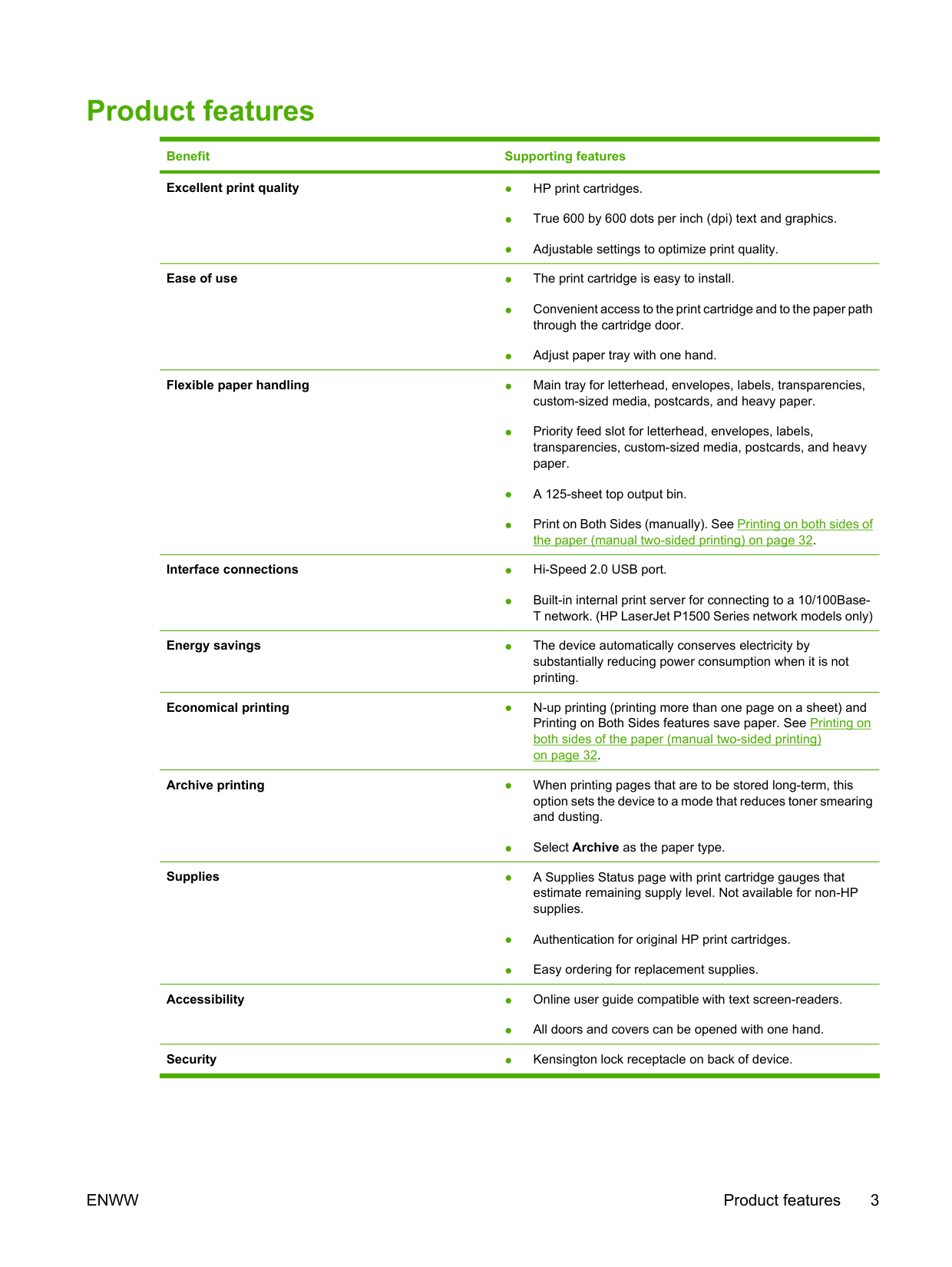
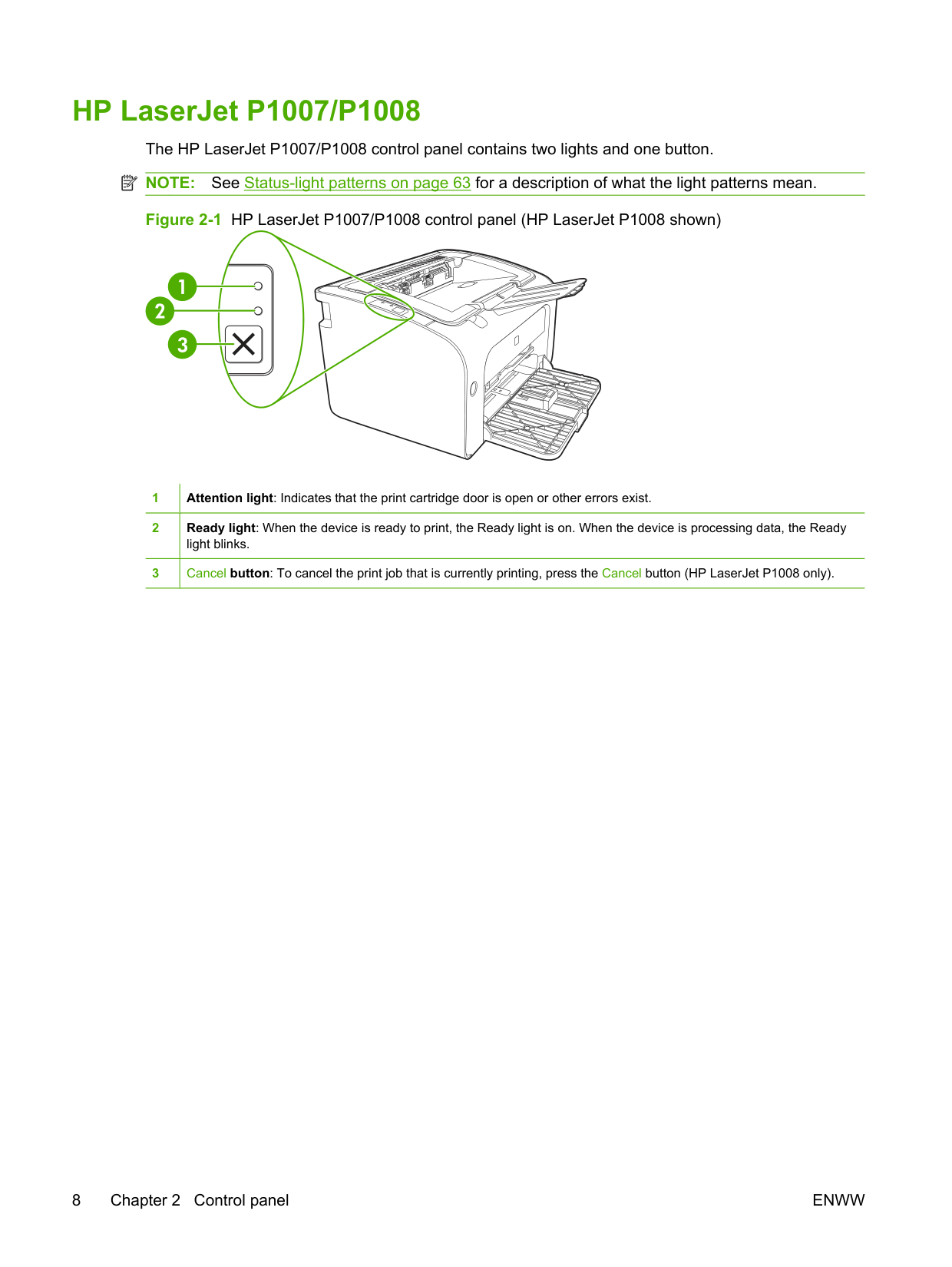
HP LaserJet P1007/P1008 The HP LaserJet P1007/P1008 control panel contains two lights and one button. NOTE: See Status-light patterns on page 63 for a description of what the light patterns mean.
| | |---|
|1|Attention light: Indicates that the print cartridge door is open or other errors exist.
| |---|---| |2|Ready light: When the device is ready to print, the Ready light is on. When the device is processing data, the Ready light blinks.| |3|Cancel button: To cancel the print job that is currently printing, press the Cancel button (HP LaserJet P1008 only).|
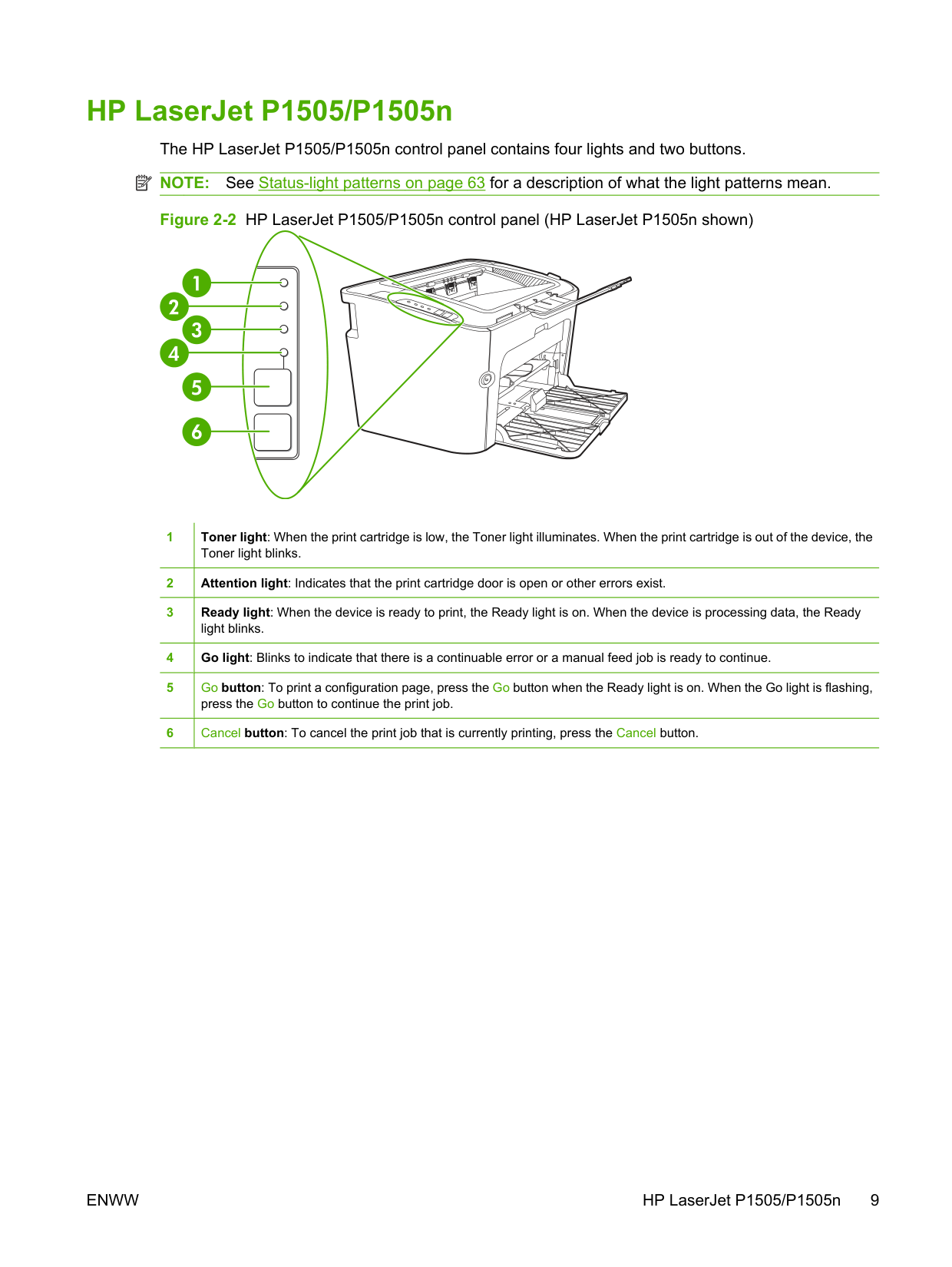
HP LaserJet P1505/P1505n The HP LaserJet P1505/P1505n control panel contains four lights and two buttons. NOTE: See Status-light patterns on page 63 for a description of what the light patterns mean.
| | |---|
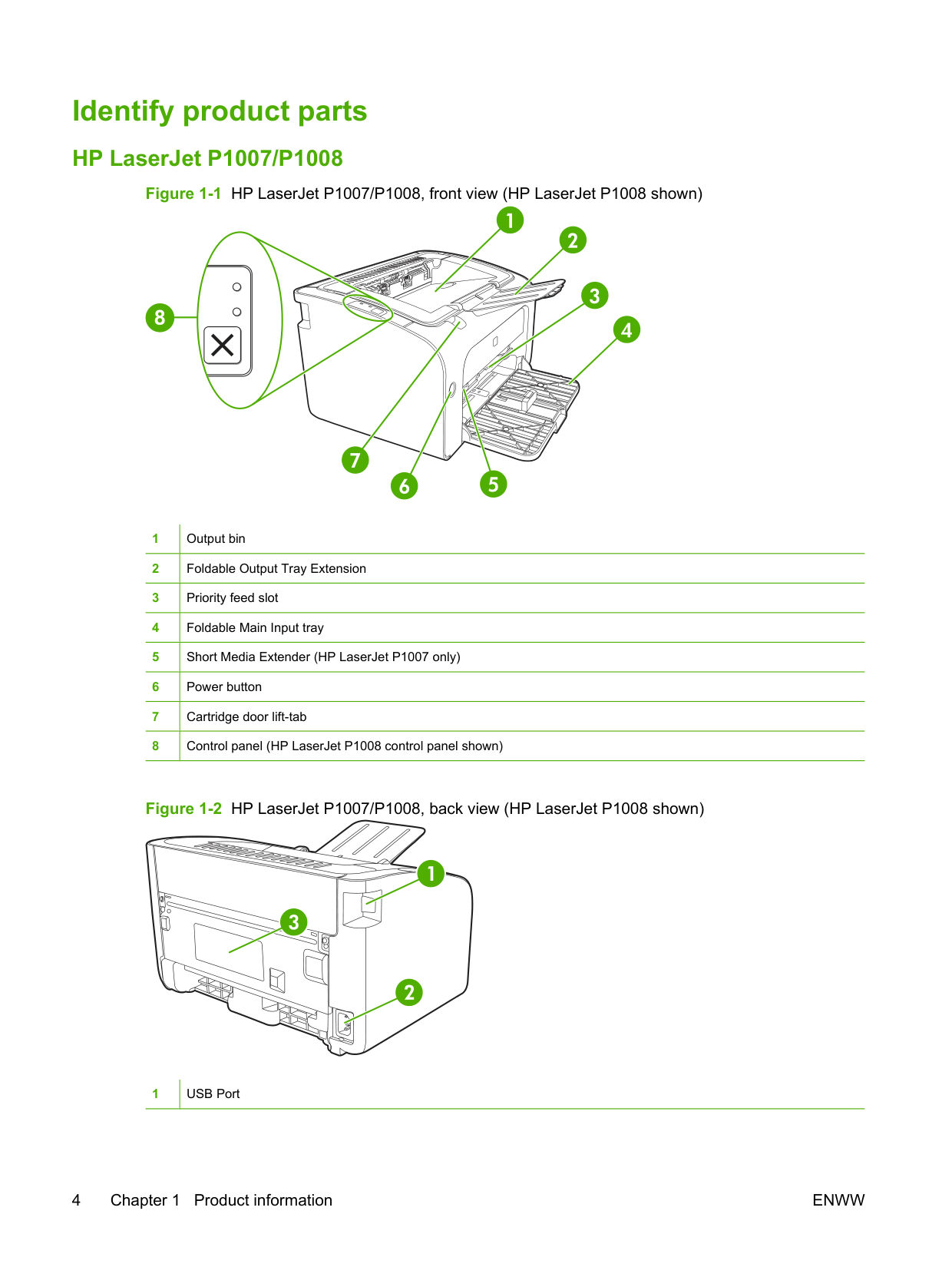
|1|Toner light: When the print cartridge is low, the Toner light illuminates. When the print cartridge is out of the device, the Toner light blinks.
| |---|---| |2|Attention light: Indicates that the print cartridge door is open or other errors exist.| |3|Ready light: When the device is ready to print, the Ready light is on. When the device is processing data, the Ready light blinks.
| |4|Go light: Blinks to indicate that there is a continuable error or a manual feed job is ready to continue.| |5|Go button: To print a configuration page, press the Go button when the Ready light is on. When the Go light is flashing, press the Go button to continue the print job.
| |6|Cancel button: To cancel the print job that is currently printing, press the Cancel button.|
ENWW HP LaserJet P1505/P1505n 9
3 Product software
For proper device setup and access to the full range of device features, full installation of the provided software is required.
Following sections describe the software that is provided with your product:
ENWW 11
#### Supported operating systems
The device comes with software for the following operating systems:
For more information about upgrading from Windows 2000 Server to Windows Server 2003; using Windows Server 2003 Point and Print; or using Windows Server 2003 Terminal Services and Printing, go to http://www.microsoft.com/.

#### Supported network systems (HP LaserJet P1500 Series network models only)
● TCP/IP
ENWW Supported network systems (HP LaserJet P1500 Series network models only) 13
#### Device connections
##### USB connections
The product supports USB connections.
| | |---|
##### Network connections (HP LaserJet P1500 Series network models only)

The HP LaserJet P1500 Series network models can connect to networks through the HP internal networking port.
###### Connect the device to the network
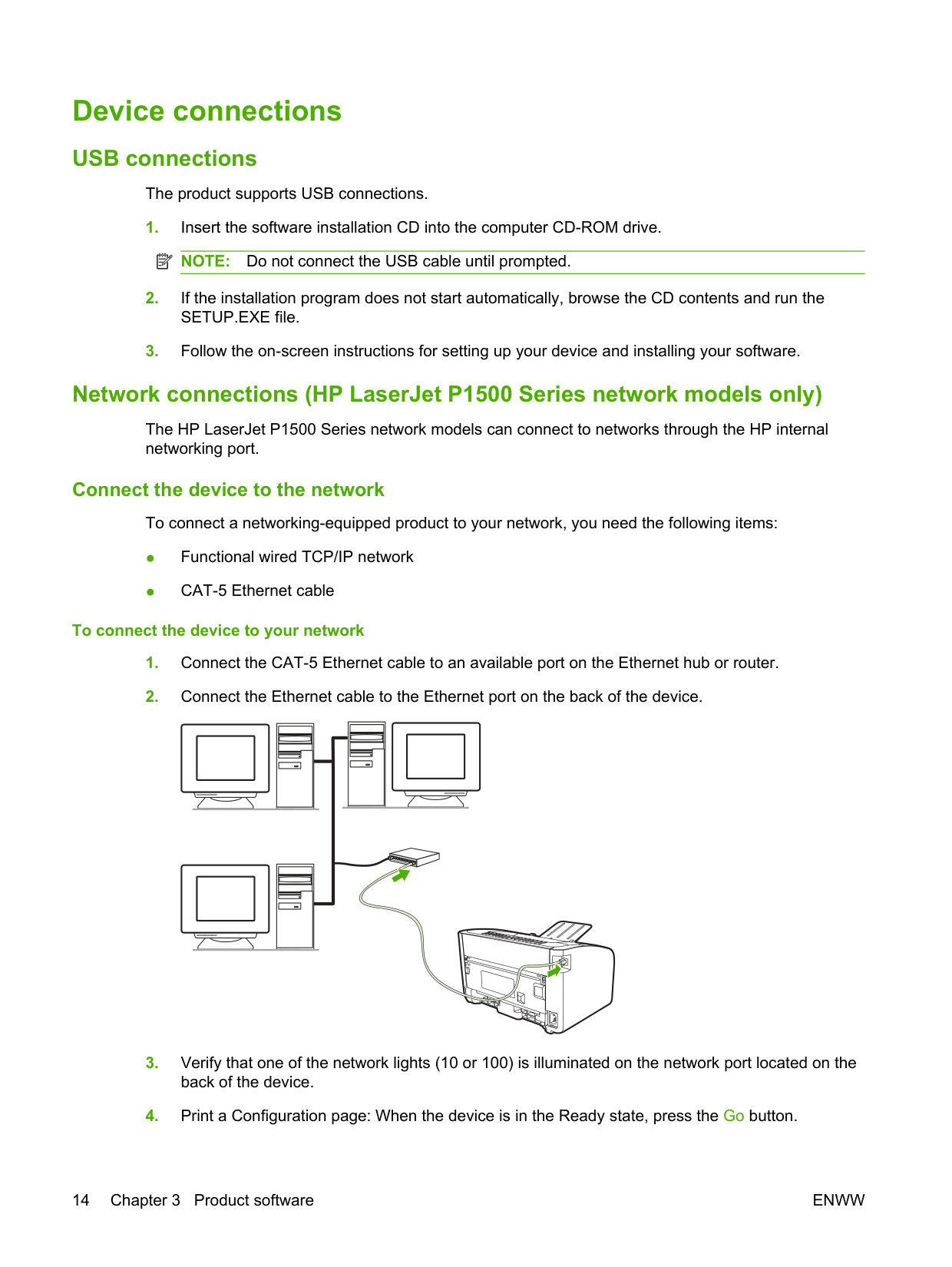
To connect a networking-equipped product to your network, you need the following items:
####### To connect the device to your network
| | | | |---|---|---| | | | | | | | | | | | | | | | | | | | |
| | | | |---|---|---| | | | | | | | | | | | | | | | | | | | |
NOTE: To resolve network connection problems, see Network-setup problem-solving on page 79. Install the software for the network device
| | |---|
To use the device on the network, install the software on a computer that is connected to the network. See Software for Windows on page 16 or Software for Macintosh on page 18 for information about installing the software.
ENWW Device connections 15
#### Software for Windows
##### Windows printer drivers
A printer driver is the software that provides access to printer features and provides the means for the computer to communicate with the device.
###### Printer preferences (driver)
Printer preferences control the device. You can change the default settings, such as media size and type, printing multiple pages on a single sheet of media (N-up printing), resolution, and watermarks. You can access the printer preferences in the following ways:
| | |---|
NOTE: Because many software applications use a different method of accessing the printer properties, the following section describes the most common methods used in Windows 2000 and Windows XP.
###### Printer properties online Help
The printer properties online Help, also called the driver Help, includes specific information about the functions in the printer properties. This online Help guides you through the process of changing your printer default settings. For some drivers, online Help provides context-sensitive help that describes the options for the driver feature you are currently using.

####### To access the printer properties online Help
###### Print-setting priorities
There are two ways to change print settings for this device: in the software application or in the printer driver. Changes made in the software application override settings changed in the printer driver. Within a software application, changes made in the Page Setup dialog box override changes made in the
Print dialog box.
If more than one method is available to change a particular print setting, use the method that has the highest priority.
###### Additional Windows driver types (HP LaserJet P1500 Series network models)
The HP LaserJet P1500 Series network models also feature an available PCL 5e printer driver. Use the Microsoft Add Printer feature to install the driver.
###### Install the Windows printer software To install printer software for Windows Server 2003 (print driver only)
See the operating system documentation for instructions on installing a printer driver.
####### To install printer software for Windows 2000 and XP
Insert the software CD that came with the device into the computer CD-ROM drive. Follow the onscreen installation instructions to install the printer software.
| | |---|
NOTE: If the Welcome screen does not open, click Start on the Windows taskbar, click Run, type Z: \setup (where Z is your CD drive letter), and click OK.
###### Change printer-driver settings for Windows
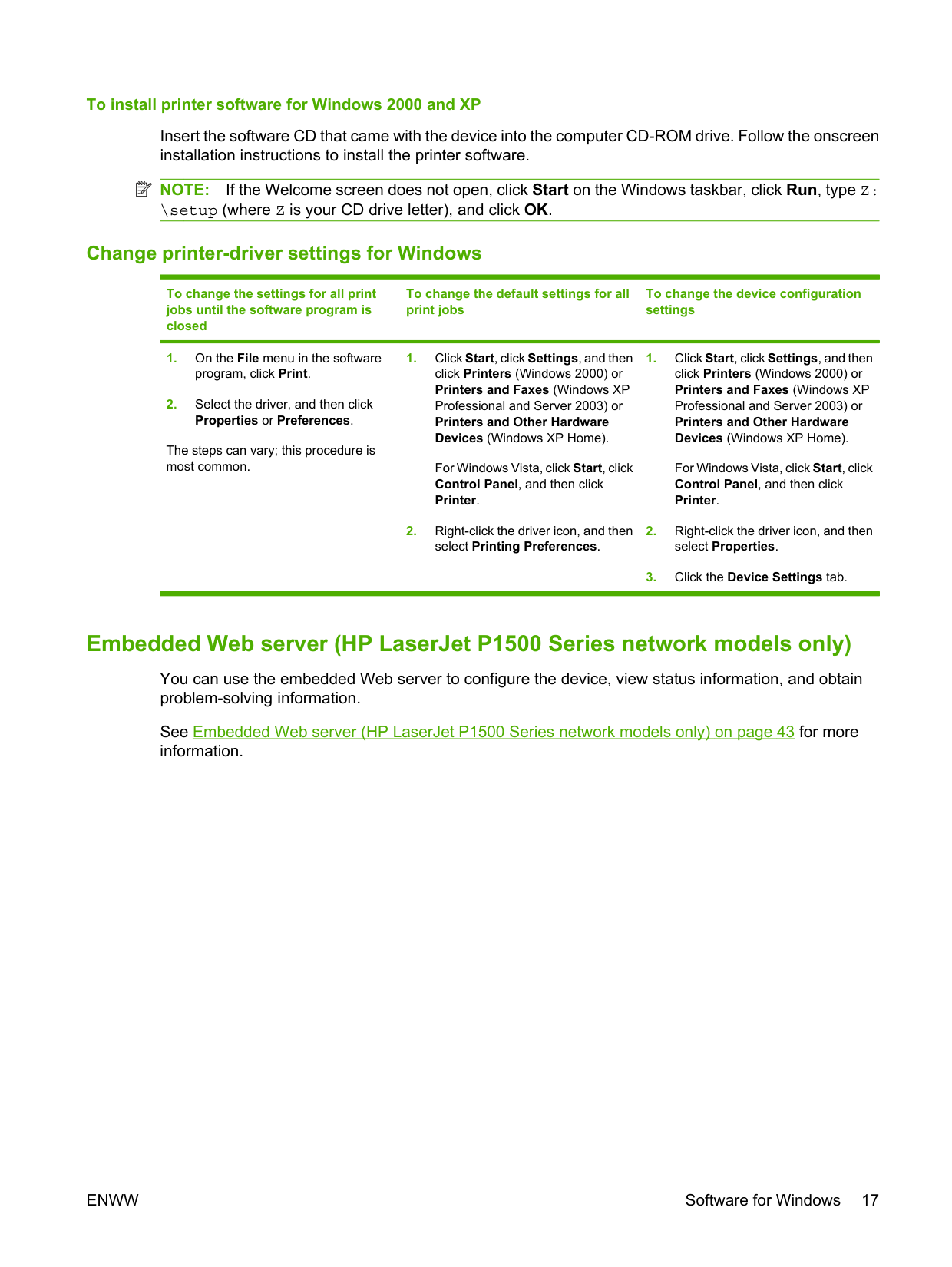
To change the settings for all print jobs until the software program is closed
To change the default settings for all print jobs
To change the device configuration settings
For Windows Vista, click Start, click Control Panel, and then click Printer.
For Windows Vista, click Start, click Control Panel, and then click Printer.
The steps can vary; this procedure is most common.
##### Embedded Web server (HP LaserJet P1500 Series network models only)
You can use the embedded Web server to configure the device, view status information, and obtain problem-solving information.
See Embedded Web server (HP LaserJet P1500 Series network models only) on page 43 for more information.
ENWW Software for Windows 17
#### Software for Macintosh
##### Macintosh printer drivers
A printer driver is the software component that provides access to printer features and provides the means for the computer to communicate with the device.
###### Install the Macintosh printer driver
This section explains how to install the printing system software for Macintosh OS X V10.2.8, V10.3.9, and V10.4.3.
If installation fails, reinstall the software. If this fails, see the Known Issues and Workarounds section of the Install Notes. The Install Notes are located on the software CD or at the support Web site (see HP Customer Care on page 88 for the Web address).
###### Configure the Macintosh printer driver
Use one of the following methods to open the Macintosh printer driver from your computer:
Operating System To change the settings for all
To change the print job default settings (for example, turn on Print on Both Sides by default)
To change the configuration settings (for example, add a tray or enable/disable manual two-sided printing)
print jobs until the software program is closed
Macintosh OS X V10.2.8, V10.3.9
These settings are saved in the Presets menu. To use the new settings, you must select the saved preset option every time you open a program and print.
Macintosh OS X V10.4.3

Operating System To change the settings for all
To change the print job default settings (for example, turn on Print on Both Sides by default)
To change the configuration settings (for example, add a tray or enable/disable manual two-sided printing)
print jobs until the software program is closed
Show Info.
ENWW Software for Macintosh 19
4 Supported paper and other media
ENWW 21
#### Understand media use
The product can use a variety of paper and other print media in accordance with the guidelines in this user guide. Media that does not meet these guidelines might cause the following problems:
For best results, use only HP brand paper and print media. Hewlett-Packard Company cannot recommend the use of other brands. Because they are not HP products, HP cannot influence or control their quality.
It is possible for media to meet all of the guidelines in this user guide and still not produce satisfactory results. This might be the result of improper handling, unacceptable temperature and humidity levels, or other variables over which Hewlett-Packard has no control.
CAUTION: Using media that does not meet Hewlett-Packard's specifications might cause problems for the device, requiring repair. This repair is not covered by the Hewlett-Packard warranty or service agreements.
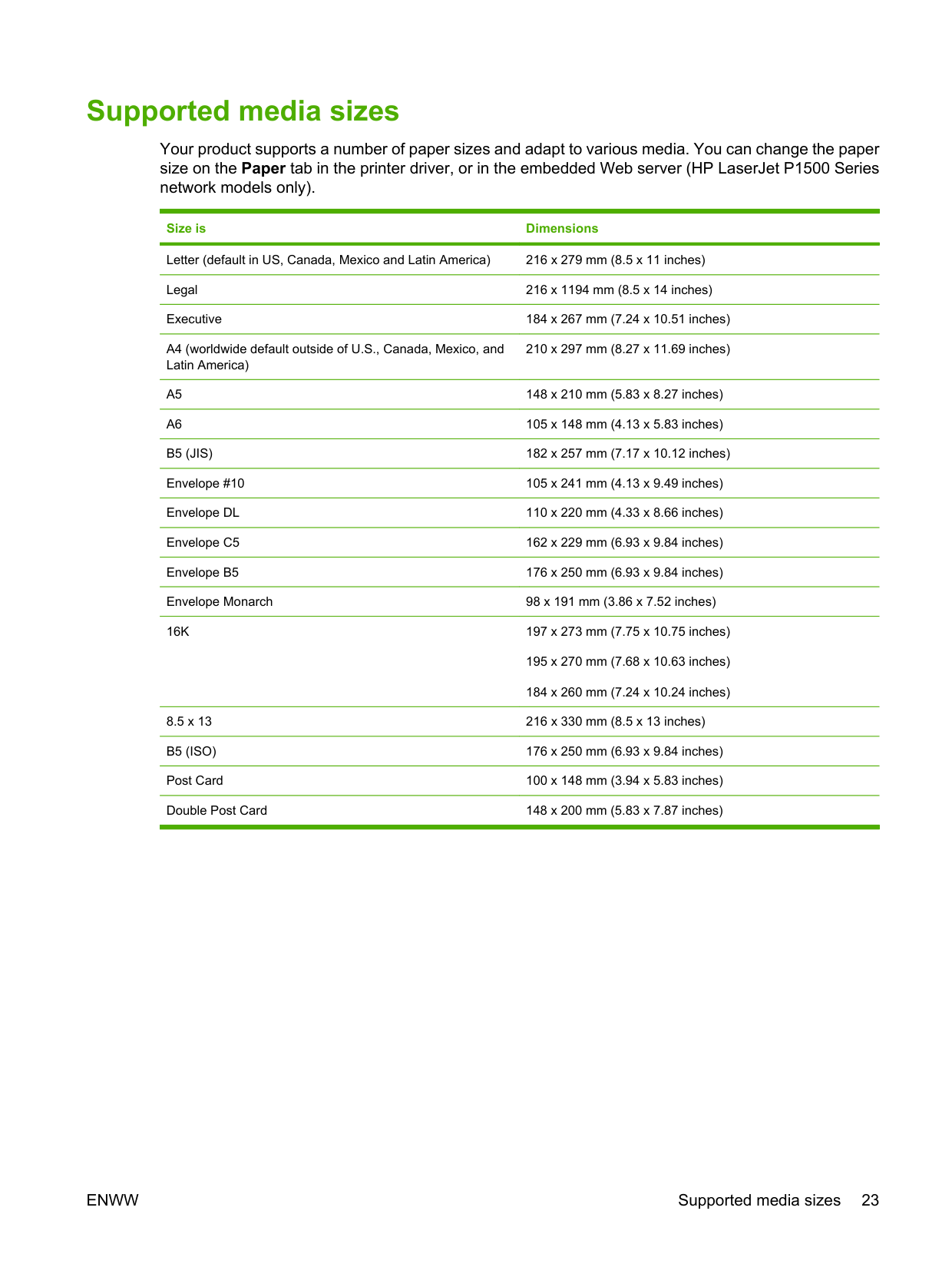
#### Supported media sizes
Your product supports a number of paper sizes and adapt to various media. You can change the paper size on the Paper tab in the printer driver, or in the embedded Web server (HP LaserJet P1500 Series network models only).
Size is Dimensions Letter (default in US, Canada, Mexico and Latin America) 216 x 279 mm (8.5 x 11 inches) Legal 216 x 1194 mm (8.5 x 14 inches) Executive 184 x 267 mm (7.24 x 10.51 inches)
210 x 297 mm (8.27 x 11.69 inches)
195 x 270 mm (7.68 x 10.63 inches) 184 x 260 mm (7.24 x 10.24 inches)
8.5 x 13 216 x 330 mm (8.5 x 13 inches) B5 (ISO) 176 x 250 mm (6.93 x 9.84 inches) Post Card 100 x 148 mm (3.94 x 5.83 inches) Double Post Card 148 x 200 mm (5.83 x 7.87 inches)
ENWW Supported media sizes 23
#### Select print media
Consider these factors when choosing print media.
##### Media that can damage the device
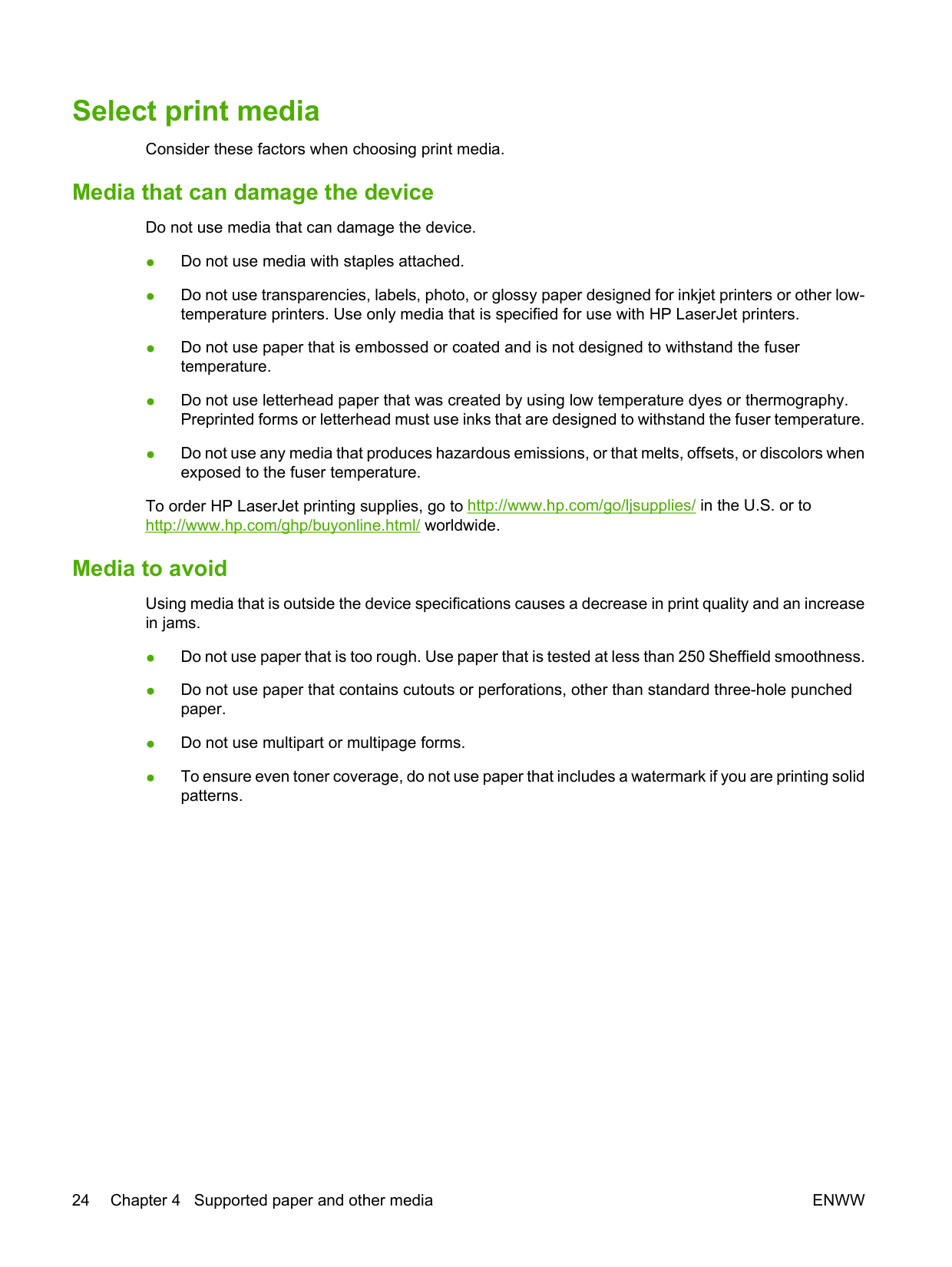
Do not use media that can damage the device.
To order HP LaserJet printing supplies, go to http://www.hp.com/go/ljsupplies/ in the U.S. or to http://www.hp.com/ghp/buyonline.html/ worldwide.
##### Media to avoid
Using media that is outside the device specifications causes a decrease in print quality and an increase in jams.
#### Special media for printing
This device supports printing on special media.
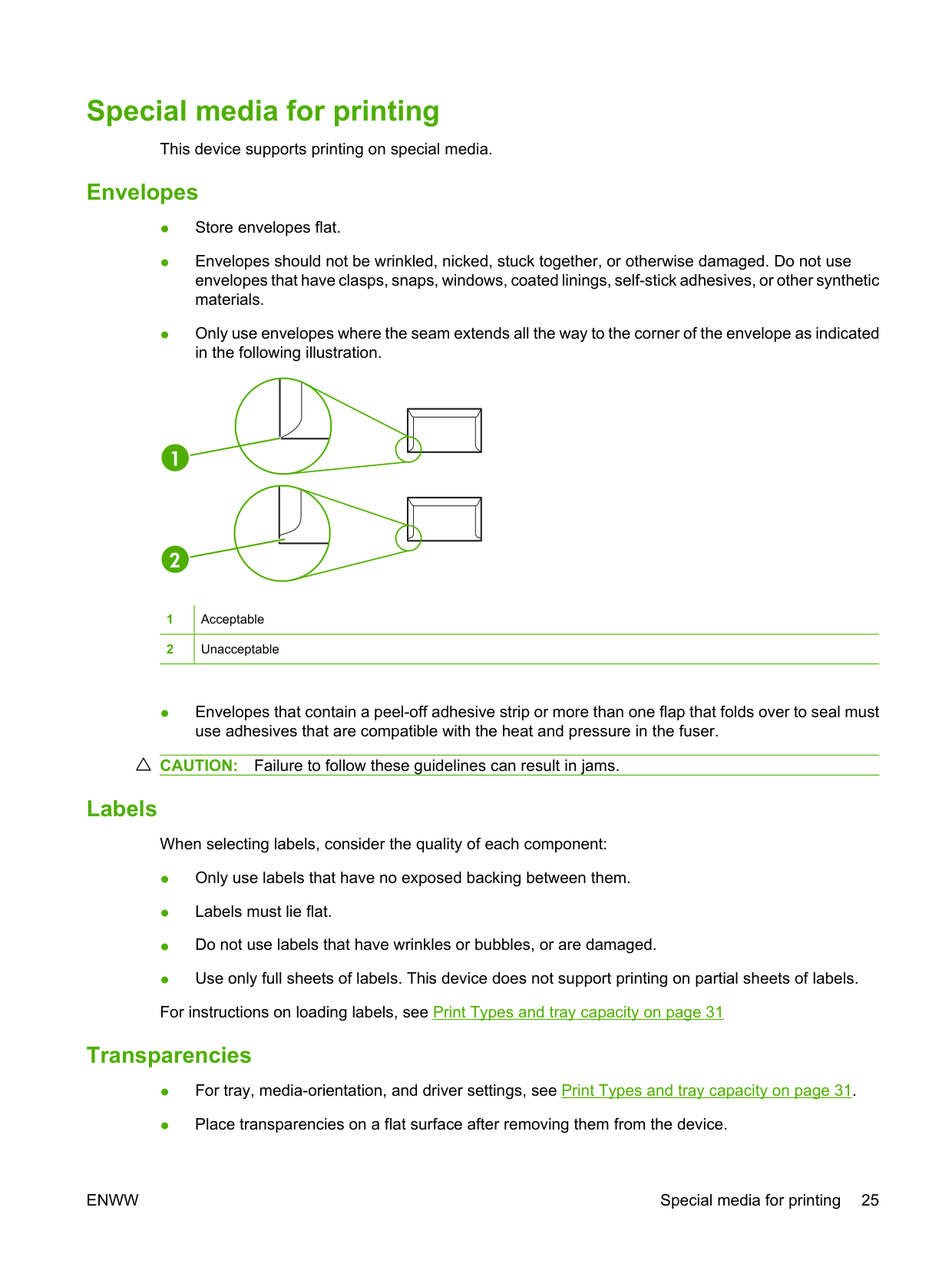
##### Envelopes
|1|Acceptable
| |---|---| |2|Unacceptable|

CAUTION: Failure to follow these guidelines can result in jams.
##### Labels
When selecting labels, consider the quality of each component:
##### Transparencies
ENWW Special media for printing 25
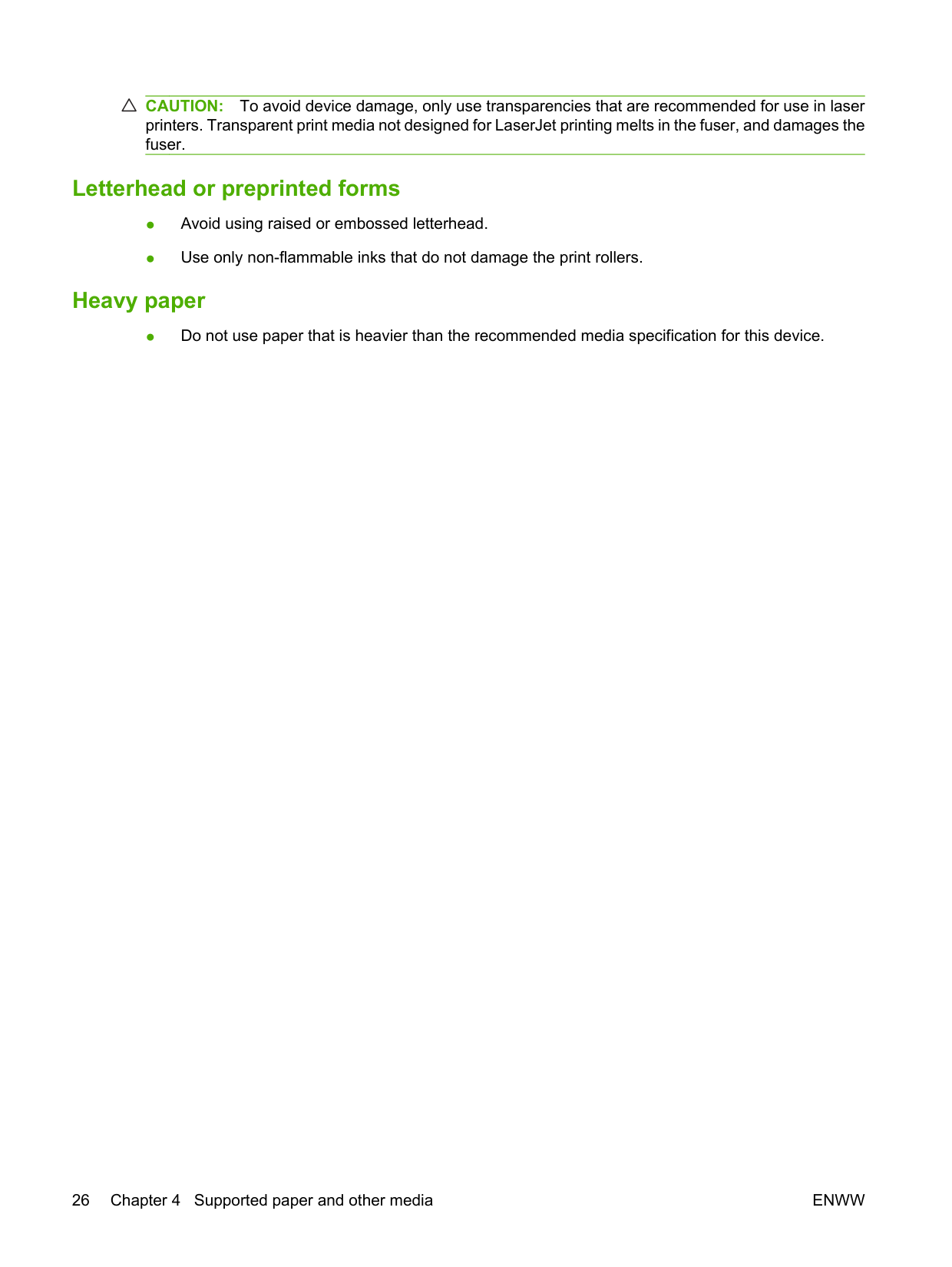
CAUTION: To avoid device damage, only use transparencies that are recommended for use in laser printers. Transparent print media not designed for LaserJet printing melts in the fuser, and damages the fuser.
##### Letterhead or preprinted forms
##### Heavy paper
● Do not use paper that is heavier than the recommended media specification for this device.
5Print tasks
ENWW 27
#### Print-quality settings
Print-quality settings affect print resolution and toner usage. Use the following procedure to change print-quality settings:
| | |---|
NOTE: Not all printer features are available in all drivers or operating systems. See the printer Properties (driver) online Help for information about availability of features for that driver.
#### Load media
CAUTION: If you try to print on media that is wrinkled, folded, or damaged in any way, a jam might occur. See Clearing jams on page 66 for more information.
##### Priority feed slot (HP LaserJet P1008/P1500 Series only)
The priority feed slot holds up to ten sheets of media or one envelope, one transparency, or one sheet of labels or cardstock. Load media with the top forward and the side to be printed on facing up. To prevent jams and skewing, always adjust the side media guides before feeding the media.
##### Main input tray
The main input tray of the HP LaserJet P1007/P1008 holds up to 150 pages of 75 g/m2 (20 lb) paper, or fewer pages of heavier media (a 15 mm (0.6 inches) stack height or less).
The main input tray of the HP LaserJet P1505/P1505n holds 250 pages of 75 g/m2 (20 lb) paper, or fewer pages of heavier media (a 25 mm (0.9 inch) stack height or less).
Load media with the top forward and the side to be printed on facing up. To prevent jams and skewing, always adjust the side and front media guides.
| | |---|
NOTE: When you add new media, make sure that you remove all of the media from the input tray and straighten the entire stack. This helps prevent multiple sheets of media from feeding through the device at one time, reducing media jams.
##### Tray adjustment for short media (HP LaserJet P1007 only)
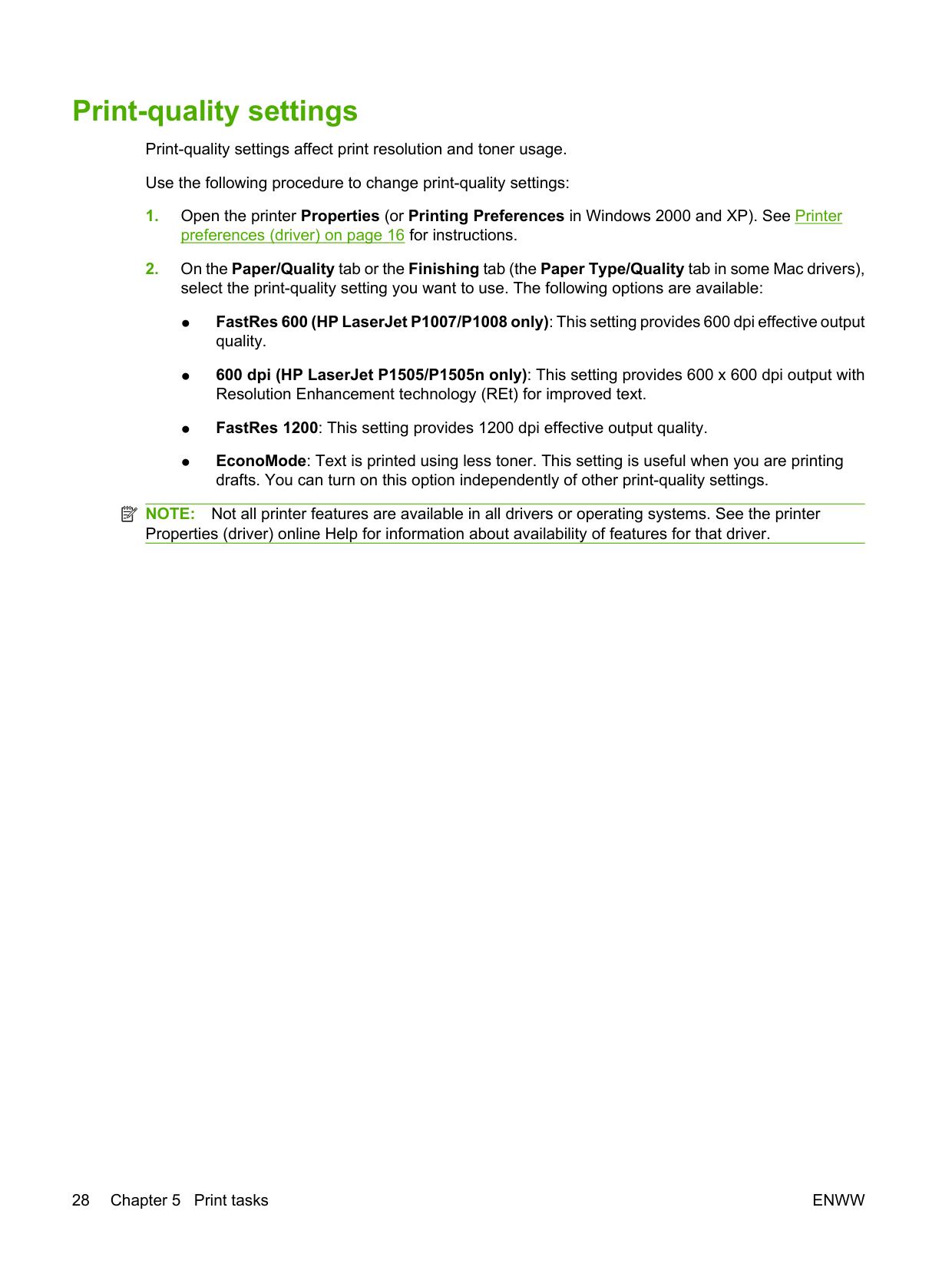
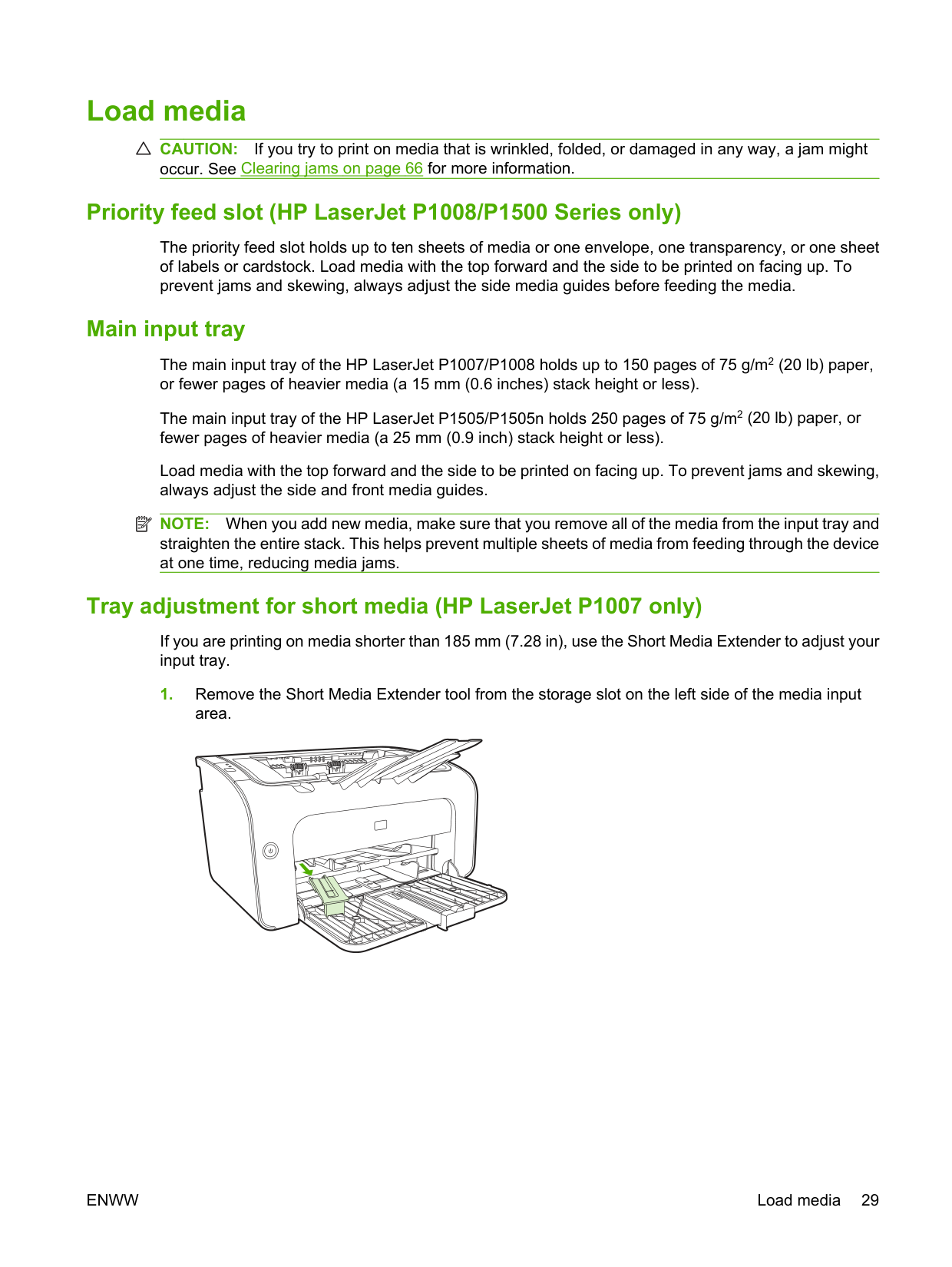
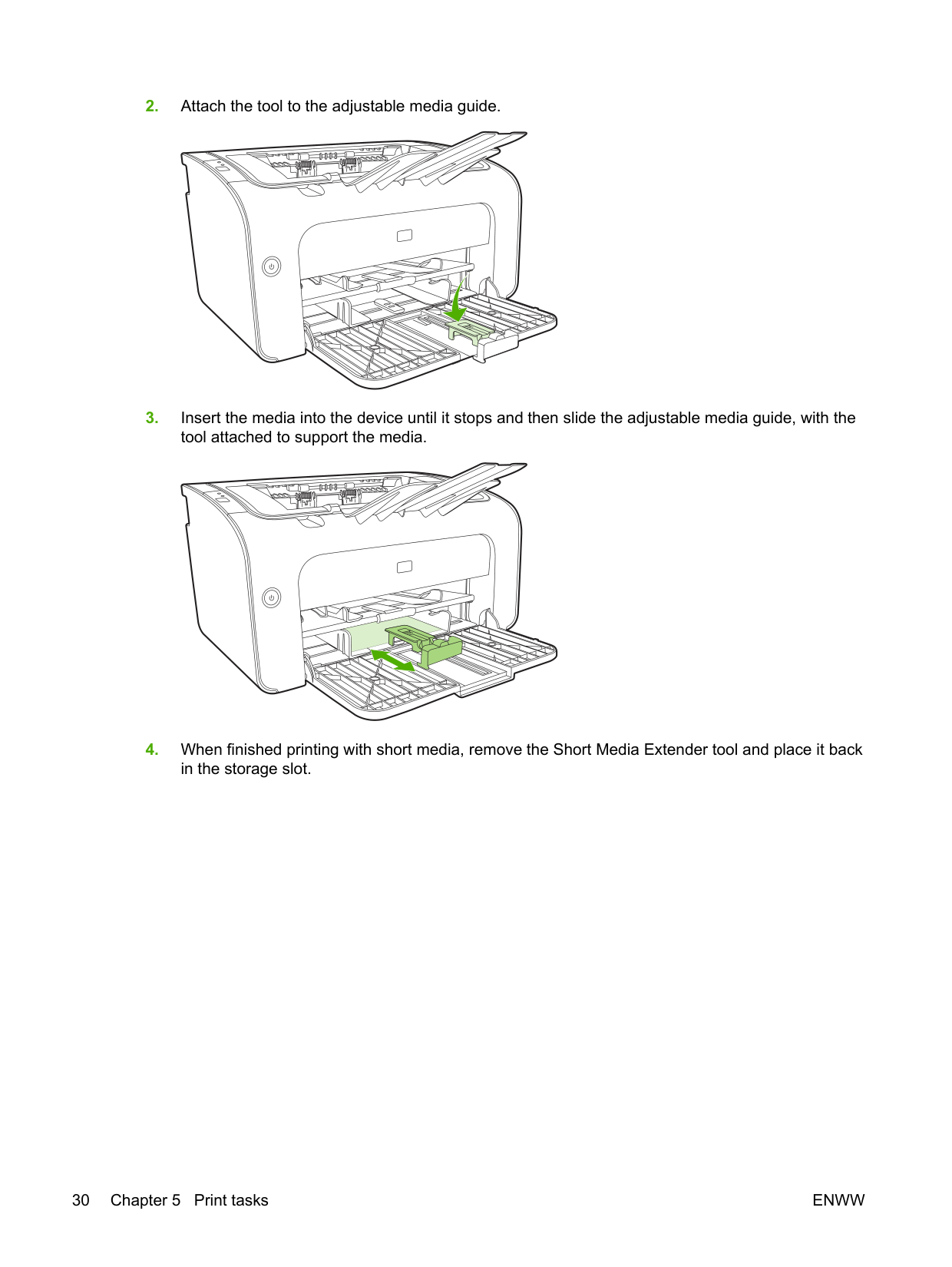
If you are printing on media shorter than 185 mm (7.28 in), use the Short Media Extender to adjust your input tray.
area.
ENWW Load media 29
#### Print on special media
Only use media that is recommended for laser printers. See Supported media sizes on page 23.
| | |---|
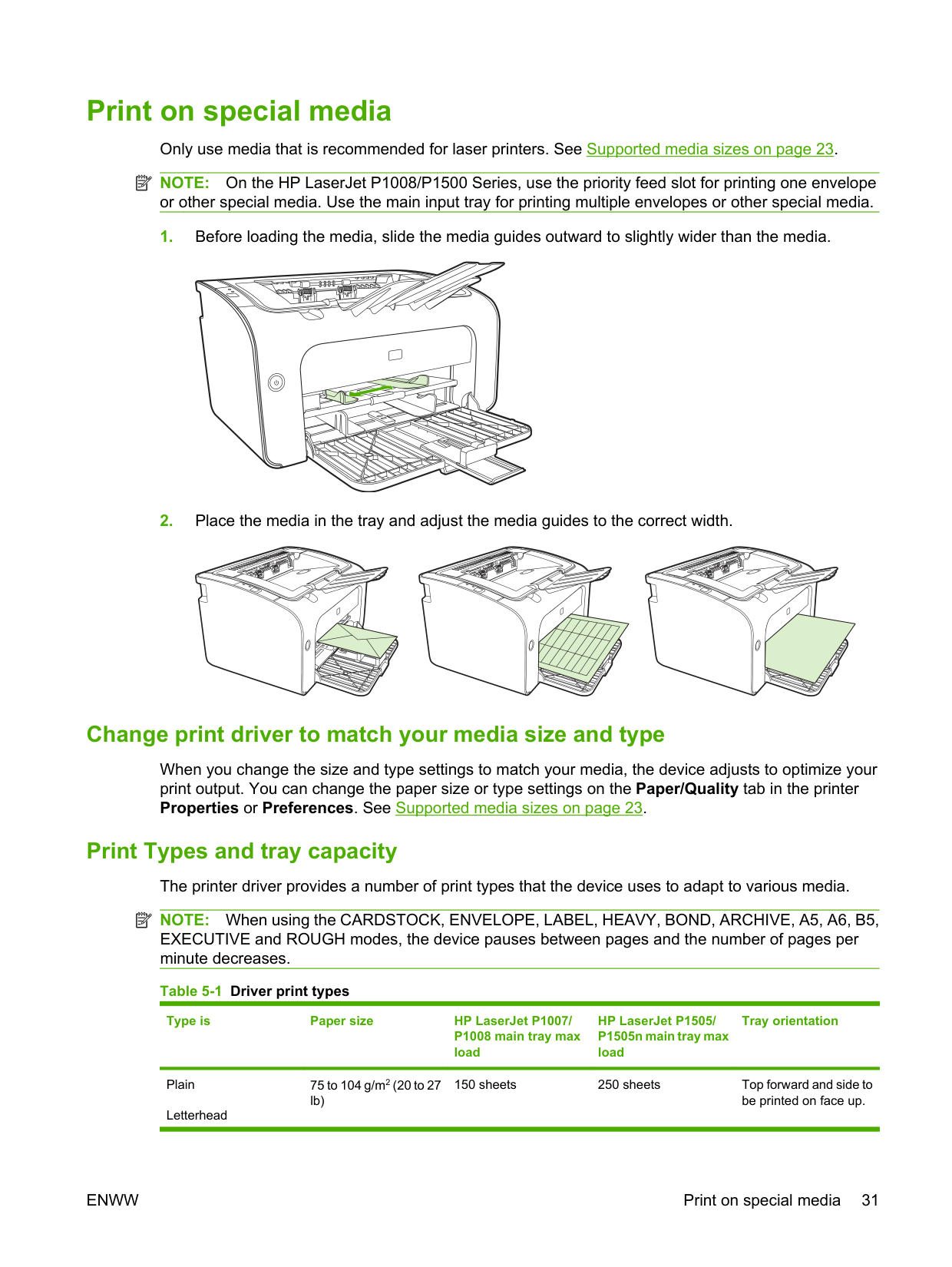
NOTE: On the HP LaserJet P1008/P1500 Series, use the priority feed slot for printing one envelope or other special media. Use the main input tray for printing multiple envelopes or other special media.
##### Change print driver to match your media size and type
When you change the size and type settings to match your media, the device adjusts to optimize your print output. You can change the paper size or type settings on the Paper/Quality tab in the printer Properties or Preferences. See Supported media sizes on page 23.
Print Types and tray capacity The printer driver provides a number of print types that the device uses to adapt to various media. NOTE: When using the CARDSTOCK, ENVELOPE, LABEL, HEAVY, BOND, ARCHIVE, A5, A6, B5, EXECUTIVE and ROUGH modes, the device pauses between pages and the number of pages per minute decreases. Table 5-1 Driver print types
| | |---|
Type is Paper size HP LaserJet P1007/
HP LaserJet P1505/ P1505n main tray max load
Tray orientation
P1008 main tray max load
Plain Letterhead
150 sheets 250 sheets Top forward and side to be printed on face up.
75 to 104 g/m2 (20 to 27 lb)
Table 5-1 Driver print types (continued)
Type is Paper size HP LaserJet P1007/
HP LaserJet P1505/ P1505n main tray max load
Tray orientation
P1008 main tray max load
Color Preprinted Prepunched Recycled Archive Light 60 to 75 g/m2 (16 to 20
150 sheets 250 sheets Side to be printed on
face up Heavy 90 to 105 g/m2 (24 to 28
lb)

Up to 15 mm (0.6 inch) stack height
Up to 25 m (0.9 inch) stack height
Side to be printed on face up
lb)
Cardstock 135 to 176 g/m2 (36 to
Up to15 mm (0.6 inch) stack height
Up to 25 m (0.9 inch) stack height
Side to be printed on face up
47 lb)
Transparency 4 mil (0.1 inch)
Up to 15 mm (0.6 inch) stack height
Up to 25 m (0.9 inch) stack height
Side to be printed on face up
monochrome transparencies
Envelope Envelope sizes #10,
Up to 15 mm (0.6 inch) stack height
Up to 25 m (0.9 inch) stack height
Face up, short edge leading, flap on left side
DL, C5, B5, Monarch
Label Standard HP LaserJet
Up to 15 mm (0.6 inch) stack height
Up to 25 m (0.9 inch) stack height
Side to be printed on face up
labels
Bond 75 to 104 g/m2 (20 to 27
Up to 15 mm (0.6 inch) stack height
Up to 25 m (0.9 inch) stack height
Side to be printed on face up
lb)
Rough 75 to 104 g/m2 (20 to 27
Up to 15 mm (0.6 inch) stack height
Up to 25 m (0.9 inch) stack height
Side to be printed on face up
lb)
Vellum 60 to 120 g/m2 (16 to 32 lb)
Up to 15 mm (0.6 inch) stack height
Up to 25 m (0.9 inch) stack height
Side to be printed on face up
##### Printing on both sides of the paper (manual two-sided printing)
To print on both sides of the paper (manual two-sided printing), you must run the paper through the device twice.
| | |---|
NOTE: Manual two-sided printing can cause the device to become dirty, reducing print quality. See Clean the device on page 47 for instructions if the device becomes dirty.
| | |---|
NOTE: Not all printer features are available from all drivers or operating systems. See the printer properties (driver) online Help for information about availability of features for that driver.
##### Printing multiple pages on a single sheet of paper (N-up printing)
You can select the number of pages that you want to print on a single sheet of paper. If you print more than one page per sheet, each page appears smaller. The pages are arranged on the sheet in the order that they would otherwise be printed.
| | |---|
NOTE: Not all printer features are available from all drivers or operating systems. See the printer properties (driver) online Help for information about availability of features for that driver.
##### Printing booklets
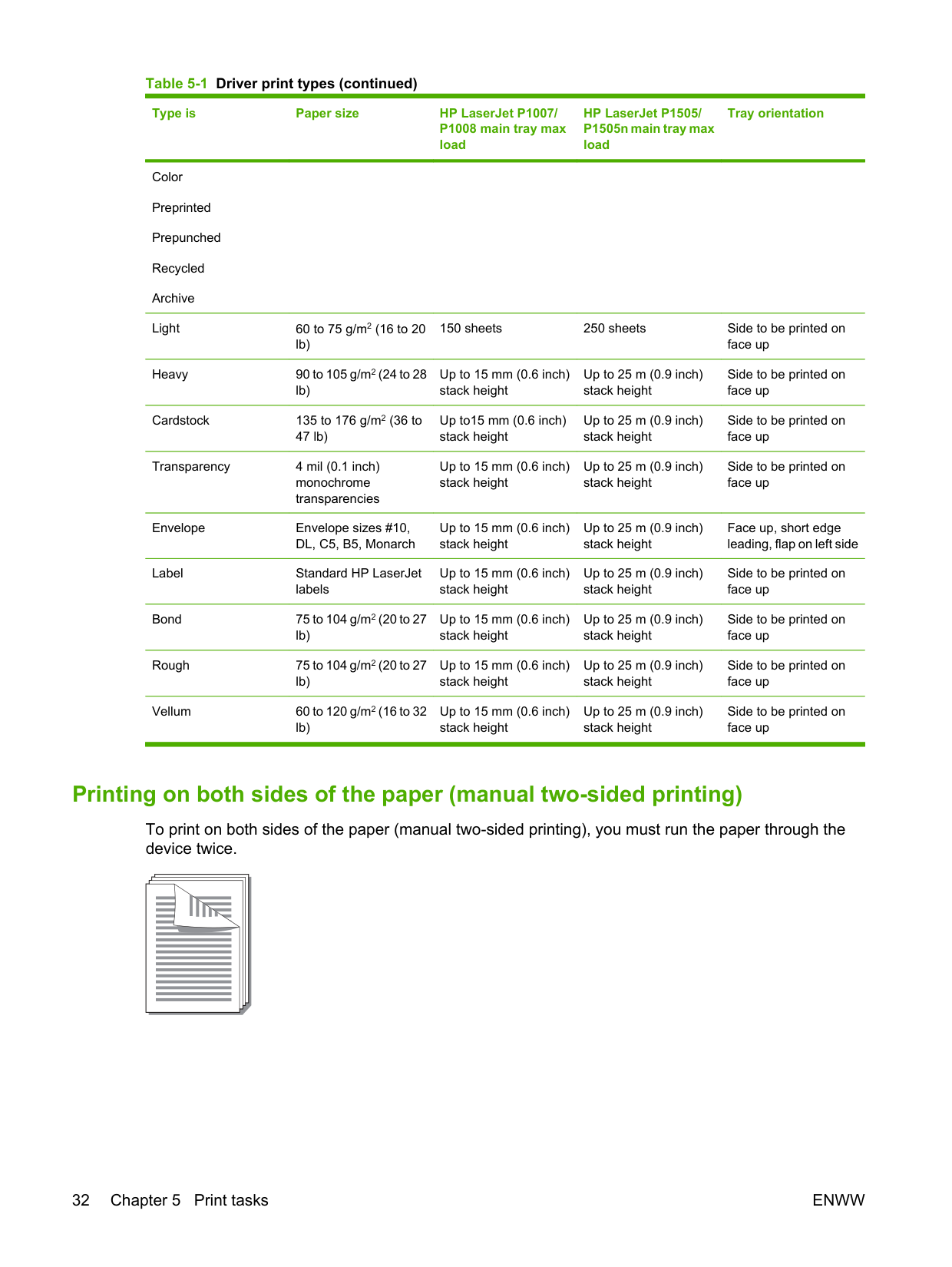
You can print booklets on letter or A4 paper.
| | |---|
NOTE: Not all printer features are available from all drivers or operating systems. See the printer properties (driver) online Help for information about availability of features for that driver.
##### Printing watermarks
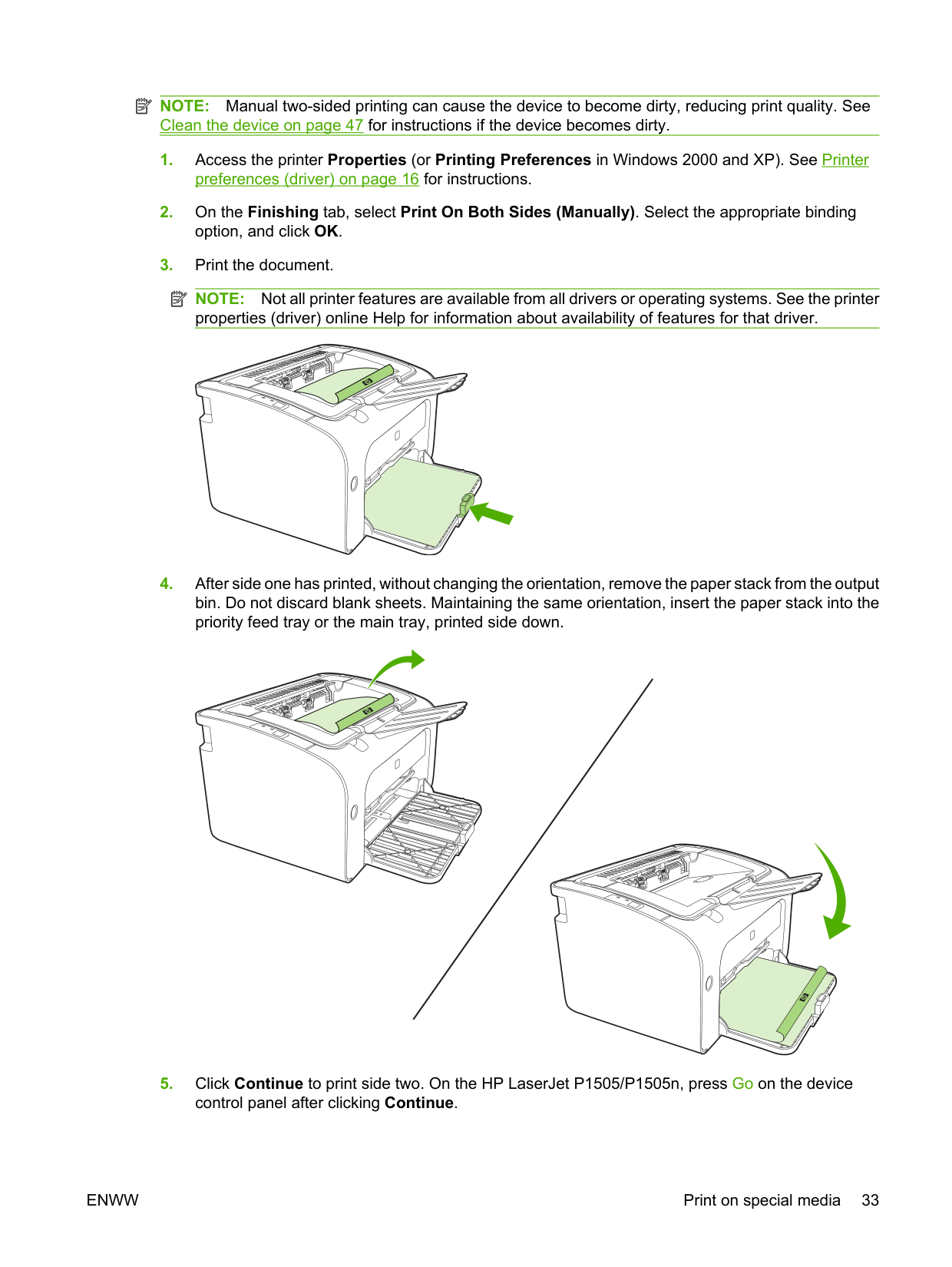
Use the watermark option to print text "underneath" (in the background of) an existing document. For example, you might want to have large gray letters spelling out Draft or Confidential across the first page or all of the pages of a document.
| | |---|
| | |---|
NOTE: Not all printer features are available from all drivers or operating systems. See the printer properties (driver) online Help for information about availability of features for that driver.
##### Printing mirror images
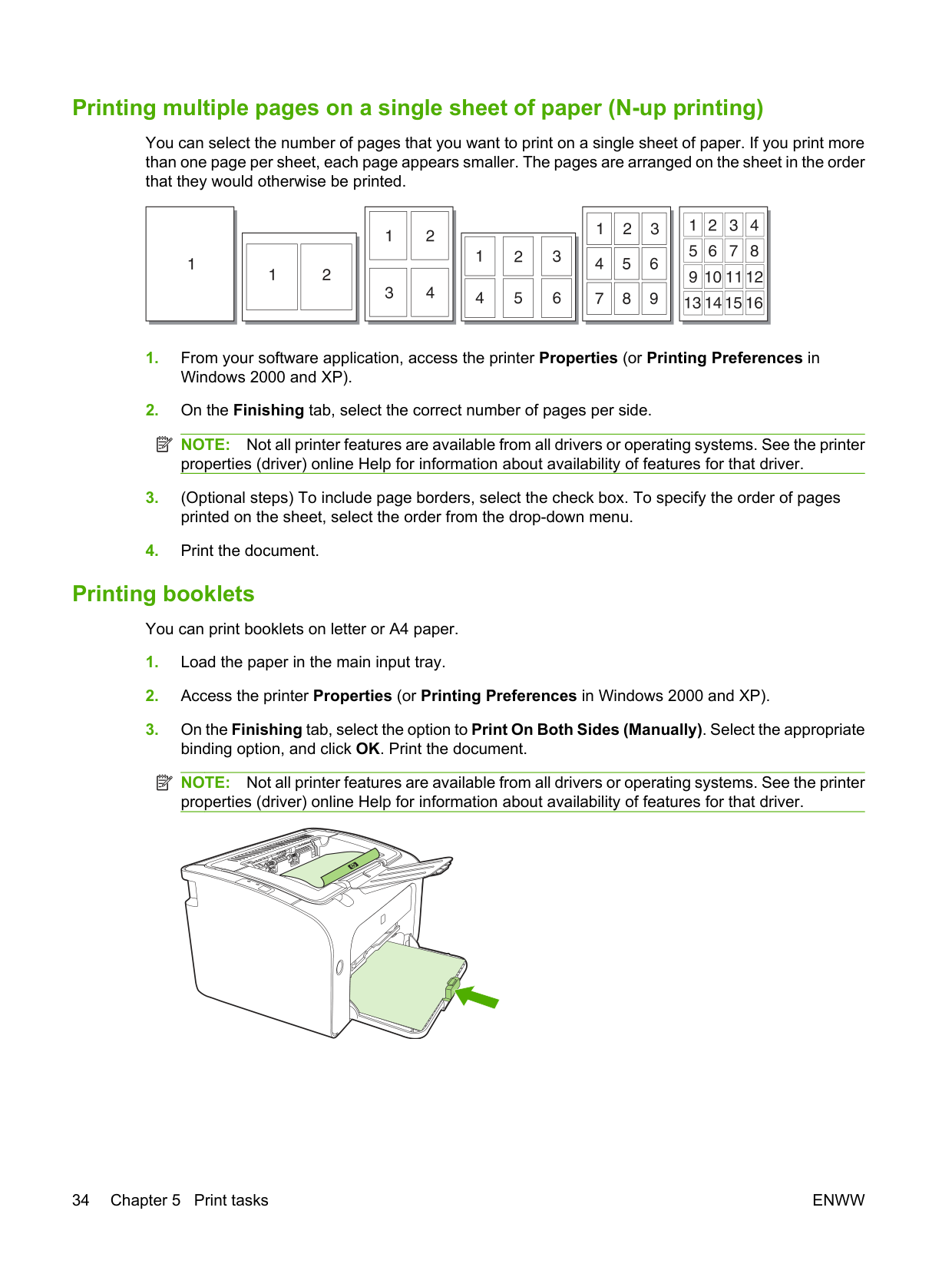
When printing a mirror image, the text and pictures are reversed so that they will be correct when viewed in a mirror or transferred to a printing plate.
| | |---|
NOTE: Not all printer features are available from all drivers or operating systems. See the printer properties (driver) online Help for information about availability of features for that driver.
Canceling a print job You can cancel a print job from a software application or a print queue. To stop the device immediately, remove the remaining paper from the device. After the device stops, use one of the following options.
If the status lights on the control panel continue to blink after you cancel a print job, the computer is still sending the job to the device. Either delete the job from the print queue or wait until the computer finishes sending data. The device will return to the Ready state.
ENWW Canceling a print job 37
6 Managing and maintenance
ENWW 39
#### Replace the print cartridge
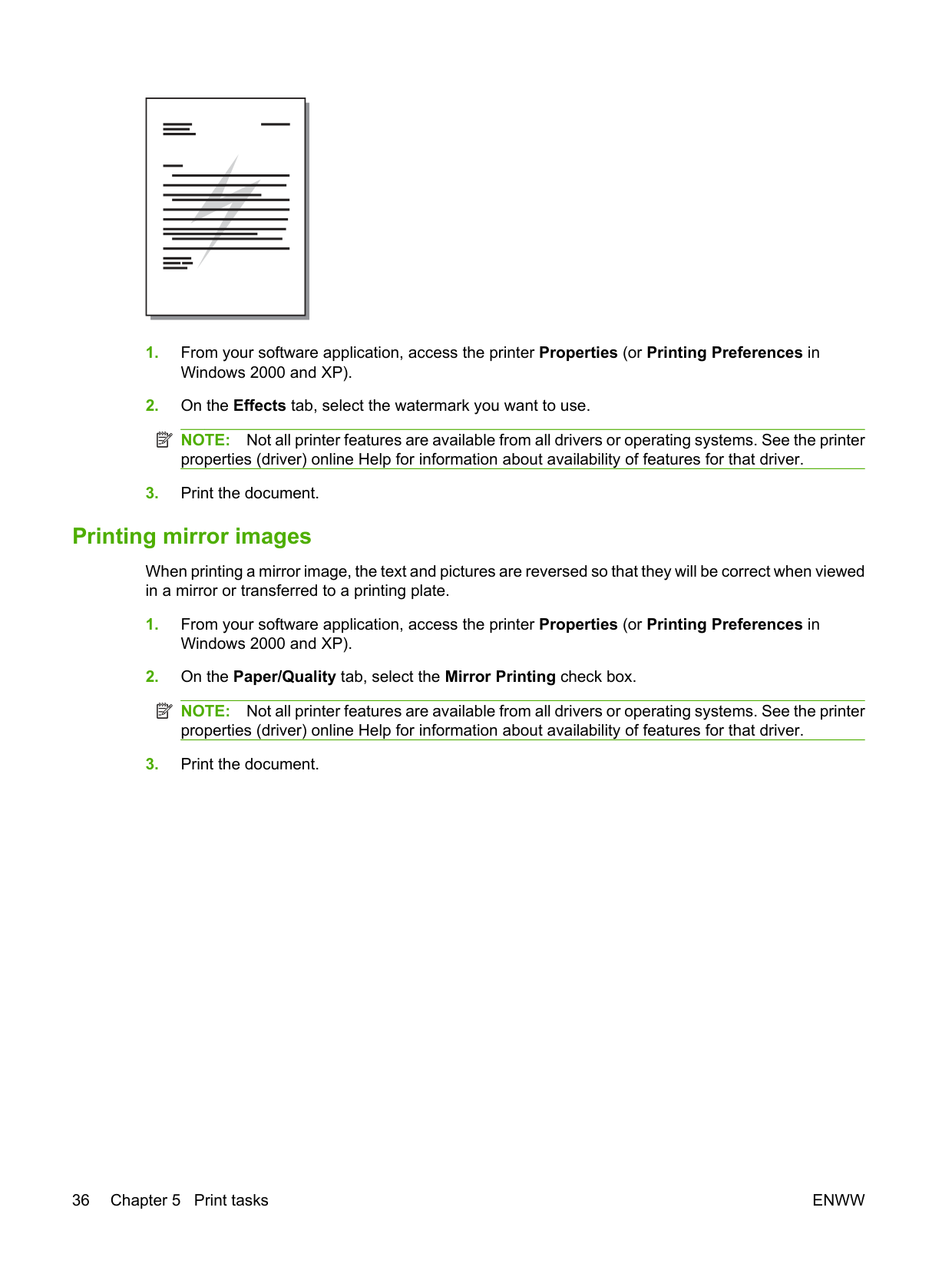
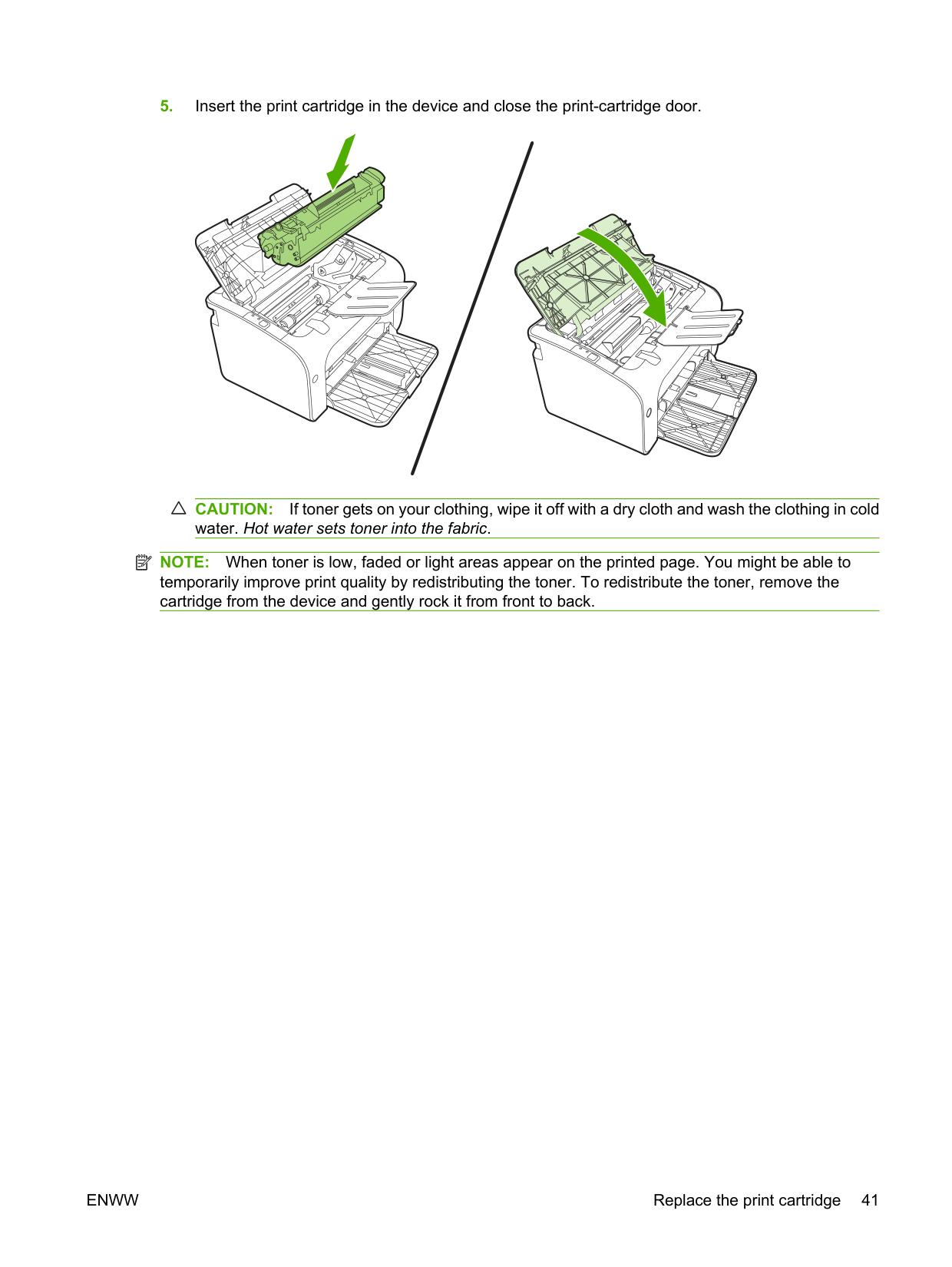
CAUTION: If toner gets on your clothing, wipe it off with a dry cloth and wash the clothing in cold water. Hot water sets toner into the fabric.
| | |---|
NOTE: When toner is low, faded or light areas appear on the printed page. You might be able to temporarily improve print quality by redistributing the toner. To redistribute the toner, remove the cartridge from the device and gently rock it from front to back.
ENWW Replace the print cartridge 41
#### Printer information pages
##### Demo page
The Demo page contains examples of text and graphics. To print the Demo page, select it from the Print Information Pages drop-down on the Services tab in Printer Preferences.
##### Configuration page
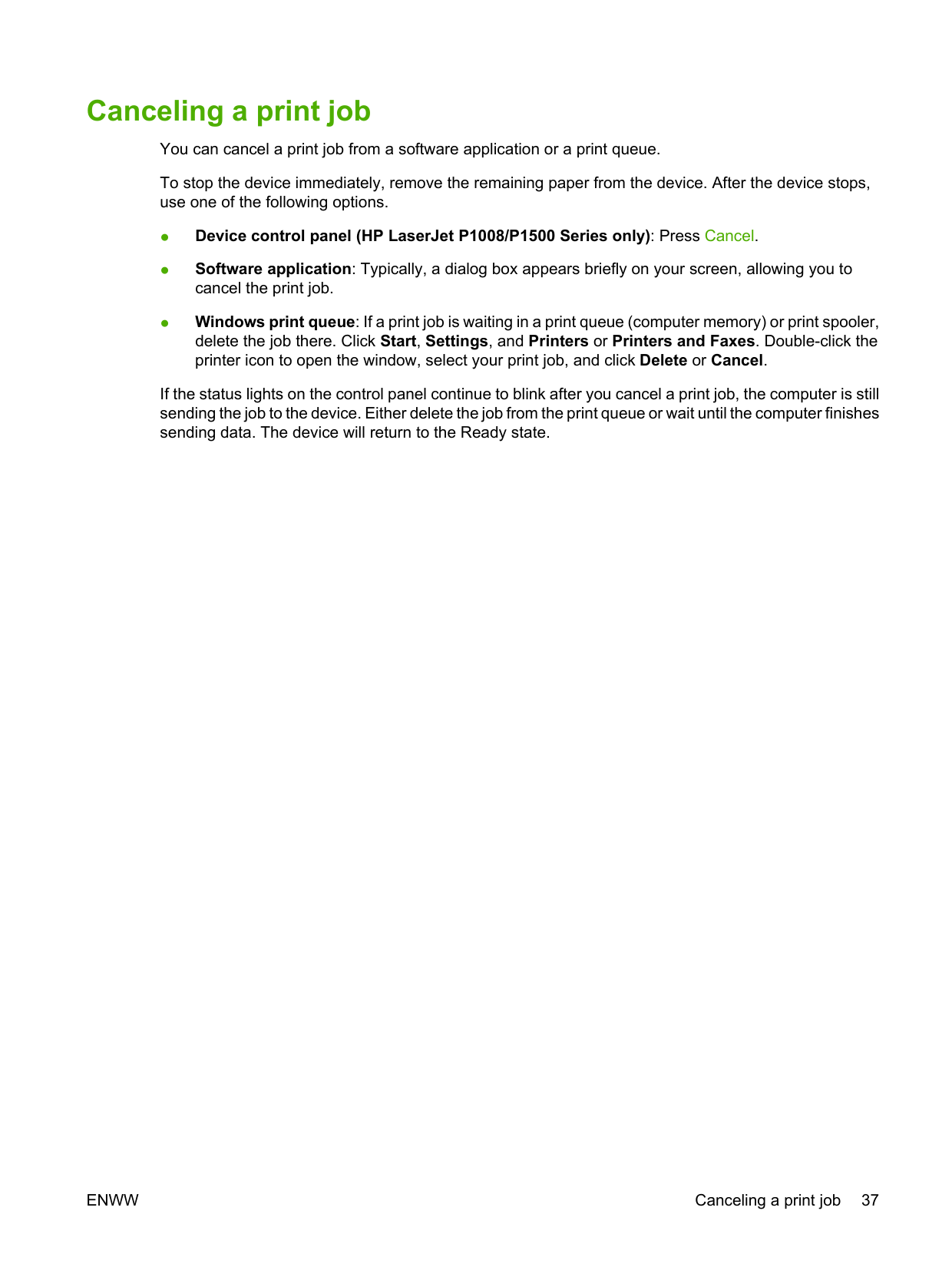
The Configuration page lists current settings and properties of the device. It also contains a status log report. To print a configuration page, do one of the following:
##### Supplies Status page
You can print the Supplies Status page by selecting it from the Print Information Pages drop-down on the Services tab in Printer Preferences. The Supplies Status page provides the following information:
#### Embedded Web server (HP LaserJet P1500 Series network models only)
Use the embedded Web server (EWS) to view device and network status and to manage printing functions from your computer.
You do not need to install any software on the computer. You only need to use one of these supported Web browsers:

The embedded Web server works when the device is connected to a TCP/IP-based network. The embedded Web server does not support IPX-based connections or direct USB connections.
| | |---|
NOTE: You do not have to have Internet access to open and use the embedded Web server. However, if you click a link on any of the pages, you must have Internet access in order to go to the site associated with the link.
##### Open the embedded Web server
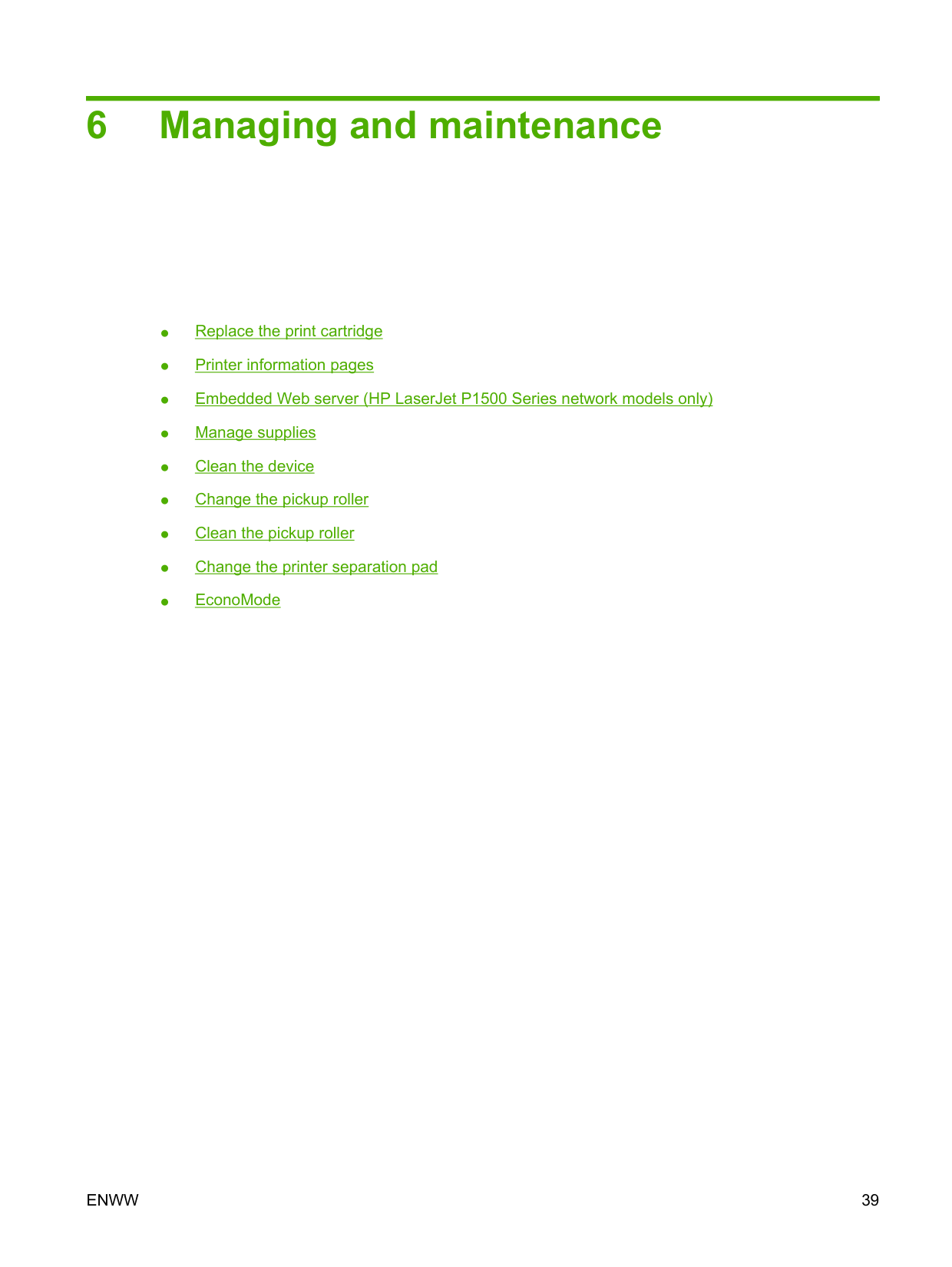
To open the embedded Web server, type the IP address or hostname of the device in the address field of a supported Web browser. To find the IP address, print a Configuration page at the device by pressing the Go button when the Ready light is on and no other jobs are printing.
| | |---|
NOTE: The HP LaserJet P1500 Series network models only support IPv6. For more information go to http://www.hp.com/support/ljp1500.
TIP: After you open the URL, bookmark it so that you can return to it quickly in the future. The embedded Web server has three tabs that contain settings and information about the device: the Information tab, the Settings tab, and the Networking tab.
ENWW Embedded Web server (HP LaserJet P1500 Series network models only) 43
##### Information tab
The Information pages group consists of the following pages:
##### Settings tab
Use this tab to configure the device from your computer. If this device is networked, always consult with the device administrator before changing settings on this tab.
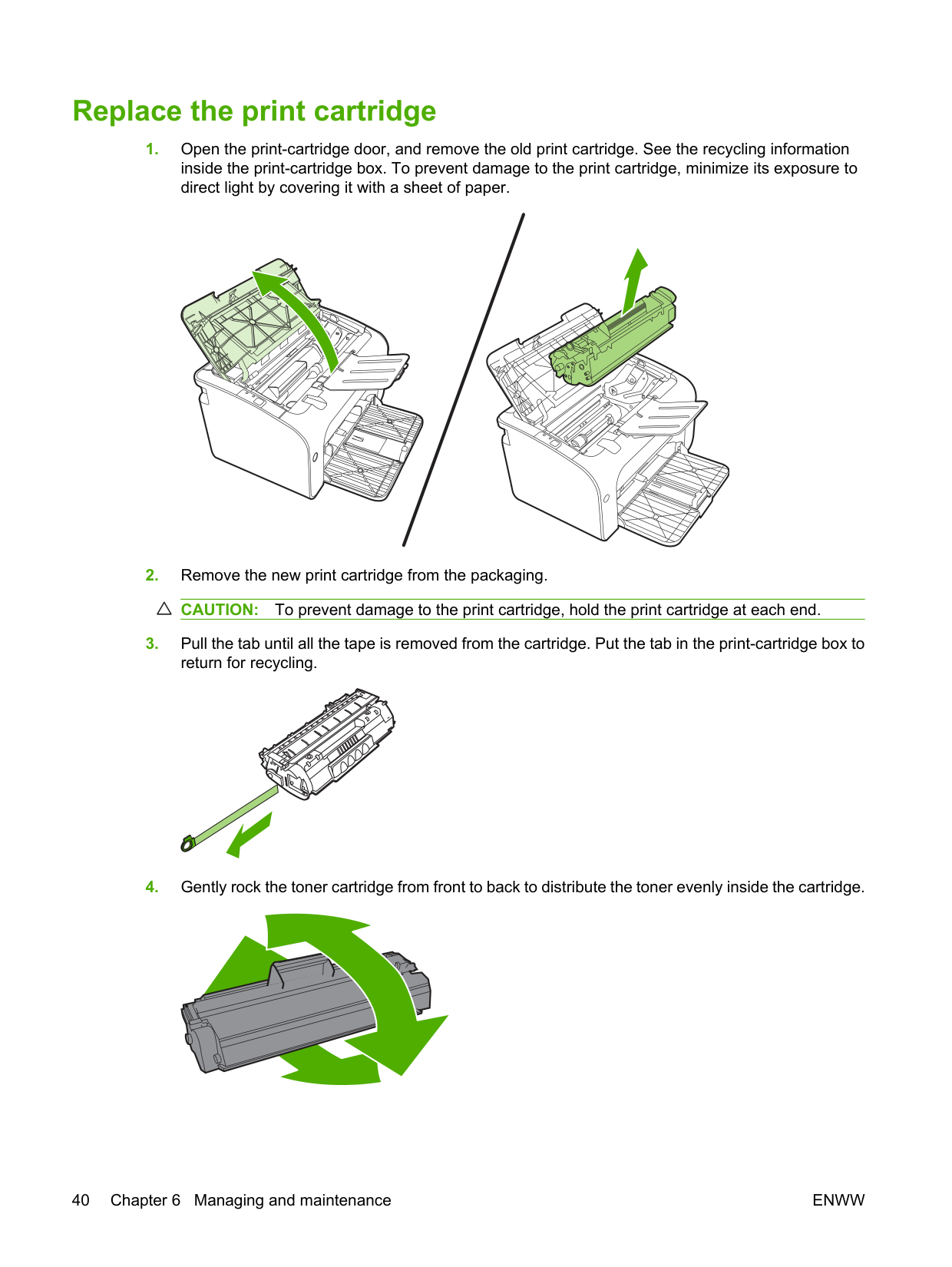
The Settings tab contains the Printing page where you can view and change the default print job settings and PCL 5e settings.
##### Networking tab
Network administrators can use this tab to control network-related settings for the device when it is connected to an IP-based network.
##### Links
Links are located in the upper-right part of the Status pages. You must have Internet access in order to use any of these links. If you use a dial-up connection and did not connect when you first opened the embedded Web server, you must connect before you can visit these Web sites. Connecting might require that you close the embedded Web server and reopen it.
#### Manage supplies
For warranty information about these supplies, see Service and support on page 83.
##### Supplies life
HP LaserJet P1007/P1008: Average yield for the replacement standard black print cartridge is 1500 pages in accordance with ISO/IEC 19752. Actual yield depends on specific use.
HP LaserJet P1505/P1505n: Average yield for the replacement standard black print cartridge is 2000 pages in accordance with ISO/IEC 19752. Actual yield depends on specific use.
##### Check and order supplies
Check the supplies status from the control panel by printing a Supplies Status page from the device software. Hewlett-Packard recommends placing an order for a replacement print cartridge when the Low message for a print cartridge first appears. For typical use, the Order message indicates that approximately two weeks of life remain.
When using authentic HP print cartridges, you can obtain the following types of supplies information:
| | |---|
If the supplies levels are low, reorder supplies through the local HP dealer, by telephone, or online. See Order supplies and accessories on page 82 for part numbers. See http://www.hp.com/go/ljsupplies to order online.
##### Supplies storage guidelines
Follow these guidelines for storing print cartridges:
##### Replace and recycle supplies
When installing a new HP print cartridge, follow the instructions included on the print-cartridge box, or see the Getting Started Guide.
ENWW Manage supplies 45
Recycling supplies:
For complete information, see the recycling guide included with each new HP supply item. See Return and recycling instructions on page 103 for more information about HP's recycling program.
##### Redistribute toner
If faded or light areas appear on the printed page, you might be able to temporarily improve print quality by redistributing the toner.
CAUTION: If toner gets on your clothing, wipe it off with a dry cloth and wash the clothing in cold water. Hot water sets toner into the fabric.
##### HP policy on non-HP supplies
Hewlett-Packard Company cannot recommend the use of non-HP supplies, either new or remanufactured. When they are not HP products, HP cannot influence the product design or quality. Service or repair required as a result of using a non-HP supply is not covered under the device warranty.
###### Reset the device for non-HP supplies
When a non-HP print cartridge is installed, a message appears on your PC. To print, press OK the first time this non-HP supply is installed.
CAUTION: Because the status gauges do not indicate when a non-HP supply is low or empty, the device might not stop printing. device damage can occur if the device prints with an empty print cartridge.
##### HP anti-counterfeit supplies Web site
Visit the HP anti-counterfeit supplies Web site at http://www.hp.com/go/anticounterfeit if the supplies status gauges indicate that the print cartridge is not an HP print cartridge and you think that it is genuine.
Clean the device Clean the outside of the device with a clean, damp cloth when necessary. CAUTION: Do not use ammonia-based cleaners on or around the device.
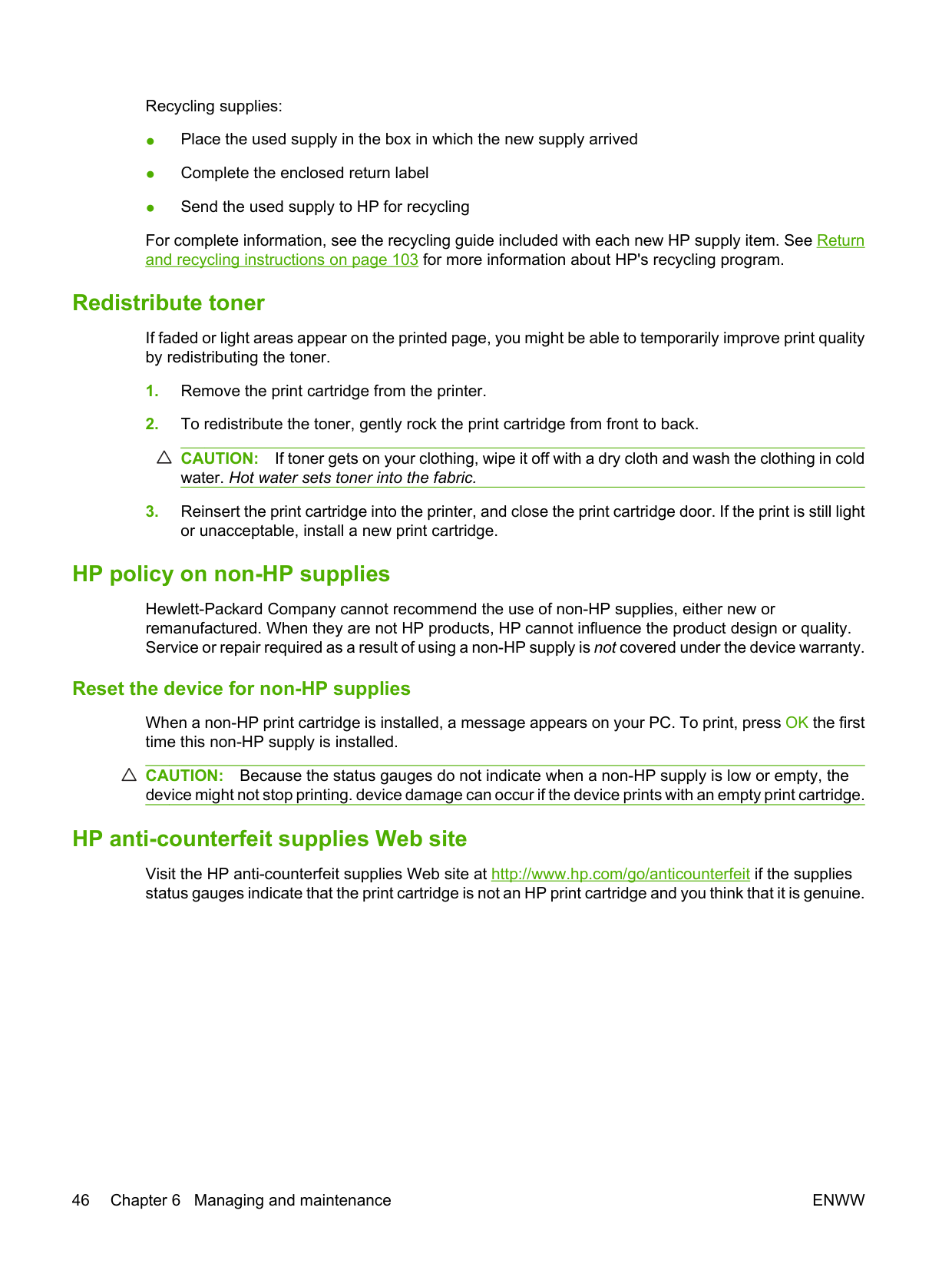
During the printing process, paper, toner, and dust particles can accumulate inside the device. Over time, this buildup can cause print quality problems, such as toner specks or smearing, and paper jams. To correct and prevent these types of problems, clean the print cartridge area and the device media path.
##### Clean the print-cartridge area
You do not need to clean the print-cartridge area often. However, cleaning this area can improve the quality of the printed sheets.
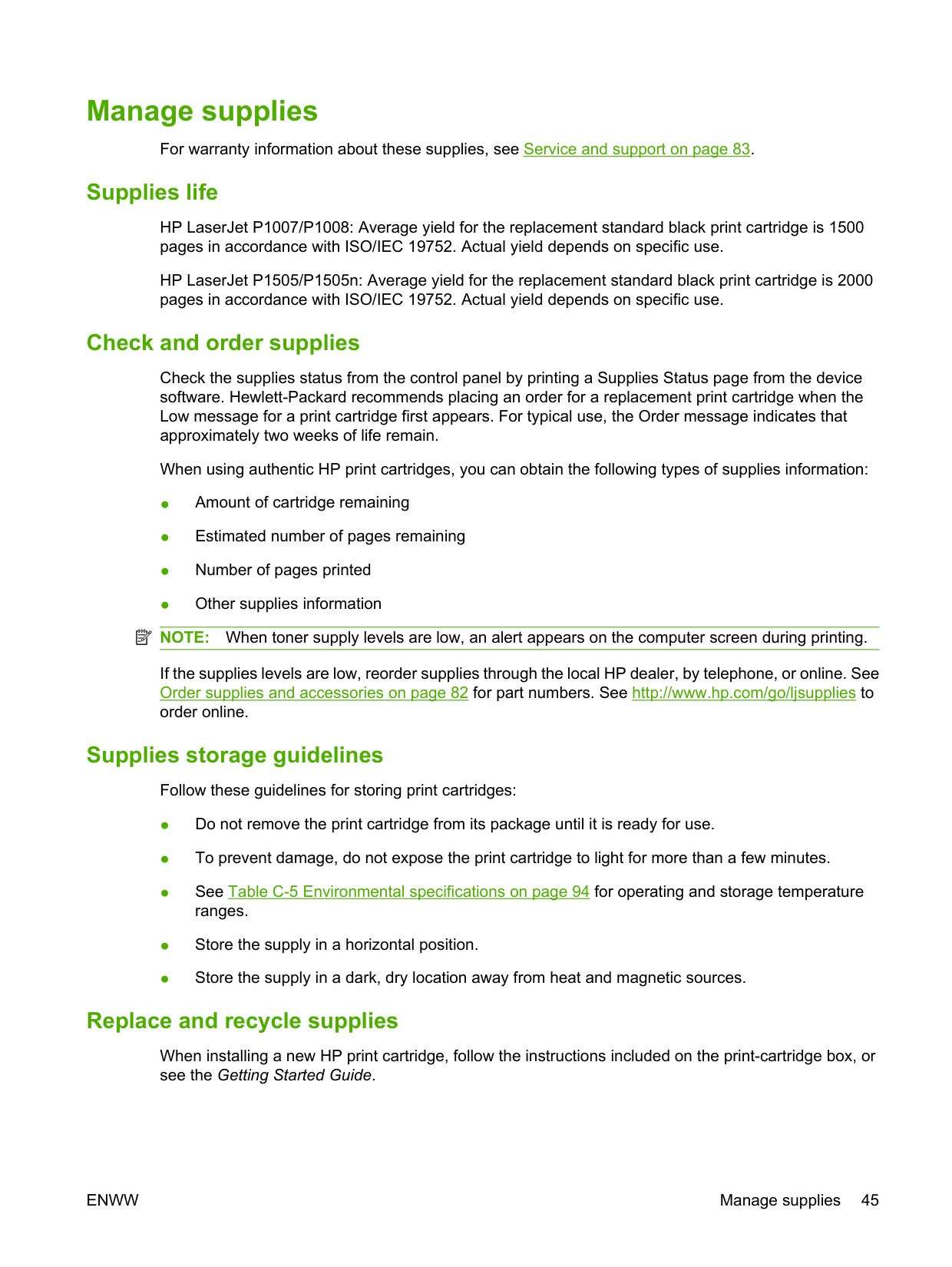
WARNING! Before cleaning the device, turn the device off by unplugging the power cord, and wait for the device to cool.
CAUTION: Do not touch the black-sponge transfer roller inside the device. Doing so can damage the device.
CAUTION: To prevent damage, do not expose the print cartridge to light. Cover it with a piece of paper.
##### Clean the device paper path
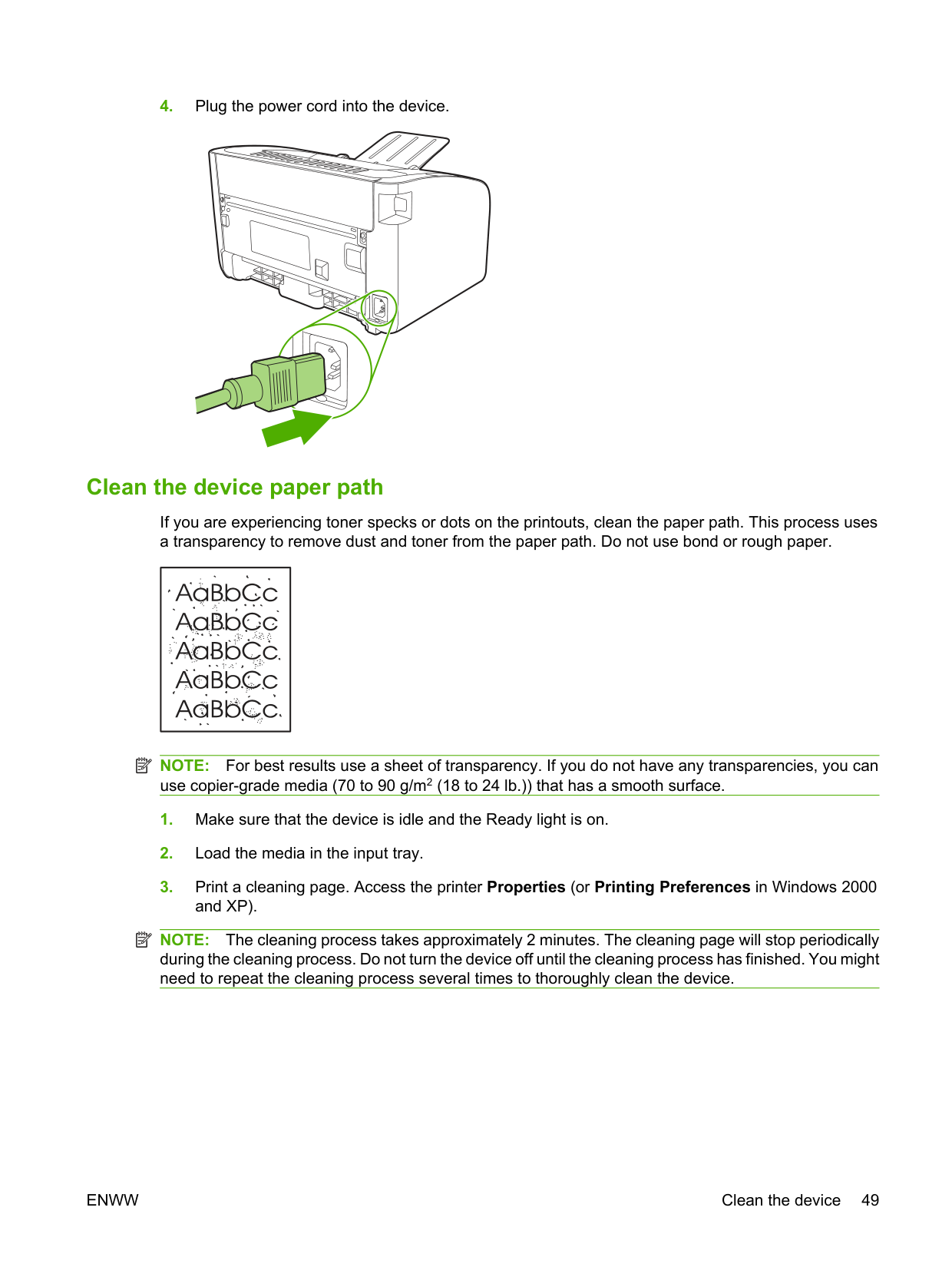
If you are experiencing toner specks or dots on the printouts, clean the paper path. This process uses a transparency to remove dust and toner from the paper path. Do not use bond or rough paper.
| | |---|
| | |---|
NOTE: For best results use a sheet of transparency. If you do not have any transparencies, you can use copier-grade media (70 to 90 g/m2 (18 to 24 lb.)) that has a smooth surface.
| | |---|
NOTE: The cleaning process takes approximately 2 minutes. The cleaning page will stop periodically during the cleaning process. Do not turn the device off until the cleaning process has finished. You might need to repeat the cleaning process several times to thoroughly clean the device.
#### Change the pickup roller
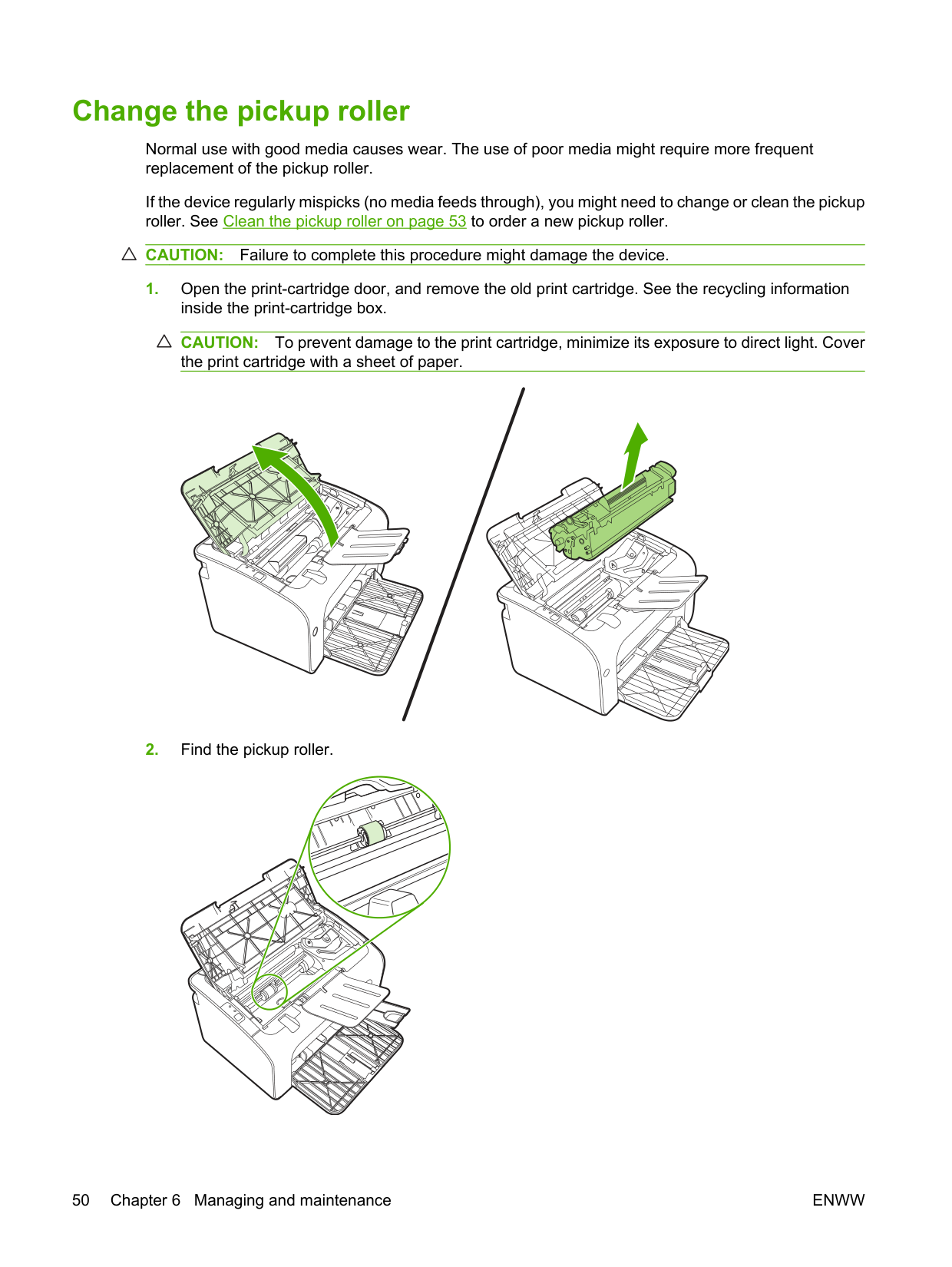
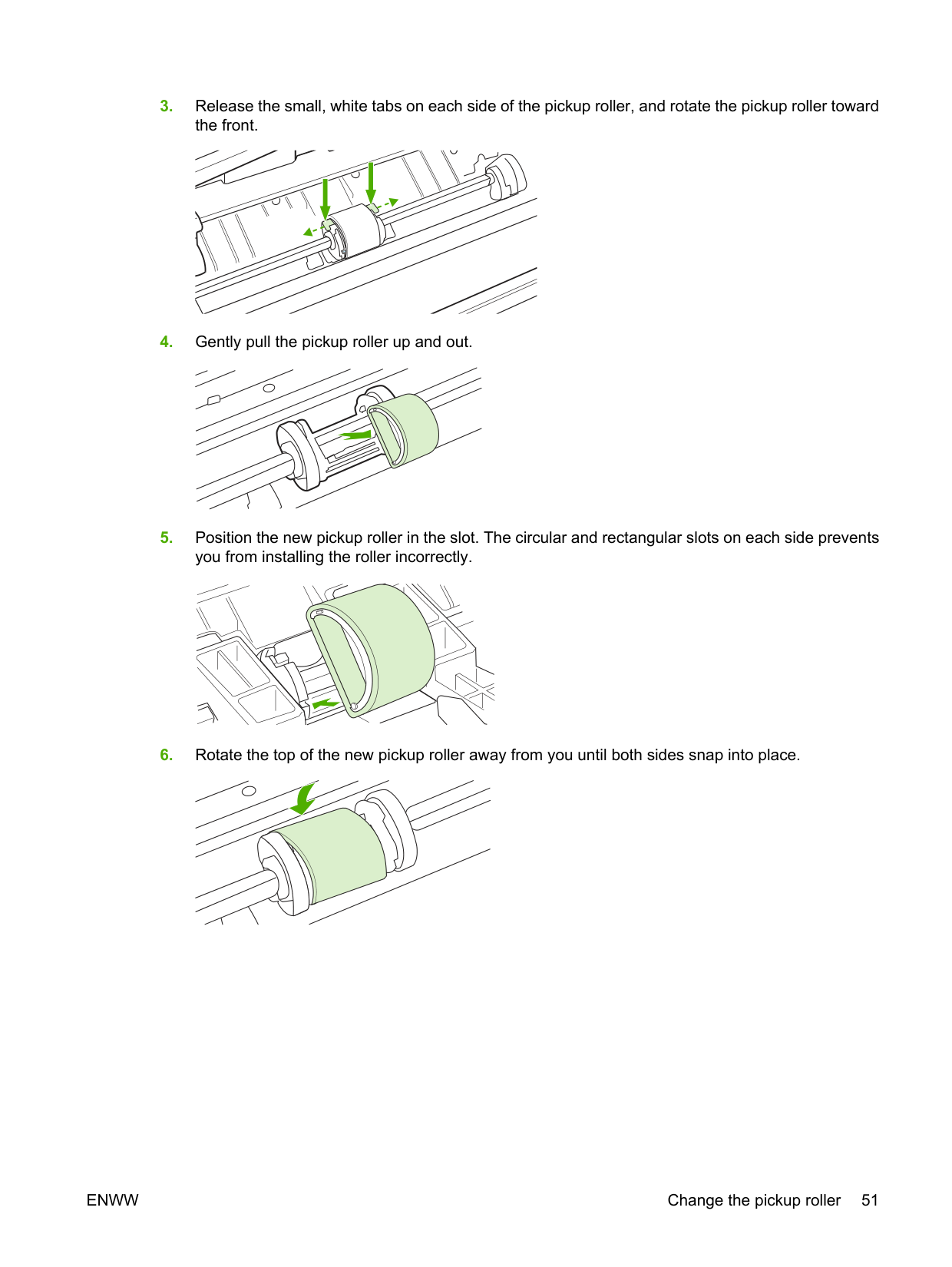
Normal use with good media causes wear. The use of poor media might require more frequent replacement of the pickup roller.
If the device regularly mispicks (no media feeds through), you might need to change or clean the pickup roller. See Clean the pickup roller on page 53 to order a new pickup roller. CAUTION: Failure to complete this procedure might damage the device.
CAUTION: To prevent damage to the print cartridge, minimize its exposure to direct light. Cover the print cartridge with a sheet of paper.
| | |---|
ENWW Change the pickup roller 51
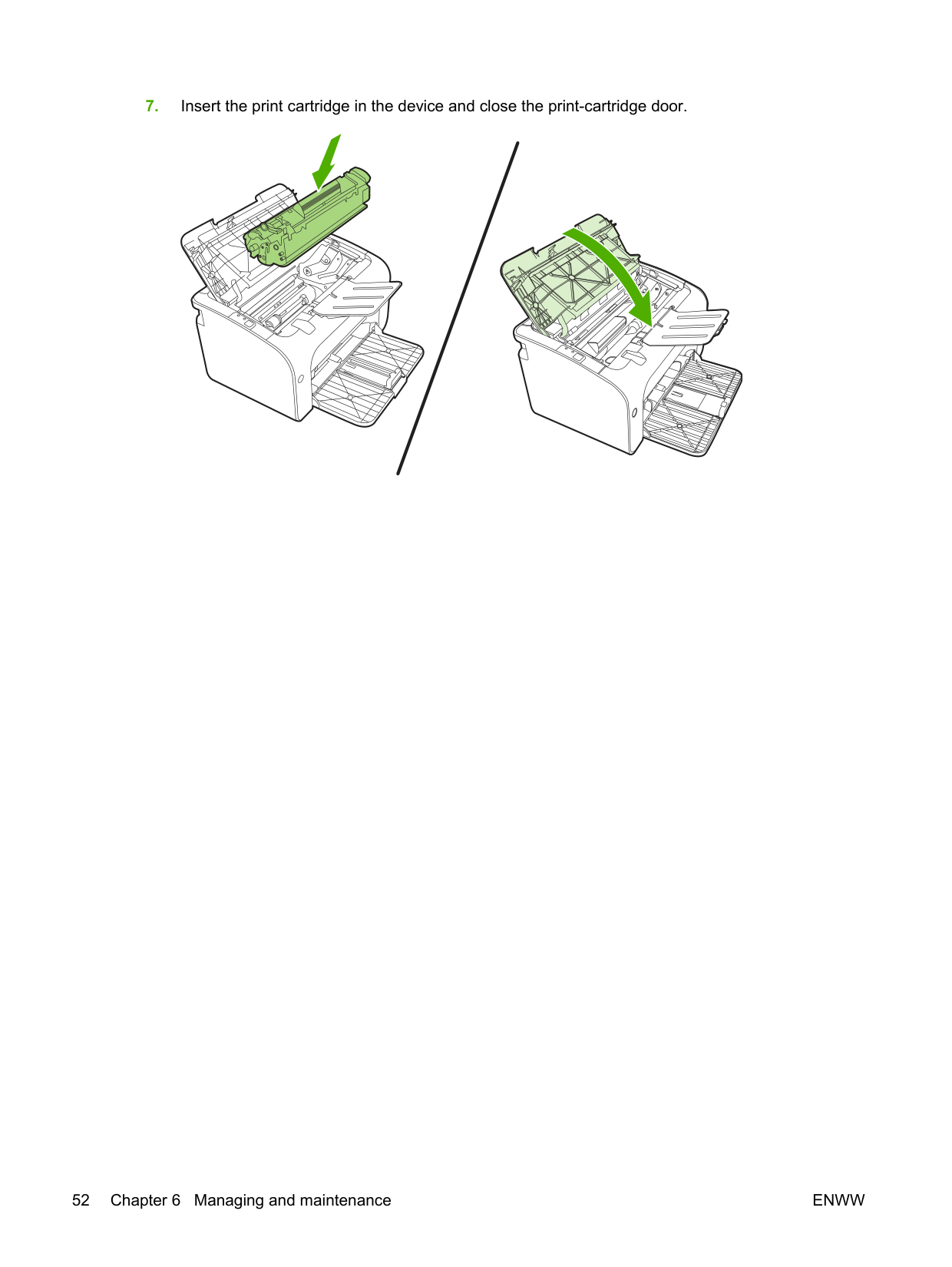
######## 7. Insert the print cartridge in the device and close the print-cartridge door.
#### Clean the pickup roller
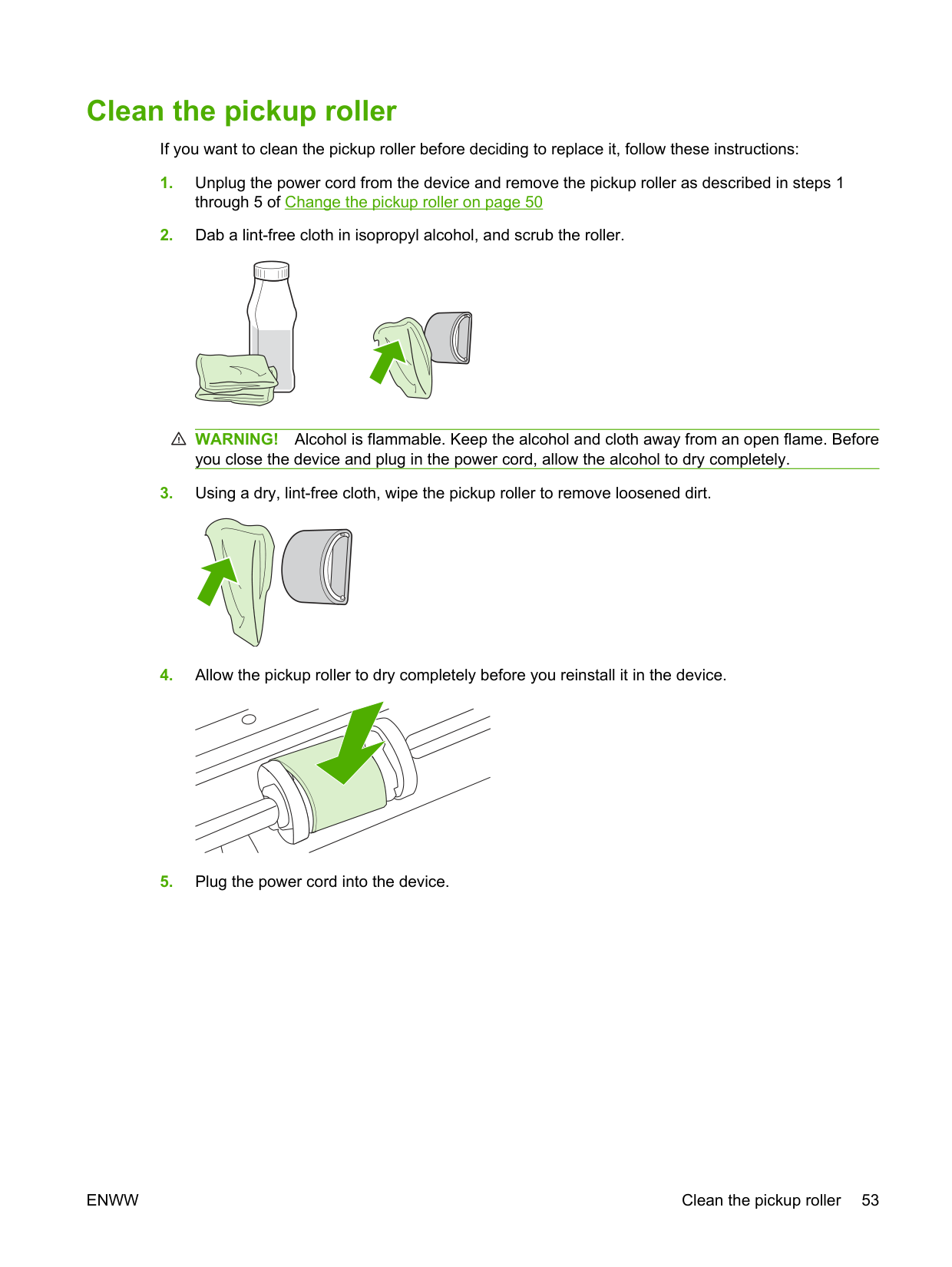
If you want to clean the pickup roller before deciding to replace it, follow these instructions:
WARNING! Alcohol is flammable. Keep the alcohol and cloth away from an open flame. Before you close the device and plug in the power cord, allow the alcohol to dry completely.
ENWW Clean the pickup roller 53
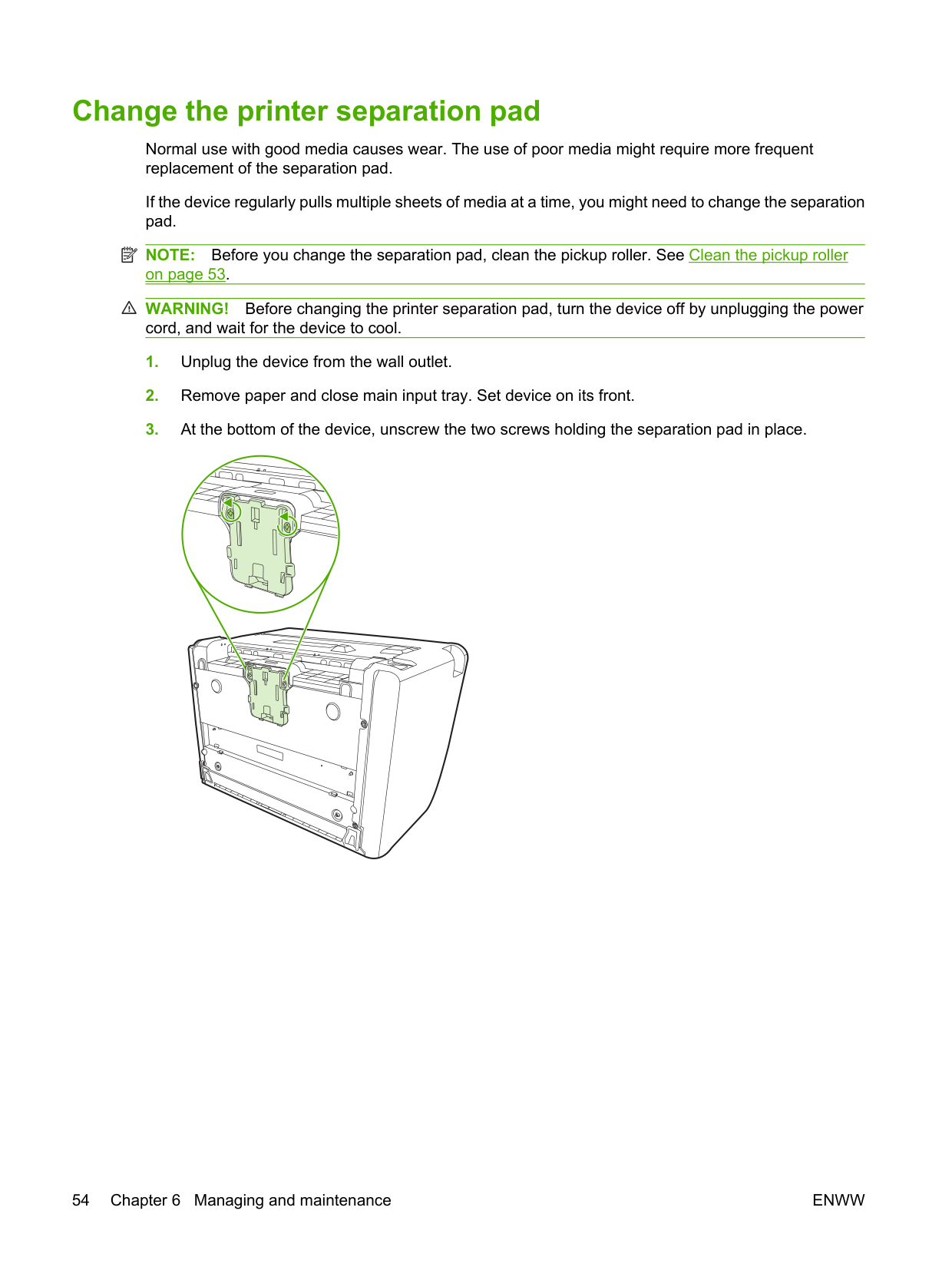
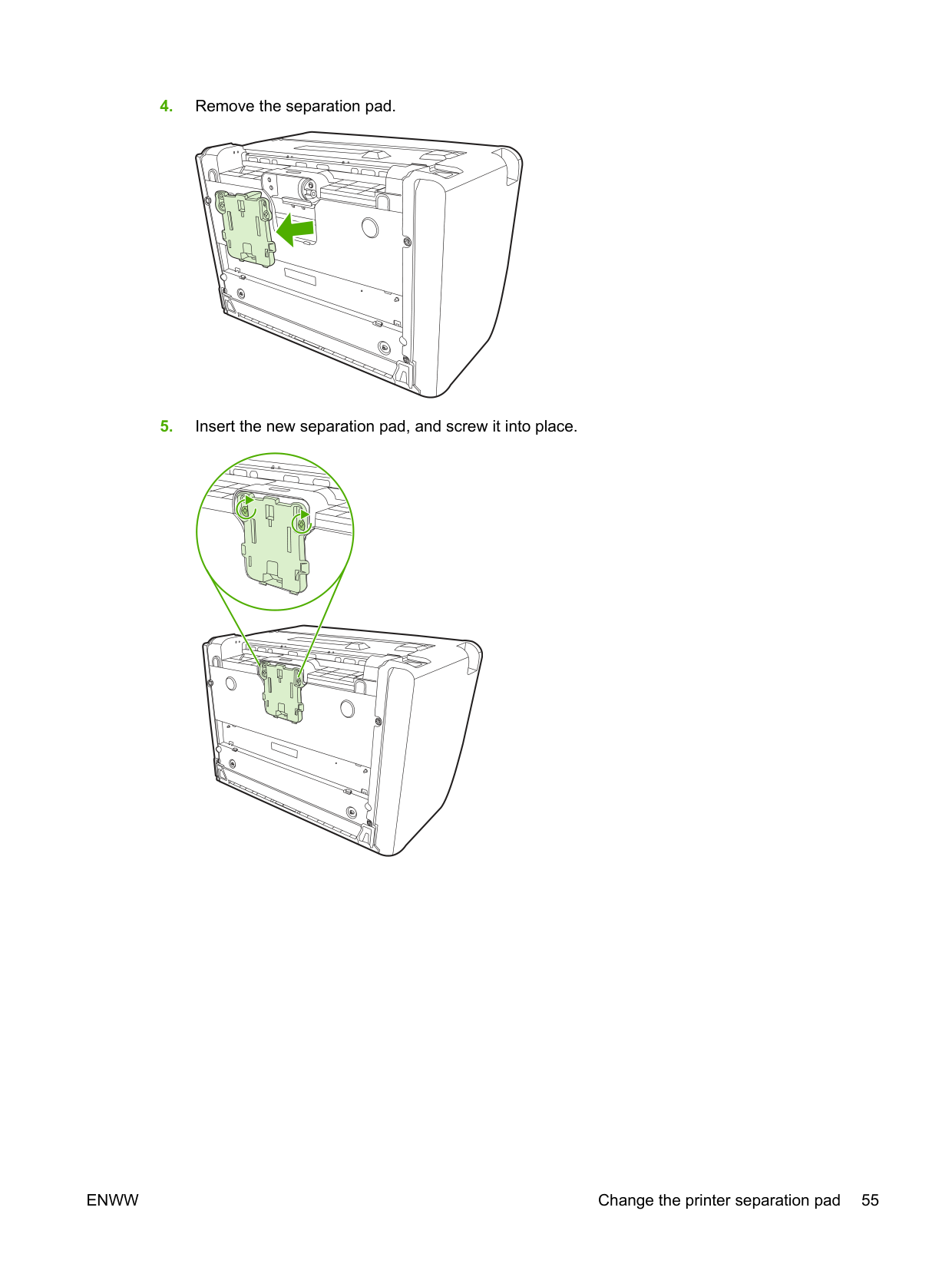
#### Change the printer separation pad
Normal use with good media causes wear. The use of poor media might require more frequent replacement of the separation pad.
If the device regularly pulls multiple sheets of media at a time, you might need to change the separation pad.
| | |---|
NOTE: Before you change the separation pad, clean the pickup roller. See Clean the pickup roller on page 53.
WARNING! Before changing the printer separation pad, turn the device off by unplugging the power cord, and wait for the device to cool.
ENWW Change the printer separation pad 55
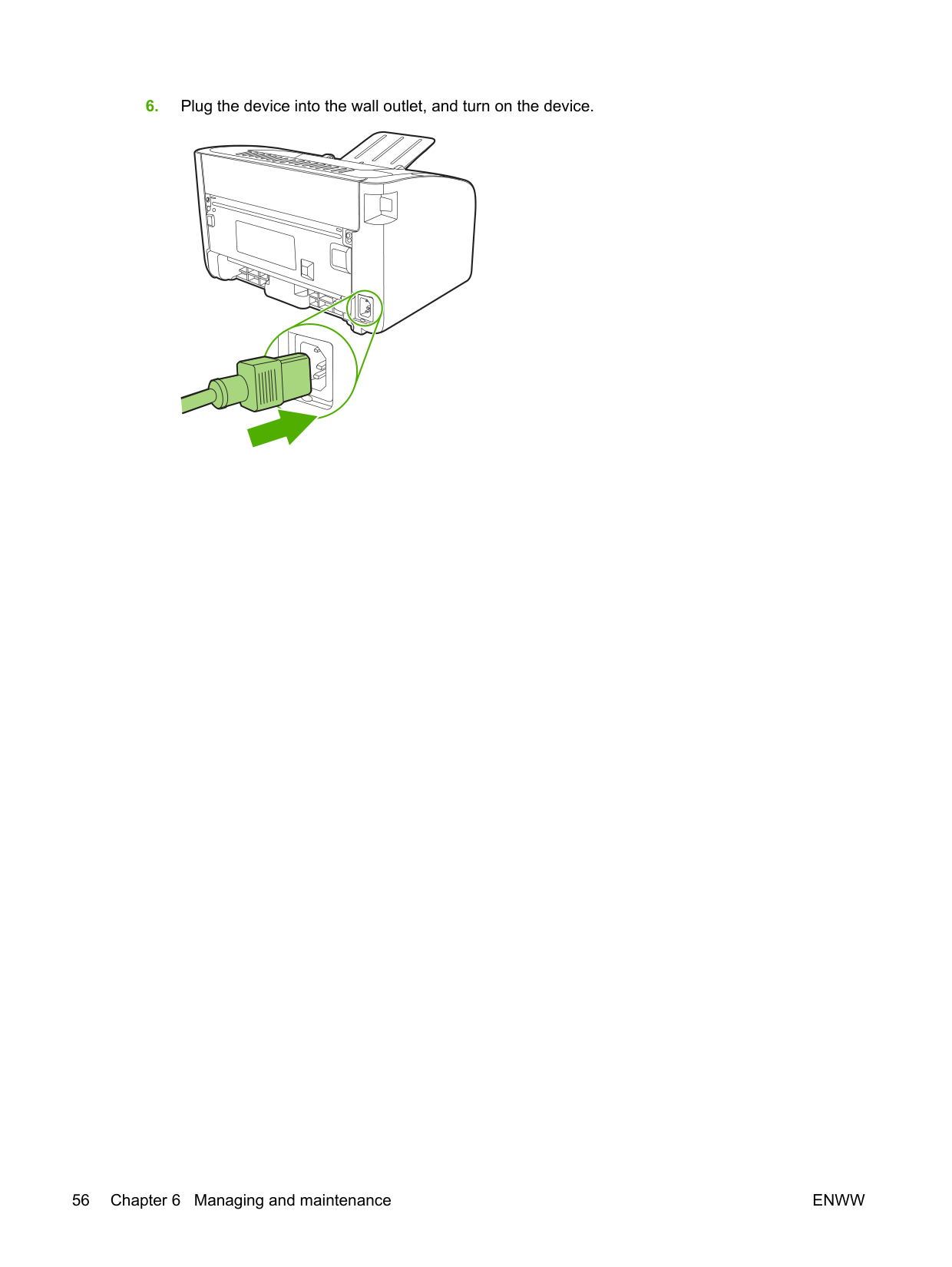
######## 6. Plug the device into the wall outlet, and turn on the device.
#### EconoMode
With EconoMode, the device uses less toner per page. Selecting this option can extend the life of the print cartridge and reduce your cost per page. However, it also reduces print quality. The printed image is lighter, but it is adequate for printing drafts or proofs.
HP does not recommend the full-time use of EconoMode. If EconoMode is used full-time, the toner supply might outlast the mechanical parts in the print cartridge. If print quality begins to degrade under these circumstances, you must install a new print cartridge even if toner remains in the cartridge.
and XP).
select the EconoMode check box.
| | |---|
NOTE: Not all printer features are available in all drivers or operating systems. See the printer Properties (driver) online Help for information about availability of features for that driver.
ENWW EconoMode 57
7 Problem solving
ENWW 59
#### Problem-solving checklist
##### Step 1: Is the device set up correctly?
Yes If you answered yes to the questions above, go to Step 2: Is
the Ready light on? on page 60
No If the device will not turn on, Contact HP support
on page 62.
##### Step 2: Is the Ready light on?
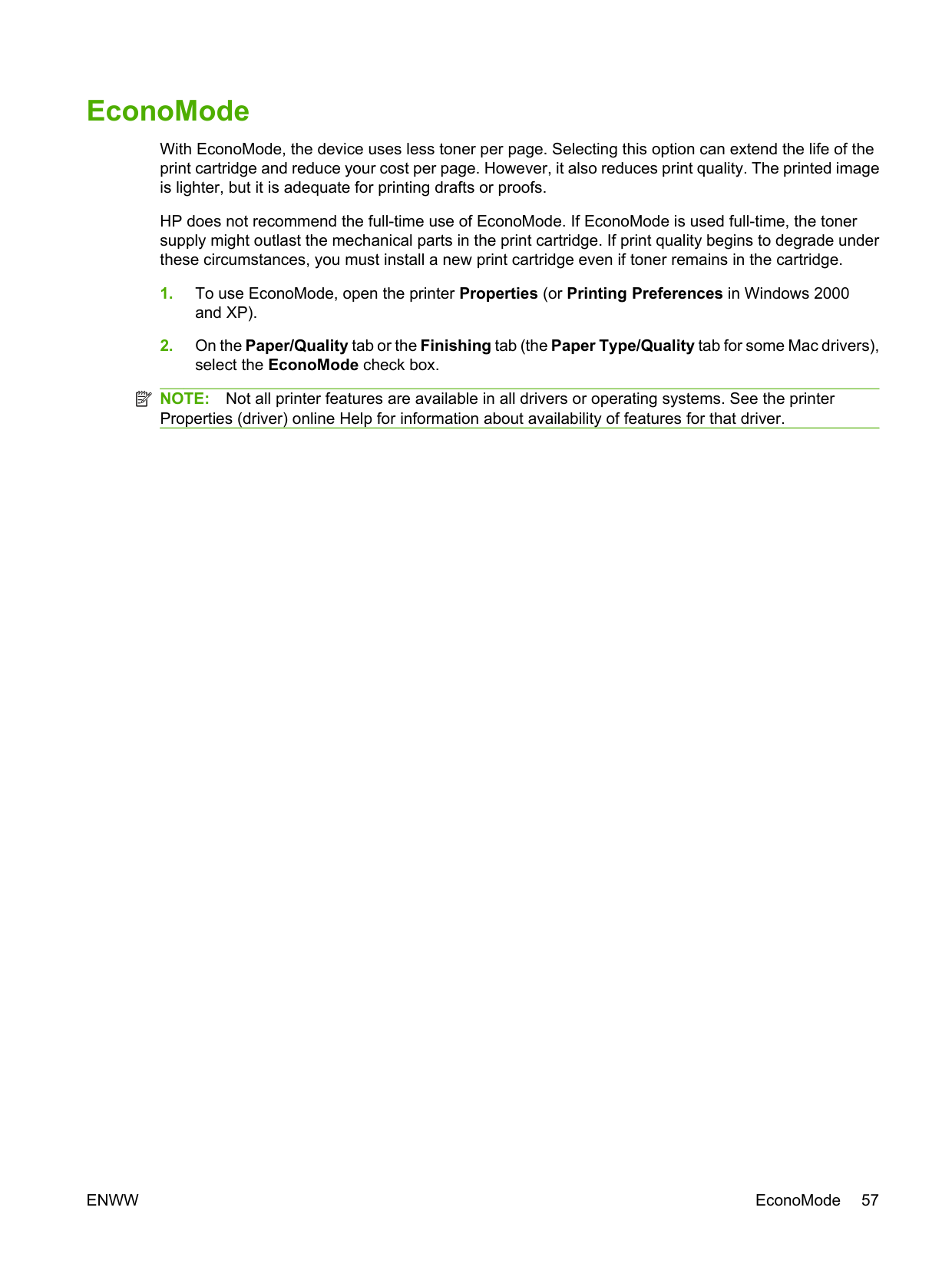
Verify that the Ready light (1) is illuminated on the control panel.
Yes Go to Step 3: Can you print a configuration page?
on page 60
No If the control panel lights do not look like the picture above, see Status-light patterns on page 63. If you are unable to resolve the problem, Contact HP support on page 62.
##### Step 3: Can you print a configuration page?
To print a configuration page, do one of the following:
Yes If the configuration page printed, go to Step 4: Is the print
quality acceptable? on page 61
No If no paper came out, see Media problem-solving on page 73. If you are unable to resolve the problem, Contact HP support on page 62.
##### Step 4: Is the print quality acceptable?
Yes If the print quality is acceptable, go to Step 5: Is the device
communicating with the computer? on page 61
No If the print quality is poor, see Improve print quality
on page 69.
Verify that the print settings are correct for the media you are using. See Supported paper and other media on page 21 for information on adjusting the settings for various types of media.
If you are unable to resolve the problem, Contact HP support on page 62.
##### Step 5: Is the device communicating with the computer?
Try printing a document from a software application.
Yes If the document prints, go to Step 6: Does the printed page look
like you expected? on page 61
No If the document does not print, see Printer software problems on page 76. If you are using a Macintosh computer, see Common Macintosh problems on page 77. If you are unable to resolve the problem, Contact HP support on page 62.
##### Step 6: Does the printed page look like you expected?
Yes The problem should be resolved. If it is not resolved, Printed page is different from what appeared on screen on page 74.
No If you are unable to resolve the problem, Contact HP support
on page 62.
######## ENWW Problem-solving checklist 61
##### Contact HP support
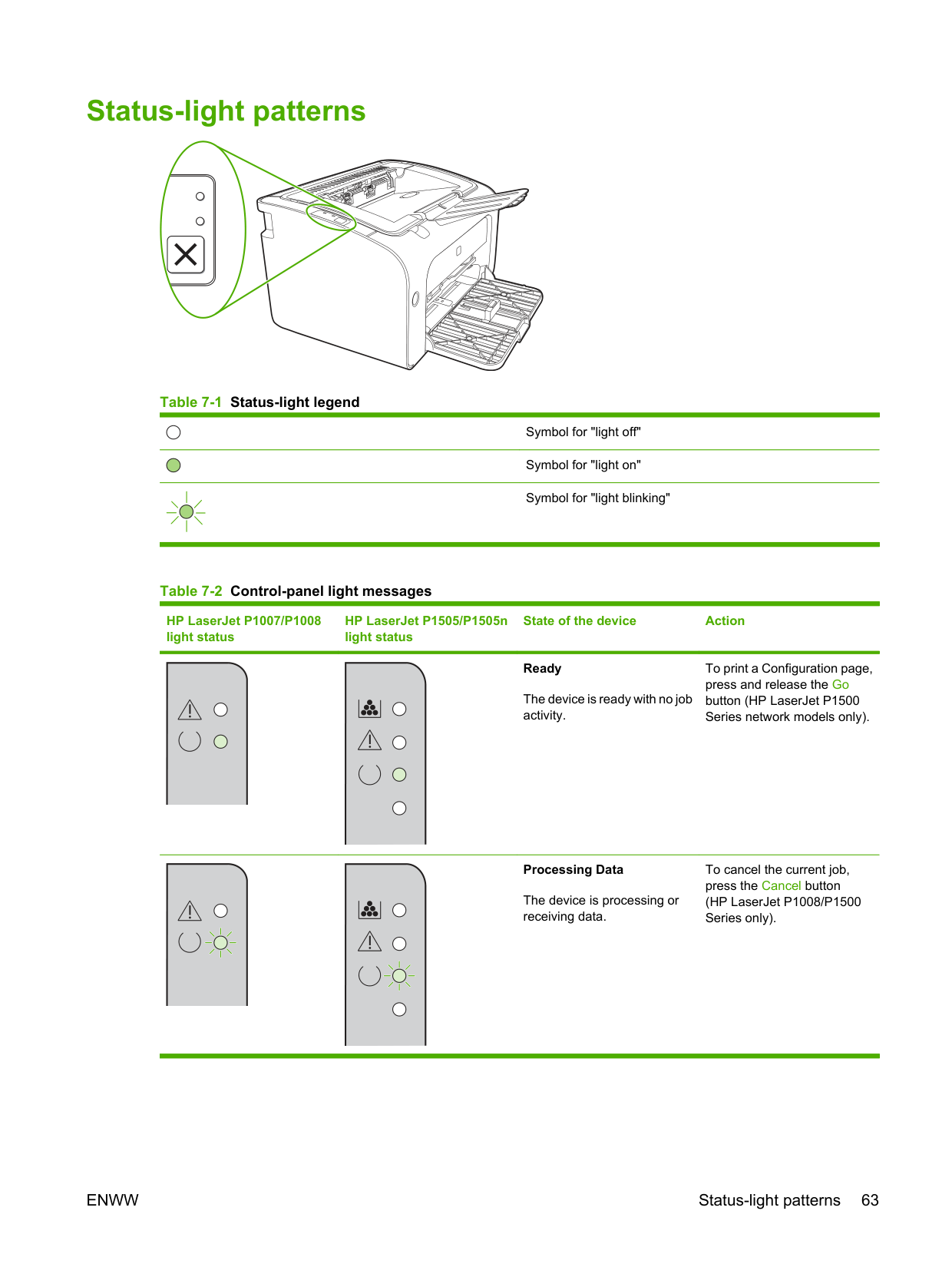
#### Status-light patterns
######### Table 7-1 Status-light legend
Symbol for "light off"
Symbol for "light on"
Symbol for "light blinking"
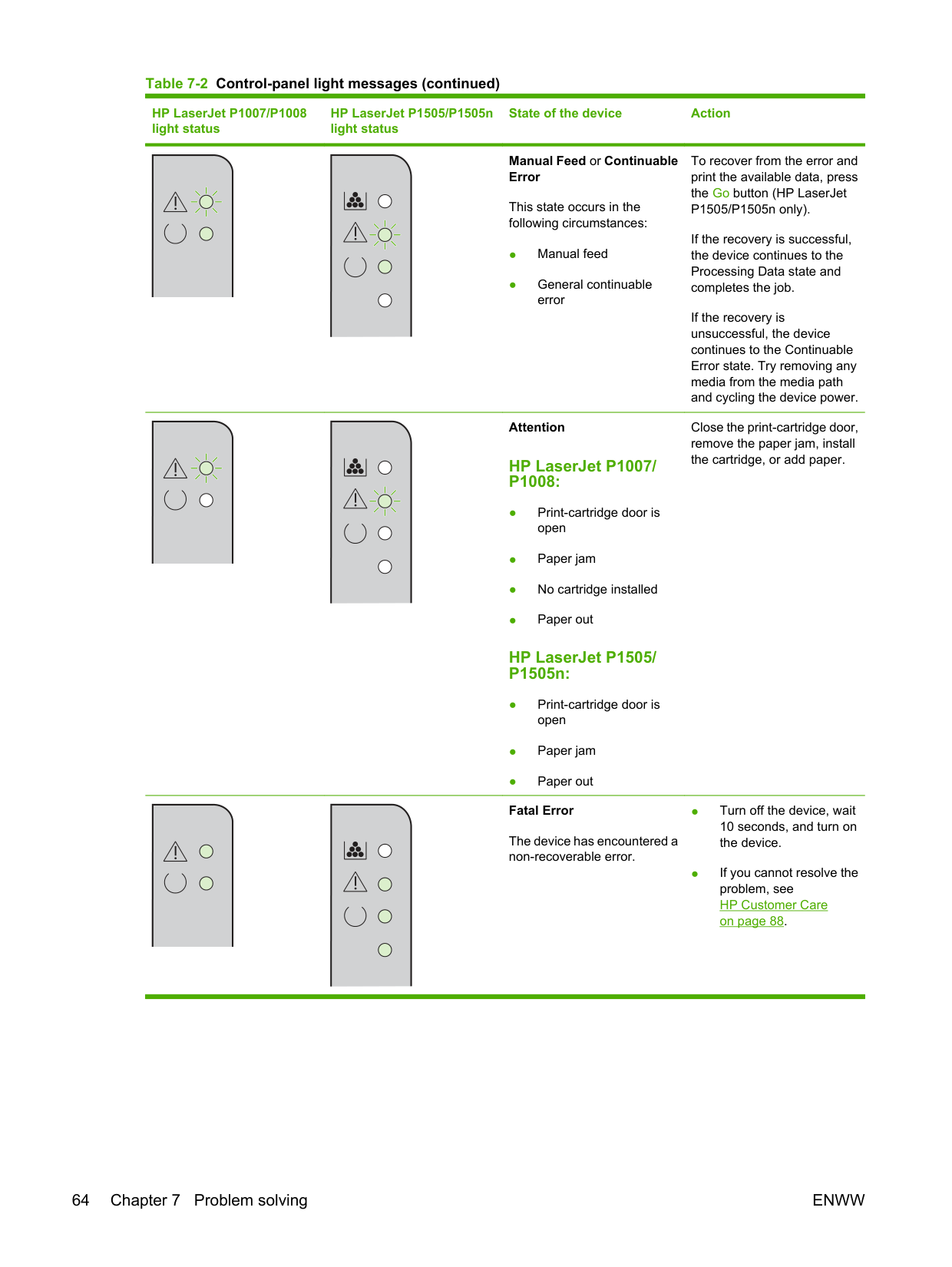
######### Table 7-2 Control-panel light messages
HP LaserJet P1007/P1008 light status
HP LaserJet P1505/P1505n light status
State of the device Action
Ready
To print a Configuration page, press and release the Go button (HP LaserJet P1500 Series network models only).
The device is ready with no job activity.
########## Processing Data
To cancel the current job, press the Cancel button (HP LaserJet P1008/P1500 Series only).
The device is processing or receiving data.
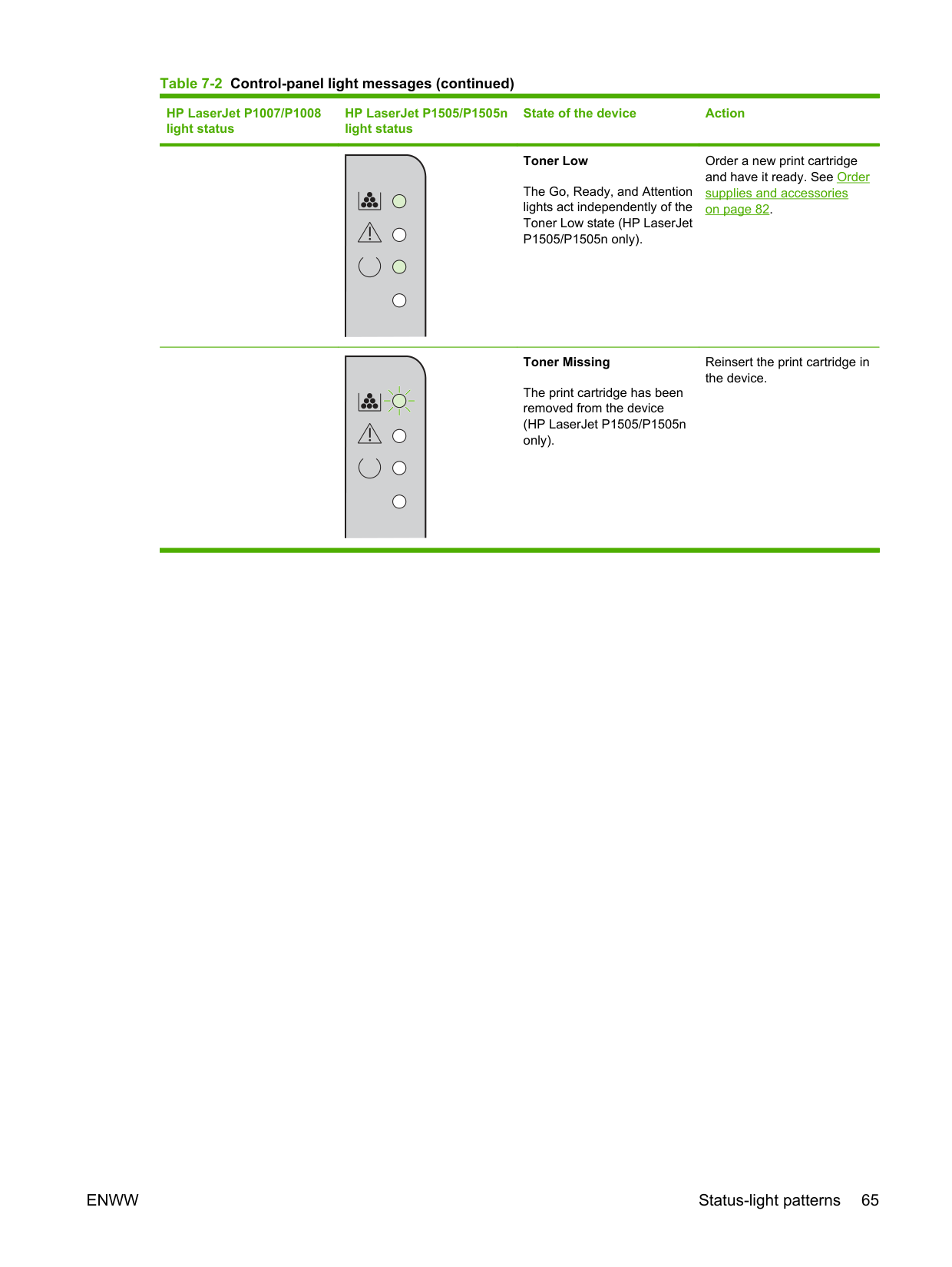
########## Manual Feed or Continuable Error
To recover from the error and print the available data, press the Go button (HP LaserJet P1505/P1505n only).
This state occurs in the following circumstances:
If the recovery is successful, the device continues to the Processing Data state and completes the job.
If the recovery is unsuccessful, the device continues to the Continuable Error state. Try removing any media from the media path and cycling the device power.
Attention
Close the print-cartridge door, remove the paper jam, install the cartridge, or add paper.
####### HP LaserJet P1007/ P1008:
HP LaserJet P1505/ P1505n:
########## Fatal Error
The device has encountered a non-recoverable error.
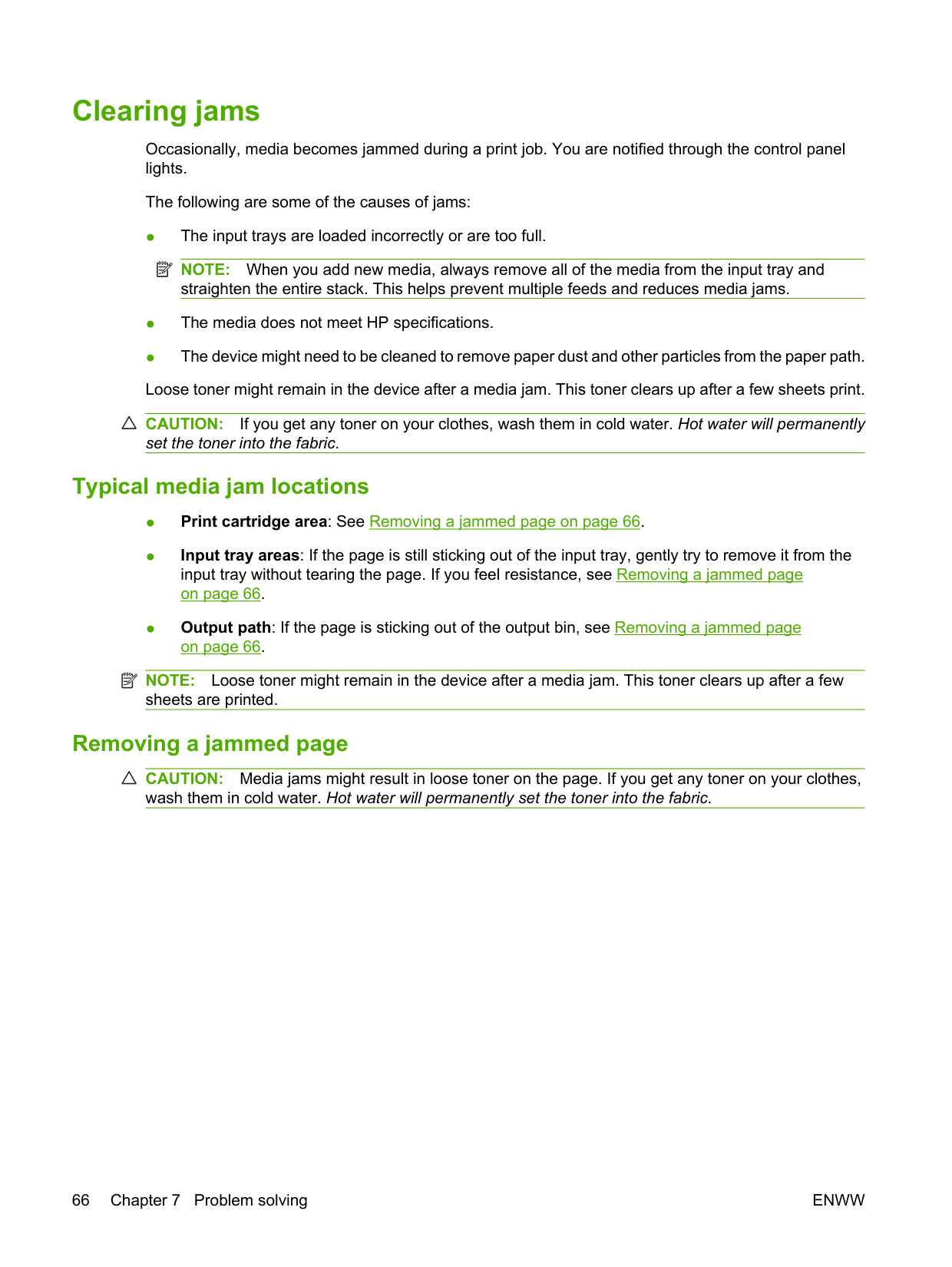
########## Toner Low
Order a new print cartridge and have it ready. See Order supplies and accessories on page 82.
The Go, Ready, and Attention lights act independently of the Toner Low state (HP LaserJet P1505/P1505n only).
########## Toner Missing
Reinsert the print cartridge in the device.
The print cartridge has been removed from the device (HP LaserJet P1505/P1505n only).
#### Clearing jams

Occasionally, media becomes jammed during a print job. You are notified through the control panel lights.
The following are some of the causes of jams:
| | |---|
NOTE: When you add new media, always remove all of the media from the input tray and straighten the entire stack. This helps prevent multiple feeds and reduces media jams.
CAUTION: If you get any toner on your clothes, wash them in cold water. Hot water will permanently set the toner into the fabric.
##### Typical media jam locations
| | |---|
NOTE: Loose toner might remain in the device after a media jam. This toner clears up after a few sheets are printed.
##### Removing a jammed page
CAUTION: Media jams might result in loose toner on the page. If you get any toner on your clothes, wash them in cold water. Hot water will permanently set the toner into the fabric.
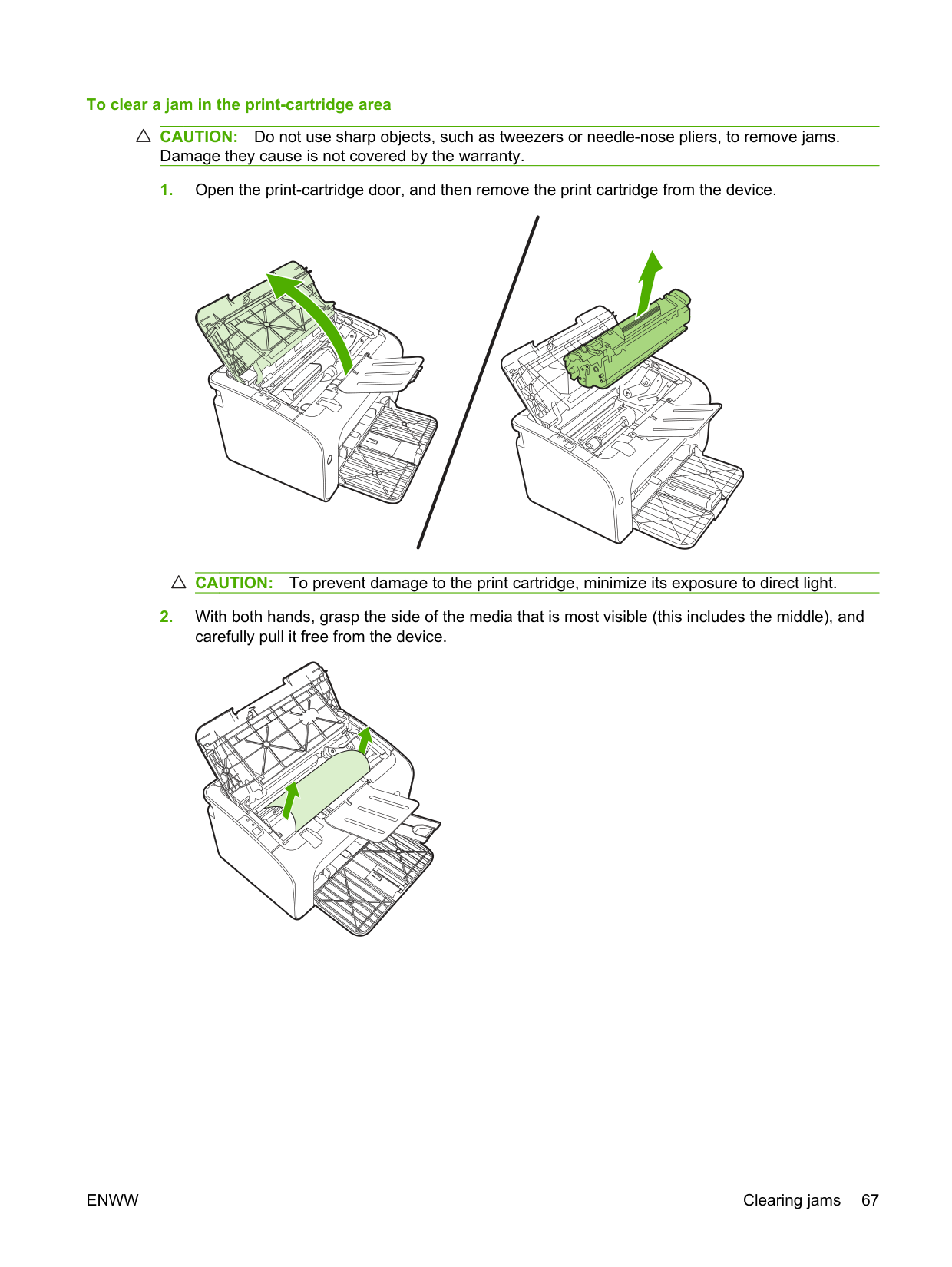
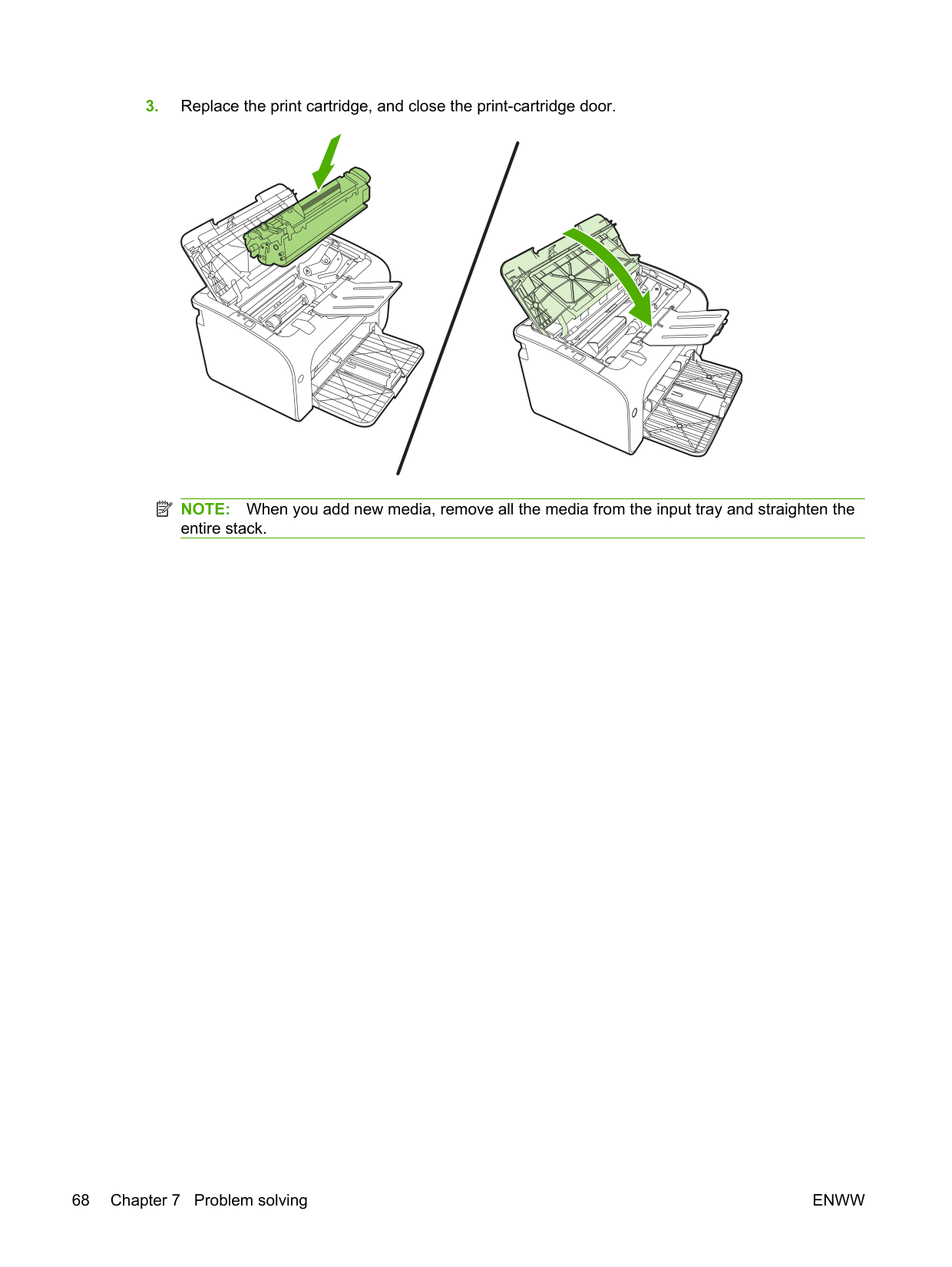
####### To clear a jam in the print-cartridge area
CAUTION: Do not use sharp objects, such as tweezers or needle-nose pliers, to remove jams. Damage they cause is not covered by the warranty.
CAUTION: To prevent damage to the print cartridge, minimize its exposure to direct light.
ENWW Clearing jams 67
| | |---|
NOTE: When you add new media, remove all the media from the input tray and straighten the entire stack.
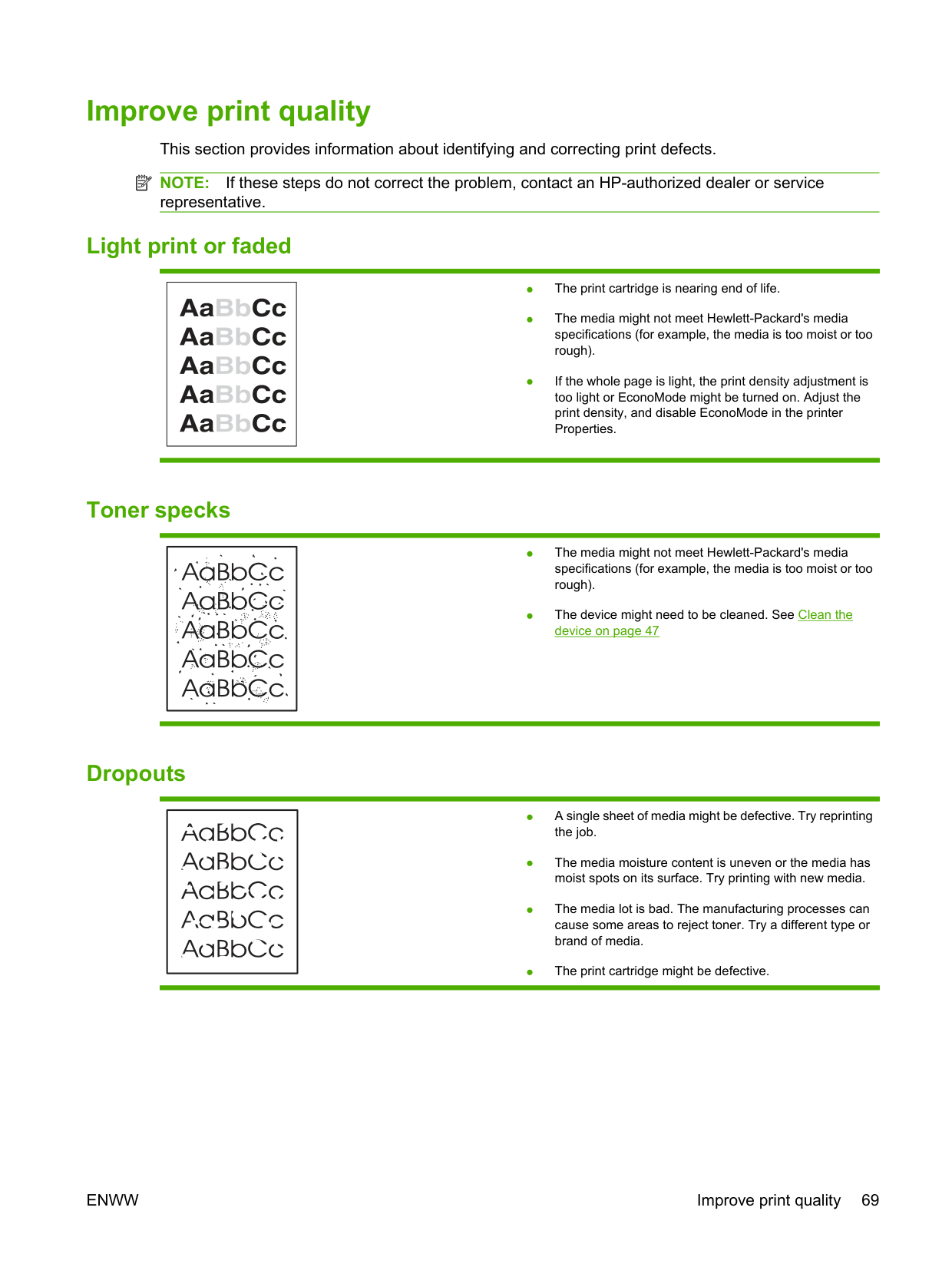
Improve print quality This section provides information about identifying and correcting print defects. NOTE: If these steps do not correct the problem, contact an HP-authorized dealer or service representative.
| | |---|
##### Light print or faded
| | |---|
##### Toner specks
| | |---|
##### Dropouts
| | |---|

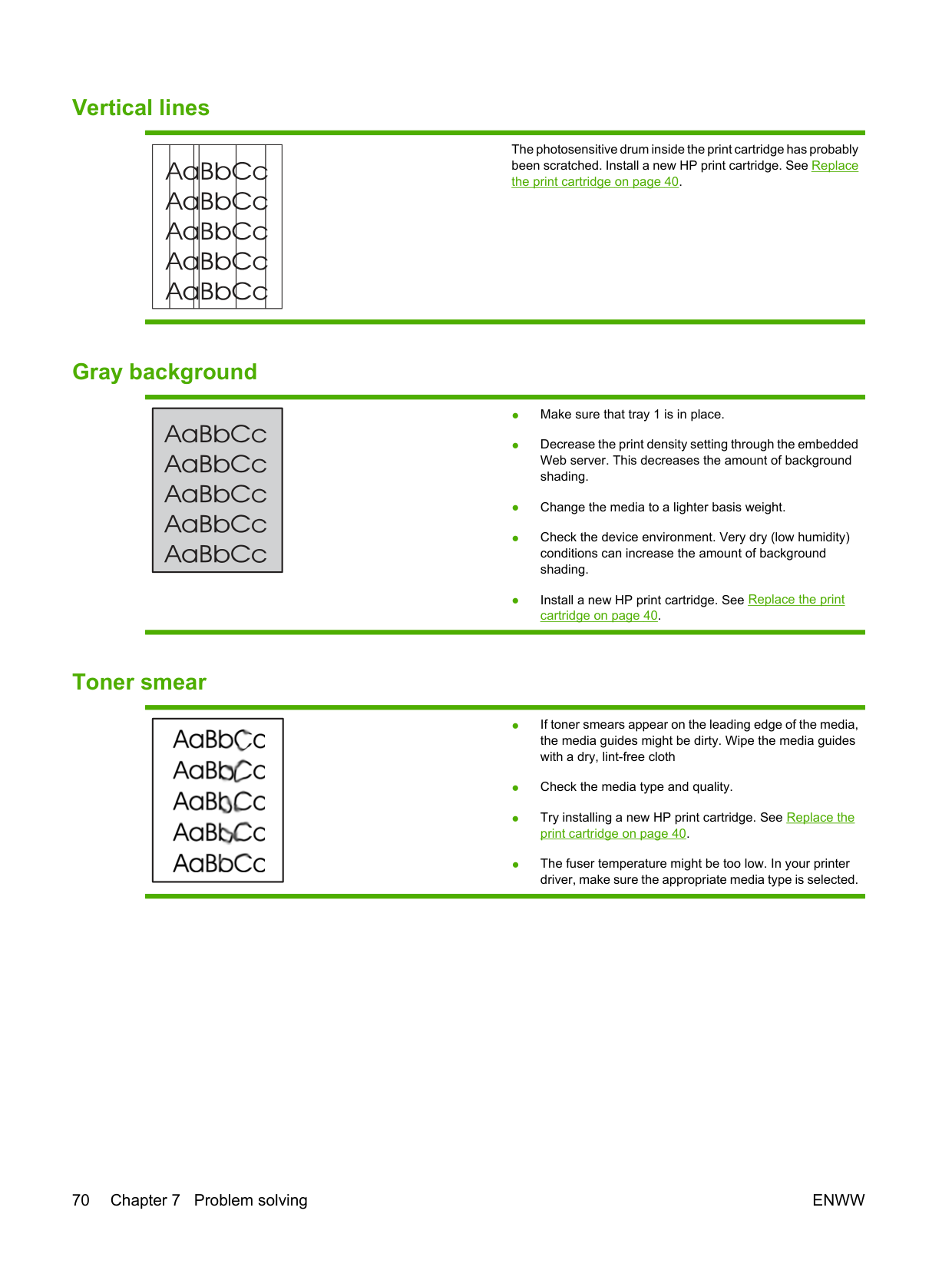
##### Vertical lines
| | | | | | | |---|---|---|---|---|---|
##### Gray background
| | |---|
##### Toner smear
|| |---|
The photosensitive drum inside the print cartridge has probably been scratched. Install a new HP print cartridge. See Replace the print cartridge on page 40.
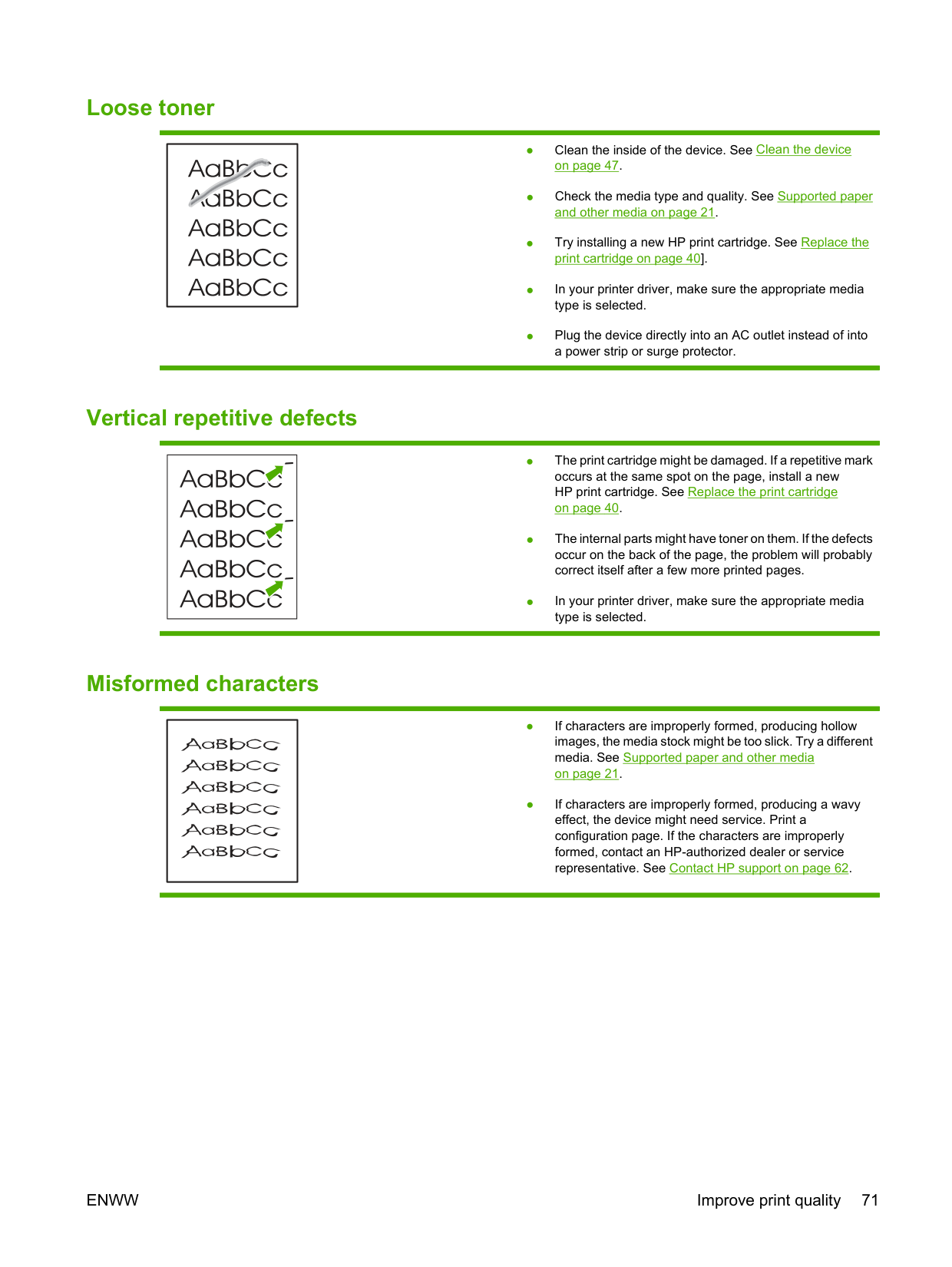
##### Loose toner
| | |---|
##### Vertical repetitive defects
| | |---|
##### Misformed characters
| | |---|
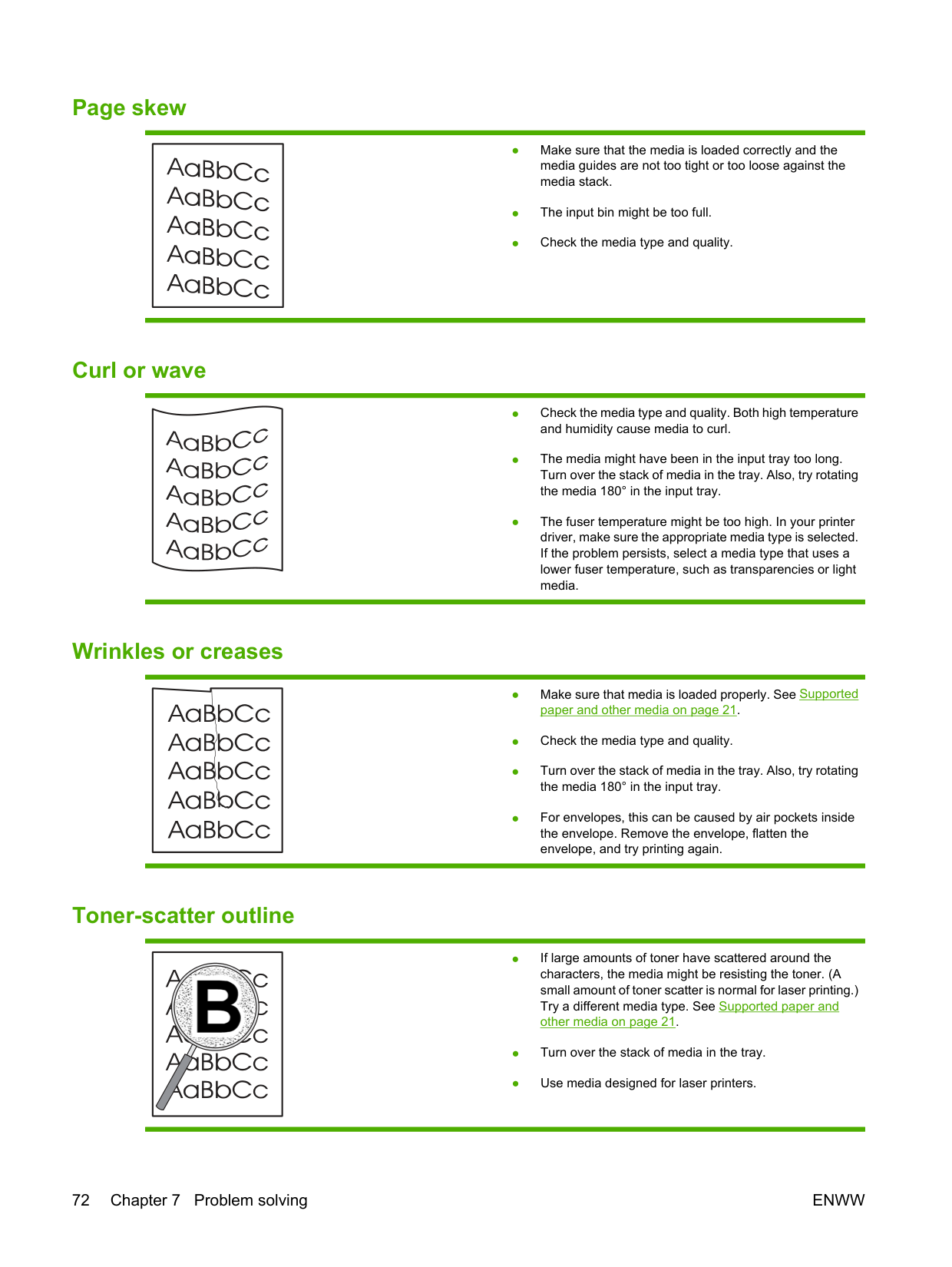
##### Page skew
| | |---|
##### Curl or wave
##### Wrinkles or creases
##### Toner-scatter outline
|
| |---|
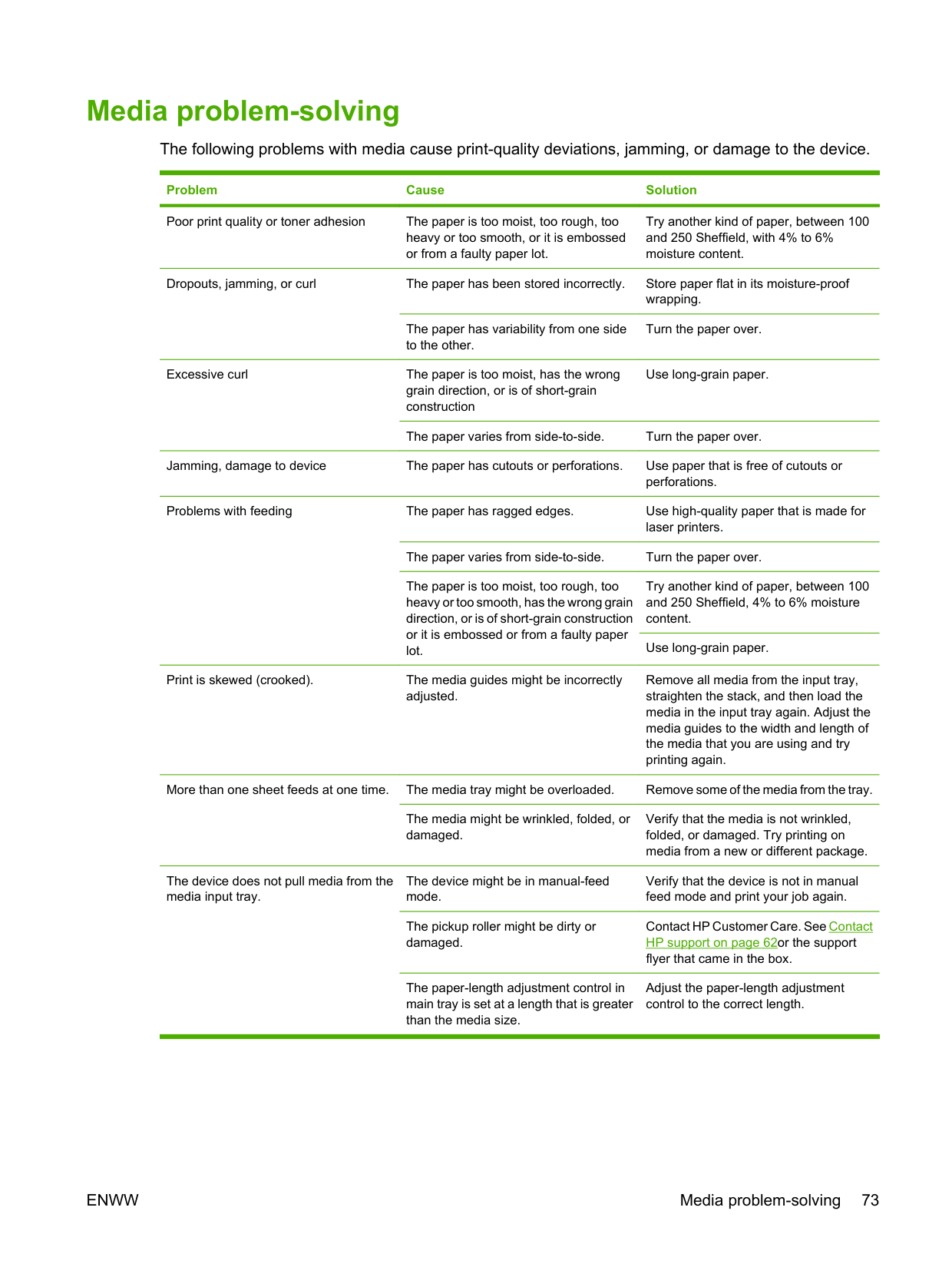
#### Media problem-solving
The following problems with media cause print-quality deviations, jamming, or damage to the device.
########## Problem Cause Solution
Poor print quality or toner adhesion The paper is too moist, too rough, too
Try another kind of paper, between 100 and 250 Sheffield, with 4% to 6% moisture content.
heavy or too smooth, or it is embossed or from a faulty paper lot.
Dropouts, jamming, or curl The paper has been stored incorrectly. Store paper flat in its moisture-proof
wrapping.
The paper has variability from one side to the other.
Turn the paper over.
Excessive curl The paper is too moist, has the wrong
Use long-grain paper.
grain direction, or is of short-grain construction
The paper varies from side-to-side. Turn the paper over. Jamming, damage to device The paper has cutouts or perforations. Use paper that is free of cutouts or
perforations. Problems with feeding The paper has ragged edges. Use high-quality paper that is made for
laser printers. The paper varies from side-to-side. Turn the paper over. The paper is too moist, too rough, too heavy or too smooth, has the wrong grain direction, or is of short-grain construction or it is embossed or from a faulty paper lot.
Try another kind of paper, between 100 and 250 Sheffield, 4% to 6% moisture content.
Use long-grain paper.
Print is skewed (crooked). The media guides might be incorrectly
Remove all media from the input tray, straighten the stack, and then load the media in the input tray again. Adjust the media guides to the width and length of the media that you are using and try printing again.
adjusted.
More than one sheet feeds at one time. The media tray might be overloaded. Remove some of the media from the tray.
The media might be wrinkled, folded, or damaged.
Verify that the media is not wrinkled, folded, or damaged. Try printing on media from a new or different package.
The device does not pull media from the media input tray.
The device might be in manual-feed mode.
Verify that the device is not in manual feed mode and print your job again.
The pickup roller might be dirty or damaged.
Contact HP Customer Care. See Contact HP support on page 62or the support flyer that came in the box.
The paper-length adjustment control in main tray is set at a length that is greater than the media size.
Adjust the paper-length adjustment control to the correct length.
ENWW Media problem-solving 73
#### Printed page is different from what appeared on screen
##### Garbled, incorrect, or incomplete text
##### Missing graphics or text, or blank pages
##### Page format is different than on another HP LaserJet printer
If you used an older or different HP LaserJet printer driver (printer software) to create the document, or if the printer Properties settings in the software are different, the page format might change when you try to print using your new printer driver or settings. To help eliminate this problem, try the following:
##### Graphics quality
The graphics settings might be unsuitable for your print job. Check the graphic settings, such as resolution, in the printer Properties and adjust them as necessary
| | |---|
NOTE: You might lose some resolution when converting from one graphics format to another.
ENWW Printed page is different from what appeared on screen 75
#### Printer software problems
######### Table 7-3 Printer software problems
########## Problem Solution
The printer icon is not visible in the Printer folder ● Reinstall the printer software. In the Windows task bar, click Start, click Programs, click HP, click your printer, and click Uninstall. Install the printer software from the CD-ROM.
NOTE: Close any applications that are running. To close an application that has an icon in the system tray, right-click the icon, and select Close or Disable.
● Try plugging the USB cable into a different USB port on the PC.
NOTE: Close any applications that are running. To close an application that has an icon in the task bar, rightclick the icon, and select Close or Disable.
An error message was displayed during the software installation
The printer is in Ready mode, but nothing prints ● Print a Configuration page from the control panel of the printer, and verify the printer functionality.
● Verify that all of the cables are properly seated and within specifications. This includes the USB, network, and power cables. Try a new cable.
#### Common Macintosh problems
######### Table 7-4 Problems with Mac OS X
The printer driver is not listed in the Print Center or Printer Setup Utility.
Cause Solution
The software might not have been installed or was installed incorrectly.
Make sure that the PM and PE plug-ins are in the following hard-drive folder: Library/Printers/hp/laserjet/
The device name, IP address, or Rendezvous or Bonjour host name does not appear in the printer list in the Print Center or Printer Setup Utility.
Cause Solution
The device might not be ready. Make sure that the cables are connected correctly, the device is on,
and the ready light is on. If you are connecting through a USB or Ethernet hub, try connecting directly to the computer or use a different port.
The wrong connection type might be selected. Make sure that USB, IP Printing, or Rendezvous or Bonjour is
selected, depending on the type of connection that exists between the device and the computer.
The wrong device name, IP address, or Rendezvous or Bonjour host name is being used.
Print a configuration page to check the device name, IP address, or Rendezvous or Bonjour host name. Verify that the name, IP address, or Rendezvous or Bonjour host name on the configuration page matches the device name, IP address, or Rendezvous or Bonjour host name in the Print Center or Printer Setup Utility.
The interface cable might be defective or of poor quality. Replace the interface cable. Make sure to use a high-quality cable.
The printer driver does not automatically set up your selected device in the Print Center or Printer Setup Utility.
Cause Solution
The device might not be ready. Make sure that the cables are connected correctly, the device is on,
and the ready light is on. If you are connecting through a USB or Ethernet hub, try connecting directly to the computer or use a different port.
The software might not have been installed or was installed incorrectly.
Make sure that the printer PPD is in the following hard-drive folder: Library/Printers/PPDs/Contents/Resources/
the language that you are using. If necessary, reinstall the software. See the Getting Started Guide.
The PostScript Printer Description (PPD) file is corrupt. Delete the PPD file from the following hard-drive folder: Library/
Printers/PPDs/Contents/Resources/
The device might not be ready. Make sure that the cables are connected correctly, the device is on,
and the ready light is on. If you are connecting through a USB or Ethernet hub, try connecting directly to the computer or use a different port.
The interface cable might be defective or of poor quality. Replace the interface cable. Make sure to use a high-quality cable.
ENWW Common Macintosh problems 77
######### Table 7-4 Problems with Mac OS X (continued)
A print job was not sent to the device that you wanted.
Cause Solution

The print queue might be stopped. Restart the print queue. Open print monitor and select Start Jobs.
Print a configuration page to check the device name, IP address, or Rendezvous or Bonjour host name. Verify that the name, IP address, or Rendezvous or Bonjour host name on the configuration page matches the device name, IP address, or Rendezvous or Bonjour host name in the Print Center or Printer Setup Utility.
The wrong device name or IP address is being used. Another device with the same or similar name, IP address, or Rendezvous or Bonjour host name might have received your print job.
You are unable to print from a third-party USB card.
Cause Solution
This error occurs when the software for USB printers is not installed.
When adding a third-party USB card, you might need the Apple USB Adapter Card Support software. The most current version of this software is available from the Apple Web site.
When connected with a USB cable, the device does not appear in the Print Center or Printer Setup Utility after the driver is selected.
Cause Solution
This problem is caused by either a software or a hardware component.
########## Software troubleshooting
########## Hardware troubleshooting
#### Network-setup problem-solving
If the computer cannot discover the networked device, perform the following steps:
After the Attention, Ready, and Go lights finish cycling, the device returns to a Ready state and the reset is complete.
ENWW Network-setup problem-solving 79
A Accessories and consumables
● Order supplies and accessories
#### Order supplies and accessories
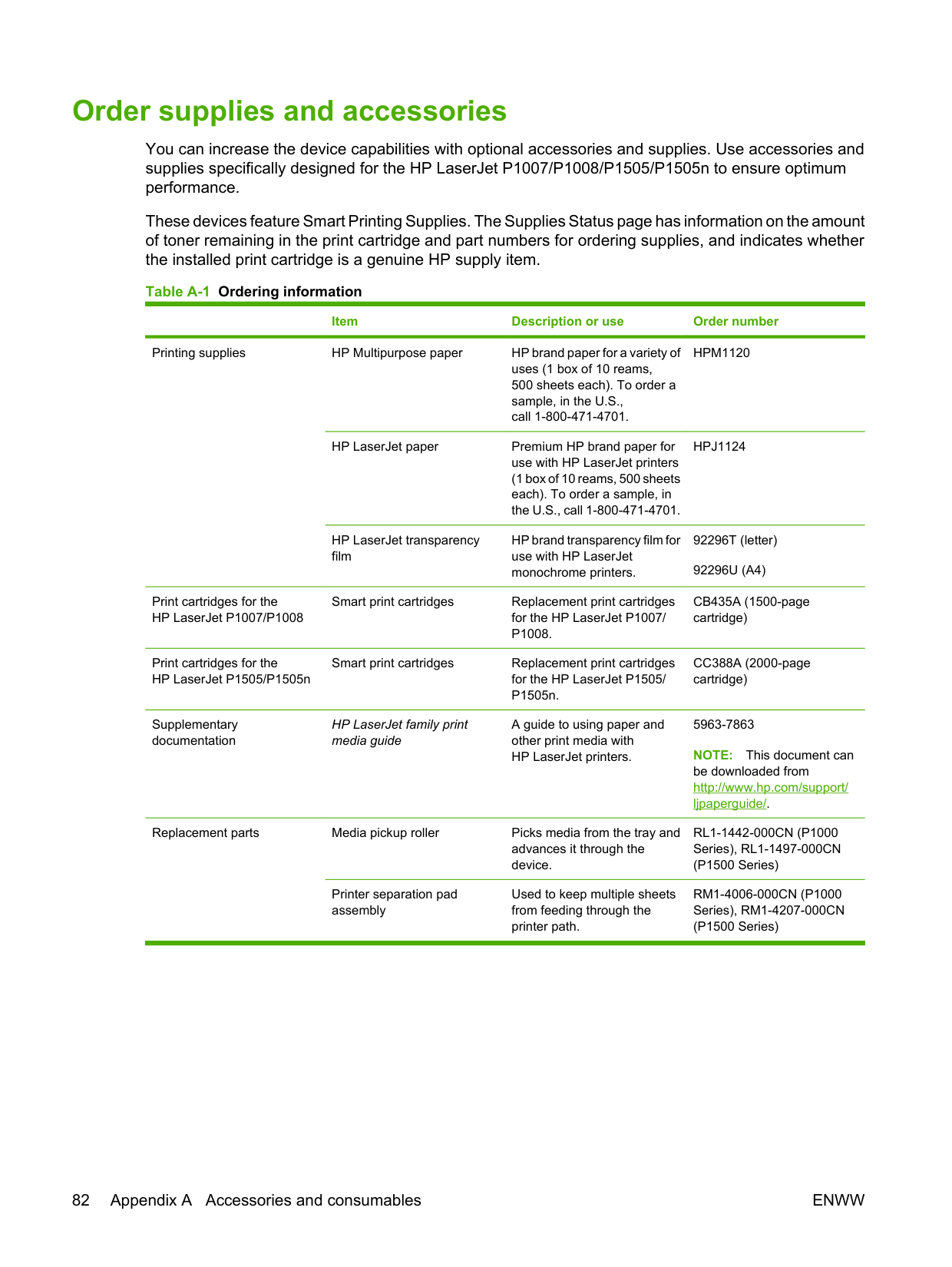
You can increase the device capabilities with optional accessories and supplies. Use accessories and supplies specifically designed for the HP LaserJet P1007/P1008/P1505/P1505n to ensure optimum performance.
These devices feature Smart Printing Supplies. The Supplies Status page has information on the amount of toner remaining in the print cartridge and part numbers for ordering supplies, and indicates whether the installed print cartridge is a genuine HP supply item.
Table A-1 Ordering information
Item Description or use Order number
Printing supplies HP Multipurpose paper HP brand paper for a variety of
HPM1120
uses (1 box of 10 reams, 500 sheets each). To order a sample, in the U.S., call 1-800-471-4701.
HP LaserJet paper Premium HP brand paper for
HPJ1124
use with HP LaserJet printers (1 box of 10 reams, 500 sheets each). To order a sample, in the U.S., call 1-800-471-4701.
HP LaserJet transparency film
HP brand transparency film for use with HP LaserJet monochrome printers.
Print cartridges for the HP LaserJet P1007/P1008
Smart print cartridges Replacement print cartridges
CB435A (1500-page cartridge)
for the HP LaserJet P1007/ P1008.

Print cartridges for the HP LaserJet P1505/P1505n
Smart print cartridges Replacement print cartridges
CC388A (2000-page cartridge)
for the HP LaserJet P1505/ P1505n.
Supplementary documentation
HP LaserJet family print media guide
A guide to using paper and other print media with HP LaserJet printers.
Replacement parts Media pickup roller Picks media from the tray and
RL1-1442-000CN (P1000 Series), RL1-1497-000CN (P1500 Series)
advances it through the device.
Printer separation pad assembly

Used to keep multiple sheets from feeding through the printer path.
RM1-4006-000CN (P1000 Series), RM1-4207-000CN (P1500 Series)
82 Appendix A Accessories and consumables ENWW
B Service and support
#### Hewlett-Packard limited warranty statement
HP PRODUCT DURATION OF LIMITED WARRANTY HP LaserJet P1007/P1008/P1505/P1505n printers One year from date of purchase
HP warrants to you, the end-user customer, that HP hardware and accessories will be free from defects in materials and workmanship after the date of purchase, for the period specified above. If HP receives notice of such defects during the warranty period, HP will, at its option, either repair or replace products which prove to be defective. Replacement products may be either new or equivalent in performance to new.
HP warrants to you that HP software will not fail to execute its programming instructions after the date of purchase, for the period specified above, due to defects in material and workmanship when properly installed and used. If HP receives notice of such defects during the warranty period, HP will replace software which does not execute its programming instructions due to such defects.
HP does not warrant that the operation of HP products will be uninterrupted or error free. If HP is unable, within a reasonable time, to repair or replace any product to a condition as warranted, you will be entitled to a refund of the purchase price upon prompt return of the product.
HP products may contain remanufactured parts equivalent to new in performance or may have been subject to incidental use.
Warranty does not apply to defects resulting from (a) improper or inadequate maintenance or calibration, (b) software, interfacing, parts or supplies not supplied by HP, (c) unauthorized modification or misuse, (d) operation outside of the published environmental specifications for the product, or (e) improper site preparation or maintenance.
HP's limited warranty is valid in any country/region or locality where HP has a support presence for this product and where HP has marketed this product. The level of warranty service you receive may vary according to local standards. HP will not alter form, fit or function of the product to make it operate in a country/region for which it was never intended to function for legal or regulatory reasons. TO THE EXTENT ALLOWED BY LOCAL LAW, THE ABOVE WARRANTIES ARE EXCLUSIVE AND NO OTHER WARRANTY OR CONDITION, WHETHER WRITTEN OR ORAL, IS EXPRESSED OR IMPLIED AND HP SPECIFICALLY DISCLAIMS ANY IMPLIED WARRANTIES OR CONDITIONS OF MERCHANTABILITY, SATISFACTORY QUALITY, AND FITNESS FOR A PARTICULAR PURPOSE. Some countries/regions, states or provinces do not allow limitations on the duration of an implied warranty, so the above limitation or exclusion might not apply to you. This warranty gives you specific legal rights and you might also have other rights that vary from country/region to country/region, state to state, or province to province.
TO THE EXTENT ALLOWED BY LOCAL LAW, THE REMEDIES IN THIS WARRANTY STATEMENT ARE YOUR SOLE AND EXCLUSIVE REMEDIES. EXCEPT AS INDICATED ABOVE, IN NO EVENT WILL HP OR ITS SUPPLIERS BE LIABLE FOR LOSS OF DATA OR FOR DIRECT, SPECIAL, INCIDENTAL, CONSEQUENTIAL (INCLUDING LOST PROFIT OR DATA), OR OTHER DAMAGE, WHETHER BASED IN CONTRACT, TORT, OR OTHERWISE. Some countries/regions, states or provinces do not allow the exclusion or limitation of incidental or consequential damages, so the above limitation or exclusion may not apply to you.
THE WARRANTY TERMS CONTAINED IN THIS STATEMENT, EXCEPT TO THE EXTENT LAWFULLY PERMITTED, DO NOT EXCLUDE, RESTRICT OR MODIFY AND ARE IN ADDITION TO THE MANDATORY STATUTORY RIGHTS APPLICABLE TO THE SALE OF THIS PRODUCT TO YOU.
#### Customer self repair warranty service
HP products are designed with many Customer Self Repair (CSR) parts to minimize repair time and allow for greater flexibility in performing defective parts replacement. If during the diagnosis period, HP identifies that the repair can be accomplished by the use of a CSR part, HP will ship that part directly to you for replacement. There are two categories of CSR parts: 1) Parts for which customer self repair is mandatory. If you request HP to replace these parts, you will be charged for the travel and labor costs of this service. 2) Parts for which customer self repair is optional. These parts are also designed for Customer Self Repair. If, however, you require that HP replace them for you, this may be done at no additional charge under the type of warranty service designated for your product.
Based on availability and where geography permits, CSR parts will be shipped for next business day delivery. Same-day or four-hour delivery may be offered at an additional charge where geography permits. If assistance is required, you can call the HP Technical Support Center and a technician will help you over the phone. HP specifies in the materials shipped with a replacement CSR part whether a defective part must be returned to HP. In cases where it is required to return the defective part to HP, you must ship the defective part back to HP within a defined period of time, normally five (5) business days. The defective part must be returned with the associated documentation in the provided shipping material. Failure to return the defective part may result in HP billing you for the replacement. With a customer self repair, HP will pay all shipping and part return costs and determine the courier/carrier to be used.
ENWW Customer self repair warranty service 85
#### Hewlett-Packard software license agreement
ATTENTION: USE OF THE SOFTWARE IS SUBJECT TO THE HP SOFTWARE LICENSE TERMS SET FORTH BELOW. USING THE SOFTWARE INDICATES YOUR ACCEPTANCE OF THESE LICENSE TERMS.
HP SOFTWARE LICENSE TERMS The following License Terms govern your use of the accompanying Software unless you have a separate signed agreement with Hewlett-Packard.
License Grant. Hewlett-Packard grants you a license to use one copy of the Software. "Use" means storing, loading, installing, executing, or displaying the Software. You may not modify the Software or disable any licensing or control features of the Software. If the Software is licensed for "concurrent use," you may not allow more than the maximum number of authorized users to Use the Software concurrently.
Ownership. The Software is owned and copyrighted by Hewlett-Packard or its third-party suppliers. Your license confers no title to, or ownership in, the Software and is not a sale of any rights in the Software. Hewlett-Packard's third-party suppliers may protect their rights in the event of any violation of these License Terms.
Copies and Adaptations. You may only make copies or adaptations of the Software for archival

purposes or when copying or adaptation is an essential step in the authorized Use of the Software. You must reproduce all copyright notices in the original Software on all copies or adaptations. You may not copy the Software onto any public network.
No Disassembly or Decryption. You may not disassemble or decompile the Software unless HP's prior written consent is obtained. In some jurisdictions, HP's consent may not be required for limited disassembly or decompilation. Upon request, you will provide HP with reasonably detailed information regarding any disassembly or decompilation. You may not decrypt the Software unless decryption is a necessary part of the operation of the Software.
Transfer. Your license will automatically terminate upon any transfer of the Software. Upon transfer, you must deliver the Software, including any copies and related documentation, to the transferee. The transferee must accept these License Terms as a condition to the transfer.
Termination. HP may terminate your license upon notice for failure to comply with any of these License Terms. Upon termination, you must immediately destroy the Software, together with all copies, adaptations, and merged portions in any form.
Export Requirements. You may not export or re-export the Software or any copy or adaptation in violation of any applicable laws or regulations.
U.S. Government Restricted Rights. The Software and any accompanying documentation have been developed entirely at private expense. They are delivered and licensed as "commercial computer software" as defined in DFARS 252.227-7013 (Oct 1988), DFARS 252.211-7015 (May 1991), or DFARS 252.227-7014 (Jun 1995), as a "commercial item" as defined in FAR 2.101(a) (Jun 1987), or as "Restricted computer software" as defined in FAR 52.227-19 (Jun 1987) (or any equivalent agency regulation or contract clause), whichever is applicable. You have only those rights provided for such Software and any accompanying documentation by the applicable DFARs or FAR clause or the HP standard software agreement for the product involved.
Limited warranty for print cartridges and image drums This HP Print Cartridge is warranted to be free from defects in materials and workmanship. This warranty does not apply to print cartridges that (a) have been refilled, refurbished, remanufactured or tampered with in any way, (b) experience problems resulting from misuse, improper storage, or operation outside of the published environmental specifications for the printer product or (c) exhibit wear from ordinary use.
To obtain warranty service, please return the product to place of purchase (with a written description of the problem and print samples) or contact HP customer support. At HP’s option, HP will either replace products that prove to be defective or refund your purchase price.
TO THE EXTENT ALLOWED BY LOCAL LAW, THE ABOVE WARRANTY IS EXCLUSIVE AND NO OTHER WARRANTY OR CONDITION, WHETHER WRITTEN OR ORAL, IS EXPRESSED OR IMPLIED AND HP SPECIFICALLY DISCLAIMS ANY IMPLIED WARRANTIES OR CONDITIONS OF MERCHANTABILITY, SATISFACTORY QUALITY, AND FITNESS FOR A PARTICULAR PURPOSE.
TO THE EXTENT ALLOWED BY LOCAL LAW, IN NO EVENT WILL HP OR ITS SUPPLIERS BE LIABLE FOR DIRECT, SPECIAL, INCIDENTAL, CONSEQUENTIAL (INCLUDING LOST PROFIT OR DATA), OR OTHER DAMAGE, WHETHER BASED IN CONTRACT, TORT, OR OTHERWISE.
THE WARRANTY TERMS CONTAINED IN THIS STATEMENT, EXCEPT TO THE EXTENT LAWFULLY PERMITTED, DO NOT EXCLUDE, RESTRICT OR MODIFY AND ARE IN ADDITION TO THE MANDATORY STATUTORY RIGHTS APPLICABLE TO THE SALE OF THIS PRODUCT TO YOU.
ENWW Limited warranty for print cartridges and image drums 87
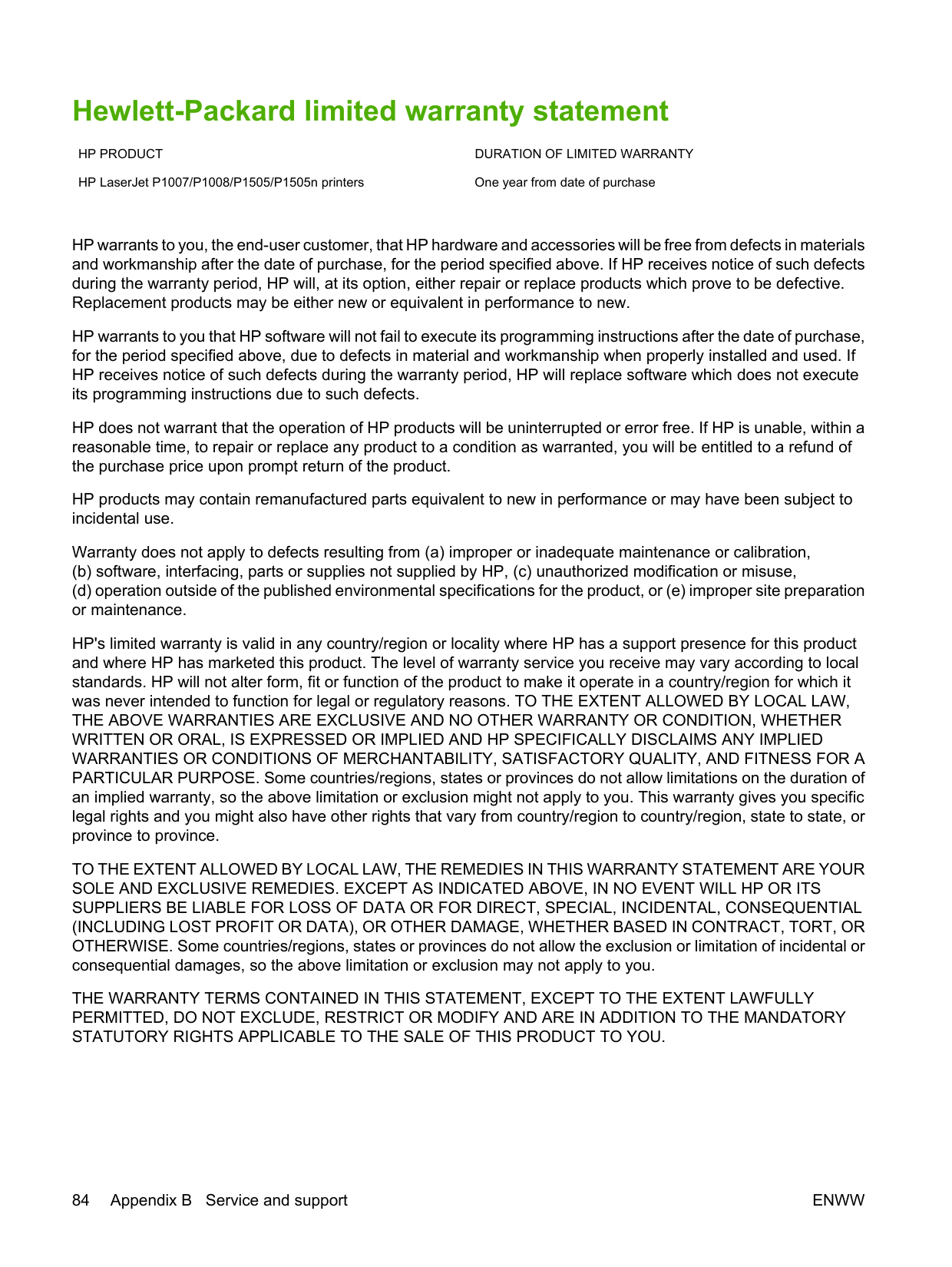
HP Customer Care Online services For 24-hour access to information by using a modem or Internet connection
World Wide Web: Updated HP product software, product and support information, and printer drivers in several languages can be obtained from http://www.hp.com/support/ljp1000 or http://www.hp.com/ support/ljp1500 (The site is in English.)
####### Online troubleshooting tools
HP Instant Support Professional Edition (ISPE) is a suite of Web-based problem solving tools for desktop computing and printing products. ISPE helps you quickly identify, diagnose, and resolve computing and printing problems. The ISPE tools can be accessed from http://instantsupport.hp.com.
####### Telephone support
Hewlett-Packard provides free telephone support during the warranty period. When you call, you will be connected to a responsive team that is waiting to help you. For the telephone number for your country/ region, see the flyer that came in the box with the product, or visit http://www.hp.com then click Contact HP. Before calling HP, have the following information ready: product name and serial number, date of purchase, and description of the problem.
You can also find support on the Internet at http://www.hp.com/support/ljp1000 or http://www.hp.com/ support/ljp1500. Click the support & drivers block.
####### Software utilities, drivers, and electronic information
Go to http://www.hp.com/support/ljp1000 or http://www.hp.com/support/ljp1500. (The sites are in English, but printer drivers can be downloaded in several languages.)
For information over the telephone, see the flyer that came in the box with the device. HP direct ordering for accessories or supplies Order supplies from the following Web sites: North America: https://www.hp.com/post-embed/ordersupplies-na Latin America: https://www.hp.com/post-embed/ordersupplies-la Europe and Middle East: https://www.hp.com/post-embed/ordersupplies-emea Asia Pacific countries/regions: https://www.hp.com/post-embed/ordersupplies-ap Order accessories from http://www.hp.com and click Supplies & Accessories. For more information, see Order supplies and accessories on page 82. To order supplies or accessories over the telephone, call the following numbers: United States: 1-800-538-8787 Canada: 1-800-387-3154 To find the telephone numbers for other countries/regions, see the flyer that came in the box with the device. HP service information
For service for your HP product in other countries/regions, call the HP Customer Support telephone number for your country/region. See the flyer that came in the box with the device.
HP service agreements Call: 1-800-HPINVENT [1-800-474-6836 (U.S.)] or 1-800-268-1221 (Canada). Out-of-Warranty Service: 1-800-633-3600. Extended Service: Call 1-800-HPINVENT 1-800-474-6836 (U.S.) or 1-800-268-1221 (Canada). Or, go to the HP Supportpack and Carepaq™ Services Web site at http://www.hpexpress-services.com/ 10467a.
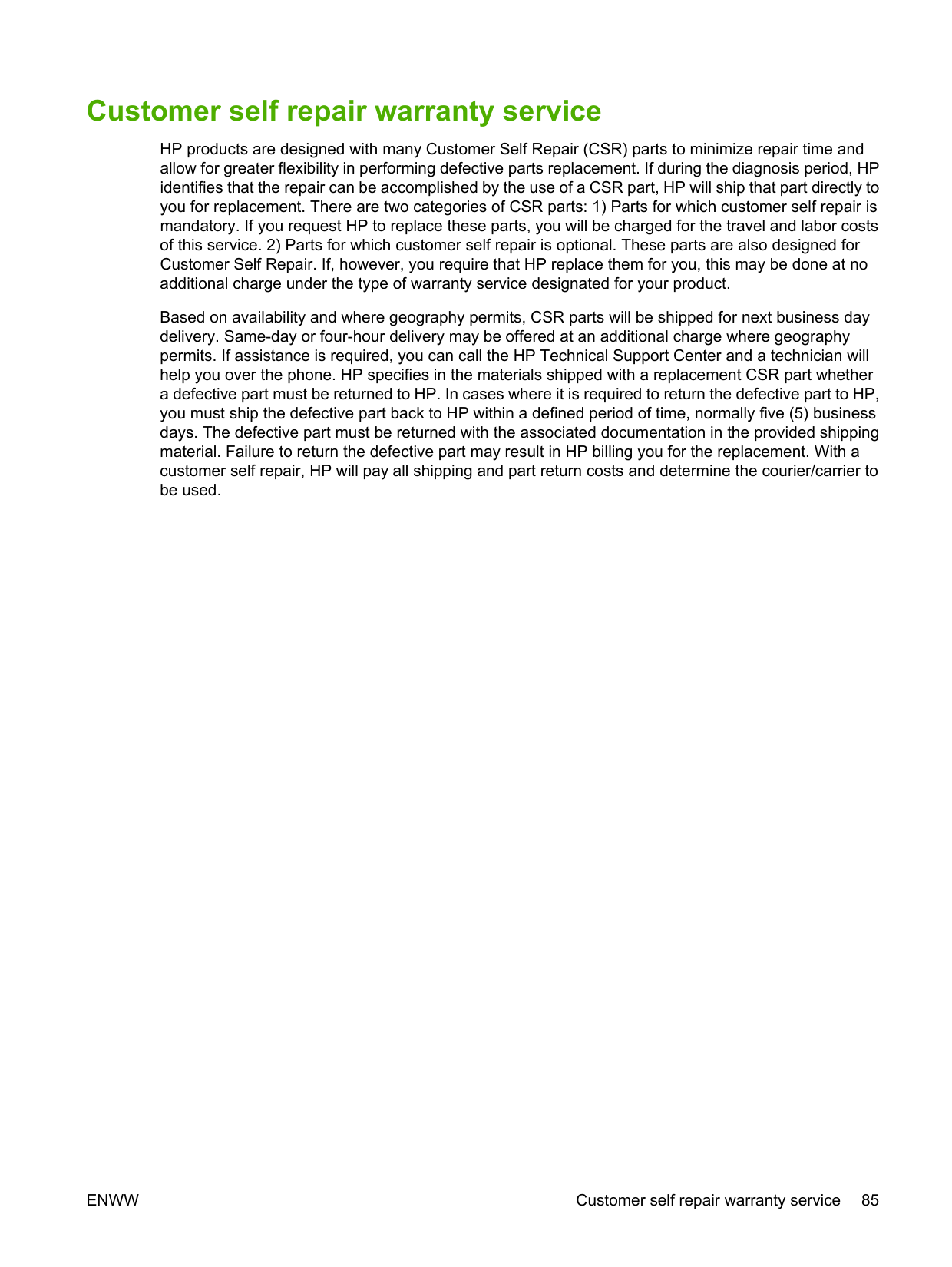
ENWW HP Customer Care 89
#### Availability of support and service
Around the world, HP provides a variety of service and support options for purchase. Availability of these programs will vary depending upon your location.
##### HP Care Pack™ Services and Service Agreements
HP has various service and support options that meet a wide range of needs. These options are not part of the standard warranty. Support services vary by location. For most products HP offers both inwarranty and post-warranty HP Care Pack Services and Service Agreements.
To identify service and support options for this device go to http://www.hpexpress-services.com/ 10467a and type the device model number. In North America, Service Agreement information can be obtained through HP Customer Care. Call 1-800-HPINVENT 1-800-474-6836 (U.S.) or 1-800-268-1221 (Canada). In other countries/regions please contact your country/region specific HP Customer Care Center. See the inbox flyer or go to http://www.hp.com for the HP Customer Care telephone number in your country/region.
#### Guidelines for repacking the device
CAUTION: To prevent damage to the print cartridge, store the print cartridge in its original packing material, or store it so that it is not exposed to light.
ENWW Guidelines for repacking the device 91
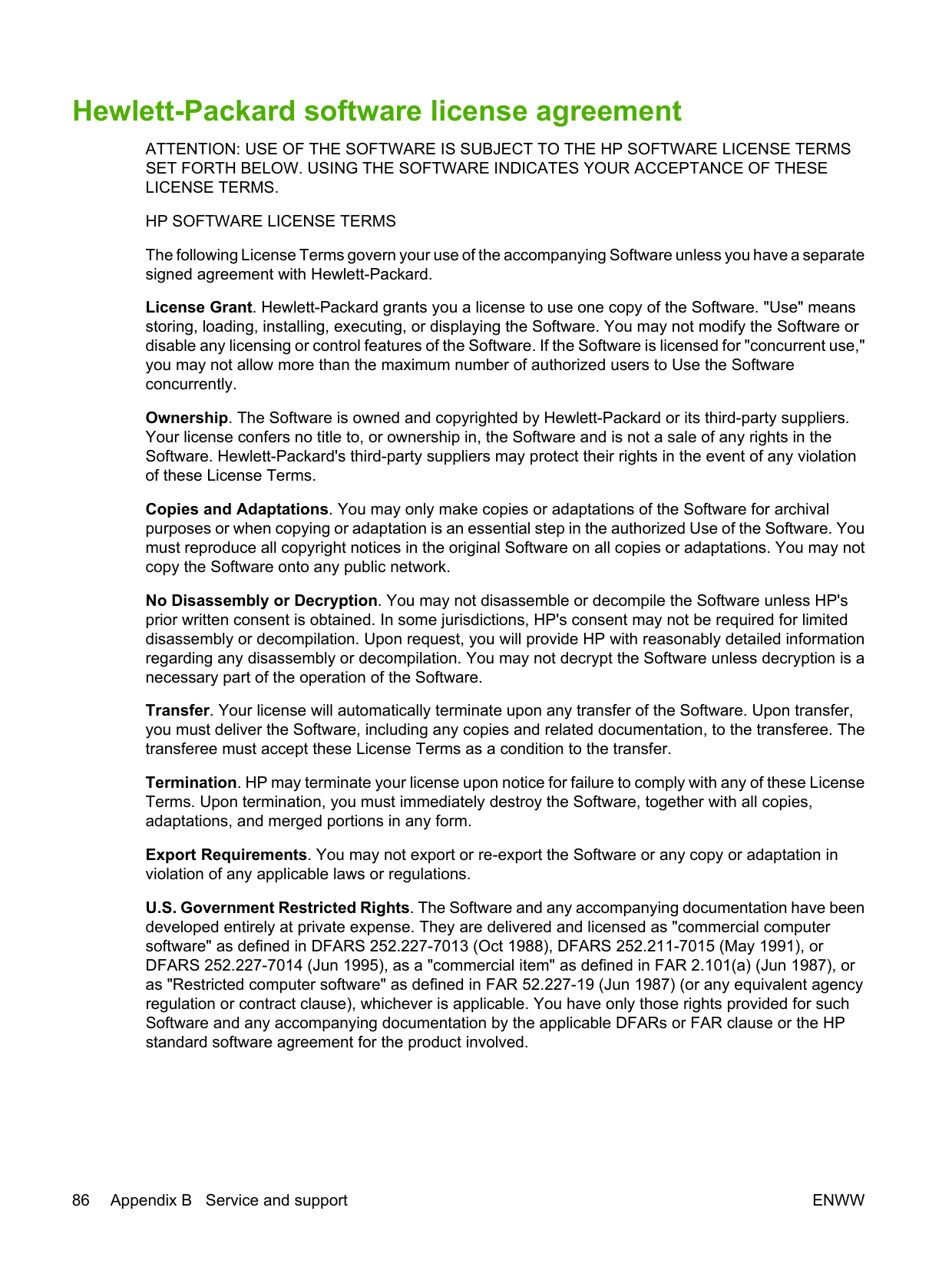
C Device specifications
Device depth, with paper tray extended for letter size paper
344 mm (13.5 inches) 355 mm (14 inches)
Device depth, with paper tray extended for A4 size paper
353 mm (13.9 inches) 355 mm (14 inches)
Device depth, with paper tray full extended for legal size paper
411 mm (16.2 inches) 413 mm (16.3 inches)
Device width 349 mm (13.7 inches) 379 mm (14.9 inches) 1 Values are based on preliminary data. See http://www.hp.com/support/ljp1000 or http://www.hp.com/support/ljp1500 for current information.
WARNING! Power requirements are based on the country/region where the device is sold. Do not convert operating voltages. Doing so might damage the device and void the product warranty.
Rated current for the HP LaserJet P1007/P1008
4.9 amps 2.9 amps
Rated current for the HP LaserJet P1505/P1505n
4.9 amps 2.9 amps
1 Values are based on preliminary data. See http://www.hp.com/support/ljp1000 or http://www.hp.com/support/ljp1500 for current information.
HP LaserJet P1007/ P1008
285 watts 4 Watts 4 Watts 0.8 Watt
Table C-3 Power consumption (average, in Watts) (continued)
########## Product model Printing2 Ready2 PowerSave Off
HP LaserJet P1505/ P1505n
380 watts 5 Watts 5 Watts 0.8 Watt
LWAd = 6.29 Bels (A) [62.9 dB (A)] Inaudible
Sound Power Level for the HP LaserJet P1505/P1505n Declared Per ISO 92961 Printing (22 PPM)3 Ready
LWAd = 6.3 Bels (A) [63 dB (A)] Inaudible
Sound Pressure Level (SPL)-Bystander Position for the HP LaserJet P1007/P1008
Declared Per ISO 92961
Printing (14 PPM)2 Ready
LpAm = 50 dB(A) Inaudible
Sound Pressure Level (SPL)-Bystander Position for the HP LaserJet P1505/P1505n
Declared Per ISO 9296
Printing (22 PPM)3 Ready
LpAm = 50 dB(A) Inaudible
1 Values are based on preliminary data. See http://www.hp.com/support/ljp1000 or http://www.hp.com/support/ljp1500 for
current information. 2 Configuration tested: HP LaserJet P1007/P1008, continuous monochrome printing on A4 paper at 14 PPM. 3 Configuration tested: HP LaserJet P1505/P1505n, continuous monochrome printing on A4 paper at 22 PPM.
Recommended1 Operating1 Storage1
Temperature 17.5°C to 25°C (63.5°F to 77°
10°C to 32.5°C (50°F to 90.5° F)
0°C to 40°C (32°F to 104°F)
F)

Relative Humidity 30% to 70% (no condensation)
10% to 90% (no condensation)
10% to 90% (no condensation)
1 Values are based on preliminary data. See http://www.hp.com/support/ljp1000 or http://www.hp.com/support/ljp1500 for current information.
94 Appendix C Device specifications ENWW
D Regulatory information
#### FCC compliance
This equipment has been tested and found to comply with the limits for a Class B digital device, pursuant to Part 15 of the FCC rules. These limits are designed to provide reasonable protection against harmful interference in a residential installation. This equipment generates, uses, and can radiate radio frequency energy. If it is not installed and used in accordance with the instructions, it may cause harmful interference to radio communications. However, there is no guarantee that interference will not occur in a particular installation. If this equipment does cause harmful interference to radio or television reception, which can be determined by turning the equipment off and on, the user is encouraged to try to correct the interference by one or more of the following measures:
| | |---|
NOTE: Any changes or modifications to the printer that are not expressly approved by HewlettPackard could void the user's authority to operate this equipment. Use of a shielded interface cable is required to comply with the Class B limits of Part 15 of FCC rules.
#### P1007/P1008
Declaration of Conformity according to ISO/IEC Guide 17050-1 and EN 17050-1
Manufacturer's Name: Hewlett-Packard Company Manufacturer's Address: 11311 Chinden Boulevard,
Boise, Idaho 83714-1021, USA
declares that the product Product Name: HP LaserJet P1007/P1008 Series Regulatory Model 3): BOISB-0605-00 Product Options: ALL

Toner Cartridge: CB435A conforms to the following Product Specifications: Safety: IEC 60950-1:2001 / EN 60950-1:2001 +A11
IEC 60825-1:1993 +A1 +A2/EN 60825-1:1994 +A1 +A2 (Class 1 Laser/LED Product) GB4943-2001
EMC: CISPR 22:2005 / EN 55022:2006 Class B1)
########## Supplementary Information:
The product herewith complies with the requirements of the EMC Directive 2004/108/EC and the Low Voltage Directive 2006/95/EC, and carries the CE-marking accordingly.
Boise, Idaho 83714, USA
########## June 14, 2006
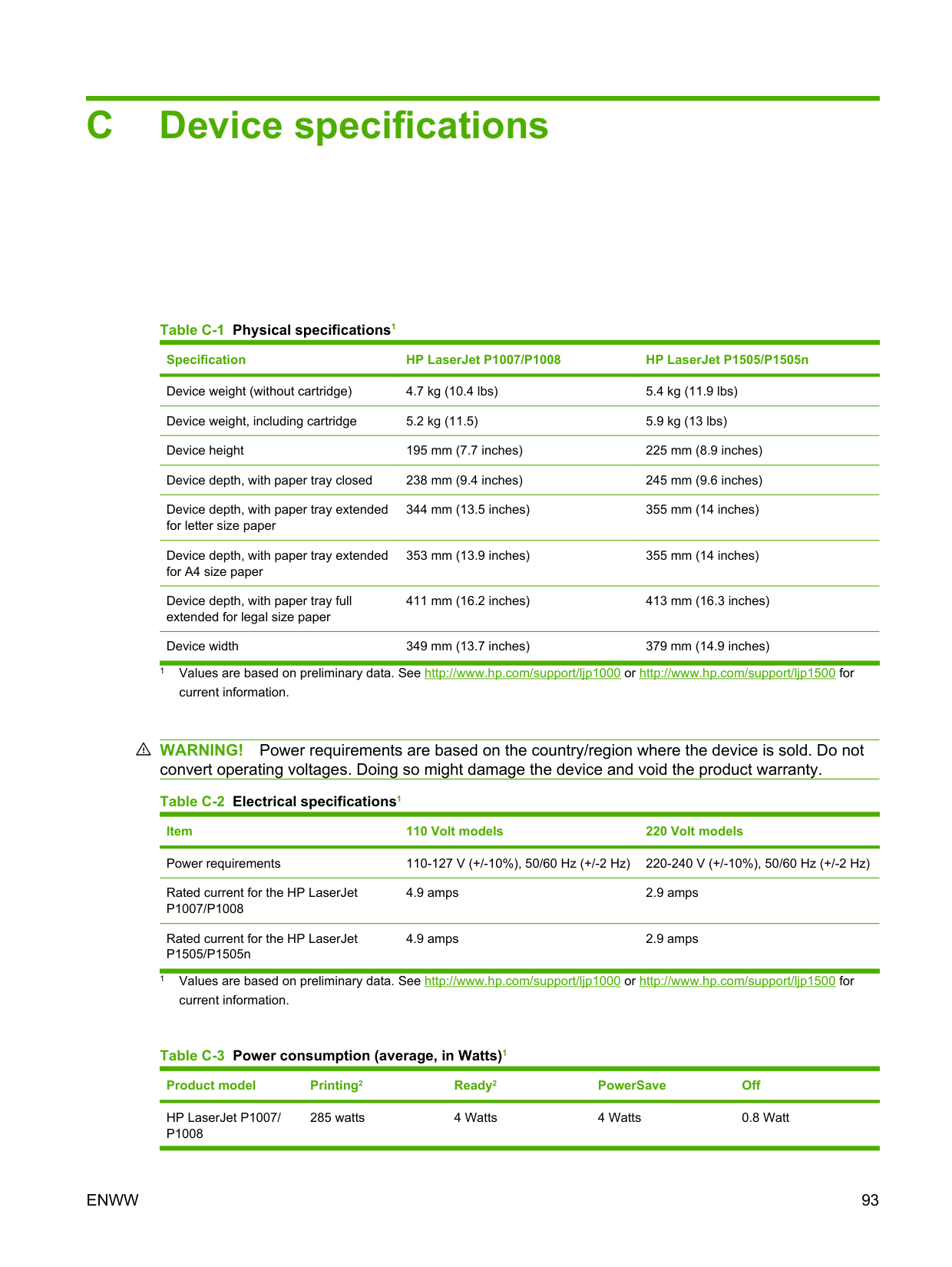
For Regulatory Topics ONLY, contact: Australia Contact: Product Regulations Manager, Hewlett-Packard Australia Ltd., 31-41 Joseph Street, Blackburn, Victoria 3130, Australia European Contact: Your Local Hewlett-Packard Sales and Service Office or Hewlett-Packard GmbH, Department HQ-TRE / Standards
Europe, Herrenberger Straße 140, D-71034 Böblingen, Germany, (FAX: +49-7031-14-3143) USA Contact: Product Regulations Manager, Hewlett-Packard Company, PO Box 15, Mail Stop 160, Boise, Idaho 83707-0015, USA, (Phone: 208-396-6000)
ENWW Declaration of Conformity statements for HP LaserJet P1007/P1008 97
#### P1505/P1505n
Declaration of Conformity according to ISO/IEC Guide 17050-1 and EN 17050-1
Manufacturer's Name: Hewlett-Packard Company Manufacturer's Address: 11311 Chinden Boulevard,
Boise, Idaho 83714-1021, USA
declares that the product Product Name: HP LaserJet P1505 Series Regulatory Model 3): BOISB-0604-00 Product Options: ALL
Toner Cartridge: CC388A conforms to the following Product Specifications: Safety: IEC 60950-1:2001 / EN 60950-1:2001 +A11
IEC 60825-1:1993 +A1 +A2/EN 60825-1:1994 +A1 +A2 (Class 1 Laser/LED Product) GB4943-2001
EMC: CISPR 22:2005 / EN 55022:2006 Class B1) EN 61000-3-2:2000 + A2 EN 61000-3-3:1995 + A1 EN 55024:1998 +A1 +A2 FCC Title 47 CFR, Part 15 Class B2) / ICES-003, Issue 4 GB9254-1998, GB17625.1-2003
########## Supplementary Information:
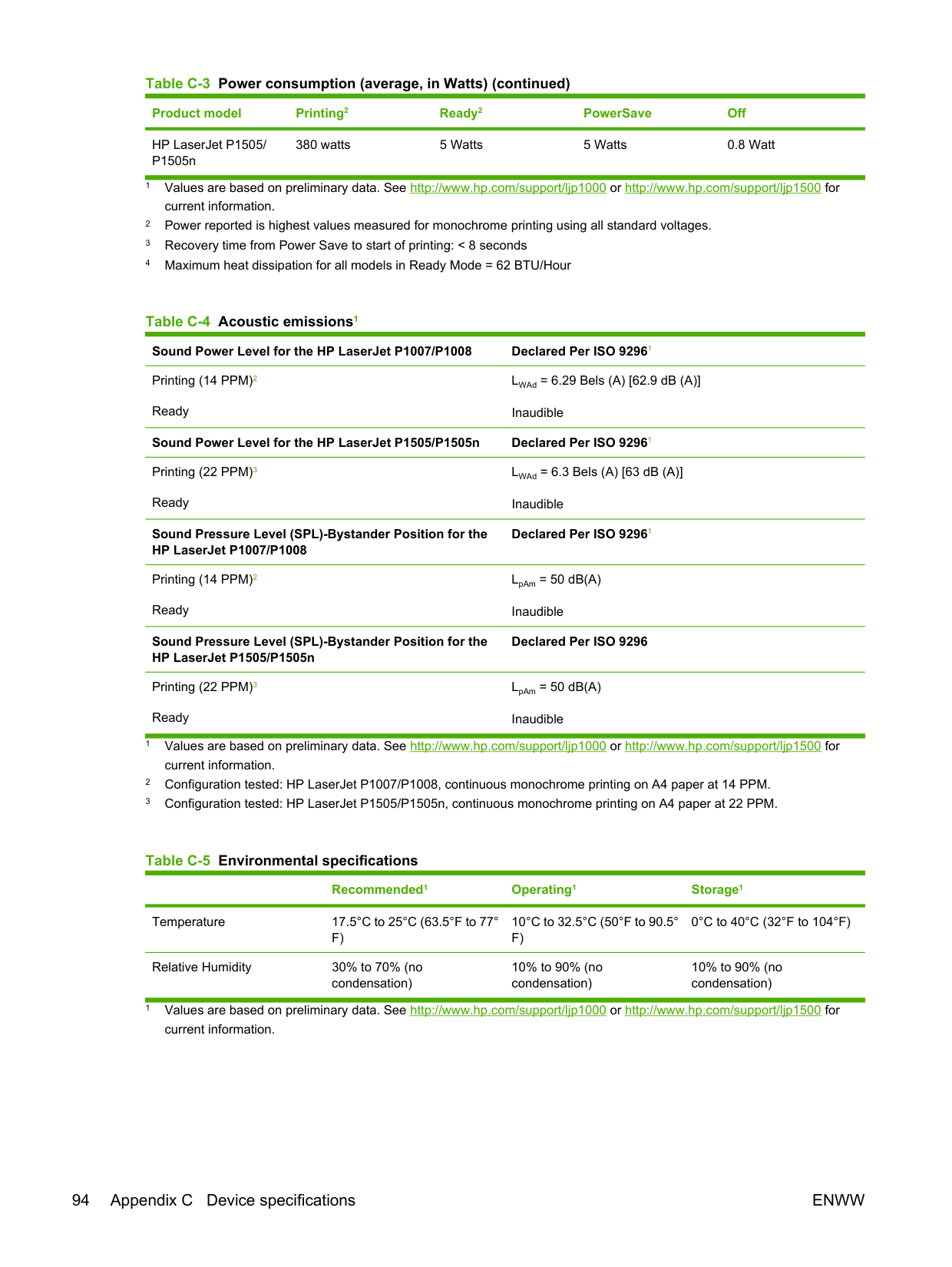
The product herewith complies with the requirements of the EMC Directive 2004/108/EC and the Low Voltage Directive 2006/95/EC, and carries the CE-marking accordingly.
Boise, Idaho 83714, USA
########## June 14, 2006
For Regulatory Topics ONLY, contact: Australia Contact: Product Regulations Manager, Hewlett-Packard Australia Ltd., 31-41 Joseph Street, Blackburn, Victoria 3130, Australia European Contact: Your Local Hewlett-Packard Sales and Service Office or Hewlett-Packard GmbH, Department HQ-TRE / Standards
Europe, Herrenberger Straße 140, D-71034 Böblingen, Germany, (FAX: +49-7031-14-3143)
#### Regulatory statements
##### Laser safety statement
The Center for Devices and Radiological Health (CDRH) of the U.S. Food and Drug Administration has implemented regulations for laser products manufactured since August 1, 1976. Compliance is mandatory for products marketed in the United States. The printer is certified as a "Class 1" laser product under the U.S. Department of Health and Human Services (DHHS) Radiation Performance Standard according to the Radiation Control for Health and Safety Act of 1968.
Since radiation emitted inside the printer is completely confined within protective housings and external covers, the laser beam cannot escape during any phase of normal user operation.
WARNING! Using controls, making adjustments, or performing procedures other than those specified in this user guide could result in exposure to hazardous radiation.
Canadian DOC regulations Complies with Canadian EMC Class B requirements. « Conforme à la classe B des normes canadiennes de compatibilité électromagnétiques (CEM). »
##### Korean EMI statement
| | |---|
Laser statement for Finland LASERTURVALLISUUS LUOKAN 1 LASERLAITE KLASS 1 LASER APPARAT
HP LaserJet P1007/P1008/P1505/P1505n -laserkirjoitin on käyttäjän kannalta turvallinen luokan 1 laserlaite. Normaalissa käytössä kirjoittimen suojakotelointi estää lasersäteen pääsyn laitteen ulkopuolelle.
Laitteen turvallisuusluokka on määritetty standardin EN 60825-1 (1994) mukaisesti. VAROITUS!
Laitteen käyttäminen muulla kuin käyttöohjeessa mainitulla tavalla saattaa altistaa käyttäjän turvallisuusluokan 1 ylittävälle näkymättömälle lasersäteilylle.
####### VARNING!
Om apparaten används på annat sätt än i bruksanvisning specificerats, kan användaren utsättas för osynlig laserstrålning, som överskrider gränsen för laserklass 1.
####### HUOLTO
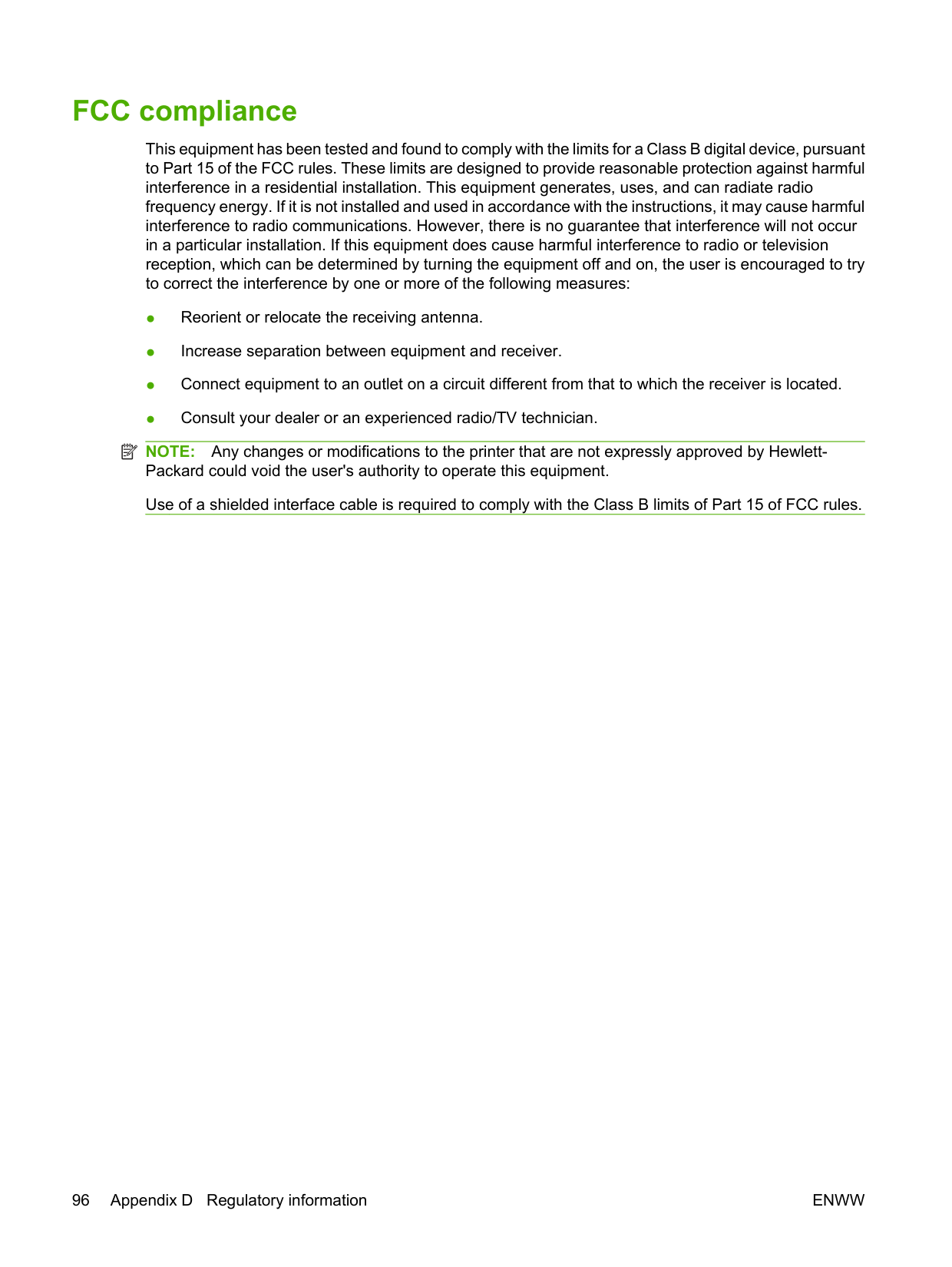
HP LaserJet P1007/P1008/P1505/P1505n -kirjoittimen sisällä ei ole käyttäjän huollettavissa olevia kohteita. Laitteen saa avata ja huoltaa ainoastaan sen huoltamiseen koulutettu henkilö. Tällaiseksi huoltotoimenpiteeksi ei katsota väriainekasetin vaihtamista, paperiradan puhdistusta tai muita käyttäjän käsikirjassa lueteltuja, käyttäjän tehtäväksi tarkoitettuja ylläpitotoimia, jotka voidaan suorittaa ilman erikoistyökaluja.
####### VARO!
Mikäli kirjoittimen suojakotelo avataan, olet alttiina näkymättömälle lasersäteilylle laitteen ollessa toiminnassa. Älä katso säteeseen.
####### VARNING!
Om laserprinterns skyddshölje öppnas då apparaten är i funktion, utsättas användaren för osynlig laserstrålning. Betrakta ej strålen.
Tiedot laitteessa käytettävän laserdiodin säteilyominaisuuksista: Aallonpituus 785-800 nm Teho 5 mW Luokan 3B laser
Substances Table (China) 电产污 办根据中国 子信息 品 染控制管理 法的要求而出台 Table D-1 质有毒有害物 表
部件名称 质有毒有害物 和元素
铅 (Pb) 汞 (Hg) 镉 (Cd) 铬六价 (Cr(VI)) 溴溴多苯(PBB) 溴 醚多二苯 (PBDE)
打印引擎 X O X X O O 控制面板 O O O O O O 塑料外壳 O O O O O O 组格式化板 件 X O O O O O 碳粉盒 XOOOOO
O: 类表示在此部件所用的所有同 材料中, 质所含的此有毒或有害物 均低于 SJ/T11363-2006 的限制要 求。
X: 类表示在此部件所用的所有同 材料中, 种质至少一 所含的此有毒或有害物 高于SJ/T11363-2006的限 制要求。
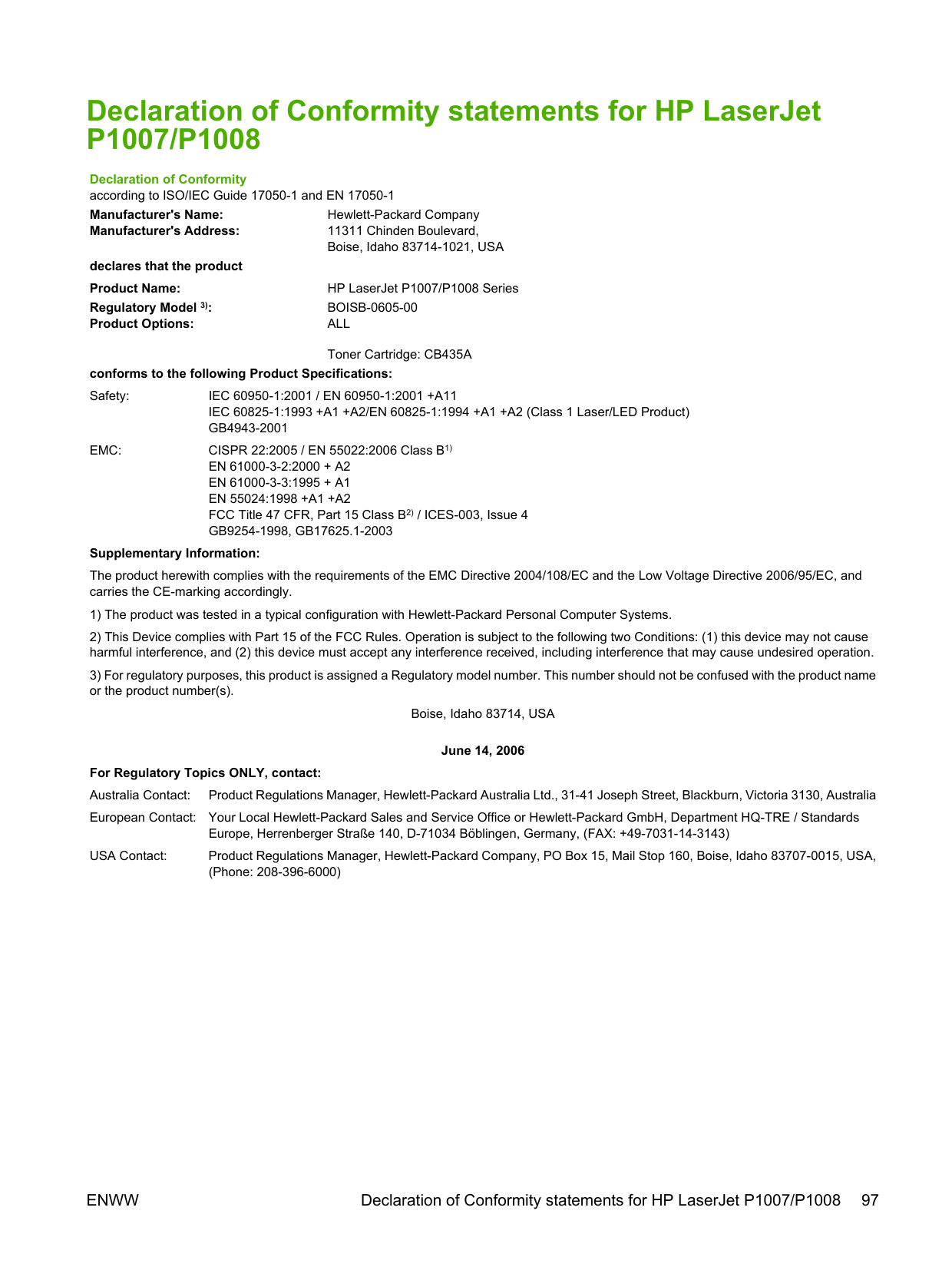
| | |---|
NOTE: 引用的“环保使用期限” 产是根据在正常温度和湿度条件下操作使用 品而确定的。
#### Environmental product stewardship program
##### Protecting the environment
Hewlett-Packard Company is committed to providing quality products in an environmentally sound manner. This product has been designed with several attributes to minimize impacts on our environment.
##### Ozone production
This product generates no appreciable ozone gas (O3).
##### Power consumption
Power usage drops significantly while in Ready/Sleep mode, which saves natural resources and saves money without affecting the high performance of this product. To determine the ENERGY STAR® qualification status for this product see the Product Data Sheet or Specifications Sheet. Qualified products are also listed at:
http://www.hp.com/hpinfo/globalcitizenship/environment/productdesign/ecolabels.html
##### Toner consumption
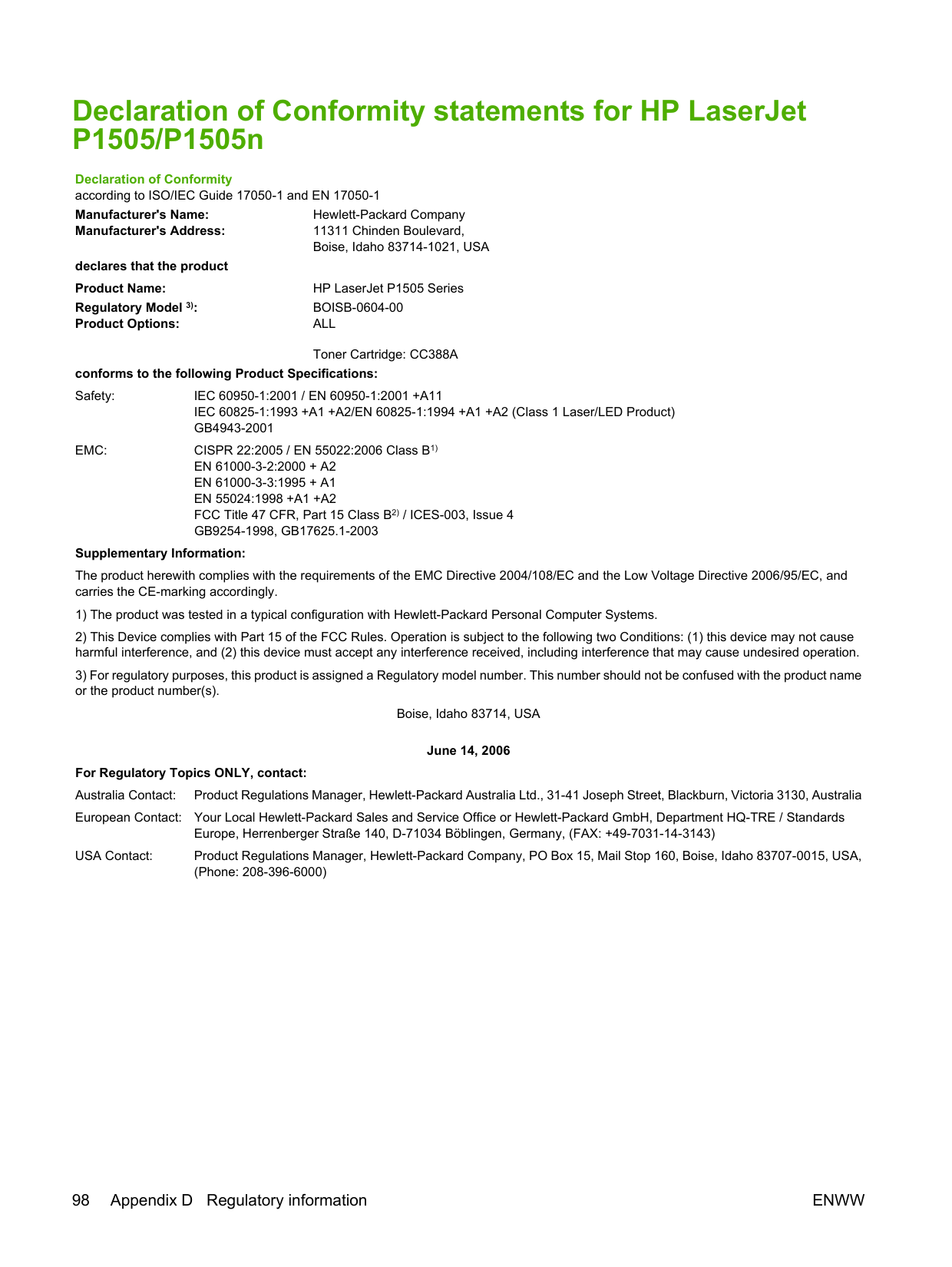
Economode uses significantly less toner, which might extend the life of the print cartridge.
##### Paper use
This product’s manual/optional automatic duplex feature (two-sided printing) and N-up printing (multiple pages printed on one page) capability can reduce paper usage and the resulting demands on natural resources.
##### Plastics
Plastic parts over 25 grams are marked according to international standards that enhance the ability to identify plastics for recycling purposes at the end of the product’s life.
##### HP LaserJet print supplies
It’s easy to return and recycle your empty HP LaserJet print cartridges—free of charge—with HP Planet Partners. Multilingual program information and instructions are included in every new HP LaserJet print cartridge and supplies package. You help reduce the toll on the environment further when you return multiple cartridges together rather than separately.
HP is committed to providing inventive, high-quality products and services that are environmentally sound, from product design and manufacturing to distribution, customer use and recycling. When you participate in the HP Planet Partners program, we ensure your HP LaserJet print cartridges are recycled properly, processing them to recover plastics and metals for new products and diverting millions of tons of waste from landfills. Since this cartridge is being recycled and used in new materials, it will not be returned to you. Thank you for being environmentally responsible!
| | |---|
NOTE: Use the return label to return original HP LaserJet print cartridges only. Please do not use this
label for HP inkjet cartridges, non-HP cartridges, refilled or remanufactured cartridges or warranty returns. For information about recycling your HP inkjet cartridges please go to http://www.hp.com/ recycle.
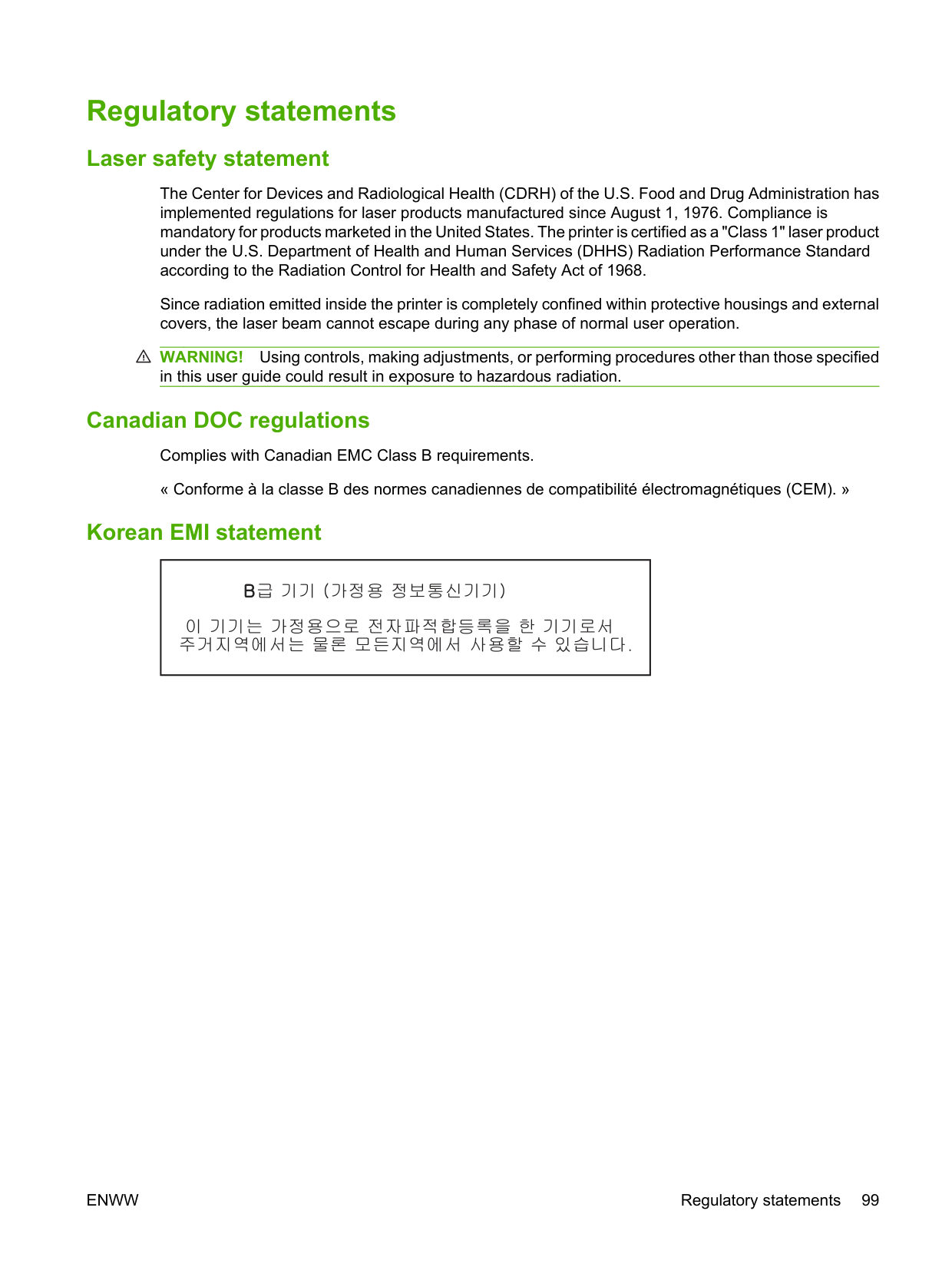
##### Return and recycling instructions United States and Puerto Rico
The enclosed label in the HP LaserJet toner cartridge box is for the return and recycling of one or more HP LaserJet print cartridges after use. Please follow the applicable instructions below.
####### Multiple returns (two to eight cartridges)
####### Single returns
####### Shipping
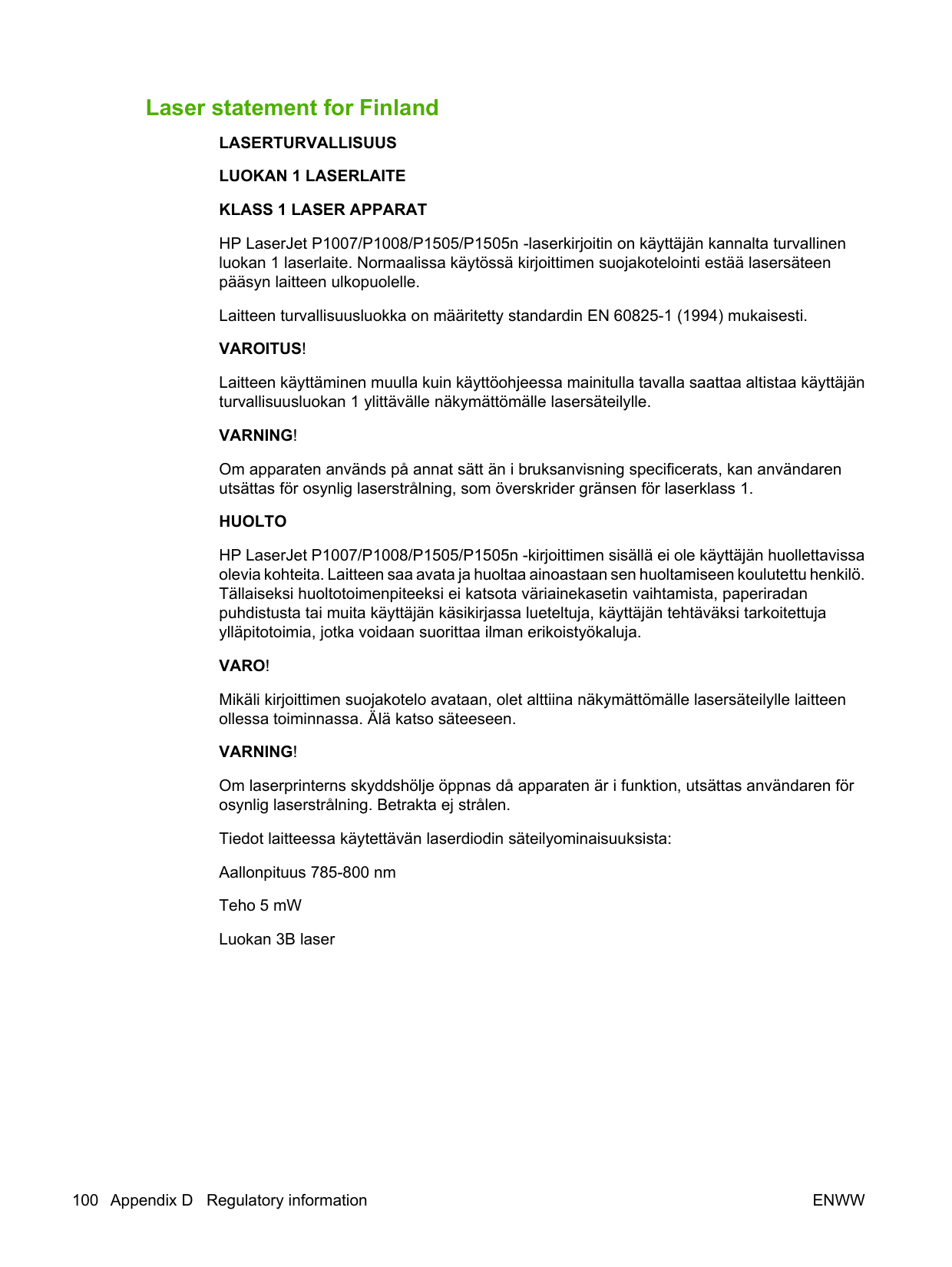
For all HP LaserJet print cartridge recycling returns, give the package to UPS during your next delivery or pickup, or take it to an authorized UPS drop-off center. For the location of your local UPS drop-off center, call 1-800-PICKUPS or visit http://www.ups.com. If you are returning via USPS label, give the package to a U.S. Postal Service carrier or drop off at a U.S.Postal Service Office. For more information, or to order additional labels or boxes for bulk returns, visit http://www.hp.com/recycle or call 1-800-340-2445. Requested UPS pickup will be charged normal pickup rates. Information subject to change without notice.
###### Non-US returns
To participate in HP Planet Partners return and recycling program, just follow the simple directions in the recycling guide (found inside the packaging of your new printer supply item) or visit http://www.hp.com/recycle. Select your country/region for information on how to return your HP LaserJet printing supplies.
##### Paper
This product is capable of using recycled papers when the paper meets the guidelines outlined in the HP LaserJet Printer Family Print Media Guide. This product is suitable for the use of recycled paper according to EN12281:2002.
Material restrictions This HP product does not contain added mercury. This HP product does not contain a battery.
ENWW Environmental product stewardship program 103
##### Disposal of waste equipment by users in private households in the European Union
This symbol on the product or on its packaging indicates that this product must not be disposed of with your other household waste. Instead, it is your responsibility to dispose of your waste equipment by handing it over to a designated collection point for the recycling of waste electrical and electronic equipment. The separate collection and recycling of your waste equipment at the time of disposal will help to conserve natural resources and ensure that it is recycled in a manner that protects human health and the environment. For more information about where you can drop off your waste equipment for recycling, please contact your local city office, your household waste disposal service or the shop where you purchased the product.
##### Material Safety Data Sheet (MSDS)
Material Safety Data Sheets (MSDS) for supplies containing chemical substances (for example, toner) can be obtained by contacting the HP Web site at www.hp.com/go/msds or www.hp.com/hpinfo/ community/environment/productinfo/safety.
##### For more information
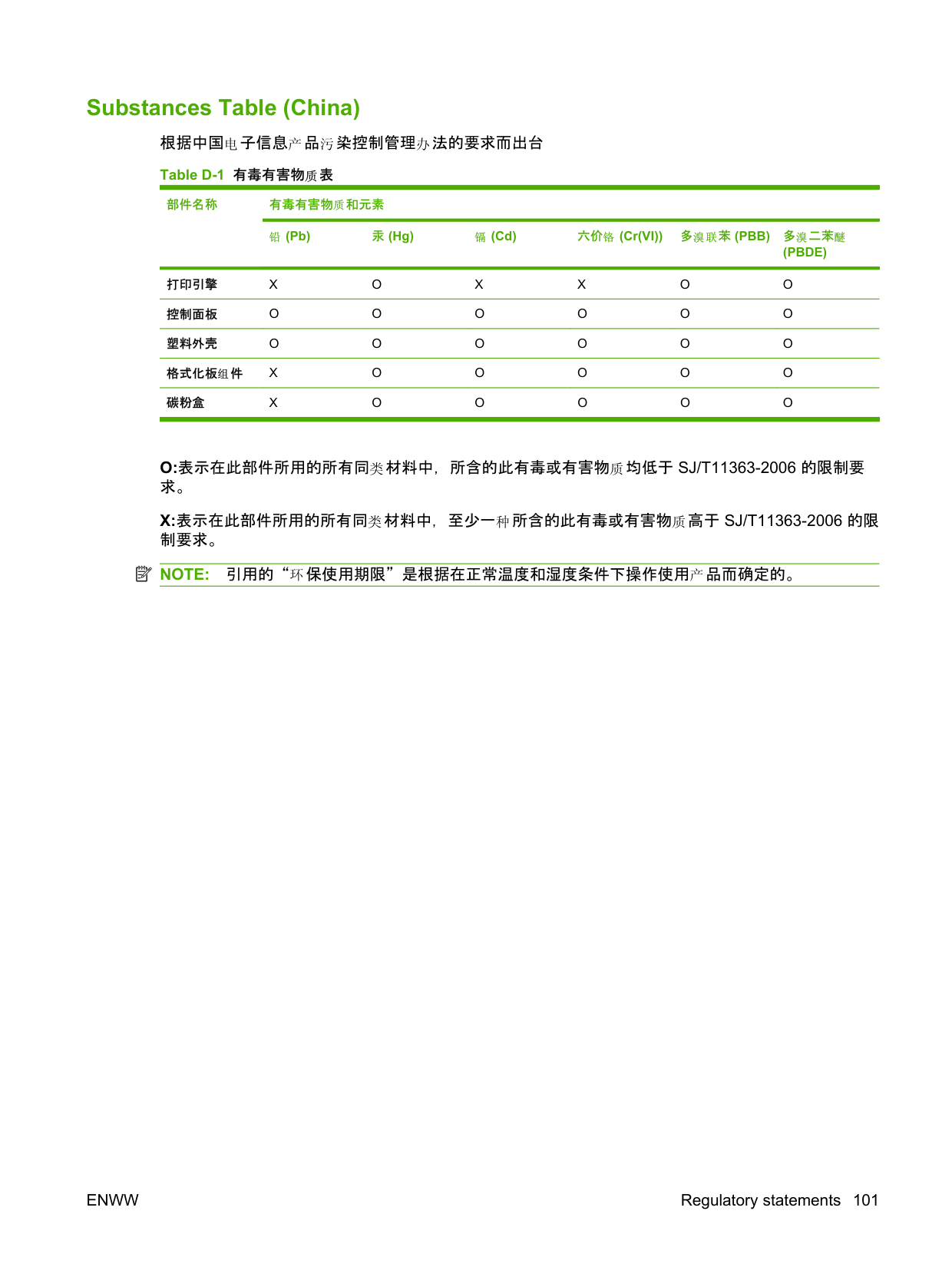
To obtain information about these environmental topics:
Index
specifications 25 agreements, maintenance 90
features 3 blank pages 74 booklets, printing 34
HP fraud hotline 46 life expectancy 45 recycling 102 replacing 45 reusing 46
cartridges, print warranty 87
change pickup roller 50 separation pad 54
clean pickup roller 53
cleaning media path 49 printer 47 clearing jams 66 Configuration page 42 connecting to the network 14 consumables
life expectancies 45 contracts, maintenance 90 control panel
status-light patterns 63 crooked pages 73
customer support maintenance agreements 90
connections 14 repacking 91 specifications 93
disposal, end-of-life 103 dots per inch (dpi)
specifications 3 dpi (dots per inch)
specifications 3
driver Macintosh, accessing 18 Macintosh, installing 18 Macintosh, problem
solving 77
Windows, installing 16 drivers
settings 17 duplex (two-sided) printing, manual 32
Configuration page 44 device status 44 Information tab 44 Networking tab 44 order supplies 44 overview 17 product support 44 Settings tab 44 supplies status 44 using 43
end-of-life disposal 103
envelopes specifications 25 Environmental Product
Stewardship Program 102 errors
software 76 European Union, waste
disposal 104 EWS. See embedded Web server extended warranty 90

missing 74 poor quality 75
Configuration page 42 Demo page 42 Supplies Status page 42 Information tab (embedded Web
server) 44
input tray loading media 29 loading priority feed slot 29
input trays
features 3 interface ports
types included 3 IP address 77
J jams, clearing 66
L labels
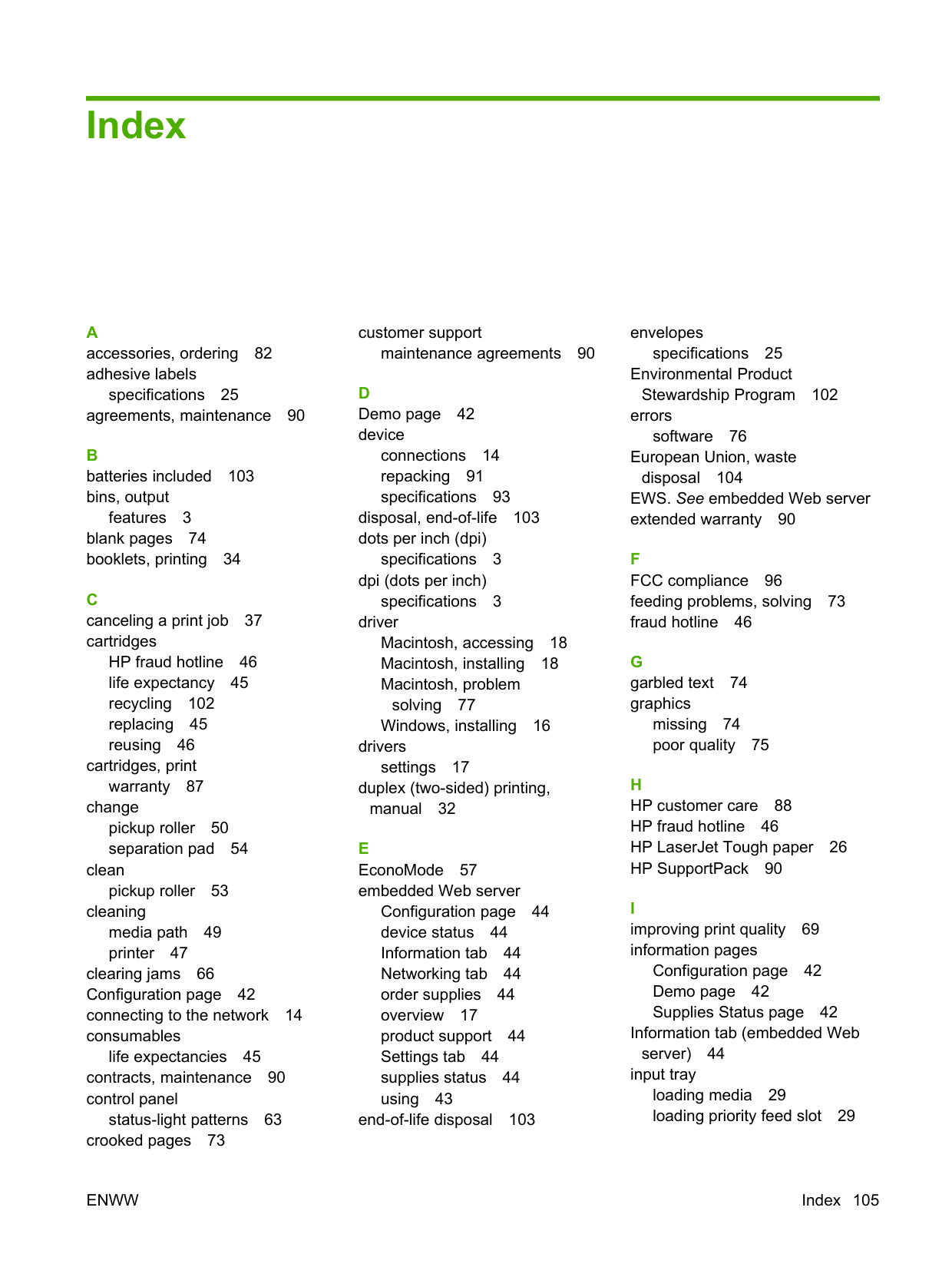
specifications 25 letterhead
printing 26 license, software 86 life expectancies, supplies 45 light patterns 63 loading media
150-sheet input tray 29 priority feed slot 29
M Macintosh
driver, accessing 18 driver, installing 18 driver, problem solving 77 problems, solving 77 software 18 USB card, troubleshooting 78
mailing labels
specifications 25 main input tray
loading 29
maintenance agreements 90 replacing print cartridges 45
manual two-sided printing 32 material restrictions 103 Material Safety Data Sheet
(MSDS) 104
media clearing jams 66 envelopes 25 labels 25 letterhead 26 loading 29 transparencies 25 types that may damage the
device 24
types to avoid 24 media path, cleaning 49
mercury-free product 103 missing
graphics 74 text 74
multiple pages, printing on a single sheet of paper 34
####### N
server) 44 non-HP print cartridges 46
accessories 82 output bin
features 3
overhead transparencies specifications 25 overview, printer 4
HP LaserJet Tough paper 26 letterhead 26
paper input trays features 3 feeding problems, solving 73
paper output bin features 3
phone numbers HP fraud hotline 46 support 88
pickup roller change 50 clean 53
ports types included 3 ports, troubleshooting
Macintosh 78 preprinted paper
printing on 26 print cartridge
ordering 82
print cartridges HP fraud hotline 46 life expectancy 45 recycling 102 replacing 45 reusing 46 warranty 87
print quality creases 72 curl 72 dropouts 69 EconoMode 57 gray background 70 light or faded print 69 loose toner 71 misformed characters 71 page skew 72 settings 28 specifications 3 toner scatter outline 72 toner smear 70 toner specks 69 vertical lines 70 vertical repetitive defects 71 wave 72 wrinkles 72
print settings, changing 16 print tasks 27 printer
cleaning 47 control panel 7 overview 4 software problems 76
printer driver Macintosh 18 Windows 16
printer information pages Configuration page 42 Demo page 42 Supplies Status page 42
printer preferences
accessing 16 printer properties
online Help 16
printing booklets 34 canceling 37 Configuration page 42 Demo page 42
multiple pages on a single sheet
of paper 34 N-up 34 on both sides of the paper
(manual) 32 on special media 31 Supplies Status page 42 watermarks 35

priority feed slot loading 29
problem solving contacting HP support 62 demo page 60 device setup 60 device-computer
communication 61 print quality 61 printed page and
expectations 61 Ready light 60
product software 11
specifications 3
features 3 recycling
HP printing supplies returns and environmental program 103 redistribute toner 46 refilled print cartridges 46 regulatory statements
Canadian DOC regulations 99 declaration of conformity
statements 97, 98 environmental product

stewardship program 102 FCC compliance 96 Korean EMI statement 99 laser statement for
Finland 100 removing a jammed page 66 repacking the device 91 replacement parts 82 replacing print cartridges 45
resolution
specifications 3 resolve problems
replacing print cartridges 45
S separation pad
change 54 service
agreements 90
settings drivers 17 print quality 28
Settings tab (embedded Web
server) 44 skewed pages 73 software
Macintosh 18 printer drivers, Windows 16 problems 76 software license
agreement 86 supported operating
systems 12 Windows 16
solving blank pages 74 creases 72 curl 72 dropouts 69 feeding problems 73 garbled text 74 gray background 70 incomplete text 74 light or faded print 69 loose toner 71 Macintosh problems 77 misformed characters 71 missing graphics or text 74 page skew 72 poor graphics quality 75 printed page differs from
onscreen page 74 printer software problems 76 skewed pages 73 toner scatter outline 72 toner smear 70 toner specks 69 vertical lines 70 vertical repetitive defects 71
wave 72 wrinkles 72
special media envelopes 25 labels 25 letterhead 26 transparencies 25
specifications device features 3 envelopes 25 labels 25 media 21 transparencies 25
status-light patterns 63 storing
print cartridges 45
supplies life expectancies 45 recycling 102 reusing 46
Supplies Status page 42 supplies, ordering 82 support
maintenance agreements 90 SupportPack, HP 90
T technical support
maintenance agreements 90
telephone numbers HP fraud hotline 46 support 88
text
garbled 74 missing 74
toner loose toner 71 low 69 scatter outline 72 smear 70 specks 69
top output bin
features 3 transparencies
specifications 25 trays
features 3 two-sided printing, manual 32
####### U
W warranty
Customer self repair 85 extended 90 license 86 print cartridge 87 product 84
watermarks, printing 35 Web server, embedded 43 Web sites
customer support 88 Material Safety Data Sheet
(MSDS) 104
Windows driver settings 17 driver, installing 16
© 2008 Hewlett-Packard Development Company, L.P. www.hp.com
CC365-90905