Ask AI
— answers from the official manualAnswers from the official manual.
Common questions
Common Questions
9 totalWhere can I find important safety information for my printer?
Important safety notices and regulatory information can be found in the electronic user guide on the CD-ROM or online via www.hp.com/support/LJP2030series (Page 1).
How can I clear a paper jam in my HP LaserJet P2035 printer?
To resolve a paper jam, open the affected area and carefully remove any papers that are stuck inside. Ensure all doors and trays are properly closed after clearing the jam. Check the user guide available on the CD-ROM or online at www.hp.com/support/LJP2030series for detailed instructions (Page 4).
What is the recommended operating temperature range for my printer?
The HP LaserJet P2035 should be operated within a temperature range of 7.5° to 32.5°C (45.5° to 90.5°F) to ensure optimal performance and reliability (Page 1).
How do I properly install my printer in a room?
Install the printer in an area with adequate ventilation and low dust levels for the best operating conditions. Avoid locations prone to extreme temperatures or humidity (Page 2).
What should I do if my printer emits excessive noise?
Refer to the troubleshooting section in the electronic user guide on the CD-ROM for steps to identify and resolve noisy issues. Follow instructions specific to your model or consult support at www.hp.com/support/LJP2030series (Page 4).
How can I install software drivers for my printer?
Insert the included CD and follow the on-screen instructions to install necessary software drivers. For network connections, specific setup instructions are detailed on subsequent pages (Page 3).
Full Manual
2 pages
| | | | |---|---|---| | | | | | | | | | | | |
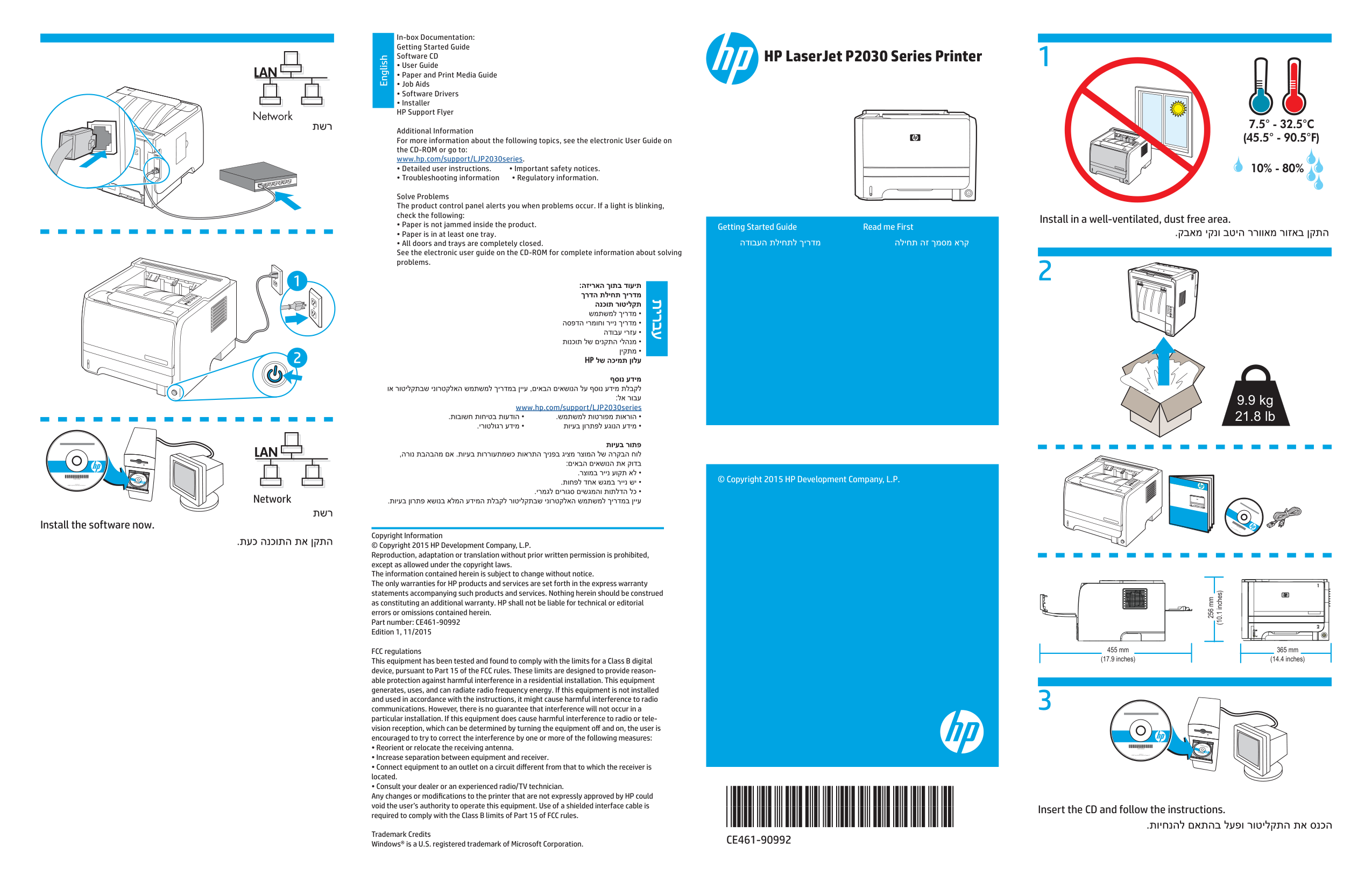
Network
| | | | |---|---|---| | | | | | | | | | | | |
Network Install the software now.
In-box Documentation: Getting Started Guide Software CD
Additional Information For more information about the following topics, see the electronic User Guide on the CD-ROM or go to: www.hp.com/support/LJP2030series.
Solve Problems The product control panel alerts you when problems occur. If a light is blinking, check the following:
www.hp.com/support/LJP2030series
Copyright Information © Copyright 2015 HP Development Company, L.P. Reproduction, adaptation or translation without prior written permission is prohibited, except as allowed under the copyright laws. The information contained herein is subject to change without notice. The only warranties for HP products and services are set forth in the express warranty statements accompanying such products and services. Nothing herein should be construed as constituting an additional warranty. HP shall not be liable for technical or editorial errors or omissions contained herein. Part number: CE461-90992 Edition 1, 11/2015
FCC regulations This equipment has been tested and found to comply with the limits for a Class B digital device, pursuant to Part 15 of the FCC rules. These limits are designed to provide reasonable protection against harmful interference in a residential installation. This equipment generates, uses, and can radiate radio frequency energy. If this equipment is not installed and used in accordance with the instructions, it might cause harmful interference to radio communications. However, there is no guarantee that interference will not occur in a particular installation. If this equipment does cause harmful interference to radio or television reception, which can be determined by turning the equipment off and on, the user is encouraged to try to correct the interference by one or more of the following measures:
Trademark Credits Windows® is a U.S. registered trademark of Microsoft Corporation.
HP LaserJet P2030 Series Printer
7.5° - 32.5°C (45.5° - 90.5°F)
10% - 80%
Install in a well-ventilated, dust free area. Getting Started Guide
Read me First
9.9 kg 21.8 lb
© Copyright 2015 HP Development Company, L.P.
(10.1 inches)
256 mm
| | | |---|---| | | |
455 mm (17.9 inches)
365 mm (14.4 inches)
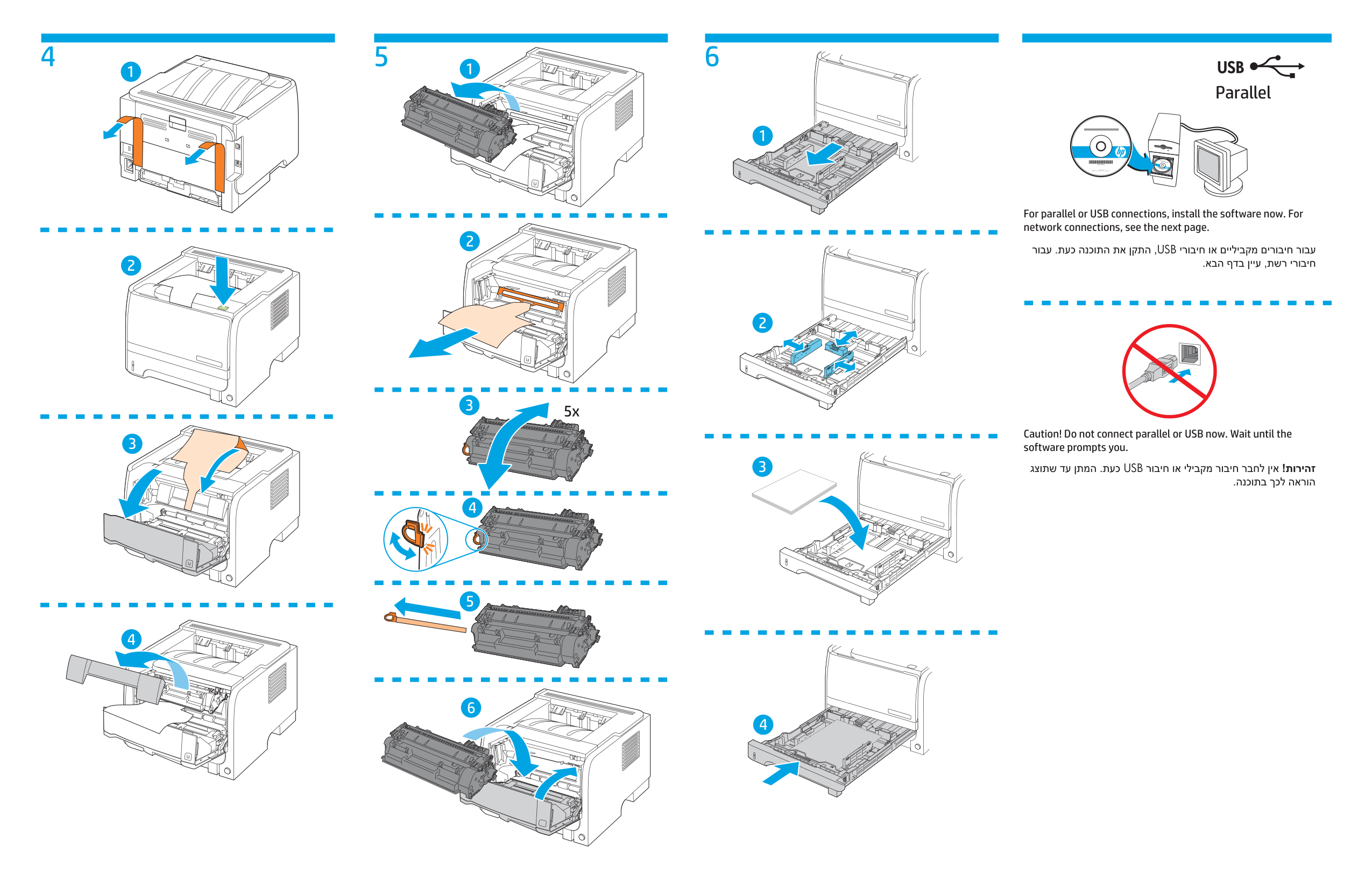
Insert the CD and follow the instructions.
4 65
Parallel
For parallel or USB connections, install the software now. For network connections, see the next page.
Caution! Do not connect parallel or USB now. Wait until the software prompts you.