
Ask AI
— answers from the official manualAnswers from the official manual.
Common questions
Common Questions
6 totalWhat does error code E31 indicate?
Error code E31 typically indicates an issue with the paper supply or feeder. Check for proper paper loading and clear any jams from Tray 1 according to procedures on page 250.
How do I load paper into Tray 1?
For Tray 1, open the lid, align the edges of the paper with the marks inside, and gently place the stack so that it rests on both guides. Close the tray carefully to secure the paper in position (page 80).
How do I set up my printer on a wireless network?
Setting up wirelessly involves using HP Smart Install menu followed by Wireless Setup Wizard which guides through necessary steps for connection. Ensure router supports standard Wi-Fi features and follow detailed setup process in section 'Connect the product with Windows', starting from page 63.
How do I print a cleaning page?
To run a cleaning procedure, navigate to service menu where you select 'Cleaning Page'. Instructions are given on page 68 under HP Embedded Web Server features; this will remove dust and excess toner from paper path.
How can I troubleshoot when the device does not pick up paper?
Refer to troubleshooting section 'Solve product connectivity problems' on page 275. Ensure correct tray loading and look for jams or misalignments in the document feeder, then follow specific instructions provided to resolve.
What is an appropriate response when getting error code E18 during a fax transmission?
Error code E18 alerts that the receiving line was busy or there’s no answer. To resolve, retry later or check if the destination number is correct and available.
Full Manual
344 pages
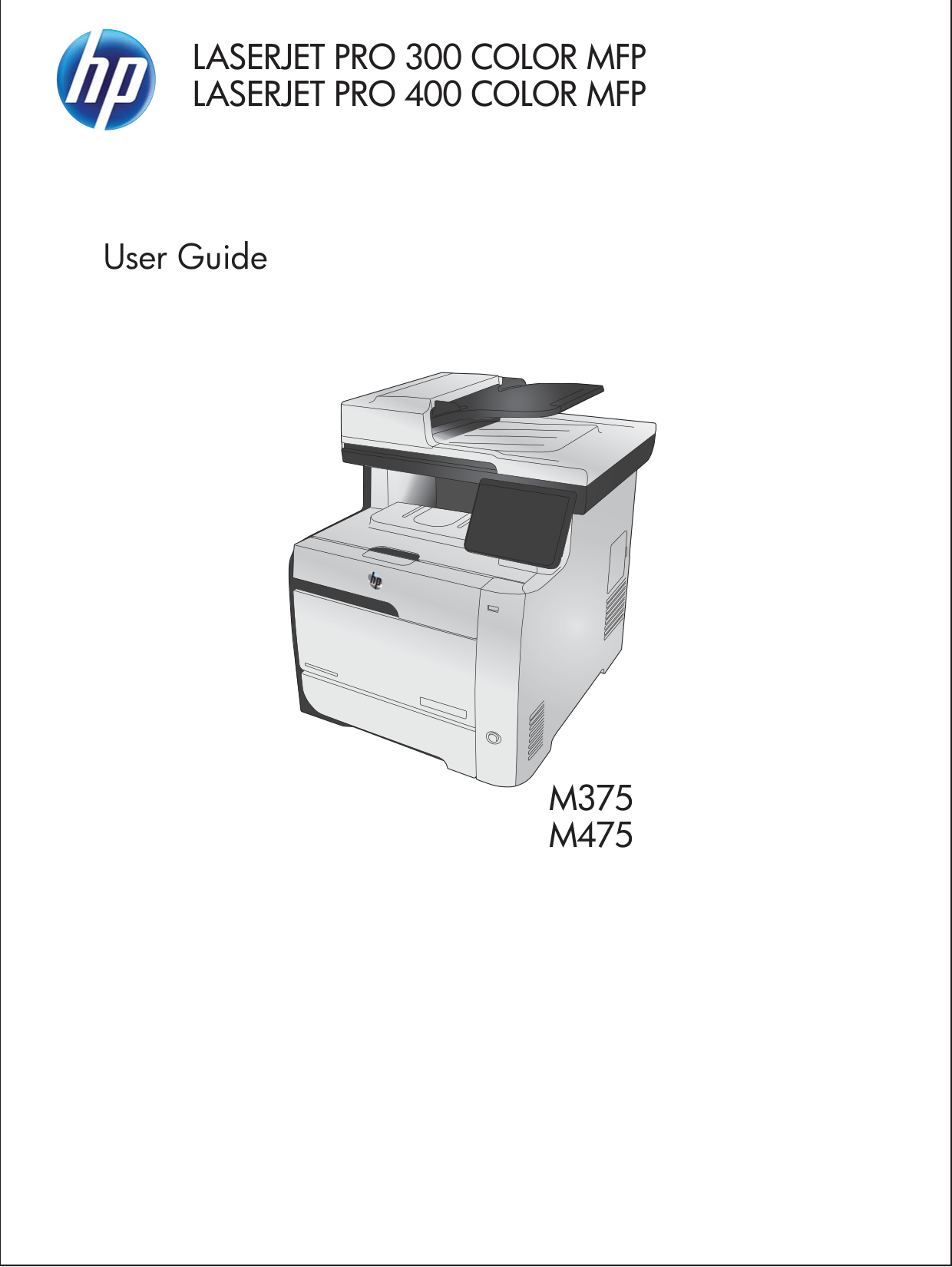
|LASERJET PRO 300 COLOR MFP LASERJET PRO 400 COLOR MFP
User Guide
M375 M475

| |---|
HP LaserJet Pro 300 color MFP M375 and HP LaserJet Pro 400 color MFP M475
User Guide
########### Copyright and License
© 2011 Copyright Hewlett-Packard Development Company, L.P.
Reproduction, adaptation, or translation without prior written permission is prohibited, except as allowed under the copyright laws.
The information contained herein is subject to change without notice.
The only warranties for HP products and services are set forth in the express warranty statements accompanying such products and services. Nothing herein should be construed as constituting an additional warranty. HP shall not be liable for technical or editorial errors or omissions contained herein.
Edition 2, 10/2011 Part number: CE863-90907
########### Trademark Credits
Adobe®, Acrobat®, and PostScript® are trademarks of Adobe Systems Incorporated.
Intel® Core™ is a trademark of Intel Corporation in the U.S. and other countries.
Java™ is a US trademark of Sun Microsystems, Inc.

Microsoft®, Windows®, Windows® XP, and Windows Vista® are U.S. registered trademarks of Microsoft Corporation.
UNIX® is a registered trademark of The Open Group.
ENERGY STAR and the ENERGY STAR mark are registered U.S. marks.
##### Conventions used in this guide
TIP: Tips provide helpful hints or shortcuts.
| | |---|
NOTE: Notes provide important information to explain a concept or to complete a task.
CAUTION: Cautions indicate procedures that you should follow to avoid losing data or damaging the product.
WARNING! Warnings alert you to specific procedures that you should follow to avoid personal injury, catastrophic loss of data, or extensive damage to the product.
ENWW iii
######### iv Conventions used in this guide ENWW
Table of contents
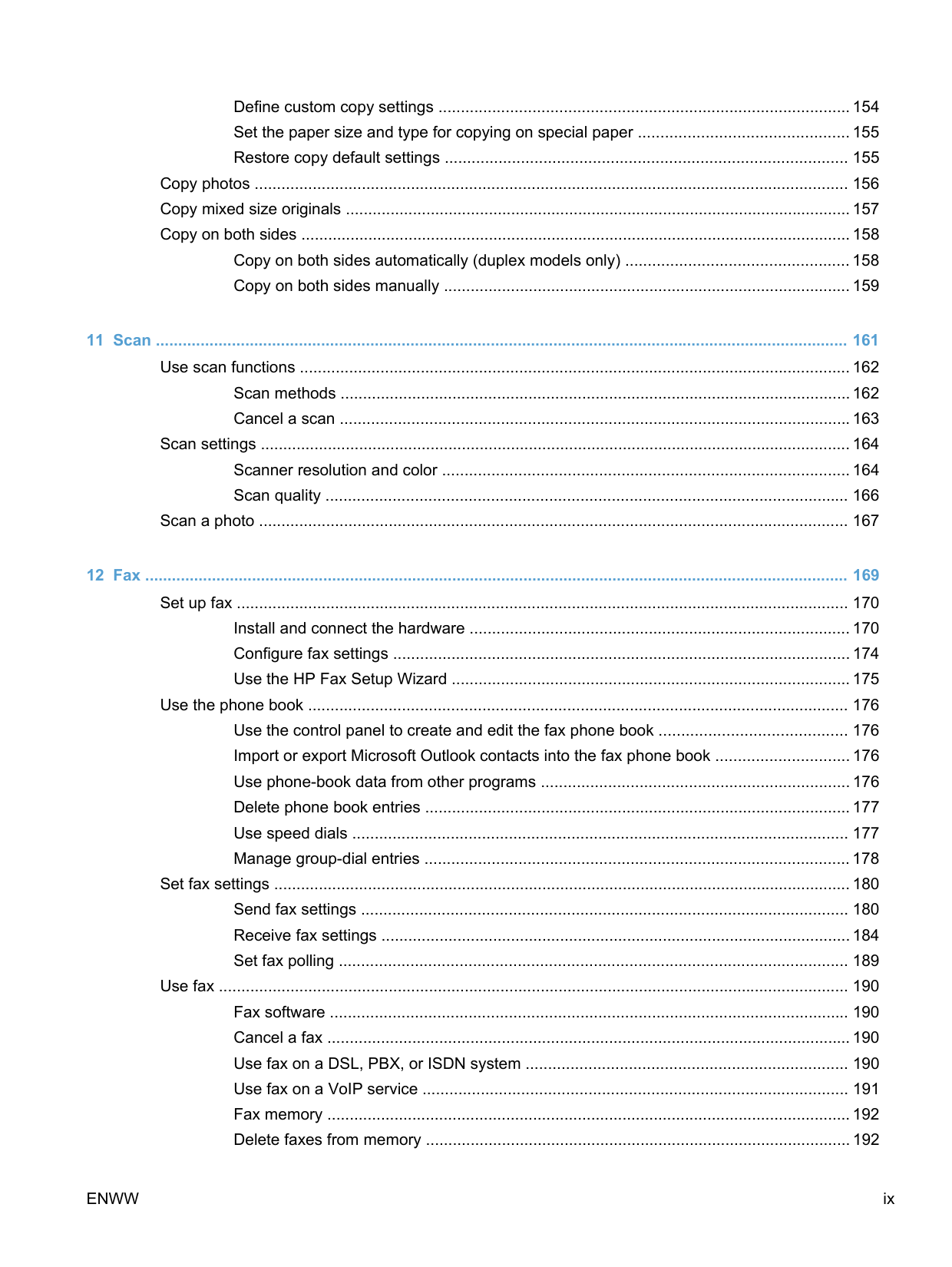
Front view ............................................................................................................................ 6 Back view ............................................................................................................................. 7 Interface ports ...................................................................................................................... 8 Serial number and model number location .......................................................................... 9 Control panel layout ........................................................................................................... 10
HP Web Services menu ..................................................................................................... 15 Reports menu .................................................................................................................... 16 Quick Forms menu ............................................................................................................ 17 Fax Setup menu ................................................................................................................ 18 System Setup menu .......................................................................................................... 21 Service menu ..................................................................................................................... 26 Network Setup menu ......................................................................................................... 28
Function specific menus ..................................................................................................................... 30 Copy menu ........................................................................................................................ 30 Fax menu ........................................................................................................................... 32 Scan menu ......................................................................................................................... 34 USB Flash Drive ................................................................................................................ 35
HP Universal Print Driver (UPD) ........................................................................................ 40 Change print job settings for Windows ............................................................................................... 41
ENWW v
Priority for print settings ..................................................................................................... 41 Change the settings for all print jobs until the software program is closed ........................ 41 Change the default settings for all print jobs ...................................................................... 41 Change the product configuration settings ........................................................................ 42
Remove the printer driver from Windows ........................................................................................... 43 Supported utilities for Windows .......................................................................................................... 44
Other Windows components and utilities ........................................................................... 44 Software for other operating systems ................................................................................................. 44
######## 4 Use the product with Mac ............................................................................................................................ 45Software for Mac ................................................................................................................................ 46
Supported operating systems and printer drivers for Mac ................................................. 46 Install software for Mac operating systems ........................................................................ 46 Remove the printer driver from Mac operating systems .................................................... 49 Priority for print settings for Mac ........................................................................................ 49 Change printer-driver settings for Mac .............................................................................. 50 Software for Mac computers .............................................................................................. 51 Supported utilities for Mac ................................................................................................. 51
Basic print tasks with Mac .................................................................................................................. 53 Cancel a print job with Mac ................................................................................................ 53 Change the paper size and type with Mac ......................................................................... 53 Resize documents or print on a custom paper size with Mac ............................................ 53 Create and use printing presets with Mac ......................................................................... 53 Print a cover page with Mac .............................................................................................. 54 Use watermarks with Mac .................................................................................................. 54 Print multiple pages on one sheet of paper with Mac ........................................................ 55 Print on both sides of the page (duplex printing) with Mac ................................................ 55 Set the color options with Mac ........................................................................................... 56
Use AirPrint ........................................................................................................................................ 57 Fax with Mac ...................................................................................................................................... 58 Scan with Mac .................................................................................................................................... 59 Solve problems with Mac ................................................................................................................... 60
######### 5 Connect the product with Windows ............................................................................................................ 61Printer sharing disclaimer ................................................................................................................... 62Use HP Smart Install to connect to a computer, a wired network, or a wireless network .................. 62
HP Smart Install for Windows direct connections (USB) ................................................... 62 HP Smart Install for Windows wired networks ................................................................... 62
Connect with USB .............................................................................................................................. 64 CD installation .................................................................................................................... 64
Connect to a network with Windows .................................................................................................. 65 Supported network protocols ............................................................................................. 65 Install the product on a wired network with Windows ........................................................ 65 Install the product on a wireless network with Windows (wireless models only) ............... 66 Configure IP network settings with Windows ..................................................................... 68
Configure trays ................................................................................................................................... 85
Print cartridge views .......................................................................................................... 88
Manage print cartridges ...................................................................................................................... 89 Change settings for print cartridges ................................................................................... 89 Store and recycle supplies ................................................................................................. 91 HP anticounterfeit Web site ............................................................................................... 91
Replacement instructions ................................................................................................................... 92 Replace the print cartridges ............................................................................................... 92
Solve problems with supplies ............................................................................................................. 96 Check the print cartridges .................................................................................................. 96 Interpret control panel messages for supplies ................................................................. 100
Open the printer driver with Windows .............................................................................. 109
ENWW vii
Get help for any printing option with Windows ................................................................. 110 Change the number of print copies with Windows ........................................................... 111 Save custom print settings for reuse with Windows ........................................................ 111 Improve print quality with Windows ................................................................................. 114 Print on both sides (duplex) with Windows ...................................................................... 116 Print multiple pages per sheet with Windows .................................................................. 119 Select page orientation with Windows ............................................................................. 120 Set color options with Windows ....................................................................................... 122
Use HP ePrint ................................................................................................................................... 123 Additional print tasks with Windows ................................................................................................. 124
Print colored text as black (grayscale) with Windows ...................................................... 124 Print on preprinted letterhead or forms with Windows ..................................................... 124 Print on special paper, labels, or transparencies with Windows ...................................... 126 Print the first or last page on different paper with Windows ............................................. 129 Scale a document to fit page size with Windows ............................................................. 131 Add a watermark to a document with Windows ............................................................... 133 Create a booklet with Windows ....................................................................................... 133
Walk-up USB printing ....................................................................................................................... 136
######## 9 Color ............................................................................................................................................................. 139Adjust color ....................................................................................................................................... 140

Change the color theme for a print job ............................................................................ 140 Change the color options ................................................................................................. 141 Manual color options ........................................................................................................ 141
Use the HP EasyColor option ........................................................................................................... 143 Match colors to your computer screen ............................................................................................. 144
######## 10 Copy ........................................................................................................................................................... 145Use copy functions ........................................................................................................................... 146
Copy ................................................................................................................................ 146 Multiple copies ................................................................................................................. 146 Copy a multiple-page original .......................................................................................... 147 Copy identification cards .................................................................................................. 148 Cancel a copy job ............................................................................................................ 149 Reduce or enlarge a copy ................................................................................................ 149 Collate a copy job ............................................................................................................ 150 Make color or black and white copies .............................................................................. 151
Copy settings .................................................................................................................................... 152 Change copy quality ........................................................................................................ 152 Check the scanner glass for dirt and smudges ................................................................ 153 Adjust the lightness or darkness for copies ..................................................................... 154
Define custom copy settings ............................................................................................ 154 Set the paper size and type for copying on special paper ............................................... 155 Restore copy default settings .......................................................................................... 155
Copy photos ..................................................................................................................................... 156 Copy mixed size originals ................................................................................................................. 157 Copy on both sides ........................................................................................................................... 158
Copy on both sides automatically (duplex models only) .................................................. 158 Copy on both sides manually ........................................................................................... 159
######## 11 Scan ........................................................................................................................................................... 161Use scan functions ........................................................................................................................... 162
Scan methods ..................................................................................................................162 Cancel a scan .................................................................................................................. 163
Scan settings .................................................................................................................................... 164 Scanner resolution and color ........................................................................................... 164 Scan quality ..................................................................................................................... 166
Scan a photo .................................................................................................................................... 167
######## 12 Fax .............................................................................................................................................................. 169Set up fax ......................................................................................................................................... 170
Install and connect the hardware ..................................................................................... 170 Configure fax settings ...................................................................................................... 174 Use the HP Fax Setup Wizard ......................................................................................... 175
Use the phone book ......................................................................................................................... 176 Use the control panel to create and edit the fax phone book .......................................... 176 Import or export Microsoft Outlook contacts into the fax phone book .............................. 176 Use phone-book data from other programs ..................................................................... 176 Delete phone book entries ............................................................................................... 177 Use speed dials ............................................................................................................... 177 Manage group-dial entries ............................................................................................... 178
Set fax settings ................................................................................................................................. 180 Send fax settings ............................................................................................................. 180 Receive fax settings ......................................................................................................... 184 Set fax polling .................................................................................................................. 189
Use fax ............................................................................................................................................. 190 Fax software .................................................................................................................... 190 Cancel a fax ..................................................................................................................... 190 Use fax on a DSL, PBX, or ISDN system ........................................................................ 190 Use fax on a VoIP service ............................................................................................... 191 Fax memory ..................................................................................................................... 192 Delete faxes from memory ............................................................................................... 192
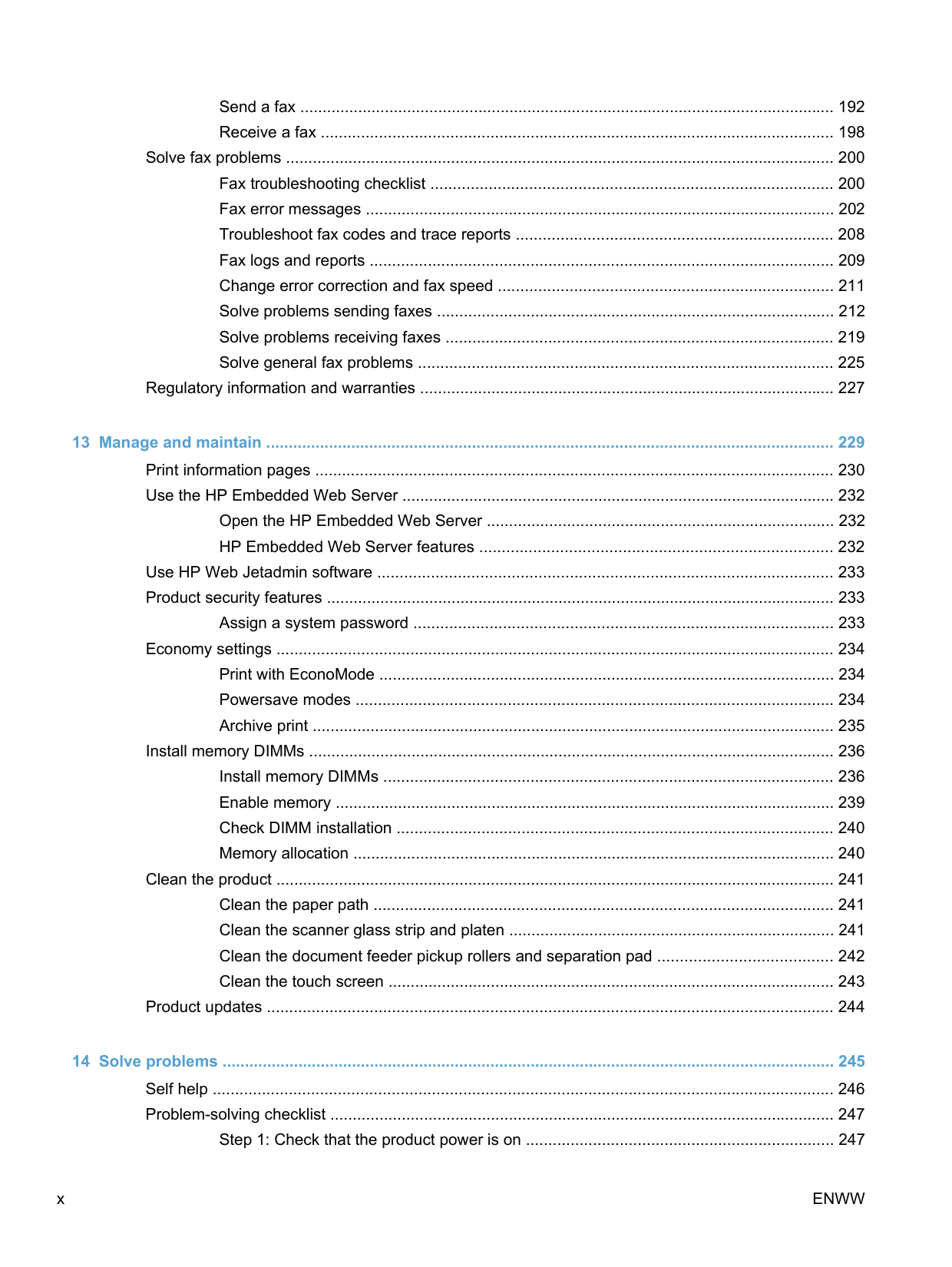
ENWW ix
Send a fax ........................................................................................................................ 192 Receive a fax ................................................................................................................... 198
Solve fax problems ........................................................................................................................... 200 Fax troubleshooting checklist .......................................................................................... 200 Fax error messages ......................................................................................................... 202 Troubleshoot fax codes and trace reports ....................................................................... 208 Fax logs and reports ........................................................................................................ 209 Change error correction and fax speed ........................................................................... 211 Solve problems sending faxes ......................................................................................... 212 Solve problems receiving faxes ....................................................................................... 219 Solve general fax problems ............................................................................................. 225
Regulatory information and warranties ............................................................................................. 227
Open the HP Embedded Web Server .............................................................................. 232 HP Embedded Web Server features ............................................................................... 232
Use HP Web Jetadmin software ...................................................................................................... 233 Product security features .................................................................................................................. 233
Assign a system password .............................................................................................. 233
Economy settings ............................................................................................................................. 234 Print with EconoMode ...................................................................................................... 234 Powersave modes ........................................................................................................... 234 Archive print ..................................................................................................................... 235
Install memory DIMMs ...................................................................................................................... 236 Install memory DIMMs ..................................................................................................... 236 Enable memory ................................................................................................................ 239 Check DIMM installation .................................................................................................. 240 Memory allocation ............................................................................................................ 240
Clean the product ............................................................................................................................. 241 Clean the paper path ....................................................................................................... 241 Clean the scanner glass strip and platen ......................................................................... 241 Clean the document feeder pickup rollers and separation pad ....................................... 242 Clean the touch screen .................................................................................................... 243
Product updates ............................................................................................................................... 244
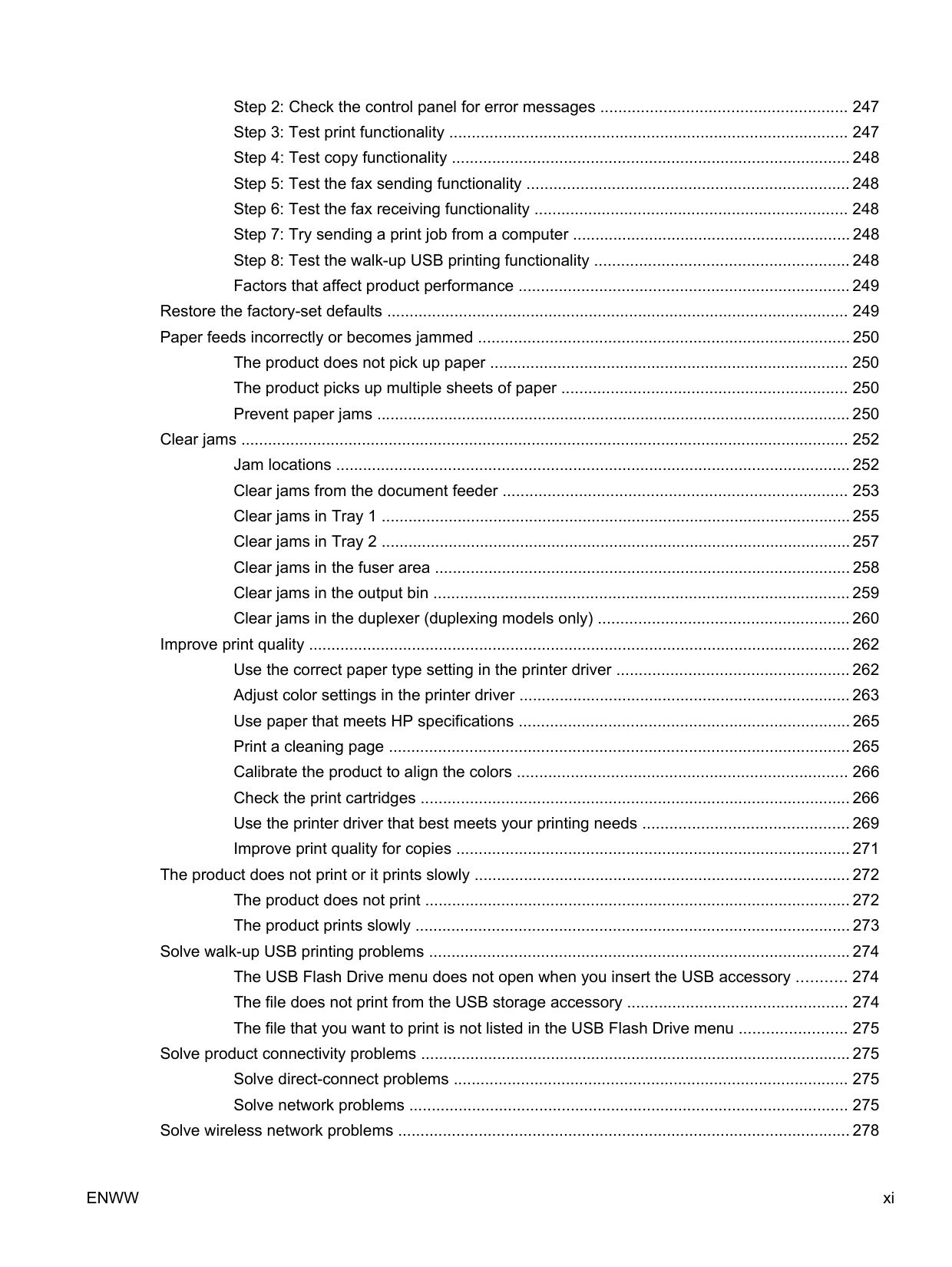
Restore the factory-set defaults ....................................................................................................... 249 Paper feeds incorrectly or becomes jammed ................................................................................... 250
The product does not pick up paper ................................................................................ 250 The product picks up multiple sheets of paper ................................................................ 250 Prevent paper jams .......................................................................................................... 250
Clear jams ........................................................................................................................................ 252 Jam locations ................................................................................................................... 252 Clear jams from the document feeder ............................................................................. 253 Clear jams in Tray 1 ......................................................................................................... 255 Clear jams in Tray 2 ......................................................................................................... 257 Clear jams in the fuser area ............................................................................................. 258 Clear jams in the output bin ............................................................................................. 259 Clear jams in the duplexer (duplexing models only) ........................................................ 260
Improve print quality ......................................................................................................................... 262 Use the correct paper type setting in the printer driver .................................................... 262 Adjust color settings in the printer driver .......................................................................... 263 Use paper that meets HP specifications .......................................................................... 265 Print a cleaning page ....................................................................................................... 265 Calibrate the product to align the colors .......................................................................... 266 Check the print cartridges ................................................................................................ 266 Use the printer driver that best meets your printing needs .............................................. 269 Improve print quality for copies ........................................................................................ 271
The product does not print or it prints slowly .................................................................................... 272 The product does not print ............................................................................................... 272 The product prints slowly ................................................................................................. 273
Solve walk-up USB printing problems .............................................................................................. 274 The USB Flash Drive menu does not open when you insert the USB accessory ........... 274 The file does not print from the USB storage accessory ................................................. 274 The file that you want to print is not listed in the USB Flash Drive menu ........................ 275
Solve product connectivity problems ................................................................................................ 275 Solve direct-connect problems ........................................................................................ 275 Solve network problems .................................................................................................. 275
Solve wireless network problems ..................................................................................................... 278
ENWW xi
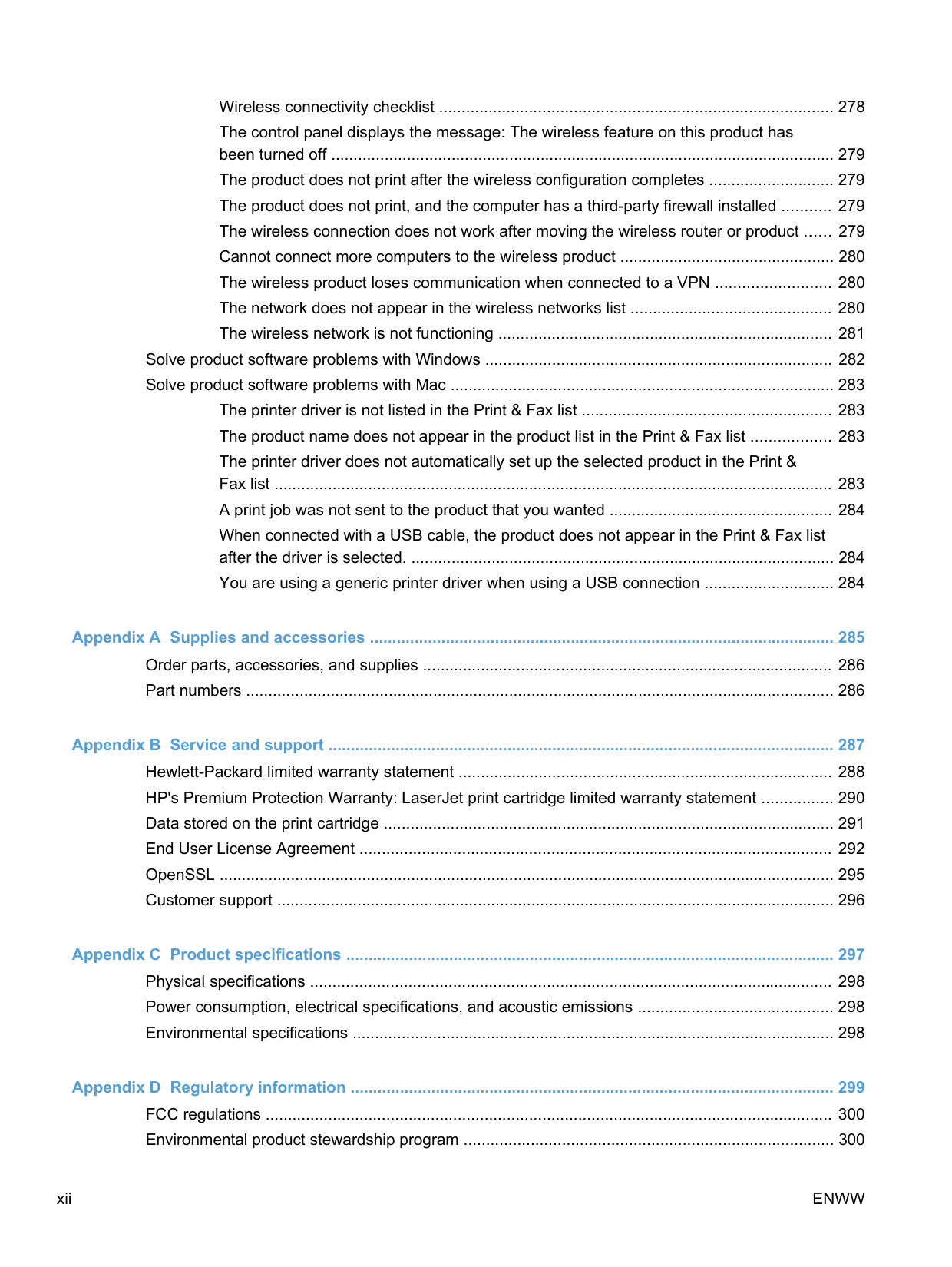
Wireless connectivity checklist ........................................................................................ 278 The control panel displays the message: The wireless feature on this product has been turned off ................................................................................................................. 279 The product does not print after the wireless configuration completes ............................ 279 The product does not print, and the computer has a third-party firewall installed ........... 279 The wireless connection does not work after moving the wireless router or product ...... 279 Cannot connect more computers to the wireless product ................................................ 280 The wireless product loses communication when connected to a VPN .......................... 280 The network does not appear in the wireless networks list ............................................. 280 The wireless network is not functioning ........................................................................... 281
Solve product software problems with Windows .............................................................................. 282 Solve product software problems with Mac ...................................................................................... 283
The printer driver is not listed in the Print & Fax list ........................................................ 283 The product name does not appear in the product list in the Print & Fax list .................. 283 The printer driver does not automatically set up the selected product in the Print & Fax list ............................................................................................................................. 283 A print job was not sent to the product that you wanted .................................................. 284 When connected with a USB cable, the product does not appear in the Print & Fax list after the driver is selected. ............................................................................................... 284 You are using a generic printer driver when using a USB connection ............................. 284
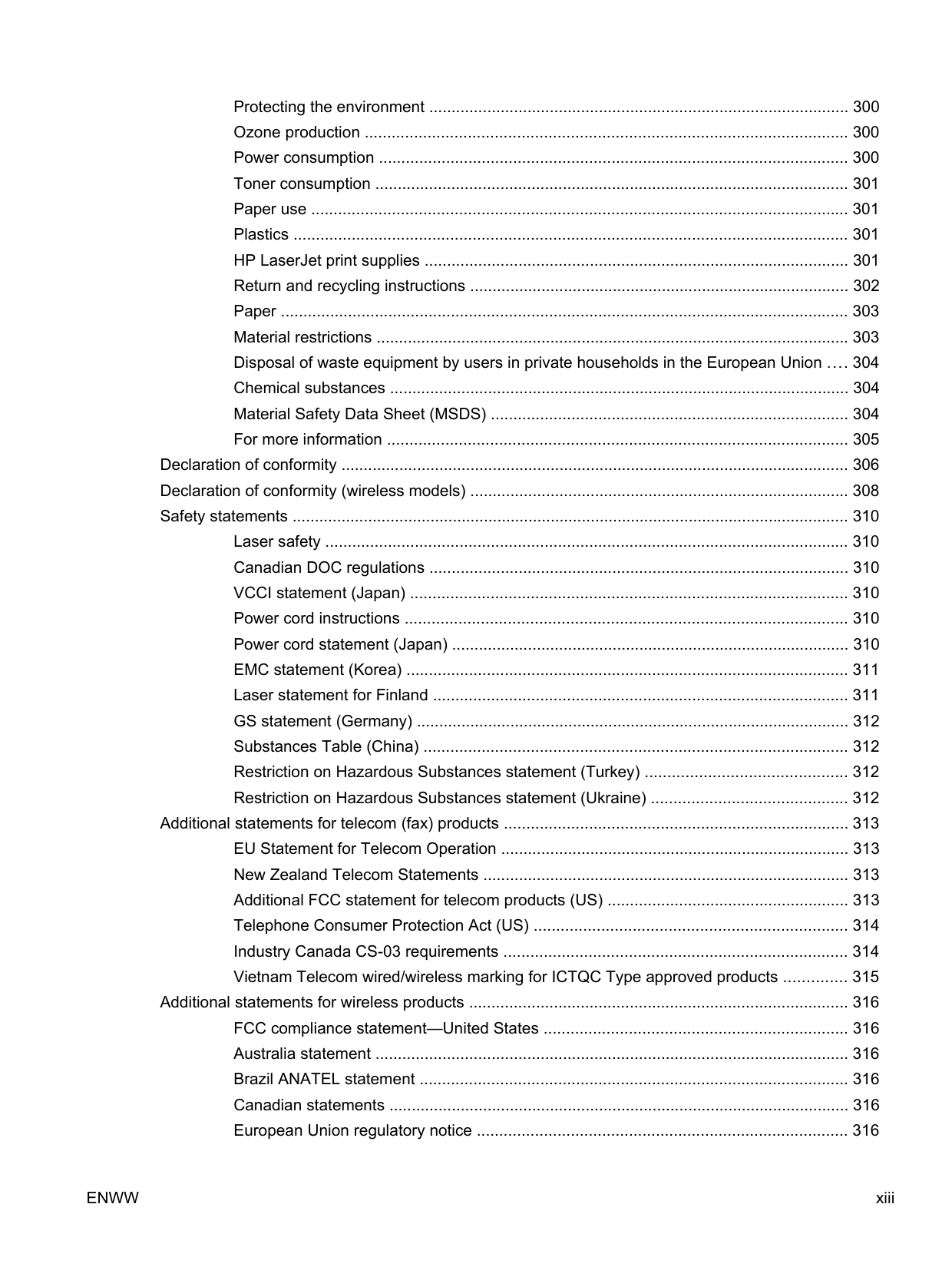
Protecting the environment .............................................................................................. 300 Ozone production ............................................................................................................ 300 Power consumption ......................................................................................................... 300 Toner consumption .......................................................................................................... 301 Paper use ........................................................................................................................ 301 Plastics ............................................................................................................................ 301 HP LaserJet print supplies ............................................................................................... 301 Return and recycling instructions ..................................................................................... 302 Paper ............................................................................................................................... 303 Material restrictions .......................................................................................................... 303 Disposal of waste equipment by users in private households in the European Union .... 304 Chemical substances ....................................................................................................... 304 Material Safety Data Sheet (MSDS) ................................................................................ 304 For more information ....................................................................................................... 305
Declaration of conformity .................................................................................................................. 306 Declaration of conformity (wireless models) ..................................................................................... 308 Safety statements ............................................................................................................................. 310
Laser safety ..................................................................................................................... 310 Canadian DOC regulations .............................................................................................. 310 VCCI statement (Japan) .................................................................................................. 310 Power cord instructions ................................................................................................... 310 Power cord statement (Japan) ......................................................................................... 310 EMC statement (Korea) ................................................................................................... 311 Laser statement for Finland ............................................................................................. 311 GS statement (Germany) ................................................................................................. 312 Substances Table (China) ............................................................................................... 312 Restriction on Hazardous Substances statement (Turkey) ............................................. 312 Restriction on Hazardous Substances statement (Ukraine) ............................................ 312
Additional statements for telecom (fax) products ............................................................................. 313 EU Statement for Telecom Operation .............................................................................. 313 New Zealand Telecom Statements .................................................................................. 313 Additional FCC statement for telecom products (US) ...................................................... 313 Telephone Consumer Protection Act (US) ...................................................................... 314 Industry Canada CS-03 requirements ............................................................................. 314 Vietnam Telecom wired/wireless marking for ICTQC Type approved products .............. 315
Additional statements for wireless products ..................................................................................... 316 FCC compliance statement—United States .................................................................... 316 Australia statement .......................................................................................................... 316 Brazil ANATEL statement ................................................................................................ 316 Canadian statements ....................................................................................................... 316 European Union regulatory notice ................................................................................... 316
ENWW xiii
Notice for use in France ................................................................................................... 317 Notice for use in Russia ................................................................................................... 317 Korean statement ............................................................................................................ 317 Taiwan statement ............................................................................................................ 318 Vietnam Telecom wired/wireless marking for ICTQC Type approved products .............. 318
######## Index ................................................................................................................................................................. 319
1 Product basics
ENWW 1
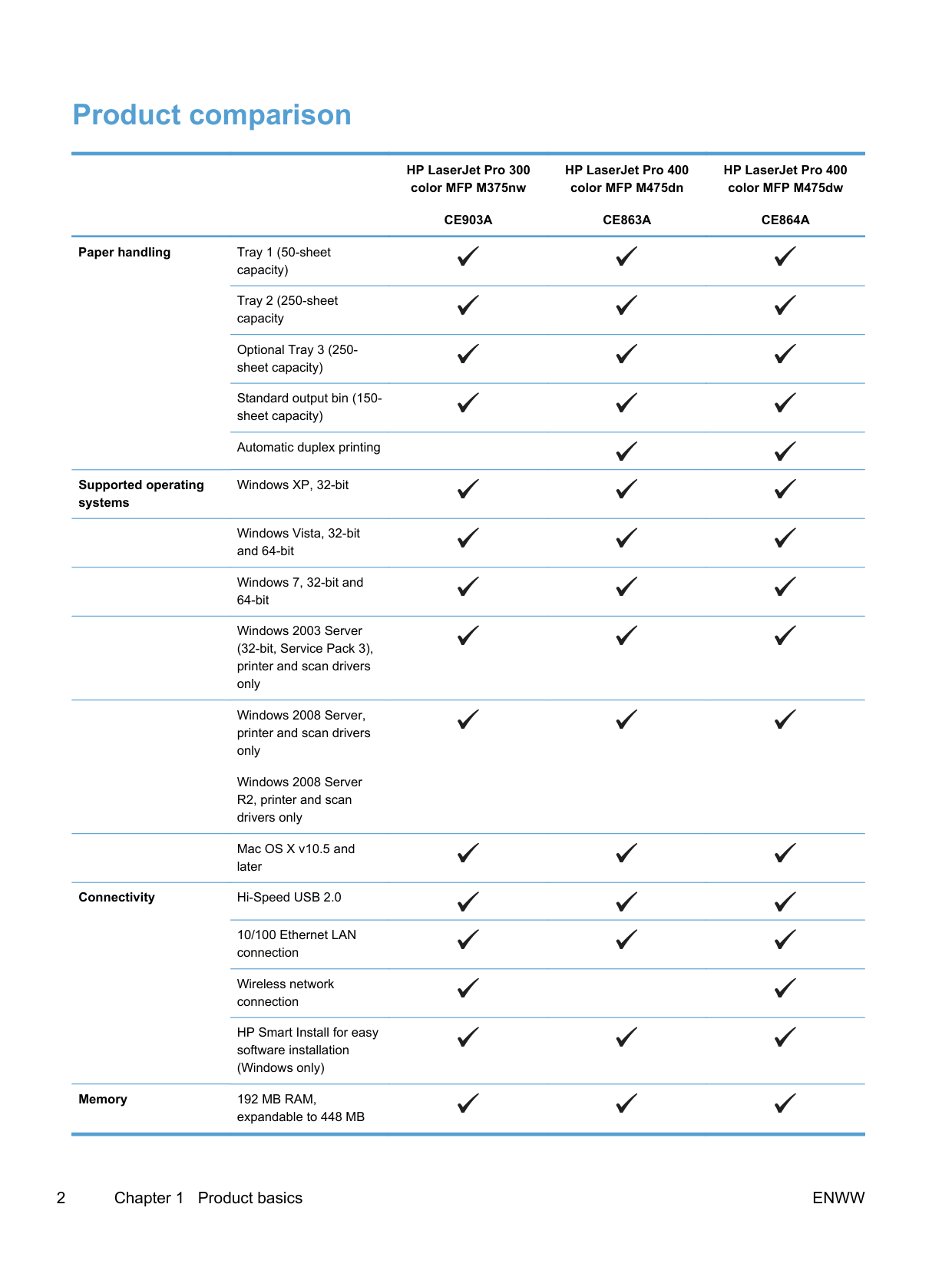
#### Product comparison
Paper handling Tray 1 (50-sheet capacity) Tray 2 (250-sheet capacity Optional Tray 3 (250sheet capacity) Standard output bin (150sheet capacity) Automatic duplex printing
Supported operating systems
Windows XP, 32-bit
Windows Vista, 32-bit and 64-bit
Windows 7, 32-bit and 64-bit
Windows 2003 Server (32-bit, Service Pack 3), printer and scan drivers only
Windows 2008 Server, printer and scan drivers only
Windows 2008 Server R2, printer and scan drivers only
Mac OS X v10.5 and later
Connectivity Hi-Speed USB 2.0
10/100 Ethernet LAN connection
Wireless network connection
HP Smart Install for easy software installation (Windows only)
Memory 192 MB RAM,
expandable to 448 MB
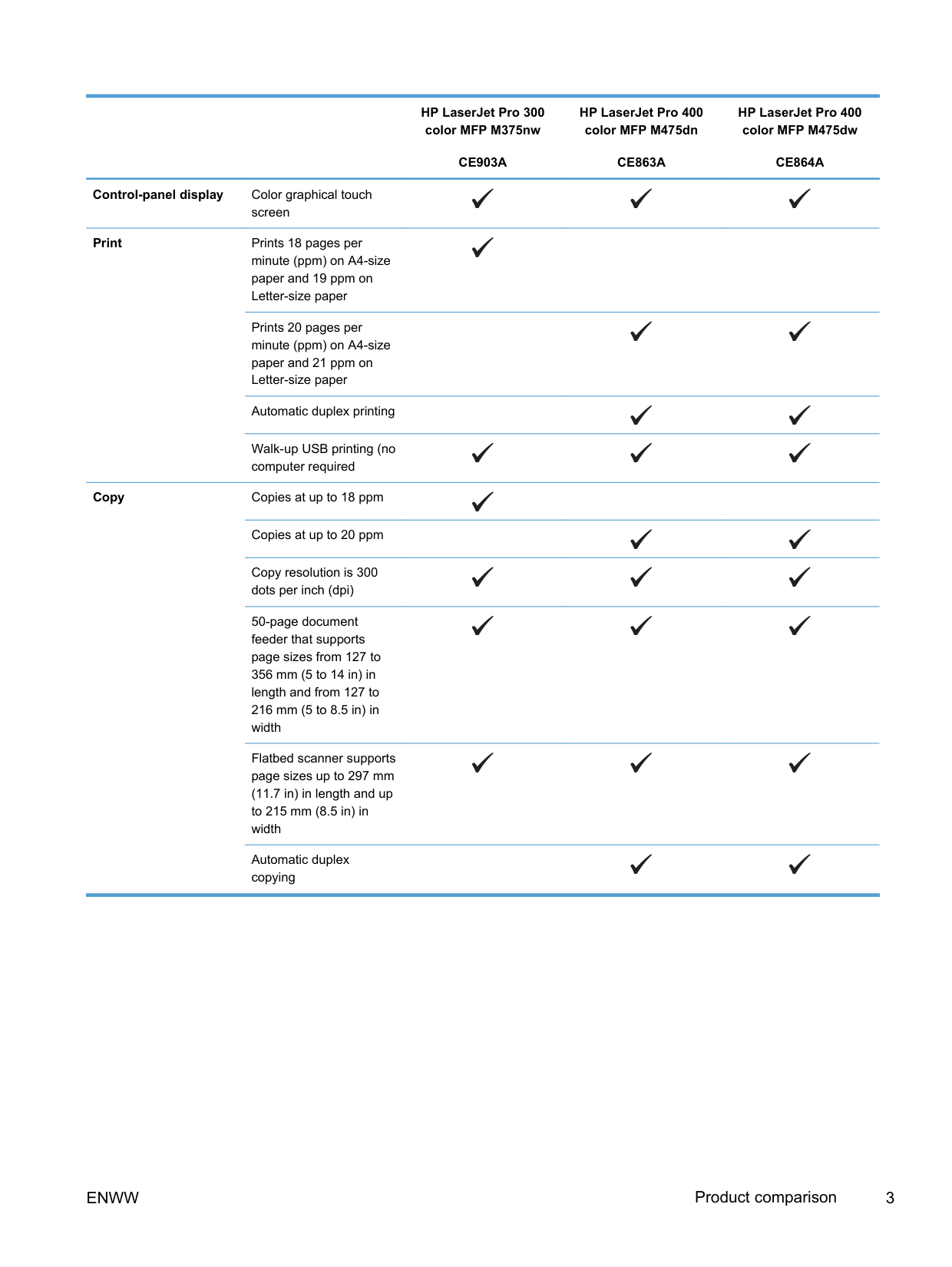
HP LaserJet Pro 300 color MFP M375nw
CE903A
HP LaserJet Pro 400 color MFP M475dn
CE863A
HP LaserJet Pro 400 color MFP M475dw
CE864A
########### Control-panel display Color graphical touch
screen
Print Prints 18 pages per minute (ppm) on A4-size paper and 19 ppm on Letter-size paper
Prints 20 pages per minute (ppm) on A4-size paper and 21 ppm on Letter-size paper
Automatic duplex printing
Walk-up USB printing (no computer required
Copy Copies at up to 18 ppm
Copies at up to 20 ppm
Copy resolution is 300 dots per inch (dpi)
50-page document feeder that supports page sizes from 127 to 356 mm (5 to 14 in) in length and from 127 to 216 mm (5 to 8.5 in) in width
Flatbed scanner supports page sizes up to 297 mm (11.7 in) in length and up to 215 mm (8.5 in) in width
Automatic duplex copying
ENWW Product comparison 3
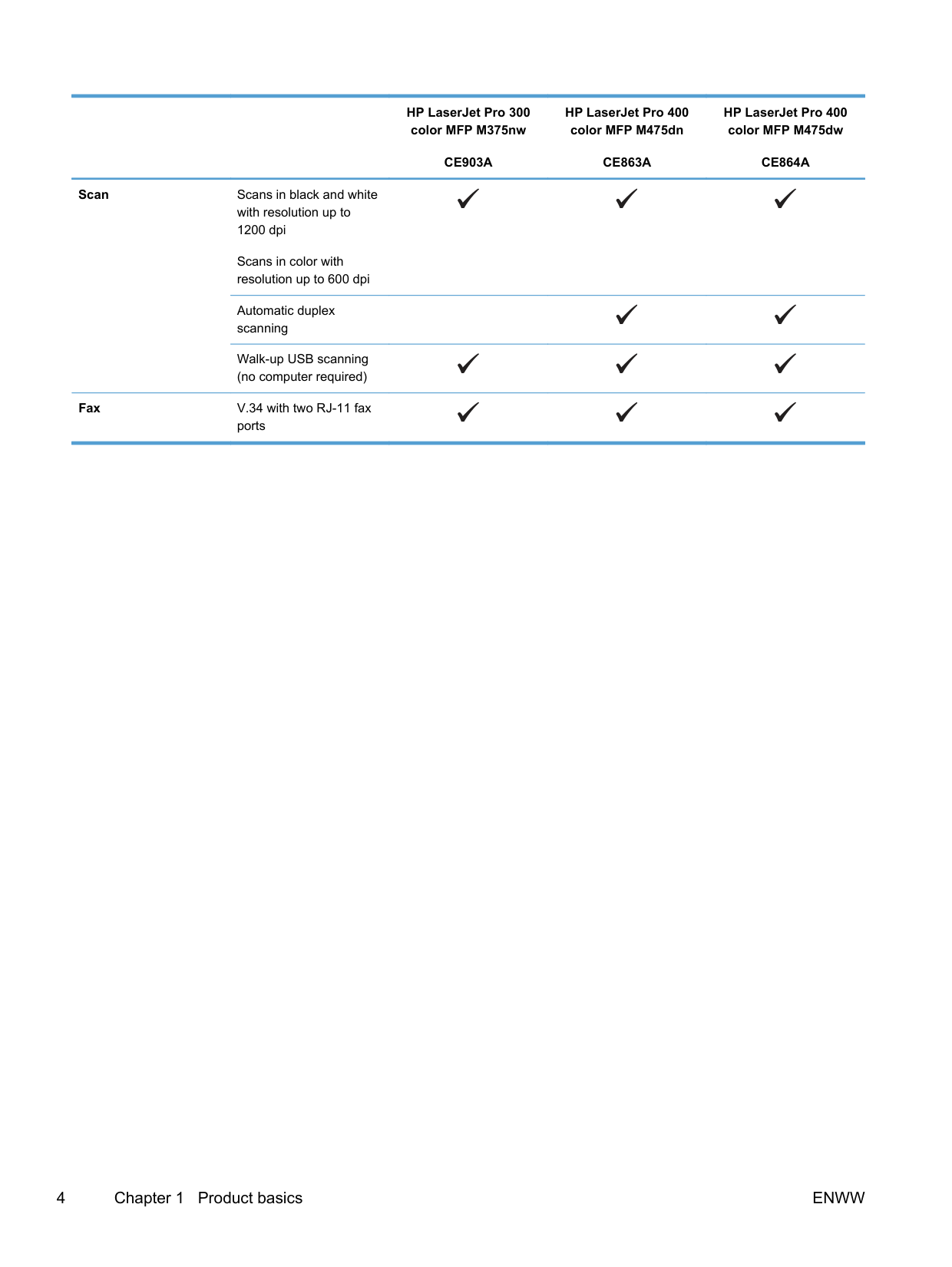
Scan Scans in black and white with resolution up to 1200 dpi
Scans in color with resolution up to 600 dpi
Automatic duplex scanning
Walk-up USB scanning (no computer required)
Fax V.34 with two RJ-11 fax
ports
#### Environmental features
Duplex printing Save paper by using the manual duplex printing option. Automatic duplex printing is available with the HP LaserJet Pro 400 color MFP M475dn and HP LaserJet Pro 400 color MFP M475dw models.
Print multiple pages per sheet
Save paper by printing two or more pages of a document side-by-side on one sheet of paper. Access this feature through the printer driver.
Copies multiple pages per sheet
Save paper by copying two or four pages of an original document side-by-side on one sheet of paper.
Recycling Reduce waste by using recycled paper.
Recycle print cartridges by using the HP Planet Partners return process. Energy savings Instant on Fusing technology and sleep mode enable this product to quickly go into reduced power states when not printing, thus saving energy.
#### Accessibility features
The product includes several features that aid users with accessibility issues.
ENWW Environmental features 5
#### Product views
Front view

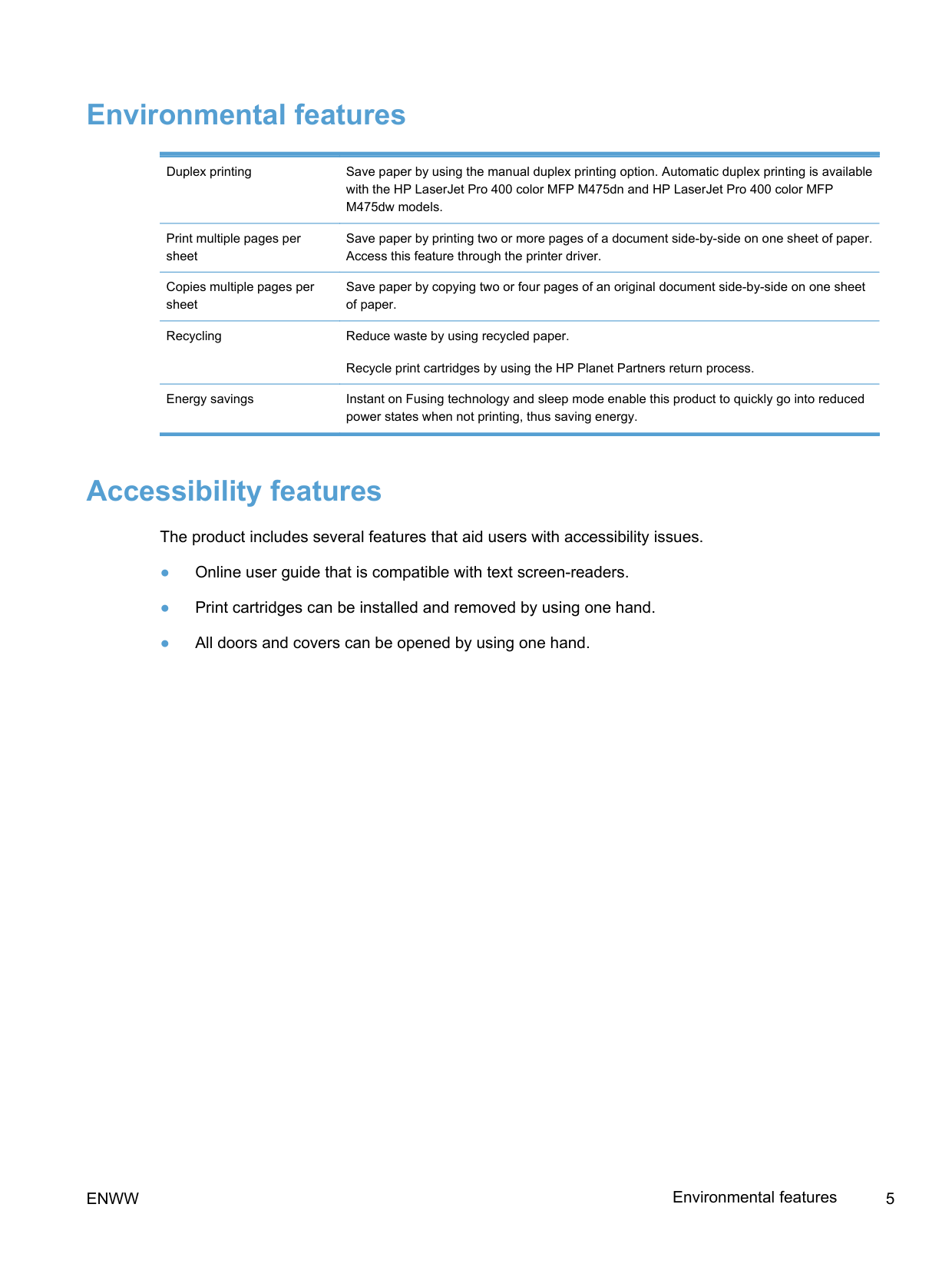
|1|Document feeder cover| |---|---| |2|Document feeder input tray| |3|Document feeder input tray extension| |4|Document feeder output bin| |5|Color touch screen control panel| |6|Control-panel-adjustment lever| |7|DIMM access door| |8|Walk-up USB printing port| |9|On/Off button| |10|Optional Tray 3| |11|Tray 2 (access for clearing jams)| |12|Tray 1| |13|Print-cartridge-door handle| |14|Output bin stop| |15|Output bin|
##### Back view
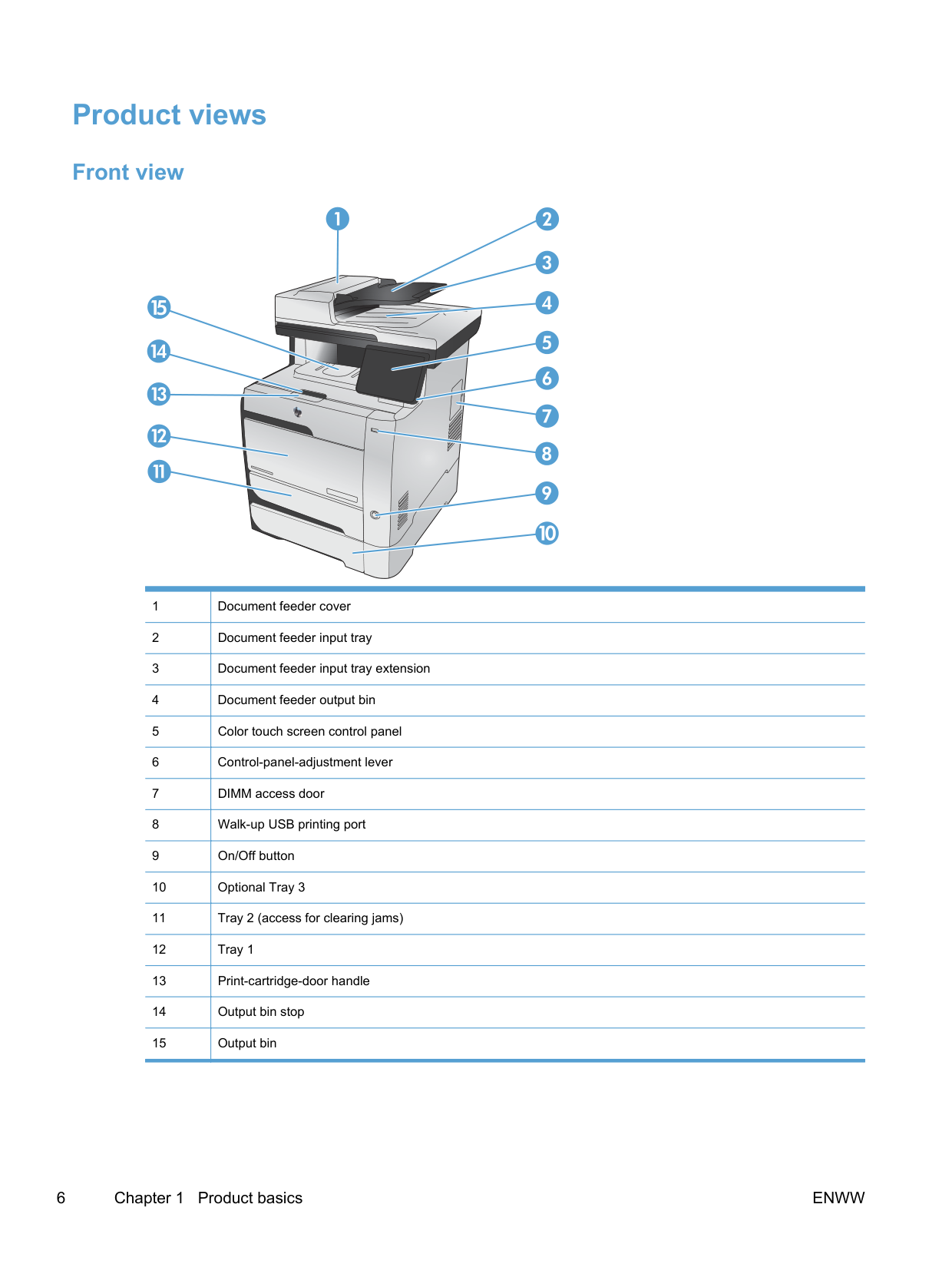
|1|Fax ports| |---|---| |2|Network port|

|3|Hi-Speed USB 2.0 port| |4|Power connection| |5|Rear door (access for clearing jams)|
##### Interface ports
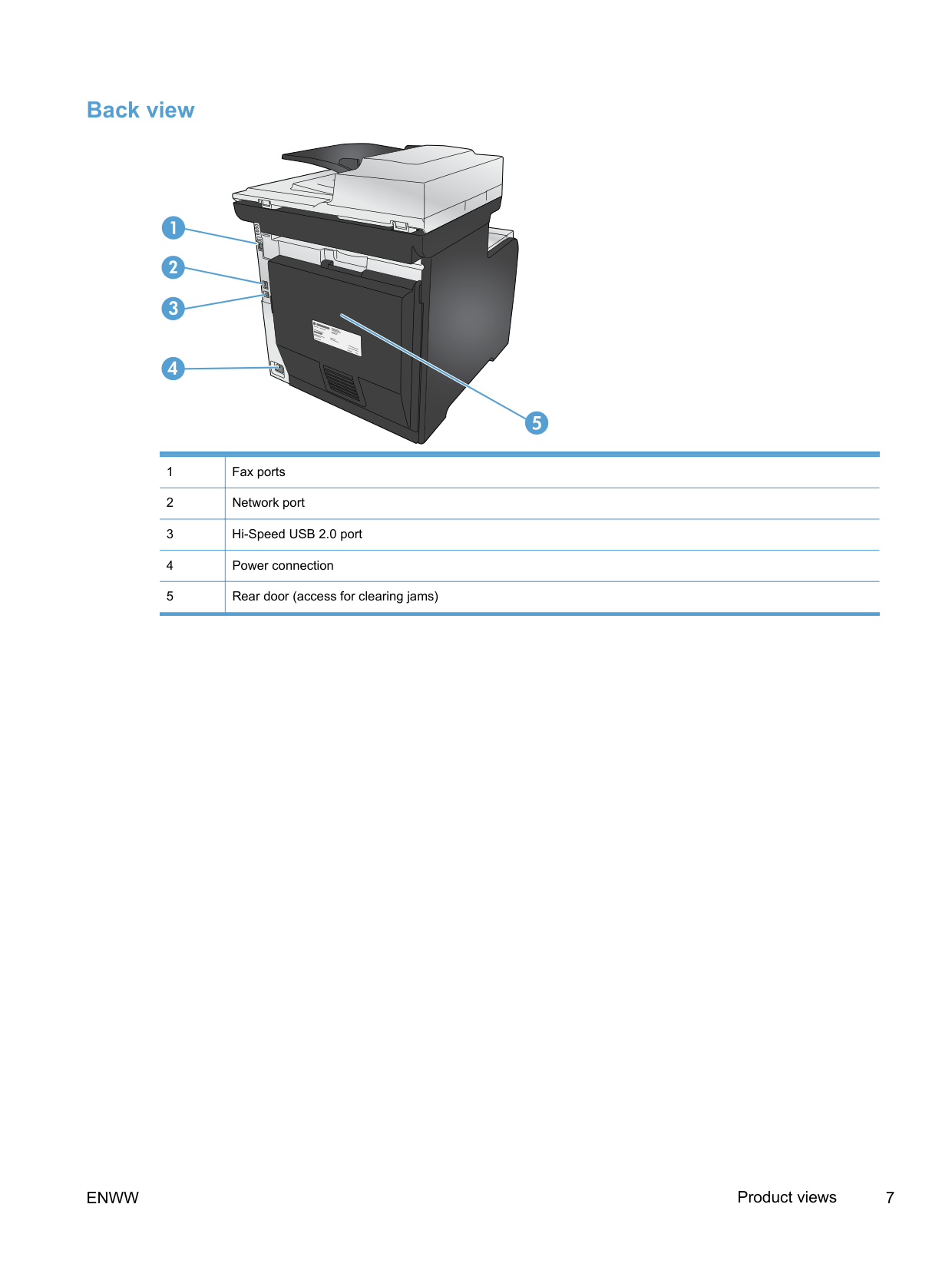
|1|Telephone “line out” port for attaching an extension phone, answering machine, or other device| |---|---| |2|Fax “line in” port for attaching fax line to product| |3|Network port| |4|Hi-Speed USB 2.0 port|
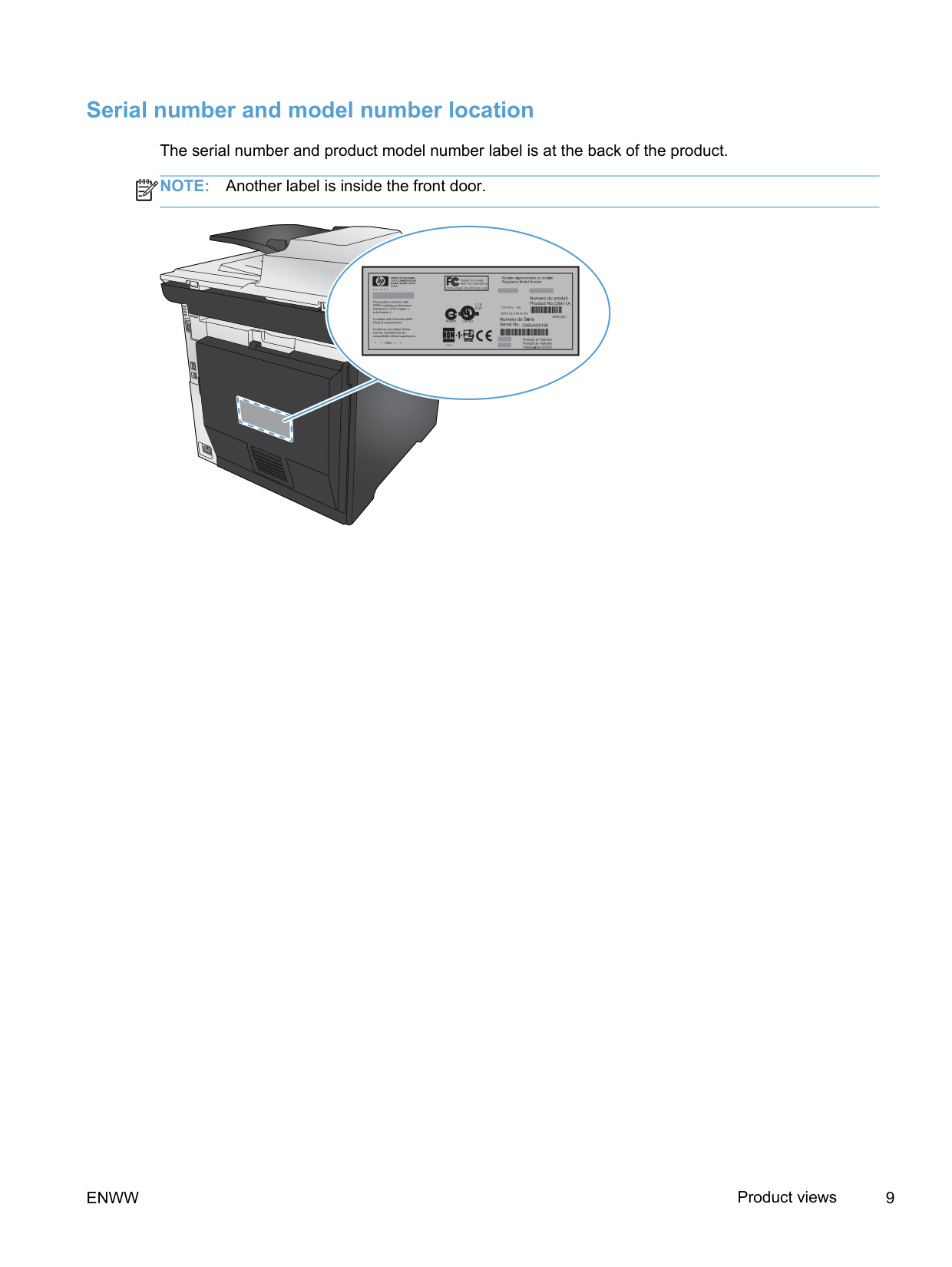
###### Serial number and model number location The serial number and product model number label is at the back of the product. NOTE: Another label is inside the front door.
| | |---|
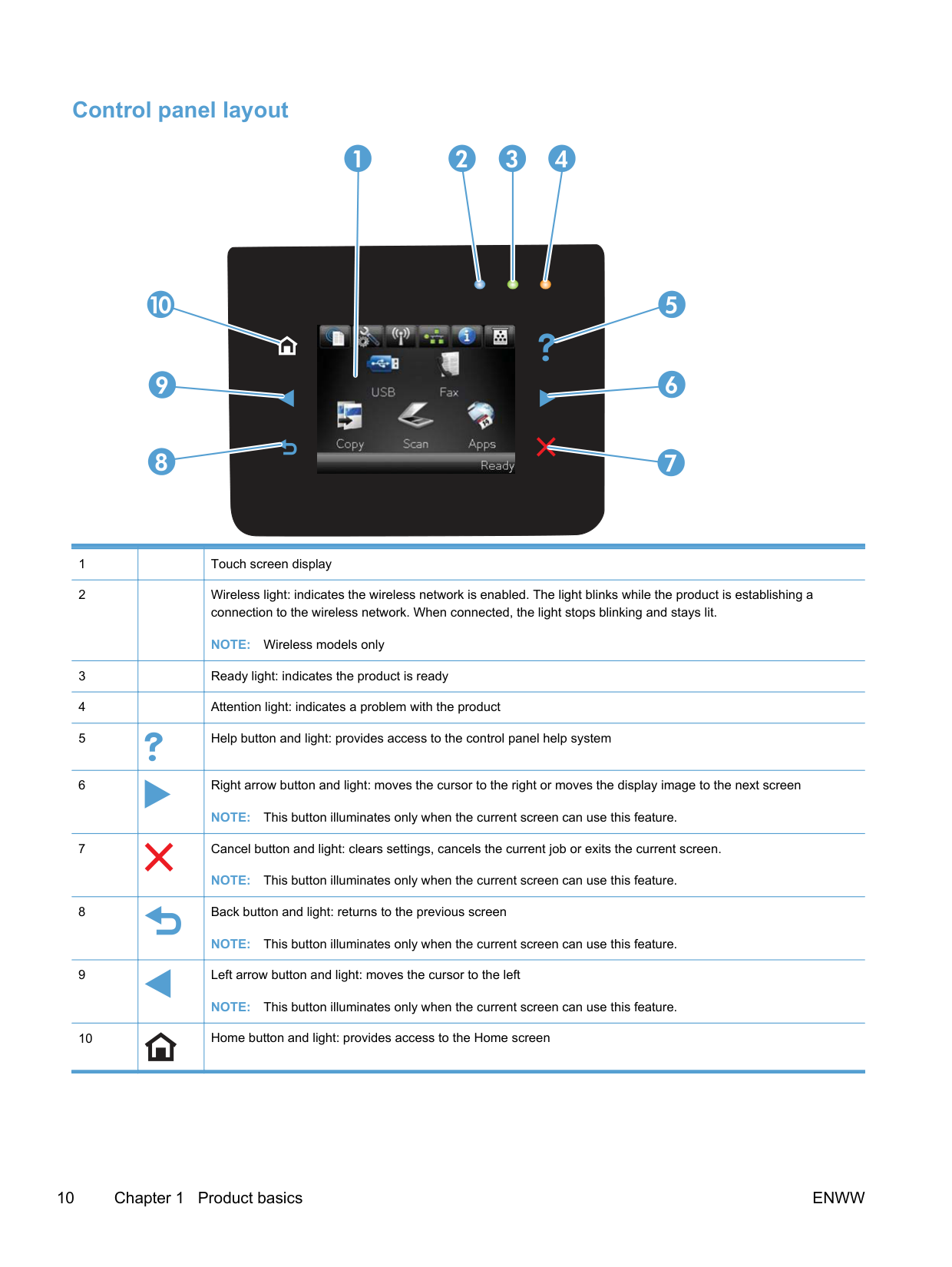
##### Control panel layout

|1| |Touch screen display| |---|---|---| |2| |Wireless light: indicates the wireless network is enabled. The light blinks while the product is establishing a connection to the wireless network. When connected, the light stops blinking and stays lit.
NOTE: Wireless models only|

|3| |Ready light: indicates the product is ready| |4| |Attention light: indicates a problem with the product| |5| |Help button and light: provides access to the control panel help system| |6| |Right arrow button and light: moves the cursor to the right or moves the display image to the next screen
NOTE: This button illuminates only when the current screen can use this feature.| |7| |Cancel button and light: clears settings, cancels the current job or exits the current screen.
NOTE: This button illuminates only when the current screen can use this feature.| |8| |Back button and light: returns to the previous screen
NOTE: This button illuminates only when the current screen can use this feature.| |9| |Left arrow button and light: moves the cursor to the left
NOTE: This button illuminates only when the current screen can use this feature.| |10| |Home button and light: provides access to the Home screen|
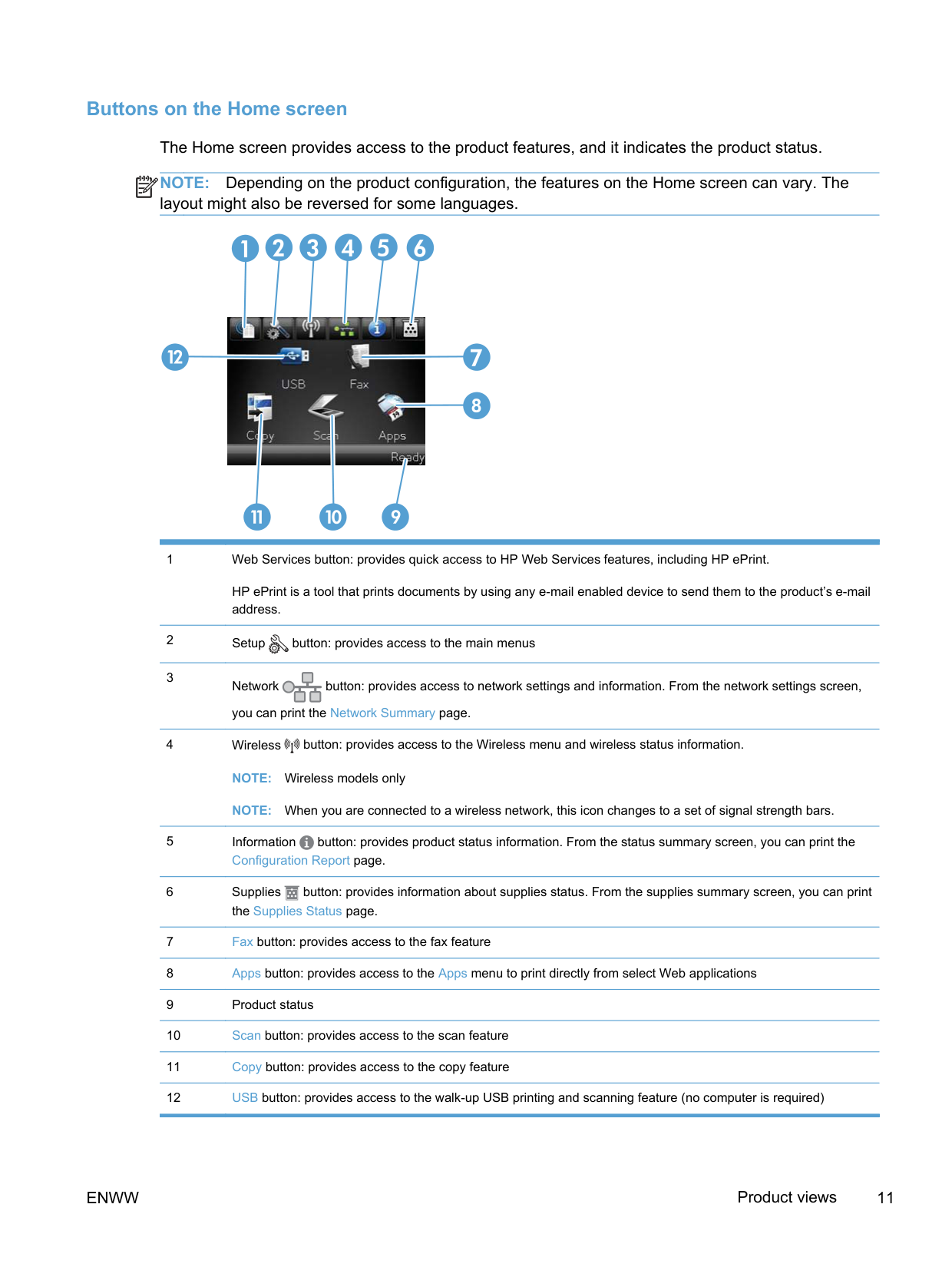
Buttons on the Home screen The Home screen provides access to the product features, and it indicates the product status. NOTE: Depending on the product configuration, the features on the Home screen can vary. The layout might also be reversed for some languages.
| | |---|

HP ePrint is a tool that prints documents by using any e-mail enabled device to send them to the product’s e-mail address.
NOTE: Wireless models only
NOTE: When you are connected to a wireless network, this icon changes to a set of signal strength bars.
####### Control panel help system
The product has a built-in Help system that explains how to use each screen. To open the Help system, touch the Help button in the upper-right corner of the screen.
For some screens, the Help opens to a global menu where you can search for specific topics. You can browse through the menu structure by touching the buttons in the menu.
Some Help screens include animations that guide you through procedures, such as clearing jams. For screens that contain settings for individual jobs, the Help opens to a topic that explains the options for that screen. If the product alerts you of an error or warning, touch the Help button to open a message that describes the problem. The message also contains instructions to help solve the problem.
2 Control panel menus
ENWW 13
#### Setup Menu
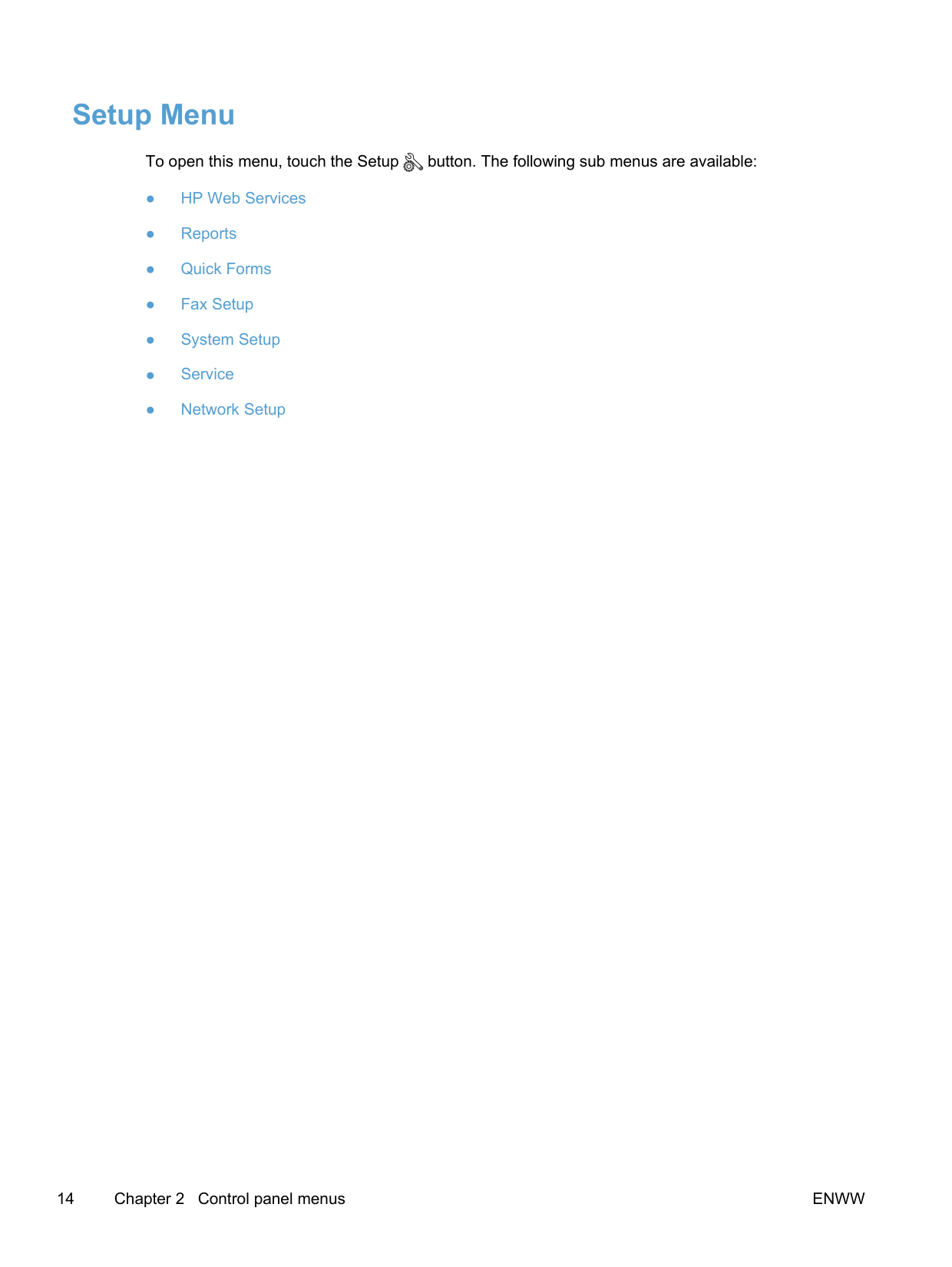
To open this menu, touch the Setup button. The following sub menus are available:
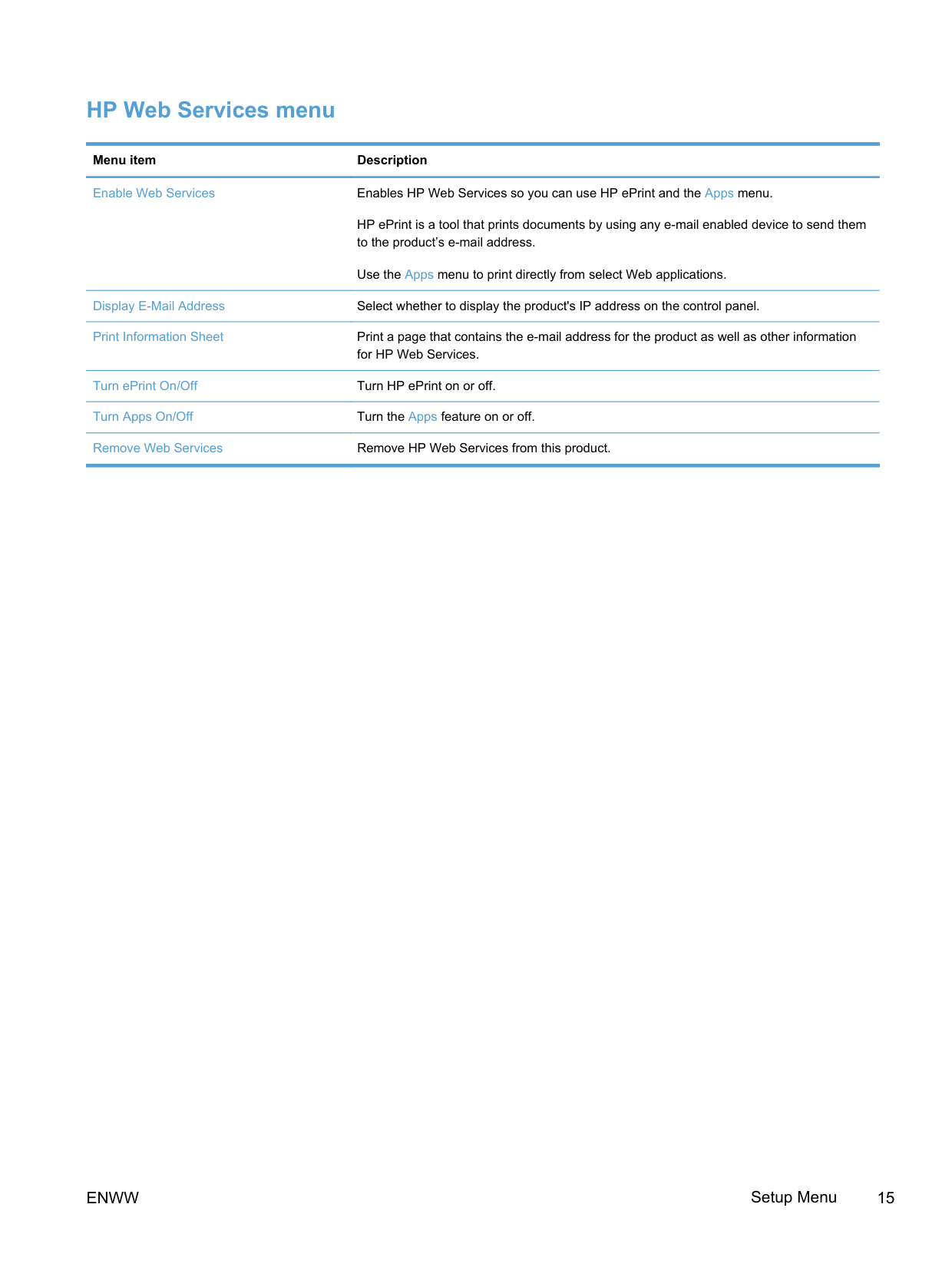
##### HP Web Services menu
########### Menu item Description
Enable Web Services Enables HP Web Services so you can use HP ePrint and the Apps menu.
HP ePrint is a tool that prints documents by using any e-mail enabled device to send them to the product’s e-mail address.
Use the Apps menu to print directly from select Web applications. Display E-Mail Address Select whether to display the product's IP address on the control panel. Print Information Sheet Print a page that contains the e-mail address for the product as well as other information
for HP Web Services. Turn ePrint On/Off Turn HP ePrint on or off. Turn Apps On/Off Turn the Apps feature on or off. Remove Web Services Remove HP Web Services from this product.
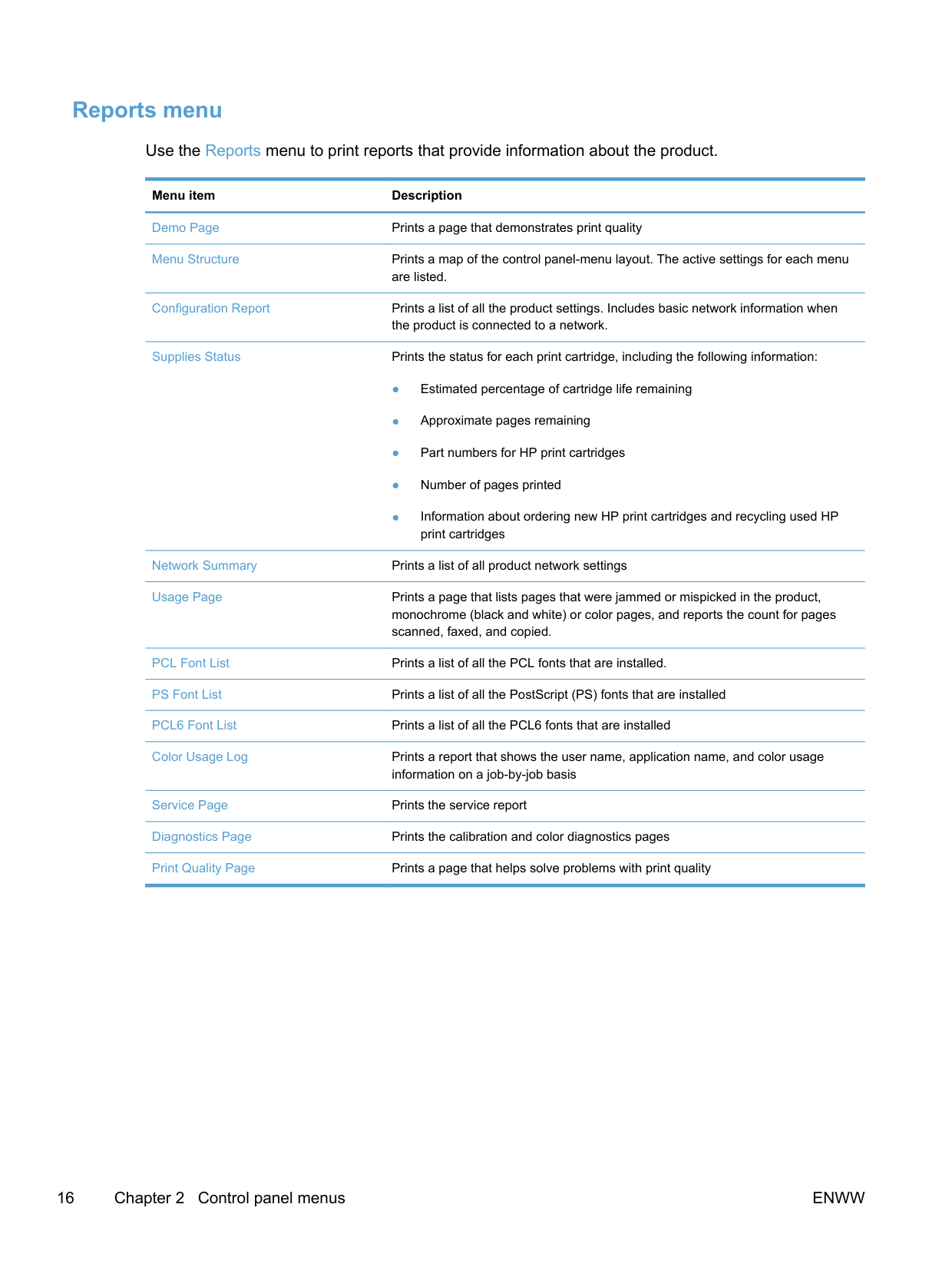
##### Reports menu
Use the Reports menu to print reports that provide information about the product.
Menu item Description Demo Page Prints a page that demonstrates print quality Menu Structure Prints a map of the control panel-menu layout. The active settings for each menu
are listed. Configuration Report Prints a list of all the product settings. Includes basic network information when the product is connected to a network. Supplies Status Prints the status for each print cartridge, including the following information:
Network Summary Prints a list of all product network settings Usage Page Prints a page that lists pages that were jammed or mispicked in the product,
monochrome (black and white) or color pages, and reports the count for pages scanned, faxed, and copied.
PCL Font List Prints a list of all the PCL fonts that are installed. PS Font List Prints a list of all the PostScript (PS) fonts that are installed PCL6 Font List Prints a list of all the PCL6 fonts that are installed Color Usage Log Prints a report that shows the user name, application name, and color usage
information on a job-by-job basis Service Page Prints the service report Diagnostics Page Prints the calibration and color diagnostics pages Print Quality Page Prints a page that helps solve problems with print quality
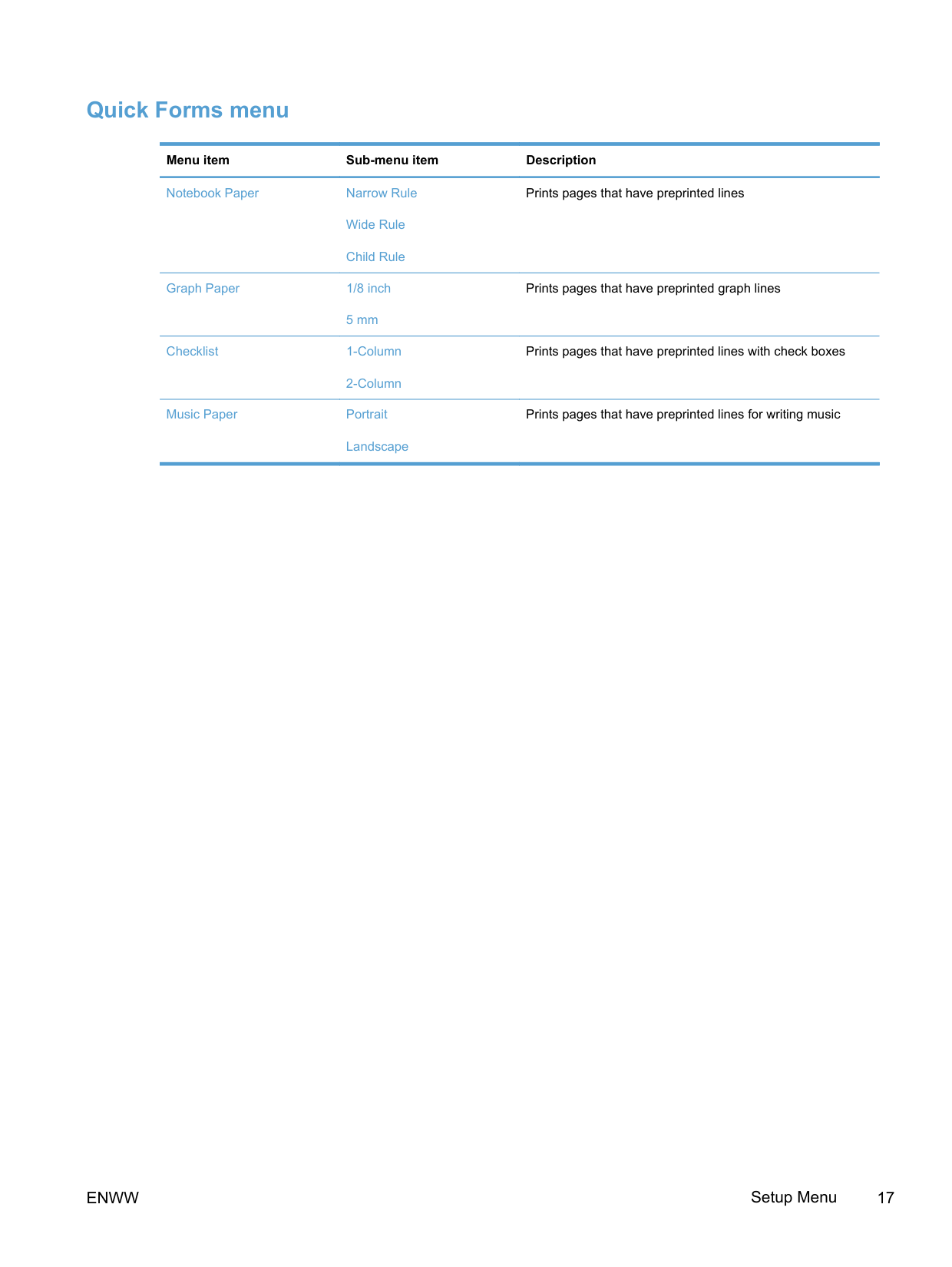
##### Quick Forms menu
########### Menu item Sub-menu item Description
Notebook Paper Narrow Rule
Wide Rule
Child Rule
Graph Paper 1/8 inch
5 mm
Checklist 1-Column
2-Column
Music Paper Portrait
Landscape
Prints pages that have preprinted lines
Prints pages that have preprinted graph lines
Prints pages that have preprinted lines with check boxes
Prints pages that have preprinted lines for writing music
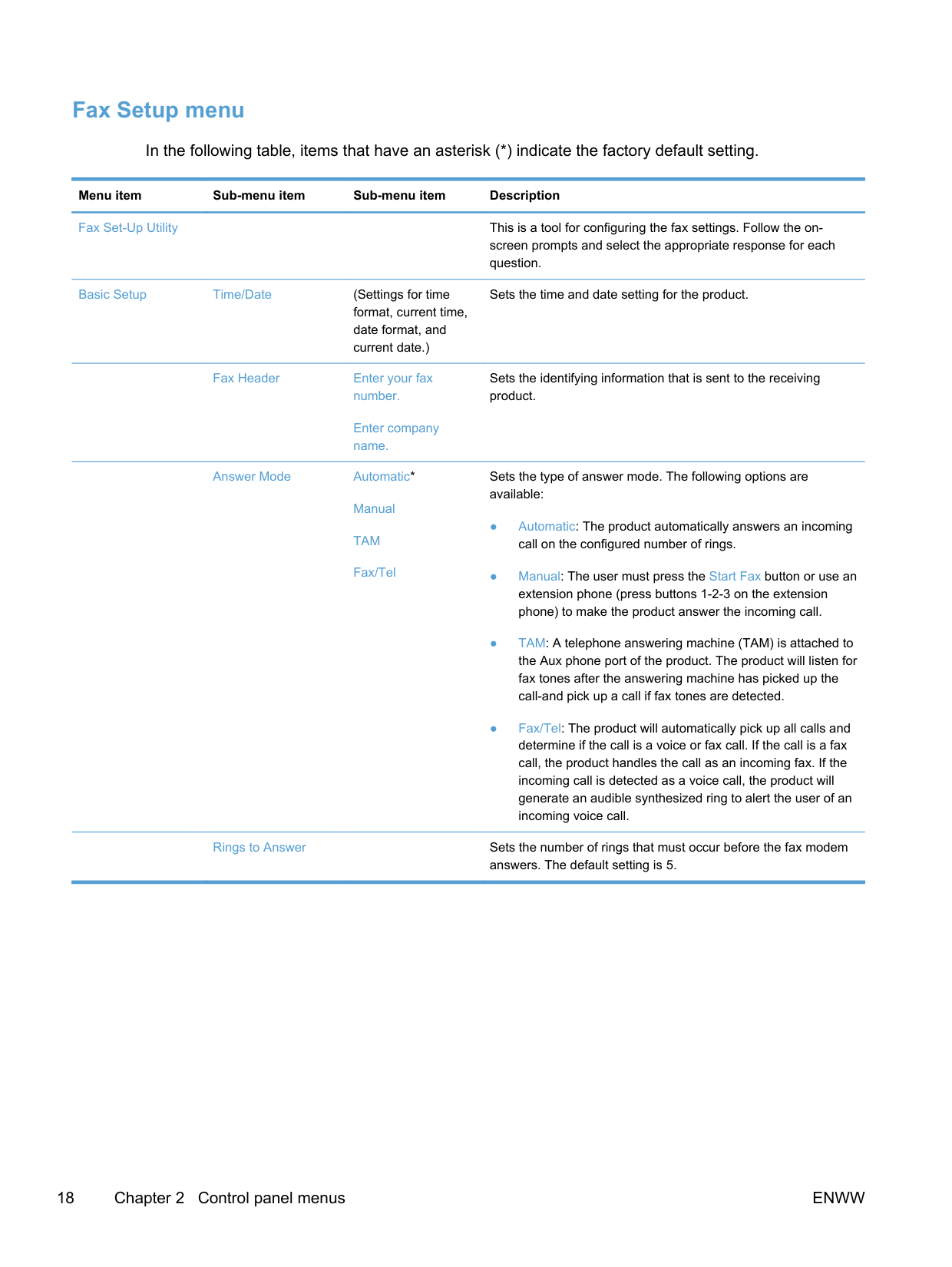
##### Fax Setup menu
In the following table, items that have an asterisk (*) indicate the factory default setting.
Menu item Sub-menu item Sub-menu item Description
Fax Set-Up Utility This is a tool for configuring the fax settings. Follow the onscreen prompts and select the appropriate response for each question.
Basic Setup Time/Date (Settings for time format, current time, date format, and current date.)
Sets the time and date setting for the product.
Fax Header Enter your fax number.
Sets the identifying information that is sent to the receiving product.
Enter company name.
Answer Mode Automatic*
Manual
TAM
Fax/Tel
Sets the type of answer mode. The following options are available:
Rings to Answer Sets the number of rings that must occur before the fax modem answers. The default setting is 5.
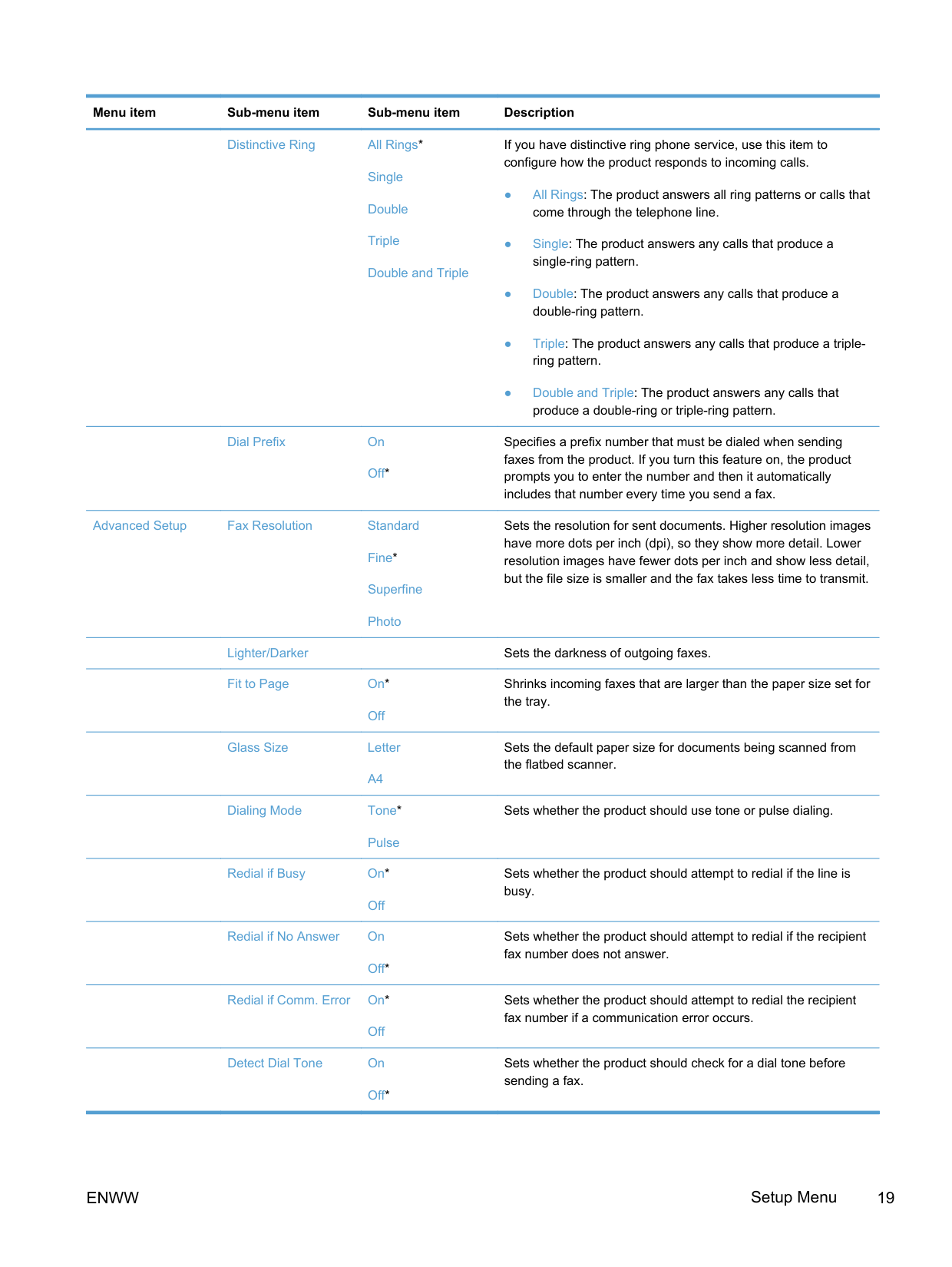
Distinctive Ring All Rings*
Single
Double
Triple
Double and Triple
Dial Prefix On
Off*
Advanced Setup Fax Resolution Standard
Fine*
Superfine
If you have distinctive ring phone service, use this item to configure how the product responds to incoming calls.
Specifies a prefix number that must be dialed when sending faxes from the product. If you turn this feature on, the product prompts you to enter the number and then it automatically includes that number every time you send a fax.
Sets the resolution for sent documents. Higher resolution images have more dots per inch (dpi), so they show more detail. Lower resolution images have fewer dots per inch and show less detail, but the file size is smaller and the fax takes less time to transmit.
Photo
Lighter/Darker Sets the darkness of outgoing faxes. Fit to Page On*
Shrinks incoming faxes that are larger than the paper size set for the tray.
Off
Glass Size Letter
A4
Sets the default paper size for documents being scanned from the flatbed scanner.
Dialing Mode Tone*
Sets whether the product should use tone or pulse dialing.
Pulse
Redial if Busy On*
Off
Redial if No Answer On
Off*
Redial if Comm. Error On*
Off
Detect Dial Tone On
Off*
Sets whether the product should attempt to redial if the line is busy.
Sets whether the product should attempt to redial if the recipient fax number does not answer.
Sets whether the product should attempt to redial the recipient fax number if a communication error occurs.
Sets whether the product should check for a dial tone before sending a fax.
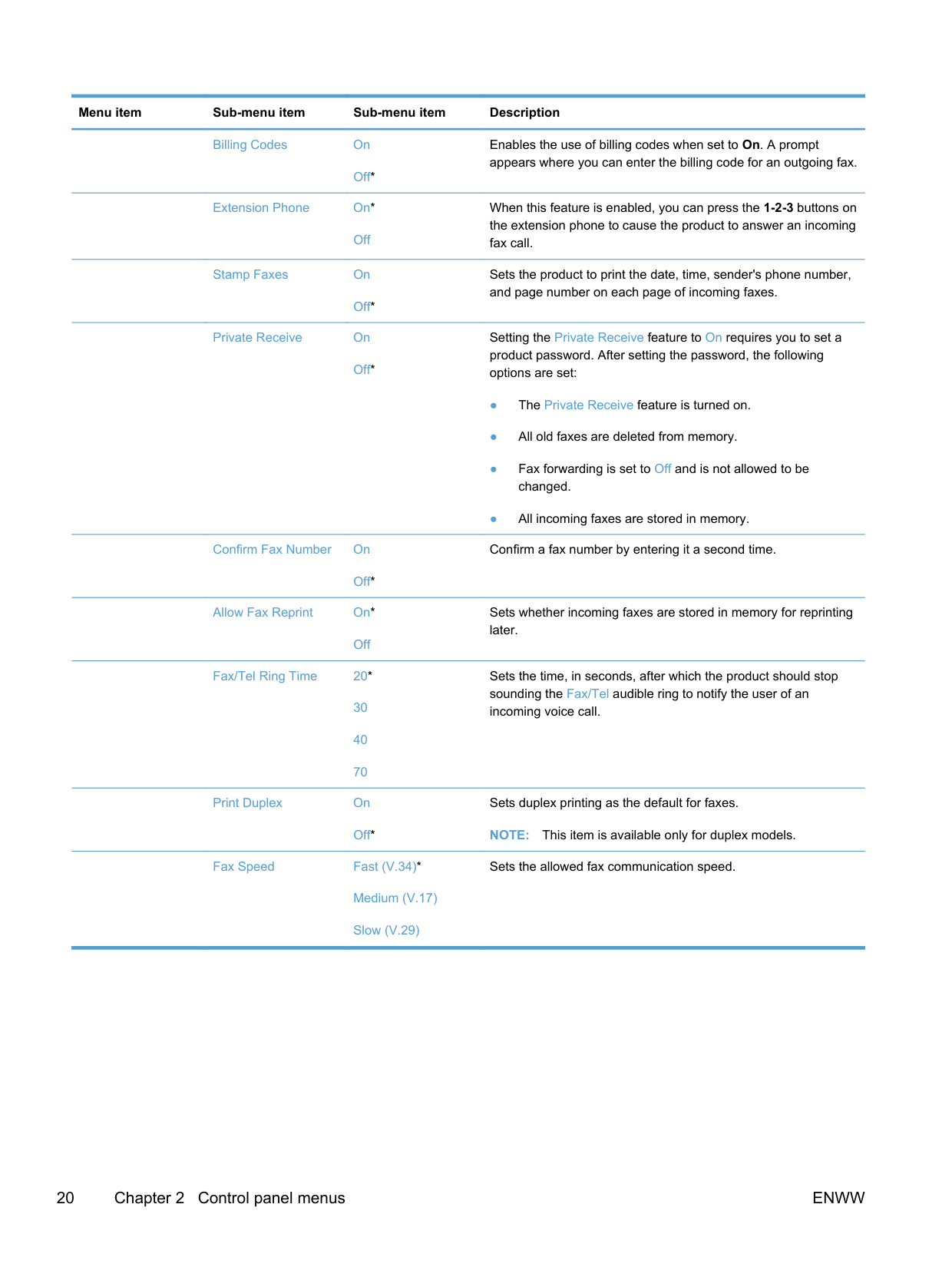
Billing Codes On
Off*
Extension Phone On*
Off
Stamp Faxes On
Off*
Private Receive On
Off*
Confirm Fax Number On
Off*
Allow Fax Reprint On*
Off
Fax/Tel Ring Time 20*
30
40
70
Print Duplex On
Enables the use of billing codes when set to On. A prompt appears where you can enter the billing code for an outgoing fax.
When this feature is enabled, you can press the 1-2-3 buttons on the extension phone to cause the product to answer an incoming fax call.
Sets the product to print the date, time, sender's phone number, and page number on each page of incoming faxes.
Setting the Private Receive feature to On requires you to set a product password. After setting the password, the following options are set:
Confirm a fax number by entering it a second time.
Sets whether incoming faxes are stored in memory for reprinting later.
Sets the time, in seconds, after which the product should stop sounding the Fax/Tel audible ring to notify the user of an incoming voice call.
Sets duplex printing as the default for faxes.
NOTE: This item is available only for duplex models. Fax Speed Fast (V.34)*
Off*
Sets the allowed fax communication speed.
Medium (V.17)
Slow (V.29)
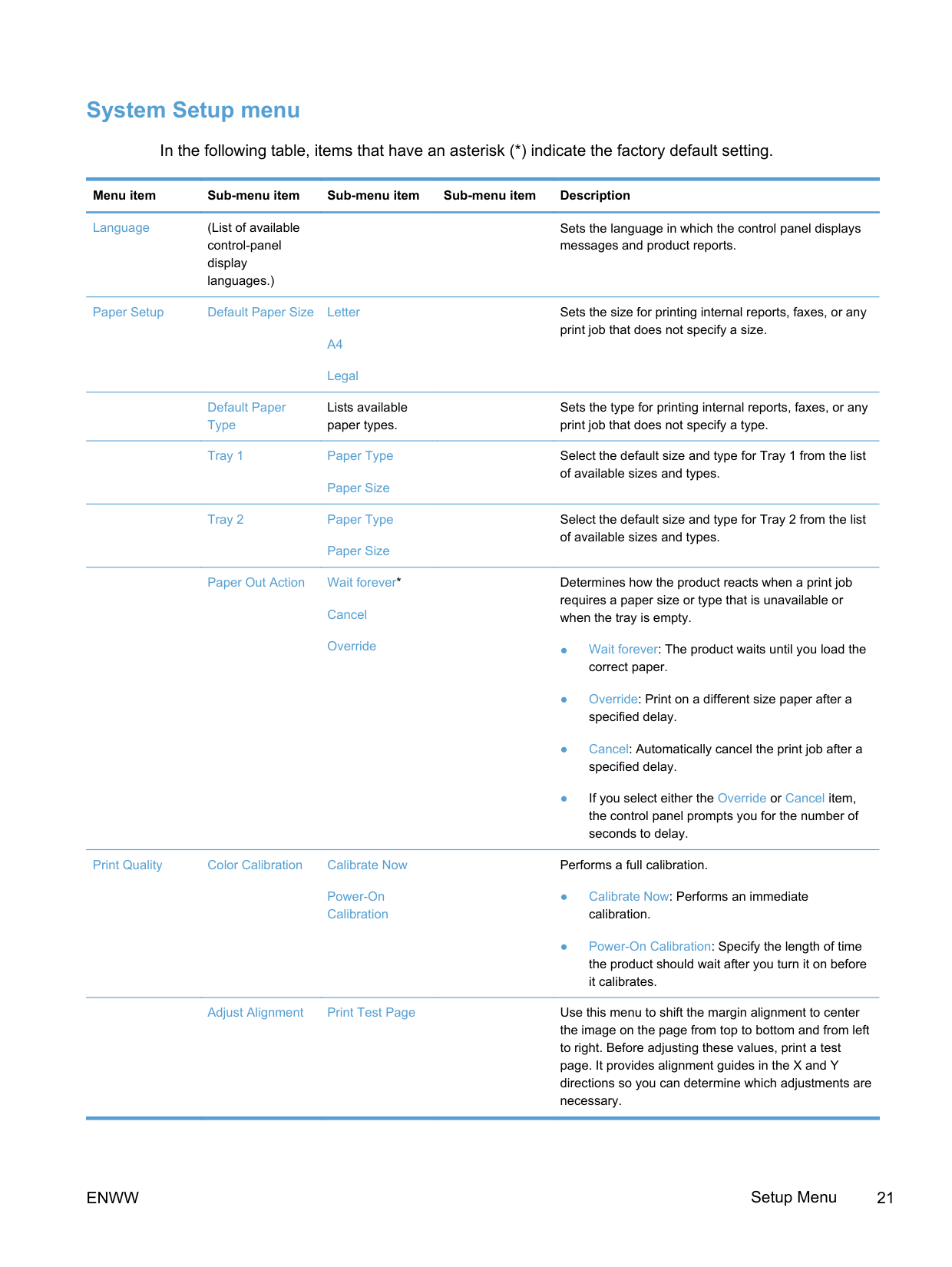
##### System Setup menu
In the following table, items that have an asterisk (*) indicate the factory default setting.
Menu item Sub-menu item Sub-menu item Sub-menu item Description

Language (List of available control-panel display languages.)
Paper Setup Default Paper Size Letter
A4
Sets the language in which the control panel displays messages and product reports.
Sets the size for printing internal reports, faxes, or any print job that does not specify a size.
Legal
Default Paper Type
Lists available paper types.
Select the default size and type for Tray 1 from the list of available sizes and types.
Sets the type for printing internal reports, faxes, or any print job that does not specify a type.
Select the default size and type for Tray 2 from the list of available sizes and types.
Paper Out Action Wait forever*
Cancel
Override
Determines how the product reacts when a print job requires a paper size or type that is unavailable or when the tray is empty.
Print Quality Color Calibration Calibrate Now
Power-On Calibration
Performs a full calibration.
Adjust Alignment Print Test Page Use this menu to shift the margin alignment to center the image on the page from top to bottom and from left to right. Before adjusting these values, print a test page. It provides alignment guides in the X and Y directions so you can determine which adjustments are necessary.
Adjust Tray
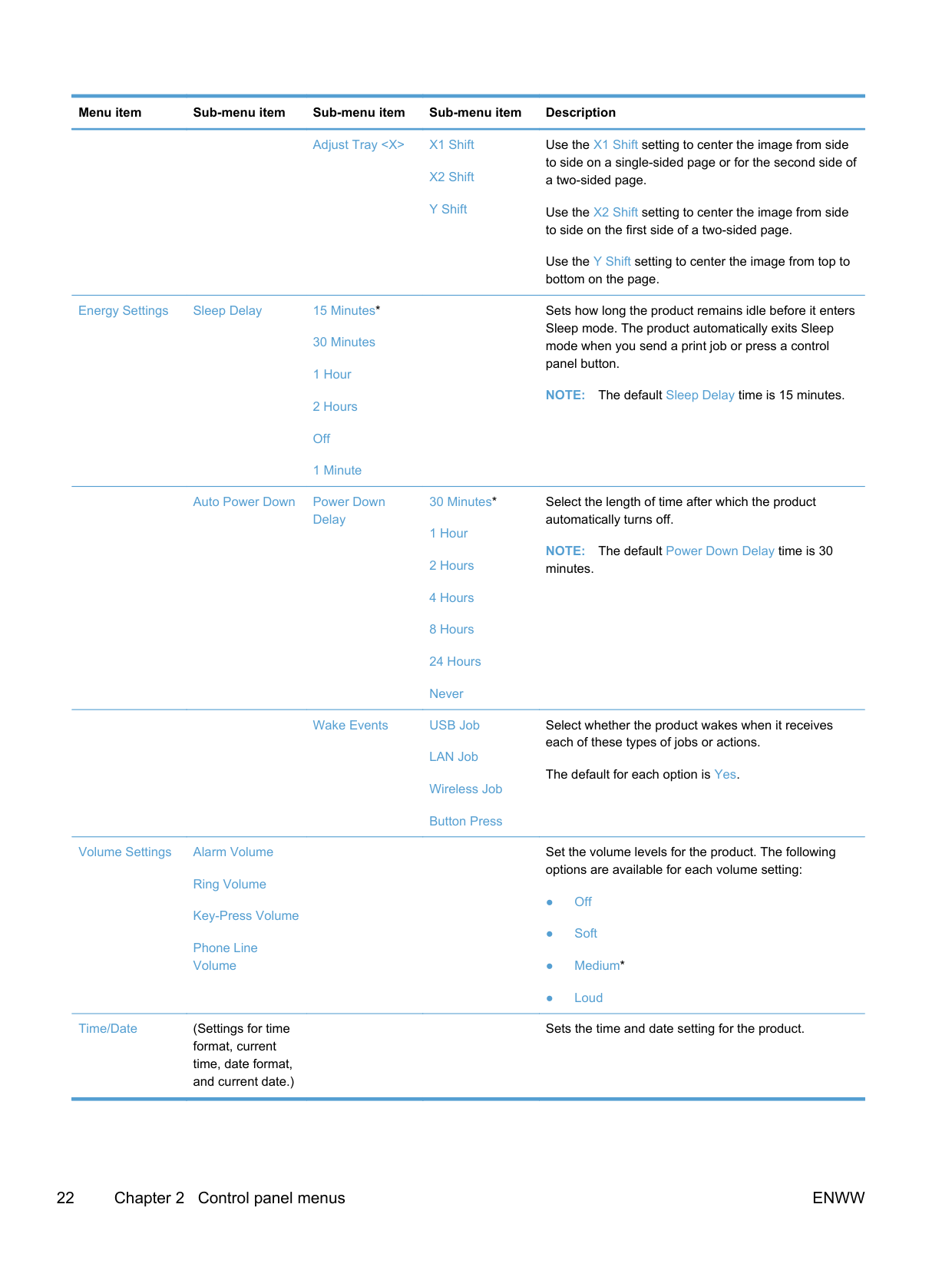
Energy Settings Sleep Delay 15 Minutes*
30 Minutes
Off
1 Minute
Auto Power Down Power Down Delay
30 Minutes*
4 Hours
8 Hours
24 Hours
Never
Wake Events USB Job
LAN Job
Wireless Job
Volume Settings Alarm Volume
Ring Volume
Key-Press Volume
Phone Line Volume
Button Press
Time/Date (Settings for time format, current time, date format, and current date.)
Use the X1 Shift setting to center the image from side to side on a single-sided page or for the second side of a two-sided page.
Sets how long the product remains idle before it enters Sleep mode. The product automatically exits Sleep mode when you send a print job or press a control panel button.
NOTE: The default Sleep Delay time is 15 minutes.
Select the length of time after which the product automatically turns off.
NOTE: The default Power Down Delay time is 30 minutes.
Select whether the product wakes when it receives each of these types of jobs or actions.
The default for each option is Yes.
Set the volume levels for the product. The following options are available for each volume setting:
Sets the time and date setting for the product.
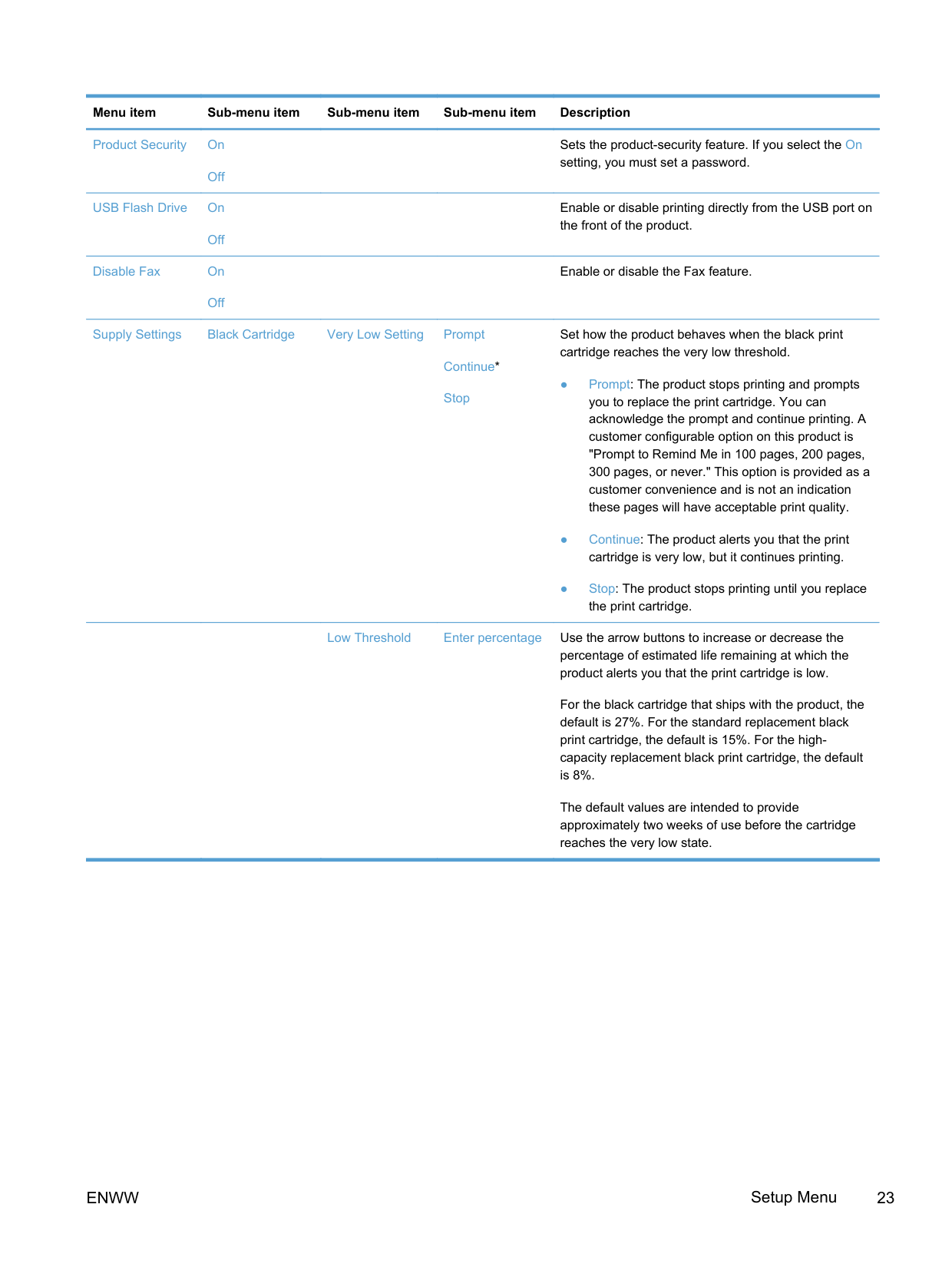
Product Security On
Off
USB Flash Drive On
Off
Disable Fax On
Sets the product-security feature. If you select the On setting, you must set a password.
Enable or disable printing directly from the USB port on the front of the product.
Enable or disable the Fax feature.
Off
Supply Settings Black Cartridge Very Low Setting Prompt
Continue*
Stop
Set how the product behaves when the black print cartridge reaches the very low threshold.
Low Threshold Enter percentage Use the arrow buttons to increase or decrease the percentage of estimated life remaining at which the product alerts you that the print cartridge is low.
For the black cartridge that ships with the product, the default is 27%. For the standard replacement black print cartridge, the default is 15%. For the highcapacity replacement black print cartridge, the default is 8%.
The default values are intended to provide approximately two weeks of use before the cartridge reaches the very low state.
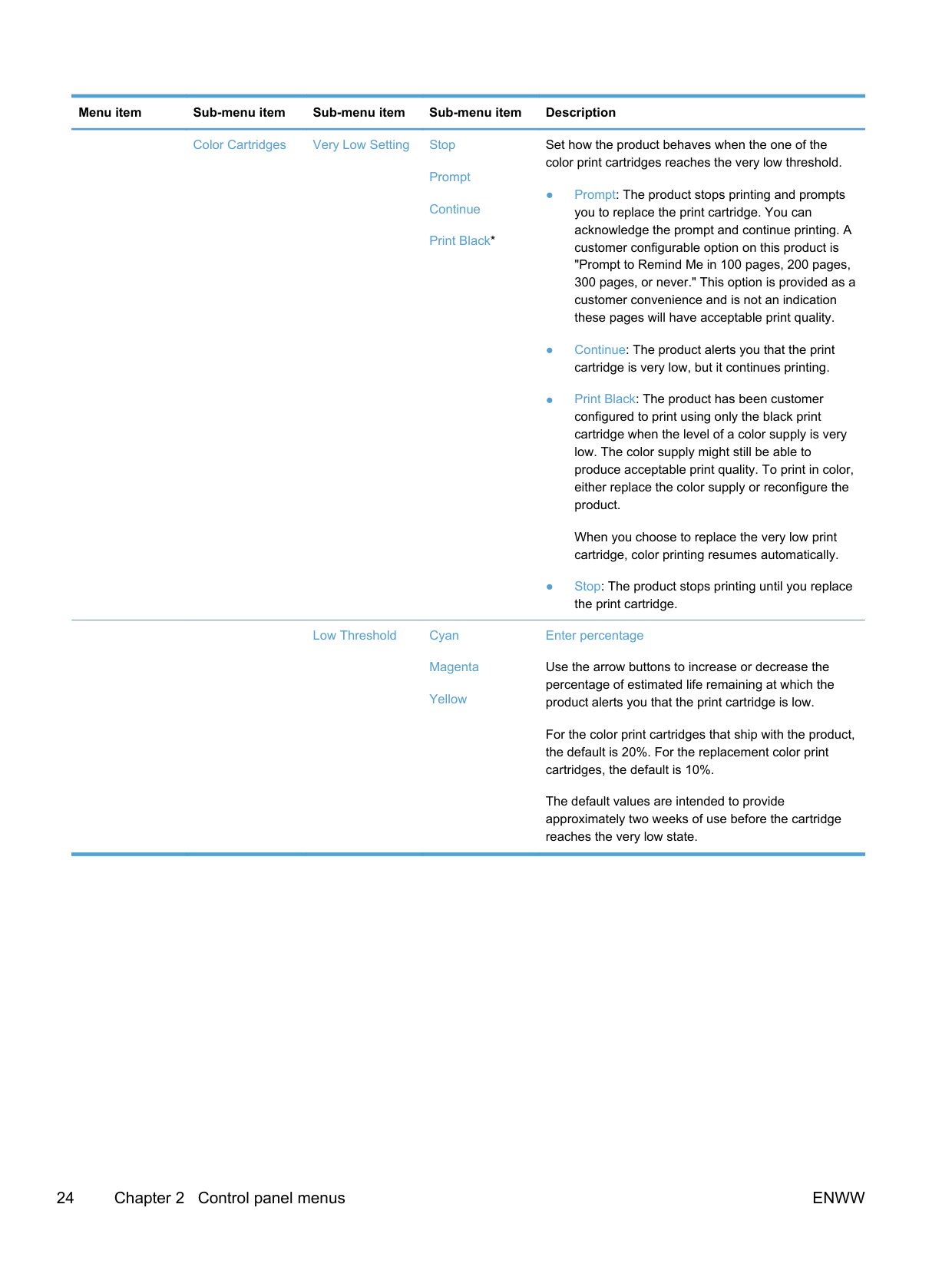
Color Cartridges Very Low Setting Stop
Prompt
Continue
Print Black*
Low Threshold Cyan
Magenta
Yellow
Set how the product behaves when the one of the color print cartridges reaches the very low threshold.
When you choose to replace the very low print cartridge, color printing resumes automatically.
Enter percentage
Use the arrow buttons to increase or decrease the percentage of estimated life remaining at which the product alerts you that the print cartridge is low.
For the color print cartridges that ship with the product, the default is 20%. For the replacement color print cartridges, the default is 10%.
The default values are intended to provide approximately two weeks of use before the cartridge reaches the very low state.
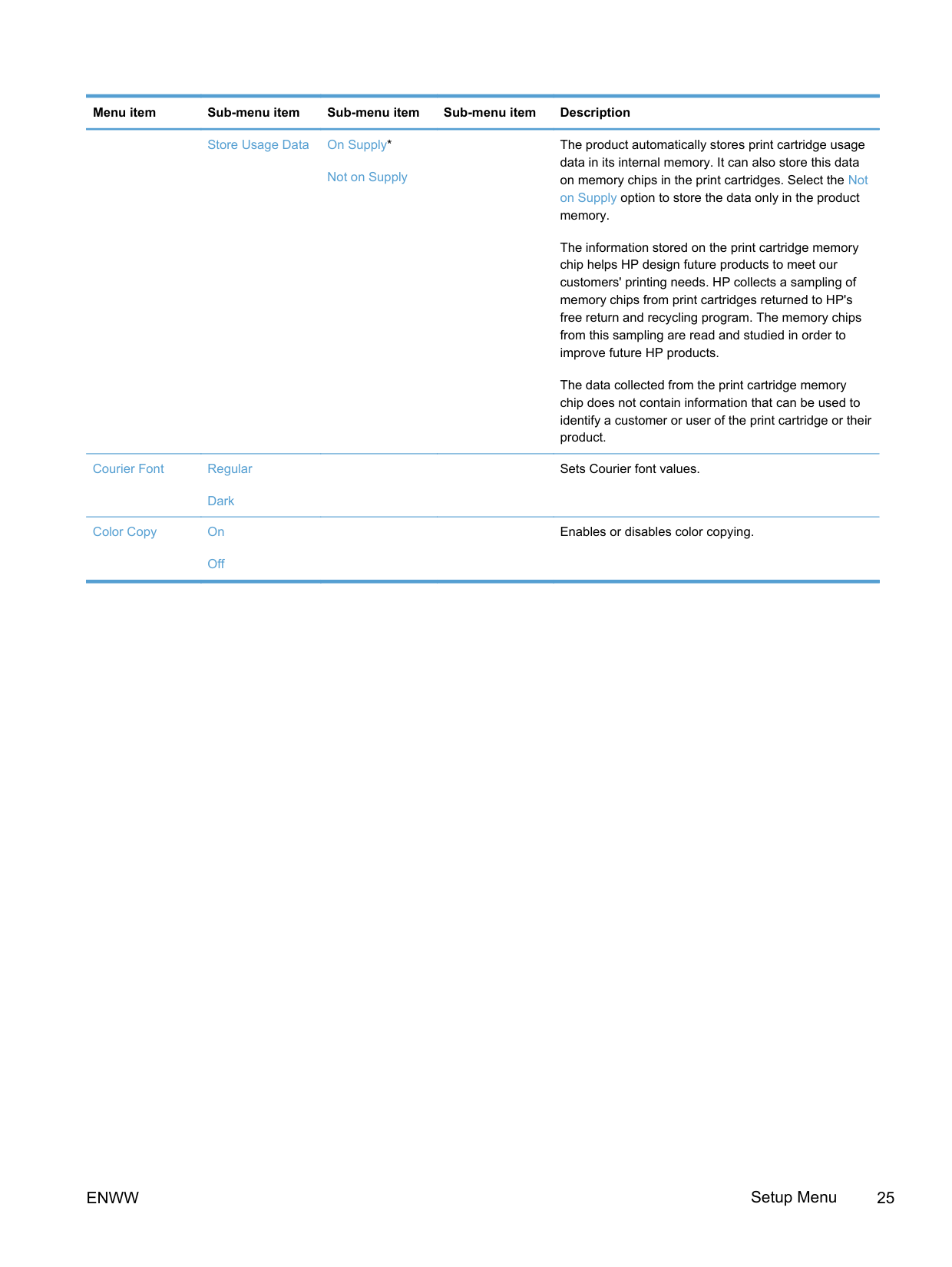
Store Usage Data On Supply*
Not on Supply
Courier Font Regular
Dark
Color Copy On
Off
The product automatically stores print cartridge usage data in its internal memory. It can also store this data on memory chips in the print cartridges. Select the Not on Supply option to store the data only in the product memory.
The information stored on the print cartridge memory chip helps HP design future products to meet our customers' printing needs. HP collects a sampling of memory chips from print cartridges returned to HP's free return and recycling program. The memory chips from this sampling are read and studied in order to improve future HP products.
The data collected from the print cartridge memory chip does not contain information that can be used to identify a customer or user of the print cartridge or their product.
Sets Courier font values.
Enables or disables color copying.
##### Service menu
In the following table, items that have an asterisk (*) indicate the factory default setting.
Menu item Sub-menu item Sub-menu item Description
Fax Service Clear Saved Faxes Clears all faxes in memory.
Run Fax Test Performs a fax test to verify that the phone cord is plugged in the correct outlet and that there is a signal on the phone line. A fax test report is printed indicating the results.
Print T.30 Trace Now
Never*
Prints or schedules a report that is used to troubleshoot fax transmission issues.
If Error
At End of Call
Error Correction On*
Off
The error correction mode allows the sending device to retransmit data if it detects an error signal.
Fax Service Log The fax service log prints out the last 40 entries in the fax log.
Cleaning Page Cleans the product when specks or other marks appear on printed output. The cleaning process removes dust and excess toner from the paper path.
USB Speed High*
Full
Less Paper Curl
On
Off*
Archive Print On
Off*
Firmware Datecode
When selected, the product prompts you to load plain Letter or A4 paper in Tray 1. Touch the OK button to begin the cleaning process. Wait until the process completes. Discard the page that prints.
NOTE: For models that do not have an automatic
duplexer, the product prints the first side and then prompts you to remove the page from the output bin and reload it in Tray 1, keeping the same orientation.
Sets the USB speed for the USB connection to the computer. For the product to actually operate at high speed, it must have high speed enabled and be connected to an EHCI host controller that is also operating at high speed. This menu item also does not reflect the current operating speed of the product.
When printed pages are consistently curled, this option sets the product to a mode that reduces curl.
When printing pages that will be stored for a long time, this option sets the product to a mode that reduces toner smearing and dusting.
Displays the current firmware datecode
Restore Defaults
HP Smart Install
On*
Off
Sets all settings to the factory default values
Enable or disable the HP Smart Install tool.
Disable the tool if you want to connect to a network by using an Ethernet cable.
If you disable HP Smart Install, you must use the product software CD to install the product software.
##### Network Setup menu
In the following table, items that have an asterisk (*) indicate the factory default setting.
Menu item Sub-menu item Sub-menu item Description
Wireless Menu
NOTE: You can also access this menu by touching the Wireless
button on the control panel.
Wireless Direct Settings Wireless Direct On/Off Enables or disables the Direct Wi-Fi wireless access feature.
Wireless Direct Name Set the product's Direct Wifi name, so you can access it from other wireless devices that support the Wi-Fi Direct protocol.
Wireless Direct Mode Set the product's Direct Wifi mode.
Wireless Setup Wizard Guides you through the steps to set up the product on a wireless network
Wi-Fi Protected Setup If your wireless router supports this feature, use this method to set up the product on a wireless network. This is the simplest method.
Run Network Test Tests the wireless network and prints a report with the results.
Turn Wireless On/Off Enables or disables the wireless network feature. TCP/IP Config Automatic*
Automatic: The product automatically configures all the TCP/IP settings via DHCP, BootP or AutoIP.
Manual
Manual: You can manually configure the IP address, subnet mask, and default gateway. The control panel prompts you to specify values for each address section. As each address is completed, the product prompts for address confirmation before moving to the next one. After all three addresses are set, the network reinitializes.
Auto Crossover On*
Off
Network Services IPv4
IPv6
Link Speed Automatic*
Enables or disables the use of a standard 10/100 network cable when the product is directly connected to a computer.
Enable or disable the IPv4 and IPv6 protocols. By default, each protocol is enabled.
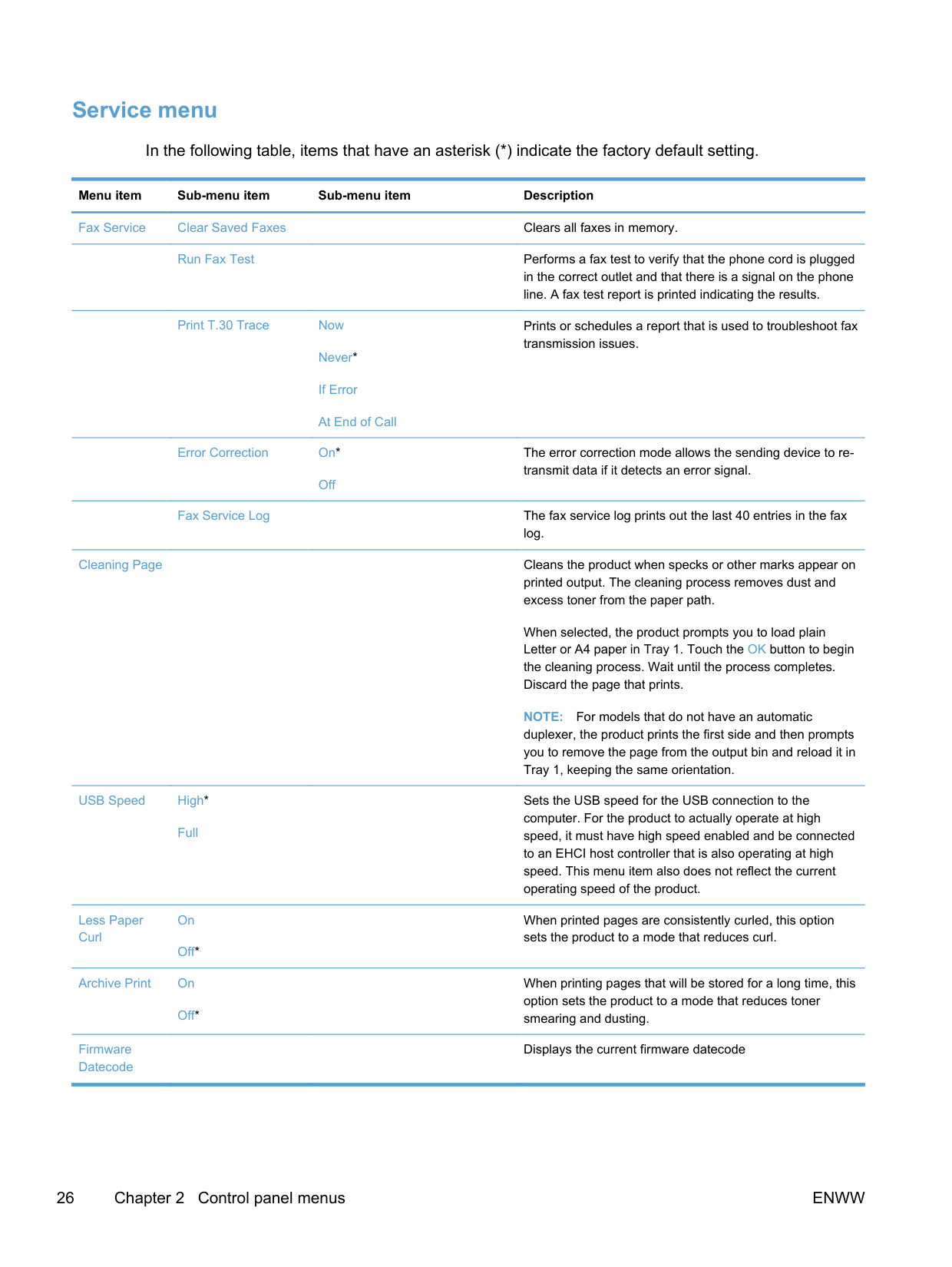
Sets the link speed manually if needed.
10T Full
10T Half
100TX Full
After setting the link speed, the product automatically restarts.
100TX Half
HTTPS Enforcement Yes
No*
Sets the product so that it communicates only with Web sites that use hypertext transfer protocol secure (HTTPS).
Restore Defaults Resets all network configurations to their factory defaults.
#### Function specific menus
The product features function-specific menus for copying, faxing, and scanning. To open these menus, touch the button for that function on the control panel.
Copy menu To open this menu, touch the Copy button, and then touch the Settings... button. NOTE: Settings that you change with this menu expire 2 minutes after the last copy completes.
| |

|---|
Menu item Sub-menu item Sub-menu item Description
ID Copy
NOTE: This item is available from the main Copy screen. You do not need to touch the Settings... button to access it.
Copies both sides of identification cards, or other small-size documents, onto the same side of one sheet of paper.
Number of Copies (1–99) Specifies the number of copies Reduce/Enlarge Original=100%*
Specifies the size of the copy.
Legal to Letter=78%
Legal to A4=83%
A4 to Letter=94%
Letter to A4=97%
Full Page=91%
Fit to Page
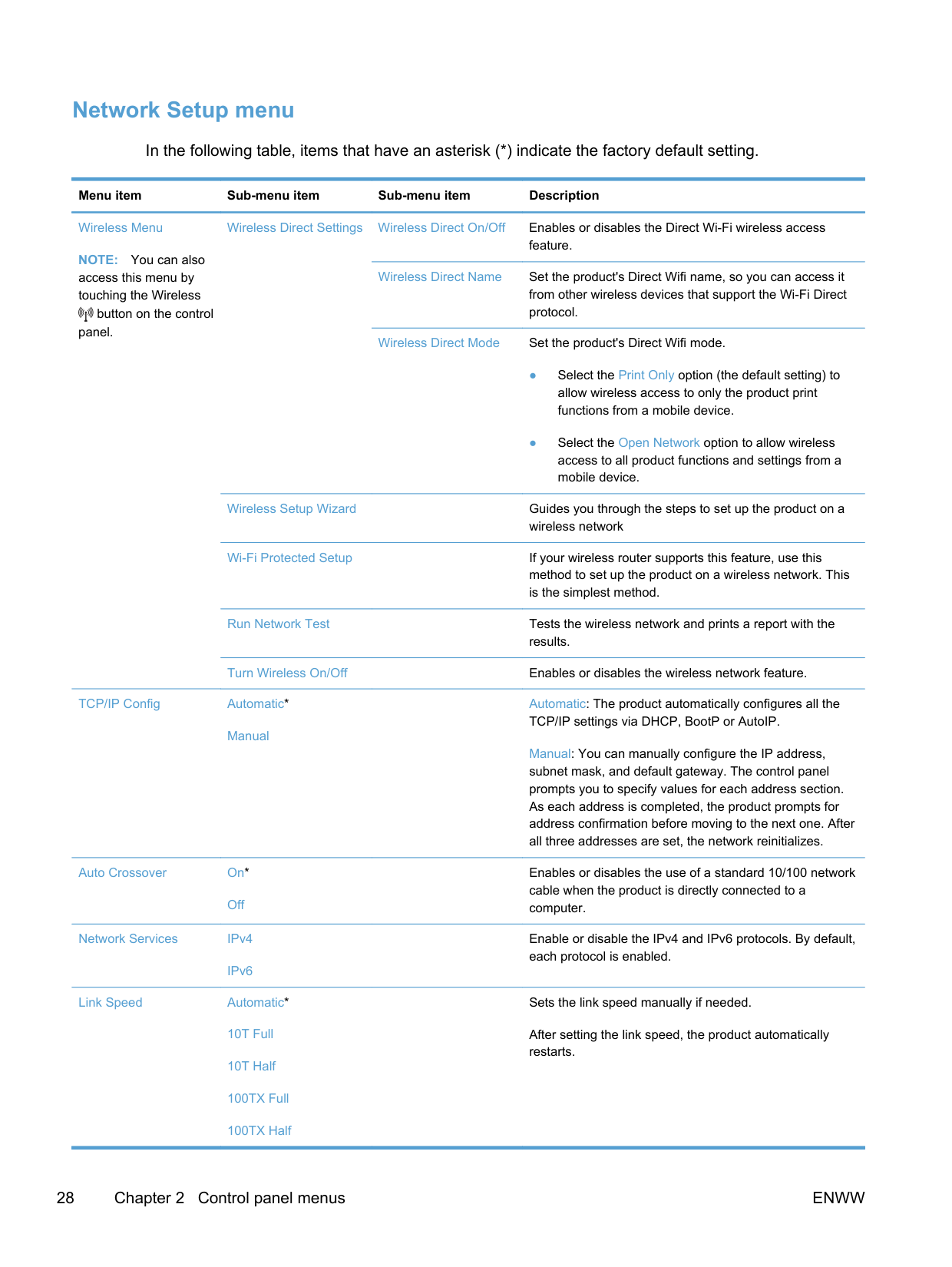
2 Pages per Sheet
4 Pages per Sheet
Custom: 25 to 400%
Lighter/Darker Specifies the contrast of the
copy. Optimize Describe Original Auto Select*
Specifies the type of content in the original document, so the copy is the best match for the original.
Mixed
Text
Paper Paper Size
Paper Type
Picture
Specifies the paper size and type for copies.
Multi-Page Copy Off*
On

Collation On*
Off
Tray Select Auto Select*
Two Sided 1-Sided to 1-Sided*
Draft Mode Off*
On
Image Adjustment Lightness
Contrast
Sharpen
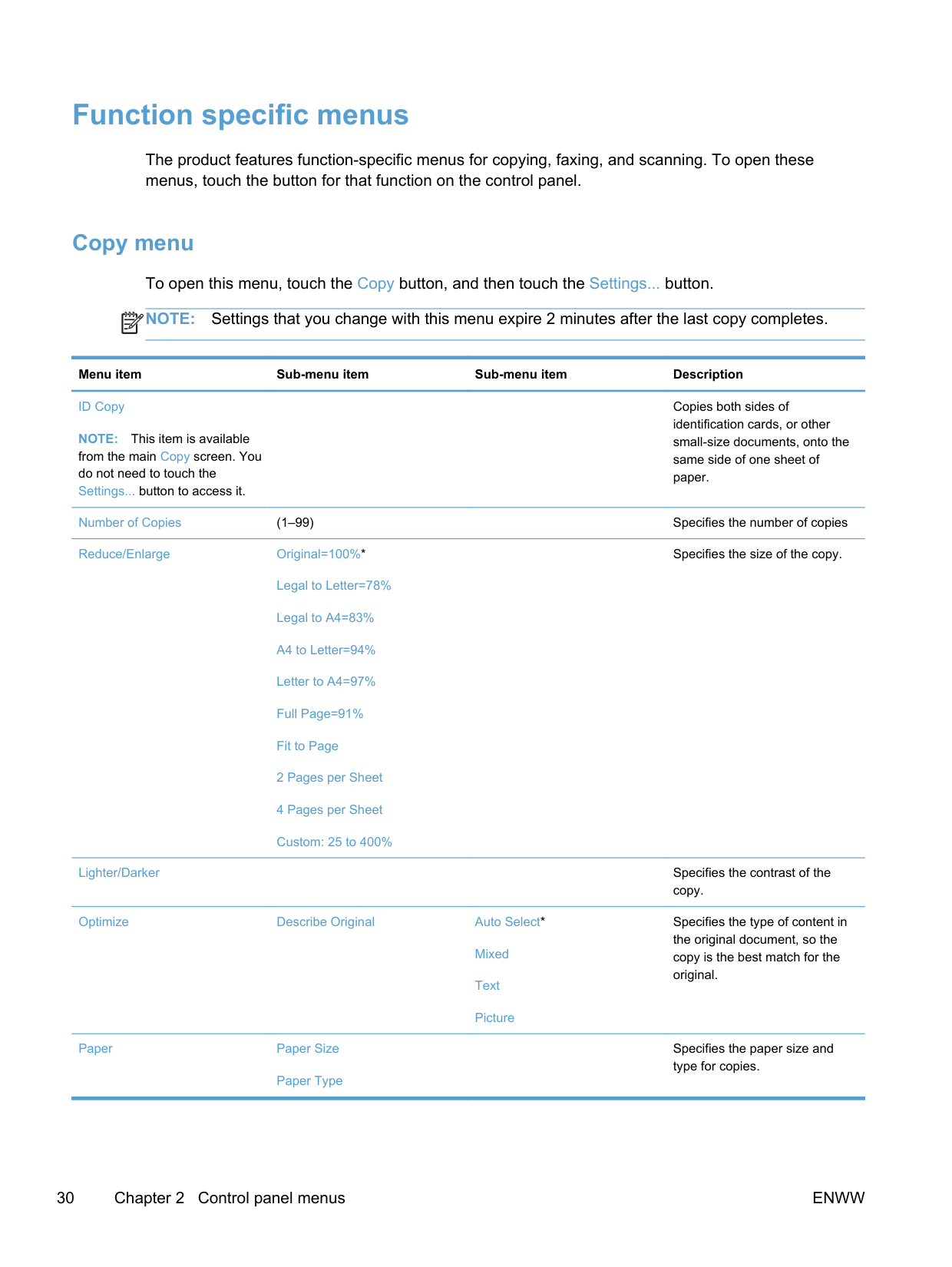
When this feature is on, the product prompts you to load another page onto the scanner glass or to indicate that the job is complete.
Specifies whether to collate copy jobs
Specifies which tray to use for copies.
Specifies the duplex setting for copies.
NOTE: This item is available for duplex models only.
Specifies whether to use draftquality printing for copies
Adjusts the image quality settings for copies
Background Removal
Color Balance
Grayness
Set as New Defaults Saves any changes you have made to this menu as the new defaults
Restore Defaults Restores the factory defaults for this menu
##### Fax menu
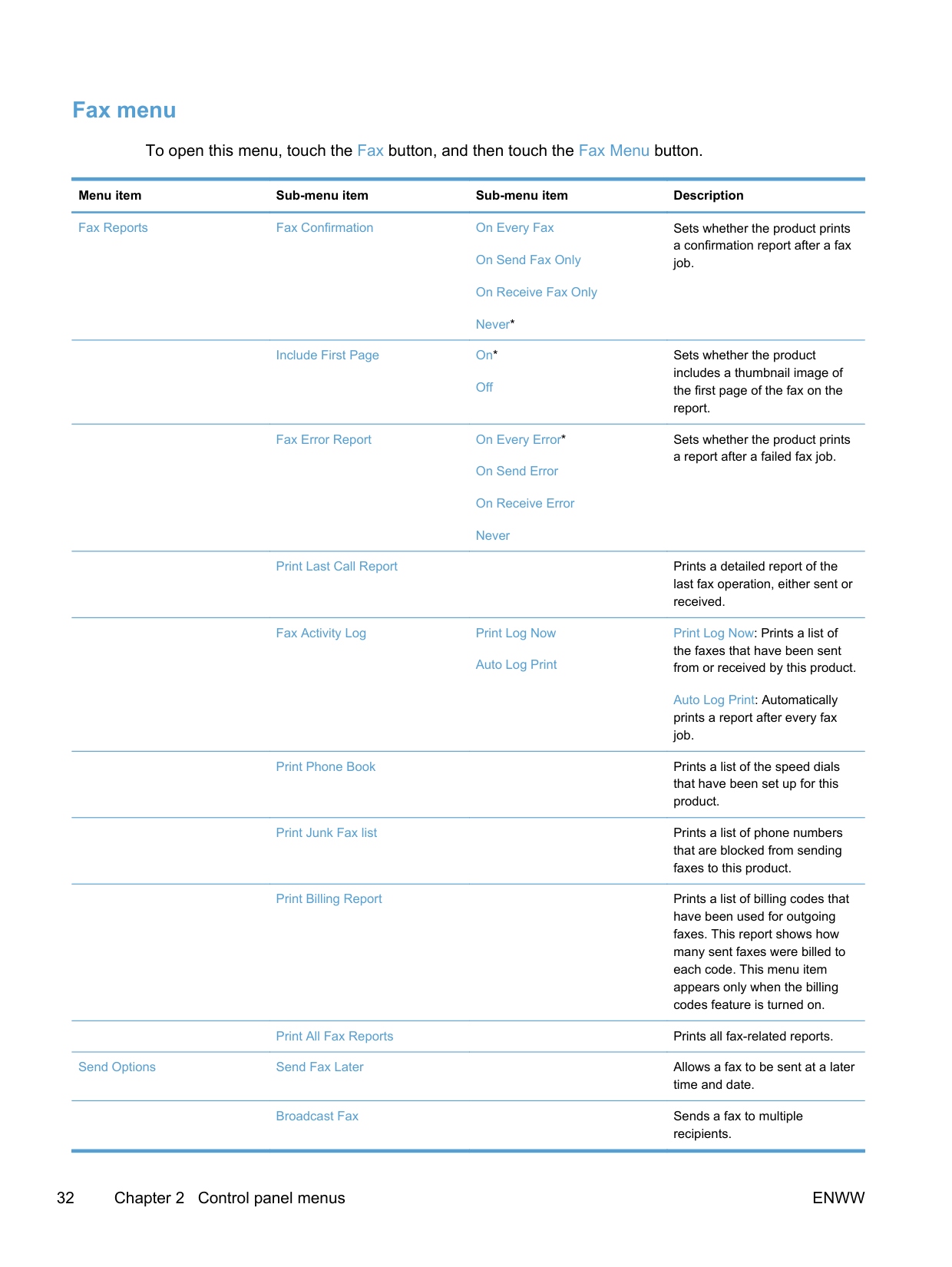
To open this menu, touch the Fax button, and then touch the Fax Menu button.
Menu item Sub-menu item Sub-menu item Description
Fax Reports Fax Confirmation On Every Fax
On Send Fax Only
On Receive Fax Only
Never*
Include First Page On*
Off
Fax Error Report On Every Error*
On Send Error
On Receive Error
Sets whether the product prints a confirmation report after a fax job.
Sets whether the product includes a thumbnail image of the first page of the fax on the report.
Sets whether the product prints a report after a failed fax job.
Never
Print Last Call Report Prints a detailed report of the last fax operation, either sent or received.
Fax Activity Log Print Log Now
Auto Log Print
Print Log Now: Prints a list of the faxes that have been sent from or received by this product.
Auto Log Print: Automatically prints a report after every fax job.
Print Phone Book Prints a list of the speed dials that have been set up for this product.
Print Junk Fax list Prints a list of phone numbers that are blocked from sending faxes to this product.
Print Billing Report Prints a list of billing codes that have been used for outgoing faxes. This report shows how many sent faxes were billed to each code. This menu item appears only when the billing codes feature is turned on.
Print All Fax Reports Prints all fax-related reports. Send Options Send Fax Later Allows a fax to be sent at a later time and date. Broadcast Fax Sends a fax to multiple recipients.
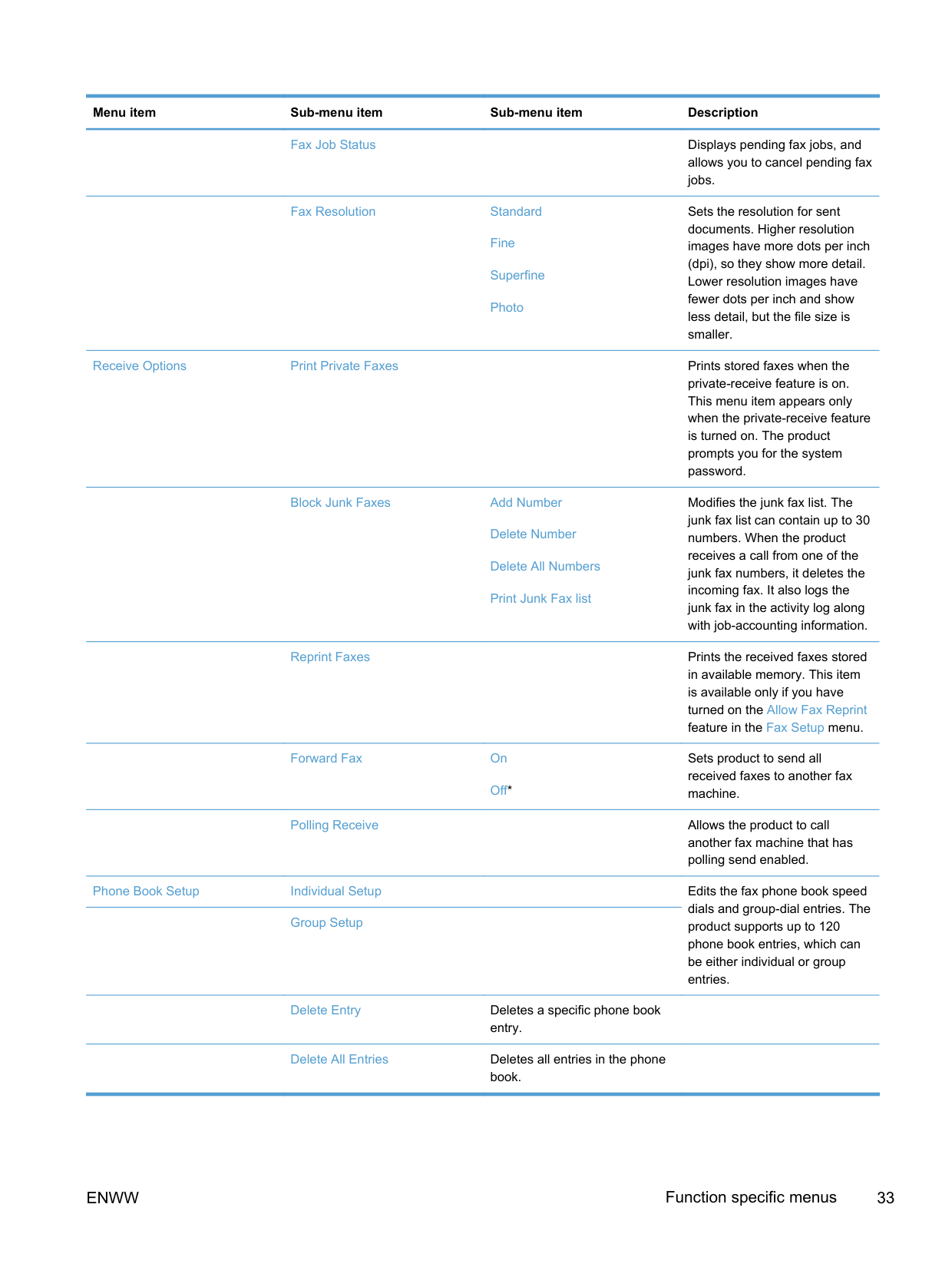
Fax Job Status Displays pending fax jobs, and allows you to cancel pending fax jobs.
Fax Resolution Standard
Fine
Superfine
Photo
Sets the resolution for sent documents. Higher resolution images have more dots per inch (dpi), so they show more detail. Lower resolution images have fewer dots per inch and show less detail, but the file size is smaller.
Receive Options Print Private Faxes Prints stored faxes when the private-receive feature is on. This menu item appears only when the private-receive feature is turned on. The product prompts you for the system password.
Block Junk Faxes Add Number
Delete Number
Delete All Numbers
Print Junk Fax list
Modifies the junk fax list. The junk fax list can contain up to 30 numbers. When the product receives a call from one of the junk fax numbers, it deletes the incoming fax. It also logs the junk fax in the activity log along with job-accounting information.
Reprint Faxes Prints the received faxes stored in available memory. This item is available only if you have turned on the Allow Fax Reprint feature in the Fax Setup menu.
Forward Fax On
Off*
Sets product to send all received faxes to another fax machine.
Polling Receive Allows the product to call another fax machine that has polling send enabled.
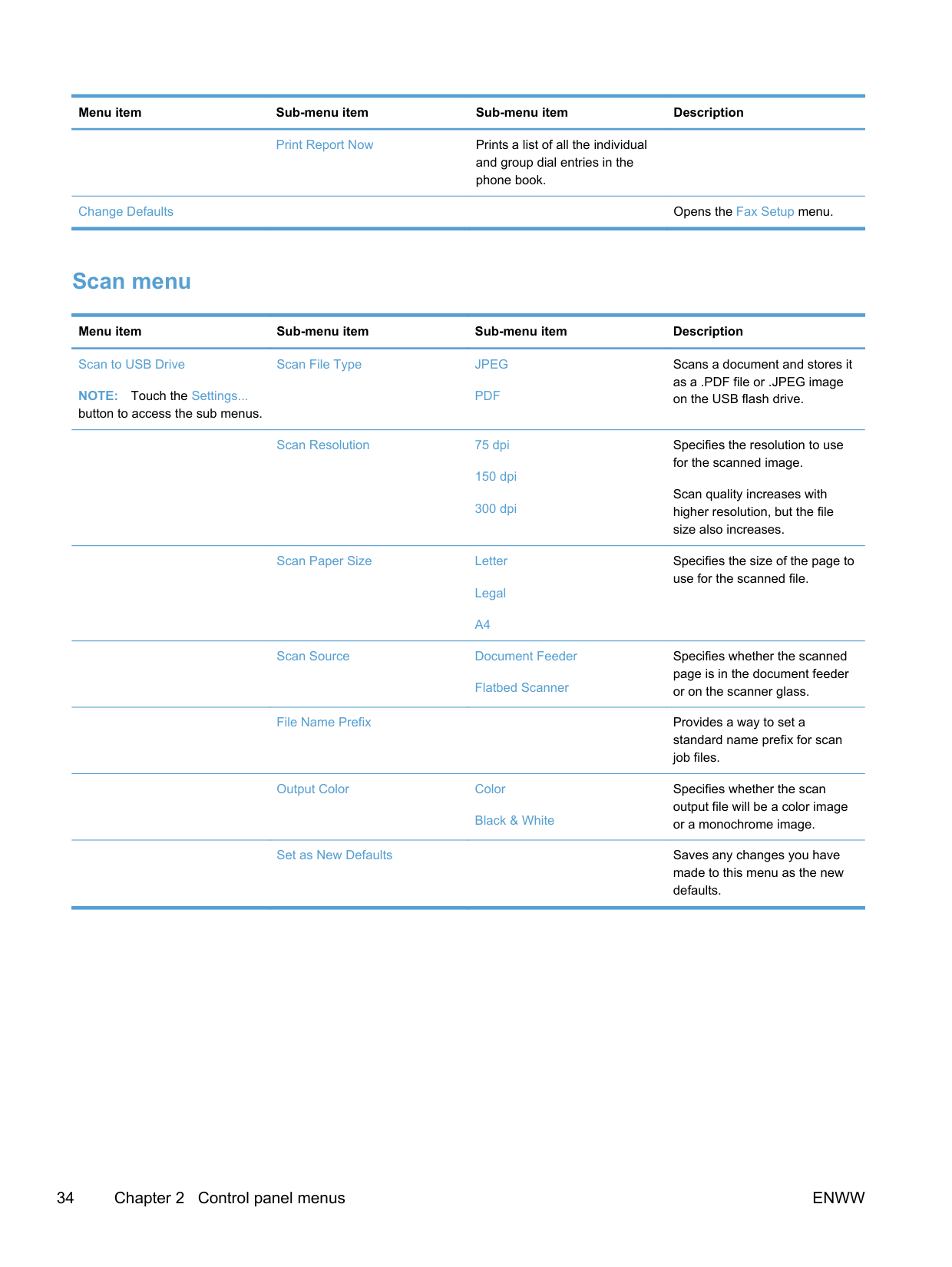
Phone Book Setup Individual Setup Edits the fax phone book speed dials and group-dial entries. The product supports up to 120 phone book entries, which can be either individual or group entries.
Group Setup
Delete Entry Deletes a specific phone book entry.
Delete All Entries Deletes all entries in the phone book.
Print Report Now Prints a list of all the individual and group dial entries in the phone book.
Change Defaults Opens the Fax Setup menu.
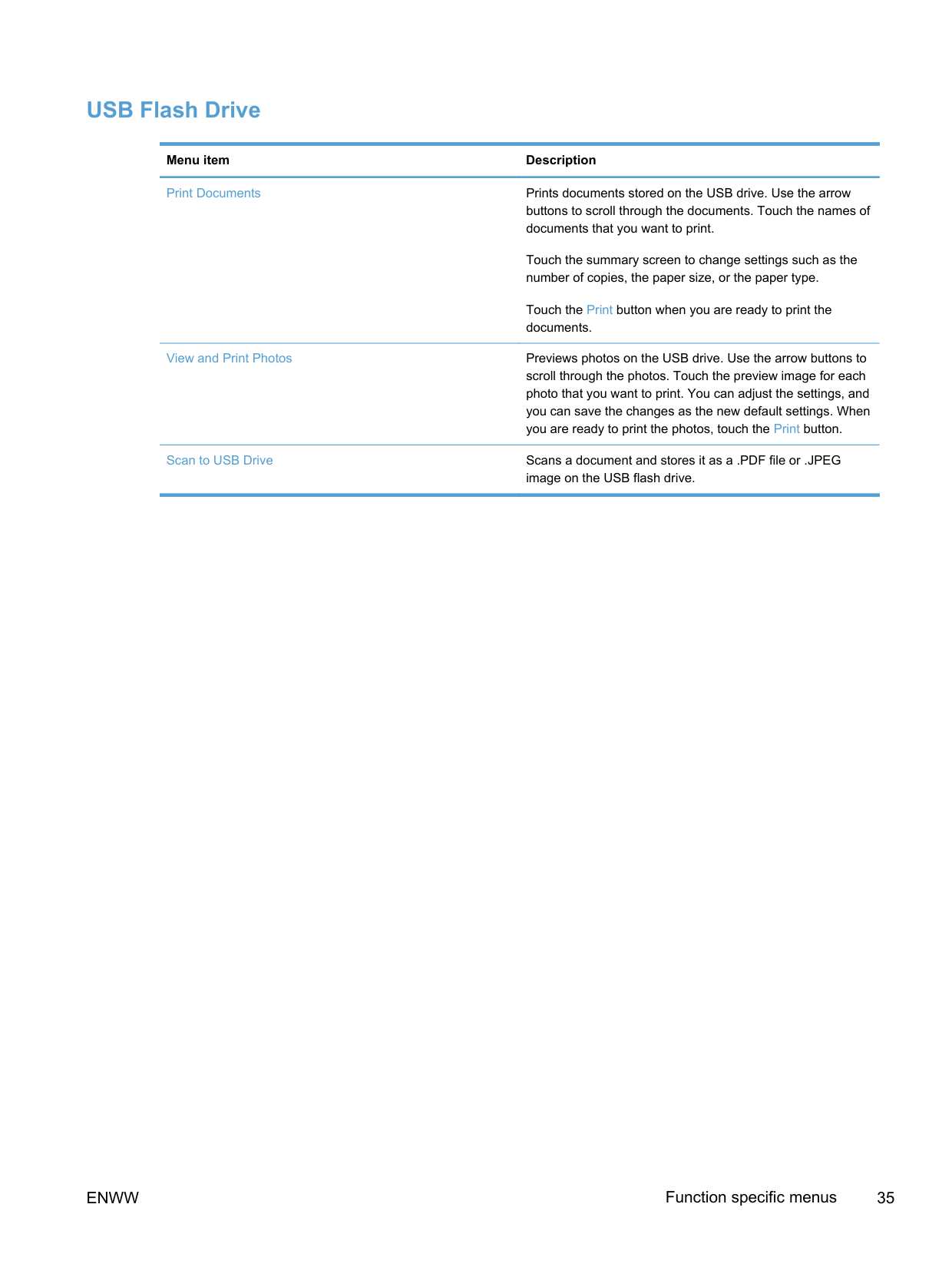
##### Scan menu
########### Menu item Sub-menu item Sub-menu item Description
Scan to USB Drive
Scan File Type JPEG
NOTE: Touch the Settings... button to access the sub menus.
Scan Resolution 75 dpi
150 dpi
300 dpi
Scan Paper Size Letter
Legal
Scans a document and stores it as a .PDF file or .JPEG image on the USB flash drive.
Specifies the resolution to use for the scanned image.
Scan quality increases with higher resolution, but the file size also increases.
Specifies the size of the page to use for the scanned file.
A4
Scan Source Document Feeder
Flatbed Scanner
Specifies whether the scanned page is in the document feeder or on the scanner glass.
File Name Prefix Provides a way to set a standard name prefix for scan job files.
Output Color Color

Black & White
Specifies whether the scan output file will be a color image or a monochrome image.
Set as New Defaults Saves any changes you have made to this menu as the new defaults.
##### USB Flash Drive
########### Menu item Description
Print Documents Prints documents stored on the USB drive. Use the arrow buttons to scroll through the documents. Touch the names of documents that you want to print.
Touch the summary screen to change settings such as the number of copies, the paper size, or the paper type.
Touch the Print button when you are ready to print the documents.
View and Print Photos Previews photos on the USB drive. Use the arrow buttons to scroll through the photos. Touch the preview image for each photo that you want to print. You can adjust the settings, and you can save the changes as the new default settings. When you are ready to print the photos, touch the Print button.
Scan to USB Drive Scans a document and stores it as a .PDF file or .JPEG image on the USB flash drive.
3 Software for Windows
ENWW 37
#### Supported operating systems and printer drivers for Windows
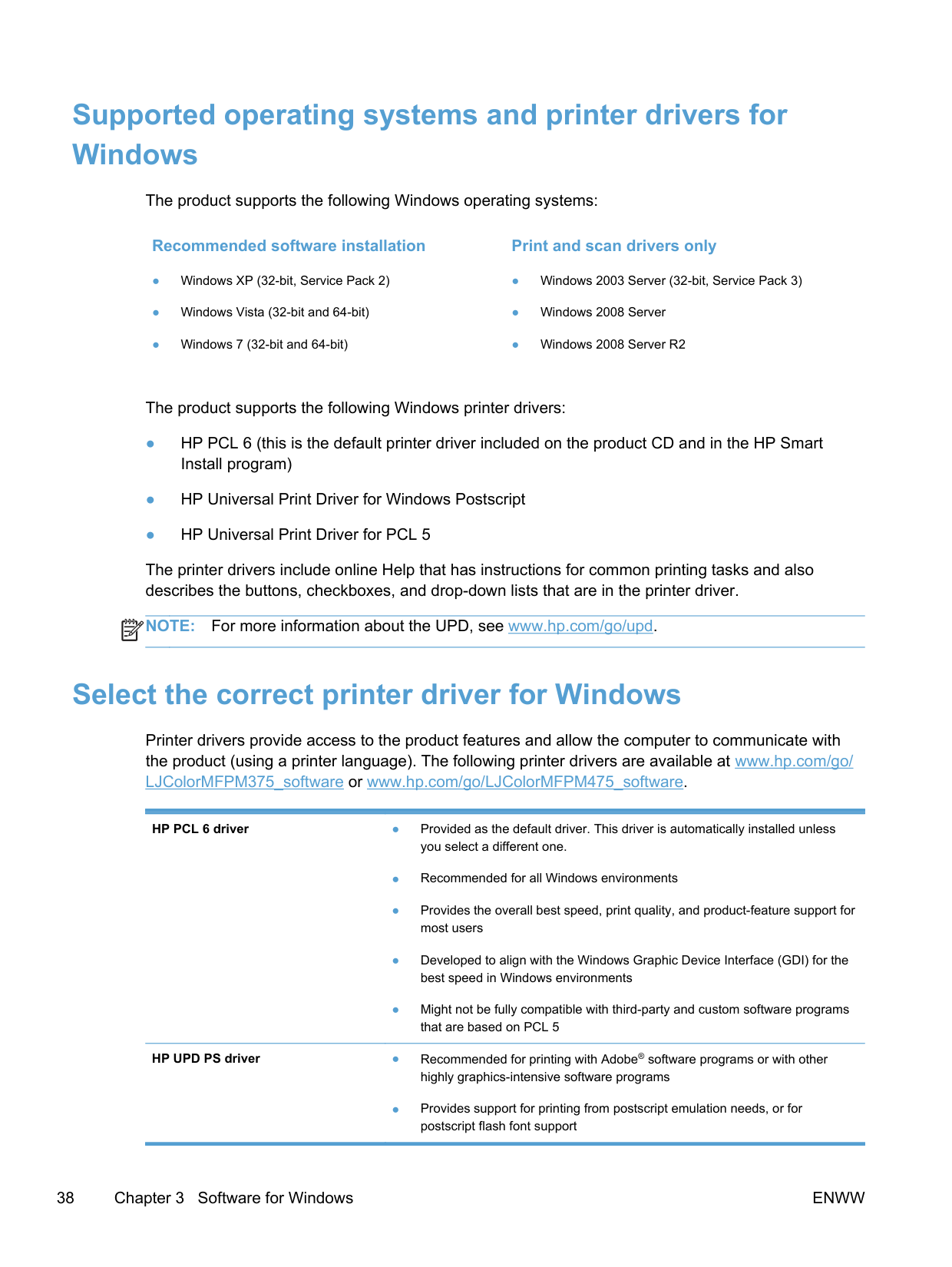
The product supports the following Windows operating systems:
######## Recommended software installation
The product supports the following Windows printer drivers:
The printer drivers include online Help that has instructions for common printing tasks and also describes the buttons, checkboxes, and drop-down lists that are in the printer driver.
NOTE: For more information about the UPD, see www.hp.com/go/upd.
| | |---|
#### Select the correct printer driver for Windows
Printer drivers provide access to the product features and allow the computer to communicate with the product (using a printer language). The following printer drivers are available at www.hp.com/go/ LJColorMFPM375_software or www.hp.com/go/LJColorMFPM475_software.
HP PCL 6 driver ● Provided as the default driver. This driver is automatically installed unless you select a different one.
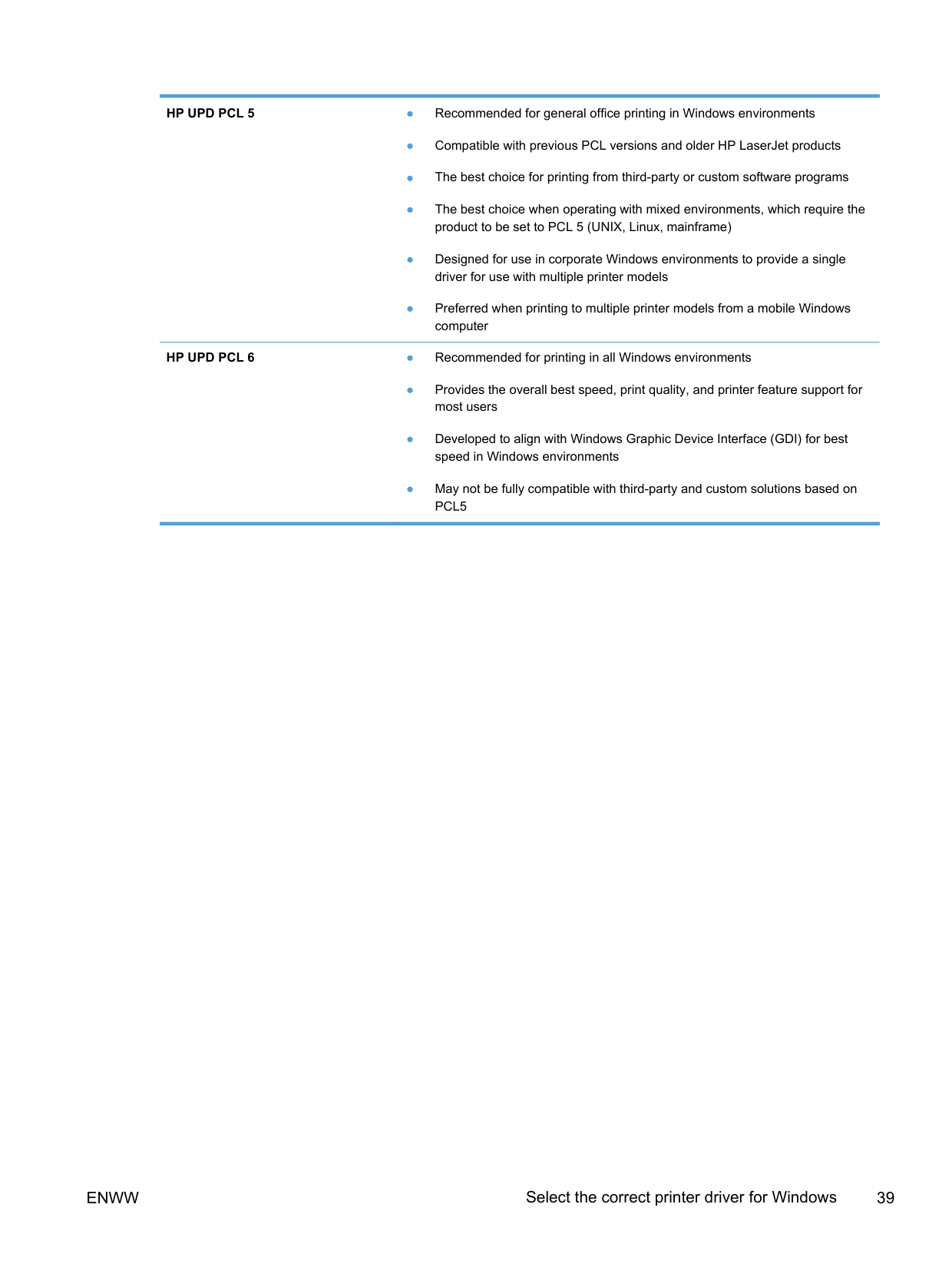
HP UPD PS driver ● Recommended for printing with Adobe® software programs or with other
highly graphics-intensive software programs
● Provides support for printing from postscript emulation needs, or for postscript flash font support
ENWW Select the correct printer driver for Windows 39
##### HP Universal Print Driver (UPD)
The HP Universal Print Driver (UPD) for Windows is a single driver that gives you instant access to virtually any HP LaserJet product, from any location, without downloading separate drivers. It is built on proven HP print driver technology and has been tested thoroughly and used with many software programs. It is a powerful solution that performs consistently over time.
The HP UPD communicates directly with each HP product, gathers configuration information, and then customizes the user interface to show the product’s unique, available features. It automatically enables features that are available for the product, such as two-sided printing and stapling, so you do not need to enable them manually.
For more information, go to www.hp.com/go/upd.
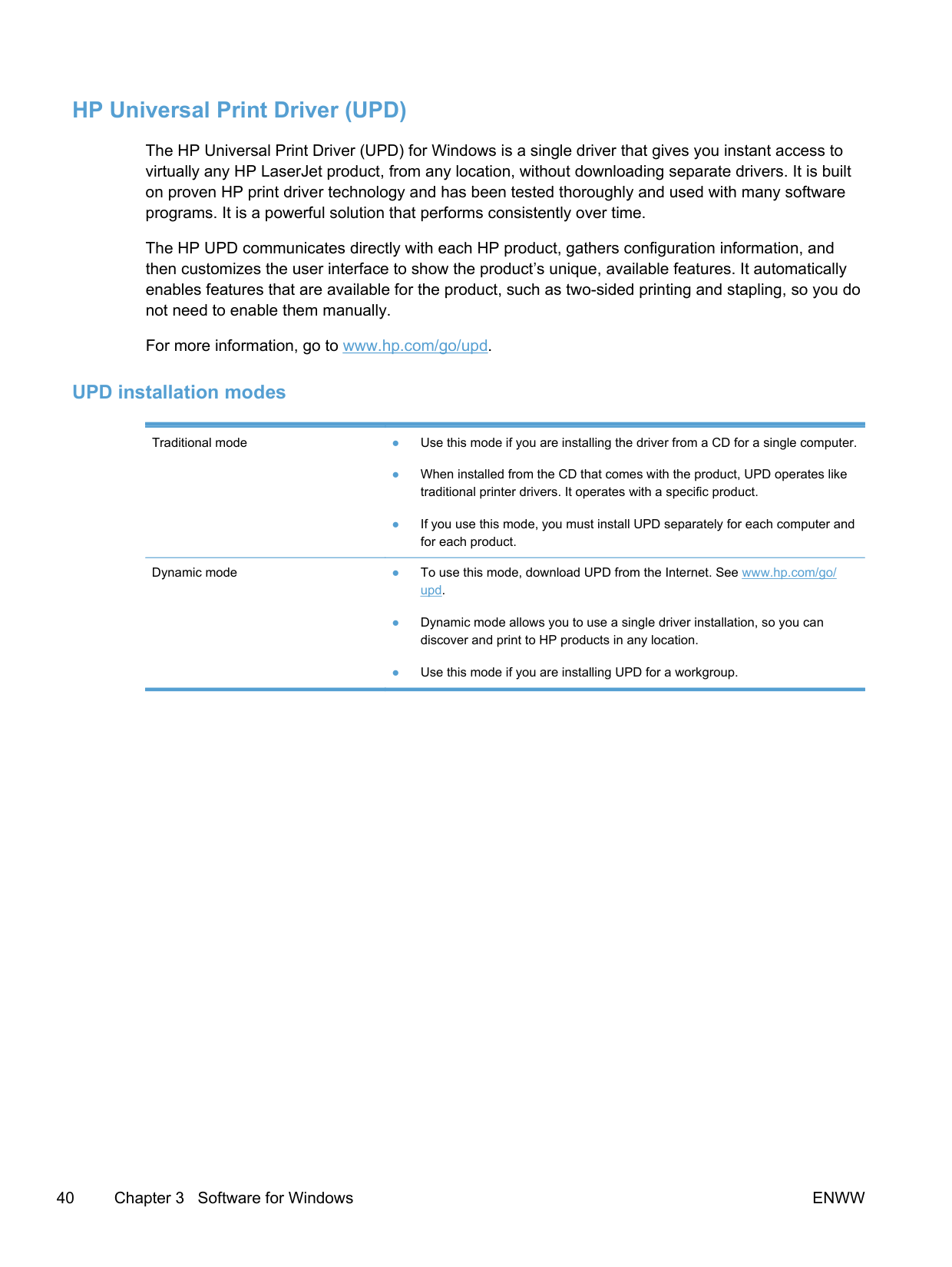
####### UPD installation modes
Traditional mode ● Use this mode if you are installing the driver from a CD for a single computer.
Dynamic mode ● To use this mode, download UPD from the Internet. See www.hp.com/go/ upd.
#### Change print job settings for Windows
Priority for print settings Changes to print settings are prioritized depending on where the changes are made: NOTE: The names of commands and dialog boxes might vary depending on your software program.
| | |---|
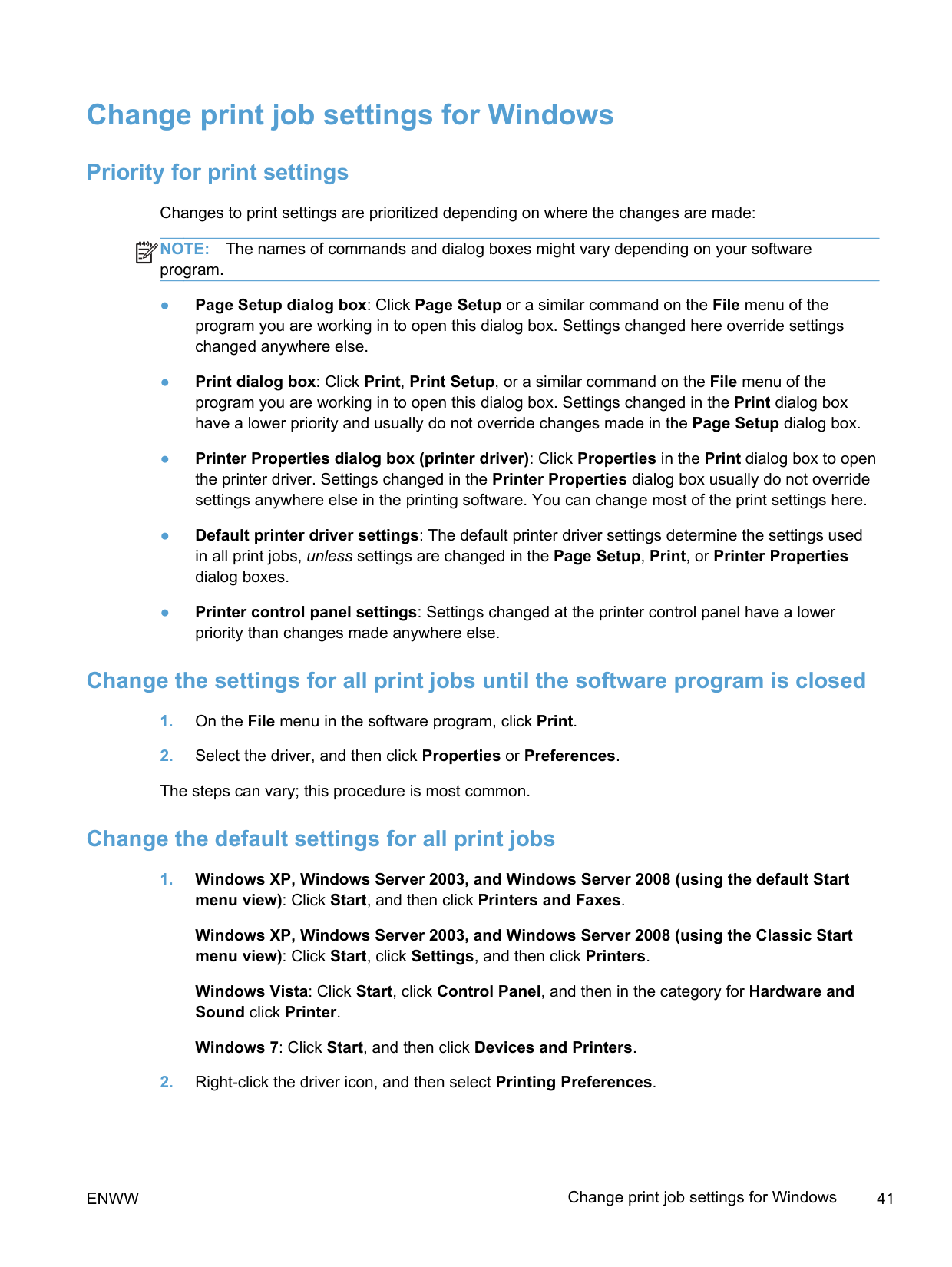
##### Change the settings for all print jobs until the software program is closed
##### Change the default settings for all print jobs
######## 1. Windows XP, Windows Server 2003, and Windows Server 2008 (using the default Startmenu view): Click Start, and then click Printers and Faxes.
Windows XP, Windows Server 2003, and Windows Server 2008 (using the Classic Start menu view): Click Start, click Settings, and then click Printers.
Windows Vista: Click Start, click Control Panel, and then in the category for Hardware and Sound click Printer.
Windows 7: Click Start, and then click Devices and Printers.
######### 2. Right-click the driver icon, and then select Printing Preferences.
ENWW Change print job settings for Windows 41
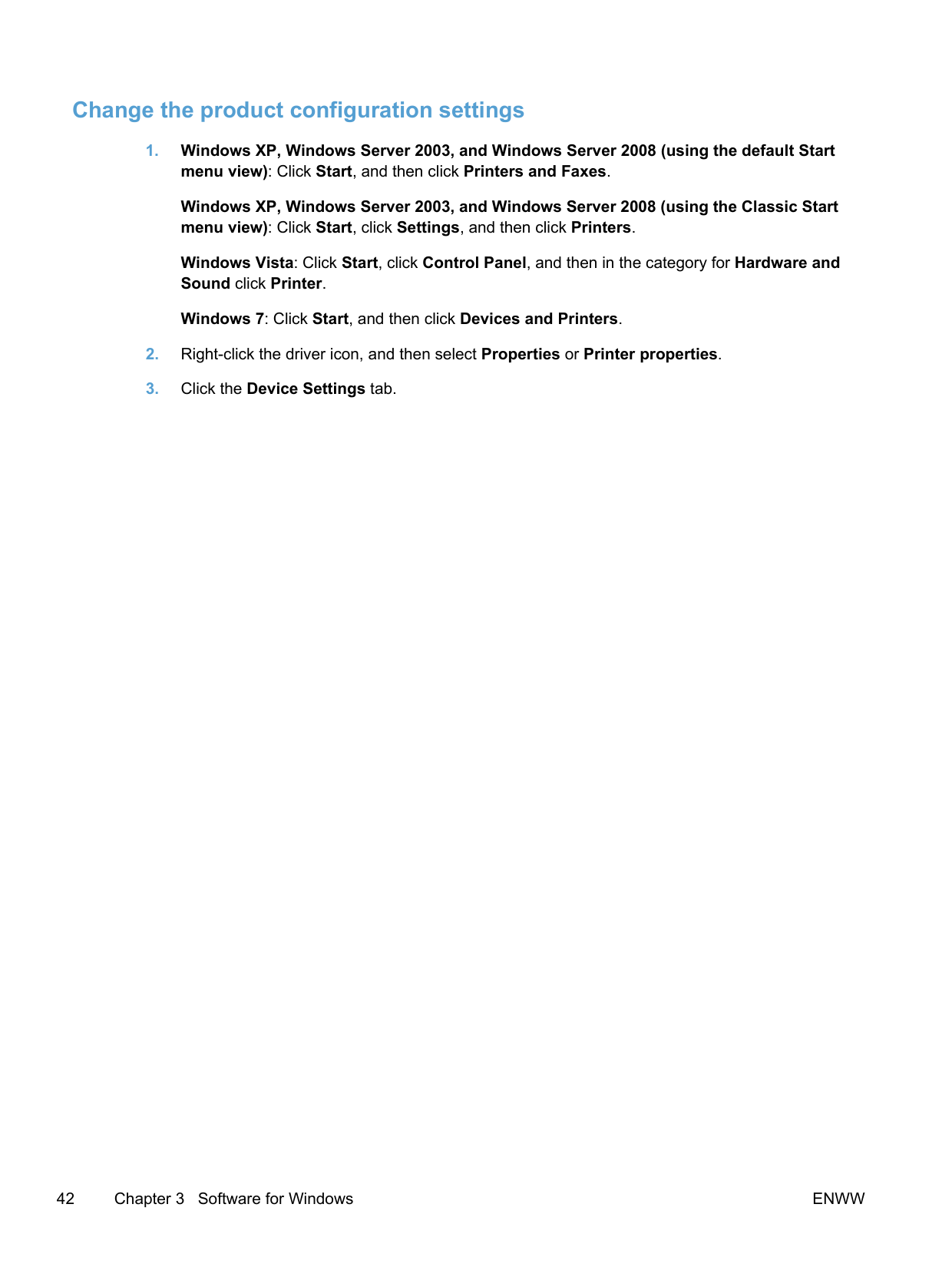
##### Change the product configuration settings
Windows XP, Windows Server 2003, and Windows Server 2008 (using the Classic Start menu view): Click Start, click Settings, and then click Printers.
Windows Vista: Click Start, click Control Panel, and then in the category for Hardware and Sound click Printer.
Windows 7: Click Start, and then click Devices and Printers.
#### Remove the printer driver from Windows
######## Windows XP
######## Windows Vista
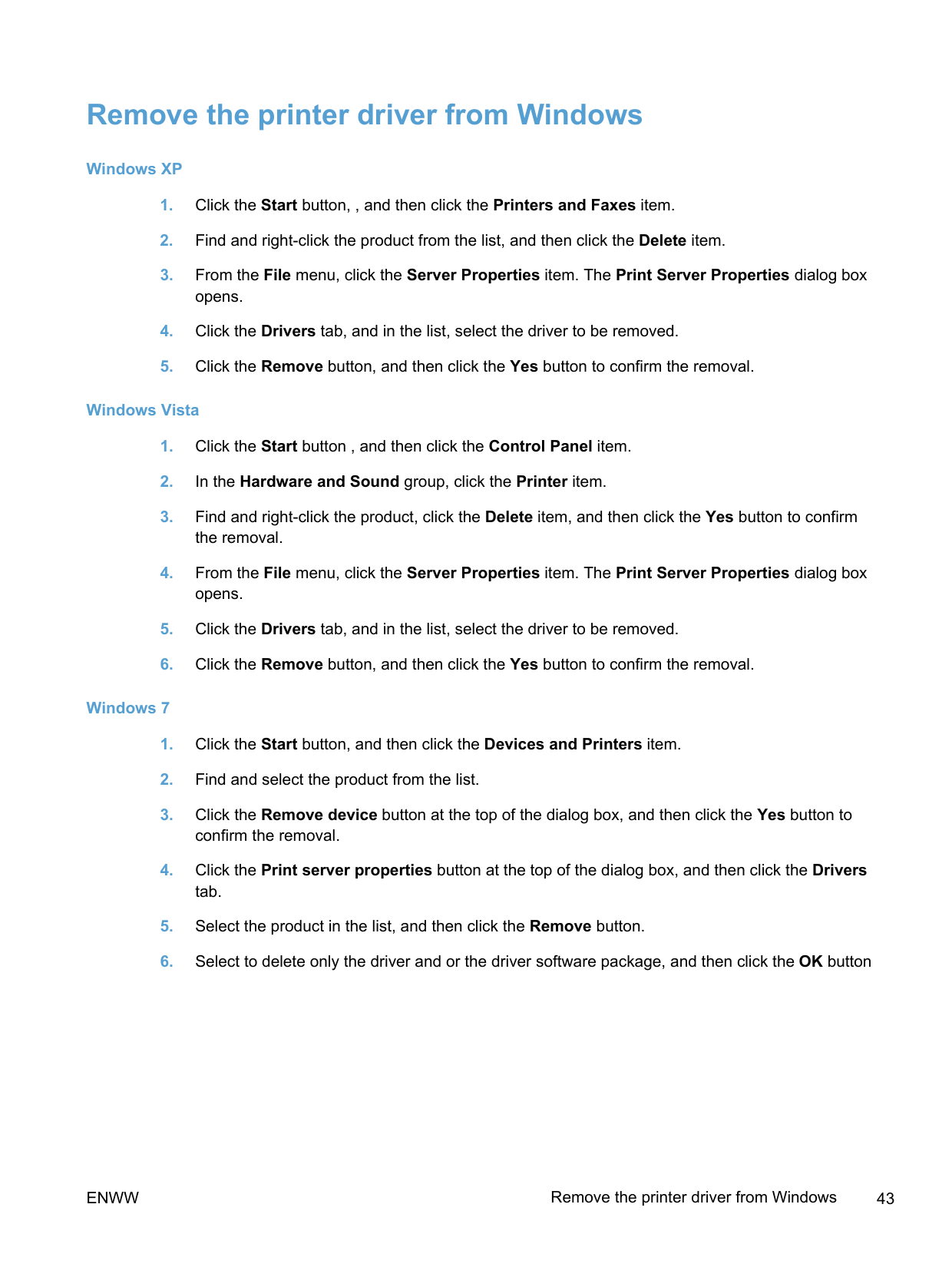
######## Windows 7
ENWW Remove the printer driver from Windows 43
#### Supported utilities for Windows
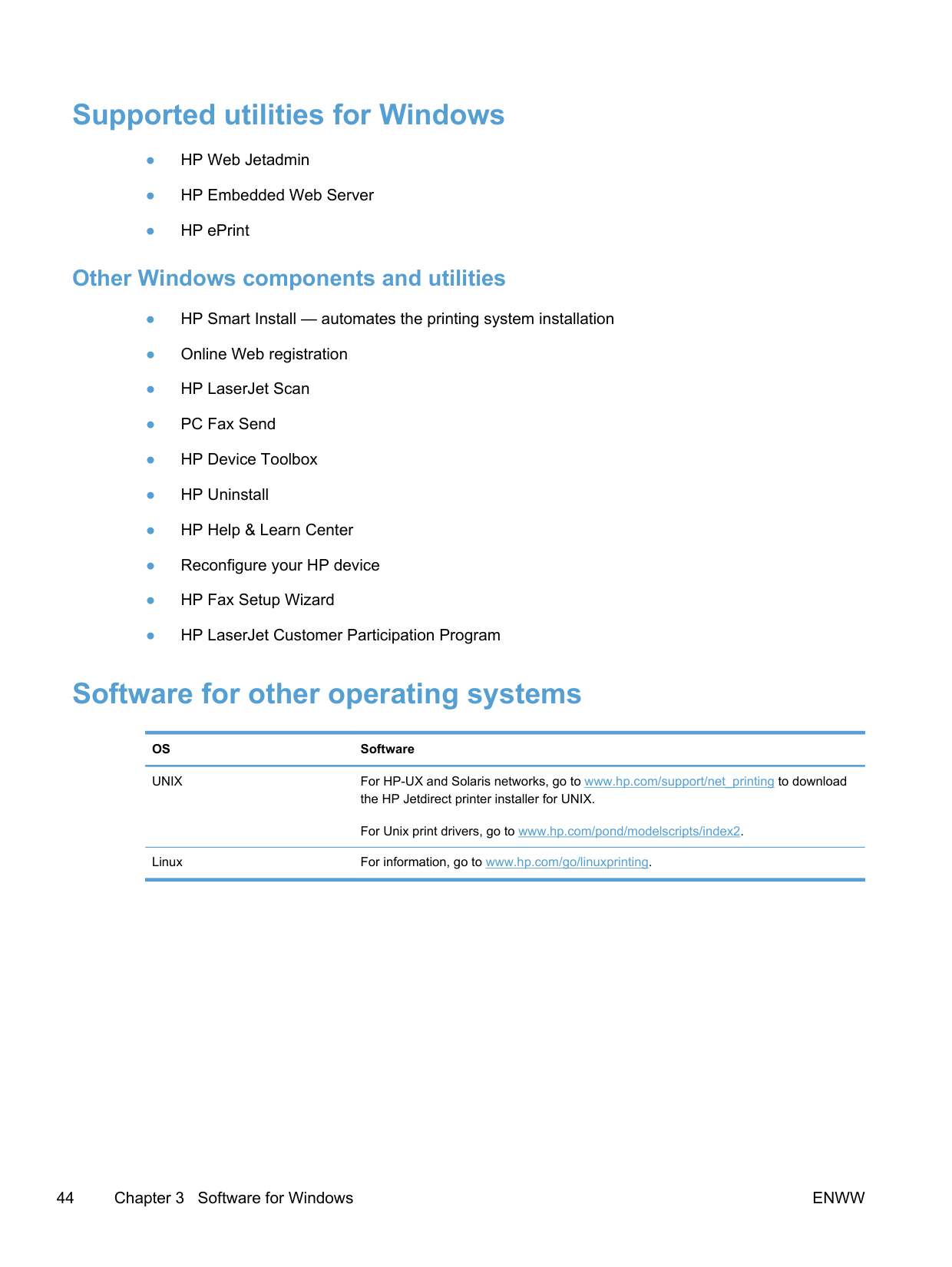
##### Other Windows components and utilities
#### Software for other operating systems
########### OS Software
UNIX For HP-UX and Solaris networks, go to www.hp.com/support/net_printing to download the HP Jetdirect printer installer for UNIX.
For Unix print drivers, go to www.hp.com/pond/modelscripts/index2. Linux For information, go to www.hp.com/go/linuxprinting.
4 Use the product with Mac
ENWW 45
#### Software for Mac
##### Supported operating systems and printer drivers for Mac
The product supports the following Mac operating systems:
● Mac OS X 10.5 and 10.6 NOTE: For Mac OS X 10.5 and later, PPC and Intel® Core™ Processor Macs are supported. For Mac OS X 10.6, Intel Core Processor Macs are supported. The HP LaserJet software installer provides PostScript® Printer Description (PPD) files, Printer Dialog Extensions (PDEs), and the HP Utility for use with Mac OS X computers. The HP printer PPD and PDE files, in combination with the built-in Apple PostScript printer drivers, provide full printing functionality and access to specific HP printer features.
| | |---|
##### Install software for Mac operating systems
####### Install software for Mac computers connected directly to the product
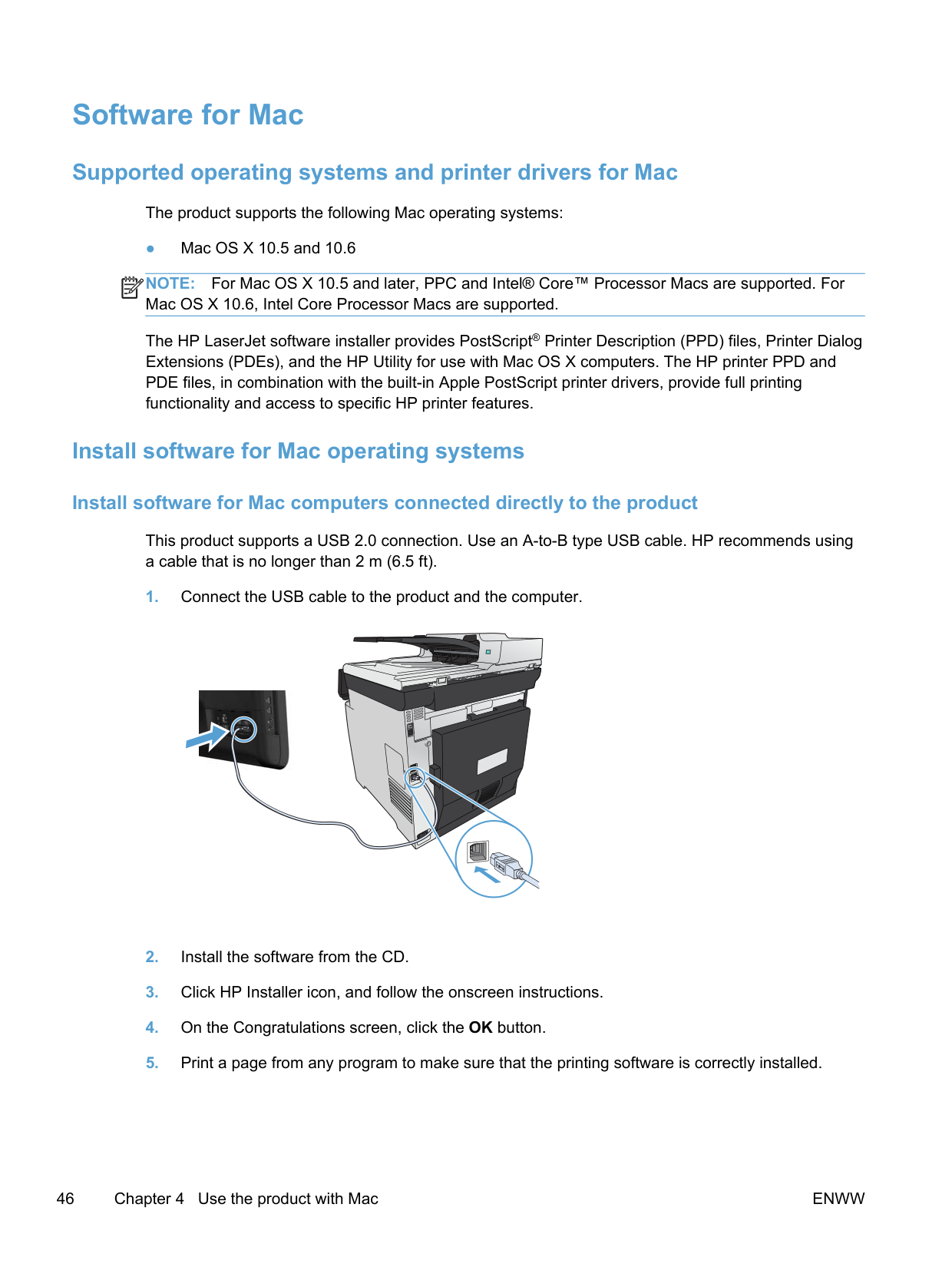
This product supports a USB 2.0 connection. Use an A-to-B type USB cable. HP recommends using a cable that is no longer than 2 m (6.5 ft).

####### Install software for Mac computers on a wired network
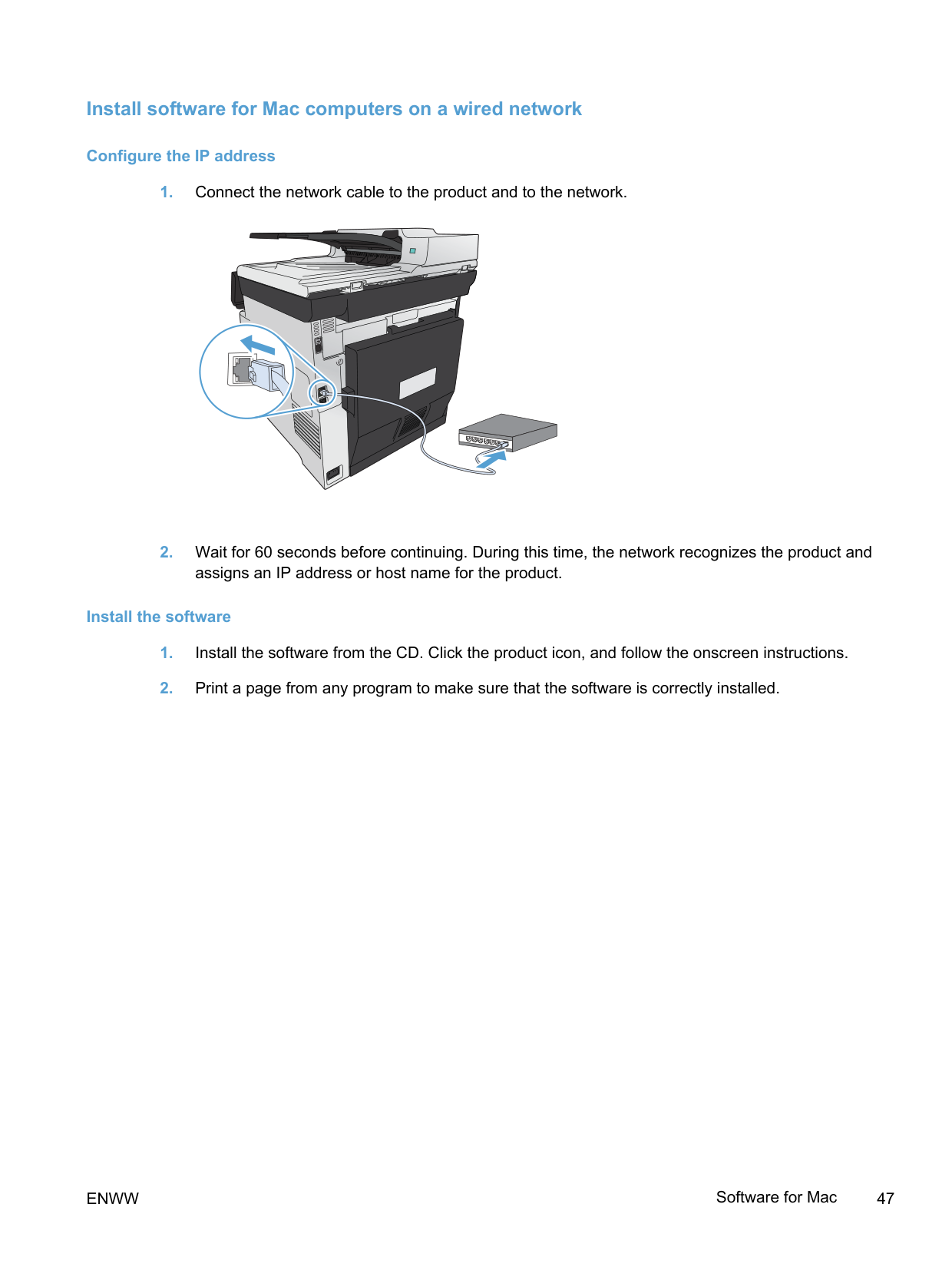
######## Configure the IP address
assigns an IP address or host name for the product.
######## Install the software
####### Install software for Mac computers on a wireless network
Before installing the product software, make sure the product is not connected to the network using a network cable. Make sure your Mac computer is connected to the same wireless network to which you plan to connect the product.
Use one of the following procedures to connect the product to the wireless network.
If your router supports Wi-Fi Protected Setup (WPS), use that method to add the product to your network. This is the simplest way to set up the product on a wireless network.
| | |---|
NOTE: Apple AirPort wireless routers do not support WPS button setup.
If your wireless router does not support Wi-Fi Protected Setup (WPS), obtain the wireless router network settings from your system administrator, or complete the following tasks:
######## Connect the product to a wireless network using WPS by using the control panel menus
By default, Mac OS X uses the Bonjour method to find the product over the local network and add it to the printer pop-up menu. This method is best in most situations. If Mac OS X cannot find the HP printer driver, an error message displays. Reinstall the software.
| | |---|
######## Connect the product to a wireless network using a USB cable
If your wireless router does not support WiFi-Protected Setup (WPS), use this method to set up the product on a wireless network. Using a USB cable to transfer settings makes setting up a wireless connection easier. After the setup is complete, you can disconnect the USB cable and use the wireless connection.
CAUTION: Do not connect the USB cable until the installation program prompts you.
##### Remove the printer driver from Mac operating systems
You must have administrator rights to remove the software.
NOTE: If you want to remove all the software associated with the project, use the HP Uninstaller utility in the Hewlett-Packard program group.
| | |---|
##### Priority for print settings for Mac
Changes to print settings are prioritized depending on where the changes are made:
NOTE: The names of commands and dialog boxes might vary depending on your software program.
| | |---|
##### Change printer-driver settings for Mac
####### Change the settings for all print jobs until the software program is closed
####### Change the default settings for all print jobs
These settings are saved in the Presets menu. To use the new settings, you must select the saved preset option every time you open a program and print.
####### Change the product configuration settings
##### Software for Mac computers
HP Utility for Mac Use the HP Utility to set up product features that are not available in the printer driver. You can use the HP Utility when the product uses a universal serial bus (USB) cable or is connected to a TCP/IP-based network.
######## Open the HP Utility
▲ From the dock, click HP Utility.
-orFrom Applications, open the Hewlett-Packard folder, and then click HP Utility.
######## HP Utility features
Use the HP Utility software to perform the following tasks:
##### Supported utilities for Mac
####### HP Embedded Web Server
The product is equipped with the HP Embedded Web server, which provides access to information about product and network activities. Access the HP Embedded Web Server from the HP Utility. Open the Printer Settings menu, and then select the Additional Settings option.
You can also access the HP Embedded Web Server from the Safari Web browser:
####### HP ePrint
With HP ePrint , you can print anywhere, anytime, from a mobile phone, laptop, or any other mobile device. HP ePrint works with any email-capable device. If you can e-mail, you can print to an HP ePrint-enabled product. For more details, go to www.hpeprintcenter.com.
NOTE: The product must be connected to a network and have Internet access to use HP ePrint.
| | |---|
HP ePrint is disabled as a default setting in the product. Use this procedure to enable it.
####### AirPrint
Direct printing using Apple’s AirPrint is supported for iOS 4.2 or later. Use AirPrint to print directly to the product from an iPad (iOS 4.2), iPhone (3GS or later), or iPod touch (third generation or later) in the following applications:
To use AirPrint, the product must be connected to a wireless network. For more information about using AirPrint and about which HP products are compatible with AirPrint, go to www.hp.com/go/ airprint.
NOTE: You might need to upgrade the product firmware to use AirPrint. Go to www.hp.com/go/ LJColorMFPM375 or www.hp.com/go/LJColorMFPM475.
| | |---|
#### Basic print tasks with Mac
##### Cancel a print job with Mac
| | |---|
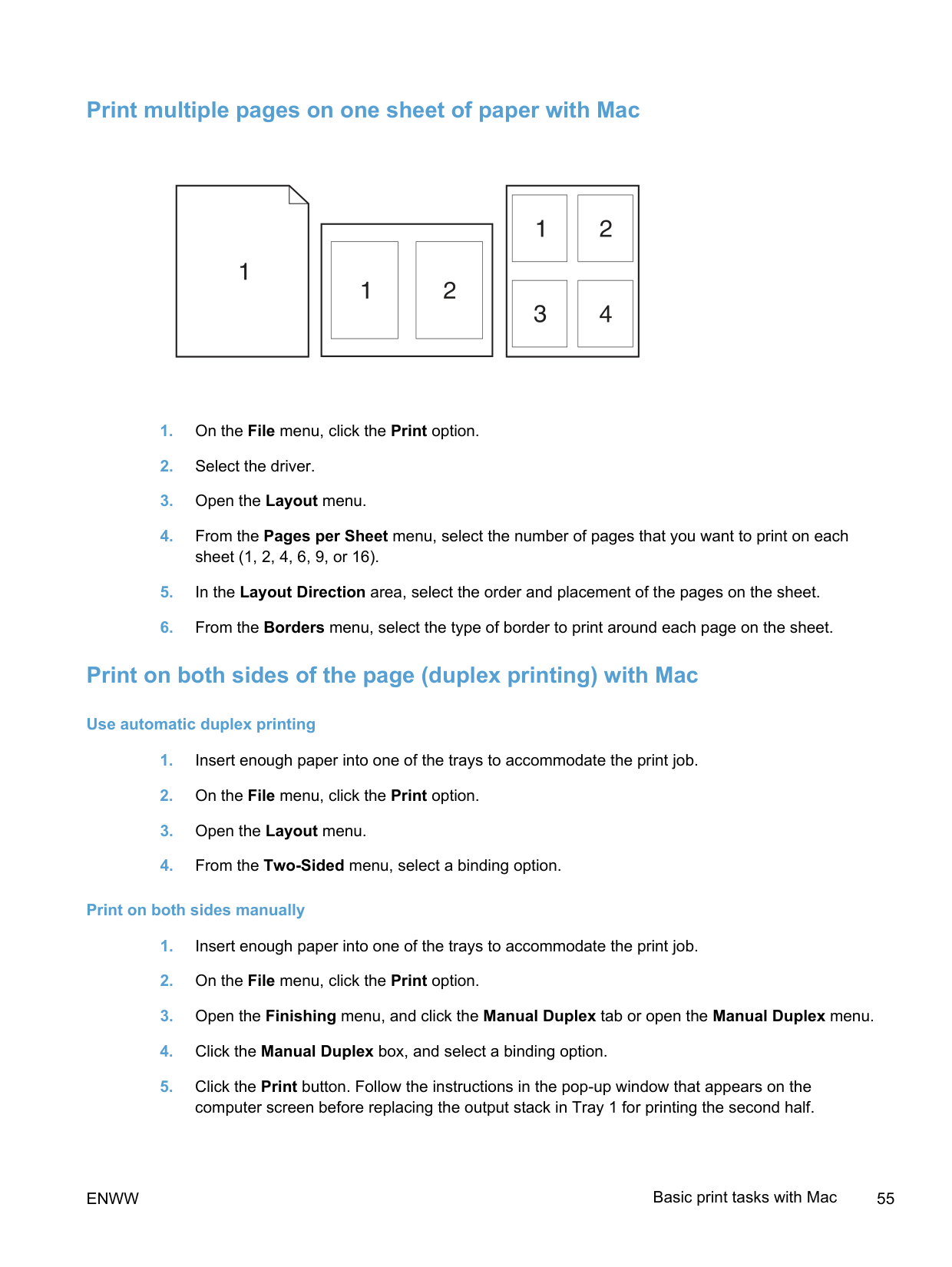
##### Change the paper size and type with Mac
##### Resize documents or print on a custom paper size with Mac
########### Mac OS X 10.5 and 10.6
Use one of these methods.
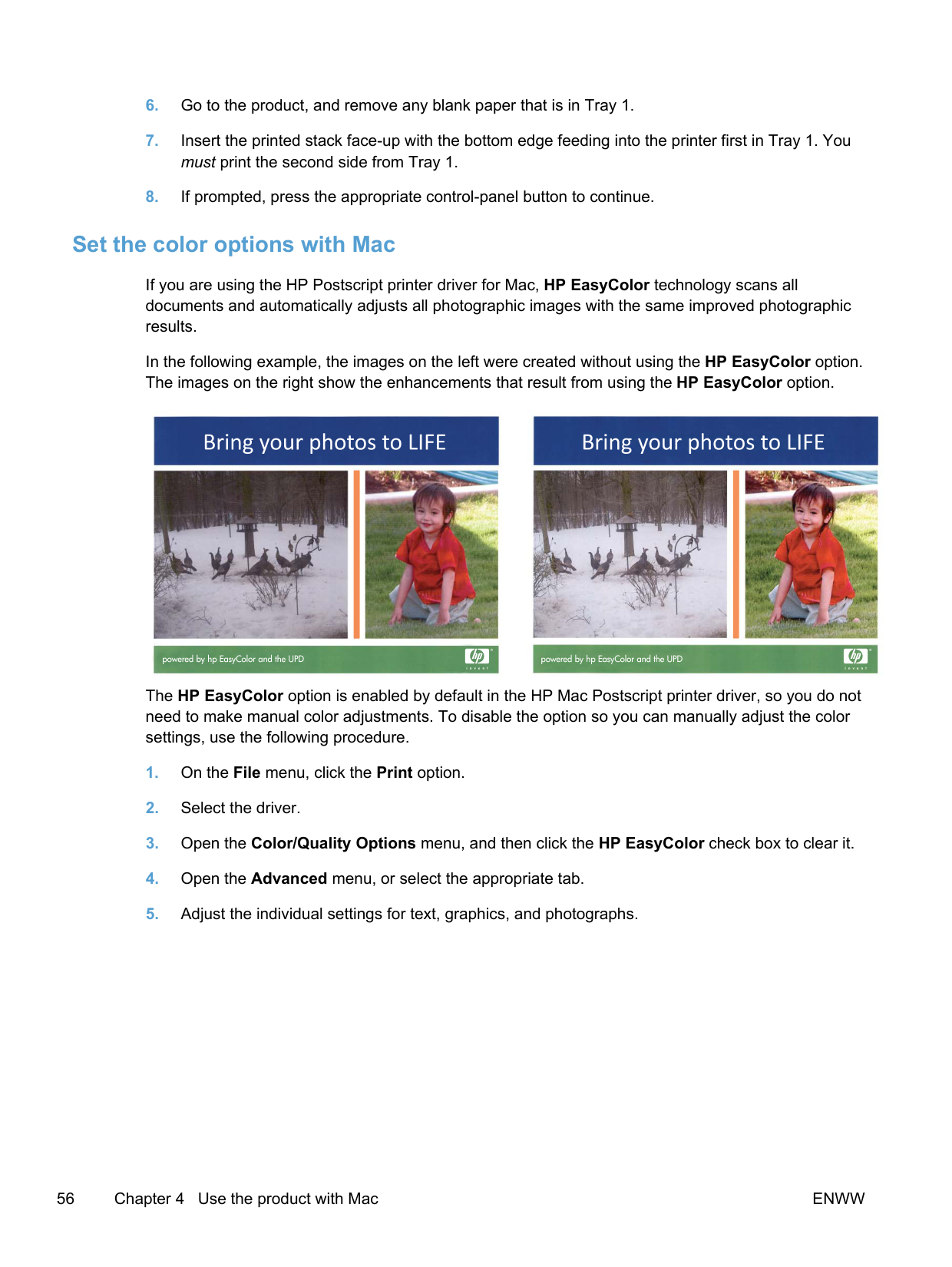
##### Create and use printing presets with Mac
Use printing presets to save the current printer driver settings for reuse.
######## Create a printing preset
######## Use printing presets
| |
|---|
##### Print a cover page with Mac
NOTE: To print a blank cover page, select the standard option from the Cover Page Type menu.
| | |---|
##### Use watermarks with Mac
##### Print multiple pages on one sheet of paper with Mac
##### Print on both sides of the page (duplex printing) with Mac
######## Use automatic duplex printing
######## Print on both sides manually
##### Set the color options with Mac
If you are using the HP Postscript printer driver for Mac, HP EasyColor technology scans all documents and automatically adjusts all photographic images with the same improved photographic results.
In the following example, the images on the left were created without using the HP EasyColor option. The images on the right show the enhancements that result from using the HP EasyColor option.

The HP EasyColor option is enabled by default in the HP Mac Postscript printer driver, so you do not need to make manual color adjustments. To disable the option so you can manually adjust the color settings, use the following procedure.
#### Use AirPrint
Direct printing using Apple’s AirPrint is supported for iOS 4.2 or later. Use AirPrint to print directly to the product from an iPad (iOS 4.2), iPhone (3GS or later), or iPod touch (third generation or later) in the following applications:

To use AirPrint, the product must be connected to a network. For more information about using AirPrint and about which HP products are compatible with AirPrint, go to www.hp.com/go/airprint. NOTE: You might need to upgrade the product firmware to use AirPrint. Go to www.hp.com/go/ LJColorMFPM375 or www.hp.com/go/LJColorMFPM475.
| | |---|
ENWW Use AirPrint 57
#### Fax with Mac
To send a fax by printing to a fax driver, complete the following steps:
| |
|---|
#### Scan with Mac
Use the HP Scan software to scan images to a Mac computer.
To use presets optimized for pictures or text documents, select a preset from the Scanning Presets pop-up menu. To adjust the settings, click the Edit button. When you are ready to scan, click the Scan button.
| | |---|
ENWW Scan with Mac 59
#### Solve problems with Mac
For information about solving problems with a Mac, see Solve product software problems with Mac on page 283.
5 Connect the product with Windows
ENWW 61
#### Printer sharing disclaimer
HP does not support peer-to-peer networking, as the feature is a function of Microsoft operating systems and not of the HP printer drivers. Go to Microsoft at www.microsoft.com.
#### Use HP Smart Install to connect to a computer, a wired network, or a wireless network
The software installation files are in the product memory. The HP Smart Install program uses a USB cable to transfer the installation files from the product to your computer. This installer supports USB connections, wired networks, and wireless networks. It installs all files you need to print, copy, scan, and fax. To use the HP Smart Install program, follow one of these procedures, depending on your connection type.
NOTE: If you prefer not to use the HP Smart Install program, you can insert the product CD to install the software.
| | |---|
##### HP Smart Install for Windows direct connections (USB)
NOTE: The HP Smart Install program might take a few minutes to start. If the HP Smart Install program does not start automatically, AutoPlay might be disabled on the computer. Browse the computer and double-click the HP Smart Install drive to run the program.
| | |---|
NOTE: If the HP Smart Install program fails, disconnect the USB cable, turn the product off and then on again, and then insert the product CD into your computer. Follow the onscreen instructions. Connect the cable only when the software prompts you.
| | |---|
##### HP Smart Install for Windows wired networks
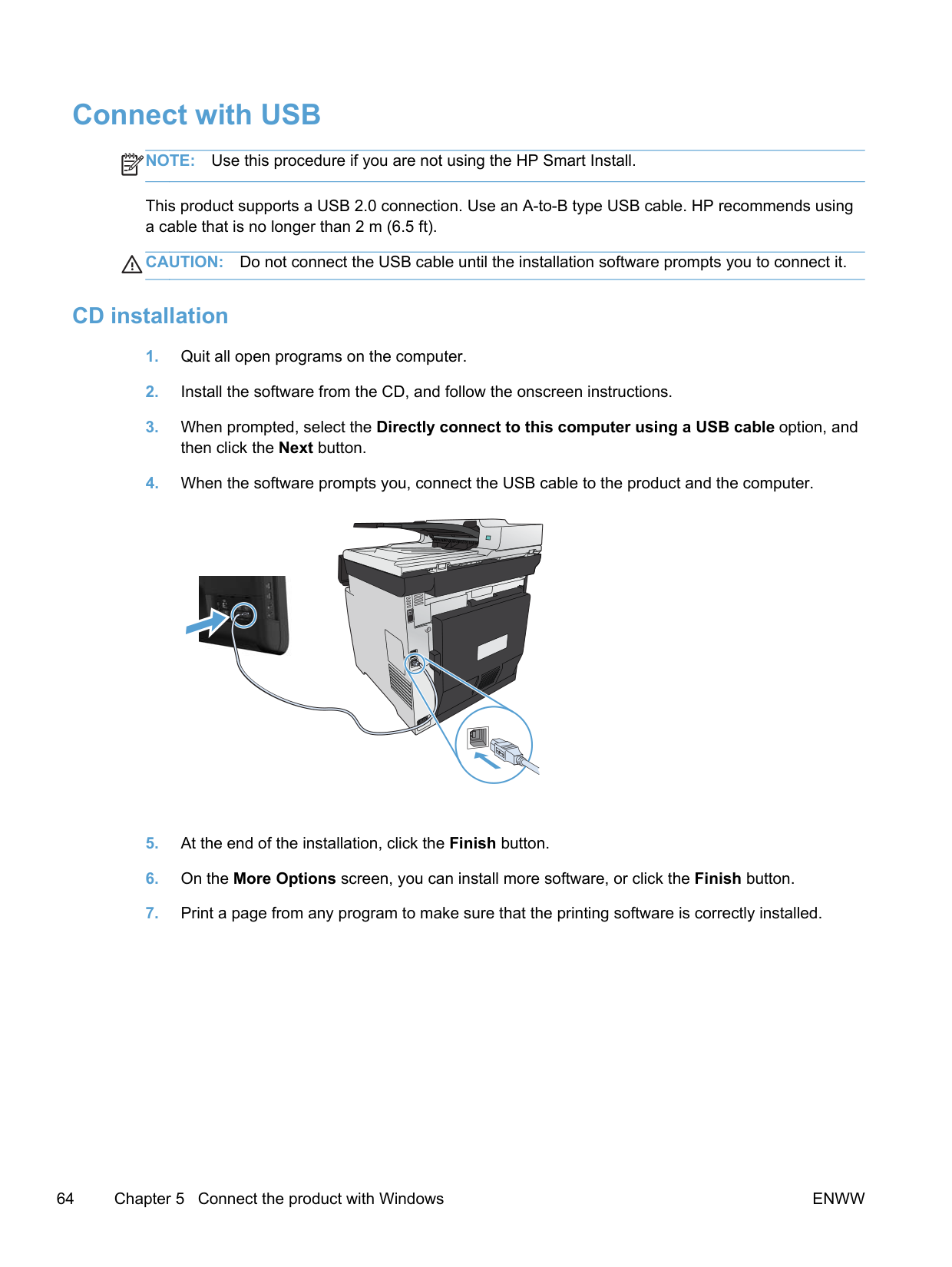
NOTE: If the HP Smart Install program fails, insert the product CD into your computer. Follow the onscreen instructions.
| | |---|
##### HP Smart Install for Windows wireless networks, method 1: Use theproduct control panel
NOTE: Use this method only if you know your wireless network SSID and password.
| | |---|
##### HP Smart Install for Windows wireless networks, method 2: Temporarilyconnect a USB cable
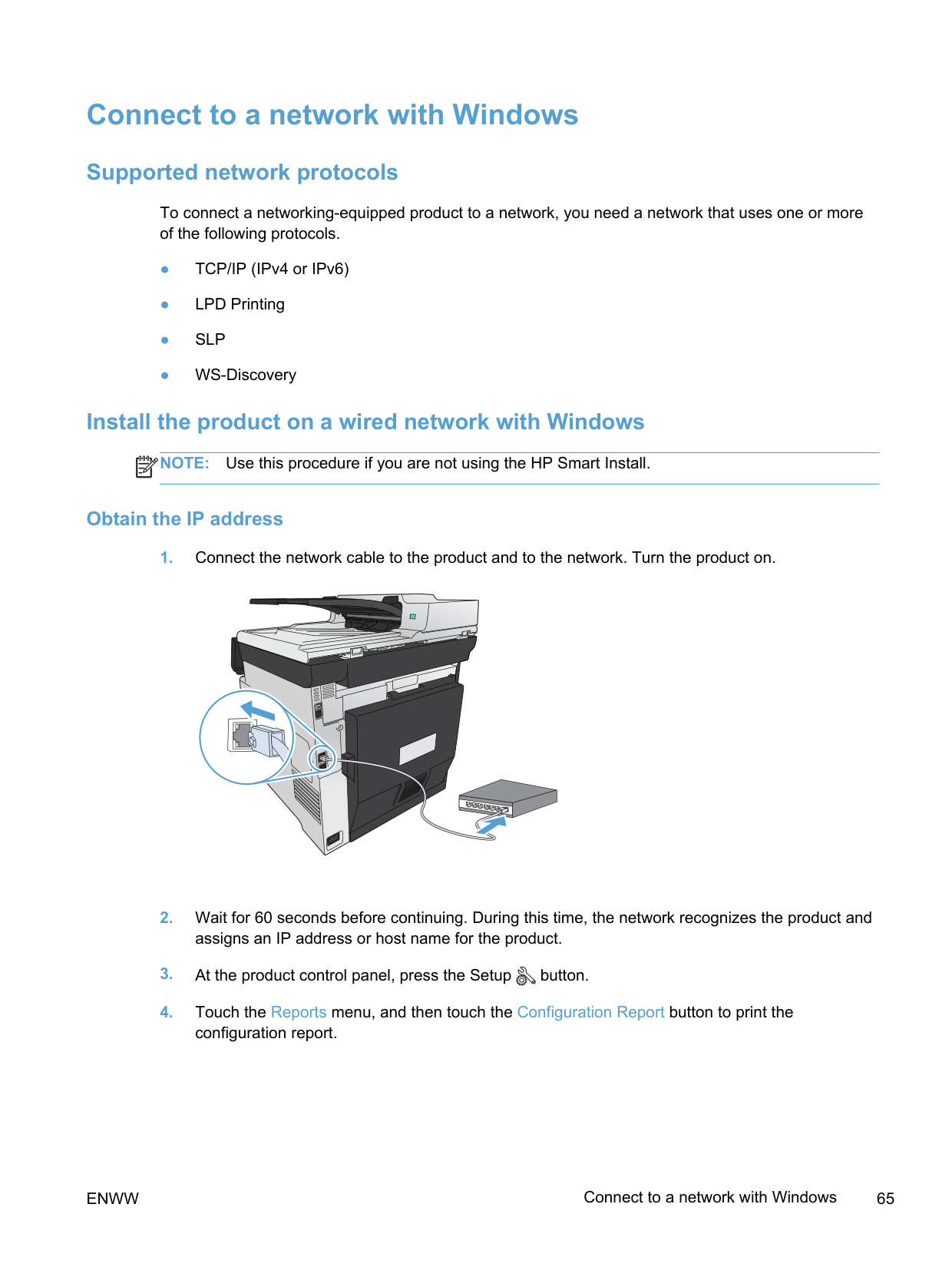
##### HP Smart Install for Windows wireless networks, method 3: Use WPS
ENWW Use HP Smart Install to connect to a computer, a wired network, or a wireless network 63
#### Connect with USB
NOTE: Use this procedure if you are not using the HP Smart Install.
| | |---|
This product supports a USB 2.0 connection. Use an A-to-B type USB cable. HP recommends using a cable that is no longer than 2 m (6.5 ft).
CAUTION: Do not connect the USB cable until the installation software prompts you to connect it.
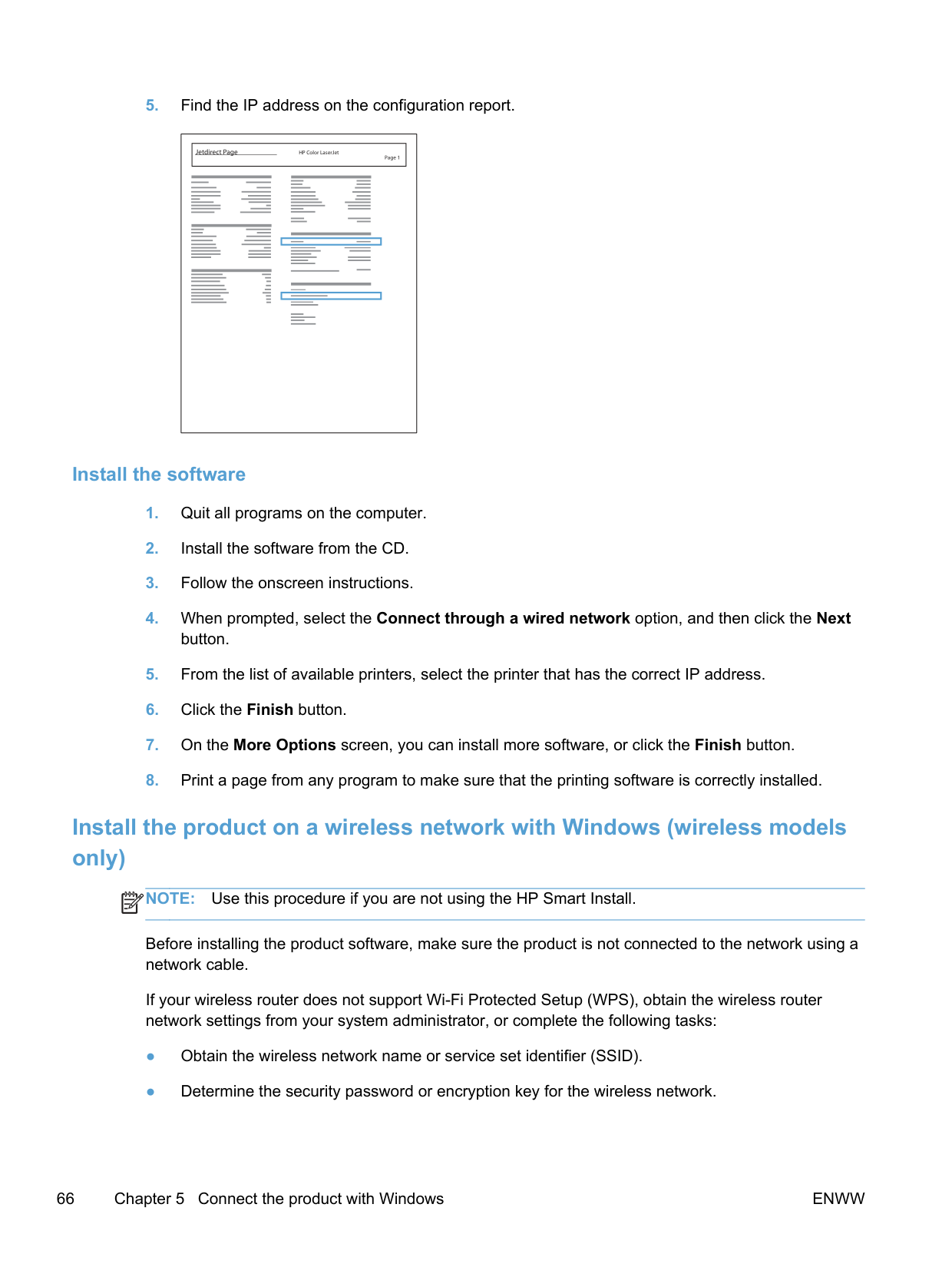
##### CD installation

#### Connect to a network with Windows
##### Supported network protocols
To connect a networking-equipped product to a network, you need a network that uses one or more of the following protocols.
##### Install the product on a wired network with Windows
NOTE: Use this procedure if you are not using the HP Smart Install.
| | |---|
####### Obtain the IP address
||Jetdirect Page HP Color LaserJet
Page 1| |---| | |---|
####### Install the software
##### Install the product on a wireless network with Windows (wireless models only)
NOTE: Use this procedure if you are not using the HP Smart Install.
| | |---|
Before installing the product software, make sure the product is not connected to the network using a network cable.
If your wireless router does not support Wi-Fi Protected Setup (WPS), obtain the wireless router network settings from your system administrator, or complete the following tasks:
####### Connect the product to a wireless network using WPS
If your wireless router supports Wi-Fi Protected Setup (WPS), this is the simplest way to set up the product on a wireless network.
NOTE: If this method is not successful, try using the Wireless Setup Wizard on the product control panel or try using the USB cable connection method.
| | |---|
####### Connect the product to a wireless network using the Wireless Setup Wizard
If your wireless router does not support WiFi-Protected Setup (WPS), you can use this method to install the product on a wireless network.
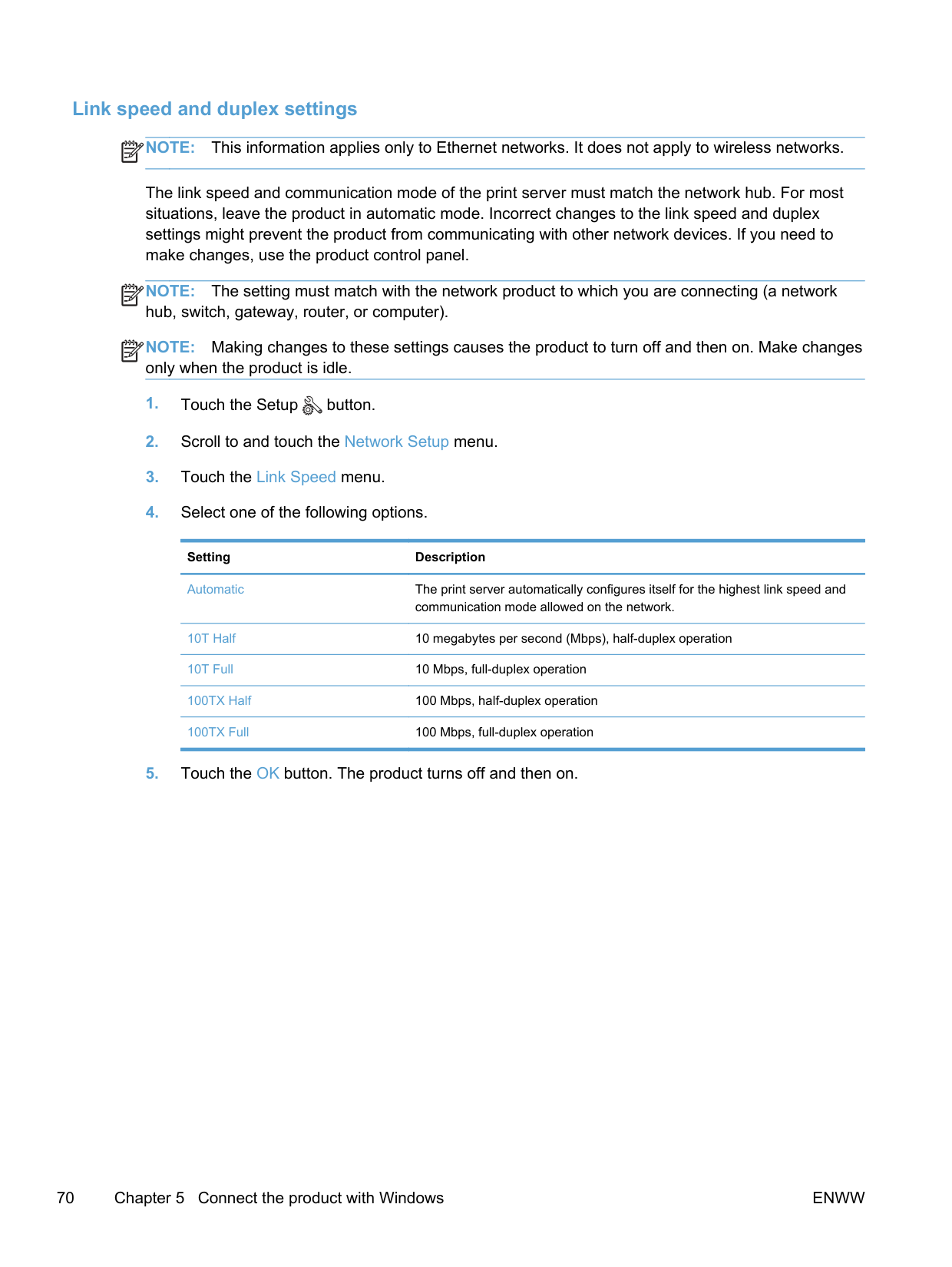
####### Connect the product to a wireless network using a USB cable
If your wireless router does not support WiFi-Protected Setup (WPS), use this method to set up the product on a wireless network. Using a USB cable to transfer settings makes setting up a wireless
connection easier. After the setup is complete, you can disconnect the USB cable and use the wireless connection.
CAUTION: Do not connect the USB cable until the installation program prompts you.
####### Install the software for a wireless product currently on the network
If the product already has an IP address on a wireless network and you want to install product software on a computer, complete the following steps.
##### Configure IP network settings with Windows
####### View or change network settings
Use the embedded Web server to view or change IP configuration settings.
####### Set or change the product password
Use the HP Embedded Web Server to set a password or change an existing password for a product on a network.
| |
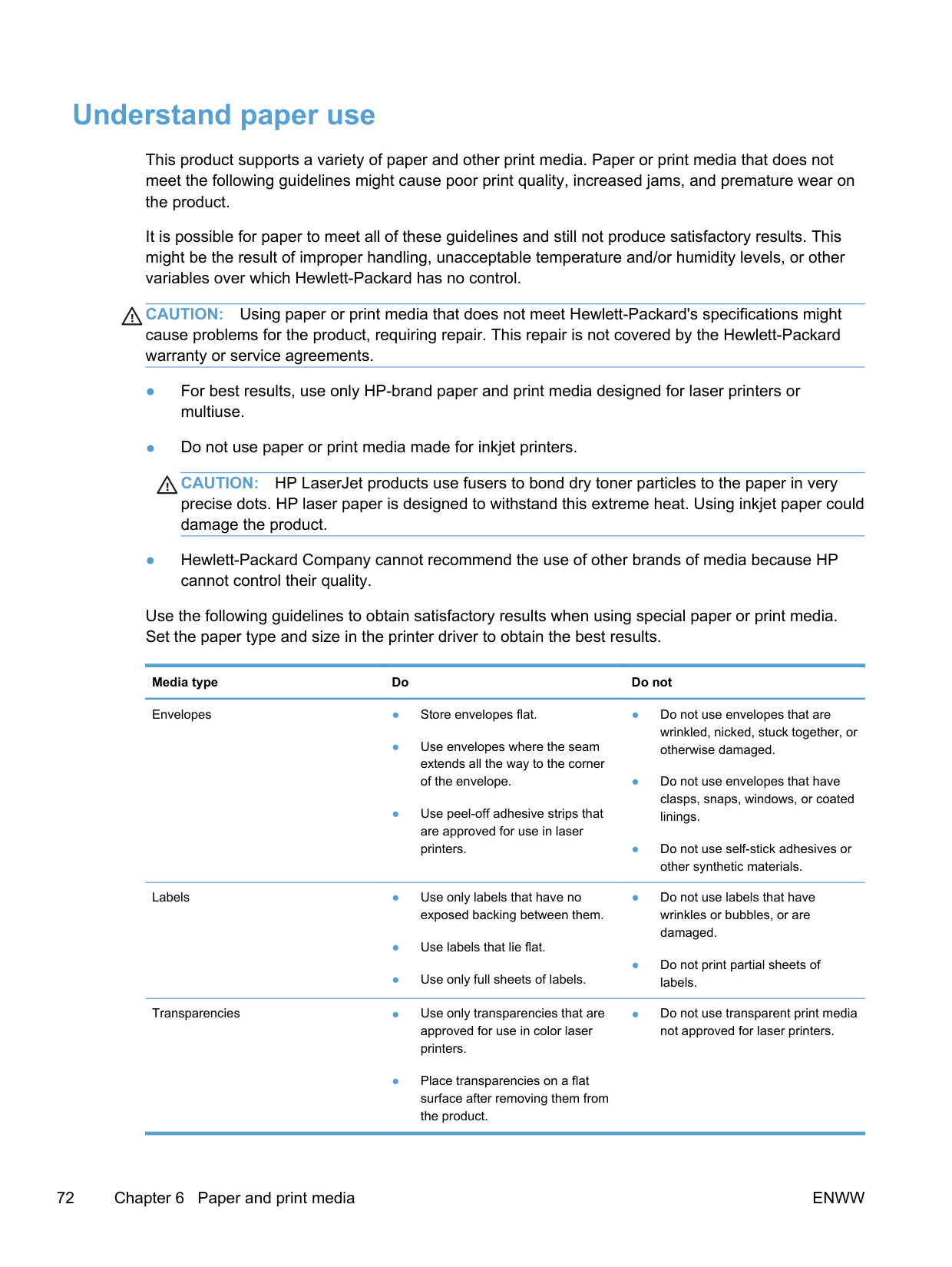
|---|
NOTE: If a password has previously been set, you are prompted to type the password. Type the password, and then click the Apply button.
####### Manually configure IPv4 TCP/IP parameters from the control panel
Use the control-panel menus to manually set an IPv4 address, subnet mask, and default gateway.
####### Link speed and duplex settings
NOTE: This information applies only to Ethernet networks. It does not apply to wireless networks.
| |
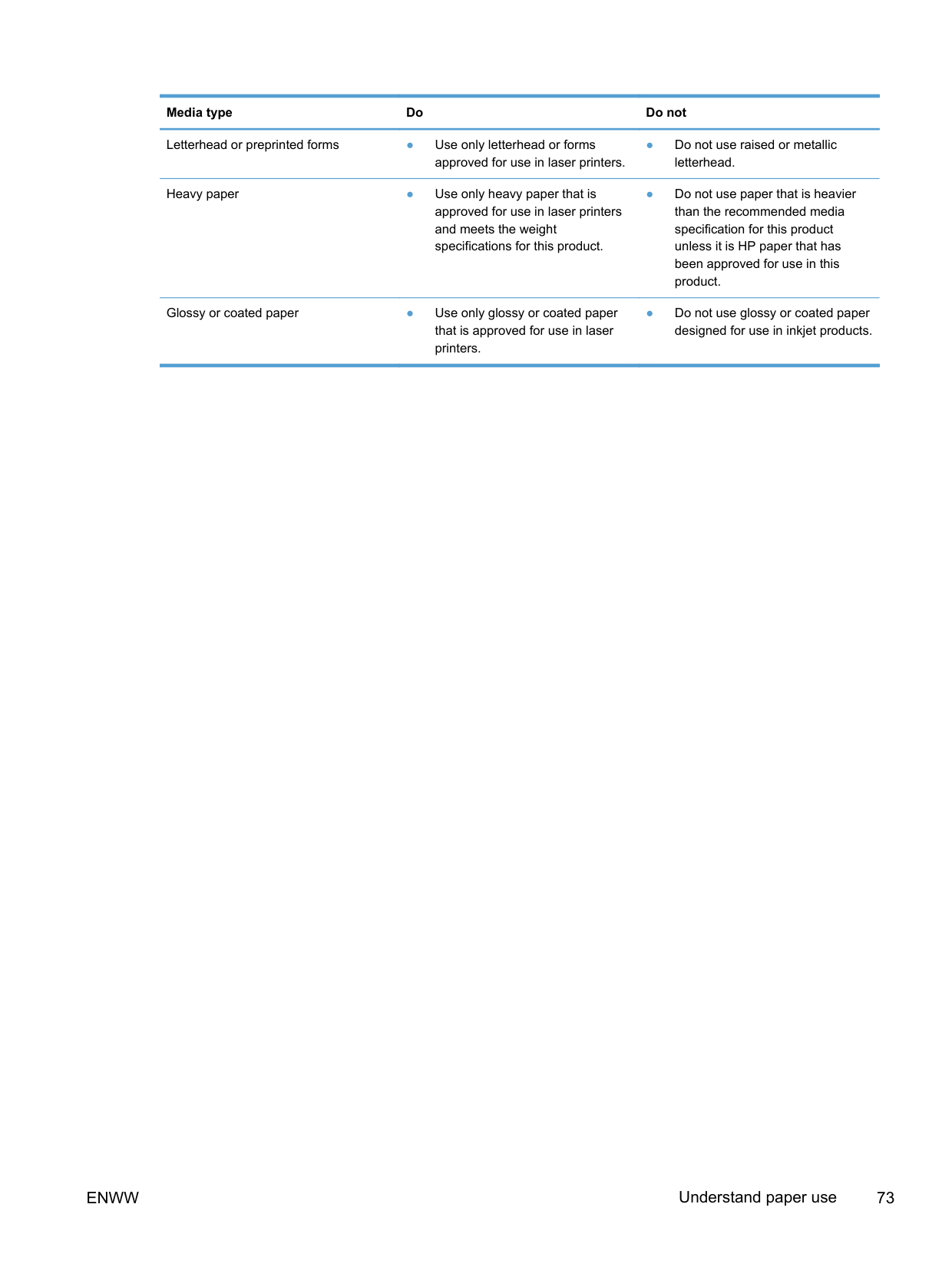
|---|
The link speed and communication mode of the print server must match the network hub. For most situations, leave the product in automatic mode. Incorrect changes to the link speed and duplex settings might prevent the product from communicating with other network devices. If you need to make changes, use the product control panel.
NOTE: The setting must match with the network product to which you are connecting (a network hub, switch, gateway, router, or computer).
| | |---|
NOTE: Making changes to these settings causes the product to turn off and then on. Make changes only when the product is idle.
| | |---|
Setting Description
Automatic The print server automatically configures itself for the highest link speed and

communication mode allowed on the network. 10T Half 10 megabytes per second (Mbps), half-duplex operation 10T Full 10 Mbps, full-duplex operation 100TX Half 100 Mbps, half-duplex operation 100TX Full 100 Mbps, full-duplex operation
6 Paper and print media
ENWW 71
#### Understand paper use
This product supports a variety of paper and other print media. Paper or print media that does not meet the following guidelines might cause poor print quality, increased jams, and premature wear on the product.
It is possible for paper to meet all of these guidelines and still not produce satisfactory results. This might be the result of improper handling, unacceptable temperature and/or humidity levels, or other variables over which Hewlett-Packard has no control.
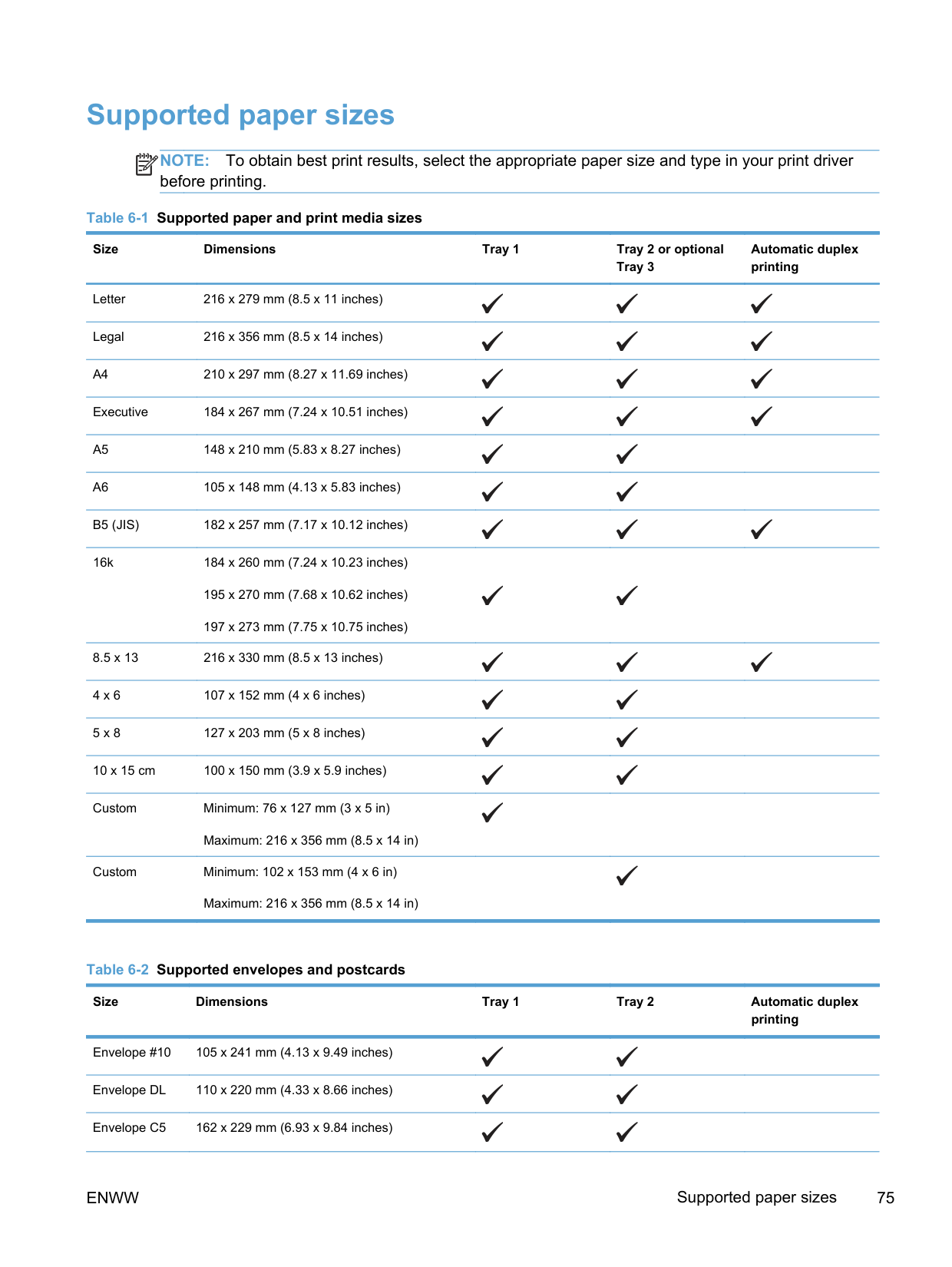
CAUTION: Using paper or print media that does not meet Hewlett-Packard's specifications might cause problems for the product, requiring repair. This repair is not covered by the Hewlett-Packard warranty or service agreements.
CAUTION: HP LaserJet products use fusers to bond dry toner particles to the paper in very precise dots. HP laser paper is designed to withstand this extreme heat. Using inkjet paper could damage the product.
Use the following guidelines to obtain satisfactory results when using special paper or print media. Set the paper type and size in the printer driver to obtain the best results.
Media type Do Do not
Envelopes ● Store envelopes flat.
Labels ● Use only labels that have no exposed backing between them.
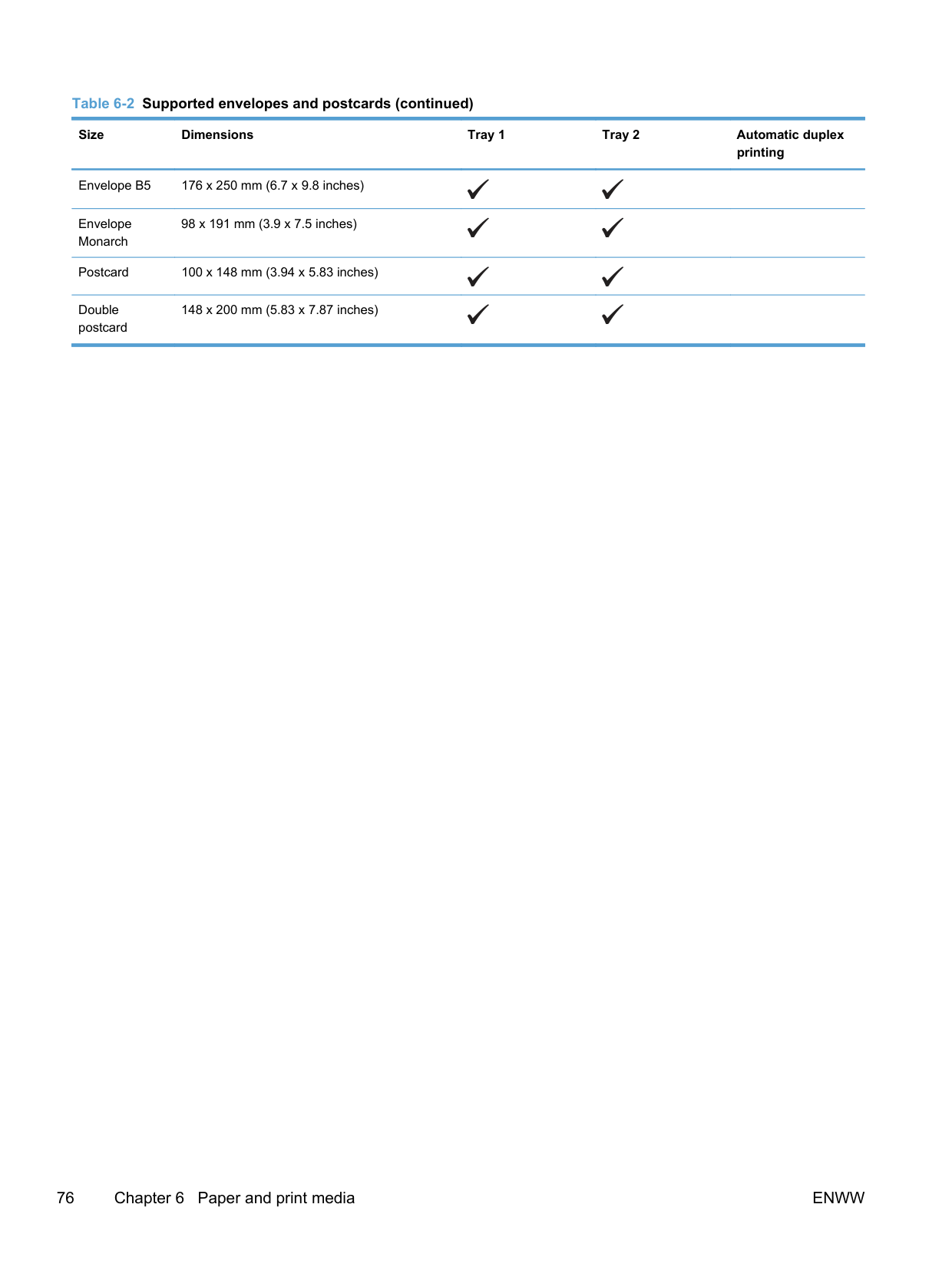
Transparencies ● Use only transparencies that are approved for use in color laser printers.
● Place transparencies on a flat surface after removing them from the product.
● Do not use transparent print media not approved for laser printers.
########### Media type Do Do not
Letterhead or preprinted forms ● Use only letterhead or forms approved for use in laser printers.
Heavy paper ● Use only heavy paper that is approved for use in laser printers and meets the weight specifications for this product.
Glossy or coated paper ● Use only glossy or coated paper that is approved for use in laser printers.
● Do not use raised or metallic letterhead.
● Do not use paper that is heavier than the recommended media specification for this product unless it is HP paper that has been approved for use in this product.
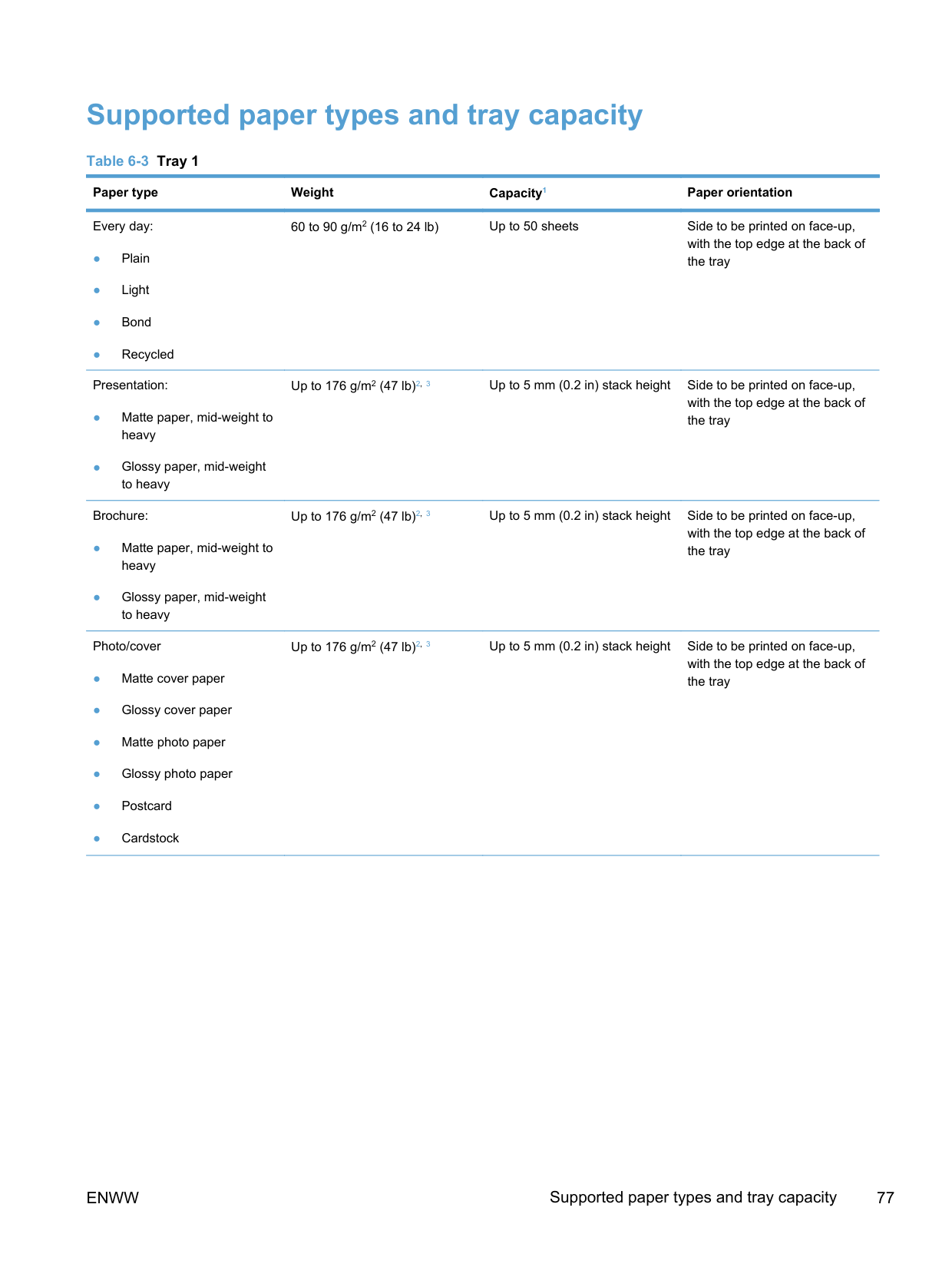
● Do not use glossy or coated paper designed for use in inkjet products.
ENWW Understand paper use 73
#### Change the printer driver to match the paper type and size in Windows
#### Supported paper sizes
NOTE: To obtain best print results, select the appropriate paper size and type in your print driver before printing.
| | |---|
Size Dimensions Tray 1 Tray 2 or optional Tray 3
Automatic duplex printing
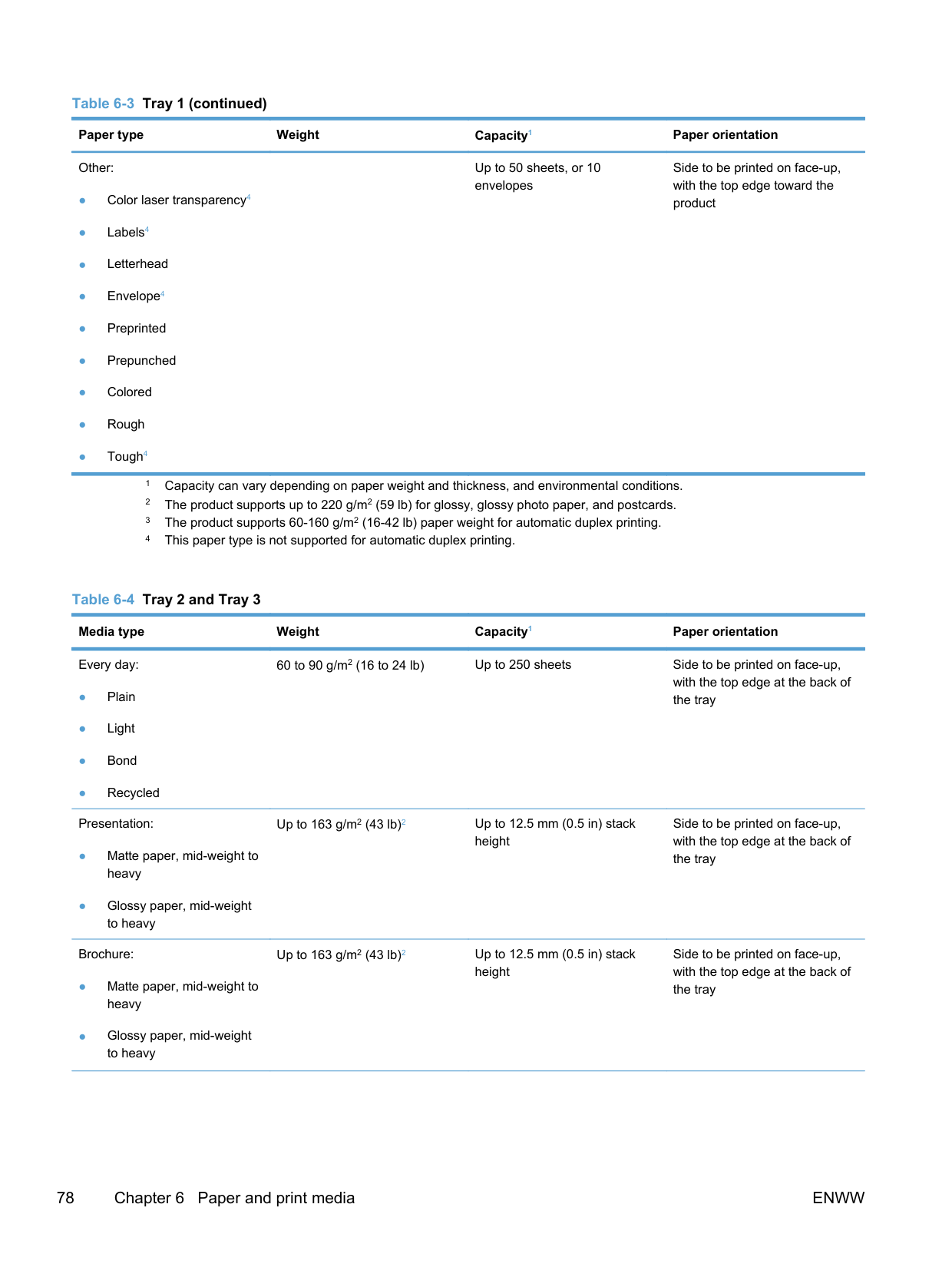
Letter 216 x 279 mm (8.5 x 11 inches)
Legal 216 x 356 mm (8.5 x 14 inches)
Executive 184 x 267 mm (7.24 x 10.51 inches)
B5 (JIS) 182 x 257 mm (7.17 x 10.12 inches)
16k 184 x 260 mm (7.24 x 10.23 inches)
195 x 270 mm (7.68 x 10.62 inches)
197 x 273 mm (7.75 x 10.75 inches) 8.5 x 13 216 x 330 mm (8.5 x 13 inches)
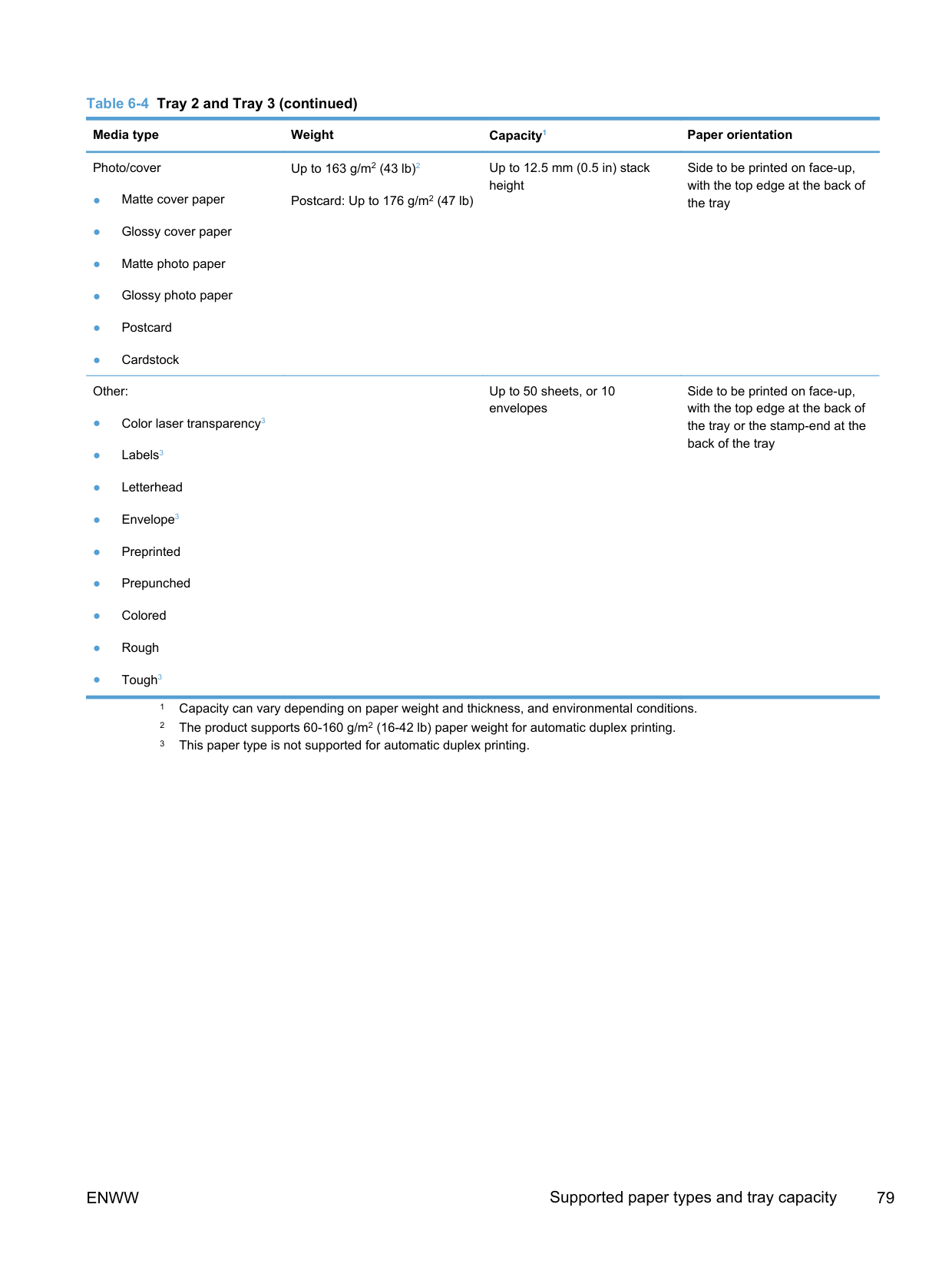
10 x 15 cm 100 x 150 mm (3.9 x 5.9 inches)
Custom Minimum: 76 x 127 mm (3 x 5 in)
Maximum: 216 x 356 mm (8.5 x 14 in) Custom Minimum: 102 x 153 mm (4 x 6 in)
Maximum: 216 x 356 mm (8.5 x 14 in)
Size Dimensions Tray 1 Tray 2 Automatic duplex printing
Envelope #10 105 x 241 mm (4.13 x 9.49 inches)
Envelope DL 110 x 220 mm (4.33 x 8.66 inches)
Envelope C5 162 x 229 mm (6.93 x 9.84 inches)
ENWW Supported paper sizes 75
########## Table 6-2 Supported envelopes and postcards (continued)
########### Size Dimensions Tray 1 Tray 2 Automatic duplex printing
Envelope B5 176 x 250 mm (6.7 x 9.8 inches)
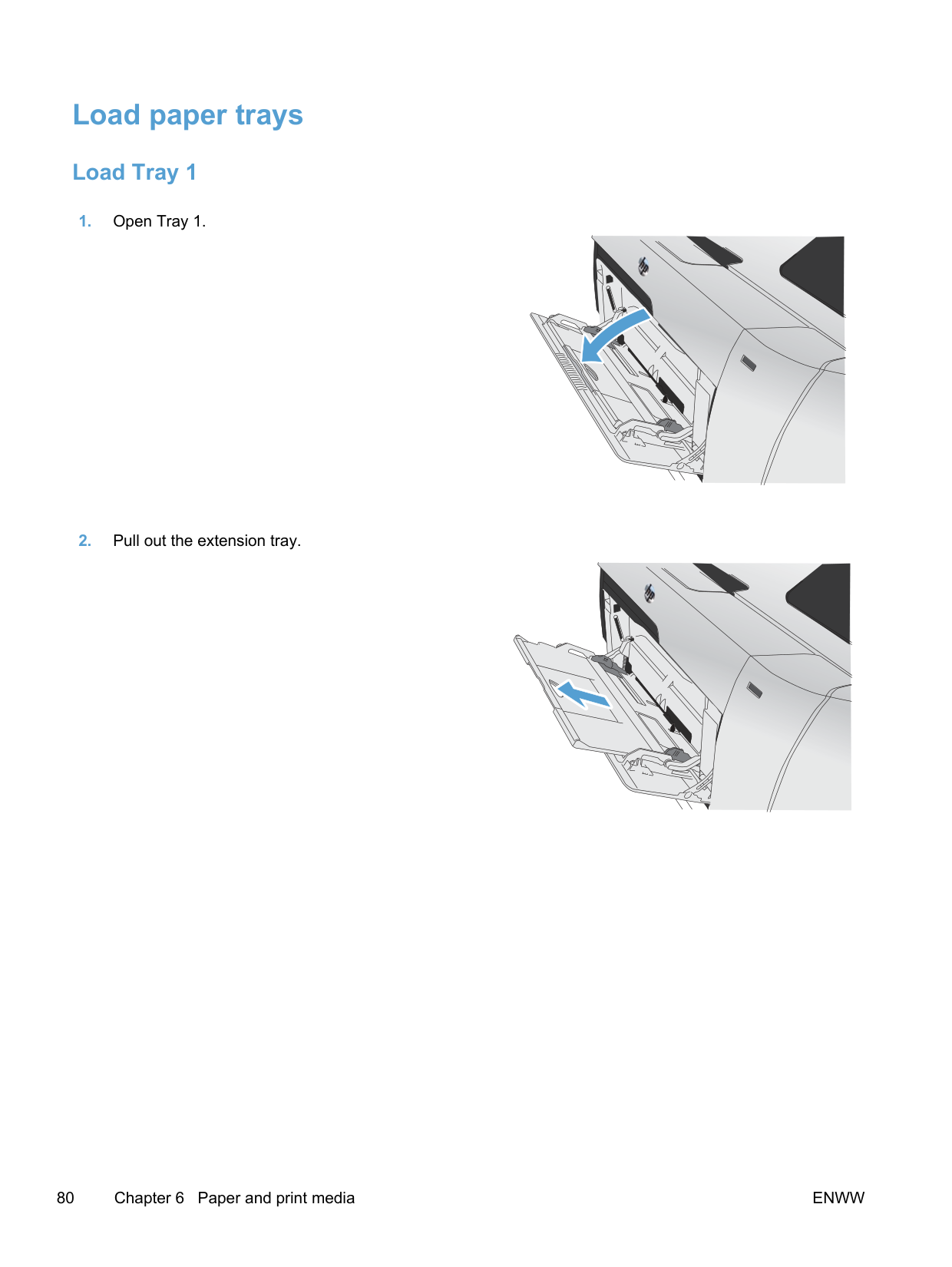
Envelope Monarch
98 x 191 mm (3.9 x 7.5 inches)
Postcard 100 x 148 mm (3.94 x 5.83 inches)
Double postcard
148 x 200 mm (5.83 x 7.87 inches)
#### Supported paper types and tray capacity
########## Table 6-3 Tray 1
########### Paper type Weight Capacity1 Paper orientation
Every day:
Presentation:
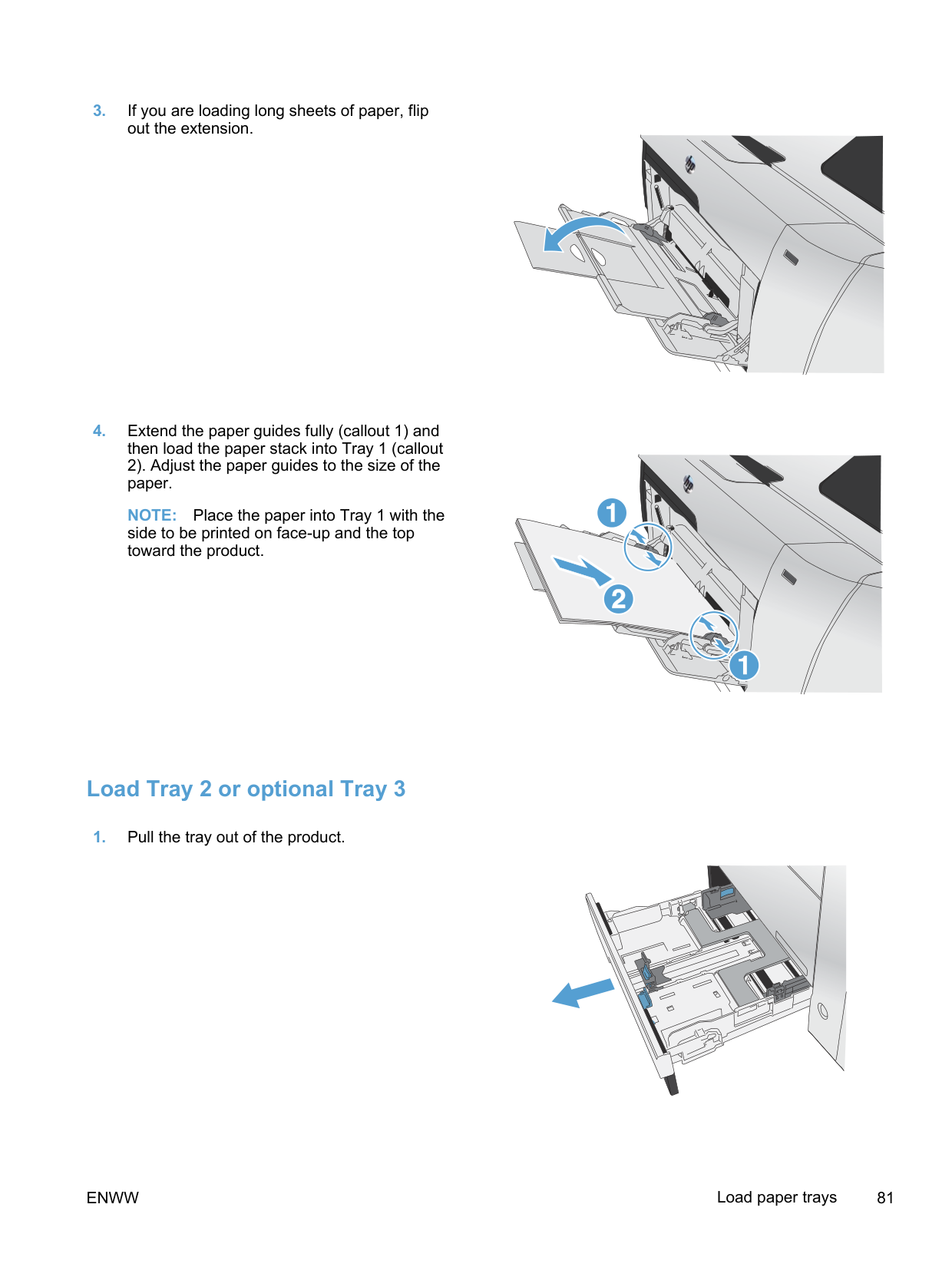
Brochure:
Photo/cover
60 to 90 g/m2 (16 to 24 lb) Up to 50 sheets Side to be printed on face-up, with the top edge at the back of the tray
Up to 176 g/m2 (47 lb)2, 3 Up to 5 mm (0.2 in) stack height Side to be printed on face-up, with the top edge at the back of the tray
Up to 176 g/m2 (47 lb)2, 3 Up to 5 mm (0.2 in) stack height Side to be printed on face-up, with the top edge at the back of the tray
Up to 176 g/m2 (47 lb)2, 3 Up to 5 mm (0.2 in) stack height Side to be printed on face-up, with the top edge at the back of the tray
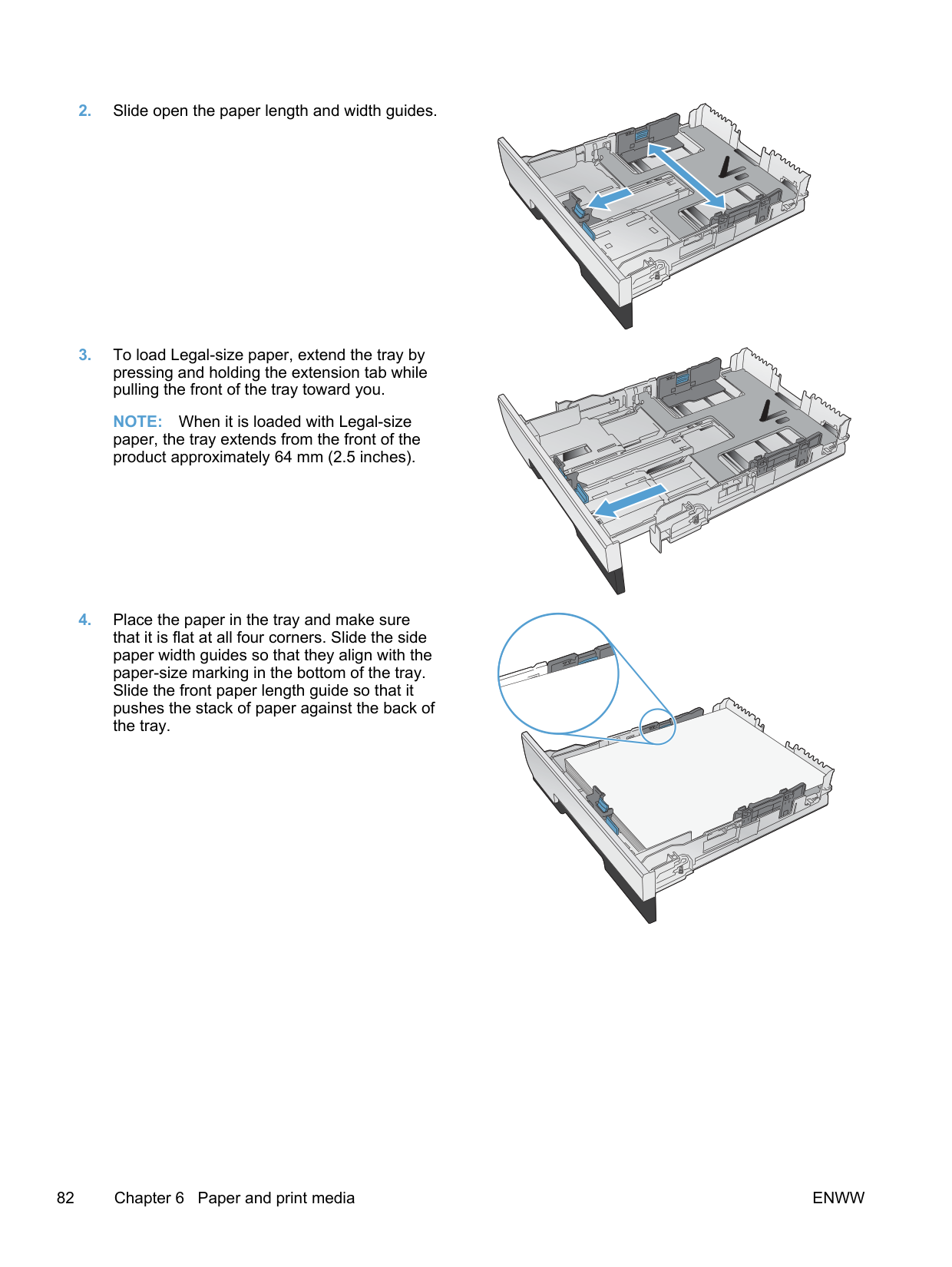
########## Table 6-3 Tray 1 (continued)Paper type Weight Capacity1 Paper orientation
Other:
Up to 50 sheets, or 10 envelopes
Side to be printed on face-up, with the top edge toward the product
########## Table 6-4 Tray 2 and Tray 3Media type Weight Capacity1 Paper orientation
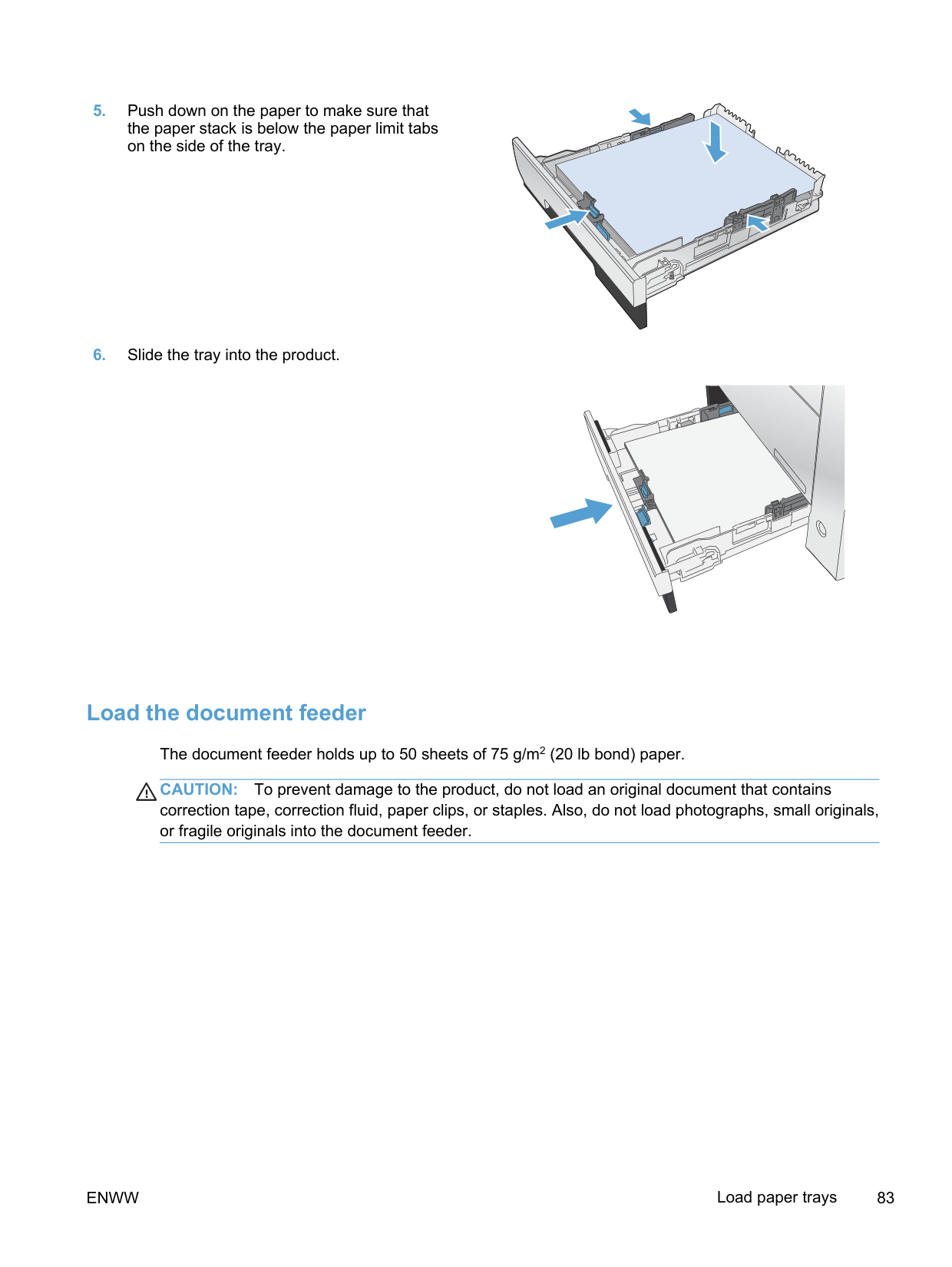
Every day:
Presentation:
Brochure:
60 to 90 g/m2 (16 to 24 lb) Up to 250 sheets Side to be printed on face-up, with the top edge at the back of the tray
Up to 163 g/m2 (43 lb)2 Up to 12.5 mm (0.5 in) stack height
Side to be printed on face-up, with the top edge at the back of the tray
Up to 163 g/m2 (43 lb)2 Up to 12.5 mm (0.5 in) stack height
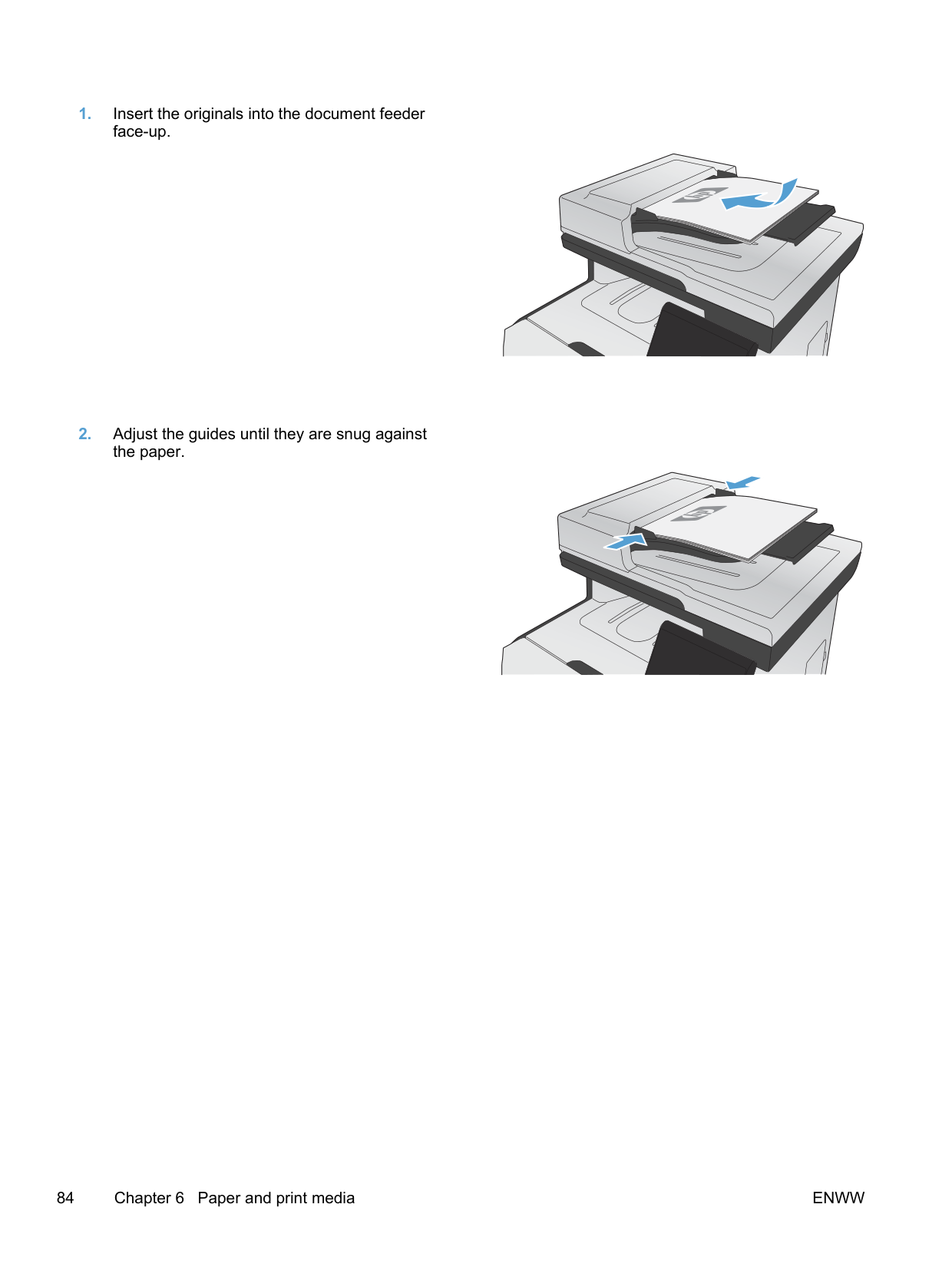
Side to be printed on face-up, with the top edge at the back of the tray
########## Table 6-4 Tray 2 and Tray 3 (continued)
########### Media type Weight Capacity1 Paper orientation
Photo/cover
Up to 163 g/m2 (43 lb)2
Postcard: Up to 176 g/m2 (47 lb)
Up to 12.5 mm (0.5 in) stack height
Side to be printed on face-up, with the top edge at the back of the tray
Other:
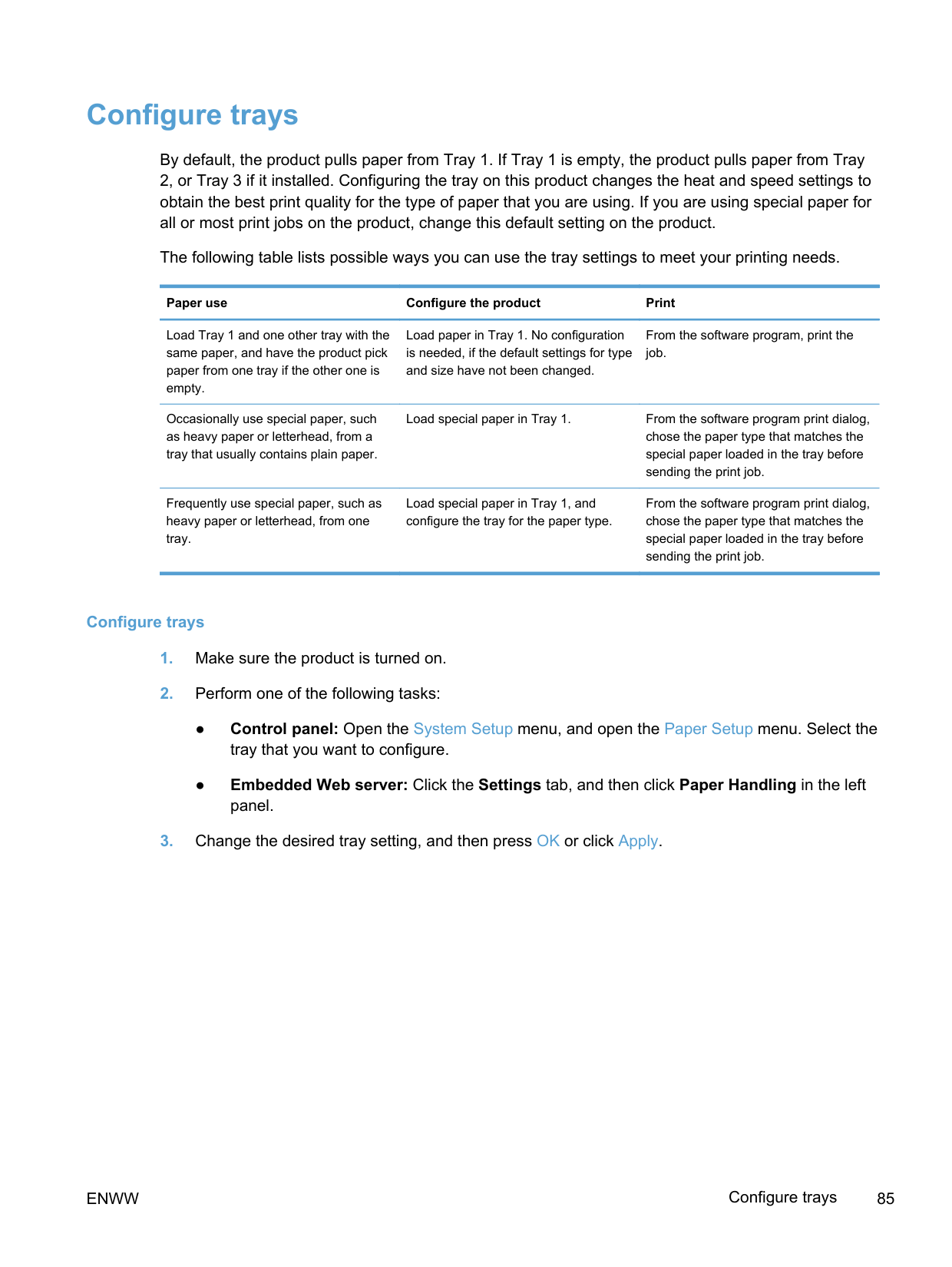
Up to 50 sheets, or 10 envelopes
Side to be printed on face-up, with the top edge at the back of the tray or the stamp-end at the back of the tray
#### Load paper trays
##### Load Tray 1


NOTE: Place the paper into Tray 1 with the side to be printed on face-up and the top toward the product.

##### Load Tray 2 or optional Tray 3
######### 2. Slide open the paper length and width guides.
######### 3. To load Legal-size paper, extend the tray bypressing and holding the extension tab whilepulling the front of the tray toward you.
NOTE: When it is loaded with Legal-size paper, the tray extends from the front of the product approximately 64 mm (2.5 inches).
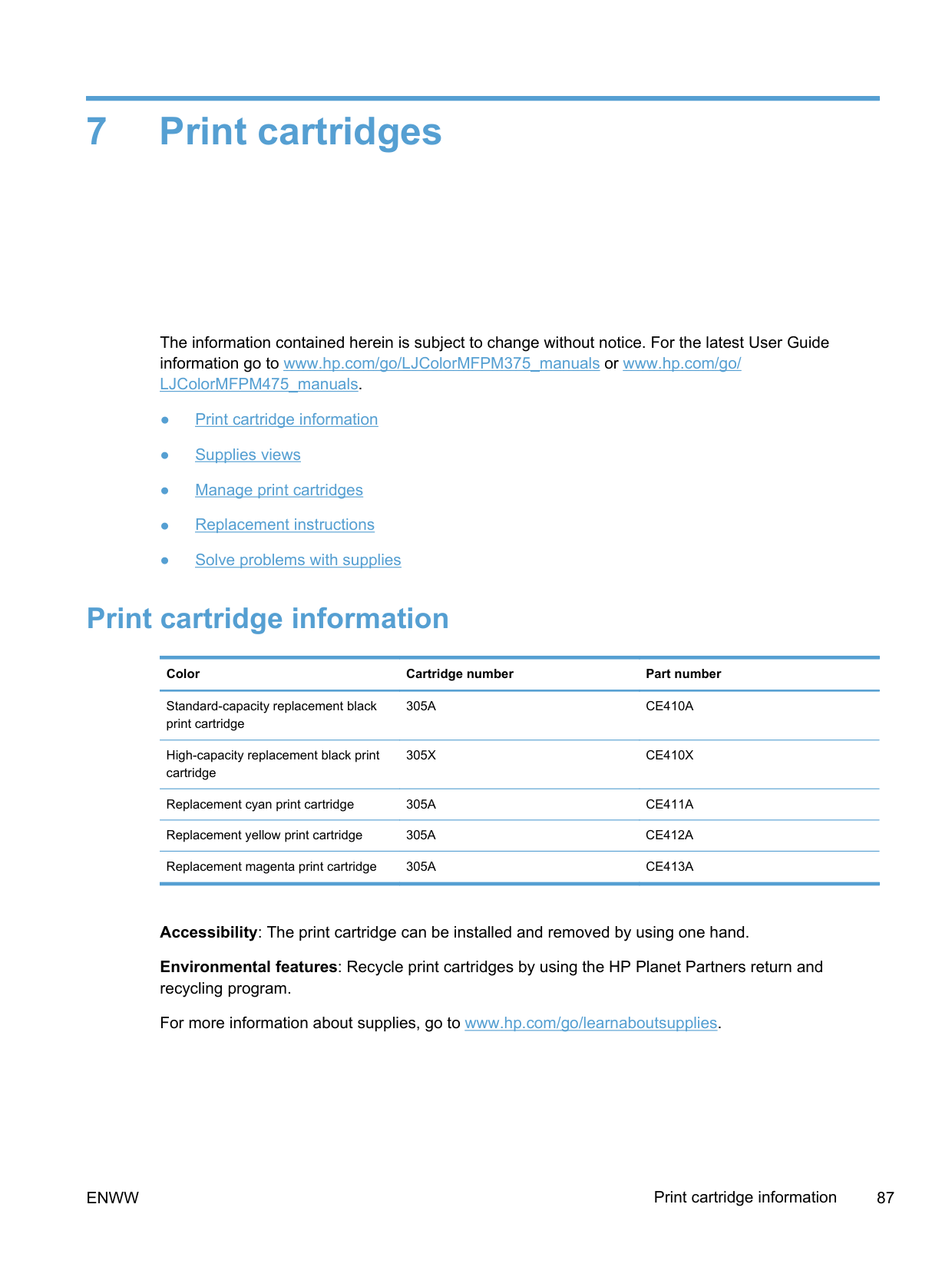
######### 4. Place the paper in the tray and make surethat it is flat at all four corners. Slide the sidepaper width guides so that they align with thepaper-size marking in the bottom of the tray.Slide the front paper length guide so that itpushes the stack of paper against the back ofthe tray.


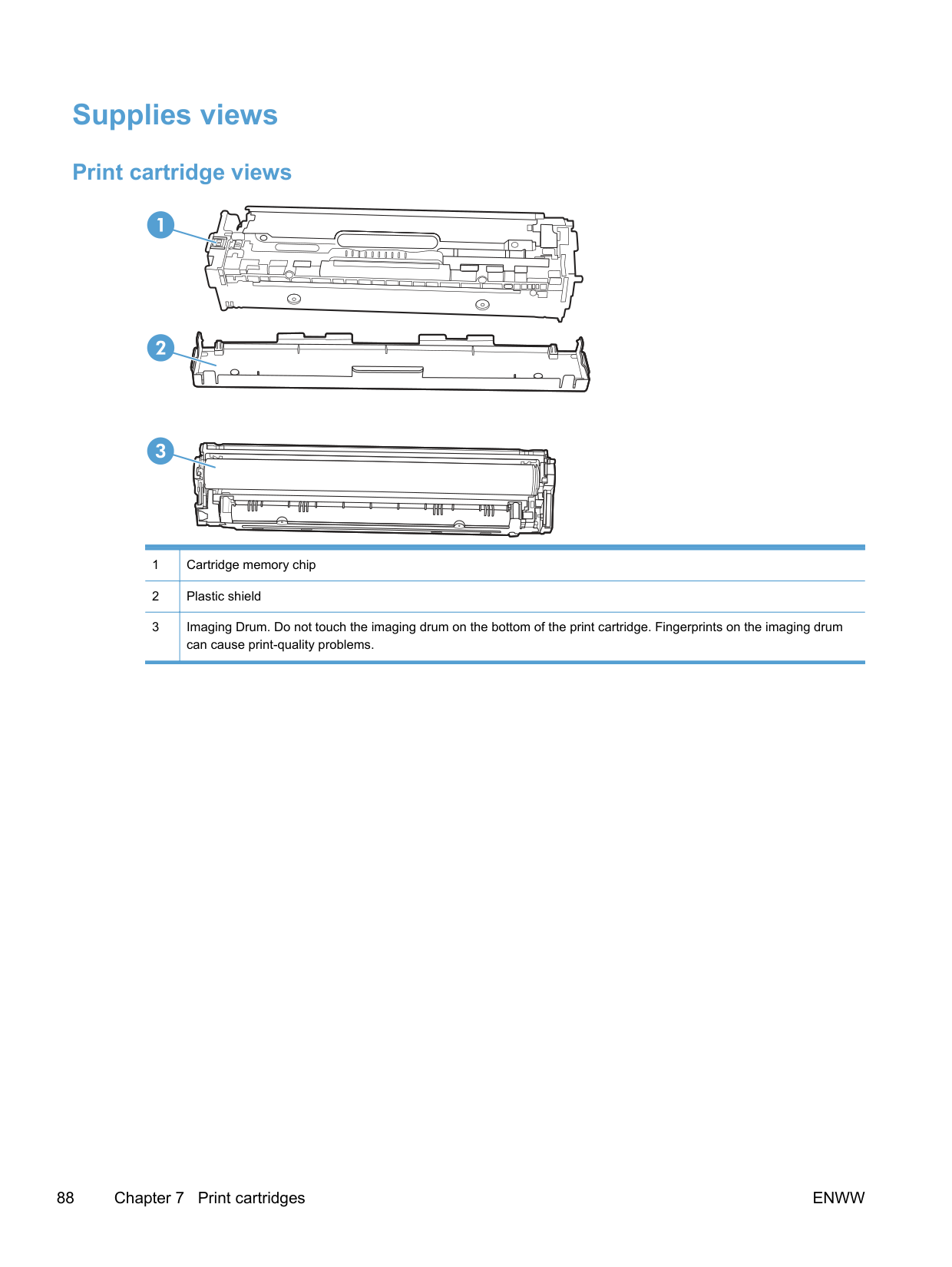








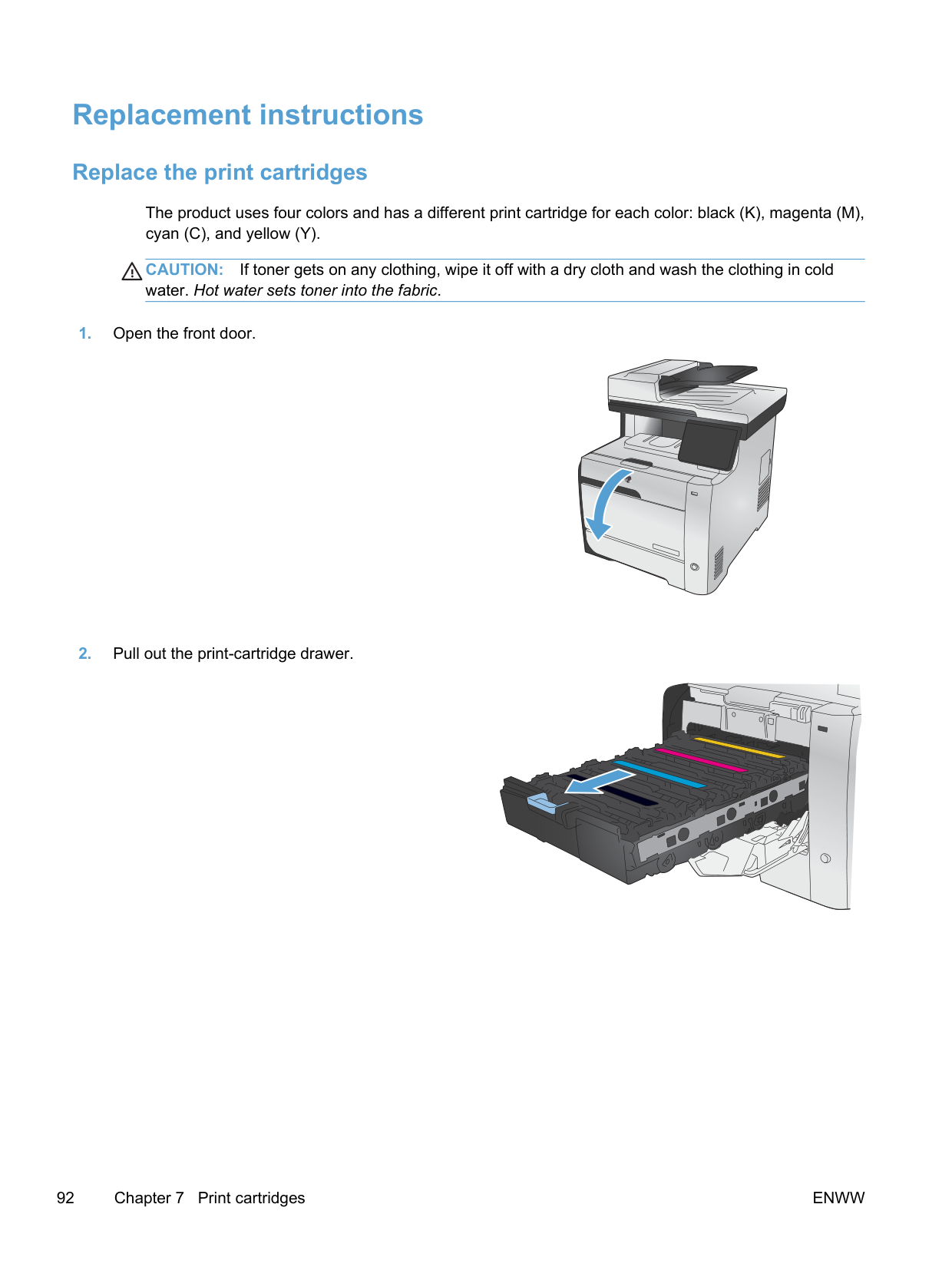


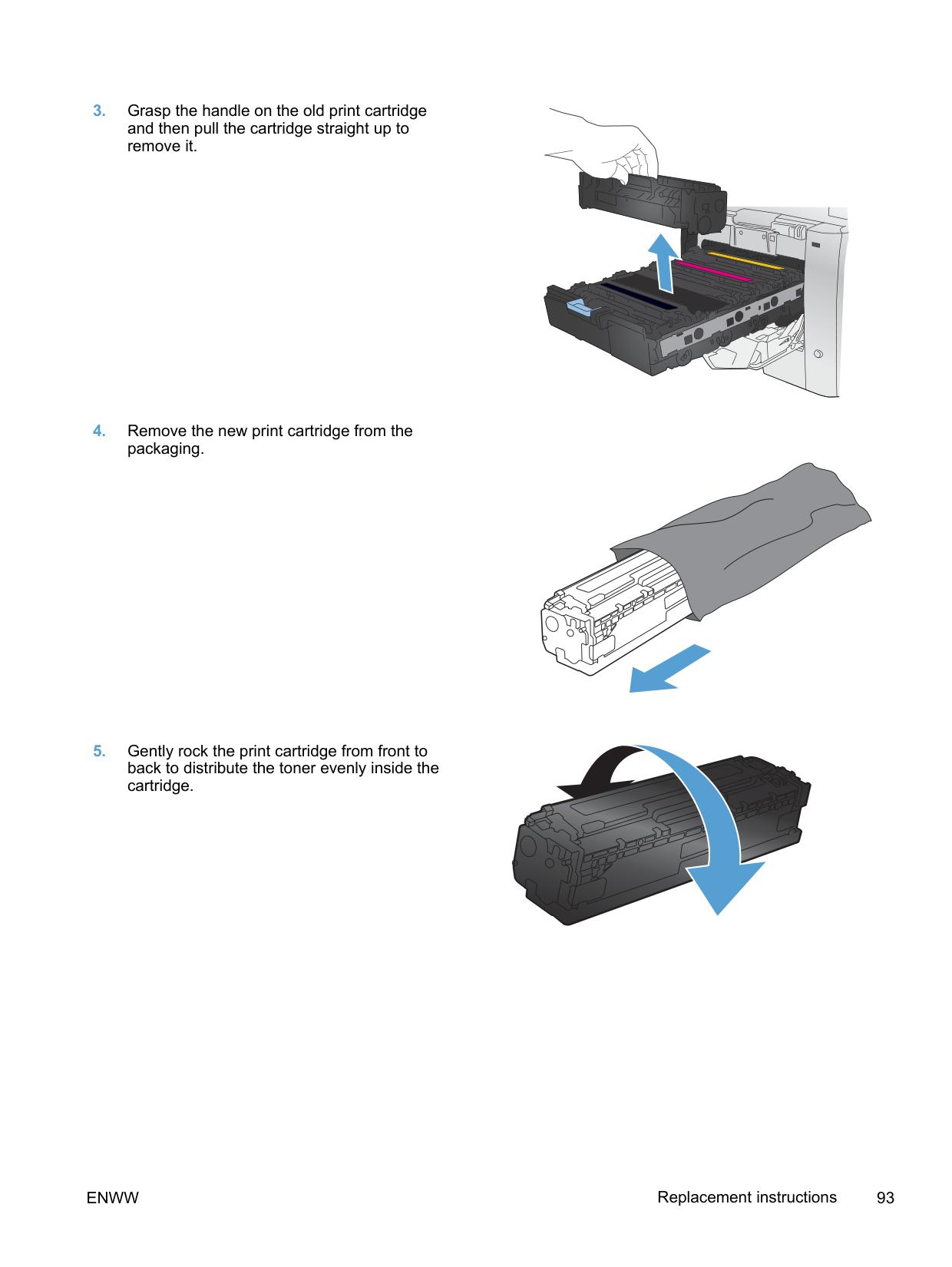


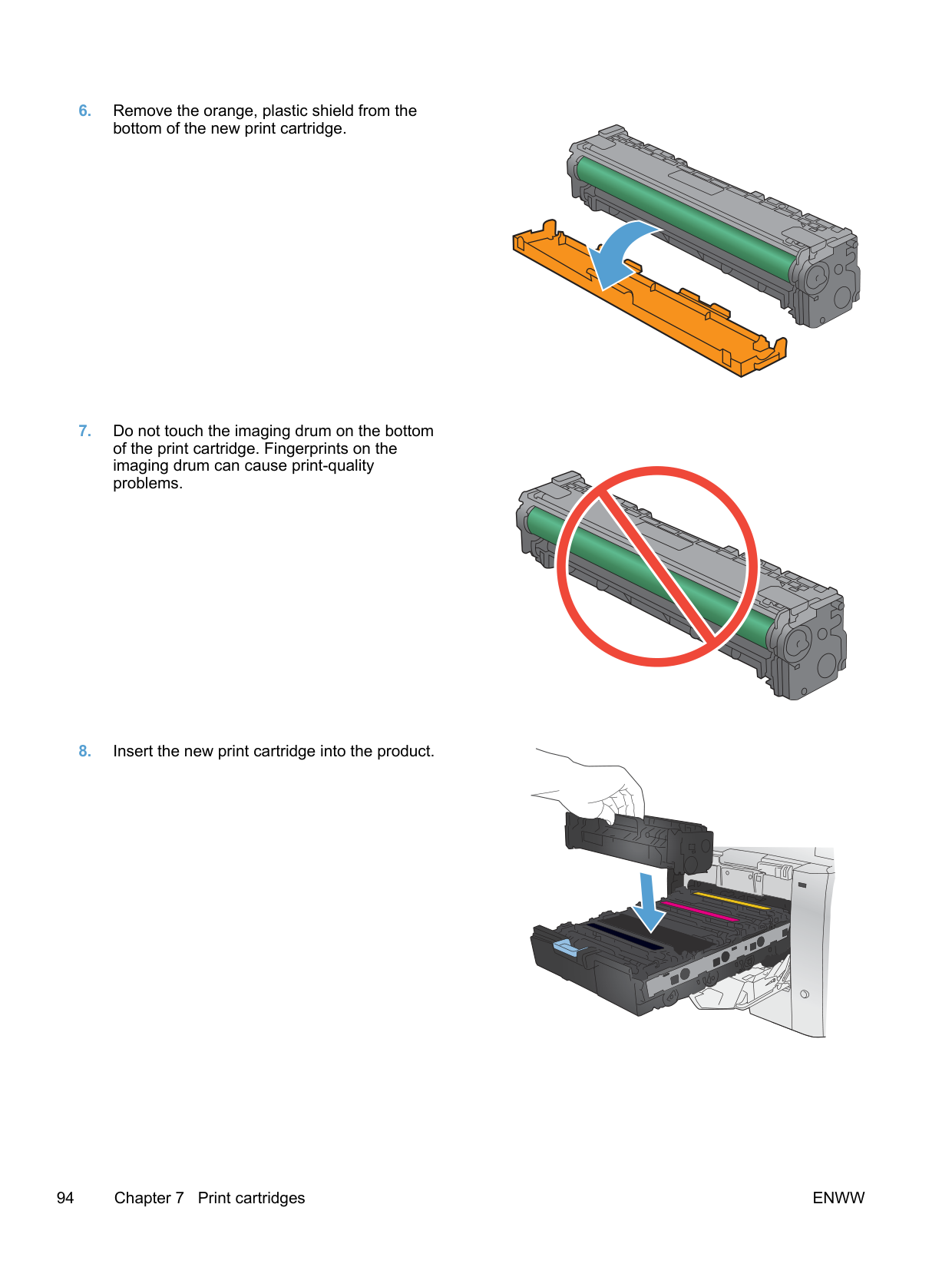


##### Load the document feeder
The document feeder holds up to 50 sheets of 75 g/m2 (20 lb bond) paper.
CAUTION: To prevent damage to the product, do not load an original document that contains correction tape, correction fluid, paper clips, or staples. Also, do not load photographs, small originals, or fragile originals into the document feeder.
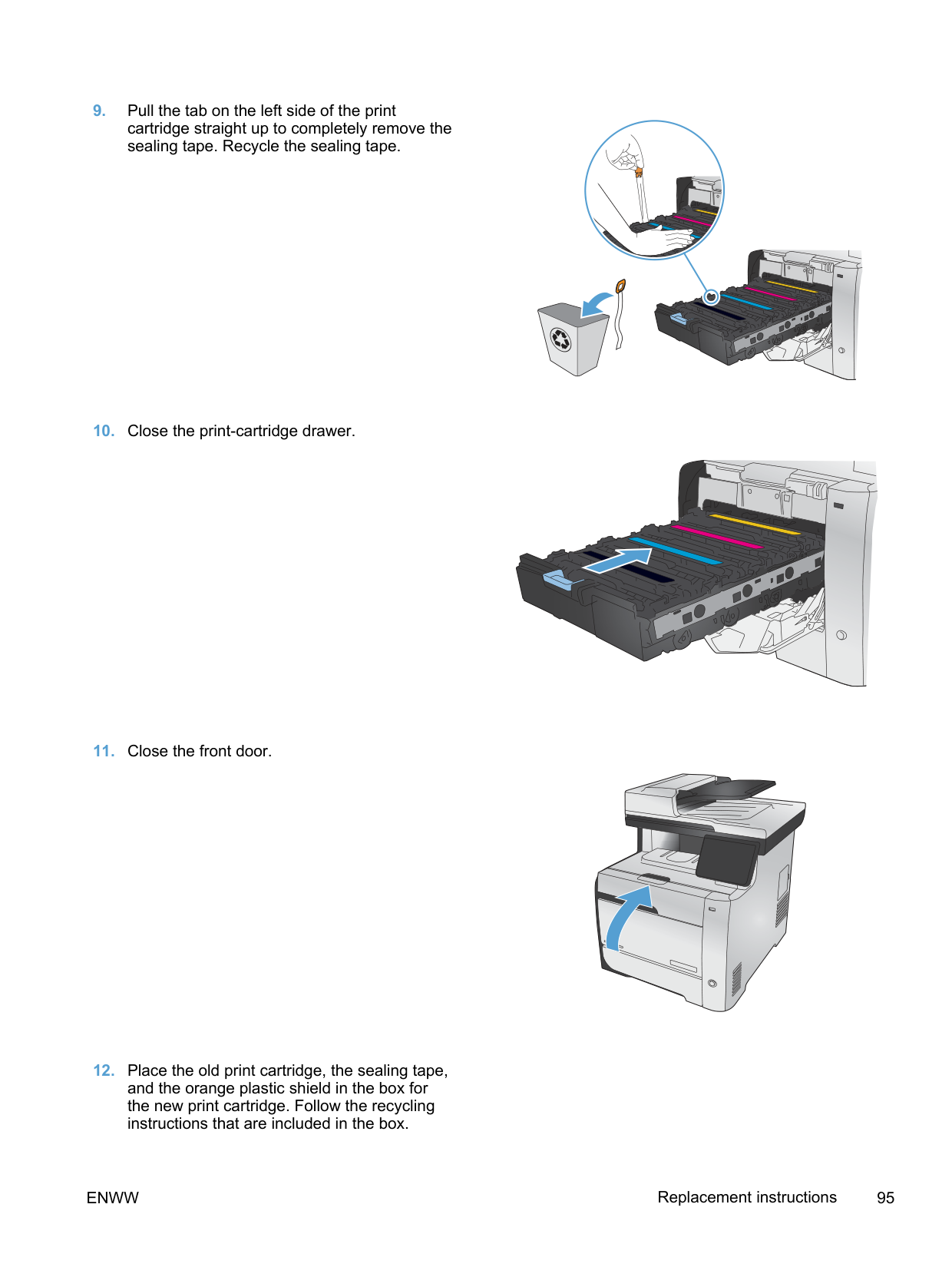
#### Configure trays
By default, the product pulls paper from Tray 1. If Tray 1 is empty, the product pulls paper from Tray 2, or Tray 3 if it installed. Configuring the tray on this product changes the heat and speed settings to obtain the best print quality for the type of paper that you are using. If you are using special paper for all or most print jobs on the product, change this default setting on the product.
The following table lists possible ways you can use the tray settings to meet your printing needs.
Paper use Configure the product Print
Load Tray 1 and one other tray with the same paper, and have the product pick paper from one tray if the other one is empty.
Load paper in Tray 1. No configuration is needed, if the default settings for type and size have not been changed.
From the software program, print the job.
Occasionally use special paper, such as heavy paper or letterhead, from a tray that usually contains plain paper.
Frequently use special paper, such as heavy paper or letterhead, from one tray.
Load special paper in Tray 1. From the software program print dialog,
chose the paper type that matches the special paper loaded in the tray before sending the print job.
Load special paper in Tray 1, and configure the tray for the paper type.
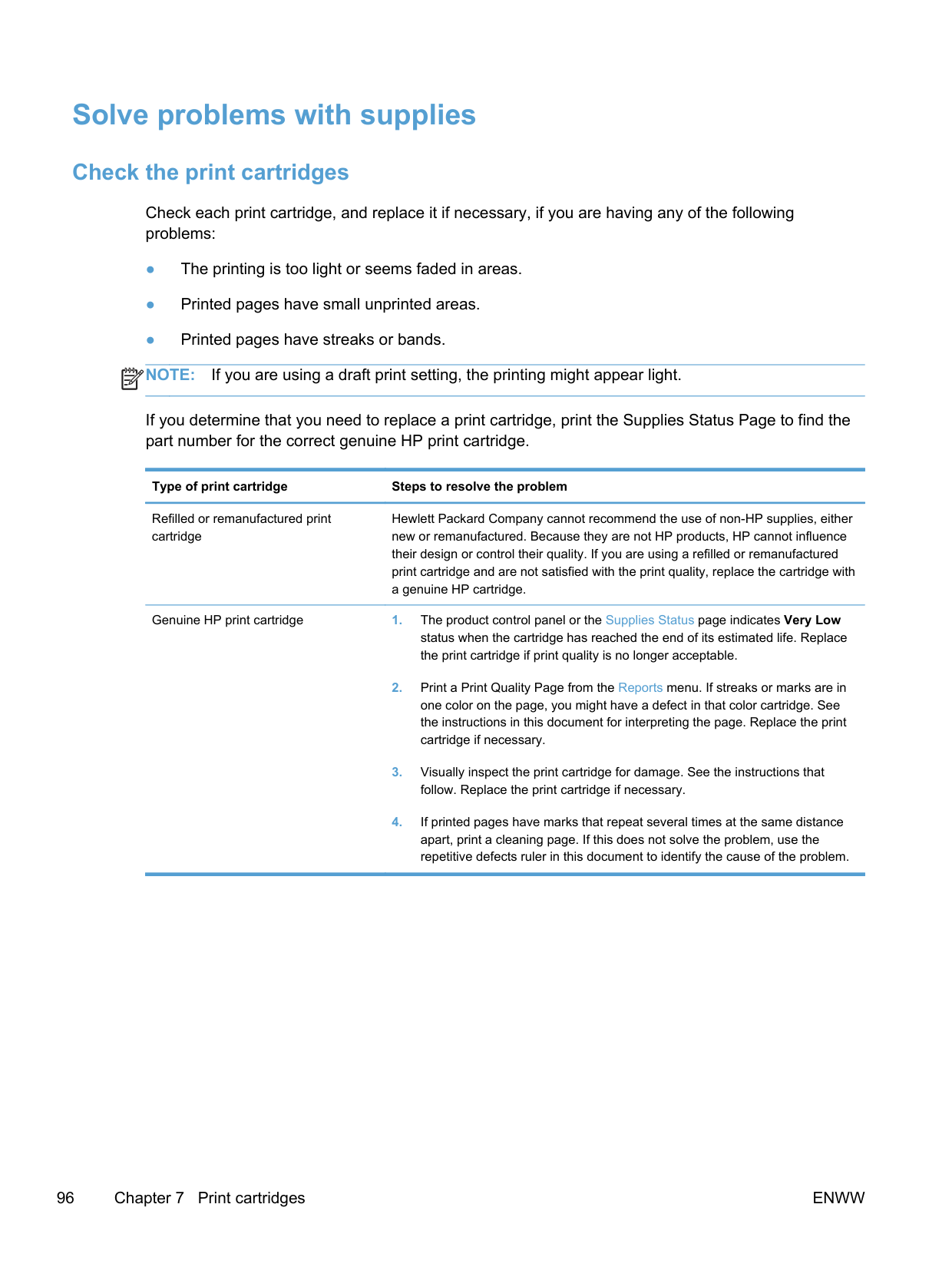
From the software program print dialog, chose the paper type that matches the special paper loaded in the tray before sending the print job.
######## Configure trays
ENWW Configure trays 85
7 Print cartridges
The information contained herein is subject to change without notice. For the latest User Guide information go to www.hp.com/go/LJColorMFPM375_manuals or www.hp.com/go/ LJColorMFPM475_manuals.

#### Print cartridge information
########### Color Cartridge number Part number
Standard-capacity replacement black print cartridge
High-capacity replacement black print cartridge
305A CE410A
305X CE410X
Replacement cyan print cartridge 305A CE411A Replacement yellow print cartridge 305A CE412A Replacement magenta print cartridge 305A CE413A
Accessibility: The print cartridge can be installed and removed by using one hand. Environmental features: Recycle print cartridges by using the HP Planet Partners return and recycling program. For more information about supplies, go to www.hp.com/go/learnaboutsupplies.
ENWW Print cartridge information 87
#### Supplies views
Print cartridge views
| | |
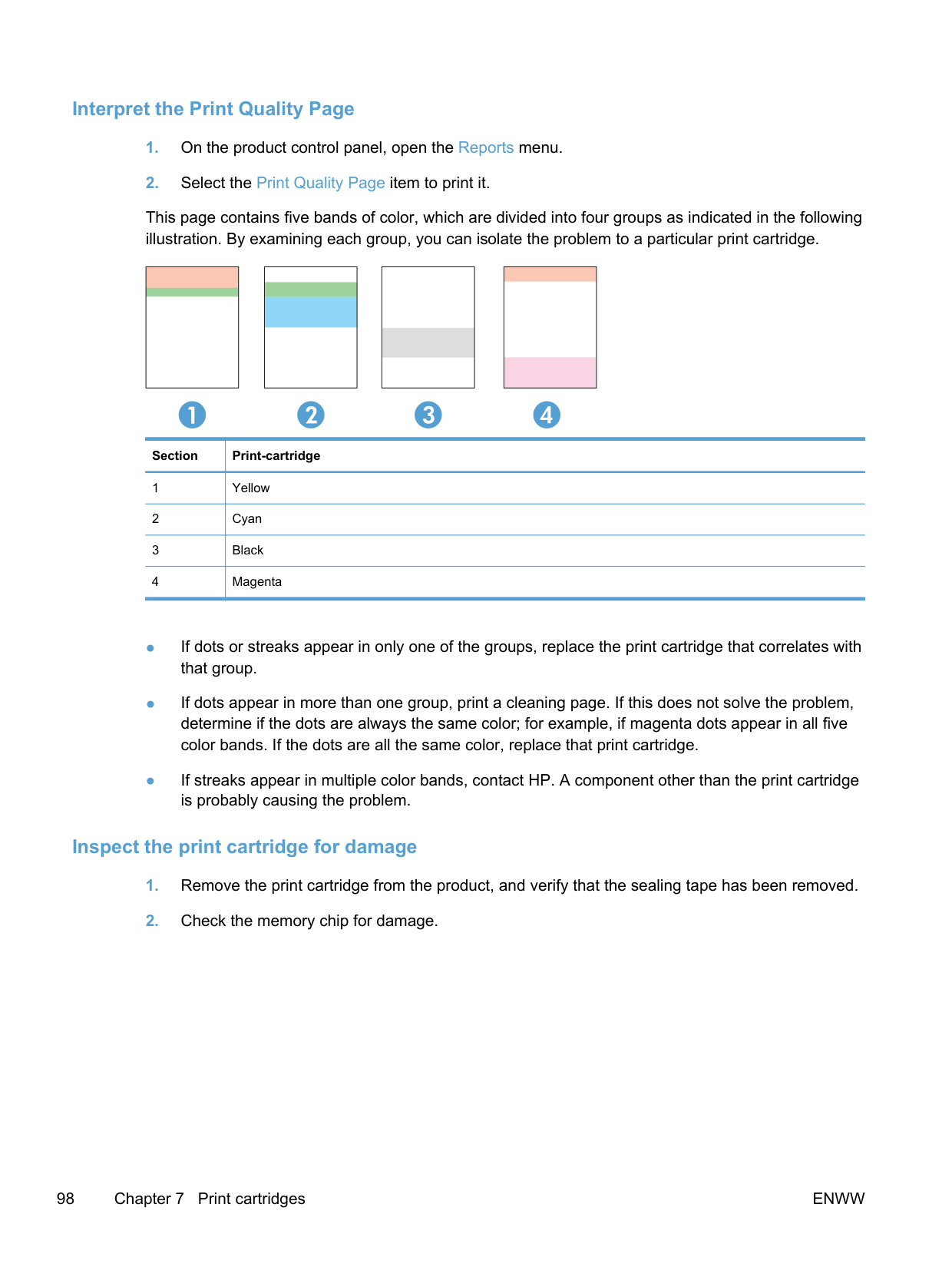
|---|---| | | |
| | | |---|---|
|1|Cartridge memory chip| |---|---| |2|Plastic shield| |3|Imaging Drum. Do not touch the imaging drum on the bottom of the print cartridge. Fingerprints on the imaging drum can cause print-quality problems.|
#### Manage print cartridges
Correctly using, storing, and monitoring the print cartridge can help ensure high-quality print output.
##### Change settings for print cartridges
####### Print when a print cartridge is at estimated end of life
Supply-related notifications are communicated on the product control panel.
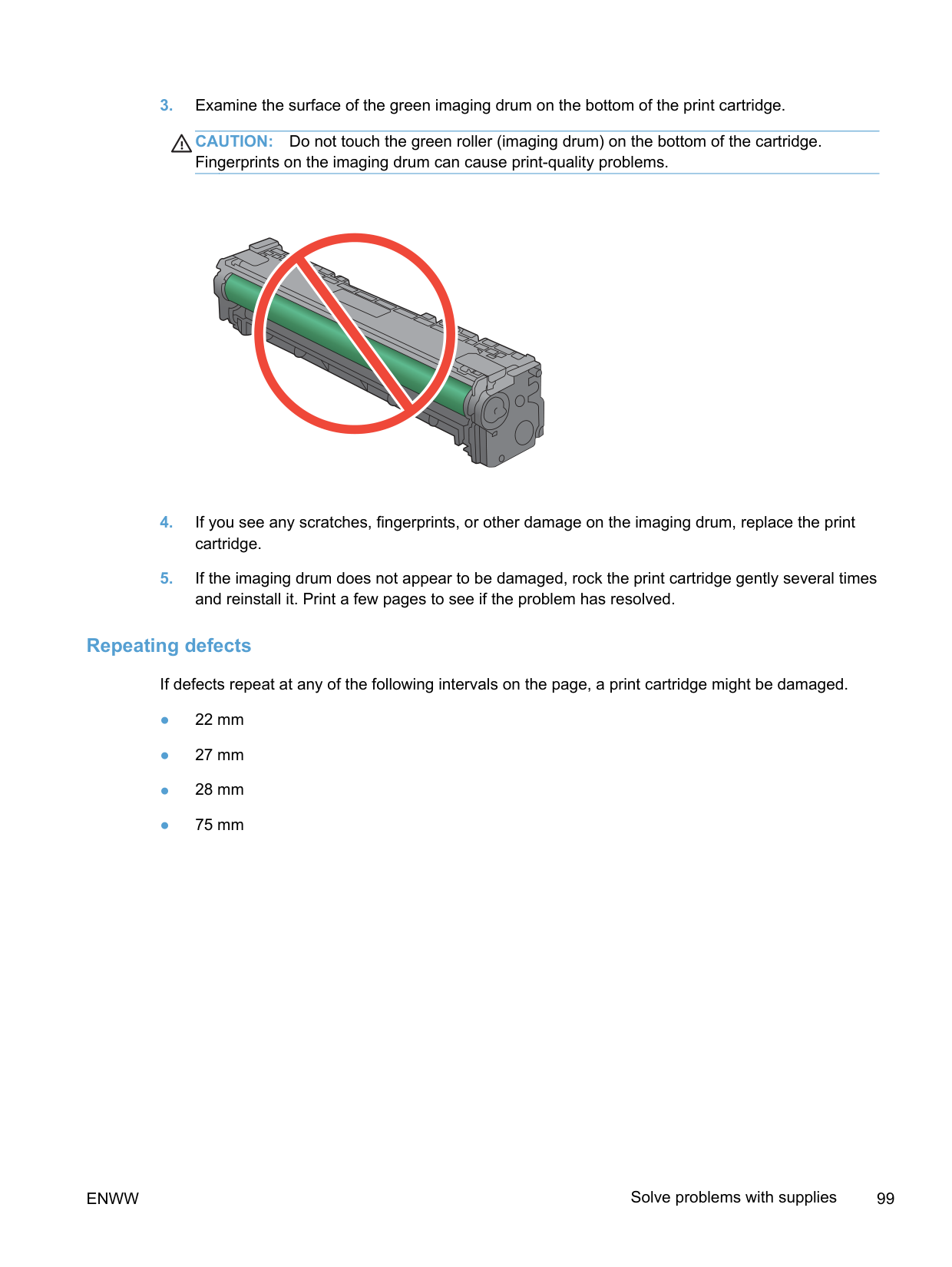
Print-quality problems can occur when using a cartridge that is at its estimated end of life. The supply does not need to be replaced at this point in time unless the print quality is no longer acceptable.
NOTE: Using the Continue setting allows printing beyond Very Low without customer interaction and can result in unsatisfactory print quality. When a color print cartridge becomes very low, the product prints in black only to prevent fax interruptions. To configure the product to print in color and use the remaining toner in the print cartridge past very low, follow these steps:
| | |---|
When you choose to replace the very low print cartridge, color printing resumes automatically.
####### Enable or disable the At Very Low settings from the control panel
You can enable or disable the default settings at any time, and you do not have to re-enable them when you install a new print cartridge.
When the product is set to the Stop option, there is some risk that faxes will not print after the new cartridge is installed if your product has received more faxes than the memory can hold while stopped.
When the product is set to the Prompt option, there is some risk that faxes will not print after the new cartridge is installed if your product has received more faxes than the memory can hold while the product is waiting for the prompt to be acknowledged.
Once an HP supply has reached very low, HP’s premium Protection Warranty on that supply has ended. All print defects or cartridge failures incurred when an HP supply is used in Continue at very low mode will not be considered to be defects in materials or workmanship in the supply under the HP Print Cartridge Warranty Statement.
####### Print with EconoMode
EconoMode uses less toner, which might extend the life of the print cartridge.
HP does not recommend the full-time use of EconoMode. If EconoMode is used full-time, the toner supply might outlast the mechanical parts in the print cartridge. If print quality begins to degrade and is no longer acceptable, consider replacing the print cartridge.
##### Store and recycle supplies
####### Recycle supplies
To recycle a genuine HP print cartridge, place the used cartridge in the box in which the new cartridge arrived. Use the enclosed return label to send the used supply to HP for recycling. For complete information, see the recycling guide that is included with each new HP supply item.
####### Print-cartridge storage
Do not remove the print cartridge from its package until you are ready to use it.
CAUTION: To prevent damage to the print cartridge, do not expose it to light for more than a few minutes.
####### HP policy on non-HP print cartridges
Hewlett-Packard Company cannot recommend the use of non-HP print cartridges, either new or remanufactured.
NOTE: Any damage caused by a non-HP print cartridge is not covered under the HP warranty and service agreements.
| | |---|
##### HP anticounterfeit Web site
Go to www.hp.com/go/anticounterfeit when you install an HP print cartridge and the control-panel message says the cartridge is non-HP. HP will help determine if the cartridge is genuine and take steps to resolve the problem.
Your print cartridge might not be a genuine HP print cartridge if you notice the following:
#### Replacement instructions
##### Replace the print cartridges
The product uses four colors and has a different print cartridge for each color: black (K), magenta (M), cyan (C), and yellow (Y).
CAUTION: If toner gets on any clothing, wipe it off with a dry cloth and wash the clothing in cold water. Hot water sets toner into the fabric.


#### Solve problems with supplies
##### Check the print cartridges
Check each print cartridge, and replace it if necessary, if you are having any of the following problems:
| | |---|
If you determine that you need to replace a print cartridge, print the Supplies Status Page to find the part number for the correct genuine HP print cartridge.
Type of print cartridge Steps to resolve the problem
Refilled or remanufactured print cartridge
Hewlett Packard Company cannot recommend the use of non-HP supplies, either new or remanufactured. Because they are not HP products, HP cannot influence their design or control their quality. If you are using a refilled or remanufactured print cartridge and are not satisfied with the print quality, replace the cartridge with a genuine HP cartridge.
Genuine HP print cartridge 1. The product control panel or the Supplies Status page indicates Very Low status when the cartridge has reached the end of its estimated life. Replace the print cartridge if print quality is no longer acceptable.
####### Print the Supplies Status page
The Supplies Status page indicates the estimated life remaining in print cartridges. It also lists the part number for the correct genuine HP print cartridge for your product so you can order a replacement print cartridge, as well as other useful information.
####### Interpret the Print Quality Page
This page contains five bands of color, which are divided into four groups as indicated in the following illustration. By examining each group, you can isolate the problem to a particular print cartridge.
|Section|Print-cartridge| |---|---|

|1|Yellow| |2|Cyan| |3|Black| |4|Magenta|
####### Inspect the print cartridge for damage
CAUTION: Do not touch the green roller (imaging drum) on the bottom of the cartridge. Fingerprints on the imaging drum can cause print-quality problems.
####### Repeating defects
If defects repeat at any of the following intervals on the page, a print cartridge might be damaged.
##### Interpret control panel messages for supplies
10.100X Supply Memory Error Description A specific print cartridge has a faulty or missing memory chip. "X" indicates the cartridge: 0=black, 1=cyan, 2=magenta, 3=yellow. Recommended action Check the memory chip. If it is broken or damaged, replace the cartridge. Verify that the cartridge is installed in the correct location. Reinstall the print cartridge. Turn off and then turn on the product. If the error is with a color cartridge, try swapping it with a different color cartridge in the tray. If the same message appears, then there is an engine problem. If a different 10.100X message appears, replace the cartridge. If the problem is not solved, replace the cartridge.
Black Cartridge Low Description The print cartridge is nearing the end of its useful life. Recommended action Printing can continue, but consider having a replacement supply on hand.
Black in wrong position Description The print cartridge is installed in the incorrect slot. Recommended action
Make sure that each print cartridge is installed in the correct slot. From front to back, the print cartridges are installed in this order: black, cyan, magenta, and yellow.
####### Black Very Low
######## Description
The print cartridge is at the end of its useful life. The product continues printing to prevent fax interruptions.
Cyan Cartridge Low Description The print cartridge is nearing the end of its useful life. Recommended action Printing can continue, but consider having a replacement supply on hand.
Cyan in wrong position Description The print cartridge is installed in the incorrect slot. Recommended action
Make sure that each print cartridge is installed in the correct slot. From front to back, the print cartridges are installed in this order: black, cyan, magenta, and yellow.
####### Cyan Very Low
######## Description
The print cartridge is at the end of its useful life. When a color print cartridge becomes very low, the product prints in black only to prevent fax interruptions. When you choose to replace the very low print cartridge, color printing resumes automatically.
######## Recommended action
To ensure optimal print quality, HP recommends replacing the print cartridge at this point. You can continue printing until you notice a decrease in print quality. Actual cartridge life may vary.
Once an HP supply has reached very low, HP's premium Protection Warranty on that supply has ended. All print defects or cartridge failures incurred when an HP supply is used in continue at very low mode will not be considered to be defects in materials or workmanship in the supply under the HP Print Cartridge Warranty Statement.
Genuine HP supply installed Description A genuine HP supply was installed.
No action necessary.
####### Incompatible
######## Description
You have installed a print cartridge that is intended for use in a different HP product model. The product might not function correctly with this print cartridge installed.
Recommended action Install the correct print cartridge for this product.
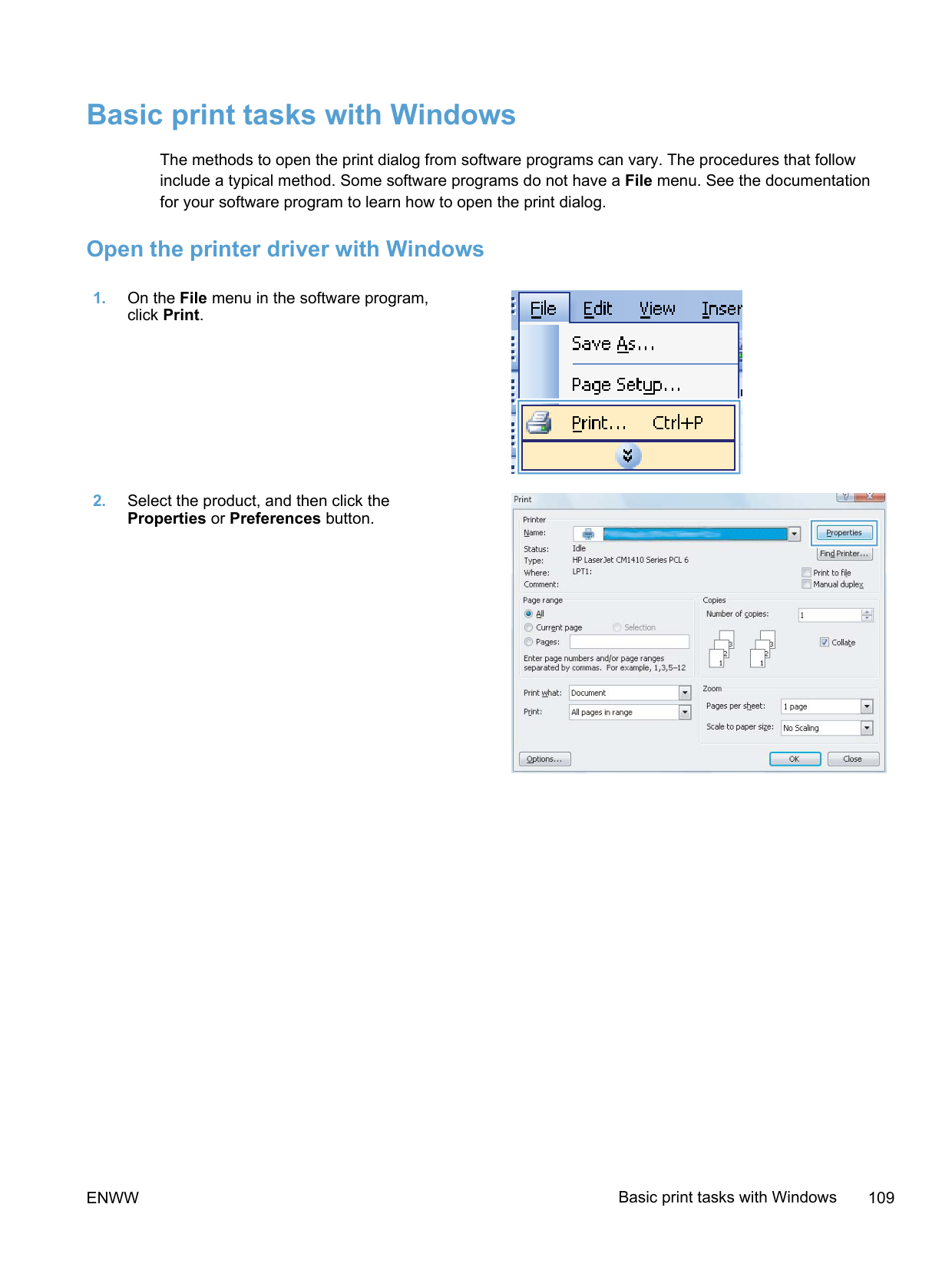
Install [color] cartridge Description One of the color cartridges is not installed with the door closed. Recommended action Install the indicated color cartridge.
Magenta Cartridge Low Description The print cartridge is nearing the end of its useful life. Recommended action Printing can continue, but consider having a replacement supply on hand.
Magenta in wrong position Description The print cartridge is installed in the incorrect slot. Recommended action
Make sure that each print cartridge is installed in the correct slot. From front to back, the print cartridges are installed in this order: black, cyan, magenta, and yellow.
####### Magenta Very Low
######## Description
The print cartridge is at the end of its useful life. When a color print cartridge becomes very low, the product prints in black only to prevent fax interruptions. When you choose to replace the very low print cartridge, color printing resumes automatically.
Remove shipping lock from
Remove shipping locks from cartridges Description A print cartridge shipping lock is installed on one or more print cartridges. Recommended action Pull the orange tab to remove the shipping lock from the cartridge.
####### Replace [color]
######## Description
The print cartridge is at the end of its useful life, and the product is customer-configured to stop printing when it reaches the very low state.
######## Recommended action
To ensure optimal print quality, HP recommends replacing the print cartridge at this point. You can continue printing until you notice a decrease in print quality. Actual cartridge life may vary.
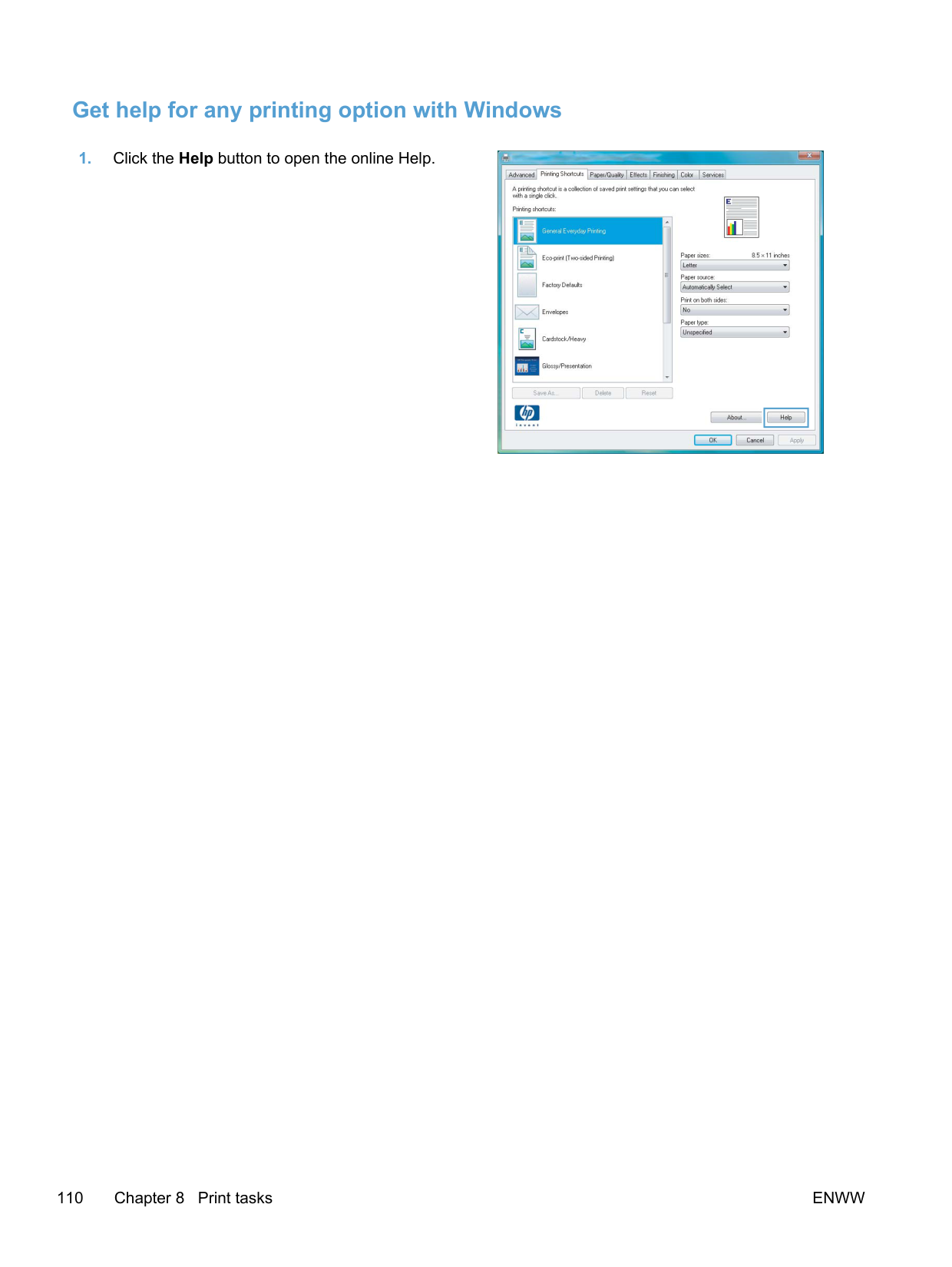
Once an HP supply has reached very low, HP's premium Protection Warranty on that supply has ended. All print defects or cartridge failures incurred when an HP supply is used in continue at very low mode will not be considered to be defects in materials or workmanship in the supply under the HP Print Cartridge Warranty Statement.
Unsupported
Press the OK button to continue printing. If you believe you purchased an HP supply, go to www.hp.com/go/anticounterfeit. Service or repairs that are required as a result of using unsupported supplies is not covered under HP warranty.
####### Used
######## Description
You are using a print cartridge that reached the default low threshold while it was installed in a product.
Recommended action Printing can continue, but consider having a replacement supply on hand.
Used [color] installed, to accept press OK Description A used color print cartridge has been installed or moved. Recommended action Touch the OK button to return to the Ready state.
####### Used supplies in use
######## Description
You are using more than one print cartridge that reached the default low threshold while it was installed in a product.
Recommended action Printing can continue, but consider having replacement supplies on hand.
Yellow Cartridge Low Description The print cartridge is nearing the end of its useful life. Recommended action Printing can continue, but consider having a replacement supply on hand.
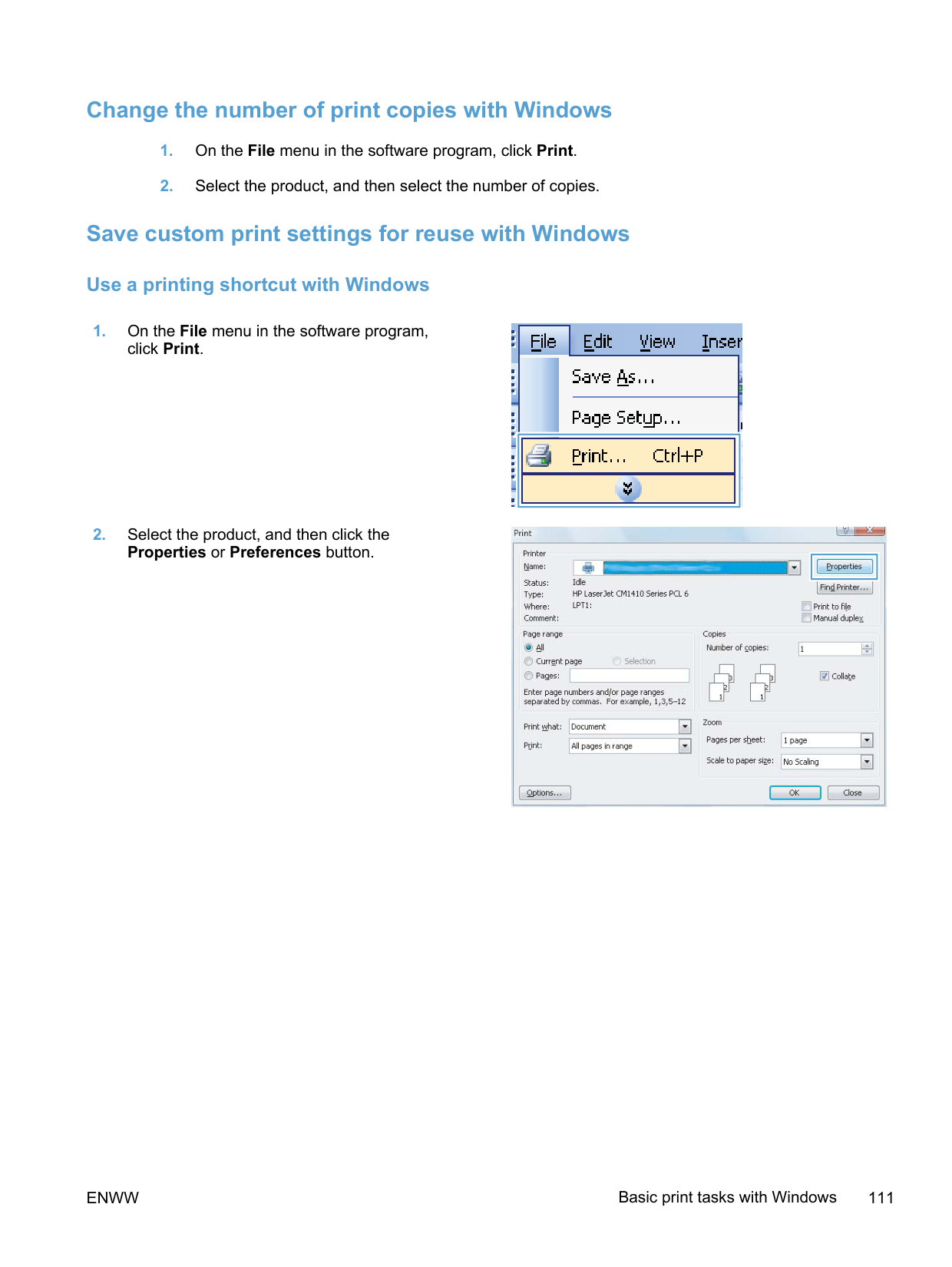
Yellow in wrong position Description The print cartridge is installed in the incorrect slot.
Make sure that each print cartridge is installed in the correct slot. From front to back, the print cartridges are installed in this order: black, cyan, magenta, and yellow.
####### Yellow Very Low
######## Description
The print cartridge is at the end of its useful life. When a color print cartridge becomes very low, the product prints in black only to prevent fax interruptions. When you choose to replace the very low print cartridge, color printing resumes automatically.
######## Recommended action
To ensure optimal print quality, HP recommends replacing the print cartridge at this point. You can continue printing until you notice a decrease in print quality. Actual cartridge life may vary.
Once an HP supply has reached very low, HP's premium Protection Warranty on that supply has ended. All print defects or cartridge failures incurred when an HP supply is used in continue at very low mode will not be considered to be defects in materials or workmanship in the supply under the HP Print Cartridge Warranty Statement.
8Print tasks
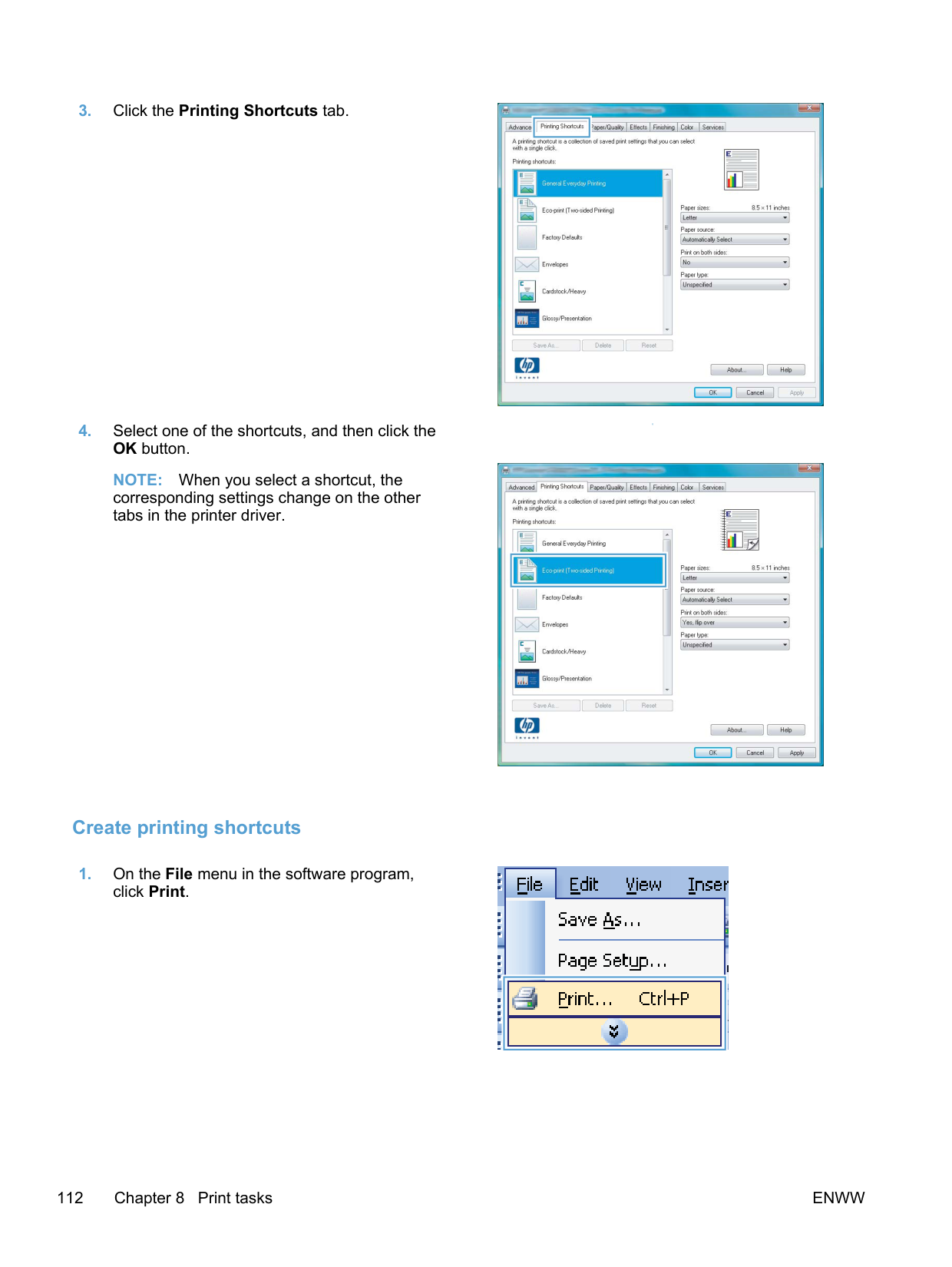
ENWW 107
#### Cancel a print job
| | |---|
#### Basic print tasks with Windows
The methods to open the print dialog from software programs can vary. The procedures that follow include a typical method. Some software programs do not have a File menu. See the documentation for your software program to learn how to open the print dialog.
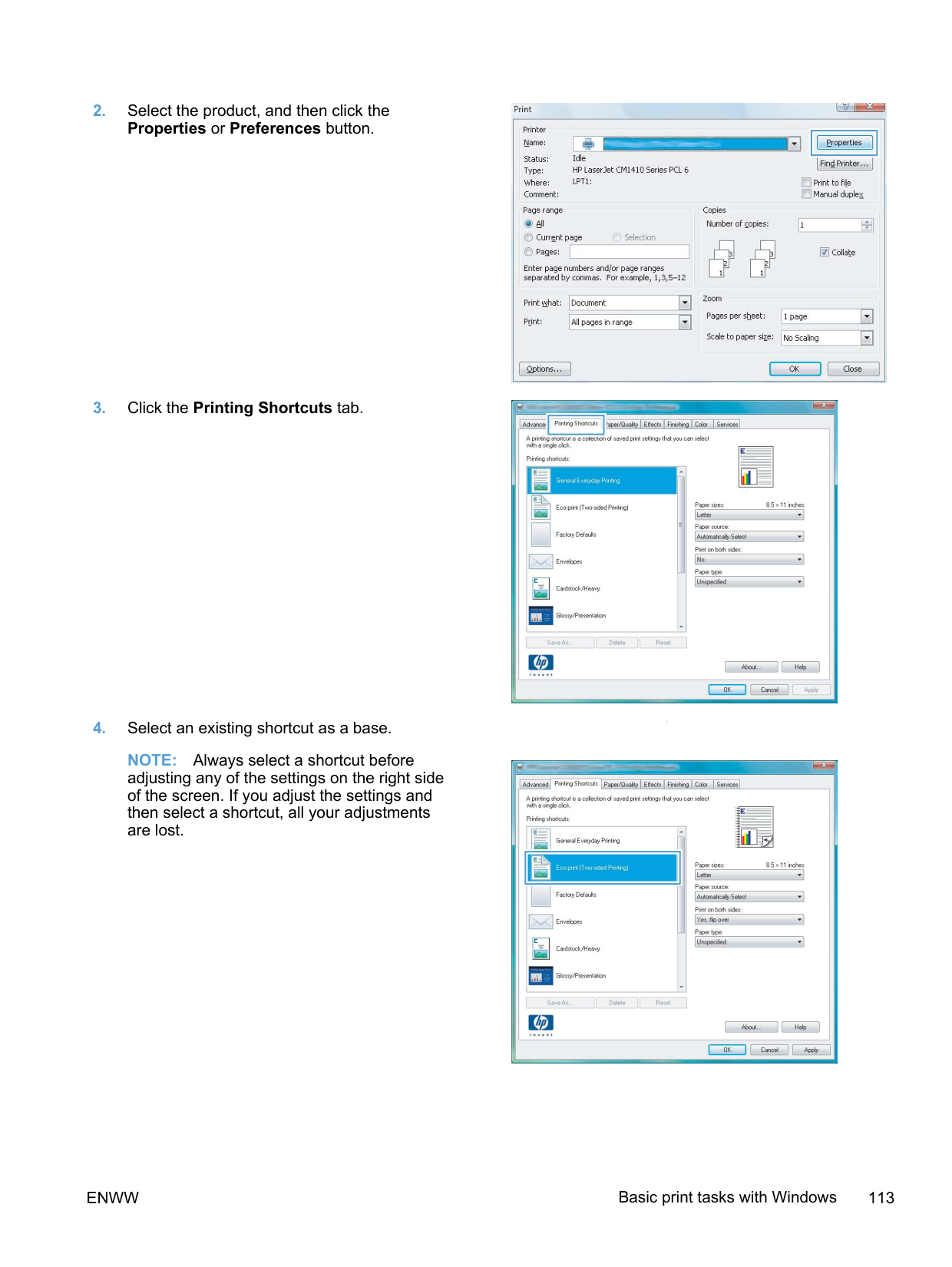
##### Open the printer driver with Windows

| | |---|

| | |---|
##### Get help for any printing option with Windows

| |
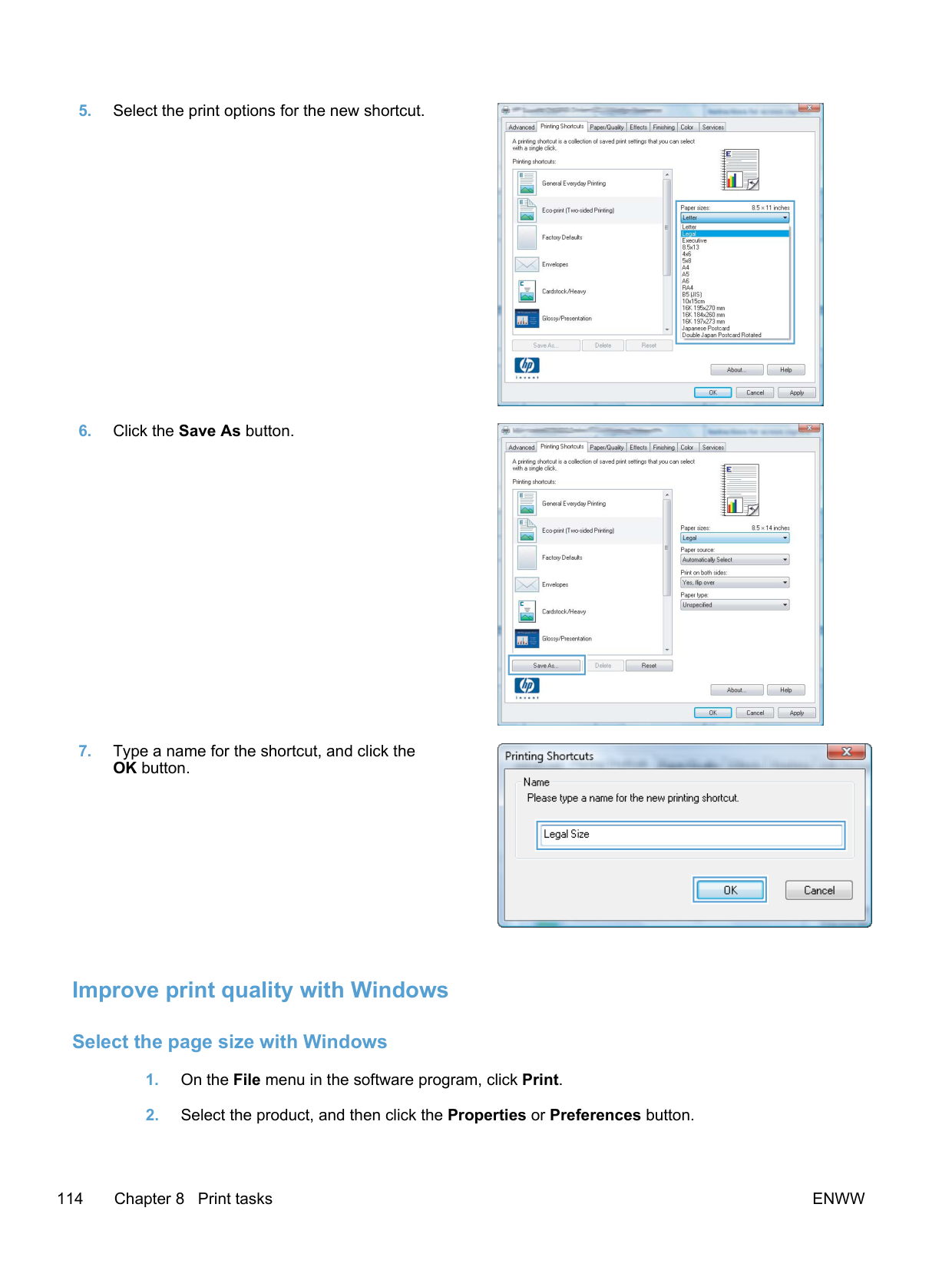
|---|
##### Change the number of print copies with Windows
##### Save custom print settings for reuse with Windows
####### Use a printing shortcut with Windows

| | |---|

| |
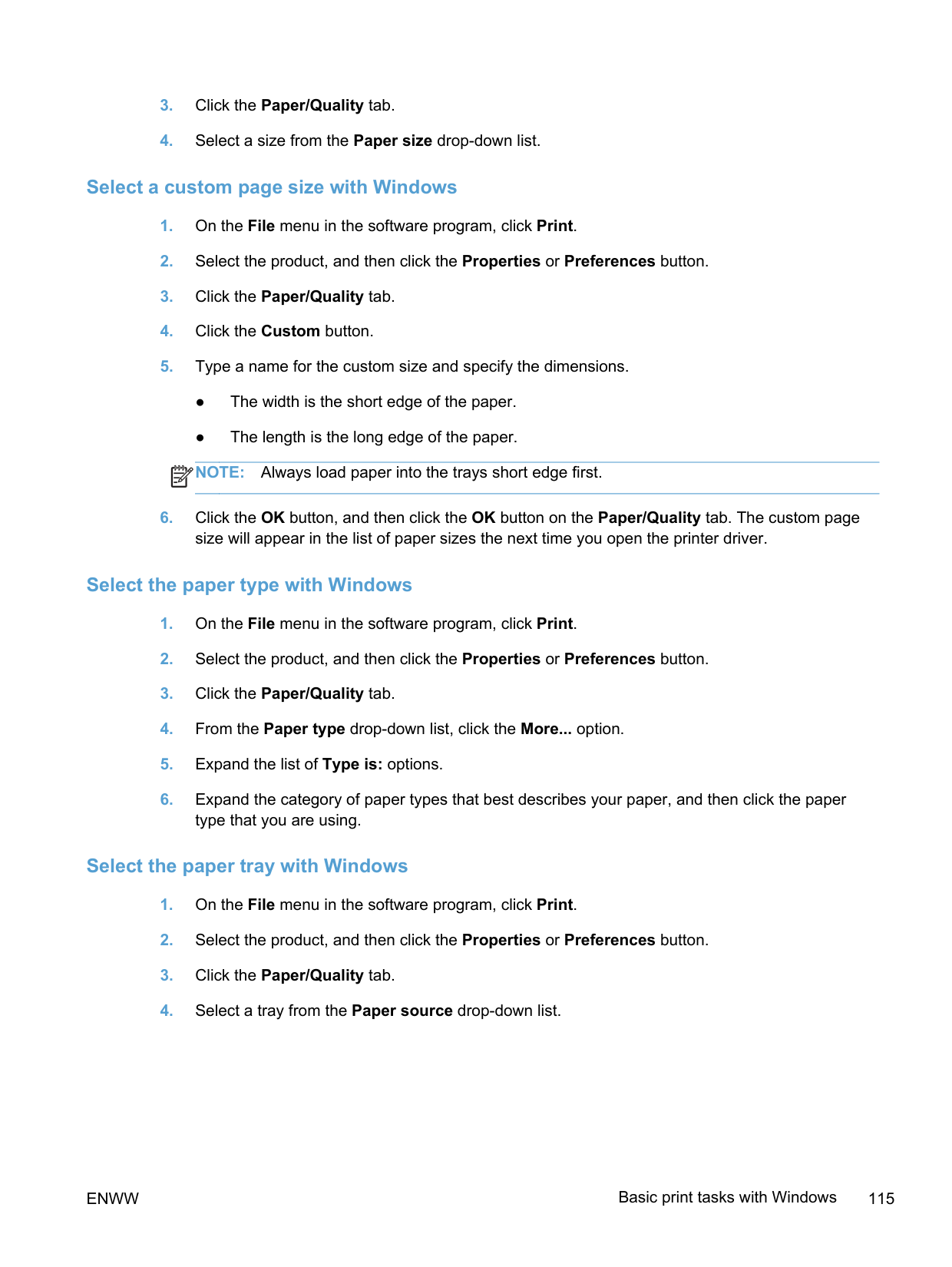
|---|
######## 3. Click the Printing Shortcuts tab.
######### 4. Select one of the shortcuts, and then click theOK button.
NOTE: When you select a shortcut, the corresponding settings change on the other tabs in the printer driver.
####### Create printing shortcuts

| | |---|


| | |---|
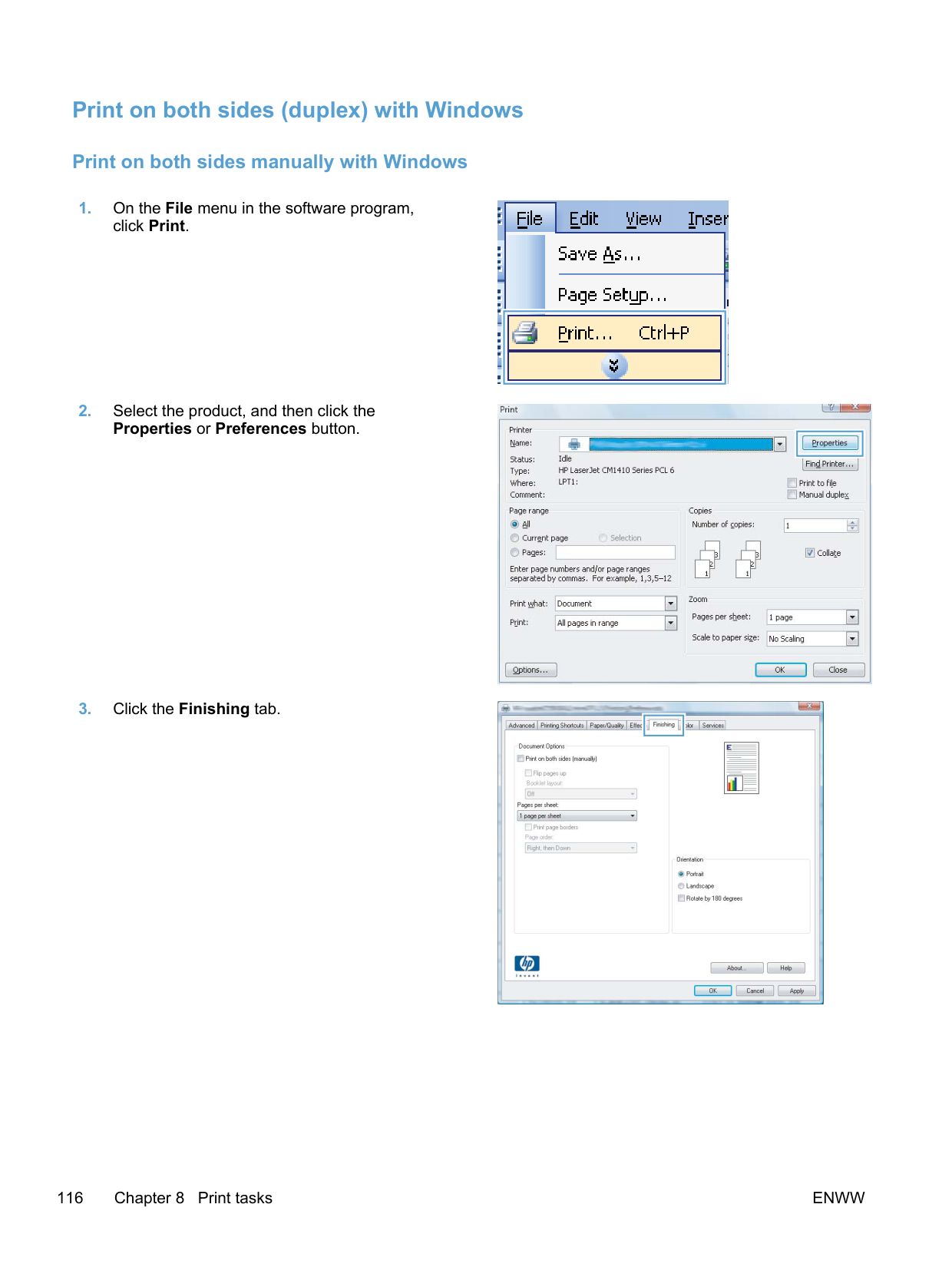

| | |---|

| | |---|
NOTE: Always select a shortcut before adjusting any of the settings on the right side of the screen. If you adjust the settings and then select a shortcut, all your adjustments are lost.


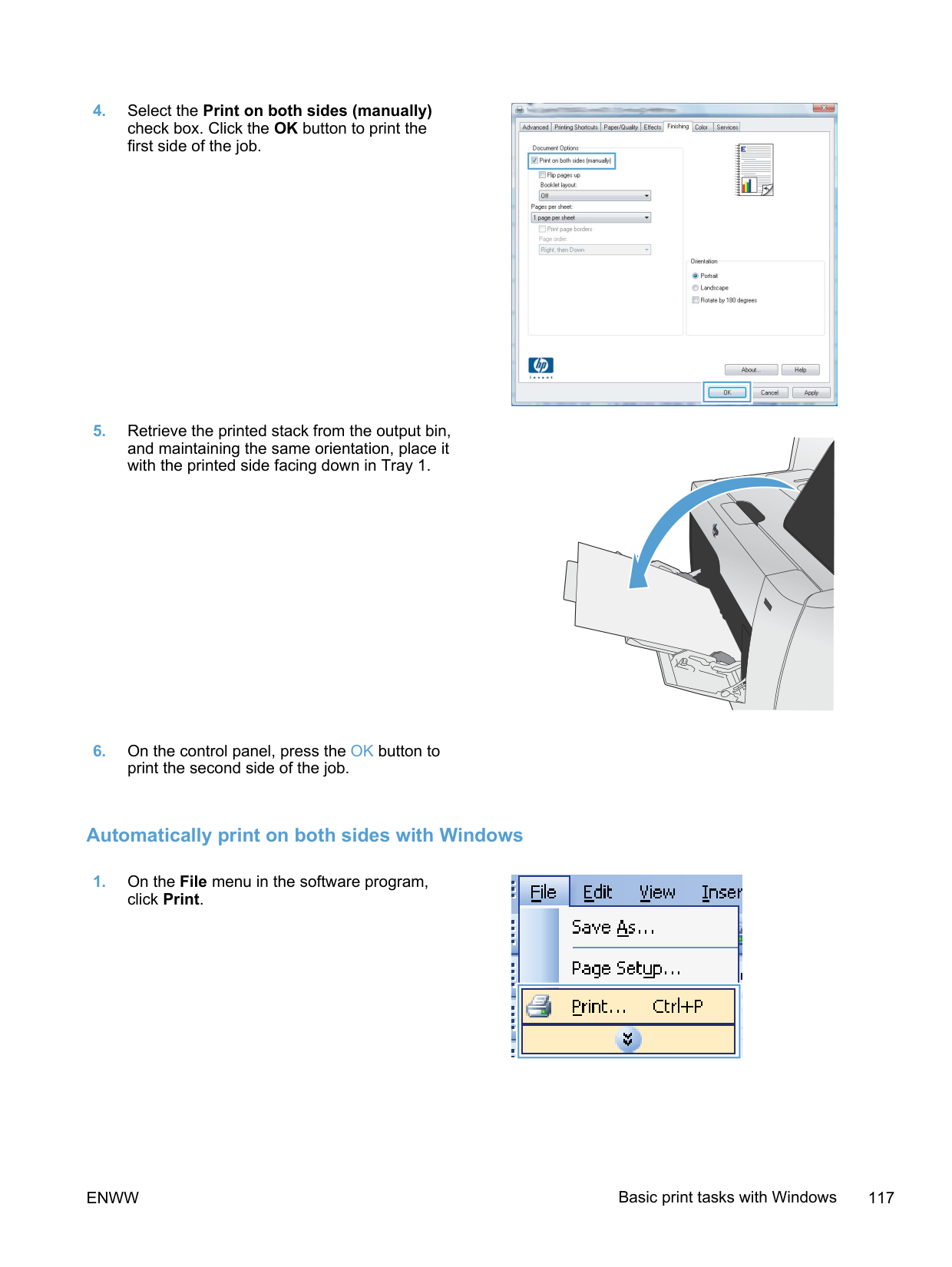
| | |---|

| | |---|

##### Improve print quality with Windows
####### Select the page size with Windows
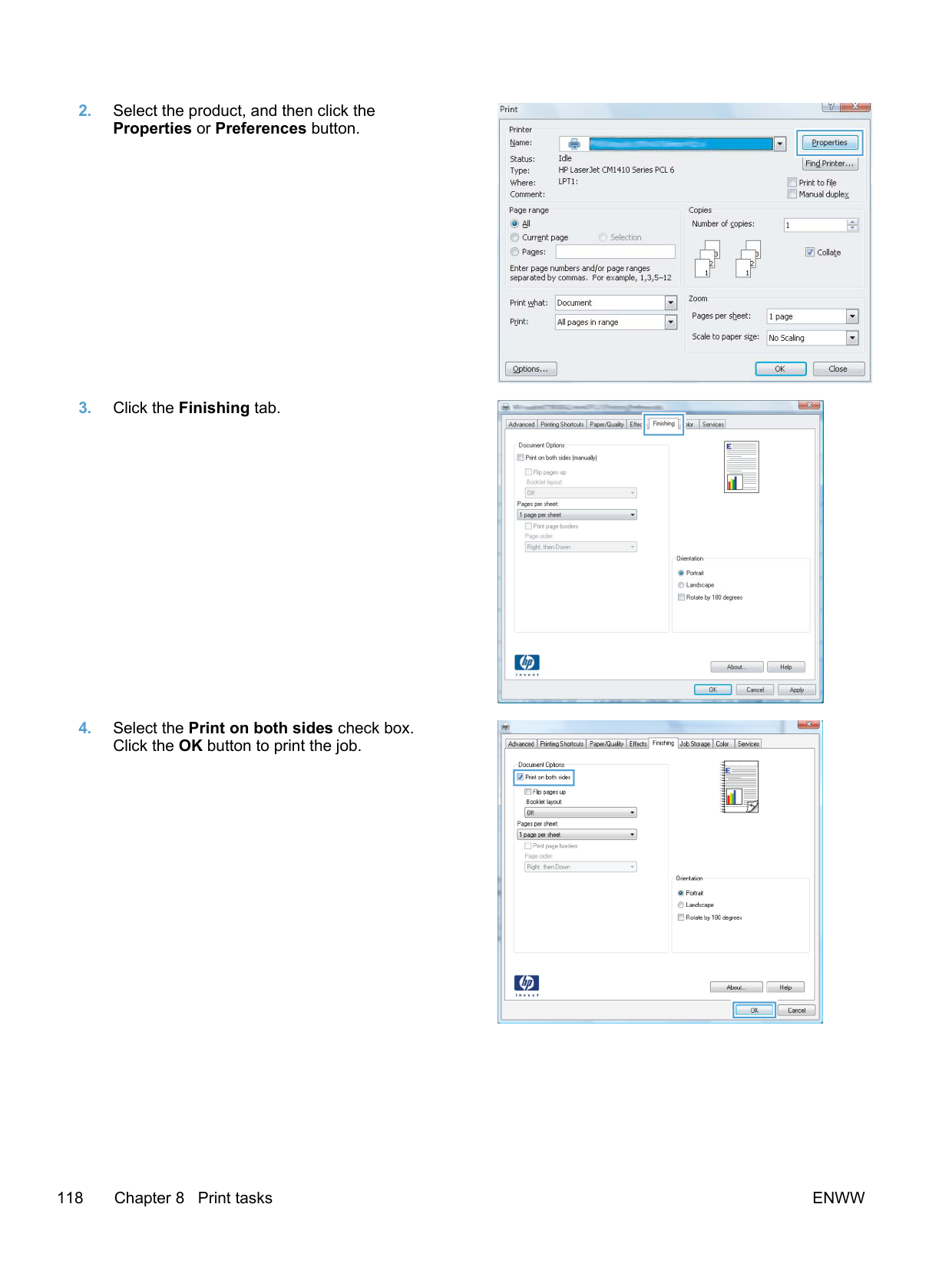
####### Select a custom page size with Windows
| | |---|
####### Select the paper type with Windows
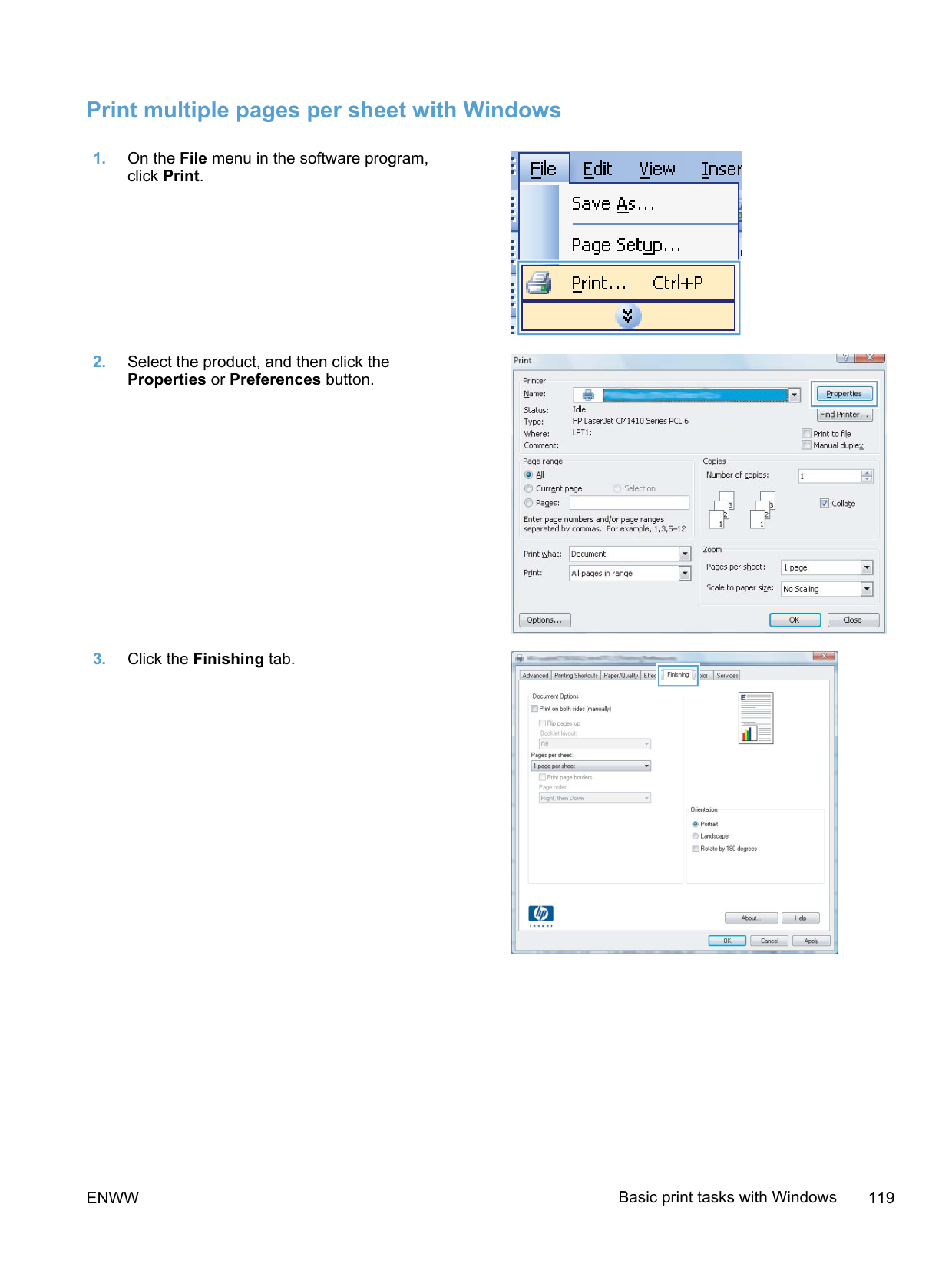
####### Select the paper tray with Windows
##### Print on both sides (duplex) with Windows
####### Print on both sides manually with Windows

| | |---|
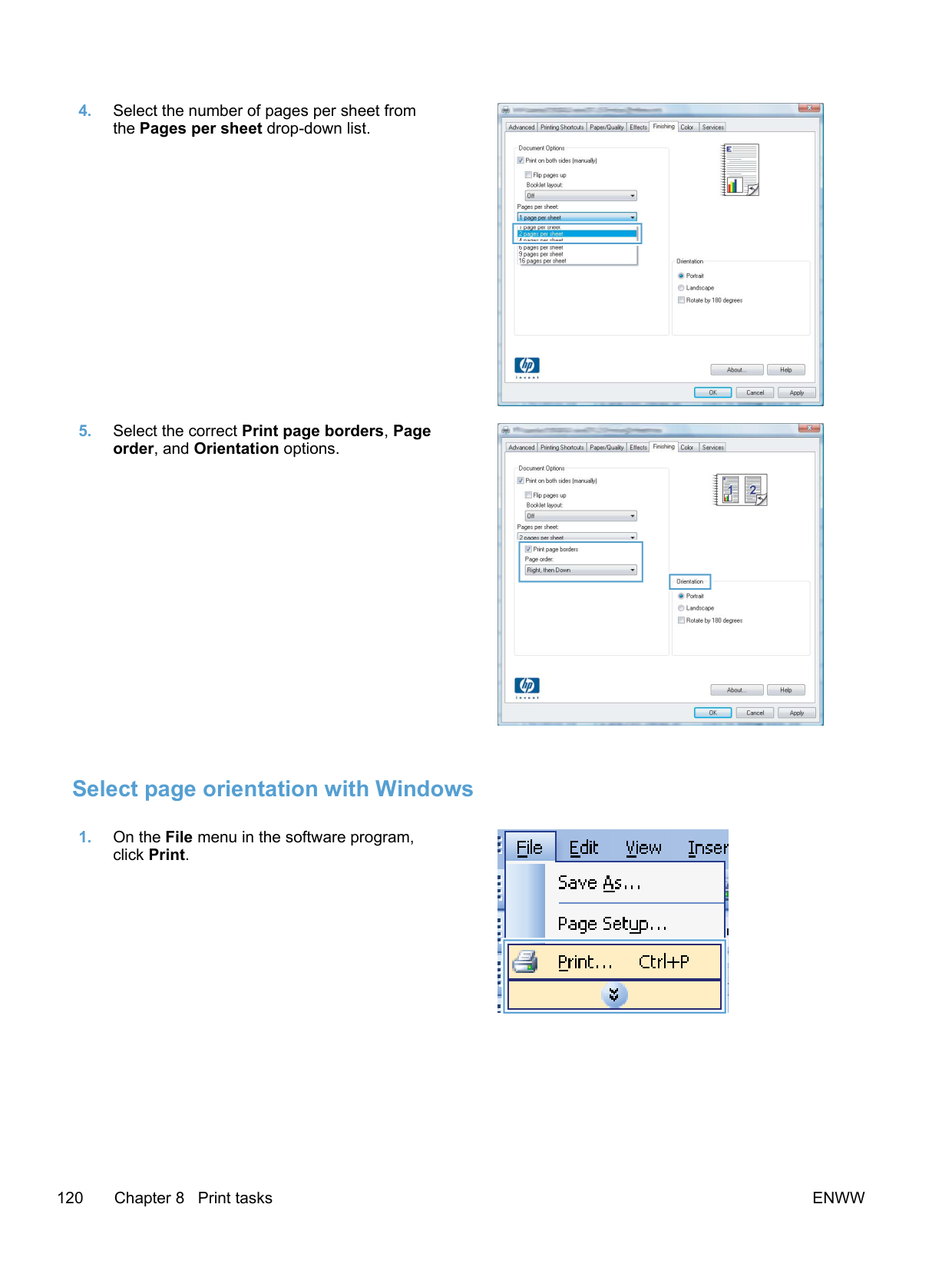

| | |---|

| | |---|


####### Automatically print on both sides with Windows
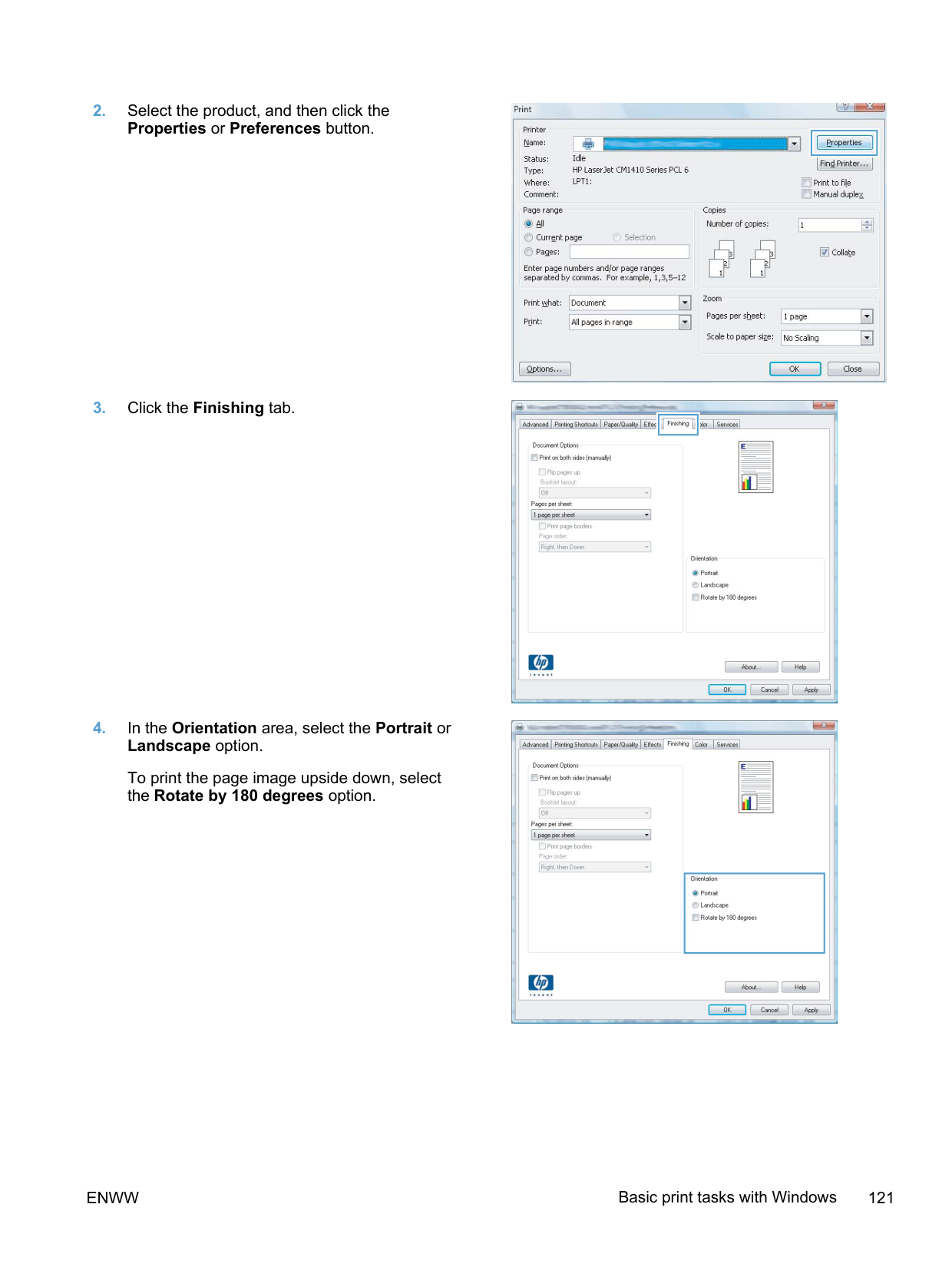

| | |---|
######### 2. Select the product, and then click theProperties or Preferences button.
######### 3. Click the Finishing tab.
######### 4. Select the Print on both sides check box.Click the OK button to print the job.

| | |---|

| | |---|
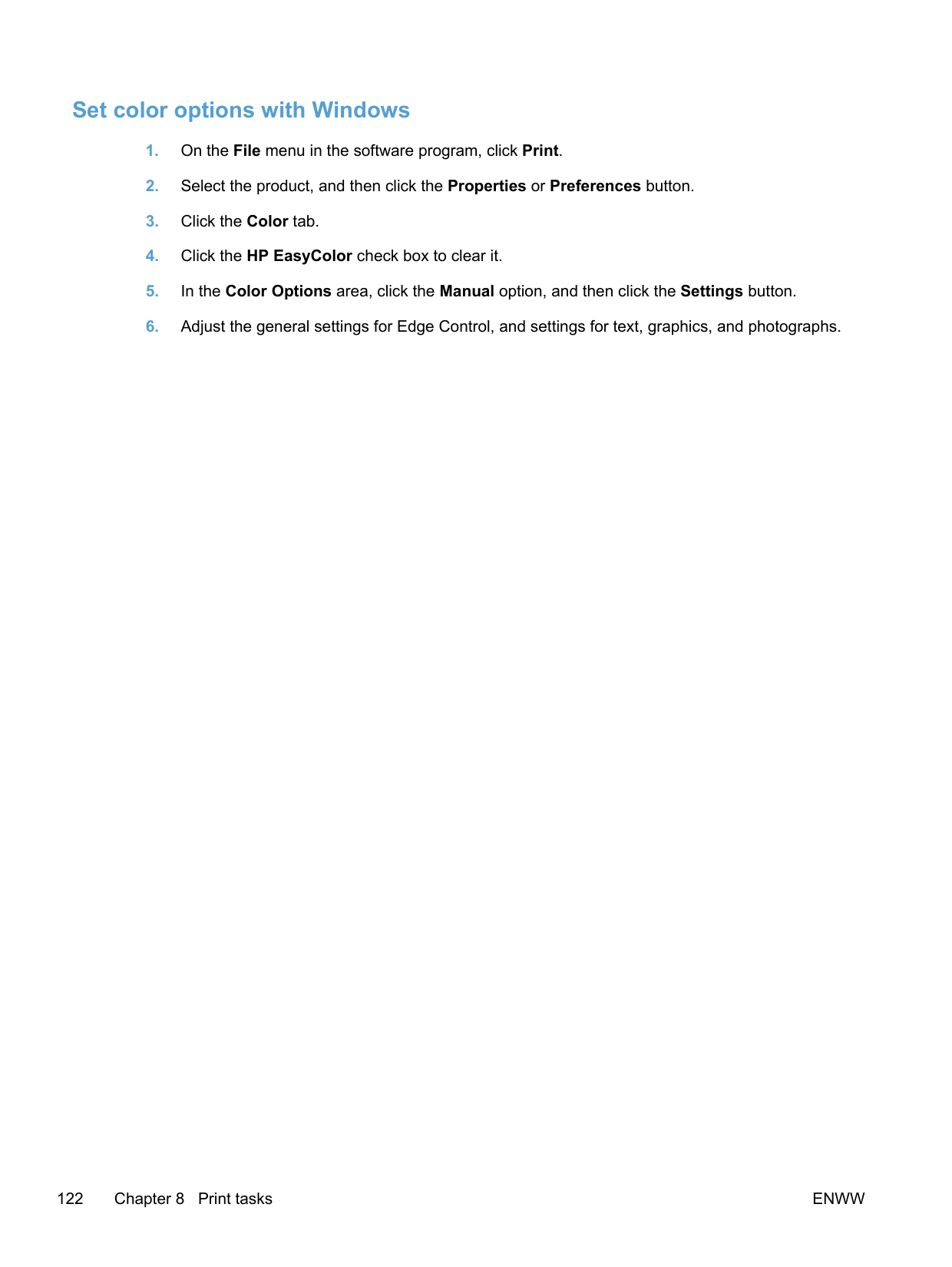

##### Print multiple pages per sheet with Windows

| | |---|

| | |---|

| |
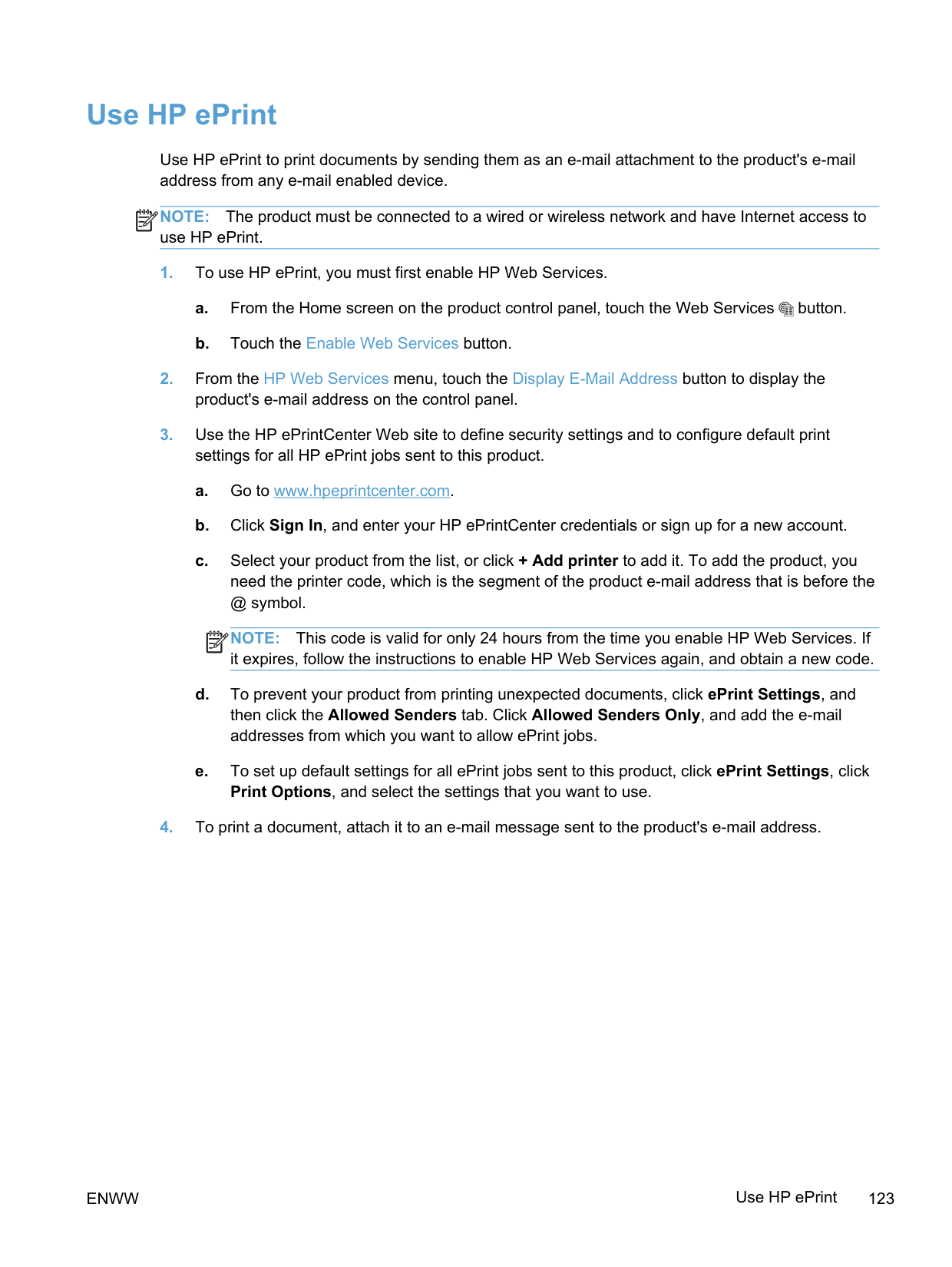
|---|

| | |---|

##### Select page orientation with Windows

| | |---|
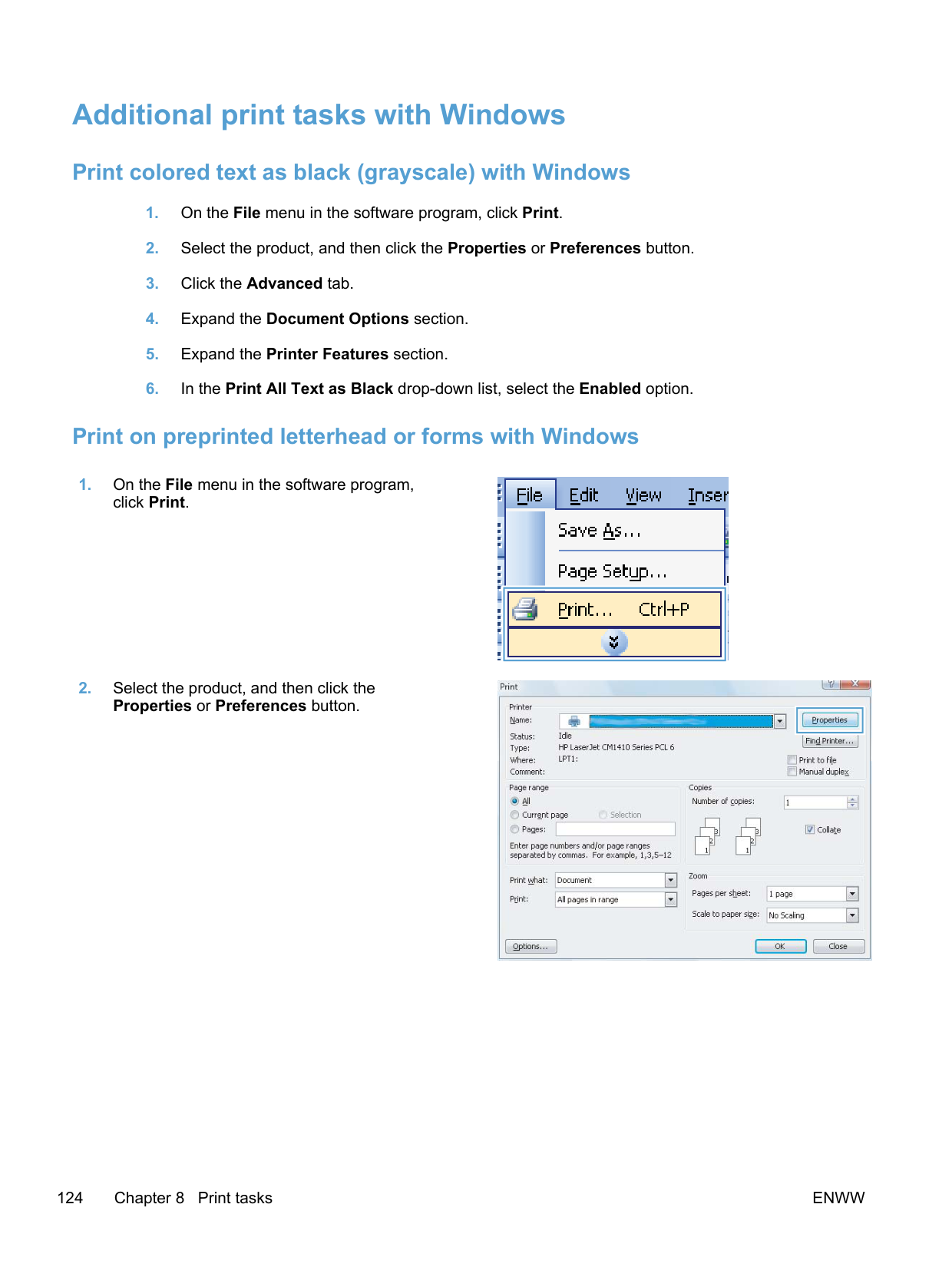

| | |---|

| | |---|
To print the page image upside down, select the Rotate by 180 degrees option.

| | |---|
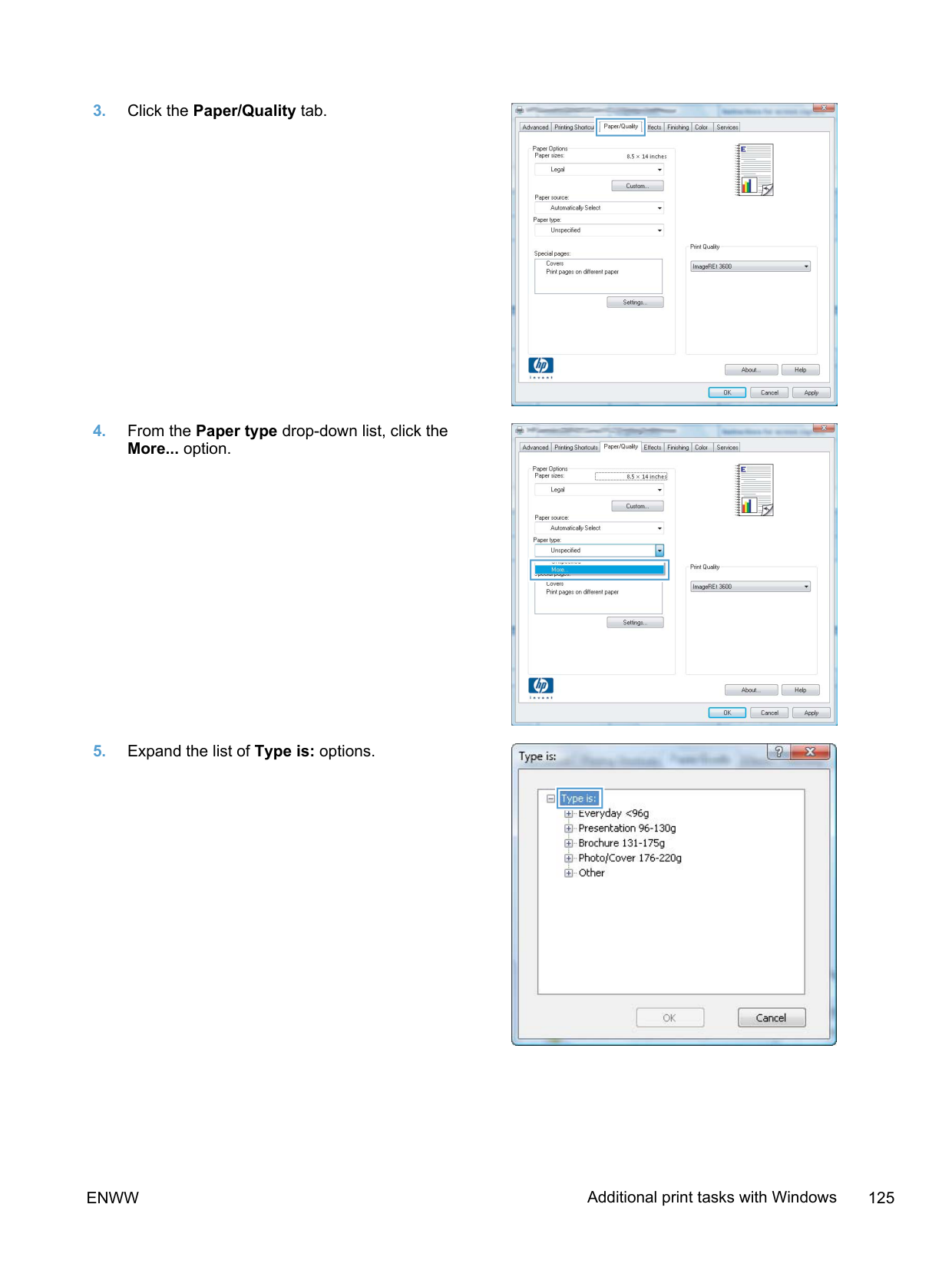
##### Set color options with Windows
#### Use HP ePrint
Use HP ePrint to print documents by sending them as an e-mail attachment to the product's e-mail address from any e-mail enabled device.
NOTE: The product must be connected to a wired or wireless network and have Internet access to use HP ePrint.
| | |---|
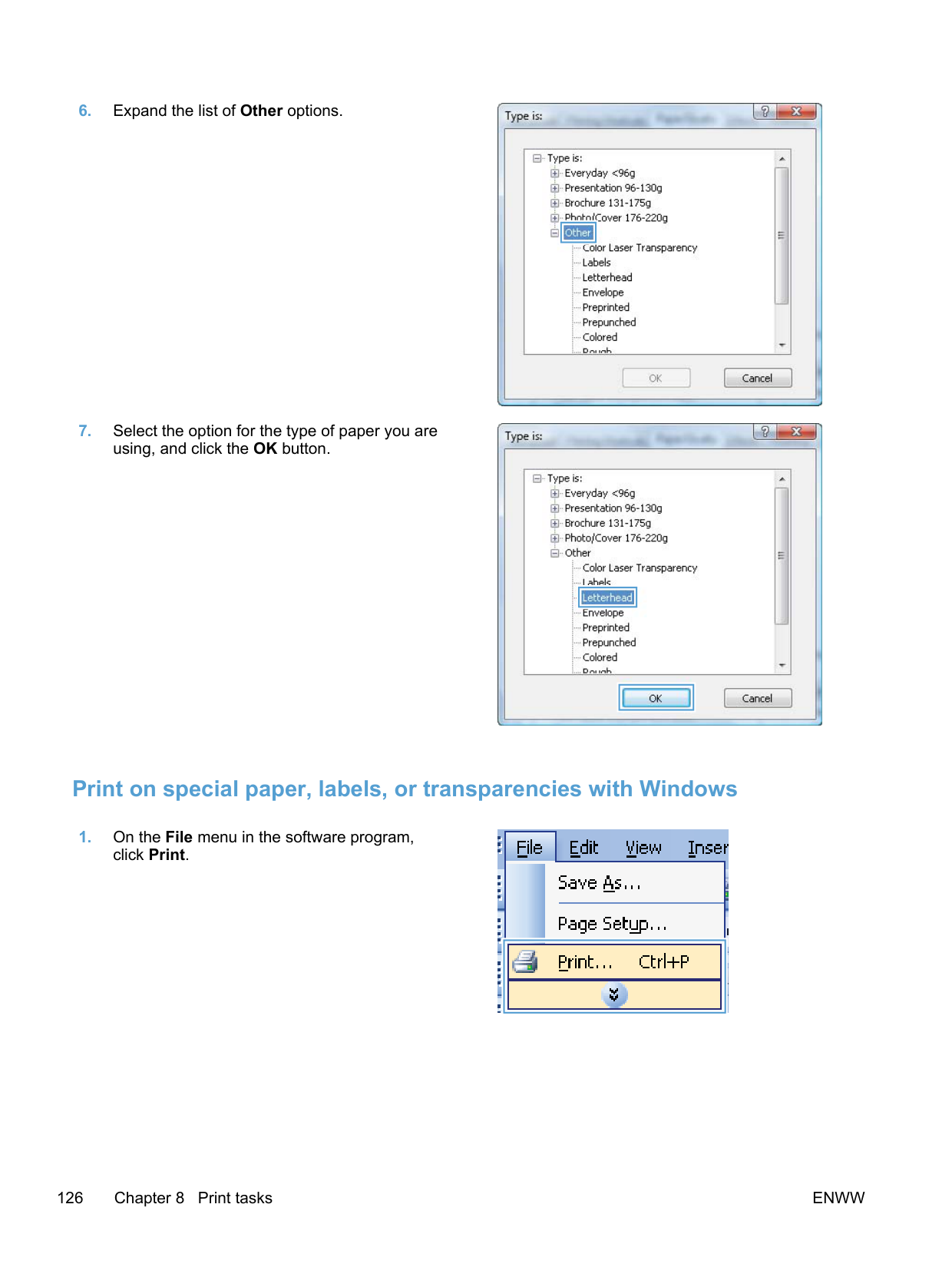
| | |---|
NOTE: This code is valid for only 24 hours from the time you enable HP Web Services. If it expires, follow the instructions to enable HP Web Services again, and obtain a new code.
ENWW Use HP ePrint 123
#### Additional print tasks with Windows
##### Print colored text as black (grayscale) with Windows
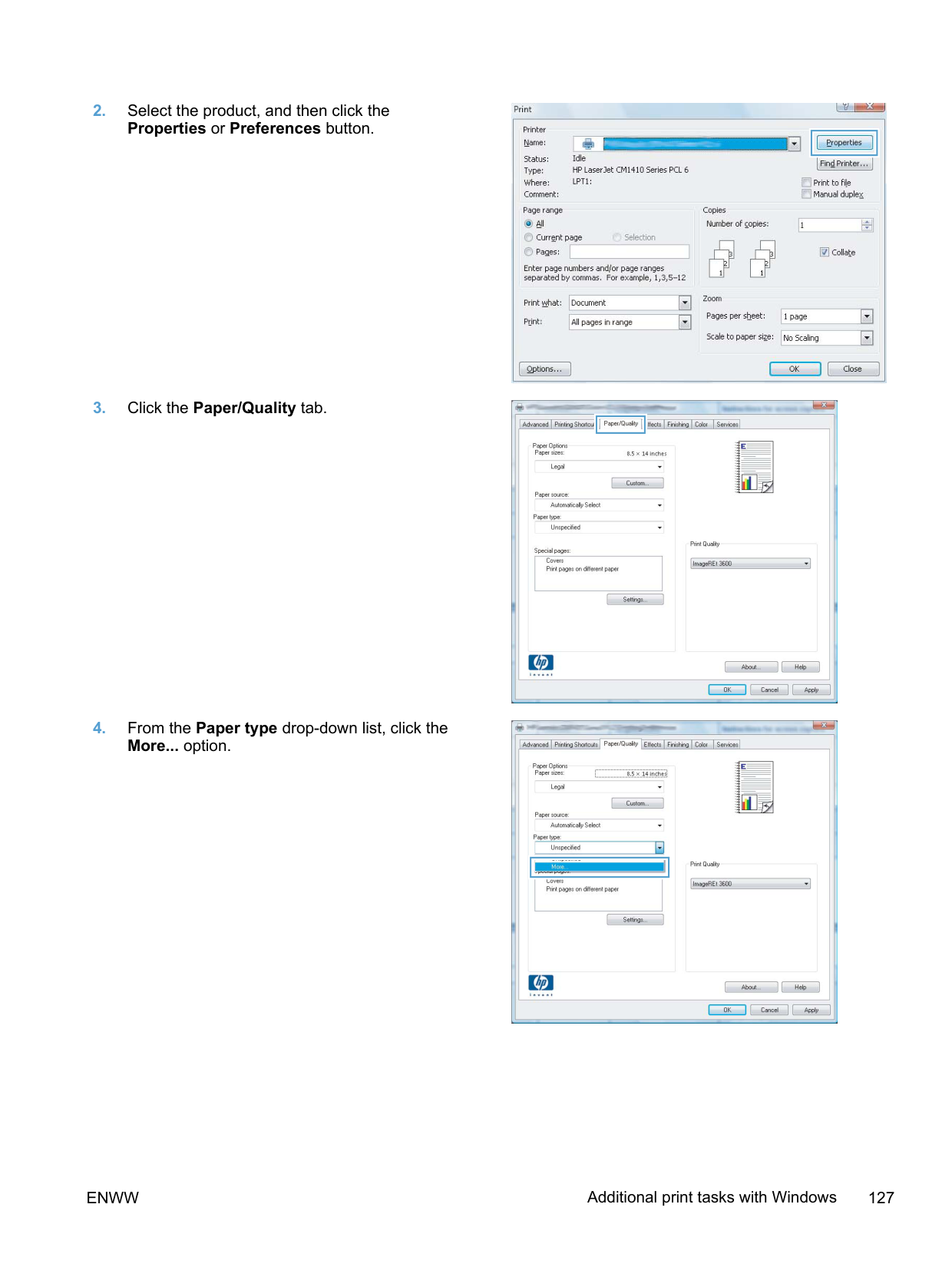
##### Print on preprinted letterhead or forms with Windows

| | |---|

| | |---|
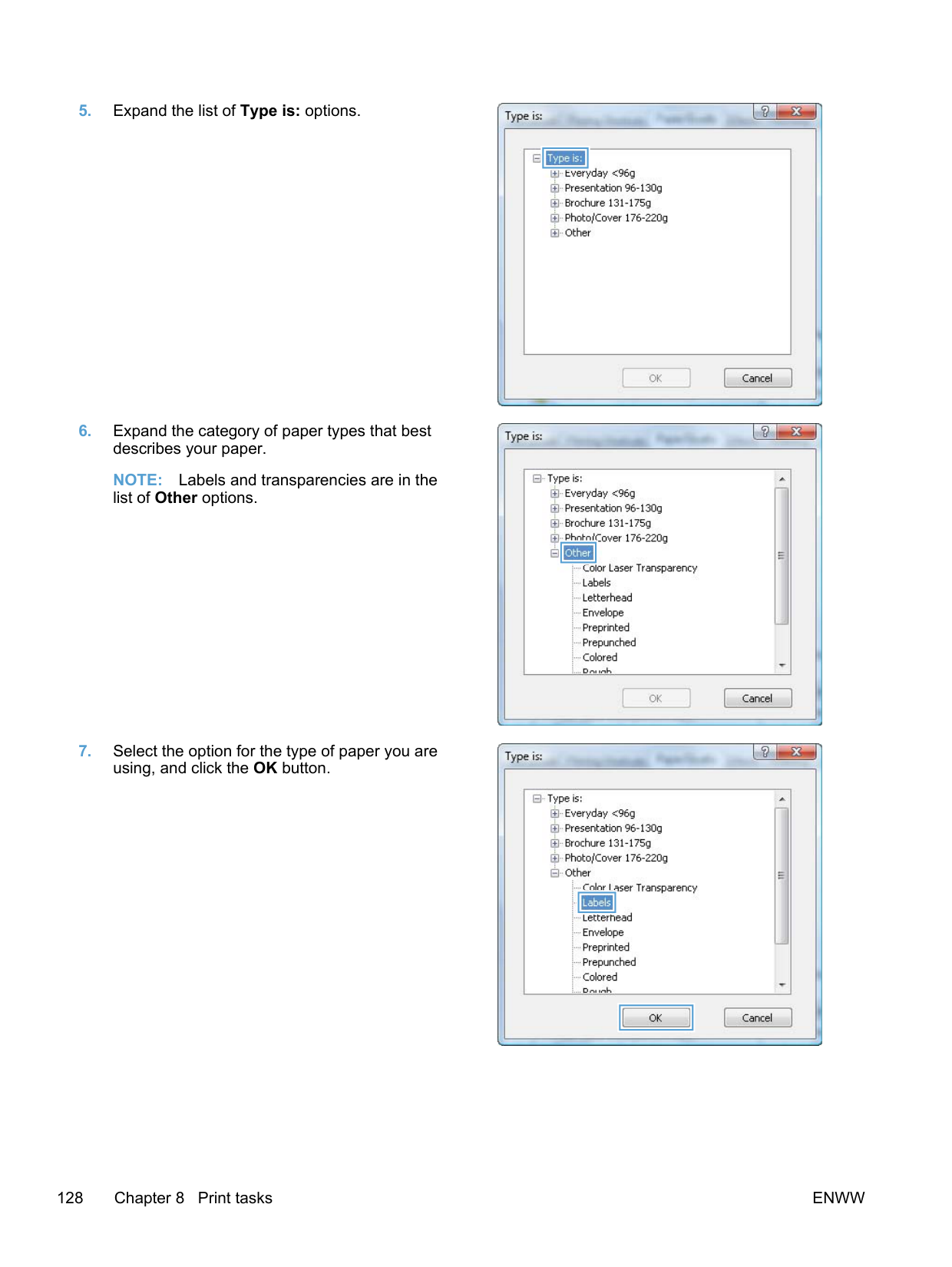
######## 3. Click the Paper/Quality tab.
######### 4. From the Paper type drop-down list, click theMore... option.
######### 5. Expand the list of Type is: options.

| | |---|

| | |---|

| | |---|

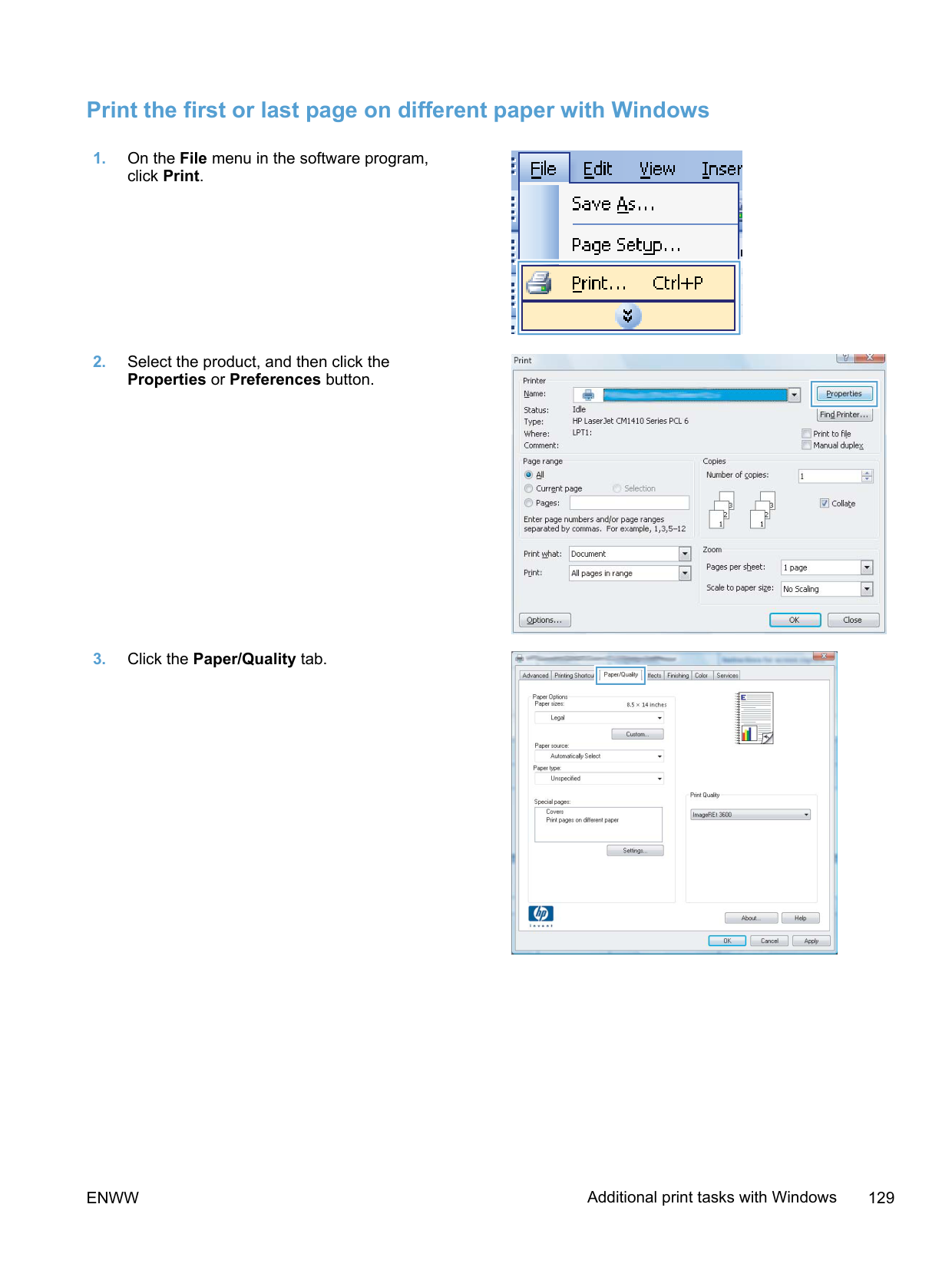
| | |---|

##### Print on special paper, labels, or transparencies with Windows

| | |---|
######### 2. Select the product, and then click theProperties or Preferences button.
######## 3. Click the Paper/Quality tab.
######### 4. From the Paper type drop-down list, click theMore... option.
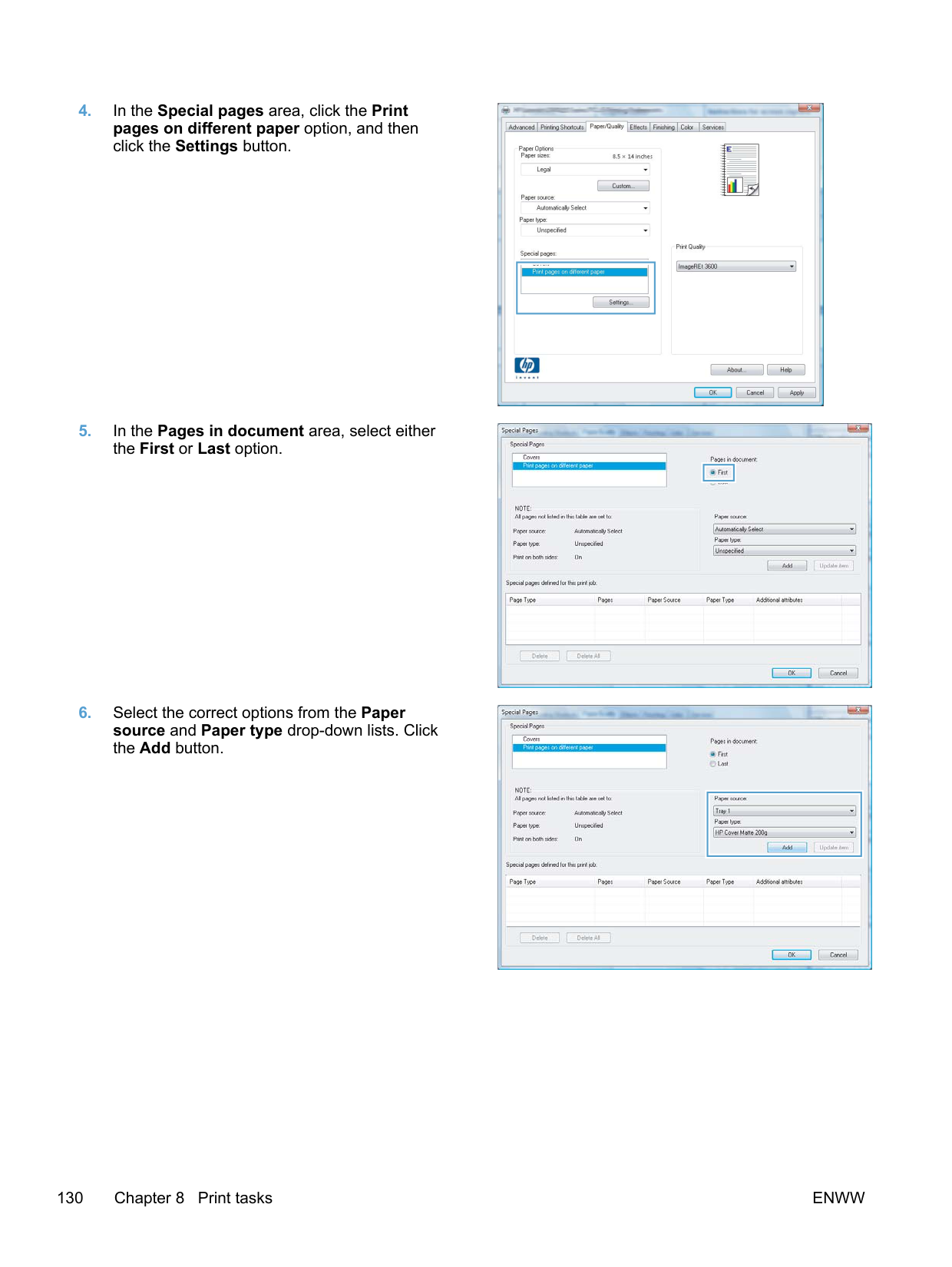

| | |---|

| | |---|

| | |---|
######### 5. Expand the list of Type is: options.
######### 6. Expand the category of paper types that bestdescribes your paper.
NOTE: Labels and transparencies are in the list of Other options.
######### 7. Select the option for the type of paper you areusing, and click the OK button.

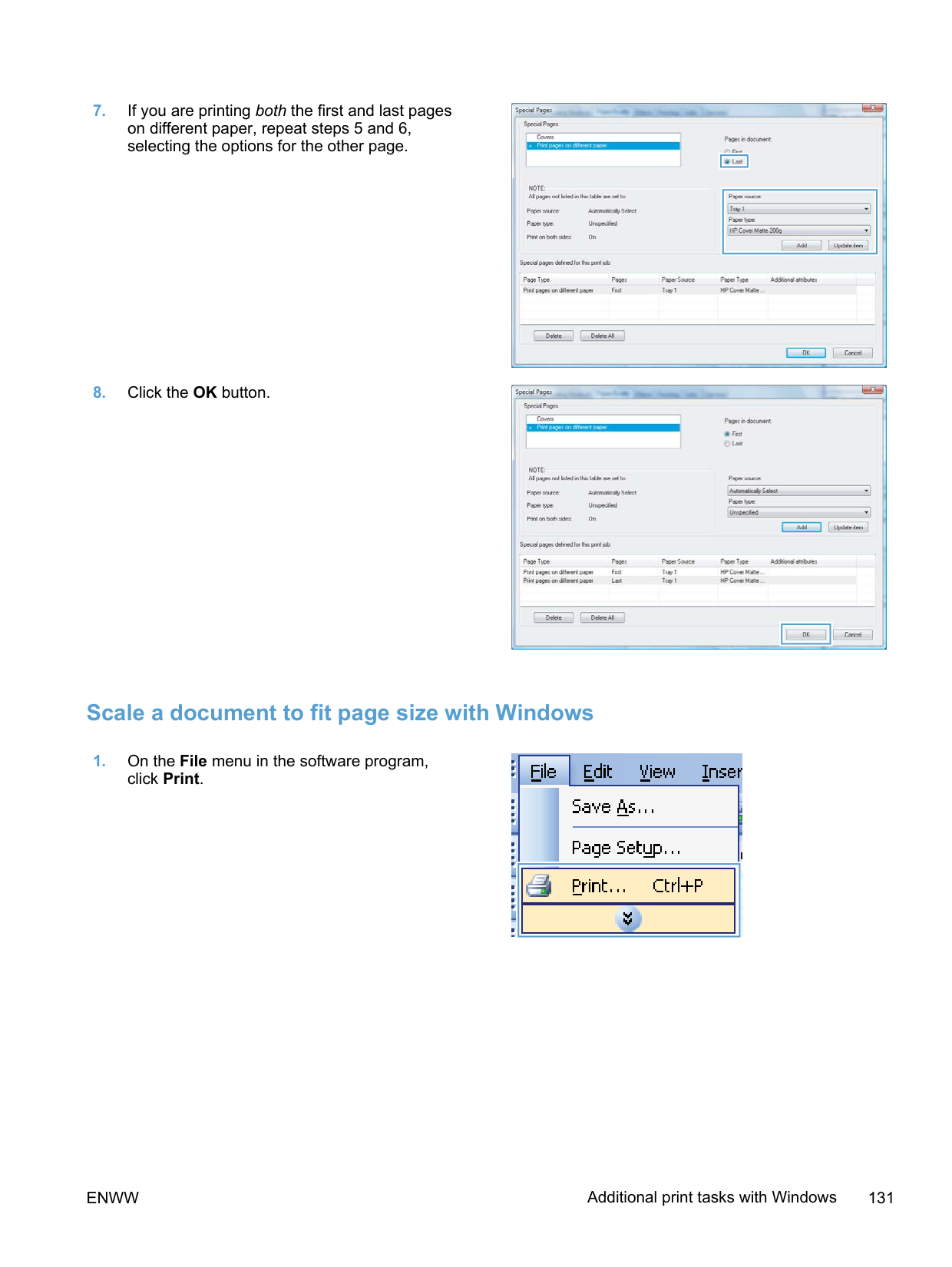
| | |---|

| | |---|

##### Print the first or last page on different paper with Windows

| | |---|

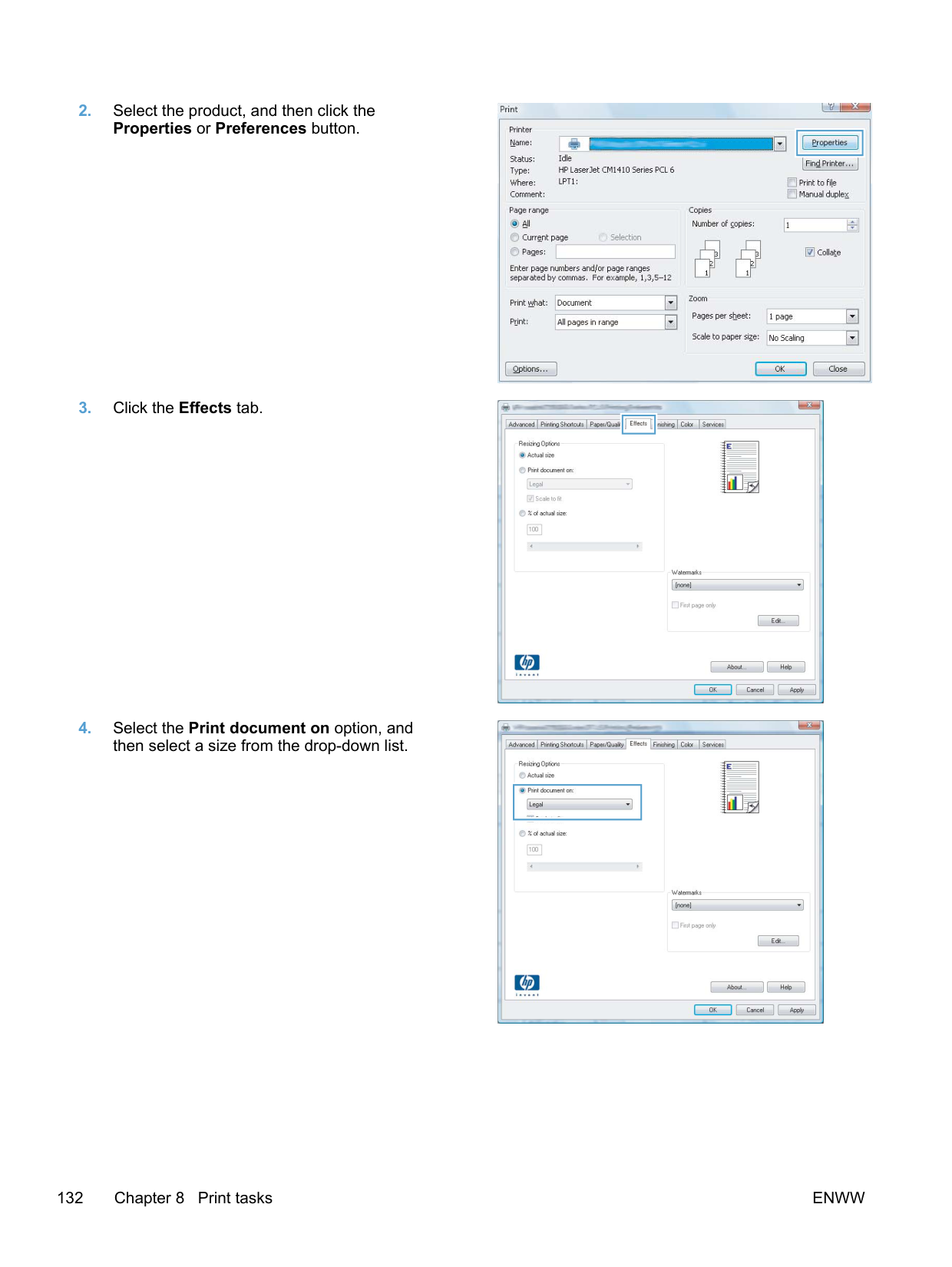
| | |---|

| | |---|
######## 4. In the Special pages area, click the Printpages on different paper option, and thenclick the Settings button.
######### 5. In the Pages in document area, select eitherthe First or Last option.
######### 6. Select the correct options from the Papersource and Paper type drop-down lists. Clickthe Add button.

| | |---|

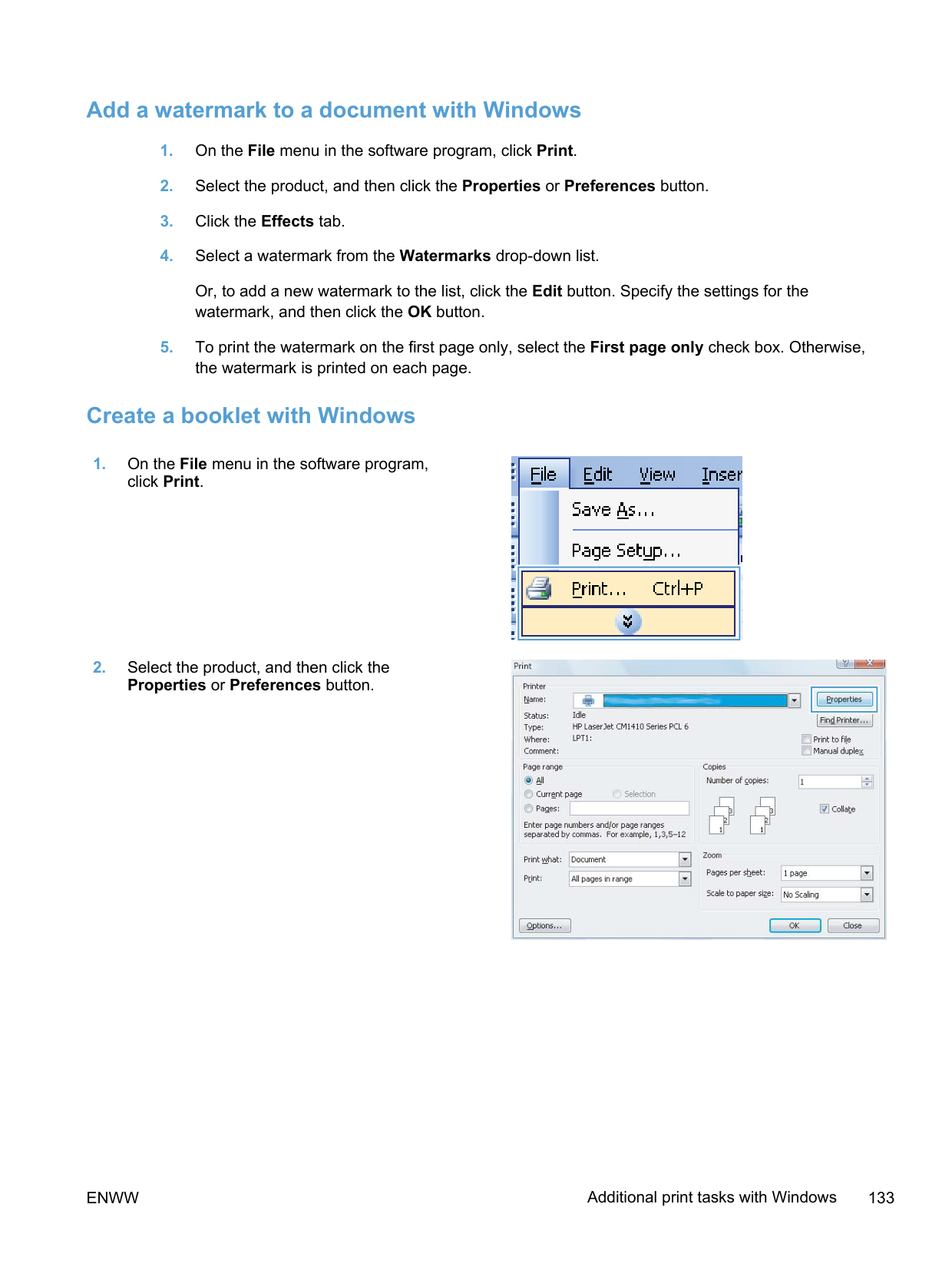
| | |---|

| | |---|

| | |---|

| | |---|
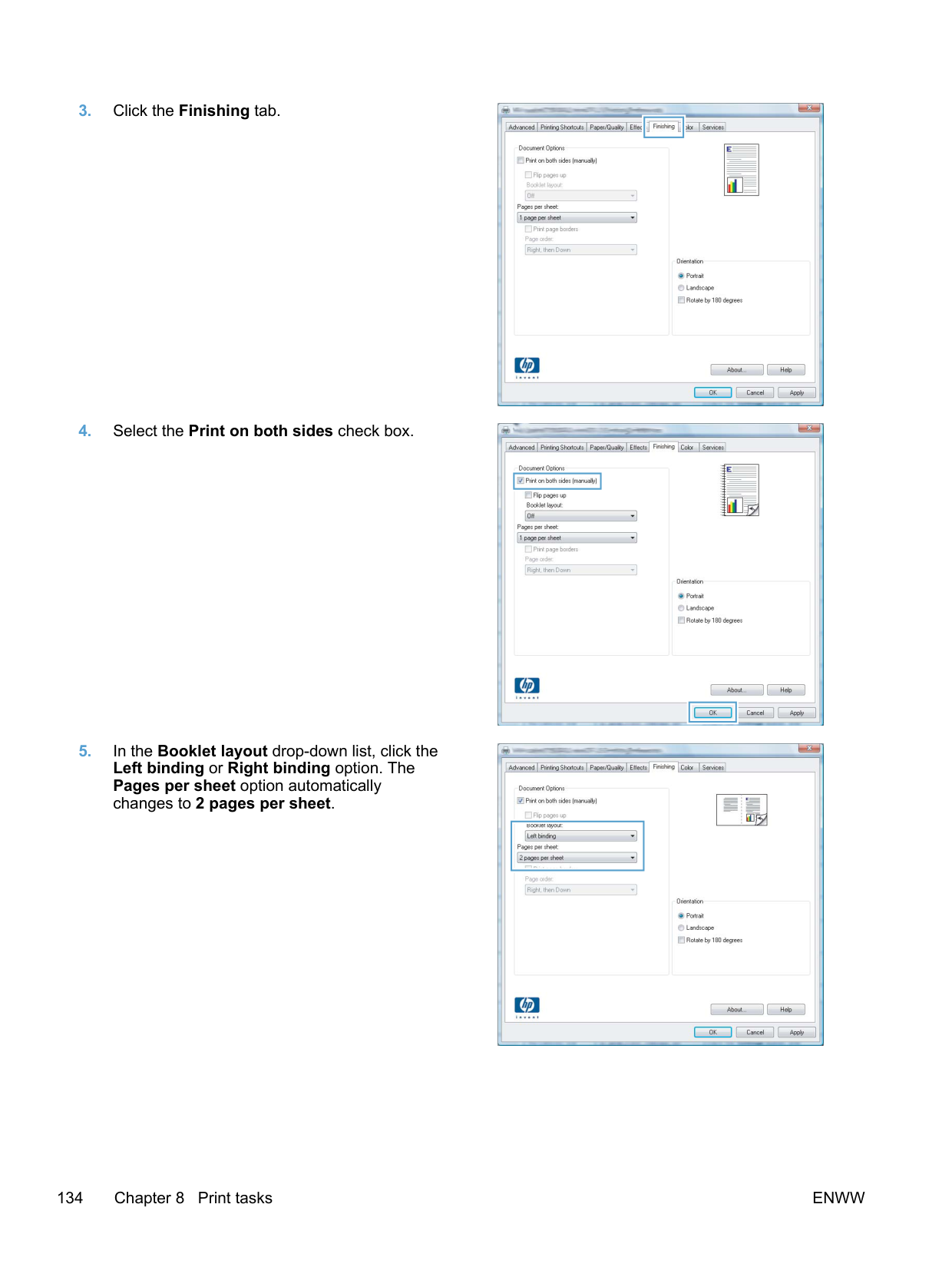
##### Scale a document to fit page size with Windows
######## click Print.

| | |---|

| | |---|

| | |---|
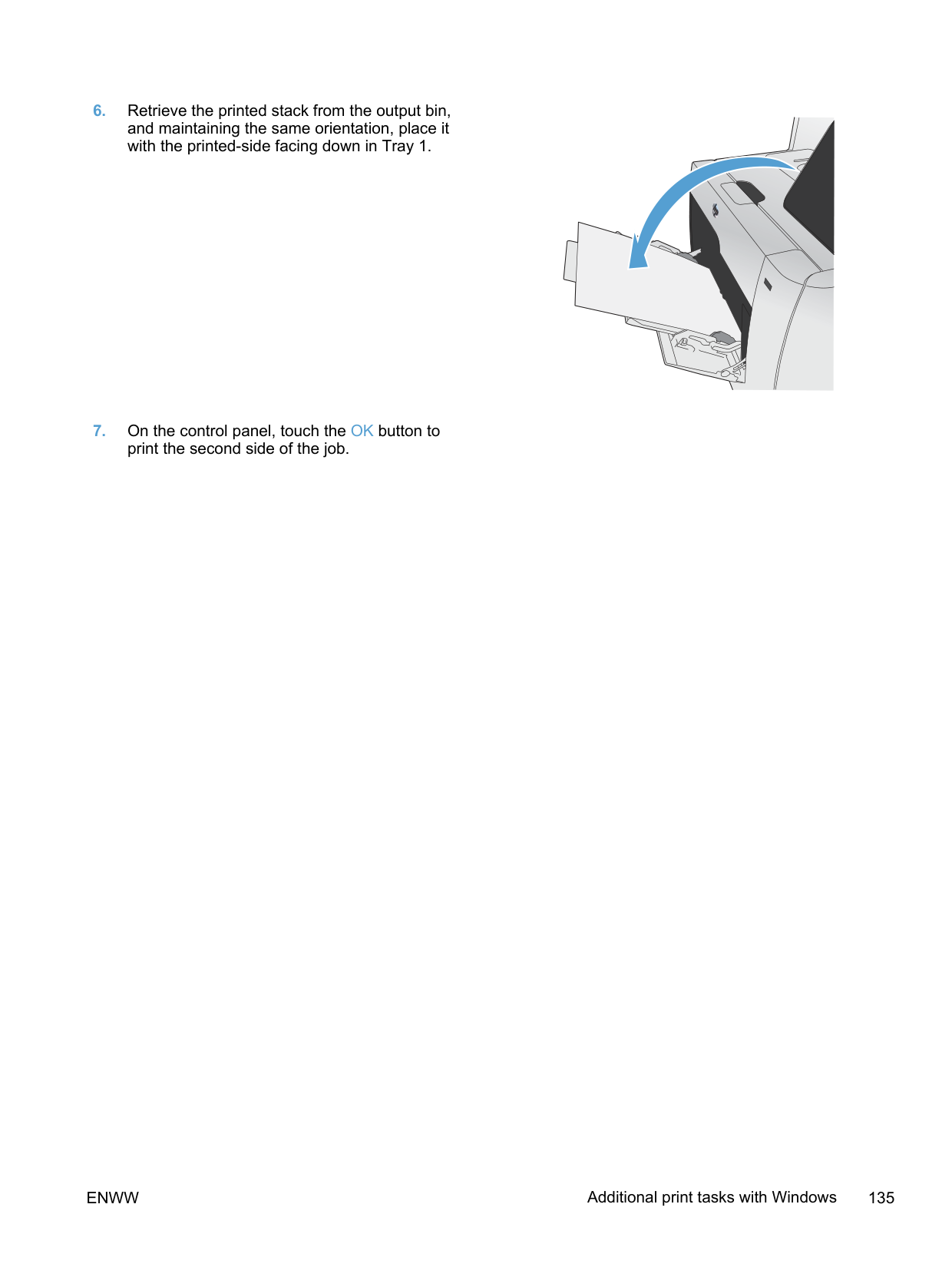
then select a size from the drop-down list.

| | |---|
##### Add a watermark to a document with Windows
Or, to add a new watermark to the list, click the Edit button. Specify the settings for the watermark, and then click the OK button.
##### Create a booklet with Windows
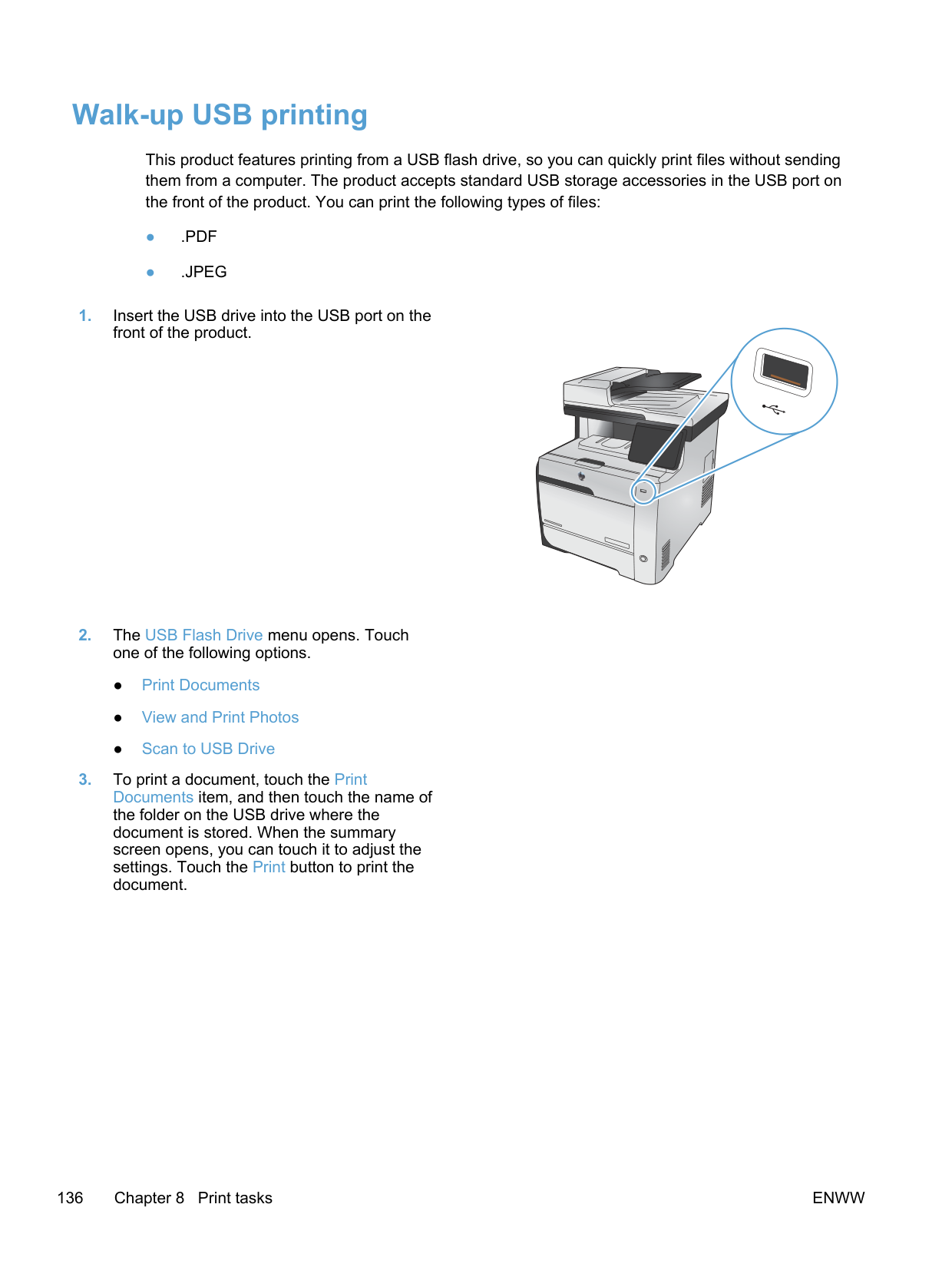

| | |---|

| | |---|
######### 3. Click the Finishing tab.
######## 4. Select the Print on both sides check box.
######## 5. In the Booklet layout drop-down list, click theLeft binding or Right binding option. ThePages per sheet option automaticallychanges to 2 pages per sheet.

| | |---|



| | |---|
######### 6. Retrieve the printed stack from the output bin,and maintaining the same orientation, place itwith the printed-side facing down in Tray 1.
######### 7. On the control panel, touch the OK button toprint the second side of the job.

#### Walk-up USB printing
This product features printing from a USB flash drive, so you can quickly print files without sending them from a computer. The product accepts standard USB storage accessories in the USB port on the front of the product. You can print the following types of files:


ENWW Walk-up USB printing 137
9 Color
ENWW 139

#### Adjust color
Manage color by changing the settings on the Color tab in the printer driver.
##### Change the color theme for a print job

| | |---|
##### Change the color options
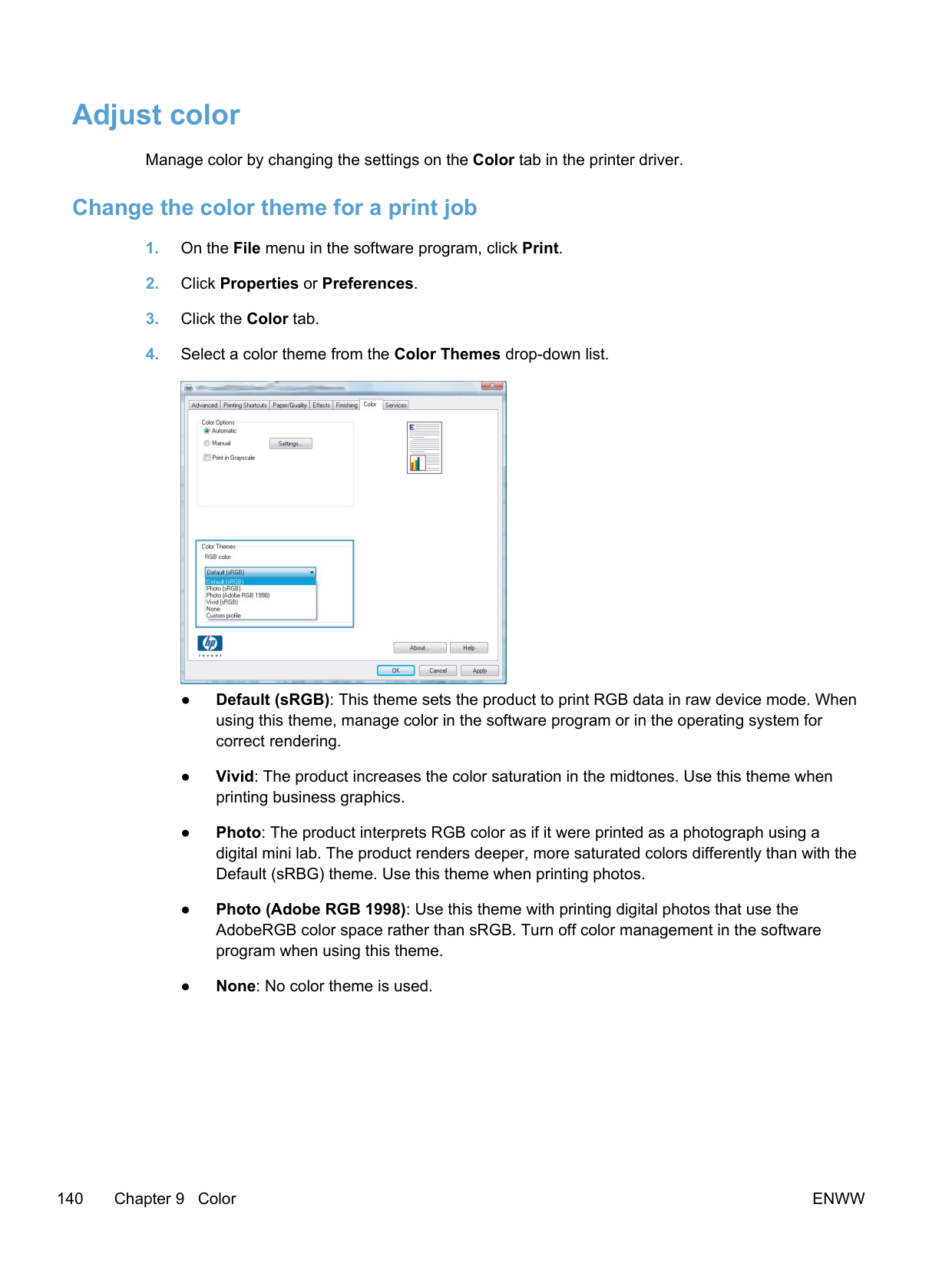
Change the color options settings for the current print job from the color tab of the printer driver.
| | |---|

##### Manual color options
Use manual color options to adjust the Neutral Grays, Halftone, and Edge Control options for text, graphics, and photographs.
ENWW Adjust color 141
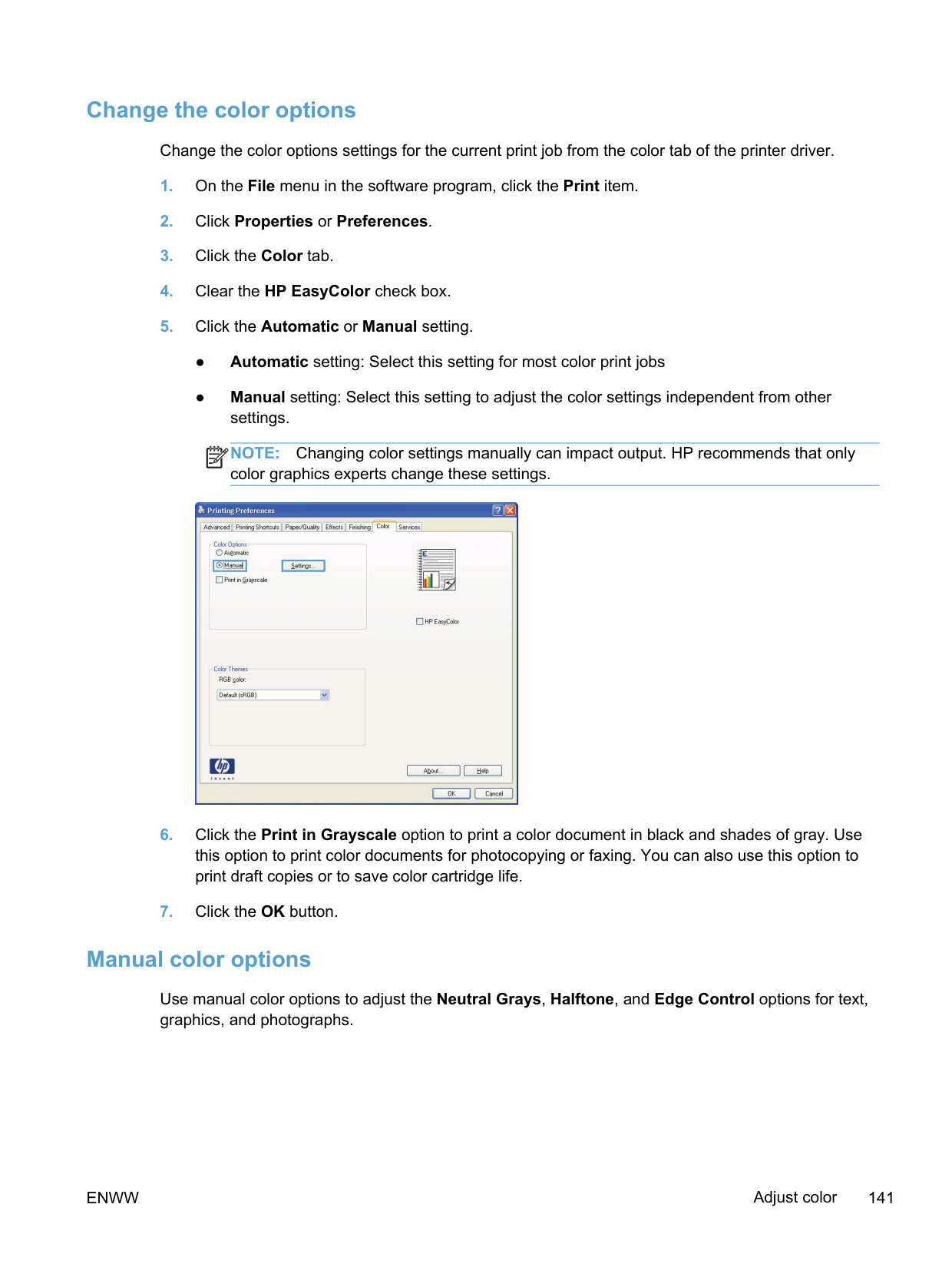
########## Table 9-1 Manual color options
Setting description Setting options
Edge Control
The Edge Control setting determines the rendering of edges. Edge control has two components: adaptive halftoning and trapping. Adaptive halftoning increases edge sharpness. Trapping reduces the effect of color-plane misregistration by overlapping the edges of adjacent objects slightly.
########### Halftone
Halftone options affect color output clarity and resolution.
########### Neutral Grays
The Neutral Grays setting determines the method for creating gray colors used in text, graphics, and photographs.
Use the HP EasyColor option If you are using the HP PCL 6 printer driver for Windows, the HP EasyColor technology automatically improves mixed-content documents that are printed from Microsoft Office programs. This technology scans documents and automatically adjusts photographic images in .JPEG or .PNG format. HP EasyColor technology enhances the entire image at one time, rather than dividing it into several pieces, which results in improved color consistency, sharper details, and faster printing. If you are using the HP Postscript printer driver for Mac, HP EasyColor technology scans all documents and automatically adjusts all photographic images with the same improved photographic results. In the following example, the images on the left were created without using the HP EasyColor option. The images on the right show the enhancements that result from using the HP EasyColor option.

The HP EasyColor option is enabled by default in both the HP PCL 6 printer driver and the HP Mac Postscript printer driver, so you do not need to make manual color adjustments. To disable the option so you can manually adjust the color settings, open the Color tab in the Windows driver or the Color/ Quality Options tab in the Mac driver, and then click the HP EasyColor check box to clear it.

ENWW Use the HP EasyColor option 143
Match colors to your computer screen For most users, the best method for matching colors is to print sRGB colors. The process of matching printer output color to your computer screen is complex, because printers and computer monitors use different methods of producing color. Monitors display colors by using light pixels that use an RGB (red, green, blue) color process, but printers print colors by using a CMYK (cyan, magenta, yellow, and black) process. Several factors can influence your ability to match printed colors to those on your monitor:
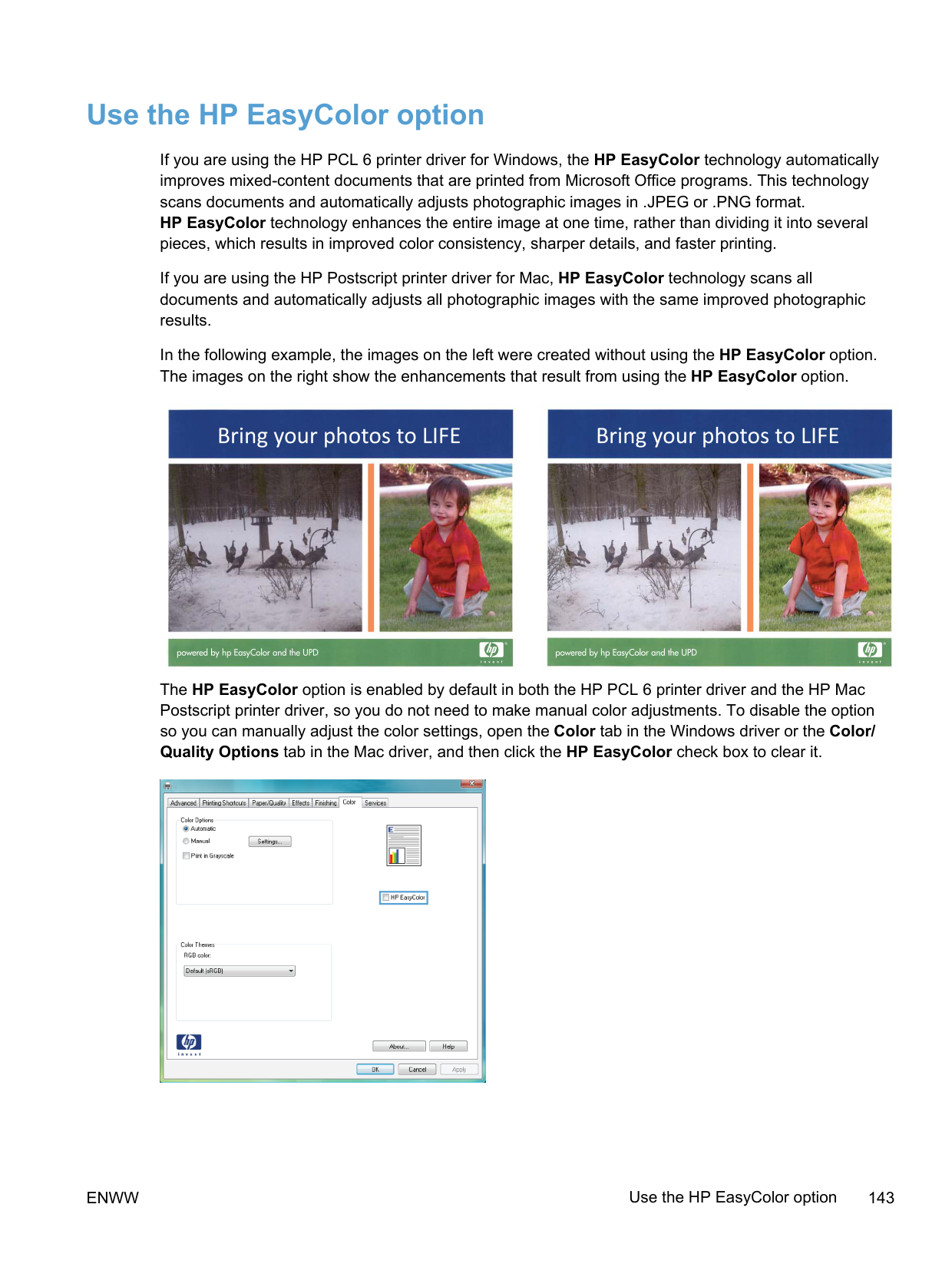
10 Copy
ENWW 145
#### Use copy functions
##### Copy
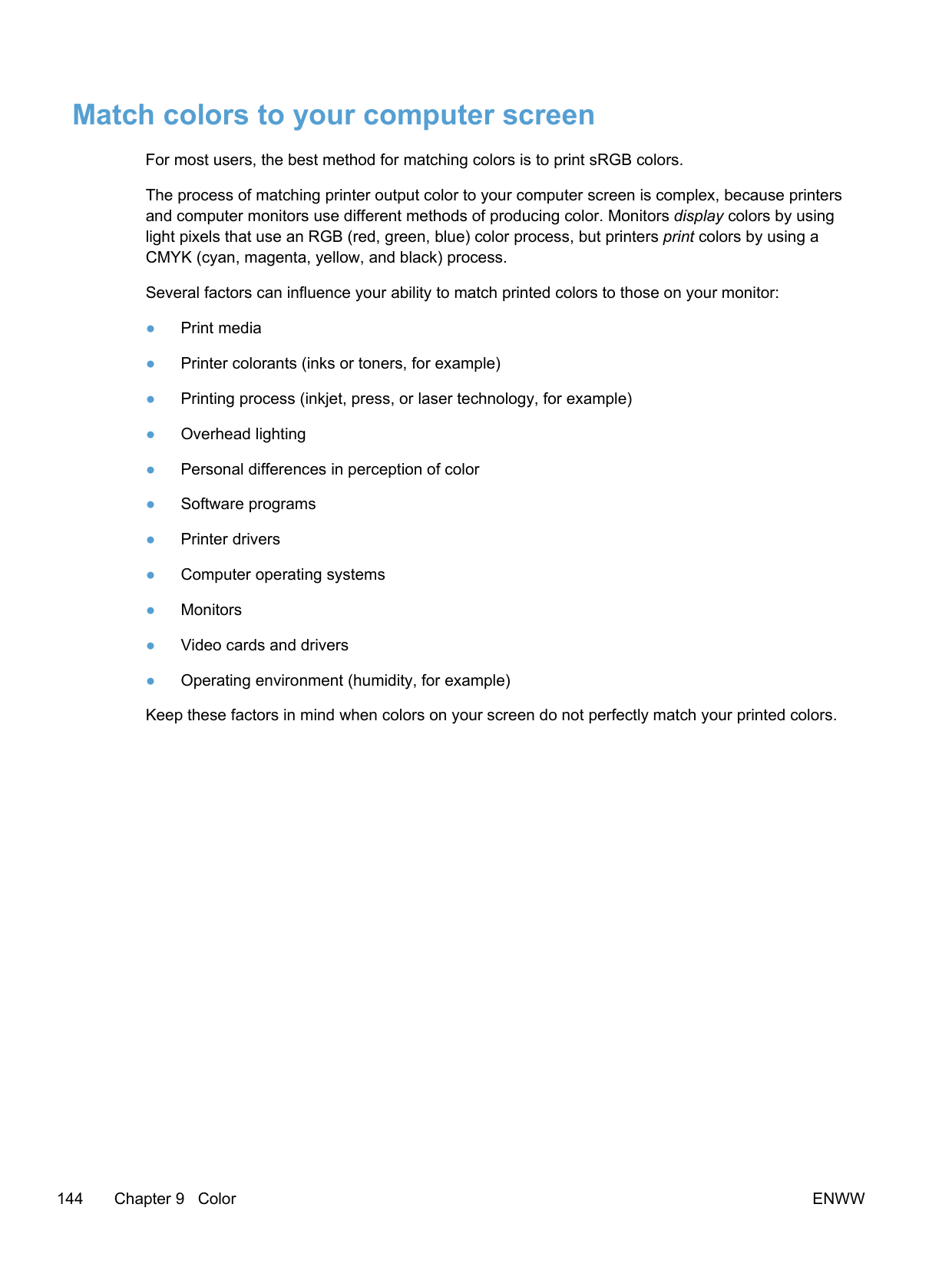
##### Multiple copies
##### Copy a multiple-page original
##### Copy identification cards
Use the ID Copy feature to copy both sides of identification cards, or other small-size documents, onto the same side of one sheet of paper. The product prompts you to copy the first side and then to place the second side on a different area of the scanner glass and copy again. The product prints both images at the same time.
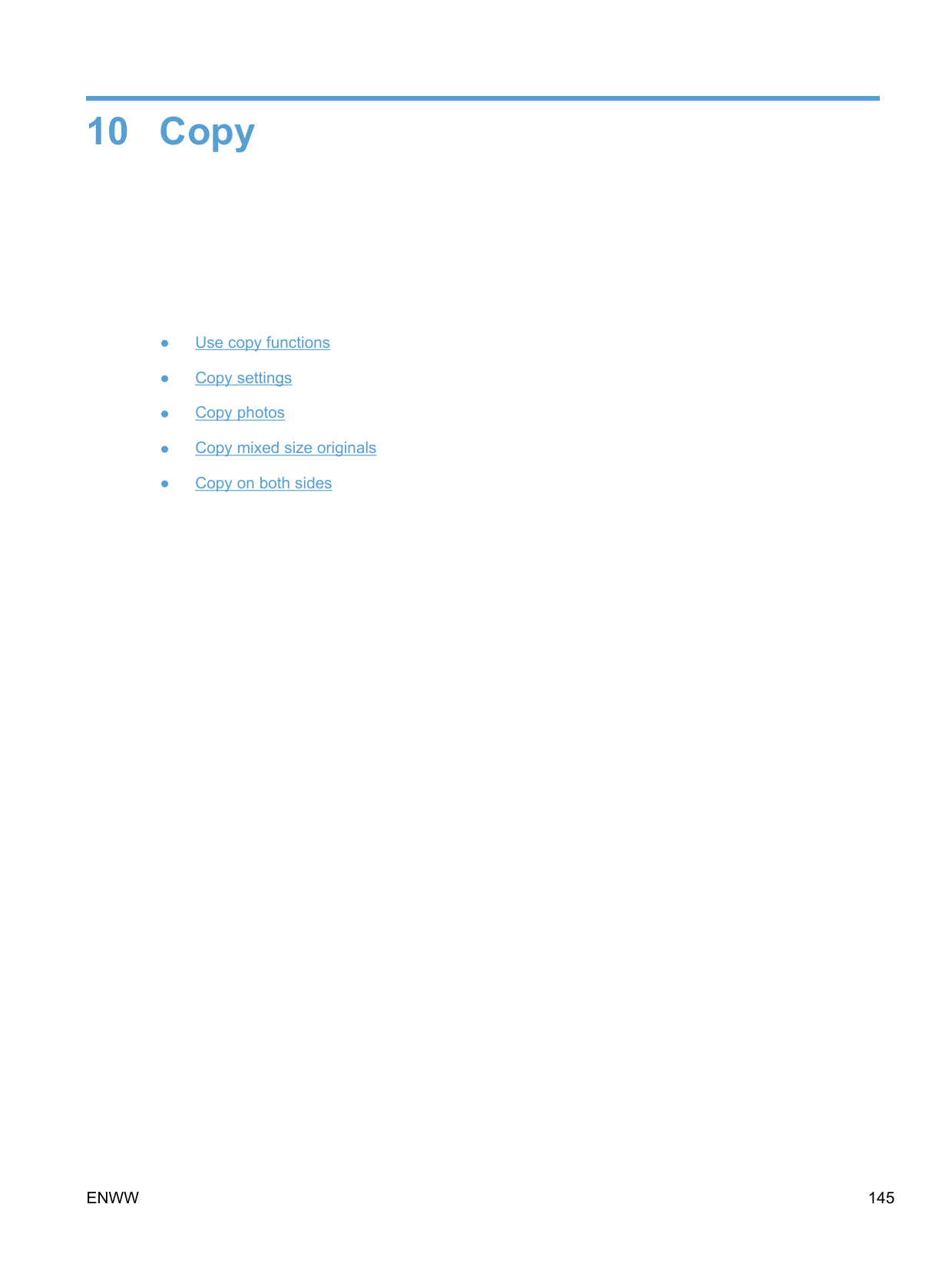
##### Cancel a copy job
| | |---|
##### Reduce or enlarge a copy
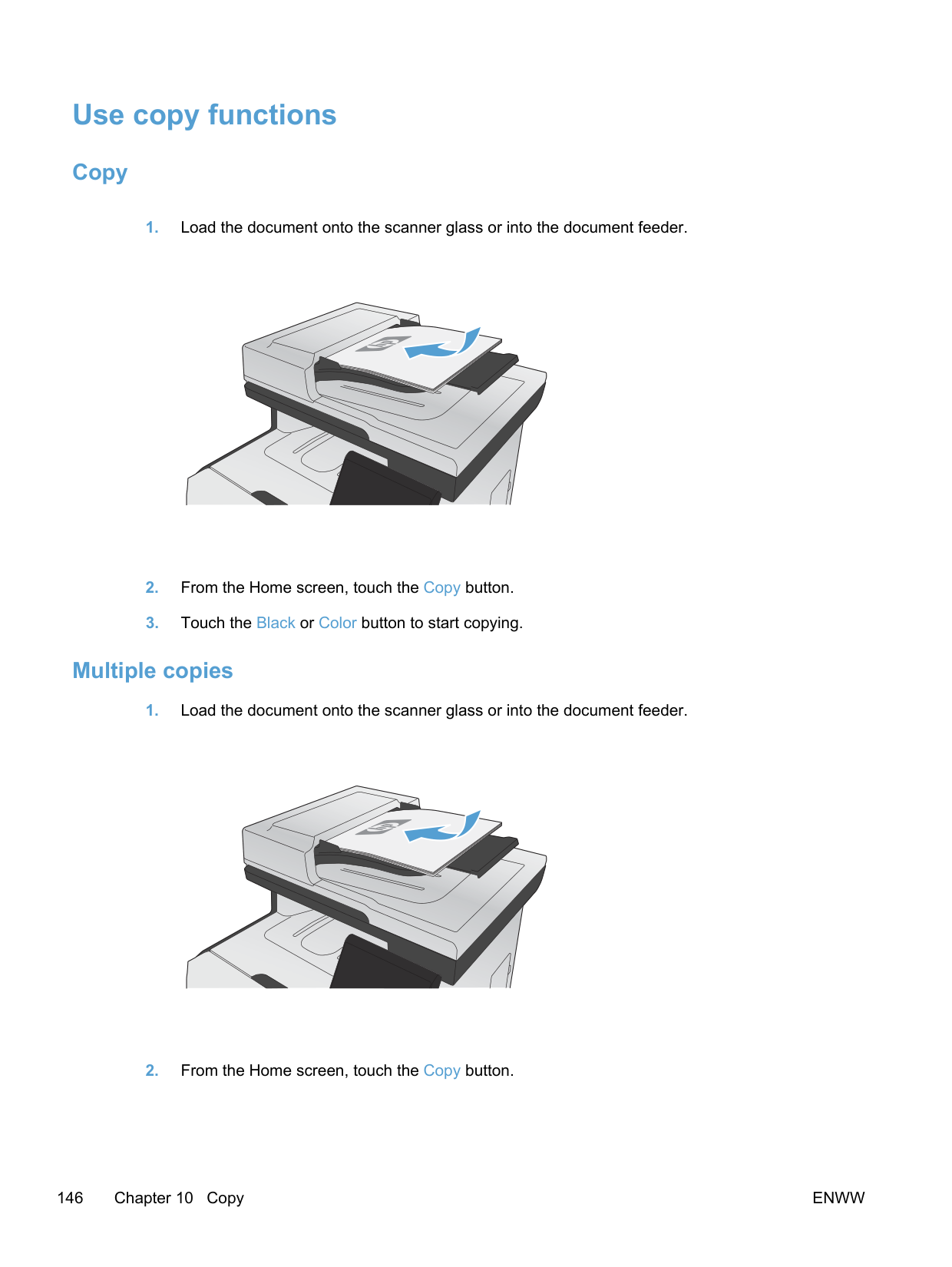
##### Collate a copy job
##### Make color or black and white copies
#### Copy settings
##### Change copy quality
The following copy-quality settings are available:
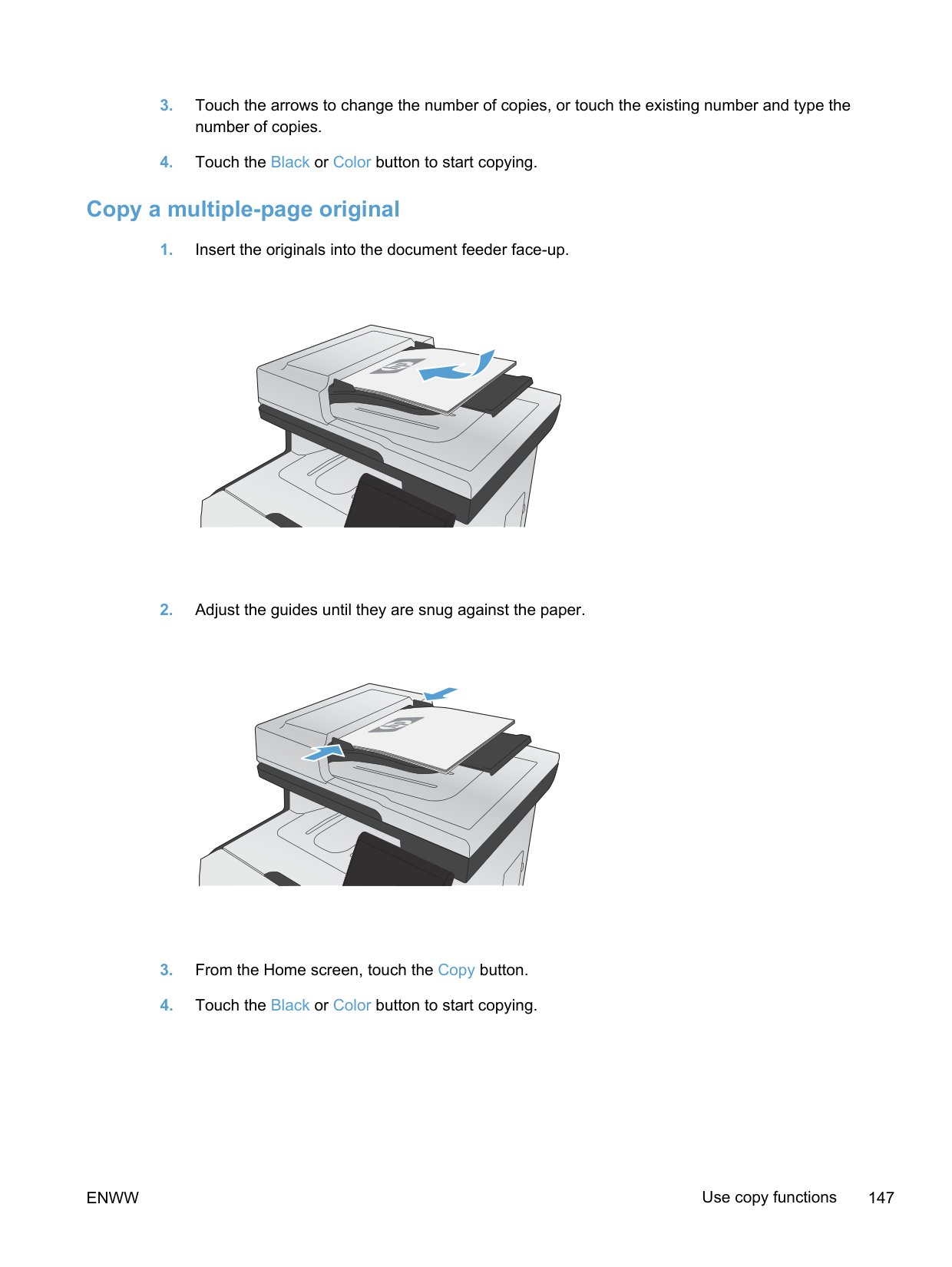
##### Check the scanner glass for dirt and smudges
Over time, specks of debris might collect on the scanner glass and white plastic backing, which can affect performance. This can cause vertical streaks on copy jobs from the document feeder, and specks on copy jobs from the flatbed scanner glass. Use the following procedure to clean the scanner glass and white plastic backing.
For vertical streaks on document feeder copy jobs, clean the document feeder scanner strip on the left side of the product with a soft cloth or sponge that has been moistened with nonabrasive glass cleaner.
CAUTION: Do not use abrasives, acetone, benzene, ammonia, ethyl alcohol, or carbon tetrachloride on any part of the product; these can damage the product. Do not place liquids directly on the glass or platen. They might seep and damage the product.
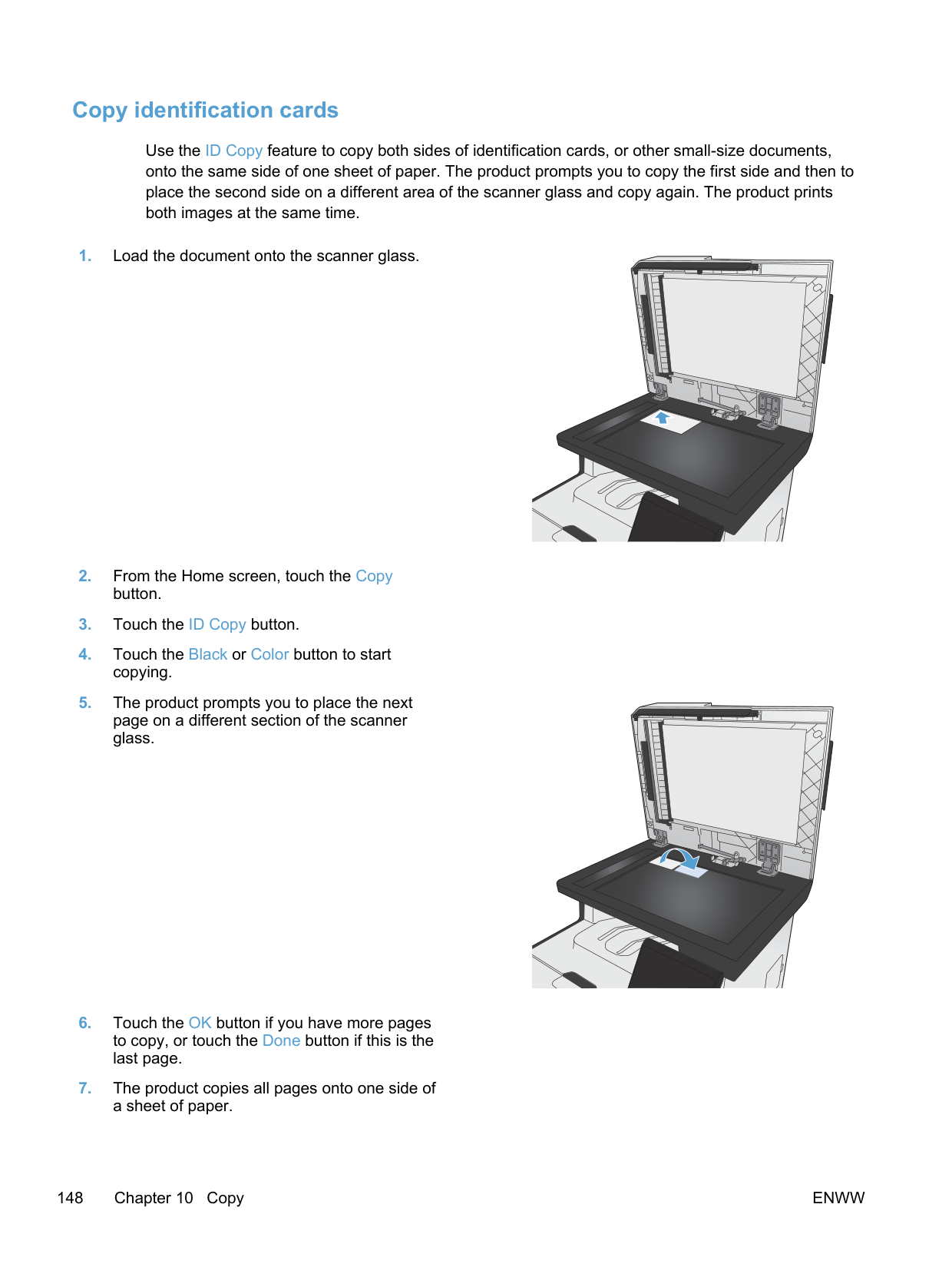
##### Adjust the lightness or darkness for copies
##### Define custom copy settings
When you change the copy settings at the control panel, the custom settings remain in effect for approximately 2 minutes after the job completes, and then the product returns to the default settings. To immediately return to the defaults, press the Cancel button from the Home screen.
####### Print or copy edge-to-edge
The product cannot print fully edge-to-edge. The maximum printing area is 203.2 x 347 mm (8 x 13.7 in), leaving a 4 mm unprintable border around the page.
######## Considerations for printing or scanning documents with cropped edges:
##### Set the paper size and type for copying on special paper
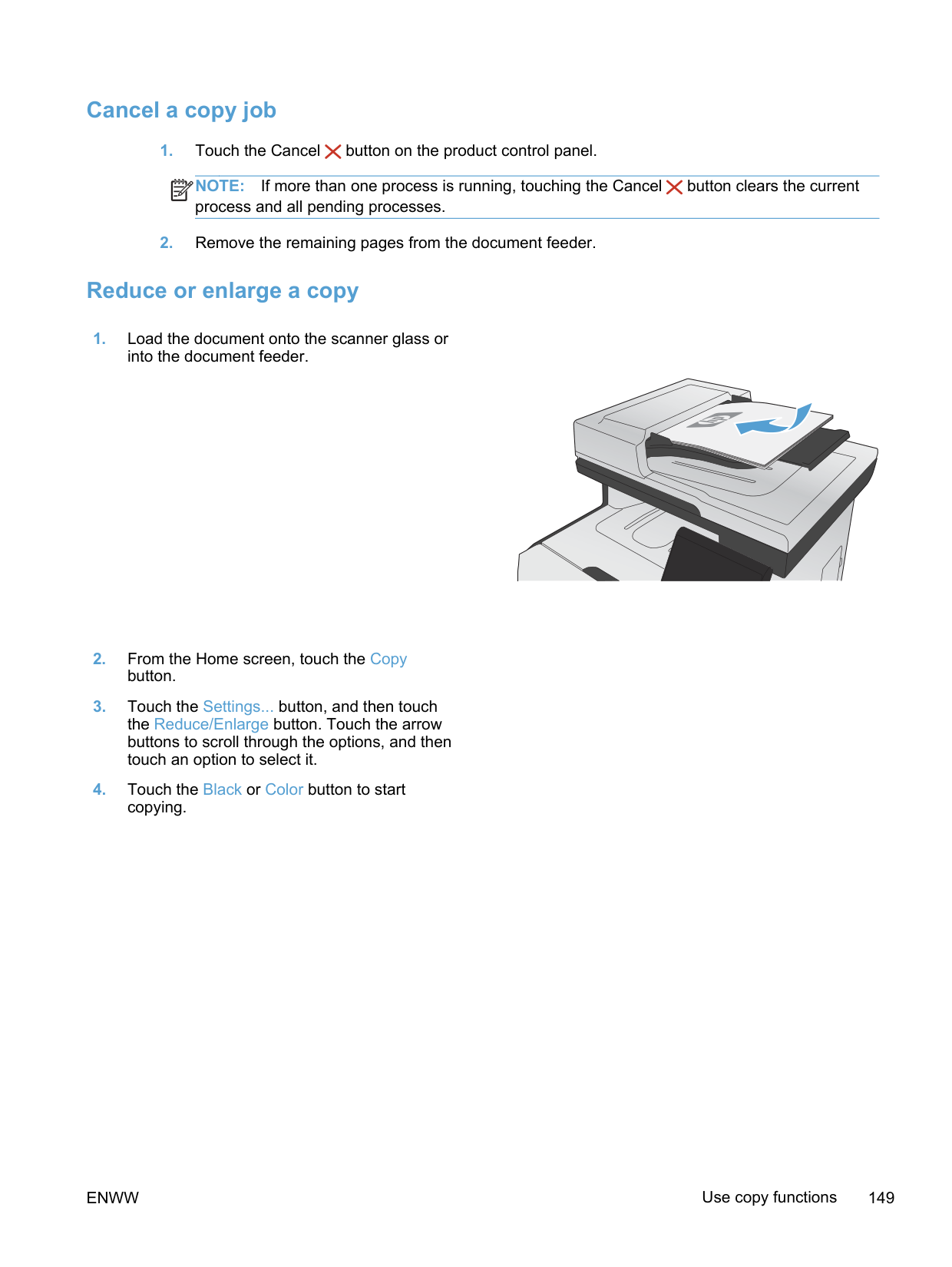

##### Restore copy default settings

#### Copy photos
NOTE: Copy photos from the scanner glass, not from the document feeder.
| | |---|
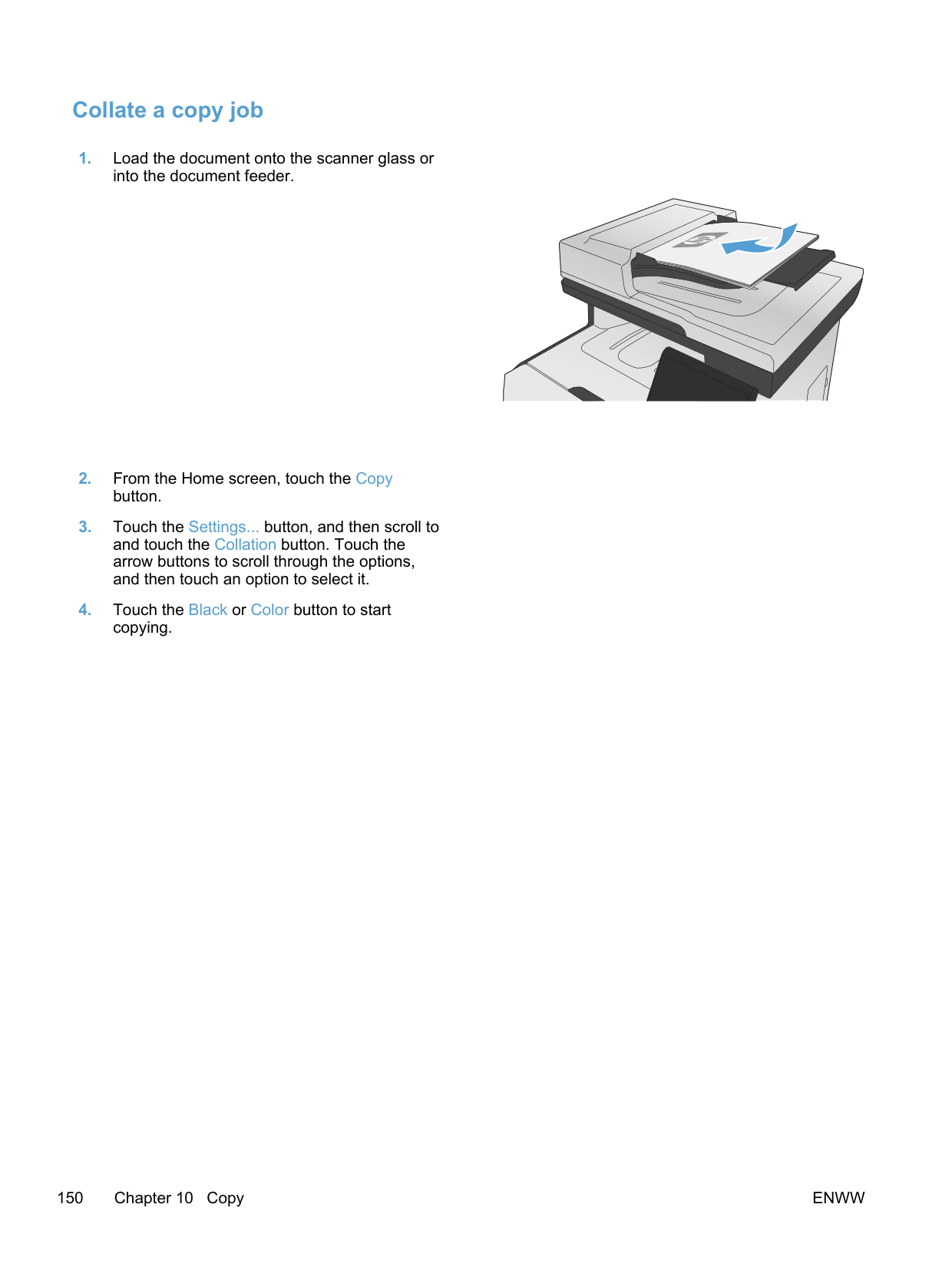
Copy mixed size originals Use the scanner glass to make copies of mixed size originals. NOTE: You can use the document feeder to copy mixed size originals only if the pages share a common dimension. For example, you can combine Letter and Legal size pages because they have the same width. Stack the pages so the top edges are even with each other and so the pages have the same width but varying lengths.
| | |---|
ENWW Copy mixed size originals 157
#### Copy on both sides
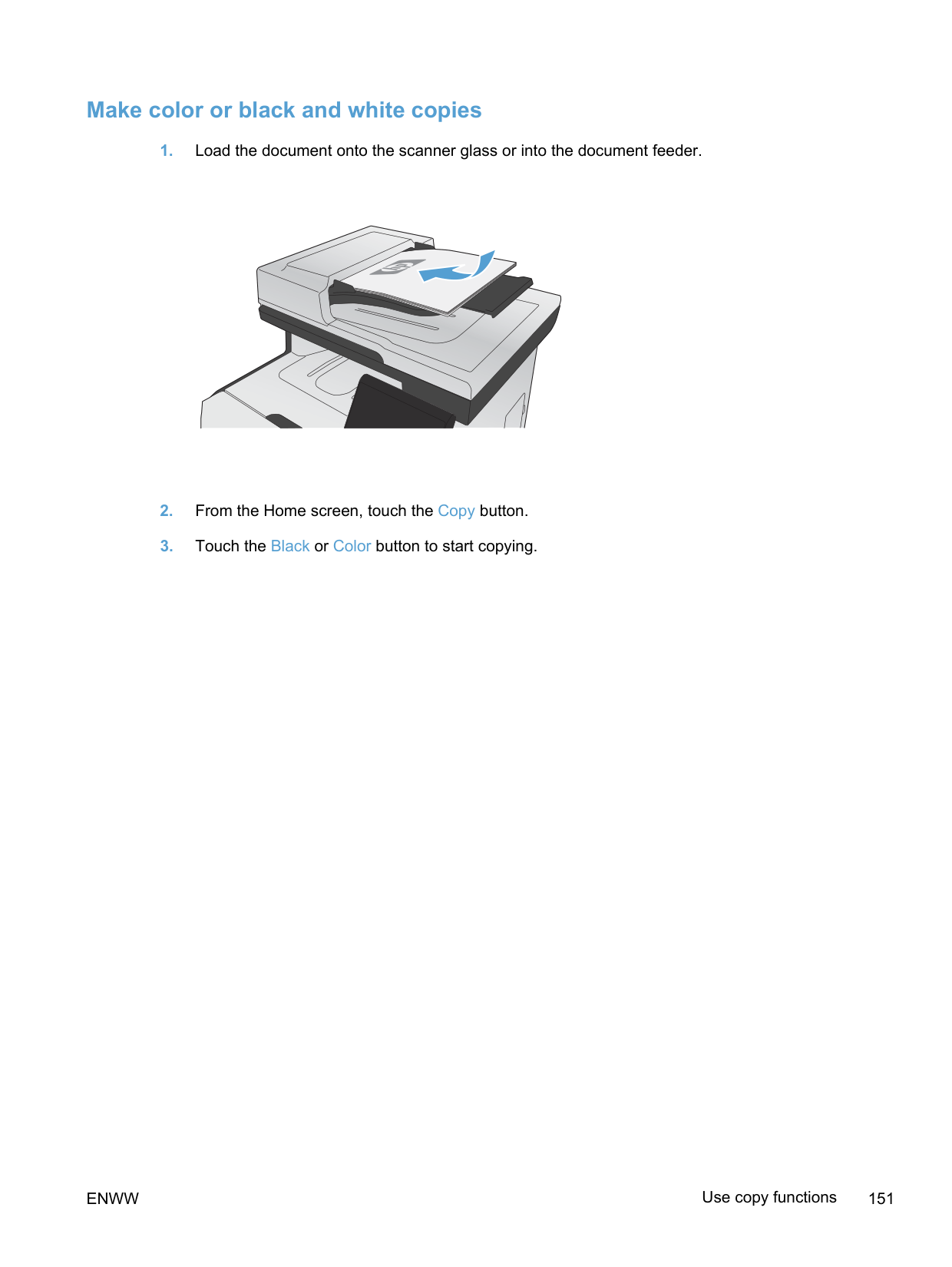
##### Copy on both sides automatically (duplex models only)
##### Copy on both sides manually

ENWW Copy on both sides 159
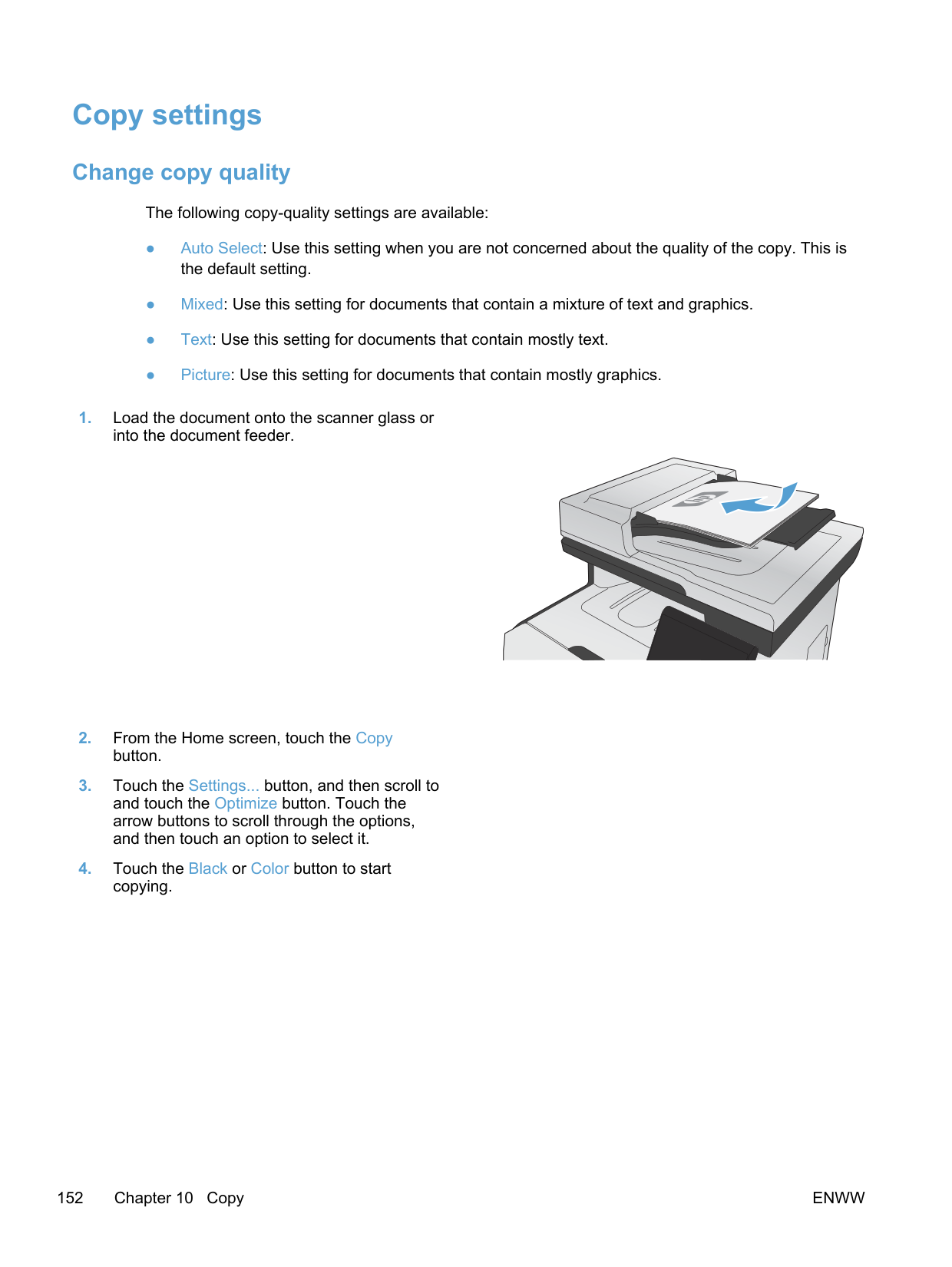
11 Scan
● Use scan functions
● Scan settings ● Scan a photo
ENWW 161
#### Use scan functions
Use the product to scan a document from the scanner glass or document feeder. For duplex models, you can also create two-sided scans.
##### Scan methods
Perform scan jobs in the following ways.
NOTE: To learn about and use text-recognition software, install the Readiris program from the software CD. Text-recognition software is also known as optical character recognition (OCR) software.
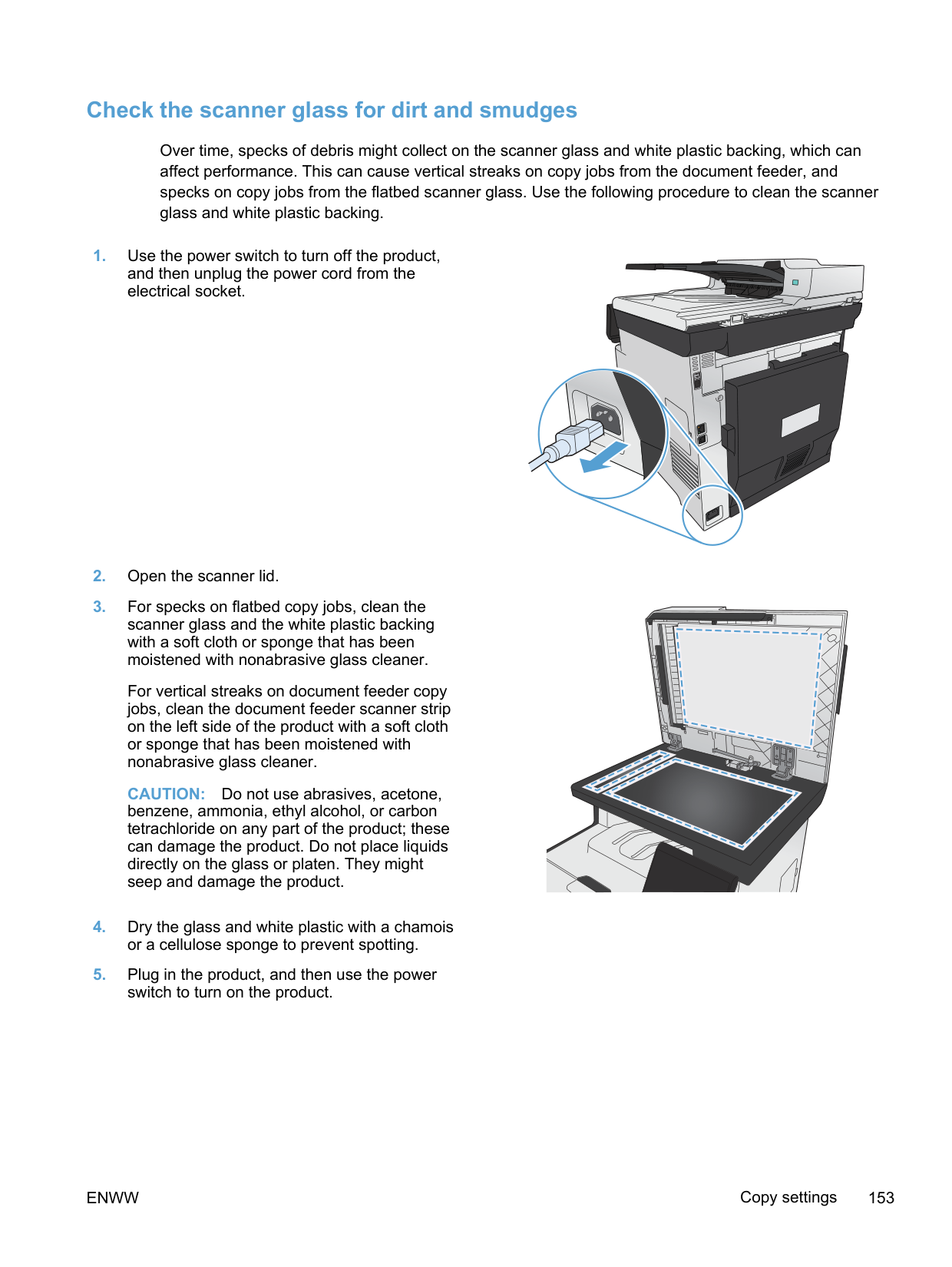
| | |---|
####### Scan to a USB flash drive
NOTE: When the summary screen opens, you can touch it to adjust settings.
| | |---|
####### Scan by using HP Scan software (Windows)
| |
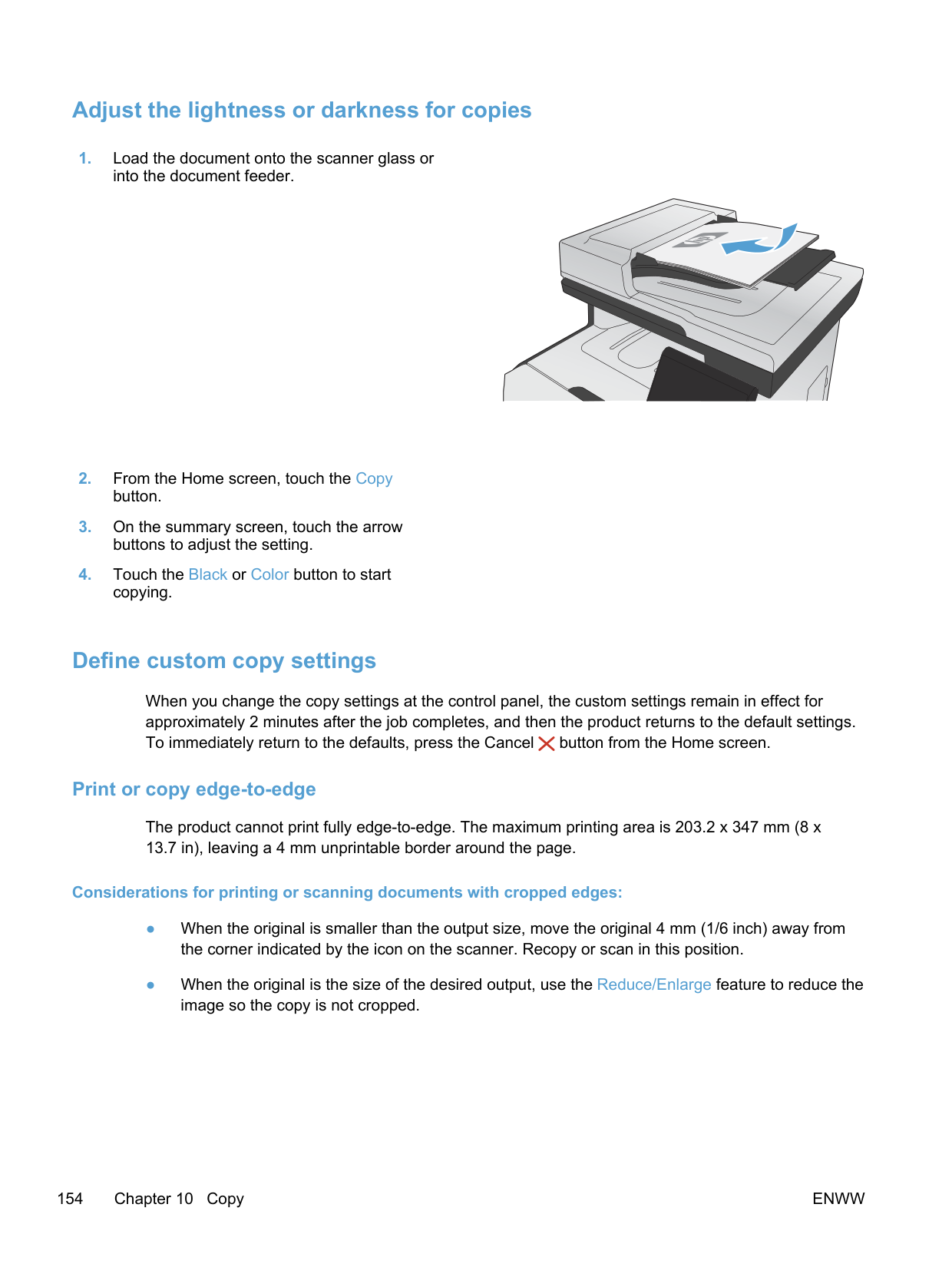
|---|
####### Scan by using other software
The product is TWAIN-compliant and Windows Imaging Application (WIA)-compliant. The product works with Windows-based programs that support TWAIN-compliant or WIA-compliant scanning devices and with Macintosh-based programs that support TWAIN-compliant scanning devices.
While you are in a TWAIN-compliant or WIA-compliant program, you can gain access to the scanning feature and scan an image directly into the open program. For more information, see the Help file or the documentation that came with your TWAIN-compliant or WIA-compliant software program.
######## Scan from a TWAIN-compliant program
Generally, a software program is TWAIN-compliant if it has a command such as Acquire, File Acquire, Scan, Import New Object, Insert from, or Scanner. If you are unsure whether the program is compliant or you do not know what the command is called, see the software program Help or documentation.
When scanning from a TWAIN-compliant program, the HP Scan software program might start automatically. If the HP Scan program starts, you can make changes while previewing the image. If the program does not start automatically, the image goes to the TWAIN-compliant program immediately.
Start the scan from within the TWAIN-compliant program. See the software program Help or documentation for information about the commands and steps to use.
######## Scan from a WIA-compliant program
WIA is another way to scan an image directly into a software program. WIA uses Microsoft software to scan, instead of the HP Scan software.
Generally, a software program is WIA-compliant if it has a command such as Picture/From Scanner or Camera in the Insert or File menu. If you are unsure whether the program is WIA-compliant, see the software program Help or documentation. Start the scan from within the WIA-compliant program. See the software program Help or documentation for information about the commands and steps to use.
######## -Or-
From the Windows control panel, in the Cameras and Scanner folder (located inside the Hardware and Sound folder for Windows Vista and Windows 7), double-click the product icon. This opens the standard Microsoft WIA Wizard, which enables you to scan to a file.
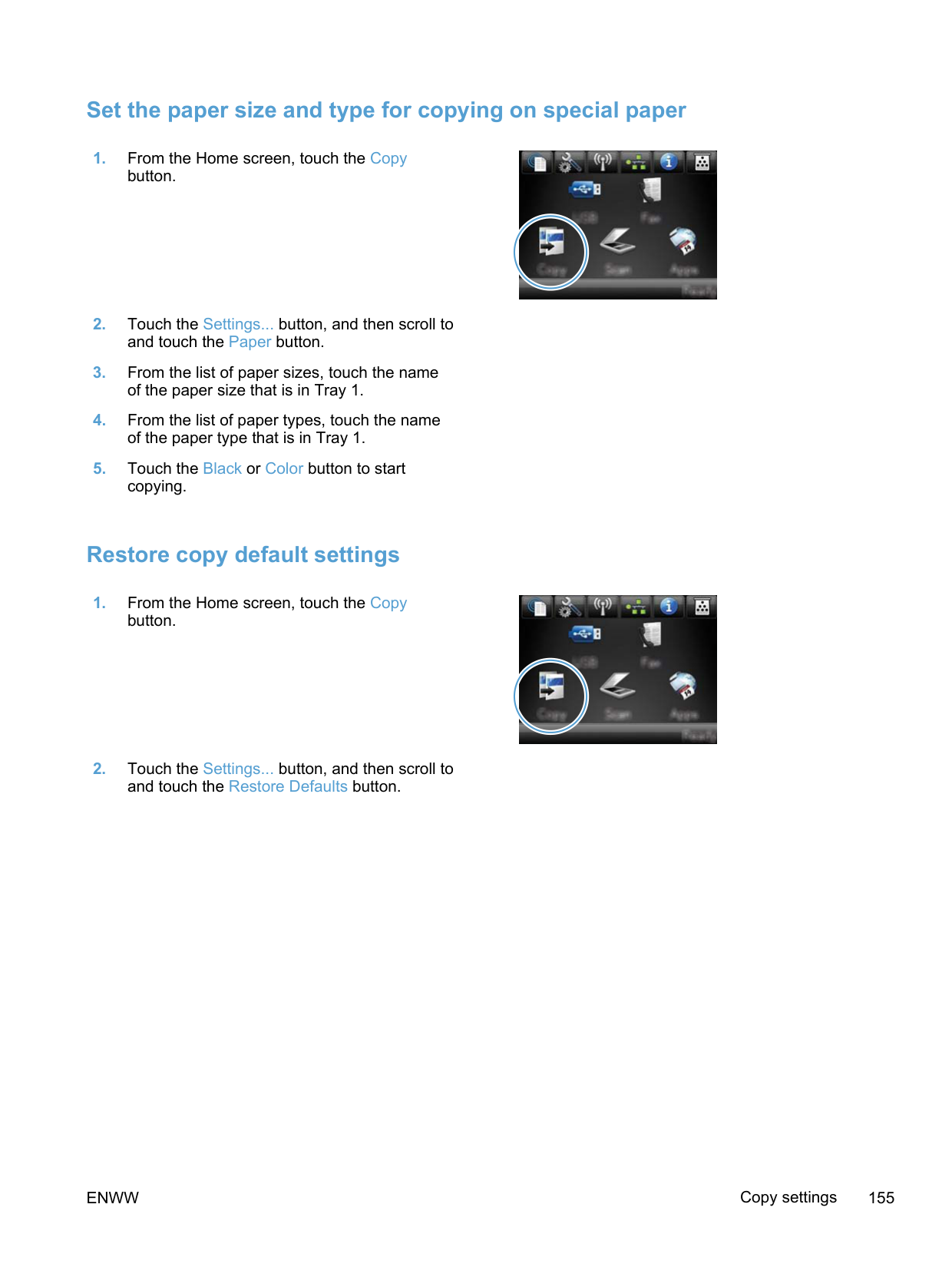
####### Scan by using optical character recognition (OCR) software
To import scanned text into your preferred word-processing program for editing, open the HP Scan software and select the shortcut named Save as Editable Text (OCR).
You can also use third-party OCR software. The Readiris OCR program is included on a separate CD that shipped with the product. To use the Readiris program, install it from the appropriate software CD, and then follow the instructions in the online Help.
##### Cancel a scan
To cancel a scan job, use one of the following procedures.
ENWW Use scan functions 163
#### Scan settings
##### Scanner resolution and color
If you are printing a scanned image, and the quality is not what you expected, you might have selected a resolution or color setting in the scanner software that does not match your needs. Resolution and color affect the following features of scanned images:
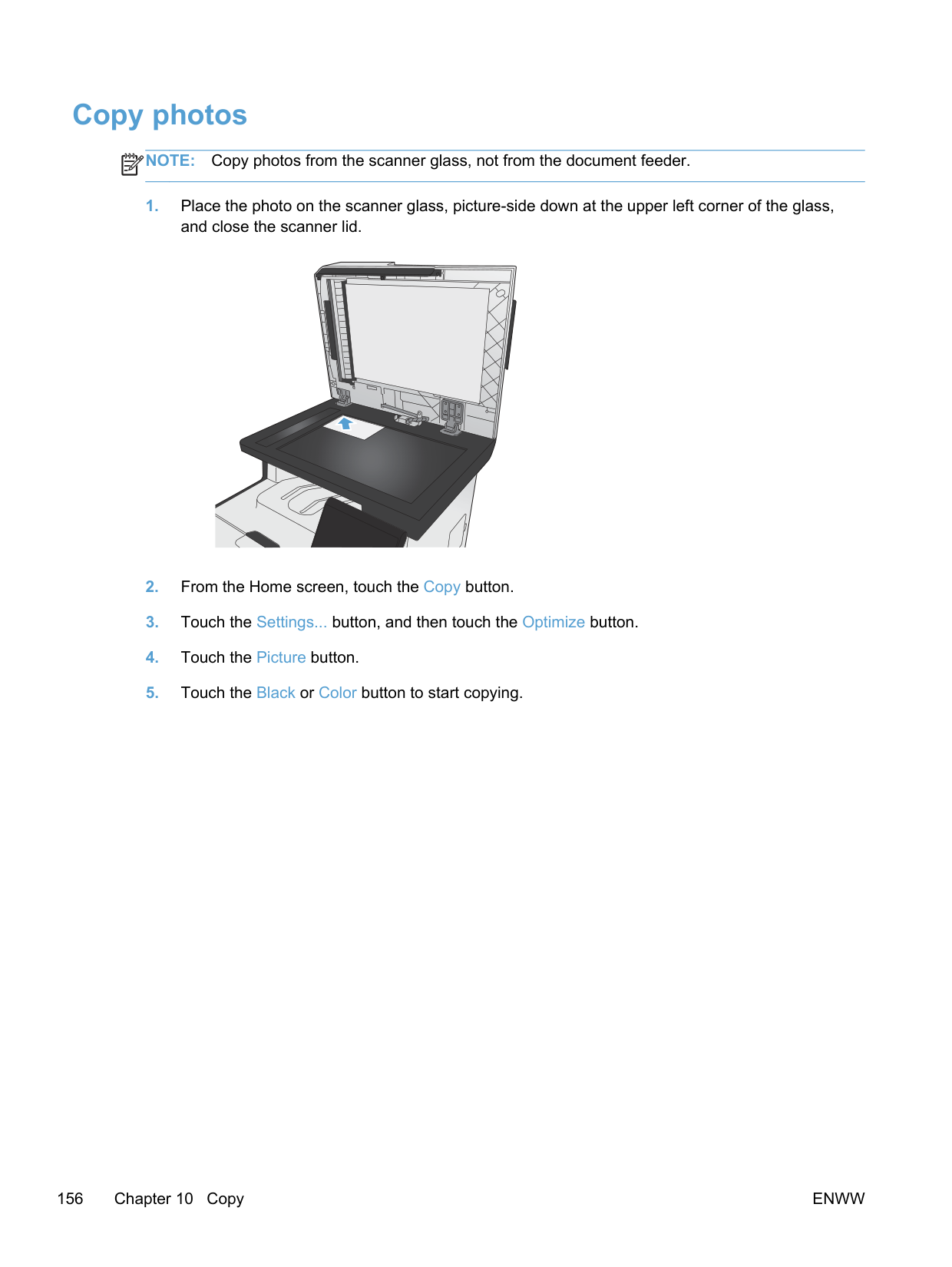
| | |---|
Color, grayscale, and black and white define the number of colors possible. You can adjust the scanner hardware resolution to up to 1200 ppi.
The resolution and color guidelines table lists simple tips that you can follow to meet your scanning needs.
NOTE: Setting the resolution and color to a high value can create large files that take up disk space and slow the scanning process. Before setting the resolution and color, determine how you are going to use the scanned image.
| | |---|
####### Resolution and color guidelines
The following table describes the recommended resolution and color settings for different types of scan jobs.
NOTE: The default resolution is 200 ppi.
| | |---|
Intended use Recommended resolution Recommended color settings Fax 150 ppi ● Black and White E-mail 150 ppi ● Black and White, if the image does not require
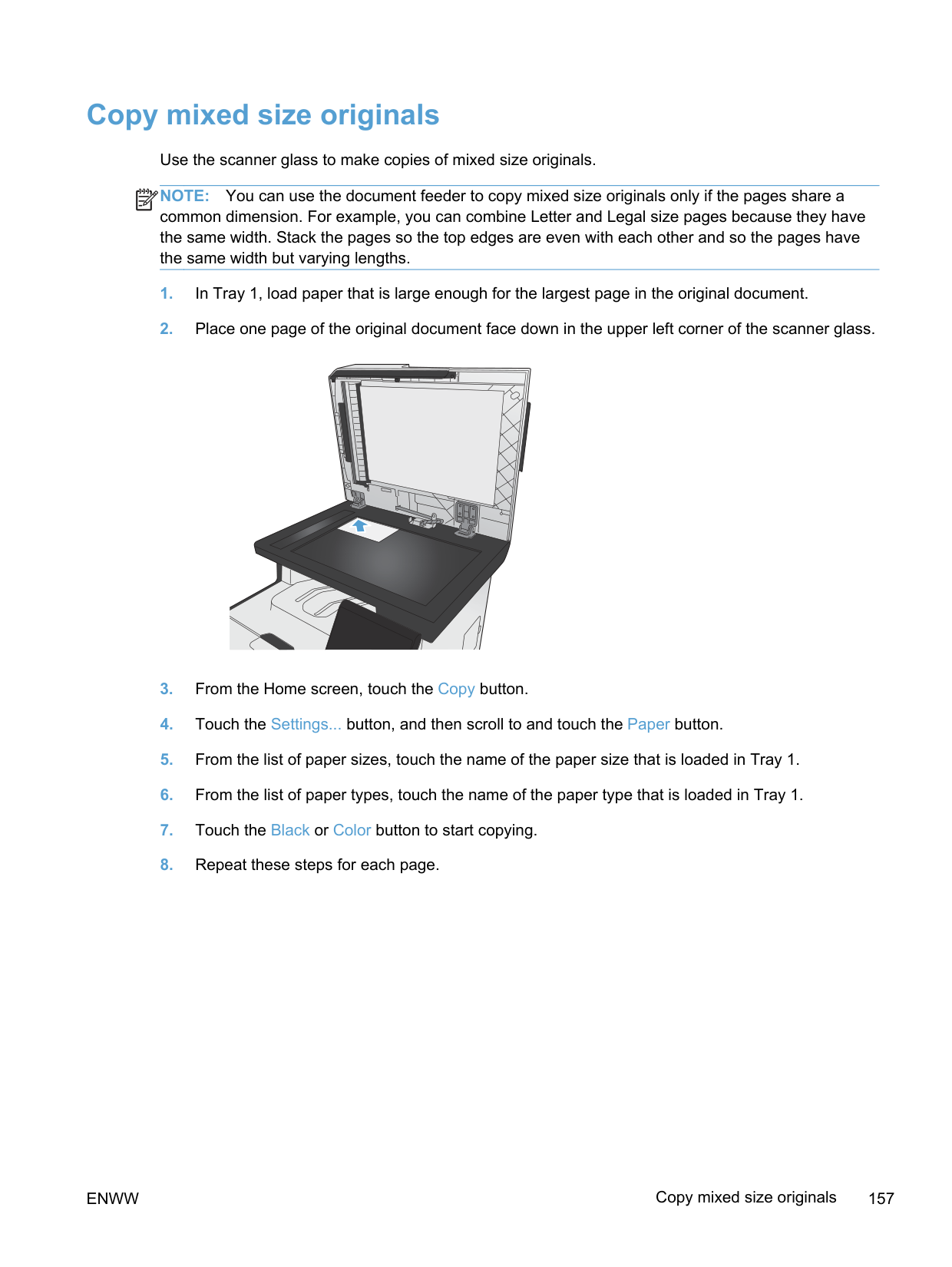
smooth gradation
Edit text 300 ppi ● Black and White Print (graphics or text) 600 ppi for complex graphics, or if you
want to significantly enlarge the document
300 ppi for normal graphics and text
150 ppi for photos Display on screen 75 ppi ● Black and White for text
####### Color
You can set the color values to the following settings when scanning.
Setting Recommended use
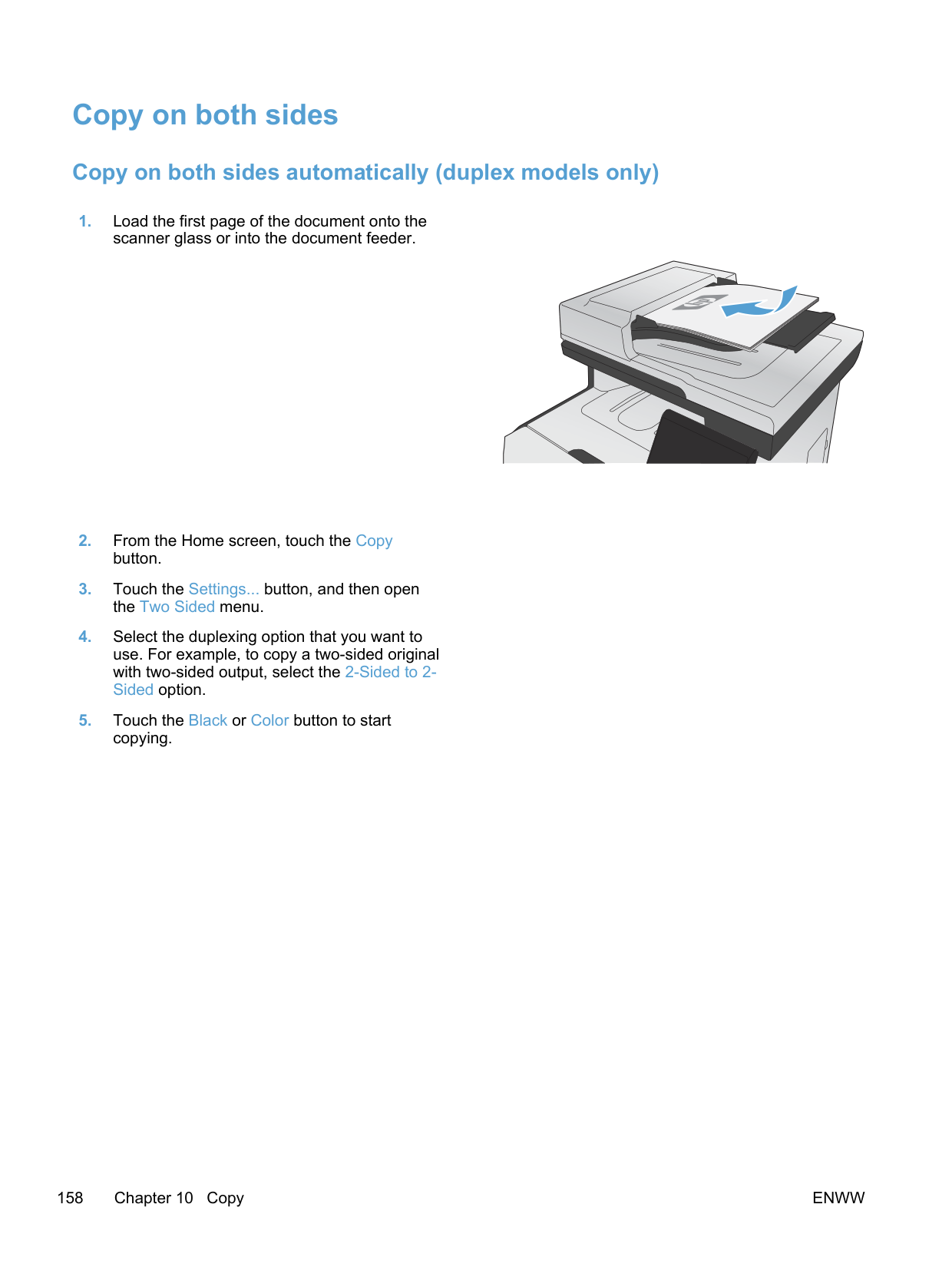
Color Use this setting for high-quality color photos or documents in which the color is
important. Black and White Use this setting for text documents. Grayscale Use this setting when file size is an issue or when you want to scan a document or
photograph quickly.
ENWW Scan settings 165
##### Scan quality
Over time, specks of debris might collect on the scanner glass and white plastic backing, which can affect performance. Use the following procedure to clean the scanner glass and white plastic backing.
CAUTION: Do not use abrasives, acetone, benzene, ammonia, ethyl alcohol, or carbon tetrachloride on any part of the product; these can damage the product. Do not place liquids directly on the glass or platen. They might seep and damage the product.
#### Scan a photo
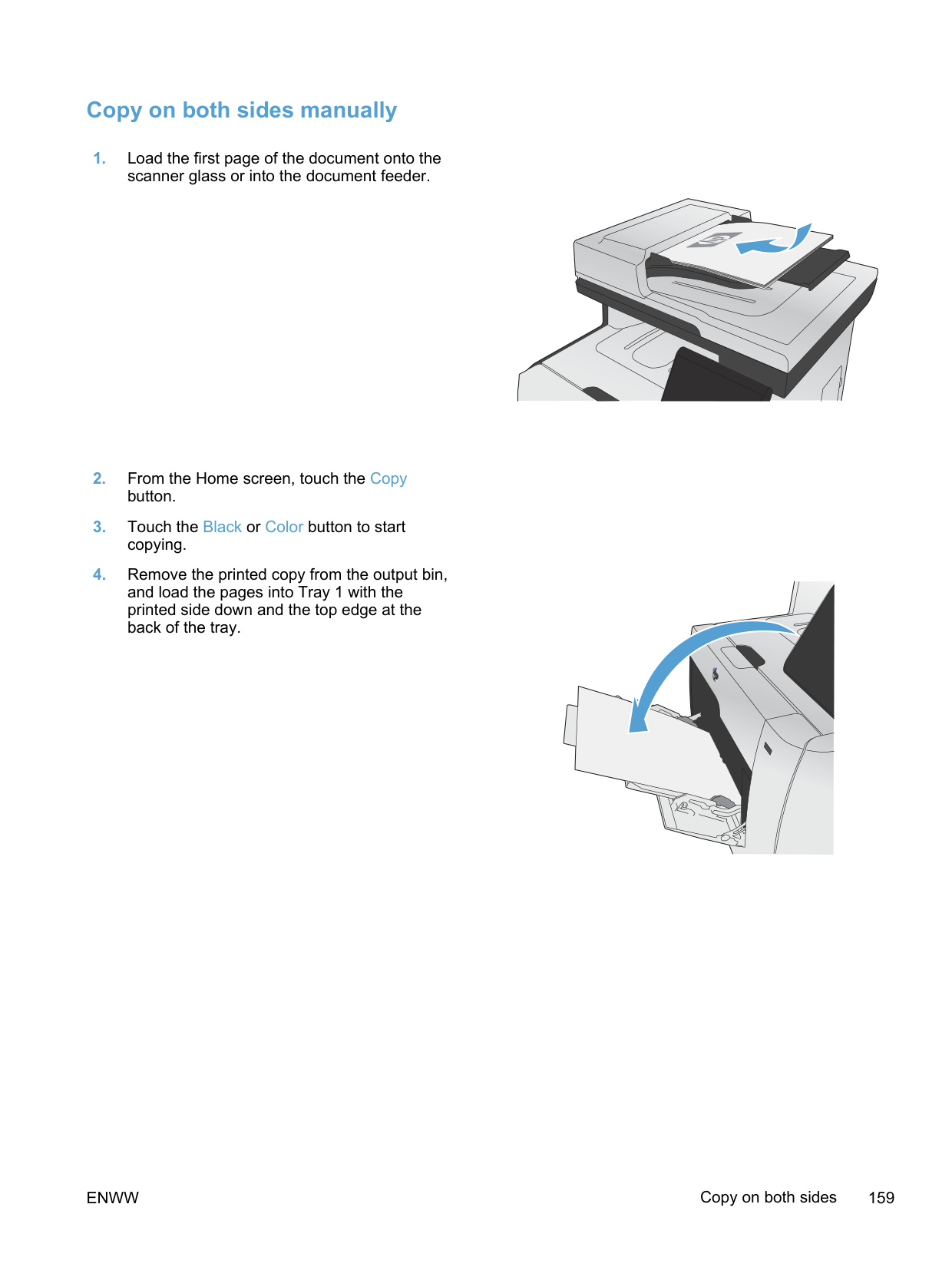
ENWW Scan a photo 167
12 Fax
ENWW 169
#### Set up fax
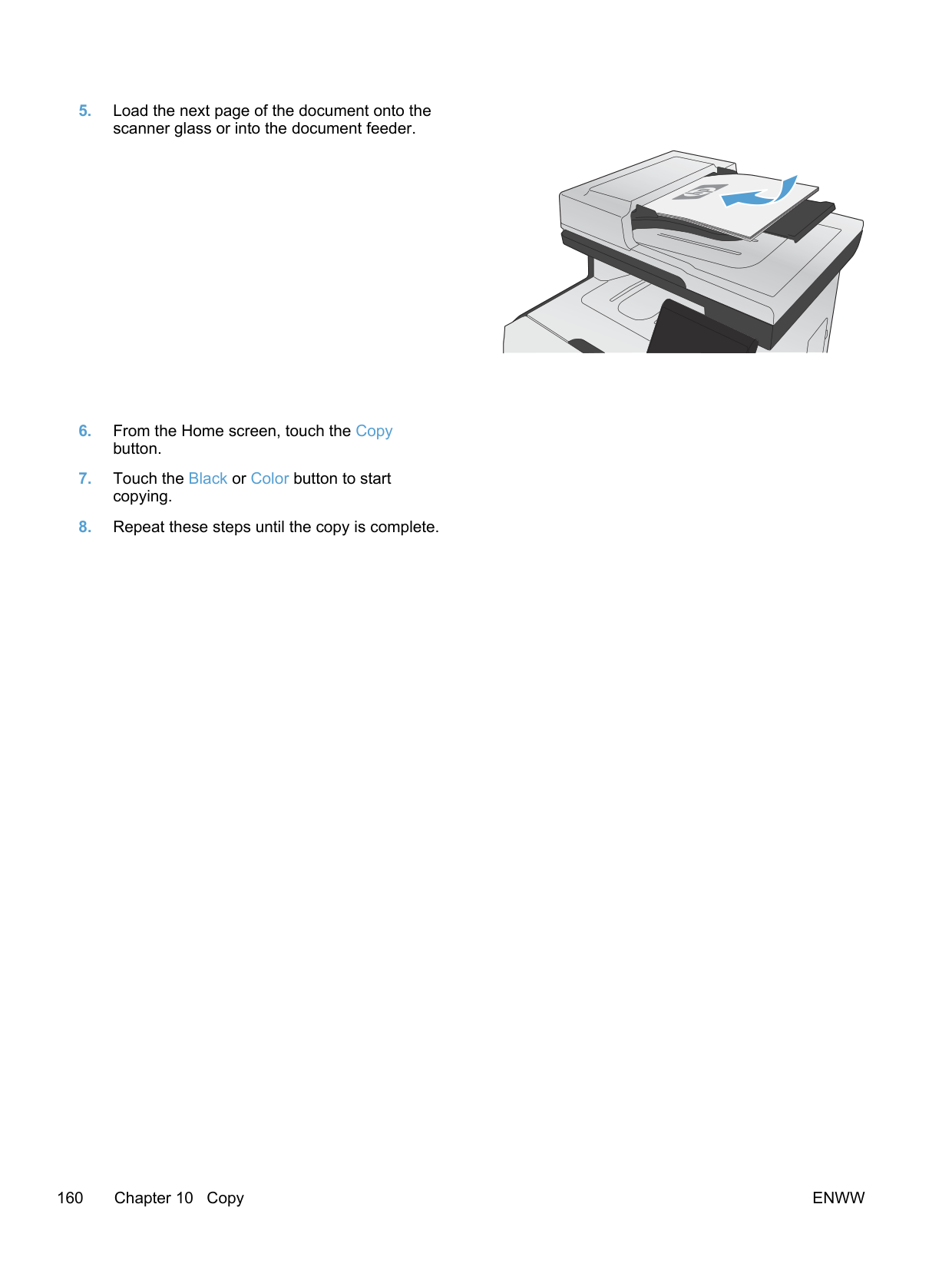
##### Install and connect the hardware
####### Connect fax to a telephone line
▲ Connect the telephone cable provided with the product to the fax “line in” port
on the product and to the telephone jack on the wall.
| | | |---|---| | | |
The product is an analog faxing device. HP recommends using the product on a dedicated analog telephone line. If you are using a digital environment, such as DSL, PBX, ISDN, or VoIP, make sure to use the correct filters and configure the digital settings correctly. For more information, contact your digital service provider.
NOTE: Some countries/regions might require an adapter to the phone cord that came with the product.
| | |---|
####### Connect additional devices
The product includes two fax ports:

| | | |---|---| | | |
, which connects the product to the wall telephone jack.
Connect additional devices in the order that is described in the following steps. The output port for each device is connected to the input port of the next, forming a "chain". If you do not want to connect a specific device, skip the step that explains it and continue to the next device.
NOTE: Do not connect more than three devices to the telephone line.
| | |---|
NOTE: Voicemail is not supported with this product.
| | |---|
######### 3. Remove the plastic insert from the "telephone line out" port (the port that is marked with thetelephone icon).
######### 4. To connect an internal or external modem on a computer, plug one end of a telephone cord intothe product “telephone line out” port . Plug the other end of the telephone cord into the fax“line in” port.
NOTE: Some modems have a second “line” port to connect to a dedicated voice line. If you have two “line” ports, see your modem documentation to make sure that you connect to the correct “line” port.
| | |---|
######### 5. To connect a caller-ID box, plug a telephone cord into the previous device’s “telephone” port.Plug the other end of the telephone cord into the caller-ID box “line” port.
######## Set up fax with a telephone answering machine
######## Set up fax with an extension phone
With this setting turned on, you can alert the product to pick up the incoming fax call by pressing 1-2-3 sequentially on the telephone keypad. The default setting is On. Turn this setting off only if you use pulse dialing or if you have a service from your telephone company that also uses the 1-2-3 sequence. The telephone company service does not work if it conflicts with the product.
####### Setup for stand-alone fax
| | |---|
NOTE: The maximum number of characters for the fax header is 25.
| | |---|
##### Configure fax settings
You can configure the product fax settings from the control panel, the Fax Setup Wizard (if the software is installed), HP Device Toolbox (if the software is installed), or from the HP Embedded Web Server (if the product is connected to a network).
In the United States and many other countries/regions, setting the time, date, and other fax header information is a legal requirement.
####### Use the control panel to set the fax time, date, and header
To use the control panel to set the date, time, and header, complete the following steps:
| | |---|
| | |---|
####### Use of common localized letters in fax headers
When using the control panel to enter your name in the header or to enter a name for a one-touch key, speed-dial entry, or group-dial entry, touch the 123 button to open a keypad that contains special characters.
##### Use the HP Fax Setup Wizard
If you did not complete the fax setup process at the time you installed the software, you can complete it at any time by using the HP Fax Setup Wizard.
#### Use the phone book
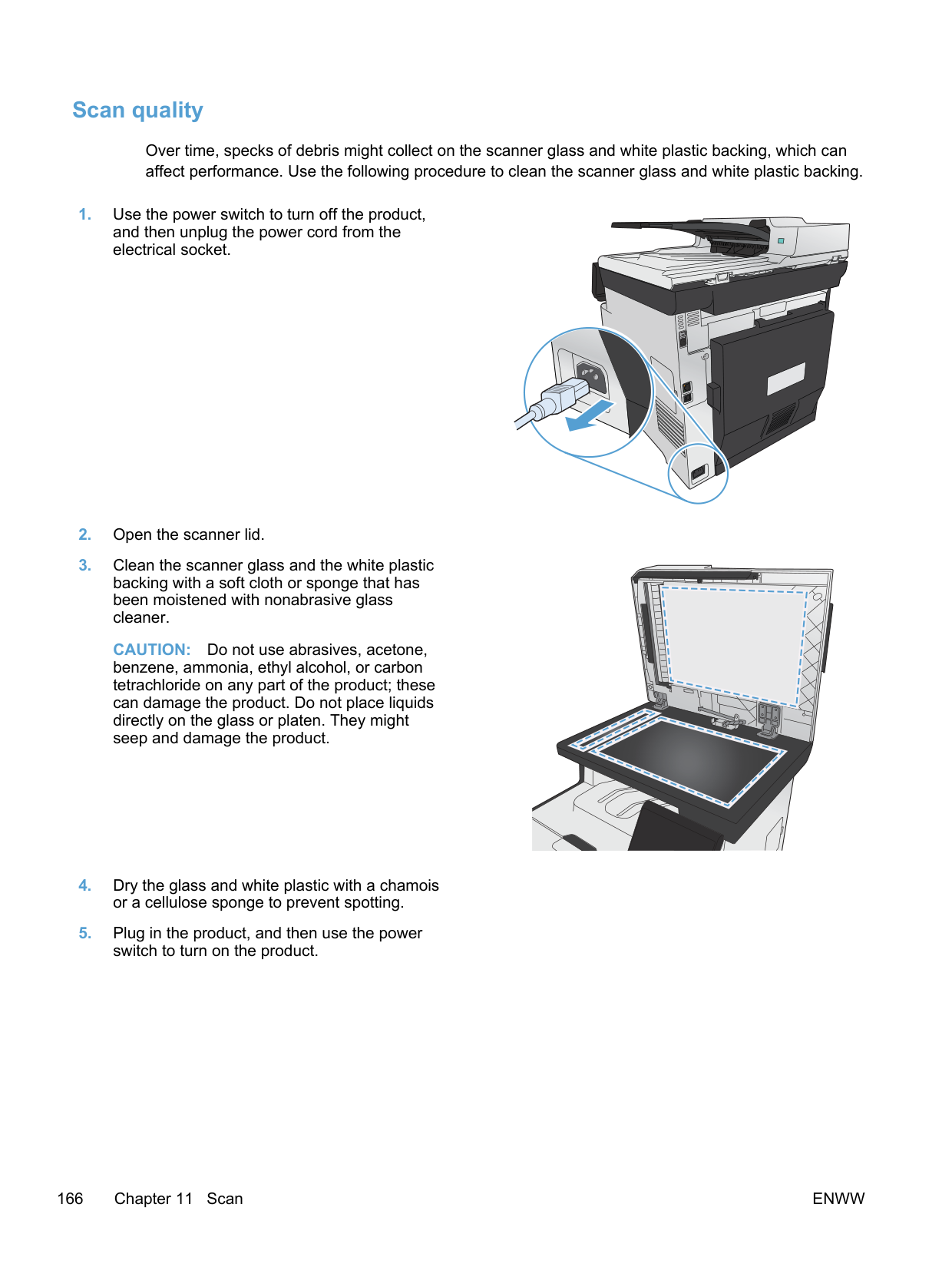
You can store frequently dialed fax numbers (up to 120 entries) either as individual fax numbers or as groups of fax numbers.
##### Use the control panel to create and edit the fax phone book

##### Import or export Microsoft Outlook contacts into the fax phone book
Use phone-book data from other programs NOTE: Before a phone book from another program can be imported, you must use the export feature in that other program. HP ToolboxFX can import contact information from the following software program phone books.
| |
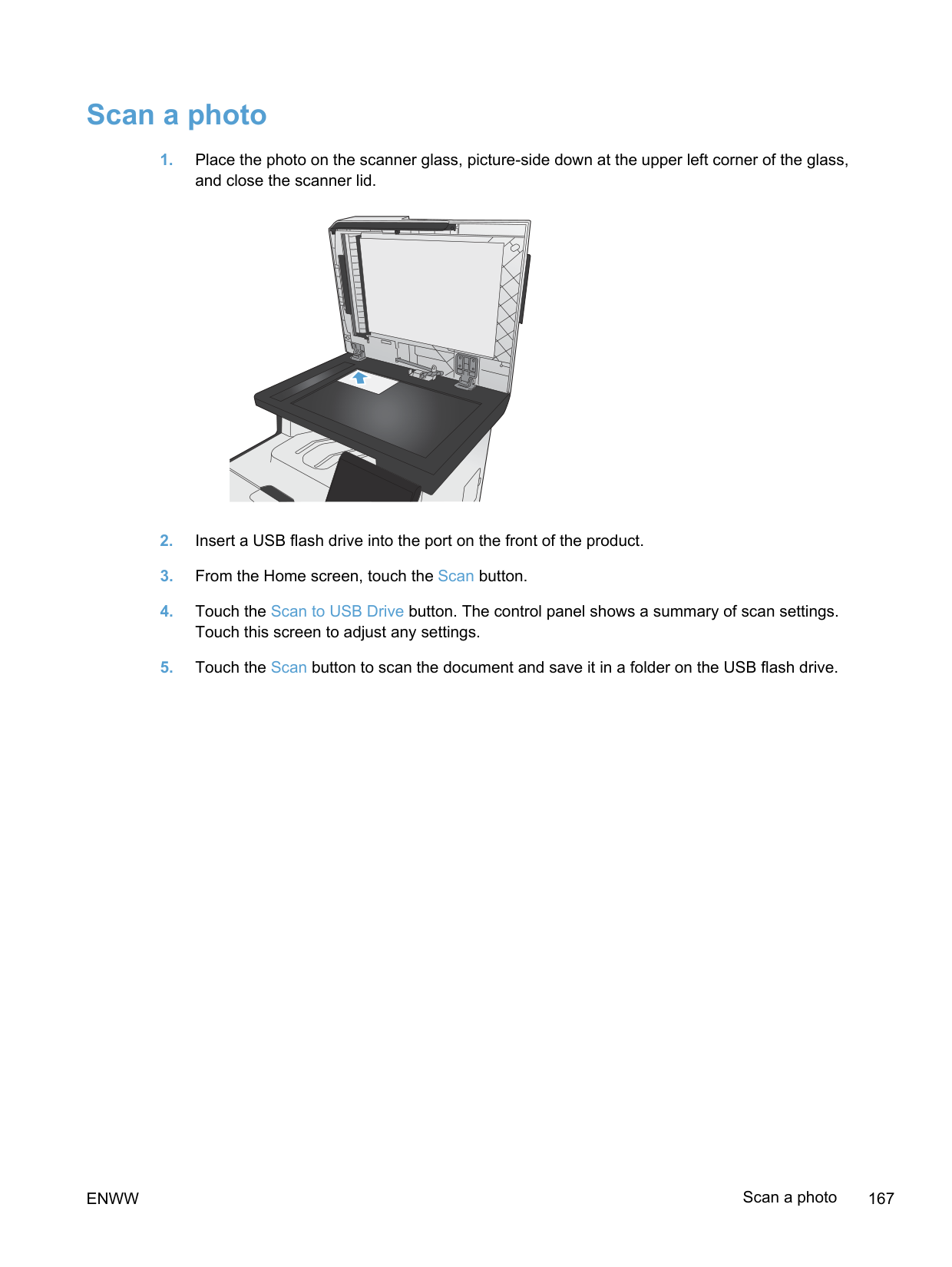
|---|
##### Delete phone book entries
You can delete all phone book entries that are programmed in the product.
CAUTION: After phone book entries are deleted, they cannot be recovered.

##### Use speed dials

####### Create and edit speed-dial entries

####### Delete speed-dial entries

##### Manage group-dial entries
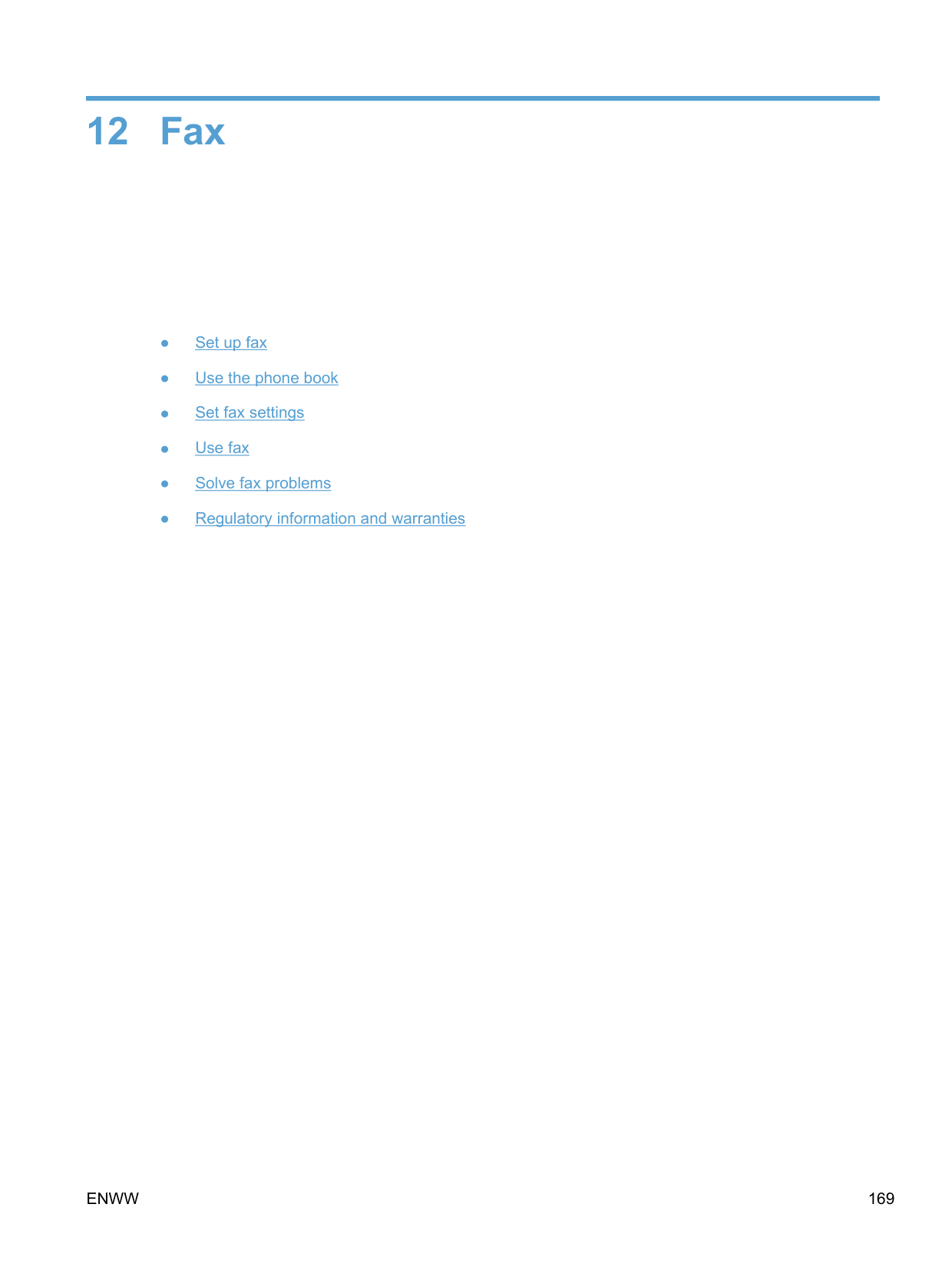
####### Create and edit group-dial entries
####### Delete group-dial entries
#### Set fax settings
##### Send fax settings
####### Set special dialing symbols and options
You can insert pauses into a fax number that you are dialing. Pauses are often needed when dialing internationally or connecting to an outside line.
Special symbol Button Description
Dialing pause The Redial/Pause button is available on the control panel keypad for entering a fax number. You can also touch the comma button to insert a dialing pause.

Pause for dial tone The W button is available only when you are entering the fax number for a phone book entry. This character causes the product to wait for a dial tone before dialing the remainder of the telephone number.

Hook flash The R button is available only when you are entering the fax number for a phone book entry. This character causes the product to insert a hook flash.

######## Set a dialing prefix
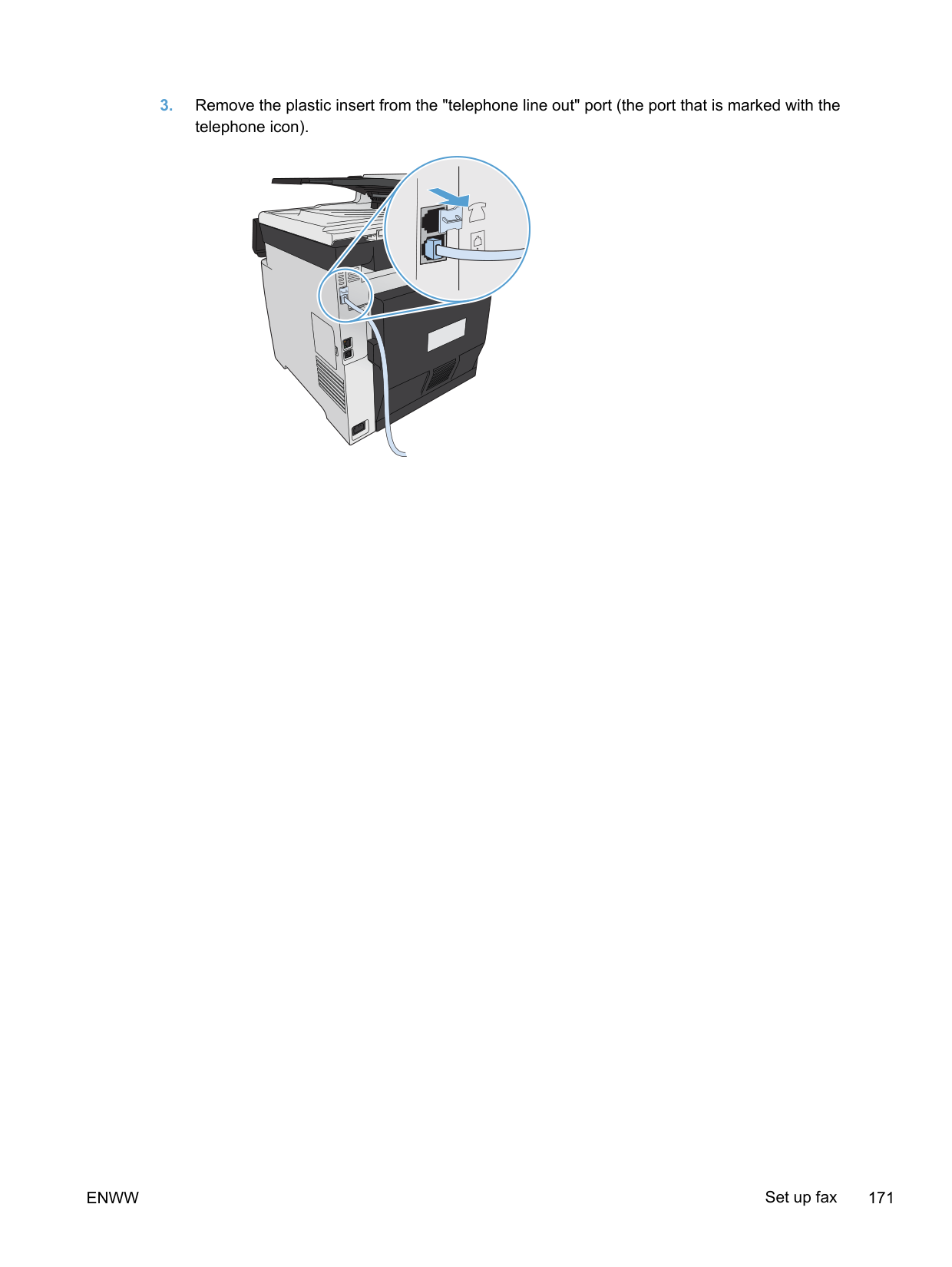
A dial prefix is a number or group of numbers that are automatically added to the beginning of every fax number you enter at the control panel or from the software. The maximum number of characters for a dial prefix is 50.
The default setting is Off. You might want to turn this setting on and enter a prefix if, for example, you have to dial a number such as 9 to get a telephone line outside of your company telephone system. While this setting is active, you can dial a fax number without the dial prefix by using manual dial.
####### Set the dial-tone detection
Normally, the product begins dialing a fax number immediately. If you are using the product on the same line as your telephone, turn on the detect-dial-tone setting. This prevents the product from sending a fax while someone is on the telephone.
The factory-set default for detect dial tone is On for France and Hungary, and Off for all other countries/regions.
######## Set tone-dialing or pulse-dialing
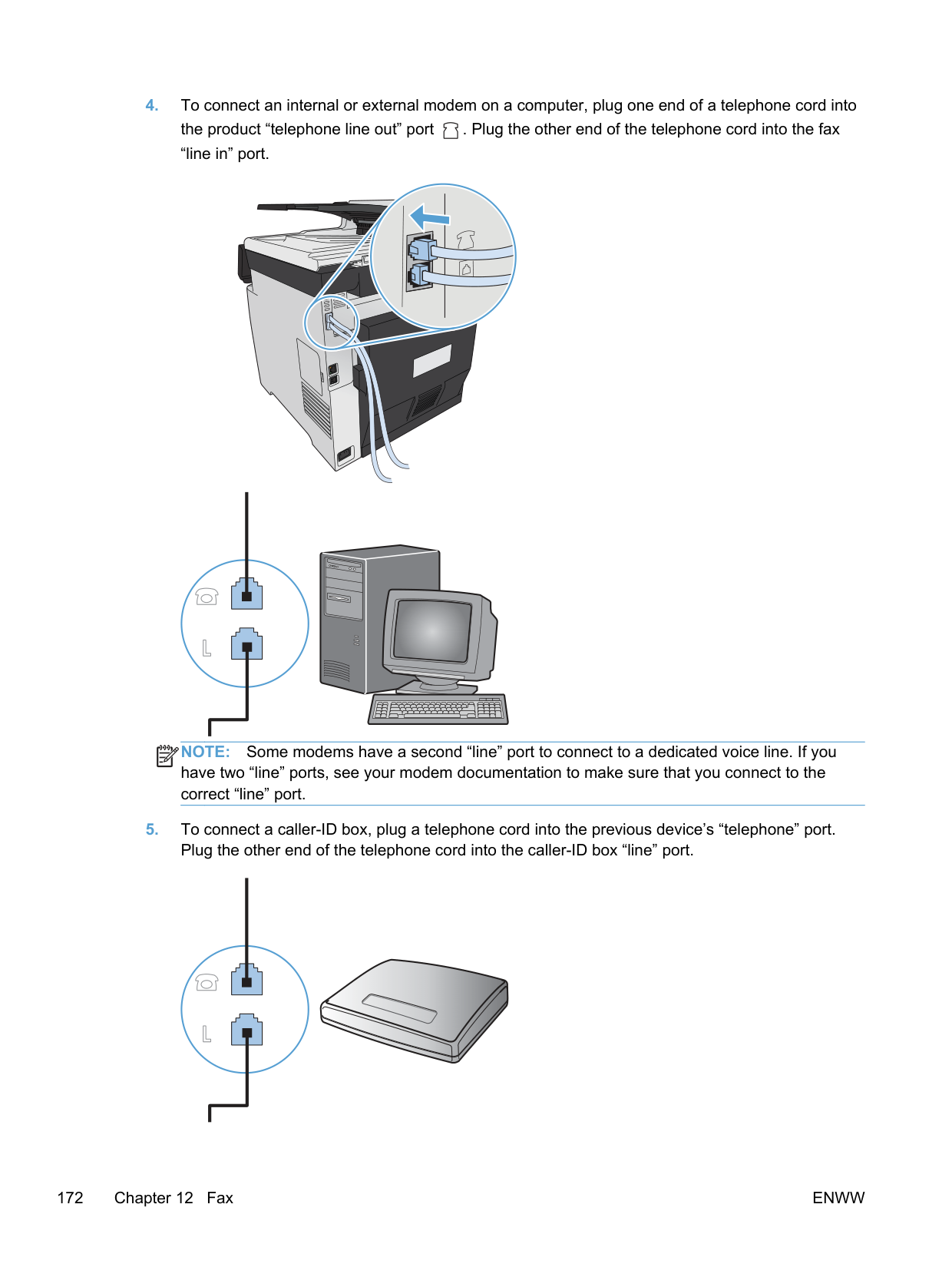
Use this procedure to set the product to tone-dialing or pulse-dialing mode. The factory-set default is Tone. Do not change this setting unless you know that the telephone line cannot use tone dialing.
NOTE: The pulse-dialing option is not available in all countries/regions.
| | |---|
####### Set autoredial and the time between redials
If the product was unable to send a fax because the receiving fax machine did not answer or was busy, the product attempts to redial based on the redial-on-busy, redial-on-no-answer, and redial-oncommunication-error options.
######## Set the redial-on-busy option
If this option is on, the product redials automatically if it receives a busy signal. The factory-set default for the redial-on-busy option is On.
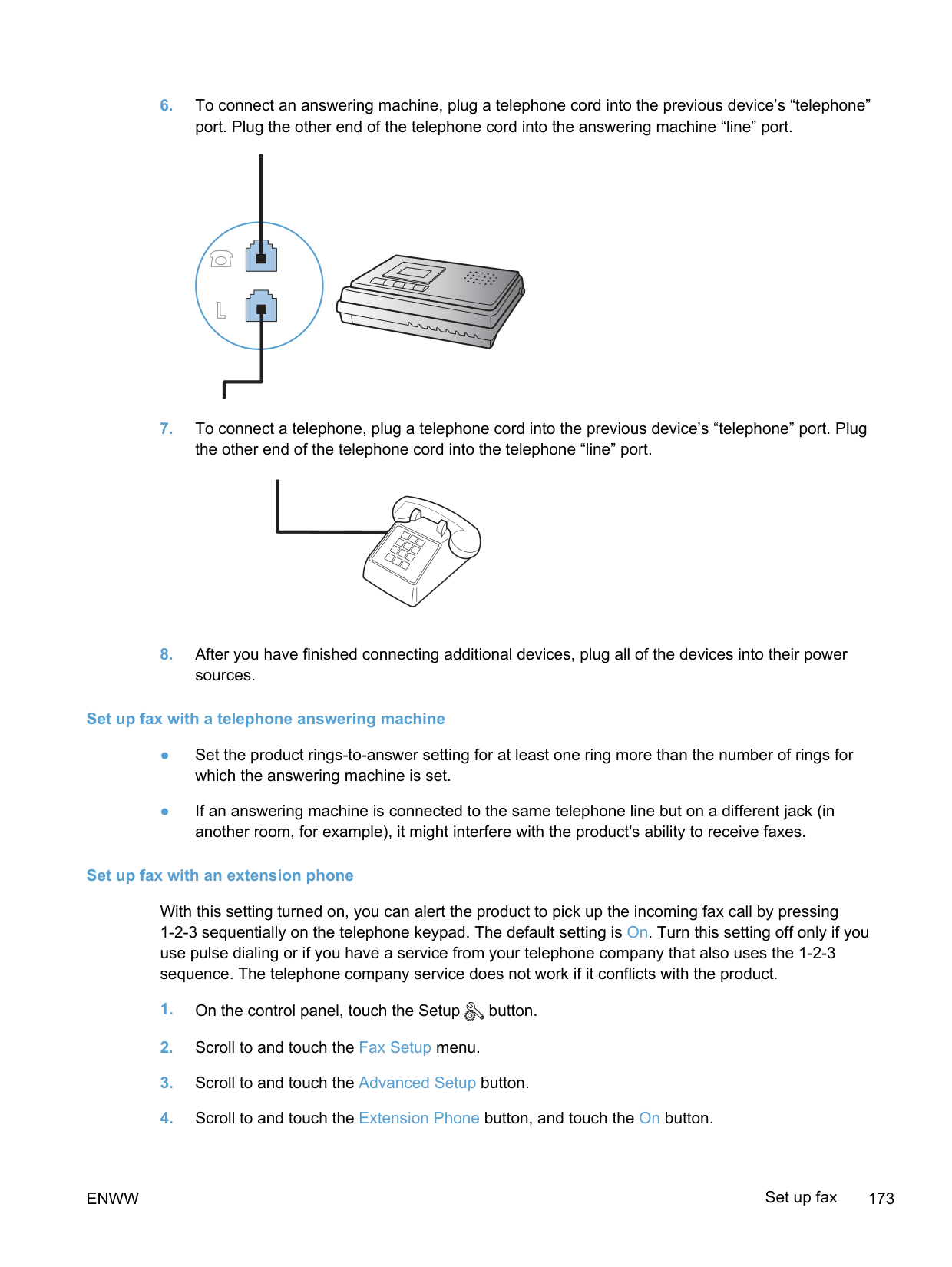
######## Set the redial-on-no-answer option
If this option is on, the product redials automatically if the receiving machine does not answer. The factory-set default for the redial-on-no-answer option is Off.
######## Set the redial-on-communication-error option
If this option is on, the product redials automatically if some sort of communication error occurs. The factory-set default for the redial-on-communication-error option is On.
####### Set light/dark and resolution
Set the default light/dark (contrast) setting The contrast affects the lightness and darkness of an outgoing fax as it is being sent. The default light/dark setting is the contrast that is normally applied to items that are being faxed. The slider is set to the middle as the default setting.
Set resolution settings NOTE: Increasing the resolution increases the fax size. Larger faxes increase the send time and could exceed the available memory in the product. Use this procedure to change the default resolution for all fax jobs to one of the following settings:
| | |---|
######## Set the default resolution setting
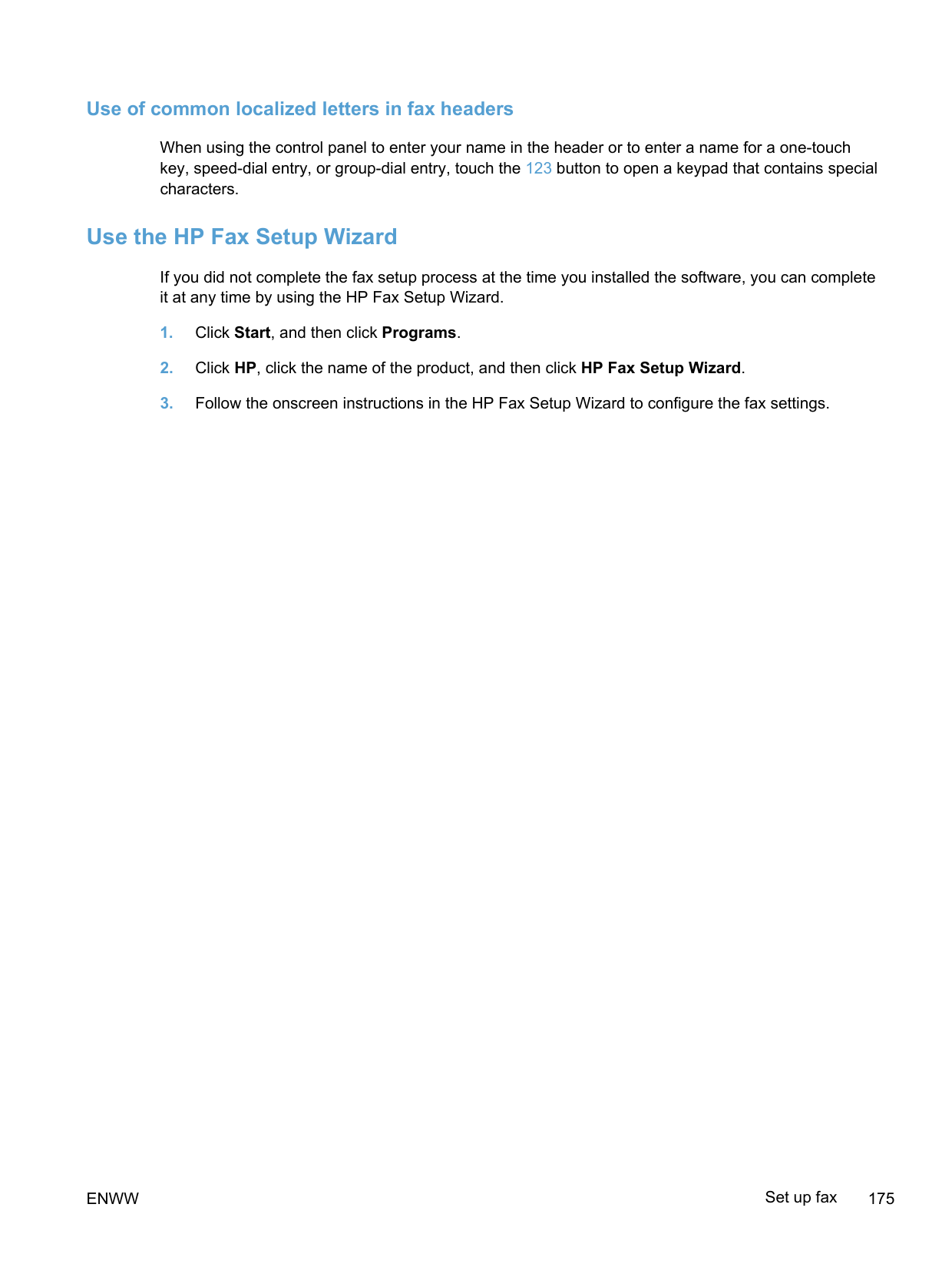
####### Cover-page templates
Several business and personal fax cover-page templates are available in the PC Fax Send software program.
NOTE: You cannot alter cover-sheet templates, but you can edit the fields within the templates.
| | |---|
####### Set billing codes
If the billing codes feature is on, the product prompts you to enter a billing code for each fax. The product increases the billing code count for each sent fax page. This includes all types of faxes except for poll-received, fax-forwarded, or computer-downloaded faxes. For an undefined group or a group-dial fax, the product increases the billing code count for each successful fax that is sent to each destination.
The factory-set default for the billing-code setting is Off. The billing code can be any number from 1 through 250.
######## Set the billing-code setting
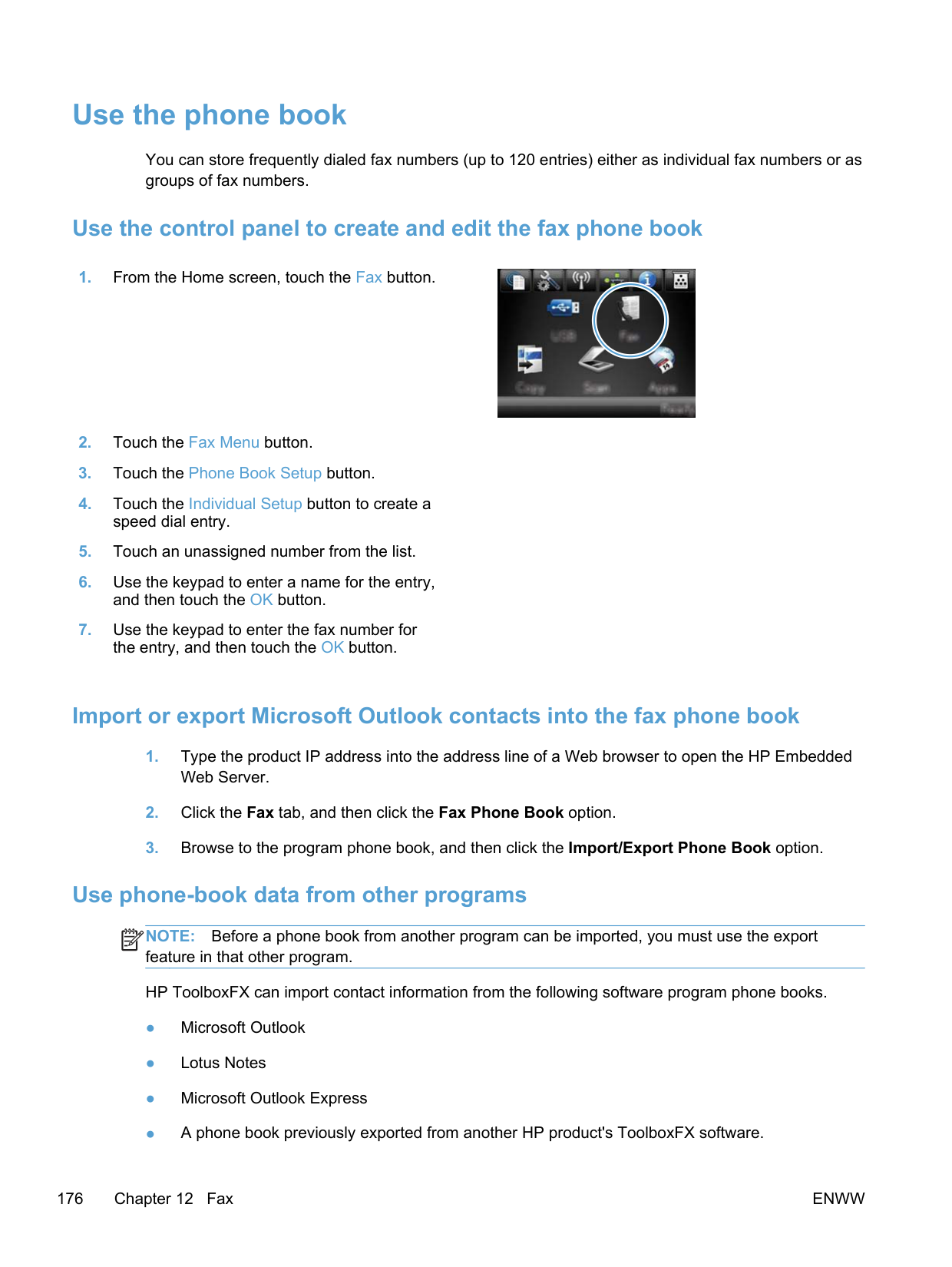
######## Use billing codes
######## Print the billing-code report
The billing-code report is a printed list of all the fax billing codes and the total number of faxes billed to each code.
NOTE: After the product prints this report, it deletes all billing data.
| | |---|
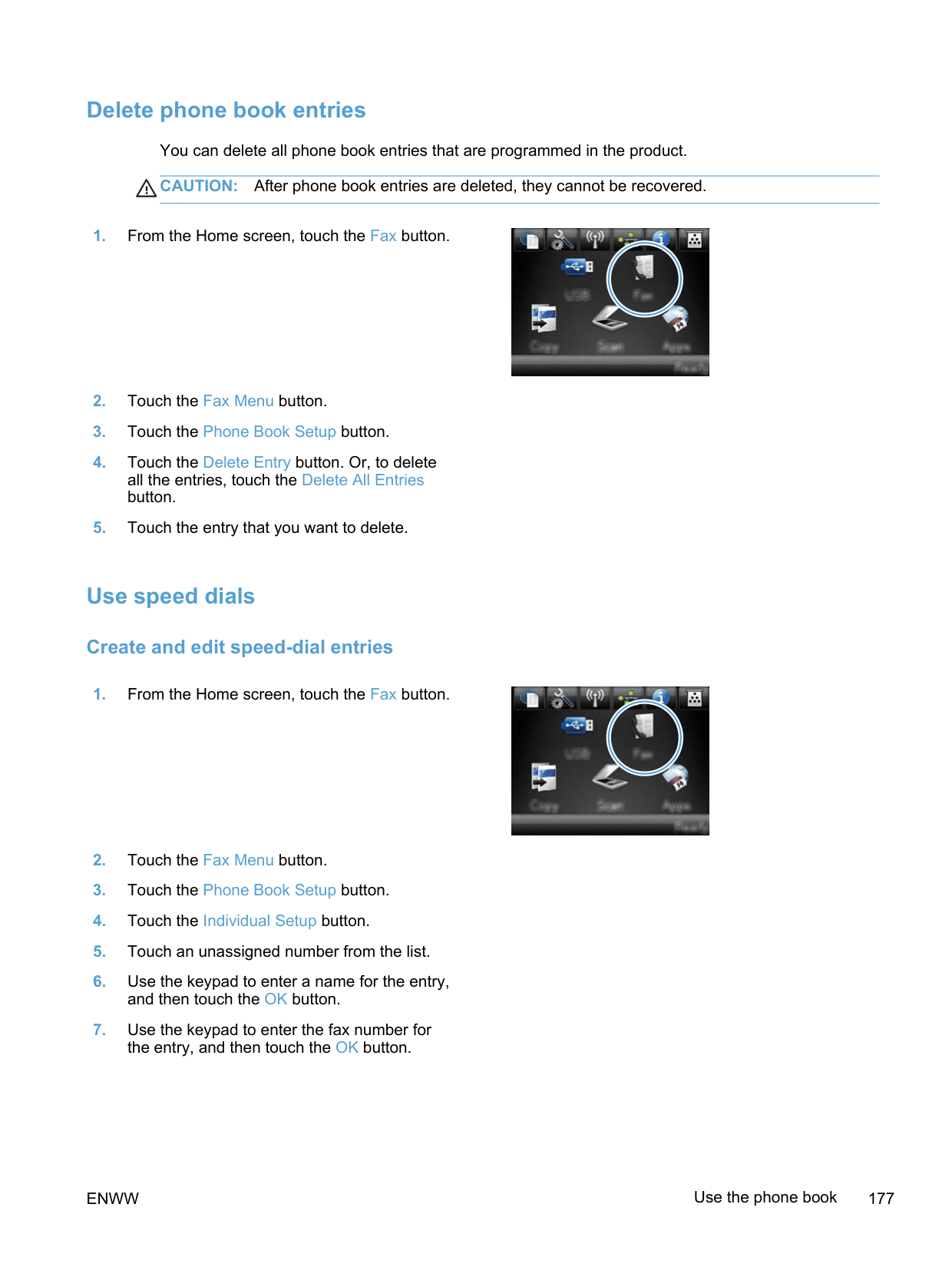
##### Receive fax settings
####### Set fax forwarding
You can set your product to forward incoming faxes to another fax number. When the fax arrives at your product, it is stored in the memory. The product then dials the fax number that you have specified and sends the fax. If the product cannot forward a fax because of an error (for example, the number is busy) and repeated redial attempts are unsuccessful, your product prints the fax.
If the product runs out of memory while receiving a fax, it terminates the incoming fax and only forwards the pages and partial pages that have been stored in the memory.
When it is using the fax-forwarding feature, the product (rather than the computer) must be receiving the faxes, and the answer mode must be set to Automatic.
####### Set the answer mode
Depending on the situation, set the product answer mode to Automatic, TAM, Fax/Tel, or Manual. The factory-set default is Automatic.
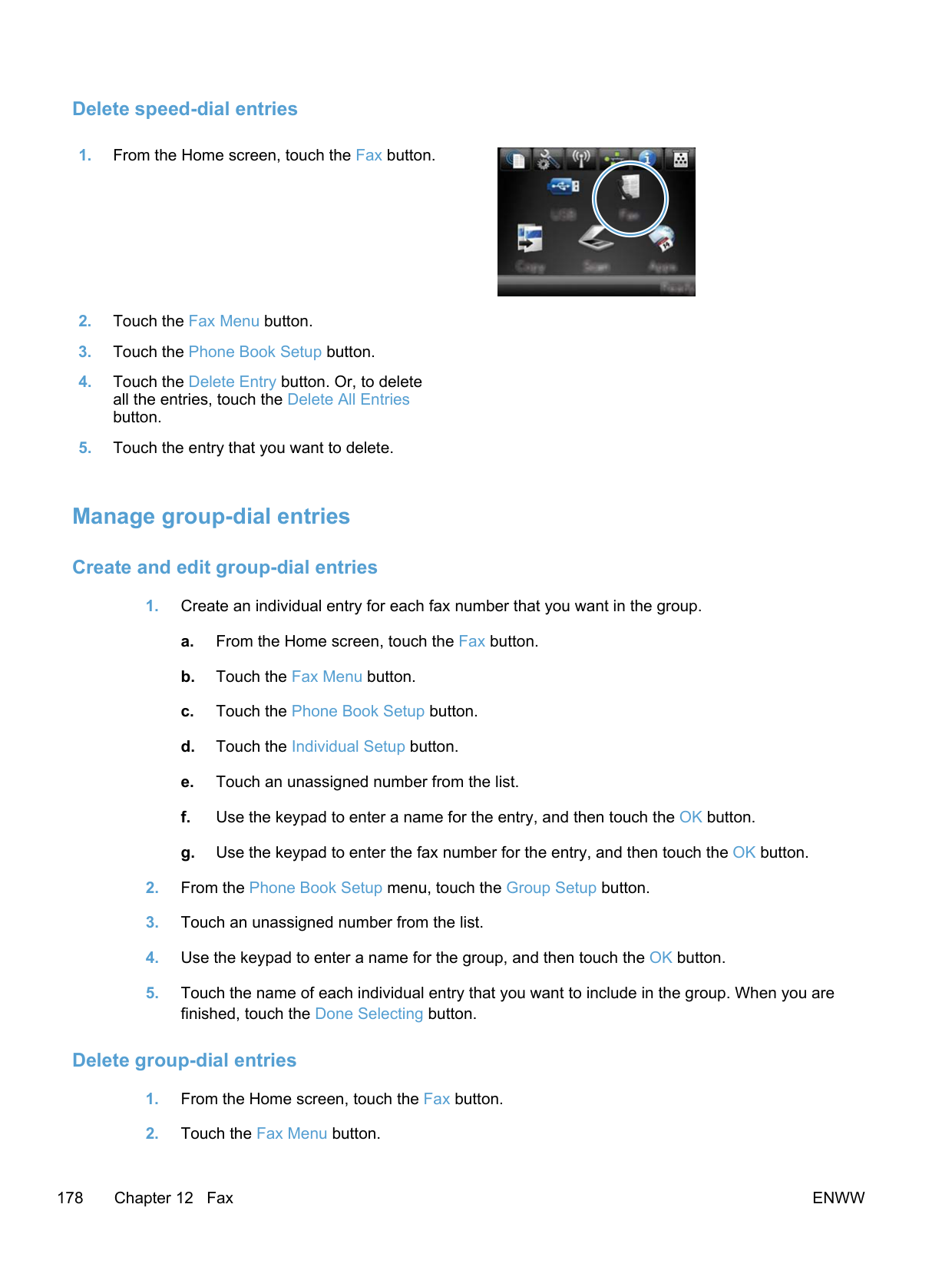
To set or change the answer mode, complete the following steps:
want to use.
####### Block or unblock fax numbers
If you do not want to receive faxes from specific people or businesses, you can block as many as 30 fax numbers by using the control panel. When you block a fax number and someone from that number sends you a fax, the control-panel display indicates that the number is blocked, the fax does not print, and the fax is not saved in memory. Faxes from blocked fax numbers appear in the fax activity log with a “discarded” designation. You can unblock blocked fax numbers individually or all at one time.
NOTE: The sender of a blocked fax is not notified that the fax failed.
| | |---|

####### Set the number of rings-to-answer
When the answer mode is set to Automatic, the product rings-to-answer setting determines the number of times the telephone rings before the product answers an incoming call.
If the product is connected to a line that receives both fax and voice calls (a shared line) and that also uses an answering machine, you might need to adjust the rings-to-answer setting. The number of rings-to-answer for the product must be greater than the rings-to-answer on the answering machine. This allows the answering machine to answer the incoming call and record a message if it is a voice call. When the answering machine answers the call, the product listens to the call and automatically answers it if it detects fax tones.
The default setting for rings-to-answer is five for the U.S. and Canada, and two for other countries/ regions.
Use the following table to determine the number of rings-to-answer to use.
########### Type of telephone line Recommended rings-to-answer setting
Dedicated fax line (receiving only fax calls) Set to a number of rings within the range shown on the control-panel display. (The minimum and maximum number of rings allowed varies by country/region.)
One line with two separate numbers and a ring-pattern service
Shared line (receiving both fax and voice calls) with only an attached telephone
One or two rings. (If you have an answering machine or computer voicemail for the other telephone number, make sure that the product is set to a greater number of rings than the answering system. Also, use the distinctive-ring feature to differentiate between voice and fax calls.)
Five rings or more.
Shared line (receiving both fax and voice calls) with an attached answering machine or computer voicemail
Two rings more than the answering machine or computer voicemail.
To set or change the number of rings-to-answer, use the following steps:
####### Set distinctive ring
Ring-pattern or distinctive-ring service is available through some local telephone companies. The service allows you to have more than one telephone number on a single line. Each telephone number has a unique ring pattern, so that you can answer voice calls and the product can answer fax calls.
If you subscribe to a ring-pattern service with a telephone company, you must set the product to answer the correct ring pattern. Not all countries/regions support unique ring patterns. Contact the telephone company to determine if this service is available in your country/region.
NOTE: If you do not have ring-pattern service and you change the ring-pattern settings to something other than the default, All Rings, the product might not be able to receive faxes. The settings are as follows:
| | |---|
To change ring patterns for call answering, complete the following steps:
####### Use autoreduction for incoming faxes
If the fit-to-page option is turned on, the product automatically reduces long faxes up to 75% to fit the information on the default paper size (for example, the fax is reduced from legal to letter size).
If the fit-to-page option is turned off, long faxes print at full size on multiple pages. The factory-set default for incoming fax autoreduction is On.
If you have the Stamp Faxes option turned on, you might also want to turn on autoreduction. This reduces the size of the incoming faxes slightly, and prevents the page-stamp from forcing a fax onto two pages.
NOTE: Make sure that the default paper size setting matches the size of the paper in the tray.
| | |---|
####### Set fax reprint settings
####### Set the fax sounds volume
Control the volume of the fax sounds from the control panel. You can make changes to the following sounds:
######## Set the alarm volume, phone-line volume, and ring volume
Repeat this step for each volume setting.
####### Set stamp-received faxes
The product prints the sender identification information at the top of each received fax. You can also stamp the incoming fax with your own header information to confirm the date and time that the fax was received. The factory-set default for stamp-received faxes is Off.
NOTE: Turning on the stamp-received setting might increase the page size and cause the product to print a second page.
| | |---|
NOTE: This option applies only to received faxes that the product prints.
| | |---|
####### Set the private receive feature
When the private-receive feature is active, received faxes are stored in memory. A password is required to print the stored faxes.
NOTE: When the product fax memory is full, the product cannot receive more fax jobs. If the private receive setting is enabled, make sure that the received faxes are checked and printed or deleted on a regular basis in order to avoid filling the fax memory.
| | |---|
| |
|---|
##### Set fax polling
If someone else has set up a fax to be polled, you can request that the fax be sent to your product. (This is known as polling another machine).
The product dials the other fax machine and requests the fax.
#### Use fax
##### Fax software
####### Supported fax programs
The PC fax program that came with the product is the only PC fax program that works with the product. To continue to use a PC fax program previously installed on the computer, use the modem that is already connected to the computer; it will not function through the product modem.
##### Cancel a fax
Use these instructions to cancel a single fax that is currently dialing or a fax that is being transmitted or received.
####### Cancel the current fax
Press the Cancel button on the control panel. Any pages that have not been transmitted are canceled. Pressing the Cancel button also stops group-dial jobs.
####### Cancel a pending fax job
Use this procedure to cancel a fax job in the following situations:
##### Use fax on a DSL, PBX, or ISDN system
HP products are designed specifically for use with traditional analog phone services. They are not designed to work on DSL, PBX, ISDN lines, or VoIP services, but they can work with the proper filters, setup, and equipment from a digital services provider.
NOTE: HP recommends discussing DSL, PBX, ISDN, and VoIP setup options with the service provider.
| | |---|
The HP LaserJet product is an analog device that is not compatible with all digital phone environments (unless a digital-to-analog converter is used). HP does not guarantee that the product will be compatible with digital environments or digital-to-analog converters.
####### DSL
A digital subscriber line (DSL) uses digital technology over standard copper telephone wires. This product is not directly compatible with those digital signals. However, if the configuration is specified during DSL setup, the signal can be separated so that some of the bandwidth is used to transmit an analog signal (for voice and fax) while the remaining bandwidth is used to transmit digital data.
NOTE: Not all faxes are compatible with DSL services. HP does not guarantee that the product will be compatible with all DSL service lines or providers. A typical DSL modem employs a filter to separate the higher frequency DSL modem communication from lower frequency analog phone and fax modem communication. It is often necessary to use a filter with analog phones and analog fax products that are connected to a telephone line used by a DSL modem. The DSL service provider usually provides this filter. Contact the DSL provider for more information or for assistance.
| | |---|
####### PBX
The product is an analog device that is not compatible in all digital phone environments. Digital-toanalog filters or converters may be needed for faxing functionality. If faxing issues occur in a PBX environment, it might be necessary to contact the PBX provider for assistance. HP does not guarantee that the product will be compatible with digital environments or digital-to-analog converters.
Contact the PBX provider for more information and for assistance.
####### ISDN
The product is an analog device that is not compatible in all digital phone environments. Digital-toanalog filters or converters may be needed for faxing functionality. If faxing issues occur in an ISDN environment, it might be necessary to contact the ISDN provider for assistance. HP does not guarantee that the product will be compatible with ISDN digital environments or digital-to-analog converters.
##### Use fax on a VoIP service
Voice over internet protocol (VoIP) services are often not compatible with fax machines unless the provider explicitly states that it supports fax over IP services.
If the product experiences problems getting a fax to work on a VoIP network, verify that all cables and settings are correct. Decreasing the fax-speed setting might allow the product to send a fax over a VoIP network.
If the VoIP provider offers a "Pass through" mode for the connection, that will offer better fax performance on VoIP. Also if the provider has "comfort noise" added to the line, fax performance can be enhanced if this feature is not enabled.
If faxing problems continue, contact the VoIP provider.
##### Fax memory
####### Fax memory contents are retained when there is a loss of power
The flash memory protects against data loss when a power failure occurs. Other fax devices store fax pages in either normal RAM or short-term RAM. Normal RAM immediately loses data when power is lost, while short-term RAM loses data about 60 minutes after a power failure occurs. Flash memory can maintain its data for years without power applied.
##### Delete faxes from memory
Use this procedure only if you are concerned that someone else has access to your product and might try to reprint faxes from the memory.
CAUTION: In addition to clearing the reprint memory, this procedure clears any fax that is currently being sent, unsent faxes that are pending redial, faxes that are scheduled to be sent at a future time, and faxes that are not printed or forwarded.
##### Send a fax
####### Fax from the flatbed scanner
####### Fax from the document feeder
NOTE: The document feeder capacity is up to 50 sheets of 75 g/m2 or 20 lb paper.
CAUTION: To prevent damage to the product, do not use an original that contains correction tape, correction fluid, paper clips, or staples. Also, do not load photographs, small originals, or fragile originals into the document feeder.
####### Use speed dials and group-dial entries

####### Send a fax from the software
The following information provides basic instructions for sending faxes by using the software that came with the product. All other software-related topics are covered in the software Help, which can be opened from the software-program Help menu.
You can fax electronic documents from a computer if you meet the following requirements:
######## Send a fax from the software
The procedure to send a fax varies according to your specifications. The most typical steps follow.
######## Send a fax from a third-party software program, such as Microsoft Word
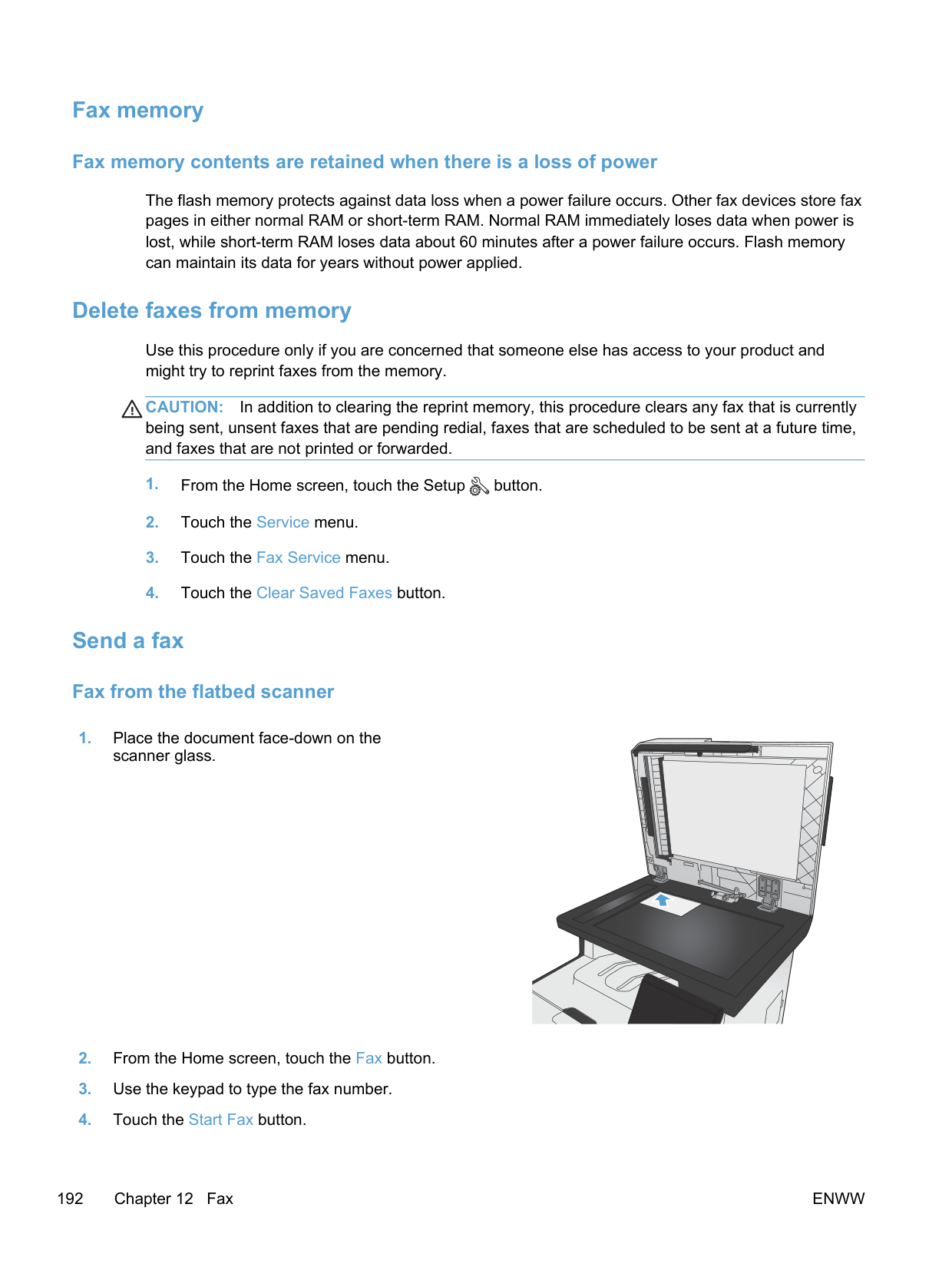
####### Send a fax by dialing from a telephone connected to the fax line
Occasionally, you might want to dial a fax number from a telephone that is connected to the same line as the product. For example, if you are sending a fax to a person whose device is in the manual receive mode, you can precede the fax with a voice call to let that person know that the fax is coming.
NOTE: The telephone must be connected to the product "telephone" port .
| | |---|
####### Send a fax with confirmation
You can set the product so that it prompts you to enter the fax number a second time to confirm that you are sending the fax to the correct number.
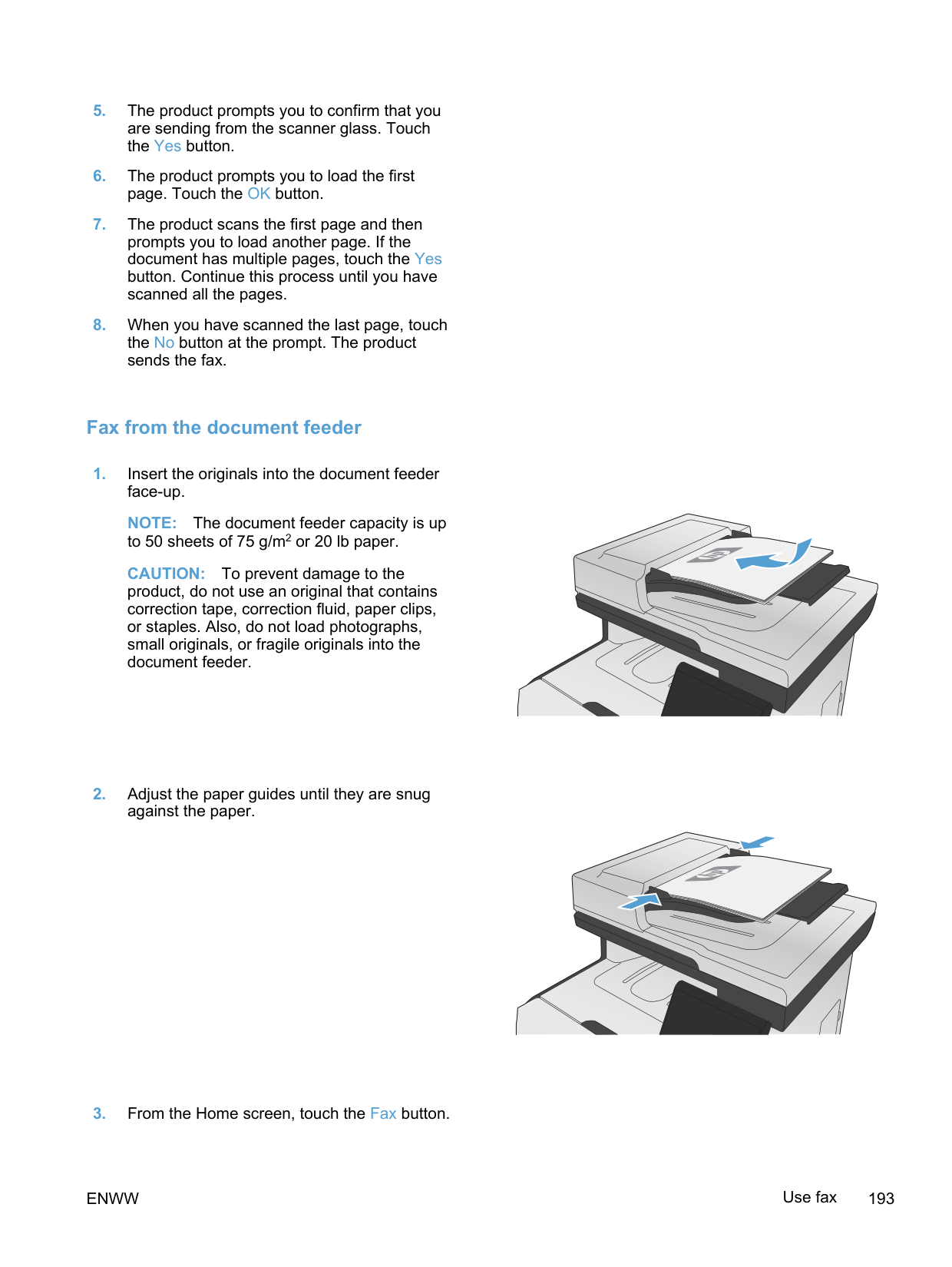
####### Schedule a fax to be sent later
Use the product control panel to schedule a fax to be sent automatically at a future time to one or more people. When this procedure is completed, the product scans the document into memory and then returns to the Ready state.
NOTE: If the product cannot transmit the fax at the scheduled time, that information is indicated on the fax error report (if that option is turned on) or recorded in the fax activity log. The transmittal might not be initiated because the fax-sending call is not answered, or because a busy signal stops the redial attempts.
| | |---|
If a fax has been scheduled to be sent at a future time but it requires updating, send the additional information as another job. All faxes that are scheduled to go to the same fax number at the same time are delivered as individual faxes.
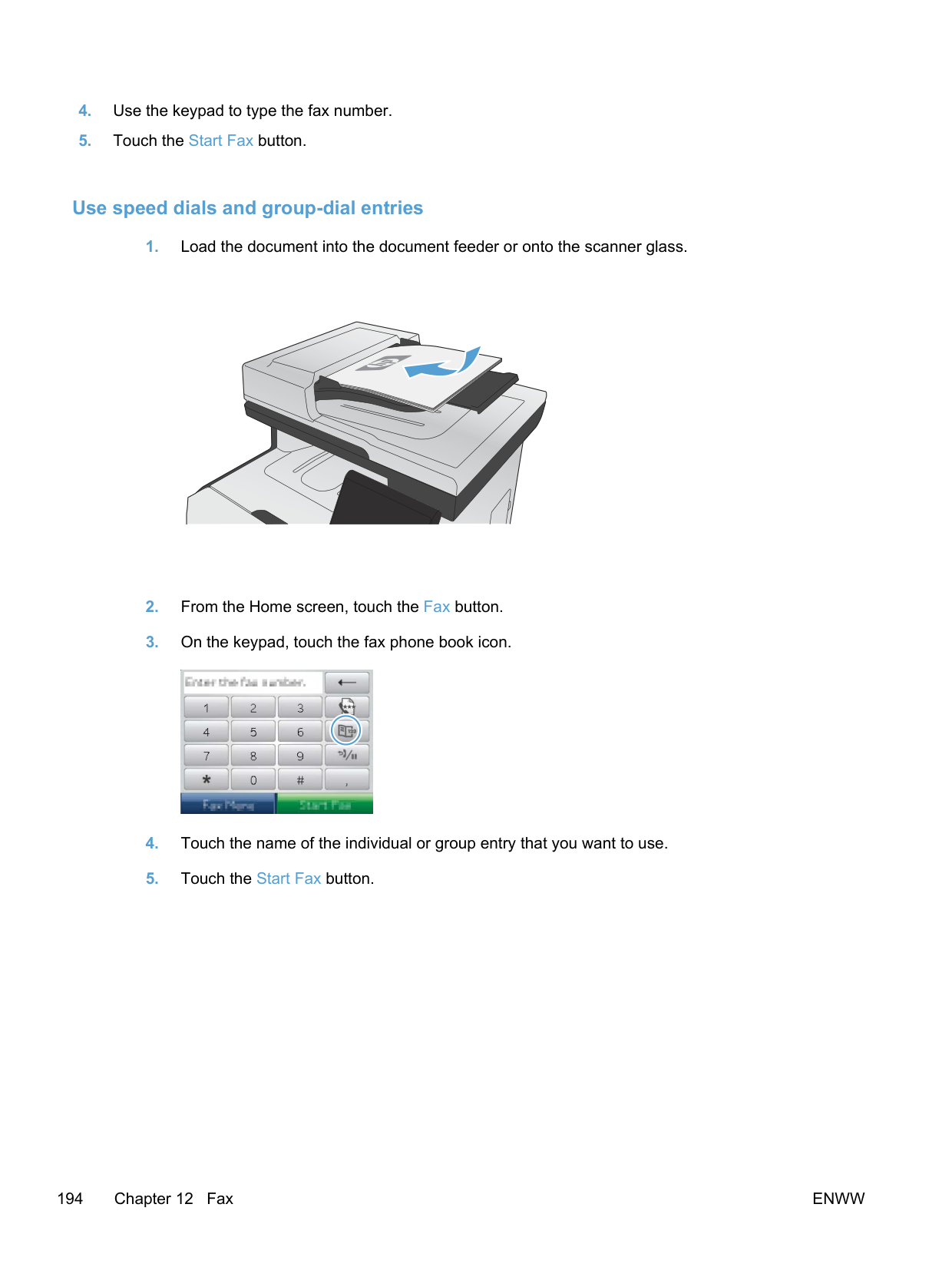
####### Use access codes, credit cards, or calling cards
To use access codes, credit cards, or calling cards, dial manually to allow for pauses and dialing codes.
######## Send faxes internationally
To send a fax to an international destination, dial manually to allow for pauses and international dialing codes.
##### Receive a fax
####### Print a fax
When the product receives a fax transmission, it prints the fax (unless the private-receive feature is enabled) and also stores it automatically to flash memory.
When a color print cartridge becomes very low, the product prints in black only to prevent fax interruptions. To configure the product to print in color and use the remaining toner in the print cartridge past very low, follow these steps:
######## Print a stored fax when the private receive feature is on
To print stored faxes, you must provide the product security password. After the product prints the stored faxes, the faxes are deleted from memory.
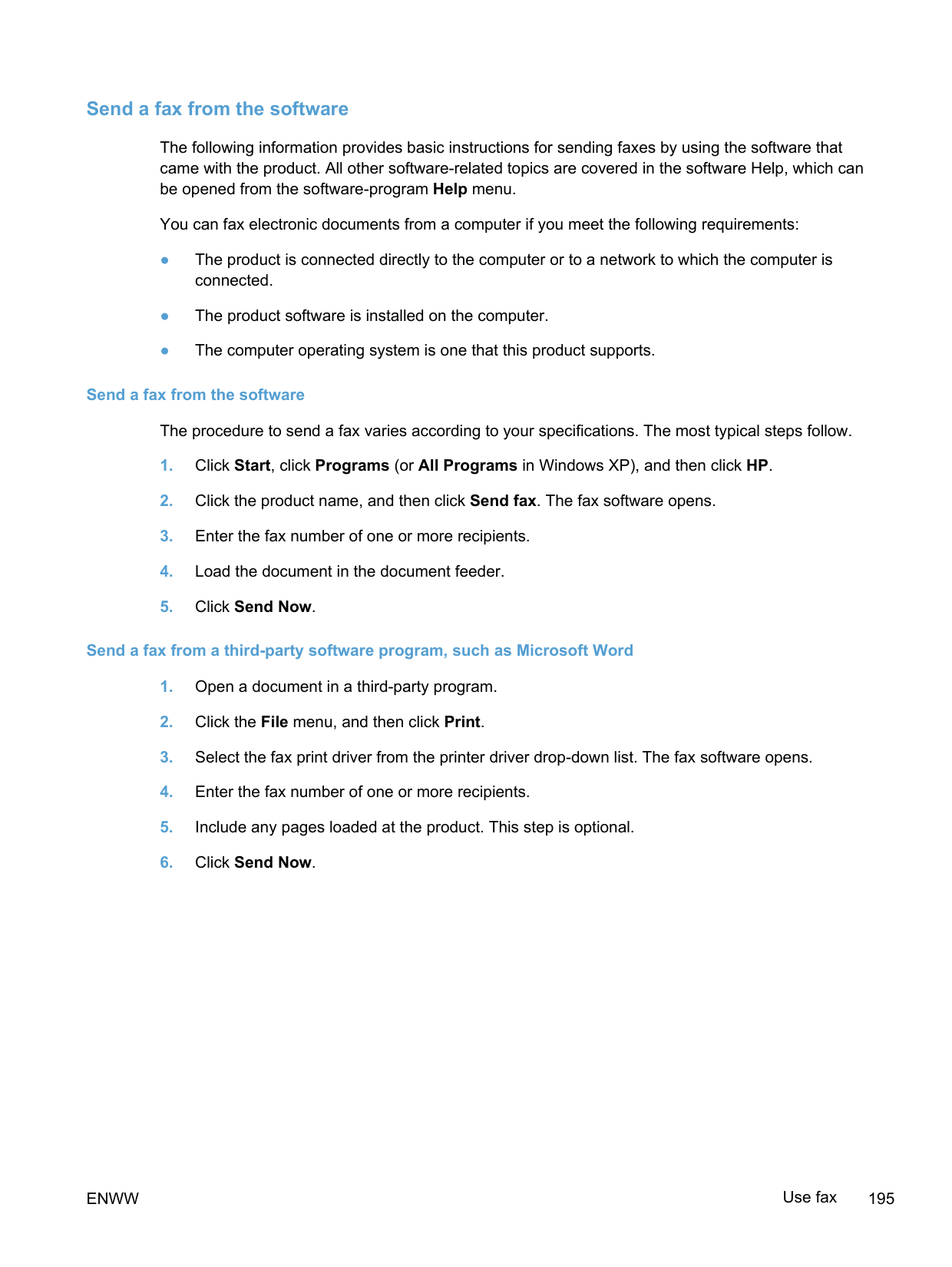
######## Reprint a fax
When the Allow Fax Reprint feature is on, the product stores received faxes in memory. The product has about 3.2 MB of storage space, which holds about 250 pages.
These faxes are stored continuously. Reprinting them does not clear them from the memory.
######## Turn on the Allow Fax Reprint feature
######## Reprint faxes
####### Receive faxes when fax tones are audible on the phone line
If you have a telephone line that receives both fax and telephone calls, and you hear fax tones when you answer the telephone, you can start the receiving process in one of two ways:
NOTE: In order for the second method to work, the Extension Phone setting must be set to Yes.
| | |---|
#### Solve fax problems
##### Fax troubleshooting checklist
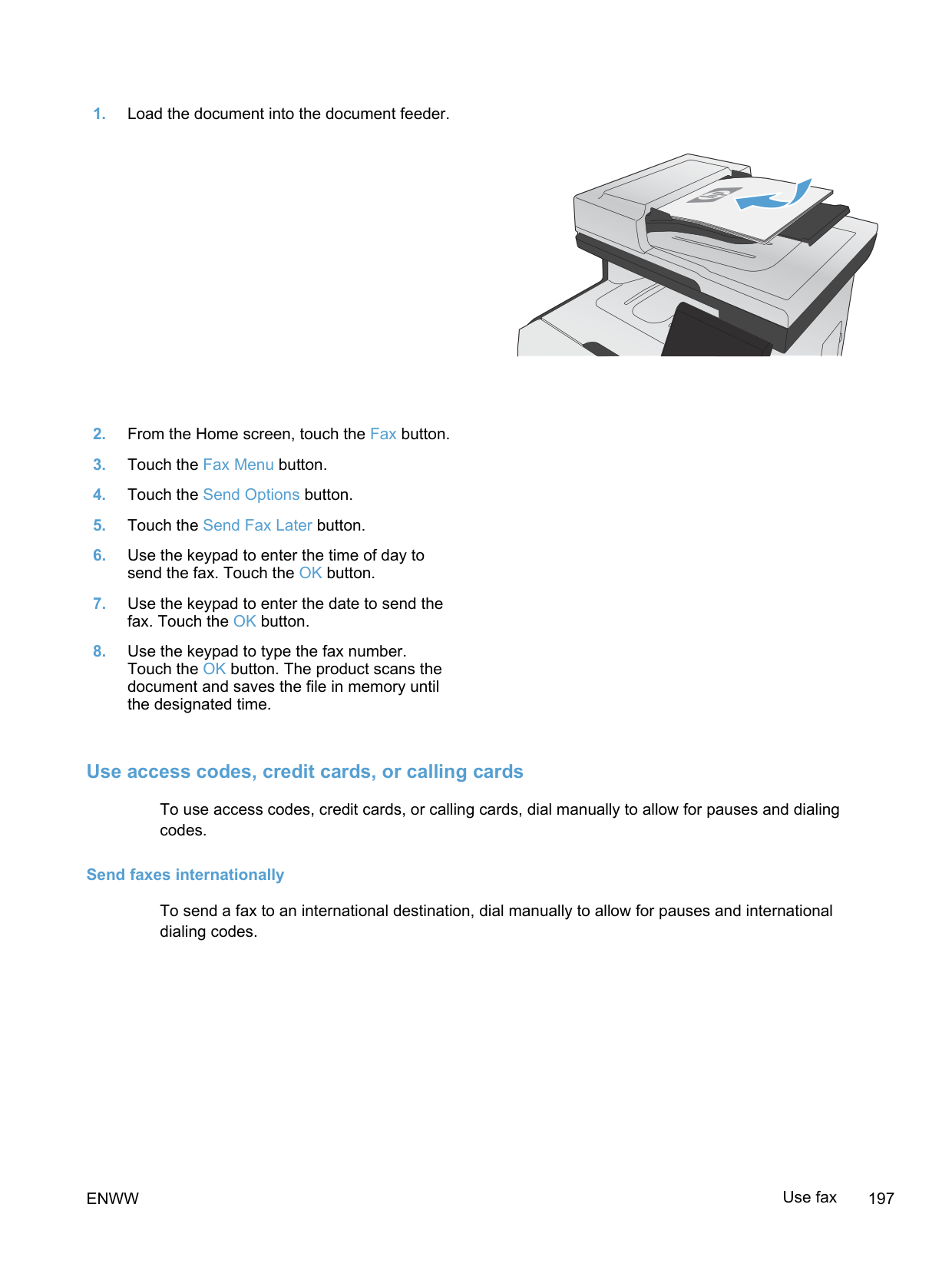
a. Print a configuration page from the control panel Reports menu to obtain the current
firmware date code. b. Go to www.hp.com.
| | |---|
NOTE: The product must be connected to a computer with internet access to upgrade firmware.
##### Fax error messages
Alert and warning messages appear temporarily and might require you to acknowledge the message by touching the OK button to resume or by touching the Cancel button to cancel the job. With certain warnings, the job might not complete or the print quality might be affected. If the alert or warning message is related to printing and the auto-continue feature is on, the product will attempt to resume printing the job after the warning has appeared for 10 seconds without acknowledgement.
Communication error. Description A fax communication error occurred between the product and the sender or receiver. Recommended action
Allow the product to retry sending the fax. Unplug the product telephone cord from the wall, plug in a telephone, and try making a call. Plug the product phone cord into a jack for another phone line.
Try a different phone cord. Set the Fax Speed option to the Slow (V.29) setting or disable the Fast (V.34) setting. Turn off the Error Correction feature to prevent automatic error correction. NOTE: Turning off the Error Correction feature can reduce image quality.
| | |---|
Print the Fax Activity Log report from the control panel to determine if the error occurs with a specific fax number.
If the error persists, contact HP. See www.hp.com/go/LJColorMFPM375 or www.hp.com/go/ LJColorMFPM475 or the support flyer that came in the product box.
Document feeder door is open. Canceled fax. Description The cover at the top of the document feeder is open, and the product cannot send the fax. Recommended action Close the cover, and send the fax again.
Fax is busy. Canceled send. Description The fax line to which you were sending a fax was busy. The product has canceled sending the fax. Recommended action Call the recipient to ensure that the fax machine is on and ready. Check that you are dialing the correct fax number.
Check that the Redial if Busy option is enabled.
Open the Service menu, and touch the Fax Service button. Touch the Run Fax Test button. This test verifies that the phone cord is connected to the correct port and that the phone line has a signal. The product prints a report with the results.
If the error persists, contact HP. See www.hp.com/go/LJColorMFPM375 or www.hp.com/go/ LJColorMFPM475 or the support flyer that came in the product box.
####### Fax is busy. Redial pending.
######## Description
The fax line to which you were sending a fax was busy. The product automatically redials the busy number.
Recommended action Allow the product to retry sending the fax. Call the recipient to ensure that the fax machine is on and ready. Check that you are dialing the correct fax number.
Open the Service menu, and touch the Fax Service button. Touch the Run Fax Test button. This test verifies that the phone cord is connected to the correct port and that the phone line has a signal. The product prints a report with the results.
If the error persists, contact HP. See www.hp.com/go/LJColorMFPM375 or www.hp.com/go/ LJColorMFPM475 or the support flyer that came in the product box.
Fax receive error. Description An error occurred while trying to receive a fax. Recommended action Ask the sender to resend the fax. Try faxing back to the sender or another fax machine. Check for a dial tone on the phone line by touching the Start Fax button. Check that the telephone cord is securely connected by unplugging and replugging the cord. Make sure that you are using the telephone cord that came with the product.
Open the Service menu, and touch the Fax Service button. Touch the Run Fax Test button. This test verifies that the phone cord is connected to the correct port and that the phone line has a signal. The product prints a report with the results.
Decrease the fax speed. Ask the sender to resend the fax. Turn off error-correction mode. Ask the sender to resend the fax.
NOTE: Turning off error-correction mode can reduce the quality of the fax image. Connect the product to a different phone line. If the error persists, contact HP. See www.hp.com/go/LJColorMFPM375 or www.hp.com/go/ LJColorMFPM475 or the support flyer that came in the product box.
| | |---|
Fax Send error. Description An error occurred while trying to send a fax. Recommended action Try resending the fax. Try faxing to another fax number. Check for a dial tone on the phone line by touching the Start Fax button. Check that the telephone cord is securely connected by unplugging and replugging the cord. Make sure that you are using the telephone cord that came with the product. Make sure that the phone is working by disconnecting the product, plugging in a telephone to the phone line, and making a voice call. Connect the product to a different phone line. Set the fax resolution to Standard instead of the default of Fine. If the error persists, contact HP. See www.hp.com/go/LJColorMFPM375 or www.hp.com/go/ LJColorMFPM475 or the support flyer that came in the product box.
####### Fax storage is full. Canceling the fax receive.
######## Description
During the fax transmission, the product ran out of memory. Only the pages that fit into memory will be printed.
######## Recommended action
Print all of the faxes, and then have the sender resend the fax. Have the sender divide the fax job into multiple jobs before resending. Cancel all fax jobs or clear the faxes from memory.
Fax storage is full. Canceling the fax receive. Description The amount of available memory for storing faxes is insufficient to store an incoming fax.
Recommended action If you are using the Private Receive feature, print all received faxes to regain some memory. If you still need more memory, clear faxes from memory. Open the Service menu. In the Fax Service menu, select the Clear Saved Faxes option.
####### Fax storage is full. Canceling the fax send.
######## Description
During the fax job, the memory filled. All pages of the fax have to be in memory for a fax job to work correctly. Only the pages that fit into memory were sent.
Recommended action Cancel the current job. Turn the product off, and then turn it on again. Try sending the job again. If the error reoccurs, cancel the job and turn the product off and then on a second time. The product might not have enough memory for some jobs.
No dial tone. Description The product could not detect a dial tone. Recommended action Check for a dial tone on the phone line by touching the Start Fax button. Unplug the telephone cord from both the product and the wall and replug the cord. Make sure that you are using the telephone cord that came with the product. Unplug the product telephone cord from the wall, plug in a telephone, and try making a voice call. Make sure that the phone cord from the wall telephone jack is plugged into the line
port.
| | | |---|---| | | |
Plug the product phone cord into a jack for another phone line. Check the phone line by using the Run Fax Test option from the Service menu on the control panel. If the error persists, contact HP. See www.hp.com/go/LJColorMFPM375 or www.hp.com/go/ LJColorMFPM475 or the support flyer that came in the product box.
No fax answer. Canceled send. Description Attempts to redial a fax number failed, or the Redial if No Answer option was turned off. Recommended action Call the recipient to ensure that the fax machine is on and ready.
Check that you are dialing the correct fax number. Check that the redial option is enabled. Unplug the telephone cord from both the product and the wall and replug the cord. Unplug the product telephone cord from the wall, plug in a telephone, and try making a voice call. Make sure that the phone cord from the wall telephone jack is plugged into the line
port.
| | | |---|---| | | |
Plug the product phone cord into a jack for another phone line. If the error persists, contact HP. See www.hp.com/go/LJColorMFPM375 or www.hp.com/go/ LJColorMFPM475 or the support flyer that came in the product box.
No fax answer. Redial pending. Description The receiving fax line did not answer. The product attempts to redial after a few minutes. Recommended action Allow the product to retry sending the fax. Call the recipient to ensure that the fax machine is on and ready. Check that you are dialing the correct fax number. If the product continues to redial, unplug the product telephone cord from the wall, plug in a telephone, and try making a voice call. Make sure that the phone cord from the wall telephone jack is plugged into the line
port.
| | | |---|---| | | |
Plug the product phone cord into a jack for another phone line. Try a different phone cord. If the error persists, contact HP. See www.hp.com/go/LJColorMFPM375 or www.hp.com/go/ LJColorMFPM475 or the support flyer that came in the product box.
No fax detected. Description The product answered the incoming call but did not detect that a fax machine was calling. Recommended action Allow the product to retry receiving the fax. Try a different phone cord. Plug the product phone cord into a jack for another phone line.
######### If the error persists, contact HP. See www.hp.com/go/LJColorMFPM375 or www.hp.com/go/ LJColorMFPM475 or the support flyer that came in the product box.
##### Troubleshoot fax codes and trace reports
####### View and interpret fax error codes
Use fax error codes from the fax activity log to solve problems with the product fax features.
Code number Description
232 Possible causes include the following:
To solve the issue, try the following steps:
282 The product has not received any data at the start of a page during reception in error correction mode, but the modem has not detected a remote disconnect. The remote machine is probably transmitting sync frames instead of data and has either jammed or broken.
The remote machine is probably transmitting sync frames instead of data and has either jammed or broken. Have the sender resend the fax after first requesting that the sender verify that the sending machine is working correctly.
321 There was a communication error with the receiving fax machine due to poor telephone line conditions.
Resend the fax at a different time when telephone line conditions have improved.
########### Code number Description
344-348 Possible causes include the following:
To solve the issue, try the following steps:
setting. 381 Possible causes include the following:
To solve the issue, try the following steps:
setting.
####### Fax trace report
A fax T.30 trace report has information that can help resolve fax transmission problems. If you call HP for help in resolving these problems, print a T.30 trace report before you call.
NOTE: This procedure prints a report for the last fax job, successful or not. To generate a report for each unsuccessful fax job, select the If Error setting. To generate a report for each fax job, select the At End of Call setting.
| | |---|
##### Fax logs and reports
Use the following instructions to print fax logs and reports:
####### Print all fax reports
Use this procedure to print all of the following reports at one time:

####### Print individual fax reports


####### Set the fax error report
A fax error report is a brief report that indicates the product experienced a fax job error. You can set it to print after the following events:
NOTE: With this option, you will have no indication that a fax failed to be transmitted unless you print a fax activity log.
| | |---|

##### Change error correction and fax speed
####### Set the fax-error-correction mode
Usually, the product monitors the signals on the telephone line while it is sending or receiving a fax. If the product detects an error during the transmission and the error-correction setting is On, the product can request that the portion of the fax be resent. The factory-set default for error correction is On.
You should turn off error correction only if you are having trouble sending or receiving a fax, and you are willing to accept the errors in the transmission. Turning off the setting might be useful when you are trying to send a fax overseas or receive one from overseas, or if you are using a satellite telephone connection.
####### Change the fax speed
The fax-speed setting is the modem protocol that the product uses to send faxes. It is the worldwide standard for full-duplex modems that send and receive data across telephone lines at up to 33,600 bits per second (bps). The factory-set default for the fax-speed setting is Fast (V.34).
You should change the setting only if you are having trouble sending a fax to or receiving a fax from a particular device. Decreasing the fax speed might be useful when you are trying to send a fax overseas, or receive one from overseas, or if you are using a satellite telephone connection.
##### Solve problems sending faxes
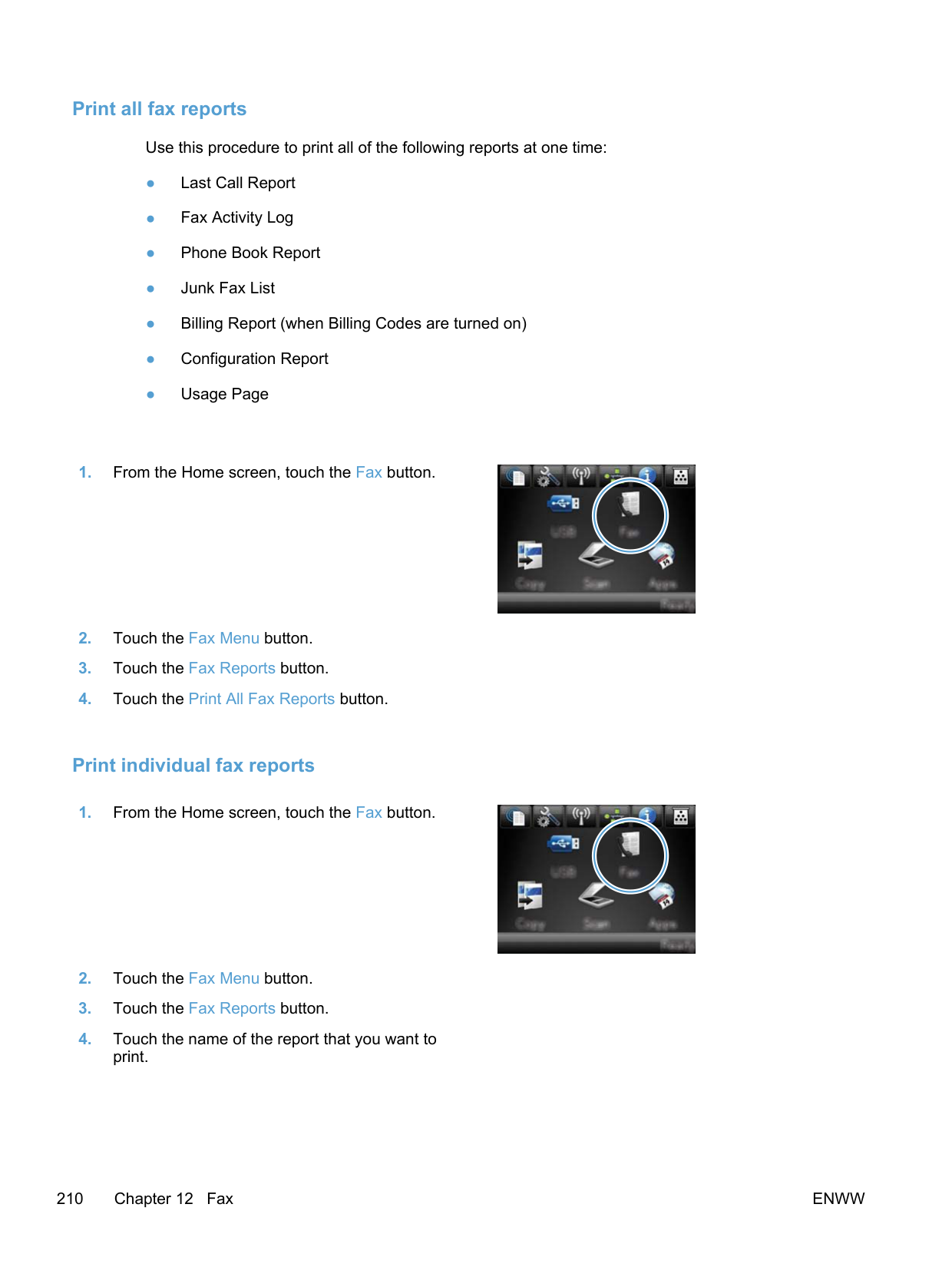
####### An error message displays on the control panel
######## The Communication error. message appears
If the product is connected to a digital phone line, verify that you are using the correct filter and settings provided by the digital service provider.
29) setting.
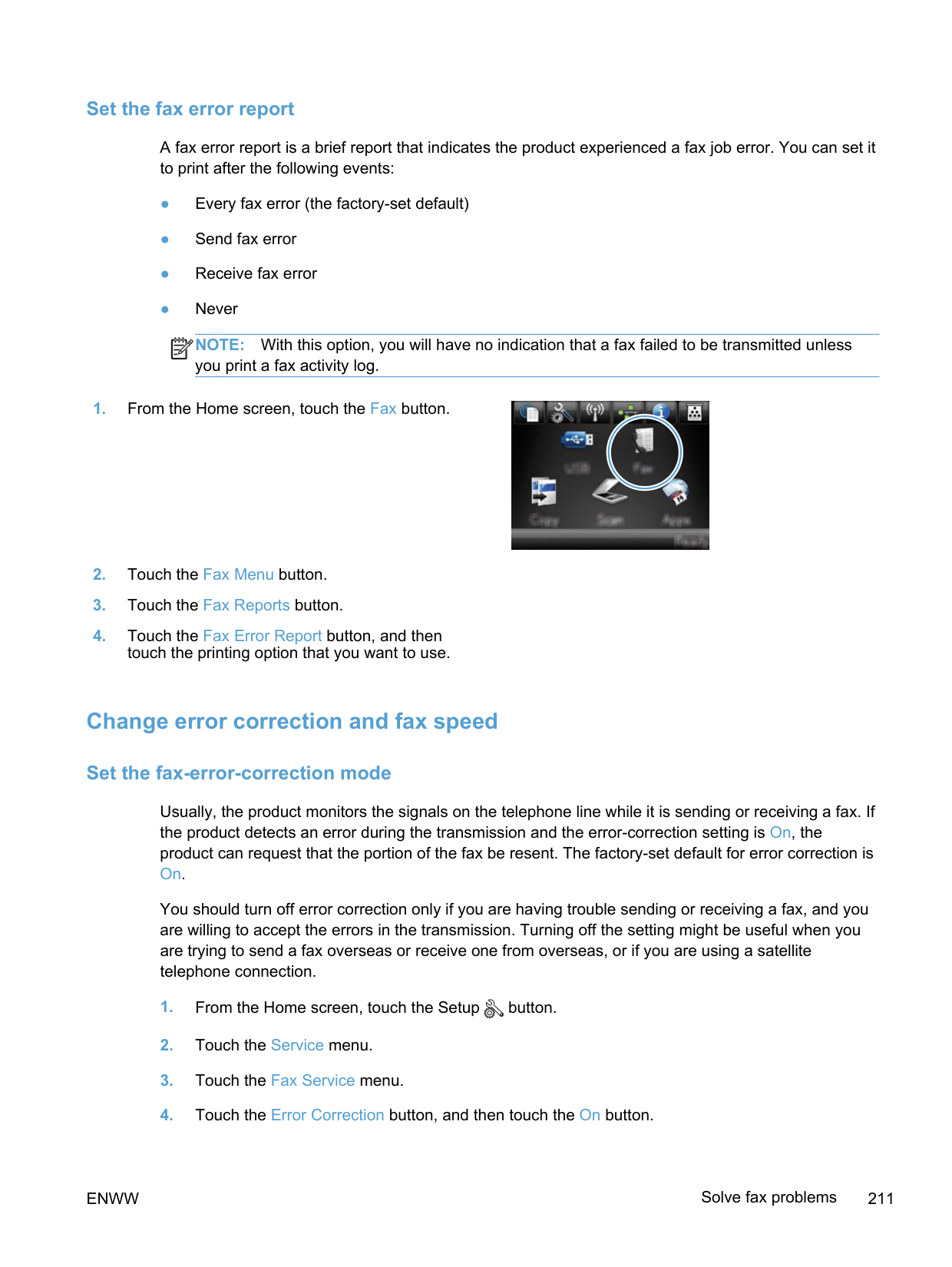
| | |---|
######## No dial tone.
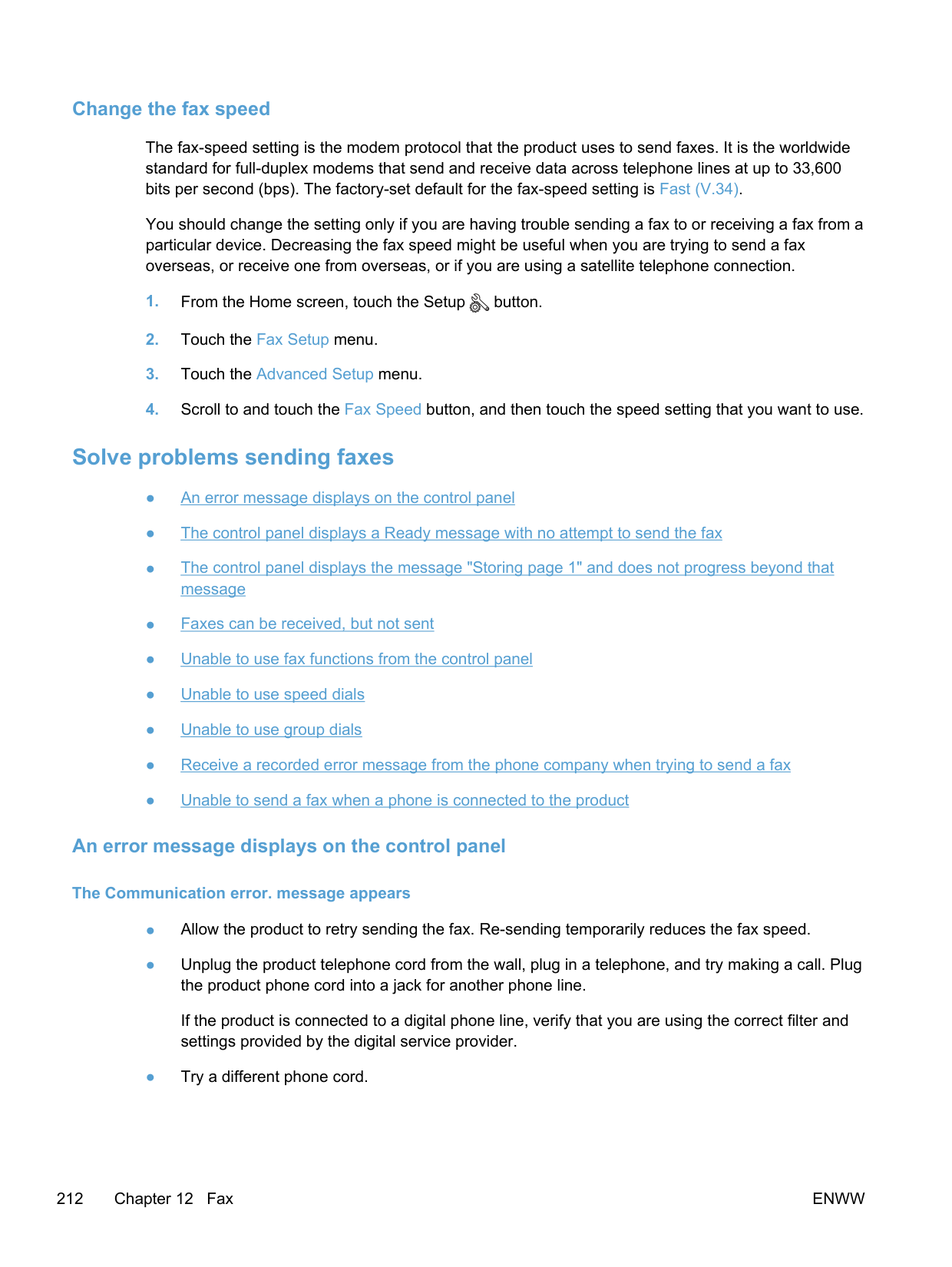
######## The Fax is busy. message appears
######## The No fax answer. message appears
| | | |---|---| | | |
port.
######## Document feeder paper jam
######## The Fax storage is full. message appears
######## Scanner error
####### The control panel displays a Ready message with no attempt to send the fax
####### The control panel displays the message "Storing page 1" and does not progress beyond that message
● Delete stored faxes from memory. a. From the Home screen, touch the Setup button. b. Open the Service menu. c. Open the Fax Service menu. d. Select the Clear Saved Faxes item.
####### Faxes can be received, but not sent
Send fax and nothing happens.
####### Unable to use fax functions from the control panel
####### Unable to use speed dials
####### Unable to use group dials
####### Receive a recorded error message from the phone company when trying to send a fax
NOTE: To send a fax without a prefix, when the Dial Prefix option is turned on, send the fax manually.
| | |---|
####### Unable to send a fax when a phone is connected to the product
##### Solve problems receiving faxes
####### The fax does not respond
######## The fax has a dedicated phone line
● Set the Answer Mode option to the Automatic setting from the control panel.
######## An answering machine is connected to the product
######## A telephone handset is connected to the product
Set the Answer Mode option to the Automatic setting.
######## The Answer Mode setting is set to the Manual setting
● Touch the Start Fax button on the control panel.
######## Voice mail is available on the fax line
| | |---|
######## The product is connected to a DSL phone service
######## The product uses a fax over IP or VoIP phone service
####### An error message displays on the control panel
######## The No fax detected. message appears
NOTE: This error does not always refer to a missed fax. If a voice call is made to a fax number by mistake and the caller hangs up, the No fax detected. message appears on the control panel.
| | |---|
######## The Communication error. message appears
| | |---|
######## The Fax storage is full. message appears
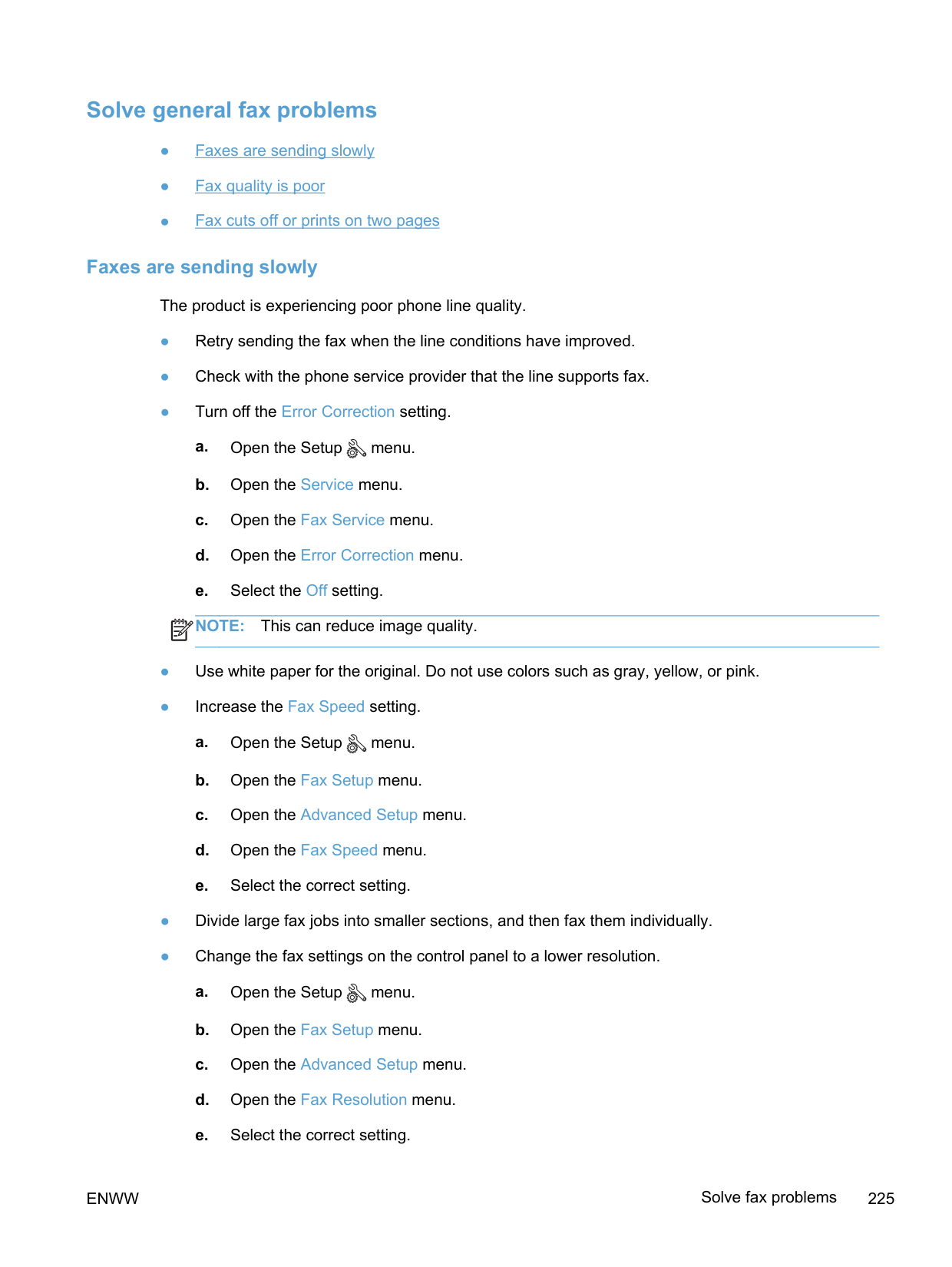
######## The Fax is busy. message appears
####### A fax is received but does not print
######## The Private Receive feature is on
NOTE: Memory errors might occur if the faxes are not printed. The product will not answer if the memory is full.
| | |---|
####### Sender receives a busy signal
######## A handset is connected to the product
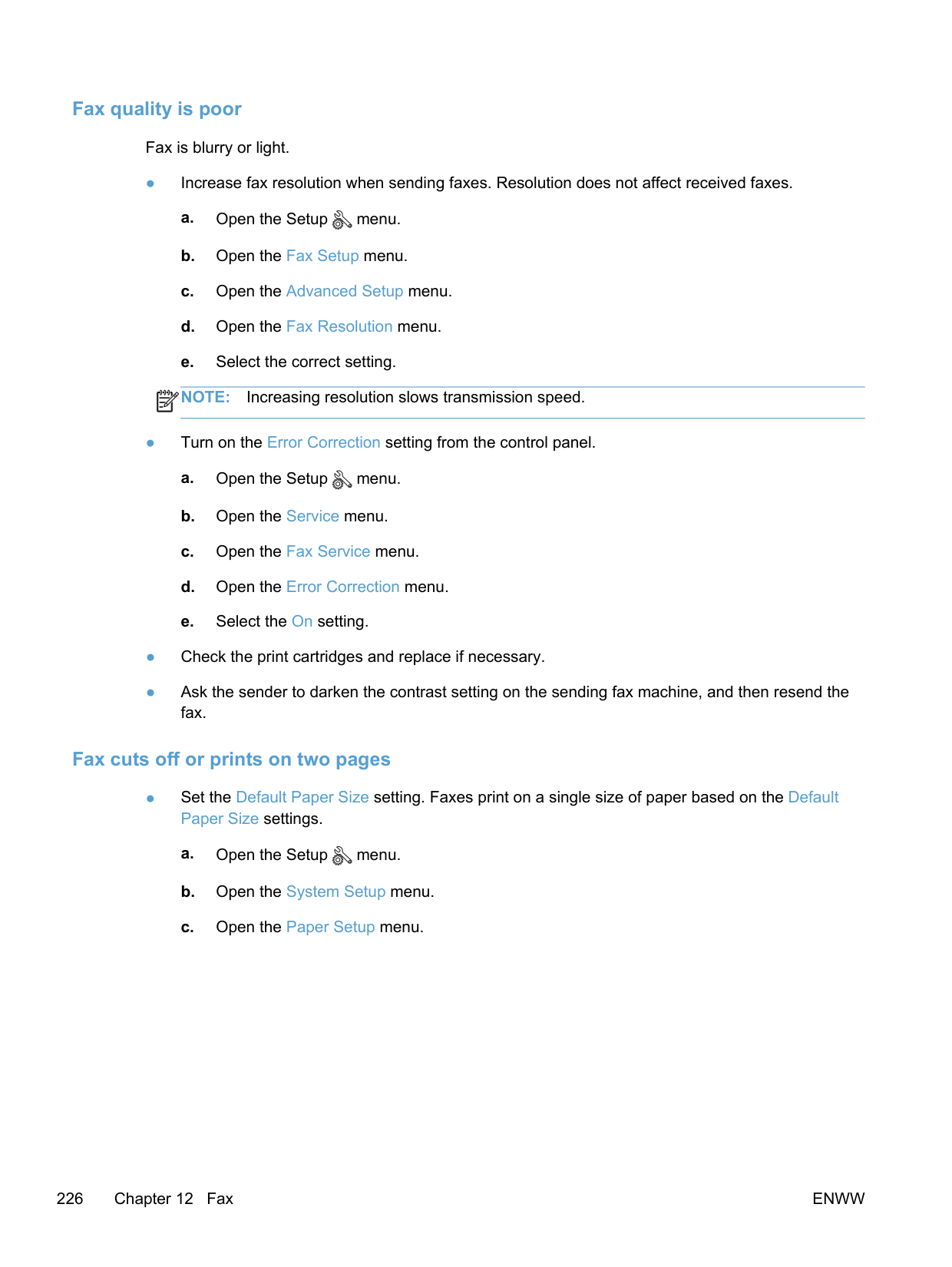
Set the Answer Mode option to the Fax/Tel setting to automatically receive faxes. The Fax/ Tel setting automatically detects whether the incoming transmission is a fax or a voice call and routes the call to the appropriate device.
######## A phone line splitter is being used
####### No dial tone
● If using a phone line splitter, remove the phone line splitter and set up the phone as a downstream phone.
####### Cannot send or receive a fax on a PBX line
● If you are using a PBX phone line, contact your PBX administrator to configure an analog fax line for your product.
##### Solve general fax problems
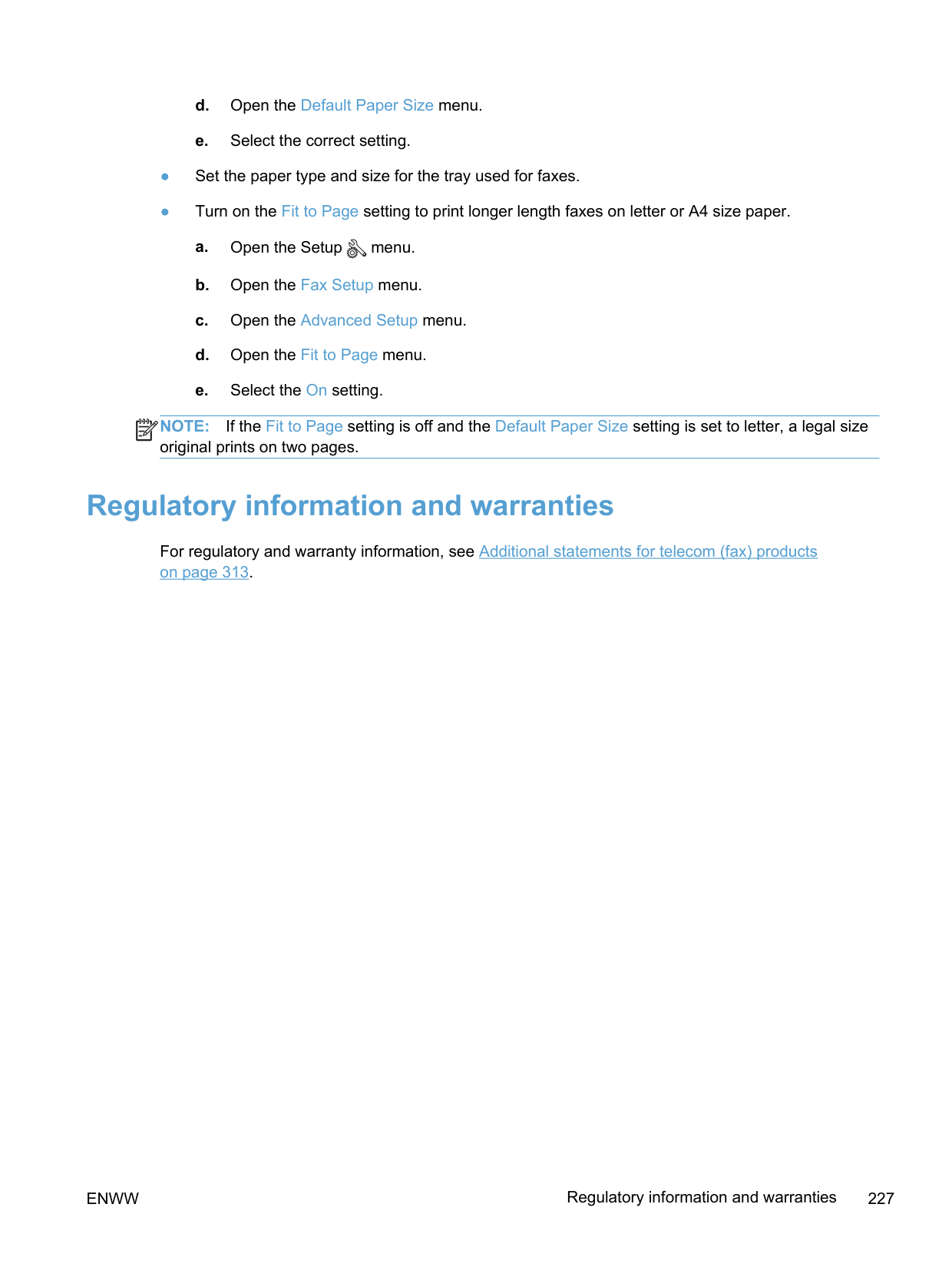
####### Faxes are sending slowly
The product is experiencing poor phone line quality.
| | |---|

####### Fax quality is poor
Fax is blurry or light.
| | |---|
####### Fax cuts off or prints on two pages
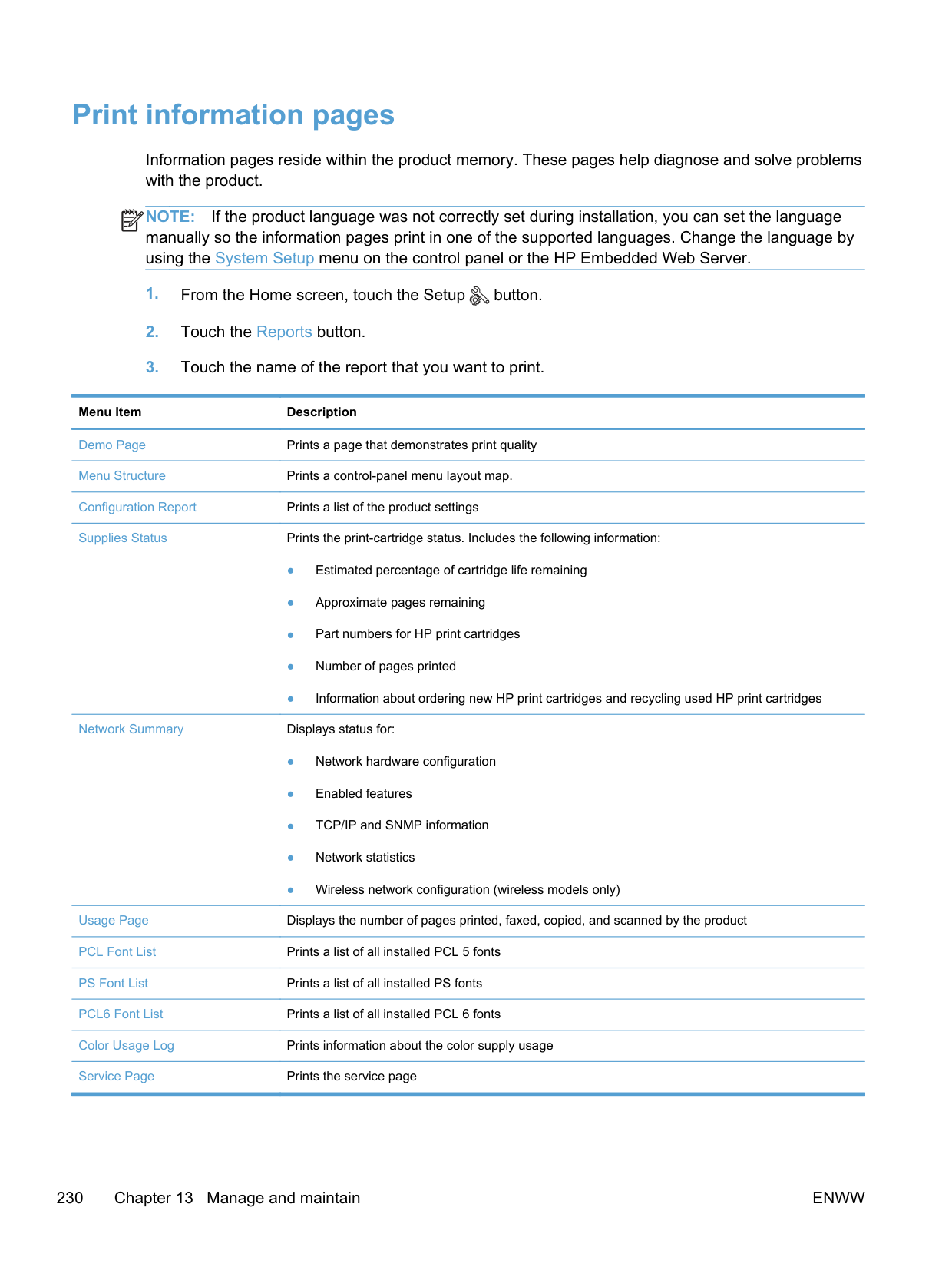
● Set the Default Paper Size setting. Faxes print on a single size of paper based on the Default Paper Size settings.
NOTE: If the Fit to Page setting is off and the Default Paper Size setting is set to letter, a legal size original prints on two pages.
| | |---|
#### Regulatory information and warranties
For regulatory and warranty information, see Additional statements for telecom (fax) products on page 313.
ENWW Regulatory information and warranties 227

13 Manage and maintain
ENWW 229
#### Print information pages
Information pages reside within the product memory. These pages help diagnose and solve problems with the product.
NOTE: If the product language was not correctly set during installation, you can set the language manually so the information pages print in one of the supported languages. Change the language by using the System Setup menu on the control panel or the HP Embedded Web Server.
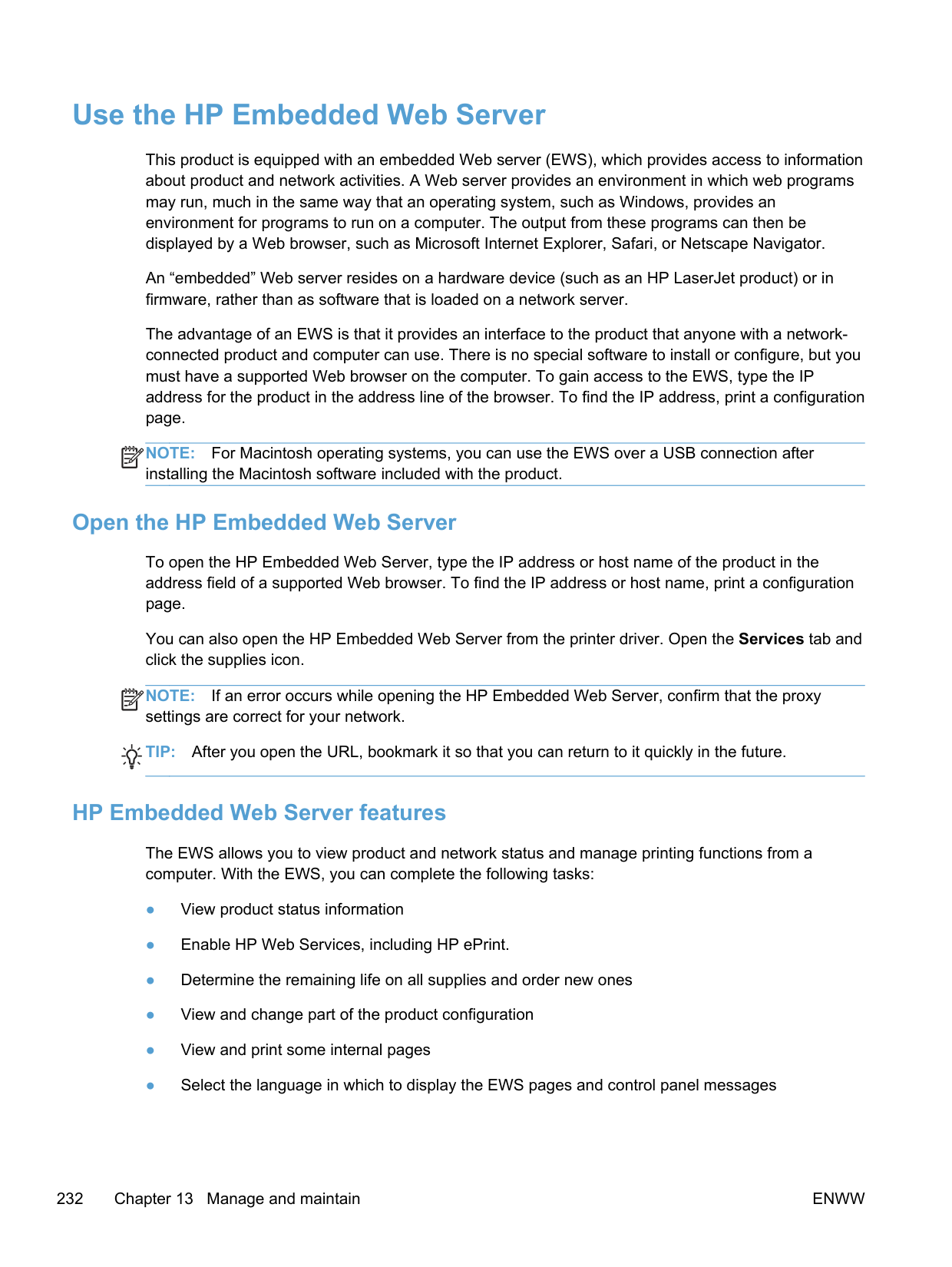
| | |---|
Menu Item Description Demo Page Prints a page that demonstrates print quality Menu Structure Prints a control-panel menu layout map. Configuration Report Prints a list of the product settings Supplies Status Prints the print-cartridge status. Includes the following information:
Usage Page Displays the number of pages printed, faxed, copied, and scanned by the product PCL Font List Prints a list of all installed PCL 5 fonts PS Font List Prints a list of all installed PS fonts PCL6 Font List Prints a list of all installed PCL 6 fonts Color Usage Log Prints information about the color supply usage Service Page Prints the service page
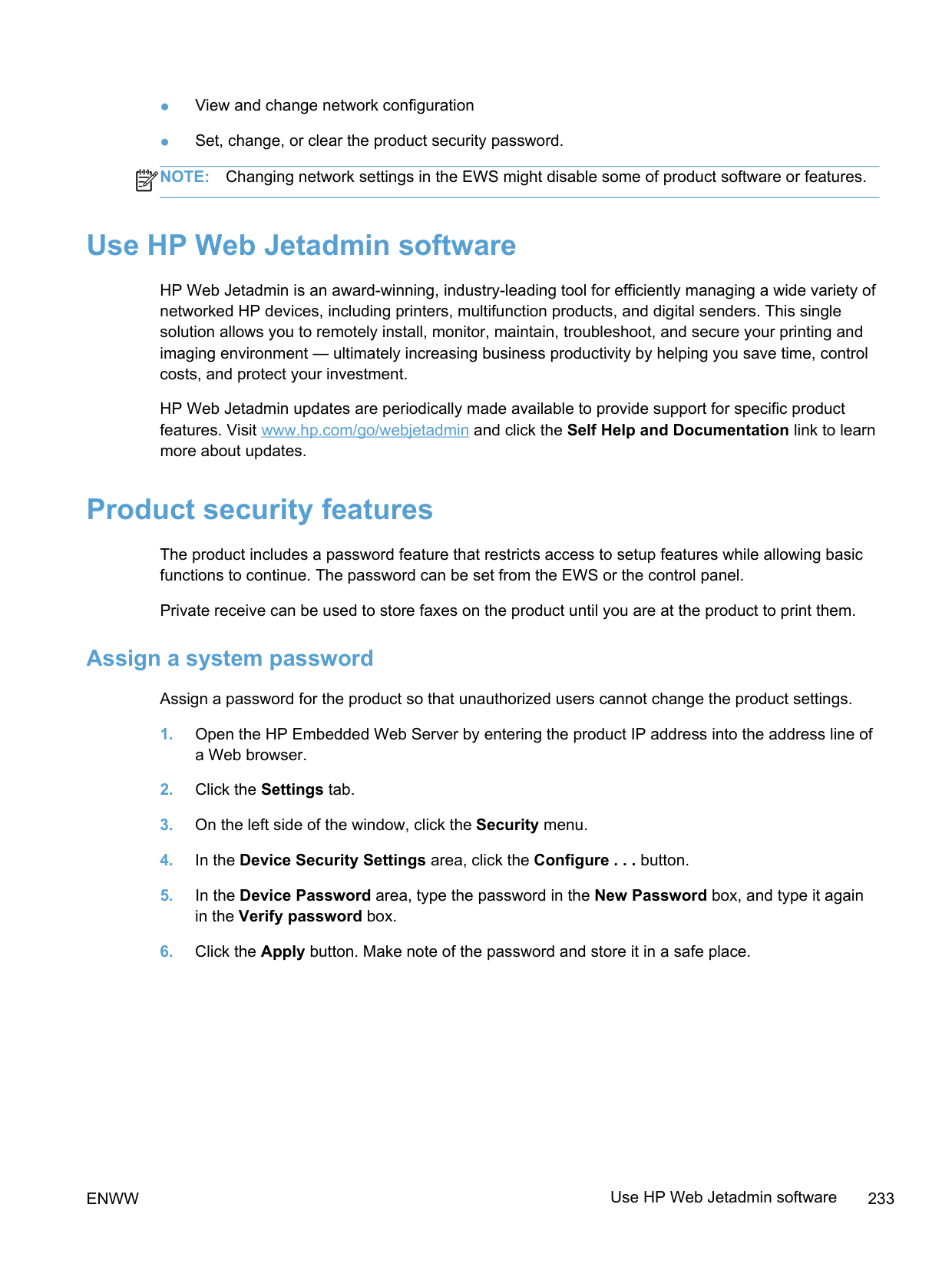
Menu Item Description Diagnostics Page Prints diagnostic information about calibration and color quality Print Quality Page Prints a page that helps solve problems with print quality
ENWW Print information pages 231
#### Use the HP Embedded Web Server
This product is equipped with an embedded Web server (EWS), which provides access to information about product and network activities. A Web server provides an environment in which web programs may run, much in the same way that an operating system, such as Windows, provides an environment for programs to run on a computer. The output from these programs can then be displayed by a Web browser, such as Microsoft Internet Explorer, Safari, or Netscape Navigator.
An “embedded” Web server resides on a hardware device (such as an HP LaserJet product) or in firmware, rather than as software that is loaded on a network server.
The advantage of an EWS is that it provides an interface to the product that anyone with a networkconnected product and computer can use. There is no special software to install or configure, but you must have a supported Web browser on the computer. To gain access to the EWS, type the IP address for the product in the address line of the browser. To find the IP address, print a configuration page.
NOTE: For Macintosh operating systems, you can use the EWS over a USB connection after installing the Macintosh software included with the product.
| | |---|
##### Open the HP Embedded Web Server
To open the HP Embedded Web Server, type the IP address or host name of the product in the address field of a supported Web browser. To find the IP address or host name, print a configuration page.
You can also open the HP Embedded Web Server from the printer driver. Open the Services tab and click the supplies icon.
NOTE: If an error occurs while opening the HP Embedded Web Server, confirm that the proxy settings are correct for your network.
| |
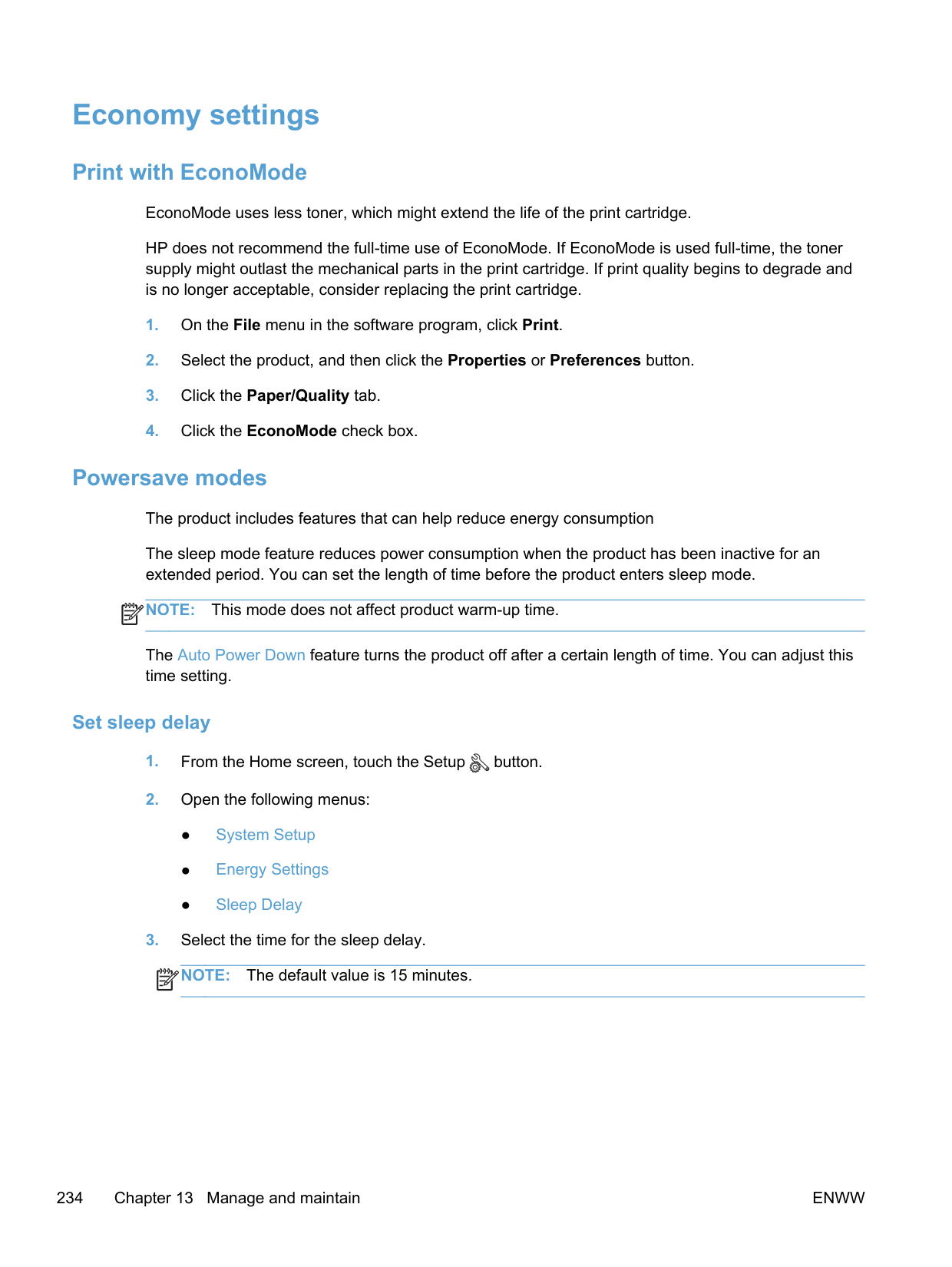
|---|
TIP: After you open the URL, bookmark it so that you can return to it quickly in the future.
##### HP Embedded Web Server features
The EWS allows you to view product and network status and manage printing functions from a computer. With the EWS, you can complete the following tasks:
| | |---|
#### Use HP Web Jetadmin software
HP Web Jetadmin is an award-winning, industry-leading tool for efficiently managing a wide variety of networked HP devices, including printers, multifunction products, and digital senders. This single solution allows you to remotely install, monitor, maintain, troubleshoot, and secure your printing and imaging environment — ultimately increasing business productivity by helping you save time, control costs, and protect your investment.
HP Web Jetadmin updates are periodically made available to provide support for specific product features. Visit www.hp.com/go/webjetadmin and click the Self Help and Documentation link to learn more about updates.
#### Product security features
The product includes a password feature that restricts access to setup features while allowing basic functions to continue. The password can be set from the EWS or the control panel.
Private receive can be used to store faxes on the product until you are at the product to print them.
##### Assign a system password
Assign a password for the product so that unauthorized users cannot change the product settings.
ENWW Use HP Web Jetadmin software 233
#### Economy settings
Print with EconoMode EconoMode uses less toner, which might extend the life of the print cartridge. HP does not recommend the full-time use of EconoMode. If EconoMode is used full-time, the toner supply might outlast the mechanical parts in the print cartridge. If print quality begins to degrade and is no longer acceptable, consider replacing the print cartridge.
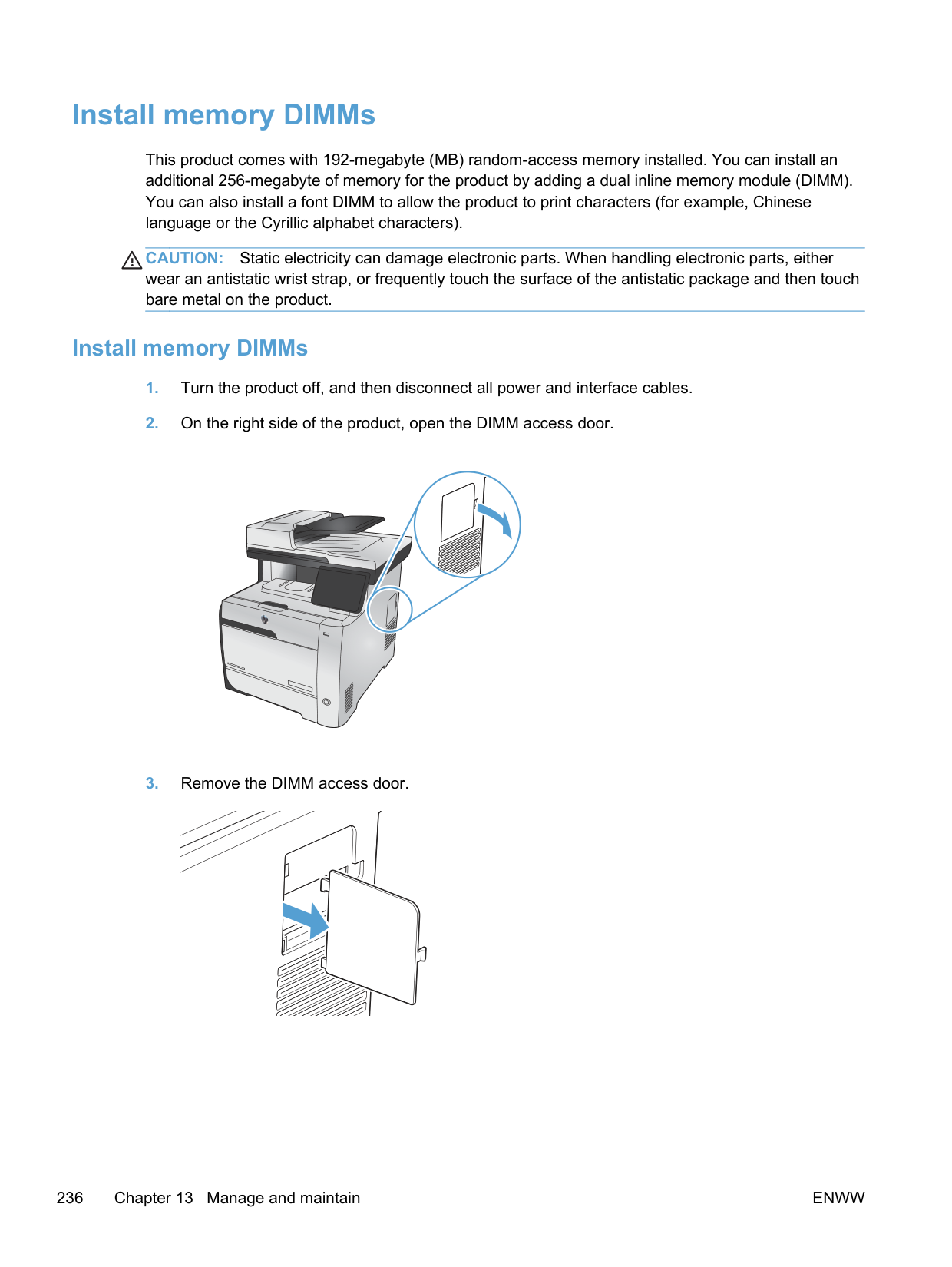
Powersave modes The product includes features that can help reduce energy consumption The sleep mode feature reduces power consumption when the product has been inactive for an extended period. You can set the length of time before the product enters sleep mode. NOTE: This mode does not affect product warm-up time.
| | |---|
The Auto Power Down feature turns the product off after a certain length of time. You can adjust this time setting.
####### Set sleep delay
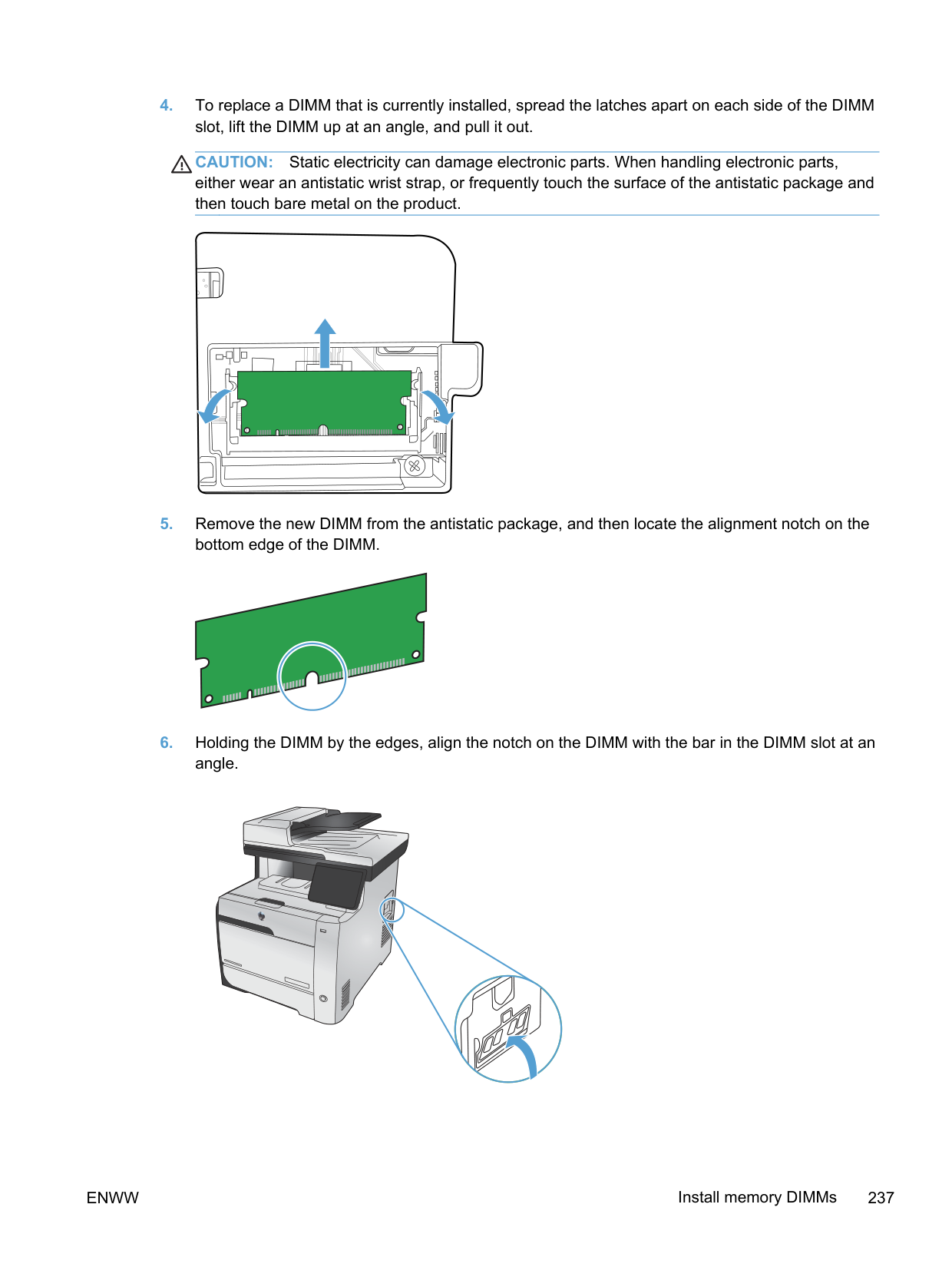
| | |---|
####### Set the Auto Power Down delay
| | |---|
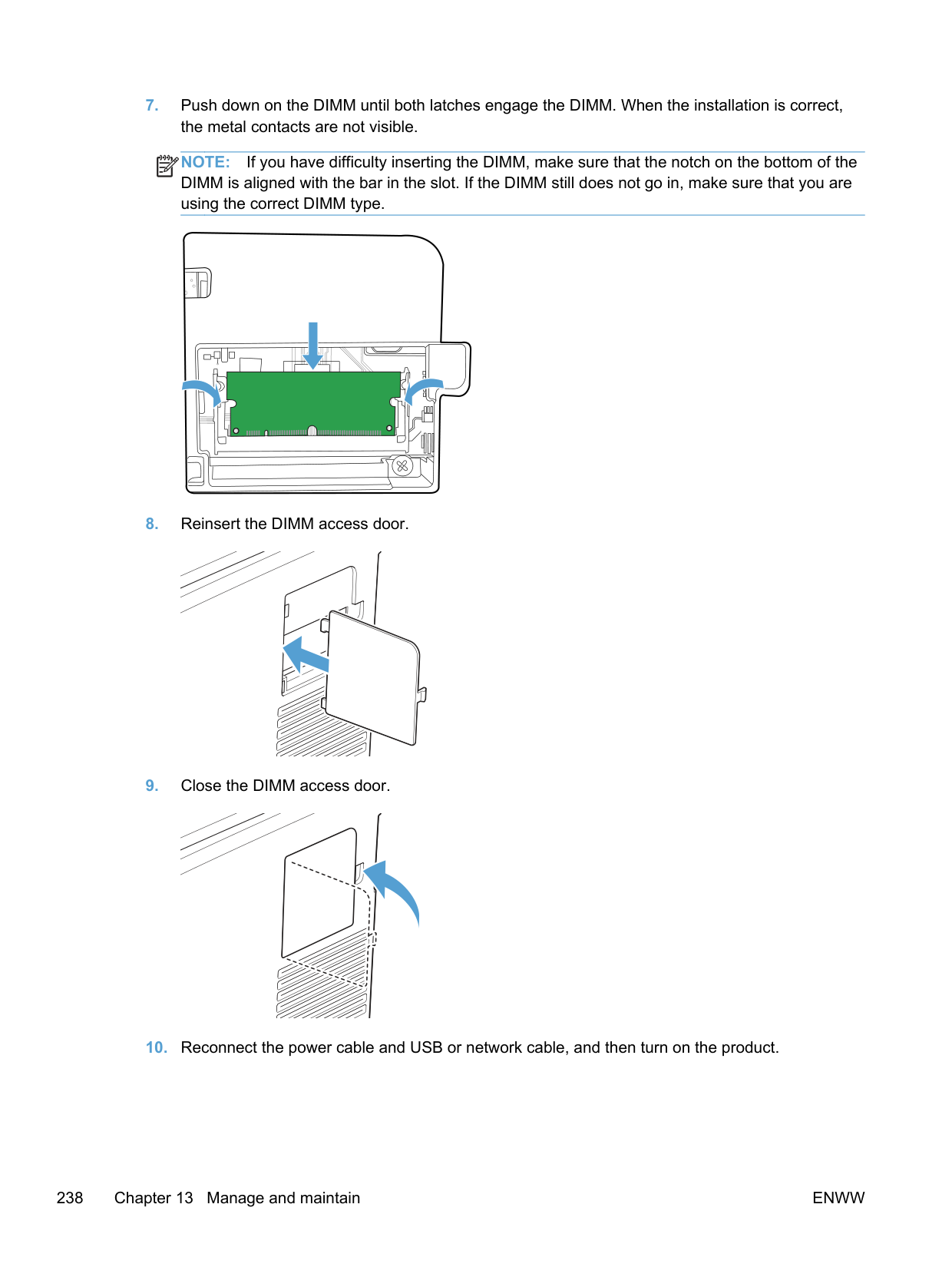
##### Archive print
Archive print produces output that is less susceptible to toner smearing and dusting. Use archive print to create documents that you want to preserve or archive.
ENWW Economy settings 235
#### Install memory DIMMs
This product comes with 192-megabyte (MB) random-access memory installed. You can install an additional 256-megabyte of memory for the product by adding a dual inline memory module (DIMM). You can also install a font DIMM to allow the product to print characters (for example, Chinese language or the Cyrillic alphabet characters).
CAUTION: Static electricity can damage electronic parts. When handling electronic parts, either wear an antistatic wrist strap, or frequently touch the surface of the antistatic package and then touch bare metal on the product.
##### Install memory DIMMs
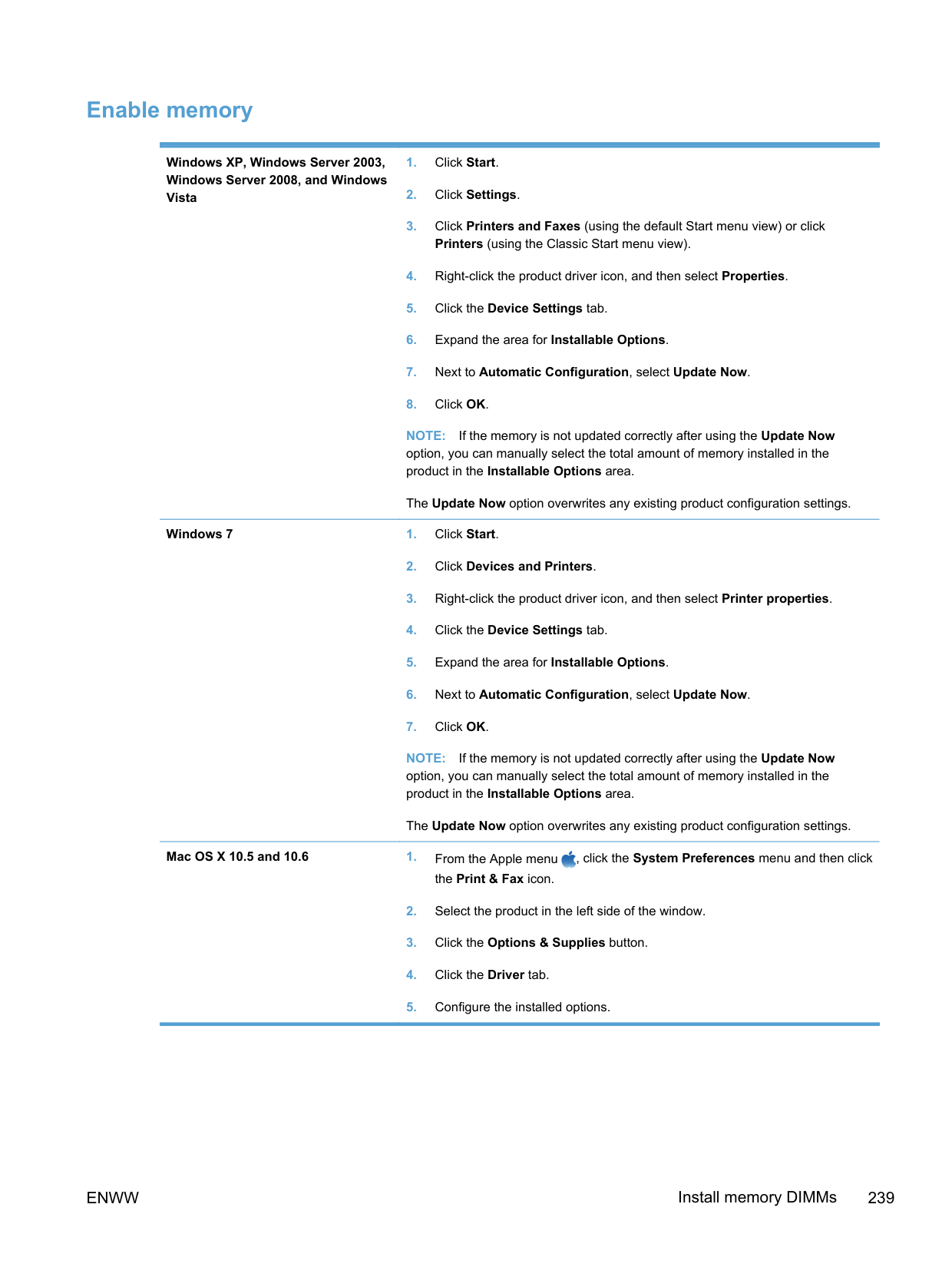

CAUTION: Static electricity can damage electronic parts. When handling electronic parts, either wear an antistatic wrist strap, or frequently touch the surface of the antistatic package and then touch bare metal on the product.
| | | | | | |---|---|---|---|---| | | | | | | | | | | | |
| | | |---|---| | | | | | |
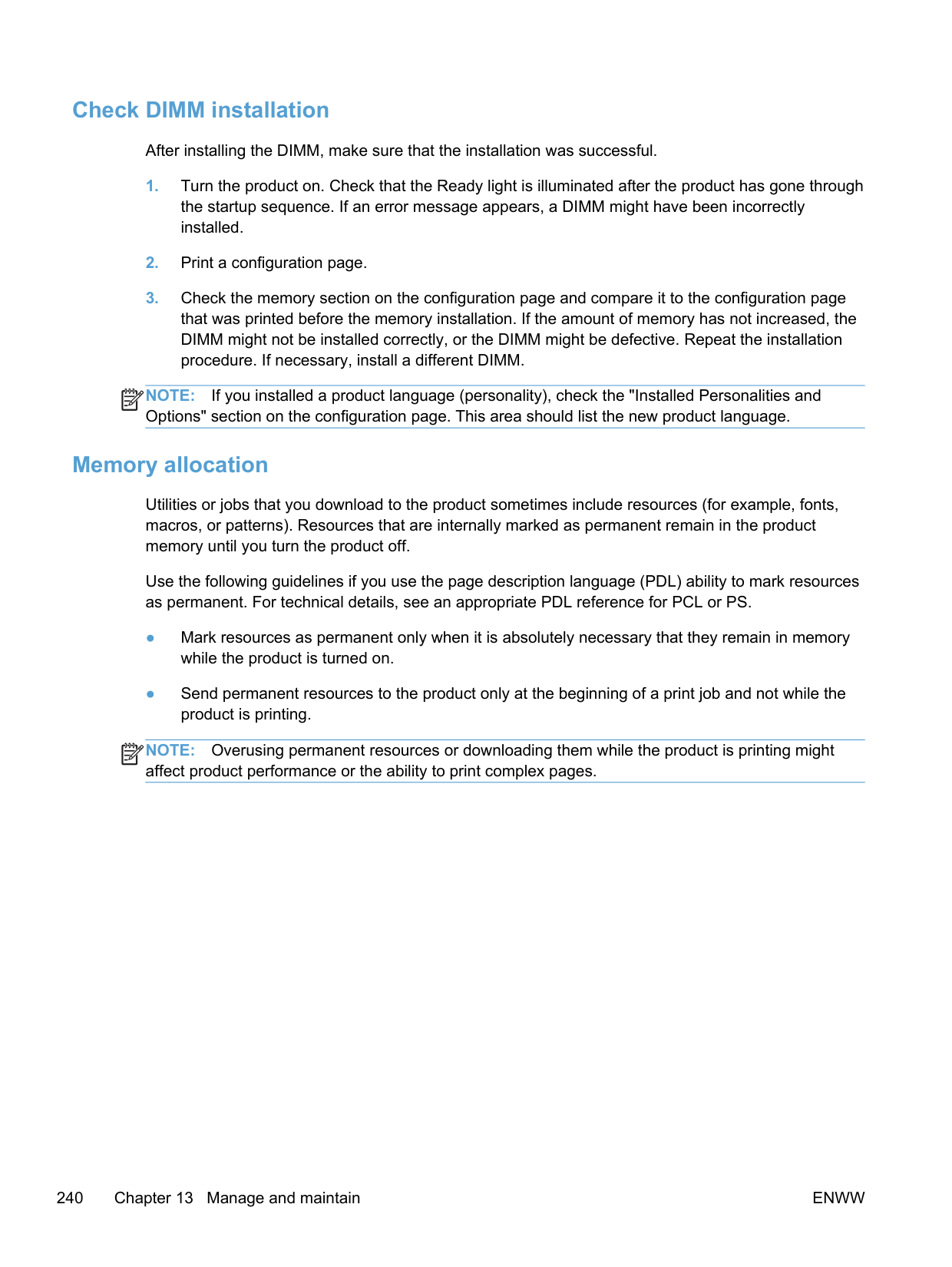

| | |---|
NOTE: If you have difficulty inserting the DIMM, make sure that the notch on the bottom of the DIMM is aligned with the bar in the slot. If the DIMM still does not go in, make sure that you are using the correct DIMM type.
| | | | | | |---|---|---|---|---| | | | | | | | | | | | |
| | | |---|---| | | | | | |
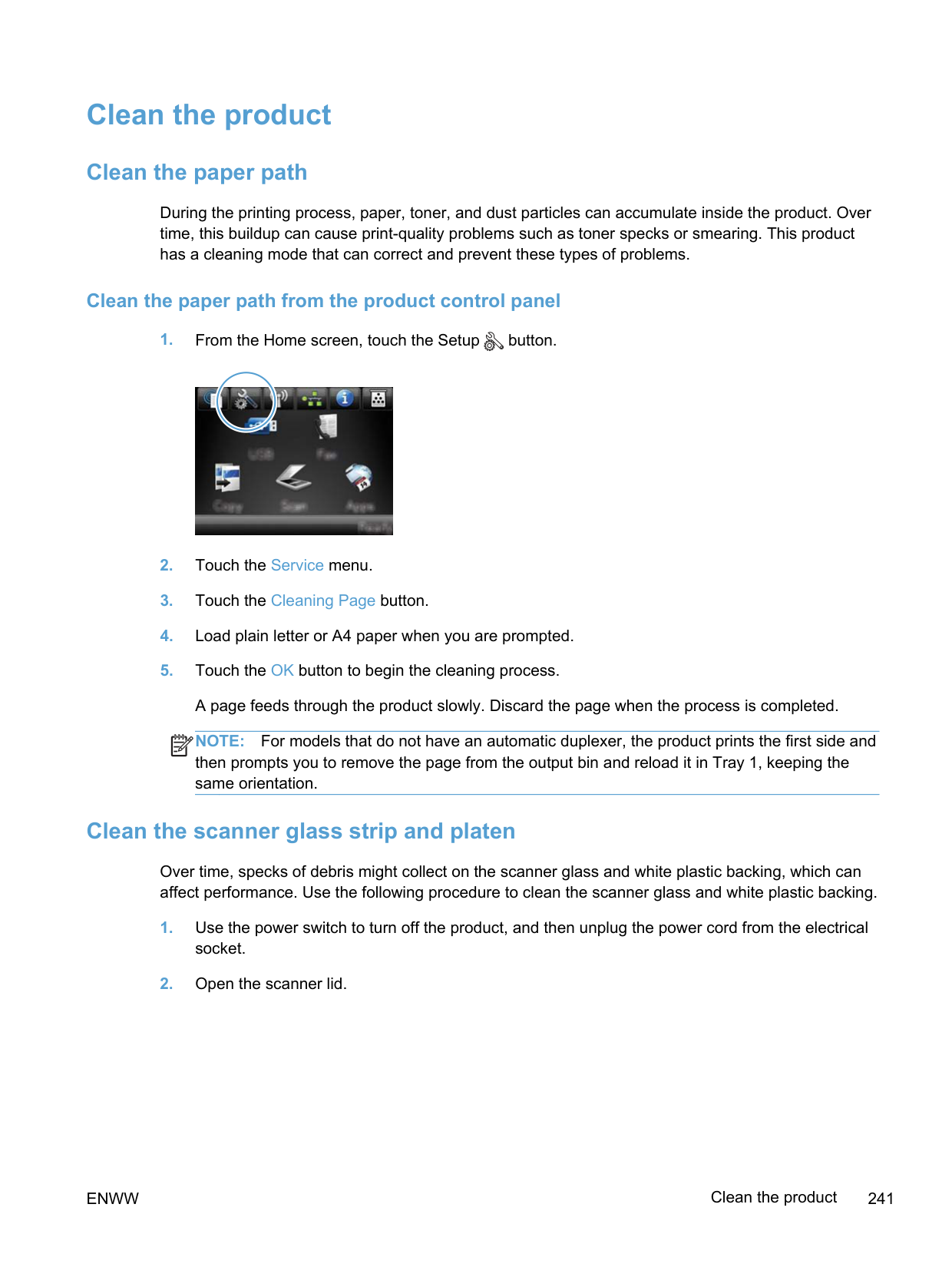
##### Enable memory
Windows XP, Windows Server 2003, Windows Server 2008, and Windows Vista
NOTE: If the memory is not updated correctly after using the Update Now option, you can manually select the total amount of memory installed in the product in the Installable Options area.
The Update Now option overwrites any existing product configuration settings. Windows 7 1. Click Start.
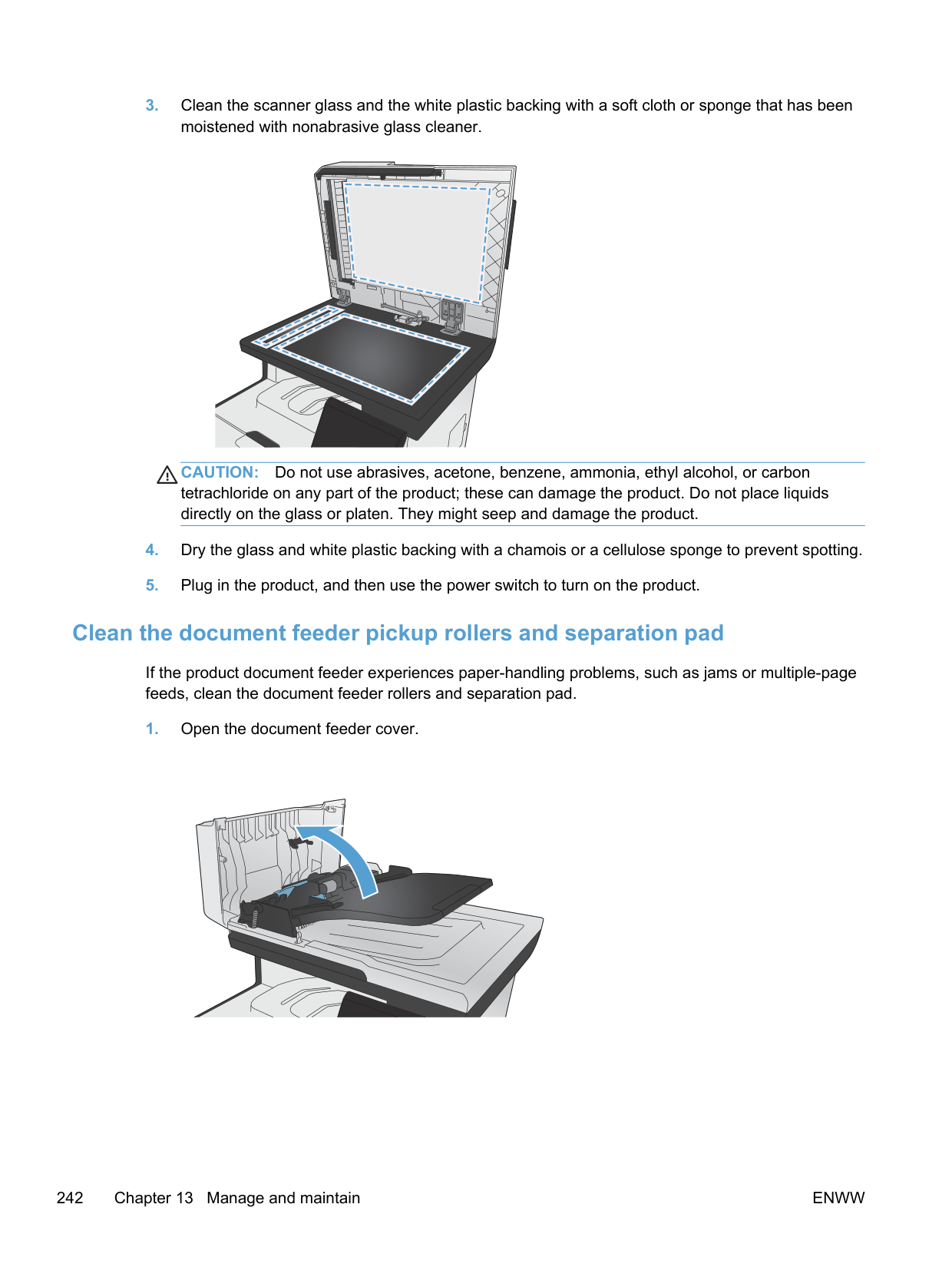
NOTE: If the memory is not updated correctly after using the Update Now option, you can manually select the total amount of memory installed in the product in the Installable Options area.
The Update Now option overwrites any existing product configuration settings.
Mac OS X 10.5 and 10.6 1. From the Apple menu , click the System Preferences menu and then click
########### the Print & Fax icon.
##### Check DIMM installation
After installing the DIMM, make sure that the installation was successful.
NOTE: If you installed a product language (personality), check the "Installed Personalities and Options" section on the configuration page. This area should list the new product language.
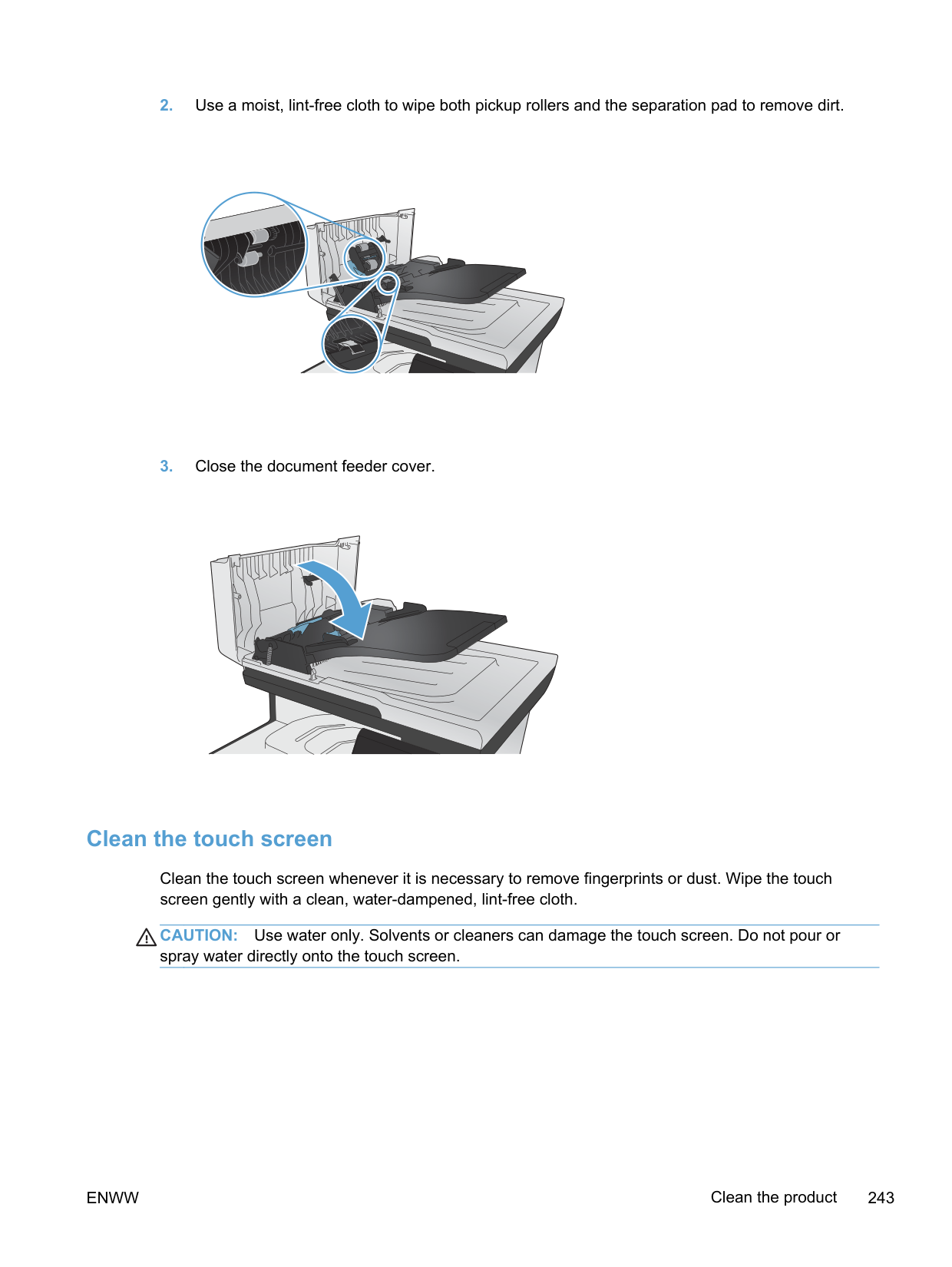
| | |---|
##### Memory allocation
Utilities or jobs that you download to the product sometimes include resources (for example, fonts, macros, or patterns). Resources that are internally marked as permanent remain in the product memory until you turn the product off.
Use the following guidelines if you use the page description language (PDL) ability to mark resources as permanent. For technical details, see an appropriate PDL reference for PCL or PS.
NOTE: Overusing permanent resources or downloading them while the product is printing might affect product performance or the ability to print complex pages.
| | |---|
#### Clean the product
##### Clean the paper path
During the printing process, paper, toner, and dust particles can accumulate inside the product. Over time, this buildup can cause print-quality problems such as toner specks or smearing. This product has a cleaning mode that can correct and prevent these types of problems.
####### Clean the paper path from the product control panel


NOTE: For models that do not have an automatic duplexer, the product prints the first side and then prompts you to remove the page from the output bin and reload it in Tray 1, keeping the same orientation.
| | |---|
##### Clean the scanner glass strip and platen
Over time, specks of debris might collect on the scanner glass and white plastic backing, which can affect performance. Use the following procedure to clean the scanner glass and white plastic backing.
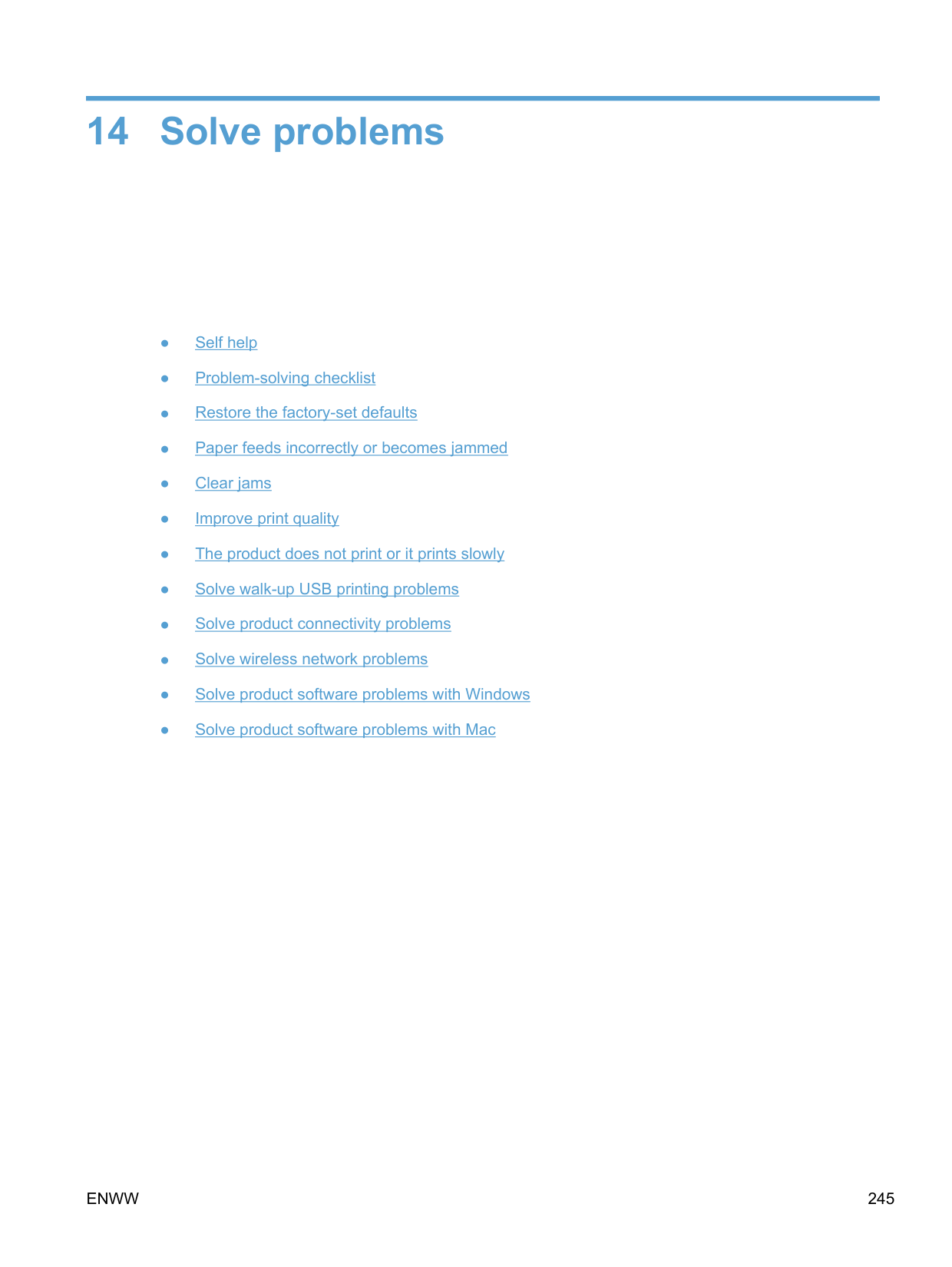
CAUTION: Do not use abrasives, acetone, benzene, ammonia, ethyl alcohol, or carbon tetrachloride on any part of the product; these can damage the product. Do not place liquids directly on the glass or platen. They might seep and damage the product.
##### Clean the document feeder pickup rollers and separation pad
If the product document feeder experiences paper-handling problems, such as jams or multiple-page feeds, clean the document feeder rollers and separation pad.
##### Clean the touch screen
Clean the touch screen whenever it is necessary to remove fingerprints or dust. Wipe the touch screen gently with a clean, water-dampened, lint-free cloth.
CAUTION: Use water only. Solvents or cleaners can damage the touch screen. Do not pour or spray water directly onto the touch screen.
#### Product updates
Software and firmware updates and installation instructions for this product are available at www.hp.com/go/LJColorMFPM375 or www.hp.com/go/LJColorMFPM475. Click Support & Drivers, click the operating system, and then select the download for the product.
14 Solve problems
ENWW 245
#### Self help
In addition to the information in this guide, other sources are available that provide helpful information.
HP Help and Learn Center The HP Help and Learn Center and other documentation are on the CD that came with the product or in the HP Program folder on your computer. The HP Help and Learn Center is a product help tool that provides easy access to product information, HP product Web support, troubleshooting, and regulatory and safety information.
Quick Reference Topics Several Quick Reference Topics for this product are available at this Web site: www.hp.com/go/LJColorMFPM375 or www.hp.com/go/LJColorMFPM475
You can print these topics and keep them near the product. They are a handy reference for procedures that you perform frequently.
Quick Reference Guide This guide contains procedures for the most commonly used product functions. The guide is available from this Web site: www.hp.com/go/LJColorMFPM375 or www.hp.com/go/LJColorMFPM475
You can print this guide and keep it near the product. Control panel help The control panel has built-in help that guides you through several tasks, such as replacing print cartridges and clearing jams.
#### Problem-solving checklist
Follow these steps when trying to solve a problem with the product.
##### Step 1: Check that the product power is on
##### Step 2: Check the control panel for error messages
The control panel should indicate ready status. If an error message appears, resolve the error.
##### Step 3: Test print functionality
| | |---|
ENWW Problem-solving checklist 247
##### Step 4: Test copy functionality
##### Step 5: Test the fax sending functionality

##### Step 6: Test the fax receiving functionality
##### Step 7: Try sending a print job from a computer
##### Step 8: Test the walk-up USB printing functionality

##### Factors that affect product performance
Several factors affect the time it takes to print a job:
#### Restore the factory-set defaults
CAUTION: Restoring the factory-set defaults returns all of the product and network settings to the factory defaults, and it also clears the fax header name, phone number, and any stored faxes in the product memory. This procedure also clears the fax phone book, and deletes any pages that are stored in the memory. The procedure then automatically restarts the product.
The product automatically restarts.
ENWW Restore the factory-set defaults 249
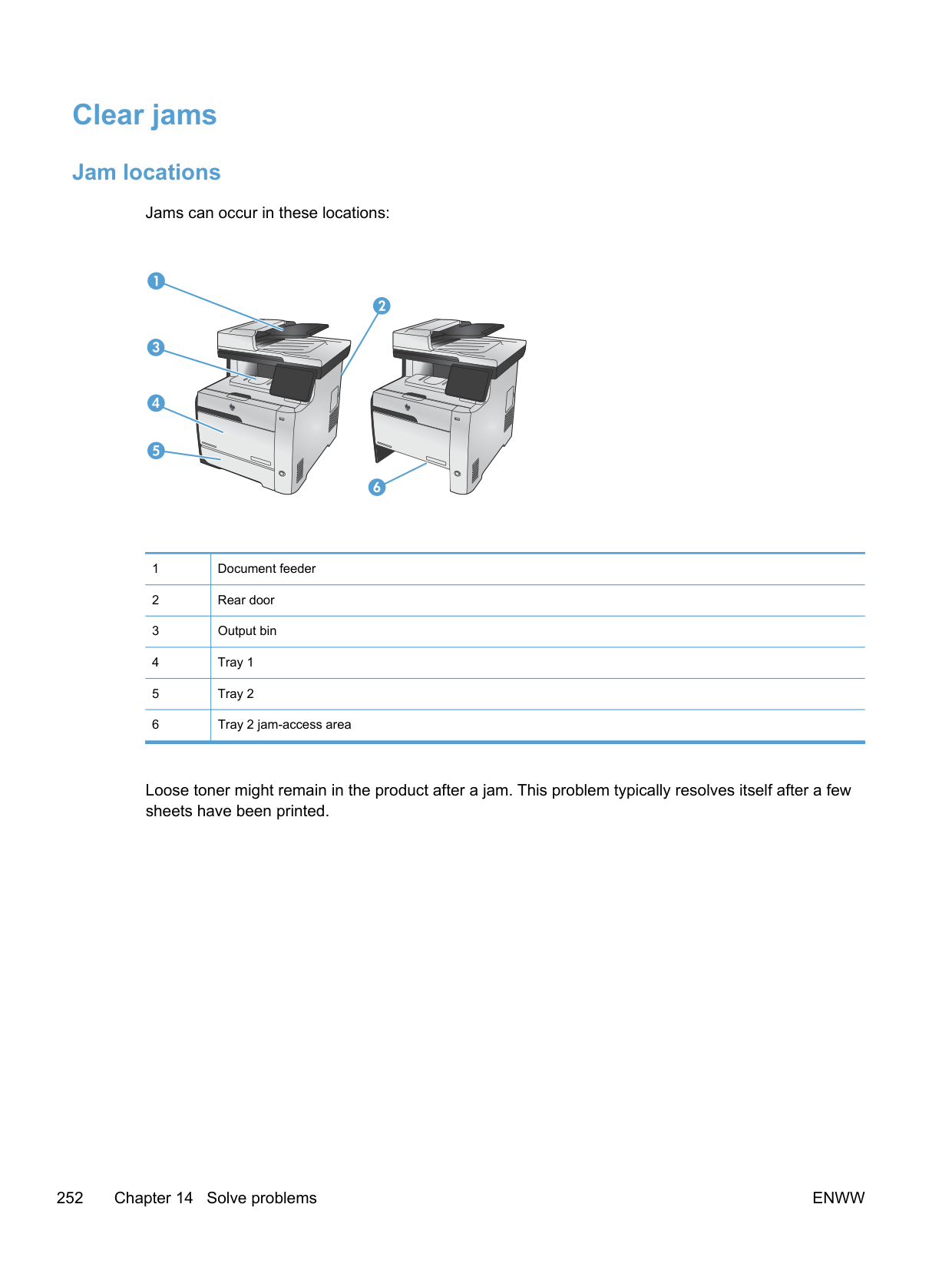
#### Paper feeds incorrectly or becomes jammed
##### The product does not pick up paper
If the product does not pick up paper from the tray, try these solutions.
guides with the paper-size markings in the bottom of the tray.
to feed the paper manually. Load paper, and continue.
##### The product picks up multiple sheets of paper
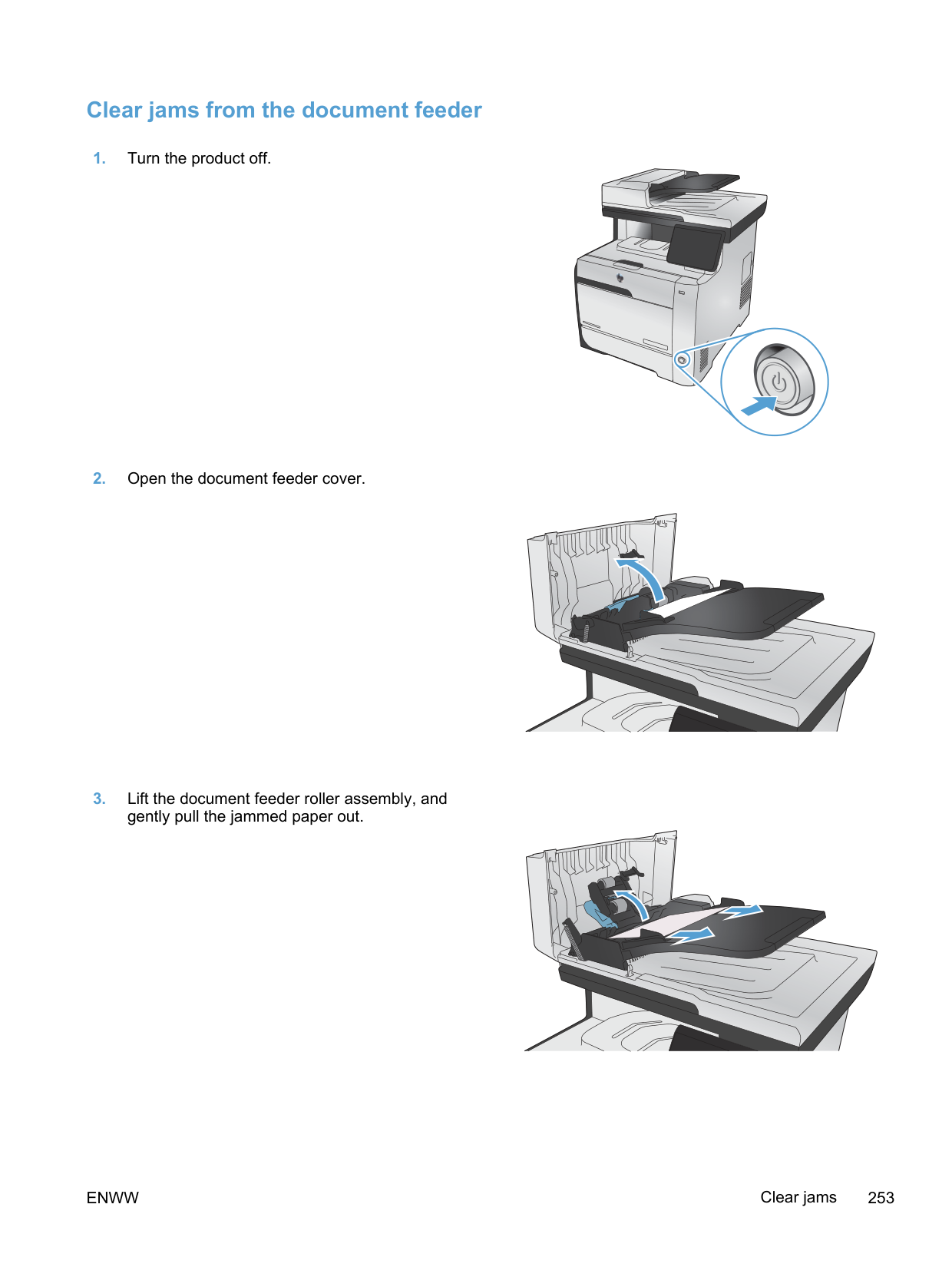
If the product picks up multiple sheets of paper from the tray, try these solutions.
##### Prevent paper jams
To reduce the number of paper jams, try these solutions.
ENWW Paper feeds incorrectly or becomes jammed 251
#### Clear jams
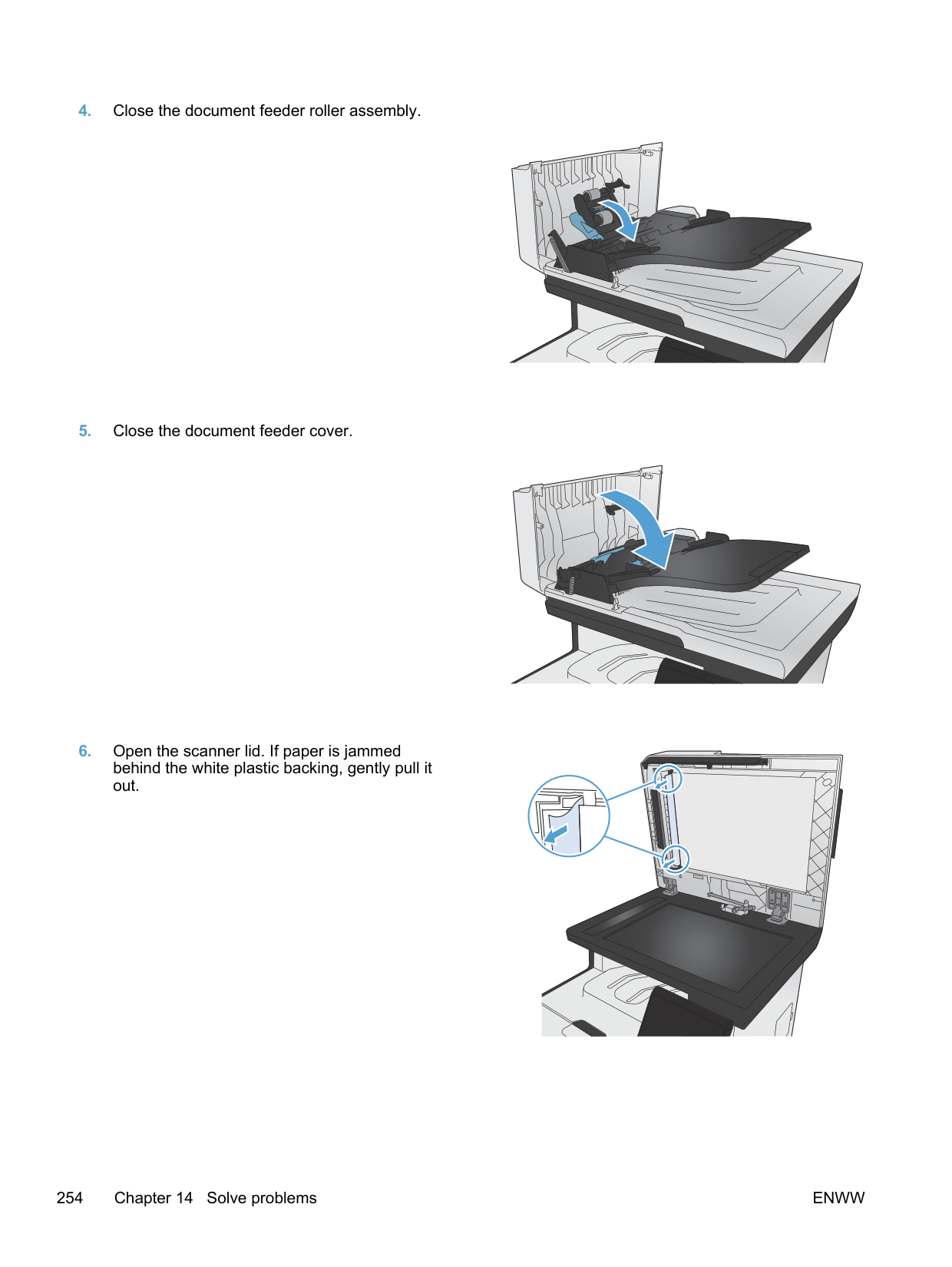
##### Jam locations
Jams can occur in these locations:


|1|Document feeder| |---|---| |2|Rear door| |3|Output bin| |4|Tray 1| |5|Tray 2| |6|Tray 2 jam-access area|
Loose toner might remain in the product after a jam. This problem typically resolves itself after a few sheets have been printed.
##### Clear jams from the document feeder

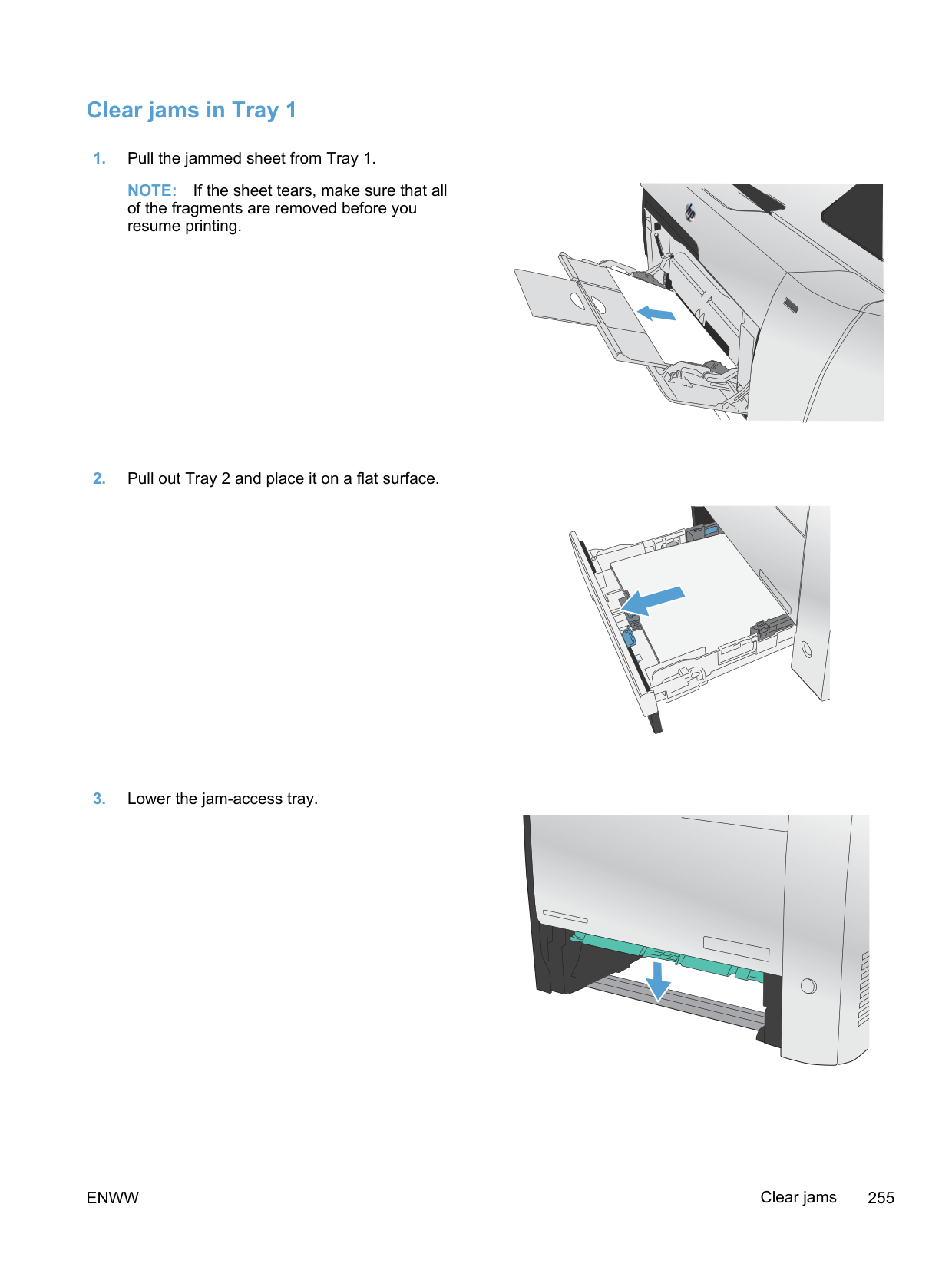
##### Clear jams in Tray 1
NOTE: If the sheet tears, make sure that all of the fragments are removed before you resume printing.

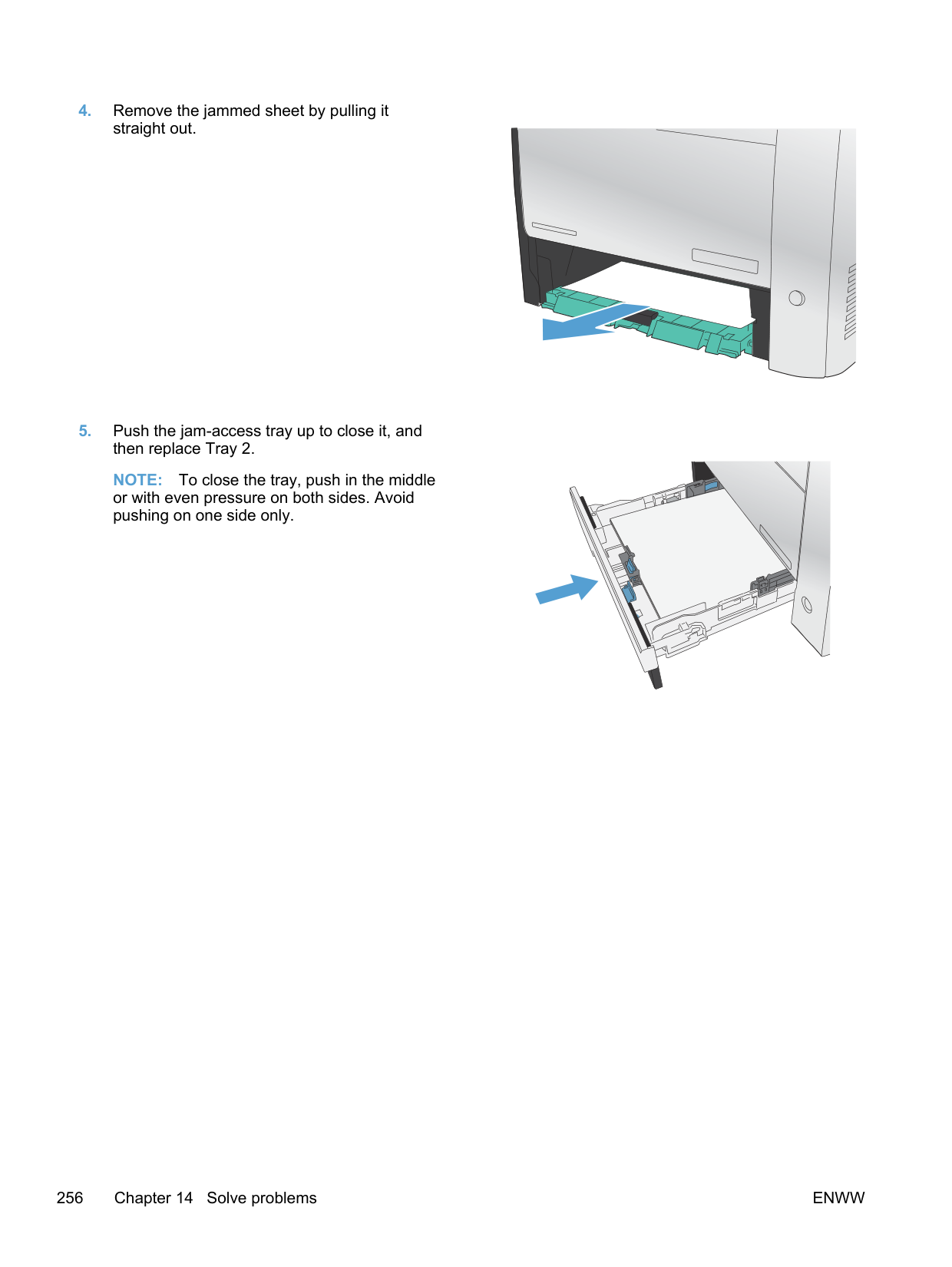
NOTE: To close the tray, push in the middle or with even pressure on both sides. Avoid pushing on one side only.
##### Clear jams in Tray 2
NOTE: To close the tray, push in the middle or with even pressure on both sides. Avoid pushing on one side only.
##### Clear jams in the fuser area
CAUTION: The fuser, located in the back of the product, is hot. Wait for the fuser to cool before continuing.
NOTE: If the sheet tears, make sure that all fragments are removed before you resume printing. Do not use sharp objects to remove fragments.
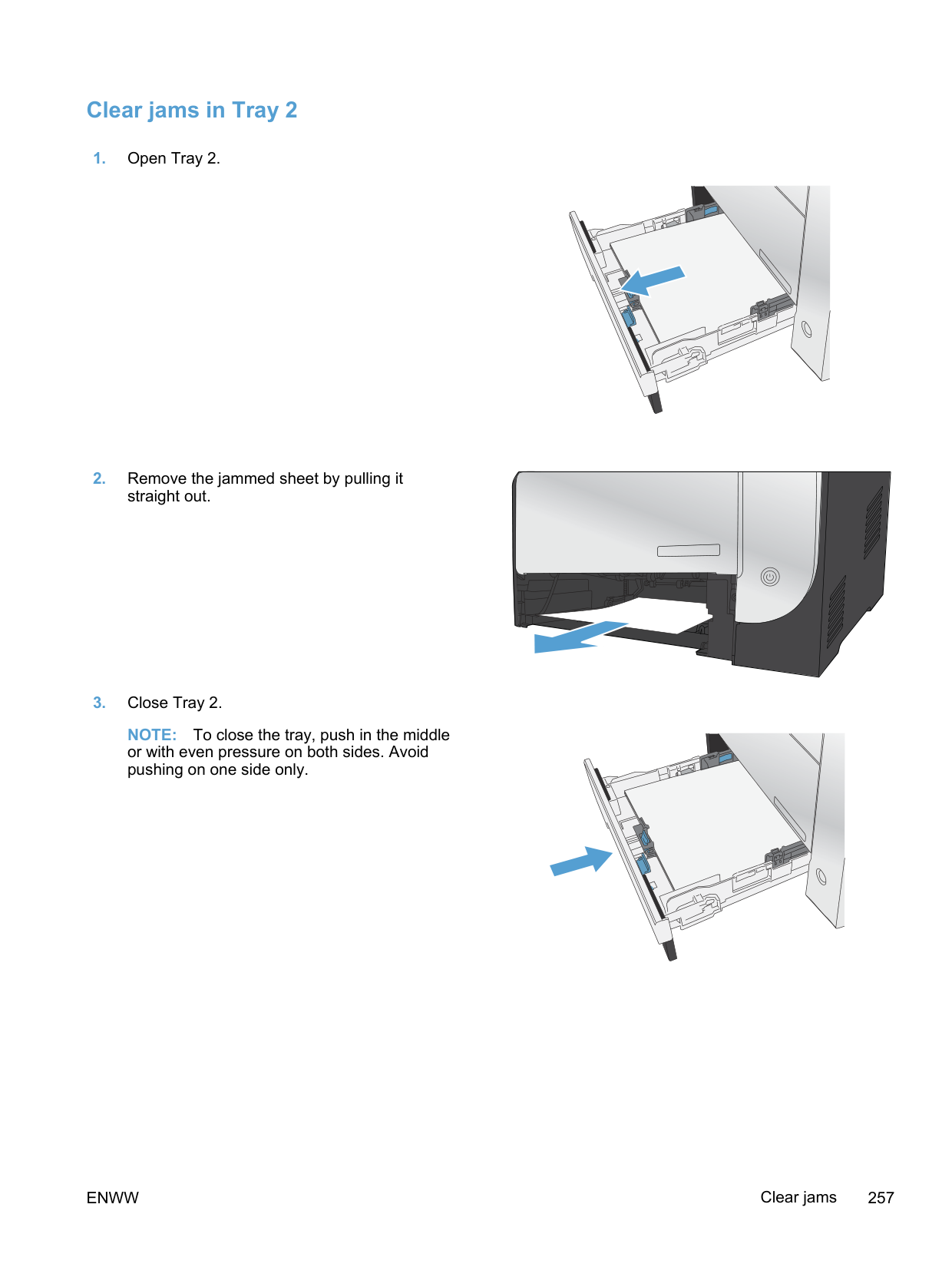
##### Clear jams in the output bin
NOTE: If the sheet tears, make sure that all fragments are removed before resuming printing.

##### Clear jams in the duplexer (duplexing models only)
CAUTION: The fuser, located in the back of the product, is hot. Wait for the fuser to cool before continuing.
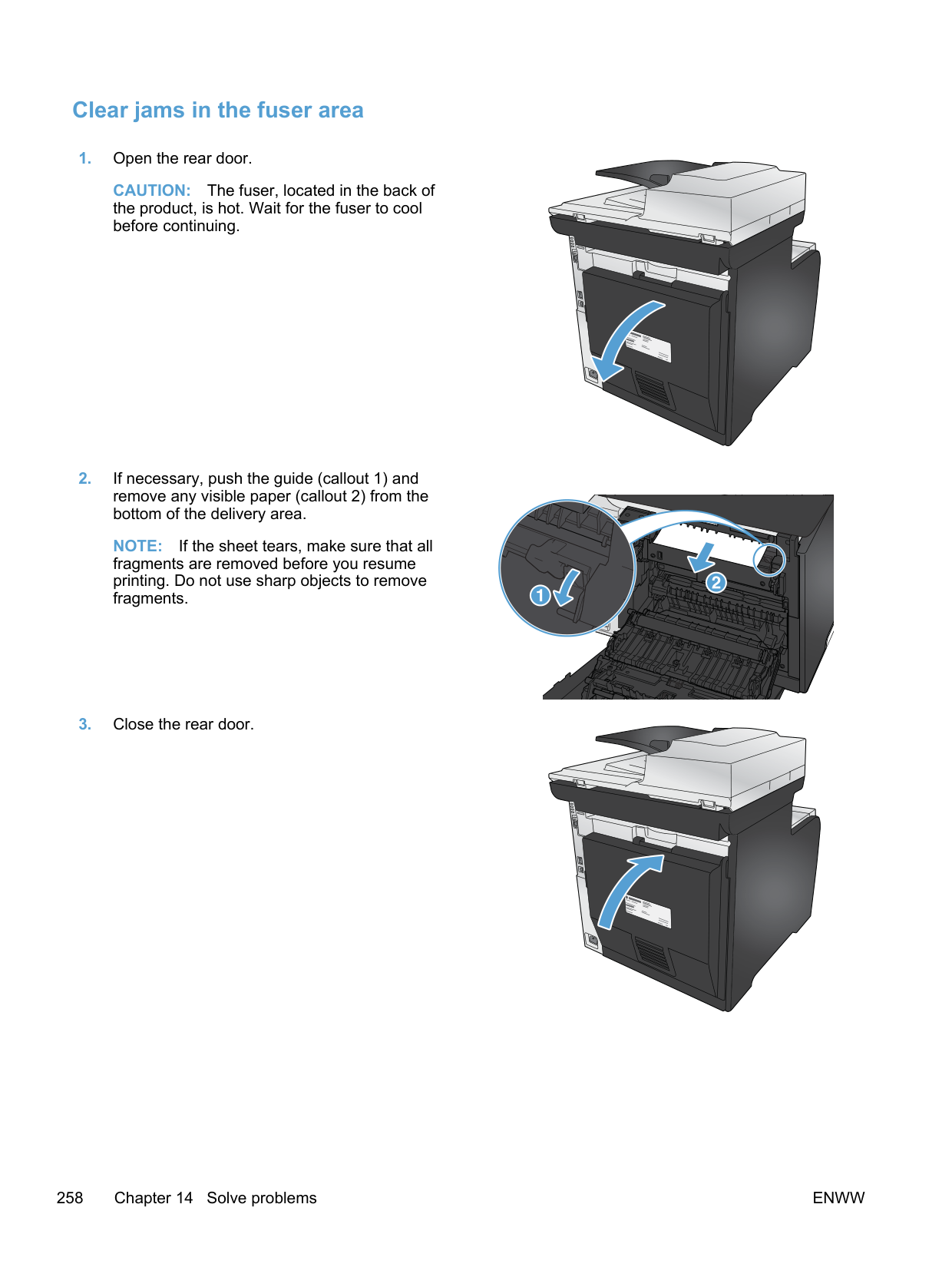
#### Improve print quality
You can prevent most print-quality problems by following these guidelines.
##### Use the correct paper type setting in the printer driver
Check the paper type setting if you are having any of the following problems:
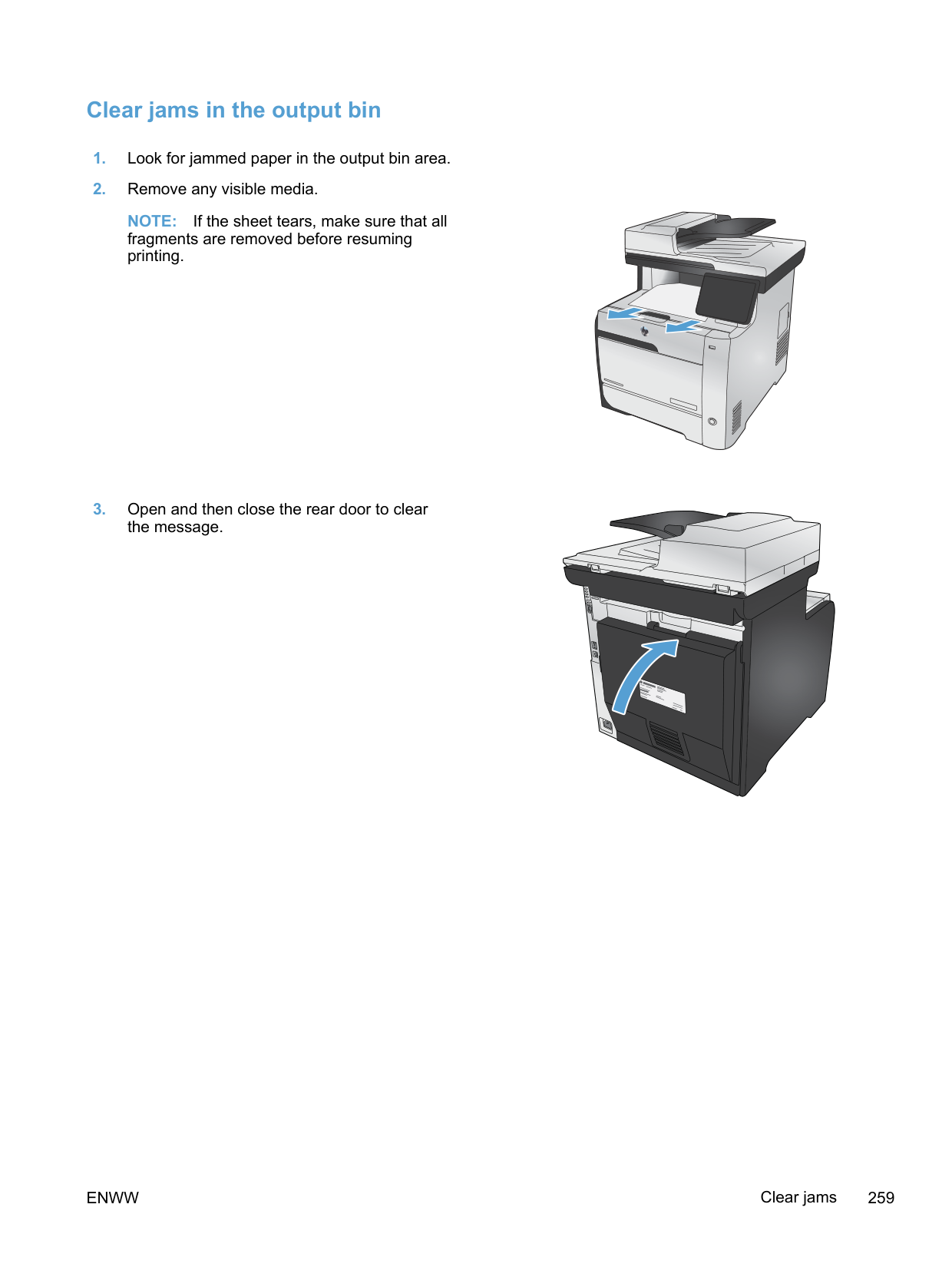
####### Change the paper type setting for Windows
####### Change the paper type setting for Mac
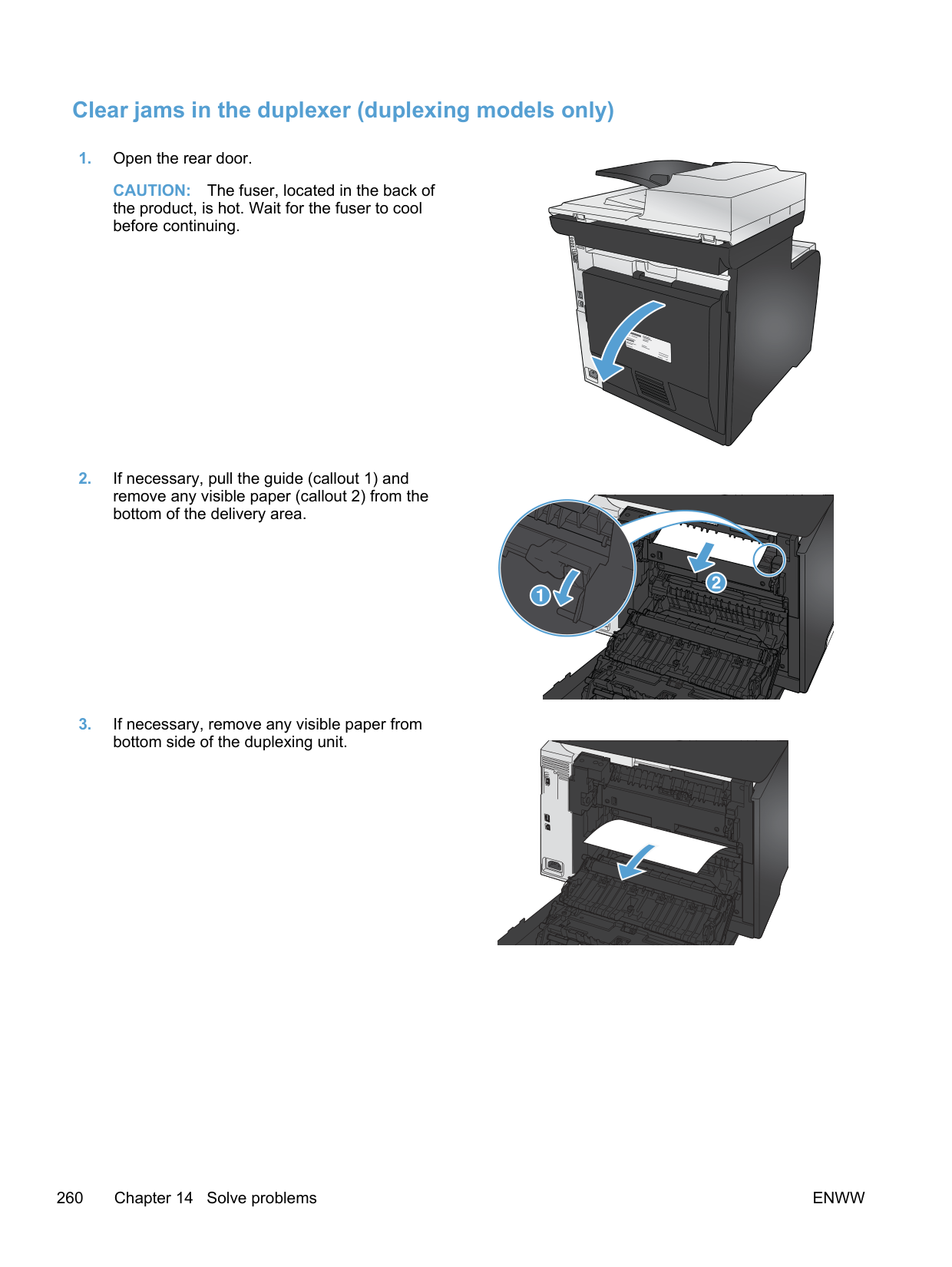
##### Adjust color settings in the printer driver
####### Change the color theme for a print job

| | |---|
####### Change the color options
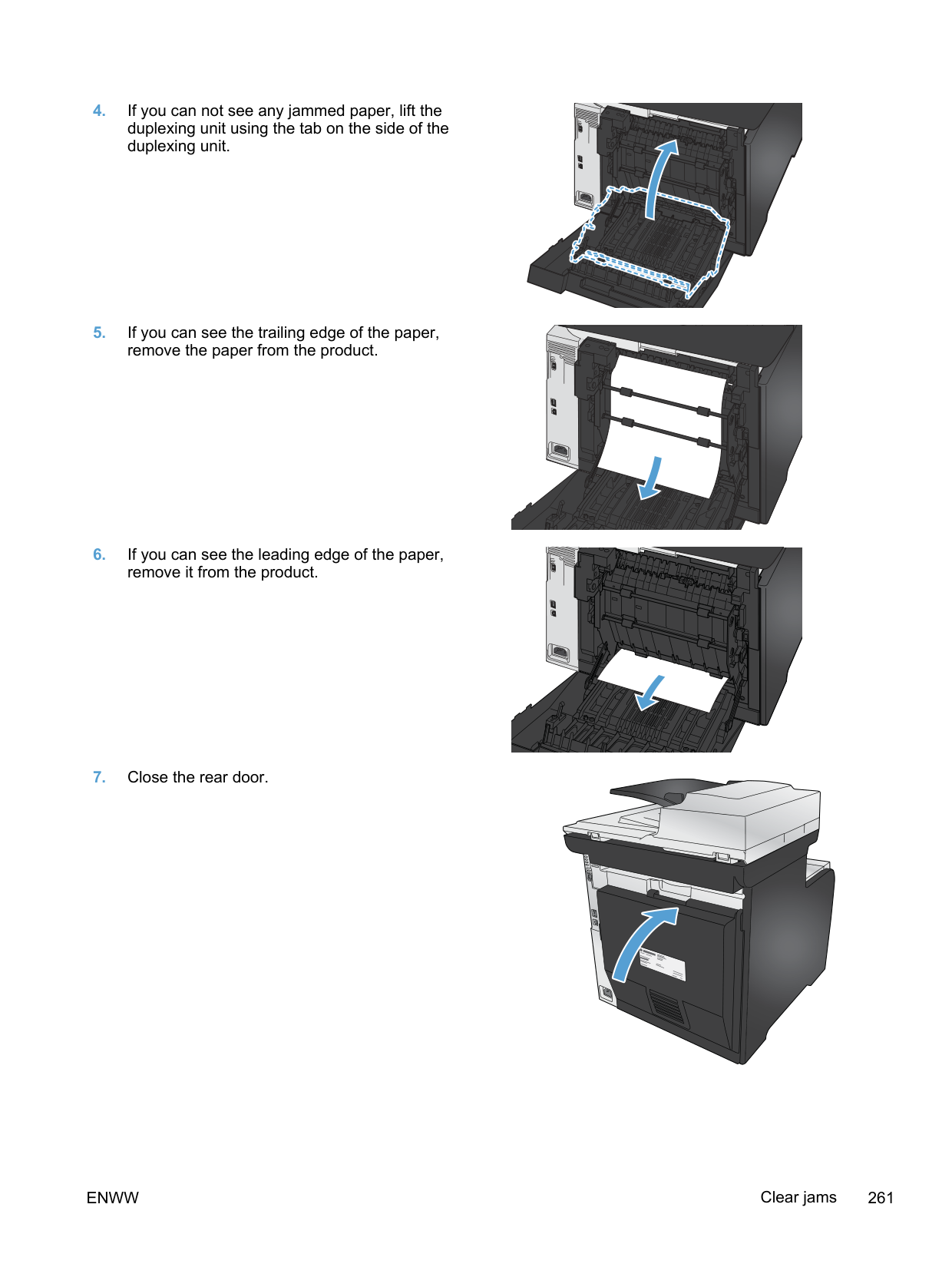
Change the color options settings for the current print job from the color tab of the printer driver.
| | |---|

##### Use paper that meets HP specifications
Use different paper if you are having any of the following problems:
Always use a paper type and weight that this product supports. In addition, follow these guidelines when selecting paper:
##### Print a cleaning page
Print a cleaning page to remove dust and excess toner from the paper path if you are having any of the following problems:
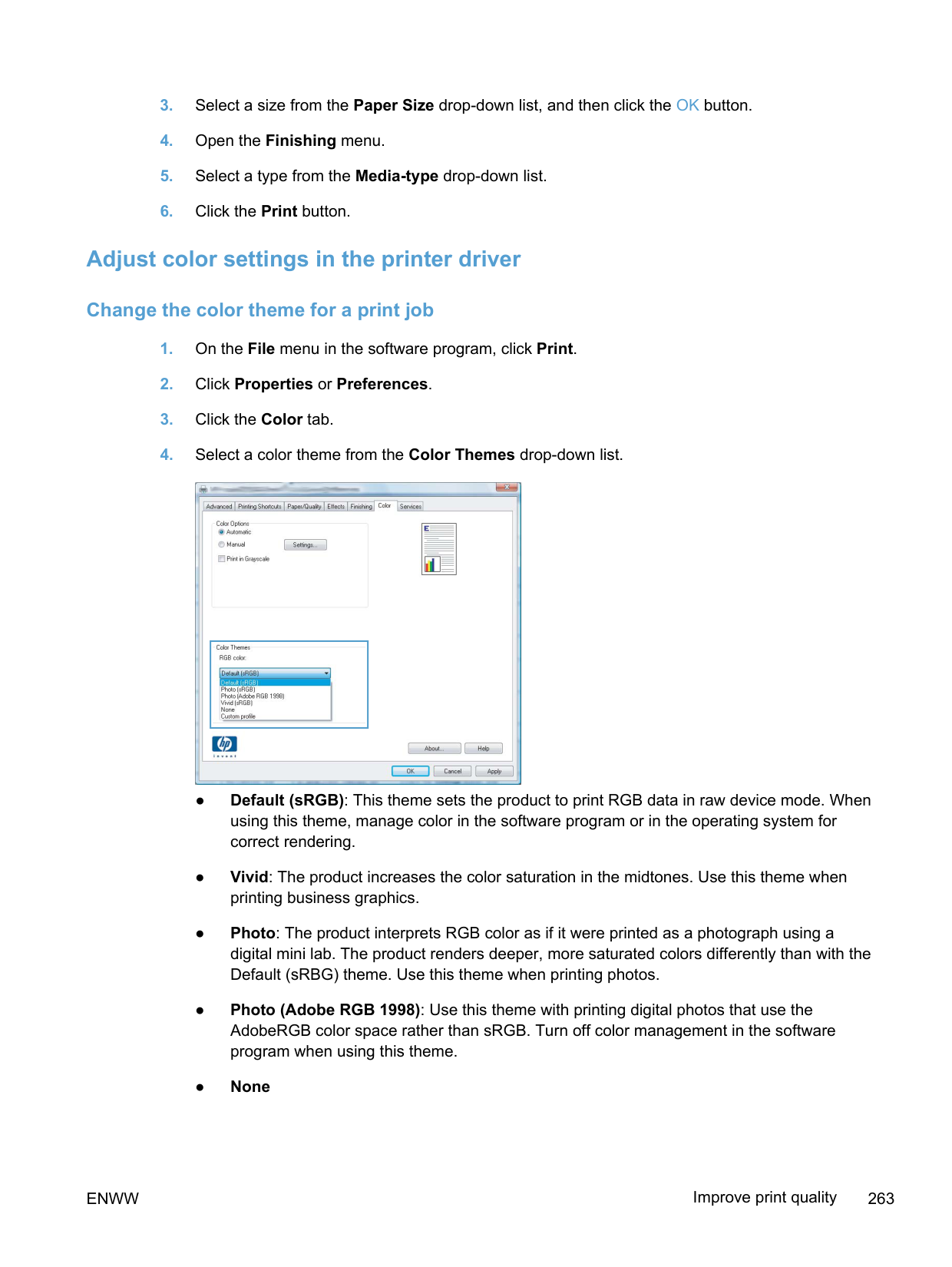
NOTE: For models that do not have an automatic duplexer, the product prints the first side and then prompts you to remove the page from the output bin and reload it in Tray 1, keeping the same orientation.
| | |---|
##### Calibrate the product to align the colors
If the printed output has colored shadows, blurry graphics, or areas that have poor color, you might need to calibrate the product to align the colors. Print the Diagnostics Page from the Reports menu on the control panel to check the color alignment. If the blocks of color on that page are not aligned with each other, you need to calibrate the product.
##### Check the print cartridges
Check each print cartridge, and replace it if necessary, if you are having any of the following problems:
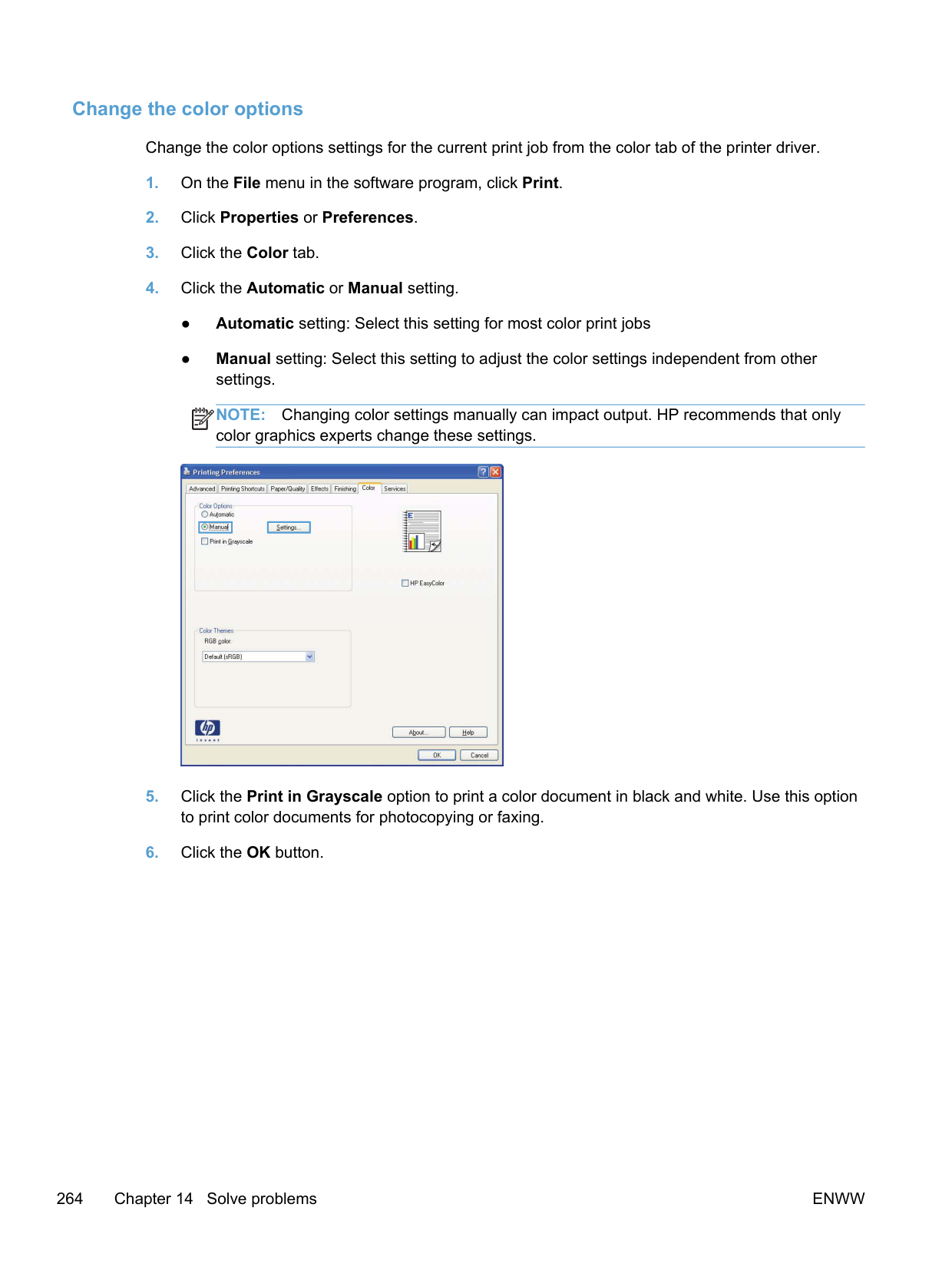
| | |---|
If you determine that you need to replace a print cartridge, print the Supplies Status Page to find the part number for the correct genuine HP print cartridge.
Type of print cartridge Steps to resolve the problem
Refilled or remanufactured print cartridge
Hewlett Packard Company cannot recommend the use of non-HP supplies, either new or remanufactured. Because they are not HP products, HP cannot influence their design or control their quality. If you are using a refilled or remanufactured print cartridge and are not satisfied with the print quality, replace the cartridge with a genuine HP cartridge.
Genuine HP print cartridge 1. The product control panel or the Supplies Status page indicates Very Low status when the cartridge has reached the end of its estimated life. Replace the print cartridge if print quality is no longer acceptable.
####### Print the Supplies Status page
The Supplies Status page indicates the estimated life remaining in print cartridges. It also lists the part number for the correct genuine HP print cartridge for your product so you can order a replacement print cartridge, as well as other useful information.
####### Interpret the Print Quality Page
This page contains five bands of color, which are divided into four groups as indicated in the following illustration. By examining each group, you can isolate the problem to a particular print cartridge.
|Section|Print-cartridge| |---|---| |1|Yellow| |2|Cyan| |3|Black| |4|Magenta|
####### Inspect the print cartridge for damage
CAUTION: Do not touch the green roller (imaging drum) on the bottom of the cartridge. Fingerprints on the imaging drum can cause print-quality problems.
cartridge.
and reinstall it. Print a few pages to see if the problem has resolved.
####### Repeating defects
If defects repeat at any of the following intervals on the page, a print cartridge might be damaged.
● 22 mm ● 27 mm ● 28 mm ● 75 mm
##### Use the printer driver that best meets your printing needs
You might need to use a different printer driver if the printed page has unexpected lines in graphics, missing text, missing graphics, incorrect formatting, or substituted fonts.
HP PCL 6 driver ● Provided as the default driver. This driver is automatically installed unless you select a different one.

HP UPD PS driver ● Recommended for printing with Adobe® software programs or with other
highly graphics-intensive software programs
● Provides support for printing from postscript emulation needs, or for postscript flash font support
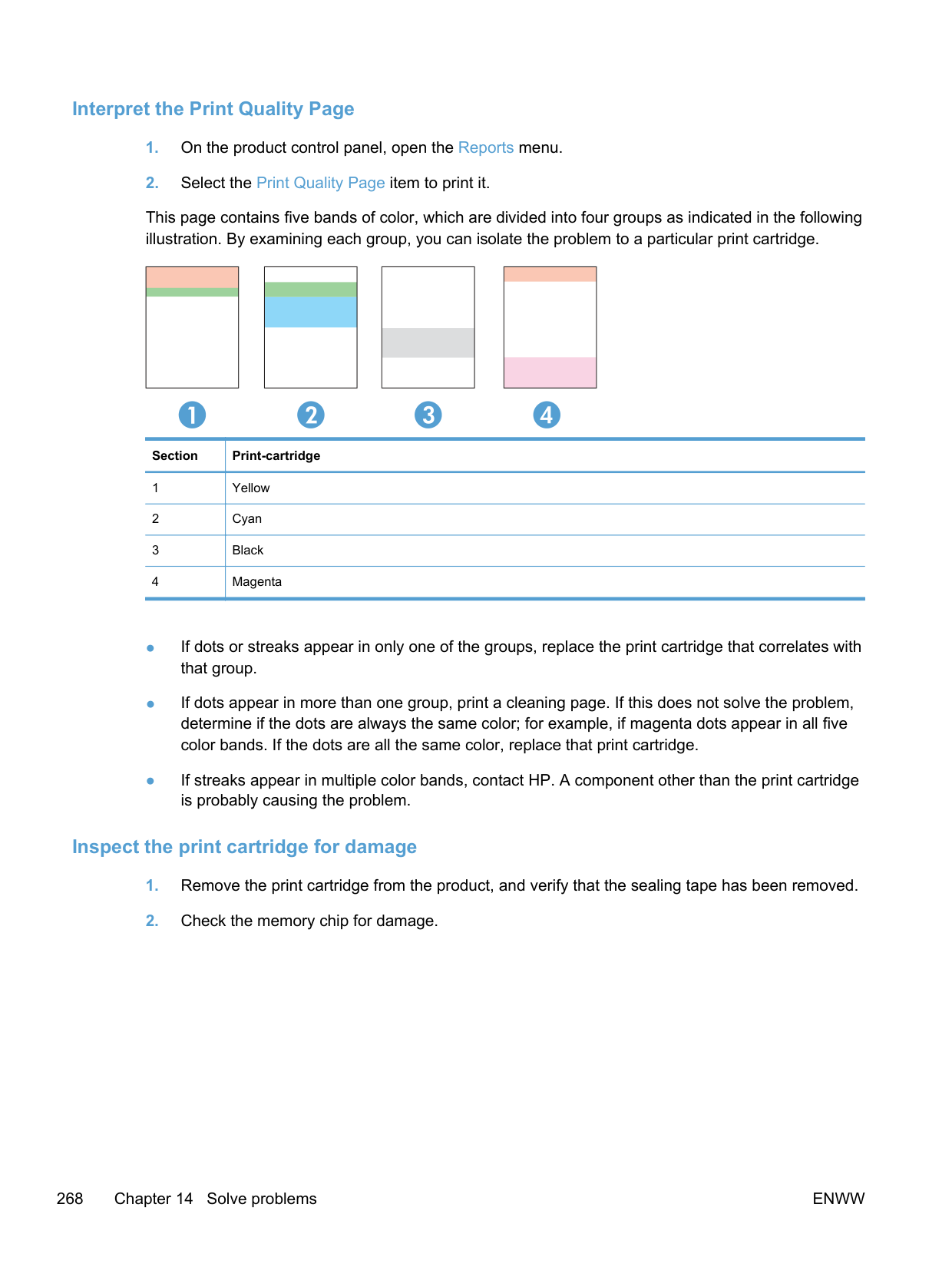
######### Download additional printer drivers from this Web site: www.hp.com/go/LJColorMFPM375_software or www.hp.com/go/LJColorMFPM475_software.
##### Improve print quality for copies
If you encounter print quality problems in copied documents, review the solutions for printed documents listed previously in this document. However, some print-quality problems occur only in copied documents.
CAUTION: Do not use abrasives, acetone, benzene, ammonia, ethyl alcohol, or carbon tetrachloride on any part of the product; these can damage the product. Do not place liquids directly on the glass or platen. They might seep and damage the product.
#### The product does not print or it prints slowly
##### The product does not print
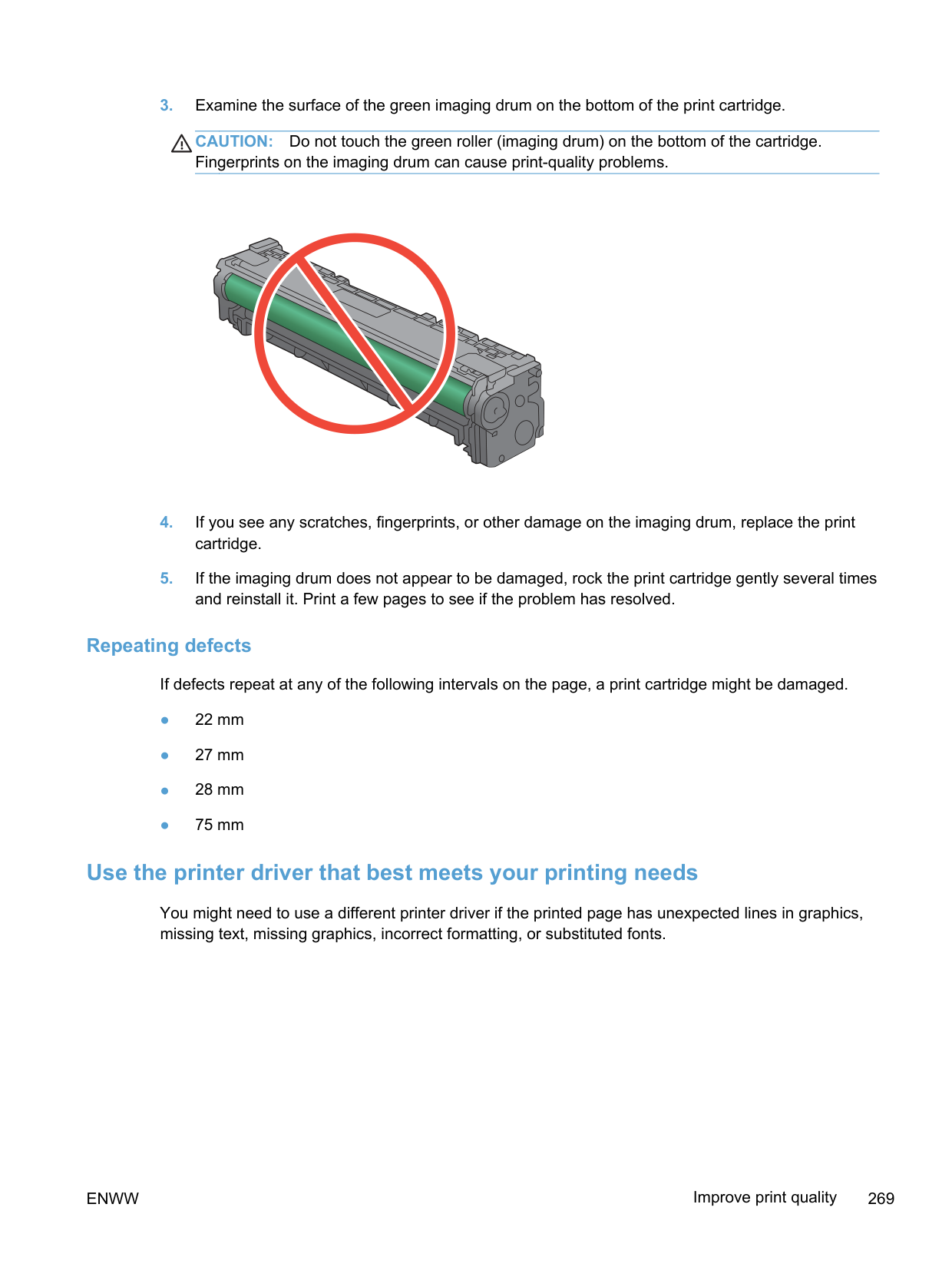
If the product does not print at all, try the following solutions.
◦ If you are using a network cable to connect to the network, make sure the printer name
listed on the Ports tab matches the product name on the product configuration page. ◦ If you are using a USB cable and are connecting to a wireless network, make sure the box
is checked next to Virtual printer port for USB.
##### The product prints slowly
If the product prints, but it seems slow, try the following solutions.
ENWW The product does not print or it prints slowly 273
#### Solve walk-up USB printing problems
##### The USB Flash Drive menu does not open when you insert the USB accessory
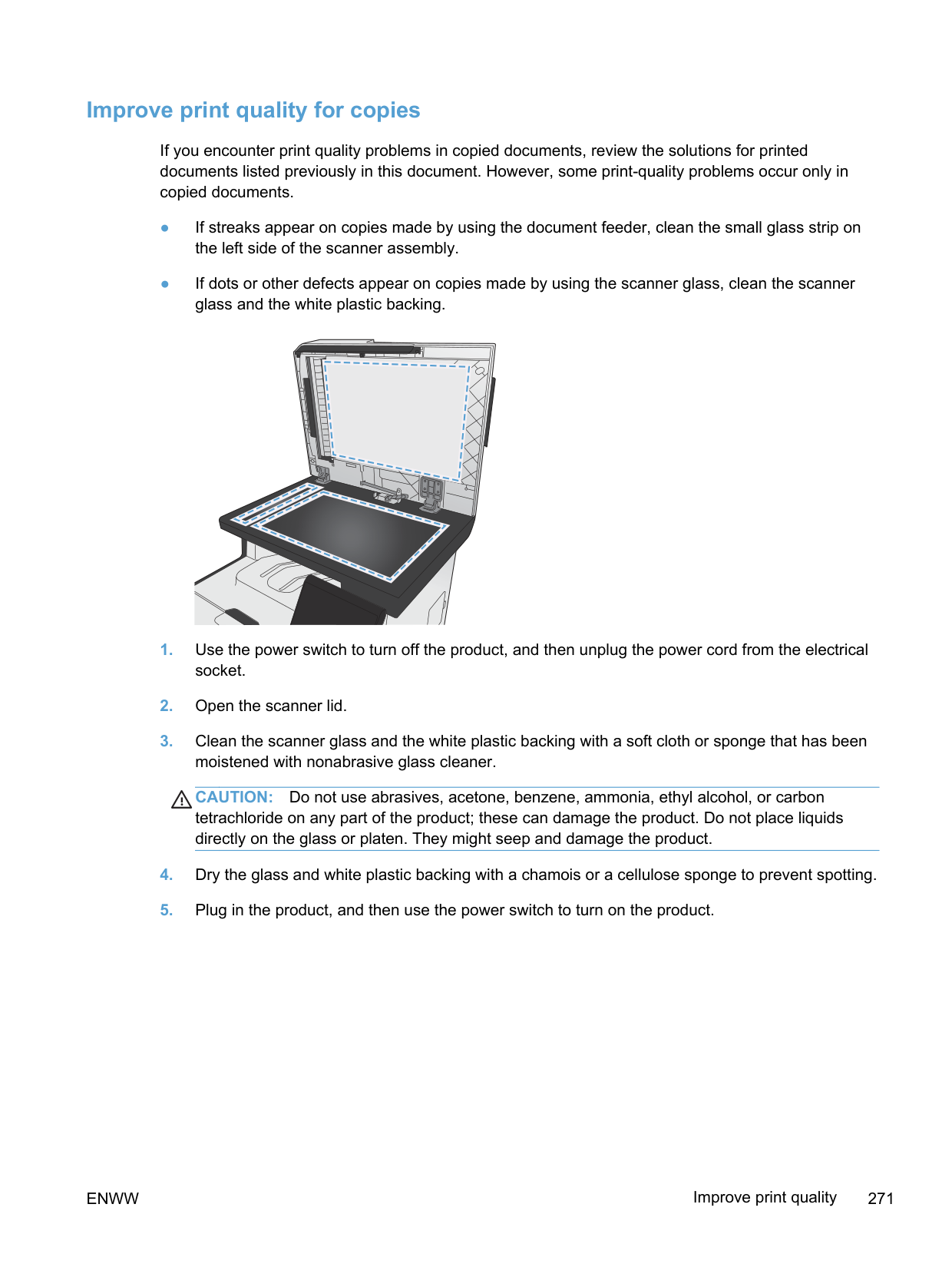
##### The file does not print from the USB storage accessory
##### The file that you want to print is not listed in the USB Flash Drive menu
product supports .PDF and .JPEG file types.
number of files in the folder by moving them to subfolders.
#### Solve product connectivity problems
##### Solve direct-connect problems
If you have connected the product directly to a computer, check the cable. ● Verify that the cable is connected to the computer and to the product. ● Verify that the cable is not longer than 5 m (16.4 ft). Try using a shorter cable.
● Verify that the cable is working correctly by connecting it to another product. Replace the cable if necessary.
##### Solve network problems
Check the following items to verify that the product is communicating with the network. Before beginning, print a configuration page from the product control panel and locate the product IP address that is listed on this page.
####### Poor physical connection
####### The computer is using the incorrect IP address for the product
####### The computer is unable to communicate with the product
a. Open a command-line prompt on your computer. For Windows, click Start, click Run, and
then type cmd. b. Type ping followed by the IP address for your product. c. If the window displays round-trip times, the network is working.
####### The product is using incorrect link and duplex settings for the network
Hewlett-Packard recommends leaving this setting in automatic mode (the default setting). If you change these settings, you must also change them for your network.
####### New software programs might be causing compatibility problems
Verify that any new software programs are correctly installed and that they use the correct printer driver.
####### The computer or workstation might be set up incorrectly
####### The product is disabled, or other network settings are incorrect
necessary.
#### Solve wireless network problems
##### Wireless connectivity checklist
##### The control panel displays the message: The wireless feature on this product has been turned off
##### The product does not print after the wireless configuration completes
b. Select the Run Network Test item to test the wireless network. The product prints a report
with the results.

##### The product does not print, and the computer has a third-party firewall installed
##### The wireless connection does not work after moving the wireless router or product
Make sure that the router or product connects to the same network that your computer connects to.
##### Cannot connect more computers to the wireless product
a. On the product control panel, open the Network Setup menu, and then open the Wireless
Menu item.
b. Select the Run Network Test item to test the wireless network. The product prints a report
with the results.
on the Run Network Test report.
##### The wireless product loses communication when connected to a VPN
● Typically, you cannot connect to a VPN and other networks at the same time.
##### The network does not appear in the wireless networks list
##### The wireless network is not functioning
a. Open a command-line prompt on your computer. For Windows, click Start, click Run, and
then type cmd. b. Type ping followed by the service set identifier (SSID) for your network. c. If the window displays round-trip times, the network is working.
#### Solve product software problems with Windows
########### Problem Solution
A printer driver for the product is not visible in the Printer folder
Reinstall the product software. NOTE: Close any applications that are running. To close an application that has an icon in the system tray, right-click the icon, and select Close or Disable. Try plugging the USB cable into a different USB port on the computer.
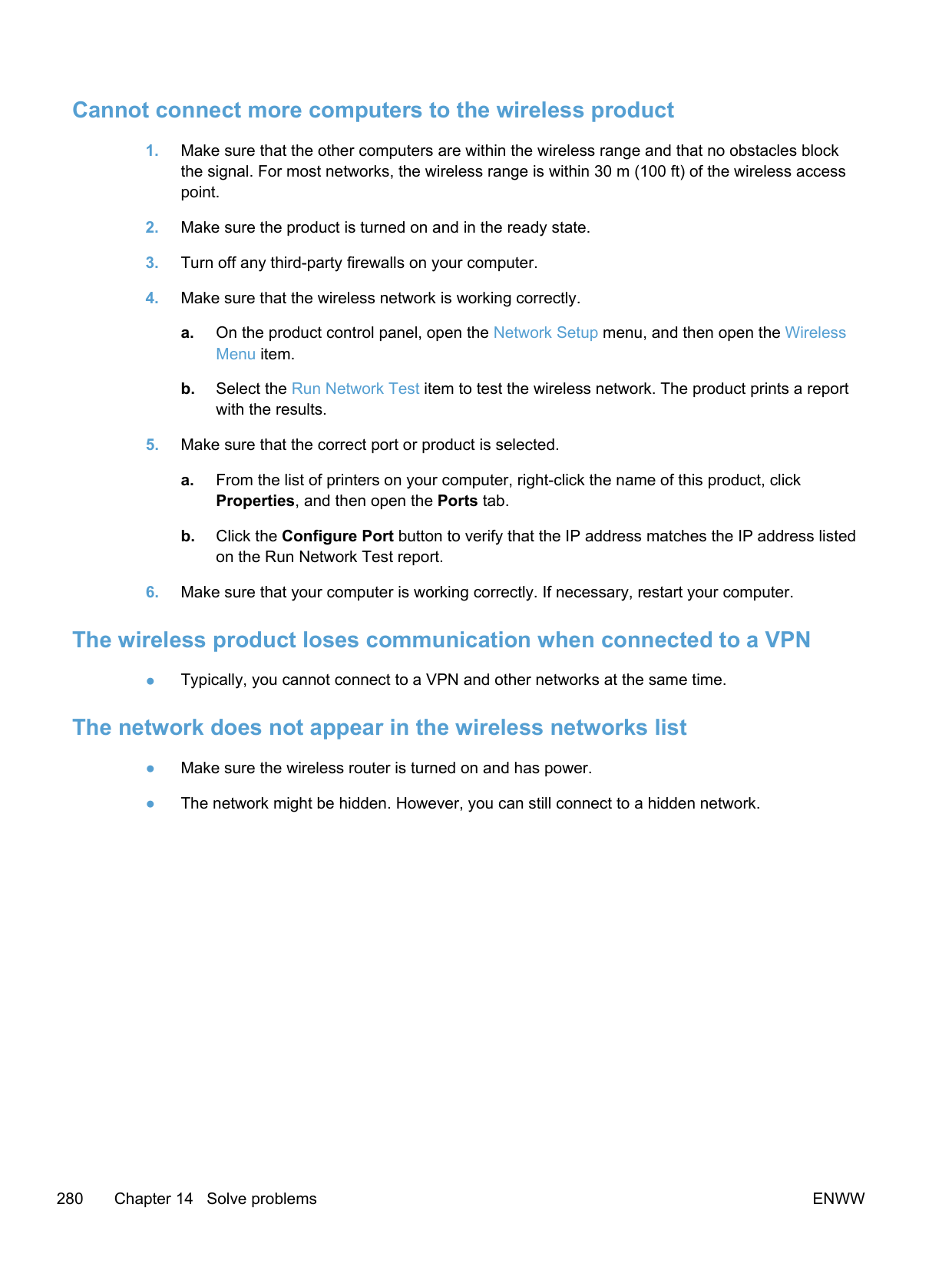
An error message was displayed during the software installation
Reinstall the product software. NOTE: Close any applications that are running. To close an application that has an icon in the task bar, right-click the icon, and select Close or Disable. Check the amount of free space on the drive where you are installing the product software. If necessary, free up as much space as you can, and reinstall the product software. If necessary, run the Disk Defragmenter, and reinstall the product software.
The product is in Ready mode, but nothing prints
Print a Configuration page, and verify the product functionality.
Verify that all of the cables are correctly seated and within specifications. This includes the USB and power cables. Try a new cable.
Verify the IP Address on the Configuration Page matches the IP address for the software port. Use one of the following procedures:
Windows XP, Windows Server 2003, Windows Server 2008, and Windows Vista
Windows 7 1. Click Start.
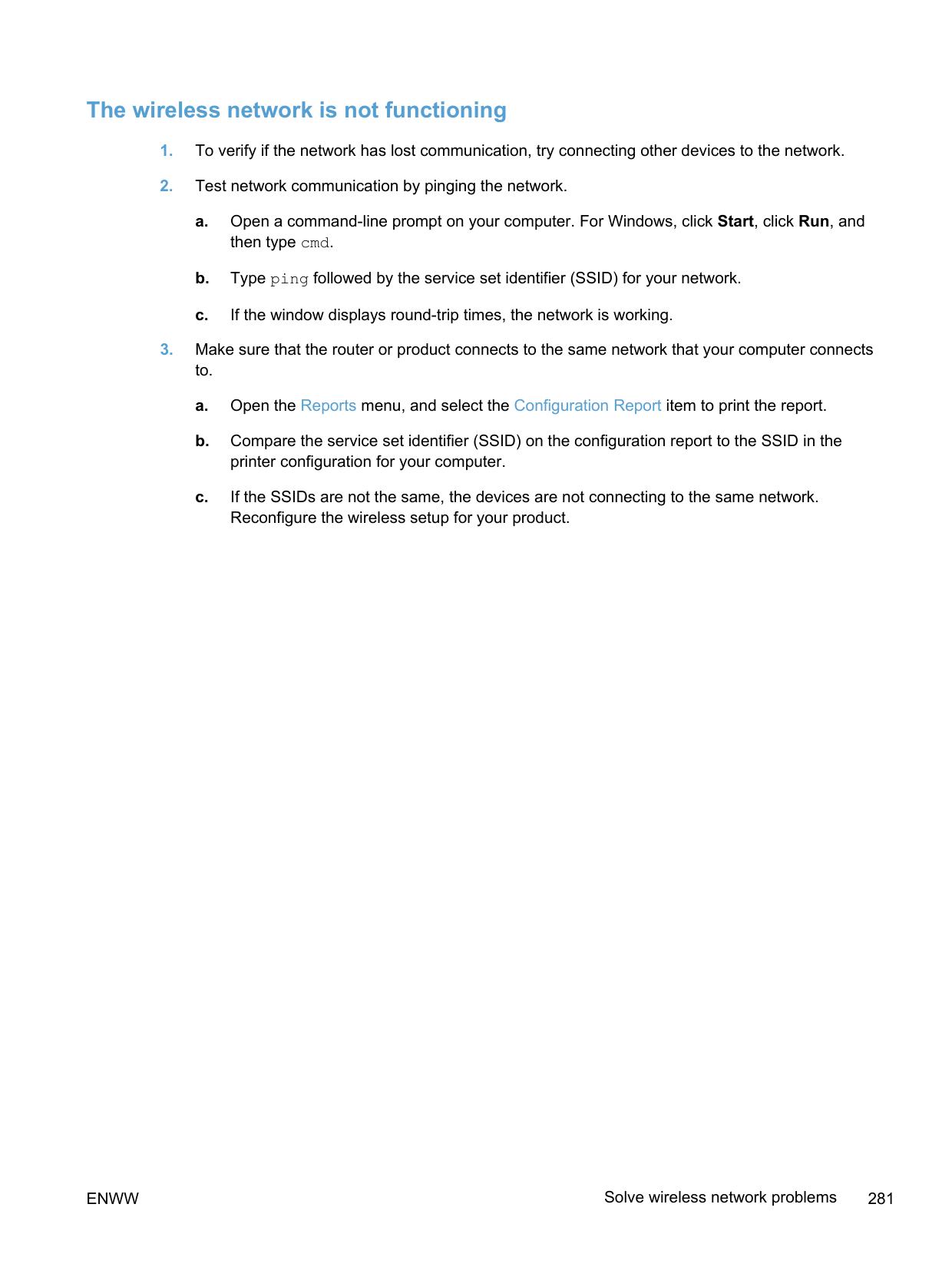
#### Solve product software problems with Mac
##### The printer driver is not listed in the Print & Fax list
PPDs/Contents/Resources. If necessary, reinstall the software.
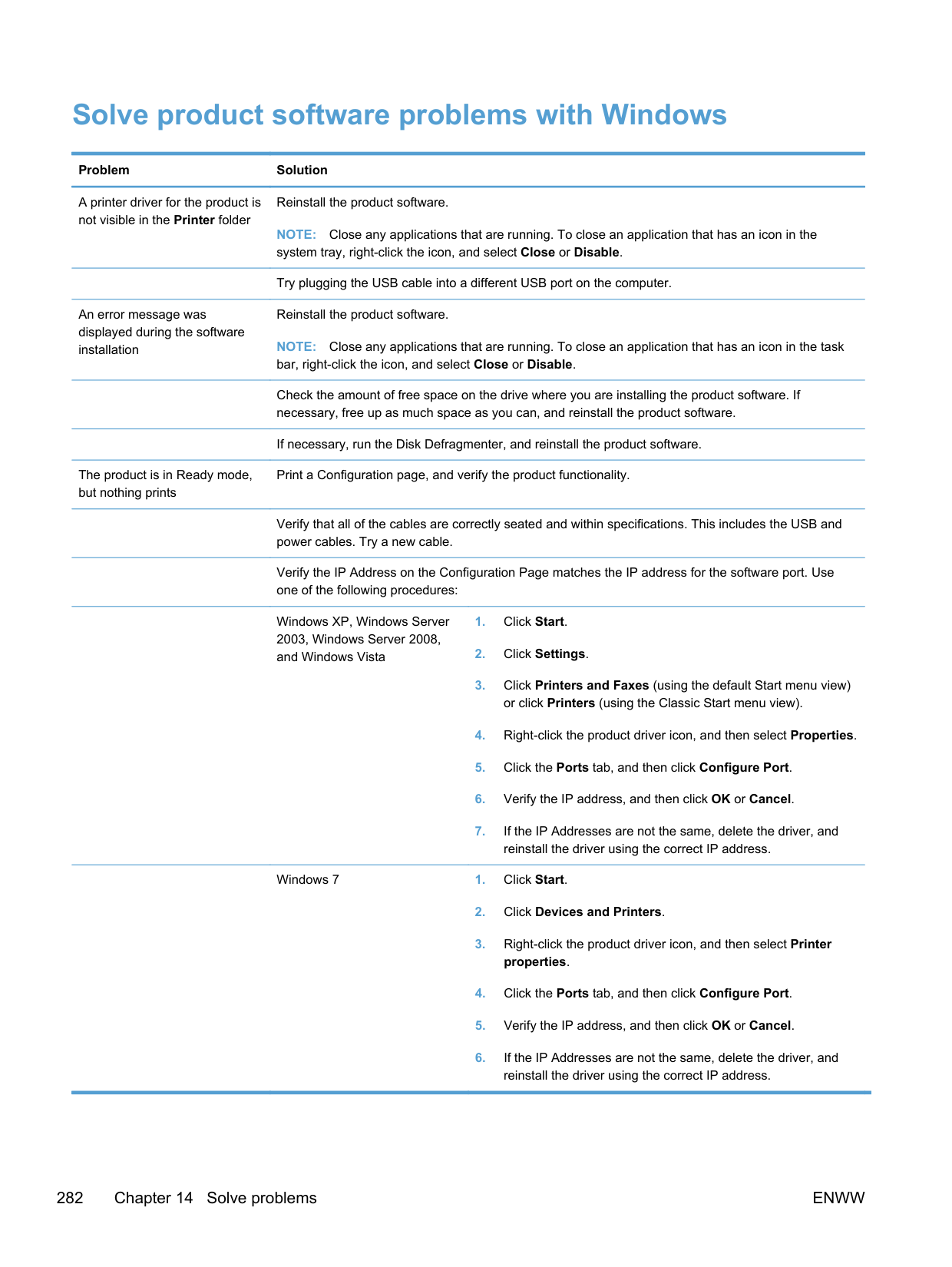
software.
##### The product name does not appear in the product list in the Print & Fax list
##### The printer driver does not automatically set up the selected product in the Print & Fax list
ENWW Solve product software problems with Mac 283
##### A print job was not sent to the product that you wanted
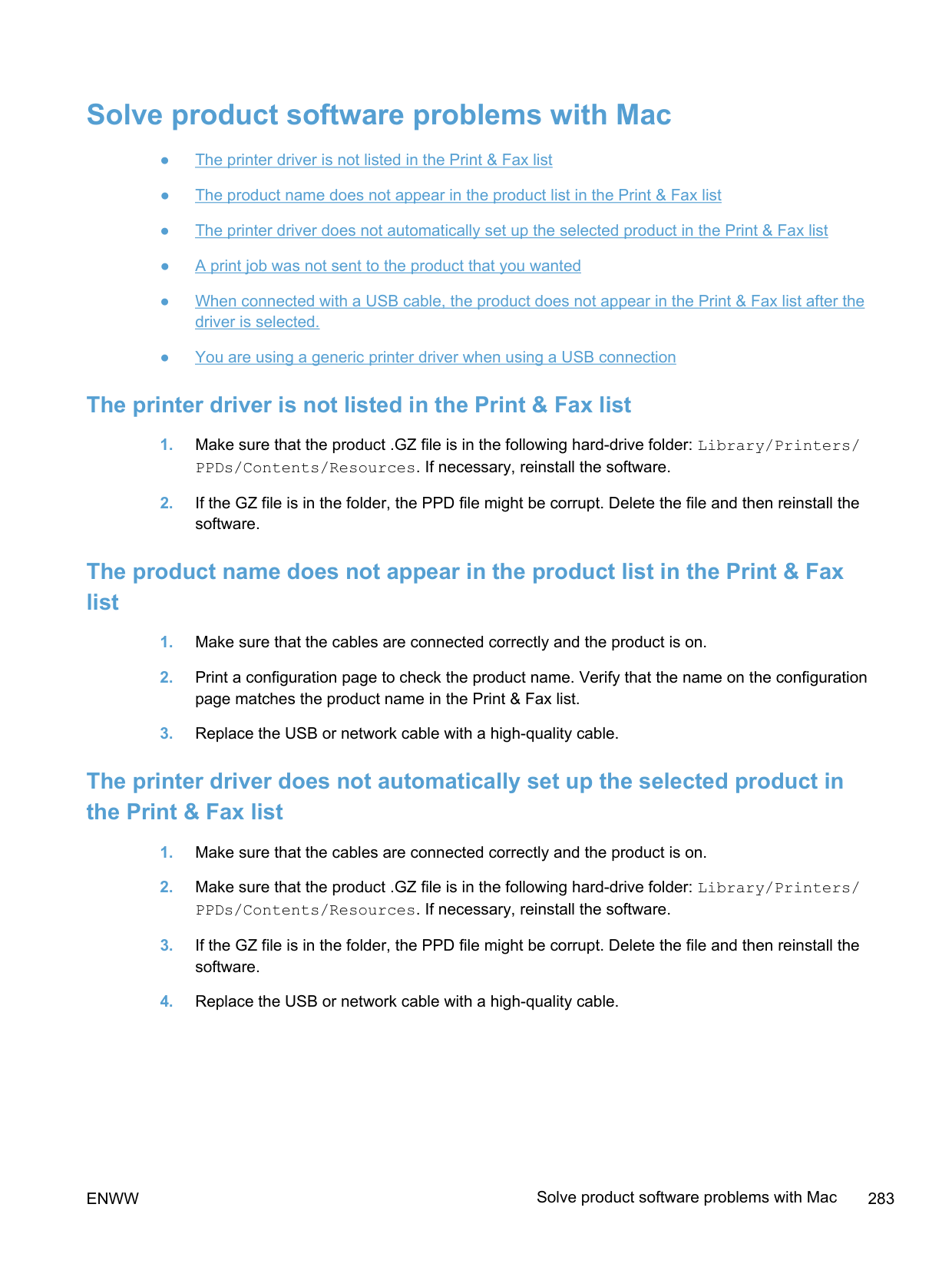
##### When connected with a USB cable, the product does not appear in the Print & Fax list after the driver is selected.
######## Software troubleshooting
▲ Make sure that your Mac operating system is Mac OS X 10.5 or later.
######## Hardware troubleshooting
| | |---|
##### You are using a generic printer driver when using a USB connection
If you connected the USB cable before you installed the software, you might be using a generic printer driver instead of the driver for this product.
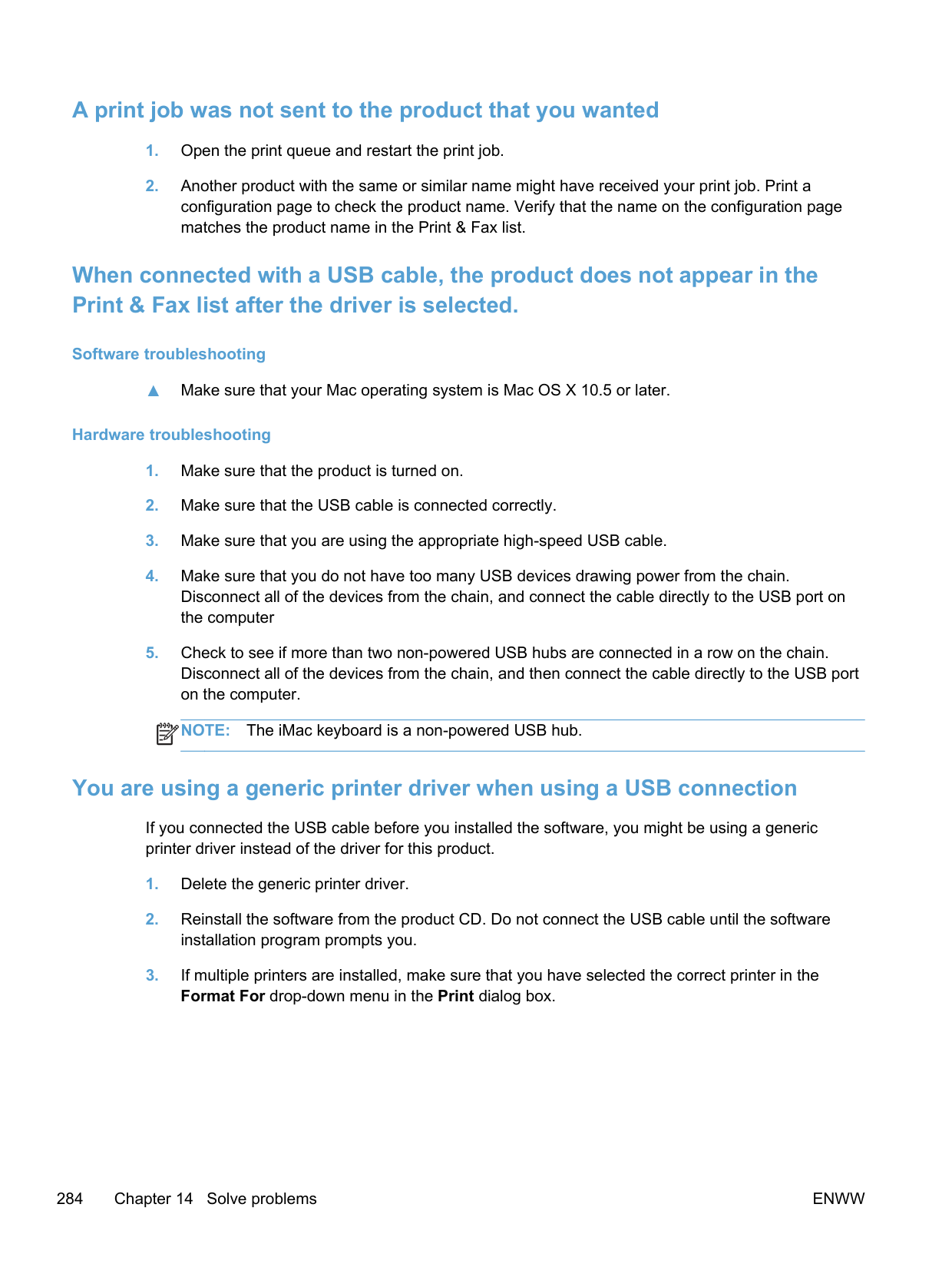
A Supplies and accessories
#### Order parts, accessories, and supplies
Order supplies and paper www.hp.com/go/suresupply Order genuine HP parts or accessories www.hp.com/buy/parts Order through service or support providers Contact an HP-authorized service or support provider.
#### Part numbers
########### Item Part number Cartridge number Description
Print cartridges
CE410X 305X High-capacity black print cartridge with HP ColorSphere toner

Memory CB423A 256 MB memory DIMM Paperhandling accessories
CF106A 250-sheet paper feeder (optional Tray 3)
USB cable 8121-0868 2-meter A-to-B cable
NOTE: For information about the yield for the cartridges, see www.hp.com/go/pageyield. Actual yield depends on specific use.
| | |---|
286 Appendix A Supplies and accessories ENWW
B Service and support
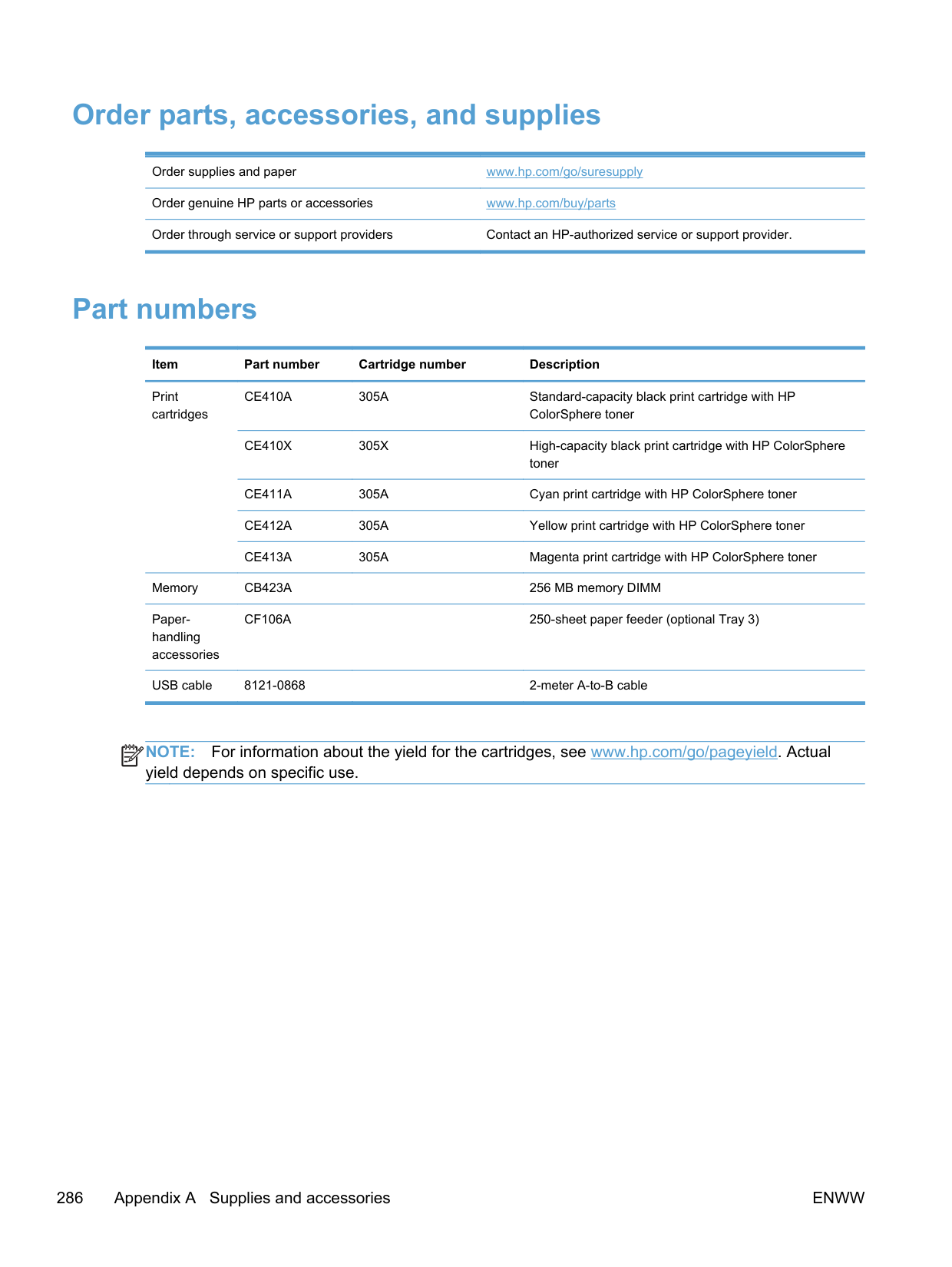
#### Hewlett-Packard limited warranty statement
HP PRODUCT DURATION OF LIMITED WARRANTY HP LaserJet Pro 300 color MFP M375nw and HP LaserJet Pro 400 color MFP M475dn, and M475dw
One year from date of purchase
HP warrants to you, the end-user customer, that HP hardware and accessories will be free from defects in materials and workmanship after the date of purchase, for the period specified above. If HP receives notice of such defects during the warranty period, HP will, at its option, either repair or replace products which prove to be defective. Replacement products may be either new or equivalent in performance to new.
HP warrants to you that HP software will not fail to execute its programming instructions after the date of purchase, for the period specified above, due to defects in material and workmanship when properly installed and used. If HP receives notice of such defects during the warranty period, HP will replace software which does not execute its programming instructions due to such defects.
HP does not warrant that the operation of HP products will be uninterrupted or error free. If HP is unable, within a reasonable time, to repair or replace any product to a condition as warranted, you will be entitled to a refund of the purchase price upon prompt return of the product.
HP products may contain remanufactured parts equivalent to new in performance or may have been subject to incidental use.
Warranty does not apply to defects resulting from (a) improper or inadequate maintenance or calibration, (b) software, interfacing, parts or supplies not supplied by HP, (c) unauthorized modification or misuse, (d) operation outside of the published environmental specifications for the product, or (e) improper site preparation or maintenance.
TO THE EXTENT ALLOWED BY LOCAL LAW, THE ABOVE WARRANTIES ARE EXCLUSIVE AND NO OTHER WARRANTY OR CONDITION, WHETHER WRITTEN OR ORAL, IS EXPRESSED OR IMPLIED AND HP SPECIFICALLY DISCLAIMS ANY IMPLIED WARRANTIES OR CONDITIONS OF MERCHANTABILITY, SATISFACTORY QUALITY, AND FITNESS FOR A PARTICULAR PURPOSE. Some countries/regions, states or provinces do not allow limitations on the duration of an implied warranty, so the above limitation or exclusion might not apply to you. This warranty gives you specific legal rights and you might also have other rights that vary from country/region to country/region, state to state, or province to province.
HP's limited warranty is valid in any country/region or locality where HP has a support presence for this product and where HP has marketed this product. The level of warranty service you receive may vary according to local standards. HP will not alter form, fit or function of the product to make it operate in a country/region for which it was never intended to function for legal or regulatory reasons.
TO THE EXTENT ALLOWED BY LOCAL LAW, THE REMEDIES IN THIS WARRANTY STATEMENT ARE YOUR SOLE AND EXCLUSIVE REMEDIES. EXCEPT AS INDICATED ABOVE, IN NO EVENT WILL HP OR ITS SUPPLIERS BE LIABLE FOR LOSS OF DATA OR FOR DIRECT, SPECIAL, INCIDENTAL, CONSEQUENTIAL (INCLUDING LOST PROFIT OR DATA), OR OTHER DAMAGE, WHETHER BASED IN CONTRACT, TORT, OR OTHERWISE. Some countries/regions, states or provinces do not allow the exclusion or limitation of incidental or consequential damages, so the above limitation or exclusion may not apply to you.
THE WARRANTY TERMS CONTAINED IN THIS STATEMENT, EXCEPT TO THE EXTENT LAWFULLY PERMITTED, DO NOT EXCLUDE, RESTRICT OR MODIFY AND ARE IN ADDITION TO THE MANDATORY STATUTORY RIGHTS APPLICABLE TO THE SALE OF THIS PRODUCT TO YOU.
ENWW Hewlett-Packard limited warranty statement 289
#### HP's Premium Protection Warranty: LaserJet print cartridge limited warranty statement
This HP product is warranted to be free from defects in materials and workmanship. This warranty does not apply to products that (a) have been refilled, refurbished, remanufactured or tampered with in any way, (b) experience problems resulting from misuse, improper storage, or operation outside of the published environmental specifications for the printer product or (c) exhibit wear from ordinary use. To obtain warranty service, please return the product to place of purchase (with a written description of the problem and print samples) or contact HP customer support. At HP's option, HP will either replace products that prove to be defective or refund your purchase price. TO THE EXTENT ALLOWED BY LOCAL LAW, THE ABOVE WARRANTY IS EXCLUSIVE AND NO OTHER WARRANTY OR CONDITION, WHETHER WRITTEN OR ORAL, IS EXPRESSED OR IMPLIED AND HP SPECIFICALLY DISCLAIMS ANY IMPLIED WARRANTIES OR CONDITIONS OF MERCHANTABILITY, SATISFACTORY QUALITY, AND FITNESS FOR A PARTICULAR PURPOSE. TO THE EXTENT ALLOWED BY LOCAL LAW, IN NO EVENT WILL HP OR ITS SUPPLIERS BE LIABLE FOR DIRECT, SPECIAL, INCIDENTAL, CONSEQUENTIAL (INCLUDING LOST PROFIT OR DATA), OR OTHER DAMAGE, WHETHER BASED IN CONTRACT, TORT, OR OTHERWISE. THE WARRANTY TERMS CONTAINED IN THIS STATEMENT, EXCEPT TO THE EXTENT LAWFULLY PERMITTED, DO NOT EXCLUDE, RESTRICT OR MODIFY AND ARE IN ADDITION TO THE MANDATORY STATUTORY RIGHTS APPLICABLE TO THE SALE OF THIS PRODUCT TO YOU.
#### Data stored on the print cartridge
The HP print cartridges used with this product contain a memory chip that assists in the operation of the product.
In addition, this memory chip collects a limited set of information about the usage of the product, which might include the following: the date when the print cartridge was first installed, the date when the print cartridge was last used, the number of pages printed using the print cartridge, the page coverage, the printing modes used, any printing errors that might have occurred, and the product model. This information helps HP design future products to meet our customers' printing needs.
The data collected from the print cartridge memory chip does not contain information that can be used to identify a customer or user of the print cartridge or their product. However, a customer can choose not to store usage data on the memory chip through the control panel.
HP collects a sampling of the memory chips from print cartridges returned to HP's free return and recycling program (HP Planet Partners: www.hp.com/recycle). The memory chips from this sampling are read and studied in order to improve future HP products. HP partners who assist in recycling this print cartridge might have access to this data, as well.
Any third party possessing the print cartridge might have access to the anonymous information on the memory chip.
ENWW Data stored on the print cartridge 291
#### End User License Agreement
PLEASE READ CAREFULLY BEFORE USING THIS SOFTWARE PRODUCT: This End-User License Agreement (“EULA”) is a contract between (a) you (either an individual or the entity you represent) and (b) Hewlett-Packard Company (“HP”) that governs your use of the software product (“Software”). This EULA does not apply if there is a separate license agreement between you and HP or its suppliers for the Software, including a license agreement in online documentation. The term “Software” may include (i) associated media, (ii) a user guide and other printed materials, and (iii) “online” or electronic documentation (collectively “User Documentation”).
RIGHTS IN THE SOFTWARE ARE OFFERED ONLY ON THE CONDITION THAT YOU AGREE TO ALL TERMS AND CONDITIONS OF THIS EULA. BY INSTALLING, COPYING, DOWNLOADING, OR OTHERWISE USING THE SOFTWARE, YOU AGREE TO BE BOUND BY THIS EULA. IF YOU DO NOT ACCEPT THIS EULA, DO NOT INSTALL, DOWNLOAD, OR OTHERWISE USE THE SOFTWARE. IF YOU PURCHASED THE SOFTWARE BUT DO NOT AGREE TO THIS EULA, PLEASE RETURN THE SOFTWARE TO YOUR PLACE OF PURCHASE WITHIN FOURTEEN DAYS FOR A REFUND OF THE PURCHASE PRICE; IF THE SOFTWARE IS INSTALLED ON OR MADE AVAILABLE WITH ANOTHER HP PRODUCT, YOU MAY RETURN THE ENTIRE UNUSED PRODUCT.
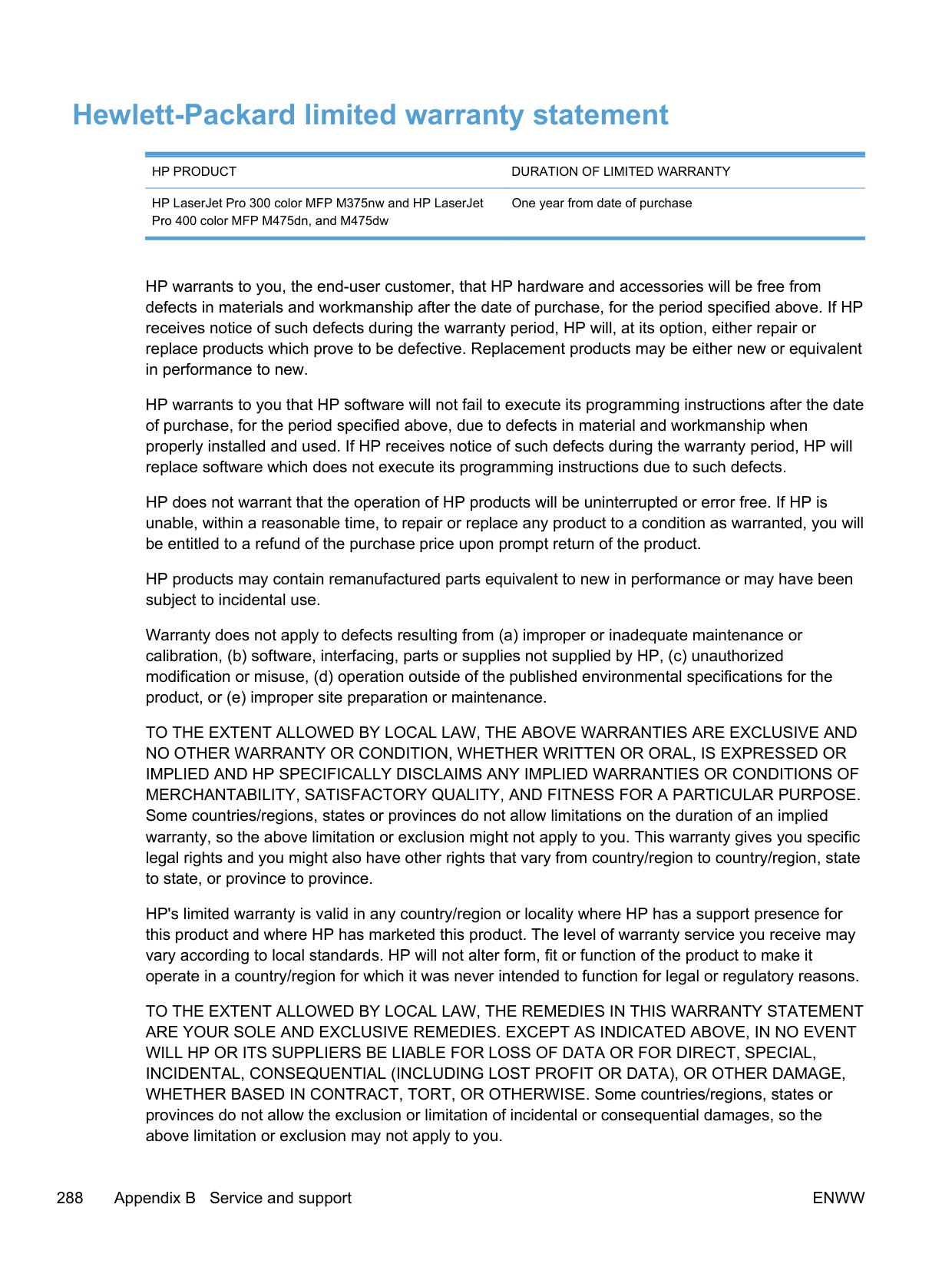
ENWW End User License Agreement 293

you in this EULA. © 2009 Hewlett-Packard Development Company, L.P. Rev. 04/09
#### OpenSSL
This product includes software developed by the OpenSSL Project for use in the OpenSSL Toolkit (http://www.openssl.org/)
THIS SOFTWARE IS PROVIDED BY THE OpenSSL PROJECT ``AS IS'' AND ANY EXPRESSED OR IMPLIED WARRANTIES, INCLUDING, BUT NOT LIMITED TO, THE IMPLIED WARRANTIES OF MERCHANTABILITY AND FITNESS FOR A PARTICULAR PURPOSE ARE DISCLAIMED. IN NO EVENT SHALL THE OpenSSL PROJECT OR ITS CONTRIBUTORS BE LIABLE FOR ANY DIRECT, INDIRECT, INCIDENTAL, SPECIAL, EXEMPLARY, OR CONSEQUENTIAL DAMAGES (INCLUDING, BUT NOT LIMITED TO, PROCUREMENT OF SUBSTITUTE GOODS OR SERVICES;
LOSS OF USE, DATA, OR PROFITS; OR BUSINESS INTERRUPTION) HOWEVER CAUSED AND ON ANY THEORY OF LIABILITY, WHETHER IN CONTRACT, STRICT LIABILITY, OR TORT (INCLUDING NEGLIGENCE OR OTHERWISE) ARISING IN ANY WAY OUT OF THE USE OF THIS SOFTWARE, EVEN IF ADVISED OF THE POSSIBILITY OF SUCH DAMAGE.
This product includes cryptographic software written by Eric Young (eay@cryptsoft.com). This product includes software written by Tim Hudson (tjh@cryptsoft.com).
ENWW OpenSSL 295
#### Customer support
Get telephone support for your country/region
Have the product name, serial number, date of purchase, and problem description ready.
Country/region phone numbers are on the flyer that was in the box with your product or at www.hp.com/support/.
Get 24-hour Internet support www.hp.com/go/LJColorMFPM375 or www.hp.com/go/
LJColorMFPM475 Get support for products used with a Macintosh computer www.hp.com/go/macosx Download software utilities, drivers, and electronic information
www.hp.com/go/LJColorMFPM375_software or www.hp.com/go/LJColorMFPM475_software
Order additional HP service or maintenance agreements www.hp.com/go/carepack Register your product www.register.hp.com
C Product specifications
#### Physical specifications
########## Table C-1 Physical specifications
########### Product Height Depth Width Weight
HP LaserJet Pro 300 color MFP M375nw
HP LaserJet Pro 400 color MFP M475dn
HP LaserJet Pro 400 color MFP M475dw
500 mm (19.7 inches) 483 mm (19.0 inches) 420 mm (16.5 inches) 29.5 kg (65.0 lb)
#### Power consumption, electrical specifications, and acoustic emissions
See www.hp.com/go/LJColorMFPM375_regulatory or www.hp.com/go/LJColorMFPM475_regulatory for current information.
CAUTION: Power requirements are based on the country/region where the product is sold. Do not convert operating voltages. This will damage the product and void the product warranty.
#### Environmental specifications
########## Table C-2 Environmental specifications1
########### Recommended Operating Storage
Temperature 15° to 32.5° C
15° to 32.5° C
–20° to 40° C
(–4° to 104° F) Relative humidity 20 to 70% 10 to 80% 95% or less Altitude 0 to 3048 m (0 to 10,000 ft)
(59° to 90.5° F)
(59° to 90.5° F)
1 Values are subject to change.
298 Appendix C Product specifications ENWW
D Regulatory information
#### FCC regulations
This equipment has been tested and found to comply with the limits for a Class B digital device, pursuant to Part 15 of the FCC rules. These limits are designed to provide reasonable protection against harmful interference in a residential installation. This equipment generates, uses, and can radiate radio frequency energy. If this equipment is not installed and used in accordance with the instructions, it may cause harmful interference to radio communications. However, there is no guarantee that interference will not occur in a particular installation. If this equipment does cause harmful interference to radio or television reception, which can be determined by turning the equipment off and on, the user is encouraged to try to correct the interference by one or more of the following measures:
NOTE: Any changes or modifications to the printer that are not expressly approved by HP could void the user’s authority to operate this equipment. Use of a shielded interface cable is required to comply with the Class B limits of Part 15 of FCC rules.
| | |---|
#### Environmental product stewardship program
##### Protecting the environment
Hewlett-Packard Company is committed to providing quality products in an environmentally sound manner. This product has been designed with several attributes to minimize impacts on our environment.
##### Ozone production
This product generates no appreciable ozone gas (O3).
##### Power consumption
Power usage drops significantly while in Ready or Sleep mode, which saves natural resources and saves money without affecting the high performance of this product. Hewlett-Packard printing and imaging equipment marked with the ENERGY STAR® logo is qualified to the U.S. Environmental Protection Agency's ENERGY STAR specifications for imaging equipment. The following mark will appear on ENERGY STAR qualified imaging products:
Additional ENERGY STAR qualified imaging product model information is listed at: www.hp.com/go/energystar

##### Toner consumption
EconoMode uses less toner, which might extend the life of the print cartridge. HP does not recommend the full-time use of EconoMode. If EconoMode is used full-time, the toner supply might outlast the mechanical parts in the print cartridge. If print quality begins to degrade and is no longer acceptable, consider replacing the print cartridge.
##### Paper use
This product’s manual/automatic duplex feature (two-sided printing) and N-up printing (multiple pages printed on one page) capability can reduce paper usage and the resulting demands on natural resources.
##### Plastics
Plastic parts over 25 grams are marked according to international standards that enhance the ability to identify plastics for recycling purposes at the end of the product’s life.
##### HP LaserJet print supplies
It’s easy to return and recycle your HP LaserJet print cartridges after use—free of charge—with HP Planet Partners. Multilingual program information and instructions are included in every new HP LaserJet print cartridge and supplies package. You help reduce the toll on the environment further when you return multiple cartridges together rather than separately.
HP is committed to providing inventive, high-quality products and services that are environmentally sound, from product design and manufacturing to distribution, customer use and recycling. When you participate in the HP Planet Partners program, we ensure your HP LaserJet print cartridges are recycled properly, processing them to recover plastics and metals for new products and diverting millions of tons of waste from landfills. Since this cartridge is being recycled and used in new materials, it will not be returned to you. Thank you for being environmentally responsible!
NOTE: Use the return label to return original HP LaserJet print cartridges only. Please do not use this label for HP inkjet cartridges, non-HP cartridges, refilled or remanufactured cartridges or warranty returns. For information about recycling your HP inkjet cartridges please go to http://www.hp.com/ recycle.
| | |---|
##### Return and recycling instructions
####### United States and Puerto Rico
The enclosed label in the HP LaserJet toner cartridge box is for the return and recycling of one or more HP LaserJet print cartridges after use. Please follow the applicable instructions below.
######## Multiple returns (more than one cartridge)
######## Single returns
######## Shipping
For US and Puerto Rico HP LaserJet print cartridge recycling returns, use the pre-paid, preaddressed shipping label contained in the box. To use the UPS label, give the package to the UPS driver during your next delivery or pick-up, or take it to an authorized UPS drop-off center. (Requested UPS Ground pickup will be charged normal pick-up rates) For the location of your local UPS drop-off center, call 1-800-PICKUPS or visit www.ups.com.
If you are returning the package with the FedEx label, give the package to either the U.S. Postal Service carrier or FedEx driver during your next pick-up or delivery. (Requested FedEx Ground pickup will be charged normal pick-up rates). Or, you can drop off your packaged print cartridge(s) at any U.S. Post Office or any FedEx shipping center or store. For the location of your nearest U.S. Post Office, please call 1-800-ASK-USPS or visit www.usps.com. For the location of your nearest FedEx shipping center/store, please call 1-800-GOFEDEX or visit www.fedex.com.
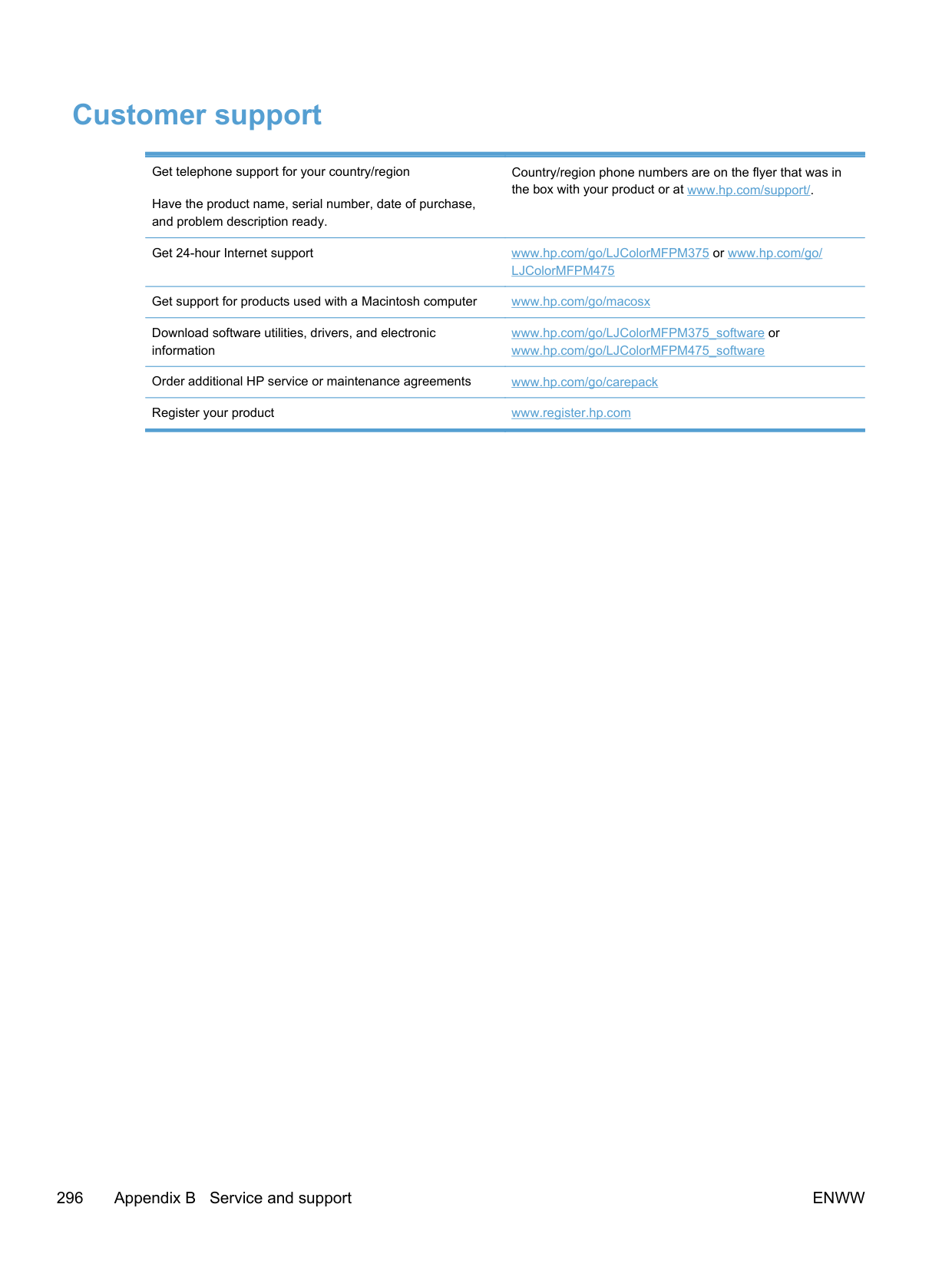
For more information, or to order additional labels or boxes for bulk returns, visit www.hp.com/recycle or call 1-800-340-2445. Information subject to change without notice.
######## Residents of Alaska and Hawaii
Do not use the UPS label. Call 1-800-340-2445 for information and instructions. The U.S. Postal Service provides no-cost cartridge return transportation services under an arrangement with HP for Alaska and Hawaii.
####### Non-U.S. returns
To participate in HP Planet Partners return and recycling program, just follow the simple directions in the recycling guide (found inside the packaging of your new product supply item) or visit www.hp.com/recycle. Select your country/region for information on how to return your HP LaserJet printing supplies.
##### Paper
This product is capable of using recycled papers when the paper meets the guidelines outlined in the HP LaserJet Printer Family Print Media Guide. This product is suitable for the use of recycled paper according to EN12281:2002.
Material restrictions This HP product does not contain added mercury. This HP product contains a battery that might require special handling at end-of-life. The batteries contained in or supplied by Hewlett-Packard for this product include the following:
|HP LaserJet Pro 300 color MFP M375 and HP LaserJet Pro 400 color MFP M475|HP LaserJet Pro 300 color MFP M375 and HP LaserJet Pro 400 color MFP M475| |---|---| |Type|Carbon monofluoride lithium| |Weight|0.8 g| |Location|On formatter board| |User-removable|No|
For recycling information, you can go to www.hp.com/recycle, or contact your local authorities or the Electronics Industries Alliance: www.eiae.org.
##### Disposal of waste equipment by users in private households in the European Union
This symbol on the product or on its packaging indicates that this product must not be disposed of with your other household waste. Instead, it is your responsibility to dispose of your waste equipment by handing it over to a designated collection point for the recycling of waste electrical and electronic equipment. The separate collection and recycling of your waste equipment at the time of disposal will help to conserve natural resources and ensure that it is recycled in a manner that protects human health and the environment. For more information about where you can drop off your waste equipment for recycling, please contact your local city office, your household waste disposal service or the shop where you purchased the product.
##### Chemical substances
HP is committed to providing our customers with information about the chemical substances in our products as needed to comply with legal requirements such as REACH (Regulation EC No 1907/2006 of the European Parliament and the Council). A chemical information report for this product can be found at: www.hp.com/go/reach.
##### Material Safety Data Sheet (MSDS)
Material Safety Data Sheets (MSDS) for supplies containing chemical substances (for example, toner) can be obtained by accessing the HP Web site at www.hp.com/go/msds or www.hp.com/ hpinfo/community/environment/productinfo/safety.
##### For more information
To obtain information about these environmental topics:
#### Declaration of conformity
Declaration of Conformity according to ISO/IEC 17050-1 and EN 17050-1 Manufacturer's Name: Hewlett-Packard Company DoC#: BOISB-1002-03-rel.1.0 Manufacturer's Address: 11311 Chinden Boulevard
Boise, Idaho 83714-1021, USA
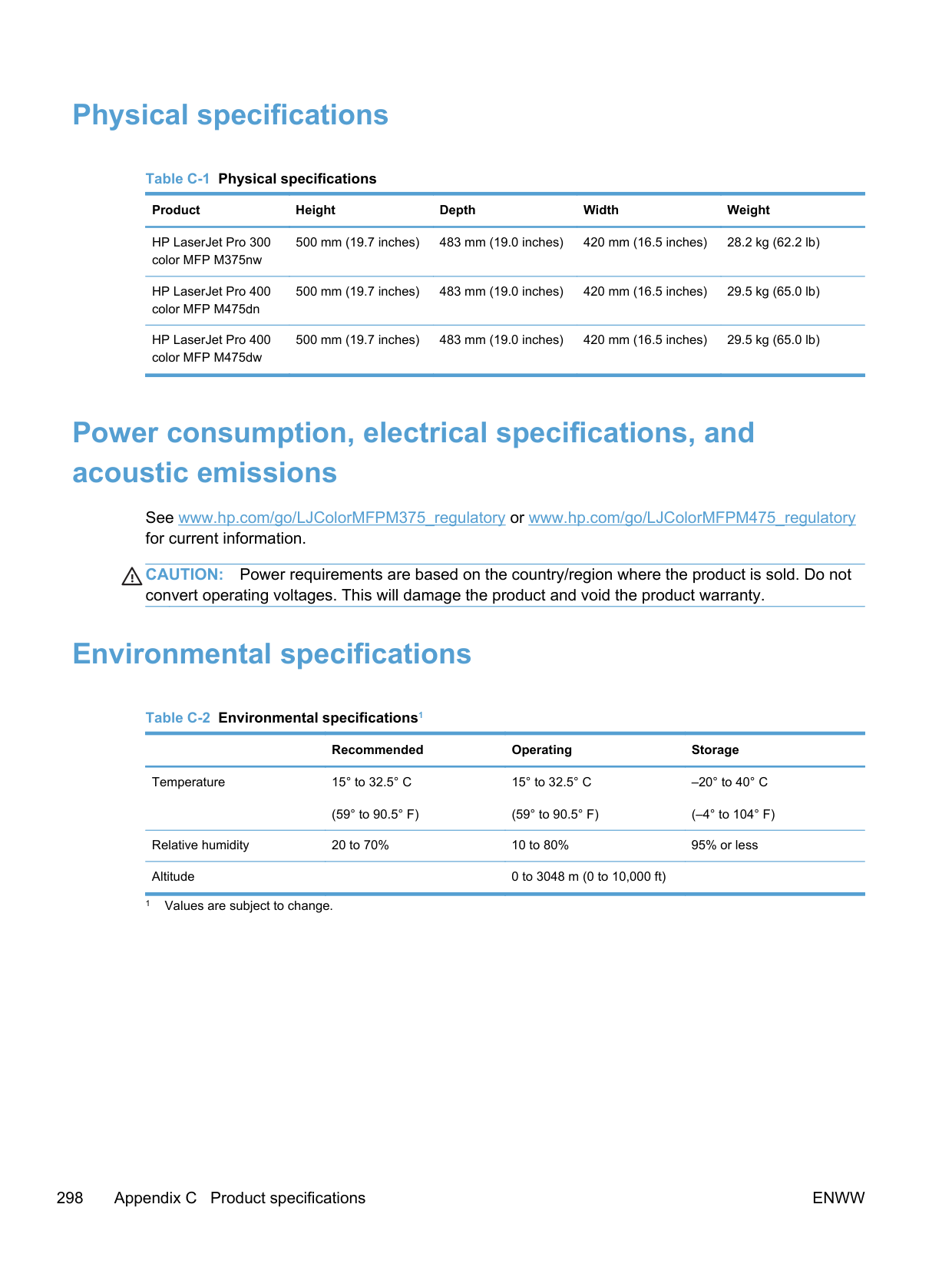
declares, that the product Product Name: HP LaserJet Pro 400 color MFP M475dn Regulatory Model Number2) BOISB-1002-03
IEC 60825-1:2007 / EN 60825-1:2007 (Class 1 Laser/LED Product)
IEC 62311:2007 / EN62311:2008
GB4943-2001 EMC: CISPR22:2005 +A1 / EN55022:2006 +A1 - Class B1)
FCC Title 47 CFR, Part 15 Class B1) / ICES-003, Issue 4
GB9254-2008, GB17625.1-2003 TELECOM: ES 203 021; FCC Title 47 CFR, Part 683) ENERGY USE: Regulation (EC) No. 1275/2008
ENERGY STAR® Qualified Imaging Equipment Typical Electricity Consumption (TEC) Test Procedure
Supplementary Information: The product herewith complies with the requirements of the EMC Directive 2004/108/EC and the Low Voltage Directive 2006/95/EC, the
This Device complies with Part 15 of the FCC Rules. Operation is subject to the following two Conditions: (1) this device may not cause harmful interference, and (2) this device must accept any interference received, including interference that may cause undesired operation.
Boise, Idaho USA
October 2011
For regulatory topics only: European Contact: Your Local Hewlett-Packard Sales and Service Office or Hewlett-Packard GmbH, Department HQ-
TRE / Standards Europe, Herrenberger Straße 140, D-71034, Böblingen (FAX: +49-7031-14-3143) www.hp.eu/certificates
USA Contact: Product Regulations Manager, Hewlett-Packard Company, PO Box 15, Mail Stop 160, Boise, Idaho 83707-0015 (Phone: 208-396-6000)
ENWW Declaration of conformity 307
#### Declaration of conformity (wireless models)
Declaration of Conformity according to ISO/IEC 17050-1 and EN 17050-1 Manufacturer's Name: Hewlett-Packard Company DoC#: BOISB-1002-02&-04 Rel.1.0 Manufacturer's Address: 11311 Chinden Boulevard
Boise, Idaho 83714-1021, USA
declares, that the product Product Name: HP LaserJet Pro 300 color MFP M375nw
HP LaserJet Pro 400 color MFP M475dw Regulatory Model Number2) BOISB-1002-02, BOISB-1002-04
SDGOB – 0892 – (Radio Module) Product Options: ALL Print Cartridges: CE410A, CE410X, CE411A, CE412A, CE413A conforms to the following Product Specifications: SAFETY: IEC 60950-1:2005 / EN60950-1: 2006+A11
IEC 60825-1:2007 / EN 60825-1:2007 (Class 1 Laser/LED Product)
IEC 62311:2007 / EN 62311:2008
GB4943-2001 EMC: CISPR22:2005 +A1 / EN55022:2006 +A1 - Class B1)
EN 55024:1998 +A1 +A2
FCC Title 47 CFR, Part 15 Class B1) / ICES-003, Issue 4
GB9254-2008, GB17625.1-2003 TELECOM: ES 203 021; FCC Title 47 CFR, Part 683) Radio5) EN 301 489-1:V1.8.1 (2008-04) / EN 301 489-17:V2.1.1 (2009-05)
EN 300 328: V1.7.1 (2006-10)
FCC Title 47 CFR, Part 15 Subpart C (Section 15.247) / IC: RSS-210 ENERGY USE: Regulation (EC) No. 1275/2008
ENERGY STAR® Qualified Imaging Equipment Typical Electricity Consumption (TEC) Test Procedure
########### Supplementary Information:
The product herewith complies with the requirements of the R&TTE; Directive 1999/5/EC Annex II and Annex IV, EMC Directive 2004/108/EC, the Low Voltage Directive 2006/95/EC, the EuP Directive 2005/32/EC and carries the CE-Marking accordingly.
This Device complies with Part 15 of the FCC Rules. Operation is subject to the following two Conditions: (1) this device may not cause harmful interference, and (2) this device must accept any interference received, including interference that may cause undesired operation.
Boise, Idaho USA
October 2011
For regulatory topics only: European Contact: Your Local Hewlett-Packard Sales and Service Office or Hewlett-Packard GmbH, Department HQ-
TRE / Standards Europe, Herrenberger Straße 140, D-71034, Böblingen (FAX: +49-7031-14-3143) www.hp.eu/certificates
USA Contact: Product Regulations Manager, Hewlett-Packard Company, PO Box 15, Mail Stop 160, Boise, Idaho 83707-0015 (Phone: 208-396-6000)
ENWW Declaration of conformity (wireless models) 309
#### Safety statements
##### Laser safety
The Center for Devices and Radiological Health (CDRH) of the U.S. Food and Drug Administration has implemented regulations for laser products manufactured since August 1, 1976. Compliance is mandatory for products marketed in the United States. The device is certified as a “Class 1” laser product under the U.S. Department of Health and Human Services (DHHS) Radiation Performance Standard according to the Radiation Control for Health and Safety Act of 1968. Since radiation emitted inside the device is completely confined within protective housings and external covers, the laser beam cannot escape during any phase of normal user operation.
WARNING! Using controls, making adjustments, or performing procedures other than those specified in this user guide may result in exposure to hazardous radiation.
Canadian DOC regulations Complies with Canadian EMC Class B requirements. « Conforme à la classe B des normes canadiennes de compatibilité électromagnétiques. « CEM ». »
VCCI statement (Japan)
Power cord instructions
Make sure your power source is adequate for the product voltage rating. The voltage rating is on the product label. The product uses either 100-127 Vac or 220-240 Vac and 50/60 Hz.
Connect the power cord between the product and a grounded AC outlet.
CAUTION: To prevent damage to the product, use only the power cord that is provided with the product.
##### Power cord statement (Japan)
| | |---|
##### EMC statement (Korea)
| | | |---|---|
Laser statement for Finland Luokan 1 laserlaite Klass 1 Laser Apparat HP LaserJet Pro 300 color MFP M375nw, HP LaserJet Pro 400 color MFP M475dn, M475dw, laserkirjoitin on käyttäjän kannalta turvallinen luokan 1 laserlaite. Normaalissa käytössä kirjoittimen suojakotelointi estää lasersäteen pääsyn laitteen ulkopuolelle. Laitteen turvallisuusluokka on määritetty standardin EN 60825-1 (2007) mukaisesti. VAROITUS !
Laitteen käyttäminen muulla kuin käyttöohjeessa mainitulla tavalla saattaa altistaa käyttäjän turvallisuusluokan 1 ylittävälle näkymättömälle lasersäteilylle.
######## VARNING !
Om apparaten används på annat sätt än i bruksanvisning specificerats, kan användaren utsättas för osynlig laserstrålning, som överskrider gränsen för laserklass 1.
######## HUOLTO
HP LaserJet Pro 300 color MFP M375nw, HP LaserJet Pro 400 color MFP M475dn, M475dw kirjoittimen sisällä ei ole käyttäjän huollettavissa olevia kohteita. Laitteen saa avata ja huoltaa ainoastaan sen huoltamiseen koulutettu henkilö. Tällaiseksi huoltotoimenpiteeksi ei katsota väriainekasetin vaihtamista, paperiradan puhdistusta tai muita käyttäjän käsikirjassa lueteltuja, käyttäjän tehtäväksi tarkoitettuja ylläpitotoimia, jotka voidaan suorittaa ilman erikoistyökaluja.
######## VARO !
Mikäli kirjoittimen suojakotelo avataan, olet alttiina näkymättömällelasersäteilylle laitteen ollessa toiminnassa. Älä katso säteeseen.
######## VARNING !
Om laserprinterns skyddshölje öppnas då apparaten är i funktion, utsättas användaren för osynlig laserstrålning. Betrakta ej strålen.
Tiedot laitteessa käytettävän laserdiodin säteilyominaisuuksista: Aallonpituus 775-795 nm Teho 5 m W Luokan 3B laser.
ENWW Safety statements 311
##### GS statement (Germany)
Das Gerät ist nicht für die Benutzung im unmittelbaren Gesichtsfeld am Bildschirmarbeitsplatz vorgesehen. Um störende Reflexionen am Bildschirmarbeitsplatz zu vermeiden, darf dieses Produkt nicht im unmittelbaren Gesichtsfeld platziert warden.
##### Substances Table (China)
| | | | | | | | |---|---|---|---|---|---|---| | | | | | | | | | | | | | | | | | | | | | | | | | | | | | | | | | | | | | | | | | | | | | | | | | | | | | | | | | | | | | | | |
##### Restriction on Hazardous Substances statement (Turkey)
Türkiye Cumhuriyeti: EEE Yönetmeliğine Uygundur

##### Restriction on Hazardous Substances statement (Ukraine)
Обладнання відповідає вимогам Технічного регламенту щодо обмеження використання деяких небезпечних речовин в електричному та електронному обладнанні, затвердженого постановою Кабінету Міністрів України від 3 грудня 2008 № 1057
#### Additional statements for telecom (fax) products
##### EU Statement for Telecom Operation
This product is intended to be connected to the analog Public Switched Telecommunication Networks (PSTN) of European Economic Area (EEA) countries/regions.
It meets requirements of EU R&TTE Directive 1999/5/EC (Annex II) and carries appropriate CE conformity marking.
For more details see Declaration of Conformity issued by the manufacturer in another section of this manual.
However due to differences between individual national PSTNs the product may not guarantee unconditional assurance of successful operation on every PSTN termination point. Network compatibility depends on the correct setting being selected by the customer in preparation of its connection to the PSTN. Please follow the instructions provided in the user manual.
If you experience network compatibility issues, please contact your equipment supplier or HewlettPackard help desk in the country/region of operation.
Connecting to a PSTN termination point may be the subject of additional requirements set out by the local PSTN operator.
##### New Zealand Telecom Statements
The grant of a Telepermit for any item of terminal equipment indicates only that Telecom has accepted that the item complies with minimum conditions for connection to its network. It indicates no endorsement of the product by Telecom, nor does it provide any sort of warranty. Above all, it provides no assurance that any item will work correctly in all respects with another item of Telepermitted equipment of a different make or model, nor does it imply that any product is compatible with all of Telecom’s network services.
This equipment may not provide for the effective hand-over of a call to another device connected to the same line.
This equipment shall not be set up to make automatic calls to the Telecom “111” Emergency Service. This product has not been tested to ensure compatibility with the FaxAbility distinctive ring service for New Zealand.
##### Additional FCC statement for telecom products (US)
This equipment complies with Part 68 of the FCC rules and the requirements adopted by the ACTA. On the back of this equipment is a label that contains, among other information, a product identifier in the format US:AAAEQ##TXXXX. If requested, this number must be provided to the telephone company.
The REN is used to determine the quantity of devices, which may be connected to the telephone line. Excessive RENs on the telephone line may result in the devices not ringing in response to an incoming call. In most, but not all, areas, the sum of the RENs should not exceed five (5.0). To be
certain of the number of devices that may be connected to the line, as determined by the total RENs, contact the telephone company to determine the maximum REN for the calling area.
This equipment uses the following USOC jacks: RJ11C.
An FCC-compliant telephone cord and modular plug is provided with this equipment. This equipment is designed to be connected to the telephone network or premises wiring using a compatible modular jack, which is Part 68 compliant. This equipment cannot be used on telephone company-provided coin service. Connection to Party Line Service is subject to state tariffs.
If this equipment causes harm to the telephone network, the telephone company will notify you in advance that temporary discontinuance of service may be required. If advance notice is not practical, the telephone company will notify the customer as soon as possible. Also, you will be advised of your right to file a complaint with the FCC if you believe it is necessary.
The telephone company may make changes in its facilities, equipment, operations, or procedures that could affect the operation of the equipment. If this happens, the telephone company will provide advance notice in order for you to make the necessary modifications in order to maintain uninterrupted service.
If trouble is experienced with this equipment, please see the numbers in this manual for repair and (or) warranty information. If the trouble is causing harm to the telephone network, the telephone company may request you remove the equipment from the network until the problem is resolved.
The customer can do the following repairs: Replace any original equipment that came with the device. This includes the print cartridge, the supports for trays and bins, the power cord, and the telephone cord. It is recommended that the customer install an AC surge arrestor in the AC outlet to which this device is connected. This is to avoid damage to the equipment caused by local lightning strikes and other electrical surges.
##### Telephone Consumer Protection Act (US)
The Telephone Consumer Protection Act of 1991 makes it unlawful for any person to use a computer or other electronic device, including fax machines, to send any message unless such message clearly contains, in a margin at the top or bottom of each transmitted page or on the first page of the transmission, the date and time it is sent and an identification of the business, other entity, or individual sending the message and the telephone number of the sending machine or such business, or other entity, or individual. (The telephone number provided cannot be a 900 number or any other number for which charges exceed local or long distance transmission charges).
##### Industry Canada CS-03 requirements
Notice: The Industry Canada label identifies certified equipment. This certification means the equipment meets certain telecommunications network protective, operational, and safety requirements as prescribed in the appropriate Terminal Equipment Technical Requirement document(s). The Department does not guarantee the equipment will operate to the user’s satisfaction. Before installing this equipment, users should ensure that it is permissible for the equipment to be connected to the facilities of the local telecommunications company. The equipment must also be installed using an acceptable method of connection. The customer should be aware that compliance with the above conditions may not prevent degradation of service in some situations. Repairs to certified equipment should be coordinated by a representative designated by the supplier. Any repairs or alterations made by the user to this equipment, or equipment malfunctions, may give
the telecommunications company cause to request the user to disconnect the equipment. Users should ensure for their own protection that the electrical ground connections of the power utility, telephone lines, and internal metallic water pipe system, if present, are connected together. This precaution can be particularly important in rural areas.
CAUTION: Users should not attempt to make such connections themselves, but should contact the appropriate electric inspection authority, or electrician, as appropriate. The Ringer Equivalence Number (REN) of this device is 0.0.
Notice: The Ringer Equivalence Number (REN) assigned to each terminal device provides an indication of the maximum number of terminals allowed to be connected to a telephone interface. The termination on an interface may consist of any combination of devices subject only to the requirement that the sum of the Ringer Equivalence Number of all the devices does not exceed five (5.0). The standard connecting arrangement code (telephone jack type) for equipment with direct connections to the telephone network is CA11A.
##### Vietnam Telecom wired/wireless marking for ICTQC Type approved products
| | | |---|---|
#### Additional statements for wireless products
##### FCC compliance statement—United States
######## Exposure to radio frequency radiation
CAUTION: The radiated output power of this device is far below the FCC radio frequency exposure limits. Nevertheless, the device shall be used in such a manner that the potential for human contact during normal operation is minimized.
In order to avoid the possibility of exceeding the FCC radio frequency exposure limits, human proximity to the antenna shall not be less than 20 cm ( (8 in)) during normal operation.
This device complies with Part 15 of FCC Rules. Operation is subject to the following two conditions:
(1) this device may not cause interference, and (2) this device must accept any interference, including interference that may cause undesired operation of the device.
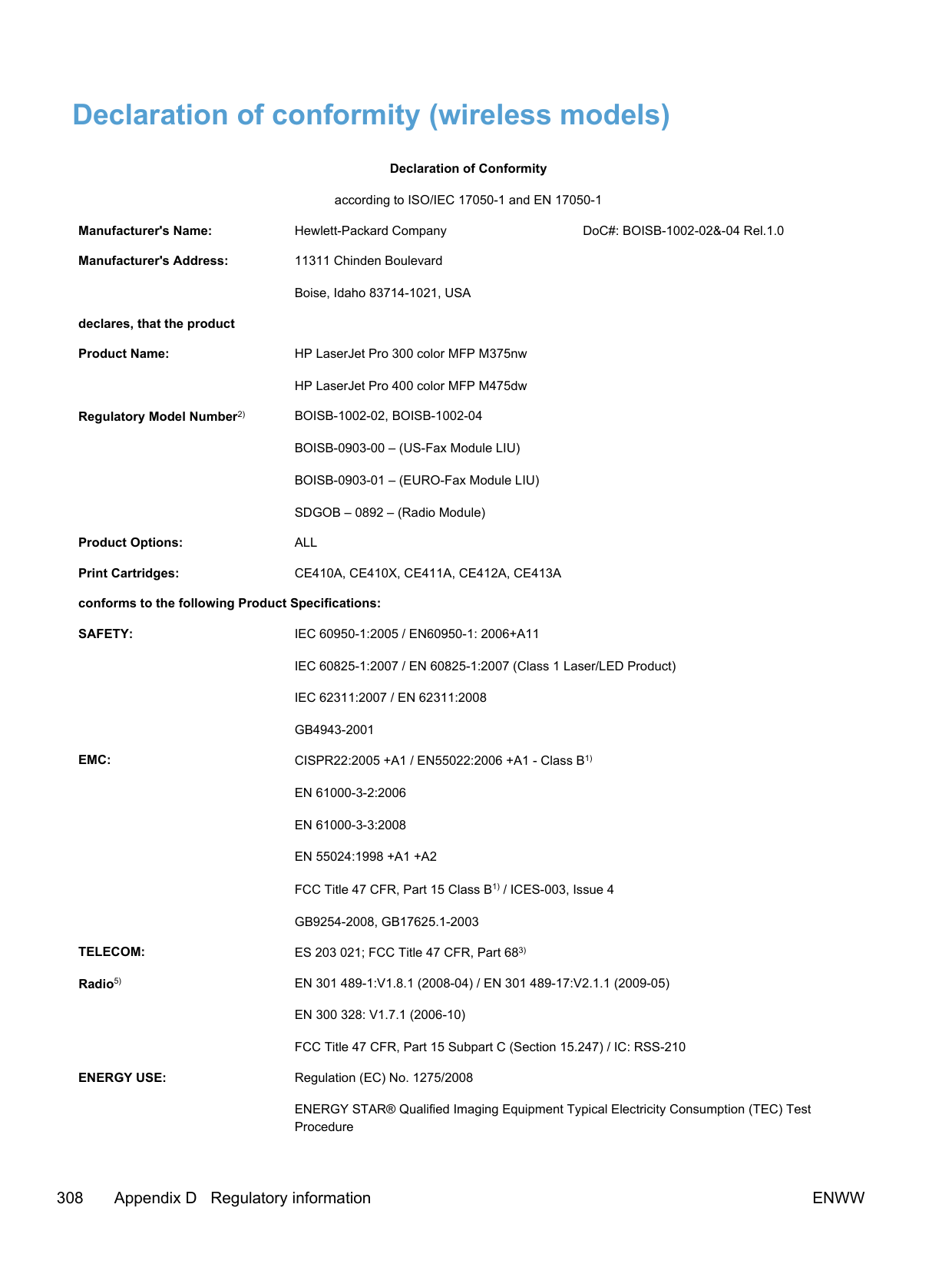
CAUTION: Based on Section 15.21 of the FCC rules, changes of modifications to the operation of this product without the express approval by Hewlett-Packard Company may invalidate its authorized use.
##### Australia statement
This device incorporates a radio-transmitting (wireless) device. For protection against radio transmission exposure, it is recommended that this device be operated no less than 20 cm from the head, neck, or body.
##### Brazil ANATEL statement
Este equipamento opera em caráter secundário, isto é, não tem direito à proteção contra interferência prejudicial, mesmo de estações do mesmo tipo, e não pode causar interferência a sistemas operando em caráter primário.
##### Canadian statements
For Indoor Use. This digital apparatus does not exceed the Class B limits for radio noise emissions from digital apparatus as set out in the radio interference regulations of the Canadian Department of Communications. The internal wireless radio complies with RSS 210 of Industry Canada.
Pour l´usage d´intérieur. Le présent appareil numérique n´émet pas de bruits radioélectriques dépassant les limites applicables aux appareils numériques de Classe B prescribes dans le règlement sur le brouillage radioélectrique édicté par le Ministère des Communications du Canada. Le composant RF interne est conforme à la norme CNR-210 d´Industrie Canada.
##### European Union regulatory notice
The telecommunications functionality of this product may be used in the following EU and EFTA countries/regions:
Austria, Belgium, Bulgaria, Cyprus, Czech Republic, Denmark, Estonia, Finland, France, Germany, Greece, Hungary, Iceland, Ireland, Italy, Latvia, Liechtenstein, Lithuania, Luxembourg, Malta, Netherlands, Norway, Poland, Portugal, Romania, Slovak Republic, Slovenia, Spain, Sweden, Switzerland, and United Kingdom.
##### Notice for use in France
For 2.4 GHz Wireless LAN operation of this product certain restrictions apply: This equipment may be used indoor for the entire 2400-2483.5 MHz frequency band (channels 1-13). For outdoor use, only 2400-2454 MHz frequency band (channels 1-9) may be used. For the latest requirements, see www.arcep.fr.
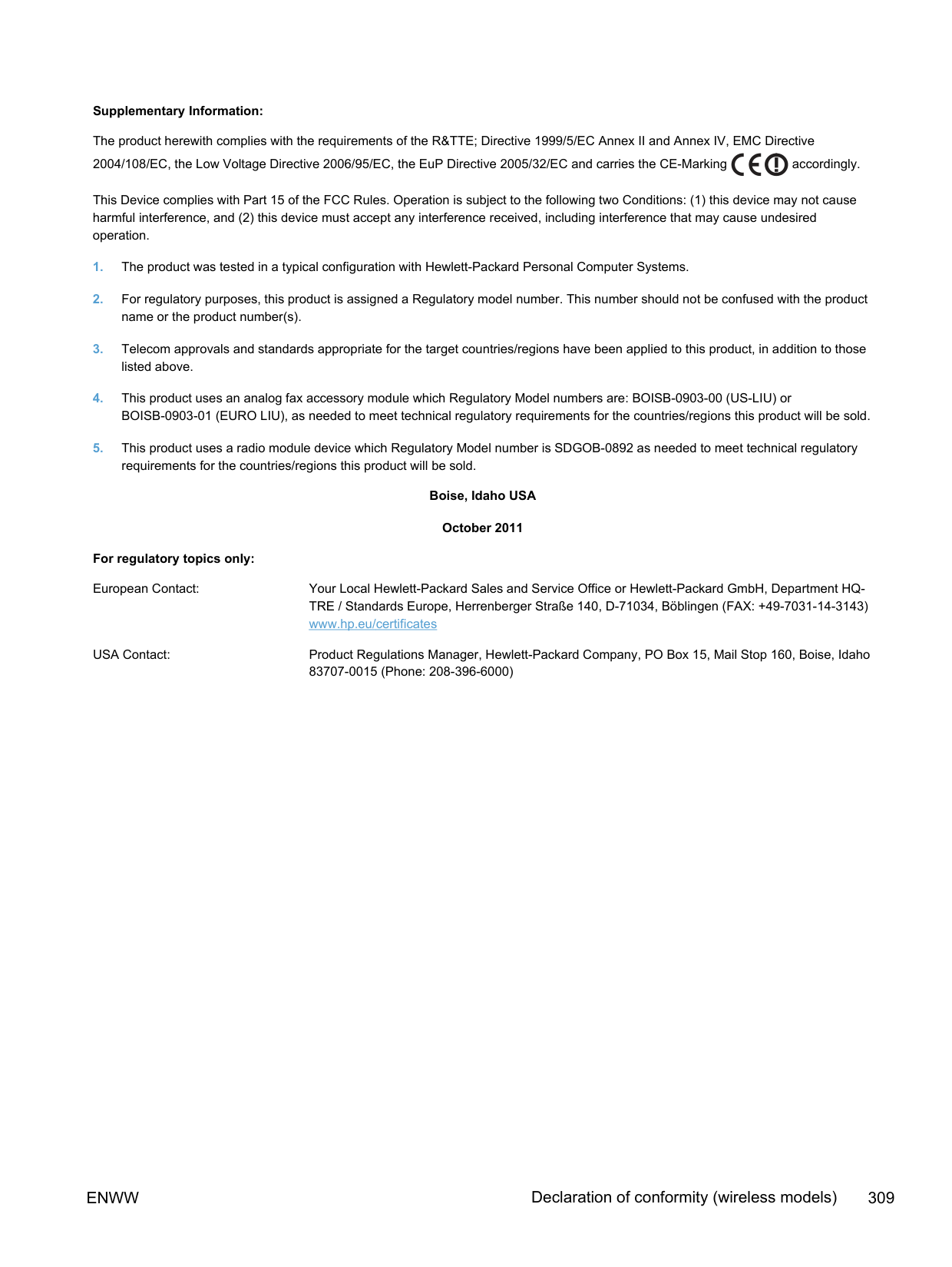
L'utilisation de cet equipement (2.4 GHz Wireless LAN) est soumise à certaines restrictions : Cet équipement peut être utilisé à l'intérieur d'un bâtiment en utilisant toutes les fréquences de 2400-2483.5 MHz (Chaine 1-13). Pour une utilisation en environnement extérieur, vous devez utiliser les fréquences comprises entre 2400-2454 MHz (Chaine 1-9). Pour les dernières restrictions, voir, www.arcep.fr.
##### Notice for use in Russia
Существуют определенные ограничения по использованию беспроводных сетей (стандарта 802.11 b/g) с рабочей частотой 2,4 ГГц: Данное оборудование может использоваться внутри помещений с использованием диапазона частот 2400-2483,5 МГц (каналы 1-13). При использовании внутри помещений максимальная эффективная изотропно–излучаемая мощность (ЭИИМ) должна составлять не более 100мВт.
##### Korean statement

ENWW Additional statements for wireless products 317
##### Taiwan statement
| | | |---|---| | | | | | |
##### Vietnam Telecom wired/wireless marking for ICTQC Type approved products
| | | |---|---|
Index
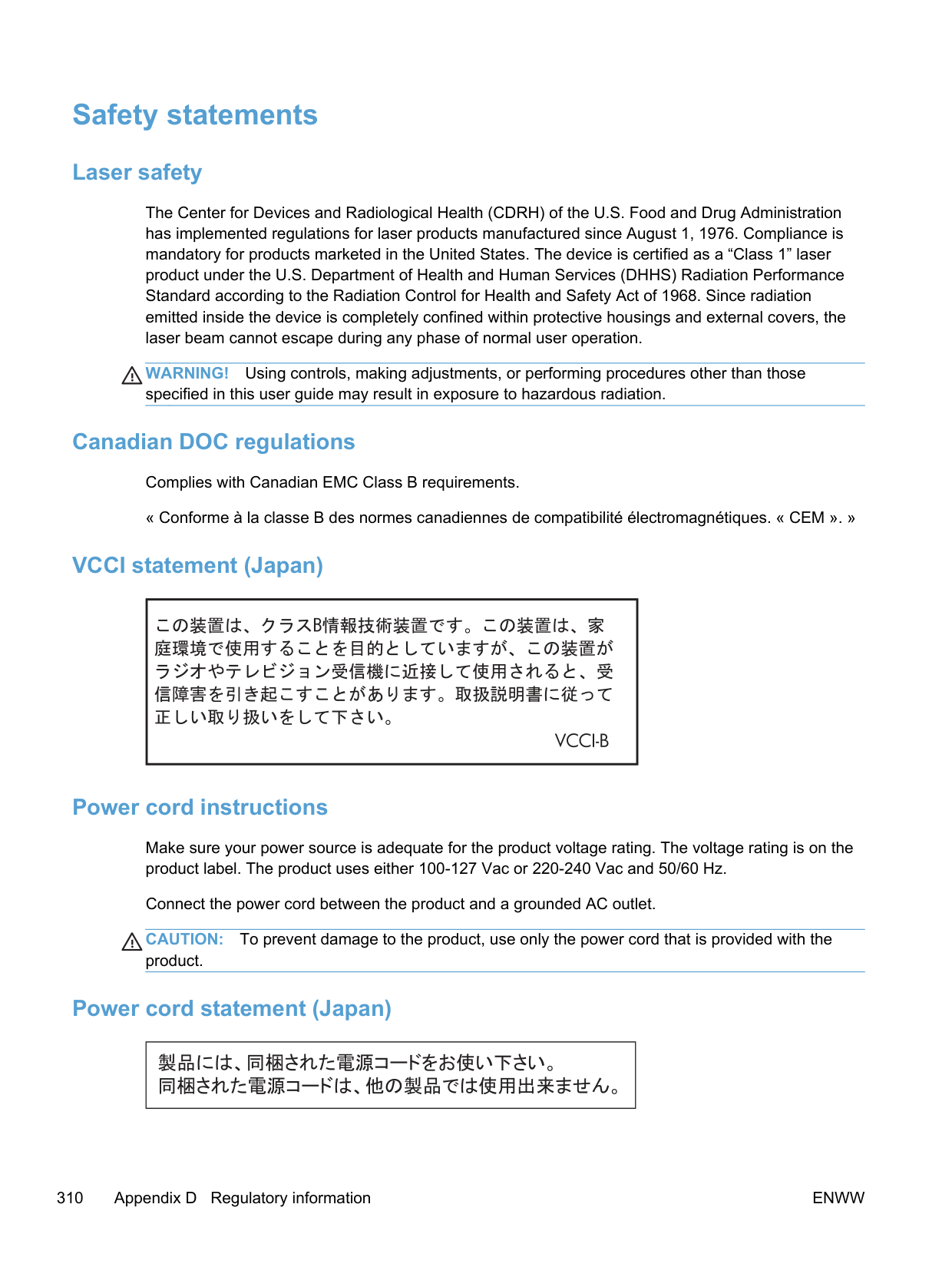
ordering 285, 286 acoustic specifications 298 advanced setup
fax 19 AirPrint 52, 57 answer mode, setting 184 answering machines, connecting
173
fax settings 185 anticounterfeit supplies 91 autoreduction settings, fax 187
using 183
bin, output jams, clearing 259 locating 6
black and white scanning 165 blocking faxes 185 booklets
creating (Windows) 133 busy signals, redialing options 181
copy jobs 149 faxes 190 print job 53, 108 scan jobs 163
cartridges non-HP 91 recycling 91, 301
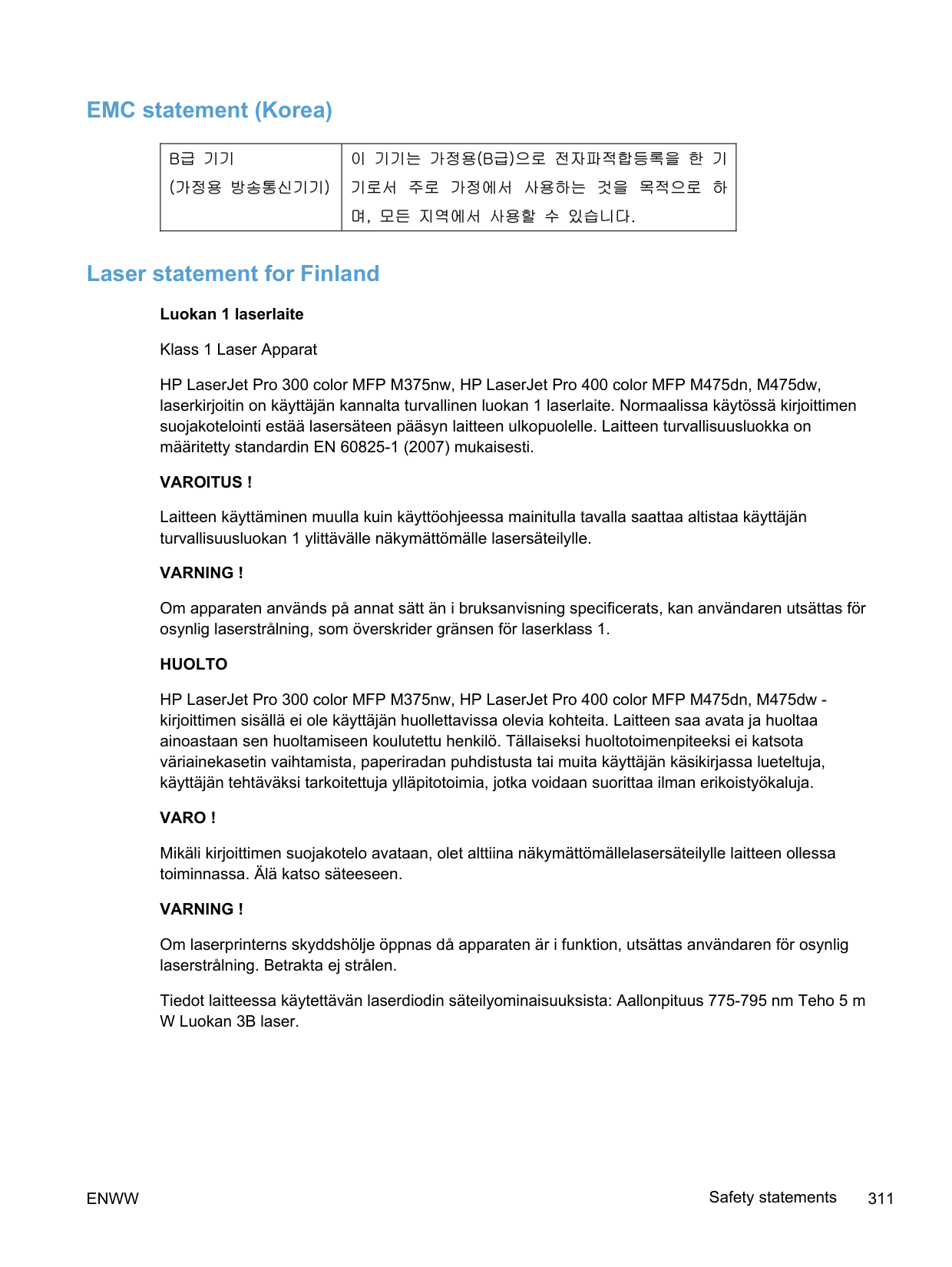
replacing 92 storage 91 supplies status page 16 warranty 290
cautions iii change
print cartridge 92 checklist
fax troubleshooting 200 checklists, printing 17 clean
touch screen 243
cleaning glass 153, 166, 241 paper path 241, 265
collating copies 150 color
adjusting 140 Edge Control 142 halftone options 142 manage 139 matching 144 Neutral Grays 142 printed vs. monitor 144 printing in grayscale (Windows) 124
using 139 color alignment, calibrating 266 color options
HP EasyColor (Windows) 143 setting (Windows) 122
color settings
adjusting 263 Color tab settings 56 color usage log 16 color, scanning settings 164, 165 comparison, product models 1 configuration page 16
configuring IP address 47 connecting to a wireless network 66
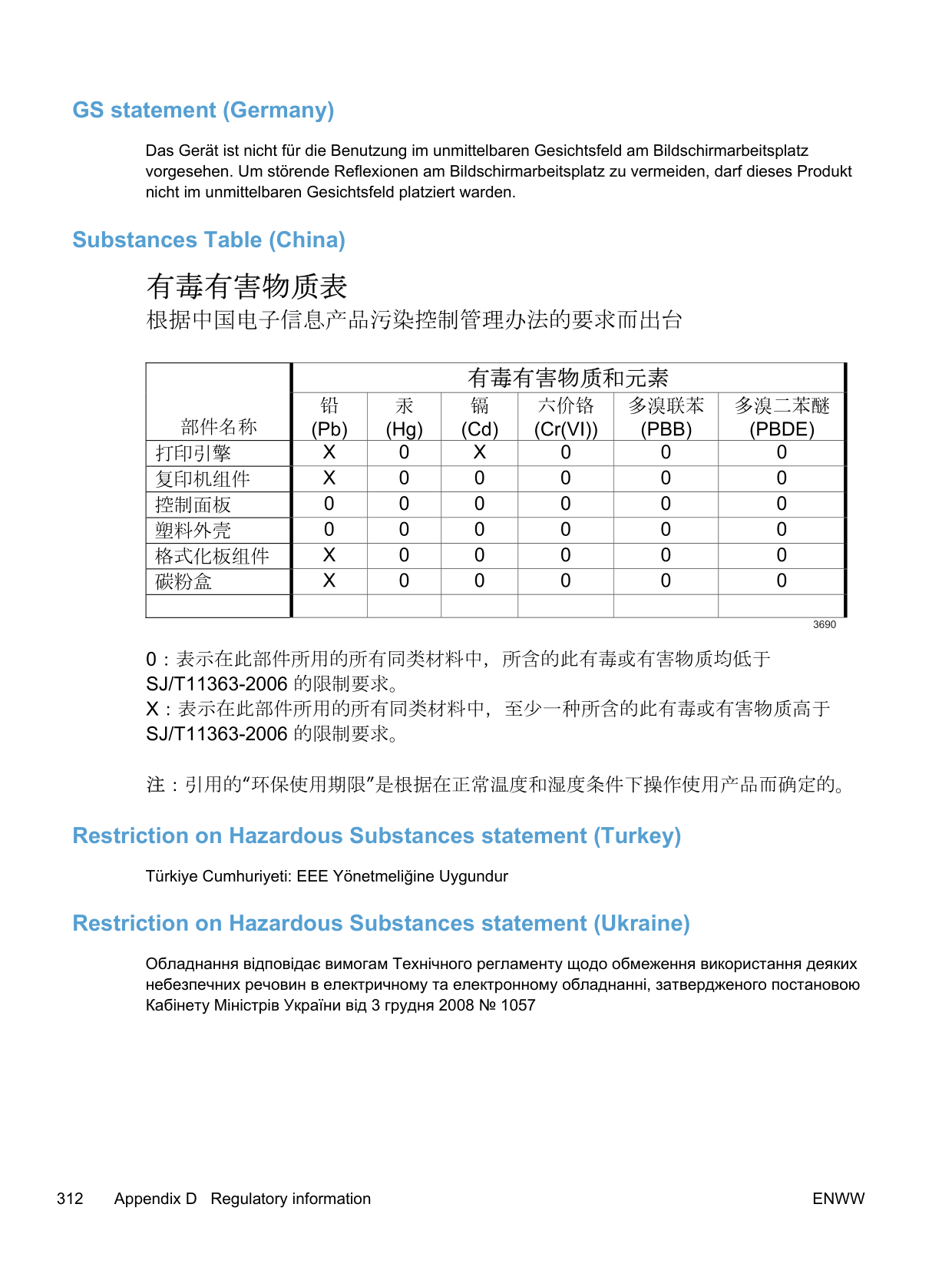
connectivity solving problems 275 USB 64 contrast settings copy 154 fax 182
control panel buttons and lights 10 clean touch screen 243 cleaning page, printing 241 help 12 Home screen 11 HP Web Services menu 15 menu map, printing 16 menus 14 Reports menu 16 settings 41, 49
conventions, document iii copies
changing number of (Windows) 111 copy menu 30 copying
canceling 149 collation 150 contrast, adjusting 154 double-sided 158, 159 edge-to-edge 154 enlarging 149 light/dark settings 154 multiple copies 146 one-touch 146 paper settings 155 photos 156 quality, adjusting 152, 271
reducing 149 restore default settings 155
counterfeit supplies 91 cover pages
printing (Mac) 54 printing on different paper
(Windows) 129 custom print settings (Windows)
111 custom-size copies 149 custom-size paper settings
Macintosh 53 customer support
online 296

copy 154 fax 182
default gateway, setting 69 defaults, restoring 249 defects, repeating 99, 269 delaying fax sending 196 deleting faxes from memory 192 dial-tone detection settings 180 dialing
from a telephone 196 pauses, inserting 180 prefixes, inserting 180 redialing automatically,
settings 181
tone or pulse settings 181 dimensions 298 DIMMs
installing 236 verifying installation 240
disposal, end-of-life 303 distinctive-ring settings 186 document conventions iii document feeder jams 253 loading 83 locating 6
door release, locating 6 dots per inch (dpi)
fax 182 double-sided printing (duplexing) Mac 55 dpi (dots per inch) fax 182
faxing 19 scanning 164
drivers changing paper types and sizes 74
changing settings (Mac) 50 changing settings (Windows)
41 presets (Mac) 53 settings 41 settings (Mac) 53 settings (Windows) 109 supported (Windows) 38 universal 40 usage page 16
DSL faxing 190 duplex printing (double-sided) settings (Windows) 116 duplex settings, changing 70
E e-mail, scanning to
resolution settings 165 EconoMode setting 90, 234 economy settings 234 Edge Control 142 edge-to-edge printing 154 electrical specifications 298 electronic faxes
sending 195 Embedded Web Server (EWS)
assigning passwords 233 embedded Web server (EWS)
features 232 end-of-life disposal 303 enlarging documents copying 149 environmental features 5 environmental specifications 298 environmental stewardship
program 300 ePrint
enabling or disabling 15 error messages, fax 202, 212,
219 error report, fax printing 211 error-correction setting, fax 211
errors software 282 European Union, waste disposal 304
extension phones receiving faxes from 173 sending faxes from 196
F factory-set defaults, restoring 249 fax
answer mode 18, 184 autoreduction 187 billing codes 183 blocking 185 canceling 190 confirming number 196 contrast setting 182 delaying sending 196 deleting from memory 192 detect-dial-tone settings 180 dial prefixes 180 dialing, tone or pulse 181 error report, printing 211 error-correction 211 extension phone receiving
173 factory-set defaults, restoring

249 forwarding 184 pauses, inserting 180 polling 189 printing 198 printing private faxes 198 private receive 188 receiving when you hear fax
tones 199 redial settings 181 reports 32 reports, printing all 210 reprinting faxes 187 reprinting from memory 198 resolution 182 ring patterns 186 ring type 19 rings-to-answer 185 security, private receive 188 sending from a telephone 196 sending from software 195 solve general problems 225
speed dials 194 stamp-received 188 unable to receive 219 unable to send 212 using DSL, PBX, or ISDN 190 using VoIP 191 V.34 setting 212 volume settings 187
fax date, setup use control panel 174 use HP Fax Setup Wizard
175
fax header, setup use control panel 174 use HP Fax Setup Wizard
175 fax menu 32 fax ports, locating 7, 8 fax reports, printing 32 fax time, setup
use control panel 174 use HP Fax Setup Wizard
175 fax troubleshooting
checklist 200 faxing
from a computer (Mac) 58, 195 from a computer (Windows) 195 Finnish laser safety statement
311 firewall 66 first page
printing on different paper (Windows) 129
use different paper 54 Fit to Page setting, fax 187 fonts
DIMMs, installing 236 lists, printing 16 permanent resources 240
forms
printing (Windows) 124 forwarding faxes 184 fraud Web site 91 fuser
jams, clearing 258
printing (Windows) 124 grayscale scanning 165 group-dial entries creating 178 deleting 178 editing 178
printing options (Windows)
110 help, control panel 12 Home screen, control panel 11 HP Customer Care 296 HP Easy Color
disabling 143 using 143
HP Embedded Web Server 44 HP ePrint
description 52 enabling or disabling 15
HP ePrint, using 123 HP fraud Web site 91 HP Scan (Windows) 162 HP Universal Print Driver 40 HP Utility 51 HP Utility, Mac 51 HP Web Jetadmin 233 HP Web Services menu 15 HP Web Services, enabling 123 HP-UX software 44 humidity specifications
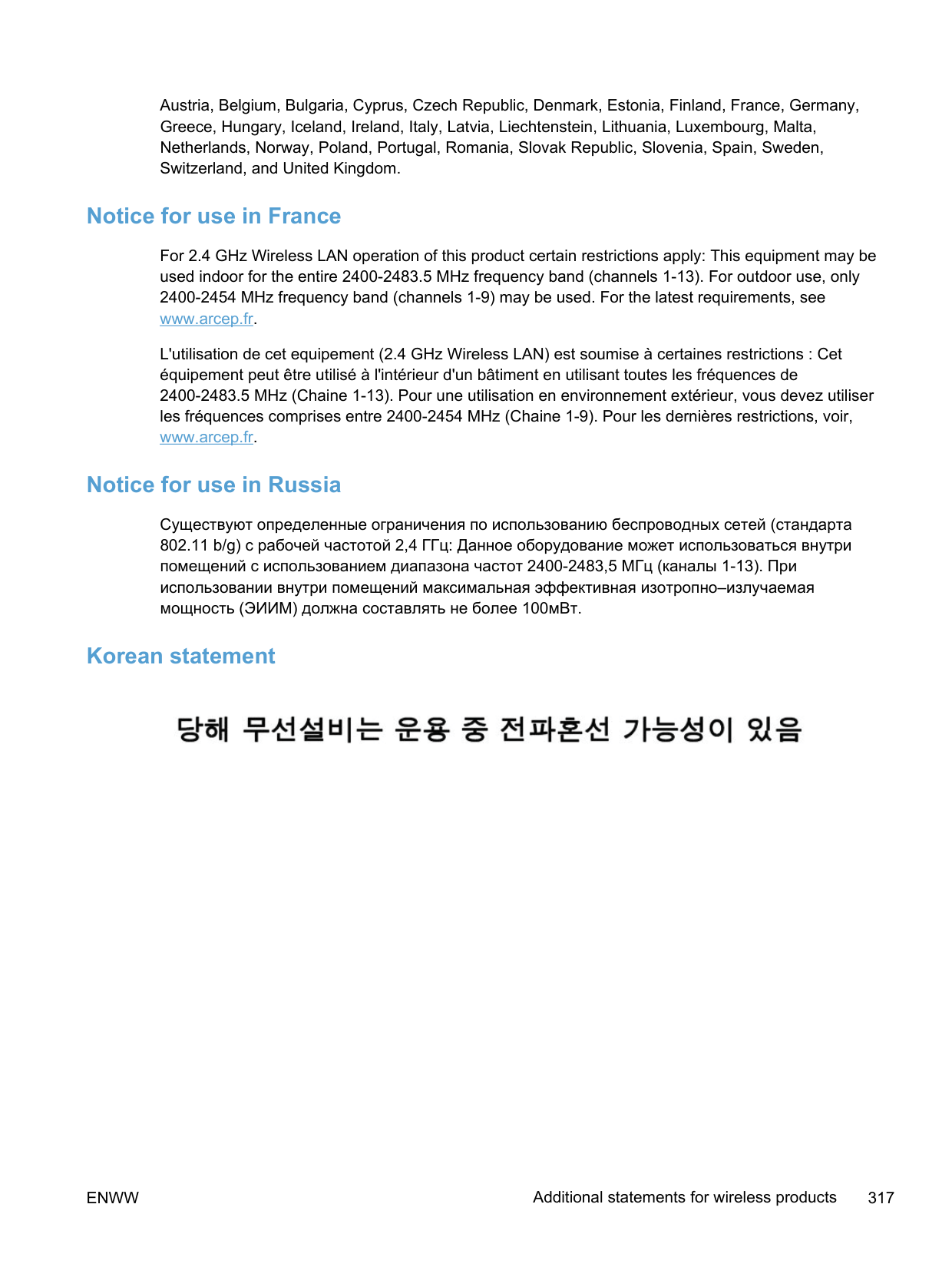
environment 298
copying 148
input tray loading 80 locating 6
installing product on wired networks 65 software, USB connections 64 software, wired networks 66
interface ports locating 7, 8
IP address configuring 47 obtaining 65
IPv4 address 69 ISDN
faxing 190
causes of 250 document feeder, clearing
253 locating 252 output bin, clearing 259 paper path, clearing 258 tracking number of 16
Japanese VCCI statement 310 Jetadmin, HP Web 233

printing (Windows) 126 landscape orientation
selecting, Windows 120 laser safety statements 310, 311 last page
printing on different paper
(Windows) 129 letterhead
printing (Windows) 124 license, software 292 lightness
copy contrast 154 fax contrast 182 link speed settings 70 Linux 44 Linux software 44 loading paper
input tray 80
logs, fax error 211 printing all 210
M Mac
changing paper types and
sizes 53 driver settings 50, 53 faxing 58 HP Utility 51 installing software 46 problems, troubleshooting
283

removing software 49 scanning from TWAIN-
compliant software 162 supported operating systems 46
Macintosh resize documents 53 support 296
Macintosh driver settings custom-size paper 53 watermarks 54 managing network 68 matching colors 144 material restrictions 303 Material Safety Data Sheet
(MSDS) 304 media
custom-size, Macintosh
settings 53 first page 54 pages per sheet 55 supported sizes 75
memory deleting faxes 192 included 2 installing 236 part number 286 permanent resources 240 reprinting faxes 198 verifying installation 240
memory chip, print cartridge description 291
menu control panel, access 14 copy 30 fax 32 Fax setup 18 Network config 28 Quick Forms 17 scan 34
Service 26 System setup 21 USB 35
menus, control panel HP Web Services 15 map, printing 16 Reports 16
mercury-free product 303 Microsoft Word, faxing from 195 model
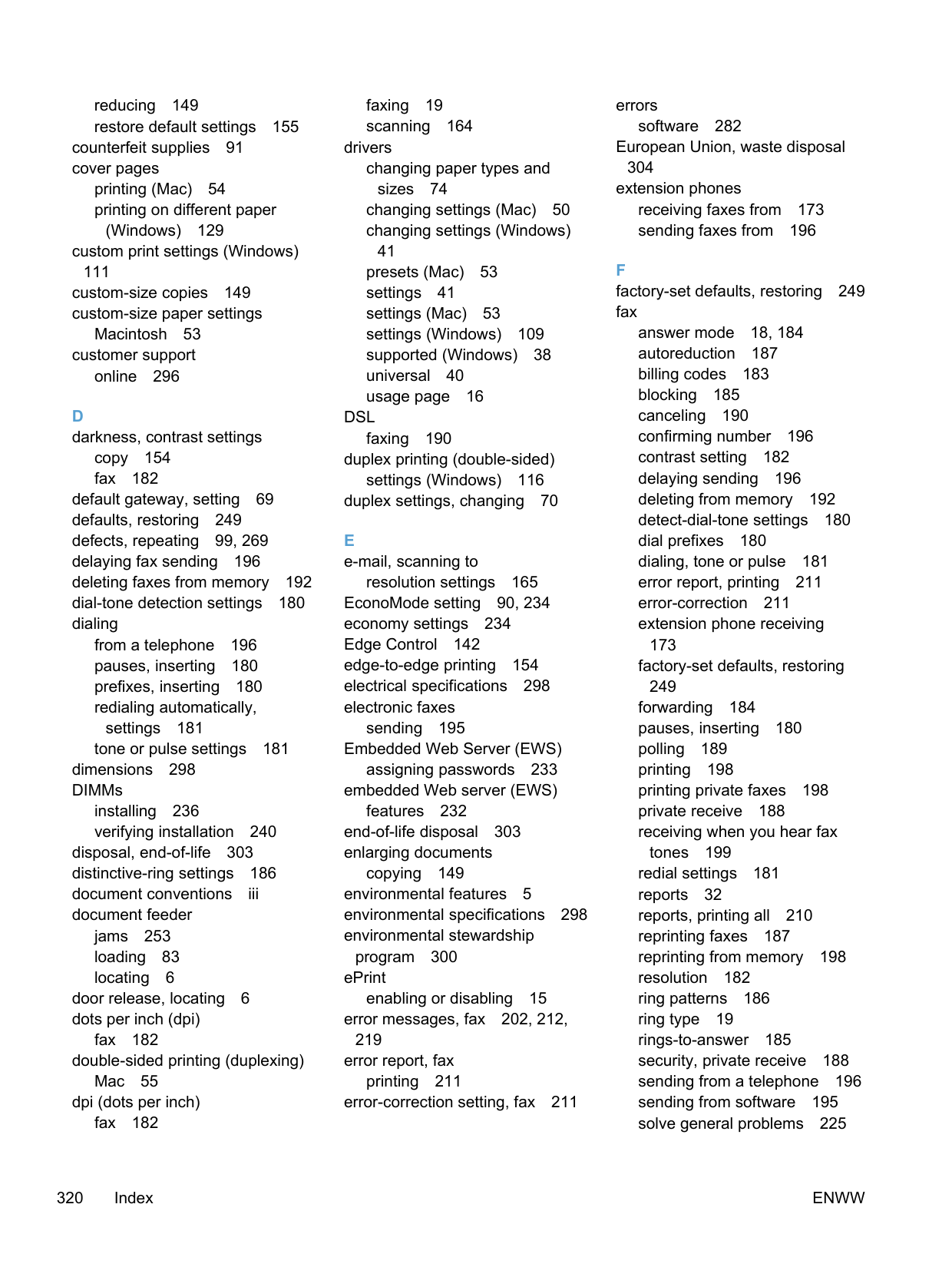
comparison 1 number, locating 9 modems, connecting 172 multiple pages per sheet 55
printing (Windows) 119 music paper, printing 17
selecting (Windows) 119
network configuring 28 password, changing 69 password, setting 69 settings, changing 68 settings, viewing 68
Network config menu 28 network port
locating 7, 8
networks configuration page 16 default gateway 69 HP Web Jetadmin 233 IPv4 address 69 models supporting 2 settings report 16 subnet mask 69
networks, wired
installing product 65 Neutral Grays 142 non-HP supplies 91 notebook paper, printing 17 notes iii number of copies, changing 146
IP address 65 OCR software 163 online help, control panel 12
online support 296 opening printer drivers
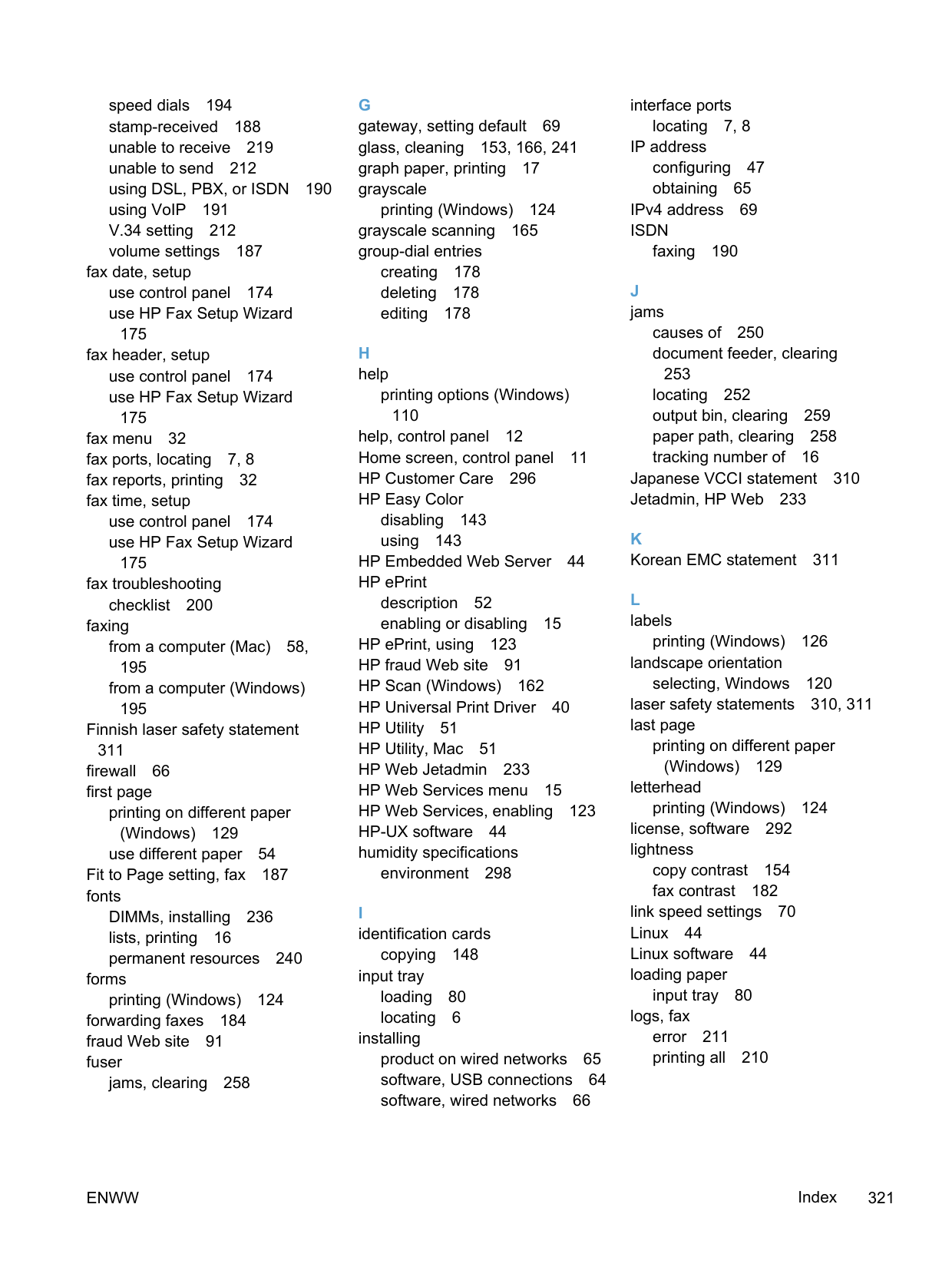
(Windows) 109
operating environment, specifications 298
operating systems supported 38, 46 optical character recognition
software 163 ordering
supplies and accessories 286 ordering supplies
Web sites 285 orientation
selecting, Windows 120
output bin jams, clearing 259 locating 6
outside lines dial prefixes 180 pauses, inserting 180
P page count 16 page sizes
scaling documents to fit (Windows) 131
pages per minute 2 pages per sheet 55
selecting (Windows) 119
paper copy settings 155 covers, using different paper
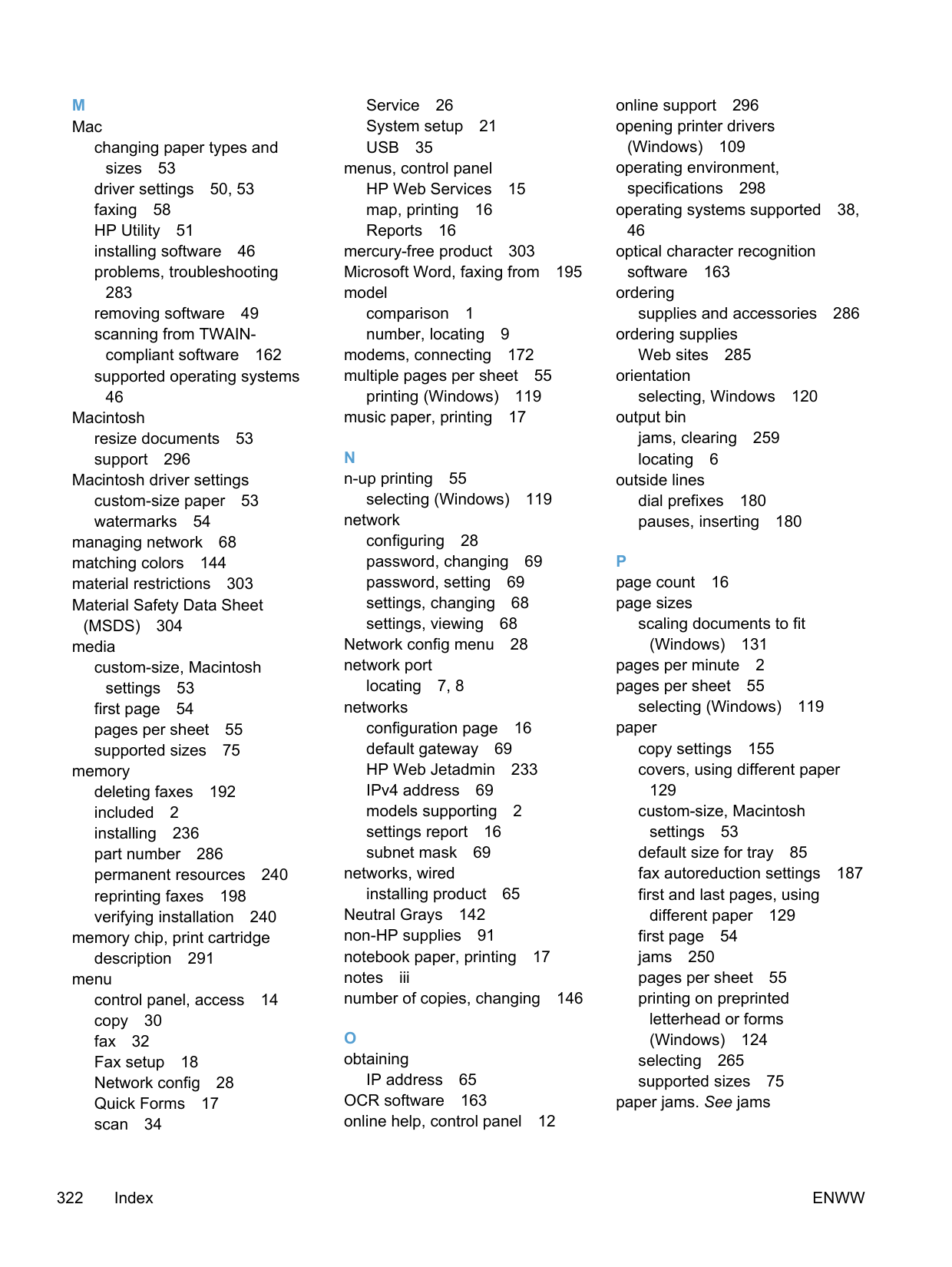
129 custom-size, Macintosh
settings 53 default size for tray 85 fax autoreduction settings 187 first and last pages, using
different paper 129 first page 54 jams 250 pages per sheet 55 printing on preprinted letterhead or forms (Windows) 124
selecting 265 supported sizes 75
paper jams. See jams
paper path
jams, clearing 258 paper pickup problems
solving 250 paper size
changing 74
paper sizes selecting 114 selecting custom 115
paper type changing 262
paper types changing 74 selecting 115 paper, ordering 286 paper, special
printing (Windows) 126 pauses, inserting 180 PBX
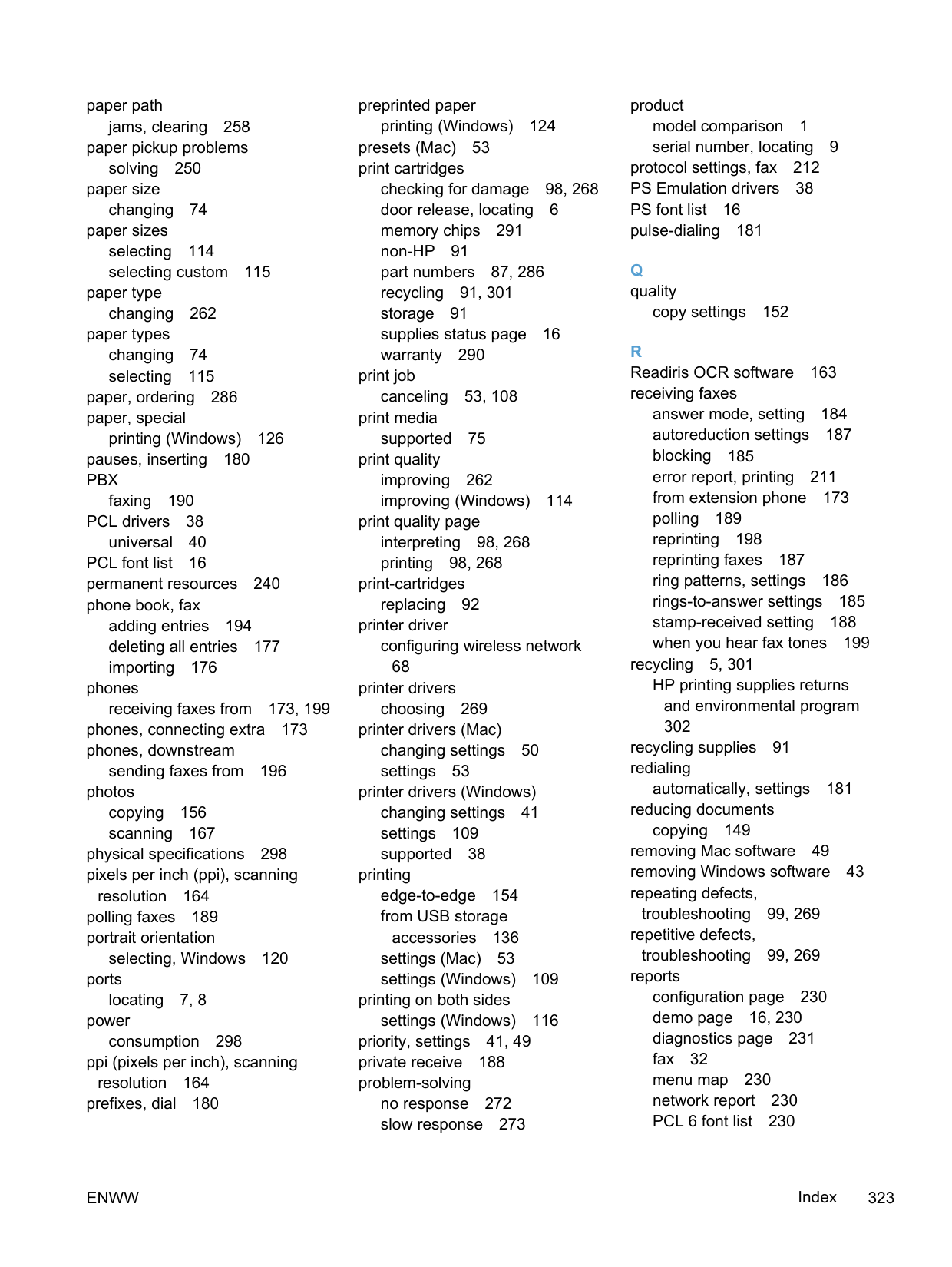
faxing 190 PCL drivers 38
universal 40 PCL font list 16 permanent resources 240 phone book, fax
adding entries 194 deleting all entries 177 importing 176
phones
receiving faxes from 173, 199 phones, connecting extra 173 phones, downstream
sending faxes from 196
photos copying 156 scanning 167
physical specifications 298 pixels per inch (ppi), scanning
resolution 164 polling faxes 189 portrait orientation
selecting, Windows 120 ports
locating 7, 8 power
consumption 298 ppi (pixels per inch), scanning
resolution 164 prefixes, dial 180
preprinted paper
printing (Windows) 124 presets (Mac) 53 print cartridges
checking for damage 98, 268 door release, locating 6 memory chips 291 non-HP 91 part numbers 87, 286 recycling 91, 301 storage 91 supplies status page 16 warranty 290
print job
canceling 53, 108 print media
supported 75
print quality improving 262 improving (Windows) 114
print quality page interpreting 98, 268 printing 98, 268
print-cartridges
replacing 92 printer driver
configuring wireless network 68 printer drivers choosing 269
printer drivers (Mac) changing settings 50 settings 53
printer drivers (Windows) changing settings 41 settings 109 supported 38
printing edge-to-edge 154 from USB storage
accessories 136 settings (Mac) 53 settings (Windows) 109
printing on both sides
settings (Windows) 116 priority, settings 41, 49 private receive 188 problem-solving
no response 272 slow response 273
product model comparison 1 serial number, locating 9
protocol settings, fax 212 PS Emulation drivers 38 PS font list 16 pulse-dialing 181
copy settings 152
answer mode, setting 184 autoreduction settings 187 blocking 185 error report, printing 211 from extension phone 173 polling 189 reprinting 198 reprinting faxes 187 ring patterns, settings 186 rings-to-answer settings 185 stamp-received setting 188 when you hear fax tones 199
recycling 5, 301
HP printing supplies returns and environmental program 302
recycling supplies 91 redialing

automatically, settings 181 reducing documents copying 149 removing Mac software 49 removing Windows software 43 repeating defects,
troubleshooting 99, 269 repetitive defects,
troubleshooting 99, 269
reports configuration page 230 demo page 16, 230 diagnostics page 231 fax 32 menu map 230 network report 230 PCL 6 font list 230
PCL font list 230 print quality page 16, 231 PS font list 230 service page 230 supplies status page 230 usage page 230
Reports menu 16 reports, fax
error 211 printing all 210
reprinting faxes 187, 198 resize documents
Macintosh 53 Windows 131
resizing documents copying 149
resolution fax 182 scanning 164 resource saving 240 restoring factory-set defaults 249 ring patterns 186 ring tones
distinctive 186 rings-to-answer setting 185

Macintosh 53 Windows 131
scaling documents
copying 149 scan menu 34 scanner
glass cleaning 153, 166, 241, 271
scanning black and white 165 canceling 163 color 164 from HP Scan (Windows) 162 from Mac software 59 grayscale 165 methods 162 OCR software 163 photos 167 resolution 164
TWAIN-compliant software 162 WIA-compliant software 162
sending faxes billing codes 183 canceling 190 confirmation 196 delaying 196 error report, printing 211 forwarding 184 from downstream telephone
196
from software 195 serial number, locating 9 Service menu 26 service page 16 settings
driver presets (Mac) 53 drivers 41 drivers (Mac) 50 factory-set defaults, restoring
249 network report 16 priority 41, 49
shortcuts (Windows) creating 112 using 111
size 298 size, copy
reducing or enlarging 149 sizes, media

Fit to Page setting, faxing 187 sleep delay
disabling 234 enabling 234
small documents copying 148
software embedded Web server 44 HP Utility 51 installing, USB connections
64 installing, wired networks 66 Linux 44 problems 282 Readiris OCR 163 scanning from TWAIN or WIA
162 sending faxes 195 settings 41, 49
software license agreement
292 Solaris 44 supported operating systems
38, 46 uninstalling for Windows 43 uninstalling Mac 49 UNIX 44 Windows 44 Windows components 37
Solaris software 44 solve
fax problems 212 solve problems fax 225
solving direct-connect problems 275 network problems 275 walk-up USB printing
problems 274 special paper
printing (Windows) 126
specifications electrical and acoustic 298 environmental 298 physical 298
speed dials programming 194
speed-dial entries creating 177, 178 editing 177, 178
status Home screen, control panel
11 HP Utility, Mac 51 supplies, printing report 16
storing environmental specifications 298
print cartridges 91 subnet mask 69 supplies
counterfeit 91 non-HP 91 ordering 285, 286 recycling 91, 301 status, viewing with HP Utility
51 supplies status page 16 printing 97, 267
support
online 296 supported media 75 System setup menu 21
T TCP/IP
manually configuring IPv4
parameters 69 technical support
online 296 telephones
receiving faxes from 173, 199 telephones, connecting extra 173 telephones, downstream
sending faxes from 196 temperature specifications
environment 298 tips iii tone-dialing 181 toner cartridges. See print
cartridges touch screen, clean 243 transparencies
printing (Windows) 126 trapping 142
trays default paper size 85 double-sided printing 55 included 2 jams, clearing 257 locating 6 selecting (Windows) 115
troubleshooting checklist 247 direct-connect problems 275 fax error-correction setting
211 faxes 200 jams 250 Mac problems 283 network problems 275 paper feed problems 250
receive fax 219 repeating defects 99, 269 send fax 212 walk-up USB printing
problems 274 TWAIN-compliant software,
scanning from 162 two-sided printing
settings (Windows) 116
configuring wireless network
49, 67 USB cable, part number 286 USB configuration 64 USB menu 35 USB port
locating 7, 8
USB storage accessories printing from 136
faxing 191 volume
settings 22 volume, adjusting 187
license 292 print cartridges 290 product 288
watermarks 54
adding (Windows) 133 Web printing
HP ePrint 52
Web sites 44 customer support 296 fraud reports 91
HP Web Jetadmin, downloading 233 Macintosh customer support 296 Material Safety Data Sheet
(MSDS) 304 ordering supplies 285 universal print driver 40
weight 298 WIA-compliant software, scanning
from 162
Windows driver settings 41 drivers supported 38 faxing from 195 scanning from TWAIN or WIA
software 162 software components 37, 44 supported operating systems
38
universal print driver 40 wireless
configuring 28 wireless network
configuring with the setup
wizard 67 configuring with USB 49, 67 configuring with WPS 48, 67 installing the driver 68
wireless network connection 66 Wireless Setup Wizard
configuring wireless network
67 Word, faxing from 195 WPS
configuring wireless network 48, 67
© 2011 Hewlett-Packard Development Company, L.P. www.hp.com
CE863-90907
