
Ask AI
— answers from the official manualAnswers from the official manual.
Common questions
Common Questions
10 totalHow do I change the toner cartridge on the HP Laserjet Pro 400 MFP M425?
Open the toner cartridge door, remove the old cartridge, and place it in the bag from the new cartridge for recycling. Gently rock the new cartridge to distribute the toner, remove the tape tab, align the cartridge with the tracks inside the product, and insert it until firmly seated before closing the door. Do not touch the shutter or the surface of the roller during this process. (Pages 4-5)
What copy quality settings are available on the HP Laserjet Pro 400 MFP M425?
There are four copy quality settings: Auto Select (the default), Mixed (for documents with text and graphics), Text (for mostly text documents), and Picture (for mostly graphics documents). You can access these by touching the Settings button, then scrolling to and touching the Optimize button on the control panel. (Page 2)
How do I optimize copy quality on the HP Laserjet Pro 400 MFP M425?
Load the document onto the scanner glass or into the document feeder, then touch the Copy button on the Home screen. Touch the Settings button, scroll to the Optimize button, use the arrow buttons to select your preferred quality option, and then touch Start Copy. (Page 2)
How do I clean the scanner glass on the HP Laserjet Pro 400 MFP M425?
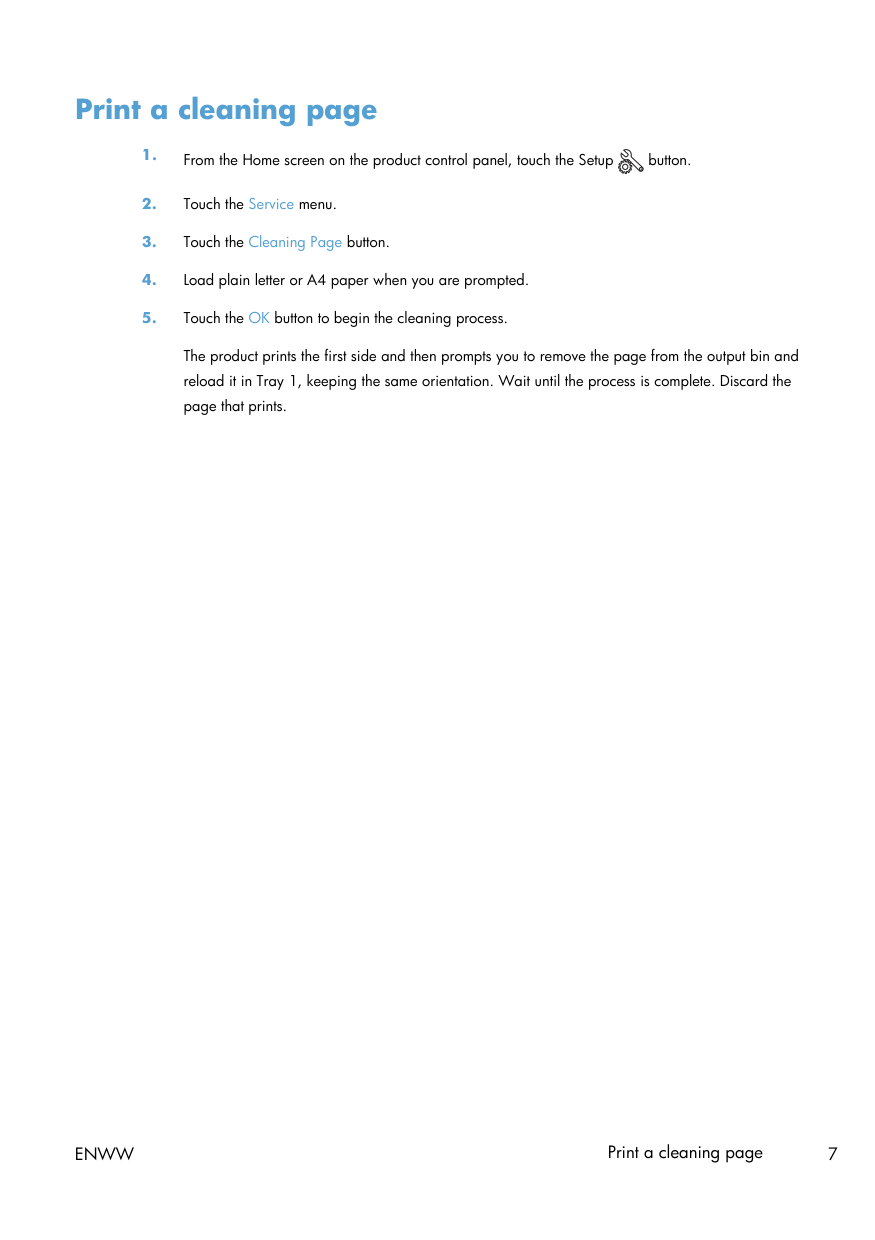
Turn off the product using the power switch and unplug it, then open the scanner lid and clean the glass, document feeder strips, and white plastic backing with a soft cloth or sponge moistened with nonabrasive glass cleaner. Dry all surfaces with a chamois or cellulose sponge to prevent spotting, then plug in and turn the product back on. Do not use abrasives, acetone, benzene, ammonia, ethyl alcohol, or carbon tetrachloride, as these can damage the product. (Page 6)
What chemicals should I avoid when cleaning the HP Laserjet Pro 400 MFP M425 scanner?
Do not use abrasives, acetone, benzene, ammonia, ethyl alcohol, or carbon tetrachloride on any part of the product, as these can cause damage. You should also never place liquids directly on the glass or platen, as they might seep and damage the product. (Page 6)
How do I print a cleaning page on the HP Laserjet Pro 400 MFP M425?
From the Home screen, touch the Setup button, then touch the Service menu, and then touch the Cleaning Page button. Load plain letter or A4 paper when prompted, then touch OK to begin. The product will print the first side, prompt you to reload the page in Tray 1 in the same orientation, and then complete the process — discard the printed page when done. (Page 7)
Show 4 more questions
How do I scan using the HP Scan software on Windows?
How do I automatically print on both sides of the paper using Windows?
How do I manually print on both sides of the paper using Windows on the HP Laserjet Pro 400 MFP M425?
When should I redistribute toner in the HP Laserjet Pro 400 MFP M425 cartridge?
Full Manual
13 pages
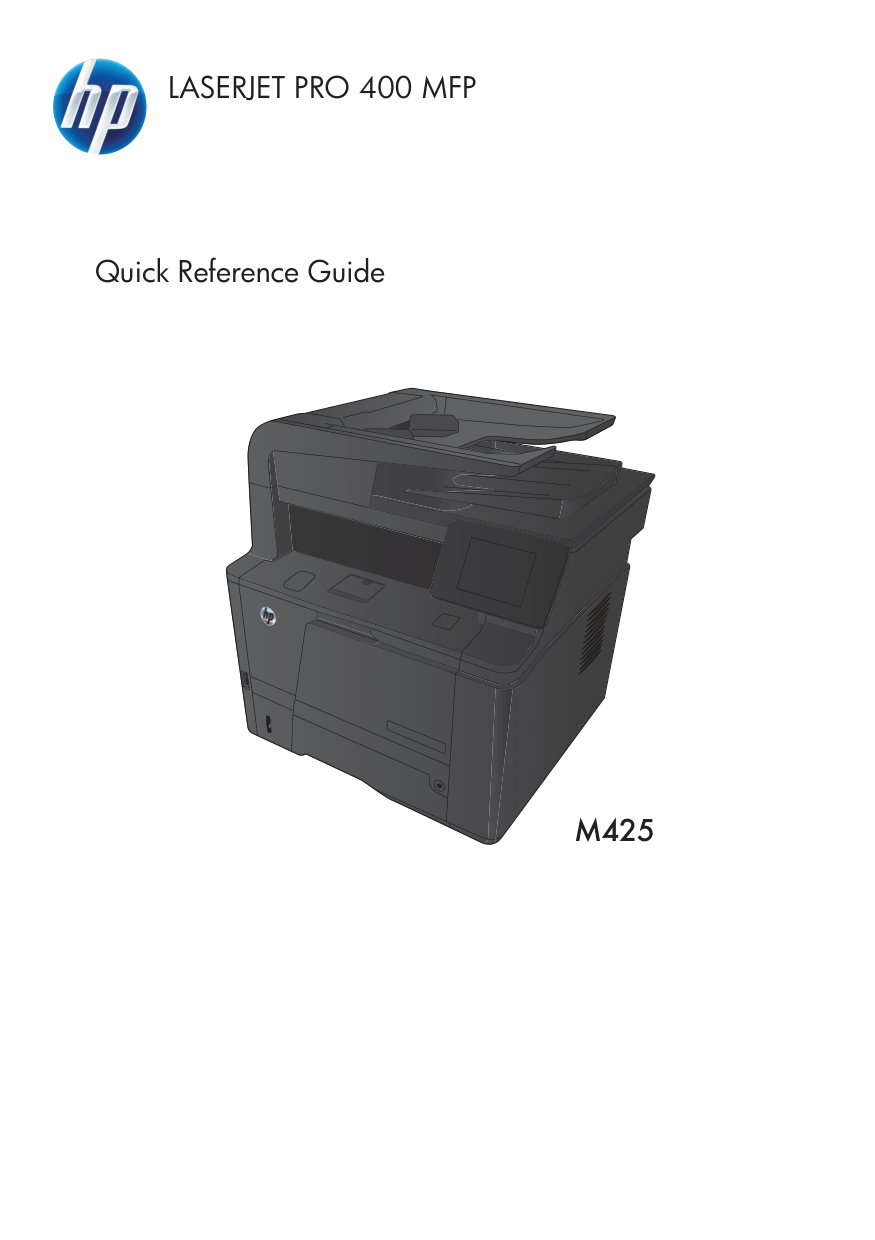
Laserjet Pro 400 Mfp
Quick Reference GuideM425
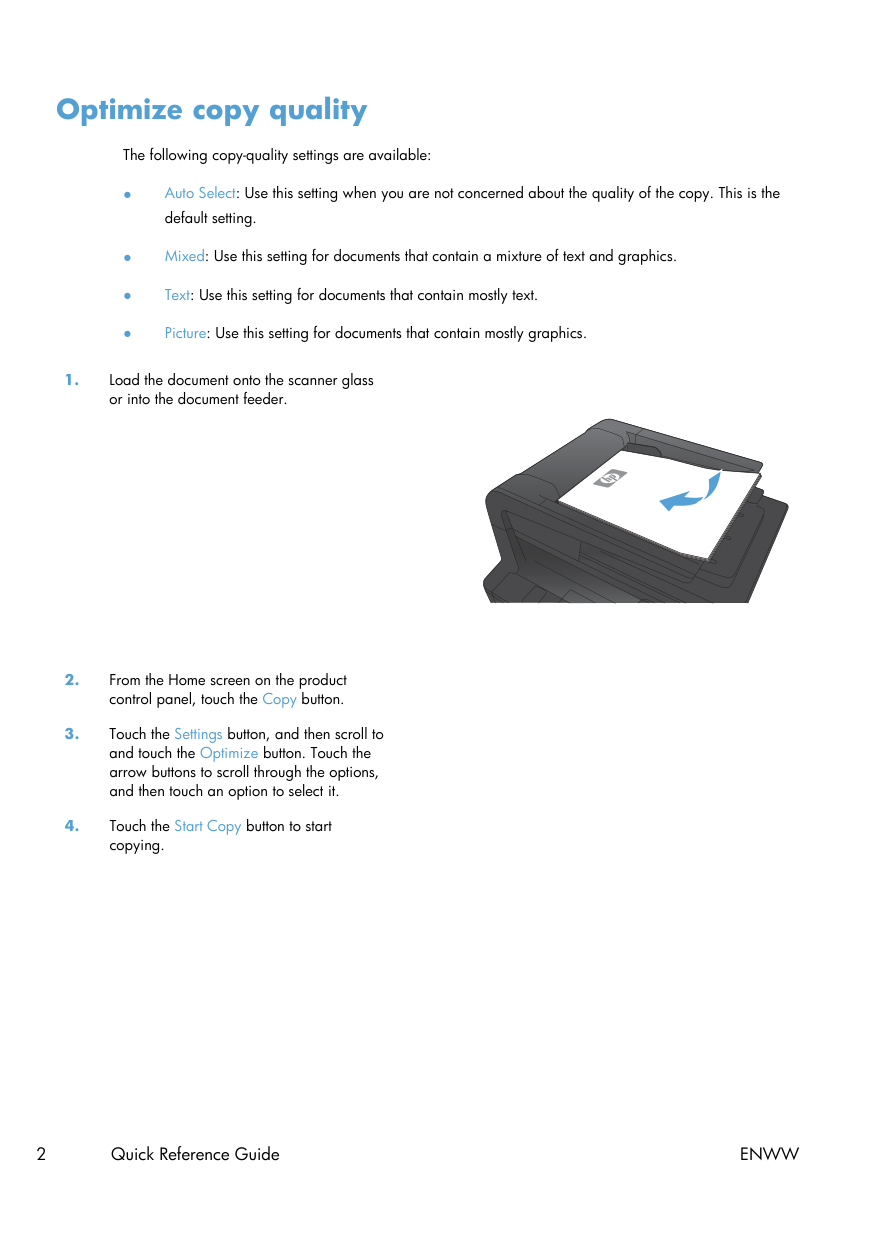
Optimize copy quality The following copy-quality settings are available: ● Auto Select: Use this setting when you are not concerned about the quality of the copy. This is the default setting. ● Mixed: Use this setting for documents that contain a mixture of text and graphics. ● Text: Use this setting for documents that contain mostly text. ● Picture: Use this setting for documents that contain mostly graphics.
2 Quick Reference Guide
Enww
Scan by using the HP Scan software (Windows)
Note:
Click Advanced Settings to gain access to more options. Click Create New Shortcut to create a customized set of settings and save it in the list of shortcuts.Enww
Scan by using the HP Scan software (Windows) 3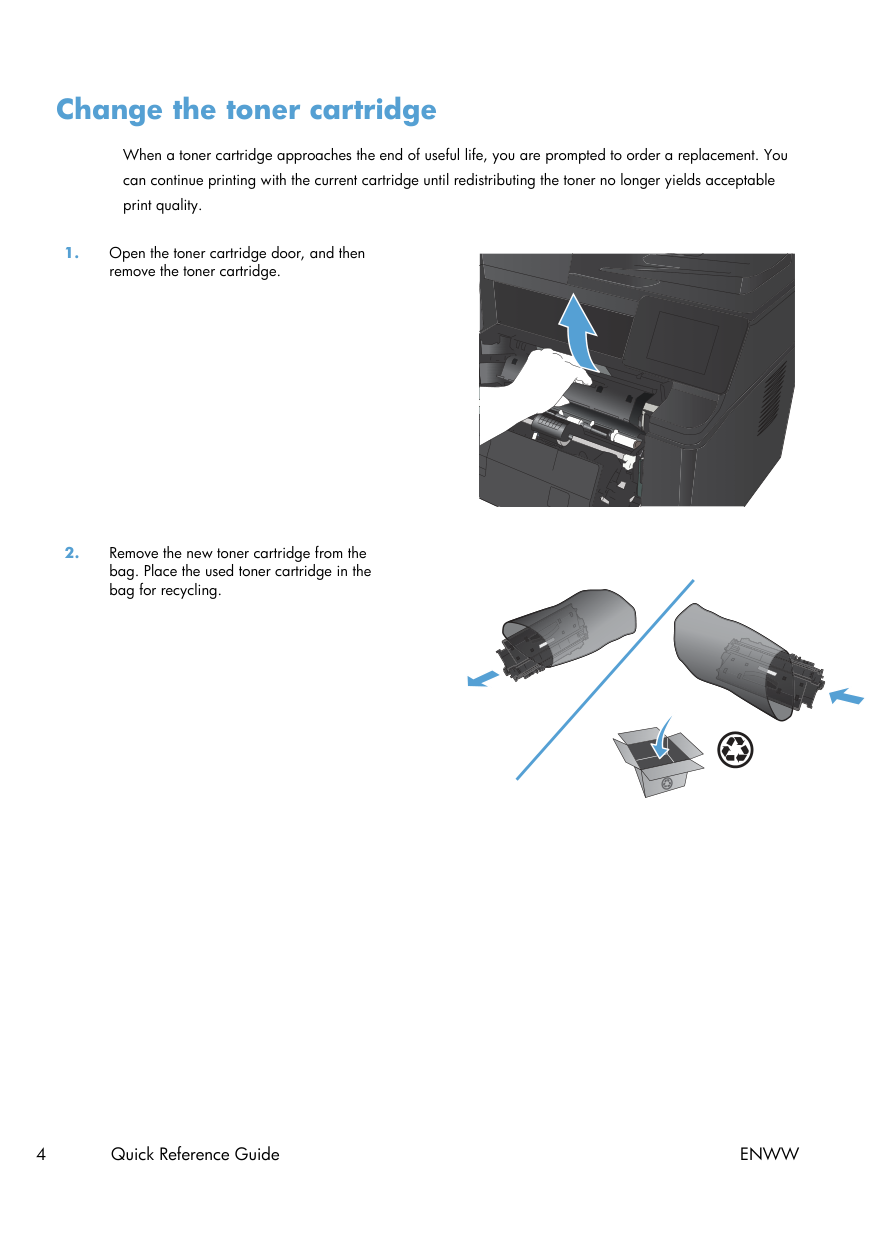
Change the toner cartridge When a toner cartridge approaches the end of useful life, you are prompted to order a replacement. You can continue printing with the current cartridge until redistributing the toner no longer yields acceptable print quality.
4 Quick Reference Guide
Enww
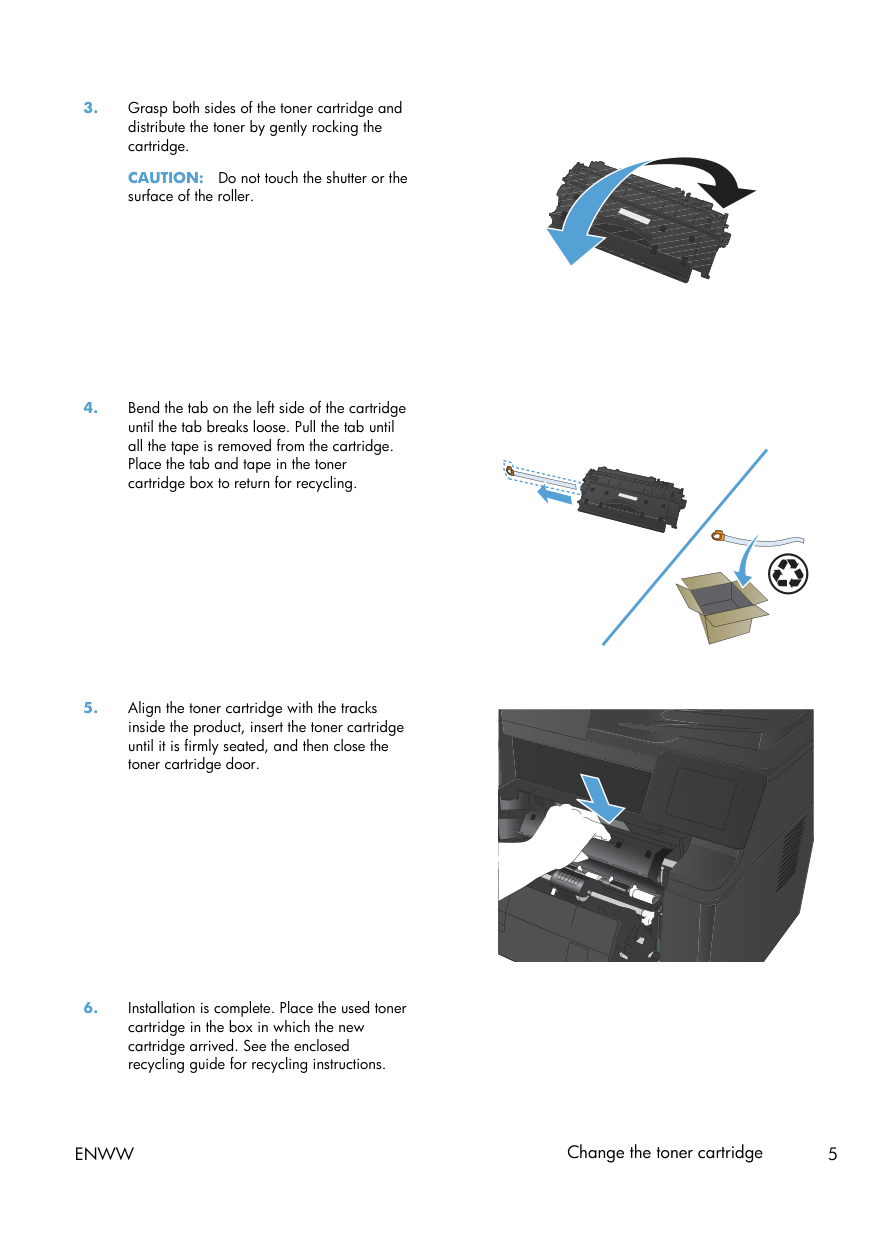
Caution:
Do not touch the shutter or the surface of the roller.Enww
Change the toner cartridge 5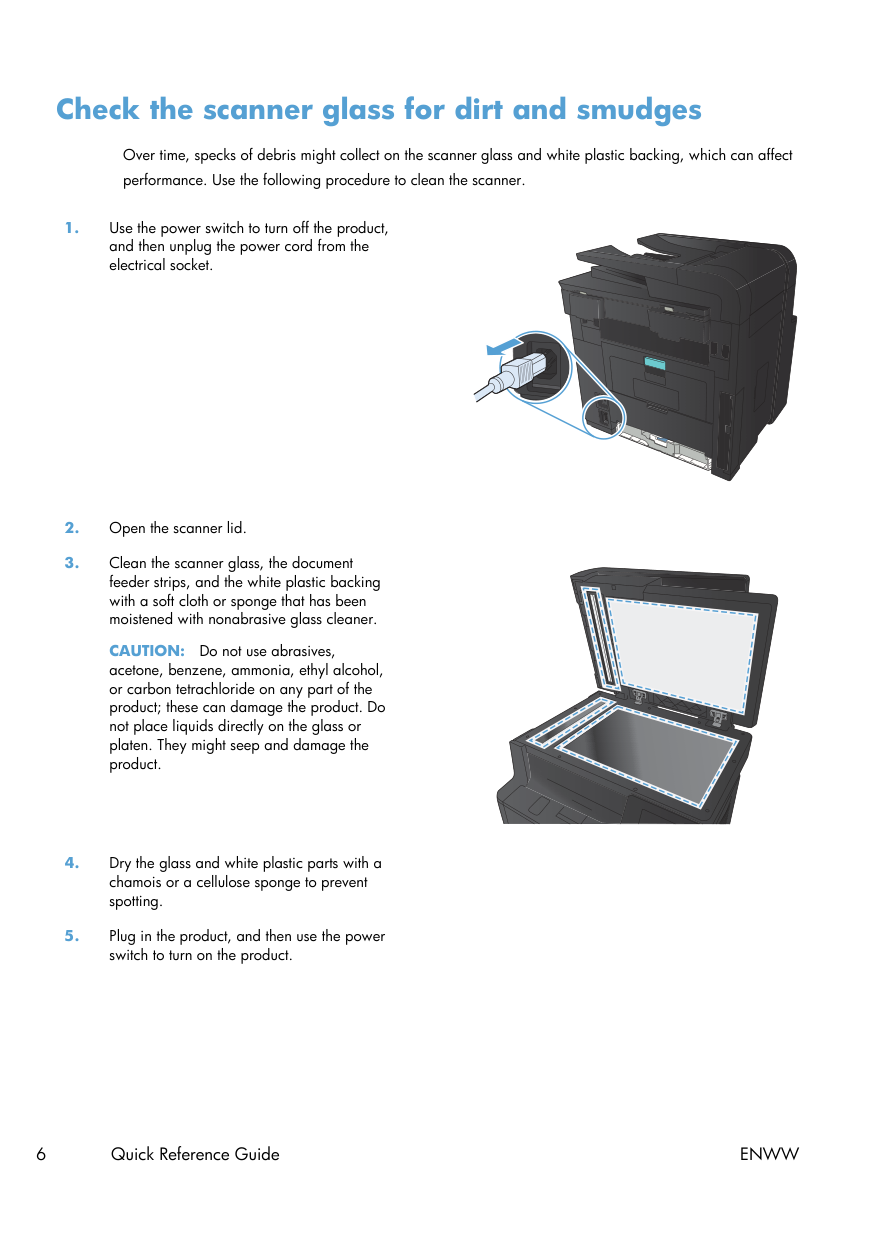
Check the scanner glass for dirt and smudges Over time, specks of debris might collect on the scanner glass and white plastic backing, which can affect performance. Use the following procedure to clean the scanner.
Caution:
Do not use abrasives, acetone, benzene, ammonia, ethyl alcohol, or carbon tetrachloride on any part of the product; these can damage the product. Do not place liquids directly on the glass or platen. They might seep and damage the product.6 Quick Reference Guide
Enww
Print a cleaning page
Enww
Print a cleaning page 7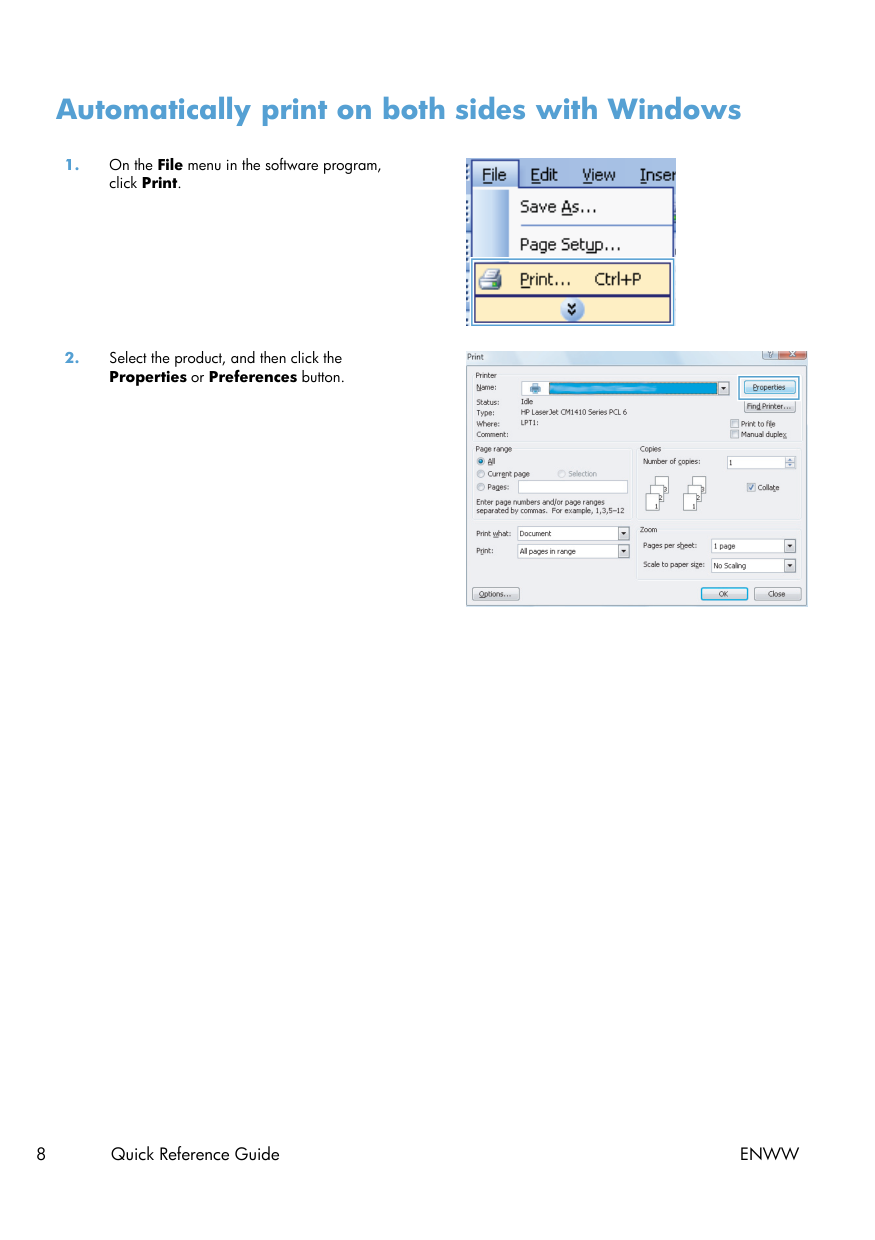
Automatically print on both sides with Windows
8 Quick Reference Guide
Enww
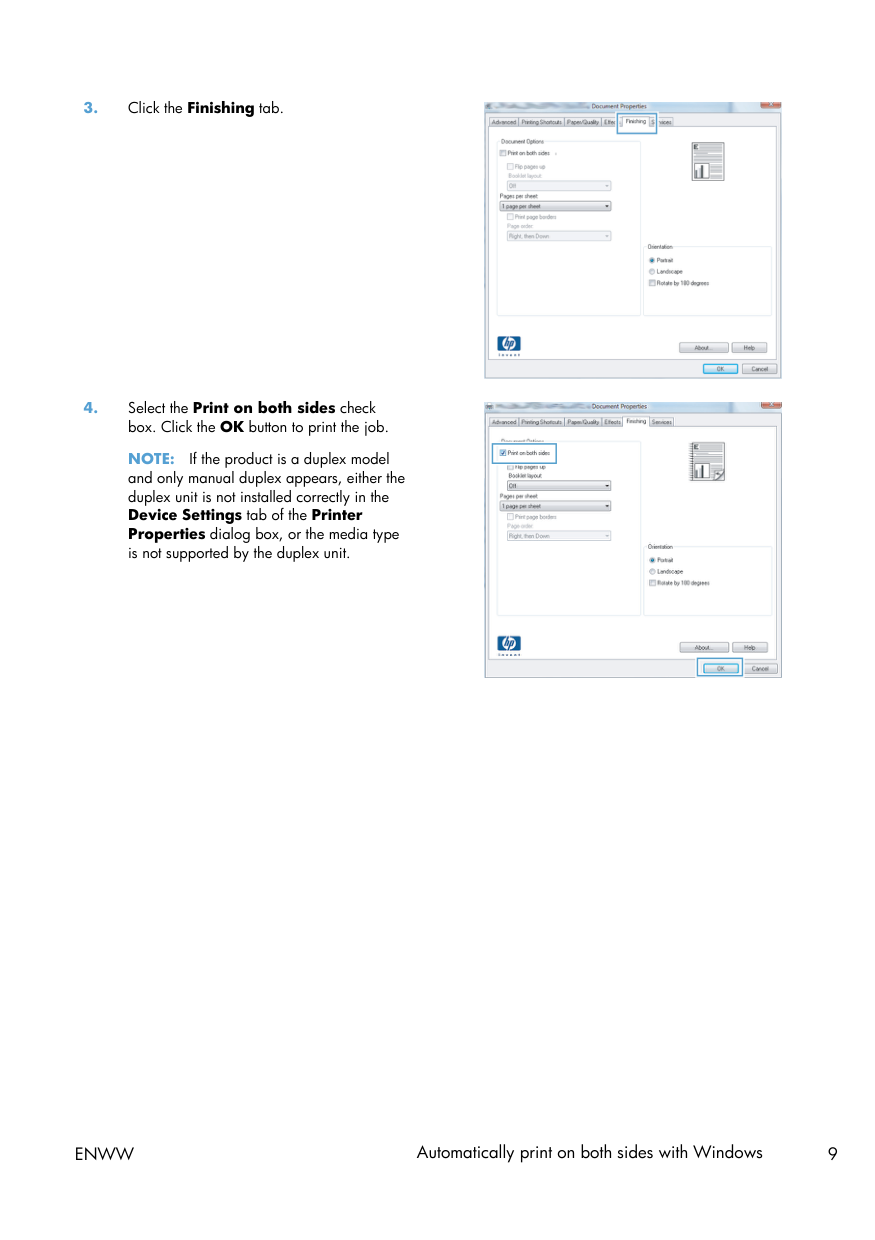
Note:
If the product is a duplex model and only manual duplex appears, either the duplex unit is not installed correctly in the Device Settings tab of the Printer Properties dialog box, or the media type is not supported by the duplex unit.Enww
Automatically print on both sides with Windows 9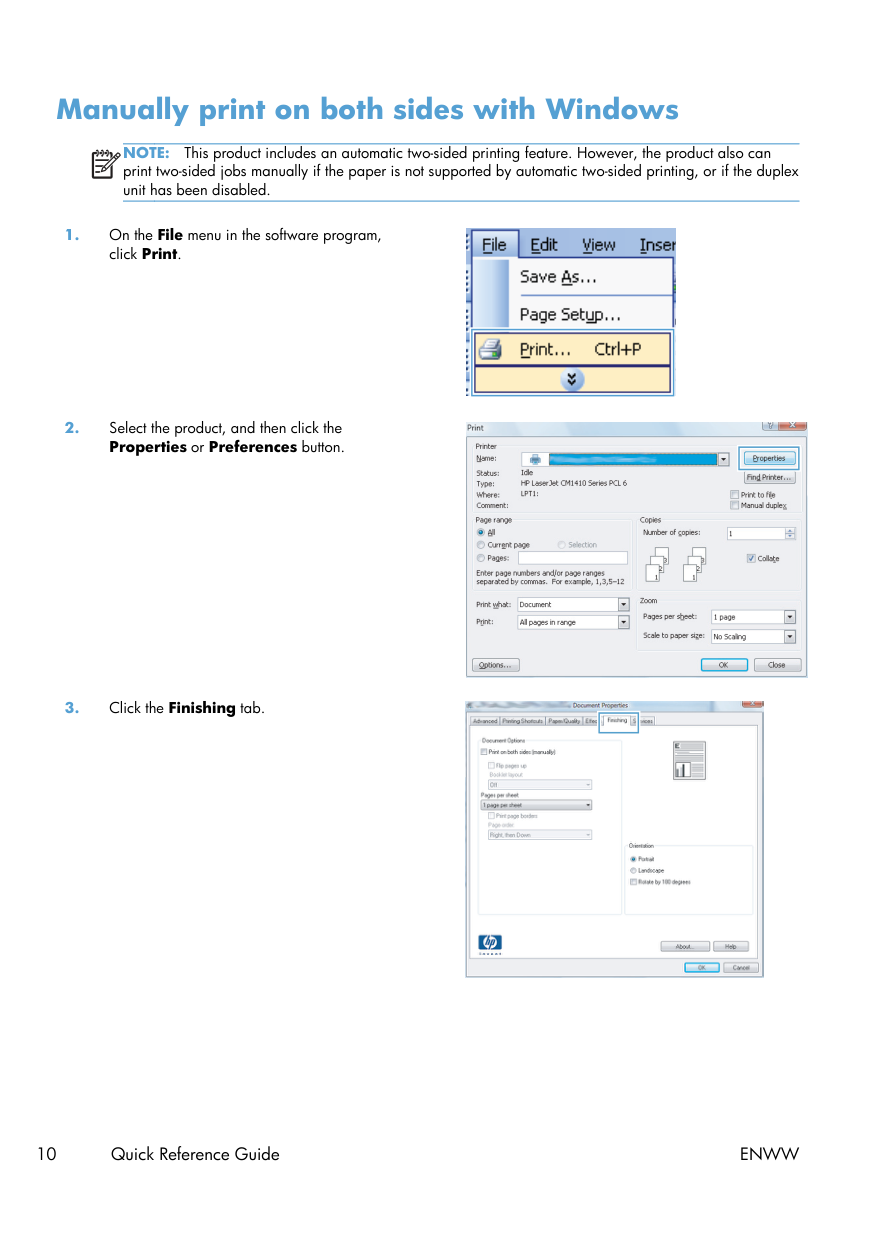
Manually print on both sides with Windows
Note:
This product includes an automatic two-sided printing feature. However, the product also can print two-sided jobs manually if the paper is not supported by automatic two-sided printing, or if the duplex unit has been disabled.10 Quick Reference Guide
Enww
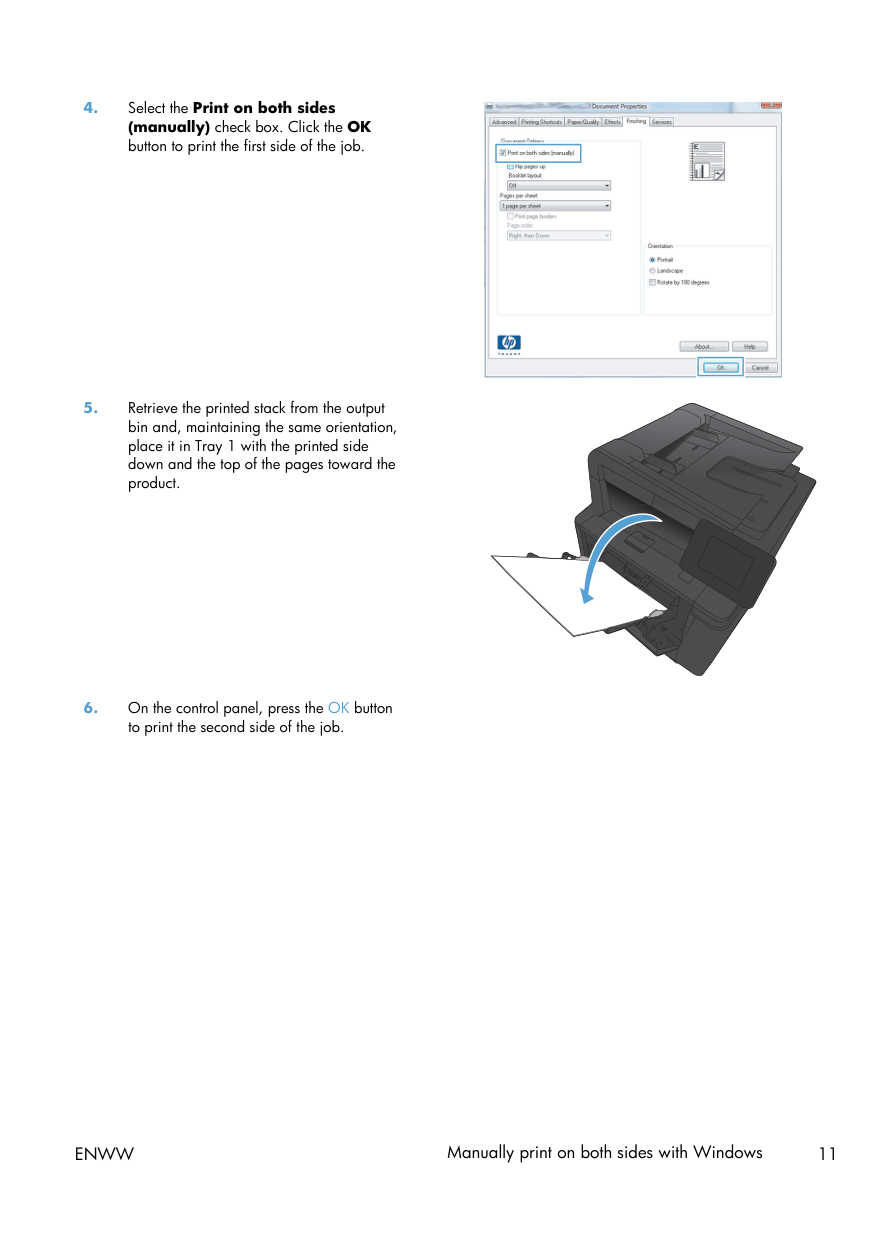
Enww
Manually print on both sides with Windows 11
12 Quick Reference Guide
Enww
© 2012 Hewlett-Packard Development Company, L.P. www.hp.com Edition 1, 4/2012 Part number: CF286-90986 Windows ® is a U.S. registered trademark of Microsoft Corporation. Reproduction, adaptation or translation without prior written permission is prohibited, except as allowed under the copyright laws. The information contained herein is subject to change without notice. The only warranties for HP products and services are set forth in the express warranty statements accompanying such products and services. Nothing herein should be construed as constituting an additional warranty. HP shall not be liable for technical or editorial errors or omissions contained herein.