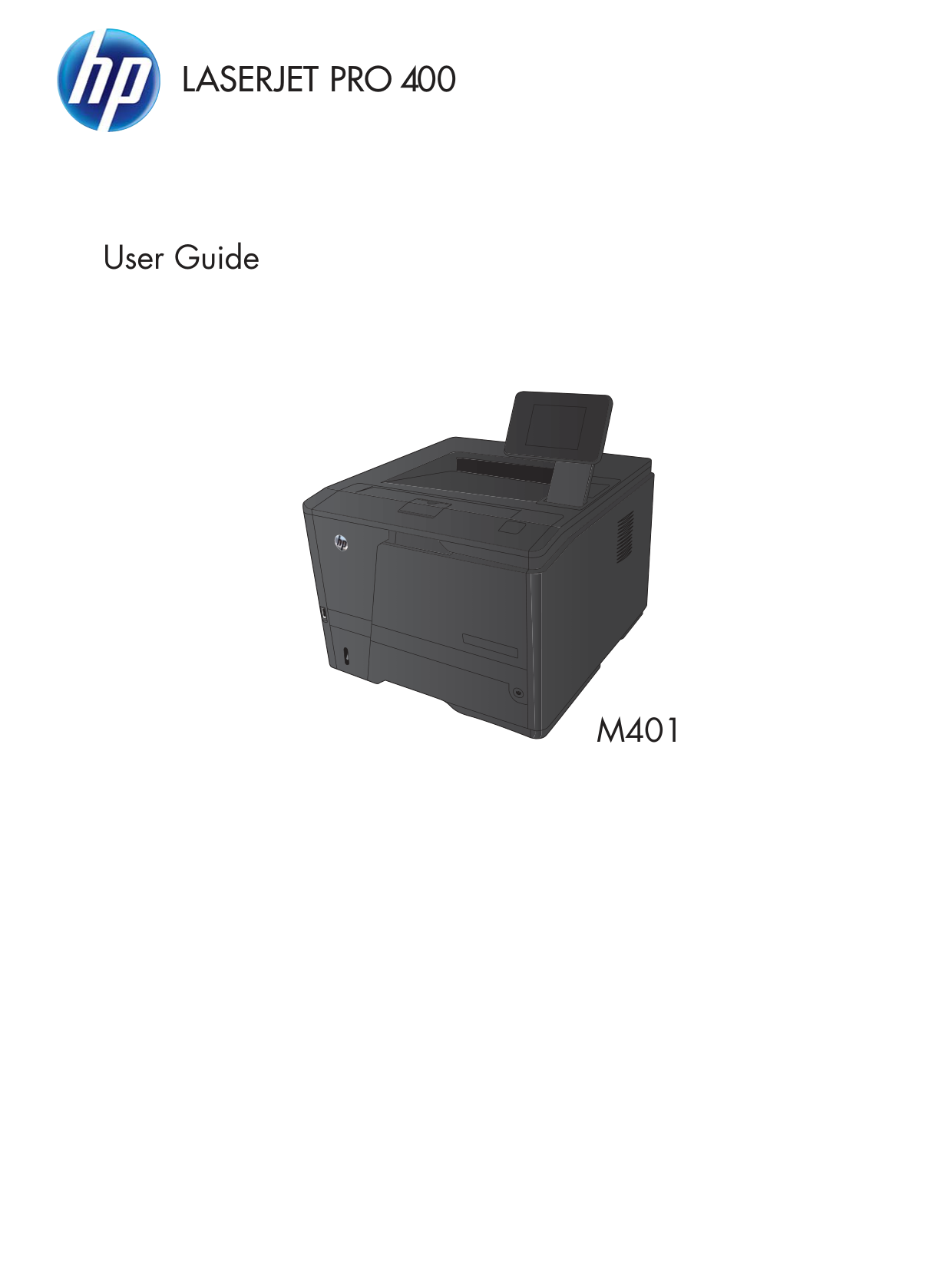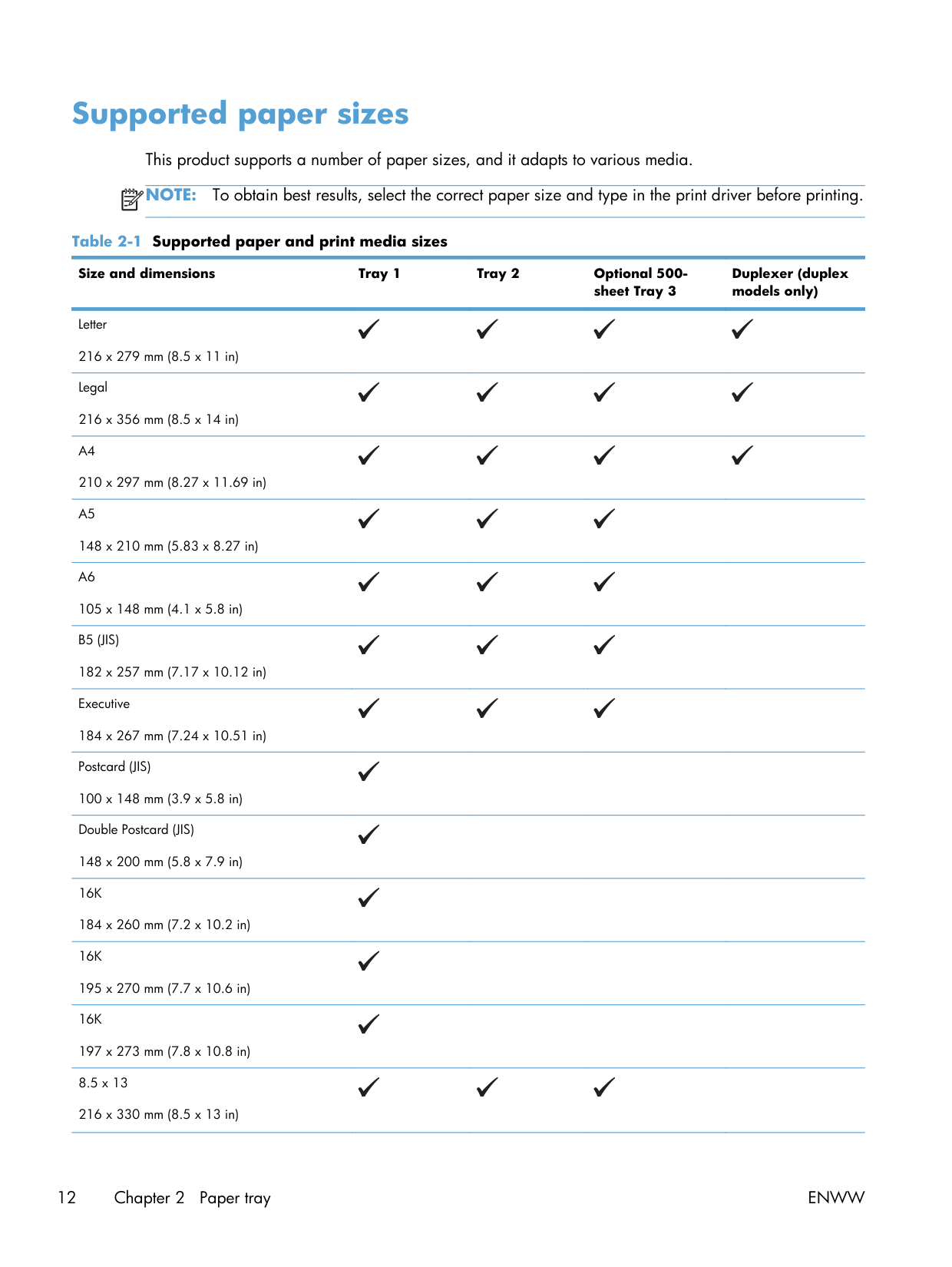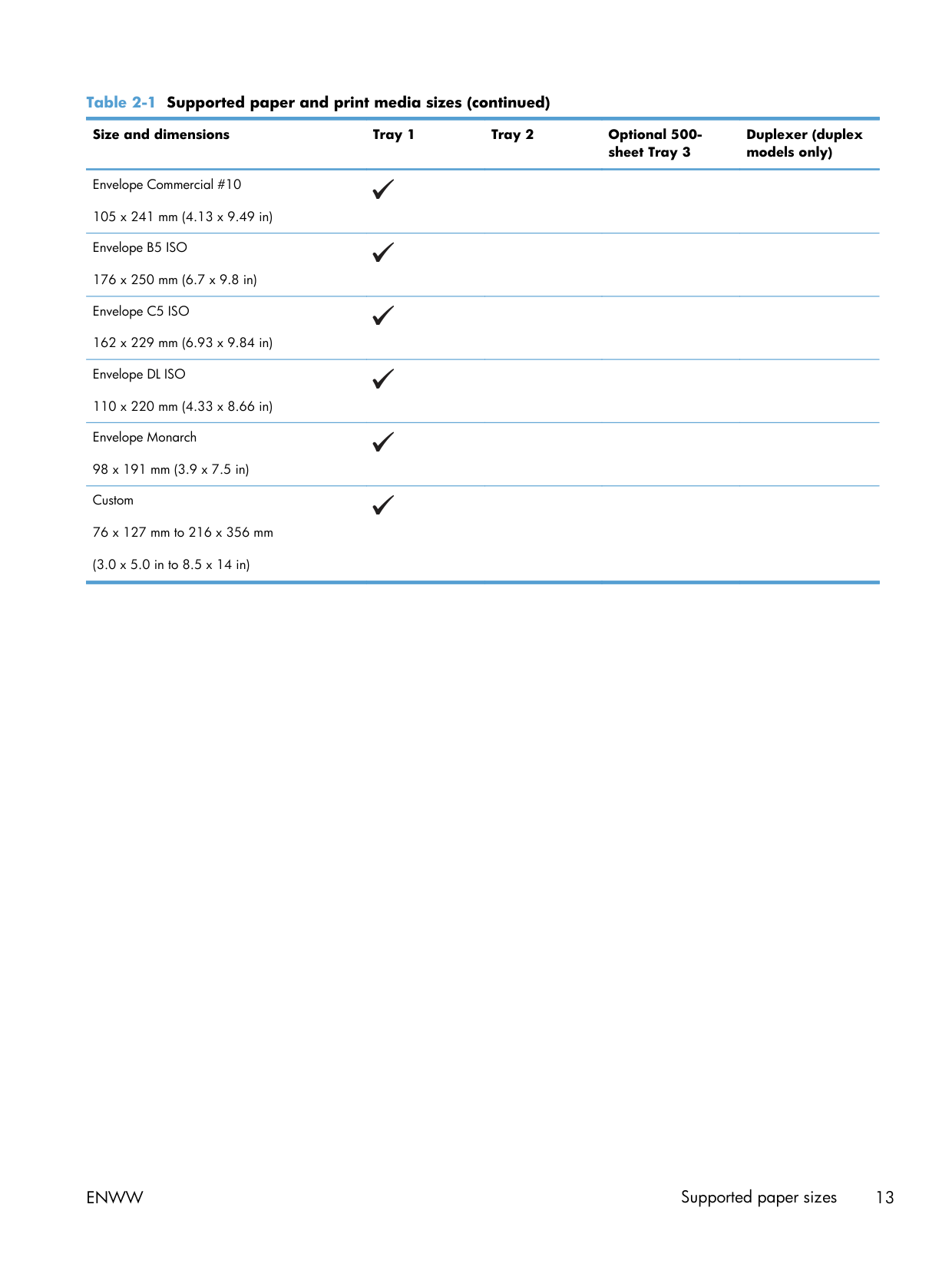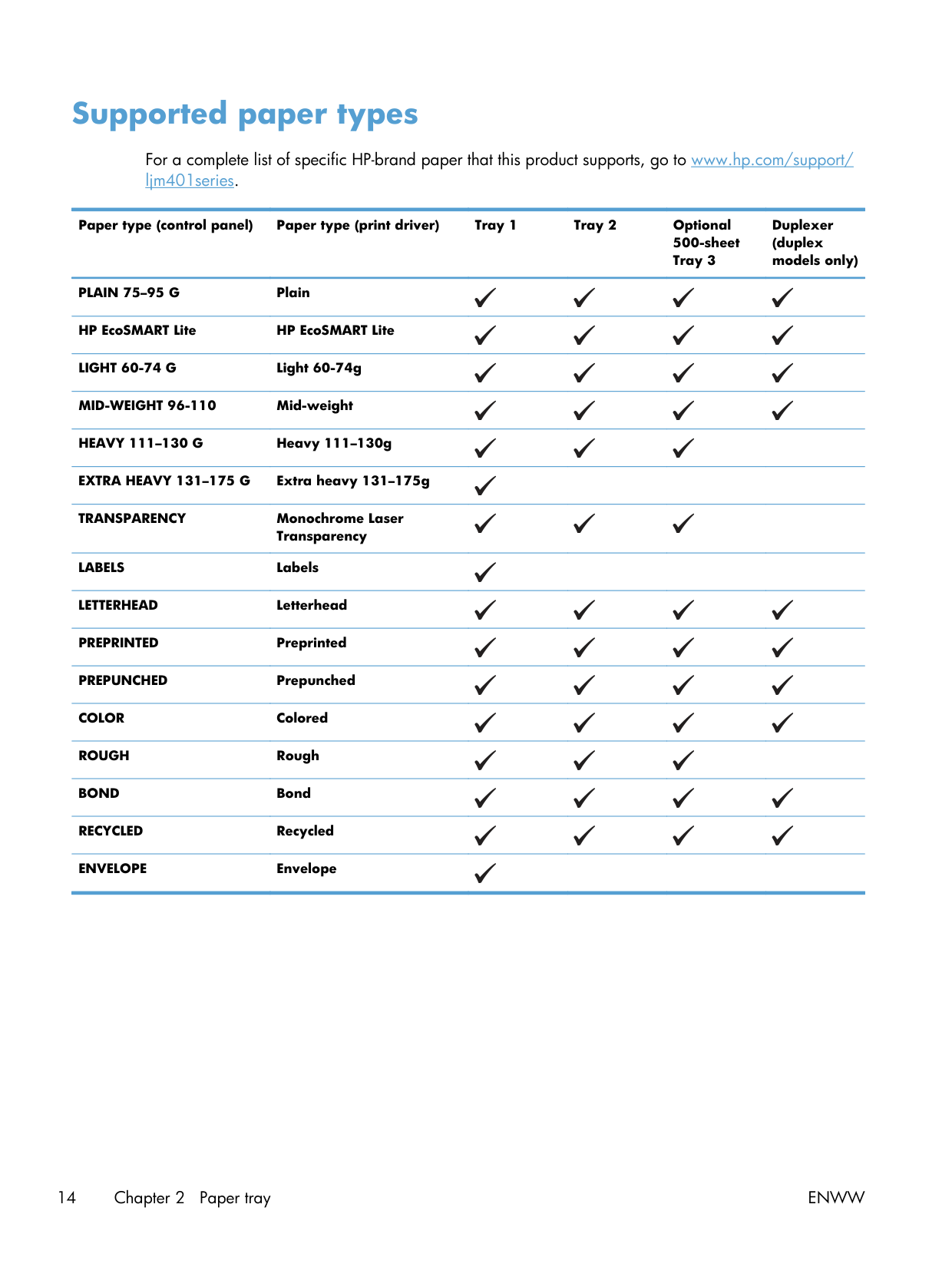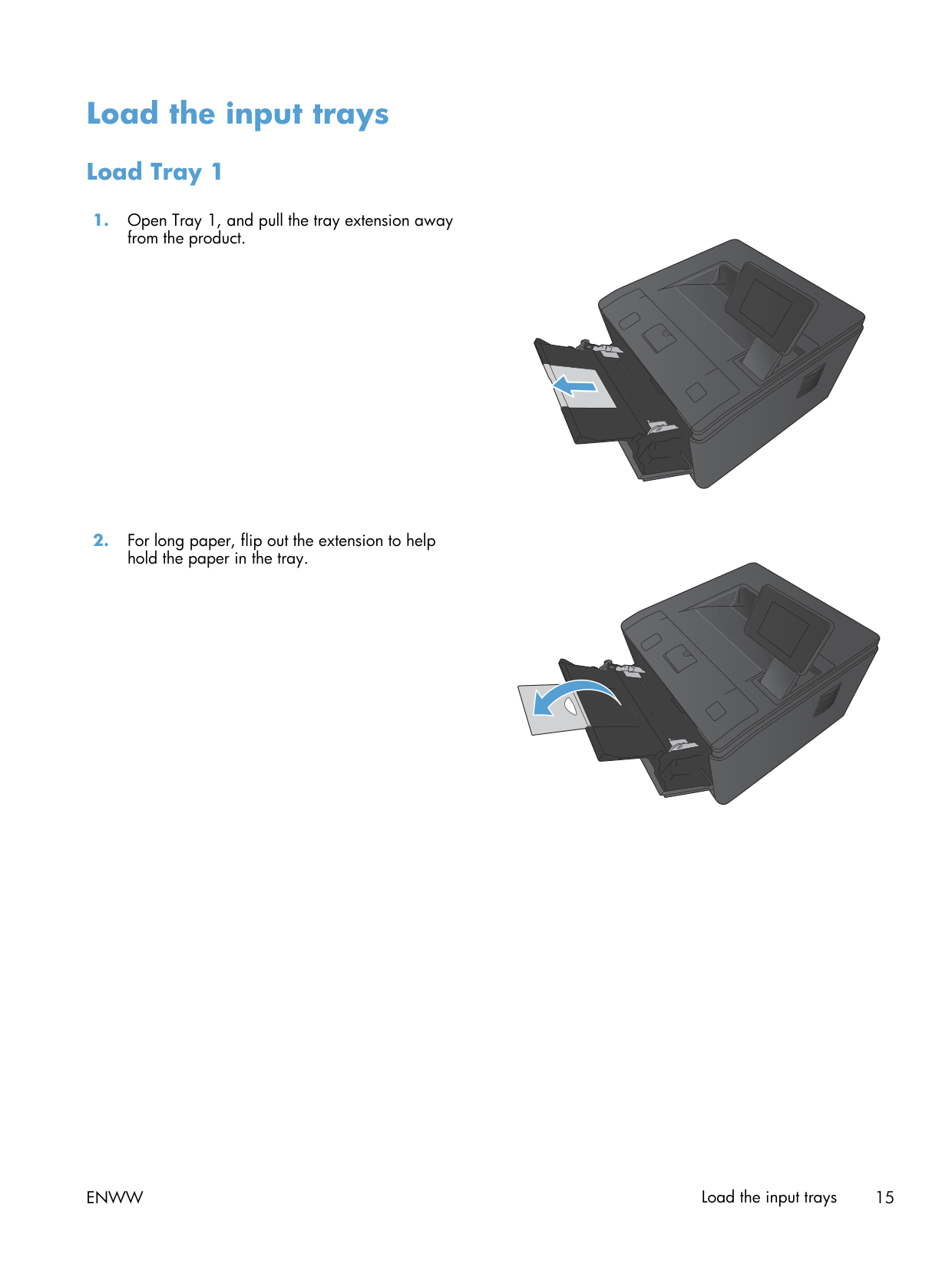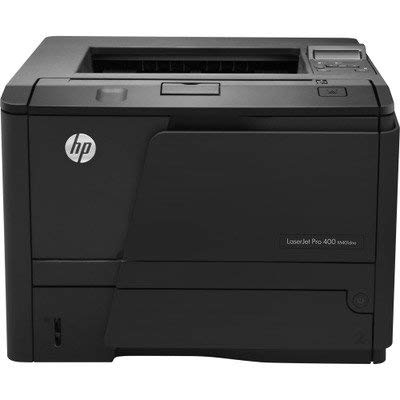
This printer is from 2014 and a lot of small offices still won't replace it. There's a reason. The print engine is overbuilt, CF280 toner is cheap and easy to find, and HP has continued to publish drivers for it across multiple Windows generations. If yours is running, the question isn't "should I upgrade" — it's "what should I do to keep this one going for another five years."
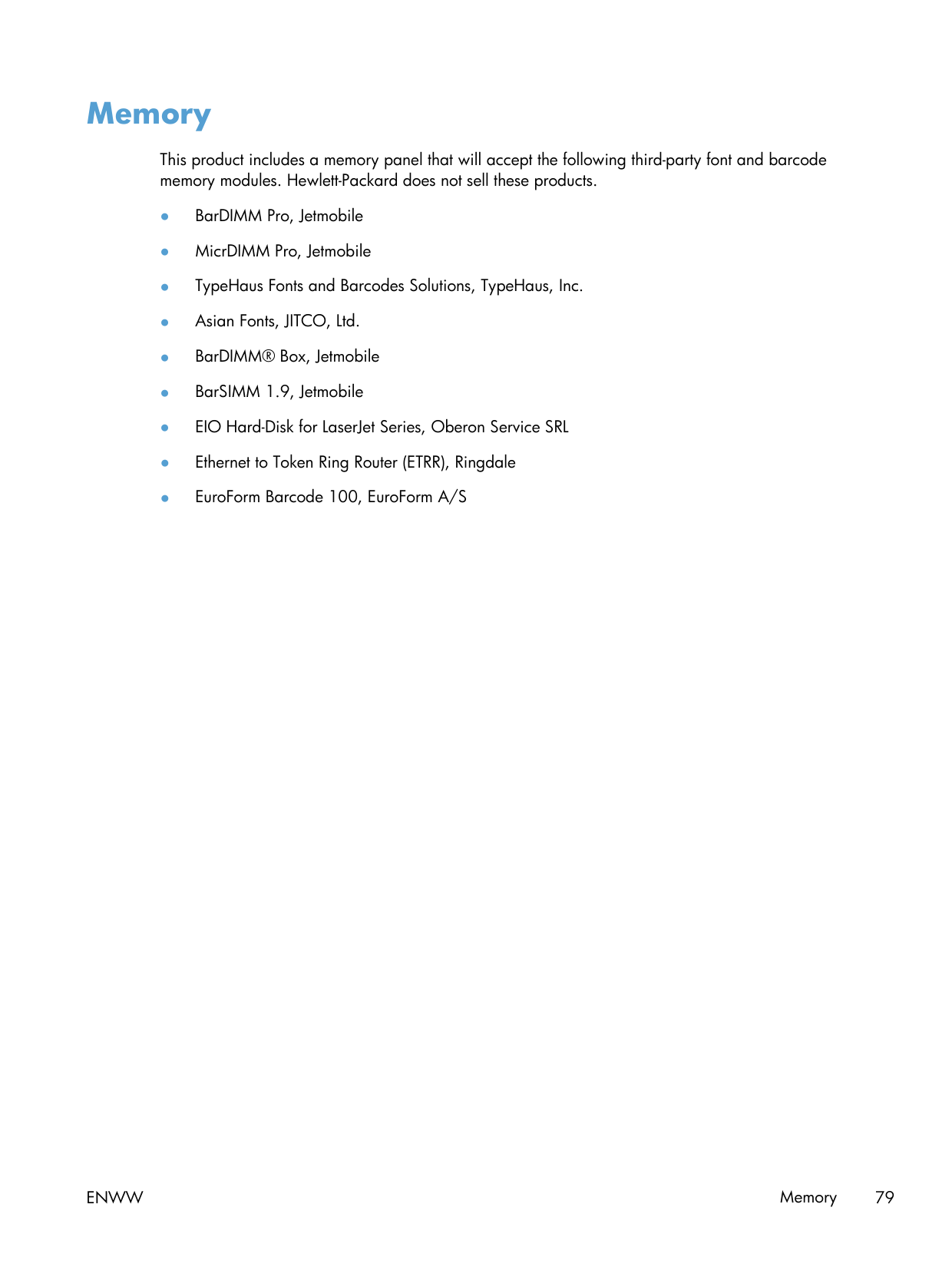
The lineup is M401a / M401d / M401dn / M401dw, and the only thing that varies is connectivity. a is USB-only. d adds duplex. dn adds Ethernet. dw adds Ethernet plus Wi-Fi. Every variant uses the same toner, same drum, same fuser, same pickup roller. Spare parts swap freely across the line.
Keep it running
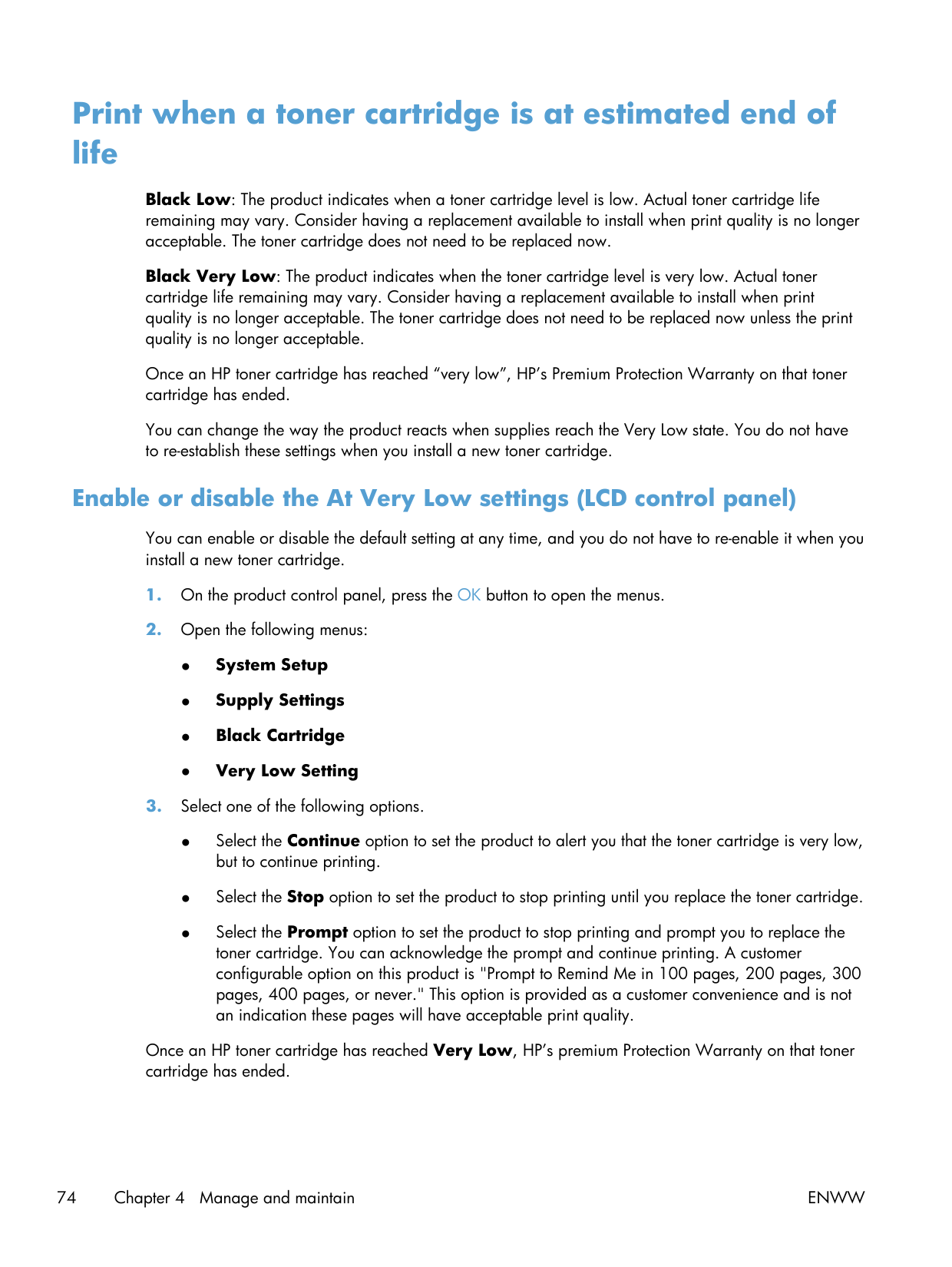
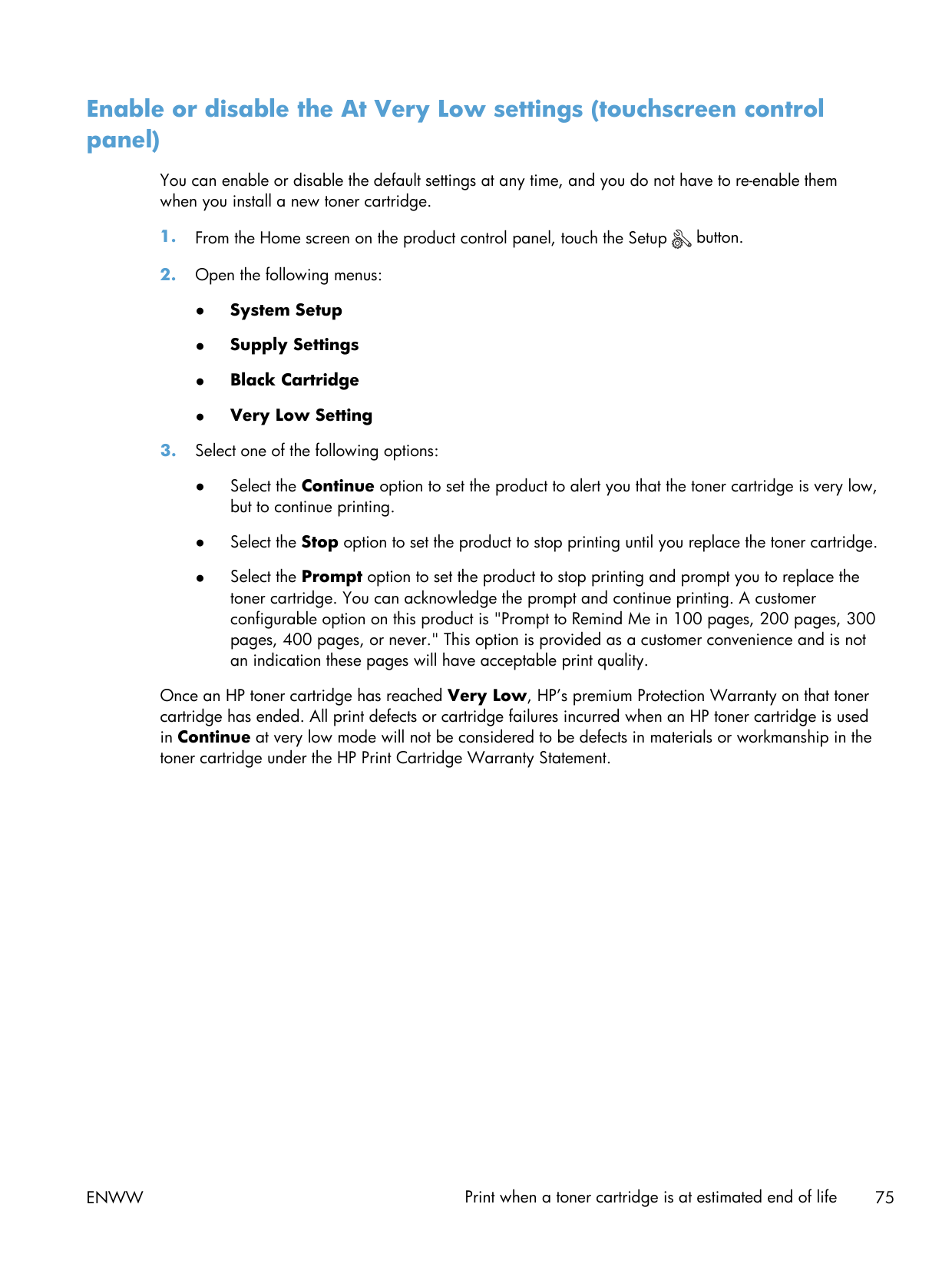
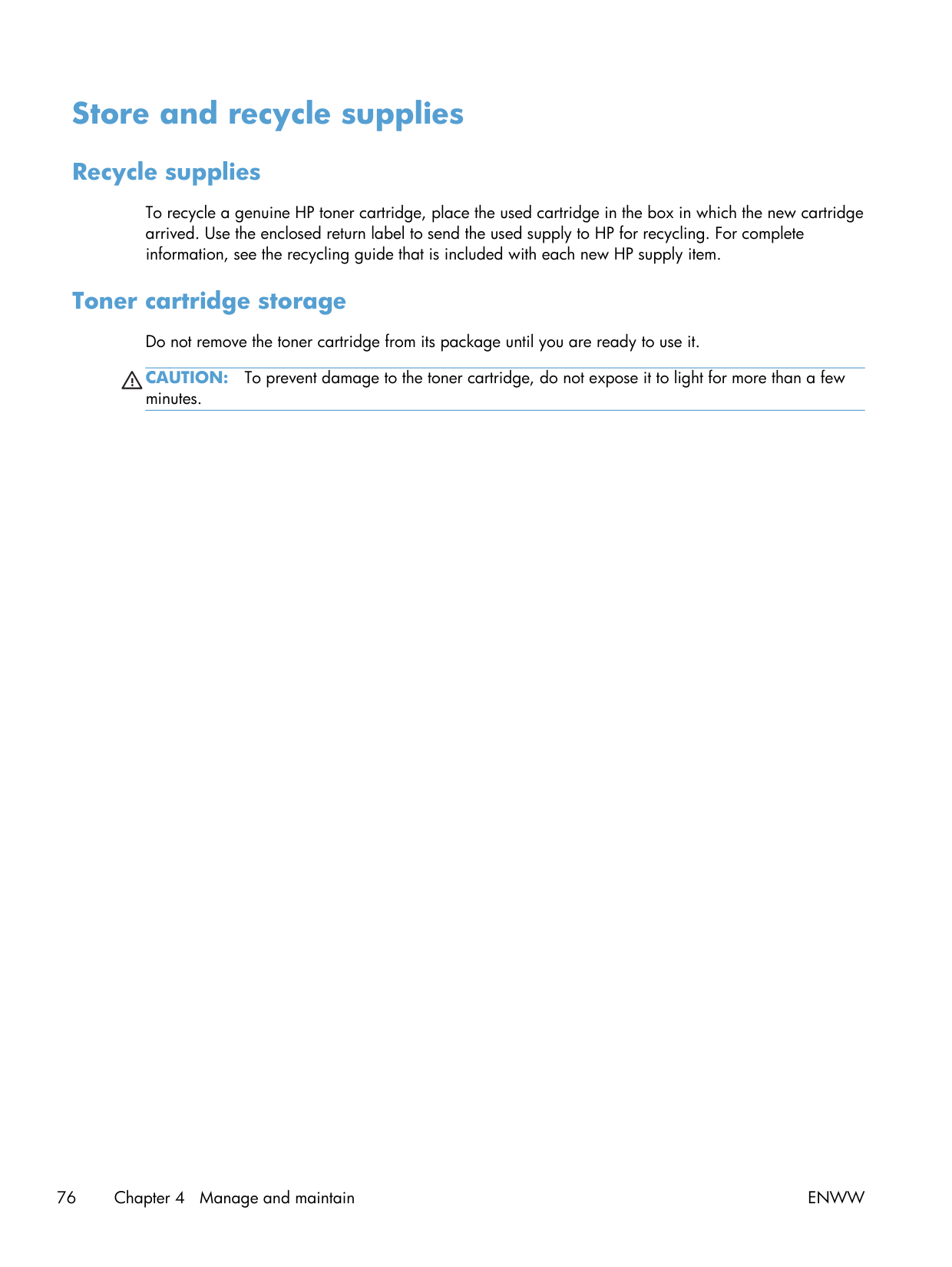
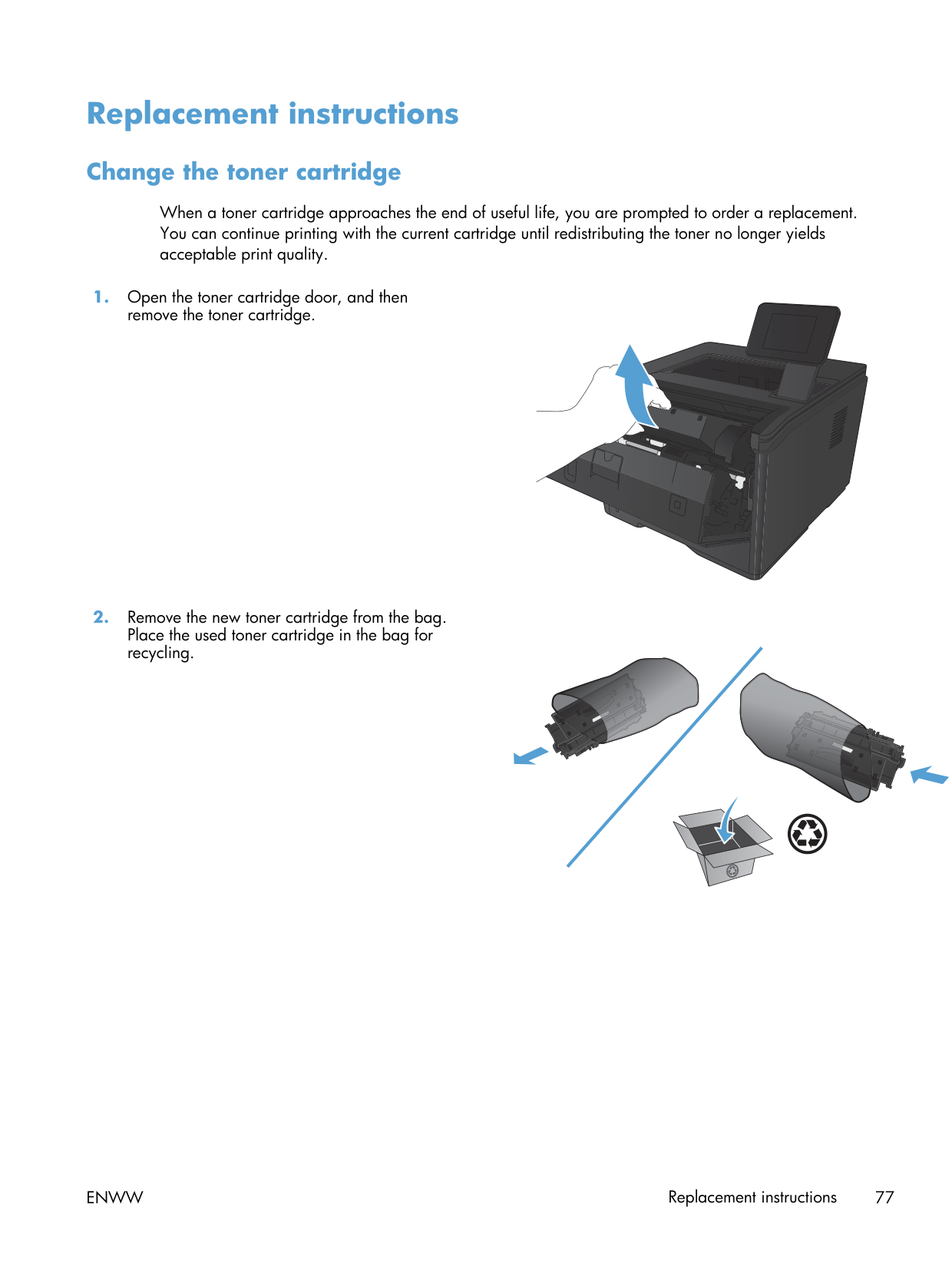
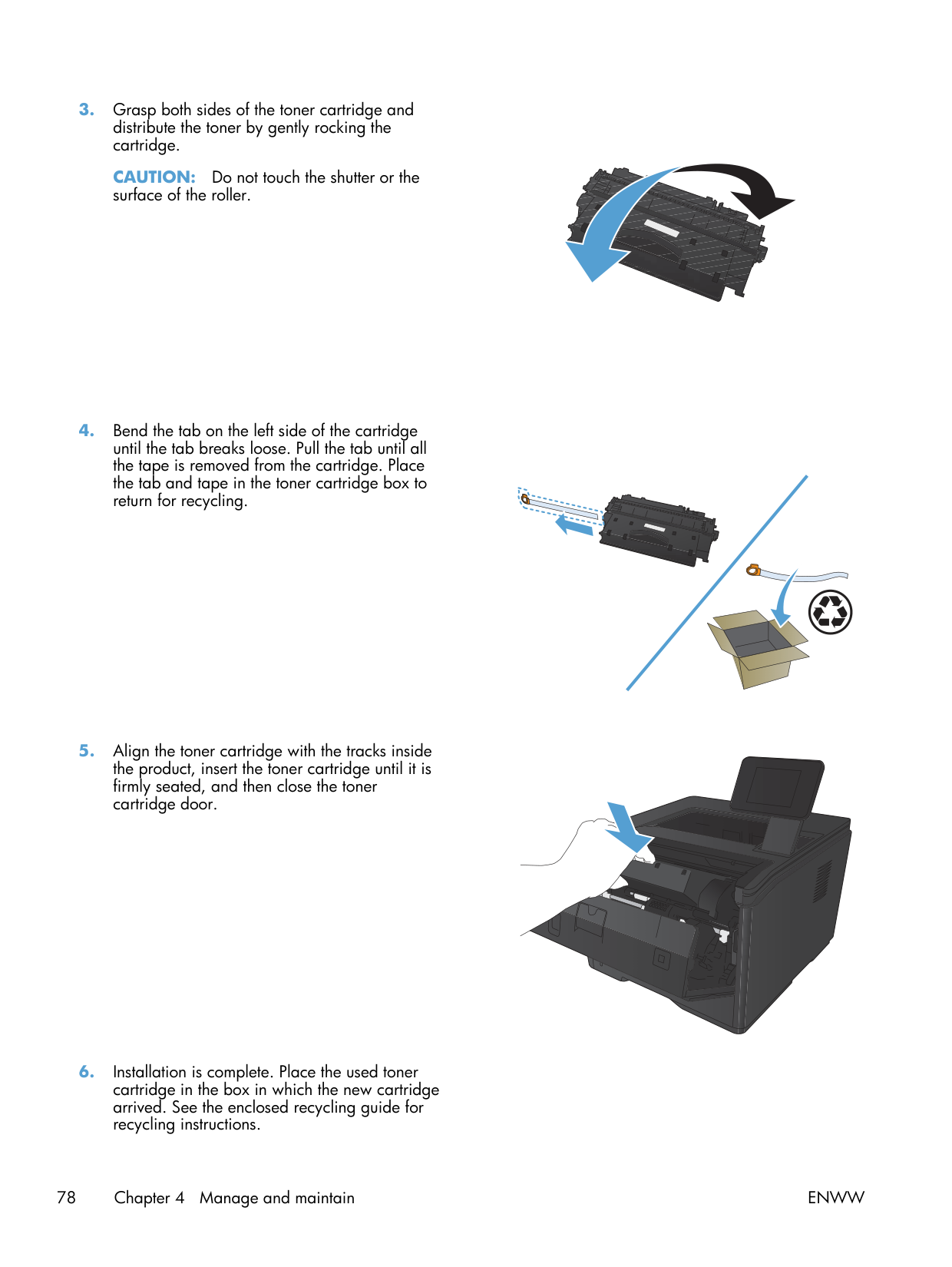
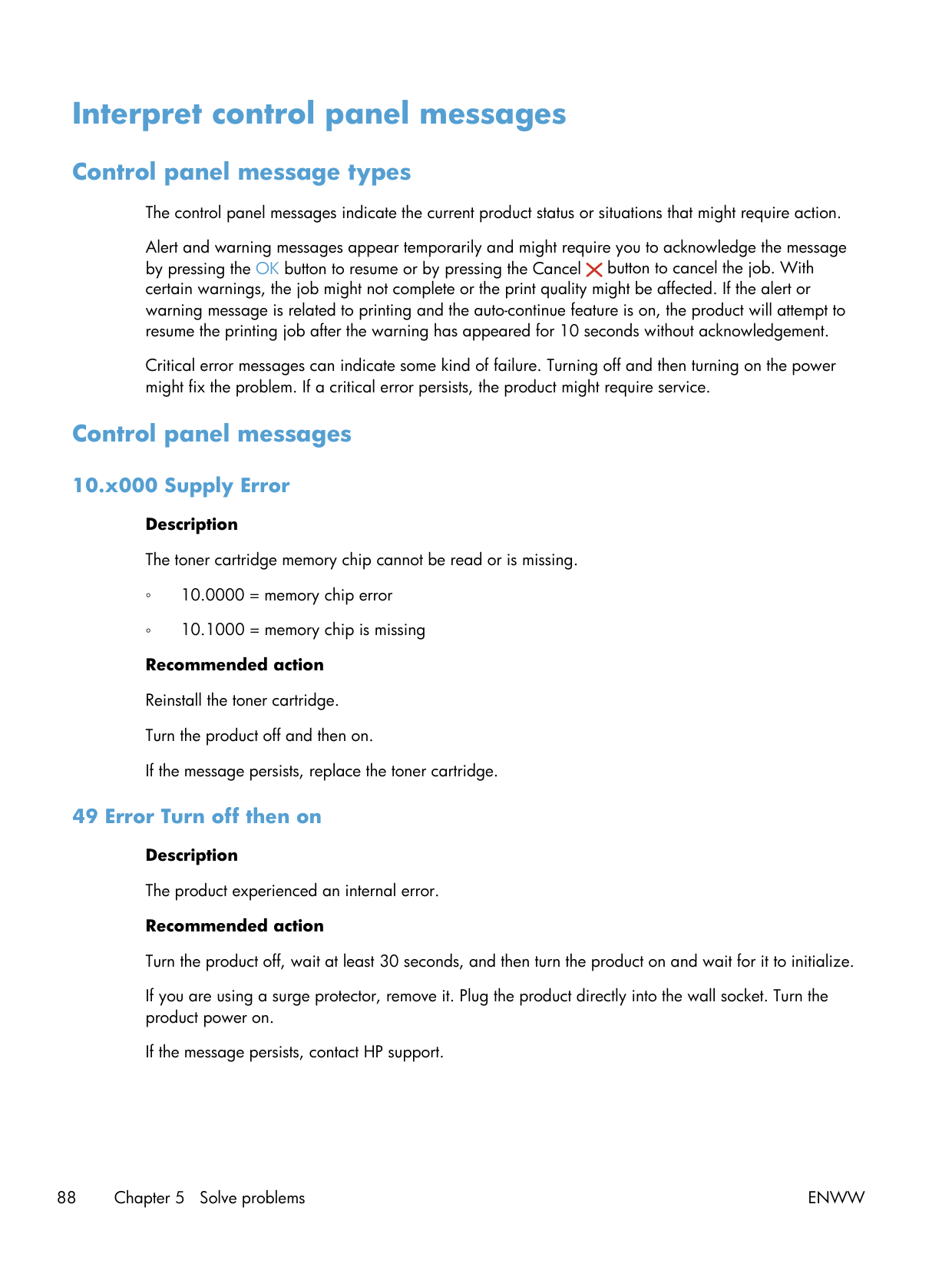
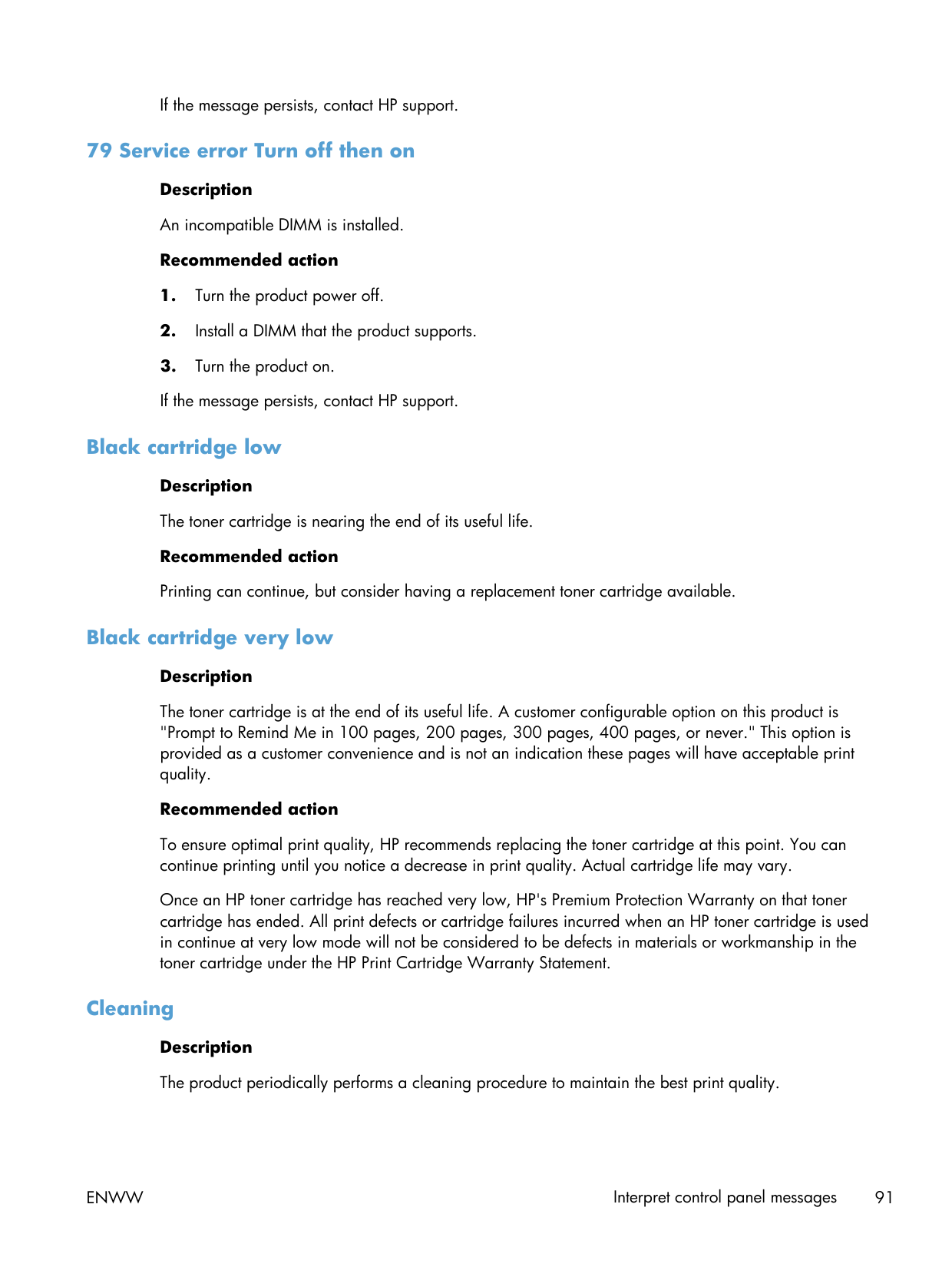
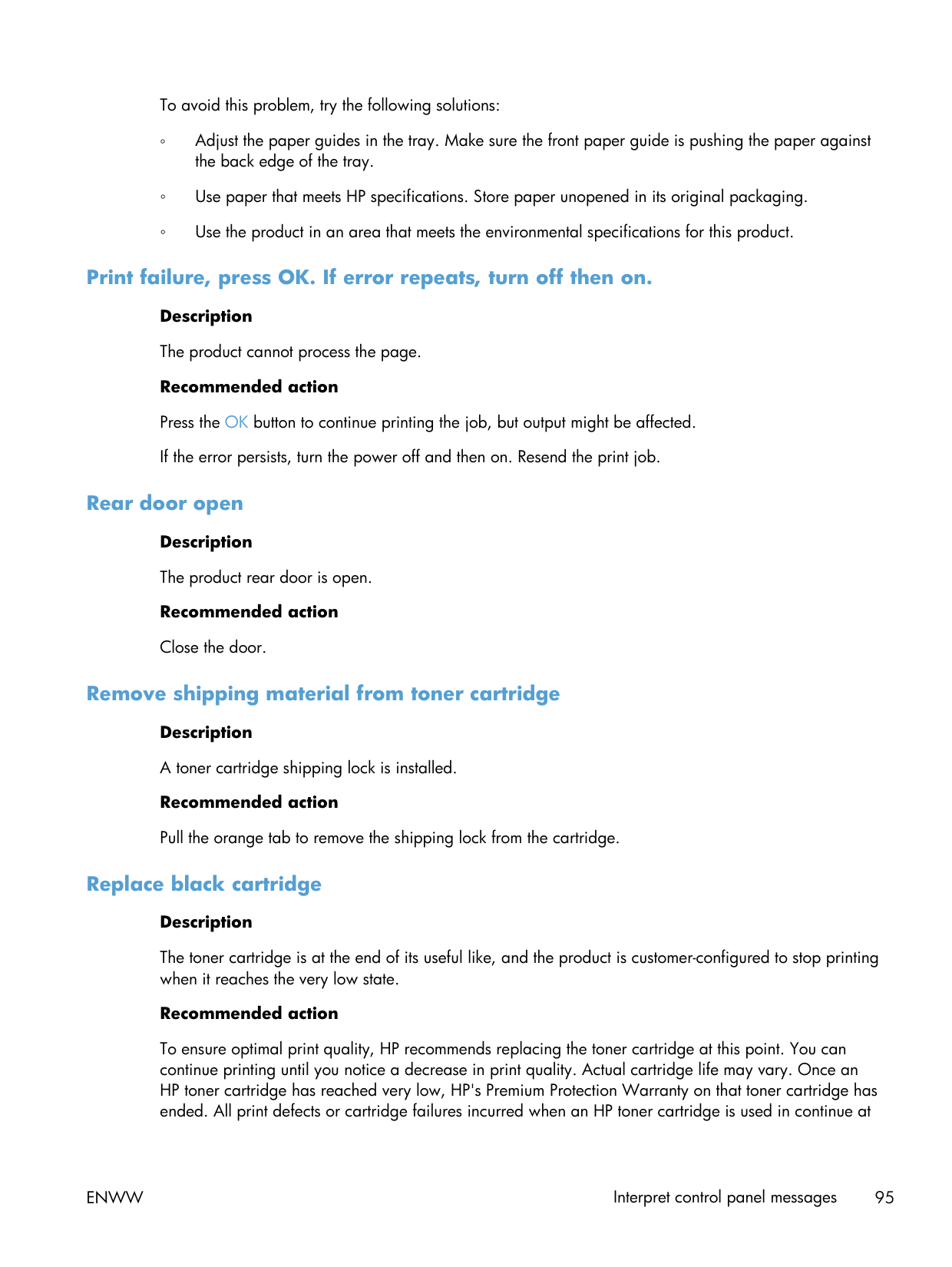
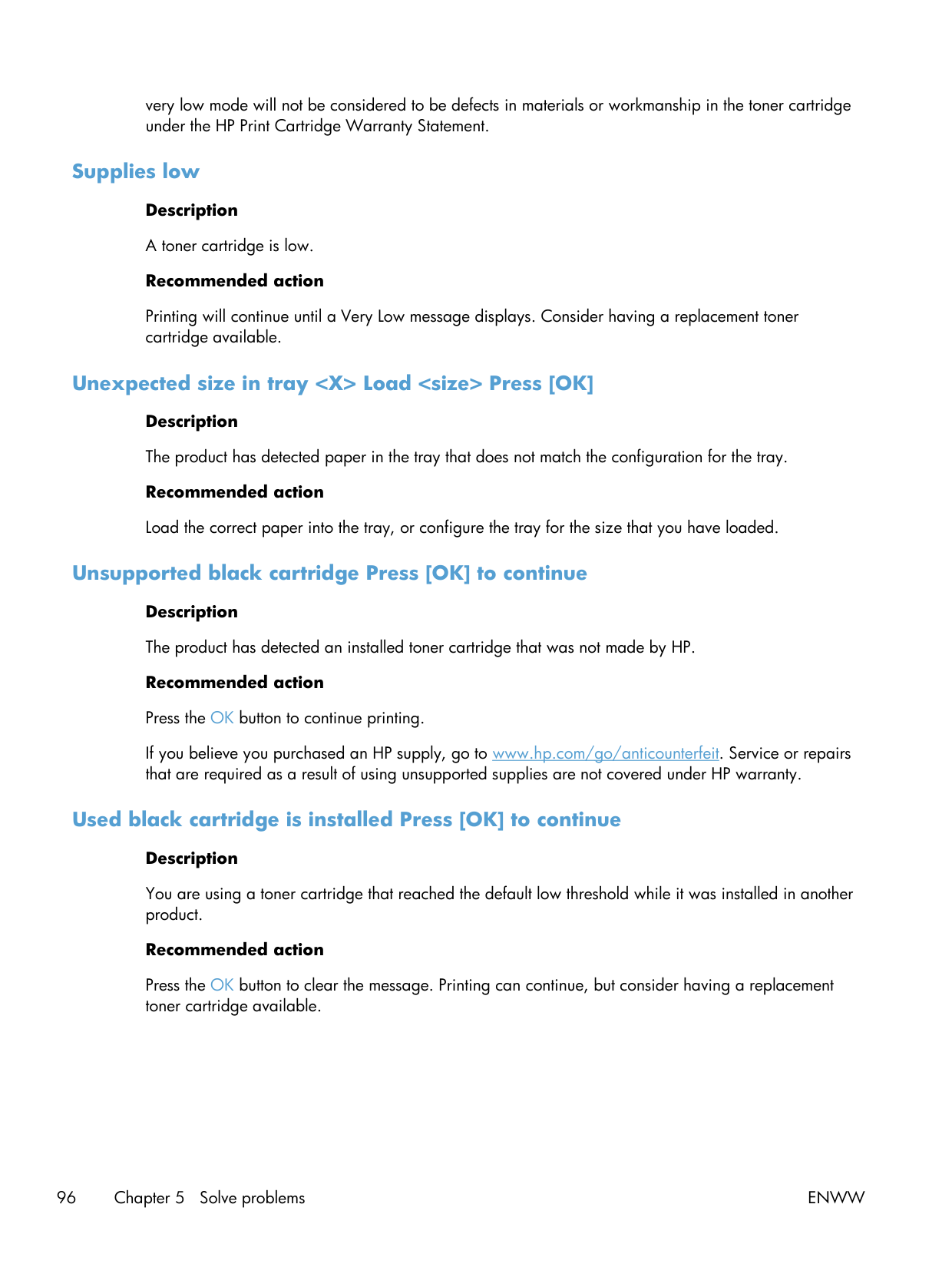
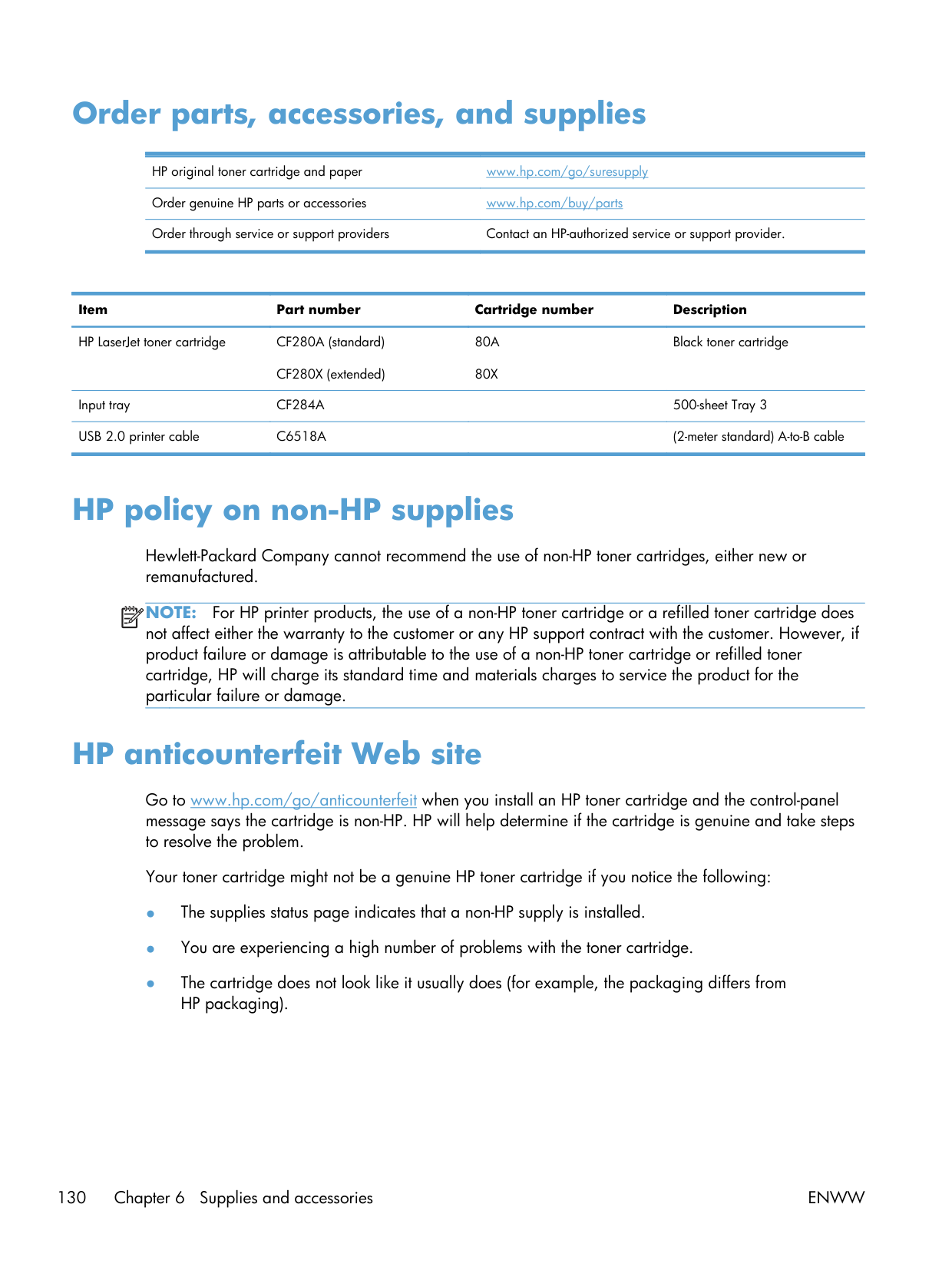
Toner. Use HP CF280A or CF280X. The chip handshake on this generation is strict, and aftermarket cartridges trigger 10.x supply errors more often than the savings justify. The M402 successor (2017) loosened chip validation; the M401 didn't. If you're tempted by an aftermarket cartridge, the predictable outcome is a 10.x error and a printer that won't print.
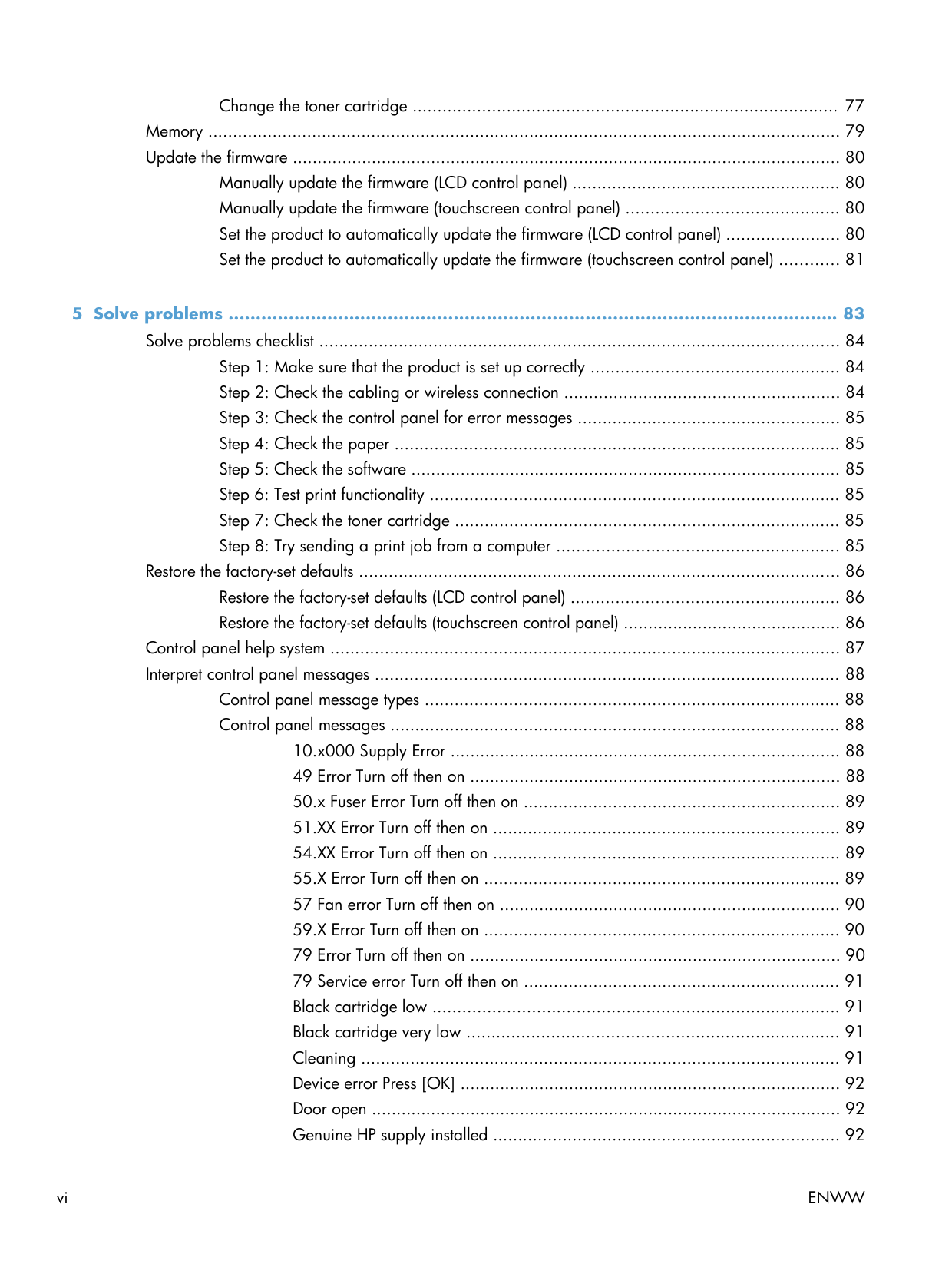
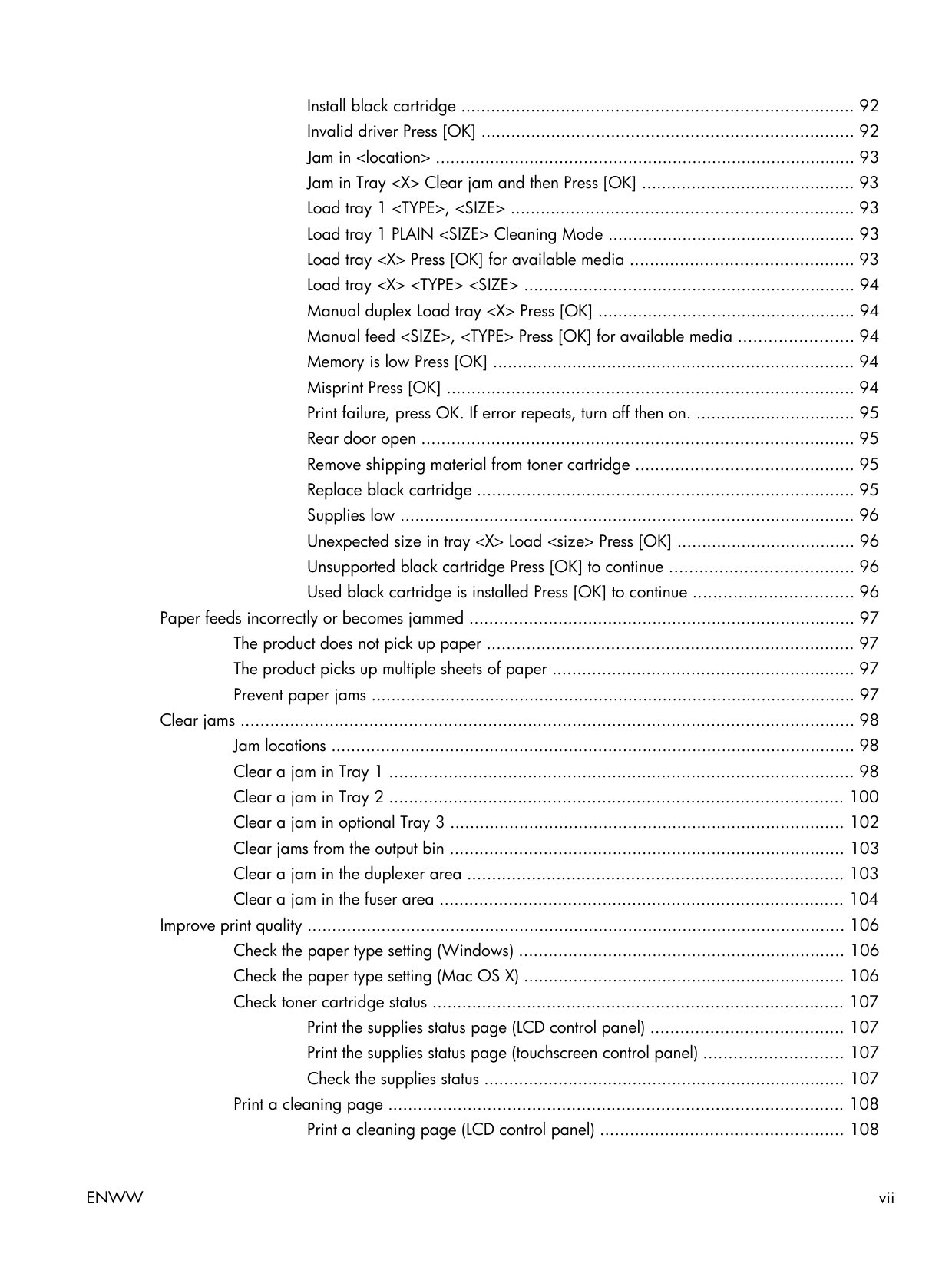
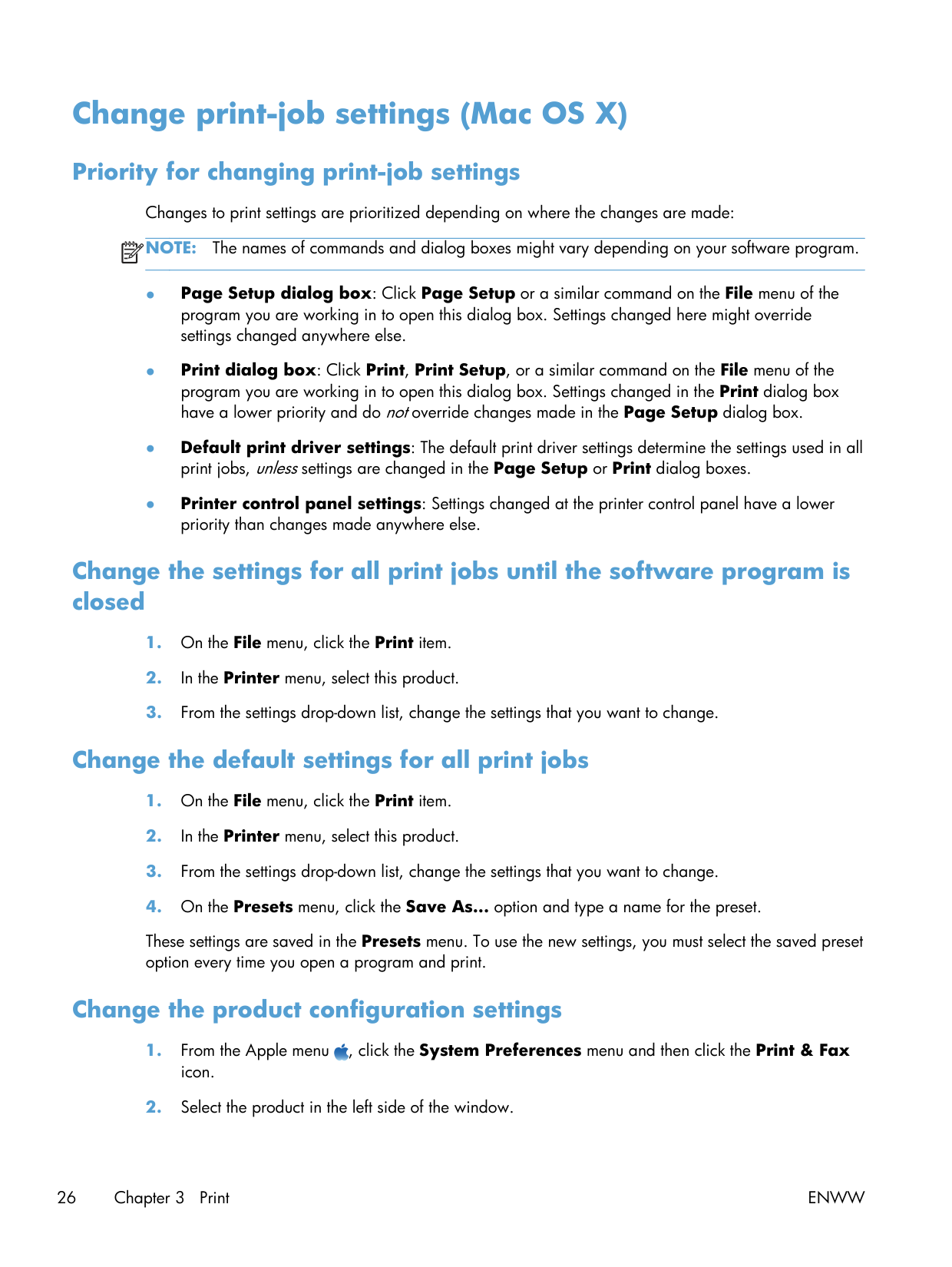
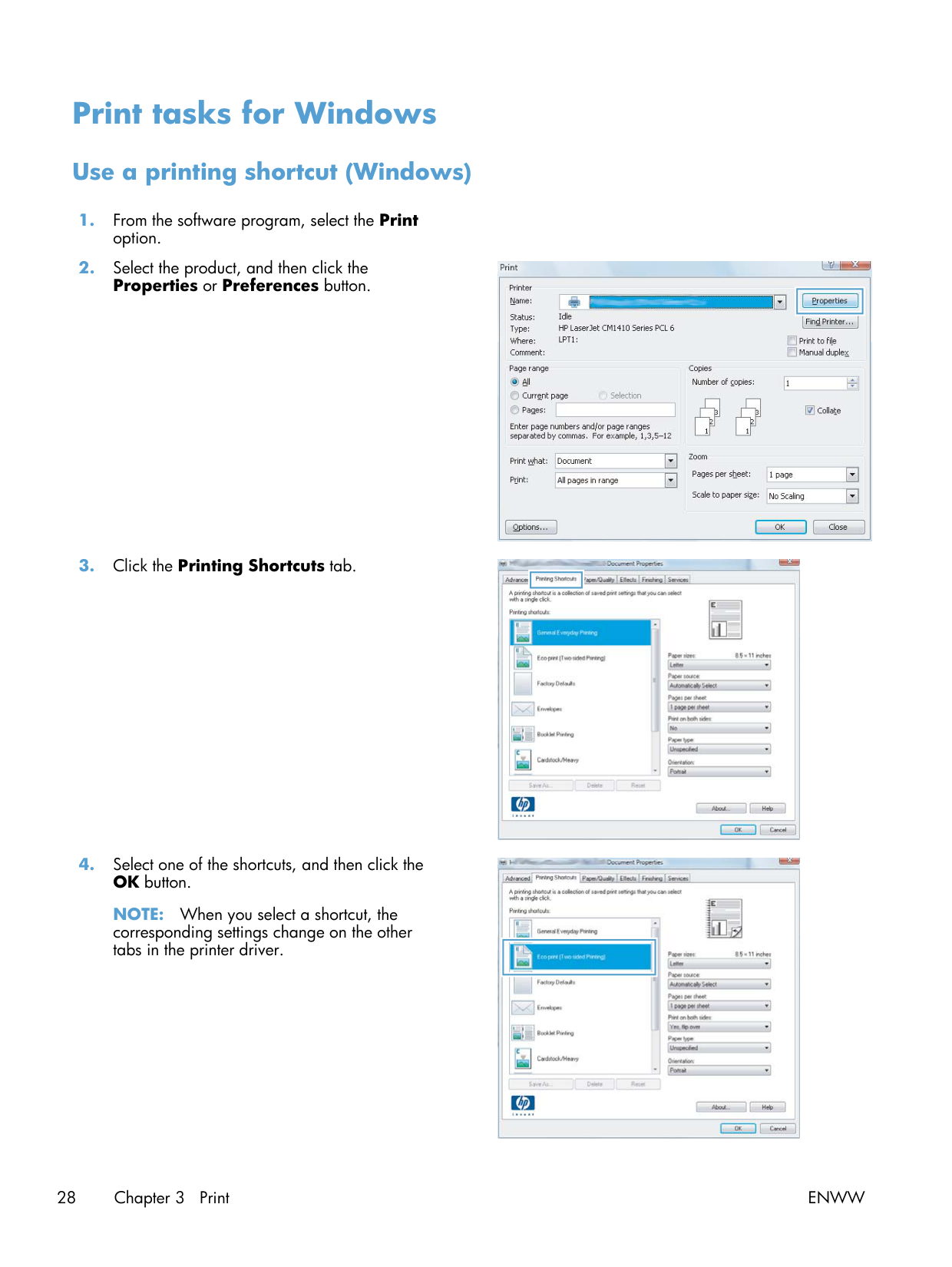
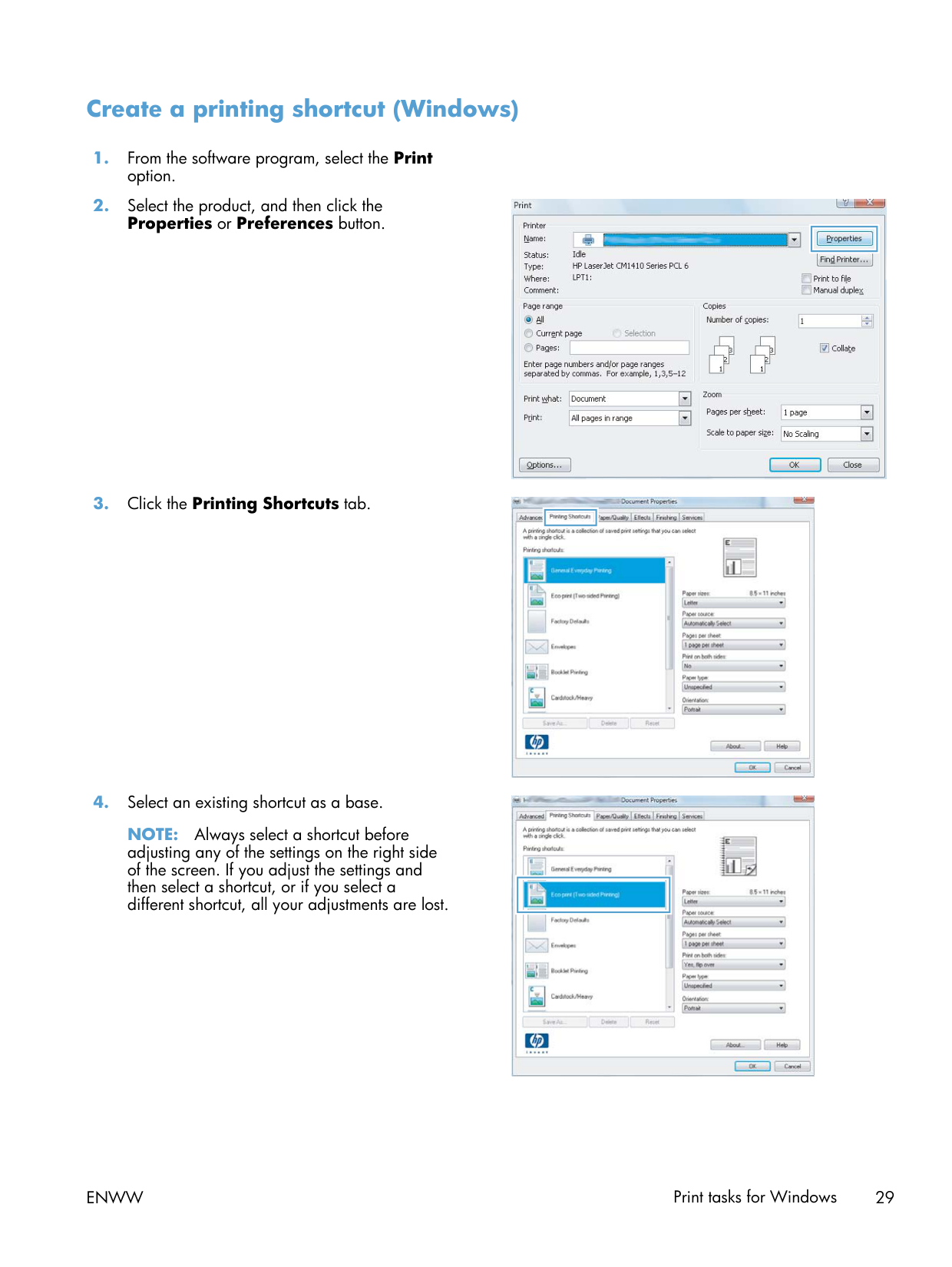
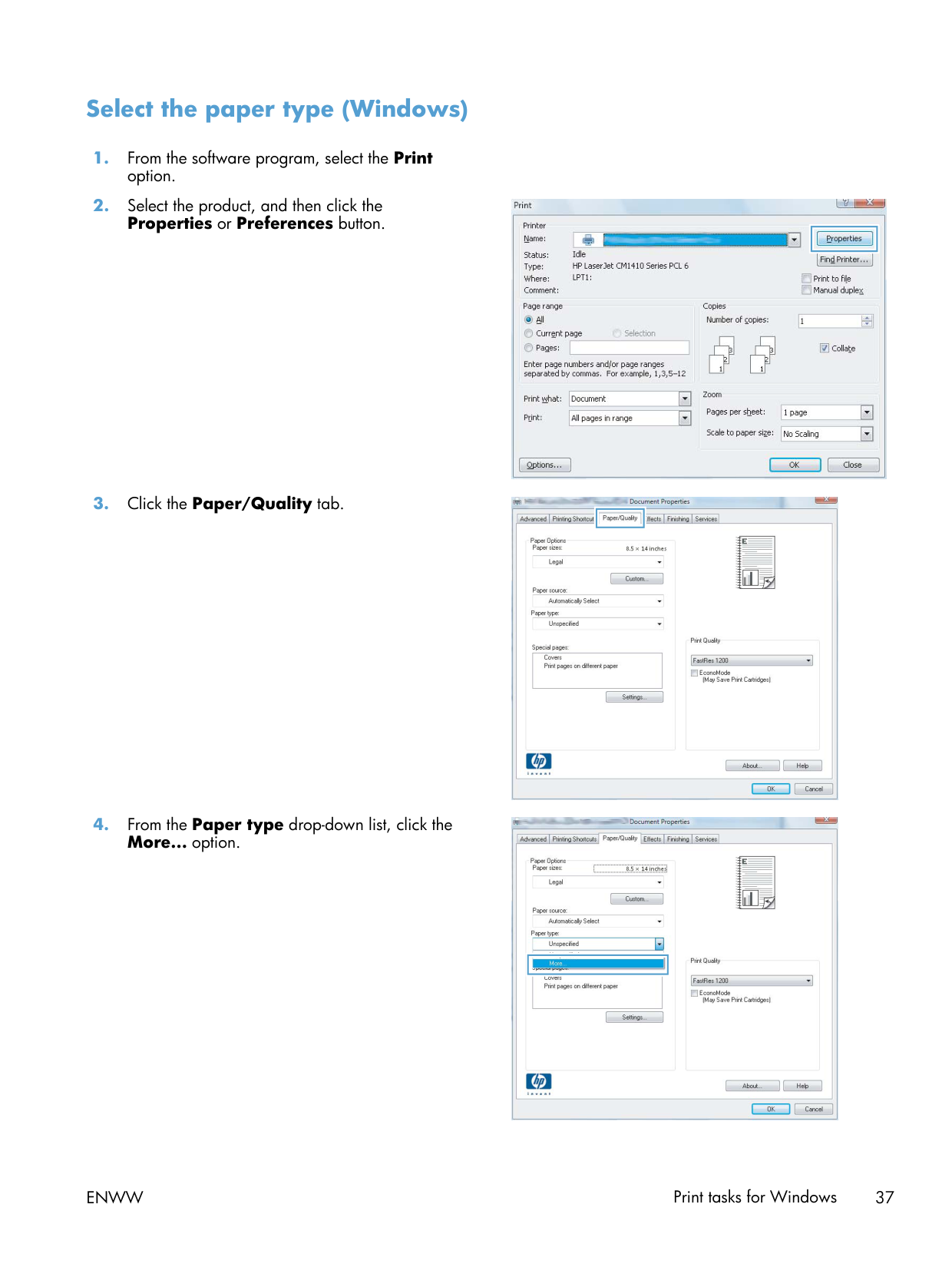
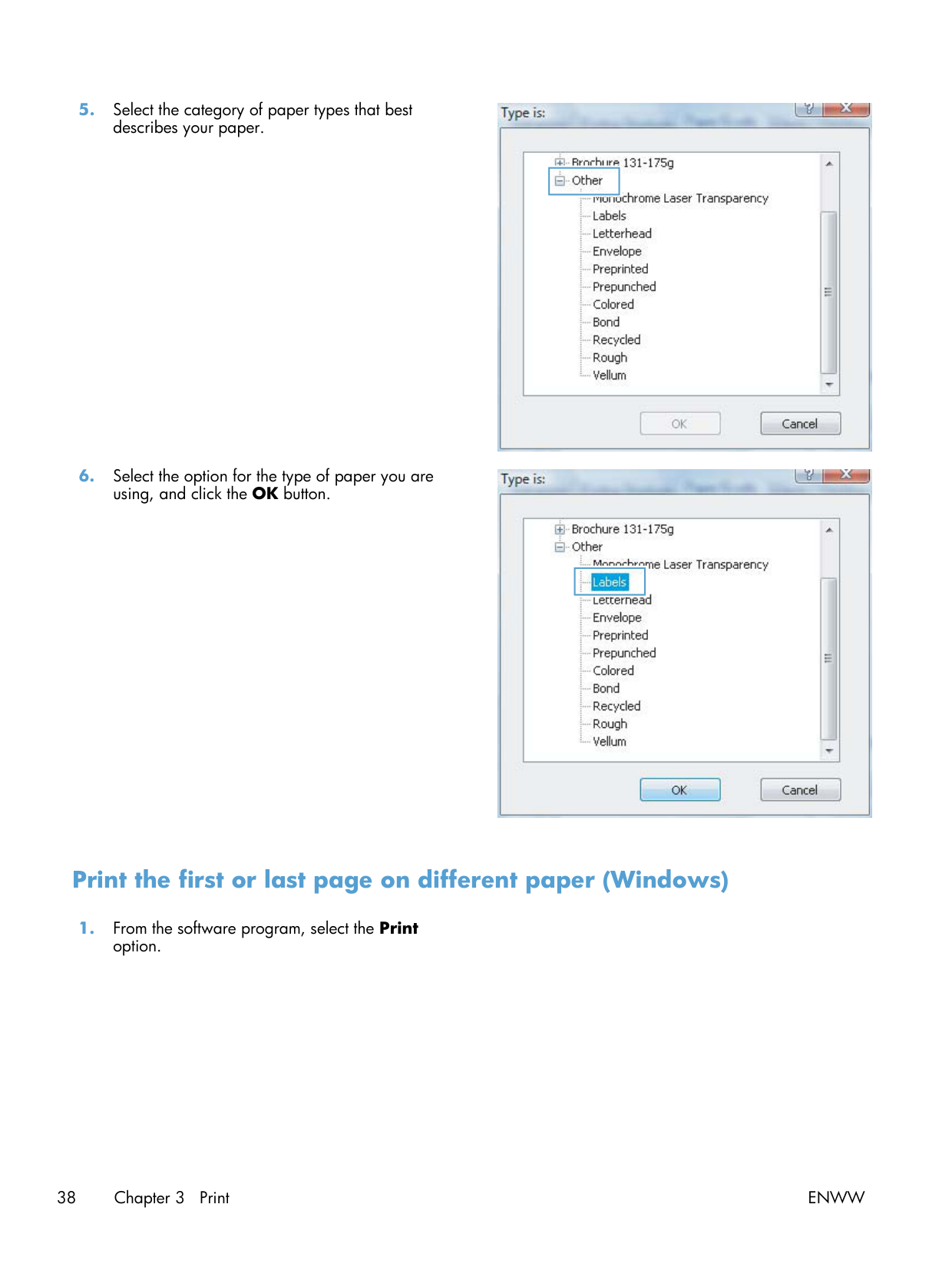
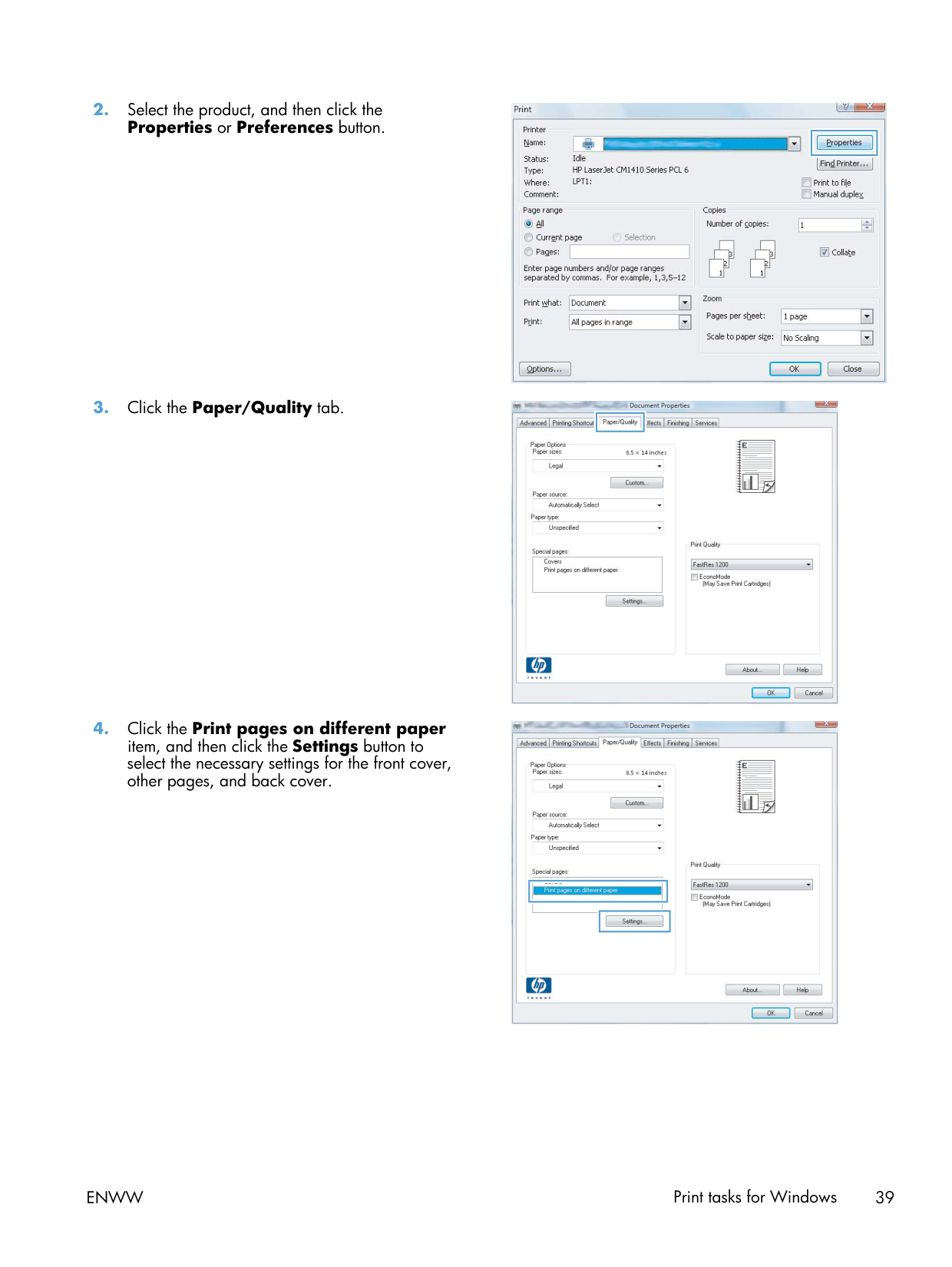
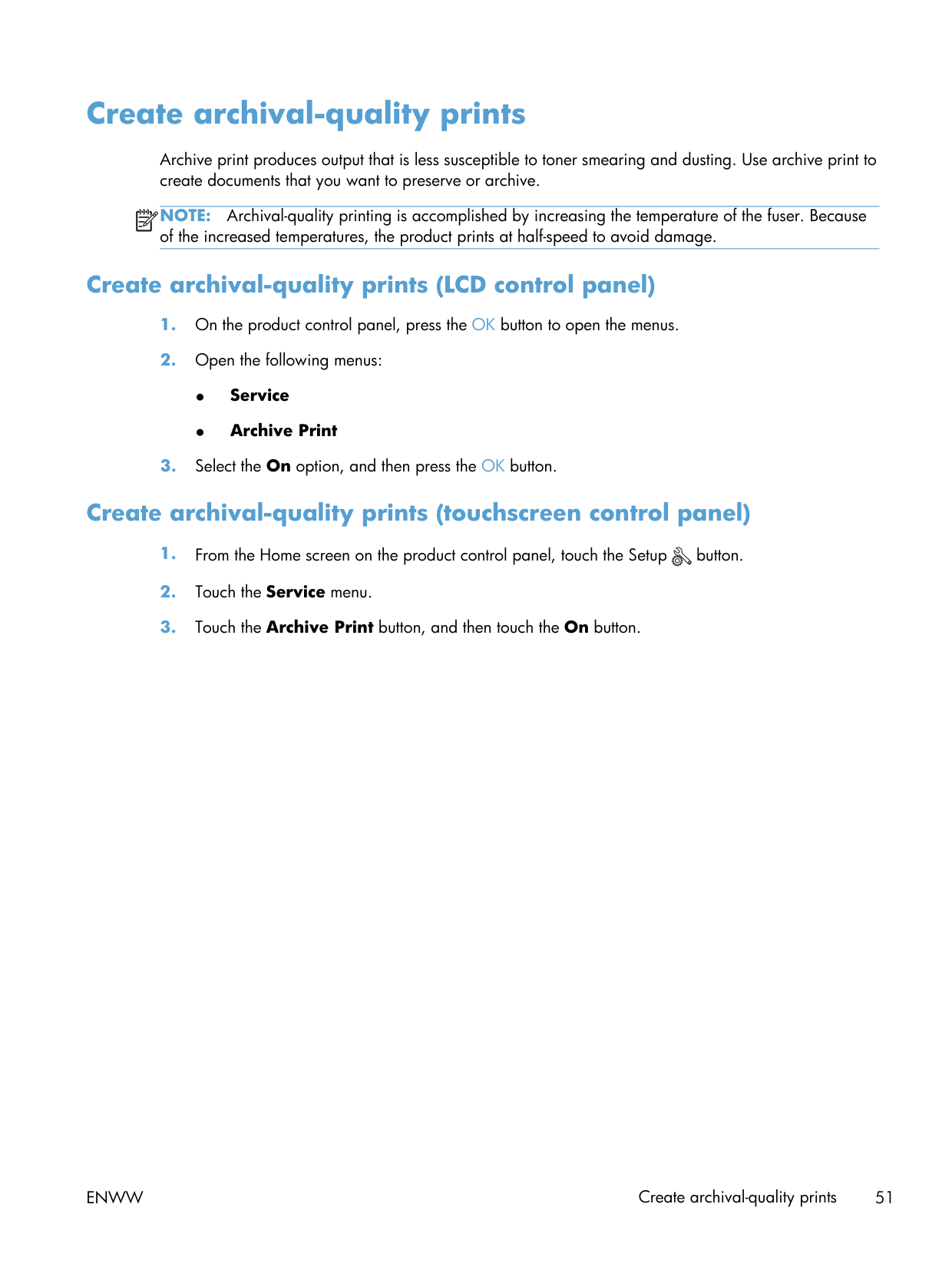
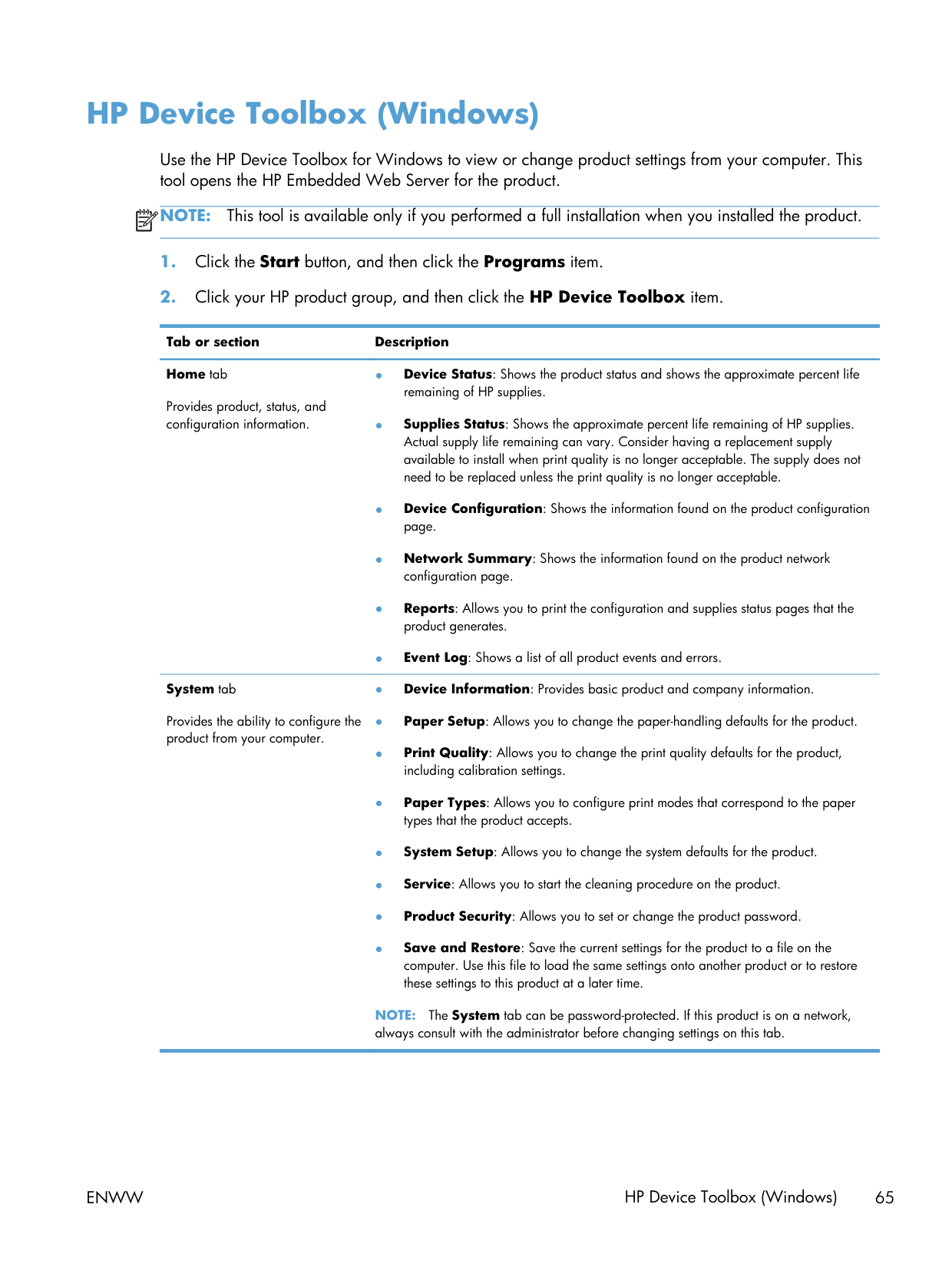
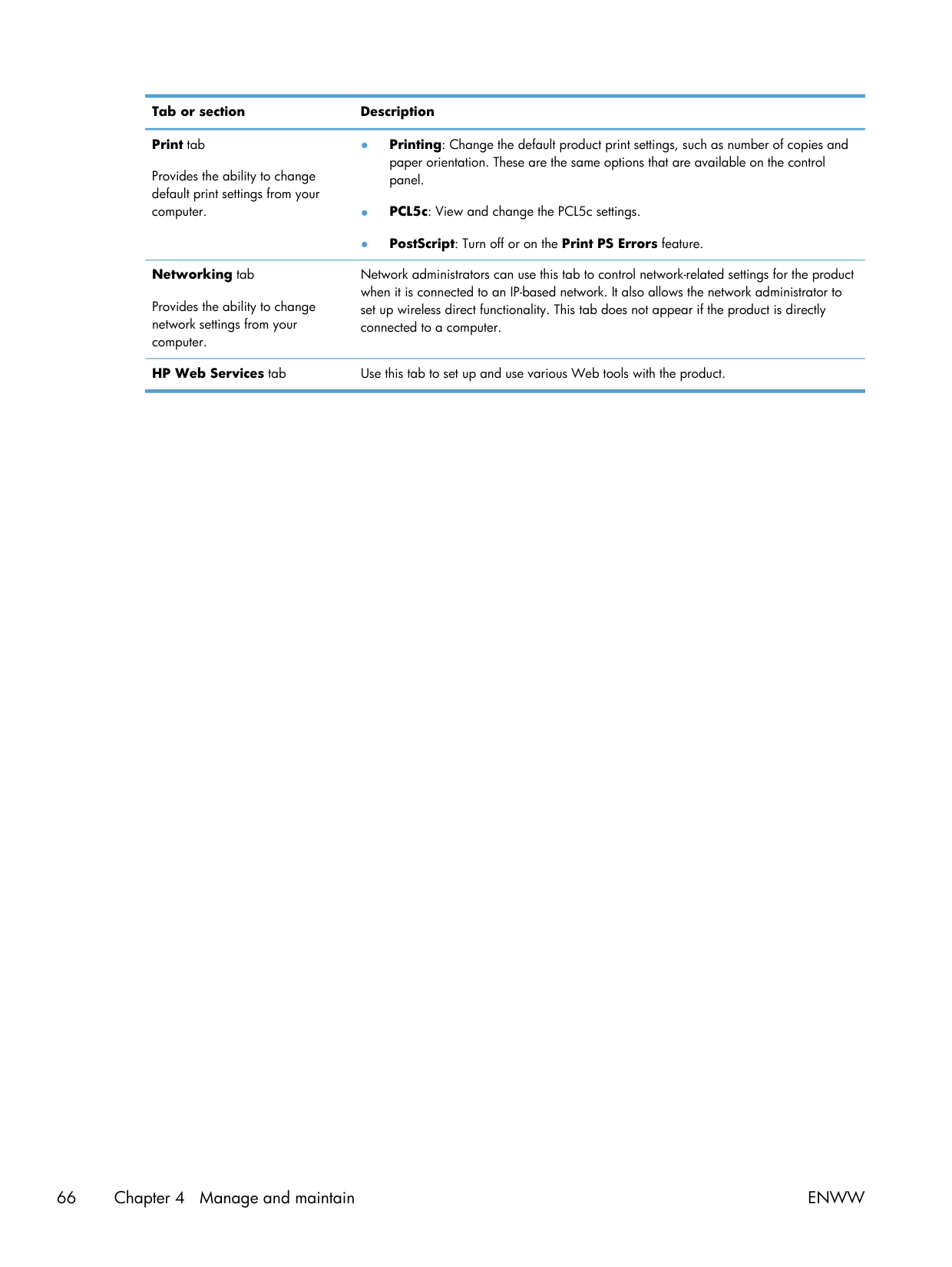
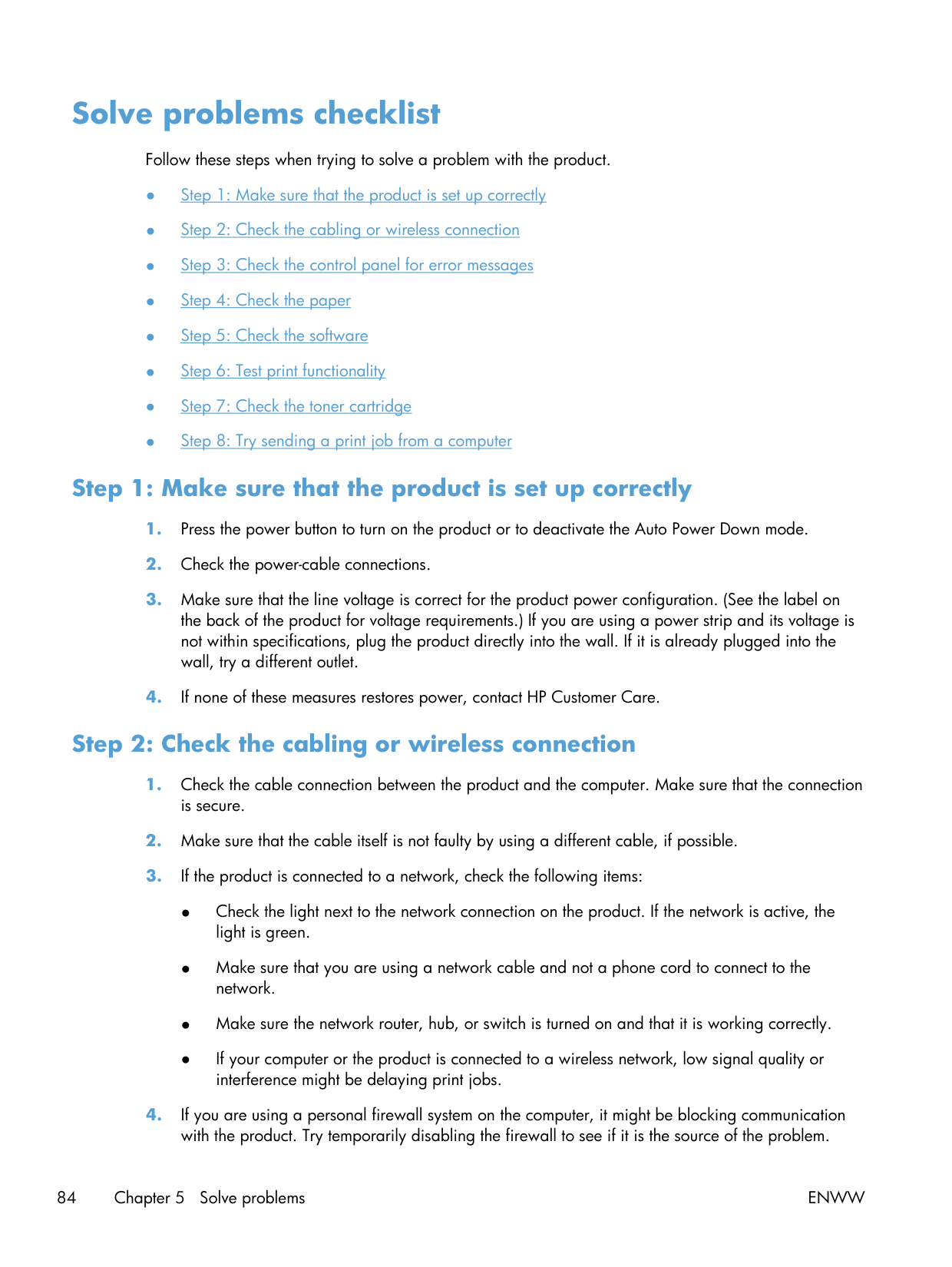
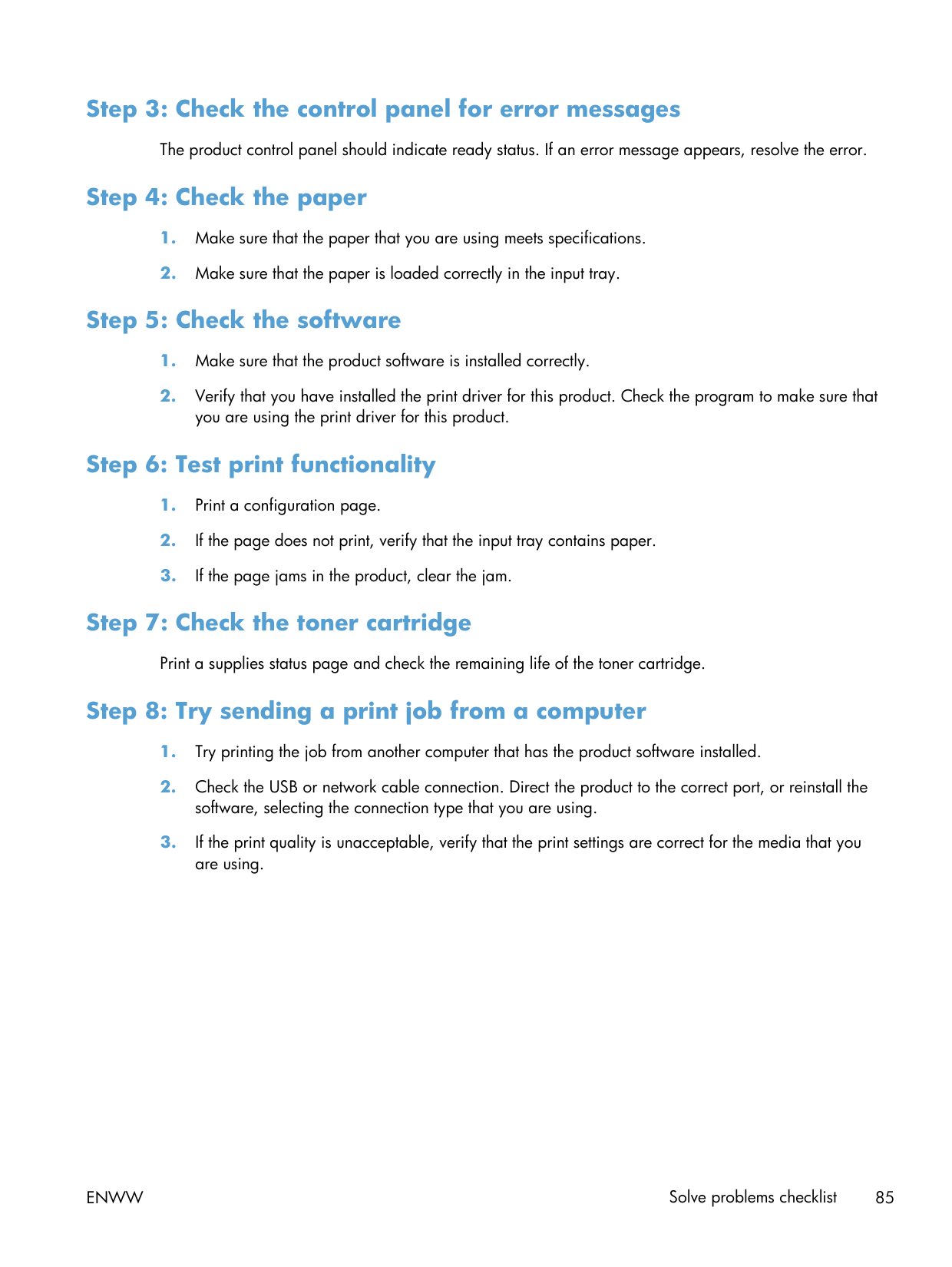
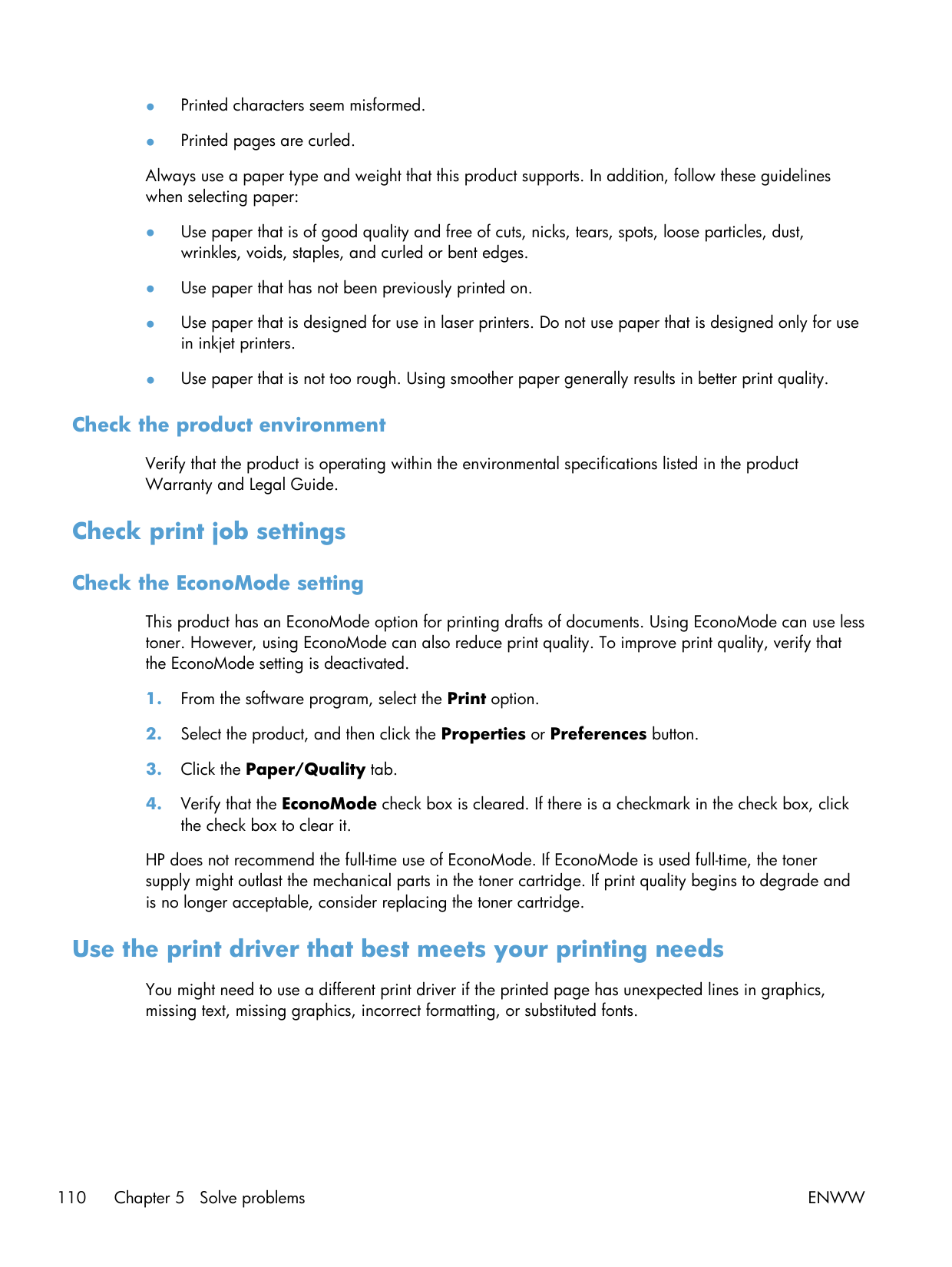
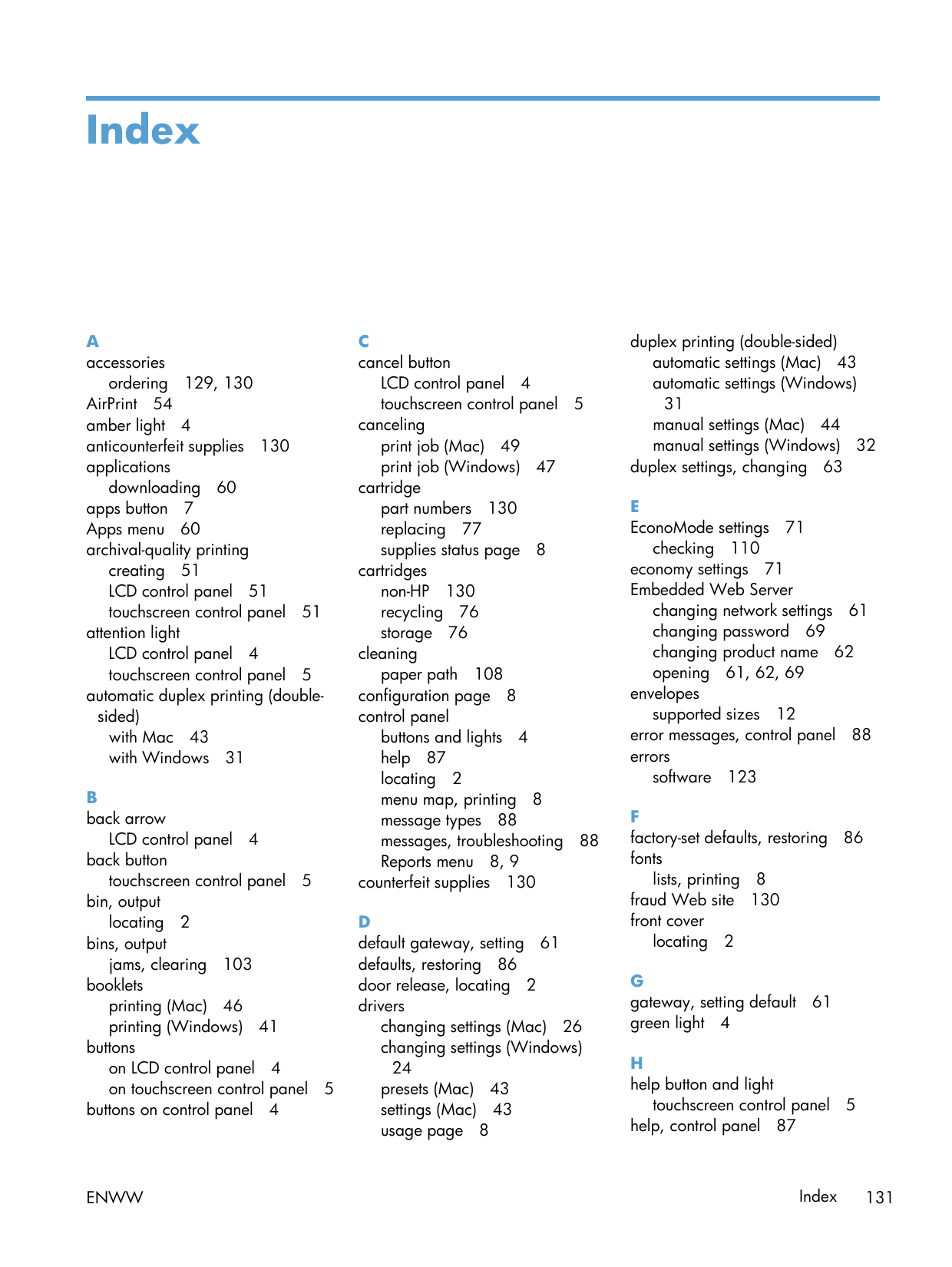
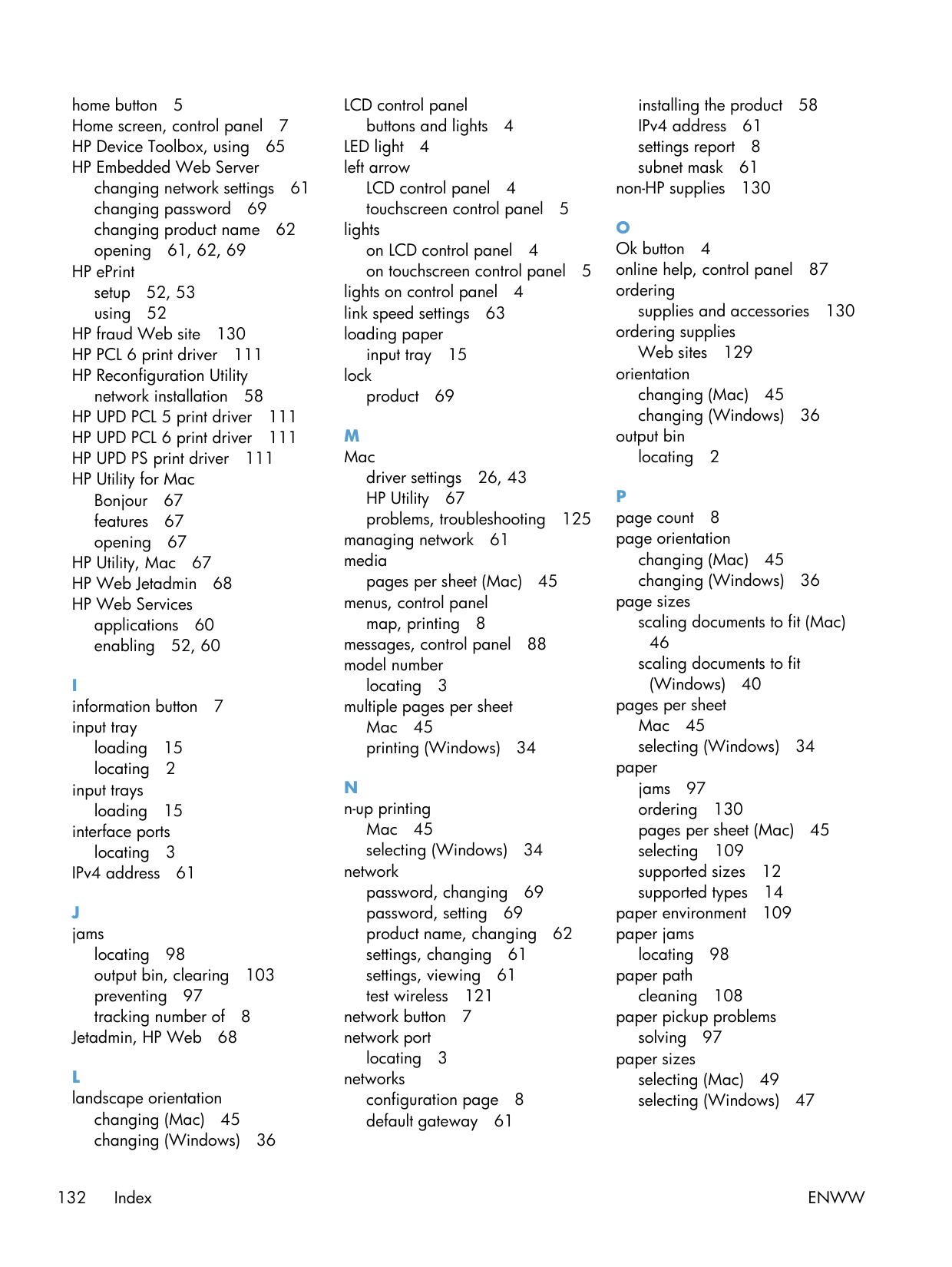
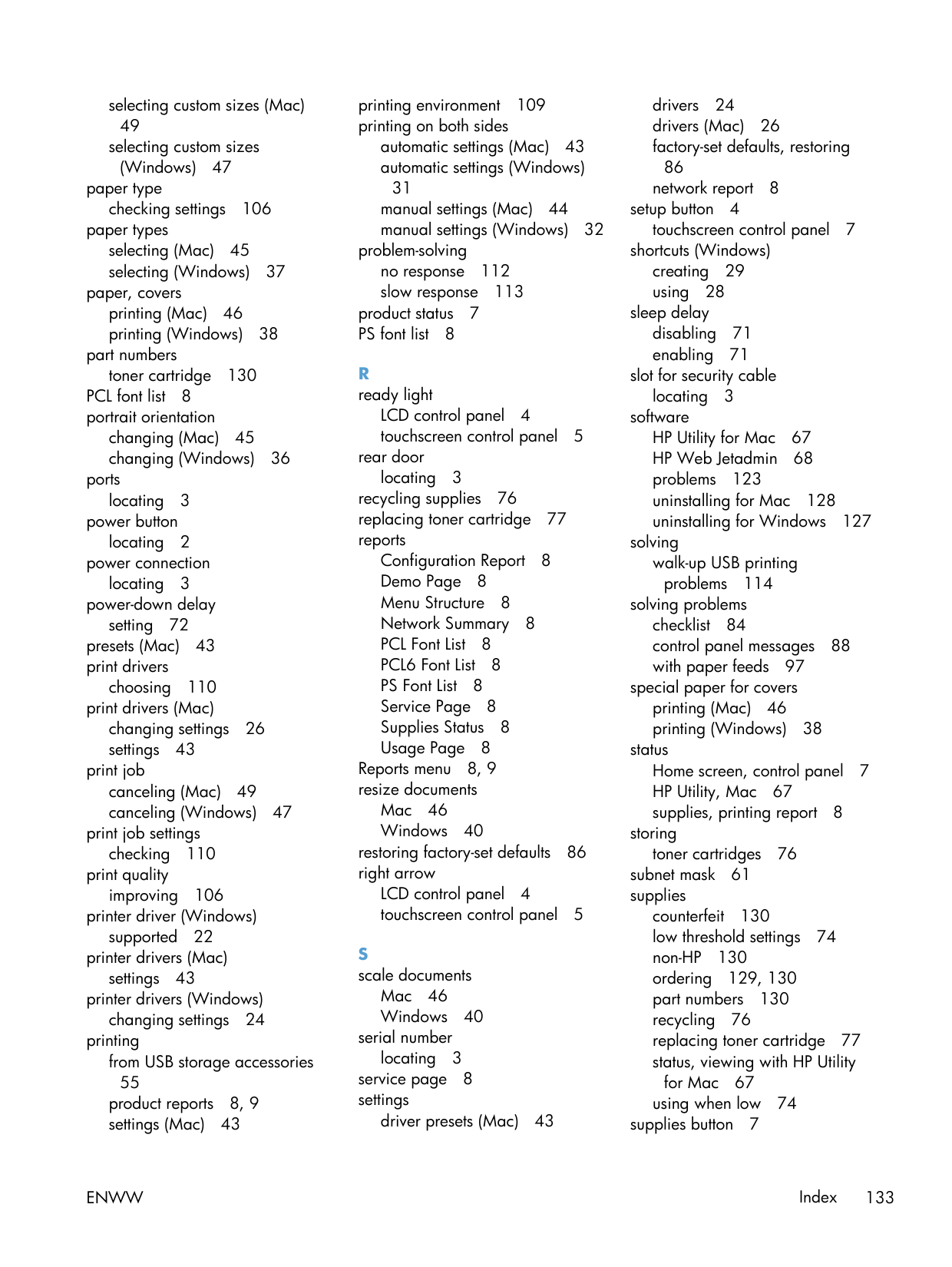
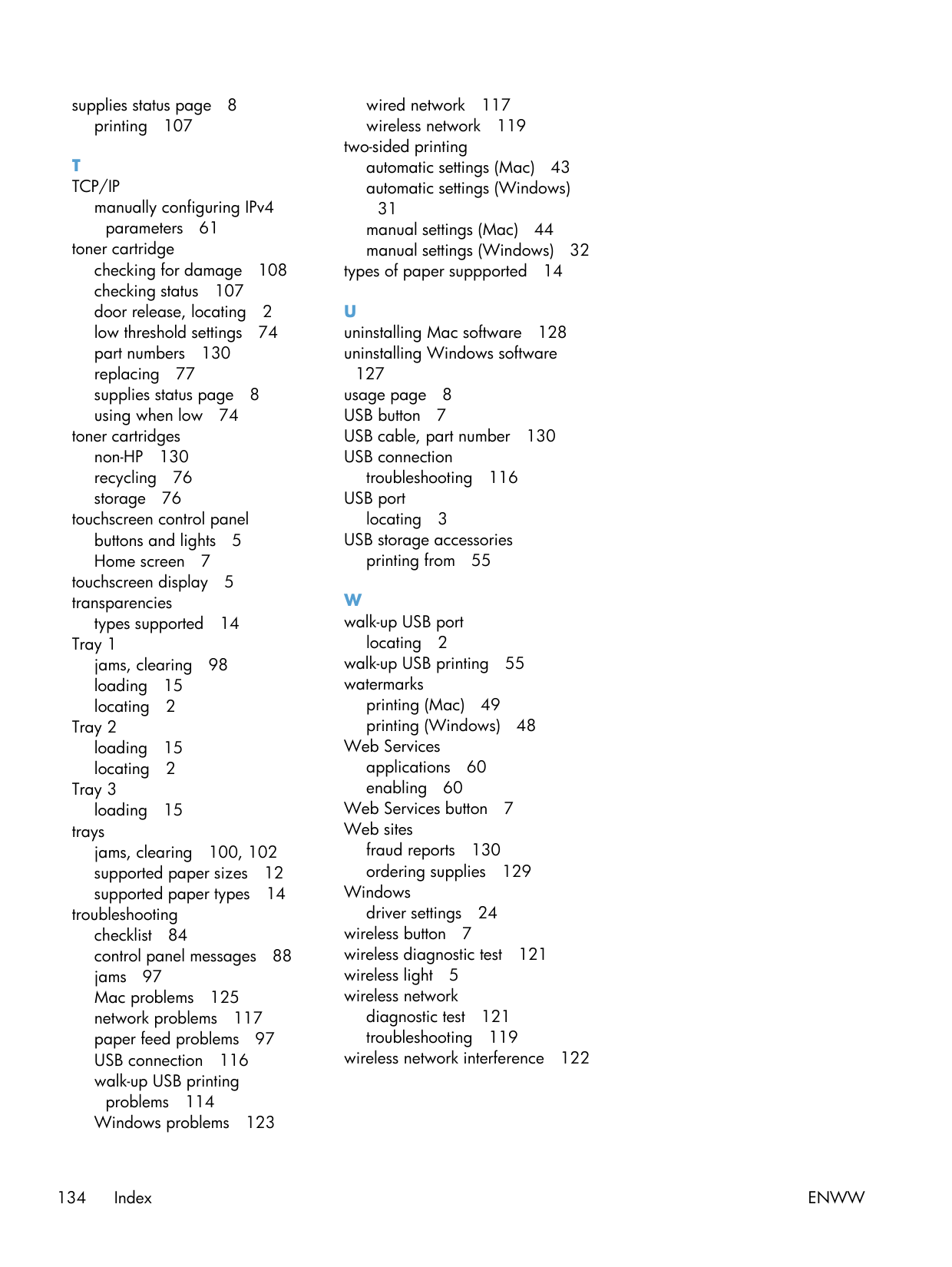
Print quality going off. Three things to check, in order. Toner level — if HP-branded and running low, replace it before troubleshooting further. Paper-type setting — printing on cardstock with the driver set to "plain" is a common cause of streaking on this model. Cleaning page — run it from the HP Device Toolbox utility (downloadable from HP Support if it isn't already installed). The fuser and laser scanner rarely fail on this generation, so if those three don't fix it, the cartridge is still your most likely culprit.
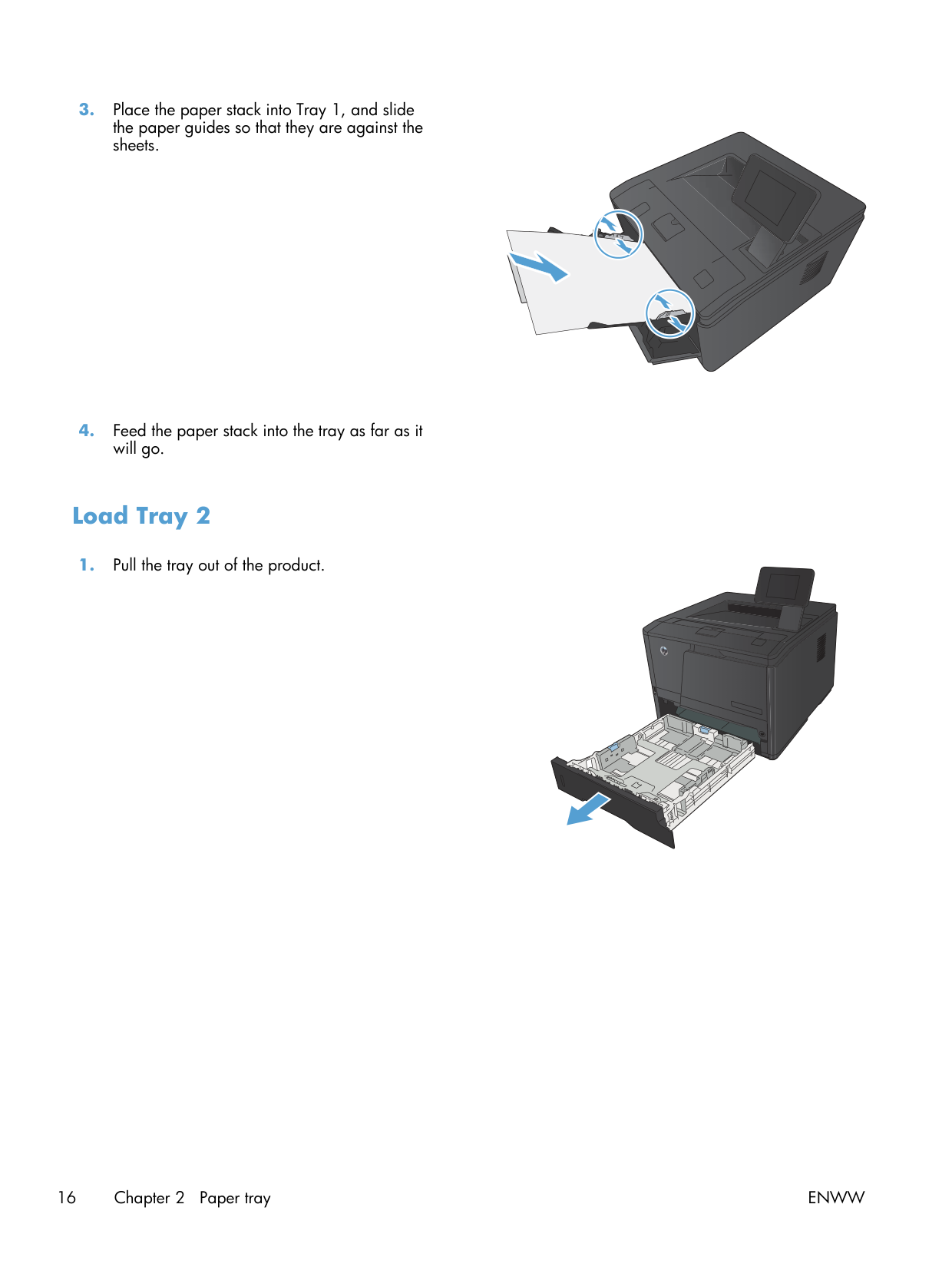
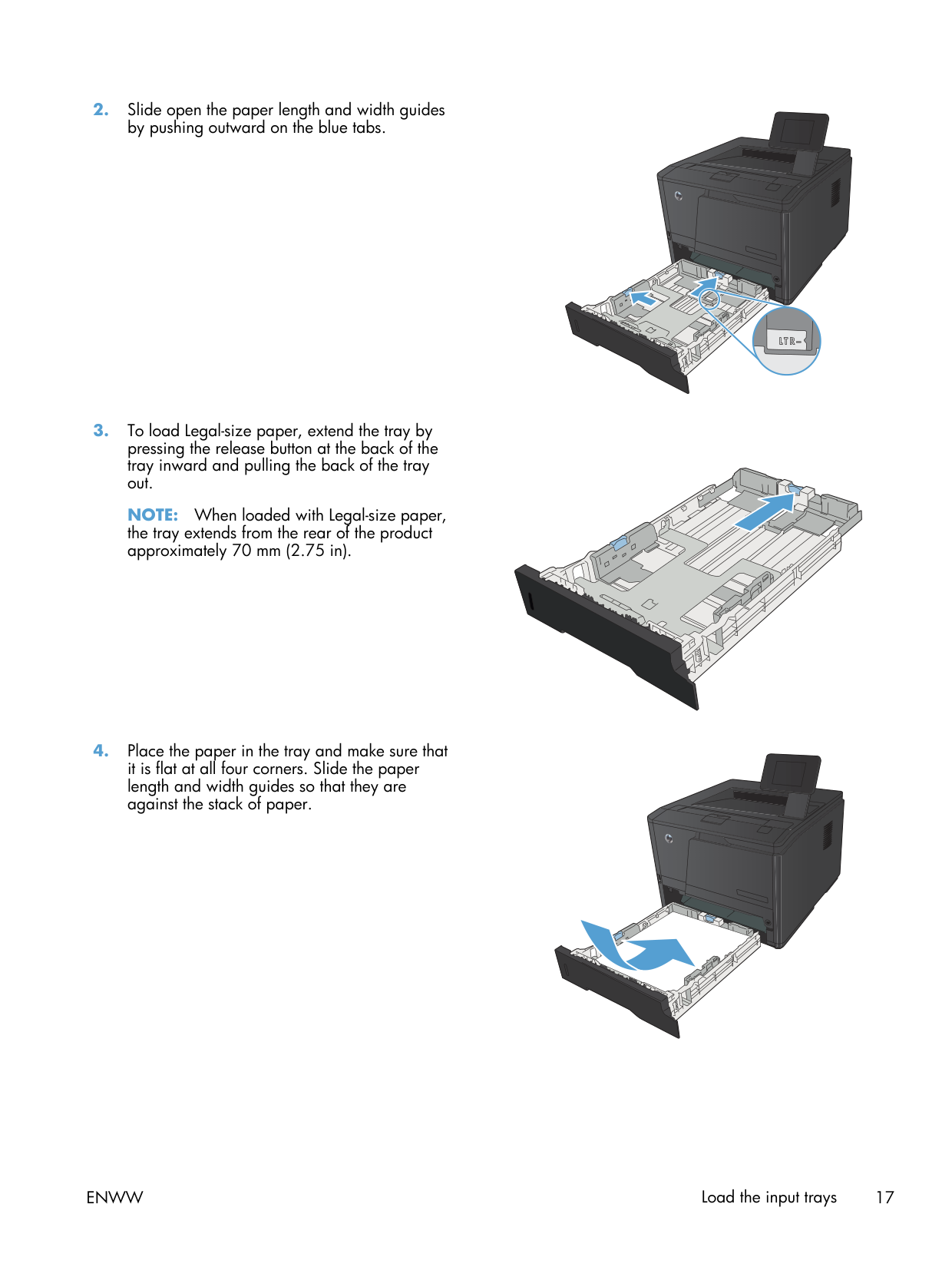
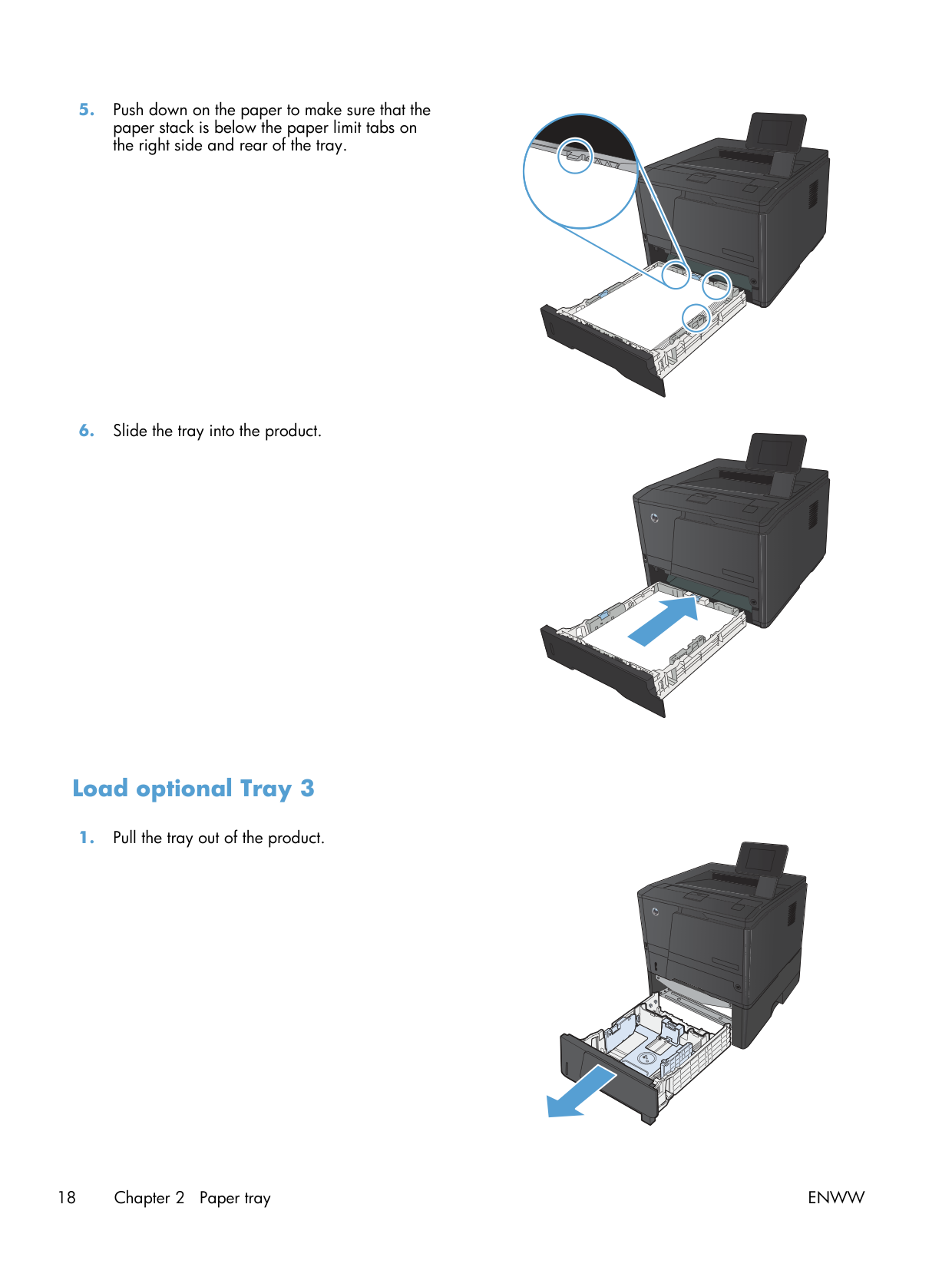
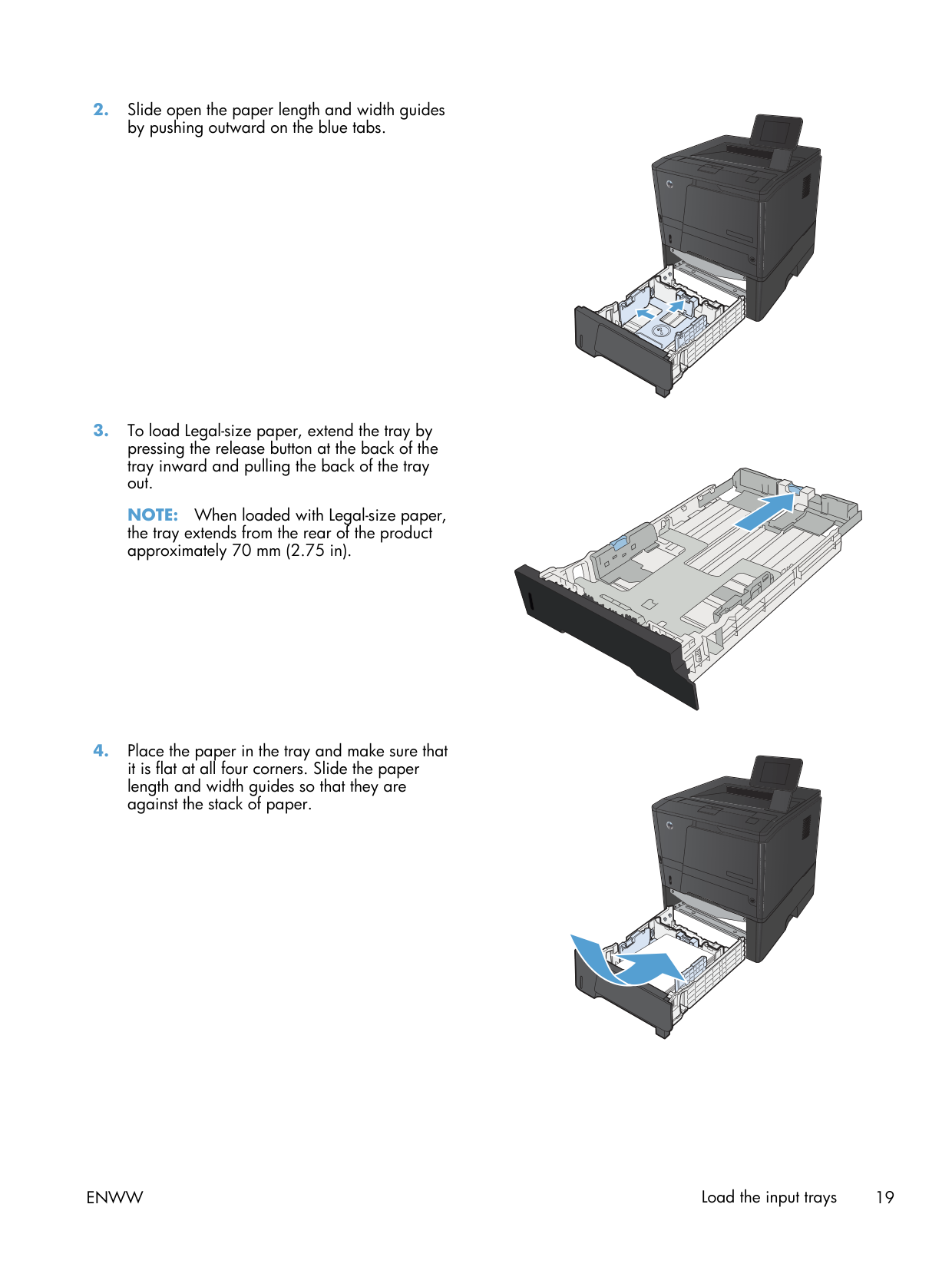
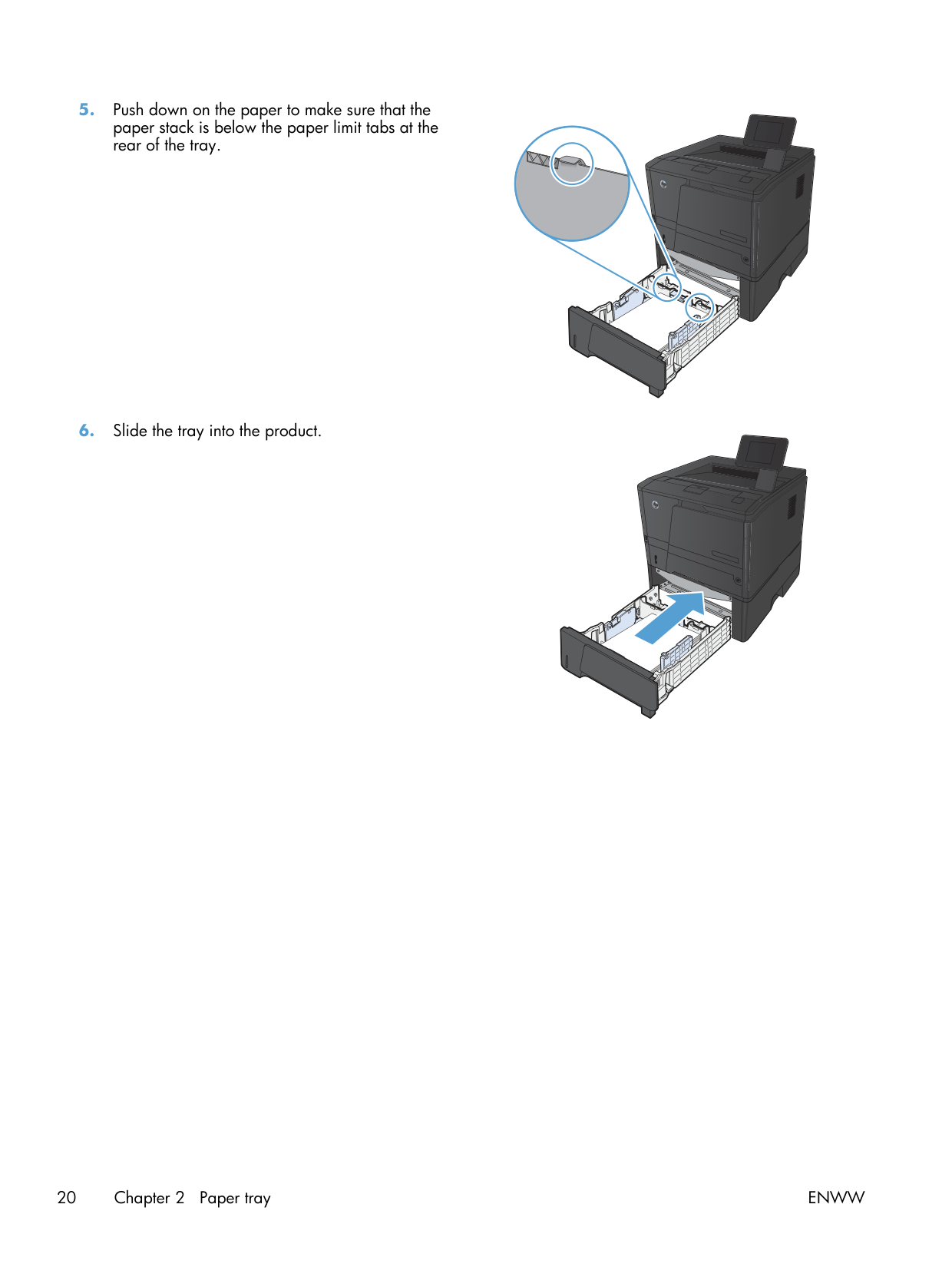
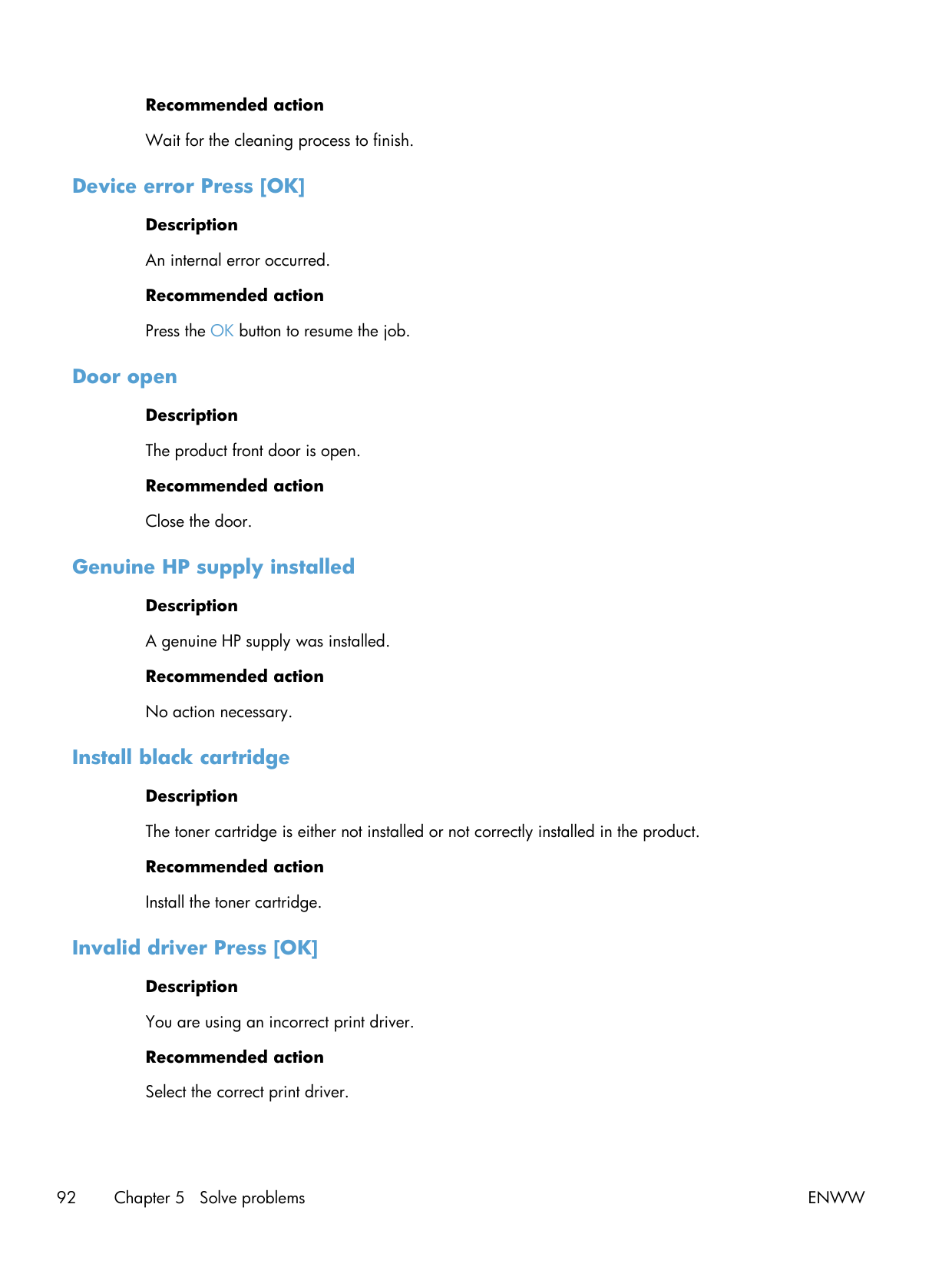
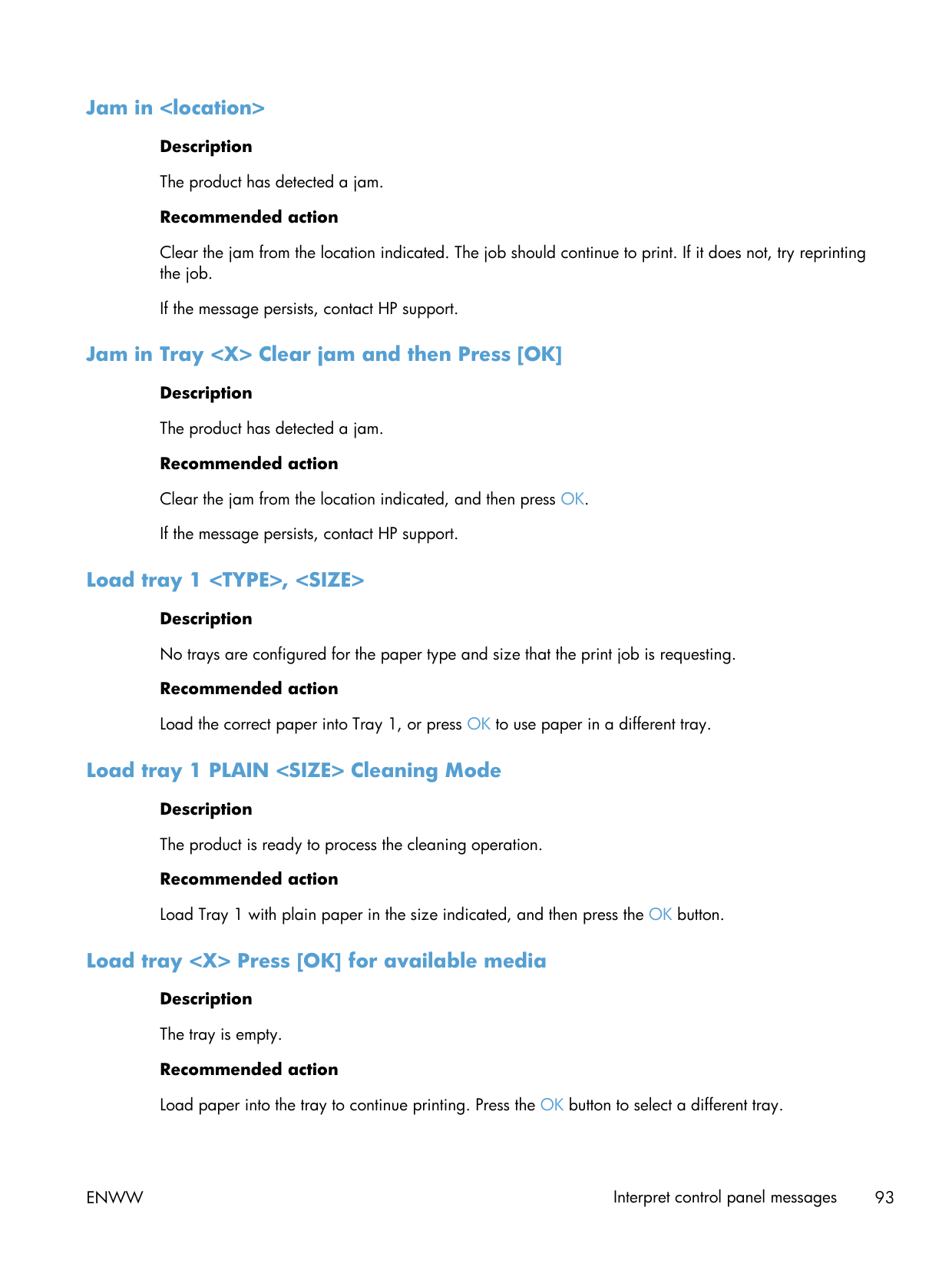
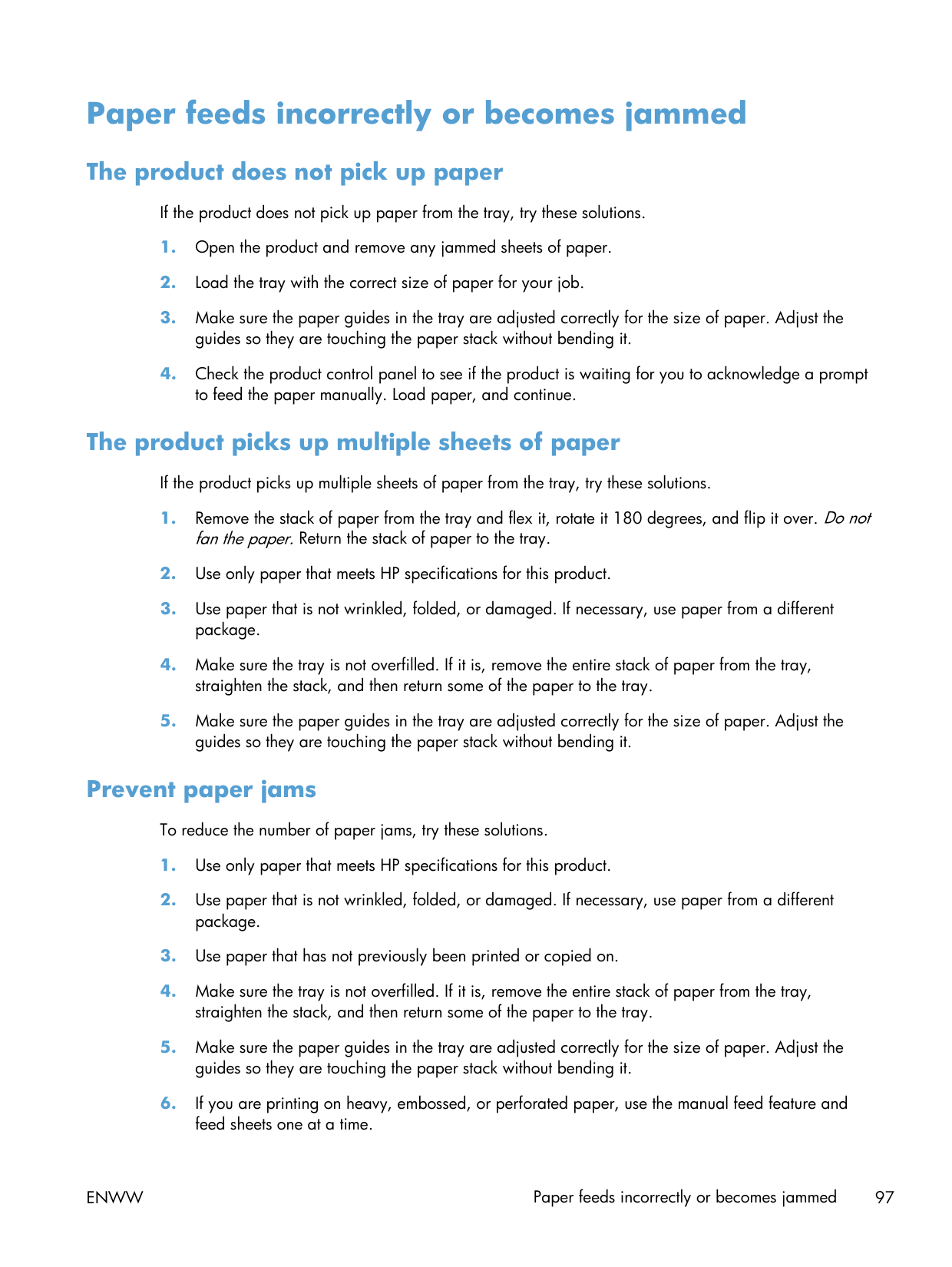
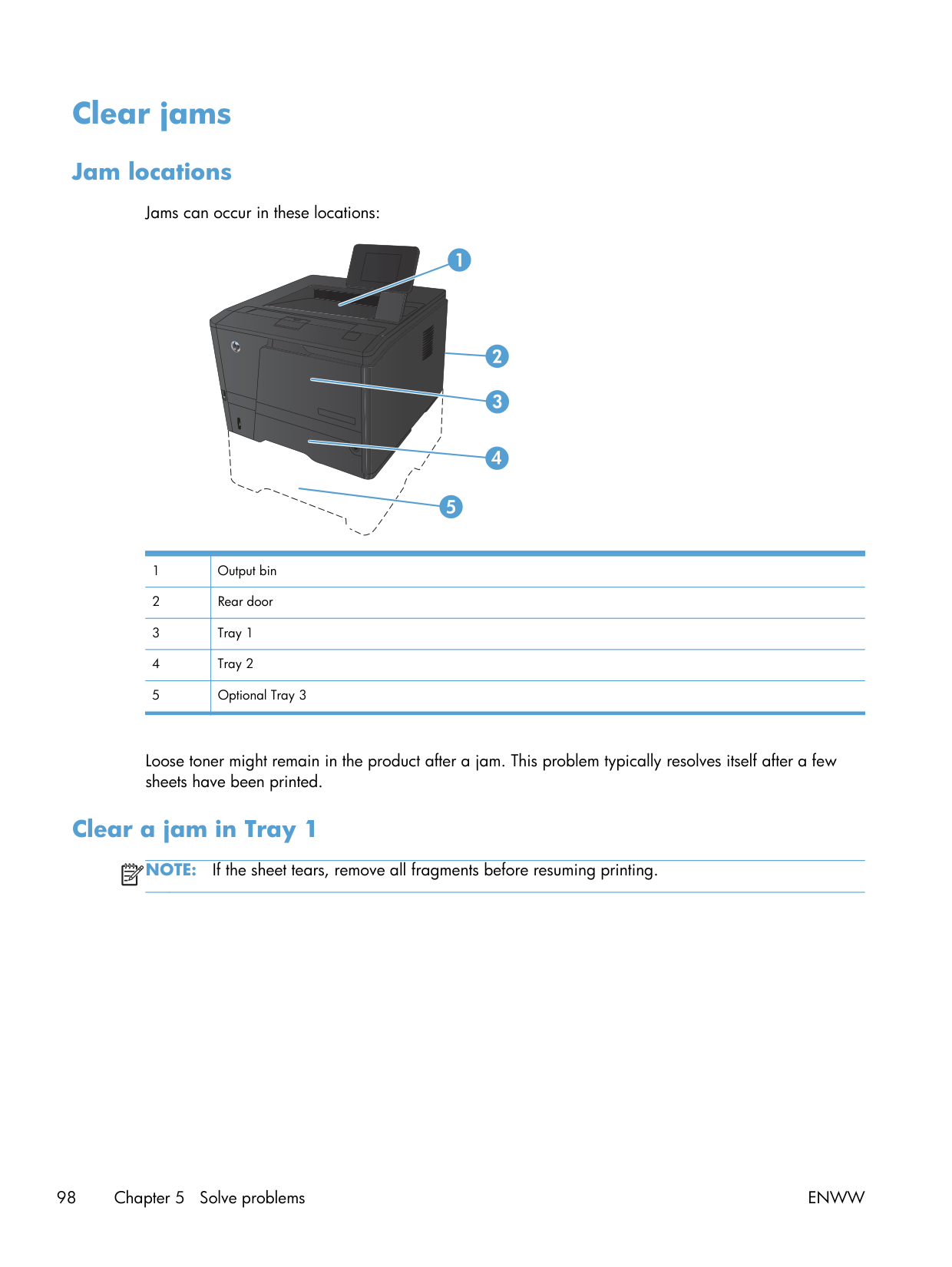
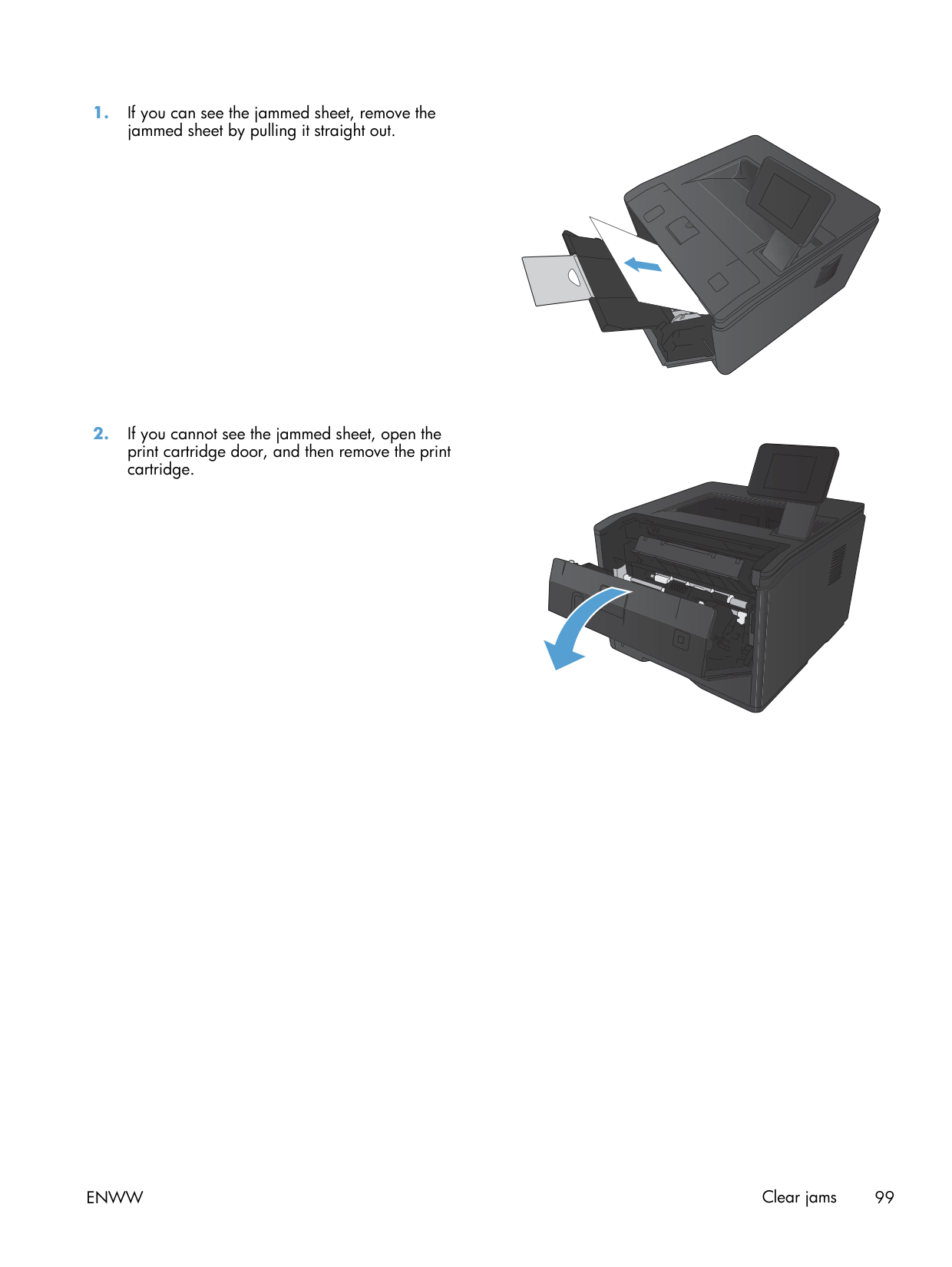
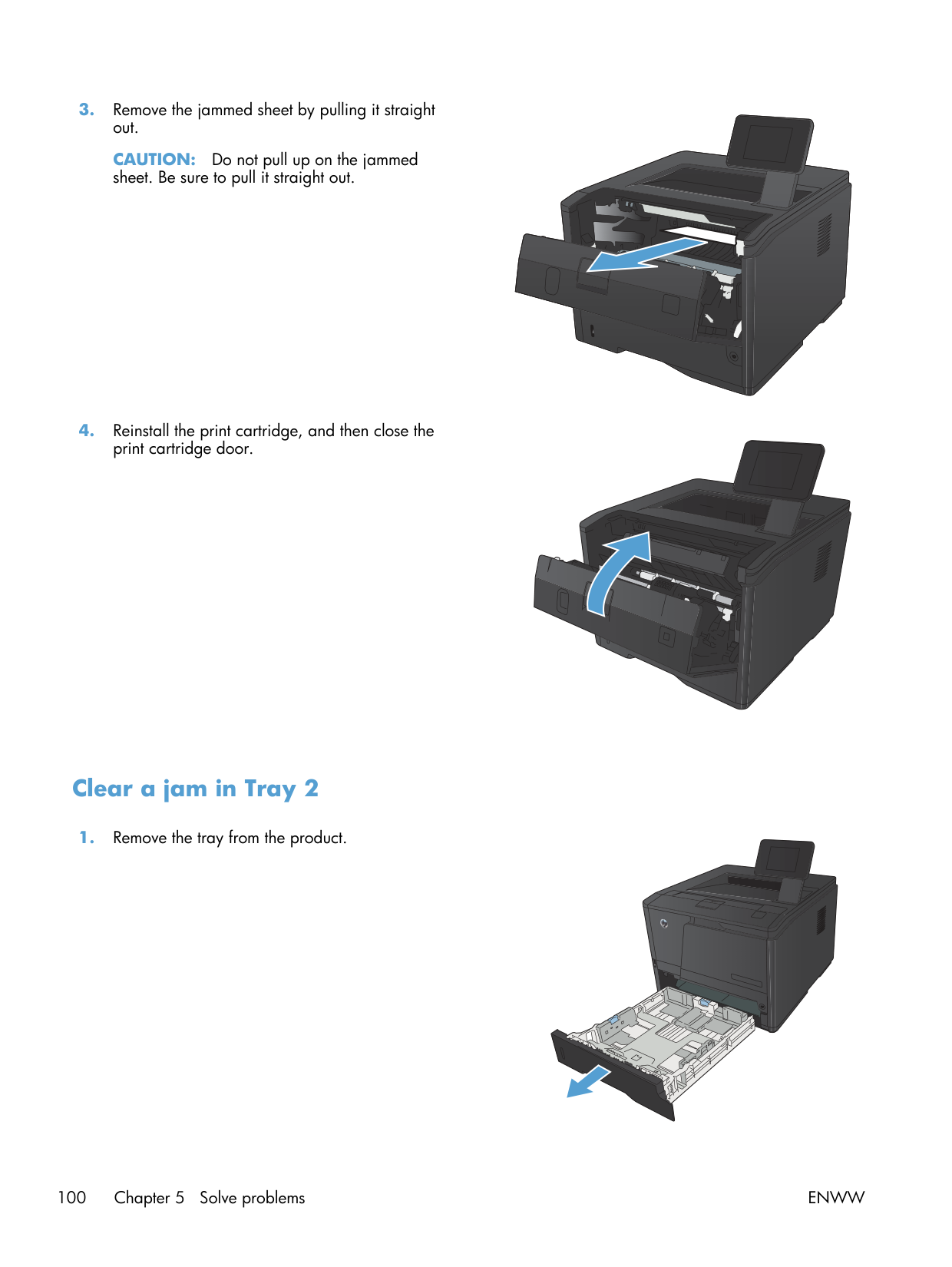
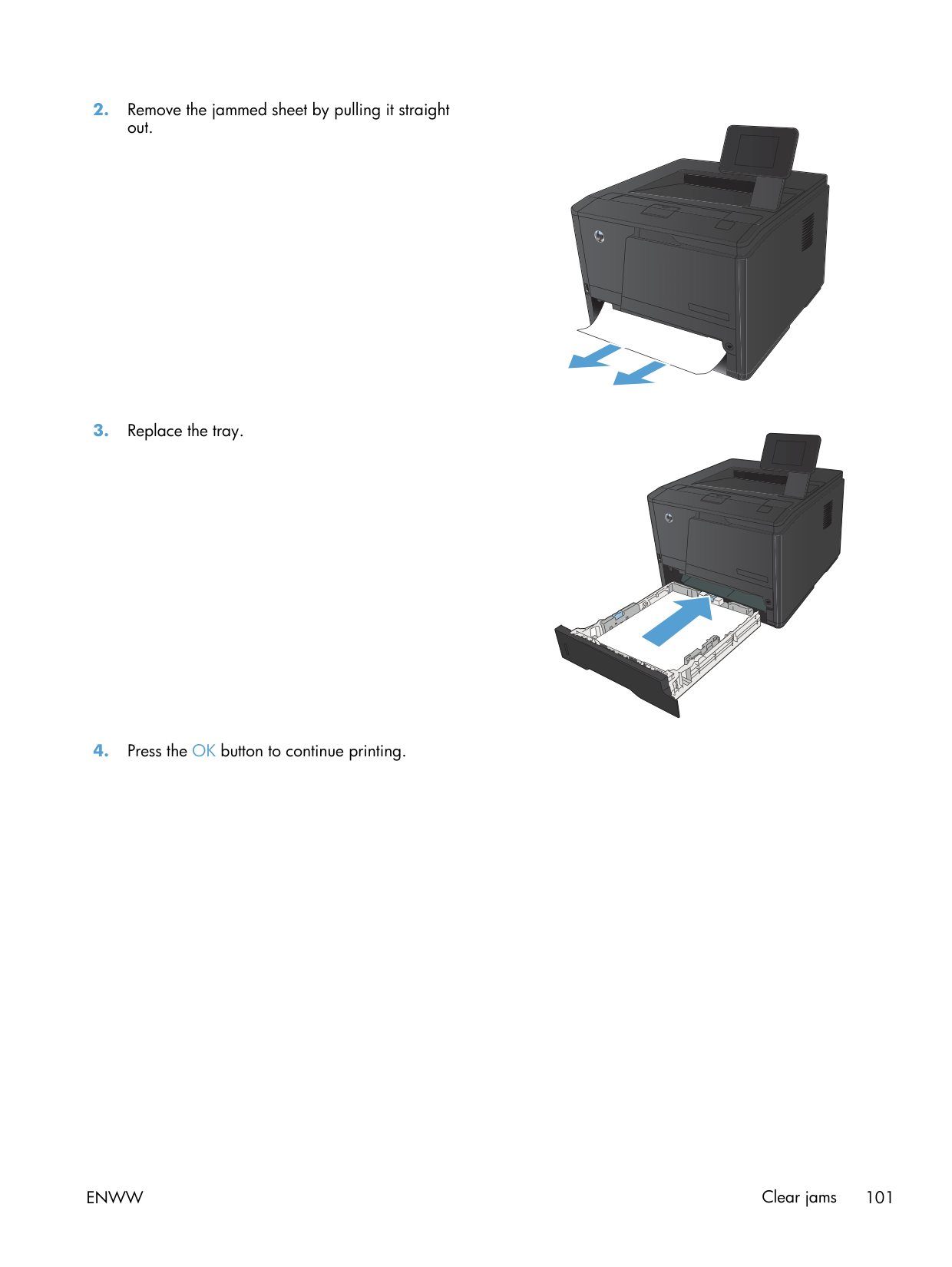
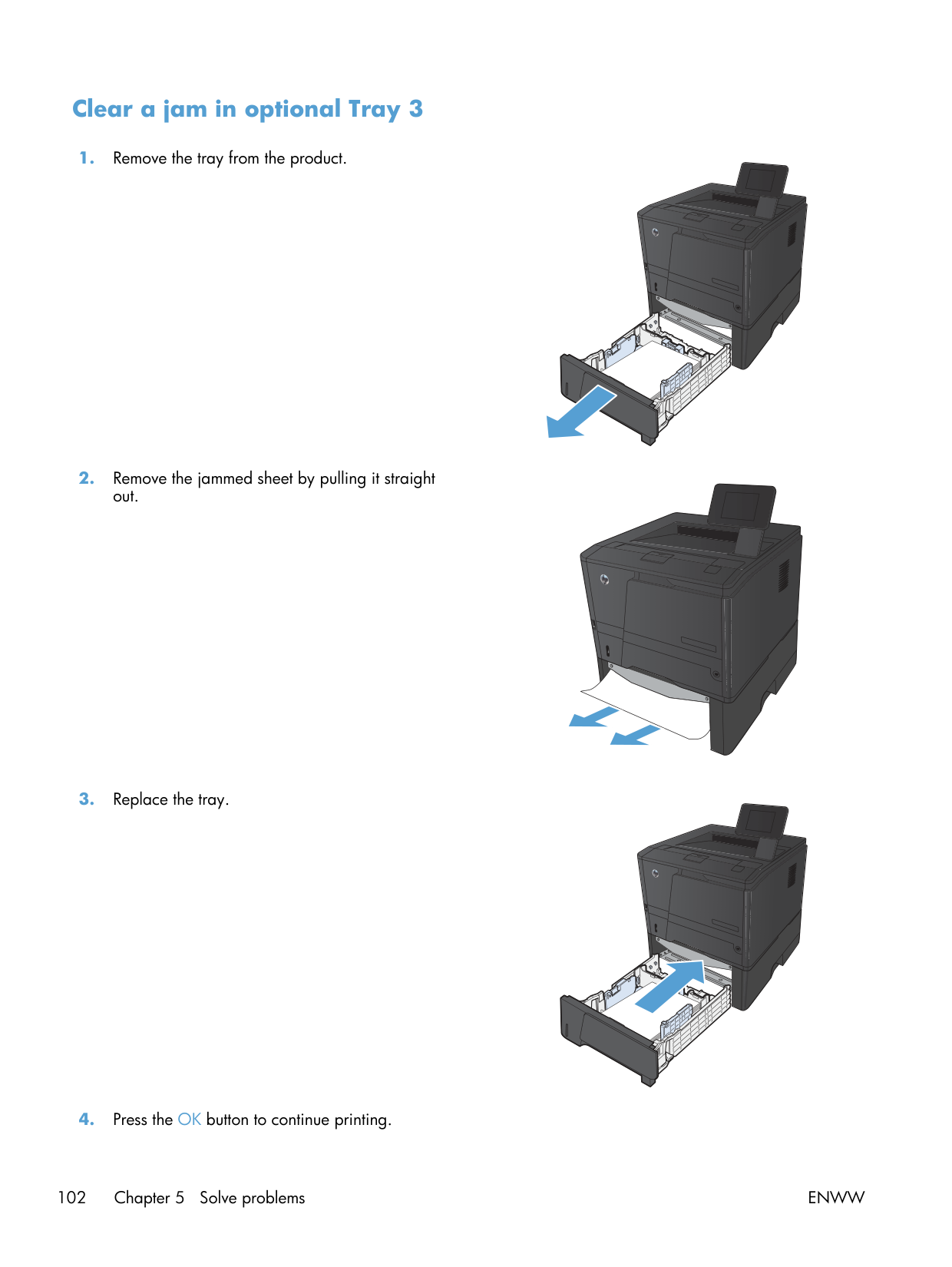
Paper jams. Tray 1 jams almost always trace to the side guides set too tight, with a curl on the front edge of the stack. Square the stack on a desk first, fan it, place against the back wall of the tray, slide the guides until they touch the stack but don't crush it. Recurring jams in the same spot after a clean usually mean the pickup roller is wearing — order one.
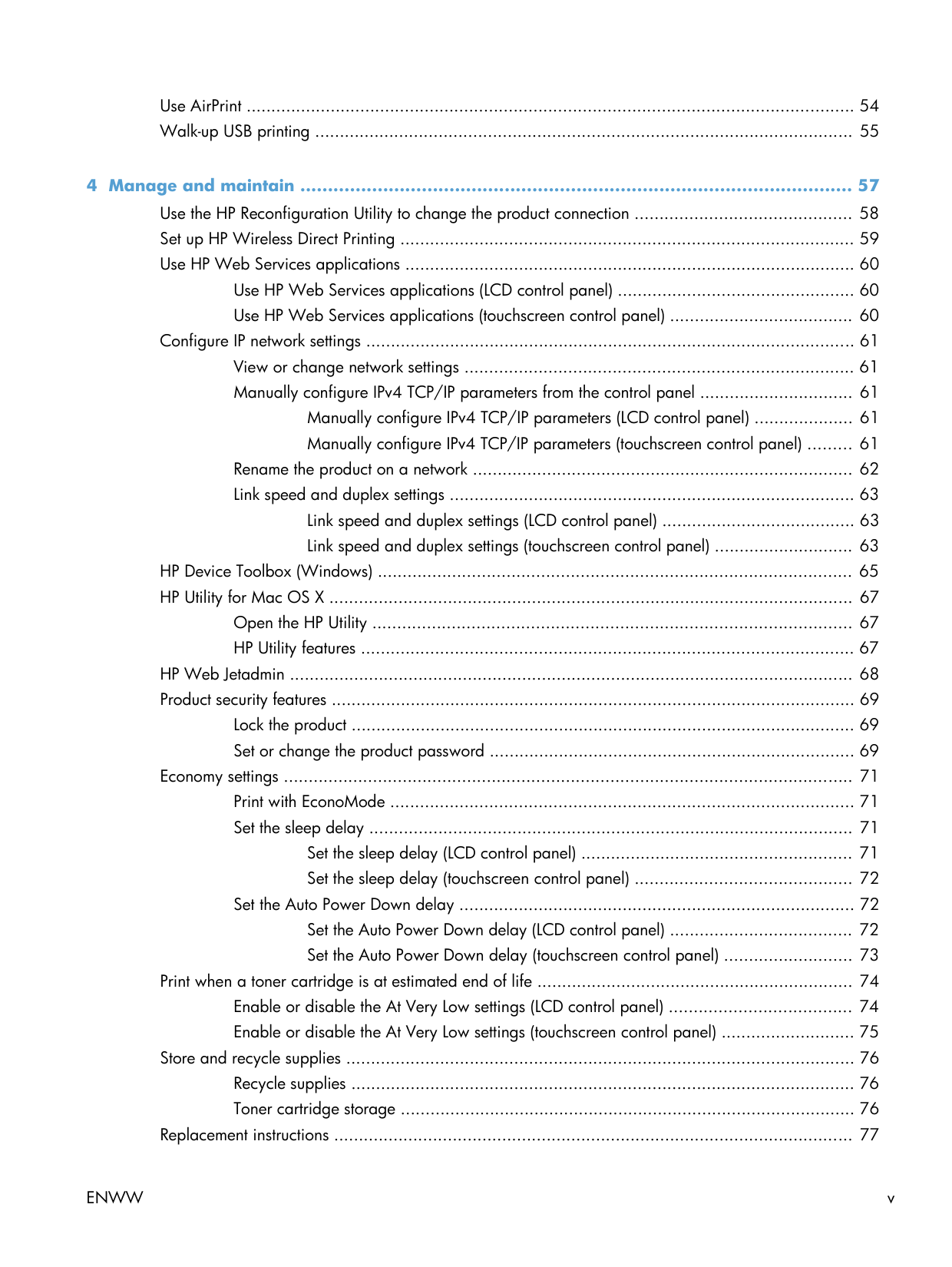
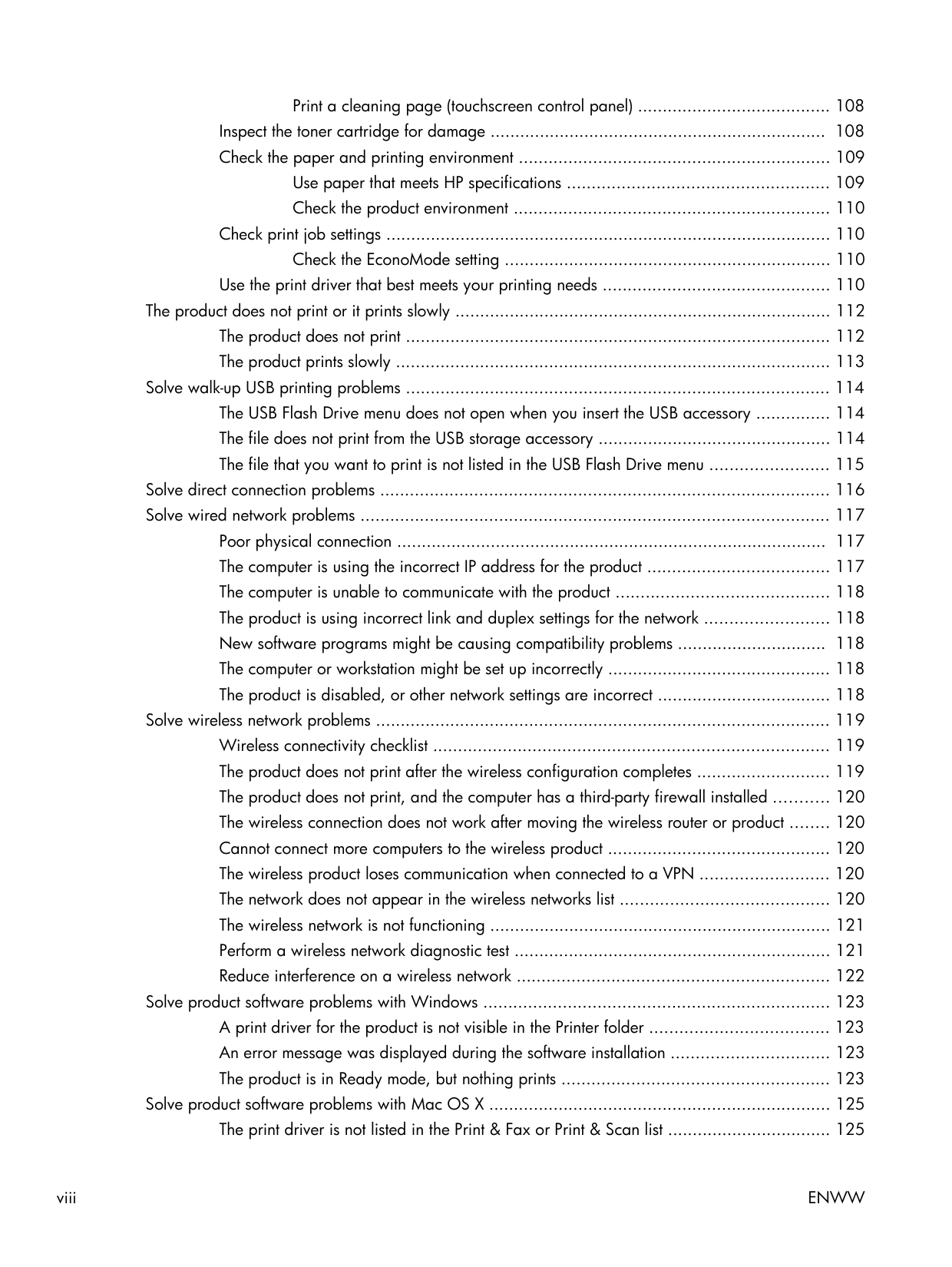
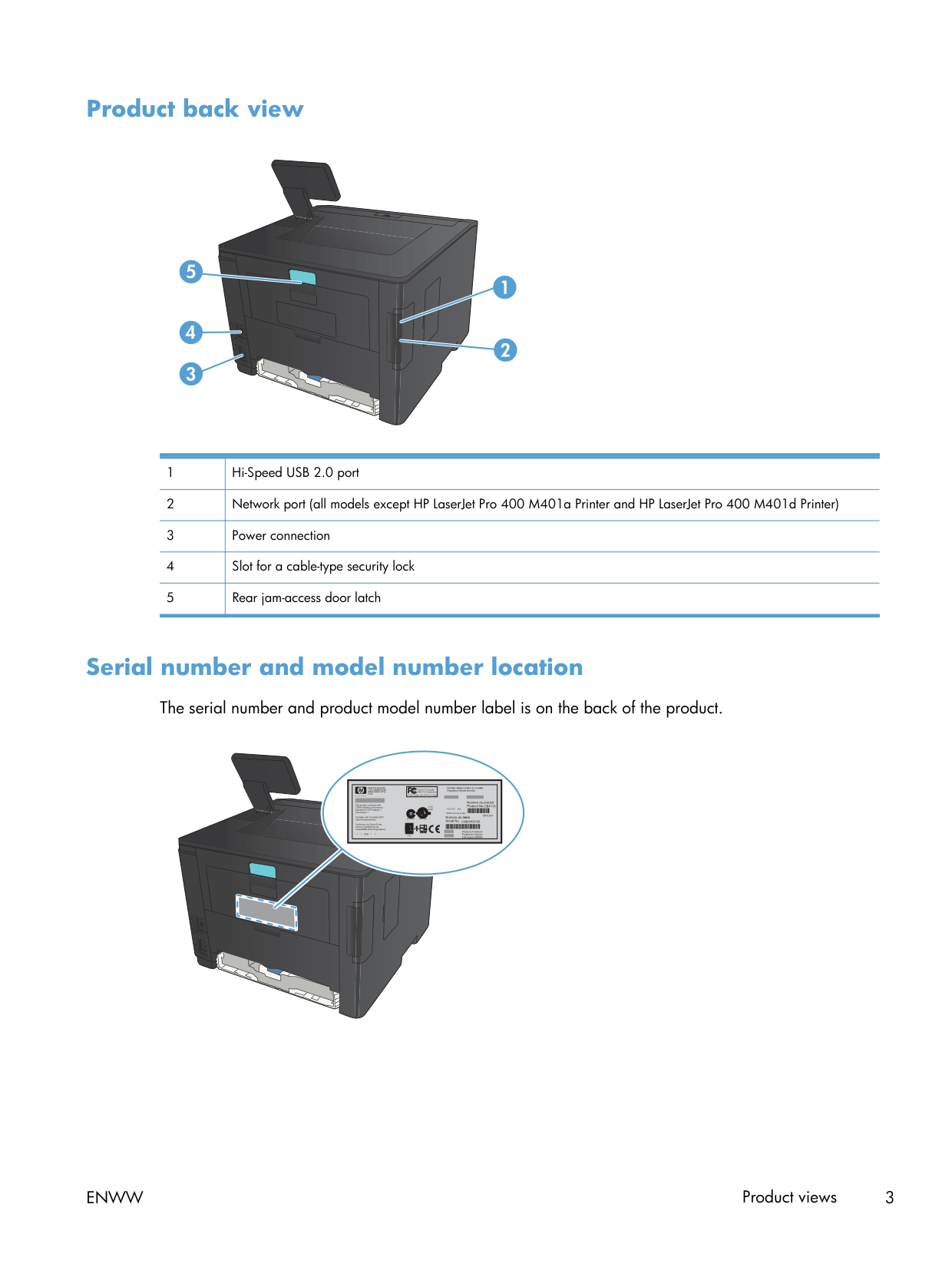
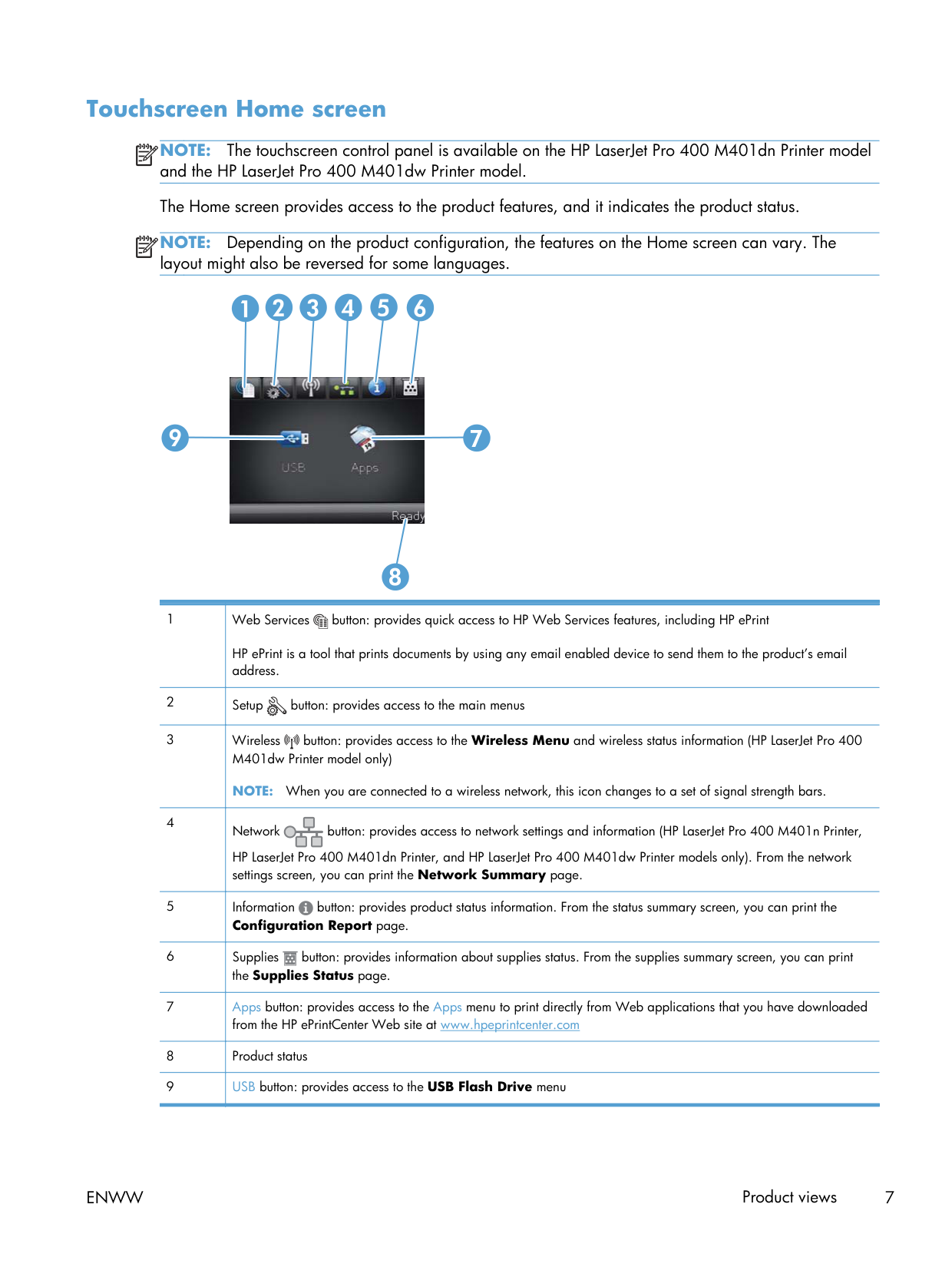
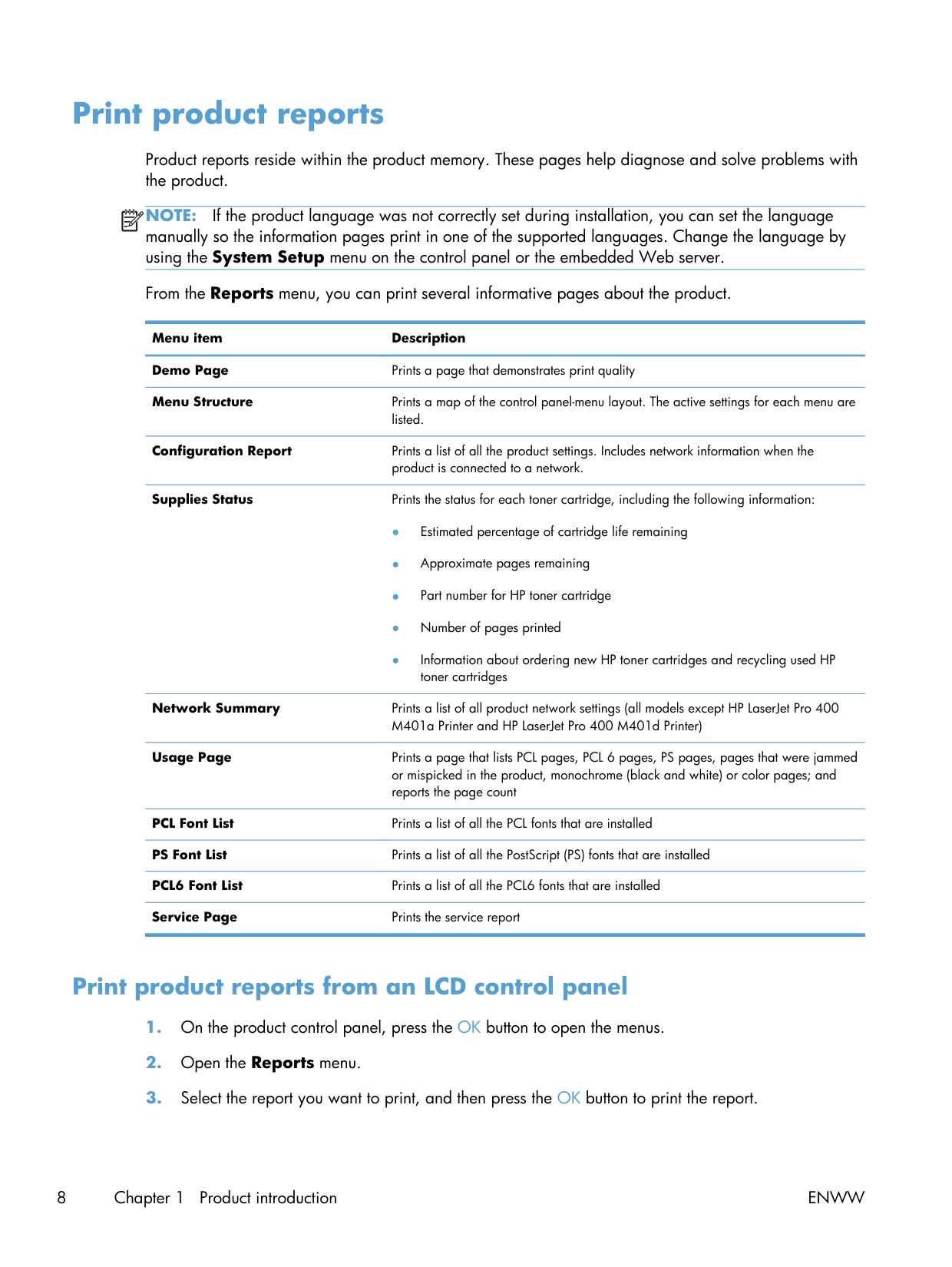
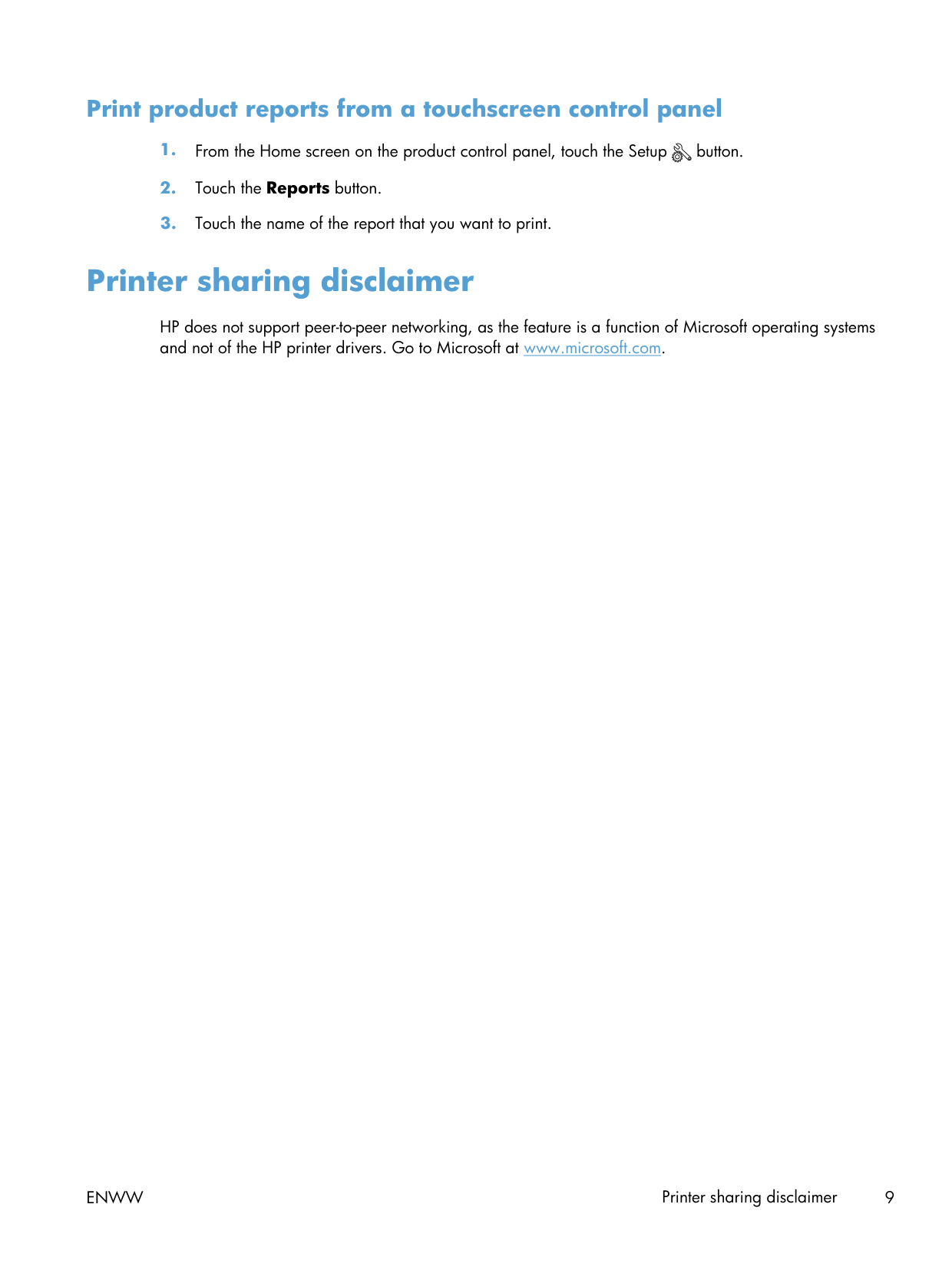
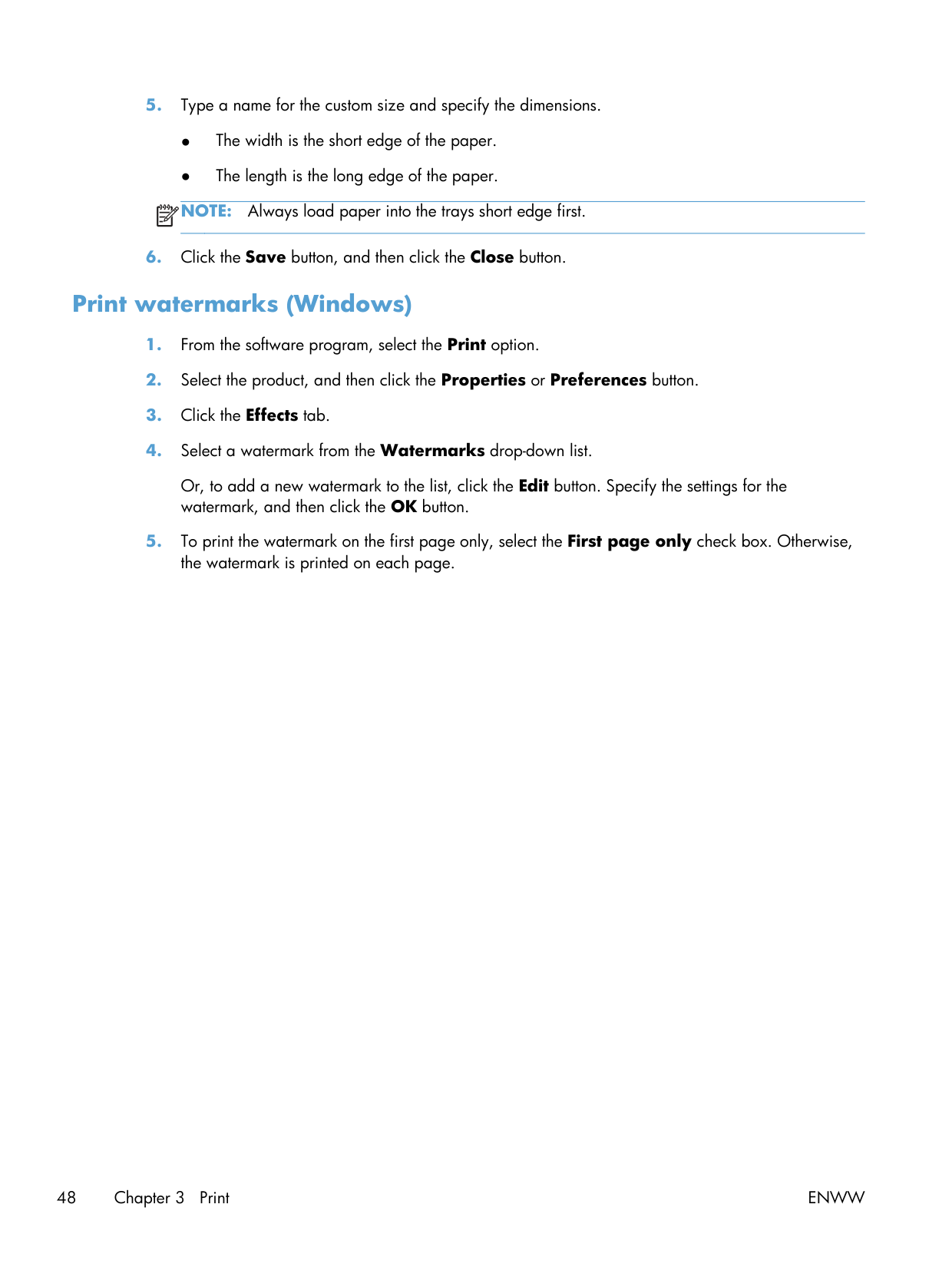
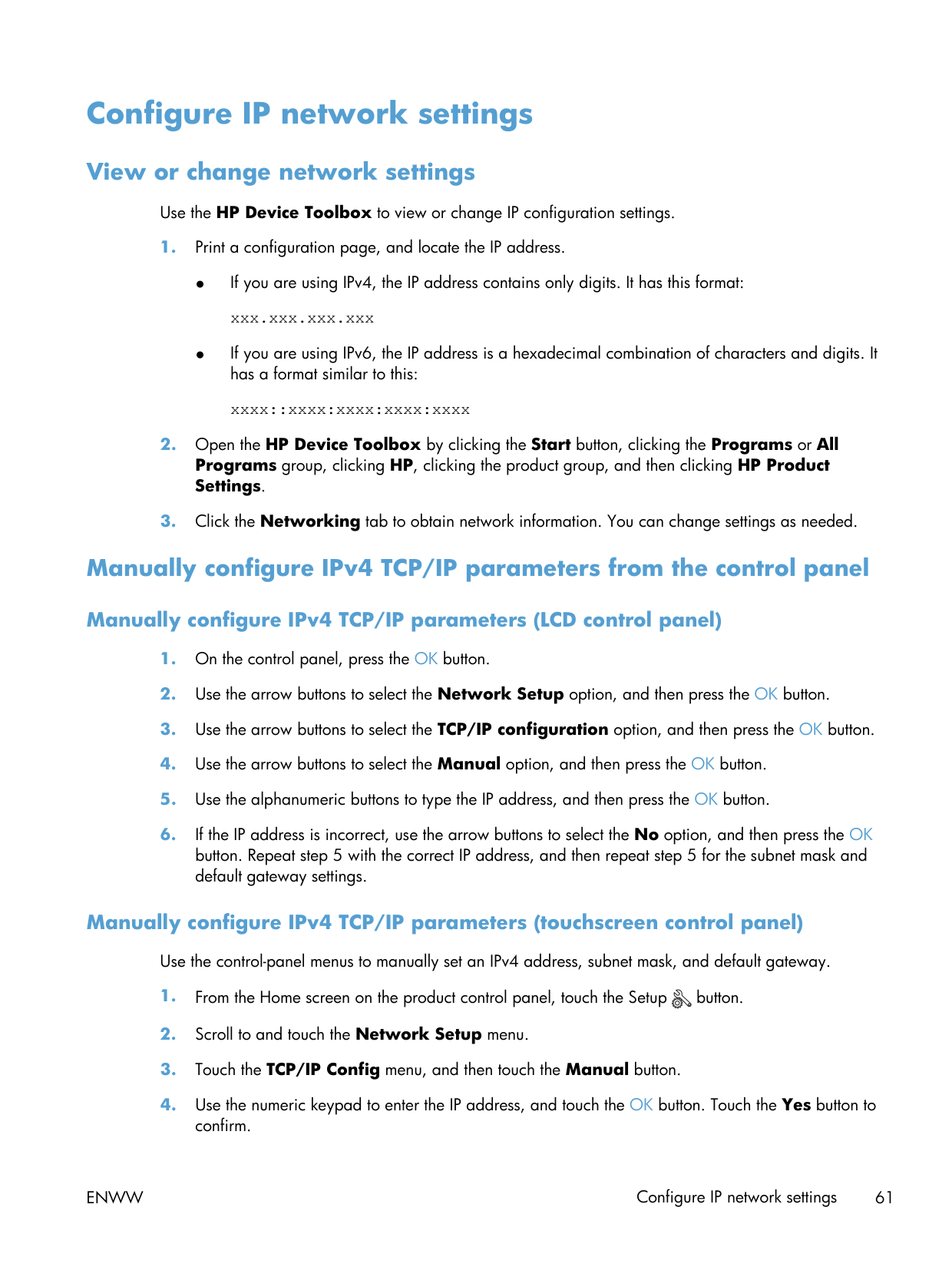
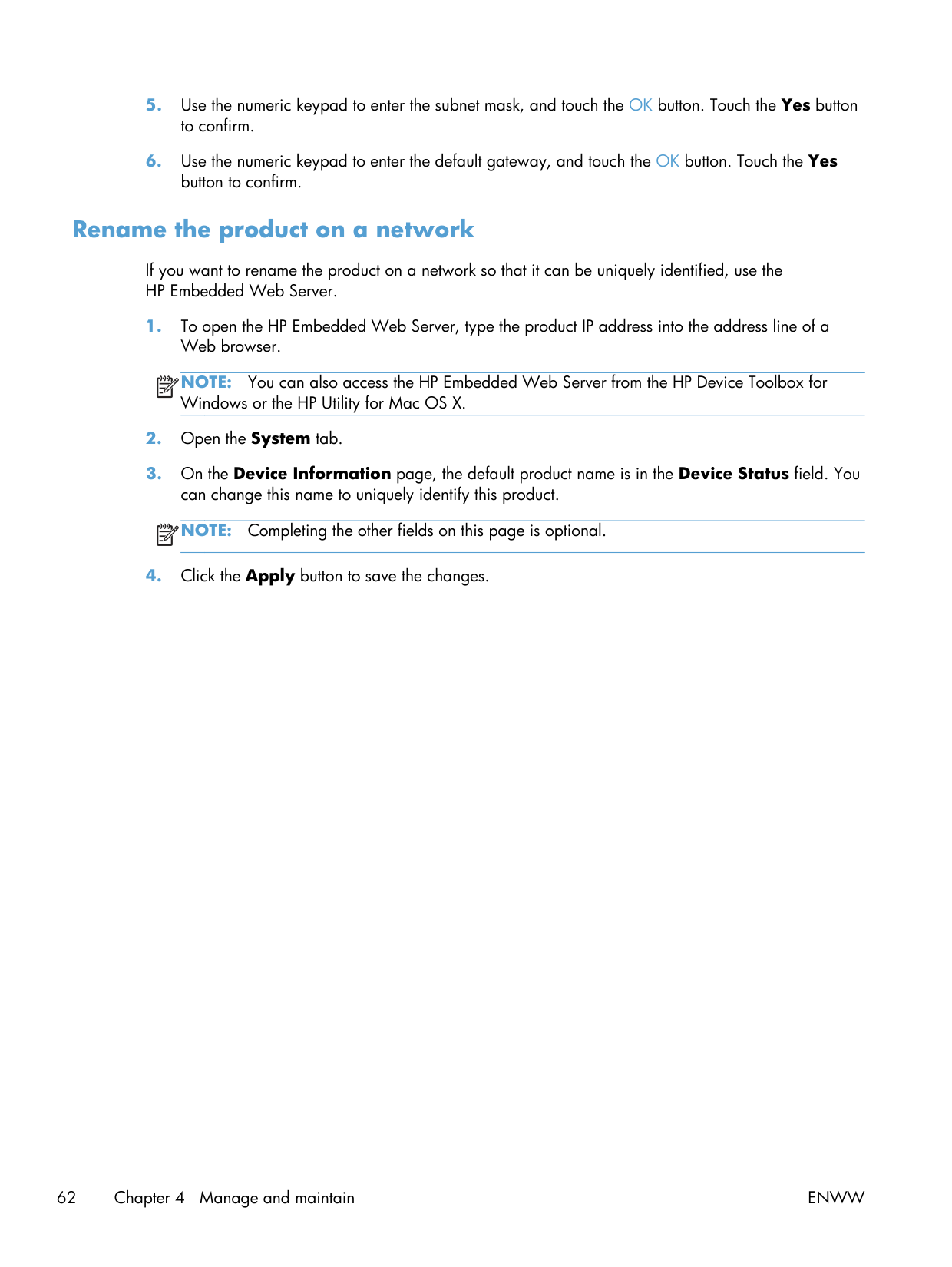
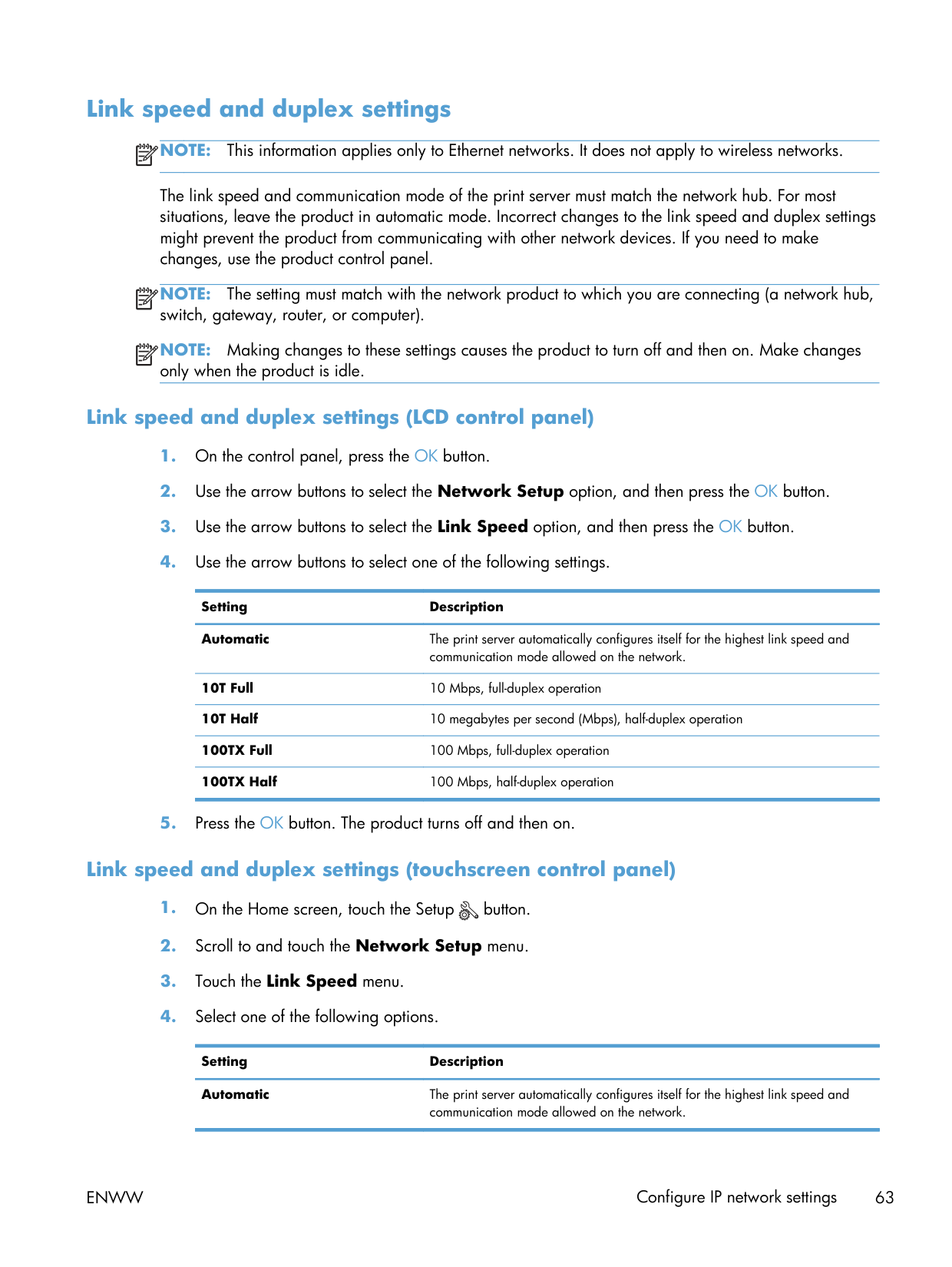
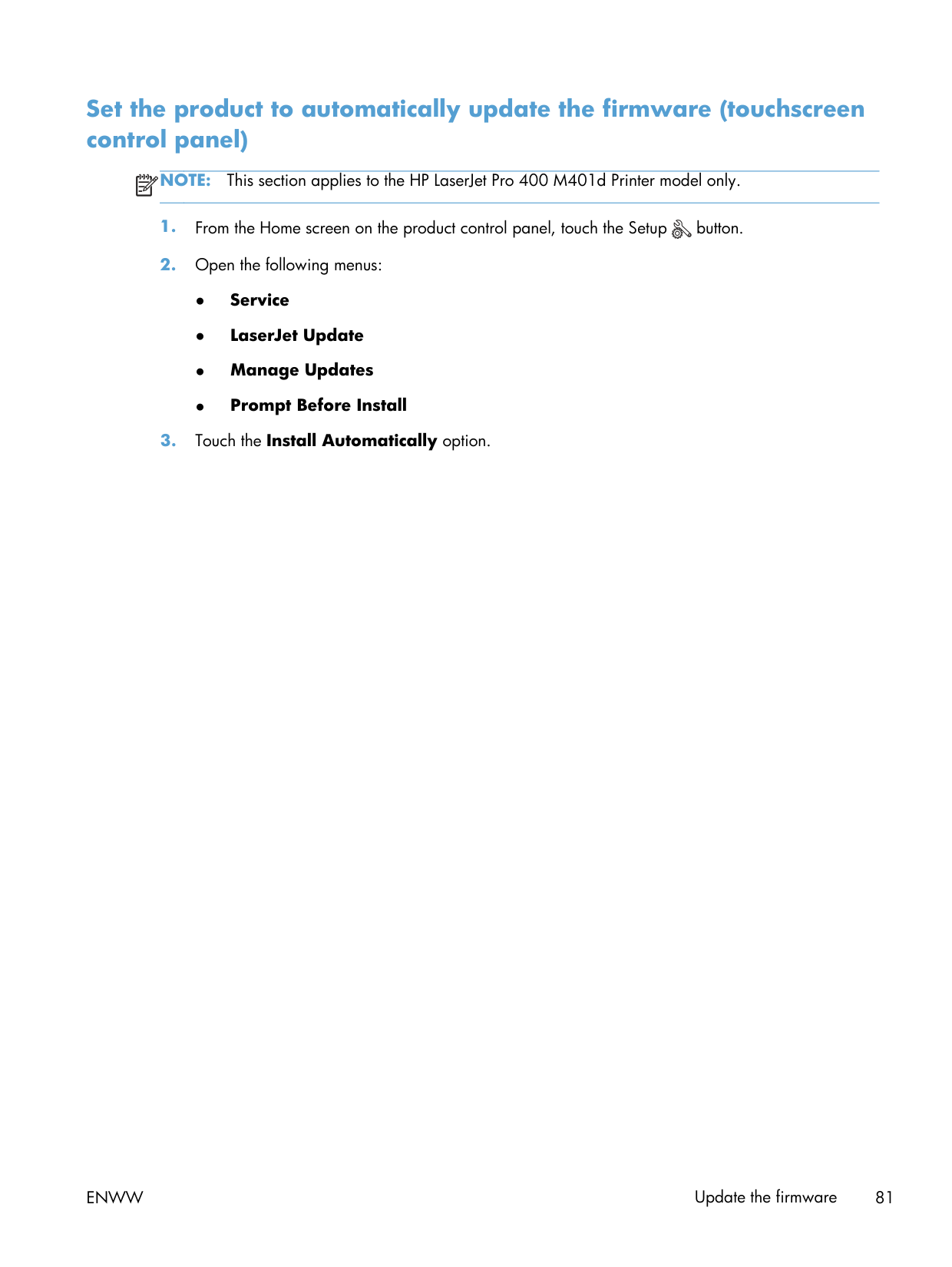
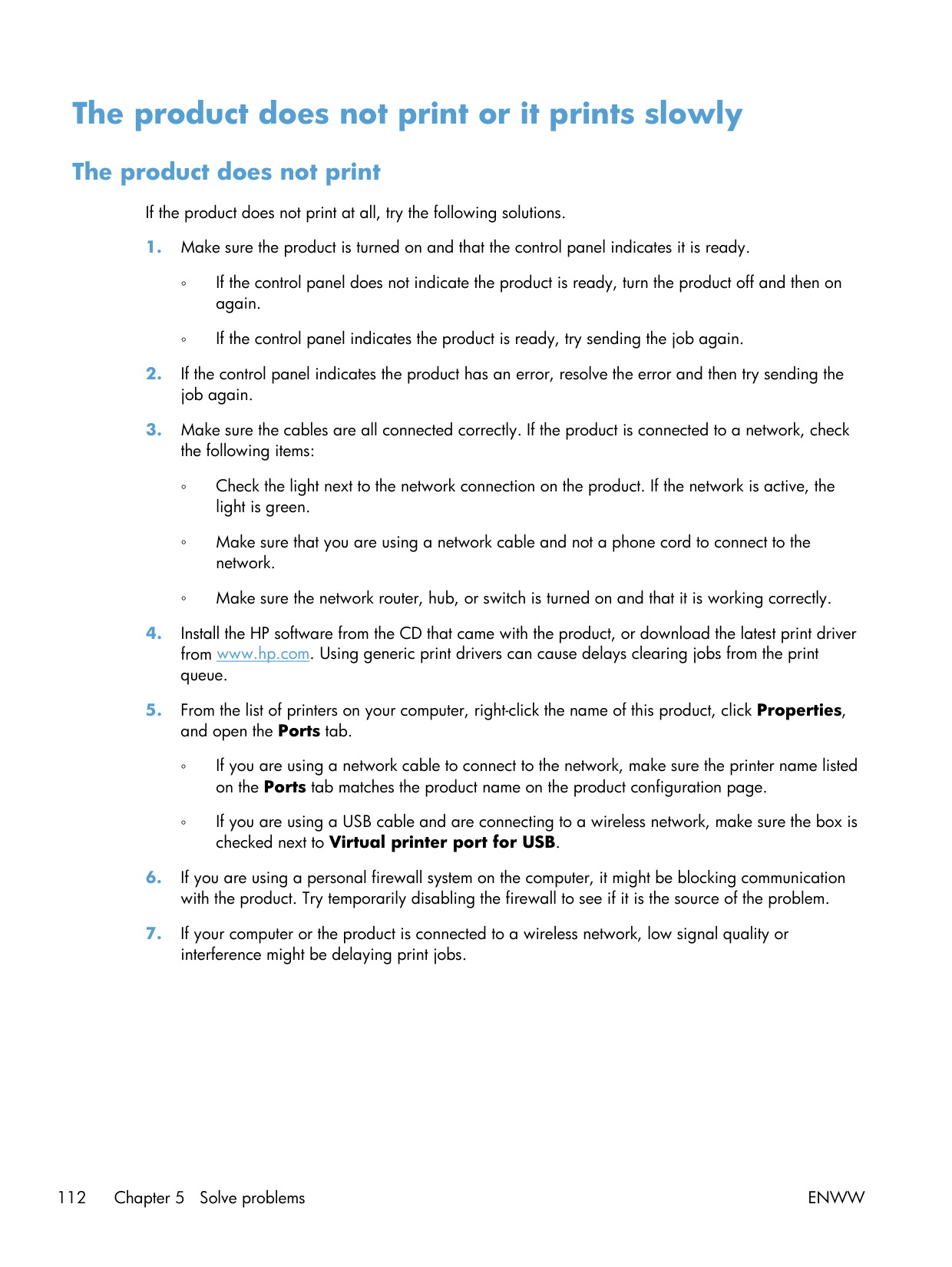
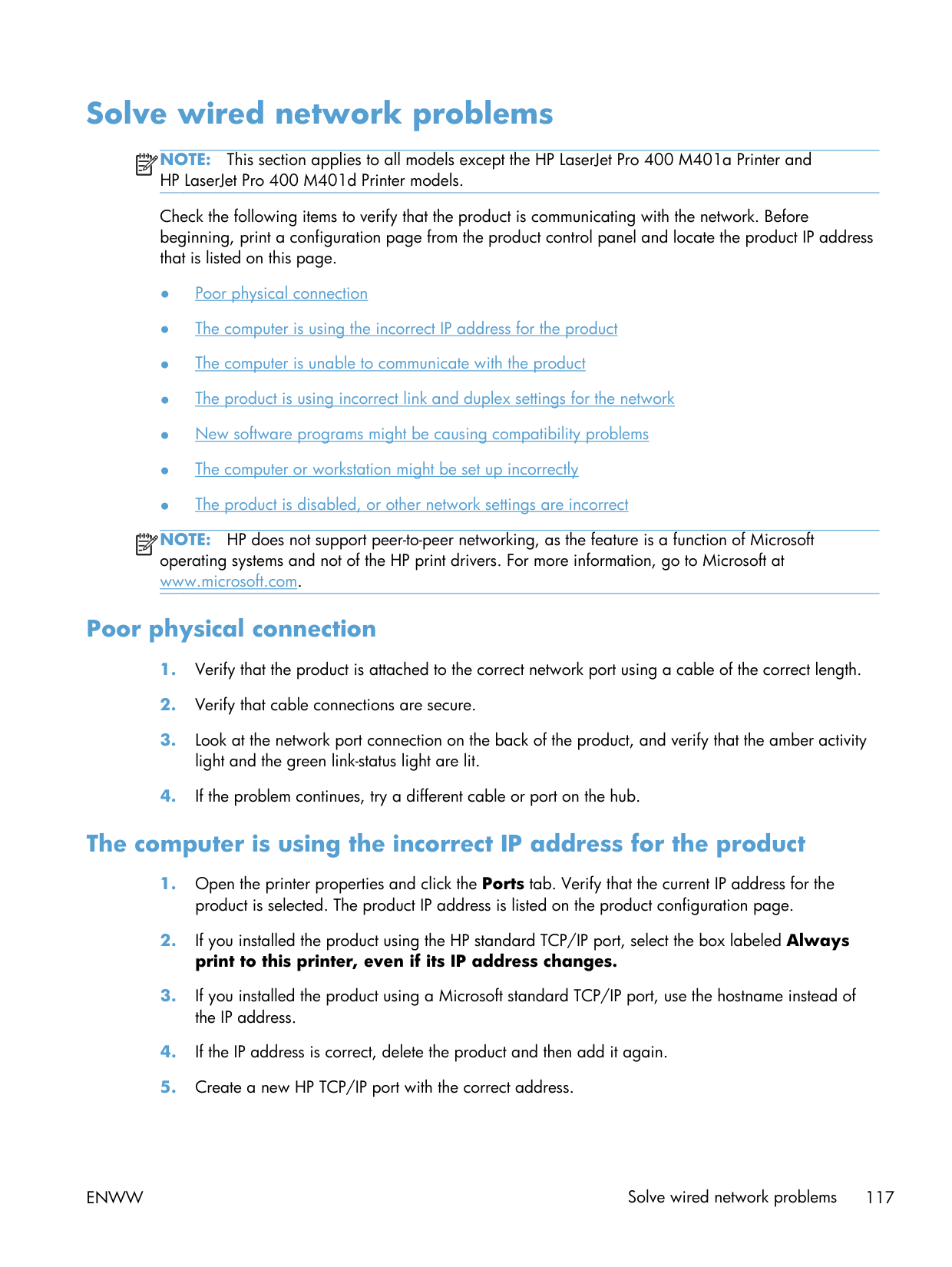
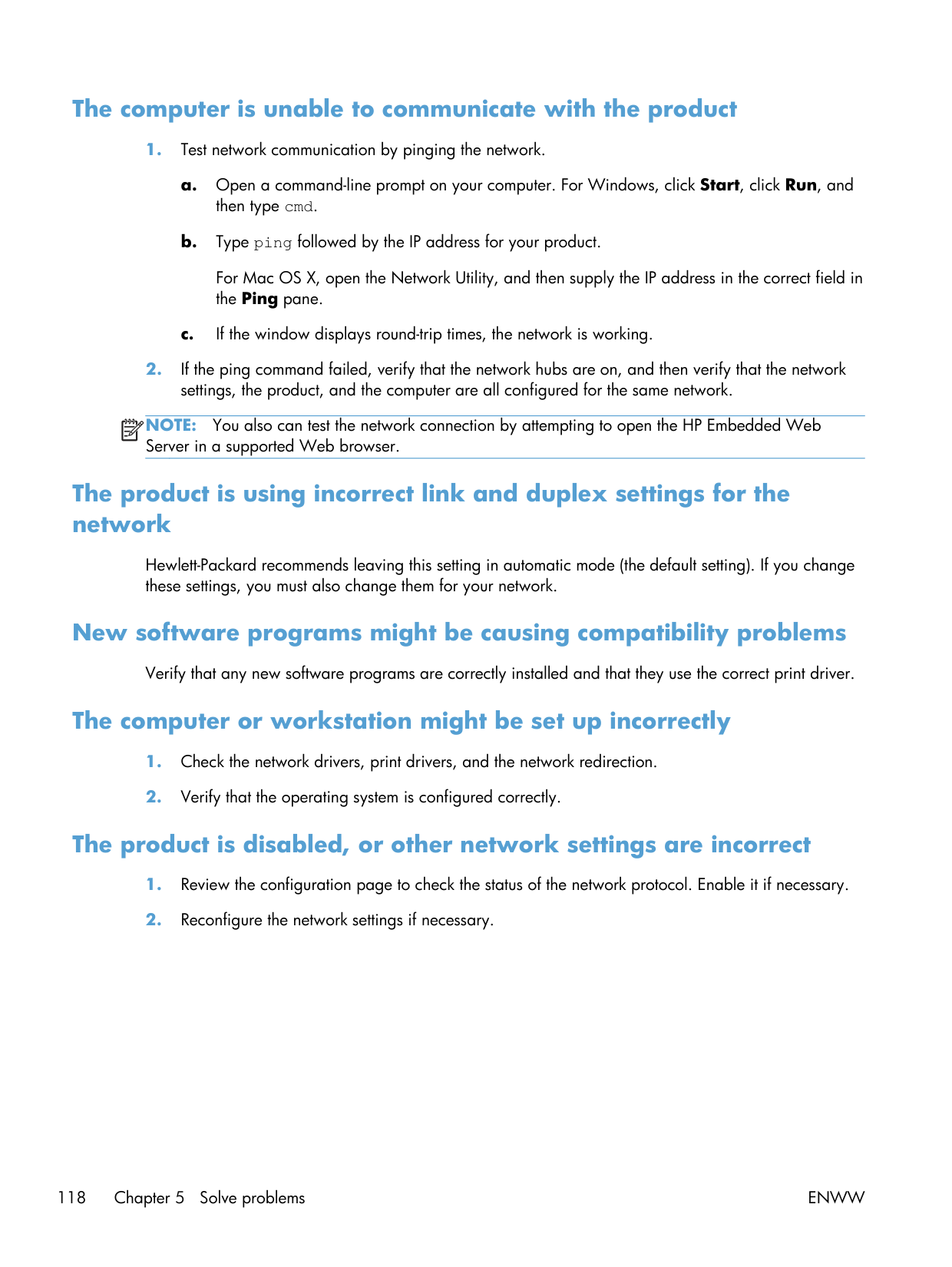
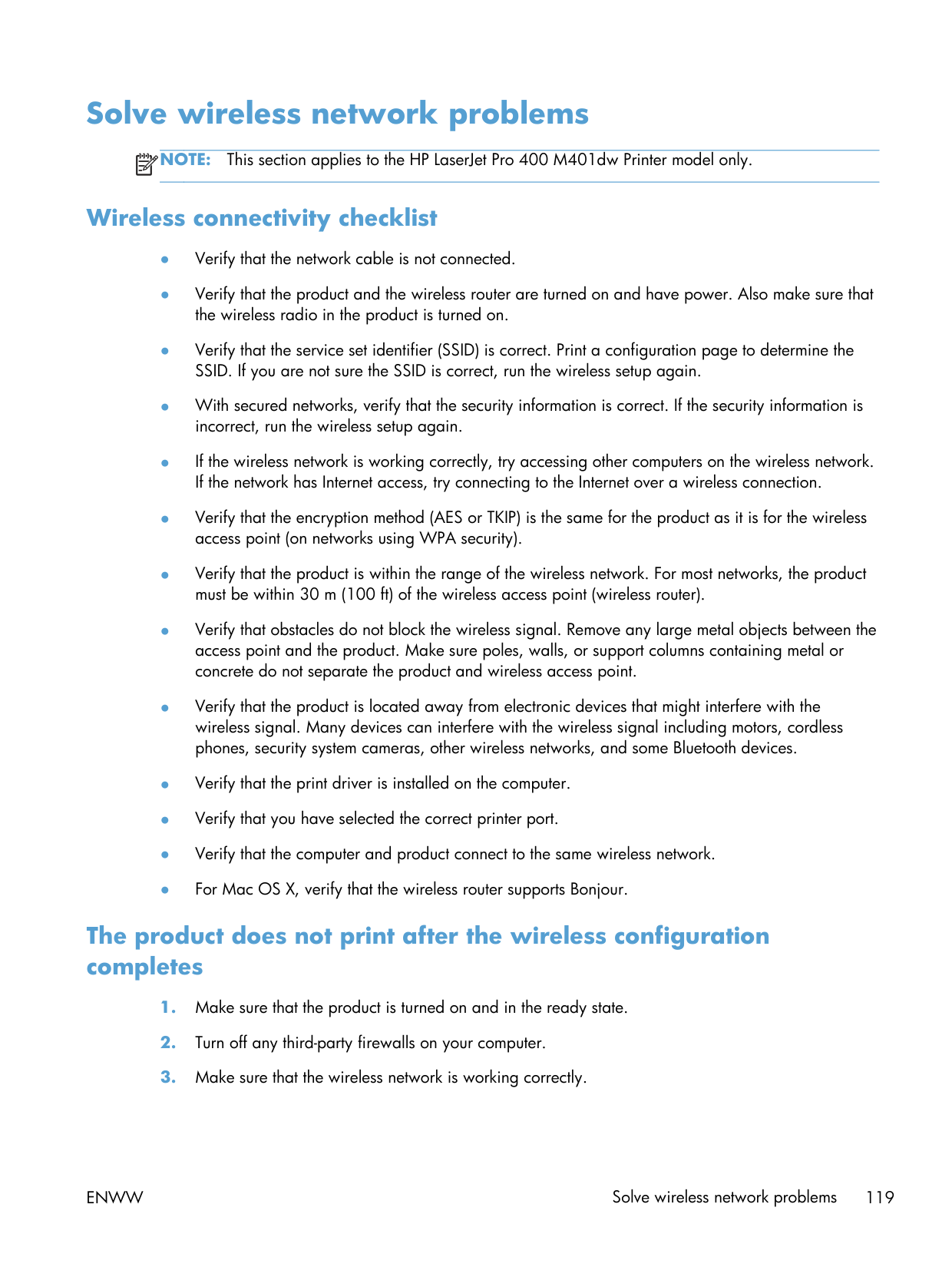
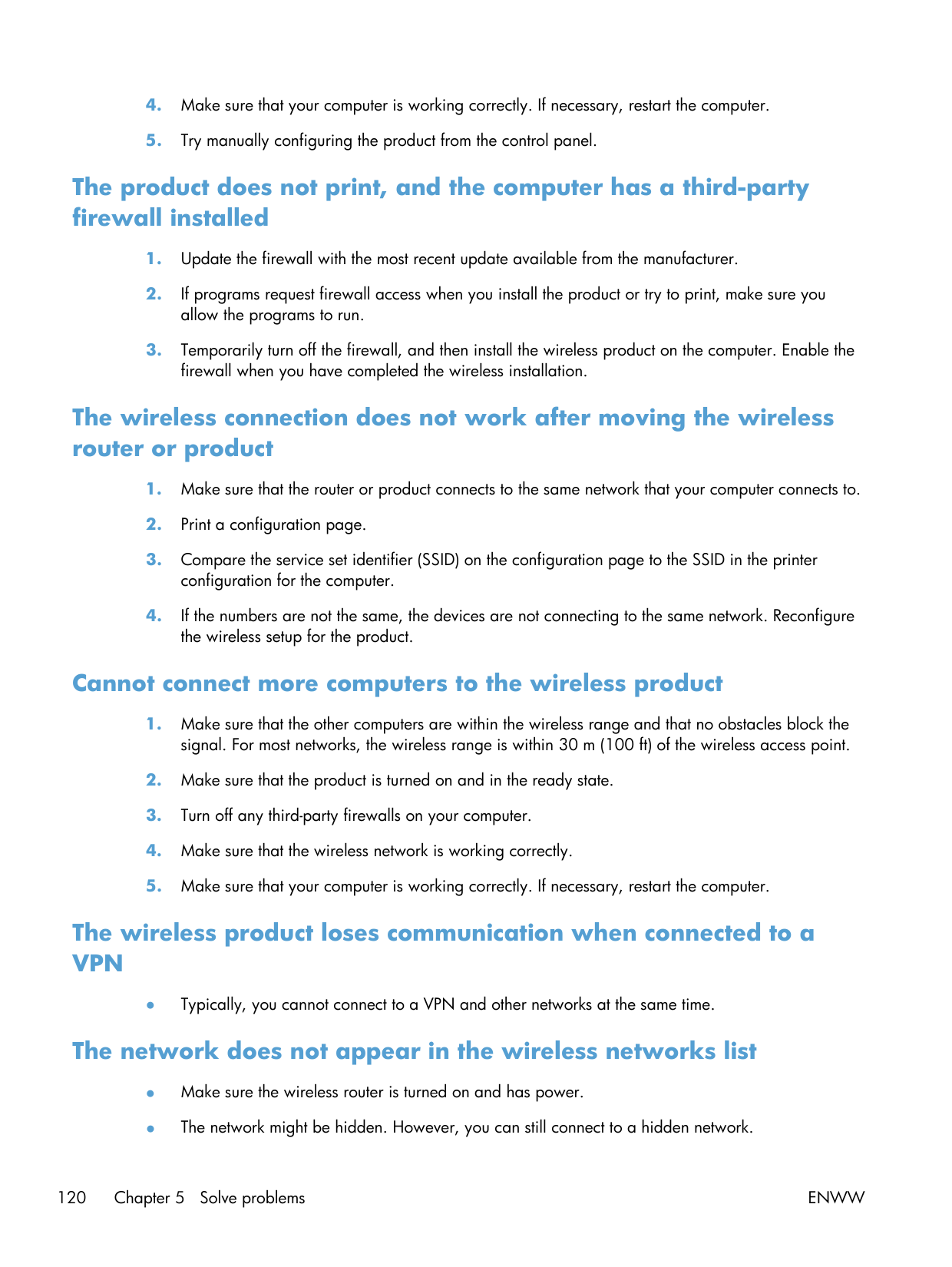
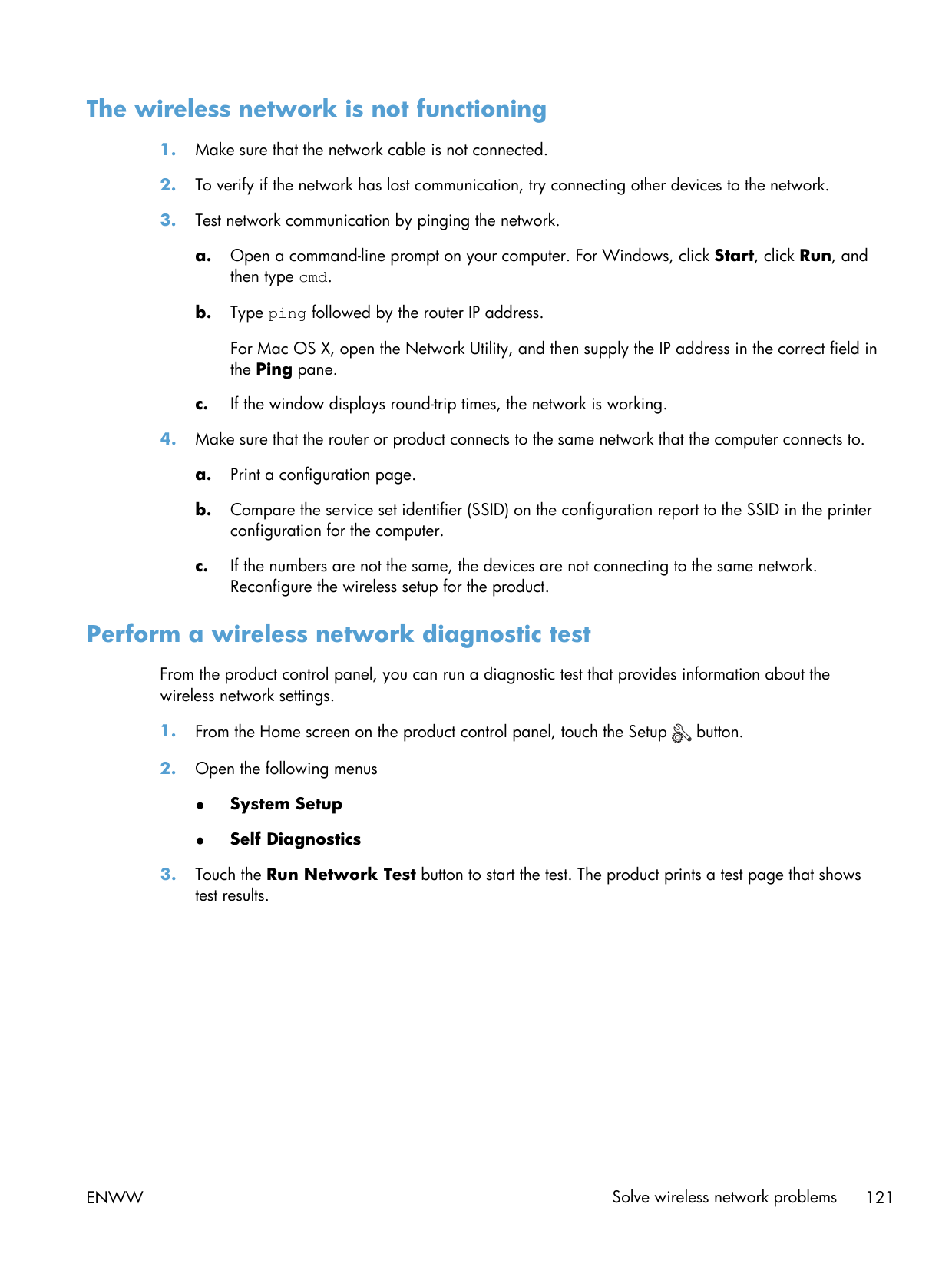
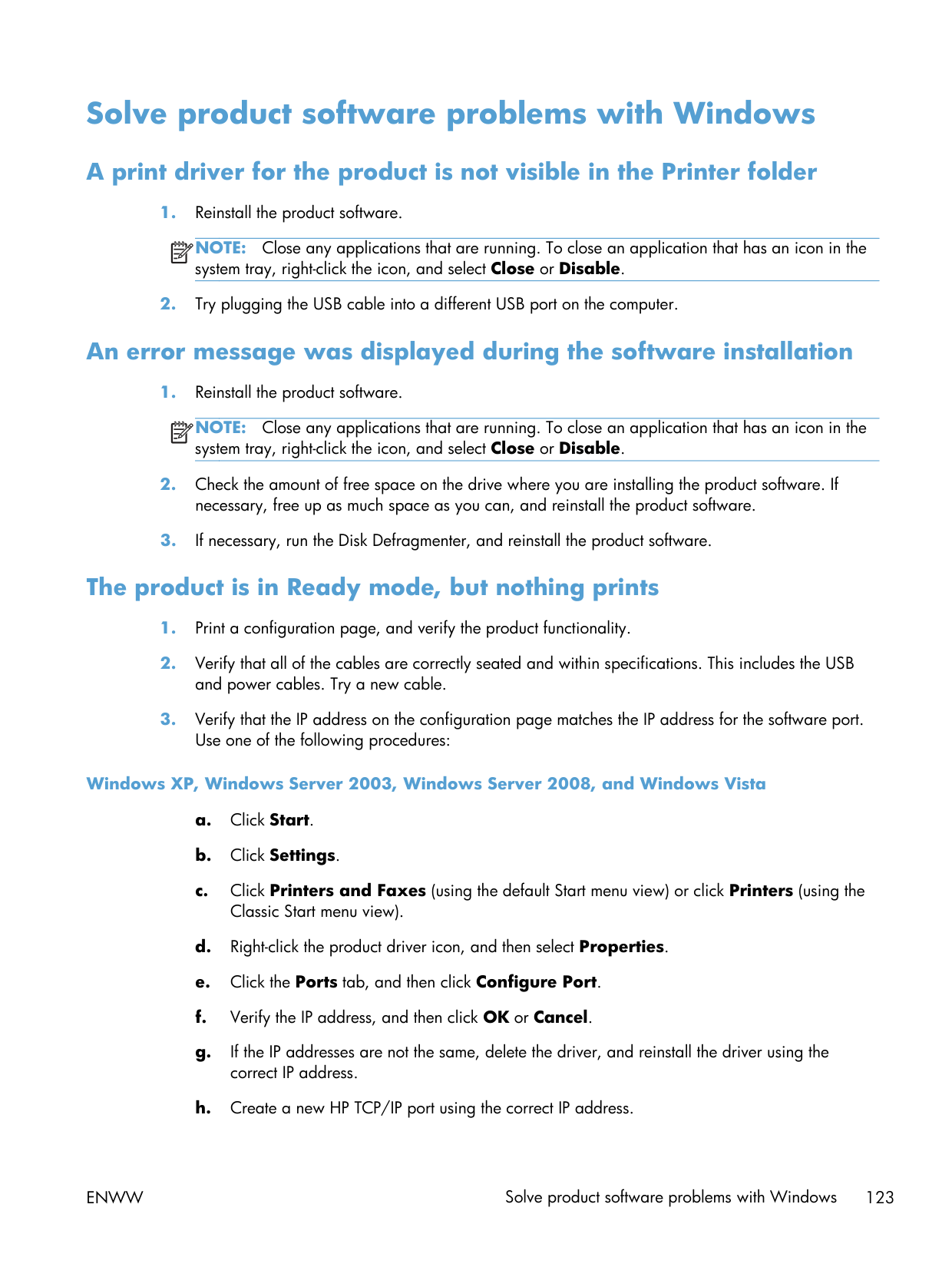
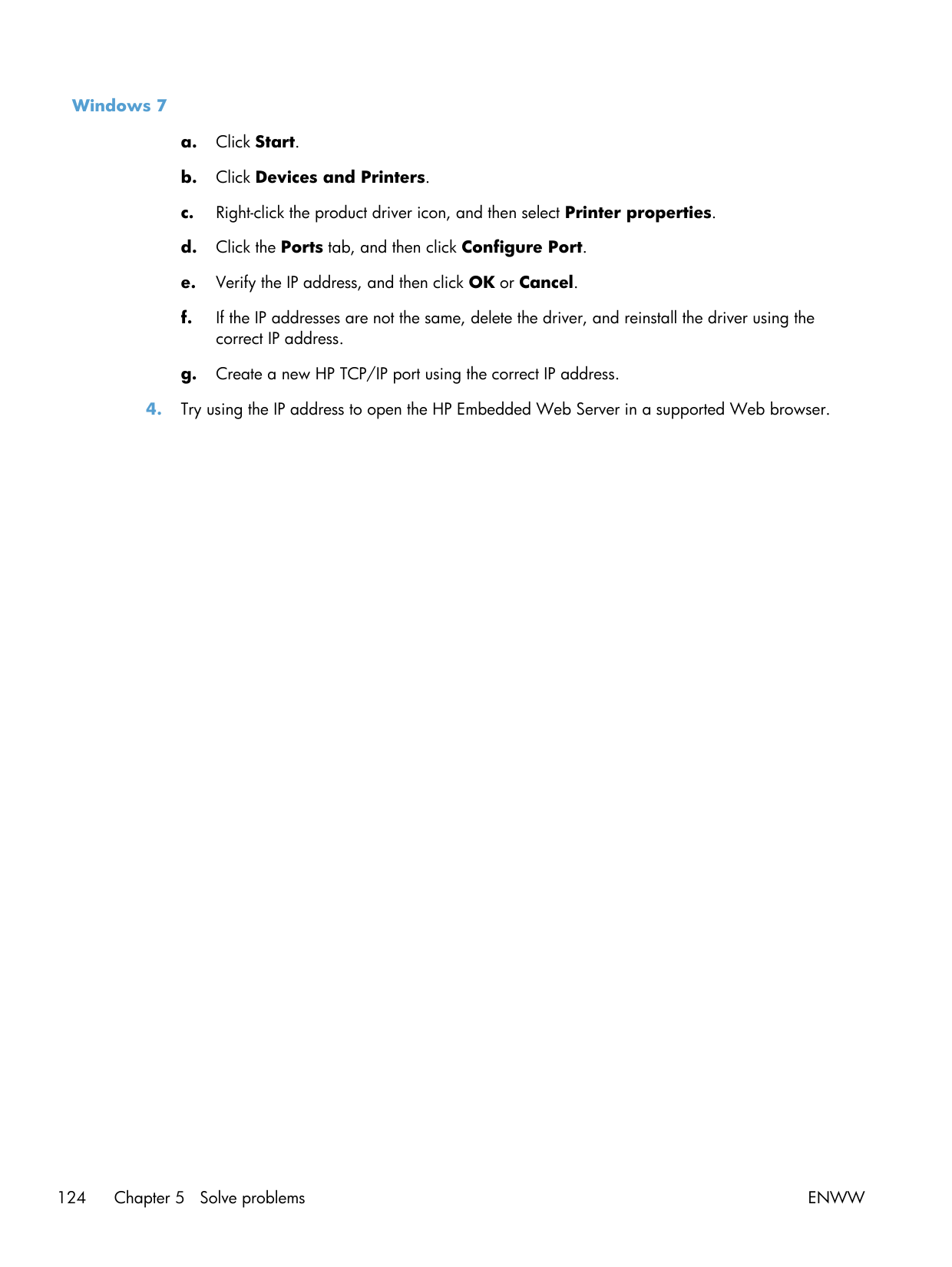
Wi-Fi setup, dw model. The setup wizard wants WPS by default, and a lot of routers have WPS disabled. If yours does, set up via USB cable first, then push the network credentials through the Embedded Web Server. The IP address is on a config page (Tools → Reports → Config Report from the panel).
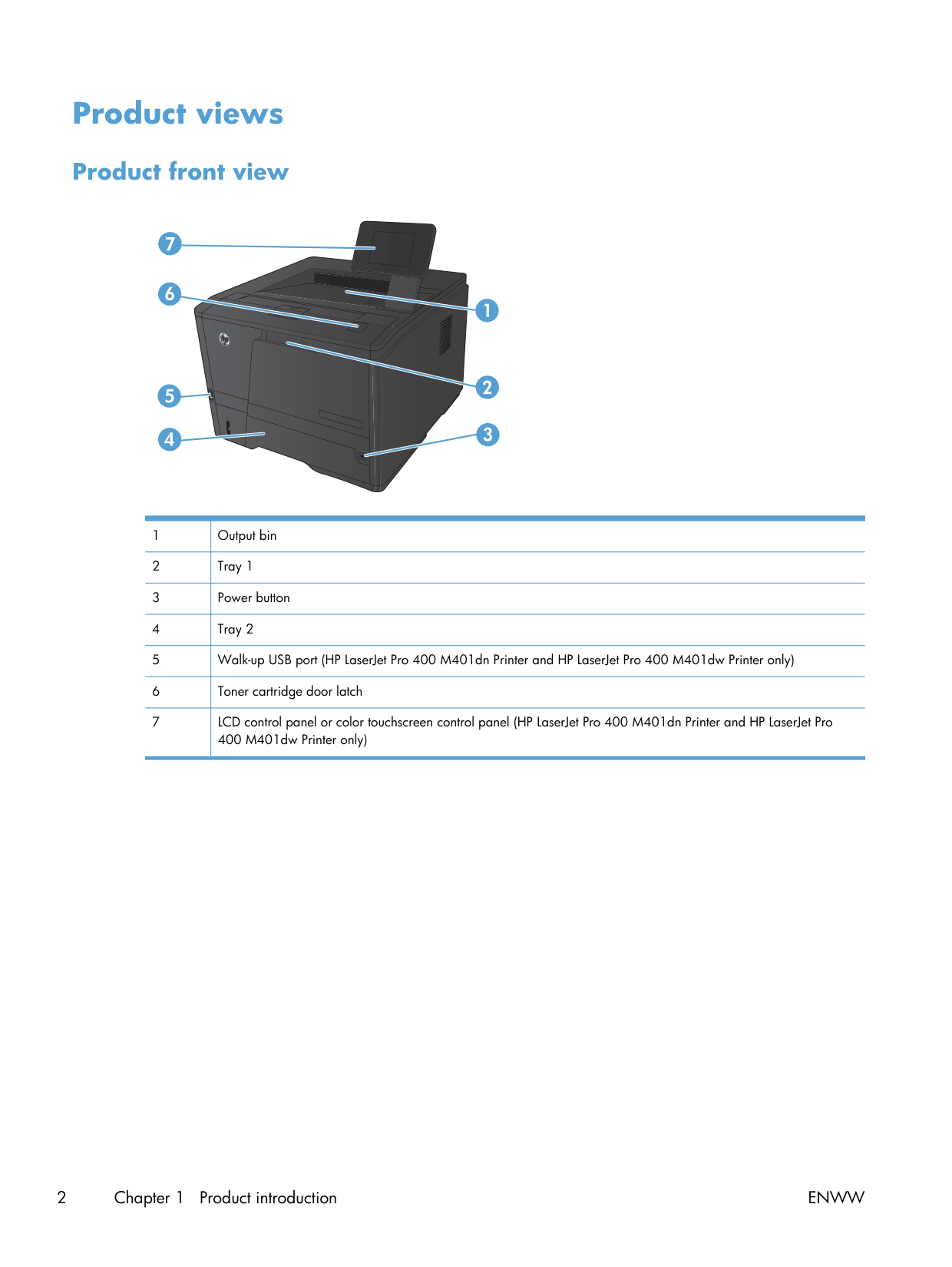
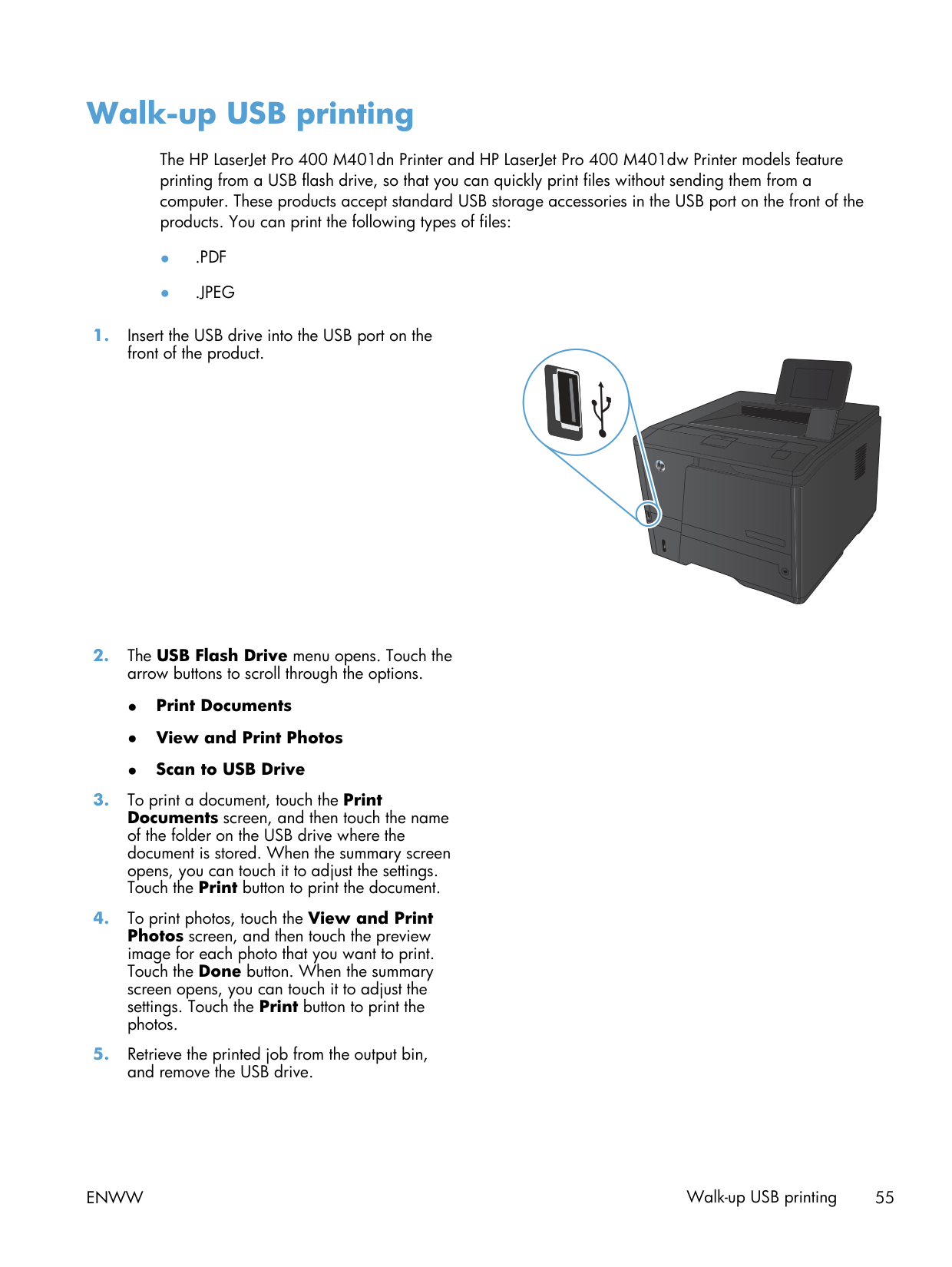
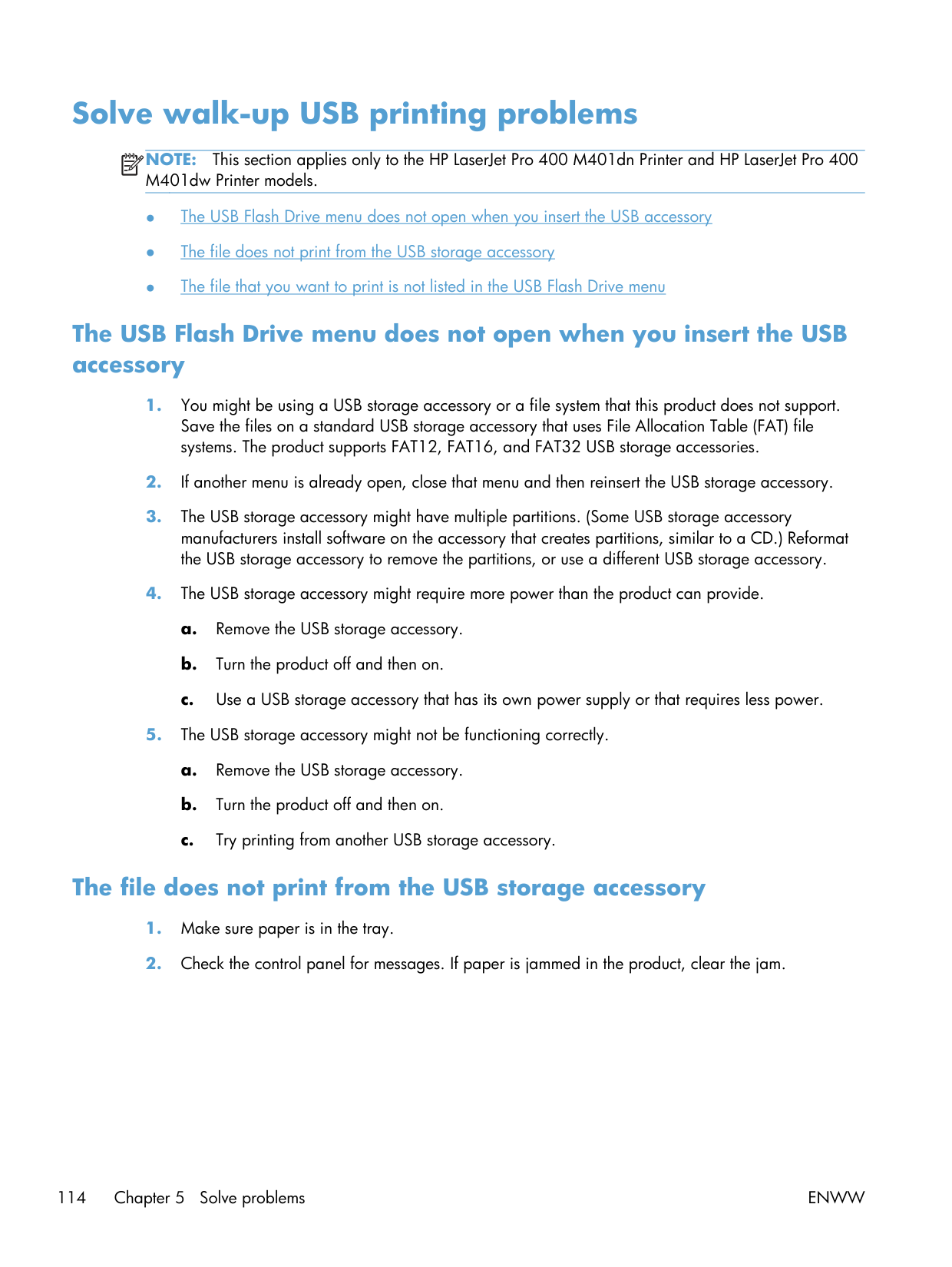
Walk-up USB printing. Plug a thumb drive into the front port. PDFs and image formats (JPG, PNG, TIFF) print directly. Office formats won't — convert to PDF first. Drive limit is 32GB, FAT32-formatted only on this firmware.
Things you'll only learn the hard way
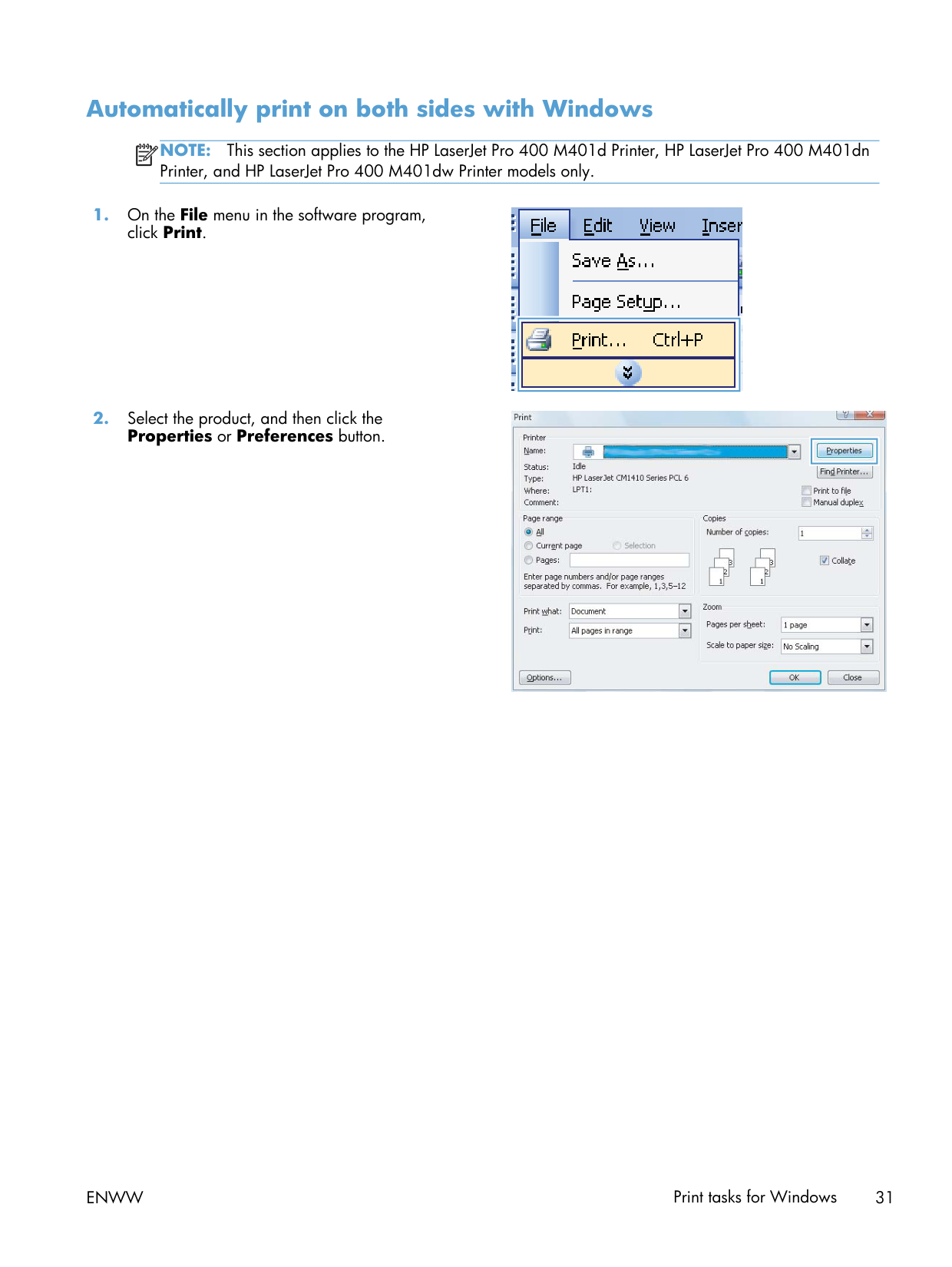
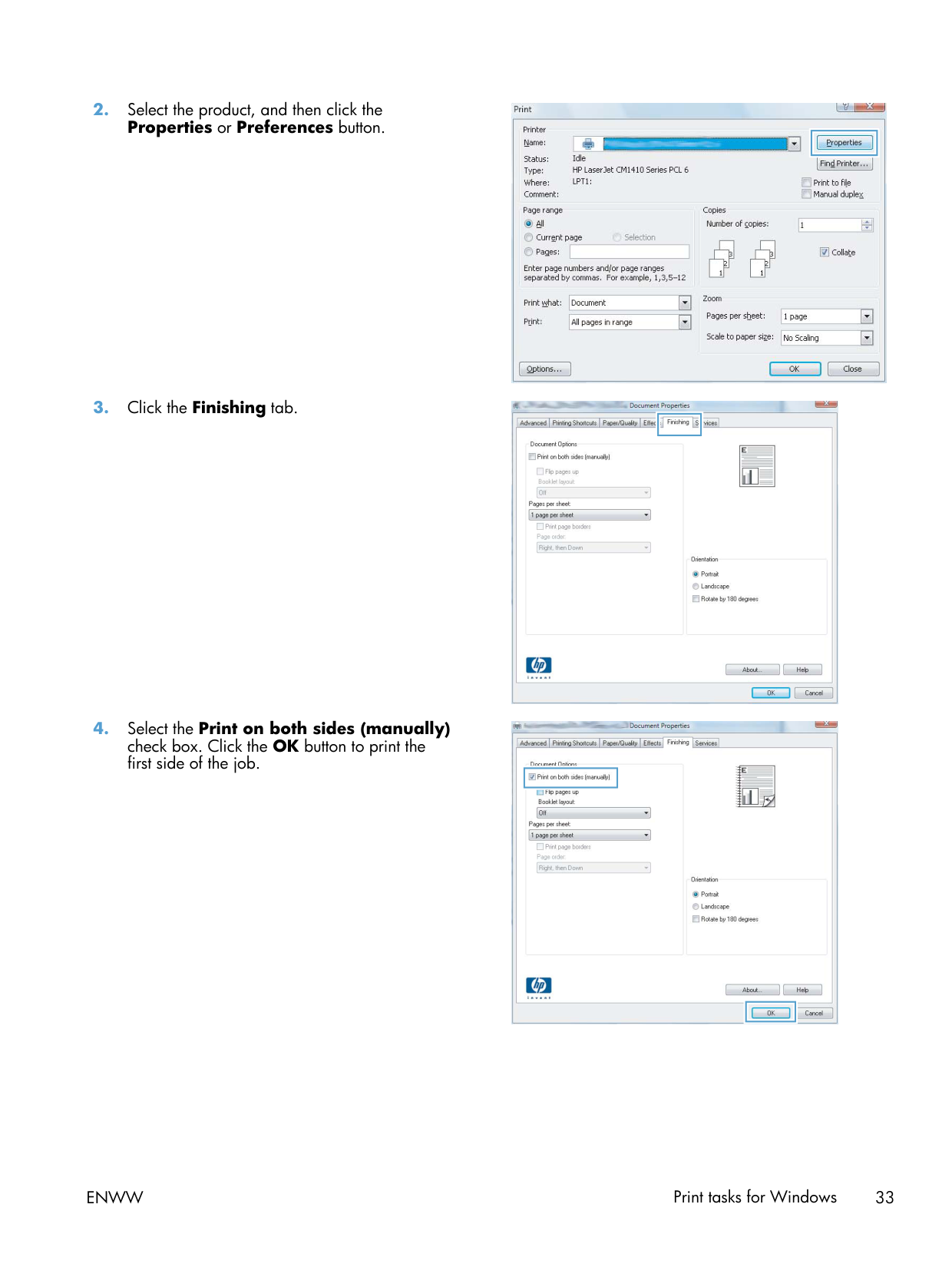
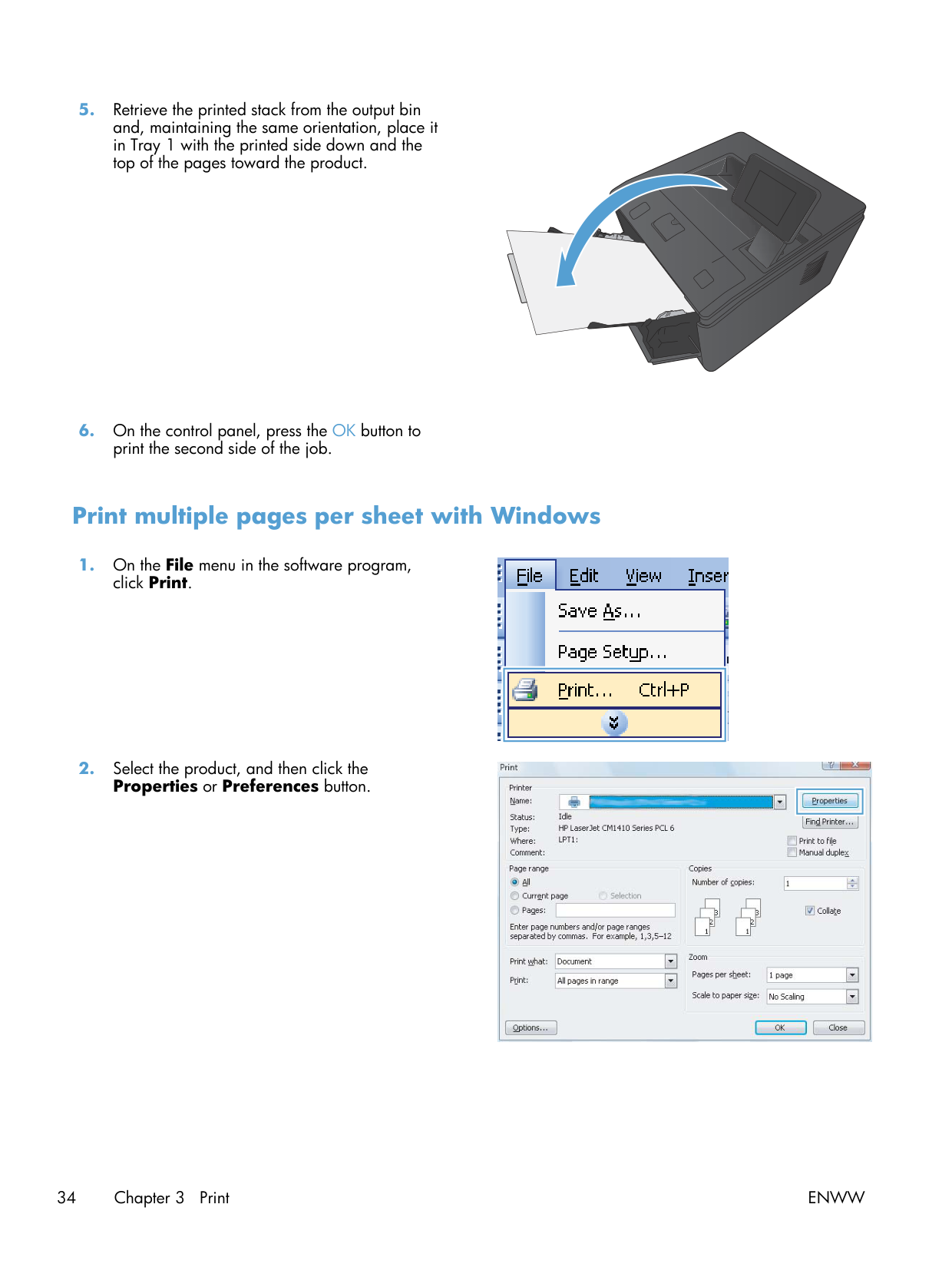
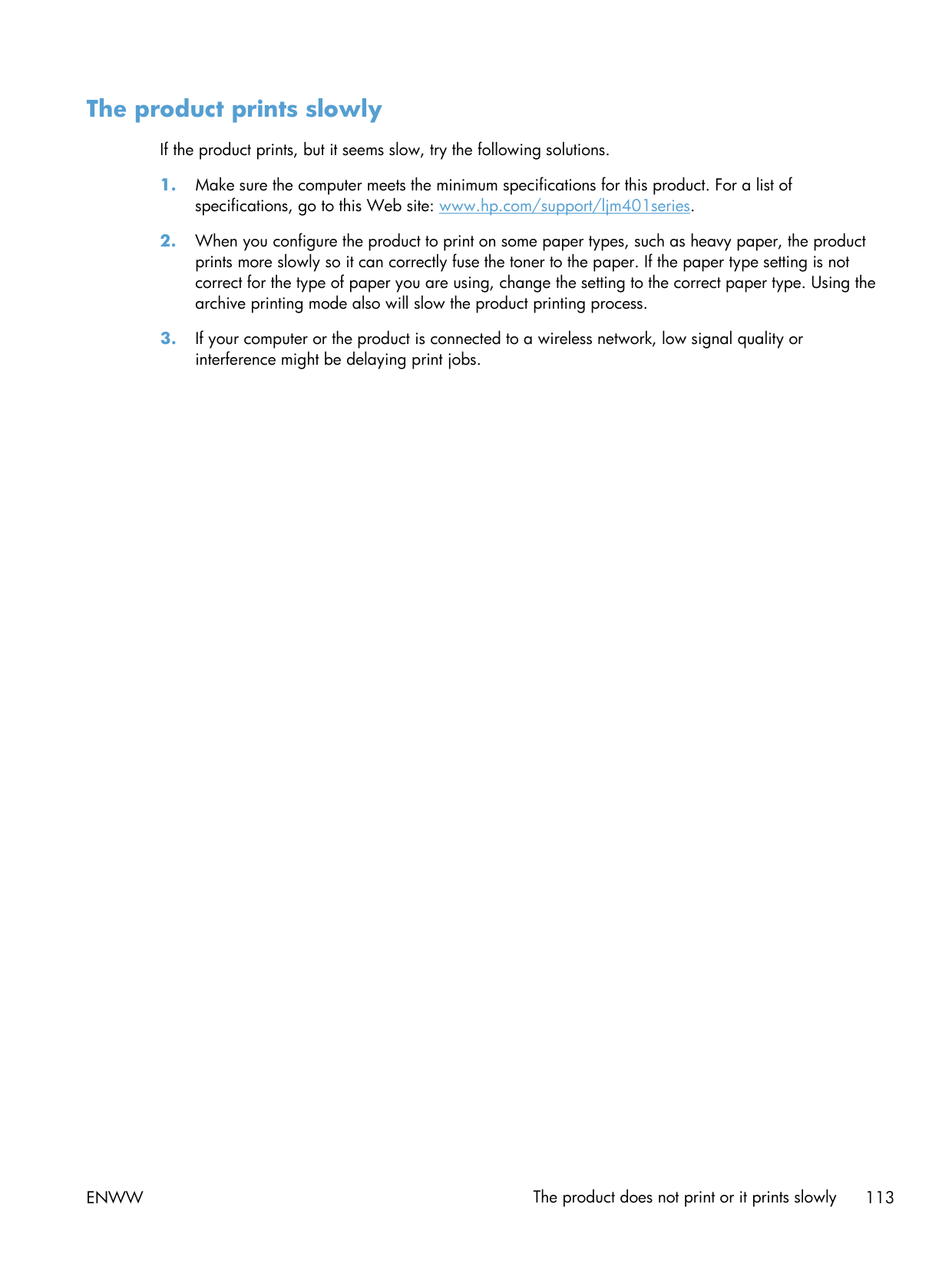
Duplex slows it down on heavy paper. The 33 ppm spec is one-sided plain. On cardstock with duplex enabled, you'll see closer to 15 ppm.
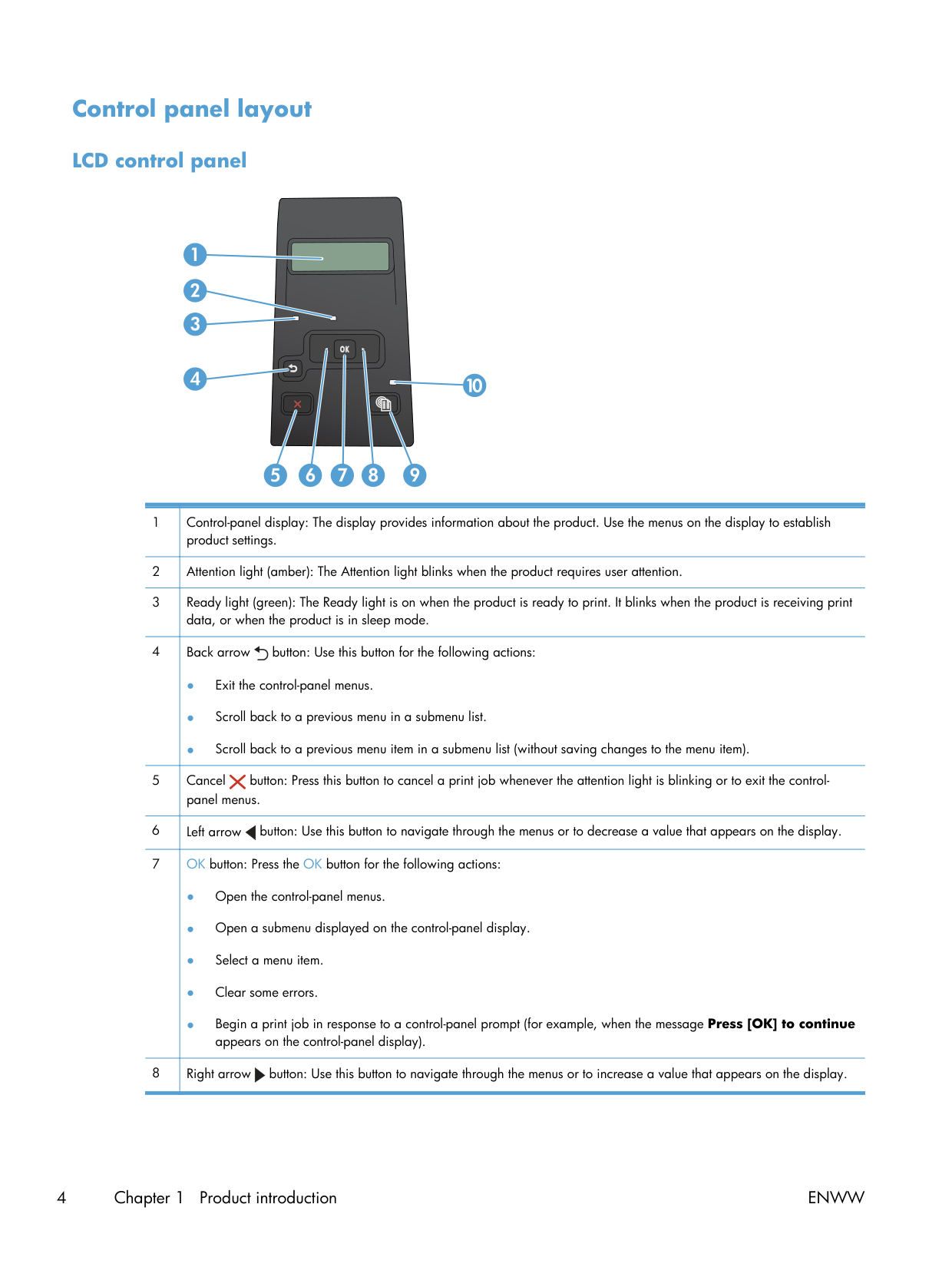
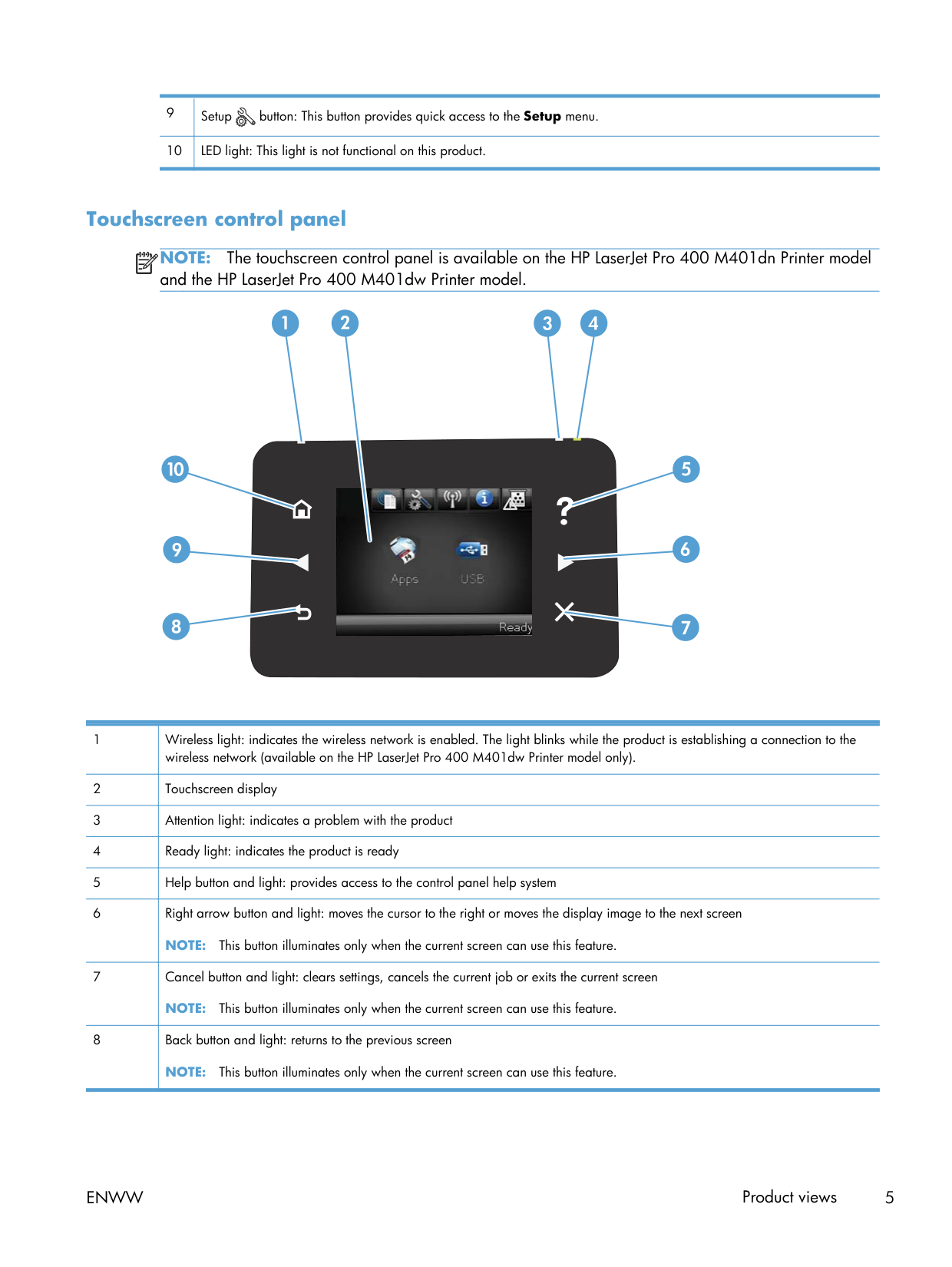
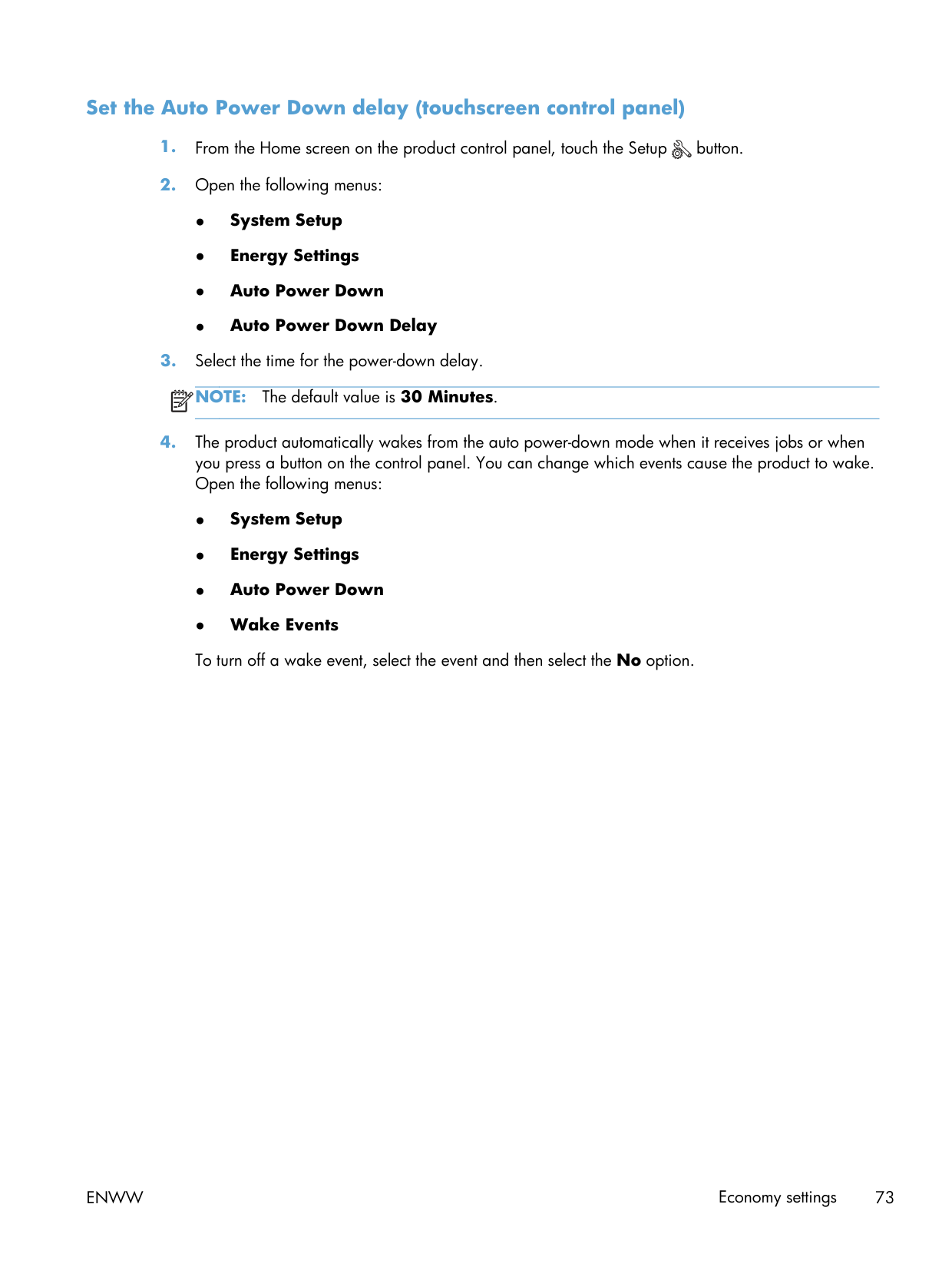
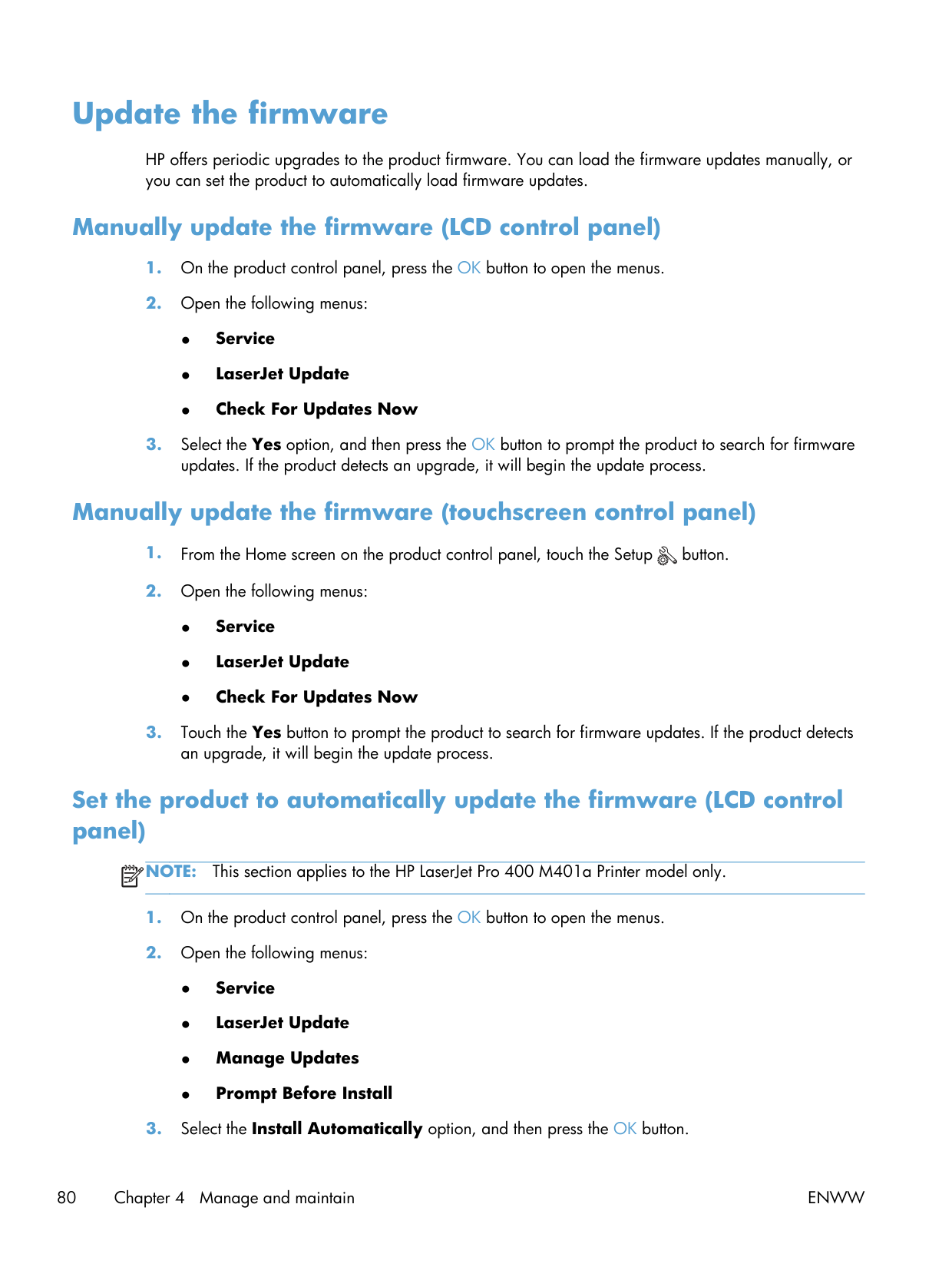
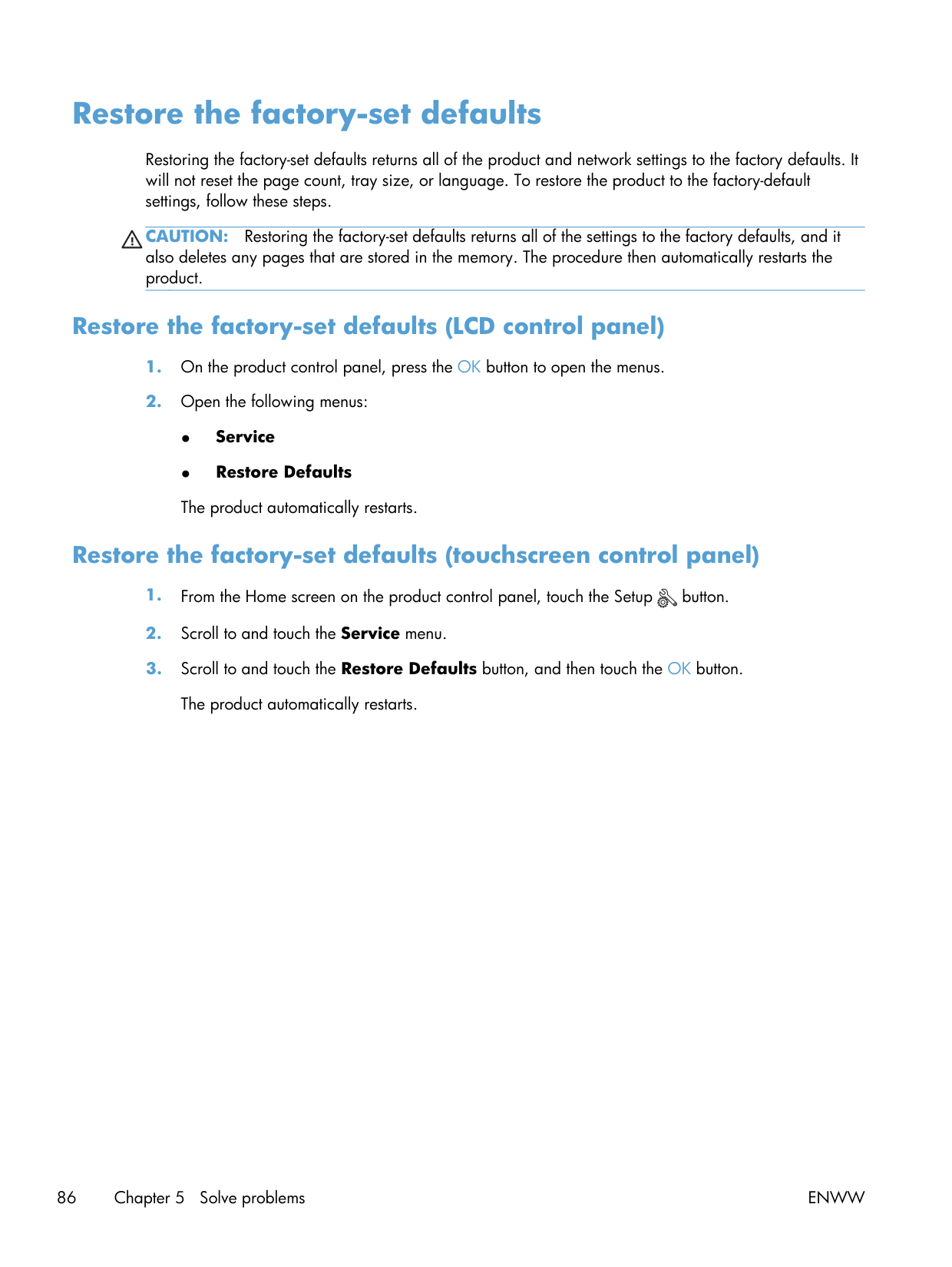
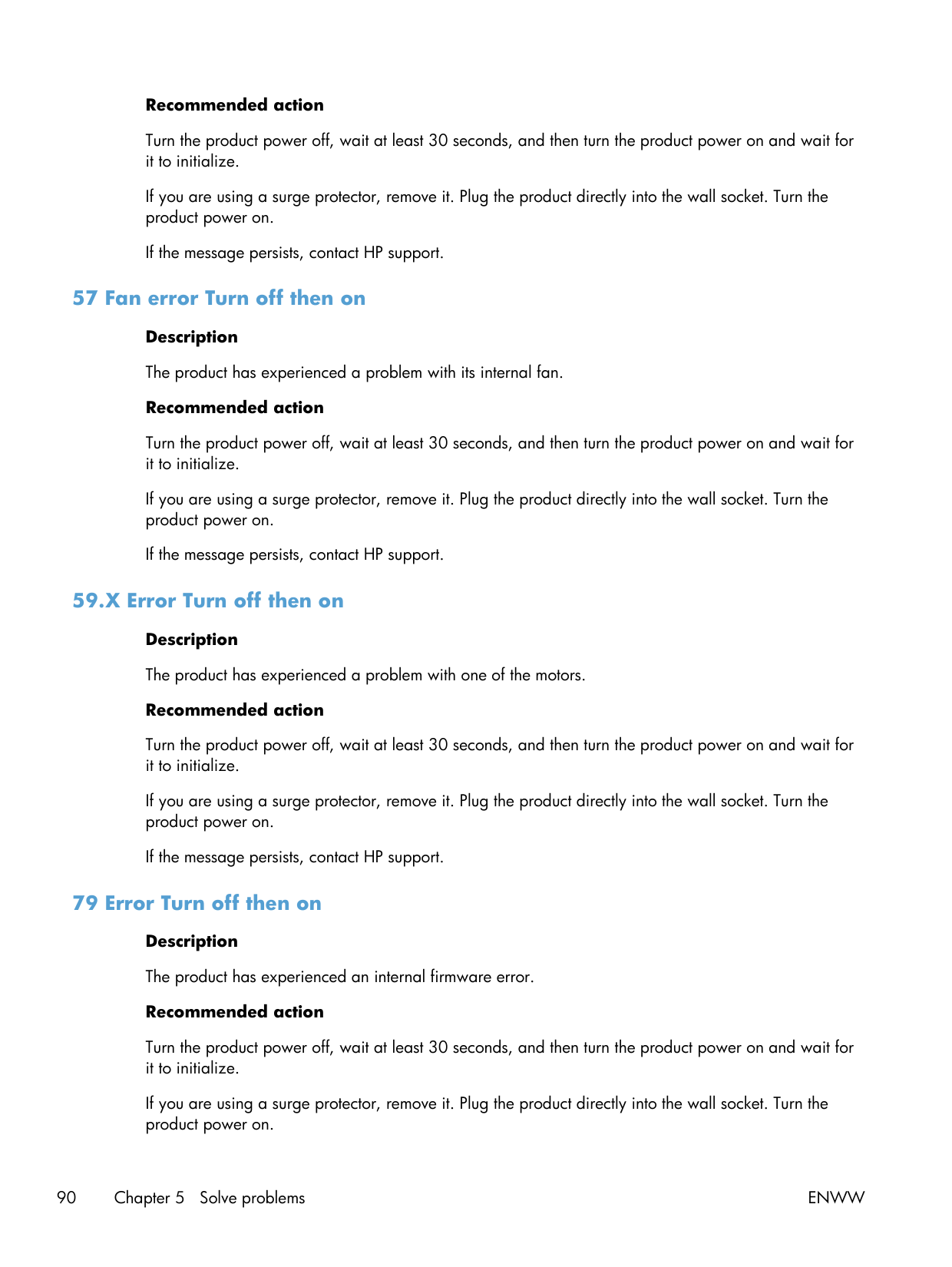
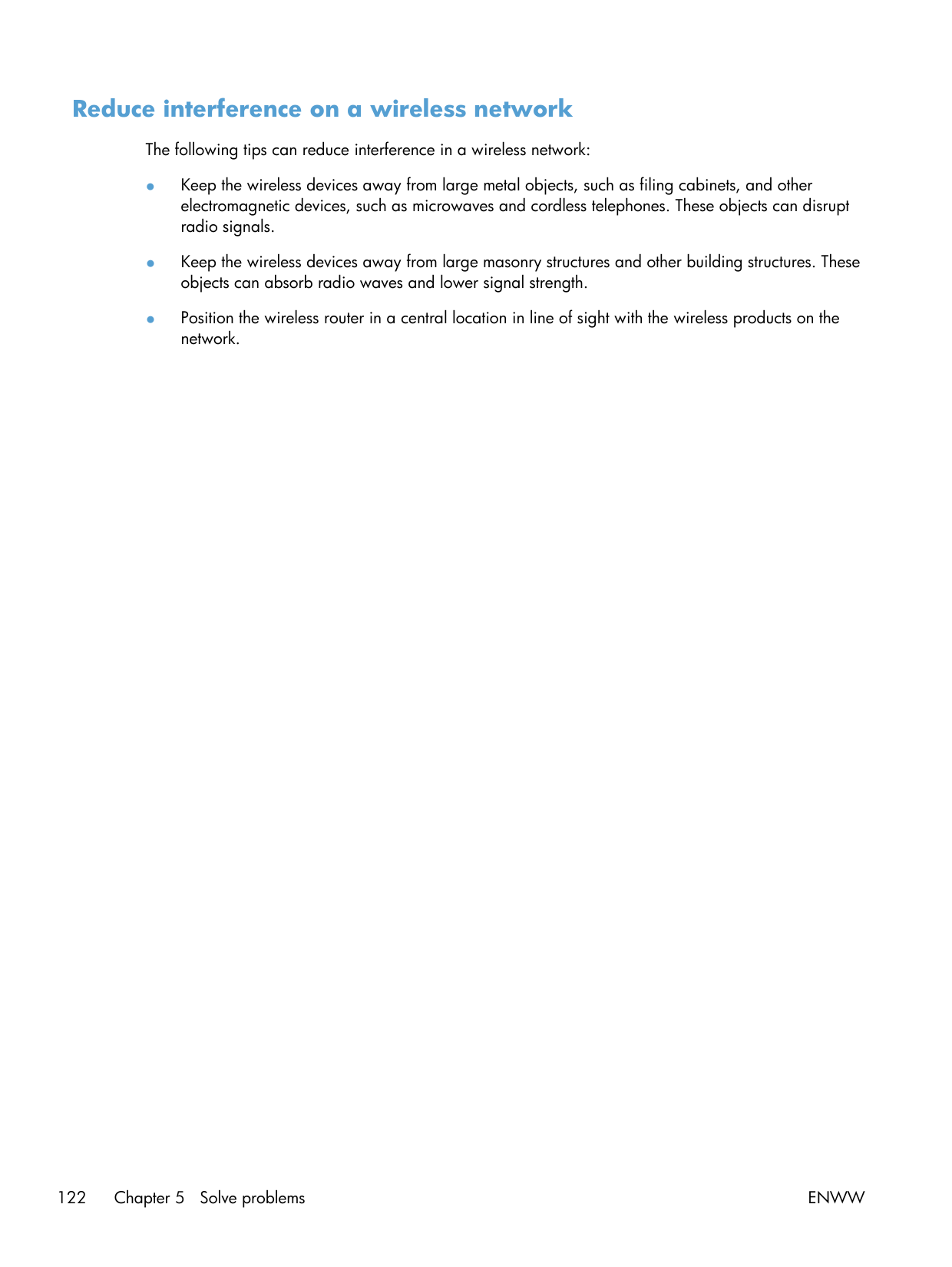
Factory reset clears your Wi-Fi credentials. Press and hold the Cancel (X) button until the LCD shows Restore Defaults, select Yes, OK. Save your network password somewhere before you do this.
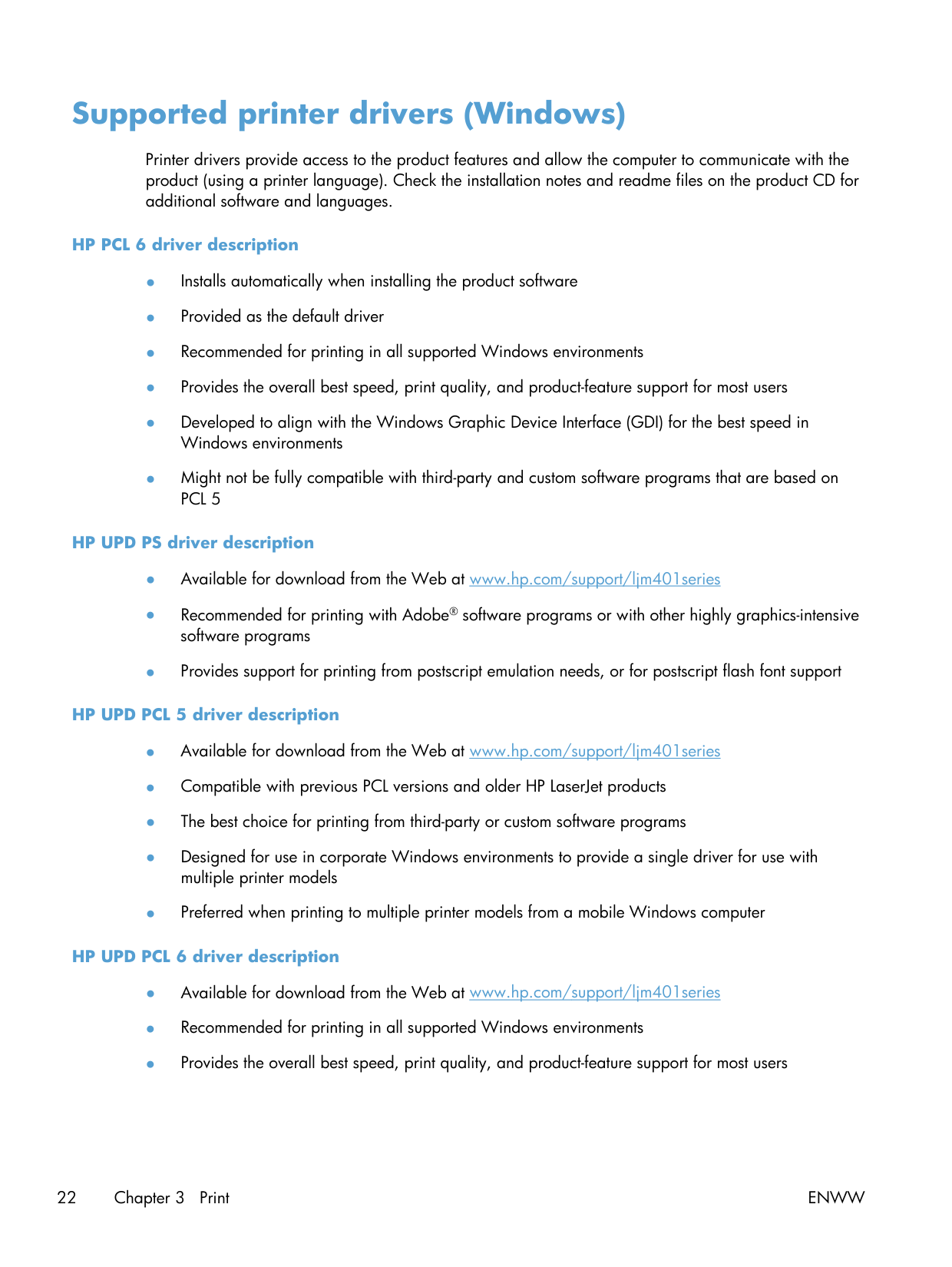
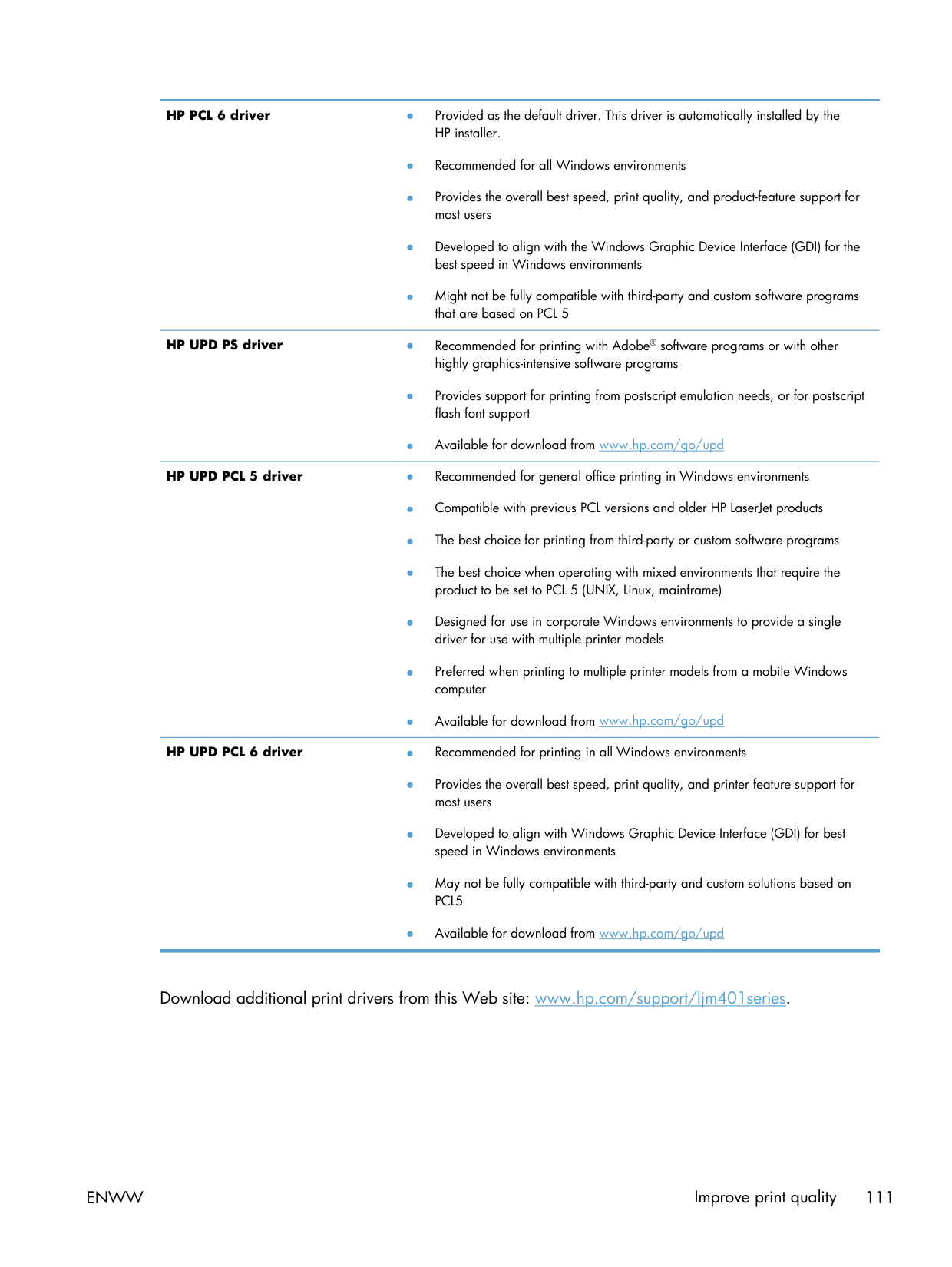
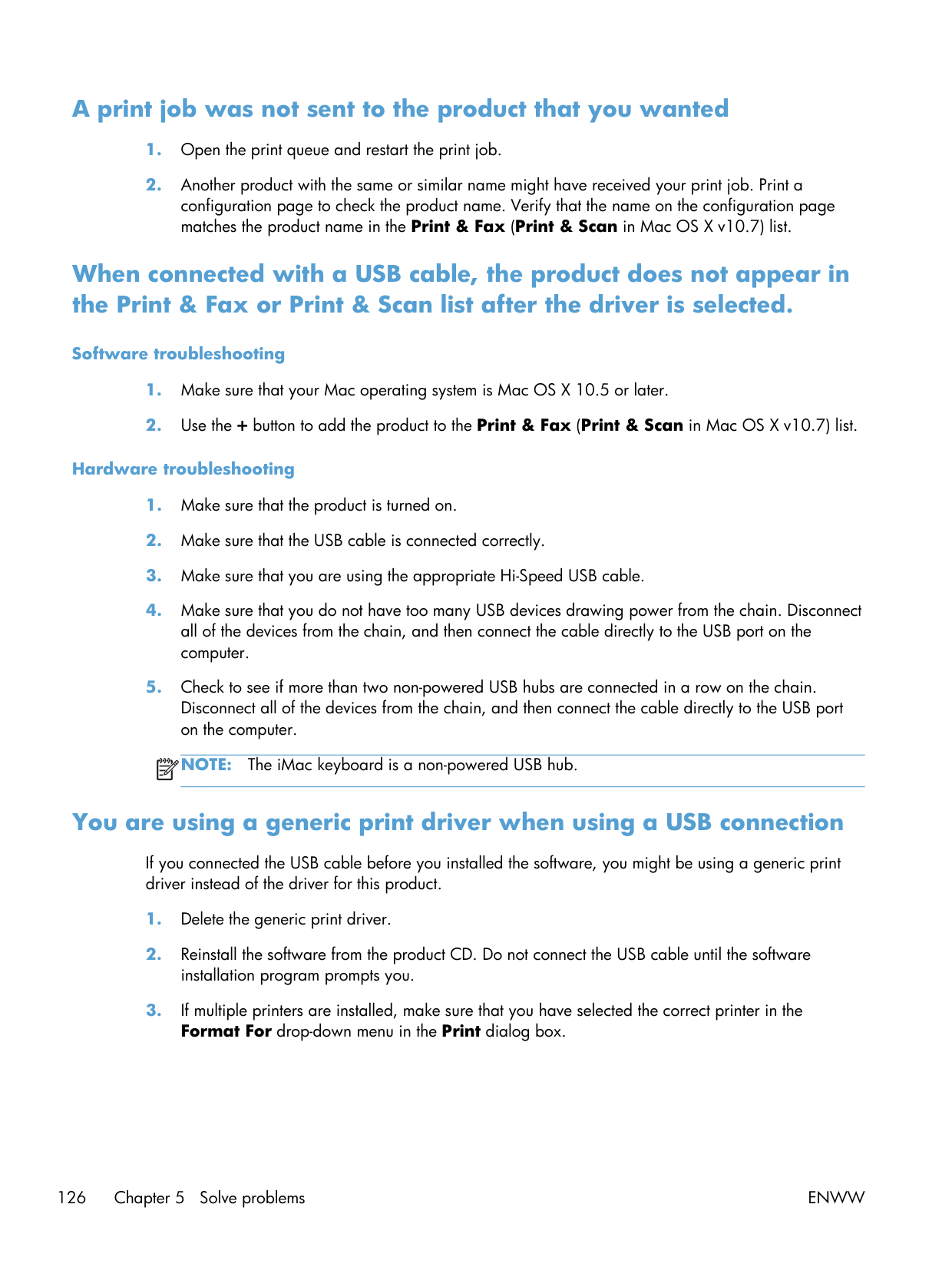
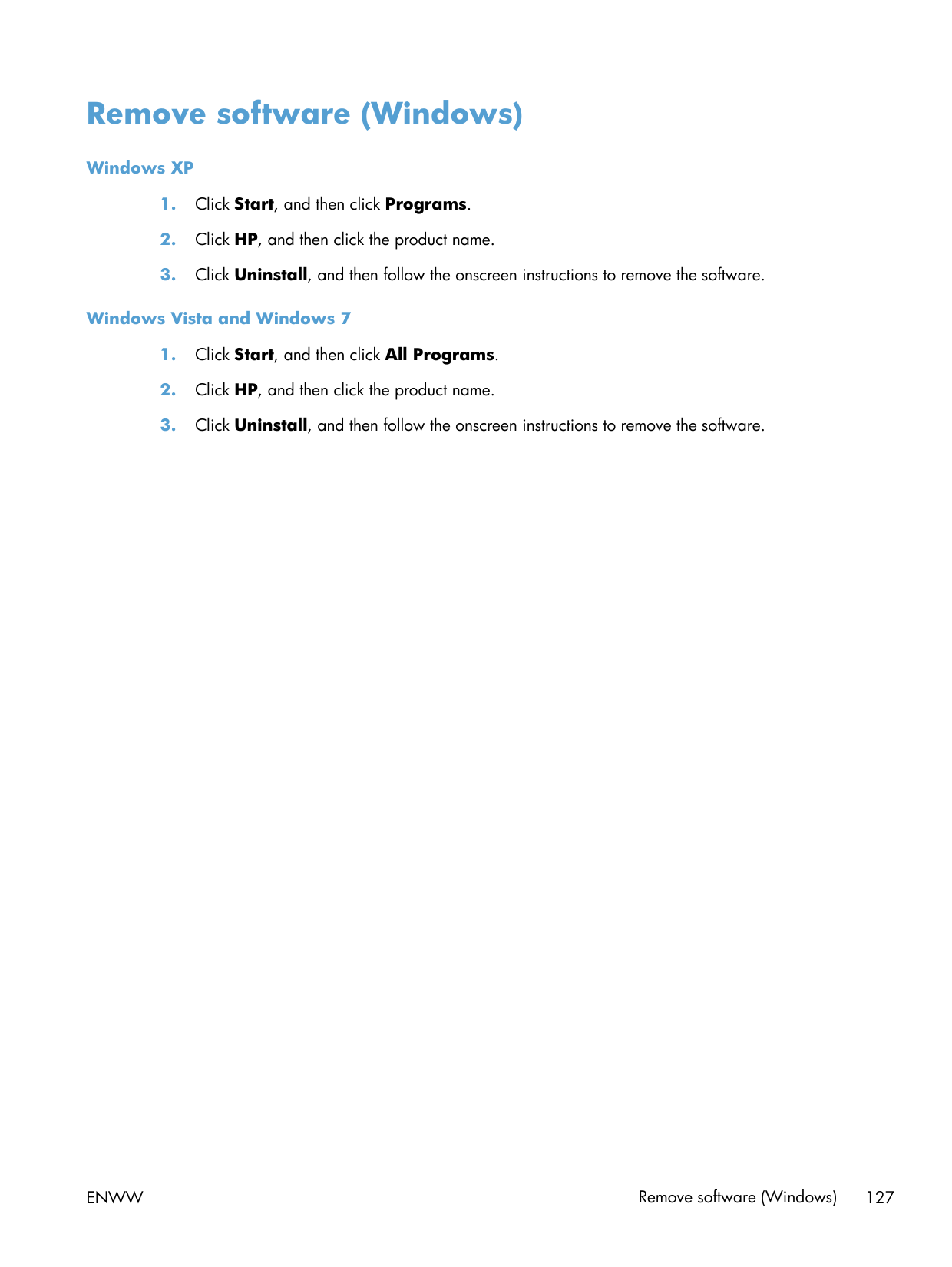
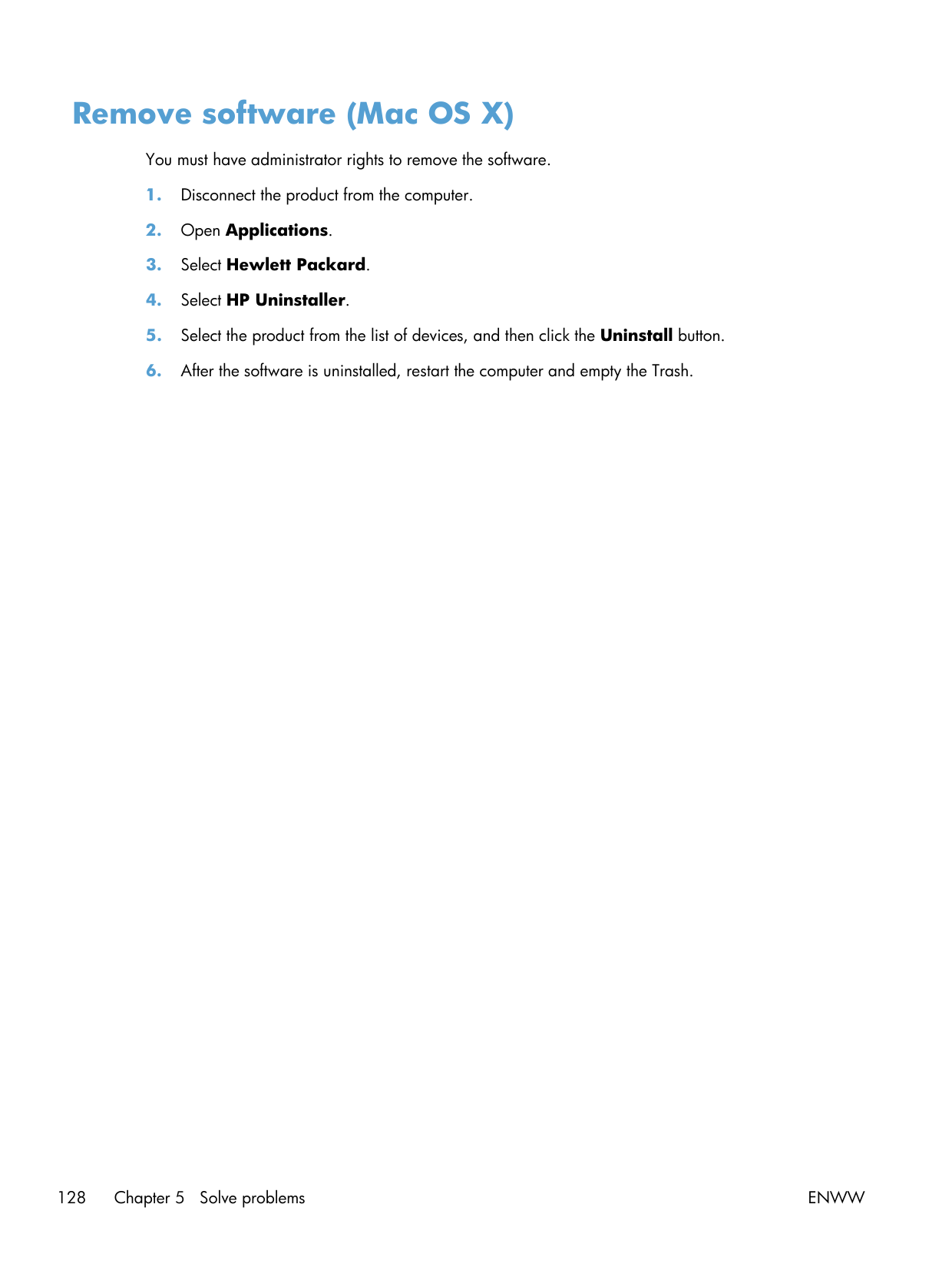
HP Device Toolbox is a separate utility. If your driver is just the auto-detected Microsoft one, you're missing cleaning-page, calibration, and toner-level reporting. The full driver package from HP Support includes Device Toolbox; the in-box Windows driver doesn't.
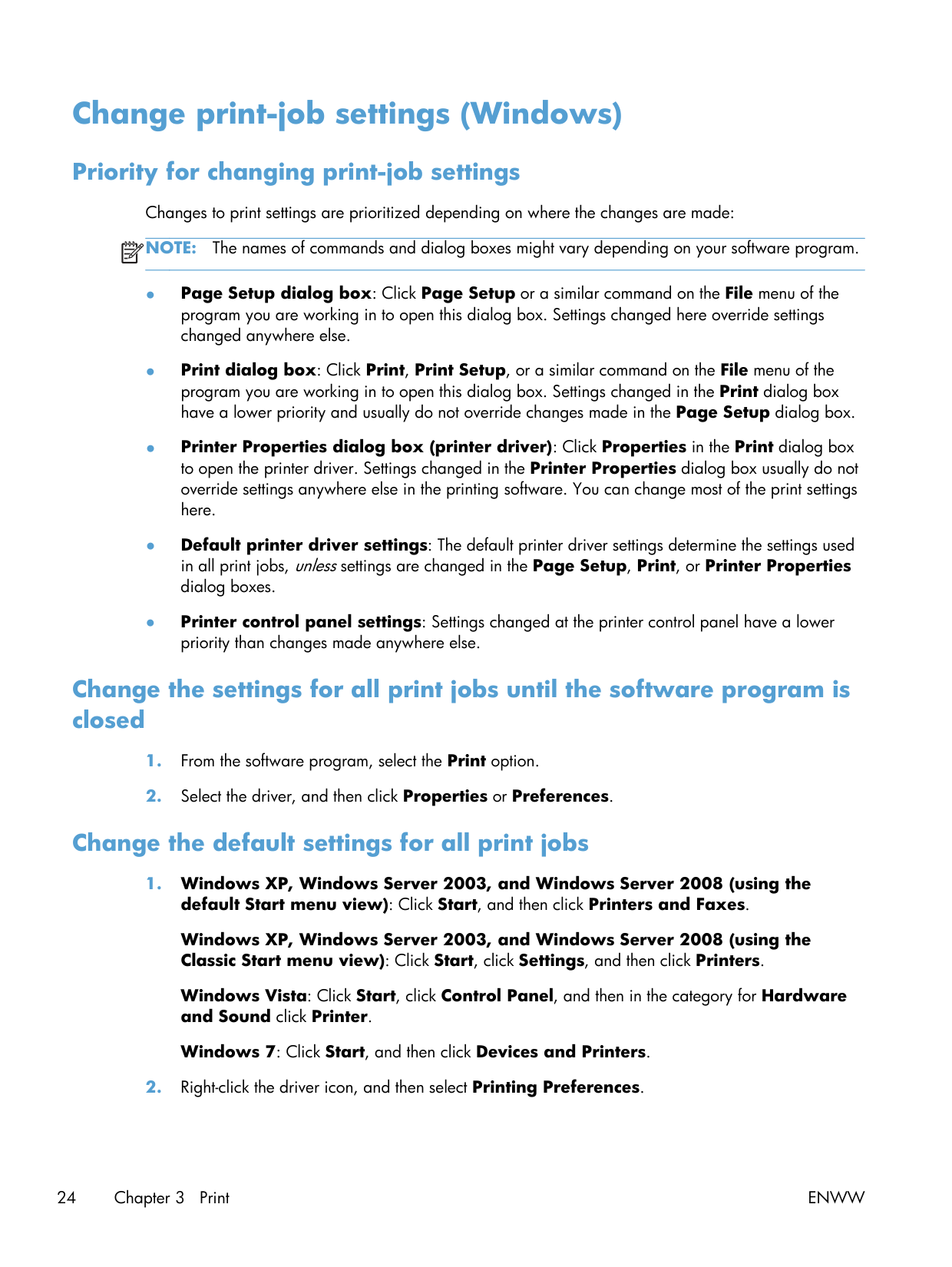
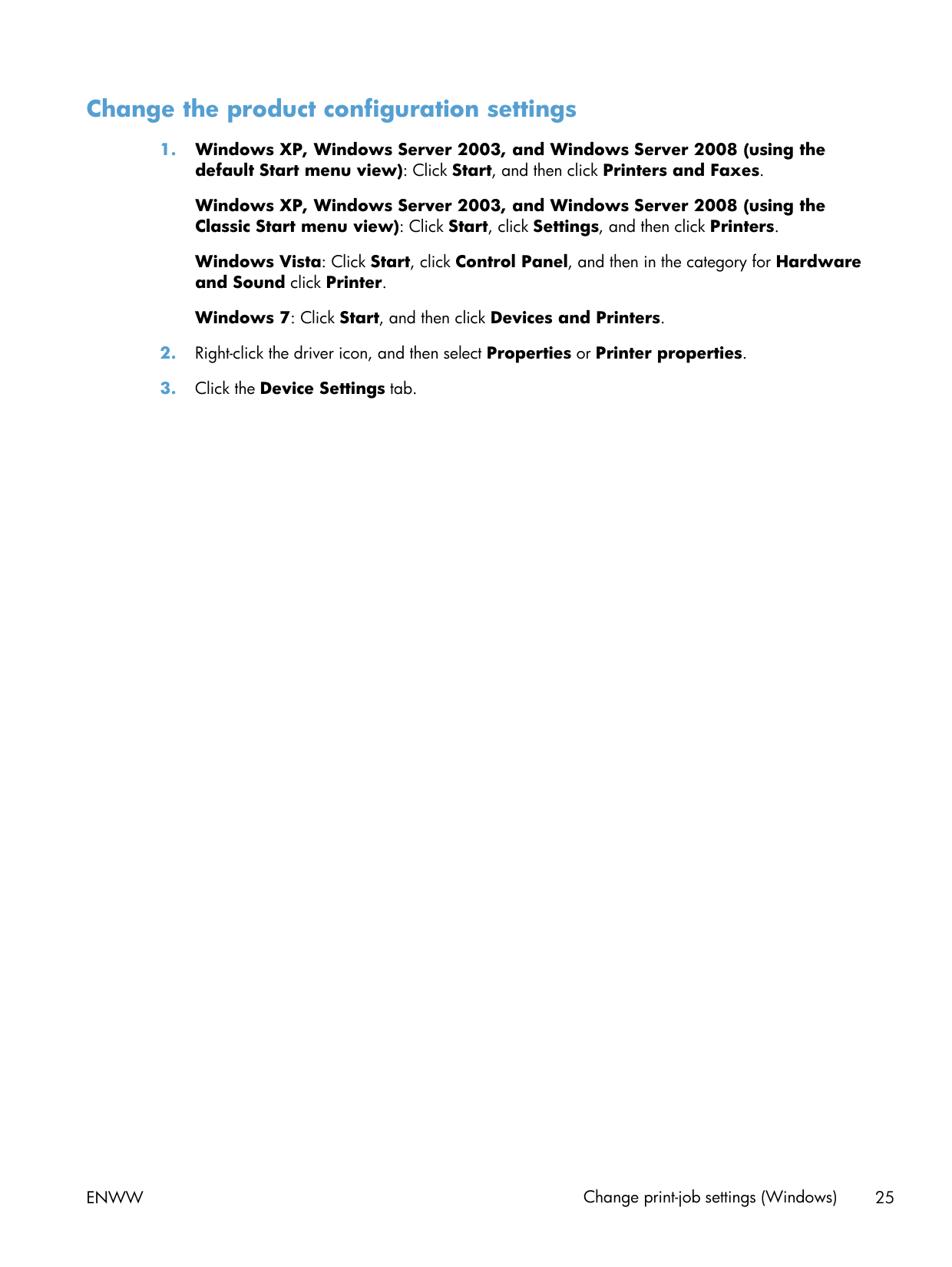
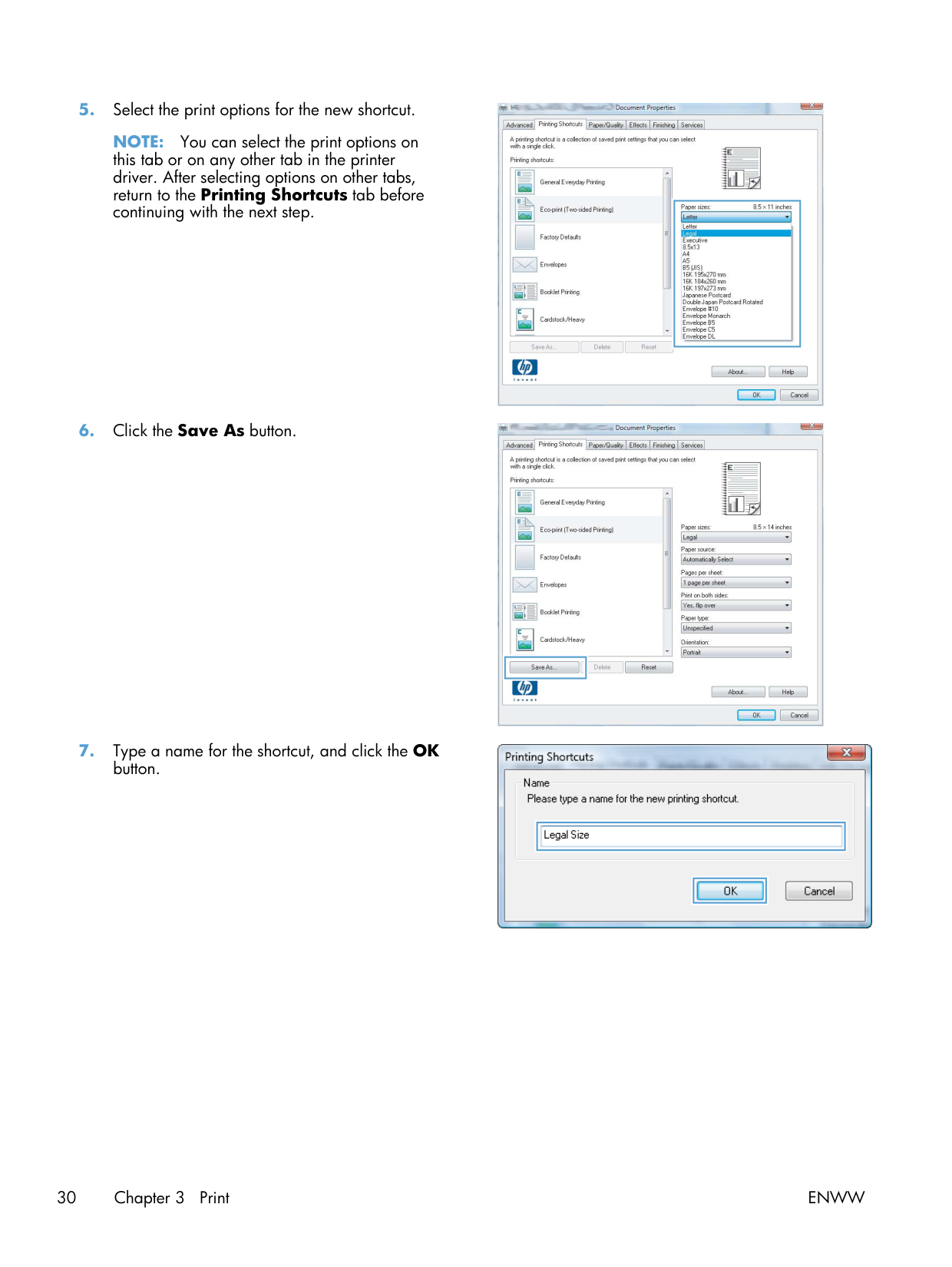
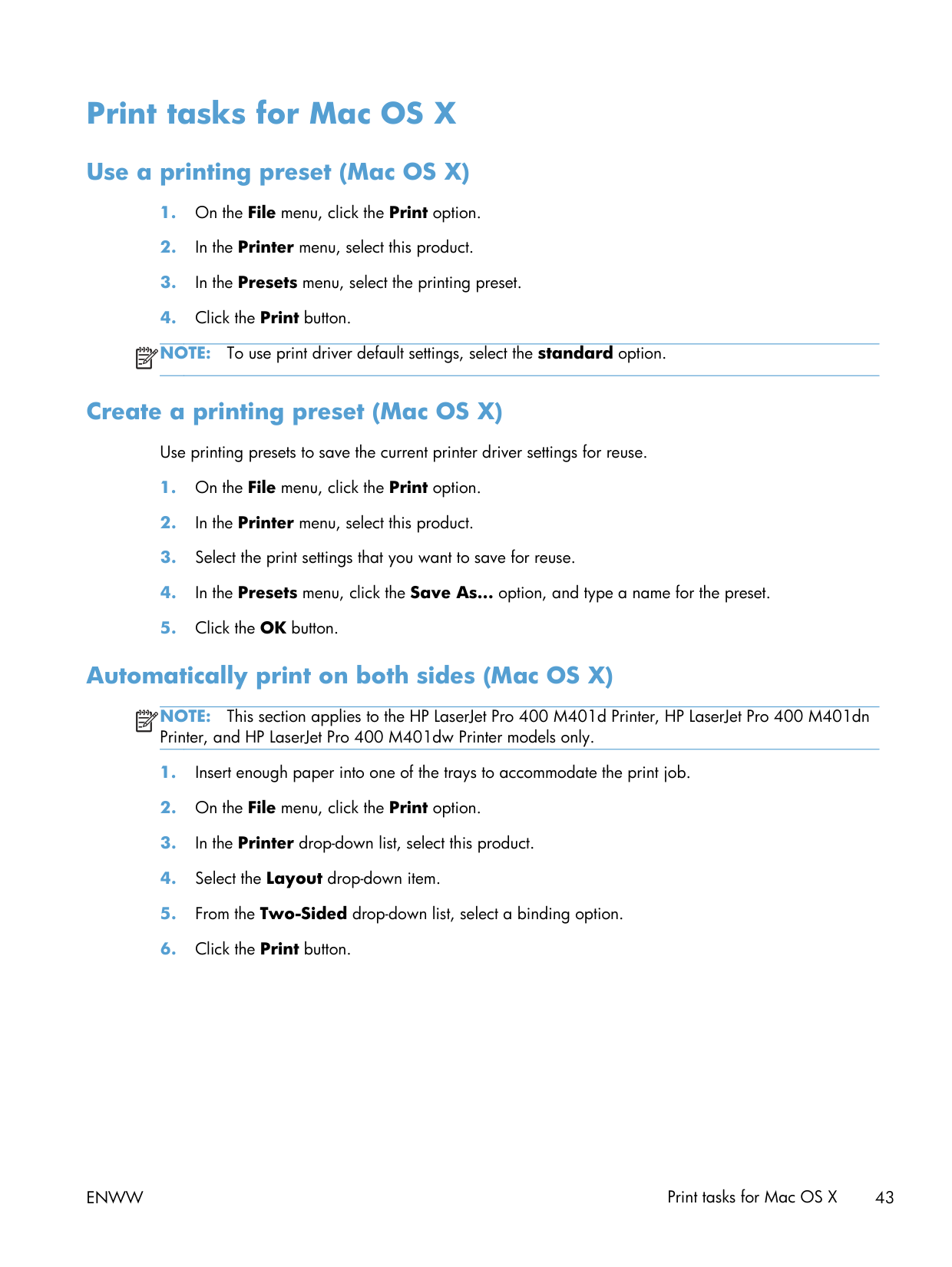
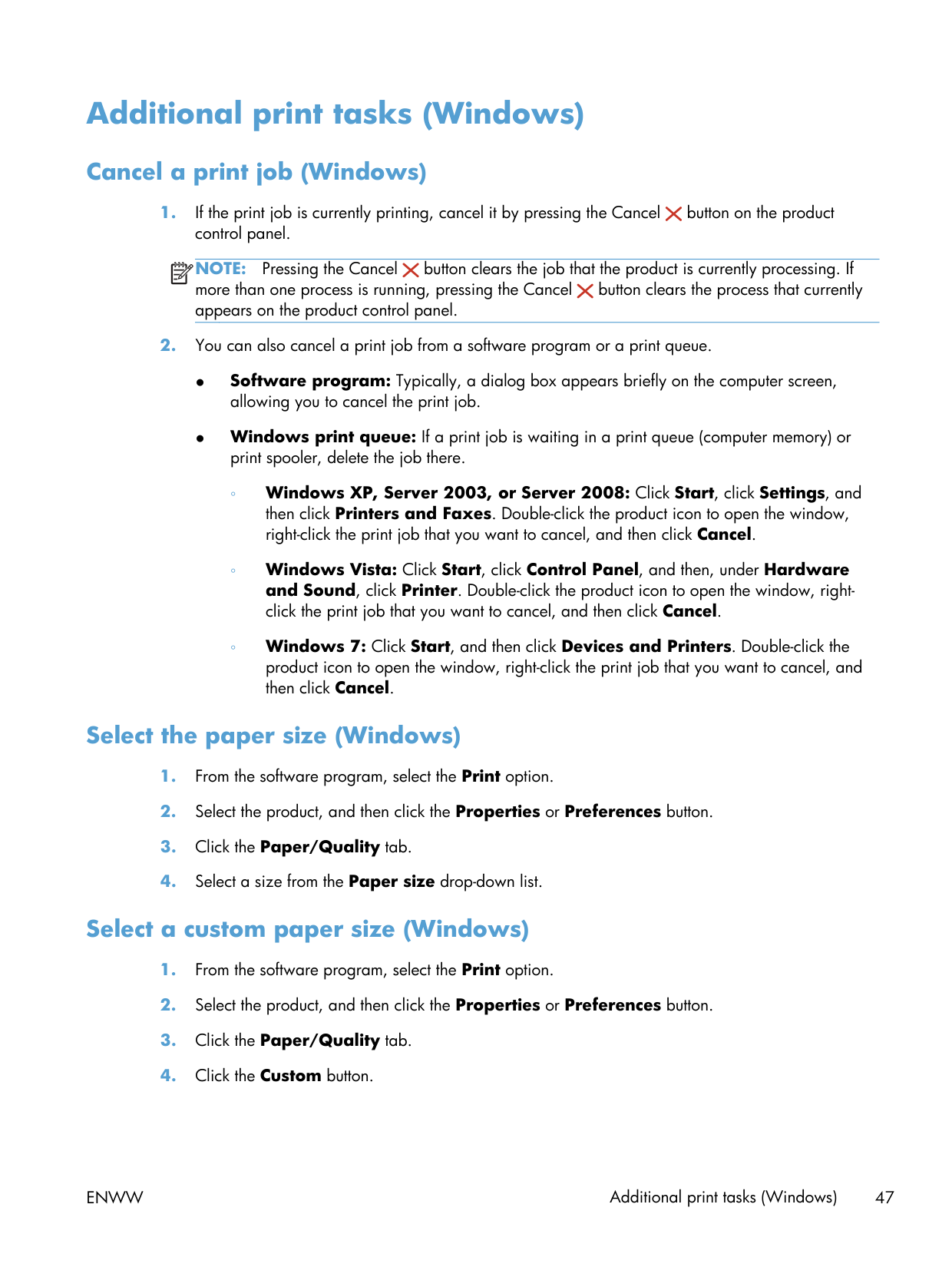
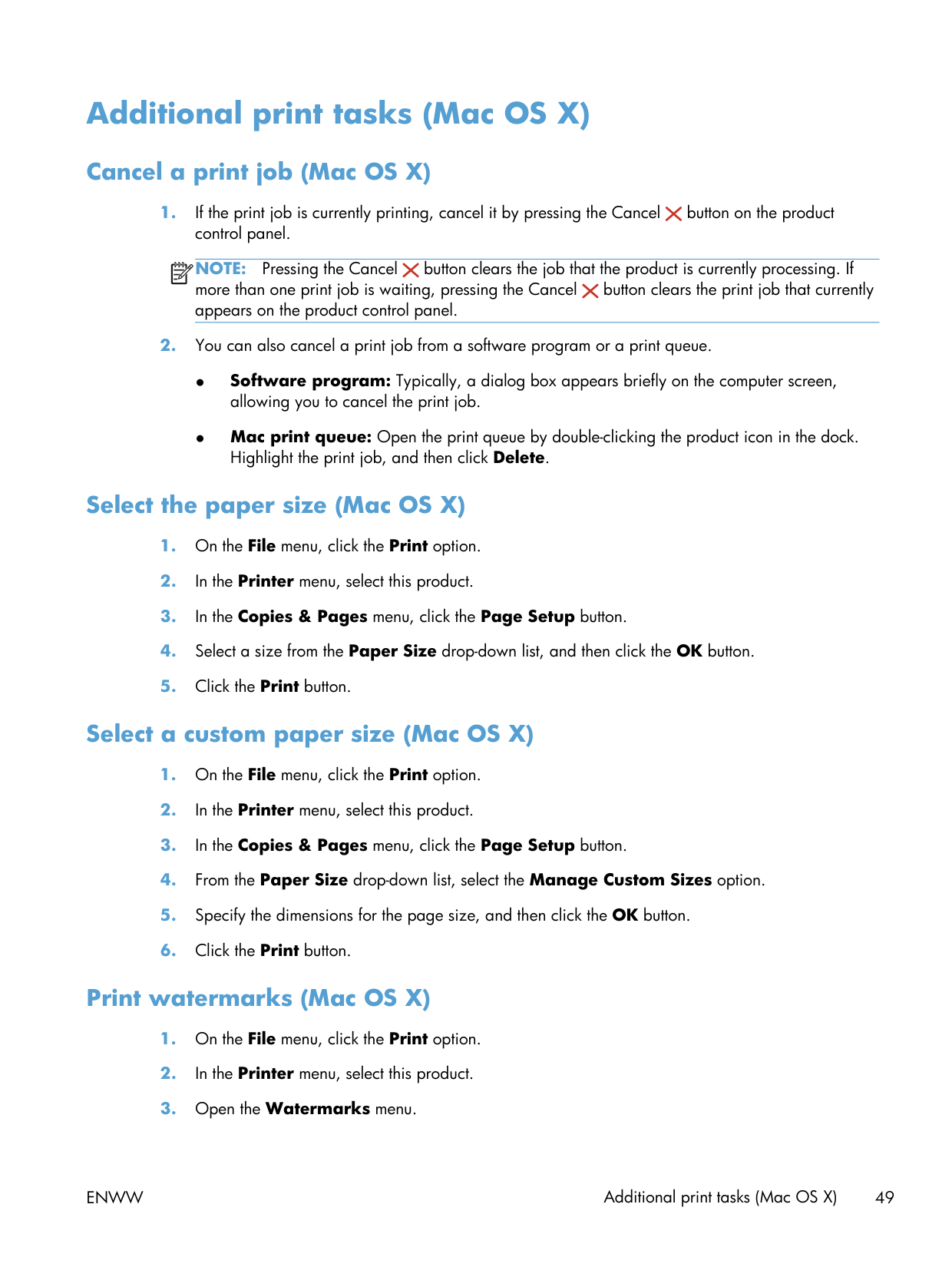
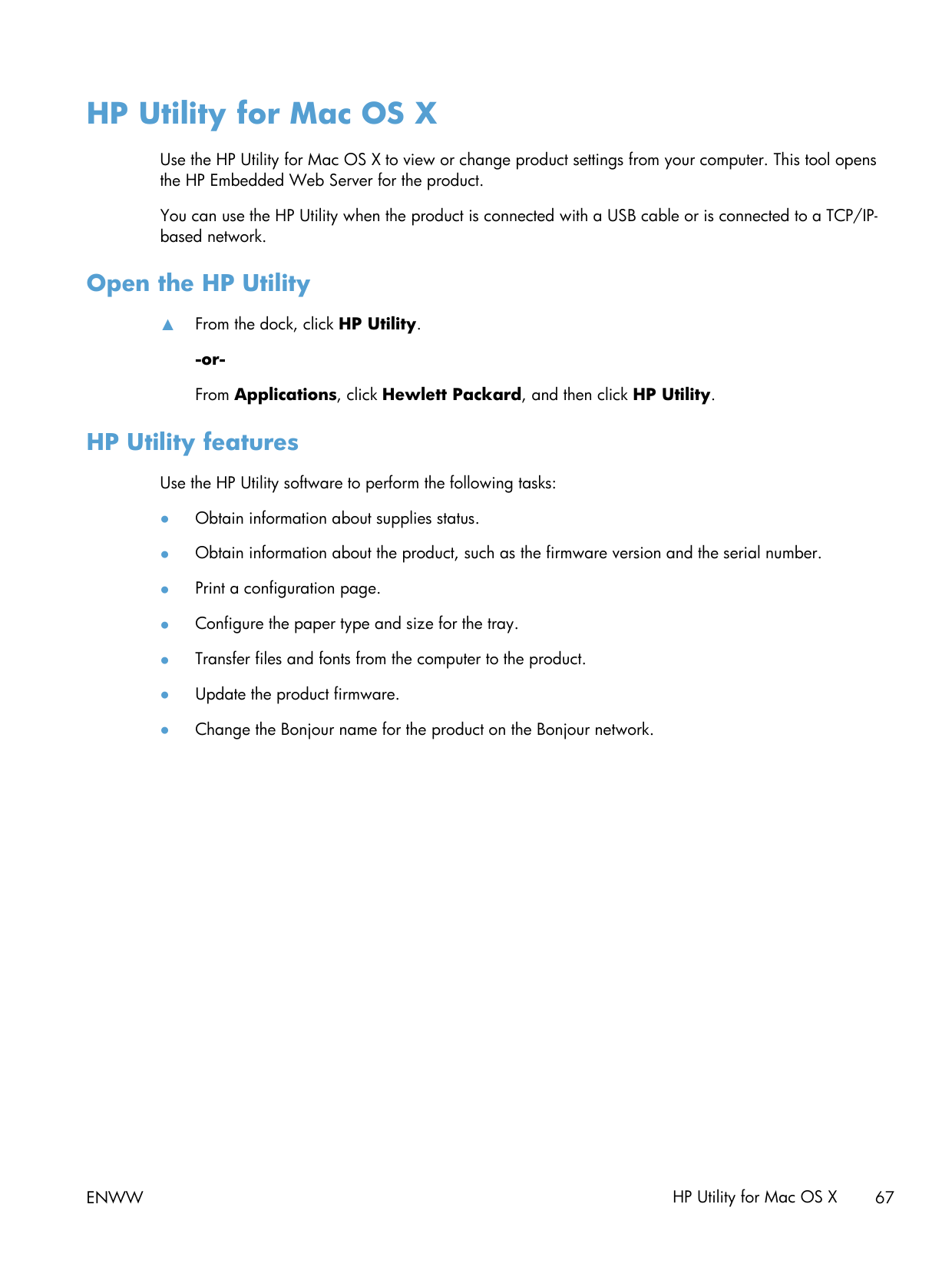
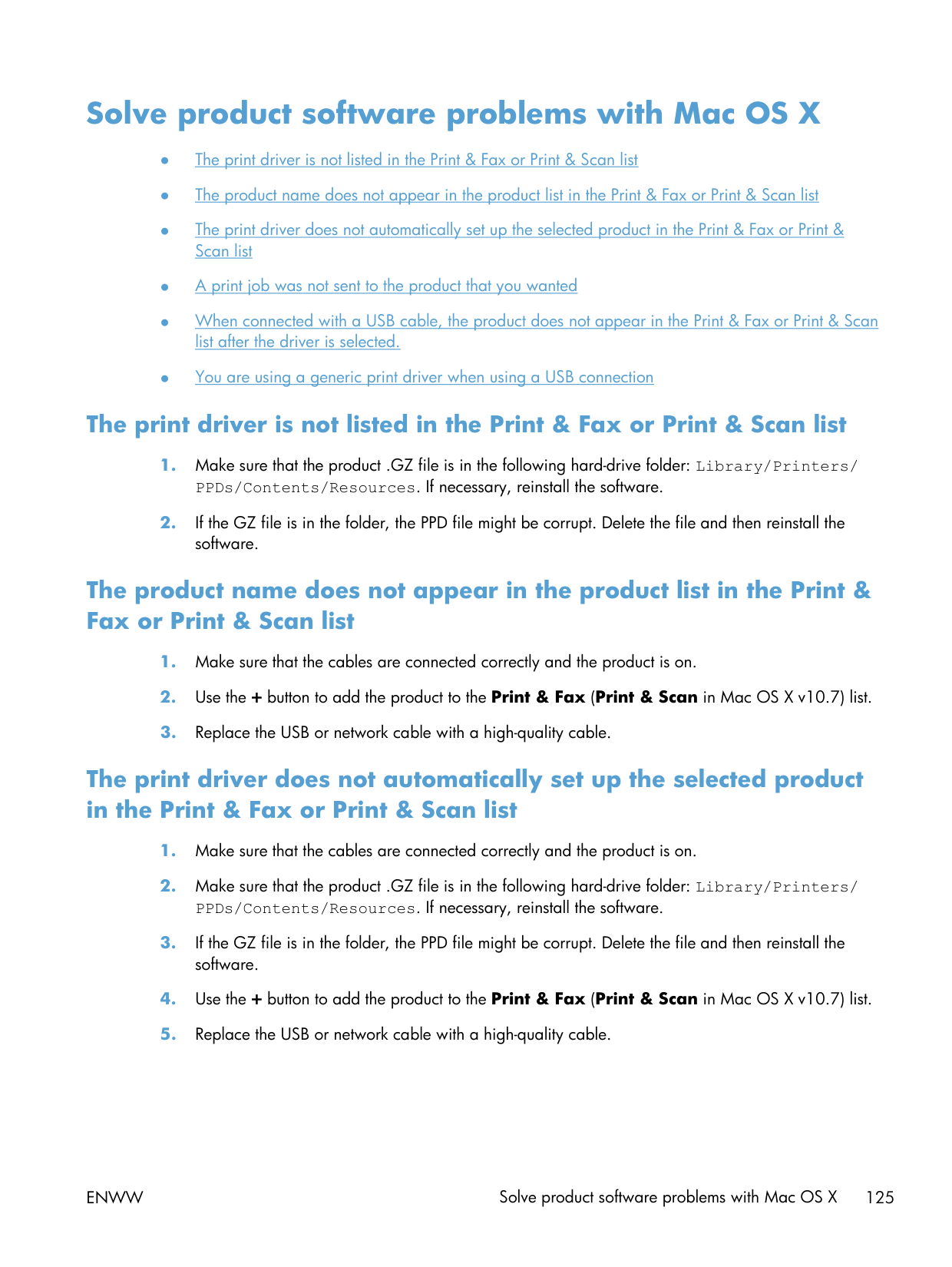
Mac printing presets save where you'd expect them to. Configure your settings in the Print dialog, Presets dropdown → Save Current Settings as Preset. Pick whether it applies to this printer only or all printers.
Codes to know
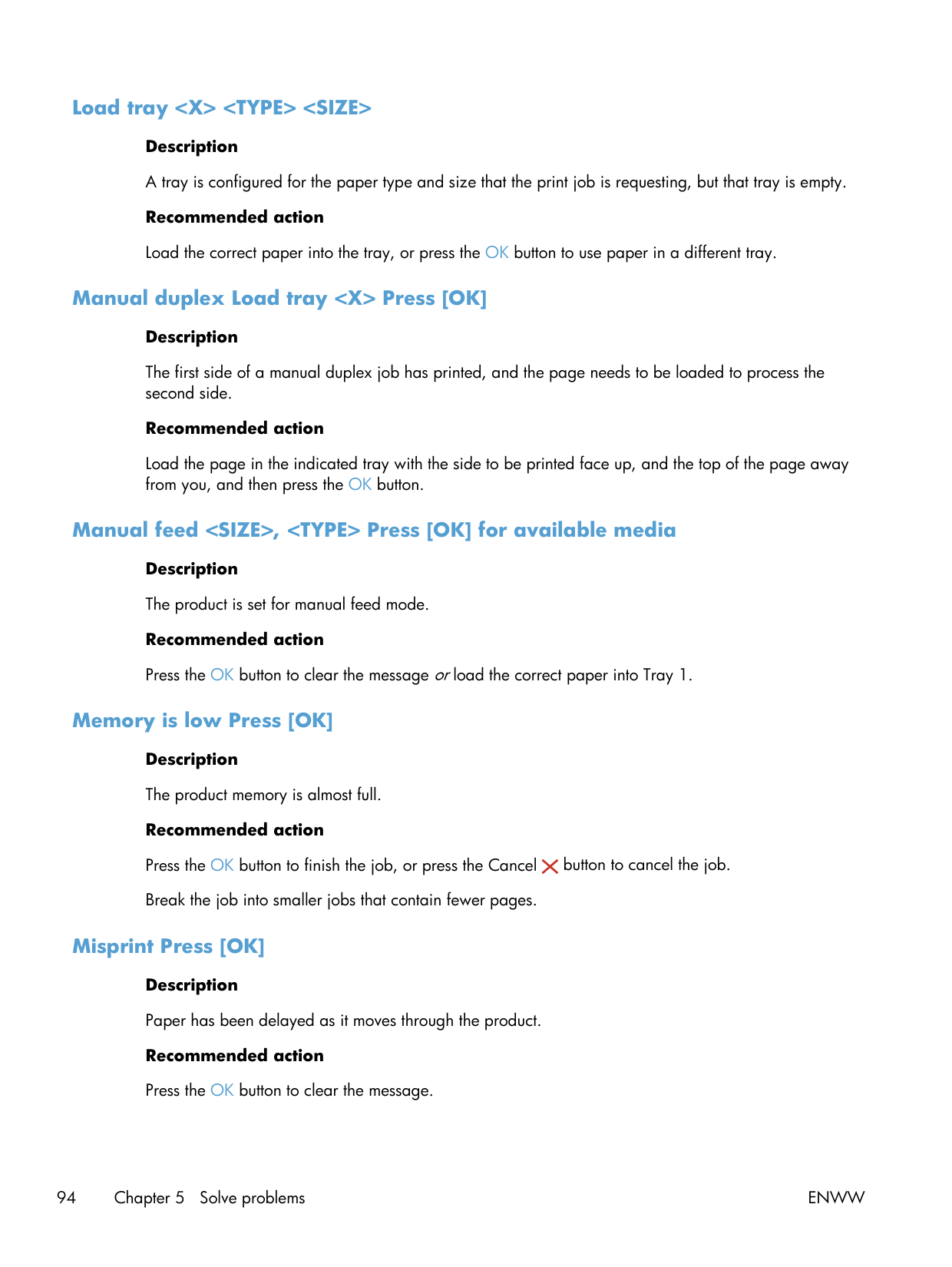
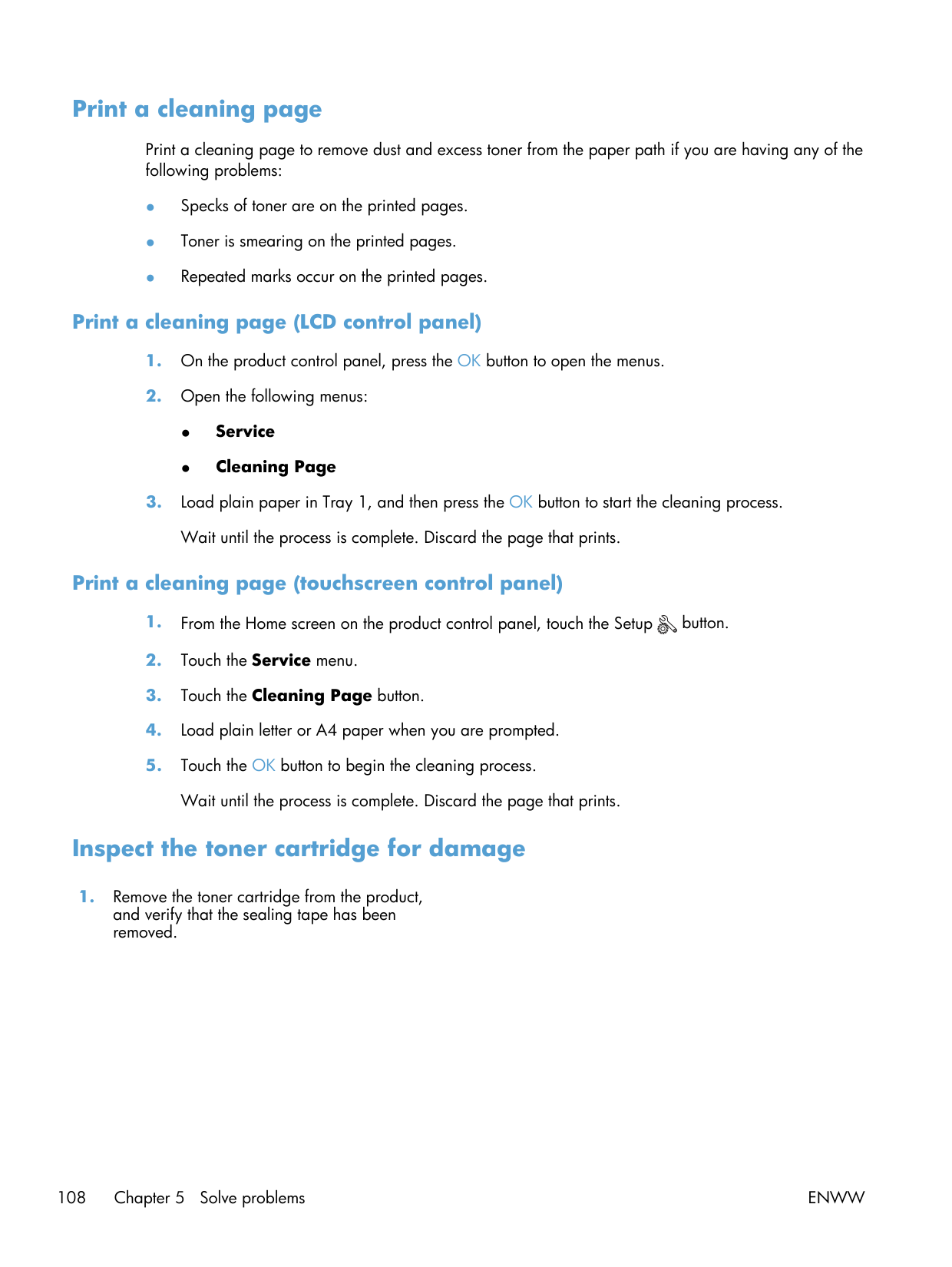
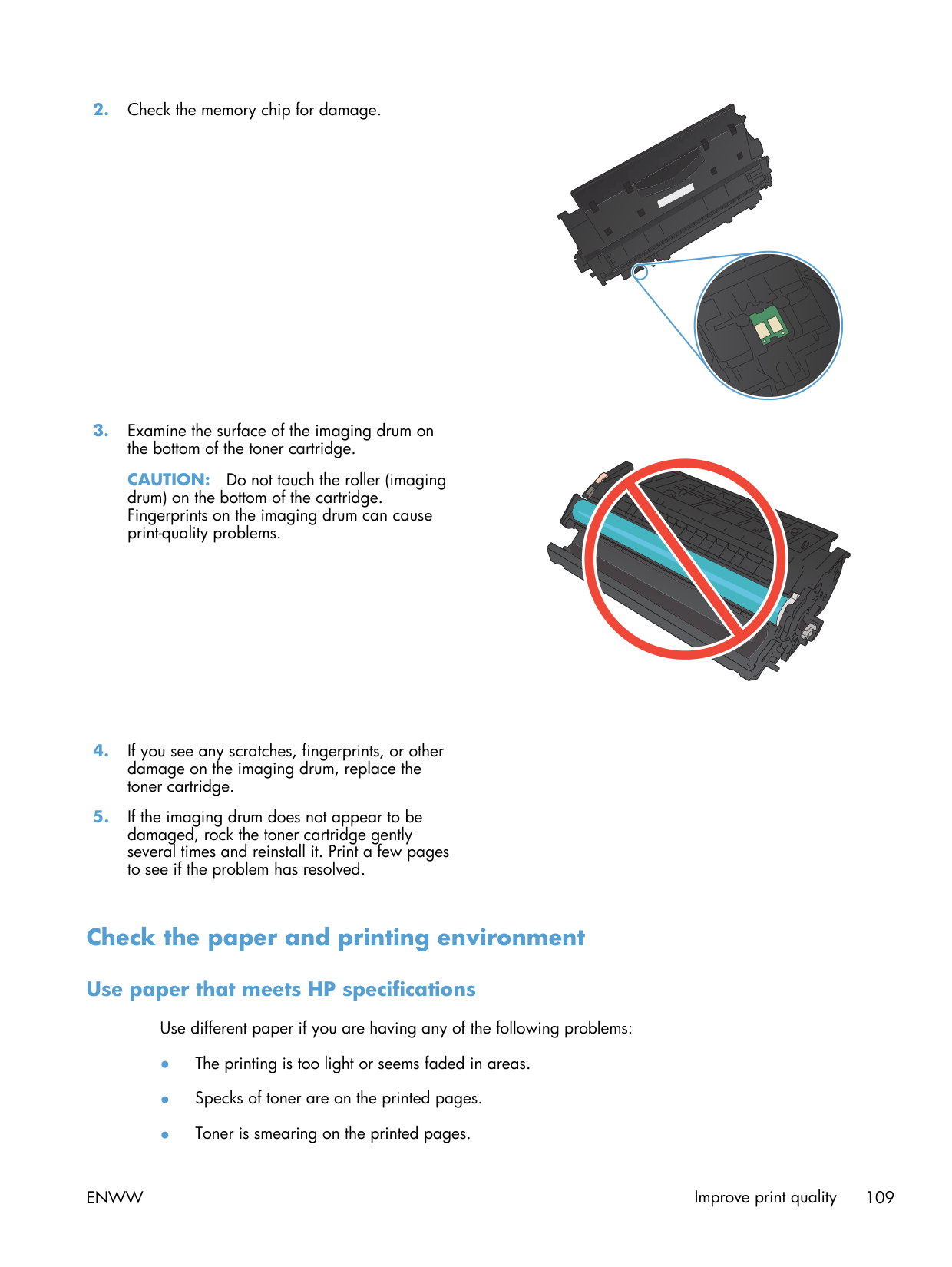
- 10.x — supplies. Cartridge, drum, or chip issue. Re-seat first. If it persists with HP-branded toner, the drum is at end-of-life.
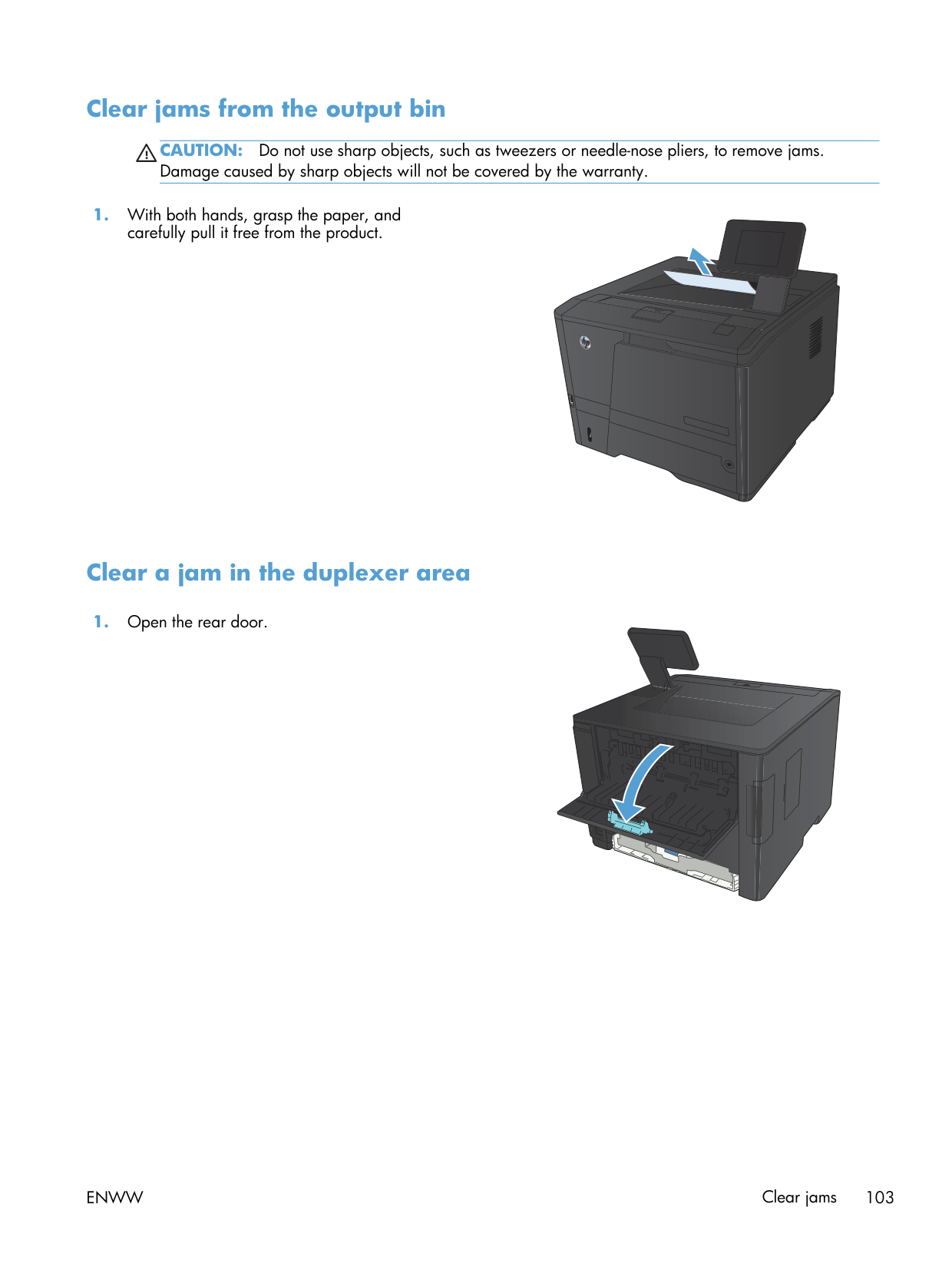
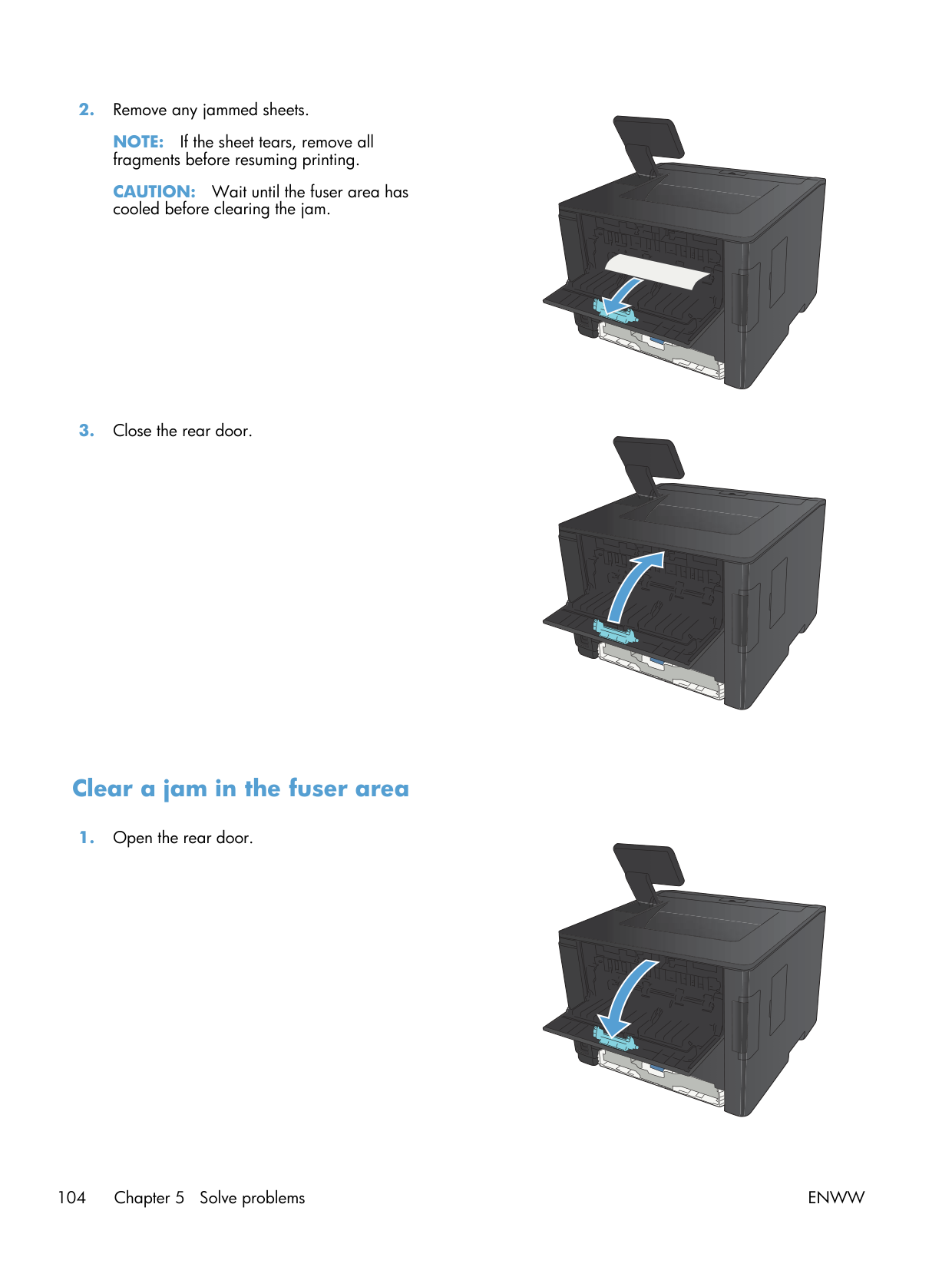
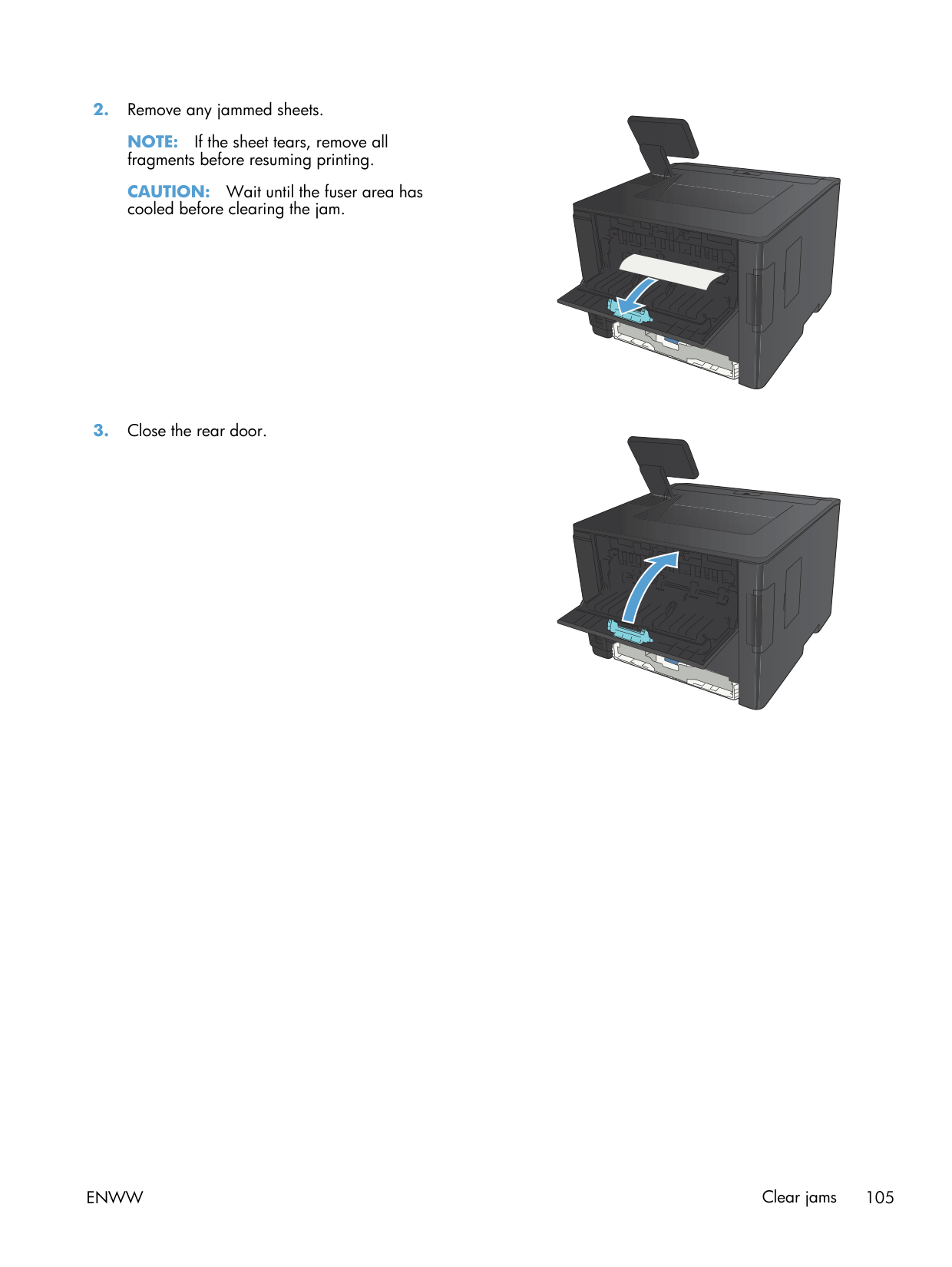
- 13.x — paper jam. Open the rear door, pull in the direction of travel.
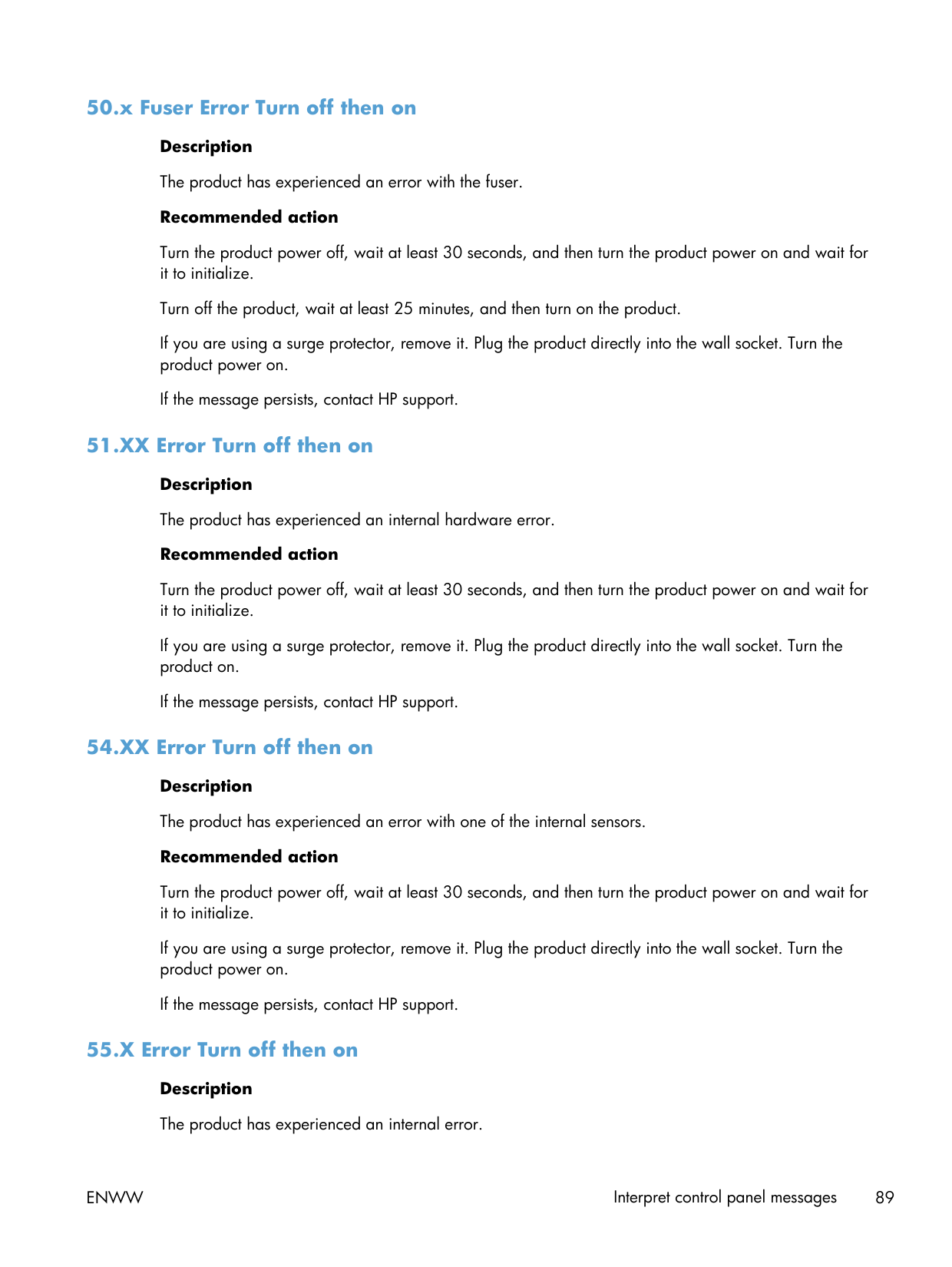
- 50.x — fuser. Power-cycle, two-minute wait, back on. If it returns, you're parts-shopping.
For 10.x with HP-branded toner re-seated, or 13.x recurring at the same point, HP Support's part lookup for your serial is the right next call. https://support.hp.com/us-en/product/details/hp-laserjet-pro-400-printer-m401-series
Newer alternatives
- LaserJet Pro M203 — current-gen single-function mono successor
- Color LaserJet Pro MFP M282-M285 — color MFP if mono is a constraint
- DeskJet Ink Advantage 2135 — inkjet for very low monthly volume