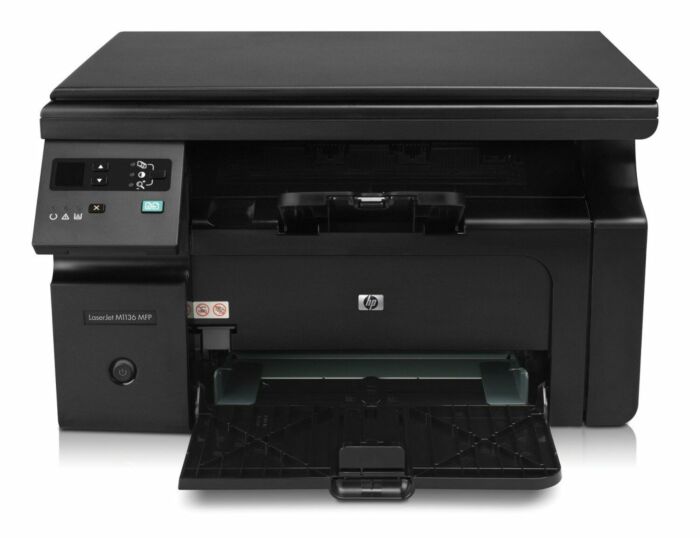
Ask AI
— answers from the official manualAnswers from the official manual.
Common questions
Common Questions
10 totalWhat should I do if the printer is not responding?
Check all cable connections for both power and USB cables to ensure they are secure. Verify that the printer is powered on and the power light is green, then restart both the printer and your computer.
What is the maximum scanning resolution available?
The maximum scanning resolution for the HP LaserJet Pro M1136 is 1200 dpi. The scanner can handle documents up to A4 size and supports greyscale 8-bit color mode.
How do I set up the printer for the first time?
Carefully remove the printer from its packaging and place it on a stable, flat surface with adequate ventilation. Connect the power cord to the printer and then to a grounded electrical outlet, press the power button to turn it on, insert the provided software CD into your computer's CD-ROM drive and follow the on-screen instructions, then connect the printer to your computer via the USB cable during installation.
How many copies can I make in a single copy run?
The HP LaserJet Pro M1136 can produce a maximum of 99 copies per run at a copy speed of up to 19 ppm for black and white documents. The maximum copy resolution is 600 x 600 dpi.
What should I avoid when installing a new toner cartridge?
Avoid touching the imaging drum (the green roller) on the bottom of the print cartridge, as this can cause print quality problems. Additionally, ensure you completely remove the orange sealing tape before inserting the cartridge into the printer.
What is the maximum print speed of the HP LaserJet Pro M1136?
The HP LaserJet Pro M1136 can print at speeds up to 18 pages per minute (ppm) for monochrome documents. The printer achieves a maximum print resolution of 600 x 600 pixels.