Ask AI
— answers from the official manualAnswers from the official manual.
Common questions
Common Questions
35 totalHow do I clear a paper jam in the duplexer?
Open the rear door and use both hands to remove any jammed paper from the duplex area to avoid tearing. Close the rear door, and if the error message still displays on the control panel, press OK to clear it. This procedure applies to duplex models only. (Page 62)
How do I update the firmware on the HP LaserJet Pro M202dw?
For network-connected products, press OK on the control panel and navigate to Service > LaserJet Update > Check for Updates Now. The product will automatically check for and install any available update. Alternatively, you can download the Firmware Update Utility from www.hp.com/go/support and run it on your computer, which also works for USB-connected products. (Page 49)
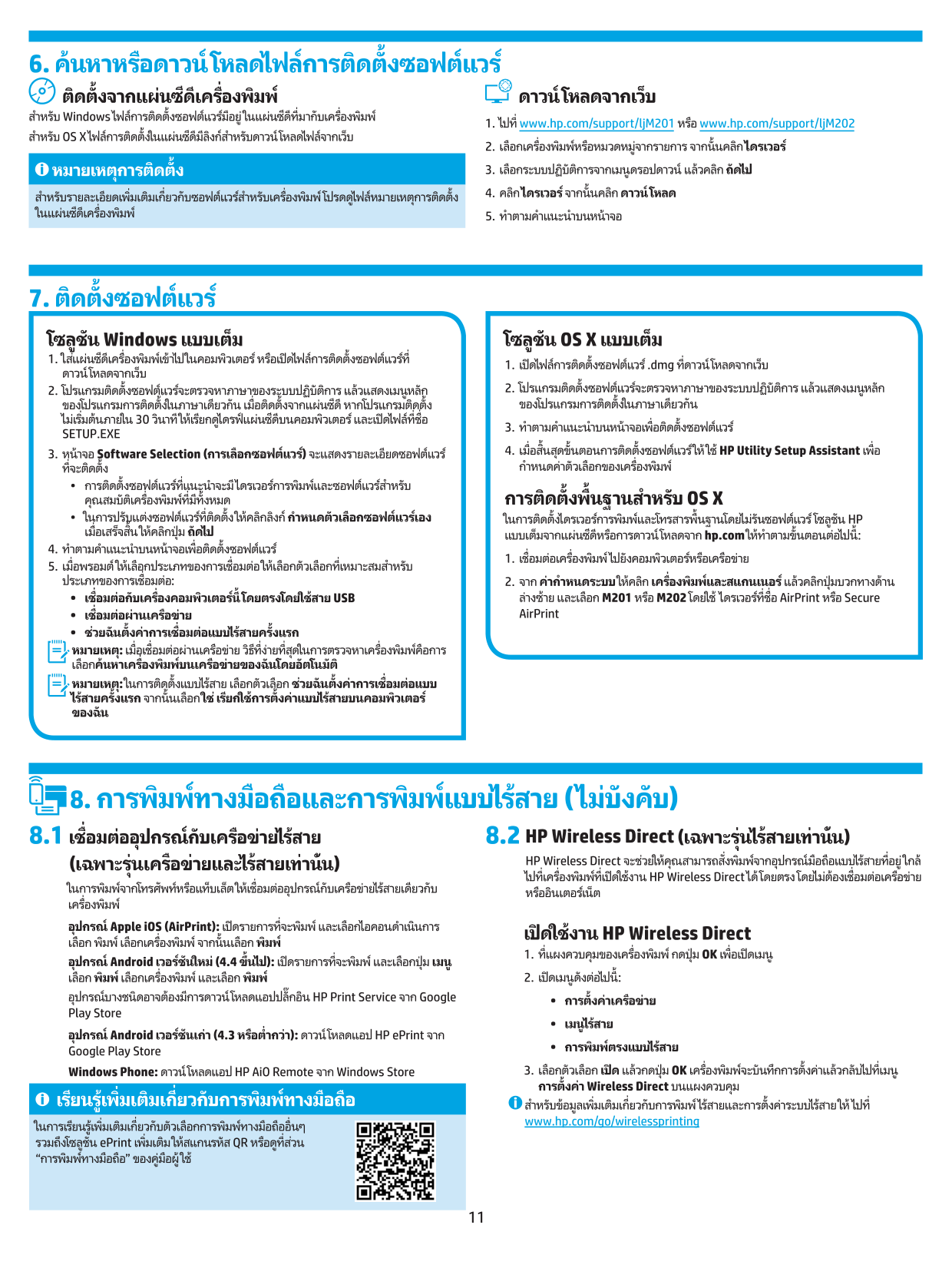
How do I set up HP Wireless Direct Printing?
Press the OK button on the control panel, then use the arrow buttons to navigate to Network Setup > Wireless Menu > Wireless Direct. Select the On option and press OK; the product saves the setting and returns to the Wireless Direct menu. Note that this feature is available on wireless models only and may require a firmware update. (Page 34)
What are the paper tray capacities for the HP LaserJet Pro M202dw?
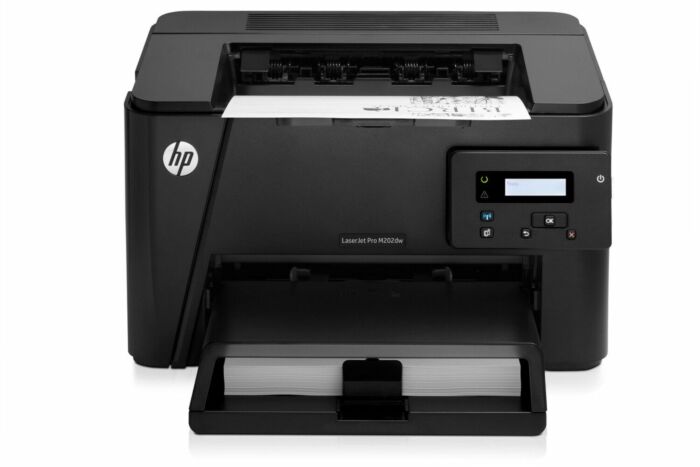
The M202dw has a Priority Input Tray (Tray 1) with a 10-sheet capacity and a Main Input Tray (Tray 2) with a 250-sheet capacity. The standard output bin holds up to 150 sheets. The printer also supports automatic duplex printing. (Page 10)
How do I print on both sides automatically in Windows?
From your software program, select Print, choose the product, and click Properties or Preferences. Click the Finishing tab and select the 'Print on both sides' check box, then click OK and print the job. This procedure requires that the product has an automatic duplexer installed. (Page 28)
How do I print a cleaning page to fix print quality issues?
On the product control panel, press OK, scroll to the Service menu and press OK, then scroll to the Cleaning Page option and press OK. The cleaning process takes a few minutes to complete — do not turn the product off until it has finished, then discard the printed page. This process helps remove paper, toner, and dust particles that can cause toner specks, smears, streaks, or repeating marks. (Page 64)
Show 29 more questions
What are the recommended operating environment specifications for the HP LaserJet Pro M202dw?
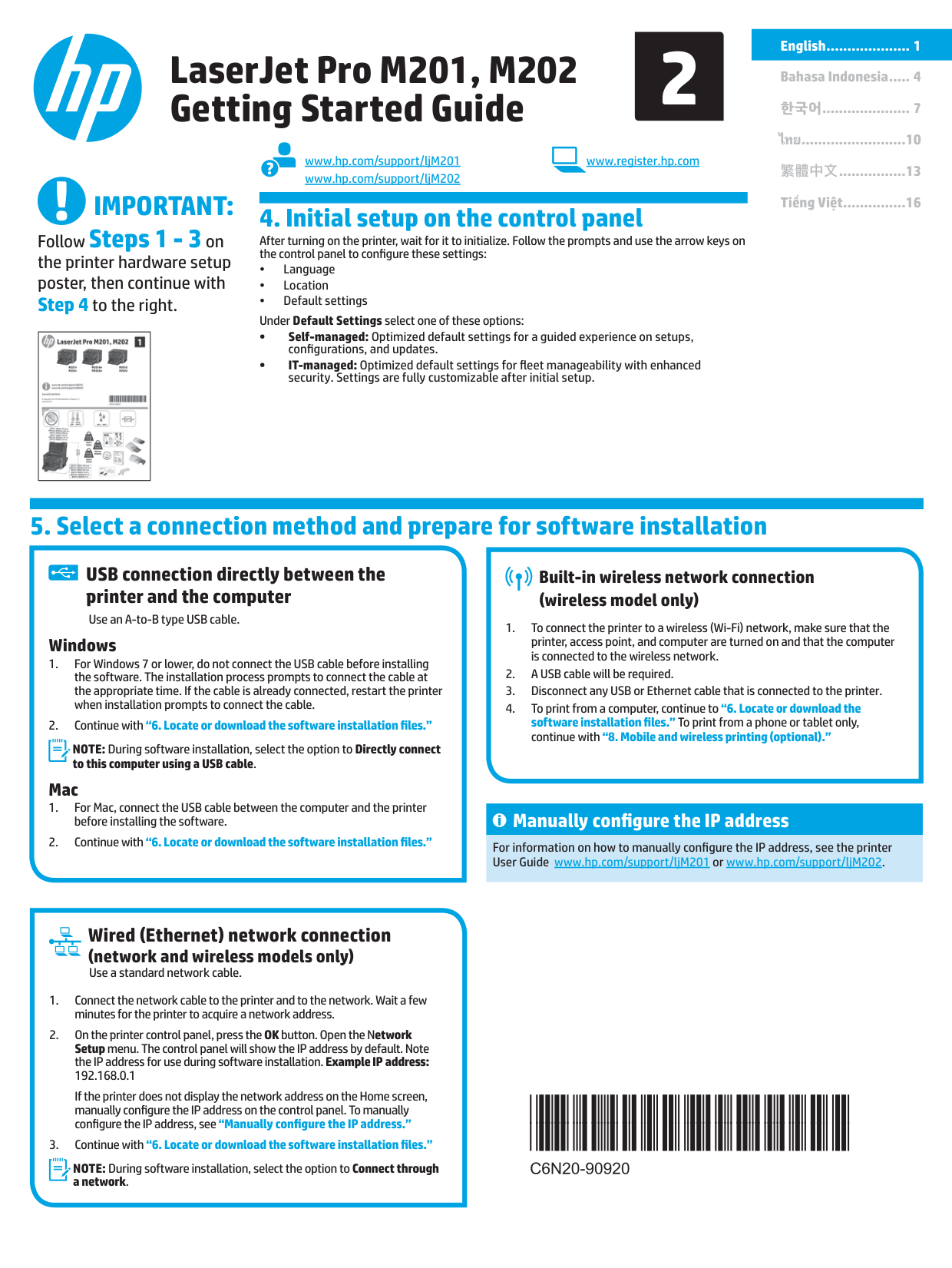
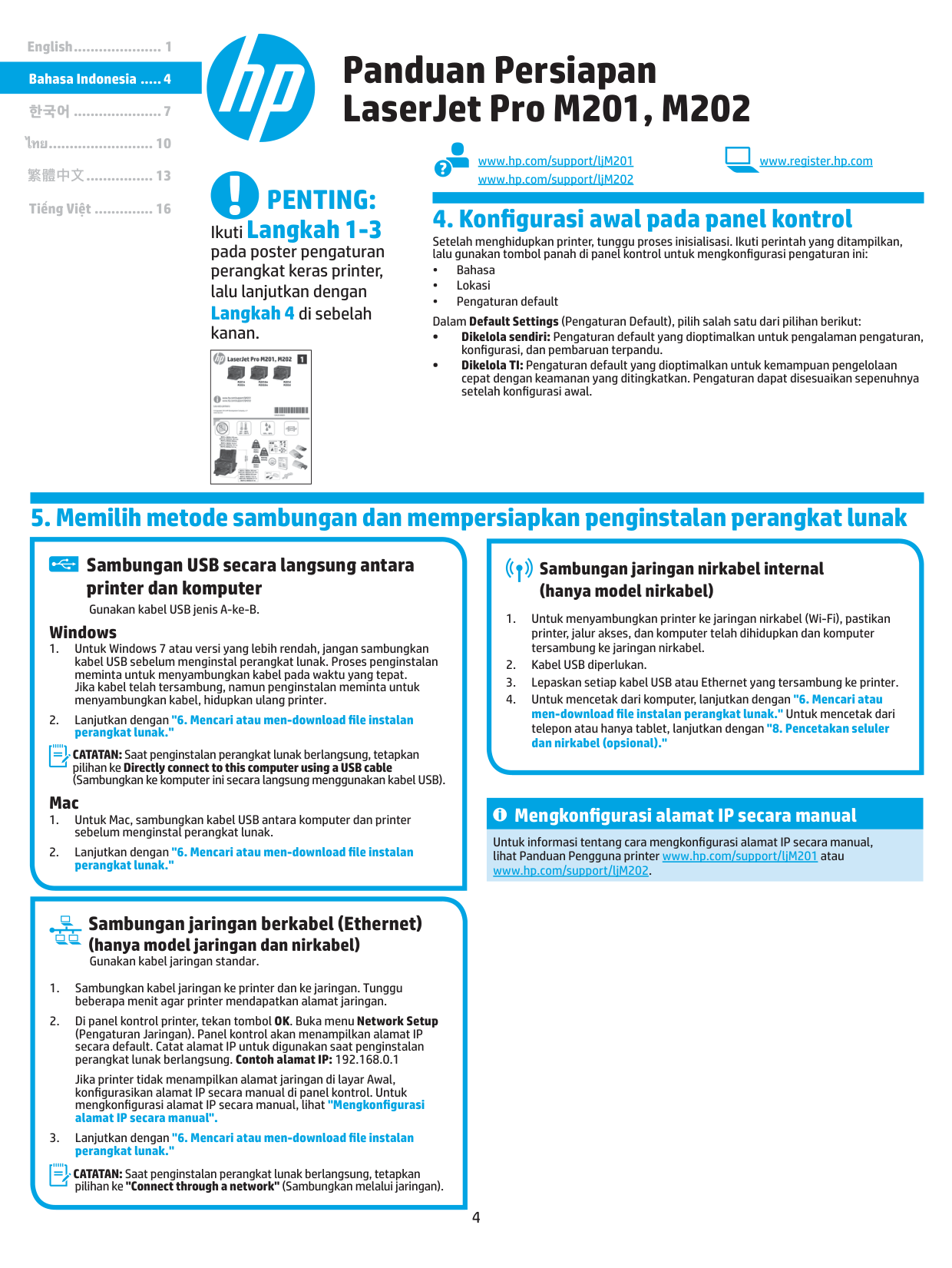
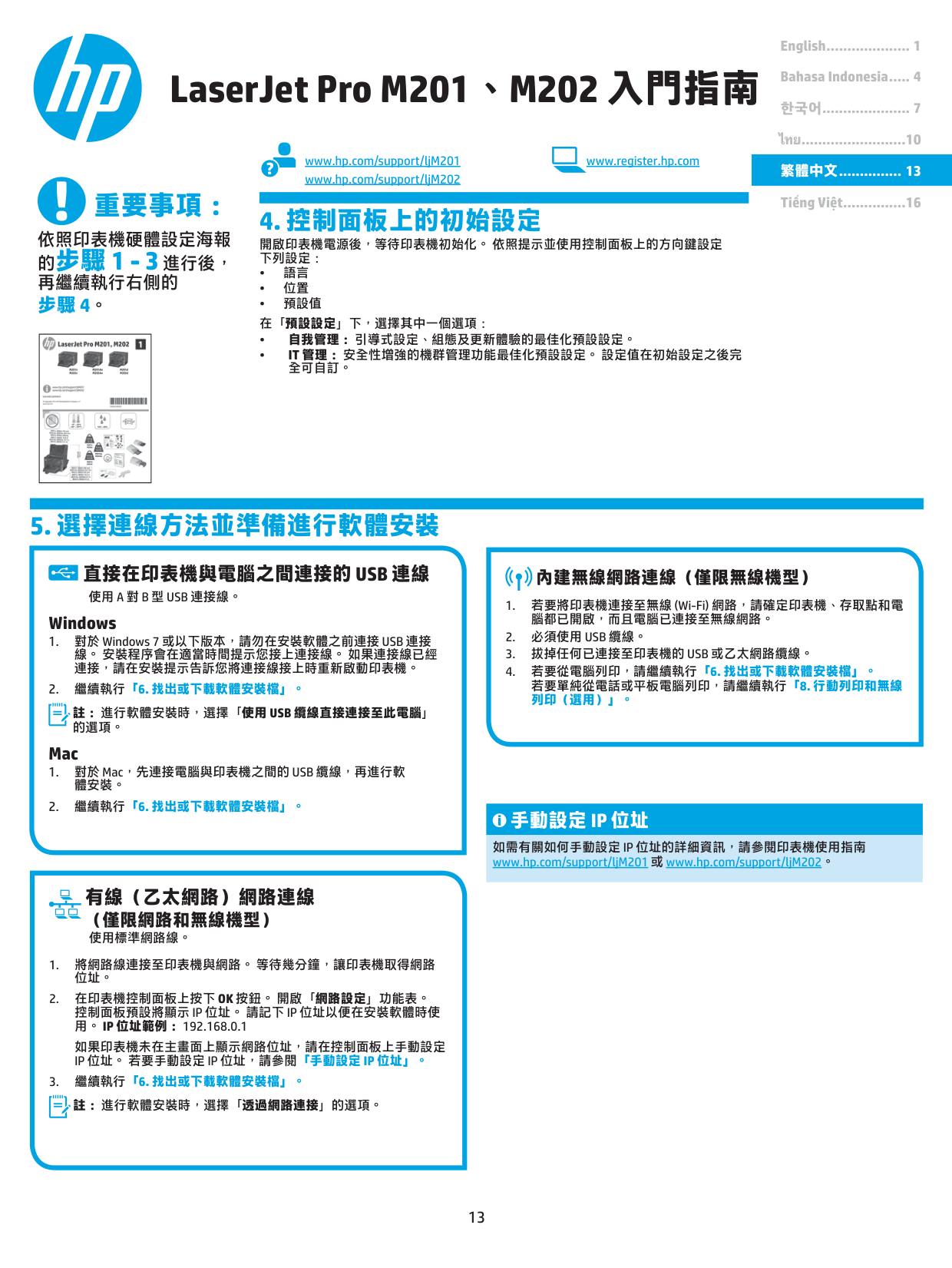
What should I do during initial setup on the control panel after turning on the printer?
Can I connect the USB cable before installing software on Windows 7?
What type of USB cable should I use for direct connection?
How do I enable HP Wireless Direct on the printer?
What should I do if the Windows software installer doesn't start after inserting the CD?
How do I test my wired network connection if the printer isn't printing over Ethernet?
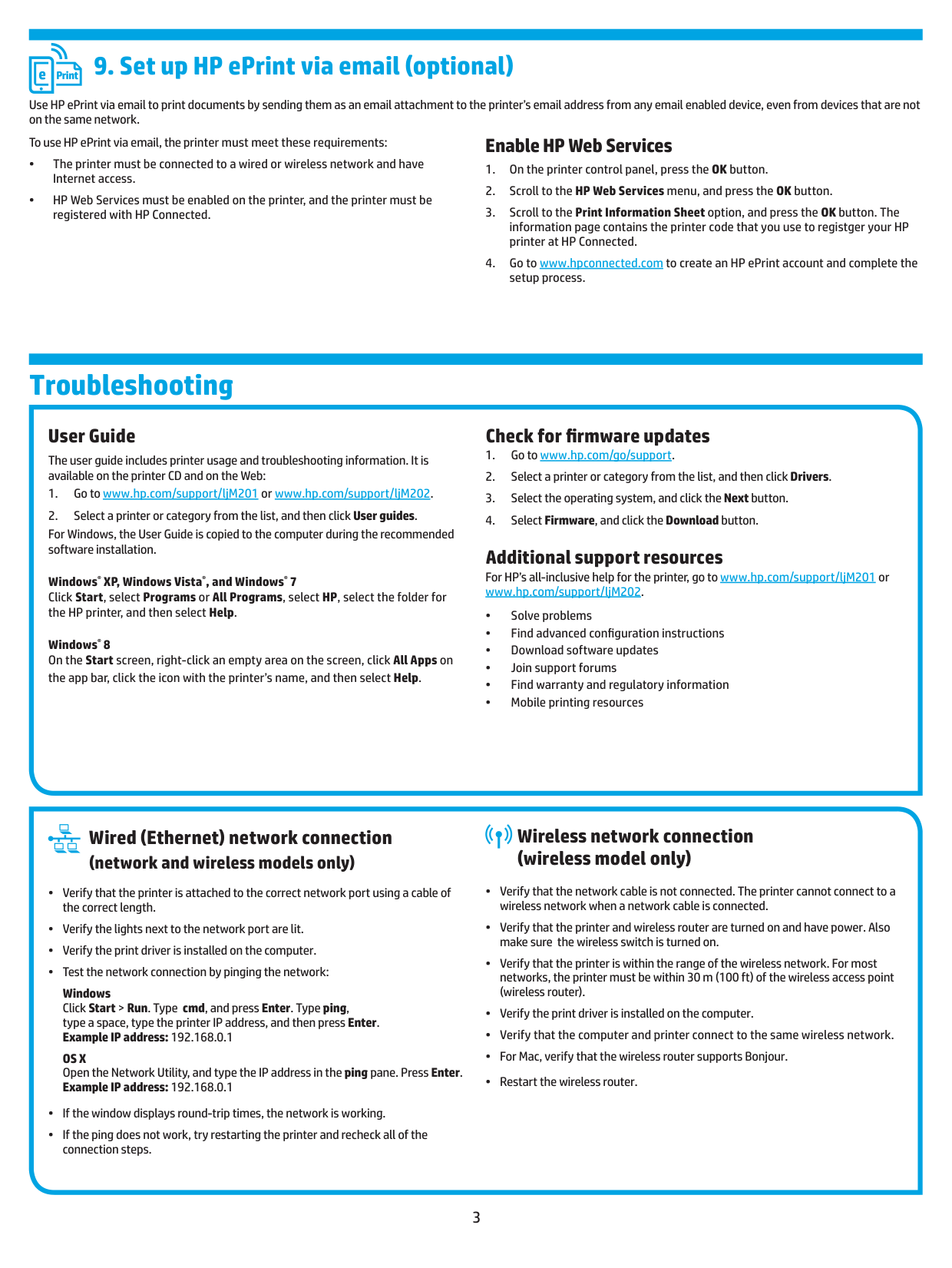
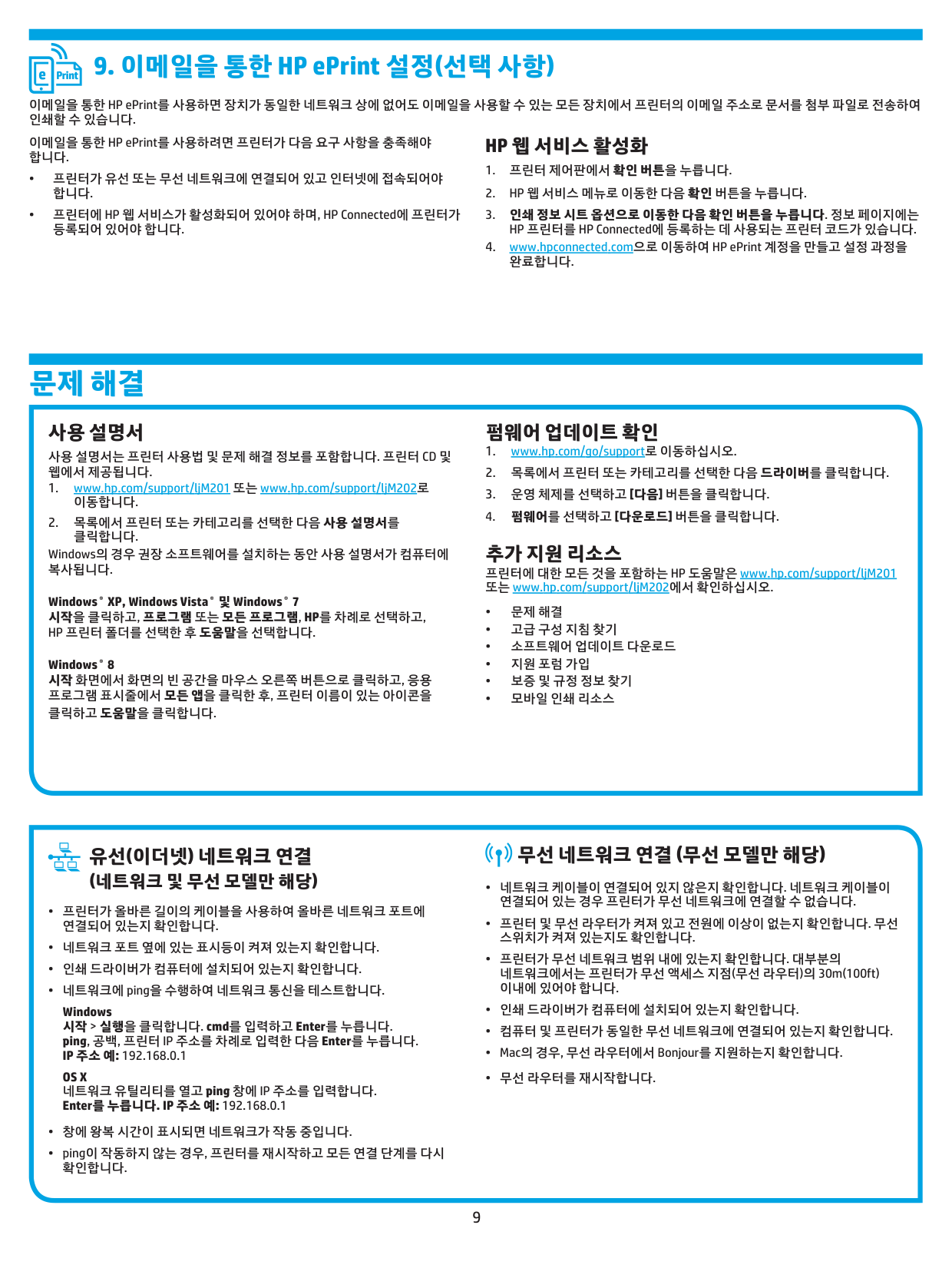
What requirements must be met to use HP ePrint via email?
What should I verify if my wireless printer cannot connect to the network?
How do I find the User Guide for my M202DW printer?
What mobile printing options are available for iOS and Android devices?
What should I do first after turning on my HP LaserJet Pro M202DW?
What should I do if the software installer doesn't start automatically from the CD on Windows?
I'm using Windows 7 - when should I connect the USB cable?
Can I connect the printer directly to my Mac using USB?
How do I set up a wired network connection on my M202DW?
What should I do if the printer doesn't display the network address on the Home screen?
How do I connect my smartphone to the printer for wireless printing?
What are my options for installing the printer software on Windows?
What is the difference between 'Self-managed' and 'IT-managed' default settings?
Do I need a USB cable to set up wireless printing on my M202DW?
What should I select during software installation if I want to connect through my home network?
What are the two default setup options available on the control panel?
How do I install basic drivers on Mac without the full solution software?
What is the best way to detect the printer during network installation?
What do I need to do before connecting the printer to a wireless network?
Where can I find more detailed software information for the printer?
Can I connect the USB cable to a Mac before installing software?
How do I print from an iPhone using AirPrint?
Full Manual
81 pages
User Guide LaserJet Pro M201, M202 www.hp.com/support/ljM201 www.hp.com/support/ljM202 M201dw M202dw M201n M202n M201d M202d
HP LaserJet Pro M201, M202 User Guide
Copyright and License © Copyright 2015 HP Development Company,
L.P.
Reproduction, adaptation, or translation without prior written permission is prohibited, except as allowed under the copyright laws. The information contained herein is subject to change without notice. The only warranties for HP products and services are set forth in the express warranty statements accompanying such products and services. Nothing herein should be construed as constituting an additional warranty. HP shall not be liable for technical or editorial errors or omissions contained herein. Edition 2, 3/2019 Trademark Credits Adobe®, Adobe Photoshop®, Acrobat®, and PostScript® are trademarks of Adobe Systems Incorporated. Apple and the Apple logo are trademarks of Apple Computer, Inc., registered in the U.S. and other countries. iPod is a trademark of Apple Computer, Inc. iPod is for legal or rightholder- authorized copying only. Don't steal music. Microsoft®, Windows®, Windows® XP, and Windows Vista® are U.S. registered trademarks of Microsoft Corporation. UNIX® is a registered trademark of The Open Group.
Table of contents 1 Product introduction ..................................................................................................................................... 1 Product comparison ............................................................................................................................................... 2 Power consumption, electrical specifications, and acoustic emissions ............................................. 4 Operating-environment specifications ............................................................................................... 4 Product views ......................................................................................................................................................... 5 Product front view ............................................................................................................................... 5 Product back view ............................................................................................................................... 6 Control-panel view .............................................................................................................................. 7 Product hardware setup and software installation .............................................................................................. 8 2 Paper trays ................................................................................................................................................... 9 Supported paper sizes and types ........................................................................................................................ 10 Supported paper sizes ...................................................................................................................... 10 Supported paper types ..................................................................................................................... 12 Load the priority input tray (Tray 1) .................................................................................................................... 13 Load the main input tray (Tray 2) ........................................................................................................................ 15 3 Parts, supplies, and accessories .................................................................................................................... 19 Order parts, accessories, and supplies ................................................................................................................ 20 Ordering ............................................................................................................................................. 20 Supplies and accessories .................................................................................................................. 20 Replace the toner cartridge ................................................................................................................................. 21 4 Print ........................................................................................................................................................... 25 Print tasks (Windows) .......................................................................................................................................... 26 How to print (Windows) ..................................................................................................................... 26 Automatically print on both sides (Windows) ................................................................................... 28 Manually print on both sides (Windows) ........................................................................................... 29 Print multiple pages per sheet (Windows) ........................................................................................ 30 Select the paper type (Windows) ...................................................................................................... 31 Additional print tasks ........................................................................................................................ 31
Enww
iii
Print tasks (Mac OS X) .......................................................................................................................................... 32 How to print (OS X) ............................................................................................................................ 32 Automatically print on both sides (OS X) .......................................................................................... 32 Manually print on both sides (OS X) .................................................................................................. 32 Print multiple pages per sheet (OS X) ............................................................................................... 33 Select the paper type (OS X) ............................................................................................................. 33 Additional print tasks ........................................................................................................................ 33 Set up HP Wireless Direct Printing (network and wireless models only) ............................................................ 34 Mobile printing (network and wireless models only) .......................................................................................... 35 HP ePrint via email ............................................................................................................................ 35 HP ePrint software ............................................................................................................................ 35 AirPrint ............................................................................................................................................... 36 5 Manage the product ..................................................................................................................................... 37 Change the product connection type (Windows) ................................................................................................ 38 Advanced configuration with HP Embedded Web Server (EWS) and HP Device Toolbox (Windows) ................. 39 Advanced configuration with HP Utility for Mac OS X ......................................................................................... 41 Open HP Utility .................................................................................................................................. 41 HP Utility features ............................................................................................................................. 41 Configure IP network settings ............................................................................................................................. 43 Printer sharing disclaimer ................................................................................................................. 43 View or change network settings ..................................................................................................... 43 Rename the product on a network ................................................................................................... 43 Manually configure IPv4 TCP/IP parameters from the control panel ............................................... 44 HP Web Jetadmin ................................................................................................................................................. 45 Product security features .................................................................................................................................... 46 Set or change the product password using the HP Embedded Web Server ..................................... 46 Economy settings ................................................................................................................................................ 47 Print with EconoMode ....................................................................................................................... 47 Set the Sleep Delay ........................................................................................................................... 47 Set the Auto Power Down delay ........................................................................................................ 47 Update the firmware ............................................................................................................................................ 49 Method one: Update the firmware using the control panel ............................................................. 49 Method two: Update the firmware using the Firmware Update Utility ............................................ 49 6 Solve problems ............................................................................................................................................ 51 Customer support ................................................................................................................................................ 52 Restore the factory-set defaults ......................................................................................................................... 53 A “Cartridge is low” or “Cartridge is very low” message displays on the product control panel ....................... 54 Change the “Very Low” settings ....................................................................................................... 54 Order supplies ................................................................................................................................... 54 iv
Enww
Product does not pick up paper or misfeeds ....................................................................................................... 55 The product does not pick up paper ................................................................................................. 55 The product picks up multiple sheets of paper ................................................................................ 55 Clear jams ............................................................................................................................................................ 56 Jam locations ..................................................................................................................................... 56 Experiencing frequent or recurring paper jams? .............................................................................. 57 Clear jams in the toner-cartridge area .............................................................................................. 58 Clear jams in the output bin .............................................................................................................. 60 Clear jams in the duplexer (duplex models only) .............................................................................. 62 Improve print quality ........................................................................................................................................... 63 Print from a different software program .......................................................................................... 63 Check the paper-type setting for the print job ................................................................................. 63 Check the paper type setting (Windows) ........................................................................ 63 Check the paper type setting (OS X) ............................................................................... 63 Check the toner-cartridge status ...................................................................................................... 64 Print a cleaning page ......................................................................................................................... 64 Visually inspect the toner cartridge for damage .............................................................................. 65 Check paper and the printing environment ...................................................................................... 65 Step one: Use paper that meets HP specifications ........................................................ 65 Step two: Check the environment .................................................................................. 65 Check other print job settings ........................................................................................................... 66 Check the EconoMode settings ....................................................................................... 66 Try a different print driver ................................................................................................................. 67 Solve wired network problems ............................................................................................................................ 68 Poor physical connection .................................................................................................................. 68 The computer is using the incorrect IP address for the product ...................................................... 68 The computer is unable to communicate with the product ............................................................. 68 The product is using incorrect link and duplex settings for the network ........................................ 69 New software programs might be causing compatibility problems ................................................ 69 The computer or workstation might be set up incorrectly ............................................................... 69 The product is disabled, or other network settings are incorrect .................................................... 69 Solve wireless network problems ....................................................................................................................... 70 Wireless connectivity checklist ......................................................................................................... 70 The product does not print after the wireless configuration completes ......................................... 71 The product does not print, and the computer has a third-party firewall installed ........................ 71 The wireless connection does not work after moving the wireless router or product .................... 71 Cannot connect more computers to the wireless product ............................................................... 71 The wireless product loses communication when connected to a VPN ........................................... 71 The network does not appear in the wireless networks list ............................................................ 71 The wireless network is not functioning ........................................................................................... 72 Perform a wireless network diagnostic test ..................................................................................... 72
Enww
v
Reduce interference on a wireless network ...................................................................................... 72 Index ............................................................................................................................................................. 73 vi
Enww
1 Product introduction ● Product comparison ● Product views ● Product hardware setup and software installation For more information: Go to www.hp.com/support/ljM201, www.hp.com/support/ljM202. HP's all-inclusive help for the product includes the following information: ● Install and configure ● Learn and use ● Solve problems ● Download software updates ● Join support forums ● Find warranty and regulatory information
Enww
1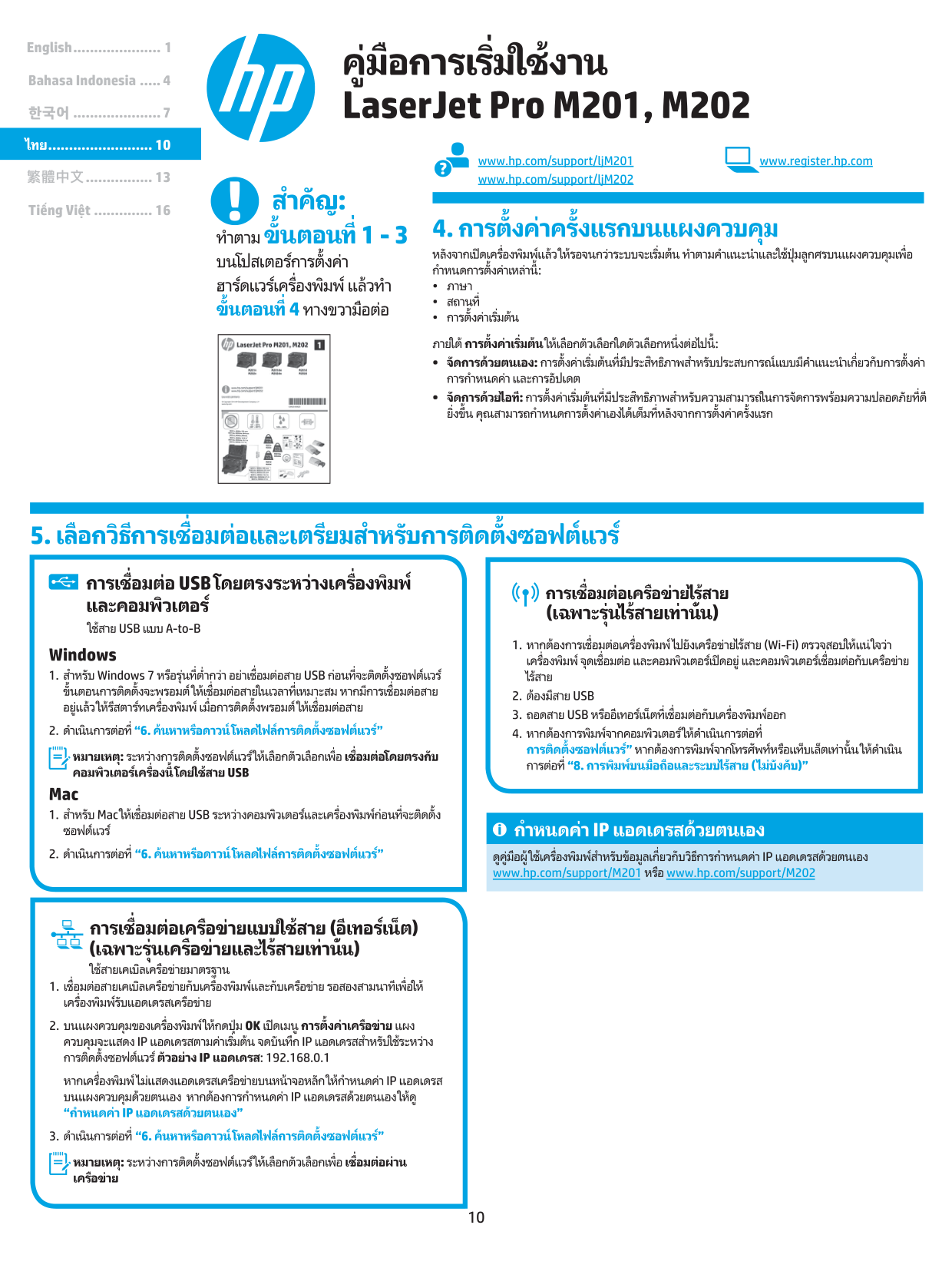
Product comparison Model name Product number
M201n
Cf455A
M202nC6N20A
M201dwCf456A
M202dwC6N21A
M201dCf466A
M202dCf467A
Product dimensions Height 251 mm (9.9 in) 251 mm (9.9 in) 251 mm (9.9 in) 251 mm (9.9 in) 251 mm (9.9 in) 251 mm (9.9 in)Depth 251 mm (9.9 in) 242 mm (9.5 in) 281 mm (11.1 in) 281 mm (11.1 in) 281 mm (11.1 in) 281 mm (11.1 in)
Width 379 mm (14.9 in) 379 mm (14.9 in) 384 mm (15.1 in) 384 mm (15.1 in) 384 mm (15.1 in) 384 mm (15.1 in)
Weight, with toner cartridge 5.9 kg (13 lb) 5.9 kg (13 lb) 6.6 kg (14.5 lb) 6.6 kg (14.5 lb) 6.6 kg (14.5 lb) 6.6 kg (14.5 lb) Paper handling Priority input tray (Tray 1, 10-sheet capacity)
Main input tray (Tray 2, 250-sheet capacity)
Standard output bin (150-sheet capacity)
Automatic duplex printing
Supported operating systems Windows XP, 32-bit, SP2 and greater
Windows XP, 64-bit, SP2 and greater, print-driver only
Windows Vista, 32-bit and 64-bit
Windows 7, 32-bit and 64-bit
Windows 8, 32-bit and 64-bit
Windows 8.1, 32-bit and 64-bit
Windows 2003 Server 32-bit, SP1 and higher, print driver only
Windows 2003 Server 64-bit, SP1 and higher, print driver only
Windows 2003 Server, Standard Edition and Enterprise Edition, print driver only
Windows 2003 R2 Server 32-bit, Standard and Enterprise editions, print driver only 2 Chapter 1 Product introduction
Enww
Model name Product number
M201n
Cf455A
M202nC6N20A
M201dwCf456A
M202dwC6N21A
M201dCf466A
M202dCf467A
Windows 2003 R2 Server 64-bit, Standard and Enterprise editions, print driver only
Windows 2008 Server , 32-bit and 64-bit, (SP1 and higher) print driver only
Windows 2008 R2 Server 64-bit, SP1, print driver only
Windows 2008 R2 Server 64-bit, Standard and Enterprise editions, print driver only
Windows 2012 Server, print driver only
Windows 2012 R2 Server 64-bit, print driver only
Windows 2012 Server 64-bit, print driver only
Mac OS X v10.7 – v10.9 Supported print drivers HP PCL6 discrete print driver This driver is included on the in-box CD as the default print driver.
HP UPD PCL5c print driver Available for download
HP UPD PCL6 print driver Available for download
HP UPD PS print driver Available for download Connectivity Hi-Speed USB 2.0 10/100 Ethernet LAN connection
Wireless network connection
Memory
128 Mb Ram
Enww
Product comparison 3
Model name Product number M201n
Cf455A
M202nC6N20A
M201dwCf456A
M202dwC6N21A
M201dCf466A
M202dCf467A
Control-panel display 2-line LCD Print Prints 25 pages per minute (ppm) on A4-size paper and 26 ppm on Letter-size paper Power consumption, electrical specifications, and acoustic emissions See www.hp.com/support/ljM201, www.hp.com/support/ljM202 for current information.Caution:
Power requirements are based on the country/region where the product is sold. Do not convert operating voltages. This will damage the product and void the product warranty. Operating-environment specifications Environment Recommended Allowed Temperature 17° to 25°C (62.6° to 77°F) 15° to 30°C (59° to 86°F) Relative humidity 30% to 70% relative humidity (RH) 10% to 80% RH 4 Chapter 1 Product introductionEnww
Product views ● Product front view ● Product back view ● Control-panel view Product front view 1 6 3 2 4 5 1 Output bin 2 Control panel (tilts up for easier viewing) 3 Power on/off button 4 Main input tray (Tray 2) 5 Priority input tray (Tray 1) 6 Handle for opening the top cover (access to the toner cartridge and for clearing jams)
Enww
Product views 5
Product back view 1 2 4 3 6 5 M201d, M201dw M202d, M202dw M201n M202n 1 Rear door (access for clearing jams, duplex models only) 2 Hi-Speed USB 2.0 3 Ethernet port (network and wireless models only) 4 Power connection 5 Product number and serial number label 6 Slot for cable-type security lock 6 Chapter 1 Product introduction
Enww
Control-panel view 4 3 2 5 6 10 9 8 7 1 1 LCD display Provides textual information, such as product status and configuration menus 2 Power on/off button Turns the product on or off. The button illuminates when the product is on. 3 Left and right arrow buttons Moves the cursor or scrolls through menu options 4 Cancel button Clears settings, cancels the current job, or exits the current menu 5 OK button Confirms a setting or an action to proceed 6 Back button Returns to the previous screen 7 ePrint button Opens the Web Services menu (network and wireless models only)
Note:
The ePrint button is non-functional on M201d and M202d models. 8 Wireless button and light, dw models only Provides access to the Wireless menu and wireless status information. When the product is connected to a wireless network, this button illuminates. 9 Attention light Indicates the product has an error, a tray is empty, or other condition requiring attention 10 Ready light Indicates the product is readyEnww
Product views 7
Product hardware setup and software installation For basic setup instructions, see the Hardware Installation Guide that came with the product. For additional instructions, go to HP support on the Web. Go to www.hp.com/support/ljM201, www.hp.com/support/ljM202 for HP's all-inclusive help for the product. Find the following support: ● Install and configure ● Learn and use ● Solve problems ● Download software updates ● Join support forums ● Find warranty and regulatory information 8 Chapter 1 Product introduction
Enww
2 Paper trays ● Supported paper sizes and types ● Load the priority input tray (Tray 1) ● Load the main input tray (Tray 2) For more information: Go to www.hp.com/support/ljM201, www.hp.com/support/ljM202. HP's all-inclusive help for the product includes the following information: ● Install and configure ● Learn and use ● Solve problems ● Download software updates ● Join support forums ● Find warranty and regulatory information
Enww
9
Supported paper sizes and types ● Supported paper sizes ● Supported paper types Supported paper sizes
Note:
To obtain the best results, select the correct paper size and type in the print driver before printing. Size Dimensions Priority input tray (Tray 1) Main input tray (Tray 2) Auto duplex Letter 216 x 279 mm (8.5 x 11 in) Legal 216 x 356 mm (8.5 x 14 in) Executive 184 x 267 mm (7.3 x 10.5 in)Oficio 8.5 x 13 216 x 330 mm (8.5 x 13 in) 4 x 6 102 x 152 mm (4 x 6 in)
5 x 8 127 x 203 mm (5 x 8 in)
A4
210 x 297 mm (8.3 x 11.7 in)A5
148 x 210 mm (5.8 x 8.3 in)A6
105 x 148 mm (4.1 x 5.8 in)B5 (Jis)
182 x 257 mm (7.2 x 10.1 in)B6 (Jis)
129 x 182 mm (5.1 x 7.2 in)10 x 15cm 100 x 150 mm (3.9 x 5.9 in)
Oficio 216 x 340 mm 216 x 340 mm (8.5 x 13.4 in)
16K
195 x 270 mm (7.7 x 10.6 in)16K
184 x 260 mm (7.2 x 10.3 in)16K
197 x 273 mm (7.8 x 10.8 in)Japanese Postcard Postcard (JIS) 100 x 148 mm (3.9 x 5.8 in)
Double Japan Postcard Rotated Double Postcard (JIS) 200 x 148 mm (7.9 x 5.8 in)
Envelope #10 105 x 241 mm (4.1 x 9.5 in)
10 Chapter 2 Paper trays
Enww

Size Dimensions Priority input tray (Tray 1) Main input tray (Tray 2) Auto duplex Envelope Monarch 98 x 191 mm (3.9 x 7.5 in)
Envelope B5 176 x 250 mm (6.9 x 9.8 in)
Envelope C5 162 x 229 mm (6.4 x 9 in)
Envelope DL 110 x 220 mm (4.3 x 8.7 in)
Custom 76 x 127 mm to 216 x 356 mm (3 x 5 in to 8.5 x 14 in)
Enww
Supported paper sizes and types 11
Supported paper types
Note:
To obtain the best results, select the correct paper size and type in the print driver before printing. Type Single-sided or manual duplex Auto duplex Plain HP EcoSMART Lite Light 60–74g Intermediate 85–95g Midweight 96–110g Heavy 111–130gExtra Heavy 131–175g
Transparency
Labels
Letterhead Envelope
Preprinted Prepunched Colored Bond Recycled Rough
Vellum
12 Chapter 2 Paper trays
Enww

Load the priority input tray (Tray 1)
Note:
When adding new paper, make sure to remove all of the paper from the input tray and straighten the stack. Do not fan the paper. This reduces jams by preventing multiple sheets of paper from feeding through the product at one time. Use paper that is not wrinkled, folded, or damaged.Table 2-1 Tray 1 paper orientation Paper type Duplex mode How to load paper Preprinted or letterhead 1-sided printing or manual 2-sided printing Face-up Top edge leading into the product
Enww
Load the priority input tray (Tray 1) 13
Table 2-1 Tray 1 paper orientation (continued) Paper type Duplex mode How to load paper Prepunched 1-sided printing or manual 2-sided printing Face-up Holes toward the left side of the product Envelopes 1-sided printing Face-up Top edge toward the right of the tray, postage end entering the product last 14 Chapter 2 Paper trays
Enww

Load the main input tray (Tray 2)
Note:
When adding new paper, make sure to remove all of the paper from the input tray and straighten the stack. Do not fan the paper. This reduces jams by preventing multiple sheets of paper from feeding through the product at one time. Use paper that is not wrinkled, folded, or damaged.Enww
Load the main input tray (Tray 2) 15
16 Chapter 2 Paper trays
Enww

Table 2-2 Tray 2 paper orientation Paper type Duplex mode How to load paper Preprinted or letterhead 1-sided printing or 2-sided printing Face-up Top edge leading into the product Prepunched 1-sided printing or 2-sided printing Face-up Holes toward the left side of the product
Enww
Load the main input tray (Tray 2) 17
18 Chapter 2 Paper trays
Enww

3 Parts, supplies, and accessories ● Order parts, accessories, and supplies ● Replace the toner cartridge For more information: Go to www.hp.com/support/ljM201, www.hp.com/support/ljM202. HP's all-inclusive help for the product includes the following information: ● Install and configure ● Learn and use ● Solve problems ● Download software updates ● Join support forums ● Find warranty and regulatory information
Enww
19
Order parts, accessories, and supplies Ordering Order supplies and paper www.hp.com/go/suresupply Order genuine HP parts or accessories www.hp.com/buy/parts Order through service or support providers Contact an HP-authorized service or support provider. Order using the HP Embedded Web Server (EWS) To access, in a supported Web browser on your computer, enter the product IP address or host name in the address/URL field. The EWS contains a link to the HP SureSupply Web site, which provides options for purchasing Original HP supplies. Supplies and accessories Item Description Part number HP 83A Toner Cartridge Replacement toner cartridge
Cf283A
HP 83X Toner Cartridge High-capacity replacement toner cartridgeCf283X
HP 88A Toner Cartridge Replacement toner cartridge for China and India onlyCc388A
USB cable 2-meter standard USB-compatible device connectorC6518A
20 Chapter 3 Parts, supplies, and accessoriesEnww

Replace the toner cartridge When a toner cartridge approaches the end of useful life, the product displays a prompt to order a replacement. Printing can continue with the current cartridge until redistributing the toner no longer yields acceptable print quality. A second message displays on the control panel when the toner cartridge reaches the “very low” state.
Enww
Replace the toner cartridge 21
Caution:
Do not touch the shutter or the surface of the roller.22 Chapter 3 Parts, supplies, and accessories
Enww

Enww
Replace the toner cartridge 23
24 Chapter 3 Parts, supplies, and accessories
Enww

4 Print ● Print tasks (Windows) ● Print tasks (Mac OS X) ● Set up HP Wireless Direct Printing (network and wireless models only) ● Mobile printing (network and wireless models only) For more information: Go to www.hp.com/support/ljM201, www.hp.com/support/ljM202. HP's all-inclusive help for the product includes the following information: ● Install and configure ● Learn and use ● Solve problems ● Download software updates ● Join support forums ● Find warranty and regulatory information
Enww
25
Print tasks (Windows) ● How to print (Windows) ● Automatically print on both sides (Windows) ● Manually print on both sides (Windows) ● Print multiple pages per sheet (Windows) ● Select the paper type (Windows) ● Additional print tasks How to print (Windows) The following procedure describes the basic printing process for Windows.
Note:
The name of the button varies for different software programs. 26 Chapter 4 PrintEnww

Enww
Print tasks (Windows) 27
Automatically print on both sides (Windows) Use this procedure for products that have an automatic duplexer installed. If the product does not have an automatic duplexer installed, or to print on paper types that the duplexer does not support, you can print on both sides manually.
Note:
The name of the button varies for different software programs.Enww

Manually print on both sides (Windows) Use this procedure for products that do not have an automatic duplexer installed or to print on paper that the duplexer does not support.
Note:
The name of the button varies for different software programs.Enww
Print tasks (Windows) 29
Print multiple pages per sheet (Windows)
Note:
The name of the button varies for different software programs.Enww

Select the paper type (Windows)
Note:
The name of the button varies for different software programs.Enww
Print tasks (Windows) 31
Print tasks (Mac OS X) ● How to print (OS X) ● Automatically print on both sides (OS X) ● Manually print on both sides (OS X) ● Print multiple pages per sheet (OS X) ● Select the paper type (OS X) ● Additional print tasks How to print (OS X) The following procedure describes the basic printing process for OS X.
Note:
This information applies to products that include an automatic duplexer.Note:
This feature is available if you install the HP print driver. It might not be available if you are using AirPrint.Note:
This feature is available if you install the HP print driver. It might not be available if you are using AirPrint.Enww

Enww
Print tasks (Mac OS X) 33
Set up HP Wireless Direct Printing (network and wireless models only)
Note:
This feature is available with wireless models only and the product might require a firmware update to use this feature. The HP Wireless Direct Printing feature lets you print from your wireless mobile device directly to an HP Wireless Direct-enabled product without requiring connection to an established network or the Internet. Use HP Wireless Direct to print wirelessly from the following devices: ● iPhone, iPad, or iTouch using Apple AirPrint or the HP ePrint mobile app ● Mobile devices that run Android or Symbian using the HP ePrint Home & Biz application ● Any Wi-Fi capable computer with any operating system. For more information on HP Wireless Direct, go to www.hp.com/go/wirelessprinting, and then click HP Wireless Direct. To set up HP Wireless Direct from the control panel, complete the following steps:Enww

Mobile printing (network and wireless models only) HP offers multiple Mobile and ePrint solutions to enable wireless printing to an HP printer from a laptop, tablet, smartphone, or other mobile device. To determine the best choice, go to www.hp.com/go/ LaserJetMobilePrinting (English only). ● HP ePrint via email ● HP ePrint software ● AirPrint HP ePrint via email Use HP ePrint to print documents by sending them as an email attachment to the product's email address from any email enabled device. To use HP ePrint, the product must meet these requirements: ● The product must be connected to a wired network and have Internet access. ● HP Web Services must be enabled on the product, and the product must be registered with HP Connected.
Enww
Mobile printing (network and wireless models only) 35
Note:
The HP ePrint software is a PDF workflow utility for Mac, and is not technically a print driver.Note:
HP ePrint Software does not support USB printing. AirPrint Direct printing using Apple’s AirPrint is supported for iOS 4.2 or later. Use AirPrint to print directly to the product from an iPad, iPhone (3GS or later), or iPod touch (third generation or later) in the following applications: ● Mail ● Photos ● Safari ● iBooks ● Select third-party applications To use AirPrint, the product must be connected to the same wireless network as the Apple device. For more information about using AirPrint and about which HP products are compatible with AirPrint, go to the support Web site for this product: www.hp.com/support/ljM201, www.hp.com/support/ljM202Note:
AirPrint does not support USB connections. 36 Chapter 4 PrintEnww

5 Manage the product ● Change the product connection type (Windows) ● Advanced configuration with HP Embedded Web Server (EWS) and HP Device Toolbox (Windows) ● Advanced configuration with HP Utility for Mac OS X ● Configure IP network settings ● HP Web Jetadmin ● Product security features ● Economy settings ● Update the firmware For more information: Go to www.hp.com/support/ljM201, www.hp.com/support/ljM202. HP's all-inclusive help for the product includes the following information: ● Install and configure ● Learn and use ● Solve problems ● Download software updates ● Join support forums ● Find warranty and regulatory information
Enww
37
Change the product connection type (Windows) If you are already using the product and you wish to change the way it is connected, use the Reconfigure your HP Device shortcut on your computer desktop to change the connection. For example, you can reconfigure
the product to use a different wireless address, to connect to a wired or wireless network, or change from a network connection to a USB connection. You can change the configuration without inserting the product CD. After you select the type of connection you wish to make, the program goes directly to the portion of the product setup procedure that needs to change. 38 Chapter 5 Manage the product
Enww

Advanced configuration with HP Embedded Web Server (EWS) and HP Device Toolbox (Windows) Use the HP Embedded Web Server to manage printing functions from your computer instead of the product control panel. ● View product status information ● Determine the remaining life for all supplies and order new ones ● View and change tray configurations ● View and change the product control-panel menu configuration ● View and print internal pages ● Receive notification of product and supplies events ● View and change network configuration The HP Embedded Web Server works when the product is connected to an IP-based network. The HP Embedded Web Server does not support IPX-based product connections. You do not have to have Internet access to open and use the HP Embedded Web Server. When the product is connected to the network, the HP Embedded Web Server is automatically available.
Note:
HP Device Toolbox is available only if you performed a full installation when you installed the product. Depending on how the product is connected, some features might not be available.Note:
The HP Embedded Web Server is not accessible beyond the network firewall. Open the HP Embedded Web Server (EWS) from the Start menuEnww
Advanced configuration with HP Embedded Web Server (EWS) and HP Device Toolbox (Windows) 39
Tab or section Description Home tab Provides product, status, and configuration information. ● Device Status: Shows the product status and shows the approximate percent life remaining of HP supplies. ● Supplies Status: Shows the approximate percent life remaining of HP supplies. Actual supply life remaining can vary. Consider having a replacement supply available to install when print quality is no longer acceptable. The supply does not need to be replaced unless the print quality is no longer acceptable. ● Device Configuration: Shows the information found on the product configuration page. ● Network Summary: Shows the information found on the product network configuration
page. ● Reports: Print the configuration and supplies status pages that the product generates. ● Event Log: Shows a list of all product events and errors. System tab Provides the ability to configure the product from your computer. ● Device Information: Provides basic product and company information. ● Paper Setup: Change the default paper-handling settings for the product. ● Print Quality: Change the default print-quality settings for the product. ● EcoSMART Console: Change the default times for entering Sleep mode or Auto Power Down mode. Configure which events cause the product to wake. ● Paper Types: Configure print modes that correspond to the paper types that the product accepts. ● System Setup: Change the system defaults for the product. ● Service: Perform the cleaning procedure on the product. ● Save and Restore: Save the current settings for the product to a file on the computer. Use this file to load the same settings onto another product or to restore these settings to this product at a later time. ● Administration: Set or change the product password. Enable or disable product features.
Note:
The System tab can be password-protected. If this product is on a network, always consult with the administrator before changing settings on this tab. Print tab Provides the ability to change default print settings from your computer. ● Printing: Change the default product print settings, such as number of copies and paper orientation. These are the same options that are available on the control panel. ● PCL5c: View and change the PCL5c settings. ● PostScript: Turn off or on the Print PS Errors feature. Networking tab (Network-connected products only) Provides the ability to change network settings from your computer. Network administrators can use this tab to control network-related settings for the product when it is connected to an IP-based network. It also allows the network administrator to set up Wireless Direct functionality. This tab does not appear if the product is directly connected to a computer. HP Web Services tab Use this tab to set up and use various Web tools with the product. 40 Chapter 5 Manage the productEnww

Advanced configuration with HP Utility for Mac OS X Use the HP Utility to check product status or to view or change product settings from your computer. You can use the HP Utility when the product is connected with a USB cable or is connected to a TCP/IP-based network. Open HP Utility
Enww
Advanced configuration with HP Utility for Mac OS X 41
Menu Description ◦ Postscript (.PS) ◦ Text (.TXT) ● HP Connected: Access the HP Connected Web site. ● Upload Fonts: Upload fonts from your computer to the product. Printer Settings ● Auto-off: Configure the product to automatically turn off after a period of inactivity. You can adjust the number of minutes after which the product turns off. ● Network Settings: Configure the network settings, such as the IPv4 settings, IPv6 settings, Bonjour settings, and other settings. ● Supplies Management: Configure how the product should behave when supplies are nearing the end of their estimated life. ● Trays Configuration: Change paper size and type for each of the trays. ● Additional Settings: Open the HP Embedded Web Server (EWS) for the product.
Note:
USB connections are not supported. Information Message Center: Display error events that have occurred with the product. Fax Settings (MFP fax models only) ● Basic Fax Settings: Set up the fields in the fax header and configure how the product answers incoming calls. ● Junk Fax Blocking: Store the fax numbers you want to block. ● Fax Forwarding: Set up the product to send the incoming faxes to a differentnumber. ● Fax Logs: View the logs of all faxes. ● Fax Speed Dials: Add fax numbers to the speed dial list. Scan Settings (MFP touchscreen models only) ● Scan to E-mail: Open the HP Embedded Web Server (EWS) page for configuring
settings for scanning to email. ● Scan to Network Folder: Open the HP Embedded Web Server (EWS) page for configuring settings for scanning to a network folder.
Note:
USB connections are not supported. 42 Chapter 5 Manage the productEnww

Configure IP network settings ● Printer sharing disclaimer ● View or change network settings ● Rename the product on a network ● Manually configure IPv4 TCP/IP parameters from the control panel Printer sharing disclaimer HP does not support peer-to-peer networking, as the feature is a function of Microsoft operating systems and not of the HP printer drivers. Go to Microsoft at www.microsoft.com. View or change network settings Use the HP Embedded Web Server to view or change IP configuration settings.
Enww
Configure IP network settings 43
Note:
Completing the other fields on this page is optional.Enww

HP Web Jetadmin HP Web Jetadmin is an award-winning, industry-leading tool for efficiently managing a wide variety of networked HP products, including printers, multifunction products, and digital senders. This single solution allows you to remotely install, monitor, maintain, troubleshoot, and secure your printing and imaging environment — ultimately increasing business productivity by helping you save time, control costs, and protect your investment. HP Web Jetadmin upgrades are periodically made available to provide support for specific product features. Go to www.hp.com/go/webjetadmin and click the Self Help and Documentation link to learn more about upgrades.
Enww
HP Web Jetadmin 45
Product security features The product supports security standards and recommended protocols that help you keep the product secure, protect critical information on your network, and simplify the way you monitor and maintain the product. For in-depth information about HP's secure imaging and printing solutions, visit www.hp.com/go/ secureprinting. The site provides links to white papers and FAQ documents about security features. Set or change the product password using the HP Embedded Web Server Use the HP Embedded Web Server to set a password or change an existing password for a product on a network.
Note:
If a password has previously been set, you are prompted to provide the password. Enter the password, and then click the Apply button.Note:
For products connected with a USB cable to a Windows computer, use the HP Device Toolbox to change the product password:Enww

Economy settings ● Print with EconoMode ● Set the Sleep Delay ● Set the Auto Power Down delay Print with EconoMode This product has an EconoMode option for printing drafts of documents. Using EconoMode can use less toner. However, using EconoMode can also reduce print quality. HP does not recommend the full-time use of EconoMode. If EconoMode is used full-time, the toner supply might outlast the mechanical parts in the toner cartridge. If print quality begins to degrade and is no longer acceptable, consider replacing the toner cartridge.
Note:
If this option is not available in your print driver, you can set it using the HP Embedded Web Server.Note:
The default value is 15 Minutes. Set the Auto Power Down delayNote:
This setting is not available on all products.Enww
Economy settings 47
Note:
The default value is Never.Enww

Update the firmware HP offers periodic product updates, new Web Services apps, and new features to existing Web Services apps. Follow these steps to update the product firmware for a single product. When you update the firmware, Web Service apps will update automatically. There are two supported methods to perform a firmware update on this product. Use only one of the following methods to update the product firmware. Method one: Update the firmware using the control panel Use these steps to load the firmware from the control panel (for network-connected products only), and/or set the product to automatically load future firmware updates. For USB-connected products, skip to method two.
Note:
The product must be connected to the Internet to update the firmware via a network connection.Note:
The product automatically checks for an update, and if a newer version is detected, the update process automatically starts.Note:
This method is the only firmware update option available for products connected to the computer via a USB cable. It also works for products connected to a network.Enww
Update the firmware 49
Note:
To print a configuration page to verify the installed firmware version before or after the update process, click Print Config.Enww

6 Solve problems ● Customer support ● Restore the factory-set defaults ● A “Cartridge is low” or “Cartridge is very low” message displays on the product control panel ● Product does not pick up paper or misfeeds ● Clear jams ● Improve print quality ● Solve wired network problems ● Solve wireless network problems For more information: Go to www.hp.com/support/ljM201, www.hp.com/support/ljM202. HP's all-inclusive help for the product includes the following information: ● Install and configure ● Learn and use ● Solve problems ● Download software updates ● Join support forums ● Find warranty and regulatory information
Enww
51
Customer support Get telephone support for your country/region Have the product name, serial number, date of purchase, and problem description ready. Country/region phone numbers are on the flyer that was in the box with your product or at www.hp.com/support/. Get 24-hour Internet support www.hp.com/support/ljM201, www.hp.com/support/ljM202 Download software utilities, drivers, and electronic information www.hp.com/support/ljM201, www.hp.com/support/ljM202 Order additional HP service or maintenance agreements www.hp.com/go/carepack Register your product www.register.hp.com 52 Chapter 6 Solve problems
Enww

Restore the factory-set defaults Restoring the factory-set defaults returns all of the product and network settings to the factory defaults. It will not reset the page count, tray size, or language. To restore the product to the factory-default settings, follow these steps.
Caution:
Restoring the factory-set defaults returns all of the settings to the factory defaults, and it also deletes any pages that are stored in the memory. The procedure then automatically restarts the product.Enww
Restore the factory-set defaults 53
A “Cartridge is low” or “Cartridge is very low” message displays on the product control panel Cartridge is low: The product indicates when a toner cartridge level is low. Actual toner cartridge life remaining may vary. Consider having a replacement available to install when print quality is no longer acceptable. The toner cartridge does not need to be replaced now. Cartridge is very low: The product indicates when the toner cartridge level is very low. Actual toner cartridge life remaining may vary. Consider having a replacement available to install when print quality is no longer acceptable. The toner cartridge does not need to be replaced now unless the print quality is no longer acceptable. Once an HP toner cartridge has reached Very Low, HP’s Premium Protection Warranty on that toner cartridge has ended. Change the “Very Low” settings Use the product control panel to change the way the product reacts when supplies reach the Very Low state. It is not necessary to re-establish these settings after installing a new toner cartridge.
Enww

Product does not pick up paper or misfeeds ● The product does not pick up paper ● The product picks up multiple sheets of paper The product does not pick up paper If the product does not pick up paper from the tray, try these solutions.
Enww
Product does not pick up paper or misfeeds 55
Clear jams ● Jam locations ● Experiencing frequent or recurring paper jams? ● Clear jams in the toner-cartridge area ● Clear jams in the output bin ● Clear jams in the duplexer (duplex models only) Jam locations 1 2 1 Toner-cartridge area and output bin See Clear jams in the toner-cartridge area on page 58 and Clear jams in the output bin on page 60. 2 Duplex area (duplex models only) See Clear jams in the duplexer (duplex models only) on page 62. 56 Chapter 6 Solve problems
Enww

Experiencing frequent or recurring paper jams? To reduce the number of paper jams, try these solutions.
Enww
Clear jams 57
Clear jams in the toner-cartridge area A Jam in cartridge area message displays on the product control panel.
58 Chapter 6 Solve problems
Enww

Enww
Clear jams 59
Clear jams in the output bin A Jam in output bin message displays on the product control panel.
60 Chapter 6 Solve problems
Enww

Enww
Clear jams 61
Clear jams in the duplexer (duplex models only) A Jam in duplex area message displays on the product control panel.
62 Chapter 6 Solve problems
Enww

Improve print quality If the product is having print-quality problems, try the following solutions in the order presented to resolve the issue. ● Print from a different software program ● Check the paper-type setting for the print job ● Check the toner-cartridge status ● Print a cleaning page ● Visually inspect the toner cartridge for damage ● Check paper and the printing environment ● Check other print job settings ● Try a different print driver Print from a different software program Try printing from a different software program. If the page prints correctly, the problem is with the software program from which the page was printed. Check the paper-type setting for the print job Check the paper type setting when printing from a software program and the printed pages have smears, fuzzy or dark print, curled paper, scattered dots of toner, loose toner, or small areas of missing toner. Check the paper type setting (Windows)
Enww
Improve print quality 63
Enww

Caution:
Do not touch the roller (imaging drum) on the cartridge. Fingerprints on the imaging drum can cause print-quality problems.Enww
Improve print quality 65
● Place the product on a sturdy, level surface. ● Remove anything that is blocking the vents on the product. The product requires good air flow on all sides, including the top. ● Protect the product from airborne debris, dust, steam, grease, or other elements that can leave residue inside the product. Check other print job settings When printing from a software program, follow these steps to try to resolve the issue by adjusting other print-driver settings. Check the EconoMode settings HP does not recommend the full-time use of EconoMode. If EconoMode is used full-time, the toner supply might outlast the mechanical parts in the toner cartridge. If print quality begins to degrade and is no longer acceptable, consider replacing the toner cartridge.
Note:
This feature is available with the PCL 6 print driver for Windows. If you are not using that driver, enable the feature by using the HP Embedded Web Server. Follow these steps if the entire page is too dark or too light.Enww

Try a different print driver Try a different print driver when printing from a software program and the printed pages have unexpected lines in graphics, missing text, missing graphics, incorrect formatting, or substituted fonts. Download any of the following drivers from the HP Web site: www.hp.com/support/ljM201, www.hp.com/ support/ljM202. HP PCL 6 driver ● Provided as the default driver on the product CD. This driver is automatically installed unless a different one is selected. ● Recommended for all Windows environments ● Provides the overall best speed, print quality, and product-feature support for most users ● Developed to align with the Windows Graphic Device Interface (GDI) for the best speed in Windows environments ● Might not be fully compatible with third-party and custom software programs that are based on PCL 5 HP UPD PS driver ● Recommended for printing with Adobe® software programs or with other highly graphics-intensive software programs ● Provides support for printing from postscript emulation needs, or for postscript flash font support
Hp Upd Pcl 5
● Recommended for general office printing in Windows environments ● Compatible with previous PCL versions and older HP LaserJet products ● The best choice for printing from third-party or custom software programs ● The best choice when operating with mixed environments, which require the product to be set to PCL 5 (UNIX, Linux, mainframe) ● Designed for use in corporate Windows environments to provide a single driver for use with multiple product models ● Preferred when printing to multiple product models from a mobile Windows computerHp Upd Pcl 6
● Recommended for printing in all Windows environments ● Provides the overall best speed, print quality, and printer feature support for most users ● Developed to align with Windows Graphic Device Interface (GDI) for best speed in Windows environments ● Might not be fully compatible with third-party and custom software programs that are based on PCL 5Enww
Improve print quality 67
Solve wired network problems Check the following items to verify that the product is communicating with the network. Before beginning, print a configuration page from the product control panel and locate the product IP address that is listed on this page. ● Poor physical connection ● The computer is using the incorrect IP address for the product ● The computer is unable to communicate with the product ● The product is using incorrect link and duplex settings for the network ● New software programs might be causing compatibility problems ● The computer or workstation might be set up incorrectly ● The product is disabled, or other network settings are incorrect
Note:
HP does not support peer-to-peer networking, as the feature is a function of Microsoft operating systems and not of the HP print drivers. For more information, go to Microsoft at www.microsoft.com. Poor physical connectionEnww

● For Windows, click Start, click Run, type cmd, and then press Enter. ● For OS X, go to Applications, then Utilities, and open Terminal. b. Type ping followed by the IP address for your product. c. If the window displays round-trip times, the network is working.
Enww
Solve wired network problems 69
Solve wireless network problems ● Wireless connectivity checklist ● The product does not print after the wireless configuration completes ● The product does not print, and the computer has a third-party firewall installed ● The wireless connection does not work after moving the wireless router or product ● Cannot connect more computers to the wireless product ● The wireless product loses communication when connected to a VPN ● The network does not appear in the wireless networks list ● The wireless network is not functioning ● Perform a wireless network diagnostic test ● Reduce interference on a wireless network Wireless connectivity checklist ● Verify that the network cable is not connected. ● Verify that the product and the wireless router are turned on and have power. Also make sure that the wireless radio in the product is turned on. ● Verify that the service set identifier (SSID) is correct. Print a configuration page to determine the SSID. If you are not sure the SSID is correct, run the wireless setup again. ● With secured networks, verify that the security information is correct. If the security information is incorrect, run the wireless setup again. ● If the wireless network is working correctly, try accessing other computers on the wireless network. If the network has Internet access, try connecting to the Internet over a wireless connection. ● Verify that the encryption method (AES or TKIP) is the same for the product as it is for the wireless access point (on networks using WPA security). ● Verify that the product is within the range of the wireless network. For most networks, the product must be within 30 m (100 ft) of the wireless access point (wireless router). ● Verify that obstacles do not block the wireless signal. Remove any large metal objects between the access point and the product. Make sure poles, walls, or support columns containing metal or concrete do not separate the product and wireless access point. ● Verify that the product is located away from electronic devices that might interfere with the wireless signal. Many devices can interfere with the wireless signal including motors, cordless phones, security system cameras, other wireless networks, and some Bluetooth devices. ● Verify that the print driver is installed on the computer. ● Verify that you have selected the correct printer port. ● Verify that the computer and product connect to the same wireless network. ● For OS X, verify that the wireless router supports Bonjour. 70 Chapter 6 Solve problems
Enww

The product does not print after the wireless configuration completes
Enww
Solve wireless network problems 71
The wireless network is not functioning
the wireless setup for the product. Perform a wireless network diagnostic test From the product control panel, you can run a diagnostic test that provides information about the wireless network settings.
Enww

Index
A
accessories ordering 20 part numbers 20 acoustic specifications 4 AirPrint 36B
bins, output locating 5 browser requirements HP embedded Web Server 39C
cartridge replacing 21 checklist wireless connectivity 70 cleaning paper path 64 control panel locating 5 control panel buttons locating 7 covers, locating 5 customer support online 52D
defaults, restoring 53 dimensions, product 2 double-sided printing Mac 32 Windows 29 drivers paper types 12 duplex printing Mac 32 duplex printing (double-sided) settings (Windows) 28 Windows 29 duplexing manually (Mac) 32 manually (Windows) 29E
EconoMode setting 47, 66 economy settings 47 electrical specifications 4 Embedded Web Server changing password 46 opening 46 Embedded Web Server (EWS) features 39 Explorer, versions supported HP Embedded Web Server 39F
factory-set defaults, restoring 53H
HP Customer Care 52 HP Device Toolbox, using 39 HP Embedded Web Server changing password 46 opening 46 HP Embedded Web Server (EWS) features 39 HP ePrint 35 HP ePrint software 35 HP EWS, using 39 HP Utility 41 HP Utility for Mac Bonjour 41 features 41 HP Utility, Mac 41 HP Web Jetadmin 45 HP Wireless Direct Printing 34I
interface ports locating 6 Internet Explorer, versions supported HP Embedded Web Server 39J
jams causes of 57 locating 56 Jetadmin, HP Web 45L
labels printing (Windows) 31M
Macintosh HP Utility 41 manual duplex Mac 32 Windows 29 media supported sizes 10 multiple pages per sheet printing (Mac) 33 printing (Windows) 30N
Netscape Navigator, versions supported HP embedded Web Server 39 network password, changing 46 password, setting 46 network installation 38 network port locating 6Enww
Index 73
networks HP Web Jetadmin 45 installing the product 38