
Ask AI
— answers from the official manualAnswers from the official manual.
Common questions
Common Questions
28 totalWhat are the print speeds for the HP Color LaserJet Managed MFP E47528?
The printer prints up to 27 pages per minute (ppm) on A4 paper, and up to 29 ppm on letter-sized paper. These specifications apply to the E47528f model.
How do I load paper into Tray 1 (multipurpose tray)?
Instructions for loading paper to Tray 1 are provided in the Paper trays section of the manual. The tray has a 50-sheet capacity and specific paper orientation guidelines must be followed. Detailed steps and diagrams are available on page 14.
What safety precautions should I take when using this printer?
Always use a grounded electrical outlet, do not touch socket contacts, unplug the product before cleaning, do not install near water, place the printer on a stable surface, and ensure the power cord is protected where no one can trip over it. Read and understand all instructions to avoid electrical shock hazards.
What are the paper handling capabilities of the E47528f?
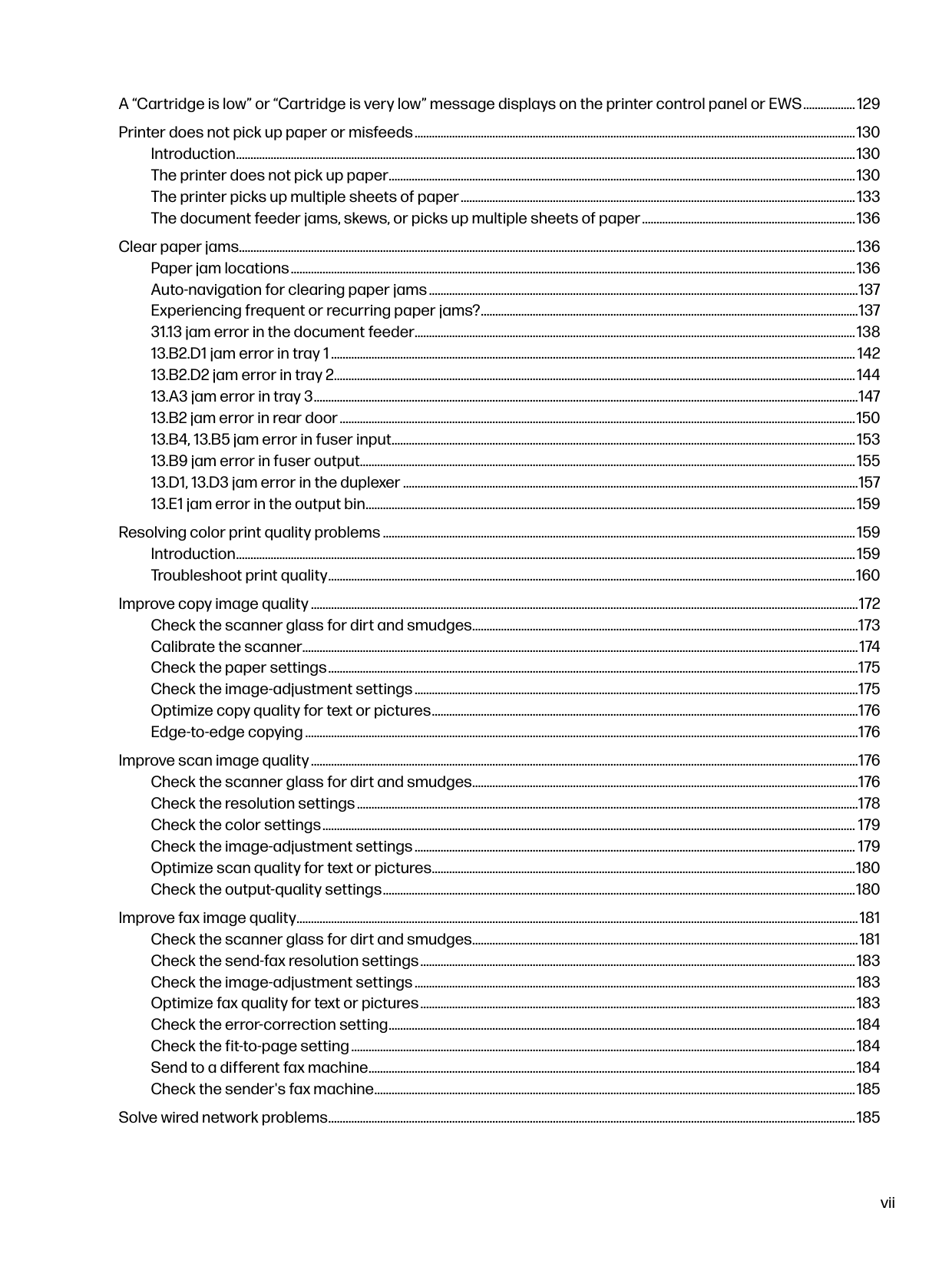
The E47528f includes Tray 1 with 50-sheet capacity, Tray 2 with 250-sheet capacity, optional 550-sheet accessory tray, and automatic duplex printing capability. The printer also supports a 50-page document feeder with dual-head scanning for single-pass duplex copying and scanning.
How do I access the HP Embedded Web Server (EWS) for advanced configuration?
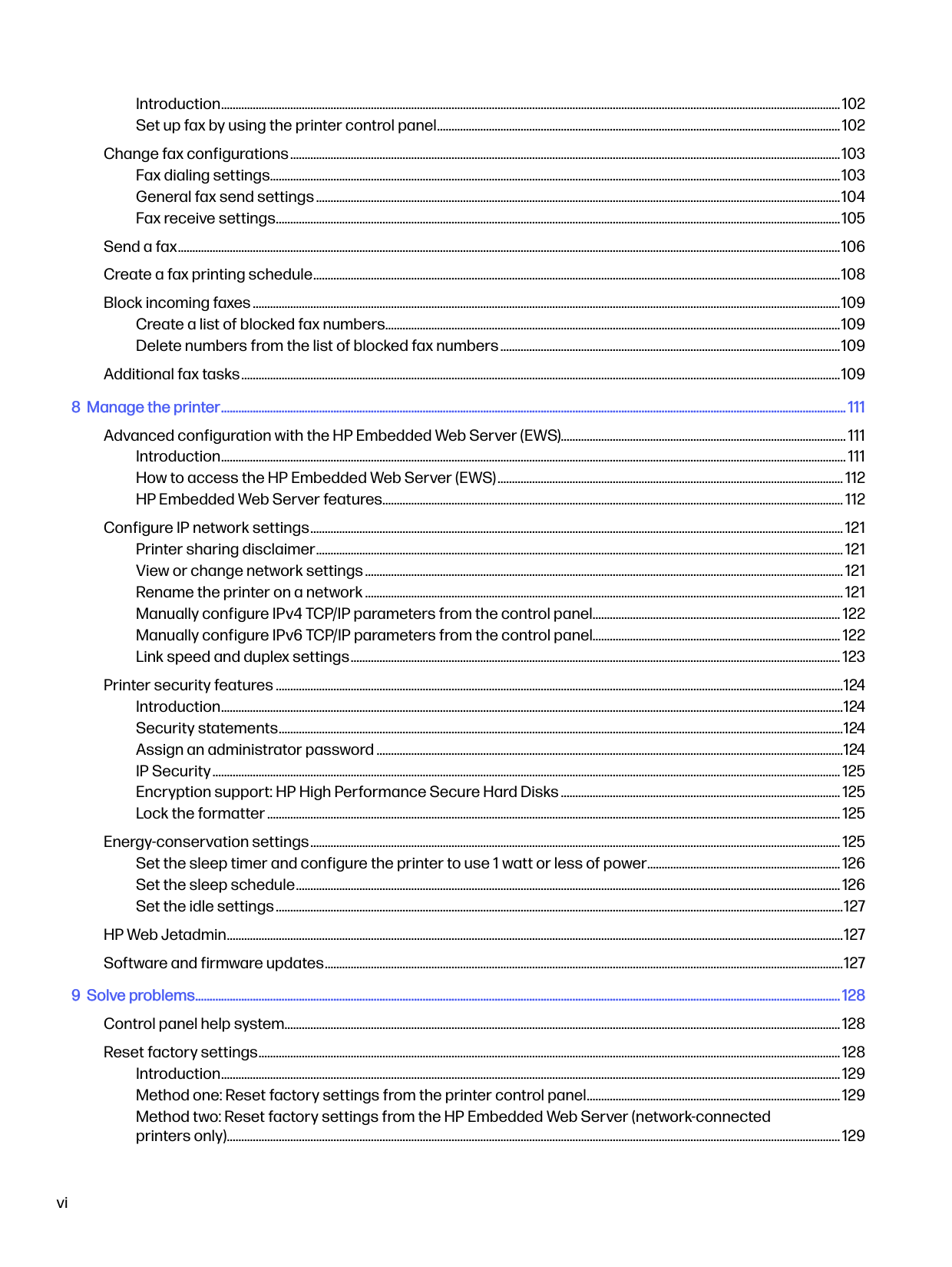
The manual indicates that the HP Embedded Web Server (EWS) is used for advanced configuration and is available for network-connected printers only. Detailed instructions for accessing the EWS are provided in the Manage the printer section. The EWS features multiple configuration options including network settings, security settings, and energy conservation settings.
What should I do if I see a 'Cartridge is low' message?
When a 'Cartridge is low' or 'Cartridge is very low' message displays on the printer control panel or EWS, you should refer to the troubleshooting section in the manual for guidance. Instructions for replacing toner cartridges are provided in the Supplies, accessories, and parts section.
Show 22 more questions
How do I reset the printer to factory settings?
What connectivity options does the E47528f support?
如何进行初始设置后自定义打印机设置?
Is Tray 3 included with the printer, or is it optional?
What is the operating environment temperature range for this printer?
Can I load paper into Tray 2, and if so, how?
How can I print envelopes with this printer?
What should I do if I encounter a potential shock hazard with this printer?
Is there a shock hazard I should be aware of with this printer?
Is Tray 3 included with the standard printer package?
What are the dimensions and power consumption specifications for this printer?
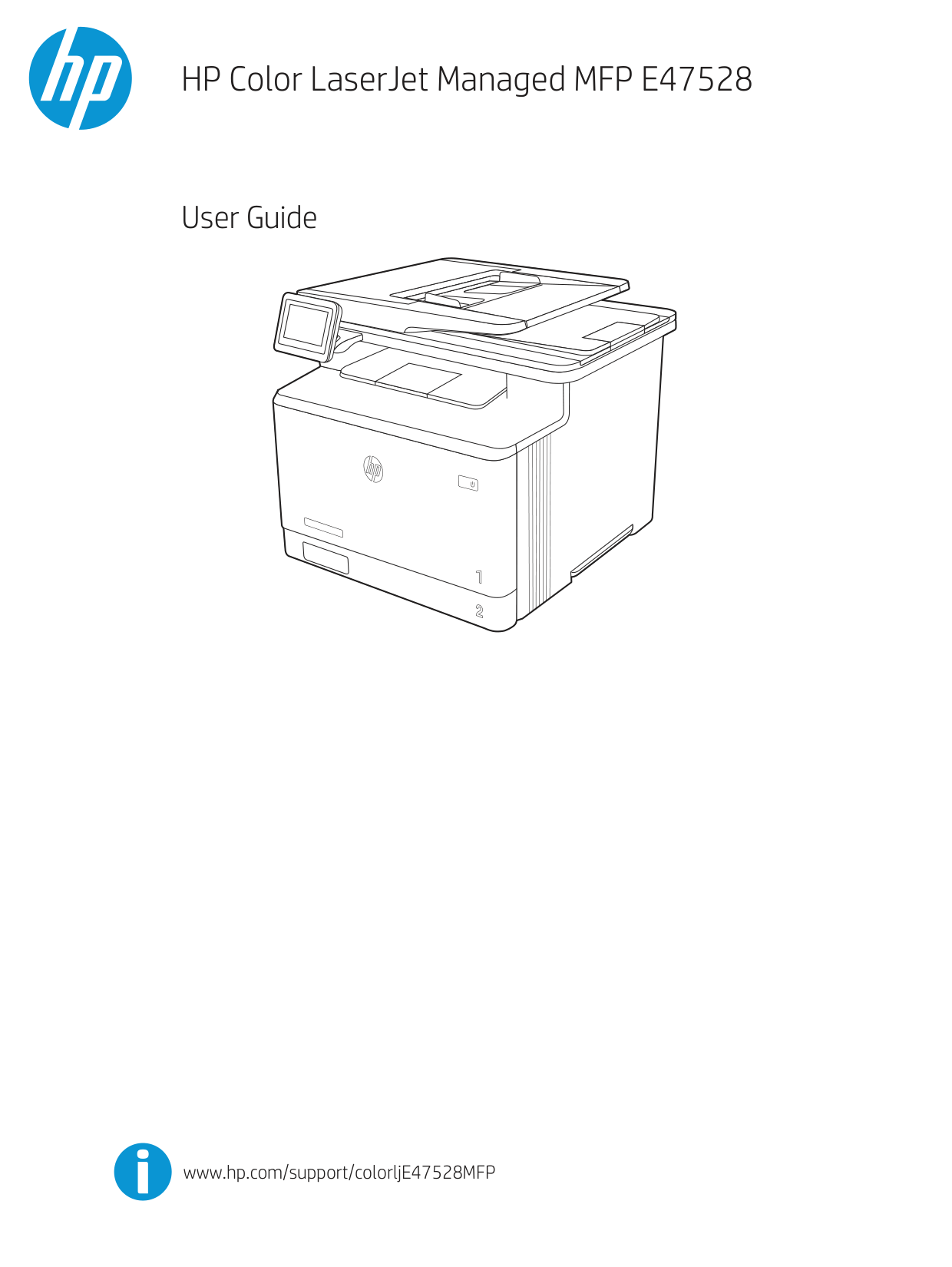
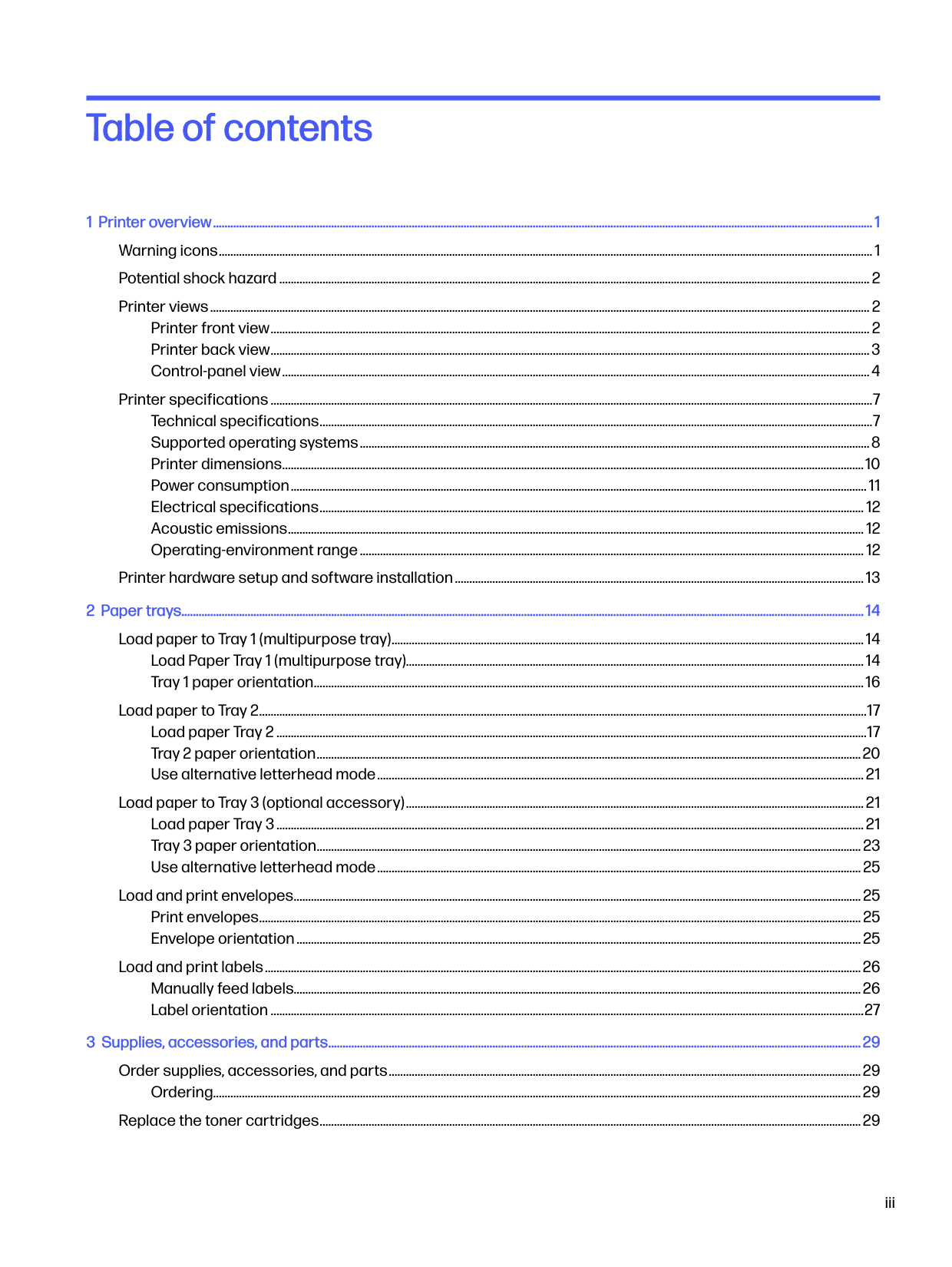
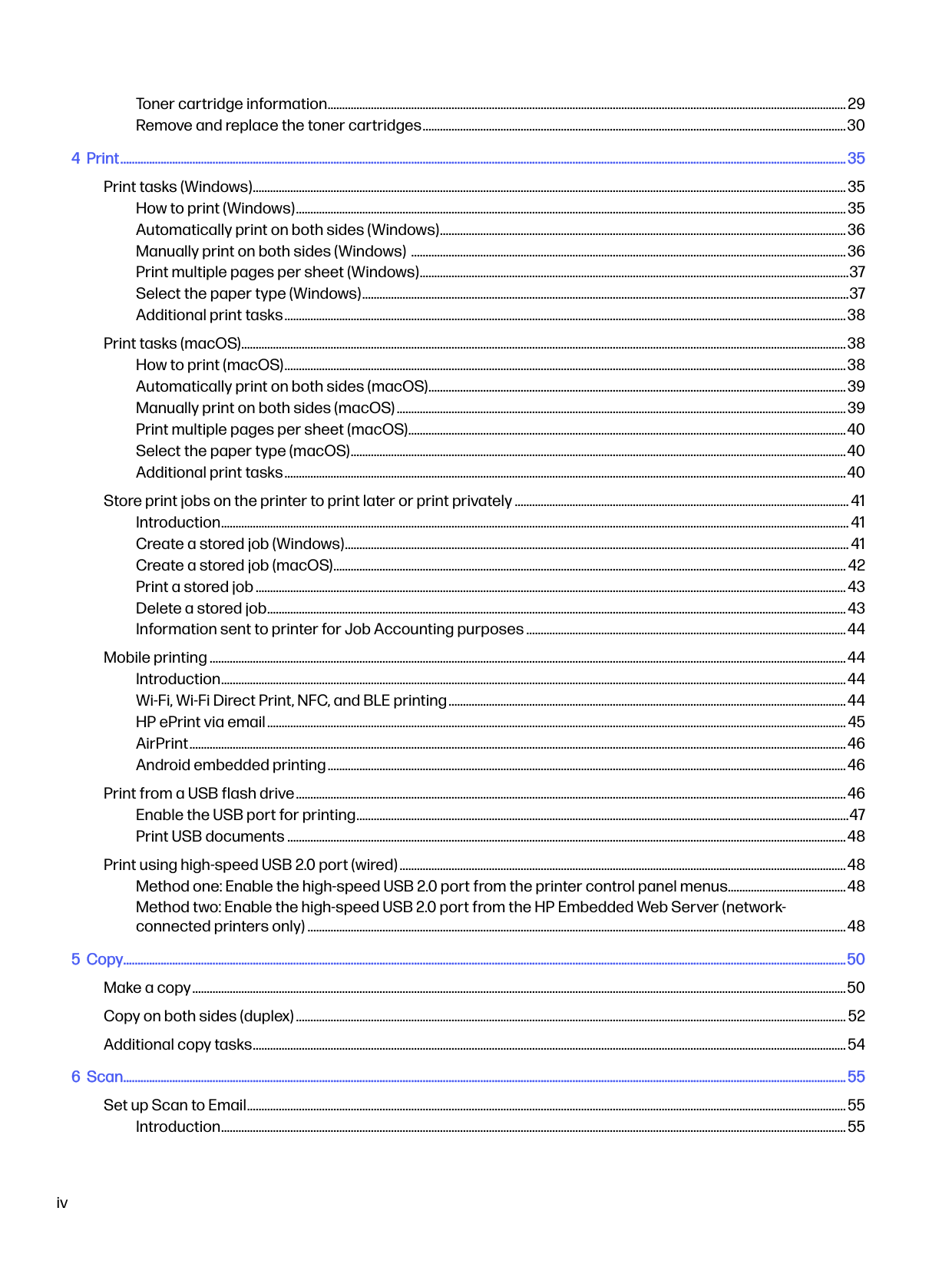
What is included in the HP Color LaserJet Managed MFP E47528 user guide?
Can I print envelopes with this printer?
What operating systems are supported by the HP Color LaserJet Managed MFP E47528?
How do I load paper into Tray 1 (the multipurpose tray)?
What information is provided about power consumption for this printer?
What acoustic emission and operating environment information is available?
What is the copyright and warranty information for this manual?
How do I load paper into Tray 2?
What operating systems does the HP Color LaserJet Managed MFP E47528 support?
What are the dimensions of the HP Color LaserJet Managed MFP E47528?
Does the manual include information about warranty and safety?
Full Manual
8 pages
www.hp.com/support/ljM304
www.hp.com/support/ljM404
www.register.hp.com W1A52-90926
© Copyright 2018 HP Development Company, L.P. www.hp.com




381 mm 15 in
241 mm9.5 in
HEWLETT-PACKARD
2
781 mm30.8 in
1.1 1.2 1.3
1.4 1.5


ZHCN
##### 注意:为防止损坏打印机,请仅使用打印机随附的电源线。
EN
CAUTION: To prevent damage to the printer, use only the power cord that is provided with the printer.
入门指南
Getting Started Guide
简体中文............. 4
English................. 6
ENZHCN3.在控制面板上进行初始设置 .................4
注:必须有网络连接才可设置打印机和下载软件驱动程序。
###### 常见问题解答
有关常见问题解答,请访问 www.hp.com/support/ljM404FAQ 或扫描二维码。
3. 在控制面板上进行初始设置
开启打印机之后,等待其初始化。要在控制面板上导航,请使用箭头和确定按钮。按控制面板上的提示配置以下这些设置:
初始设置之后,全部设置均可自定义。
注:请勿连接USB电缆,直到接到提示。
#### 方法 1:下载 HP Easy Start(Windows 和 Mac OS)
方法 2:从打印机支持网站下载(Windows 和 Mac OS)
#### 提示: 使用 HP Smart 应用程序(仅限无线型号,仅限 iOS)将打印机连接到无线网络。
###### 手动配置 IP 地址
有关手动配置 IP 地址的信息,请参阅打印机用户指南。有关更多信息,请访问 www.hp.com/support/ljM304 或 www.hp.com/support/ljM404.
5. 移动打印(可选)
方法 1:HP Smart 使用 HP Smart 应用程序进行设置、打印等等。

方法 2:Wi-Fi Direct(仅限无线型号) 通过 Wi-Fi Direct,智能手机、平板电脑或计算机等支持 Wi-Fi 的设备可直接与打印机建立无线网络连接,而不必使用无线路由器或接入点。连接 到打印机的 Wi-Fi Direct 信号与将支持 Wi-Fi 的设备连接到新的无线网络或热点的方式相同。
启用 Wi-Fi Direct
发现打印机
有关无线打印和无线设置的详细信息,请访问 www.hp.com/go/wirelessprinting.
###### 详细了解移动打印

本产品支持 AirPrint 和 Wi-Fi Direct。有关移动打印的详细信息,请扫描二维码或访问 www.hp.com/go/LaserJetMobilePrinting.

故障排除
用户指南 《用户指南》中含有打印机使用和故障排除信息。可从 Web 下载:
其他支持资源 有关 HP 对打印机的全方位帮助,请访问 www.hp.com/support/ljM304 或 www.hp.com/support/ljM404.
如需了解更多关于打印机的信息,请访问 www.hp.com/support/ljM404FAQ 或扫描二维码。
简体中文............. 4
English................. 6
NOTE: Internet connection is required to set up the printer and download the software driver.
###### FAQ
For frequently asked questions, go to www.hp.com/support/ljM404FAQ or scan the QR code.
3. Initial setup on the control panel
After turning on the printer, wait for it to initialize. To navigate the control panel, use arrow and OK button. Follow the prompts on the control panel to configure these settings:
Settings are fully customizable after initial setup.
NOTE: Do not connect the USB cable until you are prompted to do so.
#### Method 1: Download HP Easy Start (Windows and Mac OS)
Method 2: Download from printer support website (Windows and Mac OS)
#### Tips: Connect the printer to a wireless network using the HP Smart app (wireless models only) (iOS only)
###### Manually configure the IP address
See the printer user guide for information about configuring the IP address manually. For more information, go to www.hp.com/support/ljM304 or www.hp.com/support/ljM404.
5. Mobile printing (Optional)
Method 1: HP Smart Use the HP Smart app to set up, print, and more.

Method 2: Wi-Fi Direct (wireless models only) Wi-Fi Direct allows Wi-Fi capable devices, such as smart phones, tablets, or computers, to make a wireless network connection directly to the printer without using a wireless router or access point. Connect to the printer’s Wi-Fi Direct signal the same way Wi-Fi capable devices are connected to a new wireless network or hotspot.
Enable Wi-Fi Direct
Discover the printer
For more information on wireless printing and wireless setup, go to www.hp.com/go/wirelessprinting.
###### Learn more about mobile printing

The product supports AirPrint and Wi-Fi Direct. For more mobile printing information, scan the QR code or go to www.hp.com/go/LaserJetMobilePrinting.
Troubleshooting
User Guide The User Guide includes printer usage and troubleshooting information. It is available on the Web:
Additional support resources For HP’s all-inclusive help for the printer, go to www.hp.com/support/ljM304 or www.hp.com/support/ljM404.
To learn more about the printer, please go to www.hp.com/support/ljM404FAQ or scan the QR code.
© 2018 Copyright HP Development Company, L.P.
未经事先书面许可,严禁进行任何形式的复制、改编或 翻译,除非版权法另有规定。
此处包含的信息如有更改,恕不另行通知。 此类产品和服务附带的保修声明中明确规定了 HP 产品 和服务的所有保修事项。不得将本文的任何内容视为构 成附加保修。HP 不对本文档中的技术错误、编辑错误或 遗漏承担责任。 商标说明 Windows®是 Microsoft Corporation 在美国的注册商标。 Apple 和 Apple 徽标是 Apple Inc. 在美国和其它国家/地区 的注册商标
Mac OS 是 Apple Inc. 在美国和其他国家/地区的注册商标。 AirPrint 是 Apple Inc. 在美国和其他国家/地区的注册商标。
© Copyright 2018 HP Development Company, L.P.
Reproduction, adaptation or translation without prior written permission is prohibited, except as allowed under the copyright laws.
The information contained herein is subject to change without notice.
The only warranties for HP products and services are set forth in the express warranty statements accompanying such products and services. Nothing herein should be construed as constituting an additional warranty. HP shall not be liable for technical or editorial errors or omissions contained herein.
Trademark Credits Windows® is a U.S. registered trademark of Microsoft Corporation.
Apple and the Apple logo are trademarks of Apple Inc., registered in the U.S. and other countries.
Mac OS is a trademark of Apple Inc., registered in the U.S. and other countries.
AirPrint is a trademark of Apple Inc., registered in the U.S. and other countries.
www.hp.com
