Ask AI
— answers from the official manualAnswers from the official manual.
Common questions
Common Questions
6 total如何启用Wi-Fi Direct?
按下“取消”按钮直到准备好后指示灯开始闪烁,打印出配置页以获取IP地址;然后访问浏览器输入该地址进入内嵌Web服务器,并选择Wi-Fi Direct设置进行所需连接。(Page 4)
无线网络连接时应注意哪些事项?
确保没有插入网线,路由器和打印机均开启并通过开关启用,并且打印机在接入点的范围内(通常为30米以内),同时电脑已接收到打印驱动。使用无线电话功能时应断开物理连接缆线和检查计算机是否与同个无线网络下。(Page 7)
如何安装软件?有哪些方法?
可以通过HP Easy Start网站下载,或访问支持网址、打印机CD来获取驱动程序。若使用Windows:插入打印机光盘到电脑启动安装;Mac:可以启动光盘上的文件,并按照屏幕提示进行安装。(Page 3)
怎样通过Email发送文档打印?
为使用此功能,打印机必须连接网络并可访问互联网;还必须启用惠普Web服务,并注册到HP Connected。接着在控制面板上输入相关设置,按照指南完成账户创建和配置。(Page 7)
传真故障排除需要检查哪些事项?
通过连接打印机的电话线来验证物理链接,并确保使用正确的振铃模式并调节相关设置以降低问题发生几率,如传真速度和错误纠正模块。(Page 9)
如何更新打印机固件?
在控制面板上按下“OK”按钮,滚动到服务菜单并选择激光打印更新。最后选择立即检查更新来启动固件更新流程。(Page 11)
Full Manual
12 pages
2
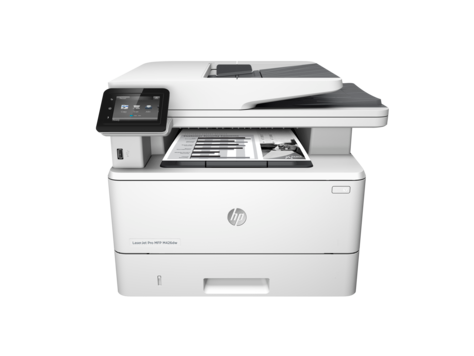
LaserJet Pro MFP M426, M427
入门指南
Getting Started Guide
ZHCN 3. 在控制面板上进行初始设置..................... 2
EN 3. Initial setup on the control panel ................................... 7
重要信息:
执行打印机硬件设置海报
上的步骤 1 - 2,然后
继续执行步骤 3。
|| |---|
#### 3. 在控制面板上进行初始设置
开启打印机之后,等待其初始化。按提示并使用控制面板上的方向键 配置以下这些设置:
初始设置之后,全部设置均可自定义。
USB 直接连接打印机和计算机 请使用 A 接 B 型的 USB 电缆。
###### Windows
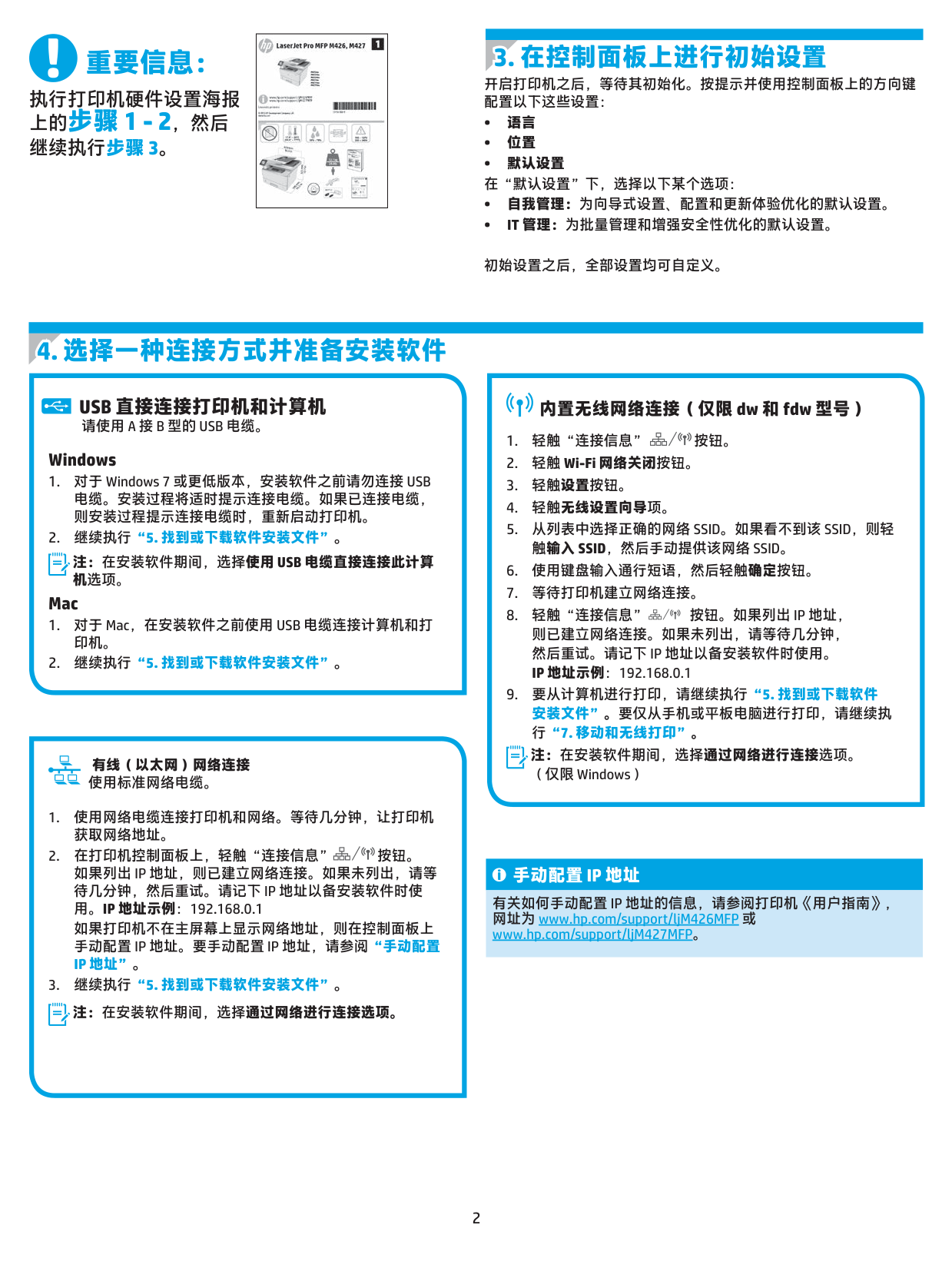
注 : 在安装软件期间,选择使用 USB 电缆直接连接此计算 机选项。
Mac
######### 有线(以太网)网络连接 使用标准网络电缆。
注 : 在安装软件期间,选择通过网络进行连接选项。
###### 内置无线网络连接(仅限 dw 和 fdw 型号)
注 : 在安装软件期间,选择通过网络进行连接选项。 (仅限 Windows)
###### 手动配置 IP 地址
有关如何手动配置 IP 地址的信息,请参阅打印机《用户指南》, 网址为 www.hp.com/support/ljM426MFP 或 www.hp.com/support/ljM427MFP。
###### 方法 1:从 HP Easy Start 下载(Windows 和 OS X)
###### 方法 2:从打印机支持网站下载(Windows 和 OS X)
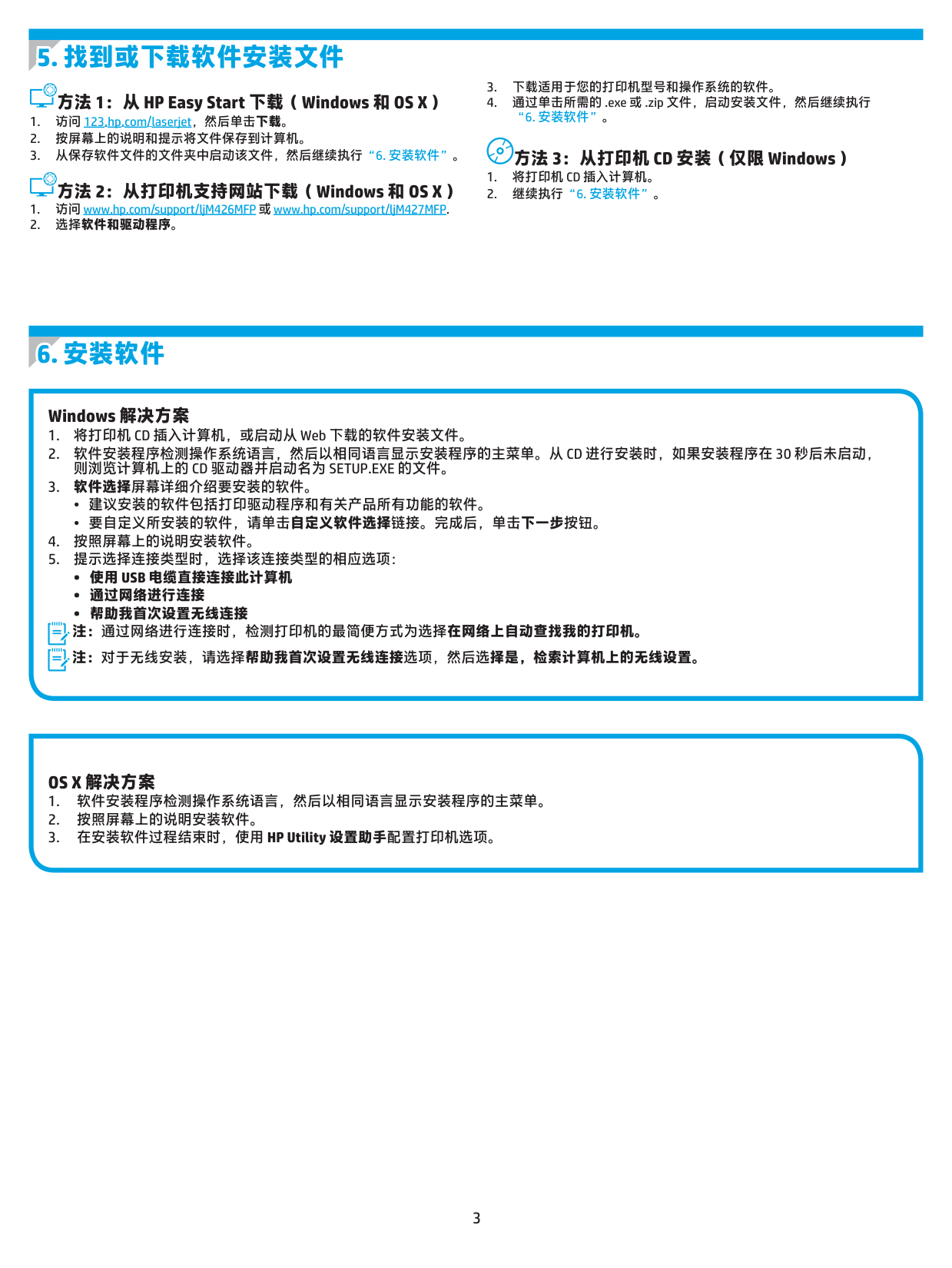
###### Windows 解决方案
###### OS X 解决方案
#### 7.1将设备连接到无线网络
7.2Wi-FiDirect(仅限dw和fdw无线型号) 通过 Wi-Fi Direct,可近距离从无线移动设备直接打印到支持 Wi-Fi Direct 的打印机,而无需连接到网络或 Internet。
要从手机或平板电脑打印,请将设备连接到打印机使用的同一 个无线网络。
注:打印机可能需要更新固件才能使用此功能。 启用 Wi-Fi Direct
Apple iOS 设备 (AirPrint):打开要打印的项,然后选择操作图 标。依次选择打印、本打印机、打印。 新版 Android 设备(4.4 或更新版本):打开要打印的项,然后 选择菜单按钮。依次选择打印、本打印机、打印。 某些设备需要从 Google Play 商店下载“HP Print Service 插件” 应用程序。 旧版 Android 设备(4.3 或更旧版本):从 Google Play 商店下载 HP ePrint 应用。 Windows Phone:从 Windows 应用商店下载 HP AiO Remote 应用。
##### 详细了解移动打印
要详细了解其他移动打印选项(包括其他 ePrint 解决方案),请扫描二维码或参阅 《用户指南》的“移动打印”一节。

注 : 要查找网络名称 (SSID),请从网络选项卡中单击无线配置 菜单。
有关无线打印和无线设置的详细信息,请访问 www.hp.com/go/wirelessprinting。
使用通过电子邮件的 HP ePrint 打印文档只需从任何支持电子邮件的设 备(甚至可从不在同一网络上的设备)将这些文档作为电子邮件附件 发送到产品的电子邮件地址即可。 要使用通过电子邮件的 HP ePrint,打印机必须满足以下这些要求:
###### 启用 HP Web 服务
#### 9. 设置传真(仅限 fdn 和 fdw 型号 - 可选)
#### 9.1 9.2 配置打印机
连接打印机 本打印机为模拟设备。HP 建议在专用模拟电话线路上使用 本打印机。
必须配置传真时间、日期和标题设置才能使用传真功能。 HP 传真设置向导 (Windows)
注 : 部分国家/地区可能需要使用适配器才能连接本打印 机随附的电话线。
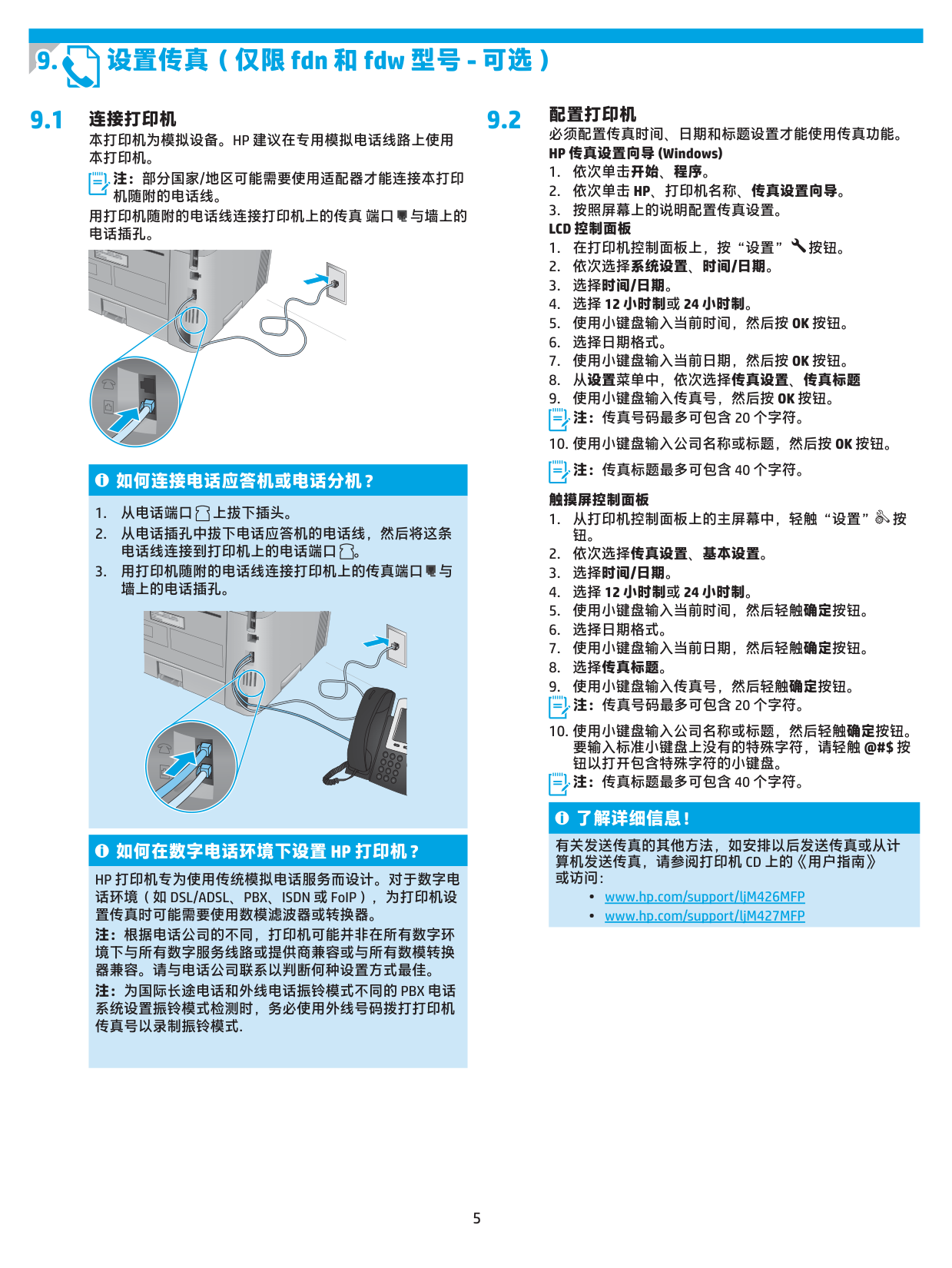
用打印机随附的电话线连接打印机上的传真 端口 与墙上的 电话插孔。
注:传真号码最多可包含 20 个字符。


注:传真标题最多可包含 40 个字符。 触摸屏控制面板
###### 如何连接电话应答机或电话分机?
注:传真号码最多可包含 20 个字符。


注 : 传真标题最多可包含 40 个字符。
###### 了解详细信息!
有关发送传真的其他方法,如安排以后发送传真或从计 算机发送传真,请参阅打印机 CD 上的《用户指南》 或访问:
###### 如何在数字电话环境下设置 HP 打印机?
HP 打印机专为使用传统模拟电话服务而设计。对于数字电 话环境(如 DSL/ADSL、PBX、ISDN 或 FoIP),为打印机设 置传真时可能需要使用数模滤波器或转换器。
注:根据电话公司的不同,打印机可能并非在所有数字环 境下与所有数字服务线路或提供商兼容或与所有数模转换 器兼容。请与电话公司联系以判断何种设置方式最佳。
注:为国际长途电话和外线电话振铃模式不同的 PBX 电话 系统设置振铃模式检测时,务必使用外线号码拨打打印机 传真号以录制振铃模式.
#### 10. 使用扫描功能
使用计算机上的 HP 扫描软件在打印机上开始进行扫描作业。 Windows 单击开始,然后依次选择程序或所有程序、HP、HP 扫描。
OS X 单击应用程序,然后依次选择 HP、HP 扫描。
疑难排解
用户指南 《用户指南》中含有打印机使用和故障排除信息。可在打印机 CD 和 Web 上找到它:
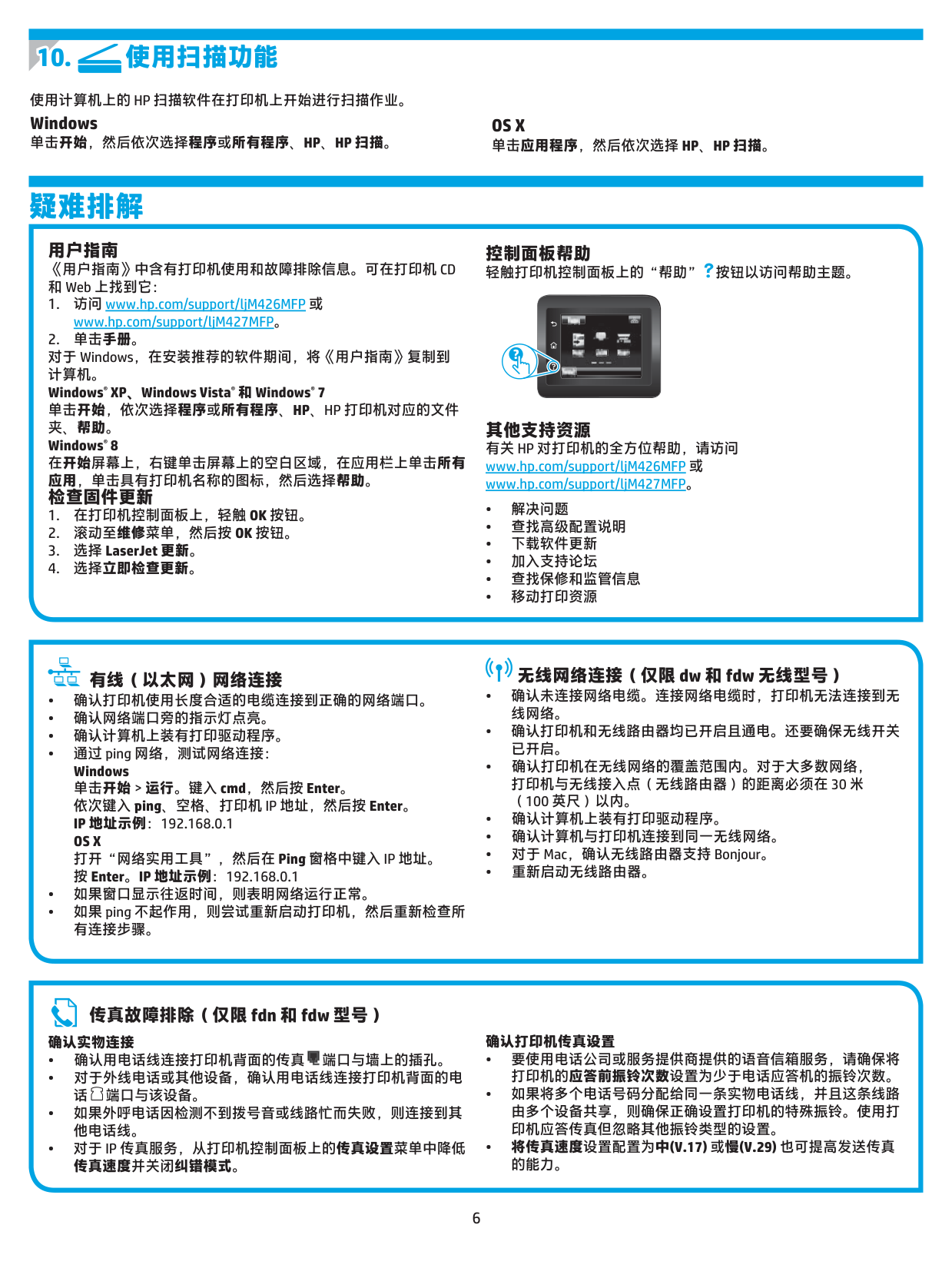
控制面板帮助 轻触打印机控制面板上的“帮助” 按钮以访问帮助主题。




其他支持资源 有关 HP 对打印机的全方位帮助,请访问
###### 有线(以太网)网络连接
###### 无线网络连接(仅限 dw 和 fdw 无线型号)
###### 传真故障排除(仅限 fdn 和 fdw 型号) 确认实物连接
######### 确认打印机传真设置
|| |---|
#### 3. Initial setup on the control panel
IMPORTANT:
After turning on the printer, wait for it to initialize. Follow the prompts and use the arrow keys on the control panel to configure these settings:
Follow Steps 1 - 2on the printer hardware setup poster, then continue with Step 3.
Settings are fully customizable after initial setup.
USB connection directly between the printer and the computer Use an A-to-B type USB cable.
###### Built-in wireless network connection (dw and fdw wireless models only)
###### Windows
NOTE: During software installation, select the option to Directly connect this computer using a USB cable.
###### Mac
NOTE: During software installation, select the option to Connect through a network. (Windows only)
Wired (Ethernet) network connection Use a standard network cable.
button. If an IP address is listed, the network connection has been established. If not, wait a few more minutes and try again. Note the IP address for use during software installation. Example IP address: 192.168.0.1
If the printer does not display the network address on the Home screen, manually configure the IP address on the control panel. To manually configure the IP address, see “Manually configure the IP address.”
NOTE: During software installation, select the option to Connect through a network.
###### Manually configure the IP address
For information on how to manually configure the IP address, see the printer User Guide www.hp.com/support/ljM426MFP or www.hp.com/support/ljM427MFP.
###### Method 1: Download from HP Easy Start (Windowsand OS X)
###### Method 3: Install from the printer CD (Windows only)
###### Method 2: Download from printer support Web site(Windows and OS X)
###### Windows solution
NOTE: For wireless installation, select the option to Help me set up a first-time wireless connection, and then select Yes, retrieve the wireless settings on my computer.
###### OS X solution
#### 7.1Connect the device to the wireless network
7.2Wi-Fi Direct (dw and fdw wireless models only) Wi-Fi Direct enables close-proximity printing from a wireless mobile device directly to an Wi-Fi Direct-enable printer without requiring a connecting to a network or the Internet.
To print from a phone or tablet, connect the device to the same wireless network as the printer.
Apple iOS devices (AirPrint): Open the item to print, and select the Action icon. Select Print, select the printer, and then select Print. Newer Android devices (4.4 or newer): Open the item to print, and select the Menu button. Select Print, select the printer, and select Print.
NOTE: The printer might require a firmware update to use this feature.
######### Enable Wi-Fi Direct
Some devices require downloading the HP Print Service plugin app from the Google Play store.
Older Android Devices (4.3 or older): Download the HP ePrint app from the Google Play store. Windows Phone: Download the HP AiO Remote app from the Windows Store.
##### Learn more about mobile printing
To learn more about other mobile printing options, including additional ePrint solutions, scan the QR code, or see the “Mobile printing” section of the User Guide.

NOTE: To find the network name (SSID), click the Wireless Configuration menu from the Networking tab.
For more information on wireless printing and wireless setup, go to www.hp.com/go/wirelessprinting.
Use HP ePrint via email to print documents by sending them as an email attachment to the printer’s email address from any email enabled device, even from devices that are not on the same network. To use HP ePrint via email, the printer must meet these requirements:
###### Enable HP Web Services
#### 9. Set up fax (fdn and fdw models only - optional)
#### 9.1 9.2 Configure the printer
Connect the printer The printer is an analog device. HP recommends using the printer on a dedicated analog telephone line.
Configuring the fax time, date, and header settings is required to use the fax feature. HP Fax Setup Wizard (Windows)
NOTE: Some countries/regions might require an adapter for the phone cord that came with the printer.
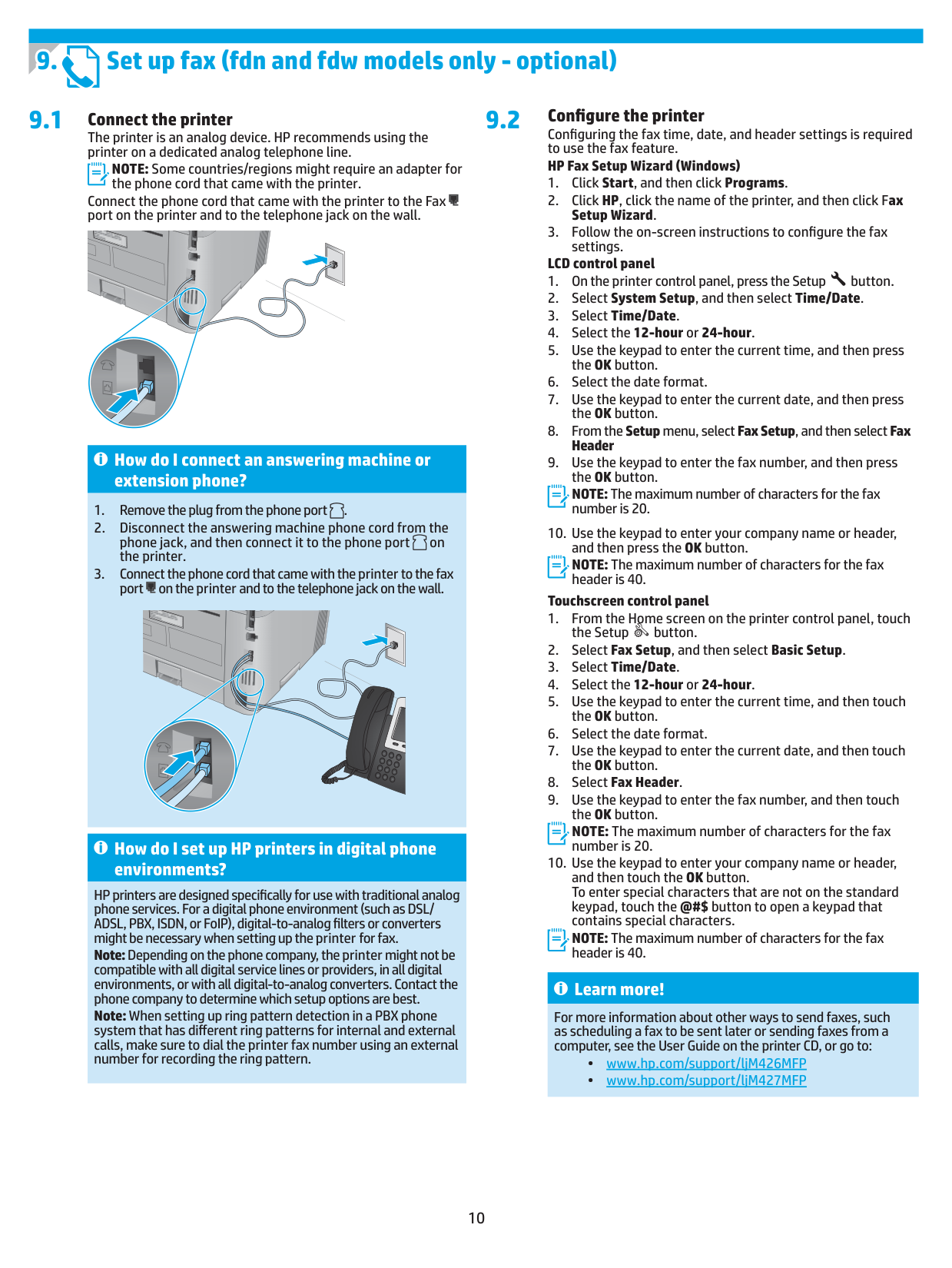
Connect the phone cord that came with the printer to the Fax port on the printer and to the telephone jack on the wall.


######### LCD control panel
NOTE: The maximum number of characters for the fax number is 20.
###### How do I connect an answering machine or extension phone?
NOTE: The maximum number of characters for the fax header is 40.
######### Touchscreen control panel
NOTE: The maximum number of characters for the fax number is 20.


###### How do I set up HP printers in digital phone environments?
HP printers are designed specifically for use with traditional analog phone services. For a digital phone environment (such as DSL/ ADSL, PBX, ISDN, or FoIP), digital-to-analog filters or converters might be necessary when setting up the printer for fax. Note:Depending on the phone company, the printer might not be compatible with all digital service lines or providers, in all digital environments, or with all digital-to-analog converters. Contact the phone company to determine which setup options are best. Note: When setting up ring pattern detection in a PBX phone
NOTE: The maximum number of characters for the fax header is 40.
###### Learn more!
For more information about other ways to send faxes, such as scheduling a fax to be sent later or sending faxes from a computer, see the User Guide on the printer CD, or go to:
system that has different ring patterns for internal and external calls, make sure to dial the printer fax number using an external number for recording the ring pattern.
#### 10. Use the scan feature
Use the HP Scan software on your computer to start a scan job at the printer.
OS X Click Applications, select HP, and then select HP Scan.
Windows Click Start, select Programs or All Programs, select HP, and then select HP Scan.
Troubleshooting
User Guide The User Guide includes printer usage and troubleshooting information. It is available on the printer CD and on the Web:
###### Check for firmware updates
Control panel help Touch the Help button on the printer control panel to access help topics.


Additional support resources For HP’s all-inclusive help for the printer, go to www.hp.com/support/ ljM426MFP or www.hp.com/support/ljM427MFP.
###### Wired (Ethernet) network connection
###### Wireless network connection (dw and fdw wireless models only)
###### Fax troubleshooting (fdn and fdw models only) Verify the physical connection
######### Verify the printer fax settings
© 2015 Copyright HP Development Company, L.P.
未经事先书面许可,严禁进行任何形式的复制、 改编或翻译,除非版权法另有规定。
此处包含的信息如有更改,恕不另行通知。 此类产品和服务附带的保修声明中明确规定了 HP 产品 和服务的所有保修事项。不得将本文的任何内容视为 构成附加保修。HP 不对本文档中的技术错误、编辑错 误或遗漏承担责任。 商标说明 Windows® 是 Microsoft Corporation 在美国的注册商标。 FCC 规则 本设备经测试,确认符合 FCC 规则第 15 部分有关 B 级 数字设备的限制规定。这些限制旨在为防止住宅安装中 的有害干扰提供合理保护。本设备会产生、使用并可能 辐射射频能量。如果不按照说明进行安装和使用,可能 会对无线电通信造成有害干扰。但也不能保证在特定的 安装中不会产生干扰的问题。如果本设备确实对无线电 或电视接收造成干扰(可以通过开关设备来确定), 可通过以下一种或多种措施排除干扰:
15 部分有关 B 级数字设备的限制规定,用户必须使用
屏蔽的接口电缆。有关更多管制信息,请参阅电子版 《用户指南》。对于由提供或使用本信息所引起的任 何直接、间接、偶然、继发性或其它损失,
HP 概不负责。
© 2015 Copyright HP Development Company, L.P. Reproduction, adaptation or translation without prior written permission is prohibited, except as allowed under the copyright laws. The information contained herein is subject to change without notice. The only warranties for HP products and services are set forth in the express warranty statements accompanying such products and services. Nothing herein should be construed as constituting an additional warranty. HP shall not be liable for technical or editorial errors or omissions contained herein. Trademark Credits Windows® is a U.S. registered trademark of Microsoft Corporation. FCC Regulations This equipment has been tested and found to comply with the limits for a Class B digital device, pursuant to Part 15 of the FCC rules. These limits are designed to provide reasonable protection against harmful interference in a residential installation. This equipment generates, uses, and can radiate radio-frequency energy. If this equipment is not installed and used in accordance with the instructions, it may cause harmful interference to radio communications. However, there is no guarantee that interference will not occur in a particular installation. If this equipment does cause harmful interference to radio or television reception, which can be determined by turning the equipment off and on, correct the interference by one or more of the following measures:
Any changes or modifications to the product that are not expressly approved by HP could void the user’s authority to operate this equipment. Use of a shielded interface cable is required to comply with the Class B limits of Part 15 of FCC rules. For more regulatory information, see the electronic user guide. HP shall not be liable for any direct, indirect, incidental, consequential, or other damage alleged in connection with the furnishing or use of this information.
www.hp.com