
Ask AI
— answers from the official manualAnswers from the official manual.
Common questions
Common Questions
4 total Full Manual
12 pages
参考指南
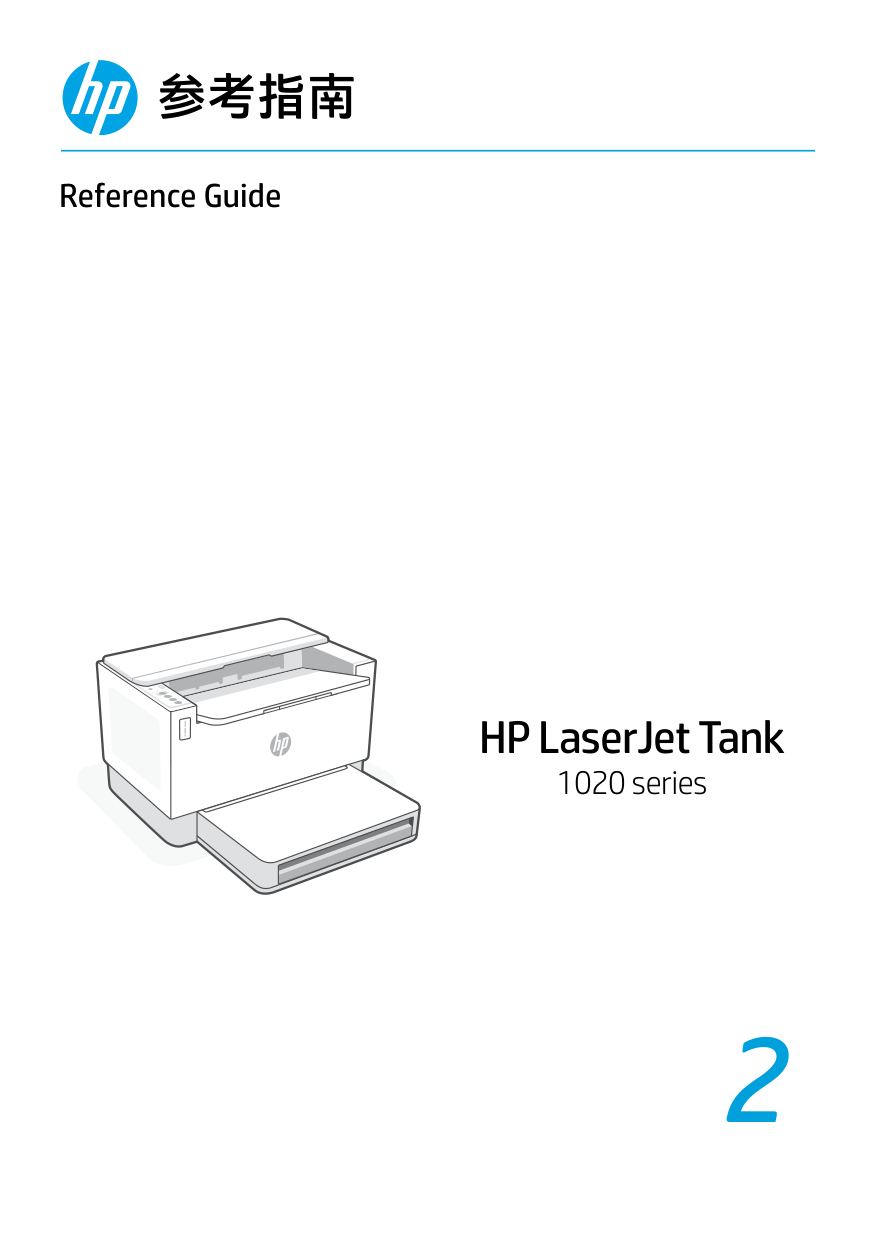
Reference Guide
HP LaserJet Tank
1020 series
2
打印机功能
4
1 3
2
7
8
65

按钮和指示灯
Wi-Fi 按钮/指示灯 按下此按钮可开关 Wi-Fi。 无线指示灯用于指示状态。
无线指示灯 正在建立连接时闪烁。 已连接后亮起。
警示指示灯 指示纸张、墨水或打印头 相关问题。
信息按钮/指示灯
按下即可打印打印机 设置和状态的摘要。
重新开始按钮/指示灯 亮起时按下即可继续完成作业。
取消按钮/指示灯
电源按钮/指示灯
显示屏图标
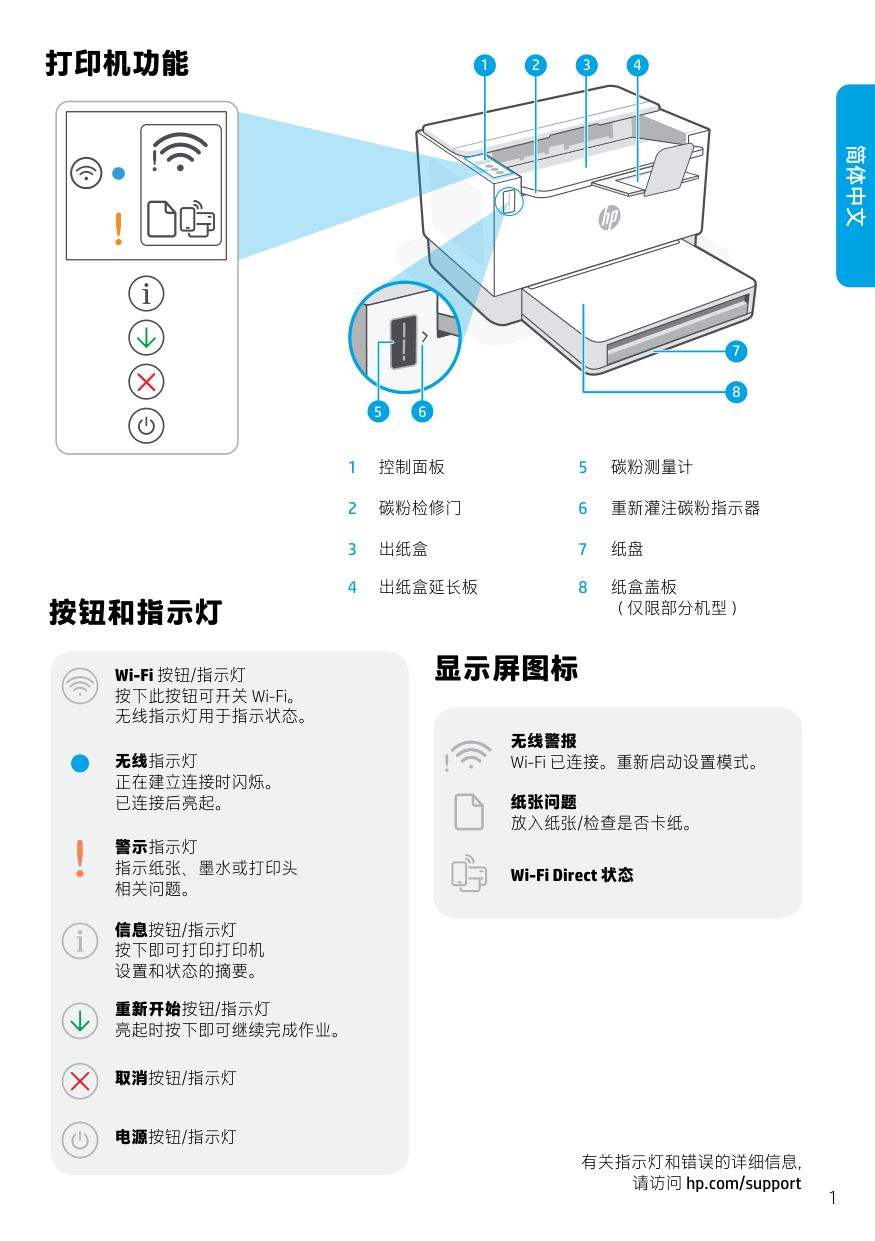
无线警报 Wi-Fi 已连接。重新启动设置模式。
纸张问题 放入纸张/检查是否卡纸。
Wi-Fi Direct 状态
有关指示灯和错误的详细信息, 请访问 hp.com/support
简体中文
检查碳粉余量
简体中文
打印机在购买时已预灌注碳粉。 HP 碳粉重新灌注套件 (TRK) 提供 2 种选项:标准容量和大容量。碳粉测 量计上测量条的值为估算碳粉量,可能与实际碳粉量略有不同。 检查碳粉测量计指示器,确定何时添加碳粉。要购买 HP 原装碳粉包,请访问 hp.com/buy/supplies 或咨询 当地的 HP 分销商。
X
A
标准 TRK 大容量 TRK
#### 碳粉余量指示器状态
查看碳粉 余量
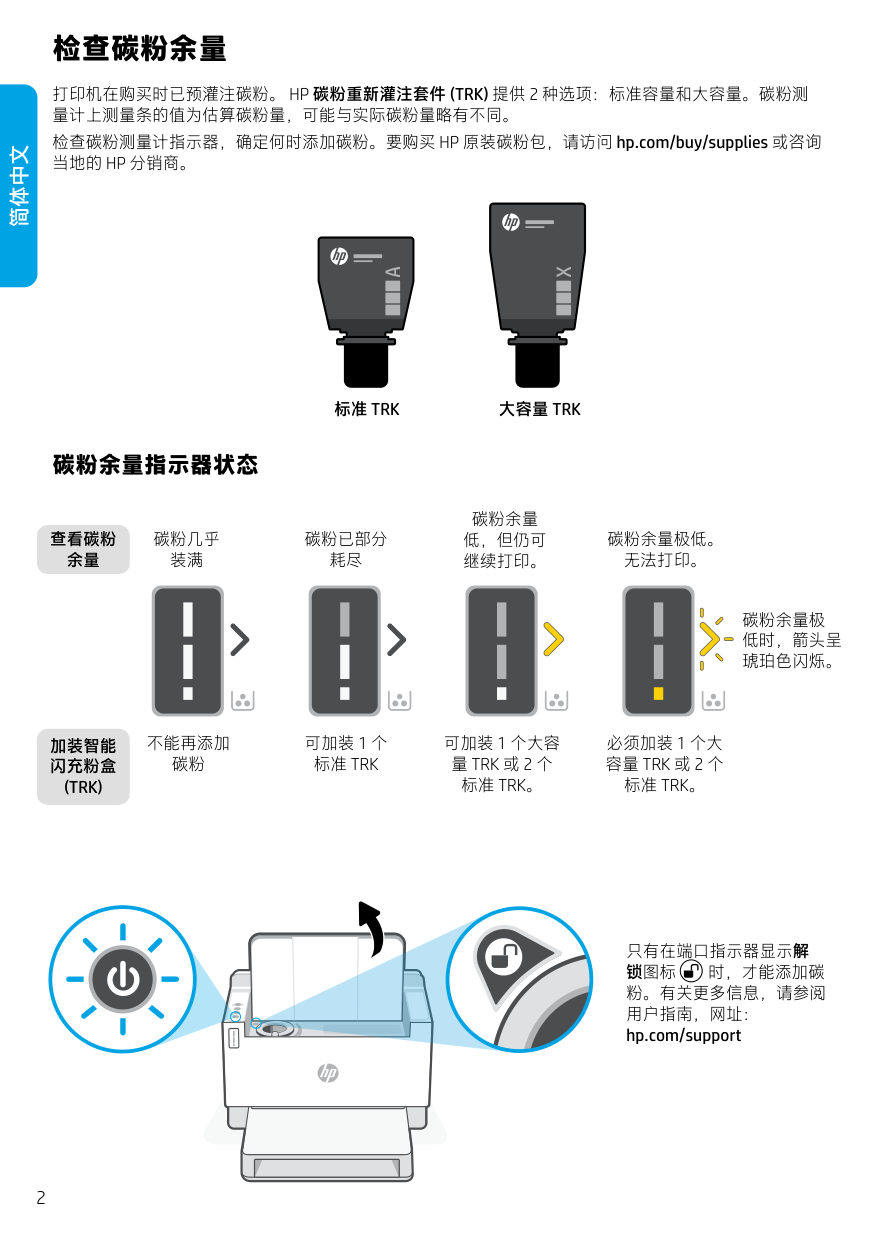
碳粉几乎 装满
碳粉已部分 耗尽
碳粉余量 低,但仍可 继续打印。
碳粉余量极低。 无法打印。
碳粉余量极 低时,箭头呈 琥珀色闪烁。
加装智能 闪充粉盒 (TRK)
不能再添加 碳粉
可加装 1 个 标准 TRK
可加装 1 个大容 量 TRK 或 2 个 标准 TRK。
必须加装 1 个大 容量 TRK 或 2 个 标准 TRK。
| | | |---|---| | | | | | |
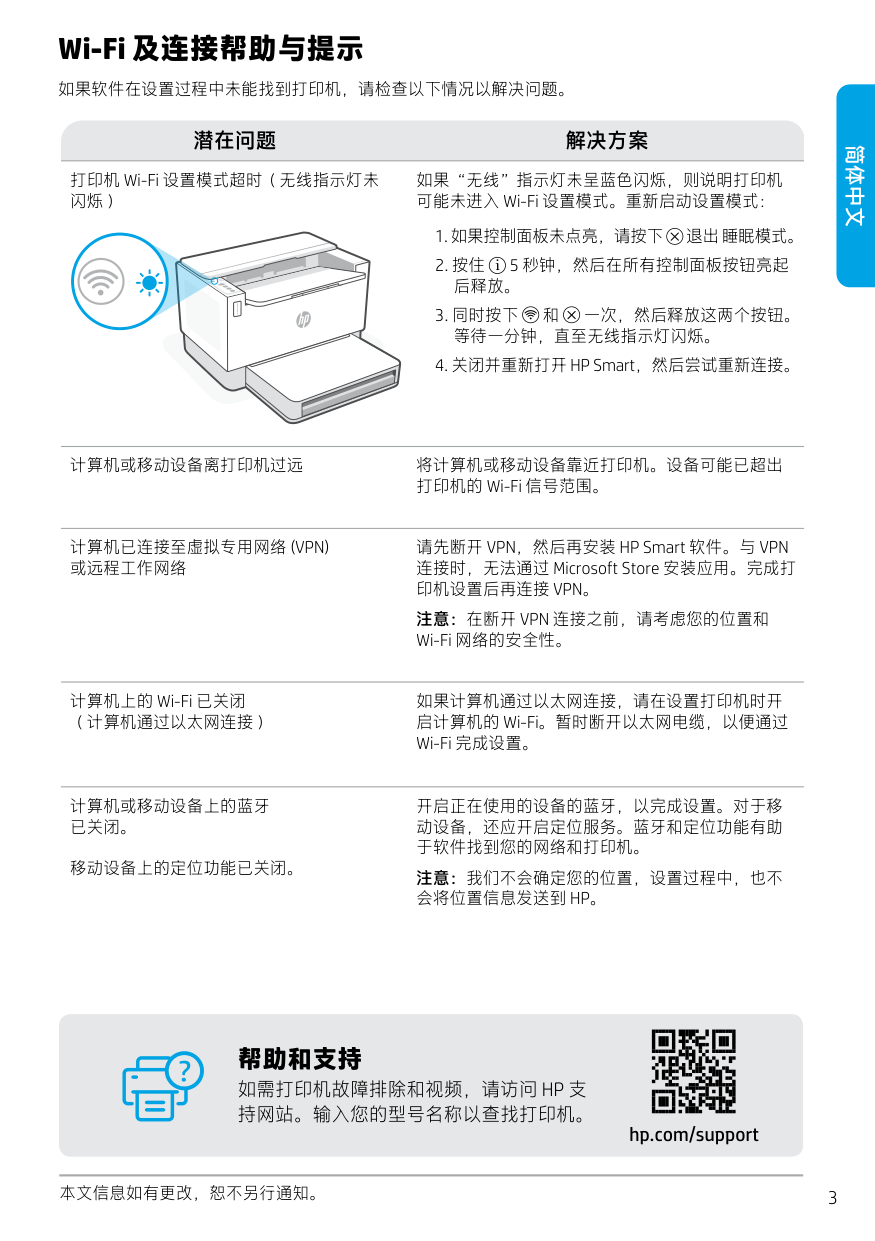
只有在端口指示器显示解
锁图标 时,才能添加碳 粉。有关更多信息,请参阅 用户指南,网址:
hp.com/support
Wi-Fi 及连接帮助与提示
如果软件在设置过程中未能找到打印机,请检查以下情况以解决问题。
##### 潜在问题 解决方案
打印机 Wi-Fi 设置模式超时(无线指示灯未 闪烁)
如果“无线”指示灯未呈蓝色闪烁,则说明打印机 可能未进入 Wi-Fi 设置模式。重新启动设置模式:
计算机或移动设备离打印机过远 将计算机或移动设备靠近打印机。设备可能已超出 打印机的 Wi-Fi 信号范围。
##### 简体中文
计算机已连接至虚拟专用网络 (VPN) 或远程工作网络
计算机上的 Wi-Fi 已关闭 (计算机通过以太网连接)
请先断开 VPN,然后再安装 HP Smart 软件。与 VPN 连接时,无法通过 Microsoft Store 安装应用。完成打 印机设置后再连接 VPN。
注意:在断开 VPN 连接之前,请考虑您的位置和 Wi-Fi 网络的安全性。
如果计算机通过以太网连接,请在设置打印机时开 启计算机的 Wi-Fi。暂时断开以太网电缆,以便通过 Wi-Fi 完成设置。
计算机或移动设备上的蓝牙 已关闭。
移动设备上的定位功能已关闭。
开启正在使用的设备的蓝牙,以完成设置。对于移 动设备,还应开启定位服务。蓝牙和定位功能有助 于软件找到您的网络和打印机。
注意:我们不会确定您的位置,设置过程中,也不 会将位置信息发送到 HP。
帮助和支持 如需打印机故障排除和视频,请访问 HP 支 持网站。输入您的型号名称以查找打印机。
hp.com/support
本文信息如有更改,恕不另行通知。
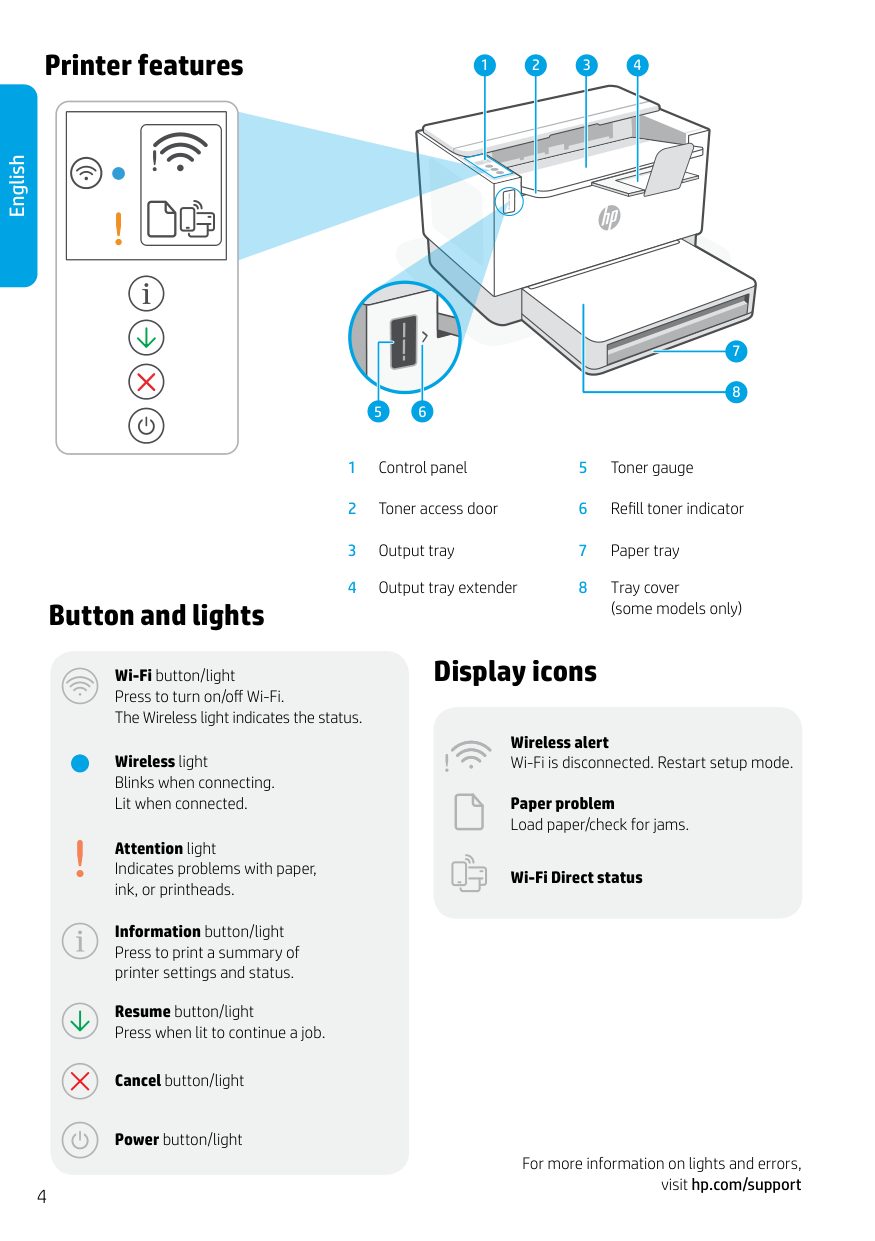
Printer features
4
1 3
2
English
7
8
65
Button and lights
(some models only)
Wi-Fi button/light Press to turn on/off Wi-Fi. The Wireless light indicates the status.
Wireless light Blinks when connecting. Lit when connected.
Attention light Indicates problems with paper, ink, or printheads.
Information button/light Press to print a summary of printer settings and status.
Resume button/light Press when lit to continue a job.
Cancel button/light
Power button/light
Display icons
Wireless alert Wi-Fi is disconnected. Restart setup mode.
Paper problem Load paper/check for jams.

####### Wi-Fi Direct status
For more information on lights and errors, visit hp.com/support
Check toner level
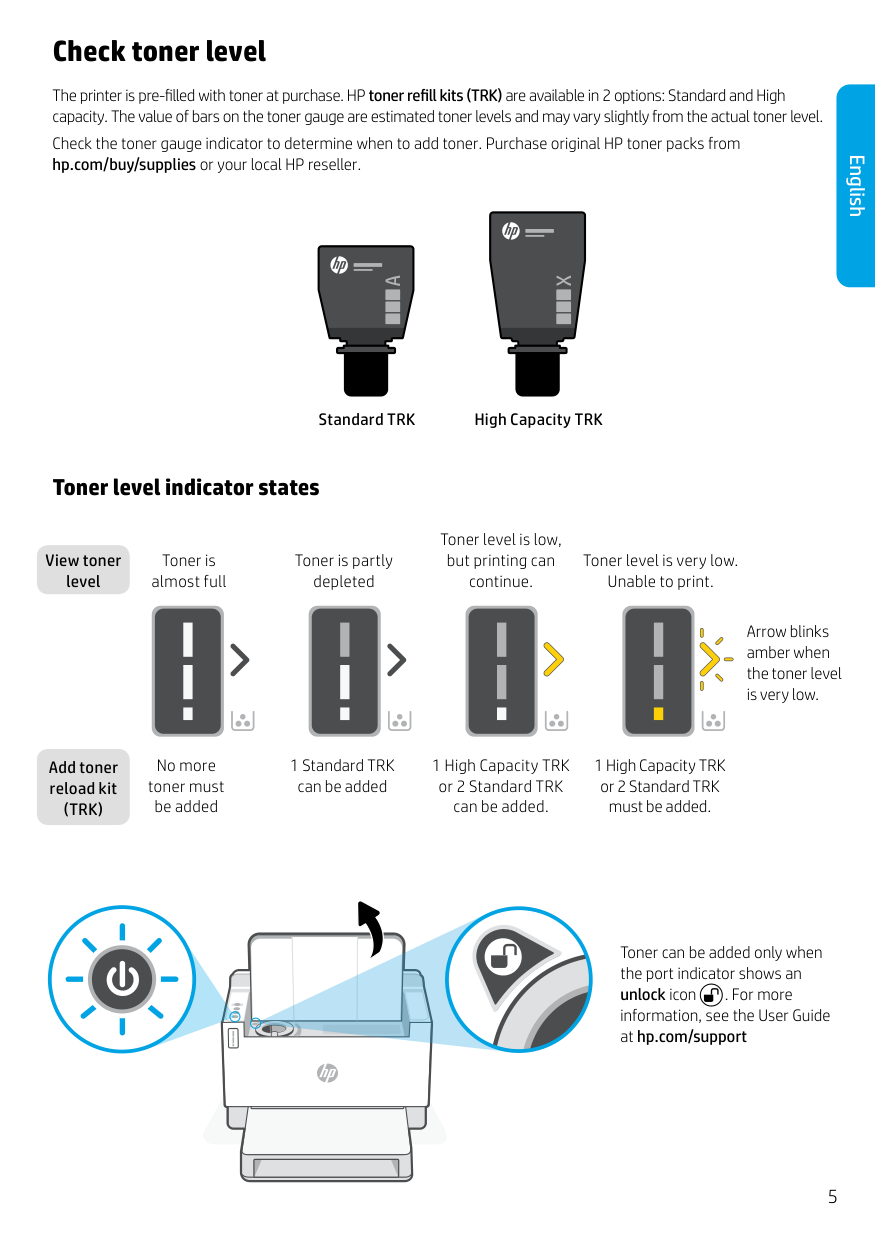
The printer is pre-filled with toner at purchase. HP toner refill kits (TRK) are available in 2 options: Standard and High capacity. The value of bars on the toner gauge are estimated toner levels and may vary slightly from the actual toner level. Check the toner gauge indicator to determine when to add toner. Purchase original HP toner packs from hp.com/buy/supplies or your local HP reseller.
X
A
Standard TRK High Capacity TRK
##### English
#### Toner level indicator states
View toner level
Toner is almost full
Toner is partly depleted
Toner level is low, but printing can continue.

Toner level is very low. Unable to print.
Arrow blinks amber when the toner level is very low.
Add toner reload kit (TRK)
No more toner must be added
1 Standard TRK can be added
1 High Capacity TRK or 2 Standard TRK can be added.
1 High Capacity TRK or 2 Standard TRK must be added.
| | | |---|---| | | | | | |
Toner can be added only when the port indicator shows an unlock icon . For more information, see the User Guide at hp.com/support
Help and tips for Wi-Fi and connectivity

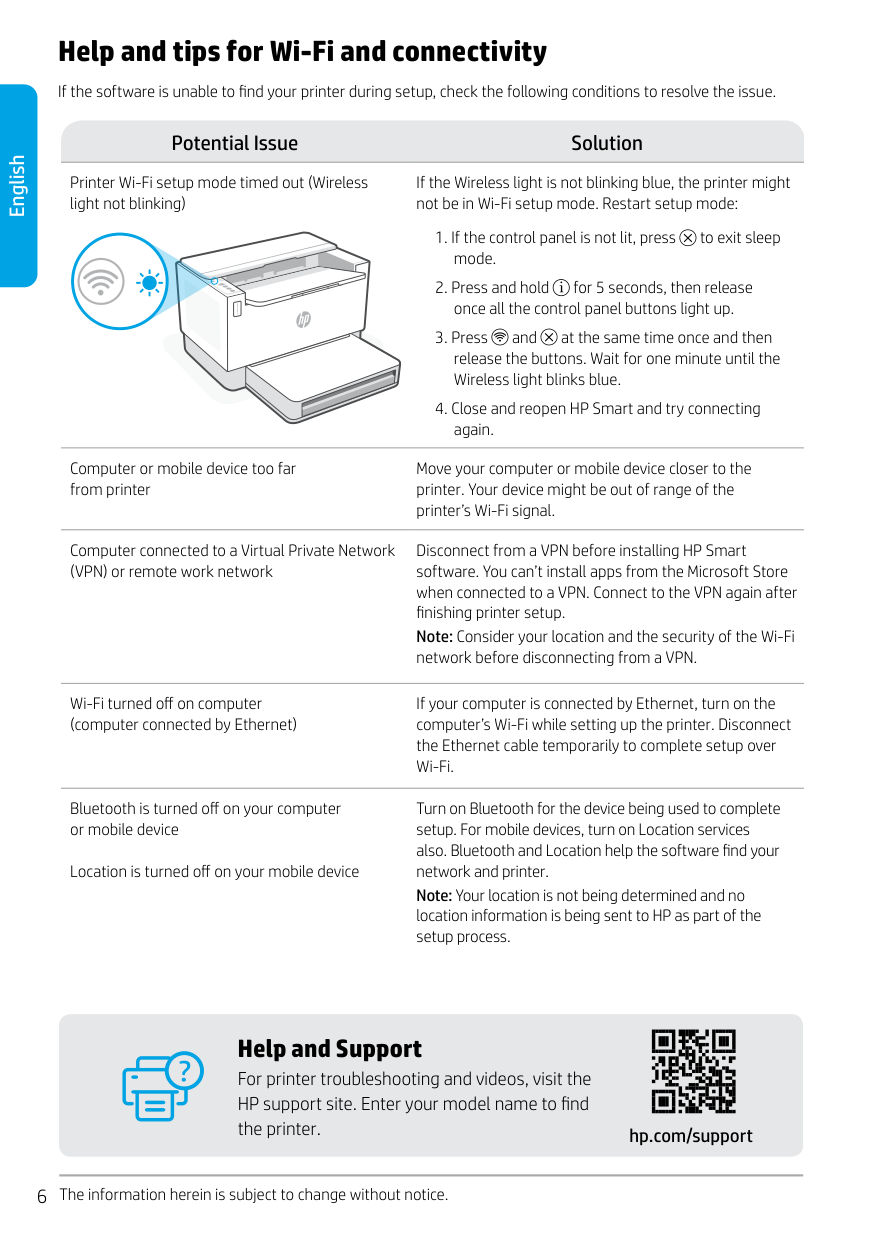
If the software is unable to find your printer during setup, check the following conditions to resolve the issue.
##### Potential Issue Solution
The information herein is subject to change without notice. English
Printer Wi-Fi setup mode timed out (Wireless light not blinking)
If the Wireless light is not blinking blue, the printer might not be in Wi-Fi setup mode. Restart setup mode:
Computer or mobile device too far from printer
Move your computer or mobile device closer to the printer. Your device might be out of range of the printer’s Wi-Fi signal.
Computer connected to a Virtual Private Network (VPN) or remote work network
Disconnect from a VPN before installing HP Smart software. You can’t install apps from the Microsoft Store when connected to a VPN. Connect to the VPN again after finishing printer setup. Note: Consider your location and the security of the Wi-Fi network before disconnecting from a VPN.
Wi-Fi turned off on computer (computer connected by Ethernet)
If your computer is connected by Ethernet, turn on the computer’s Wi-Fi while setting up the printer. Disconnect the Ethernet cable temporarily to complete setup over Wi-Fi.
Bluetooth is turned off on your computer or mobile device
Turn on Bluetooth for the device being used to complete setup. For mobile devices, turn on Location services also. Bluetooth and Location help the software find your network and printer. Note: Your location is not being determined and no location information is being sent to HP as part of the setup process.
Location is turned off on your mobile device
Help and Support
For printer troubleshooting and videos, visit the HP support site. Enter your model name to find the printer.
hp.com/support
© Copyright 2021 HP Development Company, L.P. Microsoft and Windows are either registered trademarks or trademarks of Microsoft Corporation in the United States and/ or other countries. Mac, OS X, macOS, and AirPrint are trademarks of Apple Inc., registered in the U.S. and other countries. Android is a trademarks of Google LLC. iOS is a trademark or registered trademark of Cisco in the U.S. and other countries and is used under license.
381V6-90012
越南印刷ENZHCN
Printed in Vietnam