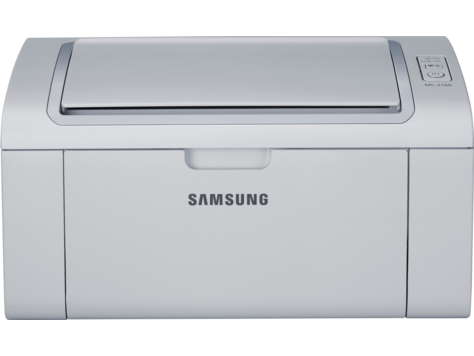
HP Samsung ML 2161 Laser Printer Series
Ask AI
— answers from the official manualAnswers from the official manual.
Common questions
Common Questions
8 totalWhat cleaning steps are needed when I’m moving an ML-216x series printer?
Do not tilt or turn the machine upside down. Make sure at least one person securely holds the machine when moving it.
How can I reduce paper usage and save on toner for eco-friendly printing?
Enable Eco Printing that allows you to cut consumption of print resources. The feature is accessible via 'Easy Eco Driver' as specified in the guide.
How do I troubleshoot a paper jam issue with my HP Samsung ML-2160 printer?
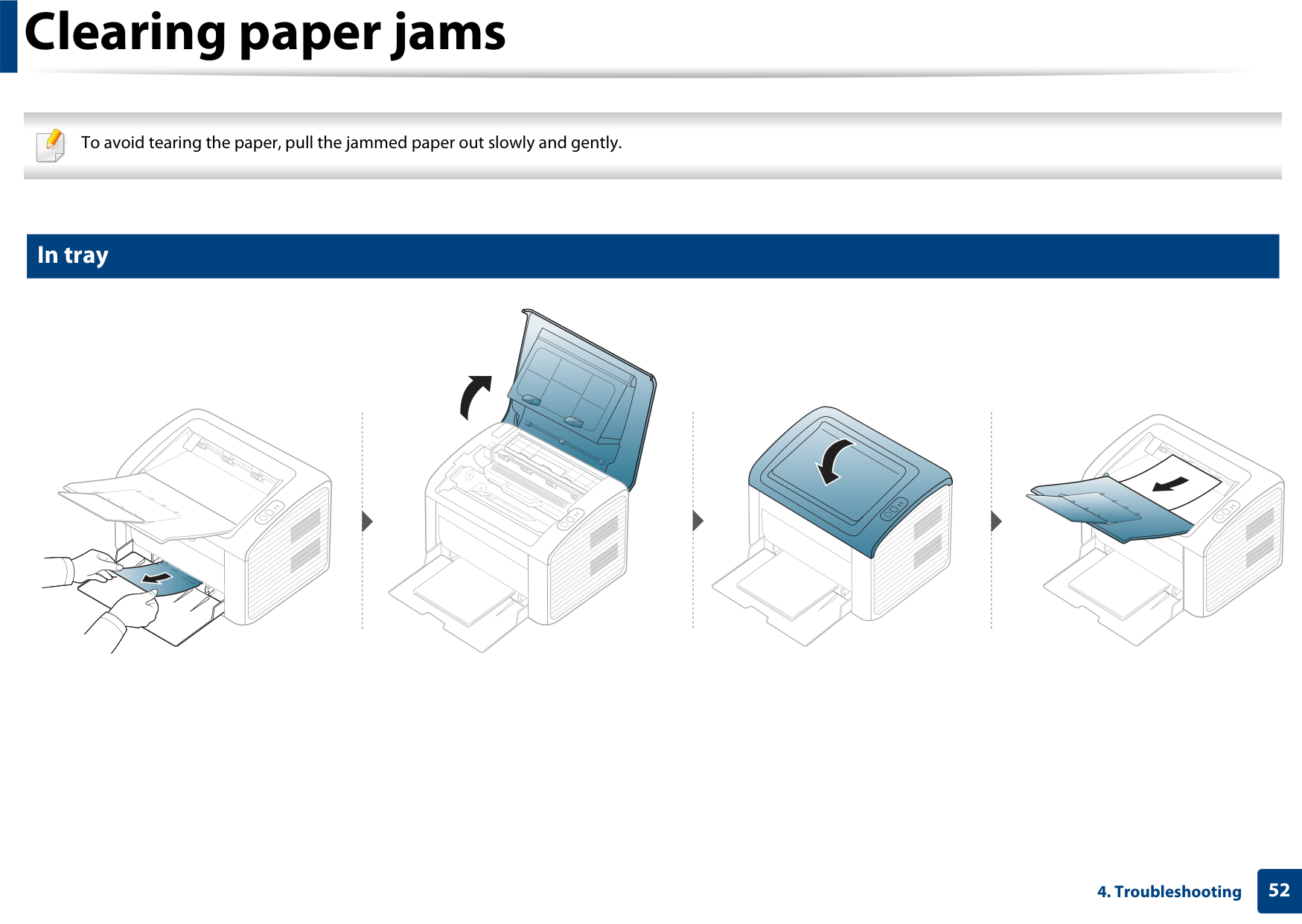
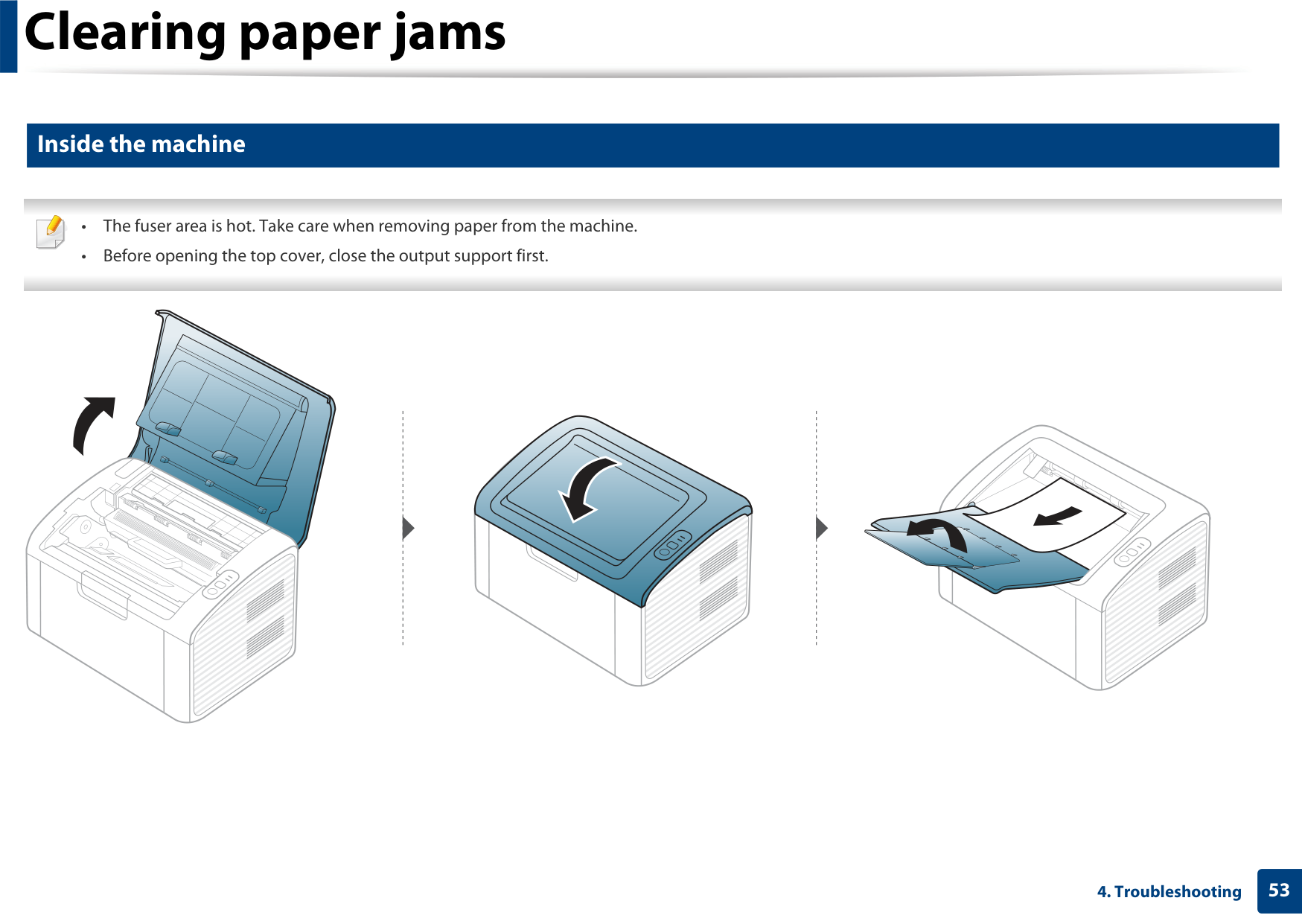
Clearing paper jams can be done by opening and closing the top cover, then following instructions detailed in this user’s guide under 'Clearing paper jams'.
What are some tips to prevent paper jams when using the ML-2160 printer?
Ensure guides are correctly positioned, avoid overloading trays, do not mix paper types or use damaged papers. Flex and fan paper before loading.
What should I do if my ML-2160 series printer doesn't print any documents?
Open the print queue list and remove the document from the list or reinstall the driver if needed. Ensure your machine is set as default in Windows.
Where should I order spare supplies for this printer?
Contact your local Samsung dealer, retailer where you bought the machine, or visit www.samsung.com/supplies and select your country/region for ordering supplies and accessories.
Full Manual
211 pages
#### User’s Guide
#### User’s Guide
############# ML-216x Series ML-216xW Series
BASIC
############### This guide provides information concerning installation, basic operation and troubleshooting on windows.
ADVANCED This guide provides information about installation, advanced configuration, operation and troubleshooting on various OS environments. Some features may not be available depending on models or countries.
BASIC

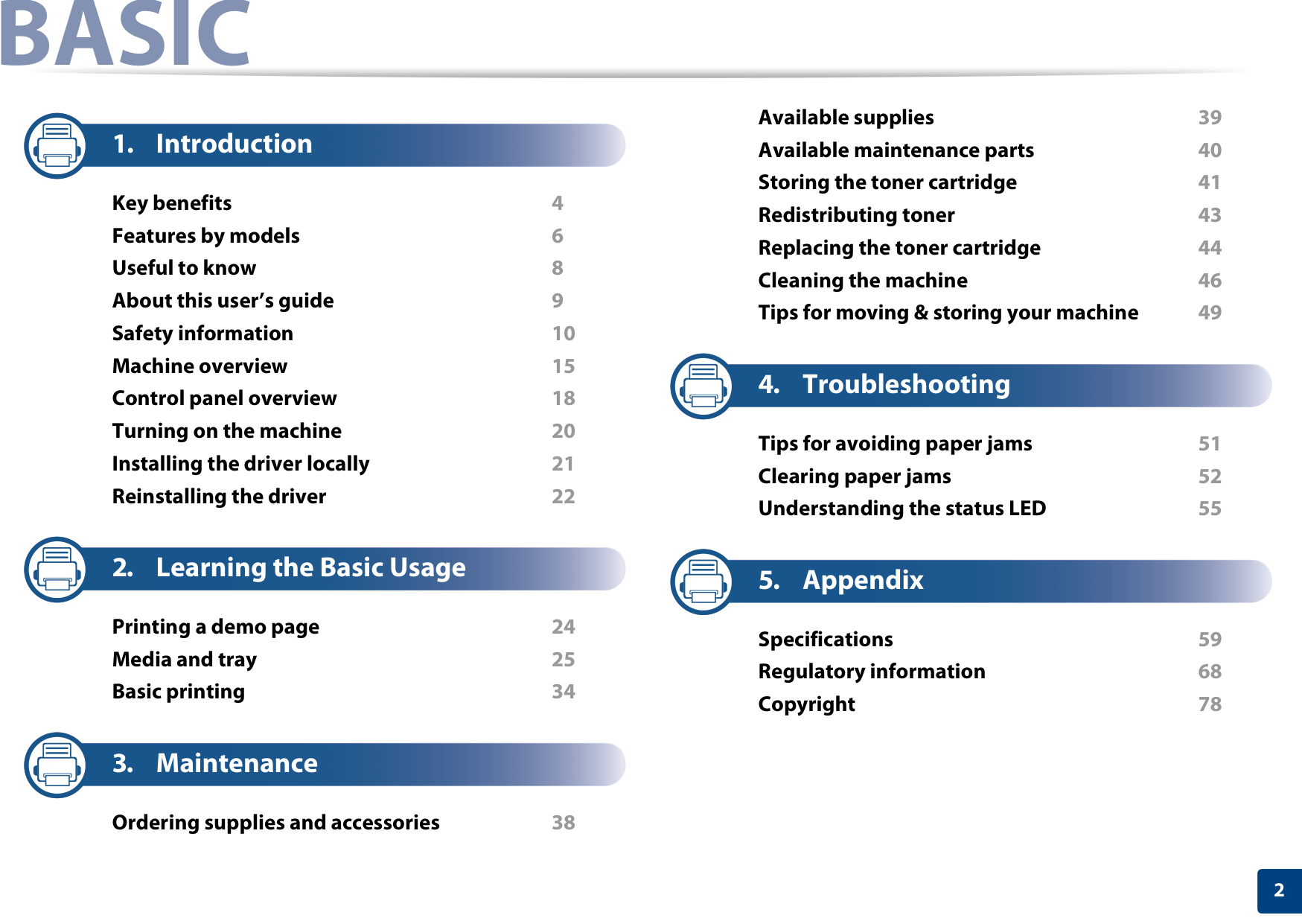
Available supplies 39 Available maintenance parts 40 Storing the toner cartridge 41 Redistributing toner 43 Replacing the toner cartridge 44 Cleaning the machine 46 Tips for moving & storing your machine 49
########## 1. Introduction
Key benefits 4 Features by models 6 Useful to know 8 About this user’s guide 9 Safety information 10 Machine overview 15 Control panel overview 18 Turning on the machine 20 Installing the driver locally 21 Reinstalling the driver 22
########## 4. Troubleshooting
Tips for avoiding paper jams 51 Clearing paper jams 52 Understanding the status LED 55
########## 2. Learning the Basic Usage
Printing a demo page 24 Media and tray 25 Basic printing 34
########## 3. Maintenance
Ordering supplies and accessories 38
########## 5. Appendix
Specifications 59 Regulatory information 68 Copyright 78
2
##### 1. Introduction
This chapter provides information you need to know before using the machine.



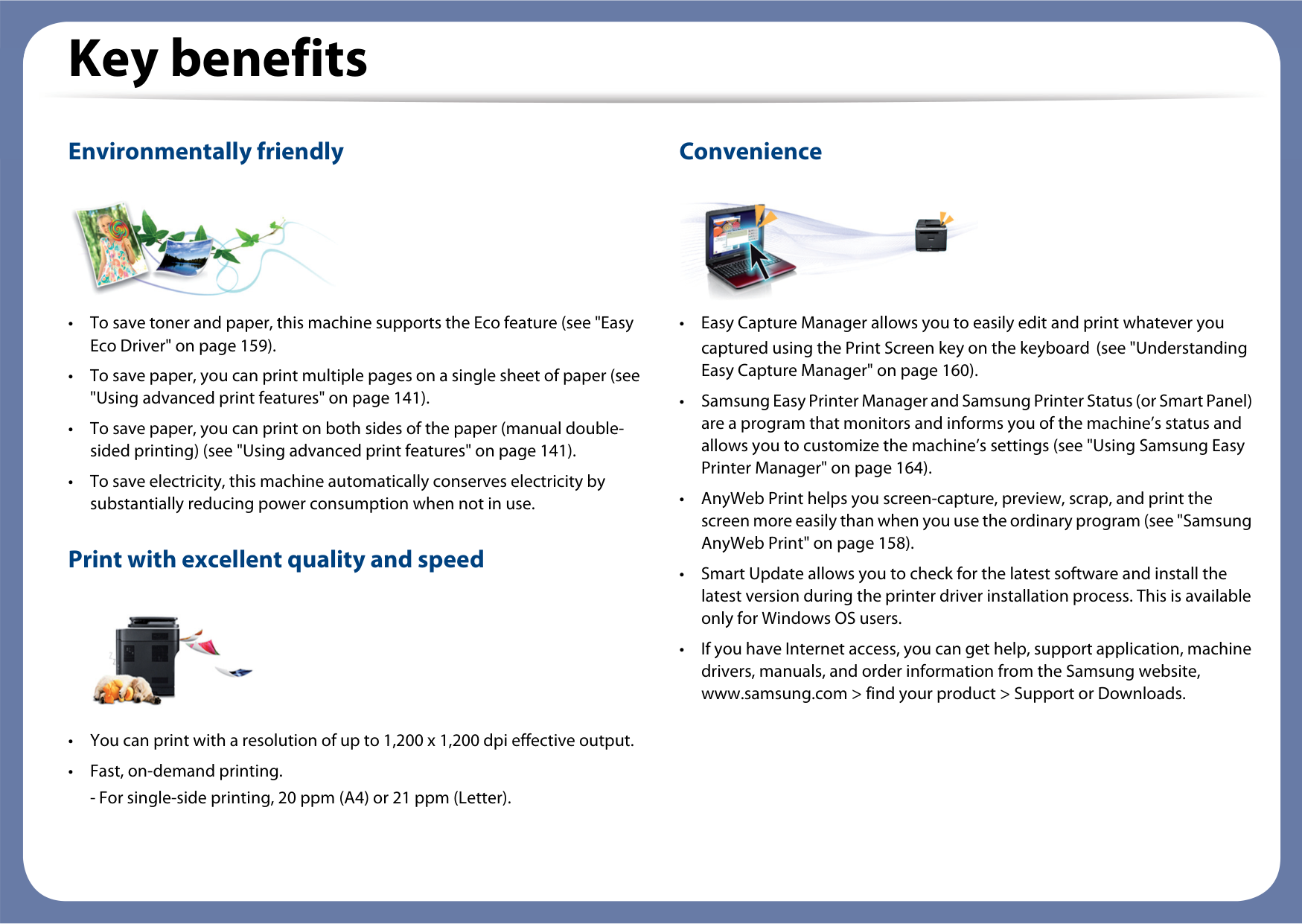


############# Environmentally friendly
############# Convenience

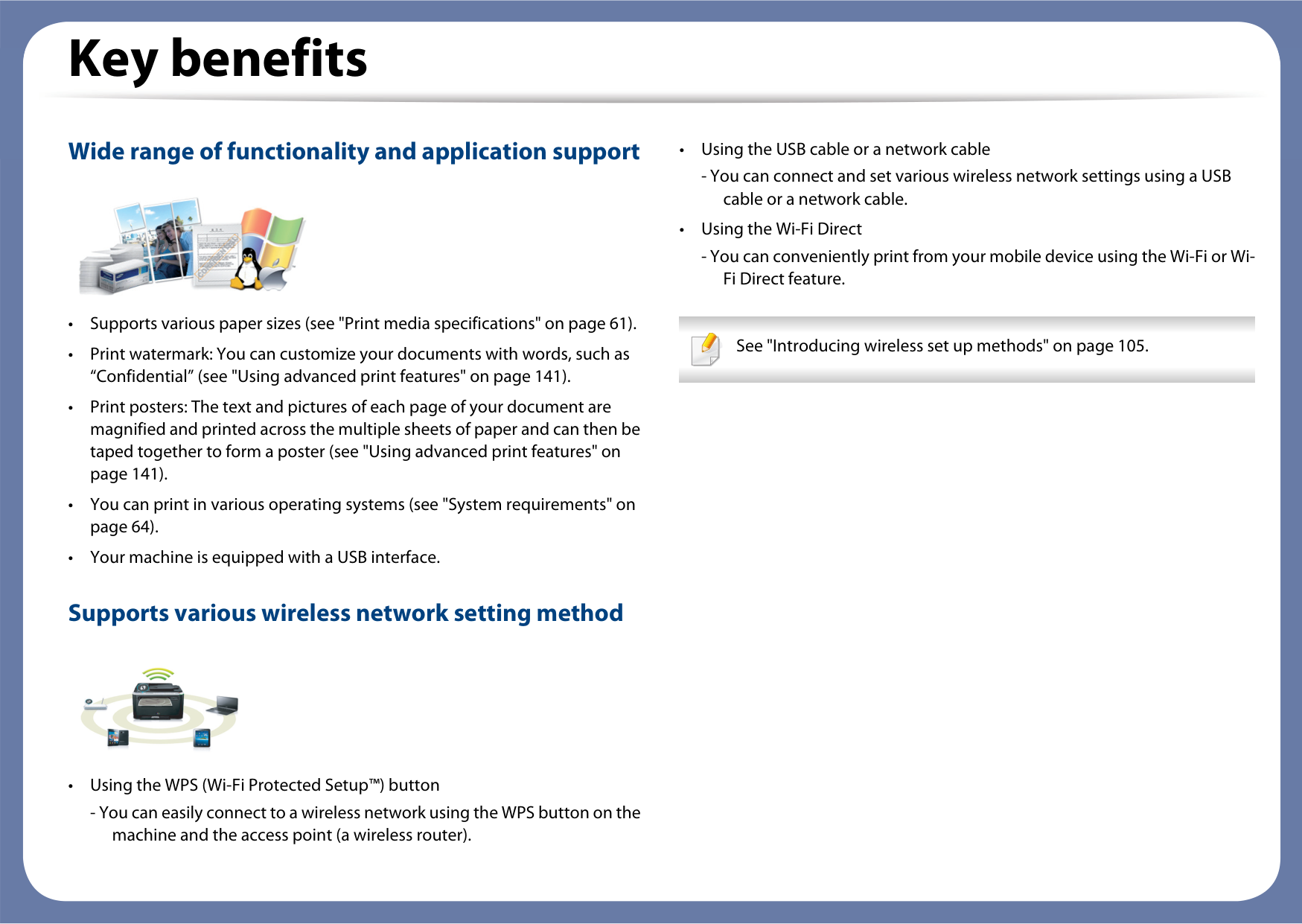


############# Wide range of functionality and application support
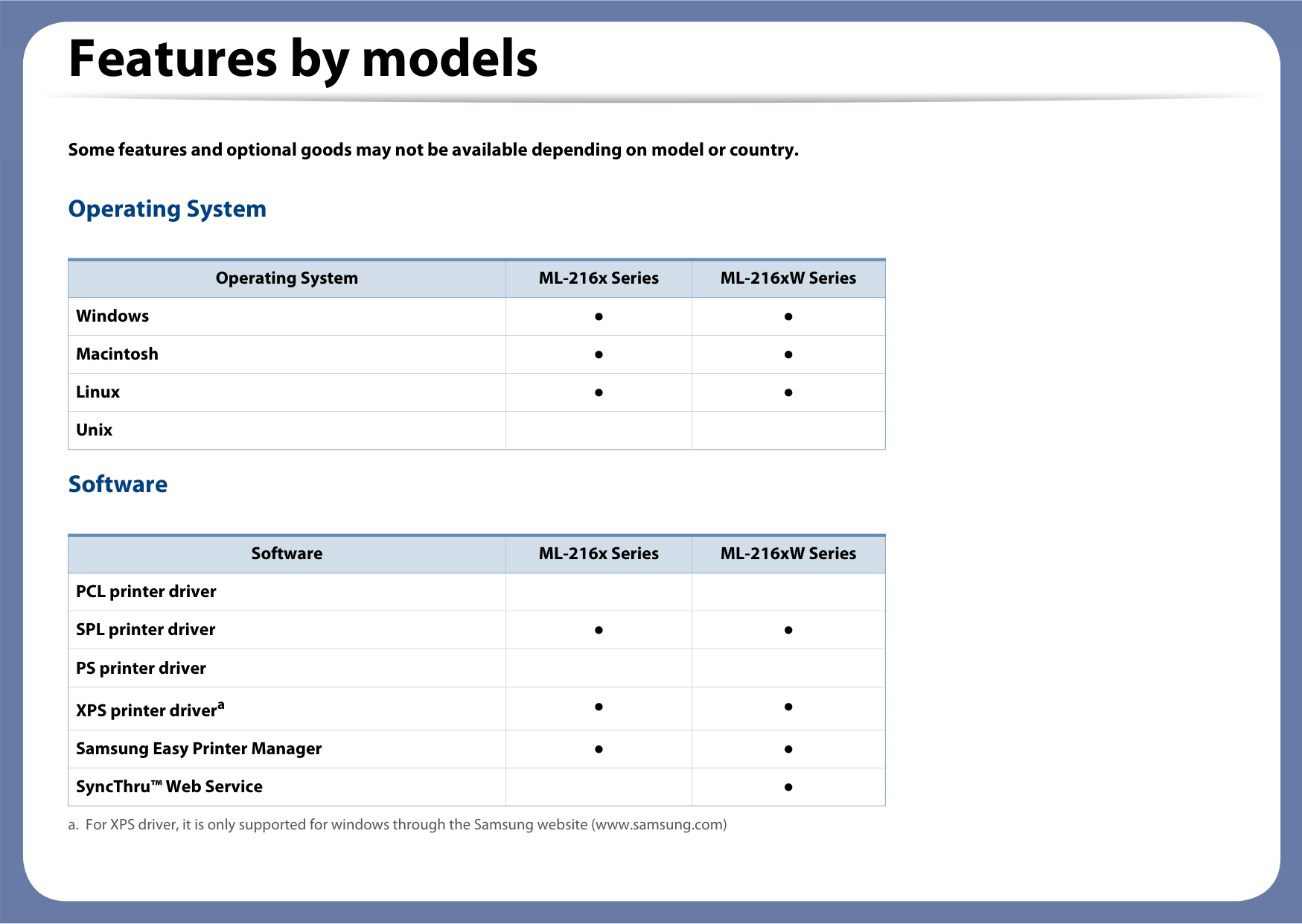

Supports various wireless network setting method

See "Introducing wireless set up methods" on page 105.

Some features and optional goods may not be available depending on model or country.
############# Operating System
|Operating System|ML-216x Series|ML-216xW Series|
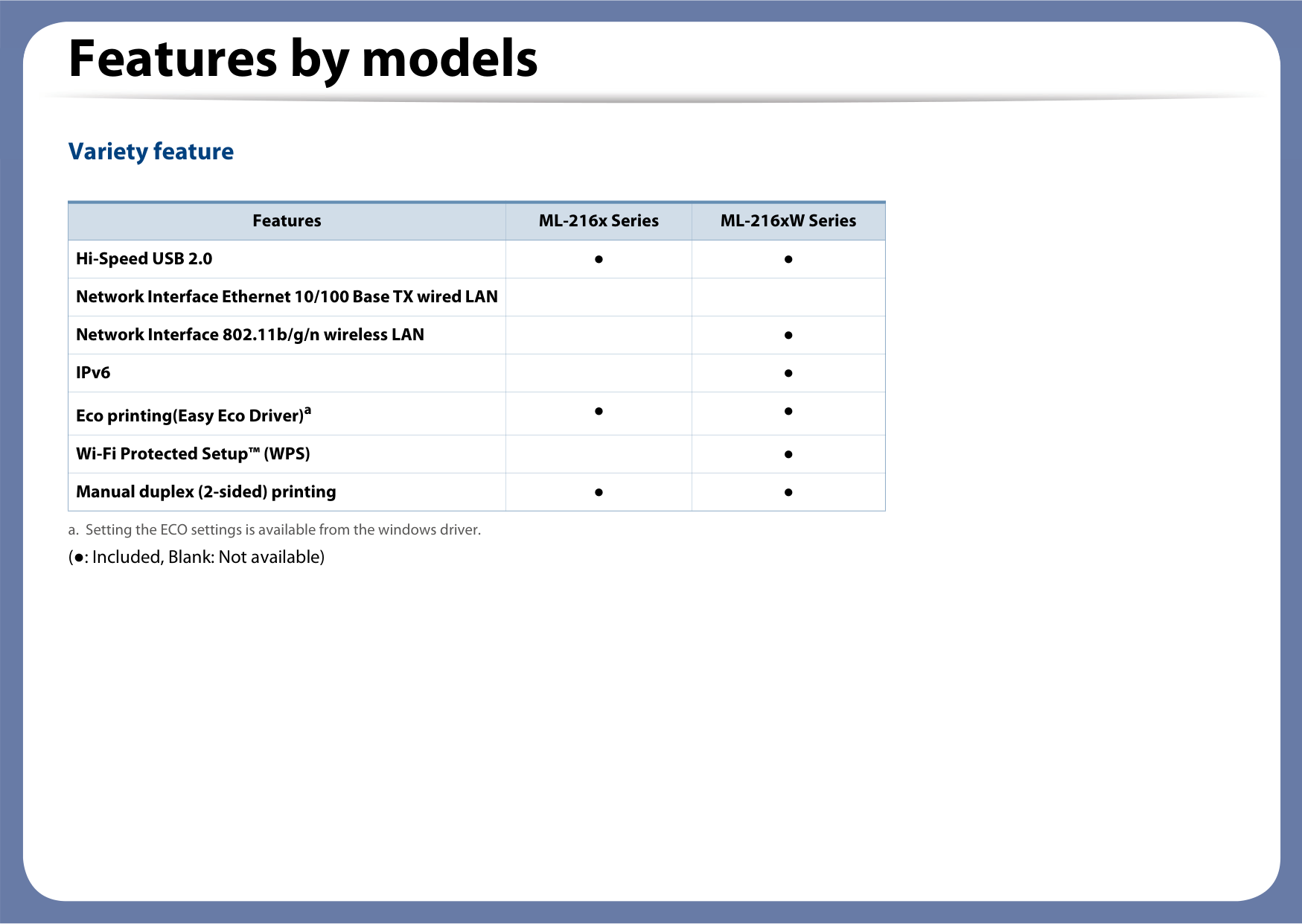
|---|---|---| |Windows|●|●| |Macintosh|●|●| |Linux|●|●| |Unix| | |
############# Software
|Software|ML-216x Series|ML-216xW Series| |---|---|---| |PCL printer driver| | | |SPL printer driver|●|●| |PS printer driver| | | |XPS printer drivera|●|●| |Samsung Easy Printer Manager|●|●| |SyncThru™ Web Service| |●|
a. For XPS driver, it is only supported for windows through the Samsung website (www.samsung.com)
############# Variety feature
|Features|ML-216x Series|ML-216xW Series| |---|---|---| |Hi-Speed USB 2.0|●|●| |Network Interface Ethernet 10/100 Base TX wired LAN| | | |Network Interface 802.11b/g/n wireless LAN| |●| |IPv6| |●|
|Eco printing(Easy Eco Driver)a|●|●| |Wi-Fi Protected Setup™ (WPS)| |●| |Manual duplex (2-sided) printing|●|●|
a. Setting the ECO settings is available from the windows driver.
(●: Included, Blank: Not available)
###### Useful to know


|

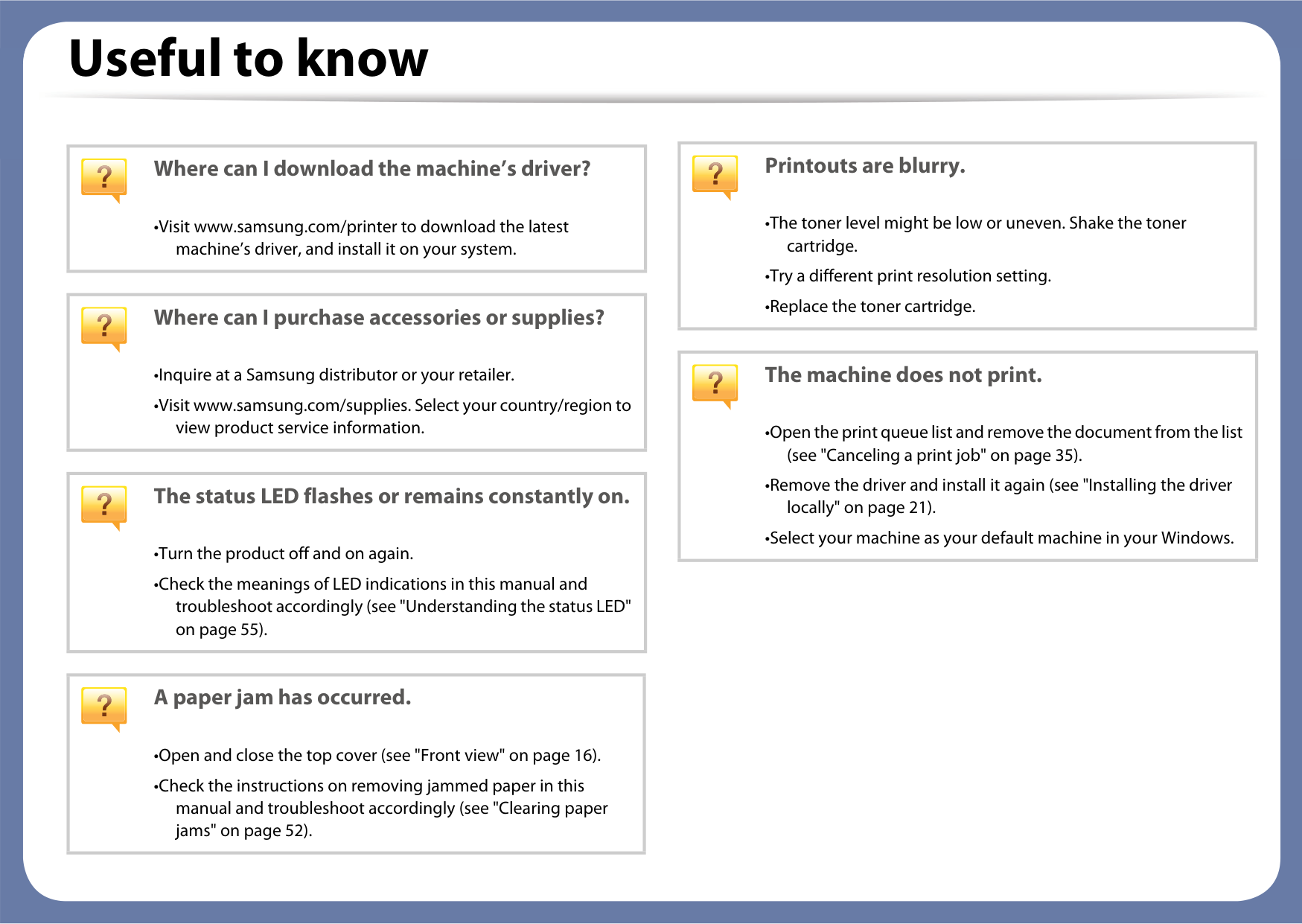
Printouts are blurry.
•The toner level might be low or uneven. Shake the toner cartridge.
•Try a different print resolution setting.
•Replace the toner cartridge.
| |---|
|

Where can I download the machine’s driver?
•Visit www.samsung.com/printer to download the latest machine’s driver, and install it on your system.| |---|
|

Where can I purchase accessories or supplies?
•Inquire at a Samsung distributor or your retailer.
•Visit www.samsung.com/supplies. Select your country/region to view product service information.
| |---|
|

The machine does not print.
•Open the print queue list and remove the document from the list (see "Canceling a print job" on page 35).
•Remove the driver and install it again (see "Installing the driver locally" on page 21).
•Select your machine as your default machine in your Windows.
| |---|
|

The status LED flashes or remains constantly on.
•Turn the product off and on again.
•Check the meanings of LED indications in this manual and troubleshoot accordingly (see "Understanding the status LED" on page 55).
| |---|
|

A paper jam has occurred.
•Open and close the top cover (see "Front view" on page 16).
•Check the instructions on removing jammed paper in this manual and troubleshoot accordingly (see "Clearing paper jams" on page 52).
| |---|
###### About this user’s guide

This user's guide provides information for your basic understanding of the
############# General icons
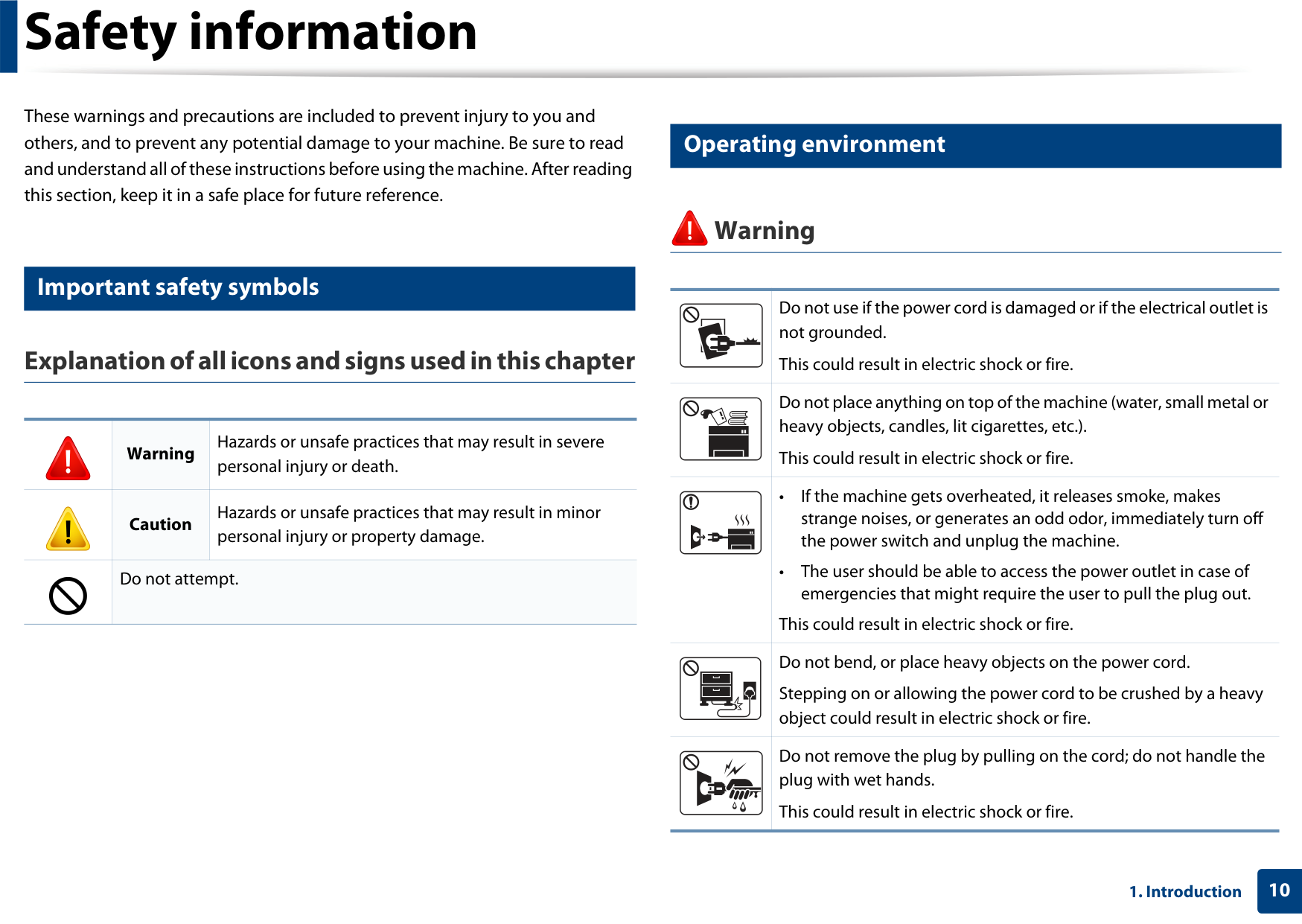
|Icon|Text|Description| |---|---|---| | |Caution|Gives users information to protect the machine from possible mechanical damage or malfunction.| ||Note|Provides additional information or detailed specification of the machine function and feature.|
############# Conventions
Some terms in this guide are used interchangeably, as below:
These warnings and precautions are included to prevent injury to you and others, and to prevent any potential damage to your machine. Be sure to read and understand all of these instructions before using the machine. After reading this section, keep it in a safe place for future reference.
Operating environment
########### Warning
Important safety symbols
| |Do not use if the power cord is damaged or if the electrical outlet is not grounded.
This could result in electric shock or fire.| |---|---| | |Do not place anything on top of the machine (water, small metal or heavy objects, candles, lit cigarettes, etc.).
This could result in electric shock or fire.| | |• If the machine gets overheated, it releases smoke, makes strange noises, or generates an odd odor, immediately turn off the power switch and unplug the machine.
• The user should be able to access the power outlet in case of emergencies that might require the user to pull the plug out.
This could result in electric shock or fire.|
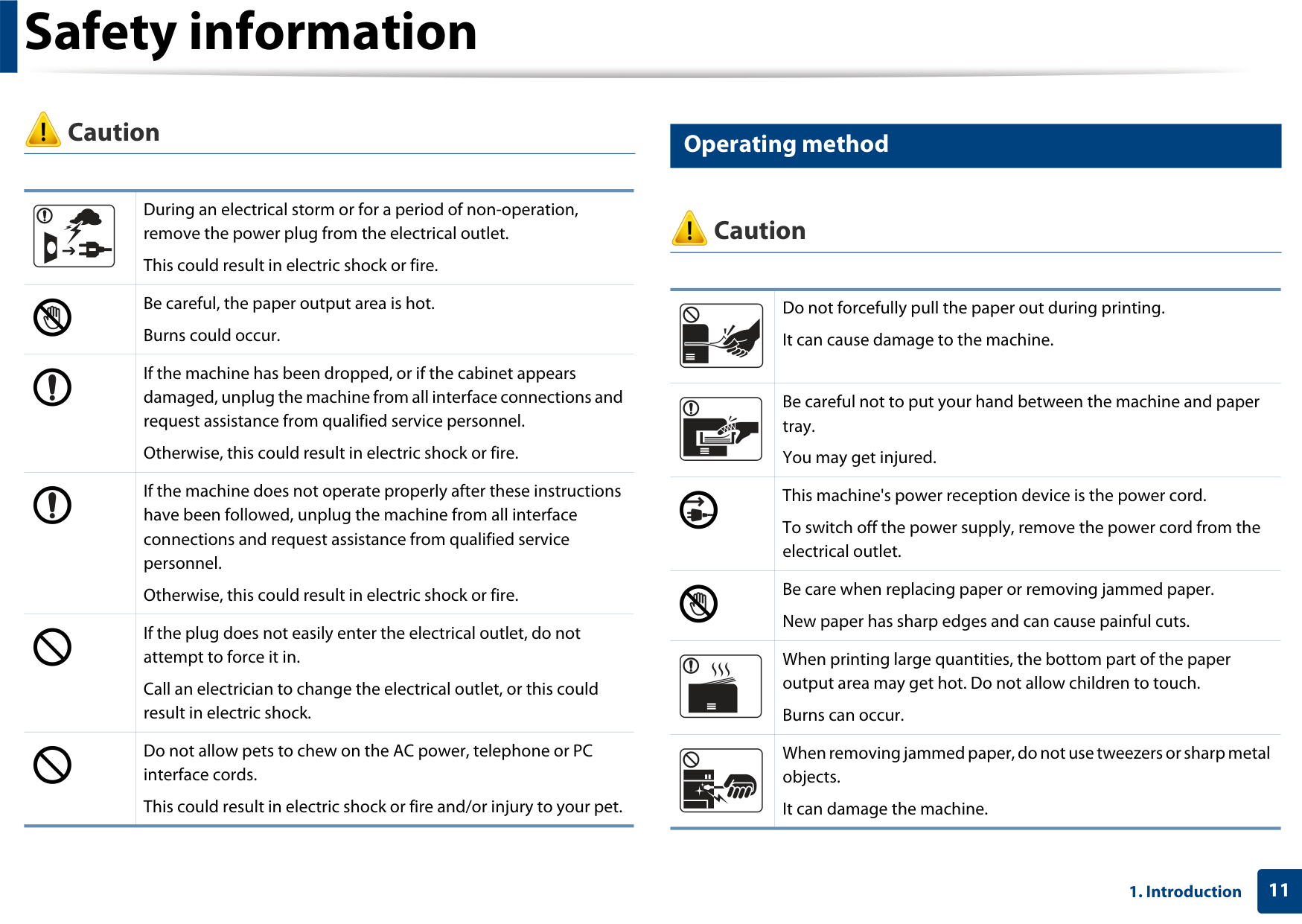
| |Do not bend, or place heavy objects on the power cord. Stepping on or allowing the power cord to be crushed by a heavy object could result in electric shock or fire.| | |Do not remove the plug by pulling on the cord; do not handle the plug with wet hands.
This could result in electric shock or fire.|
########### Explanation of all icons and signs used in this chapter
| |Warning|Hazards or unsafe practices that may result in severe personal injury or death.| |---|---|---| | |Caution|Hazards or unsafe practices that may result in minor personal injury or property damage.| | |Do not attempt.|Do not attempt.|
Caution Operating method
| |During an electrical storm or for a period of non-operation, remove the power plug from the electrical outlet.
This could result in electric shock or fire.| |---|---| | |Be careful, the paper output area is hot. Burns could occur.| | |If the machine has been dropped, or if the cabinet appears damaged, unplug the machine from all interface connections and request assistance from qualified service personnel.
Otherwise, this could result in electric shock or fire.| | |If the machine does not operate properly after these instructions have been followed, unplug the machine from all interface connections and request assistance from qualified service personnel.
Otherwise, this could result in electric shock or fire.| | |If the plug does not easily enter the electrical outlet, do not attempt to force it in.
Call an electrician to change the electrical outlet, or this could result in electric shock.| | |Do not allow pets to chew on the AC power, telephone or PC interface cords.
This could result in electric shock or fire and/or injury to your pet.|
########### Caution
| |Do not forcefully pull the paper out during printing. It can cause damage to the machine.| |---|---|
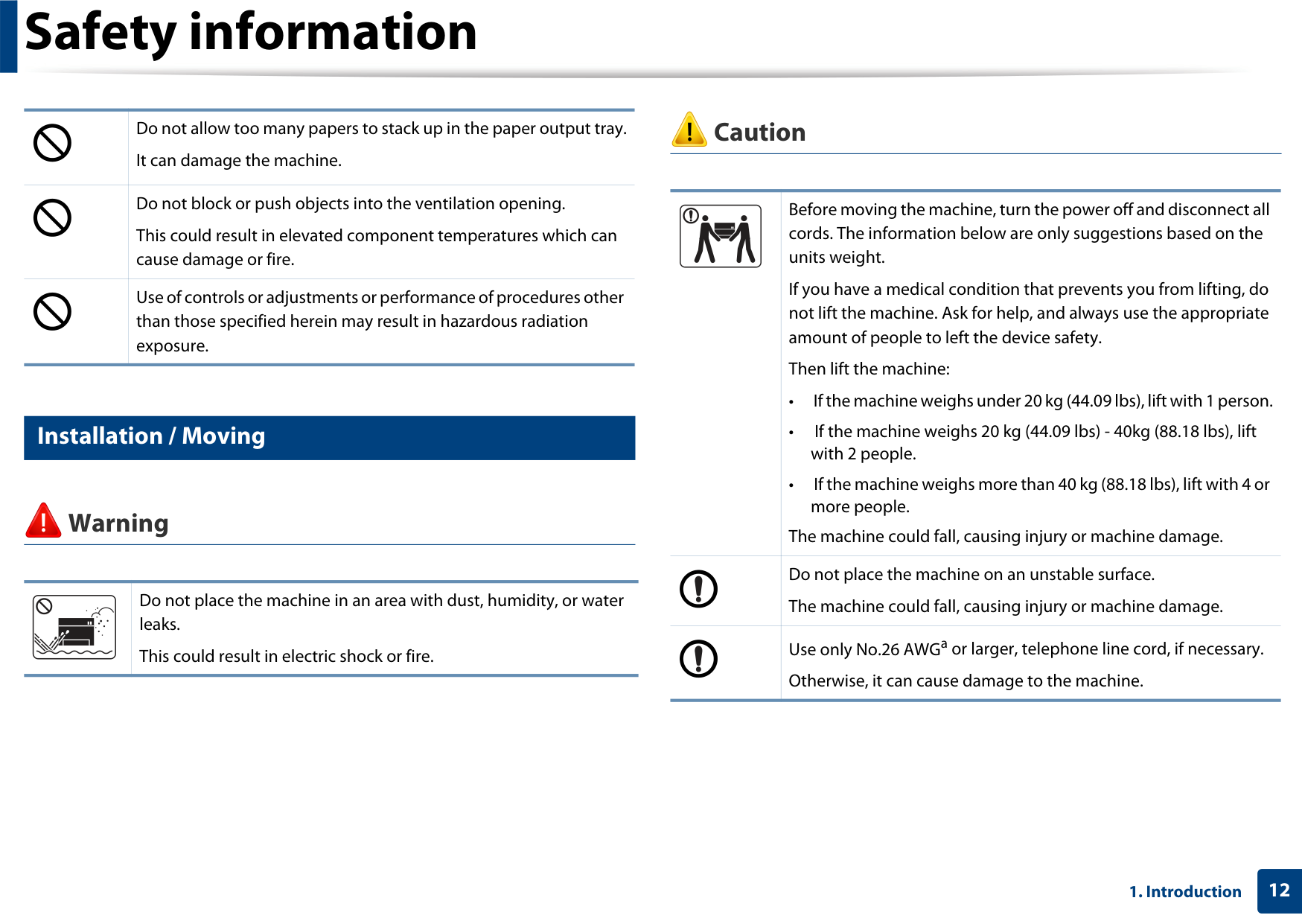
| |Be careful not to put your hand between the machine and paper tray.
You may get injured.| | |This machine's power reception device is the power cord. To switch off the power supply, remove the power cord from the electrical outlet.| | |Be care when replacing paper or removing jammed paper. New paper has sharp edges and can cause painful cuts.| | |When printing large quantities, the bottom part of the paper output area may get hot. Do not allow children to touch.
Burns can occur.| | |When removing jammed paper, do not use tweezers or sharp metal objects.
It can damage the machine.|
| |Do not allow too many papers to stack up in the paper output tray. It can damage the machine.| |---|---| | |Do not block or push objects into the ventilation opening. This could result in elevated component temperatures which can cause damage or fire.| | |Use of controls or adjustments or performance of procedures other than those specified herein may result in hazardous radiation exposure.|
########### Caution
| |Before moving the machine, turn the power off and disconnect all cords. The information below are only suggestions based on the units weight.
If you have a medical condition that prevents you from lifting, do not lift the machine. Ask for help, and always use the appropriate amount of people to left the device safety.
Then lift the machine:
• If the machine weighs under 20 kg (44.09 lbs), lift with 1 person.
• If the machine weighs 20 kg (44.09 lbs) - 40kg (88.18 lbs), lift with 2 people.
• If the machine weighs more than 40 kg (88.18 lbs), lift with 4 or more people.
The machine could fall, causing injury or machine damage.| |---|---| | |Do not place the machine on an unstable surface. The machine could fall, causing injury or machine damage.| | |Use only No.26 AWGa or larger, telephone line cord, if necessary. Otherwise, it can cause damage to the machine.|
Installation / Moving
########### Warning
Do not place the machine in an area with dust, humidity, or water leaks.
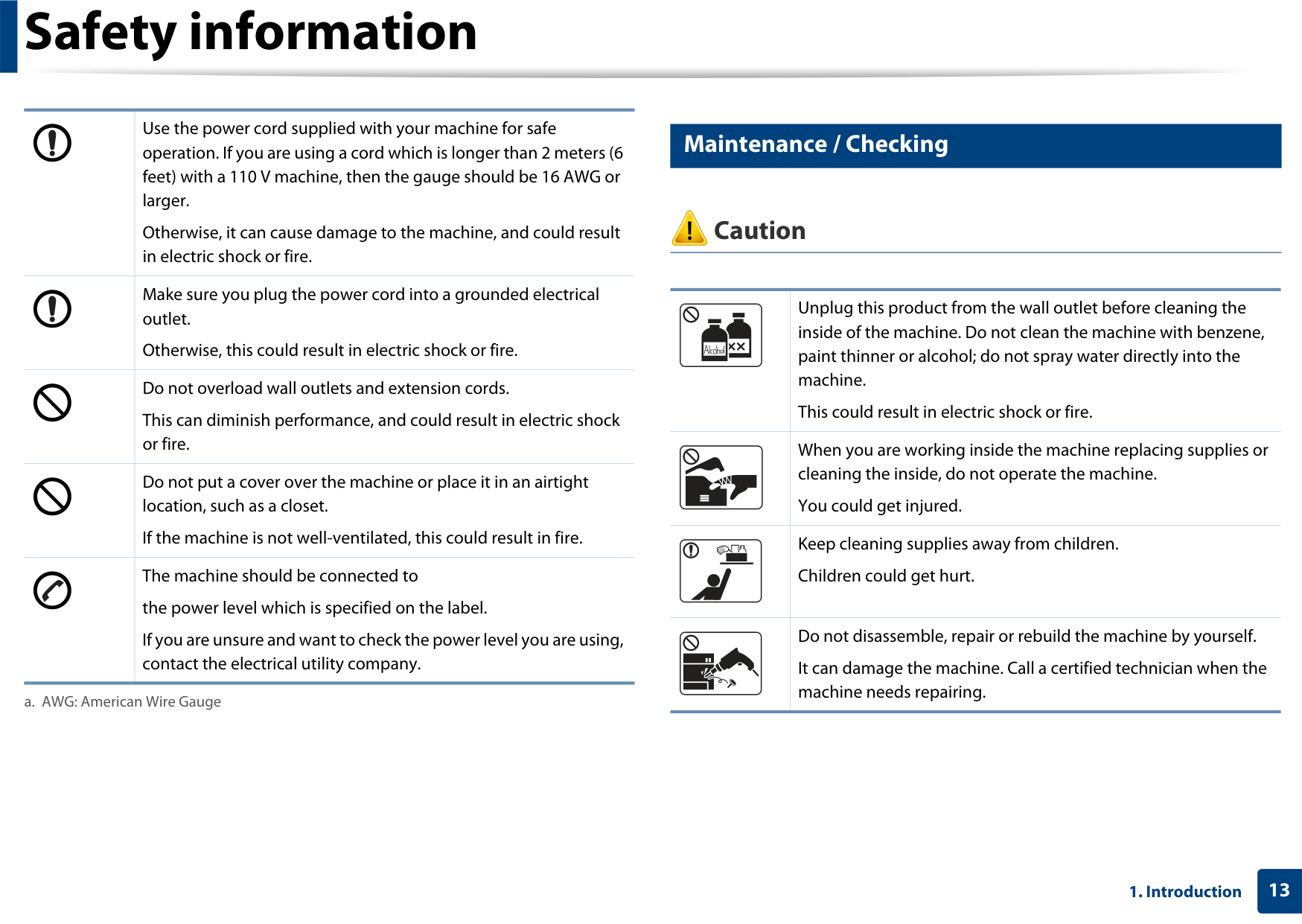
This could result in electric shock or fire.
| |Use the power cord supplied with your machine for safe operation. If you are using a cord which is longer than 2 meters (6 feet) with a 110 V machine, then the gauge should be 16 AWG or larger.
Otherwise, it can cause damage to the machine, and could result in electric shock or fire.| |---|---| | |Make sure you plug the power cord into a grounded electrical outlet.
Otherwise, this could result in electric shock or fire.| | |Do not overload wall outlets and extension cords. This can diminish performance, and could result in electric shock or fire.| | |Do not put a cover over the machine or place it in an airtight location, such as a closet.
If the machine is not well-ventilated, this could result in fire.| | |The machine should be connected to the power level which is specified on the label. If you are unsure and want to check the power level you are using, contact the electrical utility company.|
Maintenance / Checking
########### Caution
| |Unplug this product from the wall outlet before cleaning the inside of the machine. Do not clean the machine with benzene, paint thinner or alcohol; do not spray water directly into the machine.
This could result in electric shock or fire.| |---|---| | |When you are working inside the machine replacing supplies or cleaning the inside, do not operate the machine.
You could get injured.| | |Keep cleaning supplies away from children. Children could get hurt.| | |Do not disassemble, repair or rebuild the machine by yourself. It can damage the machine. Call a certified technician when the machine needs repairing.|
a. AWG: American Wire Gauge
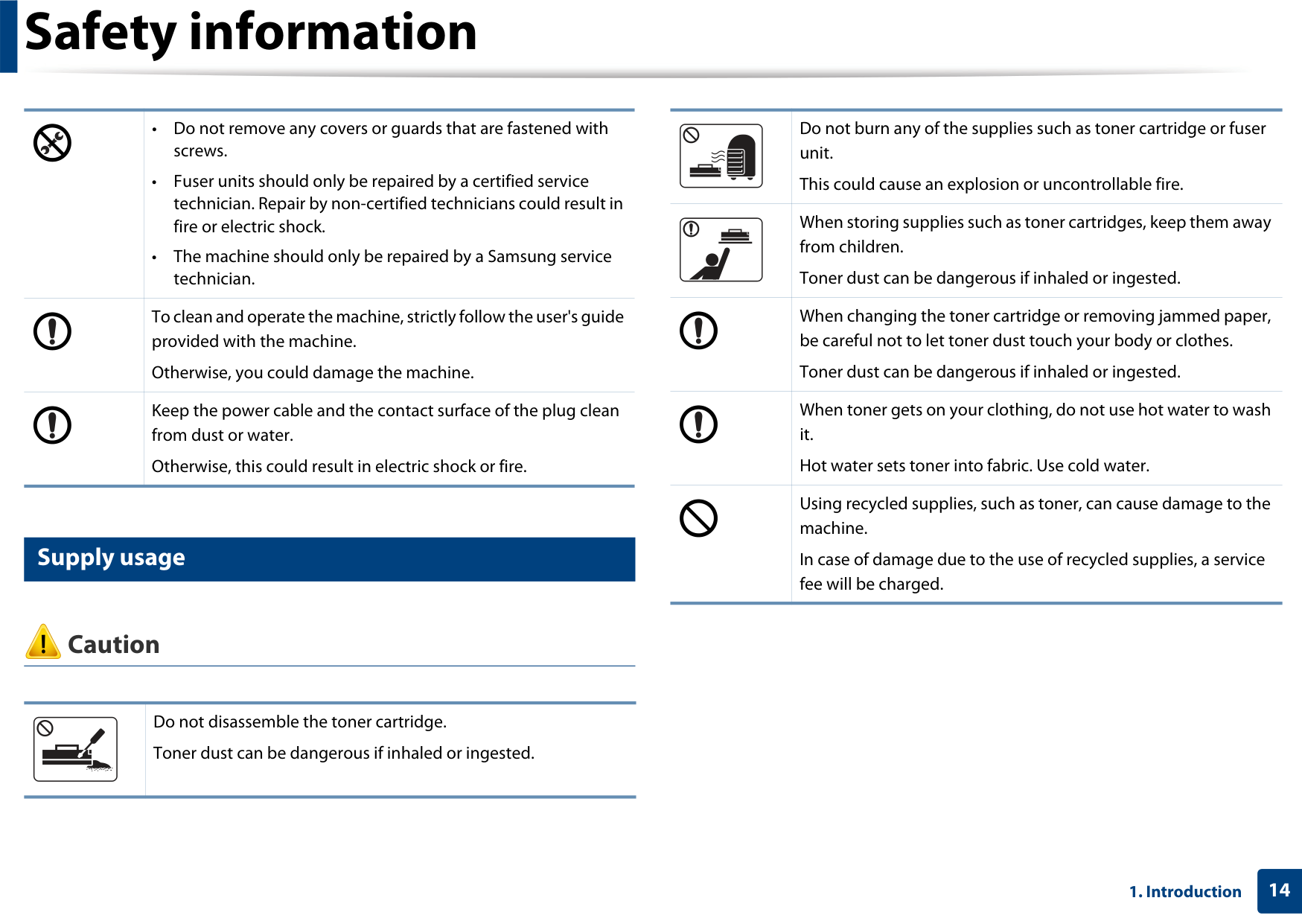
| |Do not burn any of the supplies such as toner cartridge or fuser unit.
This could cause an explosion or uncontrollable fire.| |---|---|
| |When storing supplies such as toner cartridges, keep them away from children.
Toner dust can be dangerous if inhaled or ingested.| | |When changing the toner cartridge or removing jammed paper, be careful not to let toner dust touch your body or clothes.
Toner dust can be dangerous if inhaled or ingested.| | |When toner gets on your clothing, do not use hot water to wash it.
Hot water sets toner into fabric. Use cold water.| | |Using recycled supplies, such as toner, can cause damage to the machine.
In case of damage due to the use of recycled supplies, a service fee will be charged.|
| |• Do not remove any covers or guards that are fastened with screws.
• Fuser units should only be repaired by a certified service technician. Repair by non-certified technicians could result in fire or electric shock.
• The machine should only be repaired by a Samsung service technician.
| |---|---| | |To clean and operate the machine, strictly follow the user's guide provided with the machine.
Otherwise, you could damage the machine.| | |Keep the power cable and the contact surface of the plug clean from dust or water.
Otherwise, this could result in electric shock or fire.|
Supply usage
########### Caution
Do not disassemble the toner cartridge. Toner dust can be dangerous if inhaled or ingested.
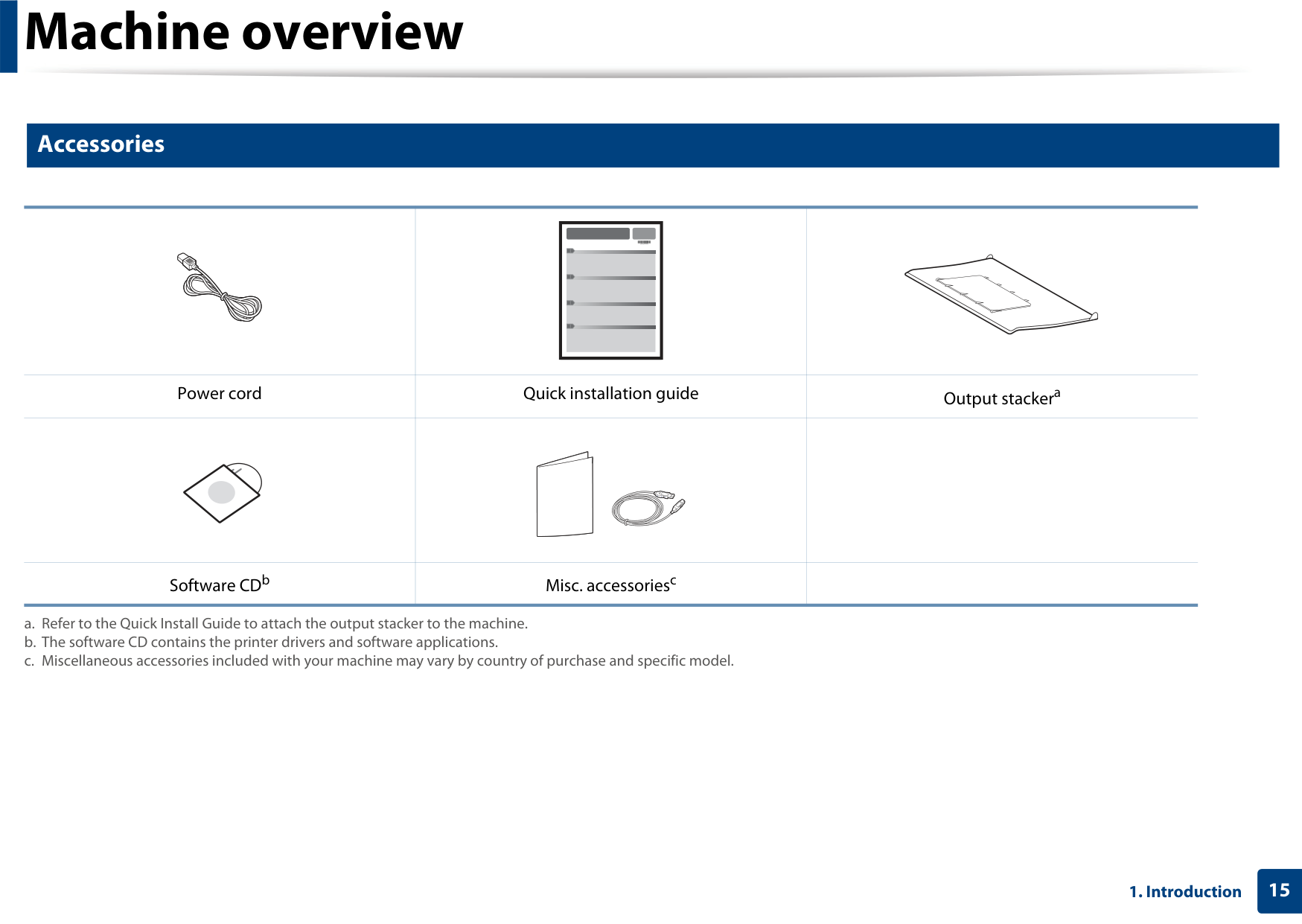
############# Accessories
| || | |---| | | |---|---|---| |Power cord|Quick installation guide|Output stackera| | | | | |Software CDb|Misc. accessoriesc| |
############# Front view

3
2
| | |---|
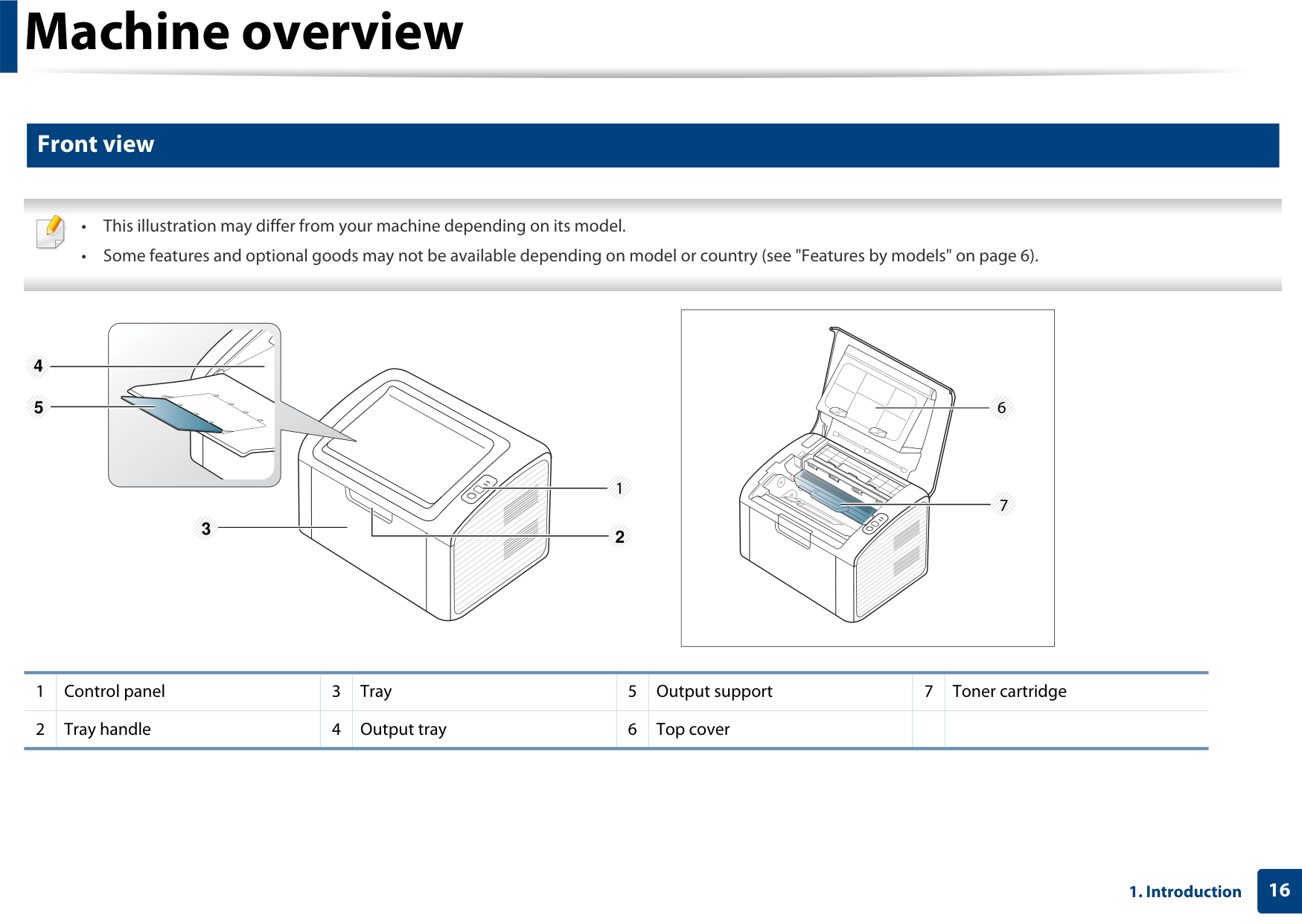
|1|Control panel|3|Tray|5|Output support|7|Toner cartridge| |---|---|---|---|---|---|---|---| |2|Tray handle|4|Output tray|6|Top cover| | |
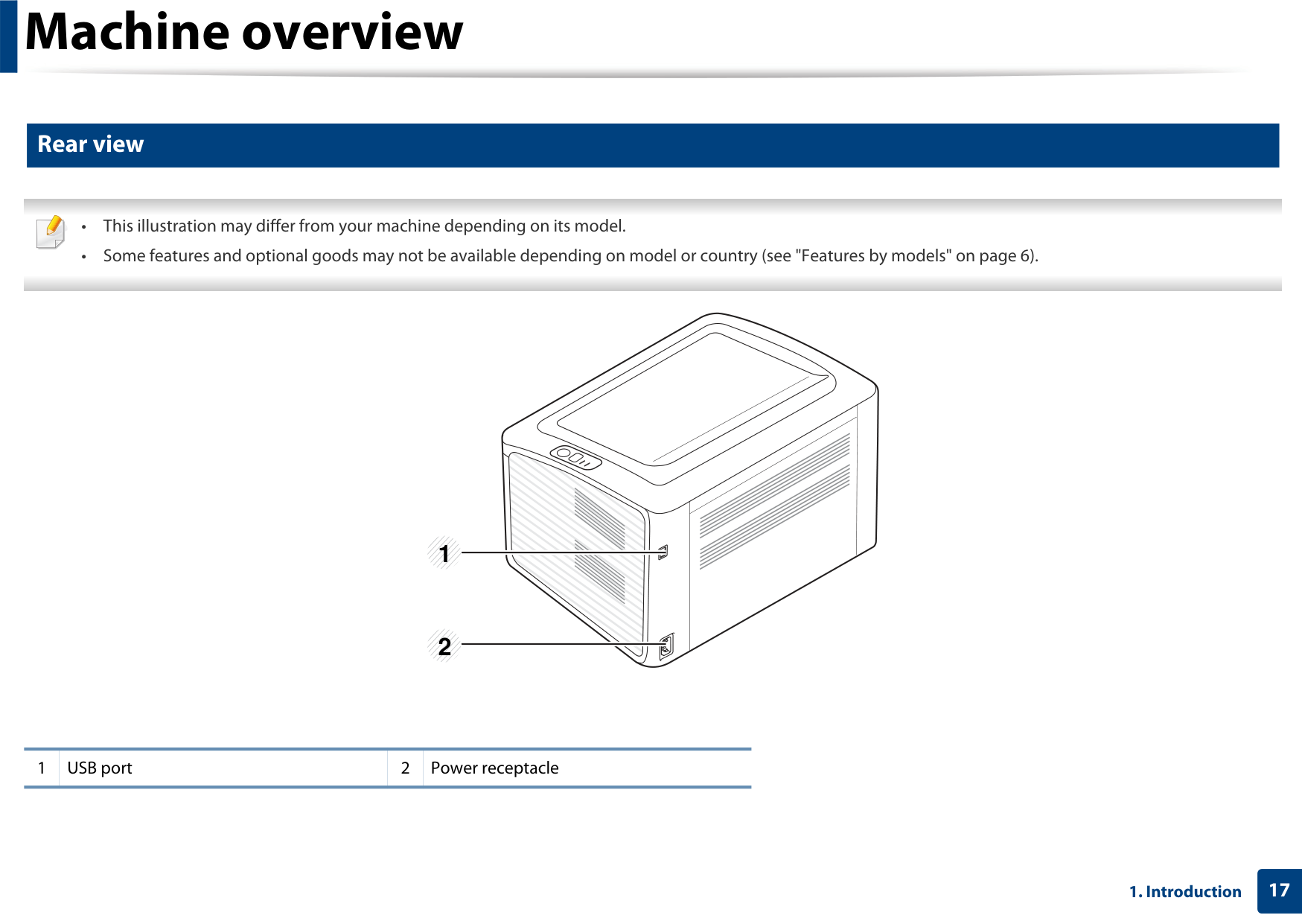
############# Rear view

1USB port 2Power receptacle
3
Configures the wireless network connection easily without a computer (see "Wireless network setup" on page 104).
This control panel may differ from your machine depending on its model. There are various types of control panels.

########################## • Configuration sheet
| | | |---|---| | | | | | | | | | | | |
########################## • Prints supplies info report / error report
(WPS)
########################## • Manual print
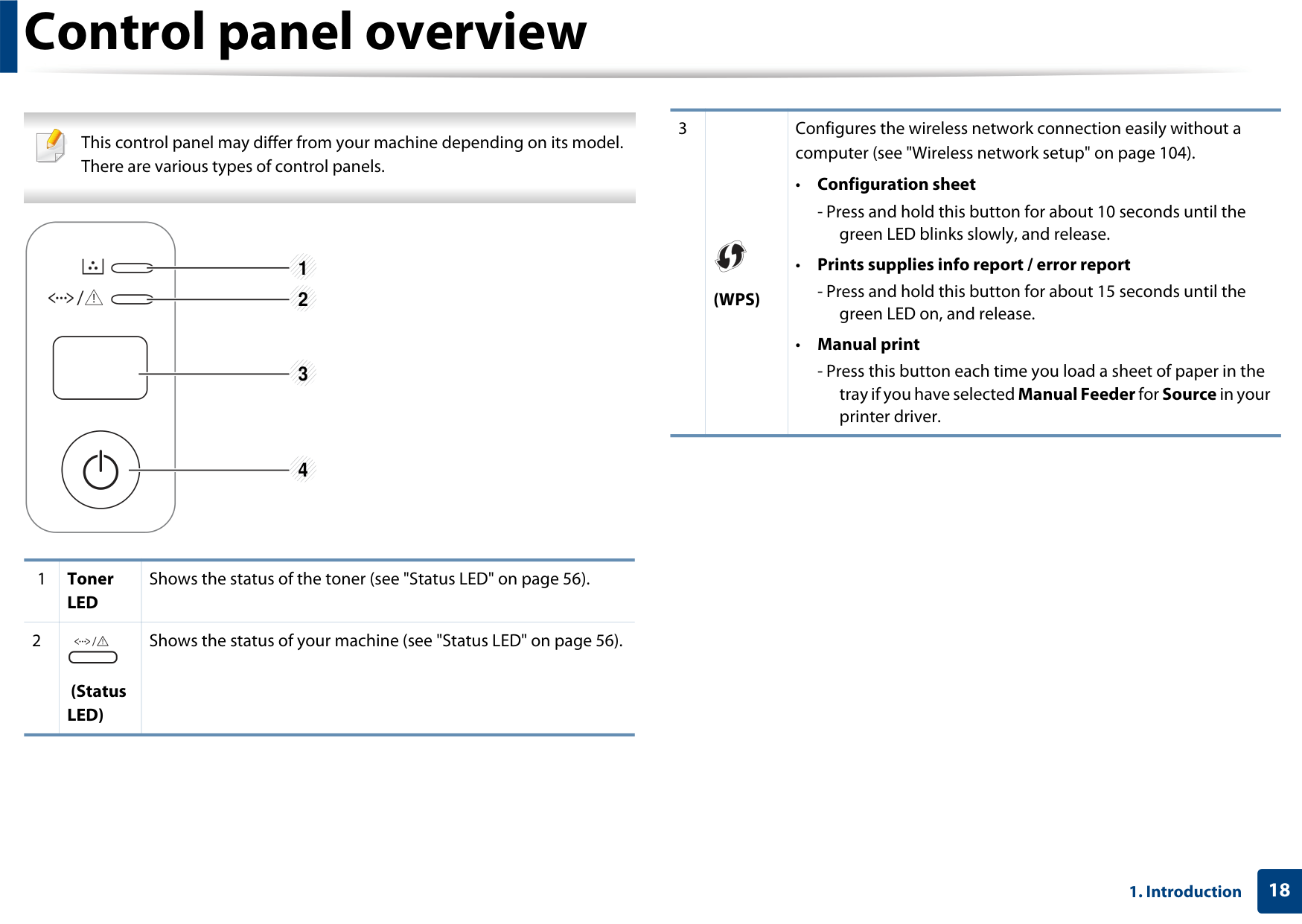
|1|Toner LED|Shows the status of the toner (see "Status LED" on page 56).| |---|---|---| |2|(Status LED)
|Shows the status of your machine (see "Status LED" on page 56).|

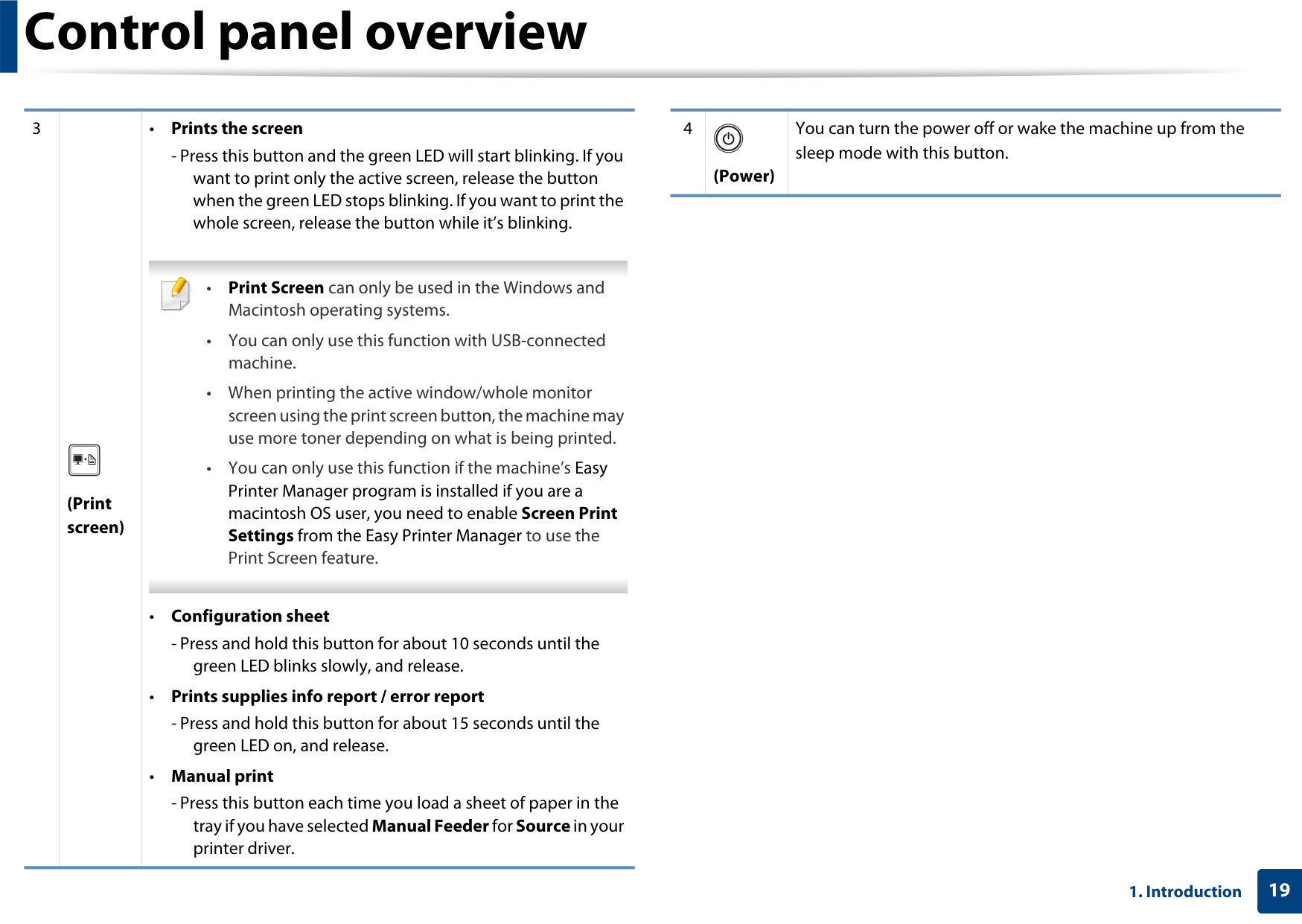
3
4
You can turn the power off or wake the machine up from the sleep mode with this button.
(Power)
(Print screen)
###### Turning on the machine

############ 2
############ 1
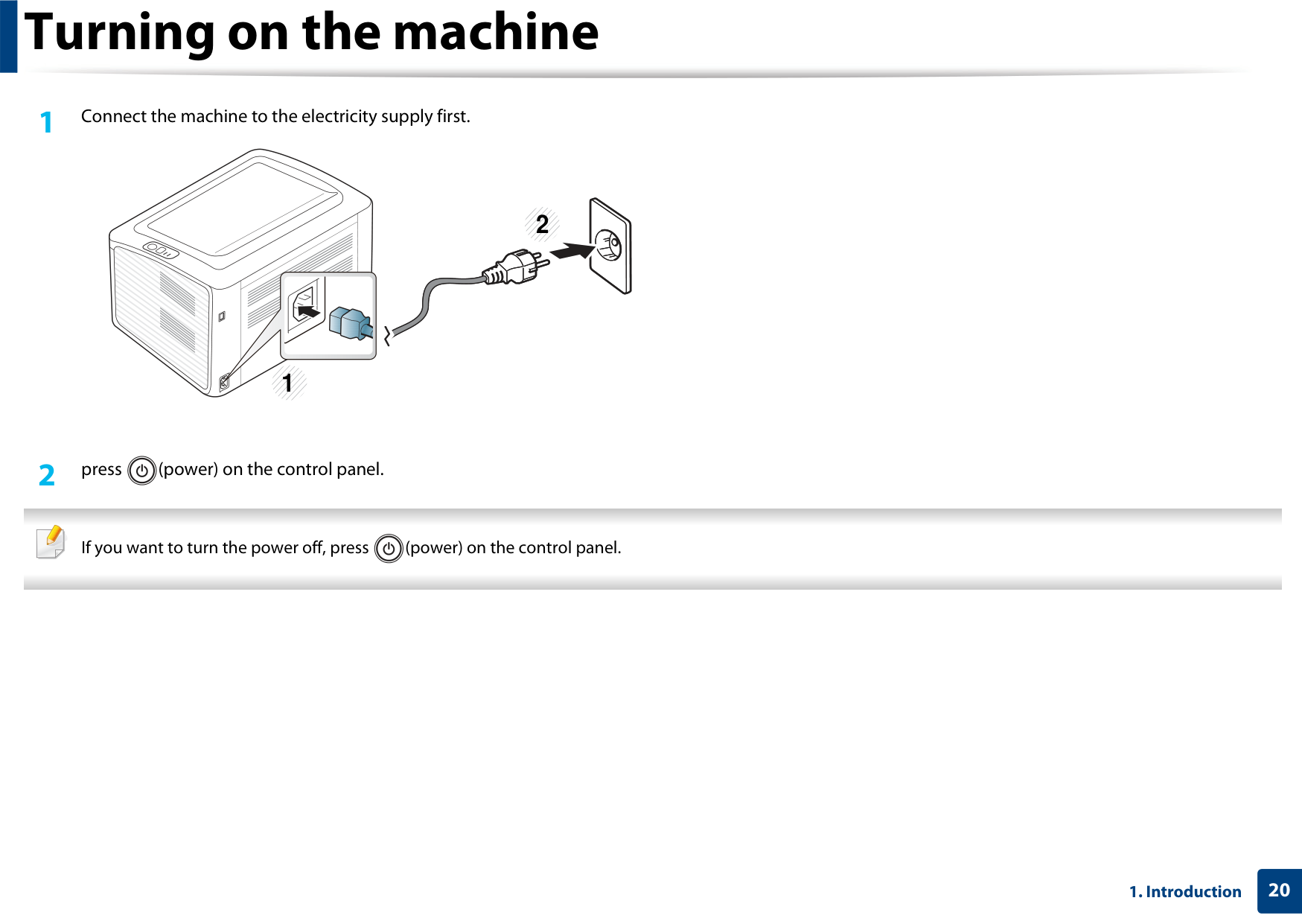

If you want to turn the power off, press (power) on the control panel.
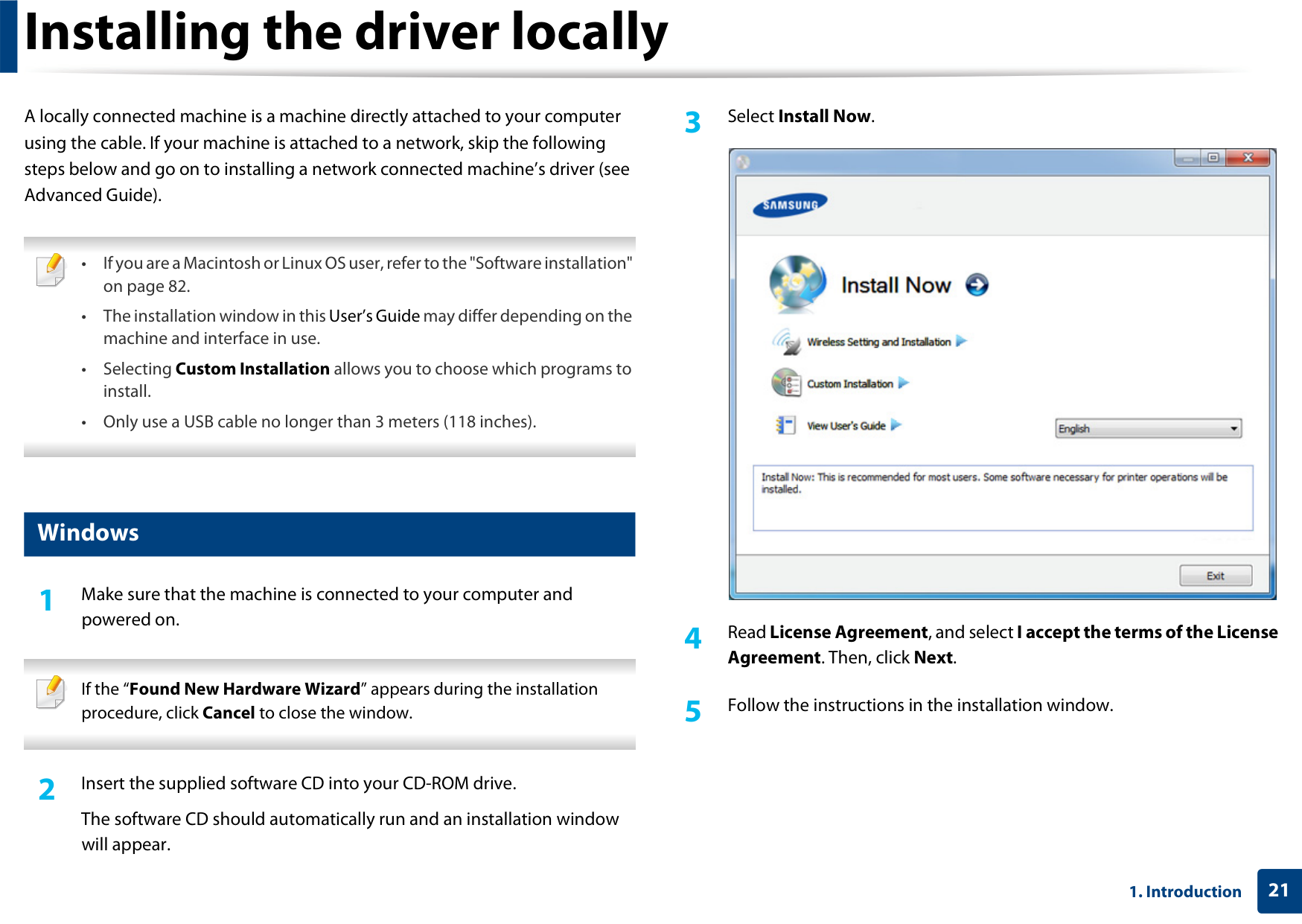
###### Installing the driver locally

Agreement. Then, click Next.


############# Windows
powered on.

If the “Found New Hardware Wizard” appears during the installation procedure, click Cancel to close the window.
The software CD should automatically run and an installation window will appear.
###### Reinstalling the driver

If the printer driver does not work properly, follow the steps below to reinstall the driver.
############# Windows
powered on.
Printers > your printer driver name > Uninstall.
again (see "Installing the driver locally" on page 21).
##### 2. Learning the Basic Usage
After installation is complete, you may want to set the machine’s default settings. Refer to the next section if you would like to set or change values. This chapter provides information about the overall menu structure and the basic setup options.






###### Printing a demo page

Print a demo page to make sure that the machine is operating correctly (Windows only). To print a demo page:
• Open the Printing Preferences (see "Opening printing preferences" on page 35) > Samsung tab > Demo page
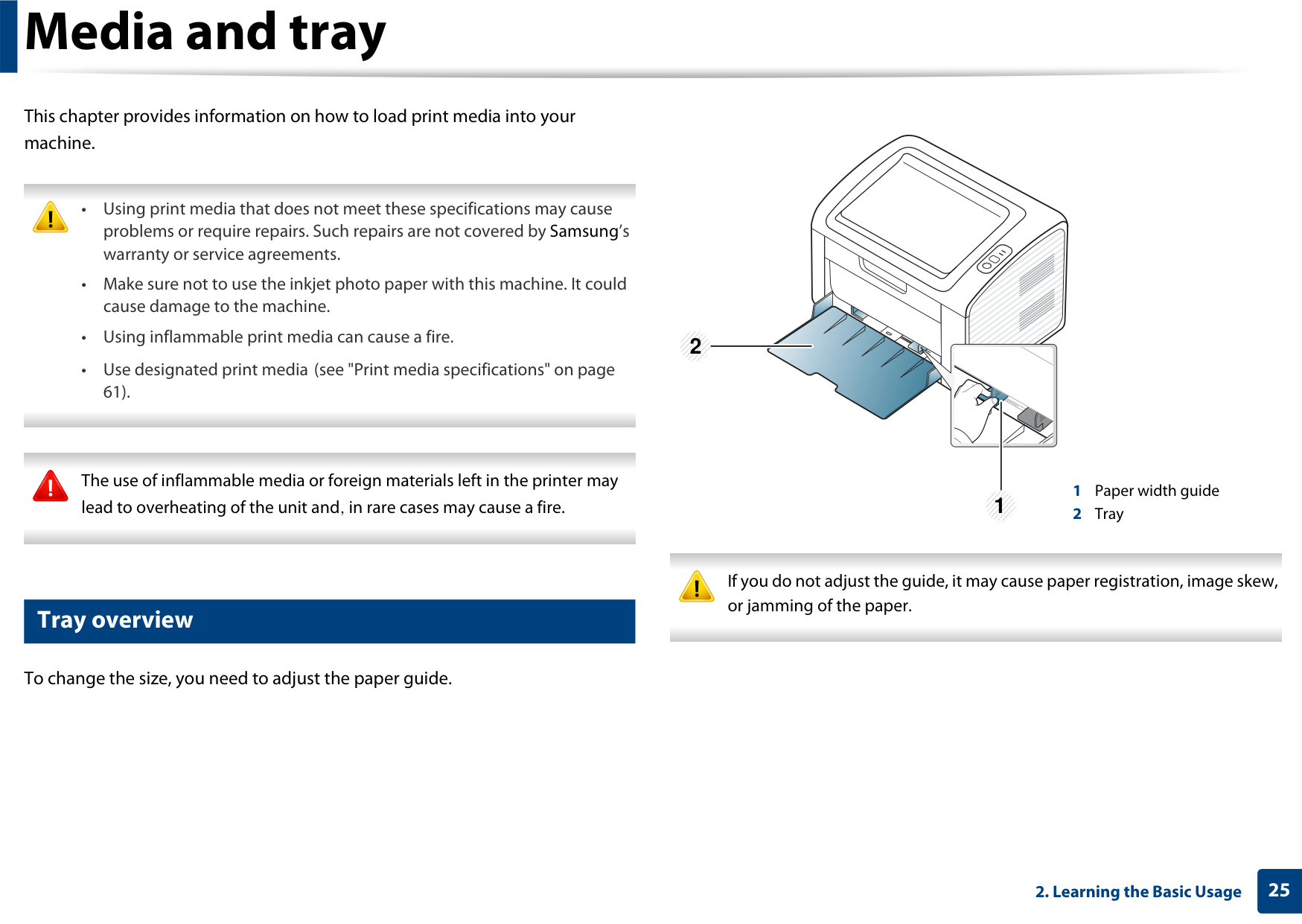
This chapter provides information on how to load print media into your machine.
################## 2
The use of inflammable media or foreign materials left in the printer may lead to overheating of the unit and, in rare cases may cause a fire.
1
############# Tray overview
If you do not adjust the guide, it may cause paper registration, image skew, or jamming of the paper.
To change the size, you need to adjust the paper guide.
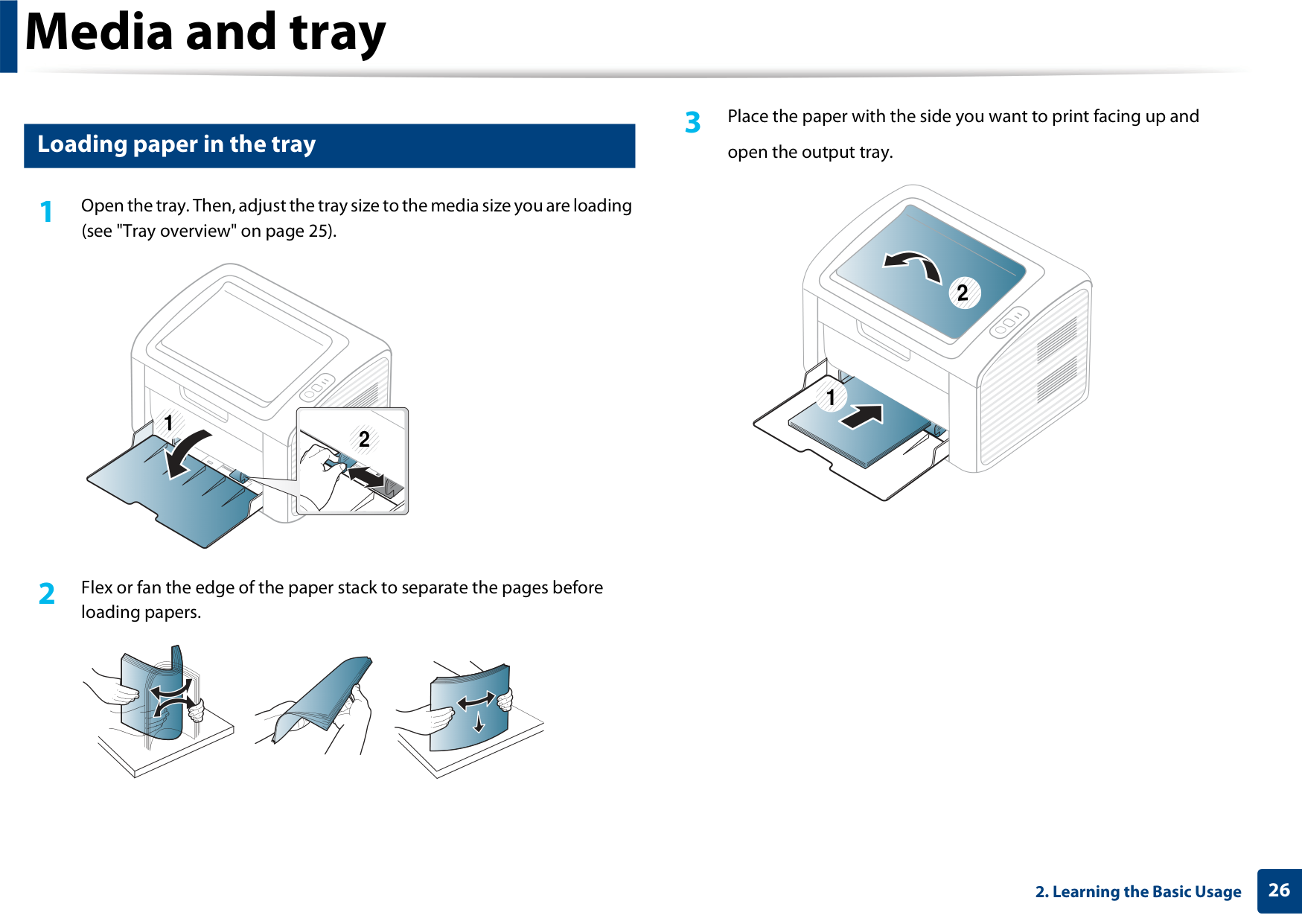
3 Place the paper with the side you want to print facing up and
############# Loading paper in the tray
open the output tray.
(see "Tray overview" on page 25).
################ 2
1
1
2
loading papers.
######## 4 Squeeze the paper width guide and slide it to the edge of the paper stack
without causing it to bend.
The settings made from the machine driver override the settings on the control panel.
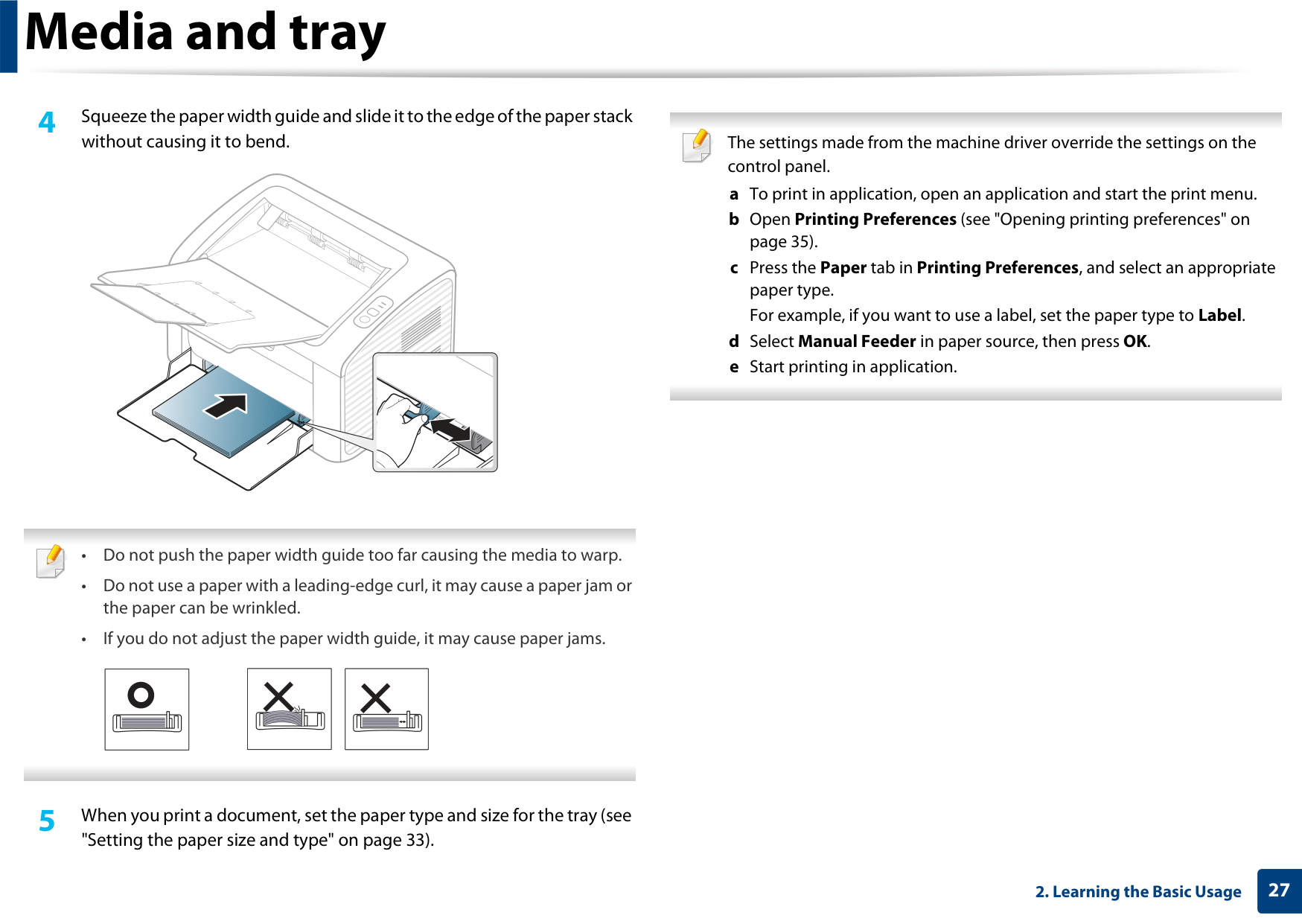


######## 5 When you print a document, set the paper type and size for the tray (see
"Setting the paper size and type" on page 33).
############# Manual feeding in the tray
The manual feeder can hold special sizes and types of print material, such as postcards, note cards, and envelopes (see "Print media specifications" on page 61).
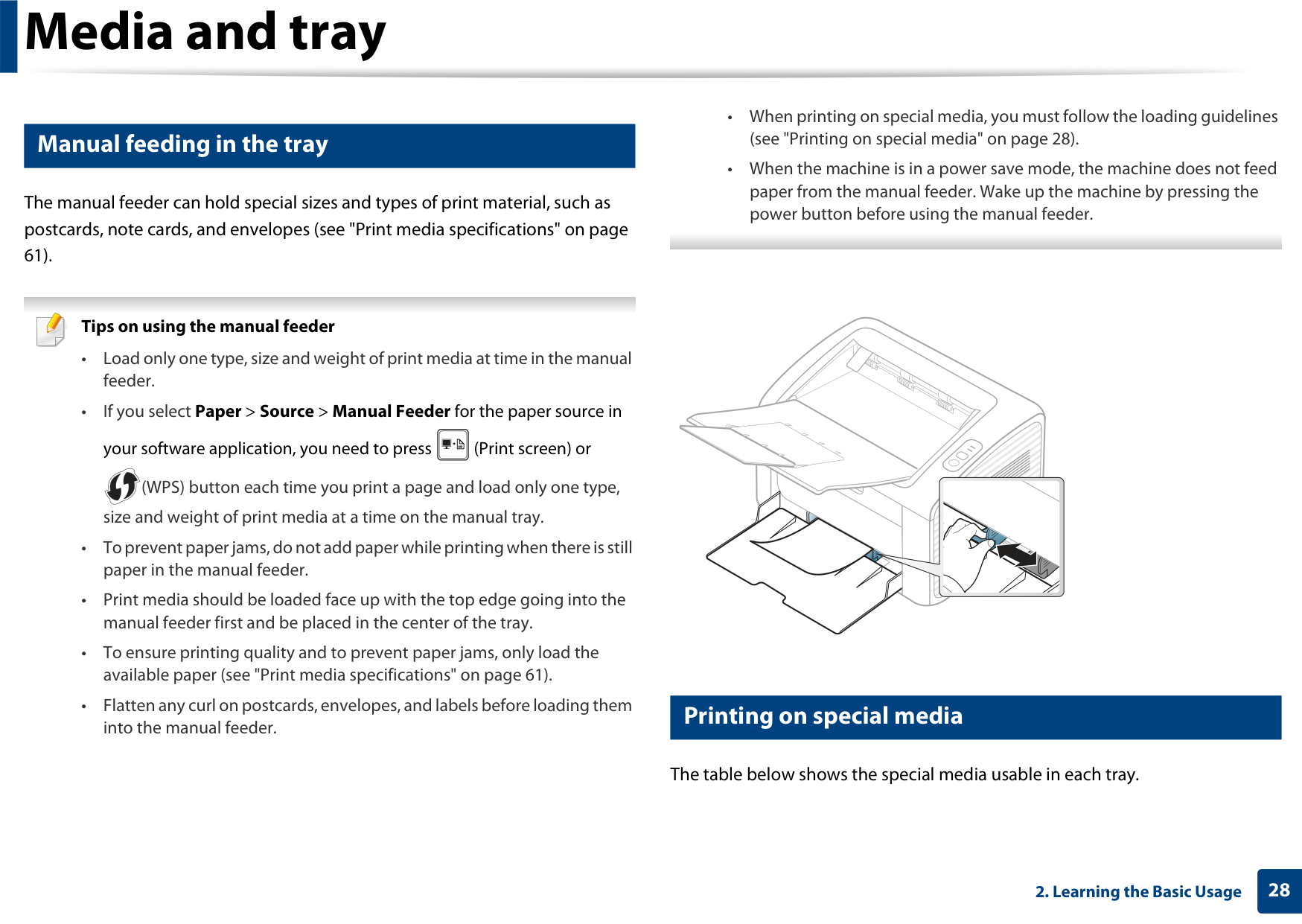
Tips on using the manual feeder

(WPS) button each time you print a page and load only one type, size and weight of print media at a time on the manual tray.
into the manual feeder.
############# Printing on special media
The table below shows the special media usable in each tray.
The media types are shown in the Printing Preferences. To get the higest printing quality, select the proper media type from the Printing Preferences window >Papertab >Paper Type(see "Opening printing preferences" on page 35).
|Types|Traya| |---|---| |Cotton|●|
|Recycled|●| |Archive|●|
For example, if you want to print on labels, select Labels for Paper Type.
a. The paper types available manual feeding in tray.
When using special media, we recommend you feed one sheet at a time (see "Print media specifications" on page 61).

(●: Included, Blank: Not available)
To see for paper weights for each sheet, refer to "Print media specifications" on page 61.
|Types|Traya| |---|---| |Plain|●| |Thick|●| |Thin|●| |Bond|●| |Color|●| |CardStock|●| |Labels|●| |Envelope|●| |Preprinted|●|
########### Envelope
Printing successfully on envelopes depends upon the quality of the envelopes.
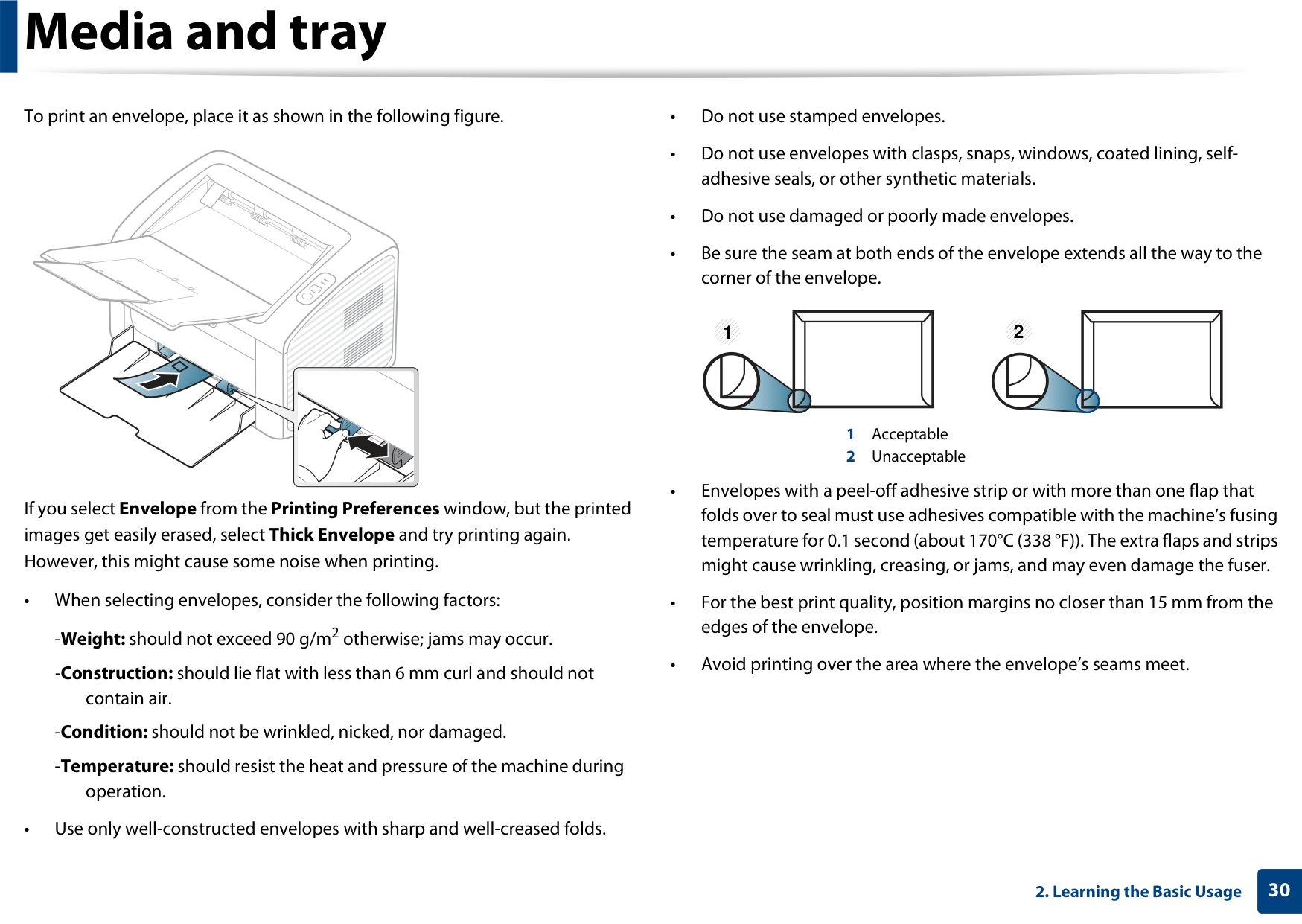
To print an envelope, place it as shown in the following figure.
####################### 1 2
If you select Envelope from the Printing Preferences window, but the printed images get easily erased, select Thick Envelope and try printing again. However, this might cause some noise when printing.
########### Labels
-Condition:Do not use labels with wrinkles, bubbles, or other indications of separation.
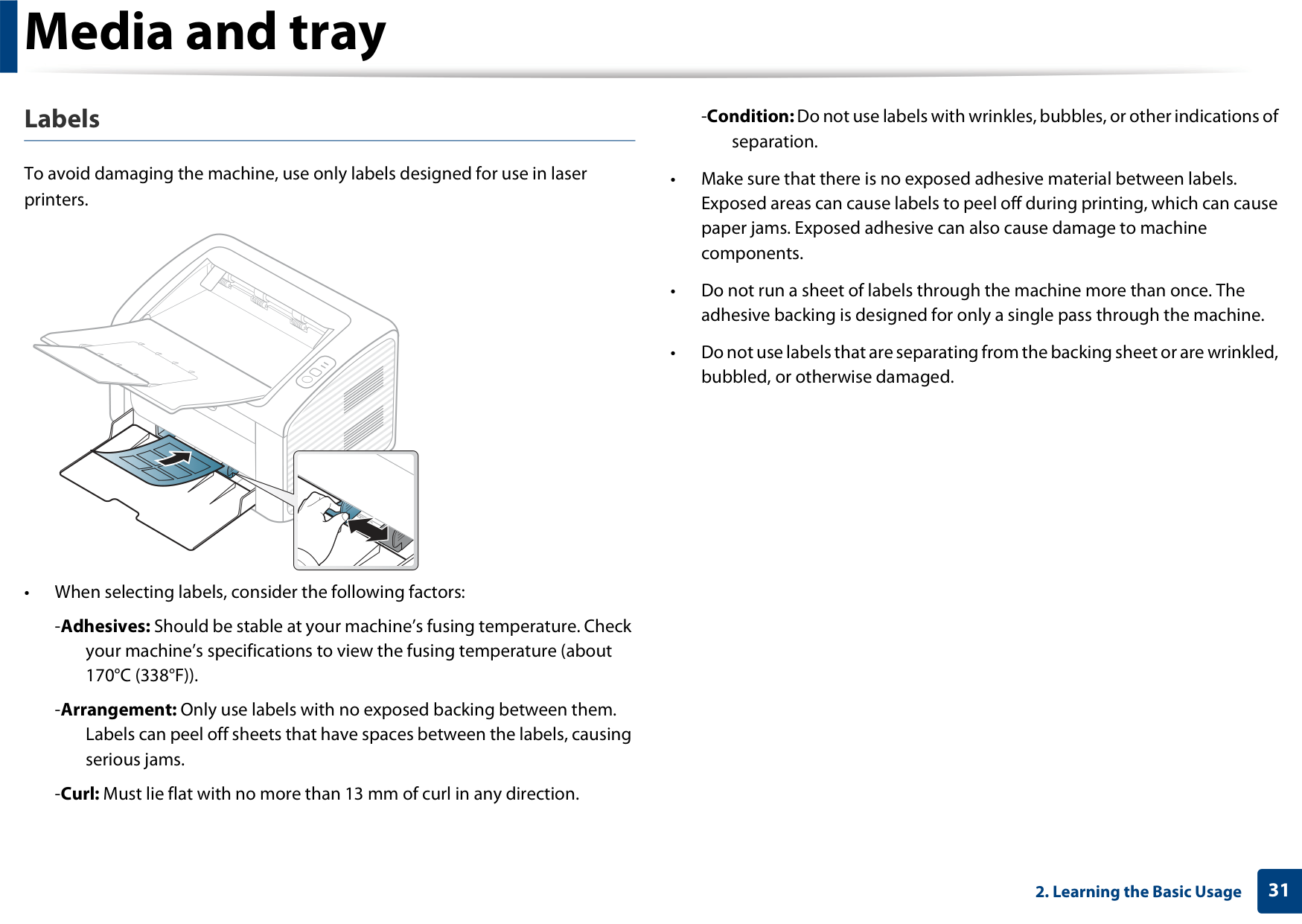
To avoid damaging the machine, use only labels designed for use in laser printers.
• When selecting labels, consider the following factors:
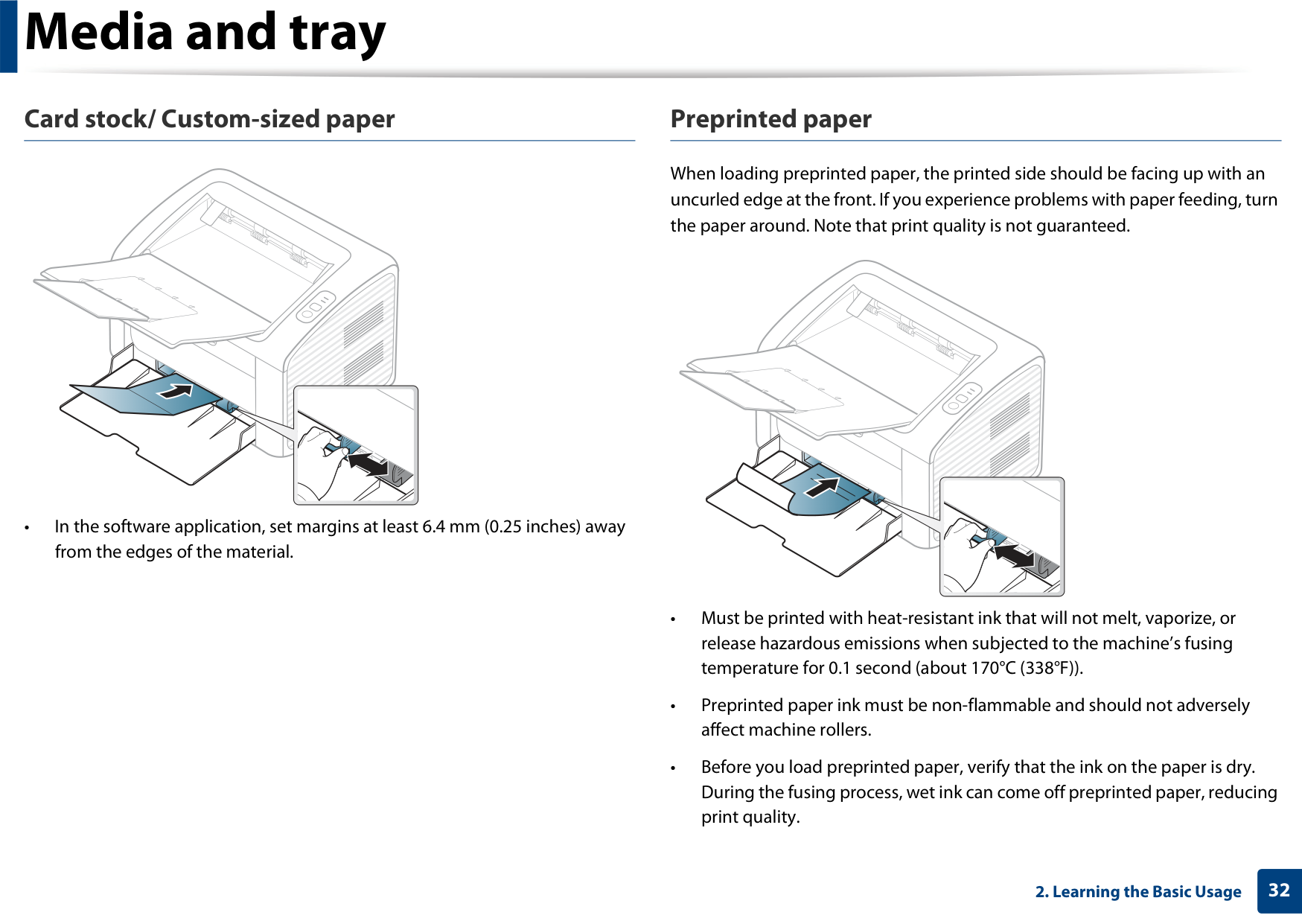
########### Card stock/ Custom-sized paper
########### Preprinted paper
• In the software application, set margins at least 6.4 mm (0.25 inches) away from the edges of the material.
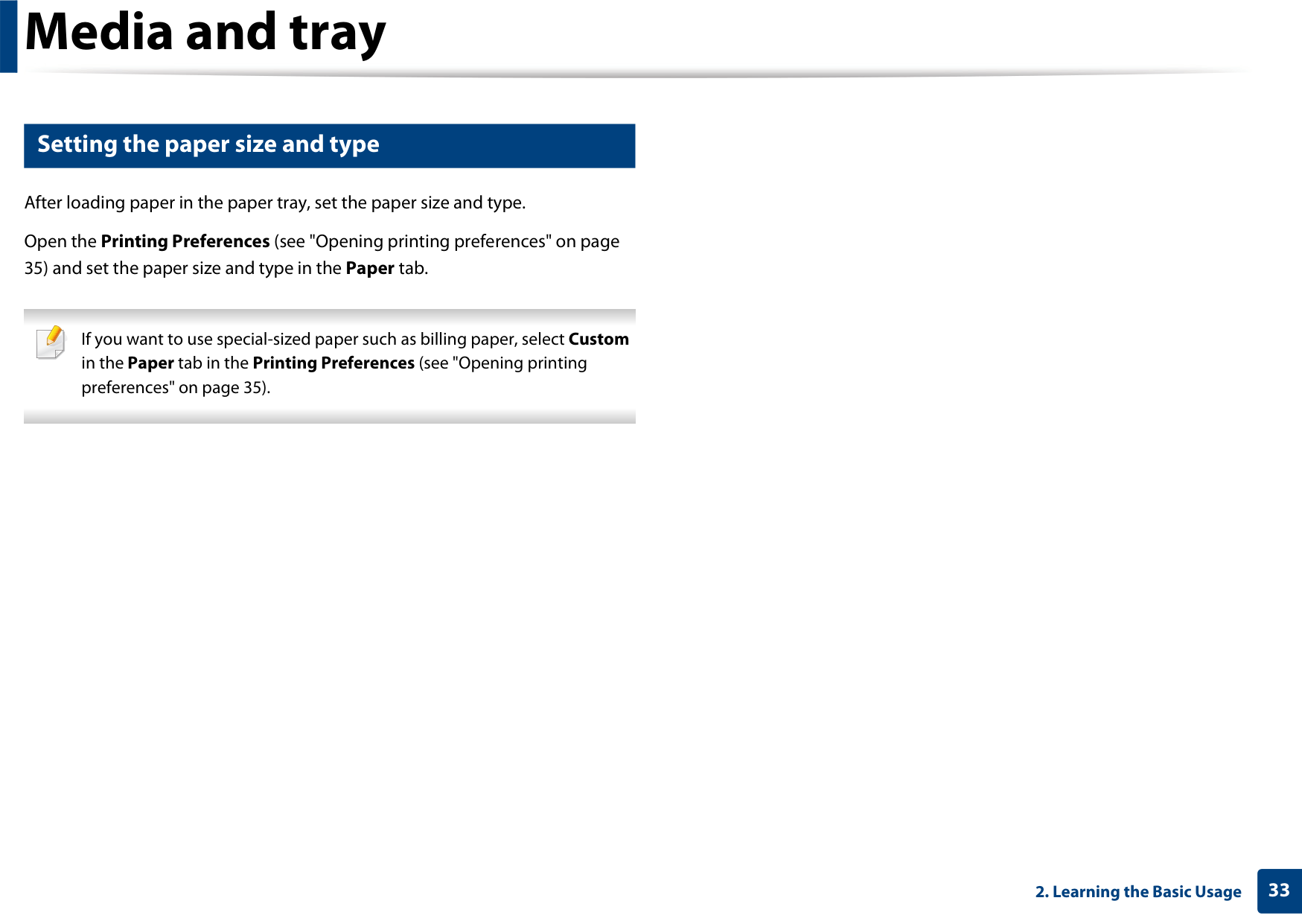
When loading preprinted paper, the printed side should be facing up with an uncurled edge at the front. If you experience problems with paper feeding, turn the paper around. Note that print quality is not guaranteed.
############# Setting the paper size and type
After loading paper in the paper tray, set the paper size and type. Open the Printing Preferences (see "Opening printing preferences" on page
35) and set the paper size and type in the Paper tab.
If you want to use special-sized paper such as billing paper, select Custom in the Paper tab in the Printing Preferences (see "Opening printing preferences" on page 35).

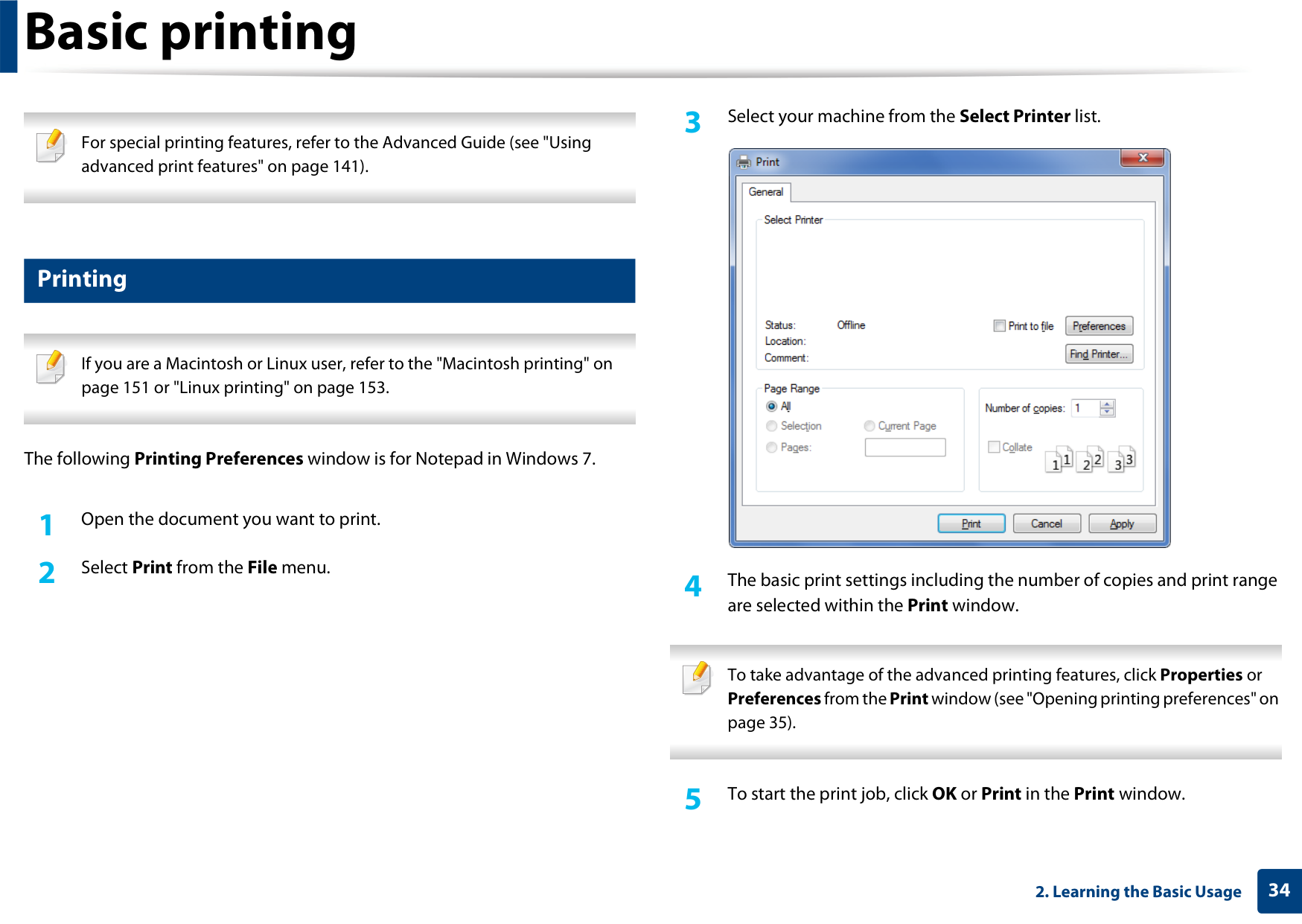
are selected within the Print window.

To take advantage of the advanced printing features, click Properties or Preferencesfrom thePrintwindow (see "Opening printing preferences" on page 35).
For special printing features, refer to the Advanced Guide (see "Using advanced print features" on page 141).


############# Printing
If you are a Macintosh or Linux user, refer to the "Macintosh printing" on page 151 or "Linux printing" on page 153.

The following Printing Preferences window is for Notepad in Windows 7.
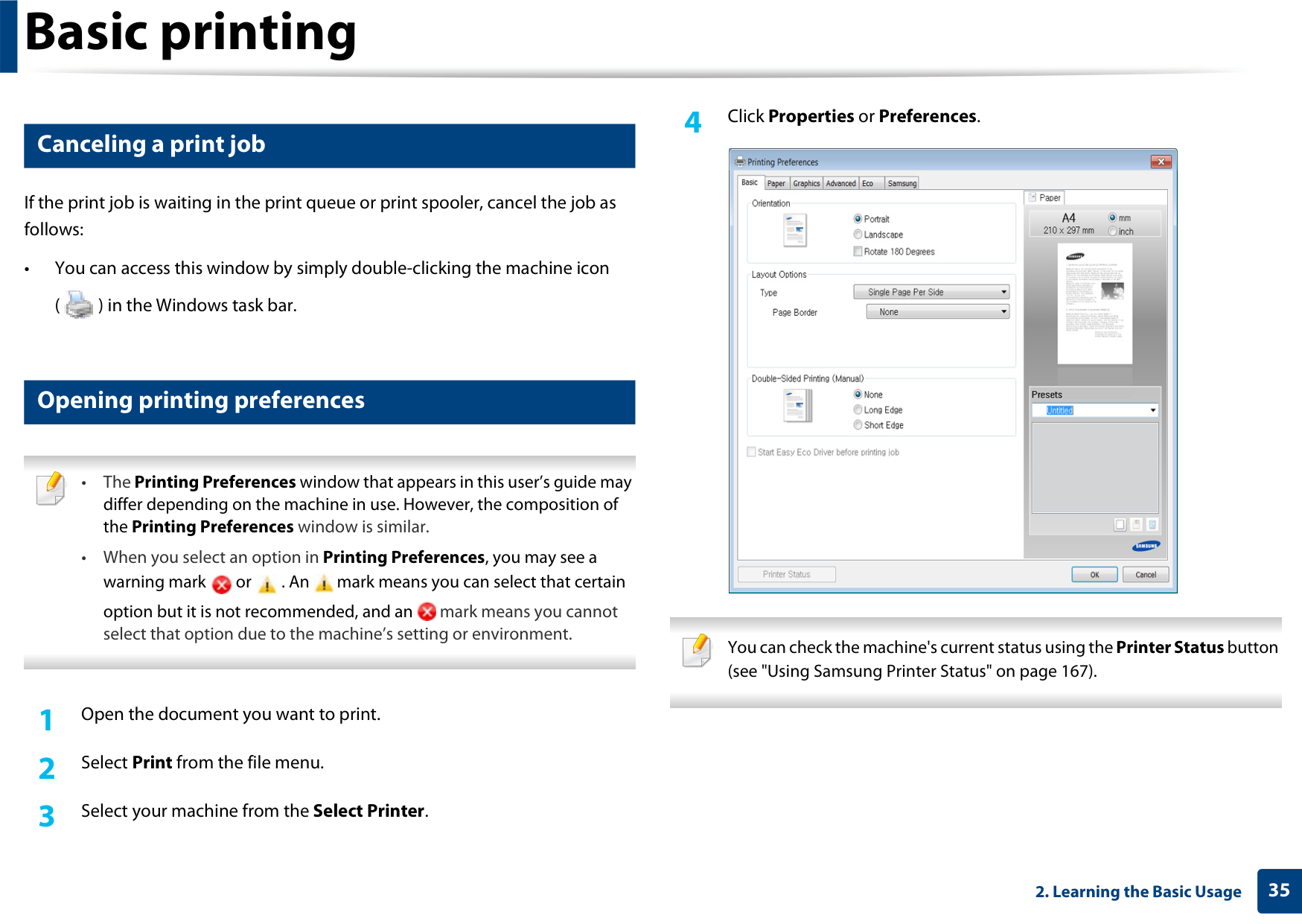
####### 4 ClickPropertiesorPreferences.
############# Canceling a print job

If the print job is waiting in the print queue or print spooler, cancel the job as follows:
• You can access this window by simply double-clicking the machine icon ( ) in the Windows task bar.

############# Opening printing preferences


option but it is not recommended, and an mark means you cannot select that option due to the machine’s setting or environment.

You can check the machine's current status using thePrinter Statusbutton (see "Using Samsung Printer Status" on page 167).

########### Using a favorite setting

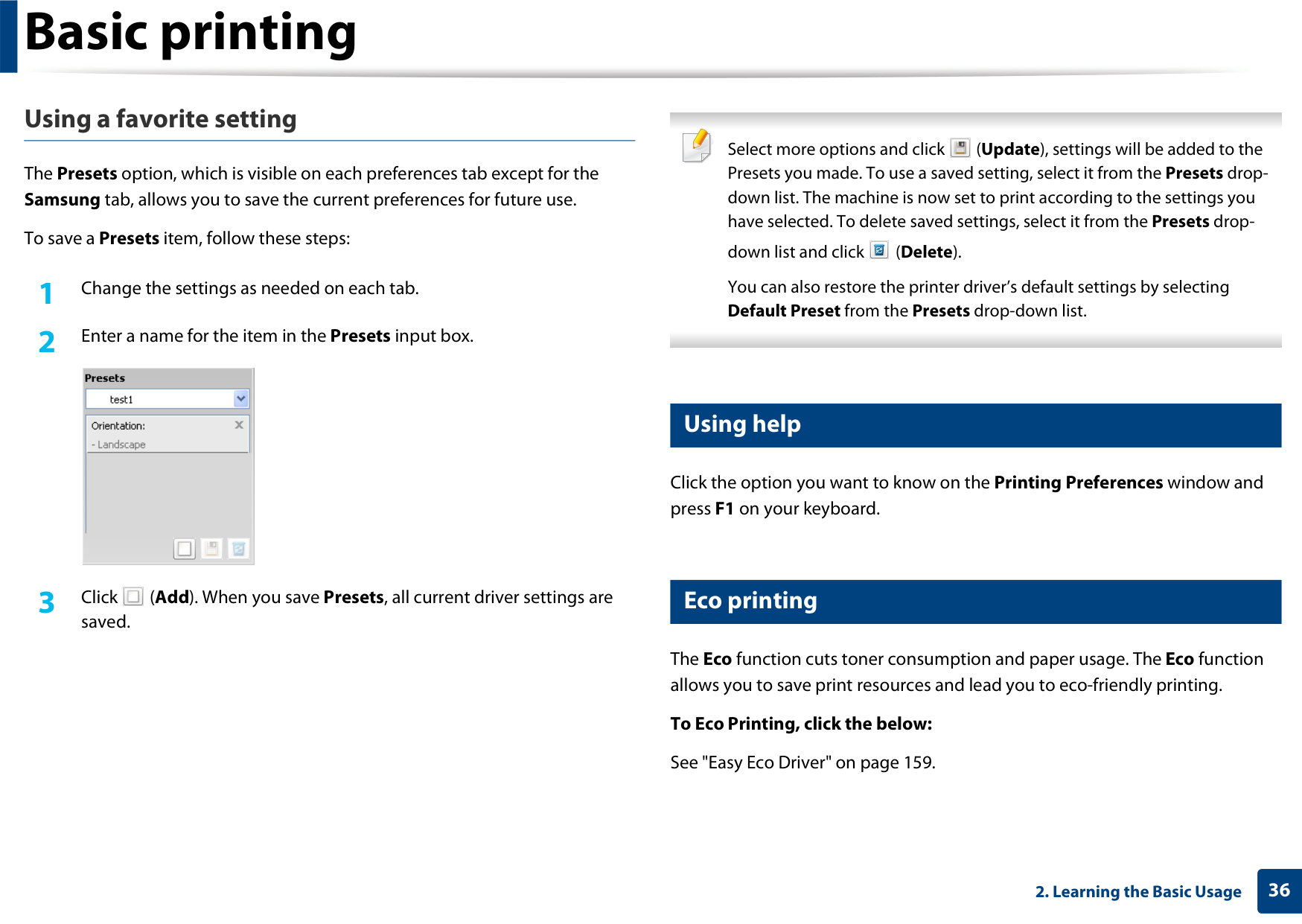
Select more options and click (Update), settings will be added to the Presets you made. To use a saved setting, select it from the Presets dropdown list. The machine is now set to print according to the settings you have selected. To delete saved settings, select it from the Presets dropdown list and click (Delete). You can also restore the printer driver’s default settings by selecting Default Preset from the Presets drop-down list.

The Presets option, which is visible on each preferences tab except for the Samsung tab, allows you to save the current preferences for future use.
To save a Presets item, follow these steps:


############# Using help
Click the option you want to know on the Printing Preferences window and press F1 on your keyboard.
############# Eco printing

saved.
The Eco function cuts toner consumption and paper usage. The Eco function allows you to save print resources and lead you to eco-friendly printing.
To Eco Printing, click the below: See "Easy Eco Driver" on page 159.
##### 3. Maintenance
This chapter provides information about purchasing supplies, accessories and maintenance parts available for your machine.






###### Ordering supplies and accessories

Available accessories may differ from country to country. Contact your sales representatives to obtain the list of available supplies, and maintenance parts.

######################### To order Samsung-authorized supplies, accessories, and maintenance parts, contact your local Samsung dealer or the retailer where you purchased your machine. You can also visit www.samsung.com/supplies, and then select your country/region to obtain the contact information for service.
###### Available supplies

######################### When supplies reach the end of their life spans, you can order the following types of supplies for your machine:
|Type|Average yielda|Part name| |---|---|---| |Toner cartridge|Approx. 1,500 pages|MLT-D101S|
a. Declared yield value in accordance with ISO/IEC 19752.
Depending on the options, percentage of image area, and job mode used, the toner cartridge’s lifespan may differ.

When purchasing new toner cartridges or other supplies, these must be purchased in the same country as the machine you are using. Otherwise, new toner cartridges or other supplies will be incompatible with your machine due to different configurations of toner cartridges and other supplies according to the specific country conditions.
Samsung does not recommend using non-genuine Samsung toner cartridge such as refilled or remanufactured toner. Samsung cannot guarantee non-genuine Samsung toner cartridge's quality. Service or repair required as a result of using non-genuine Samsung toner cartridges will not be covered under the machine’s warranty.
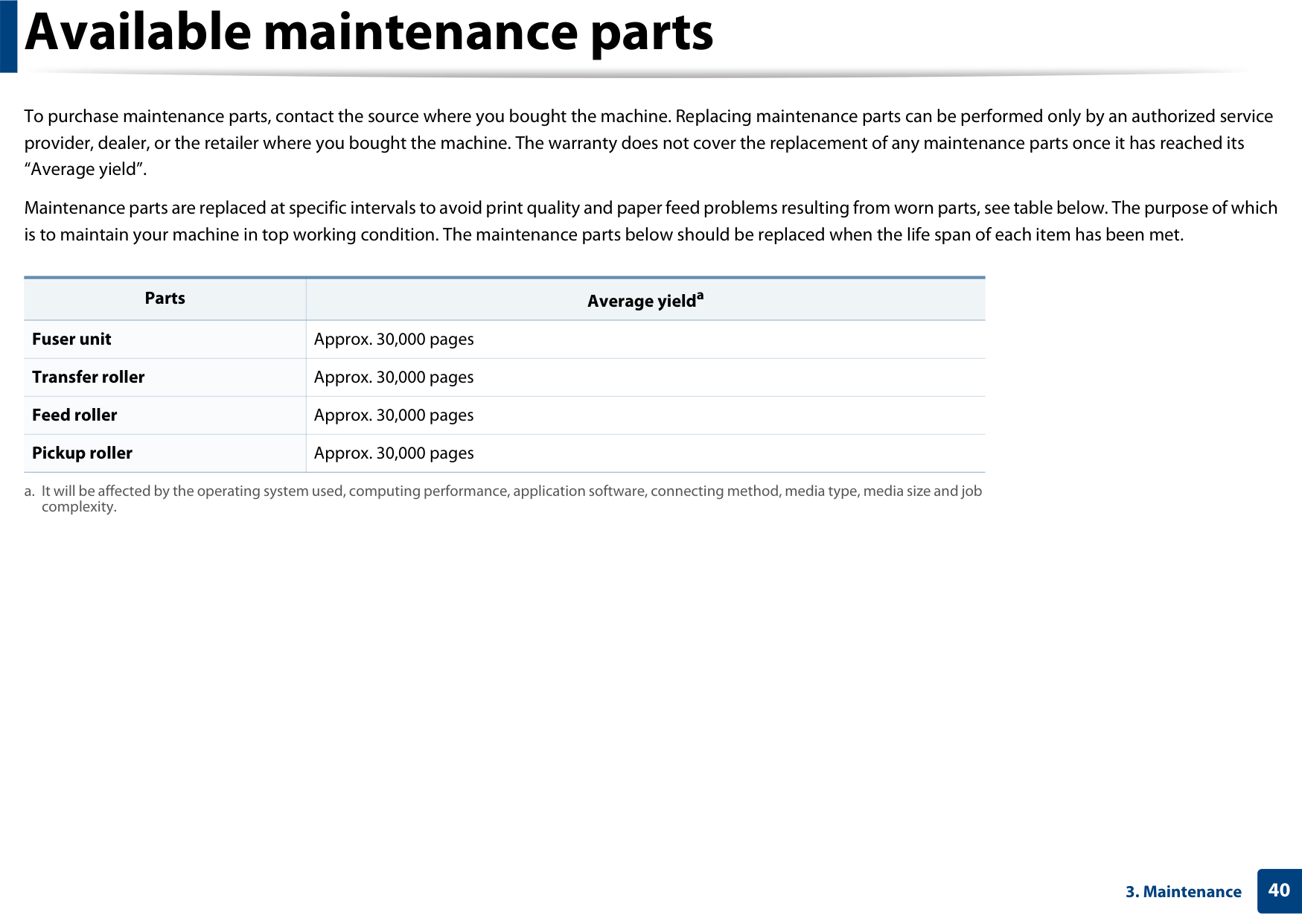
###### Available maintenance parts

To purchase maintenance parts, contact the source where you bought the machine. Replacing maintenance parts can be performed only by an authorized service provider, dealer, or the retailer where you bought the machine. The warranty does not cover the replacement of any maintenance parts once it has reached its “Average yield”.
Maintenance parts are replaced at specific intervals to avoid print quality and paper feed problems resulting from worn parts, see table below. The purpose of which is to maintain your machine in top working condition. The maintenance parts below should be replaced when the life span of each item has been met.
|Parts|Average yielda| |---|---| |Fuser unit|Approx. 30,000 pages| |Transfer roller|Approx. 30,000 pages| |Feed roller|Approx. 30,000 pages| |Pickup roller|Approx. 30,000 pages|
a. It will be affected by the operating system used, computing performance, application software, connecting method, media type, media size and job complexity.
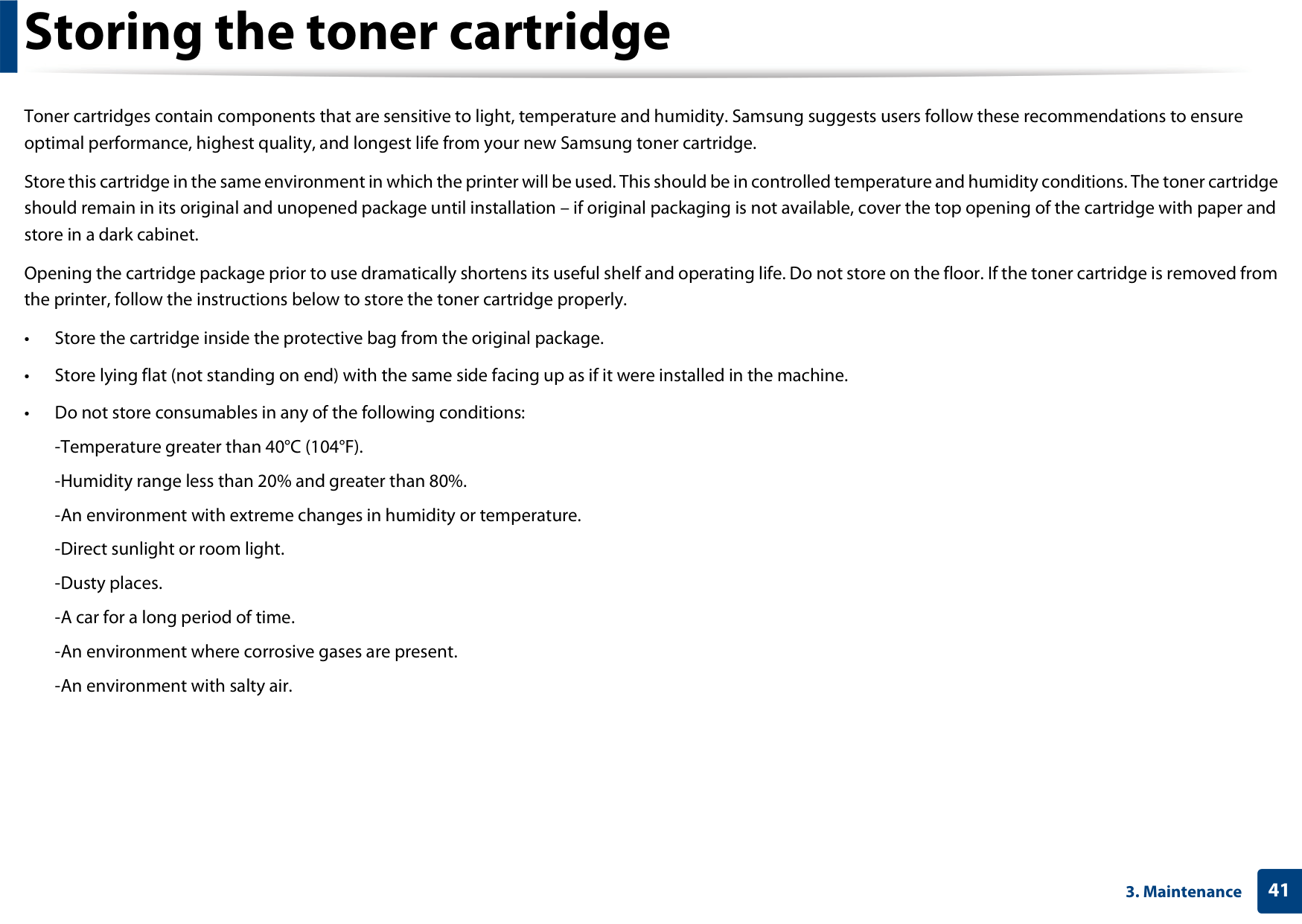
Toner cartridges contain components that are sensitive to light, temperature and humidity. Samsung suggests users follow these recommendations to ensure optimal performance, highest quality, and longest life from your new Samsung toner cartridge.
Store this cartridge in the same environment in which the printer will be used. This should be in controlled temperature and humidity conditions. The toner cartridge should remain in its original and unopened package until installation – if original packaging is not available, cover the top opening of the cartridge with paper and store in a dark cabinet.
Opening the cartridge package prior to use dramatically shortens its useful shelf and operating life. Do not store on the floor. If the toner cartridge is removed from the printer, follow the instructions below to store the toner cartridge properly.
############# Handling instructions
############# Estimated cartridge life
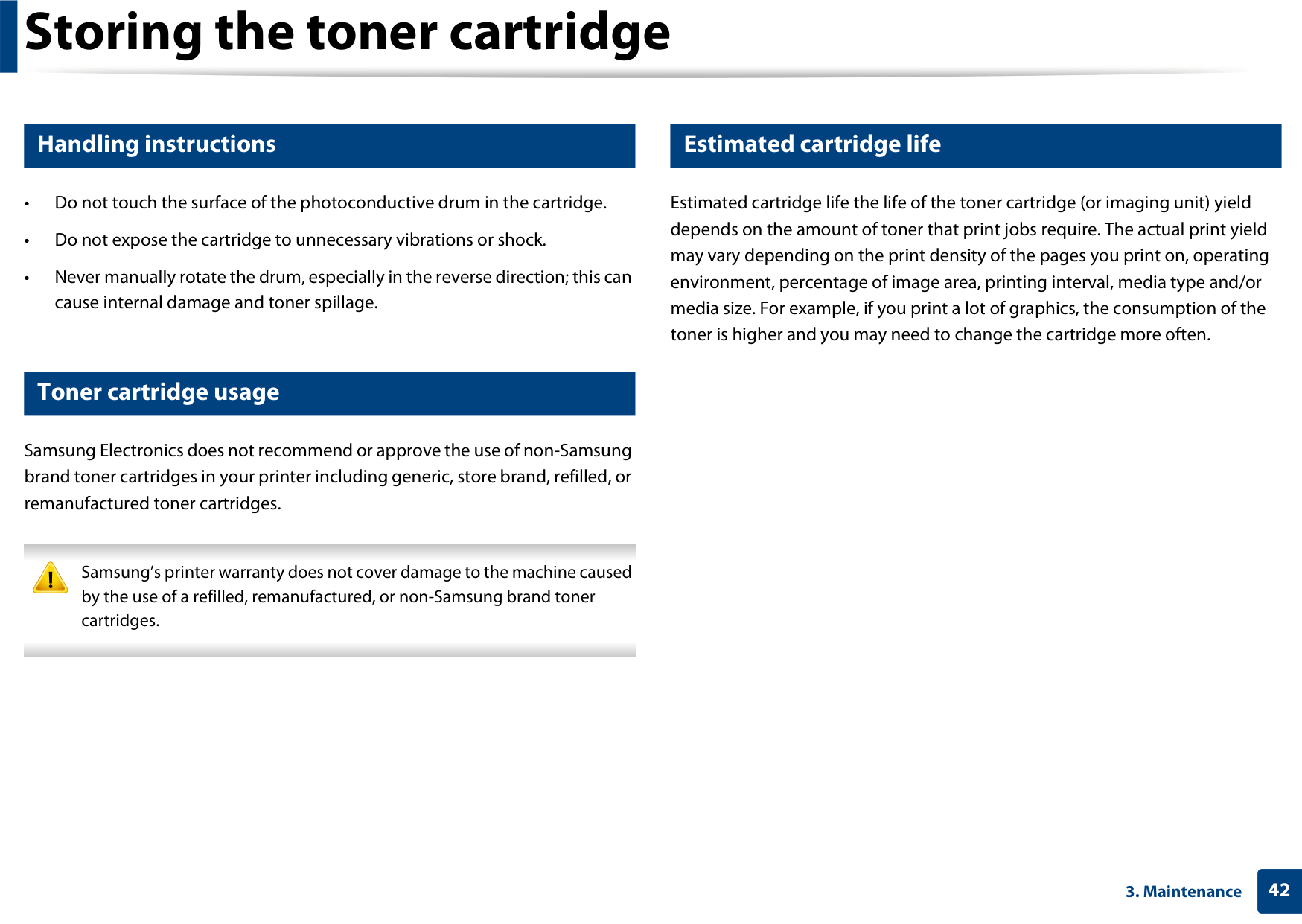
Estimated cartridge life the life of the toner cartridge (or imaging unit) yield depends on the amount of toner that print jobs require. The actual print yield may vary depending on the print density of the pages you print on, operating environment, percentage of image area, printing interval, media type and/or media size. For example, if you print a lot of graphics, the consumption of the toner is higher and you may need to change the cartridge more often.
############# Toner cartridge usage
Samsung Electronics does not recommend or approve the use of non-Samsung brand toner cartridges in your printer including generic, store brand, refilled, or remanufactured toner cartridges.
Samsung’s printer warranty does not cover damage to the machine caused by the use of a refilled, remanufactured, or non-Samsung brand toner cartridges.
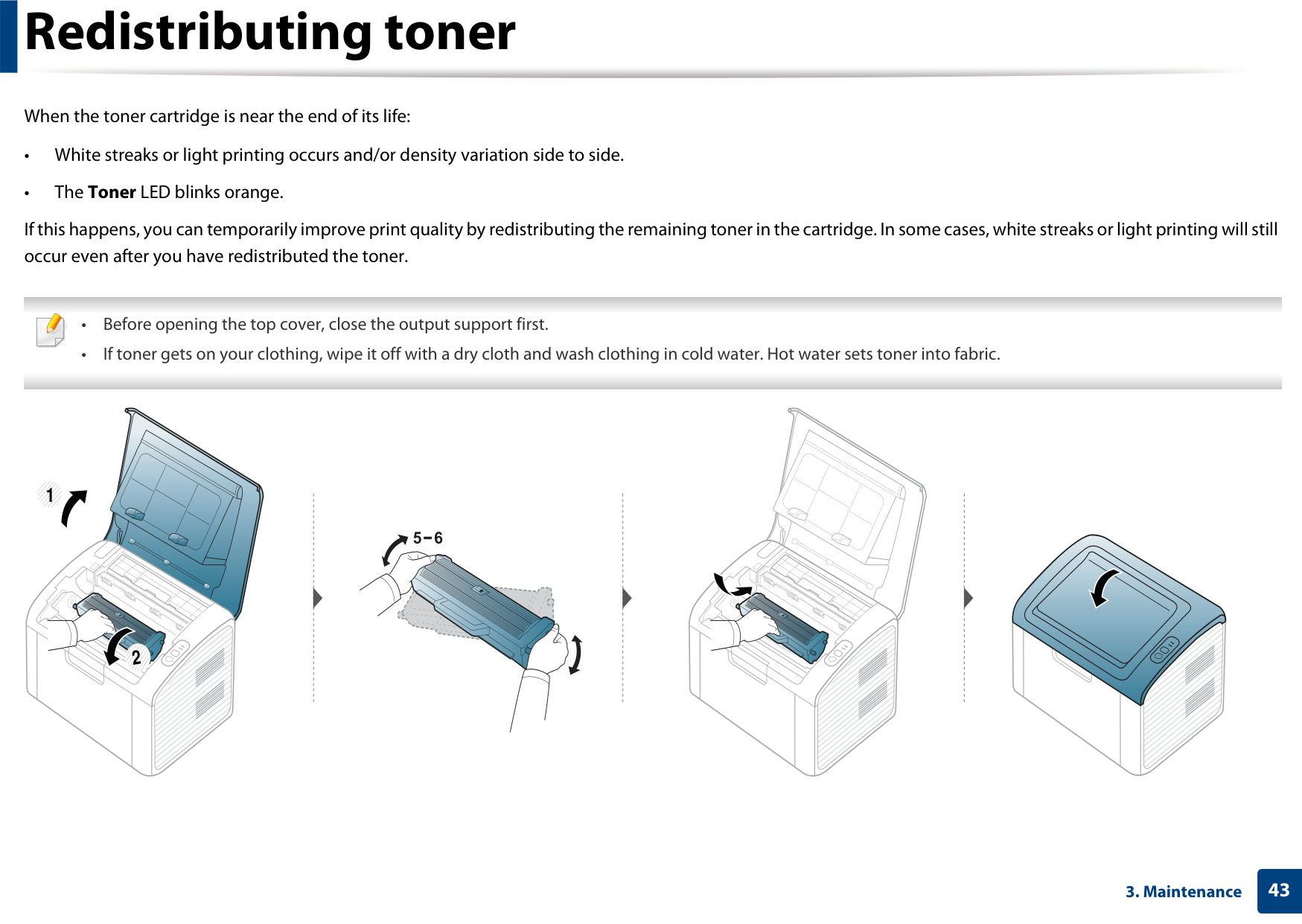
###### Redistributing toner

When the toner cartridge is near the end of its life:
If this happens, you can temporarily improve print quality by redistributing the remaining toner in the cartridge. In some cases, white streaks or light printing will still occur even after you have redistributed the toner.

###################### 1
2

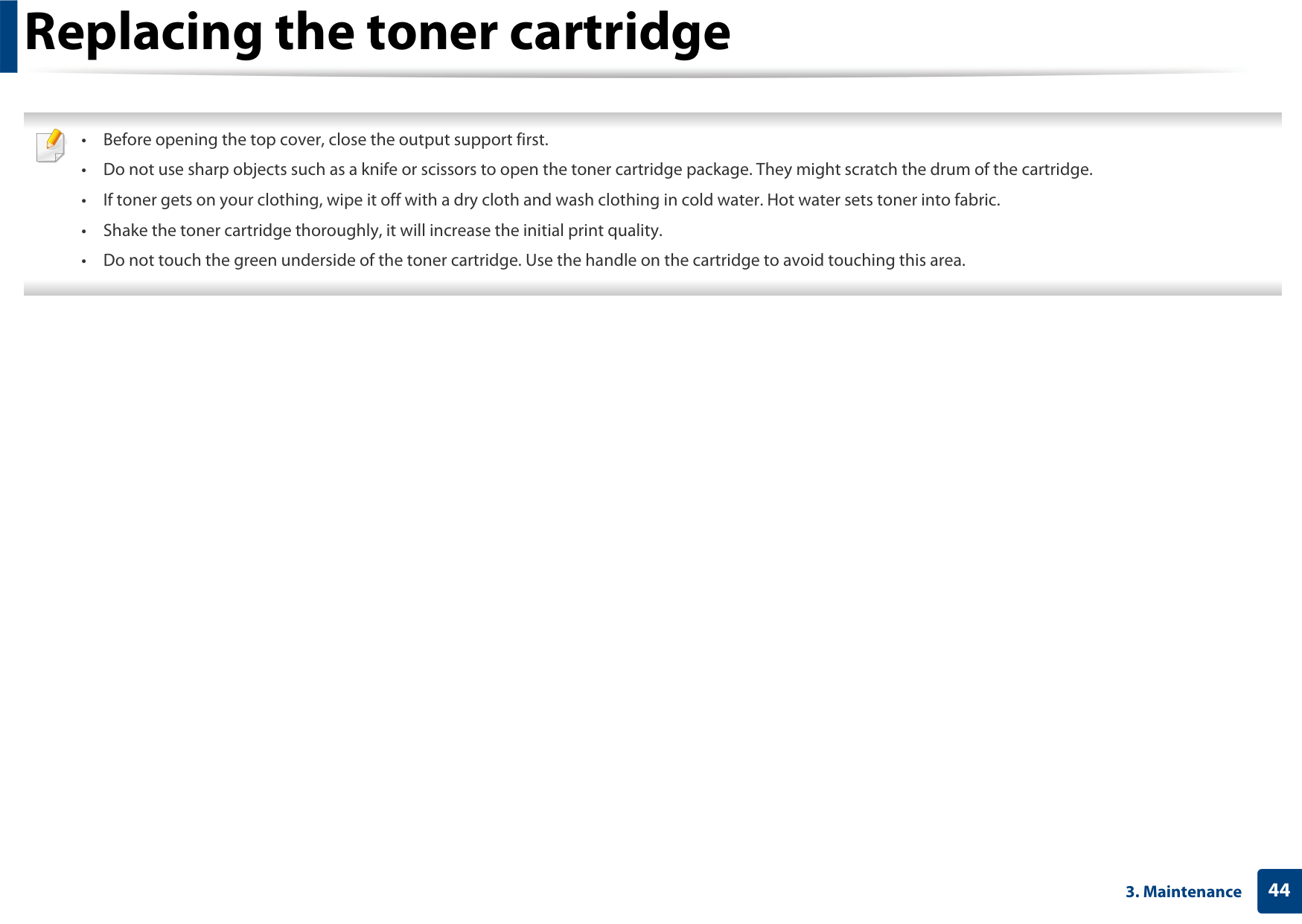
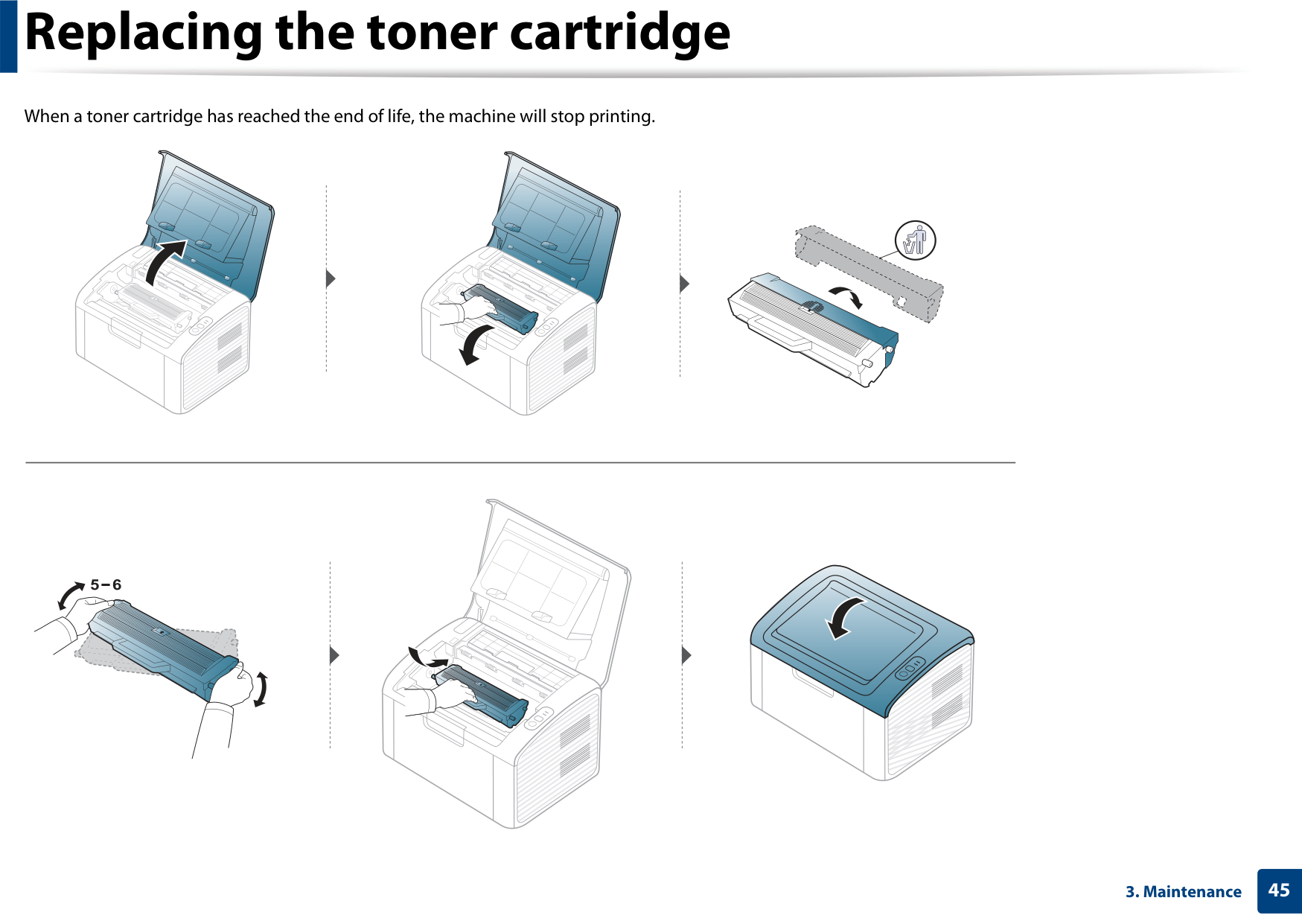
When a toner cartridge has reached the end of life, the machine will stop printing.
If printing quality problems occur or if you use your machine in a dusty environment, you need to clean your machine regularly to keep it in the best printing condition and use your machine longer.
############# Cleaning the outside
Clean the machine cabinet with a soft, lint-free cloth. Dampen the cloth slightly with water, but be careful not to let any water drip onto or into the machine.
############# Cleaning the inside
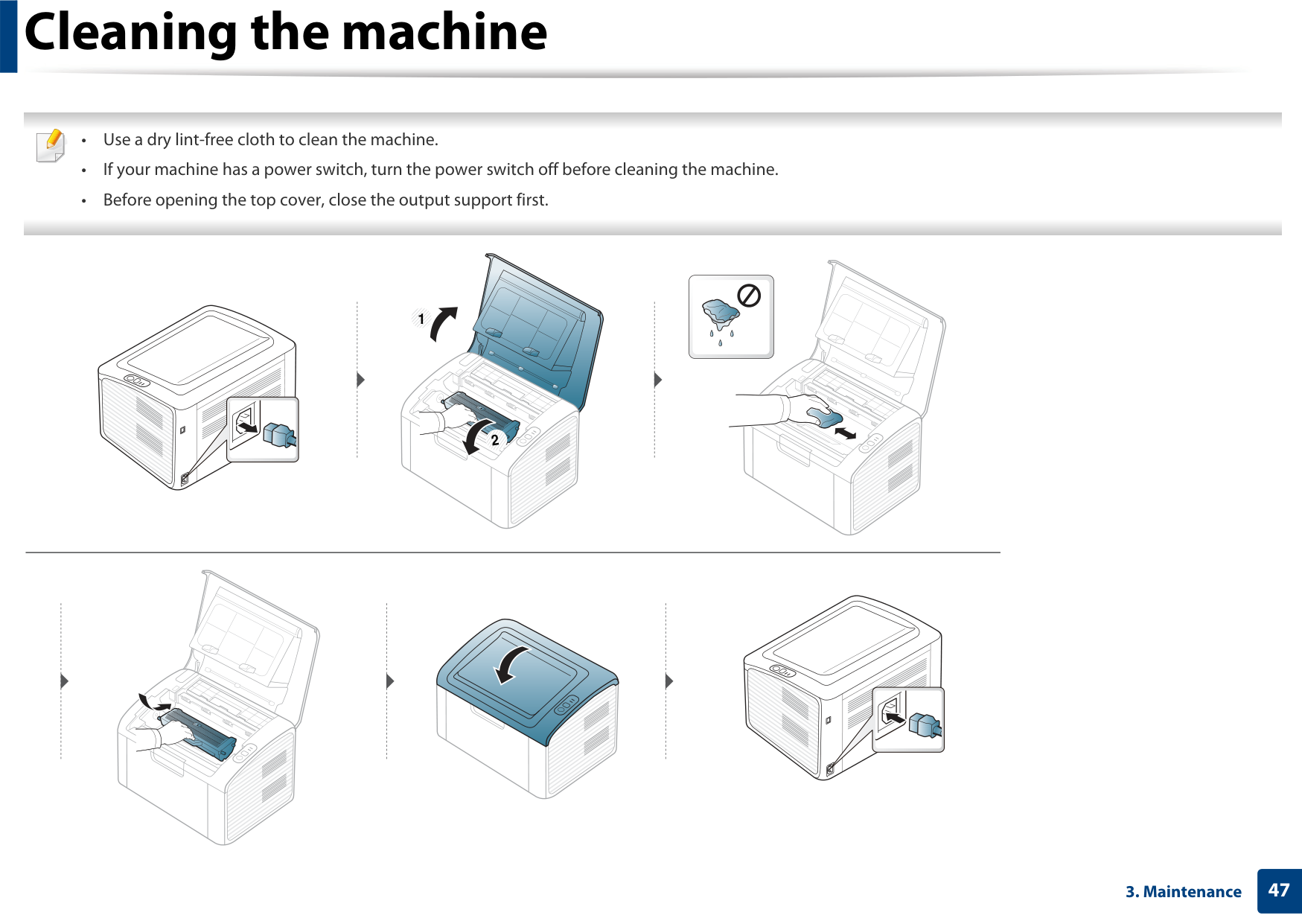
During the printing process, paper, toner, and dust particles can accumulate inside the machine. This buildup can cause print quality problems, such as toner specks or smearing. Cleaning the inside of the machine clears and reduces these problems.

1
2
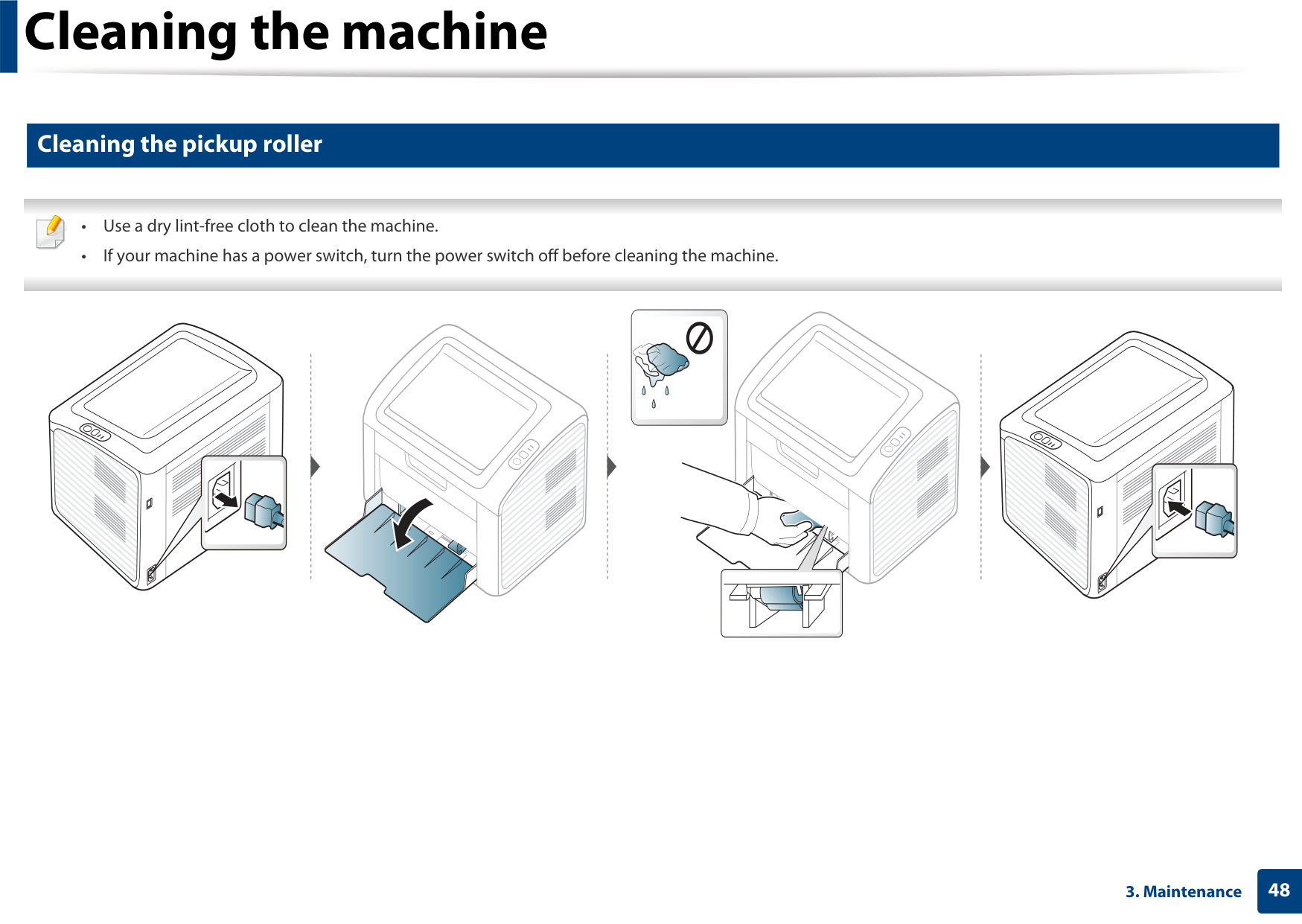
############# Cleaning the pickup roller

###### Tips for moving & storing your machine

##### 4. Troubleshooting
This chapter gives helpful information for what to do if you encounter an error.




This chapter gives helpful information for what to do if you encounter an error. If your machine has a display screen, check the message on the display screen first to solve the error. If you cannot find a solution to your problem in this chapter, refer to the Troubleshooting chapter in the Advanced User's Guide (see "Troubleshooting" on page 174). If you cannot find a solution in the User's Guide or the problem persists, call for service.




###### Tips for avoiding paper jams

By selecting the correct media types, most paper jams can be avoided. To avoid paper jams, refer to the following guidelines:
To avoid tearing the paper, pull the jammed paper out slowly and gently.

############# In tray






############# Inside the machine

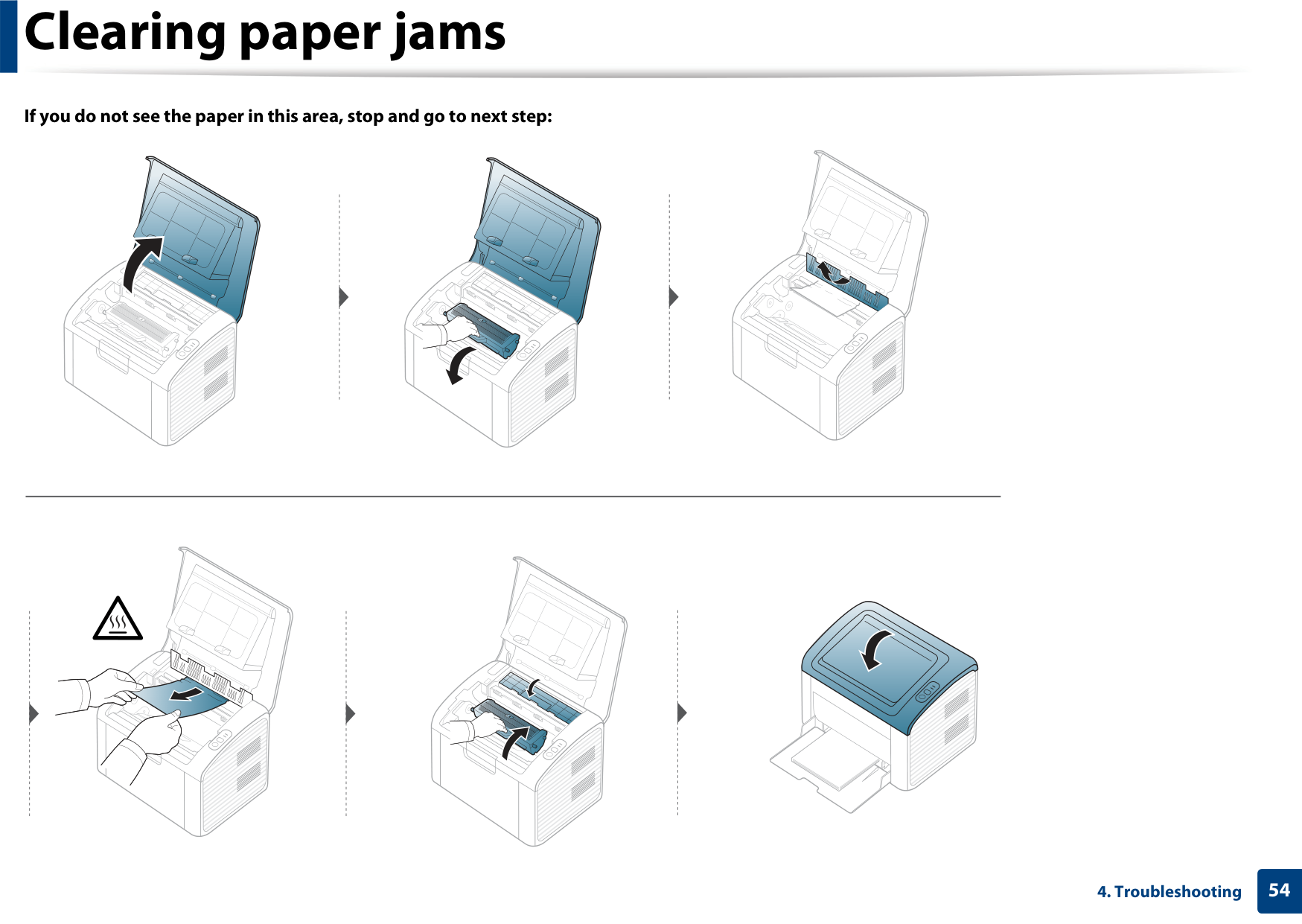
######################## If you do not see the paper in this area, stop and go to next step:
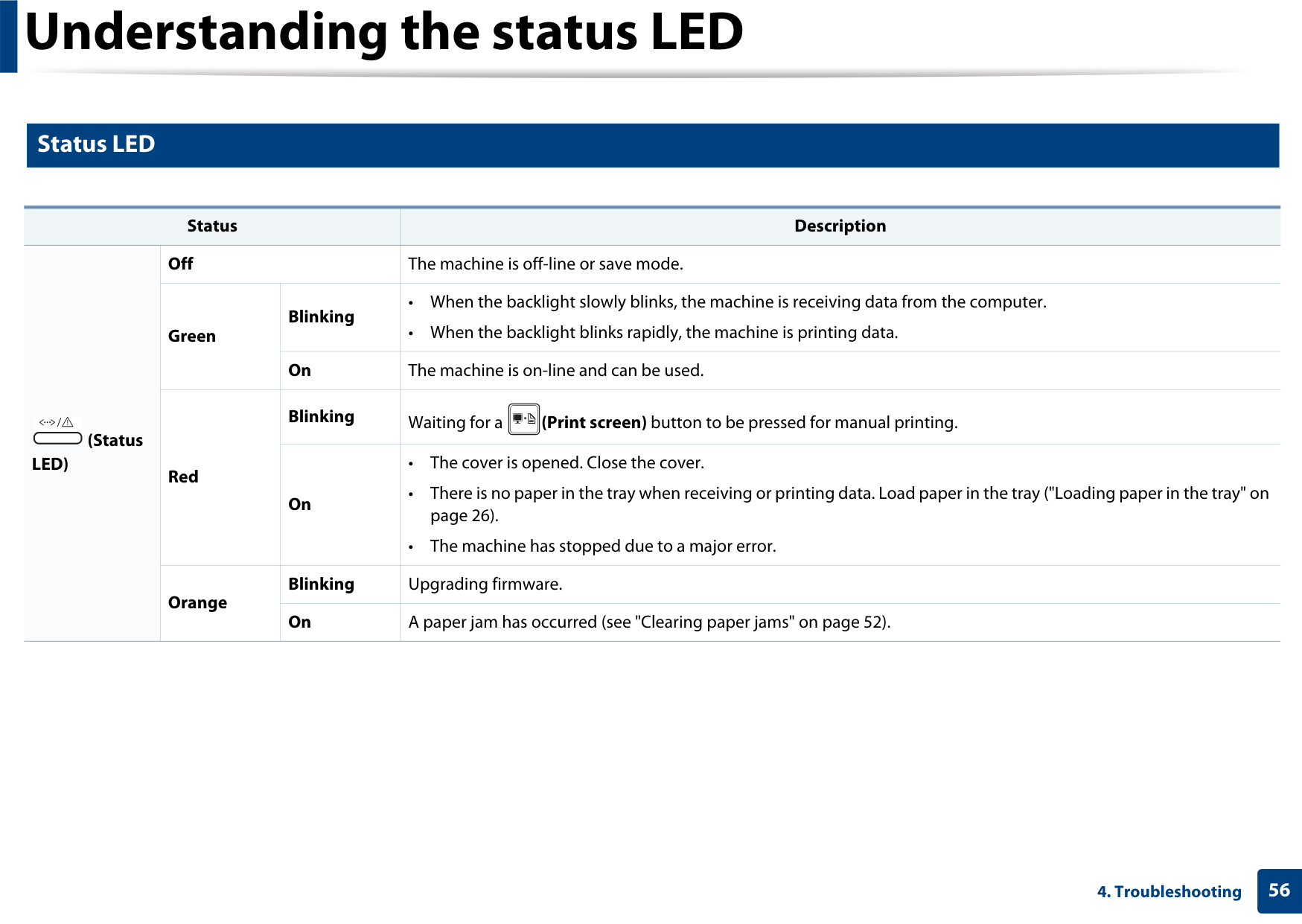
######################### The color of the LED indicates the machine's current status.

############# Status LED
|Status|Status|Status|Description| |---|---|---|---| |(Status LED)
|Off|Off|The machine is off-line or save mode.| |(Status LED)
|Green|Blinking|• When the backlight slowly blinks, the machine is receiving data from the computer.
• When the backlight blinks rapidly, the machine is printing data.
| |(Status LED)
|Green|On|The machine is on-line and can be used.| |(Status LED)
|Red|Blinking|Waiting for a (Print screen) button to be pressed for manual printing.
| |(Status LED)
|Red|On|• The cover is opened. Close the cover.
• There is no paper in the tray when receiving or printing data. Load paper in the tray ("Loading paper in the tray" on page 26).
• The machine has stopped due to a major error.
| |(Status LED)
|Orange|Blinking|Upgrading firmware.| |(Status LED)
|Orange|On|A paper jam has occurred (see "Clearing paper jams" on page 52).|
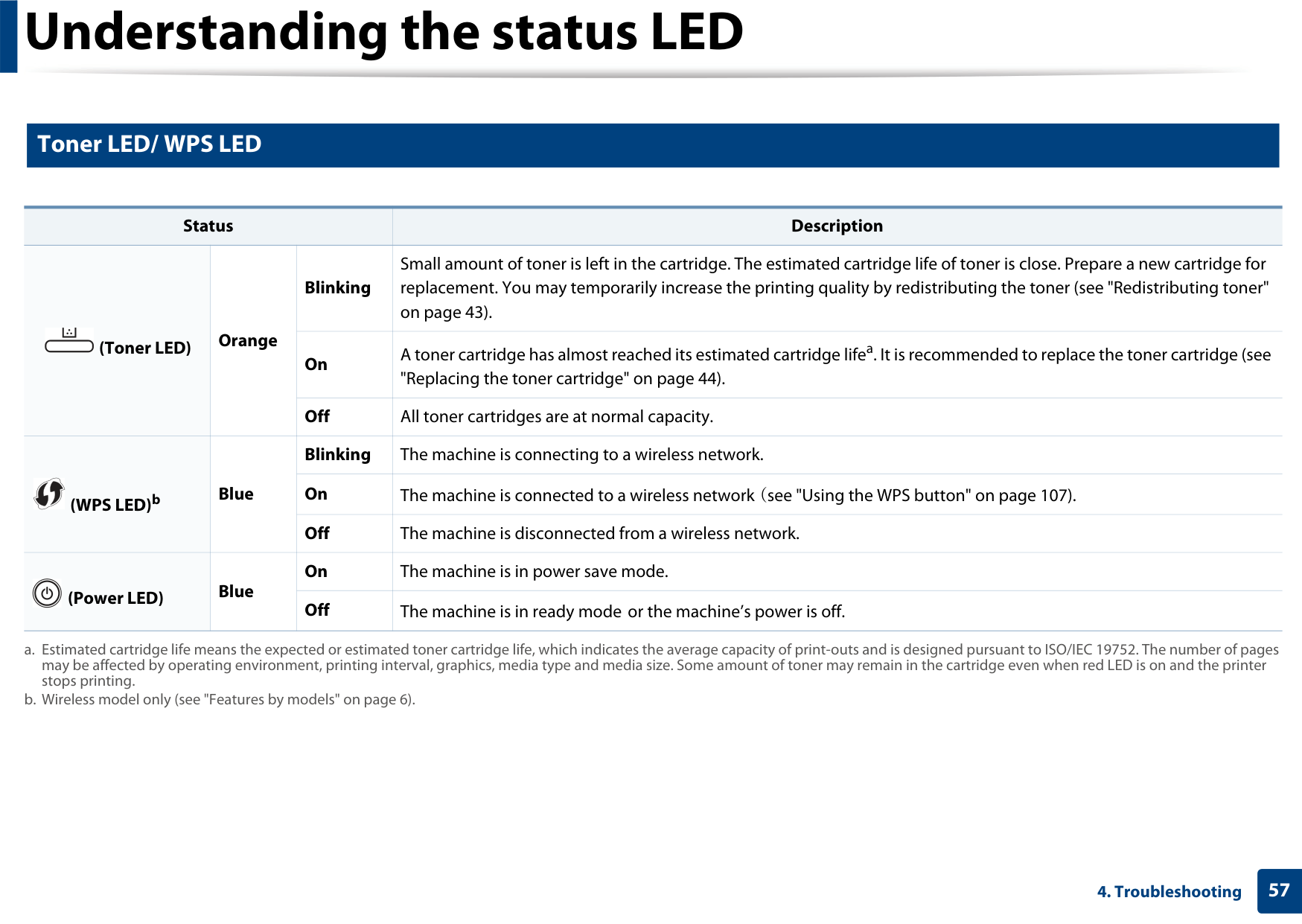
############# Toner LED/ WPS LED
|Status|Status|Status|Description| |---|---|---|---| |(Toner LED)
|Orange|Blinking|Small amount of toner is left in the cartridge. The estimated cartridge life of toner is close. Prepare a new cartridge for replacement. You may temporarily increase the printing quality by redistributing the toner (see "Redistributing toner" on page 43).|
|(Toner LED)
|Orange|On|A toner cartridge has almost reached its estimated cartridge lifea. It is recommended to replace the toner cartridge (see "Replacing the toner cartridge" on page 44).| |(Toner LED)
|Orange|Off|All toner cartridges are at normal capacity.| |(WPS LED)b
|Blue|Blinking|The machine is connecting to a wireless network.| |(WPS LED)b
|Blue|On|The machine is connected to a wireless network (see "Using the WPS button" on page 107).| |(WPS LED)b
|Blue|Off|The machine is disconnected from a wireless network.| |(Power LED)
|Blue|On|The machine is in power save mode.| |(Power LED)
|Blue|Off|The machine is in ready mode or the machine’s power is off.|
##### 5. Appendix
This chapter provides product specifications and information concerning applicable regulations.






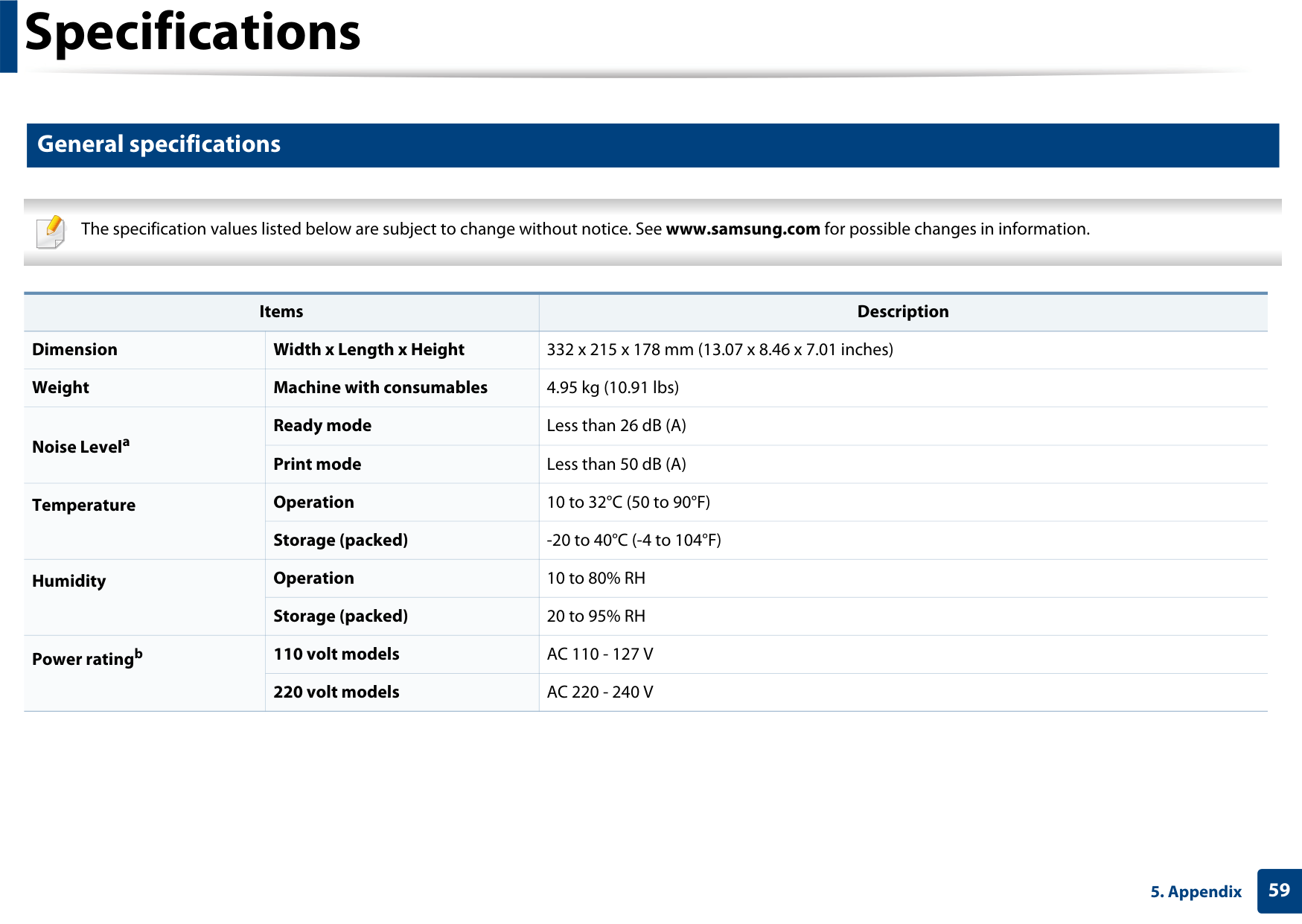
############# General specifications
The specification values listed below are subject to change without notice. See www.samsung.com for possible changes in information.

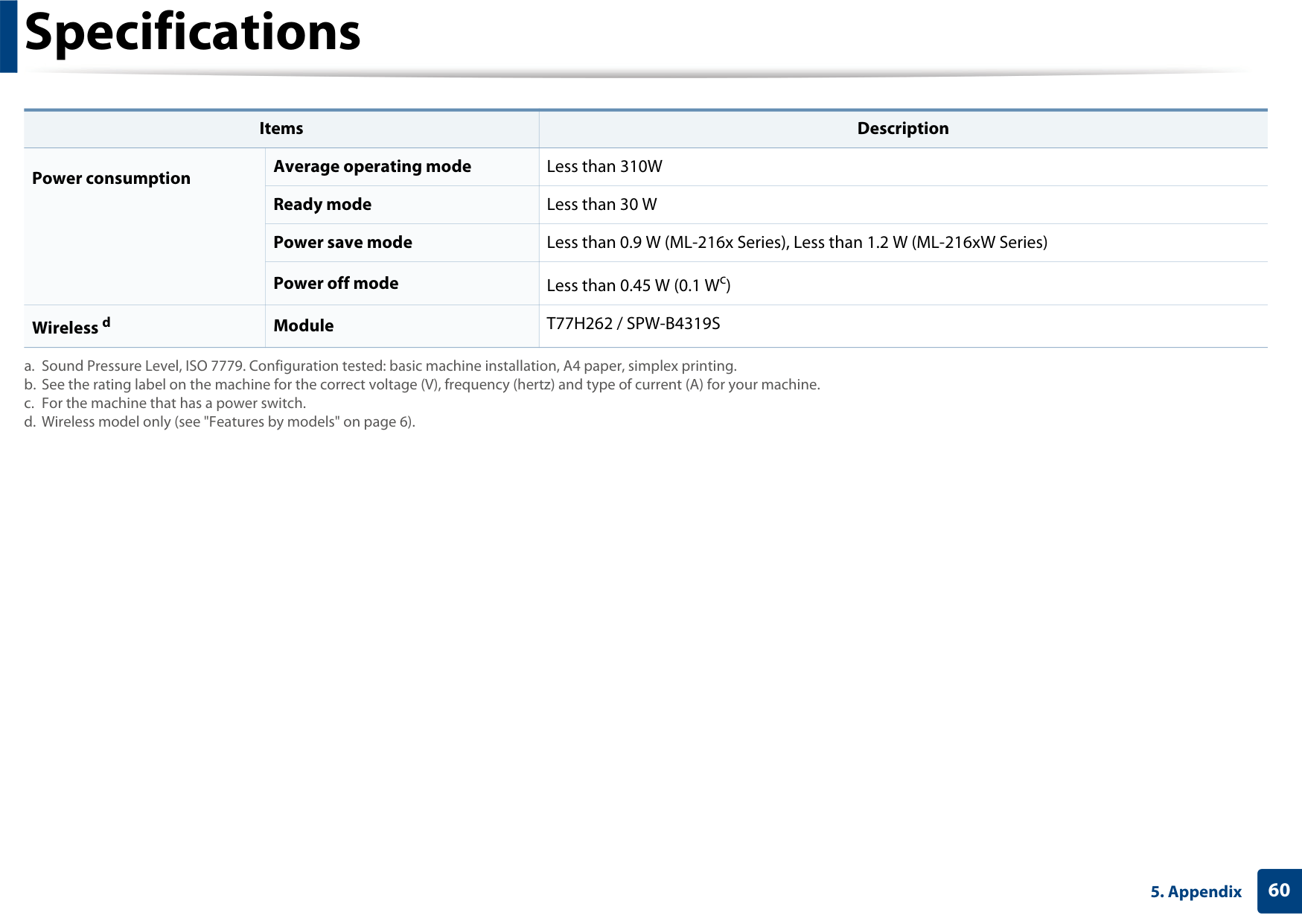
|Items|Items|Description| |---|---|---| |Dimension|Width x Length x Height|332 x 215 x 178 mm (13.07 x 8.46 x 7.01 inches)|
|Weight|Machine with consumables|4.95 kg (10.91 lbs)| |Noise Levela|Ready mode|Less than 26 dB (A)| |Noise Levela|Print mode|Less than 50 dB (A)| |Temperature|Operation|10 to 32°C (50 to 90°F)| |Temperature|Storage (packed)|-20 to 40°C (-4 to 104°F)| |Humidity|Operation|10 to 80% RH| |Humidity|Storage (packed)|20 to 95% RH| |Power ratingb|110 volt models|AC 110 - 127 V| |Power ratingb|220 volt models|AC 220 - 240 V|
|Items|Items|Description| |---|---|---| |Power consumption|Average operating mode|Less than 310W| |Power consumption|Ready mode|Less than 30 W| |Power consumption|Power save mode|Less than 0.9 W (ML-216x Series), Less than 1.2 W (ML-216xW Series)| |Power consumption|Power off mode|Less than 0.45 W (0.1 Wc)| |Wireless d|Module|T77H262 / SPW-B4319S|
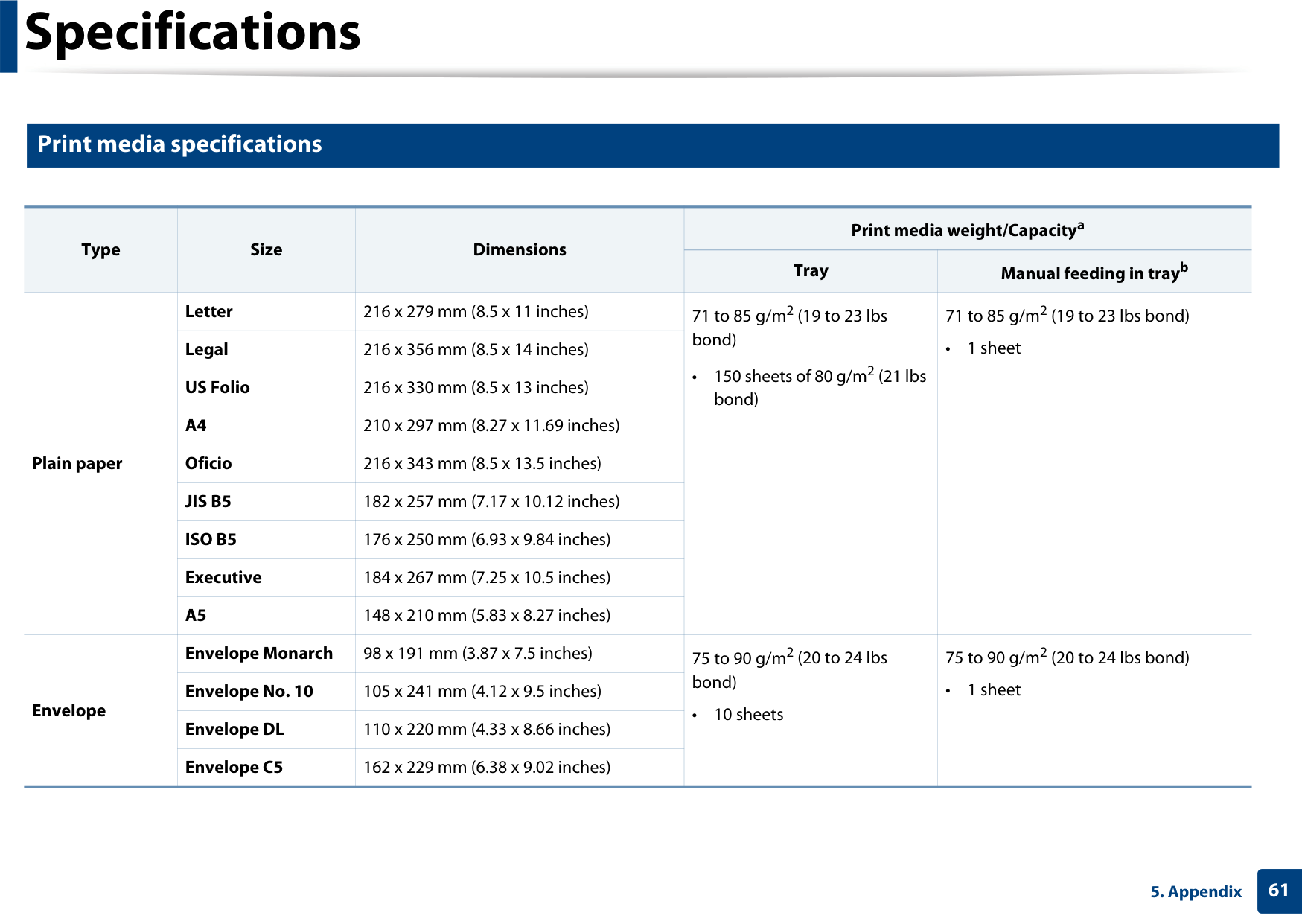
############# Print media specifications
|Type|Size|Dimensions|Print media weight/Capacitya|Print media weight/Capacitya| |---|---|---|---|---| |Type|Size|Dimensions|Tray|Manual feeding in trayb| |Plain paper|Letter|216 x 279 mm (8.5 x 11 inches)|71 to 85 g/m2 (19 to 23 lbs bond)
• 150 sheets of 80 g/m2 (21 lbs bond)|71 to 85 g/m2 (19 to 23 lbs bond)
• 1 sheet| |Plain paper|Legal|216 x 356 mm (8.5 x 14 inches)|71 to 85 g/m2 (19 to 23 lbs bond)
• 150 sheets of 80 g/m2 (21 lbs bond)|71 to 85 g/m2 (19 to 23 lbs bond)
• 1 sheet| |Plain paper|US Folio|216 x 330 mm (8.5 x 13 inches)|71 to 85 g/m2 (19 to 23 lbs bond)
• 150 sheets of 80 g/m2 (21 lbs bond)|71 to 85 g/m2 (19 to 23 lbs bond)
• 1 sheet| |Plain paper|A4|210 x 297 mm (8.27 x 11.69 inches)|71 to 85 g/m2 (19 to 23 lbs bond)
• 150 sheets of 80 g/m2 (21 lbs bond)|71 to 85 g/m2 (19 to 23 lbs bond)
• 1 sheet| |Plain paper|Oficio|216 x 343 mm (8.5 x 13.5 inches)|71 to 85 g/m2 (19 to 23 lbs bond)
• 150 sheets of 80 g/m2 (21 lbs bond)|71 to 85 g/m2 (19 to 23 lbs bond)
• 1 sheet| |Plain paper|JIS B5|182 x 257 mm (7.17 x 10.12 inches)|71 to 85 g/m2 (19 to 23 lbs bond)
• 150 sheets of 80 g/m2 (21 lbs bond)|71 to 85 g/m2 (19 to 23 lbs bond)
• 1 sheet| |Plain paper|ISO B5|176 x 250 mm (6.93 x 9.84 inches)|71 to 85 g/m2 (19 to 23 lbs bond)
• 150 sheets of 80 g/m2 (21 lbs bond)|71 to 85 g/m2 (19 to 23 lbs bond)
• 1 sheet| |Plain paper|Executive|184 x 267 mm (7.25 x 10.5 inches)|71 to 85 g/m2 (19 to 23 lbs bond)
• 150 sheets of 80 g/m2 (21 lbs bond)|71 to 85 g/m2 (19 to 23 lbs bond)
• 1 sheet| |Plain paper|A5|148 x 210 mm (5.83 x 8.27 inches)|71 to 85 g/m2 (19 to 23 lbs bond)
• 150 sheets of 80 g/m2 (21 lbs bond)|71 to 85 g/m2 (19 to 23 lbs bond)
• 1 sheet| |Envelope|Envelope Monarch|98 x 191 mm (3.87 x 7.5 inches)|75 to 90 g/m2 (20 to 24 lbs bond)
• 10 sheets|75 to 90 g/m2 (20 to 24 lbs bond)
• 1 sheet| |Envelope|Envelope No. 10|105 x 241 mm (4.12 x 9.5 inches)|75 to 90 g/m2 (20 to 24 lbs bond)
• 10 sheets|75 to 90 g/m2 (20 to 24 lbs bond)
• 1 sheet| |Envelope|Envelope DL|110 x 220 mm (4.33 x 8.66 inches)|75 to 90 g/m2 (20 to 24 lbs bond)
• 10 sheets|75 to 90 g/m2 (20 to 24 lbs bond)
• 1 sheet| |Envelope|Envelope C5|162 x 229 mm (6.38 x 9.02 inches)|75 to 90 g/m2 (20 to 24 lbs bond)
• 10 sheets|75 to 90 g/m2 (20 to 24 lbs bond)
• 1 sheet|
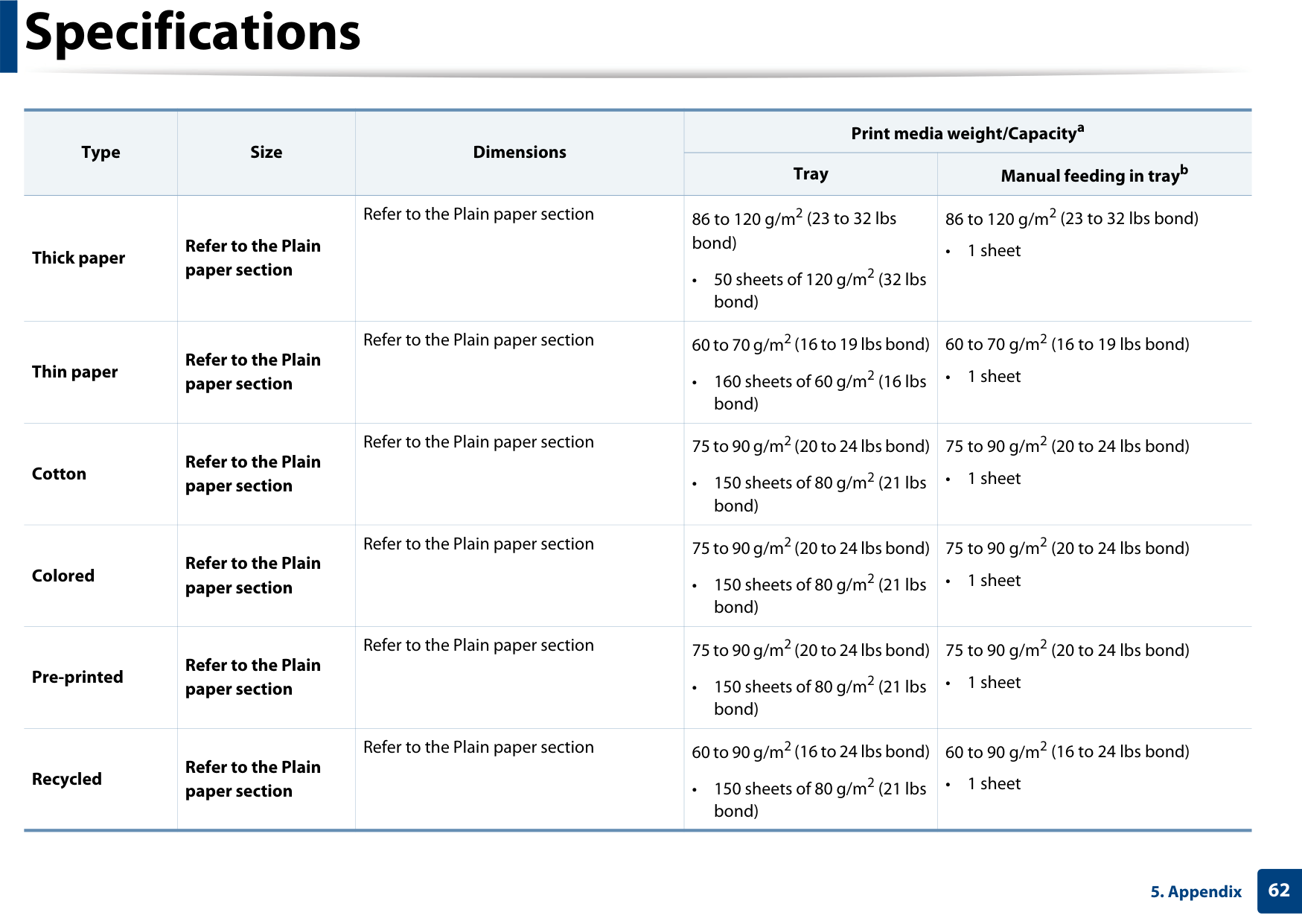
|Type|Size|Dimensions|Print media weight/Capacitya|Print media weight/Capacitya| |---|---|---|---|---| |Type|Size|Dimensions|Tray|Manual feeding in trayb| |Thick paper|Refer to the Plain paper section|Refer to the Plain paper section|86 to 120 g/m2 (23 to 32 lbs bond)
• 50 sheets of 120 g/m2 (32 lbs bond)|86 to 120 g/m2 (23 to 32 lbs bond)
• 1 sheet| |Thin paper|Refer to the Plain paper section|Refer to the Plain paper section|60 to 70 g/m2 (16 to 19 lbs bond) • 160 sheets of 60 g/m2 (16 lbs
bond)|60 to 70 g/m2 (16 to 19 lbs bond)
• 1 sheet| |Cotton|Refer to the Plain paper section|Refer to the Plain paper section|75 to 90 g/m2 (20 to 24 lbs bond) • 150 sheets of 80 g/m2 (21 lbs
bond)|75 to 90 g/m2 (20 to 24 lbs bond)
• 1 sheet|
|Colored|Refer to the Plain paper section|Refer to the Plain paper section|75 to 90 g/m2 (20 to 24 lbs bond) • 150 sheets of 80 g/m2 (21 lbs
bond)|75 to 90 g/m2 (20 to 24 lbs bond)
• 1 sheet| |Pre-printed|Refer to the Plain paper section|Refer to the Plain paper section|75 to 90 g/m2 (20 to 24 lbs bond) • 150 sheets of 80 g/m2 (21 lbs
bond)|75 to 90 g/m2 (20 to 24 lbs bond)
• 1 sheet| |Recycled|Refer to the Plain paper section|Refer to the Plain paper section|60 to 90 g/m2 (16 to 24 lbs bond) • 150 sheets of 80 g/m2 (21 lbs
bond)|60 to 90 g/m2 (16 to 24 lbs bond)
• 1 sheet|
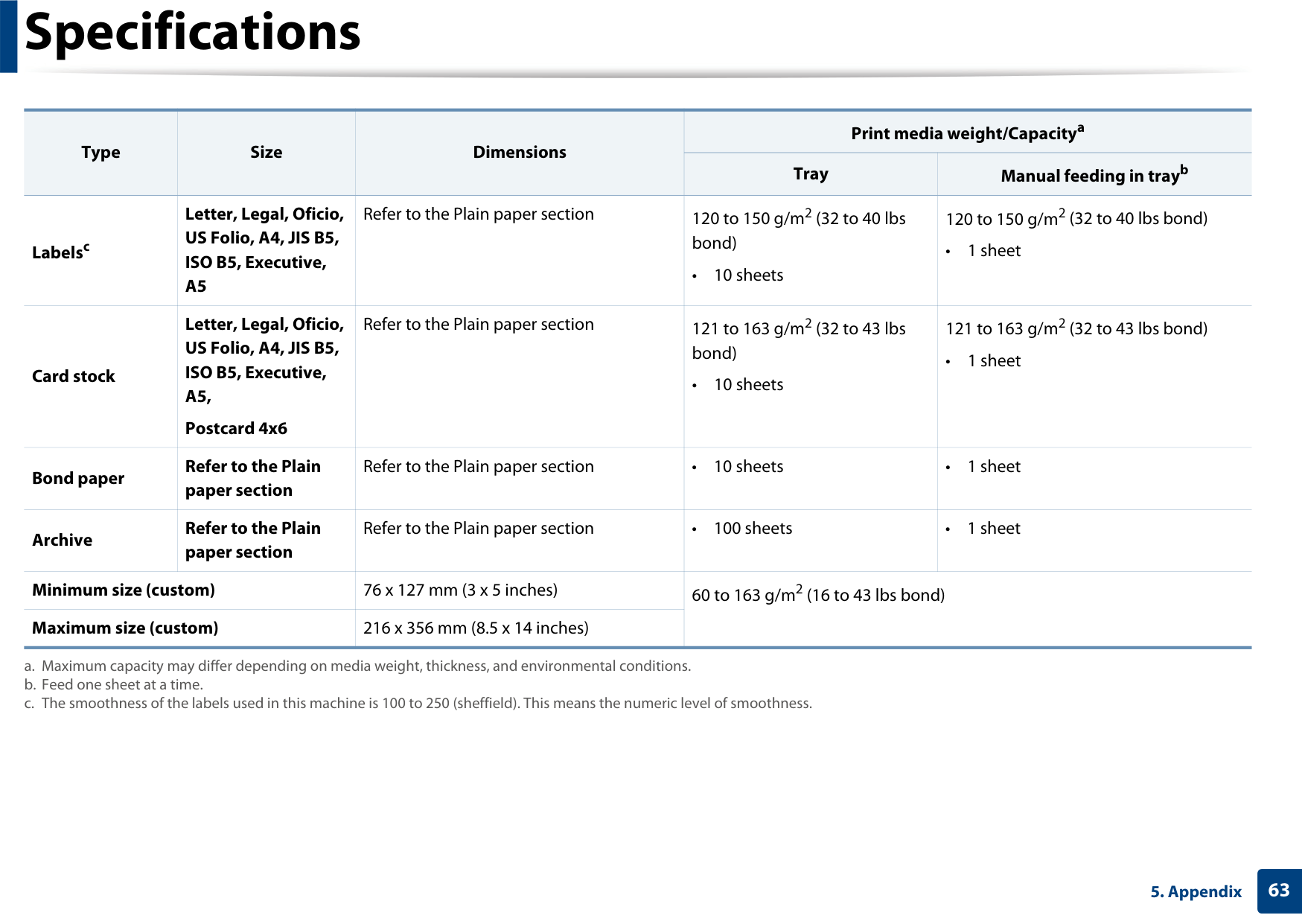
##################### 625. Appendix
|Type|Size|Dimensions|Print media weight/Capacitya|Print media weight/Capacitya| |---|---|---|---|---| |Type|Size|Dimensions|Tray|Manual feeding in trayb| |Labelsc|Letter, Legal, Oficio, US Folio, A4, JIS B5, ISO B5, Executive, A5|Refer to the Plain paper section|120 to 150 g/m2 (32 to 40 lbs bond)
• 10 sheets|120 to 150 g/m2 (32 to 40 lbs bond)
• 1 sheet| |Card stock|Letter, Legal, Oficio, US Folio, A4, JIS B5, ISO B5, Executive, A5,
Postcard 4x6|Refer to the Plain paper section|121 to 163 g/m2 (32 to 43 lbs bond)
• 10 sheets|121 to 163 g/m2 (32 to 43 lbs bond)
• 1 sheet| |Bond paper|Refer to the Plain paper section|Refer to the Plain paper section|• 10 sheets|• 1 sheet| |Archive|Refer to the Plain paper section|Refer to the Plain paper section|• 100 sheets|• 1 sheet| |Minimum size (custom)|Minimum size (custom)|76 x 127 mm (3 x 5 inches)|60 to 163 g/m2 (16 to 43 lbs bond)|60 to 163 g/m2 (16 to 43 lbs bond)| |Maximum size (custom)|Maximum size (custom)|216 x 356 mm (8.5 x 14 inches)|60 to 163 g/m2 (16 to 43 lbs bond)|60 to 163 g/m2 (16 to 43 lbs bond)|
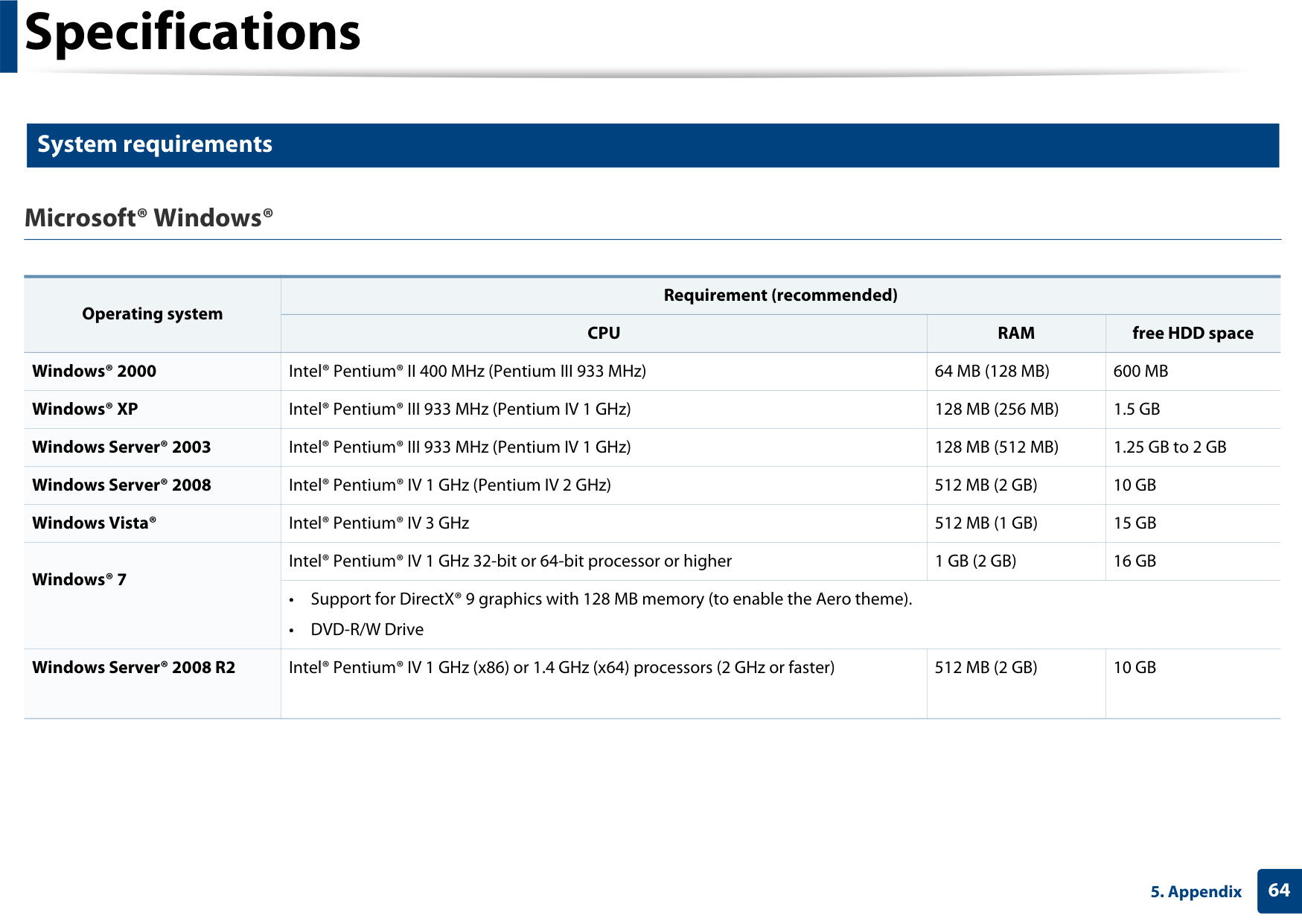
System requirements
########### Microsoft® Windows®
|Operating system|Requirement (recommended)|Requirement (recommended)|Requirement (recommended)| |---|---|---|---| |Operating system|CPU|RAM|free HDD space| |Windows® 2000|Intel® Pentium® II 400 MHz (Pentium III 933 MHz)|64 MB (128 MB)|600 MB| |Windows® XP|Intel® Pentium® III 933 MHz (Pentium IV 1 GHz)|128 MB (256 MB)|1.5 GB| |Windows Server® 2003|Intel® Pentium® III 933 MHz (Pentium IV 1 GHz)|128 MB (512 MB)|1.25 GB to 2 GB| |Windows Server® 2008|Intel® Pentium® IV 1 GHz (Pentium IV 2 GHz)|512 MB (2 GB)|10 GB| |Windows Vista®|Intel® Pentium® IV 3 GHz|512 MB (1 GB)|15 GB| |Windows® 7|Intel® Pentium® IV 1 GHz 32-bit or 64-bit processor or higher|1 GB (2 GB)|16 GB| |Windows® 7|• Support for DirectX® 9 graphics with 128 MB memory (to enable the Aero theme).
•DVD-R/W Drive
|• Support for DirectX® 9 graphics with 128 MB memory (to enable the Aero theme).
•DVD-R/W Drive
|• Support for DirectX® 9 graphics with 128 MB memory (to enable the Aero theme).
•DVD-R/W Drive
| |Windows Server® 2008 R2|Intel® Pentium® IV 1 GHz (x86) or 1.4 GHz (x64) processors (2 GHz or faster)|512 MB (2 GB)|10 GB|

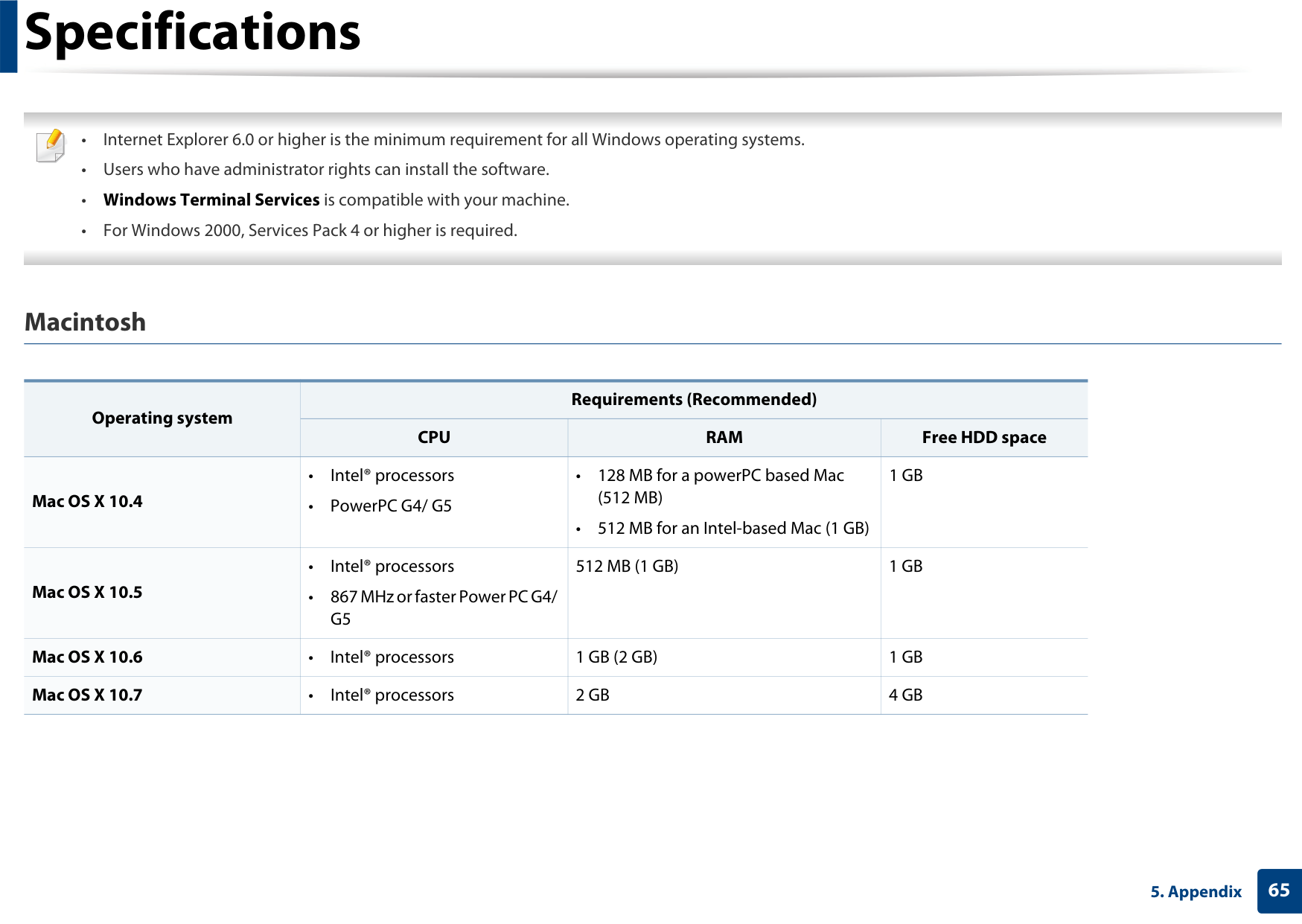
########### Macintosh
|Operating system|Requirements (Recommended)|Requirements (Recommended)|Requirements (Recommended)| |---|---|---|---| |Operating system|CPU|RAM|Free HDD space| |Mac OS X 10.4|• Intel® processors
•PowerPC G4/ G5
|• 128 MB for a powerPC based Mac (512 MB)
• 512 MB for an Intel-based Mac (1 GB)
|1 GB|
|Mac OS X 10.5|• Intel® processors
• 867 MHz or faster Power PC G4/ G5
|512 MB (1 GB)|1 GB| |Mac OS X 10.6|• Intel® processors|1 GB (2 GB)|1 GB| |Mac OS X 10.7|• Intel® processors|2 GB|4 GB|
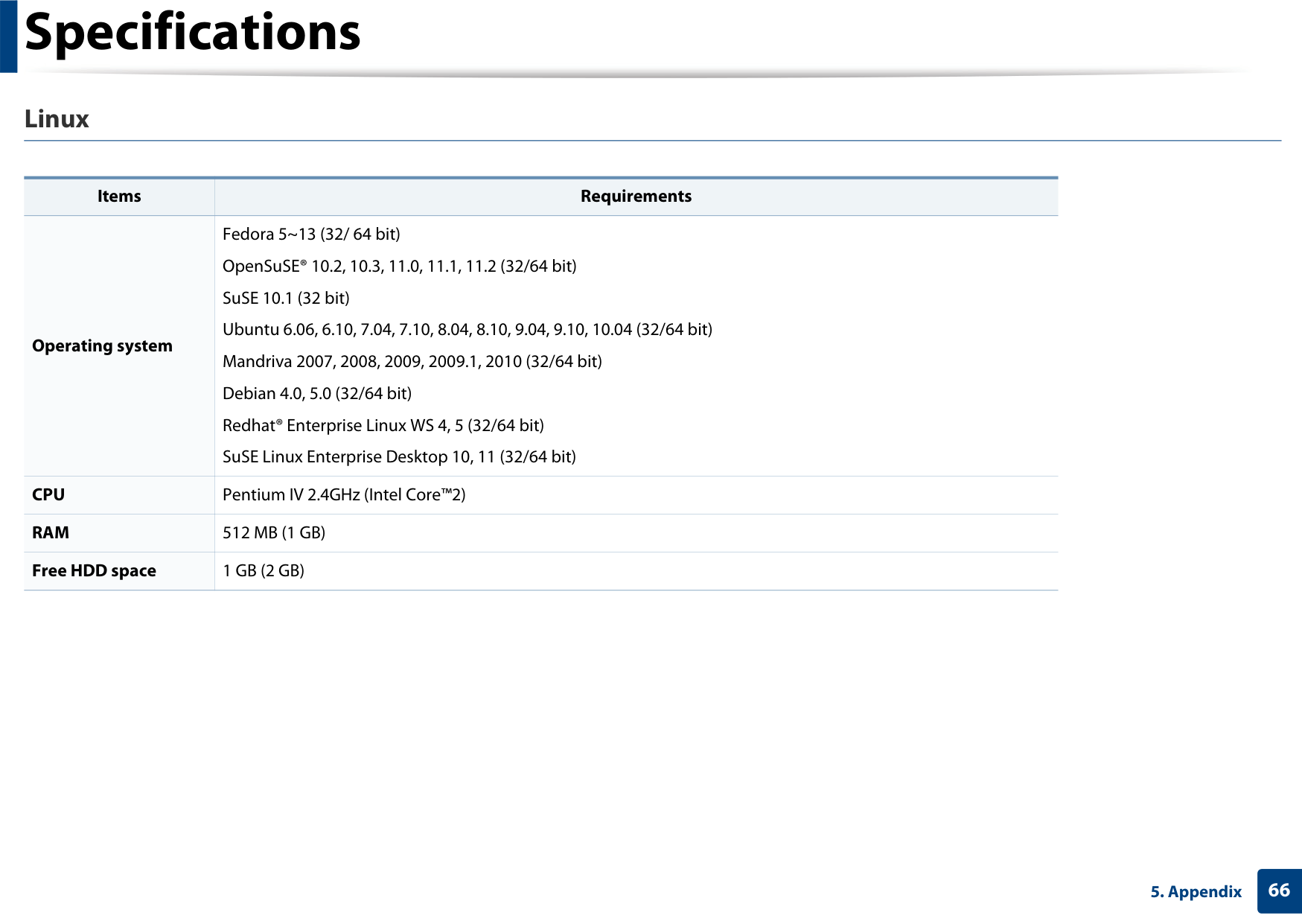
########### Linux
|Items|Requirements| |---|---| |Operating system|Fedora 5~13 (32/ 64 bit) OpenSuSE® 10.2, 10.3, 11.0, 11.1, 11.2 (32/64 bit) SuSE 10.1 (32 bit) Ubuntu 6.06, 6.10, 7.04, 7.10, 8.04, 8.10, 9.04, 9.10, 10.04 (32/64 bit) Mandriva 2007, 2008, 2009, 2009.1, 2010 (32/64 bit) Debian 4.0, 5.0 (32/64 bit) Redhat® Enterprise Linux WS 4, 5 (32/64 bit) SuSE Linux Enterprise Desktop 10, 11 (32/64 bit)| |CPU|Pentium IV 2.4GHz (Intel Core™2)| |RAM|512 MB (1 GB)| |Free HDD space|1 GB (2 GB)|
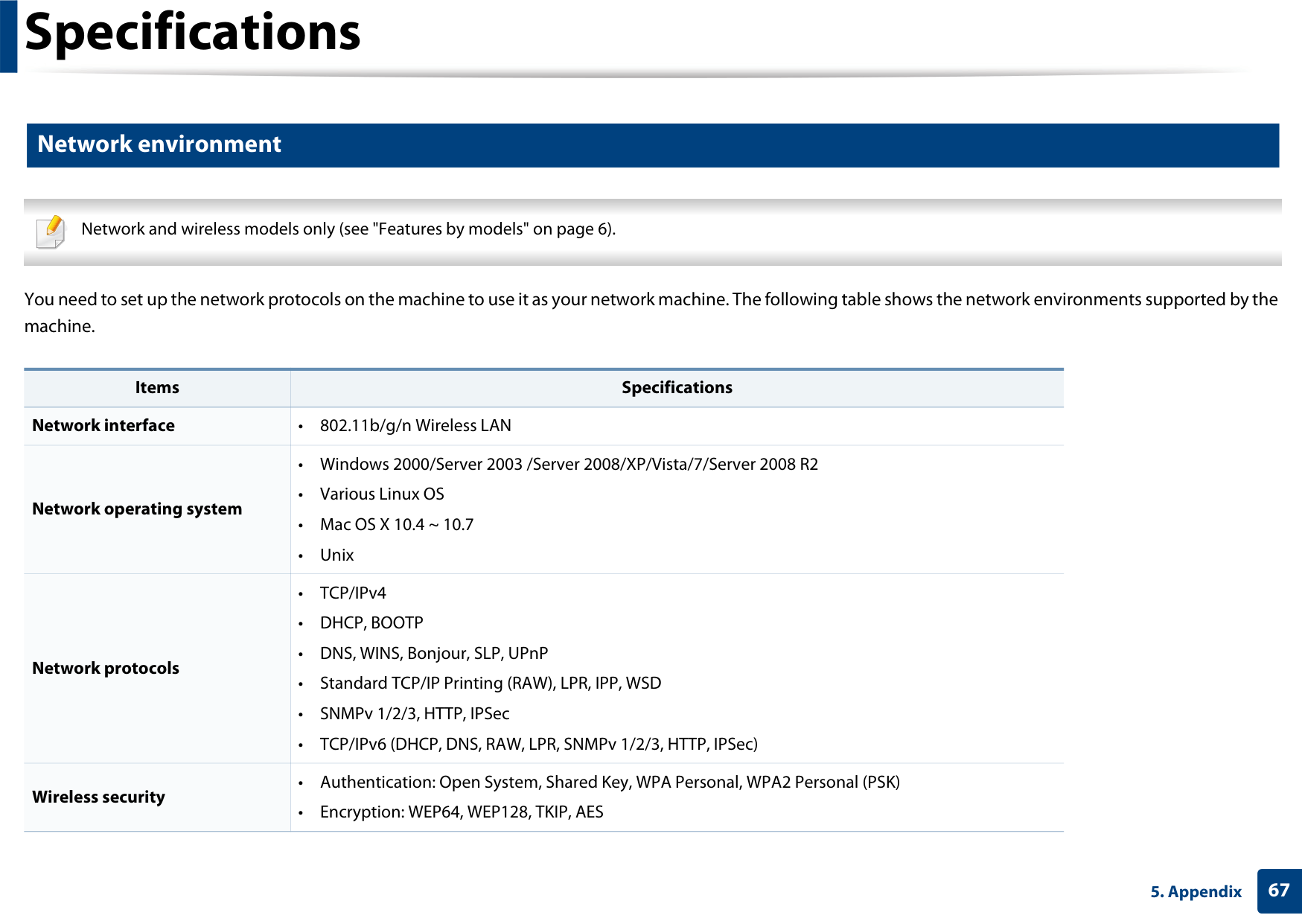
############# Network environment
Network and wireless models only (see "Features by models" on page 6).

######################### You need to set up the network protocols on the machine to use it as your network machine. The following table shows the network environments supported by the machine.
|Items|Specifications| |---|---|
|Network interface|•802.11b/g/n Wireless LAN| |Network operating system|• Windows 2000/Server 2003 /Server 2008/XP/Vista/7/Server 2008 R2
•Various Linux OS
• Mac OS X 10.4 ~ 10.7
• Unix
| |Network protocols|•TCP/IPv4
• DHCP, BOOTP
• DNS, WINS, Bonjour, SLP, UPnP
• Standard TCP/IP Printing (RAW), LPR, IPP, WSD
• SNMPv 1/2/3, HTTP, IPSec
• TCP/IPv6 (DHCP, DNS, RAW, LPR, SNMPv 1/2/3, HTTP, IPSec)
| |Wireless security|• Authentication: Open System, Shared Key, WPA Personal, WPA2 Personal (PSK)
• Encryption: WEP64, WEP128, TKIP, AES
|
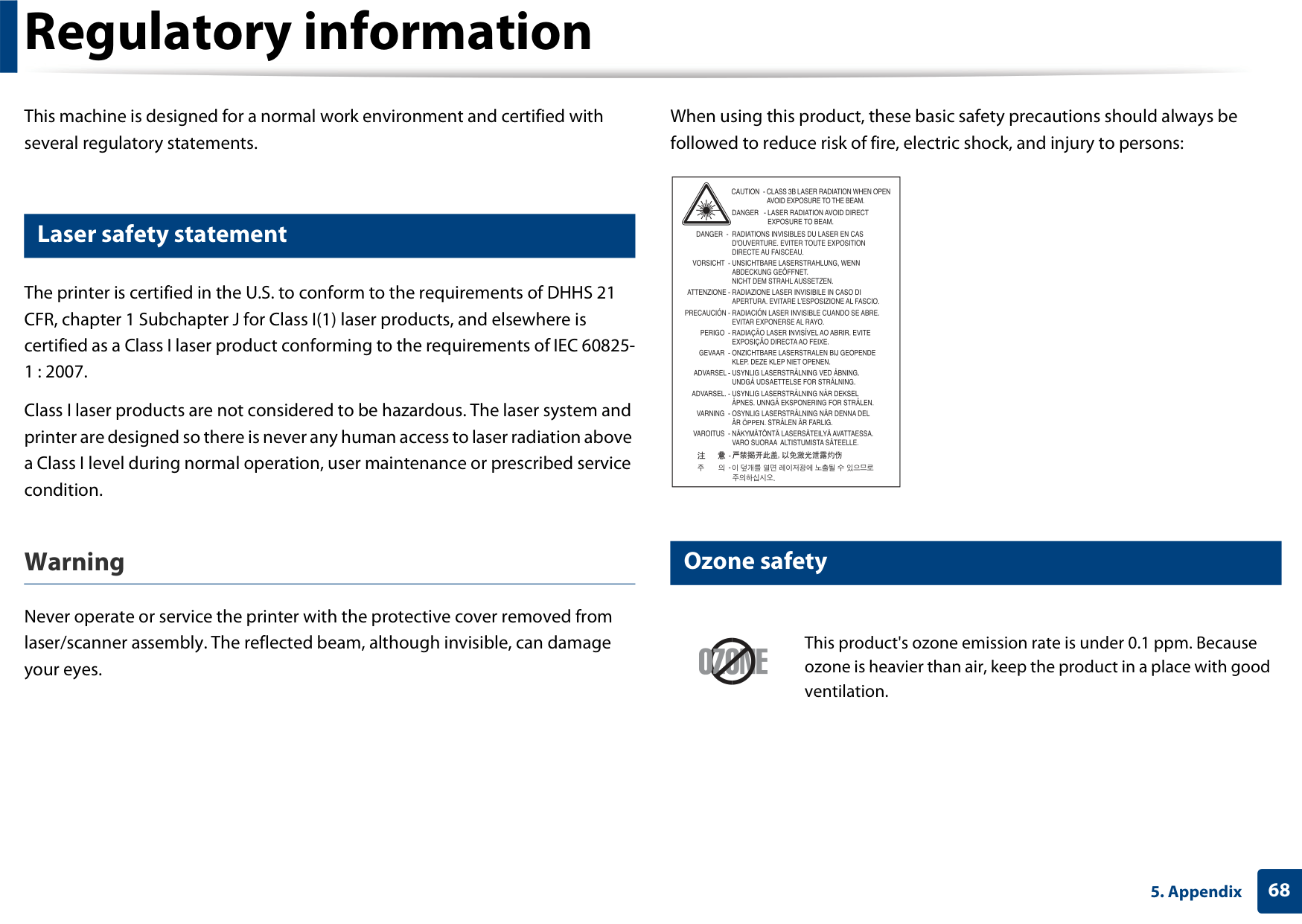
When using this product, these basic safety precautions should always be followed to reduce risk of fire, electric shock, and injury to persons:
This machine is designed for a normal work environment and certified with several regulatory statements.
############# Laser safety statement
The printer is certified in the U.S. to conform to the requirements of DHHS 21 CFR, chapter 1 Subchapter J for Class I(1) laser products, and elsewhere is certified as a Class I laser product conforming to the requirements of IEC 608251 : 2007.
Class I laser products are not considered to be hazardous. The laser system and printer are designed so there is never any human access to laser radiation above a Class I level during normal operation, user maintenance or prescribed service condition.
| | |---|
########### Warning
Never operate or service the printer with the protective cover removed from laser/scanner assembly. The reflected beam, although invisible, can damage your eyes.
############# Ozone safety
This product's ozone emission rate is under 0.1 ppm. Because ozone is heavier than air, keep the product in a place with good ventilation.
############# Power saver
############# China only
This printer contains advanced energy conservation technology that reduces power consumption when it is not in active use.
When the printer does not receive data for an extended period of time, power consumption is automatically lowered.
ENERGY STAR and the ENERGY STAR mark are registered U.S. marks.
For more information on the ENERGY STAR program see http:// www.energystar.gov
For ENERGY STAR certified models, the ENERGY STAR label will be on your machine. Check if your machine is ENERGY STAR certified.

############# Recycling
Recycle or dispose of the packaging material for this product in an environmentally responsible manner.
########### The United States of America only
Correct disposal of this product (Waste electrical & electronic equipment)
Dispose unwanted electronics through an approved recycler. To find the nearest recycling location, go to our website:www.samsung.com/recyclingdirect Or call, (877) 278 - 0799
########### (Applicable in the european union and other european countries with separate collection systems)
Radio frequency emissions

This marking on the product, accessories or literature indicates that the product and its electronic accessories (e.g. charger, headset, USB cable) should not be disposed of with other household waste at the end of their working life. To prevent possible harm to the environment or human health from uncontrolled waste disposal, please separate these items from other types of waste and recycle them responsibly to promote the sustainable reuse of material resources.
Household users should contact either the retailer where they purchased this product, or their local government office, for details of where and how they can take these items for environmentally safe recycling.
Business users should contact their supplier and check the terms and conditions of the purchase contract. This product and its electronic accessories should not be mixed with other commercial wastes for disposal.
########### FCC information to the user
This device complies with Part 15 of the FCC Rules. Operation is subject to the following two conditions:
########### Canadian radio interference regulations
This equipment has been tested and found to comply with the limits for a Class
This digital apparatus does not exceed the Class B limits for radio noise emissions from digital apparatus as set out in the interference-causing equipment standard entitled “Digital Apparatus”, ICES-003 of the Industry and Science Canada.
Cet appareil numérique respecte les limites de bruits radioélectriques applicables aux appareils numériques de Classe B prescrites dans la norme sur le matériel brouilleur: “Appareils Numériques”, ICES-003 édictée par l’Industrie et Sciences Canada.
United states of america
########### Federal communications commission (FCC)
Change or modifications not expressly approved by the manufacturer responsible for compliance could void the user's authority to operate the equipment.

############## Intentional emitter per FCC Part 15
Low power, Radio LAN type devices (radio frequency (RF) wireless communication devices), operating in the 2.4 GHz/5 GHz Band, may be present (embedded) in your printer system. This section is only applicable if these devices are present. Refer to the system label to verify the presence of wireless devices.
Wireless devices that may be in your system are only qualified for use in the United States of America if an FCC ID number is on the system label.
########### FCC statement for wireless LAN use:
The FCC has set a general guideline of 20 cm (8 inches) separation between the device and the body, for use of a wireless device near the body (this does not include extremities). This device should be used more than 20 cm (8 inches) from the body when wireless devices are on. The power output of the wireless device (or devices), which may be embedded in your printer, is well below the RF exposure limits as set by the FCC.
While installing and operating this transmitter and antenna combination the radio frequency exposure limit of 1m W/cm2 may be exceeded at distances close to the antenna installed. Therefore, the user must maintain a minimum distance of 20cm from the antenna at all times. This device cannot be colocated with another transmitter and transmitting antenna.
This transmitter must not be collocated or operation in conjunction with any other antenna or transmitter.
Operation of this device is subject to the following two conditions: (1) This device may not cause harmful interference, and (2) this device must accept any interference received, including interference that may cause undesired operation of the device.
Russia only
Wireless devices are not user serviceable. Do not modify them in any way. Modification to a wireless device will void the authorization to use it. Contact manufacturer for service.
Germany only
Turkey only
If you cut off the moulded plug, get rid of it straight away. You cannot rewire the plug and you may receive an electric shock if you plug it into a socket.
########### Important warning:
Replacing the fitted plug (for UK only)
########### Important
The mains lead for this machine is fitted with a standard (BS 1363) 13 amp plug and has a 13 amp fuse. When you change or examine the fuse, you must re-fit the correct 13 amp fuse. You then need to replace the fuse cover. If you have lost the fuse cover, do not use the plug until you have another fuse cover.
Contact the people from you purchased the machine. The 13 amp plug is the most widely used type in the UK and should be suitable. However, some buildings (mainly old ones) do not have normal 13 amp plug sockets. You need to buy a suitable plug adaptor. Do not remove the moulded plug.
You must earth this machine. The wires in the mains lead have the following color code:
If the wires in the mains lead do not match the colors marked in your plug, do the following:
You must connect the green and yellow wire to the pin marked by the letter “E” or by the safety ‘Earth symbol’ or colored green and yellow or green.
You must connect the blue wire to the pin which is marked with the letter “N” or colored black.
You must connect the brown wire to the pin which is marked with the letter “L” or colored red.
You must have a 13 amp fuse in the plug, adaptor, or at the distribution board.
########### EC Certification
Declaration of conformity (European countries)
Certification to 1999/5/EC Radio Equipment & Telecommunications Terminal Equipment Directive (FAX)
########### Approvals and Certifications
This Samsung product has been self-certified by Samsung for pan-European single terminal connection to the analogue public switched telephone network (PSTN) in accordance with Directive 1999/5/EC. The product has been designed to work with the national PSTNs and compatible PBXs of the European countries:
In the event of problems, you should contact the Euro QA Lab of Samsung Electronics Co., Ltd. in the first instance.
The product has been tested against TBR21. To assist in the use and application of terminal equipment which complies with this standard, the European Telecommunication Standards Institute (ETSI) has issued an advisory document (EG 201 121) which contains notes and additional requirements to ensure network compatibility of TBR21 terminals. The product has been designed against, and is fully compliant with, all of the relevant advisory notes contained in this document.
The declaration of conformity may be consulted at www.samsung.com, go to Support > Download center and enter your printer (MFP) name to browse the EuDoC.
March 9, 1999: Council Directive 1999/5/EC on radio equipment and telecommunications terminal equipment and the mutual recognition of their conformity. A full declaration, defining the relevant Directives and referenced standards can be obtained from your Samsung Electronics Co., Ltd. representative.
########### European radio approval information (for products fitted with EU-approved radio devices)
No limitations at this time
Regulatory compliance statements
Low power, Radio LAN type devices (radio frequency (RF) wireless communication devices), operating in the 2.4 GHz/5 GHz band, may be present (embedded) in your printer system which is intended for home or office use. This section is only applicable if these devices are present. Refer to the system label to verify the presence of wireless devices.
########### Wireless guidance
Low power, Radio LAN type devices (radio frequency (RF) wireless communication devices), operating in the 2.4 GHz/5 GHz Band, may be present (embedded) in your printer system. The following section is a general overview of considerations while operating a wireless device.
Wireless devices that may be in your system are only qualified for use in the European Union or associated areas if a CE mark with a Notified Body Registration Number and the Alert Symbol is on the system label.
Additional limitations, cautions, and concerns for specific countries are listed in the specific country sections (or country group sections). The wireless devices in your system are only qualified for use in the countries identified by the Radio Approval Marks on the system rating label. If the country you will be using the wireless device in, is not listed, contact your local Radio Approval agency for requirements. Wireless devices are closely regulated and use may not be allowed.
The power output of the wireless device or devices that may be embedded in you printer is well below the RF exposure limits as set by the European Commission through the R&TTE directive.
############## European states qualified under wireless approvals: EU countries
The power output of the wireless device or devices that may be embedded in your printer is well below the RF exposure limits as known at this time. Because the wireless devices (which may be embedded into your printer) emit less energy than is allowed in radio frequency safety standards and recommendations, manufacturer believes these devices are safe for use. Regardless of the power levels, care should be taken to minimize human contact during normal operation.
European states with restrictions on use: EU In France, the frequency range is restricted to 2454-2483.5 MHz for devices above 10 mW transmitting power such as wireless EEA/EFTA countries
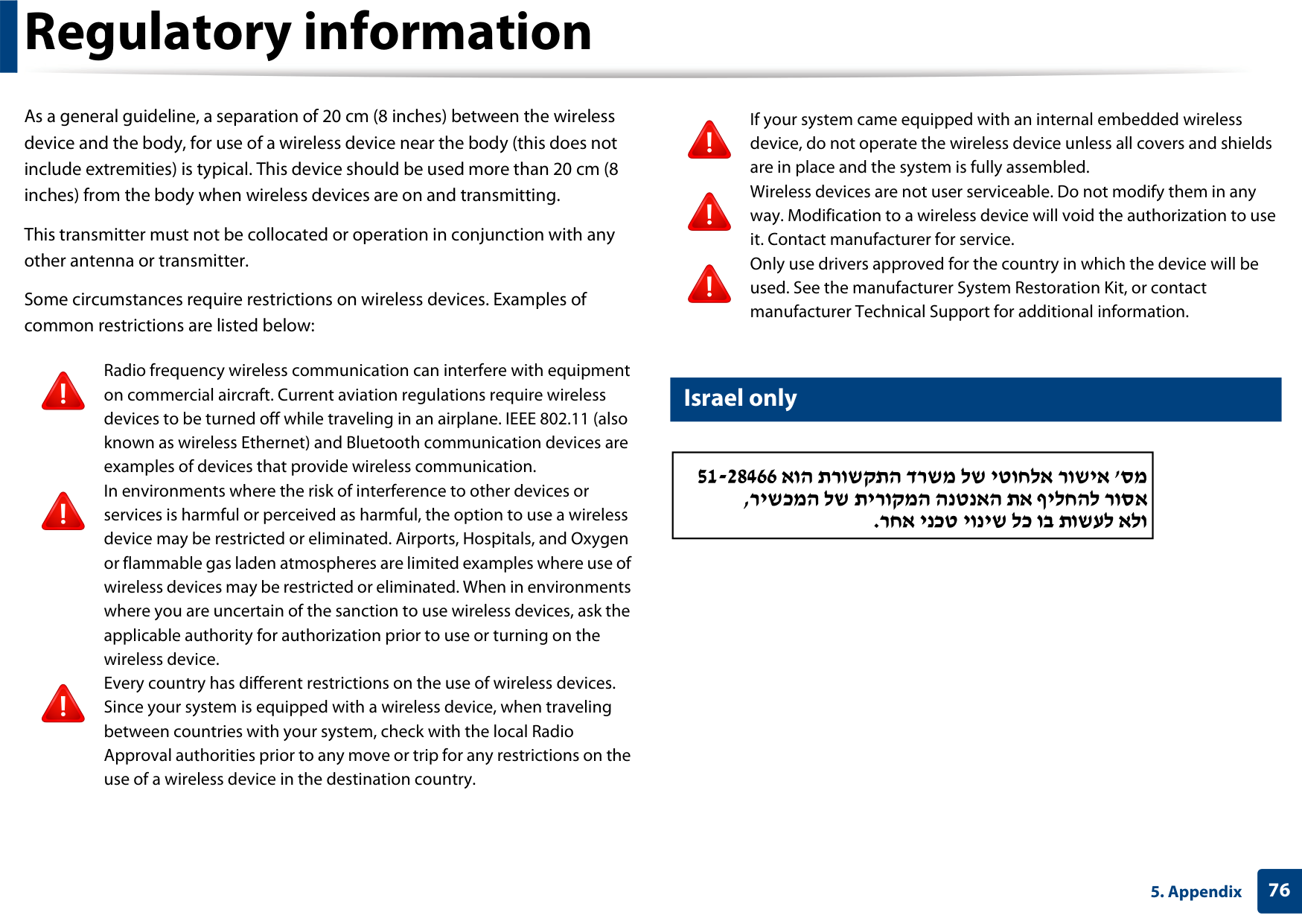
As a general guideline, a separation of 20 cm (8 inches) between the wireless device and the body, for use of a wireless device near the body (this does not include extremities) is typical. This device should be used more than 20 cm (8 inches) from the body when wireless devices are on and transmitting.
If your system came equipped with an internal embedded wireless device, do not operate the wireless device unless all covers and shields are in place and the system is fully assembled. Wireless devices are not user serviceable. Do not modify them in any way. Modification to a wireless device will void the authorization to use it. Contact manufacturer for service. Only use drivers approved for the country in which the device will be used. See the manufacturer System Restoration Kit, or contact manufacturer Technical Support for additional information.
This transmitter must not be collocated or operation in conjunction with any other antenna or transmitter.
Some circumstances require restrictions on wireless devices. Examples of common restrictions are listed below:
Radio frequency wireless communication can interfere with equipment on commercial aircraft. Current aviation regulations require wireless devices to be turned off while traveling in an airplane. IEEE 802.11 (also known as wireless Ethernet) and Bluetooth communication devices are examples of devices that provide wireless communication. In environments where the risk of interference to other devices or services is harmful or perceived as harmful, the option to use a wireless device may be restricted or eliminated. Airports, Hospitals, and Oxygen or flammable gas laden atmospheres are limited examples where use of wireless devices may be restricted or eliminated. When in environments where you are uncertain of the sanction to use wireless devices, ask the applicable authority for authorization prior to use or turning on the wireless device. Every country has different restrictions on the use of wireless devices. Since your system is equipped with a wireless device, when traveling between countries with your system, check with the local Radio Approval authorities prior to any move or trip for any restrictions on the use of a wireless device in the destination country.
############# Israel only
| | |---|
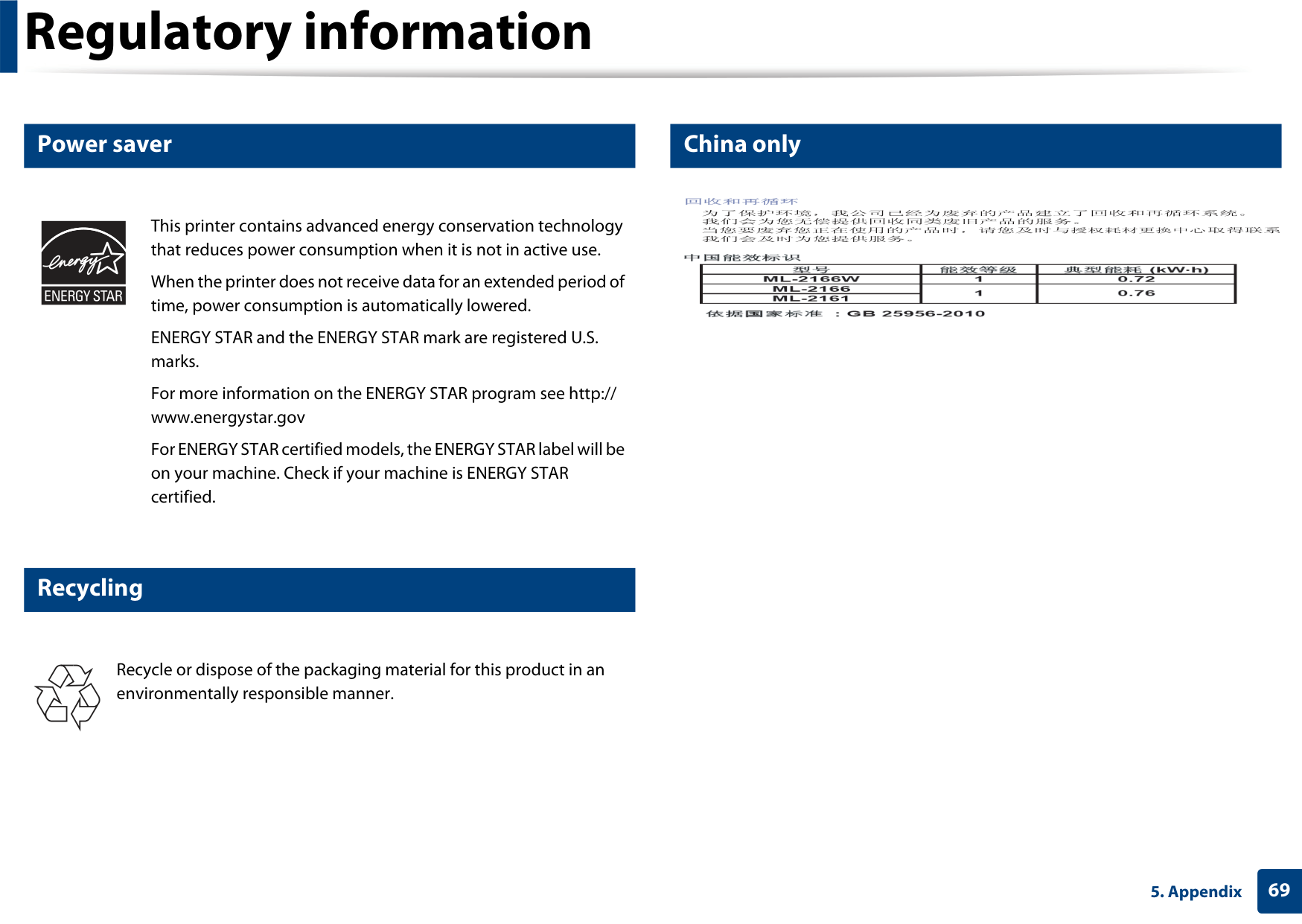
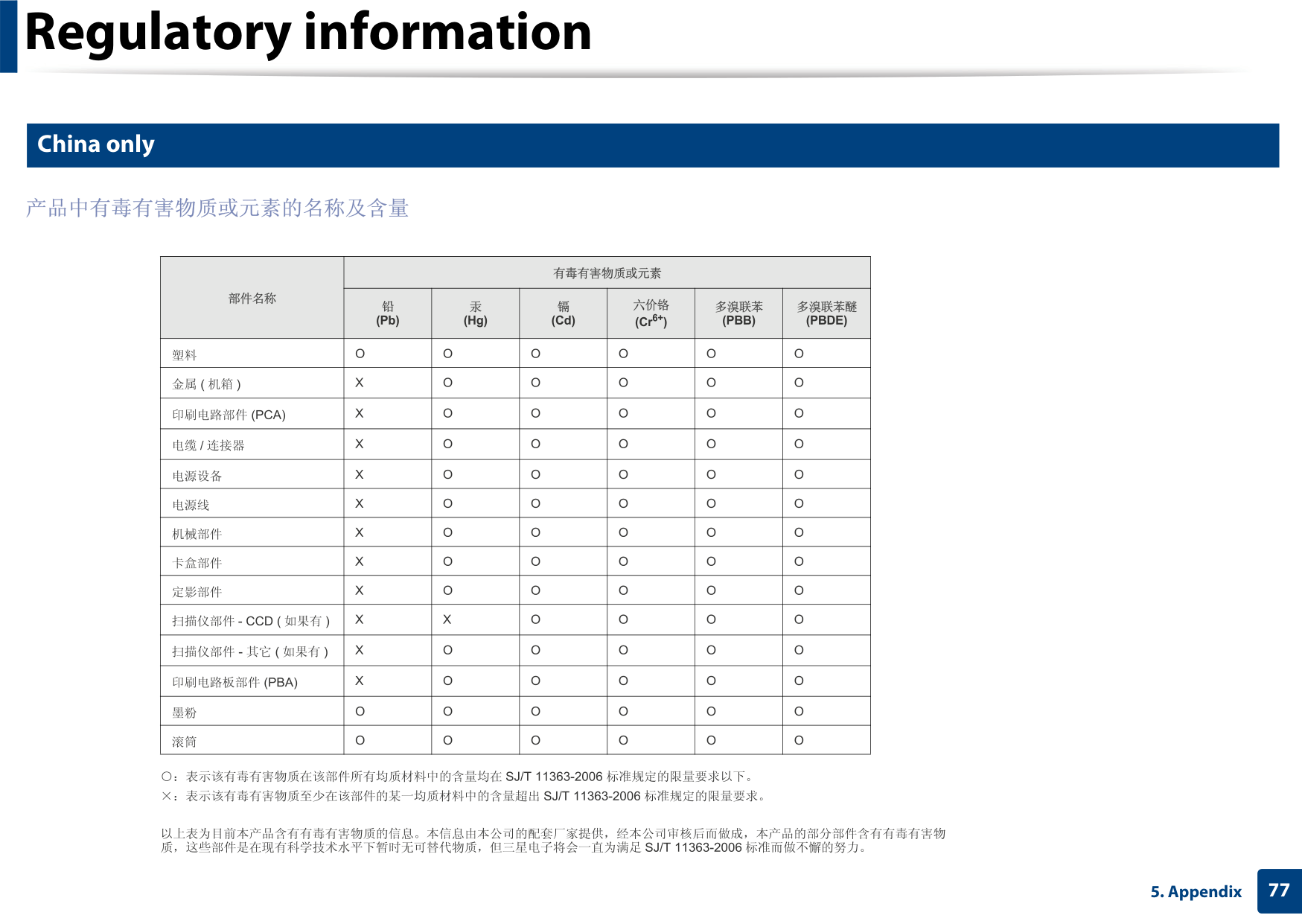
############# China only
| | | | | | | | |---|---|---|---|---|---|---| | | | | | | | | | | | | | | | | | | | | | | | | | | | | | | | | | | | | | | | | | | | | | | | | | | | | | | | | | | | | | | | | | | | | | | | | | | | | | | | | | | | | | | | | | | | | | | | | | | | | | | | | | | | | | | | | | | | | | | | |
###### Copyright

© 2011 Samsung Electronics Co., Ltd. All rights reserved. This user’s guide is provided for information purposes only. All information included herein is subject to change without notice. Samsung Electronics is not responsible for any direct or indirect damages, arising from or related to use of this user’s guide.
Refer to the 'LICENSE.txt' file in the provided CD-ROM for the open source license information. REV. 1.1
#### User’s Guide
#### User’s Guide
ML-216x Series ML-216xW Series
ADVANCED
This guide provides information about installation, advanced configuration, operation and troubleshooting on various OS environments. Some features may not be available depending on models or countries.
######### BASIC
This guide provides information concerning installation, basic operation and troubleshooting on windows.
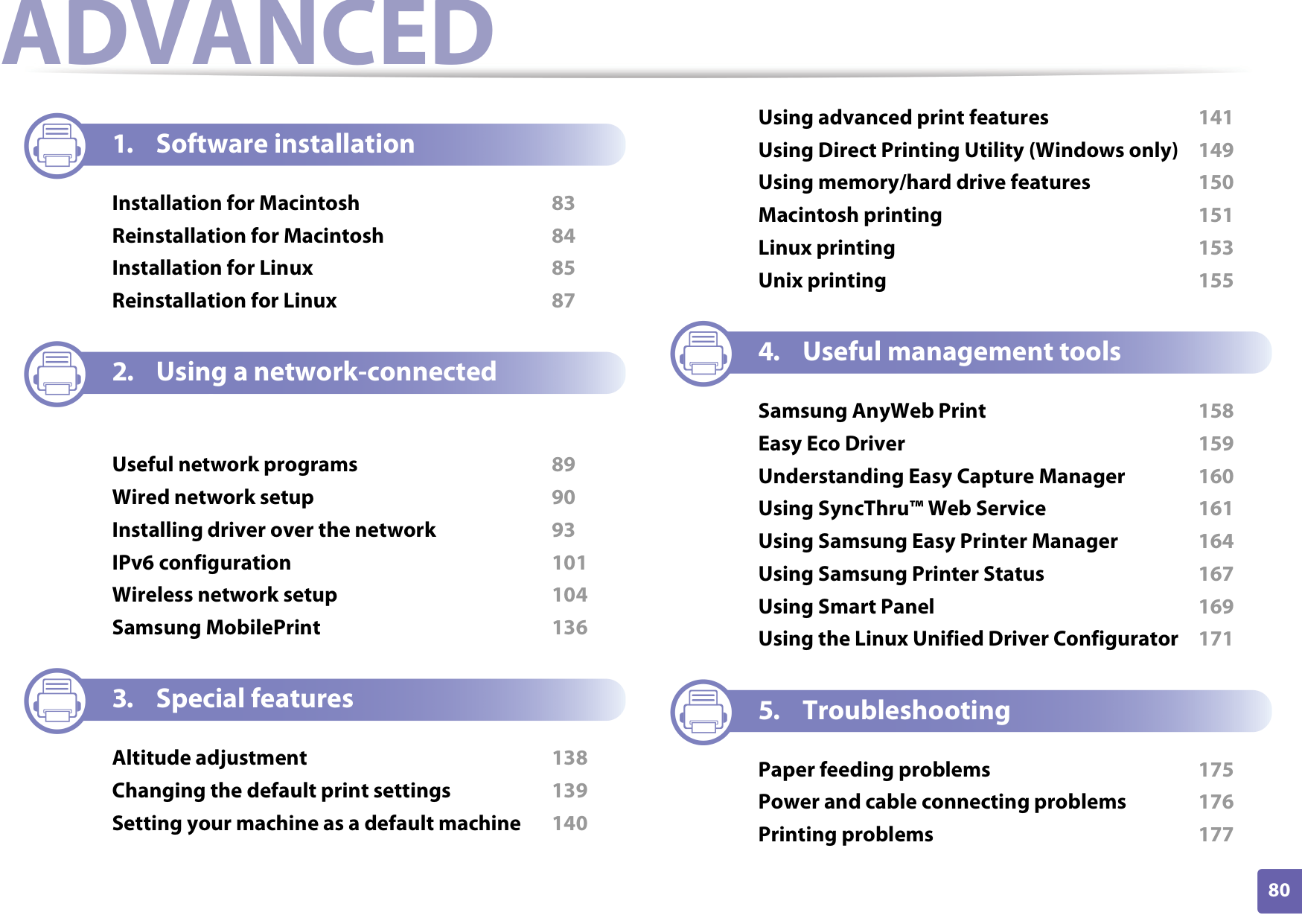
Using advanced print features 141 Using Direct Printing Utility (Windows only) 149 Using memory/hard drive features 150 Macintosh printing 151 Linux printing 153 Unix printing 155
########## 1. Software installation
Installation for Macintosh 83 Reinstallation for Macintosh 84 Installation for Linux 85 Reinstallation for Linux 87
########## 2. Using a network-connectedmachine
Useful network programs 89 Wired network setup 90 Installing driver over the network 93 IPv6 configuration 101 Wireless network setup 104 Samsung MobilePrint 136
########## 4. Useful management tools
Samsung AnyWeb Print 158 Easy Eco Driver 159 Understanding Easy Capture Manager 160 Using SyncThru™ Web Service 161 Using Samsung Easy Printer Manager 164 Using Samsung Printer Status 167 Using Smart Panel 169 Using the Linux Unified Driver Configurator 171
########## 3. Special features
Altitude adjustment 138 Changing the default print settings 139 Setting your machine as a default machine 140
########## 5. Troubleshooting
Paper feeding problems 175 Power and cable connecting problems 176 Printing problems 177
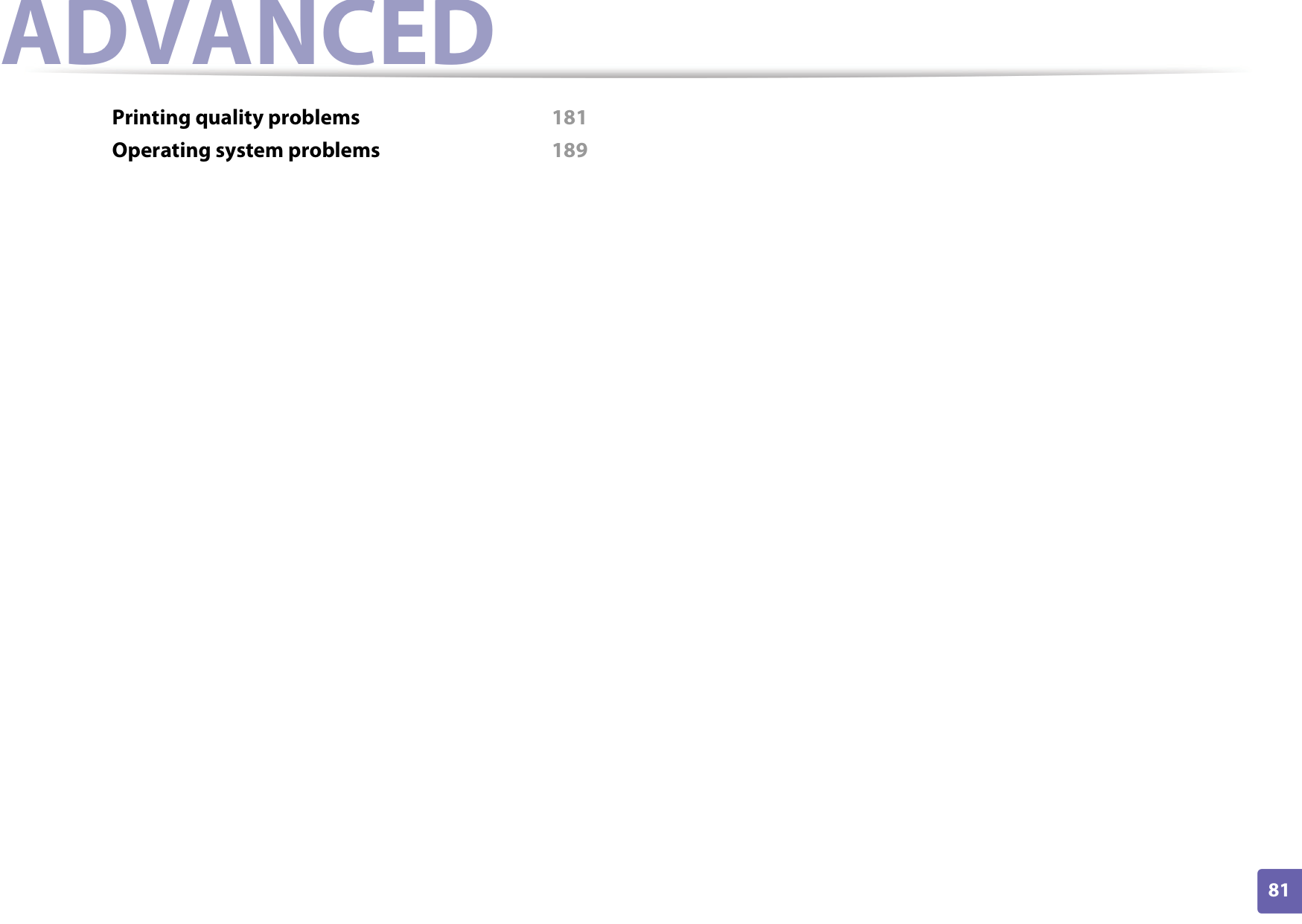
################### Printing quality problems 181 Operating system problems 189
##### 1. Software installation
This chapter provides instructions for installing essential and helpful software for use in an environment where the machine is connected via a cable. A locally connected machine is a machine directly attached to your computer using the cable. If your machine is attached to a network, skip the following steps below and go on to installing a network connected machine’s driver (see Installing driver over the network93).




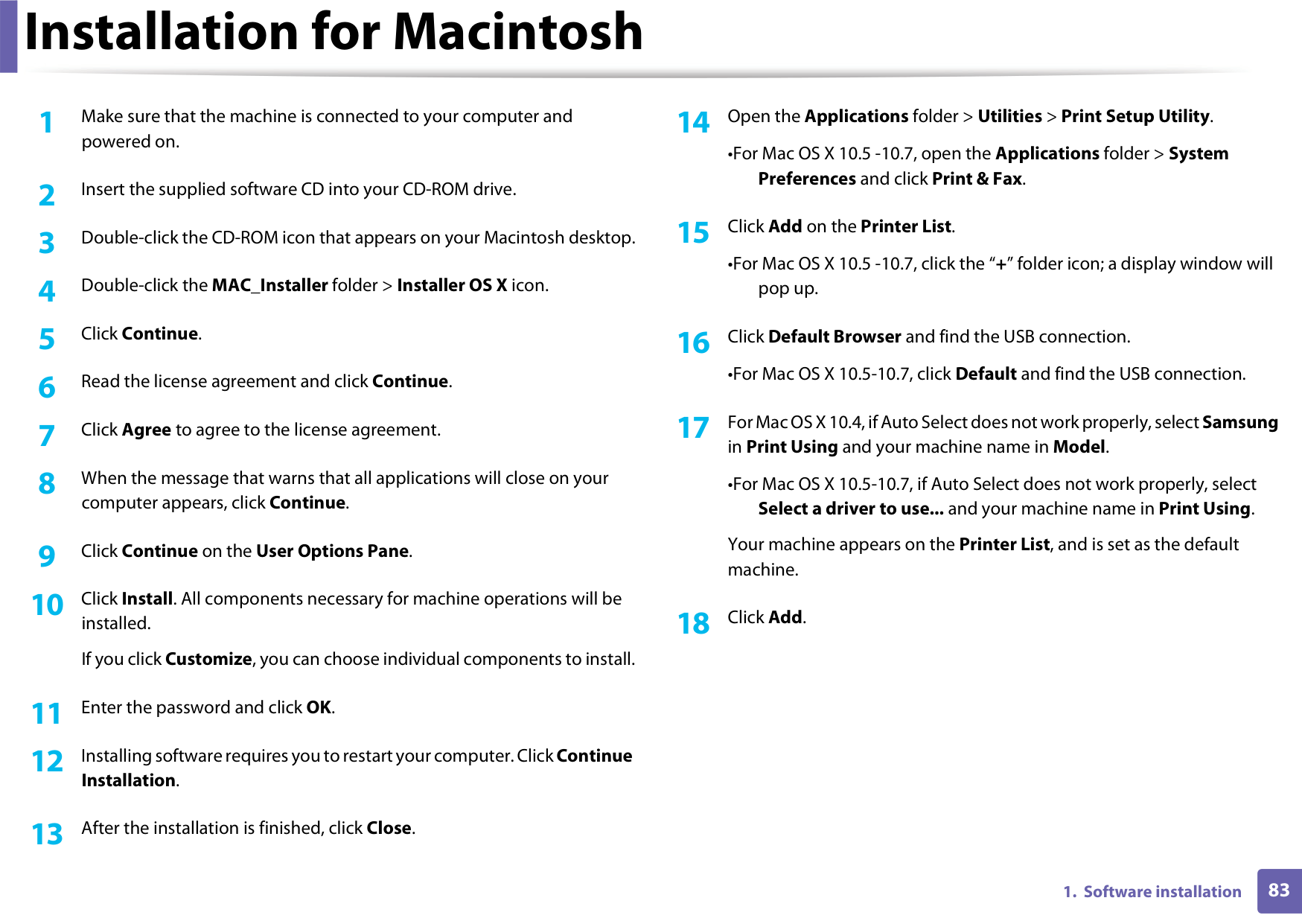
###### Installation for Macintosh

powered on.
computer appears, click Continue.
installed. If you click Customize, you can choose individual components to install.
Installation.
####### 14 Open theApplicationsfolder >Utilities>Print Setup Utility.
•For Mac OS X 10.5 -10.7, open the Applications folder > System
Preferences and click Print & Fax.
####### 15 ClickAddon thePrinter List.
•For Mac OS X 10.5 -10.7, click the “+” folder icon; a display window will pop up.
######## 16 ClickDefault Browserand find the USB connection.
•For Mac OS X 10.5-10.7, click Default and find the USB connection.
######## 17 For Mac OS X 10.4, if Auto Select does not work properly, selectSamsung
in Print Using and your machine name in Model.
•For Mac OS X 10.5-10.7, if Auto Select does not work properly, select Select a driver to use... and your machine name in Print Using.
Your machine appears on the Printer List, and is set as the default machine.
####### 18 ClickAdd.
###### Reinstallation for Macintosh

If the printer driver does not work properly, uninstall the driver and reinstall it.
powered on.
If a machine has already been added, delete it from the Print Setup Utility or Print & Fax.

The installation program added the Unified Driver Configurator desktop icon and the Unified Driver group to the system menu for your convenience. If you have any difficulties, consult the on-screen help that is available through your system menu or from the driver package Windows applications, such asUnified Driver Configurator or Image Manager.
You need to download Linux software packages from the Samsung website to install the printer software (http://www.samsung.com > find your product > Support or Downloads).
############# Installing the Unified Linux Driver
############# Installing the Smart Panel
powered on.
Login field and enter the system password.

You must log in as a super user (root) to install the machine software. If you are not a super user, ask your system administrator.
to your computer.
powered on.
Login field and enter the system password.

You must log in as a super user (root) to install the machine software. If you are not a super user, ask your system administrator.
computer.
############# Installing the Printer Settings Utility
powered on.
Login field and enter the system password.

You must log in as a super user (root) to install the machine software. If you are not a super user, ask your system administrator.
package to your computer.
package.
###### Reinstallation for Linux

If the printer driver does not work properly, uninstall the driver and reinstall it.
powered on.
Login field and enter the system password.
You must log in as a super user (root) to uninstall the printer driver. If you are not a super user, ask your system administrator.
appears, type in the following. [root@localhost root]#cd /opt/Samsung/mfp/uninstall/ [root@localhost uninstall]#./uninstall.sh
##### 2. Using a networkconnected machine
This chapter gives you step-by-step instructions for setting up a network connected machine and software.




Supported optional devices and features may differ according to your model (see "Features by models" on page 6).



###### Useful network programs

######################### There are several programs available to setup the network settings easily in a network environment. For the network administrator especially, managing several machines on the network is possible.
############# SyncThru™ Web Admin Service

Web-based machine management solution for network administrators. SyncThru™ Web Admin Service provides you with an efficient way of managing network devices and lets you remotely monitor and troubleshoot network machines from any site with corporate internet access.
• Download this program from http://solution.samsungprinter.com.
############# SyncThru™ Web Service
The web server embedded on your network machine allows you to do the following tasks (see "Using SyncThru™ Web Service" on page 103):
############# SetIP
This utility program allows you to select a network interface and manually configure the IP addresses for use with the TCP/IP protocol.

You must set up the network protocols on your machine to use it on your network.
• The machine without the (Cancel or Stop/Clear) button: Press the (WPS) button formore than ten seconds on the control panel.

You can use network after connecting network cable to a corresponding port on your machine.
Using this Network Configuration Report, you can find your machine’s MAC address and IP address.
For example:
############# Setting IP address
############# Printing a network configuration report
You can printNetwork Configuration Reportfrom the machine’s control panel that will show the current machine’s network settings. This will help you to set up a network.

First, you have to set up an IP address for network printing and managements. In most cases a new IP address will be automatically assigned by a DHCP (Dynamic Host Configuration Protocol) server located on the network.
########### IPv4 configuration using SetIP (Windows)
Before using the SetIP program, disable the computer firewall from Control Panel > Security Center > Windows Firewall.
Application > SetIP > Setup.exe.
Printers > SetIP > SetIP.
configuration window.
Find the machine’s MAC address from the Network Configuration Report (see "Printing a network configuration report" on page 90) and enter it without the colons. For example, 00:15:99:29:51:A8 becomes 0015992951A8.

8 ClickApply, and then clickOK. The machine will automatically print the Network Configuration Report. Confirm that all the settings are correct.
########### IPv4 configuration using SetIP (Macintosh)

Before using the SetIP program, disable the computer firewall from System Preferences > Security > Firewall.
follows. In a corporate intranet, you may need to have this information assigned by a network manager before proceeding.
The following instructions may differ for your model.


MAC_Installer > MAC_Printer > SetIP > SetIPapplet.html.
Trust. The browser will open the SetIPapplet.html page that shows the printer’s name and IP address information.

IP configuration window.
a corporate intranet, you may need to have this information assigned by a network manager before proceeding.

Find the machine’s MAC address from the Network Configuration Report (see "Printing a network configuration report" on page 90) and enter it without the colons. For example, 00:15:99:29:51:A8 becomes 0015992951A8.
a corporate intranet, you may need to have this information assigned by a network manager before proceeding.

Find the machine’s MAC address from the Network Configuration Report (see "Printing a network configuration report" on page 90) and enter it without the colons. For example, 00:15:99:29:51:A8 becomes 0015992951A8.
######################## Report.
########### IPv4 configuation using SetIP (Linux)
Before using the SetIP program, disable the computer firewall from System Preferences or Administrator.
The following instructions may vary from your model or operating systems.

####### 3 SelectInstall Now.


############# Windows
on. Also, your machine’s IP address should have been set (see "Setting IP address" on page 90).

If the “Found New Hardware Wizard” appears during the installation procedure, click Cancel to close the window.
TheCustom Installationallows you to select the machine’s connection and choose individual components to install. Follow the instructions on the window.

The software CD should automatically run and an installation window will appear.
####### 4 ReadLicense Agreement, and selectI accept the terms of the License
Agreement. Then, click Next. The program searches for the machine.
If your machine is not found on the network or locally, an error message appears. Select the option you want and click Next.
Following command-line are effective and operated when command is used with /s or /S. But /h, /H or /? are exceptional commands that can be operated solely.


wish to use and click OK.

If the driver searched only one machine, the confirmation window appears.
########### Silent installation Mode
Silent installation mode is an installation method that does not require any user intervention. Once you start the installation, the machine driver and software are automatically installed on you computer. You can start the silent installation by typing /s or /S in the command window.
Command-line Parameters Following table shows commands that can be used in the command window.
|Command- line|Definition|Description| |---|---|---| |/s or /S|Starts silent installation.|Installs machine drivers without prompting any UIs or user intervention.| |/p”

Network Port will be created by use of Standard TCP/ IP Port monitor. For local port, this port must exist on system before being specified by command.
|Printer port name can be specified as IP address, hostname, USB local port name or IEEE1284 port name.
For example
• /p”xxx.xxx.xxx.xxx” in where, “xxx.xxx.xxx.xxx” means IP address for network printer. / p”USB001”, /P”LPT1:”, / p”hostname”
• When installing the driver silently in Korean, type inSetup.exe /s / L"0x0012”.
|
|Command- line|Definition|Description| |---|---|---| |/nd or /ND|Commands not to set the installed driver as a default machine driver.|It indicates installed machine driver will not be the default machine driver on your system if there are one or more printer drivers installed. If there is no installed machine driver on your system, then this option won’t be applied because Windows OS will set installed printer driver as a default machine driver.| |/x or /X|Uses existing machine driver files to create printer instance if it is already installed.|This command provides a way to install a printer instance that uses installed printer driver files without installing an additional driver.| |/up”
/UP”
|Command- line|Definition|Description| |---|---|---| |/a”

The destination path should be a fully qualified path.
|Since machine drivers should be installed on the OS specific location, this command applies to only application software.| |/i”