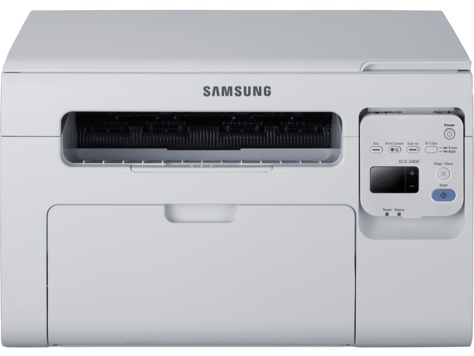
HP Samsung Scx 3401 Laser Multifunction Printer Series
Ask AI
— answers from the official manualAnswers from the official manual.
Common questions
Common Questions
9 totalWhere can I find and download OMEN Command Center for my device?
To download OMEN Command Center, go to Microsoft Store from Start, search for the app, and then install it. (Page 1)
How do I reset my keyboard settings to default in OMEN Command Center?
To restore your keyboard's default settings, select OMEN SPACER after opening the software and then choose Reset to default. (Page 4)
What are the different lighting modes available in OMEN Command Center?
You can use static mode or animation mode for keyboard lighting configurations, with specific setups available from Lighting tab options. (Pages 3 and 7)
Can I create macros on my device using the OMEN Command Center?
You can create up to five macros in different modes such as keystroke, multi-key, launcher, or text from within the Key Assignments tab. (Page 6)
How do I edit a created macro on my keyboard?
To edit an existing macro, select Edit option from pop-up menu of a P-key after opening OMEN Command Center and proceed as instructed. (Page 5)
What is the purpose of Mandate 376 – EN 301 549 standard?
Mandate 376 – EN 301 549 standard within Europe provides online toolkits for public procurement ensuring accessibility requirements in ICT products and services. (Page 8)
Full Manual
14 pages


User Guide
SUMMARY Learn how to install and use the software, and configure your device.
© Copyright 2020 HP Development Company, L.P.
Windows is either a registered trademark or trademark of Microsoft Corporation in the United States and/or other countries.
The information contained herein is subject to change without notice. The only warranties for HP products and services are set forth in the express warranty statements accompanying such products and services. Nothing herein should be construed as constituting an additional warranty. HP shall not be liable for technical or editorial errors or omissions contained herein.
First Edition: July 2020 Document Part Number: M10261-001
Table of contents
Selecting a lighting mode .................................................................................................................... 3 Static mode .......................................................................................................................................... 3 Animation mode .................................................................................................................................. 4
Key assignments .................................................................................................................................................... 4 Configuring the OMEN key ................................................................................................................... 4 Creating a macro .................................................................................................................................. 4 Editing a macro .................................................................................................................................... 5 Assigning a macro ............................................................................................................................... 5
Finding the technology tools you need ............................................................................................... 6 The HP commitment ............................................................................................................................ 6 International Association of Accessibility Professionals (IAAP) ......................................................... 7 Finding the best assistive technology ................................................................................................. 7
Assessing your needs ........................................................................................................ 7 Accessibility for HP products ............................................................................................ 7
Standards and legislation ...................................................................................................................................... 8
Standards ............................................................................................................................................ 8 Mandate 376 – EN 301 549 ............................................................................................... 8 Web Content Accessibility Guidelines (WCAG) .................................................................. 8
Legislation and regulations ................................................................................................................. 9
Useful accessibility resources and links ................................................................................................................ 9 Organizations ...................................................................................................................................... 9 Educational institutions ...................................................................................................................... 9 Other disability resources ................................................................................................................. 10
iii
HP links .............................................................................................................................................. 10 Contacting support .............................................................................................................................................. 10
iv
1 Getting started
Before configuring this device, you must download OMEN Command Center.
Downloading the software To download the software, use the following procedure. NOTE: This software might be preinstalled on select computers. This software requires a Windows® 10 operating system (64-bit), version 1709 or later.
| | |---|
Opening the software
To open the software, use the following procedure.
– or –

Press the OMEN key .
Downloading the software 1
2 Enabling or disabling the Windows key
You can enable or disable the Windows key using this shortcut.
###### ▲ Press FN + PRT SC.
3 Using the software
You can use OMEN Command Center to configure the keyboard settings. The keyboard remembers and uses these settings, even if connected to a device without OMEN Command Center.
Keyboard menu Using the main menu tabs, you can configure the keyboard lighting and macro settings. To open the keyboard menu:
▲ After the app opens, select OMEN SPACER. TIP: This option is available only when the keyboard is connected to the computer.
Restoring default settings

To restore the keyboard default settings, use the following procedure.
Lighting
Select the Lighting tab to configure the lighting.
#### Selecting a lighting mode
Using the Lighting tab, you can configure different lighting modes for your keyboard.
#### Static mode
Use static mode to customize the keys in the static colored zones on the keyboard.
Keyboard menu 3
#### Animation mode
Use animation mode to select a keyboard lighting pattern.

Key assignments
Select the Key Assignments tab to configure the OMEN key, create macros, edit macros, assign macros, and clear macros.
| | |---|
NOTE: The first time you select the Key Assignments tab, a tutorial starts. Follow the on-screen instructions to complete the tutorial. You can select View later to dismiss it. To view the tutorial at any time, select Tutorial.
A macro is a keystroke sequence that is executed when you press a key. You can assign up to five macros, from P1 to P5. Each macro is limited to 47 actions in the keystroke sequence. A list shows all the macros that you created. You can assign them to a mouse M-button or keyboard P-key. Select Keyboard actions to display only the keyboard macros. To clear all assigned macros, select Reset to default.
#### Configuring the OMEN key
By default, the OMEN key launches OMEN Command Center. It can also perform the scroll lock function.
▲ Under OMEN Key Options, select Scroll lock or Launch OMEN Command Center.
#### Creating a macro
To create a macro, use the following procedure.
4 Chapter 3 Using the software
– or – Select a P-key, and then select New from the pop-up menu.
| | |---|
#### Editing a macro
To edit a macro, use the following procedure.
#### Assigning a macro
You can assign a single macro to up to three buttons.
▲ You can assign a macro to a button in either of the following ways:
Key assignments 5
4 Accessibility
HP's goal is to design, produce, and market products, services, and information that everyone everywhere can use, either on a stand-alone basis or with appropriate third-party assistive technology (AT) devices or applications.
HP and accessibility
Because HP works to weave diversity, inclusion, and work/life into the fabric of the company, it is reflected in everything HP does. HP strives to create an inclusive environment focused on connecting people to the power of technology throughout the world.
#### Finding the technology tools you need
Technology can unleash your human potential. Assistive technology removes barriers and helps you create independence at home, at work, and in the community. Assistive technology helps increase, maintain, and improve the functional capabilities of electronic and information technology.
For more information, see Finding the best assistive technology on page 7.
#### The HP commitment
HP is committed to providing products and services that are accessible for people with disabilities. This commitment supports the company's diversity objectives and helps ensure that the benefits of technology are available to all.
The HP accessibility goal is to design, produce, and market products and services that can be effectively used by everyone, including people with disabilities, either on a stand-alone basis or with appropriate assistive devices.
To achieve that goal, this Accessibility Policy establishes seven key objectives to guide HP actions. All HP managers and employees are expected to support these objectives and their implementation in accordance with their roles and responsibilities:
#### International Association of Accessibility Professionals (IAAP)
IAAP is a not-for-profit association focused on advancing the accessibility profession through networking, education, and certification. The objective is to help accessibility professionals develop and advance their careers and to better enable organizations to integrate accessibility into their products and infrastructure.
As a founding member, HP joined to participate with other organizations to advance the field of accessibility. This commitment supports HP’s accessibility goal of designing, producing, and marketing products and services that people with disabilities can effectively use.
IAAP will make the profession strong by globally connecting individuals, students, and organizations to learn from one another. If you are interested in learning more, go to http://www.accessibilityassociation.org to join the online community, sign up for newsletters, and learn about membership options.
#### Finding the best assistive technology
Everyone, including people with disabilities or age-related limitations, should be able to communicate, express themselves, and connect with the world using technology. HP is committed to increasing accessibility awareness within HP and with our customers and partners.
Whether it’s large fonts that are easy on the eyes, voice recognition that lets you give your hands a rest, or any other assistive technology to help with your specific situation—a variety of assistive technologies make HP products easier to use. How do you choose?
##### Assessing your needs
Technology can unleash your potential. Assistive technology removes barriers and helps you create independence at home, at work, and in the community. Assistive technology (AT) helps increase, maintain, and improve the functional capabilities of electronic and information technology.
You can choose from many AT products. Your AT assessment should allow you to evaluate several products, answer your questions, and facilitate your selection of the best solution for your situation. You will find that professionals qualified to do AT assessments come from many fields, including those licensed or certified in physical therapy, occupational therapy, speech/language pathology, and other areas of expertise. Others, while not certified or licensed, can also provide evaluation information. You will want to ask about the individual's experience, expertise, and fees to determine if they are appropriate for your needs.
##### Accessibility for HP products
These links provide information about accessibility features and assistive technology, if applicable, included in various HP products. These resources will help you select the specific assistive technology features and products most appropriate for your situation.
HP and accessibility 7
If you need additional support with the accessibility features on your HP product, see Contacting support on page 10.
Additional links to external partners and suppliers that may provide additional assistance:
Standards and legislation
Countries worldwide are enacting regulations to improve access to products and services for persons with disabilities. These regulations are historically applicable to telecommunications products and services, PCs and printers with certain communications and video playback features, their associated user documentation, and their customer support.
#### Standards
The US Access Board created Section 508 of the Federal Acquisition Regulation (FAR) standards to address access to information and communication technology (ICT) for people with physical, sensory, or cognitive disabilities.
The standards contain technical criteria specific to various types of technologies, as well as performancebased requirements which focus on functional capabilities of covered products. Specific criteria cover software applications and operating systems, web-based information and applications, computers, telecommunications products, video and multimedia, and self-contained closed products.
##### Mandate 376 – EN 301 549
The European Union created the EN 301 549 standard within Mandate 376 as an online toolkit for public procurement of ICT products. The standard specifies the accessibility requirements applicable to ICT products and services, with a description of the test procedures and evaluation methodology for each requirement.
##### Web Content Accessibility Guidelines (WCAG)
Web Content Accessibility Guidelines (WCAG) from the W3C's Web Accessibility Initiative (WAI) helps web designers and developers create sites that better meet the needs of people with disabilities or age-related limitations.
WCAG advances accessibility across the full range of web content (text, images, audio, and video) and web applications. WCAG can be precisely tested, is easy to understand and use, and allows web developers flexibility for innovation. WCAG 2.0 has also been approved as ISO/IEC 40500:2012.
WCAG specifically addresses barriers to accessing the web experienced by people with visual, auditory, physical, cognitive, and neurological disabilities, and by older web users with accessibility needs. WCAG 2.0 provides characteristics of accessible content:
#### Legislation and regulations
Accessibility of IT and information has become an area of increasing legislative importance. These links provide information about key legislation, regulations, and standards.
Useful accessibility resources and links
These organizations, institutions, and resources might be good sources of information about disabilities and age-related limitations.
| | |---|
NOTE: This is not an exhaustive list. These organizations are provided for informational purposes only. HP assumes no responsibility for information or contacts you encounter on the Internet. Listing on this page does not imply endorsement by HP.
#### Organizations
These organizations are a few of the many that provide information about disabilities and age-related limitations.
#### Educational institutions
Many educational institutions, including these examples, provide information about disabilities and agerelated limitations.
Useful accessibility resources and links 9
#### Other disability resources
Many resources, including these examples, provide information about disabilities and age-related limitations.
#### HP links
These HP-specific links provide information that relates to disabilities and age-related limitations. Our contact webform HP comfort and safety guide HP public sector sales
Contacting support HP offers technical support and assistance with accessibility options for customers with disabilities. NOTE: Support is in English only.
| | |---|
– Use TRS/VRS/WebCapTel to call (877) 656-7058 Monday through Friday, 6 a.m. to 9 p.m. Mountain Time.