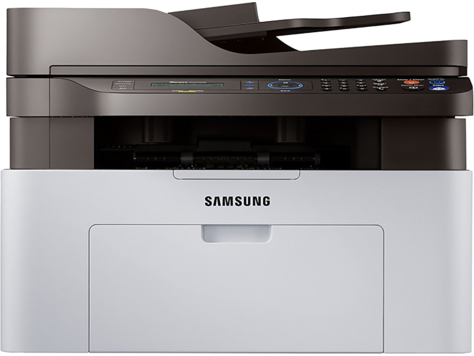
HP Samsung Xpress SL M2070 Laser Multifunction Printer Series
Ask AI
— answers from the official manualAnswers from the official manual.
Common questions
Common Questions
9 totalWhat safety precautions should I follow when handling this printer?
It is essential to never operate or service the printer with protective covers removed as it exposes users to invisible but harmful laser radiation. Ensure proper ventilation, avoid placing near sources of heat/radiators/ventilation ducts, and never allow anything to rest on power cords. Always use common sense when operating any electrical appliance.
How do I factory reset the Samsung ML-2571N printer?
Press and hold the Cancel button for about 5 seconds until a configuration page prints out, which resets all settings. After this, re-pair the device and configure it as new if connected to any network or computer.
What should I do when encountering an Error LED blinking red on my printer?
The Error LED blinking red usually indicates a minor issue needing resolution, such as a low toner cartridge. To resolve temporarily and improve print quality, you may redistribute remaining toner by thoroughly shaking the cartridge 5-6 times; if needed, order a new toner cartridge.
How do I install an Ethernet network interface server for Samsung ML-2510/ML-2570 printers?
You need to purchase and install the ML-00ND Ethernet 10/100 Base TX external wired network interface server. For specific details on installation, refer to the Network Printer User’s Guide available on the network utilities CD.
How can I clean my printer to prevent print quality issues?
Turn off the printer and unplug it; wait for cooling, open the front cover and manually pull out the toner cartridge. Clean dust from the LSU (long strip of glass) inside top and wipe the toner area with a dry lint-free cloth. Avoid excessive use of any cleaning chemicals that could damage the surface.
What type of paper can I use for my ML-2571N printer?
You can print on plain paper, envelopes (up to 90 g/m2, letterhead, transparencies at a minimum of 37 lb, labels, cards up to 43 lb. Use specific guidelines for each type of media and avoid synthetic papers or those with poor construction.
Full Manual
85 pages

SamsungSamsung ML-2510 Series / ML-2570 Series
##### Monochrome Laser PrinterMonochrome Laser Printer


User’s GuideUser’s Guide
This manual is provided for information purposes only. All information included herein is subject to change without notice. Samsung Electronics is not responsible for any direct or indirect damages, arising from or related to the use of this manual.
© 2006 Samsung Electronics Co., Ltd. All rights reserved.
contact SAMSUNG worldwide
If you have any comments or questions regarding Samsung products, contact the Samsung customer care center.
|COUNTRY|CUSTOMER CARE CENTER|WEB SITE| |---|---|---| |INDIA|3030 8282 1800 110011 1-800-3000-8282|www.samsung.com/in|
|INDONESIA|0800-112-8888|www.samsung.com/id| |ITALIA|800-SAMSUNG(726-7864)|www.samsung.com/it| |JAMAICA|1-800-234-7267|www.samsung.com/ latin| |JAPAN|0120-327-527|www.samsung.com/jp| |LATVIA|8000-7267|www.samsung.com/lv| |LITHUANIA|8-800-77777|www.samsung.com/lt| |LUXEMBURG|02 261 03 710|www.samsung.com/lu| |MALAYSIA|1800-88-9999|www.samsung.com/my| |MEXICO|01-800-SAMSUNG (7267864)|www.samsung.com/mx| |NETHERLAND S|0900 SAMSUNG(726-7864 € 0,10/min)|www.samsung.com/nl| |NEW ZEALAND|0800 SAMSUNG (0800 726 786)|www.samsung.com/nz| |NICARAGUA|00-1800-5077267|www.samsung.com/ latin| |NORWAY|815-56 480|www.samsung.com/no| |PANAMA|800-7267|www.samsung.com/ latin| |PHILIPPINES|1800-10-SAMSUNG (7267864)|www.samsung.com/ph| |POLAND|0 801 801 881 022-607-93-33|www.samsung.com/pl| |PORTUGAL|80820-SAMSUNG (7267864)|www.samsung.com/pt| |PUERTO RICO|1-800-682-3180|www.samsung.com/ latin| |REP. DOMINICA|1-800-751-2676|www.samsung.com/ latin| |EIRE|0818 717 100|www.samsung.com/ie| |RUSSIA|8-800-555-55-55|www.samsung.ru| |SINGAPORE|1800-SAMSUNG (7267864)|www.samsung.com/sg| |SLOVAKIA|0800-SAMSUNG (7267864)|www.samsung.com/sk| |SOUTH AFRICA|0860 SAMSUNG (7247864)|www.samsung.com/za|
|COUNTRY|CUSTOMER CARE CENTER|WEB SITE| |---|---|---| |ARGENTINE|0800-333-3733|www.samsung.com/ar| |AUSTRALIA|1300 362 603|www.samsung.com/au| |AUSTRIA|0800-SAMSUNG (7267864)|www.samsung.com/at| |BELGIUM|02 201 2418|www.samsung.com/be| |BRAZIL|0800-124-421 4004-0000|www.samsung.com/br| |CANADA|1-800-SAMSUNG (7267864)|www.samsung.com/ca| |CHILE|800-SAMSUNG (726-7864)|www.samsung.com/cl|
|CHINA|800-810-5858 400-810-5858 010-6475 1880|www.samsung.com/cn| |COLOMBIA|01-8000112112|www.samsung.com.co| |COSTA RICA|0-800-507-7267|www.samsung.com/ latin| |CZECH REPUBLIC|800-726-786 (800 SAMSUNG)|www.samsung.com/cz| |CZECH REPUBLIC|Samsung Zrt., česká organizační složka, Oasis Florenc, Sokolovská394/17, 180 00, Praha 8|Samsung Zrt., česká organizační složka, Oasis Florenc, Sokolovská394/17, 180 00, Praha 8| |DENMARK|70 70 19 70|www.samsung.com/dk| |ECUADOR|1-800-10-7267|www.samsung.com/ latin| |EL SALVADOR|800-6225|www.samsung.com/ latin| |ESTONIA|800-7267|www.samsung.ee| |KAZAKHSTAN|8-10-800-500-55-500|www.samsung.com/ kz_ru| |KYRGYZSTAN|00-800-500-55-500| | |FINLAND|030-6227 515|www.samsung.com/fi| |FRANCE|3260 SAMSUNG 08 25 08 65 65 (€ 0,15/min)|www.samsung.com/fr| |GERMANY|01805 - SAMSUNG (7267864 € 0,14/min)|www.samsung.de| |GUATEMALA|1-800-299-0013|www.samsung.com/ latin| |HONDURAS|800-7919267|www.samsung.com/ latin| |HONG KONG|3698 4698|www.samsung.com/hk| |HUNGARY|06-80-SAMSUNG (7267864)|www.samsung.com/hu|
|COUNTRY|CUSTOMER CARE CENTER|WEB SITE| |---|---|---| |SPAIN|902-1-SAMSU(72678)|www.samsung.com/es| |SWEDEN|0771-400 200|www.samsung.com/se| |SWITZERLAN D|0800-SAMSUNG (7267864)|www.samsung.com/ch| |TADJIKISTAN|8-10-800-500-55-500| | |TAIWAN|0800-329-999|www.samsung.com/tw| |THAILAND|1800-29-3232 02-689-3232|www.samsung.com/th| |TRINIDAD & TOBAGO|1-800-SAMSUNG (7267864)|www.samsung.com/ latin| |TURKEY|444 77 11|www.samsung.com/tr| |U.A.E|800-SAMSUNG (726-7864) 8000-4726|www.samsung.com/ae| |U.K|0845 SAMSUNG (7267864)|www.samsung.com/uk| |U.S.A|1-800-SAMSUNG (7267864)|www.samsung.com/us| |UKRAINE|8-800-502-0000|www.samsung.ua| |UZBEKISTAN|8-10-800-500-55-500|www.samsung.com/ kz_ru|
|VENEZUELA|0-800-100-5303|www.samsung.com/ latin| |VIETNAM|1 800 588 889|www.samsung.com/vn|
#### CONTENTS
########### Important Precautions and Safety Information
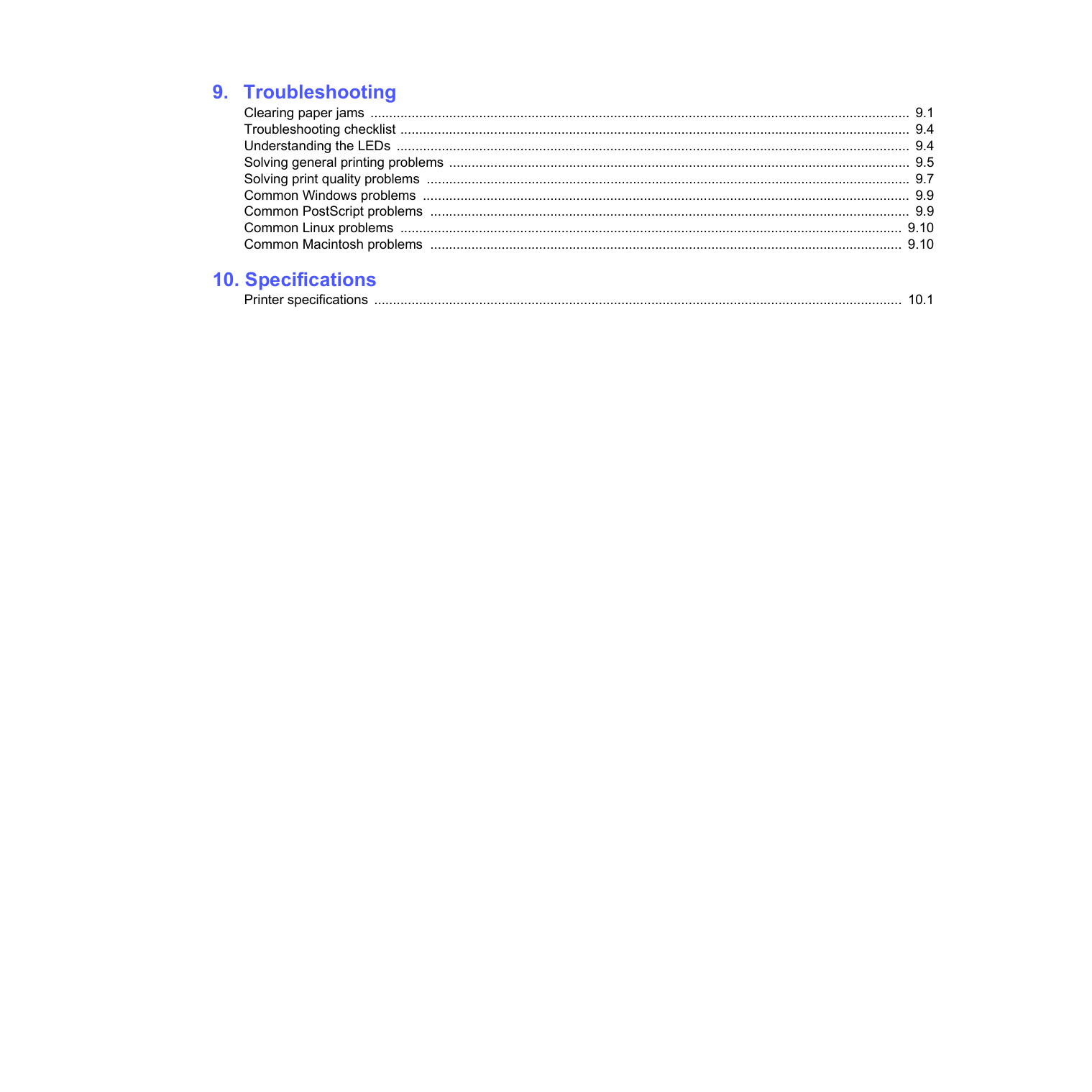
When using this machine, these basic safety precautions should always be followed to reduce risk of fire, electric shock, and injury to people:
########### Environmental and Safety Consideration
################ Laser Safety Statement
The printer is certified in the U.S. to conform to the requirements of DHHS 21 CFR, chapter 1 Subchapter J for Class I(1) laser products, and elsewhere, is certified as a Class I laser product conforming to the requirements of IEC 825.
Class I laser products are not considered to be hazardous. The laser system and printer are designed so there is never any human access to laser radiation above a Class I level during normal operation, user maintenance, or prescribed service condition.
WARNING Never operate or service the printer with the protective cover removed from Laser/ Scanner assembly. The reflected beam, although invisible, can damage your eyes. When using this product, these basic safety precautions should always be followed to reduce risk of fire, electric shock, and injury to persons:
########### Ozone Safety
During normal operation, this machine produces ozone. The ozone produced does not present a hazard to the operator. However, it is advisable that the machine be operated in a well ventilated area.
If you need additional information about ozone, please contact your nearest Samsung dealer.
i
Power Saver This printer contains advanced energy conservation technology that reduces power consumption when it is not in active use. When the printer does not receive data for an extended period of time, power consumption is automatically lowered.
########### Recycling
Please recycle or dispose of packaging materials for this product in an environmentally responsible manner.
########### Correct Disposal of This Product (Waste Electrical & Electronic Equipment)
################## (Applicable in the European Union and other European countries with separate collection systems)
This marking shown on the product or its literature, indicates that it should not be disposed with other household wastes at the end of its working life. To prevent possible harm to the environment or human health from uncontrolled waste disposal, please separate this from other types of wastes and recycle it responsibly to promote the sustainable reuse of material resources.
Household users should contact either the retailer where they purchased this product, or their local government office, for details of where and how they can take this item for environmentally safe recycling.
Business users should contact their supplier and check the terms and conditions of the purchase contract. This product should not be mixed with other commercial wastes for disposal.
########### Radio Frequency Emissions FCC Regulations
This device complies with Part 15 of the FCC Rules. Operation is subject to the following two conditions:
This device has been tested and found to comply with the limits for a Class B digital device, pursuant to Part 15 of the FCC rules. These limits are designed to provide reasonable protection against harmful interference in a residential installation. This equipment generates, uses and can radiate radio frequency energy and, if not installed and used in accordance with the instructions, may cause harmful interference to radio communications. However, there is no guarantee that interference will not occur in a particular installation. If this equipment does cause harmful interference to radio or television reception, which can be determined by turning the equipment off and on, the user is encouraged to try to correct the interference by one or more of the following measures:
CAUTION: Changes or modifications not expressly approved by the manufacturer responsible for compliance could void the user’s authority to operate the equipment.
Canadian Radio Interference Regulations This digital apparatus does not exceed the Class B limits for radio noise emissions from digital apparatus as set out in the interference-causing equipment standard entitled “Digital Apparatus”, ICES-003 of the Industry and Science Canada.
Cet appareil numérique respecte les limites de bruits radioélectriques applicables aux appareils numériques de Classe B prescrites dans la norme sur le matériel brouilleur: “Appareils Numériques”, ICES-003 édictée par l’Industrie et Sciences Canada.
########### Declaration of Conformity (European Countries)
Approvals and Certifications The CE marking applied to this product symbolises Samsung Electronics Co., Ltd. Declaration of Conformity with the following applicable 93/68/EEC Directives of the European Union as of the dates indicated: January 1, 1995: Council Directive 73/23/EEC Approximation of the
laws of the member states related to low voltage equipment. January 1, 1996: Council Directive 89/336/EEC (92/31/EEC), approximation of the laws of the Member States related to electromagnetic compatibility. March 9, 1999: Council Directive 1999/5/EC on radio equipment and telecommunications terminal equipment and the mutual recognition of their conformity. A full declaration, defining the relevant Directives and referenced standards can be obtained from your Samsung Electronics Co., Ltd. representative.
Replacing the Fitted Plug (for UK Only) Important The mains lead for this machine is fitted with a standard (BS 1363) 13 amp plug and has a 13 amp fuse. When you change or examine the fuse, you must re-fit the correct 13 amp fuse. You then need to replace the fuse cover. If you have lost the fuse cover, do not use the plug until you have another fuse cover. Please contact the people from you purchased the machine. The 13 amp plug is the most widely used type in the UK and should be suitable. However, some buildings (mainly old ones) do not have normal 13 amp plug sockets. You need to buy a suitable plug adaptor. Do not remove the moulded plug. Warning If you cut off the moulded plug, get rid of it straight away. You cannot rewire the plug and you may receive an electric shock if you plug it into a socket. IMPORTANT WARNING: You must earth this machine. The wires in the mains lead have the following color code:
• Green and Yellow: Earth
ii
If the wires in the mains lead do not match the colors marked in your plug, do the following: You must connect the green and yellow wire to the pin marked by the letter “E” or by the safety ‘Earth symbol’ or colored green and yellow or green. You must connect the blue wire to the pin which is marked with the letter “N” or colored black. You must connect the brown wire to the pin which is marked with the letter “L” or colored red. You must have a 13 amp fuse in the plug, adaptor, or at the distribution board.
|Declaration of Conformity
For the following product:
Mono Laser Printer model " ML-2571N, ML-2570, ML-2510 ” Manufactured at:
of Samsung Electronics Co., Ltd.
#259, Gongdan-Dong, Gumi-City, Gyeongsangbuk-Do, 730-030 Korea of Samsung Electronics (Shandong) Digital Printing Co., Ltd.
264209, Samsung Road, Weihai Hi-Tech. IDZ, Shandong Province, P.R.China of Weihai Shin Heung Digital Electronics Co., Ltd.
98, Samsung Road, Weihai Hi-Tech. IDZ, Shandong Province, P.R.China. of Weihat Intops Electronics Co. Ltd.
Keji Road-268-1, Weihai Hi-tech, IDZ, Shandong Province, P.R.China (Factory name, address)
We hereby declare, that the product above is in compliance with the essential requirements of the Low Voltage Directive (2006/95/EC) and EMC Directive (2004/108/EC) by application of:
EN 60950-1:2001+A11:2004 EN 55022:1998 + A1:2000 + A2:2003 EN 55024:1998 + A1:2001 + A2:2003
EN 61000-3-2:2000 + A2 : 2005
EN 61000-3-3:1995 + A1:2001
The Technical documentation is kept at the below Manufacturer’s address. Manufacturer
Samsung Electronics Co., Ltd. #259, Gongdan-Dong, Gumi-City Gyungbuk, Korea 730-030
January 08, 2008 Whan-Soon Yim / S. Manager

Representative in the EU:
Samsung Electronics Euro QA Lab. Blackbushe Business Park Saxony Way, Yateley, Hampshire GU46 6GG, UK
January 08, 2008

Yong Sang Park / S. Manager (Place and date of issue)| |---|
iii
1Introduction Congratulations on the purchase of your printer! This chapter includes:
############ Special features
Your new printer is equipped with several special features that improve the print quality. You can:
##################### Print with excellent quality and high speed
##################### Handle paper flexibly
##################### Create professional documents
##################### Save time and money
||1|2| |---|---| |3|4| | |---|
##################### Expand the printer capacity
•ANetwork interface enables network printing. You can buy and add an external wired network interface server to the ML-2510 and ML-2570. The ML-2571N comes with a built-in network interface, 10/100 Base TX.
a. pages per minute
##################### Print in various environments
• A PostScript 3 Emulation* (PS) enables PS printing in the ML-2570 and ML-2571N.
• © Copyright 1995-2005, Zoran Corporation. All rights reserved. Zoran, the Zoran logo, IPS/PS3 and OneImage are trademarks of Zoran Corporation.

##################### Printer features
The table below lists a general overview of features supported by your printer. (I: Installed, O: Option, NA: Not Available)
|Features|ML-2510|ML-2570|ML-2571N| |---|---|---|---| |IEEE 1284 Parallel|I|I|I| |USB 2.0|I (USB 1.1: Compatible with USB 2.0)|I (USB 2.0: HiSpeed USB 2.0)|I (USB 2.0: HiSpeed USB 2.0)| |Network Interface (Ethernet 10/100 Base TX)|O (External)|O (External)|I| |PCL Emulation|NA|I|I| |PostScript Emulation|NA|I|I|
############ Printer overview
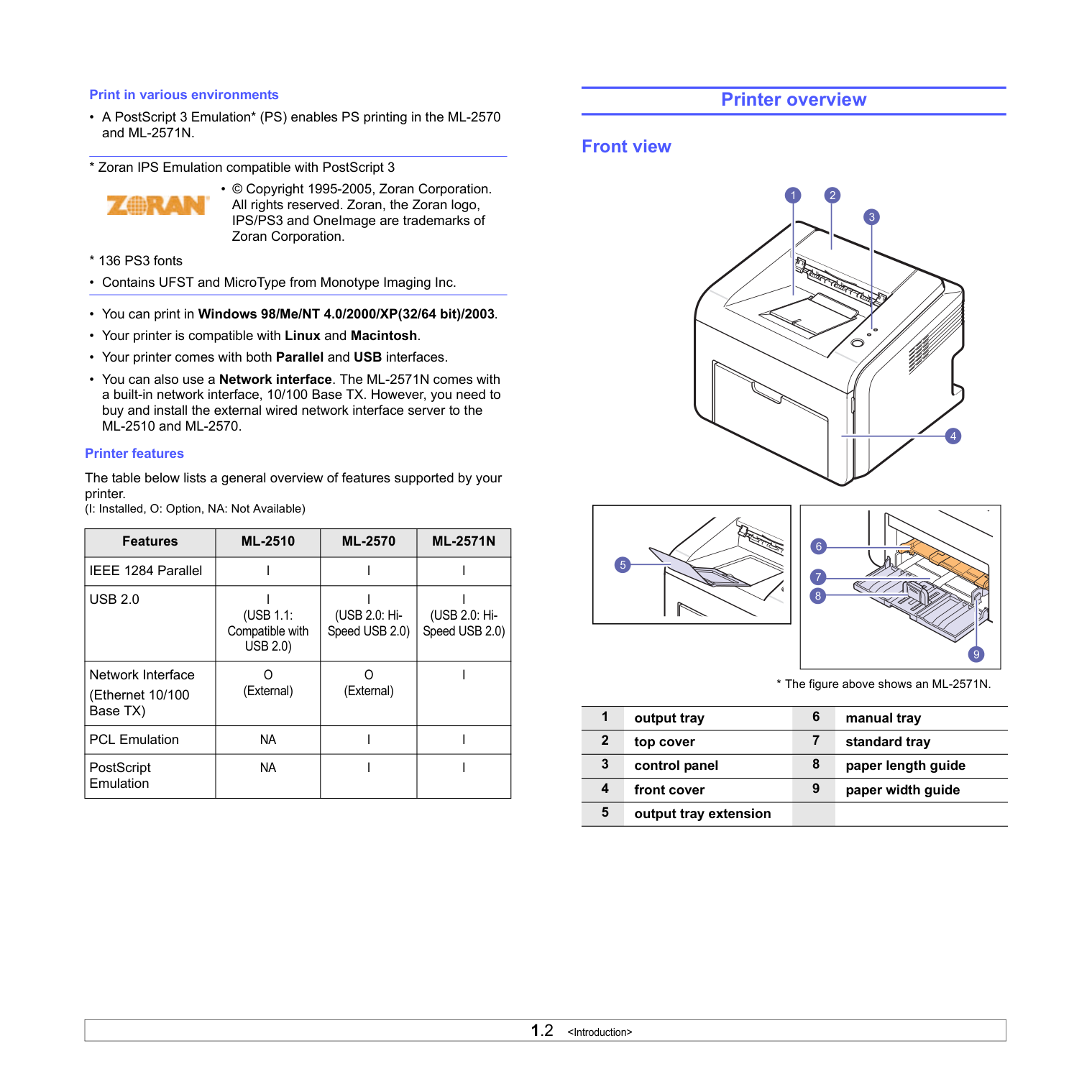
############## Front view
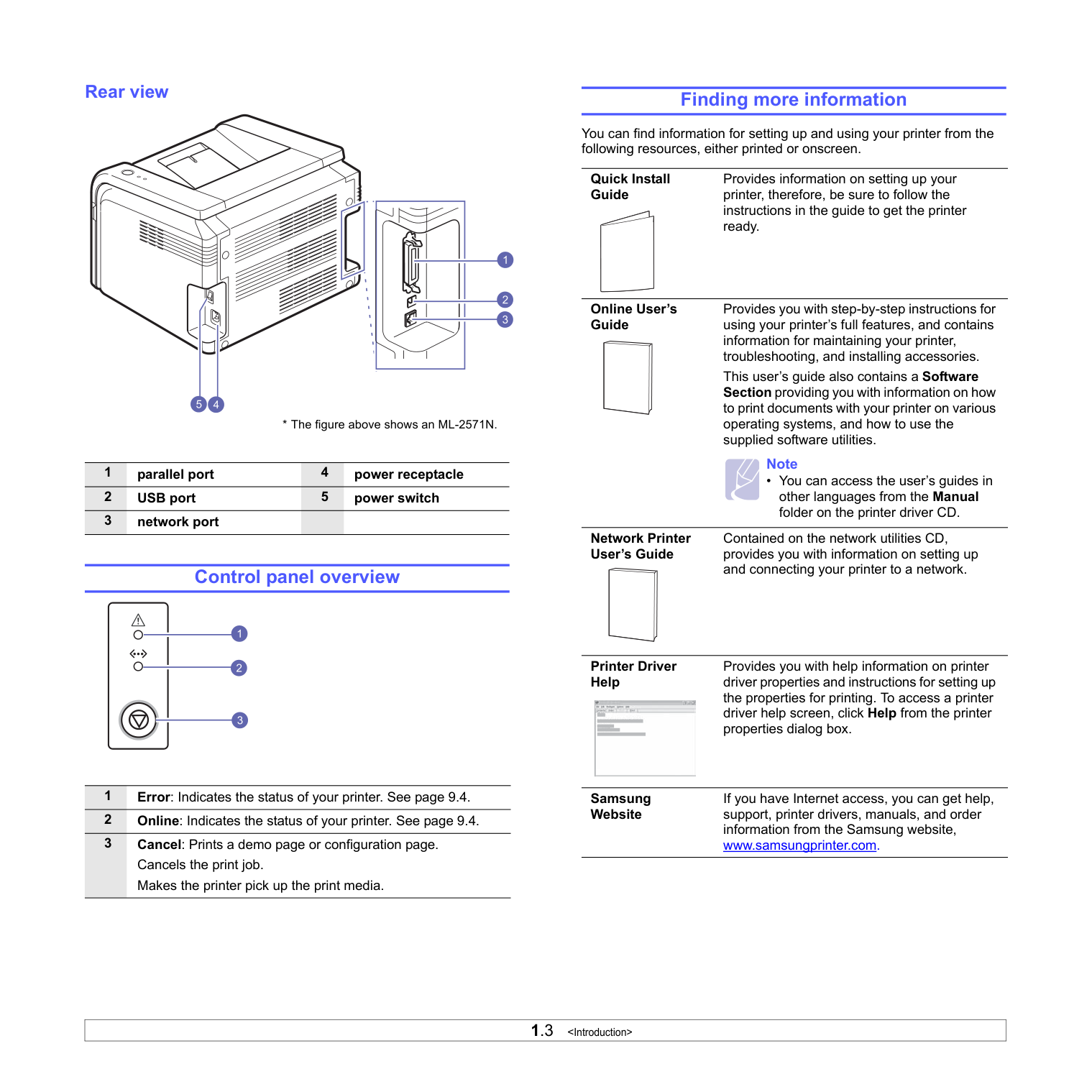
Rear view
Control panel overview
############ Finding more information
You can find information for setting up and using your printer from the following resources, either printed or onscreen.
Quick Install Guide
Online User’s Guide
Network Printer User’s Guide
Provides information on setting up your printer, therefore, be sure to follow the instructions in the guide to get the printer ready.
Provides you with step-by-step instructions for using your printer’s full features, and contains information for maintaining your printer, troubleshooting, and installing accessories. This user’s guide also contains a Software Section providing you with information on how to print documents with your printer on various operating systems, and how to use the supplied software utilities.
#################### Note
• You can access the user’s guides in other languages from the Manual folder on the printer driver CD.
Contained on the network utilities CD, provides you with information on setting up and connecting your printer to a network.
Printer Driver Help

Samsung Website
Provides you with help information on printer driver properties and instructions for setting up the properties for printing. To access a printer driver help screen, click Help from the printer properties dialog box.
If you have Internet access, you can get help, support, printer drivers, manuals, and order information from the Samsung website, www.samsungprinter.com.
############ Selecting a location
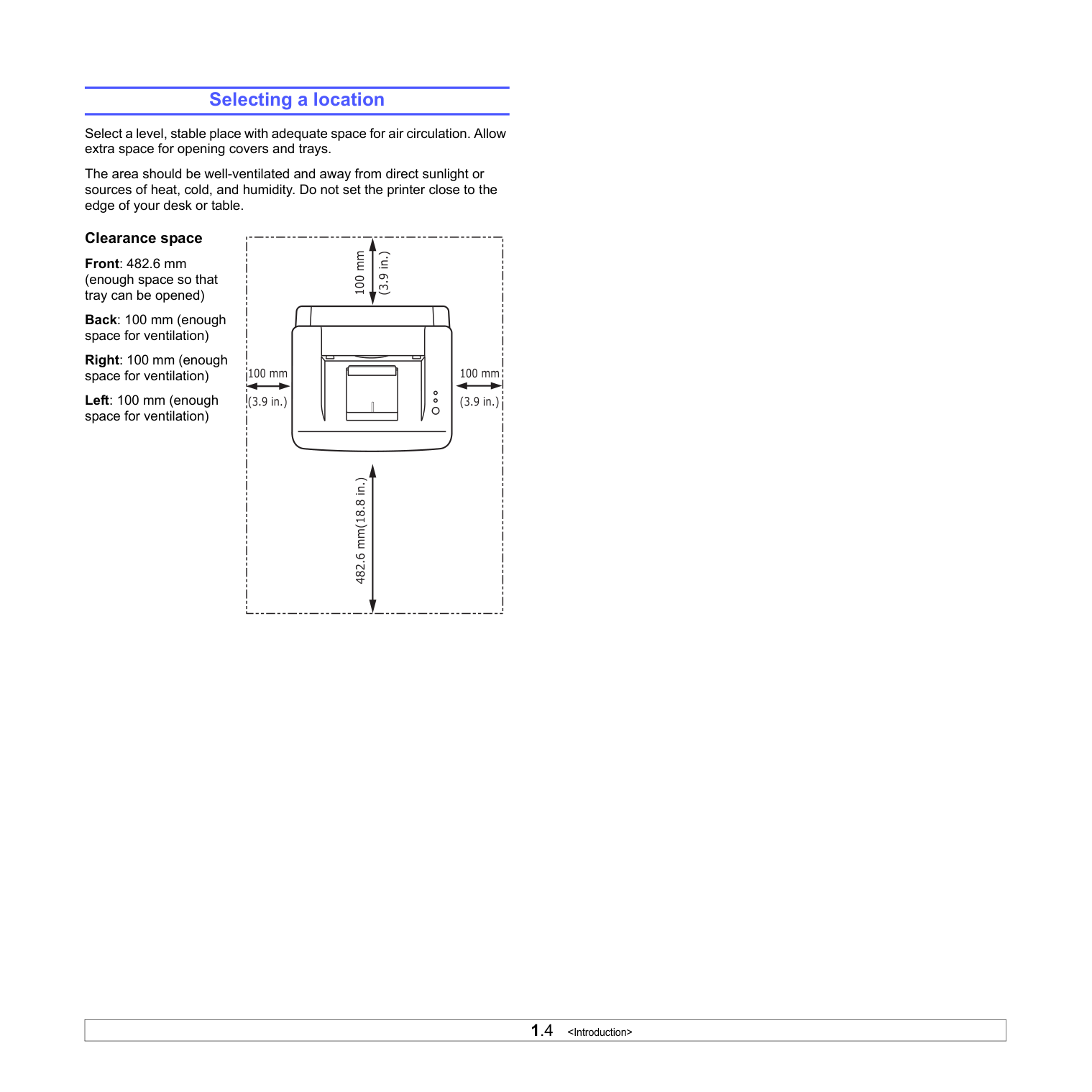
Select a level, stable place with adequate space for air circulation. Allow extra space for opening covers and trays.
The area should be well-ventilated and away from direct sunlight or sources of heat, cold, and humidity. Do not set the printer close to the edge of your desk or table.
Clearance space Front: 482.6 mm (enough space so that tray can be opened) Back: 100 mm (enough space for ventilation) Right: 100 mm (enough space for ventilation) Left: 100 mm (enough space for ventilation)
| | |---|
#### 2Basic setup
This chapter includes:
############ Printing a demo page
After setting up your printer, print a demo page to make sure that the printer is operating correctly.
Press and hold the Cancel button for about 2 seconds. A demo page prints out.
############ Using toner save mode
Toner save mode allows the printer to use less toner on each page. Activating this mode extends the life of your toner cartridge and reduces your cost per page beyond what one would experience in the normal mode, but it reduces print quality. This setting is not available with the 1200dpi (Best) setting.
You can set the toner save mode from the printer properties window on your printer driver. See the Software Section.
#### 3Software overview
This chapter gives you an overview of the software that comes with your printer. Further details about installing and using the software are explained in the Software Section.
This chapter includes:
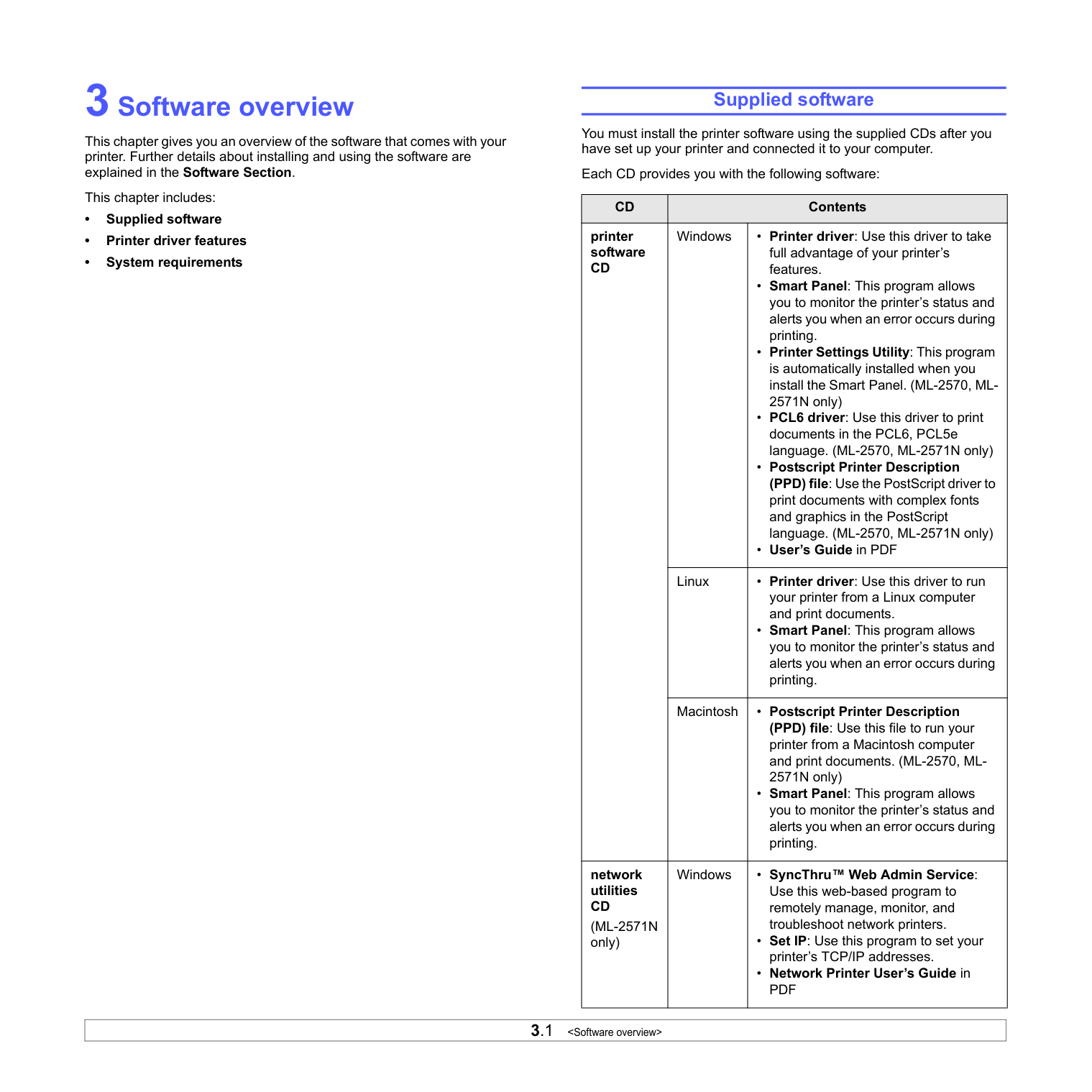
############ Supplied software
You must install the printer software using the supplied CDs after you have set up your printer and connected it to your computer.
Each CD provides you with the following software:
|CD|Contents|Contents| |---|---|---| |printer software CD|Windows|• Printer driver: Use this driver to take full advantage of your printer’s features.
• Smart Panel: This program allows you to monitor the printer’s status and alerts you when an error occurs during printing.
• Printer Settings Utility: This program is automatically installed when you install the Smart Panel. (ML-2570, ML2571N only)
• PCL6 driver: Use this driver to print documents in the PCL6, PCL5e language. (ML-2570, ML-2571N only)
• Postscript Printer Description (PPD) file: Use the PostScript driver to print documents with complex fonts and graphics in the PostScript language. (ML-2570, ML-2571N only)
• User’s Guide in PDF
| |printer software CD|Linux|• Printer driver: Use this driver to run your printer from a Linux computer and print documents.
• Smart Panel: This program allows you to monitor the printer’s status and alerts you when an error occurs during printing.
| |printer software CD|Macintosh|• Postscript Printer Description (PPD) file: Use this file to run your printer from a Macintosh computer and print documents. (ML-2570, ML2571N only)
• Smart Panel: This program allows you to monitor the printer’s status and alerts you when an error occurs during printing.
| |network utilities CD
(ML-2571N only)|Windows|• SyncThru™ Web Admin Service: Use this web-based program to remotely manage, monitor, and troubleshoot network printers.
• Set IP: Use this program to set your printer’s TCP/IP addresses.
• Network Printer User’s Guide in PDF
|
############ Printer driver features
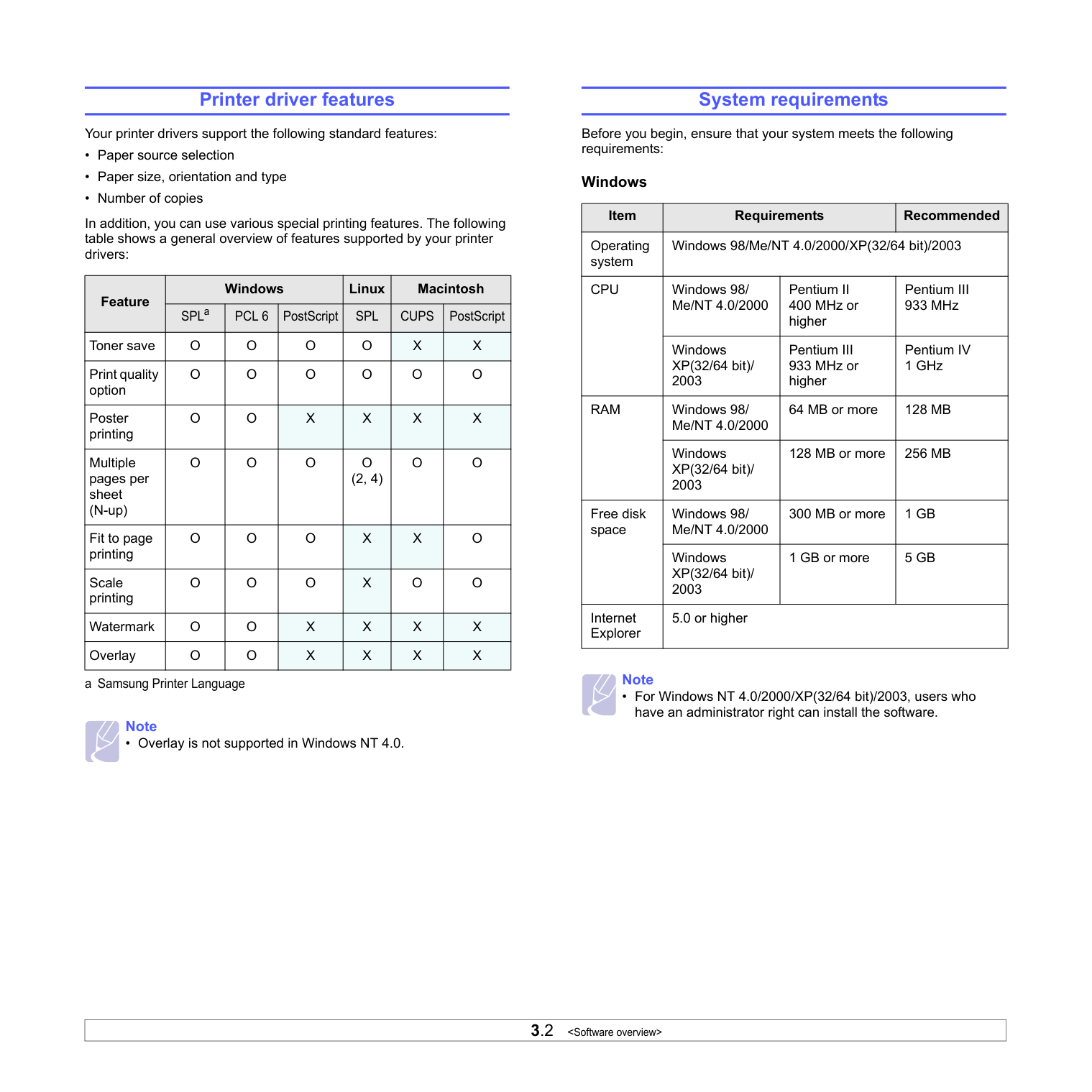
Your printer drivers support the following standard features:
In addition, you can use various special printing features. The following table shows a general overview of features supported by your printer drivers:
|Feature|Windows|Windows|Windows|Linux|Macintosh|Macintosh| |---|---|---|---|---|---|---| |Feature|SPLa|PCL 6|PostScript|SPL|CUPS|PostScript| |Toner save|O|O|O|O|X|X| |Print quality option|O|O| |O|O| | |Poster printing|O|O|X|X|X|X| |Multiple pages per sheet (N-up)|O|O| |O (2, 4)|O|O| |Fit to page printing|O|O| |X|X|O| |Scale printing|O|O| |X|O| | |Watermark|O|O|X|X|X|X| |Overlay|O|O|X|X|X|X|
a Samsung Printer Language
#################### Note
• Overlay is not supported in Windows NT 4.0.
############ System requirements
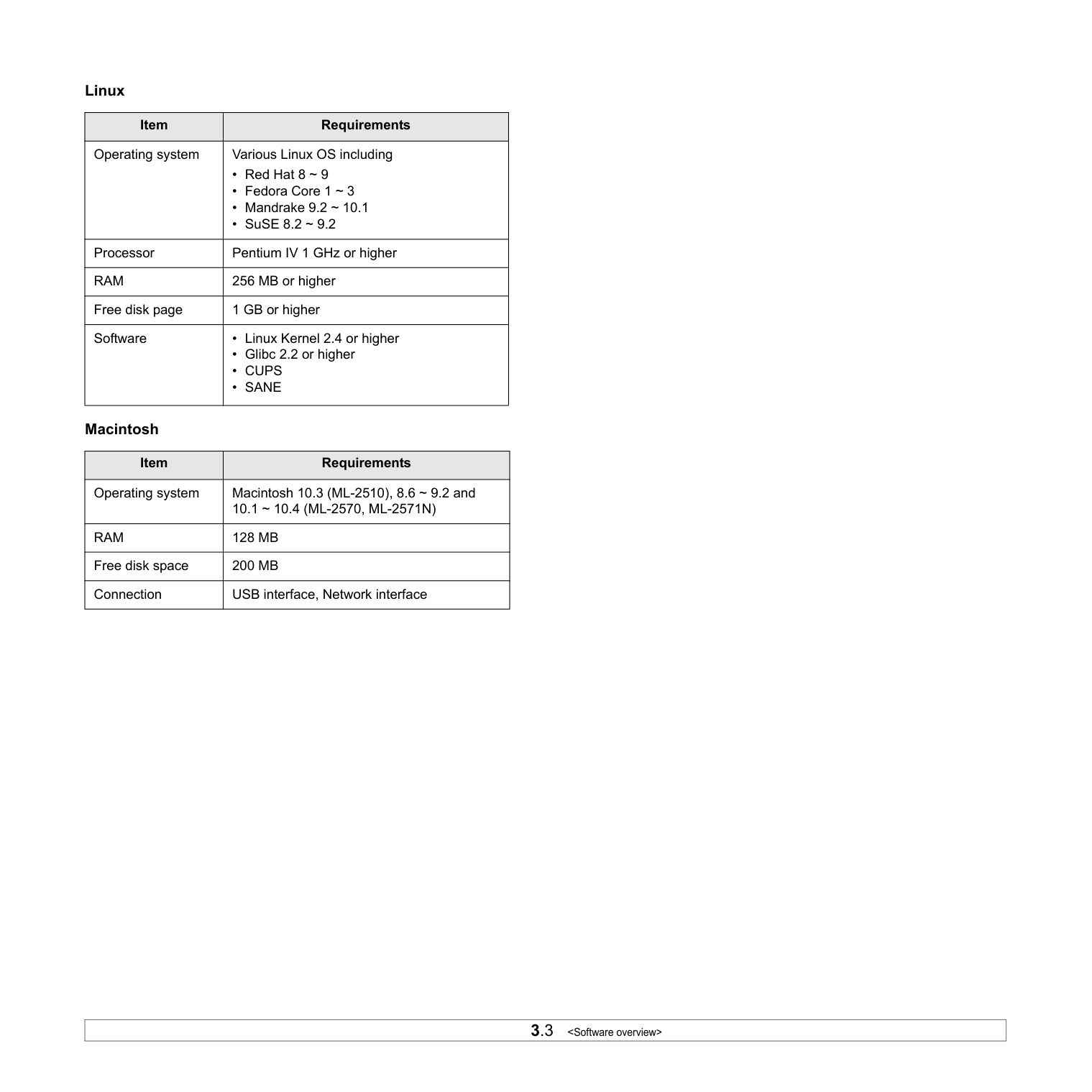
Before you begin, ensure that your system meets the following requirements:
################## Windows
|Item|Requirements|Requirements|Recommended| |---|---|---|---| |Operating system|Windows 98/Me/NT 4.0/2000/XP(32/64 bit)/2003|Windows 98/Me/NT 4.0/2000/XP(32/64 bit)/2003|Windows 98/Me/NT 4.0/2000/XP(32/64 bit)/2003| |CPU|Windows 98/ Me/NT 4.0/2000|Pentium II 400 MHz or higher|Pentium III 933 MHz| |CPU|Windows XP(32/64 bit)/ 2003|Pentium III 933 MHz or higher|Pentium IV 1GHz| |RAM|Windows 98/ Me/NT 4.0/2000|64 MB or more|128 MB| |RAM|Windows XP(32/64 bit)/ 2003|128MB or more|256MB| |Free disk space|Windows 98/ Me/NT 4.0/2000|300 MB or more|1 GB| |Free disk space|Windows XP(32/64 bit)/ 2003|1GB or more|5GB| |Internet Explorer|5.0 or higher|5.0 or higher|5.0 or higher|
#################### Note
• For Windows NT 4.0/2000/XP(32/64 bit)/2003, users who have an administrator right can install the software.
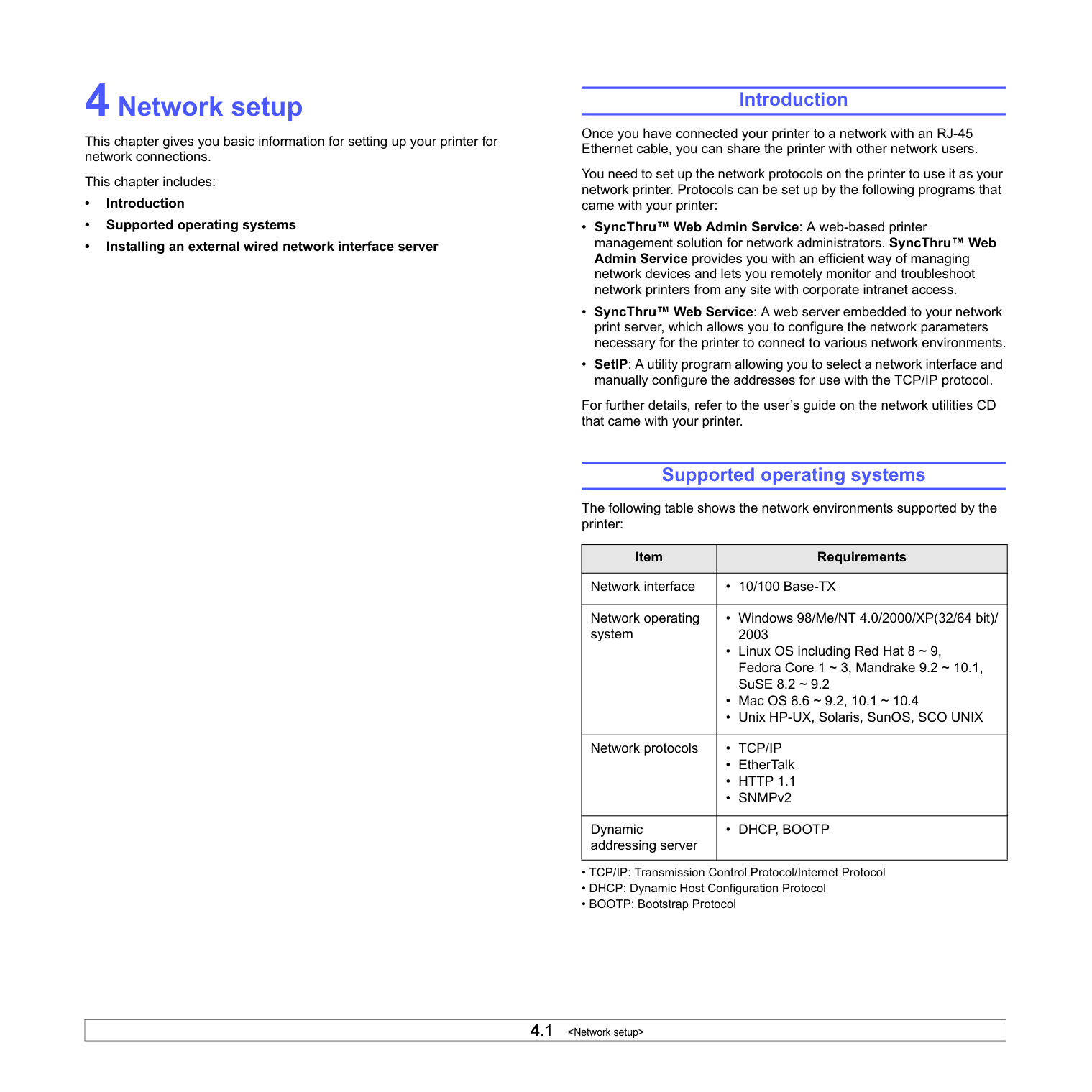
Linux
|Item|Requirements| |---|---| |Operating system|Various Linux OS including
• Red Hat 8 ~ 9
• Fedora Core 1 ~ 3
• Mandrake 9.2 ~ 10.1
• SuSE 8.2 ~ 9.2
| |Processor|Pentium IV 1 GHz or higher| |RAM|256 MB or higher| |Free disk page|1 GB or higher| |Software|• Linux Kernel 2.4 or higher
• Glibc 2.2 or higher
• CUPS
• SANE
|
Macintosh
|Item|Requirements| |---|---| |Operating system|Macintosh 10.3 (ML-2510), 8.6 ~ 9.2 and 10.1 ~ 10.4 (ML-2570, ML-2571N)| |RAM|128 MB| |Free disk space|200 MB|
|Connection|USB interface, Network interface|
#### 4Network setup
This chapter gives you basic information for setting up your printer for network connections.
This chapter includes:
############ Introduction
Once you have connected your printer to a network with an RJ-45 Ethernet cable, you can share the printer with other network users.
You need to set up the network protocols on the printer to use it as your network printer. Protocols can be set up by the following programs that came with your printer:
For further details, refer to the user’s guide on the network utilities CD that came with your printer.
############ Supported operating systems
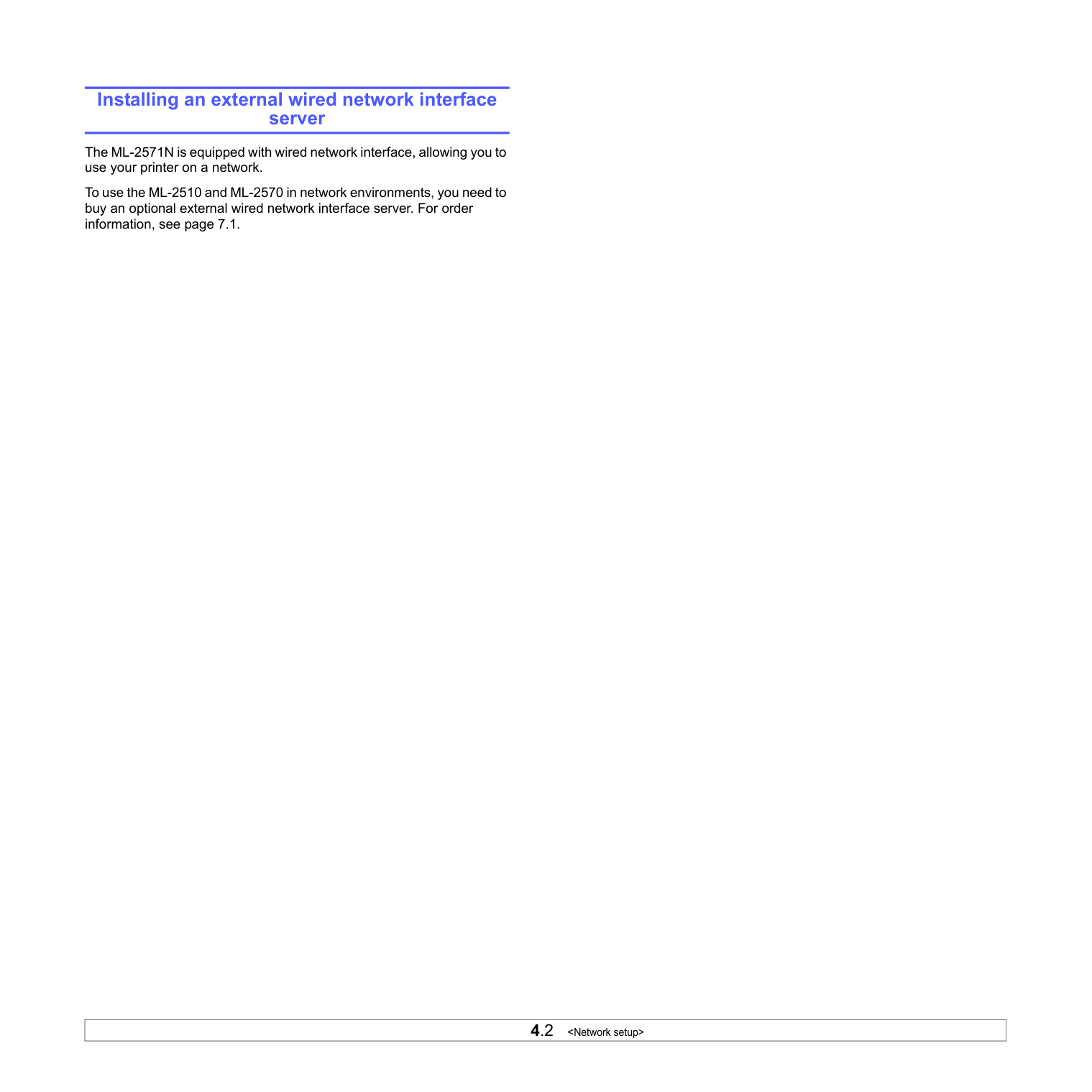
The following table shows the network environments supported by the printer:
|Item|Requirements| |---|---| |Network interface|• 10/100 Base-TX| |Network operating system|• Windows 98/Me/NT 4.0/2000/XP(32/64 bit)/ 2003
• Linux OS including Red Hat 8 ~ 9, Fedora Core 1 ~ 3, Mandrake 9.2 ~ 10.1, SuSE 8.2 ~ 9.2
• Mac OS 8.6 ~ 9.2, 10.1 ~ 10.4
• Unix HP-UX, Solaris, SunOS, SCO UNIX
|
|Network protocols|• TCP/IP
•EtherTalk
• HTTP 1.1
•SNMPv2
| |Dynamic addressing server|• DHCP, BOOTP|
############ Installing an external wired network interface server
The ML-2571N is equipped with wired network interface, allowing you to use your printer on a network.
To use the ML-2510 and ML-2570 in network environments, you need to buy an optional external wired network interface server. For order information, see page 7.1.
#### 5 Loading print media
This chapter will help you understand the types of paper you can use with your printer and how to properly load paper in the different paper trays for the best print quality.
This chapter includes:
############ Selecting print media
You can print on a variety of print media, such as plain paper, envelopes, labels, and transparencies. Always use print media that meet the guidelines for use with your printer. Print media that does not meet the guidelines outlined in this user’s guide may cause the following problems:
Properties, such as weight, composition, grain, and moisture content, are important factors that affect the printer’s performance and the output quality. When you choose print media, consider the following:
#################### Notes
#################### Caution
• Using print media that does not meet these specifications may cause problems, requiring repairs. Such repairs are not covered by Samsung’s warranty or service agreements.
############## Supported sizes of paper
|Type|Size|Dimensions|Weight|Capacitya| |---|---|---|---|---| |Plain paper|Letter|216 x 279 mm (8.5 x 11 inches)|• 16 to 24 lb (60 to 90 g/m2) for the tray with multi-pages feeding
• 16 to 43 lb (60 to 163 g/m2) for the tray with single page feeding and the manual tray
|• 250 sheets of 75 g/m2 (20 lb) paper for the standard tray
• 1 sheet of paper for the manual tray
| |Plain paper|Legal|216 x 356 mm (8.5 x 14 inches)|• 16 to 24 lb (60 to 90 g/m2) for the tray with multi-pages feeding
• 16 to 43 lb (60 to 163 g/m2) for the tray with single page feeding and the manual tray
|• 250 sheets of 75 g/m2 (20 lb) paper for the standard tray
• 1 sheet of paper for the manual tray
| |Plain paper|Folio|216 x 330.2 mm (8.5 x 13 inches)|• 16 to 24 lb (60 to 90 g/m2) for the tray with multi-pages feeding
• 16 to 43 lb (60 to 163 g/m2) for the tray with single page feeding and the manual tray
|• 250 sheets of 75 g/m2 (20 lb) paper for the standard tray
• 1 sheet of paper for the manual tray
| |Plain paper|Oficio|216 x 343 mm (8.5 x 13.5 inches)|• 16 to 24 lb (60 to 90 g/m2) for the tray with multi-pages feeding
• 16 to 43 lb (60 to 163 g/m2) for the tray with single page feeding and the manual tray
|• 250 sheets of 75 g/m2 (20 lb) paper for the standard tray
• 1 sheet of paper for the manual tray
| |Plain paper|A4|210 x 297 mm (8.27 x 11.69 inches)|• 16 to 24 lb (60 to 90 g/m2) for the tray with multi-pages feeding
• 16 to 43 lb (60 to 163 g/m2) for the tray with single page feeding and the manual tray
|• 250 sheets of 75 g/m2 (20 lb) paper for the standard tray
• 1 sheet of paper for the manual tray
| |Plain paper|JIS B5|182 x 257 mm (7.18 x 10.12 inches)|• 16 to 24 lb (60 to 90 g/m2) for the tray with multi-pages feeding
• 16 to 43 lb (60 to 163 g/m2) for the tray with single page feeding and the manual tray
|• 250 sheets of 75 g/m2 (20 lb) paper for the standard tray
• 1 sheet of paper for the manual tray
| |Plain paper|ISO B5|176 x 250 mm (6.93 x 9.84 inches)|• 16 to 24 lb (60 to 90 g/m2) for the tray with multi-pages feeding
• 16 to 43 lb (60 to 163 g/m2) for the tray with single page feeding and the manual tray
|• 250 sheets of 75 g/m2 (20 lb) paper for the standard tray
• 1 sheet of paper for the manual tray
| |Plain paper|Executive|184.2 x 266.7 mm (7.25 x 10.5 inches)|• 16 to 24 lb (60 to 90 g/m2) for the tray with multi-pages feeding
• 16 to 43 lb (60 to 163 g/m2) for the tray with single page feeding and the manual tray
|• 250 sheets of 75 g/m2 (20 lb) paper for the standard tray
• 1 sheet of paper for the manual tray
|
|Plain paper|A5|148.5 x 210 mm (5.85 x 8.27 inches)|• 16 to 24 lb (60 to 90 g/m2) for the tray with multi-pages feeding
• 16 to 43 lb (60 to 163 g/m2) for the tray with single page feeding and the manual tray
|• 250 sheets of 75 g/m2 (20 lb) paper for the standard tray
• 1 sheet of paper for the manual tray
| |Plain paper|A6|105 x 148.5 mm (4.13 x 5.85 inches)|• 16 to 24 lb (60 to 90 g/m2) for the tray with multi-pages feeding
• 16 to 43 lb (60 to 163 g/m2) for the tray with single page feeding and the manual tray
|• 250 sheets of 75 g/m2 (20 lb) paper for the standard tray
• 1 sheet of paper for the manual tray
| |Envelope|Envelope Monarch|98.4 x 190.5 mm (3.88 x 7.5 inches)|20 to 24 lb (75 to 90 g/m2)|1 sheet of paper for the manual tray| |Envelope|Envelope No.10|105 x 241 mm (4.12 x 9.5 inches)|20 to 24 lb (75 to 90 g/m2)|1 sheet of paper for the manual tray| |Envelope|Envelope DL|110 x 220 mm (4.33 x 8.66 inches)|20 to 24 lb (75 to 90 g/m2)|1 sheet of paper for the manual tray| |Envelope|Envelope C5|162 x 229 mm (6.38 x 9.02 inches)|20 to 24 lb (75 to 90 g/m2)|1 sheet of paper for the manual tray| |Envelope|Envelope C6|114 x 162 mm (4.49 x 6.38 inches)|20 to 24 lb (75 to 90 g/m2)|1 sheet of paper for the manual tray| |Transparency|Letter, A4|Refer to the Plain paper section|37 to 39 lb (138 to 146 g/m2)|1 sheet of paper for the manual tray| |Labels|Letter, A4|Refer to the Plain paper section|32 to 40 lb (120 to 150 g/m2)|1 sheet of paper for the manual tray| |Card stock|Letter, A4|Refer to the Plain paper section|24 to 43 lb (90 to 163 g/m2)|1 sheet of paper for the manual tray| |Minimum size (custom)|Minimum size (custom)|76 x 127 mm (3 x 5 inches)|16 to 43 lb (60 to 163 g/m2)|Refer to the above Capacity sections| |Maximum size (custom)|Maximum size (custom)|216 x 356 mm (8.5 x 14 inches)|16 to 43 lb (60 to 163 g/m2)|Refer to the above Capacity sections|
a. Maximum capacity may differ depending on print media weight, thickness and environmental conditions.
Print media for manual duplex printing
|Type|Size|Weight| |---|---|---| |Plain paper|A4, Letter, Oficio, Legal, and Folio|20 to 24 lb (75 to 90 g/m2)|
############## Guidelines for selecting and storing print media
When selecting or loading paper, envelopes, or other print media, keep these guidelines in mind:
CAUTION: If you print 20 envelopes in succession, the surface of the top cover may become hot. Please exercise caution.
################## Guidelines for special print media
|Type|Guidelines| |---|---| |Envelopes|• Successful printing on envelopes depends upon the quality of the envelopes. When selecting envelopes, consider the following factors:
- Weight: The weight of the envelope paper should not exceed 90 g/m2 (24 lb) or jamming may occur.
- Construction: Prior to printing, envelopes should lie flat with less than 6 mm (0.25 inches) curl, and should not contain air.
- Condition: Envelopes should not be wrinkled, nicked, or otherwise damaged.
- Temperature: You should use envelopes that are compatible with the heat and pressure of the printer during operation.
• Use only well-constructed envelopes with sharp and well creased folds.
• Do not use stamped envelopes.
• Do not use envelopes with clasps, snaps, windows, coated lining, self-adhesive seals, or other synthetic materials.
• Do not use damaged or poorly made envelopes.
• Be sure the seam at both ends of the envelope extends all the way to the corner of the envelope.
• Envelopes with a peel-off adhesive strip or with more than one flap that folds over to seal must use adhesives compatible with the printer’s fusing temperature of 180° C (356° F) for 0.1 second. The extra flaps and strips might cause wrinkling, creasing, or jams, and may even damage the fuser.
• For the best print quality, position margins no closer than 15 mm (0.6 inches) from the edges of the envelope.
• Avoid printing over the area where the envelope’s seams meet.
Acceptable
Unacceptable|
|Type|Guidelines| |---|---| |Transparencies|• To avoid damaging the printer, use only transparencies designed for use in laser printers.
• Transparencies used in the printer must be able to withstand 180° C (356° F), the printer’s fusing temperature.
• Place them on a flat surface after removing them from the printer.
• Do not leave them in the paper tray for long periods of time. Dust and dirt may accumulate on them, resulting in spotty printing.
• To avoid smudging caused by fingerprints, handle them carefully.
• To avoid fading, do not expose printed transparencies to prolonged sunlight.
• Ensure that transparencies are not wrinkled, curled, or have any torn edges.
| |Labels|• To avoid damaging the printer, use only labels designed for use in laser printers.
• When selecting labels, consider the following factors:
- Adhesives: The adhesive material should be stable at 180° C (356° F), the printer’s fusing temperature.
- Arrangement: Only use labels with no exposed backing between them. Labels can peel off sheets that have spaces between the labels, causing serious jams.
- Curl: Prior to printing, labels must lie flat with no more than 13 mm (5 inches) of curl in any direction.
- Condition: Do not use labels with wrinkles, bubbles, or other indications of separation.
• Make sure that there is no exposed adhesive material between labels. Exposed areas can cause labels to peel off during printing, which can cause paper jams. Exposed adhesive can also cause damage to printer components.
• Do not run a sheet of labels through the printer more than once. The adhesive backing is designed for only a single pass through the printer.
• Do not use labels that are separating from the backing sheet or are wrinkled, bubbled, or otherwise damaged.
| |Card stock or custom-sized materials|• Do not print on print media smaller than 76 mm (3 inches) wide or 127 mm (5 inches) long.
• In the software application, set margins at least 6.4 mm (0.25 inches) away from the edges of the material.
|
|Type|Guidelines| |---|---| |Preprinted paper|• Letterhead must be printed with heat-resistant ink that will not melt, vaporize, or release hazardous emissions when subjected to the printer’s fusing temperature of 180° C (356° F) for 0.1 second.
• Letterhead ink must be non-flammable and should not adversely affect printer rollers.
• Forms and letterhead should be sealed in a moisture-proof wrapping to prevent changes during storage.
• Before you load preprinted paper, such as forms and letterhead, verify that the ink on the paper is dry. During the fusing process, wet ink can come off preprinted paper, reducing print quality.
|
############ Loading paper
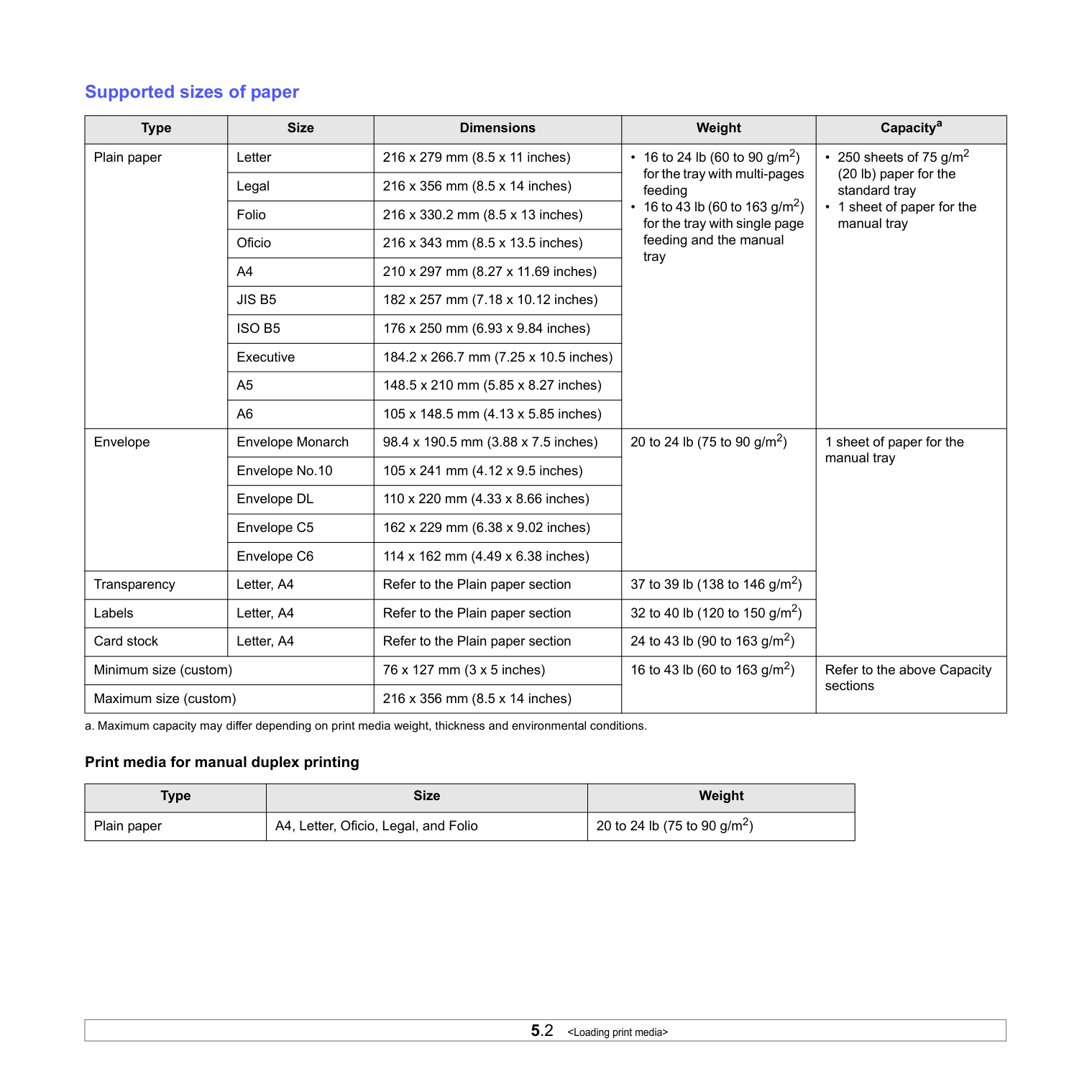
Load the print media you use for the majority of your print jobs in the tray. The tray can hold a maximum of 250 sheets of 75 g/m2 (20 lb) plain paper.
############## Using the standard tray
To load paper, open the tray and load paper with the side to be printed on facing up.
You can load letterhead paper with the design side face up. The top edge of the sheet with the logo should be entered into the printer first.
#################### Notes
############## Using the manual tray
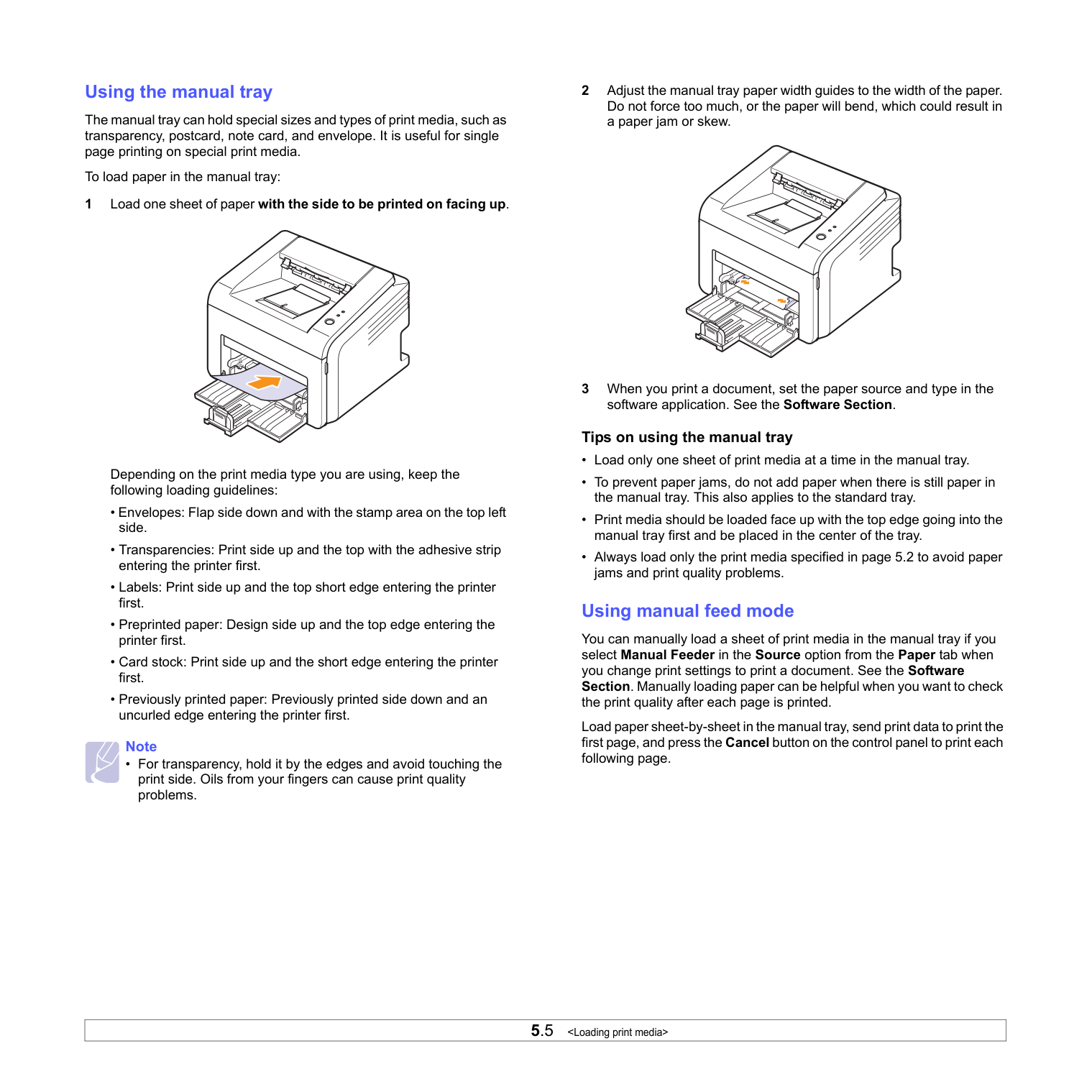
The manual tray can hold special sizes and types of print media, such as transparency, postcard, note card, and envelope. It is useful for single page printing on special print media.
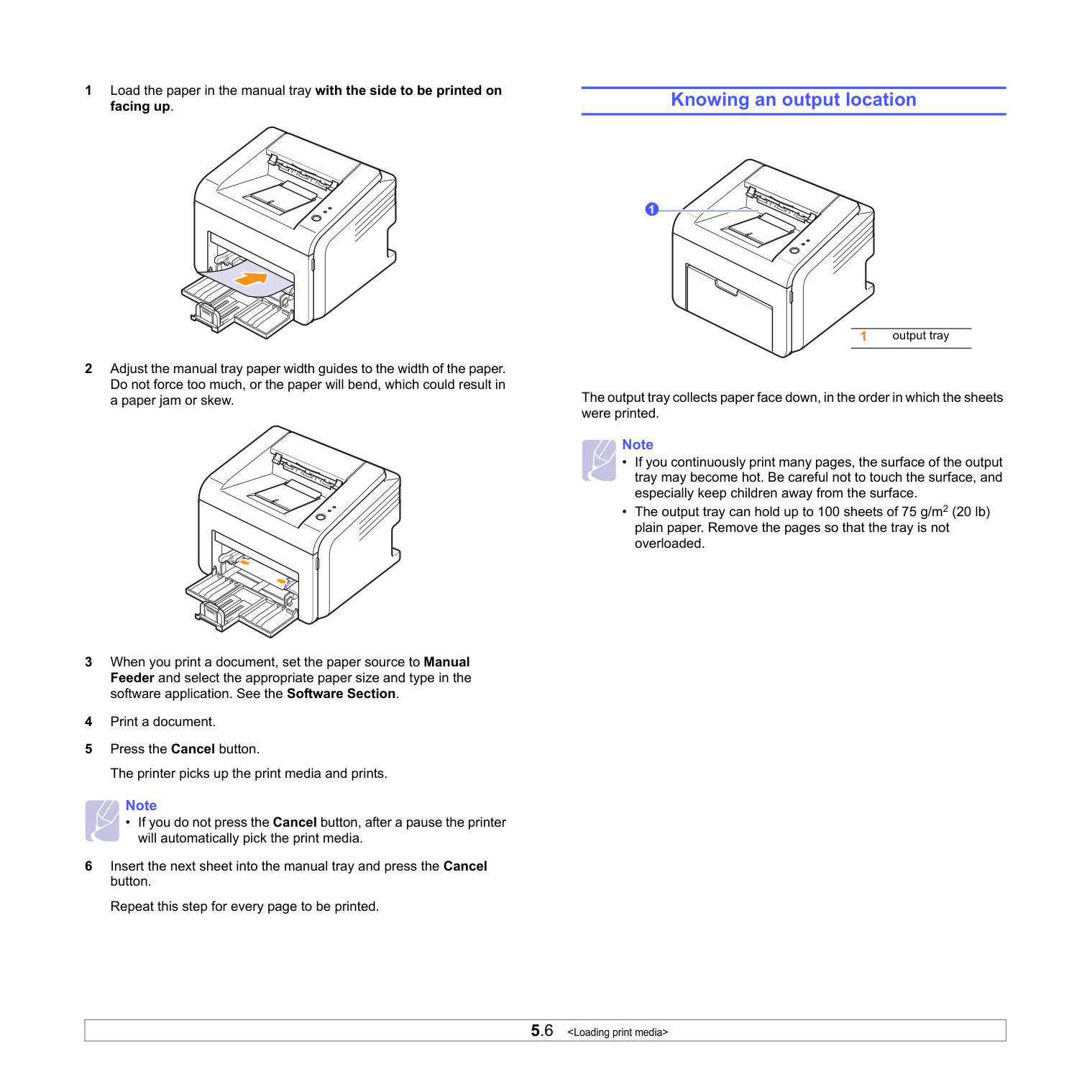
To load paper in the manual tray: 1 Load one sheet of paper with the side to be printed on facing up.
Depending on the print media type you are using, keep the following loading guidelines:
#################### Note
• For transparency, hold it by the edges and avoid touching the print side. Oils from your fingers can cause print quality problems.
################## Tips on using the manual tray
############## Using manual feed mode
You can manually load a sheet of print media in the manual tray if you select Manual Feeder in the Source option from the Paper tab when you change print settings to print a document. See the Software Section. Manually loading paper can be helpful when you want to check the print quality after each page is printed.
Load paper sheet-by-sheet in the manual tray, send print data to print the first page, and press the Cancel button on the control panel to print each following page.
#################### Note
• If you do not press the Cancel button, after a pause the printer will automatically pick the print media.
############ Knowing an output location
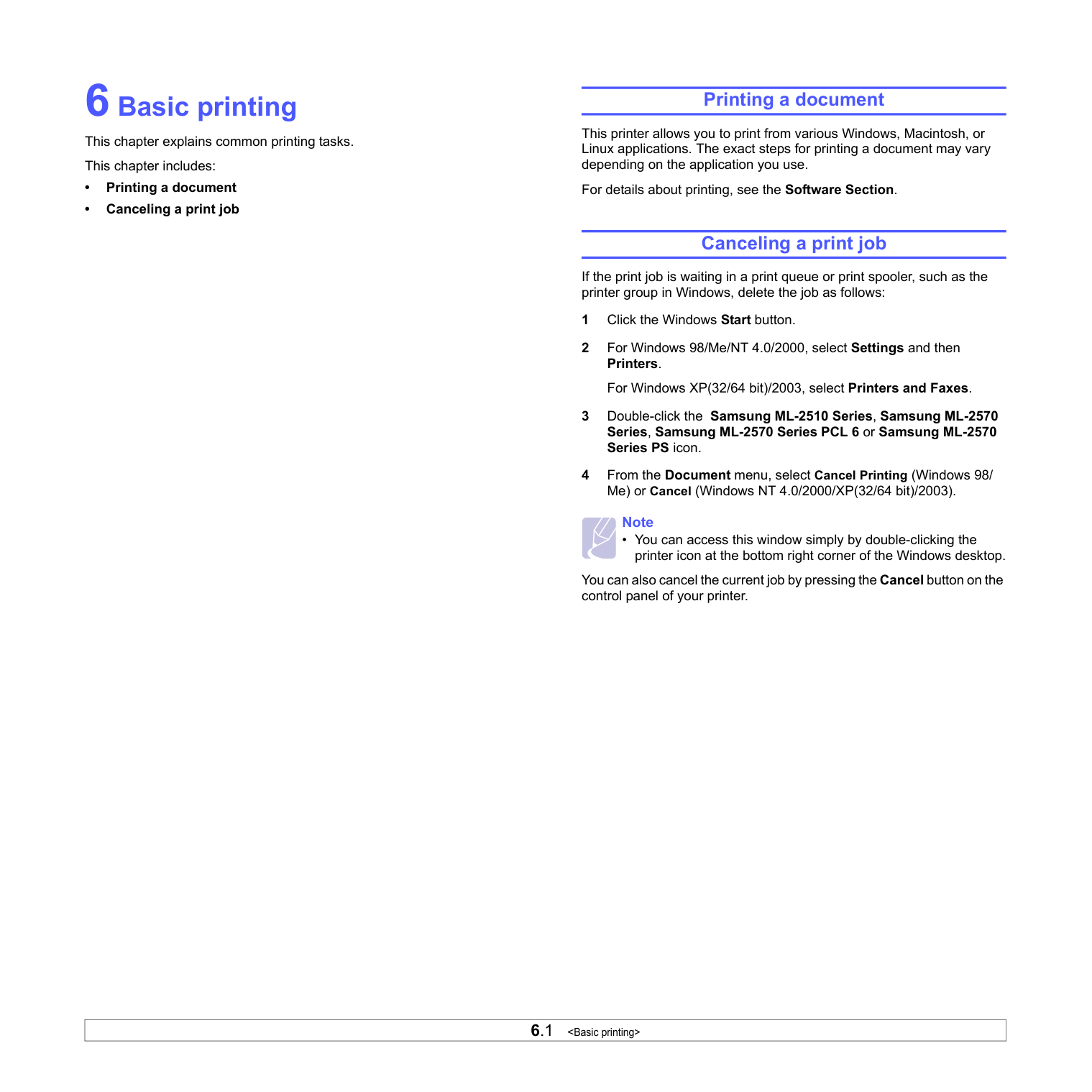
###################### 1
1 output tray
The output tray collects paper face down, in the order in which the sheets were printed.
#################### Note
6Basic printing This chapter explains common printing tasks. This chapter includes:
############ Printing a document
This printer allows you to print from various Windows, Macintosh, or Linux applications. The exact steps for printing a document may vary depending on the application you use.
For details about printing, see the Software Section.
############ Canceling a print job
If the print job is waiting in a print queue or print spooler, such as the printer group in Windows, delete the job as follows:
#################### Note
• You can access this window simply by double-clicking the printer icon at the bottom right corner of the Windows desktop.
You can also cancel the current job by pressing the Cancel button on the control panel of your printer.
#### 7Ordering supplies and
######## accessories
This chapter provides information on the toner cartridge and accessory that are available for your printer.
This chapter includes:
############ Toner cartridge
When the toner runs out, you can order the following type of toner cartridge for your printer:
|Type|Yielda|Part number| |---|---|---| |High yield|Approx. 3,000 pages|ML-2010D3|
a. ISO 19752 5% coverage
############ Accessory
You can purchase and install the following accessory to your ML-2510 and ML-2570 printer:
|Accessory|Description|Part number| |---|---|---| |Ethernet 10/100 Base TX external wired network interface server|Allows you to connect your printer to a network environment using the external wired network server.|ML-00ND|
############ How to purchase
To order Samsung-authorized supplies or accessories, contact your local Samsung dealer or the retailer where you purchased your printer, or visit www.samsungprinter.com and select your country/region for information on calling for technical support.
#### 8Maintenance
This chapter provides information for maintaining your printer and the toner cartridge.
This chapter includes:
############ Cleaning the printer
During the printing process, paper, toner, and dust particles can accumulate inside the printer. This buildup can cause print quality problems, such as toner specks or smearing.
#################### Caution
• Cleaning the cabinet of the printer with cleaning materials containing large amounts of alcohol, solvents, or other strong substances can discolor or crack the cabinet.
############## Cleaning the outside of the printer
Clean the cabinet of the printer with a soft, lint-free cloth. You can dampen the cloth slightly with water, but be careful not to let any water drip onto or into the printer.
############## Cleaning the inside of the printer
#################### Caution
#################### Caution
• While cleaning the inside of the printer, be careful not to reach too far into the printer. The fuser area may be hot.
#################### Note
• The long strip of glass is hard to locate.
Tabs on the sides of the cartridge and corresponding grooves within the printer will guide the cartridge into the correct position until it locks into place completely.
############ Maintaining the toner cartridge
################## Toner cartridge storage
To get the most from the toner cartridge, keep the following guidelines in mind:
################## Expected cartridge life
The life of the toner cartridge depends on the amount of toner that print jobs require. When printing text at ISO 19752 5% coverage, a new toner cartridge lasts an average of 3,000 pages. (The original toner cartridge supplied with the printer lasts an average of 1,000 pages.) The actual number may also be different depending on the print density of the pages you print on, and the number of pages may be affected by operating environment, printing interval, print media type, and print media size. If you print a lot of graphics, you may need to change the cartridge more often.
Redistributing toner cartridge When the toner cartridge is near the end of its life span:
If this happens, you can temporarily reestablish print quality by redistributing the remaining toner in the cartridge. In some cases, white streaks or light printing will still occur even after you have redistributed the toner.
#################### Caution
Tabs on the sides of the cartridge and corresponding grooves within the printer will guide the cartridge into the correct position until it locks into place completely.
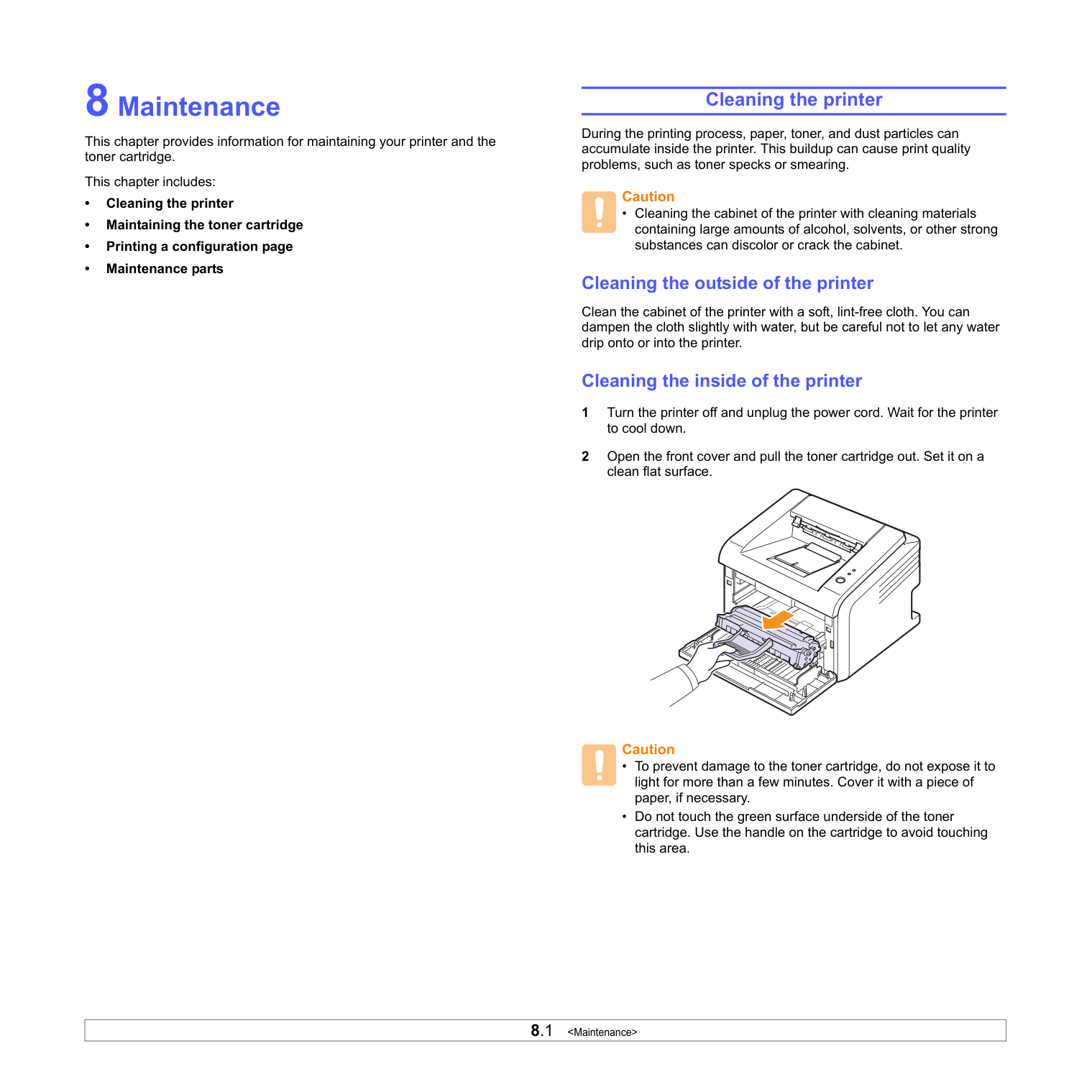
#################### Caution
• If toner gets on your clothing, wipe it off with a dry cloth and wash clothing in cold water. Hot water sets toner into fabric.
#################### Note
• At this stage, if you need to replace the toner cartridge, see page 8.4.
############## Replacing the toner cartridge
When the toner is completely empty or the toner cartridge reachde the end of its life span:
#################### Caution
• Do not use sharp objects, such as a knife or scissors, to open the toner cartridge package. They might scratch the drum of the cartridge.
Thoroughly shake the cartridge to assure maximum copies per cartridge.
Tabs on the sides of the cartridge and corresponding grooves within the printer will guide the cartridge into the correct position until it locks into place completely.
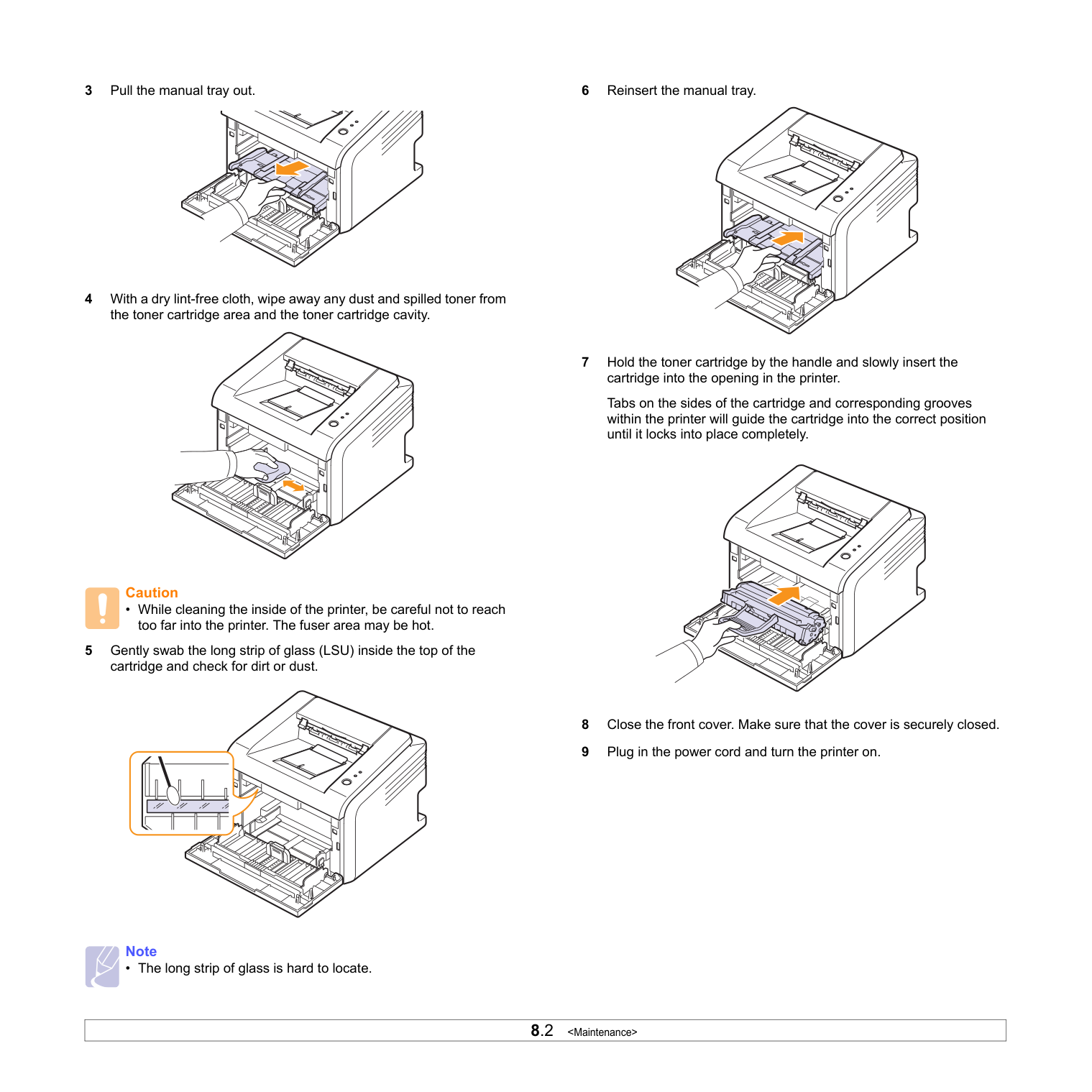
#################### Note
Caution
############ Printing a configuration page
You can print a configuration page to view current printer settings, or to help troubleshoot printer problems.
Press and hold the Cancel button for about 5 seconds. A configuration page prints out.
############ Maintenance parts
To avoid print quality and paper feed problems resulting from worn parts and to maintain your printer in top working condition, the following items will need to be replaced when the specified number of pages have been printed or when the life span of each item has expired.
|Items|Yield (Average)| |---|---| |Transfer roller|Approx. 50,000 pages| |Fuser unit|Approx. 50,000 pages| |Pick-up roller|Approx. 50,000 pages|
Samsung highly recommends that an authorized service provider, dealer or the retailer where you bought the printer replaces the items.
#### 9Troubleshooting
This chapter provides helpful information for what to do if you encounter an error while using your printer.
This chapter includes:
############ Clearing paper jams
#################### Note
• When removing paper that is jammed in the printer, if possible always pull the paper in the direction that it normally moves so as not to damage internal components. Always pull firmly and evenly; do not jerk the paper. If the paper tears, ensure that all fragments of paper are removed; otherwise a jam will occur again.
When a paper jam occurs, the Error LED lights red. Open and close the front cover. The jammed paper automatically exits the printer.
############## In the paper feed area In the standard tray
If the paper does not move when you pull, or if you do not see the paper in this area, check the fuser area around the toner cartridge. See page 9.2.
################## In the manual tray
If the paper does not move when you pull, or if you do not see the paper in this area, check the fuser area around the toner cartridge. See page 9.2.
############## Around the toner cartridge
#################### Note
• The fuser area is hot. Be careful when removing paper from the printer.
1 Open the front cover and pull the toner cartridge out.
#################### Caution
If you do not see the jammed paper or if there is any resistance removing the paper, stop pulling and go to the paper exit area. See page 9.3.
############## In the paper exit area
If you do not see the jammed paper or if there is any resistance when you pull, stop pulling and go to the next step.
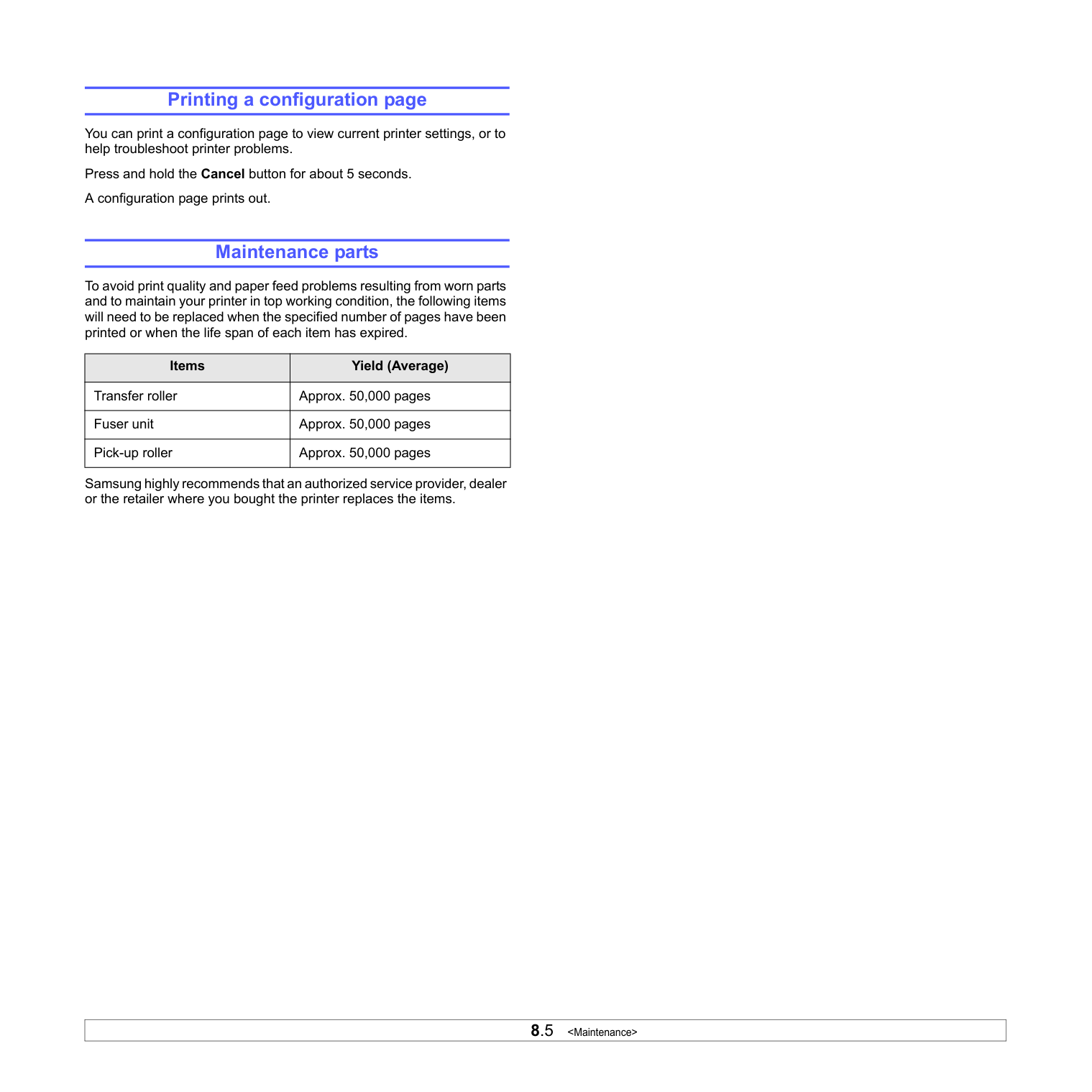
#################### Caution
############## Tips for avoiding paper jams
By selecting the correct print media types, most paper jams can be avoided. When a paper jam occurs, follow the steps outlined on page 9.1.
############ Troubleshooting checklist
If the printer is not working properly, consult the following checklist. If the printer does not pass a step, follow the corresponding suggested solutions.
|Condition|Suggested solutions| |---|---| |Make sure that the Online LED on the control panel lights green.|• If the Online LED is off, check the power cord connection. Check the power switch. Check the power source by plugging the power cord into another outlet.| |Print a demo page to verify that the printer is feeding paper correctly. See page 2.1.|• If a demo page does not print, check the paper supply in the tray.
• If the paper jams in the printer, see page 9.1.
| |Check the demo page to see if it printed correctly.|If there is a print quality problem, see page 9.7.|
|Print a short document from a software application to verify that the computer and printer are connected and are communicating correctly.|• If the page does not print, check the cable connection between the printer and the computer.
• Check the print queue or print spooler to see if the printer has been paused.
• Check the software application to ensure that you are using the proper printer driver and communication port. If the page is interrupted during printing, see page 9.5.
| |If completing the checklist does not resolve the printer problem, check the following troubleshooting sections.|• “Understanding the LEDs” on page 9.4.
• “Solving general printing problems” on page 9.5.
• “Common Windows problems” on page 9.9.
• “Common PostScript problems” on page
9.9.
• “Common Linux problems” on page 9.10.
• “Common Macintosh problems” on page
9.10.
|
############ Understanding the LEDs
|LED|Status|Status|Description| |---|---|---|---| |Error|Red|On|• A paper jam has occurred. To solve the problem, see page 9.1.
• The cover is open. Close the cover.
• There is no paper in the tray. Load paper in the tray.
• The printer has stopped printing due to a major error.
• The toner cartridge is not installed. Install the toner cartridge.
• Your system has some problems. If this problem occurs, contact your service representative.
| |Error|Red|Blinking|• A minor error is occurring and the printer is waiting for the error to be cleared. When the problem is cleared, the printer resumes printing.
• The toner cartridge is low. Order a new toner cartridge. You can temporarily improve print quality by redistributing the toner. See page 8.3.
• The toner is totally exhausted. Remove the old toner cartridge and install a new one. See page 8.4.
• The toner cartridge reached the end of its life.
| |Online|Green|On|• The printer is in power save mode.
• The printer is on-line and can receive data from the computer.
| |Online|Green|Blinking|• Blinks slowly indicates that the printer is receiving data from the computer.
• Blinks quickly indicates that the printer is printing data.
|
############ Solving general printing problems
For problems with the operation of your printer, refer to the table for suggested solutions.
|Condition|Possible cause|Suggested solutions| |---|---|---| |The printer does not print.|The printer is not receiving power.|Check the power cord connections. Check the power switch and the power source.| |The printer does not print.|The printer is not selected as the default printer.|Select Samsung ML-2510 Series, Samsung ML-2570 Series, Samsung ML-2570 Series PCL 6 or Samsung ML2570 Series PS as your default printer.| |The printer does not print.|The printer cover is not closed.|Close the printer cover.| |The printer does not print.|Paper is jammed.|Clear the paper jam. See page 9.1.| |The printer does not print.|No paper is loaded.|Load paper. See page 5.4.| |The printer does not print.|The toner cartridge is not installed.|Install the toner cartridge.| |The printer does not print.|The printer may be in manual feed mode and out of paper.|Add paper to the manual tray, and press the Cancel button on the control panel.| |The printer does not print.|The connection cable between the computer and the printer is not connected properly.|Disconnect the printer cable and reconnect it.| |The printer does not print.|The connection cable between the computer and the printer is defective.|If possible, attach the cable to another computer that is working properly and try to print a document. You can also try using a different printer cable.| |The printer does not print.|The port setting is incorrect.|Check the Windows printer setting to make sure that the print job is sent to the correct port. If the computer has more than one port, make sure that the printer is attached to the correct one.|
|Condition|Possible cause|Suggested solutions| |---|---|---| |The printer does not print. (Continued)|The printer may be configured incorrectly.|Check the printer properties to ensure that all of the print settings are correct.|
|The printer does not print. (Continued)|The printer driver may be incorrectly installed.|Reinstall the printer driver; See the Software Section. Try printing a test page.| |The printer does not print. (Continued)|The printer is malfunctioning.|Check the LEDs on the control panel to determine if the printer is indicating a system error.| |Printer selects print media from the wrong paper source.|The paper source selection in the printer properties may be incorrect.|For many software applications, the paper source selection is found under the Paper tab within the printer properties. Select the correct paper source. See the Software Section.| |Paper does not feed into the printer.|Paper has not been loaded correctly.|Remove paper from the tray and reload it correctly. Check that the adjustable guides are set correctly.| |Paper does not feed into the printer.|There is too much paper in the tray.|Remove excess paper from the tray.| |Paper does not feed into the printer.|The paper is too thick.|Use only paper that meets printer specifications.| |Print job is extremely slow.|The job may be very complex.|Reduce the complexity of the page(s) or try adjusting the print quality settings. To adjust the print quality settings, reduce the resolution. If you have set the resolution to 1200 dpi (Best), change it to 600 dpi (Normal). See the Software Section.
Change the port setting to the USB or network port to improve print speed.
Your printer prints A4-sized paper at 24 ppm and lettersized paper at 25 ppm.|
|Condition|Possible cause|Suggested solutions| |---|---|---| |Print job is extremely slow. (Continued)|If using Windows 98/Me, the Spooling Setting may be set incorrectly.|From the Start menu, choose Settings and Printers. Rightclick the Samsung ML-2510
Series, Samsung ML-2570 Series, Samsung ML-2570 Series PCL 6, or Samsung ML2570 Series PS printer icon, choose Properties, click the Details tab, and then choose the Spool Settings button. Select the desired spool setting.| |Print job is extremely slow. (Continued)|The computer may have insufficient random-access memory (RAM).|Simplify the page layout and remove any unnecessary graphics from the document.| |Half the page is blank.|The page layout is too complex.|Simplify the page layout and remove any unnecessary graphics from the document.| |Half the page is blank.|The page orientation setting may be incorrect.|Change the page orientation in your application. See the Software Section.| |Half the page is blank.|The paper size and the paper size settings do not match.|Ensure that the paper size in the printer driver settings matches the paper in the tray. Or, ensure that the paper size in the printer driver settings matches the paper selection in the software application settings you use.| |The paper keeps jamming.|There is too much paper in the tray.|Remove excess paper from the tray. If printing on special print media, use the manual tray.| |The paper keeps jamming.|An incorrect type of paper is being used.|Use only paper that meets printer specifications. If printing on special print media, use the manual tray.| |The paper keeps jamming.|There may be debris inside the printer.|Open the front cover and remove the debris.|
|Condition|Possible cause|Suggested solutions| |---|---|---| |The printer prints, but the text is wrong, garbled, or incomplete.|The printer cable is loose or defective.|Disconnect and reconnect the printer cable. Try a print job that you have already printed successfully. If possible, attach the cable and printer to another computer and try a print job that you know works. Finally, try a new printer cable.| |The printer prints, but the text is wrong, garbled, or incomplete.|The wrong printer driver was selected.|Check the application’s printer selection menu to ensure that your printer is selected.| |The printer prints, but the text is wrong, garbled, or incomplete.|The software application is malfunctioning.|Try printing a job from another application.| |The printer prints, but the text is wrong, garbled, or incomplete.|The operating system is malfunctioning.|If printing from Windows (any version), exit to a DOS prompt and verify functionality with the following command: At a C:\ prompt, type Dir LPT1, and press Enter. (This assumes you are connected to LPT1.) Exit Windows and reboot the computer. Turn the printer off and then back on again.| |Pages print, but are blank.|The toner cartridge is defective or out of toner.|Redistribute the toner
cartridge. See page 8.3. If necessary, replace the toner
cartridge. See page 8.4.
| |Pages print, but are blank.|The file may have blank pages.|Check the file to ensure that it does not contain blank pages.| |Pages print, but are blank.|Some parts, such as the controller or the board, may be defective.|Contact a service representative.| |The illustrations print incorrectly in Adobe Illustrator.|The setting in the software application is wrong.|Select Download as Bitmap in the Advanced Options window of the graphic properties. Print the document again.|
############ Solving print quality problems
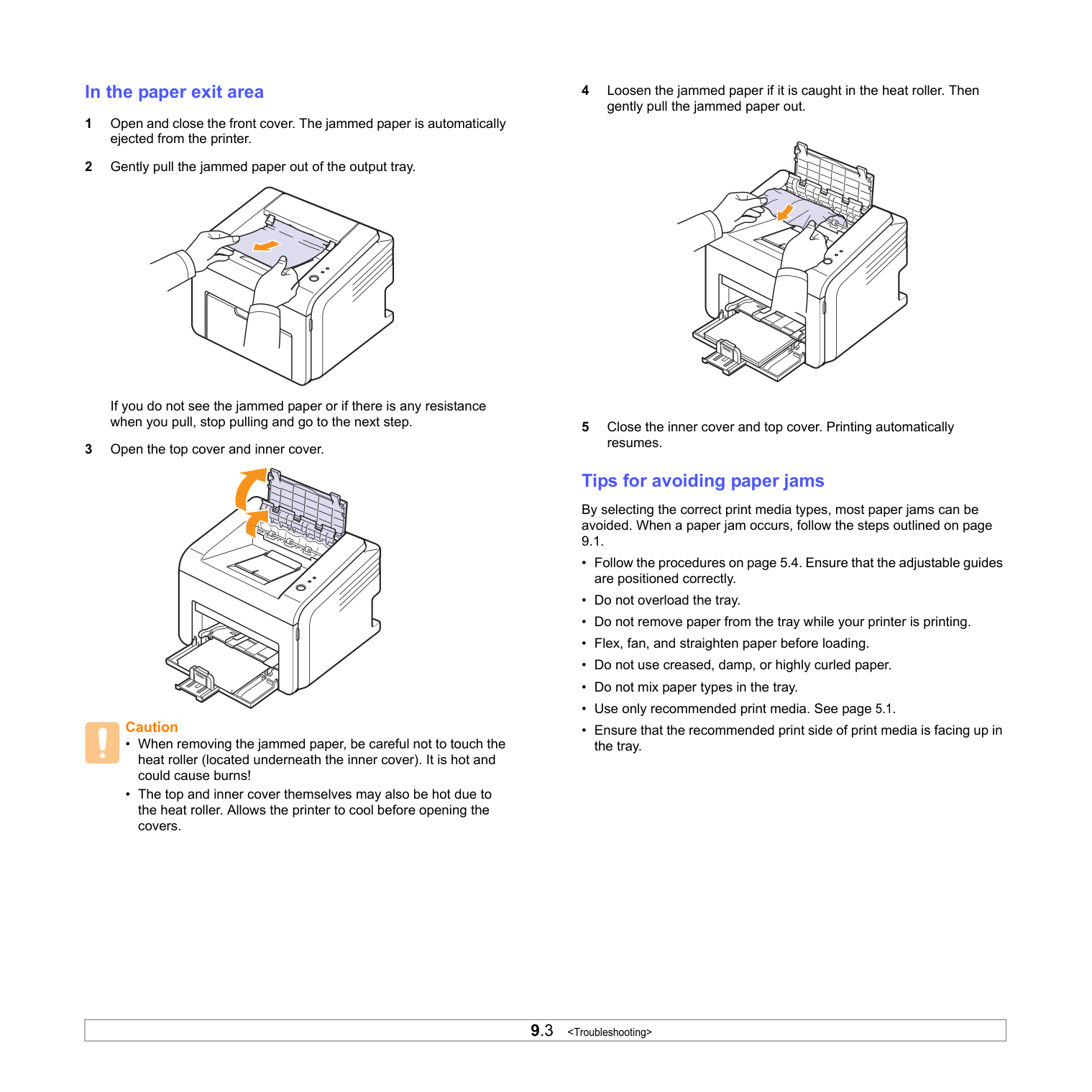
Dirt inside of the printer or improper paper loading may reduce print quality. See the table below to troubleshoot problems.
|Condition|Suggested solutions| |---|---| |Light or faded print
| | |---| |If a vertical white streak or faded area appears on the page:
• The toner supply is low. You may be able to temporarily extend the toner cartridge life. See page 8.3. If this does not improve print quality, install a new toner cartridge.
• The paper may not meet paper specifications (for example, the paper is too moist or too rough). See page 5.3.
• If the entire page is light, the print resolution setting is too light or toner save mode is on. Adjust the print resolution and toner save mode in the printer properties. See the Software Section.
• A combination of faded or smeared defects may indicate that the printer needs cleaning. See page 8.1.
• The surface of LSU may be dirty. Clean the LSU. See page 8.2.
| |Toner spots
| | |---| |• The paper may not meet specifications (for example, the paper is too moist or too rough). See page 5.3.
• The transfer roller or paper path may be dirty. See page 8.1.
| |Dropouts
| | |---| |If generally rounded, faded areas occur randomly on the page:
• A single sheet of paper may be defective. Try reprinting the job.
• The moisture content of the paper is uneven or the paper has moist spots on its surface. Try a different brand of paper. See page 5.3.
• The paper lot is bad. The manufacturing processes can cause some areas to reject toner. Try a different kind or brand of paper.
• The toner cartridge may be defective. See “Vertical repetitive defects” on the next column.
• If these steps do not correct the problems, contact a service representative.
|
|Condition|Suggested solutions| |---|---| |Vertical lines
| | | |---|---| | | | |If black vertical streaks appear on the page:
• The drum inside the toner cartridge has probably been scratched. Install a new toner cartridge. See page 8.4.
If white vertical streaks appear on the page:
• The surface of the LSU part inside the printer may be dirty. Clean the LSU. See page 8.2.| |Gray background
| | |---| |If the amount of background shading becomes unacceptable, the procedures below may fix the problem.
• Change to lighter weight pages. See page 5.3.
• Check the printer’s environment; low humidity (lower than 20% RH) or high humidity (higher than 80% RH) conditions can increase the amount of background shading.
• Remove the old toner cartridge and install a new one. See page 8.4.
| |Toner smear
| | |---| |• Clean the inside of the printer. See page 8.1.
• Check the paper type and quality. See page 5.2.
• Remove the toner cartridge and install a new one. See page 8.4.
| |Vertical repetitive defects
| | |---| |If marks repeatedly appear on the printed side of the page at even intervals:
• The toner cartridge may be damaged. If a repetitive mark occurs on the page, install a new toner cartridge. See page 8.4.
• Parts of the printer may have toner on them. If the defects occur on the back of the page, the problem will likely correct itself after a few more pages.
• The fusing assembly may be damaged. Contact a service representative.
|
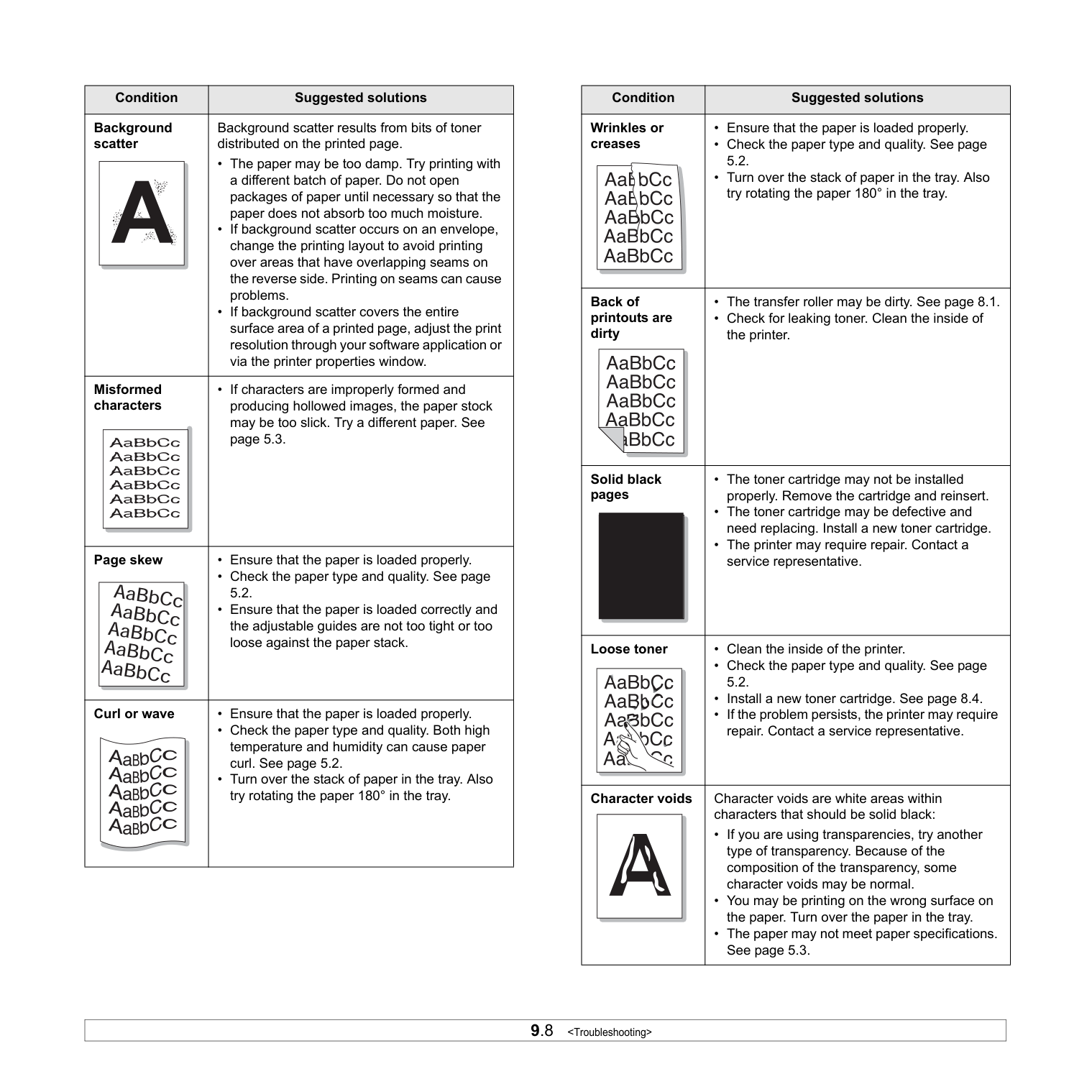
|Condition|Suggested solutions| |---|---| |Background scatter
| |
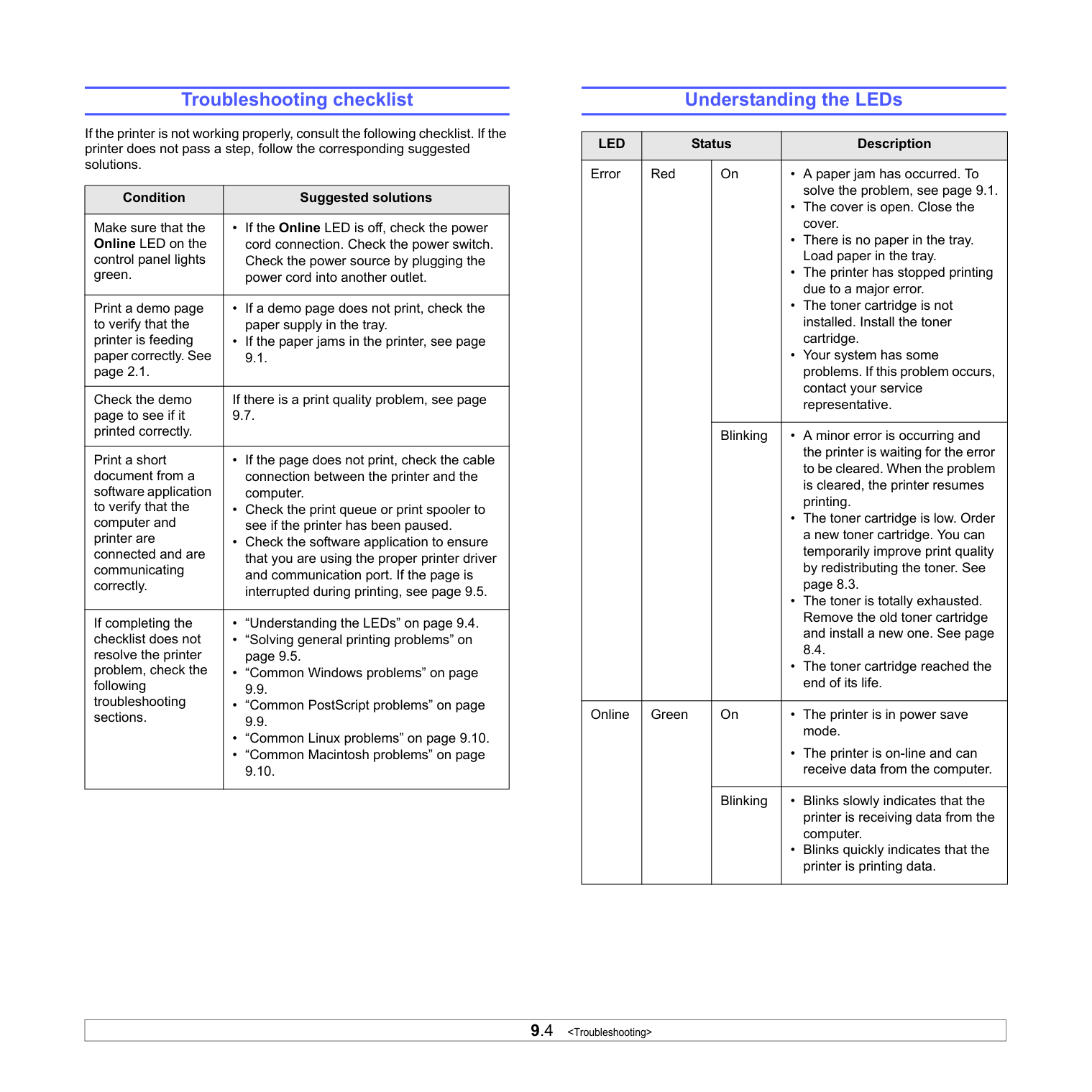
|---| |Background scatter results from bits of toner distributed on the printed page.
• The paper may be too damp. Try printing with a different batch of paper. Do not open packages of paper until necessary so that the paper does not absorb too much moisture.
• If background scatter occurs on an envelope, change the printing layout to avoid printing over areas that have overlapping seams on the reverse side. Printing on seams can cause problems.
• If background scatter covers the entire surface area of a printed page, adjust the print resolution through your software application or via the printer properties window.
| |Misformed characters
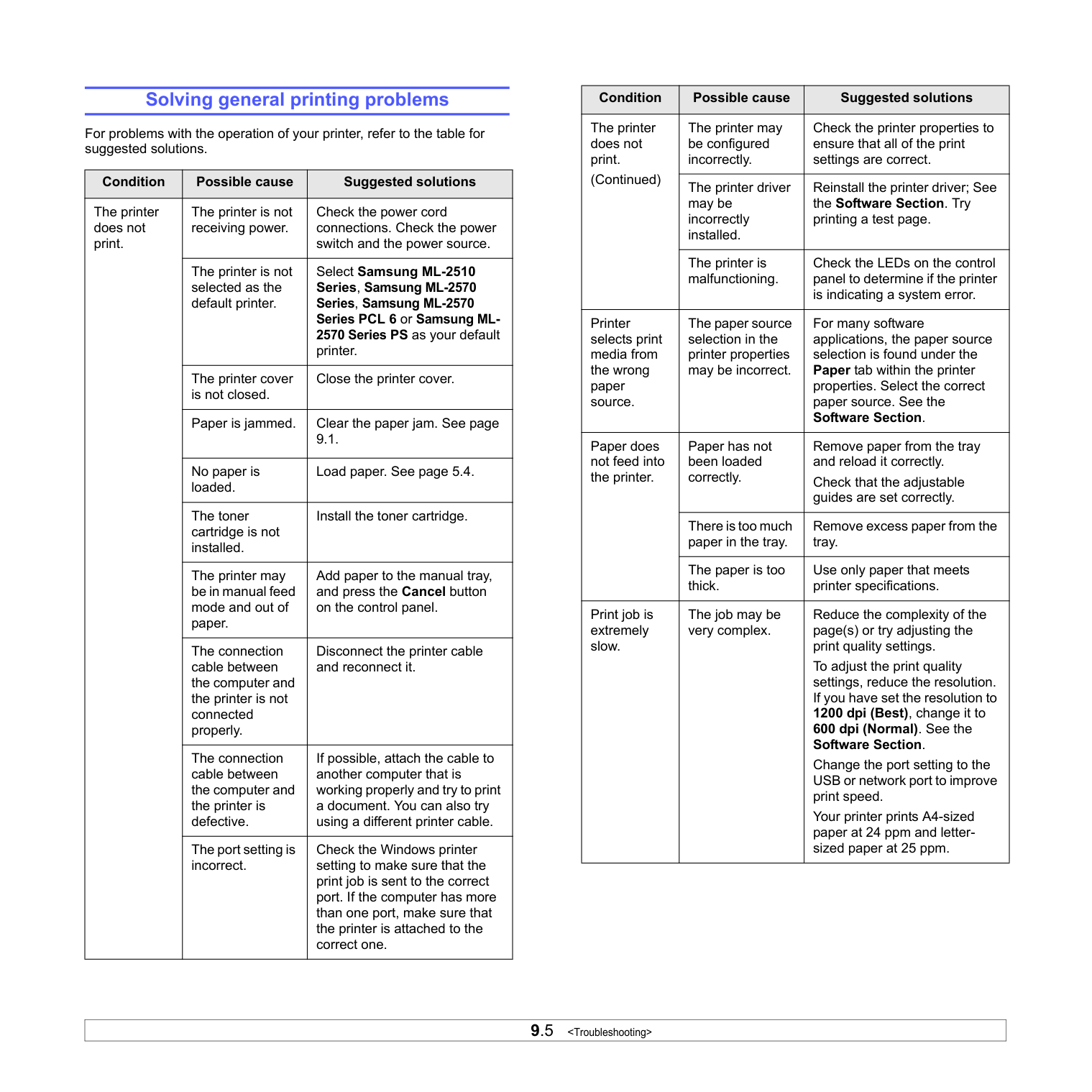
| | |---| |• If characters are improperly formed and producing hollowed images, the paper stock may be too slick. Try a different paper. See page 5.3.| |Page skew
| | |---| |• Ensure that the paper is loaded properly.
• Check the paper type and quality. See page 5.2.
• Ensure that the paper is loaded correctly and the adjustable guides are not too tight or too loose against the paper stack.
| |Curl or wave
|• Ensure that the paper is loaded properly.
• Check the paper type and quality. Both high temperature and humidity can cause paper curl. See page 5.2.
• Turn over the stack of paper in the tray. Also try rotating the paper 180° in the tray.
|
|Condition|Suggested solutions| |---|---| |Wrinkles or creases
|• Ensure that the paper is loaded properly.
• Check the paper type and quality. See page 5.2.
• Turn over the stack of paper in the tray. Also try rotating the paper 180° in the tray.
| |Back of printouts are dirty
|• The transfer roller may be dirty. See page 8.1.
• Check for leaking toner. Clean the inside of the printer.
| |Solid black pages
| | |---| |• The toner cartridge may not be installed properly. Remove the cartridge and reinsert.
• The toner cartridge may be defective and need replacing. Install a new toner cartridge.
• The printer may require repair. Contact a service representative.
| |Loose toner
| | |---| |• Clean the inside of the printer.
• Check the paper type and quality. See page 5.2.
• Install a new toner cartridge. See page 8.4.
• If the problem persists, the printer may require repair. Contact a service representative.
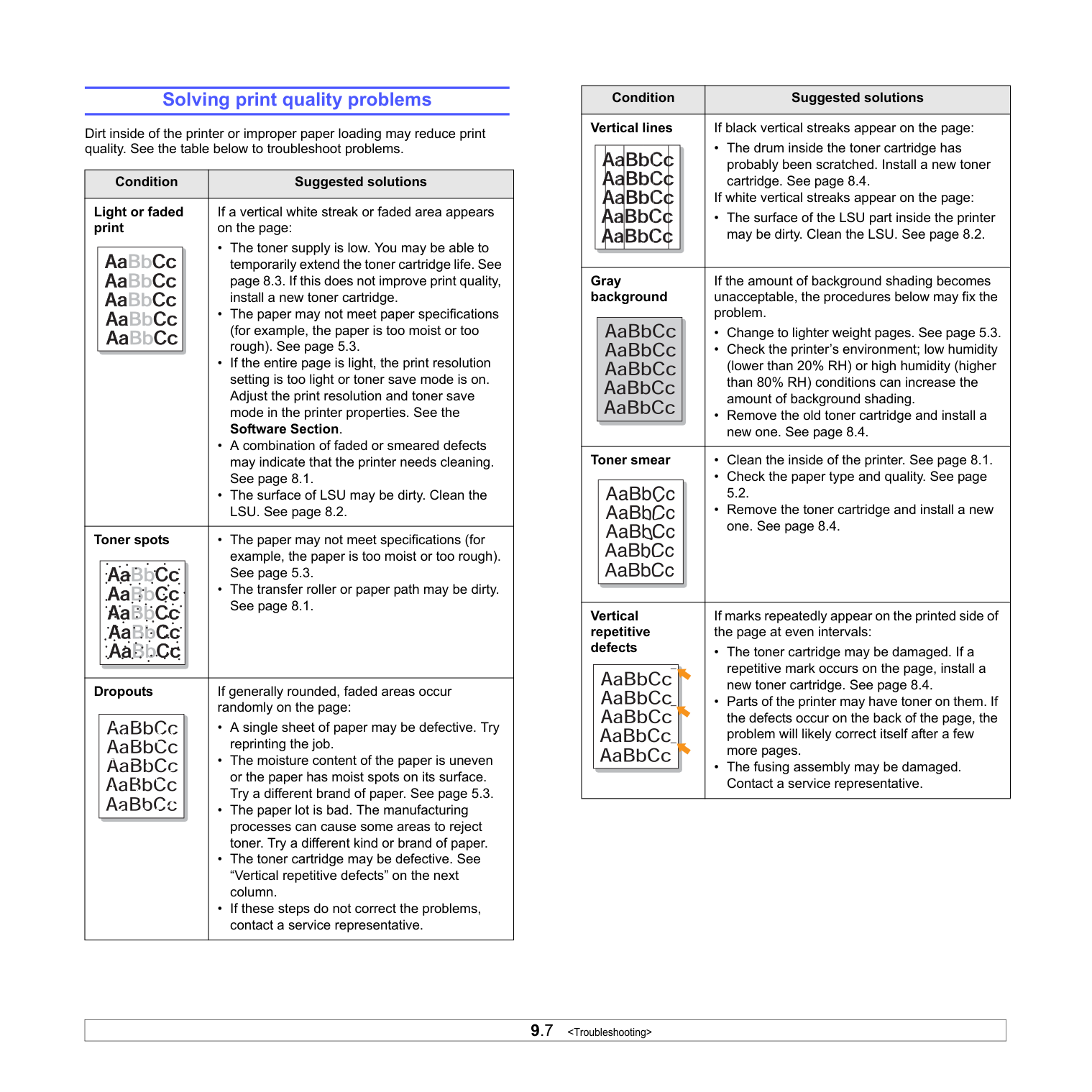
| |Character voids
| | |---| |Character voids are white areas within characters that should be solid black:
• If you are using transparencies, try another type of transparency. Because of the composition of the transparency, some character voids may be normal.
• You may be printing on the wrong surface on the paper. Turn over the paper in the tray.
• The paper may not meet paper specifications. See page 5.3.
|
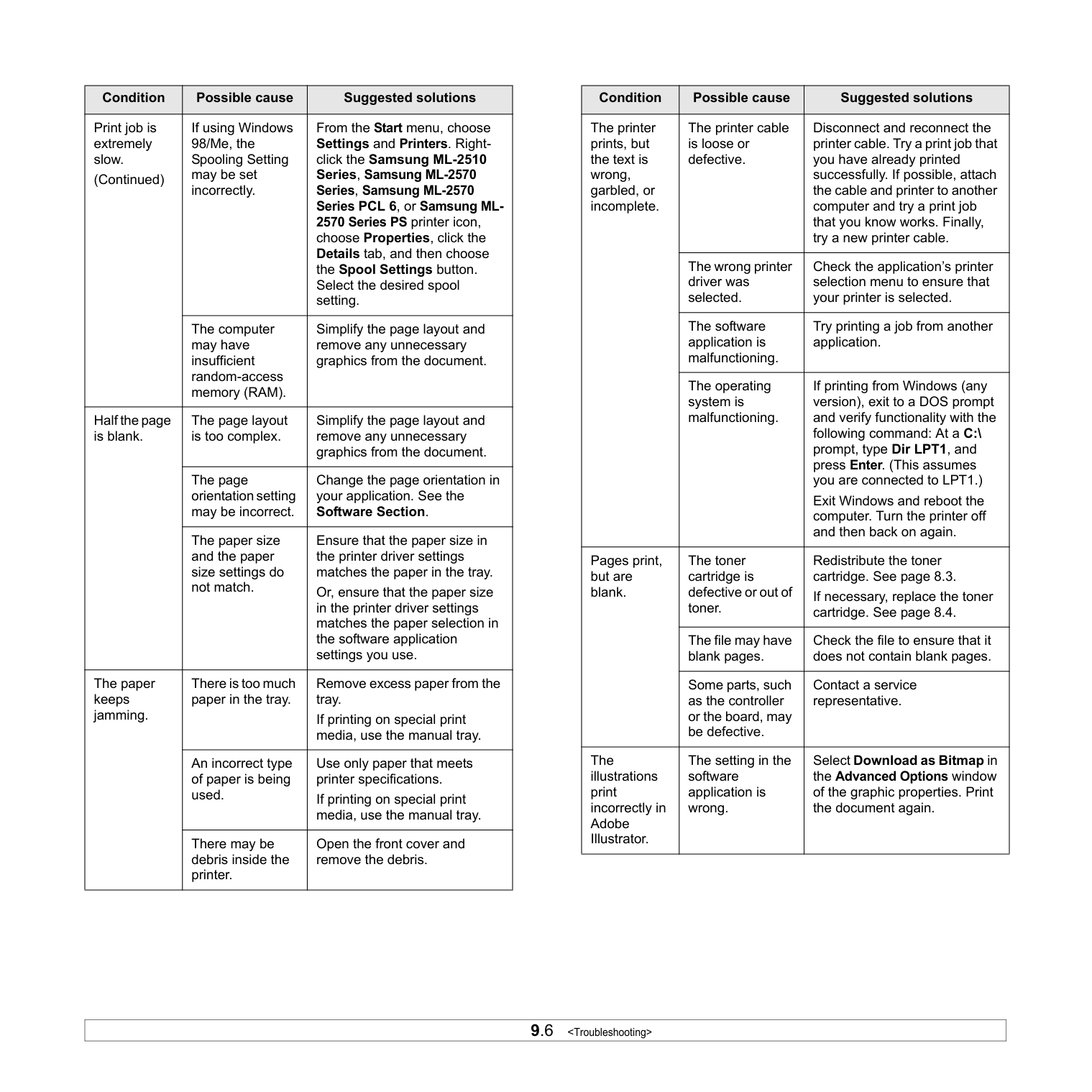
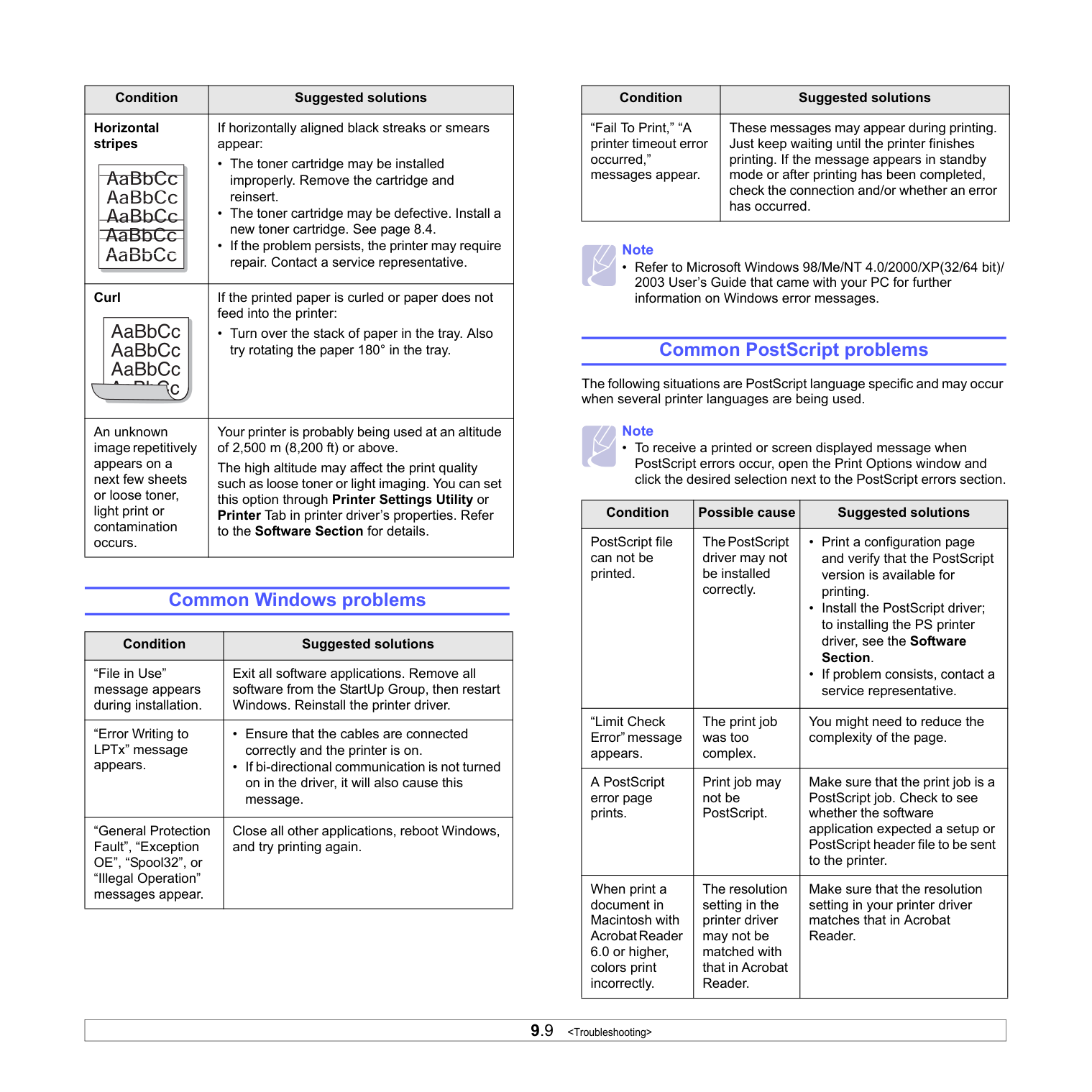
|Condition|Suggested solutions| |---|---| |Horizontal stripes
| | |---| |If horizontally aligned black streaks or smears appear:
• The toner cartridge may be installed improperly. Remove the cartridge and reinsert.
• The toner cartridge may be defective. Install a new toner cartridge. See page 8.4.
• If the problem persists, the printer may require repair. Contact a service representative.
| |Curl
|If the printed paper is curled or paper does not feed into the printer:
• Turn over the stack of paper in the tray. Also try rotating the paper 180° in the tray.| |An unknown image repetitively appears on a next few sheets or loose toner, light print or contamination occurs.|Your printer is probably being used at an altitude of 2,500 m (8,200 ft) or above. The high altitude may affect the print quality such as loose toner or light imaging. You can set this option through Printer Settings Utility or Printer Tab in printer driver’s properties. Refer to the Software Section for details.|
Common Windows problems
|Condition|Suggested solutions| |---|---| |“File in Use” message appears during installation.|Exit all software applications. Remove all software from the StartUp Group, then restart Windows. Reinstall the printer driver.| |“Error Writing to LPTx” message appears.|• Ensure that the cables are connected correctly and the printer is on.
• If bi-directional communication is not turned on in the driver, it will also cause this message.
| |“General Protection Fault”, “Exception OE”, “Spool32”, or “Illegal Operation” messages appear.|Close all other applications, reboot Windows, and try printing again.|
|Condition|Suggested solutions| |---|---| |“Fail To Print,” “A printer timeout error occurred,” messages appear.|These messages may appear during printing. Just keep waiting until the printer finishes printing. If the message appears in standby mode or after printing has been completed, check the connection and/or whether an error has occurred.|
#################### Note
• Refer to Microsoft Windows 98/Me/NT 4.0/2000/XP(32/64 bit)/ 2003 User’s Guide that came with your PC for further information on Windows error messages.
Common PostScript problems
The following situations are PostScript language specific and may occur when several printer languages are being used.
#################### Note
• To receive a printed or screen displayed message when PostScript errors occur, open the Print Options window and click the desired selection next to the PostScript errors section.
|Condition|Possible cause|Suggested solutions| |---|---|---| |PostScript file can not be printed.|The PostScript driver may not be installed correctly.|• Print a configuration page and verify that the PostScript version is available for printing.
• Install the PostScript driver; to installing the PS printer driver, see the Software Section.
• If problem consists, contact a service representative.
| |“Limit Check Error” message appears.|The print job was too complex.|You might need to reduce the complexity of the page.| |A PostScript error page prints.|Print job may not be PostScript.|Make sure that the print job is a PostScript job. Check to see whether the software application expected a setup or PostScript header file to be sent to the printer.| |When print a document in Macintosh with Acrobat Reader 6.0 or higher, colors print incorrectly.|The resolution setting in the printer driver may not be matched with that in Acrobat Reader.|Make sure that the resolution setting in your printer driver matches that in Acrobat Reader.|
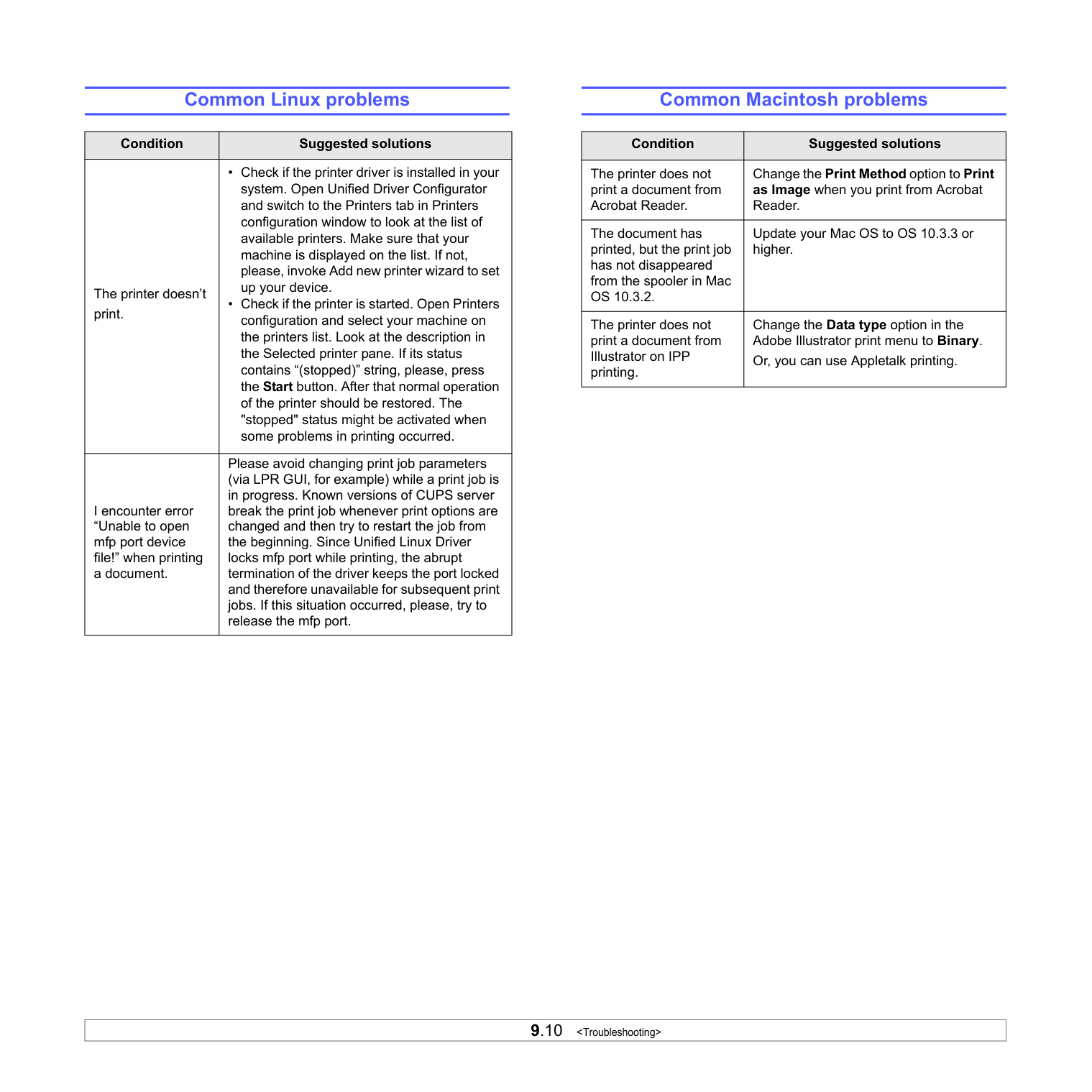
Common Linux problems
|Condition|Suggested solutions| |---|---| |The printer doesn’t print.|• Check if the printer driver is installed in your system. Open Unified Driver Configurator and switch to the Printers tab in Printers configuration window to look at the list of available printers. Make sure that your machine is displayed on the list. If not, please, invoke Add new printer wizard to set up your device.
• Check if the printer is started. Open Printers configuration and select your machine on the printers list. Look at the description in the Selected printer pane. If its status contains “(stopped)” string, please, press the Start button. After that normal operation of the printer should be restored. The "stopped" status might be activated when some problems in printing occurred.
| |I encounter error “Unable to open mfp port device file!” when printing a document.|Please avoid changing print job parameters (via LPR GUI, for example) while a print job is in progress. Known versions of CUPS server break the print job whenever print options are changed and then try to restart the job from the beginning. Since Unified Linux Driver locks mfp port while printing, the abrupt termination of the driver keeps the port locked and therefore unavailable for subsequent print jobs. If this situation occurred, please, try to release the mfp port.|
Common Macintosh problems
|Condition|Suggested solutions| |---|---| |The printer does not print a document from Acrobat Reader.|Change the Print Method option to Print as Image when you print from Acrobat Reader.| |The document has printed, but the print job has not disappeared from the spooler in Mac OS 10.3.2.|Update your Mac OS to OS 10.3.3 or higher.| |The printer does not print a document from Illustrator on IPP printing.|Change the Data type option in the Adobe Illustrator print menu to Binary. Or, you can use Appletalk printing.|
#### 10Specifications Printer specifications
|Item|Specifications and description|Specifications and description| |---|---|---| |Printing speeda|Up to 24 ppm in A4 (25 ppm in Letter)|Up to 24 ppm in A4 (25 ppm in Letter)| |Resolution|ML-2510|Up to 1200 x 600 dpi effective output| |Resolution|ML-2570, ML-2571N|Up to 1200 x 1200 dpi effective output| |Warm-up time|Less than 15 seconds|Less than 15 seconds| |First print out time|9 seconds (From Ready) Sleep mode: 25 seconds|9 seconds (From Ready) Sleep mode: 25 seconds| |Power rating|110 ~ 127 VAC, 50 / 60 Hz, 5.5 A 220 ~ 240 VAC, 50 / 60 Hz, 3 A|110 ~ 127 VAC, 50 / 60 Hz, 5.5 A 220 ~ 240 VAC, 50 / 60 Hz, 3 A| |Power consumption|Average: 390 W (ML-2510), 400 W (ML-2570, ML-2571N) Power save mode: Less than 6.5 W (ML-2510), 8.5 W (ML-2570, ML-2571N)|Average: 390 W (ML-2510), 400 W (ML-2570, ML-2571N) Power save mode: Less than 6.5 W (ML-2510), 8.5 W (ML-2570, ML-2571N)| |Noise levelb|Standby mode: Less than 35 dBA Printing mode: Less than 53 dBA|Standby mode: Less than 35 dBA Printing mode: Less than 53 dBA| |Toner cartridge lifec|3,000 pages at ISO 19752 5% coverage (ships with 1,000 pages starter toner cartridge)|3,000 pages at ISO 19752 5% coverage (ships with 1,000 pages starter toner cartridge)| |Duty cycle|Monthly: Up to 10,000 pages|Monthly: Up to 10,000 pages| |Weight|8.9 Kg (including consumables)|8.9 Kg (including consumables)| |Package weight|Paper: 1.6 Kg, Plastic: 0.3 Kg|Paper: 1.6 Kg, Plastic: 0.3 Kg| |External dimensions (W x D x H)|13.9 X 11.7 X 9.7 inches (354 X 297 X 246 mm)|13.9 X 11.7 X 9.7 inches (354 X 297 X 246 mm)| |Operating environment|Temperature: 50° F to 90° F (10° C to 32° C) Humidity: 20% to 80% RH|Temperature: 50° F to 90° F (10° C to 32° C) Humidity: 20% to 80% RH| |Printer language|ML-2510|SPL|
|Printer language|ML-2570, ML-2571N|SPL, PostScript 3, PCL6d| |Memory|ML-2510|8 MB (non expandable)| |Memory|ML-2570, ML-2571N|32 MB (non expandable)| |Fonts|Windows fonts|Windows fonts|
|Item|Specifications and description| |---|---| |Interface|• IEEE 1284 Bidirectional Parallel Standard
- Modes supported: Compatible, Nibble, Byte, ECP
• USB Interface Standard
- USB 1.1: Compatible with USB 2.0 (ML-2510 only)
- USB 2.0: Hi-Speed USB 2.0: (ML-2570, ML2571N only)
- 480 Mbps 1 port
• Network Interface
- Ethernet 10/100 Base TX wired LAN (optional item in the ML-2510, ML-2570)| |OS compatibility|• Windows 98/Me/NT 4.0/2000/XP(32/64 bit)/2003
• Various Linux OS
• Mac 10.3 (ML-2510) or 8.6 ~ 9.2/10.1 ~ 10.4 (ML-2570, ML-2571N)
| |Printer driverse|• SPL: Windows, Linux
• CUPS: Macintosh OS 10.3 (ML-2510)
• PCL6 driver (ML-2570, ML-2571N only): Windows 98/Me/NT 4.0/2000/XP(32/64 bit)/2003
• PostScript driver (ML-2570, ML-2571N only): Windows 98/Me/NT 4.0/2000/XP(32/64 bit)/2003, Macintosh OS 8.6 ~ 9.2/10.1 ~ 10.4
| |Options|Ethernet 10/100 Base TX wired network interface server (ML-2510, ML-2570 only)|
#### INDEX
A accessories, order information 7.1
C cleaning
inside 8.1 outside 8.1
component location 1.2 configuration page, print 8.5 control panel
LED 9.4 overview 1.3
D demo page, print 2.1
J jam, clear 9.1
L LED, meaning 9.4 Linux problems 9.10 loading paper
manual tray 5.5 standard tray 5.4
########### M
Macintosh problems 9.10 maintenance parts 8.5 manual feed mode, use 5.5 manual tray, use 5.5
########### N
network interface server, install 4.2 network operating systems 4.1
paper guidelines 5.3 paper jam, clear
around the toner cartridge 9.2 manual tray 9.2 paper exit area 9.3 standard tray 9.1
paper load manual tray 5.5 standard tray 5.4
paper size, specifications 5.2 paper type, specifications 5.2 PostScript problems 9.9 print quality problems, solve 9.7 printing
configuration page 8.5 demo page 2.1 problems 9.5
problem, solve checklist 9.4 Linux 9.10 Macintosh 9.10 paper jams 9.1 printing 9.5 printing quality 9.7 PS errors 9.9 Windows 9.9
redistributing, toner cartridge 8.3 replacing, toner cartridge 8.4
########### S
special print media, guidelines 5.3 specification, printer 10.1 supplies, order information 7.1 system requirements
Linux 3.3 Macintosh 3.3 Windows 3.2
########### T
toner cartridge maintaining 8.3 redistributing 8.3 replacing 8.4
toner save mode, use 2.1 troubleshooting 9.1
W Windows problems 9.9
|Samsung Printer
Software section
| |---|
SOFTWARE SECTION
CONTENTS
######### Chapter 1: INSTALLING PRINTER SOFTWARE IN WINDOWS
Installing Printer Software ........................................................................................................ 4 Installing Software for Local Printing ................................................................................. 4 Installing Software for Network Printing ............................................................................. 7
Reinstalling Printer Software ................................................................................................... 10 Removing Printer Software ..................................................................................................... 11
######### Chapter 2: BASIC PRINTING
Printing a Document .............................................................................................................. 12 Printer Settings ..................................................................................................................... 13
Layout Tab .................................................................................................................. 13 Paper Tab .................................................................................................................... 14 Graphics Tab ............................................................................................................... 15 Extras Tab ................................................................................................................... 16 About Tab ................................................................................................................... 16 Printer Tab .................................................................................................................. 16 Using a Favorite Setting ................................................................................................ 17 Using Help ................................................................................................................... 17
######### Chapter 3: ADVANCED PRINTING
Printing Multiple Pages on One Sheet of Paper (N-Up Printing) ..................................................... 18 Printing Posters ..................................................................................................................... 19 Printing Booklets .................................................................................................................. 19 Printing on Both Sides of Paper ............................................................................................... 20 Printing a Reduced or Enlarged Document ................................................................................ 20 Fitting Your Document to a Selected Paper Size ......................................................................... 20 Using Watermarks ................................................................................................................. 21
Using an Existing Watermark ......................................................................................... 21 Creating a Watermark ................................................................................................... 21 Editing a Watermark ..................................................................................................... 21 Deleting a Watermark ................................................................................................... 21
Using Overlays ...................................................................................................................... 22 What is an Overlay? ...................................................................................................... 22 Creating a New Page Overlay ......................................................................................... 22 Using a Page Overlay .................................................................................................... 22 Deleting a Page Overlay ................................................................................................ 22
######### Chapter 4: USING WINDOWS POSTSCRIPT DRIVER(ML-2570/2571N ONLY)
Printer Settings ..................................................................................................................... 23 Advanced .................................................................................................................. 23 Using Help ................................................................................................................... 23
######### Chapter 5: SHARING THE PRINTER LOCALLY
Setting Up a Host Computer ................................................................................................... 24 Setting Up a Client Computer .................................................................................................. 24
######### Chapter 6: USING SMART PANEL
Understanding Smart Panel .................................................................................................... 25 Opening the Troubleshooting Guide ......................................................................................... 26 Using Printer Settings Utility ................................................................................................... 26
Using Onscreen Help File ............................................................................................... 26 Changing the Smart Panel Program Settings ............................................................................. 26
######### Chapter 7: USING YOUR PRINTER IN LINUX
Getting Started ..................................................................................................................... 27 Installing the Unified Linux Driver ............................................................................................ 27
Installing the Unified Linux Driver ................................................................................... 27 Uninstalling the Unified Linux Driver ............................................................................... 28
Using the Unified Driver Configurator ....................................................................................... 29 Opening the Unified Driver Configurator .......................................................................... 29 Printers Configuration ................................................................................................... 29 Ports Configuration ....................................................................................................... 30
Configuring Printer Properties ................................................................................................. 30
Printing a Document .............................................................................................................. 31 Printing from Applications .............................................................................................. 31 Printing Files ................................................................................................................ 31
######### Chapter 8: USING YOUR PRINTER WITH A MACINTOSH
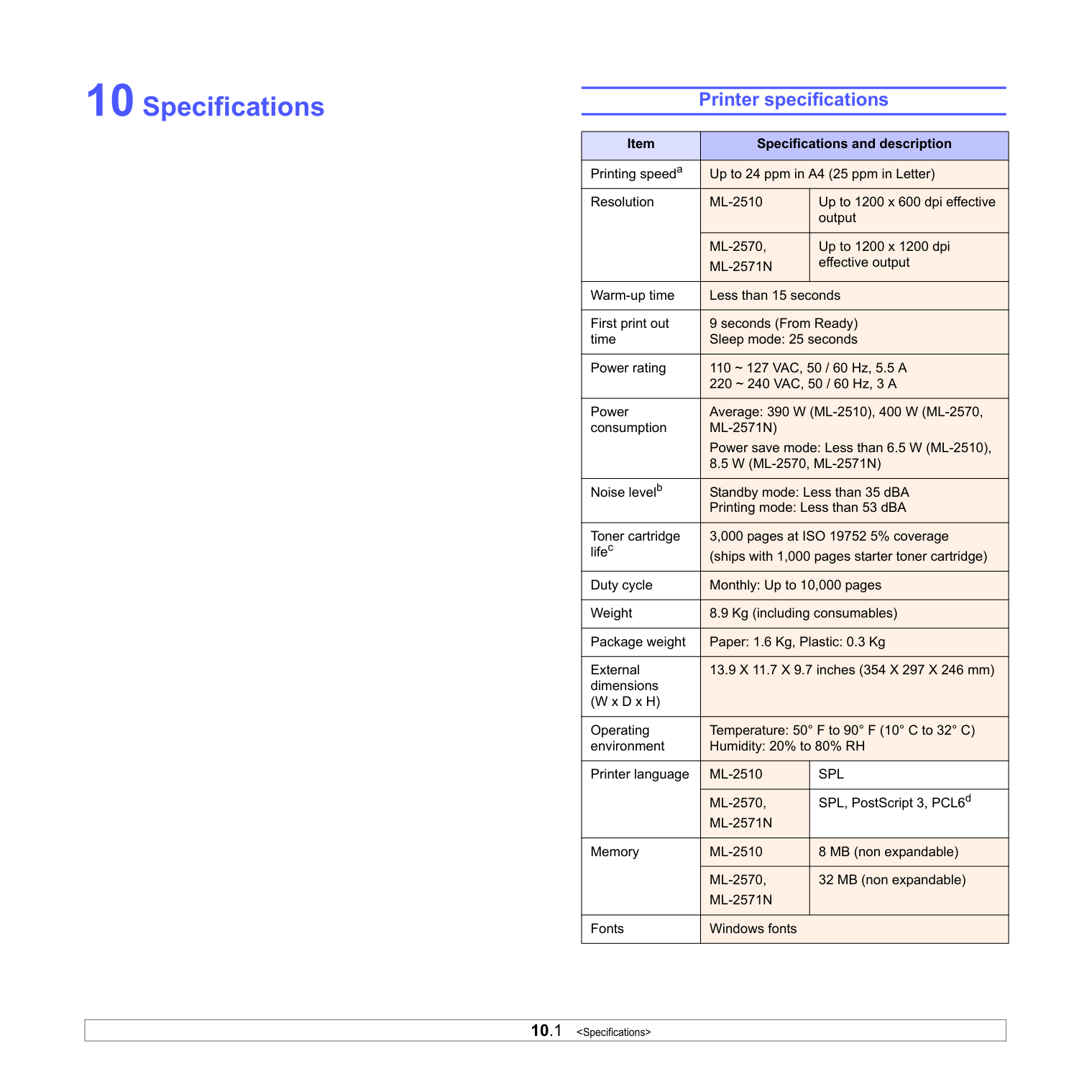
Installing printer driver for Macintosh ....................................................................................... 32 ML-2510 only ............................................................................................................... 32
Setting Up the Printer ............................................................................................................ 33 ML-2510 only ............................................................................................................... 33
Printing ................................................................................................................................ 34 Printing a Document ..................................................................................................... 34 Changing Printer Settings .............................................................................................. 35 Printing Multiple Pages on One Sheet of Paper .................................................................. 36
1 Installing Printer
###### Software in Windows
This chapter includes:
######### Installing Printer Software
You can install the printer software for local printing or network printing. To install the printer software on the computer, perform the appropriate installation procedure depending on the printer in use.
A printer driver is software that lets your computer communicate with your printer. The procedure to install drivers may differ depending on the operating system you are using. All applications should be closed on your PC before beginning installation.
########### Installing Software for Local Printing
A local printer is a printer directly attached to your computer using the printer cable supplied with your printer, such as a USB or parallel cable. If your printer is attached to a network, skip this step and go to “Installing Software for Network Printing” on page 7.
You can install the printer software using the typical or custom method.
NOTE: If the “New Hardware Wizard” window appears during the installation procedure, click in the upper right corner of the box to close the window, or click Cancel.
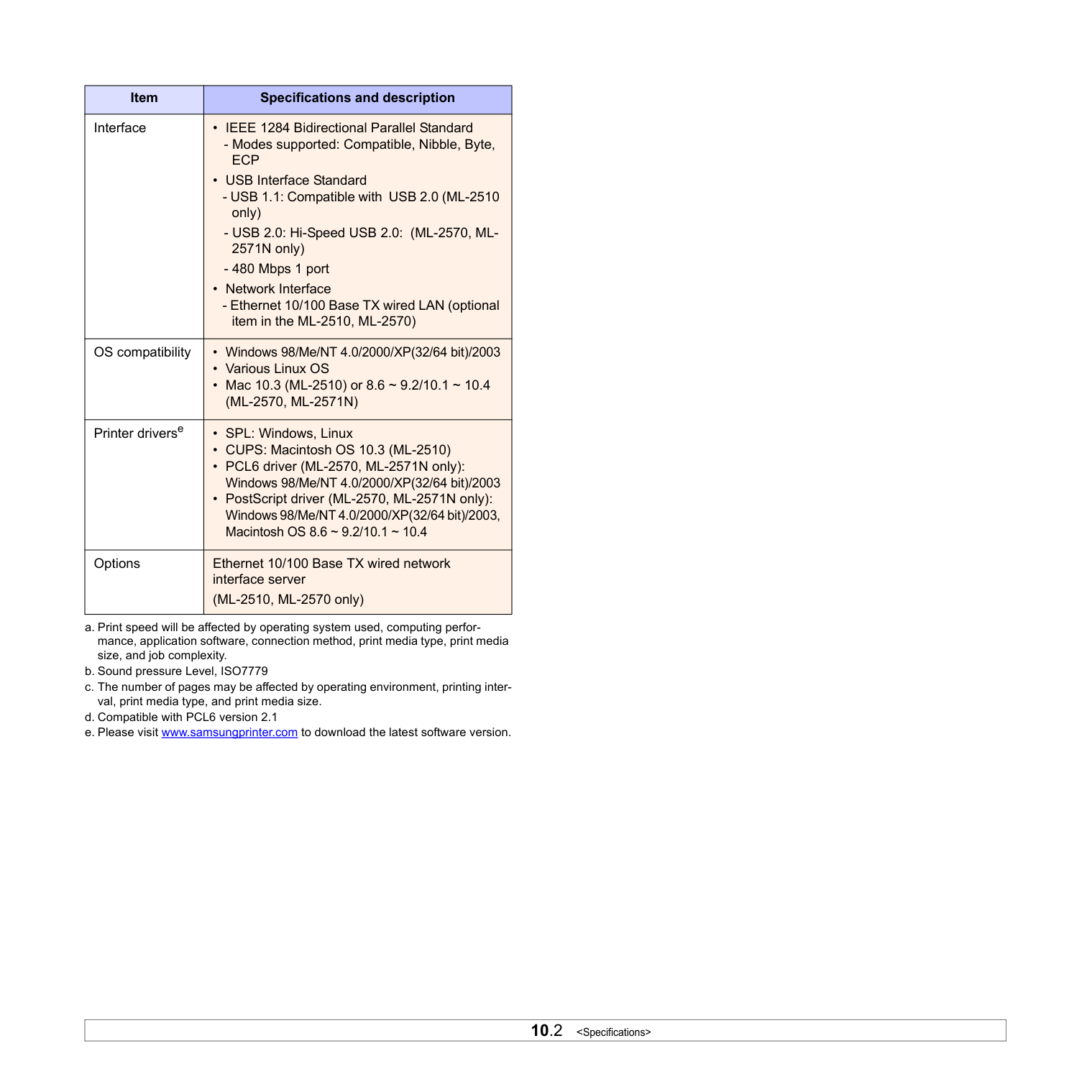

################## Typical Installation
This is recommended for most users. All components necessary for printer operations will be installed.
The CD-ROM should automatically run, and an installation window appears. If the installation window does not appear, click Start and then Run. Type X:\Setup.exe, replacing “X” with the letter which represents your drive and click OK.
|| |---|
|| |---|
NOTE: If your printer is not already connected to the computer, the following window will appear.
|| |---|
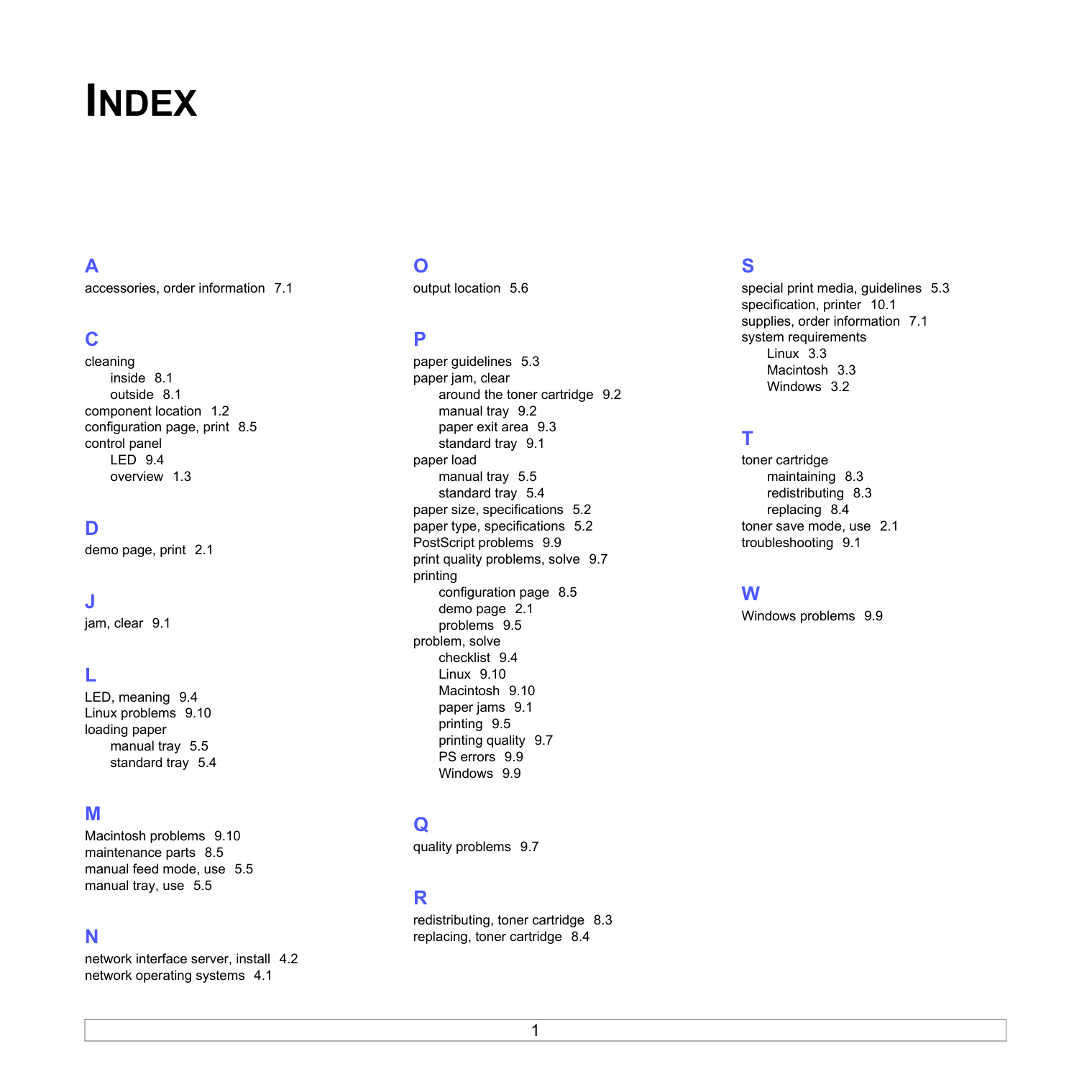
7 To register yourself as a user of Samsung Printers in order to receive information from Samsung, select the checkbox and click Finish. You are now sent to the Samsung web site.
Otherwise, just click Finish.
|| |---|
NOTE: After setup is complete, if your printer driver doesn’t work properly, reinstall the printer driver. See “Reinstalling Printer Software” on page 10.
Custom Installation You can choose individual components to install.
The CD-ROM should automatically run, and an installation window appears. If the installation window does not appear, click Start and then Run. Type X:\Setup.exe, replacing “X” with the letter which represents your drive and click OK.
|| |---|

|| |---|
|| |---|
NOTE: If your printer is not already connected to the computer, the following window will appear.
|| |---|
NOTE: You can change the desired installation folder by clicking [Browse].

9 To register yourself as a user of Samsung Printers in order to receive information from Samsung, select the checkbox and click Finish. You are now sent to the Samsung web site.
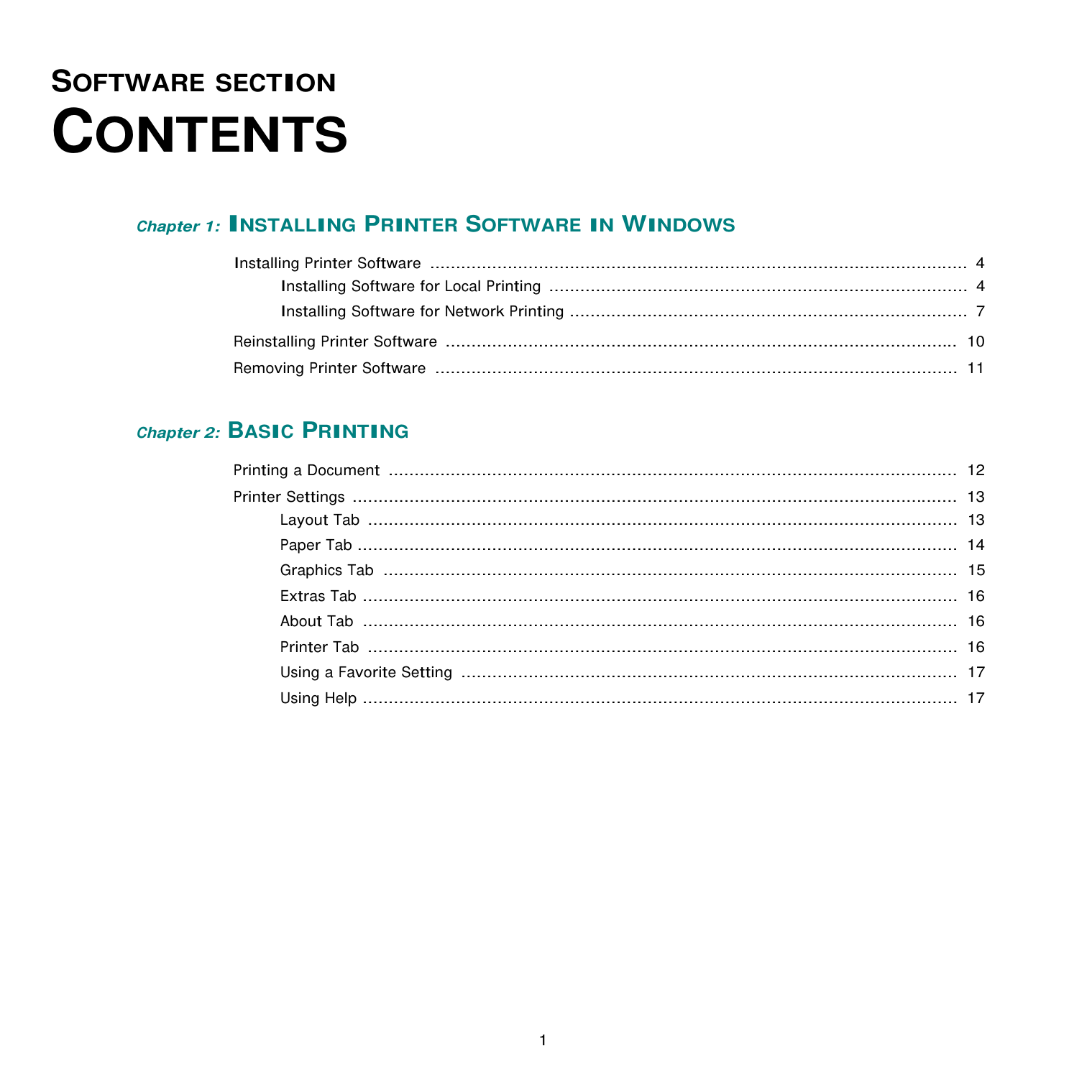
Otherwise, just click Finish.
|| |---|
########### Installing Software for Network Printing
When you connect your printer to a network, you must first configure the TCP/IP settings for the printer. After you have assigned and verified the TCP/IP settings, you are ready to install the software on each computer on the network.
You can install the printer software using the typical or custom method.
################## Typical Installation
This is recommended for most users. All components necessary for printer operations will be installed.
The CD-ROM should automatically run, and an installation window appears.
If the installation window does not appear, click Start and then Run. Type X:\Setup.exe, replacing “X” with the letter which represents your drive and click OK.
|| |---|
############## 3 Click Next.
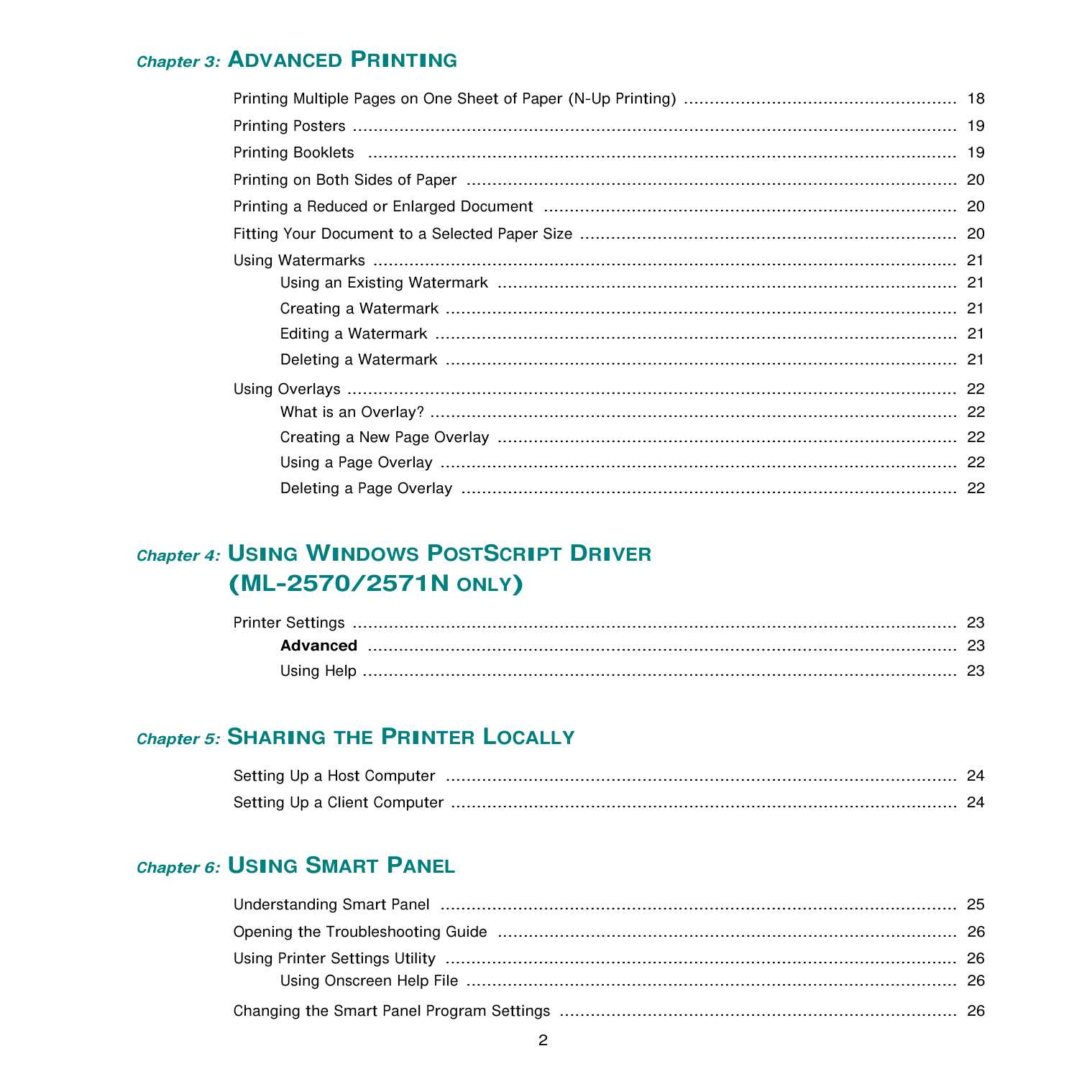
############## 4 Select Typical installation for a network printer. ClickNext.
|| |---|
Select the printer you want to install from the list and then click Next.
|| |---|
|| |---|
NOTE: After setup is complete, if your printer driver doesn’t work properly, reinstall the printer driver. See “Reinstalling Printer Software” on page 10.
################## Custom Installation
You can choose individual components to install and set a specific IP address.
The CD-ROM should automatically run, and an installation window appears. If the installation window does not appear, click Start and then Run. Type X:\Setup.exe, replacing “X” with the letter which represents your drive and click OK.
|| |---|
|| |---|
Select the printer you want to install from the list and then click Next.
|| |---|
TIP: If you want to set a specific IP address on a specific network printer, click the Set IP Address button. The Set IP Address window appears. Do as follows:
|| |---|
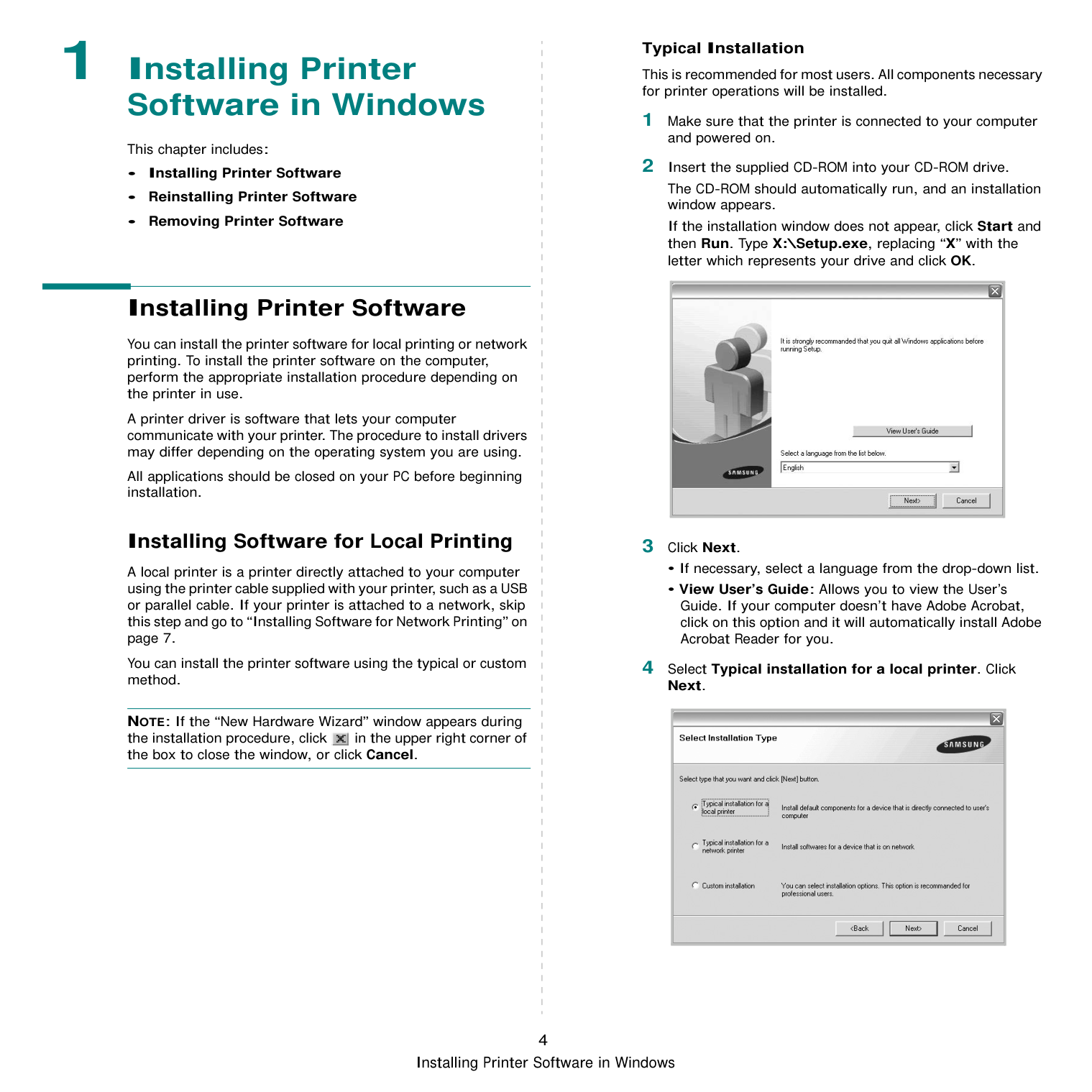
To install this software on a server, select the Setting up this printer on a server checkbox.
|| |---|
|| |---|
NOTE: After setup is complete, if your printer driver doesn’t work properly, reinstall the printer driver. See “Reinstalling Printer Software” on page 10.
######### Reinstalling Printer Software
You can reinstall the software if installation fails.
→ your printer driver name → Maintenance.
|| |---|
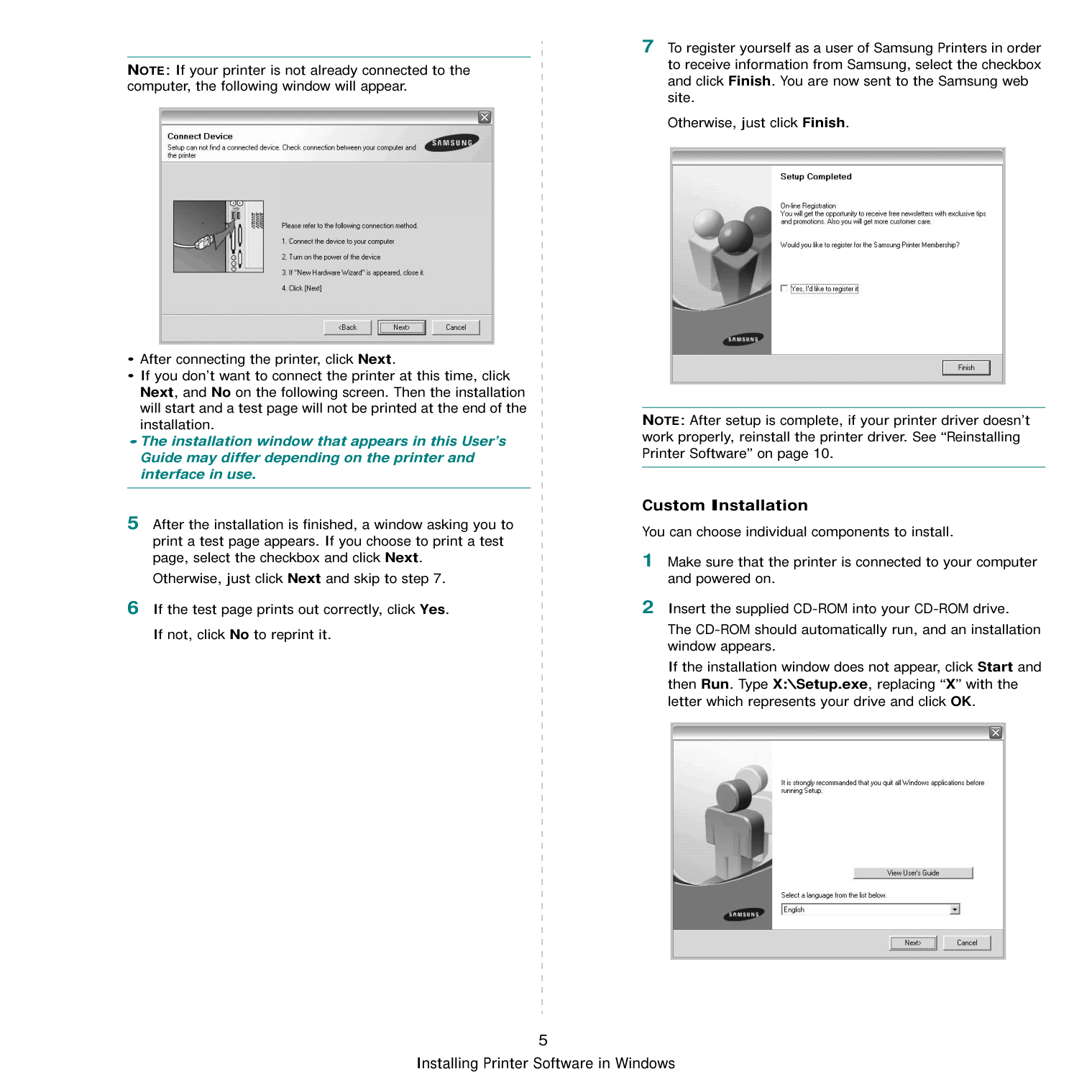
You will see a component list so that you can reinstall any item individually.
NOTE: If your printer is not already connected to the computer, the following window will appear.
|| |---|
If you installed the printer software for local printing and you select your printer driver name, the window asking you to print a test page appears. Do as follows:
######### Removing Printer Software
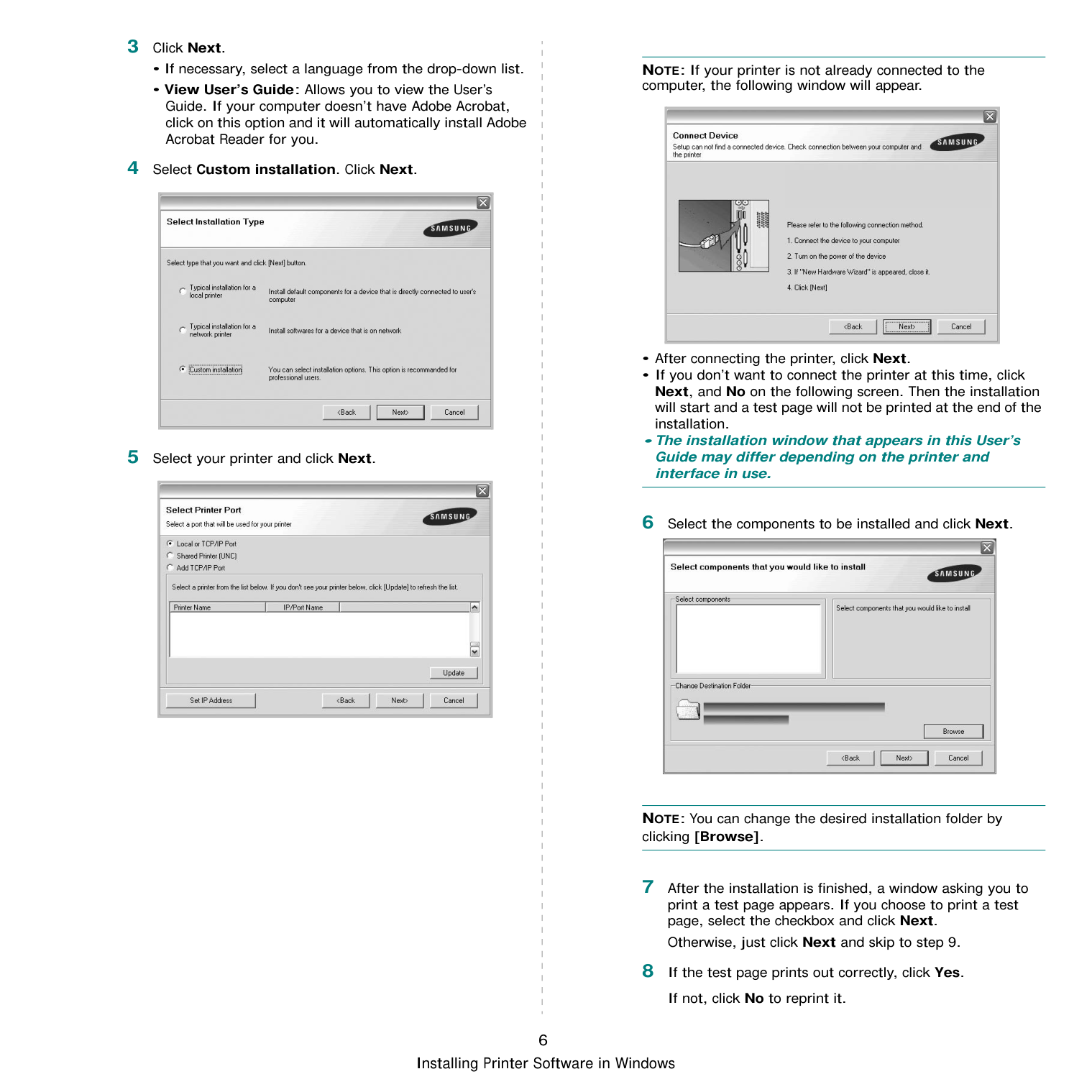
→ your printer driver name → Maintenance.
You will see a component list so that you can remove any item individually.
The selected driver and all of its components are removed from your computer.
2 Basic Printing
This chapter explains the printing options and common printing tasks in Windows.
This chapter includes:
######### Printing a Document
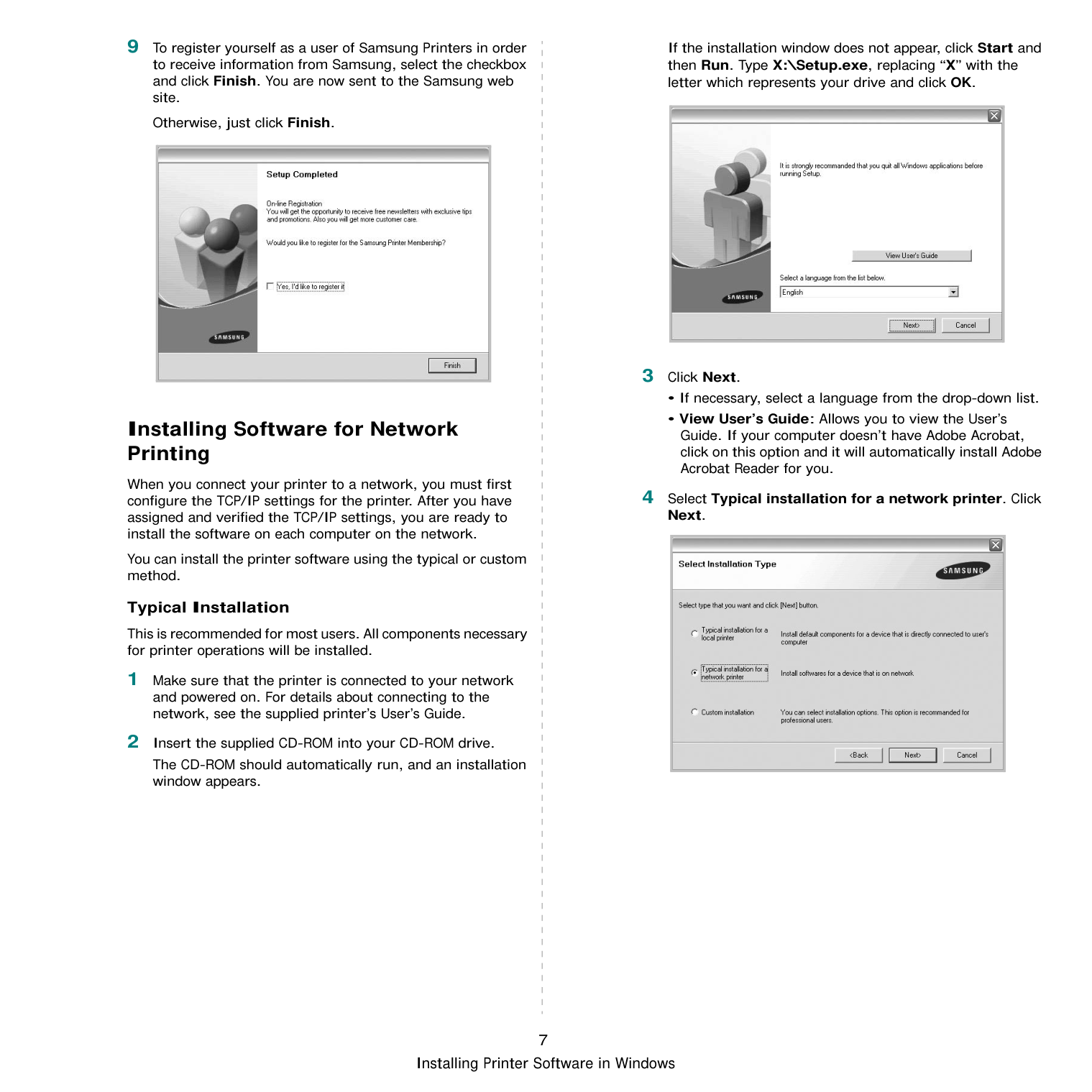
#################### NOTES:
The following procedure describes the general steps required for printing from various Windows applications. The exact steps for printing a document may vary depending on the application program you are using. Refer to the User’s Guide of your software application for the exact printing procedure.
The basic print settings are selected within the Print window. These settings include the number of copies and print range.
If you see Setup, Printer, or Options in your Print window, click it instead. Then click Properties on the next screen.
|
Make sure that your printer is selected.| |---|
######### Printer Settings
You can use the printer properties window, which allows you to access all of the printer options you need when using your printer. When the printer properties are displayed, you can review and change the settings needed for your print job. Your printer properties window may differ, depending on your operating system. This Software User’s Guide shows the Properties window for Windows XP. Your printer driver Properties window that appears in this User’s Guide may differ depending on the printer in use. If you access printer properties through the Printers folder, you can view additional Windows-based tabs (refer to your Windows User’s Guide) and the Printer tab (see “Printer Tab” on page 16).
#################### NOTES:
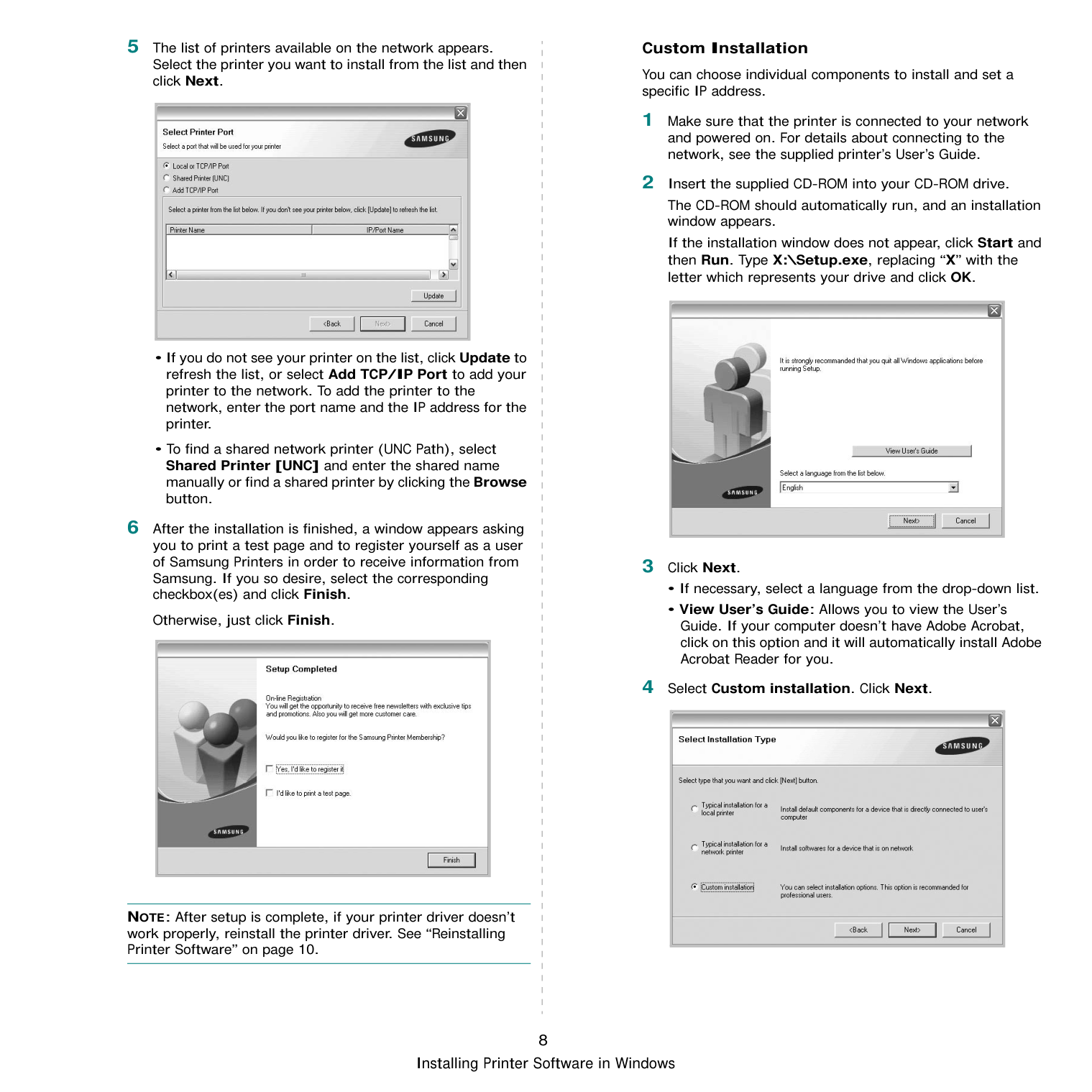
########### Layout Tab
The Layout tab provides options to adjust how the document appears on the printed page. The Layout Options includes
Multiple Pages per Side, Poster Printing and Booklet Printing. See “Printing a Document” on page 12 for more information on accessing printer properties.
|
1
2
| |---|
Paper Orientation Paper Orientation allows you to select the direction in which information is printed on a page.
Layout Options Layout Options allows you to select advanced printing options. You can choose Multiple Pages per Side and Poster Printing.
Double-sided Printing Double-sided Printing allows you to print on both sides of paper. If this option does not appear, your printer does not have this feature.
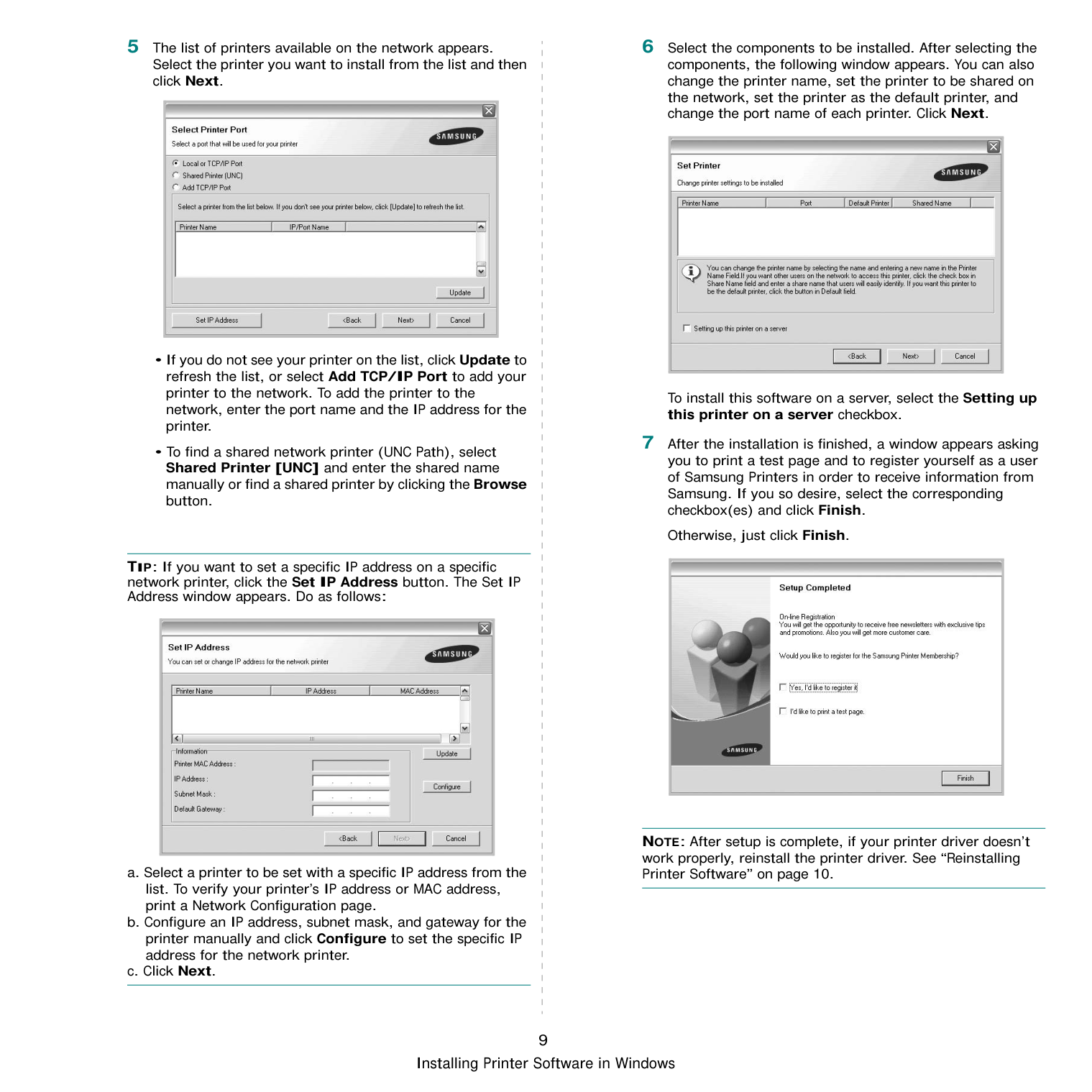
LandscapePortrait
Paper Tab Use the following options to set the basic paper handling specifications when you access the printer properties. See “Printing a Document” on page 12 for more information on accessing printer properties. Click the Paper tab to access various paper properties.
|
1
2
3
4
5
| |---|
Copies Copies allows you to choose the number of copies to be printed. You can select 1 to 999 copies.
Size Size allows you to set the size of paper you loaded in the tray. If the required size is not listed in the Size box, click Custom. When the Custom Paper Setting window appears, set the paper size and click OK. The setting appears in the list so that you can select it.
Source Make sure that Source is set to the corresponding paper tray. Use Manual Feeder when printing on special materials like envelopes and transparencies. You have to load one sheet at a time into the Manual Tray or Multi-Purpose Tray. If the paper source is set to Auto Selection, the printer automatically picks up print material in the following tray order: Manual Tray or Multi-Purpose Tray, Tray1.
##################### Type
Set Type to correspond to the paper loaded in the tray from which you want to print. This will let you get the best quality printout. If not, print quality may not be acheived as you want.
Cotton: 20 lb to 24 lb (75~90 g/m2) cotton paper such as Gilbert 25 % and Gilbert 100 %. Plain Paper: Normal plain paper. Select this type if your printer is monochrome and printing on the 16 lb (60 g/m2) cotton paper. Recycled: 20 lb to 24 lb (75~90 g/m2) recycled paper. Color Paper: 20 lb to 24 lb (75~90 g/m2) color-backgrounded paper.
################## Scaling Printing
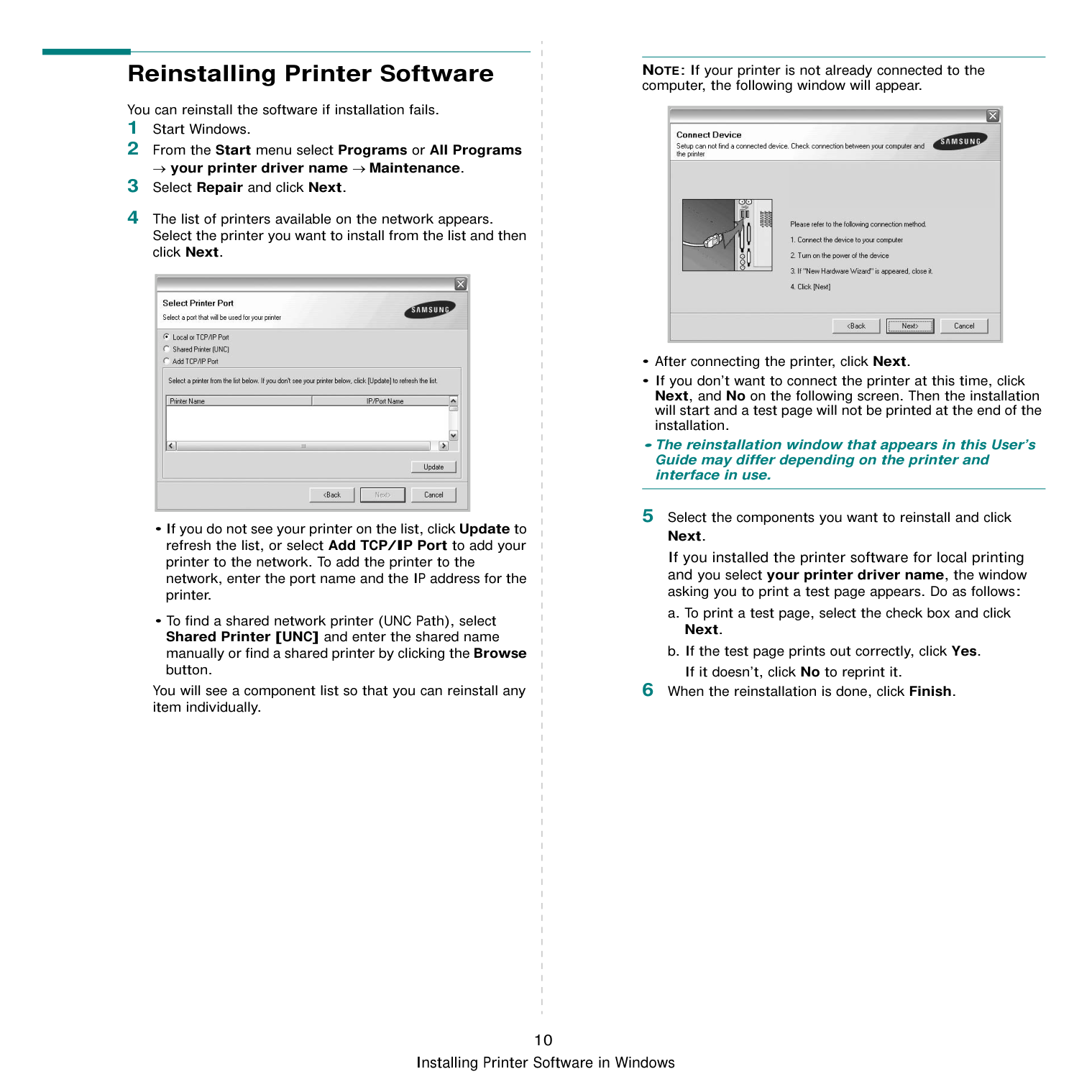
Scaling Printing allows you to automatically or manually scale your print job on a page. You can choose from None, Reduce/ Enlarge, and Fit to Page.
Graphics Tab Use the following Graphic options to adjust the print quality for your specific printing needs. See “Printing a Document” on page 12 for more information on accessing printer properties. Click the Graphic tab to display the properties shown below..
|| |---|
Resolution The Resolution options you can select may vary depending on your printer model. The higher the setting, the sharper the clarity of printed characters and graphics. The higher setting also may increase the time it takes to print a document.
################## Image Mode The available options are Normal and Text Enhance. Some printers do not support this feature.
##################### Darkness Use this option to lighten or darken your print job. Some printers do not support this feature.
Toner Save Mode Selecting this option extends the life of your toner cartridge and reduces your cost per page without a significant reduction in print quality. Some printers do not support this feature.
Advanced Options You can set advanced settings by clicking the Advanced Options button.
########### Extras Tab
You can select output options for your document. See “Printing a Document” on page 12 for more information about accessing the printer properties.
Click the Extras tab to access the following feature:

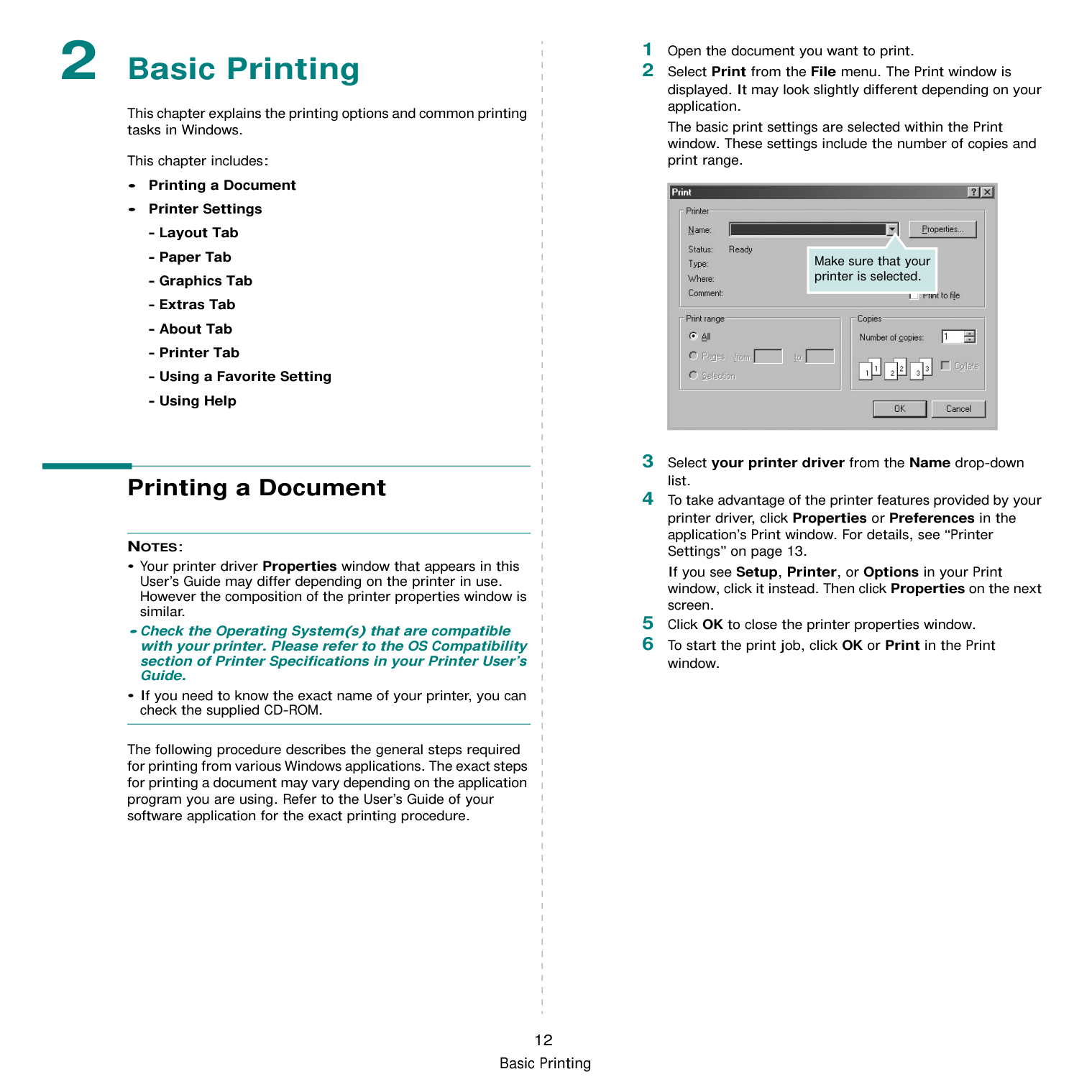
Watermark You can create a background text image to be printed on each page of your document. For details, see “Using Watermarks” on page 21.
Overlay Overlays are often used to take the place of preprinted forms and letterhead paper. For details, see “Using Overlays” on page 22.
##################### Output Options
########### About Tab
Use the About tab to display the copyright notice and the version number of the driver. If you have an Internet browser, you can connect to the Internet by clicking on the web site icon. See “Printing a Document” on page 12 for more information about accessing printer properties.
########### Printer Tab
If you access printer properties through the Printers folder, you can view the Printer tab. You can set the printer configuration.
The following procedure is for Windows XP. For other Windows OS, refer to the corresponding Windows User's Guide or online help.
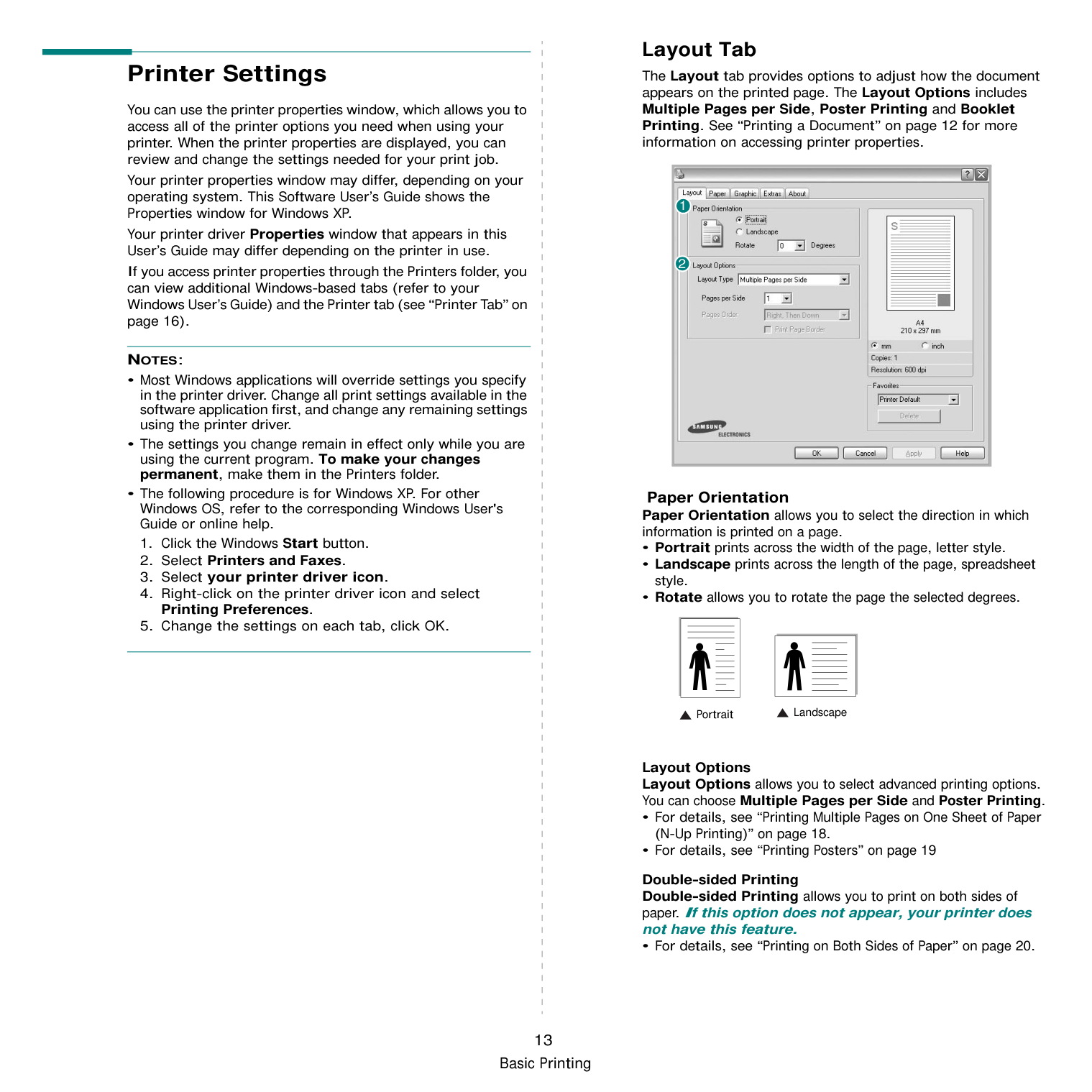
Using a Favorite Setting The Favorites option, which is visible on each properties tab, allows you to save the current properties settings for future use. To save a Favorites item:
|| |---|
When you save Favorites, all current driver settings are saved.
To use a saved setting, select the item from the Favorites drop down list. The printer is now set to print according to the Favorites setting you selected. To delete a Favorites item, select it from the list and click Delete.
You can also restore the printer driver’s default settings by selecting Printer Default from the list.
Using Help Your printer has a help screen that can be activated by clicking the Help button in the printer properties window. These help screens give detailed information about the printer features provided by the printer driver. You can also click from the upper right corner of the window, and then click on any setting.

3 Advanced Printing
This chapter explains printing options and advanced printing tasks.
#################### NOTE:
This chapter includes:
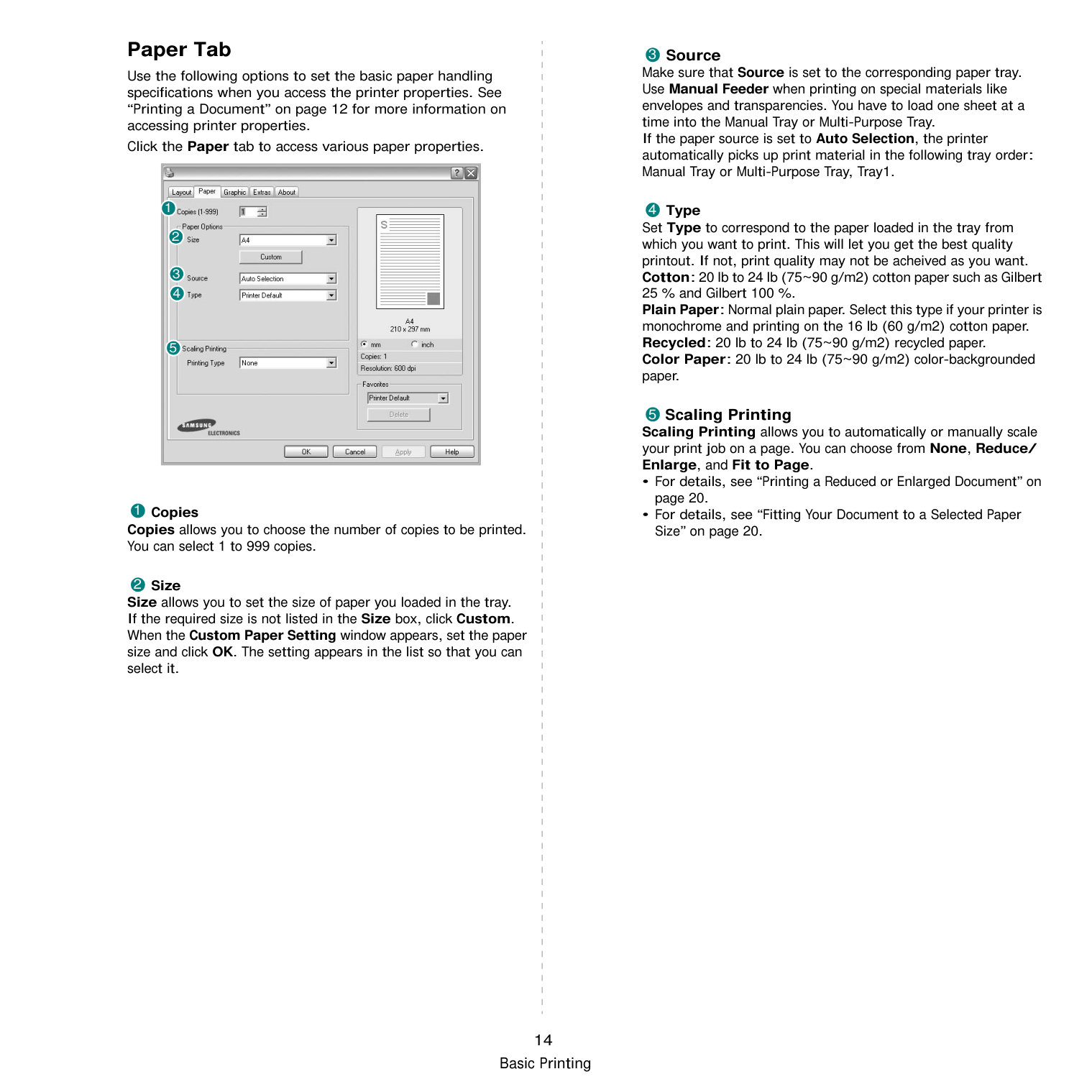
Printing Multiple Pages on One Sheet of Paper (N-Up Printing) You can select the number of pages to print on a single sheet of paper. To print more than one page per sheet, the pages will be reduced in size and arranged in the order you specify. You can print up to 16 pages on one sheet.
|1|2| |---|---| |3|4|
Check Print Page Border to print a border around each page on the sheet.
######### Printing Posters
This feature allows you to print a single-page document onto 4, 9, or 16 sheets of paper, for the purpose of pasting the sheets together to form one poster-size document.
You can select the page layout from Poster<2x2>, Poster<3x3>, or Poster<4x4>. If you select Poster<2x2>, the output will be automatically stretched to cover 4 physical pages.
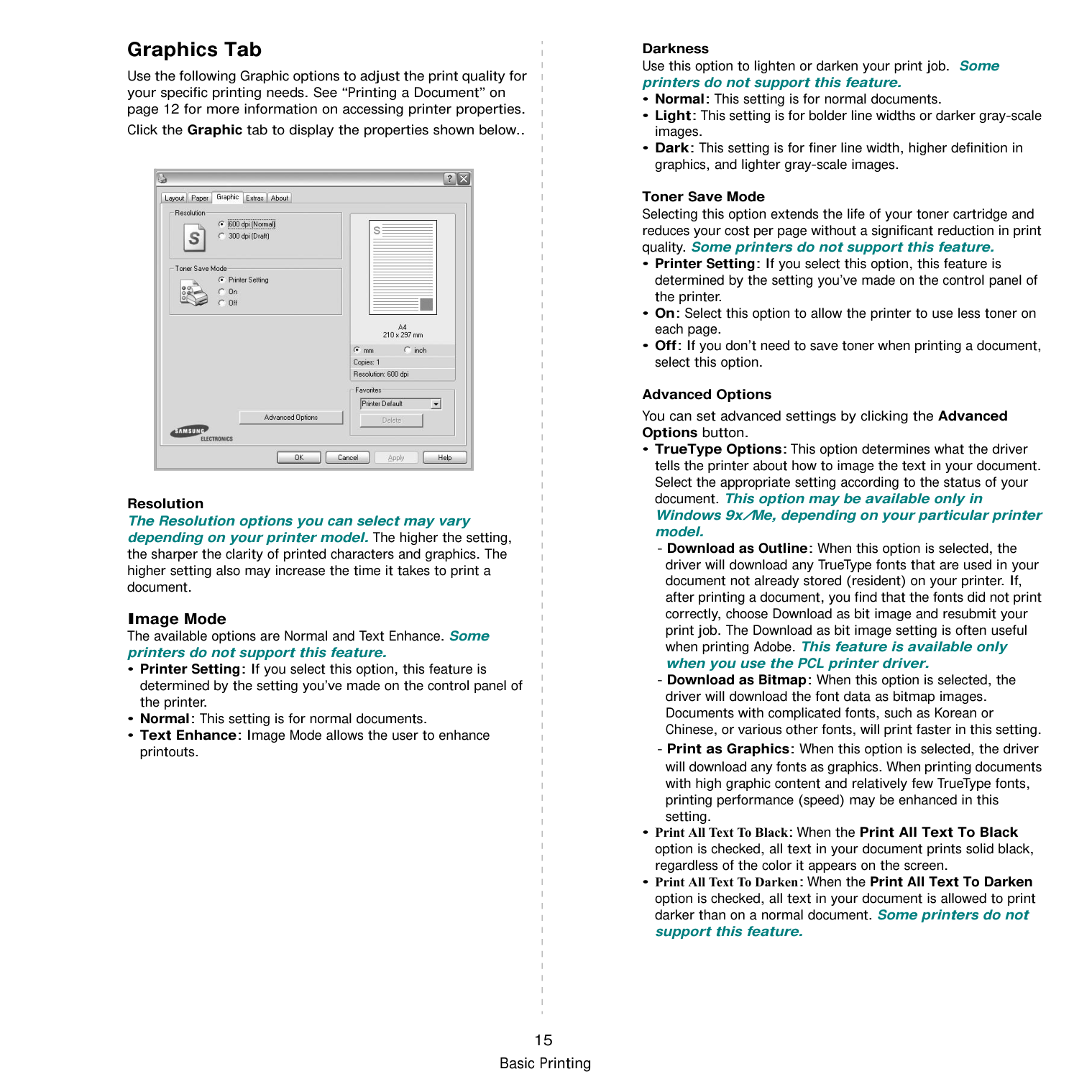
Specify an overlap in millimeters or inches to make it easier to pasting the sheets together.
0.15 inches
0.15 inches
######### Printing Booklets
9
8
9
8
This printer feature allows you to print your document on both sides of the paper and arranges the pages so that the paper can be folded in half after printing to produce a booklet.
NOTE: The booklet printing option is available when A4, Letter, Legal, or Folio size is selected in the Size option on the Paper tab.
######### Printing on Both Sides of Paper
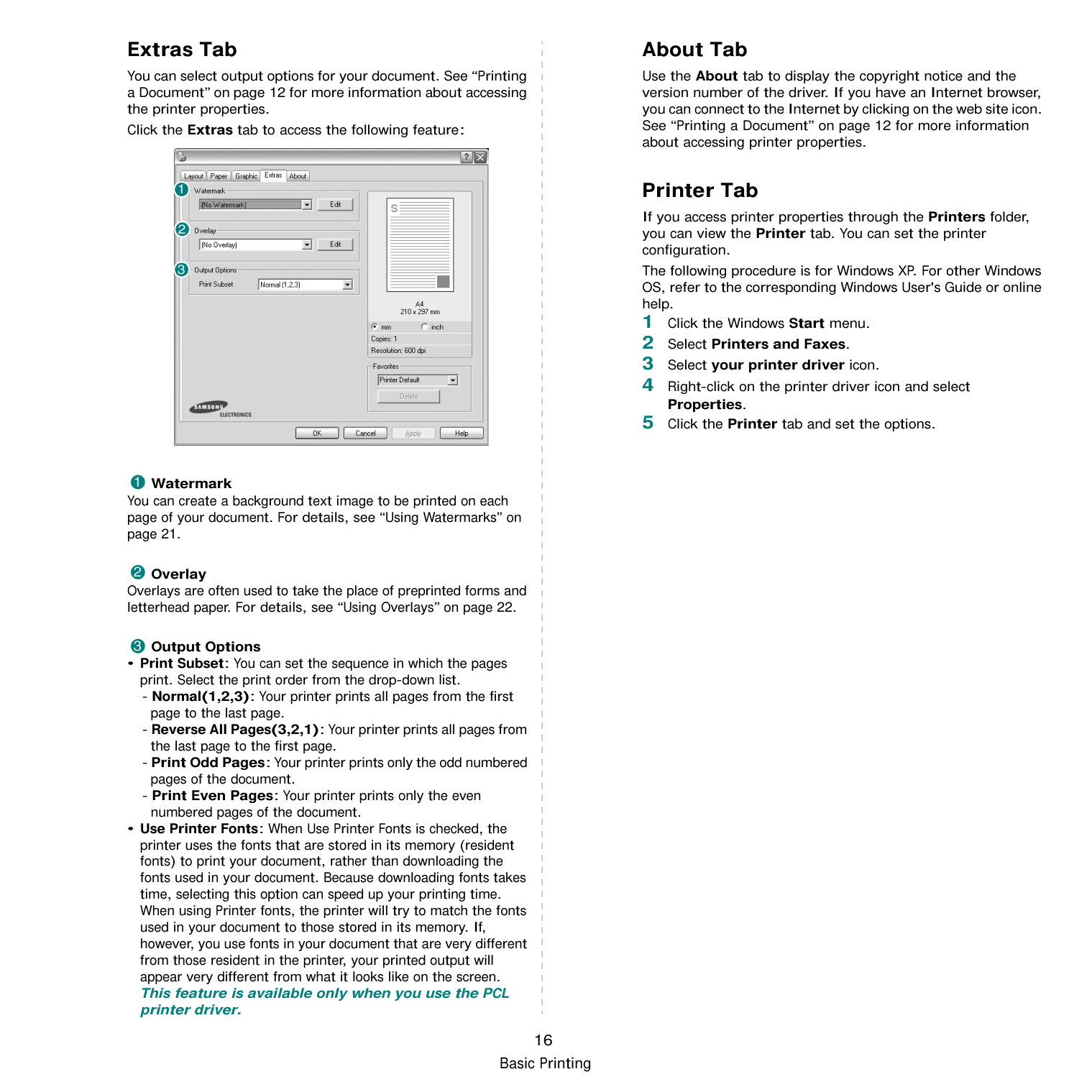
You can print on both sides of a sheet of paper. Before printing, decide how you want your document oriented. The options are:
2
2
3
2 5
3
3
25
5
3
5
Long Edge▲ Short Edge▲
#################### NOTE:
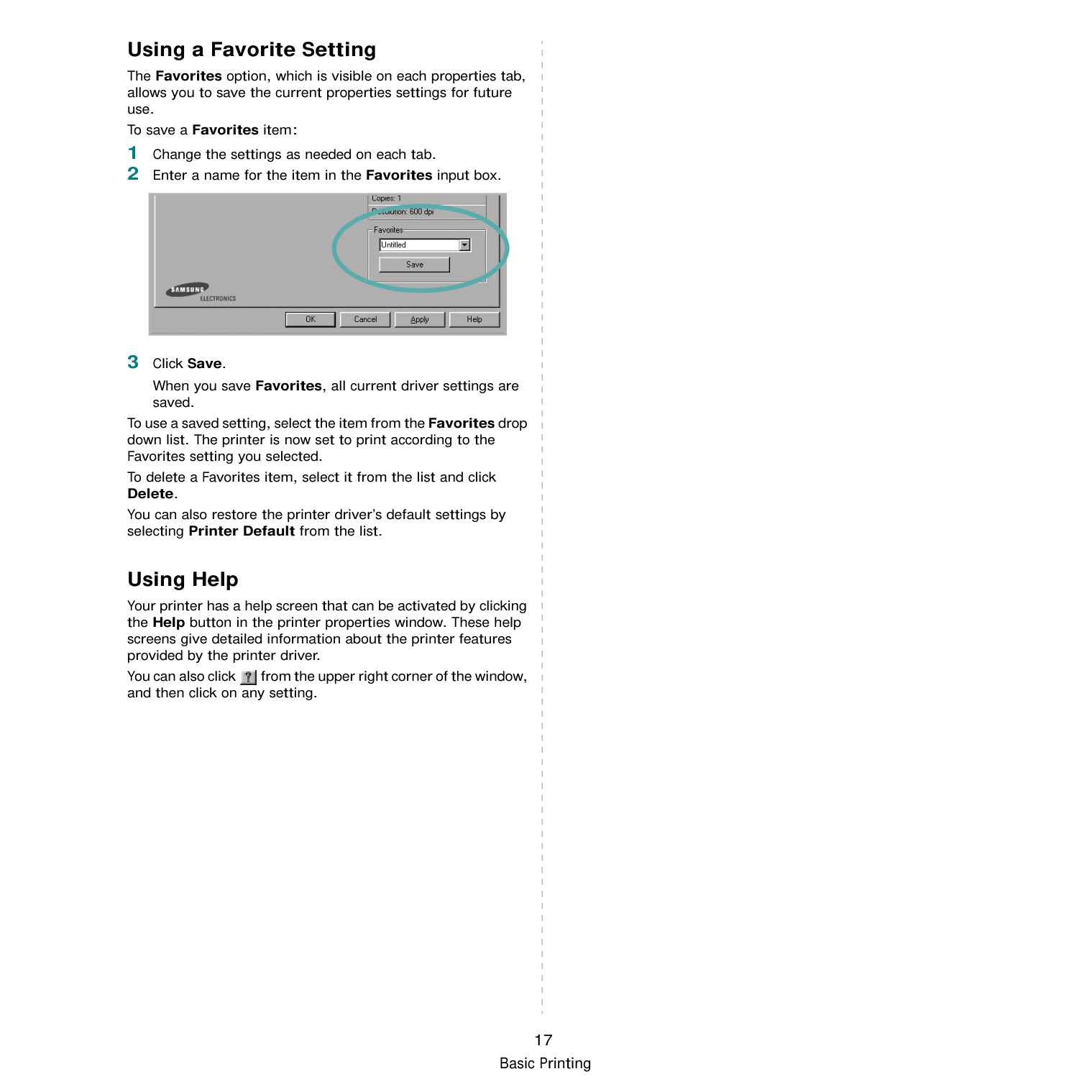
NOTE: If your printer does not have a duplex unit, you should complete the printing job manually. The printer prints every other page of the document first. After printing the first side of your job, the Printing Tip window appears. Follow the onscreen instructions to complete the printing job.
######### Printing a Reduced or Enlarged Document
You can change the size of a page’s content to appear larger or smaller on the printed page.
######### Fitting Your Document to a Selected Paper Size
This printer feature allows you to scale your print job to any selected paper size regardless of the digital document size. This can be useful when you want to check fine details on a small document.
####################### A
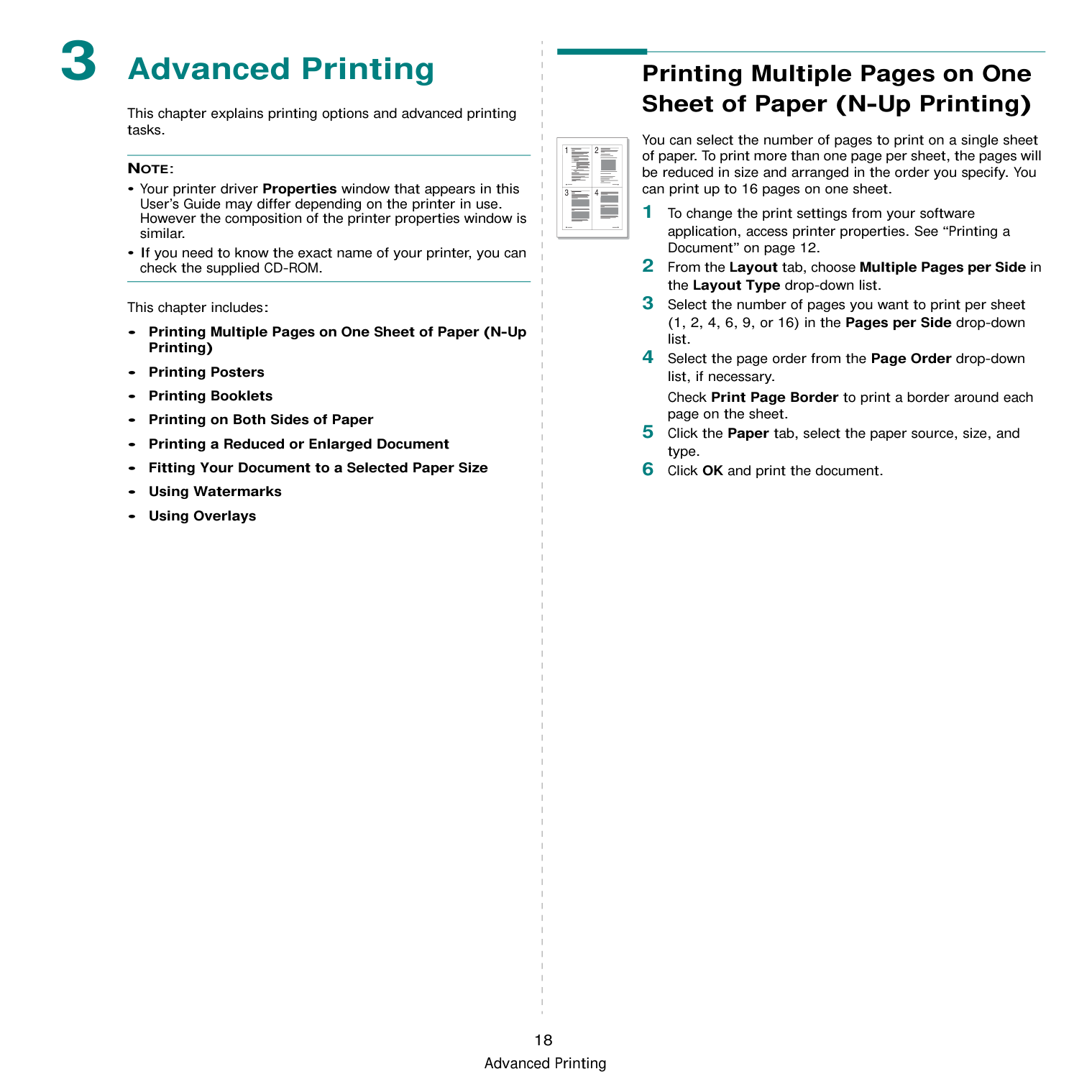
######### Using Watermarks
The Watermark option allows you to print text over an existing document. For example, you may want to have large gray letters reading “DRAFT” or “CONFIDENTIAL” printed diagonally across the first page or all pages of a document. There are several predefined watermarks that come with the printer, and they can be modified, or you can add new ones to the list.
########### Using an Existing Watermark
NOTE: The preview image shows how the page will look when it is printed.
########### Creating a Watermark
When the First Page Only box is checked, the watermark prints on the first page only.
You can select the font name, style, size, or grayscale level from the Font Attributes section and set the angle of the watermark from the Message Angle section.
To stop printing the watermark, select
########### Editing a Watermark
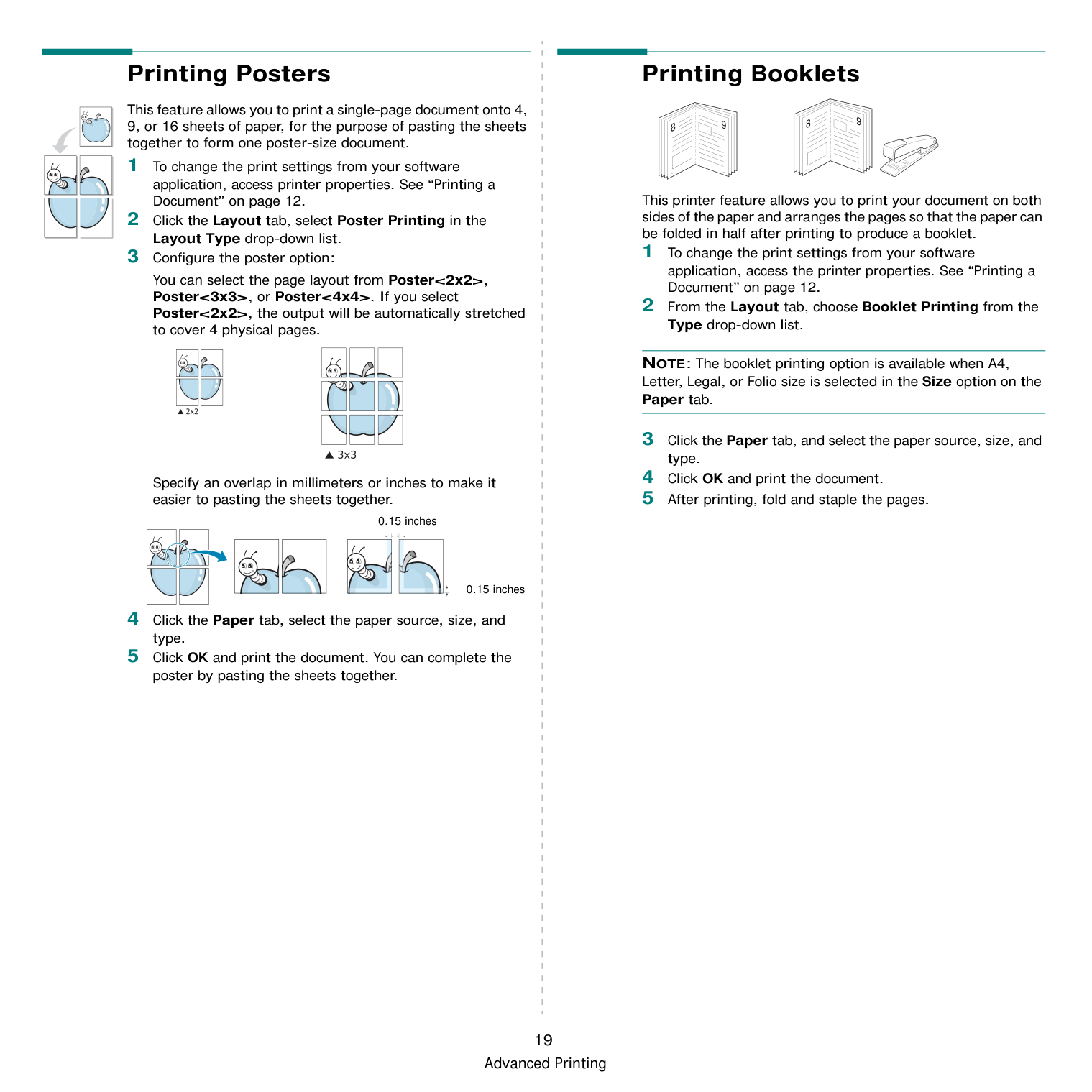
########### Deleting a Watermark
######### Using Overlays
|Dear ABC
Regards| |---|
########################## WORLD BEST
WORLD BEST
########### What is an Overlay?
An overlay is text and/or images stored in the computer hard disk drive (HDD) as a special file format that can be printed on any document. Overlays are often used to take the place of preprinted forms and letterhead paper. Rather than using preprinted letterhead, you can create an overlay containing the exact same information that is currently on your letterhead. To print a letter with your company’s letterhead, you do not need to load preprinted letterhead paper in the printer. You need only tell the printer to print the letterhead overlay on your document.
########### Creating a New Page Overlay
To use a page overlay, you must create a new page overlay containing your logo or image.
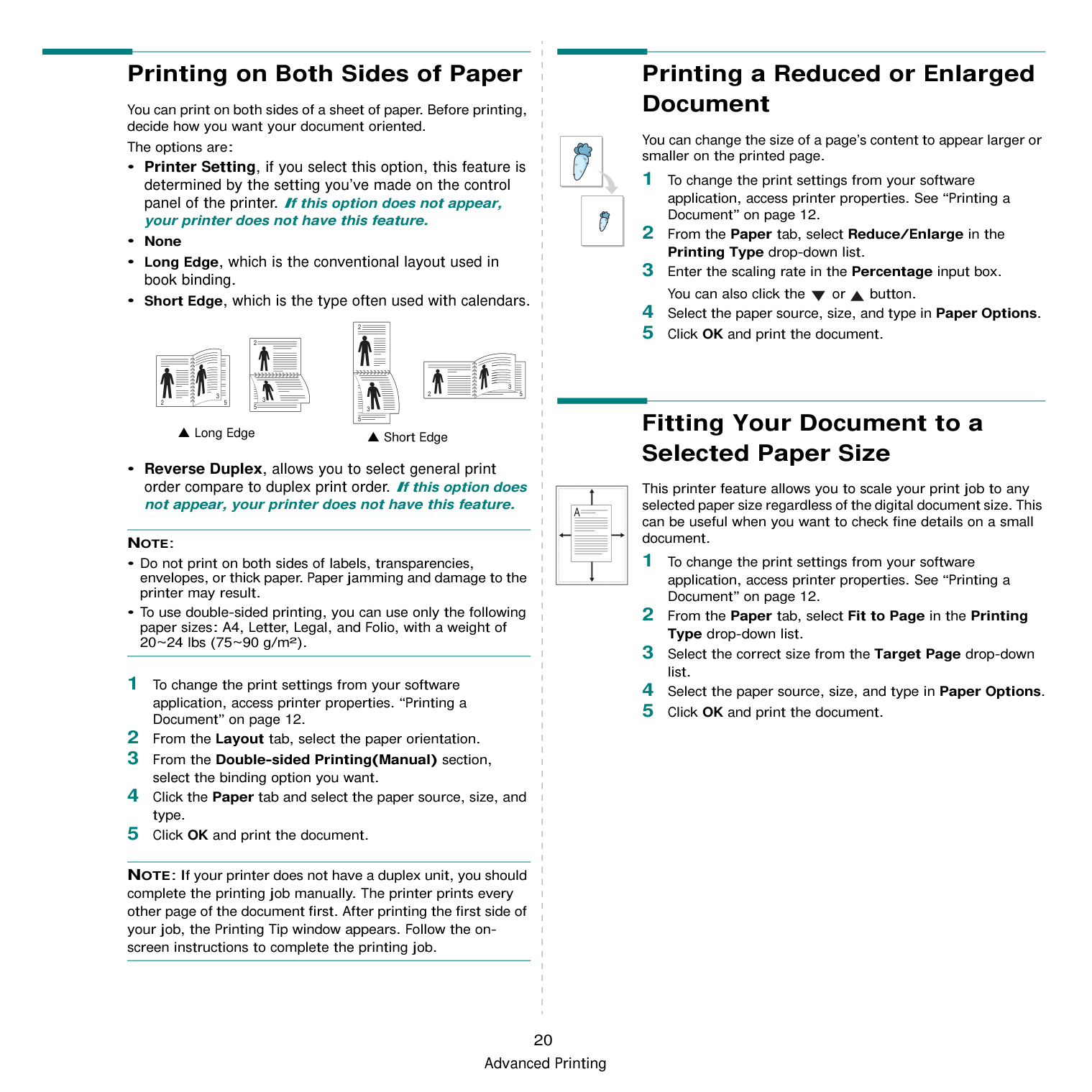
The file is not printed. Instead it is stored on your computer hard disk drive.
NOTE: The overlay document size must be the same as the documents you print with the overlay. Do not create an overlay with a watermark.
########### Using a Page Overlay
After an overlay has been created, it is ready to be printed with your document. To print an overlay with a document:
If you have stored the overlay file you want to use in an external source, you can also load the file when you access the Load Overlay window. After you select the file, click Open. The file appears in the Overlay List box and is available for printing. Select the overlay from the Overlay List box.
If this box is not checked and an overlay has been selected, the overlay automatically prints with your document.
The selected overlay downloads with your print job and prints on your document.
NOTE: The resolution of the overlay document must be the same as that of the document you will print with the overlay.
Deleting a Page Overlay You can delete page overlays that you no longer use.
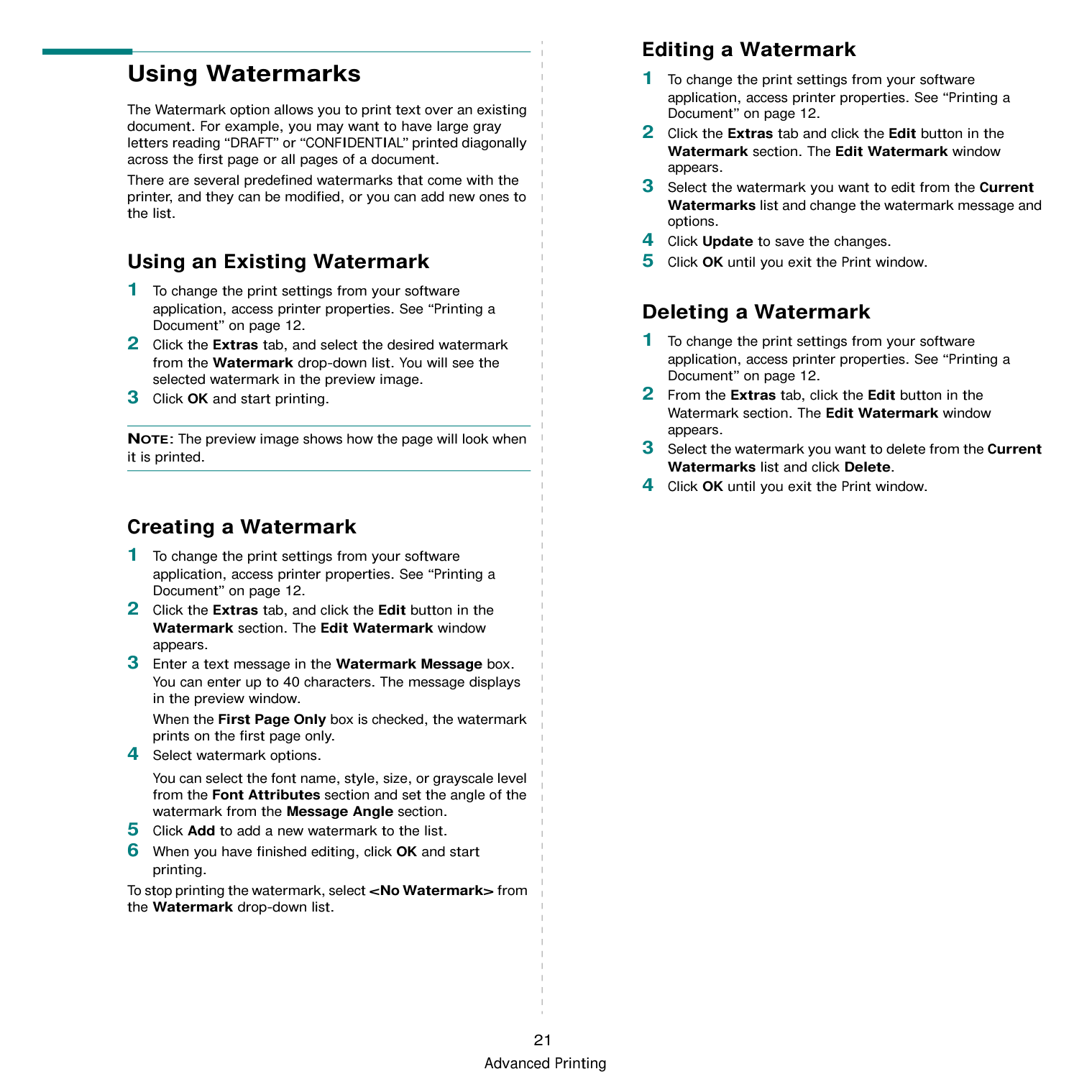
4 Using Windows
####### PostScript Driver
############## (ML-2570/2571N only)
If you want to use the PostScript driver provided with your system CD-ROM to print a document. PPDs, in combination with the PostScript driver, access printer features and allow the computer to communicate with the printer. An installation program for the PPDs is provided on the supplied software CD-ROM. This chapter includes:
######### Printer Settings
You can use the printer properties window, which allows you to access all of the printer options you need when using your printer. When the printer properties are displayed, you can review and change the settings needed for your print job. Your printer properties window may differ, depending on your operating system. This Software User’s Guide shows the Properties window for Windows XP. Your printer driver Properties window that appears in this User’s Guide may differ depending on the printer in use.
#################### NOTES:
########### Advanced
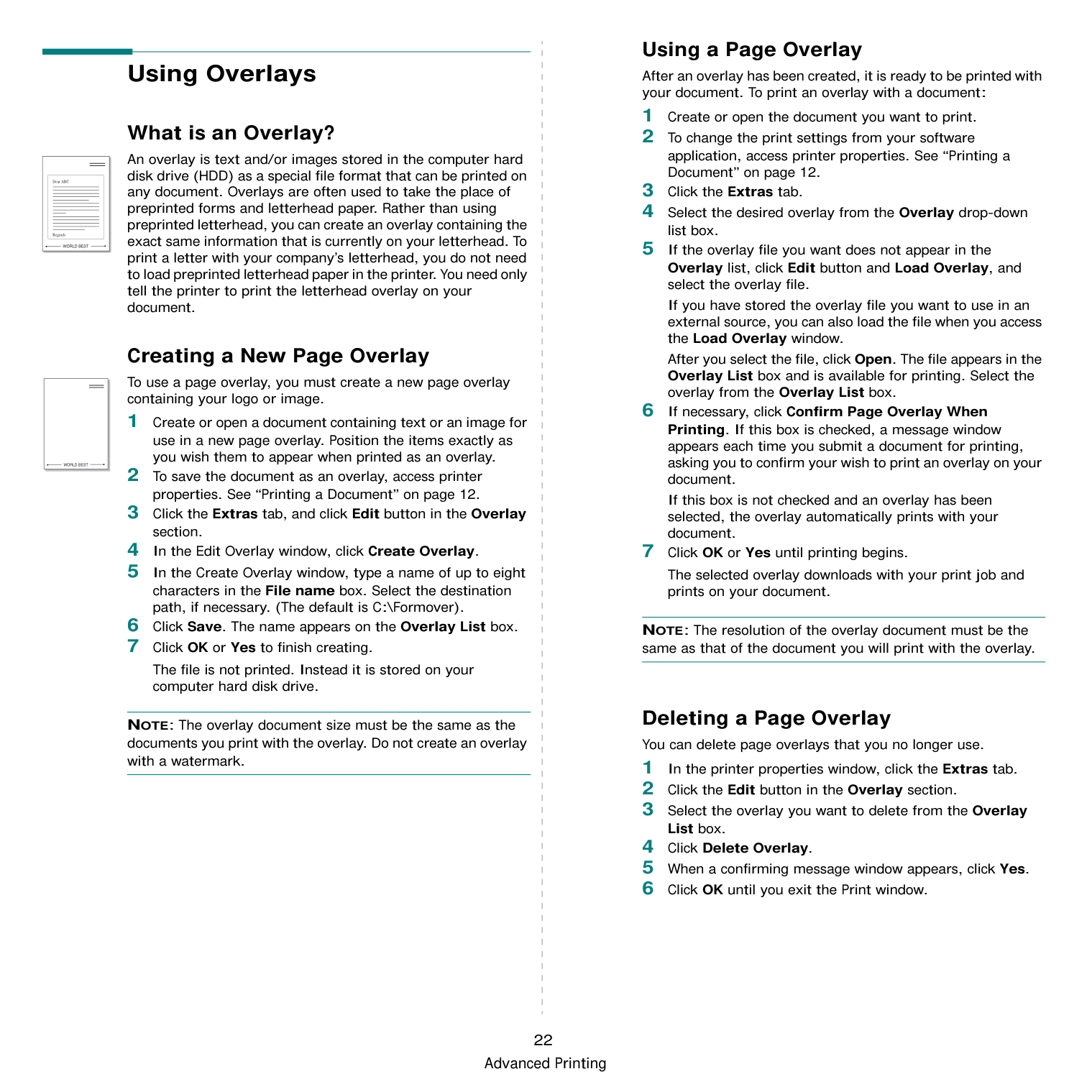
You can use advanced settings by clicking the Advanced button.

########### Using Help
You can click from the upper right corner of the window, and then click on any setting.

23
Using Windows PostScript Driver (ML-2570/2571N only)
5 Sharing the Printer
####### Locally
You can connect the printer directly to a selected computer, which is called “host computer,” on the network.
The following procedure is for Windows XP. For other Windows OS, refer to the corresponding Windows User's Guide or online help.
#################### NOTES:
######### Setting Up a Host Computer
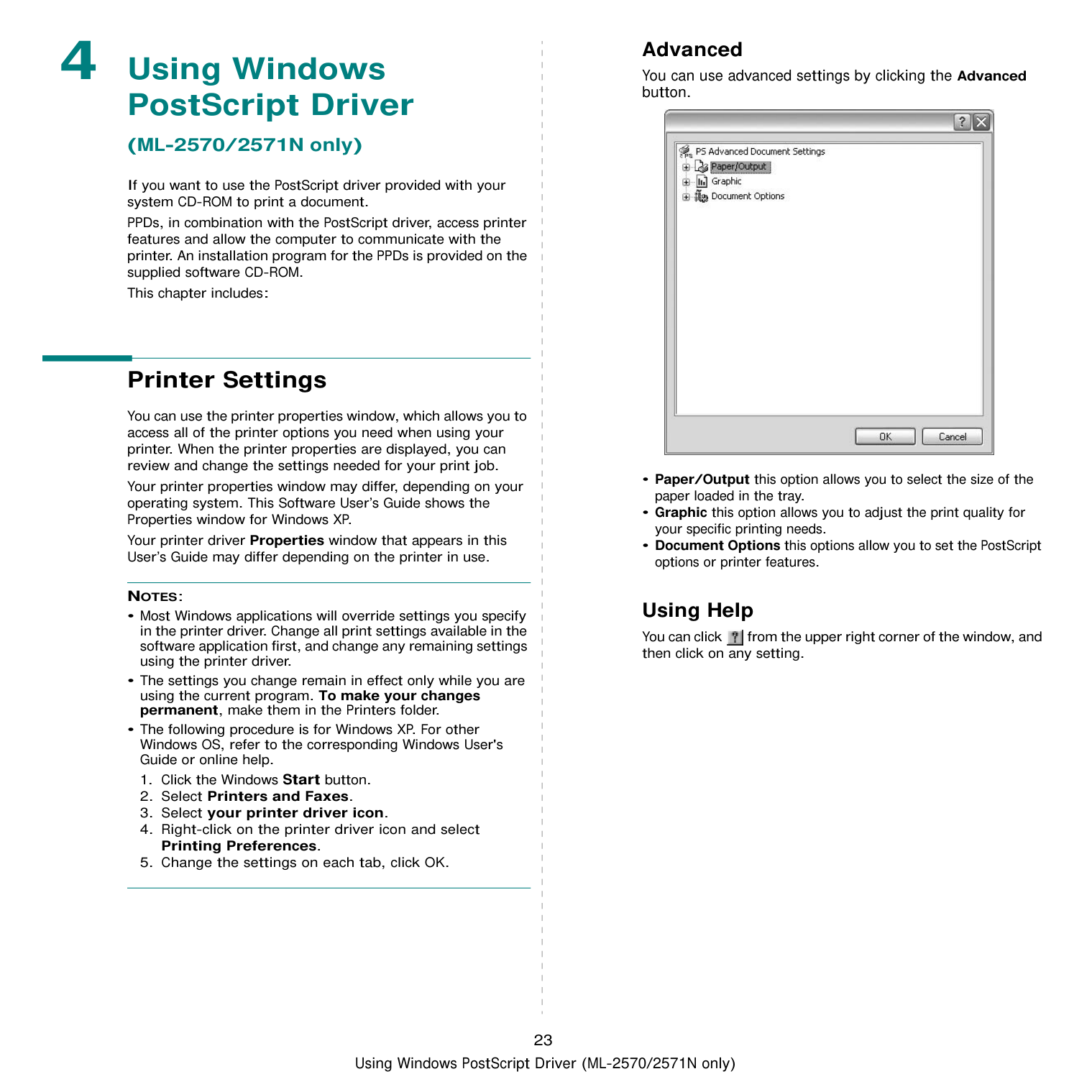
######### Setting Up a Client Computer
24
Sharing the Printer Locally
6 Using Smart Panel
Smart Panel is a program that monitors and informs you of the status of the printer, and allows you to customize the printer’s settings. Smart Panel is installed automatically when you install the printer software.
#################### NOTES:
######### Understanding Smart Panel
If an error occurs while printing, Smart Panel appears automatically, showing the error.
You can also launch Smart Panel manually. Double-click the Smart Panel icon on the Windows task bar (in Windows), or Notification Area (in Linux). You can also click it on the status bar (in Mac OS X).
Double-click this icon in Windows.

Click this icon in Mac OS X.
|| |---|
Click this icon in Linux.
|| |---|
If you are a Windows user, from the Start menu, select Programs or All Programs → your printer driver name → Smart Panel.
NOTES:
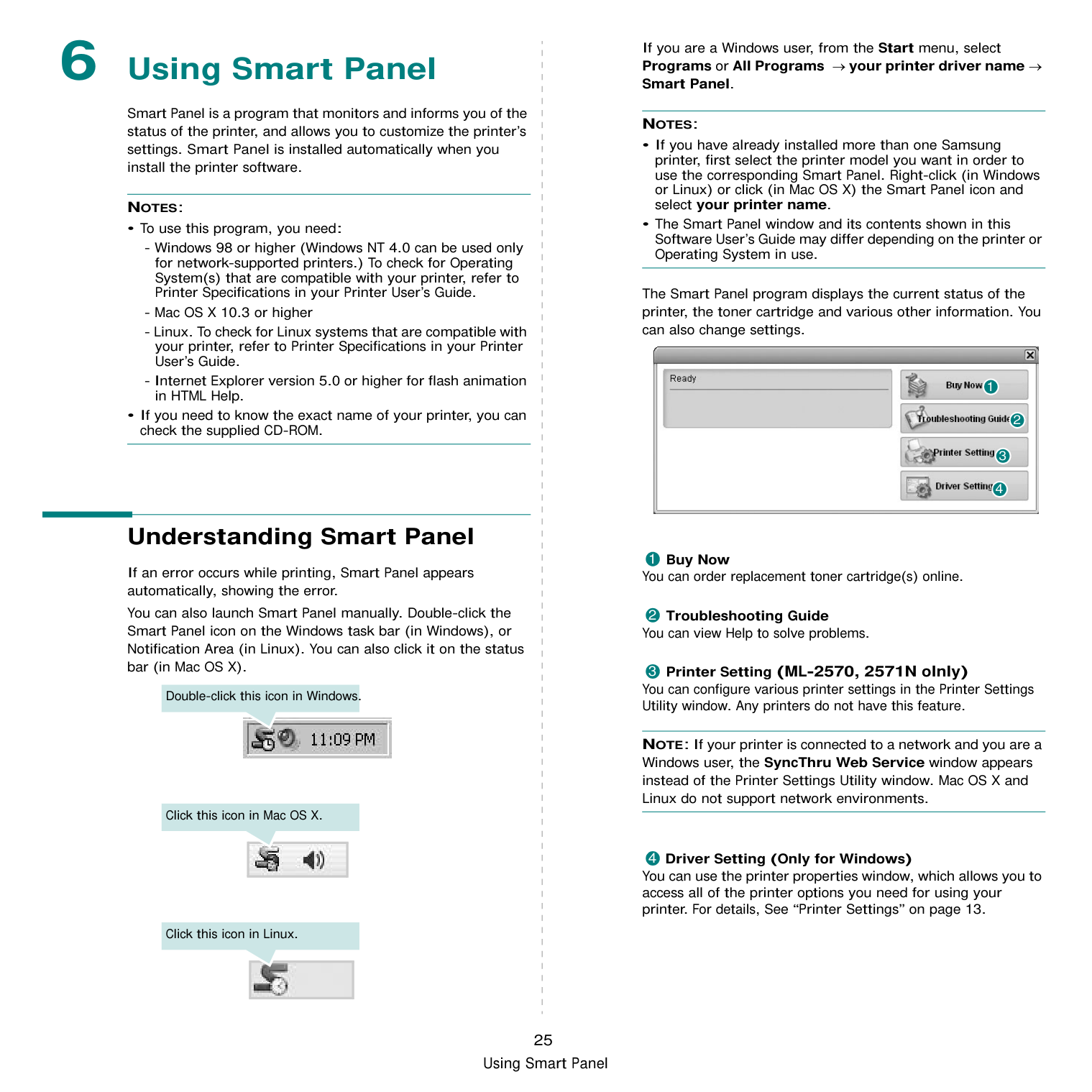
The Smart Panel program displays the current status of the printer, the toner cartridge and various other information. You can also change settings.

1
2
##################### Buy Now
You can order replacement toner cartridge(s) online.
##################### Troubleshooting Guide
You can view Help to solve problems.
Printer Setting (ML-2570, 2571N olnly) You can configure various printer settings in the Printer Settings Utility window. Any printers do not have this feature.
NOTE: If your printer is connected to a network and you are a Windows user, the SyncThru Web Service window appears instead of the Printer Settings Utility window. Mac OS X and Linux do not support network environments.
Driver Setting (Only for Windows) You can use the printer properties window, which allows you to access all of the printer options you need for using your printer. For details, See “Printer Settings” on page 13.
######### Opening the Troubleshooting Guide
Using the troubleshooting guide, you can view solutions for error status problems. Right-click (in Windows or Linux) or click (in Mac OS X) the Smart Panel icon and select Troubleshooting Guide.
######### Changing the Smart Panel Program Settings
Right-click (in Windows or Linux) or click (in Mac OS X) the Smart Panel icon and select Options. Select the settings you want from the Options window.
######### Using Printer Settings Utility
Using the Printer Settings Utility, you can configure and check print settings.
NOTES: If your printer is connected to a network, the SyncThru Web Service window appears instead of the Printer Settings Utility window.
Using Onscreen Help File For more information about Printer Settings Utility, click .
7 Using Your Printer in
####### Linux
You can use your machine in a Linux environment.
This chapter includes:
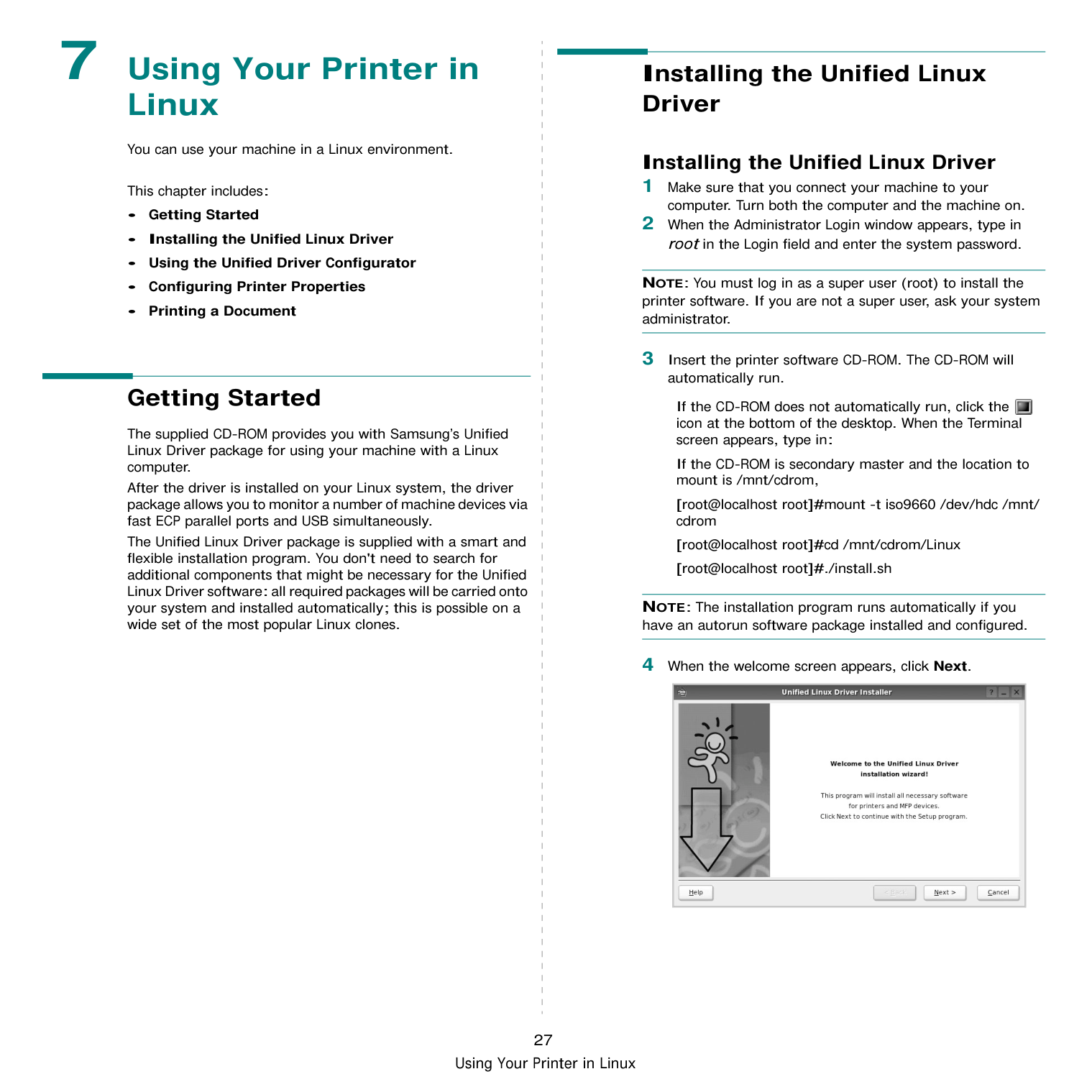
######### Getting Started
The supplied CD-ROM provides you with Samsung’s Unified Linux Driver package for using your machine with a Linux computer. After the driver is installed on your Linux system, the driver package allows you to monitor a number of machine devices via fast ECP parallel ports and USB simultaneously. The Unified Linux Driver package is supplied with a smart and flexible installation program. You don't need to search for additional components that might be necessary for the Unified Linux Driver software: all required packages will be carried onto your system and installed automatically; this is possible on a wide set of the most popular Linux clones.
######### Installing the Unified Linux Driver
########### Installing the Unified Linux Driver
NOTE: You must log in as a super user (root) to install the printer software. If you are not a super user, ask your system administrator.
If the CD-ROM does not automatically run, click the icon at the bottom of the desktop. When the Terminal screen appears, type in:
If the CD-ROM is secondary master and the location to mount is /mnt/cdrom,
[root@localhost root]#mount -t iso9660 /dev/hdc /mnt/ cdrom
[root@localhost root]#cd /mnt/cdrom/Linux [root@localhost root]#./install.sh
NOTE: The installation program runs automatically if you have an autorun software package installed and configured.

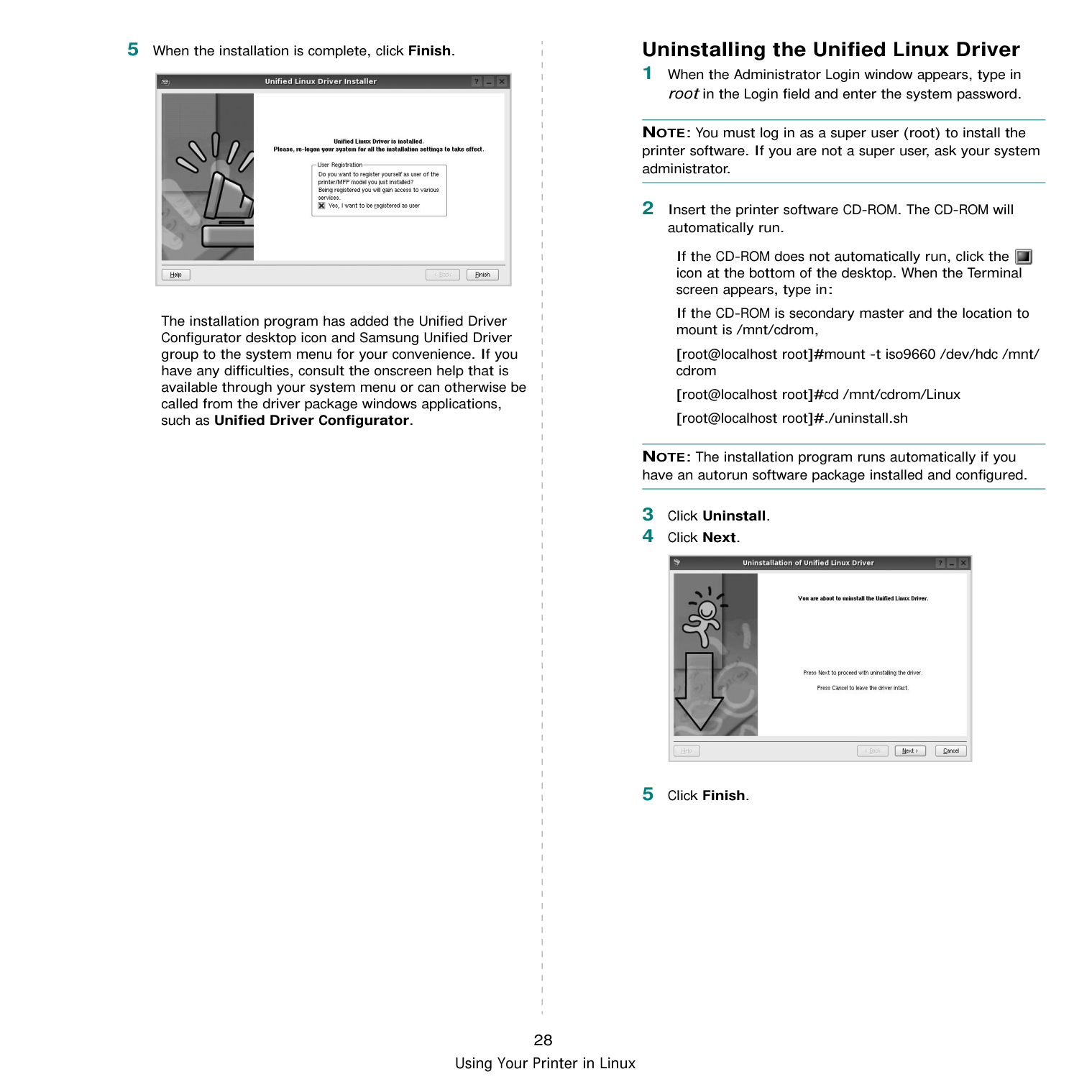
|| |---|
5 When the installation is complete, click Finish.
|| |---|
The installation program has added the Unified Driver Configurator desktop icon and Samsung Unified Driver group to the system menu for your convenience. If you have any difficulties, consult the onscreen help that is available through your system menu or can otherwise be called from the driver package windows applications, such as Unified Driver Configurator.
########### Uninstalling the Unified Linux Driver
NOTE: You must log in as a super user (root) to install the printer software. If you are not a super user, ask your system administrator.
If the CD-ROM does not automatically run, click the icon at the bottom of the desktop. When the Terminal screen appears, type in:
If the CD-ROM is secondary master and the location to mount is /mnt/cdrom,
[root@localhost root]#mount -t iso9660 /dev/hdc /mnt/ cdrom
[root@localhost root]#cd /mnt/cdrom/Linux [root@localhost root]#./uninstall.sh
NOTE: The installation program runs automatically if you have an autorun software package installed and configured.
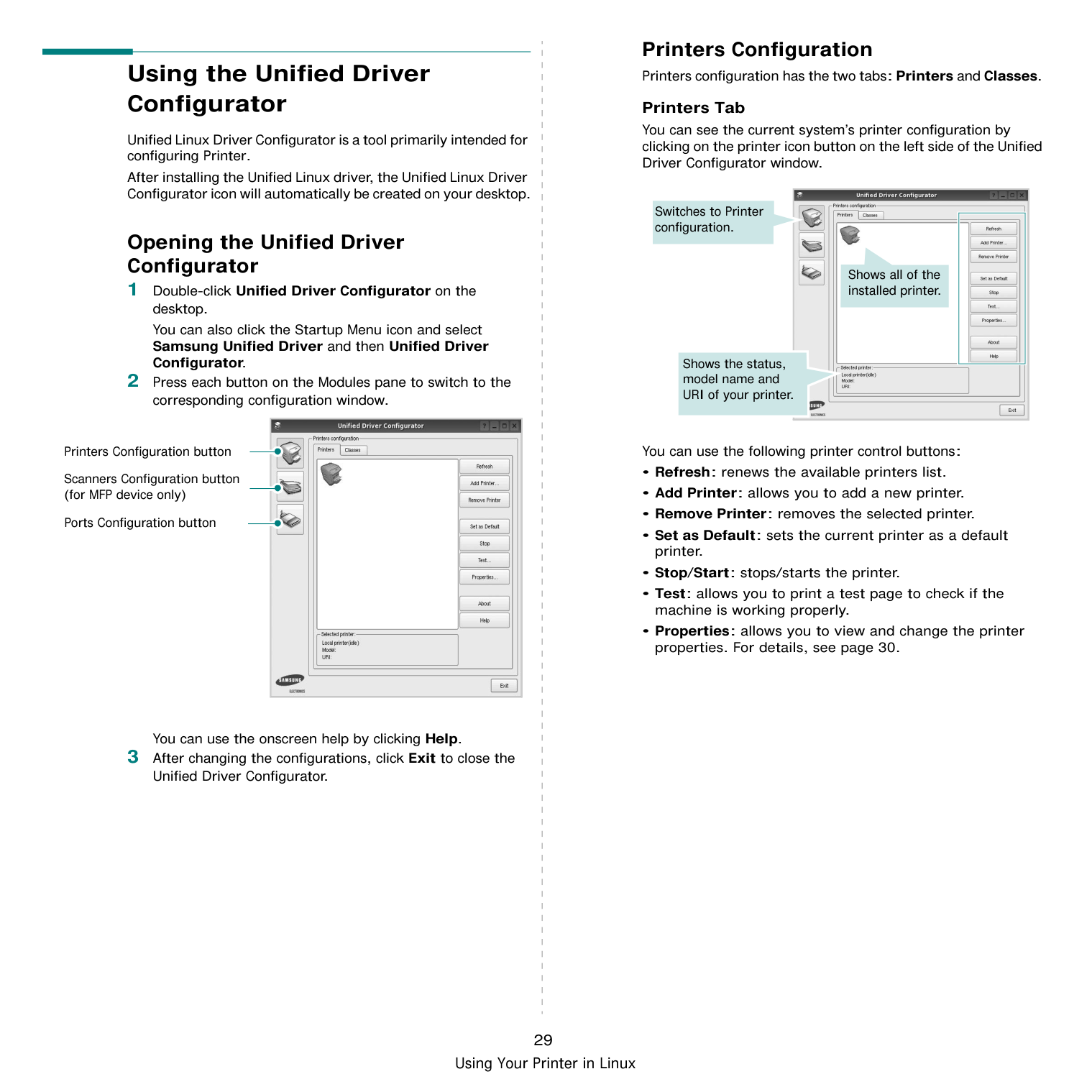

|| |---|
######### Using the Unified Driver Configurator
Unified Linux Driver Configurator is a tool primarily intended for configuring Printer. After installing the Unified Linux driver, the Unified Linux Driver Configurator icon will automatically be created on your desktop.
########### Opening the Unified Driver Configurator
############## 1 Double-click Unified Driver Configurator on thedesktop.
You can also click the Startup Menu icon and select Samsung Unified Driver and then Unified Driver Configurator.
############### 2 Press each button on the Modules pane to switch to thecorresponding configuration window.
Printers Configuration button Scanners Configuration button (for MFP device only) Ports Configuration button
| || |---|---| | || | || | ||
You can use the onscreen help by clicking Help.
############### 3 After changing the configurations, click Exit to close theUnified Driver Configurator.
Printers Configuration Printers configuration has the two tabs: Printers and Classes.
################## Printers Tab
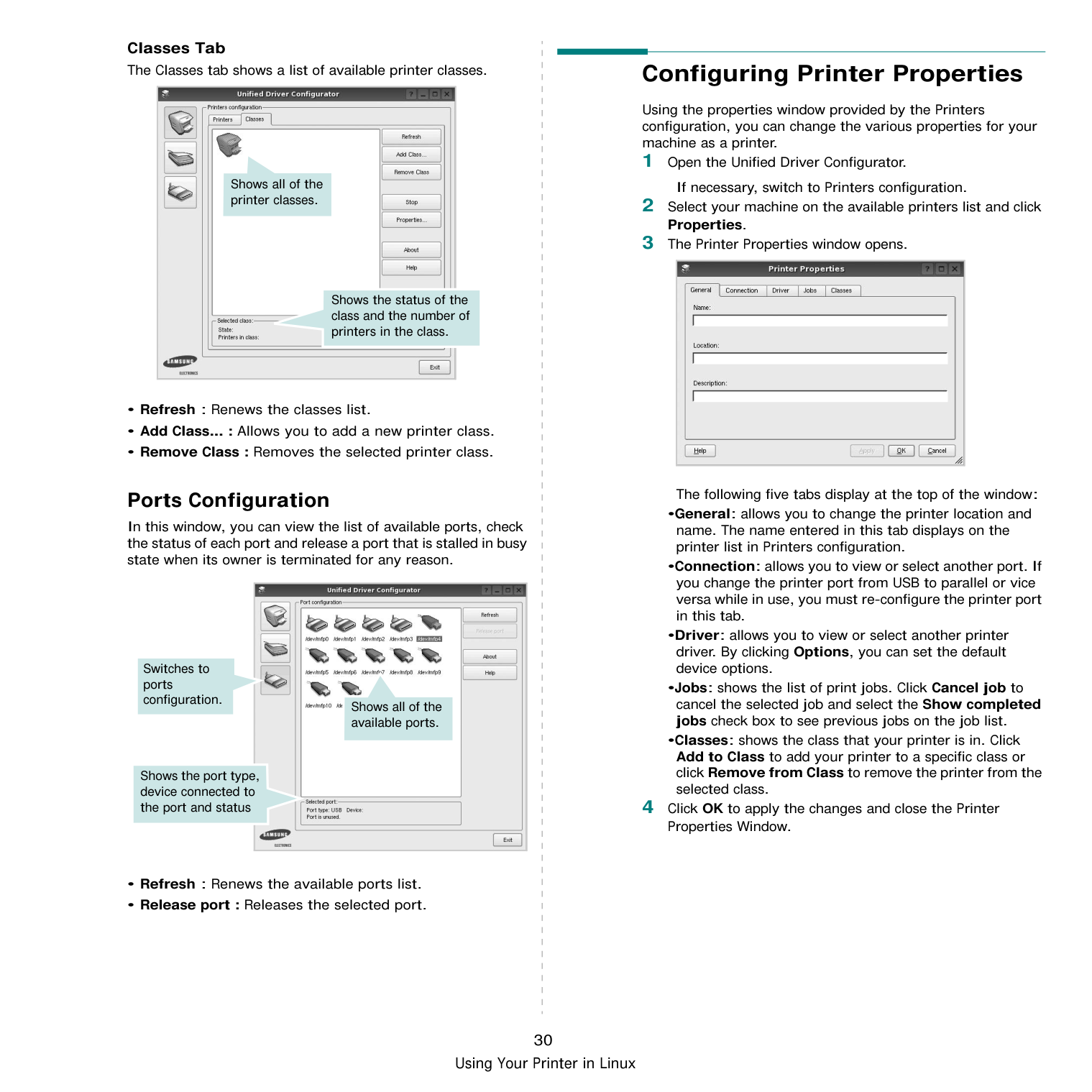
You can see the current system’s printer configuration by clicking on the printer icon button on the left side of the Unified Driver Configurator window.

Switches to Printer configuration.
Shows all of the installed printer.
Shows the status, model name and URI of your printer.
You can use the following printer control buttons:
Classes Tab The Classes tab shows a list of available printer classes.

Shows all of the printer classes.
Shows the status of the class and the number of printers in the class.
Ports Configuration
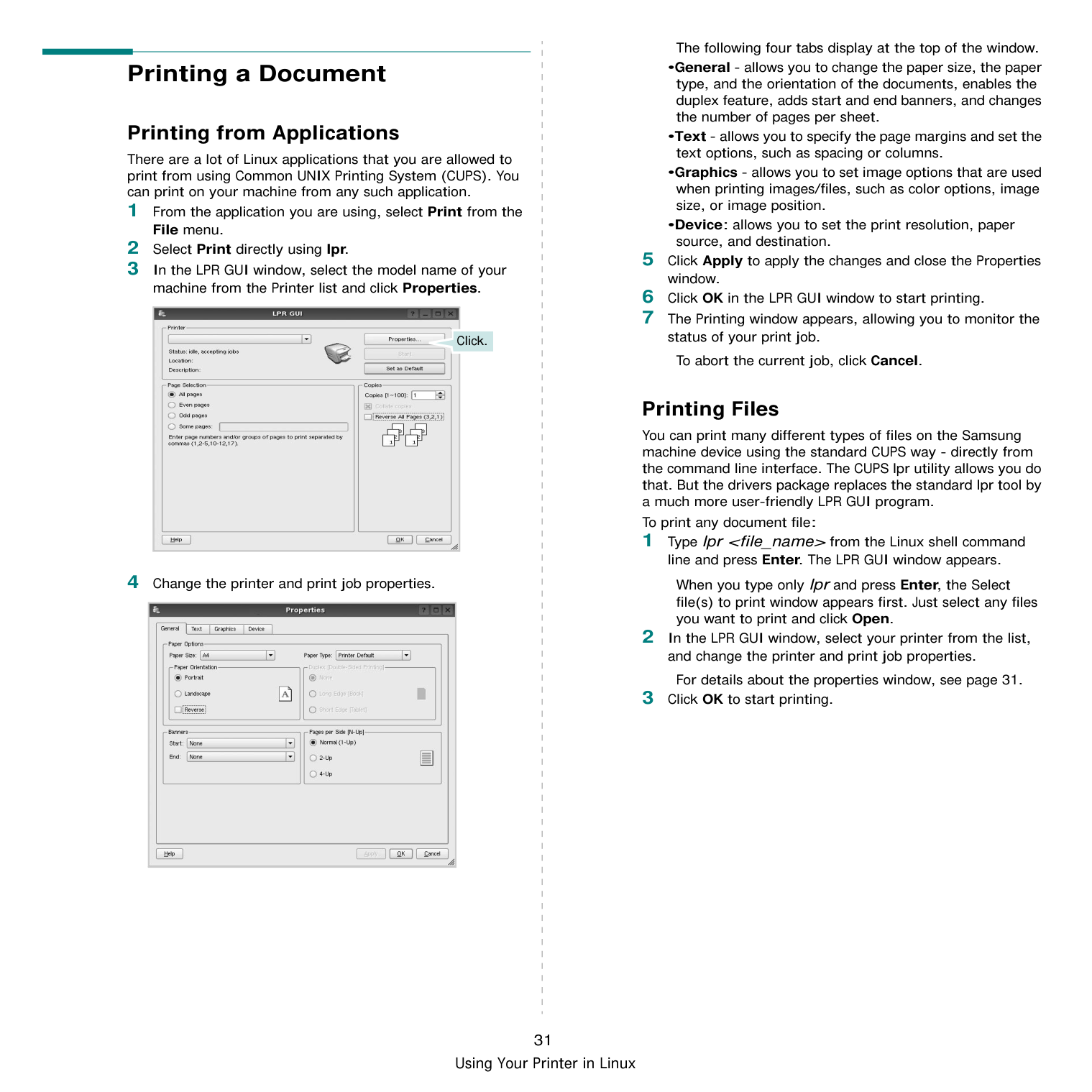
In this window, you can view the list of available ports, check the status of each port and release a port that is stalled in busy state when its owner is terminated for any reason.

Switches to ports configuration.
Shows all of the available ports.
Shows the port type, device connected to the port and status
######### Configuring Printer Properties
Using the properties window provided by the Printers configuration, you can change the various properties for your machine as a printer.
The following five tabs display at the top of the window:
|| |---|
######### Printing a Document
########### Printing from Applications
There are a lot of Linux applications that you are allowed to print from using Common UNIX Printing System (CUPS). You can print on your machine from any such application.

Click.
|| |---|
The following four tabs display at the top of the window.
To abort the current job, click Cancel.
Printing Files You can print many different types of files on the Samsung machine device using the standard CUPS way - directly from the command line interface. The CUPS lpr utility allows you do that. But the drivers package replaces the standard lpr tool by a much more user-friendly LPR GUI program. To print any document file:
When you type only lpr and press Enter, the Select file(s) to print window appears first. Just select any files you want to print and click Open.
For details about the properties window, see page 31.
8 Using Your Printer with
####### a Macintosh
Your printer supports Macintosh systems with a built-in USB interface or 10/100 Base-TX network interface card. When you print a file from a Macintosh computer, you can use the driver by installing the PPD file.
NOTE: Some printers do not support a network interface. Make sure that your printer supports a network interface by referring to Printer Specifications in your Printer User’s Guide.
This chapter includes:
######### Installing printer driver for Macintosh
########### ML-2510 only
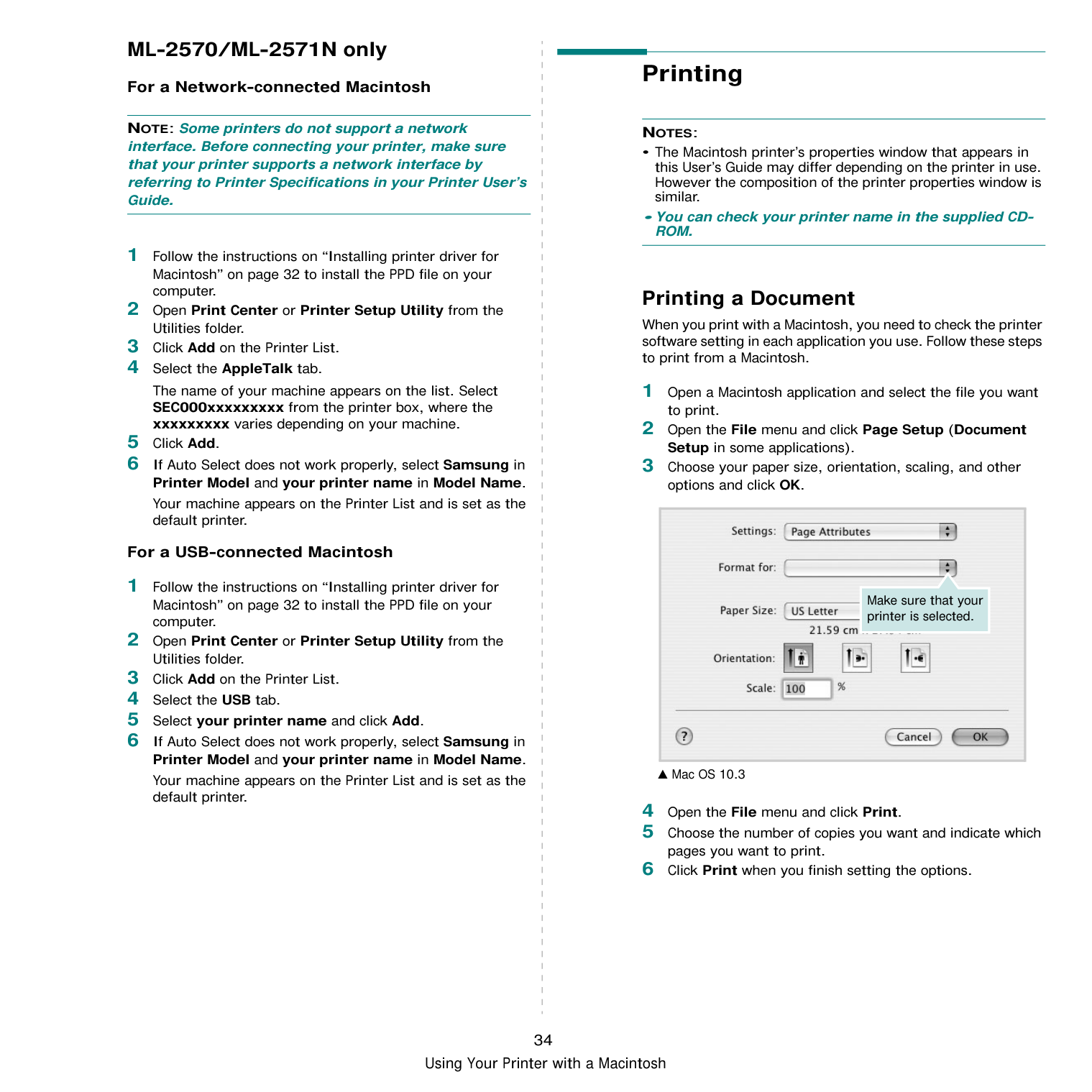
The CD-ROM that came with your printer provides you with the PPD file that allows you to use the CUPS driver or Apple LaserWriter driver (only available when you use a printer which supports the PostScript driver), for printing on a Macintosh computer.
################## Install the Printer driver
################## Uninstalling the Printer driver
Uninstall is required if you are upgrading the software, or if installation fails.
######### Setting Up the Printer
The PostScript driver CD-ROM that came with your machine provides you with the PPD file to use the PS driver, Apple LaserWriter driver, for printing on a Macintosh computer. Also, it provides you with the Twain driver for scanning on a Macintosh computer.
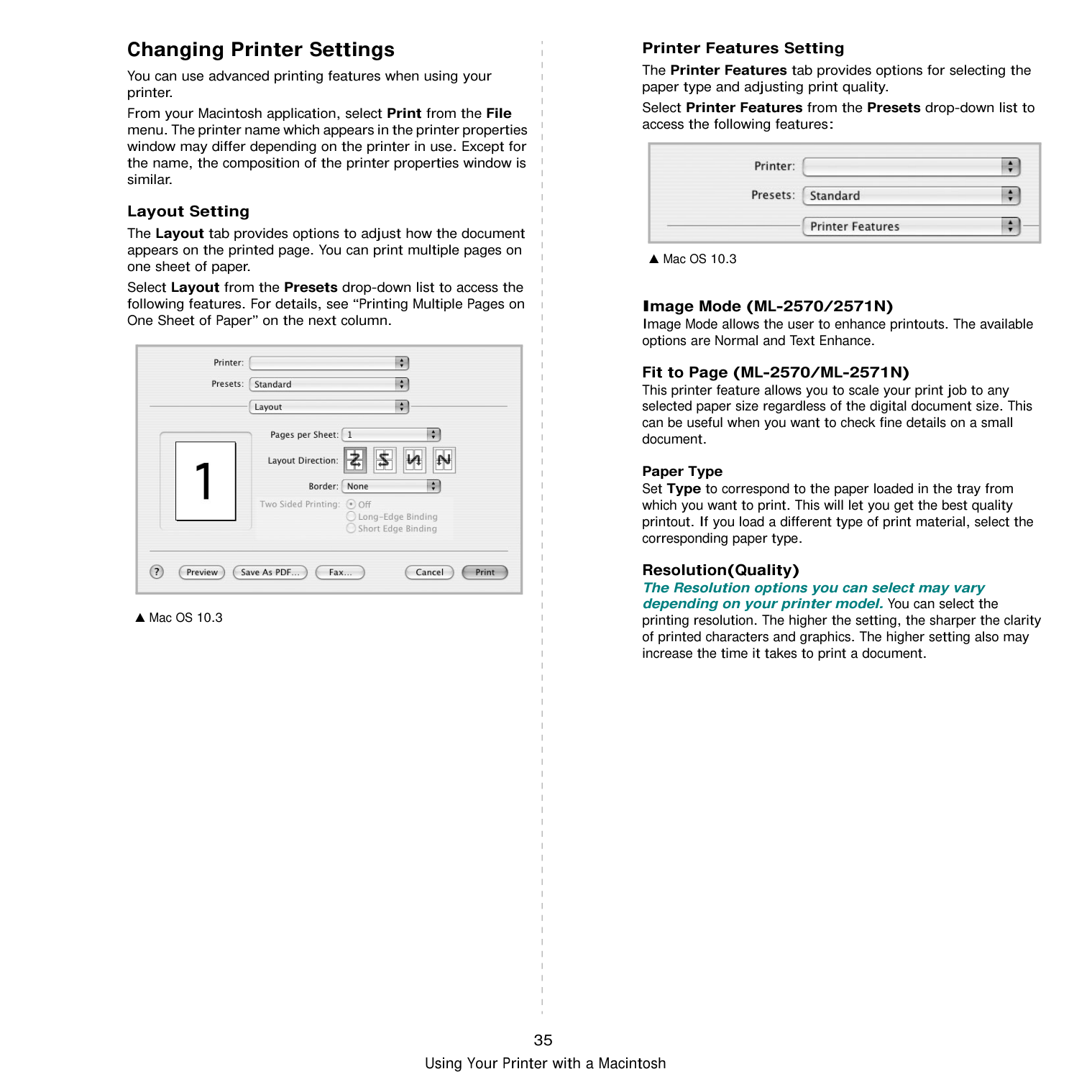
Set up for your printer will be different depending on which cable you use to connect the printer to your computer—the network cable or the USB cable.
ML-2510 only For a Network-connected Macintosh NOTE: Some printers do not support a network interface. Before connecting your printer, make sure that your printer supports a network interface by referring to Printer Specifications in your Printer User’s Guide.
is set as the default printer.
################## For a USB-connected Macintosh
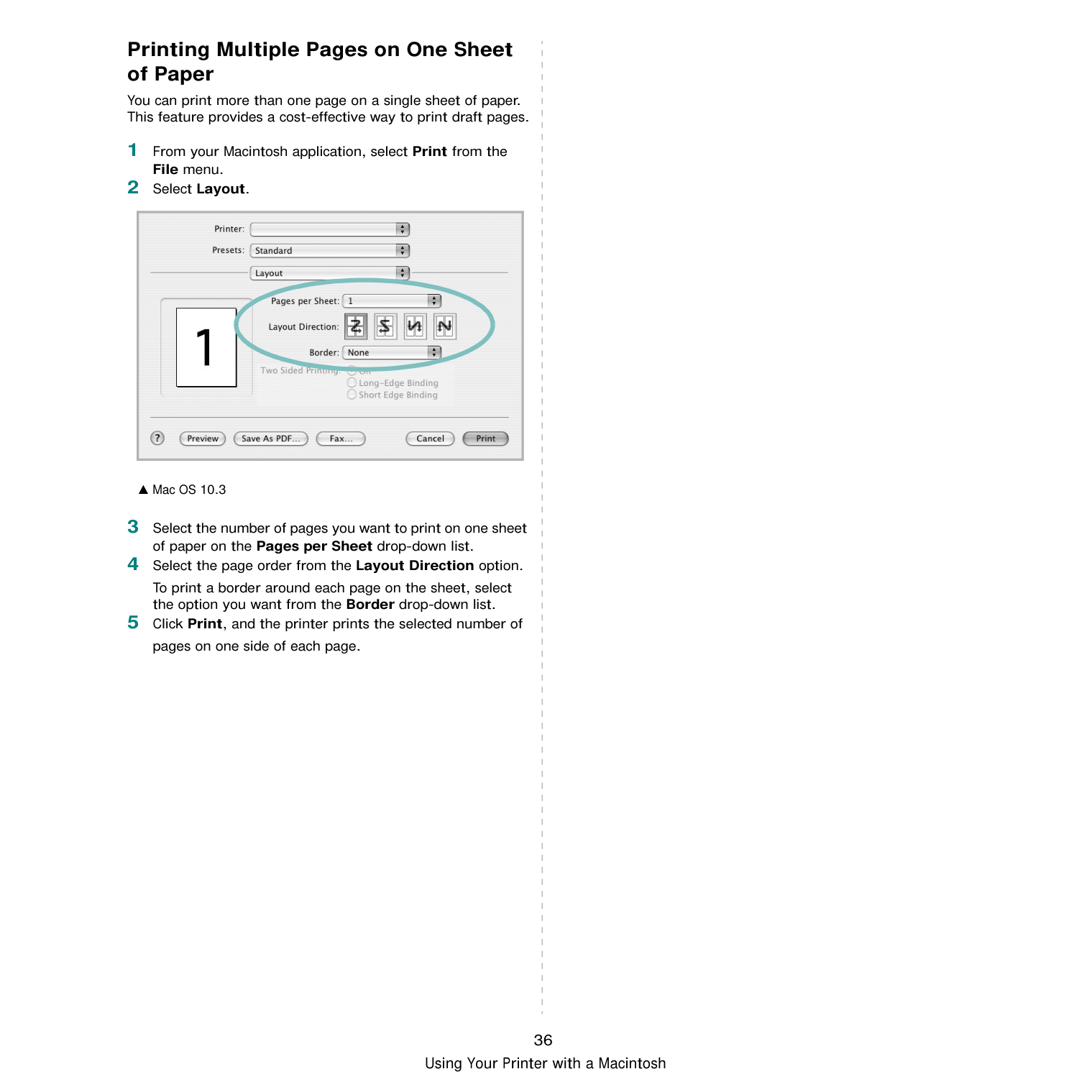
Your printer appears on the Printer List, and is set as the default printer.
################## For a Network-connected Macintosh
NOTE: Some printers do not support a network interface. Before connecting your printer, make sure that your printer supports a network interface by referring to Printer Specifications in your Printer User’s Guide.
The name of your machine appears on the list. Select SEC000xxxxxxxxx from the printer box, where the xxxxxxxxx varies depending on your machine.
Your machine appears on the Printer List and is set as the default printer.
################## For a USB-connected Macintosh
Your machine appears on the Printer List and is set as the default printer.
######### Printing
#################### NOTES:
########### Printing a Document
When you print with a Macintosh, you need to check the printer software setting in each application you use. Follow these steps to print from a Macintosh.
|
Make sure that your printer is selected.| |---|
▲ Mac OS 10.3
Changing Printer Settings You can use advanced printing features when using your printer. From your Macintosh application, select Print from the File menu. The printer name which appears in the printer properties window may differ depending on the printer in use. Except for the name, the composition of the printer properties window is similar.
################## Layout Setting
The Layout tab provides options to adjust how the document appears on the printed page. You can print multiple pages on one sheet of paper.
Select Layout from the Presets drop-down list to access the following features. For details, see “Printing Multiple Pages on One Sheet of Paper” on the next column.
|| |---|
▲ Mac OS 10.3
Printer Features Setting The Printer Features tab provides options for selecting the paper type and adjusting print quality. Select Printer Features from the Presets drop-down list to access the following features:
|| |---|
▲ Mac OS 10.3
Image Mode (ML-2570/2571N) Image Mode allows the user to enhance printouts. The available options are Normal and Text Enhance.
Fit to Page (ML-2570/ML-2571N) This printer feature allows you to scale your print job to any selected paper size regardless of the digital document size. This can be useful when you want to check fine details on a small document.
Paper Type Set Type to correspond to the paper loaded in the tray from which you want to print. This will let you get the best quality printout. If you load a different type of print material, select the corresponding paper type. Resolution(Quality) The Resolution options you can select may vary depending on your printer model. You can select the printing resolution. The higher the setting, the sharper the clarity of printed characters and graphics. The higher setting also may increase the time it takes to print a document.
########### Printing Multiple Pages on One Sheet of Paper
You can print more than one page on a single sheet of paper. This feature provides a cost-effective way to print draft pages.
To print a border around each page on the sheet, select the option you want from the Border drop-down list.
|
| |---|

▲ Mac OS 10.3
SOFTWARE SECTION
#### INDEX
Macintosh 34 Windows 12
double-sided printing 20
printer driver Macintosh 32 Windows 4
installing Linux software 27
L Layout properties, set
Macintosh 35 Windows 13
Linux driver, install 27 printer properties 30 printing 31
driver install 32 uninstall 32
printing 34 setting up the printer 33
MFP driver, install Linux 27
Macintosh 36 Windows 18
Windows 13 overlay
create 22 delete 22 print 22
print 31 paper source, set 31 Windows 14
paper type, set Macintosh 35 print 31 poster, print 19
PostScript driver installing 23
print document 12 fit to page 20 from Macintosh 34 from Windows 12 N-up
Macintosh 36 Windows 18
overlay 22 poster 21 scaling 20 watermark 21
print resolution 31 printer driver install
Macintosh 32 printer driver, install Linux 27 printer properties Linux 31
printer properties, set Macintosh 35 Windows 13, 23
printer resolution, set Macintosh 35 Windows 15
printer software install Windows 4
uninstall Macintosh 32 Windows 11
printing booklets 19 double-sided 20 from Linux 31
R resolution
printing 31
darkness 15 favorites 17 image mode 15 resolution
Macintosh 35 Windows 15
toner save 15 true-type option 15
software
install Macintosh 32 Windows 4
reinstall Windows 10 system requirements Macintosh 32
uninstall Macintosh 32 Windows 11
status monitor, use 25
Macintosh 32 Windows 11
uninstalling MFP driver Linux 28
W watermark
create 21 delete 21 edit 21 print 21
############# www.samsungprinter.com
Rev. 5.00